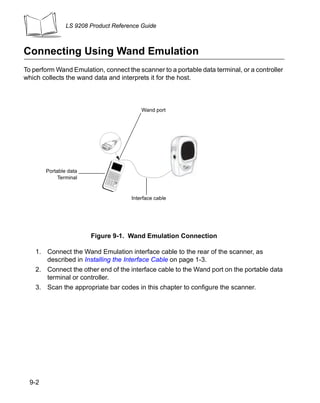
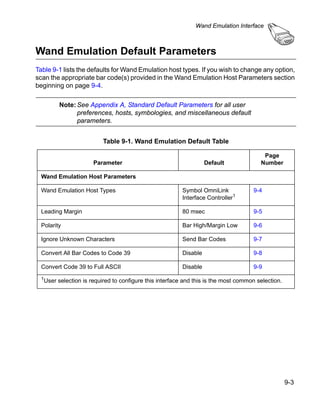
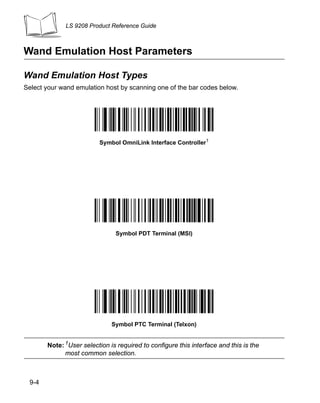
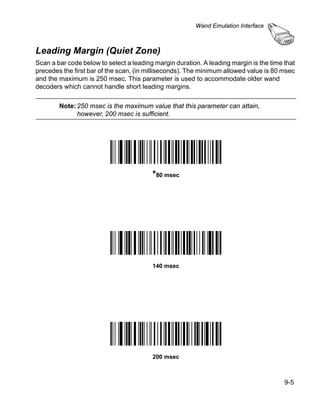
LS 9208


Product Reference Guide
LS 9208
Product Reference Guide

               72-60833-03
                Revision A
                 April 2004
© 2003 - 2004 by Symbol Technologies, Inc. All rights reserved.

No part of this publication may be reproduced or used in any form, or by any electrical or
mechanical means, without permission in writing from Symbol. This includes electronic or
mechanical means, such as photocopying, recording, or information storage and retrieval
systems. The material in this guide is subject to change without notice.

The software is provided strictly on an “as is” basis. All software, including firmware,
furnished to the user is on a licensed basis. Symbol grants to the user a non-transferable
and non-exclusive license to use each software or firmware program delivered hereunder
(licensed program). Except as noted below, such license may not be assigned,
sublicensed, or otherwise transferred by the user without prior written consent of Symbol.
No right to copy a licensed program in whole or in part is granted, except as permitted under
copyright law. The user shall not modify, merge, or incorporate any form or portion of a
licensed program with other program material, create a derivative work from a licensed
program, or use a licensed program in a network without written permission from Symbol.
The user agrees to maintain Symbol’s copyright notice on the licensed programs delivered
hereunder, and to include the same on any authorized copies it makes, in whole or in part.
The user agrees not to decompile, disassemble, decode, or reverse engineer any licensed
program delivered to the user or any portion thereof.

Symbol reserves the right to make changes to any software or product to improve reliability,
function, or design.
Symbol does not assume any product liability arising out of, or in connection with, the
application or use of any product, circuit, or application described herein.

No license is granted, either expressly or by implication, estoppel, or otherwise under any
Symbol Technologies, Inc., intellectual property rights. An implied license only exists for
equipment, circuits, and subsystems contained in Symbol products.

Symbol, Spectrum One, and Spectrum24 are registered trademarks of Symbol
Technologies, Inc. Other product names mentioned in this guide may be trademarks or
registered trademarks of their respective companies and are hereby acknowledged.
Symbol Technologies, Inc.
One Symbol Plaza
Holtsville, New York 11742-1300
http://www.symbol.com
Contents


About This Guide
Introduction . . . . . . . . . . . . . . . . . . . . . . . . . . . . . . . . . . . . . . . . . . . . . . . . . . . . . . . . . . . . . . . . . . . . xi
Chapter Descriptions . . . . . . . . . . . . . . . . . . . . . . . . . . . . . . . . . . . . . . . . . . . . . . . . . . . . . . . . . . . . . xi
Notational Conventions . . . . . . . . . . . . . . . . . . . . . . . . . . . . . . . . . . . . . . . . . . . . . . . . . . . . . . . . . . xiii
Related Publications . . . . . . . . . . . . . . . . . . . . . . . . . . . . . . . . . . . . . . . . . . . . . . . . . . . . . . . . . . . . xiii
Service Information . . . . . . . . . . . . . . . . . . . . . . . . . . . . . . . . . . . . . . . . . . . . . . . . . . . . . . . . . . . . . xiii
Symbol Support Center . . . . . . . . . . . . . . . . . . . . . . . . . . . . . . . . . . . . . . . . . . . . . . . . . . . . . . . . . . xiv

Chapter 1. Getting Started
Introduction . . . . . . . . . . . . . . . . . . . . . . . . . . . . . . . . . . . . . . . . . . . . . . . . . . . . . . . . . . . . . . . . . .   1-1
Unpacking Your Scanner . . . . . . . . . . . . . . . . . . . . . . . . . . . . . . . . . . . . . . . . . . . . . . . . . . . . . . . .             1-2
Setting Up the Scanner . . . . . . . . . . . . . . . . . . . . . . . . . . . . . . . . . . . . . . . . . . . . . . . . . . . . . . . . .           1-3
     Installing the Interface Cable . . . . . . . . . . . . . . . . . . . . . . . . . . . . . . . . . . . . . . . . . . . . . . . . .              1-3
     Connecting Power (if required) . . . . . . . . . . . . . . . . . . . . . . . . . . . . . . . . . . . . . . . . . . . . . . . .                1-4
     Synapse Interface. . . . . . . . . . . . . . . . . . . . . . . . . . . . . . . . . . . . . . . . . . . . . . . . . . . . . . . . . .          1-4
     Connecting a Synapse Cable Interface . . . . . . . . . . . . . . . . . . . . . . . . . . . . . . . . . . . . . . . . .                        1-6
     Configuring Your Scanner . . . . . . . . . . . . . . . . . . . . . . . . . . . . . . . . . . . . . . . . . . . . . . . . . . .                1-6
     Removing the Interface Cable . . . . . . . . . . . . . . . . . . . . . . . . . . . . . . . . . . . . . . . . . . . . . . . .                  1-7

Chapter 2. Scanning
Introduction . . . . . . . . . . . . . . . . . . . . . . . . . . . . . . . . . . . . . . . . . . . . . . . . . . . . . . . . . . . . . . . . . . 2-1
Scanning in Single-Line Mode . . . . . . . . . . . . . . . . . . . . . . . . . . . . . . . . . . . . . . . . . . . . . . . . . . . . 2-2
Scanning in Omni Mode. . . . . . . . . . . . . . . . . . . . . . . . . . . . . . . . . . . . . . . . . . . . . . . . . . . . . . . . . 2-3
Beeper Definitions . . . . . . . . . . . . . . . . . . . . . . . . . . . . . . . . . . . . . . . . . . . . . . . . . . . . . . . . . . . . . 2-7
     Selecting Beeper Volume using Trigger . . . . . . . . . . . . . . . . . . . . . . . . . . . . . . . . . . . . . . . . . 2-8
LED Definitions . . . . . . . . . . . . . . . . . . . . . . . . . . . . . . . . . . . . . . . . . . . . . . . . . . . . . . . . . . . . . . . 2-9
Aiming . . . . . . . . . . . . . . . . . . . . . . . . . . . . . . . . . . . . . . . . . . . . . . . . . . . . . . . . . . . . . . . . . . . . . 2-10
Decode Zone . . . . . . . . . . . . . . . . . . . . . . . . . . . . . . . . . . . . . . . . . . . . . . . . . . . . . . . . . . . . . . . . 2-11
Integrated Electronic Article Surveillance (EAS) . . . . . . . . . . . . . . . . . . . . . . . . . . . . . . . . . . . . . 2-12


                                                                                                                                                   iii
LS 9208 Product Reference Guide


   Deactivation Antenna for Checkpoint EAS Systems . . . . . . . . . . . . . . . . . . . . . . . . . . . . . . . 2-12
   EAS Deactivation Range . . . . . . . . . . . . . . . . . . . . . . . . . . . . . . . . . . . . . . . . . . . . . . . . . . . . 2-12
   LS 9208 Host Interface Cables and EAS. . . . . . . . . . . . . . . . . . . . . . . . . . . . . . . . . . . . . . . . 2-13
   Different Checkpoint EAS Models . . . . . . . . . . . . . . . . . . . . . . . . . . . . . . . . . . . . . . . . . . . . . 2-13
   Checkpoint Contact Information. . . . . . . . . . . . . . . . . . . . . . . . . . . . . . . . . . . . . . . . . . . . . . . 2-13
Mounting Template . . . . . . . . . . . . . . . . . . . . . . . . . . . . . . . . . . . . . . . . . . . . . . . . . . . . . . . . . . . . 2-15

Chapter 3. Maintenance and Technical Specifications
Introduction . . . . . . . . . . . . . . . . . . . . . . . . . . . . . . . . . . . . . . . . . . . . . . . . . . . . . . . . . . . . . . . . . . . 3-1
Maintenance . . . . . . . . . . . . . . . . . . . . . . . . . . . . . . . . . . . . . . . . . . . . . . . . . . . . . . . . . . . . . . . . . . 3-1
Troubleshooting . . . . . . . . . . . . . . . . . . . . . . . . . . . . . . . . . . . . . . . . . . . . . . . . . . . . . . . . . . . . . . . 3-2
Technical Specifications . . . . . . . . . . . . . . . . . . . . . . . . . . . . . . . . . . . . . . . . . . . . . . . . . . . . . . . . . 3-4
Scanner Signal Descriptions . . . . . . . . . . . . . . . . . . . . . . . . . . . . . . . . . . . . . . . . . . . . . . . . . . . . . . 3-7


Chapter 4. User Preferences
Introduction . . . . . . . . . . . . . . . . . . . . . . . . . . . . . . . . . . . . . . . . . . . . . . . . . . . . . . . . . . . . . . . . . . . 4-1
Scanning Sequence Examples . . . . . . . . . . . . . . . . . . . . . . . . . . . . . . . . . . . . . . . . . . . . . . . . . . . . 4-2
Errors While Scanning . . . . . . . . . . . . . . . . . . . . . . . . . . . . . . . . . . . . . . . . . . . . . . . . . . . . . . . . . . 4-2
User Preferences Default Parameters . . . . . . . . . . . . . . . . . . . . . . . . . . . . . . . . . . . . . . . . . . . . . . 4-3
User Preferences . . . . . . . . . . . . . . . . . . . . . . . . . . . . . . . . . . . . . . . . . . . . . . . . . . . . . . . . . . . . . . 4-5
     Set Default Parameter . . . . . . . . . . . . . . . . . . . . . . . . . . . . . . . . . . . . . . . . . . . . . . . . . . . . . . . 4-5
     Beeper Tone . . . . . . . . . . . . . . . . . . . . . . . . . . . . . . . . . . . . . . . . . . . . . . . . . . . . . . . . . . . . . . 4-6
     Beeper Volume . . . . . . . . . . . . . . . . . . . . . . . . . . . . . . . . . . . . . . . . . . . . . . . . . . . . . . . . . . . . 4-7
     Volume Change Trigger Delay. . . . . . . . . . . . . . . . . . . . . . . . . . . . . . . . . . . . . . . . . . . . . . . . . 4-8
     Laser On Time . . . . . . . . . . . . . . . . . . . . . . . . . . . . . . . . . . . . . . . . . . . . . . . . . . . . . . . . . . . . . 4-9
     Beep After Good Decode. . . . . . . . . . . . . . . . . . . . . . . . . . . . . . . . . . . . . . . . . . . . . . . . . . . . 4-10
     Low Power Blink . . . . . . . . . . . . . . . . . . . . . . . . . . . . . . . . . . . . . . . . . . . . . . . . . . . . . . . . . . 4-11
     Scan Pattern Mode . . . . . . . . . . . . . . . . . . . . . . . . . . . . . . . . . . . . . . . . . . . . . . . . . . . . . . . . 4-12
     Single-Line Aim Duration . . . . . . . . . . . . . . . . . . . . . . . . . . . . . . . . . . . . . . . . . . . . . . . . . . . . 4-13
     Timeout Between Decodes . . . . . . . . . . . . . . . . . . . . . . . . . . . . . . . . . . . . . . . . . . . . . . . . . . 4-15
     Time Delay to Low Power Mode . . . . . . . . . . . . . . . . . . . . . . . . . . . . . . . . . . . . . . . . . . . . . . 4-16
     Linear UPC/EAN Decode. . . . . . . . . . . . . . . . . . . . . . . . . . . . . . . . . . . . . . . . . . . . . . . . . . . . 4-18

Chapter 5. Keyboard Wedge Interface
Introduction . . . . . . . . . . . . . . . . . . . . . . . . . . . . . . . . . . . . . . . . . . . . . . . . . . . . . . . . . . . . . . . . . . . 5-1
Connecting a Keyboard Wedge Interface . . . . . . . . . . . . . . . . . . . . . . . . . . . . . . . . . . . . . . . . . . . . 5-2
Keyboard Wedge Default Parameters . . . . . . . . . . . . . . . . . . . . . . . . . . . . . . . . . . . . . . . . . . . . . . 5-3
Keyboard Wedge Host Types . . . . . . . . . . . . . . . . . . . . . . . . . . . . . . . . . . . . . . . . . . . . . . . . . . . . . 5-4
     Keyboard Wedge Host Types . . . . . . . . . . . . . . . . . . . . . . . . . . . . . . . . . . . . . . . . . . . . . . . . . 5-4
     Keyboard Wedge Country Types (Country Codes) . . . . . . . . . . . . . . . . . . . . . . . . . . . . . . . . . 5-6
     Ignore Unknown Characters . . . . . . . . . . . . . . . . . . . . . . . . . . . . . . . . . . . . . . . . . . . . . . . . . 5-10


   iv
Contents


   Keystroke Delay . . . . . . . . . . . . . . . . . . . . . . . . . . . . . . . . . . . . . . . . . . . . . . . . . . . . . . . . . .       5-11
   Intra-Keystroke Delay . . . . . . . . . . . . . . . . . . . . . . . . . . . . . . . . . . . . . . . . . . . . . . . . . . . . . .         5-12
   Alternate Numeric Keypad Emulation. . . . . . . . . . . . . . . . . . . . . . . . . . . . . . . . . . . . . . . . . .                     5-13
   Caps Lock On . . . . . . . . . . . . . . . . . . . . . . . . . . . . . . . . . . . . . . . . . . . . . . . . . . . . . . . . . . . .      5-14
   Caps Lock Override . . . . . . . . . . . . . . . . . . . . . . . . . . . . . . . . . . . . . . . . . . . . . . . . . . . . . . .          5-15
   Convert Wedge Data . . . . . . . . . . . . . . . . . . . . . . . . . . . . . . . . . . . . . . . . . . . . . . . . . . . . . .            5-16
   Function Key Mapping . . . . . . . . . . . . . . . . . . . . . . . . . . . . . . . . . . . . . . . . . . . . . . . . . . . . .            5-17
   FN1 Substitution . . . . . . . . . . . . . . . . . . . . . . . . . . . . . . . . . . . . . . . . . . . . . . . . . . . . . . . . . .      5-18
   Send Make Break . . . . . . . . . . . . . . . . . . . . . . . . . . . . . . . . . . . . . . . . . . . . . . . . . . . . . . . . .         5-19
   Keyboard Maps . . . . . . . . . . . . . . . . . . . . . . . . . . . . . . . . . . . . . . . . . . . . . . . . . . . . . . . . . .         5-20
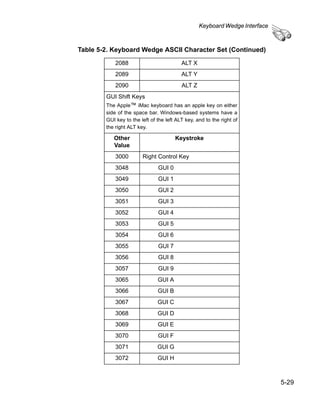
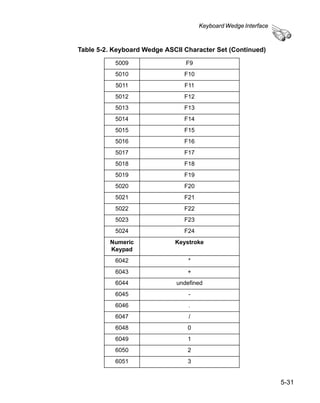
ASCII Character Set . . . . . . . . . . . . . . . . . . . . . . . . . . . . . . . . . . . . . . . . . . . . . . . . . . . . . . . . . .      5-23

Chapter 6. RS-232 Interface
Introduction . . . . . . . . . . . . . . . . . . . . . . . . . . . . . . . . . . . . . . . . . . . . . . . . . . . . . . . . . . . . . . . . . . 6-1
Connecting an RS-232 Interface . . . . . . . . . . . . . . . . . . . . . . . . . . . . . . . . . . . . . . . . . . . . . . . . . . 6-3
RS-232 Default Parameters. . . . . . . . . . . . . . . . . . . . . . . . . . . . . . . . . . . . . . . . . . . . . . . . . . . . . . 6-3
RS-232 Host Parameters. . . . . . . . . . . . . . . . . . . . . . . . . . . . . . . . . . . . . . . . . . . . . . . . . . . . . . . . 6-5
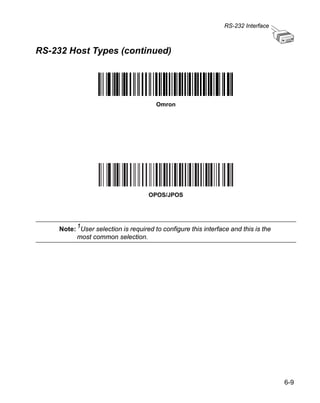
     RS-232 Host Types . . . . . . . . . . . . . . . . . . . . . . . . . . . . . . . . . . . . . . . . . . . . . . . . . . . . . . . . 6-7
     Baud Rate. . . . . . . . . . . . . . . . . . . . . . . . . . . . . . . . . . . . . . . . . . . . . . . . . . . . . . . . . . . . . . . 6-10
     Parity . . . . . . . . . . . . . . . . . . . . . . . . . . . . . . . . . . . . . . . . . . . . . . . . . . . . . . . . . . . . . . . . . . 6-12
     Check Receive Errors. . . . . . . . . . . . . . . . . . . . . . . . . . . . . . . . . . . . . . . . . . . . . . . . . . . . . . 6-14
     Hardware Handshaking . . . . . . . . . . . . . . . . . . . . . . . . . . . . . . . . . . . . . . . . . . . . . . . . . . . . 6-15
     Software Handshaking . . . . . . . . . . . . . . . . . . . . . . . . . . . . . . . . . . . . . . . . . . . . . . . . . . . . . 6-18
     Host Serial Response Time-out . . . . . . . . . . . . . . . . . . . . . . . . . . . . . . . . . . . . . . . . . . . . . . 6-21
     RTS Line State . . . . . . . . . . . . . . . . . . . . . . . . . . . . . . . . . . . . . . . . . . . . . . . . . . . . . . . . . . . 6-23
     Stop Bit Select . . . . . . . . . . . . . . . . . . . . . . . . . . . . . . . . . . . . . . . . . . . . . . . . . . . . . . . . . . . 6-24
     Data Bits . . . . . . . . . . . . . . . . . . . . . . . . . . . . . . . . . . . . . . . . . . . . . . . . . . . . . . . . . . . . . . . . 6-25
     Beep on <BEL> . . . . . . . . . . . . . . . . . . . . . . . . . . . . . . . . . . . . . . . . . . . . . . . . . . . . . . . . . . 6-26
     Intercharacter Delay . . . . . . . . . . . . . . . . . . . . . . . . . . . . . . . . . . . . . . . . . . . . . . . . . . . . . . . 6-27
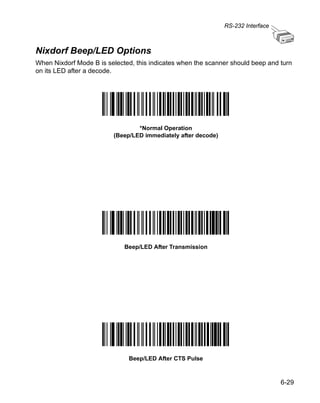
     Nixdorf Beep/LED Options . . . . . . . . . . . . . . . . . . . . . . . . . . . . . . . . . . . . . . . . . . . . . . . . . . 6-29
     Ignore Unknown Characters . . . . . . . . . . . . . . . . . . . . . . . . . . . . . . . . . . . . . . . . . . . . . . . . . 6-30
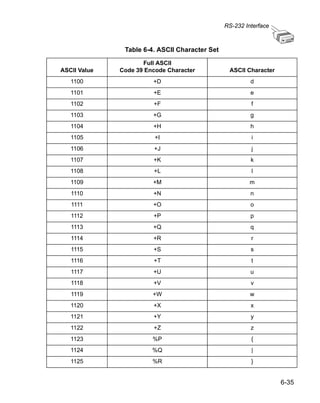
ASCII / Character Set . . . . . . . . . . . . . . . . . . . . . . . . . . . . . . . . . . . . . . . . . . . . . . . . . . . . . . . . . 6-31

Chapter 7. USB Interface
Introduction . . . . . . . . . . . . . . . . . . . . . . . . . . . . . . . . . . . . . . . . . . . . . . . . . . . . . . . . . . . . . . . . . . 7-1
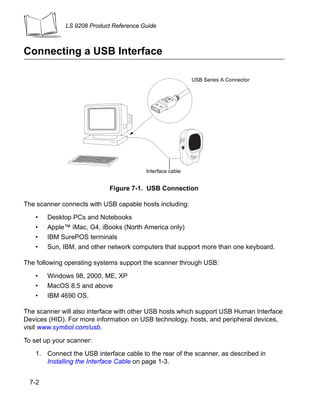
Connecting a USB Interface . . . . . . . . . . . . . . . . . . . . . . . . . . . . . . . . . . . . . . . . . . . . . . . . . . . . . 7-2
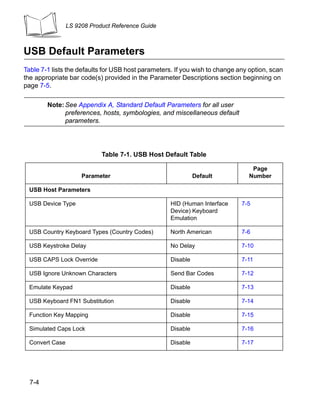
USB Default Parameters . . . . . . . . . . . . . . . . . . . . . . . . . . . . . . . . . . . . . . . . . . . . . . . . . . . . . . . . 7-4
USB Host Parameters . . . . . . . . . . . . . . . . . . . . . . . . . . . . . . . . . . . . . . . . . . . . . . . . . . . . . . . . . . 7-5
     USB Device Type . . . . . . . . . . . . . . . . . . . . . . . . . . . . . . . . . . . . . . . . . . . . . . . . . . . . . . . . . . 7-5
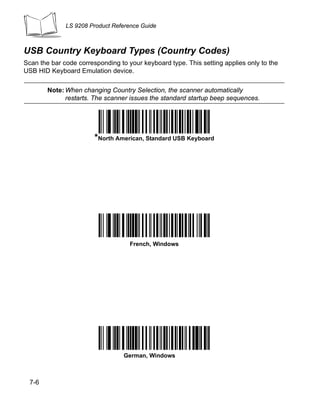
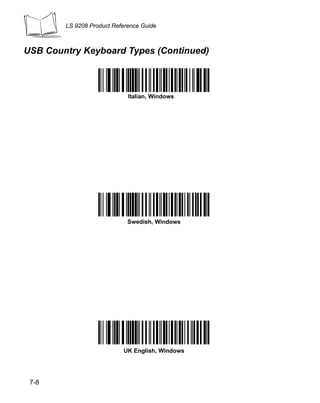
     USB Country Keyboard Types (Country Codes) . . . . . . . . . . . . . . . . . . . . . . . . . . . . . . . . . . 7-6
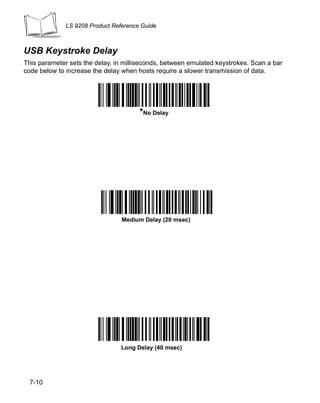
     USB Keystroke Delay . . . . . . . . . . . . . . . . . . . . . . . . . . . . . . . . . . . . . . . . . . . . . . . . . . . . . . 7-10
     USB CAPS Lock Override . . . . . . . . . . . . . . . . . . . . . . . . . . . . . . . . . . . . . . . . . . . . . . . . . . 7-11


                                                                                                                                                v
LS 9208 Product Reference Guide


   USB Ignore Unknown Characters . . . . . . . . . . . . . . . . . . . . . . . . . . . . . . . . . . . . . . . . . . . . . 7-12
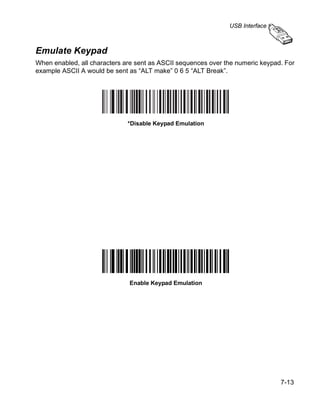
   Emulate Keypad . . . . . . . . . . . . . . . . . . . . . . . . . . . . . . . . . . . . . . . . . . . . . . . . . . . . . . . . . . 7-13
   USB Keyboard FN1 Substitution . . . . . . . . . . . . . . . . . . . . . . . . . . . . . . . . . . . . . . . . . . . . . . 7-14
   Function Key Mapping . . . . . . . . . . . . . . . . . . . . . . . . . . . . . . . . . . . . . . . . . . . . . . . . . . . . . . 7-15
   Simulated Caps Lock . . . . . . . . . . . . . . . . . . . . . . . . . . . . . . . . . . . . . . . . . . . . . . . . . . . . . . . 7-16
   Convert Case . . . . . . . . . . . . . . . . . . . . . . . . . . . . . . . . . . . . . . . . . . . . . . . . . . . . . . . . . . . . . 7-17
ASCII Character Set . . . . . . . . . . . . . . . . . . . . . . . . . . . . . . . . . . . . . . . . . . . . . . . . . . . . . . . . . . . 7-18

Chapter 8. IBM 468X/469X Interface
Introduction . . . . . . . . . . . . . . . . . . . . . . . . . . . . . . . . . . . . . . . . . . . . . . . . . . . . . . . . . . . . . . . . . . . 8-1
Connecting to an IBM 468X/469X Host . . . . . . . . . . . . . . . . . . . . . . . . . . . . . . . . . . . . . . . . . . . . . 8-2
IBM Default Parameters . . . . . . . . . . . . . . . . . . . . . . . . . . . . . . . . . . . . . . . . . . . . . . . . . . . . . . . . . 8-3
IBM 468X/469X Host Parameters . . . . . . . . . . . . . . . . . . . . . . . . . . . . . . . . . . . . . . . . . . . . . . . . . . 8-4
     Port Address . . . . . . . . . . . . . . . . . . . . . . . . . . . . . . . . . . . . . . . . . . . . . . . . . . . . . . . . . . . . . . 8-4
     Convert Unknown to Code 39 . . . . . . . . . . . . . . . . . . . . . . . . . . . . . . . . . . . . . . . . . . . . . . . . . 8-6

Chapter 9. Wand Emulation Interface
Introduction . . . . . . . . . . . . . . . . . . . . . . . . . . . . . . . . . . . . . . . . . . . . . . . . . . . . . . . . . . . . . . . . . . . 9-1
Connecting Using Wand Emulation . . . . . . . . . . . . . . . . . . . . . . . . . . . . . . . . . . . . . . . . . . . . . . . . 9-2
Wand Emulation Default Parameters . . . . . . . . . . . . . . . . . . . . . . . . . . . . . . . . . . . . . . . . . . . . . . . 9-3
Wand Emulation Host Parameters . . . . . . . . . . . . . . . . . . . . . . . . . . . . . . . . . . . . . . . . . . . . . . . . . 9-4
     Wand Emulation Host Types . . . . . . . . . . . . . . . . . . . . . . . . . . . . . . . . . . . . . . . . . . . . . . . . . . 9-4
     Leading Margin (Quiet Zone) . . . . . . . . . . . . . . . . . . . . . . . . . . . . . . . . . . . . . . . . . . . . . . . . . . 9-5
     Polarity . . . . . . . . . . . . . . . . . . . . . . . . . . . . . . . . . . . . . . . . . . . . . . . . . . . . . . . . . . . . . . . . . . . 9-6
     Ignore Unknown Characters . . . . . . . . . . . . . . . . . . . . . . . . . . . . . . . . . . . . . . . . . . . . . . . . . . 9-7
     Convert All Bar Codes to Code 39. . . . . . . . . . . . . . . . . . . . . . . . . . . . . . . . . . . . . . . . . . . . . . 9-8
     Convert Code 39 to Full ASCII . . . . . . . . . . . . . . . . . . . . . . . . . . . . . . . . . . . . . . . . . . . . . . . . 9-9

Chapter 10. 123Scan
Introduction . . . . . . . . . . . . . . . . . . . . . . . . . . . . . . . . . . . . . . . . . . . . . . . . . . . . . . . . . . . . . . . . . . 10-1
Communication With the 123Scan PC Based Configuration Tool . . . . . . . . . . . . . . . . . . . . . . . . 10-1
123Scan Parameter . . . . . . . . . . . . . . . . . . . . . . . . . . . . . . . . . . . . . . . . . . . . . . . . . . . . . . . . . . . 10-2

Chapter 11. Symbologies
Introduction . . . . . . . . . . . . . . . . . . . . . . . . . . . . . . . . . . . . . . . . . . . . . . . . . . . . . . . . . . . . . . . . . . 11-1
Scanning Sequence Examples . . . . . . . . . . . . . . . . . . . . . . . . . . . . . . . . . . . . . . . . . . . . . . . . . . . 11-2
Errors While Scanning . . . . . . . . . . . . . . . . . . . . . . . . . . . . . . . . . . . . . . . . . . . . . . . . . . . . . . . . . 11-2
Symbology Default Parameters . . . . . . . . . . . . . . . . . . . . . . . . . . . . . . . . . . . . . . . . . . . . . . . . . . 11-3
UPC/EAN . . . . . . . . . . . . . . . . . . . . . . . . . . . . . . . . . . . . . . . . . . . . . . . . . . . . . . . . . . . . . . . . . . . 11-8
     Enable/Disable UPC-A/UPC-E . . . . . . . . . . . . . . . . . . . . . . . . . . . . . . . . . . . . . . . . . . . . . . . 11-8


   vi
Contents


     Enable/Disable UPC-E1 . . . . . . . . . . . . . . . . . . . . . . . . . . . . . . . . . . . . . . . . . . . . . . . . . . . . 11-9
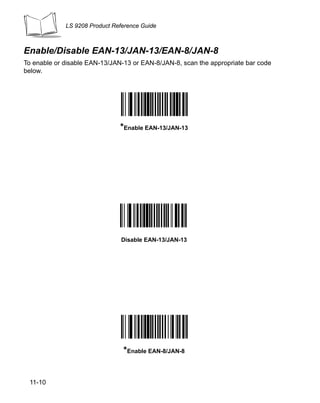
     Enable/Disable EAN-13/JAN-13/EAN-8/JAN-8 . . . . . . . . . . . . . . . . . . . . . . . . . . . . . . . . . 11-10
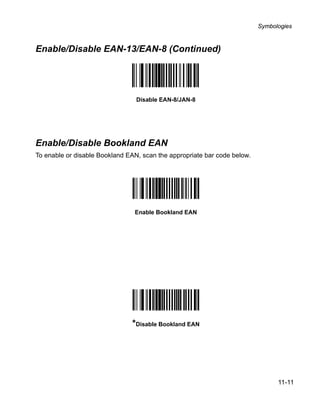
     Enable/Disable Bookland EAN . . . . . . . . . . . . . . . . . . . . . . . . . . . . . . . . . . . . . . . . . . . . . . 11-11
     Decode UPC/EAN Supplementals . . . . . . . . . . . . . . . . . . . . . . . . . . . . . . . . . . . . . . . . . . . 11-12
     UPC/EAN Supplemental Redundancy . . . . . . . . . . . . . . . . . . . . . . . . . . . . . . . . . . . . . . . . 11-15
     Transmit UPC-A/UPC-E/UPC-E1 Check Digit . . . . . . . . . . . . . . . . . . . . . . . . . . . . . . . . . . 11-16
     UPC-A Preamble . . . . . . . . . . . . . . . . . . . . . . . . . . . . . . . . . . . . . . . . . . . . . . . . . . . . . . . . 11-18
     UPC-E Preamble . . . . . . . . . . . . . . . . . . . . . . . . . . . . . . . . . . . . . . . . . . . . . . . . . . . . . . . . 11-19
     UPC-E1 Preamble . . . . . . . . . . . . . . . . . . . . . . . . . . . . . . . . . . . . . . . . . . . . . . . . . . . . . . . 11-20
     Convert UPC-E to UPC-A. . . . . . . . . . . . . . . . . . . . . . . . . . . . . . . . . . . . . . . . . . . . . . . . . . 11-21
     Convert UPC-E1 to UPC-A. . . . . . . . . . . . . . . . . . . . . . . . . . . . . . . . . . . . . . . . . . . . . . . . . 11-22
     EAN Zero Extend . . . . . . . . . . . . . . . . . . . . . . . . . . . . . . . . . . . . . . . . . . . . . . . . . . . . . . . . 11-23
     UCC Coupon Extended Code . . . . . . . . . . . . . . . . . . . . . . . . . . . . . . . . . . . . . . . . . . . . . . 11-24
Code 128 . . . . . . . . . . . . . . . . . . . . . . . . . . . . . . . . . . . . . . . . . . . . . . . . . . . . . . . . . . . . . . . . . . 11-25
     Enable/Disable Code 128 . . . . . . . . . . . . . . . . . . . . . . . . . . . . . . . . . . . . . . . . . . . . . . . . . . 11-25
     Enable/Disable UCC/EAN-128 . . . . . . . . . . . . . . . . . . . . . . . . . . . . . . . . . . . . . . . . . . . . . . 11-26
     Enable/Disable ISBT 128 . . . . . . . . . . . . . . . . . . . . . . . . . . . . . . . . . . . . . . . . . . . . . . . . . . 11-27
     Code 128 Decode Performance . . . . . . . . . . . . . . . . . . . . . . . . . . . . . . . . . . . . . . . . . . . . . 11-28
     Code 128 Decode Performance Level . . . . . . . . . . . . . . . . . . . . . . . . . . . . . . . . . . . . . . . . 11-29
Code 39 . . . . . . . . . . . . . . . . . . . . . . . . . . . . . . . . . . . . . . . . . . . . . . . . . . . . . . . . . . . . . . . . . . . 11-30
     Enable/Disable Code 39 . . . . . . . . . . . . . . . . . . . . . . . . . . . . . . . . . . . . . . . . . . . . . . . . . . . 11-30
     Enable/Disable Trioptic Code 39 . . . . . . . . . . . . . . . . . . . . . . . . . . . . . . . . . . . . . . . . . . . . 11-31
     Convert Code 39 to Code 32 . . . . . . . . . . . . . . . . . . . . . . . . . . . . . . . . . . . . . . . . . . . . . . . 11-32
     Code 32 Prefix . . . . . . . . . . . . . . . . . . . . . . . . . . . . . . . . . . . . . . . . . . . . . . . . . . . . . . . . . . 11-33
     Set Lengths for Code 39. . . . . . . . . . . . . . . . . . . . . . . . . . . . . . . . . . . . . . . . . . . . . . . . . . . 11-34
     Code 39 Check Digit Verification . . . . . . . . . . . . . . . . . . . . . . . . . . . . . . . . . . . . . . . . . . . . 11-36
     Transmit Code 39 Check Digit . . . . . . . . . . . . . . . . . . . . . . . . . . . . . . . . . . . . . . . . . . . . . . 11-37
     Enable/Disable Code 39 Full ASCII . . . . . . . . . . . . . . . . . . . . . . . . . . . . . . . . . . . . . . . . . . 11-38
     Code 39 Buffering (Scan & Store) . . . . . . . . . . . . . . . . . . . . . . . . . . . . . . . . . . . . . . . . . . . 11-39
     Code 39 Decode Performance . . . . . . . . . . . . . . . . . . . . . . . . . . . . . . . . . . . . . . . . . . . . . . 11-43
     Code 39 Decode Performance Level . . . . . . . . . . . . . . . . . . . . . . . . . . . . . . . . . . . . . . . . . 11-44
Code 93 . . . . . . . . . . . . . . . . . . . . . . . . . . . . . . . . . . . . . . . . . . . . . . . . . . . . . . . . . . . . . . . . . . . 11-45
     Enable/Disable Code 93 . . . . . . . . . . . . . . . . . . . . . . . . . . . . . . . . . . . . . . . . . . . . . . . . . . . 11-45
     Set Lengths for Code 93. . . . . . . . . . . . . . . . . . . . . . . . . . . . . . . . . . . . . . . . . . . . . . . . . . . 11-46
Code 11 . . . . . . . . . . . . . . . . . . . . . . . . . . . . . . . . . . . . . . . . . . . . . . . . . . . . . . . . . . . . . . . . . . . 11-48
     Code 11 . . . . . . . . . . . . . . . . . . . . . . . . . . . . . . . . . . . . . . . . . . . . . . . . . . . . . . . . . . . . . . . 11-48
     Set Lengths for Code 11. . . . . . . . . . . . . . . . . . . . . . . . . . . . . . . . . . . . . . . . . . . . . . . . . . . 11-49
     Code 11 Check Digit Verification . . . . . . . . . . . . . . . . . . . . . . . . . . . . . . . . . . . . . . . . . . . . 11-51
     Transmit Code 11 Check Digits . . . . . . . . . . . . . . . . . . . . . . . . . . . . . . . . . . . . . . . . . . . . . 11-52
Interleaved 2 of 5 (ITF) . . . . . . . . . . . . . . . . . . . . . . . . . . . . . . . . . . . . . . . . . . . . . . . . . . . . . . . 11-53
     Enable/Disable Interleaved 2 of 5. . . . . . . . . . . . . . . . . . . . . . . . . . . . . . . . . . . . . . . . . . . . 11-53
     Set Lengths for Interleaved 2 of 5 . . . . . . . . . . . . . . . . . . . . . . . . . . . . . . . . . . . . . . . . . . . 11-54
     I 2 of 5 Check Digit Verification. . . . . . . . . . . . . . . . . . . . . . . . . . . . . . . . . . . . . . . . . . . . . . 11-56
     Transmit I 2 of 5 Check Digit . . . . . . . . . . . . . . . . . . . . . . . . . . . . . . . . . . . . . . . . . . . . . . . 11-57


                                                                                                                                              vii
LS 9208 Product Reference Guide


    Convert I 2 of 5 to EAN-13. . . . . . . . . . . . . . . . . . . . . . . . . . . . . . . . . . . . . . . . . . . . . . . . . . 11-58
Discrete 2 of 5 (DTF). . . . . . . . . . . . . . . . . . . . . . . . . . . . . . . . . . . . . . . . . . . . . . . . . . . . . . . . . . 11-59
    Enable/Disable Discrete 2 of 5. . . . . . . . . . . . . . . . . . . . . . . . . . . . . . . . . . . . . . . . . . . . . . . 11-59
    Set Lengths for Discrete 2 of 5 . . . . . . . . . . . . . . . . . . . . . . . . . . . . . . . . . . . . . . . . . . . . . . 11-60
Chinese 2 of 5 . . . . . . . . . . . . . . . . . . . . . . . . . . . . . . . . . . . . . . . . . . . . . . . . . . . . . . . . . . . . . . . 11-62
    Enable/Disable Chinese 2 of 5. . . . . . . . . . . . . . . . . . . . . . . . . . . . . . . . . . . . . . . . . . . . . . . 11-62
Codabar (NW - 7) . . . . . . . . . . . . . . . . . . . . . . . . . . . . . . . . . . . . . . . . . . . . . . . . . . . . . . . . . . . . 11-63
    Enable/Disable Codabar . . . . . . . . . . . . . . . . . . . . . . . . . . . . . . . . . . . . . . . . . . . . . . . . . . . 11-63
    Set Lengths for Codabar . . . . . . . . . . . . . . . . . . . . . . . . . . . . . . . . . . . . . . . . . . . . . . . . . . . 11-64
    CLSI Editing . . . . . . . . . . . . . . . . . . . . . . . . . . . . . . . . . . . . . . . . . . . . . . . . . . . . . . . . . . . . . 11-66
    NOTIS Editing . . . . . . . . . . . . . . . . . . . . . . . . . . . . . . . . . . . . . . . . . . . . . . . . . . . . . . . . . . . 11-67
MSI . . . . . . . . . . . . . . . . . . . . . . . . . . . . . . . . . . . . . . . . . . . . . . . . . . . . . . . . . . . . . . . . . . . . . . . 11-68
    Enable/Disable MSI . . . . . . . . . . . . . . . . . . . . . . . . . . . . . . . . . . . . . . . . . . . . . . . . . . . . . . . 11-68
    Set Lengths for MSI . . . . . . . . . . . . . . . . . . . . . . . . . . . . . . . . . . . . . . . . . . . . . . . . . . . . . . . 11-69
    MSI Check Digits . . . . . . . . . . . . . . . . . . . . . . . . . . . . . . . . . . . . . . . . . . . . . . . . . . . . . . . . . 11-71
    Transmit MSI Check Digit(s) . . . . . . . . . . . . . . . . . . . . . . . . . . . . . . . . . . . . . . . . . . . . . . . . 11-72
    MSI Check Digit Algorithm . . . . . . . . . . . . . . . . . . . . . . . . . . . . . . . . . . . . . . . . . . . . . . . . . . 11-73
RSS (Reduced Space Symbology) . . . . . . . . . . . . . . . . . . . . . . . . . . . . . . . . . . . . . . . . . . . . . . . 11-74
    RSS 14 . . . . . . . . . . . . . . . . . . . . . . . . . . . . . . . . . . . . . . . . . . . . . . . . . . . . . . . . . . . . . . . . 11-74
    RSS Limited . . . . . . . . . . . . . . . . . . . . . . . . . . . . . . . . . . . . . . . . . . . . . . . . . . . . . . . . . . . . . 11-75
    RSS Expanded . . . . . . . . . . . . . . . . . . . . . . . . . . . . . . . . . . . . . . . . . . . . . . . . . . . . . . . . . . 11-76
    Convert RSS to UPC/EAN . . . . . . . . . . . . . . . . . . . . . . . . . . . . . . . . . . . . . . . . . . . . . . . . . . 11-77
Symbology - Specific Security Levels . . . . . . . . . . . . . . . . . . . . . . . . . . . . . . . . . . . . . . . . . . . . . 11-80
    Redundancy Level . . . . . . . . . . . . . . . . . . . . . . . . . . . . . . . . . . . . . . . . . . . . . . . . . . . . . . . . 11-80
    Security Level . . . . . . . . . . . . . . . . . . . . . . . . . . . . . . . . . . . . . . . . . . . . . . . . . . . . . . . . . . . 11-83
Symbology - Intercharacter Gap . . . . . . . . . . . . . . . . . . . . . . . . . . . . . . . . . . . . . . . . . . . . . . . . . 11-85

Chapter 12. Miscellaneous Scanner Options
Introduction . . . . . . . . . . . . . . . . . . . . . . . . . . . . . . . . . . . . . . . . . . . . . . . . . . . . . . . . . . . . . . . . . . 12-1
Scanning Sequence Examples . . . . . . . . . . . . . . . . . . . . . . . . . . . . . . . . . . . . . . . . . . . . . . . . . . . 12-2
Errors While Scanning . . . . . . . . . . . . . . . . . . . . . . . . . . . . . . . . . . . . . . . . . . . . . . . . . . . . . . . . . 12-2
Miscellaneous Default Parameters . . . . . . . . . . . . . . . . . . . . . . . . . . . . . . . . . . . . . . . . . . . . . . . . 12-3
Miscellaneous Scanner Parameters . . . . . . . . . . . . . . . . . . . . . . . . . . . . . . . . . . . . . . . . . . . . . . . 12-4
     Transmit Code ID Character . . . . . . . . . . . . . . . . . . . . . . . . . . . . . . . . . . . . . . . . . . . . . . . . . 12-4
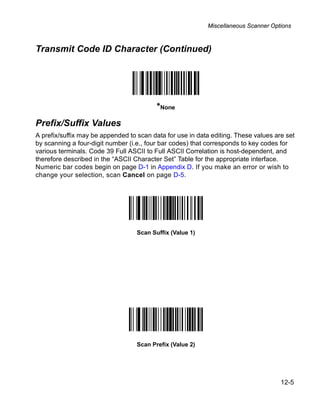
     Prefix/Suffix Values . . . . . . . . . . . . . . . . . . . . . . . . . . . . . . . . . . . . . . . . . . . . . . . . . . . . . . . . 12-5
     FN1 Substitution Values . . . . . . . . . . . . . . . . . . . . . . . . . . . . . . . . . . . . . . . . . . . . . . . . . . . . 12-8
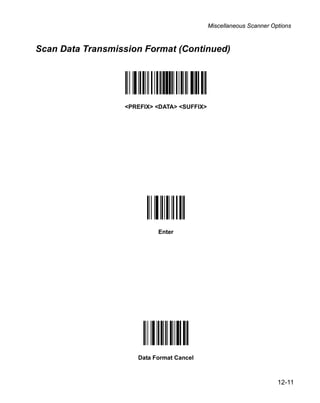
     Scan Data Options. . . . . . . . . . . . . . . . . . . . . . . . . . . . . . . . . . . . . . . . . . . . . . . . . . . . . . . . . 12-9
     Transmit “No Read” Message . . . . . . . . . . . . . . . . . . . . . . . . . . . . . . . . . . . . . . . . . . . . . . . 12-12


   viii
Contents


Chapter 13. Advanced Data Formatting
Introduction . . . . . . . . . . . . . . . . . . . . . . . . . . . . . . . . . . . . . . . . . . . . . . . . . . . . . . . . . . . . . . . . . 13-1
Rules: Criteria Linked to Actions . . . . . . . . . . . . . . . . . . . . . . . . . . . . . . . . . . . . . . . . . . . . . . . . . 13-1
Using ADF Bar Codes . . . . . . . . . . . . . . . . . . . . . . . . . . . . . . . . . . . . . . . . . . . . . . . . . . . . . . . . . 13-2
ADF Bar Code Menu Example. . . . . . . . . . . . . . . . . . . . . . . . . . . . . . . . . . . . . . . . . . . . . . . . . . . 13-2
     Rule 1: The Code 128 Scanning Rule . . . . . . . . . . . . . . . . . . . . . . . . . . . . . . . . . . . . . . . . . 13-3
     Rule 2: The UPC Scanning Rule . . . . . . . . . . . . . . . . . . . . . . . . . . . . . . . . . . . . . . . . . . . . . 13-4
     Alternate Rule Sets. . . . . . . . . . . . . . . . . . . . . . . . . . . . . . . . . . . . . . . . . . . . . . . . . . . . . . . . 13-4
     Rules Hierarchy (in Bar Codes) . . . . . . . . . . . . . . . . . . . . . . . . . . . . . . . . . . . . . . . . . . . . . . 13-5
     Default Rules . . . . . . . . . . . . . . . . . . . . . . . . . . . . . . . . . . . . . . . . . . . . . . . . . . . . . . . . . . . . 13-6
Special Commands . . . . . . . . . . . . . . . . . . . . . . . . . . . . . . . . . . . . . . . . . . . . . . . . . . . . . . . . . . . 13-7
     Pause Duration . . . . . . . . . . . . . . . . . . . . . . . . . . . . . . . . . . . . . . . . . . . . . . . . . . . . . . . . . . . 13-7
     Begin New Rule . . . . . . . . . . . . . . . . . . . . . . . . . . . . . . . . . . . . . . . . . . . . . . . . . . . . . . . . . . 13-7
     Save Rule . . . . . . . . . . . . . . . . . . . . . . . . . . . . . . . . . . . . . . . . . . . . . . . . . . . . . . . . . . . . . . . 13-8
     Erase . . . . . . . . . . . . . . . . . . . . . . . . . . . . . . . . . . . . . . . . . . . . . . . . . . . . . . . . . . . . . . . . . . 13-8
     Quit Entering Rules . . . . . . . . . . . . . . . . . . . . . . . . . . . . . . . . . . . . . . . . . . . . . . . . . . . . . . . 13-9
     Disable Rule Set . . . . . . . . . . . . . . . . . . . . . . . . . . . . . . . . . . . . . . . . . . . . . . . . . . . . . . . . . 13-10
Criteria . . . . . . . . . . . . . . . . . . . . . . . . . . . . . . . . . . . . . . . . . . . . . . . . . . . . . . . . . . . . . . . . . . . . 13-12
     Code Types . . . . . . . . . . . . . . . . . . . . . . . . . . . . . . . . . . . . . . . . . . . . . . . . . . . . . . . . . . . . 13-12
     Code Lengths . . . . . . . . . . . . . . . . . . . . . . . . . . . . . . . . . . . . . . . . . . . . . . . . . . . . . . . . . . . 13-20
     Message Containing A Specific Data String . . . . . . . . . . . . . . . . . . . . . . . . . . . . . . . . . . . . 13-30
Actions . . . . . . . . . . . . . . . . . . . . . . . . . . . . . . . . . . . . . . . . . . . . . . . . . . . . . . . . . . . . . . . . . . . . 13-34
     Send Data. . . . . . . . . . . . . . . . . . . . . . . . . . . . . . . . . . . . . . . . . . . . . . . . . . . . . . . . . . . . . . 13-34
     Setup Field(s) . . . . . . . . . . . . . . . . . . . . . . . . . . . . . . . . . . . . . . . . . . . . . . . . . . . . . . . . . . . 13-42
     Modify Data . . . . . . . . . . . . . . . . . . . . . . . . . . . . . . . . . . . . . . . . . . . . . . . . . . . . . . . . . . . . 13-53
     Pad Data with Zeros . . . . . . . . . . . . . . . . . . . . . . . . . . . . . . . . . . . . . . . . . . . . . . . . . . . . . . 13-66
     Beeps . . . . . . . . . . . . . . . . . . . . . . . . . . . . . . . . . . . . . . . . . . . . . . . . . . . . . . . . . . . . . . . . . 13-76
     Send Keystroke (Control Characters and Keyboard Characters). . . . . . . . . . . . . . . . . . . . 13-77
     Send Right Control Key . . . . . . . . . . . . . . . . . . . . . . . . . . . . . . . . . . . . . . . . . . . . . . . . . . 13-162
     Send Graphic User Interface Characters . . . . . . . . . . . . . . . . . . . . . . . . . . . . . . . . . . . . . 13-163
     Turn On/Off Rule Sets . . . . . . . . . . . . . . . . . . . . . . . . . . . . . . . . . . . . . . . . . . . . . . . . . . . 13-175
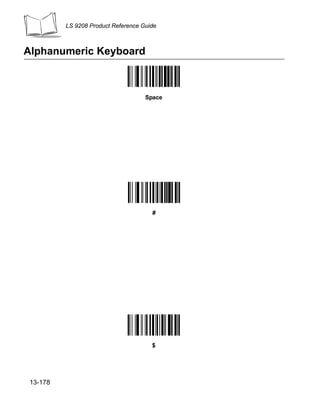
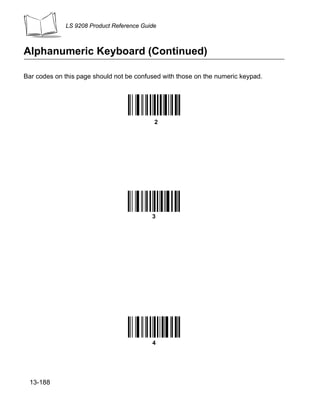
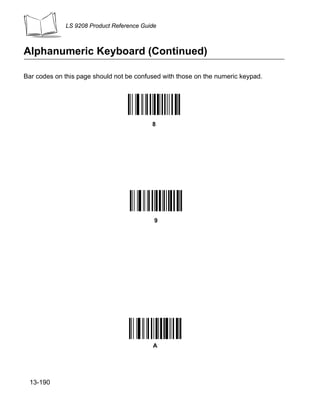
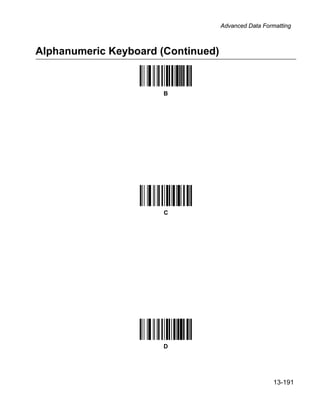
Alphanumeric Keyboard. . . . . . . . . . . . . . . . . . . . . . . . . . . . . . . . . . . . . . . . . . . . . . . . . . . . . . 13-178

Appendix A. Standard Default Parameters

Appendix B. Programming Reference
Symbol Code Identifiers. . . . . . . . . . . . . . . . . . . . . . . . . . . . . . . . . . . . . . . . . . . . . . . . . . . . . . . . . B-1
AIM Code Identifiers . . . . . . . . . . . . . . . . . . . . . . . . . . . . . . . . . . . . . . . . . . . . . . . . . . . . . . . . . . . B-3


                                                                                                                                                 ix
LS 9208 Product Reference Guide


Appendix C. Sample Bar Codes
Code 39 . . . . . . . . . . . . . . . . . . . . . . . . . . . . . . . . . . . . . . . . . . . . . . . . . . . . . . . . . . . . . . . . . . . . .C-1
UPC/EAN . . . . . . . . . . . . . . . . . . . . . . . . . . . . . . . . . . . . . . . . . . . . . . . . . . . . . . . . . . . . . . . . . . . .C-1
     UPC-A, 100 % . . . . . . . . . . . . . . . . . . . . . . . . . . . . . . . . . . . . . . . . . . . . . . . . . . . . . . . . . . . . .C-1
     EAN-13, 100 % . . . . . . . . . . . . . . . . . . . . . . . . . . . . . . . . . . . . . . . . . . . . . . . . . . . . . . . . . . . .C-2
Code 128 . . . . . . . . . . . . . . . . . . . . . . . . . . . . . . . . . . . . . . . . . . . . . . . . . . . . . . . . . . . . . . . . . . . .C-2
Interleaved 2 of 5 . . . . . . . . . . . . . . . . . . . . . . . . . . . . . . . . . . . . . . . . . . . . . . . . . . . . . . . . . . . . . .C-2
RSS 14 . . . . . . . . . . . . . . . . . . . . . . . . . . . . . . . . . . . . . . . . . . . . . . . . . . . . . . . . . . . . . . . . . . . . . .C-3

Appendix D. Numeric Bar Codes
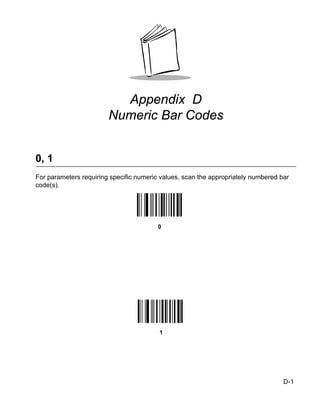
0, 1 . . . . . . . . . . . . . . . . . . . . . . . . . . . . . . . . . . . . . . . . . . . . . . . . . . . . . . . . . . . . . . . . . . . . . . . . .D-1
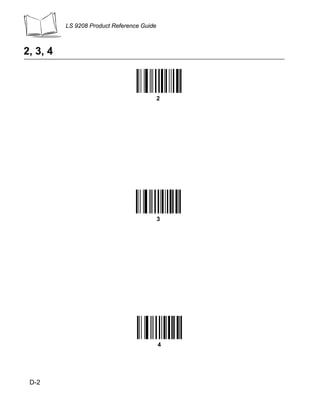
2, 3, 4 . . . . . . . . . . . . . . . . . . . . . . . . . . . . . . . . . . . . . . . . . . . . . . . . . . . . . . . . . . . . . . . . . . . . . . .D-2
5, 6, 7 . . . . . . . . . . . . . . . . . . . . . . . . . . . . . . . . . . . . . . . . . . . . . . . . . . . . . . . . . . . . . . . . . . . . . . .D-3
8, 9 . . . . . . . . . . . . . . . . . . . . . . . . . . . . . . . . . . . . . . . . . . . . . . . . . . . . . . . . . . . . . . . . . . . . . . . . .D-4
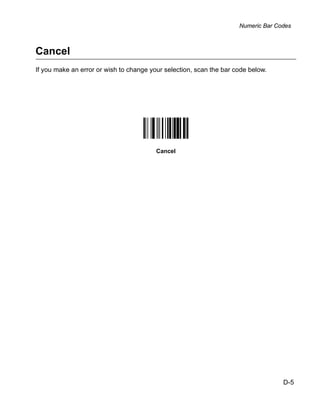
Cancel . . . . . . . . . . . . . . . . . . . . . . . . . . . . . . . . . . . . . . . . . . . . . . . . . . . . . . . . . . . . . . . . . . . . . . .D-5

Glossary

Index

Feedback


   x
About This Guide


Introduction
The LS 9208 Product Reference Guide provides general instructions for setting up,
operating, maintaining and troubleshooting the LS 9208 scanner.

Chapter Descriptions
   •   Chapter 1, Getting Started provides a product overview and unpacking
       instructions.
   •   Chapter 2, Scanning describes parts of the scanner, beeper and LED definitions,
       how to use the scanner in hand-held and hands-free modes.
   •   Chapter 3, Maintenance and Technical Specifications provides information on how
       to care for your scanner, troubleshooting, and technical specifications.
   •   Chapter 4, User Preferences provides the programming bar codes necessary for
       selecting user preference features for your scanner.
   •   Chapter 5, Keyboard Wedge Interface covers information for setting up your
       scanner for Keyboard Wedge operation.
   •   Chapter 6, RS-232 Interface covers information for setting up your scanner for RS-
       232 operation.
   •   Chapter 7, USB Interface covers information for setting up your scanner for USB
       operation.
   •   Chapter 8, IBM 468X/469X Interface covers all information for setting up your
       scanner with IBM 468X/469X POS systems.
   •   Chapter 9, Wand Emulation Interface covers all information for setting up your
       scanner for Wand emulation operation.


                                                                                        xi
LS 9208 Product Reference Guide


  •   Chapter 10, 123Scan (PC based scanner configuration tool) provides the bar code
      you must scan to communicate with the 123Scan program.
  •   Chapter 11, Symbologies describes all symbology features and provides the
      programming bar codes necessary for selecting these features for your scanner.
  •   Chapter 12, Miscellaneous Scanner Options includes commonly used bar codes to
      customize how your data is transmitted to your host device.
  •   Chapter 13, Advanced Data Formatting (ADF) describes how to customize
      scanned data before transmitting to the host.
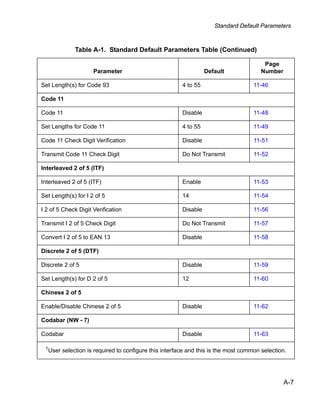
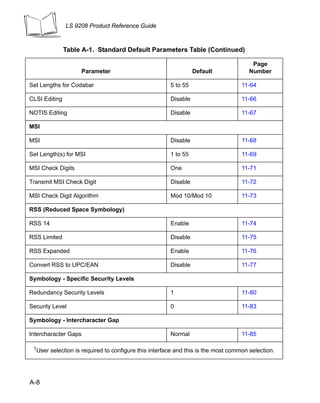
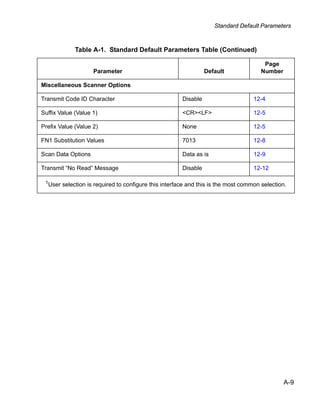
  •   Appendix A, Standard Default Parameters provides a table of all host devices and
      miscellaneous scanner defaults.
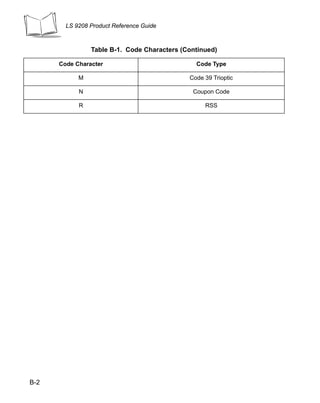
  •   Appendix B, Programming Reference provides a table of AIM code identifiers,
      ASCII character conversions, and keyboard maps.
  •   Appendix C, Sample Bar Codes includes sample bar codes.
  •   Appendix D, Numeric Bar Codes includes the numeric bar codes to scan for
      parameters requiring specific numeric values.


xii
About This Guide


Notational Conventions
The following conventions are used in this document:

    •   Bullets (•) indicate:
        •   action items
        •   lists of alternatives
        •   lists of required steps that are not necessarily sequential
    •   Sequential lists (e.g., those that describe step-by-step procedures) appear as
        numbered lists.
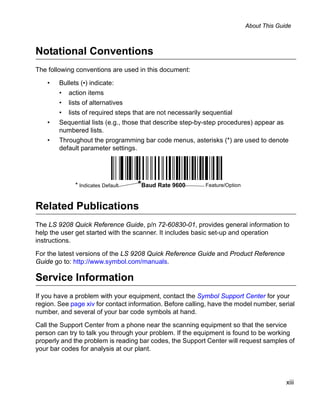
    •   Throughout the programming bar code menus, asterisks (*) are used to denote
        default parameter settings.


              * Indicates Default   *Baud Rate 9600          Feature/Option


Related Publications
The LS 9208 Quick Reference Guide, p/n 72-60830-01, provides general information to
help the user get started with the scanner. It includes basic set-up and operation
instructions.

For the latest versions of the LS 9208 Quick Reference Guide and Product Reference
Guide go to: http://www.symbol.com/manuals.

Service Information
If you have a problem with your equipment, contact the Symbol Support Center for your
region. See page xiv for contact information. Before calling, have the model number, serial
number, and several of your bar code symbols at hand.
Call the Support Center from a phone near the scanning equipment so that the service
person can try to talk you through your problem. If the equipment is found to be working
properly and the problem is reading bar codes, the Support Center will request samples of
your bar codes for analysis at our plant.


                                                                                            xiii
LS 9208 Product Reference Guide


If your problem cannot be solved over the phone, you may need to return your equipment
for servicing. If that is necessary, you will be given specific directions.

        Note: Symbol Technologies is not responsible for any damages incurred during
              shipment if the approved shipping container is not used. Shipping the units
              improperly can possibly void the warranty. If the original shipping container
              was not kept, contact Symbol to have another sent to you.


Symbol Support Center
For service information, warranty information or technical assistance contact or call the
Symbol Support Center in:

If you purchased your Symbol product from a Symbol Business Partner, contact that
Business Partner for service.

United States                                      Canada
Symbol Technologies, Inc.                          Symbol Technologies Canada, Inc.
One Symbol Plaza                                   2540 Matheson Boulevard East
Holtsville, New York 11742-1300                    Mississauga, Ontario, Canada L4W 4Z2
1-800-653-5350                                     905-629-7226
United Kingdom                                     Asia/Pacific
Symbol Technologies                                Symbol Technologies Asia, Inc (Singapore
Symbol Place                                       Branch)
Winnersh Triangle, Berkshire RG41 5TP              230 Victoria Street #05-07/09
United Kingdom                                     Bugis Junction Office Tower
0800 328 2424 (Inside UK)                          Singapore 188024
+44 118 945 7529 (Outside UK)                      Tel: +65-6796-9600
                                                   Fax: +65-6337-6488
Australia                                          Austria/Österreich
Symbol Technologies Pty. Ltd.                      Symbol Technologies Austria GmbH
432 St. Kilda Road                                 Prinz-Eugen Strasse 70 / 2.Haus
Melbourne, Victoria 3004                           1040 Vienna, Austria
1-800-672-906 (Inside Australia)                   01-5055794-0 (Inside Austria)
+61-3-9866-6044 (Outside Australia)                +43-1-5055794-0 (Outside Austria)


  xiv
About This Guide


Denmark/Danmark                           Europe/Mid-East Distributor Operations
Symbol Technologies AS                    Contact your local distributor or call
Dr. Neergaardsvej 3                       +44 118 945 7360
2970 Hørsholm
7020-1718 (Inside Denmark)
+45-7020-1718 (Outside Denmark)
Finland/Suomi                             France
Oy Symbol Technologies                    Symbol Technologies France
Kaupintie 8 A 6                           Centre d'Affaire d'Antony
FIN-00440 Helsinki, Finland               3 Rue de la Renaissance
9 5407 580 (Inside Finland)               92184 Antony Cedex, France
+358 9 5407 580 (Outside Finland)         01-40-96-52-21 (Inside France)
                                          +33-1-40-96-52-50 (Outside France)
Germany/Deutchland                        Italy/Italia
Symbol Technologies GmbH                  Symbol Technologies Italia S.R.L.
Waldstrasse 66                            Via Cristoforo Columbo, 49
D-63128 Dietzenbach, Germany              20090 Trezzano S/N Navigilo
6074-49020 (Inside Germany)               Milano, Italy
+49-6074-49020 (Outside Germany)          2-484441 (Inside Italy)
                                          +39-02-484441 (Outside Italy)
Latin America Sales Support               Mexico/México
2730 University Dr.                       Symbol Technologies Mexico Ltd.
Coral Springs, FL 33065 USA               Torre Picasso
1-800-347-0178 (Inside United States)     Boulevard Manuel Avila Camacho No 88
+1-954-255-2610 (Outside United States)   Lomas de Chapultepec CP 11000
954-340-9454 (Fax)                        Mexico City, DF, Mexico
                                          5-520-1835 (Inside Mexico)
                                          +52-5-520-1835 (Outside Mexico)


                                                                                    xv
LS 9208 Product Reference Guide


Netherlands/Nederland                            Norway/Norge
Symbol Technologies                              Symbol’s registered and mailing address:
Kerkplein 2, 7051 CX                             Symbol Technologies Norway
Postbus 24 7050 AA                               Hoybratenveien 35 C
Varsseveld, Netherlands                          N-1055 OSLO, Norway
315-271700 (Inside Netherlands)
+31-315-271700 (Outside Netherlands)             Symbol’s repair depot and shipping address:
                                                 Symbol Technologies Norway
                                                 Enebakkveien 123
                                                 N-0680 OSLO, Norway

                                                 +47 2232 4375
South Africa                                     Spain/España
Symbol Technologies Africa Inc.                  Symbol Technologies S.L.
Block B2                                         C/ Peonias, 2
Rutherford Estate                                Edificio Piovera Azul
1 Scott Street                                   28042 Madrid, Spain
Waverly 2090 Johannesburg                        91 324 40 00 (Inside Spain)
Republic of South Africa                         +34 91 324 40 00 (Outside Spain)
11-809 5311 (Inside South Africa)
+27-11-809 5311 (Outside South Africa)


  xvi
About This Guide


Sweden/Sverige
“Letter” address:
Symbol Technologies AB
Box 1354
S-171 26 SOLNA
Sweden

Visit/shipping address:
Symbol Technologies AB
Solna Strandväg 78
S-171 54 SOLNA
Sweden

Switchboard: 08 445 29 00 (domestic)
Call Center: +46 8 445 29 29 (international)
Support E-Mail:
Sweden.Support@se.symbol.com


                                                            xvii
LS 9208 Product Reference Guide


xviii
Chapter 1
                                    Getting Started


Introduction
The LS 9208 projection scanner provides multiple scan pattern capabilities that support
various applications at the POS (point of sale). For fast, intuitive, hands-free scanning, use
the rastering, 100-line, omni-directional scan pattern. To read bar code menus and pick
lists, use the Single-Scan line. The scanner can also be picked up to scan heavy or bulky
merchandise. The scanner reads all retail symbologies and has multi-interface capability to
allow it to interface to all popular POS devices.

                         Decode
                           LED


                    Finger Grips                                 Exit Window

                     Single Scan
                     Line Trigger
                     and Volume
                          Control
                                                                 Beeper

                     Hands-Free
                      Adjustable
                          Stand
                      (Optional)


                                Figure 1-1. LS 9208 Scanner


                                                                                          1-1
LS 9208 Product Reference Guide


The LS 9208 scanner supports the following interfaces:

    •   Standard RS-232 connection to a host. Proper communications of the scanner with
        the host is set up by scanning bar code menus.
    •   Keyboard Wedge connection to a host. Scanned data is interpreted by your host
        as keystrokes.
           • International Keyboards supported (for Windows® environment): North
             American, German, French, Spanish, Italian, Swedish, UK English, Brazilian/
             Portuguese and Japanese.
           • International Keyboards supported (for Win XP/2000™ environment): French
             Canadian
           • International Keyboards supported (for Win 95/98 environment): French
             Canadian
    •   Wand Emulation connection to a host. The scanner is connected to a portable data
        terminal, a controller, or host which collects the data as wand data and decodes it.
    •   Connection to IBM 468X/469X hosts. Proper communications of the scanner with
        the IBM terminal is set up by scanning bar codes.
    •   USB connection to a host. The scanner autodetects a USB host and defaults to the
        HID keyboard interface type. Other USB interface types are selectable by scanning
        programming bar code menus.
           • International Keyboards supported (for Windows environment): North
             America, German, French, French International, Spanish, Italian, Swedish,
             British, and Japanese.
    •   Synapse capability which allows you to connect to a wide variety of host systems
        using a Synapse and Synapse adapter cable to connect to a host. The scanner
        autodetects a Synapse.

Unpacking Your Scanner
Remove the scanner from its packing and inspect it for damage. If the scanner was
damaged in transit, call the Symbol Support Center at one of the telephone numbers listed
on page xiv. KEEP THE PACKING. It is the approved shipping container and should be
used if you ever need to return your equipment for servicing.


  1-2
Getting Started


Setting Up the Scanner

Installing the Interface Cable
  1. Connect the interface cable to the host computer.
  2. Plug the interface cable modular connector into the interface cable port on the rear
     of the LS 9208 (See Figure 1-2.)
  3. Push the connector into the housing until a “click” sound is heard. The green LED
     lights up and three short high beeps sound, indicating that the scanner is
     operational.


   Cable interface                                                    Interface cable
               port                                                   modular connector


                                           To host

                      Figure 1-2. Installing the Interface Cable


       Note: Different cables are required for different hosts. The connectors
             illustrated in each host chapter are examples only. Your connectors
             may be different than those illustrated, but the steps to connect your
             scanner remain the same.


                                                                                          1-3
LS 9208 Product Reference Guide


Connecting Power (if required)
If your host does not provide power to the scanner, you will need an external power
connection to the scanner:

    1. Connect the interface cable to the back of the scanner, as described in Installing
       the Interface Cable on page 1-3.
    2. Connect the other end of the interface cable to the host (refer to your host manual
       to locate the correct port).
    3. Plug the power supply into the power jack on the interface cable.
    4. Plug the other end of the power supply into an AC outlet.

Synapse Interface
The auto-detection of a Synapse cable varies in duration depending on the type of Synapse
connection. If a scanner is connected to a host using a Synapse cable then the Auxiliary
Synapse Port connection should be used. In all other cases, where a Synapse cable is used
the default setting is recommended.

Should the user want to disconnect and reconnect the scanner from a Synapse cable that
is connected to a live host, then the "Plug and Play" setting should be used. This setting
should not be changed from the default if an on-board wedge host is enabled.


                             * Standard Synapse Connection


  1-4
Getting Started


Synapse Interface (continued)


                 Auxiliary Synapse Port Connection


                 "Plug and Play" Synapse Connection


                                                                  1-5
LS 9208 Product Reference Guide


Connecting a Synapse Cable Interface
         Note: See the Synapse Interface Guide provided with your Synapse cable
               for detailed setup instructions.

Symbol’s Synapse Smart Cables enable interfacing to a variety of hosts. The appropriate
Synapse cable has the built-in intelligence to detect the host to which it is connected.
        To host


                                                                 Synapse adapter cable


Synapse Smart Cable

                                                                          To scanner


                           Figure 1-3. Synapse Cable Connection

    1. Plug the Synapse adapter cable (p/n 25-32463-xx) into the bottom of the scanner,
       as described in Installing the Interface Cable on page 1-3.
    2. Align the ‘S’ on the Synapse adapter cable with the ‘S’ on the Synapse Smart Cable
       and plug the cable in.
    3. Connect the other end of the Synapse Smart Cable to the host.

Configuring Your Scanner
Two methods are available to configure your scanner: using the bar codes included in this
manual, or the 123Scan configuration program.

Refer to Chapter 4, User Preferences for information about programming your scanner
using bar code menus. Refer to Chapter 10, 123Scan to configure your scanner using this
configuration program. A help file is available in the program.

The scanner supports RS-232, IBM 468X/469X, Keyboard Wedge, Wand Emulation, USB,
and Synapse to interface to a host system. Each host specific chapter describes how to set
up each of these connections.


  1-6
Getting Started


Removing the Interface Cable
To remove the interface cable:

    1. Unplug the installed cable’s modular connector by depressing the connector clip
       and gently pulling back.
    2. Follow the steps for Installing the Interface Cable on page 1-3 to connect a new
       cable.


                                                                                     1-7
LS 9208 Product Reference Guide


1-8
Chapter 2
                                 Scanning


Introduction
This chapter covers the techniques involved in scanning bar codes, beeper and LED
definitions, and general instructions and tips about scanning.


                    Decode
                      LED


                Finger Grips                             Exit Window

                Single Scan
                Line Trigger
                and Volume
                     Control
                                                         Beeper

                Hands-Free
                 Adjustable
                     Stand
                 (Optional)


                               Figure 2-1. Scanner Parts


                                                                                    2-1
LS 9208 Product Reference Guide


Scanning in Single-Line Mode
Install and program your scanner. (Refer to each host chapter and Chapter 4, User
Preferences, Chapter 11, Symbologies, Chapter 12, Miscellaneous Scanner Options, and
Chapter 13, Advanced Data Formatting for instructions on programming your scanner.) If
you need assistance, contact your local supplier or your local Symbol Support Center.

   1. Ensure all connections are secure. (Refer to the host chapter for your scanner.)
   2. Pick up the scanner. Press and then release the trigger. A single scan line
      displays.


                      Figure 2-2. Scanning in Hand-Held Mode

   3. Ensure the scan line crosses every bar and space of the symbol.
                      RIGHT                                  WRONG


                     012345                                 012345

   4. Depress and hold the trigger until either:
       a.   The scanner reads the bar code. The scanner beeps, the LED flashes and the
            laser turns off.
       b.   The scanner does not read the barcode and the laser turns off.
   5. Release the trigger. This causes the aim scan line to reappear. To read another bar
      code in single-line mode, repeat steps 2, 3 and 4. This step can be repeated as
      often as desired.
   6. After a programmable time period, the omni-directional scan pattern displays. This
      indicates the scanner is ready to read bar codes without use of the trigger.
   7. For more information on beeper definitions, refer to Table 2-1.


 2-2
Scanning


Scanning in Omni Mode
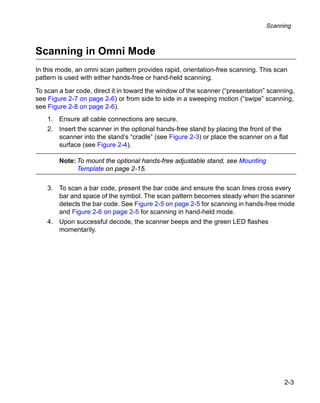
In this mode, an omni scan pattern provides rapid, orientation-free scanning. This scan
pattern is used with either hands-free or hand-held scanning.

To scan a bar code, direct it in toward the window of the scanner (“presentation” scanning,
see Figure 2-7 on page 2-6) or from side to side in a sweeping motion (“swipe” scanning,
see Figure 2-8 on page 2-6).
    1. Ensure all cable connections are secure.
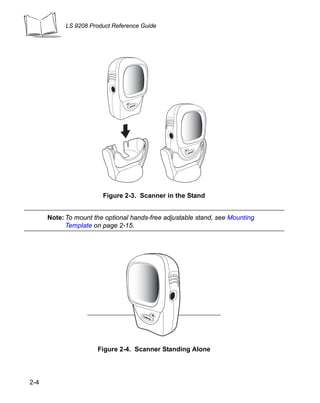
    2. Insert the scanner in the optional hands-free stand by placing the front of the
       scanner into the stand’s “cradle” (see Figure 2-3) or place the scanner on a flat
       surface (see Figure 2-4).

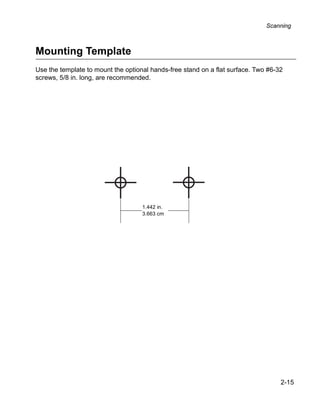
        Note: To mount the optional hands-free adjustable stand, see Mounting
              Template on page 2-15.

    3. To scan a bar code, present the bar code and ensure the scan lines cross every
       bar and space of the symbol. The scan pattern becomes steady when the scanner
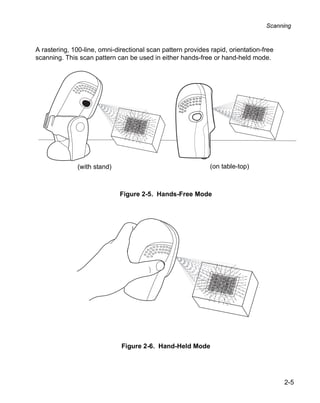
       detects the bar code. See Figure 2-5 on page 2-5 for scanning in hands-free mode
       and Figure 2-6 on page 2-5 for scanning in hand-held mode.
    4. Upon successful decode, the scanner beeps and the green LED flashes
       momentarily.


                                                                                       2-3
LS 9208 Product Reference Guide


                        Figure 2-3. Scanner in the Stand


      Note: To mount the optional hands-free adjustable stand, see Mounting
            Template on page 2-15.


                      Figure 2-4. Scanner Standing Alone


2-4
Scanning


A rastering, 100-line, omni-directional scan pattern provides rapid, orientation-free
scanning. This scan pattern can be used in either hands-free or hand-held mode.


               (with stand)                                   (on table-top)


                              Figure 2-5. Hands-Free Mode


                              Figure 2-6. Hand-Held Mode


                                                                                        2-5
LS 9208 Product Reference Guide


To scan a bar code, present it to the exit window of the scanner (“presentation” scanning)
or move it from side-to-side in a sweeping motion (“swipe” scanning) as show below:


                         Figure 2-7. “Presentation” scanning


                             Figure 2-8. “Swipe” scanning


        Note: To mount the optional hands-free adjustable stand, see Mounting
              Template on page 2-15.


  2-6
Scanning


Beeper Definitions
The scanner communicates with the user by emitting different beeper sequences and
patterns. Table 2-1 defines beep sequences that occur during both normal scanning and
while programming the scanner.
                             Table 2-1. Standard Beeper Definitions

              Beeper Sequence                                 Indication
         Standard Use
         3 short high beeps             Power up.
         Short high beep                A bar code symbol was decoded (if decode beeper
                                        is enabled).
         4 long low beeps               A transmission error was detected in a scanned
                                        symbol. The data is ignored. This occurs if a unit is
                                        not properly configured. Check option setting.
         5 low beeps                    Conversion or format error.
         Lo/hi/lo beep                  ADF transmit error.
         Hi/hi/hi/lo beep               RS-232 receive error.
         Parameter Menu Scanning
         Short high beep                Correct entry scanned or correct menu sequence
                                        performed.
         Lo/hi beep                     Input error, incorrect bar code or “Cancel” scanned,
                                        wrong entry, incorrect bar code programming
                                        sequence; remain in program mode.
         Hi/lo beep                     Keyboard parameter selected. Enter value using
                                        bar code keypad.
         Hi/lo/hi/lo beep               Successful program exit with change in the
                                        parameter setting.
         Low/hi/low/hi beep             Out of host parameter storage space. Scan Set
                                        Default Parameter on page 4-5.
         Code 39 Buffering
         Hi/lo beep                     New Code 39 data was entered into the buffer.
         3 long high beeps              Code 39 buffer is full.


                                                                                                2-7
LS 9208 Product Reference Guide


                      Table 2-1. Standard Beeper Definitions (Continued)
              Beeper Sequence                              Indication
         Lo/hi/lo beep                 The Code 39 buffer was erased or there was an
                                       attempt to clear or transmit an empty buffer.
         Lo/hi beep                    A successful transmission of buffered data.
         Host Specific
          USB only
          4 short high beeps           Scanner has not completed initialization. Wait
                                       several seconds and scan again.
          Scanner gives a power-up     Communication with the bus must be established
          beep after scanning a USB    before the scanner can operate at the highest
          Device Type.                 power level.
          This power-up beep occurs    The USB bus may put the scanner in a state where
          more than once.              power to the scanner is cycled on and off more than
                                       once. This is normal and usually happens when the
                                       PC cold boots.
          RS-232 only
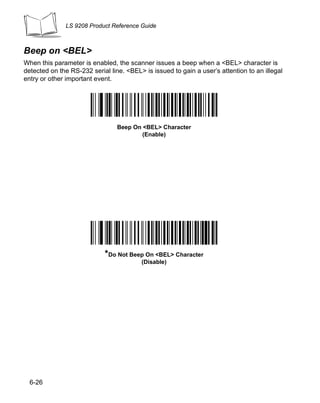
          1 short high beep            A <BEL> character is received and Beep on <BEL>
                                       is enabled.


Selecting Beeper Volume using Trigger
The scanner emits a short beep when it successfully reads a bar code. The volume of the
beep can be changed either by scanning the appropriate bar code in Beeper Volume on
page 4-7, or by utilizing the trigger as follows:

   1. Press and hold the trigger for an extended period of time (approximately 5
      seconds). The scanner cycles through three settings (Low, Medium, High) emitting
      a 2-beep tone at each setting.
   2. To select a particular setting, release the trigger after the desired 2-beep tone is
      heard.


  2-8
Scanning


LED Definitions
In addition to beeper sequences, the scanner communicates with the user using an LED
display. Table 2-2 defines LED flashes that display during scanning.


                            Table 2-2. Standard LED Definitions
                     LED                                  Indication
         Off                         No power is applied to the scanner.
         Green                       The scanner is on and “ready to scan.”
         Momentary flash             A bar code was successfully decoded.
         Slow continuous flashing    The scanner is in programming mode.
         Fast continuous flashing    There is a internal problem; the laser is shut off for
                                     regulatory reasons.


                                                                                              2-9
LS 9208 Product Reference Guide


Aiming
Do not hold the scanner directly over the bar code. Laser light reflecting directly back into
the scanner from the bar code is known as specular reflection. This specular reflection can
make decoding difficult.

You can tilt the scanner up to 45° forward or back and achieve a successful decode (Figure
2-9). Simple practice quickly shows what tolerances to work within.


                                          Specular
                                          Reflection
                                           -
                                           +4


                                  45                   45


                                           Bar
                                          Code


                   Figure 2-9. Maximum Tilt Angles and Dead Zone


 2-10
Scanning


Decode Zone


                                                                         in.   cm

                                                                         5     12.7
     Note: Typical performance at 73.4                    F (23   C)
                                                                                      W
           on high quality symbols.
                                                                                      i
                                                                                      d
                                                                                      t
                                                                                      h

                                                                                      o
     LS 9208                                                             0     0
                                                                                      f

                                                                                      F
                                                                                      i
                                                                                      e
               1.0
                     5 mil
                                 2.5
                                                                                      l
                                                                                      d
                             7.8 mil (60%)
          0                                         6.0                  5     12.7
          0                   10.4 mil (80%)
                                                            7.5

                                  13 mil 100% UPC
          0                                                        9.0


                       Figure 2-10. LS 9208 Decode Zone


                                                                                              2-11
LS 9208 Product Reference Guide


Integrated Electronic Article Surveillance (EAS)

Deactivation Antenna for Checkpoint EAS Systems
The LS 9208’s optional EAS deactivation feature includes an integrated RF antenna which,
when attached to a Checkpoint Systems, Inc. RF-EAS deactivation system, supports
deactivation of RF-EAS security labels while scanning a product at the Point-of-Sale. This
allows the merchandise to be removed from the store without activating the security alarm.

         Note: Please contact your local Checkpoint representative to help connect
               the EAS deactivation system to insure proper operation.


EAS Deactivation Range
EAS Deactivation Range depends upon several factors including:

    •    EAS Tags. EAS tags are produced by several different manufacturers, each with
         a different performance level. This variance in performance can also vary the
         deactivation range.
    •    Cable. The length of the EAS antenna cable wire is directly related to deactivation
         range. The longer the EAS deactivation antenna wires are, the more signal loss
         there is, which decreases EAS deactivation range.
    •    Calibration of the Checkpoint RF-EAS Deactivation System. There are several
         adjustments that can be made on the Checkpoint Deactivation System side.
         Please contact Checkpoint Systems, Inc. for details.
    •    Check Stand Construction. Check stand construction also affects EAS
         deactivation range. The RF-EAS signal can be dampened, or severely reduced if
         there is too much metal or wood blocking the RF signal.


         Note: Please contact your local Checkpoint representative to help connect
               the EAS deactivation system to insure proper operation.


  2-12
Scanning


LS 9208 Host Interface Cables and EAS
The LS 9208 utilizes Symbol’s universal scanner cables, which include several varieties
that incorporate RF-EAS deactivation signal wires. Universal EAS scanner cables are only
available as Straight Cables. No coiled EAS cables are available for use with EAS. Coiled
cables are longer than straight cables, which results in RF-EAS signal loss. As a coiled
cable is stretched, the EAS deactivation range will further be reduced. This is not
acceptable operation for EAS security systems.

Different Checkpoint EAS Models
There are several Checkpoint EAS systems available. The LS 9208 is specified to work
with CounterPoint IV, V, VI, VII & IX models from Checkpoint Systems, Inc.

Checkpoint Contact Information
Checkpoint Headquarters (New Jersey): 800-257-5540.

Outside the United States: +1-856-848-1800.


                                                                                    2-13
LS 9208 Product Reference Guide


2-14
Scanning


Mounting Template
Use the template to mount the optional hands-free stand on a flat surface. Two #6-32
screws, 5/8 in. long, are recommended.


                                    1.442 in.
                                    3.663 cm


                                                                                   2-15
LS 9208 Product Reference Guide


2-16
Chapter 3
  Maintenance and Technical Specifications


Introduction
This chapter covers suggested scanner maintenance, troubleshooting, technical
specifications, and signal descriptions (pinouts).

Maintenance
Cleaning the exit window is the only maintenance required. A dirty window may affect
scanning accuracy.

    •   Do not allow any abrasive material to touch the window.
    •   Remove any dirt particles with a damp cloth.
    •   Wipe the window using a tissue moistened with ammonia/water.
    •   Do not spray water or other cleaning liquids directly into the window.


                                                                                       3-1
LS 9208 Product Reference Guide


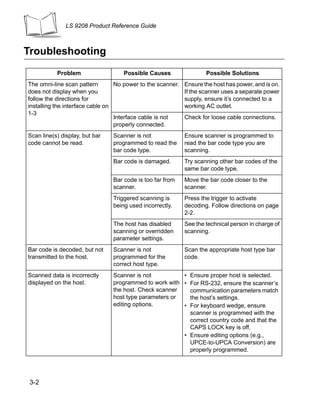
Troubleshooting
           Problem                  Possible Causes                  Possible Solutions
The omni-line scan pattern        No power to the scanner.   Ensure the host has power, and is on.
does not display when you                                    If the scanner uses a separate power
follow the directions for                                    supply, ensure it’s connected to a
installing the interface cable on                            working AC outlet.
1-3
                                  Interface cable is not     Check for loose cable connections.
                                  properly connected.
Scan line(s) display, but bar   Scanner is not               Ensure scanner is programmed to
code cannot be read.            programmed to read the       read the bar code type you are
                                bar code type.               scanning.
                                Bar code is damaged.         Try scanning other bar codes of the
                                                             same bar code type.
                                Bar code is too far from     Move the bar code closer to the
                                scanner.                     scanner.
                                Triggered scanning is        Press the trigger to activate
                                being used incorrectly.      decoding. Follow directions on page
                                                             2-2.
                                The host has disabled        See the technical person in charge of
                                scanning or overridden       scanning.
                                parameter settings.
Bar code is decoded, but not    Scanner is not               Scan the appropriate host type bar
transmitted to the host.        programmed for the           code.
                                correct host type.
Scanned data is incorrectly     Scanner is not          • Ensure proper host is selected.
displayed on the host.          programmed to work with • For RS-232, ensure the scanner’s
                                the host. Check scanner   communication parameters match
                                host type parameters or   the host’s settings.
                                editing options.        • For keyboard wedge, ensure
                                                          scanner is programmed with the
                                                          correct country code and that the
                                                          CAPS LOCK key is off.
                                                        • Ensure editing options (e.g.,
                                                          UPCE-to-UPCA Conversion) are
                                                          properly programmed.


 3-2
Maintenance and Technical Specifications


          Problem                 Possible Causes               Possible Solutions
Although the green Power LED The scanner has gone     Press the trigger to awaken the unit,
is on, the scanner does not  into the Low Power “Shut or change the “Low Power Blink”
produce the omni-directional Down” Mode.              parameter on page 4-11.
scan pattern.


       Note: If after performing these checks the symbol still does not scan,
             contact your distributor or call the local Symbol Support Center. See
             page xiv for the telephone numbers.


                                                                                        3-3
LS 9208 Product Reference Guide


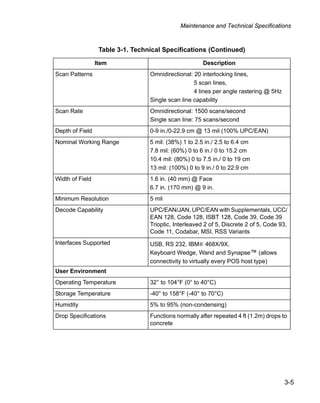
Technical Specifications
                               Table 3-1. Technical Specifications
                        Item                                    Description
       Physical Characteristics
       Dimensions:
       without stand: Height              5.51 in. (14 cm)
                      Width               3.49 in. (8.8 cm)
                      Depth               2.96 in. (7.5 cm)
          with stand: Height              7.18 in. (18.24 cm)
                      Width               4.83 in. (12.27 cm)
                      Depth               3.73 in. (9.47 cm)
       Weight                             Scanner only: 10.2 oz/320 g
                                          With adjustable stand: 21.5 oz/670 g
       Power Source                       Power drawn from Host terminal or external power
                                          supply; depends on Host type.
       Voltage                            5.0 VDC ± 10%
       Nominal Current                    390 mA
       Power                              2 watts
       Mounting Options                  Adjustable multi-mount stand
       Color                              Cash Register White and Twilight Black
       Performance Characteristics
       Light Source                       650nm visible laser diode
       Yaw Tolerance (Typical)1           Omnidirectional: ± 50°
                                          Single scan line: ± 50°
       Pitch Tolerance (Typical)1         Omnidirectional: ± 50°
                                          Single scan line: ± 60°
       Roll Tolerance (Typical)1          Omnidirectional: 0 to 360°
                                          Single scan line: ± 40°
       Print Contrast                     25% minimum reflective difference
       1
        Refers to 100% UPC bar code (80% contrast) located 4 in./10 cm from the scanner nose.


 3-4
Maintenance and Technical Specifications


                  Table 3-1. Technical Specifications (Continued)

                 Item                                  Description
Scan Patterns                     Omnidirectional: 20 interlocking lines,
                                                   5 scan lines,
                                                   4 lines per angle rastering @ 5Hz
                                  Single scan line capability
Scan Rate                         Omnidirectional: 1500 scans/second
                                  Single scan line: 75 scans/second
Depth of Field                    0-9 in./0-22.9 cm @ 13 mil (100% UPC/EAN)
Nominal Working Range             5 mil: (38%) 1 to 2.5 in./ 2.5 to 6.4 cm
                                  7.8 mil: (60%) 0 to 6 in./ 0 to 15.2 cm
                                  10.4 mil: (80%) 0 to 7.5 in./ 0 to 19 cm
                                  13 mil: (100%) 0 to 9 in./ 0 to 22.9 cm
Width of Field                    1.6 in. (40 mm) @ Face
                                  6.7 in. (170 mm) @ 9 in.
Minimum Resolution                5 mil
Decode Capability                 UPC/EAN/JAN, UPC/EAN with Supplementals, UCC/
                                  EAN 128, Code 128, ISBT 128, Code 39, Code 39
                                  Trioptic, Interleaved 2 of 5, Discrete 2 of 5, Code 93,
                                  Code 11, Codabar, MSI, RSS Variants
Interfaces Supported              USB, RS 232, IBM® 468X/9X,
                                  Keyboard Wedge, Wand and Synapse™ (allows
                                  connectivity to virtually every POS host type)
User Environment
Operating Temperature             32° to 104°F (0° to 40°C)
Storage Temperature               -40° to 158°F (-40° to 70°C)
Humidity                          5% to 95% (non-condensing)
Drop Specifications               Functions normally after repeated 4 ft (1.2m) drops to
                                  concrete


                                                                                       3-5
LS 9208 Product Reference Guide


                          Table 3-1. Technical Specifications (Continued)

                     Item                                     Description
      Ambient Light Immunity              Immune to normal artificial indoor and natural outdoor
                                          (direct sunlight) lighting conditions.
                                          Fluorescent, Incandescent, Mercury Vapor and
                                          Sodium Vapor: 450 Ft Candles (4,844 Lux)
                                          Sunlight: 8000 Ft Candles (86,111 Lux)
      EAS Support                         Optional Checkpoint Electronic Article
                                          Surveillance EAS
      Regulatory
      Electrical Safety                   Certified to UL 1950, CSA C22.2 No. 950 EN60825
      Laser Safety                        CDRH Class IIa Laser Product
                                          IEC 60825 Class 1 Laser Product
      EMC                                 CISPR B, FCC B


3-6
Maintenance and Technical Specifications


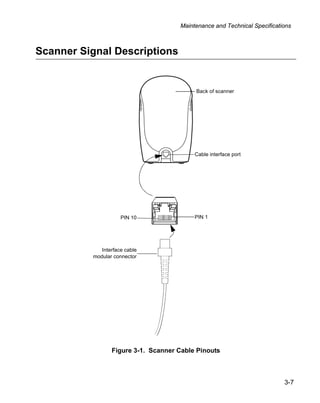
Scanner Signal Descriptions


                                          Back of scanner


                                          Cable interface port


                     PIN 10               PIN 1


             Interface cable
          modular connector


                 Figure 3-1. Scanner Cable Pinouts


                                                                          3-7
LS 9208 Product Reference Guide


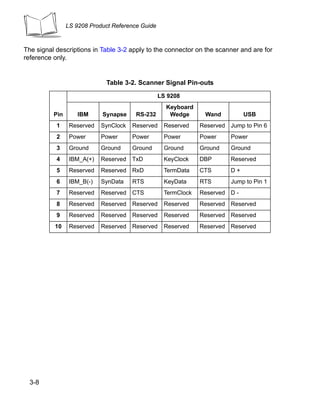
The signal descriptions in Table 3-2 apply to the connector on the scanner and are for
reference only.


                             Table 3-2. Scanner Signal Pin-outs
                                                  LS 9208
                                                    Keyboard
          Pin       IBM     Synapse     RS-232       Wedge      Wand          USB
           1     Reserved   SynClock   Reserved    Reserved    Reserved Jump to Pin 6
           2     Power      Power      Power       Power       Power     Power
           3     Ground     Ground     Ground      Ground      Ground    Ground
           4     IBM_A(+)   Reserved   TxD         KeyClock    DBP       Reserved
           5     Reserved   Reserved   RxD         TermData    CTS       D+
           6     IBM_B(-)   SynData    RTS          KeyData    RTS       Jump to Pin 1
           7     Reserved   Reserved   CTS         TermClock   Reserved D -
           8     Reserved   Reserved   Reserved    Reserved    Reserved Reserved
           9     Reserved   Reserved   Reserved    Reserved    Reserved Reserved
          10     Reserved   Reserved   Reserved    Reserved    Reserved Reserved


  3-8
Chapter 4
                           User Preferences


Introduction
You have the option to program the LS 9208 scanner to perform various functions, or
activate different features. This chapter describes each user preference feature and
provides the programming bar codes necessary for selecting these features for your LS
9208 scanner. Before programming, follow the instructions in Chapter 1, Getting Started.

Your LS 9208 is shipped with the settings shown in the User Preferences Default Table on
page 4-3 (also see Appendix A, Standard Default Parameters for all host device and
miscellaneous scanner defaults). If the default values suit your requirements, programming
may not be necessary.

Features values are set by scanning single bar codes or short bar code sequences. The
settings are stored in non-volatile memory and are preserved even when the scanner is
powered down.


                                                                                      4-1
LS 9208 Product Reference Guide


If you are not using a Synapse or USB cable you must select a host type (see each host
chapter for specific host information). After you hear the power-up beeps, select a host
type. This only needs to be done once, upon the first power-up when connected to a new
host.

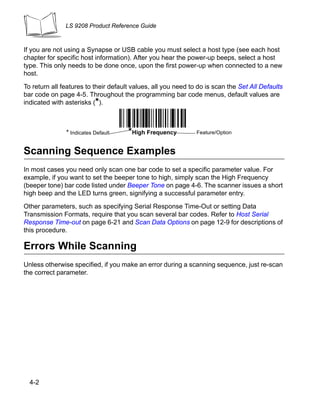
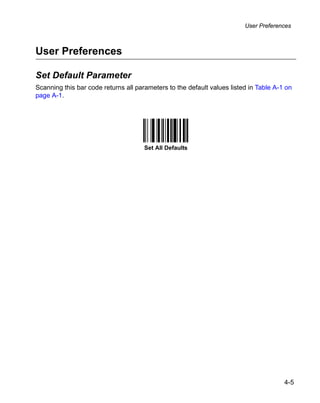
To return all features to their default values, all you need to do is scan the Set All Defaults
bar code on page 4-5. Throughout the programming bar code menus, default values are
indicated with asterisks (*).


               * Indicates Default    *High Frequency          Feature/Option


Scanning Sequence Examples
In most cases you need only scan one bar code to set a specific parameter value. For
example, if you want to set the beeper tone to high, simply scan the High Frequency
(beeper tone) bar code listed under Beeper Tone on page 4-6. The scanner issues a short
high beep and the LED turns green, signifying a successful parameter entry.

Other parameters, such as specifying Serial Response Time-Out or setting Data
Transmission Formats, require that you scan several bar codes. Refer to Host Serial
Response Time-out on page 6-21 and Scan Data Options on page 12-9 for descriptions of
this procedure.

Errors While Scanning
Unless otherwise specified, if you make an error during a scanning sequence, just re-scan
the correct parameter.


  4-2
User Preferences


User Preferences Default Parameters
Table 4-1 lists the defaults for user preferences parameters. If you wish to change any
option, scan the appropriate bar code(s) provided in the User Preferences section
beginning on page 4-5.

        Note: See Appendix A, Standard Default Parameters for all user
              preferences, hosts, symbologies, and miscellaneous default
              parameters.


                         Table 4-1. User Preferences Default Table

                                                                               Page
                     Parameter                               Default          Number

 User Preferences

 Set Default Parameter                             All Defaults            4-5

 Beeper Tone                                       High                    4-6

 Beeper Volume                                     High                    4-7

 Volume Change Trigger Delay                       5.0 Sec                 4-8

 Laser On Time                                     3.0 Sec                 4-9

 Beep After Good Decode                            Enable                  4-10

 Low Power Blink                                   Blink                   4-11

 Scan Pattern Mode                                 Rastering               4-12

 Single-Line Aim Duration                          2 sec                   4-13

 Time-out Between Same Symbol                      0.6 sec                 4-15

 Time-out Between Different Symbols                0.2 sec                 4-15

 Time Delay to Low Power Mode                      30 Minutes              4-16


                                                                                       4-3
LS 9208 Product Reference Guide


                  Table 4-1. User Preferences Default Table

                                                                    Page
                Parameter                              Default     Number

Linear UPC/EAN Decode                        Disable             4-18


4-4
User Preferences


User Preferences

Set Default Parameter
Scanning this bar code returns all parameters to the default values listed in Table A-1 on
page A-1.


                                      Set All Defaults


                                                                                       4-5
LS 9208 Product Reference Guide


Beeper Tone
To select a decode beep frequency (tone), scan the Low Frequency, Medium Frequency,
or High Frequency bar code.


                                   Low Frequency


                                  Medium Frequency


                                  *High Frequency


 4-6
User Preferences


Beeper Volume
To select a beeper volume, scan the Low Volume, Medium Volume, or High Volume bar
code.


                                   Low Volume


                                 Medium Volume


                                  *High Volume


                                                                              4-7
LS 9208 Product Reference Guide


Volume Change Trigger Delay
The volume on the LS 9208 scanner is adjusted by pressing and holding the trigger for a
certain amount of time, after which the scanner changes the volumes, and beeps with the
new volume.

The parameters below control the length of time needed to hold the trigger before the
volume is adjusted.


                              Volume Trigger Duration 3 sec


                             *Volume Trigger Duration 5 sec


                              Volume Trigger Duration 7 sec


  4-8
User Preferences


Laser On Time
This parameter sets the maximum time that decode processing continues during a scan
attempt. It is programmable in 0.1 second increments from 0.5 to 10 seconds. The default
Laser On Time is 3.0 seconds.

To set a Laser On Time, scan the bar code below. Next, scan two numeric bar codes
beginning on page D-1 in Appendix D that correspond to the desired on time. Single digit
numbers must have a leading zero. For example, to set an On Time of 0.5 seconds, scan
the bar code below, then scan the “0” and “5” bar codes. If you make an error, or wish to
change your selection, scan Cancel on page D-5.


                                     Laser On Time


                                                                                     4-9
LS 9208 Product Reference Guide


Beep After Good Decode
Scan a bar code below to select whether or not the scanner beeps after a good decode. If
Do Not Beep After Good Decode is selected, the beeper still operates during parameter
menu scanning and indicates error conditions.


                               *Beep After Good Decode
                                        (Enable)


                            Do Not Beep After Good Decode
                                      (Disable)


  4-10
User Preferences


Low Power Blink
After a period of inactivity, the scanner will go into a reduced power mode. This parameter
controls how aggressively power is conserved, and therefore determines the method of
waking the scanner up.

If “Low Power - Blink Mode” is selected, then the scanner (after a period of inactivity) will
blink infrequently to save power. To restore the scanner to full power mode, the user must
simply use the scanner by presenting a barcode.

If “Motor and Laser Shut Down” is selected, then the scanner (after a period of inactivity)
will turn off the motor and laser, but leave the green Power LED lit. The user must then
depress the trigger to awaken the scanner to its full power mode.


                                 *Low Power - Blink Mode


                                  Low Power - Shut Down


                                                                                        4-11
LS 9208 Product Reference Guide


Scan Pattern Mode
The LS 9208 has a very aggressive scan pattern that is not only omnidirectional, but also
raster. If a static omnidirectional pattern is desired, scan the “Omnidirectional Pattern”
parameter below to change the scan pattern.


                            *Rastering Omnidirectional Pattern


                                 Omnidirectional Pattern


  4-12
User Preferences


Single-Line Aim Duration
The LS 9200 can enter the single-line scan mode by tapping the trigger. Once in this mode,
each trigger pull will attempt to decode the barcode in front of the scanner. After a period of
inactivity while the trigger is not pressed, the scanner will revert to the omnidirectional
pattern.

This parameter controls the length of the period of inactivity in single-line mode before the
scanner reverts to the omnidirectional pattern.


                                     *Aim Duration 2 sec


                                     Aim Duration 3 sec


                                                                                         4-13
LS 9208 Product Reference Guide


Single-Line Aim Duration (Continued)


                              Aim Duration 4 sec


                              Aim Duration 5 sec


 4-14
User Preferences


Timeout Between Decodes
Timeout Between Decodes, Same Symbol
This parameter sets the minimum time between decodes of different symbols. It is
programmable in 0.1-second increments from 0.0 to 9.9 seconds. Setting this above 0.4
seconds is recommended.) The default for this parameter is 0.6 seconds.

Scan the bar code below to select a new timeout. Next, scan two numeric bar codes
beginning in Numeric Bar Codes on page D-1 that correspond to the desired timeout.
Single digit numbers must have a leading zero. For example, to set a timeout of 0.5
seconds, scan the bar code below, then scan the “0” and “5” bar codes. If you make an
error, or wish to change your selection, scan Cancel on page D-5.


                            Timeout Between Same Symbol

Timeout Between Decodes, Different Symbol
This parameter sets the minimum time between decodes of different symbols. It is
programmable in 0.1-second increments from 0.0 to 9.9 seconds. The default for this
parameter is 0.2 seconds.

Scan the bar code below to select a new timeout. Next, scan two numeric bar codes
beginning in Numeric Bar Codes on page D-1 that correspond to the desired timeout.
Single digit numbers must have a leading zero. For example, to set a timeout of 0.5
seconds, scan the bar code below, then scan the “0” and “5” bar codes. If you make an
error, or wish to change your selection, scan Cancel on page D-5.


                           Timeout Between Different Symbol


                                                                                  4-15
LS 9208 Product Reference Guide


Time Delay to Low Power Mode
This parameter sets the time that the scanner remains active after any scanning activity.
Scan one of the four options. Depending on the selection, the scanner enters a sleep mode
15, 30, 60 or 90 minutes after the last attempted decode. To awaken the scanner, please
refer to the explanation of the Low Power Blink parameter on page 4-11.


                                        15 Minutes


                                       *30 Minutes


  4-16
User Preferences


Time Delay to Low Power Mode (Continued)


                       60 Minutes


                       90 Minutes


                                                       4-17
LS 9208 Product Reference Guide


Time Delay to Low Power Mode (Continued)


                                 Extended (127.5 Hours)


Linear UPC/EAN Decode
This option applies to code types containing two adjacent blocks (e.g., UPC-A, EAN-8,
EAN-13). When enabled, a bar code is transmitted only when both the left and right blocks
are successfully decoded within one laser scan. Enable this option when bar codes are in
proximity to each other.


                             Enable Linear UPC/EAN Decode


  4-18
User Preferences


Linear UPC/EAN Decode (Continued)


                 *Disable Linear UPC/EAN Decode


                                                              4-19
LS 9208 Product Reference Guide


4-20
Chapter 5
                  Keyboard Wedge Interface


Introduction
This chapter covers Keyboard Wedge interface information for setting up your scanner.
This interface type is used to attach the scanner between the keyboard and host computer.
The scanner translates the bar code data into keystrokes. The host computer accepts the
keystrokes as if they originate from the keyboard.

This mode of operation allows adding bar code reading functionality to a system designed
for manual keyboard input. In this mode the keyboard keystrokes are simply passed
through.

Throughout the programming bar code menus, default values are indicated with asterisks
(*).


              * Indicates Default   *North American        Feature/Option


                                                                                     5-1
LS 9208 Product Reference Guide


Connecting a Keyboard Wedge Interface

                                                                 Male DIN Keyboard


                                                                Y-cable


         Power supply
           (if needed)


               Figure 5-1. Keyboard Wedge Connection with Y-cable

To connect the Keyboard Wedge Y-cable:

   1. Switch off the host and unplug the keyboard connector.
   2. Attach the modular connector of the Y-cable to the cable interface port on the
      scanner. (See Installing the Interface Cable on page 1-3.)
   3. Connect the round male DIN host connector of the Y-cable to the keyboard port on
      the host device.
   4. Connect the round female DIN keyboard connector of the Y-cable to the keyboard.
   5. If needed, attach the optional power supply to the connector in the middle of the Y-
      cable.
   6. Ensure that all connections are secure.
   7. Switch on your host system.
   8. Scan the appropriate bar codes in this chapter to configure the scanner.


 5-2
Keyboard Wedge Interface


Keyboard Wedge Default Parameters
Table 5-1 lists the defaults for Keyboard Wedge host parameters. If you wish to change any
option, scan the appropriate bar code(s) provided in the Keyboard Wedge Host Parameters
section beginning on page 5-4.

        Note: See Appendix A, Standard Default Parameters for all user
              preferences, hosts, symbologies, and miscellaneous default
              parameters.


                     Table 5-1. Keyboard Wedge Host Default Table

                                                                                           Page
                  Parameter                                    Default                    Number

Keyboard Wedge Host Parameters

Keyboard Wedge Host Type                        IBM PC/AT & IBM PC Compatibles1           5-4

Country Types (Country Codes)                   North American                            5-6

Ignore Unknown Characters                       Send Bar Codes                            5-10

Keystroke Delay                                 No Delay                                  5-11

Intra-Keystroke Delay                           Disable                                   5-12

Alternate Numeric Keypad Emulation              Disable                                   5-13

Caps Lock On                                    Disable                                   5-14

Caps Lock Override                              Disable                                   5-15

Convert Wedge Data                              No Convert                                5-16

Function Key Mapping                            Disable                                   5-17

FN1 Substitution                                Disable                                   5-18

Send Make Break                                 Disable                                   5-19
1
 User selection is required to configure this interface and this is the most common selection.


                                                                                                 5-3
LS 9208 Product Reference Guide


Keyboard Wedge Host Types

Keyboard Wedge Host Types
Select your keyboard wedge host by scanning one of the bar codes below.


                          IBM PC/AT & IBM PC Compatibles1


                                 IBM PS/2 (Model 30)


                                 IBM AT NOTEBOOK


 5-4
Keyboard Wedge Interface


Keyboard Wedge Host Types (Continued)


                                       IBM XT


                                     NCR 7052


    Note: 1User selection is required to configure this interface and this is the
          most common selection.


                                                                                    5-5
LS 9208 Product Reference Guide


Keyboard Wedge Country Types (Country Codes)
Scan the bar code corresponding to your keyboard type. If your particular keyboard type is
not listed, see Alternate Numeric Keypad Emulation on page 5-13.


                                    *North American


                                    German Windows


                                     French Windows


  5-6
Keyboard Wedge Interface


Keyboard Wedge Country Types (Continued)


                   French Canadian Win 95/98


                French Canadian Windows XP/2000


                       Spanish Windows


                                                                     5-7
LS 9208 Product Reference Guide


Keyboard Wedge Country Types (Continued)


                              Italian Windows


                             Swedish Windows


                            UK English Windows


 5-8
Keyboard Wedge Interface


Keyboard Wedge Country Types (Continued)


                      Japanese Windows


                 Brazilian/Portuguese Windows


                                                                    5-9
LS 9208 Product Reference Guide


Ignore Unknown Characters
Unknown characters are characters the host does not recognize. When Send Bar Codes
With Unknown Characters is selected, all bar code data is sent except for unknown
characters, and no error beeps sound on the scanner. When Do Not Send Bar Codes With
Unknown Characters is selected, bar code data is sent up to the first unknown character
and then an error beep will sound on the scanner.


                            *Send Bar Codes With Unknown
                                      Characters


                   Do Not Send Bar Codes With Unknown Characters


 5-10
Keyboard Wedge Interface


Keystroke Delay
This is the delay in milliseconds between emulated keystrokes. Scan a bar code below to
increase the delay when hosts require a slower transmission of data.


                                      *No Delay


                                Medium Delay (20 msec)


                                 Long Delay (40 msec)


                                                                                   5-11
LS 9208 Product Reference Guide


Intra-Keystroke Delay
When enabled, an additional delay is inserted between each emulated key depression and
release. This sets the Keystroke Delay parameter to a minimum of 5 msec as well.


                                        Enable


                                       *Disable


 5-12
Keyboard Wedge Interface


Alternate Numeric Keypad Emulation
This allows emulation of most other country keyboard types not listed in Keyboard Wedge
Country Types (Country Codes) on page 5-6 in a Microsoft operating system environment.


                           Enable Alternate Numeric Keypad


                          *Disable Alternate Numeric Keypad


                                                                                  5-13
LS 9208 Product Reference Guide


Caps Lock On
When enabled, the scanner emulates keystrokes as if the Caps Lock key is always
pressed.


                                Enable Caps Lock On


                               *Disable Caps Lock On


 5-14
Keyboard Wedge Interface


Caps Lock Override
When enabled, on AT or AT Notebook hosts, the keyboard ignores the state of the Caps
Lock key. Therefore, an ‘A’ in the bar code is sent as an ‘A’ no matter what the state of the
keyboard’s Caps Lock key.


                                 Enable Caps Lock Override


                                *Disable Caps Lock Override

        Note: If both Caps Lock On and Caps Lock Override are enabled, Caps
              Lock Override takes precedence.


                                                                                        5-15
LS 9208 Product Reference Guide


Convert Wedge Data
When enabled, the scanner will convert all bar code data to the selected case.


                                 Convert to Upper Case


                                 Convert to Lower Case


                                      *No Convert


  5-16
Keyboard Wedge Interface


Function Key Mapping
ASCII values under 32 are normally sent as a control-key sequences (see Table 7-2 on
page 7-18). When this parameter is enabled, the keys in bold are sent in place of the
standard key mapping. Table entries that do not have a bold entry remain the same whether
or not this parameter is enabled.


                                         Enable


                                        *Disable


                                                                                    5-17
LS 9208 Product Reference Guide


FN1 Substitution
When enabled, this allows replacement of any FN1 characters in an EAN 128 bar code with
a Key Category and Key Value choose by the user (see FN1 Substitution Values on page
12-8).


                                        Enable


                                        *Disable


 5-18
Keyboard Wedge Interface


Send Make Break
When enabled, the scan codes for releasing a key are not sent.


                           *Send Make and Break Scan Codes


                              Send Make Scan Code Only


                                                                                 5-19
LS 9208 Product Reference Guide


Keyboard Maps
The following keyboard maps are provided for prefix/suffix keystroke parameters. To
program the prefix/suffix values, see the bar codes on page 12-5.


                                Figure 5-2. IBM PS2 Type Keyboard

.

       5001   5002   7014                                           7008


       5003   5004    7009                                                      7012       7003

                                                                       7013
       5005   5006


       5007   5008                                                               7004      7006


       5009   5010                                                            7011      7002


                                       Figure 5-3. IBM PC/XT


    5-20
Keyboard Wedge Interface


5001   5002                                                                      7008   7014


5003   5004   7009                                                                      7012          7003

                                                                                 7013
5005   5006


5007   5008                                                                             7004


5009   5010                                                                                    7011   7002


                                   Figure 5-4. IBM PC/AT


                     5001   5002         5011                          1045     5013


                     5003   5004                                       5014     5015


                     5005   5006                                       1043     5016


                     5007   5008                                       5017     5018


                     5009   5010      1048       5012       1046        7013    5019

                                     (1048 if double key)            (7013 if double key)


                              Figure 5-5. NCR 7052 32-KEY


                                                                                                             5-21
LS 9208 Product Reference Guide


                   1066          1067               1068             1070     1071
            1065                                             1069


            1072   1073          1074               1075     1076   1077     1078


            1079   1080           1081              1082     1083    1084     1085


            5001   5002           5011                       1045    5013    1086


            5003   5004                                      5014    5015    1087


            5005   5006                                      1043    5016    1088


            5007   5008                                      5017    5018    1089


            5009   5010       1048       5012         1046   7013    5019    1090

                             (1048 if double key)            (1043 if double key)


                          Figure 5-6. NCR 7052 58-KEY


5-22
Keyboard Wedge Interface


ASCII Character Set

    Note: Code 39 Full ASCII interprets the bar code special character
          ($ + % /) preceding a Code 39 character and assigns an ASCII
          character value to the pair. For example, when Code 39 Full ASCII
          is enabled and a +B is scanned, it is interpreted as b, %J as ?, and
          %V as @. Scanning ABC%I outputs the keystroke equivalent of
          ABC >.

                 Table 5-2. Keyboard Wedge ASCII Character Set
                                 Full ASCII Code
                       ASCII     39 Encode Char.
                       Value                         Keystroke
                       1001             $A             CTRL A
                       1002             $B             CTRL B
                       1003            $C              CTRL C
                       1004            $D              CTRL D
                       1005             $E             CTRL E
                       1006             $F             CTRL F
                       1007            $G             CTRL G
                       1008            $H            CTRL H/
                                                   BACKSPACEa
                       1009             $I            CTRL I/
                                                    HORIZONTAL
                                                       TAB1
                       1010             $J             CTRL J
                       1011             $K             CTRL K
                       1012             $L             CTRL L
                       1013            $M             CTRL M/
                                                      ENTER1
                       1014            $N              CTRL N
                       1015            $O             CTRL O


                                                                                 5-23
LS 9208 Product Reference Guide


       Table 5-2. Keyboard Wedge ASCII Character Set (Continued)

                   1016             $P       CTRL P
                   1017            $Q        CTRL Q
                   1018            $R        CTRL R
                   1019             $S       CTRL S
                   1020             $T       CTRL T
                   1021            $U        CTRL U
                   1022             $V       CTRL V
                   1023            $W        CTRL W
                   1024             $X       CTRL X
                   1025             $Y       CTRL Y
                   1026             $Z       CTRL Z
                   1027            %A      NONE/ESC1
                   1028            %B         NONE
                   1029            %C         NONE
                   1030            %D         NONE
                   1031            %E         NONE
                   1032           Space       Space
                   1033             /A          !
                   1034             /B          “
                   1035             /C          #
                   1036             /D          $
                   1037             /E          %
                   1038             /F          &
                   1039             /G          ‘
                   1040             /H          (
                   1041             /I          )
                   1042             /J          *


5-24
Keyboard Wedge Interface


Table 5-2. Keyboard Wedge ASCII Character Set (Continued)

           1043          /K              +
           1044          /L              ,
           1045           -              -
           1046           .              .
           1047          /O              /
           1048           0              0
           1049           1              1
           1050           2              2
           1051           3              3
           1052           4              4
           1053           5              5
           1054           6              6
           1055           7              7
           1056           8              8
           1057           9              9
           1058          /Z              :
           1059          %F              ;
           1060          %G              <
           1061          %H              =
           1062          %I              >
           1063          %J              ?
           1064          %V             @
           1065           A              A
           1066           B              B
           1067           C              C
           1068           D              D
           1069           E              E


                                                               5-25
LS 9208 Product Reference Guide


       Table 5-2. Keyboard Wedge ASCII Character Set (Continued)

                   1070             F           F
                   1071             G           G
                   1072             H           H
                   1073             I           I
                   1074             J           J
                   1075             K           K
                   1076             L           L
                   1077             M           M
                   1078             N           N
                   1079             O           O
                   1080             P           P
                   1081             Q           Q
                   1082             R           R
                   1083             S           S
                   1084             T           T
                   1085             U           U
                   1086             V           V
                   1087             W          W
                   1088             X           X
                   1089             Y           Y
                   1090             Z           Z
                   1091            %K           [
                   1092            %L           
                   1093            %M           ]
                   1094            %N           ^
                   1095            %O           _
                   1096            %W           ‘


5-26
Keyboard Wedge Interface


Table 5-2. Keyboard Wedge ASCII Character Set (Continued)

           1097          +A              a
           1098          +B              b
           1099          +C              c
           1100          +D              d
           1101          +E              e
           1102          +F              f
           1103          +G              g
           1104          +H              h
           1105          +I              i
           1106          +J              j
           1107          +K              k
           1108          +L              l
           1109          +M              m
           1110          +N              n
           1111          +O              o
           1112          +P              p
           1113          +Q              q
           1114          +R              r
           1115          +S              s
           1116          +T              t
           1117          +U              u
           1118          +V              v
           1119          +W              w
           1120          +X              x
           1121          +Y              y
           1122          +Z              z
           1123          %P              {


                                                               5-27
LS 9208 Product Reference Guide


       Table 5-2. Keyboard Wedge ASCII Character Set (Continued)

                    1124           %Q                |
                    1125           %R                }
                    1126           %S                ~
                 ALT Keys                Keystroke
                   2065                   ALT A
                   2066                   ALT B
                   2067                   ALT C
                   2068                   ALT D
                   2069                   ALT E
                   2070                    ALT F
                   2071                   ALT G
                   2072                   ALT H
                   2073                    ALT I
                   2074                    ALT J
                   2075                   ALT K
                   2076                    ALT L
                   2077                   ALT M
                   2078                   ALT N
                   2079                   ALT O
                   2080                   ALT P
                   2081                   ALT Q
                   2082                   ALT R
                   2083                   ALT S
                   2084                    ALT T
                   2085                   ALT U
                   2086                   ALT V
                   2087                   ALT W


5-28
Keyboard Wedge Interface


Table 5-2. Keyboard Wedge ASCII Character Set (Continued)

            2088                          ALT X
            2089                          ALT Y
            2090                          ALT Z
        GUI Shift Keys
        The Apple™ iMac keyboard has an apple key on either
        side of the space bar. Windows-based systems have a
        GUI key to the left of the left ALT key, and to the right of
        the right ALT key.

           Other                       Keystroke
           Value
            3000        Right Control Key
            3048               GUI 0
            3049               GUI 1
            3050               GUI 2
            3051               GUI 3
            3052               GUI 4
            3053               GUI 5
            3054               GUI 6
            3055               GUI 7
            3056               GUI 8
            3057               GUI 9
            3065               GUI A
            3066               GUI B
            3067               GUI C
            3068               GUI D
            3069               GUI E
            3070               GUI F
            3071               GUI G
            3072               GUI H


                                                                             5-29
LS 9208 Product Reference Guide


       Table 5-2. Keyboard Wedge ASCII Character Set (Continued)

                   3073           GUI I
                   3074           GUI J
                   3075           GUI K
                   3076           GUI L
                   3077           GUI M
                   3078           GUI N
                   3079           GUI O
                   3080           GUI P
                   3081           GUI Q
                   3082           GUI R
                   3083           GUI S
                   3084           GUI T
                   3085           GUI U
                   3086           GUI V
                   3087           GUI W
                   3088           GUI X
                   3089           GUI Y
                   3090           GUI Z
                  F Keys                  Keystroke
                   5001                      F1
                   5002                      F2
                   5003                      F3
                   5004                      F4
                   5005                      F5
                   5006                      F6
                   5007                      F7
                   5008                      F8


5-30
Keyboard Wedge Interface


Table 5-2. Keyboard Wedge ASCII Character Set (Continued)

           5009                 F9
           5010                 F10
           5011                 F11
           5012                 F12
           5013                 F13
           5014                 F14
           5015                 F15
           5016                 F16
           5017                 F17
           5018                 F18
           5019                 F19
           5020                 F20
           5021                 F21
           5022                 F22
           5023                 F23
           5024                 F24
         Numeric             Keystroke
         Keypad
           6042                  *
           6043                  +
           6044              undefined
           6045                  -
           6046                  .
           6047                  /
           6048                  0
           6049                  1
           6050                  2
           6051                  3


                                                                 5-31
LS 9208 Product Reference Guide


       Table 5-2. Keyboard Wedge ASCII Character Set (Continued)

                   6052                       4
                   6053                       5
                   6054                       6
                   6055                       7
                   6056                       8
                   6057                       9
                   6058                     Enter
                   6059                   Num Lock
                 Extended                Keystroke
                  Keypad
                   7001                     Break
                   7002                    Delete
                   7003                    Pg Up
                   7004                      End
                   7005                    Pg Dn
                   7006                    Pause
                   7007                  Scroll Lock
                   7008                  Backspace
                   7009                      Tab
                   7010                  Print Screen
                    7011                    Insert
                   7012                     Home
                   7013                     Enter
                   7014                    Escape
                   7015                   Up Arrow
                   7016                   Dn Arrow
                   7017                   Left Arrow
                   7018                  Right Arrow


5-32
Keyboard Wedge Interface


a. The Keystroke in bold is sent only if the “Func-
tion Key Mapping” parameter is enabled. Other-
wise, the unbolded keystroke is sent.


                                                              5-33
LS 9208 Product Reference Guide


5-34
Chapter 6
                            RS-232 Interface


Introduction
This chapter covers RS-232 host information for setting up your scanner. The RS-232
interface is used to attach the scanner to point-of-sale devices, host computers, or other
devices with an available RS-232 port (e.g., com port).

        Note: : This scanner utilizes TTL RS-232 signal levels, which will interface
              with most system architectures. For system architectures requiring
              RS-232C signal levels, Symbol offers different cables providing the
              TTL to RS-232C conversion. Please contact your Symbol Support
              Center for more information.

If your particular host is not listed in Table 6-2, you need to set the communication
parameters to match your host device. To set communication parameters for hosts not
listed, refer to the documentation for the host device.


                                                                                       6-1
LS 9208 Product Reference Guide


Throughout the programming bar code menus, default values are indicated with asterisks
(*).


             * Indicates Default   *Baud Rate 9600      Feature/Option


 6-2
RS-232 Interface


Connecting an RS-232 Interface
This connection is made directly from the scanner to the host computer.

                                            Serial Port Connector to Host

                                                                      Power supply cable

                                                                     Interface cable


                       Power supply            Interface cable


                        Figure 6-1. RS-232 Direct Connection

    1. Connect the RS-232 interface cable to the rear of the scanner, as described in
       Installing the Interface Cable on page 1-3.
    2. Connect the other end of the interface cable to the serial port on the host.
    3. Connect the power supply.
    4. Scan appropriate bar codes in this chapter to match your host settings.

RS-232 Default Parameters
Table 6-1 lists the defaults for RS-232 host parameters. If you wish to change any option,
scan the appropriate bar code(s) provided in the Parameter Descriptions section beginning
on page 6-5.


                                                                                           6-3
LS 9208 Product Reference Guide


          Note: See Appendix A, Standard Default Parameters for all user
                preferences, hosts, symbologies, and miscellaneous default
                parameters.

                             Table 6-1. RS-232 Host Default Table

                                                                                         Page
                       Parameter                                    Default             Number

RS-232 Host Parameters

RS-232 Host Types                                         Standard1                  6-7

Baud Rate                                                 9600                       6-10

Parity                                                    None                       6-12

Check Receive Errors                                      Enable                     6-14

Hardware Handshaking                                      None                       6-15

Software Handshaking                                      None                       6-18

Host Serial Response Time-out                             2 Sec                      6-21

RTS Line State                                            Low RTS                    6-23

Stop Bit Select                                           1                          6-24

Data Bits                                                 8-Bit                      6-25

Beep on <BEL>                                             Disable                    6-26

Intercharacter Delay                                      0 msec                     6-27

Nixdorf Beep/LED Option                                   Normal Operation           6-29

Ignore Unknown Characters                                 Send Bar Codes             6-30
1
    User selection is required to configure this interface and this is the most common selection.


6-4
RS-232 Interface


RS-232 Host Parameters
Various RS-232 hosts are set up with their own parameter default settings (Table 6-2).
Selecting the ICL, Fujitsu, Wincor-Nixdorf Mode A, Wincor-Nixdorf Mode B, Olivetti, Omron,
or terminal sets the defaults listed below.

                              Table 6-2. Terminal Specific RS-232
                                                                    Wincor-
                                                     Wincor-        Nixdorf
                  Standard                           Nixdorf        Mode B/
Parameter         (Default)      ICL      Fujitsu    Mode A          OPOS          Olivetti       Omron

Transmit Code ID No           Yes        Yes        Yes           Yes            Yes            Yes

Data              Data as is Data/       Data/      Data/Suffix   Data/Suffix    Prefix/Data/   Data/Suffix
Transmission                 Suffix      Suffix                                  Suffix
Format

Suffix            CR/LF       CR (1013) CR (1013) CR (1013)       CR (1013)      ETX (1002)     CR (1013)
                  (7013)

Baud Rate         9600        9600       9600       9600          9600           9600           9600

Parity            None        Even       None       Odd           Odd            Even           None

Hardware          None        RTS/CTS    None       RTS/CTS       RTS/CTS        None           None
Handshaking                   Option 3              Option 3      Option 3

Software          None        None       None       None          None           Ack/Nak        None
Handshaking

Serial Response   2 Sec.      9.9 Sec.   2 Sec.     9.9 Sec.      9.9 Sec.       9.9 Sec.       9.9 Sec.
Time-out

Stop Bit Select   One         One        One        One           One            One            One

ASCII Format      8-Bit       8-Bit      8-Bit      8-Bit         8-Bit          7-Bit          8-Bit

Beep On <BEL>     Disable     Disable    Disable    Disable       Disable        Disable        Disable

RTS Line State    Low         High       Low        Low           Low = No       Low            High
                                                                  data to send

Prefix            None        None       None       None          None           STX (1003)     None

*In the Nixdorf Mode B, if CTS is Low, scanning is disabled. When CTS is High, the user can scan
bar codes.
**If Nixdorf Mode B is scanned without the scanner connected to the proper host, it may appear
unable to scan. If this happens, scan a different RS-232 host type within 5 seconds of cycling power
to the scanner.


                                                                                                        6-5
LS 9208 Product Reference Guide


RS-232 Host Parameters (continued)

Selecting the ICL, Fujitsu, Wincor-Nixdorf Mode A, Wincor-Nixdorf Mode B, OPOS, JPOS
terminal enables the transmission of code ID characters listed in Table 6-3 below. These
code ID characters are not programmable and are separate from the Transmit Code ID
feature. The Transmit Code ID feature should not be enabled for these terminals.

                     Table 6-3. Terminal Specific Code ID Characters
                                              Wincor-     Wincor-
                                              Nixdorf     Nixdorf
                          ICL   Fujitsu       Mode A    Mode B/OPOS       Olivetti        Omron

  UPC-A              A          A         A             A             A              A

  UPC-E              E          E         C             C             C              E

  EAN-8/JAN-8        FF         FF        B             B             B              FF

  EAN-13/JAN-13      F          F         A             A             A              F

  Code 39            C <len>    None      M             M             M <len>        C <len>

  Codabar            N <len>    None      N             N             N <len>        N <len>

  Code 128           L <len>    None      K             K             K <len>        L <len>

  I 2 of 5           I <len>    None      I             I             I <len>        I <len>

  Code 93            None       None      L             L             L <len>        None

  D 2 of 5           H <len>    None      H             H             H <len>        H <len>

  UCC/EAN 128        L <len>    None      P             P             P <len>        L <len>

  MSI                None       None      O             O             O <len>        None

  Bookland EAN       F          F         A             A             A              F

  IATA               H<len>     None      H             H             None           None

  Unlisted Bar       None       None      None          None          None           None
  Codes


  6-6
RS-232 Interface


RS-232 Host Types
To select an RS-232 host interface, scan one of the following bar codes.


                                     Standard RS-2321


                                         ICL RS-232


                              Wincor-Nixdorf RS-232 Mode A


        Note: 1User selection is required to configure this interface and this is the
              most common selection.


                                                                                        6-7
LS 9208 Product Reference Guide


RS-232 Host Types (continued)


                       Wincor-Nixdorf RS-232 Mode B


                               Fujitsu RS-232


                              Olivetti ORS4500


 6-8
RS-232 Interface


RS-232 Host Types (continued)


                                        Omron


                                     OPOS/JPOS


     Note: 1User selection is required to configure this interface and this is the
           most common selection.


                                                                                     6-9
LS 9208 Product Reference Guide


Baud Rate
Baud rate is the number of bits of data transmitted per second. The scanner’s baud rate
setting should match the baud rate setting of the host device. If not, data may not reach the
host device or may reach it in distorted form.


                                       Baud Rate 600


                                      Baud Rate 1200


  6-10
RS-232 Interface


Baud Rate (continued)


                        Baud Rate 2400


                        Baud Rate 4800


                        *Baud Rate 9600


                                                             6-11
LS 9208 Product Reference Guide


Baud Rate (continued)


                                      Baud Rate 19,200


                                      Baud Rate 38,400


Parity
A parity check bit is the most significant bit of each ASCII coded character. Select the parity
type according to host device requirements.

Select Odd parity and the parity bit value is set to 0 or 1, based on data, to ensure that an
odd number of 1 bits are contained in the coded character.


                                             Odd


  6-12
RS-232 Interface


Parity (continued)
Select Even parity and the parity bit value is set to 0 or 1, based on data, to ensure that an
even number of 1 bits are contained in the coded character.


                                            Even


Select Mark parity and the parity bit is always 1.


                                            Mark


Select Space parity and the parity bit is always 0.


                                            Space


                                                                                        6-13
LS 9208 Product Reference Guide


Parity (continued)
Select None when no parity bit is required.


                                          *None


Check Receive Errors
Select whether or not the parity, framing, and overrun of received characters are checked.
The parity value of received characters is verified against the parity parameter selected
above.


                               *Check For Received Errors


                            Do Not Check For Received Errors


  6-14
RS-232 Interface


Hardware Handshaking
The data interface consists of an RS-232 port designed to operate either with or without the
hardware handshaking lines, Request to Send (RTS), and Clear to Send (CTS).

If Standard RTS/CTS handshaking is not selected, scan data is transmitted as it becomes
available. If Standard RTS/CTS handshaking is selected, scan data is transmitted
according to the following sequence:

    •   The scanner reads the CTS line for activity. If CTS is asserted, the scanner waits
        up to 2 seconds for the host to negate the CTS line. If, after 2 seconds (default),
        the CTS line is still asserted, the scanner sounds a transmit error, and any scanned
        data is lost.
    •   When the CTS line is negated, the scanner asserts the RTS line and waits up to 2
        seconds for the host to assert CTS. When the host asserts CTS, data is
        transmitted. If, after 2 seconds (default), the CTS line is not asserted, the scanner
        sounds a transmit error, and discards the data.
    •   When data transmission is complete, the scanner negates RTS 10 msec after
        sending the last character.
    •   The host should respond by negating CTS. The scanner checks for a negated CTS
        upon the next transmission of data.
During the transmission of data, the CTS line should be asserted. If CTS is deasserted for
more than 50 ms between characters, the transmission is aborted, the scanner sounds a
transmission error, and the data is discarded.

If the above communications sequence fails, the scanner issues an error indication. In this
case, the data is lost and must be rescanned.

If Hardware Handshaking and Software Handshaking are both enabled, Hardware
Handshaking takes precedence.


        Note: The DTR signal is jumpered to the active state.


                                                                                       6-15
LS 9208 Product Reference Guide


None
Scan the bar code below if no Hardware Handshaking is desired.


                                        *None


Standard RTS/CTS
Scan the bar code below to select Standard RTS/CTS Hardware Handshaking.


                                  Standard RTS/CTS


 6-16
RS-232 Interface


RTS/CTS Option 1
When RTS/CTS Option 1 is selected, the scanner asserts RTS before transmitting and
ignores the state of CTS. The scanner de-asserts RTS when the transmission is complete.


                                     RTS/CTS Option 1


RTS/CTS Option 2
When Option 2 is selected, RTS is always high or low (user-programmed logic level).
However, the scanner waits for CTS to be asserted before transmitting data. If CTS is not
asserted within 2 seconds (default), the scanner issues an error indication and discards the
data.


                                     RTS/CTS Option 2


                                                                                      6-17
LS 9208 Product Reference Guide


RTS/CTS Option 3
When Option 3 is selected, the scanner asserts RTS prior to any data transmission,
regardless of the state of CTS. The scanner waits up to 2 seconds (default) for CTS to be
asserted. If CTS is not asserted during this time, the scanner issues an error indication and
discards the data. The scanner de-asserts RTS when transmission is complete.


                                     RTS/CTS Option 3


Software Handshaking
This parameter offers control of the data transmission process in addition to, or instead of,
that offered by hardware handshaking. There are five options.

If Software Handshaking and Hardware Handshaking are both enabled, Hardware
Handshaking takes precedence.

None
When this option is selected, data is transmitted immediately.


                                           *None


  6-18
RS-232 Interface


ACK/NAK
When this option is selected, after transmitting data, the scanner expects either an ACK or
NAK response from the host. When a NAK is received, the scanner transmits the same data
again and waits for either an ACK or NAK. After three unsuccessful attempts to send data
when NAKs are received, the scanner issues an error indication and discards the data.

The scanner waits up to the programmable Host Serial Response Time-out to receive an
ACK or NAK. If the scanner does not get a response in this time, it issues an error indication
and discards the data. There are no retries when a time-out occurs.


                                          ACK/NAK


ENQ
When this option is selected, the scanner waits for an ENQ character from the host before
transmitting data. If an ENQ is not received within the Host Serial Response Time-out, the
scanner issues an error indication and discards the data. The host must transmit an ENQ
character at least every Host Serial Response Time-out to prevent transmission errors.


                                            ENQ


                                                                                        6-19
LS 9208 Product Reference Guide


ACK/NAK with ENQ
This combines the two previous options.


                                   ACK/NAK with ENQ

XON/XOFF
An XOFF character turns the scanner transmission off until the scanner receives an XON
character. There are two situations for XON/XOFF:

   •    XOFF is received before the scanner has data to send. When the scanner has data
        to send, it waits up to 2 seconds for an XON character before transmission. If the
        XON is not received within this time, the scanner issues an error indication and
        discards the data.
   •    XOFF is received during a transmission. Data transmission then stops after
        sending the current byte. When the scanner receives an XON character, it sends
        the rest of the data message. The scanner waits indefinitely for the XON.


                                       XON/XOFF


 6-20
RS-232 Interface


Host Serial Response Time-out
This parameter specifies how long the scanner waits for an ACK, NAK, or CTS before
determining that a transmission error has occurred. This only applies when in one of the
ACK/NAK Software Handshaking modes, or RTS/CTS Hardware Handshaking option.


                                    *Minimum: 2 Sec


                                      Low: 2.5 Sec


                                     Medium: 5 Sec


                                                                                    6-21
LS 9208 Product Reference Guide


Host Serial Response Time-out (Continued)


                                High: 7.5 Sec


                              Maximum: 9.9 Sec


 6-22
RS-232 Interface


RTS Line State
This parameter sets the idle state of the Serial Host RTS line. Scan a bar code below to
select Low RTS or High RTS line state.


                                     *Host: Low RTS


                                     Host: High RTS


                                                                                    6-23
LS 9208 Product Reference Guide


Stop Bit Select
The stop bit(s) at the end of each transmitted character marks the end of transmission of
one character and prepares the receiving device for the next character in the serial data
stream. The number of stop bits selected (one or two) depends on the number the receiving
terminal is programmed to accommodate. Set the number of stop bits to match host device
requirements.


                                       *1 Stop Bit


                                       2 Stop Bits


  6-24
RS-232 Interface


Data Bits
This parameter allows the scanner to interface with devices requiring a 7-bit or 8-bit ASCII
protocol.


                                           7-Bit


                                           *8-Bit


                                                                                       6-25
LS 9208 Product Reference Guide


Beep on <BEL>
When this parameter is enabled, the scanner issues a beep when a <BEL> character is
detected on the RS-232 serial line. <BEL> is issued to gain a user’s attention to an illegal
entry or other important event.


                                 Beep On <BEL> Character
                                         (Enable)


                            *Do Not Beep On <BEL> Character
                                         (Disable)


  6-26
RS-232 Interface


Intercharacter Delay
This parameter specifies the intercharacter delay inserted between character
transmissions.


                                   *Minimum: 0 msec


                                     Low: 25 msec


                                   Medium: 50 msec


                                                                                   6-27
LS 9208 Product Reference Guide


Intercharacter Delay (Continued)


                                High: 75 msec


                             Maximum: 99 msec


 6-28
RS-232 Interface


Nixdorf Beep/LED Options
When Nixdorf Mode B is selected, this indicates when the scanner should beep and turn
on its LED after a decode.


                                 *Normal Operation
                         (Beep/LED immediately after decode)


                             Beep/LED After Transmission


                              Beep/LED After CTS Pulse


                                                                                  6-29
LS 9208 Product Reference Guide


Ignore Unknown Characters
Unknown characters are characters the host does not recognize. When Send Bar Codes
With Unknown Characters is selected, all bar code data is send except for unknown
characters, and no error beeps sound on the scanner. When Do Not Send Bar Codes With
Unknown Characters is selected, bar code data is sent up to the first unknown character
and then an error beep will sound on the scanner.


                                    *Send Bar Code
                              (With Unknown Characters)


                                Do Not Send Bar Codes
                              (With Unknown Characters)


 6-30
RS-232 Interface


ASCII / Character Set
The values in Table 6-4 can be assigned as prefixes or suffixes for ASCII character data
transmission.
                              Table 6-4. ASCII Character Set

                                   Full ASCII
        ASCII Value         Code 39 Encode Character              ASCII Character
            1000                        %U                              NUL
            1001                        $A                              SOH
            1002                        $B                              STX
            1003                        $C                              ETX
            1004                        $D                              EOT
            1005                        $E                              ENQ
            1006                        $F                              ACK
            1007                        $G                              BELL
            1008                        $H                            BCKSPC
            1009                         $I                          HORIZ TAB
            1010                        $J                            LF/NW LN
            1011                        $K                               VT
            1012                        $L                               FF
            1013                        $M                           CR/ENTER
            1014                        $N                               SO
            1015                        $O                               SI
            1016                        $P                              DLE
            1017                        $Q                              DC1
            1018                        $R                              DC2
            1019                        $S                              DC3
            1020                        $T                              DC4
            1021                        $U                              NAK


                                                                                    6-31
LS 9208 Product Reference Guide


                            Table 6-4. ASCII Character Set

                                 Full ASCII
       ASCII Value        Code 39 Encode Character           ASCII Character
          1022                        $V                          SYN
          1023                       $W                           ETB
          1024                        $X                          CAN
          1025                        $Y                           EM
          1026                        $Z                          SUB
          1027                       %A                           ESC
          1028                       %B                            FS
          1029                       %C                            GS
          1030                       %D                            RS
          1031                       %E                            US
          1032                      Space                        Space
          1033                        /A                            !
          1034                        /B                            "
          1035                        /C                           #
          1036                        /D                           $
          1037                        /E                           %
          1038                        /F                           &
          1039                        /G                            ‘
          1040                        /H                            (
          1041                        /I                            )
          1042                        /J                            *
          1043                        /K                           +
          1044                        /L                            ,
          1045                        -                             -
          1046                         .                            .
          1047                        /O                            /


6-32
RS-232 Interface


               Table 6-4. ASCII Character Set

                     Full ASCII
ASCII Value   Code 39 Encode Character           ASCII Character
   1048                  0                               0
   1049                  1                               1
   1050                  2                               2
   1051                  3                               3
   1052                  4                               4
   1053                  5                               5
   1054                  6                               6
   1057                  7                               7
   1056                  8                               8
   1057                  9                               9
   1058                  /Z                              :
   1059                 %F                               ;
   1060                 %G                               <
   1061                 %H                               =
   1062                 %I                               >
   1063                 %J                               ?
   1064                 %V                              @
   1065                  A                               A
   1066                  B                               B
   1067                  C                               C
   1068                  D                               D
   1069                  E                               E
   1070                  F                               F
   1071                  G                               G
   1072                  H                               H
   1073                  I                               I


                                                                   6-33
LS 9208 Product Reference Guide


                            Table 6-4. ASCII Character Set

                                 Full ASCII
       ASCII Value        Code 39 Encode Character           ASCII Character
          1074                        J                             J
          1075                        K                            K
          1076                        L                            L
          1077                        M                            M
          1078                        N                            N
          1079                        O                            O
          1080                        P                            P
          1081                        Q                            Q
          1082                        R                            R
          1083                        S                            S
          1084                        T                            T
          1085                        U                            U
          1086                        V                            V
          1087                        W                            W
          1088                        X                            X
          1089                        Y                            Y
          1090                        Z                            Z
          1091                       %K                             [
          1092                       %L                             
          1093                       %M                             ]
          1094                       %N                             ^
          1095                       %O                            _
          1096                       %W                             ‘
          1097                        +A                           a
          1098                        +B                           b
          1099                        +C                            c


6-34
RS-232 Interface


               Table 6-4. ASCII Character Set

                     Full ASCII
ASCII Value   Code 39 Encode Character           ASCII Character
   1100                 +D                               d
   1101                 +E                               e
   1102                 +F                               f
   1103                 +G                               g
   1104                 +H                               h
   1105                  +I                              i
   1106                 +J                               j
   1107                 +K                               k
   1108                 +L                               l
   1109                 +M                               m
   1110                 +N                               n
   1111                 +O                               o
   1112                 +P                               p
   1113                 +Q                               q
   1114                 +R                               r
   1115                 +S                               s
   1116                 +T                               t
   1117                 +U                               u
   1118                 +V                               v
   1119                 +W                               w
   1120                 +X                               x
   1121                 +Y                               y
   1122                 +Z                               z
   1123                 %P                               {
   1124                 %Q                               |
   1125                 %R                               }


                                                                   6-35
LS 9208 Product Reference Guide


                            Table 6-4. ASCII Character Set

                                 Full ASCII
       ASCII Value        Code 39 Encode Character           ASCII Character
          1126                       %S                            ~
          1127                                                  Undefined
          7013                                                   ENTER


6-36
Chapter 7
                                   USB Interface


Introduction
This chapter covers the connection and setup of the scanner to a USB host. The scanner
attaches directly to a USB host, or a powered USB hub, and is powered by it. No additional
power supply is required.

Throughout the programming bar code menus, default values are indicated with asterisks
(*).


                         *North American, Standard USB Keyboard
             * Indicates Default                           Feature/Option


                                                                                      7-1
LS 9208 Product Reference Guide


Connecting a USB Interface

                                                           USB Series A Connector


                                         Interface cable


                             Figure 7-1. USB Connection

The scanner connects with USB capable hosts including:

   •   Desktop PCs and Notebooks
   •   Apple™ iMac, G4, iBooks (North America only)
   •   IBM SurePOS terminals
   •   Sun, IBM, and other network computers that support more than one keyboard.

The following operating systems support the scanner through USB:

   •   Windows 98, 2000, ME, XP
   •   MacOS 8.5 and above
   •   IBM 4690 OS.

The scanner will also interface with other USB hosts which support USB Human Interface
Devices (HID). For more information on USB technology, hosts, and peripheral devices,
visit www.symbol.com/usb.

To set up your scanner:

   1. Connect the USB interface cable to the rear of the scanner, as described in
      Installing the Interface Cable on page 1-3.


 7-2
USB Interface


   2. Plug the series A connector in the USB host or hub, or plug the Plus Power
      connector in an available port of the IBM SurePOS terminal.
   3. Select the USB device type. See USB Device Type on page 7-5.
   4. On first installation when using Windows, the software prompts you to select or
      install the "Human Interface Device" driver. To install the "Human Interface Device"
      driver provided by Windows click "Next" through all the choices and click "Finished"
      on the last choice. The scanner powers up during this installation.
   5. If you are not using a North American keyboard, scan the appropriate country bar
      code under USB Country Keyboard Types (Country Codes) on page 7-6.
If you are having any problems with your system, see Troubleshooting on page 3-2.


                                                                                      7-3
LS 9208 Product Reference Guide


USB Default Parameters
Table 7-1 lists the defaults for USB host parameters. If you wish to change any option, scan
the appropriate bar code(s) provided in the Parameter Descriptions section beginning on
page 7-5.

        Note: See Appendix A, Standard Default Parameters for all user
              preferences, hosts, symbologies, and miscellaneous default
              parameters.


                            Table 7-1. USB Host Default Table

                                                                                 Page
                     Parameter                                Default           Number

 USB Host Parameters

 USB Device Type                                    HID (Human Interface     7-5
                                                    Device) Keyboard
                                                    Emulation

 USB Country Keyboard Types (Country Codes)         North American           7-6

 USB Keystroke Delay                                No Delay                 7-10

 USB CAPS Lock Override                             Disable                  7-11

 USB Ignore Unknown Characters                      Send Bar Codes           7-12

 Emulate Keypad                                     Disable                  7-13

 USB Keyboard FN1 Substitution                      Disable                  7-14

 Function Key Mapping                               Disable                  7-15

 Simulated Caps Lock                                Disable                  7-16

 Convert Case                                       Disable                  7-17


  7-4
USB Interface


USB Host Parameters

USB Device Type
Select the desired USB device type.

       Note: When changing USB Device Types, the scanner automatically
             restarts. The scanner issues the standard startup beep sequences.


                               *HID Keyboard Emulation


                                  IBM Table Top USB


                                  IBM Hand-Held USB


                                                                                 7-5
LS 9208 Product Reference Guide


USB Country Keyboard Types (Country Codes)
Scan the bar code corresponding to your keyboard type. This setting applies only to the
USB HID Keyboard Emulation device.

        Note: When changing Country Selection, the scanner automatically
              restarts. The scanner issues the standard startup beep sequences.


                        *North American, Standard USB Keyboard


                                    French, Windows


                                  German, Windows


  7-6
USB Interface


USB Country Keyboard Types (Continued)


                   French Canadian, Windows


                French Canadian, Windows 2000/XP


                  Spanish (Traditional), Windows


                                                                   7-7
LS 9208 Product Reference Guide


USB Country Keyboard Types (Continued)


                             Italian, Windows


                             Swedish, Windows


                           UK English, Windows


 7-8
USB Interface


USB Country Keyboard Types (Continued)


                  Japanese, Windows (ASCII)


                 Portuguese-Brazilian, Windows


                                                                 7-9
LS 9208 Product Reference Guide


USB Keystroke Delay
This parameter sets the delay, in milliseconds, between emulated keystrokes. Scan a bar
code below to increase the delay when hosts require a slower transmission of data.


                                       *No Delay


                                 Medium Delay (20 msec)


                                 Long Delay (40 msec)


 7-10
USB Interface


USB CAPS Lock Override
This option applies only to the HID Keyboard Emulation device. When enabled, the case of
the data is preserved regardless of the state of the caps lock key. This setting is always
enabled for the “Japanese, Windows (ASCII)” keyboard type and can not be disabled.


                                Override Caps Lock Key
                                       (Enable)


                            *Do Not Override Caps Lock Key
                                        (Disable)


                                                                                     7-11
LS 9208 Product Reference Guide


USB Ignore Unknown Characters
This option applies only to the HID Keyboard Emulation device and IBM device. Unknown
characters are characters the host does not recognize. When Send Bar Codes With
Unknown Characters is selected, all bar code data is sent except for unknown characters,
and no error beeps sound. When Do Not Send Bar Codes With Unknown Characters is
selected, bar codes containing at least one unknown character are not sent to the host, and
an error beep sounds.
.


                        *Send Bar Codes With Unknown Characters


                         Do Not Send Bar Codes With Unknown
                                     Characters


    7-12
USB Interface


Emulate Keypad
When enabled, all characters are sent as ASCII sequences over the numeric keypad. For
example ASCII A would be sent as “ALT make” 0 6 5 “ALT Break”.


                              *Disable Keypad Emulation


                              Enable Keypad Emulation


                                                                                7-13
LS 9208 Product Reference Guide


USB Keyboard FN1 Substitution
This option applies only to the USB HID Keyboard Emulation device. When enabled, this
allows replacement of any FN1 characters in an EAN 128 bar code with a Key Category
and value chosen by the user (see FN1 Substitution Values on page 12-8 to set the Key
Category and Key Value).


                                       Enable


                                       *Disable


 7-14
USB Interface


Function Key Mapping
ASCII values under 32 are normally sent as a control-key sequences (see Table 7-2 on
page 7-18). When this parameter is enabled, the keys in bold are sent in place of the
standard key mapping. Table entries that do not have a bold entry remain the same whether
or not this parameter is enabled.


                             *Disable Function Key Mapping


                              Enable Function Key Mapping


                                                                                    7-15
LS 9208 Product Reference Guide


Simulated Caps Lock


                       *Disable Simulated Caps Lock


                        Enable Simulated Caps Lock


 7-16
USB Interface


Convert Case
When enabled, the scanner will convert all bar code data to the selected case.


                                  *No Case Conversion


                                Convert All to Upper Case


                                Convert All to Lower Case


                                                                                  7-17
LS 9208 Product Reference Guide


ASCII Character Set
                     Table 7-2. USB ASCII Character Set
                ASCII Value    Full ASCII Code   Keystroke
                               39 Encode Char.
                    1001              $A            CTRL A
                    1002              $B            CTRL B
                    1003              $C            CTRL C
                    1004              $D            CTRL D
                    1005              $E            CTRL E
                    1006              $F            CTRL F
                    1007              $G            CTRL G
                    1008              $H           CTRL H/
                                                 BACKSPACEa
                    1009              $I           CTRL I/
                                                 HORIZONTAL
                                                    TABa
                    1010              $J            CTRL J
                    1011              $K            CTRL K
                    1012              $L            CTRL L
                    1013              $M           CTRL M/
                                                   ENTERa
                    1014              $N            CTRL N
                    1015              $O            CTRL O
                    1016              $P            CTRL P
                    1017              $Q            CTRL Q
                    1018              $R            CTRL R
                    1019              $S            CTRL S
                    1020              $T            CTRL T
                    1021              $U            CTRL U


 7-18
USB Interface


Table 7-2. USB ASCII Character Set (Continued)

     1022            $V           CTRL V
     1023           $W            CTRL W
     1024            $X           CTRL X
     1025            $Y           CTRL Y
     1026            $Z           CTRL Z
     1027           %A          NONE/ESCa
     1028           %B             NONE
     1029           %C             NONE
     1030           %D             NONE
     1031           %E             NONE
     1032          Space           Space
     1033            /A              !
     1034            /B              “
     1035            /C              #
     1036            /D              $
     1037            /E              %
     1038            /F              &
     1039            /G              ‘
     1040            /H              (
     1041            /I              )
     1042            /J              *
     1043            /K              +
     1044            /L              ,
     1045             -              -
     1046             .              .
     1047            /O              /
     1048            0               0


                                                           7-19
LS 9208 Product Reference Guide


             Table 7-2. USB ASCII Character Set (Continued)

                   1049                  1        1
                   1050                  2        2
                   1051                  3        3
                   1052                  4        4
                   1053                  5        5
                   1054                  6        6
                   1055                  7        7
                   1056                  8        8
                   1057                  9        9
                   1058              /Z           :
                   1059              %F           ;
                   1060             %G            <
                   1061             %H            =
                   1062              %I           >
                   1063              %J           ?
                   1064              %V           @
                   1065              A            A
                   1066              B            B
                   1067              C            C
                   1068              D            D
                   1069              E            E
                   1070              F            F
                   1071              G            G
                   1072              H            H
                   1073                  I        I
                   1074                  J        J
                   1075              K            K


7-20
USB Interface


Table 7-2. USB ASCII Character Set (Continued)

     1076            L               L
     1077            M               M
     1078            N               N
     1079            O               O
     1080            P               P
     1081            Q               Q
     1082            R               R
     1083            S               S
     1084            T               T
     1085            U               U
     1086            V               V
     1087            W               W
     1088            X               X
     1089            Y               Y
     1090            Z               Z
     1091           %K               [
     1092            %L              
     1093           %M               ]
     1094           %N               ^
     1095           %O               _
     1096           %W               ‘
     1097            +A              a
     1098            +B              b
     1099            +C              c
     1100            +D              d
     1101            +E              e
     1102            +F              f


                                                         7-21
LS 9208 Product Reference Guide


             Table 7-2. USB ASCII Character Set (Continued)

                   1103              +G                g
                   1104              +H                h
                   1105              +I                i
                   1106              +J                j
                   1107              +K                k
                   1108              +L                l
                   1109              +M                m
                   1110              +N                n
                    1111             +O                o
                   1112              +P                p
                   1113              +Q                q
                   1114              +R                r
                   1115              +S                s
                   1116              +T                t
                   1117              +U                u
                   1118              +V                v
                   1119              +W                w
                   1120              +X                x
                   1121              +Y                y
                   1122              +Z                z
                   1123              %P                {
                   1124             %Q                 |
                   1125             %R                 }
                   1126              %S                ~
                 ALT Keys                  Keystroke
                   2065            ALT A
                   2066            ALT B


7-22
USB Interface


Table 7-2. USB ASCII Character Set (Continued)

     2067          ALT C
     2068          ALT D
     2069          ALT E
     2070          ALT F
     2071          ALT G
     2072          ALT H
     2073           ALT I
     2074           ALT J
     2075          ALT K
     2076          ALT L
     2077          ALT M
     2078          ALT N
     2079          ALT O
     2080          ALT P
     2081          ALT Q
     2082          ALT R
     2083          ALT S
     2084          ALT T
     2085          ALT U
     2086          ALT V
     2087          ALT W
     2088          ALT X
     2089          ALT Y
     2090          ALT Z


                                                        7-23
LS 9208 Product Reference Guide


             Table 7-2. USB ASCII Character Set (Continued)

               GUI Shift Keys
               The Apple™ iMac keyboard has an apple key on either side
               of the space bar. Windows-based systems have a GUI key
               to the left of the left ALT key, and to the right of the right ALT
               key.

                Other Value                         Keystroke
                    3000            Right Control Key
                    3048                   GUI 0
                    3049                   GUI 1
                    3050                   GUI 2
                    3051                   GUI 3
                    3052                   GUI 4
                    3053                   GUI 5
                    3054                   GUI 6
                    3055                   GUI 7
                    3056                   GUI 8
                    3057                   GUI 9
                    3065                   GUI A
                    3066                   GUI B
                    3067                   GUI C
                    3068                   GUI D
                    3069                   GUI E
                    3070                   GUI F
                    3071                   GUI G
                    3072                   GUI H
                    3073                    GUI I
                    3074                   GUI J
                    3075                   GUI K


7-24
USB Interface


Table 7-2. USB ASCII Character Set (Continued)

     3076          GUI L
     3077          GUI M
     3078          GUI N
     3079          GUI O
     3080          GUI P
     3081          GUI Q
     3082          GUI R
     3083          GUI S
     3084          GUI T
     3085          GUI U
     3086          GUI V
     3087          GUI W
     3088          GUI X
     3089          GUI Y
     3090          GUI Z
    F Keys                 Keystroke
     5001            F1
     5002            F2
     5003            F3
     5004            F4
     5005            F5
     5006            F6
     5007            F7
     5008            F8
     5009            F9
     5010           F10
     5011           F11


                                                        7-25
LS 9208 Product Reference Guide


             Table 7-2. USB ASCII Character Set (Continued)

                   5012             F12
                   5013             F13
                   5014             F14
                   5015             F15
                   5016             F16
                   5017             F17
                   5018             F18
                   5019             F19
                   5020             F20
                   5021             F21
                   5022             F22
                   5023             F23
                   5024             F24
                  Numeric                    Keystroke
                  Keypad
                   6042                  *
                   6043              +
                   6045                  -
                   6046                  .
                   6047                  /
                   6048                  0
                   6049                  1
                   6050                  2
                   6051                  3
                   6052                  4
                   6053                  5
                   6054                  6
                   6055                  7


7-26
USB Interface


Table 7-2. USB ASCII Character Set (Continued)

     6056               8
     6057               9
     6058             Enter
     6059           Num Lock
   Extended                    Keystroke
    Keypad
     7001             Break
     7002             Delete
     7003             PgUp
     7004              End
     7005             Pg Dn
     7006             Pause
     7007          Scroll Lock
     7008          Backspace
     7009              Tab
     7010          Print Screen
     7011             Insert
     7012             Home
     7013             Enter
     7014            Escape
     7015           Up Arrow
     7016          Down Arrow
     7017           Left Arrow
     7018          Right Arrow


    a. The Keystroke in bold is sent only if the
    “Function Key Mapping” parameter is en-
    abled. Otherwise, the unbolded keystroke is
    sent.


                                                               7-27
LS 9208 Product Reference Guide


7-28
Chapter 8
                    IBM 468X/469X Interface


Introduction
This chapter covers IBM 468X/469X host information for setting up your scanner.

Throughout the programming bar code menus, default values are indicated with asterisks
(*).


             * Indicates Default    *Disable Convert     Feature/Option
                                   Unknown to Code 39


                                                                                  8-1
LS 9208 Product Reference Guide


Connecting to an IBM 468X/469X Host
This connection is made directly from the scanner to the host interface.


                                                Host Port Connector


                                                Interface cable


                           Figure 8-1. IBM Direct Connection

    1. Connect the interface cable to the rear of the scanner, as described in Installing the
       Interface Cable on page 1-3.
    2. Connect the other end of the interface cable to the appropriate port on the host
       (typically, Port 9).
    3. Scan the appropriate bar codes in this chapter to configure the scanner.

        Note: The only required configuration is the port number. Most other
              scanner parameters are typically controlled by the IBM system.


  8-2
IBM 468X/469X Interface


IBM Default Parameters
Table 8-1 lists the defaults for IBM host parameters. If you wish to change any option, scan
the appropriate bar code(s) provided in the Parameter Descriptions section beginning on
page 8-4.

         Note: See Appendix A, Standard Default Parameters for all user
               preferences, hosts, symbologies, and miscellaneous default
               parameters.


                               Table 8-1. IBM Host Default Table

                                                                                         Page
                      Parameter                                    Default              Number

 IBM 468X/469X Host Parameters

 Port Address                                            None Selected1              8-4

 Convert Unknown to Code 39                              Disable                     8-6
 1User   selection is required to configure this interface and this is the most common selection.


                                                                                                    8-3
LS 9208 Product Reference Guide


IBM 468X/469X Host Parameters

Port Address
This parameter sets the IBM 468X/469X port being used.

       Note: Scanning one of these bar codes enables the RS-485 interface on
             the scanner.


                                     * None Selected


                         Hand-held Scanner Emulation (Port 9B)1


       Note: 1User selection is required to configure this interface and this is the
             most common selection.


 8-4
IBM 468X/469X Interface


Port Address (Continued)


                Non-IBM Scanner Emulation (Port 5B)


                Table-top Scanner Emulation (Port 17)


                                                                       8-5
LS 9208 Product Reference Guide


Convert Unknown to Code 39
Scan a bar code below to enable or disable the conversion of unknown bar code type data
to Code 39.


                               Enable Convert to Code 39

                            Enable Convert Unknown to Code 39


                           *Disable Convert Unknown to Code 39


 8-6
Chapter 9
                    Wand Emulation Interface


Introduction
This chapter covers Wand Emulation host information for setting up your scanner. This
mode is used whenever Wand Emulation communication is needed. The scanner will
attach either to an external wand decoder or to a decoder integrated in a portable terminal
or Point-of-Sale (POS) terminal.

In this mode the scanner emulates the signal of a digital wand to make it "readable" by a
wand decoder.

Throughout the programming bar code menus, default values are indicated with asterisks
(*).


              * Indicates Default   *Transmit Unknown      Feature/Option
                                       Characters


                                                                                       9-1
LS 9208 Product Reference Guide


Connecting Using Wand Emulation
To perform Wand Emulation, connect the scanner to a portable data terminal, or a controller
which collects the wand data and interprets it for the host.


                                          Wand port


        Portable data
             Terminal


                                      Interface cable


                        Figure 9-1. Wand Emulation Connection

    1. Connect the Wand Emulation interface cable to the rear of the scanner, as
       described in Installing the Interface Cable on page 1-3.
    2. Connect the other end of the interface cable to the Wand port on the portable data
       terminal or controller.
    3. Scan the appropriate bar codes in this chapter to configure the scanner.


  9-2
Wand Emulation Interface


Wand Emulation Default Parameters
Table 9-1 lists the defaults for Wand Emulation host types. If you wish to change any option,
scan the appropriate bar code(s) provided in the Wand Emulation Host Parameters section
beginning on page 9-4.

          Note: See Appendix A, Standard Default Parameters for all user
                preferences, hosts, symbologies, and miscellaneous default
                parameters.


                           Table 9-1. Wand Emulation Default Table

                                                                                          Page
                       Parameter                                    Default              Number

  Wand Emulation Host Parameters

  Wand Emulation Host Types                               Symbol OmniLink             9-4
                                                          Interface Controller1

  Leading Margin                                          80 msec                     9-5

  Polarity                                                Bar High/Margin Low         9-6

  Ignore Unknown Characters                               Send Bar Codes              9-7

  Convert All Bar Codes to Code 39                        Disable                     9-8

  Convert Code 39 to Full ASCII                           Disable                     9-9
  1User   selection is required to configure this interface and this is the most common selection.


                                                                                                     9-3
LS 9208 Product Reference Guide


Wand Emulation Host Parameters

Wand Emulation Host Types
Select your wand emulation host by scanning one of the bar codes below.


                         Symbol OmniLink Interface Controller1


                               Symbol PDT Terminal (MSI)


                              Symbol PTC Terminal (Telxon)


       Note: 1User selection is required to configure this interface and this is the
             most common selection.


 9-4
Wand Emulation Interface


Leading Margin (Quiet Zone)
Scan a bar code below to select a leading margin duration. A leading margin is the time that
precedes the first bar of the scan, (in milliseconds). The minimum allowed value is 80 msec
and the maximum is 250 msec. This parameter is used to accommodate older wand
decoders which cannot handle short leading margins.

        Note: 250 msec is the maximum value that this parameter can attain,
              however, 200 msec is sufficient.


                                         *80 msec


                                         140 msec


                                         200 msec


                                                                                        9-5
LS 9208 Product Reference Guide


Polarity
Polarity determines how the scanner’s wand emulation interface creates the Digitized
Barcode Pattern (DBP). DBP is a digital signal that represents the scanned bar code.
Different decoders, to which this device could be attached, are expecting the DBP to be in
a certain format. The DBP either has the "highs" represent bars and the "lows" represent
spaces (margins), or the "highs" represent spaces (margins) and the "lows" represent bars.

Scan the appropriate bar code below to select the polarity required by your decoder.


                                  *Bar High/Margin Low


                                  Bar Low/Margin High


  9-6
Wand Emulation Interface


Ignore Unknown Characters
Unknown characters are characters the host does not recognize. When Send Bar Codes
With Unknown Characters is selected, all bar code data is sent except for unknown
characters, and no error beeps sound on the scanner. When Do Not Send Bar Codes With
Unknown Characters is selected, bar codes containing at least one unknown character
are not sent to the host, and then an error beep will sound on the scanner.


                      *Send Bar Codes With Unknown Characters


                   Do Not Send Bar Codes With Unknown Characters


                                                                                9-7
LS 9208 Product Reference Guide


Convert All Bar Codes to Code 39
By default, the Wand Emulation Interface sends data to the attached host in the same
symbology that was decoded. This may present a problem for customers with legacy
systems that do not recognize some newer symbologies (for example, RSS).

Enabling this parameter ignores the original symbology that was decoded, and outputs the
data as if it were a Code 39 barcode. Any lowercase characters that were in the original
data stream are transmitted as uppercase characters. This also allows ADF Formatting to
occur.

If Ignore Unknown Characters is enabled, any characters that do not have a corresponding
character in the Code 39 symbology set are replaced by a space.
If Ignore Unknown Characters is disabled, if any characters that do not have a
corresponding character are encountered, the scanner emits an error beep and no data is
transmitted.

ADF Note: By default, the Wand Emulation Interface does not allow scanned data to be
processed by ADF rules. Enabling this parameter has the side effect of allowing the
scanned data to be processed by the ADF rules (See Chapter 13).


                        Enable Convert to Code 39 for Wand Host


                       *Disable Convert to Code 39 for Wand Host


  9-8
Wand Emulation Interface


Convert Code 39 to Full ASCII
By default, any characters that do not have a corresponding character in the Code 39
symbology set are replaced by a space. If this parameter is enabled, the data sent to the
Wand Interface will be encoded in Code 39 Full ASCII. This setting requires that the Host
be able to interpret Code 39 Full ASCII data.

This setting applies only if Convert to Code 39 is also enabled.


                         *Disable Code 39 Full ASCII Conversion


                          Enable Code 39 Full ASCII Conversion


                                                                                     9-9
LS 9208 Product Reference Guide


9-10
Chapter 10
                                   123Scan


Introduction
This chapter includes the bar code you must scan to use the 123Scan program.

123Scan is a Windows® based utility that allows the scanner to be setup and programmed
with all parameters including Advanced Data Formatting (ADF) Rules. An ADF rule allows
bar code data to be modified before it is sent on to the host. This ensures compatibility
between bar coded data and the host application; the scanner is programmed rather than
modifying the host software. Scanners can be programmed via PC download or by
scanning a sheet of bar codes generated by the utility. Scanner programming is saved in a
file that can be distributed electronically by e-mail. A help file is built into the program
123Scan.

Communication With the 123Scan PC Based
Configuration Tool
In order to communicate with the 123Scan program, which runs on a PC with Windows, use
an RS-232 cable to connect the scanner to the PC (see Connecting an RS-232 Interface
on page 6-3).

You will need:

    •   PC with Windows
    •   Scanner
    •   RS-232 cable.


                                                                                       10-1
LS 9208 Product Reference Guide


123Scan Parameter
In order to communicate with the 123Scan program, load 123Scan onto your PC and scan
the bar code below. Refer to 123Scan instructions for programming your scanner.

        Note: Scanning this bar code enables the 123Scan interface on the
              scanner.


                                    123Scan Configuration


 10-2
Chapter 11
                                  Symbologies


Introduction
This chapter describes all symbology features and provides the programming bar codes
necessary for selecting these features for your LS 9208 scanner. Before programming,
follow the instructions in Chapter 1, Getting Started.

Your scanner is shipped with the settings shown in the Symbology Default Table on page
11-3 (also see Appendix A, Standard Default Parameters for all host device and
miscellaneous scanner defaults). If the default values suit your requirements, programming
may not be necessary. Features values are set by scanning single bar codes or short bar
code sequences.

To return all features to their default values, all you need to do is scan the Set All Defaults
bar code on page 4-5.

If you are not using a Synapse or USB cable you must select a host type. Refer to each
host chapter for specific host information.


                                                                                          11-1
LS 9208 Product Reference Guide


Scanning Sequence Examples
In most cases you need only scan one bar code to set a specific parameter value. For
example, if you want to transmit bar code data without the UPC-A check digit, simply scan
the Do Not Transmit UPC-A Check Digit bar code listed under Transmit UPC-A/UPC-E/UPC-
E1 Check Digit on page 11-16. The scanner issues a short high beep and the LED turns
green, signifying a successful parameter entry.

Other parameters, such as Set Length(s) for D 2 of 5 require that you scan several bar
codes in the proper sequence. Refer to the individual parameter, like Set Length(s) for D
2 of 5, for this procedure.

Errors While Scanning
Unless otherwise specified, if you make an error during a scanning sequence, just re-scan
the correct parameter.


  11-2
Symbologies


Symbology Default Parameters
Table 11-1 lists the defaults for all symbologies parameters. If you wish to change any
option, scan the appropriate bar code(s) provided in the Symbologies Parameters section
beginning on 11-8.


       Note: See Appendix A, Standard Default Parameters for all user
             preferences, hosts, symbologies, and miscellaneous default
             parameters.


                        Table 11-1. Symbology Default Table

                                                                             Page
                   Parameter                               Default          Number

 UPC/EAN

 UPC-A                                           Enable                   11-8

 UPC-E                                           Enable                   11-8

 UPC-E1                                          Disable                  11-9

 EAN-8/JAN-8                                     Enable                   11-10

 EAN-13/JAN-13                                   Enable                   11-10

 Bookland EAN                                    Disable                  11-11

 Decode UPC/EAN Supplementals (2 and 5 digits)   Ignore                   11-12

 Decode UPC/EAN Supplemental Redundancy          20                       11-15

 Transmit UPC-A Check Digit                      Transmit                 11-16

 Transmit UPC-E Check Digit                      Transmit                 11-17

 Transmit UPC-E1 Check Digit                     Transmit                 11-17


                                                                                  11-3
LS 9208 Product Reference Guide


                   Table 11-1. Symbology Default Table (Continued)

                                                                          Page
                    Parameter                                Default     Number

UPC-A Preamble                                     System Character    11-18

UPC-E Preamble                                     System Character    11-19

UPC-E1 Preamble                                    System Character    11-20

Convert UPC-E to A                                 Disable             11-21

Convert UPC-E1 to A                                Disable             11-22

EAN-8 Zero Extend                                  Disable             11-23

UCC Coupon Extended Code                           Disable             11-24

Code 128

Code 128                                           Enable              11-25

UCC/EAN-128                                        Enable              11-26

ISBT 128 (non-concatenated)                        Enable              11-27

Code 128 Decode Performance                        Enable              11-28

Code 128 Decode Performance Level                  Level 3             11-29

Code 39

Code 39                                            Enable              11-30

Trioptic Code 39                                   Disable             11-31

Convert Code 39 to Code 32 (Italian Pharma Code)   Disable             11-32

Code 32 Prefix                                     Disable             11-33

Set Length(s) for Code 39                          2 to 55             11-34

Code 39 Check Digit Verification                   Disable             11-36


11-4
Symbologies


                   Table 11-1. Symbology Default Table (Continued)

                                                                        Page
                     Parameter                           Default       Number

Transmit Code 39 Check Digit                   Do not transmit       11-37

Code 39 Full ASCII Conversion                  Disable               11-38

Buffer Code 39                                 Disable               11-39

Code 39 Decode Performance                     Enable                11-43

Code 39 Decode Performance Level               Level 3               11-44

Code 93

Code 93                                        Disable               11-45

Set Length(s) for Code 93                      4 to 55               11-46

Code 11

Code 11                                        Disable               11-48

Set Lengths for Code 11                        4 to 55               11-49

Code 11 Check Digit Verification               Enable                11-51

Transmit Code 11 Check Digit                   Do not transmit       11-52

Interleaved 2 of 5 (ITF)

Interleaved 2 of 5 (ITF)                       Disable               11-53

Set Length(s) for I 2 of 5                     14                    11-54

I 2 of 5 Check Digit Verification              Disable               11-56

Transmit I 2 of 5 Check Digit                  Do not transmit       11-57

Convert I 2 of 5 to EAN 13                     Disable               11-58

Discrete 2 of 5 (DTF)


                                                                             11-5
LS 9208 Product Reference Guide


                   Table 11-1. Symbology Default Table (Continued)

                                                                        Page
                    Parameter                              Default     Number

Discrete 2 of 5                                  Disable             11-59

Set Length(s) for D 2 of 5                       12                  11-60

Chinese 2 of 5

Enable/Disable Chinese 2 of 5                    Disable             11-62

Codabar (NW - 7)

Codabar                                          Disable             11-63

Set Lengths for Codabar                          5 to 55             11-64

CLSI Editing                                     Disable             11-66

NOTIS Editing                                    Disable             11-67

MSI

MSI                                              Disable             11-68

Set Length(s) for MSI                            1 to 55             11-69

MSI Check Digits                                 One                 11-71

Transmit MSI Check Digit                         Disable             11-72

MSI Check Digit Algorithm                        Mod 10/Mod 10       11-73

RSS (Reduced Space Symbology)

RSS 14                                           Enable              11-74

RSS Limited                                      Disable             11-75

RSS Expanded                                     Enable              11-76

Convert RSS to UPC/EAN                           Disable             11-77


11-6
Symbologies


                 Table 11-1. Symbology Default Table (Continued)

                                                                      Page
                      Parameter                       Default        Number

Symbology - Specific Security Levels

Redundancy Security Levels                   1                     11-80

Security Level                               0                     11-83

Symbology - Intercharacter Gap

Intercharacter Gaps                          Normal                11-85


                                                                           11-7
LS 9208 Product Reference Guide


UPC/EAN

Enable/Disable UPC-A/UPC-E
To enable or disable UPC-A or UPC-E, scan the appropriate bar code below.


                                   *Enable UPC-A


                                    Disable UPC-A


                                   *Enable UPC-E


 11-8
Symbologies


Enable/Disable UPC-A/UPC-E (Continued)


                                    Disable UPC-E


Enable/Disable UPC-E1
To enable or disable UPC-E1, scan the appropriate bar code below.

       Note: UPC-E1 is not a UCC (Uniform Code Council) approved symbology.


                                    Enable UPC-E1


                                   *Disable UPC-E1


                                                                              11-9
LS 9208 Product Reference Guide


Enable/Disable EAN-13/JAN-13/EAN-8/JAN-8
To enable or disable EAN-13/JAN-13 or EAN-8/JAN-8, scan the appropriate bar code
below.


                               *Enable EAN-13/JAN-13


                                Disable EAN-13/JAN-13


                                *Enable EAN-8/JAN-8


 11-10
Symbologies


Enable/Disable EAN-13/EAN-8 (Continued)


                                 Disable EAN-8/JAN-8


Enable/Disable Bookland EAN
To enable or disable Bookland EAN, scan the appropriate bar code below.


                                Enable Bookland EAN


                               *Disable Bookland EAN


                                                                                11-11
LS 9208 Product Reference Guide


Decode UPC/EAN Supplementals
Supplementals are bar codes appended according to specific format conventions (e.g.,
UPC-A+2, UPC-E+2, EAN 13+2). Six options are available.

   •     If Decode UPC/EAN Only With Supplementals is selected, UPC/EAN symbols
         without supplementals are not decoded.
   •     If Ignore Supplementals is selected, and the scanner is presented with a
         UPC/EAN with a supplemental, the UPC/EAN is decoded and the supplemental
         bar code is ignored.
   •     An Autodiscriminate Option is also available. If this option is selected, choose an
         appropriate UPC/EAN Supplemental Redundancy value from the next page. A
         value of 5 or more is recommended.
   •     Select Enable 378/379 Supplemental Mode to enable only EAN-13 bar codes
         starting with a ‘378’ or ‘379’ prefix to be delayed by the supplemental search
         process. All other UPC/EAN bar codes are exempted from the search and are
         reported instantly upon their decode.
   •     Select Enable 978 Supplemental Mode to enable only EAN13 bar codes starting
         with a ‘978’ prefix to be delayed by the supplemental search process. All other
         UPC/EAN bar codes are exempted from the search and are reported instantly upon
         their decode.
   •     Select Enable Smart Supplemental Mode to enable only EAN13 bar codes
         starting with a ‘378’, ‘379’, or ‘978’ prefix to be delayed by the supplemental search
         process. All other UPC/EAN bar codes are exempted from the search and are
         reported instantly upon their decode.


         Note: In order to minimize the risk of invalid data transmission, it is
               recommended that you select either to decode or ignore
               supplemental characters.


                         Decode UPC/EAN Only With Supplementals


 11-12
Symbologies


Decode UPC/EAN Supplementals (Continued)


                         *Ignore Supplementals


              Autodiscriminate UPC/EAN Supplementals


                     ³    2   0   1   0   E   0   4


                 Enable 378/379 Supplemental Mode


                                                             11-13
LS 9208 Product Reference Guide


Decode UPC/EAN Supplementals (Continued)


                        Enable 978 Supplemental Mode


                      Enable Smart Supplemental Mode


 11-14
Symbologies


UPC/EAN Supplemental Redundancy
With Autodiscriminate UPC/EAN Supplementals selected, this option adjusts the
number of times a symbol without supplementals is decoded before transmission. The
range is from two to thirty times. Five or above is recommended when decoding a mix of
UPC/EAN symbols with and without supplementals, and the autodiscriminate option is
selected. The default is set at 20.

Scan the bar code below to set a decode redundancy value. Next, scan two numeric bar
codes beginning on page D-1 in Appendix D. Single digit numbers must have a leading
zero. If you make an error, or wish to change your selection, scan Cancel on page D-5.


                          UPC/EAN Supplemental Redundancy


                                                                                 11-15
LS 9208 Product Reference Guide


Transmit UPC-A/UPC-E/UPC-E1 Check Digit
The check digit is the last character of the symbol used to verify the integrity of the data.
Scan the appropriate bar code below to transmit the bar code data with or without the UPC-
A, UPC-E or UPC-E1 check digit. It is always verified to guarantee the integrity of the data.


                               *Transmit UPC-A Check Digit


                            Do Not Transmit UPC-A Check Digit


  11-16
Symbologies


Transmit UPC-A/UPC-E/UPC-E1 Check Digit (Continued)


                  *Transmit UPC-E Check Digit


                Do Not Transmit UPC-E Check Digit


                  *Transmit UPC-E1 Check Digit


                                                          11-17
LS 9208 Product Reference Guide


Transmit UPC-A/UPC-E/UPC-E1 Check Digit (Continued)


                          Do Not Transmit UPC-E1 Check Digit

UPC-A Preamble
Preamble characters are part of the UPC symbol consisting of Country Code and System
Character. Three options are given for transmitting UPC-A preamble to the host device:
transmit System Character only, transmit System Character and Country Code (“0” for
USA), and no preamble transmitted. Select the appropriate option to match your host
system.


                                     No Preamble
                                      (<DATA>)


                                *System Character
                          (<SYSTEM CHARACTER> <DATA>)


 11-18
Symbologies


UPC-A Preamble (Continued)


                         System Character & Country Code
                 (< COUNTRY CODE> <SYSTEM CHARACTER> <DATA>)

UPC-E Preamble
Preamble characters are part of the UPC symbol consisting of Country Code and System
Character. Three options are given for transmitting UPC-E preamble to the host device:
transmit System Character only, transmit System Character and Country Code (“0” for
USA), and no preamble transmitted. Select the appropriate option to match your host
system.


                                     No Preamble
                                      (<DATA>)


                                *System Character
                          (<SYSTEM CHARACTER> <DATA>)


                                                                                11-19
LS 9208 Product Reference Guide


UPC-E Preamble (Continued)


                         System Character & Country Code
                 (< COUNTRY CODE> <SYSTEM CHARACTER> <DATA>)

UPC-E1 Preamble
Preamble characters are part of the UPC symbol consisting of Country Code and System
Character. Three options are given for transmitting UPC-E1 preamble to the host device:
transmit System Character only, transmit System Character and Country Code (“0” for
USA), and no preamble transmitted. Select the appropriate option to match your host
system.


                                      No Preamble
                                       (<DATA>)


                                 *System Character
                           (<SYSTEM CHARACTER> <DATA>)


 11-20
Symbologies


UPC-E1 Preamble (Continued)


                         System Character & Country Code
                 (< COUNTRY CODE> <SYSTEM CHARACTER> <DATA>)

Convert UPC-E to UPC-A
When enabled, UPC-E (zero suppressed) decoded data is converted to UPC-A format
before transmission. After conversion, the data follows UPC-A format and is affected by
UPC-A programming selections (e.g., Preamble, Check Digit).

When disabled, UPC-E decoded data is transmitted as UPC-E data, without conversion.


                                Convert UPC-E to UPC-A
                                        (Enable)


                            *Do Not Convert UPC-E to UPC-A
                                        (Disable)


                                                                                  11-21
LS 9208 Product Reference Guide


Convert UPC-E1 to UPC-A
When enabled, UPC-E1 decoded data is converted to UPC-A format before transmission.
After conversion, the data follows UPC-A format and is affected by UPC-A programming
selections (e.g., Preamble, Check Digit).

When disabled, UPC-E1 decoded data is transmitted as UPC-E1 data, without conversion.


                              Convert UPC-E1 to UPC-A
                                      (Enable)


                          *Do Not Convert UPC-E1 to UPC-A
                                      (Disable)


 11-22
Symbologies


EAN Zero Extend
When enabled, this parameter adds five leading zeros to decoded EAN-8 symbols to make
them compatible in format to EAN-13 symbols.

When disabled, EAN-8 symbols are transmitted as is.


                               Enable EAN Zero Extend


                              *Disable EAN Zero Extend


                                                                               11-23
LS 9208 Product Reference Guide


UCC Coupon Extended Code
The UCC Coupon Extended Code is an additional bar code adjacent to a UCC Coupon
Code. To enable or disable UCC Coupon Extended Code, scan the appropriate bar code
below.


                         Enable UCC Coupon Extended Code


                        *Disable UCC Coupon Extended Code


 11-24
Symbologies


Code 128

Enable/Disable Code 128
To enable or disable Code 128, scan the appropriate bar code below.


                                   *Enable Code 128


                                   Disable Code 128


                                                                            11-25
LS 9208 Product Reference Guide


Enable/Disable UCC/EAN-128
To enable or disable UCC/EAN-128, scan the appropriate bar code below.


                                *Enable UCC/EAN-128


                                Disable UCC/EAN-128


 11-26
Symbologies


Enable/Disable ISBT 128
ISBT 128 is a variant of Code 128 used in the blood banking industry. To enable or disable
ISBT 128, scan the appropriate bar code below. Concatenation of the ISBT data, if
required, must be performed in the host.


                                    *Enable ISBT 128


                                    Disable ISBT 128


                                                                                    11-27
LS 9208 Product Reference Guide


Code 128 Decode Performance
This option offers three levels of decode performance or “aggressiveness” for Code 128
symbols. Increasing the performance level reduces the amount of required bar code
orientation, which is useful if you are scanning very long and/or truncated bar codes.
Increased levels reduce decode security.

If you enable this option, you may select a Decode Performance level from the following
pages to suit your performance needs.


                         *Enable Code 128 Decode Performance


                         Disable Code 128 Decode Performance


  11-28
Symbologies


Code 128 Decode Performance Level
This option offers three levels of decode performance or “aggressiveness” for Code 128
symbols. Increasing the performance level reduces the amount of required bar code
orientation, which is useful if you are scanning very long and/or truncated bar codes.
Increased levels reduce decode security.

This option must be enabled (see Code 128 Decode Performance Enable).


                         Code 128 Decode Performance Level 1


                         Code 128 Decode Performance Level 2


                         *Code 128 Decode Performance Level 3


                                                                                 11-29
LS 9208 Product Reference Guide


Code 39

Enable/Disable Code 39
To enable or disable Code 39, scan the appropriate bar code below.


                                     *Enable Code 39


                                     Disable Code 39


         Note: When a large gap bar code is encountered, refer to Symbology -
               Intercharacter Gap on page 11-85


 11-30
Symbologies


Enable/Disable Trioptic Code 39
Trioptic Code 39 is a variant of Code 39 used in the marking of computer tape cartridges.
Trioptic Code 39 symbols always contain six characters. To enable or disable Trioptic Code
39, scan the appropriate bar code below.


                                 Enable Trioptic Code 39


                                *Disable Trioptic Code 39


        Note: Trioptic Code 39 and Code 39 Full ASCII should not be enabled
              simultaneously.


                                                                                    11-31
LS 9208 Product Reference Guide


Convert Code 39 to Code 32
Code 32 is a variant of Code 39 used by the Italian pharmaceutical industry. Scan the
appropriate bar code below to enable or disable converting Code 39 to Code 32.

          Note: Code 39 must be enabled in order for this parameter to function.


                             Enable Convert Code 39 to Code 32


                            *Disable Convert Code 39 to Code 32


  11-32
Symbologies


Code 32 Prefix
Scan the appropriate bar code below to enable or disable adding the prefix character “A”
to all Code 32 bar codes.

        Note: Convert Code 39 to Code 32 must be enabled for this parameter to
              function.


                                 Enable Code 32 Prefix


                                 *Disable Code 32 Prefix


                                                                                  11-33
LS 9208 Product Reference Guide


Set Lengths for Code 39
The length of a code refers to the number of characters (i.e., human readable characters),
including check digit(s) the code contains. Lengths for Code 39 may be set for any length,
one or two discrete lengths, or lengths within a specific range. If Code 39 Full ASCII is
enabled, Length Within a Range or Any Length are the preferred options.

          Note: When setting lengths for different bar code types by scanning single
                digit numbers, single digit numbers must always be preceded by a
                leading zero.

One Discrete Length - This option allows you to decode only those Code 39 symbols
containing a selected length. Lengths are selected from the numeric bar codes beginning
on page D-1 in Appendix D. For example, to decode only Code 39 symbols with 14
characters, scan Code 39 - One Discrete Length, then scan 1 followed by 4. If you make
an error or wish to change your selection, scan Cancel on page D-5.


                                Code 39 - One Discrete Length


Two Discrete Lengths - This option allows you to decode only those Code 39 symbols
containing either of two selected lengths. Lengths are selected from the numeric bar
codes beginning on page D-1 in Appendix D. For example, to decode only those Code 39
symbols containing either 2 or 14 characters, select Code 39 - Two Discrete Lengths,
then scan 0, 2, 1, and then 4. If you make an error or wish to change your selection,
scan Cancel on page D-5.


  11-34
Symbologies


Set Lengths for Code 39 (Continued)


                             Code 39 - Two Discrete Lengths


Length Within Range - This option allows you to decode a Code 39 symbol with a
specific length range. The length range is selected from numeric bar codes beginning
on page D-1 in Appendix D. For example, to decode Code 39 symbols containing
between 4 and 12 characters, first scan Code 39 - Length Within Range. Then scan 0, 4,
1, and 2 (single digit numbers must always be preceded by a leading zero). If you make an
error or wish to change your selection, scan Cancel on page D-5.


                             Code 39 - Length Within Range


Any Length - Scanning this option allows you to decode Code 39 symbols containing any
number of characters within the scanner capability.


                                  Code 39 - Any Length


                                                                                   11-35
LS 9208 Product Reference Guide


Code 39 Check Digit Verification
When this feature is enabled, the scanner checks the integrity of all Code 39 symbols to
verify that the data complies with specified check digit algorithm. Only those Code 39
symbols which include a modulo 43 check digit are decoded when this feature is enabled.
This feature should only be enabled if your code 39 symbols contain a module 43 check
digit.


                               Enable Code 39 Check Digit


                              *Disable Code 39 Check Digit


  11-36
Symbologies


Transmit Code 39 Check Digit
Scan a bar code below to transmit Code 39 data with or without the check digit.


                              Transmit Code 39 Check Digit
                                        (Enable)


                          *Do Not Transmit Code 39 Check Digit
                                        (Disable)


        Note: Code 39 Check Digit Verification must be enabled for this parameter
              to function.


                                                                                    11-37
LS 9208 Product Reference Guide


Enable/Disable Code 39 Full ASCII
Code 39 Full ASCII is a variant of Code 39 which pairs characters to encode the full ASCII
character set. To enable or disable Code 39 Full ASCII, scan the appropriate bar code
below.

Code 39 Full ASCII to Full ASCII Correlation is host-dependent, and therefore described in
the “ASCII Character Set” Table for the appropriate interface.


                                 Enable Code 39 Full ASCII


                                *Disable Code 39 Full ASCII


          Note: Trioptic Code 39 and Code 39 Full ASCII should not be enabled
                simultaneously.


  11-38
Symbologies


Code 39 Buffering (Scan & Store)
This feature allows the scanner to accumulate data from multiple Code 39 symbols.

When you select the Scan and Store option (Buffer Code 39), all Code 39 symbols having
a leading space as a first character are temporarily buffered in the unit to be transmitted
later. The leading space is not buffered.

Decode of a valid Code 39 symbol with no leading space causes transmission in sequence
of all buffered data in a first-in first-out format, plus transmission of the “triggering” symbol.
See the following pages for further details.

When the Do Not Buffer Code 39 option is selected, all decoded Code 39 symbols are
transmitted immediately without being stored in the buffer.

This feature affects Code 39 only. If you select Buffer Code 39, we recommend that you
configure the scanner to decode Code 39 symbology only.


                                         Buffer Code 39
                                            (Enable)


                                                                                           11-39
LS 9208 Product Reference Guide


Code 39 Buffering (Scan & Store)(Continued)


                                    *Do Not Buffer Code 39

While there is data in the transmission buffer, selecting Do Not Buffer Code 39 is not
allowed. The buffer holds 200 bytes of information.

To disable Code 39 buffering when there is data in the transmission buffer, first force
the buffer transmission (see Transmit Buffer on page 11-41) or clear the buffer.

Buffer Data
To buffer data, Code 39 buffering must be enabled and a Code 39 symbol must be read
with a space immediately following the start pattern.

    •     Unless the data overflows the transmission buffer, the scanner issues a lo/hi beep
          to indicate successful decode and buffering. (For overflow conditions, see
          Overfilling Transmission Buffer.)
    •     The scanner adds the decoded data excluding the leading space to the
          transmission buffer.
    •     No transmission occurs.

Clear Transmission Buffer
To clear the transmission buffer, scan the Clear Buffer bar code below, which contains only
a start character, a dash (minus), and a stop character.

    •     The scanner issues a short hi/lo/hi beep.
    •     The scanner erases the transmission buffer.
    •     No transmission occurs.


                                         Clear Buffer


  11-40
Symbologies


        Note: The Clear Buffer contains only the dash (minus) character. In order
              to scan this command, be sure Code 39 length is set to include
              length 1.


Transmit Buffer
There are two methods to transmit the Code 39 buffer.
1. Scan the Transmit Buffer bar code below. Only a start character, a plus (+), and a stop
   character.

    •   The scanner transmits and clears the buffer.
    •   The scanner issues a lo/hi beep.


                                     Transmit Buffer

2. Scan a Code 39 bar code with a leading character other than a space.

    •   The scanner issues a hi/lo beep to indicate a good decode and that buffering of the
        decode data has occurred.
    •   The scanner transmits and clears the buffer.
    •   The scanner signals that the buffer was transmitted with a lo/hi beep.

        Note: The Transmit Buffer contains only a plus (+) character. In order to
              scan this command, be sure Code 39 length is set to include length
              1.


                                                                                    11-41
LS 9208 Product Reference Guide


Overfilling Transmission Buffer
The Code 39 buffer holds 200 characters. If the symbol just read results in an overflow of
the transmission buffer:

    •     The scanner indicates that the symbol was rejected by issuing three long, high
          beeps.
    •     No transmission occurs. The data in the buffer is not affected.

Attempt to Transmit an Empty Buffer
If the symbol just read was the Transmit Buffer symbol and the Code 39 buffer is empty:

    •     A short lo/hi/lo beep signals that the buffer is empty.
    •     No transmission occurs.
    •     The buffer remains empty.


  11-42
Symbologies


Code 39 Decode Performance
This option offers three levels of decode performance or “aggressiveness” for Code 39
symbols. Increasing the performance level reduces the amount of required bar code
orientation, which is useful if you are scanning very long and/or truncated bar codes.
Increased levels reduce decode security.

If you enable this option, you may select a Decode Performance level from the following
pages to suit your performance needs.

        Note: This option only works with Code 39 One Discrete Length.


                          *Enable Code 39 Decode Performance


                          Disable Code 39 Decode Performance


                                                                                  11-43
LS 9208 Product Reference Guide


Code 39 Decode Performance Level
This option offers three levels of decode performance or “aggressiveness” for Code 39
symbols. Increasing the performance level reduces the amount of required bar code
orientation, which is useful if you are scanning very long and/or truncated bar codes.
Increased levels reduce decode security.

This option must be enabled (see Code 39 Decode Performance).


                          Code 39 Decode Performance Level 1


                          Code 39 Decode Performance Level 2


                          *Code 39 Decode Performance Level 3


  11-44
Symbologies


Code 93

Enable/Disable Code 93
To enable or disable Code 93, scan the appropriate bar code below.


                                    Enable Code 93


                                   *Disable Code 93


                                                                           11-45
LS 9208 Product Reference Guide


Set Lengths for Code 93
The length of a code refers to the number of characters (i.e., human readable characters),
including check digit(s) the code contains. Lengths for Code 93 may be set for any length,
one or two discrete lengths, or lengths within a specific range. discrete lengths, or lengths
within a specific range.

          Note: When setting lengths for different bar code types by scanning single
                digit numbers, single digit numbers must always be preceded by a
                leading zero.

One Discrete Length - This option allows you to decode only those Code 93 symbols
containing a selected length. Lengths are selected from the numeric bar codes beginning
on page D-1 in Appendix D. For example, to decode only Code 93 symbols with 14
characters, scan Code 93 - One Discrete Length, then scan 1 followed by 4. If you make
an error or wish to change your selection, scan Cancel on page D-5.


                                Code 93 - One Discrete Length


Two Discrete Lengths - This option allows you to decode only those Code 93 symbols
containing either of two selected lengths. Lengths are selected from the numeric bar
codes beginning on page D-1 in Appendix D. For example, to decode only those Code 93
symbols containing either 2 or 14 characters, select Code 93 - Two Discrete Lengths,
then scan 0, 2, 1, and then 4. If you make an error or wish to change your selection,
scan Cancel on page D-5.


  11-46
Symbologies


Set Lengths for Code 93 (Continued)


                             Code 93 - Two Discrete Lengths

Length Within Range - This option allows you to decode a Code 93 symbol with a
specific length range. The length range is selected from numeric bar codes beginning
on page D-1 in Appendix D. For example, to decode Code 93 symbols containing
between 4 and 12 characters, first scan Code 93 - Length Within Range. Then scan 0, 4,
1, and 2 (single digit numbers must always be preceded by a leading zero). If you make an
error or wish to change your selection, scan Cancel on page D-5.


                             Code 93 - Length Within Range


Any Length - Scanning this option allows you to decode Code 93 symbols containing any
number of characters within the scanner’s capability.


                                  Code 93 - Any Length


                                                                                   11-47
LS 9208 Product Reference Guide


Code 11

Code 11
To enable or disable Code 11, scan the appropriate bar code below.


                                    Enable Code 11


                                   *Disable Code 11


 11-48
Symbologies


Set Lengths for Code 11
The length of a code refers to the number of characters (i.e., human readable characters),
including check digit(s) the code contains. Lengths for Code 11 may be set for any length,
one or two discrete lengths, or lengths within a specific range. discrete lengths, or lengths
within a specific range.

        Note: When setting lengths for different bar code types by scanning single
              digit numbers, single digit numbers must always be preceded by a
              leading zero.

One Discrete Length - This option allows you to decode only those Code 11 symbols
containing a selected length. Lengths are selected from the numeric bar codes beginning
on page D-1 in Appendix D. For example, to decode only Code 11 symbols with 14
characters, scan Code 11 - One Discrete Length, then scan 1 followed by 4. If you make
an error or wish to change your selection, scan Cancel on page D-5.


                               Code 11 - One Discrete Length

Two Discrete Lengths - This option allows you to decode only those Code 11 symbols
containing either of two selected lengths. Lengths are selected from the numeric bar
codes beginning on page D-1 in Appendix D. For example, to decode only those Code 11
symbols containing either 2 or 14 characters, select Code 11 - Two Discrete Lengths,
then scan 0, 2, 1, and then 4. If you make an error or wish to change your selection,
scan Cancel on page D-5.


                              Code 11 - Two Discrete Lengths


                                                                                      11-49
LS 9208 Product Reference Guide


Set Lengths for Code 11 (Continued)
Length Within Range - This option allows you to decode a Code 11 symbol with a
specific length range. The length range is selected from numeric bar codes beginning
on page D-1 in Appendix D. For example, to decode Code 11 symbols containing
between 4 and 12 characters, first scan Code 11 - Length Within Range. Then scan 0, 4,
1, and 2 (single digit numbers must always be preceded by a leading zero). If you make an
error or wish to change your selection, scan Cancel on page D-5.


                             Code 11 - Length Within Range


Any Length - Scanning this option allows you to decode Code 11 symbols containing any
number of characters within the scanner capability.


                                  Code 11 - Any Length


  11-50
Symbologies


Code 11 Check Digit Verification
This feature allows the scanner to check the integrity of all Code 11 symbols to verify that
the data complies with the specified check digit algorithm. This selects the check digit
mechanism for the decoded Code 11 bar code. The options are to check for one check digit,
check for two check digits, or disable the feature.

To enable this feature, scan the bar code below corresponding to the number of check dig-
its encoded in your Code 11 symbols.


                                          Disable


                                     *One Check Digit


                                     Two Check Digits


                                                                                     11-51
LS 9208 Product Reference Guide


Transmit Code 11 Check Digits
This feature selects whether or not to transmit the Code 11 check digit(s).


                                Transmit Code 11 Check Digit
                                          (Enable)


                            *Do Not Transmit Code 11 Check Digit
                                          (Disable)


          Note: Code 11 Check Digit Verification must be enabled for this parameter
                to function.


  11-52
Symbologies


Interleaved 2 of 5 (ITF)

Enable/Disable Interleaved 2 of 5
To enable or disable Interleaved 2 of 5, scan the appropriate bar code below, and select an
Interleaved 2 of 5 length from the following pages.


                                 Enable Interleaved 2 of 5


                                *Disable Interleaved 2 of 5


                                                                                    11-53
LS 9208 Product Reference Guide


Set Lengths for Interleaved 2 of 5
The length of a code refers to the number of characters (i.e., human readable characters),
including check digit(s) the code contains. Lengths for I 2 of 5 may be set for any length,
one or two discrete lengths, or lengths within a specific range.

          Note: When setting lengths for different bar code types by scanning single
                digit numbers, single digit numbers must always be preceded by a
                leading zero.

One Discrete Length - This option allows you to decode only those I 2 of 5 symbols
containing a selected length. Lengths are selected from the numeric bar codes beginning
on page D-1 in Appendix D. For example, to decode only I 2 of 5 symbols with 14
characters, scan I 2 of 5 - One Discrete Length, then scan 1 followed by 4. If you make
an error or wish to change your selection, scan Cancel on page D-5.


                                I 2 of 5 - One Discrete Length


Two Discrete Lengths - This option allows you to decode only those I 2 of 5 symbols
containing either of two selected lengths. Lengths are selected from the numeric bar
codes beginning on page D-1 in Appendix D. For example, to decode only those I 2 of 5
symbols containing either 2 or 14 characters, select I 2 of 5 - Two Discrete Lengths,
then scan 0, 2, 1, and then 4. If you make an error or wish to change your selection,
scan Cancel on page D-5.


                                I 2 of 5 - Two Discrete Lengths


  11-54
Symbologies


Set Lengths for Interleaved 2 of 5 (Continued)
Length Within Range - This option allows you to decode an I 2 of 5 symbol with a
specific length range. The length range is selected from numeric bar codes beginning
on page D-1 in Appendix D. For example, to decode I 2 of 5 symbols containing
between 4 and 12 characters, first scan I 2 of 5 - Length Within Range. Then scan 0, 4,
1, and 2 (single digit numbers must always be preceded by a leading zero). If you make an
error or wish to change your selection, scan Cancel on page D-5.


                               I 2 of 5 - Length Within Range


Any Length - Scanning this option allows you to decode I 2 of 5 symbols containing any
number of characters within the scanner capability.

        Note: Due to the construction of the I 2 of 5 symbology, it is possible for a
              scan line covering only a portion of the code to be interpreted as a
              complete scan, yielding less data than is actually encoded in the bar
              code. To prevent this from happening, it is recommended that
              specific lengths (I 2 of 5 - One Discrete Length - Two Discrete
              Lengths) be selected for I 2 of 5 applications.


                                    I 2 of 5 - Any Length


                                                                                        11-55
LS 9208 Product Reference Guide


I 2 of 5 Check Digit Verification
When this feature is enabled, the scanner checks the integrity of all I 2 of 5 symbols to verify
the data complies with either the specified Uniform Symbology Specification (USS), or the
Optical Product Code Council (OPCC) check digit algorithm.


                                           *Disable


                                       USS Check Digit


                                      OPCC Check Digit


  11-56
Symbologies


Transmit I 2 of 5 Check Digit
Scan the appropriate bar code below to transmit I 2 of 5 data with or without the check digit.


                                Transmit I 2 of 5 Check Digit
                                          (Enable)


                            *Do Not Transmit I 2 of 5 Check Digit
                                          (Disable)


                                                                                       11-57
LS 9208 Product Reference Guide


Convert I 2 of 5 to EAN-13
This parameter converts a 14 character I 2 of 5 code into EAN-13, and transmits to the host
as EAN-13. In order to accomplish this, the I 2 of 5 code must be enabled, and the code
must have a leading zero and a valid EAN-13 check digit.

Scanning a single bar code below, Convert I 2 of 5 to EAN-13 (Enable), accomplishes this
function.


                                 Convert I 2 of 5 to EAN-13
                                         (Enable)


                            *Do Not Convert I 2 of 5 to EAN-13
                                         (Disable)


  11-58
Symbologies


Discrete 2 of 5 (DTF)

Enable/Disable Discrete 2 of 5
To enable or disable Discrete 2 of 5, scan the appropriate bar code below.


                                  Enable Discrete 2 of 5


                                 *Disable Discrete 2 of 5


                                                                                   11-59
LS 9208 Product Reference Guide


Set Lengths for Discrete 2 of 5
The length of a code refers to the number of characters (i.e., human readable characters),
including check digit(s) the code contains. Lengths for D 2 of 5 may be set for any length,
one or two discrete lengths, or lengths within a specific range.

          Note: When setting lengths for different bar code types by scanning single
                digit numbers, single digit numbers must always be preceded by a
                leading zero.

One Discrete Length - This option allows you to decode only those D 2 of 5 symbols
containing a selected length. Lengths are selected from the numeric bar codes beginning
on page D-1 in Appendix D. For example, to decode only D 2 of 5 symbols with 14
characters, scan D 2 of 5 - One Discrete Length, then scan 1 followed by 4. If you make
an error or wish to change your selection, scan Cancel on page D-5.


                                D 2 of 5 - One Discrete Length


Two Discrete Lengths - This option allows you to decode only those D 2 of 5 symbols
containing either of two selected lengths. Lengths are selected from the numeric bar
codes beginning on page D-1 in Appendix D. For example, to decode only those D 2 of 5
symbols containing either 2 or 14 characters, select D 2 of 5 - Two Discrete Lengths,
then scan 0, 2, 1, and then 4. If you make an error or wish to change your selection,
scan Cancel on page D-5.


                               D 2 of 5 - Two Discrete Lengths


  11-60
Symbologies


Set Lengths for Discrete 2 of 5 (Continued)
Length Within Range - This option allows you to decode an D 2 of 5 symbol with a
specific length range. The length range is selected from numeric bar codes beginning
on page D-1 in Appendix D. For example, to decode D 2 of 5 symbols containing
between 4 and 12 characters, first scan D 2 of 5 - Length Within Range. Then scan 0, 4,
1, and 2 (single digit numbers must always be preceded by a leading zero). If you make an
error or wish to change your selection, scan Cancel on page D-5.


                               D 2 of 5 - Length Within Range


Any Length - Scanning this option allows you to decode D 2 of 5 symbols containing any
number of characters within the scanner capability.

        Note: Due to the construction of the D 2 of 5 symbology, it is possible for a
              scan line covering only a portion of the code to be interpreted as a
              complete scan, yielding less data than is actually encoded in the bar
              code. To prevent this from happening, it is recommended that
              specific lengths (D 2 of 5 - One Discrete Length - Two Discrete
              Lengths) be selected for D 2 of 5 applications.


                                   D 2 of 5 - Any Length


                                                                                        11-61
LS 9208 Product Reference Guide


Chinese 2 of 5

Enable/Disable Chinese 2 of 5
To enable or disable Chinese 2 of 5, scan the appropriate bar code below.


                                 Enable Chinese 2 of 5


                                 *Disable Chinese 2 of 5


  11-62
Symbologies


Codabar (NW - 7)

Enable/Disable Codabar
To enable or disable Codabar, scan the appropriate bar code below.


                                    Enable Codabar


                                   *Disable Codabar


       Note: When a large gap bar code is encountered, refer to Symbology -
             Intercharacter Gap on page 11-85


                                                                              11-63
LS 9208 Product Reference Guide


Set Lengths for Codabar
The length of a code refers to the number of characters (i.e., human readable characters),
including check digit(s) the code contains. Lengths for Codabar may be set for any length,
one or two discrete lengths, or lengths within a specific range.

          Note: When setting lengths for different bar code types by scanning single
                digit numbers, single digit numbers must always be preceded by a
                leading zero.

One Discrete Length - This option allows you to decode only those Codabar symbols
containing a selected length. Lengths are selected from the numeric bar codes beginning
on page D-1 in Appendix D. For example, to decode only Codabar symbols with 14
characters, scan Codabar - One Discrete Length, then scan 1 followed by 4. If you make
an error or wish to change your selection, scan Cancel on page D-5.


                                Codabar - One Discrete Length


Two Discrete Lengths - This option allows you to decode only those Codabar symbols
containing either of two selected lengths. Lengths are selected from the numeric bar
codes beginning on page D-1 in Appendix D. For example, to decode only those Codabar
symbols containing either 2 or 14 characters, select Codabar - Two Discrete Lengths,
then scan 0, 2, 1, and then 4. If you make an error or wish to change your selection,
scan Cancel on page D-5.


                               Codabar - Two Discrete Lengths


  11-64
Symbologies


Set Lengths for Codabar (Continued)
Length Within Range - This option allows you to decode a Codabar symbol with a
specific length range. The length range is selected from numeric bar codes beginning
on page D-1 in Appendix D. For example, to decode Codabar symbols containing
between 4 and 12 characters, first scan Codabar - Length Within Range. Then scan 0, 4,
1, and 2 (single digit numbers must always be preceded by a leading zero). If you make an
error or wish to change your selection, scan Cancel on page D-5.


                             Codabar - Length Within Range


Any Length - Scanning this option allows you to decode Codabar symbols containing any
number of characters within the scanner capability.


                                  Codabar - Any Length


                                                                                   11-65
LS 9208 Product Reference Guide


CLSI Editing
When enabled, this parameter strips the start and stop characters and inserts a space after
the first, fifth, and tenth characters of a 14-character Codabar symbol. Enable this feature
if your host system requires this data format.

          Note: Symbol length does not include start and stop characters.


                                    Enable CLSI Editing


                                   *Disable CLSI Editing


  11-66
Symbologies


NOTIS Editing
When enabled, this parameter strips the start and stop characters from a decoded Codabar
symbol. Enable this feature if your host system requires this data format.


                                 Enable NOTIS Editing


                                 *Disable NOTIS Editing


                                                                                  11-67
LS 9208 Product Reference Guide


MSI

Enable/Disable MSI
To enable or disable MSI, scan the appropriate bar code below.


                                      Enable MSI


                                     *Disable MSI


 11-68
Symbologies


Set Lengths for MSI
The length of a code refers to the number of characters (i.e., human readable characters),
including check digit(s) the code contains. Lengths for MSI may be set for any length, one
or two discrete lengths, or lengths within a specific range.

        Note: When setting lengths for different bar code types by scanning single
              digit numbers, single digit numbers must always be preceded by a
              leading zero.

One Discrete Length - This option allows you to decode only those MSI symbols
containing a selected length. Lengths are selected from the numeric bar codes beginning
on page D-1 in Appendix D. For example, to decode only MSI symbols with 14 characters,
scan MSI - One Discrete Length, then scan 1 followed by 4. If you make an error or wish
to change your selection, scan Cancel on page D-5.


                                MSI - One Discrete Length


Two Discrete Lengths - This option allows you to decode only those MSI symbols
containing either of two selected lengths. Lengths are selected from the numeric bar
codes beginning on page D-1 in Appendix D. For example, to decode only those MSI
symbols containing either 2 or 14 characters, select MSI - Two Discrete Lengths, then
scan 0, 2, 1, and then 4. If you make an error or wish to change your selection, scan
Cancel on page D-5.


                               MSI - Two Discrete Lengths


                                                                                     11-69
LS 9208 Product Reference Guide


Set Lengths for MSI (Continued)
Length Within Range - This option allows you to decode an MSI symbol with a
specific length range. The length range is selected from numeric bar codes beginning
on page D-1 in Appendix D. For example, to decode MSI symbols containing between
4 and 12 characters, first scan MSI - Length Within Range. Then scan 0, 4, 1, and 2
(single digit numbers must always be preceded by a leading zero). If you make an error or
wish to change your selection, scan Cancel on page D-5.


                                  MSI - Length Within Range


Any Length - Scanning this option allows you to decode MSI symbols containing any
number of characters within the scanner capability.

          Note: Due to the construction of the MSI symbology, it is possible for a
                scan line covering only a portion of the code to be interpreted as a
                complete scan, yielding less data than is actually encoded in the bar
                code. To prevent this from happening, it is recommended that
                specific lengths (MSI - One Discrete Length - Two Discrete
                Lengths) be selected for MSI applications.


                                       MSI - Any Length


  11-70
Symbologies


MSI Check Digits
With MSI symbols, one check digit is mandatory and always verified by the reader. The
second check digit is optional. If your MSI codes include two check digits, enable the
verification of the second check digit by scanning the barcode below.

Refer to MSI Check Digit Algorithm on page 11-73 for the selection of second digit
algorithms.


                                  *One MSI Check Digit


                                  Two MSI Check Digits


                                                                                     11-71
LS 9208 Product Reference Guide


Transmit MSI Check Digit(s)
Scan a bar code below to transmit MSI data with or without the check digit.


                               Transmit MSI Check Digit(s)
                                        (Enable)


                           *Do Not Transmit MSI Check Digit(s)
                                        (Disable)


  11-72
Symbologies


MSI Check Digit Algorithm
Two algorithms are possible for the verification of the second MSI check digit. Select the
bar code below corresponding to the algorithm used to encode your check digit.


                                     MOD 10/MOD 11


                                     *MOD 10/MOD 10


                                                                                     11-73
LS 9208 Product Reference Guide


RSS (Reduced Space Symbology)
The variants of RSS are RSS 14, RSS Expanded, and RSS Limited. The limited and
expanded versions have stacked variants. Scan the appropriate bar code below to enable
or disable each variant of RSS.

RSS 14


                                   *Enable RSS 14


                                    Disable RSS 14


 11-74
Symbologies


RSS Limited


              Enable RSS Limited


              *Disable RSS Limited


                                           11-75
LS 9208 Product Reference Guide


RSS Expanded


                           *Enable RSS Expanded


                            Disable RSS Expanded


 11-76
Symbologies


Convert RSS to UPC/EAN
The 14-digit Global Trade Item Number (GTIN) format will become a standard by January
2005 and will uniquely identify products worldwide. Although it is defined as a 14-digit
structure, the barcode may contain 13 digits (EAN-13), 12 digits (UPC), or 8 digits (EAN-8)
of data.

This parameter only applies to RSS-14 and RSS Limited symbols not decoded as part of a
Composite symbol. When this conversion is enabled, RSS-14 and RSS Limited symbols
beginning with 010 followed by 13 digits will be converted to EAN-13, and the leading 010
will be stripped.


            0    1    0     X    X    X   X    X    X    X    X    X    X    X    X    X


                            X    X    X   X    X    X    X    X    X    X    X    X    X


E.g. 0101234567890128 will be converted to 1234567890128.

Symbols beginning with 0100 followed by 12 digits will be converted to UPC-A, and the
leading 0100 will be stripped.


            0    1    0     0    X    X   X    X    X    X    X    X    X    X    X    X


                            0    X    X   X    X    X    X    X    X    X    X    X    X


                          (if the UPC-A Preamble is "System Character and Country Code")


                                                                                      11-77
LS 9208 Product Reference Guide


Convert RSS to UPC/EAN (Continued)
or

                                  X    X   X       X      X    X   X    X    X   X    X   X


                                               (if the UPC-A Preamble is "System Character")

or


                                       X   X       X      X    X   X    X    X   X    X   X


                                                       (if the UPC-A Preamble is "No Preamble")


E.g. 0100123456789012 will be converted to 0123456789012 if the UPC-A Preamble is
"System Character and Country Code," 123456789012 if the UPC-A Preamble is "System
Character," and 23456789012 if the Preamble is "No Preamble."
Symbols beginning with 01 and followed by six zeroes and then 8 digits will not be
converted.


             0     1    0    0    0    0   0       0      X    X   X    X    X   X    X   X


E.g. 0100000012345670 will remain 0100000012345670.


     11-78
Symbologies


Convert RSS to UPC/EAN (Continued)


                 Enable Convert RSS to UPC/EAN


                *Disable Convert RSS to UPC/EAN


                                                        11-79
LS 9208 Product Reference Guide


Symbology - Specific Security Levels

Redundancy Level
The LS 9208 offer four levels of decode redundancy. Higher redundancy levels are selected
for decreasing levels of bar code quality. As redundancy levels increase, the scanner’s
aggressiveness decreases.

Select the redundancy level appropriate for the bar code quality.

Redundancy Level 1
The following code types must be successfully read twice before being decoded:
                            Table 11-2. Redundancy Level 1 Code Types
                             Code Type                      Length
                 Codabar                       8 characters or less
                 MSI                           4 characters or less
                 D 2 of 5                      8 characters or less
                 I 2 of 5                      8 characters or less


                                     *Redundancy Level 1


  11-80
Symbologies


Redundancy Level 2
The following code types must be successfully read twice before being decoded:

                       Table 11-3. Redundancy Level 2 Code Types
                             Code Type                      Length
                 All                           All


                                      Redundancy Level 2

Redundancy Level 3
Level 3 ensures that the enabled linear bar code types are read twice before reporting a
good decode. The following codes must be read three times:
                            Table 11-4. Redundancy Level 3 Code Types

                             Code Type                      Length
                 MSI                           4 characters or less
                 D 2 of 5                      8 characters or less
                 I 2 of 5                      8 characters or less
                 Codabar                       8 characters or less


                                      Redundancy Level 3


                                                                                   11-81
LS 9208 Product Reference Guide


Redundancy Level 4
The following code types must be successfully read three times before being decoded:

                      Table 11-5. Redundancy Level 4 Code Types
                         Code Type                     Length
                All                         All


                                  Redundancy Level 4


 11-82
Symbologies


Security Level
The LS 9208 offer four levels of decode security for the delta bar codes. These include the
Code 128 family, UPC/EAN, Code 93 and Scanlet. Increasing levels of security are
provided for decreasing levels of bar code quality. There is an inverse relationship between
security and scanner aggressiveness, so be sure to choose only that level of security
necessary for any given application.


Security Level 0
This is the default setting which allows the scanner to operate fastest, while providing
sufficient security in decoding most “in-spec” bar codes.


                                     * Security Level 0


Security Level 1
Choose this option if misdecodes occur. This level should eliminate most misdecodes.


                                      Security Level 1


                                                                                     11-83
LS 9208 Product Reference Guide


Security Level 2
Choose this option if Security Level 1 fails to eliminate misdecodes.


                                       Security Level 2


Security Level 3
If you have tried Security Level 2, and are still experiencing misdecodes, select this security
level. Be advised, selecting this option is an extreme measure against misdecoding
severely out of spec bar codes. Selection of this level of security may significantly impair
the decoding ability of the scanner. If this level of security is necessary, you should try to
improve the quality of your bar codes.


                                       Security Level 3


  11-84
Symbologies


Symbology - Intercharacter Gap
The Code 39 and Codabar symbologies have an intercharacter gap that is customarily
quite small. Due to various bar code-printing technologies, this gap may grow larger than
the maximum size allowed, causing the scanner to be unable to decode the symbol. If this
problem is encountered, then the “Large Intercharacter Gaps” parameter should be
scanned, to tolerate these out-of-specification barcodes.


                              *Normal Intercharacter Gaps


                                Large Intercharacter Gaps


                                                                                   11-85
LS 9208 Product Reference Guide


11-86
Chapter 12
             Miscellaneous Scanner Options


Introduction
This chapter includes commonly used bar codes to customize how your data is transmitted
to your host device. In addition to these bar codes for data formatting, refer to each host
chapter for the appropriate host connections and host device features for your scanner.
Refer to Chapter 11, Symbologies and Chapter 13, Advanced Data Formatting for
customizing data for transmission to your host device.

Before programming, follow the instructions in Chapter 1, Getting Started.

Your scanner is shipped with the settings shown in the Miscellaneous Scanner Options
Default Table on page 12-3 (also see Appendix A, Standard Default Parameters for all host
device and miscellaneous scanner defaults). If the default values suit your requirements,
programming may not be necessary. Features values are set by scanning single bar codes
or short bar code sequences.


                                                                                      12-1
LS 9208 Product Reference Guide


Scanning Sequence Examples
In most cases you need only scan one bar code to set a specific parameter value.

Parameters, such as Prefix Value, require that you scan several bar codes in the proper
sequence. Refer to each individual parameter for descriptions of this procedure.

Errors While Scanning
Unless otherwise specified, if you make an error during a scanning sequence, just re-scan
the correct parameter.


  12-2
Miscellaneous Scanner Options


Miscellaneous Default Parameters
Table 12-1 lists the defaults for miscellaneous scanner options parameters. If you wish to
change any option, scan the appropriate bar code(s) provided in the Miscellaneous
Scanner Parameters section beginning on page 12-4.

        Note: See Appendix A, Standard Default Parameters for all user
              preferences, hosts, symbologies, and miscellaneous default
              parameters.


              Table 12-1. Miscellaneous Scanner Options Default Table

                                                                                 Page
                     Parameter                               Default            Number

 Transmit Code ID Character                        Disable                   12-4

 Suffix Value (Value 1)                            <CR><LF>                  12-5

 Prefix Value (Value 2)                            None                      12-5

 FN1 Substitution Values                           7013                      12-8

 Scan Data Options                                 Data as is                12-9

 Transmit “No Read” Message                        Disable                   12-12


                                                                                       12-3
LS 9208 Product Reference Guide


Miscellaneous Scanner Parameters

Transmit Code ID Character
A Code ID character identifies the code type of a scanned bar code. This may be useful
when the scanner is decoding more than one code type. In addition to any single character
prefix already selected, the Code ID character is inserted between the prefix and the
decoded symbol.

The user may select no Code ID character, a Symbol Code ID character, or an AIM Code
ID character. For Code ID Characters, see Symbol Code Identifiers on page B-1 and AIM
Code Identifiers on page B-3.


                               Symbol Code ID Character


                                 AIM Code ID Character


  12-4
Miscellaneous Scanner Options


Transmit Code ID Character (Continued)


                                          *None
Prefix/Suffix Values
A prefix/suffix may be appended to scan data for use in data editing. These values are set
by scanning a four-digit number (i.e., four bar codes) that corresponds to key codes for
various terminals. Code 39 Full ASCII to Full ASCII Correlation is host-dependent, and
therefore described in the “ASCII Character Set” Table for the appropriate interface.
Numeric bar codes begin on page D-1 in Appendix D. If you make an error or wish to
change your selection, scan Cancel on page D-5.


                                   Scan Suffix (Value 1)


                                   Scan Prefix (Value 2)


                                                                                     12-5
LS 9208 Product Reference Guide


Prefix/Suffix Values (Continued)


                                 Set Value 3


                                 Set Value 4


 12-6
Miscellaneous Scanner Options


Prefix/Suffix Values (Continued)


                              Set Value 5


                  Set FN1 Substitution Value (Value 6)


                                                                           12-7
LS 9208 Product Reference Guide


FN1 Substitution Values
The Wedge and USB HID Keyboard hosts support a FN1 Substitution feature. In this
feature, if enabled, any FN1 character (0x1b) in an EAN128 barcode is substituted for this
value. This value defaults to 7013 (Enter Key)

    1. Scan the bar code below.


                             FN1 Substitution Value (Value 6)

    2. Look up the keystroke for FN1 Substitution in the ASCII Character Set table for the
       currently installed host interface. Enter the 4-digit “ASCII Value” by scanning each
       digit in the Numeric Bar Codes on page D-1.


  12-8
Miscellaneous Scanner Options


Scan Data Options
To change the Scan Data Transmission Format, scan the Scan Options bar code below.
Then select one of four options:

    •   Data As Is
    •   <DATA> <SUFFIX>
    •   <PREFIX> <DATA>
    •   <PREFIX> <DATA> <SUFFIX>

When you have made your selection, scan the Enter bar code on page 12-11. If you make
a mistake, scan the Data Format Cancel bar code on page 12-11.

If you need to have a carriage return/enter after each bar code scanned, scan the following
bar codes in order:

    1. <SCAN OPTIONS>
    2. <DATA> <SUFFIX>
    3. Enter (on page 12-11)


                                       Scan Options


                                                                                      12-9
LS 9208 Product Reference Guide


Scan Data Transmission Format (Continued)


                                 *Data As Is


                              <DATA> <SUFFIX>


                              <PREFIX> <DATA>


 12-10
Miscellaneous Scanner Options


Scan Data Transmission Format (Continued)


                  <PREFIX> <DATA> <SUFFIX>


                           Enter


                     Data Format Cancel


                                                                     12-11
LS 9208 Product Reference Guide


Transmit “No Read” Message
Scan a bar code below to select whether or not a “No Read” message is transmitted. When
enabled, the characters NR are transmitted when a bar code is not decoded. Any prefixes
or suffixes which are enabled are appended around this message. When disabled, if a
symbol does not decode, nothing is sent to the host.


                                    Enable No Read


                                   *Disable No Read


 12-12
Chapter 13
                  Advanced Data Formatting


Introduction
Advanced Data Formatting (ADF) is a means of customizing data before transmission to
your host device. Scan data can be edited to suit your particular requirements.

ADF can be implemented through scanning a related series of bar codes, which begin on
page 13-7, or by installing the 123Scan utility (see Chapter 10, 123Scan) which allows the
scanner to be setup and programmed with Advanced Data Formatting (ADF) Rules.

        Note: If you are using the Wand interface with your scanner, you will not
              be able to use ADF rules to format your data.


Rules: Criteria Linked to Actions
In ADF, data is customized through rules. These rules perform detailed actions when the
data meets certain criteria. One rule may consist of single or multiple criteria applied to
single or multiple actions.

For instance, a data formatting rule could be the following:

    Criteria:        When scan data is Code 39, length 12, and data at the start position is
                     the string “129”,
    Actions:         pad all sends with zeros to length 8,
                     send all data up to X,
                     send a space.


                                                                                      13-1
LS 9208 Product Reference Guide


If a Code 39 bar code of 1299X1559828 is scanned, the following is transmitted:
00001299<space>. If a Code 39 bar code of 1299X15598 is scanned, this rule is ignored
because the length criteria has not been met.

The rule specifies the editing conditions and requirements before data transmission occurs.

Using ADF Bar Codes
When you program a rule, make sure the rule is logically correct. Plan ahead before you
start scanning.

To program each data formatting rule:

    •    Start the Rule. Scan the Begin New Rule bar code on page 13-7.
    •    Criteria. Scan the bar codes for all pertinent criteria. Criteria can include code type
         (e.g., Code 128), code length, or data that contains a specific character string (e.g.,
         the digits “129”). These options are described in Criteria on page 13-12.
    •    Actions. Scan all actions related to, or affecting, these criteria. The actions of a
         rule specify how to format the data for transmission. These options are described
         in ADF Bar Code Menu Example on page 13-2.
    •    Save the Rule. Scan the Save Rule bar code on page 13-8. This places the rule
         in the “top” position in the rule buffer.
    •    If you make errors during this process, some special-purpose bar codes may be
         useful: Erase Criteria and Start Again, Erase Actions and Start Again, Erase
         Previously Saved Rule, etc.
Criteria, actions, and entire rules may be erased by scanning the appropriate bar code (see
page 13-8).

Scanning in Single-Line Mode on page 2-2 help guide you through the programming steps.

ADF Bar Code Menu Example
This section provides an example of how ADF rules are entered and used for scan data.

An auto parts distribution center wants to encode manufacturer ID, part number, and
destination code into their own Code 128 bar codes. The distribution center also has


  13-2
Advanced Data Formatting


products that carry UPC bar codes, placed there by the manufacturer. The Code 128 bar
codes have the following format:

    MMMMMPPPPPDD
    Where:       M = Manufacturer ID
                 P = Part Number
                 D = Destination Code
The distribution center uses a PC with dedicated control characters for manufacturer ID
<CTRL M>, part number <CTRL P>, and destination code <CTRL D>. At this center the
UPC data is treated as manufacturer ID code.

The following rules need to be entered:

    When scanning data of code type Code 128, send the next 5 characters, send the
    manufacturer ID key <CTRL M>, send the next 5 characters, send the part number key
    <CTRL P>, send the next 2 characters, send the destination code key <CTRL D>.
    When scanning data of code type UPC/EAN, send all data, send the manufacturer ID
    key <CTRL M>.
To enter these rules, follow the steps below:

Rule 1: The Code 128 Scanning Rule
    Step           Bar Code                     On Page     Beep Indication
    1          Begin New Rule                   13-7        High High
    2          Code 128                         13-14       High High
    3          Send next 5 characters           13-36       High High
    4          Send <CTRL M>                    13-81       High High
    5          Send next 5 characters           13-36       High High
    6          Send <CTRL P>                    13-82       High High
    7          Send next 2 characters           13-35       High High
    8          Send <CTRL D>                    13-78       High High
    9          Save Rule                        13-8        High Low High Low


                                                                                   13-3
LS 9208 Product Reference Guide


Rule 2: The UPC Scanning Rule
    Step             Bar Code                  On Page       Beep Indication
    1            Begin New Rule                13-7          High High
    2            UPC/EAN                       13-17         High High
    3            Send all remaining data       13-34         High High
    4            Send <CTRL M>                 13-81         High High
    5            Save Rule                     13-8          High Low High Low
If you made any mistakes while entering this rule, scan the Quit Entering Rules bar code
on page 13-9. If you already saved the rule, scan the Erase Previously Saved Rule bar
code on page 13-9.

Alternate Rule Sets
ADF rules may be grouped into one of four alternate sets which can be turned on and off
when needed. This is useful when you want to format the same message in different ways.
For example, a Code 128 bar code contains the following information:

    Class (2 digits), Stock Number (8) digits, Price (5 digits)
This bar code might look like this:

    245671243701500
where:

    Class = 24
    Stock Number = 56712437
    Price = 01500
Ordinarily you would send this data as follows:

    24 (class key)
    56712437 (stock key)
    01500 (enter key)
But, when there is a sale, you may want to send only the following:
    24 (class key)
    56712437 (stock key)
and the cashier will key the price manually.


  13-4
Advanced Data Formatting


To implement this, you would first enter an ADF rule that applies to the normal situation.
This rule may look like this:

    When scanning a bar code of length 15, send the next 2 characters, send the
    class key, send the next 8 characters, send the stock key, send the data that
    remains, send the Enter key.
The “sale” rule may look like this:
    When scanning a bar code of length 15, send the next 2 characters, send the
    class key, send the next 8 characters, send the stock key.
To switch between the two sets of rules, a “switching rule” must be programmed. This rule
specifies what type of bar code must be scanned to switch between the rule sets. For
example, in the case of the “sale” rule above, the rule programmer wants the cashier to
scan the bar code “M” before a sale. To do this, a rule can be entered as follows:

    When scanning a bar code of length 1 that begins with “M”, select rule set
    number 1.
Another rule could be programmed to switch back.

    When scanning a bar code of length 1 that begins with “N”, turn off rule set
    number 1.
The switching back to normal rules can also be done in the “sale” rule. For example, the
rule may look like this:

    When scanning a bar code of length 15, send the next 2 characters, send the
    class key, send the next 8 characters, send the stock key, turn off rule set 1.
It is recommended that you scan the Disable All Rule Sets bar code on page 13-11 after
programming a rule belonging to an alternate rule set.
In addition to enabling and disabling rule sets within the rules, you can enable or disable
them by scanning the appropriate bar codes on 13-11.

Rules Hierarchy (in Bar Codes)
The order of programming individual rules is important.The most general rule should be
programmed last.


                                                                                       13-5
LS 9208 Product Reference Guide


All programmed rules are stored in a buffer. As they are programmed, they are stored at
the “top” of a rules list. If three rules have been created, the list would be configured as
follows:

    Third Rule
    Second Rule
    First Rule
When data is scanned, the rules list is checked from top to bottom to determine if the criteria
matches (and therefore, if the actions should occur). Input is modified into the data format
specified by the first matching set of criteria it finds. Be sure that your most general rule is
the last one programmed.

For example, if the THIRD rule states:

    When scanning a bar code of any length, send all data, then send the ENTER key.
And the SECOND rule states:

    When scanning a Code 128 bar code of length 12, send the first four characters,
    then send the ENTER key, then send all remaining data.
If a Code 128 bar code of length 12 were scanned, the THIRD rule would be in effect. The
SECOND rule would appear to not function.

Note also that ADF rules are actually created when you use the standard data editing
functions. Scan options are entered as ADF rules, and the hierarchy mentioned above also
applies to them. For the LS2108, this applies to prefix/suffix programming in the parameter
Scan Data Transmission Format.
These rules reside in the same “rule list” as ADF Rules, so the order of their creation is also
important.

Default Rules
Every unit has a default rule to send all scan data. Units with custom software may have
one or more default rules burned in. The rules hierarchy checks user programmable rules
first, then the default rules. Default rules can be disabled by entering the following general
rule in the user programmable buffer:

    When receiving scan data, send all data.
Since this rule always applies, ADF will never go into the default rules.


  13-6
Advanced Data Formatting


Special Commands

Pause Duration
This parameter allows a pause to be inserted in the data transmission. Pauses are set by
scanning a two-digit number (i.e., two bar codes), and are measured in 0.1 second
intervals. For example, scanning bar codes “0” and “1” inserts a 0.1 second pause; “5” and
“0” gives you a 5 second delay. Numeric bar codes begin on page D-1 in Numeric Bar
Codes. If you make an error or wish to change your selection, scan Cancel bar code on
page 12-11. The default for Pause Duration is 1 second.


                                      Pause Duration


Begin New Rule
Scan this bar code to start entering a new rule.


                                      Begin New Rule


                                                                                     13-7
LS 9208 Product Reference Guide


Save Rule
Scan this bar code to save the rule you entered.


                                         Save Rule


Erase
Use these bar codes to erase criteria, actions, or rules.


                                     Erase Criteria And
                                        Start Again


                                     Erase Actions And
                                        Start Again


  13-8
Advanced Data Formatting


Erase (Continued)


                                     Erase Previously
                                       Saved Rule


                                       Erase All Rules


Quit Entering Rules
Scan this bar code to quit entering rules.


                                     Quit Entering Rules


                                                                               13-9
LS 9208 Product Reference Guide


Disable Rule Set
Use these bar codes to disable rule sets.


                                    Disable Rule Set 1


                                    Disable Rule Set 2


                                    Disable Rule Set 3


  13-10
Advanced Data Formatting


Disable Rule Set (Continued)


                       Disable Rule Set 4


                      Disable All Rule Sets


                                                                 13-11
LS 9208 Product Reference Guide


Criteria

Code Types
Select any number of code types to be affected. All selected codes must be scanned in
succession, prior to selecting other criteria. If you don’t select a code type, all code types
will be affected.


                                           Code 39


                                           Codabar


  13-12
Advanced Data Formatting


Code Types (Continued)


                            RSS 14


                         RSS Limited


                         RSS Expanded


                                                           13-13
LS 9208 Product Reference Guide


Code Types (Continued)
Scan the bar codes for all code types desired before selecting other criteria.


                                         Code 128


                                         D 2 OF 5


  13-14
Advanced Data Formatting


Code Types (Continued)
Scan the bar codes for all code types desired before selecting other criteria.


                                        IATA 2 OF 5


                                         I 2 OF 5


                                          Code 93


                                                                                    13-15
LS 9208 Product Reference Guide


Code Types (Continued)
Scan the bar codes for all code types desired before selecting other criteria.


                                           UPC-A


                                           UPC-E


                                           EAN-8


  13-16
Advanced Data Formatting


Code Types (Continued)


                         EAN-13


                          MSI


                         EAN 128


                                                      13-17
LS 9208 Product Reference Guide


Code Types (Continued)


                                   UPC-E1


                                  Bookland


                                   Trioptic


 13-18
Advanced Data Formatting


Code Types (Continued)


                         Chinese 2 of 5


                         Coupon Code


                                                             13-19
LS 9208 Product Reference Guide


Code Lengths
Define the number of characters the selected code type must contain. If you don’t select a
code length, selected code types of any length will be affected.

Scan these bar codes to define the number of characters the selected code types must
contain. Select one length per rule only.


                                       1 Character


                                       2 Characters


                                       3 Characters


  13-20
Advanced Data Formatting


Code Lengths (Continued)


                       4 Characters


                       5 Characters


                       6 Characters


                                                         13-21
LS 9208 Product Reference Guide


Code Lengths (Continued)


                                 7 Characters


                                 8 Characters


                                 9 Characters


 13-22
Advanced Data Formatting


Code Lengths (Continued)


                      10 Characters


                       11 Characters


                      12 Characters


                                                          13-23
LS 9208 Product Reference Guide


Code Lengths (Continued)


                                13 Characters


                                14 Characters


                                15 Characters


 13-24
Advanced Data Formatting


Code Lengths (Continued)


                       16 Characters


                       17 Characters


                      18 Characters


                                                          13-25
LS 9208 Product Reference Guide


Code Lengths (Continued)


                                19 Characters


                                20 Characters


                                21 Characters


 13-26
Advanced Data Formatting


Code Lengths (Continued)


                       22 Characters


                       23 Characters


                      24 Characters


                                                          13-27
LS 9208 Product Reference Guide


Code Lengths (Continued)


                                 25 Characters


                                26 Characters


                                27 Characters


 13-28
Advanced Data Formatting


Code Lengths (Continued)


                      28 Characters


                      29 Characters


                           0


                      30 Characters


                                                         13-29
LS 9208 Product Reference Guide


Message Containing A Specific Data String
Use this feature to select whether the formatting affects data that begins with a specific
character or data string, or contains a specific character or data string.

There are 4 features:

    •     Specific String at Start
    •     Specific String, Any Location
    •     Any Message OK
    •     Rule Balloonist Set

Specific String at Start
Scan this bar code, then scan the bar codes representing the desired character or
characters (up to a total of 8) in the Alphanumeric Keyboard on page 13-178.

After scanning the following bar code:

    1. Enter a string using the Alphanumeric Keyboard beginning on page 13-178.
    2. Scan End Of Message on page 13-199.


                                     Specific String At Start


  13-30
Advanced Data Formatting


Specific String, Any Location
Scan this bar code, then, using the Numeric Bar Codes on page D-1, scan a two-digit
number representing the position (use a leading “zero” if necessary). Then scan the
desired character or characters (up to a total of 8) on the Alphanumeric Keyboard on page
13-178, followed by the End Of Message bar code on page 13-199.

After scanning the following bar code:

    1. Enter a location using the Numeric Bar Codes on page D-1
    2. Enter a string using the Alphanumeric Keyboard beginning on page 13-178.
    3. Scan End Of Message on page 13-199.


                               Specific String Any Location


Any Message OK
By not scanning any bar code, all selected code types are formatted, regardless of
information contained.


                                                                                     13-31
LS 9208 Product Reference Guide


Rule Belongs To Set
Select the set a rule belongs to. (There are four possible rule sets.) Refer to Alternate Rule
Sets on page 13-4 for more information about rule sets.

Scan a bar code below to select which set a rule belongs to.


                                    Rule Belongs To Set 1


                                    Rule Belongs To Set 2


  13-32
Advanced Data Formatting


Rule Belongs To Set (Continued)


                         Rule Belongs To Set 3


                         Rule Belongs To Set 4


                                                                    13-33
LS 9208 Product Reference Guide


Actions
Select how to format the data for transmission.

Send Data
Send all data that remains, send all data up to a specific character selected from the
Alphanumeric Keyboard on page 13-178, or send the next N characters. N = any number
from 1 to 254, selected from the Alphanumeric Keyboard.

Use these bar codes to send data.


                                  Send All Data That Re-
                                          mains


                                     Send Data Up To
                                        Character


                                    Send Next Character


  13-34
Advanced Data Formatting


Send Data (Continued)


                         Send Next
                        2 Characters


                         Send Next
                        3 Characters


                         Send Next
                        4 Characters


                                                          13-35
LS 9208 Product Reference Guide


Send Data (Continued)


                                  Send Next
                                 5 Characters


                                  Send Next
                                 6 Characters


                                  Send Next
                                 7 Characters


 13-36
Advanced Data Formatting


Send Data (Continued)


                        Send Next 8
                        Characters


                         Send Next
                        9 Characters


                          Send Next
                        10 Characters


                                                           13-37
LS 9208 Product Reference Guide


Send Data (Continued)


                                  Send Next
                                11 Characters


                                  Send Next
                                12 Characters


                                  Send Next
                                13 Characters


 13-38
Advanced Data Formatting


Send Data (Continued)


                          Send Next
                        14 Characters


                          Send Next
                        15 Characters


                          Send Next
                        16 Characters


                                                           13-39
LS 9208 Product Reference Guide


Send Data (Continued)


                                  Send Next
                                17 Characters


                                  Send Next
                                18 Characters


                                  Send Next
                                19 Characters


 13-40
Advanced Data Formatting


Send Data (Continued)


                          Send Next
                        20 Characters


                                                           13-41
LS 9208 Product Reference Guide


Setup Field(s)
                        Table 13-1. Setup Field(s) Definitions
Parameter                                         Description                        Page
Move Cursor
Move Cursor To a Character     Scan the Move Cursor To Character bar code on 13-43
                               page 13-43, then any printable ASCII character
                               from the Alphanumeric Keyboard. When this is
                               used, the cursor moves to the position after the
                               matching character. If the character is not there,
                               the rule fails and ADF tries the next rule.
Move Cursor to Start of Data   Scan this bar code to move cursor to the              13-43
                               beginning of the data.
Move Cursor Past a Character This parameter moves the cursor past all                13-43
                               sequential occurrences of a selected character.
                               For example, if the selected character is ‘A’, then
                               the cursor moves past ‘A’, ‘AA’, ‘AAA’, etc. Scan
                               the Move Cursor Past Character bar code on
                               page 13-44, then select a character from the
                               Alphanumeric Keyboard. If the character is not
                               there, the cursor does not move (i.e., has no
                               effect).
Skip Ahead “N” Characters      Scan one of these bar codes to select the number 13-44
                               of positions ahead you wish to move the cursor.
Skip Back “N” Characters       Scan one of these bar codes to select the number 13-48
                               of positions back you wish to move the cursor.
Send Preset Value              Send Values 1 through 6 by scanning the             13-51
                               appropriate bar code. These values must be set
                               using the prefix/suffix values in Table 6-4 on page
                               6-31.

                               Value 1 = Scan Suffix; Value 2 = Scan Prefix
                               Value 6 = FN1 Substitution Value


 13-42
Advanced Data Formatting


Move Cursor
Scan a bar code below to move the cursor in relation to a specified character. Then enter
a character by scanning a bar code from the Alphanumeric Keyboard beginning on page
13-178.

        Note: If there is no match when the rule is interpreted and the rule fails, the
              next rule is checked.


                                       Move Cursor To
                                         Character


                                    Move Cursor To Start


                                                                                          13-43
LS 9208 Product Reference Guide


Move Cursor (Continued)


                                    Move Cursor Past
                                       Character


Scan the barcode below to insert a pause in the transmission of data. The length of this
pause is controlled by the value of the Pause Duration parameter.


                                       Send Pause


Skip Ahead
Use the following bar codes to skip ahead characters.


                                      Skip Ahead
                                      1 Character


  13-44
Advanced Data Formatting


Skip Ahead (Continued)


                          Skip Ahead
                         2 Characters


                          Skip Ahead
                         3 Characters


                          Skip Ahead
                         4 Characters


                                                           13-45
LS 9208 Product Reference Guide


Skip Ahead (Continued)


                                   Skip Ahead
                                  5 Characters


                                   Skip Ahead
                                  6 Characters


                                   Skip Ahead
                                  7 Characters


 13-46
Advanced Data Formatting


Skip Ahead (Continued)


                          Skip Ahead
                         8 Characters


                          Skip Ahead
                         9 Characters


                          Skip Ahead
                         10 Characters


                                                            13-47
LS 9208 Product Reference Guide


Skip Back
Use the following bar codes to skip back characters.


                                       Skip Back
                                      1 Characters


                                       Skip Back
                                      2 Characters


                                       Skip Back
                                      3 Characters


  13-48
Advanced Data Formatting


Skip Back (Continued)


                         Skip Back
                        4 Characters


                         Skip Back
                        5 Characters


                         Skip Back
                        6 Characters


                                                          13-49
LS 9208 Product Reference Guide


Skip Back (Continued)


                                   Skip Back
                                  7 Characters


                                   Skip Back
                                  8 Characters


                                   Skip Back
                                  9 Characters


 13-50
Advanced Data Formatting


Skip Back (Continued)


                                      Skip Back
                                    10 Characters


Send Preset Value
Use these bar codes to send preset values.


                                     Send Value 1


                                     Send Value 2


                                                                       13-51
LS 9208 Product Reference Guide


Send Preset Value (Continued)


                                  Send Value 3


                                  Send Value 4


                                  Send Value 5


 13-52
Advanced Data Formatting


Send Preset Value (Continued)


                                        Send Value 6


Modify Data
Modify data in the ways listed. The following actions work for all send commands that follow
it within a rule. If you program pad zeros to length 6, send next 3 characters, stop padding,
send next 5 characters, three zeros are added to the first send, and the next send is
unaffected by the padding. These options do not apply to the Send Keystroke or Send
Preset Value options.

Remove All Spaces
To remove all spaces in the send commands that follow, scan this bar code.

Crunch All Spaces
To leave one space between words, scan this bar code. This also removes all leading and
trailing spaces.

Stop Space Removal
Scan this bar code to disable space removal.

Remove Leading Zeros
Scan this bar code to remove all leading zeros.

Stop Zero Removal
Scan this bar code to disable the removal of zeros.


                                                                                      13-53
LS 9208 Product Reference Guide


Modify Data (Continued)
Use the bar codes below to modify data.


                                  Remove All Spaces


                                  Crunch All Spaces


                                 Stop Space Removal


 13-54
Advanced Data Formatting


Modify Data (Continued)


                                    Remove Leading
                                        Zeros


                                    Stop Zero Removal


Pad Data with Spaces
To pad data to the left, scan the bar code containing the desired number of spaces. This
parameter is activated by Send commands


                                     Pad Spaces To
                                       Length 1


                                                                                   13-55
LS 9208 Product Reference Guide


.Pad   Data with Spaces (Continued)


                                   Pad Spaces To
                                     Length 2


                                   Pad Spaces To
                                     Length 3


                                   Pad Spaces To
                                     Length 4


 13-56
Advanced Data Formatting


Pad Data with Spaces (Continued)


                           Pad Spaces To
                             Length 5


                           Pad Spaces To
                             Length 6


                           Pad Spaces To
                             Length 7


                                                              13-57
LS 9208 Product Reference Guide


Pad Data with Spaces (Continued)


                                 Pad Spaces To
                                   Length 8


                                 Pad Spaces To
                                   Length 9


                                 Pad Spaces To
                                   Length 10


 13-58
Advanced Data Formatting


Pad Data with Spaces (Continued)


                           Pad Spaces To
                             Length 11


                           Pad Spaces To
                             Length 12


                           Pad Spaces To
                             Length 13


                                                              13-59
LS 9208 Product Reference Guide


Pad Data with Spaces (Continued)


                                 Pad Spaces To
                                   Length 14


                                  Pad Spaces To
                                    Length 15


                                 Pad Spaces To
                                   Length 16


 13-60
Advanced Data Formatting


Pad Data with Spaces (Continued)


                           Pad Spaces To
                             Length 17


                           Pad Spaces To
                             Length 18


                           Pad Spaces To
                             Length 19


                                                              13-61
LS 9208 Product Reference Guide


Pad Data with Spaces (Continued)


                                 Pad Spaces To
                                   Length 20


                                 Pad Spaces To
                                   Length 21


                                 Pad Spaces To
                                   Length 22


 13-62
Advanced Data Formatting


Pad Data with Spaces (Continued)


                           Pad Spaces To
                             Length 23


                           Pad Spaces To
                             Length 24


                           Pad Spaces To
                             Length 25


                                                              13-63
LS 9208 Product Reference Guide


Pad Data with Spaces (Continued)


                                 Pad Spaces To
                                   Length 26


                                 Pad Spaces To
                                   Length 27


                                 Pad Spaces To
                                   Length 28


 13-64
Advanced Data Formatting


Pad Data with Spaces (Continued)


                           Pad Spaces To
                             Length 29


                           Pad Spaces To
                             Length 30


                          Stop Pad Spaces


                                                               13-65
LS 9208 Product Reference Guide


Pad Data with Zeros
To pad data to the left, scan the bar code containing the desired number of zeros. This
parameter is activated by Send commands.


                                      Pad Zeros To
                                        Length 1


                                       Pad Zeros To
                                         Length 2


                                      Pad Zeros To
                                        Length 3


  13-66
Advanced Data Formatting


Pad Data with Zeros (Continued)


                        Pad Zeros To
                          Length 4


                        Pad Zeros To
                          Length 5


                        Pad Zeros To
                          Length 6


                                                          13-67
LS 9208 Product Reference Guide


Pad Data with Zeros (Continued)


                                Pad Zeros To
                                  Length 7


                                 Pad Zeros To
                                   Length 8


                                Pad Zeros To
                                  Length 9


 13-68
Advanced Data Formatting


Pad Data with Zeros (Continued)


                        Pad Zeros To
                         Length 10


                        Pad Zeros To
                         Length 11


                        Pad Zeros To
                         Length 12


                                                          13-69
LS 9208 Product Reference Guide


Pad Data with Zeros (Continued)


                                Pad Zeros To
                                 Length 13


                                Pad Zeros To
                                 Length 14


                                Pad Zeros To
                                 Length 15


 13-70
Advanced Data Formatting


Pad Data with Zeros (Continued)


                        Pad Zeros To
                         Length 16


                        Pad Zeros To
                         Length 17


                        Pad Zeros To
                         Length 18


                                                          13-71
LS 9208 Product Reference Guide


Pad Data with Zeros (Continued)


                                Pad Zeros To
                                 Length 19


                                Pad Zeros To
                                 Length 20


                                Pad Zeros To
                                 Length 21


 13-72
Advanced Data Formatting


Pad Data with Zeros (Continued)


                        Pad Zeros To
                         Length 22


                        Pad Zeros To
                         Length 23


                        Pad Zeros To
                         Length 24


                                                          13-73
LS 9208 Product Reference Guide


Pad Data with Zeros (Continued)


                                 Pad Zeros To
                                  Length 25


                                Pad Zeros To
                                 Length 26


                                 Pad Zeros To
                                  Length 27


 13-74
Advanced Data Formatting


Pad Data with Zeros (Continued)


                        Pad Zeros To
                         Length 28


                        Pad Zeros To
                         Length 29


                        Pad Zeros To
                         Length 30


                                                          13-75
LS 9208 Product Reference Guide


Pad Data with Zeros (Continued)


                                   Stop Pad Zeros


Beeps
Select a beep sequence for each ADF rule.


                                       Beep Once


                                       Beep Twice


 13-76
Advanced Data Formatting


Beeps (Continued)


                                   Beep Three Times


Send Keystroke (Control Characters and Keyboard
Characters)
Control Characters
Scan the “Send __” bar code for the keystroke you wish to send.


                                    Send Control 2


                                    Send Control A


                                                                                 13-77
LS 9208 Product Reference Guide


Control Characters (Continued)


                                 Send Control B


                                 Send Control C


                                Send Control D


 13-78
Advanced Data Formatting


Control Characters (Continued)


                           Send Control E


                           Send Control F


                            Send Control G


                                                                13-79
LS 9208 Product Reference Guide


Control Characters (Continued)


                                Send Control H


                                 Send Control I


                                 Send Control J


 13-80
Advanced Data Formatting


Control Characters (Continued)


                           Send Control K


                           Send Control L


                           Send Control M


                                                               13-81
LS 9208 Product Reference Guide


Control Characters (Continued)


                                Send Control N


                                Send Control O


                                 Send Control P


 13-82
Advanced Data Formatting


Control Characters (Continued)


                           Send Control Q


                           Send Control R


                           Send Control S


                                                               13-83
LS 9208 Product Reference Guide


Control Characters (Continued)


                                 Send Control T


                                Send Control U


                                 Send Control V


 13-84
Advanced Data Formatting


Control Characters (Continued)


                           Send Control W


                           Send Control X


                           Send Control Y


                                                               13-85
LS 9208 Product Reference Guide


Control Characters (Continued)


                                Send Control Z


                                 Send Control [


                                 Send Control 


 13-86
Advanced Data Formatting


Control Characters (Continued)


                           Send Control ]


                           Send Control 6


                           Send Control -


                                                               13-87
LS 9208 Product Reference Guide


Keyboard Characters
Scan the “Send __” bar code for the keyboard characters you wish to send.


                                      Send Space


                                         Send !


                                        Send “


 13-88
Advanced Data Formatting


Keyboard Characters (Continued)


                             Send #


                             Send $


                             Send %


                                                         13-89
LS 9208 Product Reference Guide


Keyboard Characters (Continued)


                                    Send &


                                     Send ‘


                                     Send (


 13-90
Advanced Data Formatting


Keyboard Characters (Continued)


                             Send )


                             Send *


                             Send +


                                                         13-91
LS 9208 Product Reference Guide


Keyboard Characters (Continued)


                                    Send ,


                                    Send -


                                     Send .


 13-92
Advanced Data Formatting


Keyboard Characters (Continued)


                             Send /


                            Send 0


                            Send 1


                                                         13-93
LS 9208 Product Reference Guide


Keyboard Characters (Continued)


                                    Send 2


                                     Send 3


                                     Send 4


 13-94
Advanced Data Formatting


Keyboard Characters (Continued)


                             Send 5


                             Send 6


                             Send 7


                                                         13-95
LS 9208 Product Reference Guide


Keyboard Characters (Continued)


                                    Send 8


                                    Send 9


                                     Send :


 13-96
Advanced Data Formatting


Keyboard Characters (Continued)


                             Send ;


                             Send <


                             Send =


                                                         13-97
LS 9208 Product Reference Guide


Keyboard Characters (Continued)


                                    Send >


                                    Send ?


                                    Send @


 13-98
Advanced Data Formatting


Keyboard Characters (Continued)


                             Send A


                             Send B


                             Send C


                                                         13-99
LS 9208 Product Reference Guide


Keyboard Characters (Continued)


                                    Send D


                                    Send E


                                    Send F


 13-100
Advanced Data Formatting


Keyboard Characters (Continued)


                             Send G


                             Send H


                              Send I


                                                         13-101
LS 9208 Product Reference Guide


Keyboard Characters (Continued)


                                     Send J


                                    Send K


                                    Send L


 13-102
Advanced Data Formatting


Keyboard Characters (Continued)


                             Send M


                             Send N


                             Send O


                                                        13-103
LS 9208 Product Reference Guide


Keyboard Characters (Continued)


                                    Send P


                                    Send Q


                                    Send R


 13-104
Advanced Data Formatting


Keyboard Characters (Continued)


                             Send S


                             Send T


                             Send U


                                                        13-105
LS 9208 Product Reference Guide


Keyboard Characters (Continued)


                                    Send V


                                    Send W


                                    Send X


 13-106
Advanced Data Formatting


Keyboard Characters (Continued)


                             Send Y


                             Send Z


                             Send [


                                                        13-107
LS 9208 Product Reference Guide


Keyboard Characters (Continued)


                                     Send 


                                     Send ]


                                     Send ^


 13-108
Advanced Data Formatting


Keyboard Characters (Continued)


                             Send _


                             Send ‘


                             Send a


                                                        13-109
LS 9208 Product Reference Guide


Keyboard Characters (Continued)


                                    Send b


                                     Send c


                                     Send d


 13-110
Advanced Data Formatting


Keyboard Characters (Continued)


                             Send e


                             Send f


                             Send g


                                                        13-111
LS 9208 Product Reference Guide


Keyboard Characters (Continued)


                                    Send h


                                     Send i


                                     Send j


 13-112
Advanced Data Formatting


Keyboard Characters (Continued)


                             Send k


                             Send l


                             Send m


                                                        13-113
LS 9208 Product Reference Guide


Keyboard Characters (Continued)


                                    Send n


                                    Send o


                                    Send p


 13-114
Advanced Data Formatting


Keyboard Characters (Continued)


                             Send q


                             Send r


                             Send s


                                                        13-115
LS 9208 Product Reference Guide


Keyboard Characters (Continued)


                                     Send t


                                     Send u


                                    Send v


 13-116
Advanced Data Formatting


Keyboard Characters (Continued)


                             Send w


                             Send x


                             Send y


                                                        13-117
LS 9208 Product Reference Guide


Keyboard Characters (Continued)


                                    Send z


                                     Send {


                                     Send |


 13-118
Advanced Data Formatting


Keyboard Characters (Continued)


                             Send }


                             Send ~


Send ALT Characters


                            Send Alt 2


                                                           13-119
LS 9208 Product Reference Guide


Send ALT Characters (Continued)


                                   Send Alt A


                                   Send Alt B


                                   Send Alt C


 13-120
Advanced Data Formatting


Send ALT Characters (Continued)


                            Send Alt D


                            Send Alt E


                            Send Alt F


                                                           13-121
LS 9208 Product Reference Guide


Send ALT Characters (Continued)


                                   Send Alt G


                                   Send Alt H


                                   Send Alt I


 13-122
Advanced Data Formatting


Send ALT Characters (Continued)


                            Send Alt J


                            Send Alt K


                            Send Alt L


                                                           13-123
LS 9208 Product Reference Guide


Send ALT Characters (Continued)


                                   Send Alt M


                                   Send Alt N


                                   Send Alt O


 13-124
Advanced Data Formatting


Send ALT Characters (Continued)


                            Send Alt P


                            Send Alt Q


                            Send Alt R


                                                           13-125
LS 9208 Product Reference Guide


Send ALT Characters (Continued)


                                   Send Alt S


                                   Send Alt T


                                   Send Alt U


 13-126
Advanced Data Formatting


Send ALT Characters (Continued)


                            Send Alt V


                            Send Alt W


                            Send Alt X


                                                           13-127
LS 9208 Product Reference Guide


Send ALT Characters (Continued)


                                   Send Alt Y


                                   Send Alt Z


                                   Send Alt [


 13-128
Advanced Data Formatting


Send ALT Characters (Continued)


                            Send Alt 


                            Send Alt ]


                            Send Alt 6


                                                           13-129
LS 9208 Product Reference Guide


Send ALT Characters (Continued)


                                   Send Alt -


Send Keypad Characters


                                 Send Keypad *


                                 Send Keypad +


 13-130
Advanced Data Formatting


Send Keypad Characters (Continued)


                           Send Keypad -


                          Send Keypad .


                           Send Keypad /


                                                             13-131
LS 9208 Product Reference Guide


Send Keypad Characters (Continued)


                                Send Keypad 0


                                 Send Keypad 1


                                 Send Keypad 2


 13-132
Advanced Data Formatting


Send Keypad Characters (Continued)


                          Send Keypad 3


                          Send Keypad 4


                          Send Keypad 5


                                                            13-133
LS 9208 Product Reference Guide


Send Keypad Characters (Continued)


                                 Send Keypad 6


                                 Send Keypad 7


                                 Send Keypad 8


 13-134
Advanced Data Formatting


Send Keypad Characters (Continued)


                          Send Keypad 9


                         Send Keypad Enter


                        Send Keypad Numlock


                                                                13-135
LS 9208 Product Reference Guide


Send Keypad Characters (Continued)


                                Send Break Key


                                Send Delete Key


                               Send Page Up Key


 13-136
Advanced Data Formatting


Send Keypad Characters (Continued)


                           Send End Key


                        Send Page Down Key


                          Send Pause Key


                                                               13-137
LS 9208 Product Reference Guide


Send Keypad Characters (Continued)


                              Send Scroll Lock Key


                              Send Backspace Key


                                 Send Tab Key


 13-138
Advanced Data Formatting


Send Keypad Characters (Continued)


                        Send Print Screen Key


                          Send Insert Key


                           Send Home Key


                                                                  13-139
LS 9208 Product Reference Guide


Send Keypad Characters (Continued)


                                 Send Enter Key


                               Send Escape Key


                              Send Up Arrow Key


 13-140
Advanced Data Formatting


Send Keypad Characters (Continued)


                       Send Down Arrow Key


                        Send Left Arrow Key


                        Send Right Arrow Key


                                                                 13-141
LS 9208 Product Reference Guide


Send Keypad Characters (Continued)


                                 Send Back Tab
                                   Character


Send Function Key


                                  Send F1 Key


                                  Send F2 Key


 13-142
Advanced Data Formatting


Send Function Key (Continued)


                           Send F3 Key


                           Send F4 Key


                           Send F5 Key


                                                           13-143
LS 9208 Product Reference Guide


Send Function Key (Continued)


                                  Send F6 Key


                                  Send F7 Key


                                  Send F8 Key


 13-144
Advanced Data Formatting


Send Function Key (Continued)


                           Send F9 Key


                           Send F10 Key


                           Send F11 Key


                                                            13-145
LS 9208 Product Reference Guide


Send Function Key (Continued)


                                 Send F12 Key


                                 Send F13 Key


                                 Send F14 Key


 13-146
Advanced Data Formatting


Send Function Key (Continued)


                           Send F15 Key


                           Send F16 Key


                           Send F17 Key


                                                            13-147
LS 9208 Product Reference Guide


Send Function Key (Continued)


                                 Send F18 Key


                                 Send F19 Key


                                 Send F20 Key


 13-148
Advanced Data Formatting


Send Function Key (Continued)


                           Send F21 Key


                           Send F22 Key


                           Send F23 Key


                                                            13-149
LS 9208 Product Reference Guide


Send Function Key (Continued)


                                 Send F24 Key


                                 Send F25 Key


                                 Send F26 Key


 13-150
Advanced Data Formatting


Send Function Key (Continued)


                           Send F27 Key


                           Send F28 Key


                           Send F29 Key


                                                            13-151
LS 9208 Product Reference Guide


Send Function Key (Continued)


                                 Send F30 Key


                                 Send PF1 Key


                                 Send PF2 Key


 13-152
Advanced Data Formatting


Send Function Key (Continued)


                           Send PF3 Key


                           Send PF4 Key


                           Send PF5 Key


                                                            13-153
LS 9208 Product Reference Guide


Send Function Key (Continued)


                                 Send PF6 Key


                                 Send PF7 Key


                                 Send PF8 Key


 13-154
Advanced Data Formatting


Send Function Key (Continued)


                           Send PF9 Key


                          Send PF10 Key


                           Send PF11 Key


                                                             13-155
LS 9208 Product Reference Guide


Send Function Key (Continued)


                                Send PF12 Key


                                Send PF13 Key


                                 Send PF14 Key


 13-156
Advanced Data Formatting


Send Function Key (Continued)


                          Send PF15 Key


                          Send PF16 Key


                          Send PF17 Key


                                                            13-157
LS 9208 Product Reference Guide


Send Function Key (Continued)


                                Send PF18 Key


                                 Send PF19 Key


                                Send PF20 Key


 13-158
Advanced Data Formatting


Send Function Key (Continued)


                          Send PF21 Key


                          Send PF22 Key


                          Send PF23 Key


                                                            13-159
LS 9208 Product Reference Guide


Send Function Key (Continued)


                                 Send PF24 Key


                                Send PF25 Key


                                 Send PF26 Key


 13-160
Advanced Data Formatting


Send Function Key (Continued)


                          Send PF27 Key


                          Send PF28 Key


                           Send PF29 Key


                                                             13-161
LS 9208 Product Reference Guide


Send Function Key (Continued)


                                      Send PF30 Key


Send Right Control Key
The “Send Right Control Key” action will send a tap (press and release) of the Right Control
Key.


                                  Send Right Control Key


  13-162
Advanced Data Formatting


Send Graphic User Interface Characters
The “Send Graphic User Interface Character” actions will tap the specified key while
holding the System Dependant Graphic User Interface (GUI) Key. The definition of the
Graphic User Interface key is dependant upon the attached system


                                      Send GUI 0


                                       Send GUI 1


                                      Send GUI 2


                                                                                13-163
LS 9208 Product Reference Guide


Send Graphic User Interface Characters (Continued)


                                  Send GUI 3


                                  Send GUI 4


                                  Send GUI 5


 13-164
Advanced Data Formatting


Send Graphic User Interface Characters (Continued)


                         Send GUI 6


                         Send GUI 7


                         Send GUI 8


                                                          13-165
LS 9208 Product Reference Guide


Send Graphic User Interface Characters (Continued)


                                  Send GUI 9


                                  Send GUI A


                                  Send GUI B


 13-166
Advanced Data Formatting


Send Graphic User Interface Characters (Continued)


                        Send GUI C


                        Send GUI D


                        Send GUI E


                                                          13-167
LS 9208 Product Reference Guide


Send Graphic User Interface Characters (Continued)


                                  Send GUI F


                                  Send GUI G


                                  Send GUI H


 13-168
Advanced Data Formatting


Send Graphic User Interface Characters (Continued)


                         Send GUI I


                         Send GUI J


                        Send GUI K


                                                          13-169
LS 9208 Product Reference Guide


Send Graphic User Interface Characters (Continued)


                                  Send GUI L


                                  Send GUI M


                                  Send GUI N


 13-170
Advanced Data Formatting


Send Graphic User Interface Characters (Continued)


                        Send GUI O


                        Send GUI P


                        Send GUI Q


                                                          13-171
LS 9208 Product Reference Guide


Send Graphic User Interface Characters (Continued)


                                  Send GUI R


                                  Send GUI S


                                  Send GUI T


 13-172
Advanced Data Formatting


Send Graphic User Interface Characters (Continued)


                        Send GUI U


                        Send GUI V


                        Send GUI W


                                                          13-173
LS 9208 Product Reference Guide


Send Graphic User Interface Characters (Continued)


                                  Send GUI X


                                  Send GUI Y


                                  Send GUI Z


 13-174
Advanced Data Formatting


Turn On/Off Rule Sets
Use these bar codes to turn rule sets on and off.


                                    Turn On Rule Set 1


                                    Turn On Rule Set 2


                                                                           13-175
LS 9208 Product Reference Guide


Turn On/Off Rule Sets (Continued)


                               Turn On Rule Set 3


                               Turn On Rule Set 4


                               Turn Off Rule Set 1


 13-176
Advanced Data Formatting


Turn On/Off Rule Sets (Continued)


                      Turn Off Rule Set 2


                      Turn Off Rule Set 3


                      Turn Off Rule Set 4


                                                              13-177
LS 9208 Product Reference Guide


Alphanumeric Keyboard


                                     Space


                                       #


                                       $


 13-178
Advanced Data Formatting


Alphanumeric Keyboard (Continued)


                      %


                       *


                       +


                                                      13-179
LS 9208 Product Reference Guide


Alphanumeric Keyboard (Continued)


                                       -


                                       .


                                       /


 13-180
Advanced Data Formatting


Alphanumeric Keyboard (Continued)


                       !


                       “


                       &


                                                      13-181
LS 9208 Product Reference Guide


Alphanumeric Keyboard (Continued)


                                        ‘


                                        (


                                       )


 13-182
Advanced Data Formatting


Alphanumeric Keyboard (Continued)


                       :


                       ;


                       <


                                                      13-183
LS 9208 Product Reference Guide


Alphanumeric Keyboard (Continued)


                                       =


                                       >


                                       ?


 13-184
Advanced Data Formatting


Alphanumeric Keyboard (Continued)


                      @


                       [


                                                      13-185
LS 9208 Product Reference Guide


Alphanumeric Keyboard (Continued)


                                        ]


                                       ^


                                       _


 13-186
Advanced Data Formatting


Alphanumeric Keyboard (Continued)

Bar codes on this page should not be confused with those on the numeric keypad.


                                           ‘


                                          0


                                          1


                                                                               13-187
LS 9208 Product Reference Guide


Alphanumeric Keyboard (Continued)

Bar codes on this page should not be confused with those on the numeric keypad.


                                           2


                                          3


                                          4


 13-188
Advanced Data Formatting


Alphanumeric Keyboard (Continued)

Bar codes on this page should not be confused with those on the numeric keypad.


                                          5


                                          6


                                          7


                                                                               13-189
LS 9208 Product Reference Guide


Alphanumeric Keyboard (Continued)

Bar codes on this page should not be confused with those on the numeric keypad.


                                          8


                                           9


                                          A


 13-190
Advanced Data Formatting


Alphanumeric Keyboard (Continued)


                       B


                       C


                       D


                                                      13-191
LS 9208 Product Reference Guide


Alphanumeric Keyboard (Continued)


                                       E


                                       F


                                       G


 13-192
Advanced Data Formatting


Alphanumeric Keyboard (Continued)


                       H


                       I


                       J


                                                      13-193
LS 9208 Product Reference Guide


Alphanumeric Keyboard (Continued)


                                       K


                                       L


                                       M


 13-194
Advanced Data Formatting


Alphanumeric Keyboard (Continued)


                       N


                       O


                       P


                                                      13-195
LS 9208 Product Reference Guide


Alphanumeric Keyboard (Continued)


                                       Q


                                       R


                                       S


 13-196
Advanced Data Formatting


Alphanumeric Keyboard (Continued)


                       T


                       U


                       V


                                                      13-197
LS 9208 Product Reference Guide


Alphanumeric Keyboard (Continued)


                                       W


                                       X


                                       Y


 13-198
Advanced Data Formatting


Alphanumeric Keyboard (Continued)


                         Z


                       Cancel


                   End Of Message


                                                      13-199
LS 9208 Product Reference Guide


Alphanumeric Keyboard (Continued)


                                       a


                                       b


                                       c


 13-200
Advanced Data Formatting


Alphanumeric Keyboard (Continued)


                       d


                       e


                       f


                                                      13-201
LS 9208 Product Reference Guide


Alphanumeric Keyboard (Continued)


                                       g


                                       h


                                        i


 13-202
Advanced Data Formatting


Alphanumeric Keyboard (Continued)


                       j


                       k


                       l


                                                      13-203
LS 9208 Product Reference Guide


Alphanumeric Keyboard (Continued)


                                       m


                                       n


                                       o


 13-204
Advanced Data Formatting


Alphanumeric Keyboard (Continued)


                       p


                       q


                       r


                                                      13-205
LS 9208 Product Reference Guide


Alphanumeric Keyboard (Continued)


                                       s


                                       t


                                       u


 13-206
Advanced Data Formatting


Alphanumeric Keyboard (Continued)


                       v


                       w


                       x


                                                      13-207
LS 9208 Product Reference Guide


Alphanumeric Keyboard (Continued)


                                       y


                                       z


                                       {


 13-208
Advanced Data Formatting


Alphanumeric Keyboard (Continued)


                       |


                       }


                       ~


                                                      13-209
LS 9208 Product Reference Guide


13-210
Appendix A
                 Standard Default Parameters


                       Table A-1. Standard Default Parameters Table

                                                                                         Page
                      Parameter                                    Default              Number

User Preferences

Set Default Parameter                                    All Defaults                4-5

Beeper Tone                                              High                        4-6

Beeper Volume                                            High                        4-7

Volume Change Trigger Delay                              5 sec                       4-8

Laser On Time                                            3.0 sec                     4-9

Beep After Good Decode                                   Enable                      4-10

Low Power Blink                                          Blink                       4-11

Scan Pattern Mode                                        Rastering                   4-12

Single-Line Aim Duration                                 2 sec                       4-13

 1
     User selection is required to configure this interface and this is the most common selection.


                                                                                                 A-1
LS 9208 Product Reference Guide


               Table A-1. Standard Default Parameters Table (Continued)

                                                                                         Page
                      Parameter                                    Default              Number

Time-out Between Same Symbol                             0.6 sec                     4-15

Time-out Between Different Symbols                       0.2 sec                     4-15

Time Delay to Low Power Mode                             30 Minutes                  4-16

Linear UPC/EAN Decode                                    Disable                     4-18

Keyboard Wedge Host Parameters

Keyboard Wedge Host Type                                 IBM PC/AT& IBM PC           5-4
                                                         Compatibles1

Country Types (Country Codes)                            North American              5-6

Ignore Unknown Characters                                Transmit                    5-10

Keystroke Delay                                          No Delay                    5-11

Inter-Keystroke Delay                                    Disable                     5-12

Alternate Numeric Keypad Emulation                       Disable                     5-13

Caps Lock On                                             Disable                     5-14

Caps Lock Override                                       Disable                     5-15

Convert Wedge Data                                       No Convert                  5-16

Function Key Mapping                                     Disable                     5-17

FN1 Substitution                                         Disable                     5-18

Send Make Break                                          Disable                     5-19

RS-232 Host Parameters

RS-232 Host Types                                        Standard1                   6-7

 1
     User selection is required to configure this interface and this is the most common selection.


A-2
Standard Default Parameters


               Table A-1. Standard Default Parameters Table (Continued)

                                                                                         Page
                      Parameter                                    Default              Number

Baud Rate                                                9600                        6-10

Parity                                                   None                        6-12

Check Receive Errors                                     Enable                      6-14

Hardware Handshaking                                     None                        6-15

Software Handshaking                                     None                        6-18

Host Serial Response Time-out                            2 Sec                       6-21

RTS Line State                                           Low RTS                     6-23

Stop Bit Select                                          1                           6-24

Data Bits                                                8-Bit                       6-25

Beep on <BEL>                                            Disable                     6-26

Intercharacter Delay                                     0 msec                      6-27

Nixdorf Beep/LED Options                                 Normal Operation            6-29

Ignore Unknown Characters                                Send Bar Codes              6-30

USB Host Parameters

USB Device Type                                          HID (Human Interface        7-5
                                                         Device) Keyboard
                                                         Emulation

USB Country Keyboard Types (Country Codes)               North American              7-6

USB Keystroke Delay                                      No Delay                    7-10

USB CAPS Lock Override                                   Disable                     7-11

 1
     User selection is required to configure this interface and this is the most common selection.


                                                                                                 A-3
LS 9208 Product Reference Guide


               Table A-1. Standard Default Parameters Table (Continued)

                                                                                         Page
                      Parameter                                    Default              Number

USB Ignore Enable Transmission                           Enable                      7-11

Emulate Keypad                                           Disable                     7-13

USB Keyboard FN1 Substitution                            Disable                     7-14

Function Key Mapping                                     Disable                     7-15

Simulated Caps Lock                                      Disable                     7-16

Convert Case                                             Disable                     7-17

IBM 468X/469X Host Parameters

Port Address                                             None Selected1              8-4

Convert Unknown Bar Code 39                              Disable                     8-6

Wand Emulation Host Parameters

Wand Emulation Host Types                                Symbol OmniLink             9-4
                                                         Interface Controller1

Leading Margin                                           80 msec                     9-5

Polarity                                                 Bar High/Margin Low         9-6

Ignore Unknown Characters                                Transmit                    9-7

Convert All Bar Codes to Code 39                         Disable                     9-8

Convert Code 39 to Full ASCII                            Disable                     9-9

123Scan Configuration Tool

123Scan                                                  None1                       10-2

UPC/EAN

 1
     User selection is required to configure this interface and this is the most common selection.


A-4
Standard Default Parameters


               Table A-1. Standard Default Parameters Table (Continued)

                                                                                         Page
                      Parameter                                    Default              Number

UPC-A                                                    Enable                      11-8

UPC-E                                                    Enable                      11-8

UPC-E1                                                   Disable                     11-9

EAN-8/JAN-8                                              Enable                      11-10

EAN-13/JAN-13                                            Enable                      11-10

Bookland EAN                                             Disable                     11-11

Decode UPC/EAN Supplementals (2 and 5 digits)            Ignore                      11-12

Decode UPC/EAN Supplemental Redundancy                   20                          11-15

Transmit UPC-A Check Digit                               Transmit                    11-16

Transmit UPC-E Check Digit                               Transmit                    11-17

Transmit UPC-E1 Check Digit                              Transmit                    11-17

UPC-A Preamble                                           System Character            11-18

UPC-E Preamble                                           System Character            11-19

UPC-E1 Preamble                                          System Character            11-20

Convert UPC-E to A                                       Disable                     11-21

Convert UPC-E1 to A                                      Disable                     11-22

EAN-8 Zero Extend                                        Disable                     11-23

UCC Coupon Extended Code                                 Disable                     11-24

Code 128

 1
     User selection is required to configure this interface and this is the most common selection.


                                                                                                 A-5
LS 9208 Product Reference Guide


               Table A-1. Standard Default Parameters Table (Continued)

                                                                                         Page
                      Parameter                                    Default              Number

Code 128                                                 Enable                      11-25

UCC/EAN-128                                              Enable                      11-26

ISBT 128 (non-concatenated)                              Enable                      11-27

Code 128 Decode Performance                              Enable                      11-28

Code 128 Decode Performance Level                        Level 3                     11-29

Code 39

Code 39                                                  Enable                      11-30

Trioptic Code 39                                         Disable                     11-31

Convert Code 39 to Code 32 (Italian Farmer Code)         Disable                     11-32

Code 32 Prefix                                           Disable                     11-33

Set Length(s) for Code 39                                2 to 55                     11-34

Code 39 Check Digit Verification                         Disable                     11-36

Transmit Code 39 Check Digit                             Do Not Transmit             11-37

Code 39 Full ASCII Conversion                            Disable                     11-38

Buffer Code 39                                           Disable                     11-39

Code 39 Decode Performance                               Enable                      11-43

Code 39 Decode Performance Level                         Level 3                     11-44

Code 93

Code 93                                                  Disable                     11-45

 1
     User selection is required to configure this interface and this is the most common selection.


A-6
Standard Default Parameters


               Table A-1. Standard Default Parameters Table (Continued)

                                                                                         Page
                      Parameter                                    Default              Number

Set Length(s) for Code 93                                4 to 55                     11-46

Code 11

Code 11                                                  Disable                     11-48

Set Lengths for Code 11                                  4 to 55                     11-49

Code 11 Check Digit Verification                         Disable                     11-51

Transmit Code 11 Check Digit                             Do Not Transmit             11-52

Interleaved 2 of 5 (ITF)

Interleaved 2 of 5 (ITF)                                 Enable                      11-53

Set Length(s) for I 2 of 5                               14                          11-54

I 2 of 5 Check Digit Verification                        Disable                     11-56

Transmit I 2 of 5 Check Digit                            Do Not Transmit             11-57

Convert I 2 of 5 to EAN 13                               Disable                     11-58

Discrete 2 of 5 (DTF)

Discrete 2 of 5                                          Disable                     11-59

Set Length(s) for D 2 of 5                               12                          11-60

Chinese 2 of 5

Enable/Disable Chinese 2 of 5                            Disable                     11-62

Codabar (NW - 7)

Codabar                                                  Disable                     11-63

 1
     User selection is required to configure this interface and this is the most common selection.


                                                                                                 A-7
LS 9208 Product Reference Guide


               Table A-1. Standard Default Parameters Table (Continued)

                                                                                         Page
                      Parameter                                    Default              Number

Set Lengths for Codabar                                  5 to 55                     11-64

CLSI Editing                                             Disable                     11-66

NOTIS Editing                                            Disable                     11-67

MSI

MSI                                                      Disable                     11-68

Set Length(s) for MSI                                    1 to 55                     11-69

MSI Check Digits                                         One                         11-71

Transmit MSI Check Digit                                 Disable                     11-72

MSI Check Digit Algorithm                                Mod 10/Mod 10               11-73

RSS (Reduced Space Symbology)

RSS 14                                                   Enable                      11-74

RSS Limited                                              Disable                     11-75

RSS Expanded                                             Enable                      11-76

Convert RSS to UPC/EAN                                   Disable                     11-77

Symbology - Specific Security Levels

Redundancy Security Levels                               1                           11-80

Security Level                                           0                           11-83

Symbology - Intercharacter Gap

Intercharacter Gaps                                      Normal                      11-85

 1
     User selection is required to configure this interface and this is the most common selection.


A-8
Standard Default Parameters


               Table A-1. Standard Default Parameters Table (Continued)

                                                                                         Page
                      Parameter                                    Default              Number

Miscellaneous Scanner Options

Transmit Code ID Character                               Disable                     12-4

Suffix Value (Value 1)                                   <CR><LF>                    12-5

Prefix Value (Value 2)                                   None                        12-5

FN1 Substitution Values                                  7013                        12-8

Scan Data Options                                        Data as is                  12-9

Transmit “No Read” Message                               Disable                     12-12

 1
     User selection is required to configure this interface and this is the most common selection.


                                                                                                 A-9
LS 9208 Product Reference Guide


A-10
Appendix B
             Programming Reference


Symbol Code Identifiers

                       Table B-1. Code Characters

      Code Character                             Code Type

            A                                       UPC/EAN

            B                        Code 39, Code 39 Full ASCII, Code 32

            C                                       Codabar

            D                                Code 128, ISBT 128

            E                                       Code 93

            F                                 Interleaved 2 of 5

            G                                Discrete 2 of 5, IATA

            H                                       Code 11

            J                                    MSI Plessey

            K                                   UCC/EAN-128

            L                                   Bookland EAN


                                                                            B-1
LS 9208 Product Reference Guide


                Table B-1. Code Characters (Continued)

      Code Character                           Code Type

            M                                Code 39 Trioptic

            N                                 Coupon Code

            R                                     RSS


B-2
Programming Reference


AIM Code Identifiers
Each AIM Code Identifier contains the three-character string ]cm where:

]=Flag Character (ASCII 93)
c=Code Character
m=Modifier Character

                            Table B-2. AIM Code Characters

           Code Character                                  Code Type

                  A                           Code 39, Code 39 Full ASCII, Code 32

                  C                     Code 128 (all variants), Coupon (Code 128 portion)

                  E                           UPC/EAN, Coupon (UPC/EAN portion)

                  F                                          Codabar

                  G                                          Code 93

                  H                                          Code 11

                   I                                    Interleaved 2 of 5

                  M                                        MSI Plessey

                  S                                    Discrete 2 of 5, IATA

                  X                              Bookland EAN, Code 39 Trioptic

                  e                                            RSS


                                                                                       B-3
LS 9208 Product Reference Guide


The modifier character is the sum of the applicable option values based on Table B-3.
                             Table B-3. Modifier Characters
 Code Type    Option Value                                  Option
Code 39
                    0         No Check character.
                    1         Reader has checked one check character.
                    3         Reader has checked and stripped check character.
                    4         Reader has performed Full ASCII character conversion.
                    5         Reader has performed Full ASCII character conversion and
                              checked one check character.
                    7         Reader has performed Full ASCII character conversion and
                              checked and stripped check character.
             Example: A Full ASCII bar code with check character W, A+I+MI+DW, is transmitted
             as ]A7AimId where 7 = (3+4).
Trioptic Code 39
                    0         No option specified at this time. Always transmit 0.
             Example: A Trioptic bar code 412356 is transmitted as ]X0412356
Code 128
                    0         Standard data packet, No Function code 1 in first symbol position.
                    1         Function code 1 in first symbol character position.
                    2         Function code 1 in second symbol character position.
             Example: A Code (EAN) 128 bar code with Function 1 character in the first position,
             FNC1 Aim Id is transmitted as ]C1AimId


  B-4
Programming Reference


                               Table B-3. Modifier Characters

Code Type     Option Value                                   Option
I 2 of 5
                     0         No check digit processing.
                     1         Reader has validated check digit.
                     3         Reader has validated and stripped check digit.
              Example: An I 2 of 5 bar code without check digit, 4123, is transmitted as ]I04123
Codabar
                     0         Standard Codabar
                     1         ABC Codabar
              Example: A standard Codabar bar code, 4123, is transmitted as ]F04123
Code 93
                     0         No options specified at this time. Always transmit 0.
              Example: A Code 93 bar code 012345678905 is transmitted as ]G0012345678905
MSI Plessey
                     0         Mod 10 check digit validated and transmitted.
                     1         Mod 10 check digit validated but not transmitted.
              Example: An MSI Plessey bar code 4123, with Mod 10 check digit validated, is
              transmitted as ]M04123
D 2 of 5
                     0         No options specified at this time. Always transmit 0.
              Example: A D 2 of 5 bar code 4123, is transmitted as ]S04123


                                                                                              B-5
LS 9208 Product Reference Guide


                           Table B-3. Modifier Characters

Code Type   Option Value                                 Option
UPC/EAN
                  0        Standard packet in full EAN country code format, which is 13 digits
                           for UPCA and UPCE (not including supplemental data).
                  1        Two digit supplement data only.
                  2        Five digit supplement data only.
                  4        EAN-8 data packet.
            Example: A UPCA bar code 012345678905 is transmitted as ]E00012345678905
Bookland EAN
                  0        No options specified at this time. Always transmit 0.
            Example: A Bookland EAN bar code 123456789X is transmitted as ]X0123456789X


 B-6
Programming Reference


                            Table B-3. Modifier Characters

Code Type    Option Value                               Option
RSS Family
                            No option specified at this time. Always transmit 0. RSS-14 and
                            RSS-Limited transmit with an Application Identifier “01”.
                            Note: In UCC/EAN-128 emulation mode, RSS is transmitted using
                            Code 128 rules (i.e., ]C1).
             Example: An RSS-14 bar code 100123456788902 is transmitted as
             ]e001100123456788902.


                                                                                       B-7
LS 9208 Product Reference Guide


B-8
Appendix C
               Sample Bar Codes


Code 39


                       $%


UPC/EAN

UPC-A, 100 %


                  0   12345 67890   5


                                        C-1
LS 9208 Product Reference Guide


UPC/EAN (Continued)

EAN-13, 100 %


Code 128


Interleaved 2 of 5


 C-2
Sample Bar Codes


RSS 14

   Note: RSS 14 must be enabled to read the bar code below (see RSS 14
         on page 11-74).


                              7612341562341


                                                                          C-3
LS 9208 Product Reference Guide


C-4
Appendix D
                        Numeric Bar Codes


0, 1
For parameters requiring specific numeric values, scan the appropriately numbered bar
code(s).


                                         0


                                         1


                                                                                   D-1
LS 9208 Product Reference Guide


2, 3, 4


                                            2


                                            3


                                            4


 D-2
Numeric Bar Codes


5, 6, 7


          5


          6


          7


                            D-3
LS 9208 Product Reference Guide


8, 9


                                     8


                                     9


 D-4
Numeric Bar Codes


Cancel
If you make an error or wish to change your selection, scan the bar code below.


                                         Cancel


                                                                                   D-5
LS 9208 Product Reference Guide


D-6
Glossary


Aperture             The opening in an optical system defined by a lens or baffle that
                     establishes the field of view.
AIM                  The Automatic Identification Manufacturers Inc., a trade association.
ASCII                American Standard Code for Information Interchange. A 7 bit-plus-
                     parity code representing 128 letters, numerals, punctuation marks,
                     and control characters. It is a standard data transmission code in the
                     U.S.
Autodiscrimination   The ability of an interface controller to determine the code type of a
                     scanned bar code. After this determination is made, the information
                     content is decoded.
Bar                  The dark element in a printed bar code symbol.
Bar Code Density     The number of characters represented per unit of measurement
                     (e.g., characters per inch).
Bar Height           The dimension of a bar measured perpendicular to the bar width.
Bar Width            Thickness of a bar measured from the edge closest to the symbol start
                     character to the trailing edge of the same bar.
Baud Rate            A measure of the data flow or number of signaling events occurring
                     per second. When one bit is the standard event, this is a measure of
                     bits per second (bps). For example, a baud rate of 50 means
                     transmission of 50 bits of data per second.
Bit                  Binary digit. One bit is the basic unit of binary information. Generally,
                     eight consecutive bits compose one byte of data. The pattern of 0 and
                     1 values within the byte determines its meaning.


                                                                                    Glossary-1
LS 9208 Product Reference Guide


 Byte                 On an addressable boundary, eight adjacent binary digits (0 and 1)
                      combined in a pattern to represent a specific character or numeric
                      value. Bits are numbered from the right, 0 through 7, with bit 0 the low-
                      order bit. One byte in memory is used to store one ASCII character.
 CDRH                 Center for Devices and Radiological Health. A federal agency
                      responsible for regulating laser product safety. This agency specifies
                      various laser operation classes based on power output during
                      operation.
 CDRH Class 1         This is the lowest power CDRH laser classification. This class is
                      considered intrinsically safe, even if all laser output were directed into
                      the eye’s pupil. There are no special operating procedures for this
                      class.
 CDRH Class 2         No additional software mechanisms are needed to conform to this
                      limit. Laser operation in this class poses no danger for unintentional
                      direct human exposure.
 Character            A pattern of bars and spaces which either directly represents data or
                      indicates a control function, such as a number, letter, punctuation
                      mark, or communications control contained in a message.
 Character Set        Those characters available for encoding in a particular bar code
                      symbology.
 Check Digit          A digit used to verify a correct symbol decode. The scanner inserts the
                      decoded data into an arithmetic formula and checks that the resulting
                      number matches the encoded check digit. Check digits are required
                      for UPC but are optional for other symbologies. Using check digits
                      decreases the chance of substitution errors when a symbol is
                      decoded.
 Codabar              A discrete self-checking code with a character set consisting of digits
                      0 to 9 and six additional characters: ( - $ : / , +).
 Code 128             A high density symbology which allows the controller to encode all 128
                      ASCII characters without adding extra symbol elements.
 Code 3 of 9 (Code    A versatile and widely used alphanumeric bar code symbology with a
 39)                  set of 43 character types, including all uppercase letters, numerals
                      from 0 to 9, and 7 special characters (- . / + % $ and space). The code
                      name is derived from the fact that 3 of 9 elements representing a
                      character are wide, while the remaining 6 are narrow.
 Code 93              An industrial symbology compatible with Code 39 but offering a full
                      character ASCII set and a higher coding density than Code 39.


Glossary-2
Glossary


Code Length        Number of data characters in a bar code between the start and stop
                   characters, not including those characters.
Continuous Code    A bar code or symbol in which all spaces within the symbol are parts
                   of characters. There are no intercharacter gaps in a continuous code.
                   The absence of gaps allows for greater information density.
Dead Zone          An area within a scanner’s field of view, in which specular reflection
                   may prevent a successful decode.
Decode             To recognize a bar code symbology (e.g., UPC/EAN) and then
                   analyze the content of the specific bar code scanned.
Decode Algorithm   A decoding scheme that converts pulse widths into data
                   representation of the letters or numbers encoded within a bar code
                   symbol.
Depth of Field     The range between minimum and maximum distances at which a
                   scanner can read a symbol with a certain minimum element width.
Discrete Code      A bar code or symbol in which the spaces between characters
                   (intercharacter gaps) are not part of the code.
Discrete 2 of 5    A binary bar code symbology representing each character by a group
                   of five bars, two of which are wide. The location of wide bars in the
                   group determines which character is encoded; spaces are
                   insignificant. Only numeric characters (0 to 9) and START/STOP
                   characters may be encoded.
EAN                European Article Number. This European/International version of the
                   UPC provides its own coding format and symbology standards.
                   Element dimensions are specified metrically. EAN is used primarily in
                   retail.
Element            Generic term for a bar or space.
Encoded Area       Total linear dimension occupied by all characters of a code pattern,
                   including start/stop characters and data.
Host Computer      A computer that serves other terminals in a network, providing such
                   services as computation, database access, supervisory programs,
                   and network control.
IEC                International Electrotechnical Commission. This international agency
                   regulates laser safety by specifying various laser operation classes
                   based on power output during operation.


                                                                                 Glossary-3
LS 9208 Product Reference Guide


 IEC (825) Class 1    This is the lowest power IEC laser classification. Conformity is
                      ensured through a software restriction of 120 seconds of laser
                      operation within any 1000 second window and an automatic laser
                      shutdown if the scanner’s oscillating mirror fails.
 Intercharacter Gap    The space between two adjacent bar code characters in a discrete
                      code.
 Interleaved Bar      A bar code in which characters are paired together, using bars to
 Code                 represent the first character and the intervening spaces to represent
                      the second.
 Interleaved 2 of 5   A binary bar code symbology representing character pairs in groups
                      of five bars and five interleaved spaces. Interleaving provides for
                      greater information density. The location of wide elements (bar/
                      spaces) within each group determines which characters are encoded.
                      This continuous code type uses no intercharacter spaces. Only
                      numeric (0 to 9) and START/STOP characters may be encoded.
 LASER - Light        The laser is an intense light source. Light from a laser is all the same
 Amplification by     frequency, unlike the output of an incandescent bulb. Laser light is
 Stimulated           typically coherent and has a high energy density.
 Emission of
 Radiation
 Laser Diode          A gallium-arsenide semiconductor type of laser connected to a power
                      source to generate a laser beam. This laser type is a compact source
                      of coherent light.
 LED Indicator        A semiconductor diode (LED - Light Emitting Diode) used as an
                      indicator, often in digital displays. The semiconductor uses applied
                      voltage to produce light of a certain frequency determined by the
                      semiconductor’s particular chemical composition.
 MIL                  1 mil = 1 thousandth of an inch.
 Misread              A condition which occurs when the data output of a reader or interface
 (Misdecode)          controller does not agree with the data encoded within a bar code
                      symbol.
 Nominal              The exact (or ideal) intended value for a specified parameter.
                      Tolerances are specified as positive and negative deviations from this
                      value.
 Nominal Size         Standard size for a bar code symbol. Most UPC/EAN codes are used
                      over a range of magnifications (e.g., from 0.80 to 2.00 of nominal).
 Parameter            A variable that can have different values assigned to it.


Glossary-4
Glossary


Percent Decode         The average probability that a single scan of a bar code would result
                       in a successful decode. In a well-designed bar code scanning system,
                       that probability should approach near 100%.
Print Contrast         Measurement of the contrast (brightness difference) between the bars
Signal (PCS)           and spaces of a symbol. A minimum PCS value is needed for a bar
                       code symbol to be scannable. PCS = (RL - RD) / RL, where RL is the
                       reflectance factor of the background and RD the reflectance factor of
                       the dark bars.
Programming Mode The state in which a scanner is configured for parameter values. See
                 SCANNING MODE.
Quiet Zone             A clear space, containing no dark marks, which precedes the start
                       character of a bar code symbol and follows the stop character.
Reflectance            Amount of light returned from an illuminated surface.
Resolution             The narrowest element dimension which is distinguished by a
                       particular reading device or printed with a particular device or method.
RSS                    Reduced Space Symbology: A family of space efficient symbologies
                       developed by UCC.EAN.
Scan Area              Area intended to contain a symbol.
Scanner                An electronic device used to scan bar code symbols and produce a
                       digitized pattern that corresponds to the bars and spaces of the
                       symbol. Its three main components are:
                       1. Light source (laser or photoelectric cell) - illuminates a bar code.
                       2. Photodetector - registers the difference in reflected light (more light
                       reflected from spaces).
                       3. Signal conditioning circuit - transforms optical detector output into a
                       digitized bar pattern.
Scanning Mode          The scanner is energized, programmed, and ready to read a bar code.
Scanning Sequence A method of programming or configuring parameters for a bar code
                  reading system by scanning bar code menus.
Self-Checking Code A symbology that uses a checking algorithm to detect encoding errors
                   within the characters of a bar code symbol.
Space                  The lighter element of a bar code formed by the background between
                       bars.
Specular Reflection The mirror-like direct reflection of light from a surface, which can
                    cause difficulty decoding a bar code.


                                                                                       Glossary-5
LS 9208 Product Reference Guide


 Start/Stop Character A pattern of bars and spaces that provides the scanner with start and
                      stop reading instructions and scanning direction. The start and stop
                      characters are normally to the left and right margins of a horizontal
                      code.
 Substrate             A foundation material on which a substance or image is placed.
 Symbol                A scannable unit that encodes data within the conventions of a certain
                       symbology, usually including start/stop characters, quiet zones, data
                       characters, and check characters.
 Symbol Aspect         The ratio of symbol height to symbol width.
 Ratio
 Symbol Height         The distance between the outside edges of the quiet zones of the first
                       row and the last row.
 Symbol Length          Length of symbol measured from the beginning of the quiet zone
                       (margin) adjacent to the start character to the end of the quiet zone
                       (margin) adjacent to a stop character.
 Symbology             The structural rules and conventions for representing data within a
                       particular bar code type (e.g. UPC/EAN, Code 39).
 Tolerance             Allowable deviation from the nominal bar or space width.
 UPC                   Universal Product Code. A relatively complex numeric symbology.
                       Each character consists of two bars and two spaces, each of which is
                       any of four widths. The standard symbology for retail food packages
                       in the United States.
 Visible Laser Diode   A solid state device which produces visible laser light.
 (VLD)


Glossary-6
Index
Numerics                                                                   skip ahead n characters . . . . . . . . 13-42
123Scan parameters . . . . . . . . . . . . . . . . 10-2                    skip back characters . . . . . . 13-48, 13-50,
                                                                                 . . . . . . . . . . . . . . . . . . . . . . . . . 13-51
                                                                           skip back n characters . . . . . . . . . 13-42
A                                                                          space removal . . . . . . . . . . . . . . . . 13-53
actions . . . . . . . . . . . . . . . . . . . . . . . . . . . 13-2         special commands . . . . . . . . . . . . . . 13-7
ADF . . . . . . . . . . . . . . . . . . . . . . . . . . . . . . 13-1       specific data string . . . . . . . . . . . . . 13-30
     actions . . . . . . . . . . . . . 13-1, 13-33, 13-34                  specific string
          move cursor . . . . . . . . . 13-43, 13-44                            any location . . . . . . . . . . . . . . . 13-31
          send data . . . . . . . . . . . . . . . . . 13-34                     any message ok . . . . . . . . . . . 13-31
     alphanumeric keyboard . . 13-178, 13-179                                   at start . . . . . . . . . . . . . . . . . . . 13-30
     alternate rule sets . . . . . . . . . . . . . . . 13-4                     rule belongs to set . . . . . 13-32, 13-33
     bar code menu example . . . . . . . . . . 13-2                        turn off rule sets . . . . . . . 13-175, 13-176,
     beep . . . . . . . . . . . . . . . . . . . 13-76, 13-77                     . . . . . . . . . . . . . . . . . . . . . . . . 13-177
     code lengths . . . . . . . . . . . . . . . . . . 13-20                zero removal . . . . . . . . . . . . . . . . . . 13-53
     code types . . . . . . . . . . . . . . . . . . . . 13-12          advanced data formatting . . . . . . . . . . . . 13-1
     criteria . . . . . . . . . . . . . . . . . . 13-1, 13-12              actions . . . . . . . . . . . . . . . . . . 13-1, 13-33
     default rules . . . . . . . . . . . . . . . . . . . . 13-6            alphanumeric keyboard . . 13-178, 13-179
     move cursor past a character . . . . . 13-42                          alternate rule sets . . . . . . . . . . . . . . . 13-4
     move cursor to a character . . . . . . . 13-42                        bar code menu example . . . . . . . . . . 13-2
     move cursor to start of data . . . . . . . 13-42                      beep . . . . . . . . . . . . . . . . . . . 13-76, 13-77
     pad spaces . . . . . . . . . . . . . . . . . . . 13-55                code lengths . . . . . . . . . . . . . . . . . . 13-20
     pad zeros . . . . . . . . . . 13-66, 13-67, 13-68                     code types . . . . . . . . . . . . . . . . . . . 13-12
     rules . . . . . . . . . . . . . . . . . . . . . . . . . . 13-1        criteria . . . . . . . . . . . . . . . . . . . 13-1, 13-12
     rules hierarchy . . . . . . . . . . . . . . . . . . 13-5              default rules . . . . . . . . . . . . . . . . . . . 13-6
     send control characters . . . . . . . . . . 13-77                     pad spaces . . . . . . . . . . . . . . . . . . . 13-55
     send function key . . . . . . . . . . . . . . 13-142                  pad zeros . . . . . . . . . 13-66, 13-67, 13-68
     send keyboard characters . . 13-88, 13-89,                            rules . . . . . . . . . . . . . . . . . . . . . . . . . 13-1
          13-90                                                            rules hierarchy . . . . . . . . . . . . . . . . . 13-5
     send keypad characters . . . . . . . . 13-130                         send control characters . . . . . . . . . 13-77
     send preset value . . . . . . . . . . . . . . 13-42                   send function key . . . . . . . . . . . . . 13-142
     send value . . . . . . . . . 13-51, 13-52, 13-53                      send keyboard characters . 13-88, 13-89,
     skip ahead characters . . . . . 13-44, 13-46,                               . . . . . . . . . . . . . . . . . . . . . . . . . 13-90
            . . . . . . . . . . . . . . . . . . . . . . . . . 13-47        send keypad characters . . . . . . . . 13-130


                                                                                                                          Index-1
LS 9208 Product Reference Guide


    send preset value . . . . . . . . 13-51, 13-52,                      caps lock on . . . . . . . . . . . . . . . . 5-14
          . . . . . . . . . . . . . . . . . . . . . . . . . 13-53        capsl ock override . . . . . . . . . . . . 5-15
    skip ahead characters . . . . . 13-44, 13-46,                        country keyboard types
          . . . . . . . . . . . . . . . . . . . . . . . . . 13-47                   (country codes) . . . . . . . . 5-6
    skip back characters . . . . . . 13-48, 13-50,                       default table . . . . . . . . . . . . . . . . . 5-3
          . . . . . . . . . . . . . . . . . . . . . . . . . 13-51        host types . . . . . . . . . . . . . . . 5-4, 5-5
    space removal . . . . . . . . . . . . . . . . 13-53                  ignore unknown characters . . . . . 5-10
    special commands . . . . . . . . . . . . . . 13-7                    intra-keystroke delay . . . . . . . . . . 5-12
    specific data string . . . . . . . . . . . . . 13-30                 keystroke delay . . . . . . . . . . . . . . 5-11
    turn off rule sets . . . . . . . 13-175, 13-176,                laser on time . . . . . . . . . . . . . . . . . . . . 4-9
          . . . . . . . . . . . . . . . . . . . . . . . . 13-177    linear code type security level . . . . . 11-80
    zero removal . . . . . . . . . . . . . . . . . . 13-53          miscellaneous
AIM code identifiers . . . . . . . . . . . . . . . . . . B-3             scan data options . . . . . . . . . . . . 12-9
aiming . . . . . . . . . . . . . . . . . . . . . . . 2-10, 2-11          transmit no read msg . . . . . . . . 12-12
ASCII Values . . . . . . . . . . . . . . . . . . . . . . 6-31       numeric bar codes . . . . . . . . . . . . . . . .D-5
                                                                    RS-232
                                                                         ASCII format . . . . . . . . . . . . . . . . 6-25
B
                                                                         baud rate . . . . . . . . . . . . . . . . . . . 6-10
bar codes
                                                                         default table . . . . . . . . . . . . . . . . . 6-3
     123Scan . . . . . . . . . . . . . . . . . . . . . . 10-2
                                                                         hardware handshaking . . . . . . . . 6-15
     beep after good decode . . . . . . . . . . 4-10
                                                                         host serial response time-out . . . 6-21
     beeper tone . . . . . . . . . . . . . . . . . . . . . 4-6
                                                                         host types . . . . . . . . . . . .6-7, 6-8, 6-9
     beeper volume . . . . . . . . . . . . . . . . . . 4-7
                                                                         intercharacter delay . . . . . . . . . . 6-27
     code 11
                                                                         RTS line state . . . . . . . . . . . . . . . 6-23
          lengths . . . . . . . . . . . . . . . . . . . 11-50
                                                                         stop bit select . . . . . . . . . . . . . . . 6-24
     code 39
                                                                    RS-232 parameters
          transmit buffer . . . . . . . . . . . . . 11-41
                                                                         check receive errors . . . . . . . . . . 6-14
     data options . . . . . . . . . . . . . . . . . . . 12-4
                                                                         parity . . . . . . . . . . . . . . . . . . . . . . 6-12
          pause duration . . . . . . . . . . . . . . 13-7
                                                                         software handshaking . . . . . . . . . 6-18
          prefix/suffix values . . . . . . . . . . . 12-5
                                                                    RS-232C
          transmit code ID character . . . . . 12-4
                                                                         beep on bel . . . . . . . . . . . . . . . . . 6-26
     discrete 2 of 5
                                                                    set defaults . . . . . . . . . . . . . . . . . . . . . . 4-5
          lengths . . . . . . . . . . . . . . . . . . . 11-61
                                                                    symbologies
     IBM 468X/469X
                                                                         bookland EAN . . . . . . . . . . . . . . 11-11
          convert unkown to code 39 . . . . . 8-6
                                                                         buffering . . . . . . . . . . . . . . . . . . 11-39
          default parameters . . . . . . . . . . . . 8-3
                                                                         codabar . . . . . . . . . . . . . . . . . . . 11-63
     IBM 468X/469X parameters
                                                                         codabar CLSI editing . . . . . . . . 11-66
          port address . . . . . . . . . . . . . . . . . 8-4
                                                                         codabar lengths . . . . . . . . . . . . 11-64
     interleaved 2 of 5 . . . . . . . . . . . . . . 11-53
                                                                         codabar NOTIS editing . . . . . . . 11-67
          convert to EAN-13 . . . . . . . . . . 11-58
                                                                         code 11 . . . . . . . . . . . . . . . . . . . 11-48
          lengths . . . . . . . . . . . . . . 11-54, 11-55
                                                                         code 11 lengths . . . . . . . . . . . . 11-49
     keyboard wedge
                                                                         code 128 . . . . . . . . . . . . . . . . . . 11-25
          alternate numeric
                                                                         code 39 . . . . . . . . . . . . . . . . . . . 11-30
                    keypad emulation . . . . 5-13


Index-2
Index


   code 39 check digit                                                 convert all bar codes to code 39 .                   9-8
               verification . . . . . . . . . 11-36                    default table . . . . . . . . . . . . . . . . .      9-3
   code 39 full ASCII . . . . . . . . . . . 11-38                      host types . . . . . . . . . . . . . . . . . .       9-4
   code 39 lengths . . . . . . . . . . . . 11-34                       leading margin (quiet zone) . . . . .                9-5
   code 39 transmit check digit . . . 11-37                            polarity . . . . . . . . . . . . . . . . . . . . .   9-6
   code 93 . . . . . . . . . . . . . . . . . . . 11-45                 unknown characters . . . . . . . . . .               9-7
   code 93 lengths . . . . . . . . . . . . 11-46
   convert UPC-E to UPC-A . . . . . 11-21
                                                           C
   convert UPC-E1 to UPC-A . . . . 11-22
                                                           cables
   default table . . . . . . . . . . . . . . . . 11-3
                                                               installing . . . . . . . . . . . . . . . . . . . . . . . 1-3
   discrete 2 of 5 . . . . . . . . . . . . . . 11-59
                                                               interface . . . . . . . . . . . . . . . . . . . . . . . 1-4
   discrete 2 of 5 lengths . . . . . . . 11-60
                                                               removing cables . . . . . . . . . . . . . . . . . 1-7
   EAN zero extend . . . . . . . . . . . 11-23
                                                           Caption Bar Code
   EAN-13/EAN-8 . . . . . . . 11-10, 11-11
                                                               Normal Operation . . . . . . . . . . . . . . . 6-29
   I 2 of 5 check digit verification . 11-56
                                                               Send Bar Code . . . . . . . . . . . . . . . . . 6-30
   I 2 of 5 convert to EAN-13 . . . . 11-58
                                                           Character Set . . . . . . . . . . . . . . . . . . . . . . 6-31
   I 2 of 5 transmit check digit . . . . 11-57
                                                           codabar bar codes
   ISBT 128 . . . . . . . . . . . . . . . . . 11-27
                                                               CLSI editing . . . . . . . . . . . . . . . . . . 11-66
   MSI . . . . . . . . . . . . . . . . . . . . . . 11-68
                                                               codabar . . . . . . . . . . . . . . . . . . . . . . 11-63
   MSI check digit algorithm . . . . . 11-73
                                                               lengths . . . . . . . . . . . . . . . . . . . . . . 11-64
   MSI check digits . . . . . . . . . . . . 11-71
                                                               NOTIS editing . . . . . . . . . . . . . . . . . 11-67
   MSI lengths . . . . . . . . . . . . . . . 11-69
                                                           code 11 bar codes
   MSI transmit check digit . . . . . . 11-72
                                                               code 11 . . . . . . . . . . . . . . . . . . . . . . 11-48
   supplementals . . . . . . . . . . . . . 11-12
                                                               lengths . . . . . . . . . . . . . . . . . . . . . . 11-49
   UCC coupon extended code . . 11-24
                                                           code 128 bar codes
   UCC/EAN-128 . . . . . . . . . . . . . 11-26
                                                               code 128 . . . . . . . . . . . . . . . . . . . . . 11-25
   UPC-A preamble . . . . . . . . . . . 11-18
                                                               ISBT 128 . . . . . . . . . . . . . . . . . . . . . 11-27
   UPC-A/E/E1 check digit 11-16, 11-17
                                                               UCC/EAN-128 . . . . . . . . . . . . . . . . 11-26
   UPC-A/UPC-E . . . . . . . . . 11-8, 11-9
                                                           code 39 bar codes
   UPC-E preamble . . . . . . . . . . . 11-19
                                                               buffering . . . . . . . . . . . . . . . . . . . . . 11-39
   UPC-E1 . . . . . . . . . . . . . . . . . . . 11-9
                                                               check digit verification . . . . . . . . . . . 11-36
UPC/EAN
                                                               code 39 . . . . . . . . . . . . . . . . . . . . . . 11-30
   coupon code . . . . . . . . . . . . . . . 11-24
                                                               full ASCII . . . . . . . . . . . . . . . . . . . . . 11-38
   supp redundancy . . . . . . . . . . . 11-15
                                                               lengths . . . . . . . . . . . . . . . . . . . . . . 11-34
   supplemental redundancy . . . . 11-15
                                                               transmit check digit . . . . . . . . . . . . . 11-37
USB
                                                           code 93 bar codes
   caps lock override . . . . . . . . . . . 7-11
                                                               code 93 . . . . . . . . . . . . . . . . . . . . . . 11-45
   country keyboard types . . . . . . . . 7-6
                                                               lengths . . . . . . . . . . . . . . . . . . . . . . 11-46
   default table . . . . . . . . . . . . . . . . . 7-4
                                                           code ID characters
   device type . . . . . . . . . . . . . . . . . . 7-5
                                                               AIM . . . . . . . . . . . . . . . . . . . . . . . . . . . B-3
   keystroke delay . . . . . . . . . . . . . 7-10
                                                           code identifiers
   unknown characters . . . . . . . . . . 7-12
                                                               Symbol code IDs . . . . . . . . . . . . . . . . . B-1
wand emulation
                                                           code types
   code 39 full ASCII . . . . . . . . . . . . . 9-9


                                                                                                                 Index-3
LS 9208 Product Reference Guide


    ADF . . . . . . . . . . . . . . . . . . . . . . . . . 13-12    mounting template . . . . . . . . . . . . . . . . . . . 2-15
connecting power . . . . . . . . . . . . . . . . . . . . 1-4       MSI bar codes
                                                                       check digit algorithm . . . . . . . . . . . . 11-73
                                                                       check digits . . . . . . . . . . . . . . . . . . . 11-71
D
                                                                       lengths . . . . . . . . . . . . . . . . . . . . . . . 11-69
default parameters . . . . . . . . . . . . . . . . . . . 4-3
                                                                       MSI . . . . . . . . . . . . . . . . . . . . . . . . . . 11-68
     IBM 468X/469X . . . . . . . . . . . . . . . . . . 8-3
                                                                       transmit check digit . . . . . . . . . . . . . 11-72
     keyboard wedge . . . . . . . . . . . . . . . . . 5-3
     miscellaneous scanner options . . . . . 12-3
     RS-232 . . . . . . . . . . . . . . . . . . . . . . . . 6-3    N
     standard default table . . . . . . . . . . . . . A-1          notational conventions . . . . . . . . . . . . . . . . xiii
     symbologies . . . . . . . . . . . . . . . . . . . 11-3
     USB . . . . . . . . . . . . . . . . . . . . . . . . . . 7-4
                                                                   P
     user preferences . . . . . . . . . . . . . . . . . 4-3
                                                                   parameters
     wand emulation . . . . . . . . . . . . . . . . . . 9-3
                                                                        IBM 468X/469X . . . . . . . . . . . . . . . . . . 8-4
discrete 2 of 5 bar codes
                                                                        keyboard wedge . . . . . . . . . . . . . . . . . . 5-4
     discrete 2 of 5 . . . . . . . . . . . . . . . . . 11-59
                                                                        RS-232 . . . . . . . . . . . . . . . . . . . . . . . . . 6-5
     lengths . . . . . . . . . . . . . . . . . . . . . . 11-60
                                                                        USB . . . . . . . . . . . . . . . . . . . . . . . . . . . 7-5
                                                                        wand emulation . . . . . . . . . . . . . . . . . . 9-4
H                                                                  parts . . . . . . . . . . . . . . . . . . . . . . . . . . . . . . 2-1
host types                                                         pinouts
    keyboard wedge . . . . . . . . . . . . . . 5-4, 5-5                 scanner signal descriptions . . . . . . . . . 3-7
    RS-232 . . . . . . . . . . . . . . . . . 6-7, 6-8, 6-9         power supply
    wand emulation . . . . . . . . . . . . . . . . . . 9-4              connecting . . . . . . . . . . . . . . . . . . . . . . 1-4
                                                                   prefix/suffix values . . . . . . . . . . . . . . . . . . . 6-31
                                                                   programming bar codes
I
                                                                        time delay to low power mode . 4-16, 4-17,
IBM 468X/469X connection . . . . . . . . . . . . 8-2
                                                                               . . . . . . . . . . . . . . . . . . . . . . . . . . 4-18
IBM 468X/469X default parameters . . . . . . 8-3
                                                                        timeout between decodes . . . . . . . . . 4-15
IBM 468X/469X parameters . . . . . . . . . . . . 8-4
interleaved 2 of 5 bar codes
     check digit verification . . . . . . . . . . . 11-56          Q
     convert to EAN-13 . . . . . . . . . . . . . 11-58             quiet zone (leading margin) . . . . . . . . . . . . . 9-5
     transmit check digit . . . . . . . . . . . . . 11-57
                                                                   R
K                                                                  RS-232 connection . . . . . . . . . . . . . . . . . . . 6-3
keyboard wedge connection . . . . . . . . . . . 5-2                RS-232 default parameters . . . . . . . . . . . . . 6-3
keyboard wedge default parameters . . . . . 5-3                    RS-232 parameters . . . . . . . . 6-5, 6-7, 6-8, 6-9
keyboard wedge parameters . . . . . . . . . . . 5-4
                                                                   S
M                                                                  scanner defaults . . . . . . . . . . . . . . . . . . . . . 4-3
maintenance . . . . . . . . . . . . . . . . . . . . . . . 3-1      scanner parts . . . . . . . . . . . . . . . . . . . . . . . 2-1
miscellaneous scanner parameters . . . . . 12-3


Index-4
Index


scanning                                                           template, stand mounting . . . . . . . . . . . . . 2-15
     aiming . . . . . . . . . . . . . . . . . . . 2-10, 2-11
     errors . . . . . . . . . . . . . . . . . 4-2, 11-2, 12-2
                                                                   U
     hand-held . . . . . . . . . . . . . . . . . . . . . . 2-10
                                                                   unpacking . . . . . . . . . . . . . . . . . . . . . . . . . . 1-2
     hands-free . . . . . . . . . . . . . . . . . . . . . . 2-3
                                                                   UPC/EAN bar codes
     sequence example . . . . . . 4-2, 11-2, 12-2
                                                                       bookland EAN . . . . . . . . . . . . . . . . . 11-11
service information . . . . . . . . . . . . . . . . . . . .xiii
                                                                       check digit . . . . . . . . . . . . . . . 11-16, 11-17
setup
                                                                       convert UPC-E to UPC-A . . . . . . . . 11-21
     connecting a USB interface . . . . . . . . . 7-2
                                                                       convert UPC-E1 to UPC-A . . . . . . . 11-22
     connecting an RS-232 interface . . . . . 6-3
                                                                       EAN zero extend . . . . . . . . . . . . . . . 11-23
     connecting interface cable . . . . . . . . . . 1-4
                                                                       EAN-13/EAN-8 . . . . . . . . . . . 11-10, 11-11
     connecting keyboard wedge interface . 5-2
                                                                       supplementals . . . . . . . . . . . . . . . . . 11-12
     connecting power . . . . . . . . . . . . . . . . 1-4
                                                                       UCC coupon extended code . . . . . . 11-24
     connecting power supply . . . . . . . . . . . 1-4
                                                                       UPC-A preamble . . . . . . . . . . . . . . . 11-18
     connecting to an IBM 468X/469X host 8-2
                                                                       UPC-A/UPC-E . . . . . . . . . . . . . 11-8, 11-9
     connecting using wand emulation . . . . 9-2
                                                                       UPC-E preamble . . . . . . . . . . . . . . . 11-19
     installing the cable . . . . . . . . . . . . . . . . 1-3
                                                                       UPC-E1 . . . . . . . . . . . . . . . . . . . . . . . 11-9
     unpacking . . . . . . . . . . . . . . . . . . . . . . 1-2
                                                                   USB connection . . . . . . . . . . . . . . . . . . . . . 7-2
signal descriptions . . . . . . . . . . . . . . . . . . . 3-7
                                                                   USB default parameters . . . . . . . . . . . . . . . 7-4
specifications . . . . . . . . . . . . . . . . . . . . . . . 3-4
                                                                   USB parameters . . . . . . . . . . . . . . . . . . . . 7-5
standard default parameters . . . . . . . . . . . . A-1
                                                                   user preferences parameters . . . . . . . . . . . 4-3
standard defaults . . . . . . . . . . . . . . . . . . . . 4-3
support center . . . . . . . . . . . . . . . . . . . . . . . xiv
symbol support centers . . . . . . . . . . . . . . . . xiv         W
symbology default parameters . . . . . . . . . 11-3                wand emulation connection . . . . . . . . . . . . 9-2
                                                                   wand emulation default parameters . . . . . . 9-3
T                                                                  wand emulation parameters . . . . . . . . . . . . 9-4
technical specifications . . . . . . . . . . . . . . . . 3-4


                                                                                                                      Index-5
LS 9208 Product Reference Guide


Index-6
Tell Us What You Think...
We’d like to know what you think about this Guide. Please take a moment
to fill out this questionnaire and fax this form to: (631) 738-3318, or mail to:

Symbol Technologies, Inc.
One Symbol Plaza M/S B-4
Holtsville, NY 11742-1300
Attention: Technical Publications Manager

IMPORTANT: If you need product support, please call the appropriate
customer support number provided. Unfortunately, we cannot provide
customer support at the fax number above.


User’s Guide Title:___________________________________________
                      (please include revision level)

How familiar were you with this product before using this guide?
           Very familiar      Slightly familiar    Not at all familiar

Did this guide meet your needs? If not, please explain.
___________________________________________________________
___________________________________________________________

What topics need to be added to the index, if applicable?
___________________________________________________________
___________________________________________________________

What topics do you feel need to be better discussed? Please be specific.
___________________________________________________________
___________________________________________________________

What can we do to further improve our guides?
___________________________________________________________
___________________________________________________________


             Thank you for your input—We value your comments.
LS 9208 Product Reference Guide


                          72-60833-03
                    Revision A — April 2004


Symbol Technologies, Inc. One Symbol Plaza, Holtsville N.Y. 11742-1300
                  http://www.symbol.com/manuals

Ls9208 prg

  • 1.
  • 3.
    LS 9208 Product ReferenceGuide 72-60833-03 Revision A April 2004
  • 4.
    © 2003 -2004 by Symbol Technologies, Inc. All rights reserved. No part of this publication may be reproduced or used in any form, or by any electrical or mechanical means, without permission in writing from Symbol. This includes electronic or mechanical means, such as photocopying, recording, or information storage and retrieval systems. The material in this guide is subject to change without notice. The software is provided strictly on an “as is” basis. All software, including firmware, furnished to the user is on a licensed basis. Symbol grants to the user a non-transferable and non-exclusive license to use each software or firmware program delivered hereunder (licensed program). Except as noted below, such license may not be assigned, sublicensed, or otherwise transferred by the user without prior written consent of Symbol. No right to copy a licensed program in whole or in part is granted, except as permitted under copyright law. The user shall not modify, merge, or incorporate any form or portion of a licensed program with other program material, create a derivative work from a licensed program, or use a licensed program in a network without written permission from Symbol. The user agrees to maintain Symbol’s copyright notice on the licensed programs delivered hereunder, and to include the same on any authorized copies it makes, in whole or in part. The user agrees not to decompile, disassemble, decode, or reverse engineer any licensed program delivered to the user or any portion thereof. Symbol reserves the right to make changes to any software or product to improve reliability, function, or design. Symbol does not assume any product liability arising out of, or in connection with, the application or use of any product, circuit, or application described herein. No license is granted, either expressly or by implication, estoppel, or otherwise under any Symbol Technologies, Inc., intellectual property rights. An implied license only exists for equipment, circuits, and subsystems contained in Symbol products. Symbol, Spectrum One, and Spectrum24 are registered trademarks of Symbol Technologies, Inc. Other product names mentioned in this guide may be trademarks or registered trademarks of their respective companies and are hereby acknowledged. Symbol Technologies, Inc. One Symbol Plaza Holtsville, New York 11742-1300 http://www.symbol.com
  • 5.
    Contents About This Guide Introduction. . . . . . . . . . . . . . . . . . . . . . . . . . . . . . . . . . . . . . . . . . . . . . . . . . . . . . . . . . . . . . . . . . . . xi Chapter Descriptions . . . . . . . . . . . . . . . . . . . . . . . . . . . . . . . . . . . . . . . . . . . . . . . . . . . . . . . . . . . . . xi Notational Conventions . . . . . . . . . . . . . . . . . . . . . . . . . . . . . . . . . . . . . . . . . . . . . . . . . . . . . . . . . . xiii Related Publications . . . . . . . . . . . . . . . . . . . . . . . . . . . . . . . . . . . . . . . . . . . . . . . . . . . . . . . . . . . . xiii Service Information . . . . . . . . . . . . . . . . . . . . . . . . . . . . . . . . . . . . . . . . . . . . . . . . . . . . . . . . . . . . . xiii Symbol Support Center . . . . . . . . . . . . . . . . . . . . . . . . . . . . . . . . . . . . . . . . . . . . . . . . . . . . . . . . . . xiv Chapter 1. Getting Started Introduction . . . . . . . . . . . . . . . . . . . . . . . . . . . . . . . . . . . . . . . . . . . . . . . . . . . . . . . . . . . . . . . . . . 1-1 Unpacking Your Scanner . . . . . . . . . . . . . . . . . . . . . . . . . . . . . . . . . . . . . . . . . . . . . . . . . . . . . . . . 1-2 Setting Up the Scanner . . . . . . . . . . . . . . . . . . . . . . . . . . . . . . . . . . . . . . . . . . . . . . . . . . . . . . . . . 1-3 Installing the Interface Cable . . . . . . . . . . . . . . . . . . . . . . . . . . . . . . . . . . . . . . . . . . . . . . . . . 1-3 Connecting Power (if required) . . . . . . . . . . . . . . . . . . . . . . . . . . . . . . . . . . . . . . . . . . . . . . . . 1-4 Synapse Interface. . . . . . . . . . . . . . . . . . . . . . . . . . . . . . . . . . . . . . . . . . . . . . . . . . . . . . . . . . 1-4 Connecting a Synapse Cable Interface . . . . . . . . . . . . . . . . . . . . . . . . . . . . . . . . . . . . . . . . . 1-6 Configuring Your Scanner . . . . . . . . . . . . . . . . . . . . . . . . . . . . . . . . . . . . . . . . . . . . . . . . . . . 1-6 Removing the Interface Cable . . . . . . . . . . . . . . . . . . . . . . . . . . . . . . . . . . . . . . . . . . . . . . . . 1-7 Chapter 2. Scanning Introduction . . . . . . . . . . . . . . . . . . . . . . . . . . . . . . . . . . . . . . . . . . . . . . . . . . . . . . . . . . . . . . . . . . 2-1 Scanning in Single-Line Mode . . . . . . . . . . . . . . . . . . . . . . . . . . . . . . . . . . . . . . . . . . . . . . . . . . . . 2-2 Scanning in Omni Mode. . . . . . . . . . . . . . . . . . . . . . . . . . . . . . . . . . . . . . . . . . . . . . . . . . . . . . . . . 2-3 Beeper Definitions . . . . . . . . . . . . . . . . . . . . . . . . . . . . . . . . . . . . . . . . . . . . . . . . . . . . . . . . . . . . . 2-7 Selecting Beeper Volume using Trigger . . . . . . . . . . . . . . . . . . . . . . . . . . . . . . . . . . . . . . . . . 2-8 LED Definitions . . . . . . . . . . . . . . . . . . . . . . . . . . . . . . . . . . . . . . . . . . . . . . . . . . . . . . . . . . . . . . . 2-9 Aiming . . . . . . . . . . . . . . . . . . . . . . . . . . . . . . . . . . . . . . . . . . . . . . . . . . . . . . . . . . . . . . . . . . . . . 2-10 Decode Zone . . . . . . . . . . . . . . . . . . . . . . . . . . . . . . . . . . . . . . . . . . . . . . . . . . . . . . . . . . . . . . . . 2-11 Integrated Electronic Article Surveillance (EAS) . . . . . . . . . . . . . . . . . . . . . . . . . . . . . . . . . . . . . 2-12 iii
  • 6.
    LS 9208 ProductReference Guide Deactivation Antenna for Checkpoint EAS Systems . . . . . . . . . . . . . . . . . . . . . . . . . . . . . . . 2-12 EAS Deactivation Range . . . . . . . . . . . . . . . . . . . . . . . . . . . . . . . . . . . . . . . . . . . . . . . . . . . . 2-12 LS 9208 Host Interface Cables and EAS. . . . . . . . . . . . . . . . . . . . . . . . . . . . . . . . . . . . . . . . 2-13 Different Checkpoint EAS Models . . . . . . . . . . . . . . . . . . . . . . . . . . . . . . . . . . . . . . . . . . . . . 2-13 Checkpoint Contact Information. . . . . . . . . . . . . . . . . . . . . . . . . . . . . . . . . . . . . . . . . . . . . . . 2-13 Mounting Template . . . . . . . . . . . . . . . . . . . . . . . . . . . . . . . . . . . . . . . . . . . . . . . . . . . . . . . . . . . . 2-15 Chapter 3. Maintenance and Technical Specifications Introduction . . . . . . . . . . . . . . . . . . . . . . . . . . . . . . . . . . . . . . . . . . . . . . . . . . . . . . . . . . . . . . . . . . . 3-1 Maintenance . . . . . . . . . . . . . . . . . . . . . . . . . . . . . . . . . . . . . . . . . . . . . . . . . . . . . . . . . . . . . . . . . . 3-1 Troubleshooting . . . . . . . . . . . . . . . . . . . . . . . . . . . . . . . . . . . . . . . . . . . . . . . . . . . . . . . . . . . . . . . 3-2 Technical Specifications . . . . . . . . . . . . . . . . . . . . . . . . . . . . . . . . . . . . . . . . . . . . . . . . . . . . . . . . . 3-4 Scanner Signal Descriptions . . . . . . . . . . . . . . . . . . . . . . . . . . . . . . . . . . . . . . . . . . . . . . . . . . . . . . 3-7 Chapter 4. User Preferences Introduction . . . . . . . . . . . . . . . . . . . . . . . . . . . . . . . . . . . . . . . . . . . . . . . . . . . . . . . . . . . . . . . . . . . 4-1 Scanning Sequence Examples . . . . . . . . . . . . . . . . . . . . . . . . . . . . . . . . . . . . . . . . . . . . . . . . . . . . 4-2 Errors While Scanning . . . . . . . . . . . . . . . . . . . . . . . . . . . . . . . . . . . . . . . . . . . . . . . . . . . . . . . . . . 4-2 User Preferences Default Parameters . . . . . . . . . . . . . . . . . . . . . . . . . . . . . . . . . . . . . . . . . . . . . . 4-3 User Preferences . . . . . . . . . . . . . . . . . . . . . . . . . . . . . . . . . . . . . . . . . . . . . . . . . . . . . . . . . . . . . . 4-5 Set Default Parameter . . . . . . . . . . . . . . . . . . . . . . . . . . . . . . . . . . . . . . . . . . . . . . . . . . . . . . . 4-5 Beeper Tone . . . . . . . . . . . . . . . . . . . . . . . . . . . . . . . . . . . . . . . . . . . . . . . . . . . . . . . . . . . . . . 4-6 Beeper Volume . . . . . . . . . . . . . . . . . . . . . . . . . . . . . . . . . . . . . . . . . . . . . . . . . . . . . . . . . . . . 4-7 Volume Change Trigger Delay. . . . . . . . . . . . . . . . . . . . . . . . . . . . . . . . . . . . . . . . . . . . . . . . . 4-8 Laser On Time . . . . . . . . . . . . . . . . . . . . . . . . . . . . . . . . . . . . . . . . . . . . . . . . . . . . . . . . . . . . . 4-9 Beep After Good Decode. . . . . . . . . . . . . . . . . . . . . . . . . . . . . . . . . . . . . . . . . . . . . . . . . . . . 4-10 Low Power Blink . . . . . . . . . . . . . . . . . . . . . . . . . . . . . . . . . . . . . . . . . . . . . . . . . . . . . . . . . . 4-11 Scan Pattern Mode . . . . . . . . . . . . . . . . . . . . . . . . . . . . . . . . . . . . . . . . . . . . . . . . . . . . . . . . 4-12 Single-Line Aim Duration . . . . . . . . . . . . . . . . . . . . . . . . . . . . . . . . . . . . . . . . . . . . . . . . . . . . 4-13 Timeout Between Decodes . . . . . . . . . . . . . . . . . . . . . . . . . . . . . . . . . . . . . . . . . . . . . . . . . . 4-15 Time Delay to Low Power Mode . . . . . . . . . . . . . . . . . . . . . . . . . . . . . . . . . . . . . . . . . . . . . . 4-16 Linear UPC/EAN Decode. . . . . . . . . . . . . . . . . . . . . . . . . . . . . . . . . . . . . . . . . . . . . . . . . . . . 4-18 Chapter 5. Keyboard Wedge Interface Introduction . . . . . . . . . . . . . . . . . . . . . . . . . . . . . . . . . . . . . . . . . . . . . . . . . . . . . . . . . . . . . . . . . . . 5-1 Connecting a Keyboard Wedge Interface . . . . . . . . . . . . . . . . . . . . . . . . . . . . . . . . . . . . . . . . . . . . 5-2 Keyboard Wedge Default Parameters . . . . . . . . . . . . . . . . . . . . . . . . . . . . . . . . . . . . . . . . . . . . . . 5-3 Keyboard Wedge Host Types . . . . . . . . . . . . . . . . . . . . . . . . . . . . . . . . . . . . . . . . . . . . . . . . . . . . . 5-4 Keyboard Wedge Host Types . . . . . . . . . . . . . . . . . . . . . . . . . . . . . . . . . . . . . . . . . . . . . . . . . 5-4 Keyboard Wedge Country Types (Country Codes) . . . . . . . . . . . . . . . . . . . . . . . . . . . . . . . . . 5-6 Ignore Unknown Characters . . . . . . . . . . . . . . . . . . . . . . . . . . . . . . . . . . . . . . . . . . . . . . . . . 5-10 iv
  • 7.
    Contents Keystroke Delay . . . . . . . . . . . . . . . . . . . . . . . . . . . . . . . . . . . . . . . . . . . . . . . . . . . . . . . . . . 5-11 Intra-Keystroke Delay . . . . . . . . . . . . . . . . . . . . . . . . . . . . . . . . . . . . . . . . . . . . . . . . . . . . . . 5-12 Alternate Numeric Keypad Emulation. . . . . . . . . . . . . . . . . . . . . . . . . . . . . . . . . . . . . . . . . . 5-13 Caps Lock On . . . . . . . . . . . . . . . . . . . . . . . . . . . . . . . . . . . . . . . . . . . . . . . . . . . . . . . . . . . . 5-14 Caps Lock Override . . . . . . . . . . . . . . . . . . . . . . . . . . . . . . . . . . . . . . . . . . . . . . . . . . . . . . . 5-15 Convert Wedge Data . . . . . . . . . . . . . . . . . . . . . . . . . . . . . . . . . . . . . . . . . . . . . . . . . . . . . . 5-16 Function Key Mapping . . . . . . . . . . . . . . . . . . . . . . . . . . . . . . . . . . . . . . . . . . . . . . . . . . . . . 5-17 FN1 Substitution . . . . . . . . . . . . . . . . . . . . . . . . . . . . . . . . . . . . . . . . . . . . . . . . . . . . . . . . . . 5-18 Send Make Break . . . . . . . . . . . . . . . . . . . . . . . . . . . . . . . . . . . . . . . . . . . . . . . . . . . . . . . . . 5-19 Keyboard Maps . . . . . . . . . . . . . . . . . . . . . . . . . . . . . . . . . . . . . . . . . . . . . . . . . . . . . . . . . . 5-20 ASCII Character Set . . . . . . . . . . . . . . . . . . . . . . . . . . . . . . . . . . . . . . . . . . . . . . . . . . . . . . . . . . 5-23 Chapter 6. RS-232 Interface Introduction . . . . . . . . . . . . . . . . . . . . . . . . . . . . . . . . . . . . . . . . . . . . . . . . . . . . . . . . . . . . . . . . . . 6-1 Connecting an RS-232 Interface . . . . . . . . . . . . . . . . . . . . . . . . . . . . . . . . . . . . . . . . . . . . . . . . . . 6-3 RS-232 Default Parameters. . . . . . . . . . . . . . . . . . . . . . . . . . . . . . . . . . . . . . . . . . . . . . . . . . . . . . 6-3 RS-232 Host Parameters. . . . . . . . . . . . . . . . . . . . . . . . . . . . . . . . . . . . . . . . . . . . . . . . . . . . . . . . 6-5 RS-232 Host Types . . . . . . . . . . . . . . . . . . . . . . . . . . . . . . . . . . . . . . . . . . . . . . . . . . . . . . . . 6-7 Baud Rate. . . . . . . . . . . . . . . . . . . . . . . . . . . . . . . . . . . . . . . . . . . . . . . . . . . . . . . . . . . . . . . 6-10 Parity . . . . . . . . . . . . . . . . . . . . . . . . . . . . . . . . . . . . . . . . . . . . . . . . . . . . . . . . . . . . . . . . . . 6-12 Check Receive Errors. . . . . . . . . . . . . . . . . . . . . . . . . . . . . . . . . . . . . . . . . . . . . . . . . . . . . . 6-14 Hardware Handshaking . . . . . . . . . . . . . . . . . . . . . . . . . . . . . . . . . . . . . . . . . . . . . . . . . . . . 6-15 Software Handshaking . . . . . . . . . . . . . . . . . . . . . . . . . . . . . . . . . . . . . . . . . . . . . . . . . . . . . 6-18 Host Serial Response Time-out . . . . . . . . . . . . . . . . . . . . . . . . . . . . . . . . . . . . . . . . . . . . . . 6-21 RTS Line State . . . . . . . . . . . . . . . . . . . . . . . . . . . . . . . . . . . . . . . . . . . . . . . . . . . . . . . . . . . 6-23 Stop Bit Select . . . . . . . . . . . . . . . . . . . . . . . . . . . . . . . . . . . . . . . . . . . . . . . . . . . . . . . . . . . 6-24 Data Bits . . . . . . . . . . . . . . . . . . . . . . . . . . . . . . . . . . . . . . . . . . . . . . . . . . . . . . . . . . . . . . . . 6-25 Beep on <BEL> . . . . . . . . . . . . . . . . . . . . . . . . . . . . . . . . . . . . . . . . . . . . . . . . . . . . . . . . . . 6-26 Intercharacter Delay . . . . . . . . . . . . . . . . . . . . . . . . . . . . . . . . . . . . . . . . . . . . . . . . . . . . . . . 6-27 Nixdorf Beep/LED Options . . . . . . . . . . . . . . . . . . . . . . . . . . . . . . . . . . . . . . . . . . . . . . . . . . 6-29 Ignore Unknown Characters . . . . . . . . . . . . . . . . . . . . . . . . . . . . . . . . . . . . . . . . . . . . . . . . . 6-30 ASCII / Character Set . . . . . . . . . . . . . . . . . . . . . . . . . . . . . . . . . . . . . . . . . . . . . . . . . . . . . . . . . 6-31 Chapter 7. USB Interface Introduction . . . . . . . . . . . . . . . . . . . . . . . . . . . . . . . . . . . . . . . . . . . . . . . . . . . . . . . . . . . . . . . . . . 7-1 Connecting a USB Interface . . . . . . . . . . . . . . . . . . . . . . . . . . . . . . . . . . . . . . . . . . . . . . . . . . . . . 7-2 USB Default Parameters . . . . . . . . . . . . . . . . . . . . . . . . . . . . . . . . . . . . . . . . . . . . . . . . . . . . . . . . 7-4 USB Host Parameters . . . . . . . . . . . . . . . . . . . . . . . . . . . . . . . . . . . . . . . . . . . . . . . . . . . . . . . . . . 7-5 USB Device Type . . . . . . . . . . . . . . . . . . . . . . . . . . . . . . . . . . . . . . . . . . . . . . . . . . . . . . . . . . 7-5 USB Country Keyboard Types (Country Codes) . . . . . . . . . . . . . . . . . . . . . . . . . . . . . . . . . . 7-6 USB Keystroke Delay . . . . . . . . . . . . . . . . . . . . . . . . . . . . . . . . . . . . . . . . . . . . . . . . . . . . . . 7-10 USB CAPS Lock Override . . . . . . . . . . . . . . . . . . . . . . . . . . . . . . . . . . . . . . . . . . . . . . . . . . 7-11 v
  • 8.
    LS 9208 ProductReference Guide USB Ignore Unknown Characters . . . . . . . . . . . . . . . . . . . . . . . . . . . . . . . . . . . . . . . . . . . . . 7-12 Emulate Keypad . . . . . . . . . . . . . . . . . . . . . . . . . . . . . . . . . . . . . . . . . . . . . . . . . . . . . . . . . . 7-13 USB Keyboard FN1 Substitution . . . . . . . . . . . . . . . . . . . . . . . . . . . . . . . . . . . . . . . . . . . . . . 7-14 Function Key Mapping . . . . . . . . . . . . . . . . . . . . . . . . . . . . . . . . . . . . . . . . . . . . . . . . . . . . . . 7-15 Simulated Caps Lock . . . . . . . . . . . . . . . . . . . . . . . . . . . . . . . . . . . . . . . . . . . . . . . . . . . . . . . 7-16 Convert Case . . . . . . . . . . . . . . . . . . . . . . . . . . . . . . . . . . . . . . . . . . . . . . . . . . . . . . . . . . . . . 7-17 ASCII Character Set . . . . . . . . . . . . . . . . . . . . . . . . . . . . . . . . . . . . . . . . . . . . . . . . . . . . . . . . . . . 7-18 Chapter 8. IBM 468X/469X Interface Introduction . . . . . . . . . . . . . . . . . . . . . . . . . . . . . . . . . . . . . . . . . . . . . . . . . . . . . . . . . . . . . . . . . . . 8-1 Connecting to an IBM 468X/469X Host . . . . . . . . . . . . . . . . . . . . . . . . . . . . . . . . . . . . . . . . . . . . . 8-2 IBM Default Parameters . . . . . . . . . . . . . . . . . . . . . . . . . . . . . . . . . . . . . . . . . . . . . . . . . . . . . . . . . 8-3 IBM 468X/469X Host Parameters . . . . . . . . . . . . . . . . . . . . . . . . . . . . . . . . . . . . . . . . . . . . . . . . . . 8-4 Port Address . . . . . . . . . . . . . . . . . . . . . . . . . . . . . . . . . . . . . . . . . . . . . . . . . . . . . . . . . . . . . . 8-4 Convert Unknown to Code 39 . . . . . . . . . . . . . . . . . . . . . . . . . . . . . . . . . . . . . . . . . . . . . . . . . 8-6 Chapter 9. Wand Emulation Interface Introduction . . . . . . . . . . . . . . . . . . . . . . . . . . . . . . . . . . . . . . . . . . . . . . . . . . . . . . . . . . . . . . . . . . . 9-1 Connecting Using Wand Emulation . . . . . . . . . . . . . . . . . . . . . . . . . . . . . . . . . . . . . . . . . . . . . . . . 9-2 Wand Emulation Default Parameters . . . . . . . . . . . . . . . . . . . . . . . . . . . . . . . . . . . . . . . . . . . . . . . 9-3 Wand Emulation Host Parameters . . . . . . . . . . . . . . . . . . . . . . . . . . . . . . . . . . . . . . . . . . . . . . . . . 9-4 Wand Emulation Host Types . . . . . . . . . . . . . . . . . . . . . . . . . . . . . . . . . . . . . . . . . . . . . . . . . . 9-4 Leading Margin (Quiet Zone) . . . . . . . . . . . . . . . . . . . . . . . . . . . . . . . . . . . . . . . . . . . . . . . . . . 9-5 Polarity . . . . . . . . . . . . . . . . . . . . . . . . . . . . . . . . . . . . . . . . . . . . . . . . . . . . . . . . . . . . . . . . . . . 9-6 Ignore Unknown Characters . . . . . . . . . . . . . . . . . . . . . . . . . . . . . . . . . . . . . . . . . . . . . . . . . . 9-7 Convert All Bar Codes to Code 39. . . . . . . . . . . . . . . . . . . . . . . . . . . . . . . . . . . . . . . . . . . . . . 9-8 Convert Code 39 to Full ASCII . . . . . . . . . . . . . . . . . . . . . . . . . . . . . . . . . . . . . . . . . . . . . . . . 9-9 Chapter 10. 123Scan Introduction . . . . . . . . . . . . . . . . . . . . . . . . . . . . . . . . . . . . . . . . . . . . . . . . . . . . . . . . . . . . . . . . . . 10-1 Communication With the 123Scan PC Based Configuration Tool . . . . . . . . . . . . . . . . . . . . . . . . 10-1 123Scan Parameter . . . . . . . . . . . . . . . . . . . . . . . . . . . . . . . . . . . . . . . . . . . . . . . . . . . . . . . . . . . 10-2 Chapter 11. Symbologies Introduction . . . . . . . . . . . . . . . . . . . . . . . . . . . . . . . . . . . . . . . . . . . . . . . . . . . . . . . . . . . . . . . . . . 11-1 Scanning Sequence Examples . . . . . . . . . . . . . . . . . . . . . . . . . . . . . . . . . . . . . . . . . . . . . . . . . . . 11-2 Errors While Scanning . . . . . . . . . . . . . . . . . . . . . . . . . . . . . . . . . . . . . . . . . . . . . . . . . . . . . . . . . 11-2 Symbology Default Parameters . . . . . . . . . . . . . . . . . . . . . . . . . . . . . . . . . . . . . . . . . . . . . . . . . . 11-3 UPC/EAN . . . . . . . . . . . . . . . . . . . . . . . . . . . . . . . . . . . . . . . . . . . . . . . . . . . . . . . . . . . . . . . . . . . 11-8 Enable/Disable UPC-A/UPC-E . . . . . . . . . . . . . . . . . . . . . . . . . . . . . . . . . . . . . . . . . . . . . . . 11-8 vi
  • 9.
    Contents Enable/Disable UPC-E1 . . . . . . . . . . . . . . . . . . . . . . . . . . . . . . . . . . . . . . . . . . . . . . . . . . . . 11-9 Enable/Disable EAN-13/JAN-13/EAN-8/JAN-8 . . . . . . . . . . . . . . . . . . . . . . . . . . . . . . . . . 11-10 Enable/Disable Bookland EAN . . . . . . . . . . . . . . . . . . . . . . . . . . . . . . . . . . . . . . . . . . . . . . 11-11 Decode UPC/EAN Supplementals . . . . . . . . . . . . . . . . . . . . . . . . . . . . . . . . . . . . . . . . . . . 11-12 UPC/EAN Supplemental Redundancy . . . . . . . . . . . . . . . . . . . . . . . . . . . . . . . . . . . . . . . . 11-15 Transmit UPC-A/UPC-E/UPC-E1 Check Digit . . . . . . . . . . . . . . . . . . . . . . . . . . . . . . . . . . 11-16 UPC-A Preamble . . . . . . . . . . . . . . . . . . . . . . . . . . . . . . . . . . . . . . . . . . . . . . . . . . . . . . . . 11-18 UPC-E Preamble . . . . . . . . . . . . . . . . . . . . . . . . . . . . . . . . . . . . . . . . . . . . . . . . . . . . . . . . 11-19 UPC-E1 Preamble . . . . . . . . . . . . . . . . . . . . . . . . . . . . . . . . . . . . . . . . . . . . . . . . . . . . . . . 11-20 Convert UPC-E to UPC-A. . . . . . . . . . . . . . . . . . . . . . . . . . . . . . . . . . . . . . . . . . . . . . . . . . 11-21 Convert UPC-E1 to UPC-A. . . . . . . . . . . . . . . . . . . . . . . . . . . . . . . . . . . . . . . . . . . . . . . . . 11-22 EAN Zero Extend . . . . . . . . . . . . . . . . . . . . . . . . . . . . . . . . . . . . . . . . . . . . . . . . . . . . . . . . 11-23 UCC Coupon Extended Code . . . . . . . . . . . . . . . . . . . . . . . . . . . . . . . . . . . . . . . . . . . . . . 11-24 Code 128 . . . . . . . . . . . . . . . . . . . . . . . . . . . . . . . . . . . . . . . . . . . . . . . . . . . . . . . . . . . . . . . . . . 11-25 Enable/Disable Code 128 . . . . . . . . . . . . . . . . . . . . . . . . . . . . . . . . . . . . . . . . . . . . . . . . . . 11-25 Enable/Disable UCC/EAN-128 . . . . . . . . . . . . . . . . . . . . . . . . . . . . . . . . . . . . . . . . . . . . . . 11-26 Enable/Disable ISBT 128 . . . . . . . . . . . . . . . . . . . . . . . . . . . . . . . . . . . . . . . . . . . . . . . . . . 11-27 Code 128 Decode Performance . . . . . . . . . . . . . . . . . . . . . . . . . . . . . . . . . . . . . . . . . . . . . 11-28 Code 128 Decode Performance Level . . . . . . . . . . . . . . . . . . . . . . . . . . . . . . . . . . . . . . . . 11-29 Code 39 . . . . . . . . . . . . . . . . . . . . . . . . . . . . . . . . . . . . . . . . . . . . . . . . . . . . . . . . . . . . . . . . . . . 11-30 Enable/Disable Code 39 . . . . . . . . . . . . . . . . . . . . . . . . . . . . . . . . . . . . . . . . . . . . . . . . . . . 11-30 Enable/Disable Trioptic Code 39 . . . . . . . . . . . . . . . . . . . . . . . . . . . . . . . . . . . . . . . . . . . . 11-31 Convert Code 39 to Code 32 . . . . . . . . . . . . . . . . . . . . . . . . . . . . . . . . . . . . . . . . . . . . . . . 11-32 Code 32 Prefix . . . . . . . . . . . . . . . . . . . . . . . . . . . . . . . . . . . . . . . . . . . . . . . . . . . . . . . . . . 11-33 Set Lengths for Code 39. . . . . . . . . . . . . . . . . . . . . . . . . . . . . . . . . . . . . . . . . . . . . . . . . . . 11-34 Code 39 Check Digit Verification . . . . . . . . . . . . . . . . . . . . . . . . . . . . . . . . . . . . . . . . . . . . 11-36 Transmit Code 39 Check Digit . . . . . . . . . . . . . . . . . . . . . . . . . . . . . . . . . . . . . . . . . . . . . . 11-37 Enable/Disable Code 39 Full ASCII . . . . . . . . . . . . . . . . . . . . . . . . . . . . . . . . . . . . . . . . . . 11-38 Code 39 Buffering (Scan & Store) . . . . . . . . . . . . . . . . . . . . . . . . . . . . . . . . . . . . . . . . . . . 11-39 Code 39 Decode Performance . . . . . . . . . . . . . . . . . . . . . . . . . . . . . . . . . . . . . . . . . . . . . . 11-43 Code 39 Decode Performance Level . . . . . . . . . . . . . . . . . . . . . . . . . . . . . . . . . . . . . . . . . 11-44 Code 93 . . . . . . . . . . . . . . . . . . . . . . . . . . . . . . . . . . . . . . . . . . . . . . . . . . . . . . . . . . . . . . . . . . . 11-45 Enable/Disable Code 93 . . . . . . . . . . . . . . . . . . . . . . . . . . . . . . . . . . . . . . . . . . . . . . . . . . . 11-45 Set Lengths for Code 93. . . . . . . . . . . . . . . . . . . . . . . . . . . . . . . . . . . . . . . . . . . . . . . . . . . 11-46 Code 11 . . . . . . . . . . . . . . . . . . . . . . . . . . . . . . . . . . . . . . . . . . . . . . . . . . . . . . . . . . . . . . . . . . . 11-48 Code 11 . . . . . . . . . . . . . . . . . . . . . . . . . . . . . . . . . . . . . . . . . . . . . . . . . . . . . . . . . . . . . . . 11-48 Set Lengths for Code 11. . . . . . . . . . . . . . . . . . . . . . . . . . . . . . . . . . . . . . . . . . . . . . . . . . . 11-49 Code 11 Check Digit Verification . . . . . . . . . . . . . . . . . . . . . . . . . . . . . . . . . . . . . . . . . . . . 11-51 Transmit Code 11 Check Digits . . . . . . . . . . . . . . . . . . . . . . . . . . . . . . . . . . . . . . . . . . . . . 11-52 Interleaved 2 of 5 (ITF) . . . . . . . . . . . . . . . . . . . . . . . . . . . . . . . . . . . . . . . . . . . . . . . . . . . . . . . 11-53 Enable/Disable Interleaved 2 of 5. . . . . . . . . . . . . . . . . . . . . . . . . . . . . . . . . . . . . . . . . . . . 11-53 Set Lengths for Interleaved 2 of 5 . . . . . . . . . . . . . . . . . . . . . . . . . . . . . . . . . . . . . . . . . . . 11-54 I 2 of 5 Check Digit Verification. . . . . . . . . . . . . . . . . . . . . . . . . . . . . . . . . . . . . . . . . . . . . . 11-56 Transmit I 2 of 5 Check Digit . . . . . . . . . . . . . . . . . . . . . . . . . . . . . . . . . . . . . . . . . . . . . . . 11-57 vii
  • 10.
    LS 9208 ProductReference Guide Convert I 2 of 5 to EAN-13. . . . . . . . . . . . . . . . . . . . . . . . . . . . . . . . . . . . . . . . . . . . . . . . . . 11-58 Discrete 2 of 5 (DTF). . . . . . . . . . . . . . . . . . . . . . . . . . . . . . . . . . . . . . . . . . . . . . . . . . . . . . . . . . 11-59 Enable/Disable Discrete 2 of 5. . . . . . . . . . . . . . . . . . . . . . . . . . . . . . . . . . . . . . . . . . . . . . . 11-59 Set Lengths for Discrete 2 of 5 . . . . . . . . . . . . . . . . . . . . . . . . . . . . . . . . . . . . . . . . . . . . . . 11-60 Chinese 2 of 5 . . . . . . . . . . . . . . . . . . . . . . . . . . . . . . . . . . . . . . . . . . . . . . . . . . . . . . . . . . . . . . . 11-62 Enable/Disable Chinese 2 of 5. . . . . . . . . . . . . . . . . . . . . . . . . . . . . . . . . . . . . . . . . . . . . . . 11-62 Codabar (NW - 7) . . . . . . . . . . . . . . . . . . . . . . . . . . . . . . . . . . . . . . . . . . . . . . . . . . . . . . . . . . . . 11-63 Enable/Disable Codabar . . . . . . . . . . . . . . . . . . . . . . . . . . . . . . . . . . . . . . . . . . . . . . . . . . . 11-63 Set Lengths for Codabar . . . . . . . . . . . . . . . . . . . . . . . . . . . . . . . . . . . . . . . . . . . . . . . . . . . 11-64 CLSI Editing . . . . . . . . . . . . . . . . . . . . . . . . . . . . . . . . . . . . . . . . . . . . . . . . . . . . . . . . . . . . . 11-66 NOTIS Editing . . . . . . . . . . . . . . . . . . . . . . . . . . . . . . . . . . . . . . . . . . . . . . . . . . . . . . . . . . . 11-67 MSI . . . . . . . . . . . . . . . . . . . . . . . . . . . . . . . . . . . . . . . . . . . . . . . . . . . . . . . . . . . . . . . . . . . . . . . 11-68 Enable/Disable MSI . . . . . . . . . . . . . . . . . . . . . . . . . . . . . . . . . . . . . . . . . . . . . . . . . . . . . . . 11-68 Set Lengths for MSI . . . . . . . . . . . . . . . . . . . . . . . . . . . . . . . . . . . . . . . . . . . . . . . . . . . . . . . 11-69 MSI Check Digits . . . . . . . . . . . . . . . . . . . . . . . . . . . . . . . . . . . . . . . . . . . . . . . . . . . . . . . . . 11-71 Transmit MSI Check Digit(s) . . . . . . . . . . . . . . . . . . . . . . . . . . . . . . . . . . . . . . . . . . . . . . . . 11-72 MSI Check Digit Algorithm . . . . . . . . . . . . . . . . . . . . . . . . . . . . . . . . . . . . . . . . . . . . . . . . . . 11-73 RSS (Reduced Space Symbology) . . . . . . . . . . . . . . . . . . . . . . . . . . . . . . . . . . . . . . . . . . . . . . . 11-74 RSS 14 . . . . . . . . . . . . . . . . . . . . . . . . . . . . . . . . . . . . . . . . . . . . . . . . . . . . . . . . . . . . . . . . 11-74 RSS Limited . . . . . . . . . . . . . . . . . . . . . . . . . . . . . . . . . . . . . . . . . . . . . . . . . . . . . . . . . . . . . 11-75 RSS Expanded . . . . . . . . . . . . . . . . . . . . . . . . . . . . . . . . . . . . . . . . . . . . . . . . . . . . . . . . . . 11-76 Convert RSS to UPC/EAN . . . . . . . . . . . . . . . . . . . . . . . . . . . . . . . . . . . . . . . . . . . . . . . . . . 11-77 Symbology - Specific Security Levels . . . . . . . . . . . . . . . . . . . . . . . . . . . . . . . . . . . . . . . . . . . . . 11-80 Redundancy Level . . . . . . . . . . . . . . . . . . . . . . . . . . . . . . . . . . . . . . . . . . . . . . . . . . . . . . . . 11-80 Security Level . . . . . . . . . . . . . . . . . . . . . . . . . . . . . . . . . . . . . . . . . . . . . . . . . . . . . . . . . . . 11-83 Symbology - Intercharacter Gap . . . . . . . . . . . . . . . . . . . . . . . . . . . . . . . . . . . . . . . . . . . . . . . . . 11-85 Chapter 12. Miscellaneous Scanner Options Introduction . . . . . . . . . . . . . . . . . . . . . . . . . . . . . . . . . . . . . . . . . . . . . . . . . . . . . . . . . . . . . . . . . . 12-1 Scanning Sequence Examples . . . . . . . . . . . . . . . . . . . . . . . . . . . . . . . . . . . . . . . . . . . . . . . . . . . 12-2 Errors While Scanning . . . . . . . . . . . . . . . . . . . . . . . . . . . . . . . . . . . . . . . . . . . . . . . . . . . . . . . . . 12-2 Miscellaneous Default Parameters . . . . . . . . . . . . . . . . . . . . . . . . . . . . . . . . . . . . . . . . . . . . . . . . 12-3 Miscellaneous Scanner Parameters . . . . . . . . . . . . . . . . . . . . . . . . . . . . . . . . . . . . . . . . . . . . . . . 12-4 Transmit Code ID Character . . . . . . . . . . . . . . . . . . . . . . . . . . . . . . . . . . . . . . . . . . . . . . . . . 12-4 Prefix/Suffix Values . . . . . . . . . . . . . . . . . . . . . . . . . . . . . . . . . . . . . . . . . . . . . . . . . . . . . . . . 12-5 FN1 Substitution Values . . . . . . . . . . . . . . . . . . . . . . . . . . . . . . . . . . . . . . . . . . . . . . . . . . . . 12-8 Scan Data Options. . . . . . . . . . . . . . . . . . . . . . . . . . . . . . . . . . . . . . . . . . . . . . . . . . . . . . . . . 12-9 Transmit “No Read” Message . . . . . . . . . . . . . . . . . . . . . . . . . . . . . . . . . . . . . . . . . . . . . . . 12-12 viii
  • 11.
    Contents Chapter 13. AdvancedData Formatting Introduction . . . . . . . . . . . . . . . . . . . . . . . . . . . . . . . . . . . . . . . . . . . . . . . . . . . . . . . . . . . . . . . . . 13-1 Rules: Criteria Linked to Actions . . . . . . . . . . . . . . . . . . . . . . . . . . . . . . . . . . . . . . . . . . . . . . . . . 13-1 Using ADF Bar Codes . . . . . . . . . . . . . . . . . . . . . . . . . . . . . . . . . . . . . . . . . . . . . . . . . . . . . . . . . 13-2 ADF Bar Code Menu Example. . . . . . . . . . . . . . . . . . . . . . . . . . . . . . . . . . . . . . . . . . . . . . . . . . . 13-2 Rule 1: The Code 128 Scanning Rule . . . . . . . . . . . . . . . . . . . . . . . . . . . . . . . . . . . . . . . . . 13-3 Rule 2: The UPC Scanning Rule . . . . . . . . . . . . . . . . . . . . . . . . . . . . . . . . . . . . . . . . . . . . . 13-4 Alternate Rule Sets. . . . . . . . . . . . . . . . . . . . . . . . . . . . . . . . . . . . . . . . . . . . . . . . . . . . . . . . 13-4 Rules Hierarchy (in Bar Codes) . . . . . . . . . . . . . . . . . . . . . . . . . . . . . . . . . . . . . . . . . . . . . . 13-5 Default Rules . . . . . . . . . . . . . . . . . . . . . . . . . . . . . . . . . . . . . . . . . . . . . . . . . . . . . . . . . . . . 13-6 Special Commands . . . . . . . . . . . . . . . . . . . . . . . . . . . . . . . . . . . . . . . . . . . . . . . . . . . . . . . . . . . 13-7 Pause Duration . . . . . . . . . . . . . . . . . . . . . . . . . . . . . . . . . . . . . . . . . . . . . . . . . . . . . . . . . . . 13-7 Begin New Rule . . . . . . . . . . . . . . . . . . . . . . . . . . . . . . . . . . . . . . . . . . . . . . . . . . . . . . . . . . 13-7 Save Rule . . . . . . . . . . . . . . . . . . . . . . . . . . . . . . . . . . . . . . . . . . . . . . . . . . . . . . . . . . . . . . . 13-8 Erase . . . . . . . . . . . . . . . . . . . . . . . . . . . . . . . . . . . . . . . . . . . . . . . . . . . . . . . . . . . . . . . . . . 13-8 Quit Entering Rules . . . . . . . . . . . . . . . . . . . . . . . . . . . . . . . . . . . . . . . . . . . . . . . . . . . . . . . 13-9 Disable Rule Set . . . . . . . . . . . . . . . . . . . . . . . . . . . . . . . . . . . . . . . . . . . . . . . . . . . . . . . . . 13-10 Criteria . . . . . . . . . . . . . . . . . . . . . . . . . . . . . . . . . . . . . . . . . . . . . . . . . . . . . . . . . . . . . . . . . . . . 13-12 Code Types . . . . . . . . . . . . . . . . . . . . . . . . . . . . . . . . . . . . . . . . . . . . . . . . . . . . . . . . . . . . 13-12 Code Lengths . . . . . . . . . . . . . . . . . . . . . . . . . . . . . . . . . . . . . . . . . . . . . . . . . . . . . . . . . . . 13-20 Message Containing A Specific Data String . . . . . . . . . . . . . . . . . . . . . . . . . . . . . . . . . . . . 13-30 Actions . . . . . . . . . . . . . . . . . . . . . . . . . . . . . . . . . . . . . . . . . . . . . . . . . . . . . . . . . . . . . . . . . . . . 13-34 Send Data. . . . . . . . . . . . . . . . . . . . . . . . . . . . . . . . . . . . . . . . . . . . . . . . . . . . . . . . . . . . . . 13-34 Setup Field(s) . . . . . . . . . . . . . . . . . . . . . . . . . . . . . . . . . . . . . . . . . . . . . . . . . . . . . . . . . . . 13-42 Modify Data . . . . . . . . . . . . . . . . . . . . . . . . . . . . . . . . . . . . . . . . . . . . . . . . . . . . . . . . . . . . 13-53 Pad Data with Zeros . . . . . . . . . . . . . . . . . . . . . . . . . . . . . . . . . . . . . . . . . . . . . . . . . . . . . . 13-66 Beeps . . . . . . . . . . . . . . . . . . . . . . . . . . . . . . . . . . . . . . . . . . . . . . . . . . . . . . . . . . . . . . . . . 13-76 Send Keystroke (Control Characters and Keyboard Characters). . . . . . . . . . . . . . . . . . . . 13-77 Send Right Control Key . . . . . . . . . . . . . . . . . . . . . . . . . . . . . . . . . . . . . . . . . . . . . . . . . . 13-162 Send Graphic User Interface Characters . . . . . . . . . . . . . . . . . . . . . . . . . . . . . . . . . . . . . 13-163 Turn On/Off Rule Sets . . . . . . . . . . . . . . . . . . . . . . . . . . . . . . . . . . . . . . . . . . . . . . . . . . . 13-175 Alphanumeric Keyboard. . . . . . . . . . . . . . . . . . . . . . . . . . . . . . . . . . . . . . . . . . . . . . . . . . . . . . 13-178 Appendix A. Standard Default Parameters Appendix B. Programming Reference Symbol Code Identifiers. . . . . . . . . . . . . . . . . . . . . . . . . . . . . . . . . . . . . . . . . . . . . . . . . . . . . . . . . B-1 AIM Code Identifiers . . . . . . . . . . . . . . . . . . . . . . . . . . . . . . . . . . . . . . . . . . . . . . . . . . . . . . . . . . . B-3 ix
  • 12.
    LS 9208 ProductReference Guide Appendix C. Sample Bar Codes Code 39 . . . . . . . . . . . . . . . . . . . . . . . . . . . . . . . . . . . . . . . . . . . . . . . . . . . . . . . . . . . . . . . . . . . . .C-1 UPC/EAN . . . . . . . . . . . . . . . . . . . . . . . . . . . . . . . . . . . . . . . . . . . . . . . . . . . . . . . . . . . . . . . . . . . .C-1 UPC-A, 100 % . . . . . . . . . . . . . . . . . . . . . . . . . . . . . . . . . . . . . . . . . . . . . . . . . . . . . . . . . . . . .C-1 EAN-13, 100 % . . . . . . . . . . . . . . . . . . . . . . . . . . . . . . . . . . . . . . . . . . . . . . . . . . . . . . . . . . . .C-2 Code 128 . . . . . . . . . . . . . . . . . . . . . . . . . . . . . . . . . . . . . . . . . . . . . . . . . . . . . . . . . . . . . . . . . . . .C-2 Interleaved 2 of 5 . . . . . . . . . . . . . . . . . . . . . . . . . . . . . . . . . . . . . . . . . . . . . . . . . . . . . . . . . . . . . .C-2 RSS 14 . . . . . . . . . . . . . . . . . . . . . . . . . . . . . . . . . . . . . . . . . . . . . . . . . . . . . . . . . . . . . . . . . . . . . .C-3 Appendix D. Numeric Bar Codes 0, 1 . . . . . . . . . . . . . . . . . . . . . . . . . . . . . . . . . . . . . . . . . . . . . . . . . . . . . . . . . . . . . . . . . . . . . . . . .D-1 2, 3, 4 . . . . . . . . . . . . . . . . . . . . . . . . . . . . . . . . . . . . . . . . . . . . . . . . . . . . . . . . . . . . . . . . . . . . . . .D-2 5, 6, 7 . . . . . . . . . . . . . . . . . . . . . . . . . . . . . . . . . . . . . . . . . . . . . . . . . . . . . . . . . . . . . . . . . . . . . . .D-3 8, 9 . . . . . . . . . . . . . . . . . . . . . . . . . . . . . . . . . . . . . . . . . . . . . . . . . . . . . . . . . . . . . . . . . . . . . . . . .D-4 Cancel . . . . . . . . . . . . . . . . . . . . . . . . . . . . . . . . . . . . . . . . . . . . . . . . . . . . . . . . . . . . . . . . . . . . . . .D-5 Glossary Index Feedback x
  • 13.
    About This Guide Introduction TheLS 9208 Product Reference Guide provides general instructions for setting up, operating, maintaining and troubleshooting the LS 9208 scanner. Chapter Descriptions • Chapter 1, Getting Started provides a product overview and unpacking instructions. • Chapter 2, Scanning describes parts of the scanner, beeper and LED definitions, how to use the scanner in hand-held and hands-free modes. • Chapter 3, Maintenance and Technical Specifications provides information on how to care for your scanner, troubleshooting, and technical specifications. • Chapter 4, User Preferences provides the programming bar codes necessary for selecting user preference features for your scanner. • Chapter 5, Keyboard Wedge Interface covers information for setting up your scanner for Keyboard Wedge operation. • Chapter 6, RS-232 Interface covers information for setting up your scanner for RS- 232 operation. • Chapter 7, USB Interface covers information for setting up your scanner for USB operation. • Chapter 8, IBM 468X/469X Interface covers all information for setting up your scanner with IBM 468X/469X POS systems. • Chapter 9, Wand Emulation Interface covers all information for setting up your scanner for Wand emulation operation. xi
  • 14.
    LS 9208 ProductReference Guide • Chapter 10, 123Scan (PC based scanner configuration tool) provides the bar code you must scan to communicate with the 123Scan program. • Chapter 11, Symbologies describes all symbology features and provides the programming bar codes necessary for selecting these features for your scanner. • Chapter 12, Miscellaneous Scanner Options includes commonly used bar codes to customize how your data is transmitted to your host device. • Chapter 13, Advanced Data Formatting (ADF) describes how to customize scanned data before transmitting to the host. • Appendix A, Standard Default Parameters provides a table of all host devices and miscellaneous scanner defaults. • Appendix B, Programming Reference provides a table of AIM code identifiers, ASCII character conversions, and keyboard maps. • Appendix C, Sample Bar Codes includes sample bar codes. • Appendix D, Numeric Bar Codes includes the numeric bar codes to scan for parameters requiring specific numeric values. xii
  • 15.
    About This Guide NotationalConventions The following conventions are used in this document: • Bullets (•) indicate: • action items • lists of alternatives • lists of required steps that are not necessarily sequential • Sequential lists (e.g., those that describe step-by-step procedures) appear as numbered lists. • Throughout the programming bar code menus, asterisks (*) are used to denote default parameter settings. * Indicates Default *Baud Rate 9600 Feature/Option Related Publications The LS 9208 Quick Reference Guide, p/n 72-60830-01, provides general information to help the user get started with the scanner. It includes basic set-up and operation instructions. For the latest versions of the LS 9208 Quick Reference Guide and Product Reference Guide go to: http://www.symbol.com/manuals. Service Information If you have a problem with your equipment, contact the Symbol Support Center for your region. See page xiv for contact information. Before calling, have the model number, serial number, and several of your bar code symbols at hand. Call the Support Center from a phone near the scanning equipment so that the service person can try to talk you through your problem. If the equipment is found to be working properly and the problem is reading bar codes, the Support Center will request samples of your bar codes for analysis at our plant. xiii
  • 16.
    LS 9208 ProductReference Guide If your problem cannot be solved over the phone, you may need to return your equipment for servicing. If that is necessary, you will be given specific directions. Note: Symbol Technologies is not responsible for any damages incurred during shipment if the approved shipping container is not used. Shipping the units improperly can possibly void the warranty. If the original shipping container was not kept, contact Symbol to have another sent to you. Symbol Support Center For service information, warranty information or technical assistance contact or call the Symbol Support Center in: If you purchased your Symbol product from a Symbol Business Partner, contact that Business Partner for service. United States Canada Symbol Technologies, Inc. Symbol Technologies Canada, Inc. One Symbol Plaza 2540 Matheson Boulevard East Holtsville, New York 11742-1300 Mississauga, Ontario, Canada L4W 4Z2 1-800-653-5350 905-629-7226 United Kingdom Asia/Pacific Symbol Technologies Symbol Technologies Asia, Inc (Singapore Symbol Place Branch) Winnersh Triangle, Berkshire RG41 5TP 230 Victoria Street #05-07/09 United Kingdom Bugis Junction Office Tower 0800 328 2424 (Inside UK) Singapore 188024 +44 118 945 7529 (Outside UK) Tel: +65-6796-9600 Fax: +65-6337-6488 Australia Austria/Österreich Symbol Technologies Pty. Ltd. Symbol Technologies Austria GmbH 432 St. Kilda Road Prinz-Eugen Strasse 70 / 2.Haus Melbourne, Victoria 3004 1040 Vienna, Austria 1-800-672-906 (Inside Australia) 01-5055794-0 (Inside Austria) +61-3-9866-6044 (Outside Australia) +43-1-5055794-0 (Outside Austria) xiv
  • 17.
    About This Guide Denmark/Danmark Europe/Mid-East Distributor Operations Symbol Technologies AS Contact your local distributor or call Dr. Neergaardsvej 3 +44 118 945 7360 2970 Hørsholm 7020-1718 (Inside Denmark) +45-7020-1718 (Outside Denmark) Finland/Suomi France Oy Symbol Technologies Symbol Technologies France Kaupintie 8 A 6 Centre d'Affaire d'Antony FIN-00440 Helsinki, Finland 3 Rue de la Renaissance 9 5407 580 (Inside Finland) 92184 Antony Cedex, France +358 9 5407 580 (Outside Finland) 01-40-96-52-21 (Inside France) +33-1-40-96-52-50 (Outside France) Germany/Deutchland Italy/Italia Symbol Technologies GmbH Symbol Technologies Italia S.R.L. Waldstrasse 66 Via Cristoforo Columbo, 49 D-63128 Dietzenbach, Germany 20090 Trezzano S/N Navigilo 6074-49020 (Inside Germany) Milano, Italy +49-6074-49020 (Outside Germany) 2-484441 (Inside Italy) +39-02-484441 (Outside Italy) Latin America Sales Support Mexico/México 2730 University Dr. Symbol Technologies Mexico Ltd. Coral Springs, FL 33065 USA Torre Picasso 1-800-347-0178 (Inside United States) Boulevard Manuel Avila Camacho No 88 +1-954-255-2610 (Outside United States) Lomas de Chapultepec CP 11000 954-340-9454 (Fax) Mexico City, DF, Mexico 5-520-1835 (Inside Mexico) +52-5-520-1835 (Outside Mexico) xv
  • 18.
    LS 9208 ProductReference Guide Netherlands/Nederland Norway/Norge Symbol Technologies Symbol’s registered and mailing address: Kerkplein 2, 7051 CX Symbol Technologies Norway Postbus 24 7050 AA Hoybratenveien 35 C Varsseveld, Netherlands N-1055 OSLO, Norway 315-271700 (Inside Netherlands) +31-315-271700 (Outside Netherlands) Symbol’s repair depot and shipping address: Symbol Technologies Norway Enebakkveien 123 N-0680 OSLO, Norway +47 2232 4375 South Africa Spain/España Symbol Technologies Africa Inc. Symbol Technologies S.L. Block B2 C/ Peonias, 2 Rutherford Estate Edificio Piovera Azul 1 Scott Street 28042 Madrid, Spain Waverly 2090 Johannesburg 91 324 40 00 (Inside Spain) Republic of South Africa +34 91 324 40 00 (Outside Spain) 11-809 5311 (Inside South Africa) +27-11-809 5311 (Outside South Africa) xvi
  • 19.
    About This Guide Sweden/Sverige “Letter”address: Symbol Technologies AB Box 1354 S-171 26 SOLNA Sweden Visit/shipping address: Symbol Technologies AB Solna Strandväg 78 S-171 54 SOLNA Sweden Switchboard: 08 445 29 00 (domestic) Call Center: +46 8 445 29 29 (international) Support E-Mail: Sweden.Support@se.symbol.com xvii
  • 20.
    LS 9208 ProductReference Guide xviii
  • 21.
    Chapter 1 Getting Started Introduction The LS 9208 projection scanner provides multiple scan pattern capabilities that support various applications at the POS (point of sale). For fast, intuitive, hands-free scanning, use the rastering, 100-line, omni-directional scan pattern. To read bar code menus and pick lists, use the Single-Scan line. The scanner can also be picked up to scan heavy or bulky merchandise. The scanner reads all retail symbologies and has multi-interface capability to allow it to interface to all popular POS devices. Decode LED Finger Grips Exit Window Single Scan Line Trigger and Volume Control Beeper Hands-Free Adjustable Stand (Optional) Figure 1-1. LS 9208 Scanner 1-1
  • 22.
    LS 9208 ProductReference Guide The LS 9208 scanner supports the following interfaces: • Standard RS-232 connection to a host. Proper communications of the scanner with the host is set up by scanning bar code menus. • Keyboard Wedge connection to a host. Scanned data is interpreted by your host as keystrokes. • International Keyboards supported (for Windows® environment): North American, German, French, Spanish, Italian, Swedish, UK English, Brazilian/ Portuguese and Japanese. • International Keyboards supported (for Win XP/2000™ environment): French Canadian • International Keyboards supported (for Win 95/98 environment): French Canadian • Wand Emulation connection to a host. The scanner is connected to a portable data terminal, a controller, or host which collects the data as wand data and decodes it. • Connection to IBM 468X/469X hosts. Proper communications of the scanner with the IBM terminal is set up by scanning bar codes. • USB connection to a host. The scanner autodetects a USB host and defaults to the HID keyboard interface type. Other USB interface types are selectable by scanning programming bar code menus. • International Keyboards supported (for Windows environment): North America, German, French, French International, Spanish, Italian, Swedish, British, and Japanese. • Synapse capability which allows you to connect to a wide variety of host systems using a Synapse and Synapse adapter cable to connect to a host. The scanner autodetects a Synapse. Unpacking Your Scanner Remove the scanner from its packing and inspect it for damage. If the scanner was damaged in transit, call the Symbol Support Center at one of the telephone numbers listed on page xiv. KEEP THE PACKING. It is the approved shipping container and should be used if you ever need to return your equipment for servicing. 1-2
  • 23.
    Getting Started Setting Upthe Scanner Installing the Interface Cable 1. Connect the interface cable to the host computer. 2. Plug the interface cable modular connector into the interface cable port on the rear of the LS 9208 (See Figure 1-2.) 3. Push the connector into the housing until a “click” sound is heard. The green LED lights up and three short high beeps sound, indicating that the scanner is operational. Cable interface Interface cable port modular connector To host Figure 1-2. Installing the Interface Cable Note: Different cables are required for different hosts. The connectors illustrated in each host chapter are examples only. Your connectors may be different than those illustrated, but the steps to connect your scanner remain the same. 1-3
  • 24.
    LS 9208 ProductReference Guide Connecting Power (if required) If your host does not provide power to the scanner, you will need an external power connection to the scanner: 1. Connect the interface cable to the back of the scanner, as described in Installing the Interface Cable on page 1-3. 2. Connect the other end of the interface cable to the host (refer to your host manual to locate the correct port). 3. Plug the power supply into the power jack on the interface cable. 4. Plug the other end of the power supply into an AC outlet. Synapse Interface The auto-detection of a Synapse cable varies in duration depending on the type of Synapse connection. If a scanner is connected to a host using a Synapse cable then the Auxiliary Synapse Port connection should be used. In all other cases, where a Synapse cable is used the default setting is recommended. Should the user want to disconnect and reconnect the scanner from a Synapse cable that is connected to a live host, then the "Plug and Play" setting should be used. This setting should not be changed from the default if an on-board wedge host is enabled. * Standard Synapse Connection 1-4
  • 25.
    Getting Started Synapse Interface(continued) Auxiliary Synapse Port Connection "Plug and Play" Synapse Connection 1-5
  • 26.
    LS 9208 ProductReference Guide Connecting a Synapse Cable Interface Note: See the Synapse Interface Guide provided with your Synapse cable for detailed setup instructions. Symbol’s Synapse Smart Cables enable interfacing to a variety of hosts. The appropriate Synapse cable has the built-in intelligence to detect the host to which it is connected. To host Synapse adapter cable Synapse Smart Cable To scanner Figure 1-3. Synapse Cable Connection 1. Plug the Synapse adapter cable (p/n 25-32463-xx) into the bottom of the scanner, as described in Installing the Interface Cable on page 1-3. 2. Align the ‘S’ on the Synapse adapter cable with the ‘S’ on the Synapse Smart Cable and plug the cable in. 3. Connect the other end of the Synapse Smart Cable to the host. Configuring Your Scanner Two methods are available to configure your scanner: using the bar codes included in this manual, or the 123Scan configuration program. Refer to Chapter 4, User Preferences for information about programming your scanner using bar code menus. Refer to Chapter 10, 123Scan to configure your scanner using this configuration program. A help file is available in the program. The scanner supports RS-232, IBM 468X/469X, Keyboard Wedge, Wand Emulation, USB, and Synapse to interface to a host system. Each host specific chapter describes how to set up each of these connections. 1-6
  • 27.
    Getting Started Removing theInterface Cable To remove the interface cable: 1. Unplug the installed cable’s modular connector by depressing the connector clip and gently pulling back. 2. Follow the steps for Installing the Interface Cable on page 1-3 to connect a new cable. 1-7
  • 28.
    LS 9208 ProductReference Guide 1-8
  • 29.
    Chapter 2 Scanning Introduction This chapter covers the techniques involved in scanning bar codes, beeper and LED definitions, and general instructions and tips about scanning. Decode LED Finger Grips Exit Window Single Scan Line Trigger and Volume Control Beeper Hands-Free Adjustable Stand (Optional) Figure 2-1. Scanner Parts 2-1
  • 30.
    LS 9208 ProductReference Guide Scanning in Single-Line Mode Install and program your scanner. (Refer to each host chapter and Chapter 4, User Preferences, Chapter 11, Symbologies, Chapter 12, Miscellaneous Scanner Options, and Chapter 13, Advanced Data Formatting for instructions on programming your scanner.) If you need assistance, contact your local supplier or your local Symbol Support Center. 1. Ensure all connections are secure. (Refer to the host chapter for your scanner.) 2. Pick up the scanner. Press and then release the trigger. A single scan line displays. Figure 2-2. Scanning in Hand-Held Mode 3. Ensure the scan line crosses every bar and space of the symbol. RIGHT WRONG 012345 012345 4. Depress and hold the trigger until either: a. The scanner reads the bar code. The scanner beeps, the LED flashes and the laser turns off. b. The scanner does not read the barcode and the laser turns off. 5. Release the trigger. This causes the aim scan line to reappear. To read another bar code in single-line mode, repeat steps 2, 3 and 4. This step can be repeated as often as desired. 6. After a programmable time period, the omni-directional scan pattern displays. This indicates the scanner is ready to read bar codes without use of the trigger. 7. For more information on beeper definitions, refer to Table 2-1. 2-2
  • 31.
    Scanning Scanning in OmniMode In this mode, an omni scan pattern provides rapid, orientation-free scanning. This scan pattern is used with either hands-free or hand-held scanning. To scan a bar code, direct it in toward the window of the scanner (“presentation” scanning, see Figure 2-7 on page 2-6) or from side to side in a sweeping motion (“swipe” scanning, see Figure 2-8 on page 2-6). 1. Ensure all cable connections are secure. 2. Insert the scanner in the optional hands-free stand by placing the front of the scanner into the stand’s “cradle” (see Figure 2-3) or place the scanner on a flat surface (see Figure 2-4). Note: To mount the optional hands-free adjustable stand, see Mounting Template on page 2-15. 3. To scan a bar code, present the bar code and ensure the scan lines cross every bar and space of the symbol. The scan pattern becomes steady when the scanner detects the bar code. See Figure 2-5 on page 2-5 for scanning in hands-free mode and Figure 2-6 on page 2-5 for scanning in hand-held mode. 4. Upon successful decode, the scanner beeps and the green LED flashes momentarily. 2-3
  • 32.
    LS 9208 ProductReference Guide Figure 2-3. Scanner in the Stand Note: To mount the optional hands-free adjustable stand, see Mounting Template on page 2-15. Figure 2-4. Scanner Standing Alone 2-4
  • 33.
    Scanning A rastering, 100-line,omni-directional scan pattern provides rapid, orientation-free scanning. This scan pattern can be used in either hands-free or hand-held mode. (with stand) (on table-top) Figure 2-5. Hands-Free Mode Figure 2-6. Hand-Held Mode 2-5
  • 34.
    LS 9208 ProductReference Guide To scan a bar code, present it to the exit window of the scanner (“presentation” scanning) or move it from side-to-side in a sweeping motion (“swipe” scanning) as show below: Figure 2-7. “Presentation” scanning Figure 2-8. “Swipe” scanning Note: To mount the optional hands-free adjustable stand, see Mounting Template on page 2-15. 2-6
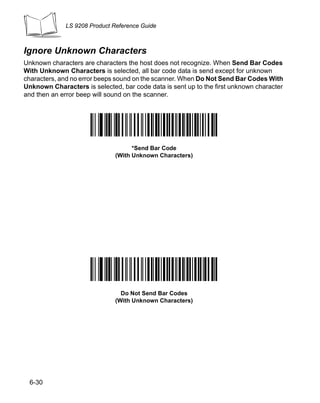
  • 35.
    Scanning Beeper Definitions The scannercommunicates with the user by emitting different beeper sequences and patterns. Table 2-1 defines beep sequences that occur during both normal scanning and while programming the scanner. Table 2-1. Standard Beeper Definitions Beeper Sequence Indication Standard Use 3 short high beeps Power up. Short high beep A bar code symbol was decoded (if decode beeper is enabled). 4 long low beeps A transmission error was detected in a scanned symbol. The data is ignored. This occurs if a unit is not properly configured. Check option setting. 5 low beeps Conversion or format error. Lo/hi/lo beep ADF transmit error. Hi/hi/hi/lo beep RS-232 receive error. Parameter Menu Scanning Short high beep Correct entry scanned or correct menu sequence performed. Lo/hi beep Input error, incorrect bar code or “Cancel” scanned, wrong entry, incorrect bar code programming sequence; remain in program mode. Hi/lo beep Keyboard parameter selected. Enter value using bar code keypad. Hi/lo/hi/lo beep Successful program exit with change in the parameter setting. Low/hi/low/hi beep Out of host parameter storage space. Scan Set Default Parameter on page 4-5. Code 39 Buffering Hi/lo beep New Code 39 data was entered into the buffer. 3 long high beeps Code 39 buffer is full. 2-7
  • 36.
    LS 9208 ProductReference Guide Table 2-1. Standard Beeper Definitions (Continued) Beeper Sequence Indication Lo/hi/lo beep The Code 39 buffer was erased or there was an attempt to clear or transmit an empty buffer. Lo/hi beep A successful transmission of buffered data. Host Specific USB only 4 short high beeps Scanner has not completed initialization. Wait several seconds and scan again. Scanner gives a power-up Communication with the bus must be established beep after scanning a USB before the scanner can operate at the highest Device Type. power level. This power-up beep occurs The USB bus may put the scanner in a state where more than once. power to the scanner is cycled on and off more than once. This is normal and usually happens when the PC cold boots. RS-232 only 1 short high beep A <BEL> character is received and Beep on <BEL> is enabled. Selecting Beeper Volume using Trigger The scanner emits a short beep when it successfully reads a bar code. The volume of the beep can be changed either by scanning the appropriate bar code in Beeper Volume on page 4-7, or by utilizing the trigger as follows: 1. Press and hold the trigger for an extended period of time (approximately 5 seconds). The scanner cycles through three settings (Low, Medium, High) emitting a 2-beep tone at each setting. 2. To select a particular setting, release the trigger after the desired 2-beep tone is heard. 2-8
  • 37.
    Scanning LED Definitions In additionto beeper sequences, the scanner communicates with the user using an LED display. Table 2-2 defines LED flashes that display during scanning. Table 2-2. Standard LED Definitions LED Indication Off No power is applied to the scanner. Green The scanner is on and “ready to scan.” Momentary flash A bar code was successfully decoded. Slow continuous flashing The scanner is in programming mode. Fast continuous flashing There is a internal problem; the laser is shut off for regulatory reasons. 2-9
  • 38.
    LS 9208 ProductReference Guide Aiming Do not hold the scanner directly over the bar code. Laser light reflecting directly back into the scanner from the bar code is known as specular reflection. This specular reflection can make decoding difficult. You can tilt the scanner up to 45° forward or back and achieve a successful decode (Figure 2-9). Simple practice quickly shows what tolerances to work within. Specular Reflection - +4 45 45 Bar Code Figure 2-9. Maximum Tilt Angles and Dead Zone 2-10
  • 39.
    Scanning Decode Zone in. cm 5 12.7 Note: Typical performance at 73.4 F (23 C) W on high quality symbols. i d t h o LS 9208 0 0 f F i e 1.0 5 mil 2.5 l d 7.8 mil (60%) 0 6.0 5 12.7 0 10.4 mil (80%) 7.5 13 mil 100% UPC 0 9.0 Figure 2-10. LS 9208 Decode Zone 2-11
  • 40.
    LS 9208 ProductReference Guide Integrated Electronic Article Surveillance (EAS) Deactivation Antenna for Checkpoint EAS Systems The LS 9208’s optional EAS deactivation feature includes an integrated RF antenna which, when attached to a Checkpoint Systems, Inc. RF-EAS deactivation system, supports deactivation of RF-EAS security labels while scanning a product at the Point-of-Sale. This allows the merchandise to be removed from the store without activating the security alarm. Note: Please contact your local Checkpoint representative to help connect the EAS deactivation system to insure proper operation. EAS Deactivation Range EAS Deactivation Range depends upon several factors including: • EAS Tags. EAS tags are produced by several different manufacturers, each with a different performance level. This variance in performance can also vary the deactivation range. • Cable. The length of the EAS antenna cable wire is directly related to deactivation range. The longer the EAS deactivation antenna wires are, the more signal loss there is, which decreases EAS deactivation range. • Calibration of the Checkpoint RF-EAS Deactivation System. There are several adjustments that can be made on the Checkpoint Deactivation System side. Please contact Checkpoint Systems, Inc. for details. • Check Stand Construction. Check stand construction also affects EAS deactivation range. The RF-EAS signal can be dampened, or severely reduced if there is too much metal or wood blocking the RF signal. Note: Please contact your local Checkpoint representative to help connect the EAS deactivation system to insure proper operation. 2-12
  • 41.
    Scanning LS 9208 HostInterface Cables and EAS The LS 9208 utilizes Symbol’s universal scanner cables, which include several varieties that incorporate RF-EAS deactivation signal wires. Universal EAS scanner cables are only available as Straight Cables. No coiled EAS cables are available for use with EAS. Coiled cables are longer than straight cables, which results in RF-EAS signal loss. As a coiled cable is stretched, the EAS deactivation range will further be reduced. This is not acceptable operation for EAS security systems. Different Checkpoint EAS Models There are several Checkpoint EAS systems available. The LS 9208 is specified to work with CounterPoint IV, V, VI, VII & IX models from Checkpoint Systems, Inc. Checkpoint Contact Information Checkpoint Headquarters (New Jersey): 800-257-5540. Outside the United States: +1-856-848-1800. 2-13
  • 42.
    LS 9208 ProductReference Guide 2-14
  • 43.
    Scanning Mounting Template Use thetemplate to mount the optional hands-free stand on a flat surface. Two #6-32 screws, 5/8 in. long, are recommended. 1.442 in. 3.663 cm 2-15
  • 44.
    LS 9208 ProductReference Guide 2-16
  • 45.
    Chapter 3 Maintenance and Technical Specifications Introduction This chapter covers suggested scanner maintenance, troubleshooting, technical specifications, and signal descriptions (pinouts). Maintenance Cleaning the exit window is the only maintenance required. A dirty window may affect scanning accuracy. • Do not allow any abrasive material to touch the window. • Remove any dirt particles with a damp cloth. • Wipe the window using a tissue moistened with ammonia/water. • Do not spray water or other cleaning liquids directly into the window. 3-1
  • 46.
    LS 9208 ProductReference Guide Troubleshooting Problem Possible Causes Possible Solutions The omni-line scan pattern No power to the scanner. Ensure the host has power, and is on. does not display when you If the scanner uses a separate power follow the directions for supply, ensure it’s connected to a installing the interface cable on working AC outlet. 1-3 Interface cable is not Check for loose cable connections. properly connected. Scan line(s) display, but bar Scanner is not Ensure scanner is programmed to code cannot be read. programmed to read the read the bar code type you are bar code type. scanning. Bar code is damaged. Try scanning other bar codes of the same bar code type. Bar code is too far from Move the bar code closer to the scanner. scanner. Triggered scanning is Press the trigger to activate being used incorrectly. decoding. Follow directions on page 2-2. The host has disabled See the technical person in charge of scanning or overridden scanning. parameter settings. Bar code is decoded, but not Scanner is not Scan the appropriate host type bar transmitted to the host. programmed for the code. correct host type. Scanned data is incorrectly Scanner is not • Ensure proper host is selected. displayed on the host. programmed to work with • For RS-232, ensure the scanner’s the host. Check scanner communication parameters match host type parameters or the host’s settings. editing options. • For keyboard wedge, ensure scanner is programmed with the correct country code and that the CAPS LOCK key is off. • Ensure editing options (e.g., UPCE-to-UPCA Conversion) are properly programmed. 3-2
  • 47.
    Maintenance and TechnicalSpecifications Problem Possible Causes Possible Solutions Although the green Power LED The scanner has gone Press the trigger to awaken the unit, is on, the scanner does not into the Low Power “Shut or change the “Low Power Blink” produce the omni-directional Down” Mode. parameter on page 4-11. scan pattern. Note: If after performing these checks the symbol still does not scan, contact your distributor or call the local Symbol Support Center. See page xiv for the telephone numbers. 3-3
  • 48.
    LS 9208 ProductReference Guide Technical Specifications Table 3-1. Technical Specifications Item Description Physical Characteristics Dimensions: without stand: Height 5.51 in. (14 cm) Width 3.49 in. (8.8 cm) Depth 2.96 in. (7.5 cm) with stand: Height 7.18 in. (18.24 cm) Width 4.83 in. (12.27 cm) Depth 3.73 in. (9.47 cm) Weight Scanner only: 10.2 oz/320 g With adjustable stand: 21.5 oz/670 g Power Source Power drawn from Host terminal or external power supply; depends on Host type. Voltage 5.0 VDC ± 10% Nominal Current 390 mA Power 2 watts Mounting Options Adjustable multi-mount stand Color Cash Register White and Twilight Black Performance Characteristics Light Source 650nm visible laser diode Yaw Tolerance (Typical)1 Omnidirectional: ± 50° Single scan line: ± 50° Pitch Tolerance (Typical)1 Omnidirectional: ± 50° Single scan line: ± 60° Roll Tolerance (Typical)1 Omnidirectional: 0 to 360° Single scan line: ± 40° Print Contrast 25% minimum reflective difference 1 Refers to 100% UPC bar code (80% contrast) located 4 in./10 cm from the scanner nose. 3-4
  • 49.
    Maintenance and TechnicalSpecifications Table 3-1. Technical Specifications (Continued) Item Description Scan Patterns Omnidirectional: 20 interlocking lines, 5 scan lines, 4 lines per angle rastering @ 5Hz Single scan line capability Scan Rate Omnidirectional: 1500 scans/second Single scan line: 75 scans/second Depth of Field 0-9 in./0-22.9 cm @ 13 mil (100% UPC/EAN) Nominal Working Range 5 mil: (38%) 1 to 2.5 in./ 2.5 to 6.4 cm 7.8 mil: (60%) 0 to 6 in./ 0 to 15.2 cm 10.4 mil: (80%) 0 to 7.5 in./ 0 to 19 cm 13 mil: (100%) 0 to 9 in./ 0 to 22.9 cm Width of Field 1.6 in. (40 mm) @ Face 6.7 in. (170 mm) @ 9 in. Minimum Resolution 5 mil Decode Capability UPC/EAN/JAN, UPC/EAN with Supplementals, UCC/ EAN 128, Code 128, ISBT 128, Code 39, Code 39 Trioptic, Interleaved 2 of 5, Discrete 2 of 5, Code 93, Code 11, Codabar, MSI, RSS Variants Interfaces Supported USB, RS 232, IBM® 468X/9X, Keyboard Wedge, Wand and Synapse™ (allows connectivity to virtually every POS host type) User Environment Operating Temperature 32° to 104°F (0° to 40°C) Storage Temperature -40° to 158°F (-40° to 70°C) Humidity 5% to 95% (non-condensing) Drop Specifications Functions normally after repeated 4 ft (1.2m) drops to concrete 3-5
  • 50.
    LS 9208 ProductReference Guide Table 3-1. Technical Specifications (Continued) Item Description Ambient Light Immunity Immune to normal artificial indoor and natural outdoor (direct sunlight) lighting conditions. Fluorescent, Incandescent, Mercury Vapor and Sodium Vapor: 450 Ft Candles (4,844 Lux) Sunlight: 8000 Ft Candles (86,111 Lux) EAS Support Optional Checkpoint Electronic Article Surveillance EAS Regulatory Electrical Safety Certified to UL 1950, CSA C22.2 No. 950 EN60825 Laser Safety CDRH Class IIa Laser Product IEC 60825 Class 1 Laser Product EMC CISPR B, FCC B 3-6
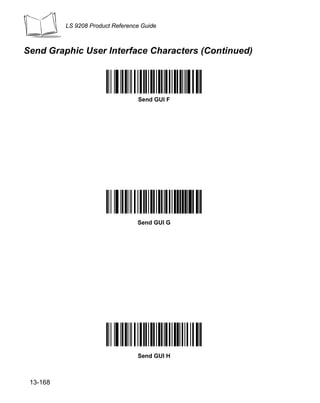
  • 51.
    Maintenance and TechnicalSpecifications Scanner Signal Descriptions Back of scanner Cable interface port PIN 10 PIN 1 Interface cable modular connector Figure 3-1. Scanner Cable Pinouts 3-7
  • 52.
    LS 9208 ProductReference Guide The signal descriptions in Table 3-2 apply to the connector on the scanner and are for reference only. Table 3-2. Scanner Signal Pin-outs LS 9208 Keyboard Pin IBM Synapse RS-232 Wedge Wand USB 1 Reserved SynClock Reserved Reserved Reserved Jump to Pin 6 2 Power Power Power Power Power Power 3 Ground Ground Ground Ground Ground Ground 4 IBM_A(+) Reserved TxD KeyClock DBP Reserved 5 Reserved Reserved RxD TermData CTS D+ 6 IBM_B(-) SynData RTS KeyData RTS Jump to Pin 1 7 Reserved Reserved CTS TermClock Reserved D - 8 Reserved Reserved Reserved Reserved Reserved Reserved 9 Reserved Reserved Reserved Reserved Reserved Reserved 10 Reserved Reserved Reserved Reserved Reserved Reserved 3-8
  • 53.
    Chapter 4 User Preferences Introduction You have the option to program the LS 9208 scanner to perform various functions, or activate different features. This chapter describes each user preference feature and provides the programming bar codes necessary for selecting these features for your LS 9208 scanner. Before programming, follow the instructions in Chapter 1, Getting Started. Your LS 9208 is shipped with the settings shown in the User Preferences Default Table on page 4-3 (also see Appendix A, Standard Default Parameters for all host device and miscellaneous scanner defaults). If the default values suit your requirements, programming may not be necessary. Features values are set by scanning single bar codes or short bar code sequences. The settings are stored in non-volatile memory and are preserved even when the scanner is powered down. 4-1
  • 54.
    LS 9208 ProductReference Guide If you are not using a Synapse or USB cable you must select a host type (see each host chapter for specific host information). After you hear the power-up beeps, select a host type. This only needs to be done once, upon the first power-up when connected to a new host. To return all features to their default values, all you need to do is scan the Set All Defaults bar code on page 4-5. Throughout the programming bar code menus, default values are indicated with asterisks (*). * Indicates Default *High Frequency Feature/Option Scanning Sequence Examples In most cases you need only scan one bar code to set a specific parameter value. For example, if you want to set the beeper tone to high, simply scan the High Frequency (beeper tone) bar code listed under Beeper Tone on page 4-6. The scanner issues a short high beep and the LED turns green, signifying a successful parameter entry. Other parameters, such as specifying Serial Response Time-Out or setting Data Transmission Formats, require that you scan several bar codes. Refer to Host Serial Response Time-out on page 6-21 and Scan Data Options on page 12-9 for descriptions of this procedure. Errors While Scanning Unless otherwise specified, if you make an error during a scanning sequence, just re-scan the correct parameter. 4-2
  • 55.
    User Preferences User PreferencesDefault Parameters Table 4-1 lists the defaults for user preferences parameters. If you wish to change any option, scan the appropriate bar code(s) provided in the User Preferences section beginning on page 4-5. Note: See Appendix A, Standard Default Parameters for all user preferences, hosts, symbologies, and miscellaneous default parameters. Table 4-1. User Preferences Default Table Page Parameter Default Number User Preferences Set Default Parameter All Defaults 4-5 Beeper Tone High 4-6 Beeper Volume High 4-7 Volume Change Trigger Delay 5.0 Sec 4-8 Laser On Time 3.0 Sec 4-9 Beep After Good Decode Enable 4-10 Low Power Blink Blink 4-11 Scan Pattern Mode Rastering 4-12 Single-Line Aim Duration 2 sec 4-13 Time-out Between Same Symbol 0.6 sec 4-15 Time-out Between Different Symbols 0.2 sec 4-15 Time Delay to Low Power Mode 30 Minutes 4-16 4-3
  • 56.
    LS 9208 ProductReference Guide Table 4-1. User Preferences Default Table Page Parameter Default Number Linear UPC/EAN Decode Disable 4-18 4-4
  • 57.
    User Preferences User Preferences SetDefault Parameter Scanning this bar code returns all parameters to the default values listed in Table A-1 on page A-1. Set All Defaults 4-5
  • 58.
    LS 9208 ProductReference Guide Beeper Tone To select a decode beep frequency (tone), scan the Low Frequency, Medium Frequency, or High Frequency bar code. Low Frequency Medium Frequency *High Frequency 4-6
  • 59.
    User Preferences Beeper Volume Toselect a beeper volume, scan the Low Volume, Medium Volume, or High Volume bar code. Low Volume Medium Volume *High Volume 4-7
  • 60.
    LS 9208 ProductReference Guide Volume Change Trigger Delay The volume on the LS 9208 scanner is adjusted by pressing and holding the trigger for a certain amount of time, after which the scanner changes the volumes, and beeps with the new volume. The parameters below control the length of time needed to hold the trigger before the volume is adjusted. Volume Trigger Duration 3 sec *Volume Trigger Duration 5 sec Volume Trigger Duration 7 sec 4-8
  • 61.
    User Preferences Laser OnTime This parameter sets the maximum time that decode processing continues during a scan attempt. It is programmable in 0.1 second increments from 0.5 to 10 seconds. The default Laser On Time is 3.0 seconds. To set a Laser On Time, scan the bar code below. Next, scan two numeric bar codes beginning on page D-1 in Appendix D that correspond to the desired on time. Single digit numbers must have a leading zero. For example, to set an On Time of 0.5 seconds, scan the bar code below, then scan the “0” and “5” bar codes. If you make an error, or wish to change your selection, scan Cancel on page D-5. Laser On Time 4-9
  • 62.
    LS 9208 ProductReference Guide Beep After Good Decode Scan a bar code below to select whether or not the scanner beeps after a good decode. If Do Not Beep After Good Decode is selected, the beeper still operates during parameter menu scanning and indicates error conditions. *Beep After Good Decode (Enable) Do Not Beep After Good Decode (Disable) 4-10
  • 63.
    User Preferences Low PowerBlink After a period of inactivity, the scanner will go into a reduced power mode. This parameter controls how aggressively power is conserved, and therefore determines the method of waking the scanner up. If “Low Power - Blink Mode” is selected, then the scanner (after a period of inactivity) will blink infrequently to save power. To restore the scanner to full power mode, the user must simply use the scanner by presenting a barcode. If “Motor and Laser Shut Down” is selected, then the scanner (after a period of inactivity) will turn off the motor and laser, but leave the green Power LED lit. The user must then depress the trigger to awaken the scanner to its full power mode. *Low Power - Blink Mode Low Power - Shut Down 4-11
  • 64.
    LS 9208 ProductReference Guide Scan Pattern Mode The LS 9208 has a very aggressive scan pattern that is not only omnidirectional, but also raster. If a static omnidirectional pattern is desired, scan the “Omnidirectional Pattern” parameter below to change the scan pattern. *Rastering Omnidirectional Pattern Omnidirectional Pattern 4-12
  • 65.
    User Preferences Single-Line AimDuration The LS 9200 can enter the single-line scan mode by tapping the trigger. Once in this mode, each trigger pull will attempt to decode the barcode in front of the scanner. After a period of inactivity while the trigger is not pressed, the scanner will revert to the omnidirectional pattern. This parameter controls the length of the period of inactivity in single-line mode before the scanner reverts to the omnidirectional pattern. *Aim Duration 2 sec Aim Duration 3 sec 4-13
  • 66.
    LS 9208 ProductReference Guide Single-Line Aim Duration (Continued) Aim Duration 4 sec Aim Duration 5 sec 4-14
  • 67.
    User Preferences Timeout BetweenDecodes Timeout Between Decodes, Same Symbol This parameter sets the minimum time between decodes of different symbols. It is programmable in 0.1-second increments from 0.0 to 9.9 seconds. Setting this above 0.4 seconds is recommended.) The default for this parameter is 0.6 seconds. Scan the bar code below to select a new timeout. Next, scan two numeric bar codes beginning in Numeric Bar Codes on page D-1 that correspond to the desired timeout. Single digit numbers must have a leading zero. For example, to set a timeout of 0.5 seconds, scan the bar code below, then scan the “0” and “5” bar codes. If you make an error, or wish to change your selection, scan Cancel on page D-5. Timeout Between Same Symbol Timeout Between Decodes, Different Symbol This parameter sets the minimum time between decodes of different symbols. It is programmable in 0.1-second increments from 0.0 to 9.9 seconds. The default for this parameter is 0.2 seconds. Scan the bar code below to select a new timeout. Next, scan two numeric bar codes beginning in Numeric Bar Codes on page D-1 that correspond to the desired timeout. Single digit numbers must have a leading zero. For example, to set a timeout of 0.5 seconds, scan the bar code below, then scan the “0” and “5” bar codes. If you make an error, or wish to change your selection, scan Cancel on page D-5. Timeout Between Different Symbol 4-15
  • 68.
    LS 9208 ProductReference Guide Time Delay to Low Power Mode This parameter sets the time that the scanner remains active after any scanning activity. Scan one of the four options. Depending on the selection, the scanner enters a sleep mode 15, 30, 60 or 90 minutes after the last attempted decode. To awaken the scanner, please refer to the explanation of the Low Power Blink parameter on page 4-11. 15 Minutes *30 Minutes 4-16
  • 69.
    User Preferences Time Delayto Low Power Mode (Continued) 60 Minutes 90 Minutes 4-17
  • 70.
    LS 9208 ProductReference Guide Time Delay to Low Power Mode (Continued) Extended (127.5 Hours) Linear UPC/EAN Decode This option applies to code types containing two adjacent blocks (e.g., UPC-A, EAN-8, EAN-13). When enabled, a bar code is transmitted only when both the left and right blocks are successfully decoded within one laser scan. Enable this option when bar codes are in proximity to each other. Enable Linear UPC/EAN Decode 4-18
  • 71.
    User Preferences Linear UPC/EANDecode (Continued) *Disable Linear UPC/EAN Decode 4-19
  • 72.
    LS 9208 ProductReference Guide 4-20
  • 73.
    Chapter 5 Keyboard Wedge Interface Introduction This chapter covers Keyboard Wedge interface information for setting up your scanner. This interface type is used to attach the scanner between the keyboard and host computer. The scanner translates the bar code data into keystrokes. The host computer accepts the keystrokes as if they originate from the keyboard. This mode of operation allows adding bar code reading functionality to a system designed for manual keyboard input. In this mode the keyboard keystrokes are simply passed through. Throughout the programming bar code menus, default values are indicated with asterisks (*). * Indicates Default *North American Feature/Option 5-1
  • 74.
    LS 9208 ProductReference Guide Connecting a Keyboard Wedge Interface Male DIN Keyboard Y-cable Power supply (if needed) Figure 5-1. Keyboard Wedge Connection with Y-cable To connect the Keyboard Wedge Y-cable: 1. Switch off the host and unplug the keyboard connector. 2. Attach the modular connector of the Y-cable to the cable interface port on the scanner. (See Installing the Interface Cable on page 1-3.) 3. Connect the round male DIN host connector of the Y-cable to the keyboard port on the host device. 4. Connect the round female DIN keyboard connector of the Y-cable to the keyboard. 5. If needed, attach the optional power supply to the connector in the middle of the Y- cable. 6. Ensure that all connections are secure. 7. Switch on your host system. 8. Scan the appropriate bar codes in this chapter to configure the scanner. 5-2
  • 75.
    Keyboard Wedge Interface KeyboardWedge Default Parameters Table 5-1 lists the defaults for Keyboard Wedge host parameters. If you wish to change any option, scan the appropriate bar code(s) provided in the Keyboard Wedge Host Parameters section beginning on page 5-4. Note: See Appendix A, Standard Default Parameters for all user preferences, hosts, symbologies, and miscellaneous default parameters. Table 5-1. Keyboard Wedge Host Default Table Page Parameter Default Number Keyboard Wedge Host Parameters Keyboard Wedge Host Type IBM PC/AT & IBM PC Compatibles1 5-4 Country Types (Country Codes) North American 5-6 Ignore Unknown Characters Send Bar Codes 5-10 Keystroke Delay No Delay 5-11 Intra-Keystroke Delay Disable 5-12 Alternate Numeric Keypad Emulation Disable 5-13 Caps Lock On Disable 5-14 Caps Lock Override Disable 5-15 Convert Wedge Data No Convert 5-16 Function Key Mapping Disable 5-17 FN1 Substitution Disable 5-18 Send Make Break Disable 5-19 1 User selection is required to configure this interface and this is the most common selection. 5-3
  • 76.
    LS 9208 ProductReference Guide Keyboard Wedge Host Types Keyboard Wedge Host Types Select your keyboard wedge host by scanning one of the bar codes below. IBM PC/AT & IBM PC Compatibles1 IBM PS/2 (Model 30) IBM AT NOTEBOOK 5-4
  • 77.
    Keyboard Wedge Interface KeyboardWedge Host Types (Continued) IBM XT NCR 7052 Note: 1User selection is required to configure this interface and this is the most common selection. 5-5
  • 78.
    LS 9208 ProductReference Guide Keyboard Wedge Country Types (Country Codes) Scan the bar code corresponding to your keyboard type. If your particular keyboard type is not listed, see Alternate Numeric Keypad Emulation on page 5-13. *North American German Windows French Windows 5-6
  • 79.
    Keyboard Wedge Interface KeyboardWedge Country Types (Continued) French Canadian Win 95/98 French Canadian Windows XP/2000 Spanish Windows 5-7
  • 80.
    LS 9208 ProductReference Guide Keyboard Wedge Country Types (Continued) Italian Windows Swedish Windows UK English Windows 5-8
  • 81.
    Keyboard Wedge Interface KeyboardWedge Country Types (Continued) Japanese Windows Brazilian/Portuguese Windows 5-9
  • 82.
    LS 9208 ProductReference Guide Ignore Unknown Characters Unknown characters are characters the host does not recognize. When Send Bar Codes With Unknown Characters is selected, all bar code data is sent except for unknown characters, and no error beeps sound on the scanner. When Do Not Send Bar Codes With Unknown Characters is selected, bar code data is sent up to the first unknown character and then an error beep will sound on the scanner. *Send Bar Codes With Unknown Characters Do Not Send Bar Codes With Unknown Characters 5-10
  • 83.
    Keyboard Wedge Interface KeystrokeDelay This is the delay in milliseconds between emulated keystrokes. Scan a bar code below to increase the delay when hosts require a slower transmission of data. *No Delay Medium Delay (20 msec) Long Delay (40 msec) 5-11
  • 84.
    LS 9208 ProductReference Guide Intra-Keystroke Delay When enabled, an additional delay is inserted between each emulated key depression and release. This sets the Keystroke Delay parameter to a minimum of 5 msec as well. Enable *Disable 5-12
  • 85.
    Keyboard Wedge Interface AlternateNumeric Keypad Emulation This allows emulation of most other country keyboard types not listed in Keyboard Wedge Country Types (Country Codes) on page 5-6 in a Microsoft operating system environment. Enable Alternate Numeric Keypad *Disable Alternate Numeric Keypad 5-13
  • 86.
    LS 9208 ProductReference Guide Caps Lock On When enabled, the scanner emulates keystrokes as if the Caps Lock key is always pressed. Enable Caps Lock On *Disable Caps Lock On 5-14
  • 87.
    Keyboard Wedge Interface CapsLock Override When enabled, on AT or AT Notebook hosts, the keyboard ignores the state of the Caps Lock key. Therefore, an ‘A’ in the bar code is sent as an ‘A’ no matter what the state of the keyboard’s Caps Lock key. Enable Caps Lock Override *Disable Caps Lock Override Note: If both Caps Lock On and Caps Lock Override are enabled, Caps Lock Override takes precedence. 5-15
  • 88.
    LS 9208 ProductReference Guide Convert Wedge Data When enabled, the scanner will convert all bar code data to the selected case. Convert to Upper Case Convert to Lower Case *No Convert 5-16
  • 89.
    Keyboard Wedge Interface FunctionKey Mapping ASCII values under 32 are normally sent as a control-key sequences (see Table 7-2 on page 7-18). When this parameter is enabled, the keys in bold are sent in place of the standard key mapping. Table entries that do not have a bold entry remain the same whether or not this parameter is enabled. Enable *Disable 5-17
  • 90.
    LS 9208 ProductReference Guide FN1 Substitution When enabled, this allows replacement of any FN1 characters in an EAN 128 bar code with a Key Category and Key Value choose by the user (see FN1 Substitution Values on page 12-8). Enable *Disable 5-18
  • 91.
    Keyboard Wedge Interface SendMake Break When enabled, the scan codes for releasing a key are not sent. *Send Make and Break Scan Codes Send Make Scan Code Only 5-19
  • 92.
    LS 9208 ProductReference Guide Keyboard Maps The following keyboard maps are provided for prefix/suffix keystroke parameters. To program the prefix/suffix values, see the bar codes on page 12-5. Figure 5-2. IBM PS2 Type Keyboard . 5001 5002 7014 7008 5003 5004 7009 7012 7003 7013 5005 5006 5007 5008 7004 7006 5009 5010 7011 7002 Figure 5-3. IBM PC/XT 5-20
  • 93.
    Keyboard Wedge Interface 5001 5002 7008 7014 5003 5004 7009 7012 7003 7013 5005 5006 5007 5008 7004 5009 5010 7011 7002 Figure 5-4. IBM PC/AT 5001 5002 5011 1045 5013 5003 5004 5014 5015 5005 5006 1043 5016 5007 5008 5017 5018 5009 5010 1048 5012 1046 7013 5019 (1048 if double key) (7013 if double key) Figure 5-5. NCR 7052 32-KEY 5-21
  • 94.
    LS 9208 ProductReference Guide 1066 1067 1068 1070 1071 1065 1069 1072 1073 1074 1075 1076 1077 1078 1079 1080 1081 1082 1083 1084 1085 5001 5002 5011 1045 5013 1086 5003 5004 5014 5015 1087 5005 5006 1043 5016 1088 5007 5008 5017 5018 1089 5009 5010 1048 5012 1046 7013 5019 1090 (1048 if double key) (1043 if double key) Figure 5-6. NCR 7052 58-KEY 5-22
  • 95.
    Keyboard Wedge Interface ASCIICharacter Set Note: Code 39 Full ASCII interprets the bar code special character ($ + % /) preceding a Code 39 character and assigns an ASCII character value to the pair. For example, when Code 39 Full ASCII is enabled and a +B is scanned, it is interpreted as b, %J as ?, and %V as @. Scanning ABC%I outputs the keystroke equivalent of ABC >. Table 5-2. Keyboard Wedge ASCII Character Set Full ASCII Code ASCII 39 Encode Char. Value Keystroke 1001 $A CTRL A 1002 $B CTRL B 1003 $C CTRL C 1004 $D CTRL D 1005 $E CTRL E 1006 $F CTRL F 1007 $G CTRL G 1008 $H CTRL H/ BACKSPACEa 1009 $I CTRL I/ HORIZONTAL TAB1 1010 $J CTRL J 1011 $K CTRL K 1012 $L CTRL L 1013 $M CTRL M/ ENTER1 1014 $N CTRL N 1015 $O CTRL O 5-23
  • 96.
    LS 9208 ProductReference Guide Table 5-2. Keyboard Wedge ASCII Character Set (Continued) 1016 $P CTRL P 1017 $Q CTRL Q 1018 $R CTRL R 1019 $S CTRL S 1020 $T CTRL T 1021 $U CTRL U 1022 $V CTRL V 1023 $W CTRL W 1024 $X CTRL X 1025 $Y CTRL Y 1026 $Z CTRL Z 1027 %A NONE/ESC1 1028 %B NONE 1029 %C NONE 1030 %D NONE 1031 %E NONE 1032 Space Space 1033 /A ! 1034 /B “ 1035 /C # 1036 /D $ 1037 /E % 1038 /F & 1039 /G ‘ 1040 /H ( 1041 /I ) 1042 /J * 5-24
  • 97.
    Keyboard Wedge Interface Table5-2. Keyboard Wedge ASCII Character Set (Continued) 1043 /K + 1044 /L , 1045 - - 1046 . . 1047 /O / 1048 0 0 1049 1 1 1050 2 2 1051 3 3 1052 4 4 1053 5 5 1054 6 6 1055 7 7 1056 8 8 1057 9 9 1058 /Z : 1059 %F ; 1060 %G < 1061 %H = 1062 %I > 1063 %J ? 1064 %V @ 1065 A A 1066 B B 1067 C C 1068 D D 1069 E E 5-25
  • 98.
    LS 9208 ProductReference Guide Table 5-2. Keyboard Wedge ASCII Character Set (Continued) 1070 F F 1071 G G 1072 H H 1073 I I 1074 J J 1075 K K 1076 L L 1077 M M 1078 N N 1079 O O 1080 P P 1081 Q Q 1082 R R 1083 S S 1084 T T 1085 U U 1086 V V 1087 W W 1088 X X 1089 Y Y 1090 Z Z 1091 %K [ 1092 %L 1093 %M ] 1094 %N ^ 1095 %O _ 1096 %W ‘ 5-26
  • 99.
    Keyboard Wedge Interface Table5-2. Keyboard Wedge ASCII Character Set (Continued) 1097 +A a 1098 +B b 1099 +C c 1100 +D d 1101 +E e 1102 +F f 1103 +G g 1104 +H h 1105 +I i 1106 +J j 1107 +K k 1108 +L l 1109 +M m 1110 +N n 1111 +O o 1112 +P p 1113 +Q q 1114 +R r 1115 +S s 1116 +T t 1117 +U u 1118 +V v 1119 +W w 1120 +X x 1121 +Y y 1122 +Z z 1123 %P { 5-27
  • 100.
    LS 9208 ProductReference Guide Table 5-2. Keyboard Wedge ASCII Character Set (Continued) 1124 %Q | 1125 %R } 1126 %S ~ ALT Keys Keystroke 2065 ALT A 2066 ALT B 2067 ALT C 2068 ALT D 2069 ALT E 2070 ALT F 2071 ALT G 2072 ALT H 2073 ALT I 2074 ALT J 2075 ALT K 2076 ALT L 2077 ALT M 2078 ALT N 2079 ALT O 2080 ALT P 2081 ALT Q 2082 ALT R 2083 ALT S 2084 ALT T 2085 ALT U 2086 ALT V 2087 ALT W 5-28
  • 101.
    Keyboard Wedge Interface Table5-2. Keyboard Wedge ASCII Character Set (Continued) 2088 ALT X 2089 ALT Y 2090 ALT Z GUI Shift Keys The Apple™ iMac keyboard has an apple key on either side of the space bar. Windows-based systems have a GUI key to the left of the left ALT key, and to the right of the right ALT key. Other Keystroke Value 3000 Right Control Key 3048 GUI 0 3049 GUI 1 3050 GUI 2 3051 GUI 3 3052 GUI 4 3053 GUI 5 3054 GUI 6 3055 GUI 7 3056 GUI 8 3057 GUI 9 3065 GUI A 3066 GUI B 3067 GUI C 3068 GUI D 3069 GUI E 3070 GUI F 3071 GUI G 3072 GUI H 5-29
  • 102.
    LS 9208 ProductReference Guide Table 5-2. Keyboard Wedge ASCII Character Set (Continued) 3073 GUI I 3074 GUI J 3075 GUI K 3076 GUI L 3077 GUI M 3078 GUI N 3079 GUI O 3080 GUI P 3081 GUI Q 3082 GUI R 3083 GUI S 3084 GUI T 3085 GUI U 3086 GUI V 3087 GUI W 3088 GUI X 3089 GUI Y 3090 GUI Z F Keys Keystroke 5001 F1 5002 F2 5003 F3 5004 F4 5005 F5 5006 F6 5007 F7 5008 F8 5-30
  • 103.
    Keyboard Wedge Interface Table5-2. Keyboard Wedge ASCII Character Set (Continued) 5009 F9 5010 F10 5011 F11 5012 F12 5013 F13 5014 F14 5015 F15 5016 F16 5017 F17 5018 F18 5019 F19 5020 F20 5021 F21 5022 F22 5023 F23 5024 F24 Numeric Keystroke Keypad 6042 * 6043 + 6044 undefined 6045 - 6046 . 6047 / 6048 0 6049 1 6050 2 6051 3 5-31
  • 104.
    LS 9208 ProductReference Guide Table 5-2. Keyboard Wedge ASCII Character Set (Continued) 6052 4 6053 5 6054 6 6055 7 6056 8 6057 9 6058 Enter 6059 Num Lock Extended Keystroke Keypad 7001 Break 7002 Delete 7003 Pg Up 7004 End 7005 Pg Dn 7006 Pause 7007 Scroll Lock 7008 Backspace 7009 Tab 7010 Print Screen 7011 Insert 7012 Home 7013 Enter 7014 Escape 7015 Up Arrow 7016 Dn Arrow 7017 Left Arrow 7018 Right Arrow 5-32
  • 105.
    Keyboard Wedge Interface a.The Keystroke in bold is sent only if the “Func- tion Key Mapping” parameter is enabled. Other- wise, the unbolded keystroke is sent. 5-33
  • 106.
    LS 9208 ProductReference Guide 5-34
  • 107.
    Chapter 6 RS-232 Interface Introduction This chapter covers RS-232 host information for setting up your scanner. The RS-232 interface is used to attach the scanner to point-of-sale devices, host computers, or other devices with an available RS-232 port (e.g., com port). Note: : This scanner utilizes TTL RS-232 signal levels, which will interface with most system architectures. For system architectures requiring RS-232C signal levels, Symbol offers different cables providing the TTL to RS-232C conversion. Please contact your Symbol Support Center for more information. If your particular host is not listed in Table 6-2, you need to set the communication parameters to match your host device. To set communication parameters for hosts not listed, refer to the documentation for the host device. 6-1
  • 108.
    LS 9208 ProductReference Guide Throughout the programming bar code menus, default values are indicated with asterisks (*). * Indicates Default *Baud Rate 9600 Feature/Option 6-2
  • 109.
    RS-232 Interface Connecting anRS-232 Interface This connection is made directly from the scanner to the host computer. Serial Port Connector to Host Power supply cable Interface cable Power supply Interface cable Figure 6-1. RS-232 Direct Connection 1. Connect the RS-232 interface cable to the rear of the scanner, as described in Installing the Interface Cable on page 1-3. 2. Connect the other end of the interface cable to the serial port on the host. 3. Connect the power supply. 4. Scan appropriate bar codes in this chapter to match your host settings. RS-232 Default Parameters Table 6-1 lists the defaults for RS-232 host parameters. If you wish to change any option, scan the appropriate bar code(s) provided in the Parameter Descriptions section beginning on page 6-5. 6-3
  • 110.
    LS 9208 ProductReference Guide Note: See Appendix A, Standard Default Parameters for all user preferences, hosts, symbologies, and miscellaneous default parameters. Table 6-1. RS-232 Host Default Table Page Parameter Default Number RS-232 Host Parameters RS-232 Host Types Standard1 6-7 Baud Rate 9600 6-10 Parity None 6-12 Check Receive Errors Enable 6-14 Hardware Handshaking None 6-15 Software Handshaking None 6-18 Host Serial Response Time-out 2 Sec 6-21 RTS Line State Low RTS 6-23 Stop Bit Select 1 6-24 Data Bits 8-Bit 6-25 Beep on <BEL> Disable 6-26 Intercharacter Delay 0 msec 6-27 Nixdorf Beep/LED Option Normal Operation 6-29 Ignore Unknown Characters Send Bar Codes 6-30 1 User selection is required to configure this interface and this is the most common selection. 6-4
  • 111.
    RS-232 Interface RS-232 HostParameters Various RS-232 hosts are set up with their own parameter default settings (Table 6-2). Selecting the ICL, Fujitsu, Wincor-Nixdorf Mode A, Wincor-Nixdorf Mode B, Olivetti, Omron, or terminal sets the defaults listed below. Table 6-2. Terminal Specific RS-232 Wincor- Wincor- Nixdorf Standard Nixdorf Mode B/ Parameter (Default) ICL Fujitsu Mode A OPOS Olivetti Omron Transmit Code ID No Yes Yes Yes Yes Yes Yes Data Data as is Data/ Data/ Data/Suffix Data/Suffix Prefix/Data/ Data/Suffix Transmission Suffix Suffix Suffix Format Suffix CR/LF CR (1013) CR (1013) CR (1013) CR (1013) ETX (1002) CR (1013) (7013) Baud Rate 9600 9600 9600 9600 9600 9600 9600 Parity None Even None Odd Odd Even None Hardware None RTS/CTS None RTS/CTS RTS/CTS None None Handshaking Option 3 Option 3 Option 3 Software None None None None None Ack/Nak None Handshaking Serial Response 2 Sec. 9.9 Sec. 2 Sec. 9.9 Sec. 9.9 Sec. 9.9 Sec. 9.9 Sec. Time-out Stop Bit Select One One One One One One One ASCII Format 8-Bit 8-Bit 8-Bit 8-Bit 8-Bit 7-Bit 8-Bit Beep On <BEL> Disable Disable Disable Disable Disable Disable Disable RTS Line State Low High Low Low Low = No Low High data to send Prefix None None None None None STX (1003) None *In the Nixdorf Mode B, if CTS is Low, scanning is disabled. When CTS is High, the user can scan bar codes. **If Nixdorf Mode B is scanned without the scanner connected to the proper host, it may appear unable to scan. If this happens, scan a different RS-232 host type within 5 seconds of cycling power to the scanner. 6-5
  • 112.
    LS 9208 ProductReference Guide RS-232 Host Parameters (continued) Selecting the ICL, Fujitsu, Wincor-Nixdorf Mode A, Wincor-Nixdorf Mode B, OPOS, JPOS terminal enables the transmission of code ID characters listed in Table 6-3 below. These code ID characters are not programmable and are separate from the Transmit Code ID feature. The Transmit Code ID feature should not be enabled for these terminals. Table 6-3. Terminal Specific Code ID Characters Wincor- Wincor- Nixdorf Nixdorf ICL Fujitsu Mode A Mode B/OPOS Olivetti Omron UPC-A A A A A A A UPC-E E E C C C E EAN-8/JAN-8 FF FF B B B FF EAN-13/JAN-13 F F A A A F Code 39 C <len> None M M M <len> C <len> Codabar N <len> None N N N <len> N <len> Code 128 L <len> None K K K <len> L <len> I 2 of 5 I <len> None I I I <len> I <len> Code 93 None None L L L <len> None D 2 of 5 H <len> None H H H <len> H <len> UCC/EAN 128 L <len> None P P P <len> L <len> MSI None None O O O <len> None Bookland EAN F F A A A F IATA H<len> None H H None None Unlisted Bar None None None None None None Codes 6-6
  • 113.
    RS-232 Interface RS-232 HostTypes To select an RS-232 host interface, scan one of the following bar codes. Standard RS-2321 ICL RS-232 Wincor-Nixdorf RS-232 Mode A Note: 1User selection is required to configure this interface and this is the most common selection. 6-7
  • 114.
    LS 9208 ProductReference Guide RS-232 Host Types (continued) Wincor-Nixdorf RS-232 Mode B Fujitsu RS-232 Olivetti ORS4500 6-8
  • 115.
    RS-232 Interface RS-232 HostTypes (continued) Omron OPOS/JPOS Note: 1User selection is required to configure this interface and this is the most common selection. 6-9
  • 116.
    LS 9208 ProductReference Guide Baud Rate Baud rate is the number of bits of data transmitted per second. The scanner’s baud rate setting should match the baud rate setting of the host device. If not, data may not reach the host device or may reach it in distorted form. Baud Rate 600 Baud Rate 1200 6-10
  • 117.
    RS-232 Interface Baud Rate(continued) Baud Rate 2400 Baud Rate 4800 *Baud Rate 9600 6-11
  • 118.
    LS 9208 ProductReference Guide Baud Rate (continued) Baud Rate 19,200 Baud Rate 38,400 Parity A parity check bit is the most significant bit of each ASCII coded character. Select the parity type according to host device requirements. Select Odd parity and the parity bit value is set to 0 or 1, based on data, to ensure that an odd number of 1 bits are contained in the coded character. Odd 6-12
  • 119.
    RS-232 Interface Parity (continued) SelectEven parity and the parity bit value is set to 0 or 1, based on data, to ensure that an even number of 1 bits are contained in the coded character. Even Select Mark parity and the parity bit is always 1. Mark Select Space parity and the parity bit is always 0. Space 6-13
  • 120.
    LS 9208 ProductReference Guide Parity (continued) Select None when no parity bit is required. *None Check Receive Errors Select whether or not the parity, framing, and overrun of received characters are checked. The parity value of received characters is verified against the parity parameter selected above. *Check For Received Errors Do Not Check For Received Errors 6-14
  • 121.
    RS-232 Interface Hardware Handshaking Thedata interface consists of an RS-232 port designed to operate either with or without the hardware handshaking lines, Request to Send (RTS), and Clear to Send (CTS). If Standard RTS/CTS handshaking is not selected, scan data is transmitted as it becomes available. If Standard RTS/CTS handshaking is selected, scan data is transmitted according to the following sequence: • The scanner reads the CTS line for activity. If CTS is asserted, the scanner waits up to 2 seconds for the host to negate the CTS line. If, after 2 seconds (default), the CTS line is still asserted, the scanner sounds a transmit error, and any scanned data is lost. • When the CTS line is negated, the scanner asserts the RTS line and waits up to 2 seconds for the host to assert CTS. When the host asserts CTS, data is transmitted. If, after 2 seconds (default), the CTS line is not asserted, the scanner sounds a transmit error, and discards the data. • When data transmission is complete, the scanner negates RTS 10 msec after sending the last character. • The host should respond by negating CTS. The scanner checks for a negated CTS upon the next transmission of data. During the transmission of data, the CTS line should be asserted. If CTS is deasserted for more than 50 ms between characters, the transmission is aborted, the scanner sounds a transmission error, and the data is discarded. If the above communications sequence fails, the scanner issues an error indication. In this case, the data is lost and must be rescanned. If Hardware Handshaking and Software Handshaking are both enabled, Hardware Handshaking takes precedence. Note: The DTR signal is jumpered to the active state. 6-15
  • 122.
    LS 9208 ProductReference Guide None Scan the bar code below if no Hardware Handshaking is desired. *None Standard RTS/CTS Scan the bar code below to select Standard RTS/CTS Hardware Handshaking. Standard RTS/CTS 6-16
  • 123.
    RS-232 Interface RTS/CTS Option1 When RTS/CTS Option 1 is selected, the scanner asserts RTS before transmitting and ignores the state of CTS. The scanner de-asserts RTS when the transmission is complete. RTS/CTS Option 1 RTS/CTS Option 2 When Option 2 is selected, RTS is always high or low (user-programmed logic level). However, the scanner waits for CTS to be asserted before transmitting data. If CTS is not asserted within 2 seconds (default), the scanner issues an error indication and discards the data. RTS/CTS Option 2 6-17
  • 124.
    LS 9208 ProductReference Guide RTS/CTS Option 3 When Option 3 is selected, the scanner asserts RTS prior to any data transmission, regardless of the state of CTS. The scanner waits up to 2 seconds (default) for CTS to be asserted. If CTS is not asserted during this time, the scanner issues an error indication and discards the data. The scanner de-asserts RTS when transmission is complete. RTS/CTS Option 3 Software Handshaking This parameter offers control of the data transmission process in addition to, or instead of, that offered by hardware handshaking. There are five options. If Software Handshaking and Hardware Handshaking are both enabled, Hardware Handshaking takes precedence. None When this option is selected, data is transmitted immediately. *None 6-18
  • 125.
    RS-232 Interface ACK/NAK When thisoption is selected, after transmitting data, the scanner expects either an ACK or NAK response from the host. When a NAK is received, the scanner transmits the same data again and waits for either an ACK or NAK. After three unsuccessful attempts to send data when NAKs are received, the scanner issues an error indication and discards the data. The scanner waits up to the programmable Host Serial Response Time-out to receive an ACK or NAK. If the scanner does not get a response in this time, it issues an error indication and discards the data. There are no retries when a time-out occurs. ACK/NAK ENQ When this option is selected, the scanner waits for an ENQ character from the host before transmitting data. If an ENQ is not received within the Host Serial Response Time-out, the scanner issues an error indication and discards the data. The host must transmit an ENQ character at least every Host Serial Response Time-out to prevent transmission errors. ENQ 6-19
  • 126.
    LS 9208 ProductReference Guide ACK/NAK with ENQ This combines the two previous options. ACK/NAK with ENQ XON/XOFF An XOFF character turns the scanner transmission off until the scanner receives an XON character. There are two situations for XON/XOFF: • XOFF is received before the scanner has data to send. When the scanner has data to send, it waits up to 2 seconds for an XON character before transmission. If the XON is not received within this time, the scanner issues an error indication and discards the data. • XOFF is received during a transmission. Data transmission then stops after sending the current byte. When the scanner receives an XON character, it sends the rest of the data message. The scanner waits indefinitely for the XON. XON/XOFF 6-20
  • 127.
    RS-232 Interface Host SerialResponse Time-out This parameter specifies how long the scanner waits for an ACK, NAK, or CTS before determining that a transmission error has occurred. This only applies when in one of the ACK/NAK Software Handshaking modes, or RTS/CTS Hardware Handshaking option. *Minimum: 2 Sec Low: 2.5 Sec Medium: 5 Sec 6-21
  • 128.
    LS 9208 ProductReference Guide Host Serial Response Time-out (Continued) High: 7.5 Sec Maximum: 9.9 Sec 6-22
  • 129.
    RS-232 Interface RTS LineState This parameter sets the idle state of the Serial Host RTS line. Scan a bar code below to select Low RTS or High RTS line state. *Host: Low RTS Host: High RTS 6-23
  • 130.
    LS 9208 ProductReference Guide Stop Bit Select The stop bit(s) at the end of each transmitted character marks the end of transmission of one character and prepares the receiving device for the next character in the serial data stream. The number of stop bits selected (one or two) depends on the number the receiving terminal is programmed to accommodate. Set the number of stop bits to match host device requirements. *1 Stop Bit 2 Stop Bits 6-24
  • 131.
    RS-232 Interface Data Bits Thisparameter allows the scanner to interface with devices requiring a 7-bit or 8-bit ASCII protocol. 7-Bit *8-Bit 6-25
  • 132.
    LS 9208 ProductReference Guide Beep on <BEL> When this parameter is enabled, the scanner issues a beep when a <BEL> character is detected on the RS-232 serial line. <BEL> is issued to gain a user’s attention to an illegal entry or other important event. Beep On <BEL> Character (Enable) *Do Not Beep On <BEL> Character (Disable) 6-26
  • 133.
    RS-232 Interface Intercharacter Delay Thisparameter specifies the intercharacter delay inserted between character transmissions. *Minimum: 0 msec Low: 25 msec Medium: 50 msec 6-27
  • 134.
    LS 9208 ProductReference Guide Intercharacter Delay (Continued) High: 75 msec Maximum: 99 msec 6-28
  • 135.
    RS-232 Interface Nixdorf Beep/LEDOptions When Nixdorf Mode B is selected, this indicates when the scanner should beep and turn on its LED after a decode. *Normal Operation (Beep/LED immediately after decode) Beep/LED After Transmission Beep/LED After CTS Pulse 6-29
  • 136.
    LS 9208 ProductReference Guide Ignore Unknown Characters Unknown characters are characters the host does not recognize. When Send Bar Codes With Unknown Characters is selected, all bar code data is send except for unknown characters, and no error beeps sound on the scanner. When Do Not Send Bar Codes With Unknown Characters is selected, bar code data is sent up to the first unknown character and then an error beep will sound on the scanner. *Send Bar Code (With Unknown Characters) Do Not Send Bar Codes (With Unknown Characters) 6-30
  • 137.
    RS-232 Interface ASCII /Character Set The values in Table 6-4 can be assigned as prefixes or suffixes for ASCII character data transmission. Table 6-4. ASCII Character Set Full ASCII ASCII Value Code 39 Encode Character ASCII Character 1000 %U NUL 1001 $A SOH 1002 $B STX 1003 $C ETX 1004 $D EOT 1005 $E ENQ 1006 $F ACK 1007 $G BELL 1008 $H BCKSPC 1009 $I HORIZ TAB 1010 $J LF/NW LN 1011 $K VT 1012 $L FF 1013 $M CR/ENTER 1014 $N SO 1015 $O SI 1016 $P DLE 1017 $Q DC1 1018 $R DC2 1019 $S DC3 1020 $T DC4 1021 $U NAK 6-31
  • 138.
    LS 9208 ProductReference Guide Table 6-4. ASCII Character Set Full ASCII ASCII Value Code 39 Encode Character ASCII Character 1022 $V SYN 1023 $W ETB 1024 $X CAN 1025 $Y EM 1026 $Z SUB 1027 %A ESC 1028 %B FS 1029 %C GS 1030 %D RS 1031 %E US 1032 Space Space 1033 /A ! 1034 /B " 1035 /C # 1036 /D $ 1037 /E % 1038 /F & 1039 /G ‘ 1040 /H ( 1041 /I ) 1042 /J * 1043 /K + 1044 /L , 1045 - - 1046 . . 1047 /O / 6-32
  • 139.
    RS-232 Interface Table 6-4. ASCII Character Set Full ASCII ASCII Value Code 39 Encode Character ASCII Character 1048 0 0 1049 1 1 1050 2 2 1051 3 3 1052 4 4 1053 5 5 1054 6 6 1057 7 7 1056 8 8 1057 9 9 1058 /Z : 1059 %F ; 1060 %G < 1061 %H = 1062 %I > 1063 %J ? 1064 %V @ 1065 A A 1066 B B 1067 C C 1068 D D 1069 E E 1070 F F 1071 G G 1072 H H 1073 I I 6-33
  • 140.
    LS 9208 ProductReference Guide Table 6-4. ASCII Character Set Full ASCII ASCII Value Code 39 Encode Character ASCII Character 1074 J J 1075 K K 1076 L L 1077 M M 1078 N N 1079 O O 1080 P P 1081 Q Q 1082 R R 1083 S S 1084 T T 1085 U U 1086 V V 1087 W W 1088 X X 1089 Y Y 1090 Z Z 1091 %K [ 1092 %L 1093 %M ] 1094 %N ^ 1095 %O _ 1096 %W ‘ 1097 +A a 1098 +B b 1099 +C c 6-34
  • 141.
    RS-232 Interface Table 6-4. ASCII Character Set Full ASCII ASCII Value Code 39 Encode Character ASCII Character 1100 +D d 1101 +E e 1102 +F f 1103 +G g 1104 +H h 1105 +I i 1106 +J j 1107 +K k 1108 +L l 1109 +M m 1110 +N n 1111 +O o 1112 +P p 1113 +Q q 1114 +R r 1115 +S s 1116 +T t 1117 +U u 1118 +V v 1119 +W w 1120 +X x 1121 +Y y 1122 +Z z 1123 %P { 1124 %Q | 1125 %R } 6-35
  • 142.
    LS 9208 ProductReference Guide Table 6-4. ASCII Character Set Full ASCII ASCII Value Code 39 Encode Character ASCII Character 1126 %S ~ 1127 Undefined 7013 ENTER 6-36
  • 143.
    Chapter 7 USB Interface Introduction This chapter covers the connection and setup of the scanner to a USB host. The scanner attaches directly to a USB host, or a powered USB hub, and is powered by it. No additional power supply is required. Throughout the programming bar code menus, default values are indicated with asterisks (*). *North American, Standard USB Keyboard * Indicates Default Feature/Option 7-1
  • 144.
    LS 9208 ProductReference Guide Connecting a USB Interface USB Series A Connector Interface cable Figure 7-1. USB Connection The scanner connects with USB capable hosts including: • Desktop PCs and Notebooks • Apple™ iMac, G4, iBooks (North America only) • IBM SurePOS terminals • Sun, IBM, and other network computers that support more than one keyboard. The following operating systems support the scanner through USB: • Windows 98, 2000, ME, XP • MacOS 8.5 and above • IBM 4690 OS. The scanner will also interface with other USB hosts which support USB Human Interface Devices (HID). For more information on USB technology, hosts, and peripheral devices, visit www.symbol.com/usb. To set up your scanner: 1. Connect the USB interface cable to the rear of the scanner, as described in Installing the Interface Cable on page 1-3. 7-2
  • 145.
    USB Interface 2. Plug the series A connector in the USB host or hub, or plug the Plus Power connector in an available port of the IBM SurePOS terminal. 3. Select the USB device type. See USB Device Type on page 7-5. 4. On first installation when using Windows, the software prompts you to select or install the "Human Interface Device" driver. To install the "Human Interface Device" driver provided by Windows click "Next" through all the choices and click "Finished" on the last choice. The scanner powers up during this installation. 5. If you are not using a North American keyboard, scan the appropriate country bar code under USB Country Keyboard Types (Country Codes) on page 7-6. If you are having any problems with your system, see Troubleshooting on page 3-2. 7-3
  • 146.
    LS 9208 ProductReference Guide USB Default Parameters Table 7-1 lists the defaults for USB host parameters. If you wish to change any option, scan the appropriate bar code(s) provided in the Parameter Descriptions section beginning on page 7-5. Note: See Appendix A, Standard Default Parameters for all user preferences, hosts, symbologies, and miscellaneous default parameters. Table 7-1. USB Host Default Table Page Parameter Default Number USB Host Parameters USB Device Type HID (Human Interface 7-5 Device) Keyboard Emulation USB Country Keyboard Types (Country Codes) North American 7-6 USB Keystroke Delay No Delay 7-10 USB CAPS Lock Override Disable 7-11 USB Ignore Unknown Characters Send Bar Codes 7-12 Emulate Keypad Disable 7-13 USB Keyboard FN1 Substitution Disable 7-14 Function Key Mapping Disable 7-15 Simulated Caps Lock Disable 7-16 Convert Case Disable 7-17 7-4
  • 147.
    USB Interface USB HostParameters USB Device Type Select the desired USB device type. Note: When changing USB Device Types, the scanner automatically restarts. The scanner issues the standard startup beep sequences. *HID Keyboard Emulation IBM Table Top USB IBM Hand-Held USB 7-5
  • 148.
    LS 9208 ProductReference Guide USB Country Keyboard Types (Country Codes) Scan the bar code corresponding to your keyboard type. This setting applies only to the USB HID Keyboard Emulation device. Note: When changing Country Selection, the scanner automatically restarts. The scanner issues the standard startup beep sequences. *North American, Standard USB Keyboard French, Windows German, Windows 7-6
  • 149.
    USB Interface USB CountryKeyboard Types (Continued) French Canadian, Windows French Canadian, Windows 2000/XP Spanish (Traditional), Windows 7-7
  • 150.
    LS 9208 ProductReference Guide USB Country Keyboard Types (Continued) Italian, Windows Swedish, Windows UK English, Windows 7-8
  • 151.
    USB Interface USB CountryKeyboard Types (Continued) Japanese, Windows (ASCII) Portuguese-Brazilian, Windows 7-9
  • 152.
    LS 9208 ProductReference Guide USB Keystroke Delay This parameter sets the delay, in milliseconds, between emulated keystrokes. Scan a bar code below to increase the delay when hosts require a slower transmission of data. *No Delay Medium Delay (20 msec) Long Delay (40 msec) 7-10
  • 153.
    USB Interface USB CAPSLock Override This option applies only to the HID Keyboard Emulation device. When enabled, the case of the data is preserved regardless of the state of the caps lock key. This setting is always enabled for the “Japanese, Windows (ASCII)” keyboard type and can not be disabled. Override Caps Lock Key (Enable) *Do Not Override Caps Lock Key (Disable) 7-11
  • 154.
    LS 9208 ProductReference Guide USB Ignore Unknown Characters This option applies only to the HID Keyboard Emulation device and IBM device. Unknown characters are characters the host does not recognize. When Send Bar Codes With Unknown Characters is selected, all bar code data is sent except for unknown characters, and no error beeps sound. When Do Not Send Bar Codes With Unknown Characters is selected, bar codes containing at least one unknown character are not sent to the host, and an error beep sounds. . *Send Bar Codes With Unknown Characters Do Not Send Bar Codes With Unknown Characters 7-12
  • 155.
    USB Interface Emulate Keypad Whenenabled, all characters are sent as ASCII sequences over the numeric keypad. For example ASCII A would be sent as “ALT make” 0 6 5 “ALT Break”. *Disable Keypad Emulation Enable Keypad Emulation 7-13
  • 156.
    LS 9208 ProductReference Guide USB Keyboard FN1 Substitution This option applies only to the USB HID Keyboard Emulation device. When enabled, this allows replacement of any FN1 characters in an EAN 128 bar code with a Key Category and value chosen by the user (see FN1 Substitution Values on page 12-8 to set the Key Category and Key Value). Enable *Disable 7-14
  • 157.
    USB Interface Function KeyMapping ASCII values under 32 are normally sent as a control-key sequences (see Table 7-2 on page 7-18). When this parameter is enabled, the keys in bold are sent in place of the standard key mapping. Table entries that do not have a bold entry remain the same whether or not this parameter is enabled. *Disable Function Key Mapping Enable Function Key Mapping 7-15
  • 158.
    LS 9208 ProductReference Guide Simulated Caps Lock *Disable Simulated Caps Lock Enable Simulated Caps Lock 7-16
  • 159.
    USB Interface Convert Case Whenenabled, the scanner will convert all bar code data to the selected case. *No Case Conversion Convert All to Upper Case Convert All to Lower Case 7-17
  • 160.
    LS 9208 ProductReference Guide ASCII Character Set Table 7-2. USB ASCII Character Set ASCII Value Full ASCII Code Keystroke 39 Encode Char. 1001 $A CTRL A 1002 $B CTRL B 1003 $C CTRL C 1004 $D CTRL D 1005 $E CTRL E 1006 $F CTRL F 1007 $G CTRL G 1008 $H CTRL H/ BACKSPACEa 1009 $I CTRL I/ HORIZONTAL TABa 1010 $J CTRL J 1011 $K CTRL K 1012 $L CTRL L 1013 $M CTRL M/ ENTERa 1014 $N CTRL N 1015 $O CTRL O 1016 $P CTRL P 1017 $Q CTRL Q 1018 $R CTRL R 1019 $S CTRL S 1020 $T CTRL T 1021 $U CTRL U 7-18
  • 161.
    USB Interface Table 7-2.USB ASCII Character Set (Continued) 1022 $V CTRL V 1023 $W CTRL W 1024 $X CTRL X 1025 $Y CTRL Y 1026 $Z CTRL Z 1027 %A NONE/ESCa 1028 %B NONE 1029 %C NONE 1030 %D NONE 1031 %E NONE 1032 Space Space 1033 /A ! 1034 /B “ 1035 /C # 1036 /D $ 1037 /E % 1038 /F & 1039 /G ‘ 1040 /H ( 1041 /I ) 1042 /J * 1043 /K + 1044 /L , 1045 - - 1046 . . 1047 /O / 1048 0 0 7-19
  • 162.
    LS 9208 ProductReference Guide Table 7-2. USB ASCII Character Set (Continued) 1049 1 1 1050 2 2 1051 3 3 1052 4 4 1053 5 5 1054 6 6 1055 7 7 1056 8 8 1057 9 9 1058 /Z : 1059 %F ; 1060 %G < 1061 %H = 1062 %I > 1063 %J ? 1064 %V @ 1065 A A 1066 B B 1067 C C 1068 D D 1069 E E 1070 F F 1071 G G 1072 H H 1073 I I 1074 J J 1075 K K 7-20
  • 163.
    USB Interface Table 7-2.USB ASCII Character Set (Continued) 1076 L L 1077 M M 1078 N N 1079 O O 1080 P P 1081 Q Q 1082 R R 1083 S S 1084 T T 1085 U U 1086 V V 1087 W W 1088 X X 1089 Y Y 1090 Z Z 1091 %K [ 1092 %L 1093 %M ] 1094 %N ^ 1095 %O _ 1096 %W ‘ 1097 +A a 1098 +B b 1099 +C c 1100 +D d 1101 +E e 1102 +F f 7-21
  • 164.
    LS 9208 ProductReference Guide Table 7-2. USB ASCII Character Set (Continued) 1103 +G g 1104 +H h 1105 +I i 1106 +J j 1107 +K k 1108 +L l 1109 +M m 1110 +N n 1111 +O o 1112 +P p 1113 +Q q 1114 +R r 1115 +S s 1116 +T t 1117 +U u 1118 +V v 1119 +W w 1120 +X x 1121 +Y y 1122 +Z z 1123 %P { 1124 %Q | 1125 %R } 1126 %S ~ ALT Keys Keystroke 2065 ALT A 2066 ALT B 7-22
  • 165.
    USB Interface Table 7-2.USB ASCII Character Set (Continued) 2067 ALT C 2068 ALT D 2069 ALT E 2070 ALT F 2071 ALT G 2072 ALT H 2073 ALT I 2074 ALT J 2075 ALT K 2076 ALT L 2077 ALT M 2078 ALT N 2079 ALT O 2080 ALT P 2081 ALT Q 2082 ALT R 2083 ALT S 2084 ALT T 2085 ALT U 2086 ALT V 2087 ALT W 2088 ALT X 2089 ALT Y 2090 ALT Z 7-23
  • 166.
    LS 9208 ProductReference Guide Table 7-2. USB ASCII Character Set (Continued) GUI Shift Keys The Apple™ iMac keyboard has an apple key on either side of the space bar. Windows-based systems have a GUI key to the left of the left ALT key, and to the right of the right ALT key. Other Value Keystroke 3000 Right Control Key 3048 GUI 0 3049 GUI 1 3050 GUI 2 3051 GUI 3 3052 GUI 4 3053 GUI 5 3054 GUI 6 3055 GUI 7 3056 GUI 8 3057 GUI 9 3065 GUI A 3066 GUI B 3067 GUI C 3068 GUI D 3069 GUI E 3070 GUI F 3071 GUI G 3072 GUI H 3073 GUI I 3074 GUI J 3075 GUI K 7-24
  • 167.
    USB Interface Table 7-2.USB ASCII Character Set (Continued) 3076 GUI L 3077 GUI M 3078 GUI N 3079 GUI O 3080 GUI P 3081 GUI Q 3082 GUI R 3083 GUI S 3084 GUI T 3085 GUI U 3086 GUI V 3087 GUI W 3088 GUI X 3089 GUI Y 3090 GUI Z F Keys Keystroke 5001 F1 5002 F2 5003 F3 5004 F4 5005 F5 5006 F6 5007 F7 5008 F8 5009 F9 5010 F10 5011 F11 7-25
  • 168.
    LS 9208 ProductReference Guide Table 7-2. USB ASCII Character Set (Continued) 5012 F12 5013 F13 5014 F14 5015 F15 5016 F16 5017 F17 5018 F18 5019 F19 5020 F20 5021 F21 5022 F22 5023 F23 5024 F24 Numeric Keystroke Keypad 6042 * 6043 + 6045 - 6046 . 6047 / 6048 0 6049 1 6050 2 6051 3 6052 4 6053 5 6054 6 6055 7 7-26
  • 169.
    USB Interface Table 7-2.USB ASCII Character Set (Continued) 6056 8 6057 9 6058 Enter 6059 Num Lock Extended Keystroke Keypad 7001 Break 7002 Delete 7003 PgUp 7004 End 7005 Pg Dn 7006 Pause 7007 Scroll Lock 7008 Backspace 7009 Tab 7010 Print Screen 7011 Insert 7012 Home 7013 Enter 7014 Escape 7015 Up Arrow 7016 Down Arrow 7017 Left Arrow 7018 Right Arrow a. The Keystroke in bold is sent only if the “Function Key Mapping” parameter is en- abled. Otherwise, the unbolded keystroke is sent. 7-27
  • 170.
    LS 9208 ProductReference Guide 7-28
  • 171.
    Chapter 8 IBM 468X/469X Interface Introduction This chapter covers IBM 468X/469X host information for setting up your scanner. Throughout the programming bar code menus, default values are indicated with asterisks (*). * Indicates Default *Disable Convert Feature/Option Unknown to Code 39 8-1
  • 172.
    LS 9208 ProductReference Guide Connecting to an IBM 468X/469X Host This connection is made directly from the scanner to the host interface. Host Port Connector Interface cable Figure 8-1. IBM Direct Connection 1. Connect the interface cable to the rear of the scanner, as described in Installing the Interface Cable on page 1-3. 2. Connect the other end of the interface cable to the appropriate port on the host (typically, Port 9). 3. Scan the appropriate bar codes in this chapter to configure the scanner. Note: The only required configuration is the port number. Most other scanner parameters are typically controlled by the IBM system. 8-2
  • 173.
    IBM 468X/469X Interface IBMDefault Parameters Table 8-1 lists the defaults for IBM host parameters. If you wish to change any option, scan the appropriate bar code(s) provided in the Parameter Descriptions section beginning on page 8-4. Note: See Appendix A, Standard Default Parameters for all user preferences, hosts, symbologies, and miscellaneous default parameters. Table 8-1. IBM Host Default Table Page Parameter Default Number IBM 468X/469X Host Parameters Port Address None Selected1 8-4 Convert Unknown to Code 39 Disable 8-6 1User selection is required to configure this interface and this is the most common selection. 8-3
  • 174.
    LS 9208 ProductReference Guide IBM 468X/469X Host Parameters Port Address This parameter sets the IBM 468X/469X port being used. Note: Scanning one of these bar codes enables the RS-485 interface on the scanner. * None Selected Hand-held Scanner Emulation (Port 9B)1 Note: 1User selection is required to configure this interface and this is the most common selection. 8-4
  • 175.
    IBM 468X/469X Interface PortAddress (Continued) Non-IBM Scanner Emulation (Port 5B) Table-top Scanner Emulation (Port 17) 8-5
  • 176.
    LS 9208 ProductReference Guide Convert Unknown to Code 39 Scan a bar code below to enable or disable the conversion of unknown bar code type data to Code 39. Enable Convert to Code 39 Enable Convert Unknown to Code 39 *Disable Convert Unknown to Code 39 8-6
  • 177.
    Chapter 9 Wand Emulation Interface Introduction This chapter covers Wand Emulation host information for setting up your scanner. This mode is used whenever Wand Emulation communication is needed. The scanner will attach either to an external wand decoder or to a decoder integrated in a portable terminal or Point-of-Sale (POS) terminal. In this mode the scanner emulates the signal of a digital wand to make it "readable" by a wand decoder. Throughout the programming bar code menus, default values are indicated with asterisks (*). * Indicates Default *Transmit Unknown Feature/Option Characters 9-1
  • 178.
    LS 9208 ProductReference Guide Connecting Using Wand Emulation To perform Wand Emulation, connect the scanner to a portable data terminal, or a controller which collects the wand data and interprets it for the host. Wand port Portable data Terminal Interface cable Figure 9-1. Wand Emulation Connection 1. Connect the Wand Emulation interface cable to the rear of the scanner, as described in Installing the Interface Cable on page 1-3. 2. Connect the other end of the interface cable to the Wand port on the portable data terminal or controller. 3. Scan the appropriate bar codes in this chapter to configure the scanner. 9-2
  • 179.
    Wand Emulation Interface WandEmulation Default Parameters Table 9-1 lists the defaults for Wand Emulation host types. If you wish to change any option, scan the appropriate bar code(s) provided in the Wand Emulation Host Parameters section beginning on page 9-4. Note: See Appendix A, Standard Default Parameters for all user preferences, hosts, symbologies, and miscellaneous default parameters. Table 9-1. Wand Emulation Default Table Page Parameter Default Number Wand Emulation Host Parameters Wand Emulation Host Types Symbol OmniLink 9-4 Interface Controller1 Leading Margin 80 msec 9-5 Polarity Bar High/Margin Low 9-6 Ignore Unknown Characters Send Bar Codes 9-7 Convert All Bar Codes to Code 39 Disable 9-8 Convert Code 39 to Full ASCII Disable 9-9 1User selection is required to configure this interface and this is the most common selection. 9-3
  • 180.
    LS 9208 ProductReference Guide Wand Emulation Host Parameters Wand Emulation Host Types Select your wand emulation host by scanning one of the bar codes below. Symbol OmniLink Interface Controller1 Symbol PDT Terminal (MSI) Symbol PTC Terminal (Telxon) Note: 1User selection is required to configure this interface and this is the most common selection. 9-4
  • 181.
    Wand Emulation Interface LeadingMargin (Quiet Zone) Scan a bar code below to select a leading margin duration. A leading margin is the time that precedes the first bar of the scan, (in milliseconds). The minimum allowed value is 80 msec and the maximum is 250 msec. This parameter is used to accommodate older wand decoders which cannot handle short leading margins. Note: 250 msec is the maximum value that this parameter can attain, however, 200 msec is sufficient. *80 msec 140 msec 200 msec 9-5
  • 182.
    LS 9208 ProductReference Guide Polarity Polarity determines how the scanner’s wand emulation interface creates the Digitized Barcode Pattern (DBP). DBP is a digital signal that represents the scanned bar code. Different decoders, to which this device could be attached, are expecting the DBP to be in a certain format. The DBP either has the "highs" represent bars and the "lows" represent spaces (margins), or the "highs" represent spaces (margins) and the "lows" represent bars. Scan the appropriate bar code below to select the polarity required by your decoder. *Bar High/Margin Low Bar Low/Margin High 9-6
  • 183.
    Wand Emulation Interface IgnoreUnknown Characters Unknown characters are characters the host does not recognize. When Send Bar Codes With Unknown Characters is selected, all bar code data is sent except for unknown characters, and no error beeps sound on the scanner. When Do Not Send Bar Codes With Unknown Characters is selected, bar codes containing at least one unknown character are not sent to the host, and then an error beep will sound on the scanner. *Send Bar Codes With Unknown Characters Do Not Send Bar Codes With Unknown Characters 9-7
  • 184.
    LS 9208 ProductReference Guide Convert All Bar Codes to Code 39 By default, the Wand Emulation Interface sends data to the attached host in the same symbology that was decoded. This may present a problem for customers with legacy systems that do not recognize some newer symbologies (for example, RSS). Enabling this parameter ignores the original symbology that was decoded, and outputs the data as if it were a Code 39 barcode. Any lowercase characters that were in the original data stream are transmitted as uppercase characters. This also allows ADF Formatting to occur. If Ignore Unknown Characters is enabled, any characters that do not have a corresponding character in the Code 39 symbology set are replaced by a space. If Ignore Unknown Characters is disabled, if any characters that do not have a corresponding character are encountered, the scanner emits an error beep and no data is transmitted. ADF Note: By default, the Wand Emulation Interface does not allow scanned data to be processed by ADF rules. Enabling this parameter has the side effect of allowing the scanned data to be processed by the ADF rules (See Chapter 13). Enable Convert to Code 39 for Wand Host *Disable Convert to Code 39 for Wand Host 9-8
  • 185.
    Wand Emulation Interface ConvertCode 39 to Full ASCII By default, any characters that do not have a corresponding character in the Code 39 symbology set are replaced by a space. If this parameter is enabled, the data sent to the Wand Interface will be encoded in Code 39 Full ASCII. This setting requires that the Host be able to interpret Code 39 Full ASCII data. This setting applies only if Convert to Code 39 is also enabled. *Disable Code 39 Full ASCII Conversion Enable Code 39 Full ASCII Conversion 9-9
  • 186.
    LS 9208 ProductReference Guide 9-10
  • 187.
    Chapter 10 123Scan Introduction This chapter includes the bar code you must scan to use the 123Scan program. 123Scan is a Windows® based utility that allows the scanner to be setup and programmed with all parameters including Advanced Data Formatting (ADF) Rules. An ADF rule allows bar code data to be modified before it is sent on to the host. This ensures compatibility between bar coded data and the host application; the scanner is programmed rather than modifying the host software. Scanners can be programmed via PC download or by scanning a sheet of bar codes generated by the utility. Scanner programming is saved in a file that can be distributed electronically by e-mail. A help file is built into the program 123Scan. Communication With the 123Scan PC Based Configuration Tool In order to communicate with the 123Scan program, which runs on a PC with Windows, use an RS-232 cable to connect the scanner to the PC (see Connecting an RS-232 Interface on page 6-3). You will need: • PC with Windows • Scanner • RS-232 cable. 10-1
  • 188.
    LS 9208 ProductReference Guide 123Scan Parameter In order to communicate with the 123Scan program, load 123Scan onto your PC and scan the bar code below. Refer to 123Scan instructions for programming your scanner. Note: Scanning this bar code enables the 123Scan interface on the scanner. 123Scan Configuration 10-2
  • 189.
    Chapter 11 Symbologies Introduction This chapter describes all symbology features and provides the programming bar codes necessary for selecting these features for your LS 9208 scanner. Before programming, follow the instructions in Chapter 1, Getting Started. Your scanner is shipped with the settings shown in the Symbology Default Table on page 11-3 (also see Appendix A, Standard Default Parameters for all host device and miscellaneous scanner defaults). If the default values suit your requirements, programming may not be necessary. Features values are set by scanning single bar codes or short bar code sequences. To return all features to their default values, all you need to do is scan the Set All Defaults bar code on page 4-5. If you are not using a Synapse or USB cable you must select a host type. Refer to each host chapter for specific host information. 11-1
  • 190.
    LS 9208 ProductReference Guide Scanning Sequence Examples In most cases you need only scan one bar code to set a specific parameter value. For example, if you want to transmit bar code data without the UPC-A check digit, simply scan the Do Not Transmit UPC-A Check Digit bar code listed under Transmit UPC-A/UPC-E/UPC- E1 Check Digit on page 11-16. The scanner issues a short high beep and the LED turns green, signifying a successful parameter entry. Other parameters, such as Set Length(s) for D 2 of 5 require that you scan several bar codes in the proper sequence. Refer to the individual parameter, like Set Length(s) for D 2 of 5, for this procedure. Errors While Scanning Unless otherwise specified, if you make an error during a scanning sequence, just re-scan the correct parameter. 11-2
  • 191.
    Symbologies Symbology Default Parameters Table11-1 lists the defaults for all symbologies parameters. If you wish to change any option, scan the appropriate bar code(s) provided in the Symbologies Parameters section beginning on 11-8. Note: See Appendix A, Standard Default Parameters for all user preferences, hosts, symbologies, and miscellaneous default parameters. Table 11-1. Symbology Default Table Page Parameter Default Number UPC/EAN UPC-A Enable 11-8 UPC-E Enable 11-8 UPC-E1 Disable 11-9 EAN-8/JAN-8 Enable 11-10 EAN-13/JAN-13 Enable 11-10 Bookland EAN Disable 11-11 Decode UPC/EAN Supplementals (2 and 5 digits) Ignore 11-12 Decode UPC/EAN Supplemental Redundancy 20 11-15 Transmit UPC-A Check Digit Transmit 11-16 Transmit UPC-E Check Digit Transmit 11-17 Transmit UPC-E1 Check Digit Transmit 11-17 11-3
  • 192.
    LS 9208 ProductReference Guide Table 11-1. Symbology Default Table (Continued) Page Parameter Default Number UPC-A Preamble System Character 11-18 UPC-E Preamble System Character 11-19 UPC-E1 Preamble System Character 11-20 Convert UPC-E to A Disable 11-21 Convert UPC-E1 to A Disable 11-22 EAN-8 Zero Extend Disable 11-23 UCC Coupon Extended Code Disable 11-24 Code 128 Code 128 Enable 11-25 UCC/EAN-128 Enable 11-26 ISBT 128 (non-concatenated) Enable 11-27 Code 128 Decode Performance Enable 11-28 Code 128 Decode Performance Level Level 3 11-29 Code 39 Code 39 Enable 11-30 Trioptic Code 39 Disable 11-31 Convert Code 39 to Code 32 (Italian Pharma Code) Disable 11-32 Code 32 Prefix Disable 11-33 Set Length(s) for Code 39 2 to 55 11-34 Code 39 Check Digit Verification Disable 11-36 11-4
  • 193.
    Symbologies Table 11-1. Symbology Default Table (Continued) Page Parameter Default Number Transmit Code 39 Check Digit Do not transmit 11-37 Code 39 Full ASCII Conversion Disable 11-38 Buffer Code 39 Disable 11-39 Code 39 Decode Performance Enable 11-43 Code 39 Decode Performance Level Level 3 11-44 Code 93 Code 93 Disable 11-45 Set Length(s) for Code 93 4 to 55 11-46 Code 11 Code 11 Disable 11-48 Set Lengths for Code 11 4 to 55 11-49 Code 11 Check Digit Verification Enable 11-51 Transmit Code 11 Check Digit Do not transmit 11-52 Interleaved 2 of 5 (ITF) Interleaved 2 of 5 (ITF) Disable 11-53 Set Length(s) for I 2 of 5 14 11-54 I 2 of 5 Check Digit Verification Disable 11-56 Transmit I 2 of 5 Check Digit Do not transmit 11-57 Convert I 2 of 5 to EAN 13 Disable 11-58 Discrete 2 of 5 (DTF) 11-5
  • 194.
    LS 9208 ProductReference Guide Table 11-1. Symbology Default Table (Continued) Page Parameter Default Number Discrete 2 of 5 Disable 11-59 Set Length(s) for D 2 of 5 12 11-60 Chinese 2 of 5 Enable/Disable Chinese 2 of 5 Disable 11-62 Codabar (NW - 7) Codabar Disable 11-63 Set Lengths for Codabar 5 to 55 11-64 CLSI Editing Disable 11-66 NOTIS Editing Disable 11-67 MSI MSI Disable 11-68 Set Length(s) for MSI 1 to 55 11-69 MSI Check Digits One 11-71 Transmit MSI Check Digit Disable 11-72 MSI Check Digit Algorithm Mod 10/Mod 10 11-73 RSS (Reduced Space Symbology) RSS 14 Enable 11-74 RSS Limited Disable 11-75 RSS Expanded Enable 11-76 Convert RSS to UPC/EAN Disable 11-77 11-6
  • 195.
    Symbologies Table 11-1. Symbology Default Table (Continued) Page Parameter Default Number Symbology - Specific Security Levels Redundancy Security Levels 1 11-80 Security Level 0 11-83 Symbology - Intercharacter Gap Intercharacter Gaps Normal 11-85 11-7
  • 196.
    LS 9208 ProductReference Guide UPC/EAN Enable/Disable UPC-A/UPC-E To enable or disable UPC-A or UPC-E, scan the appropriate bar code below. *Enable UPC-A Disable UPC-A *Enable UPC-E 11-8
  • 197.
    Symbologies Enable/Disable UPC-A/UPC-E (Continued) Disable UPC-E Enable/Disable UPC-E1 To enable or disable UPC-E1, scan the appropriate bar code below. Note: UPC-E1 is not a UCC (Uniform Code Council) approved symbology. Enable UPC-E1 *Disable UPC-E1 11-9
  • 198.
    LS 9208 ProductReference Guide Enable/Disable EAN-13/JAN-13/EAN-8/JAN-8 To enable or disable EAN-13/JAN-13 or EAN-8/JAN-8, scan the appropriate bar code below. *Enable EAN-13/JAN-13 Disable EAN-13/JAN-13 *Enable EAN-8/JAN-8 11-10
  • 199.
    Symbologies Enable/Disable EAN-13/EAN-8 (Continued) Disable EAN-8/JAN-8 Enable/Disable Bookland EAN To enable or disable Bookland EAN, scan the appropriate bar code below. Enable Bookland EAN *Disable Bookland EAN 11-11
  • 200.
    LS 9208 ProductReference Guide Decode UPC/EAN Supplementals Supplementals are bar codes appended according to specific format conventions (e.g., UPC-A+2, UPC-E+2, EAN 13+2). Six options are available. • If Decode UPC/EAN Only With Supplementals is selected, UPC/EAN symbols without supplementals are not decoded. • If Ignore Supplementals is selected, and the scanner is presented with a UPC/EAN with a supplemental, the UPC/EAN is decoded and the supplemental bar code is ignored. • An Autodiscriminate Option is also available. If this option is selected, choose an appropriate UPC/EAN Supplemental Redundancy value from the next page. A value of 5 or more is recommended. • Select Enable 378/379 Supplemental Mode to enable only EAN-13 bar codes starting with a ‘378’ or ‘379’ prefix to be delayed by the supplemental search process. All other UPC/EAN bar codes are exempted from the search and are reported instantly upon their decode. • Select Enable 978 Supplemental Mode to enable only EAN13 bar codes starting with a ‘978’ prefix to be delayed by the supplemental search process. All other UPC/EAN bar codes are exempted from the search and are reported instantly upon their decode. • Select Enable Smart Supplemental Mode to enable only EAN13 bar codes starting with a ‘378’, ‘379’, or ‘978’ prefix to be delayed by the supplemental search process. All other UPC/EAN bar codes are exempted from the search and are reported instantly upon their decode. Note: In order to minimize the risk of invalid data transmission, it is recommended that you select either to decode or ignore supplemental characters. Decode UPC/EAN Only With Supplementals 11-12
  • 201.
    Symbologies Decode UPC/EAN Supplementals(Continued) *Ignore Supplementals Autodiscriminate UPC/EAN Supplementals ³ 2 0 1 0 E 0 4 Enable 378/379 Supplemental Mode 11-13
  • 202.
    LS 9208 ProductReference Guide Decode UPC/EAN Supplementals (Continued) Enable 978 Supplemental Mode Enable Smart Supplemental Mode 11-14
  • 203.
    Symbologies UPC/EAN Supplemental Redundancy WithAutodiscriminate UPC/EAN Supplementals selected, this option adjusts the number of times a symbol without supplementals is decoded before transmission. The range is from two to thirty times. Five or above is recommended when decoding a mix of UPC/EAN symbols with and without supplementals, and the autodiscriminate option is selected. The default is set at 20. Scan the bar code below to set a decode redundancy value. Next, scan two numeric bar codes beginning on page D-1 in Appendix D. Single digit numbers must have a leading zero. If you make an error, or wish to change your selection, scan Cancel on page D-5. UPC/EAN Supplemental Redundancy 11-15
  • 204.
    LS 9208 ProductReference Guide Transmit UPC-A/UPC-E/UPC-E1 Check Digit The check digit is the last character of the symbol used to verify the integrity of the data. Scan the appropriate bar code below to transmit the bar code data with or without the UPC- A, UPC-E or UPC-E1 check digit. It is always verified to guarantee the integrity of the data. *Transmit UPC-A Check Digit Do Not Transmit UPC-A Check Digit 11-16
  • 205.
    Symbologies Transmit UPC-A/UPC-E/UPC-E1 CheckDigit (Continued) *Transmit UPC-E Check Digit Do Not Transmit UPC-E Check Digit *Transmit UPC-E1 Check Digit 11-17
  • 206.
    LS 9208 ProductReference Guide Transmit UPC-A/UPC-E/UPC-E1 Check Digit (Continued) Do Not Transmit UPC-E1 Check Digit UPC-A Preamble Preamble characters are part of the UPC symbol consisting of Country Code and System Character. Three options are given for transmitting UPC-A preamble to the host device: transmit System Character only, transmit System Character and Country Code (“0” for USA), and no preamble transmitted. Select the appropriate option to match your host system. No Preamble (<DATA>) *System Character (<SYSTEM CHARACTER> <DATA>) 11-18
  • 207.
    Symbologies UPC-A Preamble (Continued) System Character & Country Code (< COUNTRY CODE> <SYSTEM CHARACTER> <DATA>) UPC-E Preamble Preamble characters are part of the UPC symbol consisting of Country Code and System Character. Three options are given for transmitting UPC-E preamble to the host device: transmit System Character only, transmit System Character and Country Code (“0” for USA), and no preamble transmitted. Select the appropriate option to match your host system. No Preamble (<DATA>) *System Character (<SYSTEM CHARACTER> <DATA>) 11-19
  • 208.
    LS 9208 ProductReference Guide UPC-E Preamble (Continued) System Character & Country Code (< COUNTRY CODE> <SYSTEM CHARACTER> <DATA>) UPC-E1 Preamble Preamble characters are part of the UPC symbol consisting of Country Code and System Character. Three options are given for transmitting UPC-E1 preamble to the host device: transmit System Character only, transmit System Character and Country Code (“0” for USA), and no preamble transmitted. Select the appropriate option to match your host system. No Preamble (<DATA>) *System Character (<SYSTEM CHARACTER> <DATA>) 11-20
  • 209.
    Symbologies UPC-E1 Preamble (Continued) System Character & Country Code (< COUNTRY CODE> <SYSTEM CHARACTER> <DATA>) Convert UPC-E to UPC-A When enabled, UPC-E (zero suppressed) decoded data is converted to UPC-A format before transmission. After conversion, the data follows UPC-A format and is affected by UPC-A programming selections (e.g., Preamble, Check Digit). When disabled, UPC-E decoded data is transmitted as UPC-E data, without conversion. Convert UPC-E to UPC-A (Enable) *Do Not Convert UPC-E to UPC-A (Disable) 11-21
  • 210.
    LS 9208 ProductReference Guide Convert UPC-E1 to UPC-A When enabled, UPC-E1 decoded data is converted to UPC-A format before transmission. After conversion, the data follows UPC-A format and is affected by UPC-A programming selections (e.g., Preamble, Check Digit). When disabled, UPC-E1 decoded data is transmitted as UPC-E1 data, without conversion. Convert UPC-E1 to UPC-A (Enable) *Do Not Convert UPC-E1 to UPC-A (Disable) 11-22
  • 211.
    Symbologies EAN Zero Extend Whenenabled, this parameter adds five leading zeros to decoded EAN-8 symbols to make them compatible in format to EAN-13 symbols. When disabled, EAN-8 symbols are transmitted as is. Enable EAN Zero Extend *Disable EAN Zero Extend 11-23
  • 212.
    LS 9208 ProductReference Guide UCC Coupon Extended Code The UCC Coupon Extended Code is an additional bar code adjacent to a UCC Coupon Code. To enable or disable UCC Coupon Extended Code, scan the appropriate bar code below. Enable UCC Coupon Extended Code *Disable UCC Coupon Extended Code 11-24
  • 213.
    Symbologies Code 128 Enable/Disable Code128 To enable or disable Code 128, scan the appropriate bar code below. *Enable Code 128 Disable Code 128 11-25
  • 214.
    LS 9208 ProductReference Guide Enable/Disable UCC/EAN-128 To enable or disable UCC/EAN-128, scan the appropriate bar code below. *Enable UCC/EAN-128 Disable UCC/EAN-128 11-26
  • 215.
    Symbologies Enable/Disable ISBT 128 ISBT128 is a variant of Code 128 used in the blood banking industry. To enable or disable ISBT 128, scan the appropriate bar code below. Concatenation of the ISBT data, if required, must be performed in the host. *Enable ISBT 128 Disable ISBT 128 11-27
  • 216.
    LS 9208 ProductReference Guide Code 128 Decode Performance This option offers three levels of decode performance or “aggressiveness” for Code 128 symbols. Increasing the performance level reduces the amount of required bar code orientation, which is useful if you are scanning very long and/or truncated bar codes. Increased levels reduce decode security. If you enable this option, you may select a Decode Performance level from the following pages to suit your performance needs. *Enable Code 128 Decode Performance Disable Code 128 Decode Performance 11-28
  • 217.
    Symbologies Code 128 DecodePerformance Level This option offers three levels of decode performance or “aggressiveness” for Code 128 symbols. Increasing the performance level reduces the amount of required bar code orientation, which is useful if you are scanning very long and/or truncated bar codes. Increased levels reduce decode security. This option must be enabled (see Code 128 Decode Performance Enable). Code 128 Decode Performance Level 1 Code 128 Decode Performance Level 2 *Code 128 Decode Performance Level 3 11-29
  • 218.
    LS 9208 ProductReference Guide Code 39 Enable/Disable Code 39 To enable or disable Code 39, scan the appropriate bar code below. *Enable Code 39 Disable Code 39 Note: When a large gap bar code is encountered, refer to Symbology - Intercharacter Gap on page 11-85 11-30
  • 219.
    Symbologies Enable/Disable Trioptic Code39 Trioptic Code 39 is a variant of Code 39 used in the marking of computer tape cartridges. Trioptic Code 39 symbols always contain six characters. To enable or disable Trioptic Code 39, scan the appropriate bar code below. Enable Trioptic Code 39 *Disable Trioptic Code 39 Note: Trioptic Code 39 and Code 39 Full ASCII should not be enabled simultaneously. 11-31
  • 220.
    LS 9208 ProductReference Guide Convert Code 39 to Code 32 Code 32 is a variant of Code 39 used by the Italian pharmaceutical industry. Scan the appropriate bar code below to enable or disable converting Code 39 to Code 32. Note: Code 39 must be enabled in order for this parameter to function. Enable Convert Code 39 to Code 32 *Disable Convert Code 39 to Code 32 11-32
  • 221.
    Symbologies Code 32 Prefix Scanthe appropriate bar code below to enable or disable adding the prefix character “A” to all Code 32 bar codes. Note: Convert Code 39 to Code 32 must be enabled for this parameter to function. Enable Code 32 Prefix *Disable Code 32 Prefix 11-33
  • 222.
    LS 9208 ProductReference Guide Set Lengths for Code 39 The length of a code refers to the number of characters (i.e., human readable characters), including check digit(s) the code contains. Lengths for Code 39 may be set for any length, one or two discrete lengths, or lengths within a specific range. If Code 39 Full ASCII is enabled, Length Within a Range or Any Length are the preferred options. Note: When setting lengths for different bar code types by scanning single digit numbers, single digit numbers must always be preceded by a leading zero. One Discrete Length - This option allows you to decode only those Code 39 symbols containing a selected length. Lengths are selected from the numeric bar codes beginning on page D-1 in Appendix D. For example, to decode only Code 39 symbols with 14 characters, scan Code 39 - One Discrete Length, then scan 1 followed by 4. If you make an error or wish to change your selection, scan Cancel on page D-5. Code 39 - One Discrete Length Two Discrete Lengths - This option allows you to decode only those Code 39 symbols containing either of two selected lengths. Lengths are selected from the numeric bar codes beginning on page D-1 in Appendix D. For example, to decode only those Code 39 symbols containing either 2 or 14 characters, select Code 39 - Two Discrete Lengths, then scan 0, 2, 1, and then 4. If you make an error or wish to change your selection, scan Cancel on page D-5. 11-34
  • 223.
    Symbologies Set Lengths forCode 39 (Continued) Code 39 - Two Discrete Lengths Length Within Range - This option allows you to decode a Code 39 symbol with a specific length range. The length range is selected from numeric bar codes beginning on page D-1 in Appendix D. For example, to decode Code 39 symbols containing between 4 and 12 characters, first scan Code 39 - Length Within Range. Then scan 0, 4, 1, and 2 (single digit numbers must always be preceded by a leading zero). If you make an error or wish to change your selection, scan Cancel on page D-5. Code 39 - Length Within Range Any Length - Scanning this option allows you to decode Code 39 symbols containing any number of characters within the scanner capability. Code 39 - Any Length 11-35
  • 224.
    LS 9208 ProductReference Guide Code 39 Check Digit Verification When this feature is enabled, the scanner checks the integrity of all Code 39 symbols to verify that the data complies with specified check digit algorithm. Only those Code 39 symbols which include a modulo 43 check digit are decoded when this feature is enabled. This feature should only be enabled if your code 39 symbols contain a module 43 check digit. Enable Code 39 Check Digit *Disable Code 39 Check Digit 11-36
  • 225.
    Symbologies Transmit Code 39Check Digit Scan a bar code below to transmit Code 39 data with or without the check digit. Transmit Code 39 Check Digit (Enable) *Do Not Transmit Code 39 Check Digit (Disable) Note: Code 39 Check Digit Verification must be enabled for this parameter to function. 11-37
  • 226.
    LS 9208 ProductReference Guide Enable/Disable Code 39 Full ASCII Code 39 Full ASCII is a variant of Code 39 which pairs characters to encode the full ASCII character set. To enable or disable Code 39 Full ASCII, scan the appropriate bar code below. Code 39 Full ASCII to Full ASCII Correlation is host-dependent, and therefore described in the “ASCII Character Set” Table for the appropriate interface. Enable Code 39 Full ASCII *Disable Code 39 Full ASCII Note: Trioptic Code 39 and Code 39 Full ASCII should not be enabled simultaneously. 11-38
  • 227.
    Symbologies Code 39 Buffering(Scan & Store) This feature allows the scanner to accumulate data from multiple Code 39 symbols. When you select the Scan and Store option (Buffer Code 39), all Code 39 symbols having a leading space as a first character are temporarily buffered in the unit to be transmitted later. The leading space is not buffered. Decode of a valid Code 39 symbol with no leading space causes transmission in sequence of all buffered data in a first-in first-out format, plus transmission of the “triggering” symbol. See the following pages for further details. When the Do Not Buffer Code 39 option is selected, all decoded Code 39 symbols are transmitted immediately without being stored in the buffer. This feature affects Code 39 only. If you select Buffer Code 39, we recommend that you configure the scanner to decode Code 39 symbology only. Buffer Code 39 (Enable) 11-39
  • 228.
    LS 9208 ProductReference Guide Code 39 Buffering (Scan & Store)(Continued) *Do Not Buffer Code 39 While there is data in the transmission buffer, selecting Do Not Buffer Code 39 is not allowed. The buffer holds 200 bytes of information. To disable Code 39 buffering when there is data in the transmission buffer, first force the buffer transmission (see Transmit Buffer on page 11-41) or clear the buffer. Buffer Data To buffer data, Code 39 buffering must be enabled and a Code 39 symbol must be read with a space immediately following the start pattern. • Unless the data overflows the transmission buffer, the scanner issues a lo/hi beep to indicate successful decode and buffering. (For overflow conditions, see Overfilling Transmission Buffer.) • The scanner adds the decoded data excluding the leading space to the transmission buffer. • No transmission occurs. Clear Transmission Buffer To clear the transmission buffer, scan the Clear Buffer bar code below, which contains only a start character, a dash (minus), and a stop character. • The scanner issues a short hi/lo/hi beep. • The scanner erases the transmission buffer. • No transmission occurs. Clear Buffer 11-40
  • 229.
    Symbologies Note: The Clear Buffer contains only the dash (minus) character. In order to scan this command, be sure Code 39 length is set to include length 1. Transmit Buffer There are two methods to transmit the Code 39 buffer. 1. Scan the Transmit Buffer bar code below. Only a start character, a plus (+), and a stop character. • The scanner transmits and clears the buffer. • The scanner issues a lo/hi beep. Transmit Buffer 2. Scan a Code 39 bar code with a leading character other than a space. • The scanner issues a hi/lo beep to indicate a good decode and that buffering of the decode data has occurred. • The scanner transmits and clears the buffer. • The scanner signals that the buffer was transmitted with a lo/hi beep. Note: The Transmit Buffer contains only a plus (+) character. In order to scan this command, be sure Code 39 length is set to include length 1. 11-41
  • 230.
    LS 9208 ProductReference Guide Overfilling Transmission Buffer The Code 39 buffer holds 200 characters. If the symbol just read results in an overflow of the transmission buffer: • The scanner indicates that the symbol was rejected by issuing three long, high beeps. • No transmission occurs. The data in the buffer is not affected. Attempt to Transmit an Empty Buffer If the symbol just read was the Transmit Buffer symbol and the Code 39 buffer is empty: • A short lo/hi/lo beep signals that the buffer is empty. • No transmission occurs. • The buffer remains empty. 11-42
  • 231.
    Symbologies Code 39 DecodePerformance This option offers three levels of decode performance or “aggressiveness” for Code 39 symbols. Increasing the performance level reduces the amount of required bar code orientation, which is useful if you are scanning very long and/or truncated bar codes. Increased levels reduce decode security. If you enable this option, you may select a Decode Performance level from the following pages to suit your performance needs. Note: This option only works with Code 39 One Discrete Length. *Enable Code 39 Decode Performance Disable Code 39 Decode Performance 11-43
  • 232.
    LS 9208 ProductReference Guide Code 39 Decode Performance Level This option offers three levels of decode performance or “aggressiveness” for Code 39 symbols. Increasing the performance level reduces the amount of required bar code orientation, which is useful if you are scanning very long and/or truncated bar codes. Increased levels reduce decode security. This option must be enabled (see Code 39 Decode Performance). Code 39 Decode Performance Level 1 Code 39 Decode Performance Level 2 *Code 39 Decode Performance Level 3 11-44
  • 233.
    Symbologies Code 93 Enable/Disable Code93 To enable or disable Code 93, scan the appropriate bar code below. Enable Code 93 *Disable Code 93 11-45
  • 234.
    LS 9208 ProductReference Guide Set Lengths for Code 93 The length of a code refers to the number of characters (i.e., human readable characters), including check digit(s) the code contains. Lengths for Code 93 may be set for any length, one or two discrete lengths, or lengths within a specific range. discrete lengths, or lengths within a specific range. Note: When setting lengths for different bar code types by scanning single digit numbers, single digit numbers must always be preceded by a leading zero. One Discrete Length - This option allows you to decode only those Code 93 symbols containing a selected length. Lengths are selected from the numeric bar codes beginning on page D-1 in Appendix D. For example, to decode only Code 93 symbols with 14 characters, scan Code 93 - One Discrete Length, then scan 1 followed by 4. If you make an error or wish to change your selection, scan Cancel on page D-5. Code 93 - One Discrete Length Two Discrete Lengths - This option allows you to decode only those Code 93 symbols containing either of two selected lengths. Lengths are selected from the numeric bar codes beginning on page D-1 in Appendix D. For example, to decode only those Code 93 symbols containing either 2 or 14 characters, select Code 93 - Two Discrete Lengths, then scan 0, 2, 1, and then 4. If you make an error or wish to change your selection, scan Cancel on page D-5. 11-46
  • 235.
    Symbologies Set Lengths forCode 93 (Continued) Code 93 - Two Discrete Lengths Length Within Range - This option allows you to decode a Code 93 symbol with a specific length range. The length range is selected from numeric bar codes beginning on page D-1 in Appendix D. For example, to decode Code 93 symbols containing between 4 and 12 characters, first scan Code 93 - Length Within Range. Then scan 0, 4, 1, and 2 (single digit numbers must always be preceded by a leading zero). If you make an error or wish to change your selection, scan Cancel on page D-5. Code 93 - Length Within Range Any Length - Scanning this option allows you to decode Code 93 symbols containing any number of characters within the scanner’s capability. Code 93 - Any Length 11-47
  • 236.
    LS 9208 ProductReference Guide Code 11 Code 11 To enable or disable Code 11, scan the appropriate bar code below. Enable Code 11 *Disable Code 11 11-48
  • 237.
    Symbologies Set Lengths forCode 11 The length of a code refers to the number of characters (i.e., human readable characters), including check digit(s) the code contains. Lengths for Code 11 may be set for any length, one or two discrete lengths, or lengths within a specific range. discrete lengths, or lengths within a specific range. Note: When setting lengths for different bar code types by scanning single digit numbers, single digit numbers must always be preceded by a leading zero. One Discrete Length - This option allows you to decode only those Code 11 symbols containing a selected length. Lengths are selected from the numeric bar codes beginning on page D-1 in Appendix D. For example, to decode only Code 11 symbols with 14 characters, scan Code 11 - One Discrete Length, then scan 1 followed by 4. If you make an error or wish to change your selection, scan Cancel on page D-5. Code 11 - One Discrete Length Two Discrete Lengths - This option allows you to decode only those Code 11 symbols containing either of two selected lengths. Lengths are selected from the numeric bar codes beginning on page D-1 in Appendix D. For example, to decode only those Code 11 symbols containing either 2 or 14 characters, select Code 11 - Two Discrete Lengths, then scan 0, 2, 1, and then 4. If you make an error or wish to change your selection, scan Cancel on page D-5. Code 11 - Two Discrete Lengths 11-49
  • 238.
    LS 9208 ProductReference Guide Set Lengths for Code 11 (Continued) Length Within Range - This option allows you to decode a Code 11 symbol with a specific length range. The length range is selected from numeric bar codes beginning on page D-1 in Appendix D. For example, to decode Code 11 symbols containing between 4 and 12 characters, first scan Code 11 - Length Within Range. Then scan 0, 4, 1, and 2 (single digit numbers must always be preceded by a leading zero). If you make an error or wish to change your selection, scan Cancel on page D-5. Code 11 - Length Within Range Any Length - Scanning this option allows you to decode Code 11 symbols containing any number of characters within the scanner capability. Code 11 - Any Length 11-50
  • 239.
    Symbologies Code 11 CheckDigit Verification This feature allows the scanner to check the integrity of all Code 11 symbols to verify that the data complies with the specified check digit algorithm. This selects the check digit mechanism for the decoded Code 11 bar code. The options are to check for one check digit, check for two check digits, or disable the feature. To enable this feature, scan the bar code below corresponding to the number of check dig- its encoded in your Code 11 symbols. Disable *One Check Digit Two Check Digits 11-51
  • 240.
    LS 9208 ProductReference Guide Transmit Code 11 Check Digits This feature selects whether or not to transmit the Code 11 check digit(s). Transmit Code 11 Check Digit (Enable) *Do Not Transmit Code 11 Check Digit (Disable) Note: Code 11 Check Digit Verification must be enabled for this parameter to function. 11-52
  • 241.
    Symbologies Interleaved 2 of5 (ITF) Enable/Disable Interleaved 2 of 5 To enable or disable Interleaved 2 of 5, scan the appropriate bar code below, and select an Interleaved 2 of 5 length from the following pages. Enable Interleaved 2 of 5 *Disable Interleaved 2 of 5 11-53
  • 242.
    LS 9208 ProductReference Guide Set Lengths for Interleaved 2 of 5 The length of a code refers to the number of characters (i.e., human readable characters), including check digit(s) the code contains. Lengths for I 2 of 5 may be set for any length, one or two discrete lengths, or lengths within a specific range. Note: When setting lengths for different bar code types by scanning single digit numbers, single digit numbers must always be preceded by a leading zero. One Discrete Length - This option allows you to decode only those I 2 of 5 symbols containing a selected length. Lengths are selected from the numeric bar codes beginning on page D-1 in Appendix D. For example, to decode only I 2 of 5 symbols with 14 characters, scan I 2 of 5 - One Discrete Length, then scan 1 followed by 4. If you make an error or wish to change your selection, scan Cancel on page D-5. I 2 of 5 - One Discrete Length Two Discrete Lengths - This option allows you to decode only those I 2 of 5 symbols containing either of two selected lengths. Lengths are selected from the numeric bar codes beginning on page D-1 in Appendix D. For example, to decode only those I 2 of 5 symbols containing either 2 or 14 characters, select I 2 of 5 - Two Discrete Lengths, then scan 0, 2, 1, and then 4. If you make an error or wish to change your selection, scan Cancel on page D-5. I 2 of 5 - Two Discrete Lengths 11-54
  • 243.
    Symbologies Set Lengths forInterleaved 2 of 5 (Continued) Length Within Range - This option allows you to decode an I 2 of 5 symbol with a specific length range. The length range is selected from numeric bar codes beginning on page D-1 in Appendix D. For example, to decode I 2 of 5 symbols containing between 4 and 12 characters, first scan I 2 of 5 - Length Within Range. Then scan 0, 4, 1, and 2 (single digit numbers must always be preceded by a leading zero). If you make an error or wish to change your selection, scan Cancel on page D-5. I 2 of 5 - Length Within Range Any Length - Scanning this option allows you to decode I 2 of 5 symbols containing any number of characters within the scanner capability. Note: Due to the construction of the I 2 of 5 symbology, it is possible for a scan line covering only a portion of the code to be interpreted as a complete scan, yielding less data than is actually encoded in the bar code. To prevent this from happening, it is recommended that specific lengths (I 2 of 5 - One Discrete Length - Two Discrete Lengths) be selected for I 2 of 5 applications. I 2 of 5 - Any Length 11-55
  • 244.
    LS 9208 ProductReference Guide I 2 of 5 Check Digit Verification When this feature is enabled, the scanner checks the integrity of all I 2 of 5 symbols to verify the data complies with either the specified Uniform Symbology Specification (USS), or the Optical Product Code Council (OPCC) check digit algorithm. *Disable USS Check Digit OPCC Check Digit 11-56
  • 245.
    Symbologies Transmit I 2of 5 Check Digit Scan the appropriate bar code below to transmit I 2 of 5 data with or without the check digit. Transmit I 2 of 5 Check Digit (Enable) *Do Not Transmit I 2 of 5 Check Digit (Disable) 11-57
  • 246.
    LS 9208 ProductReference Guide Convert I 2 of 5 to EAN-13 This parameter converts a 14 character I 2 of 5 code into EAN-13, and transmits to the host as EAN-13. In order to accomplish this, the I 2 of 5 code must be enabled, and the code must have a leading zero and a valid EAN-13 check digit. Scanning a single bar code below, Convert I 2 of 5 to EAN-13 (Enable), accomplishes this function. Convert I 2 of 5 to EAN-13 (Enable) *Do Not Convert I 2 of 5 to EAN-13 (Disable) 11-58
  • 247.
    Symbologies Discrete 2 of5 (DTF) Enable/Disable Discrete 2 of 5 To enable or disable Discrete 2 of 5, scan the appropriate bar code below. Enable Discrete 2 of 5 *Disable Discrete 2 of 5 11-59
  • 248.
    LS 9208 ProductReference Guide Set Lengths for Discrete 2 of 5 The length of a code refers to the number of characters (i.e., human readable characters), including check digit(s) the code contains. Lengths for D 2 of 5 may be set for any length, one or two discrete lengths, or lengths within a specific range. Note: When setting lengths for different bar code types by scanning single digit numbers, single digit numbers must always be preceded by a leading zero. One Discrete Length - This option allows you to decode only those D 2 of 5 symbols containing a selected length. Lengths are selected from the numeric bar codes beginning on page D-1 in Appendix D. For example, to decode only D 2 of 5 symbols with 14 characters, scan D 2 of 5 - One Discrete Length, then scan 1 followed by 4. If you make an error or wish to change your selection, scan Cancel on page D-5. D 2 of 5 - One Discrete Length Two Discrete Lengths - This option allows you to decode only those D 2 of 5 symbols containing either of two selected lengths. Lengths are selected from the numeric bar codes beginning on page D-1 in Appendix D. For example, to decode only those D 2 of 5 symbols containing either 2 or 14 characters, select D 2 of 5 - Two Discrete Lengths, then scan 0, 2, 1, and then 4. If you make an error or wish to change your selection, scan Cancel on page D-5. D 2 of 5 - Two Discrete Lengths 11-60
  • 249.
    Symbologies Set Lengths forDiscrete 2 of 5 (Continued) Length Within Range - This option allows you to decode an D 2 of 5 symbol with a specific length range. The length range is selected from numeric bar codes beginning on page D-1 in Appendix D. For example, to decode D 2 of 5 symbols containing between 4 and 12 characters, first scan D 2 of 5 - Length Within Range. Then scan 0, 4, 1, and 2 (single digit numbers must always be preceded by a leading zero). If you make an error or wish to change your selection, scan Cancel on page D-5. D 2 of 5 - Length Within Range Any Length - Scanning this option allows you to decode D 2 of 5 symbols containing any number of characters within the scanner capability. Note: Due to the construction of the D 2 of 5 symbology, it is possible for a scan line covering only a portion of the code to be interpreted as a complete scan, yielding less data than is actually encoded in the bar code. To prevent this from happening, it is recommended that specific lengths (D 2 of 5 - One Discrete Length - Two Discrete Lengths) be selected for D 2 of 5 applications. D 2 of 5 - Any Length 11-61
  • 250.
    LS 9208 ProductReference Guide Chinese 2 of 5 Enable/Disable Chinese 2 of 5 To enable or disable Chinese 2 of 5, scan the appropriate bar code below. Enable Chinese 2 of 5 *Disable Chinese 2 of 5 11-62
  • 251.
    Symbologies Codabar (NW -7) Enable/Disable Codabar To enable or disable Codabar, scan the appropriate bar code below. Enable Codabar *Disable Codabar Note: When a large gap bar code is encountered, refer to Symbology - Intercharacter Gap on page 11-85 11-63
  • 252.
    LS 9208 ProductReference Guide Set Lengths for Codabar The length of a code refers to the number of characters (i.e., human readable characters), including check digit(s) the code contains. Lengths for Codabar may be set for any length, one or two discrete lengths, or lengths within a specific range. Note: When setting lengths for different bar code types by scanning single digit numbers, single digit numbers must always be preceded by a leading zero. One Discrete Length - This option allows you to decode only those Codabar symbols containing a selected length. Lengths are selected from the numeric bar codes beginning on page D-1 in Appendix D. For example, to decode only Codabar symbols with 14 characters, scan Codabar - One Discrete Length, then scan 1 followed by 4. If you make an error or wish to change your selection, scan Cancel on page D-5. Codabar - One Discrete Length Two Discrete Lengths - This option allows you to decode only those Codabar symbols containing either of two selected lengths. Lengths are selected from the numeric bar codes beginning on page D-1 in Appendix D. For example, to decode only those Codabar symbols containing either 2 or 14 characters, select Codabar - Two Discrete Lengths, then scan 0, 2, 1, and then 4. If you make an error or wish to change your selection, scan Cancel on page D-5. Codabar - Two Discrete Lengths 11-64
  • 253.
    Symbologies Set Lengths forCodabar (Continued) Length Within Range - This option allows you to decode a Codabar symbol with a specific length range. The length range is selected from numeric bar codes beginning on page D-1 in Appendix D. For example, to decode Codabar symbols containing between 4 and 12 characters, first scan Codabar - Length Within Range. Then scan 0, 4, 1, and 2 (single digit numbers must always be preceded by a leading zero). If you make an error or wish to change your selection, scan Cancel on page D-5. Codabar - Length Within Range Any Length - Scanning this option allows you to decode Codabar symbols containing any number of characters within the scanner capability. Codabar - Any Length 11-65
  • 254.
    LS 9208 ProductReference Guide CLSI Editing When enabled, this parameter strips the start and stop characters and inserts a space after the first, fifth, and tenth characters of a 14-character Codabar symbol. Enable this feature if your host system requires this data format. Note: Symbol length does not include start and stop characters. Enable CLSI Editing *Disable CLSI Editing 11-66
  • 255.
    Symbologies NOTIS Editing When enabled,this parameter strips the start and stop characters from a decoded Codabar symbol. Enable this feature if your host system requires this data format. Enable NOTIS Editing *Disable NOTIS Editing 11-67
  • 256.
    LS 9208 ProductReference Guide MSI Enable/Disable MSI To enable or disable MSI, scan the appropriate bar code below. Enable MSI *Disable MSI 11-68
  • 257.
    Symbologies Set Lengths forMSI The length of a code refers to the number of characters (i.e., human readable characters), including check digit(s) the code contains. Lengths for MSI may be set for any length, one or two discrete lengths, or lengths within a specific range. Note: When setting lengths for different bar code types by scanning single digit numbers, single digit numbers must always be preceded by a leading zero. One Discrete Length - This option allows you to decode only those MSI symbols containing a selected length. Lengths are selected from the numeric bar codes beginning on page D-1 in Appendix D. For example, to decode only MSI symbols with 14 characters, scan MSI - One Discrete Length, then scan 1 followed by 4. If you make an error or wish to change your selection, scan Cancel on page D-5. MSI - One Discrete Length Two Discrete Lengths - This option allows you to decode only those MSI symbols containing either of two selected lengths. Lengths are selected from the numeric bar codes beginning on page D-1 in Appendix D. For example, to decode only those MSI symbols containing either 2 or 14 characters, select MSI - Two Discrete Lengths, then scan 0, 2, 1, and then 4. If you make an error or wish to change your selection, scan Cancel on page D-5. MSI - Two Discrete Lengths 11-69
  • 258.
    LS 9208 ProductReference Guide Set Lengths for MSI (Continued) Length Within Range - This option allows you to decode an MSI symbol with a specific length range. The length range is selected from numeric bar codes beginning on page D-1 in Appendix D. For example, to decode MSI symbols containing between 4 and 12 characters, first scan MSI - Length Within Range. Then scan 0, 4, 1, and 2 (single digit numbers must always be preceded by a leading zero). If you make an error or wish to change your selection, scan Cancel on page D-5. MSI - Length Within Range Any Length - Scanning this option allows you to decode MSI symbols containing any number of characters within the scanner capability. Note: Due to the construction of the MSI symbology, it is possible for a scan line covering only a portion of the code to be interpreted as a complete scan, yielding less data than is actually encoded in the bar code. To prevent this from happening, it is recommended that specific lengths (MSI - One Discrete Length - Two Discrete Lengths) be selected for MSI applications. MSI - Any Length 11-70
  • 259.
    Symbologies MSI Check Digits WithMSI symbols, one check digit is mandatory and always verified by the reader. The second check digit is optional. If your MSI codes include two check digits, enable the verification of the second check digit by scanning the barcode below. Refer to MSI Check Digit Algorithm on page 11-73 for the selection of second digit algorithms. *One MSI Check Digit Two MSI Check Digits 11-71
  • 260.
    LS 9208 ProductReference Guide Transmit MSI Check Digit(s) Scan a bar code below to transmit MSI data with or without the check digit. Transmit MSI Check Digit(s) (Enable) *Do Not Transmit MSI Check Digit(s) (Disable) 11-72
  • 261.
    Symbologies MSI Check DigitAlgorithm Two algorithms are possible for the verification of the second MSI check digit. Select the bar code below corresponding to the algorithm used to encode your check digit. MOD 10/MOD 11 *MOD 10/MOD 10 11-73
  • 262.
    LS 9208 ProductReference Guide RSS (Reduced Space Symbology) The variants of RSS are RSS 14, RSS Expanded, and RSS Limited. The limited and expanded versions have stacked variants. Scan the appropriate bar code below to enable or disable each variant of RSS. RSS 14 *Enable RSS 14 Disable RSS 14 11-74
  • 263.
    Symbologies RSS Limited Enable RSS Limited *Disable RSS Limited 11-75
  • 264.
    LS 9208 ProductReference Guide RSS Expanded *Enable RSS Expanded Disable RSS Expanded 11-76
  • 265.
    Symbologies Convert RSS toUPC/EAN The 14-digit Global Trade Item Number (GTIN) format will become a standard by January 2005 and will uniquely identify products worldwide. Although it is defined as a 14-digit structure, the barcode may contain 13 digits (EAN-13), 12 digits (UPC), or 8 digits (EAN-8) of data. This parameter only applies to RSS-14 and RSS Limited symbols not decoded as part of a Composite symbol. When this conversion is enabled, RSS-14 and RSS Limited symbols beginning with 010 followed by 13 digits will be converted to EAN-13, and the leading 010 will be stripped. 0 1 0 X X X X X X X X X X X X X X X X X X X X X X X X X X E.g. 0101234567890128 will be converted to 1234567890128. Symbols beginning with 0100 followed by 12 digits will be converted to UPC-A, and the leading 0100 will be stripped. 0 1 0 0 X X X X X X X X X X X X 0 X X X X X X X X X X X X (if the UPC-A Preamble is "System Character and Country Code") 11-77
  • 266.
    LS 9208 ProductReference Guide Convert RSS to UPC/EAN (Continued) or X X X X X X X X X X X X (if the UPC-A Preamble is "System Character") or X X X X X X X X X X X (if the UPC-A Preamble is "No Preamble") E.g. 0100123456789012 will be converted to 0123456789012 if the UPC-A Preamble is "System Character and Country Code," 123456789012 if the UPC-A Preamble is "System Character," and 23456789012 if the Preamble is "No Preamble." Symbols beginning with 01 and followed by six zeroes and then 8 digits will not be converted. 0 1 0 0 0 0 0 0 X X X X X X X X E.g. 0100000012345670 will remain 0100000012345670. 11-78
  • 267.
    Symbologies Convert RSS toUPC/EAN (Continued) Enable Convert RSS to UPC/EAN *Disable Convert RSS to UPC/EAN 11-79
  • 268.
    LS 9208 ProductReference Guide Symbology - Specific Security Levels Redundancy Level The LS 9208 offer four levels of decode redundancy. Higher redundancy levels are selected for decreasing levels of bar code quality. As redundancy levels increase, the scanner’s aggressiveness decreases. Select the redundancy level appropriate for the bar code quality. Redundancy Level 1 The following code types must be successfully read twice before being decoded: Table 11-2. Redundancy Level 1 Code Types Code Type Length Codabar 8 characters or less MSI 4 characters or less D 2 of 5 8 characters or less I 2 of 5 8 characters or less *Redundancy Level 1 11-80
  • 269.
    Symbologies Redundancy Level 2 Thefollowing code types must be successfully read twice before being decoded: Table 11-3. Redundancy Level 2 Code Types Code Type Length All All Redundancy Level 2 Redundancy Level 3 Level 3 ensures that the enabled linear bar code types are read twice before reporting a good decode. The following codes must be read three times: Table 11-4. Redundancy Level 3 Code Types Code Type Length MSI 4 characters or less D 2 of 5 8 characters or less I 2 of 5 8 characters or less Codabar 8 characters or less Redundancy Level 3 11-81
  • 270.
    LS 9208 ProductReference Guide Redundancy Level 4 The following code types must be successfully read three times before being decoded: Table 11-5. Redundancy Level 4 Code Types Code Type Length All All Redundancy Level 4 11-82
  • 271.
    Symbologies Security Level The LS9208 offer four levels of decode security for the delta bar codes. These include the Code 128 family, UPC/EAN, Code 93 and Scanlet. Increasing levels of security are provided for decreasing levels of bar code quality. There is an inverse relationship between security and scanner aggressiveness, so be sure to choose only that level of security necessary for any given application. Security Level 0 This is the default setting which allows the scanner to operate fastest, while providing sufficient security in decoding most “in-spec” bar codes. * Security Level 0 Security Level 1 Choose this option if misdecodes occur. This level should eliminate most misdecodes. Security Level 1 11-83
  • 272.
    LS 9208 ProductReference Guide Security Level 2 Choose this option if Security Level 1 fails to eliminate misdecodes. Security Level 2 Security Level 3 If you have tried Security Level 2, and are still experiencing misdecodes, select this security level. Be advised, selecting this option is an extreme measure against misdecoding severely out of spec bar codes. Selection of this level of security may significantly impair the decoding ability of the scanner. If this level of security is necessary, you should try to improve the quality of your bar codes. Security Level 3 11-84
  • 273.
    Symbologies Symbology - IntercharacterGap The Code 39 and Codabar symbologies have an intercharacter gap that is customarily quite small. Due to various bar code-printing technologies, this gap may grow larger than the maximum size allowed, causing the scanner to be unable to decode the symbol. If this problem is encountered, then the “Large Intercharacter Gaps” parameter should be scanned, to tolerate these out-of-specification barcodes. *Normal Intercharacter Gaps Large Intercharacter Gaps 11-85
  • 274.
    LS 9208 ProductReference Guide 11-86
  • 275.
    Chapter 12 Miscellaneous Scanner Options Introduction This chapter includes commonly used bar codes to customize how your data is transmitted to your host device. In addition to these bar codes for data formatting, refer to each host chapter for the appropriate host connections and host device features for your scanner. Refer to Chapter 11, Symbologies and Chapter 13, Advanced Data Formatting for customizing data for transmission to your host device. Before programming, follow the instructions in Chapter 1, Getting Started. Your scanner is shipped with the settings shown in the Miscellaneous Scanner Options Default Table on page 12-3 (also see Appendix A, Standard Default Parameters for all host device and miscellaneous scanner defaults). If the default values suit your requirements, programming may not be necessary. Features values are set by scanning single bar codes or short bar code sequences. 12-1
  • 276.
    LS 9208 ProductReference Guide Scanning Sequence Examples In most cases you need only scan one bar code to set a specific parameter value. Parameters, such as Prefix Value, require that you scan several bar codes in the proper sequence. Refer to each individual parameter for descriptions of this procedure. Errors While Scanning Unless otherwise specified, if you make an error during a scanning sequence, just re-scan the correct parameter. 12-2
  • 277.
    Miscellaneous Scanner Options MiscellaneousDefault Parameters Table 12-1 lists the defaults for miscellaneous scanner options parameters. If you wish to change any option, scan the appropriate bar code(s) provided in the Miscellaneous Scanner Parameters section beginning on page 12-4. Note: See Appendix A, Standard Default Parameters for all user preferences, hosts, symbologies, and miscellaneous default parameters. Table 12-1. Miscellaneous Scanner Options Default Table Page Parameter Default Number Transmit Code ID Character Disable 12-4 Suffix Value (Value 1) <CR><LF> 12-5 Prefix Value (Value 2) None 12-5 FN1 Substitution Values 7013 12-8 Scan Data Options Data as is 12-9 Transmit “No Read” Message Disable 12-12 12-3
  • 278.
    LS 9208 ProductReference Guide Miscellaneous Scanner Parameters Transmit Code ID Character A Code ID character identifies the code type of a scanned bar code. This may be useful when the scanner is decoding more than one code type. In addition to any single character prefix already selected, the Code ID character is inserted between the prefix and the decoded symbol. The user may select no Code ID character, a Symbol Code ID character, or an AIM Code ID character. For Code ID Characters, see Symbol Code Identifiers on page B-1 and AIM Code Identifiers on page B-3. Symbol Code ID Character AIM Code ID Character 12-4
  • 279.
    Miscellaneous Scanner Options TransmitCode ID Character (Continued) *None Prefix/Suffix Values A prefix/suffix may be appended to scan data for use in data editing. These values are set by scanning a four-digit number (i.e., four bar codes) that corresponds to key codes for various terminals. Code 39 Full ASCII to Full ASCII Correlation is host-dependent, and therefore described in the “ASCII Character Set” Table for the appropriate interface. Numeric bar codes begin on page D-1 in Appendix D. If you make an error or wish to change your selection, scan Cancel on page D-5. Scan Suffix (Value 1) Scan Prefix (Value 2) 12-5
  • 280.
    LS 9208 ProductReference Guide Prefix/Suffix Values (Continued) Set Value 3 Set Value 4 12-6
  • 281.
    Miscellaneous Scanner Options Prefix/SuffixValues (Continued) Set Value 5 Set FN1 Substitution Value (Value 6) 12-7
  • 282.
    LS 9208 ProductReference Guide FN1 Substitution Values The Wedge and USB HID Keyboard hosts support a FN1 Substitution feature. In this feature, if enabled, any FN1 character (0x1b) in an EAN128 barcode is substituted for this value. This value defaults to 7013 (Enter Key) 1. Scan the bar code below. FN1 Substitution Value (Value 6) 2. Look up the keystroke for FN1 Substitution in the ASCII Character Set table for the currently installed host interface. Enter the 4-digit “ASCII Value” by scanning each digit in the Numeric Bar Codes on page D-1. 12-8
  • 283.
    Miscellaneous Scanner Options ScanData Options To change the Scan Data Transmission Format, scan the Scan Options bar code below. Then select one of four options: • Data As Is • <DATA> <SUFFIX> • <PREFIX> <DATA> • <PREFIX> <DATA> <SUFFIX> When you have made your selection, scan the Enter bar code on page 12-11. If you make a mistake, scan the Data Format Cancel bar code on page 12-11. If you need to have a carriage return/enter after each bar code scanned, scan the following bar codes in order: 1. <SCAN OPTIONS> 2. <DATA> <SUFFIX> 3. Enter (on page 12-11) Scan Options 12-9
  • 284.
    LS 9208 ProductReference Guide Scan Data Transmission Format (Continued) *Data As Is <DATA> <SUFFIX> <PREFIX> <DATA> 12-10
  • 285.
    Miscellaneous Scanner Options ScanData Transmission Format (Continued) <PREFIX> <DATA> <SUFFIX> Enter Data Format Cancel 12-11
  • 286.
    LS 9208 ProductReference Guide Transmit “No Read” Message Scan a bar code below to select whether or not a “No Read” message is transmitted. When enabled, the characters NR are transmitted when a bar code is not decoded. Any prefixes or suffixes which are enabled are appended around this message. When disabled, if a symbol does not decode, nothing is sent to the host. Enable No Read *Disable No Read 12-12
  • 287.
    Chapter 13 Advanced Data Formatting Introduction Advanced Data Formatting (ADF) is a means of customizing data before transmission to your host device. Scan data can be edited to suit your particular requirements. ADF can be implemented through scanning a related series of bar codes, which begin on page 13-7, or by installing the 123Scan utility (see Chapter 10, 123Scan) which allows the scanner to be setup and programmed with Advanced Data Formatting (ADF) Rules. Note: If you are using the Wand interface with your scanner, you will not be able to use ADF rules to format your data. Rules: Criteria Linked to Actions In ADF, data is customized through rules. These rules perform detailed actions when the data meets certain criteria. One rule may consist of single or multiple criteria applied to single or multiple actions. For instance, a data formatting rule could be the following: Criteria: When scan data is Code 39, length 12, and data at the start position is the string “129”, Actions: pad all sends with zeros to length 8, send all data up to X, send a space. 13-1
  • 288.
    LS 9208 ProductReference Guide If a Code 39 bar code of 1299X1559828 is scanned, the following is transmitted: 00001299<space>. If a Code 39 bar code of 1299X15598 is scanned, this rule is ignored because the length criteria has not been met. The rule specifies the editing conditions and requirements before data transmission occurs. Using ADF Bar Codes When you program a rule, make sure the rule is logically correct. Plan ahead before you start scanning. To program each data formatting rule: • Start the Rule. Scan the Begin New Rule bar code on page 13-7. • Criteria. Scan the bar codes for all pertinent criteria. Criteria can include code type (e.g., Code 128), code length, or data that contains a specific character string (e.g., the digits “129”). These options are described in Criteria on page 13-12. • Actions. Scan all actions related to, or affecting, these criteria. The actions of a rule specify how to format the data for transmission. These options are described in ADF Bar Code Menu Example on page 13-2. • Save the Rule. Scan the Save Rule bar code on page 13-8. This places the rule in the “top” position in the rule buffer. • If you make errors during this process, some special-purpose bar codes may be useful: Erase Criteria and Start Again, Erase Actions and Start Again, Erase Previously Saved Rule, etc. Criteria, actions, and entire rules may be erased by scanning the appropriate bar code (see page 13-8). Scanning in Single-Line Mode on page 2-2 help guide you through the programming steps. ADF Bar Code Menu Example This section provides an example of how ADF rules are entered and used for scan data. An auto parts distribution center wants to encode manufacturer ID, part number, and destination code into their own Code 128 bar codes. The distribution center also has 13-2
  • 289.
    Advanced Data Formatting productsthat carry UPC bar codes, placed there by the manufacturer. The Code 128 bar codes have the following format: MMMMMPPPPPDD Where: M = Manufacturer ID P = Part Number D = Destination Code The distribution center uses a PC with dedicated control characters for manufacturer ID <CTRL M>, part number <CTRL P>, and destination code <CTRL D>. At this center the UPC data is treated as manufacturer ID code. The following rules need to be entered: When scanning data of code type Code 128, send the next 5 characters, send the manufacturer ID key <CTRL M>, send the next 5 characters, send the part number key <CTRL P>, send the next 2 characters, send the destination code key <CTRL D>. When scanning data of code type UPC/EAN, send all data, send the manufacturer ID key <CTRL M>. To enter these rules, follow the steps below: Rule 1: The Code 128 Scanning Rule Step Bar Code On Page Beep Indication 1 Begin New Rule 13-7 High High 2 Code 128 13-14 High High 3 Send next 5 characters 13-36 High High 4 Send <CTRL M> 13-81 High High 5 Send next 5 characters 13-36 High High 6 Send <CTRL P> 13-82 High High 7 Send next 2 characters 13-35 High High 8 Send <CTRL D> 13-78 High High 9 Save Rule 13-8 High Low High Low 13-3
  • 290.
    LS 9208 ProductReference Guide Rule 2: The UPC Scanning Rule Step Bar Code On Page Beep Indication 1 Begin New Rule 13-7 High High 2 UPC/EAN 13-17 High High 3 Send all remaining data 13-34 High High 4 Send <CTRL M> 13-81 High High 5 Save Rule 13-8 High Low High Low If you made any mistakes while entering this rule, scan the Quit Entering Rules bar code on page 13-9. If you already saved the rule, scan the Erase Previously Saved Rule bar code on page 13-9. Alternate Rule Sets ADF rules may be grouped into one of four alternate sets which can be turned on and off when needed. This is useful when you want to format the same message in different ways. For example, a Code 128 bar code contains the following information: Class (2 digits), Stock Number (8) digits, Price (5 digits) This bar code might look like this: 245671243701500 where: Class = 24 Stock Number = 56712437 Price = 01500 Ordinarily you would send this data as follows: 24 (class key) 56712437 (stock key) 01500 (enter key) But, when there is a sale, you may want to send only the following: 24 (class key) 56712437 (stock key) and the cashier will key the price manually. 13-4
  • 291.
    Advanced Data Formatting Toimplement this, you would first enter an ADF rule that applies to the normal situation. This rule may look like this: When scanning a bar code of length 15, send the next 2 characters, send the class key, send the next 8 characters, send the stock key, send the data that remains, send the Enter key. The “sale” rule may look like this: When scanning a bar code of length 15, send the next 2 characters, send the class key, send the next 8 characters, send the stock key. To switch between the two sets of rules, a “switching rule” must be programmed. This rule specifies what type of bar code must be scanned to switch between the rule sets. For example, in the case of the “sale” rule above, the rule programmer wants the cashier to scan the bar code “M” before a sale. To do this, a rule can be entered as follows: When scanning a bar code of length 1 that begins with “M”, select rule set number 1. Another rule could be programmed to switch back. When scanning a bar code of length 1 that begins with “N”, turn off rule set number 1. The switching back to normal rules can also be done in the “sale” rule. For example, the rule may look like this: When scanning a bar code of length 15, send the next 2 characters, send the class key, send the next 8 characters, send the stock key, turn off rule set 1. It is recommended that you scan the Disable All Rule Sets bar code on page 13-11 after programming a rule belonging to an alternate rule set. In addition to enabling and disabling rule sets within the rules, you can enable or disable them by scanning the appropriate bar codes on 13-11. Rules Hierarchy (in Bar Codes) The order of programming individual rules is important.The most general rule should be programmed last. 13-5
  • 292.
    LS 9208 ProductReference Guide All programmed rules are stored in a buffer. As they are programmed, they are stored at the “top” of a rules list. If three rules have been created, the list would be configured as follows: Third Rule Second Rule First Rule When data is scanned, the rules list is checked from top to bottom to determine if the criteria matches (and therefore, if the actions should occur). Input is modified into the data format specified by the first matching set of criteria it finds. Be sure that your most general rule is the last one programmed. For example, if the THIRD rule states: When scanning a bar code of any length, send all data, then send the ENTER key. And the SECOND rule states: When scanning a Code 128 bar code of length 12, send the first four characters, then send the ENTER key, then send all remaining data. If a Code 128 bar code of length 12 were scanned, the THIRD rule would be in effect. The SECOND rule would appear to not function. Note also that ADF rules are actually created when you use the standard data editing functions. Scan options are entered as ADF rules, and the hierarchy mentioned above also applies to them. For the LS2108, this applies to prefix/suffix programming in the parameter Scan Data Transmission Format. These rules reside in the same “rule list” as ADF Rules, so the order of their creation is also important. Default Rules Every unit has a default rule to send all scan data. Units with custom software may have one or more default rules burned in. The rules hierarchy checks user programmable rules first, then the default rules. Default rules can be disabled by entering the following general rule in the user programmable buffer: When receiving scan data, send all data. Since this rule always applies, ADF will never go into the default rules. 13-6
  • 293.
    Advanced Data Formatting SpecialCommands Pause Duration This parameter allows a pause to be inserted in the data transmission. Pauses are set by scanning a two-digit number (i.e., two bar codes), and are measured in 0.1 second intervals. For example, scanning bar codes “0” and “1” inserts a 0.1 second pause; “5” and “0” gives you a 5 second delay. Numeric bar codes begin on page D-1 in Numeric Bar Codes. If you make an error or wish to change your selection, scan Cancel bar code on page 12-11. The default for Pause Duration is 1 second. Pause Duration Begin New Rule Scan this bar code to start entering a new rule. Begin New Rule 13-7
  • 294.
    LS 9208 ProductReference Guide Save Rule Scan this bar code to save the rule you entered. Save Rule Erase Use these bar codes to erase criteria, actions, or rules. Erase Criteria And Start Again Erase Actions And Start Again 13-8
  • 295.
    Advanced Data Formatting Erase(Continued) Erase Previously Saved Rule Erase All Rules Quit Entering Rules Scan this bar code to quit entering rules. Quit Entering Rules 13-9
  • 296.
    LS 9208 ProductReference Guide Disable Rule Set Use these bar codes to disable rule sets. Disable Rule Set 1 Disable Rule Set 2 Disable Rule Set 3 13-10
  • 297.
    Advanced Data Formatting DisableRule Set (Continued) Disable Rule Set 4 Disable All Rule Sets 13-11
  • 298.
    LS 9208 ProductReference Guide Criteria Code Types Select any number of code types to be affected. All selected codes must be scanned in succession, prior to selecting other criteria. If you don’t select a code type, all code types will be affected. Code 39 Codabar 13-12
  • 299.
    Advanced Data Formatting CodeTypes (Continued) RSS 14 RSS Limited RSS Expanded 13-13
  • 300.
    LS 9208 ProductReference Guide Code Types (Continued) Scan the bar codes for all code types desired before selecting other criteria. Code 128 D 2 OF 5 13-14
  • 301.
    Advanced Data Formatting CodeTypes (Continued) Scan the bar codes for all code types desired before selecting other criteria. IATA 2 OF 5 I 2 OF 5 Code 93 13-15
  • 302.
    LS 9208 ProductReference Guide Code Types (Continued) Scan the bar codes for all code types desired before selecting other criteria. UPC-A UPC-E EAN-8 13-16
  • 303.
    Advanced Data Formatting CodeTypes (Continued) EAN-13 MSI EAN 128 13-17
  • 304.
    LS 9208 ProductReference Guide Code Types (Continued) UPC-E1 Bookland Trioptic 13-18
  • 305.
    Advanced Data Formatting CodeTypes (Continued) Chinese 2 of 5 Coupon Code 13-19
  • 306.
    LS 9208 ProductReference Guide Code Lengths Define the number of characters the selected code type must contain. If you don’t select a code length, selected code types of any length will be affected. Scan these bar codes to define the number of characters the selected code types must contain. Select one length per rule only. 1 Character 2 Characters 3 Characters 13-20
  • 307.
    Advanced Data Formatting CodeLengths (Continued) 4 Characters 5 Characters 6 Characters 13-21
  • 308.
    LS 9208 ProductReference Guide Code Lengths (Continued) 7 Characters 8 Characters 9 Characters 13-22
  • 309.
    Advanced Data Formatting CodeLengths (Continued) 10 Characters 11 Characters 12 Characters 13-23
  • 310.
    LS 9208 ProductReference Guide Code Lengths (Continued) 13 Characters 14 Characters 15 Characters 13-24
  • 311.
    Advanced Data Formatting CodeLengths (Continued) 16 Characters 17 Characters 18 Characters 13-25
  • 312.
    LS 9208 ProductReference Guide Code Lengths (Continued) 19 Characters 20 Characters 21 Characters 13-26
  • 313.
    Advanced Data Formatting CodeLengths (Continued) 22 Characters 23 Characters 24 Characters 13-27
  • 314.
    LS 9208 ProductReference Guide Code Lengths (Continued) 25 Characters 26 Characters 27 Characters 13-28
  • 315.
    Advanced Data Formatting CodeLengths (Continued) 28 Characters 29 Characters 0 30 Characters 13-29
  • 316.
    LS 9208 ProductReference Guide Message Containing A Specific Data String Use this feature to select whether the formatting affects data that begins with a specific character or data string, or contains a specific character or data string. There are 4 features: • Specific String at Start • Specific String, Any Location • Any Message OK • Rule Balloonist Set Specific String at Start Scan this bar code, then scan the bar codes representing the desired character or characters (up to a total of 8) in the Alphanumeric Keyboard on page 13-178. After scanning the following bar code: 1. Enter a string using the Alphanumeric Keyboard beginning on page 13-178. 2. Scan End Of Message on page 13-199. Specific String At Start 13-30
  • 317.
    Advanced Data Formatting SpecificString, Any Location Scan this bar code, then, using the Numeric Bar Codes on page D-1, scan a two-digit number representing the position (use a leading “zero” if necessary). Then scan the desired character or characters (up to a total of 8) on the Alphanumeric Keyboard on page 13-178, followed by the End Of Message bar code on page 13-199. After scanning the following bar code: 1. Enter a location using the Numeric Bar Codes on page D-1 2. Enter a string using the Alphanumeric Keyboard beginning on page 13-178. 3. Scan End Of Message on page 13-199. Specific String Any Location Any Message OK By not scanning any bar code, all selected code types are formatted, regardless of information contained. 13-31
  • 318.
    LS 9208 ProductReference Guide Rule Belongs To Set Select the set a rule belongs to. (There are four possible rule sets.) Refer to Alternate Rule Sets on page 13-4 for more information about rule sets. Scan a bar code below to select which set a rule belongs to. Rule Belongs To Set 1 Rule Belongs To Set 2 13-32
  • 319.
    Advanced Data Formatting RuleBelongs To Set (Continued) Rule Belongs To Set 3 Rule Belongs To Set 4 13-33
  • 320.
    LS 9208 ProductReference Guide Actions Select how to format the data for transmission. Send Data Send all data that remains, send all data up to a specific character selected from the Alphanumeric Keyboard on page 13-178, or send the next N characters. N = any number from 1 to 254, selected from the Alphanumeric Keyboard. Use these bar codes to send data. Send All Data That Re- mains Send Data Up To Character Send Next Character 13-34
  • 321.
    Advanced Data Formatting SendData (Continued) Send Next 2 Characters Send Next 3 Characters Send Next 4 Characters 13-35
  • 322.
    LS 9208 ProductReference Guide Send Data (Continued) Send Next 5 Characters Send Next 6 Characters Send Next 7 Characters 13-36
  • 323.
    Advanced Data Formatting SendData (Continued) Send Next 8 Characters Send Next 9 Characters Send Next 10 Characters 13-37
  • 324.
    LS 9208 ProductReference Guide Send Data (Continued) Send Next 11 Characters Send Next 12 Characters Send Next 13 Characters 13-38
  • 325.
    Advanced Data Formatting SendData (Continued) Send Next 14 Characters Send Next 15 Characters Send Next 16 Characters 13-39
  • 326.
    LS 9208 ProductReference Guide Send Data (Continued) Send Next 17 Characters Send Next 18 Characters Send Next 19 Characters 13-40
  • 327.
    Advanced Data Formatting SendData (Continued) Send Next 20 Characters 13-41
  • 328.
    LS 9208 ProductReference Guide Setup Field(s) Table 13-1. Setup Field(s) Definitions Parameter Description Page Move Cursor Move Cursor To a Character Scan the Move Cursor To Character bar code on 13-43 page 13-43, then any printable ASCII character from the Alphanumeric Keyboard. When this is used, the cursor moves to the position after the matching character. If the character is not there, the rule fails and ADF tries the next rule. Move Cursor to Start of Data Scan this bar code to move cursor to the 13-43 beginning of the data. Move Cursor Past a Character This parameter moves the cursor past all 13-43 sequential occurrences of a selected character. For example, if the selected character is ‘A’, then the cursor moves past ‘A’, ‘AA’, ‘AAA’, etc. Scan the Move Cursor Past Character bar code on page 13-44, then select a character from the Alphanumeric Keyboard. If the character is not there, the cursor does not move (i.e., has no effect). Skip Ahead “N” Characters Scan one of these bar codes to select the number 13-44 of positions ahead you wish to move the cursor. Skip Back “N” Characters Scan one of these bar codes to select the number 13-48 of positions back you wish to move the cursor. Send Preset Value Send Values 1 through 6 by scanning the 13-51 appropriate bar code. These values must be set using the prefix/suffix values in Table 6-4 on page 6-31. Value 1 = Scan Suffix; Value 2 = Scan Prefix Value 6 = FN1 Substitution Value 13-42
  • 329.
    Advanced Data Formatting MoveCursor Scan a bar code below to move the cursor in relation to a specified character. Then enter a character by scanning a bar code from the Alphanumeric Keyboard beginning on page 13-178. Note: If there is no match when the rule is interpreted and the rule fails, the next rule is checked. Move Cursor To Character Move Cursor To Start 13-43
  • 330.
    LS 9208 ProductReference Guide Move Cursor (Continued) Move Cursor Past Character Scan the barcode below to insert a pause in the transmission of data. The length of this pause is controlled by the value of the Pause Duration parameter. Send Pause Skip Ahead Use the following bar codes to skip ahead characters. Skip Ahead 1 Character 13-44
  • 331.
    Advanced Data Formatting SkipAhead (Continued) Skip Ahead 2 Characters Skip Ahead 3 Characters Skip Ahead 4 Characters 13-45
  • 332.
    LS 9208 ProductReference Guide Skip Ahead (Continued) Skip Ahead 5 Characters Skip Ahead 6 Characters Skip Ahead 7 Characters 13-46
  • 333.
    Advanced Data Formatting SkipAhead (Continued) Skip Ahead 8 Characters Skip Ahead 9 Characters Skip Ahead 10 Characters 13-47
  • 334.
    LS 9208 ProductReference Guide Skip Back Use the following bar codes to skip back characters. Skip Back 1 Characters Skip Back 2 Characters Skip Back 3 Characters 13-48
  • 335.
    Advanced Data Formatting SkipBack (Continued) Skip Back 4 Characters Skip Back 5 Characters Skip Back 6 Characters 13-49
  • 336.
    LS 9208 ProductReference Guide Skip Back (Continued) Skip Back 7 Characters Skip Back 8 Characters Skip Back 9 Characters 13-50
  • 337.
    Advanced Data Formatting SkipBack (Continued) Skip Back 10 Characters Send Preset Value Use these bar codes to send preset values. Send Value 1 Send Value 2 13-51
  • 338.
    LS 9208 ProductReference Guide Send Preset Value (Continued) Send Value 3 Send Value 4 Send Value 5 13-52
  • 339.
    Advanced Data Formatting SendPreset Value (Continued) Send Value 6 Modify Data Modify data in the ways listed. The following actions work for all send commands that follow it within a rule. If you program pad zeros to length 6, send next 3 characters, stop padding, send next 5 characters, three zeros are added to the first send, and the next send is unaffected by the padding. These options do not apply to the Send Keystroke or Send Preset Value options. Remove All Spaces To remove all spaces in the send commands that follow, scan this bar code. Crunch All Spaces To leave one space between words, scan this bar code. This also removes all leading and trailing spaces. Stop Space Removal Scan this bar code to disable space removal. Remove Leading Zeros Scan this bar code to remove all leading zeros. Stop Zero Removal Scan this bar code to disable the removal of zeros. 13-53
  • 340.
    LS 9208 ProductReference Guide Modify Data (Continued) Use the bar codes below to modify data. Remove All Spaces Crunch All Spaces Stop Space Removal 13-54
  • 341.
    Advanced Data Formatting ModifyData (Continued) Remove Leading Zeros Stop Zero Removal Pad Data with Spaces To pad data to the left, scan the bar code containing the desired number of spaces. This parameter is activated by Send commands Pad Spaces To Length 1 13-55
  • 342.
    LS 9208 ProductReference Guide .Pad Data with Spaces (Continued) Pad Spaces To Length 2 Pad Spaces To Length 3 Pad Spaces To Length 4 13-56
  • 343.
    Advanced Data Formatting PadData with Spaces (Continued) Pad Spaces To Length 5 Pad Spaces To Length 6 Pad Spaces To Length 7 13-57
  • 344.
    LS 9208 ProductReference Guide Pad Data with Spaces (Continued) Pad Spaces To Length 8 Pad Spaces To Length 9 Pad Spaces To Length 10 13-58
  • 345.
    Advanced Data Formatting PadData with Spaces (Continued) Pad Spaces To Length 11 Pad Spaces To Length 12 Pad Spaces To Length 13 13-59
  • 346.
    LS 9208 ProductReference Guide Pad Data with Spaces (Continued) Pad Spaces To Length 14 Pad Spaces To Length 15 Pad Spaces To Length 16 13-60
  • 347.
    Advanced Data Formatting PadData with Spaces (Continued) Pad Spaces To Length 17 Pad Spaces To Length 18 Pad Spaces To Length 19 13-61
  • 348.
    LS 9208 ProductReference Guide Pad Data with Spaces (Continued) Pad Spaces To Length 20 Pad Spaces To Length 21 Pad Spaces To Length 22 13-62
  • 349.
    Advanced Data Formatting PadData with Spaces (Continued) Pad Spaces To Length 23 Pad Spaces To Length 24 Pad Spaces To Length 25 13-63
  • 350.
    LS 9208 ProductReference Guide Pad Data with Spaces (Continued) Pad Spaces To Length 26 Pad Spaces To Length 27 Pad Spaces To Length 28 13-64
  • 351.
    Advanced Data Formatting PadData with Spaces (Continued) Pad Spaces To Length 29 Pad Spaces To Length 30 Stop Pad Spaces 13-65
  • 352.
    LS 9208 ProductReference Guide Pad Data with Zeros To pad data to the left, scan the bar code containing the desired number of zeros. This parameter is activated by Send commands. Pad Zeros To Length 1 Pad Zeros To Length 2 Pad Zeros To Length 3 13-66
  • 353.
    Advanced Data Formatting PadData with Zeros (Continued) Pad Zeros To Length 4 Pad Zeros To Length 5 Pad Zeros To Length 6 13-67
  • 354.
    LS 9208 ProductReference Guide Pad Data with Zeros (Continued) Pad Zeros To Length 7 Pad Zeros To Length 8 Pad Zeros To Length 9 13-68
  • 355.
    Advanced Data Formatting PadData with Zeros (Continued) Pad Zeros To Length 10 Pad Zeros To Length 11 Pad Zeros To Length 12 13-69
  • 356.
    LS 9208 ProductReference Guide Pad Data with Zeros (Continued) Pad Zeros To Length 13 Pad Zeros To Length 14 Pad Zeros To Length 15 13-70
  • 357.
    Advanced Data Formatting PadData with Zeros (Continued) Pad Zeros To Length 16 Pad Zeros To Length 17 Pad Zeros To Length 18 13-71
  • 358.
    LS 9208 ProductReference Guide Pad Data with Zeros (Continued) Pad Zeros To Length 19 Pad Zeros To Length 20 Pad Zeros To Length 21 13-72
  • 359.
    Advanced Data Formatting PadData with Zeros (Continued) Pad Zeros To Length 22 Pad Zeros To Length 23 Pad Zeros To Length 24 13-73
  • 360.
    LS 9208 ProductReference Guide Pad Data with Zeros (Continued) Pad Zeros To Length 25 Pad Zeros To Length 26 Pad Zeros To Length 27 13-74
  • 361.
    Advanced Data Formatting PadData with Zeros (Continued) Pad Zeros To Length 28 Pad Zeros To Length 29 Pad Zeros To Length 30 13-75
  • 362.
    LS 9208 ProductReference Guide Pad Data with Zeros (Continued) Stop Pad Zeros Beeps Select a beep sequence for each ADF rule. Beep Once Beep Twice 13-76
  • 363.
    Advanced Data Formatting Beeps(Continued) Beep Three Times Send Keystroke (Control Characters and Keyboard Characters) Control Characters Scan the “Send __” bar code for the keystroke you wish to send. Send Control 2 Send Control A 13-77
  • 364.
    LS 9208 ProductReference Guide Control Characters (Continued) Send Control B Send Control C Send Control D 13-78
  • 365.
    Advanced Data Formatting ControlCharacters (Continued) Send Control E Send Control F Send Control G 13-79
  • 366.
    LS 9208 ProductReference Guide Control Characters (Continued) Send Control H Send Control I Send Control J 13-80
  • 367.
    Advanced Data Formatting ControlCharacters (Continued) Send Control K Send Control L Send Control M 13-81
  • 368.
    LS 9208 ProductReference Guide Control Characters (Continued) Send Control N Send Control O Send Control P 13-82
  • 369.
    Advanced Data Formatting ControlCharacters (Continued) Send Control Q Send Control R Send Control S 13-83
  • 370.
    LS 9208 ProductReference Guide Control Characters (Continued) Send Control T Send Control U Send Control V 13-84
  • 371.
    Advanced Data Formatting ControlCharacters (Continued) Send Control W Send Control X Send Control Y 13-85
  • 372.
    LS 9208 ProductReference Guide Control Characters (Continued) Send Control Z Send Control [ Send Control 13-86
  • 373.
    Advanced Data Formatting ControlCharacters (Continued) Send Control ] Send Control 6 Send Control - 13-87
  • 374.
    LS 9208 ProductReference Guide Keyboard Characters Scan the “Send __” bar code for the keyboard characters you wish to send. Send Space Send ! Send “ 13-88
  • 375.
    Advanced Data Formatting KeyboardCharacters (Continued) Send # Send $ Send % 13-89
  • 376.
    LS 9208 ProductReference Guide Keyboard Characters (Continued) Send & Send ‘ Send ( 13-90
  • 377.
    Advanced Data Formatting KeyboardCharacters (Continued) Send ) Send * Send + 13-91
  • 378.
    LS 9208 ProductReference Guide Keyboard Characters (Continued) Send , Send - Send . 13-92
  • 379.
    Advanced Data Formatting KeyboardCharacters (Continued) Send / Send 0 Send 1 13-93
  • 380.
    LS 9208 ProductReference Guide Keyboard Characters (Continued) Send 2 Send 3 Send 4 13-94
  • 381.
    Advanced Data Formatting KeyboardCharacters (Continued) Send 5 Send 6 Send 7 13-95
  • 382.
    LS 9208 ProductReference Guide Keyboard Characters (Continued) Send 8 Send 9 Send : 13-96
  • 383.
    Advanced Data Formatting KeyboardCharacters (Continued) Send ; Send < Send = 13-97
  • 384.
    LS 9208 ProductReference Guide Keyboard Characters (Continued) Send > Send ? Send @ 13-98
  • 385.
    Advanced Data Formatting KeyboardCharacters (Continued) Send A Send B Send C 13-99
  • 386.
    LS 9208 ProductReference Guide Keyboard Characters (Continued) Send D Send E Send F 13-100
  • 387.
    Advanced Data Formatting KeyboardCharacters (Continued) Send G Send H Send I 13-101
  • 388.
    LS 9208 ProductReference Guide Keyboard Characters (Continued) Send J Send K Send L 13-102
  • 389.
    Advanced Data Formatting KeyboardCharacters (Continued) Send M Send N Send O 13-103
  • 390.
    LS 9208 ProductReference Guide Keyboard Characters (Continued) Send P Send Q Send R 13-104
  • 391.
    Advanced Data Formatting KeyboardCharacters (Continued) Send S Send T Send U 13-105
  • 392.
    LS 9208 ProductReference Guide Keyboard Characters (Continued) Send V Send W Send X 13-106
  • 393.
    Advanced Data Formatting KeyboardCharacters (Continued) Send Y Send Z Send [ 13-107
  • 394.
    LS 9208 ProductReference Guide Keyboard Characters (Continued) Send Send ] Send ^ 13-108
  • 395.
    Advanced Data Formatting KeyboardCharacters (Continued) Send _ Send ‘ Send a 13-109
  • 396.
    LS 9208 ProductReference Guide Keyboard Characters (Continued) Send b Send c Send d 13-110
  • 397.
    Advanced Data Formatting KeyboardCharacters (Continued) Send e Send f Send g 13-111
  • 398.
    LS 9208 ProductReference Guide Keyboard Characters (Continued) Send h Send i Send j 13-112
  • 399.
    Advanced Data Formatting KeyboardCharacters (Continued) Send k Send l Send m 13-113
  • 400.
    LS 9208 ProductReference Guide Keyboard Characters (Continued) Send n Send o Send p 13-114
  • 401.
    Advanced Data Formatting KeyboardCharacters (Continued) Send q Send r Send s 13-115
  • 402.
    LS 9208 ProductReference Guide Keyboard Characters (Continued) Send t Send u Send v 13-116
  • 403.
    Advanced Data Formatting KeyboardCharacters (Continued) Send w Send x Send y 13-117
  • 404.
    LS 9208 ProductReference Guide Keyboard Characters (Continued) Send z Send { Send | 13-118
  • 405.
    Advanced Data Formatting KeyboardCharacters (Continued) Send } Send ~ Send ALT Characters Send Alt 2 13-119
  • 406.
    LS 9208 ProductReference Guide Send ALT Characters (Continued) Send Alt A Send Alt B Send Alt C 13-120
  • 407.
    Advanced Data Formatting SendALT Characters (Continued) Send Alt D Send Alt E Send Alt F 13-121
  • 408.
    LS 9208 ProductReference Guide Send ALT Characters (Continued) Send Alt G Send Alt H Send Alt I 13-122
  • 409.
    Advanced Data Formatting SendALT Characters (Continued) Send Alt J Send Alt K Send Alt L 13-123
  • 410.
    LS 9208 ProductReference Guide Send ALT Characters (Continued) Send Alt M Send Alt N Send Alt O 13-124
  • 411.
    Advanced Data Formatting SendALT Characters (Continued) Send Alt P Send Alt Q Send Alt R 13-125
  • 412.
    LS 9208 ProductReference Guide Send ALT Characters (Continued) Send Alt S Send Alt T Send Alt U 13-126
  • 413.
    Advanced Data Formatting SendALT Characters (Continued) Send Alt V Send Alt W Send Alt X 13-127
  • 414.
    LS 9208 ProductReference Guide Send ALT Characters (Continued) Send Alt Y Send Alt Z Send Alt [ 13-128
  • 415.
    Advanced Data Formatting SendALT Characters (Continued) Send Alt Send Alt ] Send Alt 6 13-129
  • 416.
    LS 9208 ProductReference Guide Send ALT Characters (Continued) Send Alt - Send Keypad Characters Send Keypad * Send Keypad + 13-130
  • 417.
    Advanced Data Formatting SendKeypad Characters (Continued) Send Keypad - Send Keypad . Send Keypad / 13-131
  • 418.
    LS 9208 ProductReference Guide Send Keypad Characters (Continued) Send Keypad 0 Send Keypad 1 Send Keypad 2 13-132
  • 419.
    Advanced Data Formatting SendKeypad Characters (Continued) Send Keypad 3 Send Keypad 4 Send Keypad 5 13-133
  • 420.
    LS 9208 ProductReference Guide Send Keypad Characters (Continued) Send Keypad 6 Send Keypad 7 Send Keypad 8 13-134
  • 421.
    Advanced Data Formatting SendKeypad Characters (Continued) Send Keypad 9 Send Keypad Enter Send Keypad Numlock 13-135
  • 422.
    LS 9208 ProductReference Guide Send Keypad Characters (Continued) Send Break Key Send Delete Key Send Page Up Key 13-136
  • 423.
    Advanced Data Formatting SendKeypad Characters (Continued) Send End Key Send Page Down Key Send Pause Key 13-137
  • 424.
    LS 9208 ProductReference Guide Send Keypad Characters (Continued) Send Scroll Lock Key Send Backspace Key Send Tab Key 13-138
  • 425.
    Advanced Data Formatting SendKeypad Characters (Continued) Send Print Screen Key Send Insert Key Send Home Key 13-139
  • 426.
    LS 9208 ProductReference Guide Send Keypad Characters (Continued) Send Enter Key Send Escape Key Send Up Arrow Key 13-140
  • 427.
    Advanced Data Formatting SendKeypad Characters (Continued) Send Down Arrow Key Send Left Arrow Key Send Right Arrow Key 13-141
  • 428.
    LS 9208 ProductReference Guide Send Keypad Characters (Continued) Send Back Tab Character Send Function Key Send F1 Key Send F2 Key 13-142
  • 429.
    Advanced Data Formatting SendFunction Key (Continued) Send F3 Key Send F4 Key Send F5 Key 13-143
  • 430.
    LS 9208 ProductReference Guide Send Function Key (Continued) Send F6 Key Send F7 Key Send F8 Key 13-144
  • 431.
    Advanced Data Formatting SendFunction Key (Continued) Send F9 Key Send F10 Key Send F11 Key 13-145
  • 432.
    LS 9208 ProductReference Guide Send Function Key (Continued) Send F12 Key Send F13 Key Send F14 Key 13-146
  • 433.
    Advanced Data Formatting SendFunction Key (Continued) Send F15 Key Send F16 Key Send F17 Key 13-147
  • 434.
    LS 9208 ProductReference Guide Send Function Key (Continued) Send F18 Key Send F19 Key Send F20 Key 13-148
  • 435.
    Advanced Data Formatting SendFunction Key (Continued) Send F21 Key Send F22 Key Send F23 Key 13-149
  • 436.
    LS 9208 ProductReference Guide Send Function Key (Continued) Send F24 Key Send F25 Key Send F26 Key 13-150
  • 437.
    Advanced Data Formatting SendFunction Key (Continued) Send F27 Key Send F28 Key Send F29 Key 13-151
  • 438.
    LS 9208 ProductReference Guide Send Function Key (Continued) Send F30 Key Send PF1 Key Send PF2 Key 13-152
  • 439.
    Advanced Data Formatting SendFunction Key (Continued) Send PF3 Key Send PF4 Key Send PF5 Key 13-153
  • 440.
    LS 9208 ProductReference Guide Send Function Key (Continued) Send PF6 Key Send PF7 Key Send PF8 Key 13-154
  • 441.
    Advanced Data Formatting SendFunction Key (Continued) Send PF9 Key Send PF10 Key Send PF11 Key 13-155
  • 442.
    LS 9208 ProductReference Guide Send Function Key (Continued) Send PF12 Key Send PF13 Key Send PF14 Key 13-156
  • 443.
    Advanced Data Formatting SendFunction Key (Continued) Send PF15 Key Send PF16 Key Send PF17 Key 13-157
  • 444.
    LS 9208 ProductReference Guide Send Function Key (Continued) Send PF18 Key Send PF19 Key Send PF20 Key 13-158
  • 445.
    Advanced Data Formatting SendFunction Key (Continued) Send PF21 Key Send PF22 Key Send PF23 Key 13-159
  • 446.
    LS 9208 ProductReference Guide Send Function Key (Continued) Send PF24 Key Send PF25 Key Send PF26 Key 13-160
  • 447.
    Advanced Data Formatting SendFunction Key (Continued) Send PF27 Key Send PF28 Key Send PF29 Key 13-161
  • 448.
    LS 9208 ProductReference Guide Send Function Key (Continued) Send PF30 Key Send Right Control Key The “Send Right Control Key” action will send a tap (press and release) of the Right Control Key. Send Right Control Key 13-162
  • 449.
    Advanced Data Formatting SendGraphic User Interface Characters The “Send Graphic User Interface Character” actions will tap the specified key while holding the System Dependant Graphic User Interface (GUI) Key. The definition of the Graphic User Interface key is dependant upon the attached system Send GUI 0 Send GUI 1 Send GUI 2 13-163
  • 450.
    LS 9208 ProductReference Guide Send Graphic User Interface Characters (Continued) Send GUI 3 Send GUI 4 Send GUI 5 13-164
  • 451.
    Advanced Data Formatting SendGraphic User Interface Characters (Continued) Send GUI 6 Send GUI 7 Send GUI 8 13-165
  • 452.
    LS 9208 ProductReference Guide Send Graphic User Interface Characters (Continued) Send GUI 9 Send GUI A Send GUI B 13-166
  • 453.
    Advanced Data Formatting SendGraphic User Interface Characters (Continued) Send GUI C Send GUI D Send GUI E 13-167
  • 454.
    LS 9208 ProductReference Guide Send Graphic User Interface Characters (Continued) Send GUI F Send GUI G Send GUI H 13-168
  • 455.
    Advanced Data Formatting SendGraphic User Interface Characters (Continued) Send GUI I Send GUI J Send GUI K 13-169
  • 456.
    LS 9208 ProductReference Guide Send Graphic User Interface Characters (Continued) Send GUI L Send GUI M Send GUI N 13-170
  • 457.
    Advanced Data Formatting SendGraphic User Interface Characters (Continued) Send GUI O Send GUI P Send GUI Q 13-171
  • 458.
    LS 9208 ProductReference Guide Send Graphic User Interface Characters (Continued) Send GUI R Send GUI S Send GUI T 13-172
  • 459.
    Advanced Data Formatting SendGraphic User Interface Characters (Continued) Send GUI U Send GUI V Send GUI W 13-173
  • 460.
    LS 9208 ProductReference Guide Send Graphic User Interface Characters (Continued) Send GUI X Send GUI Y Send GUI Z 13-174
  • 461.
    Advanced Data Formatting TurnOn/Off Rule Sets Use these bar codes to turn rule sets on and off. Turn On Rule Set 1 Turn On Rule Set 2 13-175
  • 462.
    LS 9208 ProductReference Guide Turn On/Off Rule Sets (Continued) Turn On Rule Set 3 Turn On Rule Set 4 Turn Off Rule Set 1 13-176
  • 463.
    Advanced Data Formatting TurnOn/Off Rule Sets (Continued) Turn Off Rule Set 2 Turn Off Rule Set 3 Turn Off Rule Set 4 13-177
  • 464.
    LS 9208 ProductReference Guide Alphanumeric Keyboard Space # $ 13-178
  • 465.
    Advanced Data Formatting AlphanumericKeyboard (Continued) % * + 13-179
  • 466.
    LS 9208 ProductReference Guide Alphanumeric Keyboard (Continued) - . / 13-180
  • 467.
    Advanced Data Formatting AlphanumericKeyboard (Continued) ! “ & 13-181
  • 468.
    LS 9208 ProductReference Guide Alphanumeric Keyboard (Continued) ‘ ( ) 13-182
  • 469.
    Advanced Data Formatting AlphanumericKeyboard (Continued) : ; < 13-183
  • 470.
    LS 9208 ProductReference Guide Alphanumeric Keyboard (Continued) = > ? 13-184
  • 471.
    Advanced Data Formatting AlphanumericKeyboard (Continued) @ [ 13-185
  • 472.
    LS 9208 ProductReference Guide Alphanumeric Keyboard (Continued) ] ^ _ 13-186
  • 473.
    Advanced Data Formatting AlphanumericKeyboard (Continued) Bar codes on this page should not be confused with those on the numeric keypad. ‘ 0 1 13-187
  • 474.
    LS 9208 ProductReference Guide Alphanumeric Keyboard (Continued) Bar codes on this page should not be confused with those on the numeric keypad. 2 3 4 13-188
  • 475.
    Advanced Data Formatting AlphanumericKeyboard (Continued) Bar codes on this page should not be confused with those on the numeric keypad. 5 6 7 13-189
  • 476.
    LS 9208 ProductReference Guide Alphanumeric Keyboard (Continued) Bar codes on this page should not be confused with those on the numeric keypad. 8 9 A 13-190
  • 477.
    Advanced Data Formatting AlphanumericKeyboard (Continued) B C D 13-191
  • 478.
    LS 9208 ProductReference Guide Alphanumeric Keyboard (Continued) E F G 13-192
  • 479.
    Advanced Data Formatting AlphanumericKeyboard (Continued) H I J 13-193
  • 480.
    LS 9208 ProductReference Guide Alphanumeric Keyboard (Continued) K L M 13-194
  • 481.
    Advanced Data Formatting AlphanumericKeyboard (Continued) N O P 13-195
  • 482.
    LS 9208 ProductReference Guide Alphanumeric Keyboard (Continued) Q R S 13-196
  • 483.
    Advanced Data Formatting AlphanumericKeyboard (Continued) T U V 13-197
  • 484.
    LS 9208 ProductReference Guide Alphanumeric Keyboard (Continued) W X Y 13-198
  • 485.
    Advanced Data Formatting AlphanumericKeyboard (Continued) Z Cancel End Of Message 13-199
  • 486.
    LS 9208 ProductReference Guide Alphanumeric Keyboard (Continued) a b c 13-200
  • 487.
    Advanced Data Formatting AlphanumericKeyboard (Continued) d e f 13-201
  • 488.
    LS 9208 ProductReference Guide Alphanumeric Keyboard (Continued) g h i 13-202
  • 489.
    Advanced Data Formatting AlphanumericKeyboard (Continued) j k l 13-203
  • 490.
    LS 9208 ProductReference Guide Alphanumeric Keyboard (Continued) m n o 13-204
  • 491.
    Advanced Data Formatting AlphanumericKeyboard (Continued) p q r 13-205
  • 492.
    LS 9208 ProductReference Guide Alphanumeric Keyboard (Continued) s t u 13-206
  • 493.
    Advanced Data Formatting AlphanumericKeyboard (Continued) v w x 13-207
  • 494.
    LS 9208 ProductReference Guide Alphanumeric Keyboard (Continued) y z { 13-208
  • 495.
    Advanced Data Formatting AlphanumericKeyboard (Continued) | } ~ 13-209
  • 496.
    LS 9208 ProductReference Guide 13-210
  • 497.
    Appendix A Standard Default Parameters Table A-1. Standard Default Parameters Table Page Parameter Default Number User Preferences Set Default Parameter All Defaults 4-5 Beeper Tone High 4-6 Beeper Volume High 4-7 Volume Change Trigger Delay 5 sec 4-8 Laser On Time 3.0 sec 4-9 Beep After Good Decode Enable 4-10 Low Power Blink Blink 4-11 Scan Pattern Mode Rastering 4-12 Single-Line Aim Duration 2 sec 4-13 1 User selection is required to configure this interface and this is the most common selection. A-1
  • 498.
    LS 9208 ProductReference Guide Table A-1. Standard Default Parameters Table (Continued) Page Parameter Default Number Time-out Between Same Symbol 0.6 sec 4-15 Time-out Between Different Symbols 0.2 sec 4-15 Time Delay to Low Power Mode 30 Minutes 4-16 Linear UPC/EAN Decode Disable 4-18 Keyboard Wedge Host Parameters Keyboard Wedge Host Type IBM PC/AT& IBM PC 5-4 Compatibles1 Country Types (Country Codes) North American 5-6 Ignore Unknown Characters Transmit 5-10 Keystroke Delay No Delay 5-11 Inter-Keystroke Delay Disable 5-12 Alternate Numeric Keypad Emulation Disable 5-13 Caps Lock On Disable 5-14 Caps Lock Override Disable 5-15 Convert Wedge Data No Convert 5-16 Function Key Mapping Disable 5-17 FN1 Substitution Disable 5-18 Send Make Break Disable 5-19 RS-232 Host Parameters RS-232 Host Types Standard1 6-7 1 User selection is required to configure this interface and this is the most common selection. A-2
  • 499.
    Standard Default Parameters Table A-1. Standard Default Parameters Table (Continued) Page Parameter Default Number Baud Rate 9600 6-10 Parity None 6-12 Check Receive Errors Enable 6-14 Hardware Handshaking None 6-15 Software Handshaking None 6-18 Host Serial Response Time-out 2 Sec 6-21 RTS Line State Low RTS 6-23 Stop Bit Select 1 6-24 Data Bits 8-Bit 6-25 Beep on <BEL> Disable 6-26 Intercharacter Delay 0 msec 6-27 Nixdorf Beep/LED Options Normal Operation 6-29 Ignore Unknown Characters Send Bar Codes 6-30 USB Host Parameters USB Device Type HID (Human Interface 7-5 Device) Keyboard Emulation USB Country Keyboard Types (Country Codes) North American 7-6 USB Keystroke Delay No Delay 7-10 USB CAPS Lock Override Disable 7-11 1 User selection is required to configure this interface and this is the most common selection. A-3
  • 500.
    LS 9208 ProductReference Guide Table A-1. Standard Default Parameters Table (Continued) Page Parameter Default Number USB Ignore Enable Transmission Enable 7-11 Emulate Keypad Disable 7-13 USB Keyboard FN1 Substitution Disable 7-14 Function Key Mapping Disable 7-15 Simulated Caps Lock Disable 7-16 Convert Case Disable 7-17 IBM 468X/469X Host Parameters Port Address None Selected1 8-4 Convert Unknown Bar Code 39 Disable 8-6 Wand Emulation Host Parameters Wand Emulation Host Types Symbol OmniLink 9-4 Interface Controller1 Leading Margin 80 msec 9-5 Polarity Bar High/Margin Low 9-6 Ignore Unknown Characters Transmit 9-7 Convert All Bar Codes to Code 39 Disable 9-8 Convert Code 39 to Full ASCII Disable 9-9 123Scan Configuration Tool 123Scan None1 10-2 UPC/EAN 1 User selection is required to configure this interface and this is the most common selection. A-4
  • 501.
    Standard Default Parameters Table A-1. Standard Default Parameters Table (Continued) Page Parameter Default Number UPC-A Enable 11-8 UPC-E Enable 11-8 UPC-E1 Disable 11-9 EAN-8/JAN-8 Enable 11-10 EAN-13/JAN-13 Enable 11-10 Bookland EAN Disable 11-11 Decode UPC/EAN Supplementals (2 and 5 digits) Ignore 11-12 Decode UPC/EAN Supplemental Redundancy 20 11-15 Transmit UPC-A Check Digit Transmit 11-16 Transmit UPC-E Check Digit Transmit 11-17 Transmit UPC-E1 Check Digit Transmit 11-17 UPC-A Preamble System Character 11-18 UPC-E Preamble System Character 11-19 UPC-E1 Preamble System Character 11-20 Convert UPC-E to A Disable 11-21 Convert UPC-E1 to A Disable 11-22 EAN-8 Zero Extend Disable 11-23 UCC Coupon Extended Code Disable 11-24 Code 128 1 User selection is required to configure this interface and this is the most common selection. A-5
  • 502.
    LS 9208 ProductReference Guide Table A-1. Standard Default Parameters Table (Continued) Page Parameter Default Number Code 128 Enable 11-25 UCC/EAN-128 Enable 11-26 ISBT 128 (non-concatenated) Enable 11-27 Code 128 Decode Performance Enable 11-28 Code 128 Decode Performance Level Level 3 11-29 Code 39 Code 39 Enable 11-30 Trioptic Code 39 Disable 11-31 Convert Code 39 to Code 32 (Italian Farmer Code) Disable 11-32 Code 32 Prefix Disable 11-33 Set Length(s) for Code 39 2 to 55 11-34 Code 39 Check Digit Verification Disable 11-36 Transmit Code 39 Check Digit Do Not Transmit 11-37 Code 39 Full ASCII Conversion Disable 11-38 Buffer Code 39 Disable 11-39 Code 39 Decode Performance Enable 11-43 Code 39 Decode Performance Level Level 3 11-44 Code 93 Code 93 Disable 11-45 1 User selection is required to configure this interface and this is the most common selection. A-6
  • 503.
    Standard Default Parameters Table A-1. Standard Default Parameters Table (Continued) Page Parameter Default Number Set Length(s) for Code 93 4 to 55 11-46 Code 11 Code 11 Disable 11-48 Set Lengths for Code 11 4 to 55 11-49 Code 11 Check Digit Verification Disable 11-51 Transmit Code 11 Check Digit Do Not Transmit 11-52 Interleaved 2 of 5 (ITF) Interleaved 2 of 5 (ITF) Enable 11-53 Set Length(s) for I 2 of 5 14 11-54 I 2 of 5 Check Digit Verification Disable 11-56 Transmit I 2 of 5 Check Digit Do Not Transmit 11-57 Convert I 2 of 5 to EAN 13 Disable 11-58 Discrete 2 of 5 (DTF) Discrete 2 of 5 Disable 11-59 Set Length(s) for D 2 of 5 12 11-60 Chinese 2 of 5 Enable/Disable Chinese 2 of 5 Disable 11-62 Codabar (NW - 7) Codabar Disable 11-63 1 User selection is required to configure this interface and this is the most common selection. A-7
  • 504.
    LS 9208 ProductReference Guide Table A-1. Standard Default Parameters Table (Continued) Page Parameter Default Number Set Lengths for Codabar 5 to 55 11-64 CLSI Editing Disable 11-66 NOTIS Editing Disable 11-67 MSI MSI Disable 11-68 Set Length(s) for MSI 1 to 55 11-69 MSI Check Digits One 11-71 Transmit MSI Check Digit Disable 11-72 MSI Check Digit Algorithm Mod 10/Mod 10 11-73 RSS (Reduced Space Symbology) RSS 14 Enable 11-74 RSS Limited Disable 11-75 RSS Expanded Enable 11-76 Convert RSS to UPC/EAN Disable 11-77 Symbology - Specific Security Levels Redundancy Security Levels 1 11-80 Security Level 0 11-83 Symbology - Intercharacter Gap Intercharacter Gaps Normal 11-85 1 User selection is required to configure this interface and this is the most common selection. A-8
  • 505.
    Standard Default Parameters Table A-1. Standard Default Parameters Table (Continued) Page Parameter Default Number Miscellaneous Scanner Options Transmit Code ID Character Disable 12-4 Suffix Value (Value 1) <CR><LF> 12-5 Prefix Value (Value 2) None 12-5 FN1 Substitution Values 7013 12-8 Scan Data Options Data as is 12-9 Transmit “No Read” Message Disable 12-12 1 User selection is required to configure this interface and this is the most common selection. A-9
  • 506.
    LS 9208 ProductReference Guide A-10
  • 507.
    Appendix B Programming Reference Symbol Code Identifiers Table B-1. Code Characters Code Character Code Type A UPC/EAN B Code 39, Code 39 Full ASCII, Code 32 C Codabar D Code 128, ISBT 128 E Code 93 F Interleaved 2 of 5 G Discrete 2 of 5, IATA H Code 11 J MSI Plessey K UCC/EAN-128 L Bookland EAN B-1
  • 508.
    LS 9208 ProductReference Guide Table B-1. Code Characters (Continued) Code Character Code Type M Code 39 Trioptic N Coupon Code R RSS B-2
  • 509.
    Programming Reference AIM CodeIdentifiers Each AIM Code Identifier contains the three-character string ]cm where: ]=Flag Character (ASCII 93) c=Code Character m=Modifier Character Table B-2. AIM Code Characters Code Character Code Type A Code 39, Code 39 Full ASCII, Code 32 C Code 128 (all variants), Coupon (Code 128 portion) E UPC/EAN, Coupon (UPC/EAN portion) F Codabar G Code 93 H Code 11 I Interleaved 2 of 5 M MSI Plessey S Discrete 2 of 5, IATA X Bookland EAN, Code 39 Trioptic e RSS B-3
  • 510.
    LS 9208 ProductReference Guide The modifier character is the sum of the applicable option values based on Table B-3. Table B-3. Modifier Characters Code Type Option Value Option Code 39 0 No Check character. 1 Reader has checked one check character. 3 Reader has checked and stripped check character. 4 Reader has performed Full ASCII character conversion. 5 Reader has performed Full ASCII character conversion and checked one check character. 7 Reader has performed Full ASCII character conversion and checked and stripped check character. Example: A Full ASCII bar code with check character W, A+I+MI+DW, is transmitted as ]A7AimId where 7 = (3+4). Trioptic Code 39 0 No option specified at this time. Always transmit 0. Example: A Trioptic bar code 412356 is transmitted as ]X0412356 Code 128 0 Standard data packet, No Function code 1 in first symbol position. 1 Function code 1 in first symbol character position. 2 Function code 1 in second symbol character position. Example: A Code (EAN) 128 bar code with Function 1 character in the first position, FNC1 Aim Id is transmitted as ]C1AimId B-4
  • 511.
    Programming Reference Table B-3. Modifier Characters Code Type Option Value Option I 2 of 5 0 No check digit processing. 1 Reader has validated check digit. 3 Reader has validated and stripped check digit. Example: An I 2 of 5 bar code without check digit, 4123, is transmitted as ]I04123 Codabar 0 Standard Codabar 1 ABC Codabar Example: A standard Codabar bar code, 4123, is transmitted as ]F04123 Code 93 0 No options specified at this time. Always transmit 0. Example: A Code 93 bar code 012345678905 is transmitted as ]G0012345678905 MSI Plessey 0 Mod 10 check digit validated and transmitted. 1 Mod 10 check digit validated but not transmitted. Example: An MSI Plessey bar code 4123, with Mod 10 check digit validated, is transmitted as ]M04123 D 2 of 5 0 No options specified at this time. Always transmit 0. Example: A D 2 of 5 bar code 4123, is transmitted as ]S04123 B-5
  • 512.
    LS 9208 ProductReference Guide Table B-3. Modifier Characters Code Type Option Value Option UPC/EAN 0 Standard packet in full EAN country code format, which is 13 digits for UPCA and UPCE (not including supplemental data). 1 Two digit supplement data only. 2 Five digit supplement data only. 4 EAN-8 data packet. Example: A UPCA bar code 012345678905 is transmitted as ]E00012345678905 Bookland EAN 0 No options specified at this time. Always transmit 0. Example: A Bookland EAN bar code 123456789X is transmitted as ]X0123456789X B-6
  • 513.
    Programming Reference Table B-3. Modifier Characters Code Type Option Value Option RSS Family No option specified at this time. Always transmit 0. RSS-14 and RSS-Limited transmit with an Application Identifier “01”. Note: In UCC/EAN-128 emulation mode, RSS is transmitted using Code 128 rules (i.e., ]C1). Example: An RSS-14 bar code 100123456788902 is transmitted as ]e001100123456788902. B-7
  • 514.
    LS 9208 ProductReference Guide B-8
  • 515.
    Appendix C Sample Bar Codes Code 39 $% UPC/EAN UPC-A, 100 % 0 12345 67890 5 C-1
  • 516.
    LS 9208 ProductReference Guide UPC/EAN (Continued) EAN-13, 100 % Code 128 Interleaved 2 of 5 C-2
  • 517.
    Sample Bar Codes RSS14 Note: RSS 14 must be enabled to read the bar code below (see RSS 14 on page 11-74). 7612341562341 C-3
  • 518.
    LS 9208 ProductReference Guide C-4
  • 519.
    Appendix D Numeric Bar Codes 0, 1 For parameters requiring specific numeric values, scan the appropriately numbered bar code(s). 0 1 D-1
  • 520.
    LS 9208 ProductReference Guide 2, 3, 4 2 3 4 D-2
  • 521.
    Numeric Bar Codes 5,6, 7 5 6 7 D-3
  • 522.
    LS 9208 ProductReference Guide 8, 9 8 9 D-4
  • 523.
    Numeric Bar Codes Cancel Ifyou make an error or wish to change your selection, scan the bar code below. Cancel D-5
  • 524.
    LS 9208 ProductReference Guide D-6
  • 525.
    Glossary Aperture The opening in an optical system defined by a lens or baffle that establishes the field of view. AIM The Automatic Identification Manufacturers Inc., a trade association. ASCII American Standard Code for Information Interchange. A 7 bit-plus- parity code representing 128 letters, numerals, punctuation marks, and control characters. It is a standard data transmission code in the U.S. Autodiscrimination The ability of an interface controller to determine the code type of a scanned bar code. After this determination is made, the information content is decoded. Bar The dark element in a printed bar code symbol. Bar Code Density The number of characters represented per unit of measurement (e.g., characters per inch). Bar Height The dimension of a bar measured perpendicular to the bar width. Bar Width Thickness of a bar measured from the edge closest to the symbol start character to the trailing edge of the same bar. Baud Rate A measure of the data flow or number of signaling events occurring per second. When one bit is the standard event, this is a measure of bits per second (bps). For example, a baud rate of 50 means transmission of 50 bits of data per second. Bit Binary digit. One bit is the basic unit of binary information. Generally, eight consecutive bits compose one byte of data. The pattern of 0 and 1 values within the byte determines its meaning. Glossary-1
  • 526.
    LS 9208 ProductReference Guide Byte On an addressable boundary, eight adjacent binary digits (0 and 1) combined in a pattern to represent a specific character or numeric value. Bits are numbered from the right, 0 through 7, with bit 0 the low- order bit. One byte in memory is used to store one ASCII character. CDRH Center for Devices and Radiological Health. A federal agency responsible for regulating laser product safety. This agency specifies various laser operation classes based on power output during operation. CDRH Class 1 This is the lowest power CDRH laser classification. This class is considered intrinsically safe, even if all laser output were directed into the eye’s pupil. There are no special operating procedures for this class. CDRH Class 2 No additional software mechanisms are needed to conform to this limit. Laser operation in this class poses no danger for unintentional direct human exposure. Character A pattern of bars and spaces which either directly represents data or indicates a control function, such as a number, letter, punctuation mark, or communications control contained in a message. Character Set Those characters available for encoding in a particular bar code symbology. Check Digit A digit used to verify a correct symbol decode. The scanner inserts the decoded data into an arithmetic formula and checks that the resulting number matches the encoded check digit. Check digits are required for UPC but are optional for other symbologies. Using check digits decreases the chance of substitution errors when a symbol is decoded. Codabar A discrete self-checking code with a character set consisting of digits 0 to 9 and six additional characters: ( - $ : / , +). Code 128 A high density symbology which allows the controller to encode all 128 ASCII characters without adding extra symbol elements. Code 3 of 9 (Code A versatile and widely used alphanumeric bar code symbology with a 39) set of 43 character types, including all uppercase letters, numerals from 0 to 9, and 7 special characters (- . / + % $ and space). The code name is derived from the fact that 3 of 9 elements representing a character are wide, while the remaining 6 are narrow. Code 93 An industrial symbology compatible with Code 39 but offering a full character ASCII set and a higher coding density than Code 39. Glossary-2
  • 527.
    Glossary Code Length Number of data characters in a bar code between the start and stop characters, not including those characters. Continuous Code A bar code or symbol in which all spaces within the symbol are parts of characters. There are no intercharacter gaps in a continuous code. The absence of gaps allows for greater information density. Dead Zone An area within a scanner’s field of view, in which specular reflection may prevent a successful decode. Decode To recognize a bar code symbology (e.g., UPC/EAN) and then analyze the content of the specific bar code scanned. Decode Algorithm A decoding scheme that converts pulse widths into data representation of the letters or numbers encoded within a bar code symbol. Depth of Field The range between minimum and maximum distances at which a scanner can read a symbol with a certain minimum element width. Discrete Code A bar code or symbol in which the spaces between characters (intercharacter gaps) are not part of the code. Discrete 2 of 5 A binary bar code symbology representing each character by a group of five bars, two of which are wide. The location of wide bars in the group determines which character is encoded; spaces are insignificant. Only numeric characters (0 to 9) and START/STOP characters may be encoded. EAN European Article Number. This European/International version of the UPC provides its own coding format and symbology standards. Element dimensions are specified metrically. EAN is used primarily in retail. Element Generic term for a bar or space. Encoded Area Total linear dimension occupied by all characters of a code pattern, including start/stop characters and data. Host Computer A computer that serves other terminals in a network, providing such services as computation, database access, supervisory programs, and network control. IEC International Electrotechnical Commission. This international agency regulates laser safety by specifying various laser operation classes based on power output during operation. Glossary-3
  • 528.
    LS 9208 ProductReference Guide IEC (825) Class 1 This is the lowest power IEC laser classification. Conformity is ensured through a software restriction of 120 seconds of laser operation within any 1000 second window and an automatic laser shutdown if the scanner’s oscillating mirror fails. Intercharacter Gap The space between two adjacent bar code characters in a discrete code. Interleaved Bar A bar code in which characters are paired together, using bars to Code represent the first character and the intervening spaces to represent the second. Interleaved 2 of 5 A binary bar code symbology representing character pairs in groups of five bars and five interleaved spaces. Interleaving provides for greater information density. The location of wide elements (bar/ spaces) within each group determines which characters are encoded. This continuous code type uses no intercharacter spaces. Only numeric (0 to 9) and START/STOP characters may be encoded. LASER - Light The laser is an intense light source. Light from a laser is all the same Amplification by frequency, unlike the output of an incandescent bulb. Laser light is Stimulated typically coherent and has a high energy density. Emission of Radiation Laser Diode A gallium-arsenide semiconductor type of laser connected to a power source to generate a laser beam. This laser type is a compact source of coherent light. LED Indicator A semiconductor diode (LED - Light Emitting Diode) used as an indicator, often in digital displays. The semiconductor uses applied voltage to produce light of a certain frequency determined by the semiconductor’s particular chemical composition. MIL 1 mil = 1 thousandth of an inch. Misread A condition which occurs when the data output of a reader or interface (Misdecode) controller does not agree with the data encoded within a bar code symbol. Nominal The exact (or ideal) intended value for a specified parameter. Tolerances are specified as positive and negative deviations from this value. Nominal Size Standard size for a bar code symbol. Most UPC/EAN codes are used over a range of magnifications (e.g., from 0.80 to 2.00 of nominal). Parameter A variable that can have different values assigned to it. Glossary-4
  • 529.
    Glossary Percent Decode The average probability that a single scan of a bar code would result in a successful decode. In a well-designed bar code scanning system, that probability should approach near 100%. Print Contrast Measurement of the contrast (brightness difference) between the bars Signal (PCS) and spaces of a symbol. A minimum PCS value is needed for a bar code symbol to be scannable. PCS = (RL - RD) / RL, where RL is the reflectance factor of the background and RD the reflectance factor of the dark bars. Programming Mode The state in which a scanner is configured for parameter values. See SCANNING MODE. Quiet Zone A clear space, containing no dark marks, which precedes the start character of a bar code symbol and follows the stop character. Reflectance Amount of light returned from an illuminated surface. Resolution The narrowest element dimension which is distinguished by a particular reading device or printed with a particular device or method. RSS Reduced Space Symbology: A family of space efficient symbologies developed by UCC.EAN. Scan Area Area intended to contain a symbol. Scanner An electronic device used to scan bar code symbols and produce a digitized pattern that corresponds to the bars and spaces of the symbol. Its three main components are: 1. Light source (laser or photoelectric cell) - illuminates a bar code. 2. Photodetector - registers the difference in reflected light (more light reflected from spaces). 3. Signal conditioning circuit - transforms optical detector output into a digitized bar pattern. Scanning Mode The scanner is energized, programmed, and ready to read a bar code. Scanning Sequence A method of programming or configuring parameters for a bar code reading system by scanning bar code menus. Self-Checking Code A symbology that uses a checking algorithm to detect encoding errors within the characters of a bar code symbol. Space The lighter element of a bar code formed by the background between bars. Specular Reflection The mirror-like direct reflection of light from a surface, which can cause difficulty decoding a bar code. Glossary-5
  • 530.
    LS 9208 ProductReference Guide Start/Stop Character A pattern of bars and spaces that provides the scanner with start and stop reading instructions and scanning direction. The start and stop characters are normally to the left and right margins of a horizontal code. Substrate A foundation material on which a substance or image is placed. Symbol A scannable unit that encodes data within the conventions of a certain symbology, usually including start/stop characters, quiet zones, data characters, and check characters. Symbol Aspect The ratio of symbol height to symbol width. Ratio Symbol Height The distance between the outside edges of the quiet zones of the first row and the last row. Symbol Length Length of symbol measured from the beginning of the quiet zone (margin) adjacent to the start character to the end of the quiet zone (margin) adjacent to a stop character. Symbology The structural rules and conventions for representing data within a particular bar code type (e.g. UPC/EAN, Code 39). Tolerance Allowable deviation from the nominal bar or space width. UPC Universal Product Code. A relatively complex numeric symbology. Each character consists of two bars and two spaces, each of which is any of four widths. The standard symbology for retail food packages in the United States. Visible Laser Diode A solid state device which produces visible laser light. (VLD) Glossary-6
  • 531.
    Index Numerics skip ahead n characters . . . . . . . . 13-42 123Scan parameters . . . . . . . . . . . . . . . . 10-2 skip back characters . . . . . . 13-48, 13-50, . . . . . . . . . . . . . . . . . . . . . . . . . 13-51 skip back n characters . . . . . . . . . 13-42 A space removal . . . . . . . . . . . . . . . . 13-53 actions . . . . . . . . . . . . . . . . . . . . . . . . . . . 13-2 special commands . . . . . . . . . . . . . . 13-7 ADF . . . . . . . . . . . . . . . . . . . . . . . . . . . . . . 13-1 specific data string . . . . . . . . . . . . . 13-30 actions . . . . . . . . . . . . . 13-1, 13-33, 13-34 specific string move cursor . . . . . . . . . 13-43, 13-44 any location . . . . . . . . . . . . . . . 13-31 send data . . . . . . . . . . . . . . . . . 13-34 any message ok . . . . . . . . . . . 13-31 alphanumeric keyboard . . 13-178, 13-179 at start . . . . . . . . . . . . . . . . . . . 13-30 alternate rule sets . . . . . . . . . . . . . . . 13-4 rule belongs to set . . . . . 13-32, 13-33 bar code menu example . . . . . . . . . . 13-2 turn off rule sets . . . . . . . 13-175, 13-176, beep . . . . . . . . . . . . . . . . . . . 13-76, 13-77 . . . . . . . . . . . . . . . . . . . . . . . . 13-177 code lengths . . . . . . . . . . . . . . . . . . 13-20 zero removal . . . . . . . . . . . . . . . . . . 13-53 code types . . . . . . . . . . . . . . . . . . . . 13-12 advanced data formatting . . . . . . . . . . . . 13-1 criteria . . . . . . . . . . . . . . . . . . 13-1, 13-12 actions . . . . . . . . . . . . . . . . . . 13-1, 13-33 default rules . . . . . . . . . . . . . . . . . . . . 13-6 alphanumeric keyboard . . 13-178, 13-179 move cursor past a character . . . . . 13-42 alternate rule sets . . . . . . . . . . . . . . . 13-4 move cursor to a character . . . . . . . 13-42 bar code menu example . . . . . . . . . . 13-2 move cursor to start of data . . . . . . . 13-42 beep . . . . . . . . . . . . . . . . . . . 13-76, 13-77 pad spaces . . . . . . . . . . . . . . . . . . . 13-55 code lengths . . . . . . . . . . . . . . . . . . 13-20 pad zeros . . . . . . . . . . 13-66, 13-67, 13-68 code types . . . . . . . . . . . . . . . . . . . 13-12 rules . . . . . . . . . . . . . . . . . . . . . . . . . . 13-1 criteria . . . . . . . . . . . . . . . . . . . 13-1, 13-12 rules hierarchy . . . . . . . . . . . . . . . . . . 13-5 default rules . . . . . . . . . . . . . . . . . . . 13-6 send control characters . . . . . . . . . . 13-77 pad spaces . . . . . . . . . . . . . . . . . . . 13-55 send function key . . . . . . . . . . . . . . 13-142 pad zeros . . . . . . . . . 13-66, 13-67, 13-68 send keyboard characters . . 13-88, 13-89, rules . . . . . . . . . . . . . . . . . . . . . . . . . 13-1 13-90 rules hierarchy . . . . . . . . . . . . . . . . . 13-5 send keypad characters . . . . . . . . 13-130 send control characters . . . . . . . . . 13-77 send preset value . . . . . . . . . . . . . . 13-42 send function key . . . . . . . . . . . . . 13-142 send value . . . . . . . . . 13-51, 13-52, 13-53 send keyboard characters . 13-88, 13-89, skip ahead characters . . . . . 13-44, 13-46, . . . . . . . . . . . . . . . . . . . . . . . . . 13-90 . . . . . . . . . . . . . . . . . . . . . . . . . 13-47 send keypad characters . . . . . . . . 13-130 Index-1
  • 532.
    LS 9208 ProductReference Guide send preset value . . . . . . . . 13-51, 13-52, caps lock on . . . . . . . . . . . . . . . . 5-14 . . . . . . . . . . . . . . . . . . . . . . . . . 13-53 capsl ock override . . . . . . . . . . . . 5-15 skip ahead characters . . . . . 13-44, 13-46, country keyboard types . . . . . . . . . . . . . . . . . . . . . . . . . 13-47 (country codes) . . . . . . . . 5-6 skip back characters . . . . . . 13-48, 13-50, default table . . . . . . . . . . . . . . . . . 5-3 . . . . . . . . . . . . . . . . . . . . . . . . . 13-51 host types . . . . . . . . . . . . . . . 5-4, 5-5 space removal . . . . . . . . . . . . . . . . 13-53 ignore unknown characters . . . . . 5-10 special commands . . . . . . . . . . . . . . 13-7 intra-keystroke delay . . . . . . . . . . 5-12 specific data string . . . . . . . . . . . . . 13-30 keystroke delay . . . . . . . . . . . . . . 5-11 turn off rule sets . . . . . . . 13-175, 13-176, laser on time . . . . . . . . . . . . . . . . . . . . 4-9 . . . . . . . . . . . . . . . . . . . . . . . . 13-177 linear code type security level . . . . . 11-80 zero removal . . . . . . . . . . . . . . . . . . 13-53 miscellaneous AIM code identifiers . . . . . . . . . . . . . . . . . . B-3 scan data options . . . . . . . . . . . . 12-9 aiming . . . . . . . . . . . . . . . . . . . . . . . 2-10, 2-11 transmit no read msg . . . . . . . . 12-12 ASCII Values . . . . . . . . . . . . . . . . . . . . . . 6-31 numeric bar codes . . . . . . . . . . . . . . . .D-5 RS-232 ASCII format . . . . . . . . . . . . . . . . 6-25 B baud rate . . . . . . . . . . . . . . . . . . . 6-10 bar codes default table . . . . . . . . . . . . . . . . . 6-3 123Scan . . . . . . . . . . . . . . . . . . . . . . 10-2 hardware handshaking . . . . . . . . 6-15 beep after good decode . . . . . . . . . . 4-10 host serial response time-out . . . 6-21 beeper tone . . . . . . . . . . . . . . . . . . . . . 4-6 host types . . . . . . . . . . . .6-7, 6-8, 6-9 beeper volume . . . . . . . . . . . . . . . . . . 4-7 intercharacter delay . . . . . . . . . . 6-27 code 11 RTS line state . . . . . . . . . . . . . . . 6-23 lengths . . . . . . . . . . . . . . . . . . . 11-50 stop bit select . . . . . . . . . . . . . . . 6-24 code 39 RS-232 parameters transmit buffer . . . . . . . . . . . . . 11-41 check receive errors . . . . . . . . . . 6-14 data options . . . . . . . . . . . . . . . . . . . 12-4 parity . . . . . . . . . . . . . . . . . . . . . . 6-12 pause duration . . . . . . . . . . . . . . 13-7 software handshaking . . . . . . . . . 6-18 prefix/suffix values . . . . . . . . . . . 12-5 RS-232C transmit code ID character . . . . . 12-4 beep on bel . . . . . . . . . . . . . . . . . 6-26 discrete 2 of 5 set defaults . . . . . . . . . . . . . . . . . . . . . . 4-5 lengths . . . . . . . . . . . . . . . . . . . 11-61 symbologies IBM 468X/469X bookland EAN . . . . . . . . . . . . . . 11-11 convert unkown to code 39 . . . . . 8-6 buffering . . . . . . . . . . . . . . . . . . 11-39 default parameters . . . . . . . . . . . . 8-3 codabar . . . . . . . . . . . . . . . . . . . 11-63 IBM 468X/469X parameters codabar CLSI editing . . . . . . . . 11-66 port address . . . . . . . . . . . . . . . . . 8-4 codabar lengths . . . . . . . . . . . . 11-64 interleaved 2 of 5 . . . . . . . . . . . . . . 11-53 codabar NOTIS editing . . . . . . . 11-67 convert to EAN-13 . . . . . . . . . . 11-58 code 11 . . . . . . . . . . . . . . . . . . . 11-48 lengths . . . . . . . . . . . . . . 11-54, 11-55 code 11 lengths . . . . . . . . . . . . 11-49 keyboard wedge code 128 . . . . . . . . . . . . . . . . . . 11-25 alternate numeric code 39 . . . . . . . . . . . . . . . . . . . 11-30 keypad emulation . . . . 5-13 Index-2
  • 533.
    Index code 39 check digit convert all bar codes to code 39 . 9-8 verification . . . . . . . . . 11-36 default table . . . . . . . . . . . . . . . . . 9-3 code 39 full ASCII . . . . . . . . . . . 11-38 host types . . . . . . . . . . . . . . . . . . 9-4 code 39 lengths . . . . . . . . . . . . 11-34 leading margin (quiet zone) . . . . . 9-5 code 39 transmit check digit . . . 11-37 polarity . . . . . . . . . . . . . . . . . . . . . 9-6 code 93 . . . . . . . . . . . . . . . . . . . 11-45 unknown characters . . . . . . . . . . 9-7 code 93 lengths . . . . . . . . . . . . 11-46 convert UPC-E to UPC-A . . . . . 11-21 C convert UPC-E1 to UPC-A . . . . 11-22 cables default table . . . . . . . . . . . . . . . . 11-3 installing . . . . . . . . . . . . . . . . . . . . . . . 1-3 discrete 2 of 5 . . . . . . . . . . . . . . 11-59 interface . . . . . . . . . . . . . . . . . . . . . . . 1-4 discrete 2 of 5 lengths . . . . . . . 11-60 removing cables . . . . . . . . . . . . . . . . . 1-7 EAN zero extend . . . . . . . . . . . 11-23 Caption Bar Code EAN-13/EAN-8 . . . . . . . 11-10, 11-11 Normal Operation . . . . . . . . . . . . . . . 6-29 I 2 of 5 check digit verification . 11-56 Send Bar Code . . . . . . . . . . . . . . . . . 6-30 I 2 of 5 convert to EAN-13 . . . . 11-58 Character Set . . . . . . . . . . . . . . . . . . . . . . 6-31 I 2 of 5 transmit check digit . . . . 11-57 codabar bar codes ISBT 128 . . . . . . . . . . . . . . . . . 11-27 CLSI editing . . . . . . . . . . . . . . . . . . 11-66 MSI . . . . . . . . . . . . . . . . . . . . . . 11-68 codabar . . . . . . . . . . . . . . . . . . . . . . 11-63 MSI check digit algorithm . . . . . 11-73 lengths . . . . . . . . . . . . . . . . . . . . . . 11-64 MSI check digits . . . . . . . . . . . . 11-71 NOTIS editing . . . . . . . . . . . . . . . . . 11-67 MSI lengths . . . . . . . . . . . . . . . 11-69 code 11 bar codes MSI transmit check digit . . . . . . 11-72 code 11 . . . . . . . . . . . . . . . . . . . . . . 11-48 supplementals . . . . . . . . . . . . . 11-12 lengths . . . . . . . . . . . . . . . . . . . . . . 11-49 UCC coupon extended code . . 11-24 code 128 bar codes UCC/EAN-128 . . . . . . . . . . . . . 11-26 code 128 . . . . . . . . . . . . . . . . . . . . . 11-25 UPC-A preamble . . . . . . . . . . . 11-18 ISBT 128 . . . . . . . . . . . . . . . . . . . . . 11-27 UPC-A/E/E1 check digit 11-16, 11-17 UCC/EAN-128 . . . . . . . . . . . . . . . . 11-26 UPC-A/UPC-E . . . . . . . . . 11-8, 11-9 code 39 bar codes UPC-E preamble . . . . . . . . . . . 11-19 buffering . . . . . . . . . . . . . . . . . . . . . 11-39 UPC-E1 . . . . . . . . . . . . . . . . . . . 11-9 check digit verification . . . . . . . . . . . 11-36 UPC/EAN code 39 . . . . . . . . . . . . . . . . . . . . . . 11-30 coupon code . . . . . . . . . . . . . . . 11-24 full ASCII . . . . . . . . . . . . . . . . . . . . . 11-38 supp redundancy . . . . . . . . . . . 11-15 lengths . . . . . . . . . . . . . . . . . . . . . . 11-34 supplemental redundancy . . . . 11-15 transmit check digit . . . . . . . . . . . . . 11-37 USB code 93 bar codes caps lock override . . . . . . . . . . . 7-11 code 93 . . . . . . . . . . . . . . . . . . . . . . 11-45 country keyboard types . . . . . . . . 7-6 lengths . . . . . . . . . . . . . . . . . . . . . . 11-46 default table . . . . . . . . . . . . . . . . . 7-4 code ID characters device type . . . . . . . . . . . . . . . . . . 7-5 AIM . . . . . . . . . . . . . . . . . . . . . . . . . . . B-3 keystroke delay . . . . . . . . . . . . . 7-10 code identifiers unknown characters . . . . . . . . . . 7-12 Symbol code IDs . . . . . . . . . . . . . . . . . B-1 wand emulation code types code 39 full ASCII . . . . . . . . . . . . . 9-9 Index-3
  • 534.
    LS 9208 ProductReference Guide ADF . . . . . . . . . . . . . . . . . . . . . . . . . 13-12 mounting template . . . . . . . . . . . . . . . . . . . 2-15 connecting power . . . . . . . . . . . . . . . . . . . . 1-4 MSI bar codes check digit algorithm . . . . . . . . . . . . 11-73 check digits . . . . . . . . . . . . . . . . . . . 11-71 D lengths . . . . . . . . . . . . . . . . . . . . . . . 11-69 default parameters . . . . . . . . . . . . . . . . . . . 4-3 MSI . . . . . . . . . . . . . . . . . . . . . . . . . . 11-68 IBM 468X/469X . . . . . . . . . . . . . . . . . . 8-3 transmit check digit . . . . . . . . . . . . . 11-72 keyboard wedge . . . . . . . . . . . . . . . . . 5-3 miscellaneous scanner options . . . . . 12-3 RS-232 . . . . . . . . . . . . . . . . . . . . . . . . 6-3 N standard default table . . . . . . . . . . . . . A-1 notational conventions . . . . . . . . . . . . . . . . xiii symbologies . . . . . . . . . . . . . . . . . . . 11-3 USB . . . . . . . . . . . . . . . . . . . . . . . . . . 7-4 P user preferences . . . . . . . . . . . . . . . . . 4-3 parameters wand emulation . . . . . . . . . . . . . . . . . . 9-3 IBM 468X/469X . . . . . . . . . . . . . . . . . . 8-4 discrete 2 of 5 bar codes keyboard wedge . . . . . . . . . . . . . . . . . . 5-4 discrete 2 of 5 . . . . . . . . . . . . . . . . . 11-59 RS-232 . . . . . . . . . . . . . . . . . . . . . . . . . 6-5 lengths . . . . . . . . . . . . . . . . . . . . . . 11-60 USB . . . . . . . . . . . . . . . . . . . . . . . . . . . 7-5 wand emulation . . . . . . . . . . . . . . . . . . 9-4 H parts . . . . . . . . . . . . . . . . . . . . . . . . . . . . . . 2-1 host types pinouts keyboard wedge . . . . . . . . . . . . . . 5-4, 5-5 scanner signal descriptions . . . . . . . . . 3-7 RS-232 . . . . . . . . . . . . . . . . . 6-7, 6-8, 6-9 power supply wand emulation . . . . . . . . . . . . . . . . . . 9-4 connecting . . . . . . . . . . . . . . . . . . . . . . 1-4 prefix/suffix values . . . . . . . . . . . . . . . . . . . 6-31 programming bar codes I time delay to low power mode . 4-16, 4-17, IBM 468X/469X connection . . . . . . . . . . . . 8-2 . . . . . . . . . . . . . . . . . . . . . . . . . . 4-18 IBM 468X/469X default parameters . . . . . . 8-3 timeout between decodes . . . . . . . . . 4-15 IBM 468X/469X parameters . . . . . . . . . . . . 8-4 interleaved 2 of 5 bar codes check digit verification . . . . . . . . . . . 11-56 Q convert to EAN-13 . . . . . . . . . . . . . 11-58 quiet zone (leading margin) . . . . . . . . . . . . . 9-5 transmit check digit . . . . . . . . . . . . . 11-57 R K RS-232 connection . . . . . . . . . . . . . . . . . . . 6-3 keyboard wedge connection . . . . . . . . . . . 5-2 RS-232 default parameters . . . . . . . . . . . . . 6-3 keyboard wedge default parameters . . . . . 5-3 RS-232 parameters . . . . . . . . 6-5, 6-7, 6-8, 6-9 keyboard wedge parameters . . . . . . . . . . . 5-4 S M scanner defaults . . . . . . . . . . . . . . . . . . . . . 4-3 maintenance . . . . . . . . . . . . . . . . . . . . . . . 3-1 scanner parts . . . . . . . . . . . . . . . . . . . . . . . 2-1 miscellaneous scanner parameters . . . . . 12-3 Index-4
  • 535.
    Index scanning template, stand mounting . . . . . . . . . . . . . 2-15 aiming . . . . . . . . . . . . . . . . . . . 2-10, 2-11 errors . . . . . . . . . . . . . . . . . 4-2, 11-2, 12-2 U hand-held . . . . . . . . . . . . . . . . . . . . . . 2-10 unpacking . . . . . . . . . . . . . . . . . . . . . . . . . . 1-2 hands-free . . . . . . . . . . . . . . . . . . . . . . 2-3 UPC/EAN bar codes sequence example . . . . . . 4-2, 11-2, 12-2 bookland EAN . . . . . . . . . . . . . . . . . 11-11 service information . . . . . . . . . . . . . . . . . . . .xiii check digit . . . . . . . . . . . . . . . 11-16, 11-17 setup convert UPC-E to UPC-A . . . . . . . . 11-21 connecting a USB interface . . . . . . . . . 7-2 convert UPC-E1 to UPC-A . . . . . . . 11-22 connecting an RS-232 interface . . . . . 6-3 EAN zero extend . . . . . . . . . . . . . . . 11-23 connecting interface cable . . . . . . . . . . 1-4 EAN-13/EAN-8 . . . . . . . . . . . 11-10, 11-11 connecting keyboard wedge interface . 5-2 supplementals . . . . . . . . . . . . . . . . . 11-12 connecting power . . . . . . . . . . . . . . . . 1-4 UCC coupon extended code . . . . . . 11-24 connecting power supply . . . . . . . . . . . 1-4 UPC-A preamble . . . . . . . . . . . . . . . 11-18 connecting to an IBM 468X/469X host 8-2 UPC-A/UPC-E . . . . . . . . . . . . . 11-8, 11-9 connecting using wand emulation . . . . 9-2 UPC-E preamble . . . . . . . . . . . . . . . 11-19 installing the cable . . . . . . . . . . . . . . . . 1-3 UPC-E1 . . . . . . . . . . . . . . . . . . . . . . . 11-9 unpacking . . . . . . . . . . . . . . . . . . . . . . 1-2 USB connection . . . . . . . . . . . . . . . . . . . . . 7-2 signal descriptions . . . . . . . . . . . . . . . . . . . 3-7 USB default parameters . . . . . . . . . . . . . . . 7-4 specifications . . . . . . . . . . . . . . . . . . . . . . . 3-4 USB parameters . . . . . . . . . . . . . . . . . . . . 7-5 standard default parameters . . . . . . . . . . . . A-1 user preferences parameters . . . . . . . . . . . 4-3 standard defaults . . . . . . . . . . . . . . . . . . . . 4-3 support center . . . . . . . . . . . . . . . . . . . . . . . xiv symbol support centers . . . . . . . . . . . . . . . . xiv W symbology default parameters . . . . . . . . . 11-3 wand emulation connection . . . . . . . . . . . . 9-2 wand emulation default parameters . . . . . . 9-3 T wand emulation parameters . . . . . . . . . . . . 9-4 technical specifications . . . . . . . . . . . . . . . . 3-4 Index-5
  • 536.
    LS 9208 ProductReference Guide Index-6
  • 537.
    Tell Us WhatYou Think... We’d like to know what you think about this Guide. Please take a moment to fill out this questionnaire and fax this form to: (631) 738-3318, or mail to: Symbol Technologies, Inc. One Symbol Plaza M/S B-4 Holtsville, NY 11742-1300 Attention: Technical Publications Manager IMPORTANT: If you need product support, please call the appropriate customer support number provided. Unfortunately, we cannot provide customer support at the fax number above. User’s Guide Title:___________________________________________ (please include revision level) How familiar were you with this product before using this guide? Very familiar Slightly familiar Not at all familiar Did this guide meet your needs? If not, please explain. ___________________________________________________________ ___________________________________________________________ What topics need to be added to the index, if applicable? ___________________________________________________________ ___________________________________________________________ What topics do you feel need to be better discussed? Please be specific. ___________________________________________________________ ___________________________________________________________ What can we do to further improve our guides? ___________________________________________________________ ___________________________________________________________ Thank you for your input—We value your comments.
  • 540.
    LS 9208 ProductReference Guide 72-60833-03 Revision A — April 2004 Symbol Technologies, Inc. One Symbol Plaza, Holtsville N.Y. 11742-1300 http://www.symbol.com/manuals