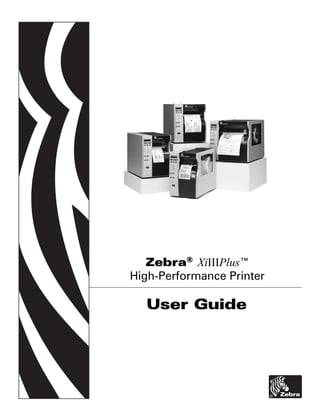
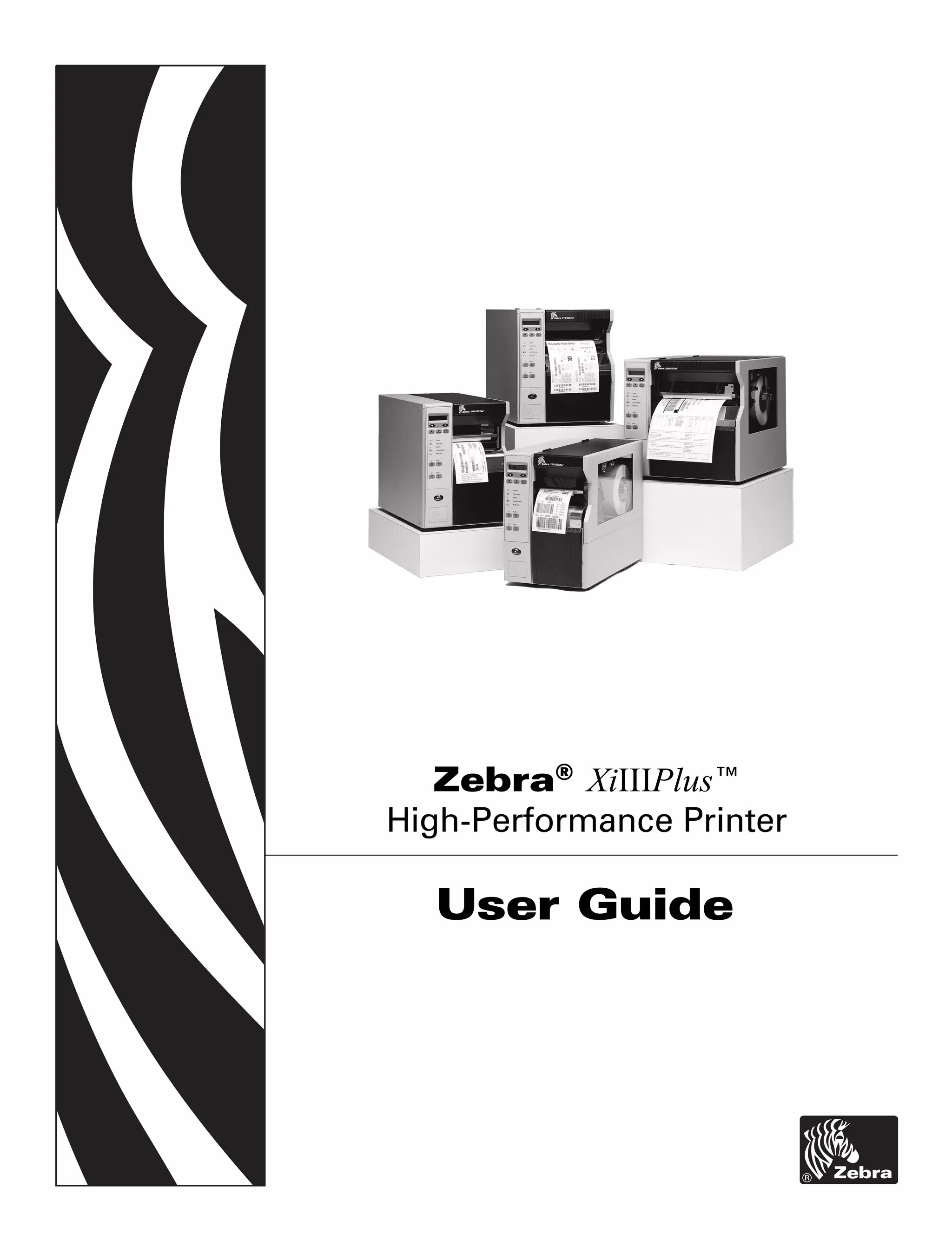
Zebra® XiIIIPlus™
High-Performance Printer

  User Guide
© 2004 ZIH Corp.

The copyrights in this manual and the label printer described therein are owned
by Zebra Technologies. Unauthorized reproduction of this manual or the
software in the label printer may result in imprisonment of up to one year and
fines of up to $10,000 (17 U.S.C.506). Copyright violators may be subject to
civil liability.

All product names and numbers are Zebra trademarks, and Zebra, the
Zebra logo, ZPL, ZPL II, ZebraNet, ZebraLink, are registered trademarks of
ZIH Corp. All rights reserved.

All other brand names, product names, or trademarks belong to their respective
holders.


                     Customer Order # 13383L-001


                Manufacturer Part # 13383L-001 Rev. 1
I have determined that the Zebra printers identified as the

                           XiIIIPlus Series
                90XiIIIPlus, 96XiIIIPlus, 110XiIIIPlus,
               140XiIIIPlus, 170XiIIIPlus, 220XiIIIPlus

                              manufactured by:

                        Zebra Technologies
                   333 Corporate Woods Parkway
               Vernon Hills, Illinois 60061-3109 U.S.A.
Have been shown to comply with the applicable technical standards of the FCC

         For Home, Office, Commercial, and industrial use

            If no unauthorized changed is made in the equipment,
          and if the equipment is properly maintained and operated.
Notes • ___________________________________________________________________

__________________________________________________________________________

__________________________________________________________________________

__________________________________________________________________________

__________________________________________________________________________

__________________________________________________________________________

__________________________________________________________________________

__________________________________________________________________________

__________________________________________________________________________

__________________________________________________________________________

__________________________________________________________________________

__________________________________________________________________________

__________________________________________________________________________

__________________________________________________________________________

__________________________________________________________________________

__________________________________________________________________________

__________________________________________________________________________

__________________________________________________________________________

__________________________________________________________________________


To provide feedback on this document, please send your comments to techpubs@zebra.com, or
write your comments on this page and fax to the following:
Fax: 1.847.821.1795     Attention: TechPubs — CTC
Contents


Proprietary Statement . . . . . . . . . . . . . . . . . . . . . . . . . . . . . . . . . . . . . . . . . . . . . . . v
Warranty Information . . . . . . . . . . . . . . . . . . . . . . . . . . . . . . . . . . . . . . . . . . . . . . vii
Printer Software and Firmware License Agreement . . . . . . . . . . . . . . . . . . . . . . xi
Preface . . . . . . . . . . . . . . . . . . . . . . . . . . . . . . . . . . . . . . . . . . . . . . . . . . . . . . . . . xvii
        Contacts . . . . . . . . . . . . . . . . . . . . . . . . . . . . . . . . . . . . . . . . . . . . . . . . . . . . . . . . . . . . . xviii
           Support . . . . . . . . . . . . . . . . . . . . . . . . . . . . . . . . . . . . . . . . . . . . . . . . . . . . . . . . . . . xviii
        Document Conventions. . . . . . . . . . . . . . . . . . . . . . . . . . . . . . . . . . . . . . . . . . . . . . . . . . . xix
        Related Documents . . . . . . . . . . . . . . . . . . . . . . . . . . . . . . . . . . . . . . . . . . . . . . . . . . . . . .xx

1 • Introduction . . . . . . . . . . . . . . . . . . . . . . . . . . . . . . . . . . . . . . . . . . . . . . . . . . . . 1
        Exterior View. . . . . . . . . . . . . . . . . . . . . . . . . . . . . . . . . . . . . . . . . . . . . . . . . . . . . . . . . . . .    2
        Front Panel . . . . . . . . . . . . . . . . . . . . . . . . . . . . . . . . . . . . . . . . . . . . . . . . . . . . . . . . . . . . .   3
            Front Panel Buttons . . . . . . . . . . . . . . . . . . . . . . . . . . . . . . . . . . . . . . . . . . . . . . . . . . .           4
            Front Panel Lights. . . . . . . . . . . . . . . . . . . . . . . . . . . . . . . . . . . . . . . . . . . . . . . . . . . . .         5
        Printer Components . . . . . . . . . . . . . . . . . . . . . . . . . . . . . . . . . . . . . . . . . . . . . . . . . . . . . .          6

2 • Printer Setup . . . . . . . . . . . . . . . . . . . . . . . . . . . . . . . . . . . . . . . . . . . . . . . . . . . 7
        Before You Begin . . . . . . . . . . . . . . . . . . . . . . . . . . . . . . . . . . . . . . . . . . . . . . . . . . . . . . . . 8
        Unpack and Inspect the Printer. . . . . . . . . . . . . . . . . . . . . . . . . . . . . . . . . . . . . . . . . . . . . . 9
           Report Shipping Damage . . . . . . . . . . . . . . . . . . . . . . . . . . . . . . . . . . . . . . . . . . . . . . . 9
           Store or Reship the Printer . . . . . . . . . . . . . . . . . . . . . . . . . . . . . . . . . . . . . . . . . . . . . . 9
        Select a Site for the Printer . . . . . . . . . . . . . . . . . . . . . . . . . . . . . . . . . . . . . . . . . . . . . . . . 10
           Select a Surface . . . . . . . . . . . . . . . . . . . . . . . . . . . . . . . . . . . . . . . . . . . . . . . . . . . . . 10
           Provide Proper Operating Conditions . . . . . . . . . . . . . . . . . . . . . . . . . . . . . . . . . . . . . 10
           Allow Proper Space . . . . . . . . . . . . . . . . . . . . . . . . . . . . . . . . . . . . . . . . . . . . . . . . . . 10
           Provide a Data Source . . . . . . . . . . . . . . . . . . . . . . . . . . . . . . . . . . . . . . . . . . . . . . . . 10


13383L-001 Rev. 1         7/8/2004                           XiIIIPlus User Guide                                                                   i
Contents


       Connect the Printer to a Power Source . . . . . . . . . . . . . . . . . . . . . . . . . . . . . . . . . . . . . . .11
          Power Cord Specifications . . . . . . . . . . . . . . . . . . . . . . . . . . . . . . . . . . . . . . . . . . . . . .11
       Select a Communication Interface . . . . . . . . . . . . . . . . . . . . . . . . . . . . . . . . . . . . . . . . . . 12
          Data Cable Requirements. . . . . . . . . . . . . . . . . . . . . . . . . . . . . . . . . . . . . . . . . . . . . . 13
       Types of Media . . . . . . . . . . . . . . . . . . . . . . . . . . . . . . . . . . . . . . . . . . . . . . . . . . . . . . . . . 14
          Selecting Media . . . . . . . . . . . . . . . . . . . . . . . . . . . . . . . . . . . . . . . . . . . . . . . . . . . . . 14
          Non-Continuous Media . . . . . . . . . . . . . . . . . . . . . . . . . . . . . . . . . . . . . . . . . . . . . . . . 15
          Continuous Media. . . . . . . . . . . . . . . . . . . . . . . . . . . . . . . . . . . . . . . . . . . . . . . . . . . . 15
       Ribbon. . . . . . . . . . . . . . . . . . . . . . . . . . . . . . . . . . . . . . . . . . . . . . . . . . . . . . . . . . . . . . . . 16
          When to Use Ribbon. . . . . . . . . . . . . . . . . . . . . . . . . . . . . . . . . . . . . . . . . . . . . . . . . . 16
          Ribbon Width . . . . . . . . . . . . . . . . . . . . . . . . . . . . . . . . . . . . . . . . . . . . . . . . . . . . . . . 16
          Coated Side of Ribbon . . . . . . . . . . . . . . . . . . . . . . . . . . . . . . . . . . . . . . . . . . . . . . . . 16

3 • Printer Operation . . . . . . . . . . . . . . . . . . . . . . . . . . . . . . . . . . . . . . . . . . . . . . . 19
       Load the Printer . . . . . . . . . . . . . . . . . . . . . . . . . . . . . . . . . . . . . . . . . . . . . . . . . . . . . . . .     20
           Load Roll Media . . . . . . . . . . . . . . . . . . . . . . . . . . . . . . . . . . . . . . . . . . . . . . . . . . . . .        20
           Load Fanfold Media . . . . . . . . . . . . . . . . . . . . . . . . . . . . . . . . . . . . . . . . . . . . . . . . . .           22
           Load Ribbon . . . . . . . . . . . . . . . . . . . . . . . . . . . . . . . . . . . . . . . . . . . . . . . . . . . . . . . .      24
           Remove Used Ribbon. . . . . . . . . . . . . . . . . . . . . . . . . . . . . . . . . . . . . . . . . . . . . . . . .              28
       Print a Printer Configuration Label . . . . . . . . . . . . . . . . . . . . . . . . . . . . . . . . . . . . . . . . . .              29
       Print a Network Configuration Label . . . . . . . . . . . . . . . . . . . . . . . . . . . . . . . . . . . . . . . . .                31
       Calibrate the Printer . . . . . . . . . . . . . . . . . . . . . . . . . . . . . . . . . . . . . . . . . . . . . . . . . . . . .      32
       Adjust and Calibrate Sensors . . . . . . . . . . . . . . . . . . . . . . . . . . . . . . . . . . . . . . . . . . . . . .             33
           Media and Ribbon Sensor Calibration . . . . . . . . . . . . . . . . . . . . . . . . . . . . . . . . . . . .                      33
           Transmissive (Media) Sensors . . . . . . . . . . . . . . . . . . . . . . . . . . . . . . . . . . . . . . . . . .                 35
       Adjust Printhead Pressure and Toggle Position . . . . . . . . . . . . . . . . . . . . . . . . . . . . . . . .                        37
           Toggle Position Adjustment . . . . . . . . . . . . . . . . . . . . . . . . . . . . . . . . . . . . . . . . . . . .               37
           Printhead Pressure Adjustment . . . . . . . . . . . . . . . . . . . . . . . . . . . . . . . . . . . . . . . . .                  37

4 • Print Modes and Options . . . . . . . . . . . . . . . . . . . . . . . . . . . . . . . . . . . . . . . . 39
       RFID-Ready Capability . . . . . . . . . . . . . . . . . . . . . . . . . . . . . . . . . . . . . . . . . . . . . . . . . . .          40
       XML-Enabled Printing . . . . . . . . . . . . . . . . . . . . . . . . . . . . . . . . . . . . . . . . . . . . . . . . . . . .         40
       Print Modes. . . . . . . . . . . . . . . . . . . . . . . . . . . . . . . . . . . . . . . . . . . . . . . . . . . . . . . . . . . .   41
           Tear-Off Mode . . . . . . . . . . . . . . . . . . . . . . . . . . . . . . . . . . . . . . . . . . . . . . . . . . . . . . .      41
           Peel-Off Mode. . . . . . . . . . . . . . . . . . . . . . . . . . . . . . . . . . . . . . . . . . . . . . . . . . . . . . .       42
           Cutter Mode . . . . . . . . . . . . . . . . . . . . . . . . . . . . . . . . . . . . . . . . . . . . . . . . . . . . . . . .      44
           Rewind Mode . . . . . . . . . . . . . . . . . . . . . . . . . . . . . . . . . . . . . . . . . . . . . . . . . . . . . . .        46
           Rewind Mode with Cutter Option . . . . . . . . . . . . . . . . . . . . . . . . . . . . . . . . . . . . . . . .                   49
           Remove Backing or Labels from Rewind Spindle. . . . . . . . . . . . . . . . . . . . . . . . . . . .                              51


ii                                                          XiIIIPlus User Guide                              13383L-001 Rev. 1 7/8/2004
Contents


5 • Front Panel Controls . . . . . . . . . . . . . . . . . . . . . . . . . . . . . . . . . . . . . . . . . . . . 53
       Overview . . . . . . . . . . . . . . . . . . . . . . . . . . . . . . . . . . . . . . . . . . . . . . . . . . . . . . . . . . . . . .    54
          Enter Setup Mode. . . . . . . . . . . . . . . . . . . . . . . . . . . . . . . . . . . . . . . . . . . . . . . . . . . .              54
          Exit Setup Mode . . . . . . . . . . . . . . . . . . . . . . . . . . . . . . . . . . . . . . . . . . . . . . . . . . . . .            55
       Password-Protected Parameters . . . . . . . . . . . . . . . . . . . . . . . . . . . . . . . . . . . . . . . . . . .                     56
          Default Password Value . . . . . . . . . . . . . . . . . . . . . . . . . . . . . . . . . . . . . . . . . . . . . . .                 56
          Disable the Password Protection Feature . . . . . . . . . . . . . . . . . . . . . . . . . . . . . . . . .                            56
       Front Panel LCD . . . . . . . . . . . . . . . . . . . . . . . . . . . . . . . . . . . . . . . . . . . . . . . . . . . . . . . .         57
          ZebraNet® Wired and Wireless Print Server LCD Displays . . . . . . . . . . . . . . . . . . . .                                       73

6 • Data Ports . . . . . . . . . . . . . . . . . . . . . . . . . . . . . . . . . . . . . . . . . . . . . . . . . . . . . 75
       Parallel Port . . . . . . . . . . . . . . . . . . . . . . . . . . . . . . . . . . . . . . . . . . . . . . . . . . . . . . . . . . .     76
       Serial Port . . . . . . . . . . . . . . . . . . . . . . . . . . . . . . . . . . . . . . . . . . . . . . . . . . . . . . . . . . . . .   78
           Serial Pin Configuration . . . . . . . . . . . . . . . . . . . . . . . . . . . . . . . . . . . . . . . . . . . . . . .              79
           RS-232 Interface Connections . . . . . . . . . . . . . . . . . . . . . . . . . . . . . . . . . . . . . . . . . .                    80
           RS-422/RS-485 Interconnections . . . . . . . . . . . . . . . . . . . . . . . . . . . . . . . . . . . . . . . .                      82
       USB 2.0 Port . . . . . . . . . . . . . . . . . . . . . . . . . . . . . . . . . . . . . . . . . . . . . . . . . . . . . . . . . . .      83

7 • Memory Cards . . . . . . . . . . . . . . . . . . . . . . . . . . . . . . . . . . . . . . . . . . . . . . . . . 85
       PCMCIA Memory Card . . . . . . . . . . . . . . . . . . . . . . . . . . . . . . . . . . . . . . . . . . . . . . . . . . . 86
       CompactFlash Card . . . . . . . . . . . . . . . . . . . . . . . . . . . . . . . . . . . . . . . . . . . . . . . . . . . . . 88

8 • Routine Maintenance . . . . . . . . . . . . . . . . . . . . . . . . . . . . . . . . . . . . . . . . . . . 91
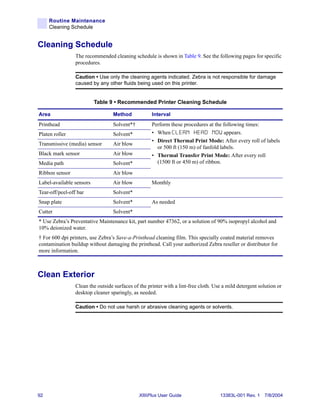
       Cleaning Schedule . . . . . . . . . . . . . . . . . . . . . . . . . . . . . . . . . . . . . . . . . . . . . . . . . . . . . . 92
       Clean Exterior . . . . . . . . . . . . . . . . . . . . . . . . . . . . . . . . . . . . . . . . . . . . . . . . . . . . . . . . . . 92
       Clean Interior . . . . . . . . . . . . . . . . . . . . . . . . . . . . . . . . . . . . . . . . . . . . . . . . . . . . . . . . . . 93
          Printhead and Platen Roller . . . . . . . . . . . . . . . . . . . . . . . . . . . . . . . . . . . . . . . . . . . . 93
          Sensors. . . . . . . . . . . . . . . . . . . . . . . . . . . . . . . . . . . . . . . . . . . . . . . . . . . . . . . . . . . . 95
          Snap Plate . . . . . . . . . . . . . . . . . . . . . . . . . . . . . . . . . . . . . . . . . . . . . . . . . . . . . . . . . 97
          Cutter . . . . . . . . . . . . . . . . . . . . . . . . . . . . . . . . . . . . . . . . . . . . . . . . . . . . . . . . . . . . . 99
       Replace Fuse . . . . . . . . . . . . . . . . . . . . . . . . . . . . . . . . . . . . . . . . . . . . . . . . . . . . . . . . . 100

9 • Troubleshooting . . . . . . . . . . . . . . . . . . . . . . . . . . . . . . . . . . . . . . . . . . . . . . 103
       Troubleshooting . . . . . . . . . . . . . . . . . . . . . . . . . . . . . . . . . . . . . . . . . . . . . . . . . . . . . . . 104
       LCD Error Messages . . . . . . . . . . . . . . . . . . . . . . . . . . . . . . . . . . . . . . . . . . . . . . . . . . . 105
       Print Quality Problems . . . . . . . . . . . . . . . . . . . . . . . . . . . . . . . . . . . . . . . . . . . . . . . . . . 109
       Communications Problems . . . . . . . . . . . . . . . . . . . . . . . . . . . . . . . . . . . . . . . . . . . . . . . . 111
       Printer Diagnostics . . . . . . . . . . . . . . . . . . . . . . . . . . . . . . . . . . . . . . . . . . . . . . . . . . . . . .113
           Power-On Self Test. . . . . . . . . . . . . . . . . . . . . . . . . . . . . . . . . . . . . . . . . . . . . . . . . . .113
           Additional Printer Self Tests . . . . . . . . . . . . . . . . . . . . . . . . . . . . . . . . . . . . . . . . . . . .113
           Communications Diagnostics Test . . . . . . . . . . . . . . . . . . . . . . . . . . . . . . . . . . . . . . .117
           Additional Printer Diagnostics. . . . . . . . . . . . . . . . . . . . . . . . . . . . . . . . . . . . . . . . . . .117


13383L-001 Rev. 1        7/8/2004                            XiIIIPlus User Guide                                                                   iii
Contents


A • Specifications . . . . . . . . . . . . . . . . . . . . . . . . . . . . . . . . . . . . . . . . . . . . . . . . 119
        Features . . . . . . . . . . . . . . . . . . . . . . . . . . . . . . . . . . . . . . . . . . . . . . . . . . . . . . . . . . . . .   120
            Standard Features . . . . . . . . . . . . . . . . . . . . . . . . . . . . . . . . . . . . . . . . . . . . . . . . . .            120
            Print Modes. . . . . . . . . . . . . . . . . . . . . . . . . . . . . . . . . . . . . . . . . . . . . . . . . . . . . . . .       120
            Zebra Programming Language (ZPL II®) . . . . . . . . . . . . . . . . . . . . . . . . . . . . . . . . .                           120
            Bar Codes. . . . . . . . . . . . . . . . . . . . . . . . . . . . . . . . . . . . . . . . . . . . . . . . . . . . . . . . .       121
            Agency Approvals for All Printers . . . . . . . . . . . . . . . . . . . . . . . . . . . . . . . . . . . . . . .                  121
            Compliance for All Printers . . . . . . . . . . . . . . . . . . . . . . . . . . . . . . . . . . . . . . . . . . . .              121
        General Specifications . . . . . . . . . . . . . . . . . . . . . . . . . . . . . . . . . . . . . . . . . . . . . . . . . .           122
            Electrical Specifications . . . . . . . . . . . . . . . . . . . . . . . . . . . . . . . . . . . . . . . . . . . . . .            122
            Environmental Conditions for Operation and Storage . . . . . . . . . . . . . . . . . . . . . . .                                 123
        Print Specifications by Model . . . . . . . . . . . . . . . . . . . . . . . . . . . . . . . . . . . . . . . . . . . . .              124
        Ribbon Specifications by Model . . . . . . . . . . . . . . . . . . . . . . . . . . . . . . . . . . . . . . . . . . .                 126
        Label Specifications . . . . . . . . . . . . . . . . . . . . . . . . . . . . . . . . . . . . . . . . . . . . . . . . . . . .         128
            110XiIIIPlus Printers . . . . . . . . . . . . . . . . . . . . . . . . . . . . . . . . . . . . . . . . . . . . . . . . .          128
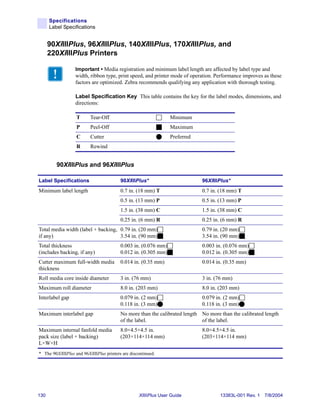
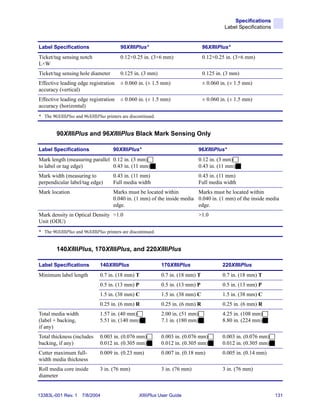
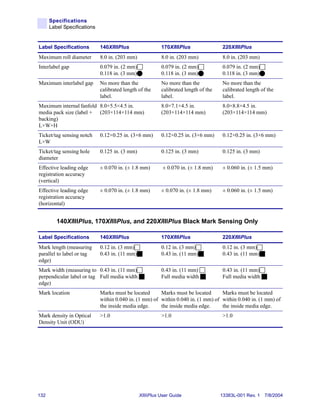
            90XiIIIPlus, 96XiIIIPlus, 140XiIIIPlus, 170XiIIIPlus, and 220XiIIIPlus Printers . . . . .                                        130

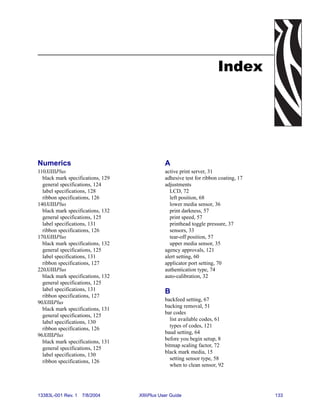
Index . . . . . . . . . . . . . . . . . . . . . . . . . . . . . . . . . . . . . . . . . . . . . . . . . . . . . . . . . . . 133


iv                                                           XiIIIPlus User Guide                               13383L-001 Rev. 1 7/8/2004
Proprietary Statement


                This manual contains proprietary information of Zebra Technologies Corporation and its
                subsidiaries (“Zebra Technologies”). It is intended solely for the information and use of parties
                operating and maintaining the equipment described herein. Such proprietary information may
                not be used, reproduced, or disclosed to any other parties for any other purpose without the
                expressed written permission of Zebra Technologies.


    Product Improvements
                Continuous improvement of products is a policy of Zebra Technologies. All specifications and
                designs are subject to change without notice.


    FCC Compliance Statement
                This device complies with Part 15 rules. Operation is subject to the following two conditions:
                    1. This device may not cause harmful interference, and
                    2. This device must accept any interference received, including interference that may cause
                      undesired operation.
                This equipment has been tested and found to comply with the limits for Class B Digital
                Devices, pursuant to Part 15 of the FCC Rules. These limits are designed to provide reasonable
                protection against harmful interference when the equipment is operated in a residential
                environment. This equipment generates, uses, and can radiate radio frequency energy and, if
                not installed and used in accordance with the product manuals, may cause harmful interference
                to radio communications. However, there is no guarantee that interference will not occur in a
                particular installation. If this equipment does cause harmful interference to radio or television
                reception, the user is encouraged to do one or more of the following measures:
                 • Reorient or relocate the receiving antenna.
                 • Increase the separation between the equipment and receiver.
                 • Connect the equipment into an outlet on a circuit different from that to which the receiver
                     is connected.
                 • Consult the dealer or an experienced radio/TV technician for help.


13383L-001 Rev. 1    7/8/2004                  XiIIIPlus User Guide                                               v
Proprietary Statement


              The user is cautioned that any changes or modifications not expressly approved by Zebra
              Technologies could void the user’s authority to operate the equipment. To ensure compliance,
              this printer must be used with Shielded Communication Cables.


     Canadian DOC Compliance Statement
              This Class B digital apparatus complies with Canadian ICES-003.
              Cet appareil numérique de la classe B est conforme à la norme NMB-003 du Canada.


     Liability Disclaimer
              Zebra Technologies takes steps to ensure that its published Engineering specifications and
              manuals are correct; however, errors do occur. Zebra Technologies reserves the right to correct
              any such errors and disclaims liability resulting therefrom.


     Limitation of Liability
              In no event shall Zebra Technologies or anyone else involved in the creation, production, or
              delivery of the accompanying product (including hardware and software) be liable for any
              damages whatsoever (including, without limitation, consequential damages including loss of
              business profits, business interruption, or loss of business information) arising out of the use
              of, the results of use of, or inability to use such product, even if Zebra Technologies has been
              advised of the possibility of such damages. Some jurisdictions do not allow the exclusion or
              limitation of incidental or consequential damages, so the above limitation or exclusion may
              not apply to you.


vi                                         XiIIIPlus User Guide                  13383L-001 Rev. 1 7/8/2004
Warranty Information


Effective December 30, 2002
                All new Zebra products are warranted by the manufacturer to be free from defect in material
                and workmanship.


Printers and Related Hardware Products
                Proof of purchase or shipment date is required to validate the warranty period. The warranty
                becomes void if the equipment is modified, improperly installed or used, damaged by accident
                or neglect, or if any parts are improperly installed or replaced by the user.
                Products returned must be packaged in the original or comparable packing and shipping
                container. In the event equipment is not so packaged, or if shipping damage is evident, it will
                not be accepted for service under warranty. Surface transportation charges for return to
                customers in the continental United States is paid by Zebra. Otherwise, Zebra pays CPT
                (carriage paid to) nearest airport; customer pays customs, duties, taxes, and freight from
                airport to destination. If Zebra determines that the product returned for warranty service or
                replacement is not defective as herein defined, the customer will pay all handling and
                transportation costs.


    Printers
                All printers (excluding printheads) are warranted against defect in material or workmanship
                for twelve (12) months from the purchase date.


    Printheads
                Since printhead wear is part of normal operation, the original printhead is covered by a limited
                warranty as indicated below. Warranty period begins on purchase date.


13383L-001 Rev. 1   7/8/2004                 XiIIIPlus User Guide                                             vii
Warranty Information


                Printhead                                   Warranty Period
                Bar code label and receipt printer          6 months
                printheads
                Plastic card printer printheads             12 months


                To qualify for this warranty, the printhead must be returned to the factory or to an authorized
                service center. Customers are not required to purchase Genuine Zebra Supplies (media and/or
                ribbons) for warranty qualification.
                However, if it is determined that the use of inappropriate or inferior supplies has caused any
                defect in the printhead for which a warranty claim is made, the user is responsible for Zebra’s
                labor and material charges required to repair the defect. The warranty becomes void if the
                printhead is physically worn or damaged; also if it is determined that failure to follow the
                preventive maintenance schedule listed in the User Guide has caused defect in the thermal
                printhead for which a warranty claim is made.


       Related Hardware Items
                Products are warranted to be free of defects in material and workmanship from the date of
                purchase according to this chart:

                Product                                         Warranty Period
                Accessories                                     1 month
                Batteries                                       3 months
                Cables                                          1 month
                Chargers/Power Supplies                         1 year
                Hardware Keys                                   1 year
                Keyboard Display Units                          6 months
                Parts                                           3 months
                Pocket   Eye®                                   1 year
                Software                                        1 month
                ZebraNet® Print Servers                         3 years


                Defective product must be returned to Zebra for evaluation. In the event of notification of
                defect within the warranty period, Zebra will replace the defective item provided there had not
                been damage resulting from user abuse, modification, improper installation or use, or damage
                in shipping or by accident or neglect.


viii                                         XiIIIPlus User Guide                 13383L-001 Rev. 1 7/8/2004
Warranty Information


    Supplies Products
                Supplies are warranted to be free from defect in material and workmanship for a period of
                six (6) months for media and twelve (12) months for ribbon from the date of shipment by
                Zebra. This is provided the user has complied with storage guidelines, handling, and usage of
                the supplies in Zebra printers.
                Zebra’s sole obligation under these warranties is to furnish parts and labor for the repair or
                possible replacement of products found to be defective in material or workmanship during the
                warranty period. Zebra may in its discretion issue a credit for any such defective products in
                such amount as it deems reasonable.


Repair Services
                Zebra repairs are warranted against defects in material and workmanship for 90 days from the
                date of repair by Zebra. This excludes printheads, which are warranted separately. This
                warranty does not cover normal wear and tear. This warranty becomes void if the item is
                modified, improperly installed or used, or damaged by accident, neglect, or abuse.


Warranty Exclusions & Conditions Statement
                The warranties given above are the only warranties given to you. No other warranties, express
                or implied, are given. Zebra does not make any implied warranty of merchantability or fitness
                for a particular purpose in connection with its sale of products or services. While Zebra’s
                desire is to be responsive to your specific needs and questions, Zebra does not assume
                responsibility for any specific application to which any Products are applied, including, but not
                limited to, compatibility with other equipment. All statements, technical information, or
                recommendations relating to Zebra Products are based on tests believed to be reliable, but do
                not constitute a guaranty or warranty.
                Zebra’s maximum liability for warranty claims is limited to the invoice price of the Product
                claimed defective. Zebra does not assume responsibility for delays in replacement or repair of
                products. Zebra shall not under any circumstances whatsoever be liable to you or any other
                party for loss or profits, lost data, diminution of goodwill, or any other special or consequential
                damages whatsoever with respect to any warranty claim made by you. Specifically for
                software, Zebra is not liable for any incidental or consequential damages caused by abuse or
                misapplication of the software or by its use in violation of the U.S. copyright law or
                international treaty. No salesperson, representative, or agent of Zebra is authorized to make
                any guaranty, warranty, or representation that contradicts the foregoing. Any waiver,
                alteration, addition, or modification to the foregoing warranties must be in writing and signed
                by an executive officer of Zebra to be valid.

                                                        Zebra Technologies
                                                        333 Corporate Woods Parkway
                                                        Vernon Hills, IL 60061-3109 U.S.A.
                                                        Phone +1 847.634.6700 or +1 800.423.0442
                                                        Fax + 1 847.913.8766     www.zebra.com


13383L-001 Rev. 1   7/8/2004                  XiIIIPlus User Guide                                               ix
Warranty Information


         Notes • ___________________________________________________________________

          __________________________________________________________________________

          __________________________________________________________________________

          __________________________________________________________________________

          __________________________________________________________________________

          __________________________________________________________________________

          __________________________________________________________________________

          __________________________________________________________________________

          __________________________________________________________________________

          __________________________________________________________________________

          __________________________________________________________________________

          __________________________________________________________________________

          __________________________________________________________________________

          __________________________________________________________________________

          __________________________________________________________________________

          __________________________________________________________________________

          __________________________________________________________________________

          __________________________________________________________________________

          __________________________________________________________________________


         To provide feedback on this document, please send your comments to techpubs@zebra.com, or
         write your comments on this page and fax to the following:
         Fax: 1.847.821.1795     Attention: TechPubs — CTC


x                                       XiIIIPlus User Guide               13383L-001 Rev. 1 7/8/2004
Printer Software
                                      and Firmware
                                License Agreement


                YOU SHOULD CAREFULLY READ THE FOLLOWING TERMS AND CONDITIONS OF
                THIS ZEBRA TECHNOLOGIES PRINTER SOFTWARE AND FIRMWARE LICENSE
                AGREEMENT (PSFLA) BEFORE USING THE PRINTER WHICH IS ENCLOSED OR
                OTHERWISE ASSOCIATED WITH THIS AGREEMENT. IF YOU DO NOT AGREE
                WITH THESE TERMS AND CONDITIONS, DO NOT OPERATE THE PRINTER AND
                PLEASE PROMPTLY RETURN THE PRINTER, ENCLOSURES AND ALL PACKAGING
                FOR A FULL REFUND.
                Zebra Technologies (ZEBRA) hereby grants you a non-exclusive, non-transferable license to
                use the SOFTWARE and FIRMWARE embedded in the printer and the accompanying
                documentation according to the following terms:
                    1. The printer enclosed with or otherwise associated with this Agreement has or includes
                      certain SOFTWARE and FIRMWARE therein which is protected by copyright laws and
                      international copyright treaties, as well as other intellectual property laws and treaties. The
                      SOFTWARE and FIRMWARE is licensed, not sold. Such SOFTWARE and/or
                      FIRMWARE may include, but is not limited to, SOFTWARE and/or FIRMWARE that is
                      licensed under one or more of the following trademarks: ZPL (Zebra Programming
                      Language), Zebralink, Web View, Web Alert, ZBI (Zebra Basic Interpreter), BAR-ONE,
                      ZTools, Utilities, ZebraNet View for IP, ZebraNet Alert, PC Management Program,
                      ZebraNet View for Networks and ZebraNet Connect.
                    2. GRANT OF LICENSE. This License grants you the following rights:
                       •   SOFTWARE and FIRMWARE. You may use, access, display, run, or otherwise
                           interact with (RUN) the SOFTWARE and FIRMWARE in connection with operating
                           the printer which is enclosed with or otherwise associated with this PSFLA
                           (PRINTER). The primary user of the PRINTER may make a second copy for his or
                           her exclusive use on a portable computer/printer.
                       •   Storage/Network Use. You may also store or install a copy of the SOFTWARE and
                           FIRMWARE on a storage device, such as a network server, used only to RUN the
                           SOFTWARE and FIRMWARE on your other PRINTERS over an internal network;
                           however, you must acquire and dedicate a license for each separate PRINTER on
                           which the SOFTWARE and FIRMWARE is RUN from the storage device. A license
                           for the SOFTWARE and FIRMWARE may not be shared or used concurrently on
                           different PRINTERS.


13383L-001 Rev. 1    7/8/2004                   XiIIIPlus User Guide                                               xi
Printer Software and Firmware License Agreement


                   •    Reservation of Rights. All rights not expressly granted are reserved by ZEBRA.
                   •   Accessing Services Using the SOFTWARE and FIRMWARE. Your use of any service
                       accessible using the SOFTWARE and FIRMWARE is not covered by this PSFLA and
                       may be governed by separate terms of use, conditions or notices.
                3. RESTRICTIONS.
                   •   You must maintain all copyright notices on all copies of the SOFTWARE and
                       FIRMWARE.
                   •   Limitations on modification. You may not modify, adapt, translate, or create
                       derivative works based on this SOFTWARE OR FIRMWARE or the accompanying
                       documentation.
                   •   Limitations of Reverse Engineering, Decompilation and Disassembly. You may not
                       reverse engineer, decompile, or disassemble the SOFTWARE or the FIRMWARE,
                       except and only to the extent that such activity is permitted by applicable law
                       notwithstanding this limitation.
                   •   Rental. You may not rent or lease or lend the SOFTWARE or FIRMWARE.
                   •   Support Services. ZEBRA may provide you with support services related to the
                       SOFTWARE and/or FIRMWARE (SUPPORT SERVICES), in its discretion. Use of
                       SUPPORT SERVICES, if any, is governed by the ZEBRA policies and programs
                       described in the user guide, in online documentation, and/or other ZEBRA provided
                       materials. Any supplemental SOFTWARE or FIRMWARE code provided to you as a
                       part of SUPPORT SERVICES shall be considered part of the SOFTWARE and/or
                       FIRMWARE and is subject to the terms of this PSFLA. With respect to technical
                       information you provide to ZEBRA as part of the SUPPORT SERVICES, ZEBRA
                       may use such information for its business purposes, including for product support and
                       development. ZEBRA will not utilize such technical information in a form that
                       personally identifies you except to the extent necessary to provide you with support.
                   •   Replacement, Modification and Upgrade of the SOFTWARE and/or FIRMWARE.
                       ZEBRA reserves the right to replace, modify or upgrade the SOFTWARE and/or
                       FIRMWARE at any time by offering you a replacement or modified version of the
                       SOFTWARE and/or FIRMWARE or such upgrade and to charge for such
                       replacement, modification or upgrade. Any such replacement or modified
                       SOFTWARE and/or FIRMWARE code or upgrade to the SOFTWARE and/or
                       FIRMWARE offered to you by ZEBRA shall be considered part of the SOFTWARE
                       and/or FIRMWARE and subject to the terms of this PSFLA (unless this PSFLA is
                       superseded by a further PSFLA accompanying such replacement or modified version
                       of or upgrade to the SOFTWARE and/or FIRMWARE). In the event that ZEBRA
                       offers a replacement or modified version of or any upgrade to the SOFTWARE and/or
                       FIRMWARE, (a) your continued use of the SOFTWARE and/or FIRMWARE is
                       conditioned on your acceptance of such replacement or modified version of or
                       upgrade to the SOFTWARE and/or FIRMWARE and any accompanying superseding
                       PSFLA and (b) in the case of the replacement or modified SOFTWARE and/or
                       FIRMWARE, your use of all prior versions of the SOFTWARE and/or FIRMWARE
                       is terminated.


xii                                        XiIIIPlus User Guide                 13383L-001 Rev. 1 7/8/2004
Printer Software and Firmware License Agreement


                    4. TERMINATION. Without prejudice to any other rights, ZEBRA may terminate this
                      PSFLA if you fail to comply with the terms and conditions of this PSFLA. ZEBRA may
                      terminate this PSFLA by offering you a superseding PSFLA for the SOFTWARE and/or
                      FIRMWARE or any replacement or modified version of or upgrade to the SOFTWARE
                      and/or FIRMWARE and conditioning your continued use of the SOFTWARE and/or
                      FIRMWARE or such replacement, modified or upgraded version on your acceptance of
                      such superseding PSFLA. In addition, ZEBRA may terminate this PSFLA by notifying
                      you that your continued use of the SOFTWARE and/or FIRMWARE is prohibited. In the
                      event that ZEBRA terminates this PSFLA, you must immediately stop using the
                      SOFTWARE and/or FIRMWARE and destroy all copies of the SOFTWARE and/or
                      FIRMWARE and all of its component parts.
                    5. COPYRIGHT. All title and copyrights in and to the SOFTWARE and FIRMWARE, the
                      accompanying printed materials, and any copies of the SOFTWARE and FIRMWARE,
                      are owned by ZEBRA or its suppliers. All title and intellectual property rights in and to
                      the content which may be accessed through use of the SOFTWARE and/or FIRMWARE is
                      the property of the respective content owner and may be protected by applicable copyright
                      or other intellectual property laws and treaties. This PSFLA grants you no rights to use
                      such content. If this SOFTWARE and/or FIRMWARE contains documentation which is
                      provided only in electronic form, you may print one copy of such electronic
                      documentation. You may not copy the printed materials accompanying the SOFTWARE
                      and/or FIRMWARE.
                    6. U.S. GOVERNMENT RESTRICTED RIGHTS. All SOFTWARE and/or FIRMWARE
                      provided to the U.S. Government pursuant to solicitations issued on or after December 1,
                      1995 is provided with the commercial rights and restrictions described elsewhere herein.
                      All SOFTWARE and/or FIRMWARE provided to the U.S. Government pursuant to
                      solicitations issued prior to December 1, 1995 is provided with RESTRICTED RIGHTS
                      as provided for in FAR, 48 CFR 52.227-14 (JUNE 1987) or DFAR, 48 CFR 252.227-7013
                      (OCT 1988), as applicable.
                    7. EXPORT RESTRICTIONS. You agree that you will not export or re-export the
                      SOFTWARE and/or FIRMWARE, any part thereof, or any process or service that is the
                      direct product of the SOFTWARE and/or FIRMWARE (the foregoing collectively
                      referred to as the RESTRICTED COMPONENTS), to any country, person or entity
                      subject to U.S. export restrictions. You specifically agree not to export or re-export any of
                      the RESTRICTED COMPONENTS (i) to any country to which the U.S. has embargoed
                      or restricted the export of goods or services, which currently include, but are not
                      necessarily limited to Cuba, Iran, Iraq, Libya, North Korea, Sudan and Syria, or to any
                      national of any such country, wherever located, who intends to transmit or transport the
                      RESTRICTED COMPONENTS back to such country; (ii) to any person or entity who
                      you know or have reason to know will utilize the RESTRICTED COMPONENTS in the
                      design, development or production of nuclear, chemical or biological weapons; or (iii) to
                      any person or entity who has been prohibited from participating in U.S. export
                      transactions by any federal agency of the U.S. government. You warrant and represent that
                      neither the U.S. Commerce Department, Bureau of Export Administration nor any other
                      U.S. federal agency has suspended, revoked or denied your export privileges.


13383L-001 Rev. 1    7/8/2004                  XiIIIPlus User Guide                                             xiii
Printer Software and Firmware License Agreement


                8. DISCLAIMER OF WARRANTIES. ZEBRA AND ITS SUPPLIERS PROVIDE THE
                  SOFTWARE AND/OR FIRMWARE “AS IS” AND WITH ALL FAULTS, AND
                  HEREBY DISCLAIM ALL OTHER WARRANTIES AND CONDITIONS, EITHER
                  EXPRESS, IMPLIED OR STATUTORY, INCLUDING BUT NOT LIMITED TO ANY
                  (IF ANY) IMPLIED WARRANTIES OR CONDITIONS OF MERCHANTABILITY, OF
                  FITNESS FOR A PARTICULAR PURPOSE, OF LACK OF VIRUSES, AND OF LACK
                  OF NEGLIGENCE OR LACK OF WORKMANLIKE EFFORT. ALSO, THERE IS NO
                  WARRANTY OR CONDITION OF TITLE, OF QUIET ENJOYMENT, OR OF
                  NONINFRINGEMENT. THE ENTIRE RISK ARISING OUT OF THE USE OR
                  PERFORMANCE OF THE SOFTWARE AND FIRMWARE IS WITH YOU. ZEBRA
                  DOES NOT WARRANT THAT THE OPERATION OF THE SOFTWARE OR
                  FIRMWARE WILL BE UNINTERRUPTED OR ERROR FREE.
                9. EXCLUSION OF ALL DAMAGES. TO THE MAXIMUM EXTENT PERMITTED BY
                  APPLICABLE LAW, IN NO EVENT SHALL ZEBRA OR ITS SUPPLIERS BE
                  LIABLE FOR ANY CONSEQUENTIAL, INCIDENTAL, DIRECT, INDIRECT,
                  SPECIAL, PUNITIVE, OR OTHER DAMAGES WHATSOEVER (INCLUDING,
                  WITHOUT LIMITATION, DAMAGES FOR ANY INJURY TO PERSON OR
                  PROPERTY, DAMAGES FOR LOSS OF PROFITS, BUSINESS INTERRUPTION,
                  LOSS OF BUSINESS INFORMATION, FOR LOSS OF PRIVACY FOR FAILURE TO
                  MEET ANY DUTY INCLUDING OF GOOD FAITH OR OF REASONABLE CARE,
                  FOR NEGLIGENCE, AND FOR ANY PECUNIARY OR OTHER LOSS
                  WHATSOEVER) ARISING OUT OF OR IN ANY WAY RELATED TO THE USE OF
                  OR INABILITY TO USE THE SOFTWARE OR FIRMWARE, WHETHER BASED ON
                  CONTRACT, TORT, NEGLIGENCE, STRICT LIABILITY OR OTHERWISE, EVEN IF
                  ZEBRA OR ANY SUPPLIER HAS BEEN ADVISED OF THE POSSIBILITY OF
                  SUCH DAMAGES. THIS EXCLUSION OF DAMAGES SHALL BE EFFECTIVE
                  EVEN IF ANY REMEDY FAILS OF ITS ESSENTIAL PURPOSE.
               10. LIMITATIONS AND RELEASE OF LIABILITY.
                   •   To the extent that the SOFTWARE and/or FIRMWARE covered by this PSFLA
                       includes emulation libraries, emulation libraries are offered “as is”. ZEBRA does not
                       provide any warranty associated with the emulation libraries.
                   •   The emulation library does not work 100% correctly or cover 100% of the
                       functionality of the printer language being emulated. Modifications may be required
                       for each target application. If such modification is necessary, prior to making any such
                       modification, you are required to contact ZEBRA to obtain express written consent to
                       make such modification.
                   •   If the emulation library is sold separately by an authorized party other than ZEBRA
                       (RESELLER—A party other than ZEBRA which is authorized by ZEBRA to
                       distribute the SOFTWARE and/or FIRMWARE with its application so long as the
                       SOFTWARE and/or FIRMWARE is used with a ZEBRA printer) or is sold bundled
                       with a printer to an end-user by a RESELLER, and if claims are made by the
                       RESELLER that the emulation library performs as a 100% emulation solution,
                       ZEBRA is not responsible if the emulation library does not work as advertised by the
                       RESELLER. Furthermore, ZEBRA is not liable for any damages directly or indirectly
                       relating to such emulation library which is sold separately by the RESELLER or
                       which is sold bundled with a printer to an end-user by the RESELLER.


xiv                                         XiIIIPlus User Guide                  13383L-001 Rev. 1 7/8/2004
Printer Software and Firmware License Agreement


                      •   The SOFTWARE and FIRMWARE was provided to you at no additional charge and
                          ZEBRA has included in this PSFLA terms that disclaim all warranties and liability for
                          the SOFTWARE and FIRMWARE. To the full extent allowed by law, YOU HEREBY
                          RELEASE ZEBRA AND ITS SUPPLIERS FROM ANY AND ALL LIABILITY
                          ARISING FROM OR RELATED TO ALL CLAIMS CONCERNING THE
                          SOFTWARE AND/OR FIRMWARE OR ITS USE. If you do not wish to accept the
                          SOFTWARE OR FIRMWARE under the terms of this PSFLA, do not use the
                          PRINTER enclosed with or otherwise associated with this PSFLA.
                11. GOVERNING LAW. If you acquired the SOFTWARE and/or FIRMWARE in the United
                     States of America, the laws of the State of Illinois, U.S.A. will apply to this contract. If
                     you acquired this SOFTWARE and/or FIRMWARE outside of the United States of
                     America, then local law may apply. If any provision of this PSFLA is held invalid, the
                     remainder of this PSFLA shall continue in full force and effect.
                12. QUESTIONS. Should you have any questions, or if you desire to contact ZEBRA for any
                     reason, please contact the ZEBRA subsidiary serving your country, or write:
                     Zebra Technologies Corporation
                     333 Corporate Woods Parkway
                     Vernon Hills, IL 60061


13383L-001 Rev. 1   7/8/2004                   XiIIIPlus User Guide                                                 xv
Printer Software and Firmware License Agreement


           Notes • ___________________________________________________________________

            __________________________________________________________________________

            __________________________________________________________________________

            __________________________________________________________________________

            __________________________________________________________________________

            __________________________________________________________________________

            __________________________________________________________________________

            __________________________________________________________________________

            __________________________________________________________________________

            __________________________________________________________________________

            __________________________________________________________________________

            __________________________________________________________________________

            __________________________________________________________________________

            __________________________________________________________________________

            __________________________________________________________________________

            __________________________________________________________________________

            __________________________________________________________________________

            __________________________________________________________________________

            __________________________________________________________________________


           To provide feedback on this document, please send your comments to techpubs@zebra.com, or
           write your comments on this page and fax to the following:
           Fax: 1.847.821.1795     Attention: TechPubs — CTC


xvi                                       XiIIIPlus User Guide               13383L-001 Rev. 1 7/8/2004
Preface


                This section provides you with contact information, document structure and organization, and
                additional reference documents.


13383L-001 Rev. 1   7/8/2004                XiIIIPlus User Guide                                         xvii
Preface
        Contacts


Contacts
                   You can contact Zebra Technologies at any of the following:

                   Visit us at: http://www.zebra.com

                   Our Mailing Addresses:
                   Zebra Technologies Corporation
                   333 Corporate Woods Parkway
                   Vernon Hills, Illinois 60061.3109 U.S.A
                   Telephone: +1 847.634.6700
                   Fax: +1 847.913.8766

                   Zebra Technologies Europe Limited
                   Zebra House
                   The Valley Centre, Gordon Road
                   High Wycombe
                   Buckinghamshire HP13 6EQ, UK
                   Telephone: +44 (0)1494 472872
                   Fax: +44 (0)1494 450103


        Support
                   You can contact Zebra support at:

                   Web Address: www.zebra.com/SS/service_support.htm

                   Note • The web address is case-sensitive.


                   US Phone Number +1 847.913.2259

                   UK/International Phone Number +44 (0) 1494 768289


xviii                                          XiIIIPlus User Guide              13383L-001 Rev. 1 7/8/2004
Preface
                                                                                  Document Conventions


Document Conventions
                The following conventions are used throughout this document to convey certain information:

                Alternate Color (online only) Cross-references contain hot links to other sections in this
                guide. If you are viewing this guide online in .pdf format, you can click the cross-reference
                (blue text) to jump directly to its location.

                Command Line Examples All command line examples appear in Courier New font.
                For example, you would type the following to get to the Post-Install scripts in the bin
                directory:
                     Ztools

                Files and Directories All file names and directories appear in Courier New font. For
                example, the Zebra<version number>.tar file and the /root directory.

                Cautions, Important, Note, and Example


                Electrostatic Discharge Caution • Warns you of the potential for electrostatic discharge.


                Electric Shock Caution • Warns you of a potential electric shock situation.


                Caution • Warns you of a situation where excessive heat could cause a burn.


                Caution • Advises you that failure to take or avoid a specific action could result in physical
                harm to you.


                Caution • Advises you that failure to take or avoid a specific action could result in physical
                harm to the hardware.


                Important • Advises you of information that is essential to complete a task.


                Note • Indicates neutral or positive information that emphasizes or supplements important
                points of the main text.


                Example • Provides an example, often a scenario, to better clarify a section of text.


                Tools • Tells you what tools you need to complete a given task.


13383L-001 Rev. 1   7/8/2004                 XiIIIPlus User Guide                                           xix
Preface
     Related Documents


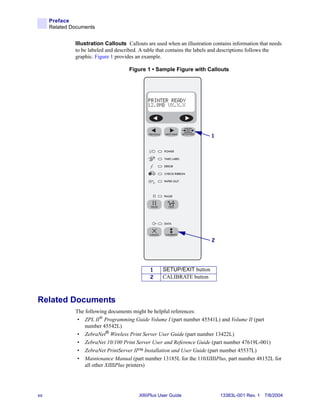
              Illustration Callouts Callouts are used when an illustration contains information that needs
              to be labeled and described. A table that contains the labels and descriptions follows the
              graphic. Figure 1 provides an example.

                                     Figure 1 • Sample Figure with Callouts


                                                                          1


                                                                          2


                                               1     SETUP/EXIT button
                                               2     CALIBRATE button


Related Documents
              The following documents might be helpful references:
               • ZPL II® Programming Guide Volume I (part number 45541L) and Volume II (part
                  number 45542L)
               • ZebraNet® Wireless Print Server User Guide (part number 13422L)
               • ZebraNet 10/100 Print Server User and Reference Guide (part number 47619L-001)
               • ZebraNet PrintServer II™ Installation and User Guide (part number 45537L)
               • Maintenance Manual (part number 13185L for the 110XiIIIPlus, part number 48152L for
                  all other XiIIIPlus printers)


xx                                        XiIIIPlus User Guide                13383L-001 Rev. 1 7/8/2004
1
                                                                           Introduction


                This chapter provides a high-level overview of the printer and its components.


                Contents
                     Exterior View . . . . . . . . . . . . . . . . . . . . . . . . . . . . . . . . . . . . . . . . . . . . . . . . . . . . . . . . . . .    2
                     Front Panel. . . . . . . . . . . . . . . . . . . . . . . . . . . . . . . . . . . . . . . . . . . . . . . . . . . . . . . . . . . . .   3
                        Front Panel Buttons . . . . . . . . . . . . . . . . . . . . . . . . . . . . . . . . . . . . . . . . . . . . . . . . . . . .         4
                        Front Panel Lights . . . . . . . . . . . . . . . . . . . . . . . . . . . . . . . . . . . . . . . . . . . . . . . . . . . . .        5
                     Printer Components . . . . . . . . . . . . . . . . . . . . . . . . . . . . . . . . . . . . . . . . . . . . . . . . . . . . . .         6


13383L-001 Rev. 1   7/8/2004                              XiIIIPlus User Guide                                                                              1
Introduction
    Exterior View


Exterior View
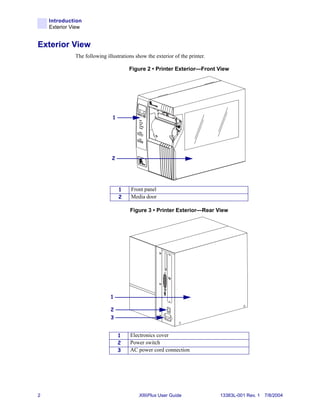
              The following illustrations show the exterior of the printer.

                                       Figure 2 • Printer Exterior—Front View


                               1


                               2


                                   1    Front panel
                                   2    Media door

                                       Figure 3 • Printer Exterior—Rear View


                              1

                              2
                              3


                                   1   Electronics cover
                                   2   Power switch
                                   3   AC power cord connection


2                                           XiIIIPlus User Guide              13383L-001 Rev. 1 7/8/2004
Introduction
                                                                                              Front Panel


Front Panel
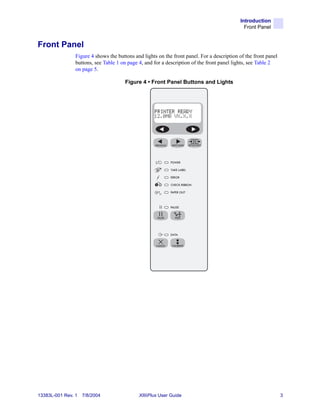
                Figure 4 shows the buttons and lights on the front panel. For a description of the front panel
                buttons, see Table 1 on page 4, and for a description of the front panel lights, see Table 2
                on page 5.

                                       Figure 4 • Front Panel Buttons and Lights


13383L-001 Rev. 1   7/8/2004                 XiIIIPlus User Guide                                                3
Introduction
     Front Panel


     Front Panel Buttons
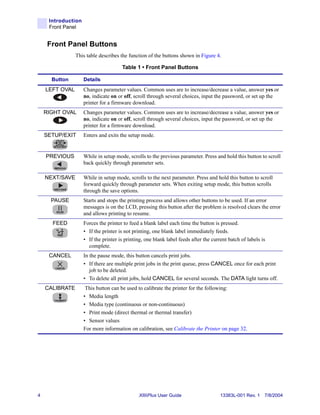
                This table describes the function of the buttons shown in Figure 4.

                                      Table 1 • Front Panel Buttons

      Button        Details
    LEFT OVAL       Changes parameter values. Common uses are to increase/decrease a value, answer yes or
                    no, indicate on or off, scroll through several choices, input the password, or set up the
                    printer for a firmware download.
    RIGHT OVAL      Changes parameter values. Common uses are to increase/decrease a value, answer yes or
                    no, indicate on or off, scroll through several choices, input the password, or set up the
                    printer for a firmware download.
    SETUP/EXIT      Enters and exits the setup mode.


    PREVIOUS        While in setup mode, scrolls to the previous parameter. Press and hold this button to scroll
                    back quickly through parameter sets.

    NEXT/SAVE       While in setup mode, scrolls to the next parameter. Press and hold this button to scroll
                    forward quickly through parameter sets. When exiting setup mode, this button scrolls
                    through the save options.
      PAUSE         Starts and stops the printing process and allows other buttons to be used. If an error
                    messages is on the LCD, pressing this button after the problem is resolved clears the error
                    and allows printing to resume.
      FEED          Forces the printer to feed a blank label each time the button is pressed.
                    • If the printer is not printing, one blank label immediately feeds.
                    • If the printer is printing, one blank label feeds after the current batch of labels is
                      complete.
     CANCEL         In the pause mode, this button cancels print jobs.
                    • If there are multiple print jobs in the print queue, press CANCEL once for each print
                       job to be deleted.
                    • To delete all print jobs, hold CANCEL for several seconds. The DATA light turns off.
    CALIBRATE        This button can be used to calibrate the printer for the following:
                    • Media length
                    • Media type (continuous or non-continuous)
                    • Print mode (direct thermal or thermal transfer)
                    • Sensor values
                    For more information on calibration, see Calibrate the Printer on page 32.


4                                             XiIIIPlus User Guide                    13383L-001 Rev. 1 7/8/2004
Introduction
                                                                                              Front Panel


    Front Panel Lights
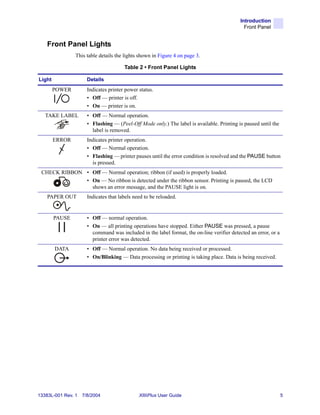
                This table details the lights shown in Figure 4 on page 3.

                                       Table 2 • Front Panel Lights

Light                 Details
        POWER         Indicates printer power status.
                      • Off — printer is off.
                      • On — printer is on.
   TAKE LABEL         • Off — Normal operation.
                      • Flashing — (Peel-Off Mode only.) The label is available. Printing is paused until the
                        label is removed.
        ERROR         Indicates printer operation.
                      • Off — Normal operation.
                      • Flashing — printer pauses until the error condition is resolved and the PAUSE button
                        is pressed.
 CHECK RIBBON • Off — Normal operation; ribbon (if used) is properly loaded.
              • On — No ribbon is detected under the ribbon sensor. Printing is paused, the LCD
                shows an error message, and the PAUSE light is on.
    PAPER OUT         Indicates that labels need to be reloaded.


        PAUSE         • Off — normal operation.
                      • On — all printing operations have stopped. Either PAUSE was pressed, a pause
                        command was included in the label format, the on-line verifier detected an error, or a
                        printer error was detected.
        DATA          • Off — Normal operation. No data being received or processed.
                      • On/Blinking — Data processing or printing is taking place. Data is being received.


13383L-001 Rev. 1   7/8/2004                  XiIIIPlus User Guide                                               5
Introduction
    Printer Components


Printer Components
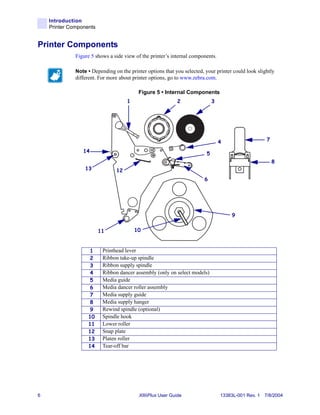
              Figure 5 shows a side view of the printer’s internal components.

              Note • Depending on the printer options that you selected, your printer could look slightly
              different. For more about printer options, go to www.zebra.com.

                                          Figure 5 • Internal Components
                                     1                      2                 3


                                                                                  4                  7

                 14                                                       5
                                                                                                         8
                  13            12
                                                                         6


                                                                                      9


                         11              10


                    1     Printhead lever
                    2     Ribbon take-up spindle
                    3     Ribbon supply spindle
                    4     Ribbon dancer assembly (only on select models)
                    5     Media guide
                    6     Media dancer roller assembly
                    7     Media supply guide
                    8     Media supply hanger
                    9     Rewind spindle (optional)
                   10     Spindle hook
                   11     Lower roller
                   12     Snap plate
                   13     Platen roller
                   14     Tear-off bar


6                                          XiIIIPlus User Guide                   13383L-001 Rev. 1 7/8/2004
2
                                                                      Printer Setup


                This chapter provides the tasks that you must complete and the issues that you must consider
                before you load and configure your printer.


                Contents
                     Before You Begin . . . . . . . . . . . . . . . . . . . . . . . . . . . . . . . . . . . . . . . . . . . . . . . . . . . . . . . . 8
                     Unpack and Inspect the Printer . . . . . . . . . . . . . . . . . . . . . . . . . . . . . . . . . . . . . . . . . . . . . 9
                       Report Shipping Damage. . . . . . . . . . . . . . . . . . . . . . . . . . . . . . . . . . . . . . . . . . . . . . . . 9
                       Store or Reship the Printer. . . . . . . . . . . . . . . . . . . . . . . . . . . . . . . . . . . . . . . . . . . . . . . 9
                     Select a Site for the Printer . . . . . . . . . . . . . . . . . . . . . . . . . . . . . . . . . . . . . . . . . . . . . . . 10
                       Select a Surface. . . . . . . . . . . . . . . . . . . . . . . . . . . . . . . . . . . . . . . . . . . . . . . . . . . . . . 10
                       Provide Proper Operating Conditions . . . . . . . . . . . . . . . . . . . . . . . . . . . . . . . . . . . . . 10
                       Allow Proper Space . . . . . . . . . . . . . . . . . . . . . . . . . . . . . . . . . . . . . . . . . . . . . . . . . . . 10
                       Provide a Data Source . . . . . . . . . . . . . . . . . . . . . . . . . . . . . . . . . . . . . . . . . . . . . . . . . 10
                     Connect the Printer to a Power Source . . . . . . . . . . . . . . . . . . . . . . . . . . . . . . . . . . . . . . 11
                       Power Cord Specifications . . . . . . . . . . . . . . . . . . . . . . . . . . . . . . . . . . . . . . . . . . . . . . 11
                     Select a Communication Interface . . . . . . . . . . . . . . . . . . . . . . . . . . . . . . . . . . . . . . . . . . 12
                       Data Cable Requirements . . . . . . . . . . . . . . . . . . . . . . . . . . . . . . . . . . . . . . . . . . . . . . 13
                     Types of Media. . . . . . . . . . . . . . . . . . . . . . . . . . . . . . . . . . . . . . . . . . . . . . . . . . . . . . . . . 14
                       Non-Continuous Media . . . . . . . . . . . . . . . . . . . . . . . . . . . . . . . . . . . . . . . . . . . . . . . . 15
                       Continuous Media . . . . . . . . . . . . . . . . . . . . . . . . . . . . . . . . . . . . . . . . . . . . . . . . . . . . 15
                     Ribbon . . . . . . . . . . . . . . . . . . . . . . . . . . . . . . . . . . . . . . . . . . . . . . . . . . . . . . . . . . . . . . . 16
                       When to Use Ribbon . . . . . . . . . . . . . . . . . . . . . . . . . . . . . . . . . . . . . . . . . . . . . . . . . . 16
                       Ribbon Width . . . . . . . . . . . . . . . . . . . . . . . . . . . . . . . . . . . . . . . . . . . . . . . . . . . . . . . . 16
                       Coated Side of Ribbon. . . . . . . . . . . . . . . . . . . . . . . . . . . . . . . . . . . . . . . . . . . . . . . . . 16


13383L-001 Rev. 1   7/8/2004                             XiIIIPlus User Guide                                                                             7
Printer Setup
    Before You Begin


Before You Begin
              Review this checklist, and resolve any issues before you begin setting up your printer. When
              you are ready, continue with Printer Operation on page 19.

                  Unpack and Inspect Have you unpacked the printer and inspected it for damage? If
              you have not, see Unpack and Inspect the Printer on page 9.

                  Select a Site Have you selected an appropriate location for the printer? If you have not,
              see Select a Site for the Printer on page 10.

                  Attach Power Cord Do you have the correct power cord for your printer? If you are
              unsure, see Power Cord Specifications on page 11. To attach the power cord and connect the
              printer to a power source, see Connect the Printer to a Power Source on page 11.

                  Connect to a Data Source Have you determined how the printer will be connected to
              a data source (usually a computer)? For more information, see Select a Communication
              Interface on page 12.

                  Select Media Do you have the correct media for your application? If you are unsure,
              see Types of Media on page 14.

                  Select Ribbon Do you need to use ribbon, and is the appropriate ribbon available, if
              needed? If you are unsure, see Ribbon on page 16.


8                                         XiIIIPlus User Guide                 13383L-001 Rev. 1 7/8/2004
Printer Setup
                                                                         Unpack and Inspect the Printer


Unpack and Inspect the Printer
                When you unpack the printer, save all packing materials. When the printer is out of the box,
                raise the printer’s media door, and remove the power cord.
                Inspect the printer for possible damage incurred during shipment. Check all exterior surfaces
                for damage. Raise the media door, and inspect the media compartment for damage to
                components.


    Report Shipping Damage
                If you discover shipping damage upon inspection:
                 • Immediately notify the shipping company of the damage, and file a damage report with
                     them. Zebra is not responsible for any damage incurred during shipment of the equipment
                     and does not repair this damage under warranty.
                 • Keep all packaging material for shipping company inspection.
                 • Notify your authorized Zebra reseller.


    Store or Reship the Printer
                If you are not placing the printer into immediate operation, repackage it using the original
                packing materials. You may store the printer under the following conditions:
                 • Temperature: –40° to 140°F (–40° to 60°C)
                 • Relative humidity: 5% to 85% non-condensing
                If you must ship the printer, remove any ribbon and media from the supply spools to avoid
                damaging the printer. Carefully pack the printer into the original container or a suitable
                alternate container to avoid damage during transit.


13383L-001 Rev. 1   7/8/2004                 XiIIIPlus User Guide                                               9
Printer Setup
     Select a Site for the Printer


Select a Site for the Printer
                 Consider the following when selecting an appropriate location for your printer.


     Select a Surface
                 Select a solid, level surface of sufficient size and strength to accommodate the printer and
                 other equipment (such as a computer), if necessary. The choices include a table, countertop,
                 desk, or cart.


     Provide Proper Operating Conditions
                 Because the printer was designed and is fabricated as an industrial-type unit, it functions
                 satisfactorily in a location that conforms to specified environmental and electrical conditions,
                 including a warehouse or factory floor. For more information on the required conditions, see
                 General Specifications on page 122.
                 Table 3 shows the temperature and relative humidity requirements for the printer when it is
                 operating.

                                     Table 3 • Operating Temperature and Humidity

                 Mode                    Temperature                          Relative Humidity
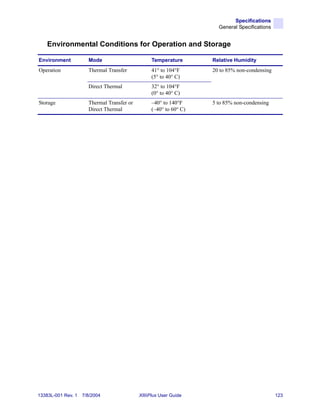
                 Thermal Transfer        41° to 104°F (5° to 40°C)            20 to 85% non-condensing
                 Direct Thermal          32° to 104°F (0° to 40°C)            20 to 85% non-condensing


     Allow Proper Space
                 The printer should have enough space around it for you to be able to open the media door. To
                 allow for proper ventilation and cooling, leave open space on all sides of the printer.

                 Caution • Do not place any padding or cushioning material behind or under the printer
                 because this restricts air flow and could cause the printer to overheat.


     Provide a Data Source
                 If the printer will be located away from the data source, the selected site must provide the
                 appropriate connections to that data source. For more information on the types of
                 communication interfaces, see Select a Communication Interface on page 12.


10                                            XiIIIPlus User Guide                  13383L-001 Rev. 1 7/8/2004
Printer Setup
                                                                    Connect the Printer to a Power Source


Connect the Printer to a Power Source
                Caution • For personnel and equipment safety, always use an approved three-conductor
                power cord specific to the region or country intended for installation. This cord must use
                an IEC 320 female connector and the appropriate region-specific three-conductor
                grounded plug configuration.

              To connect the printer to a power source, complete these steps:
                    1. Turn the printer power switch (located on the rear of the printer) to the Off (O) position.
                    2. Plug the power cord into the mating connector on the rear of the printer.
                    3. Plug the other end of the power cord into the power source.


    Power Cord Specifications
                Depending on how your printer was ordered, a power cord may or may not be included. If one
                is not included or if the one included is not suitable for your requirements, refer to the
                following guidelines:
                 • The overall cord length must be less than 9.8 ft (3.0 m).
                 • The cord must be rated for at least 5 A, 250 V.
                 • The chassis ground (earth) must be connected to ensure safety and reduce electromagnetic
                     interference. The third wire in the power cord grounds the connection (Figure 6).

                                              Figure 6 • Power Cord Specifications
                                          1          2                       3              4


                                      1   AC power plug for your country
                                      2   3-conductor HAR cable
                                      3   IEC 320 connector
                                      4   Neutral, earth, live in contact view

                •      The AC power plug and the IEC 320 connector must bear the certification mark of at least
                       one of the known international safety organizations shown in Figure 7.

                                      Figure 7 • International Safety Organization Marks
                                          +
                                  R


13383L-001 Rev. 1    7/8/2004                   XiIIIPlus User Guide                                             11
Printer Setup
     Select a Communication Interface


Select a Communication Interface
               The way that you connect your printer to a data source depends on the communication options
               installed in the printer.
               Standard interfaces: The standard communication interfaces are an RS-232 serial data port, a
               bidirectional parallel port, and a USB 2.0 port.

               Note • RS-422 and RS-485 serial data ports are available through an adapter. A DB-25 cable
               and a USB 2.0 cable are also available.

               Figure 8 shows the location of the communication interfaces on the back of the printer. For
               more information about these interfaces, see Data Ports on page 75.

                                        Figure 8 • Communication Interfaces


                                               1


                                               2


                                               3


                                                   1     Parallel port
                                                   2     USB 2.0 port
                                                   3     Serial port

               Optional Print Servers:
               • ZebraNet Wireless Print Server. For more information on this option, see the ZebraNet
                  Wireless Print Server User Guide (Zebra part number 13422L-001).
               • ZebraNet 10/100 Print Server (10/100 PS). For more information on 10/100 PS, see the
                  ZebraNet 10/100 Print Server User and Reference Guide (Zebra part number
                  47619L-001).
               • ZebraNet PrintServer II (PSII). For more information on PSII, see the PrintServer II User
                  and Reference Guide (Zebra part number 45537L).


12                                         XiIIIPlus User Guide                 13383L-001 Rev. 1 7/8/2004
Printer Setup
                                                                     Select a Communication Interface


    Data Cable Requirements
                Data cables must be fully shielded and fitted with metal or metallized connector shells.
                Shielded cables and connectors are required to prevent radiation and reception of electrical
                noise.
                To minimize electrical noise pickup in the cable:
                 • Keep data cables as short as possible.
                 • Do not bundle the data cables tightly with the power cords.
                 • Do not tie the data cables to power wire conduits.

                Note • Zebra printers comply with FCC Rules and Regulations, Part 15 for Class B Equipment
                using fully shielded, 6.5 ft (2 m) data cables. Use of unshielded cables may increase radiation
                above the Class B limits.


                Note • RS-422 and RS-485 applications should use twisted shielded pairs as recommended in
                the TIA/EIA-485 Specification.


13383L-001 Rev. 1   7/8/2004                 XiIIIPlus User Guide                                              13
Printer Setup
     Types of Media


Types of Media
               Your printer is capable of using various forms of media. These include roll and fanfold media
               (Figure 9) that may be labels or card stock and that may have optional perforations, black
               marks, or registration holes. The following sections contain descriptions of the various types
               of media approved for use in your printer.

                                           Figure 9 • Roll and Fanfold Media

                               Roll Media                                       Fanfold Media
                         (non-continuous shown)


     Selecting Media
               We strongly recommend the use of Zebra-brand supplies for continuous high-quality printing.
               A wide range of paper, polypropylene, polyester, and vinyl stock has been specifically
               engineered to enhance the printing capabilities of the printer and to ensure against premature
               printhead wear.

               Important • Certain printing conditions may require that you adjust printing parameters, such
               as print speed, darkness, or print mode. These conditions include (but are not limited to):
                • printing at high speeds
                • cutting or peeling the media
                • the use of extremely thin, small, synthetic, or coated labels
               Because print quality is affected by these and other factors, it is important that you run tests
               to determine the best combination of printer settings and media for your application. A poor
               match may limit print quality or print rate, or the printer may not function properly in the
               desired print mode.


14                                           XiIIIPlus User Guide                  13383L-001 Rev. 1 7/8/2004
Printer Setup
                                                                                       Types of Media


    Non-Continuous Media
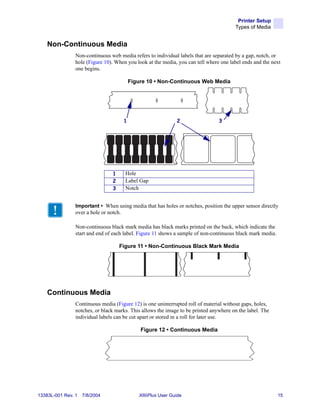
                Non-continuous web media refers to individual labels that are separated by a gap, notch, or
                hole (Figure 10). When you look at the media, you can tell where one label ends and the next
                one begins.

                                         Figure 10 • Non-Continuous Web Media


                                     1                       2                  3


                                1     Hole
                                2     Label Gap
                                3     Notch


                Important • When using media that has holes or notches, position the upper sensor directly
                over a hole or notch.

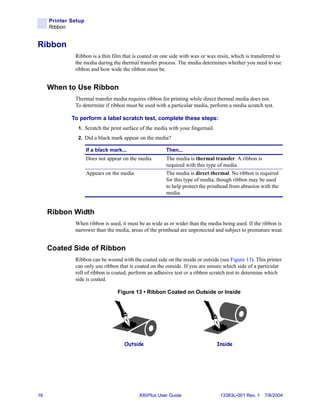
                Non-continuous black mark media has black marks printed on the back, which indicate the
                start and end of each label. Figure 11 shows a sample of non-continuous black mark media.

                                    Figure 11 • Non-Continuous Black Mark Media


    Continuous Media
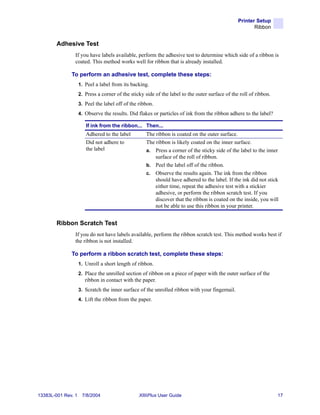
                Continuous media (Figure 12) is one uninterrupted roll of material without gaps, holes,
                notches, or black marks. This allows the image to be printed anywhere on the label. The
                individual labels can be cut apart or stored in a roll for later use.

                                             Figure 12 • Continuous Media


13383L-001 Rev. 1   7/8/2004                XiIIIPlus User Guide                                            15
Printer Setup
     Ribbon


Ribbon
              Ribbon is a thin film that is coated on one side with wax or wax resin, which is transferred to
              the media during the thermal transfer process. The media determines whether you need to use
              ribbon and how wide the ribbon must be.


     When to Use Ribbon
              Thermal transfer media requires ribbon for printing while direct thermal media does not.
              To determine if ribbon must be used with a particular media, perform a media scratch test.

             To perform a label scratch test, complete these steps:
               1. Scratch the print surface of the media with your fingernail.
               2. Did a black mark appear on the media?

                     If a black mark...                 Then...
                     Does not appear on the media       The media is thermal transfer. A ribbon is
                                                        required with this type of media.
                     Appears on the media               The media is direct thermal. No ribbon is required
                                                        for this type of media, though ribbon may be used
                                                        to help protect the printhead from abrasion with the
                                                        media.


     Ribbon Width
              When ribbon is used, it must be as wide as or wider than the media being used. If the ribbon is
              narrower than the media, areas of the printhead are unprotected and subject to premature wear.


     Coated Side of Ribbon
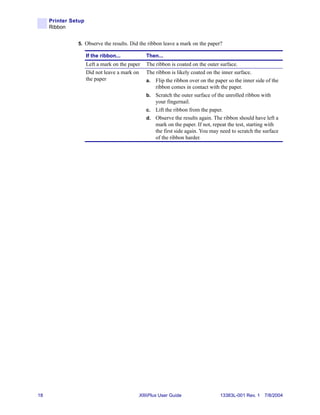
              Ribbon can be wound with the coated side on the inside or outside (see Figure 13). This printer
              can only use ribbon that is coated on the outside. If you are unsure which side of a particular
              roll of ribbon is coated, perform an adhesive test or a ribbon scratch test to determine which
              side is coated.

                                   Figure 13 • Ribbon Coated on Outside or Inside


                                      Outside                                    Inside


16                                          XiIIIPlus User Guide                  13383L-001 Rev. 1 7/8/2004
Printer Setup
                                                                                                        Ribbon


        Adhesive Test
                If you have labels available, perform the adhesive test to determine which side of a ribbon is
                coated. This method works well for ribbon that is already installed.

              To perform an adhesive test, complete these steps:
                    1. Peel a label from its backing.
                    2. Press a corner of the sticky side of the label to the outer surface of the roll of ribbon.
                    3. Peel the label off of the ribbon.
                    4. Observe the results. Did flakes or particles of ink from the ribbon adhere to the label?

                       If ink from the ribbon... Then...
                       Adhered to the label         The ribbon is coated on the outer surface.
                       Did not adhere to            The ribbon is likely coated on the inner surface.
                       the label                    a. Press a corner of the sticky side of the label to the inner
                                                        surface of the roll of ribbon.
                                                    b. Peel the label off of the ribbon.
                                                    c. Observe the results again. The ink from the ribbon
                                                        should have adhered to the label. If the ink did not stick
                                                        either time, repeat the adhesive test with a stickier
                                                        adhesive, or perform the ribbon scratch test. If you
                                                        discover that the ribbon is coated on the inside, you will
                                                        not be able to use this ribbon in your printer.


        Ribbon Scratch Test
                If you do not have labels available, perform the ribbon scratch test. This method works best if
                the ribbon is not installed.

              To perform a ribbon scratch test, complete these steps:
                    1. Unroll a short length of ribbon.
                    2. Place the unrolled section of ribbon on a piece of paper with the outer surface of the
                       ribbon in contact with the paper.
                    3. Scratch the inner surface of the unrolled ribbon with your fingernail.
                    4. Lift the ribbon from the paper.


13383L-001 Rev. 1    7/8/2004                    XiIIIPlus User Guide                                               17
Printer Setup
     Ribbon


               5. Observe the results. Did the ribbon leave a mark on the paper?

                     If the ribbon...           Then...
                     Left a mark on the paper   The ribbon is coated on the outer surface.
                     Did not leave a mark on    The ribbon is likely coated on the inner surface.
                     the paper                  a. Flip the ribbon over on the paper so the inner side of the
                                                    ribbon comes in contact with the paper.
                                                b. Scratch the outer surface of the unrolled ribbon with
                                                    your fingernail.
                                                c. Lift the ribbon from the paper.
                                                d. Observe the results again. The ribbon should have left a
                                                    mark on the paper. If not, repeat the test, starting with
                                                    the first side again. You may need to scratch the surface
                                                    of the ribbon harder.


18                                          XiIIIPlus User Guide                  13383L-001 Rev. 1 7/8/2004
3
                                               Printer Operation


                If you have completed the tasks and resolved the issues in the checklist in Before You Begin
                on page 8, follow the instruction in this chapter to load and calibrate your printer and to print
                configuration labels.


                Contents
                     Load the Printer . . . . . . . . . . . . . . . . . . . . . . . . . . . . . . . . . . . . . . . . . . . . . . . . . . . . . . . .   20
                        Load Roll Media . . . . . . . . . . . . . . . . . . . . . . . . . . . . . . . . . . . . . . . . . . . . . . . . . . . . . .     20
                        Load Fanfold Media . . . . . . . . . . . . . . . . . . . . . . . . . . . . . . . . . . . . . . . . . . . . . . . . . . .        22
                        Load Ribbon. . . . . . . . . . . . . . . . . . . . . . . . . . . . . . . . . . . . . . . . . . . . . . . . . . . . . . . . .    24
                        Remove Used Ribbon . . . . . . . . . . . . . . . . . . . . . . . . . . . . . . . . . . . . . . . . . . . . . . . . .            28
                     Print a Printer Configuration Label . . . . . . . . . . . . . . . . . . . . . . . . . . . . . . . . . . . . . . . . . .            29
                     Print a Network Configuration Label . . . . . . . . . . . . . . . . . . . . . . . . . . . . . . . . . . . . . . . .                31
                     Calibrate the Printer . . . . . . . . . . . . . . . . . . . . . . . . . . . . . . . . . . . . . . . . . . . . . . . . . . . . .    32
                        Media and Ribbon Sensor Calibration . . . . . . . . . . . . . . . . . . . . . . . . . . . . . . . . . . . . .                   33
                     Adjust and Calibrate Sensors. . . . . . . . . . . . . . . . . . . . . . . . . . . . . . . . . . . . . . . . . . . . . .            33
                        Transmissive (Media) Sensors. . . . . . . . . . . . . . . . . . . . . . . . . . . . . . . . . . . . . . . . . . .               35
                     Adjust Printhead Pressure and Toggle Position . . . . . . . . . . . . . . . . . . . . . . . . . . . . . . . .                      37
                        Toggle Position Adjustment . . . . . . . . . . . . . . . . . . . . . . . . . . . . . . . . . . . . . . . . . . . . .            37
                        Printhead Pressure Adjustment . . . . . . . . . . . . . . . . . . . . . . . . . . . . . . . . . . . . . . . . . .               37


13383L-001 Rev. 1   7/8/2004                             XiIIIPlus User Guide                                                                           19
Printer Operation
     Load the Printer


Load the Printer
              This section gives you a series of instructions to load labels and ribbon (if used). The
              instructions that follow are for a standard printer in Tear-Off Mode. To choose different
              printing modes, see Print Modes and Options on page 39.


              Caution • Be sure the printer is Off (O) if you have connected the power cable.


     Load Roll Media
              Roll media feeds through the printer from the media hanger or media supply spindle.
              Figure 14 identifies the components of the printer that you need to be familiar with to load roll
              media.

                                 Figure 14 • Interior Components for Media Loading


                          1                                                                        3


                          2
                                                                                                   4


                                 1    Printhead lever
                                 2    Media guide
                                 3    Media back plate
                                 4    Optional media spindle

             To load roll media, complete these steps:
               1. Open the printhead.
               2. Slide the media guide away from the printer frame. You might need to loosen the media
                  guide screw.
               3. Put the roll of media on the media hanger or spindle. If using a media hanger, adjust the
                  media guide on the hanger so it just touches the media.
               4. Push the label core toward the printer frame. The labels must be aligned with the label
                  core.


20                                         XiIIIPlus User Guide                   13383L-001 Rev. 1 7/8/2004
Printer Operation
                                                                                            Load the Printer


                    5. Feed the media under the media guide roller and under the printhead.
                    6. Do you have the Cutter option?

                       If...            Then...
                       No               Continue with the next step.
                       Yes              Feed the media through the cutter.
                                                   Caution • The cutter blade is sharp. Do not rub or touch the
                                                   blade with your fingers.


                    7. Adjust the media guide so it is just touching, but does not restrict, the edge of the media.
                       The labels should lie flat as shown in Figure 15.

                                                    Figure 15 • Media Position
                               1


                                                                                                           3


                               2


                                       1     Printhead
                                       2     Media guide
                                       3     Labels/media

                    8. Which type of media are you using?

                       If you are...                       Then...
                       Using direct thermal media          Close the printhead and go to Print a Printer
                                                           Configuration Label on page 29.
                       Using thermal transfer media        Go to Load Ribbon on page 24.
                       Not sure                            Go to When to Use Ribbon on page 16.


13383L-001 Rev. 1    7/8/2004                     XiIIIPlus User Guide                                            21
Printer Operation
     Load the Printer


     Load Fanfold Media
              Fanfold media feeds through either the bottom or rear access slot from outside the printer. The
              media hanger and media supply spindle are not used with fanfold media.

             To load fanfold labels, complete these steps:
               1. Slide the printhead lever to the Open position.
               2. Slide the media guide as far from the printer frame as possible.
               3. How do you want to feed the fanfold labels?
                   •   From the bottom slot in the printer body.
                       Figure 16 shows the printer with fanfold labels loaded through the bottom slot.

                                   Figure 16 • Fanfold Media—Bottom Loading
                                                1


                                                                        2


                                                                                  3


                                      1    Printhead lever (shown in the Open position)
                                      2    Media guide
                                      3    Fanfold labels


22                                         XiIIIPlus User Guide                 13383L-001 Rev. 1 7/8/2004
Printer Operation
                                                                                               Load the Printer


                       •       From the rear slot in the printer body.
                               Figure 17 shows the printer with fanfold labels loaded through the rear slot.

                                             Figure 17 • Fanfold Media—Rear Loading
                                             1


                                                                        2


                                                                                                 3


                                    1    Printhead lever (shown in the Open position)
                                    2    Media guide
                                    3    Fanfold labels

                    4. Do you have the Cutter option?

                       If...               Then...
                       No                  Continue with the next step.
                       Yes                 Feed the fanfold media through the cutter.
                                                      Caution • The cutter blade is sharp. Do not rub or touch the
                                                      blade with your fingers.


                    5. Adjust the media guide so it just touches, but does not restrict, the edge of the labels. The
                       labels should lie flat.
                    6. Which type of media are you using?

                       If you are...                     Then...
                       Using direct thermal              Close the printhead and go to Print a Printer Configuration
                       media                             Label on page 29.
                       Using thermal transfer            Go to Load Ribbon on page 24.
                       media
                       Not sure                          Go to When to Use Ribbon on page 16.


13383L-001 Rev. 1    7/8/2004                        XiIIIPlus User Guide                                          23
Printer Operation
     Load the Printer


     Load Ribbon
              Before you load ribbon, make sure that the labels that you are using need ribbon. Only thermal
              transfer media requires ribbon. Ribbon is not required with direct thermal media, though it
              may be used to protect the printhead from abrasion. For more information, see When to Use
              Ribbon on page 16.

              Caution • Use ribbon that is wider than the thermal transfer media. If the printhead is not
              protected by the ribbon, the resulting abrasion from the media may cause premature
              printhead wear.

              A ribbon leader makes it easier to load and unload ribbon. Make a leader for your ribbon roll if
              it does not already have one.

             To make a ribbon leader, complete these steps:
               1. Unroll the ribbon about 6 in. (15 cm).
               2. Tear off a strip of labels and backing about 6 in. (15 cm) long from the label roll.
               3. Peel a label from the backing.
               4. Overlap the ribbon and the backing with the ribbon on top, and use the label to tape them
                  together. This serves as a ribbon leader (Figure 18).

                                              Figure 18 • Ribbon Leader


24                                         XiIIIPlus User Guide                  13383L-001 Rev. 1 7/8/2004
Printer Operation
                                                                                            Load the Printer


              To load the ribbon, complete these steps:
                    1. Align the segments of the ribbon supply spindle as shown in Figure 19.

                                        Figure 19 • Ribbon Supply Spindle Segments


                    2. Place the roll of ribbon on the ribbon supply spindle, and push the core as far back as it
                       can go. Figure 20 shows the printer components that are mentioned in this procedure.

                                    Figure 20 • Interior Components for Ribbon Loading
                                                1               2


                                                                                                      3
                                7

                                                                                                      4
                                6

                                                                                                      5


                                          1     Top roller
                                          2     Ribbon take-up spindle
                                          3     Ribbon supply spindle
                                          4     Ribbon guide roller
                                          5     Ribbon leader attached to ribbon
                                          6     Platen roller (not shown)
                                          7     Printhead lever (shown in the Open position)

                    3. If the printhead is closed, open it using the printhead lever.
                    4. Thread the ribbon leader and attached ribbon under the ribbon guide roller, through the
                       print mechanism, and past the platen roller.

                       Note • For the 170XiIIIPlus and 220XiIIIPlus, thread the leader first through the ribbon
                       dancer roller assembly (not shown).


13383L-001 Rev. 1    7/8/2004                    XiIIIPlus User Guide                                               25
Printer Operation
     Load the Printer


               5. Pull the ribbon leader over the printhead and above the top roller (Figure 21).

                          Figure 21 • Threading Ribbon Past Printhead and Platen Roller
                                                          1


                      2


                               1    Ribbon leader
                               2    Printhead

               6. Bring the ribbon leader and ribbon under the ribbon take-up spindle, and wrap them
                  around the spindle. Figure 22 shows the ribbon leader wrapped around the ribbon take-up
                  spindle.

                                   Figure 22 • Wrapping Ribbon around Spindle


                                                1


                                                                                          2


                                      1     Ribbon leader
                                      2     Ribbon take-up spindle

               7. Turn the ribbon take-up spindle counterclockwise until the ribbon stays on it, as shown.


26                                         XiIIIPlus User Guide                 13383L-001 Rev. 1 7/8/2004
Printer Operation
                                                                                       Load the Printer


                    8. Close the printhead.
                      Figure 23 shows how your printer should look with the media and ribbon loaded.

                                              Figure 23 • Ribbon Loaded in Printer


13383L-001 Rev. 1    7/8/2004                   XiIIIPlus User Guide                                      27
Printer Operation
     Load the Printer


     Remove Used Ribbon
              When the ribbon has run out or must be changed, remove the used ribbon from the take-up
              spindle (Figure 24).

                                        Figure 24 • Ribbon Take-Up Spindle
                                                    1         2
                                                                    3


                                                                               4

                                                                                    5
                                                                                        6


                                         1      Used ribbon
                                         2      Ribbon take-up spindle
                                         3      Ribbon release bars
                                         4      Notch in ribbon take-up spindle
                                         5      Arrow on ribbon take-up spindle
                                         6      Ribbon release knob

             To remove used ribbon, complete these steps:
               1. Open the printhead.
               2. Has the ribbon run out?

                  If the ribbon...               Then
                  Ran out                        Continue with the next step.
                  Did not run out                Tear or cut the ribbon as close to the ribbon take-up spindle
                                                 as possible.
                                                 Caution • Do not cut through the ribbon that is on the
                                                 take-up spindle because you may damage the spindle.
                                                 Use the release knob to slide the ribbon off of the
                                                 spindle.

               3. While holding the ribbon take-up spindle, turn the ribbon release knob clockwise until it
                  stops.
                  The ribbon release bars pivot down, easing the spindle’s grip on the used ribbon.
               4. Slide the used ribbon off of the ribbon take-up spindle.
               5. Align the arrow on the ribbon take-up spindle knob with the notch in the ribbon take-up
                  spindle.
               6. To load new ribbon, see Load Ribbon on page 24.


28                                           XiIIIPlus User Guide                  13383L-001 Rev. 1 7/8/2004
Printer Operation
                                                                           Print a Printer Configuration Label


Print a Printer Configuration Label
                When you have loaded the media and ribbon (if necessary), print a printer configuration label
                to use as a record of your printer settings. Keep the label for baseline information on your
                printer when troubleshooting printing problems.

                Caution • For personal and equipment safety, always use an approved three-conductor
                power cord specific to the region or country intended for installation. This cord must use
                an IEC 320 female connector and the appropriate region-specific three-conductor
                grounded plug configuration.

              To print a configuration label, complete these steps:
                    1. Connect the power cord to the power connection on the back of the printer.
                    2. To confirm the power connection, turn the printer On (I).
                       The printer performs the power-up self test (POST). When the test is complete, P R I N T E R
                       R E A D Y displays on the front panel LCD.
                    3. Does the front panel LCD display P R I N T E R     READY?
                       If...                   Then...
                       Yes                     Continue with the next step.
                       No                      Go to Troubleshooting on page 103.

                    4. Turn the printer Off (O).
                    5. Press and hold CANCEL while turning the printer On (I).
                    6. Release CANCEL when the DATA light turns off (approximately five seconds).
                       The configuration label prints (Figure 25).
                    7. Did the label print?

                       If a configuration
                                               Then...
                       label...
                       Printed                 Connect the printer to your data source. Communication can be
                                               handled in many different ways. More information about the
                                               options is available in Select a Communication Interface
                                               on page 12.
                       Did not print           Sensors out of position is a common cause of printing problems.
                                               Refer to Adjust and Calibrate Sensors on page 33. For additional
                                               assistance, refer to Troubleshooting on page 103.


13383L-001 Rev. 1    7/8/2004                      XiIIIPlus User Guide                                           29
Printer Operation
     Print a Printer Configuration Label


                                           Figure 25 • Printer Configuration Label


30                                            XiIIIPlus User Guide            13383L-001 Rev. 1 7/8/2004
Printer Operation
                                                                       Print a Network Configuration Label


Print a Network Configuration Label
                If you are using a print server, you can print a network configuration label after the printer is
                hooked to the network. A network configuration label lists the settings for the ZebraNet wired
                print server and the ZebraNet Wireless Print Server (if installed). The active print server is
                indicated by an asterisk.

              To print a network configuration label, complete these steps:
                    1. From the front panel, press SETUP/EXIT.
                    2. Scroll through the parameters until you reach L I S T   NETWORK.
                    3. Confirm printing.
                       A network configuration label prints (Figure 26).

                                           Figure 26 • Network Configuration Label


                                       asterisk
                                      indicating
                                      the active
                                     print server


13383L-001 Rev. 1    7/8/2004                   XiIIIPlus User Guide                                           31
Printer Operation
     Calibrate the Printer


Calibrate the Printer
                There are five different ways that the printer can be calibrated. You may calibrate the printer as
                needed.
                 • Auto-calibration occurs when the printer feeds media after the printhead is closed and
                    when the printer is first turned on (see Media Power Up on page 67 and Head Close
                    on page 67 for options). The printer automatically sets the value it detects for the spaces
                    between labels. This type of calibration also happens as part of both the sensor profile and
                    media and ribbon sensor calibration procedures.
                 • Long Calibration, which you select by pressing PAUSE then CALIBRATE, calibrates
                    the printer for media length, media type (continuous or non-continuous), and print mode
                    (thermal or direct thermal transfer) and updates the sensor values. This calibration is the
                    same as what is performed when Calibration is selected for the M E D I A P O W E R U P and
                    H E A D C L O S E parameters. For more information, see Media Power Up on page 67 or
                    Head Close on page 67.
                 • Short Calibration, which is a selection for the M E D I A P O W E R U P and HEAD C L O S E
                    parameters, uses current sensor values rather than detecting the spaces between labels and
                    resetting the sensors. This calibration sequence may use fewer labels than the long
                    calibration sequence, but it is less reliable because the values that are stored in the sensors
                    could be incorrect. For more information, see Media Power Up on page 67 or Head Close
                    on page 67.
                 • Sensor Profile Calibration, which you select through the front panel, auto-calibrates the
                    printer and prints a media sensor profile. See Sensor Profile on page 62 for instructions.
                 • Media and Ribbon Sensor Sensitivity Calibration, which you select through the front
                    panel, resets the sensitivity of the sensors to detect correctly the media and ribbon that you
                    are using. See Media and Ribbon Sensor Calibration on page 33 for instructions. If you
                    change the type of ribbon and/or media, you might need to reset the sensitivity of the
                    media and ribbon sensors. When the sensors are at their new sensitivity, the printer
                    performs an auto-calibration.


32                                            XiIIIPlus User Guide                   13383L-001 Rev. 1 7/8/2004
Printer Operation
                                                                               Adjust and Calibrate Sensors


Adjust and Calibrate Sensors
                This section describes how to adjust and calibrate sensors.


    Media and Ribbon Sensor Calibration
                Media and ribbon sensor calibration is one of the most common adjustments to the printer
                settings. This procedure is performed through the front panel.
                Indications that the sensitivity may need to be reset are:
                 • The CHECK RIBBON light is on even though the ribbon is properly installed.
                 • Non-continuous labels are being treated as continuous labels.

                Note • Before you begin the calibration procedure, make sure that the maximum length is set
                to a value 1 in. (25.4 mm) greater than the length of the labels that you are using. If the
                maximum length is set to a lower value, the calibration process assumes that continuous media
                is in the printer.


                Important • This procedure must be followed exactly as presented. All of the steps must be
                performed even if only one of the sensors requires adjustment. You may press the left oval at
                any step in this procedure to cancel the procedure.

              To adjust the sensitivity of media and ribbon sensors, complete these steps:
                    1. From the front panel, press the right oval to start the calibration procedure.
                       The LOAD BACKING prompt displays.
                    2. Open the printhead.
                    3. Remove approximately 8 in. (203 mm) of labels from the media backing, and pull the
                       media into the printer so that only the backing is between the media sensors.
                    4. Leave the printhead open.
                    5. Press the right oval to continue.
                       The REMOVE RIBBON prompt displays.
                    6. Remove the ribbon (if used).
                    7. Close the printhead.
                    8. Press the right oval to continue.
                       The message C A L I B R A T I N G P L E A S E W A I T displays.
                       The printer adjusts the scale (gain) of the signals that it receives from the media and
                       ribbon sensors. On the sensor profile, this essentially corresponds to moving the peak of
                       the graph up or down to optimize the readings for your application (for more information,
                       see Sensor Profile on page 62).
                       When calibration is complete, R E L O A D A L L displays.
                    9. Open the printhead and pull the media forward until a label is positioned under the media
                       sensor.
                10. Reload the ribbon (if used) into to its proper position.


13383L-001 Rev. 1    7/8/2004                   XiIIIPlus User Guide                                          33
Printer Operation
     Adjust and Calibrate Sensors


                11. Close the printhead.
               12. Press the right oval to continue.
                    The printer does a calibration equivalent to pressing CALIBRATE; during this process,
                    the printer determines the label length. To see the new readings on the new scale, print a
                    sensor profile.


34                                           XiIIIPlus User Guide                 13383L-001 Rev. 1 7/8/2004
Printer Operation
                                                                              Adjust and Calibrate Sensors


    Transmissive (Media) Sensors
                The transmissive sensor consists of two sections: a light source (the lower media sensor) and a
                light sensor (the upper media sensor). The media passes between the two.
                Adjust these sensors only when the printer cannot detect the top of the label. The front panel
                LCD displays E R R O R C O N D I T I O N P A P E R O U T , even though there are labels loaded in
                the printer.

                Note • For most models of XiIIIPlus, the upper media sensor can be positioned along the
                inside half of the media (the side closest to the back of the printer) or the outside half of the
                media (the side farthest from the back of the printer). However, for the 220XiIIIPlus, you
                cannot move the sensors to the outside half of the media.

              To adjust the upper media sensor for the inside half of the media, complete
              these steps:
                    1. Remove the ribbon (if ribbon is used).
                    2. Locate the upper media sensor (Figure 27). The upper media sensor eye is directly below
                       the adjustment screw head.

                                          Figure 27 • Upper Media Sensor Location
                                                                 1           2


                                        1     Upper media sensor adjustment screw
                                        2     Upper media sensor

                    3. Slightly loosen the upper media sensor adjustment screw using a Phillips-head
                       screwdriver.
                    4. Using the tip of the screwdriver, slide the upper sensor along the slot to the desired
                       position (for non-continuous media with a notch or hole in the media, the sensor must be
                       directly above the notch or hole).
                    5. Tighten the adjustment screw to secure the upper media sensor.


13383L-001 Rev. 1    7/8/2004                   XiIIIPlus User Guide                                                35
Printer Operation
     Adjust and Calibrate Sensors


              To adjust the upper media sensor for the outside half of the media (all models
              except the 220XiIIIPlus):
                 1. Remove the ribbon (if ribbon is used).
                 2. Locate the upper media sensor. The upper media sensor eye is directly below the
                    adjustment screw head.
                 3. Remove the upper media sensor adjustment screw using a Phillips-head screwdriver.
                 4. Lift the upper media sensor assembly from the slot, and move it and the wire cover to the
                    outside slot. Carefully pull the wires through the cable tie. You may need to set aside the
                    sensor wire cover if the adjustment is too far to the outside.
                 5. Replace and slightly tighten the adjustment screw.
                 6. Slide the upper media sensor along the slot to the desired position (for non-continuous
                    media with a notch or hole in the media, the sensor must be directly above the notch or
                    hole).
                 7. Tighten the adjustment screw.
                 8. Make sure that the wires are routed back into the groove of the media sensor bracket.

              To adjust the lower media sensor, complete these steps:
                 1. Locate the lower media sensor assembly under the rear roller (Figure 28). The sensor is a
                    spring clip holding a circuit board.

                                       Figure 28 • Lower Media Sensor Location


                                                                       1

                                     1     Lower media sensor

                 2. Slide the lower sensor until it is under the upper media sensor. Gently pull wires out as
                    needed (wires should have a little slack).
                 3. If you move the sensor inward and a large loop of wire develops, remove the electronics
                    cover from the side of the printer, and gently pull the wires through. Clamp the wires so
                    that they do not rub any drive belts.


36                                           XiIIIPlus User Guide                  13383L-001 Rev. 1 7/8/2004
Printer Operation
                                                            Adjust Printhead Pressure and Toggle Position


Adjust Printhead Pressure and Toggle Position
                Printhead pressure is one factor that affects print quality. If the toggle pressure is too light or
                uneven, the labels and ribbon may slip.

                Important • Print quality depends on the labels and ribbon used as well as the toggle pressure.
                Make sure that your labels and ribbon are right for your application.
                • Direct thermal media does not need ribbon.
                • Thermal transfer media needs ribbon.


    Toggle Position Adjustment
                Toggle adjustment may be needed if printing is too light on one side or if thick labels are used.
                The toggles should be positioned so they provide even pressure on the labels. Slide the toggles
                to the desired location.
                 • If you are using a 90XiIIIPlus or 96XiIIIPlus printer, position the single toggle over the
                     center of the labels.
                 • All other printer models have two toggles. If the labels are too narrow to fit both toggles,
                     position one toggle over the center of the labels and decrease the pressure on the unused
                     toggle.


    Printhead Pressure Adjustment
                If positioning the toggles properly does not solve the problem, adjust printhead pressure.
                Maximize printhead life by using the lowest pressure that produces the desired print quality.

                Caution • Observe proper electrostatic safety precautions when handling any static-
                sensitive components such as circuit boards and printheads.


              To adjust printhead pressure, complete these steps:
                    1. Print some labels at 2.4 in. (61 mm) per second by running the PAUSE Self Test
                       on page 115.
                    2. While printing labels, use the front panel controls to lower the darkness setting until the
                       labels are printing gray instead of black.
                    3. Loosen the locking nuts at the top of the toggle assemblies (Figure 29). (The 90XiIIIPlus
                       and 96XiIIIPlus printers have only one toggle.)


13383L-001 Rev. 1    7/8/2004                   XiIIIPlus User Guide                                              37
Printer Operation
     Adjust Printhead Pressure and Toggle Position


                                              Figure 29 • Toggle Assemblies
                                                     1


                                                      2

                                      1     Locking nuts
                                      2     Adjusting nuts

                 4. Some media types require higher pressure to print well. For these media types, increase or
                    decrease pressure using the adjusting nuts until the left and right edges of the printed area
                    are equally dark.
                 5. Increase the darkness level using the front panel controls until the printing is clear.
                 6. Tighten the locking nuts.


38                                            XiIIIPlus User Guide                  13383L-001 Rev. 1 7/8/2004
4
            Print Modes and Options


                This chapter describes the print modes and other options available for the XiIIIPlus printer.


                Contents
                     RFID-Ready Capability . . . . . . . . . . . . . . . . . . . . . . . . . . . . . . . . . . . . . . . . . . . . . . . . . .           40
                     XML-Enabled Printing . . . . . . . . . . . . . . . . . . . . . . . . . . . . . . . . . . . . . . . . . . . . . . . . . . .          40
                     Print Modes . . . . . . . . . . . . . . . . . . . . . . . . . . . . . . . . . . . . . . . . . . . . . . . . . . . . . . . . . . .   41
                        Tear-Off Mode . . . . . . . . . . . . . . . . . . . . . . . . . . . . . . . . . . . . . . . . . . . . . . . . . . . . . . .      41
                        Peel-Off Mode . . . . . . . . . . . . . . . . . . . . . . . . . . . . . . . . . . . . . . . . . . . . . . . . . . . . . . .      42
                        Cutter Mode . . . . . . . . . . . . . . . . . . . . . . . . . . . . . . . . . . . . . . . . . . . . . . . . . . . . . . . . .    44
                        Rewind Mode . . . . . . . . . . . . . . . . . . . . . . . . . . . . . . . . . . . . . . . . . . . . . . . . . . . . . . . .      46
                        Rewind Mode with Cutter Option . . . . . . . . . . . . . . . . . . . . . . . . . . . . . . . . . . . . . . . . .                 49
                     Remove Backing or Labels from Rewind Spindle . . . . . . . . . . . . . . . . . . . . . . . . . . . . . .                            51


13383L-001 Rev. 1   7/8/2004                             XiIIIPlus User Guide                                                                            39
Print Modes and Options
     RFID-Ready Capability


RFID-Ready Capability
              You may choose to have certain models of the XiIIIPlus printer configured as RFID-ready. The
              standard printer is altered so that an RFID reader/antenna may be installed easily at a later
              date. Contact your authorized Zebra RFID reseller for more information about the RFID-ready
              option.


XML-Enabled Printing
              The XML-Enabled Printing option offers increased flexibility and interoperability by making
              it possible to integrate Zebra printers quickly and easily into most Enterprise Resource
              Planning (ERP) systems and their applications. XML-enabled printers print directly from
              Oracle Warehouse Management System (WMS), Mobile Supply Chain Applications (MSCA),
              and many other ERP vendor applications. XML-enabled label formats upload directly to the
              label printer, and the XML data stream is sent via TCP/IP directly to the appropriate Zebra
              printer. Contact your authorized Zebra XML-Certified reseller for more information about the
              XML-Enabled Printing option.


40                                        XiIIIPlus User Guide                 13383L-001 Rev. 1 7/8/2004
Print Modes and Options
                                                                                               Print Modes


Print Modes
                The options on your printer may let you set up additional print modes. Use the front panel
                controls to set up the printer to the print mode that you wish to use.
                The following are the print mode selections available through the front panel. Some of them
                require that the option be purchased.
                 • Tear-off
                 • Peel-off
                 • Cutter
                 • Rewind
                 • Applicator (used only if a machine will apply printed labels to something)

                To select a print mode, complete these steps:
                    1. From the front panel, press SETUP/EXIT.
                    2. Press NEXT/SAVE until the LCD reads P R I N T      MODE.
                    3. Use the right or left oval to scroll though the choices. Be sure to select a print mode that
                       your hardware supports—some of the selections displayed are for optional printer
                       features.
                    4. To save your selection, press SETUP/EXIT.


    Tear-Off Mode
                See Load the Printer on page 20 to set up labels in Tear-Off Mode.


13383L-001 Rev. 1    7/8/2004                   XiIIIPlus User Guide                                              41
Print Modes and Options
     Print Modes


     Peel-Off Mode
              Peel-Off Mode (Figure 30) advances one label at a time. The printer does not print another
              label until the first label is removed. The TAKE LABEL light flashes until the label is
              removed. The backing is wound on the rewind spindle, but the rewind plate is not used.

                                        Figure 30 • Media Loaded in Peel-Off Mode
                                                1                  2               3     4


                              10


                               9


                               8


                                                               7       6    5

                                    1     Printhead lever
                                    2     Media guide
                                    3     Media supply guide
                                    4     Media
                                    5     Guide plate
                                    6     Spindle hook
                                    7     Rewind spindle
                                    8     Label backing
                                    9     Tear-off bar
                                   10     Printed label

              To set up the printer in Peel-Off Mode, complete these steps:
               1. Remove the rewind plate (if installed) from the front of the printer. Store it on the two
                  mounting screws on the inside of the front panel.
               2. From the front panel, select Peel-Off Mode.
               3. Open the printhead.
               4. Slide the media guide and media supply guide as far from the printer frame as possible.
               5. Flip down the media supply guide.
               6. Put the roll of media on the media hanger.
               7. Push the label core toward the printer frame. The labels must be aligned with the label
                  core.
               8. Feed the media under the media guide roller and under the printhead.


42                                           XiIIIPlus User Guide                13383L-001 Rev. 1 7/8/2004
Print Modes and Options
                                                                                                Print Modes


                    9. Adjust the media supply guide so it is just touching the edge of the media.
                10. When loading labels, allow approximately 36 in. (915 mm) of labels to extend past the
                       tear-off/peel-off bar. Remove all labels from this portion to create a leader.
                11. Remove the hook from the rewind spindle. If you are using a core, slide it onto the rewind
                       spindle until it is flush against the guide plate.
                12. Wind the label backing around either the 3 in. (76 mm) core or the rewind spindle and
                       reinstall the hook.
                13. Flip up the media supply guide. Slide in the media guide and media supply guide so they
                       just touch, the edge of the labels. The labels should lie flat.
                14. Before closing the printhead, make sure that:
                       •   The labels are positioned against the inside guides.
                       •   The labels are taut and parallel with the pathway when wound onto the rewind spindle
                           or core.
                15. Close the printhead.
                       The backing winds on the rewind spindle or core.
                16. For instructions for removing the backing from the rewind spindle, see Remove Backing
                       or Labels from Rewind Spindle on page 51.


13383L-001 Rev. 1    7/8/2004                    XiIIIPlus User Guide                                         43
Print Modes and Options
     Print Modes


     Cutter Mode
              A cutter is a rotating knife with a self-sharpening blade that is attached to the front of the
              printer. The cutter is used to cut individual labels as they are printed. See www.zebra.com for
              more information about the Cutter option.
              Figure 31 shows the printer loaded with labels in Cutter mode.

                                      Figure 31 • Media Loaded in Cutter Mode
                                                1               2                 3     4


                              5


                                  1     Printhead lever
                                  2     Media guide
                                  3     Media supply guide
                                  4     Media
                                  5     Cutter

              To set up the printer in Cutter Mode, complete these steps:
               1. Turn the printer On (I).
               2. From the front panel, select Cutter Mode.
               3. Open the printhead.
               4. Slide the media guide and media supply guide as far from the printer frame as possible.
               5. Flip down the media supply guide.
               6. Put the roll of media on the media hanger.
               7. Push the label core toward the printer frame. The labels must be aligned with the label
                  core.
               8. Feed the media under the media guide roller and under the printhead.
               9. Feed the labels through the cutter mechanism.


                  Caution • The cutter blade is sharp. Do not rub or touch the blade with your fingers.


44                                           XiIIIPlus User Guide                13383L-001 Rev. 1 7/8/2004
Print Modes and Options
                                                                                           Print Modes


                10. Flip up the media supply guide.
                11. Slide in the media guide and media supply guide so they just touch, but do not restrict, the
                     edge of the roll.
                12. Before closing the printhead, make sure that:
                      •   The labels are positioned against the inside guides.
                      •   The labels are taut and parallel with the pathway when wound onto the rewind spindle
                          or core.
                13. Close the printhead.


13383L-001 Rev. 1   7/8/2004                  XiIIIPlus User Guide                                            45
Print Modes and Options
     Print Modes


     Rewind Mode
              Rewind Mode (Figure 32) allows the media to be wound on a core after printing.

                                     Figure 32 • Media Loaded in Rewind Mode
                                                1                  2                3      4


                             9


                             8


                                                              7        6      5

                                 1     Printhead lever
                                 2     Media guide
                                 3     Media supply guide
                                 4     Labels
                                 5     Guide plate
                                 6     Spindle hook
                                 7     Rewind spindle
                                 8     Rewind plate for Rewind Mode only
                                 9     Printed labels

              To install the rewind plate, complete these steps:
               1. Remove the rewind plate from its storage location inside the printer.
               2. Position the rewind plate so that the lip on the attached hook plate points down.
               3. Insert the hook plate lip 1/2 in. (13 mm) into the lower slot in the side plate.
               4. Align the upper end of the rewind plate with the matching slot in the side plate.
               5. Slide in the rewind plate until it stops against the printer’s main frame.
                  Figure 33 shows the rewind plate and where it hooks to the printer.


46                                          XiIIIPlus User Guide                  13383L-001 Rev. 1 7/8/2004
Print Modes and Options
                                                                                                 Print Modes


                                                     Figure 33 • Rewind Plate


                                                                                     2


                                              1                                                      3


                                                                                                     4


                                   1     Slots
                                   2     Rewind plate
                                   3     Lip
                                   4     Adjustable hook plate

                To set up the printer in Rewind Mode, complete these steps:
                    1. If you have not already done so, install the rewind plate.
                    2. From the front panel, select Rewind Mode.
                    3. Open the printhead.
                    4. Slide the media guide and media supply guide as far from the printer frame as possible.
                       Flip down the media supply guide.
                    5. Put the roll of media on the media hanger.
                    6. Push the label core toward the printer frame. The labels must be aligned with the label
                       core.
                    7. Feed the media under the media guide roller and under the printhead.
                    8. Adjust the media supply guide so it is just touching the edge of the media.
                    9. When loading labels, allow approximately 36 in. (915 mm) of labels to extend past the
                       printhead. Remove all labels from this portion to create a leader.
                10. Remove the hook from the rewind spindle. If you are using a core, slide it onto the rewind
                       spindle until it is flush against the guide plate.


13383L-001 Rev. 1    7/8/2004                     XiIIIPlus User Guide                                           47
Print Modes and Options
     Print Modes


              11. Wind the label backing around either the 3 in. (76 mm) core or the rewind spindle.
                  Reinstall the hook.
              12. Flip up the media supply guide. Slide in the media guide and media supply guide so they
                  just touch the edge of the labels. The labels should lie flat.
              13. Before closing the printhead, make sure that:
                   •   The labels are positioned against the inside guides.
                   •   The labels are taut and parallel to the pathway when wound onto the rewind spindle or
                       core.
              14. Close the printhead.
                  The labels wind on the rewind spindle or core.
              15. For instructions for removing the backing from the rewind spindle, see Remove Backing
                  or Labels from Rewind Spindle on page 51.


48                                          XiIIIPlus User Guide                   13383L-001 Rev. 1 7/8/2004
Print Modes and Options
                                                                                              Print Modes


    Rewind Mode with Cutter Option
                Printers with the Cutter option can use the Rewind mode to print and save a roll of labels
                (Figure 34). See www.zebra.com for more information about the Cutter option.


                Note • Rewind mode cannot be used with the Cutter option on 110XiIIIPlus printers.


                              Figure 34 • Media Loaded in Rewind Mode with Cutter Option
                                                      1                  2              3     4


                                 10


                                  9
                                  8


                                                                    7        6    5

                                       1   Printhead lever
                                       2   Media guide
                                       3   Media supply guide
                                       4   Labels
                                       5   Guide plate
                                       6   Spindle hook
                                       7   Rewind spindle
                                       8   Rewind plate for Rewind Mode with Cutter option
                                       9   Printed label
                                      10   Cutter

                To set up the Rewind Mode for printers with the cutter option, complete
                these steps:
                    1. Turn the printer On (I).
                       The printer feeds out and cuts one label.
                    2. From the front panel, select Rewind Mode.
                    3. Remove the rewind plate from its storage location in front of the print mechanism inside
                       the media compartment.
                    4. Invert the rewind plate so that the lip on the attached hook plate points down.


13383L-001 Rev. 1    7/8/2004                     XiIIIPlus User Guide                                        49
Print Modes and Options
     Print Modes


               5. Insert the hook plate lip 1/2 in. (13 mm) into the lower opening in the side plate. Slide in
                  the rewind plate until it stops against the printer’s main frame.
               6. Insert the two small tabs on the rewind plate into the corresponding slots in the cutter
                  support bracket. (The rewind plate should spring into the proper position.)
               7. Open the printhead.
               8. Slide the media guide and media supply guide as far from the printer frame as possible.
               9. Flip down the media supply guide.
              10. Put the roll of media on the media hanger.
              11. Push the label core toward the printer frame. The labels must be aligned with the label
                  core.
              12. Feed the media under the media guide roller and under the printhead.
              13. Feed the labels through the cutter mechanism.


                  Caution • The cutter blade is sharp. Do not rub or touch the blade with your fingers.


              14. When loading labels, allow approximately 36 in. (915 mm) of labels to extend past the
                  printhead. Remove all labels from this portion to create a leader.
              15. Adjust the media supply guide so it is just touching the edge of the media.
              16. Remove the hook from the rewind spindle.
              17. If you are using a core, slide it onto the rewind spindle until it is flush against the guide
                  plate.
              18. Wind the label backing around either the 3 in. (76 mm) core or the rewind spindle.
              19. Reinstall the hook.
              20. Flip up the media supply guide.
              21. Slide in the media guide and media supply guide so they just touch, but do not restrict, the
                  edge of the roll.
              22. Before closing the printhead, make sure that:
                   •   The labels are positioned against the inside guides.
                   •   The labels are taut and parallel with the pathway when wound onto the rewind spindle
                       or core.
              23. Close the printhead.
                  The labels wind on the rewind spindle or core.
              24. For instructions for removing the labels from the rewind spindle, see Remove Backing or
                  Labels from Rewind Spindle on page 51.


50                                          XiIIIPlus User Guide                   13383L-001 Rev. 1 7/8/2004
Print Modes and Options
                                                                                               Print Modes


    Remove Backing or Labels from Rewind Spindle
                Rewind mode and Peel-Off mode use the rewind spindle. The label backing or printed labels
                must be removed every time you change labels for the printer to work correctly.

                Important • It is not necessary to turn off the power to remove backing from the rewind
                spindle. If power is turned off, all label formats and images, as well as any temporarily saved
                parameter settings stored in the printer’s internal memory, are lost. When power is turned back
                on, these items must be reloaded.

                To remove label backing from the rewind spindle, complete these steps:
                    1. Have the labels run out?

                       If...         Then...
                       Yes           Continue with the next step.
                       No            a. Unwind approximately 36 in. (915 mm) of backing from the rewind
                                        spindle.
                                     b. Cut or tear it off at the spindle.

                    2. Pull out the spindle hook.
                    3. Slide the backing off of the rewind spindle and discard.
                    4. Replace the spindle hook.


13383L-001 Rev. 1    7/8/2004                     XiIIIPlus User Guide                                       51
Print Modes and Options
     Print Modes


          Notes • ___________________________________________________________________

           __________________________________________________________________________

           __________________________________________________________________________

           __________________________________________________________________________

           __________________________________________________________________________

           __________________________________________________________________________

           __________________________________________________________________________

           __________________________________________________________________________

           __________________________________________________________________________

           __________________________________________________________________________

           __________________________________________________________________________

           __________________________________________________________________________

           __________________________________________________________________________

           __________________________________________________________________________

           __________________________________________________________________________

           __________________________________________________________________________

           __________________________________________________________________________

           __________________________________________________________________________

           __________________________________________________________________________


          To provide feedback on this document, please send your comments to techpubs@zebra.com, or
          write your comments on this page and fax to the following:
          Fax: 1.847.821.1795     Attention: TechPubs — CTC


52                                       XiIIIPlus User Guide               13383L-001 Rev. 1 7/8/2004
5
                              Front Panel Controls


                This chapter describes the function of the front panel.


                Contents
                     Overview . . . . . . . . . . . . . . . . . . . . . . . . . . . . . . . . . . . . . . . . . . . . . . . . . . . . . . . . . . . . .   54
                       Enter Setup Mode . . . . . . . . . . . . . . . . . . . . . . . . . . . . . . . . . . . . . . . . . . . . . . . . . . . .           54
                       Exit Setup Mode. . . . . . . . . . . . . . . . . . . . . . . . . . . . . . . . . . . . . . . . . . . . . . . . . . . . . .         55
                     Password-Protected Parameters . . . . . . . . . . . . . . . . . . . . . . . . . . . . . . . . . . . . . . . . . . .                  56
                       Default Password Value . . . . . . . . . . . . . . . . . . . . . . . . . . . . . . . . . . . . . . . . . . . . . . . .             56
                       Disable the Password Protection Feature . . . . . . . . . . . . . . . . . . . . . . . . . . . . . . . . . .                        56
                     Front Panel LCD . . . . . . . . . . . . . . . . . . . . . . . . . . . . . . . . . . . . . . . . . . . . . . . . . . . . . . .        57
                       ZebraNet® Wired and Wireless Print Server LCD Displays . . . . . . . . . . . . . . . . . . . . .                                   73


13383L-001 Rev. 1   7/8/2004                              XiIIIPlus User Guide                                                                            53
Front Panel Controls
     Overview


Overview
              After you have installed media and ribbon and printed a configuration label, you can change
              the printer’s settings using the front panel controls. For an overview of the front panel,
              including descriptions of the buttons and lights, see Front Panel on page 3. If you need to
              restore the printer to its factory default settings, see FEED and PAUSE Self Test on page 117.
              Many printer settings may be controlled by your printer’s driver or label preparation software.
              Refer to the driver or software documentation for more information.

              Note • Printers that are operating on an IP network can be quickly configured in the following
              ways:
              • with ZebraLink™ WebView (ZebraNet® PrintServer II or 10/100 Print Server required).
                For information, see the ZebraNet Networking: PrintServer II Installation and User Guide
                or the ZebraNet 10/100 Print Server User and Reference Guide.
              • with the SetWLAN configuration utility (ZebraNet Wireless Print Server required). For
                information, see the ZebraNet Wireless Print Server User Guide.


     Enter Setup Mode
             To enter Setup Mode, complete these steps:
               1. Press SETUP/EXIT to enter Setup Mode.
               2. Press either NEXT/SAVE or PREVIOUS to scroll through the parameters.


54                                         XiIIIPlus User Guide                 13383L-001 Rev. 1 7/8/2004
Front Panel Controls
                                                                                                   Overview


    Exit Setup Mode
              To leave Setup Mode, complete these steps:
                    1. Press SETUP/EXIT.
                       The LCD displays SAVE CHANGES .
                    2. Press the left or right oval to display the save options (Table 4).

                            Table 4 • Save Options When Leaving Setup Mode

LCD Display                     Description

PERMANENT                       Permanently saves the changes. Values are stored in the printer even when power
                                is turned off.
TEMPORARY                       Saves the changes until you change them again or until power is turned off.
CANCEL                          Cancels all changes from the time you pressed SETUP/EXIT except the
                                darkness and tear-off settings (if they were changed).
LOAD DEFAULTS                   Sets all parameters other than the network settings back to the factory defaults.
                                To see the factory default values, see Front Panel LCD on page 57.
                                Note • Loading factory defaults causes the printer to auto-calibrate.
LOAD LAST SAVE                  Loads values from the last permanent save.
DEFAULT NET                     Sets the wired and wireless network settings back to factory defaults.


                    3. Press NEXT/SAVE to select the displayed choice.
                       When the configuration and calibration sequence is done, P R I N T E R R E A D Y displays.


13383L-001 Rev. 1    7/8/2004                    XiIIIPlus User Guide                                           55
Front Panel Controls
     Password-Protected Parameters


Password-Protected Parameters
               Certain parameters are password-protected by factory default, including the communication
               parameters.


               Note • If the parameters are set incorrectly, the printer may function unpredictably.


               The first attempt to change a password-protected parameter (pressing one of the ovals)
               requires you to enter a four-digit password at the E N T E R P A S S W O R D display. The left oval
               changes the selected digit position; the right oval increases the selected digit value. After
               entering the password, press NEXT/SAVE. The parameter you wish to change is displayed.
               If the password was entered correctly, you can now change the value.
               The first time that you attempt to change a password-protected parameter, the printer displays
               ENTER PASSWORD . Before you can change the parameter, you must enter the four-digit
               password. After you have entered the password correctly, you do not have to enter it again
               unless you leave Setup Mode by pressing SETUP/EXIT or by turning the printer Off (O).

             To Enter a Password for a Password-Protected Parameter, complete
             these steps:
                1. At the password prompt, use the left oval to change the selected digit position.
                2. When you have selected the digit that you wish to change, use the right oval to increase
                   the selected digit value. Repeat these two steps for each digit of the password.
                3. After entering the password, press NEXT/SAVE.
                   The parameter you selected to change is displayed. If the password was entered correctly,
                   you can change the value.


     Default Password Value
               The default password value is 1234. The password can be changed using the ^KP (Define
               Password) ZPL II instruction or through ZebraLink™ WebView (ZebraNet® PrintServer II,
               10/100 Print Server, or Wireless Print Server required).


     Disable the Password Protection Feature
               You can disable the password protection feature so that it no longer prompts you for a
               password by setting the password to 0000 via the ^KPØ ZPL/ZPL II command. To reenable
               the password-protection feature, send the ZPL/ZPL II command ^KPx, where x can be any
               number from 1 to 9999.


56                                           XiIIIPlus User Guide                   13383L-001 Rev. 1 7/8/2004
Front Panel Controls
                                                                                         Front Panel LCD


Front Panel LCD
                Use the LCD display on the front panel to adjust printer settings. Table 5 shows parameters in
                the order in which they are displayed when you press NEXT/SAVE after entering setup
                mode. Throughout this process, press NEXT/SAVE to continue to the next parameter, or
                press PREVIOUS to return to the previous parameter in the cycle. Table 6 on page 73 shows
                the additional parameters that appear when a wired or wireless print server is installed in the
                printer.

                               Table 5 • Printer Parameters (Sheet 1 of 16)

Parameter           Action/Explanation

DARKNESS            Adjusting Print Darkness
                    Darkness settings depend on a variety of factors, including ribbon type, labels, and the
                    condition of the printhead. You may adjust the darkness for consistent high-quality
                    printing.
                    If printing is too light, or if there are voids in printed areas, you should increase the
                    darkness. If printing is too dark, or if there is spreading or bleeding of printed areas, you
                    should decrease the darkness. Darkness settings also may be changed by the driver or
                    software settings.
                    The FEED Self Test described in FEED Self Test on page 116 can also be used to
                    determine the best darkness setting. Because the darkness setting takes effect immediately,
                    you can see the results on labels that are currently printing.
                    Important • Set the darkness to the lowest setting that provides good print quality. If the
                    darkness is set too high, the ink may smear, the ribbon may burn through, or the printhead
                    may wear prematurely.
                    • Press the right oval to increase darkness.
                    • Press the left oval to decrease darkness.
                    Default: +4
                    Range: 0 to +30.0
PRINT SPEED         Adjusting Print Speed
                    Slower print speeds typically yield better print quality. Print speed changes take effect
                    upon exiting the menu mode.
                    • Press the right oval to increase print speed.
                    • Press the left oval to decrease print speed.
                    Default: 2 ips
                    Range: 2 ips to +12 ips (depends on specific printer)
TEAR OFF            Adjusting the Tear-Off Position
                    This parameter establishes the position of the labels over the tear-off/peel-off bar after
                    printing.
                    Each press of an oval adjusts the tear-off position by four dot rows.
                    • Press the right oval to increase value.
                    • Press the left oval to decrease value.
                    Default: +0
                    Range: –120 to +120


13383L-001 Rev. 1   7/8/2004                  XiIIIPlus User Guide                                               57
Front Panel Controls
     Front Panel LCD


                             Table 5 • Printer Parameters (Sheet 2 of 16)

Parameter          Action/Explanation

PRINT MODE         Selecting Print Mode
                   Print mode settings tell the printer the method of label delivery that you wish to use. Be
                   sure to select a print mode that your hardware configuration supports because some of the
                   selections displayed are for optional printer features.
                   • Press either oval to display choices.
                   Default: Tear-Off
                   Selections: Tear-Off, Peel-Off, Cutter, Applicator, Rewind
                   Note • Only Tear-Off mode is supported.
MEDIA TYPE         Setting Media Type
                   This parameter tells the printer the type of media that you are using. Selecting continuous
                   media requires that you include a label length instruction in your label format (^LLxxxx
                   if you are using ZPL or ZPL II).
                   When non-continuous media is selected, the printer feeds media to calculate label length
                   (the distance between two recognized registration points of the inter-label gap, webbing, or
                   alignment notch or hole).
                   • Press either oval to display choices.
                   Default: Continuous
                   Selections: Continuous, Non-Continuous
S E N S O R T Y P E Setting the Sensor Type
                   This parameter tells the printer whether you are using media with a web (gap/space
                   between labels, notch, or hole) to indicate the separations between labels or if you are
                   using media with a black mark printed on the back. If your media does not have black
                   marks for registration on the back, leave your printer at the default (web).
                   • Press either oval to display other choices.
                   Default: Web
                   Selections: Web, mark

P R I N T M E T H O D Selecting Print Method
                   The print method parameter tells the printer the method of printing that you wish to use:
                   direct thermal (no ribbon) or thermal transfer (using thermal transfer media and ribbon).
                   • Press either oval to display choices.
                   Default: Thermal transfer
                   Selections: Thermal transfer, direct thermal
                   Note • Selecting direct thermal when using thermal transfer media and ribbon creates a
                   printer error condition, but printing continues.


58                                             XiIIIPlus User Guide                13383L-001 Rev. 1 7/8/2004
Front Panel Controls
                                                                                         Front Panel LCD


                               Table 5 • Printer Parameters (Sheet 3 of 16)

Parameter           Action/Explanation

PRINT WIDTH         Setting Print Width
                    Print width determines the printable area across the width of the label.
                    To change value shown:
                    1. Press the left oval to move the cursor.
                    2. Press the right oval to increase the value of the digit.
                    Note • The printer does not accept any value larger than the maximum print width listed in
                    General Specifications on page 122.
                    To change the unit of measurement:
                        a. Press the left oval until the unit of measurement is active.
                        b. Press the right oval to toggle to a different unit of measure (mm, inches, or dots).
                    Default Range: The default and range of acceptable values vary depending on what
                    printer you have. See General Specifications on page 122 for further information about the
                    ranges available for your model.
MAXIMUM             Setting Maximum Length
LENGTH              Maximum length is used in conjunction with the calibration procedure. The value of this
                    setting is the maximum label length that is used during the media portion of the calibration
                    process. Only a few labels are required to set media sensors. Always set the value that is at
                    least 1 in. (25.4 mm) longer than the longest label to be used on the printer.
                    • To increase the value, press the right oval.
                    • To decrease the value, press the left oval.
                    Default Range: The default and range of acceptable values vary depending on your
                    printer’s configuration. Values are adjustable in 1 in. (25.4 mm) increments.


13383L-001 Rev. 1   7/8/2004                  XiIIIPlus User Guide                                             59
Front Panel Controls
     Front Panel LCD


                            Table 5 • Printer Parameters (Sheet 4 of 16)

Parameter        Action/Explanation

EARLY            Setting Early Warning
WARNING          When this parameter is enabled, the printer provides warnings when labels or ribbons are
                 running low or when the printhead needs to be cleaned.
                 Note • Labels per roll and ribbon length need to be updated when beginning use of the
                 Early Warning System. Also, the printer does not make any adjustments when power is
                 turned off and on.
                 • Press the right or left oval to display other choices.
                 Default: MEDIA DISABLED, RIBBON DISABLED, MAINTENANCE DISABLED
                 Selections: MEDIA DISABLED, MEDIA ENABLED, RIBBON DISABLED, RIBBON
                 ENABLED, MAINTENANCE DISABLED, MAINTENANCE ENABLED
                 To change the Early Warning settings,
                 1. When the LCD displays EARLY WARNING , press the right or left oval until the
                     desired setting is listed on the LCD. (If you are prompted for a password, enter your
                     password using the instructions in Password-Protected Parameters on page 56.)
                 2. Press NEXT/SAVE to access the next early warning option.
                 3. Repeat this process to set the early warning for ribbon or maintenance (printhead
                     cleaning).
                     When the printer detects that less than 15% of the labels or ribbon remain, W A R N I N G
                     MEDIA LOW or WARNING RIBBON LOW appears on the LCD. If the alert function
                     has been enabled, an alert is also sent. When the printhead is opened then closed after
                     a media or ribbon warning has been received, the LCD prompts with M E D I A
                     R E P L A C E D ? or R I B B O N R E P L A C E D ? . Press the right oval to select Y E S to clear
                     the warning and reset the label counter.
                     When setting the Early Warning for maintenance, the LCD prompts HEAD CLEAN? .
                 4. Press the right oval to select Y E S .
                 5. Press SETUP/EXIT to exit setup mode.
                 6. Press NEXT/SAVE to save changes.

LABELS PER       Setting Labels Per Roll
ROLL             This parameter needs to be updated when setting the Early Warning System so the printer
                 can provide early warnings when labels are running low.
                 • Press the right or left oval to display other choices.
                 Default: 900 labels
                 Range: 100 labels to 9999 labels
RIBBON           Setting Ribbon Length
LENGTH           This parameter must be updated when setting the Early Warning System so the printer can
                 provide early warnings when ribbon is running low.
                 • Press the right or left oval to display other choices.
                 Default: 450 m
                 Range: 100 m to 450 m


60                                            XiIIIPlus User Guide                     13383L-001 Rev. 1 7/8/2004
Front Panel Controls
                                                                                           Front Panel LCD


                               Table 5 • Printer Parameters (Sheet 5 of 16)

Parameter           Action/Explanation

LIST FONTS          List Fonts
                    • Press the right oval to print a label that lists the available fonts in the printer, including
                      standard printer fonts plus any optional fonts. Fonts may be stored in RAM, Flash
                      memory, font EPROMs, or font cards.
LIST BAR            List Bar Codes
CODES               • Press the right oval to print a label that lists the available bar codes in the printer.
LIST IMAGES         List Images
                    • Press the right oval to print a label that lists the available images stored in the printer’s
                      RAM, Flash memory, optional EPROM, or optional memory card.
L I S T F O R M A T S List Formats
                    • Press the right oval to print a label that lists the available formats stored in the printer’s
                      RAM, Flash memory, optional EPROM, or optional memory card.
LIST SETUP          List Setup
                    • Press the right oval to print a label that lists the current printer configuration. (Same
                      label as shown in Print a Printer Configuration Label on page 29.)
L I S T N E T W O R K List Network Settings
                    This selection is used to print a network configuration label, which lists the settings for the
                    wired ZebraNet PrintServer II (PSII) and the ZebraNet Wireless Print Server (if installed).
                    • Press the right oval to print a label that lists the current network configuration. (Same
                      label as shown in Print a Network Configuration Label on page 31.)
LIST ALL            List All
                    • Press the right oval to print labels that list the available fonts, bar codes, images,
                      formats, and the current printer and network configurations.
F O R M A T C A R D Format Memory Card
A              B    Caution • Perform this operation only when it is necessary to erase all previously
                    stored information from the memory card.
                    1.  When the LCD displays I N I T I A L I Z E C A R D , press the left oval to select the A
                        memory (internal CompactFlash) or the right oval to select B memory (PCMCIA
                        card). (If you are prompted for a password, enter your password using the instructions
                        in Password-Protected Parameters on page 56.)
                        The front panel LCD asks A R E Y O U S U R E ? .
                    2. Do you wish to continue?
                        • Press the left oval to select N O to cancel the request and return to I N I T I A L I Z E
                           C A R D prompt.
                        • Press the right oval to select Y E S and begin initialization.
                           F O R M A T T I N G C A R D displays.
                           When formatting is complete, I N I T I A L I Z E C A R D displays.
                    Note • Depending on the amount of memory in the memory card, initialization may take
                    up to three minutes to complete.


13383L-001 Rev. 1   7/8/2004                   XiIIIPlus User Guide                                                61
Front Panel Controls
     Front Panel LCD


                           Table 5 • Printer Parameters (Sheet 6 of 16)

Parameter        Action/Explanation

INIT FLASH       Initialize Flash Memory
MEM              Caution • Perform this operation only when it is necessary to erase all previously
                 stored information from Flash memory.
                 1. When the LCD displays I N I T I A L I Z E C A R D , press the right oval to select Y E S .
                    (If you are prompted for a password, enter your password using the instructions in
                    Password-Protected Parameters on page 56.)
                    The LCD asks I N I T I A L I Z E F L A S H .
                 2. Press the right oval to select Y E S .
                    The LCD asks A R E Y O U S U R E ? .
                 3. Do you wish to continue?
                    • Press the left oval to select N O to cancel the request and return to the INIT FLASH
                       M E M prompt.
                    • Press the right oval to select Y E S and begin initialization.
                       When formatting is complete, I N I T F L A S H M E M displays.
SENSOR           Sensor Profile
PROFILE          The media sensor profile may be used to troubleshoot registration problems that may be
                 caused when the media sensor detects preprinted areas on the media or experiences
                 difficulty in determining web location.
                 • Press the right oval to start this standard calibration procedure and print a media sensor
                    profile.
                 Figure 35 shows a media sensor profile. If the sensitivity of the media and/or ribbon
                 sensors must be adjusted, use Calibrate Media and Ribbon Sensors on page 63 to adjust
                 the media and ribbon sensor sensitivity.

                                            Figure 35 • Media Sensor Profile


62                                         XiIIIPlus User Guide                   13383L-001 Rev. 1 7/8/2004
Front Panel Controls
                                                                                       Front Panel LCD


                               Table 5 • Printer Parameters (Sheet 7 of 16)

Parameter           Action/Explanation

MEDIA AND           Calibrate Media and Ribbon Sensors
RIBBON              Use this procedure to adjust sensitivity of media and ribbon sensors.
CALIBRATE           Important • This procedure must be followed exactly as presented. All of the steps must
                    be performed even if only one of the sensors requires adjustment. You may press the left
                    oval at any step in this procedure to cancel the procedure.
                    1. Press the right oval to start the calibration procedure.
                        The L O A D B A C K I N G prompt displays.
                    2. Open the printhead.
                    3. Remove approximately 8 in. (203 mm) of labels from the backing, and pull the media
                        into the printer so that only the backing is between the media sensors.
                    4. Leave the printhead open.
                    5. Press the right oval to continue.
                        The R E M O V E R I B B O N prompt displays.
                    6. Remove the ribbon.
                    7. Close the printhead.
                    8. Press the right oval to continue.
                        The message CALIBRATING PLEASE WAIT displays.
                        The printer adjusts the scale (gain) of the signals that it receives from the media and
                        ribbon sensors. On the sensor profile, this essentially corresponds to moving the peak
                        of the graph up or down to optimize the readings for your application.
                        When calibration is complete, RELOAD ALL displays.
                    9. Open the printhead and pull the media forward until a label is positioned under the
                        media sensor.
                    10. Reload the ribbon.
                    11. Close the printhead.
                    12. Press the right oval to continue.
                        The printer does a calibration equivalent to pressing CALIBRATE; during this
                        process, the printer determines the label length. To see the new readings on the new
                        scale, print a sensor profile.
PARALLEL            Setting Parallel Communications
COMM                Select the communications port that matches the one being used by the host computer.
                    • Press the right or left oval to display other choices.
                    Default: Bidirectional
                    Selections: Bidirectional, unidirectional, or Twinax/coax
SERIAL COMM         Setting Serial Communications
                    Select the communications port that matches the one being used by the host computer.
                    • Press the right or left oval to display other choices.
                    Default: RS-232
                    Selections: RS-232, RS-422/485, RS-485 multidrop


13383L-001 Rev. 1   7/8/2004                 XiIIIPlus User Guide                                            63
Front Panel Controls
     Front Panel LCD


                           Table 5 • Printer Parameters (Sheet 8 of 16)

Parameter        Action/Explanation
BAUD             Setting Baud
                 The baud setting of the printer must match the baud setting of the host computer for
                 accurate communications to take place. Select the value that matches the one being used
                 by the host computer.
                 • Press the right or left oval to display other choices.
                 Default: 9600
                 Selections: 110, 300, 600, 1200, 2400, 4800, 9600, 14400, 19200, 28800, 38400, 57600,
                 115200
DATA BITS        Setting Data Bits
                 The data bits of the printer must match the data bits of the host computer for accurate
                 communications to take place. Set the data bits to match the setting being used by the host
                 computer.
                 Note • Code Page 850 requires the data bits to be set to 8 bits.
                 • Press the right or left oval to display other choices.
                 Default: 8 bits
                 Selections: 7 bits, 8 bits
PARITY           Setting Parity
                 The parity of the printer must match the parity of the host computer for accurate
                 communications to take place. Select the parity that matches the one being used by the host
                 computer.
                 • Press the right or left oval to display other choices.
                 Default: NONE
                 Selections: NONE, ODD, EVEN
HOST             Setting Host Handshake
HANDSHAKE        The handshake protocol of the printer must match the handshake protocol of the host
                 computer for proper communications to take place. Select the handshake protocol that
                 matches the one being used by the host computer.
                 • Press the right or left oval to display other choices.
                 Default: XON/XOFF
                 Selections: XON/XOFF, DSR/DTR, RTS/CTS
PROTOCOL         Setting Protocol
                 Protocol is a type of error checking system. Depending on the selection, an indicator may
                 be sent from the printer to the host computer signifying that data has been received. Select
                 the protocol that is requested by the host computer. Further details on protocol can be
                 found in the ZPL II Programming Guide.
                 • Press the right or left oval to display other choices.
                 Default: NONE
                 Selections: NONE, ZEBRA, ACK_NAK
                 Note • Zebra is the same as ACK_NAK, except that Zebra response messages are
                 sequenced. If Zebra is selected, the printer must use DSR/DTR host handshake protocol.


64                                         XiIIIPlus User Guide                 13383L-001 Rev. 1 7/8/2004
Front Panel Controls
                                                                                         Front Panel LCD


                               Table 5 • Printer Parameters (Sheet 9 of 16)

Parameter           Action/Explanation

NETWORK ID          Setting Network ID
                    Network ID is used to assign a unique number to a printer used in an RS-422/RS-485
                    network. This gives the host computer the means to address a specific printer. If the printer
                    is used in an RS-422/RS-485 network, you must select a network ID number. This does not
                    affect TCP/IP or IPX networks.
                    1. Press the left oval to move to the next digit position.
                    2. Press the right oval to increase the value of the digit.
                    Default: 000
                    Range: 000 to 999
COMMUNI-            Setting Communications Mode
CATIONS             The communication diagnostics mode is a troubleshooting tool for checking the
                    interconnection between the printer and the host computer. When D I A G N O S T I C S is
                    selected, all data sent from the host computer to the printer is printed as straight ASCII
                    characters, with the hex value below the ASCII text. The printer prints all characters
                    received, including control codes, like CR (carriage return). A sample printout is shown in
                    Communications Diagnostics Test on page 117.
                    Notes on diagnostic printouts are:
                    • FE indicates a framing error.
                    • OE indicates an overrun error.
                    • PE indicates a parity error.
                    • NE indicates noise.
                    1. Press the right or left oval to toggle between the choices.
                    2. For any errors, check that your communication parameters are correct.
                    3. Set the print width equal to or less than the label width used for the test. See Label
                         Specifications on page 128 for more information.
                    Default: NORMAL MODE
                    Selections: NORMAL MODE, DIAGNOSTICS
CONTROL             Control Prefix Character
PREFIX              The printer looks for this two-digit hex character to indicate the start of a ZPL/ZPL II
                    control instruction.
                    Note • Do not use the same hex value for the control, format, and delimiter character. The
                    printer must see different characters to work properly.
                    1. Press the left oval to move to the next digit position.
                    2. Press the right oval to increase the value of the digit.
                    Default: 7E (tilde—displayed as a black square)
                    Range: 00 to FF


13383L-001 Rev. 1   7/8/2004                  XiIIIPlus User Guide                                             65
Front Panel Controls
     Front Panel LCD


                          Table 5 • Printer Parameters (Sheet 10 of 16)

Parameter        Action/Explanation

FORMAT           Format Prefix Character
PREFIX           The format prefix is a two-digit hex value used as a parameter place marker in ZPL/ZPL II
                 format instructions. The printer looks for this 2-digit hex character to indicate the start of a
                 ZPL/ZPL II format instruction. See the ZPL II Programming Guide Volume I for more
                 information.
                 Note • Do not use the same hex value for the control, format, and delimiter character. The
                 printer must see different characters to work properly.
                 1. Press the left oval to move to the next digit position.
                 2. Press the right oval to increase the value of the digit.
                 Default: 5E (caret)
                 Range: 00 to FF
DELIMITER        Delimiter Character
CHAR             The delimiter character is a 2-digit hex value used as a parameter place marker in
                 ZPL/ZPL II format instructions. See the ZPL II Programming Guide Volume I for more
                 information.
                 Note • Do not use the same hex value for the control, format, and delimiter character. The
                 printer must see different characters to work properly.
                 1. Press the left oval to move to the next digit position.
                 2. Press the right oval to increase the value of the digit.
                 Default: 2C (comma)
                 Range: 00 to FF
ZPL MODE         Selecting ZPL Mode
                 The printer remains in the selected mode until it is changed by this front panel instruction
                 or by using a ZPL/ZPL II command. The printer accepts label formats written in either
                 ZPL or ZPL II. This eliminates the need to rewrite any ZPL formats you already have. See
                 the ZPL II Programming Guide for more information on the differences between ZPL and
                 ZPL II.
                 • Press the right or left oval to display other choices.
                 Default: ZPL II
                 Selections: ZPL II, ZPL


66                                          XiIIIPlus User Guide                   13383L-001 Rev. 1 7/8/2004
Front Panel Controls
                                                                                       Front Panel LCD


                               Table 5 • Printer Parameters (Sheet 11 of 16)

Parameter           Action/Explanation

MEDIA POWER         Media Power Up
UP                  This parameter sets the action of the labels when the printer is turned on.
                    • Press the right or left oval to display the choices.
                    Default: Calibration
                    Selections: Feed, Calibration, Length, Short Cal, and No Motion
                        • Feed—feeds the labels to the first registration point.
                        • Calibration—determines the length of the label and adjusts the sensor settings.
                        • Length—In continuous mode, feeds the last stored label length. In non-continuous
                           mode, calibrates based on the maximum label length setting (see Setting Maximum
                           Length on page 59).
                        • Short Cal—calibrates label length using the current sensor settings.
                        • No Motion—the media does not move. You must press FEED to cause the printer
                           to resynch to the start of the next label.
HEAD CLOSE          Head Close
                    This parameter sets the action of the labels when the printhead is closed.
                    • Press the right or left oval to display the choices.
                    Default: Calibration
                    Selections: Feed, Calibration, Length, Short Cal, and No Motion
                        • Feed—feeds the labels to the first registration point.
                        • Calibration—determines the length of the label and adjusts the sensor settings.
                        • Length—In continuous mode, feeds the last stored label length. In non-continuous
                           mode, calibrates based on the maximum label length setting (see Setting Maximum
                           Length on page 59).
                        • Short Cal—calibrates label length using the current sensor settings.
                        • No Motion—the media does not move. You must press FEED to cause the printer
                           to resynch to the start of the next label.
BACKFEED            Backfeed Sequence
                    This parameter establishes when and how much label backfeed occurs after a label is
                    removed or cut in Peel-Off, Cutter, and Applicator modes. It has no effect in Rewind or
                    Tear-Off modes. This parameter setting can be superseded by the ~JS instruction when
                    received as part of a label format (see the ZPL II Programming Guide).
                    Note • The difference between the value entered and 100% establishes how much
                    backfeed occurs before the next label prints. For example, a value of 40 means that 40% of
                    the backfeed takes place after the label is removed or cut. The remaining 60% takes place
                    before the next label prints. A value of B E F O R E means that all backfeed takes place
                    before the next label prints.
                    • Press the right or left oval to display other choices.
                    Default: DEFAULT (90%)
                    Selections: DEFAULT, AFTER, OFF, BEFORE, 10%, 20%, 30%, 40%, 50%,
                    60%, 70%, 80%


13383L-001 Rev. 1   7/8/2004                 XiIIIPlus User Guide                                           67
Front Panel Controls
     Front Panel LCD


                          Table 5 • Printer Parameters (Sheet 12 of 16)

Parameter        Action/Explanation

LABEL TOP        Adjusting Label Top Position
                 The label top position adjusts the print position vertically on the label. Positive numbers
                 adjust the label top position further down the label (away from the printhead), negative
                 numbers adjust the position up the label (toward the printhead).
                 The displayed value represents dots.
                 • To increase the value, press the right oval.
                 • To decrease the value, press the left oval.
                 Default: +0
                 Range: –120 to +120 dot rows
LEFT             Adjusting Left Position
POSITION         This parameter establishes how far from the left edge of a label the format begins to print
                 by adjusting horizontal positioning on the label. Positive numbers adjust the printing to the
                 left by the number of dots selected, negative numbers shift printing to the right.
                 The displayed value represents dots.
                 1. Press the left oval to move the cursor.
                 2. Press the right oval to change between + and to increase the value of the digit.
                 3. For a negative value, enter the value before changing to the minus sign.
                 Default: 0000
                 Range: –9999 to +9999


68                                         XiIIIPlus User Guide                  13383L-001 Rev. 1 7/8/2004
Front Panel Controls
                                                                                        Front Panel LCD


                               Table 5 • Printer Parameters (Sheet 13 of 16)

Parameter           Action/Explanation

HEAD TEST           Setting the Head Test Count
COUNT               The printer periodically performs a test of the printhead functionality, called a printhead
                    test or head test. This parameter establishes how many labels are printed between these
                    internal tests.
                    1. Press the left oval to move to the next digit position.
                    2. Press the right oval to increase the value of the digit.
                    Default: 0000 (disables the test)
                    Range: 0000 to 9999
                              Note • This parameter will only appear if the Head Test Count option is installed.
                              For 110XiIIIPlus printers, look at the configuration label to see if the option is
                              installed.This option is available only on the BP-360X-Plus II.


                                                                   If the Head Test Option is
                                                                 installed, HEAD TEST COUNT
                                                                          will be listed.


13383L-001 Rev. 1   7/8/2004                  XiIIIPlus User Guide                                            69
Front Panel Controls
     Front Panel LCD


                          Table 5 • Printer Parameters (Sheet 14 of 16)

Parameter        Action/Explanation

HEAD             Setting the Head Resistor Value
RESISTOR         Caution • This parameter should be changed only by qualified service personnel.
                 Do not set the value higher than that shown on the printhead. Setting a higher value
                 may damage the printhead.
                 This value has been preset at the factory to match the resistance value of the printhead.
                 It does not need to be changed unless the printhead or the main logic board is replaced.
                 1. Look on the printhead for the label that shows the resistance value (Ω value).
                 2. Press the left oval to move to the next digit position.
                 3. Press the right oval to increase the value of the digit.
                 Initial Value: Factory-set to match the printhead shipped with your printer.
                 Default Value: 0500
                 Range: 0500 to 2500
VERIFIER         Setting the Verifier Port
PORT             The auxiliary port is used to determine how the printer reacts to the online verifier. The
                 three operating conditions for this port are:
                     • OFF: The verifier port is off.
                     • VER-RPRNT ERR: Label reprinted if verifier detects an error. If a bar code is near
                        the upper edge of the label, the label is fed out far enough to be verified and then
                        backfed to allow the next label to print and be verified.
                     • VER-THRUPUT: Allows greatest throughput but may not indicate a verification
                        error immediately upon detection. May print from one to three labels before an error
                        is recognized and printing stops.
                 • Press the right or left oval to display other choices.
                 Default: Off
                 Selections: Off, VER-RPRNT, VER-THRUPUT
                 For more information on the operation of the optional verifier, see the documentation
                 provided with that option.
APPLICATOR       Setting the Applicator Port
PORT             Determines the action of the verifier port.
                 Note • Set this value as suggested by the applicator manufacturer.
                     • Off: The applicator port is off.
                     • Mode 1: Asserts the ~END_PRINT signal low while the printer is moving the
                        label forward.
                     • Mode 2: Asserts the ~END_PRINT signal high while the printer is moving the
                        label forward.
                     • Mode 3: Asserts the ~END_PRINT signal low for 20 milliseconds when a label
                        has been completed and positioned. Not asserted during continuous printing modes.
                     • Mode 4: Asserts the ~END_PRINT signal high for 20 milliseconds when a label
                        has been completed and positioned. Not asserted during continuous printing modes.
                 • Press the right or left oval to display other choices.
                 Default: Off
                 Selections: Off, mode 1, mode 2, mode 3, mode 4


70                                         XiIIIPlus User Guide                 13383L-001 Rev. 1 7/8/2004
Front Panel Controls
                                                                                         Front Panel LCD


                               Table 5 • Printer Parameters (Sheet 15 of 16)

Parameter           Action/Explanation

START PRINT         Start Print Signal
SIG                 This parameter determines how the printer reacts to the Start Print Signal input on pin 3 of
                    the applicator interface connector at the rear of the printer.
                         • In Pulse Mode, labels print when the signal transitions from HIGH to LOW.
                         • In Level Mode, labels print as long as the signal is asserted LOW.
                    Caution • Start Print Signal is set by the applicator manufacturer and should not be
                    changed unless the factory defaults have been reloaded. The printer must be returned
                    to its designated setting for it to work properly.
                    • Press the right or left oval to display other choices.
                    Default: Pulse Mode
                    Selections: Pulse Mode, Level Mode
RESYNCH             Resynch Mode
MODE                This parameter determines how the printer reacts if the label synchronization is lost and the
                    label top is not where expected.
                        • Feed Mode—If the label top is not where expected, the printer feeds a blank label
                            to find the label top position.
                        • Error Mode—If the label top is not where expected, the printer stops, enters Pause
                            Mode, displays the message Error Condition Feed Label , flashes the
                            ERROR light, and asserts the Service Required signal (pin 10 on the Applicator
                            Interface Connector).
                        To resynch the media to the top of the label in Error Mode, press PAUSE to exit Pause
                        Mode. The ERROR light stops flashing, and the Service Required signal is
                        deactivated. The action of the printer is determined by the H e a d C l o s e
                        configuration selection (see Head Close on page 67).
                    • Press the right or left oval to toggle between choices.
                    Default: Feed Mode
                    Selections: Feed Mode, Error Mode
WEB S.              These parameters are automatically set during the calibration procedure. They should be
                    changed only by a qualified service technician. See the Maintenance Manual for more
MEDIA S.            information on these parameters.
RIBBON S.           • Press NEXT/SAVE to scroll through these parameters.
MARK S.
TAKE LABEL
MARK MED S.
MEDIA LED
RIBBON LED
MARK LED


13383L-001 Rev. 1   7/8/2004                  XiIIIPlus User Guide                                             71
Front Panel Controls
     Front Panel LCD


                              Table 5 • Printer Parameters (Sheet 16 of 16)

Parameter           Action/Explanation

LCD ADJUST          LCD Adjustment
                    This parameter allows you to adjust the contrast of your LCD if it is difficult to read.
                    1. Press the left oval to move the cursor.
                    2. Press the right oval to toggle +/- or to increase the value of the digit.
                    Range: 00 to 19
FORMAT              Format Convert
CONVERT             Selects the bitmap scaling factor. The first number is the original dots per inch (dpi) value;
                    the second, the dpi to which you would like to scale.
                    Note • Not applicable on all printers.
                    • Press the right or left oval to display other choices.
                    Default: None
                    Selections: None, 150 → 300, 150 → 600, 200 → 600, 300 → 600
I D L E D I S P L A Y Idle Display
                    This parameter selects the LCD options for the real-time clock.
                    Note • If the default value is not selected, pressing either oval briefly displays the
                    firmware version of the printer.
                    • Press the right or left oval to display other choices.
                    Default: Firmware version
                    Selections: mm/dd/yy (24 hour), mm/dd/yy (12 hour), dd/mm/yy (24 hour), dd/mm/yy
                    (12 hour)
RTC DATE            RTC (Real-time clock) Date
                    This parameter allows you to set the date following the convention selected in IDLE
                    D I S P L A Y.
                    1. Press the left oval to move to the next digit position.
                    2. Press the right oval to increase the value of the digit.

RTC TIME            RTC (Real-time clock) Time
                    This parameter allows you to set the time following the convention selected in I D L E
                    D I S P L A Y.
                    1. Press the left oval to move to the next digit position.
                    2. Press the right oval to increase the value of the digit.

LANGUAGE            Selecting the Display Language
                    This parameter allows you to change the language used on the LCD.
                    • Press the right or left oval to display other choices.
                    Default: English
                    Selections: English, Spanish, French, German, Italian, Norwegian, Portuguese, Swedish,
                    Danish, Spanish 2, Dutch, Finnish, Japanese


72                                            XiIIIPlus User Guide                   13383L-001 Rev. 1 7/8/2004
Front Panel Controls
                                                                                                   Front Panel LCD


    ZebraNet® Wired and Wireless Print Server LCD Displays
                   The menu options shown in Table 6 display only if you have the ZebraNet PrintServer II, or
                   10/100 PrintServer, or Wireless Print Server installed.

                                       Table 6 • Print Server LCD Displays

LCD                          Explanation
L O A D L A N F R O M ? 1 This parameter, which serves the same function as the ^NP ZPL command, specifies
                             whether to use the printer’s or the print server’s IP settings at bootup.
                             Accepted Values: PRINTER, PRINTSERVER
                             Default Value: PRINTER
WIRED PS                     This parameter, which serves the same function as the ^NB ZPL command, tells the
CHECK?1                      printer whether to search for a wired print server at bootup.
                             Accepted Values: YES, NO
                             Default Value: NO
IP PROTOCOL2                 IP Protocol
                             Allows either the user (permanent) or the server (dynamic) to select the IP address.
                             If a dynamic option is chosen, this selection determines the method(s) by which the
                             print server (wired or wireless) receives the IP address from the server.
                             • Press the right or left oval to display other choices.
                             Default: ALL
                             Selections: ALL, GLEANING ONLY, RARP, BOOTP, DHCP, DHCP AND BOOTP,
                             PERMANENT
                             Note • Use of GLEANING ONLY is not recommended when the Wireless Print
                             Server is installed.
IP ADDRESS2                  IP Address
                             This parameter allows you to select the IP address if PERMANENT was chosen in
                             IP PROTOCOL. (If a dynamic option was chosen, the user cannot select the address.)
                             1. Press the left oval to move to the next digit position.
                             2. Press the right oval to increase the value of the digit.

SUBNET MASK2                 Subnet Mask
                             This parameter selects the part of the IP address that is considered to be part of the
                             local network. It can be reached without going through the default gateway.
                             1. Press the left oval to move to the next digit position.
                             2. Press the right oval to increase the value of the digit.

1 Appears only when the ZebraNet Wireless Print Server is installed.
2 These parameters appear after the system recognizes the existence of a ZebraNet print server (wired or wireless). After the
  print server is recognized, all zeroes (000.000.000.000) will display until the printer obtains an IP address or defaults to
  address 192.168.254.254.
3 If a wireless password is set, you must enter the wireless password (not the printer password) to access this parameter.
4 This parameter appears 1) when no wireless card is inserted or 2) when the wireless card is associated to the WLAN and the
  card supports LEAP.


13383L-001 Rev. 1     7/8/2004                      XiIIIPlus User Guide                                                     73
Front Panel Controls
      Front Panel LCD


                               Table 6 • Print Server LCD Displays (Continued)

LCD                          Explanation

DEFAULT                      Default Gateway
GATEWAY2                     This parameter allows you to select the IP address that the network traffic is routed
                             through if the destination address is not part of the local network.
                             1. Press the left oval to move to the next digit position.
                             2. Press the right oval to increase the value of the digit.

M A C A D D R E S S 1,3      MAC Address
                             This parameter cannot be changed through the front panel.
E S S I D 1,3                ESSID
                             This parameter cannot be changed through the front panel.
A U T H . T Y P E 1,3        Authentication Type
                             Default: OPEN
                             Selections: OPEN, SHARED
L E A P M O D E 3,4          An encryption method that is available with some wireless cards. Set the LEAP user
                             name and password through the printer web pages.
                             Accepted Values: ON, OFF
                             Default Value: OFF
ENCRYPTION                   Encryption Mode
M O D E 1,3                  Default: OFF
                             Selections: OFF, 40-BIT, 128-BIT
ENCRYPTION                   Encryption Index
I N D E X 1,3                Default: 1
                             Selections: 1, 2, 3, 4
R E S E T N E T W O R K 2,3 Reset Network
                             This option resets the wireless card and the print server when the wireless option is
                             running. Selecting this option has no effect when the wireless option is not running,
                             when there is no card inserted, or when the wireless password is anything other than
                             the default (zero).
                             1. Press the right oval to select Y E S .
                                 The LCD prompts ARE YOU SURE? .
                                 • Press the left oval to select N O to cancel the request.
                                 • Press the right oval to select Y E S and reset the network.
1 Appears only when the ZebraNet Wireless Print Server is installed.
2 These parameters appear after the system recognizes the existence of a ZebraNet print server (wired or wireless). After the
  print server is recognized, all zeroes (000.000.000.000) will display until the printer obtains an IP address or defaults to
  address 192.168.254.254.
3 If a wireless password is set, you must enter the wireless password (not the printer password) to access this parameter.
4 This parameter appears 1) when no wireless card is inserted or 2) when the wireless card is associated to the WLAN and the
  card supports LEAP.


74                                                  XiIIIPlus User Guide                       13383L-001 Rev. 1 7/8/2004
6
                                                                                     Data Ports


                This chapter describes the standard communication ports available to connect the printer to
                your computer or network.


                Contents
                     Parallel Port . . . . . . . . . . . . . . . . . . . . . . . . . . . . . . . . . . . . . . . . . . . . . . . . . . . . . . . . . . .   76
                     Serial Port . . . . . . . . . . . . . . . . . . . . . . . . . . . . . . . . . . . . . . . . . . . . . . . . . . . . . . . . . . . .   78
                       Serial Pin Configuration . . . . . . . . . . . . . . . . . . . . . . . . . . . . . . . . . . . . . . . . . . . . . . . .            79
                       RS-232 Interface Connections. . . . . . . . . . . . . . . . . . . . . . . . . . . . . . . . . . . . . . . . . . .                   80
                       RS-422/RS-485 Interconnections . . . . . . . . . . . . . . . . . . . . . . . . . . . . . . . . . . . . . . . .                      82
                     USB 2.0 Port . . . . . . . . . . . . . . . . . . . . . . . . . . . . . . . . . . . . . . . . . . . . . . . . . . . . . . . . . .      83


13383L-001 Rev. 1   7/8/2004                              XiIIIPlus User Guide                                                                             75
Data Ports
     Parallel Port


Parallel Port
                 When communicating via the parallel port, the values selected must be the same as those used
                 by the host equipment connected to the printer. Port selection for status information is
                 determined by the channel sending the request. The parallel port can be set for bidirectional or
                 unidirectional communication. The default setting is bidirectional.
                 A standard 36-pin parallel connector (Figure 36) is available on the back of the printer for
                 connection to the data source.

                                               Figure 36 • Parallel Connector


                 Table 7 shows the pin configuration and function of a standard computer-to-printer parallel
                 cable.


                                        Table 7 • Parallel Cable Pin Configuration

                     36-Pin Connectors     Description
                             1             nStrobe/HostClk
                            2–9            Data Bits 1–8
                            10             nACK/PtrClk
                            11             Busy/PtrBusy
                            12             PError/ACKDataReq
                            13             Select/Xflag
                            14             nAutoFd/HostBusy
                            15             Not used
                          16, 17           Ground


76                                            XiIIIPlus User Guide                  13383L-001 Rev. 1 7/8/2004
Data Ports
                                                                                          Parallel Port


                                    Table 7 • Parallel Cable Pin Configuration (Continued)

                    36-Pin Connectors        Description
                               18            +5 V at 750 mA
                                             The maximum current draw may be limited by option
                                             configuration.
                          19–30              Ground
                               31            ninit
                               32            nFault/NDataAvail
                          33, 34             Not used
                               35            +5 V through a 1.8 KΩ Resistor
                               36            NSelectin/1284 active


13383L-001 Rev. 1   7/8/2004                   XiIIIPlus User Guide                                       77
Data Ports
     Serial Port


Serial Port
               To communicate using the serial data port of the printer, you must choose the number of data
               and stop bits, parity, and handshaking. Parity applies only to data transmitted by the printer
               because the parity of received data is ignored.
               The values selected must be the same as those used by the host equipment connected to the
               printer. Default settings are 9600 baud, 8 data bits, 1 stop bit, no parity, and XON/XOFF.
               Connect the serial data cable to the female DB-9 connector (Figure 37) on the back panel of
               the printer.

                                              Figure 37 • Serial Connector


               Use a DB-9 to DB-25 interface module for all RS-232 connections through a DB-25 cable. An
               interface module is required for RS-422/RS-485 interface support (see RS-422/RS-485
               Interconnections on page 82).

               Note • For all RS-232 input and output signals, the printer follows the specifications of the
               Electronics Industries Association (EIA) RS-232 and the Consultative Committee for
               International Telegraph and Telephone (CCITT) V.24.


78                                          XiIIIPlus User Guide                  13383L-001 Rev. 1 7/8/2004
Data Ports
                                                                                             Serial Port


    Serial Pin Configuration
                Table 8 shows the pin configuration and function of the rear panel serial data connector on
                the printer.

                                     Table 8 • Serial Connector Pin Configuration


                    Pin No.       Name      Description
                       1            —       Not connected
                       2          RXD       Receive data—data input to printer
                       3          TXD       Transmit data—data output from printer
                       4          DTR       Data terminal ready—output from printer
                       5           SG       Signal ground
                       6          DSR       Data set ready—input to printer
                       7           RTS      Request to send—output from printer
                       8           CTS      Clear to send—input to printer
                       9         +5 VDC     +5 VDC at 750 mA
                                            The maximum current draw may be limited by option
                                            configuration.


13383L-001 Rev. 1   7/8/2004                 XiIIIPlus User Guide                                             79
Data Ports
     Serial Port


     RS-232 Interface Connections

               Note • Adapters are available from Zebra Technologies LLC.
                   • RS-422/RS-485 adapter, Zebra part number 33114M
                   • RS-232 DB-9 to DB-25 adapter, Zebra part number 33109M


           Direct Connection to a Computer
               The printer is configured as Data Terminal Equipment (DTE).

               Note • Use a null modem (crossover) cable to connect the printer to a computer or any other
               DTE device.

               Figure 38 shows the internal connections of the printer’s RS-232 connector.

                                             Figure 38 • RS-232 Connections
                                                  RS-232 Connector (DTE)
                                                  Rear Panel Female DB-9

                                                          2    RXD (receive data) input

                                                          3    TXD (transmit data) output

                                                          4    DTR (data terminal ready) output

                                                          5    SG (signal ground)

                                                          6    DSR (data set ready) input

                                                          7    RTS (request to send) output

                                                          8    CTS (clear to send) input
                               +5 VDC
                                         R1
                                                          9    +5 VDC signal source
                                        1K
                                        NOTE: Pin 1 is unused and unterminated.


               Pin 9 is also available as a +5 VDC signal source at 750 mA. The maximum current draw may
               be limited by option configuration.
               Caution • To enable this capability, a qualified service technician must install a jumper on
               the printer’s main logic board on JP1, pins 2 and 3.


80                                            XiIIIPlus User Guide                  13383L-001 Rev. 1 7/8/2004
Data Ports
                                                                                                 Serial Port


            DB-9 to DB-25 Connections
                An interface adapter is required (Zebra part number 33109M) to connect the printer’s DB-9
                interface to a DB-25 connector. A generic DB-25 adapter CAN be used, although the +5 VDC
                signal source would not be passed through the adapter.
                Figure 39 shows the connections required for the DB-9 to DB-25 interface.

                                        Figure 39 • DB-9 to DB-25 Connections
                                 Male DB-9 Adapter                        Female DB-25 Adapter
                                     Connector                                  Connector
                                 (plugs into printer)                       (plugs into cable)

                                       2       RXD                              FG    1

                                       3       TXD                              TXD   2

                                       4       DTR                              RXD   3
                                               SG                               RTS   4
                                       5
                                               DSR                              CTS   5
                                       6
                                                                                DSR   6
                                       7       RTS
                                                                                SG    7
                                       8       CTS                        +5 VDC
                                                                                      9
                                               +5 VDC                     SIGNAL
                                       9                                     DTR
                                               SIGNAL                                 20

                                NOTE: Pin 1 of DB-9 connector is unused and unterminated.


            Modem Connection
                When the printer is connected via its RS-232 interface to Data Communication Equipment
                (DCE) such as a modem, use a standard RS-232 (straight-through) interface cable.
                Figure 40 shows the connections required for this cable.

                                               Figure 40 • RS-232 Connections
                                        DTE                                          DCE
                                      (Printer)                                  (Modem, etc.)
                                                         RXD (receive data)
                                           2                                              2
                                                         TXD (transmit data)
                                           3                                              3
                                                     DTR (data terminal ready)
                                           4                                              4
                                                         SG (signal ground)
                                           5                                              5
                                                        DSR (data set ready)
                                           6                                              6
                                                        RTS (request to send)
                                           7                                              7
                                                         CTS (clear to send)
                                           8                                              8
                                                        +5 VDC signal source
                                           9                                              9

                                   NOTE: Pin 1 is unused and unterminated at the printer.


13383L-001 Rev. 1   7/8/2004                   XiIIIPlus User Guide                                            81
Data Ports
     Serial Port


     RS-422/RS-485 Interconnections

               Caution • A qualified service technician must install a jumper on the printer’s main logic
               board at JP1, pins 2 and 3, for the RS-422/RS-485 interface adapter to function properly.

               An interface adapter (Zebra part number 33114M) is required to connect the printer’s RS-232
               DB-9 interface to a host computer through an RS-422 or RS-485 interface. A generic DB-25
               adapter can be used. Figure 41 shows the cable wiring for interconnecting the DB-9 to the
               interface adapter’s DB-25 female connector.

                                       Figure 41 • DB-9 to DB-25 Connections
                                                                   Female DB-25 Connector on
                                                                     RS-422/RS-485 Adapter


                                                        Frame ground
                                                                                  1
                                                   +5 VDC 725 mA source
                                                                                  9
                                                      Signal ground ref.
                                                                                 11
                                                        Data input B (–)
                                                                                 13
                                                       Data output B (–)
                                                                                 14
                                                       Data input A (+)
                                                                                 16
                                                      Data output A (+)
                                                                                 19

                            NOTE: Pins 2–8, 10, 12, 15, 17, 18, and 20–25 are unused and unterminated.


82                                          XiIIIPlus User Guide                      13383L-001 Rev. 1 7/8/2004
Data Ports
                                                                                           USB 2.0 Port


USB 2.0 Port
                A USB 2.0 port (which is USB 1.1 and 1.0 compatible) is available to connect your printer to
                the host equipment. The industry-standard USB cable has an A-male connector on one end and
                a B-male connector on the other end as shown in Figure 42.

                                              Figure 42 • USB Connectors
                                                                     =


                                                  16.4 ft (5 m) maximum


                Note • Use a USB 2.0-certified compliant cable no longer than 16.4 ft (5 m) long. A cable that
                meets these requirements is available from Zebra (part number 33011).


13383L-001 Rev. 1   7/8/2004                 XiIIIPlus User Guide                                           83
Data Ports
     USB 2.0 Port


           Notes • ___________________________________________________________________

           __________________________________________________________________________

           __________________________________________________________________________

           __________________________________________________________________________

           __________________________________________________________________________

           __________________________________________________________________________

           __________________________________________________________________________

           __________________________________________________________________________

           __________________________________________________________________________

           __________________________________________________________________________

           __________________________________________________________________________

           __________________________________________________________________________

           __________________________________________________________________________

           __________________________________________________________________________

           __________________________________________________________________________

           __________________________________________________________________________

           __________________________________________________________________________

           __________________________________________________________________________

           __________________________________________________________________________


           To provide feedback on this document, please send your comments to techpubs@zebra.com, or
           write your comments on this page and fax to the following:
           Fax: 1.847.821.1795     Attention: TechPubs — CTC


84                                        XiIIIPlus User Guide               13383L-001 Rev. 1 7/8/2004
7
                                                             Memory Cards


                This chapter describes the optional cards that can be used with the printer and gives
                instructions for installation.


                Contents
                     PCMCIA Memory Card . . . . . . . . . . . . . . . . . . . . . . . . . . . . . . . . . . . . . . . . . . . . . . . . . . 86
                     CompactFlash Card . . . . . . . . . . . . . . . . . . . . . . . . . . . . . . . . . . . . . . . . . . . . . . . . . . . . . 88


13383L-001 Rev. 1   7/8/2004                           XiIIIPlus User Guide                                                                    85
Memory Cards
     PCMCIA Memory Card


PCMCIA Memory Card
             A Type 1- or Type II-compliant PCMCIA memory card holds extra memory or font options for
             the printer. The card is hot-swappable (it can be installed while the printer is on).

             Electrostatic Discharge Caution • Observe proper electrostatic safety precautions when
             handling any static-sensitive components such as circuit boards and printheads.


            To install the PCMCIA card, complete these steps:
              1. Remove the PCMCIA card shield from the rear of the printer (Figure 43).

                                      Figure 43 • PCMCIA Card Installation
                                         1        2      3      4


                                     1        PCMCIA card shield
                                     2        PCMCIA card
                                     3        Notch
                                     4        Card-eject button

              2. Insert the PCMCIA card, with the notch up, into the card slot as shown. Insert it far
                 enough to make the eject button pop out.


86                                           XiIIIPlus User Guide              13383L-001 Rev. 1 7/8/2004
Memory Cards
                                                                                     PCMCIA Memory Card


                    3. Reinstall the PCMCIA card shield over the PCMCIA card and card slot.

                      Note • The PCMCIA card may take a few minutes to initialize. The PAUSE light
                      flashes while the card initializes. If the card is already initialized, the PAUSE light
                      flashes only once or twice after the card is installed.

                      The printer is ready to operate with the additional memory or font option. To be sure that
                      the card has successfully initialized, print a configuration label as instructed in Print a
                      Printer Configuration Label on page 29 and review it to see whether the new memory
                      card information is listed.


13383L-001 Rev. 1    7/8/2004                  XiIIIPlus User Guide                                             87
Memory Cards
     CompactFlash Card


CompactFlash Card
              A CompactFlash card is a nonvolatile memory card that stores data even when the power to
              the printer is turned off. A Type I-compliant CompactFlash card holds extra memory or
              optional fonts for your printer.


              Caution • This procedure should only be performed by qualified service technicians.


              Electrostatic Discharge Caution • Observe proper electrostatic safety precautions when
              handling any static-sensitive components such as circuit boards and printheads.


             To install a CompactFlash card, complete these steps:
               1. Turn the AC power Off (O).
               2. Disconnect the AC power cord from the printer.
               3. Remove the two screws near the bottom of the electronics cover (Figure 44).

                                               Figure 44 • Printer Exterior


                                                                                                        1


                                                        3

                                                  4                                         2

                         1      Electronics cover
                         2      Screws
                         3      Channel
                         4      Lip of cover

               4. Lift the electronics cover at the rear top corner. Pull the corner forward and up, then lift the
                  cover up and away from the printer.


88                                          XiIIIPlus User Guide                    13383L-001 Rev. 1 7/8/2004
Memory Cards
                                                                                        CompactFlash Card


                    5. Insert the CompactFlash card into the card slot on the upper portion of the option board.
                       Insert the card with the back (unlabeled) side of the card facing out. The card can be
                       inserted only one way and should snap into place.
                       Figure 45 shows where to insert the CompactFlash card.

                                          Figure 45 • Compact Flash Card Insertion
                                                            1      2               3


                                             1     Option board
                                             2     Card slot
                                             3     Compact flash card

                    6. Reinstall the electronics cover by lowering the cover so the lip of the cover goes into the
                       channel on the top of the printer.
                    7. Secure the cover by reinstalling the two screws near the bottom of the cover.
                    8. Reconnect the printer AC power cord.
                    9. Press and hold CANCEL while turning the printer On (I).
                       The printer prints a configuration label.
                10. Check for the presence of additional memory or optional fonts by looking at the
                       information on the configuration label.

                       Note • The CompactFlash card may take a few minutes to initialize. If the process is not
                       successfully completed within 10 minutes, contact Technical Support at
                       http://www.zebra.com/SS/service_support.htm for assistance.


13383L-001 Rev. 1    7/8/2004                    XiIIIPlus User Guide                                            89
Memory Cards
     CompactFlash Card


          Notes • ___________________________________________________________________

           __________________________________________________________________________

           __________________________________________________________________________

           __________________________________________________________________________

           __________________________________________________________________________

           __________________________________________________________________________

           __________________________________________________________________________

           __________________________________________________________________________

           __________________________________________________________________________

           __________________________________________________________________________

           __________________________________________________________________________

           __________________________________________________________________________

           __________________________________________________________________________

           __________________________________________________________________________

           __________________________________________________________________________

           __________________________________________________________________________

           __________________________________________________________________________

           __________________________________________________________________________

           __________________________________________________________________________


          To provide feedback on this document, please send your comments to techpubs@zebra.com, or
          write your comments on this page and fax to the following:
          Fax: 1.847.821.1795     Attention: TechPubs — CTC


90                                       XiIIIPlus User Guide               13383L-001 Rev. 1 7/8/2004
8
                          Routine Maintenance


                Cleaning your printer regularly maintains print quality and may extend the life of the printer.
                This section provides routine cleaning and maintenance procedures.


                Contents
                     Cleaning Schedule . . . . . . . . . . . . . . . . . . . . . . . . . . . . . . . . . . . . . . . . . . . . . . . . . . . . . . 92
                     Clean Exterior . . . . . . . . . . . . . . . . . . . . . . . . . . . . . . . . . . . . . . . . . . . . . . . . . . . . . . . . . 92
                     Clean Interior . . . . . . . . . . . . . . . . . . . . . . . . . . . . . . . . . . . . . . . . . . . . . . . . . . . . . . . . . . 93
                       Printhead and Platen Roller . . . . . . . . . . . . . . . . . . . . . . . . . . . . . . . . . . . . . . . . . . . . . 93
                       Sensors . . . . . . . . . . . . . . . . . . . . . . . . . . . . . . . . . . . . . . . . . . . . . . . . . . . . . . . . . . . . 95
                       Snap Plate . . . . . . . . . . . . . . . . . . . . . . . . . . . . . . . . . . . . . . . . . . . . . . . . . . . . . . . . . . 97
                       Cutter . . . . . . . . . . . . . . . . . . . . . . . . . . . . . . . . . . . . . . . . . . . . . . . . . . . . . . . . . . . . . . 99
                     Replace Fuse . . . . . . . . . . . . . . . . . . . . . . . . . . . . . . . . . . . . . . . . . . . . . . . . . . . . . . . . . 100


13383L-001 Rev. 1   7/8/2004                             XiIIIPlus User Guide                                                                           91
Routine Maintenance
     Cleaning Schedule


Cleaning Schedule
                 The recommended cleaning schedule is shown in Table 9. See the following pages for specific
                 procedures.

                 Caution • Use only the cleaning agents indicated. Zebra is not responsible for damage
                 caused by any other fluids being used on this printer.


                          Table 9 • Recommended Printer Cleaning Schedule

Area                              Method             Interval
Printhead                         Solvent*†          Perform these procedures at the following times:
Platen roller                     Solvent*           • When CLEAN HEAD NOW appears.
                                                     • Direct Thermal Print Mode: After every roll of labels
Transmissive (media) sensor       Air blow
                                                       or 500 ft (150 m) of fanfold labels.
Black mark sensor                 Air blow           • Thermal Transfer Print Mode: After every roll
Media path                        Solvent*             (1500 ft or 450 m) of ribbon.

Ribbon sensor                     Air blow
Label-available sensors           Air blow           Monthly
Tear-off/peel-off bar             Solvent*
Snap plate                        Solvent*           As needed
Cutter                            Solvent*
* Use Zebra’s Preventative Maintenance kit, part number 47362, or a solution of 90% isopropyl alcohol and
10% deionized water.
† For 600 dpi printers, use Zebra’s Save-a-Printhead cleaning film. This specially coated material removes
contamination buildup without damaging the printhead. Call your authorized Zebra reseller or distributor for
more information.


Clean Exterior
                 Clean the outside surfaces of the printer with a lint-free cloth. Use a mild detergent solution or
                 desktop cleaner sparingly, as needed.

                 Caution • Do not use harsh or abrasive cleaning agents or solvents.


92                                             XiIIIPlus User Guide                  13383L-001 Rev. 1 7/8/2004
Routine Maintenance
                                                                                            Clean Interior


Clean Interior
                After every four rolls of media, inspect the inside of the printer. Use a soft bristle brush or a
                vacuum cleaner to remove any dirt and lint from the interior of the printer.


    Printhead and Platen Roller
                After every roll of ribbon, clean the printhead. Clean the printhead more often if you see
                inconsistent print quality, such as voids in the bar code or graphics.

                For 200 and 300 dpi printers Clean after every roll (1500 feet or 450 m) of thermal
                transfer ribbon or after every roll (500 feet or 150 m) of direct thermal labels or when CLEAN
                H E A D N O W appears on the LCD.

                For 600 dpi printers Clean after each roll (500 feet or 150 m) of labels or when CLEAN
                H E A D N O W appears on the LCD.

                Note • You do not need to turn off the printer before cleaning the printhead. If power is turned
                off, all label formats and images, as well as any temporarily saved parameter settings stored in
                the printer’s internal memory, are lost. When power is turned back on, these items must be
                reloaded.
                If power is removed from a 600 dpi printer when cleaning the printhead, the
                C L E A N H E A D N O W warning shown on the LCD will not disappear.
                If print quality does not improve after you perform this procedure, clean the printhead with
                Save-a-Printhead cleaning film. This specially coated material removes contamination
                buildup without damaging the printhead. Call your authorized Zebra reseller or distributor for
                more information.


                Caution • The printhead is hot and can cause severe burns. Allow the printhead to cool.


                Caution • Observe proper electrostatic safety precautions when handling any static-
                sensitive components such as circuit boards and printheads.


              To clean the printhead and platen roller, complete these steps:
                    1. Open the printhead.
                    2. Remove the media and ribbon (if loaded).
                    3. Use Zebra’s Preventative Maintenance kit, part number 47362, or a solution of
                      90% isopropyl alcohol and 10% deionized water on an applicator to wipe along the print
                      elements from end to end, as shown in Figure 46. (The print elements are on the brown
                      strip on the printhead.) Allow a few seconds for the solvent to evaporate.


13383L-001 Rev. 1    7/8/2004                  XiIIIPlus User Guide                                                 93
Routine Maintenance
     Clean Interior


                                        Figure 46 • Cleaning the Printhead

                                                                                3
                                                                                           4

                     1


                                                         2


                         1    Applicator
                         2    Platen roller
                         3    Printhead print elements
                         4    Printhead lever

              4. Rotate the platen roller and clean thoroughly with solvent and an applicator.
              5. Brush or vacuum any accumulated paper lint and dust away from the rollers.
              6. Reload the media and the ribbon (if required).
              7. Close the printhead.


94                                       XiIIIPlus User Guide                  13383L-001 Rev. 1 7/8/2004
Routine Maintenance
                                                                                        Clean Interior


    Sensors
                Brush or vacuum any accumulated paper lint and dust off the sensors whenever the sensors are
                blocked. At minimum, clean the sensors according to the recommendations in Cleaning
                Schedule on page 92.


        Ribbon and Label-Available Sensor Locations
                The ribbon sensor and optional label-available sensor are shown in Figure 47.

                                              Figure 47 • Sensor Locations


                         1


                                                   2   3


                               1   Label-available sensors
                               2   Black mark sensor
                               3   Ribbon sensor


13383L-001 Rev. 1   7/8/2004                 XiIIIPlus User Guide                                         95
Routine Maintenance
     Clean Interior


       Transmissive (Media) Sensor Locations
             The locations of the upper and lower transmissive (media) sensors are shown in Figure 48 and
             Figure 49.

                                        Figure 48 • Upper Media Sensor
                                                                      1


                                  1    Upper media sensor

                                        Figure 49 • Lower Media Sensor


                                                                  1

                                  1    Lower media sensor


96                                       XiIIIPlus User Guide                13383L-001 Rev. 1 7/8/2004
Routine Maintenance
                                                                                              Clean Interior


    Snap Plate
                Clean the snap plate when label adhesive or a label is stuck to the underside.
                The snap plate in your printer will depend on whether the printer is RFID-ready. Figure 50
                shows the standard snap plate. Figure 51 shows the snap plate in a printer that is RFID-ready.
                Follow the instructions that apply to your printer.


        Standard Printers

                                   Figure 50 • Snap Plate for Standard XiIIIPlus Printers


                                             1          2
                                                                 3


                                     1     Left loop
                                     2     Snap plate
                                     3     Right loop

              To clean the snap plate in a standard printer, complete these steps:
                    1. Insert a small-blade screwdriver or similar tool into the loop on the left side of the snap
                       plate.
                       Important • Take care not to bend, twist, or otherwise deform the loops. If the snap plate
                       is damaged in any way, you may need a new plate for proper ribbon sensing.

                    2. Gently lift the left side of the snap plate.
                    3. Insert a small-blade screwdriver or similar tool into the loop on the right side of the snap
                       plate.
                    4. Gently lift the right side of the snap plate.
                    5. Remove the snap plate from the printer.
                    6. Clean the snap plate with cleaning solvent and a soft cloth.


13383L-001 Rev. 1    7/8/2004                    XiIIIPlus User Guide                                                97
Routine Maintenance
     Clean Interior


              7. To reinstall the snap plate, insert the two tabs on the bottom of the snap plate into the two
                 slots of the media path.
              8. Slide the snap plate toward you.
              9. Press down on the loops to lock the snap plate into place.


       RFID-Ready Printers

                           Figure 51 • Snap Plate for RFID-Ready XiIIIPlus Printers
                                                                1                      2


                                      6       5
                                                      4     3


                                1     Antenna support screws
                                2     Location of right-side snap plate screw
                                      (screw not shown)
                                3     Snap plate
                                4     Antenna support
                                5     Antenna support frame
                                6     Left-side snap plate screw

            To clean the snap plate in an RFID-ready printer, complete these steps:
              1. Remove the two screws that secure the snap plate to the antenna support frame.

                 Important • Do not remove the antenna support screws.


              2. Remove the snap plate from the printer.
              3. Clean the snap plate with cleaning solvent and a soft cloth.
              4. To reinstall the snap plate, slide it back into place until the screw holes on the snap plate
                 line up with the screw holes in the antenna support frame.
              5. Reinstall the two snap plate screws to secure the snap plate to the antenna support frame.


98                                          XiIIIPlus User Guide                 13383L-001 Rev. 1 7/8/2004
Routine Maintenance
                                                                                               Clean Interior


    Cutter
                If the cutter is not cutting the labels cleanly or if it jams with labels, clean the cutter.


                Caution • The cutter blade is sharp. Do not touch or rub the blade with your fingers.


              To clean the cutter, complete these steps:
                    1. Turn Off (O) the printer.
                    2. Unplug the power cord.
                    3. Clean the stationary cutter blade with solvent.
                       If this does not remove label fragments and adhesive, contact an authorized service
                       technician.


13383L-001 Rev. 1    7/8/2004                      XiIIIPlus User Guide                                         99
Routine Maintenance
      Replace Fuse


Replace Fuse
              Fuses are user-replaceable in the 90XiIIIPlus, 96XiIIIPlus, 140XiIIIPlus, 170XiIIIPlus, and
              220XiIIIPlus printers. The 110XiIIIPlus fuse must be replaced only by an authorized service
              technician.

              Caution • Turn the AC power switch Off (O) and remove the power cord before performing
              this procedure.

              The printer uses a metric-style fuse (5 × 20 mm IEC) rated at F5A, 250 V. The AC power entry
              module comes with two approved fuses in the fuse holder: one is in-circuit, and the second is
              provided as a spare. The end caps of the fuse must bear the certification mark of a known
              international safety organization.

             To replace a faulty fuse, complete these steps:
               1. Use a small-blade screwdriver or similar tool to remove the fuse holder.
                  The fuse holder is part of the AC power entry module at the rear of the printer (Figure 52).

                                        Figure 52 • AC Power Entry Module


                                                                                1


                                                                                2

                                                                                3

                                                4


                                            1       Power switch
                                            2       Fuse holder
                                            3       AC power entry module
                                            4       Small-blade screwdriver

               2. Remove the faulty fuse and install a new fuse in the in-circuit position (Figure 53).

                  Important • If you use the spare fuse, be sure to order a replacement fuse from your
                  authorized Zebra distributor. The spare fuse should be the exact type and rating as the
                  original in-circuit fuse.


100                                        XiIIIPlus User Guide                  13383L-001 Rev. 1 7/8/2004
Routine Maintenance
                                                                                           Replace Fuse


                                                  Figure 53 • Fuse Locations


                                        1


                                        2


                                        3


                                            1     In-circuit fuse
                                            2     Fuse holder
                                            3     Spare fuse

                    3. Snap the fuse holder back into the AC power entry module.
                    4. Reconnect the power cord, and turn the printer On (I).

                      Note • If the printer does not power on, an internal component failure may have occurred,
                      and the printer requires servicing by an authorized service technician.


13383L-001 Rev. 1    7/8/2004                   XiIIIPlus User Guide                                        101
Routine Maintenance
      Replace Fuse


           Notes • ___________________________________________________________________

           __________________________________________________________________________

           __________________________________________________________________________

           __________________________________________________________________________

           __________________________________________________________________________

           __________________________________________________________________________

           __________________________________________________________________________

           __________________________________________________________________________

           __________________________________________________________________________

           __________________________________________________________________________

           __________________________________________________________________________

           __________________________________________________________________________

           __________________________________________________________________________

           __________________________________________________________________________

           __________________________________________________________________________

           __________________________________________________________________________

           __________________________________________________________________________

           __________________________________________________________________________

           __________________________________________________________________________


           To provide feedback on this document, please send your comments to techpubs@zebra.com, or
           write your comments on this page and fax to the following:
           Fax: 1.847.821.1795     Attention: TechPubs — CTC


102                                       XiIIIPlus User Guide               13383L-001 Rev. 1 7/8/2004
9
                                                   Troubleshooting


                This chapter provides you with information about LCD, print quality, communications, and
                other errors that you might need to troubleshoot.


                Contents
                     Troubleshooting . . . . . . . . . . . . . . . . . . . . . . . . . . . . . . . . . . . . . . . . . . . . . . . . . . . . . . . 104
                     LCD Error Messages . . . . . . . . . . . . . . . . . . . . . . . . . . . . . . . . . . . . . . . . . . . . . . . . . . . 105
                     Print Quality Problems . . . . . . . . . . . . . . . . . . . . . . . . . . . . . . . . . . . . . . . . . . . . . . . . . . 109
                     Communications Problems . . . . . . . . . . . . . . . . . . . . . . . . . . . . . . . . . . . . . . . . . . . . . . .111
                     Printer Diagnostics . . . . . . . . . . . . . . . . . . . . . . . . . . . . . . . . . . . . . . . . . . . . . . . . . . . . . 113
                        Power-On Self Test . . . . . . . . . . . . . . . . . . . . . . . . . . . . . . . . . . . . . . . . . . . . . . . . . . 113
                        Additional Printer Self Tests . . . . . . . . . . . . . . . . . . . . . . . . . . . . . . . . . . . . . . . . . . . . 113
                        Communications Diagnostics Test . . . . . . . . . . . . . . . . . . . . . . . . . . . . . . . . . . . . . . . 117
                        Additional Printer Diagnostics . . . . . . . . . . . . . . . . . . . . . . . . . . . . . . . . . . . . . . . . . . 117


13383L-001 Rev. 1   7/8/2004                            XiIIIPlus User Guide                                                                    103
Troubleshooting
      Troubleshooting


Troubleshooting
               If an error condition exists with the printer, review this checklist:
                   Is there an error message on the LCD? If yes, see LCD Error Messages on page 105 for
                   more information.
                   Is the CHECK RIBBON light on when ribbon is loaded properly, or are non-continuous
                   labels being treated as continuous labels? If yes, see Media and Ribbon Sensor
                   Calibration on page 33.
                   Are you experiencing problems with print quality? If yes, see Print Quality Problems
                   on page 109.
                   Are you experiencing communications problems? If yes, see Communications Problems
                   on page 111.

               If the labels are not printing or advancing correctly, review this checklist:
                   Are you using the correct type of labels? Review the types of label in Types of Media
                   on page 14.
                   Review the label- and ribbon-loading illustrations, starting with Load the Printer
                   on page 20.
                   Check the position of the media sensor and move if necessary, as shown in Adjust and
                   Calibrate Sensors on page 33.
                   Does the printhead need to be adjusted? See Adjust Printhead Pressure and Toggle
                   Position on page 37 for more information.
                   Do the sensors need to be calibrated? See Media and Ribbon Sensor Calibration
                   on page 33 for more information.

               If none of the above suggestions correct the problem, review this checklist:
                   Perform one or more of the self-tests given in Printer Diagnostics on page 113. Use the
                   results to help identify the problem.
                   If you are still having problems, see Support on page xviii for customer support
                   information.


104                                        XiIIIPlus User Guide                  13383L-001 Rev. 1 7/8/2004
Troubleshooting
                                                                                   LCD Error Messages


LCD Error Messages
                The LCD displays messages when there is an error. See Table 10 for LCD errors, the possible
                causes, and the recommended solutions.

                                     Table 10 • LCD Error Messages

LCD                     Possible Cause                    Recommended Solution
RIBBON OUT              Thermal Transfer Mode—            Load the ribbon correctly, following directions in
                        Ribbon is not loaded or is loaded Load Ribbon on page 24.
                        incorrectly.
                        Thermal Transfer Mode—            Adjust the media and ribbon sensors. See Media
                        Ribbon is loaded but the ribbon and Ribbon Sensor Calibration on page 33.
                        sensor is not sensing the ribbon.
                        Direct Thermal Mode—              Make sure that ribbon is not loaded and that the
                        Ribbon is loaded.                 printer is in Direct Thermal Print Mode. See
                                                          Selecting Print Method on page 58.
                        Direct Thermal Mode—              Make sure the printer driver and software settings
                        Settings are incorrect.           are compatible with Direct Thermal Print Mode.
PAPER OUT               Labels are not loaded or are      Load the labels correctly. See Load the Printer
                        loaded incorrectly.               on page 20.
                        Media Sensor is not adjusted      Check the position of the media sensors, and adjust
                        correctly.                        if necessary. See Media and Ribbon Sensor
                                                          Calibration on page 33.
                        Printer is set for non-continuous • Make sure the labels and the Media Type settings
                        labels but continuous labels are    match. See Setting Media Type on page 58.
                        loaded.                           • Make sure the printer driver or software settings
                                                            match the label and Media Type settings.
                                                          • Calibrate the printer. For more information, see
                                                            Calibrate the Printer on page 32.
                        The MAX LENGTH setting is           Change the MAX LENGTH setting to a value that is
                        set to a value that is shorter than at least 1 in. (25 mm) longer than the labels.
                        the actual length of the label.
HEAD OPEN               The printhead is not fully closed. Close the printhead.


13383L-001 Rev. 1   7/8/2004                 XiIIIPlus User Guide                                            105
Troubleshooting
      LCD Error Messages


                           Table 10 • LCD Error Messages (Continued)

LCD                  Possible Cause                     Recommended Solution
HEAD ELEMENT         One or more of the printhead       • If the failed elements affect your printing
BAD                  elements failed the printhead        application, replace the printhead.
                     element test.                      • To override this error, disable the head test count
                                                          feature on the front panel by defaulting the value
                                                          to 0000.

                              Note • This error message is possible only if the Head Test Count option is
                              installed. For 110XiIIIPlus printers, look at the configuration label to see if
                              the option is installed.


                                                                    If the Head Test Option is
                                                                  installed, HEAD TEST COUNT
                                                                        will be listed on the
                                                                         configuration label.


RIBBON IN            Ribbon is loaded, but the printer • To operate in Direct Thermal mode, remove the
                     is set for Direct Thermal mode.     ribbon.
                                                       • To operate in Thermal Transfer mode, leave the
                                                         ribbon loaded and change the print method to
                                                         Thermal Transfer. See Selecting Print Method
                                                         on page 58.
                                                       • Ensure that the printer driver and/or software
                                                         settings are correctly set (if applicable).


106                                       XiIIIPlus User Guide                   13383L-001 Rev. 1 7/8/2004
Troubleshooting
                                                                                     LCD Error Messages


                               Table 10 • LCD Error Messages (Continued)

LCD                     Possible Cause                       Recommended Solution
CUTTER JAMMED           Cutter blade is in the media path. Turn off the printer power and unplug the printer.
                                                           Inspect the cutter module for debris and clean as
                                                           needed following the cleaning instructions in Cutter
                                                           on page 99.
                                                                       Caution • The cutter blade is sharp. Do
                                                                       not touch or rub the blade with your
                                                                       fingers.
HEAD TOO HOT            The printhead is over                Printing automatically resumes when the printhead
                        temperature.                         elements cool to an acceptable operating
                                                             temperature.
                                                                       Caution • The printhead is hot and can
                                                                       cause severe burns. Allow the printhead
                                                                       to cool.

                                                                       Electrostatic Discharge Caution •
                                                                       Observe proper electrostatic safety
                                                                       precautions when handling any static-
                                                                       sensitive components such as circuit
                                                                       boards and printheads.

CLEAN HEAD NOW The printhead requires cleaning. Clean the printhead according to the instructions in
                                                             Printhead and Platen Roller on page 93.
                                                                       Caution • The printhead is hot and can
                                                                       cause severe burns. Allow the printhead
                                                                       to cool.

                                                                       Electrostatic Discharge Caution •
                                                                       Observe proper electrostatic safety
                                                                       precautions when handling any static-
                                                                       sensitive components such as circuit
                                                                       boards and printheads.

                                                             If the message does not go away after the printhead
                                                             is cleaned, open the printhead and then close it.


13383L-001 Rev. 1   7/8/2004                    XiIIIPlus User Guide                                         107
Troubleshooting
      LCD Error Messages


                           Table 10 • LCD Error Messages (Continued)

LCD                  Possible Cause                     Recommended Solution
HEAD COLD                      Caution • An improperly connected printhead data or power cable can
                               cause this error message. The printhead can still be hot enough to cause
                               severe burns. Allow the printhead to cool.

                     The printhead is under             Continue printing while the printhead reaches the
                     temperature.                       correct operating temperature. If the error remains,
                                                        the environment may be too cold for proper
                                                        printing. Relocate the printer to a warmer area.
                     Printhead data cable is not        Caution • You must turn off the printer before
                     properly connected.                performing this procedure. Failure to do so can
                                                        damage the printhead.
                                                        1. Turn off (O) the printer.
                                                        2. Disconnect and reconnect the data cable to the
                                                           printhead.
                                                        3. Ensure that the cable connector is fully inserted
                                                           into the printhead connector.
                                                        4. Turn on (I) the printer.

                                                                  Electrostatic Discharge Caution •
                                                                  Observe proper electrostatic safety
                                                                  precautions when handling any static-
                                                                  sensitive components such as circuit
                                                                  boards and printheads.

OUT OF MEMORY        There is not enough memory to      Turn the printer off then back on to clear memory,
                     perform the function shown on      and try to print again. If the error recurs, there is
                     the second line of the error       insufficient memory for the label length,
                     message.                           downloaded fonts or graphics, and images.
                                                        Ensure that the device, such as Flash memory or
                                                        PCMCIA card, is installed and not write-protected
                                                        or full. See Memory Cards on page 85.

                                                                  Electrostatic Discharge Caution •
                                                                  Observe proper electrostatic safety
                                                                  precautions when handling any static-
                                                                  sensitive components such as circuit
                                                                  boards and printheads.
                                                        Ensure that the data is not directed to a device that is
                                                        not installed or available.


108                                        XiIIIPlus User Guide                   13383L-001 Rev. 1 7/8/2004
Troubleshooting
                                                                                     Print Quality Problems


Print Quality Problems
                Table 11 identifies problems with print quality, the possible causes, and the recommended
                solutions.

                                    Table 11 • Print Quality Problems

Problem                 Possible Cause                      Recommended Solution
General print quality You are using an incorrect       Consult your authorized Zebra reseller or distributor
issues                combination of labels and ribbon for information and advice.
                      for your application.
                        The printer is set at the incorrect For optimal print quality, set the print speed to the
                        print speed.                        lowest possible setting for your application via
                                                            ZPL II, the driver, or the software. See Adjusting
                                                            Print Speed on page 57.
                        The printer is set at an incorrect For optimal print quality, set the darkness to the
                        darkness level.                    lowest possible setting for your application via the
                                                           front panel, the driver, or the software. See
                                                           Adjusting Print Darkness on page 57.
                        The printhead is dirty.             Clean the printhead according to the instructions in
                                                            Printhead and Platen Roller on page 93.
                                                                      Caution • The printhead is hot and can
                                                                      cause severe burns. Allow the printhead
                                                                      to cool.

                                                                      Electrostatic Discharge Caution •
                                                                      Observe proper electrostatic safety
                                                                      precautions when handling any static-
                                                                      sensitive components such as circuit
                                                                      boards and printheads.
There is light          The toggle pressure needs to be     Follow the instructions in Adjust Printhead
printing (or no         adjusted.                           Pressure and Toggle Position on page 37.
printing) on the left
or right side of the                                                  Electrostatic Discharge Caution •
label or the printed                                                  Observe proper electrostatic safety
image is not sharp.                                                   precautions when handling any static-
                                                                      sensitive components such as circuit
                                                                      boards and printheads.
Gray lines on blank     The printhead is dirty.             Clean the printhead according to the instructions in
labels with no                                              Printhead and Platen Roller on page 93.
consistent pattern                                                    Caution • The printhead is hot and can
                                                                      cause severe burns. Allow the printhead
                                                                      to cool.

                                                                      Electrostatic Discharge Caution •
                                                                      Observe proper electrostatic safety
                                                                      precautions when handling any static-
                                                                      sensitive components such as circuit
                                                                      boards and printheads.


13383L-001 Rev. 1   7/8/2004                  XiIIIPlus User Guide                                             109
Troubleshooting
      Print Quality Problems


                               Table 11 • Print Quality Problems (Continued)

Problem                 Possible Cause                     Recommended Solution
Light, consistent      The printhead or platen roller is   Clean the printhead and platen roller as instructed in
vertical lines running dirty.                              Printhead and Platen Roller on page 93.
through the labels                                                   Caution • The printhead is hot and can
                                                                     cause severe burns. Allow the printhead
                                                                     to cool.

                                                                     Electrostatic Discharge Caution •
                                                                     Observe proper electrostatic safety
                                                                     precautions when handling any static-
                                                                     sensitive components such as circuit
                                                                     boards and printheads.
Intermittent creases    There is too much toggle           Reduce the toggle pressure. See Adjust Printhead
on the left and right   pressure on the printhead.         Pressure and Toggle Position on page 37.
edges of the labels
                                                                     Electrostatic Discharge Caution •
                                                                     Observe proper electrostatic safety
                                                                     precautions when handling any static-
                                                                     sensitive components such as circuit
                                                                     boards and printheads.
Wrinkled Ribbon         The ribbon is not loaded           Load the ribbon correctly. See Load Ribbon
                        correctly.                         on page 24.
                        The darkness setting is incorrect. Set the darkness to the lowest possible setting for
                                                           good print quality. See Adjusting Print Darkness
                                                           on page 57.
                        Incorrect printhead pressure or    Set the pressure to the minimum required for good
                        balance.                           print quality. See Adjust Printhead Pressure and
                                                           Toggle Position on page 37.

                                                                     Electrostatic Discharge Caution •
                                                                     Observe proper electrostatic safety
                                                                     precautions when handling any static-
                                                                     sensitive components such as circuit
                                                                     boards and printheads.
                        The labels are not feeding        Make sure that the media guide and media supply
                        correctly. They are shifting from guide touch the edge of the media.
                        side to side.
                                                          Adjust the ribbon strip plate.


110                                           XiIIIPlus User Guide                  13383L-001 Rev. 1 7/8/2004
Troubleshooting
                                                                                  Communications Problems


Communications Problems
                Table 12 identifies problems with communications, the possible causes, and the recommended
                solutions.

                                 Table 12 • Communications Problems

Problem                        Possible Cause                     Recommended Solution
A label format was sent to The communication                      Check the printer driver or software
the printer but was not    parameters are incorrect.              communications settings (if applicable).
recognized. The DATA light
                                                                  If you are using serial communication, check the
does not flash.
                                                                  serial port setting in the front panel menu. See
                                                                  Setting Serial Communications on page 63.
                                                                  Make sure you are using the correct
                                                                  communication cable. See Data Cable
                                                                  Requirements on page 13 for the requirements.
                                                                  Using the front panel controls, check the
                                                                  protocol setting. It should be set to N O N E . See
                                                                  Setting Protocol on page 64.
                                                                  If a driver is used, check the driver
                                                                  communication settings for your connection.
A label format was sent to     The host is set to EPP parallel Change the settings on the computer host to
the printer. Several labels    communications.                 standard parallel communications. See Setting
print, then the printer                                        Parallel Communications on page 63.
skips, misplaces, misses, or
                               The serial communication           Ensure that the flow control settings match.
distorts the image on the
                               settings are incorrect.
label.                                                            Check the communication cable length. See
                                                                  Data Cable Requirements on page 13 for
                                                                  requirements.
                                                                  Check the printer driver or software
                                                                  communications settings (if applicable).
A label format was sent to     The prefix and delimiter           Verify the prefix and delimiter characters. See
the printer but was not        characters set in the printer do   Format Prefix Character on page 66 and
recognized. The DATA light     not match the ones in the          Delimiter Character on page 66 for the
flashes but no printing        label format.                      requirements.
occurs.
                               Incorrect data is being sent to Ensure that ZPL is being used.
                               the printer.
                                                               Check the communication settings on the
                                                               computer. Ensure that they match the printer
                                                               settings.


13383L-001 Rev. 1   7/8/2004                   XiIIIPlus User Guide                                                 111
Troubleshooting
      Communications Problems


                         Table 12 • Communications Problems (Continued)

Problem                        Possible Cause                   Recommended Solution
The printer fails to           The printer was not calibrated   Perform the calibration procedure in CANCEL
calibrate or detect the top of for the label being used.        Self Test on page 114.
the label.
                               The printer is configured for    Set the media type to non-continuous media. See
                               continuous media.                Setting Media Type on page 58.
                               The driver or software           Driver or software settings produce ZPL
                               configuration is not set         commands that can overwrite the printer
                               correctly.                       configuration. Check the driver or software
                                                                media-related setting.


112                                           XiIIIPlus User Guide                  13383L-001 Rev. 1 7/8/2004
Troubleshooting
                                                                                        Printer Diagnostics


Printer Diagnostics
                Self tests give information about the condition of the printer. The most commonly used are the
                Power-On and the CANCEL self tests.

                Caution • Be sure that the print width is set to match the label width you are using before
                running any self tests. If the labels are not wide enough, the test may print on the platen
                roller and damage it.


    Power-On Self Test
                The Power-On Self Test (POST) is performed automatically each time the printer is turned on.
                During either test sequence, the front panel LEDs light up and the LCD monitors the progress
                of the POST. If the printer fails any of these tests, F A I L E D shows on the LCD. If this occurs,
                notify an authorized Zebra reseller.


    Additional Printer Self Tests
                These self tests produce sample printouts and provide specific information that help determine
                the operating conditions for the printer.
                Each self test is enabled by pressing a specific front panel key or combination of keys while
                turning the power On (I). Keep the key(s) depressed until the DATA light turns off. When the
                POST is complete, the selected self test starts automatically.

                Note • When performing a self test, do not send a label format to the printer. For remote hosts,
                disconnect all data interface cables from the printer. For printers in Peel-Off Mode, remove the
                labels as they come out of the printer.


13383L-001 Rev. 1   7/8/2004                  XiIIIPlus User Guide                                             113
Troubleshooting
      Printer Diagnostics


         CANCEL Self Test
                 The CANCEL self test prints a configuration label, which tells you the current settings for the
                 printer.

               To perform the CANCEL Self Test, complete these steps:
                  1. Turn Off (O) the printer.
                  2. Press and hold CANCEL while turning the power On (I). Hold CANCEL until the DATA
                     light turns off.
                     A printer configuration label prints (Figure 54).

                                         Figure 54 • Printer Configuration Label


                 The printer configuration can be changed by performing a calibration procedure. See Calibrate
                 the Printer on page 32 for more information.


114                                              XiIIIPlus User Guide              13383L-001 Rev. 1 7/8/2004
Troubleshooting
                                                                                          Printer Diagnostics


        PAUSE Self Test
                This self test can be used to provide the test labels required when making adjustments to the
                printer’s mechanical assemblies. See the sample printout below.

              To perform a PAUSE self test, complete these steps:
                    1. Turn Off (O) the printer.
                    2. Press and hold PAUSE while turning the power On (I). Hold PAUSE until the DATA light
                       turns off.
                        • The initial self test prints 15 labels at 2.4 in. (61 mm) per second (1 in. or 25.4 mm per
                           second for the 96XiIIIPlus), then automatically pauses the printer. When PAUSE is
                           pressed, an additional 15 labels print. Figure 55 shows a sample of the labels.

                                                   Figure 55 • PAUSE Test Label


                       •   While the printer is paused, pressing CANCEL alters the self test. When PAUSE is
                           pressed, 15 labels print at 6 in. or 152 mm per second (4 in. or 102 mm per second
                           for the 96XiIIIPlus).
                       •   While the printer is paused, pressing CANCEL again alters the self test a second time.
                           When PAUSE is pressed, 50 labels print at 2.4 in. (61 mm per second). For the
                           96XiIIIPlus, printing occurs at 1 in. (25.4 mm) per second.
                       •   While the printer is paused, pressing CANCEL again alters the self test a third time.
                           When PAUSE is pressed, 50 labels print at 6 in. (152 mm) per second. For the
                           96XiIIIPlus, printing occurs at 4 in. (102 mm) per second.
                       •   While the printer is paused, pressing CANCEL again alters the self test a fourth time.
                           When PAUSE is pressed, 15 labels print at the printer’s maximum speed.
                       •   To exit this self test at any time, press and hold CANCEL.


13383L-001 Rev. 1    7/8/2004                      XiIIIPlus User Guide                                          115
Troubleshooting
      Printer Diagnostics


         FEED Self Test
                 This test helps you choose the best darkness setting for your printer.

               To perform a FEED self test, complete these steps:
                  1. Turn Off (O) the printer.
                  2. Press and hold FEED while turning the power On (I). Hold FEED until the DATA light
                     turns off.
                     The printer prints a series of labels (Figure 56) at various speeds and at darkness settings
                     higher and lower than the darkness value shown on the configuration label.

                                                  Figure 56 • FEED Test Label


                  3. Inspect the labels and determine which one has the best print quality for your application.
                     The darkness value printed on that label is added to (plus) or subtracted from (minus) the
                     darkness value specified on the configuration label. The resulting numeric value (0 to 30)
                     is the best darkness value for that specific label/ribbon combination and print speed.
                  4. Enter the corresponding darkness and print speed values into the printer through the front
                     panel.


116                                              XiIIIPlus User Guide               13383L-001 Rev. 1 7/8/2004
Troubleshooting
                                                                                       Printer Diagnostics


        FEED and PAUSE Self Test
                Performing this self test temporarily resets the printer configuration to the factory default
                values. These values are active only until power is turned off unless you save them
                permanently in memory.

              To perform a FEED and PAUSE self test, complete these steps:
                    1. Turn Off (O) the printer.
                    2. Press and hold FEED and PAUSE while turning the power On (I). Hold FEED and
                       PAUSE until the DATA light turns off.
                       No labels print at the end of this test.


    Communications Diagnostics Test
                This test is controlled from the front panel display. See Setting Communications Mode
                on page 65. Figure 57 shows a typical printout from this test. Turn off the power to exit this
                self test and return to normal operation.


                Note • The communications test label prints upside-down.


                                   Figure 57 • Communications Diagnostics Test Label


    Additional Printer Diagnostics
                Additional diagnostic tests are available for this printer. See the Maintenance Manual for
                information about these additional tests.


13383L-001 Rev. 1    7/8/2004                      XiIIIPlus User Guide                                         117
Troubleshooting
      Printer Diagnostics


            Notes • ___________________________________________________________________

             __________________________________________________________________________

             __________________________________________________________________________

             __________________________________________________________________________

             __________________________________________________________________________

             __________________________________________________________________________

             __________________________________________________________________________

             __________________________________________________________________________

             __________________________________________________________________________

             __________________________________________________________________________

             __________________________________________________________________________

             __________________________________________________________________________

             __________________________________________________________________________

             __________________________________________________________________________

             __________________________________________________________________________

             __________________________________________________________________________

             __________________________________________________________________________

             __________________________________________________________________________

             __________________________________________________________________________


            To provide feedback on this document, please send your comments to techpubs@zebra.com, or
            write your comments on this page and fax to the following:
            Fax: 1.847.821.1795     Attention: TechPubs — CTC


118                                        XiIIIPlus User Guide               13383L-001 Rev. 1 7/8/2004
A
                                                                Specifications


                This appendix provides the features of and specifications for the XiIIIPlus printers.


                Contents
                     Features . . . . . . . . . . . . . . . . . . . . . . . . . . . . . . . . . . . . . . . . . . . . . . . . . . . . . . . . . . . . .   120
                        Standard Features . . . . . . . . . . . . . . . . . . . . . . . . . . . . . . . . . . . . . . . . . . . . . . . . . . .           120
                        Print Modes . . . . . . . . . . . . . . . . . . . . . . . . . . . . . . . . . . . . . . . . . . . . . . . . . . . . . . . .       120
                        Zebra Programming Language (ZPL II®) . . . . . . . . . . . . . . . . . . . . . . . . . . . . . . . . . .                          120
                        Bar Codes . . . . . . . . . . . . . . . . . . . . . . . . . . . . . . . . . . . . . . . . . . . . . . . . . . . . . . . . .       121
                        Agency Approvals for All Printers . . . . . . . . . . . . . . . . . . . . . . . . . . . . . . . . . . . . . . .                   121
                        Compliance for All Printers . . . . . . . . . . . . . . . . . . . . . . . . . . . . . . . . . . . . . . . . . . . .               121
                     General Specifications . . . . . . . . . . . . . . . . . . . . . . . . . . . . . . . . . . . . . . . . . . . . . . . . . .           122
                        Electrical Specifications . . . . . . . . . . . . . . . . . . . . . . . . . . . . . . . . . . . . . . . . . . . . . . .           122
                        Environmental Conditions for Operation and Storage . . . . . . . . . . . . . . . . . . . . . . . .                                123
                     Print Specifications by Model . . . . . . . . . . . . . . . . . . . . . . . . . . . . . . . . . . . . . . . . . . . . .              124
                     Ribbon Specifications by Model . . . . . . . . . . . . . . . . . . . . . . . . . . . . . . . . . . . . . . . . . . .                 126
                     Label Specifications . . . . . . . . . . . . . . . . . . . . . . . . . . . . . . . . . . . . . . . . . . . . . . . . . . . .         128
                        110XiIIIPlus Printers. . . . . . . . . . . . . . . . . . . . . . . . . . . . . . . . . . . . . . . . . . . . . . . . . .          128
                        90XiIIIPlus, 96XiIIIPlus, 140XiIIIPlus, 170XiIIIPlus, and 220XiIIIPlus Printers. . . . . .                                        130


13383L-001 Rev. 1   7/8/2004                              XiIIIPlus User Guide                                                                            119
Specifications
      Features


Features
               This section lists the standard and optional features for the printer.


      Standard Features

               Note • Printer specifications are subject to change without notice.


                •   Thermal transfer and direct thermal printing
                •   DRAM 16 MB
                •   USB 2.0 Port
                •   Real-time Clock
                •   Advanced Counter


      Print Modes
               Five different print modes can be used, depending on the printer options purchased:
                • Tear-Off Mode: Labels are produced in strips.
                • Peel-Off Mode: Labels are dispensed and peeled from the backing as needed.
                • Cutter Mode: Labels are printed and individually cut.
                • Applicator Mode: The printer is part of a larger label application system.
                • Rewind Mode: Labels are rewound internally.


      Zebra Programming Language (ZPL II®)
               ZPL features include:

               • Downloadable graphics, scalable and            • Controlled via mainframe, mini-computer,
                 bitmap fonts, and label formats                  PC, portable data terminal
               • Object copying between memory areas            • Programmable quantity with print, pause,
                                                                  and cut control
               • (RAM, memory card, and internal Flash)         • Communicates in printable ASCII
                                                                  characters
               • Code page 850 character set                    • Error-checking protocol
               • Data compression                               • Status message to host upon request
               • Automatic virtual input buffer                 • Serialized fields
                 management
               • Format inversion                               • In-spec OCR-A and OCR-B
               • Mirror image printing                          • UPC/EAN
               • Four-position field rotation                   • User-programmable password
                 (0°, 90°, 180°, 270°)
               • Slew command


120                                          XiIIIPlus User Guide                   13383L-001 Rev. 1 7/8/2004
Specifications
                                                                                                Features


    Bar Codes
                Types of bar codes include:

                •   Bar code ratios—2:1, 7:3, 5:2, 3:1           •   LOGMARS
                •   Codabar (supports ratios of 2:1 up to 3:1)   •   MaxiCode
                •   CODABLOCK                                    •   Micro PDF
                •   Code 11                                      •   MSI
                •   Code 39 (supports ratios of 2:1 up to 3:1)   •   PDF-417 (2-dimensional bar code)
                •   Code 49 (two-dimensional bar code)           •   PLANET code
                •   Code 93                                      •   Plessey
                •   Code 128 (with subsets A, B, and C and       •   POSTNET
                    UCC case codes)
                •   Check digit calculation where applicable     •   QR-Code
                •   Data Matrix                                  •   RSS code
                •   EAN-8, EAN-13, EAN extensions                •   Standard 2 of 5
                •   ISBT-128                                     •   TLC 39
                •   Industrial 2 of 5                            •   UPC-A, UPC-E, UPC extensions
                •   Interleaved 2 of 5 (supports ratios of 2:1   •
                    up to 3:1, Modulus 10 Check Digit)


    Agency Approvals for All Printers
                Approvals include:
                • Binational UL 60950 3rd edition/CSA CAN/CSA-C22.2 No. 60950-00 3rd edition
                • IEC 950/EN60950
                • EN55022:1998 Class B
                • EN55024: 1998
                • EN61000-3-2,3
                • Canadian ICES-003, Class B
                • FCC class B
                • Argentina 92/98 Phase 3
                • Australia AS/NZS 3548
                • R.OC. CNS 13438


    Compliance for All Printers
                •    Complies with FCC class B and Canadian Doc. class A rules
                •    Carries the CE mark of compliance


13383L-001 Rev. 1   7/8/2004                  XiIIIPlus User Guide                                         121
Specifications
      General Specifications


General Specifications
Dimensions                              90Xi IIIPlus*               96Xi IIIPlus*             110Xi IIIPlus
Height                                  15.5 in. (393.7 mm)         15.5 in. (393.7 mm)       15.5 in (393.7 mm)
Width                                   9.15 in. (232.4 mm)         9.15 in. (232.4 mm)       10.37 in. (263.5 mm)
Depth                                   19.5 in. (495.3 mm)         19.5 in. (495.3 mm)       19.5 in. (495.3 mm)
Weight without options                  50 lb. (22.7 kg)            50 lb. (22.7 kg)          51 lb. (25 kg)
* The 90XiIIIPlus and 96XiIIIPlus printers are discontinued.


Dimensions                              140Xi IIIPlus               170Xi IIIPlus             220Xi IIIPlus
Height                                  15.5 in. (393.7 mm)         15.5 in. (393.7 mm)       15.5 in (393.7 mm)
Width                                   11.5 in. (283.2 mm)         13.15 in. (334.4 mm)      15.65 in. (397.5 mm)
Depth                                   19.5 in. (495.3 mm)         19.5 in. (495.3 mm)       19.5 in. (495.3 mm)
Weight without options                  55 lb. (25 kg)              67 lb. (30.5 kg)          72 lb. (32.7 kg)


      Electrical Specifications

Power                          90Xi IIIPlus*                   96Xi IIIPlus*                110Xi IIIPlus
General                        90 to 264 VAC;                  90 to 264 VAC;               90 to 264 VAC;
                               48 to 62 Hz                     48 to 62 Hz                  48 to 62 Hz
Power consumption              121 W                           121 W                        180 W
printing PAUSE test at
slowest speed
Printer idle                   20 W                            20 W                         20 W
* The 90XiIIIPlus and 96XiIIIPlus printers are discontinued.


Power                        140Xi IIIPlus                 170Xi IIIPlus                  220Xi IIIPlus
General                      90 to 264 VAC;                90 to 264 VAC;                 90 to 264 VAC;
                             48 to 62 Hz                   48 to 62 Hz                    48 to 62 Hz
Power consumption            180 W                         220 W                          269 W
printing PAUSE test at
slowest speed
Printer idle                 20 W                          20 W                           20 W


122                                                XiIIIPlus User Guide                    13383L-001 Rev. 1 7/8/2004
Specifications
                                                                     General Specifications


    Environmental Conditions for Operation and Storage

Environment           Mode                       Temperature       Relative Humidity
Operation             Thermal Transfer           41° to 104°F      20 to 85% non-condensing
                                                 (5° to 40° C)
                      Direct Thermal             32° to 104°F
                                                 (0° to 40° C)
Storage               Thermal Transfer or        –40° to 140°F     5 to 85% non-condensing
                      Direct Thermal             (–40° to 60° C)


13383L-001 Rev. 1   7/8/2004                XiIIIPlus User Guide                              123
Specifications
      Print Specifications by Model


Print Specifications by Model
                 Refer to the key and the tables that follow for printer specifications.

                 Model Specifications Key This table contains the key for print specifications for the
                 tables that follow.

                             Non-Continuous printing (gap, notch, or hole between labels).
                             Continuous printing (no gap, notch or hole).
                             Ladder (rotated) orientation.
                             Picket fence (nonrotated) orientation.


         110XiIIIPlus

Print Specifications        110XiIIIPlus 200 dpi          110XiIIIPlus 300 dpi         110XiIIIPlus 600 dpi
Printhead resolution        203 dots/inch                 300 dots/inch                600 dots/inch
                            (8 dots/mm)                   (12 dots/mm)                 (24 dots/mm)
Dot size                    0.0049×0.0049 in.             0.0033×0.0033 in.            0.0016×0.0016 in.
(width×length)              (0.125×0.125 mm)              (0.084×0.084 mm)             (0.042×0.042 mm)
First dot location          0.10 ± 0.035 in.              0.023 ± 0.035 in.            0.023 ± 0.035 in.
(measured from inside       (2.5 ± 0.89 mm)               (0.6 ± 0.9 mm)               (0.6 ± 0.9 mm)
media edge)
Maximum print width         4.09 in. (104 mm)             4.09 in. (104 mm)            3.2 in. (81 mm)
Selectable print speeds     2.4, 3 through 10             2.4, 3 through 8             1.5, 2 through 4
(inches per second)
Maximum Print length        39 in. (991 mm)               39 in. (991 mm)              39 in. (991 mm)
                            150 in. (3810 mm)             100 in. (3810 mm)            39 in. (991 mm)
Bar code modulus (X)        4.9 mil to 49 mil             3.9 mil to 39 mil            1.6 mil to 16 mil
dimension                   4.9 mil to 49 mil             3.33 mil to 33 mil           1.6 mil to 16 mil
Thin film printhead with Yes                              Yes                          Yes
Element Energy Equalizer
(E3)®


124                                             XiIIIPlus User Guide                 13383L-001 Rev. 1 7/8/2004
Specifications
                                                                                    Print Specifications by Model


         90XiIIIPlus, 96XiIIIPlus, and 140XiIIIPlus

Print Specifications                     90XiIIIPlus*               96XiIIIPlus*                140XiIIIPlus
Printhead resolution                     300 dots/inch              600 dots/inch               203 dots/inch
                                         (12 dots/mm)               (24 dots/mm)                (8 dots/mm)
Dot size (width×length)                  0.0033×0.0033 in.          0.0016×0.0016 in.           0.0049×0.0049 in.
                                         (0.084×0.084 mm)           (0.042×0.042 mm)            (0.125×0.125 mm)
First dot location (measured from        0.023 ± 0.035 in.          0.023 ± 0.035 in.           0.10 ± 0.035 in.
inside media edge)                       (0.6 ± 0.89 mm)            (0.6 ± 0.89 mm)             (2.5 ± 0.89 mm)
Maximum print width                      3.4 in. (86 mm)            3.29 in. (81 mm)            5.04 in. (128 mm)
Selectable Print Speeds                  2.4, 3, 4, 5, 6, 7, 8      1.5, 2, 3, 4                2.4, 3, 4, 5, 6, 7, 8,
(inches per second)                                                                             9, 10, 11, 12
Maximum print length                     39 in. (991 mm)            39 in. (991 mm)             39 in. (991 mm)
                                         100 in. (2540 mm)          39 in. (991 mm)             150 in. (3810 mm)
Bar code modulus (X) dimension           3.9 mil to 39 mil          1.6 mil to 16 mil           4.9 mil to 49 mil
                                         3.33 mil to 33 mil         1.6 mil to 16 mil           4.9 mil to 49 mil
Thin film printhead with Element         Yes                        Yes                         Yes
Energy Equalizer (E3)
* The 90XiIIIPlus and 96XiIIIPlus printers are discontinued.


         170XiIIIPlus and 220XiIIIPlus
                                                                             s


                           170XiIIIPlus             170XiIIIPlus           220XiIIIPlus             220XiIIIPlus
Print Specifications
                           200 dpi                  300 dpi                200 dpi                  300 dpi
Printhead resolution       203 dots/inch            300 dots/inch          203 dots/inch            300 dots/inch
                           (8 dots/mm)              (12 dots/mm)           (8 dots/mm)              (12 dots/mm)
Dot size                   0.0049×0.0049 in.        0.0033×0.0033 in.      0.0049×0.0049 in.        0.0033×0.0033 in.
(width×length)             (0.125×0.125 mm)         (0.084×0.084 mm)       (0.125×0.125 mm)         (0.084×0.084 mm)
First dot location    0.10 ± 0.035 in.              0.10 ± 0.035 in.       0.10 ± 0.035 in.         0.10 ± 0.035 in.
(measured from inside (2.5 ± 0.89 mm)               (2.5 ± 0.89 mm)        (2.5 ± 0.89 mm)          (2.5 ± 0.89 mm)
media edge)
Maximum print width 6.6 in. (168 mm)                6.6 in. (168 mm)       8.5 in. (216 mm)         8.5 in. (216 mm)
Selectable print speeds 2.4, 3, 4, 5, 6, 7, 8, 9, 2.4, 3, 4, 5, 6, 7, 8    2.4, 3, 4, 5, 6, 7, 8, 9, 2.4, 3, 4, 5, 6
(in. per second)        10, 11, 12                                         10
Maximum print length 39 in. (99 cm)                 39 in. (99 cm)         39 in. (99 cm)           39 in. (99 cm)
                     100 in. (381 cm)               100 in. (254 cm)       150 in. (381 cm)         150 in. (381 cm)
Bar code modulus (X) 3.9 mil to 39 mil              3.9 mil to 39 mil      4.9 mil to 49 mil        4.9 mil to 49 mil
dimension            3.33 mil to 33 mil             3.33 mil to 33 mil     4.9 mil to 49 mil        4.9 mil to 49 mil
Thin film printhead        Yes                      Yes                    Yes                      Yes
with Element Energy
Equalizer (E3)


13383L-001 Rev. 1     7/8/2004                     XiIIIPlus User Guide                                                  125
Specifications
      Ribbon Specifications by Model


Ribbon Specifications by Model
                  Refer to the tables that follow for ribbon specifications for your type of printer.

                  Note • Match the ribbon to the label width and printhead width that you are using.
                  • Ribbon must be wound with the coated side out.
                  • Ribbon should be at least as wide as the labels to protect the printhead from excessive wear.


         110XiIIIPlus

                               110XiIIIPlus                    110XiIIIPlus                   110XiIIIPlus
Ribbon Specifications
                               200 dpi                         300 dpi                        600 dpi
Printhead resolution           203 dots/inch                   300 dots/inch                  600 dots/inch
                               (8 dots/mm)                     (12 dots/mm)                   (24 dots/mm)
Ribbon width Minimum            0.79 in. (20 mm)                0.79 in. (20 mm)              0.79 in. (20 mm)
Ribbon width Maximum            4.33 in. (110 mm)                4.33 in. (110 mm)             3.40 in. (87 mm)
Standard length with 2:1       984 ft (300 m)                  984 ft (300 m)                 984 ft (300 m)
label to ribbon ratio
Standard length with 3:1       1476 ft (450 m)                 1476 ft (450 m)                1476 ft (450 m)
label to ribbon ratio
Ribbon core inside             1.0 in. (25.4 mm)               1.0 in. (25.4 mm)              1.0 in. (25.4 mm)
diameter
Maximum ribbon roll            3.2 in. (81.3 mm)               3.2 in. (81.3 mm)              3.2 in. (81.3 mm)
outside diameter


         90XiIIIPlus, 96XiIIIPlus, and 140XiIIIPlus

Ribbon Specifications                           90XiIIIPlus*              96XiIIIPlus*            140XiIIIPlus
Printhead resolution                            300 dots/inch             600 dots/inch           203 dots/inch
                                                (12 dots/mm)              (24 dots/mm)            (8 dots/mm)
Ribbon width Minimum                            0.79 in. (20 mm)          0.79 in. (20 mm)         1.57 in. (40 mm)
Ribbon width Maximum                            3.40 in. (87 mm)          3.40 in. (87 mm)         5.10 in. (130 mm)
Standard length with                            984 ft (300 m)            984 ft (300 m)          984 ft (300 m)
2:1 label to ribbon ratio
Standard length with                            1476 ft (450 m)           1476 ft (450 m)         1476 ft (450 m)
3:1 label to ribbon ratio
Ribbon core inside diameter                     1.0 in. (25.4 mm)         1.0 in. (25.4 mm)       1.0 in. (25.4 mm)
Maximum ribbon roll outside diameter            3.2 in. (81.3 mm)         3.2 in. (81.3 mm)       3.2 in. (81.3 mm)
* The 90XiIIIPlus and 96XiIIIPlus printers are discontinued.


126                                                XiIIIPlus User Guide                      13383L-001 Rev. 1 7/8/2004
Specifications
                                                                        Ribbon Specifications by Model


        170XiIIIPlus and 220XiIIIPlus

Ribbon                 170XiIIIPlus        170XiIIIPlus            220XiIIIPlus        220XiIIIPlus
Specifications         200 dpi             300 dpi                 200 dpi             300 dpi
Printhead resolution 203 dots/inch         300 dots/inch           203 dots/inch       300 dots/inch
                     (8 dots/mm)           (12 dots/mm)            (8 dots/mm)         (12 dots/mm)
Ribbon width           2.0 in. (51 mm)     2.0 in. (51 mm)         4.25 in. (108 mm)   4.25 in. (108 mm)
Minimum
Ribbon width           6.7 in. (170 mm)    6.7 in. (170 mm)        8.60 in. (220 mm)   8.60 in. (220 mm)
Maximum
Standard length with 984 ft (300 m)        984 ft (300 m)          984 ft (300 m)      984 ft (300 m)
2:1 label to ribbon
ratio
Standard length with 1476 ft (450 m)       1476 ft (450 m)         1476 ft (450 m)     1476 ft (450 m)
3:1 label to ribbon
ratio
Ribbon core inside     1.0 in. (25.4 mm)   1.0 in. (25.4 mm)       1.0 in. (25.4 mm)   1.0 in. (25.4 mm)
diameter
Maximum ribbon        3.2 in. (81.3 mm)    3.2 in. (81.3 mm)       3.2 in. (81.3 mm)   3.2 in. (81.3 mm)
roll outside diameter


13383L-001 Rev. 1    7/8/2004               XiIIIPlus User Guide                                           127
Specifications
      Label Specifications


Label Specifications
                 XiIIIPlus printers need the correct size and type of labels for best performance. Refer to the
                 tables that follow for the specifications.


      110XiIIIPlus Printers

                 Important • Media registration and minimum label length are affected by label type and
                 width, ribbon type, print speed, and printer mode of operation. Performance improves as these
                 factors are optimized. Zebra recommends qualifying any application with thorough testing.

                 Label Specification Key This table contains the key for the label modes, dimensions, and
                 directions:

                 T       Tear-Off                             Minimum
                 P       Peel-Off                             Maximum
                 C       Cutter                               Preferred
                 R       Rewind


Label Specifications         110XiIIIPlus 200 dpi         110XiIIIPlus 300 dpi        110XiIIIPlus 600 dpi
Minimum label length         0.7 in. (18 mm) T            0.7 in. (18 mm) T           0.7 in. (18 mm) T
                             0.5 in. (13 mm) P            0.5 in. (13 mm) P           0.5 in. (13 mm) P
                             1.5 in. (38 mm) C            1.5 in. (38 mm) C           1.5 in. (38 mm) C
                             0.25 in. (6 mm) R            0.25 in. (6 mm) R           0.25 in. (6 mm) R
Total media width (label + 0.79 in. (20 mm)               0.79 in. (20 mm)            0.79 in. (20 mm)
backing, if any)           4.5 in. (114 mm)               4.5 in. (114 mm)            4.5 in. (114 mm)
Total thickness (includes    0.003 in. (0.076 mm)         0.003 in. (0.076 mm)        0.003 in. (0.076 mm)
backing, if any)             0.012 in. (0.305 mm)         0.012 in. (0.305 mm)        0.012 in. (0.305 mm)
Cutter maximum full-         0.009 in. (0.23 mm)          0.009 in. (0.23 mm)         0.009 in. (0.23 mm)
width media thickness
Roll media core inside       3 in. (76 mm)                3 in. (76 mm)               3 in. (76 mm)
diameter
Maximum roll diameter on 8.0 in. (203 mm)                 8.0 in. (203 mm)            8.0 in. (203 mm)
3 in. (76 mm) core
Interlabel gap               0.079 in. (2 mm)             0.079 in. (2 mm)            0.079 in. (2 mm)
                             0.118 in. (3 mm)             0.118 in. (3 mm)            0.118 in. (3 mm)
Maximum interlabel gap       No more than the             No more than the            No more than the
                             calibrated length of the     calibrated length of the    calibrated length of the
                             label.                       label.                      label.


128                                             XiIIIPlus User Guide                 13383L-001 Rev. 1 7/8/2004
Specifications
                                                                                     Label Specifications


Label Specifications          110XiIIIPlus 200 dpi         110XiIIIPlus 300 dpi     110XiIIIPlus 600 dpi
Maximum internal fanfold 8.0×4.5×4.5 in.                   8.0×5.5×4.5 in.          8.0×7.1×4.5 in.
media pack size          (20×114×114 mm)                   (203×40×114 mm)          (203×180×114 mm)
(label + backing)
L × W×H
Ticket/tag sensing notch      0.12×0.25 in. (3×6 mm)       0.12×0.25 in. (3×6 mm)   0.12×0.25 in. (3×6 mm)
L×W
Ticket/tag sensing hole       0.125 in. (3 mm)             0.125 in. (3 mm)         0.125 in. (3 mm)
diameter
Label registration            ± 0.06 in. (± 1.5 mm)        ± 0.06 in. (± 1.5 mm)    ± 0.06 in. (± 1.5 mm)
tolerance (vertical)
Label registration            ± 0.06 in. (± 1.5 mm)        ± 0.06 in. (± 1.5 mm)    ± 0.06 in. (± 1.5 mm)
tolerance (horizontal)


        110XiIIIPlus Black Mark Sensing Only

Label Specifications          110XiIIIPlus 200 dpi         110XiIIIPlus 300 dpi     110XiIIIPlus 600 dpi
Mark length (measuring 0.12 in. (3 mm)                     0.12 in. (3 mm)          0.12 in. (3 mm)
parallel to label/tag edge) 0.43 in. (11 mm)               0.43 in. (11 mm)         0.43 in. (11 mm)
Mark width (measuring to 0.43 in. (11 mm)                  0.43 in. (11 mm)         0.43 in. (11 mm)
perpendicular            Full media width                  Full media width         Full media width
label/tag edge)
Mark location                 within 0.040 in. (1 mm) of within 0.040 in. (1 mm) of within 0.040 in. (1 mm) of
                              the inside media edge      the inside media edge      the inside media edge
Mark density in Optical       >1.0                         >1.0                     >1.0
Density Unit (ODU)


13383L-001 Rev. 1      7/8/2004                  XiIIIPlus User Guide                                       129
Specifications
      Label Specifications


      90XiIIIPlus, 96XiIIIPlus, 140XiIIIPlus, 170XiIIIPlus, and
      220XiIIIPlus Printers

                  Important • Media registration and minimum label length are affected by label type and
                  width, ribbon type, print speed, and printer mode of operation. Performance improves as these
                  factors are optimized. Zebra recommends qualifying any application with thorough testing.

                  Label Specification Key This table contains the key for the label modes, dimensions, and
                  directions:

                   T      Tear-Off                               Minimum
                   P      Peel-Off                               Maximum
                   C      Cutter                                 Preferred
                   R      Rewind


         90XiIIIPlus and 96XiIIIPlus

Label Specifications                      90XiIIIPlus*                       96XiIIIPlus*
Minimum label length                      0.7 in. (18 mm) T                  0.7 in. (18 mm) T
                                          0.5 in. (13 mm) P                  0.5 in. (13 mm) P
                                          1.5 in. (38 mm) C                  1.5 in. (38 mm) C
                                          0.25 in. (6 mm) R                  0.25 in. (6 mm) R
Total media width (label + backing, 0.79 in. (20 mm)                         0.79 in. (20 mm)
if any)                             3.54 in. (90 mm)                         3.54 in. (90 mm)
Total thickness                           0.003 in. (0.076 mm)               0.003 in. (0.076 mm)
(includes backing, if any)                0.012 in. (0.305 mm)               0.012 in. (0.305 mm)
Cutter maximum full-width media           0.014 in. (0.35 mm)                0.014 in. (0.35 mm)
thickness
Roll media core inside diameter           3 in. (76 mm)                      3 in. (76 mm)
Maximum roll diameter                     8.0 in. (203 mm)                   8.0 in. (203 mm)
Interlabel gap                            0.079 in. (2 mm)                   0.079 in. (2 mm)
                                          0.118 in. (3 mm)                   0.118 in. (3 mm)
Maximum interlabel gap                    No more than the calibrated length No more than the calibrated length
                                          of the label.                      of the label.
Maximum internal fanfold media            8.0×4.5×4.5 in.                    8.0×4.5×4.5 in.
pack size (label + backing)               (203×114×114 mm)                   (203×114×114 mm)
L×W×H
* The 90XiIIIPlus and 96XiIIIPlus printers are discontinued.


130                                                XiIIIPlus User Guide              13383L-001 Rev. 1 7/8/2004
Specifications
                                                                                             Label Specifications


Label Specifications                      90XiIIIPlus*                             96XiIIIPlus*
Ticket/tag sensing notch                  0.12×0.25 in. (3×6 mm)                   0.12×0.25 in. (3×6 mm)
L×W
Ticket/tag sensing hole diameter          0.125 in. (3 mm)                         0.125 in. (3 mm)
Effective leading edge registration       ± 0.060 in. (± 1.5 mm)                   ± 0.060 in. (± 1.5 mm)
accuracy (vertical)
Effective leading edge registration       ± 0.060 in. (± 1.5 mm)                   ± 0.060 in. (± 1.5 mm)
accuracy (horizontal)
* The 90XiIIIPlus and 96XiIIIPlus printers are discontinued.


         90XiIIIPlus and 96XiIIIPlus Black Mark Sensing Only

Label Specifications                  90XiIIIPlus*                                96XiIIIPlus*
Mark length (measuring parallel 0.12 in. (3 mm)                                   0.12 in. (3 mm)
to label or tag edge)           0.43 in. (11 mm)                                  0.43 in. (11 mm)
Mark width (measuring to              0.43 in. (11 mm)                            0.43 in. (11 mm)
perpendicular label/tag edge)         Full media width                            Full media width
Mark location                         Marks must be located within         Marks must be located within
                                      0.040 in. (1 mm) of the inside media 0.040 in. (1 mm) of the inside media
                                      edge.                                edge.
Mark density in Optical Density >1.0                                              >1.0
Unit (ODU)
* The 90XiIIIPlus and 96XiIIIPlus printers are discontinued.


         140XiIIIPlus, 170XiIIIPlus, and 220XiIIIPlus

Label Specifications           140XiIIIPlus                    170XiIIIPlus                 220XiIIIPlus
Minimum label length           0.7 in. (18 mm) T               0.7 in. (18 mm) T            0.7 in. (18 mm) T
                               0.5 in. (13 mm) P               0.5 in. (13 mm) P            0.5 in. (13 mm) P
                               1.5 in. (38 mm) C               1.5 in. (38 mm) C            1.5 in. (38 mm) C
                               0.25 in. (6 mm) R               0.25 in. (6 mm) R            0.25 in. (6 mm) R
Total media width              1.57 in. (40 mm)                2.00 in. (51 mm)             4.25 in. (108 mm)
(label + backing,              5.51 in. (140 mm)               7.1 in. (180 mm)             8.80 in. (224 mm)
if any)
Total thickness (includes      0.003 in. (0.076 mm)            0.003 in. (0.076 mm)         0.003 in. (0.076 mm)
backing, if any)               0.012 in. (0.305 mm)            0.012 in. (0.305 mm)         0.012 in. (0.305 mm)
Cutter maximum full-           0.009 in. (0.23 mm)             0.007 in. (0.18 mm)          0.005 in. (0.14 mm)
width media thickness
Roll media core inside         3 in. (76 mm)                   3 in. (76 mm)                3 in. (76 mm)
diameter


13383L-001 Rev. 1     7/8/2004                     XiIIIPlus User Guide                                             131
Specifications
      Label Specifications


Label Specifications         140XiIIIPlus                 170XiIIIPlus                220XiIIIPlus
Maximum roll diameter        8.0 in. (203 mm)             8.0 in. (203 mm)            8.0 in. (203 mm)
Interlabel gap               0.079 in. (2 mm)             0.079 in. (2 mm)            0.079 in. (2 mm)
                             0.118 in. (3 mm)             0.118 in. (3 mm)            0.118 in. (3 mm)
Maximum interlabel gap       No more than the             No more than the            No more than the
                             calibrated length of the     calibrated length of the    calibrated length of the
                             label.                       label.                      label.
Maximum internal fanfold 8.0×5.5×4.5 in.                  8.0×7.1×4.5 in.             8.0×8.8×4.5 in.
media pack size (label + (203×114×114 mm)                 (203×114×114 mm)            (203×114×114 mm)
backing)
L×W×H
Ticket/tag sensing notch     0.12×0.25 in. (3×6 mm)       0.12×0.25 in. (3×6 mm)      0.12×0.25 in. (3×6 mm)
L×W
Ticket/tag sensing hole      0.125 in. (3 mm)             0.125 in. (3 mm)            0.125 in. (3 mm)
diameter
Effective leading edge       ± 0.070 in. (± 1.8 mm)        ± 0.070 in. (± 1.8 mm)     ± 0.060 in. (± 1.5 mm)
registration accuracy
(vertical)
Effective leading edge       ± 0.070 in. (± 1.8 mm)       ± 0.070 in. (± 1.8 mm)      ± 0.060 in. (± 1.5 mm)
registration accuracy
(horizontal)


         140XiIIIPlus, 170XiIIIPlus, and 220XiIIIPlus Black Mark Sensing Only

Label Specifications         140XiIIIPlus                 170XiIIIPlus                220XiIIIPlus
Mark length (measuring       0.12 in. (3 mm)              0.12 in. (3 mm)             0.12 in. (3 mm)
parallel to label or tag     0.43 in. (11 mm)             0.43 in. (11 mm)            0.43 in. (11 mm)
edge)
Mark width (measuring to 0.43 in. (11 mm)                 0.43 in. (11 mm)            0.43 in. (11 mm)
perpendicular label or tag Full media width               Full media width            Full media width
edge)
Mark location                Marks must be located      Marks must be located      Marks must be located
                             within 0.040 in. (1 mm) of within 0.040 in. (1 mm) of within 0.040 in. (1 mm) of
                             the inside media edge.     the inside media edge.     the inside media edge.
Mark density in Optical      >1.0                         >1.0                        >1.0
Density Unit (ODU)


132                                             XiIIIPlus User Guide                 13383L-001 Rev. 1 7/8/2004
Index


Numerics                                       A
110XiIIIPlus                                   active print server, 31
  black mark specifications, 129               adhesive test for ribbon coating, 17
  general specifications, 124                  adjustments
  label specifications, 128                      LCD, 72
  ribbon specifications, 126                     left position, 68
140XiIIIPlus                                     lower media sensor, 36
  black mark specifications, 132                 print darkness, 57
  general specifications, 125                    print speed, 57
  label specifications, 131                      printhead toggle pressure, 37
  ribbon specifications, 126                     sensors, 33
170XiIIIPlus                                     tear-off position, 57
  black mark specifications, 132                 upper media sensor, 35
  general specifications, 125                  agency approvals, 121
  label specifications, 131                    alert setting, 60
  ribbon specifications, 127                   applicator port setting, 70
220XiIIIPlus                                   authentication type, 74
  black mark specifications, 132               auto-calibration, 32
  general specifications, 125
  label specifications, 131                    B
  ribbon specifications, 127
                                               backfeed setting, 67
90XiIIIPlus
                                               backing removal, 51
  black mark specifications, 131
                                               bar codes
  general specifications, 125
                                                 list available codes, 61
  label specifications, 130
                                                 types of codes, 121
  ribbon specifications, 126
                                               baud setting, 64
96XiIIIPlus
                                               before you begin setup, 8
  black mark specifications, 131
                                               bitmap scaling factor, 72
  general specifications, 125
                                               black mark media, 15
  label specifications, 130
                                                 setting sensor type, 58
  ribbon specifications, 126
                                                 when to clean sensor, 92


13383L-001 Rev. 1   7/8/2004       XiIIIPlus User Guide                               133
Index


C                                                     customer support, xviii
cable requirements, 13                                cutter
calibration                                             cleaning, 99
  media and ribbon sensor, 33, 63                       C U T T E R J A M M E D message, 107
  methods, 32                                           set up Cutter Mode, 44
  setting for head close, 67                            set up Rewind Mode with cutter, 49
  setting for media power up, 67                        when to clean, 92
Canadian DOC compliance, vi
CANCEL self test, 114                                 D
C H E C K R I B B O N light on, 33                    darkness setting, 57
checklist                                             data bits setting, 64
  before you begin, 8                                 data cable requirements, 13
  troubleshooting, 104                                data connections
C L E A N H E A D N O W message, 107                    RS-232, 80
cleaning                                                RS-422/RS-485, 82
  cutter, 99                                          data ports, 75
  exterior of printer, 92                             data source
  interior, 93                                          communication interface location, 12
  printhead and platen roller, 93                       communication interfaces, 75
  recommended schedule, 92                              provide connections, 10
  sensors, 95                                         date setting, 72
  snap plate, 97                                      DB-9 to DB-25 connection, 81
communication interfaces                              default gateway, 74
  overview and location, 12                           default password, 56
  types of connections, 75                            delimiter character setting, 66
communications diagnostics test                       diagnostics, 113
  sample printout, 117                                direct connection to a computer, 80
  selecting, 65                                       direct thermal mode
communications problems, 111                            media scratch test, 16
CompactFlash card                                     direct thermal transfer mode
  format, 61                                            setting, 58
  installation, 88                                    disable password protection, 56
compliance, 121                                       display language selection, 72
components, 6                                         dpi format conversion, 72
configuration
  enter setup mode, 54
  exit setup mode, 55                                 E
configuration label                                   Early Warning setting, 60
  print during CANCEL self test, 114                  electrical noise, 13
  printing after loading printer, 29                  electrical specifications, 122
  printing using List Setup command, 61               encryption settings, 74
connect printer to power source, 11                   enter setup mode, 54
contact information, xviii                            environmental specifications, 123
continuous media, 15                                  error messages, 105
  setting media type, 58                              ESSID setting, 74
control prefix setting, 65                            exit setup mode, 55
creases on labels, 110                                exterior cleaning, 92
create ribbon leader, 24


134                                       XiIIIPlus User Guide                  13383L-001 Rev. 1 7/8/2004
Index


F                                                         L
fanfold media loading, 22                                 label backing removal, 51
FCC compliance, v                                         label length maximum setting, 59
features, 120                                             label specifications by model, 128
FEED and PAUSE self test, 117                             label top
FEED self test, 116                                          printer cannot detect, 112
Flash memory, 62                                             setting, 68
fonts                                                     label-available sensor
  listing, 61                                                location, 95
  using CompactFlash card, 88                                when to clean, 92
  using PCMCIA memory card, 86                            labels did not print, 111
format convert setting, 72                                labels per roll setting, 60
format list, 61                                           language selection, 72
format memory card, 61                                    LCD messages
format prefix setting, 66                                    adjust LCD settings, 72
front panel                                                  error messages, 105
  buttons, 4                                                 language selection, 72
  enter setup mode, 54                                       setup mode, 57
  exit setup mode, 55                                     liability, vi
  illustration, 3                                         light or no printing, 109
  LCD error messages, 105                                 lights on front panel, 5
  LCD parameters, 57                                      list settings
  lights, 5                                                  all settings, 61
fuse replacement, 100                                        bar codes, 61
                                                             fonts, 61
G                                                            formats, 61
                                                             images, 61
gleaning, 73
                                                             setup, 61
gray lines on labels, 109
                                                          load the printer
                                                             load fanfold media, 22
H                                                            load roll media, 20
HEAD    C O L D message, 108                                 ribbon, 24
HEAD    E L E M E N T B A D message, 106                  long calibration, 32
HEAD    O P E N message, 105                              lower media sensor adjustment, 36
HEAD    T O O H O T message, 107
host handshake setting, 64                                M
                                                          MAC address, 74
I                                                         mark LED setting, 71
idle display setting, 72                                  Mark Med S. setting, 71
image not sharp, 109                                      maximum label length setting, 59
images list, 61                                           media
initialize Flash memory, 62                                black mark media, 15
inspect the printer, 9                                     label specifications by model, 128
interior cleaning, 93                                      load fanfold media, 22
international safety organization marks, 11                load roll media, 20
IP settings                                                media LED setting, 71
  default gateway, 74                                      media low warning, 60
  IP address, 73                                           non-continuous media, 15
  protocol, 73                                             setting labels per roll, 60
  subnet mask, 73                                          setting media type, 58
                                                           types of media, 14


13383L-001 Rev. 1   7/8/2004                  XiIIIPlus User Guide                                      135
Index


media and ribbon sensor calibration                 pin configuration
 procedure, 33, 63                                    parallel port, 76
 when to perform, 33                                  serial port, 79
media path cleaning, 92                             platen roller
media power up setting, 67                            cleaning, 93
Media S. setting, 71                                  when to clean, 92
media scratch test, 16                              ports, 75
media sensor                                        power cord specifications, 11
 adjustment, 35                                     power source, 11
 location, 96                                       Power-On Self Test (POST), 113
 print media sensor profile, 62                     print configuration label
 sensor sensitivity calibration, 32                   CANCEL self test, 114
media types                                           List Setup command, 61
 continuous media, 15                                 when printer is loaded, 29
memory card installation                            print darkness setting, 57
 CompactFlash card, 88                              print modes
 PCMCIA memory card, 86                               Cutter Mode, 44
modem connection, 81                                  features, 120
                                                      Peel-Off Mode, 42
N                                                     Rewind Mode, 46
                                                      Rewind Mode with Cutter option, 49
network configuration label
                                                      selecting, 41, 58
  printing, 31
                                                      Tear-Off Mode, 20
network ID setting, 65
                                                    print network configuration label, 31
non-continuous media
                                                    print quality
  setting media type, 58
                                                      effect of printhead toggle pressure, 37
                                                      troubleshooting problems, 109
O                                                   print server settings
operating conditions, 10                              default gateway, 74
O U T O F M E M O R Y message, 108                    IP address, 73
                                                      IP protocol, 73
                                                      subnet mask, 73
P                                                   print speed setting, 57
P A P E R O U T message, 105                        print width setting, 59
parallel port                                       printer components, 6
  location, 12                                      printer diagnostics, 113
  pin configuration, 76                             printer operation, 19
  setting parallel communications, 63               printer self tests, 113
  settings, 76                                      printer settings
parity setting, 64                                    applicator port, 70
passwords                                             backfeed, 67
  default, 56                                         baud, 64
  disable, 56                                         configuration label as baseline, 29
  entering, 56                                        control prefix, 65
PAUSE self test, 115                                  data bits, 64
PCMCIA card                                           date, 72
  format, 61                                          delimiter character, 66
  installing memory card, 86                          Early Warning, 60
peel-off bar cleaning, 92                             format convert, 72
Peel-Off Mode, 42                                     format prefix, 66


136                                     XiIIIPlus User Guide                 13383L-001 Rev. 1 7/8/2004
Index


printer settings (continued)                                R
  head resistor, 70                                         related documents, xx
  head test count, 69                                       relative humidity requirements, 10
  host handshake, 64                                        remove backing from rewind spindle, 51
  idle display, 72                                          remove used ribbon, 28
  IP settings, 73                                           replace fuse, 100
  label top, 68                                             report shipping damage, 9
  labels per roll, 60                                       reset network option, 74
  language, 72                                              reship the printer, 9
  LCD, 72                                                   resynch mode setting, 71
  left position, 68                                         Rewind Mode, 46
  maximum label length, 59                                  Rewind Mode with Cutter option, 49
  media type, 58                                            rewind plate installation, 46
  network configuration label as baseline, 31               rewind spindle, 51
  network ID, 65                                            RFID-ready printers
  parallel communications, 63                                 cleaning the snap plate, 98
  parity, 64                                                  RFID-ready option, 40
  passwords, 56                                             ribbon
  print darkness, 57                                          adhesive test, 17
  print method, 58                                            C H E C K R I B B O N light on, 33
  print server settings, 73                                   create ribbon leader, 24
  print speed, 57                                             determining coated side, 16
  print width, 59                                             load, 24
  protocol, 64                                                removal, 28
  resynch mode, 71                                            R I B B O N I N message, 106
  ribbon length, 60                                           ribbon LED setting, 71
  saving, 55                                                  ribbon low warning, 60
  sensor type, 58                                             R i b b o n O u t message, 105
  serial communications, 63                                   scratch test, 17
  setting through front panel, 54                             setting length, 60
  start print signal, 71                                      specifications, 126
  time, 72                                                    troubleshooting wrinkles, 110
  verifier port, 70                                           when to use, 16
  ZPL mode, 66                                              Ribbon S. setting, 71
printer setup                                               ribbon sensor
  before you begin, 8                                         calibration procedure, 63
  load the printer, 20                                        cleaning, 95
printhead                                                     location, 95
  cleaning, 93                                                sensitivity calibration, 32
  early warning message, 60                                   when to clean, 92
  head close setting, 67                                    roll media loading, 20
  head resistor value setting, 70                           routine maintenance, 91
  head test count setting, 69                               RS-232 interface connections, 80
  pressure adjustment, 37                                   RS-422/RS-485 interconnections, 82
  when to clean, 92                                         RTC (Real-time clock) setting
product improvements, v                                       date, 72
proprietary statement, v                                      time, 72
protocol setting, 64


13383L-001 Rev. 1   7/8/2004                    XiIIIPlus User Guide                                         137
Index


S                                                           specifications
schedule for cleaning, 92                                     by model number, 124
scratch test                                                  electrical, 122
   media type, 16                                             environmental, 123
   ribbon coated side, 17                                     general, 122
select a printer site, 10                                     power cord, 11
selecting a print mode, 41                                    ribbon, 126
self tests                                                  standard data ports, 75
   CANCEL, 114                                              standard features, 120
   FEED, 116                                                start print signal setting, 71
   FEED and PAUSE, 117                                      store the printer, 9
   how to perform additional tests, 113                     subnet mask, 73
   PAUSE, 115                                               support, xviii
   Power-On Self Test (POST), 113                           surface for the printer, 10
Sensor Profile calibration
   description, 32                                          T
   procedure, 62                                            take label setting, 71
sensors                                                     Tear-Off Mode
   adjusting, 33                                               load the printer, 20
   cleaning, 95                                                tear-off position adjustment, 57
   label-available sensor location, 95                      Tear-Off mode
   lower media sensor adjustment, 36                           tear-off bar cleaning, 92
   media and ribbon sensor calibration, 33                  temperature requirements, 10
   ribbon sensor location, 95                               thermal transfer mode
   setting sensor type, 58                                     load ribbon, 24
   transmissive (media) sensor adjustment, 35                  media scratch test, 16
   transmissive (media) sensor location, 96                    setting, 58
   upper media sensor adjustment, 35                        time setting, 72
serial port                                                 toggle pressure adjustment, 37
   location, 12                                             top of label
   pin configuration, 79                                       printer cannot detect, 112
   setting serial communications, 63                           setting, 68
   settings, 78                                             transmissive (media) sensor
setup checklist, 8                                             adjustment, 35
setup mode                                                     location, 96
   enter setup mode, 54                                        when to clean, 92
   exit setup mode, 55                                      troubleshooting
   LCD messages, 57                                            C H E C K R I B B O N light on, 33
shipping                                                       checklist, 104
   report damage, 9                                            communications problems, 111
   reship the printer, 9                                       LCD error messages, 105
short calibration, 32                                          non-continuous labels treated as continuous, 33
site requirements, 10                                          print quality problems, 109
snap plate                                                     printer diagnostics, 113
   cleaning in RFID-ready printer, 98                          wrinkled ribbon, 110
   cleaning in standard printer, 97                         types of media
   when to clean, 92                                           black mark media, 15
spacing requirements, 10                                       continuous media, 15
                                                               non-continuous media, 15


138                                             XiIIIPlus User Guide                   13383L-001 Rev. 1 7/8/2004
Index


U                                               Wireless Print Server settings
unpack the printer, 9                            authentication type, 74
upper media sensor adjustment, 35                default gateway, 74
USB 2.0 port                                     encryption, 74
  location, 12                                   ESSID, 74
  settings, 83                                   IP address, 73
                                                 IP protocol, 73
                                                 MAC address, 74
V                                                reset network, 74
verifier port setting, 70                        subnet mask, 73
vertical lines on labels, 110                   wrinkled ribbon, 110

W                                               X
web media, 15                                   XML-enabled printing, 40
 setting sensor type, 58
Web S. setting, 71
                                                Z
                                                Zebra support, xviii
                                                ZPL Programming Language
                                                  features, 120
                                                  ZPL mode setting, 66


13383L-001 Rev. 1    7/8/2004       XiIIIPlus User Guide                                 139
Index


              Notes • ___________________________________________________________________

              __________________________________________________________________________

              __________________________________________________________________________

              __________________________________________________________________________

              __________________________________________________________________________

              __________________________________________________________________________

              __________________________________________________________________________

              __________________________________________________________________________

              __________________________________________________________________________

              __________________________________________________________________________

              __________________________________________________________________________

              __________________________________________________________________________

              __________________________________________________________________________

              __________________________________________________________________________

              __________________________________________________________________________

              __________________________________________________________________________

              __________________________________________________________________________

              __________________________________________________________________________

              __________________________________________________________________________


              To provide feedback on this document, please send your comments to techpubs@zebra.com, or
              write your comments on this page and fax to the following:
              Fax: 1.847.821.1795     Attention: TechPubs — CTC


140                                          XiIIIPlus User Guide               13383L-001 Rev. 1 7/8/2004
Zebra Technologies Corporation
 333 Corporate Woods Parkway
 Vernon Hills, Illinois 60061.3109 U.S.A.
 Telephone: +1 847.634.6700
 Facsimile: +1 847.913.8766

 Zebra Technologies Europe Limited
 Zebra House
 The Valley Centre, Gordon Road
 High Wycombe
 Buckinghamshire HP13 6EQ, UK
 Telephone: +44 (0) 1494 472872
 Facsimile: +44 (0) 1494 450103


Customer Order # 13383L-001
Manufacturer Part # 13383L-001 Rev. 1


© 2004 ZIH Corp.

Xi iii plus_userguide

  • 1.
  • 2.
    © 2004 ZIHCorp. The copyrights in this manual and the label printer described therein are owned by Zebra Technologies. Unauthorized reproduction of this manual or the software in the label printer may result in imprisonment of up to one year and fines of up to $10,000 (17 U.S.C.506). Copyright violators may be subject to civil liability. All product names and numbers are Zebra trademarks, and Zebra, the Zebra logo, ZPL, ZPL II, ZebraNet, ZebraLink, are registered trademarks of ZIH Corp. All rights reserved. All other brand names, product names, or trademarks belong to their respective holders. Customer Order # 13383L-001 Manufacturer Part # 13383L-001 Rev. 1
  • 3.
    I have determinedthat the Zebra printers identified as the XiIIIPlus Series 90XiIIIPlus, 96XiIIIPlus, 110XiIIIPlus, 140XiIIIPlus, 170XiIIIPlus, 220XiIIIPlus manufactured by: Zebra Technologies 333 Corporate Woods Parkway Vernon Hills, Illinois 60061-3109 U.S.A. Have been shown to comply with the applicable technical standards of the FCC For Home, Office, Commercial, and industrial use If no unauthorized changed is made in the equipment, and if the equipment is properly maintained and operated.
  • 4.
    Notes • ___________________________________________________________________ __________________________________________________________________________ __________________________________________________________________________ __________________________________________________________________________ __________________________________________________________________________ __________________________________________________________________________ __________________________________________________________________________ __________________________________________________________________________ __________________________________________________________________________ __________________________________________________________________________ __________________________________________________________________________ __________________________________________________________________________ __________________________________________________________________________ __________________________________________________________________________ __________________________________________________________________________ __________________________________________________________________________ __________________________________________________________________________ __________________________________________________________________________ __________________________________________________________________________ Toprovide feedback on this document, please send your comments to techpubs@zebra.com, or write your comments on this page and fax to the following: Fax: 1.847.821.1795 Attention: TechPubs — CTC
  • 5.
    Contents Proprietary Statement .. . . . . . . . . . . . . . . . . . . . . . . . . . . . . . . . . . . . . . . . . . . . . . v Warranty Information . . . . . . . . . . . . . . . . . . . . . . . . . . . . . . . . . . . . . . . . . . . . . . vii Printer Software and Firmware License Agreement . . . . . . . . . . . . . . . . . . . . . . xi Preface . . . . . . . . . . . . . . . . . . . . . . . . . . . . . . . . . . . . . . . . . . . . . . . . . . . . . . . . . xvii Contacts . . . . . . . . . . . . . . . . . . . . . . . . . . . . . . . . . . . . . . . . . . . . . . . . . . . . . . . . . . . . . xviii Support . . . . . . . . . . . . . . . . . . . . . . . . . . . . . . . . . . . . . . . . . . . . . . . . . . . . . . . . . . . xviii Document Conventions. . . . . . . . . . . . . . . . . . . . . . . . . . . . . . . . . . . . . . . . . . . . . . . . . . . xix Related Documents . . . . . . . . . . . . . . . . . . . . . . . . . . . . . . . . . . . . . . . . . . . . . . . . . . . . . .xx 1 • Introduction . . . . . . . . . . . . . . . . . . . . . . . . . . . . . . . . . . . . . . . . . . . . . . . . . . . . 1 Exterior View. . . . . . . . . . . . . . . . . . . . . . . . . . . . . . . . . . . . . . . . . . . . . . . . . . . . . . . . . . . . 2 Front Panel . . . . . . . . . . . . . . . . . . . . . . . . . . . . . . . . . . . . . . . . . . . . . . . . . . . . . . . . . . . . . 3 Front Panel Buttons . . . . . . . . . . . . . . . . . . . . . . . . . . . . . . . . . . . . . . . . . . . . . . . . . . . 4 Front Panel Lights. . . . . . . . . . . . . . . . . . . . . . . . . . . . . . . . . . . . . . . . . . . . . . . . . . . . . 5 Printer Components . . . . . . . . . . . . . . . . . . . . . . . . . . . . . . . . . . . . . . . . . . . . . . . . . . . . . . 6 2 • Printer Setup . . . . . . . . . . . . . . . . . . . . . . . . . . . . . . . . . . . . . . . . . . . . . . . . . . . 7 Before You Begin . . . . . . . . . . . . . . . . . . . . . . . . . . . . . . . . . . . . . . . . . . . . . . . . . . . . . . . . 8 Unpack and Inspect the Printer. . . . . . . . . . . . . . . . . . . . . . . . . . . . . . . . . . . . . . . . . . . . . . 9 Report Shipping Damage . . . . . . . . . . . . . . . . . . . . . . . . . . . . . . . . . . . . . . . . . . . . . . . 9 Store or Reship the Printer . . . . . . . . . . . . . . . . . . . . . . . . . . . . . . . . . . . . . . . . . . . . . . 9 Select a Site for the Printer . . . . . . . . . . . . . . . . . . . . . . . . . . . . . . . . . . . . . . . . . . . . . . . . 10 Select a Surface . . . . . . . . . . . . . . . . . . . . . . . . . . . . . . . . . . . . . . . . . . . . . . . . . . . . . 10 Provide Proper Operating Conditions . . . . . . . . . . . . . . . . . . . . . . . . . . . . . . . . . . . . . 10 Allow Proper Space . . . . . . . . . . . . . . . . . . . . . . . . . . . . . . . . . . . . . . . . . . . . . . . . . . 10 Provide a Data Source . . . . . . . . . . . . . . . . . . . . . . . . . . . . . . . . . . . . . . . . . . . . . . . . 10 13383L-001 Rev. 1 7/8/2004 XiIIIPlus User Guide i
  • 6.
    Contents Connect the Printer to a Power Source . . . . . . . . . . . . . . . . . . . . . . . . . . . . . . . . . . . . . . .11 Power Cord Specifications . . . . . . . . . . . . . . . . . . . . . . . . . . . . . . . . . . . . . . . . . . . . . .11 Select a Communication Interface . . . . . . . . . . . . . . . . . . . . . . . . . . . . . . . . . . . . . . . . . . 12 Data Cable Requirements. . . . . . . . . . . . . . . . . . . . . . . . . . . . . . . . . . . . . . . . . . . . . . 13 Types of Media . . . . . . . . . . . . . . . . . . . . . . . . . . . . . . . . . . . . . . . . . . . . . . . . . . . . . . . . . 14 Selecting Media . . . . . . . . . . . . . . . . . . . . . . . . . . . . . . . . . . . . . . . . . . . . . . . . . . . . . 14 Non-Continuous Media . . . . . . . . . . . . . . . . . . . . . . . . . . . . . . . . . . . . . . . . . . . . . . . . 15 Continuous Media. . . . . . . . . . . . . . . . . . . . . . . . . . . . . . . . . . . . . . . . . . . . . . . . . . . . 15 Ribbon. . . . . . . . . . . . . . . . . . . . . . . . . . . . . . . . . . . . . . . . . . . . . . . . . . . . . . . . . . . . . . . . 16 When to Use Ribbon. . . . . . . . . . . . . . . . . . . . . . . . . . . . . . . . . . . . . . . . . . . . . . . . . . 16 Ribbon Width . . . . . . . . . . . . . . . . . . . . . . . . . . . . . . . . . . . . . . . . . . . . . . . . . . . . . . . 16 Coated Side of Ribbon . . . . . . . . . . . . . . . . . . . . . . . . . . . . . . . . . . . . . . . . . . . . . . . . 16 3 • Printer Operation . . . . . . . . . . . . . . . . . . . . . . . . . . . . . . . . . . . . . . . . . . . . . . . 19 Load the Printer . . . . . . . . . . . . . . . . . . . . . . . . . . . . . . . . . . . . . . . . . . . . . . . . . . . . . . . . 20 Load Roll Media . . . . . . . . . . . . . . . . . . . . . . . . . . . . . . . . . . . . . . . . . . . . . . . . . . . . . 20 Load Fanfold Media . . . . . . . . . . . . . . . . . . . . . . . . . . . . . . . . . . . . . . . . . . . . . . . . . . 22 Load Ribbon . . . . . . . . . . . . . . . . . . . . . . . . . . . . . . . . . . . . . . . . . . . . . . . . . . . . . . . . 24 Remove Used Ribbon. . . . . . . . . . . . . . . . . . . . . . . . . . . . . . . . . . . . . . . . . . . . . . . . . 28 Print a Printer Configuration Label . . . . . . . . . . . . . . . . . . . . . . . . . . . . . . . . . . . . . . . . . . 29 Print a Network Configuration Label . . . . . . . . . . . . . . . . . . . . . . . . . . . . . . . . . . . . . . . . . 31 Calibrate the Printer . . . . . . . . . . . . . . . . . . . . . . . . . . . . . . . . . . . . . . . . . . . . . . . . . . . . . 32 Adjust and Calibrate Sensors . . . . . . . . . . . . . . . . . . . . . . . . . . . . . . . . . . . . . . . . . . . . . . 33 Media and Ribbon Sensor Calibration . . . . . . . . . . . . . . . . . . . . . . . . . . . . . . . . . . . . 33 Transmissive (Media) Sensors . . . . . . . . . . . . . . . . . . . . . . . . . . . . . . . . . . . . . . . . . . 35 Adjust Printhead Pressure and Toggle Position . . . . . . . . . . . . . . . . . . . . . . . . . . . . . . . . 37 Toggle Position Adjustment . . . . . . . . . . . . . . . . . . . . . . . . . . . . . . . . . . . . . . . . . . . . 37 Printhead Pressure Adjustment . . . . . . . . . . . . . . . . . . . . . . . . . . . . . . . . . . . . . . . . . 37 4 • Print Modes and Options . . . . . . . . . . . . . . . . . . . . . . . . . . . . . . . . . . . . . . . . 39 RFID-Ready Capability . . . . . . . . . . . . . . . . . . . . . . . . . . . . . . . . . . . . . . . . . . . . . . . . . . . 40 XML-Enabled Printing . . . . . . . . . . . . . . . . . . . . . . . . . . . . . . . . . . . . . . . . . . . . . . . . . . . . 40 Print Modes. . . . . . . . . . . . . . . . . . . . . . . . . . . . . . . . . . . . . . . . . . . . . . . . . . . . . . . . . . . . 41 Tear-Off Mode . . . . . . . . . . . . . . . . . . . . . . . . . . . . . . . . . . . . . . . . . . . . . . . . . . . . . . . 41 Peel-Off Mode. . . . . . . . . . . . . . . . . . . . . . . . . . . . . . . . . . . . . . . . . . . . . . . . . . . . . . . 42 Cutter Mode . . . . . . . . . . . . . . . . . . . . . . . . . . . . . . . . . . . . . . . . . . . . . . . . . . . . . . . . 44 Rewind Mode . . . . . . . . . . . . . . . . . . . . . . . . . . . . . . . . . . . . . . . . . . . . . . . . . . . . . . . 46 Rewind Mode with Cutter Option . . . . . . . . . . . . . . . . . . . . . . . . . . . . . . . . . . . . . . . . 49 Remove Backing or Labels from Rewind Spindle. . . . . . . . . . . . . . . . . . . . . . . . . . . . 51 ii XiIIIPlus User Guide 13383L-001 Rev. 1 7/8/2004
  • 7.
    Contents 5 • FrontPanel Controls . . . . . . . . . . . . . . . . . . . . . . . . . . . . . . . . . . . . . . . . . . . . 53 Overview . . . . . . . . . . . . . . . . . . . . . . . . . . . . . . . . . . . . . . . . . . . . . . . . . . . . . . . . . . . . . . 54 Enter Setup Mode. . . . . . . . . . . . . . . . . . . . . . . . . . . . . . . . . . . . . . . . . . . . . . . . . . . . 54 Exit Setup Mode . . . . . . . . . . . . . . . . . . . . . . . . . . . . . . . . . . . . . . . . . . . . . . . . . . . . . 55 Password-Protected Parameters . . . . . . . . . . . . . . . . . . . . . . . . . . . . . . . . . . . . . . . . . . . 56 Default Password Value . . . . . . . . . . . . . . . . . . . . . . . . . . . . . . . . . . . . . . . . . . . . . . . 56 Disable the Password Protection Feature . . . . . . . . . . . . . . . . . . . . . . . . . . . . . . . . . 56 Front Panel LCD . . . . . . . . . . . . . . . . . . . . . . . . . . . . . . . . . . . . . . . . . . . . . . . . . . . . . . . . 57 ZebraNet® Wired and Wireless Print Server LCD Displays . . . . . . . . . . . . . . . . . . . . 73 6 • Data Ports . . . . . . . . . . . . . . . . . . . . . . . . . . . . . . . . . . . . . . . . . . . . . . . . . . . . . 75 Parallel Port . . . . . . . . . . . . . . . . . . . . . . . . . . . . . . . . . . . . . . . . . . . . . . . . . . . . . . . . . . . 76 Serial Port . . . . . . . . . . . . . . . . . . . . . . . . . . . . . . . . . . . . . . . . . . . . . . . . . . . . . . . . . . . . . 78 Serial Pin Configuration . . . . . . . . . . . . . . . . . . . . . . . . . . . . . . . . . . . . . . . . . . . . . . . 79 RS-232 Interface Connections . . . . . . . . . . . . . . . . . . . . . . . . . . . . . . . . . . . . . . . . . . 80 RS-422/RS-485 Interconnections . . . . . . . . . . . . . . . . . . . . . . . . . . . . . . . . . . . . . . . . 82 USB 2.0 Port . . . . . . . . . . . . . . . . . . . . . . . . . . . . . . . . . . . . . . . . . . . . . . . . . . . . . . . . . . . 83 7 • Memory Cards . . . . . . . . . . . . . . . . . . . . . . . . . . . . . . . . . . . . . . . . . . . . . . . . . 85 PCMCIA Memory Card . . . . . . . . . . . . . . . . . . . . . . . . . . . . . . . . . . . . . . . . . . . . . . . . . . . 86 CompactFlash Card . . . . . . . . . . . . . . . . . . . . . . . . . . . . . . . . . . . . . . . . . . . . . . . . . . . . . 88 8 • Routine Maintenance . . . . . . . . . . . . . . . . . . . . . . . . . . . . . . . . . . . . . . . . . . . 91 Cleaning Schedule . . . . . . . . . . . . . . . . . . . . . . . . . . . . . . . . . . . . . . . . . . . . . . . . . . . . . . 92 Clean Exterior . . . . . . . . . . . . . . . . . . . . . . . . . . . . . . . . . . . . . . . . . . . . . . . . . . . . . . . . . . 92 Clean Interior . . . . . . . . . . . . . . . . . . . . . . . . . . . . . . . . . . . . . . . . . . . . . . . . . . . . . . . . . . 93 Printhead and Platen Roller . . . . . . . . . . . . . . . . . . . . . . . . . . . . . . . . . . . . . . . . . . . . 93 Sensors. . . . . . . . . . . . . . . . . . . . . . . . . . . . . . . . . . . . . . . . . . . . . . . . . . . . . . . . . . . . 95 Snap Plate . . . . . . . . . . . . . . . . . . . . . . . . . . . . . . . . . . . . . . . . . . . . . . . . . . . . . . . . . 97 Cutter . . . . . . . . . . . . . . . . . . . . . . . . . . . . . . . . . . . . . . . . . . . . . . . . . . . . . . . . . . . . . 99 Replace Fuse . . . . . . . . . . . . . . . . . . . . . . . . . . . . . . . . . . . . . . . . . . . . . . . . . . . . . . . . . 100 9 • Troubleshooting . . . . . . . . . . . . . . . . . . . . . . . . . . . . . . . . . . . . . . . . . . . . . . 103 Troubleshooting . . . . . . . . . . . . . . . . . . . . . . . . . . . . . . . . . . . . . . . . . . . . . . . . . . . . . . . 104 LCD Error Messages . . . . . . . . . . . . . . . . . . . . . . . . . . . . . . . . . . . . . . . . . . . . . . . . . . . 105 Print Quality Problems . . . . . . . . . . . . . . . . . . . . . . . . . . . . . . . . . . . . . . . . . . . . . . . . . . 109 Communications Problems . . . . . . . . . . . . . . . . . . . . . . . . . . . . . . . . . . . . . . . . . . . . . . . . 111 Printer Diagnostics . . . . . . . . . . . . . . . . . . . . . . . . . . . . . . . . . . . . . . . . . . . . . . . . . . . . . .113 Power-On Self Test. . . . . . . . . . . . . . . . . . . . . . . . . . . . . . . . . . . . . . . . . . . . . . . . . . .113 Additional Printer Self Tests . . . . . . . . . . . . . . . . . . . . . . . . . . . . . . . . . . . . . . . . . . . .113 Communications Diagnostics Test . . . . . . . . . . . . . . . . . . . . . . . . . . . . . . . . . . . . . . .117 Additional Printer Diagnostics. . . . . . . . . . . . . . . . . . . . . . . . . . . . . . . . . . . . . . . . . . .117 13383L-001 Rev. 1 7/8/2004 XiIIIPlus User Guide iii
  • 8.
    Contents A • Specifications. . . . . . . . . . . . . . . . . . . . . . . . . . . . . . . . . . . . . . . . . . . . . . . . 119 Features . . . . . . . . . . . . . . . . . . . . . . . . . . . . . . . . . . . . . . . . . . . . . . . . . . . . . . . . . . . . . 120 Standard Features . . . . . . . . . . . . . . . . . . . . . . . . . . . . . . . . . . . . . . . . . . . . . . . . . . 120 Print Modes. . . . . . . . . . . . . . . . . . . . . . . . . . . . . . . . . . . . . . . . . . . . . . . . . . . . . . . . 120 Zebra Programming Language (ZPL II®) . . . . . . . . . . . . . . . . . . . . . . . . . . . . . . . . . 120 Bar Codes. . . . . . . . . . . . . . . . . . . . . . . . . . . . . . . . . . . . . . . . . . . . . . . . . . . . . . . . . 121 Agency Approvals for All Printers . . . . . . . . . . . . . . . . . . . . . . . . . . . . . . . . . . . . . . . 121 Compliance for All Printers . . . . . . . . . . . . . . . . . . . . . . . . . . . . . . . . . . . . . . . . . . . . 121 General Specifications . . . . . . . . . . . . . . . . . . . . . . . . . . . . . . . . . . . . . . . . . . . . . . . . . . 122 Electrical Specifications . . . . . . . . . . . . . . . . . . . . . . . . . . . . . . . . . . . . . . . . . . . . . . 122 Environmental Conditions for Operation and Storage . . . . . . . . . . . . . . . . . . . . . . . 123 Print Specifications by Model . . . . . . . . . . . . . . . . . . . . . . . . . . . . . . . . . . . . . . . . . . . . . 124 Ribbon Specifications by Model . . . . . . . . . . . . . . . . . . . . . . . . . . . . . . . . . . . . . . . . . . . 126 Label Specifications . . . . . . . . . . . . . . . . . . . . . . . . . . . . . . . . . . . . . . . . . . . . . . . . . . . . 128 110XiIIIPlus Printers . . . . . . . . . . . . . . . . . . . . . . . . . . . . . . . . . . . . . . . . . . . . . . . . . 128 90XiIIIPlus, 96XiIIIPlus, 140XiIIIPlus, 170XiIIIPlus, and 220XiIIIPlus Printers . . . . . 130 Index . . . . . . . . . . . . . . . . . . . . . . . . . . . . . . . . . . . . . . . . . . . . . . . . . . . . . . . . . . . 133 iv XiIIIPlus User Guide 13383L-001 Rev. 1 7/8/2004
  • 9.
    Proprietary Statement This manual contains proprietary information of Zebra Technologies Corporation and its subsidiaries (“Zebra Technologies”). It is intended solely for the information and use of parties operating and maintaining the equipment described herein. Such proprietary information may not be used, reproduced, or disclosed to any other parties for any other purpose without the expressed written permission of Zebra Technologies. Product Improvements Continuous improvement of products is a policy of Zebra Technologies. All specifications and designs are subject to change without notice. FCC Compliance Statement This device complies with Part 15 rules. Operation is subject to the following two conditions: 1. This device may not cause harmful interference, and 2. This device must accept any interference received, including interference that may cause undesired operation. This equipment has been tested and found to comply with the limits for Class B Digital Devices, pursuant to Part 15 of the FCC Rules. These limits are designed to provide reasonable protection against harmful interference when the equipment is operated in a residential environment. This equipment generates, uses, and can radiate radio frequency energy and, if not installed and used in accordance with the product manuals, may cause harmful interference to radio communications. However, there is no guarantee that interference will not occur in a particular installation. If this equipment does cause harmful interference to radio or television reception, the user is encouraged to do one or more of the following measures: • Reorient or relocate the receiving antenna. • Increase the separation between the equipment and receiver. • Connect the equipment into an outlet on a circuit different from that to which the receiver is connected. • Consult the dealer or an experienced radio/TV technician for help. 13383L-001 Rev. 1 7/8/2004 XiIIIPlus User Guide v
  • 10.
    Proprietary Statement The user is cautioned that any changes or modifications not expressly approved by Zebra Technologies could void the user’s authority to operate the equipment. To ensure compliance, this printer must be used with Shielded Communication Cables. Canadian DOC Compliance Statement This Class B digital apparatus complies with Canadian ICES-003. Cet appareil numérique de la classe B est conforme à la norme NMB-003 du Canada. Liability Disclaimer Zebra Technologies takes steps to ensure that its published Engineering specifications and manuals are correct; however, errors do occur. Zebra Technologies reserves the right to correct any such errors and disclaims liability resulting therefrom. Limitation of Liability In no event shall Zebra Technologies or anyone else involved in the creation, production, or delivery of the accompanying product (including hardware and software) be liable for any damages whatsoever (including, without limitation, consequential damages including loss of business profits, business interruption, or loss of business information) arising out of the use of, the results of use of, or inability to use such product, even if Zebra Technologies has been advised of the possibility of such damages. Some jurisdictions do not allow the exclusion or limitation of incidental or consequential damages, so the above limitation or exclusion may not apply to you. vi XiIIIPlus User Guide 13383L-001 Rev. 1 7/8/2004
  • 11.
    Warranty Information Effective December30, 2002 All new Zebra products are warranted by the manufacturer to be free from defect in material and workmanship. Printers and Related Hardware Products Proof of purchase or shipment date is required to validate the warranty period. The warranty becomes void if the equipment is modified, improperly installed or used, damaged by accident or neglect, or if any parts are improperly installed or replaced by the user. Products returned must be packaged in the original or comparable packing and shipping container. In the event equipment is not so packaged, or if shipping damage is evident, it will not be accepted for service under warranty. Surface transportation charges for return to customers in the continental United States is paid by Zebra. Otherwise, Zebra pays CPT (carriage paid to) nearest airport; customer pays customs, duties, taxes, and freight from airport to destination. If Zebra determines that the product returned for warranty service or replacement is not defective as herein defined, the customer will pay all handling and transportation costs. Printers All printers (excluding printheads) are warranted against defect in material or workmanship for twelve (12) months from the purchase date. Printheads Since printhead wear is part of normal operation, the original printhead is covered by a limited warranty as indicated below. Warranty period begins on purchase date. 13383L-001 Rev. 1 7/8/2004 XiIIIPlus User Guide vii
  • 12.
    Warranty Information Printhead Warranty Period Bar code label and receipt printer 6 months printheads Plastic card printer printheads 12 months To qualify for this warranty, the printhead must be returned to the factory or to an authorized service center. Customers are not required to purchase Genuine Zebra Supplies (media and/or ribbons) for warranty qualification. However, if it is determined that the use of inappropriate or inferior supplies has caused any defect in the printhead for which a warranty claim is made, the user is responsible for Zebra’s labor and material charges required to repair the defect. The warranty becomes void if the printhead is physically worn or damaged; also if it is determined that failure to follow the preventive maintenance schedule listed in the User Guide has caused defect in the thermal printhead for which a warranty claim is made. Related Hardware Items Products are warranted to be free of defects in material and workmanship from the date of purchase according to this chart: Product Warranty Period Accessories 1 month Batteries 3 months Cables 1 month Chargers/Power Supplies 1 year Hardware Keys 1 year Keyboard Display Units 6 months Parts 3 months Pocket Eye® 1 year Software 1 month ZebraNet® Print Servers 3 years Defective product must be returned to Zebra for evaluation. In the event of notification of defect within the warranty period, Zebra will replace the defective item provided there had not been damage resulting from user abuse, modification, improper installation or use, or damage in shipping or by accident or neglect. viii XiIIIPlus User Guide 13383L-001 Rev. 1 7/8/2004
  • 13.
    Warranty Information Supplies Products Supplies are warranted to be free from defect in material and workmanship for a period of six (6) months for media and twelve (12) months for ribbon from the date of shipment by Zebra. This is provided the user has complied with storage guidelines, handling, and usage of the supplies in Zebra printers. Zebra’s sole obligation under these warranties is to furnish parts and labor for the repair or possible replacement of products found to be defective in material or workmanship during the warranty period. Zebra may in its discretion issue a credit for any such defective products in such amount as it deems reasonable. Repair Services Zebra repairs are warranted against defects in material and workmanship for 90 days from the date of repair by Zebra. This excludes printheads, which are warranted separately. This warranty does not cover normal wear and tear. This warranty becomes void if the item is modified, improperly installed or used, or damaged by accident, neglect, or abuse. Warranty Exclusions & Conditions Statement The warranties given above are the only warranties given to you. No other warranties, express or implied, are given. Zebra does not make any implied warranty of merchantability or fitness for a particular purpose in connection with its sale of products or services. While Zebra’s desire is to be responsive to your specific needs and questions, Zebra does not assume responsibility for any specific application to which any Products are applied, including, but not limited to, compatibility with other equipment. All statements, technical information, or recommendations relating to Zebra Products are based on tests believed to be reliable, but do not constitute a guaranty or warranty. Zebra’s maximum liability for warranty claims is limited to the invoice price of the Product claimed defective. Zebra does not assume responsibility for delays in replacement or repair of products. Zebra shall not under any circumstances whatsoever be liable to you or any other party for loss or profits, lost data, diminution of goodwill, or any other special or consequential damages whatsoever with respect to any warranty claim made by you. Specifically for software, Zebra is not liable for any incidental or consequential damages caused by abuse or misapplication of the software or by its use in violation of the U.S. copyright law or international treaty. No salesperson, representative, or agent of Zebra is authorized to make any guaranty, warranty, or representation that contradicts the foregoing. Any waiver, alteration, addition, or modification to the foregoing warranties must be in writing and signed by an executive officer of Zebra to be valid. Zebra Technologies 333 Corporate Woods Parkway Vernon Hills, IL 60061-3109 U.S.A. Phone +1 847.634.6700 or +1 800.423.0442 Fax + 1 847.913.8766 www.zebra.com 13383L-001 Rev. 1 7/8/2004 XiIIIPlus User Guide ix
  • 14.
    Warranty Information Notes • ___________________________________________________________________ __________________________________________________________________________ __________________________________________________________________________ __________________________________________________________________________ __________________________________________________________________________ __________________________________________________________________________ __________________________________________________________________________ __________________________________________________________________________ __________________________________________________________________________ __________________________________________________________________________ __________________________________________________________________________ __________________________________________________________________________ __________________________________________________________________________ __________________________________________________________________________ __________________________________________________________________________ __________________________________________________________________________ __________________________________________________________________________ __________________________________________________________________________ __________________________________________________________________________ To provide feedback on this document, please send your comments to techpubs@zebra.com, or write your comments on this page and fax to the following: Fax: 1.847.821.1795 Attention: TechPubs — CTC x XiIIIPlus User Guide 13383L-001 Rev. 1 7/8/2004
  • 15.
    Printer Software and Firmware License Agreement YOU SHOULD CAREFULLY READ THE FOLLOWING TERMS AND CONDITIONS OF THIS ZEBRA TECHNOLOGIES PRINTER SOFTWARE AND FIRMWARE LICENSE AGREEMENT (PSFLA) BEFORE USING THE PRINTER WHICH IS ENCLOSED OR OTHERWISE ASSOCIATED WITH THIS AGREEMENT. IF YOU DO NOT AGREE WITH THESE TERMS AND CONDITIONS, DO NOT OPERATE THE PRINTER AND PLEASE PROMPTLY RETURN THE PRINTER, ENCLOSURES AND ALL PACKAGING FOR A FULL REFUND. Zebra Technologies (ZEBRA) hereby grants you a non-exclusive, non-transferable license to use the SOFTWARE and FIRMWARE embedded in the printer and the accompanying documentation according to the following terms: 1. The printer enclosed with or otherwise associated with this Agreement has or includes certain SOFTWARE and FIRMWARE therein which is protected by copyright laws and international copyright treaties, as well as other intellectual property laws and treaties. The SOFTWARE and FIRMWARE is licensed, not sold. Such SOFTWARE and/or FIRMWARE may include, but is not limited to, SOFTWARE and/or FIRMWARE that is licensed under one or more of the following trademarks: ZPL (Zebra Programming Language), Zebralink, Web View, Web Alert, ZBI (Zebra Basic Interpreter), BAR-ONE, ZTools, Utilities, ZebraNet View for IP, ZebraNet Alert, PC Management Program, ZebraNet View for Networks and ZebraNet Connect. 2. GRANT OF LICENSE. This License grants you the following rights: • SOFTWARE and FIRMWARE. You may use, access, display, run, or otherwise interact with (RUN) the SOFTWARE and FIRMWARE in connection with operating the printer which is enclosed with or otherwise associated with this PSFLA (PRINTER). The primary user of the PRINTER may make a second copy for his or her exclusive use on a portable computer/printer. • Storage/Network Use. You may also store or install a copy of the SOFTWARE and FIRMWARE on a storage device, such as a network server, used only to RUN the SOFTWARE and FIRMWARE on your other PRINTERS over an internal network; however, you must acquire and dedicate a license for each separate PRINTER on which the SOFTWARE and FIRMWARE is RUN from the storage device. A license for the SOFTWARE and FIRMWARE may not be shared or used concurrently on different PRINTERS. 13383L-001 Rev. 1 7/8/2004 XiIIIPlus User Guide xi
  • 16.
    Printer Software andFirmware License Agreement • Reservation of Rights. All rights not expressly granted are reserved by ZEBRA. • Accessing Services Using the SOFTWARE and FIRMWARE. Your use of any service accessible using the SOFTWARE and FIRMWARE is not covered by this PSFLA and may be governed by separate terms of use, conditions or notices. 3. RESTRICTIONS. • You must maintain all copyright notices on all copies of the SOFTWARE and FIRMWARE. • Limitations on modification. You may not modify, adapt, translate, or create derivative works based on this SOFTWARE OR FIRMWARE or the accompanying documentation. • Limitations of Reverse Engineering, Decompilation and Disassembly. You may not reverse engineer, decompile, or disassemble the SOFTWARE or the FIRMWARE, except and only to the extent that such activity is permitted by applicable law notwithstanding this limitation. • Rental. You may not rent or lease or lend the SOFTWARE or FIRMWARE. • Support Services. ZEBRA may provide you with support services related to the SOFTWARE and/or FIRMWARE (SUPPORT SERVICES), in its discretion. Use of SUPPORT SERVICES, if any, is governed by the ZEBRA policies and programs described in the user guide, in online documentation, and/or other ZEBRA provided materials. Any supplemental SOFTWARE or FIRMWARE code provided to you as a part of SUPPORT SERVICES shall be considered part of the SOFTWARE and/or FIRMWARE and is subject to the terms of this PSFLA. With respect to technical information you provide to ZEBRA as part of the SUPPORT SERVICES, ZEBRA may use such information for its business purposes, including for product support and development. ZEBRA will not utilize such technical information in a form that personally identifies you except to the extent necessary to provide you with support. • Replacement, Modification and Upgrade of the SOFTWARE and/or FIRMWARE. ZEBRA reserves the right to replace, modify or upgrade the SOFTWARE and/or FIRMWARE at any time by offering you a replacement or modified version of the SOFTWARE and/or FIRMWARE or such upgrade and to charge for such replacement, modification or upgrade. Any such replacement or modified SOFTWARE and/or FIRMWARE code or upgrade to the SOFTWARE and/or FIRMWARE offered to you by ZEBRA shall be considered part of the SOFTWARE and/or FIRMWARE and subject to the terms of this PSFLA (unless this PSFLA is superseded by a further PSFLA accompanying such replacement or modified version of or upgrade to the SOFTWARE and/or FIRMWARE). In the event that ZEBRA offers a replacement or modified version of or any upgrade to the SOFTWARE and/or FIRMWARE, (a) your continued use of the SOFTWARE and/or FIRMWARE is conditioned on your acceptance of such replacement or modified version of or upgrade to the SOFTWARE and/or FIRMWARE and any accompanying superseding PSFLA and (b) in the case of the replacement or modified SOFTWARE and/or FIRMWARE, your use of all prior versions of the SOFTWARE and/or FIRMWARE is terminated. xii XiIIIPlus User Guide 13383L-001 Rev. 1 7/8/2004
  • 17.
    Printer Software andFirmware License Agreement 4. TERMINATION. Without prejudice to any other rights, ZEBRA may terminate this PSFLA if you fail to comply with the terms and conditions of this PSFLA. ZEBRA may terminate this PSFLA by offering you a superseding PSFLA for the SOFTWARE and/or FIRMWARE or any replacement or modified version of or upgrade to the SOFTWARE and/or FIRMWARE and conditioning your continued use of the SOFTWARE and/or FIRMWARE or such replacement, modified or upgraded version on your acceptance of such superseding PSFLA. In addition, ZEBRA may terminate this PSFLA by notifying you that your continued use of the SOFTWARE and/or FIRMWARE is prohibited. In the event that ZEBRA terminates this PSFLA, you must immediately stop using the SOFTWARE and/or FIRMWARE and destroy all copies of the SOFTWARE and/or FIRMWARE and all of its component parts. 5. COPYRIGHT. All title and copyrights in and to the SOFTWARE and FIRMWARE, the accompanying printed materials, and any copies of the SOFTWARE and FIRMWARE, are owned by ZEBRA or its suppliers. All title and intellectual property rights in and to the content which may be accessed through use of the SOFTWARE and/or FIRMWARE is the property of the respective content owner and may be protected by applicable copyright or other intellectual property laws and treaties. This PSFLA grants you no rights to use such content. If this SOFTWARE and/or FIRMWARE contains documentation which is provided only in electronic form, you may print one copy of such electronic documentation. You may not copy the printed materials accompanying the SOFTWARE and/or FIRMWARE. 6. U.S. GOVERNMENT RESTRICTED RIGHTS. All SOFTWARE and/or FIRMWARE provided to the U.S. Government pursuant to solicitations issued on or after December 1, 1995 is provided with the commercial rights and restrictions described elsewhere herein. All SOFTWARE and/or FIRMWARE provided to the U.S. Government pursuant to solicitations issued prior to December 1, 1995 is provided with RESTRICTED RIGHTS as provided for in FAR, 48 CFR 52.227-14 (JUNE 1987) or DFAR, 48 CFR 252.227-7013 (OCT 1988), as applicable. 7. EXPORT RESTRICTIONS. You agree that you will not export or re-export the SOFTWARE and/or FIRMWARE, any part thereof, or any process or service that is the direct product of the SOFTWARE and/or FIRMWARE (the foregoing collectively referred to as the RESTRICTED COMPONENTS), to any country, person or entity subject to U.S. export restrictions. You specifically agree not to export or re-export any of the RESTRICTED COMPONENTS (i) to any country to which the U.S. has embargoed or restricted the export of goods or services, which currently include, but are not necessarily limited to Cuba, Iran, Iraq, Libya, North Korea, Sudan and Syria, or to any national of any such country, wherever located, who intends to transmit or transport the RESTRICTED COMPONENTS back to such country; (ii) to any person or entity who you know or have reason to know will utilize the RESTRICTED COMPONENTS in the design, development or production of nuclear, chemical or biological weapons; or (iii) to any person or entity who has been prohibited from participating in U.S. export transactions by any federal agency of the U.S. government. You warrant and represent that neither the U.S. Commerce Department, Bureau of Export Administration nor any other U.S. federal agency has suspended, revoked or denied your export privileges. 13383L-001 Rev. 1 7/8/2004 XiIIIPlus User Guide xiii
  • 18.
    Printer Software andFirmware License Agreement 8. DISCLAIMER OF WARRANTIES. ZEBRA AND ITS SUPPLIERS PROVIDE THE SOFTWARE AND/OR FIRMWARE “AS IS” AND WITH ALL FAULTS, AND HEREBY DISCLAIM ALL OTHER WARRANTIES AND CONDITIONS, EITHER EXPRESS, IMPLIED OR STATUTORY, INCLUDING BUT NOT LIMITED TO ANY (IF ANY) IMPLIED WARRANTIES OR CONDITIONS OF MERCHANTABILITY, OF FITNESS FOR A PARTICULAR PURPOSE, OF LACK OF VIRUSES, AND OF LACK OF NEGLIGENCE OR LACK OF WORKMANLIKE EFFORT. ALSO, THERE IS NO WARRANTY OR CONDITION OF TITLE, OF QUIET ENJOYMENT, OR OF NONINFRINGEMENT. THE ENTIRE RISK ARISING OUT OF THE USE OR PERFORMANCE OF THE SOFTWARE AND FIRMWARE IS WITH YOU. ZEBRA DOES NOT WARRANT THAT THE OPERATION OF THE SOFTWARE OR FIRMWARE WILL BE UNINTERRUPTED OR ERROR FREE. 9. EXCLUSION OF ALL DAMAGES. TO THE MAXIMUM EXTENT PERMITTED BY APPLICABLE LAW, IN NO EVENT SHALL ZEBRA OR ITS SUPPLIERS BE LIABLE FOR ANY CONSEQUENTIAL, INCIDENTAL, DIRECT, INDIRECT, SPECIAL, PUNITIVE, OR OTHER DAMAGES WHATSOEVER (INCLUDING, WITHOUT LIMITATION, DAMAGES FOR ANY INJURY TO PERSON OR PROPERTY, DAMAGES FOR LOSS OF PROFITS, BUSINESS INTERRUPTION, LOSS OF BUSINESS INFORMATION, FOR LOSS OF PRIVACY FOR FAILURE TO MEET ANY DUTY INCLUDING OF GOOD FAITH OR OF REASONABLE CARE, FOR NEGLIGENCE, AND FOR ANY PECUNIARY OR OTHER LOSS WHATSOEVER) ARISING OUT OF OR IN ANY WAY RELATED TO THE USE OF OR INABILITY TO USE THE SOFTWARE OR FIRMWARE, WHETHER BASED ON CONTRACT, TORT, NEGLIGENCE, STRICT LIABILITY OR OTHERWISE, EVEN IF ZEBRA OR ANY SUPPLIER HAS BEEN ADVISED OF THE POSSIBILITY OF SUCH DAMAGES. THIS EXCLUSION OF DAMAGES SHALL BE EFFECTIVE EVEN IF ANY REMEDY FAILS OF ITS ESSENTIAL PURPOSE. 10. LIMITATIONS AND RELEASE OF LIABILITY. • To the extent that the SOFTWARE and/or FIRMWARE covered by this PSFLA includes emulation libraries, emulation libraries are offered “as is”. ZEBRA does not provide any warranty associated with the emulation libraries. • The emulation library does not work 100% correctly or cover 100% of the functionality of the printer language being emulated. Modifications may be required for each target application. If such modification is necessary, prior to making any such modification, you are required to contact ZEBRA to obtain express written consent to make such modification. • If the emulation library is sold separately by an authorized party other than ZEBRA (RESELLER—A party other than ZEBRA which is authorized by ZEBRA to distribute the SOFTWARE and/or FIRMWARE with its application so long as the SOFTWARE and/or FIRMWARE is used with a ZEBRA printer) or is sold bundled with a printer to an end-user by a RESELLER, and if claims are made by the RESELLER that the emulation library performs as a 100% emulation solution, ZEBRA is not responsible if the emulation library does not work as advertised by the RESELLER. Furthermore, ZEBRA is not liable for any damages directly or indirectly relating to such emulation library which is sold separately by the RESELLER or which is sold bundled with a printer to an end-user by the RESELLER. xiv XiIIIPlus User Guide 13383L-001 Rev. 1 7/8/2004
  • 19.
    Printer Software andFirmware License Agreement • The SOFTWARE and FIRMWARE was provided to you at no additional charge and ZEBRA has included in this PSFLA terms that disclaim all warranties and liability for the SOFTWARE and FIRMWARE. To the full extent allowed by law, YOU HEREBY RELEASE ZEBRA AND ITS SUPPLIERS FROM ANY AND ALL LIABILITY ARISING FROM OR RELATED TO ALL CLAIMS CONCERNING THE SOFTWARE AND/OR FIRMWARE OR ITS USE. If you do not wish to accept the SOFTWARE OR FIRMWARE under the terms of this PSFLA, do not use the PRINTER enclosed with or otherwise associated with this PSFLA. 11. GOVERNING LAW. If you acquired the SOFTWARE and/or FIRMWARE in the United States of America, the laws of the State of Illinois, U.S.A. will apply to this contract. If you acquired this SOFTWARE and/or FIRMWARE outside of the United States of America, then local law may apply. If any provision of this PSFLA is held invalid, the remainder of this PSFLA shall continue in full force and effect. 12. QUESTIONS. Should you have any questions, or if you desire to contact ZEBRA for any reason, please contact the ZEBRA subsidiary serving your country, or write: Zebra Technologies Corporation 333 Corporate Woods Parkway Vernon Hills, IL 60061 13383L-001 Rev. 1 7/8/2004 XiIIIPlus User Guide xv
  • 20.
    Printer Software andFirmware License Agreement Notes • ___________________________________________________________________ __________________________________________________________________________ __________________________________________________________________________ __________________________________________________________________________ __________________________________________________________________________ __________________________________________________________________________ __________________________________________________________________________ __________________________________________________________________________ __________________________________________________________________________ __________________________________________________________________________ __________________________________________________________________________ __________________________________________________________________________ __________________________________________________________________________ __________________________________________________________________________ __________________________________________________________________________ __________________________________________________________________________ __________________________________________________________________________ __________________________________________________________________________ __________________________________________________________________________ To provide feedback on this document, please send your comments to techpubs@zebra.com, or write your comments on this page and fax to the following: Fax: 1.847.821.1795 Attention: TechPubs — CTC xvi XiIIIPlus User Guide 13383L-001 Rev. 1 7/8/2004
  • 21.
    Preface This section provides you with contact information, document structure and organization, and additional reference documents. 13383L-001 Rev. 1 7/8/2004 XiIIIPlus User Guide xvii
  • 22.
    Preface Contacts Contacts You can contact Zebra Technologies at any of the following: Visit us at: http://www.zebra.com Our Mailing Addresses: Zebra Technologies Corporation 333 Corporate Woods Parkway Vernon Hills, Illinois 60061.3109 U.S.A Telephone: +1 847.634.6700 Fax: +1 847.913.8766 Zebra Technologies Europe Limited Zebra House The Valley Centre, Gordon Road High Wycombe Buckinghamshire HP13 6EQ, UK Telephone: +44 (0)1494 472872 Fax: +44 (0)1494 450103 Support You can contact Zebra support at: Web Address: www.zebra.com/SS/service_support.htm Note • The web address is case-sensitive. US Phone Number +1 847.913.2259 UK/International Phone Number +44 (0) 1494 768289 xviii XiIIIPlus User Guide 13383L-001 Rev. 1 7/8/2004
  • 23.
    Preface Document Conventions Document Conventions The following conventions are used throughout this document to convey certain information: Alternate Color (online only) Cross-references contain hot links to other sections in this guide. If you are viewing this guide online in .pdf format, you can click the cross-reference (blue text) to jump directly to its location. Command Line Examples All command line examples appear in Courier New font. For example, you would type the following to get to the Post-Install scripts in the bin directory: Ztools Files and Directories All file names and directories appear in Courier New font. For example, the Zebra<version number>.tar file and the /root directory. Cautions, Important, Note, and Example Electrostatic Discharge Caution • Warns you of the potential for electrostatic discharge. Electric Shock Caution • Warns you of a potential electric shock situation. Caution • Warns you of a situation where excessive heat could cause a burn. Caution • Advises you that failure to take or avoid a specific action could result in physical harm to you. Caution • Advises you that failure to take or avoid a specific action could result in physical harm to the hardware. Important • Advises you of information that is essential to complete a task. Note • Indicates neutral or positive information that emphasizes or supplements important points of the main text. Example • Provides an example, often a scenario, to better clarify a section of text. Tools • Tells you what tools you need to complete a given task. 13383L-001 Rev. 1 7/8/2004 XiIIIPlus User Guide xix
  • 24.
    Preface Related Documents Illustration Callouts Callouts are used when an illustration contains information that needs to be labeled and described. A table that contains the labels and descriptions follows the graphic. Figure 1 provides an example. Figure 1 • Sample Figure with Callouts 1 2 1 SETUP/EXIT button 2 CALIBRATE button Related Documents The following documents might be helpful references: • ZPL II® Programming Guide Volume I (part number 45541L) and Volume II (part number 45542L) • ZebraNet® Wireless Print Server User Guide (part number 13422L) • ZebraNet 10/100 Print Server User and Reference Guide (part number 47619L-001) • ZebraNet PrintServer II™ Installation and User Guide (part number 45537L) • Maintenance Manual (part number 13185L for the 110XiIIIPlus, part number 48152L for all other XiIIIPlus printers) xx XiIIIPlus User Guide 13383L-001 Rev. 1 7/8/2004
  • 25.
    1 Introduction This chapter provides a high-level overview of the printer and its components. Contents Exterior View . . . . . . . . . . . . . . . . . . . . . . . . . . . . . . . . . . . . . . . . . . . . . . . . . . . . . . . . . . . 2 Front Panel. . . . . . . . . . . . . . . . . . . . . . . . . . . . . . . . . . . . . . . . . . . . . . . . . . . . . . . . . . . . . 3 Front Panel Buttons . . . . . . . . . . . . . . . . . . . . . . . . . . . . . . . . . . . . . . . . . . . . . . . . . . . . 4 Front Panel Lights . . . . . . . . . . . . . . . . . . . . . . . . . . . . . . . . . . . . . . . . . . . . . . . . . . . . . 5 Printer Components . . . . . . . . . . . . . . . . . . . . . . . . . . . . . . . . . . . . . . . . . . . . . . . . . . . . . . 6 13383L-001 Rev. 1 7/8/2004 XiIIIPlus User Guide 1
  • 26.
    Introduction Exterior View Exterior View The following illustrations show the exterior of the printer. Figure 2 • Printer Exterior—Front View 1 2 1 Front panel 2 Media door Figure 3 • Printer Exterior—Rear View 1 2 3 1 Electronics cover 2 Power switch 3 AC power cord connection 2 XiIIIPlus User Guide 13383L-001 Rev. 1 7/8/2004
  • 27.
    Introduction Front Panel Front Panel Figure 4 shows the buttons and lights on the front panel. For a description of the front panel buttons, see Table 1 on page 4, and for a description of the front panel lights, see Table 2 on page 5. Figure 4 • Front Panel Buttons and Lights 13383L-001 Rev. 1 7/8/2004 XiIIIPlus User Guide 3
  • 28.
    Introduction Front Panel Front Panel Buttons This table describes the function of the buttons shown in Figure 4. Table 1 • Front Panel Buttons Button Details LEFT OVAL Changes parameter values. Common uses are to increase/decrease a value, answer yes or no, indicate on or off, scroll through several choices, input the password, or set up the printer for a firmware download. RIGHT OVAL Changes parameter values. Common uses are to increase/decrease a value, answer yes or no, indicate on or off, scroll through several choices, input the password, or set up the printer for a firmware download. SETUP/EXIT Enters and exits the setup mode. PREVIOUS While in setup mode, scrolls to the previous parameter. Press and hold this button to scroll back quickly through parameter sets. NEXT/SAVE While in setup mode, scrolls to the next parameter. Press and hold this button to scroll forward quickly through parameter sets. When exiting setup mode, this button scrolls through the save options. PAUSE Starts and stops the printing process and allows other buttons to be used. If an error messages is on the LCD, pressing this button after the problem is resolved clears the error and allows printing to resume. FEED Forces the printer to feed a blank label each time the button is pressed. • If the printer is not printing, one blank label immediately feeds. • If the printer is printing, one blank label feeds after the current batch of labels is complete. CANCEL In the pause mode, this button cancels print jobs. • If there are multiple print jobs in the print queue, press CANCEL once for each print job to be deleted. • To delete all print jobs, hold CANCEL for several seconds. The DATA light turns off. CALIBRATE This button can be used to calibrate the printer for the following: • Media length • Media type (continuous or non-continuous) • Print mode (direct thermal or thermal transfer) • Sensor values For more information on calibration, see Calibrate the Printer on page 32. 4 XiIIIPlus User Guide 13383L-001 Rev. 1 7/8/2004
  • 29.
    Introduction Front Panel Front Panel Lights This table details the lights shown in Figure 4 on page 3. Table 2 • Front Panel Lights Light Details POWER Indicates printer power status. • Off — printer is off. • On — printer is on. TAKE LABEL • Off — Normal operation. • Flashing — (Peel-Off Mode only.) The label is available. Printing is paused until the label is removed. ERROR Indicates printer operation. • Off — Normal operation. • Flashing — printer pauses until the error condition is resolved and the PAUSE button is pressed. CHECK RIBBON • Off — Normal operation; ribbon (if used) is properly loaded. • On — No ribbon is detected under the ribbon sensor. Printing is paused, the LCD shows an error message, and the PAUSE light is on. PAPER OUT Indicates that labels need to be reloaded. PAUSE • Off — normal operation. • On — all printing operations have stopped. Either PAUSE was pressed, a pause command was included in the label format, the on-line verifier detected an error, or a printer error was detected. DATA • Off — Normal operation. No data being received or processed. • On/Blinking — Data processing or printing is taking place. Data is being received. 13383L-001 Rev. 1 7/8/2004 XiIIIPlus User Guide 5
  • 30.
    Introduction Printer Components Printer Components Figure 5 shows a side view of the printer’s internal components. Note • Depending on the printer options that you selected, your printer could look slightly different. For more about printer options, go to www.zebra.com. Figure 5 • Internal Components 1 2 3 4 7 14 5 8 13 12 6 9 11 10 1 Printhead lever 2 Ribbon take-up spindle 3 Ribbon supply spindle 4 Ribbon dancer assembly (only on select models) 5 Media guide 6 Media dancer roller assembly 7 Media supply guide 8 Media supply hanger 9 Rewind spindle (optional) 10 Spindle hook 11 Lower roller 12 Snap plate 13 Platen roller 14 Tear-off bar 6 XiIIIPlus User Guide 13383L-001 Rev. 1 7/8/2004
  • 31.
    2 Printer Setup This chapter provides the tasks that you must complete and the issues that you must consider before you load and configure your printer. Contents Before You Begin . . . . . . . . . . . . . . . . . . . . . . . . . . . . . . . . . . . . . . . . . . . . . . . . . . . . . . . . 8 Unpack and Inspect the Printer . . . . . . . . . . . . . . . . . . . . . . . . . . . . . . . . . . . . . . . . . . . . . 9 Report Shipping Damage. . . . . . . . . . . . . . . . . . . . . . . . . . . . . . . . . . . . . . . . . . . . . . . . 9 Store or Reship the Printer. . . . . . . . . . . . . . . . . . . . . . . . . . . . . . . . . . . . . . . . . . . . . . . 9 Select a Site for the Printer . . . . . . . . . . . . . . . . . . . . . . . . . . . . . . . . . . . . . . . . . . . . . . . 10 Select a Surface. . . . . . . . . . . . . . . . . . . . . . . . . . . . . . . . . . . . . . . . . . . . . . . . . . . . . . 10 Provide Proper Operating Conditions . . . . . . . . . . . . . . . . . . . . . . . . . . . . . . . . . . . . . 10 Allow Proper Space . . . . . . . . . . . . . . . . . . . . . . . . . . . . . . . . . . . . . . . . . . . . . . . . . . . 10 Provide a Data Source . . . . . . . . . . . . . . . . . . . . . . . . . . . . . . . . . . . . . . . . . . . . . . . . . 10 Connect the Printer to a Power Source . . . . . . . . . . . . . . . . . . . . . . . . . . . . . . . . . . . . . . 11 Power Cord Specifications . . . . . . . . . . . . . . . . . . . . . . . . . . . . . . . . . . . . . . . . . . . . . . 11 Select a Communication Interface . . . . . . . . . . . . . . . . . . . . . . . . . . . . . . . . . . . . . . . . . . 12 Data Cable Requirements . . . . . . . . . . . . . . . . . . . . . . . . . . . . . . . . . . . . . . . . . . . . . . 13 Types of Media. . . . . . . . . . . . . . . . . . . . . . . . . . . . . . . . . . . . . . . . . . . . . . . . . . . . . . . . . 14 Non-Continuous Media . . . . . . . . . . . . . . . . . . . . . . . . . . . . . . . . . . . . . . . . . . . . . . . . 15 Continuous Media . . . . . . . . . . . . . . . . . . . . . . . . . . . . . . . . . . . . . . . . . . . . . . . . . . . . 15 Ribbon . . . . . . . . . . . . . . . . . . . . . . . . . . . . . . . . . . . . . . . . . . . . . . . . . . . . . . . . . . . . . . . 16 When to Use Ribbon . . . . . . . . . . . . . . . . . . . . . . . . . . . . . . . . . . . . . . . . . . . . . . . . . . 16 Ribbon Width . . . . . . . . . . . . . . . . . . . . . . . . . . . . . . . . . . . . . . . . . . . . . . . . . . . . . . . . 16 Coated Side of Ribbon. . . . . . . . . . . . . . . . . . . . . . . . . . . . . . . . . . . . . . . . . . . . . . . . . 16 13383L-001 Rev. 1 7/8/2004 XiIIIPlus User Guide 7
  • 32.
    Printer Setup Before You Begin Before You Begin Review this checklist, and resolve any issues before you begin setting up your printer. When you are ready, continue with Printer Operation on page 19. Unpack and Inspect Have you unpacked the printer and inspected it for damage? If you have not, see Unpack and Inspect the Printer on page 9. Select a Site Have you selected an appropriate location for the printer? If you have not, see Select a Site for the Printer on page 10. Attach Power Cord Do you have the correct power cord for your printer? If you are unsure, see Power Cord Specifications on page 11. To attach the power cord and connect the printer to a power source, see Connect the Printer to a Power Source on page 11. Connect to a Data Source Have you determined how the printer will be connected to a data source (usually a computer)? For more information, see Select a Communication Interface on page 12. Select Media Do you have the correct media for your application? If you are unsure, see Types of Media on page 14. Select Ribbon Do you need to use ribbon, and is the appropriate ribbon available, if needed? If you are unsure, see Ribbon on page 16. 8 XiIIIPlus User Guide 13383L-001 Rev. 1 7/8/2004
  • 33.
    Printer Setup Unpack and Inspect the Printer Unpack and Inspect the Printer When you unpack the printer, save all packing materials. When the printer is out of the box, raise the printer’s media door, and remove the power cord. Inspect the printer for possible damage incurred during shipment. Check all exterior surfaces for damage. Raise the media door, and inspect the media compartment for damage to components. Report Shipping Damage If you discover shipping damage upon inspection: • Immediately notify the shipping company of the damage, and file a damage report with them. Zebra is not responsible for any damage incurred during shipment of the equipment and does not repair this damage under warranty. • Keep all packaging material for shipping company inspection. • Notify your authorized Zebra reseller. Store or Reship the Printer If you are not placing the printer into immediate operation, repackage it using the original packing materials. You may store the printer under the following conditions: • Temperature: –40° to 140°F (–40° to 60°C) • Relative humidity: 5% to 85% non-condensing If you must ship the printer, remove any ribbon and media from the supply spools to avoid damaging the printer. Carefully pack the printer into the original container or a suitable alternate container to avoid damage during transit. 13383L-001 Rev. 1 7/8/2004 XiIIIPlus User Guide 9
  • 34.
    Printer Setup Select a Site for the Printer Select a Site for the Printer Consider the following when selecting an appropriate location for your printer. Select a Surface Select a solid, level surface of sufficient size and strength to accommodate the printer and other equipment (such as a computer), if necessary. The choices include a table, countertop, desk, or cart. Provide Proper Operating Conditions Because the printer was designed and is fabricated as an industrial-type unit, it functions satisfactorily in a location that conforms to specified environmental and electrical conditions, including a warehouse or factory floor. For more information on the required conditions, see General Specifications on page 122. Table 3 shows the temperature and relative humidity requirements for the printer when it is operating. Table 3 • Operating Temperature and Humidity Mode Temperature Relative Humidity Thermal Transfer 41° to 104°F (5° to 40°C) 20 to 85% non-condensing Direct Thermal 32° to 104°F (0° to 40°C) 20 to 85% non-condensing Allow Proper Space The printer should have enough space around it for you to be able to open the media door. To allow for proper ventilation and cooling, leave open space on all sides of the printer. Caution • Do not place any padding or cushioning material behind or under the printer because this restricts air flow and could cause the printer to overheat. Provide a Data Source If the printer will be located away from the data source, the selected site must provide the appropriate connections to that data source. For more information on the types of communication interfaces, see Select a Communication Interface on page 12. 10 XiIIIPlus User Guide 13383L-001 Rev. 1 7/8/2004
  • 35.
    Printer Setup Connect the Printer to a Power Source Connect the Printer to a Power Source Caution • For personnel and equipment safety, always use an approved three-conductor power cord specific to the region or country intended for installation. This cord must use an IEC 320 female connector and the appropriate region-specific three-conductor grounded plug configuration. To connect the printer to a power source, complete these steps: 1. Turn the printer power switch (located on the rear of the printer) to the Off (O) position. 2. Plug the power cord into the mating connector on the rear of the printer. 3. Plug the other end of the power cord into the power source. Power Cord Specifications Depending on how your printer was ordered, a power cord may or may not be included. If one is not included or if the one included is not suitable for your requirements, refer to the following guidelines: • The overall cord length must be less than 9.8 ft (3.0 m). • The cord must be rated for at least 5 A, 250 V. • The chassis ground (earth) must be connected to ensure safety and reduce electromagnetic interference. The third wire in the power cord grounds the connection (Figure 6). Figure 6 • Power Cord Specifications 1 2 3 4 1 AC power plug for your country 2 3-conductor HAR cable 3 IEC 320 connector 4 Neutral, earth, live in contact view • The AC power plug and the IEC 320 connector must bear the certification mark of at least one of the known international safety organizations shown in Figure 7. Figure 7 • International Safety Organization Marks + R 13383L-001 Rev. 1 7/8/2004 XiIIIPlus User Guide 11
  • 36.
    Printer Setup Select a Communication Interface Select a Communication Interface The way that you connect your printer to a data source depends on the communication options installed in the printer. Standard interfaces: The standard communication interfaces are an RS-232 serial data port, a bidirectional parallel port, and a USB 2.0 port. Note • RS-422 and RS-485 serial data ports are available through an adapter. A DB-25 cable and a USB 2.0 cable are also available. Figure 8 shows the location of the communication interfaces on the back of the printer. For more information about these interfaces, see Data Ports on page 75. Figure 8 • Communication Interfaces 1 2 3 1 Parallel port 2 USB 2.0 port 3 Serial port Optional Print Servers: • ZebraNet Wireless Print Server. For more information on this option, see the ZebraNet Wireless Print Server User Guide (Zebra part number 13422L-001). • ZebraNet 10/100 Print Server (10/100 PS). For more information on 10/100 PS, see the ZebraNet 10/100 Print Server User and Reference Guide (Zebra part number 47619L-001). • ZebraNet PrintServer II (PSII). For more information on PSII, see the PrintServer II User and Reference Guide (Zebra part number 45537L). 12 XiIIIPlus User Guide 13383L-001 Rev. 1 7/8/2004
  • 37.
    Printer Setup Select a Communication Interface Data Cable Requirements Data cables must be fully shielded and fitted with metal or metallized connector shells. Shielded cables and connectors are required to prevent radiation and reception of electrical noise. To minimize electrical noise pickup in the cable: • Keep data cables as short as possible. • Do not bundle the data cables tightly with the power cords. • Do not tie the data cables to power wire conduits. Note • Zebra printers comply with FCC Rules and Regulations, Part 15 for Class B Equipment using fully shielded, 6.5 ft (2 m) data cables. Use of unshielded cables may increase radiation above the Class B limits. Note • RS-422 and RS-485 applications should use twisted shielded pairs as recommended in the TIA/EIA-485 Specification. 13383L-001 Rev. 1 7/8/2004 XiIIIPlus User Guide 13
  • 38.
    Printer Setup Types of Media Types of Media Your printer is capable of using various forms of media. These include roll and fanfold media (Figure 9) that may be labels or card stock and that may have optional perforations, black marks, or registration holes. The following sections contain descriptions of the various types of media approved for use in your printer. Figure 9 • Roll and Fanfold Media Roll Media Fanfold Media (non-continuous shown) Selecting Media We strongly recommend the use of Zebra-brand supplies for continuous high-quality printing. A wide range of paper, polypropylene, polyester, and vinyl stock has been specifically engineered to enhance the printing capabilities of the printer and to ensure against premature printhead wear. Important • Certain printing conditions may require that you adjust printing parameters, such as print speed, darkness, or print mode. These conditions include (but are not limited to): • printing at high speeds • cutting or peeling the media • the use of extremely thin, small, synthetic, or coated labels Because print quality is affected by these and other factors, it is important that you run tests to determine the best combination of printer settings and media for your application. A poor match may limit print quality or print rate, or the printer may not function properly in the desired print mode. 14 XiIIIPlus User Guide 13383L-001 Rev. 1 7/8/2004
  • 39.
    Printer Setup Types of Media Non-Continuous Media Non-continuous web media refers to individual labels that are separated by a gap, notch, or hole (Figure 10). When you look at the media, you can tell where one label ends and the next one begins. Figure 10 • Non-Continuous Web Media 1 2 3 1 Hole 2 Label Gap 3 Notch Important • When using media that has holes or notches, position the upper sensor directly over a hole or notch. Non-continuous black mark media has black marks printed on the back, which indicate the start and end of each label. Figure 11 shows a sample of non-continuous black mark media. Figure 11 • Non-Continuous Black Mark Media Continuous Media Continuous media (Figure 12) is one uninterrupted roll of material without gaps, holes, notches, or black marks. This allows the image to be printed anywhere on the label. The individual labels can be cut apart or stored in a roll for later use. Figure 12 • Continuous Media 13383L-001 Rev. 1 7/8/2004 XiIIIPlus User Guide 15
  • 40.
    Printer Setup Ribbon Ribbon Ribbon is a thin film that is coated on one side with wax or wax resin, which is transferred to the media during the thermal transfer process. The media determines whether you need to use ribbon and how wide the ribbon must be. When to Use Ribbon Thermal transfer media requires ribbon for printing while direct thermal media does not. To determine if ribbon must be used with a particular media, perform a media scratch test. To perform a label scratch test, complete these steps: 1. Scratch the print surface of the media with your fingernail. 2. Did a black mark appear on the media? If a black mark... Then... Does not appear on the media The media is thermal transfer. A ribbon is required with this type of media. Appears on the media The media is direct thermal. No ribbon is required for this type of media, though ribbon may be used to help protect the printhead from abrasion with the media. Ribbon Width When ribbon is used, it must be as wide as or wider than the media being used. If the ribbon is narrower than the media, areas of the printhead are unprotected and subject to premature wear. Coated Side of Ribbon Ribbon can be wound with the coated side on the inside or outside (see Figure 13). This printer can only use ribbon that is coated on the outside. If you are unsure which side of a particular roll of ribbon is coated, perform an adhesive test or a ribbon scratch test to determine which side is coated. Figure 13 • Ribbon Coated on Outside or Inside Outside Inside 16 XiIIIPlus User Guide 13383L-001 Rev. 1 7/8/2004
  • 41.
    Printer Setup Ribbon Adhesive Test If you have labels available, perform the adhesive test to determine which side of a ribbon is coated. This method works well for ribbon that is already installed. To perform an adhesive test, complete these steps: 1. Peel a label from its backing. 2. Press a corner of the sticky side of the label to the outer surface of the roll of ribbon. 3. Peel the label off of the ribbon. 4. Observe the results. Did flakes or particles of ink from the ribbon adhere to the label? If ink from the ribbon... Then... Adhered to the label The ribbon is coated on the outer surface. Did not adhere to The ribbon is likely coated on the inner surface. the label a. Press a corner of the sticky side of the label to the inner surface of the roll of ribbon. b. Peel the label off of the ribbon. c. Observe the results again. The ink from the ribbon should have adhered to the label. If the ink did not stick either time, repeat the adhesive test with a stickier adhesive, or perform the ribbon scratch test. If you discover that the ribbon is coated on the inside, you will not be able to use this ribbon in your printer. Ribbon Scratch Test If you do not have labels available, perform the ribbon scratch test. This method works best if the ribbon is not installed. To perform a ribbon scratch test, complete these steps: 1. Unroll a short length of ribbon. 2. Place the unrolled section of ribbon on a piece of paper with the outer surface of the ribbon in contact with the paper. 3. Scratch the inner surface of the unrolled ribbon with your fingernail. 4. Lift the ribbon from the paper. 13383L-001 Rev. 1 7/8/2004 XiIIIPlus User Guide 17
  • 42.
    Printer Setup Ribbon 5. Observe the results. Did the ribbon leave a mark on the paper? If the ribbon... Then... Left a mark on the paper The ribbon is coated on the outer surface. Did not leave a mark on The ribbon is likely coated on the inner surface. the paper a. Flip the ribbon over on the paper so the inner side of the ribbon comes in contact with the paper. b. Scratch the outer surface of the unrolled ribbon with your fingernail. c. Lift the ribbon from the paper. d. Observe the results again. The ribbon should have left a mark on the paper. If not, repeat the test, starting with the first side again. You may need to scratch the surface of the ribbon harder. 18 XiIIIPlus User Guide 13383L-001 Rev. 1 7/8/2004
  • 43.
    3 Printer Operation If you have completed the tasks and resolved the issues in the checklist in Before You Begin on page 8, follow the instruction in this chapter to load and calibrate your printer and to print configuration labels. Contents Load the Printer . . . . . . . . . . . . . . . . . . . . . . . . . . . . . . . . . . . . . . . . . . . . . . . . . . . . . . . . 20 Load Roll Media . . . . . . . . . . . . . . . . . . . . . . . . . . . . . . . . . . . . . . . . . . . . . . . . . . . . . . 20 Load Fanfold Media . . . . . . . . . . . . . . . . . . . . . . . . . . . . . . . . . . . . . . . . . . . . . . . . . . . 22 Load Ribbon. . . . . . . . . . . . . . . . . . . . . . . . . . . . . . . . . . . . . . . . . . . . . . . . . . . . . . . . . 24 Remove Used Ribbon . . . . . . . . . . . . . . . . . . . . . . . . . . . . . . . . . . . . . . . . . . . . . . . . . 28 Print a Printer Configuration Label . . . . . . . . . . . . . . . . . . . . . . . . . . . . . . . . . . . . . . . . . . 29 Print a Network Configuration Label . . . . . . . . . . . . . . . . . . . . . . . . . . . . . . . . . . . . . . . . 31 Calibrate the Printer . . . . . . . . . . . . . . . . . . . . . . . . . . . . . . . . . . . . . . . . . . . . . . . . . . . . . 32 Media and Ribbon Sensor Calibration . . . . . . . . . . . . . . . . . . . . . . . . . . . . . . . . . . . . . 33 Adjust and Calibrate Sensors. . . . . . . . . . . . . . . . . . . . . . . . . . . . . . . . . . . . . . . . . . . . . . 33 Transmissive (Media) Sensors. . . . . . . . . . . . . . . . . . . . . . . . . . . . . . . . . . . . . . . . . . . 35 Adjust Printhead Pressure and Toggle Position . . . . . . . . . . . . . . . . . . . . . . . . . . . . . . . . 37 Toggle Position Adjustment . . . . . . . . . . . . . . . . . . . . . . . . . . . . . . . . . . . . . . . . . . . . . 37 Printhead Pressure Adjustment . . . . . . . . . . . . . . . . . . . . . . . . . . . . . . . . . . . . . . . . . . 37 13383L-001 Rev. 1 7/8/2004 XiIIIPlus User Guide 19
  • 44.
    Printer Operation Load the Printer Load the Printer This section gives you a series of instructions to load labels and ribbon (if used). The instructions that follow are for a standard printer in Tear-Off Mode. To choose different printing modes, see Print Modes and Options on page 39. Caution • Be sure the printer is Off (O) if you have connected the power cable. Load Roll Media Roll media feeds through the printer from the media hanger or media supply spindle. Figure 14 identifies the components of the printer that you need to be familiar with to load roll media. Figure 14 • Interior Components for Media Loading 1 3 2 4 1 Printhead lever 2 Media guide 3 Media back plate 4 Optional media spindle To load roll media, complete these steps: 1. Open the printhead. 2. Slide the media guide away from the printer frame. You might need to loosen the media guide screw. 3. Put the roll of media on the media hanger or spindle. If using a media hanger, adjust the media guide on the hanger so it just touches the media. 4. Push the label core toward the printer frame. The labels must be aligned with the label core. 20 XiIIIPlus User Guide 13383L-001 Rev. 1 7/8/2004
  • 45.
    Printer Operation Load the Printer 5. Feed the media under the media guide roller and under the printhead. 6. Do you have the Cutter option? If... Then... No Continue with the next step. Yes Feed the media through the cutter. Caution • The cutter blade is sharp. Do not rub or touch the blade with your fingers. 7. Adjust the media guide so it is just touching, but does not restrict, the edge of the media. The labels should lie flat as shown in Figure 15. Figure 15 • Media Position 1 3 2 1 Printhead 2 Media guide 3 Labels/media 8. Which type of media are you using? If you are... Then... Using direct thermal media Close the printhead and go to Print a Printer Configuration Label on page 29. Using thermal transfer media Go to Load Ribbon on page 24. Not sure Go to When to Use Ribbon on page 16. 13383L-001 Rev. 1 7/8/2004 XiIIIPlus User Guide 21
  • 46.
    Printer Operation Load the Printer Load Fanfold Media Fanfold media feeds through either the bottom or rear access slot from outside the printer. The media hanger and media supply spindle are not used with fanfold media. To load fanfold labels, complete these steps: 1. Slide the printhead lever to the Open position. 2. Slide the media guide as far from the printer frame as possible. 3. How do you want to feed the fanfold labels? • From the bottom slot in the printer body. Figure 16 shows the printer with fanfold labels loaded through the bottom slot. Figure 16 • Fanfold Media—Bottom Loading 1 2 3 1 Printhead lever (shown in the Open position) 2 Media guide 3 Fanfold labels 22 XiIIIPlus User Guide 13383L-001 Rev. 1 7/8/2004
  • 47.
    Printer Operation Load the Printer • From the rear slot in the printer body. Figure 17 shows the printer with fanfold labels loaded through the rear slot. Figure 17 • Fanfold Media—Rear Loading 1 2 3 1 Printhead lever (shown in the Open position) 2 Media guide 3 Fanfold labels 4. Do you have the Cutter option? If... Then... No Continue with the next step. Yes Feed the fanfold media through the cutter. Caution • The cutter blade is sharp. Do not rub or touch the blade with your fingers. 5. Adjust the media guide so it just touches, but does not restrict, the edge of the labels. The labels should lie flat. 6. Which type of media are you using? If you are... Then... Using direct thermal Close the printhead and go to Print a Printer Configuration media Label on page 29. Using thermal transfer Go to Load Ribbon on page 24. media Not sure Go to When to Use Ribbon on page 16. 13383L-001 Rev. 1 7/8/2004 XiIIIPlus User Guide 23
  • 48.
    Printer Operation Load the Printer Load Ribbon Before you load ribbon, make sure that the labels that you are using need ribbon. Only thermal transfer media requires ribbon. Ribbon is not required with direct thermal media, though it may be used to protect the printhead from abrasion. For more information, see When to Use Ribbon on page 16. Caution • Use ribbon that is wider than the thermal transfer media. If the printhead is not protected by the ribbon, the resulting abrasion from the media may cause premature printhead wear. A ribbon leader makes it easier to load and unload ribbon. Make a leader for your ribbon roll if it does not already have one. To make a ribbon leader, complete these steps: 1. Unroll the ribbon about 6 in. (15 cm). 2. Tear off a strip of labels and backing about 6 in. (15 cm) long from the label roll. 3. Peel a label from the backing. 4. Overlap the ribbon and the backing with the ribbon on top, and use the label to tape them together. This serves as a ribbon leader (Figure 18). Figure 18 • Ribbon Leader 24 XiIIIPlus User Guide 13383L-001 Rev. 1 7/8/2004
  • 49.
    Printer Operation Load the Printer To load the ribbon, complete these steps: 1. Align the segments of the ribbon supply spindle as shown in Figure 19. Figure 19 • Ribbon Supply Spindle Segments 2. Place the roll of ribbon on the ribbon supply spindle, and push the core as far back as it can go. Figure 20 shows the printer components that are mentioned in this procedure. Figure 20 • Interior Components for Ribbon Loading 1 2 3 7 4 6 5 1 Top roller 2 Ribbon take-up spindle 3 Ribbon supply spindle 4 Ribbon guide roller 5 Ribbon leader attached to ribbon 6 Platen roller (not shown) 7 Printhead lever (shown in the Open position) 3. If the printhead is closed, open it using the printhead lever. 4. Thread the ribbon leader and attached ribbon under the ribbon guide roller, through the print mechanism, and past the platen roller. Note • For the 170XiIIIPlus and 220XiIIIPlus, thread the leader first through the ribbon dancer roller assembly (not shown). 13383L-001 Rev. 1 7/8/2004 XiIIIPlus User Guide 25
  • 50.
    Printer Operation Load the Printer 5. Pull the ribbon leader over the printhead and above the top roller (Figure 21). Figure 21 • Threading Ribbon Past Printhead and Platen Roller 1 2 1 Ribbon leader 2 Printhead 6. Bring the ribbon leader and ribbon under the ribbon take-up spindle, and wrap them around the spindle. Figure 22 shows the ribbon leader wrapped around the ribbon take-up spindle. Figure 22 • Wrapping Ribbon around Spindle 1 2 1 Ribbon leader 2 Ribbon take-up spindle 7. Turn the ribbon take-up spindle counterclockwise until the ribbon stays on it, as shown. 26 XiIIIPlus User Guide 13383L-001 Rev. 1 7/8/2004
  • 51.
    Printer Operation Load the Printer 8. Close the printhead. Figure 23 shows how your printer should look with the media and ribbon loaded. Figure 23 • Ribbon Loaded in Printer 13383L-001 Rev. 1 7/8/2004 XiIIIPlus User Guide 27
  • 52.
    Printer Operation Load the Printer Remove Used Ribbon When the ribbon has run out or must be changed, remove the used ribbon from the take-up spindle (Figure 24). Figure 24 • Ribbon Take-Up Spindle 1 2 3 4 5 6 1 Used ribbon 2 Ribbon take-up spindle 3 Ribbon release bars 4 Notch in ribbon take-up spindle 5 Arrow on ribbon take-up spindle 6 Ribbon release knob To remove used ribbon, complete these steps: 1. Open the printhead. 2. Has the ribbon run out? If the ribbon... Then Ran out Continue with the next step. Did not run out Tear or cut the ribbon as close to the ribbon take-up spindle as possible. Caution • Do not cut through the ribbon that is on the take-up spindle because you may damage the spindle. Use the release knob to slide the ribbon off of the spindle. 3. While holding the ribbon take-up spindle, turn the ribbon release knob clockwise until it stops. The ribbon release bars pivot down, easing the spindle’s grip on the used ribbon. 4. Slide the used ribbon off of the ribbon take-up spindle. 5. Align the arrow on the ribbon take-up spindle knob with the notch in the ribbon take-up spindle. 6. To load new ribbon, see Load Ribbon on page 24. 28 XiIIIPlus User Guide 13383L-001 Rev. 1 7/8/2004
  • 53.
    Printer Operation Print a Printer Configuration Label Print a Printer Configuration Label When you have loaded the media and ribbon (if necessary), print a printer configuration label to use as a record of your printer settings. Keep the label for baseline information on your printer when troubleshooting printing problems. Caution • For personal and equipment safety, always use an approved three-conductor power cord specific to the region or country intended for installation. This cord must use an IEC 320 female connector and the appropriate region-specific three-conductor grounded plug configuration. To print a configuration label, complete these steps: 1. Connect the power cord to the power connection on the back of the printer. 2. To confirm the power connection, turn the printer On (I). The printer performs the power-up self test (POST). When the test is complete, P R I N T E R R E A D Y displays on the front panel LCD. 3. Does the front panel LCD display P R I N T E R READY? If... Then... Yes Continue with the next step. No Go to Troubleshooting on page 103. 4. Turn the printer Off (O). 5. Press and hold CANCEL while turning the printer On (I). 6. Release CANCEL when the DATA light turns off (approximately five seconds). The configuration label prints (Figure 25). 7. Did the label print? If a configuration Then... label... Printed Connect the printer to your data source. Communication can be handled in many different ways. More information about the options is available in Select a Communication Interface on page 12. Did not print Sensors out of position is a common cause of printing problems. Refer to Adjust and Calibrate Sensors on page 33. For additional assistance, refer to Troubleshooting on page 103. 13383L-001 Rev. 1 7/8/2004 XiIIIPlus User Guide 29
  • 54.
    Printer Operation Print a Printer Configuration Label Figure 25 • Printer Configuration Label 30 XiIIIPlus User Guide 13383L-001 Rev. 1 7/8/2004
  • 55.
    Printer Operation Print a Network Configuration Label Print a Network Configuration Label If you are using a print server, you can print a network configuration label after the printer is hooked to the network. A network configuration label lists the settings for the ZebraNet wired print server and the ZebraNet Wireless Print Server (if installed). The active print server is indicated by an asterisk. To print a network configuration label, complete these steps: 1. From the front panel, press SETUP/EXIT. 2. Scroll through the parameters until you reach L I S T NETWORK. 3. Confirm printing. A network configuration label prints (Figure 26). Figure 26 • Network Configuration Label asterisk indicating the active print server 13383L-001 Rev. 1 7/8/2004 XiIIIPlus User Guide 31
  • 56.
    Printer Operation Calibrate the Printer Calibrate the Printer There are five different ways that the printer can be calibrated. You may calibrate the printer as needed. • Auto-calibration occurs when the printer feeds media after the printhead is closed and when the printer is first turned on (see Media Power Up on page 67 and Head Close on page 67 for options). The printer automatically sets the value it detects for the spaces between labels. This type of calibration also happens as part of both the sensor profile and media and ribbon sensor calibration procedures. • Long Calibration, which you select by pressing PAUSE then CALIBRATE, calibrates the printer for media length, media type (continuous or non-continuous), and print mode (thermal or direct thermal transfer) and updates the sensor values. This calibration is the same as what is performed when Calibration is selected for the M E D I A P O W E R U P and H E A D C L O S E parameters. For more information, see Media Power Up on page 67 or Head Close on page 67. • Short Calibration, which is a selection for the M E D I A P O W E R U P and HEAD C L O S E parameters, uses current sensor values rather than detecting the spaces between labels and resetting the sensors. This calibration sequence may use fewer labels than the long calibration sequence, but it is less reliable because the values that are stored in the sensors could be incorrect. For more information, see Media Power Up on page 67 or Head Close on page 67. • Sensor Profile Calibration, which you select through the front panel, auto-calibrates the printer and prints a media sensor profile. See Sensor Profile on page 62 for instructions. • Media and Ribbon Sensor Sensitivity Calibration, which you select through the front panel, resets the sensitivity of the sensors to detect correctly the media and ribbon that you are using. See Media and Ribbon Sensor Calibration on page 33 for instructions. If you change the type of ribbon and/or media, you might need to reset the sensitivity of the media and ribbon sensors. When the sensors are at their new sensitivity, the printer performs an auto-calibration. 32 XiIIIPlus User Guide 13383L-001 Rev. 1 7/8/2004
  • 57.
    Printer Operation Adjust and Calibrate Sensors Adjust and Calibrate Sensors This section describes how to adjust and calibrate sensors. Media and Ribbon Sensor Calibration Media and ribbon sensor calibration is one of the most common adjustments to the printer settings. This procedure is performed through the front panel. Indications that the sensitivity may need to be reset are: • The CHECK RIBBON light is on even though the ribbon is properly installed. • Non-continuous labels are being treated as continuous labels. Note • Before you begin the calibration procedure, make sure that the maximum length is set to a value 1 in. (25.4 mm) greater than the length of the labels that you are using. If the maximum length is set to a lower value, the calibration process assumes that continuous media is in the printer. Important • This procedure must be followed exactly as presented. All of the steps must be performed even if only one of the sensors requires adjustment. You may press the left oval at any step in this procedure to cancel the procedure. To adjust the sensitivity of media and ribbon sensors, complete these steps: 1. From the front panel, press the right oval to start the calibration procedure. The LOAD BACKING prompt displays. 2. Open the printhead. 3. Remove approximately 8 in. (203 mm) of labels from the media backing, and pull the media into the printer so that only the backing is between the media sensors. 4. Leave the printhead open. 5. Press the right oval to continue. The REMOVE RIBBON prompt displays. 6. Remove the ribbon (if used). 7. Close the printhead. 8. Press the right oval to continue. The message C A L I B R A T I N G P L E A S E W A I T displays. The printer adjusts the scale (gain) of the signals that it receives from the media and ribbon sensors. On the sensor profile, this essentially corresponds to moving the peak of the graph up or down to optimize the readings for your application (for more information, see Sensor Profile on page 62). When calibration is complete, R E L O A D A L L displays. 9. Open the printhead and pull the media forward until a label is positioned under the media sensor. 10. Reload the ribbon (if used) into to its proper position. 13383L-001 Rev. 1 7/8/2004 XiIIIPlus User Guide 33
  • 58.
    Printer Operation Adjust and Calibrate Sensors 11. Close the printhead. 12. Press the right oval to continue. The printer does a calibration equivalent to pressing CALIBRATE; during this process, the printer determines the label length. To see the new readings on the new scale, print a sensor profile. 34 XiIIIPlus User Guide 13383L-001 Rev. 1 7/8/2004
  • 59.
    Printer Operation Adjust and Calibrate Sensors Transmissive (Media) Sensors The transmissive sensor consists of two sections: a light source (the lower media sensor) and a light sensor (the upper media sensor). The media passes between the two. Adjust these sensors only when the printer cannot detect the top of the label. The front panel LCD displays E R R O R C O N D I T I O N P A P E R O U T , even though there are labels loaded in the printer. Note • For most models of XiIIIPlus, the upper media sensor can be positioned along the inside half of the media (the side closest to the back of the printer) or the outside half of the media (the side farthest from the back of the printer). However, for the 220XiIIIPlus, you cannot move the sensors to the outside half of the media. To adjust the upper media sensor for the inside half of the media, complete these steps: 1. Remove the ribbon (if ribbon is used). 2. Locate the upper media sensor (Figure 27). The upper media sensor eye is directly below the adjustment screw head. Figure 27 • Upper Media Sensor Location 1 2 1 Upper media sensor adjustment screw 2 Upper media sensor 3. Slightly loosen the upper media sensor adjustment screw using a Phillips-head screwdriver. 4. Using the tip of the screwdriver, slide the upper sensor along the slot to the desired position (for non-continuous media with a notch or hole in the media, the sensor must be directly above the notch or hole). 5. Tighten the adjustment screw to secure the upper media sensor. 13383L-001 Rev. 1 7/8/2004 XiIIIPlus User Guide 35
  • 60.
    Printer Operation Adjust and Calibrate Sensors To adjust the upper media sensor for the outside half of the media (all models except the 220XiIIIPlus): 1. Remove the ribbon (if ribbon is used). 2. Locate the upper media sensor. The upper media sensor eye is directly below the adjustment screw head. 3. Remove the upper media sensor adjustment screw using a Phillips-head screwdriver. 4. Lift the upper media sensor assembly from the slot, and move it and the wire cover to the outside slot. Carefully pull the wires through the cable tie. You may need to set aside the sensor wire cover if the adjustment is too far to the outside. 5. Replace and slightly tighten the adjustment screw. 6. Slide the upper media sensor along the slot to the desired position (for non-continuous media with a notch or hole in the media, the sensor must be directly above the notch or hole). 7. Tighten the adjustment screw. 8. Make sure that the wires are routed back into the groove of the media sensor bracket. To adjust the lower media sensor, complete these steps: 1. Locate the lower media sensor assembly under the rear roller (Figure 28). The sensor is a spring clip holding a circuit board. Figure 28 • Lower Media Sensor Location 1 1 Lower media sensor 2. Slide the lower sensor until it is under the upper media sensor. Gently pull wires out as needed (wires should have a little slack). 3. If you move the sensor inward and a large loop of wire develops, remove the electronics cover from the side of the printer, and gently pull the wires through. Clamp the wires so that they do not rub any drive belts. 36 XiIIIPlus User Guide 13383L-001 Rev. 1 7/8/2004
  • 61.
    Printer Operation Adjust Printhead Pressure and Toggle Position Adjust Printhead Pressure and Toggle Position Printhead pressure is one factor that affects print quality. If the toggle pressure is too light or uneven, the labels and ribbon may slip. Important • Print quality depends on the labels and ribbon used as well as the toggle pressure. Make sure that your labels and ribbon are right for your application. • Direct thermal media does not need ribbon. • Thermal transfer media needs ribbon. Toggle Position Adjustment Toggle adjustment may be needed if printing is too light on one side or if thick labels are used. The toggles should be positioned so they provide even pressure on the labels. Slide the toggles to the desired location. • If you are using a 90XiIIIPlus or 96XiIIIPlus printer, position the single toggle over the center of the labels. • All other printer models have two toggles. If the labels are too narrow to fit both toggles, position one toggle over the center of the labels and decrease the pressure on the unused toggle. Printhead Pressure Adjustment If positioning the toggles properly does not solve the problem, adjust printhead pressure. Maximize printhead life by using the lowest pressure that produces the desired print quality. Caution • Observe proper electrostatic safety precautions when handling any static- sensitive components such as circuit boards and printheads. To adjust printhead pressure, complete these steps: 1. Print some labels at 2.4 in. (61 mm) per second by running the PAUSE Self Test on page 115. 2. While printing labels, use the front panel controls to lower the darkness setting until the labels are printing gray instead of black. 3. Loosen the locking nuts at the top of the toggle assemblies (Figure 29). (The 90XiIIIPlus and 96XiIIIPlus printers have only one toggle.) 13383L-001 Rev. 1 7/8/2004 XiIIIPlus User Guide 37
  • 62.
    Printer Operation Adjust Printhead Pressure and Toggle Position Figure 29 • Toggle Assemblies 1 2 1 Locking nuts 2 Adjusting nuts 4. Some media types require higher pressure to print well. For these media types, increase or decrease pressure using the adjusting nuts until the left and right edges of the printed area are equally dark. 5. Increase the darkness level using the front panel controls until the printing is clear. 6. Tighten the locking nuts. 38 XiIIIPlus User Guide 13383L-001 Rev. 1 7/8/2004
  • 63.
    4 Print Modes and Options This chapter describes the print modes and other options available for the XiIIIPlus printer. Contents RFID-Ready Capability . . . . . . . . . . . . . . . . . . . . . . . . . . . . . . . . . . . . . . . . . . . . . . . . . . 40 XML-Enabled Printing . . . . . . . . . . . . . . . . . . . . . . . . . . . . . . . . . . . . . . . . . . . . . . . . . . . 40 Print Modes . . . . . . . . . . . . . . . . . . . . . . . . . . . . . . . . . . . . . . . . . . . . . . . . . . . . . . . . . . . 41 Tear-Off Mode . . . . . . . . . . . . . . . . . . . . . . . . . . . . . . . . . . . . . . . . . . . . . . . . . . . . . . . 41 Peel-Off Mode . . . . . . . . . . . . . . . . . . . . . . . . . . . . . . . . . . . . . . . . . . . . . . . . . . . . . . . 42 Cutter Mode . . . . . . . . . . . . . . . . . . . . . . . . . . . . . . . . . . . . . . . . . . . . . . . . . . . . . . . . . 44 Rewind Mode . . . . . . . . . . . . . . . . . . . . . . . . . . . . . . . . . . . . . . . . . . . . . . . . . . . . . . . . 46 Rewind Mode with Cutter Option . . . . . . . . . . . . . . . . . . . . . . . . . . . . . . . . . . . . . . . . . 49 Remove Backing or Labels from Rewind Spindle . . . . . . . . . . . . . . . . . . . . . . . . . . . . . . 51 13383L-001 Rev. 1 7/8/2004 XiIIIPlus User Guide 39
  • 64.
    Print Modes andOptions RFID-Ready Capability RFID-Ready Capability You may choose to have certain models of the XiIIIPlus printer configured as RFID-ready. The standard printer is altered so that an RFID reader/antenna may be installed easily at a later date. Contact your authorized Zebra RFID reseller for more information about the RFID-ready option. XML-Enabled Printing The XML-Enabled Printing option offers increased flexibility and interoperability by making it possible to integrate Zebra printers quickly and easily into most Enterprise Resource Planning (ERP) systems and their applications. XML-enabled printers print directly from Oracle Warehouse Management System (WMS), Mobile Supply Chain Applications (MSCA), and many other ERP vendor applications. XML-enabled label formats upload directly to the label printer, and the XML data stream is sent via TCP/IP directly to the appropriate Zebra printer. Contact your authorized Zebra XML-Certified reseller for more information about the XML-Enabled Printing option. 40 XiIIIPlus User Guide 13383L-001 Rev. 1 7/8/2004
  • 65.
    Print Modes andOptions Print Modes Print Modes The options on your printer may let you set up additional print modes. Use the front panel controls to set up the printer to the print mode that you wish to use. The following are the print mode selections available through the front panel. Some of them require that the option be purchased. • Tear-off • Peel-off • Cutter • Rewind • Applicator (used only if a machine will apply printed labels to something) To select a print mode, complete these steps: 1. From the front panel, press SETUP/EXIT. 2. Press NEXT/SAVE until the LCD reads P R I N T MODE. 3. Use the right or left oval to scroll though the choices. Be sure to select a print mode that your hardware supports—some of the selections displayed are for optional printer features. 4. To save your selection, press SETUP/EXIT. Tear-Off Mode See Load the Printer on page 20 to set up labels in Tear-Off Mode. 13383L-001 Rev. 1 7/8/2004 XiIIIPlus User Guide 41
  • 66.
    Print Modes andOptions Print Modes Peel-Off Mode Peel-Off Mode (Figure 30) advances one label at a time. The printer does not print another label until the first label is removed. The TAKE LABEL light flashes until the label is removed. The backing is wound on the rewind spindle, but the rewind plate is not used. Figure 30 • Media Loaded in Peel-Off Mode 1 2 3 4 10 9 8 7 6 5 1 Printhead lever 2 Media guide 3 Media supply guide 4 Media 5 Guide plate 6 Spindle hook 7 Rewind spindle 8 Label backing 9 Tear-off bar 10 Printed label To set up the printer in Peel-Off Mode, complete these steps: 1. Remove the rewind plate (if installed) from the front of the printer. Store it on the two mounting screws on the inside of the front panel. 2. From the front panel, select Peel-Off Mode. 3. Open the printhead. 4. Slide the media guide and media supply guide as far from the printer frame as possible. 5. Flip down the media supply guide. 6. Put the roll of media on the media hanger. 7. Push the label core toward the printer frame. The labels must be aligned with the label core. 8. Feed the media under the media guide roller and under the printhead. 42 XiIIIPlus User Guide 13383L-001 Rev. 1 7/8/2004
  • 67.
    Print Modes andOptions Print Modes 9. Adjust the media supply guide so it is just touching the edge of the media. 10. When loading labels, allow approximately 36 in. (915 mm) of labels to extend past the tear-off/peel-off bar. Remove all labels from this portion to create a leader. 11. Remove the hook from the rewind spindle. If you are using a core, slide it onto the rewind spindle until it is flush against the guide plate. 12. Wind the label backing around either the 3 in. (76 mm) core or the rewind spindle and reinstall the hook. 13. Flip up the media supply guide. Slide in the media guide and media supply guide so they just touch, the edge of the labels. The labels should lie flat. 14. Before closing the printhead, make sure that: • The labels are positioned against the inside guides. • The labels are taut and parallel with the pathway when wound onto the rewind spindle or core. 15. Close the printhead. The backing winds on the rewind spindle or core. 16. For instructions for removing the backing from the rewind spindle, see Remove Backing or Labels from Rewind Spindle on page 51. 13383L-001 Rev. 1 7/8/2004 XiIIIPlus User Guide 43
  • 68.
    Print Modes andOptions Print Modes Cutter Mode A cutter is a rotating knife with a self-sharpening blade that is attached to the front of the printer. The cutter is used to cut individual labels as they are printed. See www.zebra.com for more information about the Cutter option. Figure 31 shows the printer loaded with labels in Cutter mode. Figure 31 • Media Loaded in Cutter Mode 1 2 3 4 5 1 Printhead lever 2 Media guide 3 Media supply guide 4 Media 5 Cutter To set up the printer in Cutter Mode, complete these steps: 1. Turn the printer On (I). 2. From the front panel, select Cutter Mode. 3. Open the printhead. 4. Slide the media guide and media supply guide as far from the printer frame as possible. 5. Flip down the media supply guide. 6. Put the roll of media on the media hanger. 7. Push the label core toward the printer frame. The labels must be aligned with the label core. 8. Feed the media under the media guide roller and under the printhead. 9. Feed the labels through the cutter mechanism. Caution • The cutter blade is sharp. Do not rub or touch the blade with your fingers. 44 XiIIIPlus User Guide 13383L-001 Rev. 1 7/8/2004
  • 69.
    Print Modes andOptions Print Modes 10. Flip up the media supply guide. 11. Slide in the media guide and media supply guide so they just touch, but do not restrict, the edge of the roll. 12. Before closing the printhead, make sure that: • The labels are positioned against the inside guides. • The labels are taut and parallel with the pathway when wound onto the rewind spindle or core. 13. Close the printhead. 13383L-001 Rev. 1 7/8/2004 XiIIIPlus User Guide 45
  • 70.
    Print Modes andOptions Print Modes Rewind Mode Rewind Mode (Figure 32) allows the media to be wound on a core after printing. Figure 32 • Media Loaded in Rewind Mode 1 2 3 4 9 8 7 6 5 1 Printhead lever 2 Media guide 3 Media supply guide 4 Labels 5 Guide plate 6 Spindle hook 7 Rewind spindle 8 Rewind plate for Rewind Mode only 9 Printed labels To install the rewind plate, complete these steps: 1. Remove the rewind plate from its storage location inside the printer. 2. Position the rewind plate so that the lip on the attached hook plate points down. 3. Insert the hook plate lip 1/2 in. (13 mm) into the lower slot in the side plate. 4. Align the upper end of the rewind plate with the matching slot in the side plate. 5. Slide in the rewind plate until it stops against the printer’s main frame. Figure 33 shows the rewind plate and where it hooks to the printer. 46 XiIIIPlus User Guide 13383L-001 Rev. 1 7/8/2004
  • 71.
    Print Modes andOptions Print Modes Figure 33 • Rewind Plate 2 1 3 4 1 Slots 2 Rewind plate 3 Lip 4 Adjustable hook plate To set up the printer in Rewind Mode, complete these steps: 1. If you have not already done so, install the rewind plate. 2. From the front panel, select Rewind Mode. 3. Open the printhead. 4. Slide the media guide and media supply guide as far from the printer frame as possible. Flip down the media supply guide. 5. Put the roll of media on the media hanger. 6. Push the label core toward the printer frame. The labels must be aligned with the label core. 7. Feed the media under the media guide roller and under the printhead. 8. Adjust the media supply guide so it is just touching the edge of the media. 9. When loading labels, allow approximately 36 in. (915 mm) of labels to extend past the printhead. Remove all labels from this portion to create a leader. 10. Remove the hook from the rewind spindle. If you are using a core, slide it onto the rewind spindle until it is flush against the guide plate. 13383L-001 Rev. 1 7/8/2004 XiIIIPlus User Guide 47
  • 72.
    Print Modes andOptions Print Modes 11. Wind the label backing around either the 3 in. (76 mm) core or the rewind spindle. Reinstall the hook. 12. Flip up the media supply guide. Slide in the media guide and media supply guide so they just touch the edge of the labels. The labels should lie flat. 13. Before closing the printhead, make sure that: • The labels are positioned against the inside guides. • The labels are taut and parallel to the pathway when wound onto the rewind spindle or core. 14. Close the printhead. The labels wind on the rewind spindle or core. 15. For instructions for removing the backing from the rewind spindle, see Remove Backing or Labels from Rewind Spindle on page 51. 48 XiIIIPlus User Guide 13383L-001 Rev. 1 7/8/2004
  • 73.
    Print Modes andOptions Print Modes Rewind Mode with Cutter Option Printers with the Cutter option can use the Rewind mode to print and save a roll of labels (Figure 34). See www.zebra.com for more information about the Cutter option. Note • Rewind mode cannot be used with the Cutter option on 110XiIIIPlus printers. Figure 34 • Media Loaded in Rewind Mode with Cutter Option 1 2 3 4 10 9 8 7 6 5 1 Printhead lever 2 Media guide 3 Media supply guide 4 Labels 5 Guide plate 6 Spindle hook 7 Rewind spindle 8 Rewind plate for Rewind Mode with Cutter option 9 Printed label 10 Cutter To set up the Rewind Mode for printers with the cutter option, complete these steps: 1. Turn the printer On (I). The printer feeds out and cuts one label. 2. From the front panel, select Rewind Mode. 3. Remove the rewind plate from its storage location in front of the print mechanism inside the media compartment. 4. Invert the rewind plate so that the lip on the attached hook plate points down. 13383L-001 Rev. 1 7/8/2004 XiIIIPlus User Guide 49
  • 74.
    Print Modes andOptions Print Modes 5. Insert the hook plate lip 1/2 in. (13 mm) into the lower opening in the side plate. Slide in the rewind plate until it stops against the printer’s main frame. 6. Insert the two small tabs on the rewind plate into the corresponding slots in the cutter support bracket. (The rewind plate should spring into the proper position.) 7. Open the printhead. 8. Slide the media guide and media supply guide as far from the printer frame as possible. 9. Flip down the media supply guide. 10. Put the roll of media on the media hanger. 11. Push the label core toward the printer frame. The labels must be aligned with the label core. 12. Feed the media under the media guide roller and under the printhead. 13. Feed the labels through the cutter mechanism. Caution • The cutter blade is sharp. Do not rub or touch the blade with your fingers. 14. When loading labels, allow approximately 36 in. (915 mm) of labels to extend past the printhead. Remove all labels from this portion to create a leader. 15. Adjust the media supply guide so it is just touching the edge of the media. 16. Remove the hook from the rewind spindle. 17. If you are using a core, slide it onto the rewind spindle until it is flush against the guide plate. 18. Wind the label backing around either the 3 in. (76 mm) core or the rewind spindle. 19. Reinstall the hook. 20. Flip up the media supply guide. 21. Slide in the media guide and media supply guide so they just touch, but do not restrict, the edge of the roll. 22. Before closing the printhead, make sure that: • The labels are positioned against the inside guides. • The labels are taut and parallel with the pathway when wound onto the rewind spindle or core. 23. Close the printhead. The labels wind on the rewind spindle or core. 24. For instructions for removing the labels from the rewind spindle, see Remove Backing or Labels from Rewind Spindle on page 51. 50 XiIIIPlus User Guide 13383L-001 Rev. 1 7/8/2004
  • 75.
    Print Modes andOptions Print Modes Remove Backing or Labels from Rewind Spindle Rewind mode and Peel-Off mode use the rewind spindle. The label backing or printed labels must be removed every time you change labels for the printer to work correctly. Important • It is not necessary to turn off the power to remove backing from the rewind spindle. If power is turned off, all label formats and images, as well as any temporarily saved parameter settings stored in the printer’s internal memory, are lost. When power is turned back on, these items must be reloaded. To remove label backing from the rewind spindle, complete these steps: 1. Have the labels run out? If... Then... Yes Continue with the next step. No a. Unwind approximately 36 in. (915 mm) of backing from the rewind spindle. b. Cut or tear it off at the spindle. 2. Pull out the spindle hook. 3. Slide the backing off of the rewind spindle and discard. 4. Replace the spindle hook. 13383L-001 Rev. 1 7/8/2004 XiIIIPlus User Guide 51
  • 76.
    Print Modes andOptions Print Modes Notes • ___________________________________________________________________ __________________________________________________________________________ __________________________________________________________________________ __________________________________________________________________________ __________________________________________________________________________ __________________________________________________________________________ __________________________________________________________________________ __________________________________________________________________________ __________________________________________________________________________ __________________________________________________________________________ __________________________________________________________________________ __________________________________________________________________________ __________________________________________________________________________ __________________________________________________________________________ __________________________________________________________________________ __________________________________________________________________________ __________________________________________________________________________ __________________________________________________________________________ __________________________________________________________________________ To provide feedback on this document, please send your comments to techpubs@zebra.com, or write your comments on this page and fax to the following: Fax: 1.847.821.1795 Attention: TechPubs — CTC 52 XiIIIPlus User Guide 13383L-001 Rev. 1 7/8/2004
  • 77.
    5 Front Panel Controls This chapter describes the function of the front panel. Contents Overview . . . . . . . . . . . . . . . . . . . . . . . . . . . . . . . . . . . . . . . . . . . . . . . . . . . . . . . . . . . . . 54 Enter Setup Mode . . . . . . . . . . . . . . . . . . . . . . . . . . . . . . . . . . . . . . . . . . . . . . . . . . . . 54 Exit Setup Mode. . . . . . . . . . . . . . . . . . . . . . . . . . . . . . . . . . . . . . . . . . . . . . . . . . . . . . 55 Password-Protected Parameters . . . . . . . . . . . . . . . . . . . . . . . . . . . . . . . . . . . . . . . . . . . 56 Default Password Value . . . . . . . . . . . . . . . . . . . . . . . . . . . . . . . . . . . . . . . . . . . . . . . . 56 Disable the Password Protection Feature . . . . . . . . . . . . . . . . . . . . . . . . . . . . . . . . . . 56 Front Panel LCD . . . . . . . . . . . . . . . . . . . . . . . . . . . . . . . . . . . . . . . . . . . . . . . . . . . . . . . 57 ZebraNet® Wired and Wireless Print Server LCD Displays . . . . . . . . . . . . . . . . . . . . . 73 13383L-001 Rev. 1 7/8/2004 XiIIIPlus User Guide 53
  • 78.
    Front Panel Controls Overview Overview After you have installed media and ribbon and printed a configuration label, you can change the printer’s settings using the front panel controls. For an overview of the front panel, including descriptions of the buttons and lights, see Front Panel on page 3. If you need to restore the printer to its factory default settings, see FEED and PAUSE Self Test on page 117. Many printer settings may be controlled by your printer’s driver or label preparation software. Refer to the driver or software documentation for more information. Note • Printers that are operating on an IP network can be quickly configured in the following ways: • with ZebraLink™ WebView (ZebraNet® PrintServer II or 10/100 Print Server required). For information, see the ZebraNet Networking: PrintServer II Installation and User Guide or the ZebraNet 10/100 Print Server User and Reference Guide. • with the SetWLAN configuration utility (ZebraNet Wireless Print Server required). For information, see the ZebraNet Wireless Print Server User Guide. Enter Setup Mode To enter Setup Mode, complete these steps: 1. Press SETUP/EXIT to enter Setup Mode. 2. Press either NEXT/SAVE or PREVIOUS to scroll through the parameters. 54 XiIIIPlus User Guide 13383L-001 Rev. 1 7/8/2004
  • 79.
    Front Panel Controls Overview Exit Setup Mode To leave Setup Mode, complete these steps: 1. Press SETUP/EXIT. The LCD displays SAVE CHANGES . 2. Press the left or right oval to display the save options (Table 4). Table 4 • Save Options When Leaving Setup Mode LCD Display Description PERMANENT Permanently saves the changes. Values are stored in the printer even when power is turned off. TEMPORARY Saves the changes until you change them again or until power is turned off. CANCEL Cancels all changes from the time you pressed SETUP/EXIT except the darkness and tear-off settings (if they were changed). LOAD DEFAULTS Sets all parameters other than the network settings back to the factory defaults. To see the factory default values, see Front Panel LCD on page 57. Note • Loading factory defaults causes the printer to auto-calibrate. LOAD LAST SAVE Loads values from the last permanent save. DEFAULT NET Sets the wired and wireless network settings back to factory defaults. 3. Press NEXT/SAVE to select the displayed choice. When the configuration and calibration sequence is done, P R I N T E R R E A D Y displays. 13383L-001 Rev. 1 7/8/2004 XiIIIPlus User Guide 55
  • 80.
    Front Panel Controls Password-Protected Parameters Password-Protected Parameters Certain parameters are password-protected by factory default, including the communication parameters. Note • If the parameters are set incorrectly, the printer may function unpredictably. The first attempt to change a password-protected parameter (pressing one of the ovals) requires you to enter a four-digit password at the E N T E R P A S S W O R D display. The left oval changes the selected digit position; the right oval increases the selected digit value. After entering the password, press NEXT/SAVE. The parameter you wish to change is displayed. If the password was entered correctly, you can now change the value. The first time that you attempt to change a password-protected parameter, the printer displays ENTER PASSWORD . Before you can change the parameter, you must enter the four-digit password. After you have entered the password correctly, you do not have to enter it again unless you leave Setup Mode by pressing SETUP/EXIT or by turning the printer Off (O). To Enter a Password for a Password-Protected Parameter, complete these steps: 1. At the password prompt, use the left oval to change the selected digit position. 2. When you have selected the digit that you wish to change, use the right oval to increase the selected digit value. Repeat these two steps for each digit of the password. 3. After entering the password, press NEXT/SAVE. The parameter you selected to change is displayed. If the password was entered correctly, you can change the value. Default Password Value The default password value is 1234. The password can be changed using the ^KP (Define Password) ZPL II instruction or through ZebraLink™ WebView (ZebraNet® PrintServer II, 10/100 Print Server, or Wireless Print Server required). Disable the Password Protection Feature You can disable the password protection feature so that it no longer prompts you for a password by setting the password to 0000 via the ^KPØ ZPL/ZPL II command. To reenable the password-protection feature, send the ZPL/ZPL II command ^KPx, where x can be any number from 1 to 9999. 56 XiIIIPlus User Guide 13383L-001 Rev. 1 7/8/2004
  • 81.
    Front Panel Controls Front Panel LCD Front Panel LCD Use the LCD display on the front panel to adjust printer settings. Table 5 shows parameters in the order in which they are displayed when you press NEXT/SAVE after entering setup mode. Throughout this process, press NEXT/SAVE to continue to the next parameter, or press PREVIOUS to return to the previous parameter in the cycle. Table 6 on page 73 shows the additional parameters that appear when a wired or wireless print server is installed in the printer. Table 5 • Printer Parameters (Sheet 1 of 16) Parameter Action/Explanation DARKNESS Adjusting Print Darkness Darkness settings depend on a variety of factors, including ribbon type, labels, and the condition of the printhead. You may adjust the darkness for consistent high-quality printing. If printing is too light, or if there are voids in printed areas, you should increase the darkness. If printing is too dark, or if there is spreading or bleeding of printed areas, you should decrease the darkness. Darkness settings also may be changed by the driver or software settings. The FEED Self Test described in FEED Self Test on page 116 can also be used to determine the best darkness setting. Because the darkness setting takes effect immediately, you can see the results on labels that are currently printing. Important • Set the darkness to the lowest setting that provides good print quality. If the darkness is set too high, the ink may smear, the ribbon may burn through, or the printhead may wear prematurely. • Press the right oval to increase darkness. • Press the left oval to decrease darkness. Default: +4 Range: 0 to +30.0 PRINT SPEED Adjusting Print Speed Slower print speeds typically yield better print quality. Print speed changes take effect upon exiting the menu mode. • Press the right oval to increase print speed. • Press the left oval to decrease print speed. Default: 2 ips Range: 2 ips to +12 ips (depends on specific printer) TEAR OFF Adjusting the Tear-Off Position This parameter establishes the position of the labels over the tear-off/peel-off bar after printing. Each press of an oval adjusts the tear-off position by four dot rows. • Press the right oval to increase value. • Press the left oval to decrease value. Default: +0 Range: –120 to +120 13383L-001 Rev. 1 7/8/2004 XiIIIPlus User Guide 57
  • 82.
    Front Panel Controls Front Panel LCD Table 5 • Printer Parameters (Sheet 2 of 16) Parameter Action/Explanation PRINT MODE Selecting Print Mode Print mode settings tell the printer the method of label delivery that you wish to use. Be sure to select a print mode that your hardware configuration supports because some of the selections displayed are for optional printer features. • Press either oval to display choices. Default: Tear-Off Selections: Tear-Off, Peel-Off, Cutter, Applicator, Rewind Note • Only Tear-Off mode is supported. MEDIA TYPE Setting Media Type This parameter tells the printer the type of media that you are using. Selecting continuous media requires that you include a label length instruction in your label format (^LLxxxx if you are using ZPL or ZPL II). When non-continuous media is selected, the printer feeds media to calculate label length (the distance between two recognized registration points of the inter-label gap, webbing, or alignment notch or hole). • Press either oval to display choices. Default: Continuous Selections: Continuous, Non-Continuous S E N S O R T Y P E Setting the Sensor Type This parameter tells the printer whether you are using media with a web (gap/space between labels, notch, or hole) to indicate the separations between labels or if you are using media with a black mark printed on the back. If your media does not have black marks for registration on the back, leave your printer at the default (web). • Press either oval to display other choices. Default: Web Selections: Web, mark P R I N T M E T H O D Selecting Print Method The print method parameter tells the printer the method of printing that you wish to use: direct thermal (no ribbon) or thermal transfer (using thermal transfer media and ribbon). • Press either oval to display choices. Default: Thermal transfer Selections: Thermal transfer, direct thermal Note • Selecting direct thermal when using thermal transfer media and ribbon creates a printer error condition, but printing continues. 58 XiIIIPlus User Guide 13383L-001 Rev. 1 7/8/2004
  • 83.
    Front Panel Controls Front Panel LCD Table 5 • Printer Parameters (Sheet 3 of 16) Parameter Action/Explanation PRINT WIDTH Setting Print Width Print width determines the printable area across the width of the label. To change value shown: 1. Press the left oval to move the cursor. 2. Press the right oval to increase the value of the digit. Note • The printer does not accept any value larger than the maximum print width listed in General Specifications on page 122. To change the unit of measurement: a. Press the left oval until the unit of measurement is active. b. Press the right oval to toggle to a different unit of measure (mm, inches, or dots). Default Range: The default and range of acceptable values vary depending on what printer you have. See General Specifications on page 122 for further information about the ranges available for your model. MAXIMUM Setting Maximum Length LENGTH Maximum length is used in conjunction with the calibration procedure. The value of this setting is the maximum label length that is used during the media portion of the calibration process. Only a few labels are required to set media sensors. Always set the value that is at least 1 in. (25.4 mm) longer than the longest label to be used on the printer. • To increase the value, press the right oval. • To decrease the value, press the left oval. Default Range: The default and range of acceptable values vary depending on your printer’s configuration. Values are adjustable in 1 in. (25.4 mm) increments. 13383L-001 Rev. 1 7/8/2004 XiIIIPlus User Guide 59
  • 84.
    Front Panel Controls Front Panel LCD Table 5 • Printer Parameters (Sheet 4 of 16) Parameter Action/Explanation EARLY Setting Early Warning WARNING When this parameter is enabled, the printer provides warnings when labels or ribbons are running low or when the printhead needs to be cleaned. Note • Labels per roll and ribbon length need to be updated when beginning use of the Early Warning System. Also, the printer does not make any adjustments when power is turned off and on. • Press the right or left oval to display other choices. Default: MEDIA DISABLED, RIBBON DISABLED, MAINTENANCE DISABLED Selections: MEDIA DISABLED, MEDIA ENABLED, RIBBON DISABLED, RIBBON ENABLED, MAINTENANCE DISABLED, MAINTENANCE ENABLED To change the Early Warning settings, 1. When the LCD displays EARLY WARNING , press the right or left oval until the desired setting is listed on the LCD. (If you are prompted for a password, enter your password using the instructions in Password-Protected Parameters on page 56.) 2. Press NEXT/SAVE to access the next early warning option. 3. Repeat this process to set the early warning for ribbon or maintenance (printhead cleaning). When the printer detects that less than 15% of the labels or ribbon remain, W A R N I N G MEDIA LOW or WARNING RIBBON LOW appears on the LCD. If the alert function has been enabled, an alert is also sent. When the printhead is opened then closed after a media or ribbon warning has been received, the LCD prompts with M E D I A R E P L A C E D ? or R I B B O N R E P L A C E D ? . Press the right oval to select Y E S to clear the warning and reset the label counter. When setting the Early Warning for maintenance, the LCD prompts HEAD CLEAN? . 4. Press the right oval to select Y E S . 5. Press SETUP/EXIT to exit setup mode. 6. Press NEXT/SAVE to save changes. LABELS PER Setting Labels Per Roll ROLL This parameter needs to be updated when setting the Early Warning System so the printer can provide early warnings when labels are running low. • Press the right or left oval to display other choices. Default: 900 labels Range: 100 labels to 9999 labels RIBBON Setting Ribbon Length LENGTH This parameter must be updated when setting the Early Warning System so the printer can provide early warnings when ribbon is running low. • Press the right or left oval to display other choices. Default: 450 m Range: 100 m to 450 m 60 XiIIIPlus User Guide 13383L-001 Rev. 1 7/8/2004
  • 85.
    Front Panel Controls Front Panel LCD Table 5 • Printer Parameters (Sheet 5 of 16) Parameter Action/Explanation LIST FONTS List Fonts • Press the right oval to print a label that lists the available fonts in the printer, including standard printer fonts plus any optional fonts. Fonts may be stored in RAM, Flash memory, font EPROMs, or font cards. LIST BAR List Bar Codes CODES • Press the right oval to print a label that lists the available bar codes in the printer. LIST IMAGES List Images • Press the right oval to print a label that lists the available images stored in the printer’s RAM, Flash memory, optional EPROM, or optional memory card. L I S T F O R M A T S List Formats • Press the right oval to print a label that lists the available formats stored in the printer’s RAM, Flash memory, optional EPROM, or optional memory card. LIST SETUP List Setup • Press the right oval to print a label that lists the current printer configuration. (Same label as shown in Print a Printer Configuration Label on page 29.) L I S T N E T W O R K List Network Settings This selection is used to print a network configuration label, which lists the settings for the wired ZebraNet PrintServer II (PSII) and the ZebraNet Wireless Print Server (if installed). • Press the right oval to print a label that lists the current network configuration. (Same label as shown in Print a Network Configuration Label on page 31.) LIST ALL List All • Press the right oval to print labels that list the available fonts, bar codes, images, formats, and the current printer and network configurations. F O R M A T C A R D Format Memory Card A B Caution • Perform this operation only when it is necessary to erase all previously stored information from the memory card. 1. When the LCD displays I N I T I A L I Z E C A R D , press the left oval to select the A memory (internal CompactFlash) or the right oval to select B memory (PCMCIA card). (If you are prompted for a password, enter your password using the instructions in Password-Protected Parameters on page 56.) The front panel LCD asks A R E Y O U S U R E ? . 2. Do you wish to continue? • Press the left oval to select N O to cancel the request and return to I N I T I A L I Z E C A R D prompt. • Press the right oval to select Y E S and begin initialization. F O R M A T T I N G C A R D displays. When formatting is complete, I N I T I A L I Z E C A R D displays. Note • Depending on the amount of memory in the memory card, initialization may take up to three minutes to complete. 13383L-001 Rev. 1 7/8/2004 XiIIIPlus User Guide 61
  • 86.
    Front Panel Controls Front Panel LCD Table 5 • Printer Parameters (Sheet 6 of 16) Parameter Action/Explanation INIT FLASH Initialize Flash Memory MEM Caution • Perform this operation only when it is necessary to erase all previously stored information from Flash memory. 1. When the LCD displays I N I T I A L I Z E C A R D , press the right oval to select Y E S . (If you are prompted for a password, enter your password using the instructions in Password-Protected Parameters on page 56.) The LCD asks I N I T I A L I Z E F L A S H . 2. Press the right oval to select Y E S . The LCD asks A R E Y O U S U R E ? . 3. Do you wish to continue? • Press the left oval to select N O to cancel the request and return to the INIT FLASH M E M prompt. • Press the right oval to select Y E S and begin initialization. When formatting is complete, I N I T F L A S H M E M displays. SENSOR Sensor Profile PROFILE The media sensor profile may be used to troubleshoot registration problems that may be caused when the media sensor detects preprinted areas on the media or experiences difficulty in determining web location. • Press the right oval to start this standard calibration procedure and print a media sensor profile. Figure 35 shows a media sensor profile. If the sensitivity of the media and/or ribbon sensors must be adjusted, use Calibrate Media and Ribbon Sensors on page 63 to adjust the media and ribbon sensor sensitivity. Figure 35 • Media Sensor Profile 62 XiIIIPlus User Guide 13383L-001 Rev. 1 7/8/2004
  • 87.
    Front Panel Controls Front Panel LCD Table 5 • Printer Parameters (Sheet 7 of 16) Parameter Action/Explanation MEDIA AND Calibrate Media and Ribbon Sensors RIBBON Use this procedure to adjust sensitivity of media and ribbon sensors. CALIBRATE Important • This procedure must be followed exactly as presented. All of the steps must be performed even if only one of the sensors requires adjustment. You may press the left oval at any step in this procedure to cancel the procedure. 1. Press the right oval to start the calibration procedure. The L O A D B A C K I N G prompt displays. 2. Open the printhead. 3. Remove approximately 8 in. (203 mm) of labels from the backing, and pull the media into the printer so that only the backing is between the media sensors. 4. Leave the printhead open. 5. Press the right oval to continue. The R E M O V E R I B B O N prompt displays. 6. Remove the ribbon. 7. Close the printhead. 8. Press the right oval to continue. The message CALIBRATING PLEASE WAIT displays. The printer adjusts the scale (gain) of the signals that it receives from the media and ribbon sensors. On the sensor profile, this essentially corresponds to moving the peak of the graph up or down to optimize the readings for your application. When calibration is complete, RELOAD ALL displays. 9. Open the printhead and pull the media forward until a label is positioned under the media sensor. 10. Reload the ribbon. 11. Close the printhead. 12. Press the right oval to continue. The printer does a calibration equivalent to pressing CALIBRATE; during this process, the printer determines the label length. To see the new readings on the new scale, print a sensor profile. PARALLEL Setting Parallel Communications COMM Select the communications port that matches the one being used by the host computer. • Press the right or left oval to display other choices. Default: Bidirectional Selections: Bidirectional, unidirectional, or Twinax/coax SERIAL COMM Setting Serial Communications Select the communications port that matches the one being used by the host computer. • Press the right or left oval to display other choices. Default: RS-232 Selections: RS-232, RS-422/485, RS-485 multidrop 13383L-001 Rev. 1 7/8/2004 XiIIIPlus User Guide 63
  • 88.
    Front Panel Controls Front Panel LCD Table 5 • Printer Parameters (Sheet 8 of 16) Parameter Action/Explanation BAUD Setting Baud The baud setting of the printer must match the baud setting of the host computer for accurate communications to take place. Select the value that matches the one being used by the host computer. • Press the right or left oval to display other choices. Default: 9600 Selections: 110, 300, 600, 1200, 2400, 4800, 9600, 14400, 19200, 28800, 38400, 57600, 115200 DATA BITS Setting Data Bits The data bits of the printer must match the data bits of the host computer for accurate communications to take place. Set the data bits to match the setting being used by the host computer. Note • Code Page 850 requires the data bits to be set to 8 bits. • Press the right or left oval to display other choices. Default: 8 bits Selections: 7 bits, 8 bits PARITY Setting Parity The parity of the printer must match the parity of the host computer for accurate communications to take place. Select the parity that matches the one being used by the host computer. • Press the right or left oval to display other choices. Default: NONE Selections: NONE, ODD, EVEN HOST Setting Host Handshake HANDSHAKE The handshake protocol of the printer must match the handshake protocol of the host computer for proper communications to take place. Select the handshake protocol that matches the one being used by the host computer. • Press the right or left oval to display other choices. Default: XON/XOFF Selections: XON/XOFF, DSR/DTR, RTS/CTS PROTOCOL Setting Protocol Protocol is a type of error checking system. Depending on the selection, an indicator may be sent from the printer to the host computer signifying that data has been received. Select the protocol that is requested by the host computer. Further details on protocol can be found in the ZPL II Programming Guide. • Press the right or left oval to display other choices. Default: NONE Selections: NONE, ZEBRA, ACK_NAK Note • Zebra is the same as ACK_NAK, except that Zebra response messages are sequenced. If Zebra is selected, the printer must use DSR/DTR host handshake protocol. 64 XiIIIPlus User Guide 13383L-001 Rev. 1 7/8/2004
  • 89.
    Front Panel Controls Front Panel LCD Table 5 • Printer Parameters (Sheet 9 of 16) Parameter Action/Explanation NETWORK ID Setting Network ID Network ID is used to assign a unique number to a printer used in an RS-422/RS-485 network. This gives the host computer the means to address a specific printer. If the printer is used in an RS-422/RS-485 network, you must select a network ID number. This does not affect TCP/IP or IPX networks. 1. Press the left oval to move to the next digit position. 2. Press the right oval to increase the value of the digit. Default: 000 Range: 000 to 999 COMMUNI- Setting Communications Mode CATIONS The communication diagnostics mode is a troubleshooting tool for checking the interconnection between the printer and the host computer. When D I A G N O S T I C S is selected, all data sent from the host computer to the printer is printed as straight ASCII characters, with the hex value below the ASCII text. The printer prints all characters received, including control codes, like CR (carriage return). A sample printout is shown in Communications Diagnostics Test on page 117. Notes on diagnostic printouts are: • FE indicates a framing error. • OE indicates an overrun error. • PE indicates a parity error. • NE indicates noise. 1. Press the right or left oval to toggle between the choices. 2. For any errors, check that your communication parameters are correct. 3. Set the print width equal to or less than the label width used for the test. See Label Specifications on page 128 for more information. Default: NORMAL MODE Selections: NORMAL MODE, DIAGNOSTICS CONTROL Control Prefix Character PREFIX The printer looks for this two-digit hex character to indicate the start of a ZPL/ZPL II control instruction. Note • Do not use the same hex value for the control, format, and delimiter character. The printer must see different characters to work properly. 1. Press the left oval to move to the next digit position. 2. Press the right oval to increase the value of the digit. Default: 7E (tilde—displayed as a black square) Range: 00 to FF 13383L-001 Rev. 1 7/8/2004 XiIIIPlus User Guide 65
  • 90.
    Front Panel Controls Front Panel LCD Table 5 • Printer Parameters (Sheet 10 of 16) Parameter Action/Explanation FORMAT Format Prefix Character PREFIX The format prefix is a two-digit hex value used as a parameter place marker in ZPL/ZPL II format instructions. The printer looks for this 2-digit hex character to indicate the start of a ZPL/ZPL II format instruction. See the ZPL II Programming Guide Volume I for more information. Note • Do not use the same hex value for the control, format, and delimiter character. The printer must see different characters to work properly. 1. Press the left oval to move to the next digit position. 2. Press the right oval to increase the value of the digit. Default: 5E (caret) Range: 00 to FF DELIMITER Delimiter Character CHAR The delimiter character is a 2-digit hex value used as a parameter place marker in ZPL/ZPL II format instructions. See the ZPL II Programming Guide Volume I for more information. Note • Do not use the same hex value for the control, format, and delimiter character. The printer must see different characters to work properly. 1. Press the left oval to move to the next digit position. 2. Press the right oval to increase the value of the digit. Default: 2C (comma) Range: 00 to FF ZPL MODE Selecting ZPL Mode The printer remains in the selected mode until it is changed by this front panel instruction or by using a ZPL/ZPL II command. The printer accepts label formats written in either ZPL or ZPL II. This eliminates the need to rewrite any ZPL formats you already have. See the ZPL II Programming Guide for more information on the differences between ZPL and ZPL II. • Press the right or left oval to display other choices. Default: ZPL II Selections: ZPL II, ZPL 66 XiIIIPlus User Guide 13383L-001 Rev. 1 7/8/2004
  • 91.
    Front Panel Controls Front Panel LCD Table 5 • Printer Parameters (Sheet 11 of 16) Parameter Action/Explanation MEDIA POWER Media Power Up UP This parameter sets the action of the labels when the printer is turned on. • Press the right or left oval to display the choices. Default: Calibration Selections: Feed, Calibration, Length, Short Cal, and No Motion • Feed—feeds the labels to the first registration point. • Calibration—determines the length of the label and adjusts the sensor settings. • Length—In continuous mode, feeds the last stored label length. In non-continuous mode, calibrates based on the maximum label length setting (see Setting Maximum Length on page 59). • Short Cal—calibrates label length using the current sensor settings. • No Motion—the media does not move. You must press FEED to cause the printer to resynch to the start of the next label. HEAD CLOSE Head Close This parameter sets the action of the labels when the printhead is closed. • Press the right or left oval to display the choices. Default: Calibration Selections: Feed, Calibration, Length, Short Cal, and No Motion • Feed—feeds the labels to the first registration point. • Calibration—determines the length of the label and adjusts the sensor settings. • Length—In continuous mode, feeds the last stored label length. In non-continuous mode, calibrates based on the maximum label length setting (see Setting Maximum Length on page 59). • Short Cal—calibrates label length using the current sensor settings. • No Motion—the media does not move. You must press FEED to cause the printer to resynch to the start of the next label. BACKFEED Backfeed Sequence This parameter establishes when and how much label backfeed occurs after a label is removed or cut in Peel-Off, Cutter, and Applicator modes. It has no effect in Rewind or Tear-Off modes. This parameter setting can be superseded by the ~JS instruction when received as part of a label format (see the ZPL II Programming Guide). Note • The difference between the value entered and 100% establishes how much backfeed occurs before the next label prints. For example, a value of 40 means that 40% of the backfeed takes place after the label is removed or cut. The remaining 60% takes place before the next label prints. A value of B E F O R E means that all backfeed takes place before the next label prints. • Press the right or left oval to display other choices. Default: DEFAULT (90%) Selections: DEFAULT, AFTER, OFF, BEFORE, 10%, 20%, 30%, 40%, 50%, 60%, 70%, 80% 13383L-001 Rev. 1 7/8/2004 XiIIIPlus User Guide 67
  • 92.
    Front Panel Controls Front Panel LCD Table 5 • Printer Parameters (Sheet 12 of 16) Parameter Action/Explanation LABEL TOP Adjusting Label Top Position The label top position adjusts the print position vertically on the label. Positive numbers adjust the label top position further down the label (away from the printhead), negative numbers adjust the position up the label (toward the printhead). The displayed value represents dots. • To increase the value, press the right oval. • To decrease the value, press the left oval. Default: +0 Range: –120 to +120 dot rows LEFT Adjusting Left Position POSITION This parameter establishes how far from the left edge of a label the format begins to print by adjusting horizontal positioning on the label. Positive numbers adjust the printing to the left by the number of dots selected, negative numbers shift printing to the right. The displayed value represents dots. 1. Press the left oval to move the cursor. 2. Press the right oval to change between + and to increase the value of the digit. 3. For a negative value, enter the value before changing to the minus sign. Default: 0000 Range: –9999 to +9999 68 XiIIIPlus User Guide 13383L-001 Rev. 1 7/8/2004
  • 93.
    Front Panel Controls Front Panel LCD Table 5 • Printer Parameters (Sheet 13 of 16) Parameter Action/Explanation HEAD TEST Setting the Head Test Count COUNT The printer periodically performs a test of the printhead functionality, called a printhead test or head test. This parameter establishes how many labels are printed between these internal tests. 1. Press the left oval to move to the next digit position. 2. Press the right oval to increase the value of the digit. Default: 0000 (disables the test) Range: 0000 to 9999 Note • This parameter will only appear if the Head Test Count option is installed. For 110XiIIIPlus printers, look at the configuration label to see if the option is installed.This option is available only on the BP-360X-Plus II. If the Head Test Option is installed, HEAD TEST COUNT will be listed. 13383L-001 Rev. 1 7/8/2004 XiIIIPlus User Guide 69
  • 94.
    Front Panel Controls Front Panel LCD Table 5 • Printer Parameters (Sheet 14 of 16) Parameter Action/Explanation HEAD Setting the Head Resistor Value RESISTOR Caution • This parameter should be changed only by qualified service personnel. Do not set the value higher than that shown on the printhead. Setting a higher value may damage the printhead. This value has been preset at the factory to match the resistance value of the printhead. It does not need to be changed unless the printhead or the main logic board is replaced. 1. Look on the printhead for the label that shows the resistance value (Ω value). 2. Press the left oval to move to the next digit position. 3. Press the right oval to increase the value of the digit. Initial Value: Factory-set to match the printhead shipped with your printer. Default Value: 0500 Range: 0500 to 2500 VERIFIER Setting the Verifier Port PORT The auxiliary port is used to determine how the printer reacts to the online verifier. The three operating conditions for this port are: • OFF: The verifier port is off. • VER-RPRNT ERR: Label reprinted if verifier detects an error. If a bar code is near the upper edge of the label, the label is fed out far enough to be verified and then backfed to allow the next label to print and be verified. • VER-THRUPUT: Allows greatest throughput but may not indicate a verification error immediately upon detection. May print from one to three labels before an error is recognized and printing stops. • Press the right or left oval to display other choices. Default: Off Selections: Off, VER-RPRNT, VER-THRUPUT For more information on the operation of the optional verifier, see the documentation provided with that option. APPLICATOR Setting the Applicator Port PORT Determines the action of the verifier port. Note • Set this value as suggested by the applicator manufacturer. • Off: The applicator port is off. • Mode 1: Asserts the ~END_PRINT signal low while the printer is moving the label forward. • Mode 2: Asserts the ~END_PRINT signal high while the printer is moving the label forward. • Mode 3: Asserts the ~END_PRINT signal low for 20 milliseconds when a label has been completed and positioned. Not asserted during continuous printing modes. • Mode 4: Asserts the ~END_PRINT signal high for 20 milliseconds when a label has been completed and positioned. Not asserted during continuous printing modes. • Press the right or left oval to display other choices. Default: Off Selections: Off, mode 1, mode 2, mode 3, mode 4 70 XiIIIPlus User Guide 13383L-001 Rev. 1 7/8/2004
  • 95.
    Front Panel Controls Front Panel LCD Table 5 • Printer Parameters (Sheet 15 of 16) Parameter Action/Explanation START PRINT Start Print Signal SIG This parameter determines how the printer reacts to the Start Print Signal input on pin 3 of the applicator interface connector at the rear of the printer. • In Pulse Mode, labels print when the signal transitions from HIGH to LOW. • In Level Mode, labels print as long as the signal is asserted LOW. Caution • Start Print Signal is set by the applicator manufacturer and should not be changed unless the factory defaults have been reloaded. The printer must be returned to its designated setting for it to work properly. • Press the right or left oval to display other choices. Default: Pulse Mode Selections: Pulse Mode, Level Mode RESYNCH Resynch Mode MODE This parameter determines how the printer reacts if the label synchronization is lost and the label top is not where expected. • Feed Mode—If the label top is not where expected, the printer feeds a blank label to find the label top position. • Error Mode—If the label top is not where expected, the printer stops, enters Pause Mode, displays the message Error Condition Feed Label , flashes the ERROR light, and asserts the Service Required signal (pin 10 on the Applicator Interface Connector). To resynch the media to the top of the label in Error Mode, press PAUSE to exit Pause Mode. The ERROR light stops flashing, and the Service Required signal is deactivated. The action of the printer is determined by the H e a d C l o s e configuration selection (see Head Close on page 67). • Press the right or left oval to toggle between choices. Default: Feed Mode Selections: Feed Mode, Error Mode WEB S. These parameters are automatically set during the calibration procedure. They should be changed only by a qualified service technician. See the Maintenance Manual for more MEDIA S. information on these parameters. RIBBON S. • Press NEXT/SAVE to scroll through these parameters. MARK S. TAKE LABEL MARK MED S. MEDIA LED RIBBON LED MARK LED 13383L-001 Rev. 1 7/8/2004 XiIIIPlus User Guide 71
  • 96.
    Front Panel Controls Front Panel LCD Table 5 • Printer Parameters (Sheet 16 of 16) Parameter Action/Explanation LCD ADJUST LCD Adjustment This parameter allows you to adjust the contrast of your LCD if it is difficult to read. 1. Press the left oval to move the cursor. 2. Press the right oval to toggle +/- or to increase the value of the digit. Range: 00 to 19 FORMAT Format Convert CONVERT Selects the bitmap scaling factor. The first number is the original dots per inch (dpi) value; the second, the dpi to which you would like to scale. Note • Not applicable on all printers. • Press the right or left oval to display other choices. Default: None Selections: None, 150 → 300, 150 → 600, 200 → 600, 300 → 600 I D L E D I S P L A Y Idle Display This parameter selects the LCD options for the real-time clock. Note • If the default value is not selected, pressing either oval briefly displays the firmware version of the printer. • Press the right or left oval to display other choices. Default: Firmware version Selections: mm/dd/yy (24 hour), mm/dd/yy (12 hour), dd/mm/yy (24 hour), dd/mm/yy (12 hour) RTC DATE RTC (Real-time clock) Date This parameter allows you to set the date following the convention selected in IDLE D I S P L A Y. 1. Press the left oval to move to the next digit position. 2. Press the right oval to increase the value of the digit. RTC TIME RTC (Real-time clock) Time This parameter allows you to set the time following the convention selected in I D L E D I S P L A Y. 1. Press the left oval to move to the next digit position. 2. Press the right oval to increase the value of the digit. LANGUAGE Selecting the Display Language This parameter allows you to change the language used on the LCD. • Press the right or left oval to display other choices. Default: English Selections: English, Spanish, French, German, Italian, Norwegian, Portuguese, Swedish, Danish, Spanish 2, Dutch, Finnish, Japanese 72 XiIIIPlus User Guide 13383L-001 Rev. 1 7/8/2004
  • 97.
    Front Panel Controls Front Panel LCD ZebraNet® Wired and Wireless Print Server LCD Displays The menu options shown in Table 6 display only if you have the ZebraNet PrintServer II, or 10/100 PrintServer, or Wireless Print Server installed. Table 6 • Print Server LCD Displays LCD Explanation L O A D L A N F R O M ? 1 This parameter, which serves the same function as the ^NP ZPL command, specifies whether to use the printer’s or the print server’s IP settings at bootup. Accepted Values: PRINTER, PRINTSERVER Default Value: PRINTER WIRED PS This parameter, which serves the same function as the ^NB ZPL command, tells the CHECK?1 printer whether to search for a wired print server at bootup. Accepted Values: YES, NO Default Value: NO IP PROTOCOL2 IP Protocol Allows either the user (permanent) or the server (dynamic) to select the IP address. If a dynamic option is chosen, this selection determines the method(s) by which the print server (wired or wireless) receives the IP address from the server. • Press the right or left oval to display other choices. Default: ALL Selections: ALL, GLEANING ONLY, RARP, BOOTP, DHCP, DHCP AND BOOTP, PERMANENT Note • Use of GLEANING ONLY is not recommended when the Wireless Print Server is installed. IP ADDRESS2 IP Address This parameter allows you to select the IP address if PERMANENT was chosen in IP PROTOCOL. (If a dynamic option was chosen, the user cannot select the address.) 1. Press the left oval to move to the next digit position. 2. Press the right oval to increase the value of the digit. SUBNET MASK2 Subnet Mask This parameter selects the part of the IP address that is considered to be part of the local network. It can be reached without going through the default gateway. 1. Press the left oval to move to the next digit position. 2. Press the right oval to increase the value of the digit. 1 Appears only when the ZebraNet Wireless Print Server is installed. 2 These parameters appear after the system recognizes the existence of a ZebraNet print server (wired or wireless). After the print server is recognized, all zeroes (000.000.000.000) will display until the printer obtains an IP address or defaults to address 192.168.254.254. 3 If a wireless password is set, you must enter the wireless password (not the printer password) to access this parameter. 4 This parameter appears 1) when no wireless card is inserted or 2) when the wireless card is associated to the WLAN and the card supports LEAP. 13383L-001 Rev. 1 7/8/2004 XiIIIPlus User Guide 73
  • 98.
    Front Panel Controls Front Panel LCD Table 6 • Print Server LCD Displays (Continued) LCD Explanation DEFAULT Default Gateway GATEWAY2 This parameter allows you to select the IP address that the network traffic is routed through if the destination address is not part of the local network. 1. Press the left oval to move to the next digit position. 2. Press the right oval to increase the value of the digit. M A C A D D R E S S 1,3 MAC Address This parameter cannot be changed through the front panel. E S S I D 1,3 ESSID This parameter cannot be changed through the front panel. A U T H . T Y P E 1,3 Authentication Type Default: OPEN Selections: OPEN, SHARED L E A P M O D E 3,4 An encryption method that is available with some wireless cards. Set the LEAP user name and password through the printer web pages. Accepted Values: ON, OFF Default Value: OFF ENCRYPTION Encryption Mode M O D E 1,3 Default: OFF Selections: OFF, 40-BIT, 128-BIT ENCRYPTION Encryption Index I N D E X 1,3 Default: 1 Selections: 1, 2, 3, 4 R E S E T N E T W O R K 2,3 Reset Network This option resets the wireless card and the print server when the wireless option is running. Selecting this option has no effect when the wireless option is not running, when there is no card inserted, or when the wireless password is anything other than the default (zero). 1. Press the right oval to select Y E S . The LCD prompts ARE YOU SURE? . • Press the left oval to select N O to cancel the request. • Press the right oval to select Y E S and reset the network. 1 Appears only when the ZebraNet Wireless Print Server is installed. 2 These parameters appear after the system recognizes the existence of a ZebraNet print server (wired or wireless). After the print server is recognized, all zeroes (000.000.000.000) will display until the printer obtains an IP address or defaults to address 192.168.254.254. 3 If a wireless password is set, you must enter the wireless password (not the printer password) to access this parameter. 4 This parameter appears 1) when no wireless card is inserted or 2) when the wireless card is associated to the WLAN and the card supports LEAP. 74 XiIIIPlus User Guide 13383L-001 Rev. 1 7/8/2004
  • 99.
    6 Data Ports This chapter describes the standard communication ports available to connect the printer to your computer or network. Contents Parallel Port . . . . . . . . . . . . . . . . . . . . . . . . . . . . . . . . . . . . . . . . . . . . . . . . . . . . . . . . . . . 76 Serial Port . . . . . . . . . . . . . . . . . . . . . . . . . . . . . . . . . . . . . . . . . . . . . . . . . . . . . . . . . . . . 78 Serial Pin Configuration . . . . . . . . . . . . . . . . . . . . . . . . . . . . . . . . . . . . . . . . . . . . . . . . 79 RS-232 Interface Connections. . . . . . . . . . . . . . . . . . . . . . . . . . . . . . . . . . . . . . . . . . . 80 RS-422/RS-485 Interconnections . . . . . . . . . . . . . . . . . . . . . . . . . . . . . . . . . . . . . . . . 82 USB 2.0 Port . . . . . . . . . . . . . . . . . . . . . . . . . . . . . . . . . . . . . . . . . . . . . . . . . . . . . . . . . . 83 13383L-001 Rev. 1 7/8/2004 XiIIIPlus User Guide 75
  • 100.
    Data Ports Parallel Port Parallel Port When communicating via the parallel port, the values selected must be the same as those used by the host equipment connected to the printer. Port selection for status information is determined by the channel sending the request. The parallel port can be set for bidirectional or unidirectional communication. The default setting is bidirectional. A standard 36-pin parallel connector (Figure 36) is available on the back of the printer for connection to the data source. Figure 36 • Parallel Connector Table 7 shows the pin configuration and function of a standard computer-to-printer parallel cable. Table 7 • Parallel Cable Pin Configuration 36-Pin Connectors Description 1 nStrobe/HostClk 2–9 Data Bits 1–8 10 nACK/PtrClk 11 Busy/PtrBusy 12 PError/ACKDataReq 13 Select/Xflag 14 nAutoFd/HostBusy 15 Not used 16, 17 Ground 76 XiIIIPlus User Guide 13383L-001 Rev. 1 7/8/2004
  • 101.
    Data Ports Parallel Port Table 7 • Parallel Cable Pin Configuration (Continued) 36-Pin Connectors Description 18 +5 V at 750 mA The maximum current draw may be limited by option configuration. 19–30 Ground 31 ninit 32 nFault/NDataAvail 33, 34 Not used 35 +5 V through a 1.8 KΩ Resistor 36 NSelectin/1284 active 13383L-001 Rev. 1 7/8/2004 XiIIIPlus User Guide 77
  • 102.
    Data Ports Serial Port Serial Port To communicate using the serial data port of the printer, you must choose the number of data and stop bits, parity, and handshaking. Parity applies only to data transmitted by the printer because the parity of received data is ignored. The values selected must be the same as those used by the host equipment connected to the printer. Default settings are 9600 baud, 8 data bits, 1 stop bit, no parity, and XON/XOFF. Connect the serial data cable to the female DB-9 connector (Figure 37) on the back panel of the printer. Figure 37 • Serial Connector Use a DB-9 to DB-25 interface module for all RS-232 connections through a DB-25 cable. An interface module is required for RS-422/RS-485 interface support (see RS-422/RS-485 Interconnections on page 82). Note • For all RS-232 input and output signals, the printer follows the specifications of the Electronics Industries Association (EIA) RS-232 and the Consultative Committee for International Telegraph and Telephone (CCITT) V.24. 78 XiIIIPlus User Guide 13383L-001 Rev. 1 7/8/2004
  • 103.
    Data Ports Serial Port Serial Pin Configuration Table 8 shows the pin configuration and function of the rear panel serial data connector on the printer. Table 8 • Serial Connector Pin Configuration Pin No. Name Description 1 — Not connected 2 RXD Receive data—data input to printer 3 TXD Transmit data—data output from printer 4 DTR Data terminal ready—output from printer 5 SG Signal ground 6 DSR Data set ready—input to printer 7 RTS Request to send—output from printer 8 CTS Clear to send—input to printer 9 +5 VDC +5 VDC at 750 mA The maximum current draw may be limited by option configuration. 13383L-001 Rev. 1 7/8/2004 XiIIIPlus User Guide 79
  • 104.
    Data Ports Serial Port RS-232 Interface Connections Note • Adapters are available from Zebra Technologies LLC. • RS-422/RS-485 adapter, Zebra part number 33114M • RS-232 DB-9 to DB-25 adapter, Zebra part number 33109M Direct Connection to a Computer The printer is configured as Data Terminal Equipment (DTE). Note • Use a null modem (crossover) cable to connect the printer to a computer or any other DTE device. Figure 38 shows the internal connections of the printer’s RS-232 connector. Figure 38 • RS-232 Connections RS-232 Connector (DTE) Rear Panel Female DB-9 2 RXD (receive data) input 3 TXD (transmit data) output 4 DTR (data terminal ready) output 5 SG (signal ground) 6 DSR (data set ready) input 7 RTS (request to send) output 8 CTS (clear to send) input +5 VDC R1 9 +5 VDC signal source 1K NOTE: Pin 1 is unused and unterminated. Pin 9 is also available as a +5 VDC signal source at 750 mA. The maximum current draw may be limited by option configuration. Caution • To enable this capability, a qualified service technician must install a jumper on the printer’s main logic board on JP1, pins 2 and 3. 80 XiIIIPlus User Guide 13383L-001 Rev. 1 7/8/2004
  • 105.
    Data Ports Serial Port DB-9 to DB-25 Connections An interface adapter is required (Zebra part number 33109M) to connect the printer’s DB-9 interface to a DB-25 connector. A generic DB-25 adapter CAN be used, although the +5 VDC signal source would not be passed through the adapter. Figure 39 shows the connections required for the DB-9 to DB-25 interface. Figure 39 • DB-9 to DB-25 Connections Male DB-9 Adapter Female DB-25 Adapter Connector Connector (plugs into printer) (plugs into cable) 2 RXD FG 1 3 TXD TXD 2 4 DTR RXD 3 SG RTS 4 5 DSR CTS 5 6 DSR 6 7 RTS SG 7 8 CTS +5 VDC 9 +5 VDC SIGNAL 9 DTR SIGNAL 20 NOTE: Pin 1 of DB-9 connector is unused and unterminated. Modem Connection When the printer is connected via its RS-232 interface to Data Communication Equipment (DCE) such as a modem, use a standard RS-232 (straight-through) interface cable. Figure 40 shows the connections required for this cable. Figure 40 • RS-232 Connections DTE DCE (Printer) (Modem, etc.) RXD (receive data) 2 2 TXD (transmit data) 3 3 DTR (data terminal ready) 4 4 SG (signal ground) 5 5 DSR (data set ready) 6 6 RTS (request to send) 7 7 CTS (clear to send) 8 8 +5 VDC signal source 9 9 NOTE: Pin 1 is unused and unterminated at the printer. 13383L-001 Rev. 1 7/8/2004 XiIIIPlus User Guide 81
  • 106.
    Data Ports Serial Port RS-422/RS-485 Interconnections Caution • A qualified service technician must install a jumper on the printer’s main logic board at JP1, pins 2 and 3, for the RS-422/RS-485 interface adapter to function properly. An interface adapter (Zebra part number 33114M) is required to connect the printer’s RS-232 DB-9 interface to a host computer through an RS-422 or RS-485 interface. A generic DB-25 adapter can be used. Figure 41 shows the cable wiring for interconnecting the DB-9 to the interface adapter’s DB-25 female connector. Figure 41 • DB-9 to DB-25 Connections Female DB-25 Connector on RS-422/RS-485 Adapter Frame ground 1 +5 VDC 725 mA source 9 Signal ground ref. 11 Data input B (–) 13 Data output B (–) 14 Data input A (+) 16 Data output A (+) 19 NOTE: Pins 2–8, 10, 12, 15, 17, 18, and 20–25 are unused and unterminated. 82 XiIIIPlus User Guide 13383L-001 Rev. 1 7/8/2004
  • 107.
    Data Ports USB 2.0 Port USB 2.0 Port A USB 2.0 port (which is USB 1.1 and 1.0 compatible) is available to connect your printer to the host equipment. The industry-standard USB cable has an A-male connector on one end and a B-male connector on the other end as shown in Figure 42. Figure 42 • USB Connectors = 16.4 ft (5 m) maximum Note • Use a USB 2.0-certified compliant cable no longer than 16.4 ft (5 m) long. A cable that meets these requirements is available from Zebra (part number 33011). 13383L-001 Rev. 1 7/8/2004 XiIIIPlus User Guide 83
  • 108.
    Data Ports USB 2.0 Port Notes • ___________________________________________________________________ __________________________________________________________________________ __________________________________________________________________________ __________________________________________________________________________ __________________________________________________________________________ __________________________________________________________________________ __________________________________________________________________________ __________________________________________________________________________ __________________________________________________________________________ __________________________________________________________________________ __________________________________________________________________________ __________________________________________________________________________ __________________________________________________________________________ __________________________________________________________________________ __________________________________________________________________________ __________________________________________________________________________ __________________________________________________________________________ __________________________________________________________________________ __________________________________________________________________________ To provide feedback on this document, please send your comments to techpubs@zebra.com, or write your comments on this page and fax to the following: Fax: 1.847.821.1795 Attention: TechPubs — CTC 84 XiIIIPlus User Guide 13383L-001 Rev. 1 7/8/2004
  • 109.
    7 Memory Cards This chapter describes the optional cards that can be used with the printer and gives instructions for installation. Contents PCMCIA Memory Card . . . . . . . . . . . . . . . . . . . . . . . . . . . . . . . . . . . . . . . . . . . . . . . . . . 86 CompactFlash Card . . . . . . . . . . . . . . . . . . . . . . . . . . . . . . . . . . . . . . . . . . . . . . . . . . . . . 88 13383L-001 Rev. 1 7/8/2004 XiIIIPlus User Guide 85
  • 110.
    Memory Cards PCMCIA Memory Card PCMCIA Memory Card A Type 1- or Type II-compliant PCMCIA memory card holds extra memory or font options for the printer. The card is hot-swappable (it can be installed while the printer is on). Electrostatic Discharge Caution • Observe proper electrostatic safety precautions when handling any static-sensitive components such as circuit boards and printheads. To install the PCMCIA card, complete these steps: 1. Remove the PCMCIA card shield from the rear of the printer (Figure 43). Figure 43 • PCMCIA Card Installation 1 2 3 4 1 PCMCIA card shield 2 PCMCIA card 3 Notch 4 Card-eject button 2. Insert the PCMCIA card, with the notch up, into the card slot as shown. Insert it far enough to make the eject button pop out. 86 XiIIIPlus User Guide 13383L-001 Rev. 1 7/8/2004
  • 111.
    Memory Cards PCMCIA Memory Card 3. Reinstall the PCMCIA card shield over the PCMCIA card and card slot. Note • The PCMCIA card may take a few minutes to initialize. The PAUSE light flashes while the card initializes. If the card is already initialized, the PAUSE light flashes only once or twice after the card is installed. The printer is ready to operate with the additional memory or font option. To be sure that the card has successfully initialized, print a configuration label as instructed in Print a Printer Configuration Label on page 29 and review it to see whether the new memory card information is listed. 13383L-001 Rev. 1 7/8/2004 XiIIIPlus User Guide 87
  • 112.
    Memory Cards CompactFlash Card CompactFlash Card A CompactFlash card is a nonvolatile memory card that stores data even when the power to the printer is turned off. A Type I-compliant CompactFlash card holds extra memory or optional fonts for your printer. Caution • This procedure should only be performed by qualified service technicians. Electrostatic Discharge Caution • Observe proper electrostatic safety precautions when handling any static-sensitive components such as circuit boards and printheads. To install a CompactFlash card, complete these steps: 1. Turn the AC power Off (O). 2. Disconnect the AC power cord from the printer. 3. Remove the two screws near the bottom of the electronics cover (Figure 44). Figure 44 • Printer Exterior 1 3 4 2 1 Electronics cover 2 Screws 3 Channel 4 Lip of cover 4. Lift the electronics cover at the rear top corner. Pull the corner forward and up, then lift the cover up and away from the printer. 88 XiIIIPlus User Guide 13383L-001 Rev. 1 7/8/2004
  • 113.
    Memory Cards CompactFlash Card 5. Insert the CompactFlash card into the card slot on the upper portion of the option board. Insert the card with the back (unlabeled) side of the card facing out. The card can be inserted only one way and should snap into place. Figure 45 shows where to insert the CompactFlash card. Figure 45 • Compact Flash Card Insertion 1 2 3 1 Option board 2 Card slot 3 Compact flash card 6. Reinstall the electronics cover by lowering the cover so the lip of the cover goes into the channel on the top of the printer. 7. Secure the cover by reinstalling the two screws near the bottom of the cover. 8. Reconnect the printer AC power cord. 9. Press and hold CANCEL while turning the printer On (I). The printer prints a configuration label. 10. Check for the presence of additional memory or optional fonts by looking at the information on the configuration label. Note • The CompactFlash card may take a few minutes to initialize. If the process is not successfully completed within 10 minutes, contact Technical Support at http://www.zebra.com/SS/service_support.htm for assistance. 13383L-001 Rev. 1 7/8/2004 XiIIIPlus User Guide 89
  • 114.
    Memory Cards CompactFlash Card Notes • ___________________________________________________________________ __________________________________________________________________________ __________________________________________________________________________ __________________________________________________________________________ __________________________________________________________________________ __________________________________________________________________________ __________________________________________________________________________ __________________________________________________________________________ __________________________________________________________________________ __________________________________________________________________________ __________________________________________________________________________ __________________________________________________________________________ __________________________________________________________________________ __________________________________________________________________________ __________________________________________________________________________ __________________________________________________________________________ __________________________________________________________________________ __________________________________________________________________________ __________________________________________________________________________ To provide feedback on this document, please send your comments to techpubs@zebra.com, or write your comments on this page and fax to the following: Fax: 1.847.821.1795 Attention: TechPubs — CTC 90 XiIIIPlus User Guide 13383L-001 Rev. 1 7/8/2004
  • 115.
    8 Routine Maintenance Cleaning your printer regularly maintains print quality and may extend the life of the printer. This section provides routine cleaning and maintenance procedures. Contents Cleaning Schedule . . . . . . . . . . . . . . . . . . . . . . . . . . . . . . . . . . . . . . . . . . . . . . . . . . . . . . 92 Clean Exterior . . . . . . . . . . . . . . . . . . . . . . . . . . . . . . . . . . . . . . . . . . . . . . . . . . . . . . . . . 92 Clean Interior . . . . . . . . . . . . . . . . . . . . . . . . . . . . . . . . . . . . . . . . . . . . . . . . . . . . . . . . . . 93 Printhead and Platen Roller . . . . . . . . . . . . . . . . . . . . . . . . . . . . . . . . . . . . . . . . . . . . . 93 Sensors . . . . . . . . . . . . . . . . . . . . . . . . . . . . . . . . . . . . . . . . . . . . . . . . . . . . . . . . . . . . 95 Snap Plate . . . . . . . . . . . . . . . . . . . . . . . . . . . . . . . . . . . . . . . . . . . . . . . . . . . . . . . . . . 97 Cutter . . . . . . . . . . . . . . . . . . . . . . . . . . . . . . . . . . . . . . . . . . . . . . . . . . . . . . . . . . . . . . 99 Replace Fuse . . . . . . . . . . . . . . . . . . . . . . . . . . . . . . . . . . . . . . . . . . . . . . . . . . . . . . . . . 100 13383L-001 Rev. 1 7/8/2004 XiIIIPlus User Guide 91
  • 116.
    Routine Maintenance Cleaning Schedule Cleaning Schedule The recommended cleaning schedule is shown in Table 9. See the following pages for specific procedures. Caution • Use only the cleaning agents indicated. Zebra is not responsible for damage caused by any other fluids being used on this printer. Table 9 • Recommended Printer Cleaning Schedule Area Method Interval Printhead Solvent*† Perform these procedures at the following times: Platen roller Solvent* • When CLEAN HEAD NOW appears. • Direct Thermal Print Mode: After every roll of labels Transmissive (media) sensor Air blow or 500 ft (150 m) of fanfold labels. Black mark sensor Air blow • Thermal Transfer Print Mode: After every roll Media path Solvent* (1500 ft or 450 m) of ribbon. Ribbon sensor Air blow Label-available sensors Air blow Monthly Tear-off/peel-off bar Solvent* Snap plate Solvent* As needed Cutter Solvent* * Use Zebra’s Preventative Maintenance kit, part number 47362, or a solution of 90% isopropyl alcohol and 10% deionized water. † For 600 dpi printers, use Zebra’s Save-a-Printhead cleaning film. This specially coated material removes contamination buildup without damaging the printhead. Call your authorized Zebra reseller or distributor for more information. Clean Exterior Clean the outside surfaces of the printer with a lint-free cloth. Use a mild detergent solution or desktop cleaner sparingly, as needed. Caution • Do not use harsh or abrasive cleaning agents or solvents. 92 XiIIIPlus User Guide 13383L-001 Rev. 1 7/8/2004
  • 117.
    Routine Maintenance Clean Interior Clean Interior After every four rolls of media, inspect the inside of the printer. Use a soft bristle brush or a vacuum cleaner to remove any dirt and lint from the interior of the printer. Printhead and Platen Roller After every roll of ribbon, clean the printhead. Clean the printhead more often if you see inconsistent print quality, such as voids in the bar code or graphics. For 200 and 300 dpi printers Clean after every roll (1500 feet or 450 m) of thermal transfer ribbon or after every roll (500 feet or 150 m) of direct thermal labels or when CLEAN H E A D N O W appears on the LCD. For 600 dpi printers Clean after each roll (500 feet or 150 m) of labels or when CLEAN H E A D N O W appears on the LCD. Note • You do not need to turn off the printer before cleaning the printhead. If power is turned off, all label formats and images, as well as any temporarily saved parameter settings stored in the printer’s internal memory, are lost. When power is turned back on, these items must be reloaded. If power is removed from a 600 dpi printer when cleaning the printhead, the C L E A N H E A D N O W warning shown on the LCD will not disappear. If print quality does not improve after you perform this procedure, clean the printhead with Save-a-Printhead cleaning film. This specially coated material removes contamination buildup without damaging the printhead. Call your authorized Zebra reseller or distributor for more information. Caution • The printhead is hot and can cause severe burns. Allow the printhead to cool. Caution • Observe proper electrostatic safety precautions when handling any static- sensitive components such as circuit boards and printheads. To clean the printhead and platen roller, complete these steps: 1. Open the printhead. 2. Remove the media and ribbon (if loaded). 3. Use Zebra’s Preventative Maintenance kit, part number 47362, or a solution of 90% isopropyl alcohol and 10% deionized water on an applicator to wipe along the print elements from end to end, as shown in Figure 46. (The print elements are on the brown strip on the printhead.) Allow a few seconds for the solvent to evaporate. 13383L-001 Rev. 1 7/8/2004 XiIIIPlus User Guide 93
  • 118.
    Routine Maintenance Clean Interior Figure 46 • Cleaning the Printhead 3 4 1 2 1 Applicator 2 Platen roller 3 Printhead print elements 4 Printhead lever 4. Rotate the platen roller and clean thoroughly with solvent and an applicator. 5. Brush or vacuum any accumulated paper lint and dust away from the rollers. 6. Reload the media and the ribbon (if required). 7. Close the printhead. 94 XiIIIPlus User Guide 13383L-001 Rev. 1 7/8/2004
  • 119.
    Routine Maintenance Clean Interior Sensors Brush or vacuum any accumulated paper lint and dust off the sensors whenever the sensors are blocked. At minimum, clean the sensors according to the recommendations in Cleaning Schedule on page 92. Ribbon and Label-Available Sensor Locations The ribbon sensor and optional label-available sensor are shown in Figure 47. Figure 47 • Sensor Locations 1 2 3 1 Label-available sensors 2 Black mark sensor 3 Ribbon sensor 13383L-001 Rev. 1 7/8/2004 XiIIIPlus User Guide 95
  • 120.
    Routine Maintenance Clean Interior Transmissive (Media) Sensor Locations The locations of the upper and lower transmissive (media) sensors are shown in Figure 48 and Figure 49. Figure 48 • Upper Media Sensor 1 1 Upper media sensor Figure 49 • Lower Media Sensor 1 1 Lower media sensor 96 XiIIIPlus User Guide 13383L-001 Rev. 1 7/8/2004
  • 121.
    Routine Maintenance Clean Interior Snap Plate Clean the snap plate when label adhesive or a label is stuck to the underside. The snap plate in your printer will depend on whether the printer is RFID-ready. Figure 50 shows the standard snap plate. Figure 51 shows the snap plate in a printer that is RFID-ready. Follow the instructions that apply to your printer. Standard Printers Figure 50 • Snap Plate for Standard XiIIIPlus Printers 1 2 3 1 Left loop 2 Snap plate 3 Right loop To clean the snap plate in a standard printer, complete these steps: 1. Insert a small-blade screwdriver or similar tool into the loop on the left side of the snap plate. Important • Take care not to bend, twist, or otherwise deform the loops. If the snap plate is damaged in any way, you may need a new plate for proper ribbon sensing. 2. Gently lift the left side of the snap plate. 3. Insert a small-blade screwdriver or similar tool into the loop on the right side of the snap plate. 4. Gently lift the right side of the snap plate. 5. Remove the snap plate from the printer. 6. Clean the snap plate with cleaning solvent and a soft cloth. 13383L-001 Rev. 1 7/8/2004 XiIIIPlus User Guide 97
  • 122.
    Routine Maintenance Clean Interior 7. To reinstall the snap plate, insert the two tabs on the bottom of the snap plate into the two slots of the media path. 8. Slide the snap plate toward you. 9. Press down on the loops to lock the snap plate into place. RFID-Ready Printers Figure 51 • Snap Plate for RFID-Ready XiIIIPlus Printers 1 2 6 5 4 3 1 Antenna support screws 2 Location of right-side snap plate screw (screw not shown) 3 Snap plate 4 Antenna support 5 Antenna support frame 6 Left-side snap plate screw To clean the snap plate in an RFID-ready printer, complete these steps: 1. Remove the two screws that secure the snap plate to the antenna support frame. Important • Do not remove the antenna support screws. 2. Remove the snap plate from the printer. 3. Clean the snap plate with cleaning solvent and a soft cloth. 4. To reinstall the snap plate, slide it back into place until the screw holes on the snap plate line up with the screw holes in the antenna support frame. 5. Reinstall the two snap plate screws to secure the snap plate to the antenna support frame. 98 XiIIIPlus User Guide 13383L-001 Rev. 1 7/8/2004
  • 123.
    Routine Maintenance Clean Interior Cutter If the cutter is not cutting the labels cleanly or if it jams with labels, clean the cutter. Caution • The cutter blade is sharp. Do not touch or rub the blade with your fingers. To clean the cutter, complete these steps: 1. Turn Off (O) the printer. 2. Unplug the power cord. 3. Clean the stationary cutter blade with solvent. If this does not remove label fragments and adhesive, contact an authorized service technician. 13383L-001 Rev. 1 7/8/2004 XiIIIPlus User Guide 99
  • 124.
    Routine Maintenance Replace Fuse Replace Fuse Fuses are user-replaceable in the 90XiIIIPlus, 96XiIIIPlus, 140XiIIIPlus, 170XiIIIPlus, and 220XiIIIPlus printers. The 110XiIIIPlus fuse must be replaced only by an authorized service technician. Caution • Turn the AC power switch Off (O) and remove the power cord before performing this procedure. The printer uses a metric-style fuse (5 × 20 mm IEC) rated at F5A, 250 V. The AC power entry module comes with two approved fuses in the fuse holder: one is in-circuit, and the second is provided as a spare. The end caps of the fuse must bear the certification mark of a known international safety organization. To replace a faulty fuse, complete these steps: 1. Use a small-blade screwdriver or similar tool to remove the fuse holder. The fuse holder is part of the AC power entry module at the rear of the printer (Figure 52). Figure 52 • AC Power Entry Module 1 2 3 4 1 Power switch 2 Fuse holder 3 AC power entry module 4 Small-blade screwdriver 2. Remove the faulty fuse and install a new fuse in the in-circuit position (Figure 53). Important • If you use the spare fuse, be sure to order a replacement fuse from your authorized Zebra distributor. The spare fuse should be the exact type and rating as the original in-circuit fuse. 100 XiIIIPlus User Guide 13383L-001 Rev. 1 7/8/2004
  • 125.
    Routine Maintenance Replace Fuse Figure 53 • Fuse Locations 1 2 3 1 In-circuit fuse 2 Fuse holder 3 Spare fuse 3. Snap the fuse holder back into the AC power entry module. 4. Reconnect the power cord, and turn the printer On (I). Note • If the printer does not power on, an internal component failure may have occurred, and the printer requires servicing by an authorized service technician. 13383L-001 Rev. 1 7/8/2004 XiIIIPlus User Guide 101
  • 126.
    Routine Maintenance Replace Fuse Notes • ___________________________________________________________________ __________________________________________________________________________ __________________________________________________________________________ __________________________________________________________________________ __________________________________________________________________________ __________________________________________________________________________ __________________________________________________________________________ __________________________________________________________________________ __________________________________________________________________________ __________________________________________________________________________ __________________________________________________________________________ __________________________________________________________________________ __________________________________________________________________________ __________________________________________________________________________ __________________________________________________________________________ __________________________________________________________________________ __________________________________________________________________________ __________________________________________________________________________ __________________________________________________________________________ To provide feedback on this document, please send your comments to techpubs@zebra.com, or write your comments on this page and fax to the following: Fax: 1.847.821.1795 Attention: TechPubs — CTC 102 XiIIIPlus User Guide 13383L-001 Rev. 1 7/8/2004
  • 127.
    9 Troubleshooting This chapter provides you with information about LCD, print quality, communications, and other errors that you might need to troubleshoot. Contents Troubleshooting . . . . . . . . . . . . . . . . . . . . . . . . . . . . . . . . . . . . . . . . . . . . . . . . . . . . . . . 104 LCD Error Messages . . . . . . . . . . . . . . . . . . . . . . . . . . . . . . . . . . . . . . . . . . . . . . . . . . . 105 Print Quality Problems . . . . . . . . . . . . . . . . . . . . . . . . . . . . . . . . . . . . . . . . . . . . . . . . . . 109 Communications Problems . . . . . . . . . . . . . . . . . . . . . . . . . . . . . . . . . . . . . . . . . . . . . . .111 Printer Diagnostics . . . . . . . . . . . . . . . . . . . . . . . . . . . . . . . . . . . . . . . . . . . . . . . . . . . . . 113 Power-On Self Test . . . . . . . . . . . . . . . . . . . . . . . . . . . . . . . . . . . . . . . . . . . . . . . . . . 113 Additional Printer Self Tests . . . . . . . . . . . . . . . . . . . . . . . . . . . . . . . . . . . . . . . . . . . . 113 Communications Diagnostics Test . . . . . . . . . . . . . . . . . . . . . . . . . . . . . . . . . . . . . . . 117 Additional Printer Diagnostics . . . . . . . . . . . . . . . . . . . . . . . . . . . . . . . . . . . . . . . . . . 117 13383L-001 Rev. 1 7/8/2004 XiIIIPlus User Guide 103
  • 128.
    Troubleshooting Troubleshooting Troubleshooting If an error condition exists with the printer, review this checklist: Is there an error message on the LCD? If yes, see LCD Error Messages on page 105 for more information. Is the CHECK RIBBON light on when ribbon is loaded properly, or are non-continuous labels being treated as continuous labels? If yes, see Media and Ribbon Sensor Calibration on page 33. Are you experiencing problems with print quality? If yes, see Print Quality Problems on page 109. Are you experiencing communications problems? If yes, see Communications Problems on page 111. If the labels are not printing or advancing correctly, review this checklist: Are you using the correct type of labels? Review the types of label in Types of Media on page 14. Review the label- and ribbon-loading illustrations, starting with Load the Printer on page 20. Check the position of the media sensor and move if necessary, as shown in Adjust and Calibrate Sensors on page 33. Does the printhead need to be adjusted? See Adjust Printhead Pressure and Toggle Position on page 37 for more information. Do the sensors need to be calibrated? See Media and Ribbon Sensor Calibration on page 33 for more information. If none of the above suggestions correct the problem, review this checklist: Perform one or more of the self-tests given in Printer Diagnostics on page 113. Use the results to help identify the problem. If you are still having problems, see Support on page xviii for customer support information. 104 XiIIIPlus User Guide 13383L-001 Rev. 1 7/8/2004
  • 129.
    Troubleshooting LCD Error Messages LCD Error Messages The LCD displays messages when there is an error. See Table 10 for LCD errors, the possible causes, and the recommended solutions. Table 10 • LCD Error Messages LCD Possible Cause Recommended Solution RIBBON OUT Thermal Transfer Mode— Load the ribbon correctly, following directions in Ribbon is not loaded or is loaded Load Ribbon on page 24. incorrectly. Thermal Transfer Mode— Adjust the media and ribbon sensors. See Media Ribbon is loaded but the ribbon and Ribbon Sensor Calibration on page 33. sensor is not sensing the ribbon. Direct Thermal Mode— Make sure that ribbon is not loaded and that the Ribbon is loaded. printer is in Direct Thermal Print Mode. See Selecting Print Method on page 58. Direct Thermal Mode— Make sure the printer driver and software settings Settings are incorrect. are compatible with Direct Thermal Print Mode. PAPER OUT Labels are not loaded or are Load the labels correctly. See Load the Printer loaded incorrectly. on page 20. Media Sensor is not adjusted Check the position of the media sensors, and adjust correctly. if necessary. See Media and Ribbon Sensor Calibration on page 33. Printer is set for non-continuous • Make sure the labels and the Media Type settings labels but continuous labels are match. See Setting Media Type on page 58. loaded. • Make sure the printer driver or software settings match the label and Media Type settings. • Calibrate the printer. For more information, see Calibrate the Printer on page 32. The MAX LENGTH setting is Change the MAX LENGTH setting to a value that is set to a value that is shorter than at least 1 in. (25 mm) longer than the labels. the actual length of the label. HEAD OPEN The printhead is not fully closed. Close the printhead. 13383L-001 Rev. 1 7/8/2004 XiIIIPlus User Guide 105
  • 130.
    Troubleshooting LCD Error Messages Table 10 • LCD Error Messages (Continued) LCD Possible Cause Recommended Solution HEAD ELEMENT One or more of the printhead • If the failed elements affect your printing BAD elements failed the printhead application, replace the printhead. element test. • To override this error, disable the head test count feature on the front panel by defaulting the value to 0000. Note • This error message is possible only if the Head Test Count option is installed. For 110XiIIIPlus printers, look at the configuration label to see if the option is installed. If the Head Test Option is installed, HEAD TEST COUNT will be listed on the configuration label. RIBBON IN Ribbon is loaded, but the printer • To operate in Direct Thermal mode, remove the is set for Direct Thermal mode. ribbon. • To operate in Thermal Transfer mode, leave the ribbon loaded and change the print method to Thermal Transfer. See Selecting Print Method on page 58. • Ensure that the printer driver and/or software settings are correctly set (if applicable). 106 XiIIIPlus User Guide 13383L-001 Rev. 1 7/8/2004
  • 131.
    Troubleshooting LCD Error Messages Table 10 • LCD Error Messages (Continued) LCD Possible Cause Recommended Solution CUTTER JAMMED Cutter blade is in the media path. Turn off the printer power and unplug the printer. Inspect the cutter module for debris and clean as needed following the cleaning instructions in Cutter on page 99. Caution • The cutter blade is sharp. Do not touch or rub the blade with your fingers. HEAD TOO HOT The printhead is over Printing automatically resumes when the printhead temperature. elements cool to an acceptable operating temperature. Caution • The printhead is hot and can cause severe burns. Allow the printhead to cool. Electrostatic Discharge Caution • Observe proper electrostatic safety precautions when handling any static- sensitive components such as circuit boards and printheads. CLEAN HEAD NOW The printhead requires cleaning. Clean the printhead according to the instructions in Printhead and Platen Roller on page 93. Caution • The printhead is hot and can cause severe burns. Allow the printhead to cool. Electrostatic Discharge Caution • Observe proper electrostatic safety precautions when handling any static- sensitive components such as circuit boards and printheads. If the message does not go away after the printhead is cleaned, open the printhead and then close it. 13383L-001 Rev. 1 7/8/2004 XiIIIPlus User Guide 107
  • 132.
    Troubleshooting LCD Error Messages Table 10 • LCD Error Messages (Continued) LCD Possible Cause Recommended Solution HEAD COLD Caution • An improperly connected printhead data or power cable can cause this error message. The printhead can still be hot enough to cause severe burns. Allow the printhead to cool. The printhead is under Continue printing while the printhead reaches the temperature. correct operating temperature. If the error remains, the environment may be too cold for proper printing. Relocate the printer to a warmer area. Printhead data cable is not Caution • You must turn off the printer before properly connected. performing this procedure. Failure to do so can damage the printhead. 1. Turn off (O) the printer. 2. Disconnect and reconnect the data cable to the printhead. 3. Ensure that the cable connector is fully inserted into the printhead connector. 4. Turn on (I) the printer. Electrostatic Discharge Caution • Observe proper electrostatic safety precautions when handling any static- sensitive components such as circuit boards and printheads. OUT OF MEMORY There is not enough memory to Turn the printer off then back on to clear memory, perform the function shown on and try to print again. If the error recurs, there is the second line of the error insufficient memory for the label length, message. downloaded fonts or graphics, and images. Ensure that the device, such as Flash memory or PCMCIA card, is installed and not write-protected or full. See Memory Cards on page 85. Electrostatic Discharge Caution • Observe proper electrostatic safety precautions when handling any static- sensitive components such as circuit boards and printheads. Ensure that the data is not directed to a device that is not installed or available. 108 XiIIIPlus User Guide 13383L-001 Rev. 1 7/8/2004
  • 133.
    Troubleshooting Print Quality Problems Print Quality Problems Table 11 identifies problems with print quality, the possible causes, and the recommended solutions. Table 11 • Print Quality Problems Problem Possible Cause Recommended Solution General print quality You are using an incorrect Consult your authorized Zebra reseller or distributor issues combination of labels and ribbon for information and advice. for your application. The printer is set at the incorrect For optimal print quality, set the print speed to the print speed. lowest possible setting for your application via ZPL II, the driver, or the software. See Adjusting Print Speed on page 57. The printer is set at an incorrect For optimal print quality, set the darkness to the darkness level. lowest possible setting for your application via the front panel, the driver, or the software. See Adjusting Print Darkness on page 57. The printhead is dirty. Clean the printhead according to the instructions in Printhead and Platen Roller on page 93. Caution • The printhead is hot and can cause severe burns. Allow the printhead to cool. Electrostatic Discharge Caution • Observe proper electrostatic safety precautions when handling any static- sensitive components such as circuit boards and printheads. There is light The toggle pressure needs to be Follow the instructions in Adjust Printhead printing (or no adjusted. Pressure and Toggle Position on page 37. printing) on the left or right side of the Electrostatic Discharge Caution • label or the printed Observe proper electrostatic safety image is not sharp. precautions when handling any static- sensitive components such as circuit boards and printheads. Gray lines on blank The printhead is dirty. Clean the printhead according to the instructions in labels with no Printhead and Platen Roller on page 93. consistent pattern Caution • The printhead is hot and can cause severe burns. Allow the printhead to cool. Electrostatic Discharge Caution • Observe proper electrostatic safety precautions when handling any static- sensitive components such as circuit boards and printheads. 13383L-001 Rev. 1 7/8/2004 XiIIIPlus User Guide 109
  • 134.
    Troubleshooting Print Quality Problems Table 11 • Print Quality Problems (Continued) Problem Possible Cause Recommended Solution Light, consistent The printhead or platen roller is Clean the printhead and platen roller as instructed in vertical lines running dirty. Printhead and Platen Roller on page 93. through the labels Caution • The printhead is hot and can cause severe burns. Allow the printhead to cool. Electrostatic Discharge Caution • Observe proper electrostatic safety precautions when handling any static- sensitive components such as circuit boards and printheads. Intermittent creases There is too much toggle Reduce the toggle pressure. See Adjust Printhead on the left and right pressure on the printhead. Pressure and Toggle Position on page 37. edges of the labels Electrostatic Discharge Caution • Observe proper electrostatic safety precautions when handling any static- sensitive components such as circuit boards and printheads. Wrinkled Ribbon The ribbon is not loaded Load the ribbon correctly. See Load Ribbon correctly. on page 24. The darkness setting is incorrect. Set the darkness to the lowest possible setting for good print quality. See Adjusting Print Darkness on page 57. Incorrect printhead pressure or Set the pressure to the minimum required for good balance. print quality. See Adjust Printhead Pressure and Toggle Position on page 37. Electrostatic Discharge Caution • Observe proper electrostatic safety precautions when handling any static- sensitive components such as circuit boards and printheads. The labels are not feeding Make sure that the media guide and media supply correctly. They are shifting from guide touch the edge of the media. side to side. Adjust the ribbon strip plate. 110 XiIIIPlus User Guide 13383L-001 Rev. 1 7/8/2004
  • 135.
    Troubleshooting Communications Problems Communications Problems Table 12 identifies problems with communications, the possible causes, and the recommended solutions. Table 12 • Communications Problems Problem Possible Cause Recommended Solution A label format was sent to The communication Check the printer driver or software the printer but was not parameters are incorrect. communications settings (if applicable). recognized. The DATA light If you are using serial communication, check the does not flash. serial port setting in the front panel menu. See Setting Serial Communications on page 63. Make sure you are using the correct communication cable. See Data Cable Requirements on page 13 for the requirements. Using the front panel controls, check the protocol setting. It should be set to N O N E . See Setting Protocol on page 64. If a driver is used, check the driver communication settings for your connection. A label format was sent to The host is set to EPP parallel Change the settings on the computer host to the printer. Several labels communications. standard parallel communications. See Setting print, then the printer Parallel Communications on page 63. skips, misplaces, misses, or The serial communication Ensure that the flow control settings match. distorts the image on the settings are incorrect. label. Check the communication cable length. See Data Cable Requirements on page 13 for requirements. Check the printer driver or software communications settings (if applicable). A label format was sent to The prefix and delimiter Verify the prefix and delimiter characters. See the printer but was not characters set in the printer do Format Prefix Character on page 66 and recognized. The DATA light not match the ones in the Delimiter Character on page 66 for the flashes but no printing label format. requirements. occurs. Incorrect data is being sent to Ensure that ZPL is being used. the printer. Check the communication settings on the computer. Ensure that they match the printer settings. 13383L-001 Rev. 1 7/8/2004 XiIIIPlus User Guide 111
  • 136.
    Troubleshooting Communications Problems Table 12 • Communications Problems (Continued) Problem Possible Cause Recommended Solution The printer fails to The printer was not calibrated Perform the calibration procedure in CANCEL calibrate or detect the top of for the label being used. Self Test on page 114. the label. The printer is configured for Set the media type to non-continuous media. See continuous media. Setting Media Type on page 58. The driver or software Driver or software settings produce ZPL configuration is not set commands that can overwrite the printer correctly. configuration. Check the driver or software media-related setting. 112 XiIIIPlus User Guide 13383L-001 Rev. 1 7/8/2004
  • 137.
    Troubleshooting Printer Diagnostics Printer Diagnostics Self tests give information about the condition of the printer. The most commonly used are the Power-On and the CANCEL self tests. Caution • Be sure that the print width is set to match the label width you are using before running any self tests. If the labels are not wide enough, the test may print on the platen roller and damage it. Power-On Self Test The Power-On Self Test (POST) is performed automatically each time the printer is turned on. During either test sequence, the front panel LEDs light up and the LCD monitors the progress of the POST. If the printer fails any of these tests, F A I L E D shows on the LCD. If this occurs, notify an authorized Zebra reseller. Additional Printer Self Tests These self tests produce sample printouts and provide specific information that help determine the operating conditions for the printer. Each self test is enabled by pressing a specific front panel key or combination of keys while turning the power On (I). Keep the key(s) depressed until the DATA light turns off. When the POST is complete, the selected self test starts automatically. Note • When performing a self test, do not send a label format to the printer. For remote hosts, disconnect all data interface cables from the printer. For printers in Peel-Off Mode, remove the labels as they come out of the printer. 13383L-001 Rev. 1 7/8/2004 XiIIIPlus User Guide 113
  • 138.
    Troubleshooting Printer Diagnostics CANCEL Self Test The CANCEL self test prints a configuration label, which tells you the current settings for the printer. To perform the CANCEL Self Test, complete these steps: 1. Turn Off (O) the printer. 2. Press and hold CANCEL while turning the power On (I). Hold CANCEL until the DATA light turns off. A printer configuration label prints (Figure 54). Figure 54 • Printer Configuration Label The printer configuration can be changed by performing a calibration procedure. See Calibrate the Printer on page 32 for more information. 114 XiIIIPlus User Guide 13383L-001 Rev. 1 7/8/2004
  • 139.
    Troubleshooting Printer Diagnostics PAUSE Self Test This self test can be used to provide the test labels required when making adjustments to the printer’s mechanical assemblies. See the sample printout below. To perform a PAUSE self test, complete these steps: 1. Turn Off (O) the printer. 2. Press and hold PAUSE while turning the power On (I). Hold PAUSE until the DATA light turns off. • The initial self test prints 15 labels at 2.4 in. (61 mm) per second (1 in. or 25.4 mm per second for the 96XiIIIPlus), then automatically pauses the printer. When PAUSE is pressed, an additional 15 labels print. Figure 55 shows a sample of the labels. Figure 55 • PAUSE Test Label • While the printer is paused, pressing CANCEL alters the self test. When PAUSE is pressed, 15 labels print at 6 in. or 152 mm per second (4 in. or 102 mm per second for the 96XiIIIPlus). • While the printer is paused, pressing CANCEL again alters the self test a second time. When PAUSE is pressed, 50 labels print at 2.4 in. (61 mm per second). For the 96XiIIIPlus, printing occurs at 1 in. (25.4 mm) per second. • While the printer is paused, pressing CANCEL again alters the self test a third time. When PAUSE is pressed, 50 labels print at 6 in. (152 mm) per second. For the 96XiIIIPlus, printing occurs at 4 in. (102 mm) per second. • While the printer is paused, pressing CANCEL again alters the self test a fourth time. When PAUSE is pressed, 15 labels print at the printer’s maximum speed. • To exit this self test at any time, press and hold CANCEL. 13383L-001 Rev. 1 7/8/2004 XiIIIPlus User Guide 115
  • 140.
    Troubleshooting Printer Diagnostics FEED Self Test This test helps you choose the best darkness setting for your printer. To perform a FEED self test, complete these steps: 1. Turn Off (O) the printer. 2. Press and hold FEED while turning the power On (I). Hold FEED until the DATA light turns off. The printer prints a series of labels (Figure 56) at various speeds and at darkness settings higher and lower than the darkness value shown on the configuration label. Figure 56 • FEED Test Label 3. Inspect the labels and determine which one has the best print quality for your application. The darkness value printed on that label is added to (plus) or subtracted from (minus) the darkness value specified on the configuration label. The resulting numeric value (0 to 30) is the best darkness value for that specific label/ribbon combination and print speed. 4. Enter the corresponding darkness and print speed values into the printer through the front panel. 116 XiIIIPlus User Guide 13383L-001 Rev. 1 7/8/2004
  • 141.
    Troubleshooting Printer Diagnostics FEED and PAUSE Self Test Performing this self test temporarily resets the printer configuration to the factory default values. These values are active only until power is turned off unless you save them permanently in memory. To perform a FEED and PAUSE self test, complete these steps: 1. Turn Off (O) the printer. 2. Press and hold FEED and PAUSE while turning the power On (I). Hold FEED and PAUSE until the DATA light turns off. No labels print at the end of this test. Communications Diagnostics Test This test is controlled from the front panel display. See Setting Communications Mode on page 65. Figure 57 shows a typical printout from this test. Turn off the power to exit this self test and return to normal operation. Note • The communications test label prints upside-down. Figure 57 • Communications Diagnostics Test Label Additional Printer Diagnostics Additional diagnostic tests are available for this printer. See the Maintenance Manual for information about these additional tests. 13383L-001 Rev. 1 7/8/2004 XiIIIPlus User Guide 117
  • 142.
    Troubleshooting Printer Diagnostics Notes • ___________________________________________________________________ __________________________________________________________________________ __________________________________________________________________________ __________________________________________________________________________ __________________________________________________________________________ __________________________________________________________________________ __________________________________________________________________________ __________________________________________________________________________ __________________________________________________________________________ __________________________________________________________________________ __________________________________________________________________________ __________________________________________________________________________ __________________________________________________________________________ __________________________________________________________________________ __________________________________________________________________________ __________________________________________________________________________ __________________________________________________________________________ __________________________________________________________________________ __________________________________________________________________________ To provide feedback on this document, please send your comments to techpubs@zebra.com, or write your comments on this page and fax to the following: Fax: 1.847.821.1795 Attention: TechPubs — CTC 118 XiIIIPlus User Guide 13383L-001 Rev. 1 7/8/2004
  • 143.
    A Specifications This appendix provides the features of and specifications for the XiIIIPlus printers. Contents Features . . . . . . . . . . . . . . . . . . . . . . . . . . . . . . . . . . . . . . . . . . . . . . . . . . . . . . . . . . . . . 120 Standard Features . . . . . . . . . . . . . . . . . . . . . . . . . . . . . . . . . . . . . . . . . . . . . . . . . . . 120 Print Modes . . . . . . . . . . . . . . . . . . . . . . . . . . . . . . . . . . . . . . . . . . . . . . . . . . . . . . . . 120 Zebra Programming Language (ZPL II®) . . . . . . . . . . . . . . . . . . . . . . . . . . . . . . . . . . 120 Bar Codes . . . . . . . . . . . . . . . . . . . . . . . . . . . . . . . . . . . . . . . . . . . . . . . . . . . . . . . . . 121 Agency Approvals for All Printers . . . . . . . . . . . . . . . . . . . . . . . . . . . . . . . . . . . . . . . 121 Compliance for All Printers . . . . . . . . . . . . . . . . . . . . . . . . . . . . . . . . . . . . . . . . . . . . 121 General Specifications . . . . . . . . . . . . . . . . . . . . . . . . . . . . . . . . . . . . . . . . . . . . . . . . . . 122 Electrical Specifications . . . . . . . . . . . . . . . . . . . . . . . . . . . . . . . . . . . . . . . . . . . . . . . 122 Environmental Conditions for Operation and Storage . . . . . . . . . . . . . . . . . . . . . . . . 123 Print Specifications by Model . . . . . . . . . . . . . . . . . . . . . . . . . . . . . . . . . . . . . . . . . . . . . 124 Ribbon Specifications by Model . . . . . . . . . . . . . . . . . . . . . . . . . . . . . . . . . . . . . . . . . . . 126 Label Specifications . . . . . . . . . . . . . . . . . . . . . . . . . . . . . . . . . . . . . . . . . . . . . . . . . . . . 128 110XiIIIPlus Printers. . . . . . . . . . . . . . . . . . . . . . . . . . . . . . . . . . . . . . . . . . . . . . . . . . 128 90XiIIIPlus, 96XiIIIPlus, 140XiIIIPlus, 170XiIIIPlus, and 220XiIIIPlus Printers. . . . . . 130 13383L-001 Rev. 1 7/8/2004 XiIIIPlus User Guide 119
  • 144.
    Specifications Features Features This section lists the standard and optional features for the printer. Standard Features Note • Printer specifications are subject to change without notice. • Thermal transfer and direct thermal printing • DRAM 16 MB • USB 2.0 Port • Real-time Clock • Advanced Counter Print Modes Five different print modes can be used, depending on the printer options purchased: • Tear-Off Mode: Labels are produced in strips. • Peel-Off Mode: Labels are dispensed and peeled from the backing as needed. • Cutter Mode: Labels are printed and individually cut. • Applicator Mode: The printer is part of a larger label application system. • Rewind Mode: Labels are rewound internally. Zebra Programming Language (ZPL II®) ZPL features include: • Downloadable graphics, scalable and • Controlled via mainframe, mini-computer, bitmap fonts, and label formats PC, portable data terminal • Object copying between memory areas • Programmable quantity with print, pause, and cut control • (RAM, memory card, and internal Flash) • Communicates in printable ASCII characters • Code page 850 character set • Error-checking protocol • Data compression • Status message to host upon request • Automatic virtual input buffer • Serialized fields management • Format inversion • In-spec OCR-A and OCR-B • Mirror image printing • UPC/EAN • Four-position field rotation • User-programmable password (0°, 90°, 180°, 270°) • Slew command 120 XiIIIPlus User Guide 13383L-001 Rev. 1 7/8/2004
  • 145.
    Specifications Features Bar Codes Types of bar codes include: • Bar code ratios—2:1, 7:3, 5:2, 3:1 • LOGMARS • Codabar (supports ratios of 2:1 up to 3:1) • MaxiCode • CODABLOCK • Micro PDF • Code 11 • MSI • Code 39 (supports ratios of 2:1 up to 3:1) • PDF-417 (2-dimensional bar code) • Code 49 (two-dimensional bar code) • PLANET code • Code 93 • Plessey • Code 128 (with subsets A, B, and C and • POSTNET UCC case codes) • Check digit calculation where applicable • QR-Code • Data Matrix • RSS code • EAN-8, EAN-13, EAN extensions • Standard 2 of 5 • ISBT-128 • TLC 39 • Industrial 2 of 5 • UPC-A, UPC-E, UPC extensions • Interleaved 2 of 5 (supports ratios of 2:1 • up to 3:1, Modulus 10 Check Digit) Agency Approvals for All Printers Approvals include: • Binational UL 60950 3rd edition/CSA CAN/CSA-C22.2 No. 60950-00 3rd edition • IEC 950/EN60950 • EN55022:1998 Class B • EN55024: 1998 • EN61000-3-2,3 • Canadian ICES-003, Class B • FCC class B • Argentina 92/98 Phase 3 • Australia AS/NZS 3548 • R.OC. CNS 13438 Compliance for All Printers • Complies with FCC class B and Canadian Doc. class A rules • Carries the CE mark of compliance 13383L-001 Rev. 1 7/8/2004 XiIIIPlus User Guide 121
  • 146.
    Specifications General Specifications General Specifications Dimensions 90Xi IIIPlus* 96Xi IIIPlus* 110Xi IIIPlus Height 15.5 in. (393.7 mm) 15.5 in. (393.7 mm) 15.5 in (393.7 mm) Width 9.15 in. (232.4 mm) 9.15 in. (232.4 mm) 10.37 in. (263.5 mm) Depth 19.5 in. (495.3 mm) 19.5 in. (495.3 mm) 19.5 in. (495.3 mm) Weight without options 50 lb. (22.7 kg) 50 lb. (22.7 kg) 51 lb. (25 kg) * The 90XiIIIPlus and 96XiIIIPlus printers are discontinued. Dimensions 140Xi IIIPlus 170Xi IIIPlus 220Xi IIIPlus Height 15.5 in. (393.7 mm) 15.5 in. (393.7 mm) 15.5 in (393.7 mm) Width 11.5 in. (283.2 mm) 13.15 in. (334.4 mm) 15.65 in. (397.5 mm) Depth 19.5 in. (495.3 mm) 19.5 in. (495.3 mm) 19.5 in. (495.3 mm) Weight without options 55 lb. (25 kg) 67 lb. (30.5 kg) 72 lb. (32.7 kg) Electrical Specifications Power 90Xi IIIPlus* 96Xi IIIPlus* 110Xi IIIPlus General 90 to 264 VAC; 90 to 264 VAC; 90 to 264 VAC; 48 to 62 Hz 48 to 62 Hz 48 to 62 Hz Power consumption 121 W 121 W 180 W printing PAUSE test at slowest speed Printer idle 20 W 20 W 20 W * The 90XiIIIPlus and 96XiIIIPlus printers are discontinued. Power 140Xi IIIPlus 170Xi IIIPlus 220Xi IIIPlus General 90 to 264 VAC; 90 to 264 VAC; 90 to 264 VAC; 48 to 62 Hz 48 to 62 Hz 48 to 62 Hz Power consumption 180 W 220 W 269 W printing PAUSE test at slowest speed Printer idle 20 W 20 W 20 W 122 XiIIIPlus User Guide 13383L-001 Rev. 1 7/8/2004
  • 147.
    Specifications General Specifications Environmental Conditions for Operation and Storage Environment Mode Temperature Relative Humidity Operation Thermal Transfer 41° to 104°F 20 to 85% non-condensing (5° to 40° C) Direct Thermal 32° to 104°F (0° to 40° C) Storage Thermal Transfer or –40° to 140°F 5 to 85% non-condensing Direct Thermal (–40° to 60° C) 13383L-001 Rev. 1 7/8/2004 XiIIIPlus User Guide 123
  • 148.
    Specifications Print Specifications by Model Print Specifications by Model Refer to the key and the tables that follow for printer specifications. Model Specifications Key This table contains the key for print specifications for the tables that follow. Non-Continuous printing (gap, notch, or hole between labels). Continuous printing (no gap, notch or hole). Ladder (rotated) orientation. Picket fence (nonrotated) orientation. 110XiIIIPlus Print Specifications 110XiIIIPlus 200 dpi 110XiIIIPlus 300 dpi 110XiIIIPlus 600 dpi Printhead resolution 203 dots/inch 300 dots/inch 600 dots/inch (8 dots/mm) (12 dots/mm) (24 dots/mm) Dot size 0.0049×0.0049 in. 0.0033×0.0033 in. 0.0016×0.0016 in. (width×length) (0.125×0.125 mm) (0.084×0.084 mm) (0.042×0.042 mm) First dot location 0.10 ± 0.035 in. 0.023 ± 0.035 in. 0.023 ± 0.035 in. (measured from inside (2.5 ± 0.89 mm) (0.6 ± 0.9 mm) (0.6 ± 0.9 mm) media edge) Maximum print width 4.09 in. (104 mm) 4.09 in. (104 mm) 3.2 in. (81 mm) Selectable print speeds 2.4, 3 through 10 2.4, 3 through 8 1.5, 2 through 4 (inches per second) Maximum Print length 39 in. (991 mm) 39 in. (991 mm) 39 in. (991 mm) 150 in. (3810 mm) 100 in. (3810 mm) 39 in. (991 mm) Bar code modulus (X) 4.9 mil to 49 mil 3.9 mil to 39 mil 1.6 mil to 16 mil dimension 4.9 mil to 49 mil 3.33 mil to 33 mil 1.6 mil to 16 mil Thin film printhead with Yes Yes Yes Element Energy Equalizer (E3)® 124 XiIIIPlus User Guide 13383L-001 Rev. 1 7/8/2004
  • 149.
    Specifications Print Specifications by Model 90XiIIIPlus, 96XiIIIPlus, and 140XiIIIPlus Print Specifications 90XiIIIPlus* 96XiIIIPlus* 140XiIIIPlus Printhead resolution 300 dots/inch 600 dots/inch 203 dots/inch (12 dots/mm) (24 dots/mm) (8 dots/mm) Dot size (width×length) 0.0033×0.0033 in. 0.0016×0.0016 in. 0.0049×0.0049 in. (0.084×0.084 mm) (0.042×0.042 mm) (0.125×0.125 mm) First dot location (measured from 0.023 ± 0.035 in. 0.023 ± 0.035 in. 0.10 ± 0.035 in. inside media edge) (0.6 ± 0.89 mm) (0.6 ± 0.89 mm) (2.5 ± 0.89 mm) Maximum print width 3.4 in. (86 mm) 3.29 in. (81 mm) 5.04 in. (128 mm) Selectable Print Speeds 2.4, 3, 4, 5, 6, 7, 8 1.5, 2, 3, 4 2.4, 3, 4, 5, 6, 7, 8, (inches per second) 9, 10, 11, 12 Maximum print length 39 in. (991 mm) 39 in. (991 mm) 39 in. (991 mm) 100 in. (2540 mm) 39 in. (991 mm) 150 in. (3810 mm) Bar code modulus (X) dimension 3.9 mil to 39 mil 1.6 mil to 16 mil 4.9 mil to 49 mil 3.33 mil to 33 mil 1.6 mil to 16 mil 4.9 mil to 49 mil Thin film printhead with Element Yes Yes Yes Energy Equalizer (E3) * The 90XiIIIPlus and 96XiIIIPlus printers are discontinued. 170XiIIIPlus and 220XiIIIPlus s 170XiIIIPlus 170XiIIIPlus 220XiIIIPlus 220XiIIIPlus Print Specifications 200 dpi 300 dpi 200 dpi 300 dpi Printhead resolution 203 dots/inch 300 dots/inch 203 dots/inch 300 dots/inch (8 dots/mm) (12 dots/mm) (8 dots/mm) (12 dots/mm) Dot size 0.0049×0.0049 in. 0.0033×0.0033 in. 0.0049×0.0049 in. 0.0033×0.0033 in. (width×length) (0.125×0.125 mm) (0.084×0.084 mm) (0.125×0.125 mm) (0.084×0.084 mm) First dot location 0.10 ± 0.035 in. 0.10 ± 0.035 in. 0.10 ± 0.035 in. 0.10 ± 0.035 in. (measured from inside (2.5 ± 0.89 mm) (2.5 ± 0.89 mm) (2.5 ± 0.89 mm) (2.5 ± 0.89 mm) media edge) Maximum print width 6.6 in. (168 mm) 6.6 in. (168 mm) 8.5 in. (216 mm) 8.5 in. (216 mm) Selectable print speeds 2.4, 3, 4, 5, 6, 7, 8, 9, 2.4, 3, 4, 5, 6, 7, 8 2.4, 3, 4, 5, 6, 7, 8, 9, 2.4, 3, 4, 5, 6 (in. per second) 10, 11, 12 10 Maximum print length 39 in. (99 cm) 39 in. (99 cm) 39 in. (99 cm) 39 in. (99 cm) 100 in. (381 cm) 100 in. (254 cm) 150 in. (381 cm) 150 in. (381 cm) Bar code modulus (X) 3.9 mil to 39 mil 3.9 mil to 39 mil 4.9 mil to 49 mil 4.9 mil to 49 mil dimension 3.33 mil to 33 mil 3.33 mil to 33 mil 4.9 mil to 49 mil 4.9 mil to 49 mil Thin film printhead Yes Yes Yes Yes with Element Energy Equalizer (E3) 13383L-001 Rev. 1 7/8/2004 XiIIIPlus User Guide 125
  • 150.
    Specifications Ribbon Specifications by Model Ribbon Specifications by Model Refer to the tables that follow for ribbon specifications for your type of printer. Note • Match the ribbon to the label width and printhead width that you are using. • Ribbon must be wound with the coated side out. • Ribbon should be at least as wide as the labels to protect the printhead from excessive wear. 110XiIIIPlus 110XiIIIPlus 110XiIIIPlus 110XiIIIPlus Ribbon Specifications 200 dpi 300 dpi 600 dpi Printhead resolution 203 dots/inch 300 dots/inch 600 dots/inch (8 dots/mm) (12 dots/mm) (24 dots/mm) Ribbon width Minimum 0.79 in. (20 mm) 0.79 in. (20 mm) 0.79 in. (20 mm) Ribbon width Maximum 4.33 in. (110 mm) 4.33 in. (110 mm) 3.40 in. (87 mm) Standard length with 2:1 984 ft (300 m) 984 ft (300 m) 984 ft (300 m) label to ribbon ratio Standard length with 3:1 1476 ft (450 m) 1476 ft (450 m) 1476 ft (450 m) label to ribbon ratio Ribbon core inside 1.0 in. (25.4 mm) 1.0 in. (25.4 mm) 1.0 in. (25.4 mm) diameter Maximum ribbon roll 3.2 in. (81.3 mm) 3.2 in. (81.3 mm) 3.2 in. (81.3 mm) outside diameter 90XiIIIPlus, 96XiIIIPlus, and 140XiIIIPlus Ribbon Specifications 90XiIIIPlus* 96XiIIIPlus* 140XiIIIPlus Printhead resolution 300 dots/inch 600 dots/inch 203 dots/inch (12 dots/mm) (24 dots/mm) (8 dots/mm) Ribbon width Minimum 0.79 in. (20 mm) 0.79 in. (20 mm) 1.57 in. (40 mm) Ribbon width Maximum 3.40 in. (87 mm) 3.40 in. (87 mm) 5.10 in. (130 mm) Standard length with 984 ft (300 m) 984 ft (300 m) 984 ft (300 m) 2:1 label to ribbon ratio Standard length with 1476 ft (450 m) 1476 ft (450 m) 1476 ft (450 m) 3:1 label to ribbon ratio Ribbon core inside diameter 1.0 in. (25.4 mm) 1.0 in. (25.4 mm) 1.0 in. (25.4 mm) Maximum ribbon roll outside diameter 3.2 in. (81.3 mm) 3.2 in. (81.3 mm) 3.2 in. (81.3 mm) * The 90XiIIIPlus and 96XiIIIPlus printers are discontinued. 126 XiIIIPlus User Guide 13383L-001 Rev. 1 7/8/2004
  • 151.
    Specifications Ribbon Specifications by Model 170XiIIIPlus and 220XiIIIPlus Ribbon 170XiIIIPlus 170XiIIIPlus 220XiIIIPlus 220XiIIIPlus Specifications 200 dpi 300 dpi 200 dpi 300 dpi Printhead resolution 203 dots/inch 300 dots/inch 203 dots/inch 300 dots/inch (8 dots/mm) (12 dots/mm) (8 dots/mm) (12 dots/mm) Ribbon width 2.0 in. (51 mm) 2.0 in. (51 mm) 4.25 in. (108 mm) 4.25 in. (108 mm) Minimum Ribbon width 6.7 in. (170 mm) 6.7 in. (170 mm) 8.60 in. (220 mm) 8.60 in. (220 mm) Maximum Standard length with 984 ft (300 m) 984 ft (300 m) 984 ft (300 m) 984 ft (300 m) 2:1 label to ribbon ratio Standard length with 1476 ft (450 m) 1476 ft (450 m) 1476 ft (450 m) 1476 ft (450 m) 3:1 label to ribbon ratio Ribbon core inside 1.0 in. (25.4 mm) 1.0 in. (25.4 mm) 1.0 in. (25.4 mm) 1.0 in. (25.4 mm) diameter Maximum ribbon 3.2 in. (81.3 mm) 3.2 in. (81.3 mm) 3.2 in. (81.3 mm) 3.2 in. (81.3 mm) roll outside diameter 13383L-001 Rev. 1 7/8/2004 XiIIIPlus User Guide 127
  • 152.
    Specifications Label Specifications Label Specifications XiIIIPlus printers need the correct size and type of labels for best performance. Refer to the tables that follow for the specifications. 110XiIIIPlus Printers Important • Media registration and minimum label length are affected by label type and width, ribbon type, print speed, and printer mode of operation. Performance improves as these factors are optimized. Zebra recommends qualifying any application with thorough testing. Label Specification Key This table contains the key for the label modes, dimensions, and directions: T Tear-Off Minimum P Peel-Off Maximum C Cutter Preferred R Rewind Label Specifications 110XiIIIPlus 200 dpi 110XiIIIPlus 300 dpi 110XiIIIPlus 600 dpi Minimum label length 0.7 in. (18 mm) T 0.7 in. (18 mm) T 0.7 in. (18 mm) T 0.5 in. (13 mm) P 0.5 in. (13 mm) P 0.5 in. (13 mm) P 1.5 in. (38 mm) C 1.5 in. (38 mm) C 1.5 in. (38 mm) C 0.25 in. (6 mm) R 0.25 in. (6 mm) R 0.25 in. (6 mm) R Total media width (label + 0.79 in. (20 mm) 0.79 in. (20 mm) 0.79 in. (20 mm) backing, if any) 4.5 in. (114 mm) 4.5 in. (114 mm) 4.5 in. (114 mm) Total thickness (includes 0.003 in. (0.076 mm) 0.003 in. (0.076 mm) 0.003 in. (0.076 mm) backing, if any) 0.012 in. (0.305 mm) 0.012 in. (0.305 mm) 0.012 in. (0.305 mm) Cutter maximum full- 0.009 in. (0.23 mm) 0.009 in. (0.23 mm) 0.009 in. (0.23 mm) width media thickness Roll media core inside 3 in. (76 mm) 3 in. (76 mm) 3 in. (76 mm) diameter Maximum roll diameter on 8.0 in. (203 mm) 8.0 in. (203 mm) 8.0 in. (203 mm) 3 in. (76 mm) core Interlabel gap 0.079 in. (2 mm) 0.079 in. (2 mm) 0.079 in. (2 mm) 0.118 in. (3 mm) 0.118 in. (3 mm) 0.118 in. (3 mm) Maximum interlabel gap No more than the No more than the No more than the calibrated length of the calibrated length of the calibrated length of the label. label. label. 128 XiIIIPlus User Guide 13383L-001 Rev. 1 7/8/2004
  • 153.
    Specifications Label Specifications Label Specifications 110XiIIIPlus 200 dpi 110XiIIIPlus 300 dpi 110XiIIIPlus 600 dpi Maximum internal fanfold 8.0×4.5×4.5 in. 8.0×5.5×4.5 in. 8.0×7.1×4.5 in. media pack size (20×114×114 mm) (203×40×114 mm) (203×180×114 mm) (label + backing) L × W×H Ticket/tag sensing notch 0.12×0.25 in. (3×6 mm) 0.12×0.25 in. (3×6 mm) 0.12×0.25 in. (3×6 mm) L×W Ticket/tag sensing hole 0.125 in. (3 mm) 0.125 in. (3 mm) 0.125 in. (3 mm) diameter Label registration ± 0.06 in. (± 1.5 mm) ± 0.06 in. (± 1.5 mm) ± 0.06 in. (± 1.5 mm) tolerance (vertical) Label registration ± 0.06 in. (± 1.5 mm) ± 0.06 in. (± 1.5 mm) ± 0.06 in. (± 1.5 mm) tolerance (horizontal) 110XiIIIPlus Black Mark Sensing Only Label Specifications 110XiIIIPlus 200 dpi 110XiIIIPlus 300 dpi 110XiIIIPlus 600 dpi Mark length (measuring 0.12 in. (3 mm) 0.12 in. (3 mm) 0.12 in. (3 mm) parallel to label/tag edge) 0.43 in. (11 mm) 0.43 in. (11 mm) 0.43 in. (11 mm) Mark width (measuring to 0.43 in. (11 mm) 0.43 in. (11 mm) 0.43 in. (11 mm) perpendicular Full media width Full media width Full media width label/tag edge) Mark location within 0.040 in. (1 mm) of within 0.040 in. (1 mm) of within 0.040 in. (1 mm) of the inside media edge the inside media edge the inside media edge Mark density in Optical >1.0 >1.0 >1.0 Density Unit (ODU) 13383L-001 Rev. 1 7/8/2004 XiIIIPlus User Guide 129
  • 154.
    Specifications Label Specifications 90XiIIIPlus, 96XiIIIPlus, 140XiIIIPlus, 170XiIIIPlus, and 220XiIIIPlus Printers Important • Media registration and minimum label length are affected by label type and width, ribbon type, print speed, and printer mode of operation. Performance improves as these factors are optimized. Zebra recommends qualifying any application with thorough testing. Label Specification Key This table contains the key for the label modes, dimensions, and directions: T Tear-Off Minimum P Peel-Off Maximum C Cutter Preferred R Rewind 90XiIIIPlus and 96XiIIIPlus Label Specifications 90XiIIIPlus* 96XiIIIPlus* Minimum label length 0.7 in. (18 mm) T 0.7 in. (18 mm) T 0.5 in. (13 mm) P 0.5 in. (13 mm) P 1.5 in. (38 mm) C 1.5 in. (38 mm) C 0.25 in. (6 mm) R 0.25 in. (6 mm) R Total media width (label + backing, 0.79 in. (20 mm) 0.79 in. (20 mm) if any) 3.54 in. (90 mm) 3.54 in. (90 mm) Total thickness 0.003 in. (0.076 mm) 0.003 in. (0.076 mm) (includes backing, if any) 0.012 in. (0.305 mm) 0.012 in. (0.305 mm) Cutter maximum full-width media 0.014 in. (0.35 mm) 0.014 in. (0.35 mm) thickness Roll media core inside diameter 3 in. (76 mm) 3 in. (76 mm) Maximum roll diameter 8.0 in. (203 mm) 8.0 in. (203 mm) Interlabel gap 0.079 in. (2 mm) 0.079 in. (2 mm) 0.118 in. (3 mm) 0.118 in. (3 mm) Maximum interlabel gap No more than the calibrated length No more than the calibrated length of the label. of the label. Maximum internal fanfold media 8.0×4.5×4.5 in. 8.0×4.5×4.5 in. pack size (label + backing) (203×114×114 mm) (203×114×114 mm) L×W×H * The 90XiIIIPlus and 96XiIIIPlus printers are discontinued. 130 XiIIIPlus User Guide 13383L-001 Rev. 1 7/8/2004
  • 155.
    Specifications Label Specifications Label Specifications 90XiIIIPlus* 96XiIIIPlus* Ticket/tag sensing notch 0.12×0.25 in. (3×6 mm) 0.12×0.25 in. (3×6 mm) L×W Ticket/tag sensing hole diameter 0.125 in. (3 mm) 0.125 in. (3 mm) Effective leading edge registration ± 0.060 in. (± 1.5 mm) ± 0.060 in. (± 1.5 mm) accuracy (vertical) Effective leading edge registration ± 0.060 in. (± 1.5 mm) ± 0.060 in. (± 1.5 mm) accuracy (horizontal) * The 90XiIIIPlus and 96XiIIIPlus printers are discontinued. 90XiIIIPlus and 96XiIIIPlus Black Mark Sensing Only Label Specifications 90XiIIIPlus* 96XiIIIPlus* Mark length (measuring parallel 0.12 in. (3 mm) 0.12 in. (3 mm) to label or tag edge) 0.43 in. (11 mm) 0.43 in. (11 mm) Mark width (measuring to 0.43 in. (11 mm) 0.43 in. (11 mm) perpendicular label/tag edge) Full media width Full media width Mark location Marks must be located within Marks must be located within 0.040 in. (1 mm) of the inside media 0.040 in. (1 mm) of the inside media edge. edge. Mark density in Optical Density >1.0 >1.0 Unit (ODU) * The 90XiIIIPlus and 96XiIIIPlus printers are discontinued. 140XiIIIPlus, 170XiIIIPlus, and 220XiIIIPlus Label Specifications 140XiIIIPlus 170XiIIIPlus 220XiIIIPlus Minimum label length 0.7 in. (18 mm) T 0.7 in. (18 mm) T 0.7 in. (18 mm) T 0.5 in. (13 mm) P 0.5 in. (13 mm) P 0.5 in. (13 mm) P 1.5 in. (38 mm) C 1.5 in. (38 mm) C 1.5 in. (38 mm) C 0.25 in. (6 mm) R 0.25 in. (6 mm) R 0.25 in. (6 mm) R Total media width 1.57 in. (40 mm) 2.00 in. (51 mm) 4.25 in. (108 mm) (label + backing, 5.51 in. (140 mm) 7.1 in. (180 mm) 8.80 in. (224 mm) if any) Total thickness (includes 0.003 in. (0.076 mm) 0.003 in. (0.076 mm) 0.003 in. (0.076 mm) backing, if any) 0.012 in. (0.305 mm) 0.012 in. (0.305 mm) 0.012 in. (0.305 mm) Cutter maximum full- 0.009 in. (0.23 mm) 0.007 in. (0.18 mm) 0.005 in. (0.14 mm) width media thickness Roll media core inside 3 in. (76 mm) 3 in. (76 mm) 3 in. (76 mm) diameter 13383L-001 Rev. 1 7/8/2004 XiIIIPlus User Guide 131
  • 156.
    Specifications Label Specifications Label Specifications 140XiIIIPlus 170XiIIIPlus 220XiIIIPlus Maximum roll diameter 8.0 in. (203 mm) 8.0 in. (203 mm) 8.0 in. (203 mm) Interlabel gap 0.079 in. (2 mm) 0.079 in. (2 mm) 0.079 in. (2 mm) 0.118 in. (3 mm) 0.118 in. (3 mm) 0.118 in. (3 mm) Maximum interlabel gap No more than the No more than the No more than the calibrated length of the calibrated length of the calibrated length of the label. label. label. Maximum internal fanfold 8.0×5.5×4.5 in. 8.0×7.1×4.5 in. 8.0×8.8×4.5 in. media pack size (label + (203×114×114 mm) (203×114×114 mm) (203×114×114 mm) backing) L×W×H Ticket/tag sensing notch 0.12×0.25 in. (3×6 mm) 0.12×0.25 in. (3×6 mm) 0.12×0.25 in. (3×6 mm) L×W Ticket/tag sensing hole 0.125 in. (3 mm) 0.125 in. (3 mm) 0.125 in. (3 mm) diameter Effective leading edge ± 0.070 in. (± 1.8 mm) ± 0.070 in. (± 1.8 mm) ± 0.060 in. (± 1.5 mm) registration accuracy (vertical) Effective leading edge ± 0.070 in. (± 1.8 mm) ± 0.070 in. (± 1.8 mm) ± 0.060 in. (± 1.5 mm) registration accuracy (horizontal) 140XiIIIPlus, 170XiIIIPlus, and 220XiIIIPlus Black Mark Sensing Only Label Specifications 140XiIIIPlus 170XiIIIPlus 220XiIIIPlus Mark length (measuring 0.12 in. (3 mm) 0.12 in. (3 mm) 0.12 in. (3 mm) parallel to label or tag 0.43 in. (11 mm) 0.43 in. (11 mm) 0.43 in. (11 mm) edge) Mark width (measuring to 0.43 in. (11 mm) 0.43 in. (11 mm) 0.43 in. (11 mm) perpendicular label or tag Full media width Full media width Full media width edge) Mark location Marks must be located Marks must be located Marks must be located within 0.040 in. (1 mm) of within 0.040 in. (1 mm) of within 0.040 in. (1 mm) of the inside media edge. the inside media edge. the inside media edge. Mark density in Optical >1.0 >1.0 >1.0 Density Unit (ODU) 132 XiIIIPlus User Guide 13383L-001 Rev. 1 7/8/2004
  • 157.
    Index Numerics A 110XiIIIPlus active print server, 31 black mark specifications, 129 adhesive test for ribbon coating, 17 general specifications, 124 adjustments label specifications, 128 LCD, 72 ribbon specifications, 126 left position, 68 140XiIIIPlus lower media sensor, 36 black mark specifications, 132 print darkness, 57 general specifications, 125 print speed, 57 label specifications, 131 printhead toggle pressure, 37 ribbon specifications, 126 sensors, 33 170XiIIIPlus tear-off position, 57 black mark specifications, 132 upper media sensor, 35 general specifications, 125 agency approvals, 121 label specifications, 131 alert setting, 60 ribbon specifications, 127 applicator port setting, 70 220XiIIIPlus authentication type, 74 black mark specifications, 132 auto-calibration, 32 general specifications, 125 label specifications, 131 B ribbon specifications, 127 backfeed setting, 67 90XiIIIPlus backing removal, 51 black mark specifications, 131 bar codes general specifications, 125 list available codes, 61 label specifications, 130 types of codes, 121 ribbon specifications, 126 baud setting, 64 96XiIIIPlus before you begin setup, 8 black mark specifications, 131 bitmap scaling factor, 72 general specifications, 125 black mark media, 15 label specifications, 130 setting sensor type, 58 ribbon specifications, 126 when to clean sensor, 92 13383L-001 Rev. 1 7/8/2004 XiIIIPlus User Guide 133
  • 158.
    Index C customer support, xviii cable requirements, 13 cutter calibration cleaning, 99 media and ribbon sensor, 33, 63 C U T T E R J A M M E D message, 107 methods, 32 set up Cutter Mode, 44 setting for head close, 67 set up Rewind Mode with cutter, 49 setting for media power up, 67 when to clean, 92 Canadian DOC compliance, vi CANCEL self test, 114 D C H E C K R I B B O N light on, 33 darkness setting, 57 checklist data bits setting, 64 before you begin, 8 data cable requirements, 13 troubleshooting, 104 data connections C L E A N H E A D N O W message, 107 RS-232, 80 cleaning RS-422/RS-485, 82 cutter, 99 data ports, 75 exterior of printer, 92 data source interior, 93 communication interface location, 12 printhead and platen roller, 93 communication interfaces, 75 recommended schedule, 92 provide connections, 10 sensors, 95 date setting, 72 snap plate, 97 DB-9 to DB-25 connection, 81 communication interfaces default gateway, 74 overview and location, 12 default password, 56 types of connections, 75 delimiter character setting, 66 communications diagnostics test diagnostics, 113 sample printout, 117 direct connection to a computer, 80 selecting, 65 direct thermal mode communications problems, 111 media scratch test, 16 CompactFlash card direct thermal transfer mode format, 61 setting, 58 installation, 88 disable password protection, 56 compliance, 121 display language selection, 72 components, 6 dpi format conversion, 72 configuration enter setup mode, 54 exit setup mode, 55 E configuration label Early Warning setting, 60 print during CANCEL self test, 114 electrical noise, 13 printing after loading printer, 29 electrical specifications, 122 printing using List Setup command, 61 encryption settings, 74 connect printer to power source, 11 enter setup mode, 54 contact information, xviii environmental specifications, 123 continuous media, 15 error messages, 105 setting media type, 58 ESSID setting, 74 control prefix setting, 65 exit setup mode, 55 creases on labels, 110 exterior cleaning, 92 create ribbon leader, 24 134 XiIIIPlus User Guide 13383L-001 Rev. 1 7/8/2004
  • 159.
    Index F L fanfold media loading, 22 label backing removal, 51 FCC compliance, v label length maximum setting, 59 features, 120 label specifications by model, 128 FEED and PAUSE self test, 117 label top FEED self test, 116 printer cannot detect, 112 Flash memory, 62 setting, 68 fonts label-available sensor listing, 61 location, 95 using CompactFlash card, 88 when to clean, 92 using PCMCIA memory card, 86 labels did not print, 111 format convert setting, 72 labels per roll setting, 60 format list, 61 language selection, 72 format memory card, 61 LCD messages format prefix setting, 66 adjust LCD settings, 72 front panel error messages, 105 buttons, 4 language selection, 72 enter setup mode, 54 setup mode, 57 exit setup mode, 55 liability, vi illustration, 3 light or no printing, 109 LCD error messages, 105 lights on front panel, 5 LCD parameters, 57 list settings lights, 5 all settings, 61 fuse replacement, 100 bar codes, 61 fonts, 61 G formats, 61 images, 61 gleaning, 73 setup, 61 gray lines on labels, 109 load the printer load fanfold media, 22 H load roll media, 20 HEAD C O L D message, 108 ribbon, 24 HEAD E L E M E N T B A D message, 106 long calibration, 32 HEAD O P E N message, 105 lower media sensor adjustment, 36 HEAD T O O H O T message, 107 host handshake setting, 64 M MAC address, 74 I mark LED setting, 71 idle display setting, 72 Mark Med S. setting, 71 image not sharp, 109 maximum label length setting, 59 images list, 61 media initialize Flash memory, 62 black mark media, 15 inspect the printer, 9 label specifications by model, 128 interior cleaning, 93 load fanfold media, 22 international safety organization marks, 11 load roll media, 20 IP settings media LED setting, 71 default gateway, 74 media low warning, 60 IP address, 73 non-continuous media, 15 protocol, 73 setting labels per roll, 60 subnet mask, 73 setting media type, 58 types of media, 14 13383L-001 Rev. 1 7/8/2004 XiIIIPlus User Guide 135
  • 160.
    Index media and ribbonsensor calibration pin configuration procedure, 33, 63 parallel port, 76 when to perform, 33 serial port, 79 media path cleaning, 92 platen roller media power up setting, 67 cleaning, 93 Media S. setting, 71 when to clean, 92 media scratch test, 16 ports, 75 media sensor power cord specifications, 11 adjustment, 35 power source, 11 location, 96 Power-On Self Test (POST), 113 print media sensor profile, 62 print configuration label sensor sensitivity calibration, 32 CANCEL self test, 114 media types List Setup command, 61 continuous media, 15 when printer is loaded, 29 memory card installation print darkness setting, 57 CompactFlash card, 88 print modes PCMCIA memory card, 86 Cutter Mode, 44 modem connection, 81 features, 120 Peel-Off Mode, 42 N Rewind Mode, 46 Rewind Mode with Cutter option, 49 network configuration label selecting, 41, 58 printing, 31 Tear-Off Mode, 20 network ID setting, 65 print network configuration label, 31 non-continuous media print quality setting media type, 58 effect of printhead toggle pressure, 37 troubleshooting problems, 109 O print server settings operating conditions, 10 default gateway, 74 O U T O F M E M O R Y message, 108 IP address, 73 IP protocol, 73 subnet mask, 73 P print speed setting, 57 P A P E R O U T message, 105 print width setting, 59 parallel port printer components, 6 location, 12 printer diagnostics, 113 pin configuration, 76 printer operation, 19 setting parallel communications, 63 printer self tests, 113 settings, 76 printer settings parity setting, 64 applicator port, 70 passwords backfeed, 67 default, 56 baud, 64 disable, 56 configuration label as baseline, 29 entering, 56 control prefix, 65 PAUSE self test, 115 data bits, 64 PCMCIA card date, 72 format, 61 delimiter character, 66 installing memory card, 86 Early Warning, 60 peel-off bar cleaning, 92 format convert, 72 Peel-Off Mode, 42 format prefix, 66 136 XiIIIPlus User Guide 13383L-001 Rev. 1 7/8/2004
  • 161.
    Index printer settings (continued) R head resistor, 70 related documents, xx head test count, 69 relative humidity requirements, 10 host handshake, 64 remove backing from rewind spindle, 51 idle display, 72 remove used ribbon, 28 IP settings, 73 replace fuse, 100 label top, 68 report shipping damage, 9 labels per roll, 60 reset network option, 74 language, 72 reship the printer, 9 LCD, 72 resynch mode setting, 71 left position, 68 Rewind Mode, 46 maximum label length, 59 Rewind Mode with Cutter option, 49 media type, 58 rewind plate installation, 46 network configuration label as baseline, 31 rewind spindle, 51 network ID, 65 RFID-ready printers parallel communications, 63 cleaning the snap plate, 98 parity, 64 RFID-ready option, 40 passwords, 56 ribbon print darkness, 57 adhesive test, 17 print method, 58 C H E C K R I B B O N light on, 33 print server settings, 73 create ribbon leader, 24 print speed, 57 determining coated side, 16 print width, 59 load, 24 protocol, 64 removal, 28 resynch mode, 71 R I B B O N I N message, 106 ribbon length, 60 ribbon LED setting, 71 saving, 55 ribbon low warning, 60 sensor type, 58 R i b b o n O u t message, 105 serial communications, 63 scratch test, 17 setting through front panel, 54 setting length, 60 start print signal, 71 specifications, 126 time, 72 troubleshooting wrinkles, 110 verifier port, 70 when to use, 16 ZPL mode, 66 Ribbon S. setting, 71 printer setup ribbon sensor before you begin, 8 calibration procedure, 63 load the printer, 20 cleaning, 95 printhead location, 95 cleaning, 93 sensitivity calibration, 32 early warning message, 60 when to clean, 92 head close setting, 67 roll media loading, 20 head resistor value setting, 70 routine maintenance, 91 head test count setting, 69 RS-232 interface connections, 80 pressure adjustment, 37 RS-422/RS-485 interconnections, 82 when to clean, 92 RTC (Real-time clock) setting product improvements, v date, 72 proprietary statement, v time, 72 protocol setting, 64 13383L-001 Rev. 1 7/8/2004 XiIIIPlus User Guide 137
  • 162.
    Index S specifications schedule for cleaning, 92 by model number, 124 scratch test electrical, 122 media type, 16 environmental, 123 ribbon coated side, 17 general, 122 select a printer site, 10 power cord, 11 selecting a print mode, 41 ribbon, 126 self tests standard data ports, 75 CANCEL, 114 standard features, 120 FEED, 116 start print signal setting, 71 FEED and PAUSE, 117 store the printer, 9 how to perform additional tests, 113 subnet mask, 73 PAUSE, 115 support, xviii Power-On Self Test (POST), 113 surface for the printer, 10 Sensor Profile calibration description, 32 T procedure, 62 take label setting, 71 sensors Tear-Off Mode adjusting, 33 load the printer, 20 cleaning, 95 tear-off position adjustment, 57 label-available sensor location, 95 Tear-Off mode lower media sensor adjustment, 36 tear-off bar cleaning, 92 media and ribbon sensor calibration, 33 temperature requirements, 10 ribbon sensor location, 95 thermal transfer mode setting sensor type, 58 load ribbon, 24 transmissive (media) sensor adjustment, 35 media scratch test, 16 transmissive (media) sensor location, 96 setting, 58 upper media sensor adjustment, 35 time setting, 72 serial port toggle pressure adjustment, 37 location, 12 top of label pin configuration, 79 printer cannot detect, 112 setting serial communications, 63 setting, 68 settings, 78 transmissive (media) sensor setup checklist, 8 adjustment, 35 setup mode location, 96 enter setup mode, 54 when to clean, 92 exit setup mode, 55 troubleshooting LCD messages, 57 C H E C K R I B B O N light on, 33 shipping checklist, 104 report damage, 9 communications problems, 111 reship the printer, 9 LCD error messages, 105 short calibration, 32 non-continuous labels treated as continuous, 33 site requirements, 10 print quality problems, 109 snap plate printer diagnostics, 113 cleaning in RFID-ready printer, 98 wrinkled ribbon, 110 cleaning in standard printer, 97 types of media when to clean, 92 black mark media, 15 spacing requirements, 10 continuous media, 15 non-continuous media, 15 138 XiIIIPlus User Guide 13383L-001 Rev. 1 7/8/2004
  • 163.
    Index U Wireless Print Server settings unpack the printer, 9 authentication type, 74 upper media sensor adjustment, 35 default gateway, 74 USB 2.0 port encryption, 74 location, 12 ESSID, 74 settings, 83 IP address, 73 IP protocol, 73 MAC address, 74 V reset network, 74 verifier port setting, 70 subnet mask, 73 vertical lines on labels, 110 wrinkled ribbon, 110 W X web media, 15 XML-enabled printing, 40 setting sensor type, 58 Web S. setting, 71 Z Zebra support, xviii ZPL Programming Language features, 120 ZPL mode setting, 66 13383L-001 Rev. 1 7/8/2004 XiIIIPlus User Guide 139
  • 164.
    Index Notes • ___________________________________________________________________ __________________________________________________________________________ __________________________________________________________________________ __________________________________________________________________________ __________________________________________________________________________ __________________________________________________________________________ __________________________________________________________________________ __________________________________________________________________________ __________________________________________________________________________ __________________________________________________________________________ __________________________________________________________________________ __________________________________________________________________________ __________________________________________________________________________ __________________________________________________________________________ __________________________________________________________________________ __________________________________________________________________________ __________________________________________________________________________ __________________________________________________________________________ __________________________________________________________________________ To provide feedback on this document, please send your comments to techpubs@zebra.com, or write your comments on this page and fax to the following: Fax: 1.847.821.1795 Attention: TechPubs — CTC 140 XiIIIPlus User Guide 13383L-001 Rev. 1 7/8/2004
  • 166.
    Zebra Technologies Corporation 333 Corporate Woods Parkway Vernon Hills, Illinois 60061.3109 U.S.A. Telephone: +1 847.634.6700 Facsimile: +1 847.913.8766 Zebra Technologies Europe Limited Zebra House The Valley Centre, Gordon Road High Wycombe Buckinghamshire HP13 6EQ, UK Telephone: +44 (0) 1494 472872 Facsimile: +44 (0) 1494 450103 Customer Order # 13383L-001 Manufacturer Part # 13383L-001 Rev. 1 © 2004 ZIH Corp.