EDITING IMAGES
Image 1
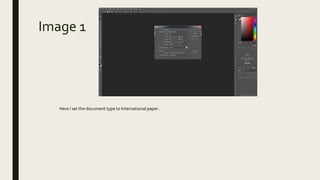
Here I set the document type to International paper.
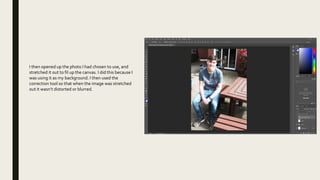
I then opened up the photo I had chosen to use, and
stretched it out to fil up the canvas. I did this because I
was using it as my background. I then used the
correction tool so that when the image was stretched
out it wasn’t distorted or blurred.
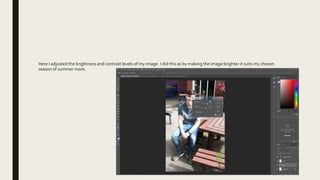
Here I adjusted the brightness and contrast levels of my image. I did this as by making the image brighter it suits my chosen
season of summer more.
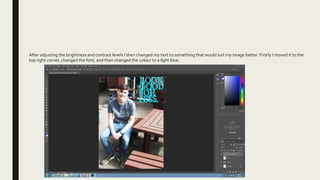
After adjusting the brightness and contrast levels I then changed my text to something that would suit my image better. Firstly I moved it to the
top right corner, changed the font, and then changed the colour to a light blue.
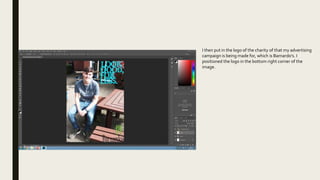
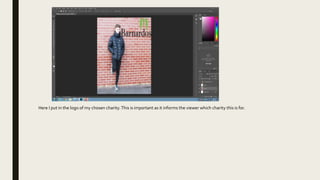
I then put in the logo of the charity of that my advertising
campaign is being made for, which is Barnardo’s. I
positioned the logo in the bottom right corner of the
image.
Image 2
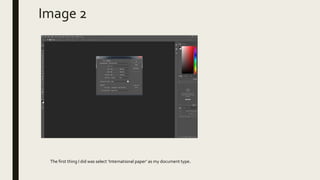
The first thing I did was select ‘International paper’ as my document type.
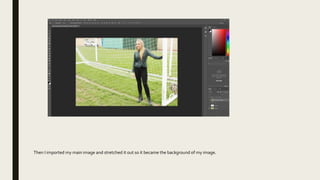
Then I imported my main image and stretched it out so it became the background of my image.
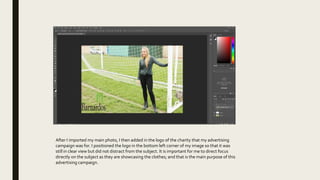
After I imported my main photo, I then added in the logo of the charity that my advertising
campaign was for. I positioned the logo in the bottom left corner of my image so that it was
still in clear view but did not distract from the subject. It is important for me to direct focus
directly on the subject as they are showcasing the clothes; and that is the main purpose of this
advertising campaign.
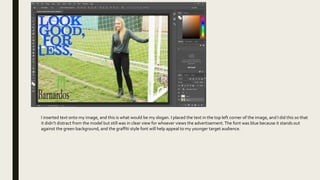
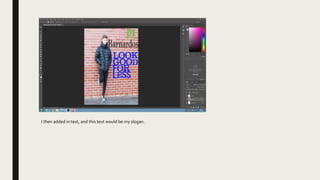
I inserted text onto my image, and this is what would be my slogan. I placed the text in the top left corner of the image, and I did this so that
it didn’t distract from the model but still was in clear view for whoever views the advertisement.The font was blue because it stands out
against the green background, and the graffiti style font will help appeal to my younger target audience.
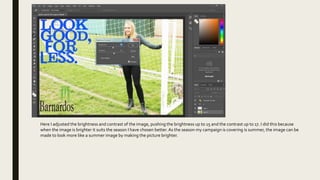
Here I adjusted the brightness and contrast of the image, pushing the brightness up to 15 and the contrast up to 17. I did this because
when the image is brighter it suits the season I have chosen better. As the season my campaign is covering is summer, the image can be
made to look more like a summer image by making the picture brighter.
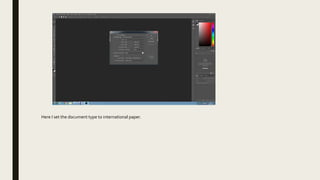
Here I set the document type to international paper.
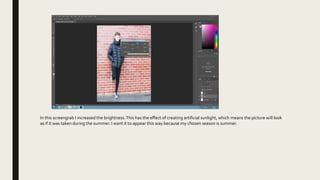
In this screengrab I increased the brightness.This has the effect of creating artificial sunlight, which means the picture will look
as if it was taken during the summer. I want it to appear this way because my chosen season is summer.
Here I put in the logo of my chosen charity.This is important as it informs the viewer which charity this is for.
I then added in text, and this text would be my slogan.

Editing images

  • 1.
  • 2.
    Image 1 Here Iset the document type to International paper.
  • 3.
    I then openedup the photo I had chosen to use, and stretched it out to fil up the canvas. I did this because I was using it as my background. I then used the correction tool so that when the image was stretched out it wasn’t distorted or blurred.
  • 4.
    Here I adjustedthe brightness and contrast levels of my image. I did this as by making the image brighter it suits my chosen season of summer more.
  • 5.
    After adjusting thebrightness and contrast levels I then changed my text to something that would suit my image better. Firstly I moved it to the top right corner, changed the font, and then changed the colour to a light blue.
  • 6.
    I then putin the logo of the charity of that my advertising campaign is being made for, which is Barnardo’s. I positioned the logo in the bottom right corner of the image.
  • 7.
    Image 2 The firstthing I did was select ‘International paper’ as my document type.
  • 8.
    Then I importedmy main image and stretched it out so it became the background of my image.
  • 9.
    After I importedmy main photo, I then added in the logo of the charity that my advertising campaign was for. I positioned the logo in the bottom left corner of my image so that it was still in clear view but did not distract from the subject. It is important for me to direct focus directly on the subject as they are showcasing the clothes; and that is the main purpose of this advertising campaign.
  • 10.
    I inserted textonto my image, and this is what would be my slogan. I placed the text in the top left corner of the image, and I did this so that it didn’t distract from the model but still was in clear view for whoever views the advertisement.The font was blue because it stands out against the green background, and the graffiti style font will help appeal to my younger target audience.
  • 11.
    Here I adjustedthe brightness and contrast of the image, pushing the brightness up to 15 and the contrast up to 17. I did this because when the image is brighter it suits the season I have chosen better. As the season my campaign is covering is summer, the image can be made to look more like a summer image by making the picture brighter.
  • 12.
    Here I setthe document type to international paper.
  • 13.
    In this screengrabI increased the brightness.This has the effect of creating artificial sunlight, which means the picture will look as if it was taken during the summer. I want it to appear this way because my chosen season is summer.
  • 14.
    Here I putin the logo of my chosen charity.This is important as it informs the viewer which charity this is for.
  • 15.
    I then addedin text, and this text would be my slogan.