EDITING PROCESS
By Jamie Hamer
Lost
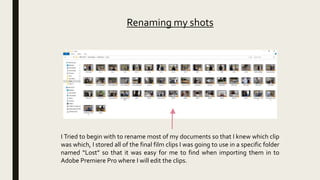
I Tried to begin with to rename most of my documents so that I knew which clip
was which, I stored all of the final film clips I was going to use in a specific folder
named “Lost” so that it was easy for me to find when importing them in to
Adobe Premiere Pro where I will edit the clips.
Renaming my shots
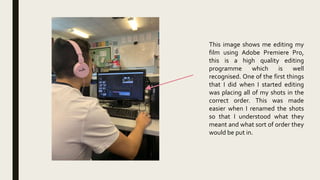
This image shows me editing my
film using Adobe Premiere Pro,
this is a high quality editing
programme which is well
recognised. One of the first things
that I did when I started editing
was placing all of my shots in the
correct order. This was made
easier when I renamed the shots
so that I understood what they
meant and what sort of order they
would be put in.
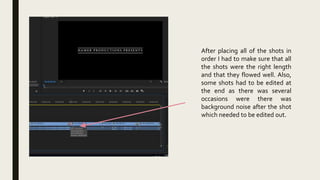
After placing all of the shots in
order I had to make sure that all
the shots were the right length
and that they flowed well. Also,
some shots had to be edited at
the end as there was several
occasions were there was
background noise after the shot
which needed to be edited out.
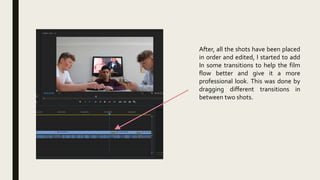
After, all the shots have been placed
in order and edited, I started to add
In some transitions to help the film
flow better and give it a more
professional look. This was done by
dragging different transitions in
between two shots.
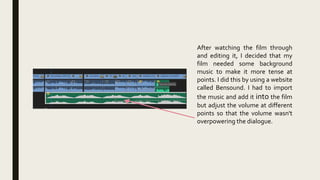
After watching the film through
and editing it, I decided that my
film needed some background
music to make it more tense at
points. I did this by using a website
called Bensound. I had to import
the music and add it into the film
but adjust the volume at different
points so that the volume wasn't
overpowering the dialogue.
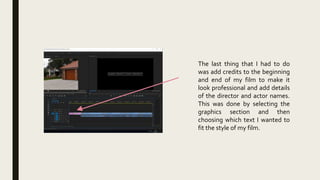
The last thing that I had to do
was add credits to the beginning
and end of my film to make it
look professional and add details
of the director and actor names.
This was done by selecting the
graphics section and then
choosing which text I wanted to
fit the style of my film.
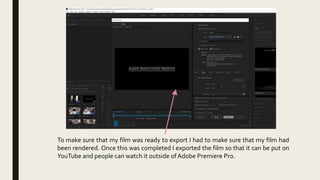
To make sure that my film was ready to export I had to make sure that my film had
been rendered. Once this was completed I exported the film so that it can be put on
YouTube and people can watch it outside ofAdobe Premiere Pro.

Editing evidence

  • 1.
  • 2.
    I Tried tobegin with to rename most of my documents so that I knew which clip was which, I stored all of the final film clips I was going to use in a specific folder named “Lost” so that it was easy for me to find when importing them in to Adobe Premiere Pro where I will edit the clips. Renaming my shots
  • 3.
    This image showsme editing my film using Adobe Premiere Pro, this is a high quality editing programme which is well recognised. One of the first things that I did when I started editing was placing all of my shots in the correct order. This was made easier when I renamed the shots so that I understood what they meant and what sort of order they would be put in.
  • 4.
    After placing allof the shots in order I had to make sure that all the shots were the right length and that they flowed well. Also, some shots had to be edited at the end as there was several occasions were there was background noise after the shot which needed to be edited out.
  • 5.
    After, all theshots have been placed in order and edited, I started to add In some transitions to help the film flow better and give it a more professional look. This was done by dragging different transitions in between two shots.
  • 6.
    After watching thefilm through and editing it, I decided that my film needed some background music to make it more tense at points. I did this by using a website called Bensound. I had to import the music and add it into the film but adjust the volume at different points so that the volume wasn't overpowering the dialogue.
  • 7.
    The last thingthat I had to do was add credits to the beginning and end of my film to make it look professional and add details of the director and actor names. This was done by selecting the graphics section and then choosing which text I wanted to fit the style of my film.
  • 8.
    To make surethat my film was ready to export I had to make sure that my film had been rendered. Once this was completed I exported the film so that it can be put on YouTube and people can watch it outside ofAdobe Premiere Pro.