Editing Process
By James Pugh
Renaming Documents
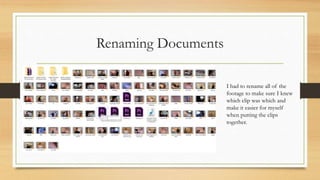
I had to rename all of the
footage to make sure I knew
which clip was which and
make it easier for myself
when putting the clips
together.
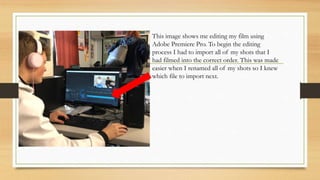
This image shows me editing my film using
Adobe Premiere Pro. To begin the editing
process I had to import all of my shots that I
had filmed into the correct order. This was made
easier when I renamed all of my shots so I knew
which file to import next.
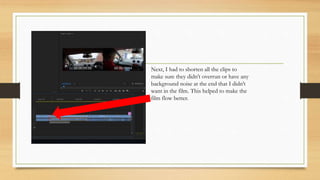
Next, I had to shorten all the clips to
make sure they didn’t overrun or have any
background noise at the end that I didn’t
want in the film. This helped to make the
film flow better.
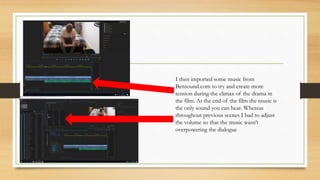
I then imported some music from
Bensound.com to try and create more
tension during the climax of the drama in
the film. At the end of the film the music is
the only sound you can hear. Whereas
throughout previous scenes I had to adjust
the volume so that the music wasn’t
overpowering the dialogue
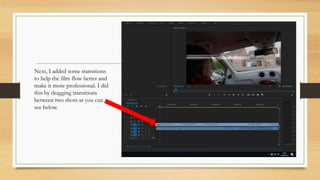
Next, I added some transitions
to help the film flow better and
make it more professional. I did
this by dragging transitions
between two shots as you can
see below.
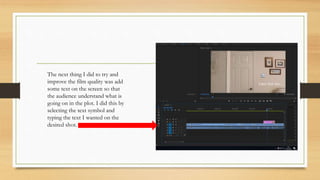
The next thing I did to try and
improve the film quality was add
some text on the screen so that
the audience understand what is
going on in the plot. I did this by
selecting the text symbol and
typing the text I wanted on the
desired shot.
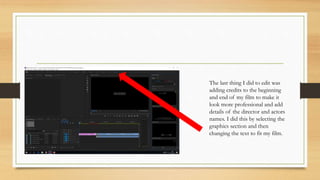
The last thing I did to edit was
adding credits to the beginning
and end of my film to make it
look more professional and add
details of the director and actors
names. I did this by selecting the
graphics section and then
changing the text to fit my film.
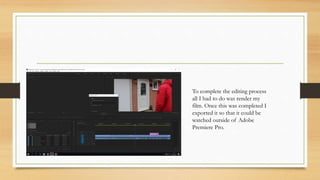
To complete the editing process
all I had to do was render my
film. Once this was completed I
exported it so that it could be
watched outside of Adobe
Premiere Pro.

Editing process

  • 1.
  • 2.
    Renaming Documents I hadto rename all of the footage to make sure I knew which clip was which and make it easier for myself when putting the clips together.
  • 3.
    This image showsme editing my film using Adobe Premiere Pro. To begin the editing process I had to import all of my shots that I had filmed into the correct order. This was made easier when I renamed all of my shots so I knew which file to import next.
  • 4.
    Next, I hadto shorten all the clips to make sure they didn’t overrun or have any background noise at the end that I didn’t want in the film. This helped to make the film flow better.
  • 5.
    I then importedsome music from Bensound.com to try and create more tension during the climax of the drama in the film. At the end of the film the music is the only sound you can hear. Whereas throughout previous scenes I had to adjust the volume so that the music wasn’t overpowering the dialogue
  • 6.
    Next, I addedsome transitions to help the film flow better and make it more professional. I did this by dragging transitions between two shots as you can see below.
  • 7.
    The next thingI did to try and improve the film quality was add some text on the screen so that the audience understand what is going on in the plot. I did this by selecting the text symbol and typing the text I wanted on the desired shot.
  • 8.
    The last thingI did to edit was adding credits to the beginning and end of my film to make it look more professional and add details of the director and actors names. I did this by selecting the graphics section and then changing the text to fit my film.
  • 9.
    To complete theediting process all I had to do was render my film. Once this was completed I exported it so that it could be watched outside of Adobe Premiere Pro.