Hands-On Workshop
Docker Toolbox
www.rackspace.com
• LESSON 1 - PART 1 Intro to Docker (15 min)
– Docker, Cgroups, Kernel Namespaces, and Docker Images
• LESSON 1 - PART 2 – Toolbox Overview (15 min)
– Docker Hub, Trusted build system, Weave, Flannel, etcd, CoreOS, Magnum, Kubernetes, and how Docker works with OpenStack
• Hands-on LAB 1 - Using docker-machine (15 min)
– Spin up Docker containers on Rackspace Cloud, Switch between docker hosts.
– How to run ad-hoc containers on the fly for experimentation, How to get a shell on a Docker host, and a Docker container without running sshd in the container.
– How to move a container from one host to another.
• LESSON 2 – Writing Dockerfiles (15 min)
– Dockerfile Directives
– Demonstration of copying files into containers using bind mounts, and copying files out of containers using “docker cp”.
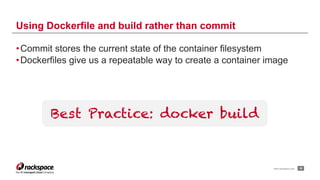
– Why Dockerfiles are better than customized images made manually and stored with commit.
• Hands-on LAB 2 - Writing Dockerfiles (15 min)
– Saving a Dockerfile in a source repo, and using a build script for configuration injection.
• LESSON 3 - Linking and Networking containers (15 min)
– Demonstration of how to use links to communicate between containers on the same host. Using weave to communicate between containers on separate hosts.
• Hands on LAB 3 - Linking containers (15 min)
– Container linking on the same host, and mesh networking between containers on different hosts.
!2
Agenda
www.rackspace.com
Lesson One – Part One

Introduction to Docker
!3
1.1
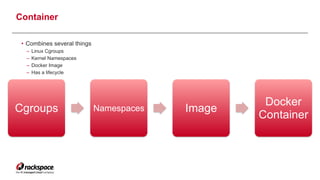
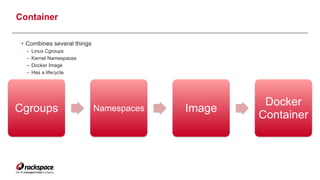
Cgroups Namespaces Image
Docker
Container
Container

• Combines several things
– Linux Cgroups
– Kernel Namespaces
– Docker Image
– Has a lifecycle
4
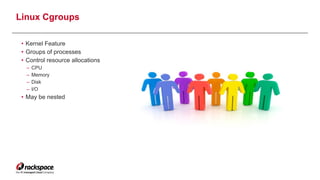
Linux Cgroups

• Kernel Feature
• Groups of processes
• Control resource allocations
– CPU
– Memory
– Disk
– I/O
• May be nested
5
Linux Kernel Namespaces

• Kernel Feature
• Restrict your view of the system
– Mounts (CLONE_NEWNS)
– UTS (CLONE_NEWUTS)
• uname() output
– IPC (CLONE_NEWIPC)
– PID (CLONE_NEWPID)
– Networks (CLONE_NEWNET)
– User (CLONE_NEWUSER)
• Not supported in Docker yet
• Has privileged/unprivileged modes today
• May be nested
6
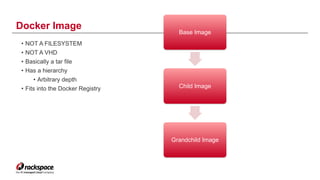
Docker Image
7
Base Image
Child Image
Grandchild Image
• NOT A FILESYSTEM
• NOT A VHD
• Basically a tar file
• Has a hierarchy
• Arbitrary depth
• Fits into the Docker Registry
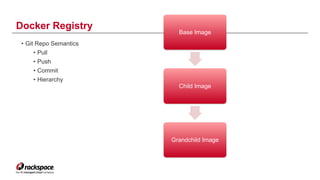
Docker Registry
8
Base Image
Child Image
Grandchild Image
• Git Repo Semantics
• Pull
• Push
• Commit
• Hierarchy
Cgroups Namespaces Image
Docker
Container
Container

• Combines several things
– Linux Cgroups
– Kernel Namespaces
– Docker Image
– Has a lifecycle
9
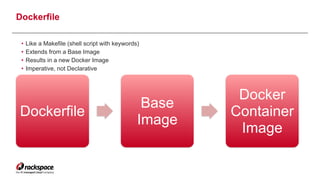
Dockerfile
Base
Image
Docker
Container
Image
Dockerfile

• Like a Makefile (shell script with keywords)
• Extends from a Base Image
• Results in a new Docker Image
• Imperative, not Declarative
10
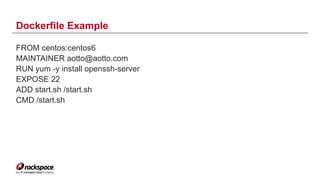
Dockerfile Example
FROM centos:centos6
MAINTAINER aotto@aotto.com
RUN yum -y install openssh-server
EXPOSE 22
ADD start.sh /start.sh
CMD /start.sh
11
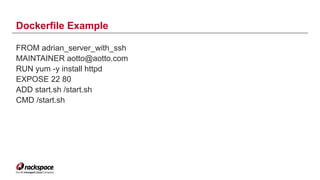
Dockerfile Example
FROM adrian_server_with_ssh
MAINTAINER aotto@aotto.com
RUN yum -y install httpd
EXPOSE 22 80
ADD start.sh /start.sh
CMD /start.sh
12
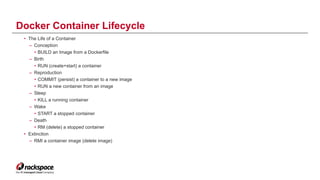
• The Life of a Container
– Conception
• BUILD an Image from a Dockerfile
– Birth
• RUN (create+start) a container
– Reproduction
• COMMIT (persist) a container to a new image
• RUN a new container from an image
– Sleep
• KILL a running container
– Wake
• START a stopped container
– Death
• RM (delete) a stopped container
• Extinction
– RMI a container image (delete image)
Docker Container Lifecycle
13
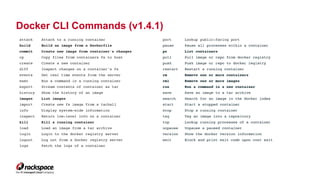
Docker CLI Commands (v1.4.1)
attach Attach to a running container
build Build an image from a Dockerfile
commit Create new image from container's changes
cp Copy files from containers fs to host
create Create a new container
diff Inspect changes on a container's fs
events Get real time events from the server
exec Run a command in a running container
export Stream contents of container as tar
history Show the history of an image
images List images
import Create new fs image from a tarball
info Display system-wide information
inspect Return low-level info on a container
kill Kill a running container
load Load an image from a tar archive
login Login to the docker registry server
logout Log out from a Docker registry server
logs Fetch the logs of a container
port Lookup public-facing port
pause Pause all processes within a container
ps List containers
pull Pull image or repo from docker registry
push Push image or repo to docker registry
restart Restart a running container
rm Remove one or more containers
rmi Remove one or more images
run Run a command in a new container
save Save an image to a tar archive
search Search for an image in the docker index
start Start a stopped container
stop Stop a running container
tag Tag an image into a repository
top Lookup running processes of a container
unpause Unpause a paused container
version Show the docker version information
wait Block and print exit code upon cont exit
14
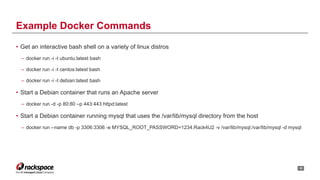
• Get an interactive bash shell on a variety of linux distros
– docker run -i -t ubuntu:latest bash
– docker run -i -t centos:latest bash
– docker run -i -t debian:latest bash
• Start a Debian container that runs an Apache server
– docker run -d -p 80:80 –p 443:443 httpd:latest
• Start a Debian container running mysql that uses the /var/lib/mysql directory from the host
– docker run --name db -p 3306:3306 -e MYSQL_ROOT_PASSWORD=1234.Rack4U2 -v /var/lib/mysql:/var/lib/mysql -d mysql
!15
Example Docker Commands
www.rackspace.com
Lesson One – Part Two

Toolbox Overview
!16
1.2
• Public Repository for base images and community images
• Private Repositories for sale (get one for free per account)
– Revenue model for Docker, Inc.
– Requires authentication to view or update
!17
Docker Hub
• Docker hosted service
• GitHub source code to docker image repository
• Uses Dockerfile from the GitHub repo
!18
Trusted Build System
• Micro-OS
• Kernel + SSH + Docker + etcd + systemd
• Uses “fleet” to create clusters of CoreOS hosts
• Suitable for running microservices
• Automatic updates that require system level reboots
!19
CoreOS
• Both
– Overlay network systems
• Conceptually a way to build a VPN between your containers
– Build a full mesh container-to-container network using VxLAN or UDP tunnels
• Weave
– More mature than most of the container networking solutions
– Expected to work well for deployments of < 200 containers
– Simple user interface that behaves like “docker run”
• Flannel
– Part of the CoreOS project, intended for use with Kubernetes
– Each machine in the cluster is assigned a non-routable subnet.
!20
Weave and Flannel
WWW.RACKSPACE.COM !21
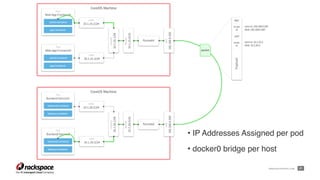
• IP Addresses Assigned per pod
• docker0 bridge per host
• Started by Google
• Opinionated Orchestration for Docker Containers
• Declarative expression of the desired end state
• Arranges services in pods
• Appropriate for most container use cases
• Hosts run a “minion” service that reports to the “master” which tracks the cluster
state
!22
Kubernetes
• Nova-docker
– Virt driver for Nova
– Basic start and stop (basic VM lifecycle)
• Heat Resource
– Create containers on Nova instances
– Represent them in HOT files
– No resource scheduler
– Native management interface only
• Magnum
– OpenStack Service for Containers as a first class resource
• Integrates with Keystone
• Integrates with Heat
• Multi-Tenant
• Asynchronous API
• Concepts for Node, Bay, Pod, Container, Service, Replication Controller
!23
How Docker works with OpenStack
www.rackspace.com
Hands-On Lab 1

Introduction to Docker
!24
LAB 1
www.rackspace.com
• Set your shell environment variables – Region value is case sensitive!
export OS_REGION_NAME=IAD
export OS_USERNAME=jdoe
export OS_API_KEY=278db780c7d943a1bc0b41ac359d01a8
!25
LAB 1.0 – Get Ready
www.rackspace.com
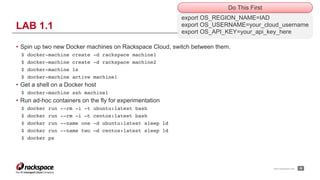
• Spin up two new Docker machines on Rackspace Cloud, switch between them.
$ docker-machine create -d rackspace machine1
$ docker-machine create -d rackspace machine2
$ docker-machine ls
$ docker-machine active machine1
• Get a shell on a Docker host
$ docker-machine ssh machine1
• Run ad-hoc containers on the fly for experimentation
$ docker run --rm -i -t ubuntu:latest bash
$ docker run --rm -i –t centos:latest bash
$ docker run --name one -d ubuntu:latest sleep 1d
$ docker run --name two –d centos:latest sleep 1d
$ docker ps
!26
LAB 1.1
export OS_REGION_NAME=IAD
export OS_USERNAME=your_cloud_username
export OS_API_KEY=your_api_key_here
Do This First
www.rackspace.com
Alternate Approach - nsenter
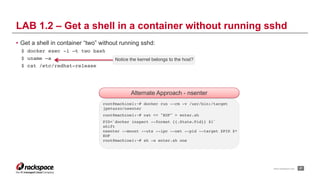
• Get a shell in container “two” without running sshd:
$ docker exec -i –t two bash
$ uname –a
$ cat /etc/redhat-release
!27
LAB 1.2 – Get a shell in a container without running sshd
root@machine1:~# docker run --rm -v /usr/bin:/target
jpetazzo/nsenter
root@machine1:~# cat << "EOF" > enter.sh
PID=`docker inspect --format {{.State.Pid}} $1`
shift
nsenter --mount --uts --ipc --net --pid --target $PID $*
EOF
root@machine1:~# sh -x enter.sh one
Notice the kernel belongs to the host?
www.rackspace.com
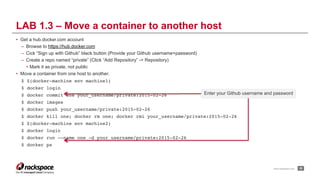
• Get a hub.docker.com account
– Browse to https://hub.docker.com
– Cick “Sign up with Github” black button (Provide your Github username+password)
– Create a repo named “private” (Click “Add Repository” -> Repository)
• Mark it as private, not public
• Move a container from one host to another.
$ $(docker-machine env machine1)
$ docker login
$ docker commit one your_username/private:2015-02-26
$ docker images
$ docker push your_username/private:2015-02-26
$ docker kill one; docker rm one; docker rmi your_username/private:2015-02-26
$ $(docker-machine env machine2)
$ docker login
$ docker run --name one -d your_username/private:2015-02-26
$ docker ps
!28
LAB 1.3 – Move a container to another host
Enter your Github username and password
www.rackspace.com
Break
!29
www.rackspace.com
Lesson Two 

Writing Dockerfiles
!30
2
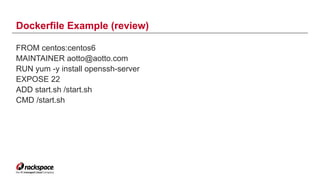
Dockerfile Example (review)
FROM centos:centos6
MAINTAINER aotto@aotto.com
RUN yum -y install openssh-server
EXPOSE 22
ADD start.sh /start.sh
CMD /start.sh
31
www.rackspace.com
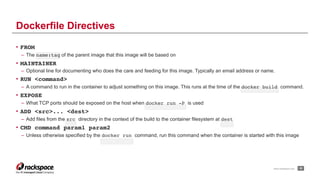
• FROM
– The name:tag of the parent image that this image will be based on
• MAINTAINER
– Optional line for documenting who does the care and feeding for this image. Typically an email address or name.
• RUN <command>
– A command to run in the container to adjust something on this image. This runs at the time of the docker build command.
• EXPOSE
– What TCP ports should be exposed on the host when docker run -P is used
• ADD <src>... <dest>
– Add files from the src directory in the context of the build to the container filesystem at dest
• CMD command param1 param2
– Unless otherwise specified by the docker run command, run this command when the container is started with this image
!32
Dockerfile Directives
www.rackspace.com
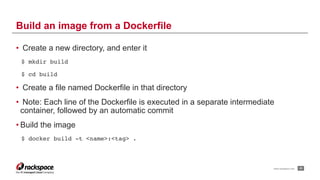
• Create a new directory, and enter it
$ mkdir build
$ cd build
• Create a file named Dockerfile in that directory
• Note: Each line of the Dockerfile is executed in a separate intermediate
container, followed by an automatic commit
• Build the image
$ docker build -t <name>:<tag> .
!33
Build an image from a Dockerfile
www.rackspace.com
•Copying files into containers using bind mounts
•Copying files out of containers using docker cp
!34
Demonstration
demo
www.rackspace.com
•Commit stores the current state of the container filesystem
•Dockerfiles give us a repeatable way to create a container image
!35
Using Dockerfile and build rather than commit
Best Practice: docker build
www.rackspace.com
Hands-On Lab 2

Writing Dockerfiles
!36
LAB 2
www.rackspace.com
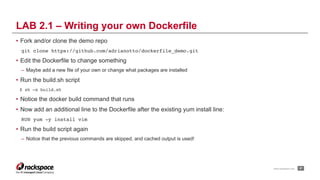
• Fork and/or clone the demo repo
git clone https://github.com/adrianotto/dockerfile_demo.git
• Edit the Dockerfile to change something
– Maybe add a new file of your own or change what packages are installed
• Run the build.sh script
$ sh –x build.sh
• Notice the docker build command that runs
• Now add an additional line to the Dockerfile after the existing yum install line:
RUN yum -y install vim
• Run the build script again
– Notice that the previous commands are skipped, and cached output is used!
!37
LAB 2.1 – Writing your own Dockerfile
www.rackspace.com
Break
!38
www.rackspace.com
Lesson Three 

Linking and Networking Containers
!39
3
www.rackspace.com
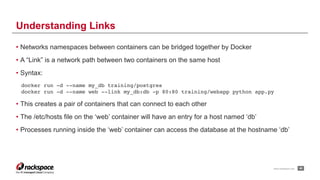
• Networks namespaces between containers can be bridged together by Docker
• A “Link” is a network path between two containers on the same host
• Syntax:
docker run -d --name my_db training/postgres
docker run -d --name web --link my_db:db -p 80:80 training/webapp python app.py
• This creates a pair of containers that can connect to each other
• The /etc/hosts file on the ‘web’ container will have an entry for a host named ‘db’
• Processes running inside the ‘web’ container can access the database at the hostname ‘db’
!40
Understanding Links
www.rackspace.com
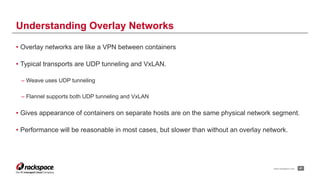
• Overlay networks are like a VPN between containers
• Typical transports are UDP tunneling and VxLAN.
– Weave uses UDP tunneling
– Flannel supports both UDP tunneling and VxLAN
• Gives appearance of containers on separate hosts are on the same physical network segment.
• Performance will be reasonable in most cases, but slower than without an overlay network.
!41
Understanding Overlay Networks
www.rackspace.com
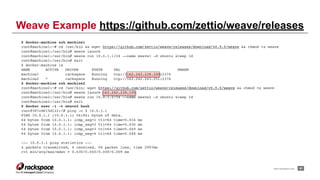
$ docker-machine ssh machine1
root@machine1:~# cd /usr/bin && wget https://github.com/zettio/weave/releases/download/v0.9.0/weave && chmod +x weave
root@machine1:/usr/bin# weave launch
root@machine1:/usr/bin# weave run 10.0.1.1/24 --name weave1 -d ubuntu sleep 1d
root@machine1:/usr/bin# exit
$ docker-machine ls
NAME ACTIVE DRIVER STATE URL SWARM
machine1 rackspace Running tcp://162.242.239.109:2376
machine2 * rackspace Running tcp://162.242.243.251:2376
$ docker-machine ssh machine2
root@machine2:~# cd /usr/bin; wget https://github.com/zettio/weave/releases/download/v0.9.0/weave && chmod +x weave
root@machine2:/usr/bin# weave launch 162.242.239.109
root@machine2:/usr/bin# weave run 10.0.1.2/24 --name weave2 -d ubuntu sleep 1d
root@machine2:/usr/bin# exit
$ docker exec -i -t weave2 bash
root@587cd615d122:/# ping -c 4 10.0.1.1
PING 10.0.1.1 (10.0.1.1) 56(84) bytes of data.
64 bytes from 10.0.1.1: icmp_seq=1 ttl=64 time=0.034 ms
64 bytes from 10.0.1.1: icmp_seq=2 ttl=64 time=0.030 ms
64 bytes from 10.0.1.1: icmp_seq=3 ttl=64 time=0.049 ms
64 bytes from 10.0.1.1: icmp_seq=4 ttl=64 time=0.048 ms
--- 10.0.1.1 ping statistics ---
4 packets transmitted, 4 received, 0% packet loss, time 2997ms
rtt min/avg/max/mdev = 0.030/0.040/0.049/0.009 ms
!42
Weave Example https://github.com/zettio/weave/releases
www.rackspace.com
Hands-On Lab 3

Container Linking
!43
LAB 3
www.rackspace.com
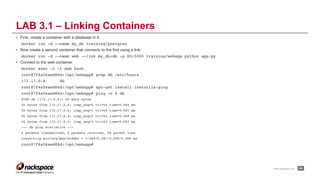
• First, create a container with a database in it:
docker run -d --name my_db training/postgres
• Now create a second container that connects to the first using a link:
docker run -d --name web --link my_db:db -p 80:5000 training/webapp python app.py
• Connect to the web container
docker exec -i -t web bash
root@7f4a56aed86d:/opt/webapp# grep db /etc/hosts
172.17.0.4 db
root@7f4a56aed86d:/opt/webapp# apt-get install inetutils-ping
root@7f4a56aed86d:/opt/webapp# ping –c 4 db
PING db (172.17.0.4): 48 data bytes
56 bytes from 172.17.0.4: icmp_seq=0 ttl=64 time=0.084 ms
56 bytes from 172.17.0.4: icmp_seq=1 ttl=64 time=0.087 ms
56 bytes from 172.17.0.4: icmp_seq=2 ttl=64 time=0.089 ms
56 bytes from 172.17.0.4: icmp_seq=3 ttl=64 time=0.087 ms
--- db ping statistics ---
4 packets transmitted, 4 packets received, 0% packet loss
round-trip min/avg/max/stddev = 0.084/0.087/0.089/0.000 ms
root@7f4a56aed86d:/opt/webapp#
!44
LAB 3.1 – Linking Containers
www.rackspace.com
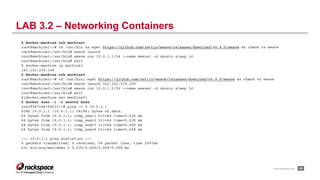
$ docker-machine ssh machine1
root@machine1:~# cd /usr/bin && wget https://github.com/zettio/weave/releases/download/v0.9.0/weave && chmod +x weave
root@machine1:/usr/bin# weave launch
root@machine1:/usr/bin# weave run 10.0.1.1/24 --name weave1 -d ubuntu sleep 1d
root@machine1:/usr/bin# exit
$ docker-machine ip machine1
162.242.239.109
$ docker-machine ssh machine2
root@machine2:~# cd /usr/bin; wget https://github.com/zettio/weave/releases/download/v0.9.0/weave && chmod +x weave
root@machine2:/usr/bin# weave launch 162.242.239.109
root@machine2:/usr/bin# weave run 10.0.1.2/24 --name weave2 -d ubuntu sleep 1d
root@machine2:/usr/bin# exit
$(docker-machine env machine2)
$ docker exec -i -t weave2 bash
root@587cd615d122:/# ping -c 4 10.0.1.1
PING 10.0.1.1 (10.0.1.1) 56(84) bytes of data.
64 bytes from 10.0.1.1: icmp_seq=1 ttl=64 time=0.034 ms
64 bytes from 10.0.1.1: icmp_seq=2 ttl=64 time=0.030 ms
64 bytes from 10.0.1.1: icmp_seq=3 ttl=64 time=0.049 ms
64 bytes from 10.0.1.1: icmp_seq=4 ttl=64 time=0.048 ms
--- 10.0.1.1 ping statistics ---
4 packets transmitted, 4 received, 0% packet loss, time 2997ms
rtt min/avg/max/mdev = 0.030/0.040/0.049/0.009 ms
!45
LAB 3.2 – Networking Containers
www.rackspace.com
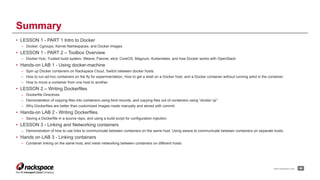
• LESSON 1 - PART 1 Intro to Docker
– Docker, Cgroups, Kernel Namespaces, and Docker Images
• LESSON 1 - PART 2 – Toolbox Overview
– Docker Hub, Trusted build system, Weave, Flannel, etcd, CoreOS, Magnum, Kubernetes, and how Docker works with OpenStack
• Hands-on LAB 1 - Using docker-machine
– Spin up Docker containers on Rackspace Cloud, Switch between docker hosts.
– How to run ad-hoc containers on the fly for experimentation, How to get a shell on a Docker host, and a Docker container without running sshd in the container.
– How to move a container from one host to another.
• LESSON 2 – Writing Dockerfiles
– Dockerfile Directives
– Demonstration of copying files into containers using bind mounts, and copying files out of containers using “docker cp”.
– Why Dockerfiles are better than customized images made manually and stored with commit.
• Hands-on LAB 2 - Writing Dockerfiles.
– Saving a Dockerfile in a source repo, and using a build script for configuration injection.
• LESSON 3 - Linking and Networking containers
– Demonstration of how to use links to communicate between containers on the same host. Using weave to communicate between containers on separate hosts.
• Hands on LAB 3 - Linking containers
– Container linking on the same host, and mesh networking between containers on different hosts.
!46
Summary
www.rackspace.com
• Adrian Otto
• Simon Jakesch
• Thomas Maddox
• Ash Wilson
• Don Schenck
!47
Credits
THANK YOU
RACKSPACE® | 1 FANATICAL PLACE, CITY OF WINDCREST | SAN ANTONIO, TX 78218

US SALES: 1-800-961-2888 | US SUPPORT: 1-800-961-4454 | WWW.RACKSPACE.COM
© RACKSPACE LTD. | RACKSPACE® AND FANATICAL SUPPORT® ARE SERVICE MARKS OF RACKSPACE US, INC. REGISTERED IN THE UNITED STATES AND OTHER COUNTRIES. | WWW.RACKSPACE.COM

Using Docker with OpenStack - Hands On!

  • 1.
  • 2.
    www.rackspace.com • LESSON 1- PART 1 Intro to Docker (15 min) – Docker, Cgroups, Kernel Namespaces, and Docker Images • LESSON 1 - PART 2 – Toolbox Overview (15 min) – Docker Hub, Trusted build system, Weave, Flannel, etcd, CoreOS, Magnum, Kubernetes, and how Docker works with OpenStack • Hands-on LAB 1 - Using docker-machine (15 min) – Spin up Docker containers on Rackspace Cloud, Switch between docker hosts. – How to run ad-hoc containers on the fly for experimentation, How to get a shell on a Docker host, and a Docker container without running sshd in the container. – How to move a container from one host to another. • LESSON 2 – Writing Dockerfiles (15 min) – Dockerfile Directives – Demonstration of copying files into containers using bind mounts, and copying files out of containers using “docker cp”. – Why Dockerfiles are better than customized images made manually and stored with commit. • Hands-on LAB 2 - Writing Dockerfiles (15 min) – Saving a Dockerfile in a source repo, and using a build script for configuration injection. • LESSON 3 - Linking and Networking containers (15 min) – Demonstration of how to use links to communicate between containers on the same host. Using weave to communicate between containers on separate hosts. • Hands on LAB 3 - Linking containers (15 min) – Container linking on the same host, and mesh networking between containers on different hosts. !2 Agenda
  • 3.
    www.rackspace.com Lesson One –Part One
 Introduction to Docker !3 1.1
  • 4.
    Cgroups Namespaces Image Docker Container Container
 •Combines several things – Linux Cgroups – Kernel Namespaces – Docker Image – Has a lifecycle 4
  • 5.
    Linux Cgroups
 • KernelFeature • Groups of processes • Control resource allocations – CPU – Memory – Disk – I/O • May be nested 5
  • 6.
    Linux Kernel Namespaces
 •Kernel Feature • Restrict your view of the system – Mounts (CLONE_NEWNS) – UTS (CLONE_NEWUTS) • uname() output – IPC (CLONE_NEWIPC) – PID (CLONE_NEWPID) – Networks (CLONE_NEWNET) – User (CLONE_NEWUSER) • Not supported in Docker yet • Has privileged/unprivileged modes today • May be nested 6
  • 7.
    Docker Image 7 Base Image ChildImage Grandchild Image • NOT A FILESYSTEM • NOT A VHD • Basically a tar file • Has a hierarchy • Arbitrary depth • Fits into the Docker Registry
  • 8.
    Docker Registry 8 Base Image ChildImage Grandchild Image • Git Repo Semantics • Pull • Push • Commit • Hierarchy
  • 9.
    Cgroups Namespaces Image Docker Container Container
 •Combines several things – Linux Cgroups – Kernel Namespaces – Docker Image – Has a lifecycle 9
  • 10.
    Dockerfile Base Image Docker Container Image Dockerfile
 • Like aMakefile (shell script with keywords) • Extends from a Base Image • Results in a new Docker Image • Imperative, not Declarative 10
  • 11.
    Dockerfile Example FROM centos:centos6 MAINTAINERaotto@aotto.com RUN yum -y install openssh-server EXPOSE 22 ADD start.sh /start.sh CMD /start.sh 11
  • 12.
    Dockerfile Example FROM adrian_server_with_ssh MAINTAINERaotto@aotto.com RUN yum -y install httpd EXPOSE 22 80 ADD start.sh /start.sh CMD /start.sh 12
  • 13.
    • The Lifeof a Container – Conception • BUILD an Image from a Dockerfile – Birth • RUN (create+start) a container – Reproduction • COMMIT (persist) a container to a new image • RUN a new container from an image – Sleep • KILL a running container – Wake • START a stopped container – Death • RM (delete) a stopped container • Extinction – RMI a container image (delete image) Docker Container Lifecycle 13
  • 14.
    Docker CLI Commands(v1.4.1) attach Attach to a running container build Build an image from a Dockerfile commit Create new image from container's changes cp Copy files from containers fs to host create Create a new container diff Inspect changes on a container's fs events Get real time events from the server exec Run a command in a running container export Stream contents of container as tar history Show the history of an image images List images import Create new fs image from a tarball info Display system-wide information inspect Return low-level info on a container kill Kill a running container load Load an image from a tar archive login Login to the docker registry server logout Log out from a Docker registry server logs Fetch the logs of a container port Lookup public-facing port pause Pause all processes within a container ps List containers pull Pull image or repo from docker registry push Push image or repo to docker registry restart Restart a running container rm Remove one or more containers rmi Remove one or more images run Run a command in a new container save Save an image to a tar archive search Search for an image in the docker index start Start a stopped container stop Stop a running container tag Tag an image into a repository top Lookup running processes of a container unpause Unpause a paused container version Show the docker version information wait Block and print exit code upon cont exit 14
  • 15.
    • Get aninteractive bash shell on a variety of linux distros – docker run -i -t ubuntu:latest bash – docker run -i -t centos:latest bash – docker run -i -t debian:latest bash • Start a Debian container that runs an Apache server – docker run -d -p 80:80 –p 443:443 httpd:latest • Start a Debian container running mysql that uses the /var/lib/mysql directory from the host – docker run --name db -p 3306:3306 -e MYSQL_ROOT_PASSWORD=1234.Rack4U2 -v /var/lib/mysql:/var/lib/mysql -d mysql !15 Example Docker Commands
  • 16.
    www.rackspace.com Lesson One –Part Two
 Toolbox Overview !16 1.2
  • 17.
    • Public Repositoryfor base images and community images • Private Repositories for sale (get one for free per account) – Revenue model for Docker, Inc. – Requires authentication to view or update !17 Docker Hub
  • 18.
    • Docker hostedservice • GitHub source code to docker image repository • Uses Dockerfile from the GitHub repo !18 Trusted Build System
  • 19.
    • Micro-OS • Kernel+ SSH + Docker + etcd + systemd • Uses “fleet” to create clusters of CoreOS hosts • Suitable for running microservices • Automatic updates that require system level reboots !19 CoreOS
  • 20.
    • Both – Overlaynetwork systems • Conceptually a way to build a VPN between your containers – Build a full mesh container-to-container network using VxLAN or UDP tunnels • Weave – More mature than most of the container networking solutions – Expected to work well for deployments of < 200 containers – Simple user interface that behaves like “docker run” • Flannel – Part of the CoreOS project, intended for use with Kubernetes – Each machine in the cluster is assigned a non-routable subnet. !20 Weave and Flannel
  • 21.
    WWW.RACKSPACE.COM !21 • IPAddresses Assigned per pod • docker0 bridge per host
  • 22.
    • Started byGoogle • Opinionated Orchestration for Docker Containers • Declarative expression of the desired end state • Arranges services in pods • Appropriate for most container use cases • Hosts run a “minion” service that reports to the “master” which tracks the cluster state !22 Kubernetes
  • 23.
    • Nova-docker – Virtdriver for Nova – Basic start and stop (basic VM lifecycle) • Heat Resource – Create containers on Nova instances – Represent them in HOT files – No resource scheduler – Native management interface only • Magnum – OpenStack Service for Containers as a first class resource • Integrates with Keystone • Integrates with Heat • Multi-Tenant • Asynchronous API • Concepts for Node, Bay, Pod, Container, Service, Replication Controller !23 How Docker works with OpenStack
  • 24.
  • 25.
    www.rackspace.com • Set yourshell environment variables – Region value is case sensitive! export OS_REGION_NAME=IAD export OS_USERNAME=jdoe export OS_API_KEY=278db780c7d943a1bc0b41ac359d01a8 !25 LAB 1.0 – Get Ready
  • 26.
    www.rackspace.com • Spin uptwo new Docker machines on Rackspace Cloud, switch between them. $ docker-machine create -d rackspace machine1 $ docker-machine create -d rackspace machine2 $ docker-machine ls $ docker-machine active machine1 • Get a shell on a Docker host $ docker-machine ssh machine1 • Run ad-hoc containers on the fly for experimentation $ docker run --rm -i -t ubuntu:latest bash $ docker run --rm -i –t centos:latest bash $ docker run --name one -d ubuntu:latest sleep 1d $ docker run --name two –d centos:latest sleep 1d $ docker ps !26 LAB 1.1 export OS_REGION_NAME=IAD export OS_USERNAME=your_cloud_username export OS_API_KEY=your_api_key_here Do This First
  • 27.
    www.rackspace.com Alternate Approach -nsenter • Get a shell in container “two” without running sshd: $ docker exec -i –t two bash $ uname –a $ cat /etc/redhat-release !27 LAB 1.2 – Get a shell in a container without running sshd root@machine1:~# docker run --rm -v /usr/bin:/target jpetazzo/nsenter root@machine1:~# cat << "EOF" > enter.sh PID=`docker inspect --format {{.State.Pid}} $1` shift nsenter --mount --uts --ipc --net --pid --target $PID $* EOF root@machine1:~# sh -x enter.sh one Notice the kernel belongs to the host?
  • 28.
    www.rackspace.com • Get ahub.docker.com account – Browse to https://hub.docker.com – Cick “Sign up with Github” black button (Provide your Github username+password) – Create a repo named “private” (Click “Add Repository” -> Repository) • Mark it as private, not public • Move a container from one host to another. $ $(docker-machine env machine1) $ docker login $ docker commit one your_username/private:2015-02-26 $ docker images $ docker push your_username/private:2015-02-26 $ docker kill one; docker rm one; docker rmi your_username/private:2015-02-26 $ $(docker-machine env machine2) $ docker login $ docker run --name one -d your_username/private:2015-02-26 $ docker ps !28 LAB 1.3 – Move a container to another host Enter your Github username and password
  • 29.
  • 30.
  • 31.
    Dockerfile Example (review) FROMcentos:centos6 MAINTAINER aotto@aotto.com RUN yum -y install openssh-server EXPOSE 22 ADD start.sh /start.sh CMD /start.sh 31
  • 32.
    www.rackspace.com • FROM – Thename:tag of the parent image that this image will be based on • MAINTAINER – Optional line for documenting who does the care and feeding for this image. Typically an email address or name. • RUN <command> – A command to run in the container to adjust something on this image. This runs at the time of the docker build command. • EXPOSE – What TCP ports should be exposed on the host when docker run -P is used • ADD <src>... <dest> – Add files from the src directory in the context of the build to the container filesystem at dest • CMD command param1 param2 – Unless otherwise specified by the docker run command, run this command when the container is started with this image !32 Dockerfile Directives
  • 33.
    www.rackspace.com • Create anew directory, and enter it $ mkdir build $ cd build • Create a file named Dockerfile in that directory • Note: Each line of the Dockerfile is executed in a separate intermediate container, followed by an automatic commit • Build the image $ docker build -t <name>:<tag> . !33 Build an image from a Dockerfile
  • 34.
    www.rackspace.com •Copying files intocontainers using bind mounts •Copying files out of containers using docker cp !34 Demonstration demo
  • 35.
    www.rackspace.com •Commit stores thecurrent state of the container filesystem •Dockerfiles give us a repeatable way to create a container image !35 Using Dockerfile and build rather than commit Best Practice: docker build
  • 36.
  • 37.
    www.rackspace.com • Fork and/orclone the demo repo git clone https://github.com/adrianotto/dockerfile_demo.git • Edit the Dockerfile to change something – Maybe add a new file of your own or change what packages are installed • Run the build.sh script $ sh –x build.sh • Notice the docker build command that runs • Now add an additional line to the Dockerfile after the existing yum install line: RUN yum -y install vim • Run the build script again – Notice that the previous commands are skipped, and cached output is used! !37 LAB 2.1 – Writing your own Dockerfile
  • 38.
  • 39.
    www.rackspace.com Lesson Three 
 Linkingand Networking Containers !39 3
  • 40.
    www.rackspace.com • Networks namespacesbetween containers can be bridged together by Docker • A “Link” is a network path between two containers on the same host • Syntax: docker run -d --name my_db training/postgres docker run -d --name web --link my_db:db -p 80:80 training/webapp python app.py • This creates a pair of containers that can connect to each other • The /etc/hosts file on the ‘web’ container will have an entry for a host named ‘db’ • Processes running inside the ‘web’ container can access the database at the hostname ‘db’ !40 Understanding Links
  • 41.
    www.rackspace.com • Overlay networksare like a VPN between containers • Typical transports are UDP tunneling and VxLAN. – Weave uses UDP tunneling – Flannel supports both UDP tunneling and VxLAN • Gives appearance of containers on separate hosts are on the same physical network segment. • Performance will be reasonable in most cases, but slower than without an overlay network. !41 Understanding Overlay Networks
  • 42.
    www.rackspace.com $ docker-machine sshmachine1 root@machine1:~# cd /usr/bin && wget https://github.com/zettio/weave/releases/download/v0.9.0/weave && chmod +x weave root@machine1:/usr/bin# weave launch root@machine1:/usr/bin# weave run 10.0.1.1/24 --name weave1 -d ubuntu sleep 1d root@machine1:/usr/bin# exit $ docker-machine ls NAME ACTIVE DRIVER STATE URL SWARM machine1 rackspace Running tcp://162.242.239.109:2376 machine2 * rackspace Running tcp://162.242.243.251:2376 $ docker-machine ssh machine2 root@machine2:~# cd /usr/bin; wget https://github.com/zettio/weave/releases/download/v0.9.0/weave && chmod +x weave root@machine2:/usr/bin# weave launch 162.242.239.109 root@machine2:/usr/bin# weave run 10.0.1.2/24 --name weave2 -d ubuntu sleep 1d root@machine2:/usr/bin# exit $ docker exec -i -t weave2 bash root@587cd615d122:/# ping -c 4 10.0.1.1 PING 10.0.1.1 (10.0.1.1) 56(84) bytes of data. 64 bytes from 10.0.1.1: icmp_seq=1 ttl=64 time=0.034 ms 64 bytes from 10.0.1.1: icmp_seq=2 ttl=64 time=0.030 ms 64 bytes from 10.0.1.1: icmp_seq=3 ttl=64 time=0.049 ms 64 bytes from 10.0.1.1: icmp_seq=4 ttl=64 time=0.048 ms --- 10.0.1.1 ping statistics --- 4 packets transmitted, 4 received, 0% packet loss, time 2997ms rtt min/avg/max/mdev = 0.030/0.040/0.049/0.009 ms !42 Weave Example https://github.com/zettio/weave/releases
  • 43.
  • 44.
    www.rackspace.com • First, createa container with a database in it: docker run -d --name my_db training/postgres • Now create a second container that connects to the first using a link: docker run -d --name web --link my_db:db -p 80:5000 training/webapp python app.py • Connect to the web container docker exec -i -t web bash root@7f4a56aed86d:/opt/webapp# grep db /etc/hosts 172.17.0.4 db root@7f4a56aed86d:/opt/webapp# apt-get install inetutils-ping root@7f4a56aed86d:/opt/webapp# ping –c 4 db PING db (172.17.0.4): 48 data bytes 56 bytes from 172.17.0.4: icmp_seq=0 ttl=64 time=0.084 ms 56 bytes from 172.17.0.4: icmp_seq=1 ttl=64 time=0.087 ms 56 bytes from 172.17.0.4: icmp_seq=2 ttl=64 time=0.089 ms 56 bytes from 172.17.0.4: icmp_seq=3 ttl=64 time=0.087 ms --- db ping statistics --- 4 packets transmitted, 4 packets received, 0% packet loss round-trip min/avg/max/stddev = 0.084/0.087/0.089/0.000 ms root@7f4a56aed86d:/opt/webapp# !44 LAB 3.1 – Linking Containers
  • 45.
    www.rackspace.com $ docker-machine sshmachine1 root@machine1:~# cd /usr/bin && wget https://github.com/zettio/weave/releases/download/v0.9.0/weave && chmod +x weave root@machine1:/usr/bin# weave launch root@machine1:/usr/bin# weave run 10.0.1.1/24 --name weave1 -d ubuntu sleep 1d root@machine1:/usr/bin# exit $ docker-machine ip machine1 162.242.239.109 $ docker-machine ssh machine2 root@machine2:~# cd /usr/bin; wget https://github.com/zettio/weave/releases/download/v0.9.0/weave && chmod +x weave root@machine2:/usr/bin# weave launch 162.242.239.109 root@machine2:/usr/bin# weave run 10.0.1.2/24 --name weave2 -d ubuntu sleep 1d root@machine2:/usr/bin# exit $(docker-machine env machine2) $ docker exec -i -t weave2 bash root@587cd615d122:/# ping -c 4 10.0.1.1 PING 10.0.1.1 (10.0.1.1) 56(84) bytes of data. 64 bytes from 10.0.1.1: icmp_seq=1 ttl=64 time=0.034 ms 64 bytes from 10.0.1.1: icmp_seq=2 ttl=64 time=0.030 ms 64 bytes from 10.0.1.1: icmp_seq=3 ttl=64 time=0.049 ms 64 bytes from 10.0.1.1: icmp_seq=4 ttl=64 time=0.048 ms --- 10.0.1.1 ping statistics --- 4 packets transmitted, 4 received, 0% packet loss, time 2997ms rtt min/avg/max/mdev = 0.030/0.040/0.049/0.009 ms !45 LAB 3.2 – Networking Containers
  • 46.
    www.rackspace.com • LESSON 1- PART 1 Intro to Docker – Docker, Cgroups, Kernel Namespaces, and Docker Images • LESSON 1 - PART 2 – Toolbox Overview – Docker Hub, Trusted build system, Weave, Flannel, etcd, CoreOS, Magnum, Kubernetes, and how Docker works with OpenStack • Hands-on LAB 1 - Using docker-machine – Spin up Docker containers on Rackspace Cloud, Switch between docker hosts. – How to run ad-hoc containers on the fly for experimentation, How to get a shell on a Docker host, and a Docker container without running sshd in the container. – How to move a container from one host to another. • LESSON 2 – Writing Dockerfiles – Dockerfile Directives – Demonstration of copying files into containers using bind mounts, and copying files out of containers using “docker cp”. – Why Dockerfiles are better than customized images made manually and stored with commit. • Hands-on LAB 2 - Writing Dockerfiles. – Saving a Dockerfile in a source repo, and using a build script for configuration injection. • LESSON 3 - Linking and Networking containers – Demonstration of how to use links to communicate between containers on the same host. Using weave to communicate between containers on separate hosts. • Hands on LAB 3 - Linking containers – Container linking on the same host, and mesh networking between containers on different hosts. !46 Summary
  • 47.
    www.rackspace.com • Adrian Otto •Simon Jakesch • Thomas Maddox • Ash Wilson • Don Schenck !47 Credits
  • 48.
    THANK YOU RACKSPACE® |1 FANATICAL PLACE, CITY OF WINDCREST | SAN ANTONIO, TX 78218 US SALES: 1-800-961-2888 | US SUPPORT: 1-800-961-4454 | WWW.RACKSPACE.COM © RACKSPACE LTD. | RACKSPACE® AND FANATICAL SUPPORT® ARE SERVICE MARKS OF RACKSPACE US, INC. REGISTERED IN THE UNITED STATES AND OTHER COUNTRIES. | WWW.RACKSPACE.COM