Docker Paris meetup #1 – 10/02/2013
Victor Vieux, dotCloud Inc.
@vieux
Outline
•  Intro to Docker
•  Installing Docker
•  Basic commands
•  Demo: Simple deployment
•  Questions
Quick survey
•  How many people have heard of Docker
before this Meetup ?
•  How many people have tried Docker ?
•  How many people are using Docker in
production ?
Introduction to Docker
Origins of Docker
•  Docker is a rewrite of similar code that
currently powers the dotCloud PaaS
•  Original version written in Python (like
dotCloud PaaS), now written in Go
•  It’s a young project (~6 months), but with a
huge community.
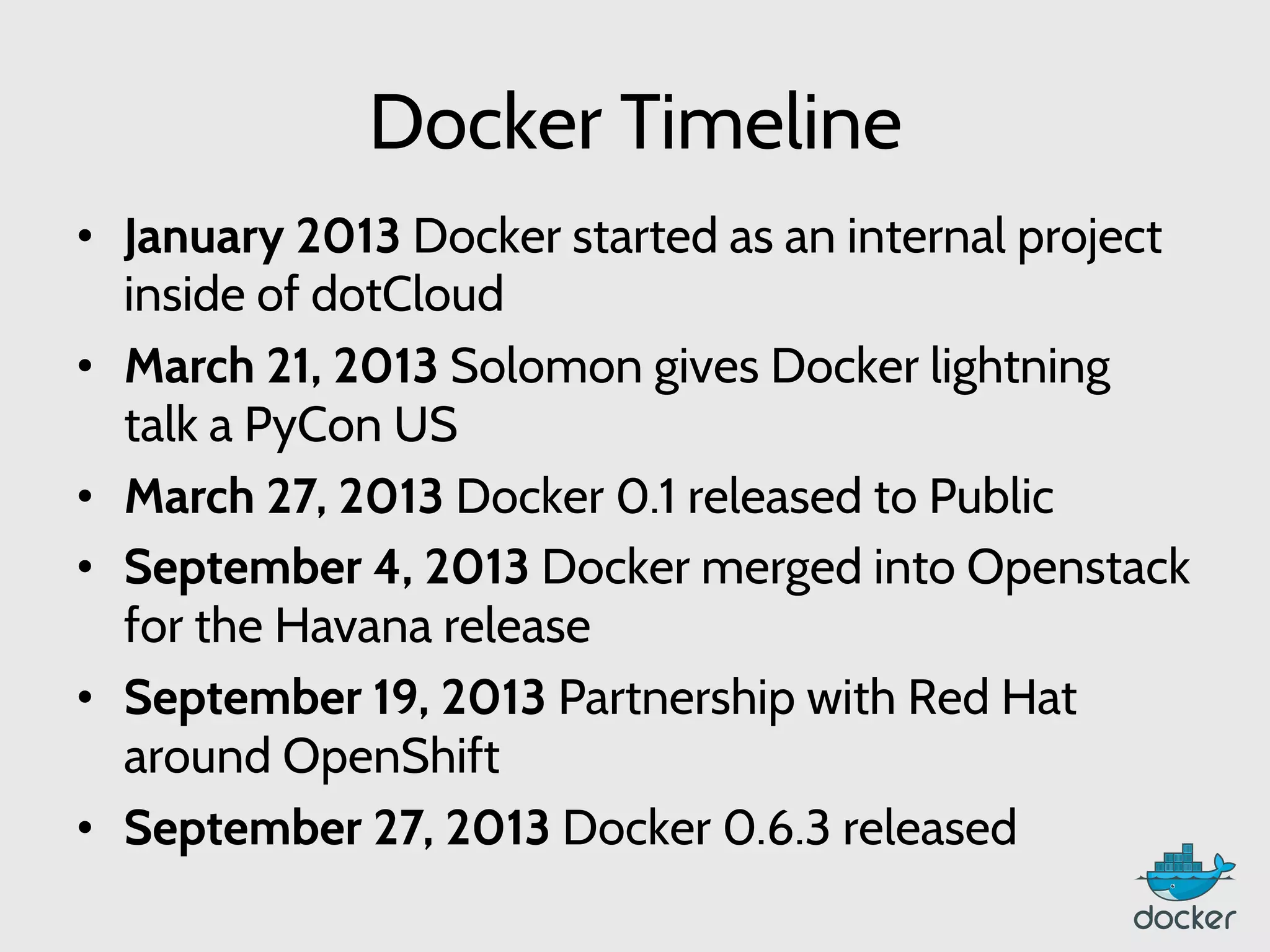
Docker Timeline
•  January 2013 Docker started as an internal project
inside of dotCloud
•  March 21, 2013 Solomon gives Docker lightning
talk a PyCon US
•  March 27, 2013 Docker 0.1 released to Public
•  September 4, 2013 Docker merged into Openstack
for the Havana release
•  September 19, 2013 Partnership with Red Hat
around OpenShift
•  September 27, 2013 Docker 0.6.3 released
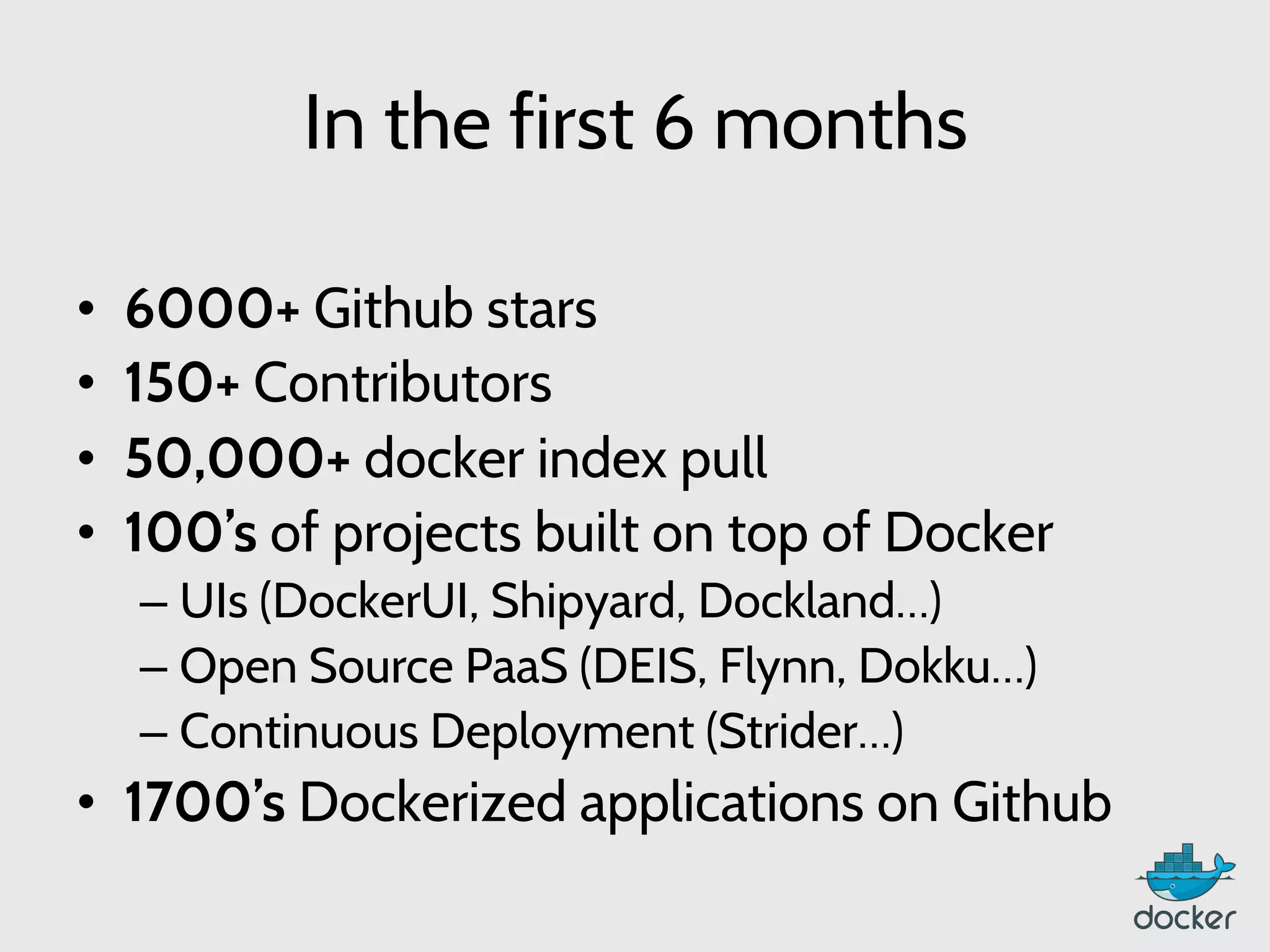
In the first 6 months
•  6000+ Github stars
•  150+ Contributors
•  50,000+ docker index pull
•  100’s of projects built on top of Docker
– UIs (DockerUI, Shipyard, Dockland…)
– Open Source PaaS (DEIS, Flynn, Dokku…)
– Continuous Deployment (Strider…)
•  1700’s Dockerized applications on Github
What is Docker ?
“Docker is an open-source engine to
easily create lightweight, portable,
self-sufficient containers from any
application. The same container that
a developer builds and test on a
laptop can run at scale, in production,
on VMs, OpenStack cluster, public
clouds and more.”
How does Docker work ?
•  LinuX Containers (LXC)
•  Control Groups & Namespaces
•  AUFS
•  Client – Server with an HTTP API
LinuX Containers (LCX)
•  Let’s your run a Linux system within another
Linux system
•  A container is a group of processes on a
Linux box, put together is an isolated
environment
•  From the inside, it looks like a VM
•  From the outside, it looks like normal
processes
•  “chroot on steroids”
Why Containers?
•  Speed: Boots in seconds
•  Footprint: 100-1000 containers on one
machine. Small disk requirements
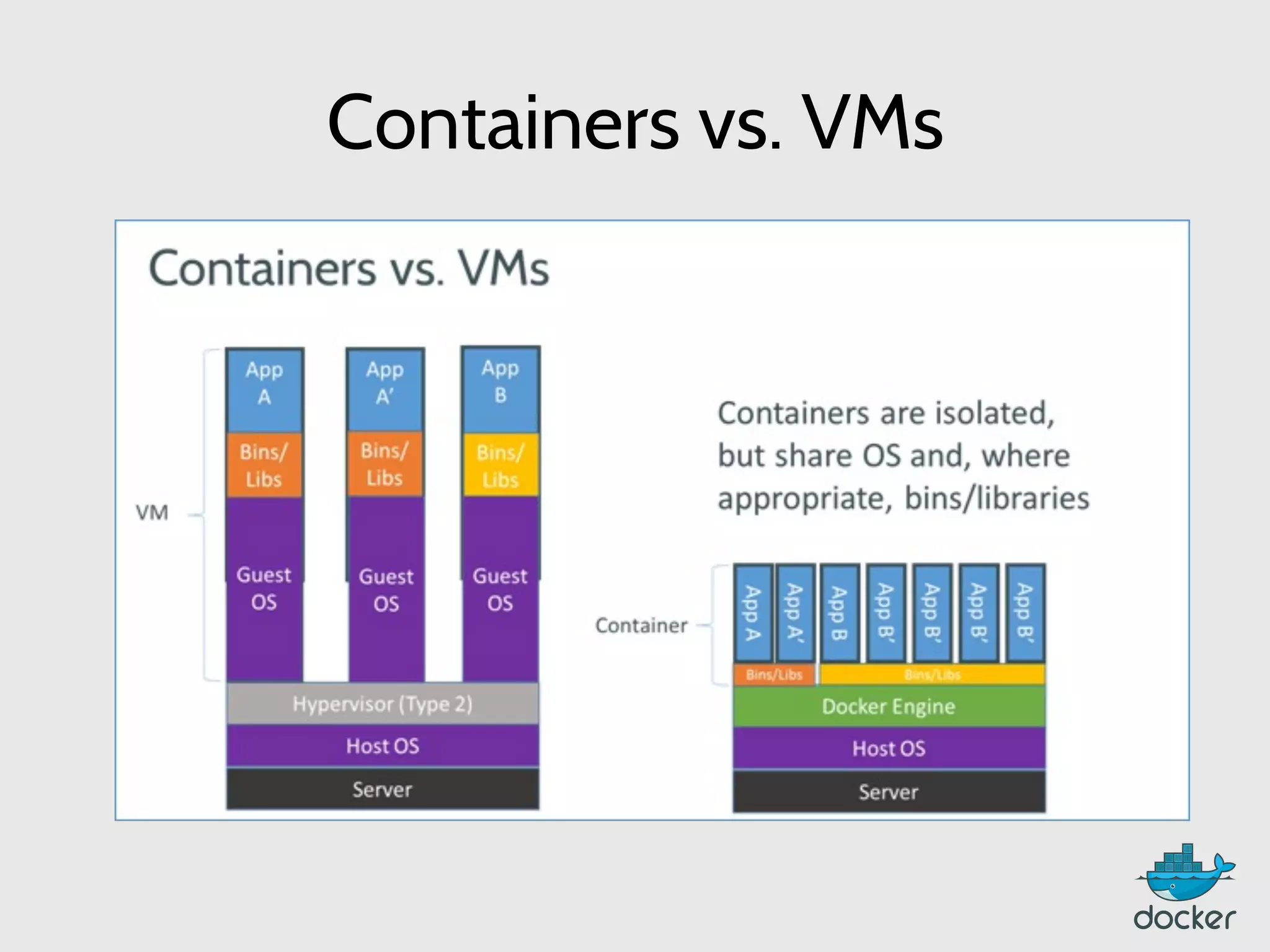
Containers vs. VMs
Control Groups & Namespaces
Linux kernel feature to limit, account and
isolate resource usage, such as:
– CPU
– Memory
– Disk I/O
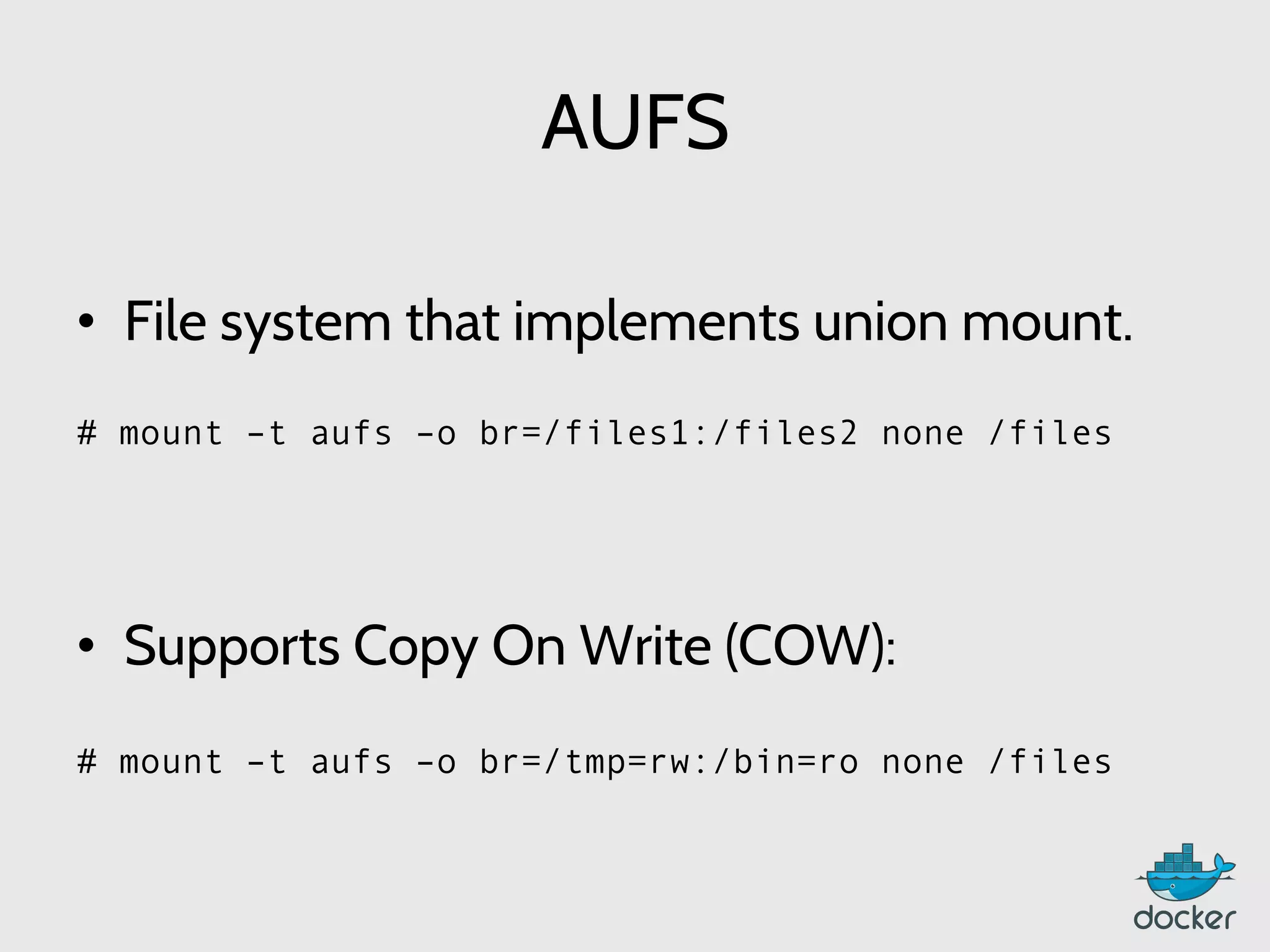
AUFS
	
  
•  File system that implements union mount.


•  Supports Copy On Write (COW):


# mount –t aufs –o br=/files1:/files2 none /files


# mount –t aufs –o br=/tmp=rw:/bin=ro none /files


Installing Docker
Requirements
•  Linux Kernel 3.8 or above
•  AUFS
•  LXC
•  64-bit
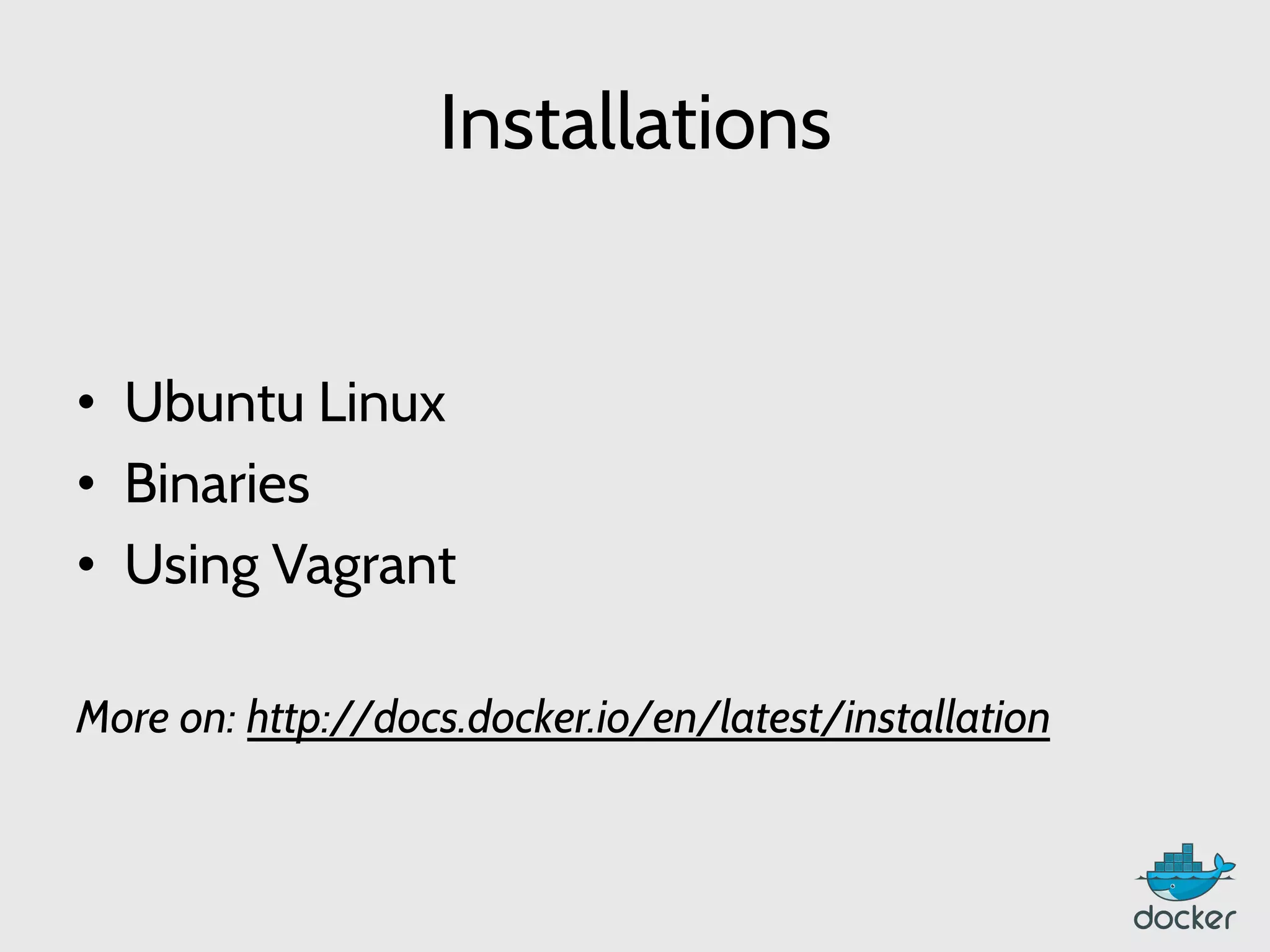
Installations
•  Ubuntu Linux
•  Binaries
•  Using Vagrant
More on: http://docs.docker.io/en/latest/installation
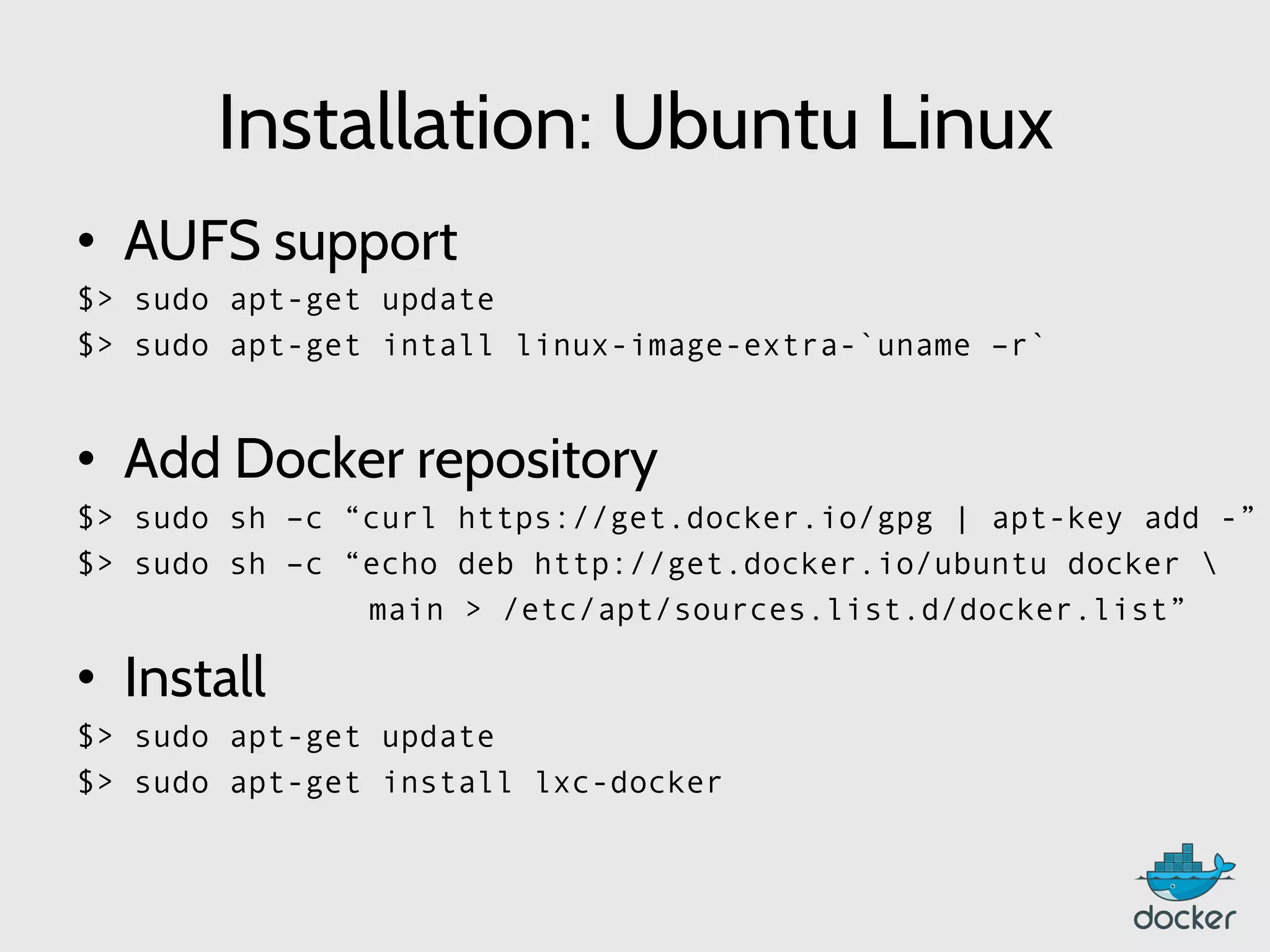
Installation: Ubuntu Linux
•  AUFS support
$> sudo apt-get update
$> sudo apt-get intall linux-image-extra-`uname –r`
•  Add Docker repository
$> sudo sh –c “curl https://get.docker.io/gpg | apt-key add -”
$> sudo sh –c “echo deb http://get.docker.io/ubuntu docker 
main > /etc/apt/sources.list.d/docker.list”
•  Install
$> sudo apt-get update
$> sudo apt-get install lxc-docker
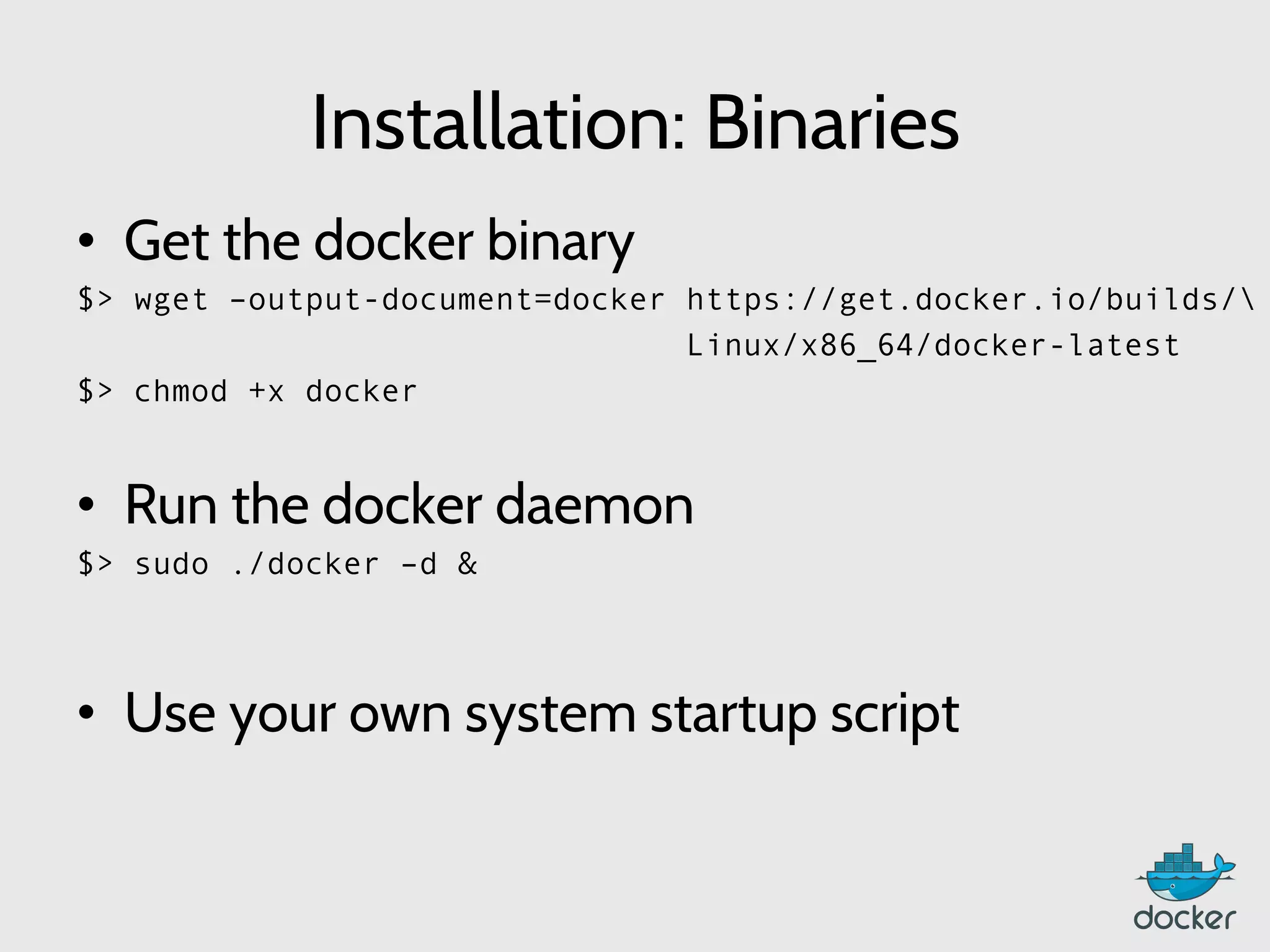
Installation: Binaries
•  Get the docker binary
$> wget –output-document=docker https://get.docker.io/builds/
Linux/x86_64/docker-latest
$> chmod +x docker
•  Run the docker daemon
$> sudo ./docker –d &
•  Use your own system startup script
	
  
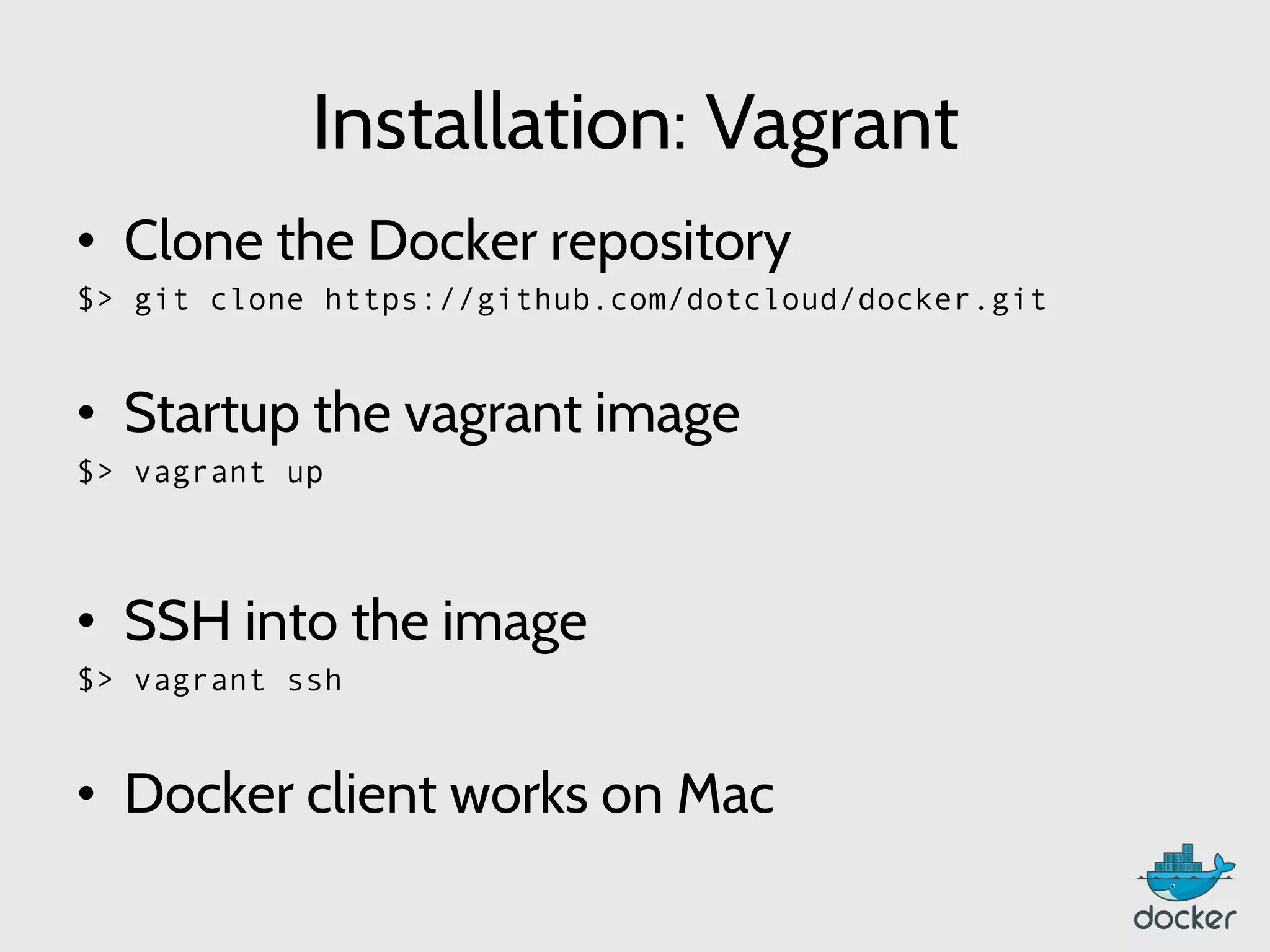
Installation: Vagrant
•  Clone the Docker repository
$> git clone https://github.com/dotcloud/docker.git
•  Startup the vagrant image
$> vagrant up
	
  
•  SSH into the image
$> vagrant ssh
•  Docker client works on Mac
Basic	
  commands	
  
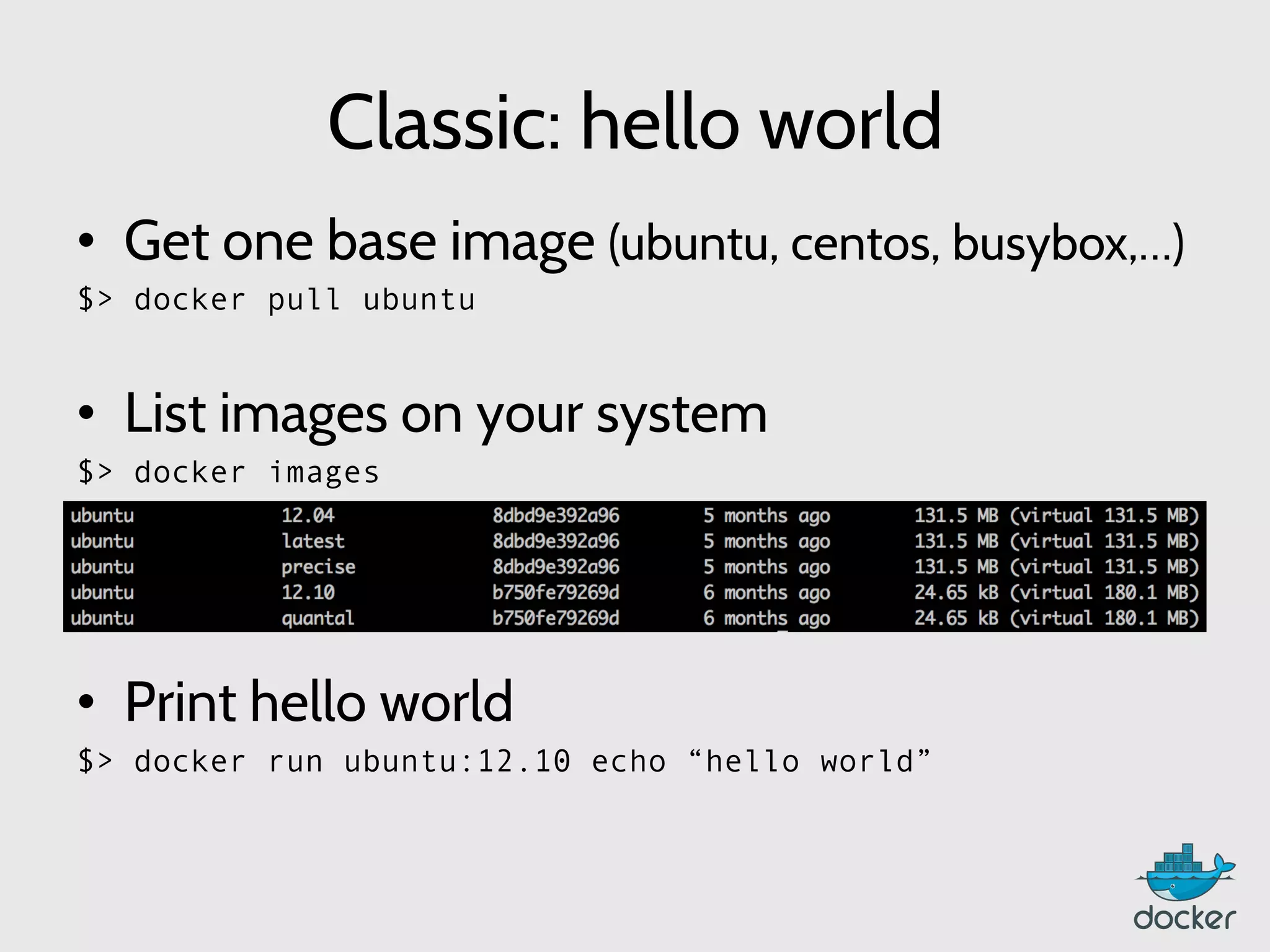
Classic: hello world
•  Get one base image (ubuntu, centos, busybox,…)
$> docker pull ubuntu
•  List images on your system
$> docker images


•  Print hello world
$> docker run ubuntu:12.10 echo “hello world”
	
  
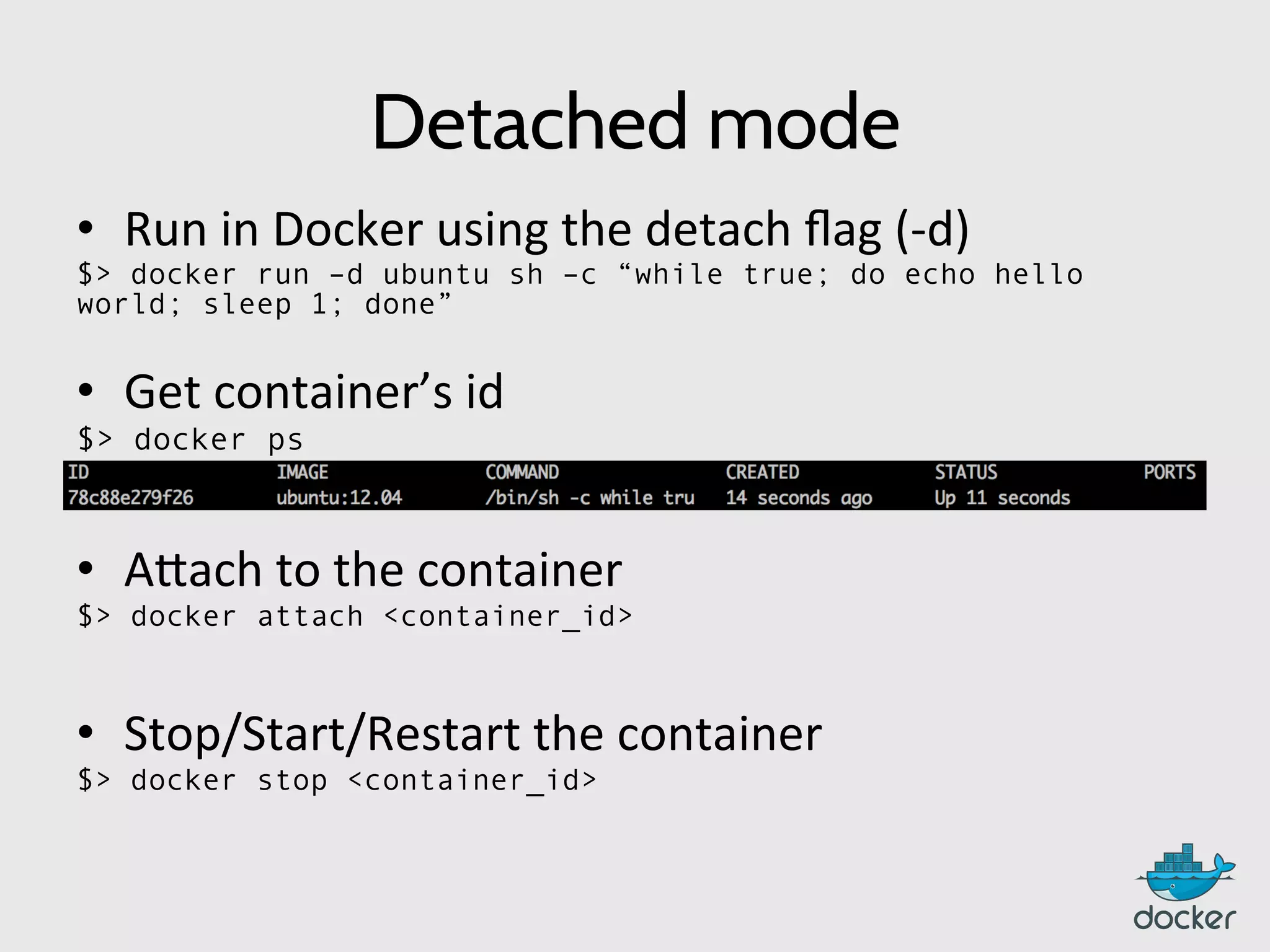
Detached mode
•  Run	
  in	
  Docker	
  using	
  the	
  detach	
  flag	
  (-­‐d)	
  
$> docker run –d ubuntu sh –c “while true; do echo hello
world; sleep 1; done”
•  Get	
  container’s	
  id	
  
$> docker ps
•  A:ach	
  to	
  the	
  container	
  
$> docker attach <container_id>
	
  
•  Stop/Start/Restart	
  the	
  container	
  
$> docker stop <container_id>
	
  
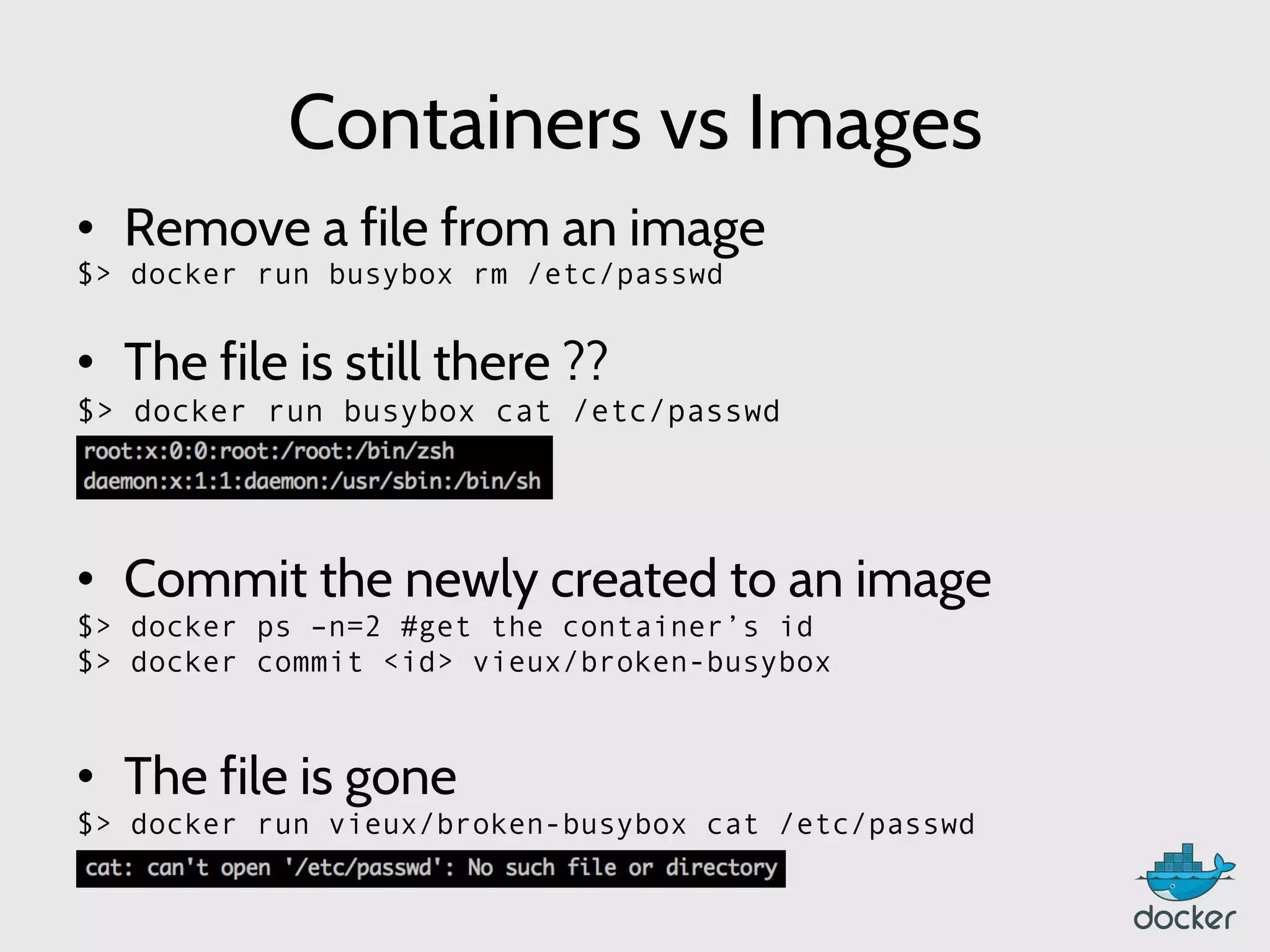
Containers vs Images
•  Remove a file from an image
$> docker run busybox rm /etc/passwd
•  The file is still there ??
$> docker run busybox cat /etc/passwd
•  Commit the newly created to an image
$> docker ps –n=2 #get the container’s id
$> docker commit <id> vieux/broken-busybox
	
  
•  The file is gone
$> docker run vieux/broken-busybox cat /etc/passwd
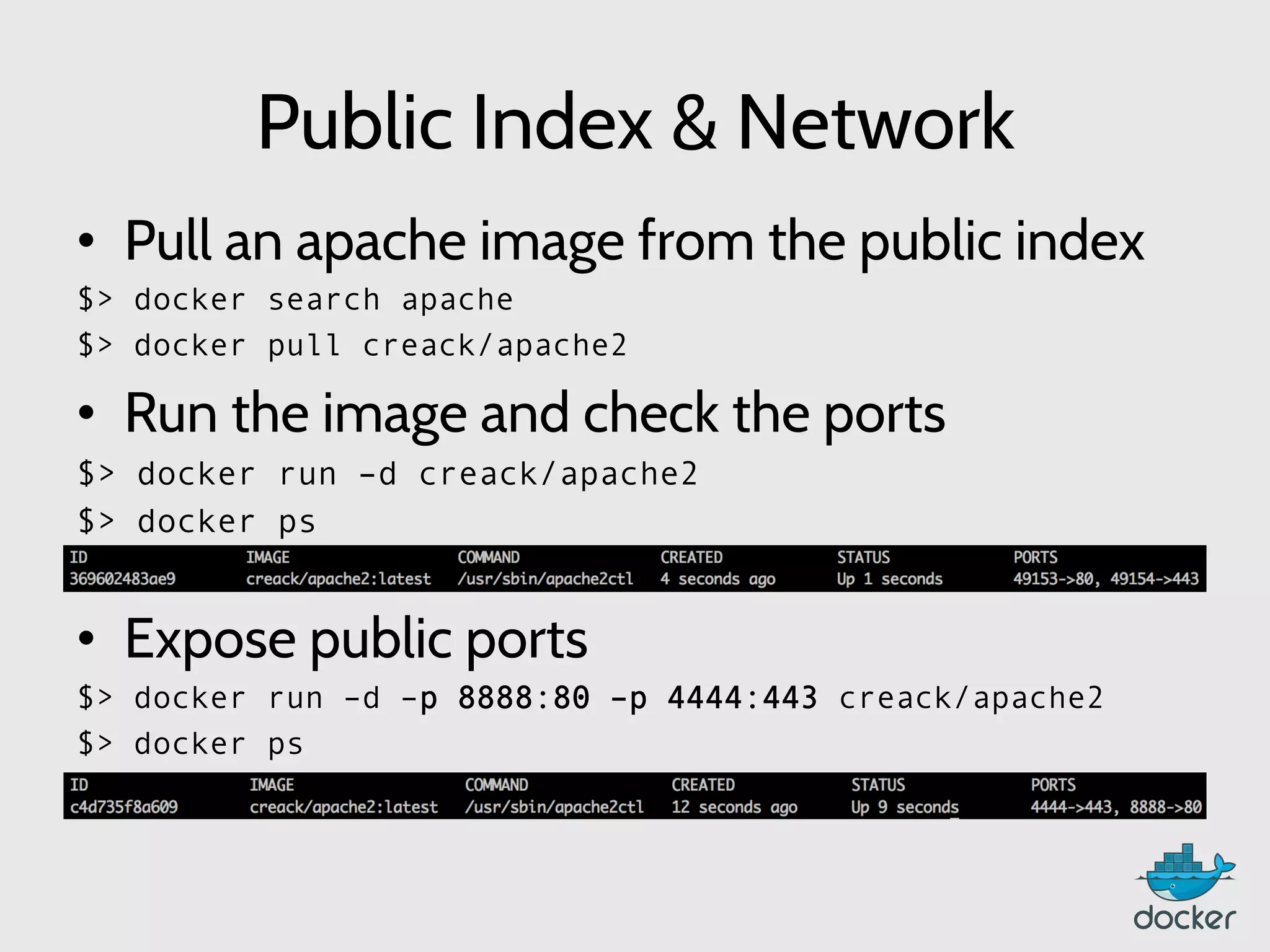
Public Index & Network
•  Pull an apache image from the public index
$> docker search apache
$> docker pull creack/apache2
•  Run the image and check the ports
$> docker run –d creack/apache2
$> docker ps
•  Expose public ports
$> docker run –d –p 8888:80 –p 4444:443 creack/apache2
$> docker ps
	
  
Creating your 1st app: the interactive way
•  Using docker in interactive mode
$> docker run –i –t ubuntu bash
root@82c63ee50c3d:/#
root@82c63ee50c3d:/# apt-get update
[…]
root@82c63ee50c3d:/# apt-get install memcached
[…]
root@82c63ee50c3d:/# exit
•  Commit the image
$> docker commit `docker ps –q –l` vieux/memcached
•  Start the image
$> docker run –d –p 11211 –u daemon vieux/memcached memcached
Creating your 1st app: the boring way
•  Multiple run / commit
$> docker run ubuntu apt-get update
$> $ID=(docker commit `docker ps –q –l`)
$> docker run $ID apt-get install memcached
$> docker commit `docker ps –q –l vieux/memcached
•  Define default configuration at commit
$> docker commit –run=‘{“Entrypoint”: [“memcached”]}’ […]
•  Start the image
$> docker run –d –p 11211 –u daemon vieux/memcached
Creating your 1st app: the scripted way
•  Write a Dockerfile
# Memcached
FROM ubuntu
MAINTAINER Victor Vieux <victor@dotcloud.com>
RUN apt-get update
RUN apt-get install –y memcached
ENTRYPOINT [“memcached”]
USER daemon
EXPOSE 11211
•  Buid the image
$> docker build –t=vieux/memcached .
•  Start the image
$> docker run –d vieux/memcached memcached
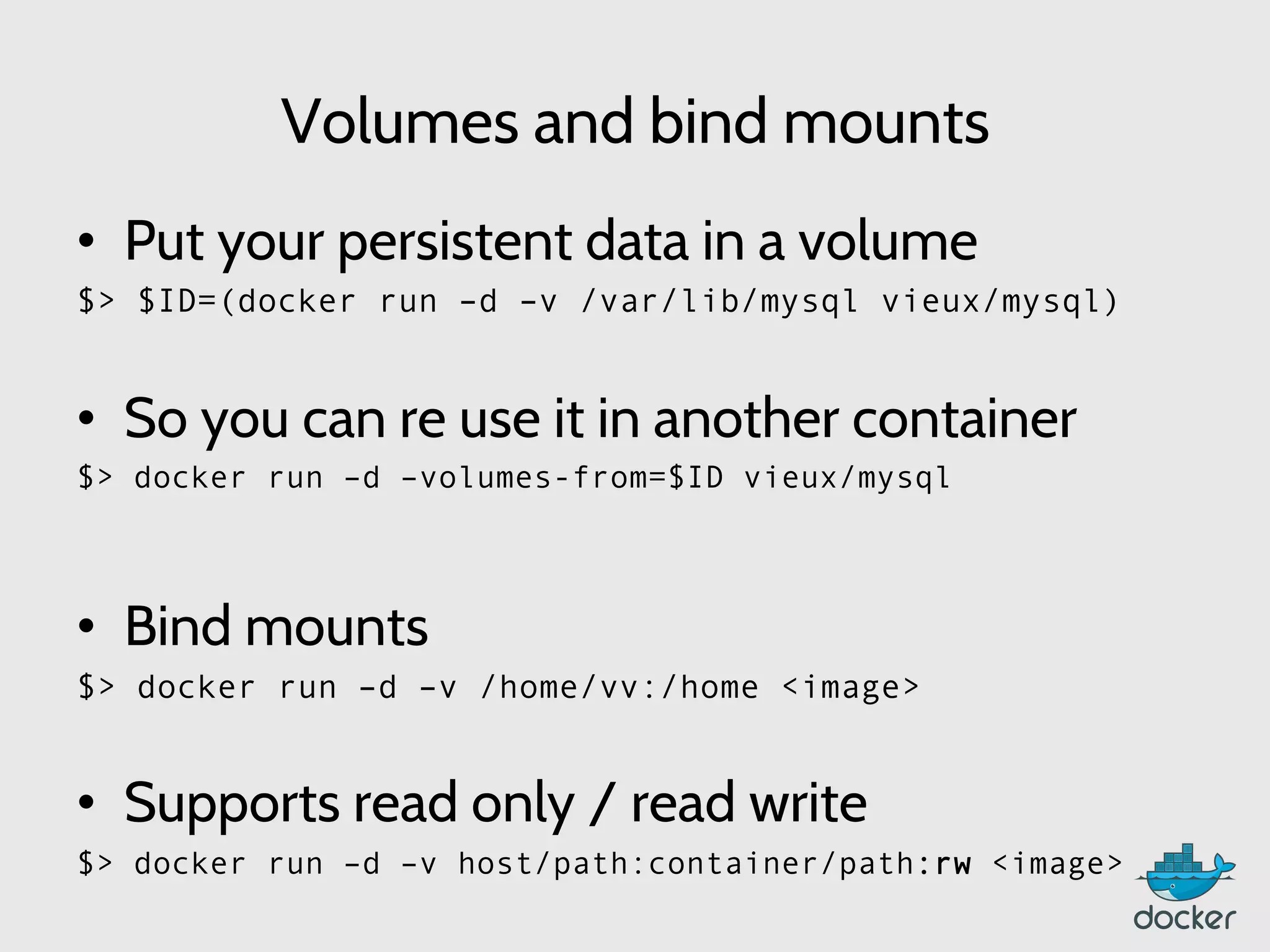
Volumes and bind mounts
•  Put your persistent data in a volume
$> $ID=(docker run –d –v /var/lib/mysql vieux/mysql)
•  So you can re use it in another container
$> docker run –d –volumes-from=$ID vieux/mysql
	
  
•  Bind mounts
$> docker run –d –v /home/vv:/home <image>
•  Supports read only / read write
$> docker run –d –v host/path:container/path:rw <image>
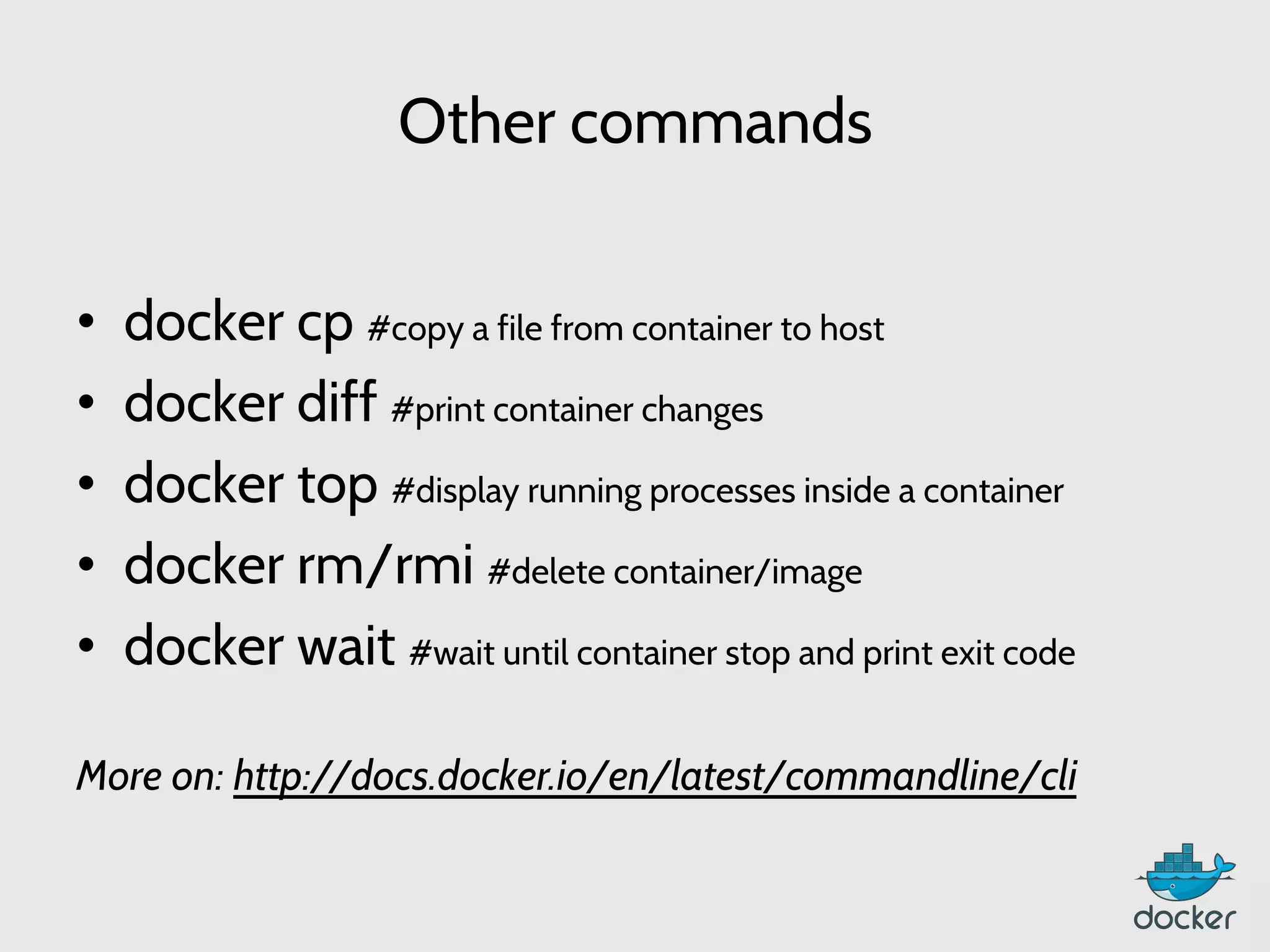
Other commands
•  docker cp #copy a file from container to host
•  docker diff #print container changes
•  docker top #display running processes inside a container
•  docker rm/rmi #delete container/image
•  docker wait #wait until container stop and print exit code
More on: http://docs.docker.io/en/latest/commandline/cli
Demo:
Simple deployment
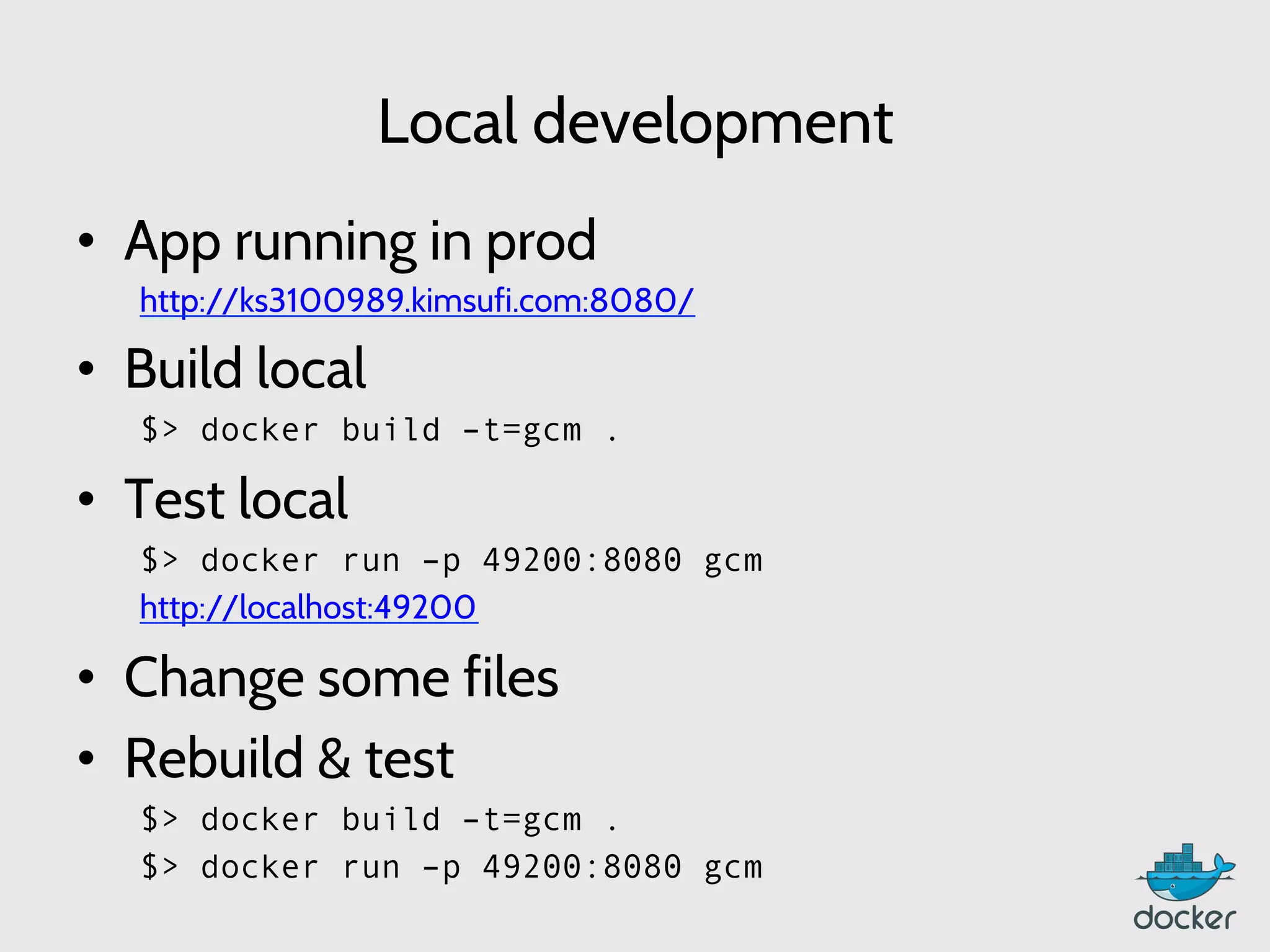
Local development
•  App running in prod
http://ks3100989.kimsufi.com:8080/
•  Build local
	
  $> docker build –t=gcm .
•  Test local
$> docker run –p 49200:8080 gcm
	
  http://localhost:49200
•  Change some files
•  Rebuild & test
$> docker build –t=gcm .
$> docker run –p 49200:8080 gcm
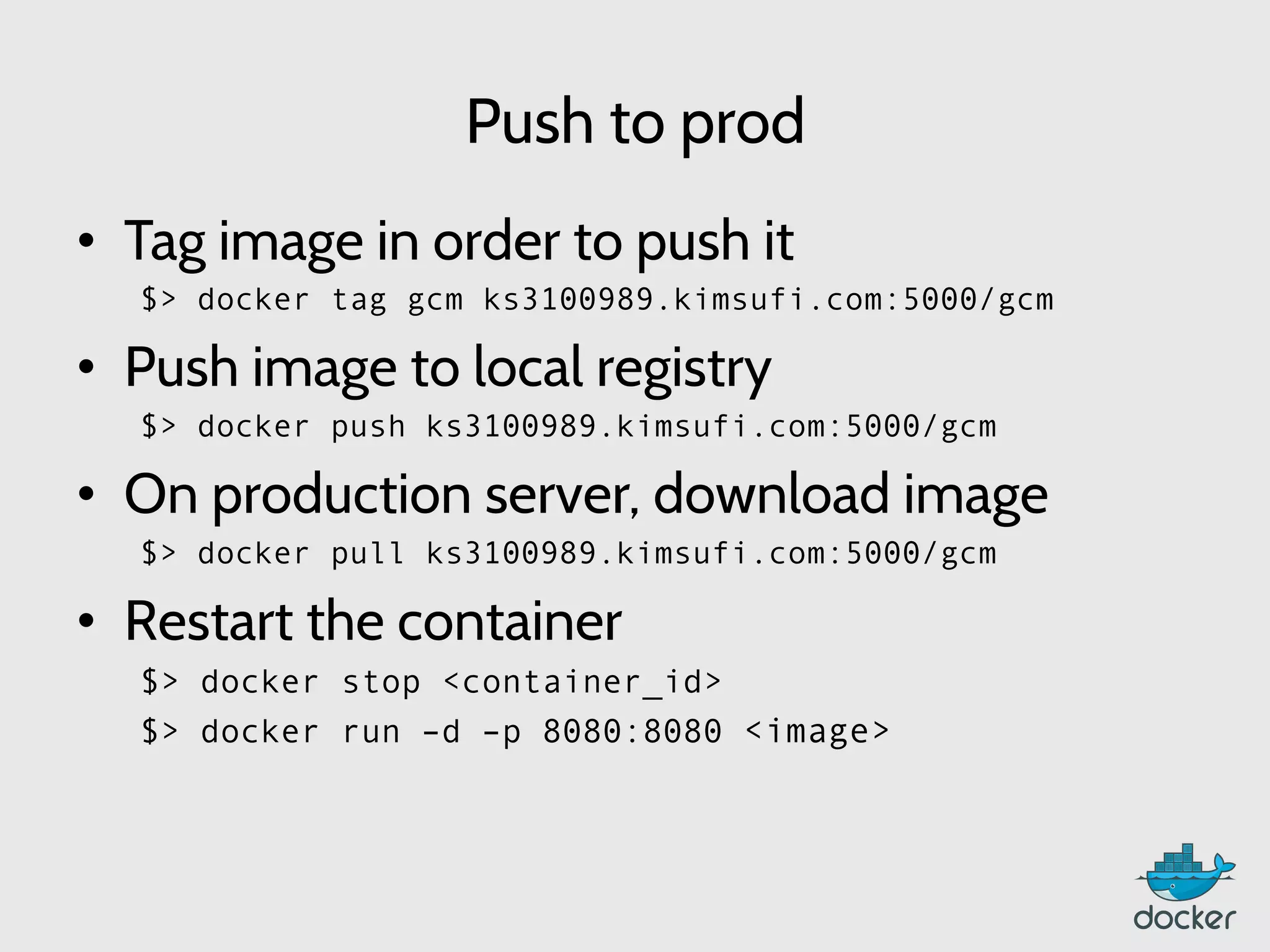
Push to prod
•  Tag image in order to push it
$> docker tag gcm ks3100989.kimsufi.com:5000/gcm
•  Push image to local registry
$> docker push ks3100989.kimsufi.com:5000/gcm
•  On production server, download image
$> docker pull ks3100989.kimsufi.com:5000/gcm
•  Restart the container
$> docker stop <container_id>
$> docker run –d –p 8080:8080 <image>
Questions ?
Thank you!
@vieux

Victor Vieux at Docker Paris Meetup #1

  • 1.
    Docker Paris meetup#1 – 10/02/2013 Victor Vieux, dotCloud Inc. @vieux
  • 2.
    Outline •  Intro toDocker •  Installing Docker •  Basic commands •  Demo: Simple deployment •  Questions
  • 3.
    Quick survey •  Howmany people have heard of Docker before this Meetup ? •  How many people have tried Docker ? •  How many people are using Docker in production ?
  • 4.
  • 5.
    Origins of Docker • Docker is a rewrite of similar code that currently powers the dotCloud PaaS •  Original version written in Python (like dotCloud PaaS), now written in Go •  It’s a young project (~6 months), but with a huge community.
  • 6.
    Docker Timeline •  January2013 Docker started as an internal project inside of dotCloud •  March 21, 2013 Solomon gives Docker lightning talk a PyCon US •  March 27, 2013 Docker 0.1 released to Public •  September 4, 2013 Docker merged into Openstack for the Havana release •  September 19, 2013 Partnership with Red Hat around OpenShift •  September 27, 2013 Docker 0.6.3 released
  • 7.
    In the first6 months •  6000+ Github stars •  150+ Contributors •  50,000+ docker index pull •  100’s of projects built on top of Docker – UIs (DockerUI, Shipyard, Dockland…) – Open Source PaaS (DEIS, Flynn, Dokku…) – Continuous Deployment (Strider…) •  1700’s Dockerized applications on Github
  • 8.
    What is Docker? “Docker is an open-source engine to easily create lightweight, portable, self-sufficient containers from any application. The same container that a developer builds and test on a laptop can run at scale, in production, on VMs, OpenStack cluster, public clouds and more.”
  • 9.
    How does Dockerwork ? •  LinuX Containers (LXC) •  Control Groups & Namespaces •  AUFS •  Client – Server with an HTTP API
  • 10.
    LinuX Containers (LCX) • Let’s your run a Linux system within another Linux system •  A container is a group of processes on a Linux box, put together is an isolated environment •  From the inside, it looks like a VM •  From the outside, it looks like normal processes •  “chroot on steroids”
  • 11.
    Why Containers? •  Speed:Boots in seconds •  Footprint: 100-1000 containers on one machine. Small disk requirements
  • 12.
  • 13.
    Control Groups &Namespaces Linux kernel feature to limit, account and isolate resource usage, such as: – CPU – Memory – Disk I/O
  • 14.
    AUFS   •  Filesystem that implements union mount.       •  Supports Copy On Write (COW):       # mount –t aufs –o br=/files1:/files2 none /files       # mount –t aufs –o br=/tmp=rw:/bin=ro none /files    
  • 15.
  • 16.
    Requirements •  Linux Kernel3.8 or above •  AUFS •  LXC •  64-bit
  • 17.
    Installations •  Ubuntu Linux • Binaries •  Using Vagrant More on: http://docs.docker.io/en/latest/installation
  • 18.
    Installation: Ubuntu Linux • AUFS support $> sudo apt-get update $> sudo apt-get intall linux-image-extra-`uname –r` •  Add Docker repository $> sudo sh –c “curl https://get.docker.io/gpg | apt-key add -” $> sudo sh –c “echo deb http://get.docker.io/ubuntu docker main > /etc/apt/sources.list.d/docker.list” •  Install $> sudo apt-get update $> sudo apt-get install lxc-docker
  • 19.
    Installation: Binaries •  Getthe docker binary $> wget –output-document=docker https://get.docker.io/builds/ Linux/x86_64/docker-latest $> chmod +x docker •  Run the docker daemon $> sudo ./docker –d & •  Use your own system startup script  
  • 20.
    Installation: Vagrant •  Clonethe Docker repository $> git clone https://github.com/dotcloud/docker.git •  Startup the vagrant image $> vagrant up   •  SSH into the image $> vagrant ssh •  Docker client works on Mac
  • 21.
  • 22.
    Classic: hello world • Get one base image (ubuntu, centos, busybox,…) $> docker pull ubuntu •  List images on your system $> docker images     •  Print hello world $> docker run ubuntu:12.10 echo “hello world”  
  • 23.
    Detached mode •  Run  in  Docker  using  the  detach  flag  (-­‐d)   $> docker run –d ubuntu sh –c “while true; do echo hello world; sleep 1; done” •  Get  container’s  id   $> docker ps •  A:ach  to  the  container   $> docker attach <container_id>   •  Stop/Start/Restart  the  container   $> docker stop <container_id>  
  • 24.
    Containers vs Images • Remove a file from an image $> docker run busybox rm /etc/passwd •  The file is still there ?? $> docker run busybox cat /etc/passwd •  Commit the newly created to an image $> docker ps –n=2 #get the container’s id $> docker commit <id> vieux/broken-busybox   •  The file is gone $> docker run vieux/broken-busybox cat /etc/passwd
  • 25.
    Public Index &Network •  Pull an apache image from the public index $> docker search apache $> docker pull creack/apache2 •  Run the image and check the ports $> docker run –d creack/apache2 $> docker ps •  Expose public ports $> docker run –d –p 8888:80 –p 4444:443 creack/apache2 $> docker ps  
  • 26.
    Creating your 1stapp: the interactive way •  Using docker in interactive mode $> docker run –i –t ubuntu bash root@82c63ee50c3d:/# root@82c63ee50c3d:/# apt-get update […] root@82c63ee50c3d:/# apt-get install memcached […] root@82c63ee50c3d:/# exit •  Commit the image $> docker commit `docker ps –q –l` vieux/memcached •  Start the image $> docker run –d –p 11211 –u daemon vieux/memcached memcached
  • 27.
    Creating your 1stapp: the boring way •  Multiple run / commit $> docker run ubuntu apt-get update $> $ID=(docker commit `docker ps –q –l`) $> docker run $ID apt-get install memcached $> docker commit `docker ps –q –l vieux/memcached •  Define default configuration at commit $> docker commit –run=‘{“Entrypoint”: [“memcached”]}’ […] •  Start the image $> docker run –d –p 11211 –u daemon vieux/memcached
  • 28.
    Creating your 1stapp: the scripted way •  Write a Dockerfile # Memcached FROM ubuntu MAINTAINER Victor Vieux <victor@dotcloud.com> RUN apt-get update RUN apt-get install –y memcached ENTRYPOINT [“memcached”] USER daemon EXPOSE 11211 •  Buid the image $> docker build –t=vieux/memcached . •  Start the image $> docker run –d vieux/memcached memcached
  • 29.
    Volumes and bindmounts •  Put your persistent data in a volume $> $ID=(docker run –d –v /var/lib/mysql vieux/mysql) •  So you can re use it in another container $> docker run –d –volumes-from=$ID vieux/mysql   •  Bind mounts $> docker run –d –v /home/vv:/home <image> •  Supports read only / read write $> docker run –d –v host/path:container/path:rw <image>
  • 30.
    Other commands •  dockercp #copy a file from container to host •  docker diff #print container changes •  docker top #display running processes inside a container •  docker rm/rmi #delete container/image •  docker wait #wait until container stop and print exit code More on: http://docs.docker.io/en/latest/commandline/cli
  • 31.
  • 32.
    Local development •  Apprunning in prod http://ks3100989.kimsufi.com:8080/ •  Build local  $> docker build –t=gcm . •  Test local $> docker run –p 49200:8080 gcm  http://localhost:49200 •  Change some files •  Rebuild & test $> docker build –t=gcm . $> docker run –p 49200:8080 gcm
  • 33.
    Push to prod • Tag image in order to push it $> docker tag gcm ks3100989.kimsufi.com:5000/gcm •  Push image to local registry $> docker push ks3100989.kimsufi.com:5000/gcm •  On production server, download image $> docker pull ks3100989.kimsufi.com:5000/gcm •  Restart the container $> docker stop <container_id> $> docker run –d –p 8080:8080 <image>
  • 34.
  • 35.