Hands-On:
Deploying an Application with Kubernetes
Practical guide by
Kubernetes is an open-source,
container management solution
originally announced by Google
in 2014.
After its initial release in July
2015, Google donated
Kubernetes to the Cloud Native
Computing Foundation.
Since then, several stable
versions have been released
under Apache License.
In this short practical guide we will demonstrate how to deploy
the WordPress content management system with a MySQL
backend.
It is a classic two-tier application, where the first tier is the
application server (WordPress) that uses the second tier for
data persistence (MySQL).
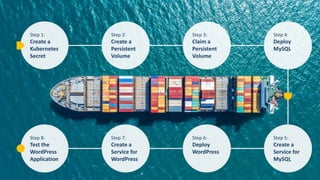
Step 1:
Create a
Kubernetes
Secret
Step 2:
Create a
Persistent
Volume
Step 3:
Claim a
Persistent
Volume
Step 4:
Deploy
MySQL
Step 8:
Test the
WordPress
Application
Step 7:
Create a
Service for
WordPress
Step 6:
Deploy
WordPress
Step 5:
Create a
Service for
MySQL
Step 1:
Create a
Kubernetes
Secret
Kubernetes secrets allow users to pass
sensitive information, such as passwords,
database credentials, to containers.
In the first step, we need to define a
Kubernetes secret that contains a database
name, user, and password.
It should also contain the root password for
MySQL.
Step 1:
Create a Kubernetes Secret
Before creating a secret, we need to encode
such information in Base64 format.
Let’s assume we want to use the following
values in our application:
• “app-db” as a database name
• “app-user” as a database user name
• “app-pass” as a database password
• “app-rootpass” as a database root
password
Step 1:
Create a Kubernetes Secret
Note that we need to provide a database
root password to allow WordPress to create
the required database.
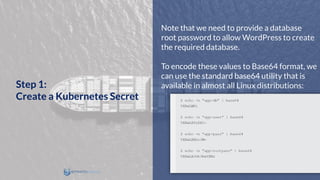
To encode these values to Base64 format, we
can use the standard base64 utility that is
available in almost all Linux distributions:Step 1:
Create a Kubernetes Secret
We use the “-n” option to make sure that the
new line symbol (“n”) is not included in the
encoded value.
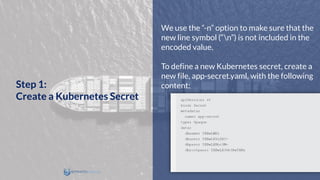
To define a new Kubernetes secret, create a
new file, app-secret.yaml, with the following
content:Step 1:
Create a Kubernetes Secret
Note: Kubernetes allows its building blocks
to be defined using JSON and YAML formats.
These formats are quite popular now as a
more lightweight alternative to XML.
The idea behind XML, JSON, and YAML is to
provide a universal text notation to serialize
data in both machine- and human-readable
form. In this example, we will use YAML.
Step 1:
Create a Kubernetes Secret
In the app-secret.yaml file, we specified the
required Kubernetes API version and the
data type to let Kubernetes know that we
are defining a secret.
In addition, the file defines four keys
(dbname, dbuser, dbpass, dbrootpass) with
the corresponding values we encoded above.
Step 1:
Create a Kubernetes Secret
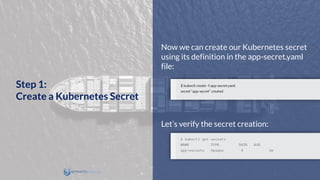
Now we can create our Kubernetes secret
using its definition in the app-secret.yaml
file:
Let’s verify the secret creation:
Step 1:
Create a Kubernetes Secret
Step 2:
Create a
Persistent
Volume
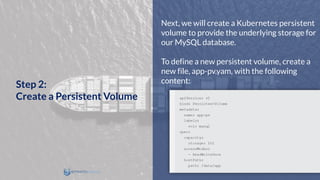
Next, we will create a Kubernetes persistent
volume to provide the underlying storage for
our MySQL database.
To define a new persistent volume, create a
new file, app-pv.yam, with the following
content:
Step 2:
Create a Persistent Volume
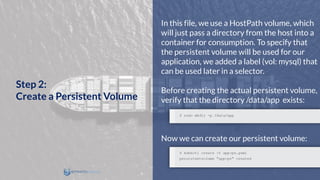
In this file, we use a HostPath volume, which
will just pass a directory from the host into a
container for consumption. To specify that
the persistent volume will be used for our
application, we added a label (vol: mysql) that
can be used later in a selector.
Before creating the actual persistent volume,
verify that the directory /data/app exists:
Now we can create our persistent volume:
Step 2:
Create a Persistent Volume
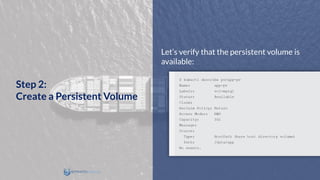
Let’s verify that the persistent volume is
available:
Step 2:
Create a Persistent Volume
Step 3:
Claim a
Persistent
Volume
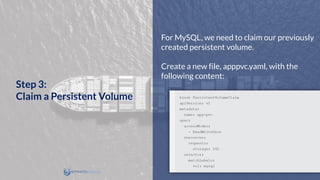
For MySQL, we need to claim our previously
created persistent volume.
Create a new file, apppvc.yaml, with the
following content:
Step 3:
Claim a Persistent Volume
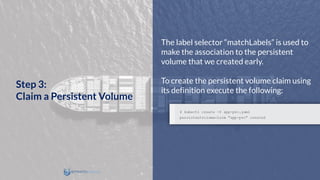
The label selector “matchLabels” is used to
make the association to the persistent
volume that we created early.
To create the persistent volume claim using
its definition execute the following:
Step 3:
Claim a Persistent Volume
Step 4:
Deploy
MySQL
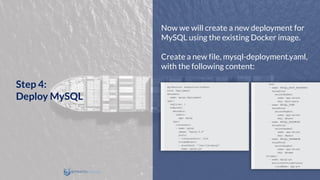
Now we will create a new deployment for
MySQL using the existing Docker image.
Create a new file, mysql-deployment.yaml,
with the following content:
Step 4:
Deploy MySQL
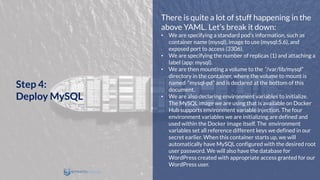
There is quite a lot of stuff happening in the
above YAML. Let’s break it down:
• We are specifying a standard pod’s information, such as
container name (mysql), image to use (mysql:5.6), and
exposed port to access (3306).
• We are specifying the number of replicas (1) and attaching a
label (app: mysql).
• We are then mounting a volume to the “/var/lib/mysql”
directory in the container, where the volume to mount is
named “mysql-pd” and is declared at the bottom of this
document.
• We are also declaring environment variables to initialize.
The MySQL image we are using that is available on Docker
Hub supports environment variable injection. The four
environment variables we are initializing are defined and
used within the Docker image itself. The environment
variables set all reference different keys we defined in our
secret earlier. When this container starts up, we will
automatically have MySQL configured with the desired root
user password. We will also have the database for
WordPress created with appropriate access granted for our
WordPress user.
Step 4:
Deploy MySQL
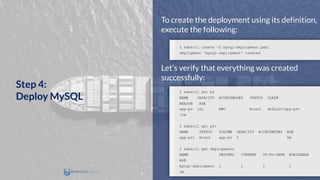
To create the deployment using its definition,
execute the following:
Let’s verify that everything was created
successfully:
Step 4:
Deploy MySQL
Step 5:
Create a
Service for
MySQL
As we know, pods are ephemeral. They come
and go, with each newly created pod
receiving a new and different IP address.
To connect to a database, the WordPress
application should know its IP address.
If the database container is ephemeral, then
how should our application keep track of the
database server’s IP addresses?
We need an IP address that is decoupled
from that pod and that never changes, and
this is exactly what Kubernetes Services
offer.
Step 5:
Create a Service
for MySQL
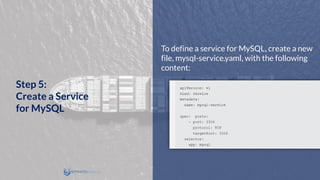
To define a service for MySQL, create a new
file, mysql-service.yaml, with the following
content:
Step 5:
Create a Service
for MySQL
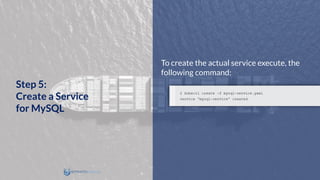
To create the actual service execute, the
following command:
Step 5:
Create a Service
for MySQL
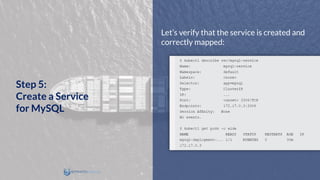
Let’s verify that the service is created and
correctly mapped:
Step 5:
Create a Service
for MySQL
From the output above, we can verify the
service was correctly mapped to the pod for
our MySQL deployment in that the
Endpoints IP address for the service aligns
with the IP address for the MySQL Pod.
Step 5:
Create a Service
for MySQL
Step 6:
Deploy
WordPress
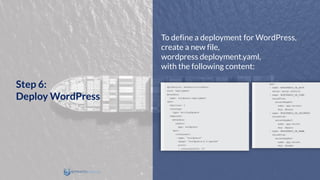
To define a deployment for WordPress,
create a new file,
wordpress deployment.yaml,
with the following content:
Step 6:
Deploy WordPress
In this file, we are specifying standard pod
information such as container name
(wordpress), image to use (wordpress: 4.5-
apache), exposed port to access (80), and
number of replicas (2).
We are also attaching a label (app:
wordpress) to the pod’s replicas. One of the
key things we accomplish in the YAML above
is the initialization of the environment
variable ”WORDPRESS_DB_HOST” to a
value of “mysql-service”.
This is how we are tell the WordPress
application to access its database through
the Kubernetes service we created in the
previous step.
Step 6:
Deploy WordPress
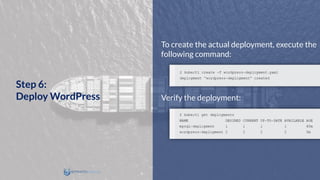
To create the actual deployment, execute the
following command:
Verify the deployment:
Step 6:
Deploy WordPress
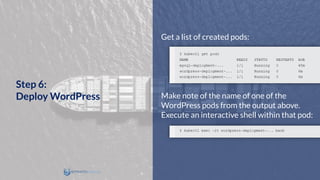
Get a list of created pods:
Make note of the name of one of the
WordPress pods from the output above.
Execute an interactive shell within that pod:
Step 6:
Deploy WordPress
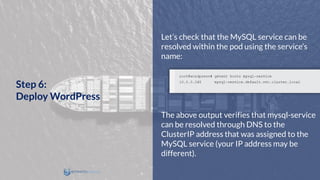
Let’s check that the MySQL service can be
resolved within the pod using the service’s
name:
The above output verifies that mysql-service
can be resolved through DNS to the
ClusterIP address that was assigned to the
MySQL service (your IP address may be
different).
Step 6:
Deploy WordPress
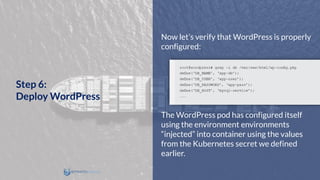
Now let’s verify that WordPress is properly
configured:
The WordPress pod has configured itself
using the environment environments
“injected” into container using the values
from the Kubernetes secret we defined
earlier.
Step 6:
Deploy WordPress
Step 7:
Create a
Service for
WordPress
The final step is to expose the WordPress
application to external users. For this, we
again need a service.
In this step, we expose a port on the node
running our application, and forward it to
port 80 of our container. This allows us to
access the application, but it probably is not
the approach one would take in production,
especially if Kubernetes is hosted by a
service provider.
Kubernetes can integrate with load
balancing services offered by platforms such
as GCE and AWS. If you are using either of
those, then that would be an approach to
take for using the load balancing
functionality offered by those platforms.
Step 7:
Create a Service
for WordPress
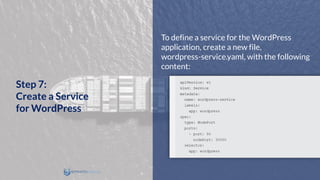
To define a service for the WordPress
application, create a new file,
wordpress-service.yaml, with the following
content:
Step 7:
Create a Service
for WordPress
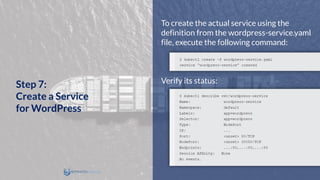
To create the actual service using the
definition from the wordpress-service.yaml
file, execute the following command:
Verify its status:
Step 7:
Create a Service
for WordPress
Step 8:
Test the
WordPress
Application
Open your browser and navigate to
http://<nodeIP>:30080, where <nodeIP> is
the address of your Kubernetes cluster node.
You can follow the installation wizard to get
WordPress up and running through the
browser.
Congratulations!
Step 8:
Test the WordPress
Application
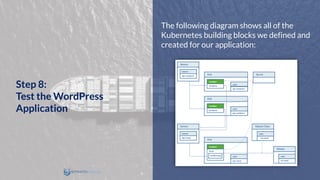
The following diagram shows all of the
Kubernetes building blocks we defined and
created for our application:
Step 8:
Test the WordPress
Application
In production, we may want to update the
WordPress deployment increasing the
number of replicas to handle a high load for
the application.
We can easily do it manually, but the
preferred way in Kubernetes is to use auto-
scaling feature.
Step 8:
Test the WordPress
Application
For the MySQL deployment in our example,
there is no simple way to increase the
number of MySQL pods, because we cannot
share the same persistent volume between
several MySQL processes: MySQL does not
support that.
To scale the database and make it highly
available we can use, for example, a Galera
cluster in the multi-master node.
In this case, each Galera pod will use its own
persistent volume and Galera cluster will
replicate its data between pods using its own
protocol.
Step 8:
Test the WordPress
Application
Want to learn more
about Kubernetes?
Download the eBook Now!
About Stratoscale
Stratoscale is the cloud infrastructure company, allowing
anyone to deploy an AWS-compatible region in any data
center. Stratoscale Symphony, can be deployed in minutes on
commodity x86 servers, creating an Amazon Web Services
(AWS) compatible region and offering AWS-compatible
services including EC2, S3, EBS, RDS and Kubernetes.
Stratoscale was named a “Cool Vendor in Servers and
Virtualization” by Gartner and raised over $70M from
leading investors including: Battery Ventures, Bessemer
Venture Partners, Cisco, Intel, Qualcomm Ventures, SanDisk
and Leslie Ventures.
For more information visit:
http://www.stratoscale.com
US Phone: +1 877 420-3244 | Email: sales@stratoscale.com

Kubernetes Hands-On Guide

  • 1.
    Hands-On: Deploying an Applicationwith Kubernetes Practical guide by
  • 2.
    Kubernetes is anopen-source, container management solution originally announced by Google in 2014. After its initial release in July 2015, Google donated Kubernetes to the Cloud Native Computing Foundation. Since then, several stable versions have been released under Apache License.
  • 3.
    In this shortpractical guide we will demonstrate how to deploy the WordPress content management system with a MySQL backend. It is a classic two-tier application, where the first tier is the application server (WordPress) that uses the second tier for data persistence (MySQL).
  • 4.
    Step 1: Create a Kubernetes Secret Step2: Create a Persistent Volume Step 3: Claim a Persistent Volume Step 4: Deploy MySQL Step 8: Test the WordPress Application Step 7: Create a Service for WordPress Step 6: Deploy WordPress Step 5: Create a Service for MySQL
  • 5.
  • 6.
    Kubernetes secrets allowusers to pass sensitive information, such as passwords, database credentials, to containers. In the first step, we need to define a Kubernetes secret that contains a database name, user, and password. It should also contain the root password for MySQL. Step 1: Create a Kubernetes Secret
  • 7.
    Before creating asecret, we need to encode such information in Base64 format. Let’s assume we want to use the following values in our application: • “app-db” as a database name • “app-user” as a database user name • “app-pass” as a database password • “app-rootpass” as a database root password Step 1: Create a Kubernetes Secret
  • 8.
    Note that weneed to provide a database root password to allow WordPress to create the required database. To encode these values to Base64 format, we can use the standard base64 utility that is available in almost all Linux distributions:Step 1: Create a Kubernetes Secret
  • 9.
    We use the“-n” option to make sure that the new line symbol (“n”) is not included in the encoded value. To define a new Kubernetes secret, create a new file, app-secret.yaml, with the following content:Step 1: Create a Kubernetes Secret
  • 10.
    Note: Kubernetes allowsits building blocks to be defined using JSON and YAML formats. These formats are quite popular now as a more lightweight alternative to XML. The idea behind XML, JSON, and YAML is to provide a universal text notation to serialize data in both machine- and human-readable form. In this example, we will use YAML. Step 1: Create a Kubernetes Secret
  • 11.
    In the app-secret.yamlfile, we specified the required Kubernetes API version and the data type to let Kubernetes know that we are defining a secret. In addition, the file defines four keys (dbname, dbuser, dbpass, dbrootpass) with the corresponding values we encoded above. Step 1: Create a Kubernetes Secret
  • 12.
    Now we cancreate our Kubernetes secret using its definition in the app-secret.yaml file: Let’s verify the secret creation: Step 1: Create a Kubernetes Secret
  • 13.
  • 14.
    Next, we willcreate a Kubernetes persistent volume to provide the underlying storage for our MySQL database. To define a new persistent volume, create a new file, app-pv.yam, with the following content: Step 2: Create a Persistent Volume
  • 15.
    In this file,we use a HostPath volume, which will just pass a directory from the host into a container for consumption. To specify that the persistent volume will be used for our application, we added a label (vol: mysql) that can be used later in a selector. Before creating the actual persistent volume, verify that the directory /data/app exists: Now we can create our persistent volume: Step 2: Create a Persistent Volume
  • 16.
    Let’s verify thatthe persistent volume is available: Step 2: Create a Persistent Volume
  • 17.
  • 18.
    For MySQL, weneed to claim our previously created persistent volume. Create a new file, apppvc.yaml, with the following content: Step 3: Claim a Persistent Volume
  • 19.
    The label selector“matchLabels” is used to make the association to the persistent volume that we created early. To create the persistent volume claim using its definition execute the following: Step 3: Claim a Persistent Volume
  • 20.
  • 21.
    Now we willcreate a new deployment for MySQL using the existing Docker image. Create a new file, mysql-deployment.yaml, with the following content: Step 4: Deploy MySQL
  • 22.
    There is quitea lot of stuff happening in the above YAML. Let’s break it down: • We are specifying a standard pod’s information, such as container name (mysql), image to use (mysql:5.6), and exposed port to access (3306). • We are specifying the number of replicas (1) and attaching a label (app: mysql). • We are then mounting a volume to the “/var/lib/mysql” directory in the container, where the volume to mount is named “mysql-pd” and is declared at the bottom of this document. • We are also declaring environment variables to initialize. The MySQL image we are using that is available on Docker Hub supports environment variable injection. The four environment variables we are initializing are defined and used within the Docker image itself. The environment variables set all reference different keys we defined in our secret earlier. When this container starts up, we will automatically have MySQL configured with the desired root user password. We will also have the database for WordPress created with appropriate access granted for our WordPress user. Step 4: Deploy MySQL
  • 23.
    To create thedeployment using its definition, execute the following: Let’s verify that everything was created successfully: Step 4: Deploy MySQL
  • 24.
  • 25.
    As we know,pods are ephemeral. They come and go, with each newly created pod receiving a new and different IP address. To connect to a database, the WordPress application should know its IP address. If the database container is ephemeral, then how should our application keep track of the database server’s IP addresses? We need an IP address that is decoupled from that pod and that never changes, and this is exactly what Kubernetes Services offer. Step 5: Create a Service for MySQL
  • 26.
    To define aservice for MySQL, create a new file, mysql-service.yaml, with the following content: Step 5: Create a Service for MySQL
  • 27.
    To create theactual service execute, the following command: Step 5: Create a Service for MySQL
  • 28.
    Let’s verify thatthe service is created and correctly mapped: Step 5: Create a Service for MySQL
  • 29.
    From the outputabove, we can verify the service was correctly mapped to the pod for our MySQL deployment in that the Endpoints IP address for the service aligns with the IP address for the MySQL Pod. Step 5: Create a Service for MySQL
  • 30.
  • 31.
    To define adeployment for WordPress, create a new file, wordpress deployment.yaml, with the following content: Step 6: Deploy WordPress
  • 32.
    In this file,we are specifying standard pod information such as container name (wordpress), image to use (wordpress: 4.5- apache), exposed port to access (80), and number of replicas (2). We are also attaching a label (app: wordpress) to the pod’s replicas. One of the key things we accomplish in the YAML above is the initialization of the environment variable ”WORDPRESS_DB_HOST” to a value of “mysql-service”. This is how we are tell the WordPress application to access its database through the Kubernetes service we created in the previous step. Step 6: Deploy WordPress
  • 33.
    To create theactual deployment, execute the following command: Verify the deployment: Step 6: Deploy WordPress
  • 34.
    Get a listof created pods: Make note of the name of one of the WordPress pods from the output above. Execute an interactive shell within that pod: Step 6: Deploy WordPress
  • 35.
    Let’s check thatthe MySQL service can be resolved within the pod using the service’s name: The above output verifies that mysql-service can be resolved through DNS to the ClusterIP address that was assigned to the MySQL service (your IP address may be different). Step 6: Deploy WordPress
  • 36.
    Now let’s verifythat WordPress is properly configured: The WordPress pod has configured itself using the environment environments “injected” into container using the values from the Kubernetes secret we defined earlier. Step 6: Deploy WordPress
  • 37.
  • 38.
    The final stepis to expose the WordPress application to external users. For this, we again need a service. In this step, we expose a port on the node running our application, and forward it to port 80 of our container. This allows us to access the application, but it probably is not the approach one would take in production, especially if Kubernetes is hosted by a service provider. Kubernetes can integrate with load balancing services offered by platforms such as GCE and AWS. If you are using either of those, then that would be an approach to take for using the load balancing functionality offered by those platforms. Step 7: Create a Service for WordPress
  • 39.
    To define aservice for the WordPress application, create a new file, wordpress-service.yaml, with the following content: Step 7: Create a Service for WordPress
  • 40.
    To create theactual service using the definition from the wordpress-service.yaml file, execute the following command: Verify its status: Step 7: Create a Service for WordPress
  • 41.
  • 42.
    Open your browserand navigate to http://<nodeIP>:30080, where <nodeIP> is the address of your Kubernetes cluster node. You can follow the installation wizard to get WordPress up and running through the browser. Congratulations! Step 8: Test the WordPress Application
  • 43.
    The following diagramshows all of the Kubernetes building blocks we defined and created for our application: Step 8: Test the WordPress Application
  • 44.
    In production, wemay want to update the WordPress deployment increasing the number of replicas to handle a high load for the application. We can easily do it manually, but the preferred way in Kubernetes is to use auto- scaling feature. Step 8: Test the WordPress Application
  • 45.
    For the MySQLdeployment in our example, there is no simple way to increase the number of MySQL pods, because we cannot share the same persistent volume between several MySQL processes: MySQL does not support that. To scale the database and make it highly available we can use, for example, a Galera cluster in the multi-master node. In this case, each Galera pod will use its own persistent volume and Galera cluster will replicate its data between pods using its own protocol. Step 8: Test the WordPress Application
  • 46.
    Want to learnmore about Kubernetes? Download the eBook Now!
  • 47.
    About Stratoscale Stratoscale isthe cloud infrastructure company, allowing anyone to deploy an AWS-compatible region in any data center. Stratoscale Symphony, can be deployed in minutes on commodity x86 servers, creating an Amazon Web Services (AWS) compatible region and offering AWS-compatible services including EC2, S3, EBS, RDS and Kubernetes. Stratoscale was named a “Cool Vendor in Servers and Virtualization” by Gartner and raised over $70M from leading investors including: Battery Ventures, Bessemer Venture Partners, Cisco, Intel, Qualcomm Ventures, SanDisk and Leslie Ventures. For more information visit: http://www.stratoscale.com US Phone: +1 877 420-3244 | Email: sales@stratoscale.com