
Docker Workshop
Evans Ye
2014.10.13
Agenda
• Docker and underlying technologies
• Running Docker containers
• Building Docker images
• The official Docker hub
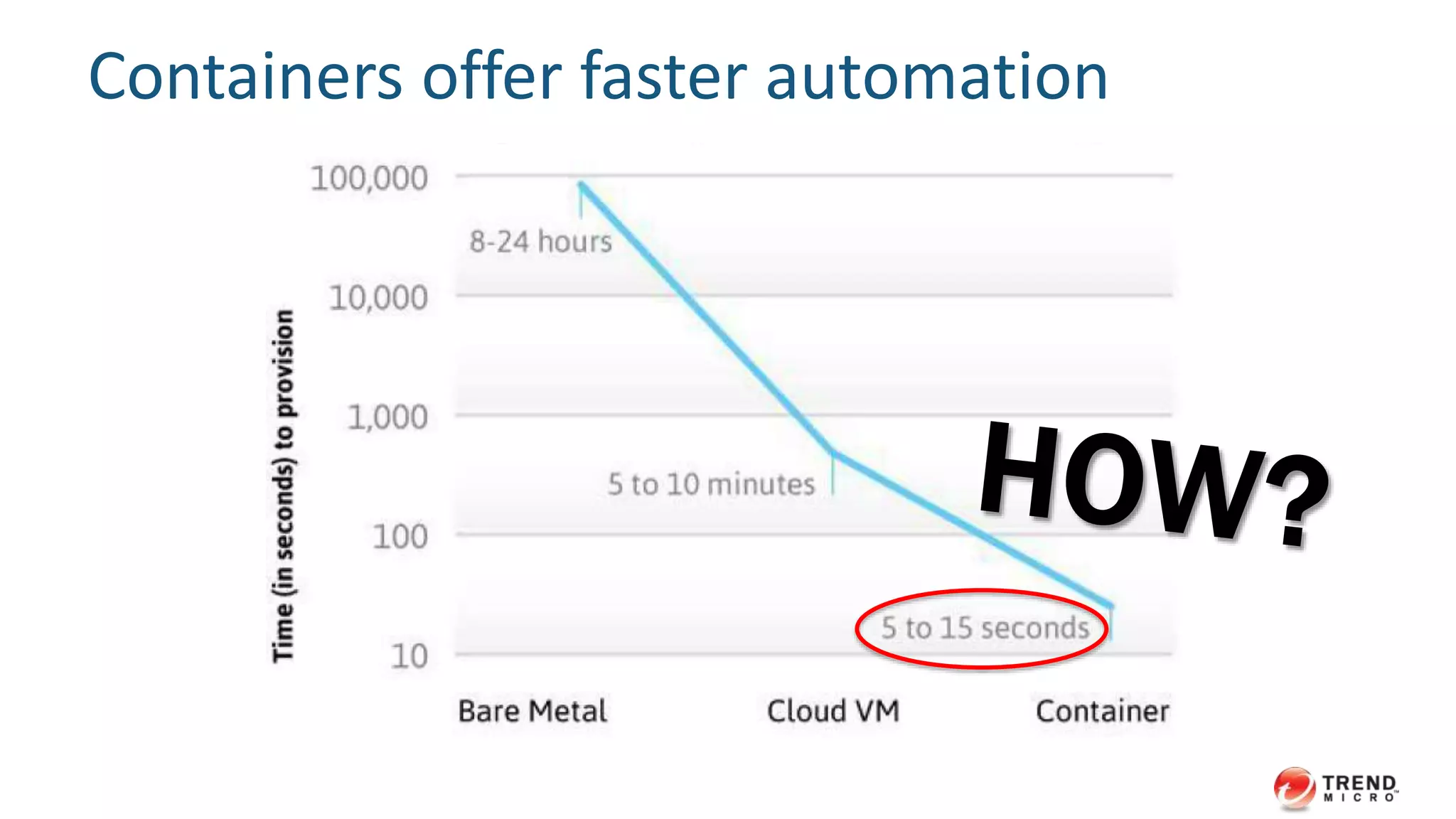
Containers offer faster automation
Docker Container
• A container is a group of isolated processes
– cgroups
– namespace
• Isolated processes run straight on the host
– native CPU performance
– minimal memory overhead
– minimal network performance overhead
7
CGroups
Cgroups (control groups)
• Linux kernel feature
• Groups of processes
• Resource limitations
– Like limits.conf
but the scope is a set of processes instead of uid/gid
• May be nested
Cgroups submodules
• memory
• CPU
• network IO
• disk IO
10
Namespaces
namespaces
• Linux kernel feature
• wrap particular global system resource in an
abstracted, isolated instance
• May be nested
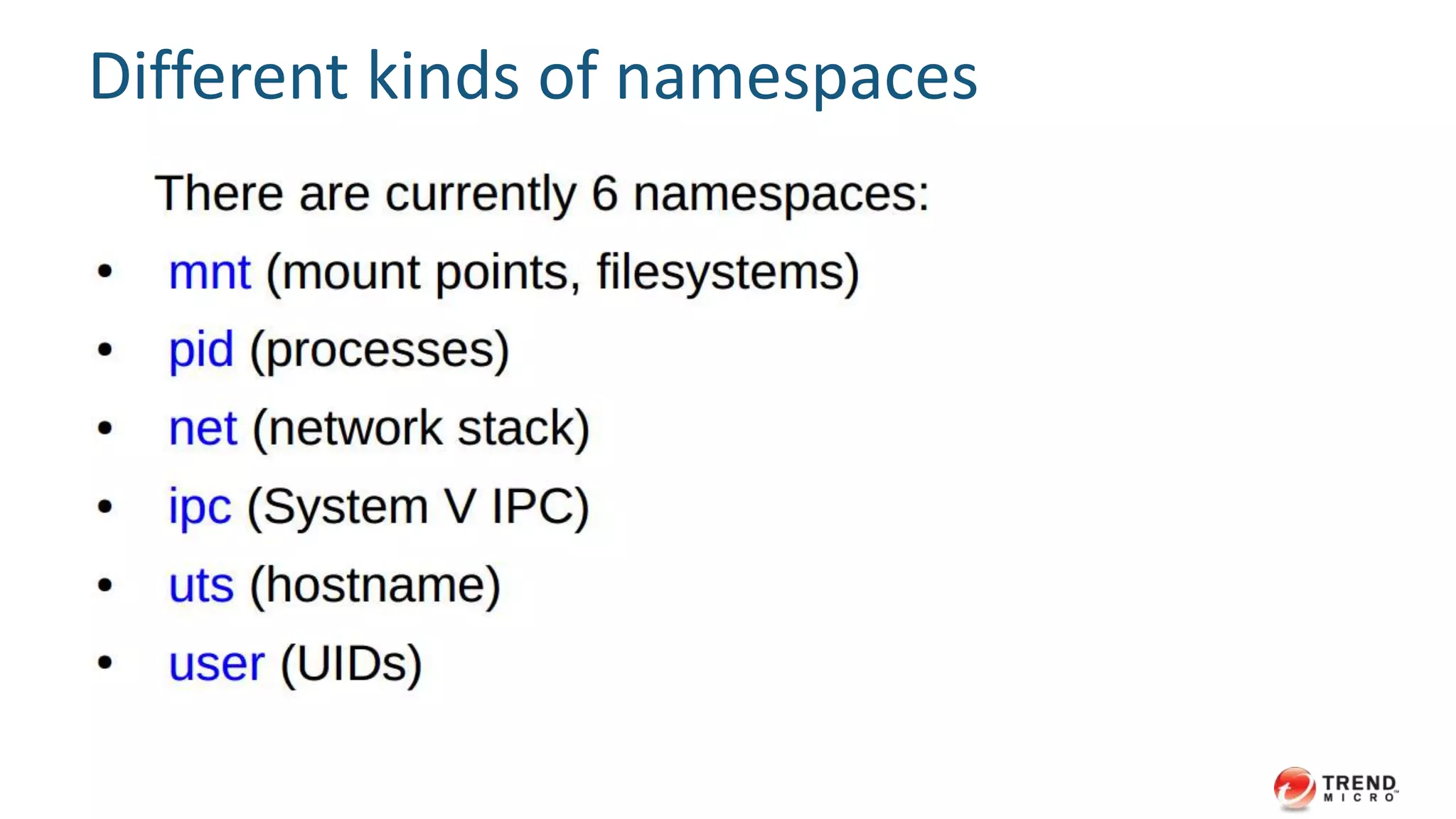
Different kinds of namespaces
#TrendInsight
Running Docker Containers
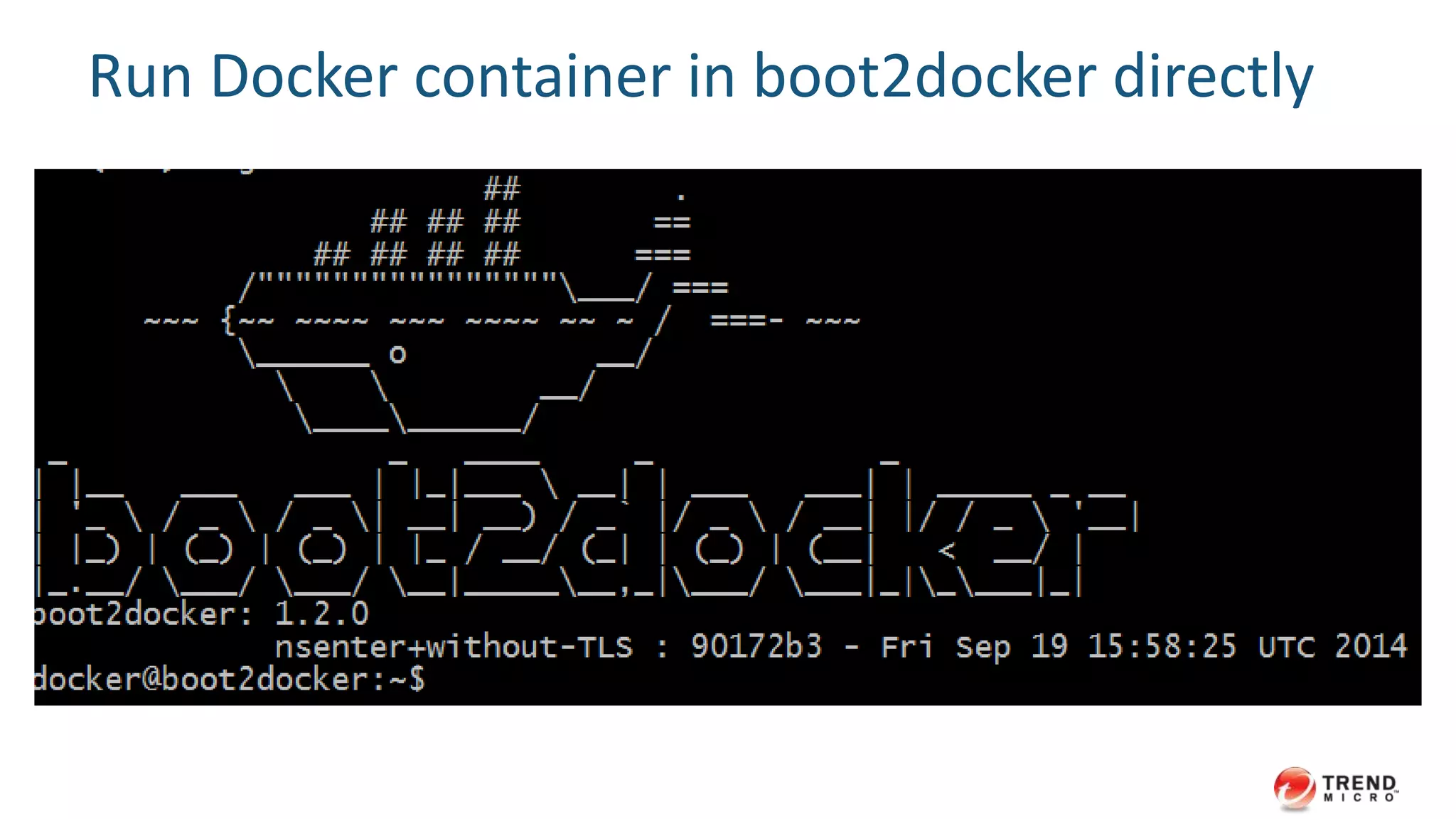
Run Docker container in boot2docker directly
Create a container with interactive shell
$ docker run -t -i base:centos62 /bin/bash
[root@4d8c4b81f6d7 /]# exit (exited)
$ -t, --tty
Allocate a pseudo-TTY
$ -i, --interactive
Keep STDIN open even if not attached
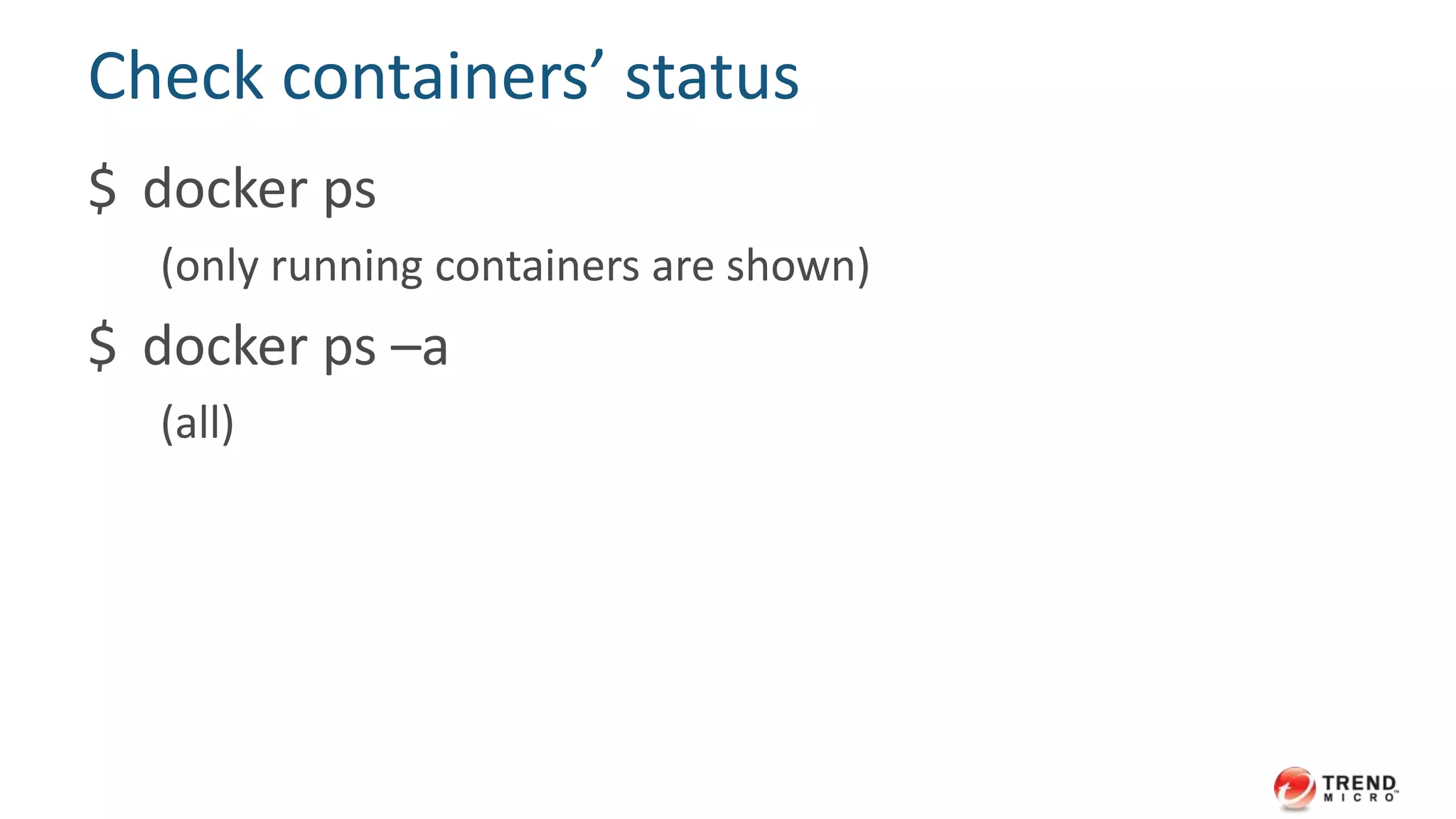
Check containers’ status
$ docker ps
(only running containers are shown)
$ docker ps –a
(all)
Reattach in stopped container
$ docker start -i 4d8c4b81f6d7
[root@4d8c4b81f6d7 /]#
or use docker exec instead
$ docker start 4d8c4b81f6d7
$ docker exec –ti 4d8c4b81f6d7 bash
[root@4d8c4b81f6d7 /]#
Take a look at Docker run command
$ docker run -t -i base:centos62 /bin/bash
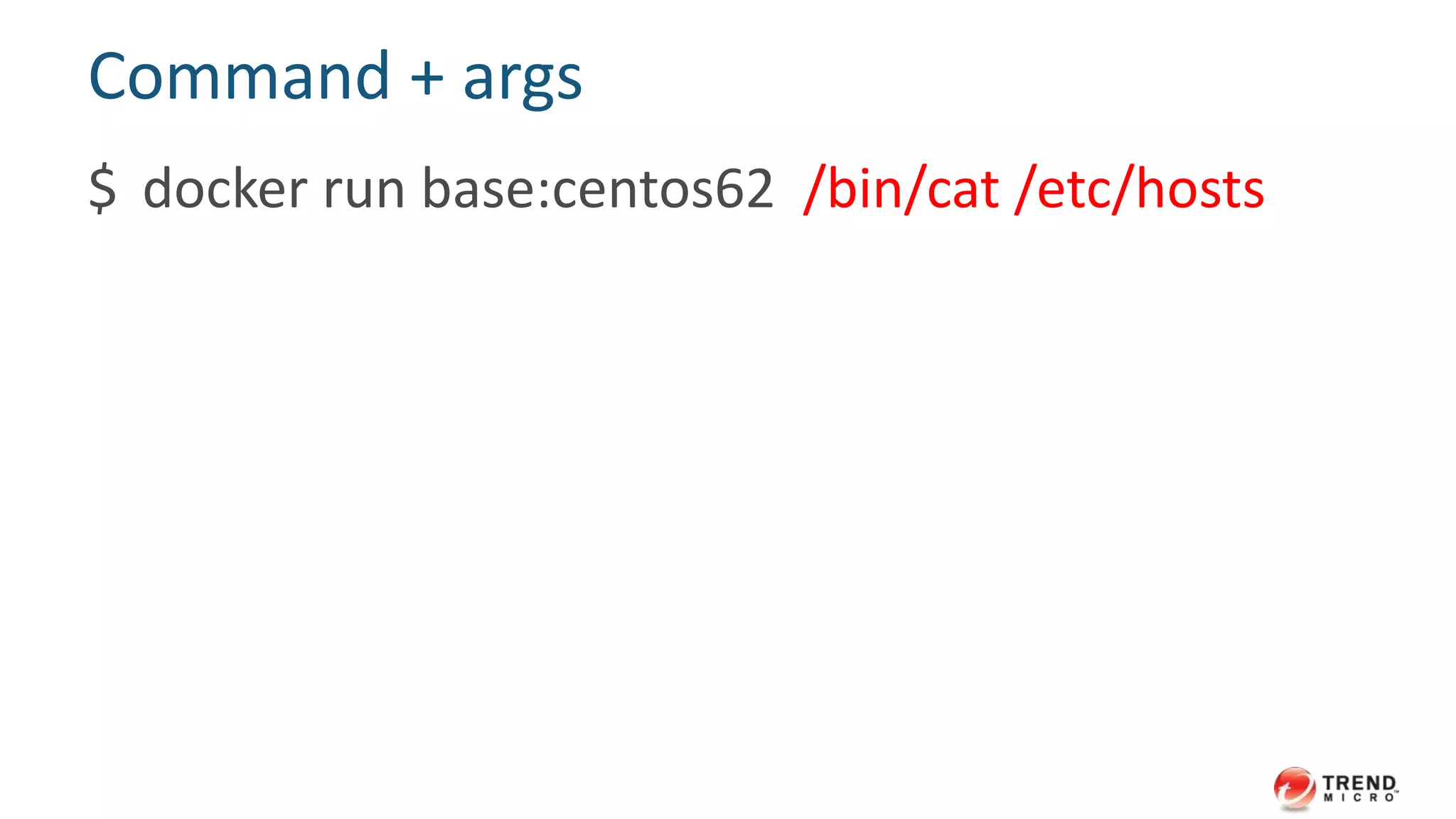
Command + args
$ docker run base:centos62 /bin/cat /etc/hosts
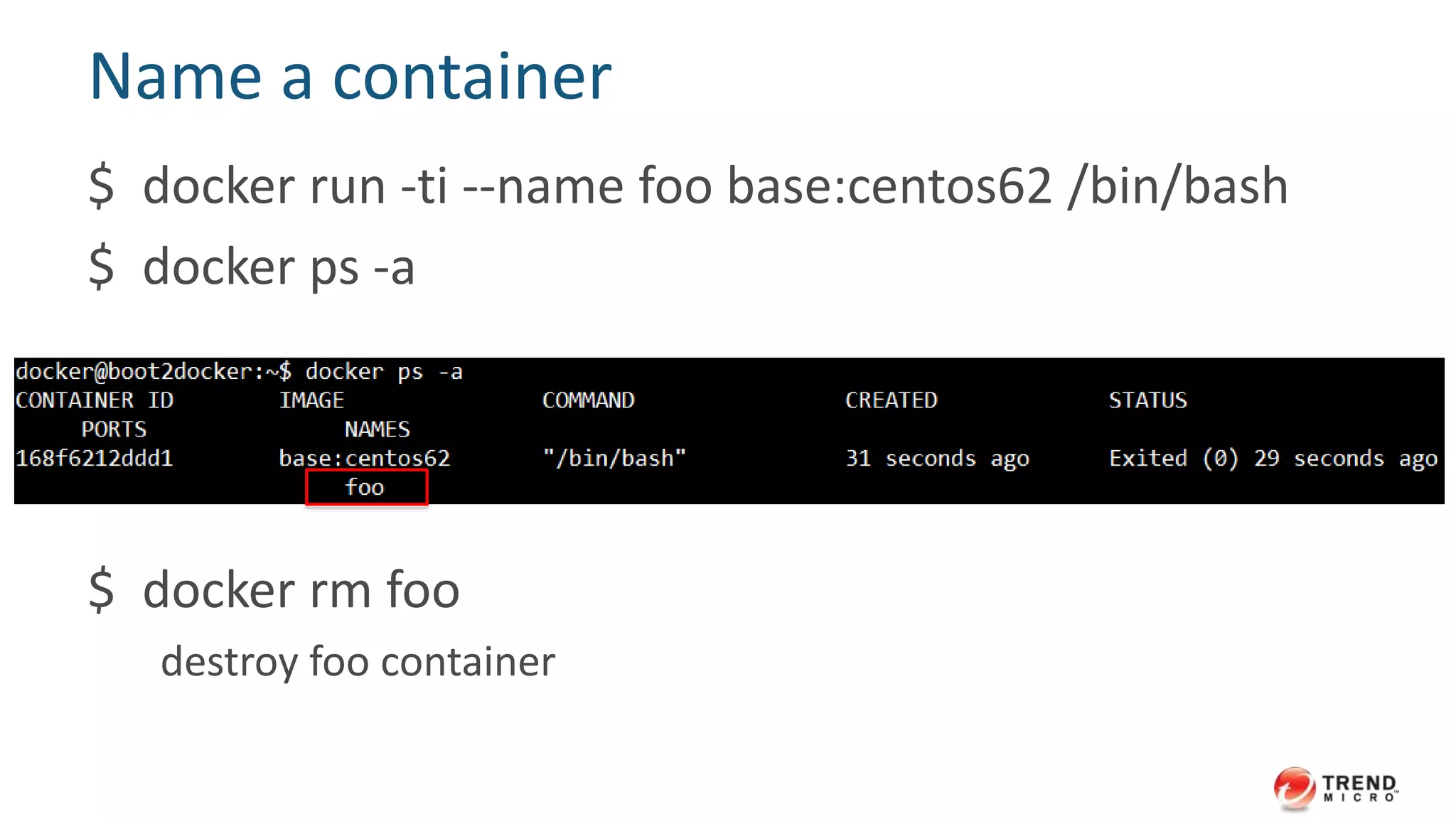
Name a container
$ docker run -ti --name foo base:centos62 /bin/bash
$ docker ps -a
$ docker rm foo
destroy foo container
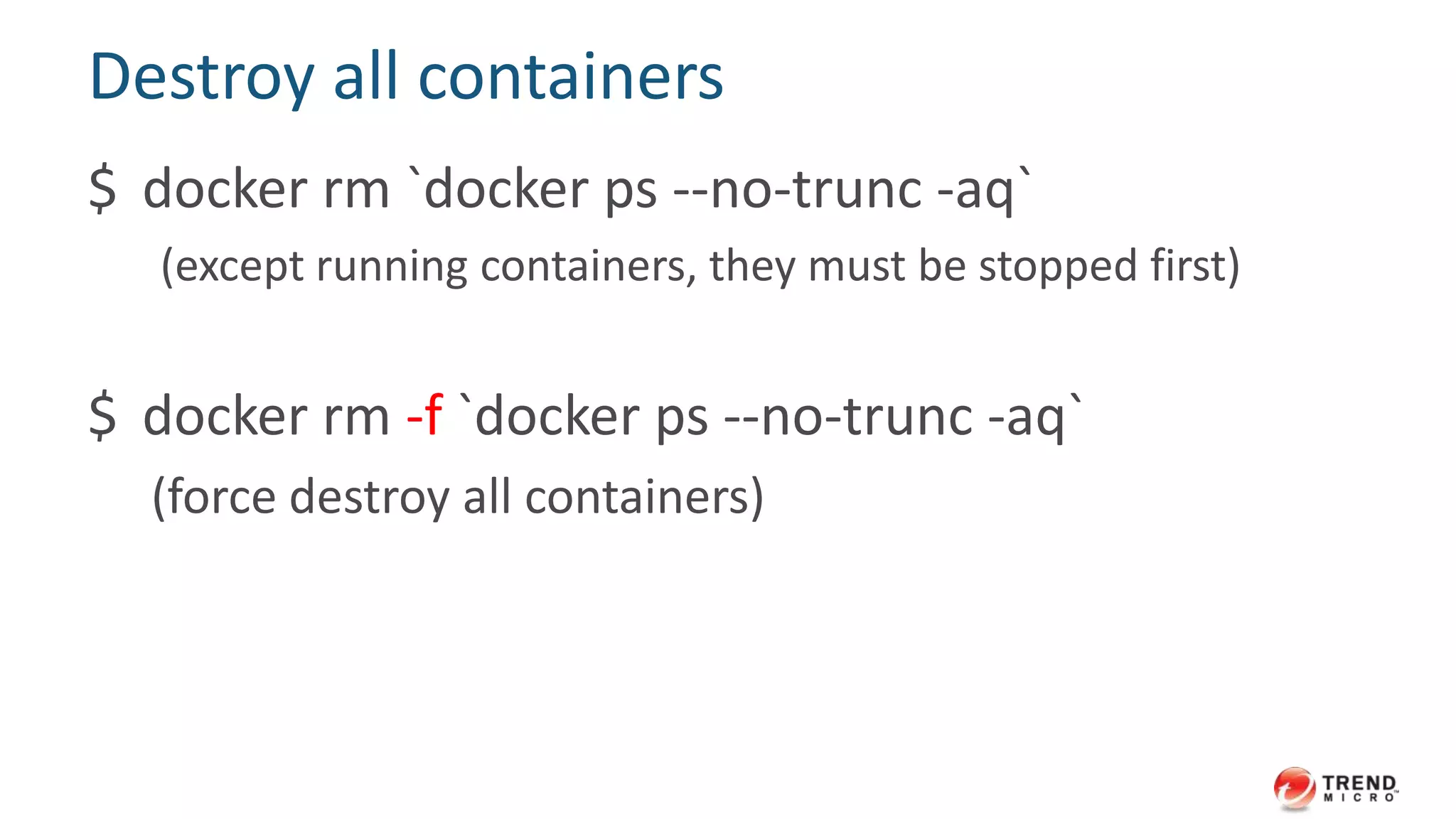
Destroy all containers
$ docker rm `docker ps --no-trunc -aq`
(except running containers, they must be stopped first)
$ docker rm -f `docker ps --no-trunc -aq`
(force destroy all containers)
Create ephemeral container
$ docker run -ti --rm base:centos62 /bin/bash
[root@4d8c4b81f6d7 /]# exit (destroyed upon exit)
$ docker ps -a
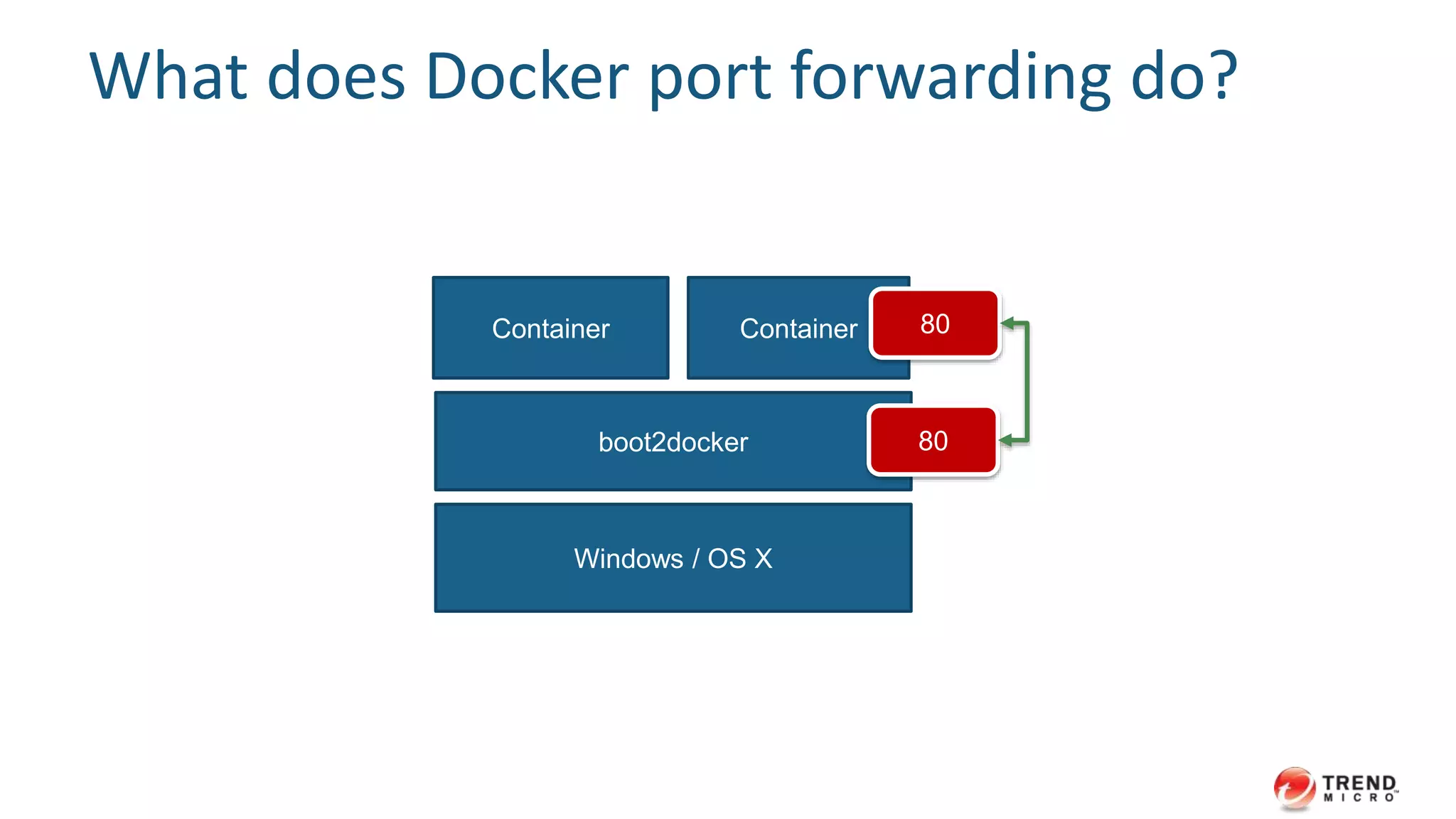
Ports forwarding (publish)
$ docker run -ti -p 80:80 base:centos62 /bin/bash
# yum install httpd
# echo "hello world" > /var/www/html/index.html
# service httpd start
$ curl localhost:80
What does Docker port forwarding do?
Windows / OS X
boot2docker
Container Container 80
80
27
Well, I need to
render it
in browsers…
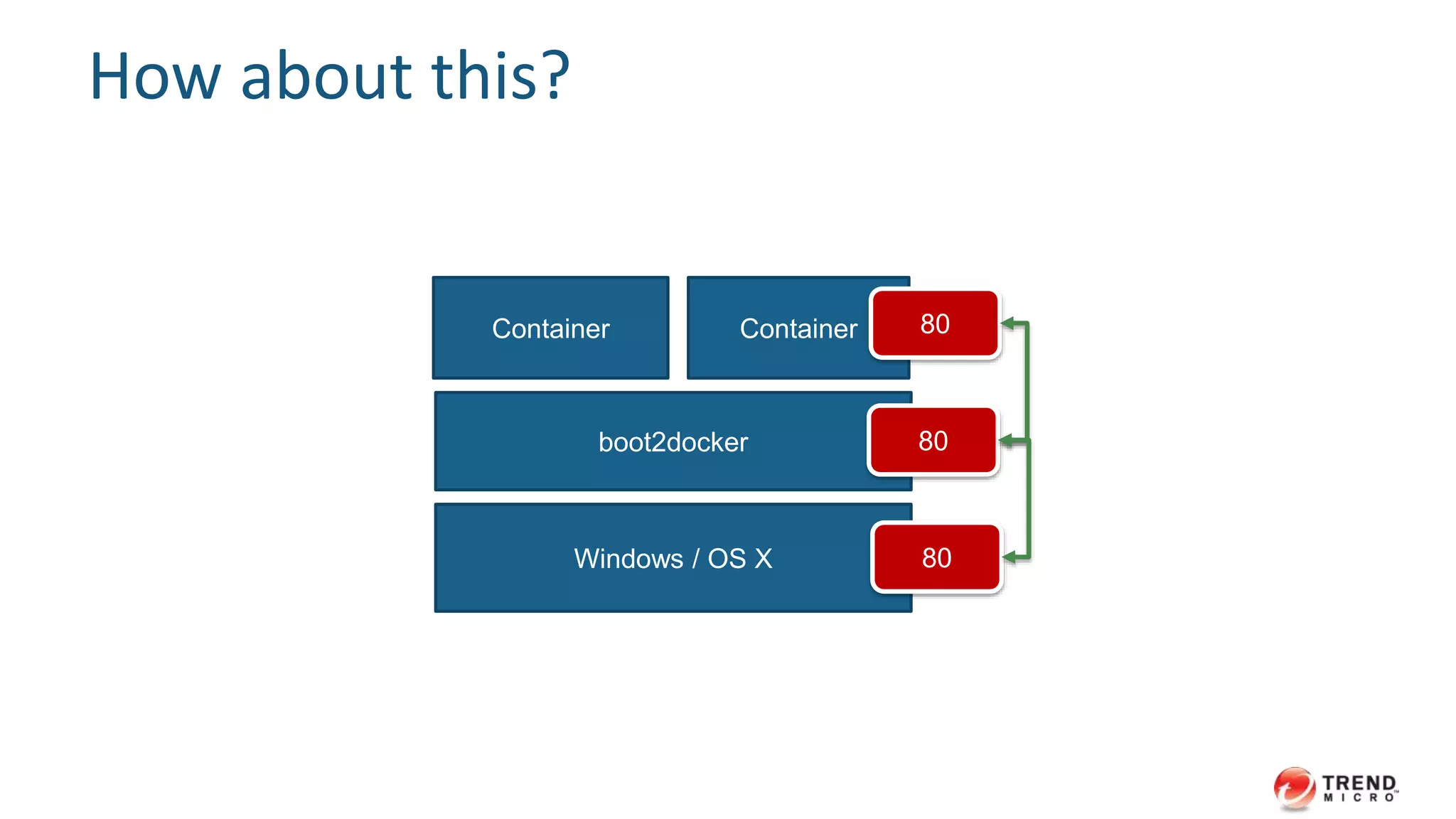
How about this?
Windows / OS X
boot2docker
Container Container 80
80
80
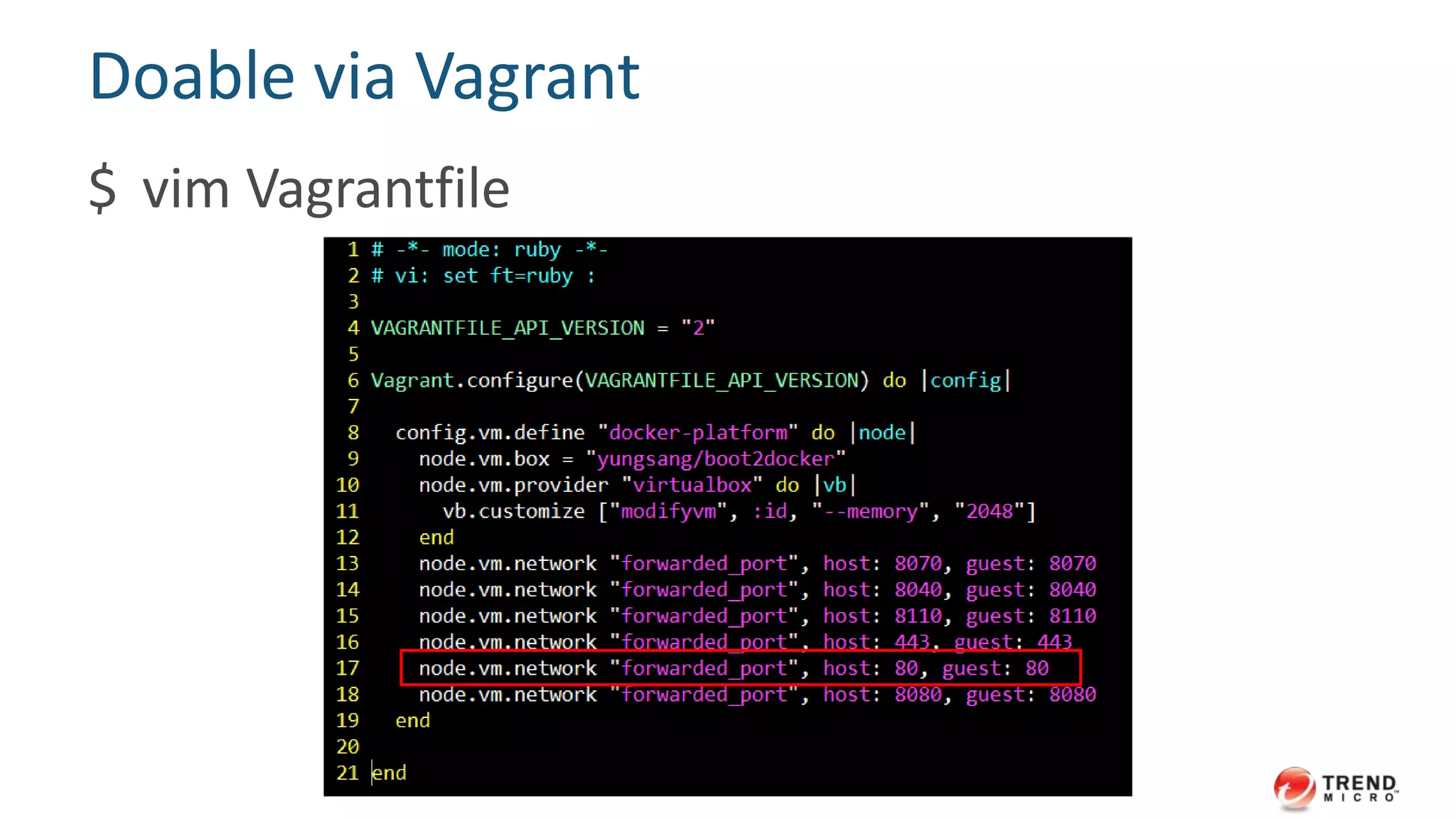
Doable via Vagrant
$ vim Vagrantfile
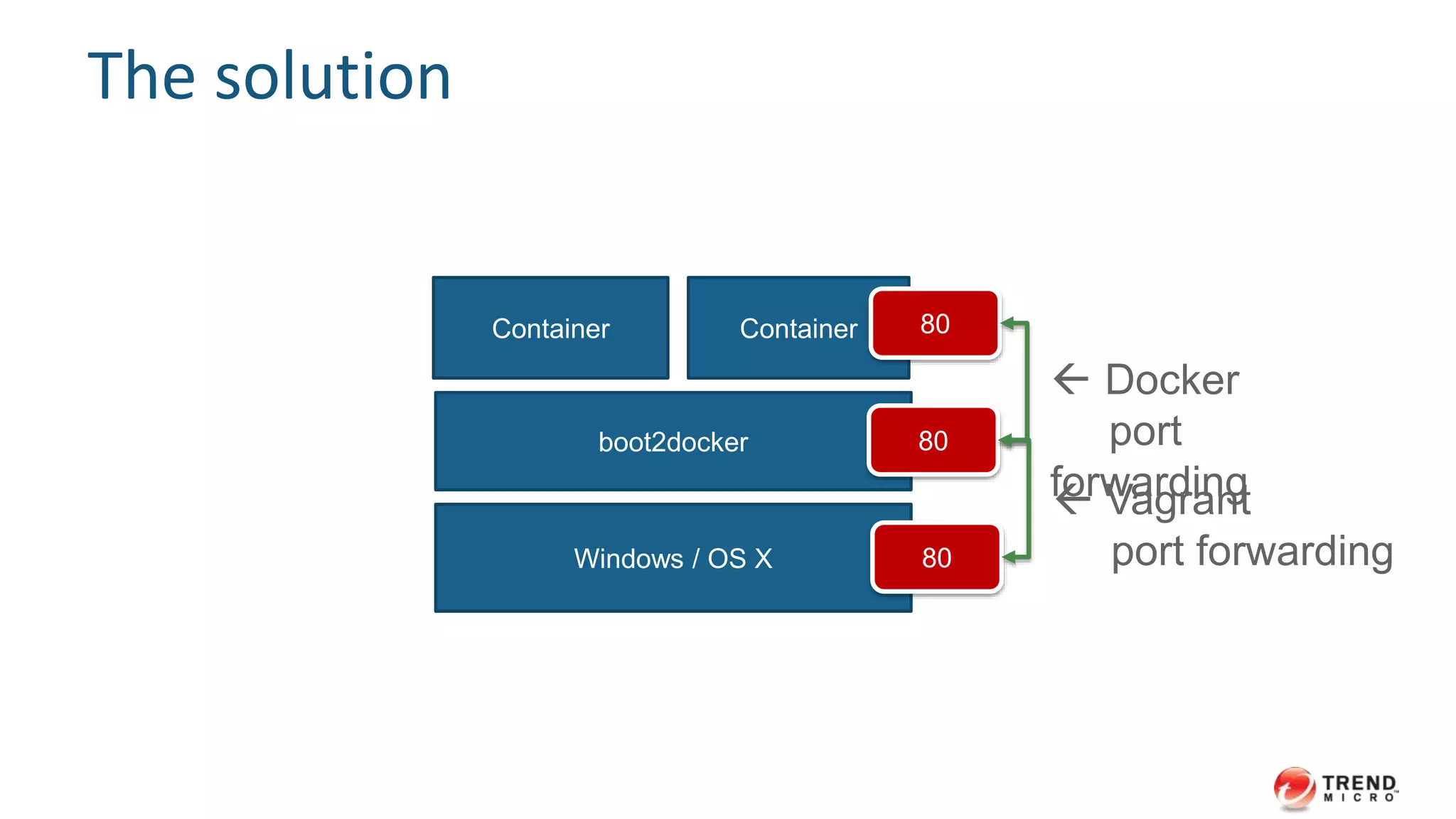
The solution
Windows / OS X
boot2docker
Container Container 80
80
80
 Docker
port
forwarding Vagrant
port forwarding
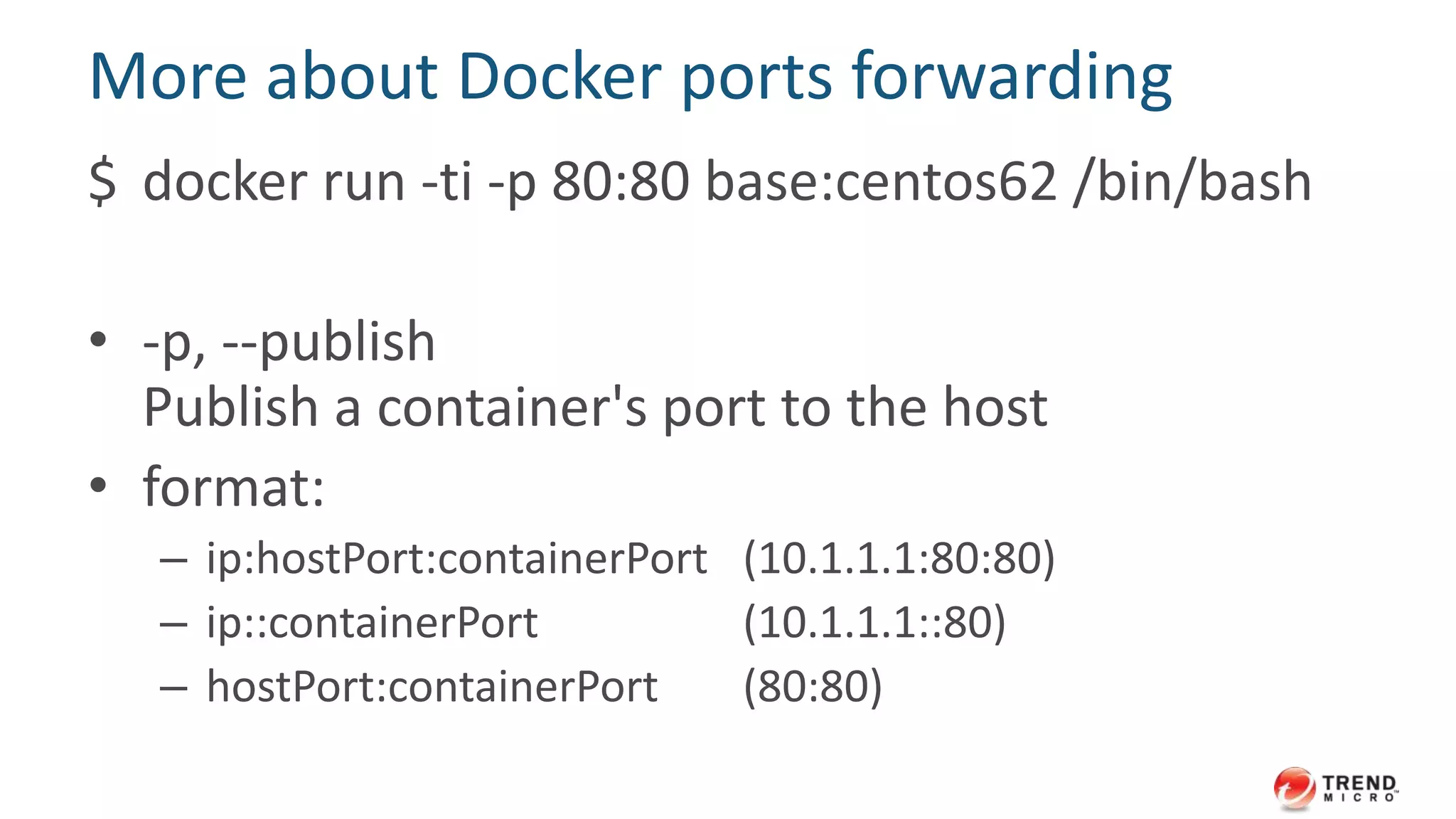
More about Docker ports forwarding
$ docker run -ti -p 80:80 base:centos62 /bin/bash
• -p, --publish
Publish a container's port to the host
• format:
– ip:hostPort:containerPort (10.1.1.1:80:80)
– ip::containerPort (10.1.1.1::80)
– hostPort:containerPort (80:80)
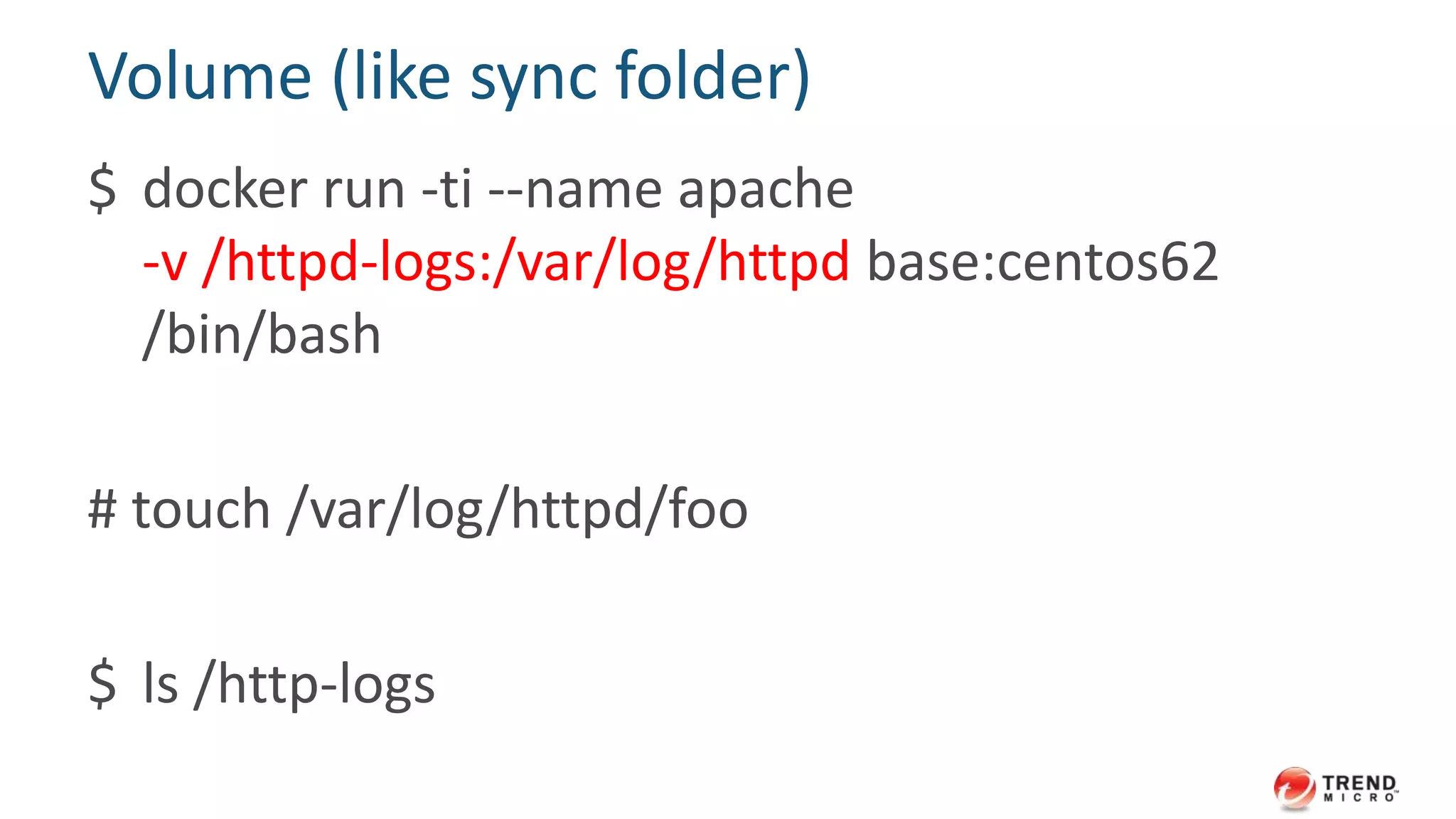
Volume (like sync folder)
$ docker run -ti --name apache
-v /httpd-logs:/var/log/httpd base:centos62
/bin/bash
# touch /var/log/httpd/foo
$ ls /http-logs
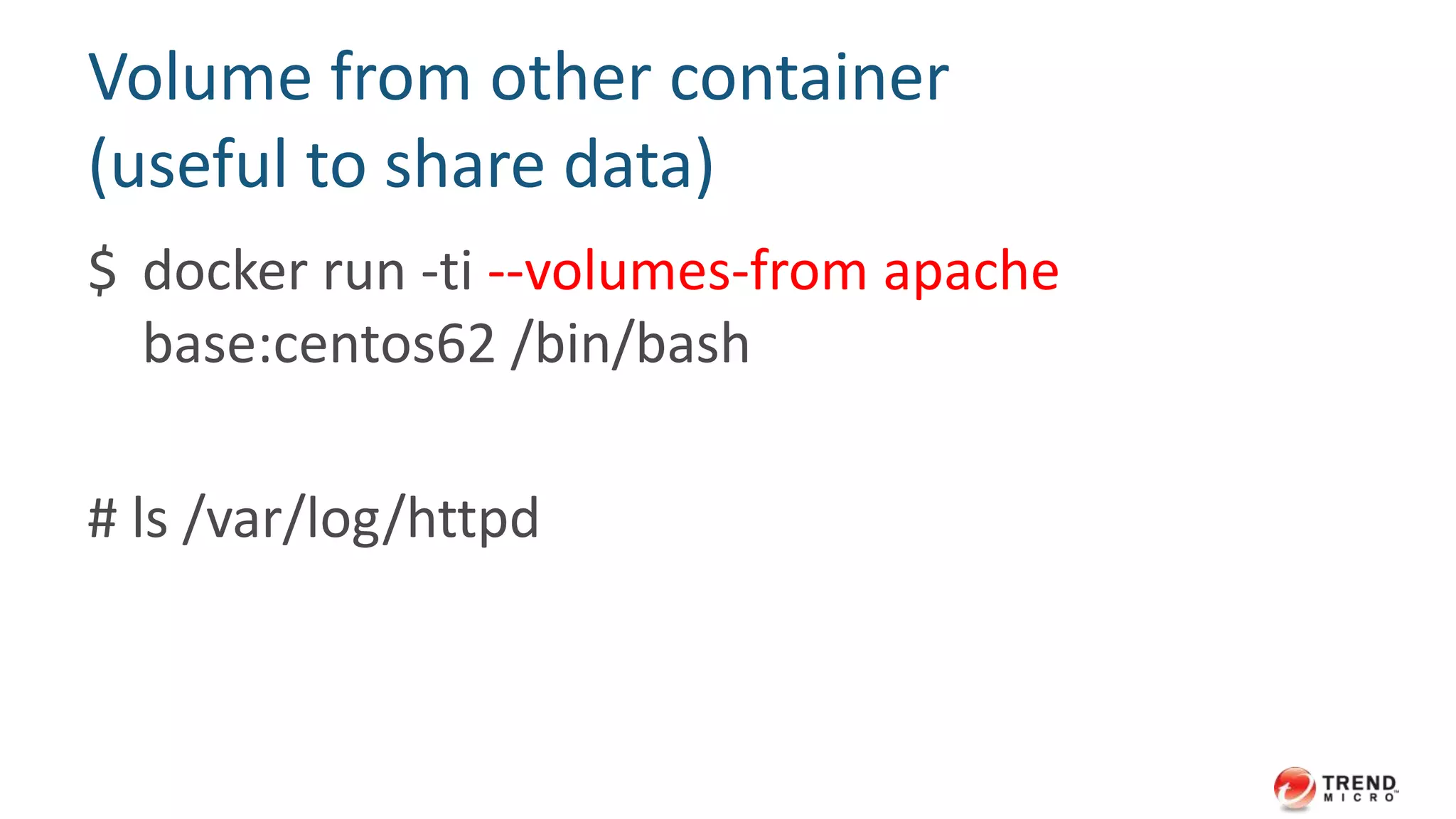
Volume from other container
(useful to share data)
$ docker run -ti --volumes-from apache
base:centos62 /bin/bash
# ls /var/log/httpd
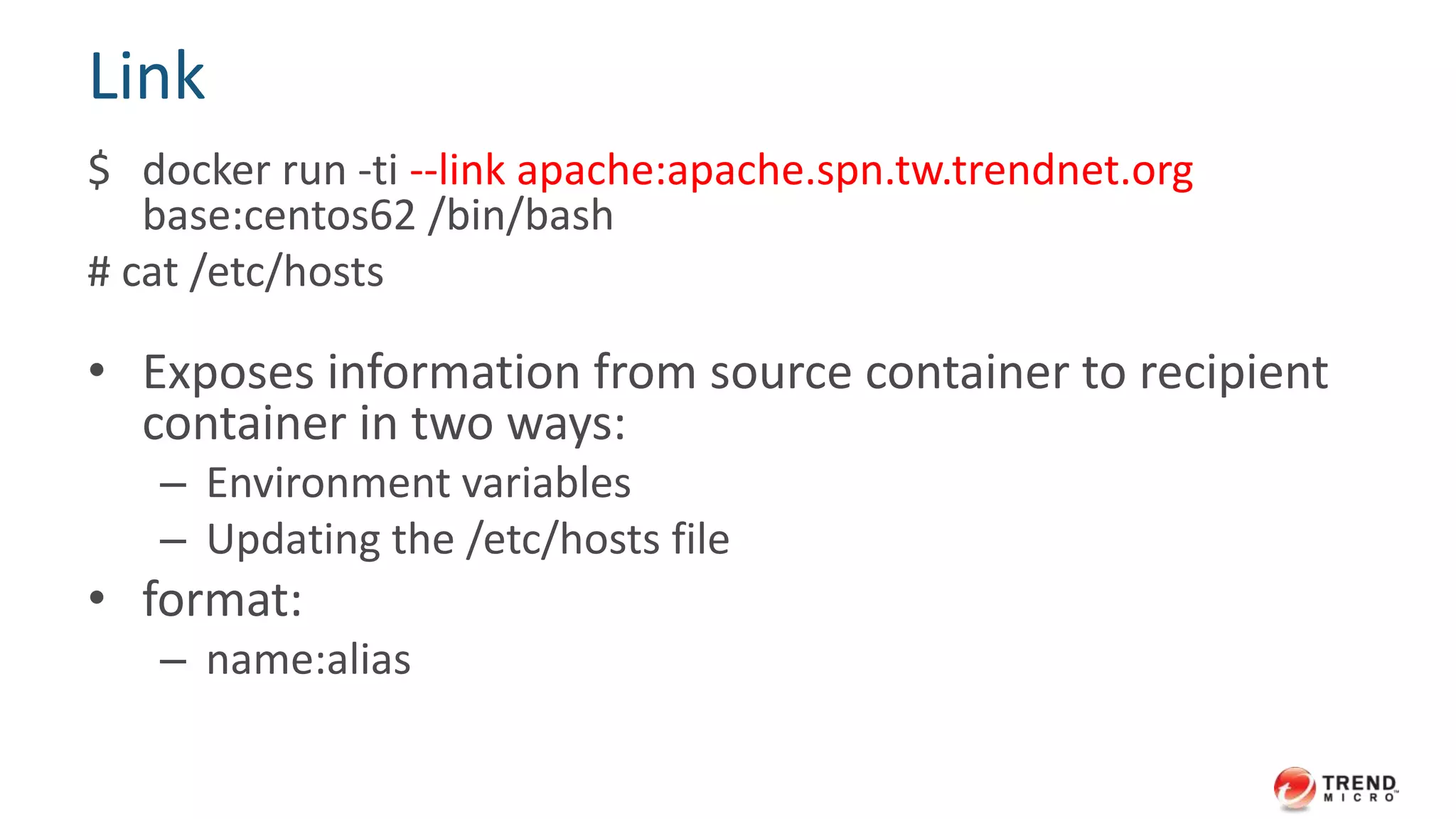
Link
$ docker run -ti --link apache:apache.trendmicro.com
base:centos62 /bin/bash
# cat /etc/hosts
• Exposes information from source container to recipient
container in two ways:
– Environment variables
– Updating the /etc/hosts file
• format:
– name:alias
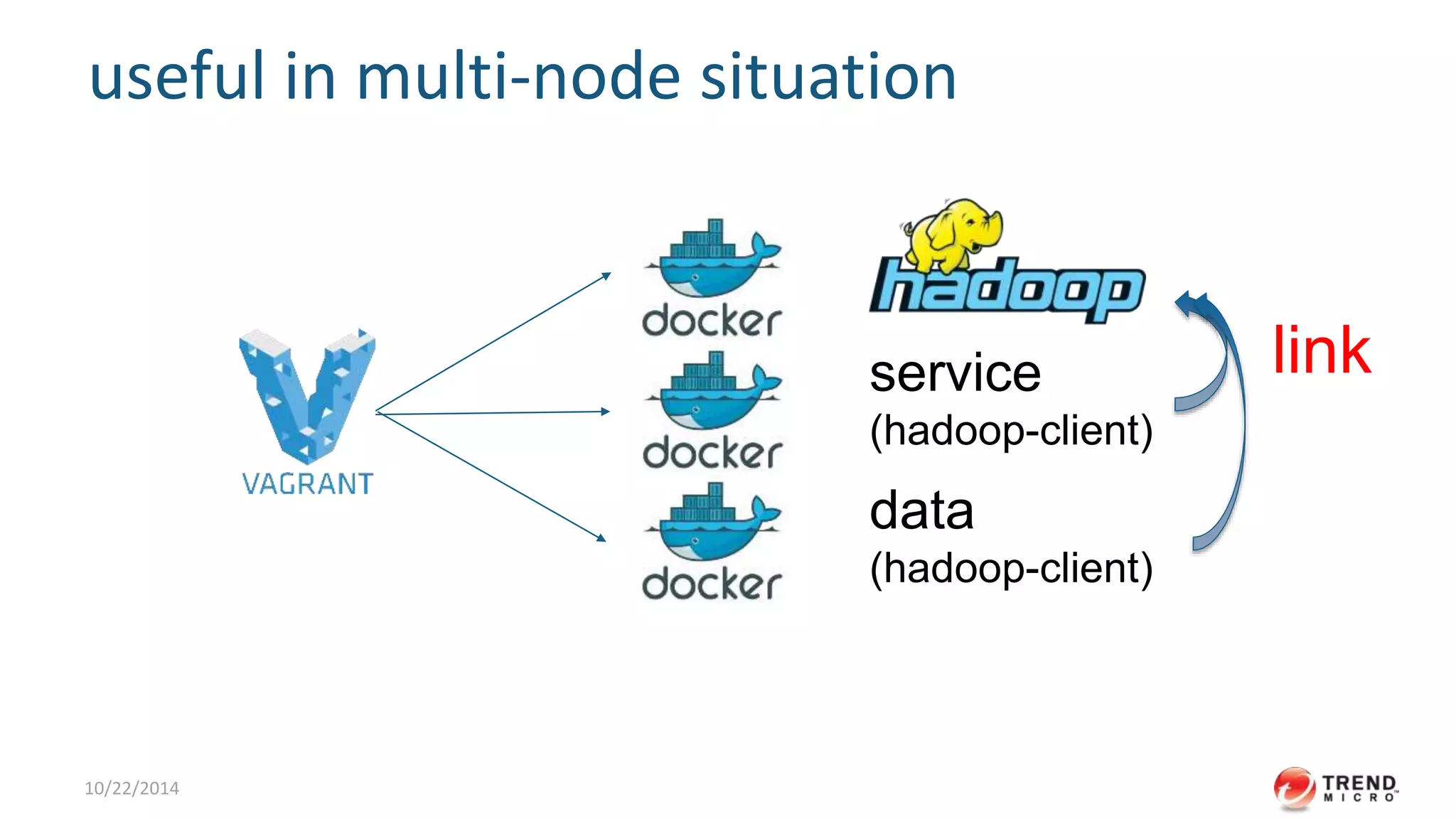
useful in multi-node situation
12/25/2014
service
(hadoop-client)
data
(hadoop-client)
link
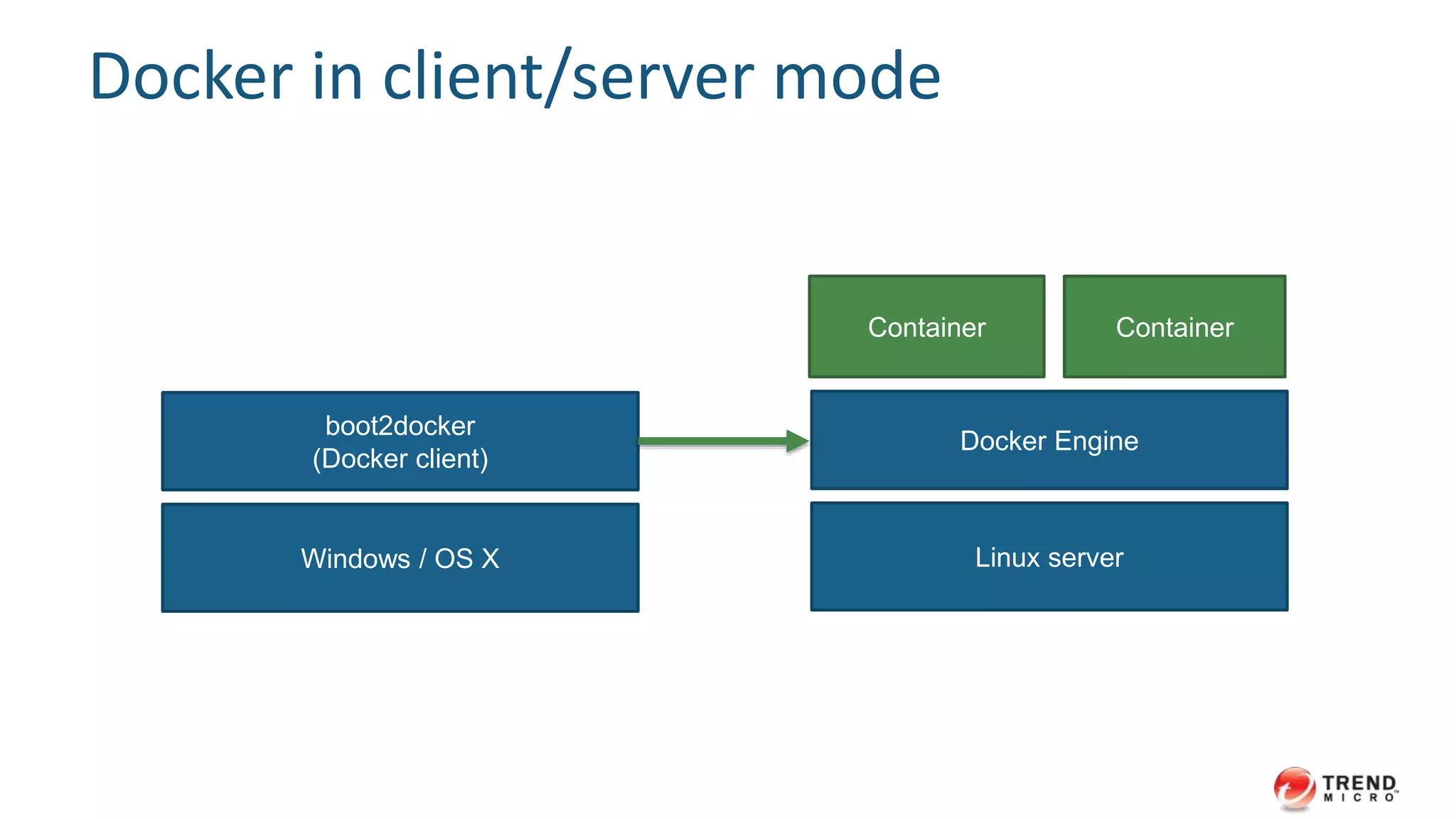
Docker in client/server mode
Windows / OS X
boot2docker
(Docker client)
Linux server
Docker Engine
Container Container
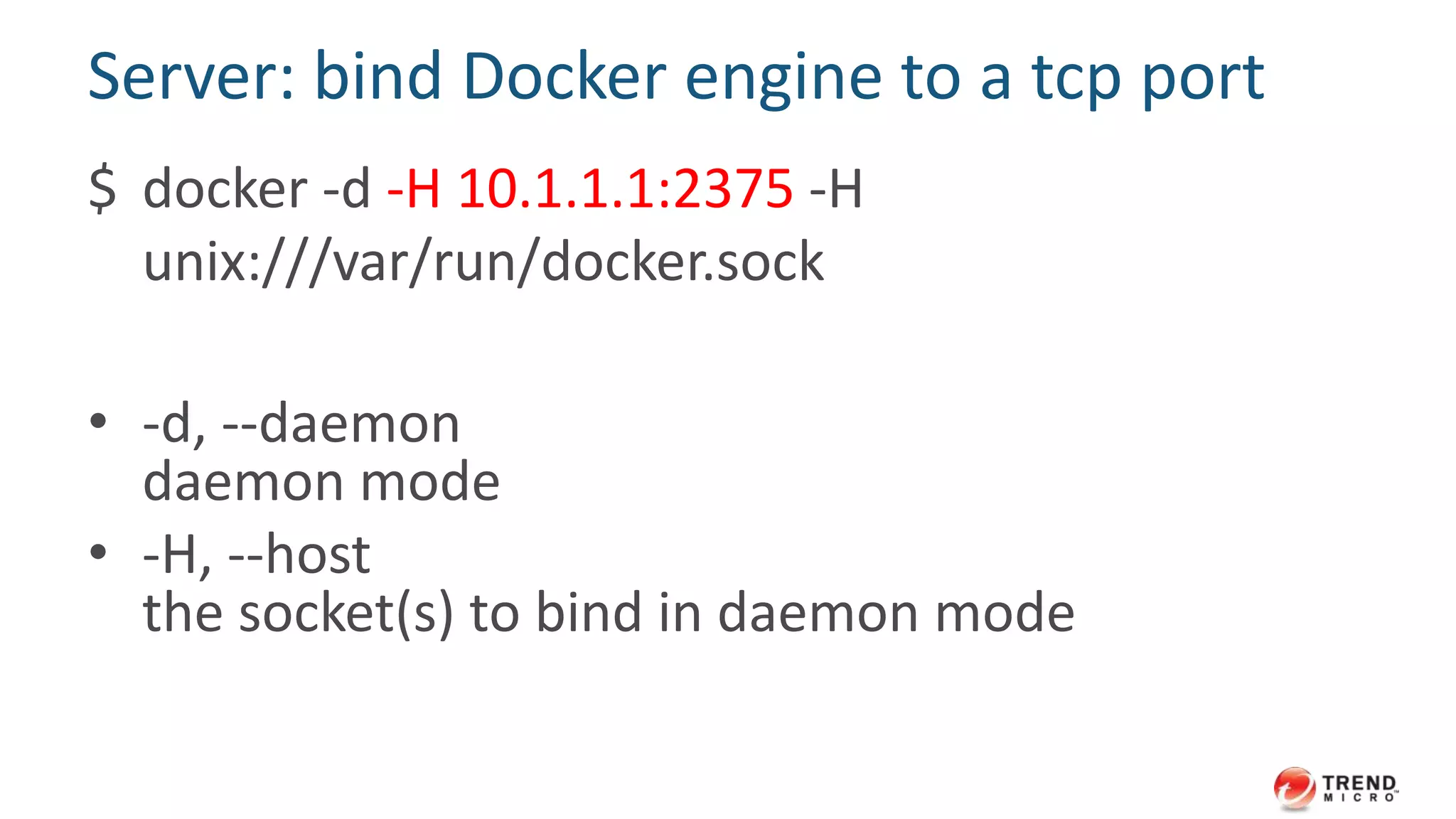
Server: bind Docker engine to a tcp port
$ docker -d -H 10.1.1.1:2375 -H
unix:///var/run/docker.sock
• -d, --daemon
daemon mode
• -H, --host
the socket(s) to bind in daemon mode
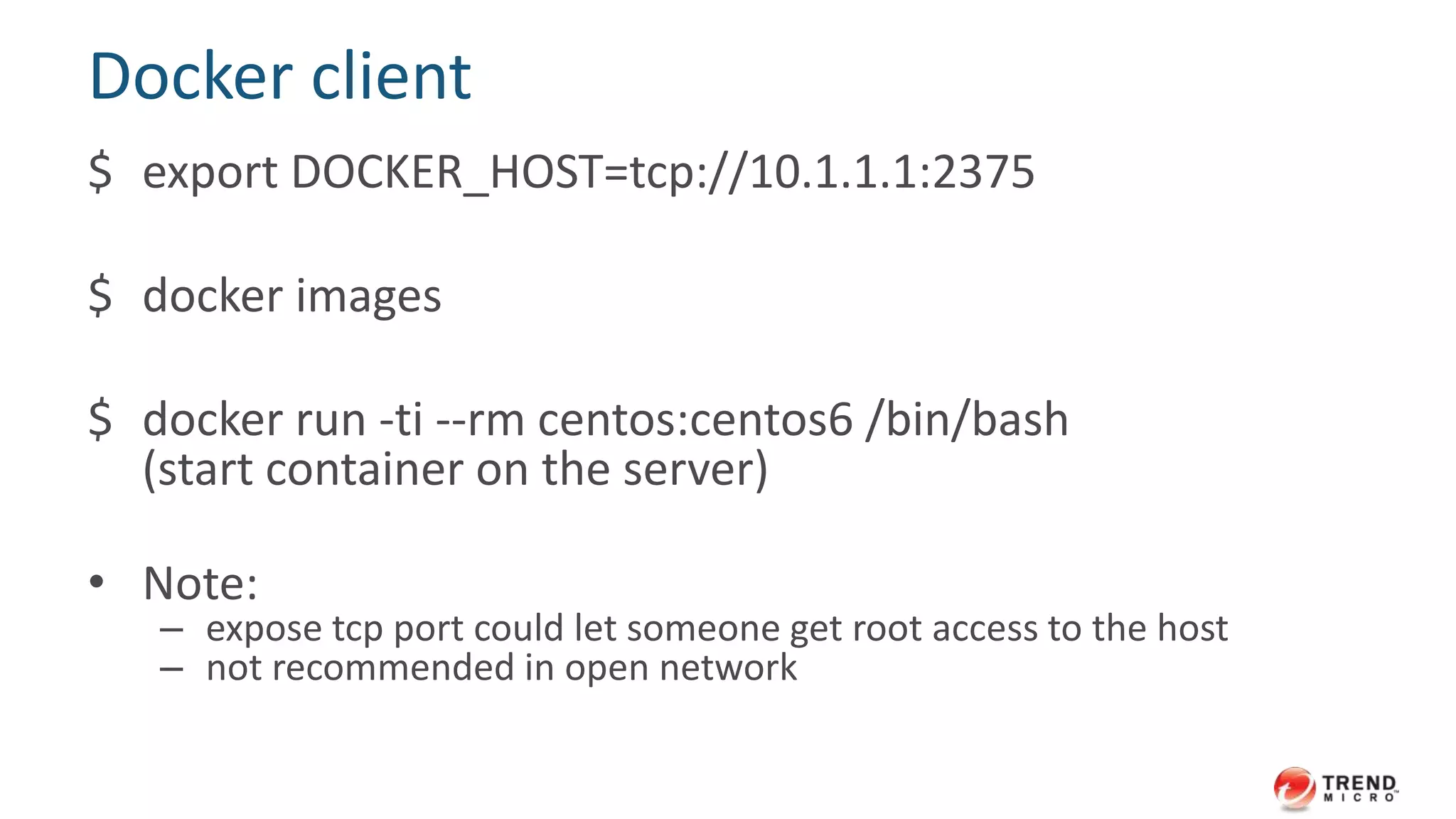
Docker client
$ export DOCKER_HOST=tcp://10.1.1.1:2375
$ docker images
$ docker run -ti --rm centos:centos6 /bin/bash
(start container on the server)
• Note:
– expose tcp port could let someone get root access to the host
– not recommended in open network
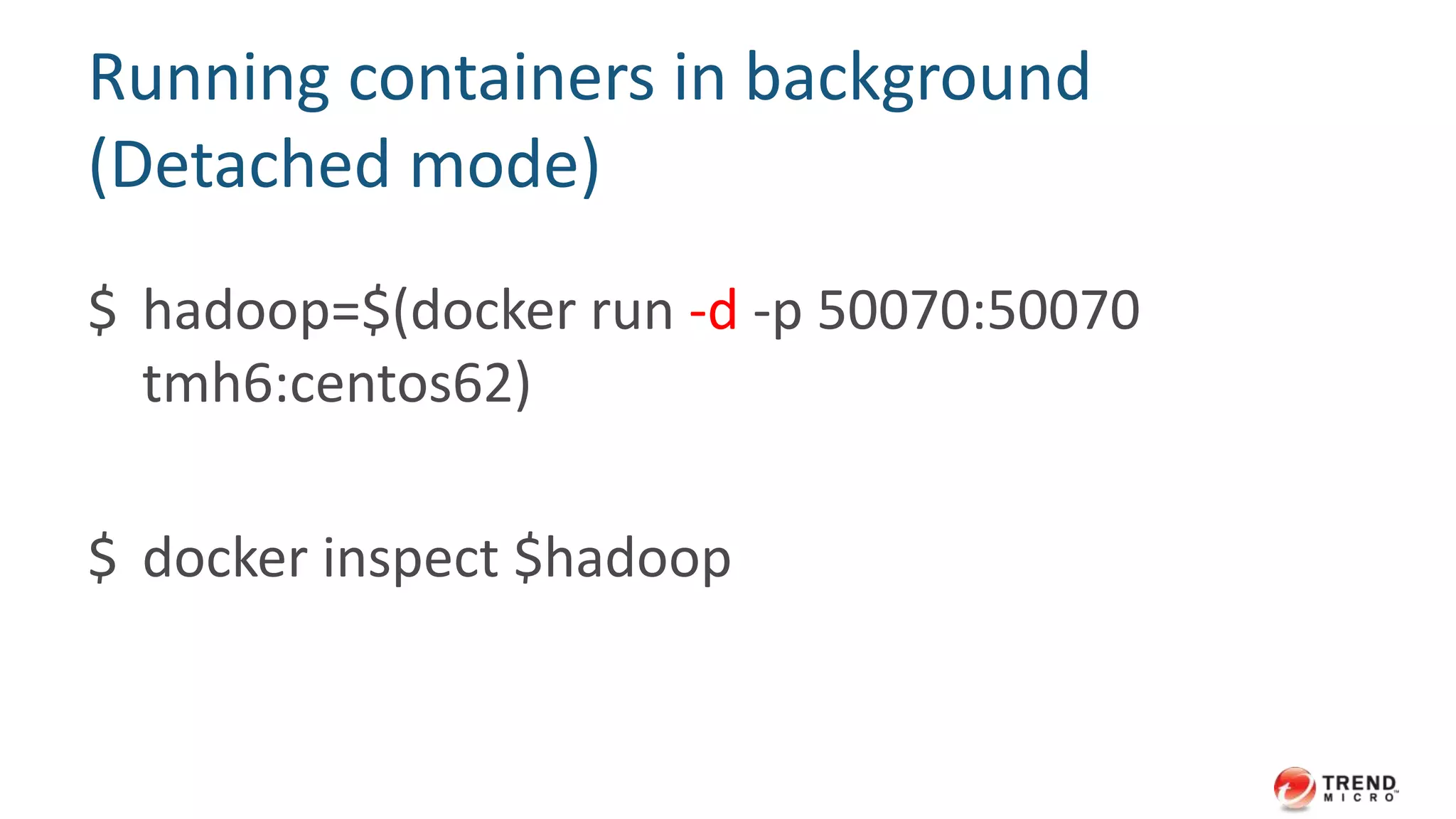
Running containers in background
(Detached mode)
$ hadoop=$(docker run -d -p 50070:50070
tmh6:centos62)
$ docker inspect $hadoop
40
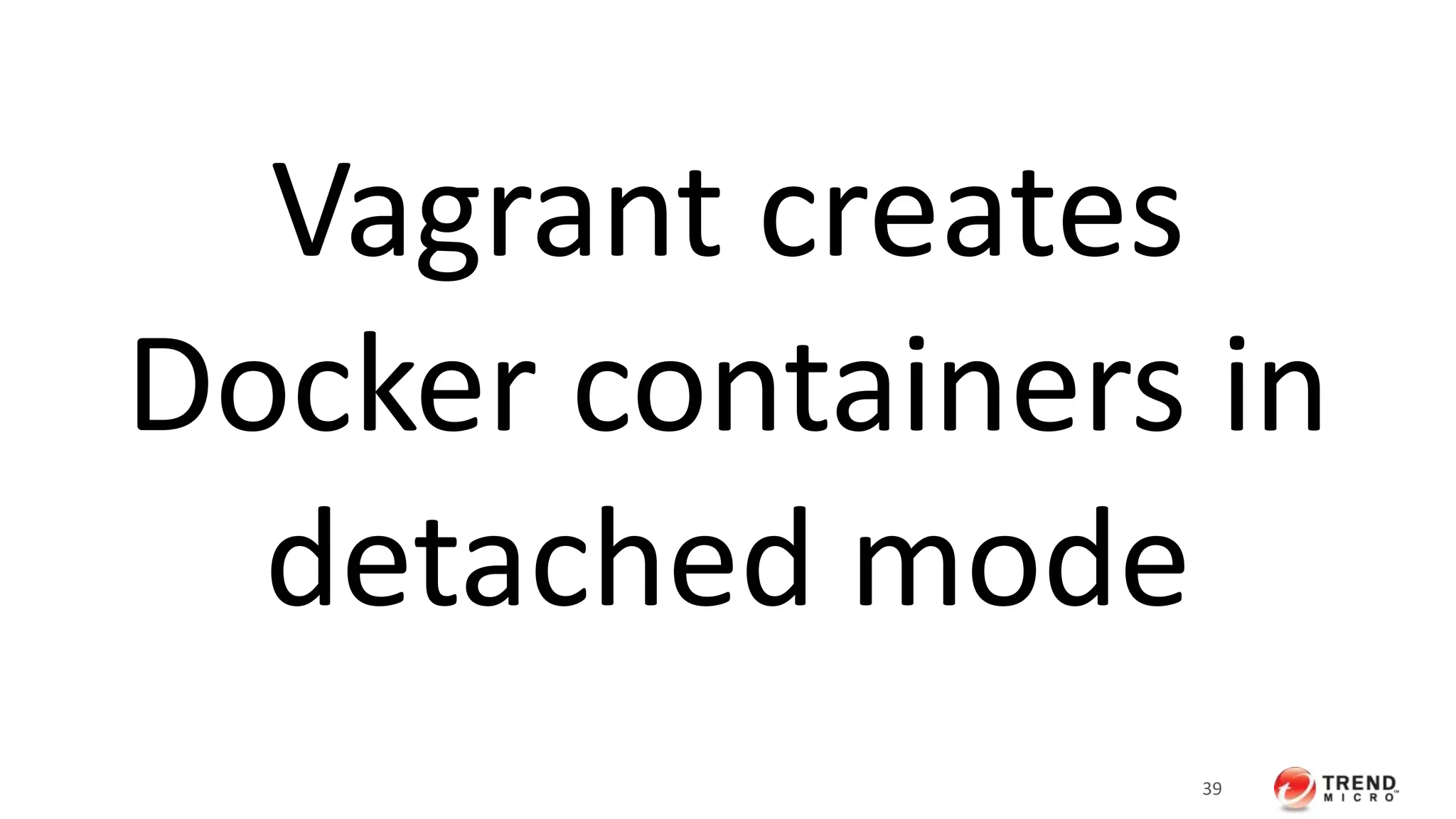
Vagrant creates
Docker containers in
detached mode
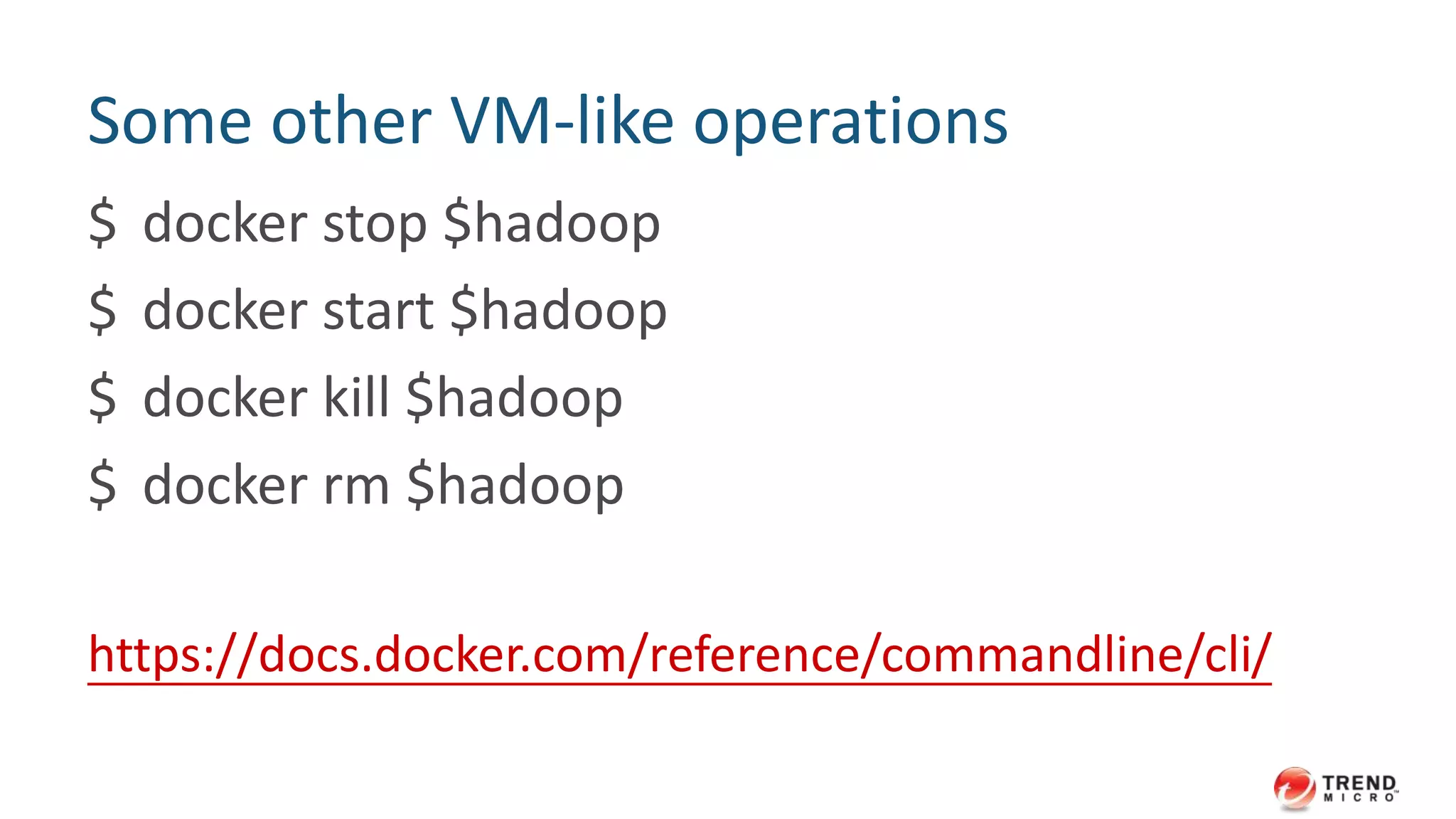
Some other VM-like operations
$ docker stop $hadoop
$ docker start $hadoop
$ docker kill $hadoop
$ docker rm $hadoop
https://docs.docker.com/reference/commandline/cli/
#TrendInsight
Building Docker Images
43
There are two ways
to build docker
images
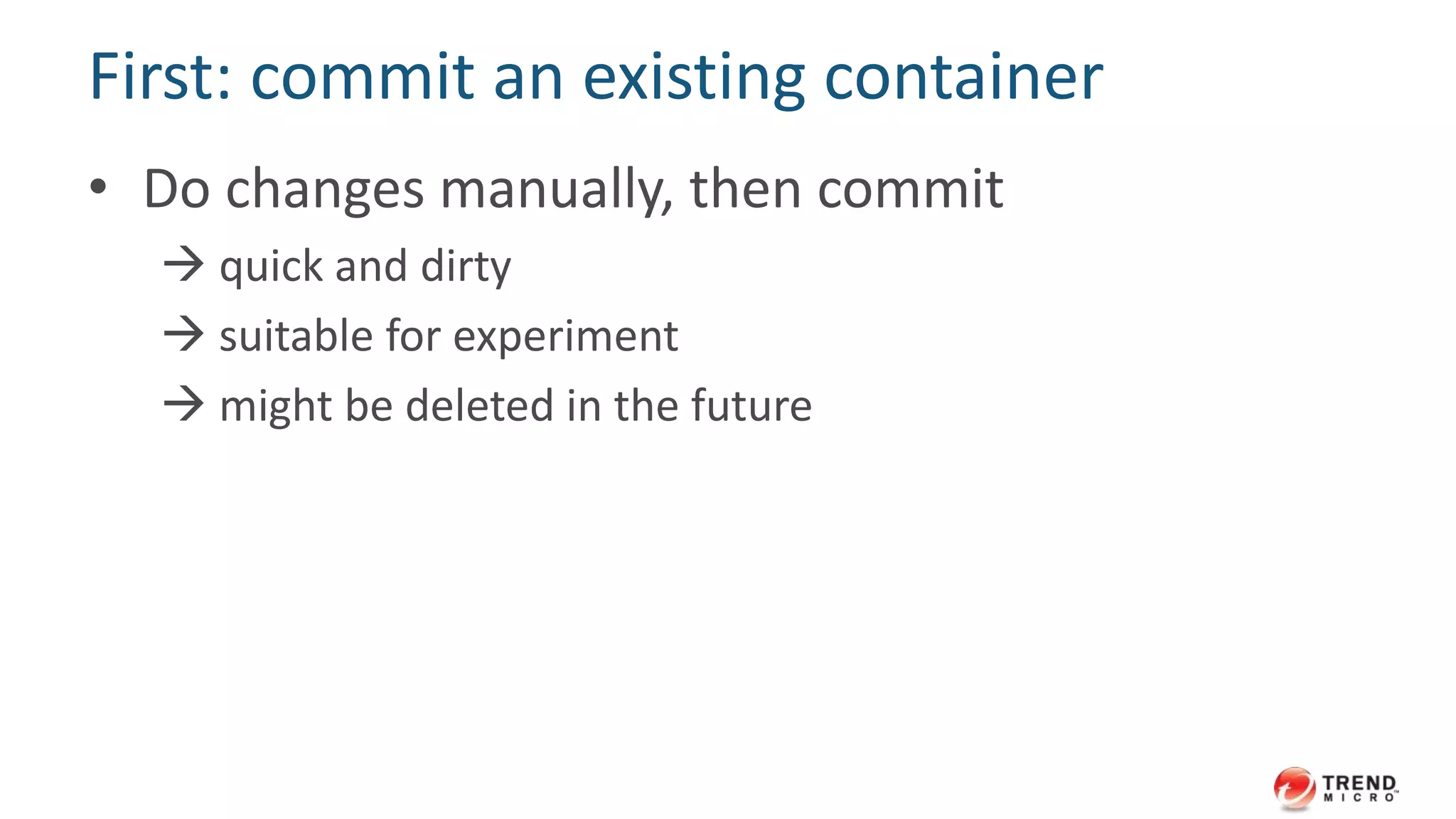
First: commit an existing container
• Do changes manually, then commit
 quick and dirty
 suitable for experiment
 might be deleted in the future
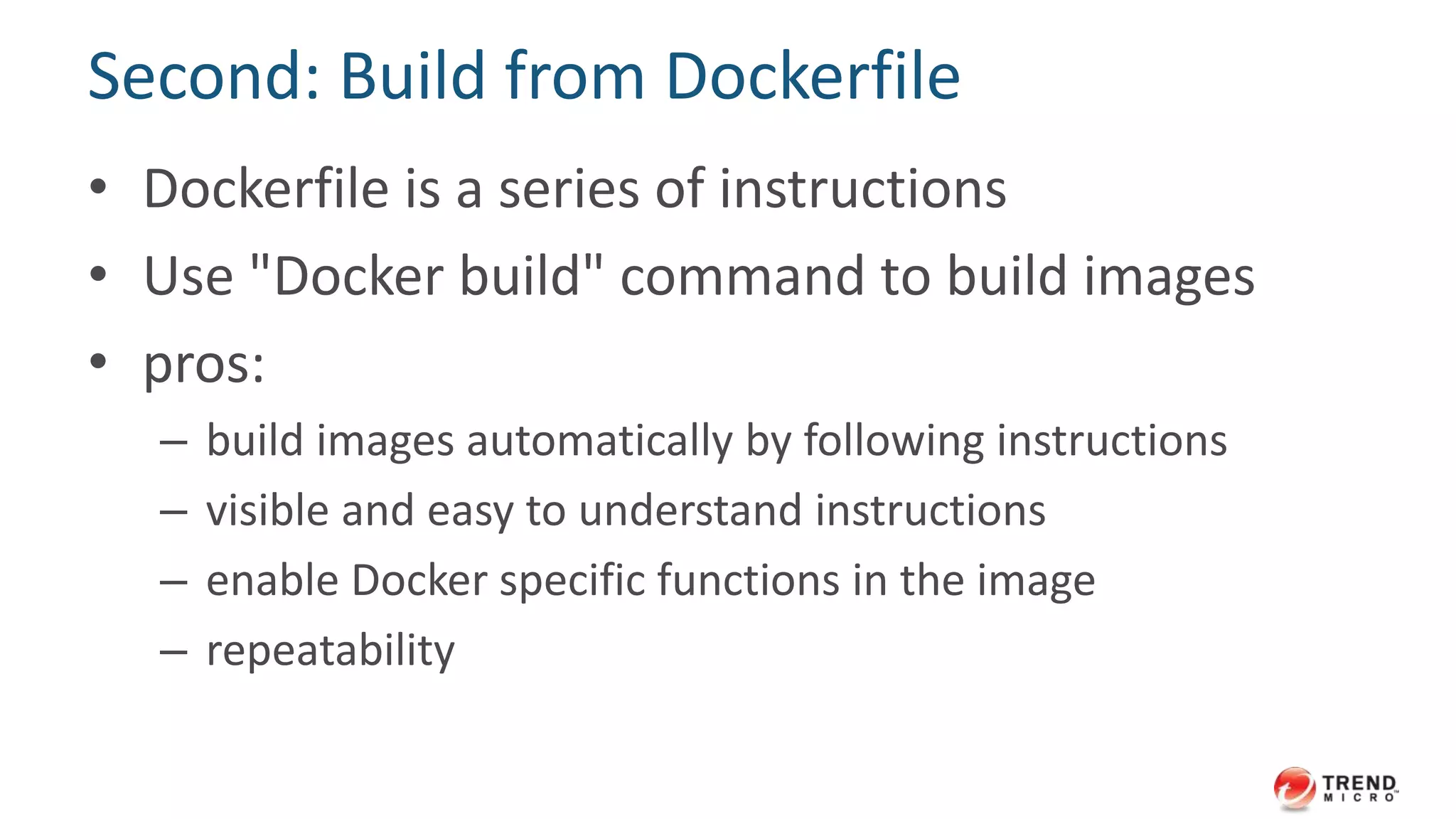
Second: Build from Dockerfile
• Dockerfile is a series of instructions
• Use "Docker build" command to build images
• pros:
– build images automatically by following instructions
– visible and easy to understand instructions
– enable Docker specific functions in the image
– repeatability
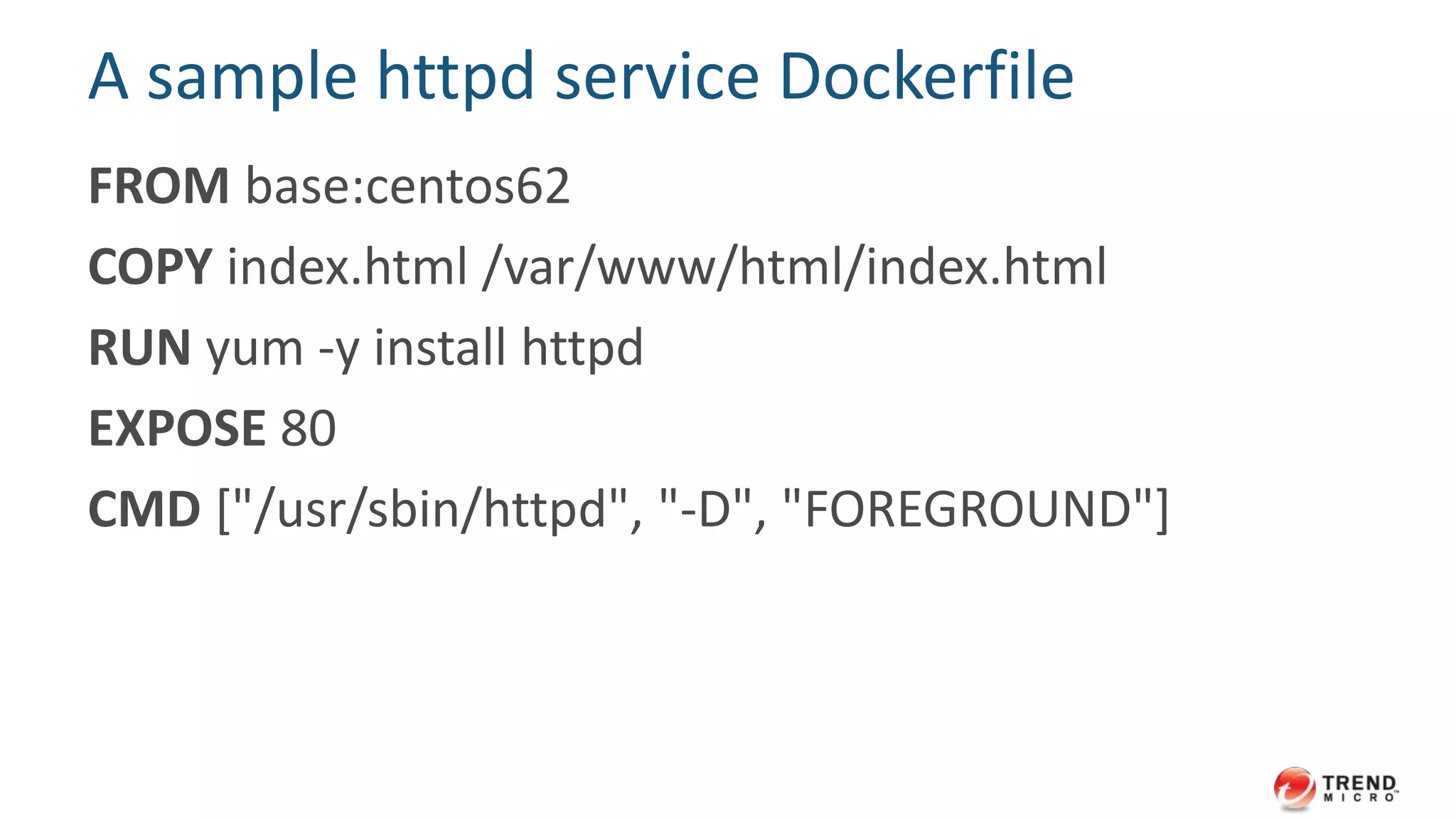
A sample httpd service Dockerfile
FROM base:centos62
COPY index.html /var/www/html/index.html
RUN yum -y install httpd
EXPOSE 80
CMD ["/usr/sbin/httpd", "-D", "FOREGROUND"]
Build
$ mkdir apache-server
$ cd apache-server
$ echo "our first docker image" > index.html
$ vi Dockerfile (paste the sample and save it)
$ docker build -t apache:0.1 ./
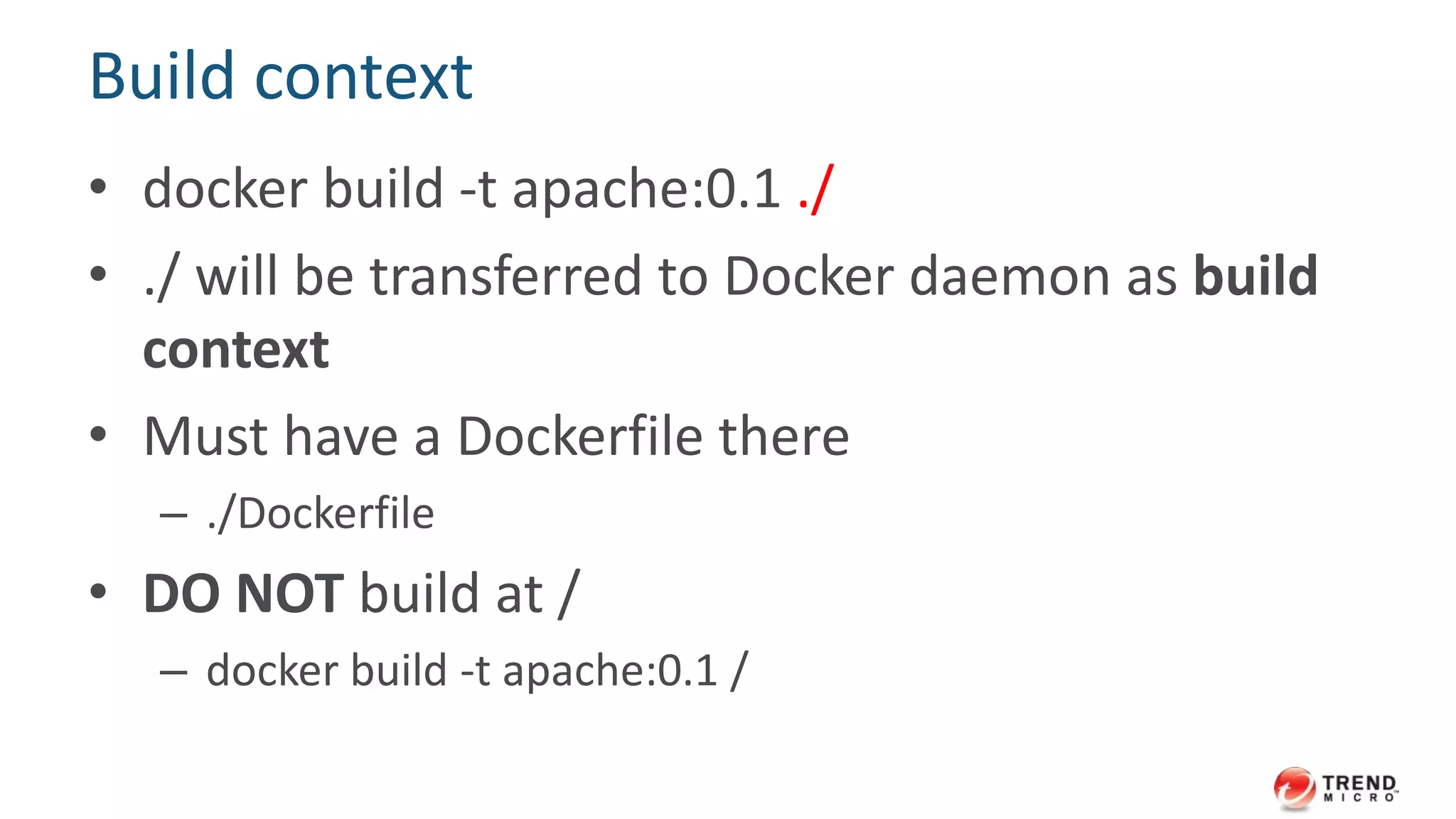
Build context
• docker build -t apache:0.1 ./
• ./ will be transferred to Docker daemon as build
context
• Must have a Dockerfile there
– ./Dockerfile
• DO NOT build at /
– docker build -t apache:0.1 /
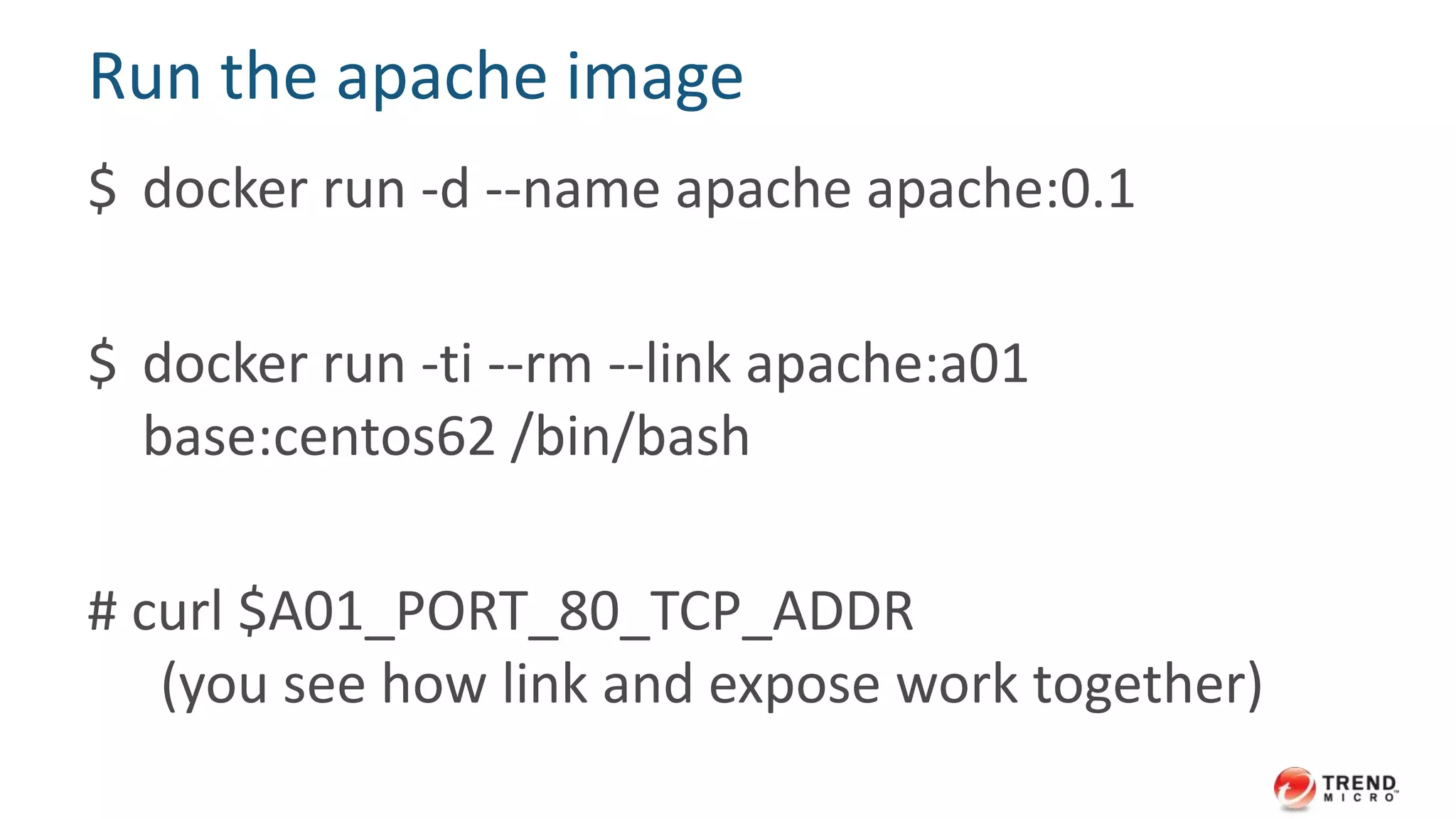
Run the apache image
$ docker run -d --name apache apache:0.1
$ docker run -ti --rm --link apache:a01
base:centos62 /bin/bash
# curl $A01_PORT_80_TCP_ADDR
(you see how link and expose work together)
50
Use entrypoint to
bind a specific
executable to the
image
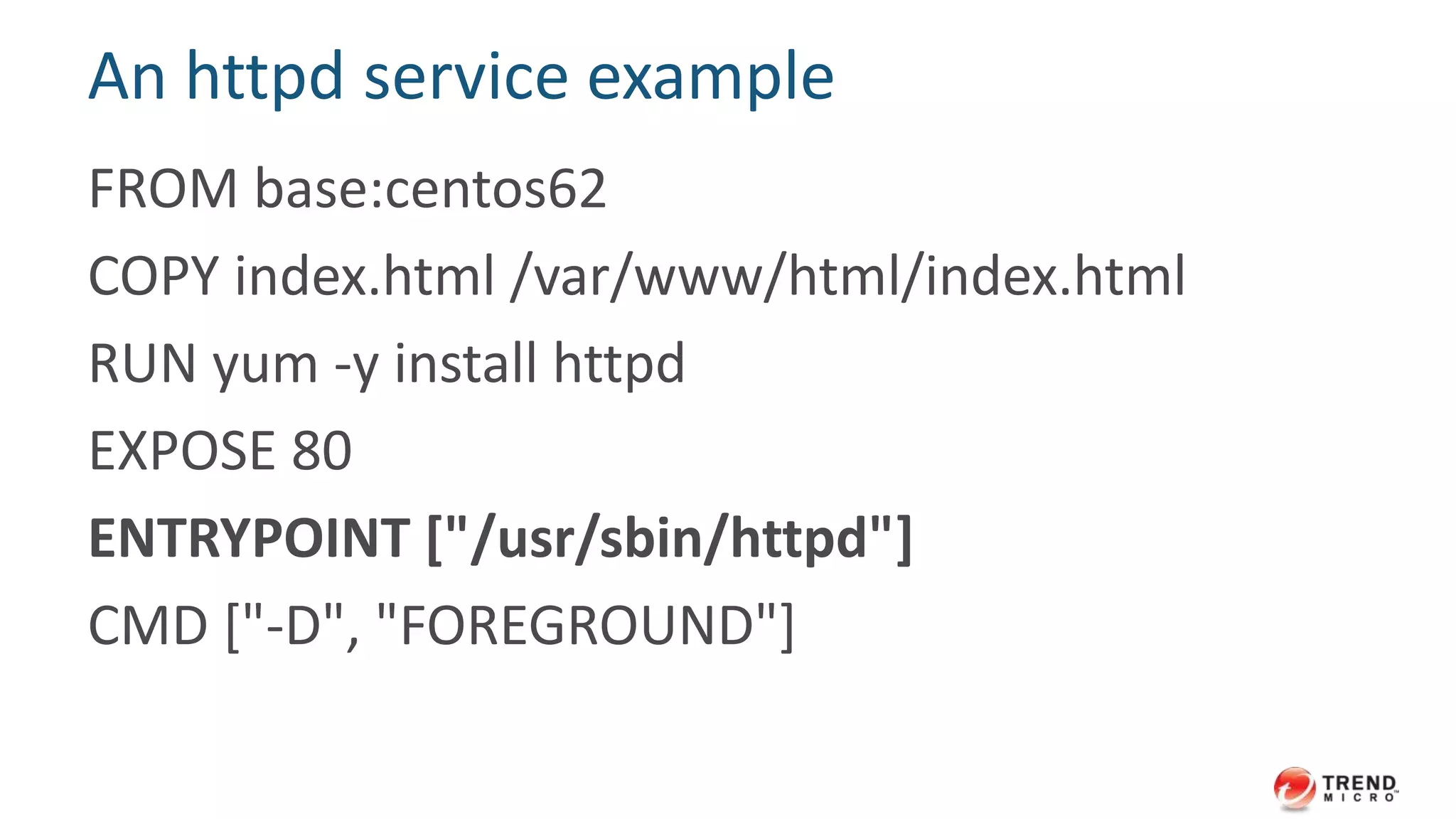
An httpd service example
FROM base:centos62
COPY index.html /var/www/html/index.html
RUN yum -y install httpd
EXPOSE 80
ENTRYPOINT ["/usr/sbin/httpd"]
CMD ["-D", "FOREGROUND"]
The difference
$ docker run -ti --rm apache:0.1 /bin/bash
# (get into the container)
$ docker run -ti --rm apache:0.2 /bin/bash
show httpd helper message
 the only thing you can do is to pass args to httpd
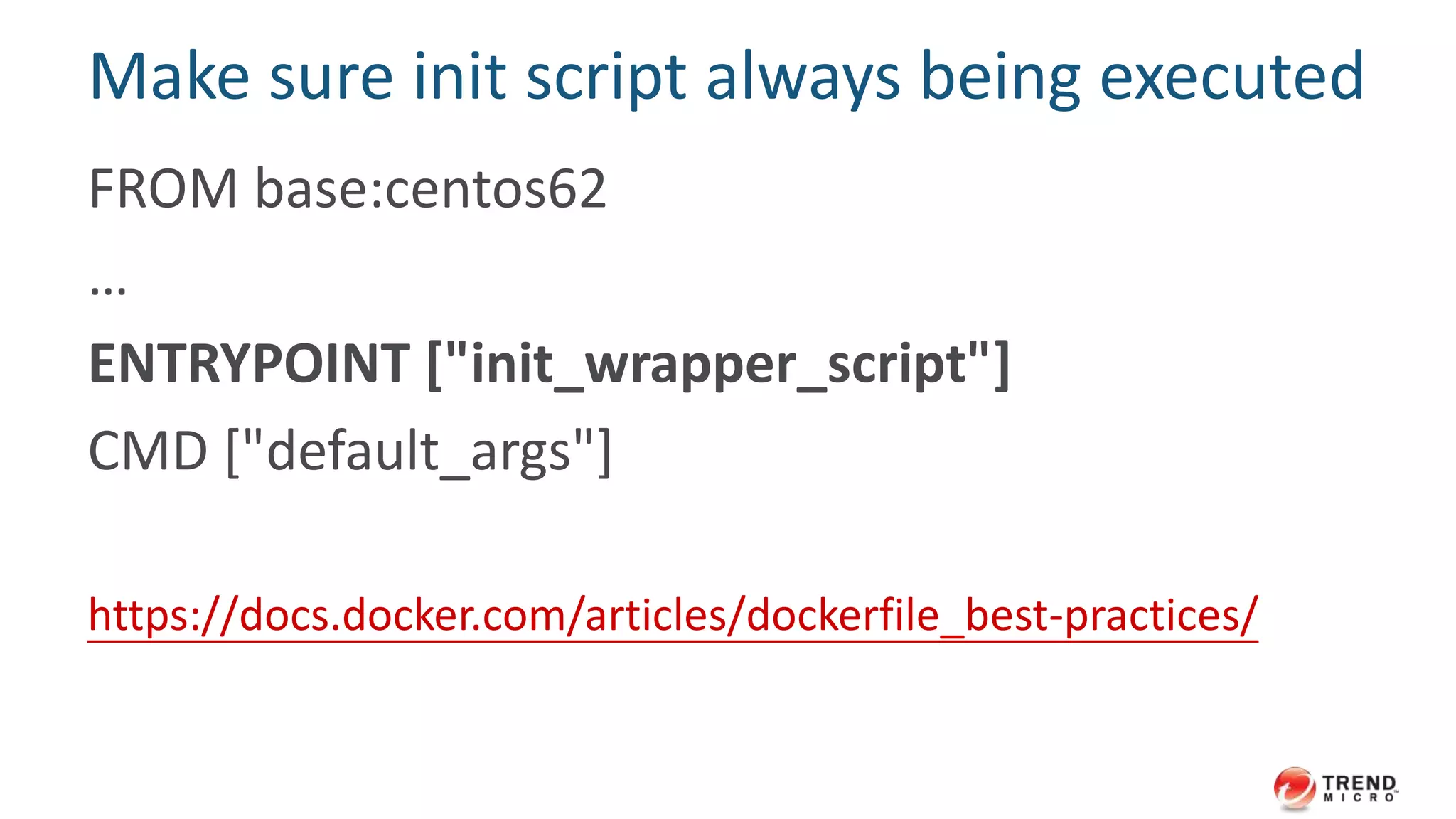
Make sure init script always being executed
FROM base:centos62
…
ENTRYPOINT ["init_wrapper_script"]
CMD ["default_args"]
https://docs.docker.com/articles/dockerfile_best-practices/
SHIPPING
CONTAINERS
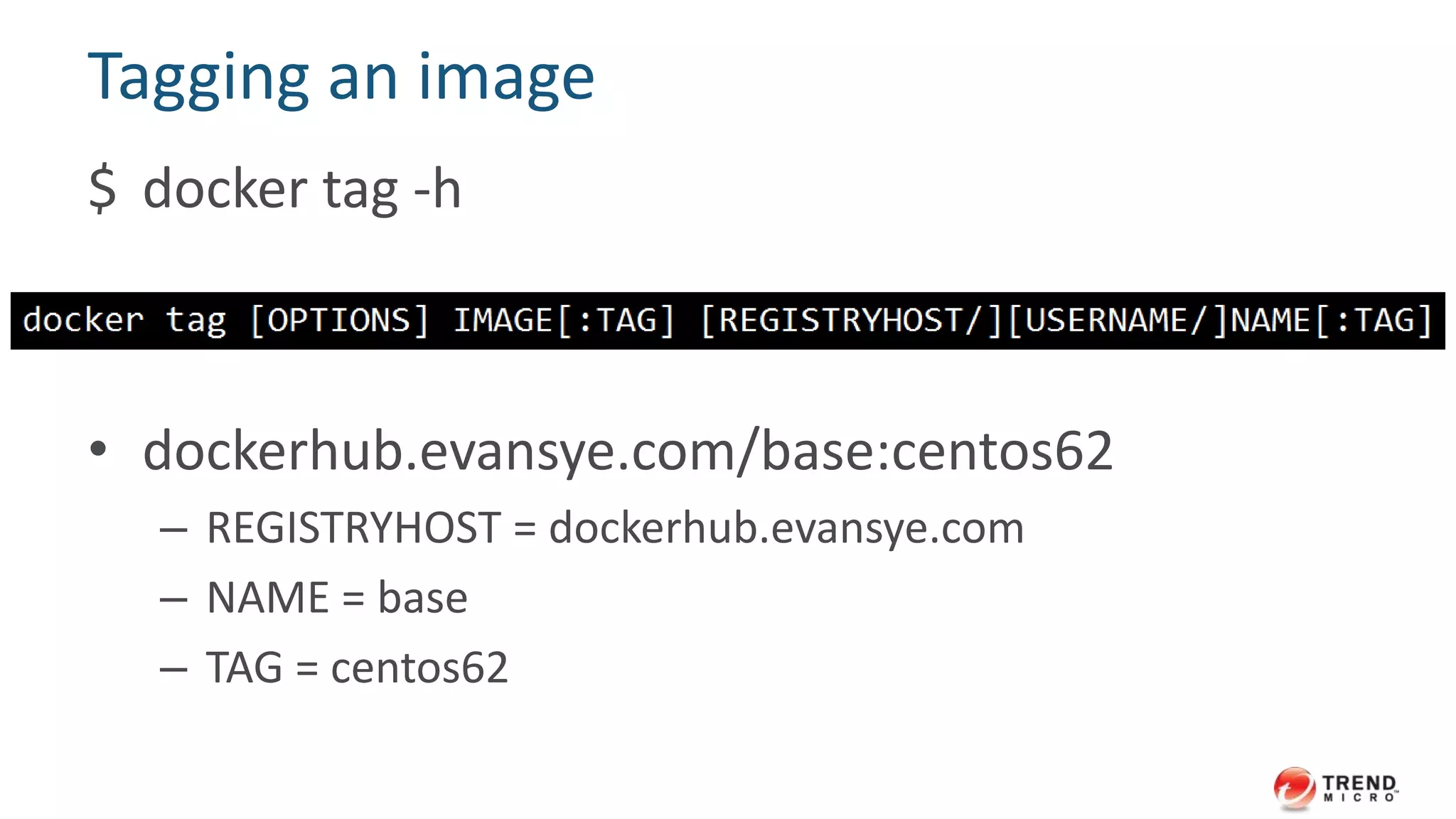
Tagging an image
$ docker tag -h
• dockerhub.evansye.com/base:centos62
– REGISTRYHOST = dockerhub.evansye.com
– NAME = base
– TAG = centos62
#TrendInsight
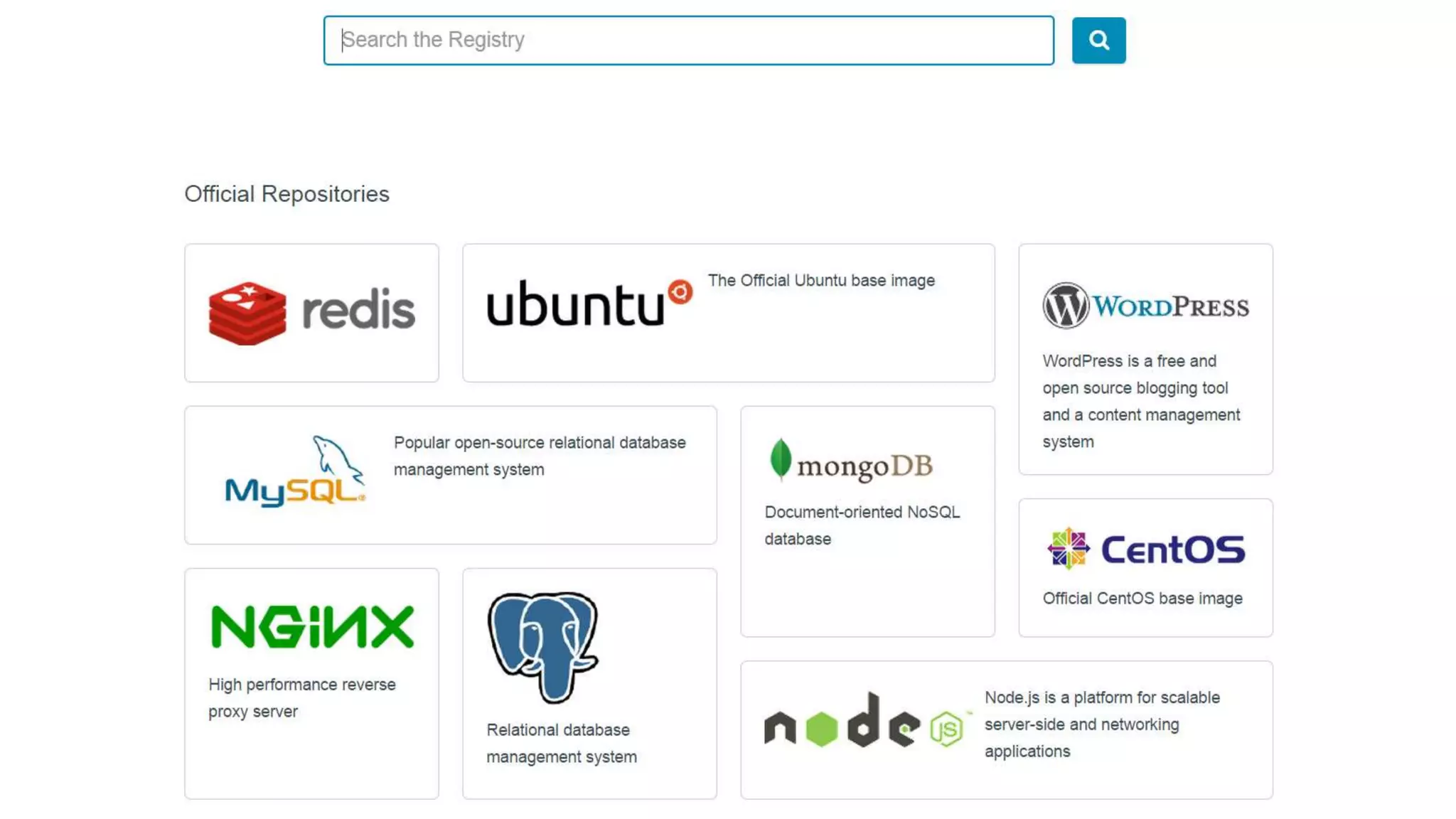
The official Docker hub
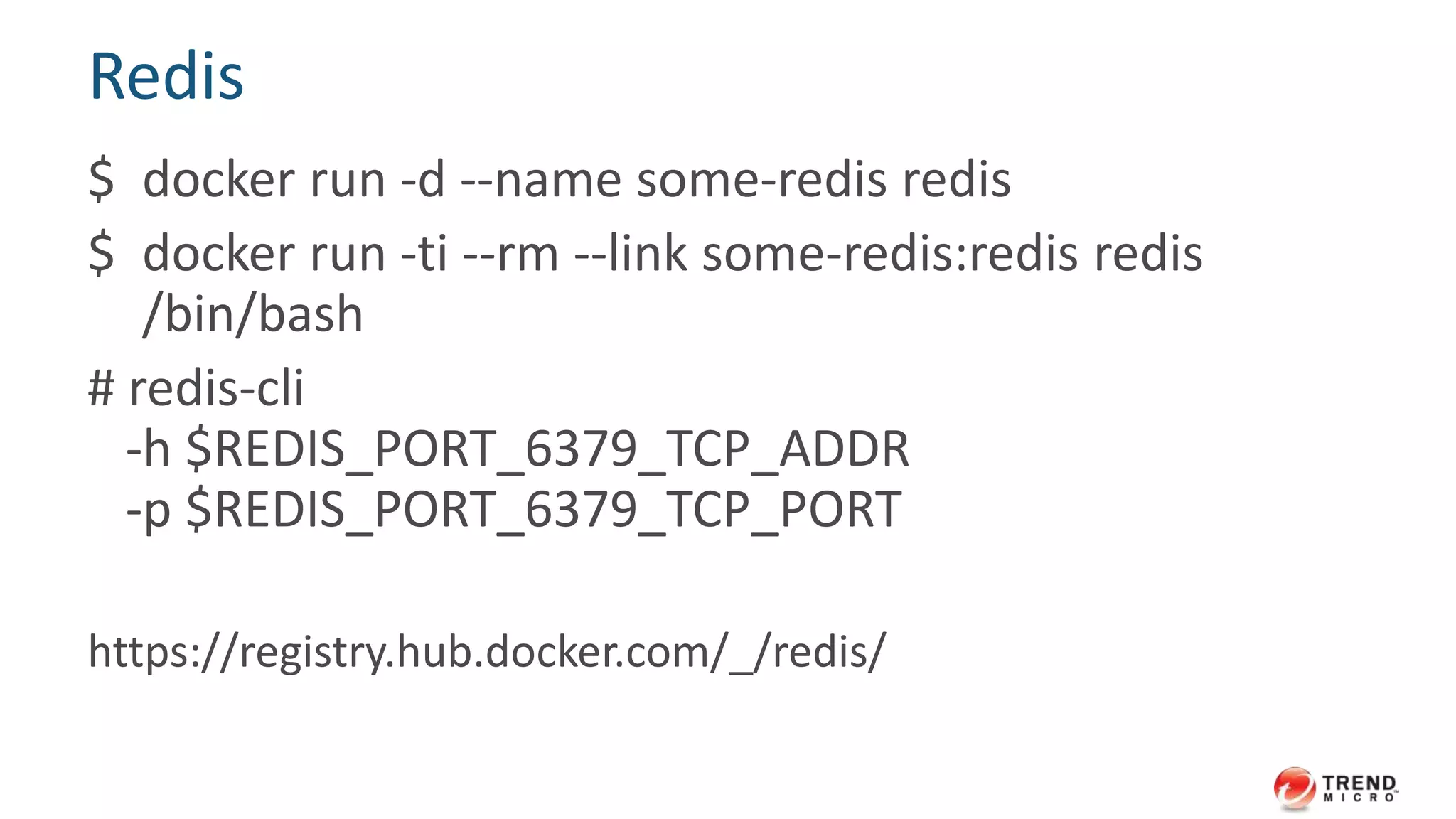
Redis
$ docker run -d --name some-redis redis
$ docker run -ti --rm --link some-redis:redis redis
/bin/bash
# redis-cli
-h $REDIS_PORT_6379_TCP_ADDR
-p $REDIS_PORT_6379_TCP_PORT
https://registry.hub.docker.com/_/redis/
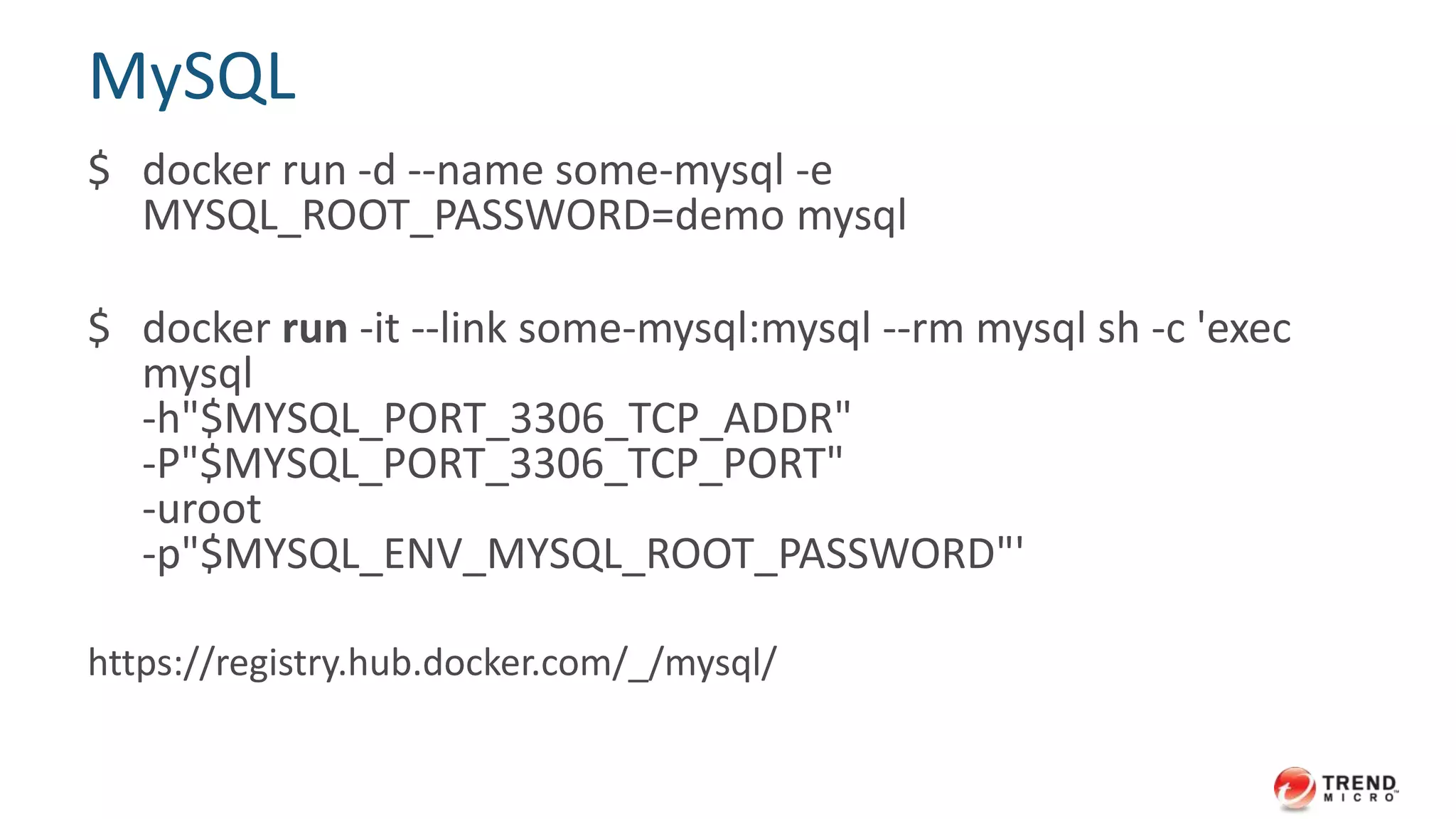
MySQL
$ docker run -d --name some-mysql -e
MYSQL_ROOT_PASSWORD=demo mysql
$ docker run -it --link some-mysql:mysql --rm mysql sh -c 'exec
mysql
-h"$MYSQL_PORT_3306_TCP_ADDR"
-P"$MYSQL_PORT_3306_TCP_PORT"
-uroot
-p"$MYSQL_ENV_MYSQL_ROOT_PASSWORD"'
https://registry.hub.docker.com/_/mysql/
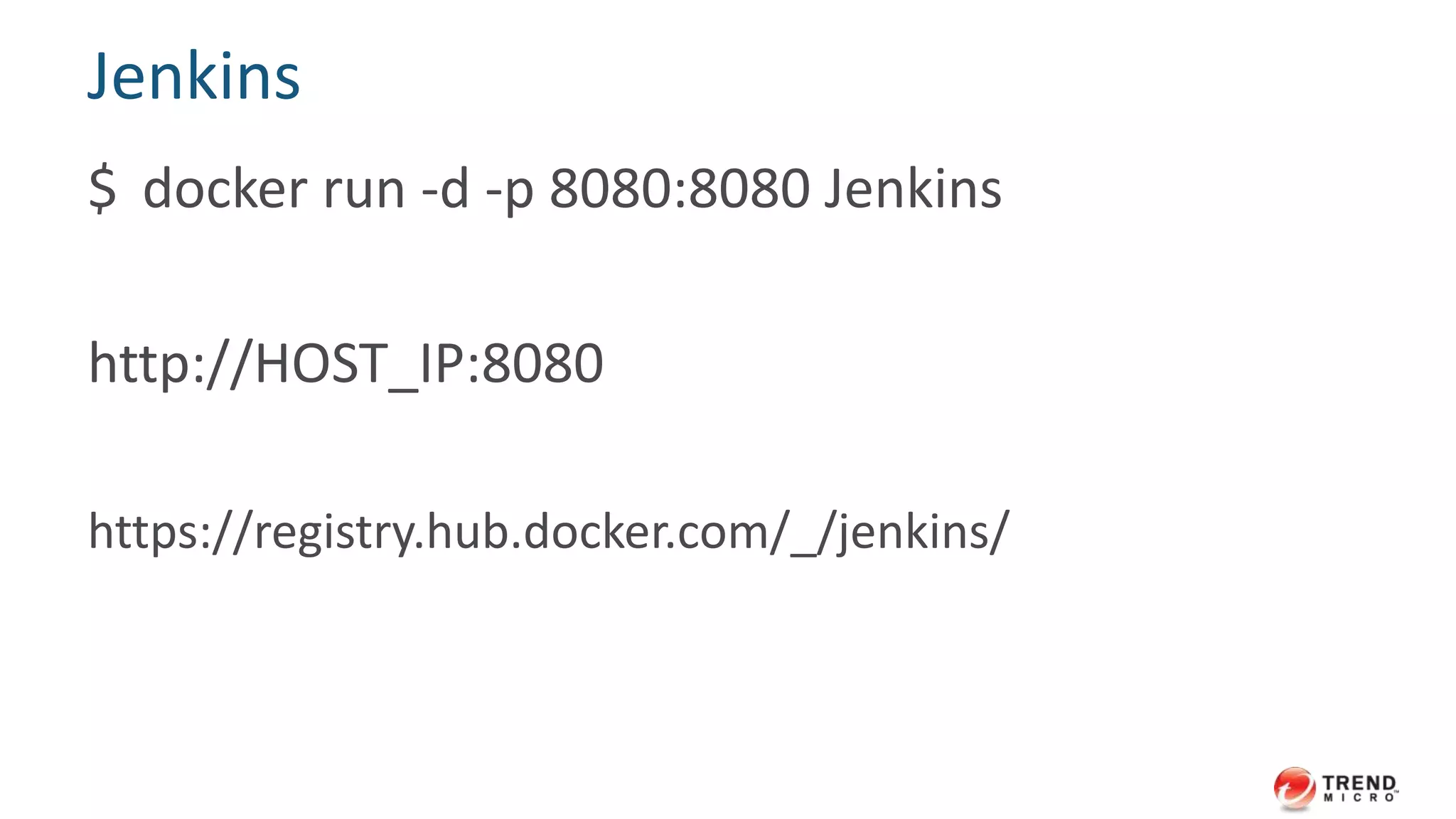
Jenkins
$ docker run -d -p 8080:8080 Jenkins
http://HOST_IP:8080
https://registry.hub.docker.com/_/jenkins/
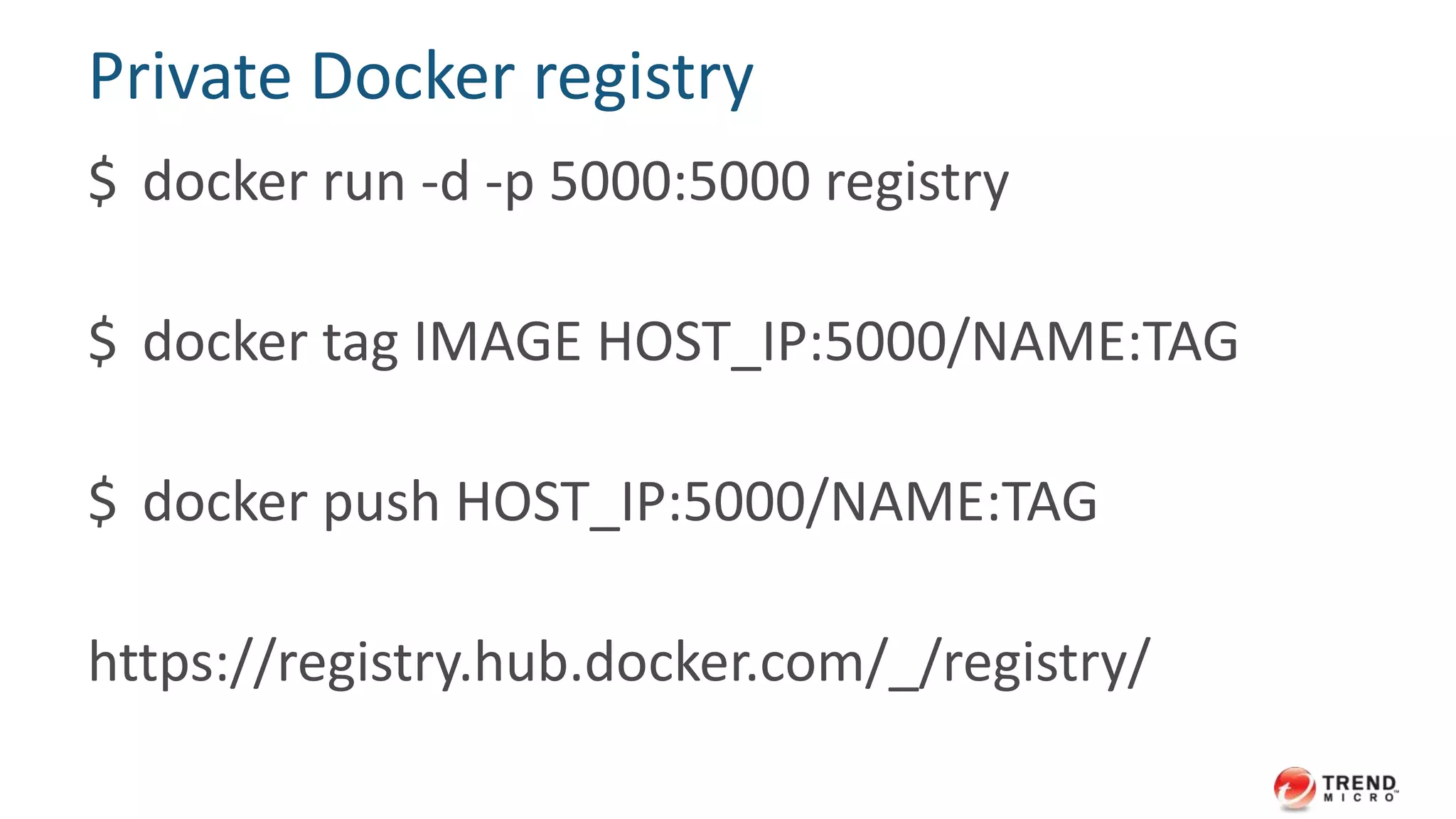
Private Docker registry
$ docker run -d -p 5000:5000 registry
$ docker tag IMAGE HOST_IP:5000/NAME:TAG
$ docker push HOST_IP:5000/NAME:TAG
https://registry.hub.docker.com/_/registry/
#TrendInsight
Summary
Recap docker run
• we’ve learned:
– port forwarding
– volume mounting
– linking containers together
– running containers at remote
Recap docker build
• we’ve learned:
– how to write a Dockerfile
– how expose and link work together
– use entrypoint to bind a specific executable with image
– ship images to the registry
#TrendInsight
Q & A
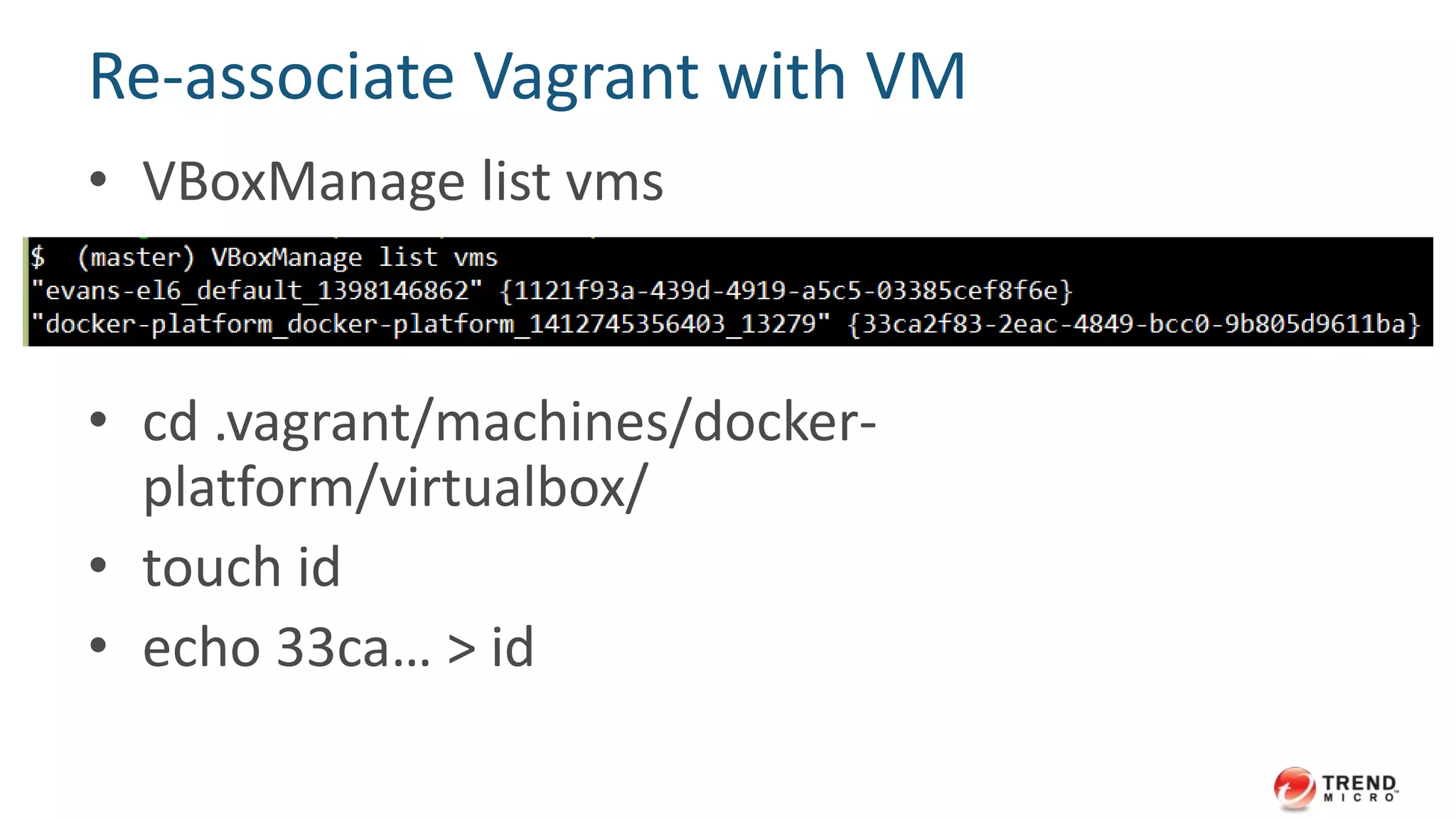
Re-associate Vagrant with VM
• VBoxManage list vms
• cd .vagrant/machines/docker-
platform/virtualbox/
• touch id
• echo 33ca… > id

Docker workshop

  • 1.
  • 2.
    Agenda • Docker andunderlying technologies • Running Docker containers • Building Docker images • The official Docker hub
  • 5.
  • 6.
    Docker Container • Acontainer is a group of isolated processes – cgroups – namespace • Isolated processes run straight on the host – native CPU performance – minimal memory overhead – minimal network performance overhead
  • 7.
  • 8.
    Cgroups (control groups) •Linux kernel feature • Groups of processes • Resource limitations – Like limits.conf but the scope is a set of processes instead of uid/gid • May be nested
  • 9.
    Cgroups submodules • memory •CPU • network IO • disk IO
  • 10.
  • 11.
    namespaces • Linux kernelfeature • wrap particular global system resource in an abstracted, isolated instance • May be nested
  • 12.
  • 13.
  • 15.
    Run Docker containerin boot2docker directly
  • 16.
    Create a containerwith interactive shell $ docker run -t -i base:centos62 /bin/bash [root@4d8c4b81f6d7 /]# exit (exited) $ -t, --tty Allocate a pseudo-TTY $ -i, --interactive Keep STDIN open even if not attached
  • 17.
    Check containers’ status $docker ps (only running containers are shown) $ docker ps –a (all)
  • 18.
    Reattach in stoppedcontainer $ docker start -i 4d8c4b81f6d7 [root@4d8c4b81f6d7 /]#
  • 19.
    or use dockerexec instead $ docker start 4d8c4b81f6d7 $ docker exec –ti 4d8c4b81f6d7 bash [root@4d8c4b81f6d7 /]#
  • 20.
    Take a lookat Docker run command $ docker run -t -i base:centos62 /bin/bash
  • 21.
    Command + args $docker run base:centos62 /bin/cat /etc/hosts
  • 22.
    Name a container $docker run -ti --name foo base:centos62 /bin/bash $ docker ps -a $ docker rm foo destroy foo container
  • 23.
    Destroy all containers $docker rm `docker ps --no-trunc -aq` (except running containers, they must be stopped first) $ docker rm -f `docker ps --no-trunc -aq` (force destroy all containers)
  • 24.
    Create ephemeral container $docker run -ti --rm base:centos62 /bin/bash [root@4d8c4b81f6d7 /]# exit (destroyed upon exit) $ docker ps -a
  • 25.
    Ports forwarding (publish) $docker run -ti -p 80:80 base:centos62 /bin/bash # yum install httpd # echo "hello world" > /var/www/html/index.html # service httpd start $ curl localhost:80
  • 26.
    What does Dockerport forwarding do? Windows / OS X boot2docker Container Container 80 80
  • 27.
    27 Well, I needto render it in browsers…
  • 28.
    How about this? Windows/ OS X boot2docker Container Container 80 80 80
  • 29.
    Doable via Vagrant $vim Vagrantfile
  • 30.
    The solution Windows /OS X boot2docker Container Container 80 80 80  Docker port forwarding Vagrant port forwarding
  • 31.
    More about Dockerports forwarding $ docker run -ti -p 80:80 base:centos62 /bin/bash • -p, --publish Publish a container's port to the host • format: – ip:hostPort:containerPort (10.1.1.1:80:80) – ip::containerPort (10.1.1.1::80) – hostPort:containerPort (80:80)
  • 32.
    Volume (like syncfolder) $ docker run -ti --name apache -v /httpd-logs:/var/log/httpd base:centos62 /bin/bash # touch /var/log/httpd/foo $ ls /http-logs
  • 33.
    Volume from othercontainer (useful to share data) $ docker run -ti --volumes-from apache base:centos62 /bin/bash # ls /var/log/httpd
  • 34.
    Link $ docker run-ti --link apache:apache.trendmicro.com base:centos62 /bin/bash # cat /etc/hosts • Exposes information from source container to recipient container in two ways: – Environment variables – Updating the /etc/hosts file • format: – name:alias
  • 35.
    useful in multi-nodesituation 12/25/2014 service (hadoop-client) data (hadoop-client) link
  • 36.
    Docker in client/servermode Windows / OS X boot2docker (Docker client) Linux server Docker Engine Container Container
  • 37.
    Server: bind Dockerengine to a tcp port $ docker -d -H 10.1.1.1:2375 -H unix:///var/run/docker.sock • -d, --daemon daemon mode • -H, --host the socket(s) to bind in daemon mode
  • 38.
    Docker client $ exportDOCKER_HOST=tcp://10.1.1.1:2375 $ docker images $ docker run -ti --rm centos:centos6 /bin/bash (start container on the server) • Note: – expose tcp port could let someone get root access to the host – not recommended in open network
  • 39.
    Running containers inbackground (Detached mode) $ hadoop=$(docker run -d -p 50070:50070 tmh6:centos62) $ docker inspect $hadoop
  • 40.
  • 41.
    Some other VM-likeoperations $ docker stop $hadoop $ docker start $hadoop $ docker kill $hadoop $ docker rm $hadoop https://docs.docker.com/reference/commandline/cli/
  • 42.
  • 43.
    43 There are twoways to build docker images
  • 44.
    First: commit anexisting container • Do changes manually, then commit  quick and dirty  suitable for experiment  might be deleted in the future
  • 45.
    Second: Build fromDockerfile • Dockerfile is a series of instructions • Use "Docker build" command to build images • pros: – build images automatically by following instructions – visible and easy to understand instructions – enable Docker specific functions in the image – repeatability
  • 46.
    A sample httpdservice Dockerfile FROM base:centos62 COPY index.html /var/www/html/index.html RUN yum -y install httpd EXPOSE 80 CMD ["/usr/sbin/httpd", "-D", "FOREGROUND"]
  • 47.
    Build $ mkdir apache-server $cd apache-server $ echo "our first docker image" > index.html $ vi Dockerfile (paste the sample and save it) $ docker build -t apache:0.1 ./
  • 48.
    Build context • dockerbuild -t apache:0.1 ./ • ./ will be transferred to Docker daemon as build context • Must have a Dockerfile there – ./Dockerfile • DO NOT build at / – docker build -t apache:0.1 /
  • 49.
    Run the apacheimage $ docker run -d --name apache apache:0.1 $ docker run -ti --rm --link apache:a01 base:centos62 /bin/bash # curl $A01_PORT_80_TCP_ADDR (you see how link and expose work together)
  • 50.
    50 Use entrypoint to binda specific executable to the image
  • 51.
    An httpd serviceexample FROM base:centos62 COPY index.html /var/www/html/index.html RUN yum -y install httpd EXPOSE 80 ENTRYPOINT ["/usr/sbin/httpd"] CMD ["-D", "FOREGROUND"]
  • 52.
    The difference $ dockerrun -ti --rm apache:0.1 /bin/bash # (get into the container) $ docker run -ti --rm apache:0.2 /bin/bash show httpd helper message  the only thing you can do is to pass args to httpd
  • 53.
    Make sure initscript always being executed FROM base:centos62 … ENTRYPOINT ["init_wrapper_script"] CMD ["default_args"] https://docs.docker.com/articles/dockerfile_best-practices/
  • 54.
  • 55.
    Tagging an image $docker tag -h • dockerhub.evansye.com/base:centos62 – REGISTRYHOST = dockerhub.evansye.com – NAME = base – TAG = centos62
  • 56.
  • 58.
    Redis $ docker run-d --name some-redis redis $ docker run -ti --rm --link some-redis:redis redis /bin/bash # redis-cli -h $REDIS_PORT_6379_TCP_ADDR -p $REDIS_PORT_6379_TCP_PORT https://registry.hub.docker.com/_/redis/
  • 59.
    MySQL $ docker run-d --name some-mysql -e MYSQL_ROOT_PASSWORD=demo mysql $ docker run -it --link some-mysql:mysql --rm mysql sh -c 'exec mysql -h"$MYSQL_PORT_3306_TCP_ADDR" -P"$MYSQL_PORT_3306_TCP_PORT" -uroot -p"$MYSQL_ENV_MYSQL_ROOT_PASSWORD"' https://registry.hub.docker.com/_/mysql/
  • 60.
    Jenkins $ docker run-d -p 8080:8080 Jenkins http://HOST_IP:8080 https://registry.hub.docker.com/_/jenkins/
  • 61.
    Private Docker registry $docker run -d -p 5000:5000 registry $ docker tag IMAGE HOST_IP:5000/NAME:TAG $ docker push HOST_IP:5000/NAME:TAG https://registry.hub.docker.com/_/registry/
  • 62.
  • 63.
    Recap docker run •we’ve learned: – port forwarding – volume mounting – linking containers together – running containers at remote
  • 64.
    Recap docker build •we’ve learned: – how to write a Dockerfile – how expose and link work together – use entrypoint to bind a specific executable with image – ship images to the registry
  • 65.
  • 66.
    Re-associate Vagrant withVM • VBoxManage list vms • cd .vagrant/machines/docker- platform/virtualbox/ • touch id • echo 33ca… > id

Editor's Notes