Moving Wordpress Migrating from server to server. Presented by Tony Zeoli Founder, Digital Strategy Works http://www.digitalstrategyworks.com
On your own server To another server http://codex.wordpress.org/Moving_WordPress Linux commands might be important for speed: http://www.oreillynet.com/linux/cmd/ Moving Wordpress
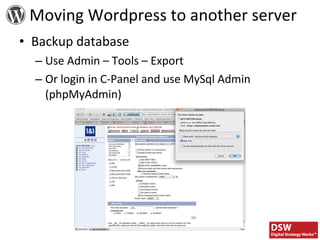
Backup database Use Admin – Tools – Export Or login in C-Panel and use MySql Admin (phpMyAdmin) Moving Wordpress to another server
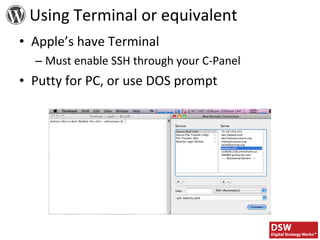
Apple’s have Terminal Must enable SSH through your C-Panel Putty for PC, or use DOS prompt Using Terminal or equivalent
Backup entire Wordpress folder to Desktop Or use linux commands to “cp” Wordress directory to a new temp directory cp -r /home/hope/files/* /home/hope/backup In the above example the cp command would copy all files, directories, and subdirectories in the /home/hope/files directory to the /home/hope/backup directory. Use linux commands to “tar” Wordpress directory with name like “old wordress” Preparing to Wordpress
.tar the Wordpress directory Is easier to download/upload to new server as one file, instead of the hundreds of files that make up Wordpress tar -cvwf home.tar home/ In the above example command the system would create a tar file named home.tar in the directory you currently are in of the home directory Download the compressed directory Preparing to Wordpress
Upload to the new server Extract the files tar -xvwf myfile.tar In the above example command the system would uncompress (untar) the myfile.tar file in the current directory. Make sure you upload to /home/wordpress, if you want to move the index.php file, so that Wordpress is in its own directory and the home directory isn’t cluttered. Preparing to Wordpress
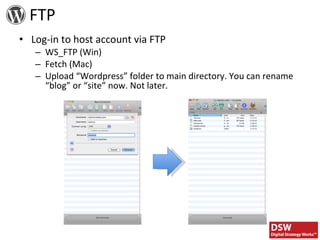
FTP Log-in to host account via FTP WS_FTP (Win) Fetch (Mac) Upload “Wordpress” folder to main directory. You can rename “blog” or “site” now. Not later.
FTP There are two ways, both use ssh: scp -r sourcedir/  user@dest.com:/dest/dir/ or, the more robust and faster (in terms of transfer speed) method: rsync -auv -e ssh --progress sourcedir/ user@dest.com:/dest/dir/
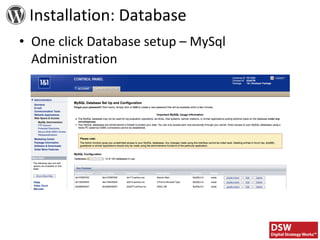
Installation: Database One click Database setup – MySql Administration
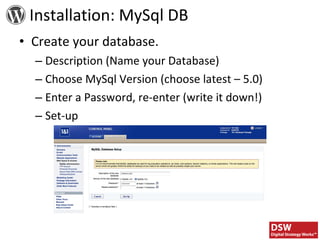
Installation: MySql DB Create your database. Description (Name your Database) Choose MySql Version (choose latest – 5.0) Enter a Password, re-enter (write it down!) Set-up
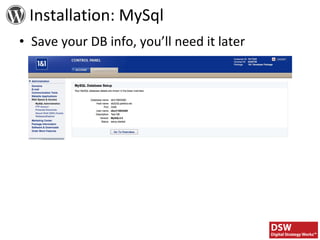
Installation: MySql Save your DB info, you’ll need it later
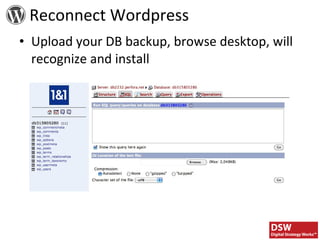
Upload your DB backup, browse desktop, will recognize and install Reconnect Wordpress
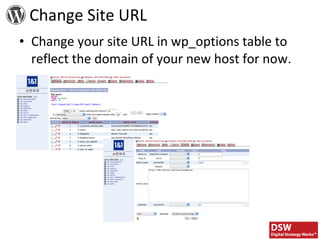
Change your site URL in wp_options table to reflect the domain of your new host for now. Change Site URL
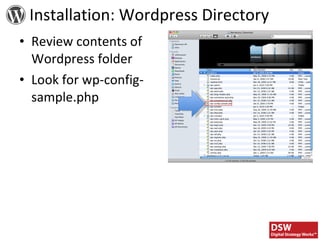
Installation: Wordpress Directory Review contents of Wordpress folder Look for wp-config-sample.php
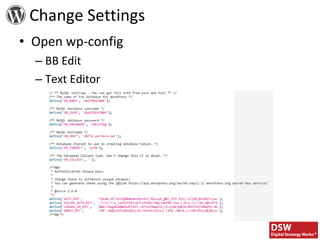
Change Settings Open wp-config BB Edit Text Editor
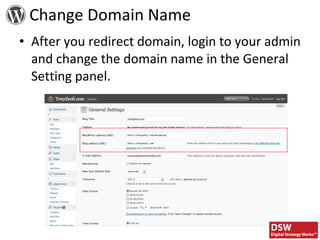
Change Domain Name After you redirect domain, login to your admin and change the domain name in the General Setting panel.

Digital Strategy Works - Moving Wordpress

  • 1.
    Moving Wordpress Migratingfrom server to server. Presented by Tony Zeoli Founder, Digital Strategy Works http://www.digitalstrategyworks.com
  • 2.
    On your ownserver To another server http://codex.wordpress.org/Moving_WordPress Linux commands might be important for speed: http://www.oreillynet.com/linux/cmd/ Moving Wordpress
  • 3.
    Backup database UseAdmin – Tools – Export Or login in C-Panel and use MySql Admin (phpMyAdmin) Moving Wordpress to another server
  • 4.
    Apple’s have TerminalMust enable SSH through your C-Panel Putty for PC, or use DOS prompt Using Terminal or equivalent
  • 5.
    Backup entire Wordpressfolder to Desktop Or use linux commands to “cp” Wordress directory to a new temp directory cp -r /home/hope/files/* /home/hope/backup In the above example the cp command would copy all files, directories, and subdirectories in the /home/hope/files directory to the /home/hope/backup directory. Use linux commands to “tar” Wordpress directory with name like “old wordress” Preparing to Wordpress
  • 6.
    .tar the Wordpressdirectory Is easier to download/upload to new server as one file, instead of the hundreds of files that make up Wordpress tar -cvwf home.tar home/ In the above example command the system would create a tar file named home.tar in the directory you currently are in of the home directory Download the compressed directory Preparing to Wordpress
  • 7.
    Upload to thenew server Extract the files tar -xvwf myfile.tar In the above example command the system would uncompress (untar) the myfile.tar file in the current directory. Make sure you upload to /home/wordpress, if you want to move the index.php file, so that Wordpress is in its own directory and the home directory isn’t cluttered. Preparing to Wordpress
  • 8.
    FTP Log-in tohost account via FTP WS_FTP (Win) Fetch (Mac) Upload “Wordpress” folder to main directory. You can rename “blog” or “site” now. Not later.
  • 9.
    FTP There aretwo ways, both use ssh: scp -r sourcedir/ user@dest.com:/dest/dir/ or, the more robust and faster (in terms of transfer speed) method: rsync -auv -e ssh --progress sourcedir/ user@dest.com:/dest/dir/
  • 10.
    Installation: Database Oneclick Database setup – MySql Administration
  • 11.
    Installation: MySql DBCreate your database. Description (Name your Database) Choose MySql Version (choose latest – 5.0) Enter a Password, re-enter (write it down!) Set-up
  • 12.
    Installation: MySql Saveyour DB info, you’ll need it later
  • 13.
    Upload your DBbackup, browse desktop, will recognize and install Reconnect Wordpress
  • 14.
    Change your siteURL in wp_options table to reflect the domain of your new host for now. Change Site URL
  • 15.
    Installation: Wordpress DirectoryReview contents of Wordpress folder Look for wp-config-sample.php
  • 16.
    Change Settings Openwp-config BB Edit Text Editor
  • 17.
    Change Domain NameAfter you redirect domain, login to your admin and change the domain name in the General Setting panel.