How to Install
Wordpress
The Techie Way
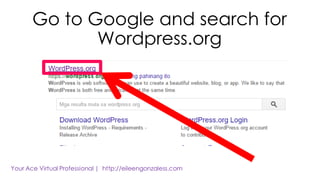
Go to Google and search for
Wordpress.org
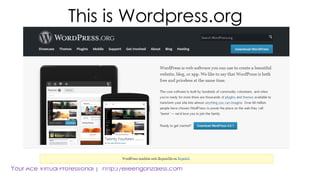
This is Wordpress.org
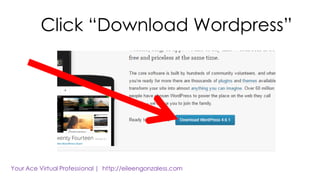
Click “Download Wordpress”
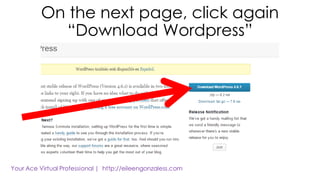
On the next page, click again
“Download Wordpress”
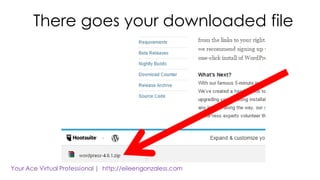
There goes your downloaded file
Open another tab then go
to your web hosting site
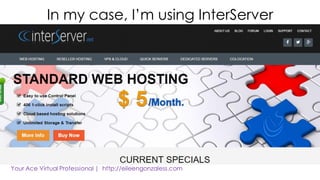
In my case, I’m using InterServer
Prior to this tutorial, I’ve already
purchased my domain and web
hosting from Interserver
NOTE:
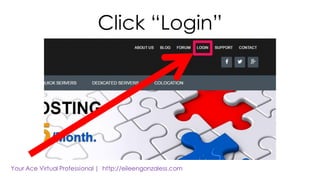
Click “Login”
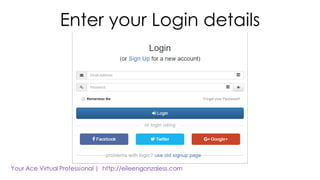
Enter your Login details
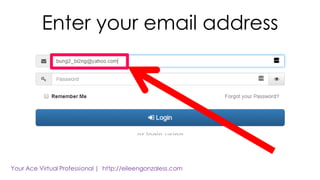
Enter your email address
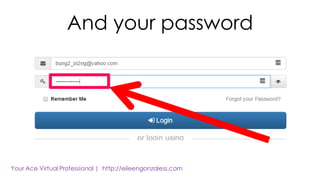
And your password
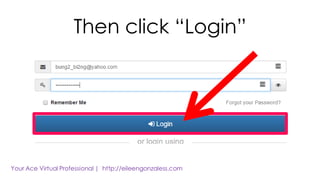
Then click “Login”
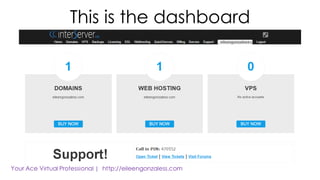
This is the dashboard
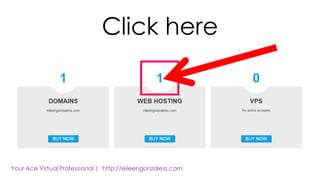
Click here
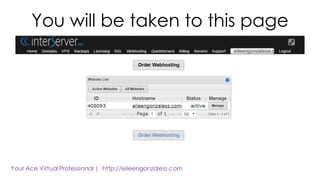
You will be taken to this page
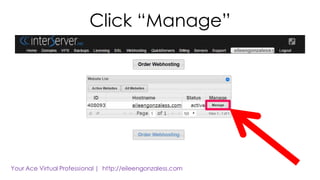
Click “Manage”
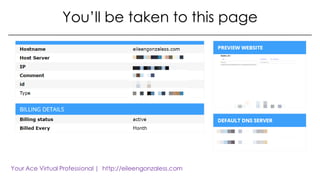
You’ll be taken to this page
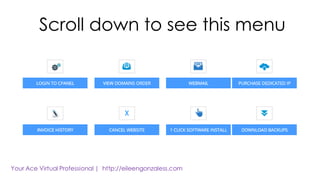
Scroll down to see this menu
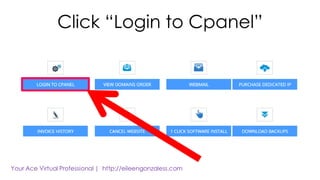
Click “Login to Cpanel”
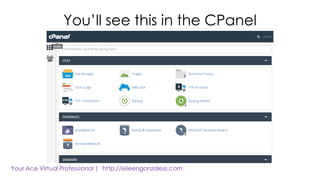
You’ll see this in the CPanel
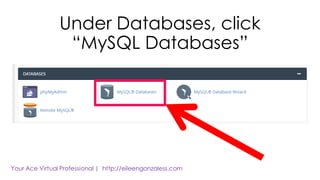
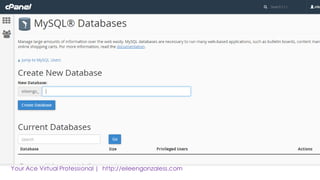
Under Databases, click
“MySQL Databases”
NOTE:
Get a pen and paper and
take note of the information
that you will input in this page.
You will be needing it later
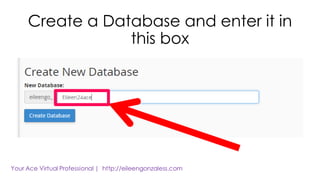
Create a Database and enter it in
this box
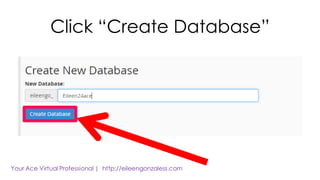
Click “Create Database”
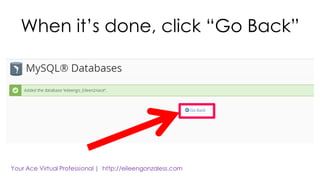
When it’s done, click “Go Back”
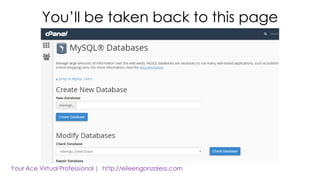
You’ll be taken back to this page
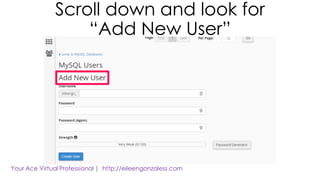
Scroll down and look for
“Add New User”
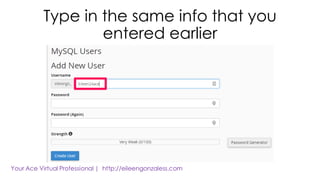
Type in the same info that you
entered earlier
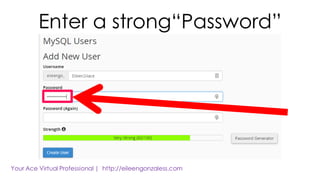
Enter a strong“Password”
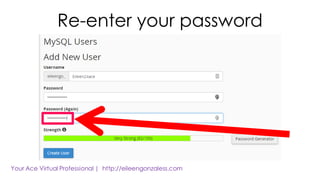
Re-enter your password
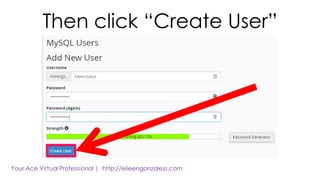
Then click “Create User”
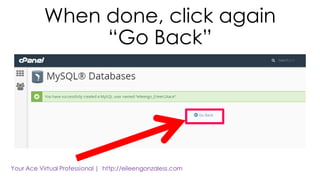
When done, click again
“Go Back”
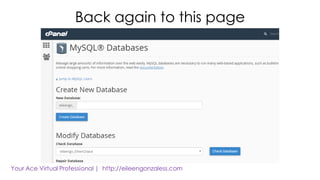
Back again to this page
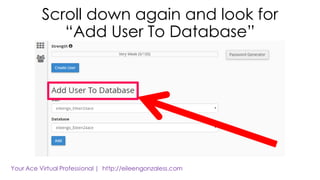
Scroll down again and look for
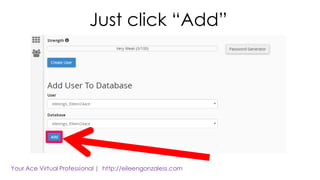
“Add User To Database”
Just click “Add”
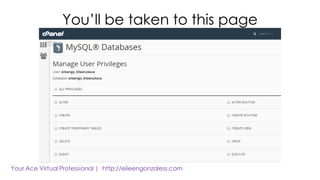
You’ll be taken to this page
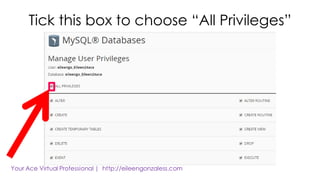
Tick this box to choose “All Privileges”
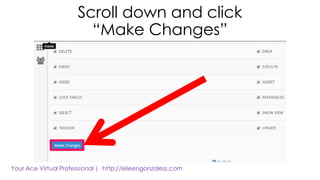
Scroll down and click
“Make Changes”
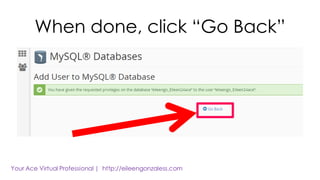
When done, click “Go Back”
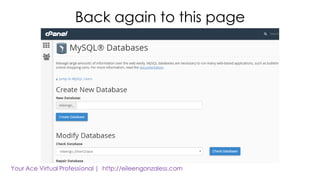
Back again to this page
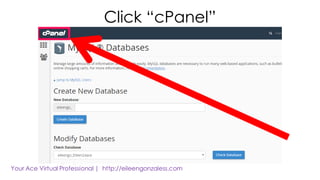
Click “cPanel”
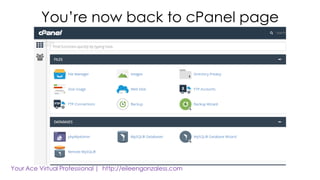
You’re now back to cPanel page
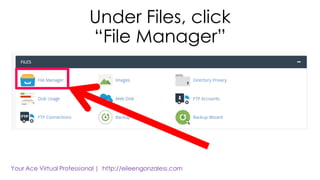
Under Files, click
“File Manager”
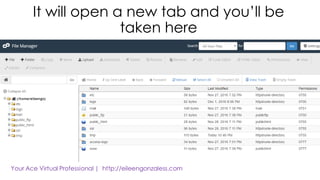
It will open a new tab and you’ll be
taken here
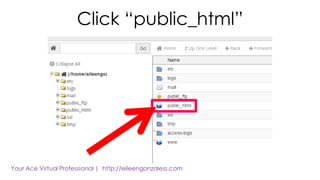
Click “public_html”
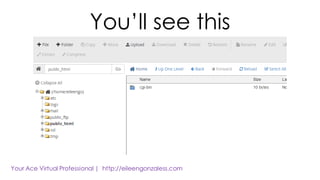
You’ll see this
This is where we are
going to upload
the Wordpress file that
we downloaded earlier
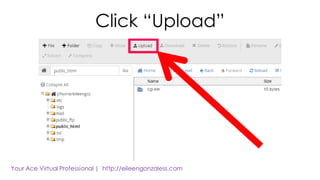
Click “Upload”
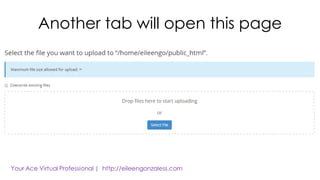
Another tab will open this page
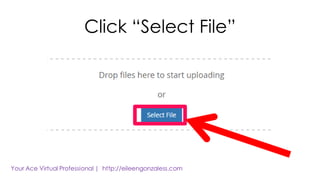
Click “Select File”
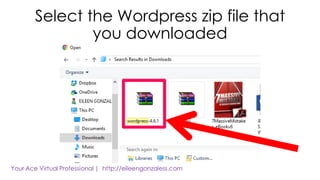
Select the Wordpress zip file that
you downloaded
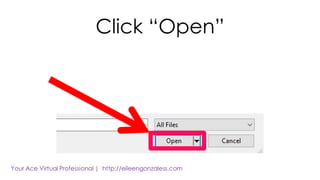
Click “Open”
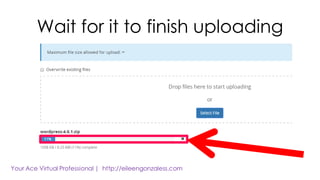
Wait for it to finish uploading
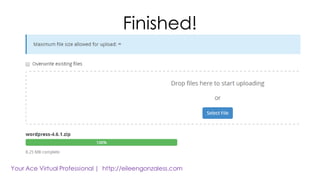
Finished!
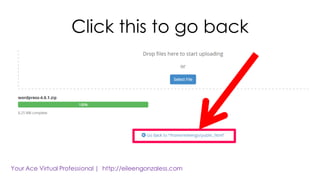
Click this to go back
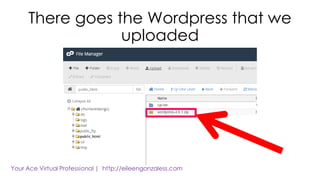
There goes the Wordpress that we
uploaded
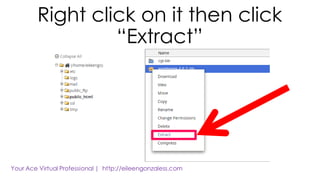
Right click on it then click
“Extract”
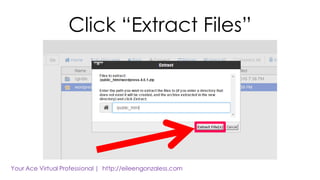
Click “Extract Files”
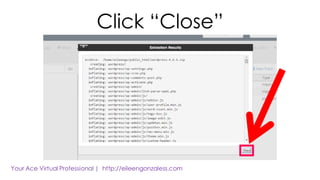
Click “Close”
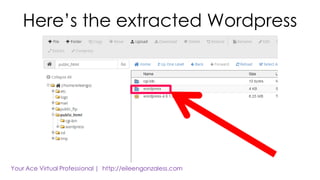
Here’s the extracted Wordpress
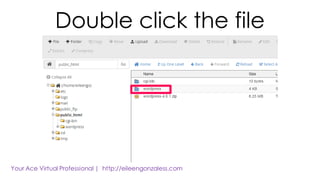
Double click the file
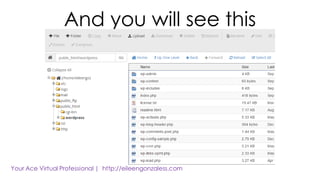
And you will see this
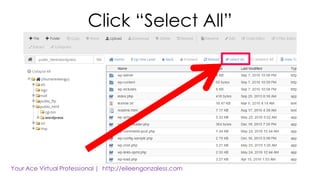
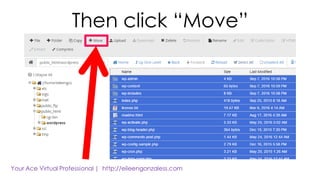
Click “Select All”
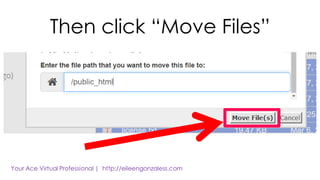
Then click “Move”
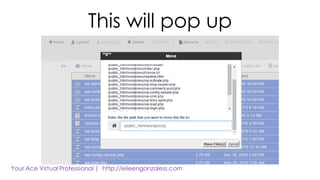
This will pop up
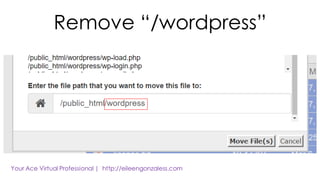
Remove “/wordpress”
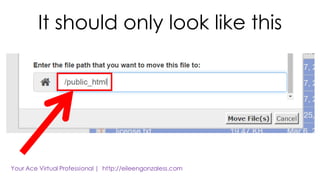
It should only look like this
Then click “Move Files”
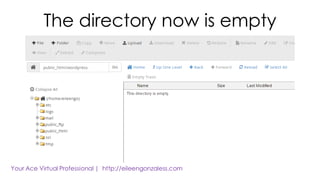
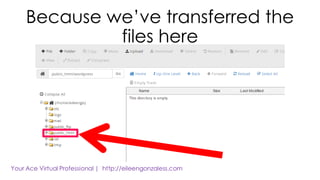
The directory now is empty
Because we’ve transferred the
files here
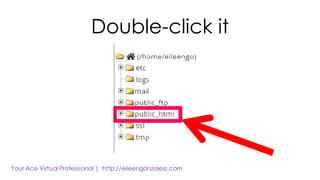
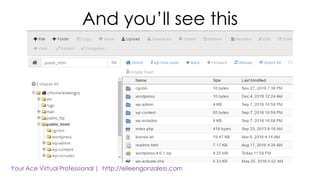
Double-click it
And you’ll see this
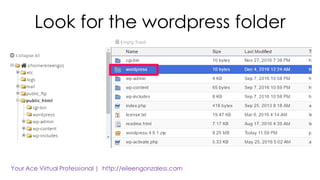
Look for the wordpress folder
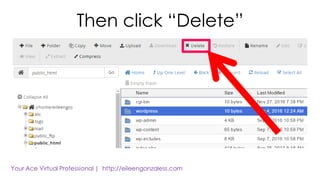
Then click “Delete”
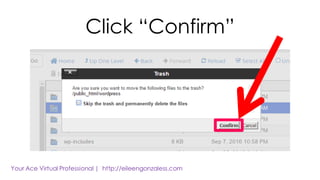
Click “Confirm”
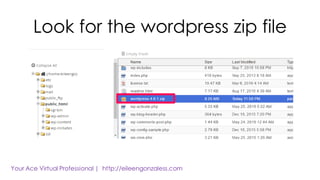
Look for the wordpress zip file
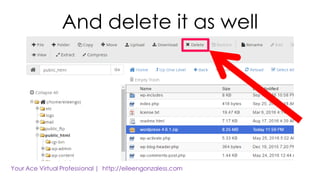
And delete it as well
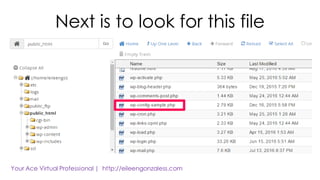
Next is to look for this file
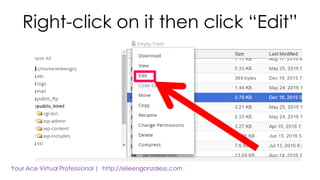
Right-click on it then click “Edit”
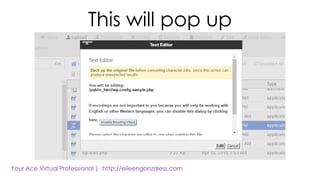
This will pop up
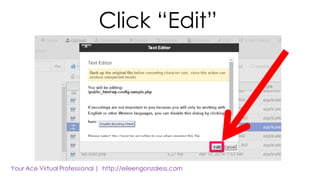
Click “Edit”
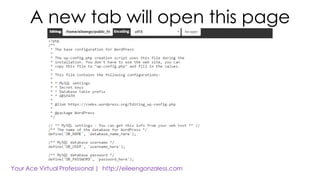
A new tab will open this page
This time, we have to go back
to our cPanel
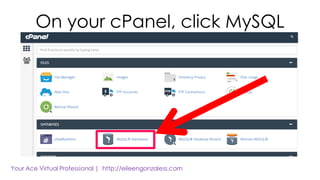
On your cPanel, click MySQL
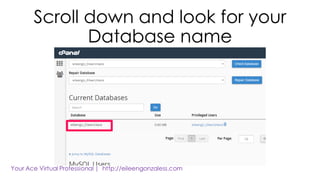
Scroll down and look for your
Database name
Copy your database name
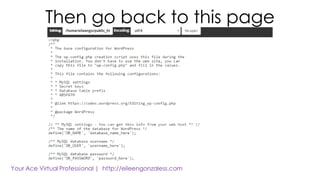
Then go back to this page
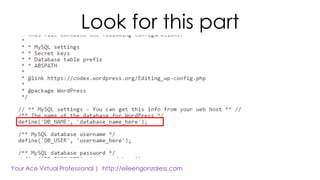
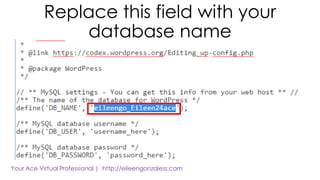
Look for this part
Replace this field with your
database name
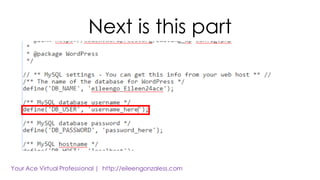
Next is this part
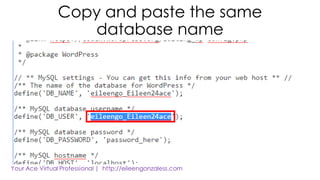
Copy and paste the same
database name
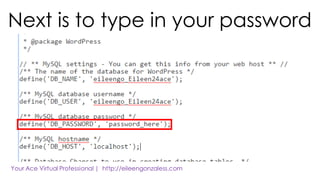
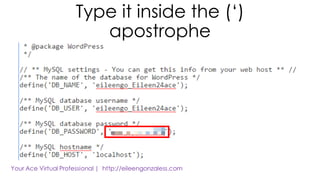
Next is to type in your password
Type it inside the (‘)
apostrophe
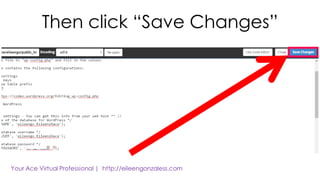
Then click “Save Changes”
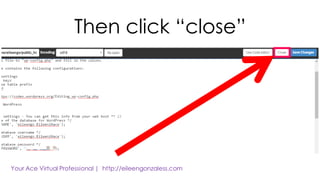
Then click “close”
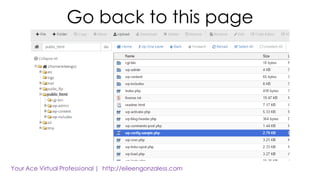
Go back to this page
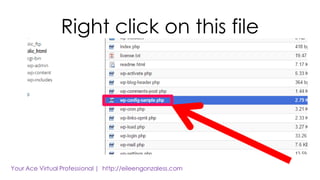
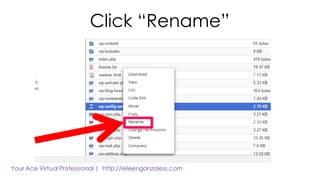
Right click on this file
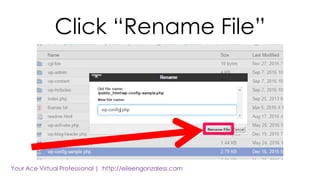
Click “Rename”
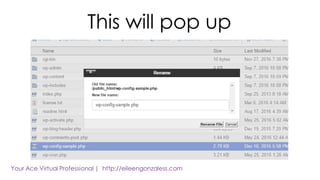
This will pop up
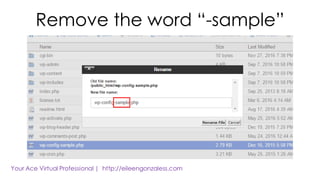
Remove the word “-sample”
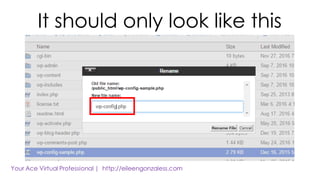
It should only look like this
Click “Rename File”
Then, that’s it!
You can now try going to
your website
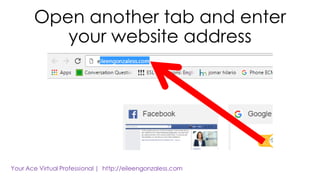
Open another tab and enter
your website address
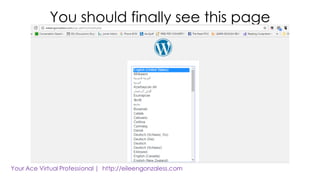
You should finally see this page
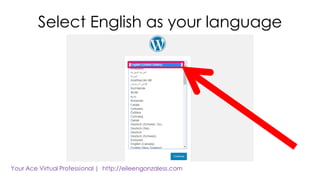
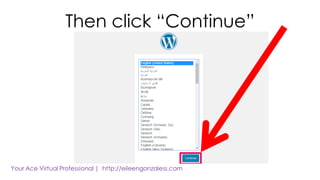
Select English as your language
Then click “Continue”
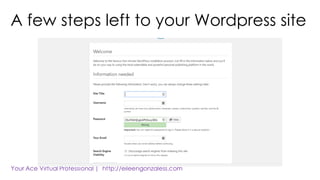
A few steps left to your Wordpress site
NOTE:
Bring out your notes that you
used when you created your
database earlier.
We’ll now use it here
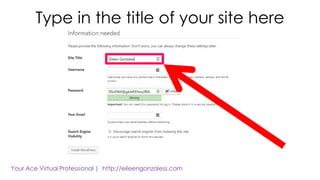
Type in the title of your site here
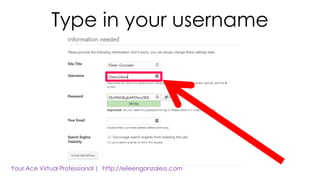
Type in your username
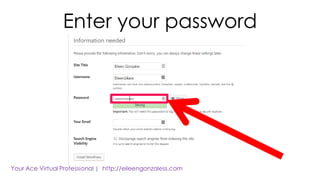
Enter your password
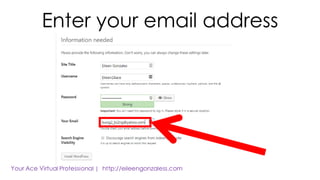
Enter your email address
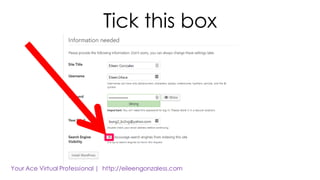
Tick this box
So search engines won’t
find your site yet
Since you are still building it
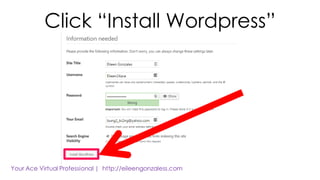
Click “Install Wordpress”
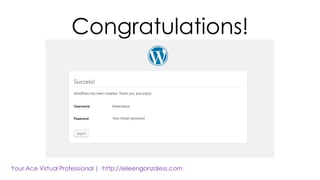
Congratulations!
You’ve finally installed
Wordpress!
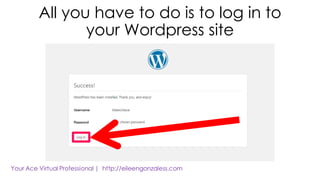
All you have to do is to log in to
your Wordpress site
You can now start blogging on
your freshly made website!
Enjoy blogging!

How to install Wordpress the techie way