Customizing WordPress Using Dreamweaver (BYOL)Luke KilpatrickTwitter Tag: #adobemax87
What you need to knowBasic Dreamweaver knowledgeBasic FTP knowledge (can you setup a site in Dreamweaver?)A server setup with MySQL and PHP – Local or RemoteSome experience with HTML and CSS
Why are you here?You want to setup your own or a company blog?You need to create a website that is managed by many people?Hate to code things beyond HTML and CSS?Want to learn more about the most popular blogging platform out there?Need a platform that is free, easy to use, easy to update and can be extended to do almost anything?WordPress may be your answer!
Who am I?Luke KilpatrickFront End ColdFusion and Web DeveloperBuild my first website in 1996Blogging with a WordPress since 2006 at http://www.lukek.caManager of Fire On The Bay, Adobe Fireworks User Group and Co-Manager of Photoshop Till You Drop Photoshop User Group in San FranciscoDone many WordPress installs and setups for many clients, most with custom themes
Little bit of history about WordPressWordPress is the official successor of B2/Cafelog which is a blogging platform created in early 2001. First version was WordPress 0.7 which was released in May 2003WordPress 1.0 was released on January 3rd, 2004WordPress 2.0 was released on December 31st, 2005WordPress 2.8 was released on June 10th, 2009We will be setting up and using WordPress 2.8x
Why you would want to host your own Blog or CMS?Faster updatesMore CustomizationUsually cheaper than many hosted solutionsYou have complete control of everything from the content to the theme to the plug-insCan move it from host to host with no loss of contentCan scale it to bigger systems if traffic demands
Getting StartedInstall MAMP or XAMPPMAMP (Mac Apache MySQL PHP)Open the MAMP.dmg and drag the MAMP app to the applications folderStart MAMPXAMP (Cross Platform Apache MySQL PHP Perl)Run the XAMPP installerInstall to C:\XAMPP – (default)Agree to everything, then select 1 to start the control panelStart up Apache and MySQL
Getting StartedOpen Adobe Dreamweaver CS4Select Site  New Site from the top menuSelect the Basic Tab and Type in the name of your siteEnter the URL to your site provided on the worksheetSelect Yes, I want to use a server technologySelect “PHP MySQL” from the dropdownSelect “Edit and test locally (my testing server is on this computer)”Select the place on your hard drive where you will store the files.ie: C:\sites\wordpressdemo – or something similar
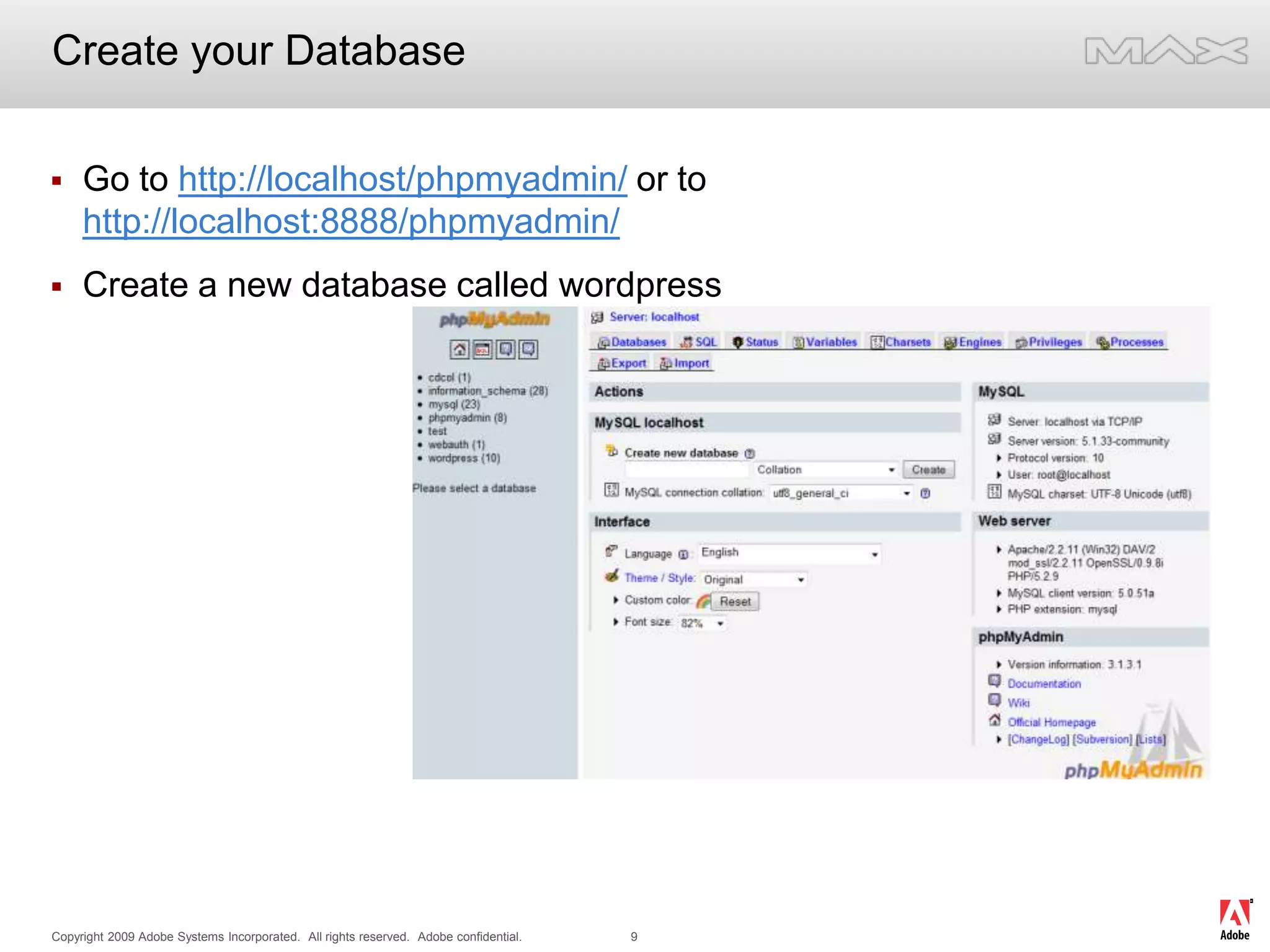
Create your DatabaseGo to http://localhost/phpmyadmin/ or to http://localhost:8888/phpmyadmin/Create a new database called wordpress
Change your root directory in httpd.confOpen C:\xampp\apache\conf Open httpd.conf in Dreamweaver CS4Edit line #182 to point at C:/sites/wpdemo for PC Edit line #209 to point at C:/sites/wpdemo for PCOn Mac In MAMP Select preferencesGo to the apache tabSet it to /developer/workspace/wordpress or where you want your WordPress to run from.
Getting and Unzipping WordPressUnzip WordPress from the source files /wordpress/wordpress-2.8.2.zipAfter you have wordpress-2.8.2.zip you will need to unzip it to the folder you setup for your siteOnce it is unzipped, open up Dreamweaver and look at your local siteYou should have a directory/folder called “wordpress”Expand the wordpress directory and select all of the files and move them to the root of your siteWe are now almost ready to install
Configuring WordPress for installationOpen up “wp-config-sample.php”On line 19 : replace “putyourdbnamehere” with “wordpress”On line 22 : replace “usernamehere” with “root”On line 25 : replace “yourpasswordhere” with “”Save the file, then rename it to wp-config.phpWe are now ready to install!
Upload and Install WordPressThen open a web browser and enter“http://localhost/wp-admin/install.phpFollow the instructions on screen:Enter your Blog TitleEnter your EmailClick installRecord the Username and Password, you will need them in a moment.Click login.Your now setup to use WordPress!
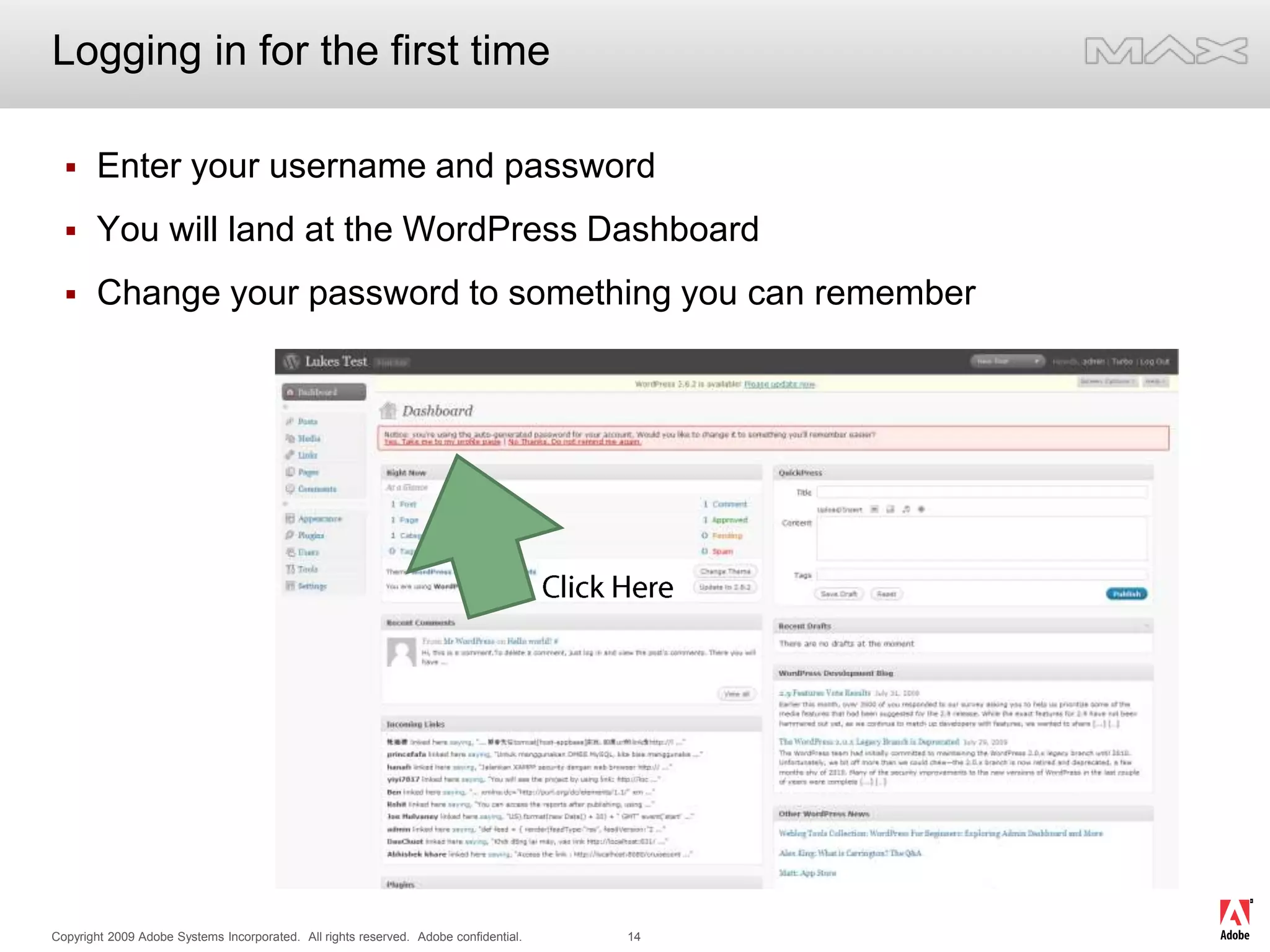
Logging in for the first timeEnter your username and passwordYou will land at the WordPress DashboardChange your password to something you can rememberClick Here
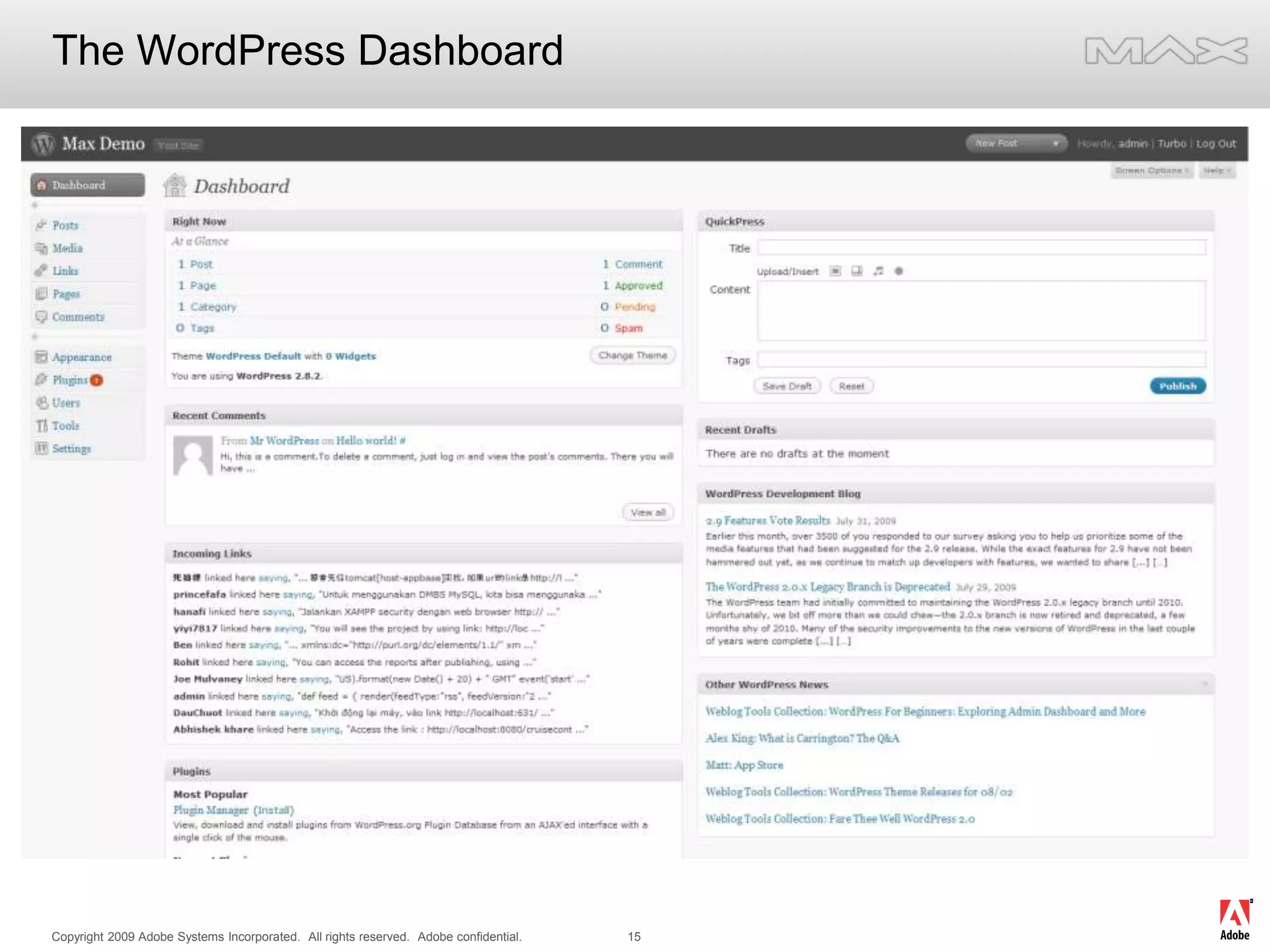
The WordPress Dashboard
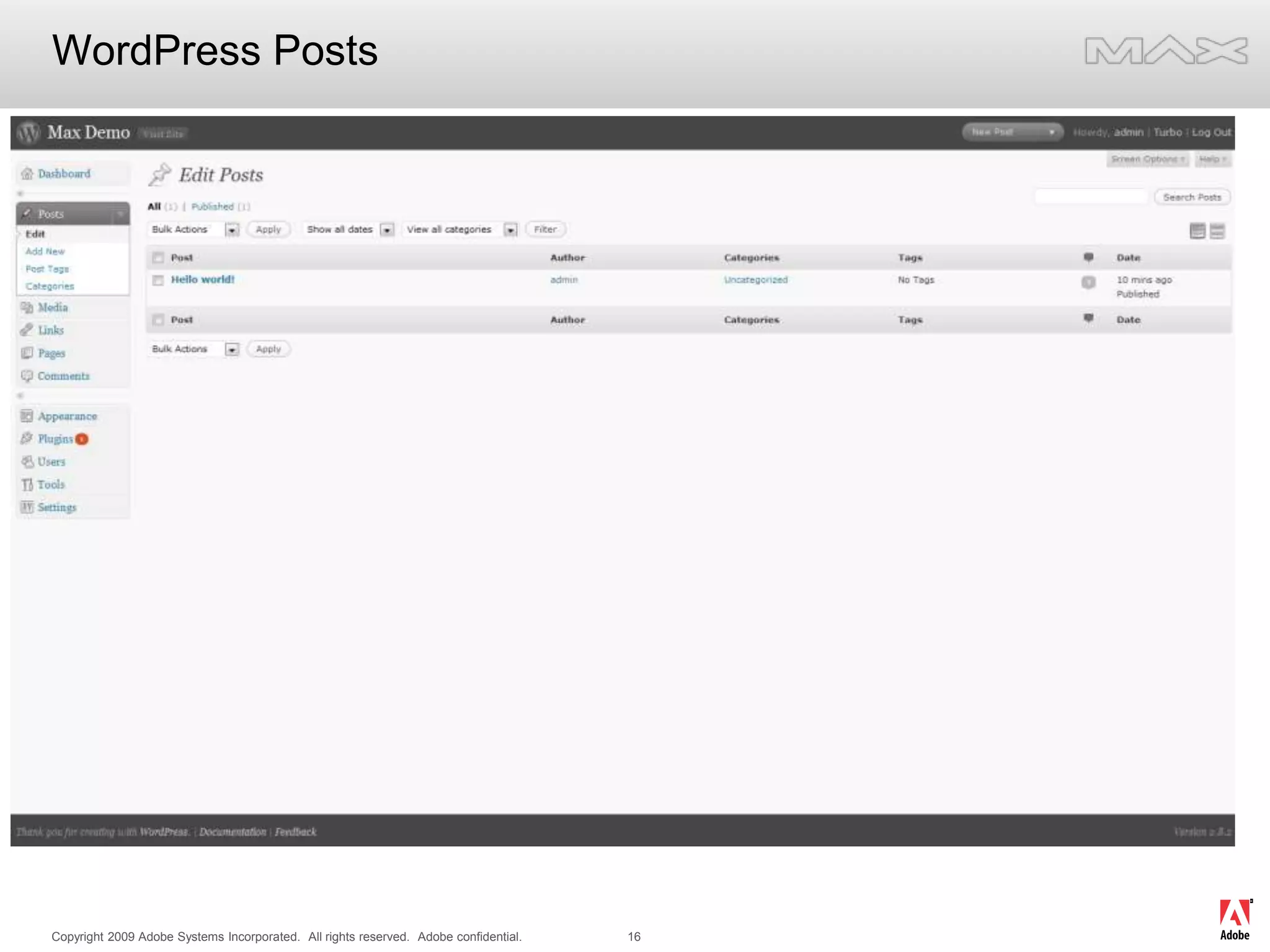
WordPress Posts
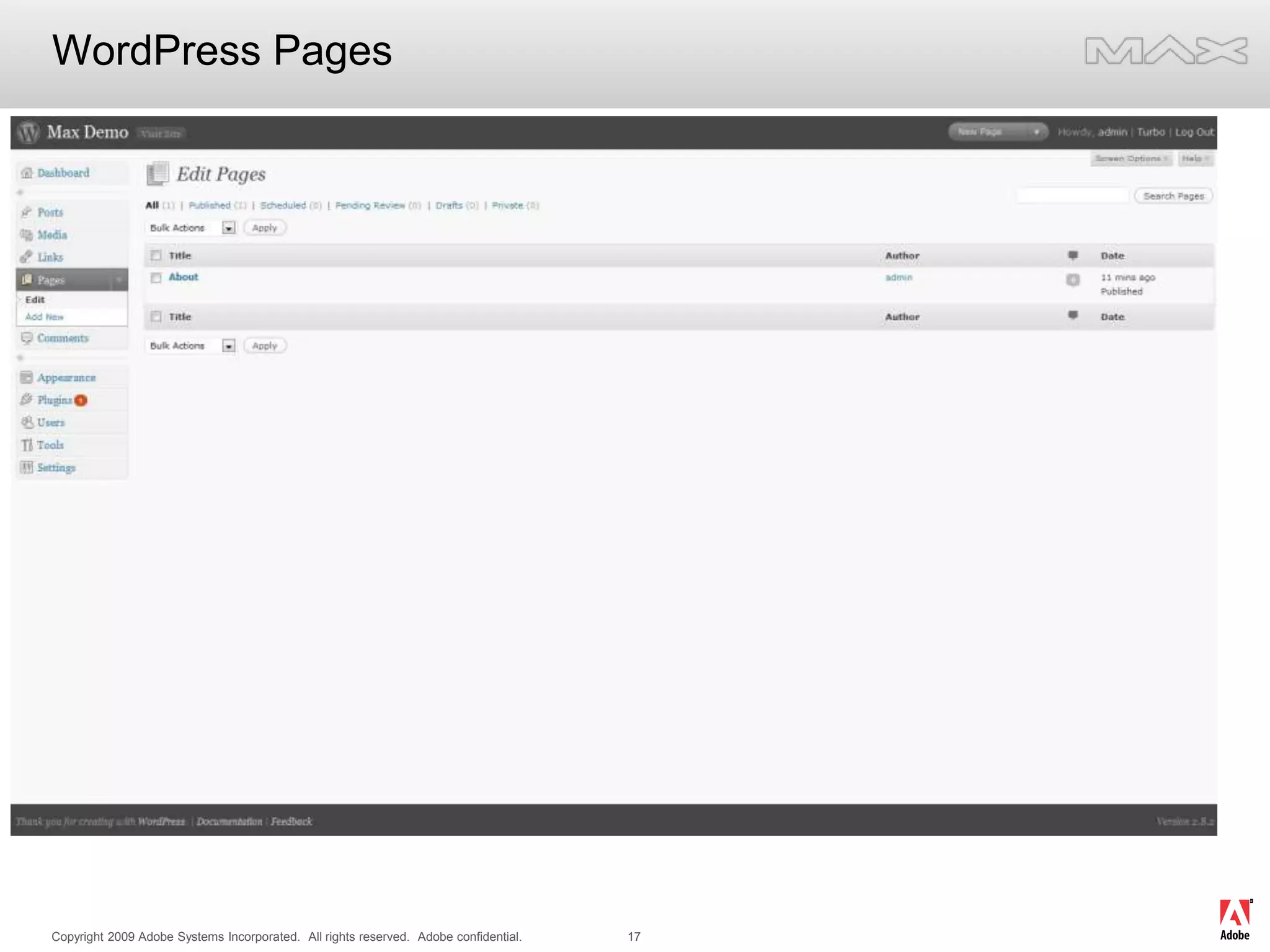
WordPress Pages
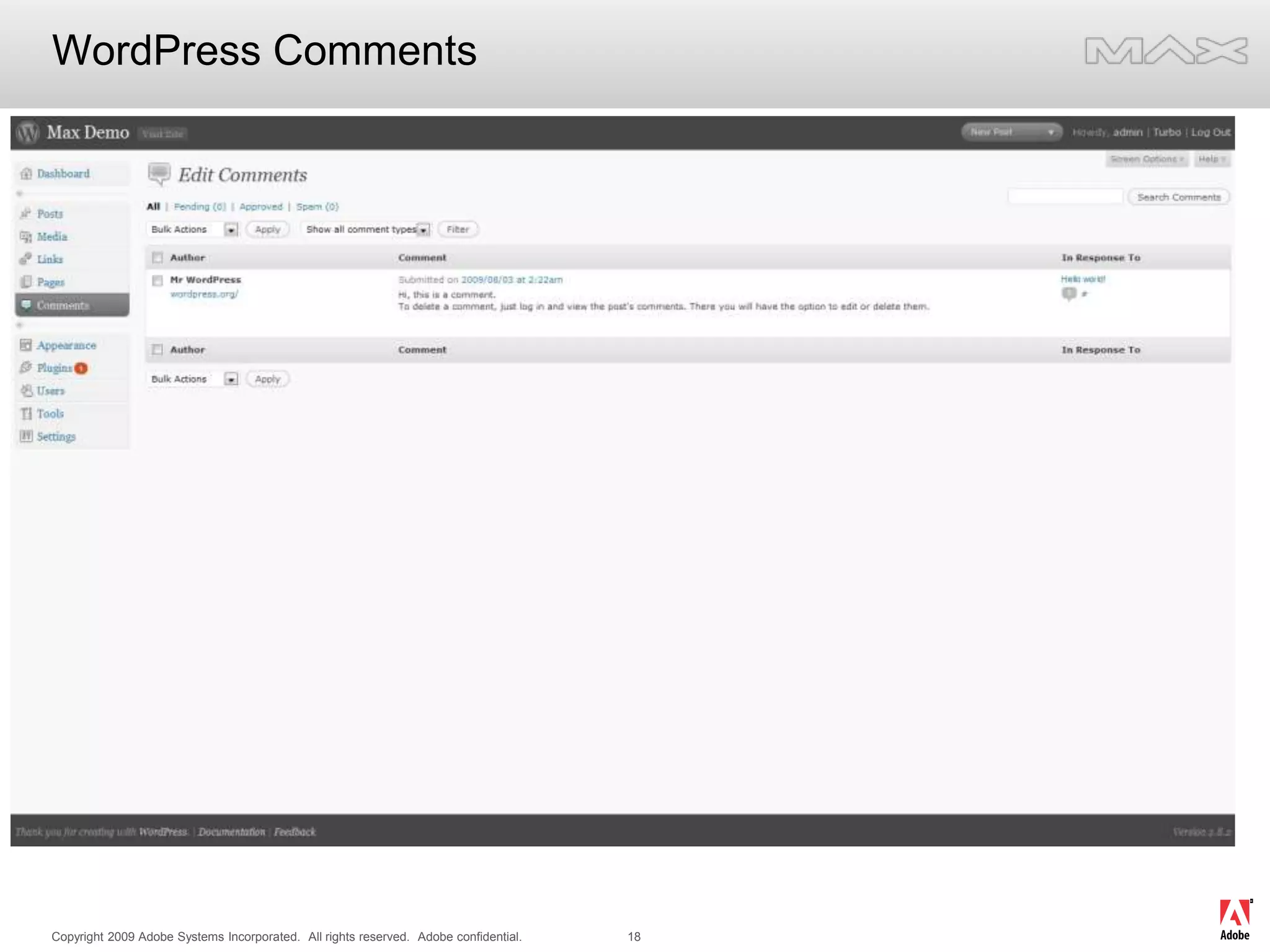
WordPress Comments
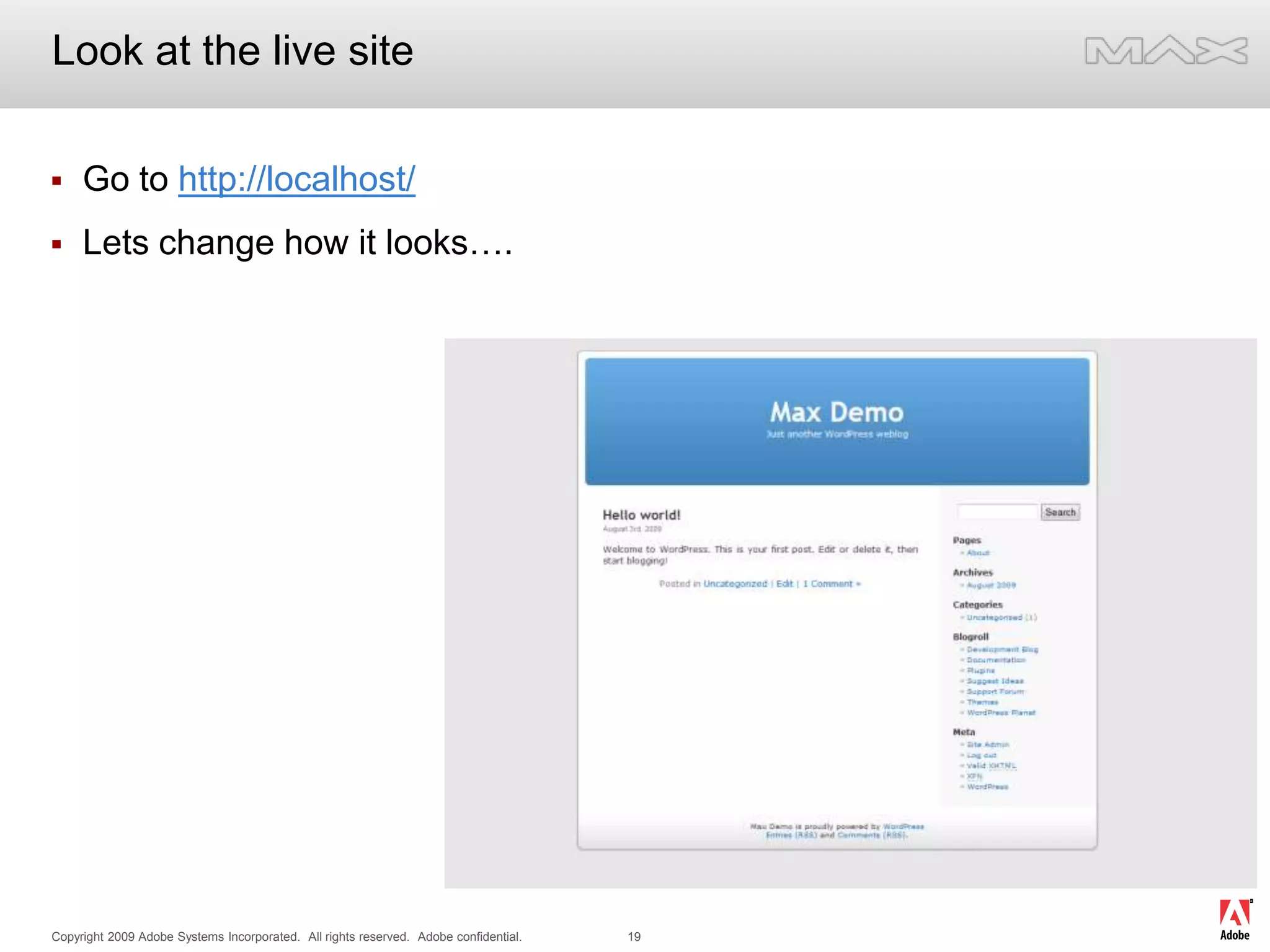
Look at the live siteGo to http://localhost/Lets change how it looks….
Installing WordPress ThemesWhat is a Theme?Where to get themes?Unzip and install the themes supplied from /wordpress/themesUnzip the theme into [siteroot]/wp-content/themes/Unzip all four into the themes directoryGo back to the WordPress admin – http://localhost/wp-admin/
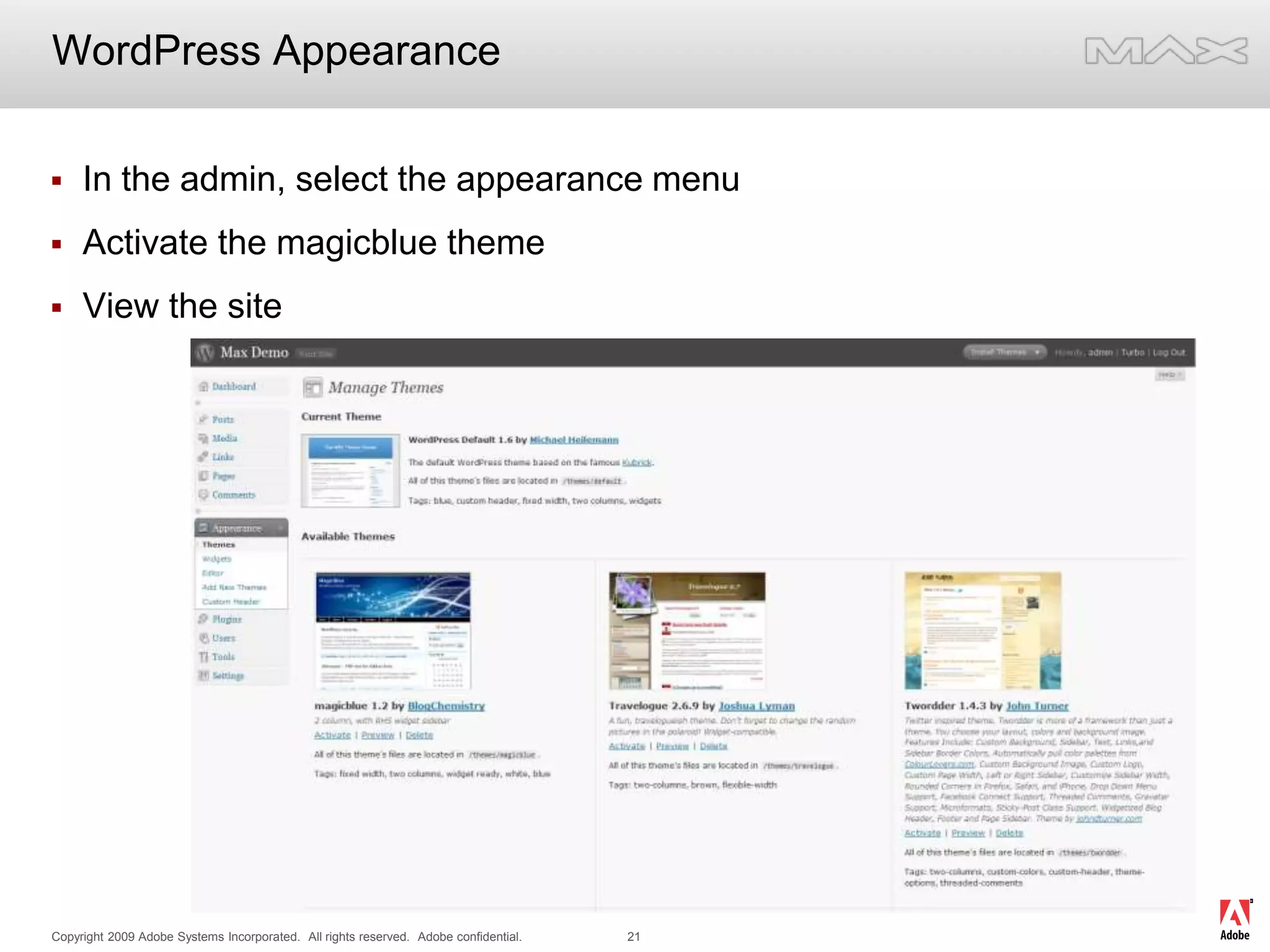
WordPress AppearanceIn the admin, select the appearance menuActivate the magicblue themeView the site
Customizing a themeIn Dreamweaver, open up /wp-content/themes/magicblueLook for style.cssOpen style.css in DreamweaverOpen the site in a browser http://localhost/Change line 232 from background:black to background:blueRefresh the browser… Look at the menu barLocate headerbg.jpg in Dreamweaver – /wp-content/themes/magicblue/images/headerbg.jpgLocate headerbg.jpg on [cd]/wordpress/media/headerbg.jpgCopy headerbg.jpg from CD to /wp-content/themes/magicblue/images/Refresh the browser… Look at the top menu
Working with WidgetsWhat is a Widget?Go to WordPress Admin, Select Appearance > Widgets (below themes)Add Categories to the side bar by dragging and droppingAdd Meta to the side bar by dragging and droppingClick view site in new window, or refresh it in the other browserLook at the Sidebar
Adding a Plugin to WordPressWhat is a Plugin?Installing a Plugin, much like installing a theme.Unzip and install the contact-form-7.2.0.1.zip on disc [CD]/wordpress/pluginsUnzip the theme into [siteroot]/wp-content/plugins/Go back to the WordPress admin – http://localhost/wp-admin/Select the Plugins from the side barActivate Contact Form 7Click on settingsCopy the code in brown
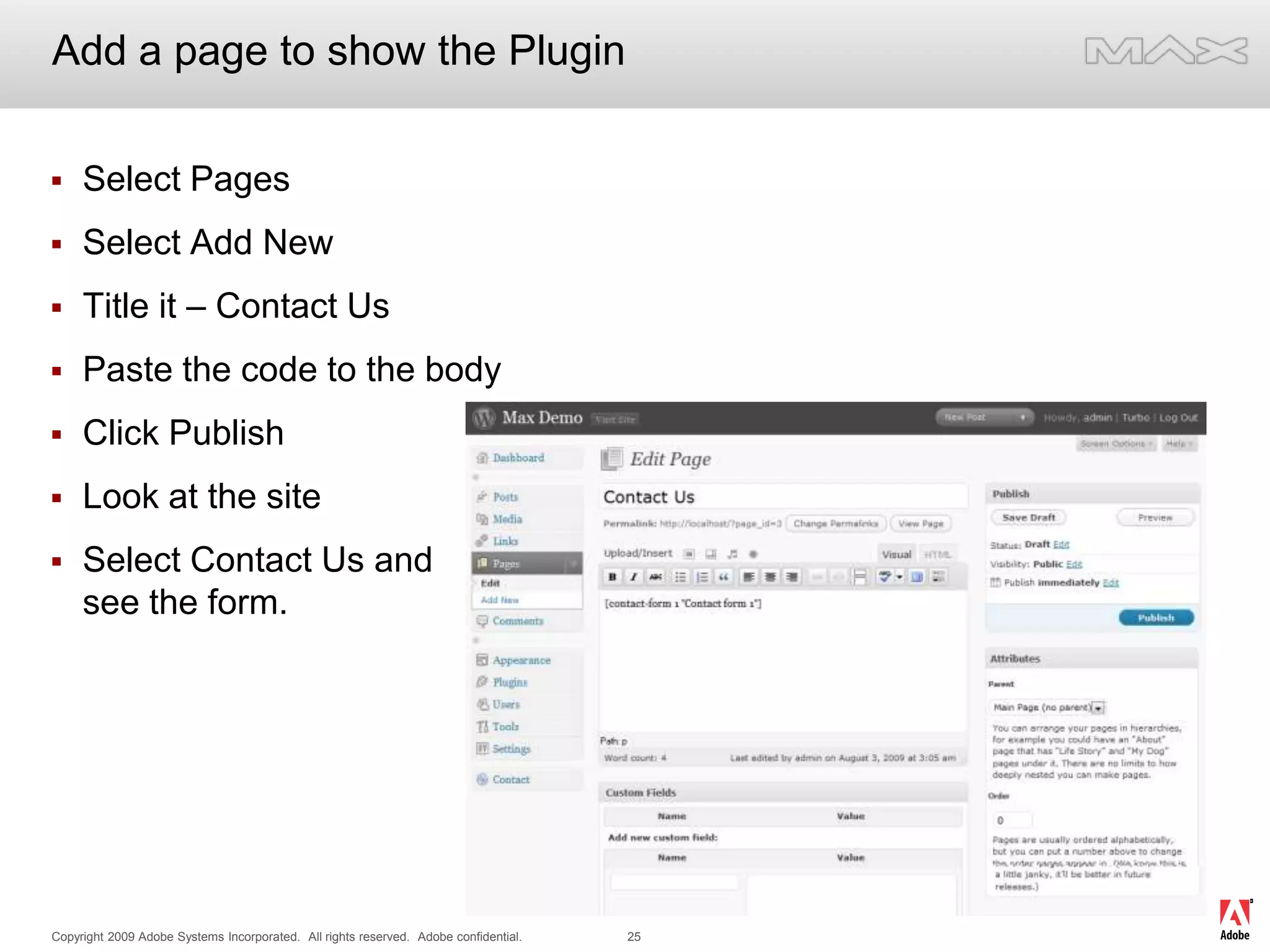
Add a page to show the PluginSelect PagesSelect Add NewTitle it – Contact UsPaste the code to the bodyClick PublishLook at the siteSelect Contact Us and see the form.
Adding an image galleryWhy have an image gallery?Extract nextgen-gallery.zip from the CD to the plugins directoryActivate the plugin from the plugins screenSelect Upload PicturesSelect upload a Zip File – Upload CD/wordpress/media/gallery.zipSelect Manage Gallery from the sidebarClick Add PageView the site and see your new gallery
Any Questions?WordPress is almost infinitely customizable with plugins for almost everythingDesigning a theme from scratch is hard, its best to pick a theme from the gallery that is close to the layout you would like then start customizing to your needs.Questions?

Editing Wordpress in Dreamweaver

  • 1.
    Customizing WordPress UsingDreamweaver (BYOL)Luke KilpatrickTwitter Tag: #adobemax87
  • 2.
    What you needto knowBasic Dreamweaver knowledgeBasic FTP knowledge (can you setup a site in Dreamweaver?)A server setup with MySQL and PHP – Local or RemoteSome experience with HTML and CSS
  • 3.
    Why are youhere?You want to setup your own or a company blog?You need to create a website that is managed by many people?Hate to code things beyond HTML and CSS?Want to learn more about the most popular blogging platform out there?Need a platform that is free, easy to use, easy to update and can be extended to do almost anything?WordPress may be your answer!
  • 4.
    Who am I?LukeKilpatrickFront End ColdFusion and Web DeveloperBuild my first website in 1996Blogging with a WordPress since 2006 at http://www.lukek.caManager of Fire On The Bay, Adobe Fireworks User Group and Co-Manager of Photoshop Till You Drop Photoshop User Group in San FranciscoDone many WordPress installs and setups for many clients, most with custom themes
  • 5.
    Little bit ofhistory about WordPressWordPress is the official successor of B2/Cafelog which is a blogging platform created in early 2001. First version was WordPress 0.7 which was released in May 2003WordPress 1.0 was released on January 3rd, 2004WordPress 2.0 was released on December 31st, 2005WordPress 2.8 was released on June 10th, 2009We will be setting up and using WordPress 2.8x
  • 6.
    Why you wouldwant to host your own Blog or CMS?Faster updatesMore CustomizationUsually cheaper than many hosted solutionsYou have complete control of everything from the content to the theme to the plug-insCan move it from host to host with no loss of contentCan scale it to bigger systems if traffic demands
  • 7.
    Getting StartedInstall MAMPor XAMPPMAMP (Mac Apache MySQL PHP)Open the MAMP.dmg and drag the MAMP app to the applications folderStart MAMPXAMP (Cross Platform Apache MySQL PHP Perl)Run the XAMPP installerInstall to C:\XAMPP – (default)Agree to everything, then select 1 to start the control panelStart up Apache and MySQL
  • 8.
    Getting StartedOpen AdobeDreamweaver CS4Select Site  New Site from the top menuSelect the Basic Tab and Type in the name of your siteEnter the URL to your site provided on the worksheetSelect Yes, I want to use a server technologySelect “PHP MySQL” from the dropdownSelect “Edit and test locally (my testing server is on this computer)”Select the place on your hard drive where you will store the files.ie: C:\sites\wordpressdemo – or something similar
  • 9.
    Create your DatabaseGoto http://localhost/phpmyadmin/ or to http://localhost:8888/phpmyadmin/Create a new database called wordpress
  • 10.
    Change your rootdirectory in httpd.confOpen C:\xampp\apache\conf Open httpd.conf in Dreamweaver CS4Edit line #182 to point at C:/sites/wpdemo for PC Edit line #209 to point at C:/sites/wpdemo for PCOn Mac In MAMP Select preferencesGo to the apache tabSet it to /developer/workspace/wordpress or where you want your WordPress to run from.
  • 11.
    Getting and UnzippingWordPressUnzip WordPress from the source files /wordpress/wordpress-2.8.2.zipAfter you have wordpress-2.8.2.zip you will need to unzip it to the folder you setup for your siteOnce it is unzipped, open up Dreamweaver and look at your local siteYou should have a directory/folder called “wordpress”Expand the wordpress directory and select all of the files and move them to the root of your siteWe are now almost ready to install
  • 12.
    Configuring WordPress forinstallationOpen up “wp-config-sample.php”On line 19 : replace “putyourdbnamehere” with “wordpress”On line 22 : replace “usernamehere” with “root”On line 25 : replace “yourpasswordhere” with “”Save the file, then rename it to wp-config.phpWe are now ready to install!
  • 13.
    Upload and InstallWordPressThen open a web browser and enter“http://localhost/wp-admin/install.phpFollow the instructions on screen:Enter your Blog TitleEnter your EmailClick installRecord the Username and Password, you will need them in a moment.Click login.Your now setup to use WordPress!
  • 14.
    Logging in forthe first timeEnter your username and passwordYou will land at the WordPress DashboardChange your password to something you can rememberClick Here
  • 15.
  • 16.
  • 17.
  • 18.
  • 19.
    Look at thelive siteGo to http://localhost/Lets change how it looks….
  • 20.
    Installing WordPress ThemesWhatis a Theme?Where to get themes?Unzip and install the themes supplied from /wordpress/themesUnzip the theme into [siteroot]/wp-content/themes/Unzip all four into the themes directoryGo back to the WordPress admin – http://localhost/wp-admin/
  • 21.
    WordPress AppearanceIn theadmin, select the appearance menuActivate the magicblue themeView the site
  • 22.
    Customizing a themeInDreamweaver, open up /wp-content/themes/magicblueLook for style.cssOpen style.css in DreamweaverOpen the site in a browser http://localhost/Change line 232 from background:black to background:blueRefresh the browser… Look at the menu barLocate headerbg.jpg in Dreamweaver – /wp-content/themes/magicblue/images/headerbg.jpgLocate headerbg.jpg on [cd]/wordpress/media/headerbg.jpgCopy headerbg.jpg from CD to /wp-content/themes/magicblue/images/Refresh the browser… Look at the top menu
  • 23.
    Working with WidgetsWhatis a Widget?Go to WordPress Admin, Select Appearance > Widgets (below themes)Add Categories to the side bar by dragging and droppingAdd Meta to the side bar by dragging and droppingClick view site in new window, or refresh it in the other browserLook at the Sidebar
  • 24.
    Adding a Pluginto WordPressWhat is a Plugin?Installing a Plugin, much like installing a theme.Unzip and install the contact-form-7.2.0.1.zip on disc [CD]/wordpress/pluginsUnzip the theme into [siteroot]/wp-content/plugins/Go back to the WordPress admin – http://localhost/wp-admin/Select the Plugins from the side barActivate Contact Form 7Click on settingsCopy the code in brown
  • 25.
    Add a pageto show the PluginSelect PagesSelect Add NewTitle it – Contact UsPaste the code to the bodyClick PublishLook at the siteSelect Contact Us and see the form.
  • 26.
    Adding an imagegalleryWhy have an image gallery?Extract nextgen-gallery.zip from the CD to the plugins directoryActivate the plugin from the plugins screenSelect Upload PicturesSelect upload a Zip File – Upload CD/wordpress/media/gallery.zipSelect Manage Gallery from the sidebarClick Add PageView the site and see your new gallery
  • 27.
    Any Questions?WordPress isalmost infinitely customizable with plugins for almost everythingDesigning a theme from scratch is hard, its best to pick a theme from the gallery that is close to the layout you would like then start customizing to your needs.Questions?