Linux for Programmers 
Md. Al-Amin opu 
Programmer and *nix user
Essential tools 
gedit 
Sublime Text
Installing gedit 
sudo apt-get install gedit
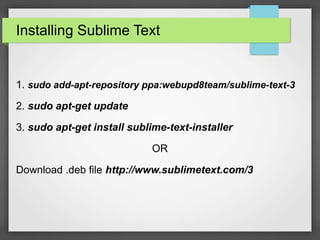
Installing Sublime Text 
1. sudo add-apt-repository ppa:webupd8team/sublime-text-3 
2. sudo apt-get update 
3. sudo apt-get install sublime-text-installer 
OR 
Download .deb file http://www.sublimetext.com/3
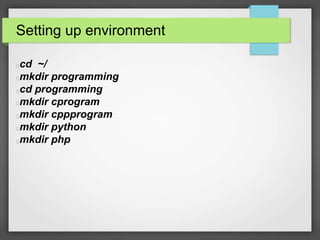
Setting up environment 
cd ~/ 
mkdir programming 
cd programming 
mkdir cprogram 
mkdir cppprogram 
mkdir python 
mkdir php
C/C++ Programming
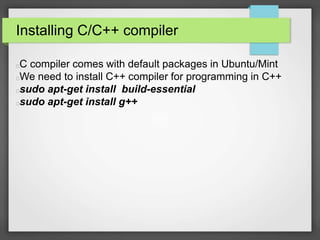
Installing C/C++ compiler 
C compiler comes with default packages in Ubuntu/Mint 
We need to install C++ compiler for programming in C++ 
sudo apt-get install build-essential 
sudo apt-get install g++
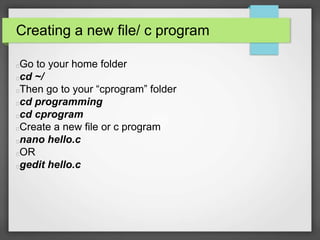
Creating a new file/ c program 
Go to your home folder 
cd ~/ 
Then go to your “cprogram” folder 
cd programming 
cd cprogram 
Create a new file or c program 
nano hello.c 
OR 
gedit hello.c
View the content of file 
cat filename 
cat hello.c
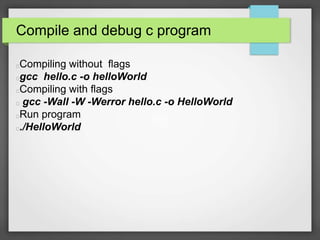
Compile and debug c program 
Compiling without flags 
gcc hello.c -o helloWorld 
Compiling with flags 
gcc -Wall -W -Werror hello.c -o HelloWorld 
Run program 
./HelloWorld
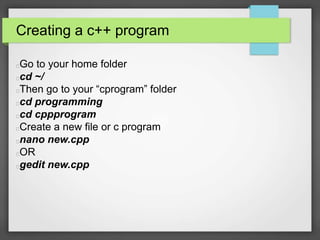
Creating a c++ program 
Go to your home folder 
cd ~/ 
Then go to your “cprogram” folder 
cd programming 
cd cppprogram 
Create a new file or c program 
nano new.cpp 
OR 
gedit new.cpp
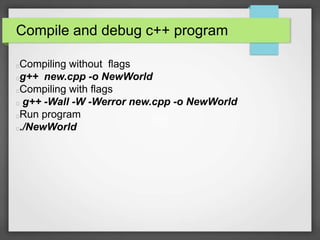
Compile and debug c++ program 
Compiling without flags 
g++ new.cpp -o NewWorld 
Compiling with flags 
g++ -Wall -W -Werror new.cpp -o NewWorld 
Run program 
./NewWorld
Python Programming
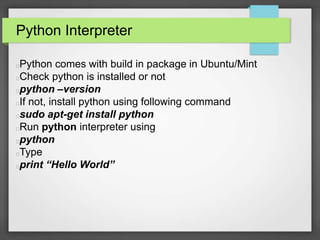
Python Interpreter 
Python comes with build in package in Ubuntu/Mint 
Check python is installed or not 
python –version 
If not, install python using following command 
sudo apt-get install python 
Run python interpreter using 
python 
Type 
print “Hello World”
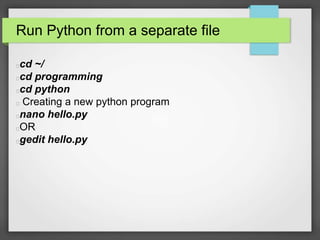
Run Python from a separate file 
cd ~/ 
cd programming 
cd python 
Creating a new python program 
nano hello.py 
OR 
gedit hello.py
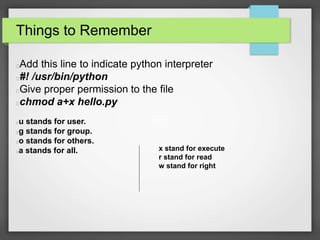
Things to Remember 
Add this line to indicate python interpreter 
#! /usr/bin/python 
Give proper permission to the file 
chmod a+x hello.py 
u stands for user. 
g stands for group. 
o stands for others. 
a stands for all. x stand for execute 
r stand for read 
w stand for right
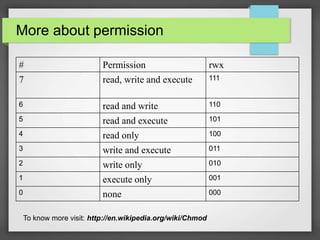
More about permission 
# Permission rwx 
7 read, write and execute 111 
6 read and write 110 
5 read and execute 101 
4 read only 100 
3 write and execute 011 
2 write only 010 
1 execute only 001 
0 none 000 
To know more visit: http://en.wikipedia.org/wiki/Chmod
Ah!!! Lets run now 
To run python program 
python hello.py
PHP-MySQL 
Programming
LAMP Stack 
LAMP stands for L=Linux , A = Apache , M=MySQL P=PHP 
Alternative of LAMP is LEMP 
L= Linux , E= nginx (Engine X) , M= MySQL, P=PHP

Setting up Apache Server 
Update software package source 
sudo apt-get update 
Installing apache2 
sudo apt-get install apache2 
Testing Web Server 
http://localhost 
Web Server default folder 
/var/www/html
Install and Configure MySQL 
First we need to install MySQL Server 
sudo apt-get install mysql-server 
Configure MySQL server 
mysql_secure_installation
Creating database and user 
First login to mysql 
mysql -u root -p // root is default user. 
To create a database 
create database lollipop; // 'lolipop' is our database name 
To create user and give permission 
grant all on lollipop.* to 'candy' identified by '5t1ck'; 
// 'candy' is username. '5t1ck' is password 
Update privileges 
flush privileges; 
To know more about MySQL CLI : http://dev.mysql.com/doc/refman/5.6/en/mysql.html
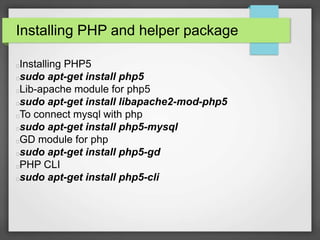
Installing PHP and helper package 
Installing PHP5 
sudo apt-get install php5 
Lib-apache module for php5 
sudo apt-get install libapache2-mod-php5 
To connect mysql with php 
sudo apt-get install php5-mysql 
GD module for php 
sudo apt-get install php5-gd 
PHP CLI 
sudo apt-get install php5-cli
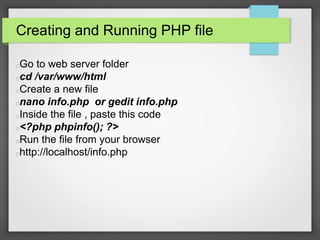
Creating and Running PHP file 
Go to web server folder 
cd /var/www/html 
Create a new file 
nano info.php or gedit info.php 
Inside the file , paste this code 
<?php phpinfo(); ?> 
Run the file from your browser 
http://localhost/info.php
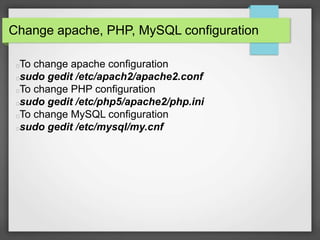
Change apache, PHP, MySQL configuration 
To change apache configuration 
sudo gedit /etc/apach2/apache2.conf 
To change PHP configuration 
sudo gedit /etc/php5/apache2/php.ini 
To change MySQL configuration 
sudo gedit /etc/mysql/my.cnf
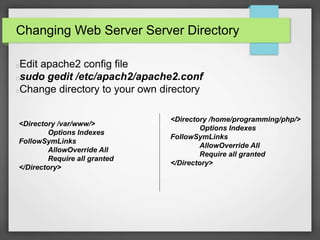
Changing Web Server Server Directory 
Edit apache2 config file 
sudo gedit /etc/apach2/apache2.conf 
Change directory to your own directory 
<Directory /home/programming/php/> 
Options Indexes 
FollowSymLinks 
AllowOverride All 
Require all granted 
</Directory> 
<Directory /var/www/> 
Options Indexes 
FollowSymLinks 
AllowOverride All 
Require all granted 
</Directory>
Restarting apache Server 
If we make any change on the server configuration, always 
need to restart the server 
To restart apache server 
sudo service apache2 restart
Installing phpmyadmin 
To install 
sudo apt-get install phpmyadmin 
It should automatically configure the phpmyadmin. Can be 
run through http://localhost/phpmyadmin 
If you need to re-cofigure phpmyadmin run 
sudo dpkg-reconfigure -plow phpmyadmin 
Then edit apache config file and add this line add the end of 

that file. 
Include /etc/phpmyadmin/apache.conf 
Restart web server
Virtual Host
Creating Virtual Host 
Go to apache sites-available directory 
cd /etc/apache2/sites-available/ 
Create a new file 
sudo gedit dev.conf 
Paste this code on the file 
<VirtualHost *:80> 
ServerAdmin webmaster@local.dev 
ServerName local.dev 
ServerAlias www.local.dev 
DocumentRoot /home/programming/php/dev/ 
ErrorLog /home/programming/php/dev/error.log 
</VirtualHost>
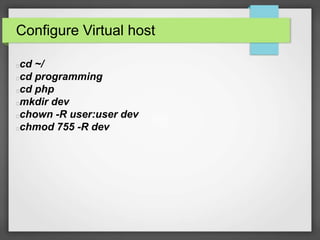
Configure Virtual host 
cd ~/ 
cd programming 
cd php 
mkdir dev 
chown -R user:user dev 
chmod 755 -R dev
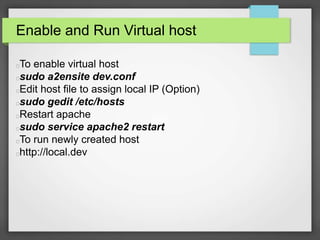
Enable and Run Virtual host 
To enable virtual host 
sudo a2ensite dev.conf 
Edit host file to assign local IP (Option) 
sudo gedit /etc/hosts 
Restart apache 
sudo service apache2 restart 
To run newly created host 
http://local.dev
Remote Server
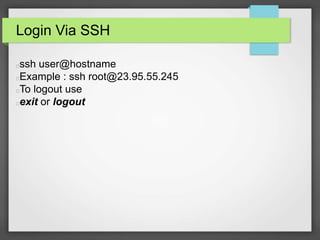
Login Via SSH 
ssh user@hostname 
Example : ssh root@23.95.55.245 
To logout use 
exit or logout
Questions???
Thank You

Linux for programmers

  • 1.
    Linux for Programmers Md. Al-Amin opu Programmer and *nix user
  • 2.
    Essential tools gedit Sublime Text
  • 3.
    Installing gedit sudoapt-get install gedit
  • 4.
    Installing Sublime Text 1. sudo add-apt-repository ppa:webupd8team/sublime-text-3 2. sudo apt-get update 3. sudo apt-get install sublime-text-installer OR Download .deb file http://www.sublimetext.com/3
  • 5.
    Setting up environment cd ~/ mkdir programming cd programming mkdir cprogram mkdir cppprogram mkdir python mkdir php
  • 6.
  • 7.
    Installing C/C++ compiler C compiler comes with default packages in Ubuntu/Mint We need to install C++ compiler for programming in C++ sudo apt-get install build-essential sudo apt-get install g++
  • 8.
    Creating a newfile/ c program Go to your home folder cd ~/ Then go to your “cprogram” folder cd programming cd cprogram Create a new file or c program nano hello.c OR gedit hello.c
  • 9.
    View the contentof file cat filename cat hello.c
  • 10.
    Compile and debugc program Compiling without flags gcc hello.c -o helloWorld Compiling with flags gcc -Wall -W -Werror hello.c -o HelloWorld Run program ./HelloWorld
  • 11.
    Creating a c++program Go to your home folder cd ~/ Then go to your “cprogram” folder cd programming cd cppprogram Create a new file or c program nano new.cpp OR gedit new.cpp
  • 12.
    Compile and debugc++ program Compiling without flags g++ new.cpp -o NewWorld Compiling with flags g++ -Wall -W -Werror new.cpp -o NewWorld Run program ./NewWorld
  • 13.
  • 14.
    Python Interpreter Pythoncomes with build in package in Ubuntu/Mint Check python is installed or not python –version If not, install python using following command sudo apt-get install python Run python interpreter using python Type print “Hello World”
  • 15.
    Run Python froma separate file cd ~/ cd programming cd python Creating a new python program nano hello.py OR gedit hello.py
  • 16.
    Things to Remember Add this line to indicate python interpreter #! /usr/bin/python Give proper permission to the file chmod a+x hello.py u stands for user. g stands for group. o stands for others. a stands for all. x stand for execute r stand for read w stand for right
  • 17.
    More about permission # Permission rwx 7 read, write and execute 111 6 read and write 110 5 read and execute 101 4 read only 100 3 write and execute 011 2 write only 010 1 execute only 001 0 none 000 To know more visit: http://en.wikipedia.org/wiki/Chmod
  • 18.
    Ah!!! Lets runnow To run python program python hello.py
  • 19.
  • 20.
    LAMP Stack LAMPstands for L=Linux , A = Apache , M=MySQL P=PHP Alternative of LAMP is LEMP L= Linux , E= nginx (Engine X) , M= MySQL, P=PHP
  • 21.
    Setting up ApacheServer Update software package source sudo apt-get update Installing apache2 sudo apt-get install apache2 Testing Web Server http://localhost Web Server default folder /var/www/html
  • 22.
    Install and ConfigureMySQL First we need to install MySQL Server sudo apt-get install mysql-server Configure MySQL server mysql_secure_installation
  • 23.
    Creating database anduser First login to mysql mysql -u root -p // root is default user. To create a database create database lollipop; // 'lolipop' is our database name To create user and give permission grant all on lollipop.* to 'candy' identified by '5t1ck'; // 'candy' is username. '5t1ck' is password Update privileges flush privileges; To know more about MySQL CLI : http://dev.mysql.com/doc/refman/5.6/en/mysql.html
  • 24.
    Installing PHP andhelper package Installing PHP5 sudo apt-get install php5 Lib-apache module for php5 sudo apt-get install libapache2-mod-php5 To connect mysql with php sudo apt-get install php5-mysql GD module for php sudo apt-get install php5-gd PHP CLI sudo apt-get install php5-cli
  • 25.
    Creating and RunningPHP file Go to web server folder cd /var/www/html Create a new file nano info.php or gedit info.php Inside the file , paste this code <?php phpinfo(); ?> Run the file from your browser http://localhost/info.php
  • 26.
    Change apache, PHP,MySQL configuration To change apache configuration sudo gedit /etc/apach2/apache2.conf To change PHP configuration sudo gedit /etc/php5/apache2/php.ini To change MySQL configuration sudo gedit /etc/mysql/my.cnf
  • 27.
    Changing Web ServerServer Directory Edit apache2 config file sudo gedit /etc/apach2/apache2.conf Change directory to your own directory <Directory /home/programming/php/> Options Indexes FollowSymLinks AllowOverride All Require all granted </Directory> <Directory /var/www/> Options Indexes FollowSymLinks AllowOverride All Require all granted </Directory>
  • 28.
    Restarting apache Server If we make any change on the server configuration, always need to restart the server To restart apache server sudo service apache2 restart
  • 29.
    Installing phpmyadmin Toinstall sudo apt-get install phpmyadmin It should automatically configure the phpmyadmin. Can be run through http://localhost/phpmyadmin If you need to re-cofigure phpmyadmin run sudo dpkg-reconfigure -plow phpmyadmin Then edit apache config file and add this line add the end of that file. Include /etc/phpmyadmin/apache.conf Restart web server
  • 30.
  • 31.
    Creating Virtual Host Go to apache sites-available directory cd /etc/apache2/sites-available/ Create a new file sudo gedit dev.conf Paste this code on the file <VirtualHost *:80> ServerAdmin webmaster@local.dev ServerName local.dev ServerAlias www.local.dev DocumentRoot /home/programming/php/dev/ ErrorLog /home/programming/php/dev/error.log </VirtualHost>
  • 32.
    Configure Virtual host cd ~/ cd programming cd php mkdir dev chown -R user:user dev chmod 755 -R dev
  • 33.
    Enable and RunVirtual host To enable virtual host sudo a2ensite dev.conf Edit host file to assign local IP (Option) sudo gedit /etc/hosts Restart apache sudo service apache2 restart To run newly created host http://local.dev
  • 34.
  • 35.
    Login Via SSH ssh user@hostname Example : ssh root@23.95.55.245 To logout use exit or logout
  • 36.
  • 37.