Meeting 4: Advanced Topics, Continued:  Securing the Apache Server and Apache Performance Tuning Rutgers University Internet Institute Instructor:  Chris Uriarte (CU520-03- WMPUPDT)
Today’s Session Protecting your Web server against attacks.  Providing authenticated access to your Web site.  Overview of SSL-enabled Web Servers Apache Performance Tuning Wrap-up and Evaluations
Levels of Web Server Security Protecting data supplied through client browsers.  Protecting or restricting access to data stored on your Web server.  Protecting the Web server software.  Protecting the server that houses your Web server.
Common Attacks on Systems that Run Web Servers CGI exploits  Badly-written or buggy web applications (CGIs) programs allow access to restricted resources or consume server resources. DoS (Denial of Service) Software or operating system server exploits  Packet sniffers Hackers ‘sniff’ clear-text passwords Buffer overflows  Attacks that cause a piece of software to crash and possibly give unprivileged users privileged access
Securing Your Web Server Restrict access (by location or authentication) to file systems and resources. Password or IP authentication/authorization Disable server-side technologies if they are not required. Disable CGI Access and Server Side Includes Remove  ExecCGI  and  Includes  from the  Options  directive of your httpd.conf  Do not run your server as “root.”  The  User  directive in the httpd.conf should specify a user other than root (e.g. nobody, www, etc.)
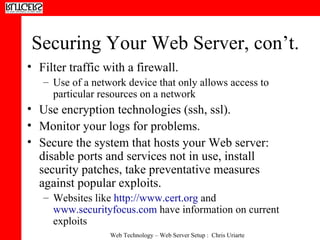
Securing Your Web Server, con’t. Filter traffic with a firewall.  Use of a network device that only allows access to particular resources on a network Use encryption technologies (ssh, ssl).  Monitor your logs for problems.  Secure the system that hosts your Web server: disable ports and services not in use, install security patches, take preventative measures against popular exploits. Websites like  http://www.cert.org  and  www.securityfocus.com  have information on current exploits
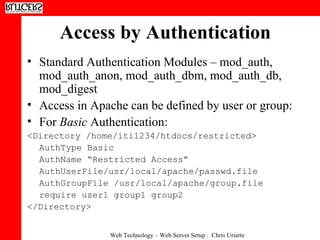
Access by Authentication Standard Authentication Modules – mod_auth, mod_auth_anon, mod_auth_dbm, mod_auth_db, mod_digest  Access in Apache can be defined by user or group: For  Basic  Authentication:  <Directory /home/iti1234/htdocs/restricted>  AuthType Basic  AuthName “Restricted Access”  AuthUserFile/usr/local/apache/passwd.file AuthGroupFile /usr/local/apache/group.file  require user1 group1 group2  </Directory>
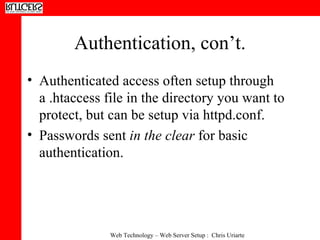
Authentication, con’t. Authenticated access often setup through a .htaccess file in the directory you want to protect, but can be setup via httpd.conf. Passwords sent  in the clear  for basic authentication.
Basic Authentication:  Line by Line You can keep authentication info in a <DIRECTORY> block in the httpd.conf or in an .htaccess file First, specify the AuthType, which is  Basic AuthType Basic  Next, Specify the text string that will be displayed when the username/pw box is presented to the user: AuthName “My Secret Webpages” Next, specify the path to a file that will contain the usernames and passwords of your users: AuthUserFile /home/apache/passwd.file   (best to keep this file out of the DocumentRoot)
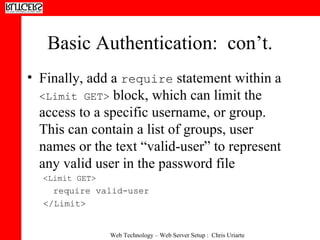
Basic Authentication:  con’t. Finally, add a  require  statement within a  <Limit GET>  block, which can limit the access to a specific username, or group.  This can contain a list of groups, user names or the text “valid-user” to represent any valid user in the password file <Limit GET> require valid-user </Limit>
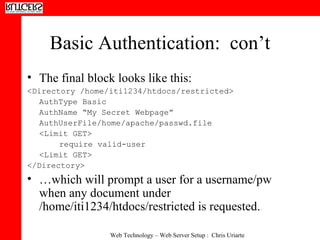
Basic Authentication:  con’t The final block looks like this: <Directory /home/iti1234/htdocs/restricted>  AuthType Basic  AuthName “My Secret Webpage”  AuthUserFile/home/apache/passwd.file <Limit GET> require valid-user  <Limit GET> </Directory>  … which will prompt a user for a username/pw when any document under /home/iti1234/htdocs/restricted is requested.
Creating a Password File htpasswd  is a utility for generating encrypted passwords and creating a password file Part of apache distribution, located in :  {SERVER ROOT}/bin/htpasswd  Usage:  htpasswd [-c] password-file username  The –c flag creates a new password file.  Example, adds a user  myname  and creates a new password file (type all on one line): /home/iti1234/bin/htpasswd -c /home/iti1234/apache/passwdfile username
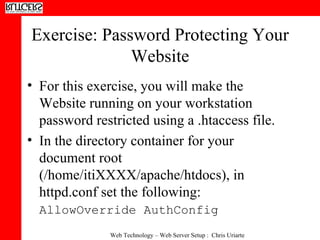
Exercise: Password Protecting Your Website For this exercise, you will make the Website running on your workstation password restricted using a .htaccess file.  In the directory container for your document root (/home/itiXXXX/apache/htdocs), in httpd.conf set the following:  AllowOverride AuthConfig
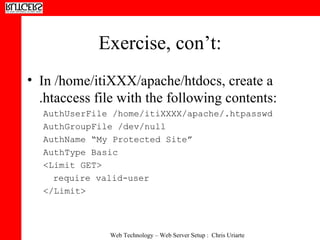
Exercise, con’t: In /home/itiXXX/apache/htdocs, create a .htaccess file with the following contents:  AuthUserFile /home/itiXXXX/apache/.htpasswd AuthGroupFile /dev/null  AuthName “My Protected Site”  AuthType Basic <Limit GET>  require valid-user </Limit>
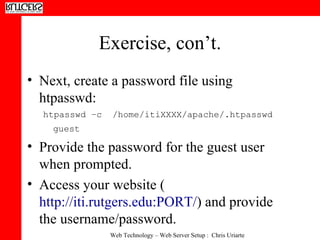
Exercise, con’t. Next, create a password file using htpasswd: htpasswd –c  /home/itiXXXX/apache/.htpasswd guest   Provide the password for the guest user when prompted. Access your website ( http://iti.rutgers.edu:PORT/ ) and provide the username/password.
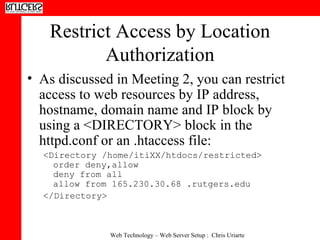
Restrict Access by Location Authorization As discussed in Meeting 2, you can restrict access to web resources by IP address, hostname, domain name and IP block by using a <DIRECTORY> block in the httpd.conf or an .htaccess file: <Directory /home/itiXX/htdocs/restricted> order deny,allow  deny from all  allow from 165.230.30.68 .rutgers.edu </Directory>

Apache Web Server Setup 4

  • 1.
    Meeting 4: AdvancedTopics, Continued: Securing the Apache Server and Apache Performance Tuning Rutgers University Internet Institute Instructor: Chris Uriarte (CU520-03- WMPUPDT)
  • 2.
    Today’s Session Protectingyour Web server against attacks. Providing authenticated access to your Web site. Overview of SSL-enabled Web Servers Apache Performance Tuning Wrap-up and Evaluations
  • 3.
    Levels of WebServer Security Protecting data supplied through client browsers. Protecting or restricting access to data stored on your Web server. Protecting the Web server software. Protecting the server that houses your Web server.
  • 4.
    Common Attacks onSystems that Run Web Servers CGI exploits Badly-written or buggy web applications (CGIs) programs allow access to restricted resources or consume server resources. DoS (Denial of Service) Software or operating system server exploits Packet sniffers Hackers ‘sniff’ clear-text passwords Buffer overflows Attacks that cause a piece of software to crash and possibly give unprivileged users privileged access
  • 5.
    Securing Your WebServer Restrict access (by location or authentication) to file systems and resources. Password or IP authentication/authorization Disable server-side technologies if they are not required. Disable CGI Access and Server Side Includes Remove ExecCGI and Includes from the Options directive of your httpd.conf Do not run your server as “root.” The User directive in the httpd.conf should specify a user other than root (e.g. nobody, www, etc.)
  • 6.
    Securing Your WebServer, con’t. Filter traffic with a firewall. Use of a network device that only allows access to particular resources on a network Use encryption technologies (ssh, ssl). Monitor your logs for problems. Secure the system that hosts your Web server: disable ports and services not in use, install security patches, take preventative measures against popular exploits. Websites like http://www.cert.org and www.securityfocus.com have information on current exploits
  • 7.
    Access by AuthenticationStandard Authentication Modules – mod_auth, mod_auth_anon, mod_auth_dbm, mod_auth_db, mod_digest Access in Apache can be defined by user or group: For Basic Authentication: <Directory /home/iti1234/htdocs/restricted> AuthType Basic AuthName “Restricted Access” AuthUserFile/usr/local/apache/passwd.file AuthGroupFile /usr/local/apache/group.file require user1 group1 group2 </Directory>
  • 8.
    Authentication, con’t. Authenticatedaccess often setup through a .htaccess file in the directory you want to protect, but can be setup via httpd.conf. Passwords sent in the clear for basic authentication.
  • 9.
    Basic Authentication: Line by Line You can keep authentication info in a <DIRECTORY> block in the httpd.conf or in an .htaccess file First, specify the AuthType, which is Basic AuthType Basic Next, Specify the text string that will be displayed when the username/pw box is presented to the user: AuthName “My Secret Webpages” Next, specify the path to a file that will contain the usernames and passwords of your users: AuthUserFile /home/apache/passwd.file (best to keep this file out of the DocumentRoot)
  • 10.
    Basic Authentication: con’t. Finally, add a require statement within a <Limit GET> block, which can limit the access to a specific username, or group. This can contain a list of groups, user names or the text “valid-user” to represent any valid user in the password file <Limit GET> require valid-user </Limit>
  • 11.
    Basic Authentication: con’t The final block looks like this: <Directory /home/iti1234/htdocs/restricted> AuthType Basic AuthName “My Secret Webpage” AuthUserFile/home/apache/passwd.file <Limit GET> require valid-user <Limit GET> </Directory> … which will prompt a user for a username/pw when any document under /home/iti1234/htdocs/restricted is requested.
  • 12.
    Creating a PasswordFile htpasswd is a utility for generating encrypted passwords and creating a password file Part of apache distribution, located in : {SERVER ROOT}/bin/htpasswd Usage: htpasswd [-c] password-file username The –c flag creates a new password file. Example, adds a user myname and creates a new password file (type all on one line): /home/iti1234/bin/htpasswd -c /home/iti1234/apache/passwdfile username
  • 13.
    Exercise: Password ProtectingYour Website For this exercise, you will make the Website running on your workstation password restricted using a .htaccess file. In the directory container for your document root (/home/itiXXXX/apache/htdocs), in httpd.conf set the following: AllowOverride AuthConfig
  • 14.
    Exercise, con’t: In/home/itiXXX/apache/htdocs, create a .htaccess file with the following contents: AuthUserFile /home/itiXXXX/apache/.htpasswd AuthGroupFile /dev/null AuthName “My Protected Site” AuthType Basic <Limit GET> require valid-user </Limit>
  • 15.
    Exercise, con’t. Next,create a password file using htpasswd: htpasswd –c /home/itiXXXX/apache/.htpasswd guest Provide the password for the guest user when prompted. Access your website ( http://iti.rutgers.edu:PORT/ ) and provide the username/password.
  • 16.
    Restrict Access byLocation Authorization As discussed in Meeting 2, you can restrict access to web resources by IP address, hostname, domain name and IP block by using a <DIRECTORY> block in the httpd.conf or an .htaccess file: <Directory /home/itiXX/htdocs/restricted> order deny,allow deny from all allow from 165.230.30.68 .rutgers.edu </Directory>