Explains Ideas About
Logo
ARTS 6
Basic Steps in Creating a Digital Logo
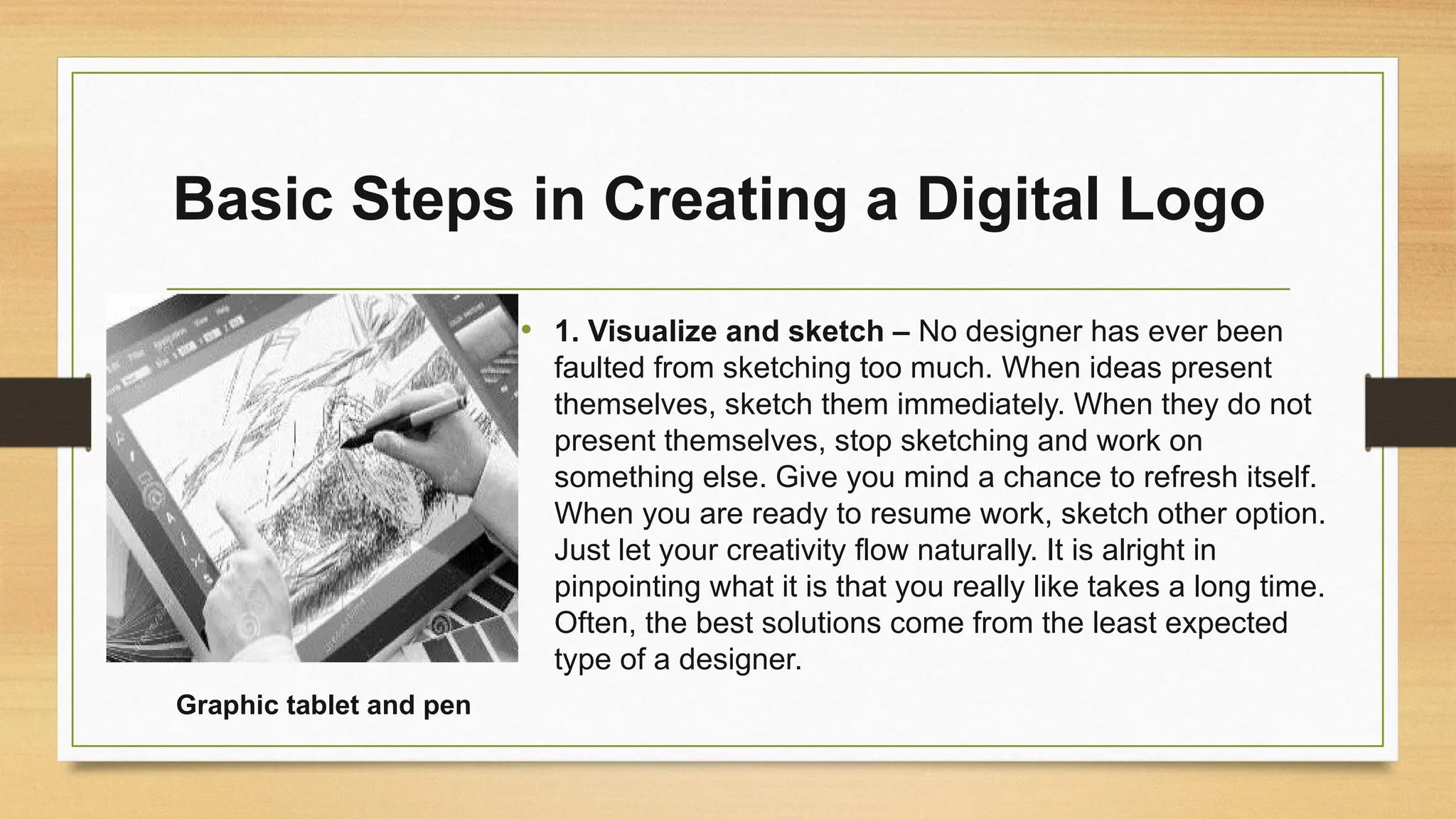
• 1. Visualize and sketch – No designer has ever been
faulted from sketching too much. When ideas present
themselves, sketch them immediately. When they do not
present themselves, stop sketching and work on
something else. Give you mind a chance to refresh itself.
When you are ready to resume work, sketch other option.
Just let your creativity flow naturally. It is alright in
pinpointing what it is that you really like takes a long time.
Often, the best solutions come from the least expected
type of a designer.
Graphic tablet and pen
Basic Steps in Creating a Digital Logo
• 2. Scan to digitize or make the image appear
on the computer screen – Scan the sketch to a
fresh drive as a digital image, to scan the image,
you need a basic piece of equipment known as a
scanner. A scanner enables you to incorporate in
your digital logos real world sketches and
drawings that you have made. A scanner is an
essential tool to all logo designers who need to
alter and enhances their designs digitally.
Flat bed scanner
Basic Steps in Creating a Digital Logo
• 3. Get started with image programs – Many drawing
and image software programs are available to create
digital logs. Some programs are downloadable or open
source (photo illustrator, inkscape, photoshop) and can
be learned easily. Start to familiar yourself with them.
Practice makes perfect. Use their website tutorial as well.
Figuring out how to use a software program starts with
an understanding of all the features it contain. After you
open your logo in one, several control panels appear on
your desktop, one of which is long and narrow.
Photoshop CS3
Here are some apps you can use:
Download Apps
https://adobe-photoshop.en.softonic.com/download
Download Apps
https://www.filehorse.com/download-
adobe-illustrator/
Download Apps
https://inkscape.org/release/inkscape-1.0/
Download Apps
https://www.gimp.org/downloads/
Download Apps
https://www.canva.com/download/windows/
What are the Elements of a Logo?
Relevant
Your logo has to be relevant. It doesn’t have to be a literal representation of
your business but should have some relevance to the particular industry, as well as
make it clear to potential customers why your business is relevant to them.
Visible
Secondly, your logo needs to be visible. In a crowded marketplace it needs to
make an impact and stand out from the crowd.
Distinctive
Thirdly, your logo needs to be distinctive. If your potential customers can’t
remember or describe your logo to other potential customers, then you have a
problem.
What are the Elements of a Logo?
Adaptable
Fourthly your logo needs to be adaptable. Will it work as well in black and
white as in color, will it scale or is it so complicated that detail will be lost at small
sizes?
Timeless
Finally, your logo needs to be timeless. It shouldn’t look out-of-date yet
shouldn’t be so trendy that it will age badly.
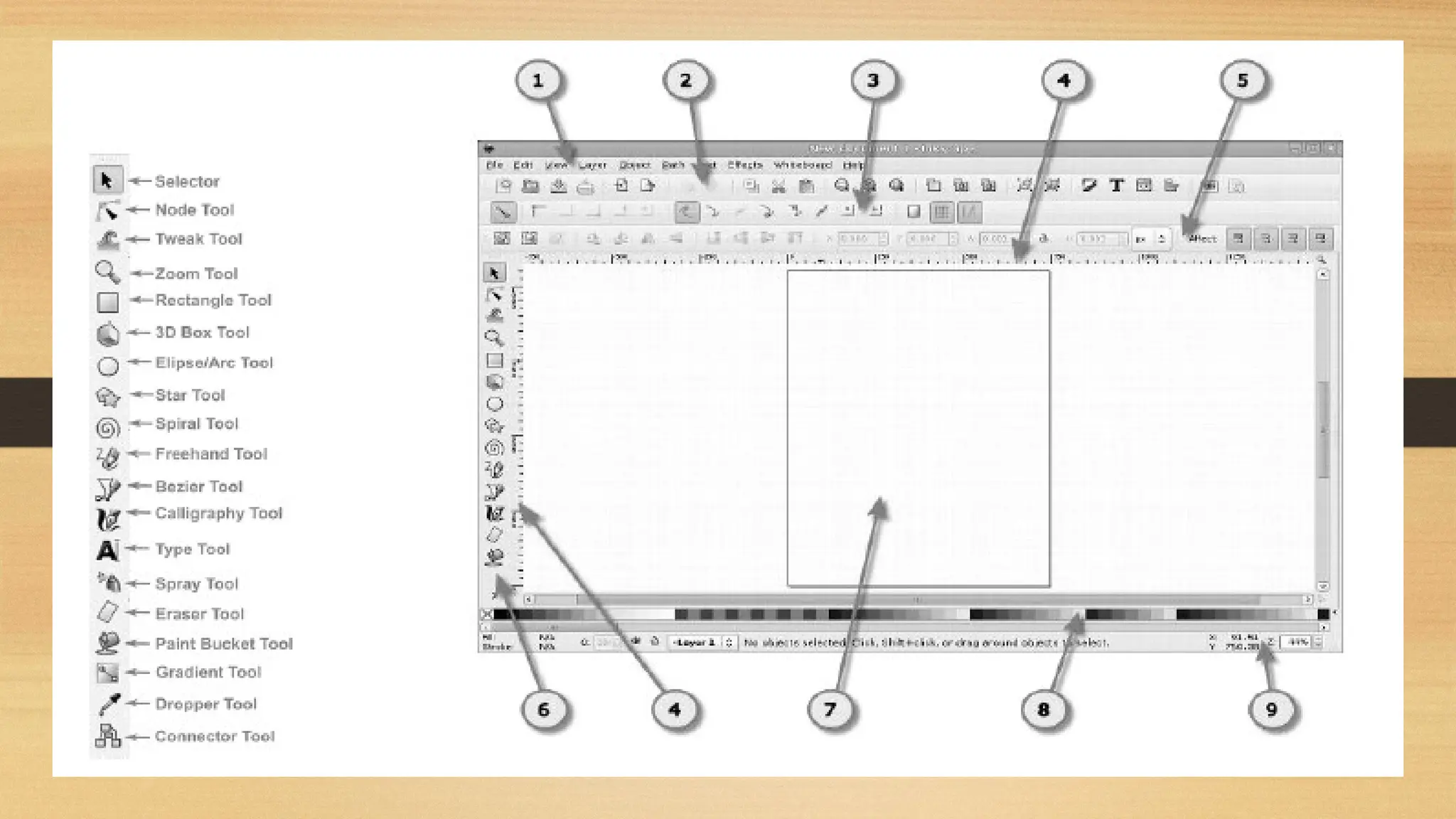
Toolbox or toolbar
This toolbar is full of features that are helpful to
logo designers.
Dodge Tool – the dodge tool lightens an image.
To use, drag icon over the image you want to
lighten.
Burn Tool – this tool darkens an image. To use
this tool just drag it over the image.
Sponge tool – the sponge tool soaks color out of
the image. Drag the tool over the section of the
image you want to change.
Toolbox or toolbar
Crop tool – this tool changes the size of the
image. To use, drag the icon over the image you
want to lighten.
Eraser Tool – this can erase part of the image in a
certain layer. To erase everything in a certain area,
flatten the image or go through every layer to
delete that part.
Hand Tool – this tool moves around an image
within an object. Use the zoom tool when you
want to adjust the section of picture you want to
look at.
Toolbox or toolbar
Lasso Tool – the lasso tool can select areas
within a layer that cannot be reached with the
Marque tool.
Marque tool – this is a group of tools that allows
you to select rectangles, ellipses, circles, and
squares.
Move Tool – this tool moves around all objects
within a layer. To move an entire image, flatten the
layer by selecting All layers at the top of the
window.
Toolbox or toolbar
Paint Bucket Tool – this tool makes an area one
color. To edit all layers at one time, click on all
layers at the top of the window.
Pen tool – the pen tool makes lines and can be
used with shape tools to create different shapes.
To create lines, use the Pen tool to create an
anchors ( little boxes on a line and change the
shape of the line by moving around the anchor.
Pen tool is used to create curves
Toolbox or toolbar
Pencil tool and Brush tool – these tools draw or
paint a line. Change the color of the paint brush by
clicking on the color picker.
Type tool – It put text in a picture. Click on the
picture with the Type tool and select a box the size of
the area you want to add.
Zoom tool – Zoom in on part of the picture for closer editing.
Air Brush – Use this tool to create a soft spray and
clouding effect.
Measure tool – Use this tool like a ruler.
Blur tool – Use this tool to soften sharp
edges.
Gradient tool – Use this to highlight a color and make it
fade from dark to light.
Rubber Stamp tool – Use this to replicate the same
pattern or image.
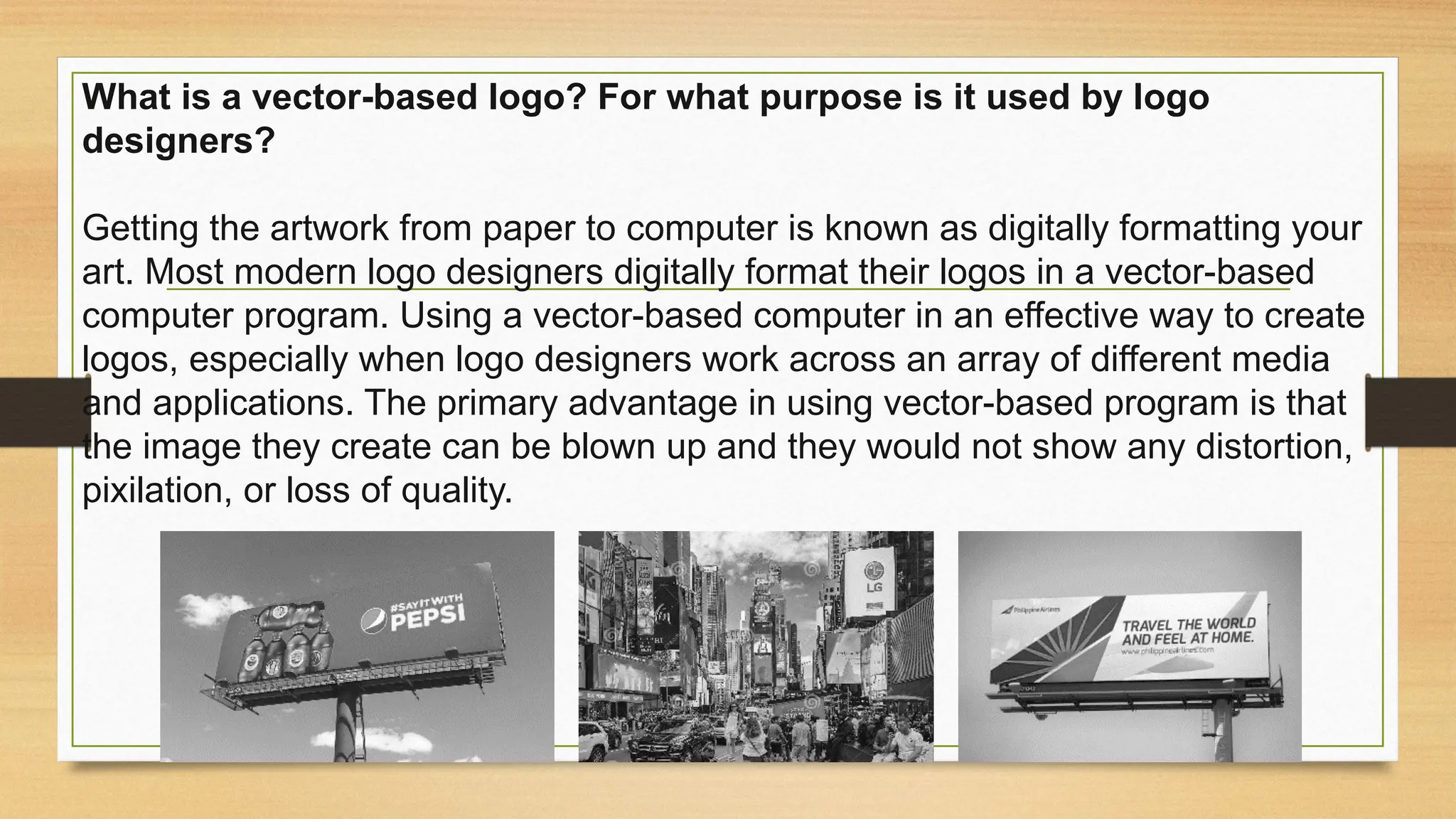
What is a vector-based logo? For what purpose is it used by logo
designers?
Getting the artwork from paper to computer is known as digitally formatting your
art. Most modern logo designers digitally format their logos in a vector-based
computer program. Using a vector-based computer in an effective way to create
logos, especially when logo designers work across an array of different media
and applications. The primary advantage in using vector-based program is that
the image they create can be blown up and they would not show any distortion,
pixilation, or loss of quality.
Understanding Vectors
Computer displays are made up of small dots called pixels. The image is built
up from these dots. The smaller the dots are the closer they are together. The
better the quality of the image, but the bigger the file needed to store data. If
the images is magnified, the resolution deteriorates and it becomes grainy.
In contrast, a vector graphics program uses a mathematical formula, not dots or
pixels. It is used for lines, colors, and shapes. The mathematical data determines
the makeup of the image. It also determines where it should be placed, and
whether it can be scaled to any size without losing sharpness or detail.
Direction: A. Identify what tool is describe in the following.
__________ 1. This tool darkens an image.
__________ 2. It lightens the image.
__________ 3. It soaks color out of the image.
__________ 4. This is a group of tools that allows you to select
rectangles, ellipses, circles and squares.
__________ 5. It can draw or paint a line.
Direction: B. Answer. Unscramble the following jumbled
words.
6. N P E T L O O - ______________________
7. P O C R O O L T - ____________________
8. P E T Y O L T O - _____________________
9. B R U L T L O O - _____________________
10. O S S A L O L O T - __________________
Assignment:
Create your own logo using Canva.

Arts 6: Lesson 1: Explains Ideas About Logo .pptx

  • 1.
  • 2.
    Basic Steps inCreating a Digital Logo • 1. Visualize and sketch – No designer has ever been faulted from sketching too much. When ideas present themselves, sketch them immediately. When they do not present themselves, stop sketching and work on something else. Give you mind a chance to refresh itself. When you are ready to resume work, sketch other option. Just let your creativity flow naturally. It is alright in pinpointing what it is that you really like takes a long time. Often, the best solutions come from the least expected type of a designer. Graphic tablet and pen
  • 3.
    Basic Steps inCreating a Digital Logo • 2. Scan to digitize or make the image appear on the computer screen – Scan the sketch to a fresh drive as a digital image, to scan the image, you need a basic piece of equipment known as a scanner. A scanner enables you to incorporate in your digital logos real world sketches and drawings that you have made. A scanner is an essential tool to all logo designers who need to alter and enhances their designs digitally. Flat bed scanner
  • 4.
    Basic Steps inCreating a Digital Logo • 3. Get started with image programs – Many drawing and image software programs are available to create digital logs. Some programs are downloadable or open source (photo illustrator, inkscape, photoshop) and can be learned easily. Start to familiar yourself with them. Practice makes perfect. Use their website tutorial as well. Figuring out how to use a software program starts with an understanding of all the features it contain. After you open your logo in one, several control panels appear on your desktop, one of which is long and narrow. Photoshop CS3
  • 5.
    Here are someapps you can use: Download Apps https://adobe-photoshop.en.softonic.com/download Download Apps https://www.filehorse.com/download- adobe-illustrator/ Download Apps https://inkscape.org/release/inkscape-1.0/ Download Apps https://www.gimp.org/downloads/ Download Apps https://www.canva.com/download/windows/
  • 7.
    What are theElements of a Logo? Relevant Your logo has to be relevant. It doesn’t have to be a literal representation of your business but should have some relevance to the particular industry, as well as make it clear to potential customers why your business is relevant to them. Visible Secondly, your logo needs to be visible. In a crowded marketplace it needs to make an impact and stand out from the crowd. Distinctive Thirdly, your logo needs to be distinctive. If your potential customers can’t remember or describe your logo to other potential customers, then you have a problem.
  • 8.
    What are theElements of a Logo? Adaptable Fourthly your logo needs to be adaptable. Will it work as well in black and white as in color, will it scale or is it so complicated that detail will be lost at small sizes? Timeless Finally, your logo needs to be timeless. It shouldn’t look out-of-date yet shouldn’t be so trendy that it will age badly.
  • 9.
    Toolbox or toolbar Thistoolbar is full of features that are helpful to logo designers. Dodge Tool – the dodge tool lightens an image. To use, drag icon over the image you want to lighten. Burn Tool – this tool darkens an image. To use this tool just drag it over the image. Sponge tool – the sponge tool soaks color out of the image. Drag the tool over the section of the image you want to change.
  • 10.
    Toolbox or toolbar Croptool – this tool changes the size of the image. To use, drag the icon over the image you want to lighten. Eraser Tool – this can erase part of the image in a certain layer. To erase everything in a certain area, flatten the image or go through every layer to delete that part. Hand Tool – this tool moves around an image within an object. Use the zoom tool when you want to adjust the section of picture you want to look at.
  • 11.
    Toolbox or toolbar LassoTool – the lasso tool can select areas within a layer that cannot be reached with the Marque tool. Marque tool – this is a group of tools that allows you to select rectangles, ellipses, circles, and squares. Move Tool – this tool moves around all objects within a layer. To move an entire image, flatten the layer by selecting All layers at the top of the window.
  • 12.
    Toolbox or toolbar PaintBucket Tool – this tool makes an area one color. To edit all layers at one time, click on all layers at the top of the window. Pen tool – the pen tool makes lines and can be used with shape tools to create different shapes. To create lines, use the Pen tool to create an anchors ( little boxes on a line and change the shape of the line by moving around the anchor. Pen tool is used to create curves
  • 13.
    Toolbox or toolbar Penciltool and Brush tool – these tools draw or paint a line. Change the color of the paint brush by clicking on the color picker. Type tool – It put text in a picture. Click on the picture with the Type tool and select a box the size of the area you want to add. Zoom tool – Zoom in on part of the picture for closer editing.
  • 14.
    Air Brush –Use this tool to create a soft spray and clouding effect. Measure tool – Use this tool like a ruler. Blur tool – Use this tool to soften sharp edges. Gradient tool – Use this to highlight a color and make it fade from dark to light. Rubber Stamp tool – Use this to replicate the same pattern or image.
  • 15.
    What is avector-based logo? For what purpose is it used by logo designers? Getting the artwork from paper to computer is known as digitally formatting your art. Most modern logo designers digitally format their logos in a vector-based computer program. Using a vector-based computer in an effective way to create logos, especially when logo designers work across an array of different media and applications. The primary advantage in using vector-based program is that the image they create can be blown up and they would not show any distortion, pixilation, or loss of quality.
  • 16.
    Understanding Vectors Computer displaysare made up of small dots called pixels. The image is built up from these dots. The smaller the dots are the closer they are together. The better the quality of the image, but the bigger the file needed to store data. If the images is magnified, the resolution deteriorates and it becomes grainy. In contrast, a vector graphics program uses a mathematical formula, not dots or pixels. It is used for lines, colors, and shapes. The mathematical data determines the makeup of the image. It also determines where it should be placed, and whether it can be scaled to any size without losing sharpness or detail.
  • 17.
    Direction: A. Identifywhat tool is describe in the following. __________ 1. This tool darkens an image. __________ 2. It lightens the image. __________ 3. It soaks color out of the image. __________ 4. This is a group of tools that allows you to select rectangles, ellipses, circles and squares. __________ 5. It can draw or paint a line. Direction: B. Answer. Unscramble the following jumbled words. 6. N P E T L O O - ______________________ 7. P O C R O O L T - ____________________ 8. P E T Y O L T O - _____________________ 9. B R U L T L O O - _____________________ 10. O S S A L O L O T - __________________
  • 18.
    Assignment: Create your ownlogo using Canva.