
Defining Location http://gsbprogramming.blogspot.in/ Page 1 of 6
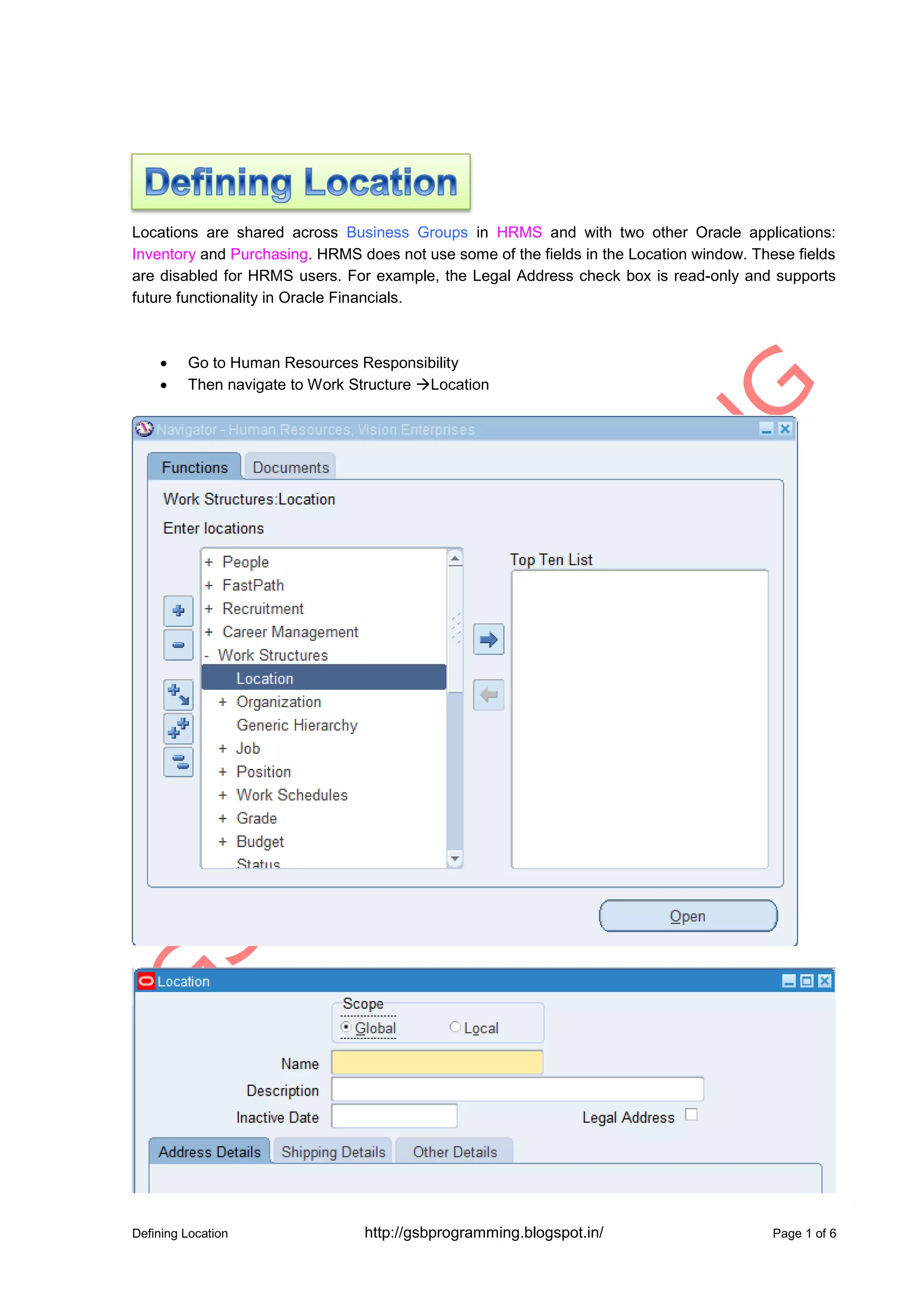
Locations are shared across Business Groups in HRMS and with two other Oracle applications:
Inventory and Purchasing. HRMS does not use some of the fields in the Location window. These fields
are disabled for HRMS users. For example, the Legal Address check box is read-only and supports
future functionality in Oracle Financials.
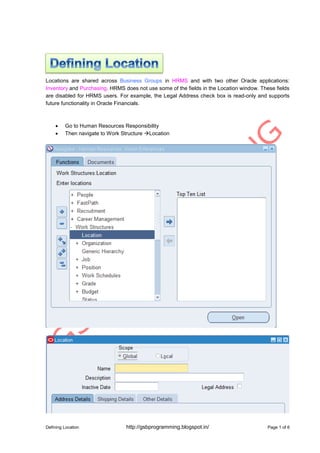
 Go to Human Resources Responsibility
 Then navigate to Work Structure Location
Defining Location http://gsbprogramming.blogspot.in/ Page 2 of 6
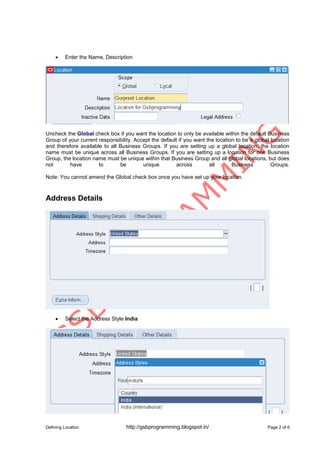
 Enter the Name, Description
Uncheck the Global check box if you want the location to only be available within the default Business
Group of your current responsibility. Accept the default if you want the location to be a global location
and therefore available to all Business Groups. If you are setting up a global location, the location
name must be unique across all Business Groups. If you are setting up a location for one Business
Group, the location name must be unique within that Business Group and all global locations, but does
not have to be unique across all Business Groups.
Note: You cannot amend the Global check box once you have set up your location.
Address Details
 Select the Address Style India
Defining Location http://gsbprogramming.blogspot.in/ Page 3 of 6
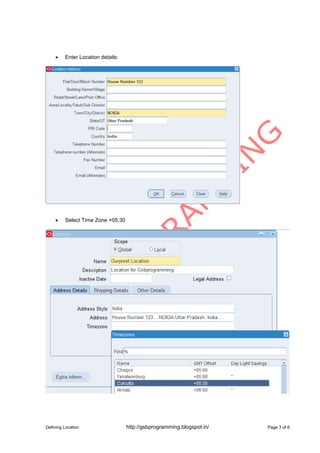
 Enter Location details:
 Select Time Zone +05:30
Defining Location http://gsbprogramming.blogspot.in/ Page 4 of 6
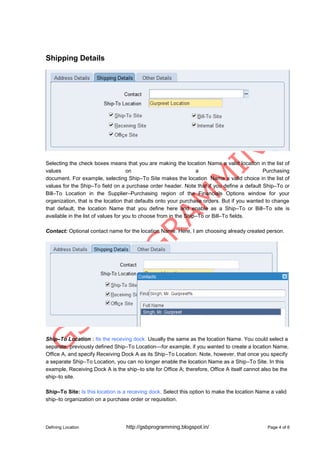
Shipping Details
Selecting the check boxes means that you are making the location Name a valid location in the list of
values on a Purchasing
document. For example, selecting Ship–To Site makes the location Name a valid choice in the list of
values for the Ship–To field on a purchase order header. Note that if you define a default Ship–To or
Bill–To Location in the Supplier–Purchasing region of the Financials Options window for your
organization, that is the location that defaults onto your purchase orders. But if you wanted to change
that default, the location Name that you define here and enable as a Ship–To or Bill–To site is
available in the list of values for you to choose from in the Ship–To or Bill–To fields.
Contact: Optional contact name for the location Name. Here, I am choosing already created person.
Ship–To Location : Its the receving dock. Usually the same as the location Name. You could select a
separate, previously defined Ship–To Location—for example, if you wanted to create a location Name,
Office A, and specify Receiving Dock A as its Ship–To Location. Note, however, that once you specify
a separate Ship–To Location, you can no longer enable the location Name as a Ship–To Site. In this
example, Receiving Dock A is the ship–to site for Office A; therefore, Office A itself cannot also be the
ship–to site.
Ship–To Site: Is this location is a receving dock. Select this option to make the location Name a valid
ship–to organization on a purchase order or requisition.
Defining Location http://gsbprogramming.blogspot.in/ Page 5 of 6
Bill–To Site: Select this option to make the location Name a valid bill–to site. The Bill–To Site, which
is used by Payables, is specified on a purchase order header.
Receiving Site: Select this option to make the location a valid receiving Location when creating a
receipt or receiving transaction.
Office Site: Select this option to indicate that this location Name is an office site, such as a field office.
Internal Site: Select this option to make the location a valid internal ship–to location when creating an
internal requisition.
OtherDetails
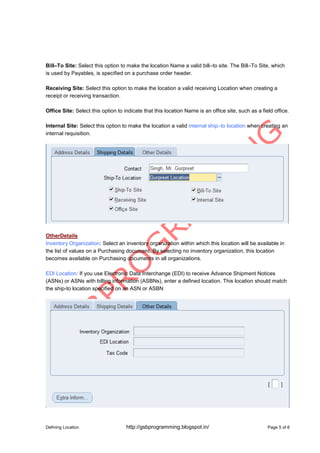
Inventory Organization: Select an inventory organization within which this location will be available in
the list of values on a Purchasing document. By selecting no inventory organization, this location
becomes available on Purchasing documents in all organizations.
EDI Location: If you use Electronic Data Interchange (EDI) to receive Advance Shipment Notices
(ASNs) or ASNs with billing information (ASBNs), enter a defined location. This location should match
the ship-to location specified on an ASN or ASBN
Defining Location http://gsbprogramming.blogspot.in/ Page 6 of 6
How to check it from backend?
SELECT * FROM HR_LOCATIONS_ALL WHERE LOCATION_CODE='Gurpreet Location';

Defing locations in Oracle Apps

  • 1.
    Defining Location http://gsbprogramming.blogspot.in/Page 1 of 6 Locations are shared across Business Groups in HRMS and with two other Oracle applications: Inventory and Purchasing. HRMS does not use some of the fields in the Location window. These fields are disabled for HRMS users. For example, the Legal Address check box is read-only and supports future functionality in Oracle Financials.  Go to Human Resources Responsibility  Then navigate to Work Structure Location
  • 2.
    Defining Location http://gsbprogramming.blogspot.in/Page 2 of 6  Enter the Name, Description Uncheck the Global check box if you want the location to only be available within the default Business Group of your current responsibility. Accept the default if you want the location to be a global location and therefore available to all Business Groups. If you are setting up a global location, the location name must be unique across all Business Groups. If you are setting up a location for one Business Group, the location name must be unique within that Business Group and all global locations, but does not have to be unique across all Business Groups. Note: You cannot amend the Global check box once you have set up your location. Address Details  Select the Address Style India
  • 3.
    Defining Location http://gsbprogramming.blogspot.in/Page 3 of 6  Enter Location details:  Select Time Zone +05:30
  • 4.
    Defining Location http://gsbprogramming.blogspot.in/Page 4 of 6 Shipping Details Selecting the check boxes means that you are making the location Name a valid location in the list of values on a Purchasing document. For example, selecting Ship–To Site makes the location Name a valid choice in the list of values for the Ship–To field on a purchase order header. Note that if you define a default Ship–To or Bill–To Location in the Supplier–Purchasing region of the Financials Options window for your organization, that is the location that defaults onto your purchase orders. But if you wanted to change that default, the location Name that you define here and enable as a Ship–To or Bill–To site is available in the list of values for you to choose from in the Ship–To or Bill–To fields. Contact: Optional contact name for the location Name. Here, I am choosing already created person. Ship–To Location : Its the receving dock. Usually the same as the location Name. You could select a separate, previously defined Ship–To Location—for example, if you wanted to create a location Name, Office A, and specify Receiving Dock A as its Ship–To Location. Note, however, that once you specify a separate Ship–To Location, you can no longer enable the location Name as a Ship–To Site. In this example, Receiving Dock A is the ship–to site for Office A; therefore, Office A itself cannot also be the ship–to site. Ship–To Site: Is this location is a receving dock. Select this option to make the location Name a valid ship–to organization on a purchase order or requisition.
  • 5.
    Defining Location http://gsbprogramming.blogspot.in/Page 5 of 6 Bill–To Site: Select this option to make the location Name a valid bill–to site. The Bill–To Site, which is used by Payables, is specified on a purchase order header. Receiving Site: Select this option to make the location a valid receiving Location when creating a receipt or receiving transaction. Office Site: Select this option to indicate that this location Name is an office site, such as a field office. Internal Site: Select this option to make the location a valid internal ship–to location when creating an internal requisition. OtherDetails Inventory Organization: Select an inventory organization within which this location will be available in the list of values on a Purchasing document. By selecting no inventory organization, this location becomes available on Purchasing documents in all organizations. EDI Location: If you use Electronic Data Interchange (EDI) to receive Advance Shipment Notices (ASNs) or ASNs with billing information (ASBNs), enter a defined location. This location should match the ship-to location specified on an ASN or ASBN
  • 6.
    Defining Location http://gsbprogramming.blogspot.in/Page 6 of 6 How to check it from backend? SELECT * FROM HR_LOCATIONS_ALL WHERE LOCATION_CODE='Gurpreet Location';