Page 1 of 27


  ATO Configuration Cycle In Order Management [ID 844847.1]


                                                          Modified 07-OCT-2010      Type BULLETIN       Status


 In this Document
  Purpose
  Scope and Application
  ATO Configuration Cycle In Order Management
     Setup Steps
     Create items
     Assign a sales price to the newly created items
     Create stock for the purchased items (options) for a sufficient test quantity
     Create Bill Of Materials (BOMs)
     Testflow steps
     Sales Order creation
     Configure the ATO model
     Generate the Configured Item
     Generate the WIP discrete job
     Progress the WIP job
     Complete the WIP job
     Pick release the configured item line
     Ship confirm the configured item line
     Close the configured item line and invoicing process
  References


 Applies to:

 Oracle Order Management - Version: 11.5.7 to 12.1.1 - Release: 11.5 to
 Oracle Order Management - Version: 11.5.8 to 12.1.1 [Release: 11.5 to ]
 Information in this document applies to any platform.


 Purpose

 The purpose of this bulletin is to provide Oracle Customers with a good understanding and the to build a test


 Scope and Application

 This document helps the Support Engineers and Oracle Customers to understand the setup steps with the re

 Screen shots of setups and test case in this note were done in an R11.5.10 instance on an Oracle Internal Te


 ATO Configuration Cycle In Order Management


 Setup Steps


 Login


   User : OPERATIONS / WELCOME
    Responsibility : Manufacturing and Distribution Manager


 Create items


https://support.oracle.com/CSP/main/article?cmd=show&type=NOT&doctype=BULL...                      4/13/2011
Page 2 of 27


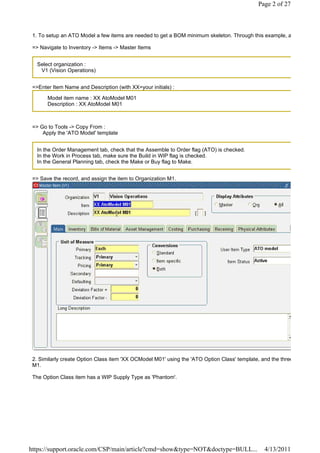
 1. To setup an ATO Model a few items are needed to get a BOM minimum skeleton. Through this example, a

 => Navigate to Inventory -> Items -> Master Items


   Select organization :
    V1 (Vision Operations)


 =>Enter Item Name and Description (with XX=your initials) :

       Model item name : XX AtoModel M01
       Description : XX AtoModel M01


 => Go to Tools -> Copy From :
     Apply the 'ATO Model' template


   In the Order Management tab, check that the Assemble to Order flag (ATO) is checked.
   In the Work in Process tab, make sure the Build in WIP flag is checked.
   In the General Planning tab, check the Make or Buy flag to Make.


 => Save the record, and assign the item to Organization M1.


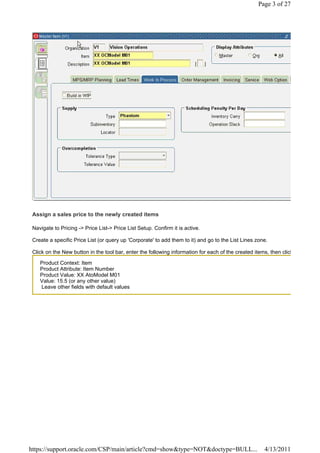
 2. Similarly create Option Class item 'XX OCModel M01' using the 'ATO Option Class' template, and the three
 M1.

 The Option Class item has a WIP Supply Type as 'Phantom'.


https://support.oracle.com/CSP/main/article?cmd=show&type=NOT&doctype=BULL...                   4/13/2011
Page 3 of 27


 Assign a sales price to the newly created items

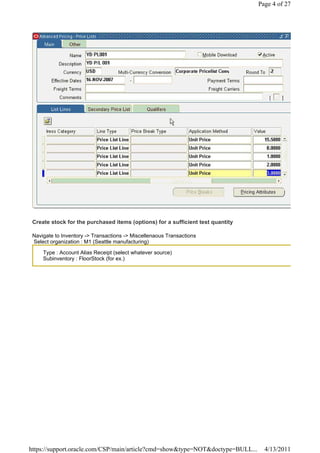
 Navigate to Pricing -> Price List-> Price List Setup. Confirm it is active.

 Create a specific Price List (or query up 'Corporate' to add them to it) and go to the List Lines zone.

 Click on the New button in the tool bar, enter the following information for each of the created items, then click

    Product Context: Item
    Product Attribute: Item Number
    Product Value: XX AtoModel M01
    Value: 15.5 (or any other value)
    Leave other fields with default values


https://support.oracle.com/CSP/main/article?cmd=show&type=NOT&doctype=BULL...                         4/13/2011
Page 4 of 27


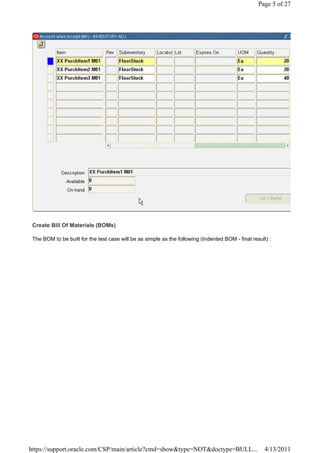
 Create stock for the purchased items (options) for a sufficient test quantity

 Navigate to Inventory -> Transactions -> Miscellenaous Transactions
 Select organization : M1 (Seattle manufacturing)

     Type : Account Alias Receipt (select whatever source)
     Subinventory : FloorStock (for ex.)


https://support.oracle.com/CSP/main/article?cmd=show&type=NOT&doctype=BULL...      4/13/2011
Page 5 of 27


 Create Bill Of Materials (BOMs)

 The BOM to be built for the test case will be as simple as the following (Indented BOM - final result) :


https://support.oracle.com/CSP/main/article?cmd=show&type=NOT&doctype=BULL...                         4/13/2011
Page 6 of 27


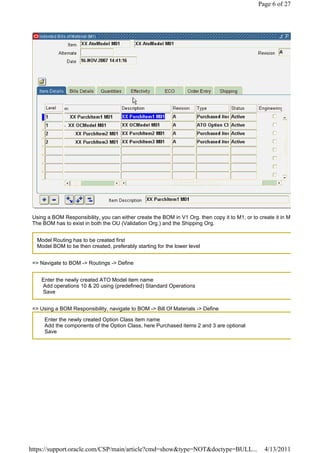
 Using a BOM Responsibility, you can either create the BOM in V1 Org. then copy it to M1, or to create it in M
 The BOM has to exist in both the OU (Validation Org.) and the Shipping Org.


   Model Routing has to be created first
   Model BOM to be then created, preferably starting for the lower level


 => Navigate to BOM -> Routings -> Define


    Enter the newly created ATO Model item name
    Add operations 10 & 20 using (predefined) Standard Operations
    Save


 => Using a BOM Responsibility, navigate to BOM -> Bill Of Materials -> Define

      Enter the newly created Option Class item name
      Add the components of the Option Class, here Purchased items 2 and 3 are optional
      Save


https://support.oracle.com/CSP/main/article?cmd=show&type=NOT&doctype=BULL...                      4/13/2011
Page 7 of 27


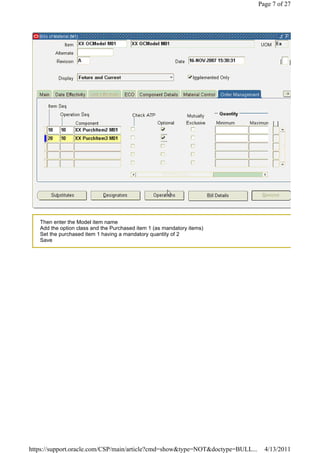
   Then enter the Model item name
   Add the option class and the Purchased item 1 (as mandatory items)
   Set the purchased item 1 having a mandatory quantity of 2
   Save


https://support.oracle.com/CSP/main/article?cmd=show&type=NOT&doctype=BULL...     4/13/2011
Page 8 of 27


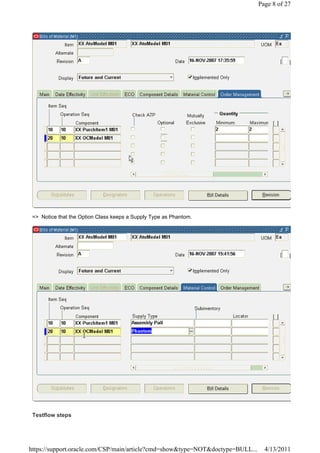
 => Notice that the Option Class keeps a Supply Type as Phantom.


 Testflow steps


https://support.oracle.com/CSP/main/article?cmd=show&type=NOT&doctype=BULL...     4/13/2011
Page 9 of 27


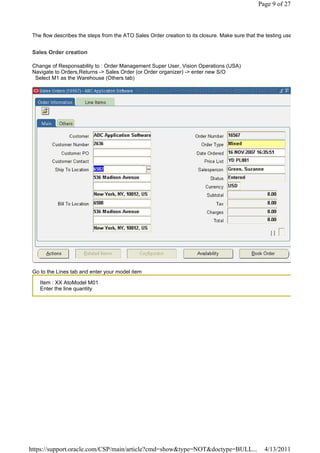
 The flow describes the steps from the ATO Sales Order creation to its closure. Make sure that the testing use


 Sales Order creation

 Change of Responsability to : Order Management Super User, Vision Operations (USA)
 Navigate to Orders,Returns -> Sales Order (or Order organizer) -> enter new S/O
  Select M1 as the Warehouse (Others tab)


 Go to the Lines tab and enter your model item

    Item : XX AtoModel M01
    Enter the line quantity


https://support.oracle.com/CSP/main/article?cmd=show&type=NOT&doctype=BULL...                     4/13/2011
Page 10 of 27


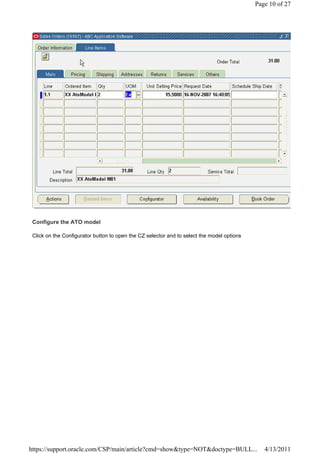
 Configure the ATO model

 Click on the Configurator button to open the CZ selector and to select the model options


https://support.oracle.com/CSP/main/article?cmd=show&type=NOT&doctype=BULL...                  4/13/2011
Page 11 of 27


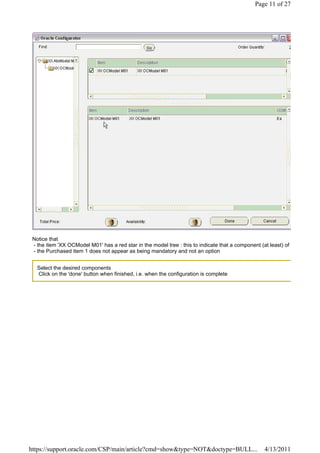
 Notice that
 - the item 'XX OCModel M01' has a red star in the model tree : this to indicate that a component (at least) of
 - the Purchased item 1 does not appear as being mandatory and not an option


   Select the desired components
   Click on the 'done' button when finished, i.e. when the configuration is complete


https://support.oracle.com/CSP/main/article?cmd=show&type=NOT&doctype=BULL...                       4/13/2011
Page 12 of 27


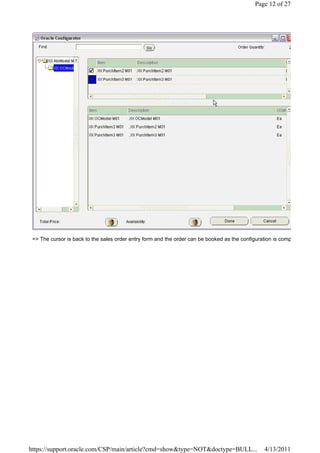
 => The cursor is back to the sales order entry form and the order can be booked as the configuration is comp


https://support.oracle.com/CSP/main/article?cmd=show&type=NOT&doctype=BULL...                    4/13/2011
Page 13 of 27


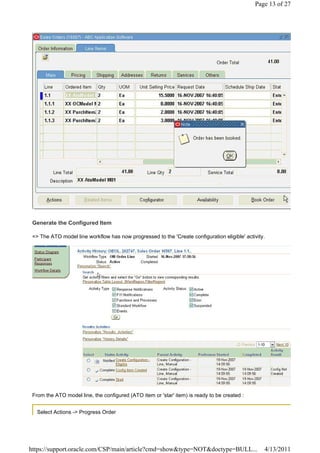
 Generate the Configured Item

 => The ATO model line workflow has now progressed to the 'Create configuration eligible' activity.


 From the ATO model line, the configured (ATO item or 'star' item) is ready to be created :


   Select Actions -> Progress Order


https://support.oracle.com/CSP/main/article?cmd=show&type=NOT&doctype=BULL...                     4/13/2011
Page 14 of 27


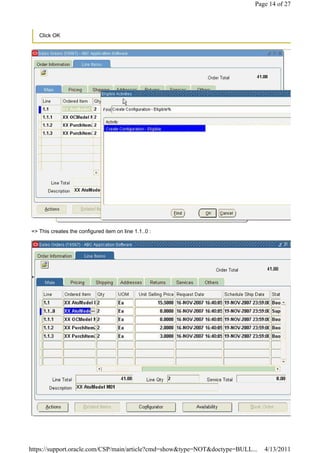
   Click OK


=> This creates the configured item on line 1.1..0 :


https://support.oracle.com/CSP/main/article?cmd=show&type=NOT&doctype=BULL...   4/13/2011
Page 15 of 27


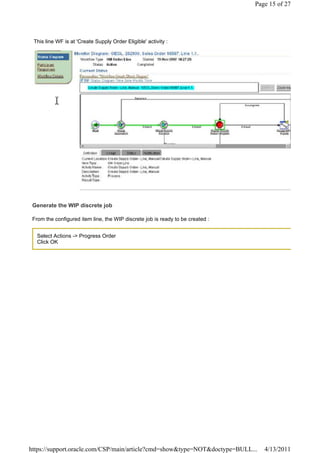
 This line WF is at 'Create Supply Order Eligible' activity :


 Generate the WIP discrete job

 From the configured item line, the WIP discrete job is ready to be created :


   Select Actions -> Progress Order
   Click OK


https://support.oracle.com/CSP/main/article?cmd=show&type=NOT&doctype=BULL...      4/13/2011
Page 16 of 27


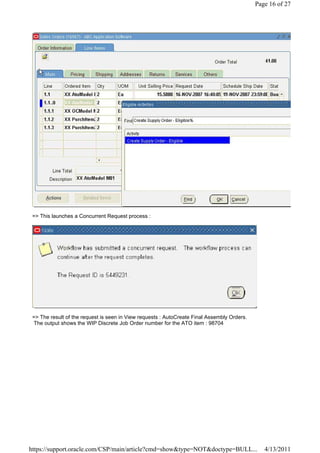
 => This launches a Concurrent Request process :


 => The result of the request is seen in View requests : AutoCreate Final Assembly Orders.
 The output shows the WIP Discrete Job Order number for the ATO item : 98704


https://support.oracle.com/CSP/main/article?cmd=show&type=NOT&doctype=BULL...                   4/13/2011
Page 17 of 27


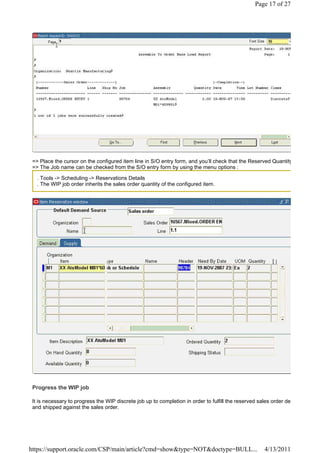
 => Place the cursor on the configured item line in S/O entry form, and you’ll check that the Reserved Quantity
 => The Job name can be checked from the S/O entry form by using the menu options :

   . Tools -> Scheduling -> Reservations Details
   . The WIP job order inherits the sales order quantity of the configured item.


 Progress the WIP job

 It is necessary to progress the WIP discrete job up to completion in order to fulfill the reserved sales order de
 and shipped against the sales order.


https://support.oracle.com/CSP/main/article?cmd=show&type=NOT&doctype=BULL...                         4/13/2011
Page 18 of 27


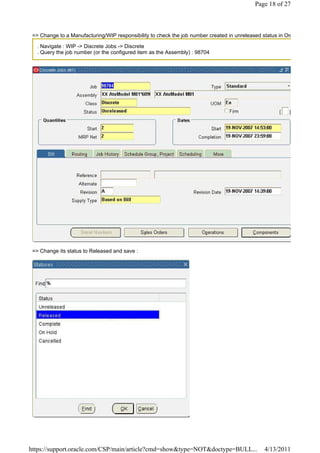
 => Change to a Manufacturing/WIP responsibility to check the job number created in unreleased status in Org

  . Navigate : WIP -> Discrete Jobs -> Discrete
  . Query the job number (or the configured item as the Assembly) : 98704


 => Change its status to Released and save :


https://support.oracle.com/CSP/main/article?cmd=show&type=NOT&doctype=BULL...                   4/13/2011
Page 19 of 27


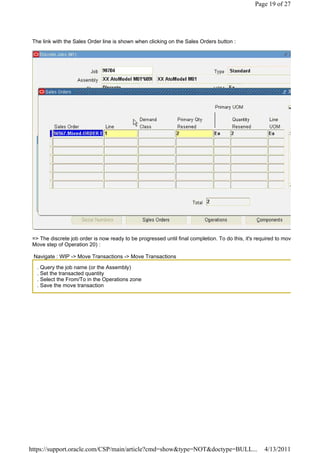
 The link with the Sales Order line is shown when clicking on the Sales Orders button :


 => The discrete job order is now ready to be progressed until final completion. To do this, it's required to mov
 Move step of Operation 20) :

 Navigate : WIP -> Move Transactions -> Move Transactions

   . Query the job name (or the Assembly)
   . Set the transacted quantity
   . Select the From/To in the Operations zone
   . Save the move transaction


https://support.oracle.com/CSP/main/article?cmd=show&type=NOT&doctype=BULL...                        4/13/2011
Page 20 of 27


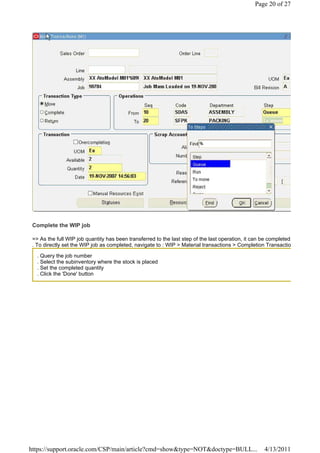
 Complete the WIP job

 => As the full WIP job quantity has been transferred to the last step of the last operation, it can be completed.
 . To directly set the WIP job as completed, navigate to : WIP > Material transactions > Completion Transactio

   . Query the job number
   . Select the subinventory where the stock is placed
   . Set the completed quantity
   . Click the 'Done' button


https://support.oracle.com/CSP/main/article?cmd=show&type=NOT&doctype=BULL...                         4/13/2011
Page 21 of 27


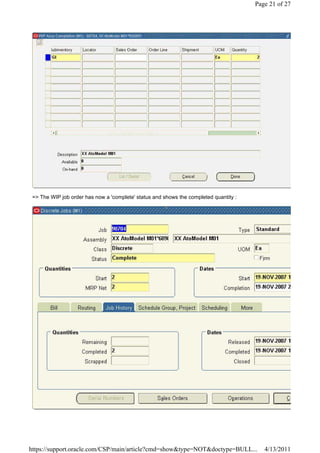
 => The WIP job order has now a 'complete' status and shows the completed quantity :


https://support.oracle.com/CSP/main/article?cmd=show&type=NOT&doctype=BULL...             4/13/2011
Page 22 of 27


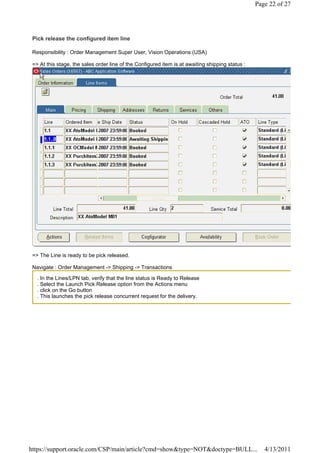
 Pick release the configured item line

 Responsibility : Order Management Super User, Vision Operations (USA)

 => At this stage, the sales order line of the Configured item is at awaiting shipping status :


 => The Line is ready to be pick released.

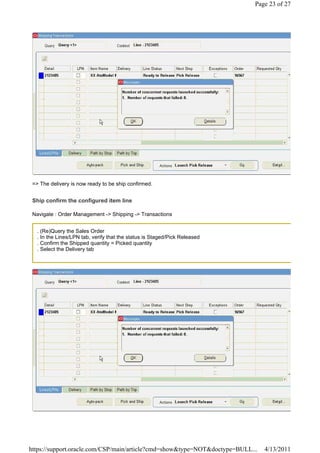
 Navigate : Order Management -> Shipping -> Transactions

   . In the Lines/LPN tab, verify that the line status is Ready to Release
   . Select the Launch Pick Release option from the Actions menu
   . click on the Go button
   . This launches the pick release concurrent request for the delivery.


https://support.oracle.com/CSP/main/article?cmd=show&type=NOT&doctype=BULL...                        4/13/2011
Page 23 of 27


 => The delivery is now ready to be ship confirmed.


 Ship confirm the configured item line

 Navigate : Order Management -> Shipping -> Transactions


   . (Re)Query the Sales Order
   . In the Lines/LPN tab, verify that the status is Staged/Pick Released
   . Confirm the Shipped quantity = Picked quantity
   . Select the Delivery tab


https://support.oracle.com/CSP/main/article?cmd=show&type=NOT&doctype=BULL...   4/13/2011
Page 24 of 27


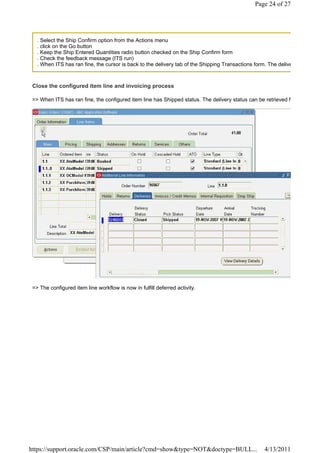
   . Select the Ship Confirm option from the Actions menu
   . click on the Go button
   . Keep the Ship Entered Quantities radio button checked on the Ship Confirm form
   . Check the feedback message (ITS run)
   . When ITS has ran fine, the cursor is back to the delivery tab of the Shipping Transactions form. The delive


 Close the configured item line and invoicing process

 => When ITS has ran fine, the configured item line has Shipped status. The delivery status can be retrieved f


 => The configured item line workflow is now in fulfill deferred activity.


https://support.oracle.com/CSP/main/article?cmd=show&type=NOT&doctype=BULL...                       4/13/2011
Page 25 of 27


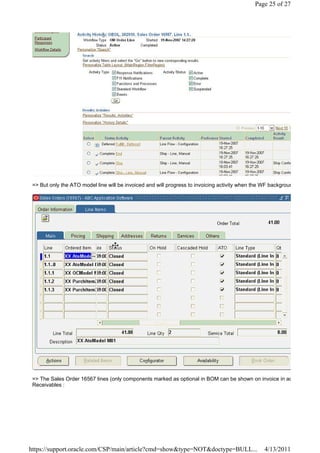
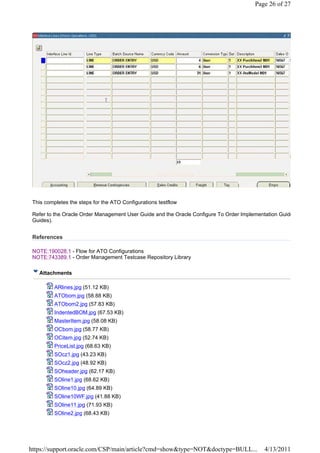
 => But only the ATO model line will be invoiced and will progress to invoicing activity when the WF backgroun


 => The Sales Order 16567 lines (only components marked as optional in BOM can be shown on invoice in ad
 Receivables :


https://support.oracle.com/CSP/main/article?cmd=show&type=NOT&doctype=BULL...                     4/13/2011
Page 26 of 27


 This completes the steps for the ATO Configurations testflow

 Refer to the Oracle Order Management User Guide and the Oracle Configure To Order Implementation Guide
 Guides).


 References

 NOTE:190028.1 - Flow for ATO Configurations
 NOTE:743389.1 - Order Management Testcase Repository Library

   Attachments

          ARlines.jpg (51.12 KB)
          ATObom.jpg (58.88 KB)
          ATObom2.jpg (57.83 KB)
          IndentedBOM.jpg (67.53 KB)
          MasterItem.jpg (58.08 KB)
          OCbom.jpg (58.77 KB)
          OCitem.jpg (52.74 KB)
          PriceList.jpg (68.63 KB)
          SOcz1.jpg (43.23 KB)
          SOcz2.jpg (48.92 KB)
          SOheader.jpg (62.17 KB)
          SOline1.jpg (68.62 KB)
          SOline10.jpg (64.89 KB)
          SOline10WF.jpg (41.88 KB)
          SOline11.jpg (71.93 KB)
          SOline2.jpg (68.43 KB)


https://support.oracle.com/CSP/main/article?cmd=show&type=NOT&doctype=BULL...              4/13/2011
Page 27 of 27


          SOline3.jpg (50.07 KB)
          SOline4.jpg (81.64 KB)
          SOline4WF.jpg (32.51 KB)
          SOline5.jpg (64.68 KB)
          SOline6.jpg (18.17 KB)
          SOline7.jpg (32.07 KB)
          SOline8.jpg (61.16 KB)
          SOline9.jpg (74.27 KB)
          SOlineWF.jpg (43.48 KB)
          StockCreation.jpg (56.46 KB)
          WIP1.jpg (56.65 KB)
          WIP2.jpg (22.75 KB)
          WIP3.jpg (54.56 KB)
          WIP4.jpg (58.76 KB)
          WIP5.jpg (42.43 KB)
          WIP6.jpg (76.18 KB)
          WSH1.jpg (48.97 KB)
          WSH2.jpg (58.57 KB)

   Related

    Products


        Oracle E-Business Suite > Order Management > Order Management > Oracle Order Management
        Oracle E-Business Suite > Order Management > Order Management > Oracle Order Management

    Keywords

      CONFIGURATOR; CLASS; MODEL; ATO MODEL; BILL OF MATERIALS; COMPLETION TRANSACT


  Back to top

 Copyright (c) 2007, 2010, Oracle. All rights reserved. Legal Notices and Terms of Use | Privacy Statement


https://support.oracle.com/CSP/main/article?cmd=show&type=NOT&doctype=BULL...                    4/13/2011

Ato cycle

  • 1.
    Page 1 of27 ATO Configuration Cycle In Order Management [ID 844847.1] Modified 07-OCT-2010 Type BULLETIN Status In this Document Purpose Scope and Application ATO Configuration Cycle In Order Management Setup Steps Create items Assign a sales price to the newly created items Create stock for the purchased items (options) for a sufficient test quantity Create Bill Of Materials (BOMs) Testflow steps Sales Order creation Configure the ATO model Generate the Configured Item Generate the WIP discrete job Progress the WIP job Complete the WIP job Pick release the configured item line Ship confirm the configured item line Close the configured item line and invoicing process References Applies to: Oracle Order Management - Version: 11.5.7 to 12.1.1 - Release: 11.5 to Oracle Order Management - Version: 11.5.8 to 12.1.1 [Release: 11.5 to ] Information in this document applies to any platform. Purpose The purpose of this bulletin is to provide Oracle Customers with a good understanding and the to build a test Scope and Application This document helps the Support Engineers and Oracle Customers to understand the setup steps with the re Screen shots of setups and test case in this note were done in an R11.5.10 instance on an Oracle Internal Te ATO Configuration Cycle In Order Management Setup Steps Login User : OPERATIONS / WELCOME Responsibility : Manufacturing and Distribution Manager Create items https://support.oracle.com/CSP/main/article?cmd=show&type=NOT&doctype=BULL... 4/13/2011
  • 2.
    Page 2 of27 1. To setup an ATO Model a few items are needed to get a BOM minimum skeleton. Through this example, a => Navigate to Inventory -> Items -> Master Items Select organization : V1 (Vision Operations) =>Enter Item Name and Description (with XX=your initials) : Model item name : XX AtoModel M01 Description : XX AtoModel M01 => Go to Tools -> Copy From : Apply the 'ATO Model' template In the Order Management tab, check that the Assemble to Order flag (ATO) is checked. In the Work in Process tab, make sure the Build in WIP flag is checked. In the General Planning tab, check the Make or Buy flag to Make. => Save the record, and assign the item to Organization M1. 2. Similarly create Option Class item 'XX OCModel M01' using the 'ATO Option Class' template, and the three M1. The Option Class item has a WIP Supply Type as 'Phantom'. https://support.oracle.com/CSP/main/article?cmd=show&type=NOT&doctype=BULL... 4/13/2011
  • 3.
    Page 3 of27 Assign a sales price to the newly created items Navigate to Pricing -> Price List-> Price List Setup. Confirm it is active. Create a specific Price List (or query up 'Corporate' to add them to it) and go to the List Lines zone. Click on the New button in the tool bar, enter the following information for each of the created items, then click Product Context: Item Product Attribute: Item Number Product Value: XX AtoModel M01 Value: 15.5 (or any other value) Leave other fields with default values https://support.oracle.com/CSP/main/article?cmd=show&type=NOT&doctype=BULL... 4/13/2011
  • 4.
    Page 4 of27 Create stock for the purchased items (options) for a sufficient test quantity Navigate to Inventory -> Transactions -> Miscellenaous Transactions Select organization : M1 (Seattle manufacturing) Type : Account Alias Receipt (select whatever source) Subinventory : FloorStock (for ex.) https://support.oracle.com/CSP/main/article?cmd=show&type=NOT&doctype=BULL... 4/13/2011
  • 5.
    Page 5 of27 Create Bill Of Materials (BOMs) The BOM to be built for the test case will be as simple as the following (Indented BOM - final result) : https://support.oracle.com/CSP/main/article?cmd=show&type=NOT&doctype=BULL... 4/13/2011
  • 6.
    Page 6 of27 Using a BOM Responsibility, you can either create the BOM in V1 Org. then copy it to M1, or to create it in M The BOM has to exist in both the OU (Validation Org.) and the Shipping Org. Model Routing has to be created first Model BOM to be then created, preferably starting for the lower level => Navigate to BOM -> Routings -> Define Enter the newly created ATO Model item name Add operations 10 & 20 using (predefined) Standard Operations Save => Using a BOM Responsibility, navigate to BOM -> Bill Of Materials -> Define Enter the newly created Option Class item name Add the components of the Option Class, here Purchased items 2 and 3 are optional Save https://support.oracle.com/CSP/main/article?cmd=show&type=NOT&doctype=BULL... 4/13/2011
  • 7.
    Page 7 of27 Then enter the Model item name Add the option class and the Purchased item 1 (as mandatory items) Set the purchased item 1 having a mandatory quantity of 2 Save https://support.oracle.com/CSP/main/article?cmd=show&type=NOT&doctype=BULL... 4/13/2011
  • 8.
    Page 8 of27 => Notice that the Option Class keeps a Supply Type as Phantom. Testflow steps https://support.oracle.com/CSP/main/article?cmd=show&type=NOT&doctype=BULL... 4/13/2011
  • 9.
    Page 9 of27 The flow describes the steps from the ATO Sales Order creation to its closure. Make sure that the testing use Sales Order creation Change of Responsability to : Order Management Super User, Vision Operations (USA) Navigate to Orders,Returns -> Sales Order (or Order organizer) -> enter new S/O Select M1 as the Warehouse (Others tab) Go to the Lines tab and enter your model item Item : XX AtoModel M01 Enter the line quantity https://support.oracle.com/CSP/main/article?cmd=show&type=NOT&doctype=BULL... 4/13/2011
  • 10.
    Page 10 of27 Configure the ATO model Click on the Configurator button to open the CZ selector and to select the model options https://support.oracle.com/CSP/main/article?cmd=show&type=NOT&doctype=BULL... 4/13/2011
  • 11.
    Page 11 of27 Notice that - the item 'XX OCModel M01' has a red star in the model tree : this to indicate that a component (at least) of - the Purchased item 1 does not appear as being mandatory and not an option Select the desired components Click on the 'done' button when finished, i.e. when the configuration is complete https://support.oracle.com/CSP/main/article?cmd=show&type=NOT&doctype=BULL... 4/13/2011
  • 12.
    Page 12 of27 => The cursor is back to the sales order entry form and the order can be booked as the configuration is comp https://support.oracle.com/CSP/main/article?cmd=show&type=NOT&doctype=BULL... 4/13/2011
  • 13.
    Page 13 of27 Generate the Configured Item => The ATO model line workflow has now progressed to the 'Create configuration eligible' activity. From the ATO model line, the configured (ATO item or 'star' item) is ready to be created : Select Actions -> Progress Order https://support.oracle.com/CSP/main/article?cmd=show&type=NOT&doctype=BULL... 4/13/2011
  • 14.
    Page 14 of27 Click OK => This creates the configured item on line 1.1..0 : https://support.oracle.com/CSP/main/article?cmd=show&type=NOT&doctype=BULL... 4/13/2011
  • 15.
    Page 15 of27 This line WF is at 'Create Supply Order Eligible' activity : Generate the WIP discrete job From the configured item line, the WIP discrete job is ready to be created : Select Actions -> Progress Order Click OK https://support.oracle.com/CSP/main/article?cmd=show&type=NOT&doctype=BULL... 4/13/2011
  • 16.
    Page 16 of27 => This launches a Concurrent Request process : => The result of the request is seen in View requests : AutoCreate Final Assembly Orders. The output shows the WIP Discrete Job Order number for the ATO item : 98704 https://support.oracle.com/CSP/main/article?cmd=show&type=NOT&doctype=BULL... 4/13/2011
  • 17.
    Page 17 of27 => Place the cursor on the configured item line in S/O entry form, and you’ll check that the Reserved Quantity => The Job name can be checked from the S/O entry form by using the menu options : . Tools -> Scheduling -> Reservations Details . The WIP job order inherits the sales order quantity of the configured item. Progress the WIP job It is necessary to progress the WIP discrete job up to completion in order to fulfill the reserved sales order de and shipped against the sales order. https://support.oracle.com/CSP/main/article?cmd=show&type=NOT&doctype=BULL... 4/13/2011
  • 18.
    Page 18 of27 => Change to a Manufacturing/WIP responsibility to check the job number created in unreleased status in Org . Navigate : WIP -> Discrete Jobs -> Discrete . Query the job number (or the configured item as the Assembly) : 98704 => Change its status to Released and save : https://support.oracle.com/CSP/main/article?cmd=show&type=NOT&doctype=BULL... 4/13/2011
  • 19.
    Page 19 of27 The link with the Sales Order line is shown when clicking on the Sales Orders button : => The discrete job order is now ready to be progressed until final completion. To do this, it's required to mov Move step of Operation 20) : Navigate : WIP -> Move Transactions -> Move Transactions . Query the job name (or the Assembly) . Set the transacted quantity . Select the From/To in the Operations zone . Save the move transaction https://support.oracle.com/CSP/main/article?cmd=show&type=NOT&doctype=BULL... 4/13/2011
  • 20.
    Page 20 of27 Complete the WIP job => As the full WIP job quantity has been transferred to the last step of the last operation, it can be completed. . To directly set the WIP job as completed, navigate to : WIP > Material transactions > Completion Transactio . Query the job number . Select the subinventory where the stock is placed . Set the completed quantity . Click the 'Done' button https://support.oracle.com/CSP/main/article?cmd=show&type=NOT&doctype=BULL... 4/13/2011
  • 21.
    Page 21 of27 => The WIP job order has now a 'complete' status and shows the completed quantity : https://support.oracle.com/CSP/main/article?cmd=show&type=NOT&doctype=BULL... 4/13/2011
  • 22.
    Page 22 of27 Pick release the configured item line Responsibility : Order Management Super User, Vision Operations (USA) => At this stage, the sales order line of the Configured item is at awaiting shipping status : => The Line is ready to be pick released. Navigate : Order Management -> Shipping -> Transactions . In the Lines/LPN tab, verify that the line status is Ready to Release . Select the Launch Pick Release option from the Actions menu . click on the Go button . This launches the pick release concurrent request for the delivery. https://support.oracle.com/CSP/main/article?cmd=show&type=NOT&doctype=BULL... 4/13/2011
  • 23.
    Page 23 of27 => The delivery is now ready to be ship confirmed. Ship confirm the configured item line Navigate : Order Management -> Shipping -> Transactions . (Re)Query the Sales Order . In the Lines/LPN tab, verify that the status is Staged/Pick Released . Confirm the Shipped quantity = Picked quantity . Select the Delivery tab https://support.oracle.com/CSP/main/article?cmd=show&type=NOT&doctype=BULL... 4/13/2011
  • 24.
    Page 24 of27 . Select the Ship Confirm option from the Actions menu . click on the Go button . Keep the Ship Entered Quantities radio button checked on the Ship Confirm form . Check the feedback message (ITS run) . When ITS has ran fine, the cursor is back to the delivery tab of the Shipping Transactions form. The delive Close the configured item line and invoicing process => When ITS has ran fine, the configured item line has Shipped status. The delivery status can be retrieved f => The configured item line workflow is now in fulfill deferred activity. https://support.oracle.com/CSP/main/article?cmd=show&type=NOT&doctype=BULL... 4/13/2011
  • 25.
    Page 25 of27 => But only the ATO model line will be invoiced and will progress to invoicing activity when the WF backgroun => The Sales Order 16567 lines (only components marked as optional in BOM can be shown on invoice in ad Receivables : https://support.oracle.com/CSP/main/article?cmd=show&type=NOT&doctype=BULL... 4/13/2011
  • 26.
    Page 26 of27 This completes the steps for the ATO Configurations testflow Refer to the Oracle Order Management User Guide and the Oracle Configure To Order Implementation Guide Guides). References NOTE:190028.1 - Flow for ATO Configurations NOTE:743389.1 - Order Management Testcase Repository Library Attachments ARlines.jpg (51.12 KB) ATObom.jpg (58.88 KB) ATObom2.jpg (57.83 KB) IndentedBOM.jpg (67.53 KB) MasterItem.jpg (58.08 KB) OCbom.jpg (58.77 KB) OCitem.jpg (52.74 KB) PriceList.jpg (68.63 KB) SOcz1.jpg (43.23 KB) SOcz2.jpg (48.92 KB) SOheader.jpg (62.17 KB) SOline1.jpg (68.62 KB) SOline10.jpg (64.89 KB) SOline10WF.jpg (41.88 KB) SOline11.jpg (71.93 KB) SOline2.jpg (68.43 KB) https://support.oracle.com/CSP/main/article?cmd=show&type=NOT&doctype=BULL... 4/13/2011
  • 27.
    Page 27 of27 SOline3.jpg (50.07 KB) SOline4.jpg (81.64 KB) SOline4WF.jpg (32.51 KB) SOline5.jpg (64.68 KB) SOline6.jpg (18.17 KB) SOline7.jpg (32.07 KB) SOline8.jpg (61.16 KB) SOline9.jpg (74.27 KB) SOlineWF.jpg (43.48 KB) StockCreation.jpg (56.46 KB) WIP1.jpg (56.65 KB) WIP2.jpg (22.75 KB) WIP3.jpg (54.56 KB) WIP4.jpg (58.76 KB) WIP5.jpg (42.43 KB) WIP6.jpg (76.18 KB) WSH1.jpg (48.97 KB) WSH2.jpg (58.57 KB) Related Products Oracle E-Business Suite > Order Management > Order Management > Oracle Order Management Oracle E-Business Suite > Order Management > Order Management > Oracle Order Management Keywords CONFIGURATOR; CLASS; MODEL; ATO MODEL; BILL OF MATERIALS; COMPLETION TRANSACT Back to top Copyright (c) 2007, 2010, Oracle. All rights reserved. Legal Notices and Terms of Use | Privacy Statement https://support.oracle.com/CSP/main/article?cmd=show&type=NOT&doctype=BULL... 4/13/2011