Android Application Development Being Active Through Activities Ahsanul Karim [email_address] Sentinel Solutions Ltd. http://www.sentinelbd.com
Today We’re Covering… Application Structure Android Application Anatomy Activity Layout Using Layouts from Activity Activity Lifecycle Exercise
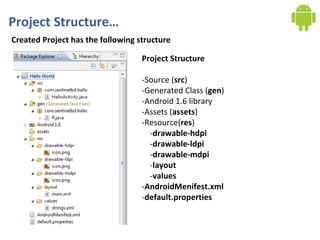
Project Structure… Created Project has the following structure Project Structure -Source ( src ) -Generated Class ( gen ) -Android 1.6 library -Assets ( assets ) -Resource( res ) - drawable-hdpi - drawable-ldpi - drawable-mdpi - layout - values - AndroidMenifest.xml - default.properties
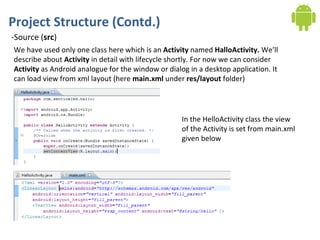
Project Structure (Contd.) -Source ( src ) We have used only one class here which is an  Activity  named  HalloActivity.  We’ll describe about  Activity  in detail with lifecycle shortly. For now we can consider  Activity  as Android analogue for the window or dialog in a desktop application. It can load view from xml layout (here  main.xml  under  res/layout  folder) In the HelloActivity class the view of the Activity is set from main.xml given below
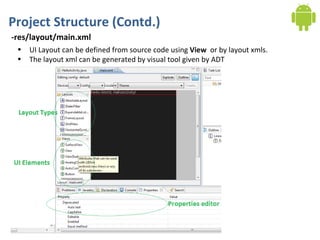
Project Structure (Contd.) -res/layout/main.xml UI Layout can be defined from source code using  View  or by layout xmls.  The layout xml can be generated by visual tool given by ADT
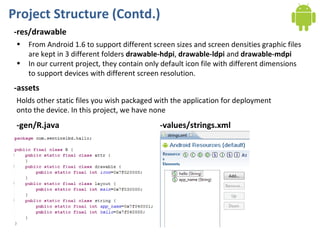
Project Structure (Contd.) -res/drawable From Android 1.6 to support different screen sizes and screen densities graphic files are kept in 3 different folders  drawable-hdpi ,  drawable-ldpi  and  drawable-mdpi In our current project, they contain only default icon file with different dimensions to support devices with different screen resolution. -assets Holds other static files you wish packaged with the application for deployment onto the device. In this project, we have none -gen/R.java -values/strings.xml
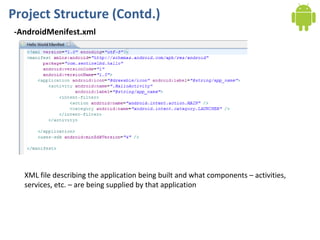
Project Structure (Contd.) -AndroidMenifest.xml XML file describing the application being built and what components – activities, services, etc. – are being supplied by that application
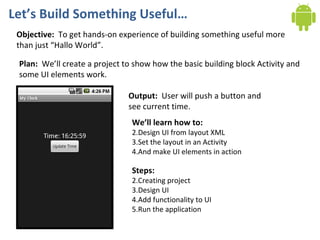
Let’s Build Something Useful… Objective:  To get hands-on experience of building something useful more than just “Hallo World”. Plan:  We’ll create a project to show how the basic building block Activity and some UI elements work. Output:  User will push a button and see current time. We’ll learn how to: Design UI from layout XML Set the layout in an Activity And make UI elements in action Steps: Creating project Design UI Add functionality to UI Run the application
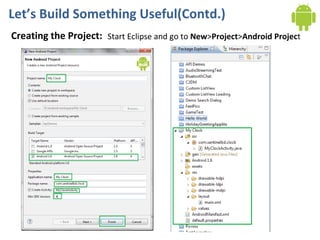
Let’s Build Something Useful(Contd.) Creating the Project: Start Eclipse and go to  New > Project > Android Projec t
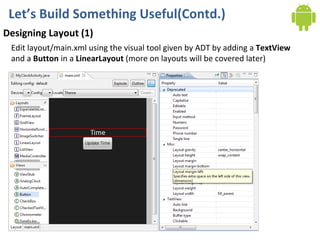
Let’s Build Something Useful(Contd.) Designing Layout (1) Edit layout/main.xml using the visual tool given by ADT by adding a  TextView  and a  Button  in a  LinearLayout  (more on layouts will be covered later)
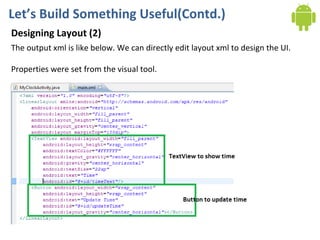
Let’s Build Something Useful(Contd.) Designing Layout (2) The output xml is like below. We can directly edit layout xml to design the UI. Properties were set from the visual tool.
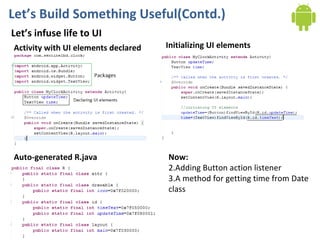
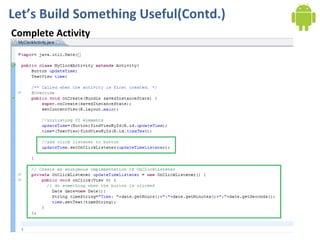
Let’s Build Something Useful(Contd.) Let’s infuse life to UI Activity with UI elements declared Initializing UI elements Auto-generated R.java Now: Adding Button action listener A method for getting time from Date class
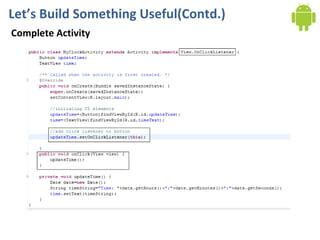
Let’s Build Something Useful(Contd.) Complete Activity
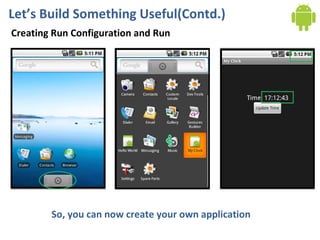
Let’s Build Something Useful(Contd.) Creating Run Configuration and Run So, you can now create your own application
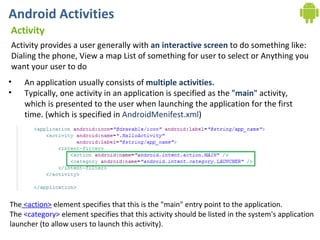
Android Activities Activity Activity provides a user generally with  an interactive screen  to do something like: Dialing the phone, View a map List of something for user to select or Anything you want your user to do An application usually consists of  multiple activities. Typically, one activity in an application is specified as the &quot; main &quot; activity, which is presented to the user when launching the application for the first time. (which is specified in  AndroidMenifest.xml )  The   <action>  element specifies that this is the &quot;main&quot; entry point to the application.  The  <category>  element specifies that this activity should be listed in the system's application  launcher (to allow users to launch this activity).
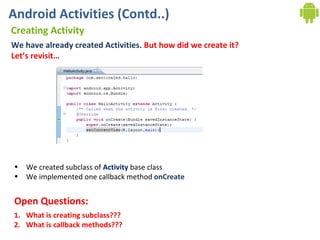
Android Activities (Contd..) Creating Activity We have already created Activities.  But how did we create it? Let’s revisit…  We created subclass of  Activity  base class We implemented one callback method  onCreate What is creating subclass??? What is callback methods??? Open Questions:
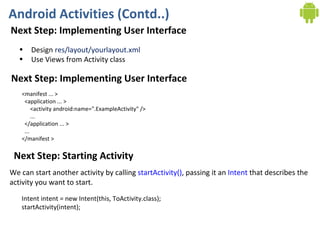
Android Activities (Contd..) Next Step: Implementing User Interface Design  res/layout/yourlayout.xml Use Views from Activity class Next Step: Implementing User Interface <manifest ... >   <application ... >       <activity android:name=&quot;.ExampleActivity&quot; />       ...   </application ... >   ... </manifest > Next Step: Starting Activity Intent intent = new Intent(this, ToActivity.class); startActivity(intent); We can start another activity by calling  startActivity() , passing it an  Intent  that describes the  activity you want to start.
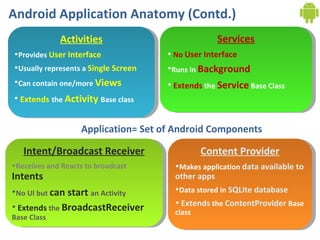
Android Application Anatomy (Contd.) Application= Set of Android Components Activities Provides  User Interface Usually represents a  Single Screen Can contain one/more  Views Extends   the  Activity  Base class Services No   User Interface Runs in  Background Extends  the  Service  Base Class Content Provider Makes application  data available to other apps Data stored in  SQLite database Extends  the  ContentProvider   Base class Intent/Broadcast Receiver Receives and Reacts to broadcast  Intents No UI but  can start  an Activity Extends  the  BroadcastReceiver  Base Class
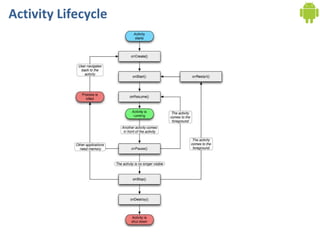
Activity Lifecycle

Day 3: Getting Active Through Activities

  • 1.
    Android Application DevelopmentBeing Active Through Activities Ahsanul Karim [email_address] Sentinel Solutions Ltd. http://www.sentinelbd.com
  • 2.
    Today We’re Covering…Application Structure Android Application Anatomy Activity Layout Using Layouts from Activity Activity Lifecycle Exercise
  • 3.
    Project Structure… CreatedProject has the following structure Project Structure -Source ( src ) -Generated Class ( gen ) -Android 1.6 library -Assets ( assets ) -Resource( res ) - drawable-hdpi - drawable-ldpi - drawable-mdpi - layout - values - AndroidMenifest.xml - default.properties
  • 4.
    Project Structure (Contd.)-Source ( src ) We have used only one class here which is an Activity named HalloActivity. We’ll describe about Activity in detail with lifecycle shortly. For now we can consider Activity as Android analogue for the window or dialog in a desktop application. It can load view from xml layout (here main.xml under res/layout folder) In the HelloActivity class the view of the Activity is set from main.xml given below
  • 5.
    Project Structure (Contd.)-res/layout/main.xml UI Layout can be defined from source code using View or by layout xmls. The layout xml can be generated by visual tool given by ADT
  • 6.
    Project Structure (Contd.)-res/drawable From Android 1.6 to support different screen sizes and screen densities graphic files are kept in 3 different folders drawable-hdpi , drawable-ldpi and drawable-mdpi In our current project, they contain only default icon file with different dimensions to support devices with different screen resolution. -assets Holds other static files you wish packaged with the application for deployment onto the device. In this project, we have none -gen/R.java -values/strings.xml
  • 7.
    Project Structure (Contd.)-AndroidMenifest.xml XML file describing the application being built and what components – activities, services, etc. – are being supplied by that application
  • 8.
    Let’s Build SomethingUseful… Objective: To get hands-on experience of building something useful more than just “Hallo World”. Plan: We’ll create a project to show how the basic building block Activity and some UI elements work. Output: User will push a button and see current time. We’ll learn how to: Design UI from layout XML Set the layout in an Activity And make UI elements in action Steps: Creating project Design UI Add functionality to UI Run the application
  • 9.
    Let’s Build SomethingUseful(Contd.) Creating the Project: Start Eclipse and go to New > Project > Android Projec t
  • 10.
    Let’s Build SomethingUseful(Contd.) Designing Layout (1) Edit layout/main.xml using the visual tool given by ADT by adding a TextView and a Button in a LinearLayout (more on layouts will be covered later)
  • 11.
    Let’s Build SomethingUseful(Contd.) Designing Layout (2) The output xml is like below. We can directly edit layout xml to design the UI. Properties were set from the visual tool.
  • 12.
    Let’s Build SomethingUseful(Contd.) Let’s infuse life to UI Activity with UI elements declared Initializing UI elements Auto-generated R.java Now: Adding Button action listener A method for getting time from Date class
  • 13.
    Let’s Build SomethingUseful(Contd.) Complete Activity
  • 14.
    Let’s Build SomethingUseful(Contd.) Complete Activity
  • 15.
    Let’s Build SomethingUseful(Contd.) Creating Run Configuration and Run So, you can now create your own application
  • 16.
    Android Activities ActivityActivity provides a user generally with an interactive screen to do something like: Dialing the phone, View a map List of something for user to select or Anything you want your user to do An application usually consists of multiple activities. Typically, one activity in an application is specified as the &quot; main &quot; activity, which is presented to the user when launching the application for the first time. (which is specified in AndroidMenifest.xml )  The   <action>  element specifies that this is the &quot;main&quot; entry point to the application. The  <category>  element specifies that this activity should be listed in the system's application launcher (to allow users to launch this activity).
  • 17.
    Android Activities (Contd..)Creating Activity We have already created Activities. But how did we create it? Let’s revisit… We created subclass of Activity base class We implemented one callback method onCreate What is creating subclass??? What is callback methods??? Open Questions:
  • 18.
    Android Activities (Contd..)Next Step: Implementing User Interface Design res/layout/yourlayout.xml Use Views from Activity class Next Step: Implementing User Interface <manifest ... >   <application ... >       <activity android:name=&quot;.ExampleActivity&quot; />       ...   </application ... >   ... </manifest > Next Step: Starting Activity Intent intent = new Intent(this, ToActivity.class); startActivity(intent); We can start another activity by calling  startActivity() , passing it an  Intent  that describes the activity you want to start.
  • 19.
    Android Application Anatomy(Contd.) Application= Set of Android Components Activities Provides User Interface Usually represents a Single Screen Can contain one/more Views Extends the Activity Base class Services No User Interface Runs in Background Extends the Service Base Class Content Provider Makes application data available to other apps Data stored in SQLite database Extends the ContentProvider Base class Intent/Broadcast Receiver Receives and Reacts to broadcast Intents No UI but can start an Activity Extends the BroadcastReceiver Base Class
  • 20.