UNIT – V
ACTIVITY, MENU AND SQLITE DATABASE
Activity: Intent – Activity life cycle – Broadcast Life cycle – Service
– Menus –Option Menu – Adding and Updating menu items –
Handling menu items. Android Notification – SQLite Database –
Creation and connection of the database – Extracting value from
a Cursors – Transactions
Activity
• Activity represents a single screen or interface
that allows the user to interact with an
application.
• An Android app may contain one or more
activities, meaning one or more screens.
• The Android app starts by showing the main
activity, and from there the app may make it
possible to open additional activities.
Activity
• Single or multiple activity, depending of the
application
• All the activity of the application must work
together, but Independent of each other,
enabling a different application to use those
activities.
Example of Activity
Examples of Activity
• Message shows contact
• Mail shows the gallery
• Each activity is independent of other works
together
• Each activity has a super class Activity
• Main or parent activity calls other (child) activity
Activity and Visual Content
• Visual content of the window is provided by a
hierarchy of views
• Each view controls a particular rectangular space
within the window.
– Parent views contain and organize the layout of their
children.
– Leaf views (those at the bottom of the hierarchy) draw
in the rectangles they control and respond to user
actions directed at that space.
• Views are where the activity's interaction with the
user takes place.
– For example, a view might display a small image or
button and initiate an action when the user taps that
image or button.
How Visual Content is Presented?
• Each activity is given a default window to draw
– Typically, the window fills the screen, but it might
be smaller than the screen and float on top of
other windows.
• A view hierarchy is placed within an activity's
window by the Activity.setContentView()
method.
• The content view is the View object at the root
of the hierarchy.
setContentView(R.layout.main)
• In Android the visual design is stored in XML files and
each Activity is associated to a design.
• setContentView(R.layout.main)
– R means Resource
– layout means design
– main is the xml you have created under res->layout->main.xml
• Whenever you want to change the current look of an Activity or
when you move from one Activity to another, the new Activity
must have a design to show.
• We call setContentView in onCreate with the desired design as
argument.
• A view hierarchy is placed with in an activity’s window by the
Activity.setContentview() method.
Extra
• he method setContentView(int view) is usually called within the Activity at
the onCreate() method. It inflates the view of the Activity. It receives
a int as a parameter.
• That's where the Android magic occurs. The res folder of your project
contains all resources as layouts, styles, shapes, drawables, anim and so on.
Each one of them is then mapped to a public static int filename on one of
the static classes children of the R class, R.layout, R.style, R.drawable and so
on, where "filename" is the name of that file minus the extension. That's
why they have to be lowercase amongst other conventions or they won't be
referenced by the R classes, . Every project and library have it's own R
classes, and the IDE takes care of creating it for you. So com.company.R,
android.R, com.facebook.R can all be valid, pay attention on your imports,
the convention here is to import your project "R" and reference other "R"s
with it's full name.
• So, the setContentView receives an int that is mapped to a Layout XML file
located under the res/layout folder with the filename main.xml then
inflates it as a view and set it and the main view of the activity.
Extra
• But, how do we reference the xml in the activity’s Java
code?
• aapt (Android Asset Packaging Tool) auto-
generates R.java that contains the resource IDs for all the
resources in res/ directory.
• A static inner class “layout” inside R.java contains the
resource ID to main.xml as a field with name “main”.
• main is a static field inside layout class, hence it needs to be
referenced with the enclosing class name; layout.main .
But, layout is a static inner class inside “R” class.
• Hence, we reference the layout resource ID in the activity
code using R.layout.main and pass it to setContentView(int
layoutResID) inside the activity.
setContentView
▪ Almost all activities interact with the user, so the
Activity class takes care of creating a window for you in
which you can place your UI with setContentView(View).
▪ While activities are often presented to the user as full-
screen windows
▪ floating windows
▪ embedded into other windows.
two methods
• There are two methods almost all subclasses of
Activity will implement
– onCreate(Bundle) is where you initialize your activity.
Most importantly, here you will usually
call setContentView(int) with a layout resource
defining your UI, and using findViewById(int) to
retrieve the widgets in that UI that you need to interact
with programmatically.
– onPause() is where you deal with the user pausing
active interaction with the activity. Any changes made
by the user should at this point be committed (usually
to the ContentProvider holding the data). In this state
the activity is still visible on screen.
Intent
Intent
Intent
• Android Intent is the message that is passed
between components such as activities, content
providers, broadcast receivers, services etc.
• It is generally used with startActivity() method to
invoke activity, broadcast receivers etc.
• The dictionary meaning of intent is intention or
purpose. So, it can be described as the intention
to do action.
Uses
• The Labeled Intent is the subclass of
android.content.Intent class.
• Android intents are mainly used to:
– Start the service
– Launch an activity
– Display a web page
– Display a list of contacts
– Broadcast a message
– Dial a phone call etc.
Working
• Msg 🡪 Android’s Intent Resolver 🡪 appropriate
activity.
• An intent is an abstract description of an
operation to be performed.
• startActivity to begin Acitivity,
• broadcastIntent to send it to any interested
startservice(Intent) and
• BroadcastReceiver component to communicate
with a background Service.
Pending Intent
• Pending Intent class provides a mechanism for creating
intents that can be called by another application at a
late on time.
• A pending intent is commonly used to package an Intent
that will be fired in response to a future event.
• Pending intent can be created in three ways
– getActivity(Context,int,Intent,int)
– getBroadcast(Context,int,Intent,int)
– getService(Context,int,Intent,int)
• The PendingIntent class offers static methods to
construct Pending Intents
Activity life cycle
• Android app is first started
the main activity is created.
• The activity then goes
through 3 states before it is
ready to serve the user:
Created, started and
resumed.
Life Cycle
• If an activity is in the foreground of the screen i.e at the top of
the stack, then it is said to be active or running. This is usually the
activity that the user is currently interacting with.
• If an activity has lost focus and a non-full-sized or transparent
activity has focused on top of your activity. In such a case either
another activity has a higher position in multi-window mode or
the activity itself is not focusable in current window mode. Such
activity is completely alive..
• If an activity is completely hidden by another activity, it is
stopped or hidden. It still retains all the information, and as its
window is hidden thus it will often be killed by the system when
memory is needed elsewhere.
• The system can destroy the activity from memory by either
asking it to finish or simply killing its process. When it is displayed
again to the user, it must be completely restarted and restored
to its previous state.
21
⮚Outline:
⮚ What is started by the device
⮚ It contains the application's informations
⮚ Has method to answer certain events
⮚ An application could be composed of
multiple activities
Activity
22
⮚ Create a class that is a subclass of Activity
⮚ Implement callback methods
⮚ OnCreate():
⮚ Initialize
⮚ SetContentView()
Creating an activity
23
Activity lifecycle
24
⮚ OnCreate()
⮚ Called when the
activity is created
⮚ Should contain the
initialization operations
⮚ Has a Bundle
parameter
⮚ If onCreate() succesfull
terminates, it calls
onStart()
Activity lifecycle
25
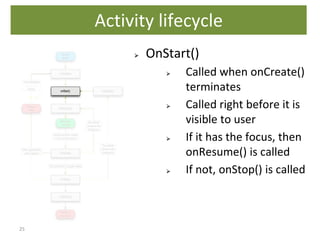
⮚ OnStart()
⮚ Called when onCreate()
terminates
⮚ Called right before it is
visible to user
⮚ If it has the focus, then
onResume() is called
⮚ If not, onStop() is called
Activity lifecycle
26
⮚ OnResume()
⮚ Called when the activity
is ready to get input
from users
⮚ Called when the activity
is resumed too
⮚ If it succesfully
terminates, then the
Activity is RUNNING
Activity lifecycle
27
⮚ OnPause()
⮚ Called when another
activity comes to the
foreground, or when
someone presses back
⮚ Commit unsaved
changes to persistent
data
⮚ Stop cpu-consuming
processes
⮚ Make it fast
Activity lifecycle
28
⮚ OnRestart()
⮚ Similar to onCreate()
⮚ We have an activity
that was previously
stopped
Activity lifecycle
29
⮚ OnStop()
⮚ Activity is no longer
visible to the user
⮚ Could be called
because:
⮚ the activity is
about to be
destroyed
⮚ another activity
comes to the
foreground
Activity lifecycle
30
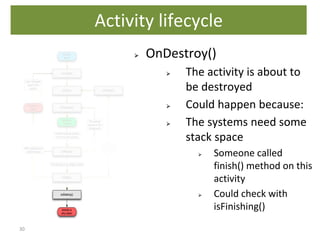
⮚ OnDestroy()
⮚ The activity is about to
be destroyed
⮚ Could happen because:
⮚ The systems need some
stack space
⮚ Someone called
finish() method on this
activity
⮚ Could check with
isFinishing()
Activity lifecycle
Broadcast Life cycle
Broadcast Messages
• Android apps can send or receive broadcast messages from the
Android system and other Android apps, similar to the publish-
subscribe design pattern.
• These broadcasts are sent when an event of interest occurs.
• For example, the Android system sends broadcasts when various
system events occur, such as when the system boots up or the
device starts charging.
• Apps can also send custom broadcasts, for example, to notify other
apps of something that they might be interested in (for example,
some new data has been downloaded).
• Apps can register to receive specific broadcasts.
• When a broadcast is sent, the system automatically routes
broadcasts to apps that have subscribed to receive that particular
type of broadcast.
What is Broadcast in Android?
• Broadcast receiver is an Android component
which allows you to send or receive Android
system or application events.
• For example, applications can register for
various system events like boot complete or
battery low, and Android system
sends broadcast when specific event occur.
Broadcast Receiver
• A broadcast receiver (receiver) is
an Android component which allows you to
register for system or application events.
• All registered receivers for an event are
notified by the Android runtime once this
event happens.
What is the life cycle of broadcast receivers in Android?
• When a broadcast message arrives for
the receiver, Android calls its onReceive()
method and passes it the Intent object
containing the message.
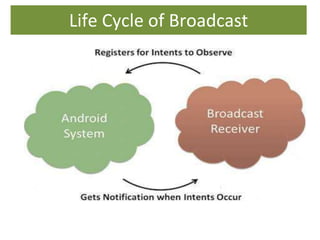
• The broadcast receiver is considered to be
active only while it is executing this method.
When onReceive() returns, it is inactive
Life Cycle of Broadcast
Does broadcast receiver work in background?
• You receiver stops working, because you
construct it in onCreate, which means it will live
as long as your app is alive. ...
• If you want a background receiver, you need to
register it inside the AndroidManifest (with
intent filter), add an IntentService and start it
when you receive a broadcast in the receiver.
Service
• A Service is an application component that can
perform long-running operations in the background.
• It does not provide a user interface.
• Once started, a service might continue running for
some time, even after the user switches to another
application.
• The service runs in the background indefinitely even
if application is destroyed.
• Example - playing music, handle network
transactions, interacting content providers etc
Types of Services
• These are the three different types of services:
– Foreground
– Background
– Bound
Foreground Service
• Foreground services are those services that are
visible to the users. The users can interact with
them at ease and track what’s happening.
These services continue to run even when
users are using other applications.
• The perfect example of this is Music Player and
Downloading.
• Foreground services continue running even
when the user isn't interacting with the app.
Background Service
• A background service performs an operation
that isn't directly noticed by the user.
• These services run in the background, such that the user can’t see or access them. These are the tasks that
don’t need the user to know them.
• For example, if an app used a service to
compact its storage, that would usually be a
background service.
Bound Service
• Bound service runs as long as some
other application component is bound to it.
Many components can bind to one service at a
time, but once they all unbind, the service will
destroy.
• To bind an application component to the
service, bindService() is used.
Lifecycle of Android Services
• Android services life-cycle can have two forms
of services and they follow two paths, that are:
– Started Service
– Bounded Service
Started Service & Bound Service
Started Service
• A service becomes started only when an application component calls
startService()
• It performs a single operation and doesn’t return any result to the caller.
• Once this service starts, it runs in the background even if the component that
created it destroys. This service can be stopped only in one of the two cases:
• By using the stopService() method. By stopping itself using the stopSelf() method.
Bound Service
• A service is bound only if an application component binds to it using bindService().
• It gives a client-server relation that lets the components interact with the service.
The components can send requests to services and get results.
• This service runs in the background as long as another application is bound to it.
Or it can be unbound according to our requirement by using
Life Cycle of Service
Methods of Android Services
• The following are a few important methods of
Android services :
• onStartCommand()
• onBind()
• onCreate()
• onUnbind()
• onDestroy()
• onRebind()
Menus – Option Menu – Adding and Updating
menu items – Handling menu items.
Android Notification
Menu
• Menu
– Menus are a common user interface component in
many types of applications. To provide a familiar
and consistent user experience, you should use
the Menu APIs to present user actions and other
options in your activities.
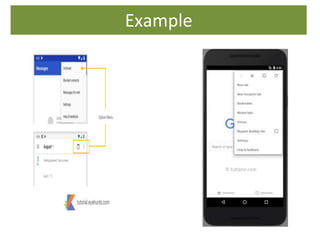
Example
Types of Menus
• There are three types of Menus available to
define a set of options and actions in our
android applications.
– Android Options Menu
– Android Context Menu
– Android Popup Menu
Option Menu
• Android Option Menus are the primary menus
of android. They can be used for settings,
search, delete item etc.
• Here, we are inflating the menu by calling
the inflate() method of MenuInflater class.
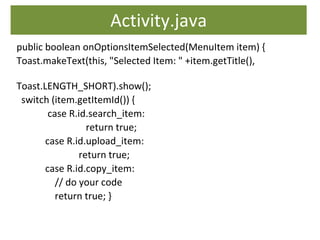
• To perform event handling on menu items,
override onOptionsItemSelected() method of
Activity class
Context Menu
• In android, Context Menu is like a
floating menu and that appears when the user
performs a long press or click on an element and
it is useful to implement actions that affect the
selected content or context frame.
• The android Context Menu is more like
the menu which displayed on right-click in
Windows or Linux.
Popup Menu
• It displays the menu below the anchor text if
space is available otherwise above the anchor
text. It disappears if you click outside the
popup menu.
• The android.widget.PopupMenu is the direct
subclass of java.lang.Object class.
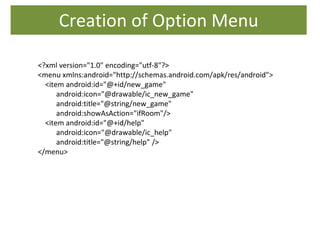
Creation of Option Menu
• In android, to define options menu,
we need to create a new
folder menu inside of our project
resource directory (res/menu/) and
add a new XML (options_menu.xml)
file to build the menu.
• Once we are done with creation of
menu, we need to load this menu
XML resource from
our activity using
onCreateOptionsMenu() callback
method, for that open
main activity file MainActivity.java
Creation of Option Menu
<?xml version="1.0" encoding="utf-8"?>
<menu xmlns:android="http://schemas.android.com/apk/res/android">
<item android:id="@+id/new_game"
android:icon="@drawable/ic_new_game"
android:title="@string/new_game"
android:showAsAction="ifRoom"/>
<item android:id="@+id/help"
android:icon="@drawable/ic_help"
android:title="@string/help" />
</menu>
Sub Menu
• <?xml version="1.0" encoding="utf-8"?>
<menu
xmlns:android="http://schemas.android.com/apk/res/andro
id">
<item android:id="@+id/file"
android:title="@string/file" >
<!-- "file" submenu -->
<menu>
<item android:id="@+id/create_new"
android:title="@string/create_new" />
<item android:id="@+id/open"
android:title="@string/open" />
</menu>
</item>
</menu>
Sub Menu
<?xml version="1.0" encoding="utf-8"?>
<menu xmlns:android="http://schemas.android.com/apk/res/android" >
<item android:id="@+id/search_item"
android:title="Search" />
<item android:id="@+id/upload_item"
android:title="Upload" />
<item android:id="@+id/copy_item"
android:title="Copy" >
<menu>
<item android:id="@+id/copy_item1"
android:title="CopyCAT" />
<item android:id="@+id/copy_item2"
android:title="CopyDog" />
</menu>
</item>
<item android:id="@+id/print_item"
android:title="Print" />
<item android:id="@+id/share_item"
android:title="Share" />
<item android:id="@+id/bookmark_item"
android:title="BookMark" />
</menu>
Menu Attributes
• <menu>Defines a Menu, which is a container for
menu items. A <menu> element must be the root
node for the file and can hold one or
more <item> and <group> elements.
• <item>Creates a MenuItem, which represents a single
item in a menu. This element may contain a
nested <menu> element in order to create a
submenu.
• <group>An optional, invisible container
for <item> elements. It allows you to categorize menu
items so they share properties such as active state
and visibility.
code
• @Override
public
boolean onOptionsItemSelected (MenuItem item)
{
}
Activity.java
public boolean onOptionsItemSelected(MenuItem item) {
Toast.makeText(this, "Selected Item: " +item.getTitle(),
Toast.LENGTH_SHORT).show();
switch (item.getItemId()) {
case R.id.search_item:
return true;
case R.id.upload_item:
return true;
case R.id.copy_item:
// do your code
return true; }
Android Notification
• A notification is a message that Android
displays outside your app's UI to provide the
user with reminders, communication from
other people, or other timely information from
your app. Users can tap the notification to
open your app or take an action directly from
the notification.
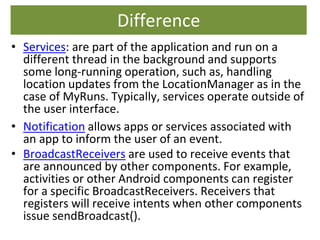
Difference
• Services: are part of the application and run on a
different thread in the background and supports
some long-running operation, such as, handling
location updates from the LocationManager as in the
case of MyRuns. Typically, services operate outside of
the user interface.
• Notification allows apps or services associated with
an app to inform the user of an event.
• BroadcastReceivers are used to receive events that
are announced by other components. For example,
activities or other Android components can register
for a specific BroadcastReceivers. Receivers that
registers will receive intents when other components
issue sendBroadcast().
SQLite Database – Creation and connection of
the database – Extracting value from a Cursors –
Transactions
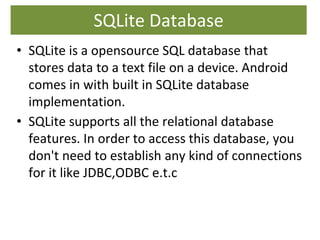
SQLite Database
• SQLite is a opensource SQL database that
stores data to a text file on a device. Android
comes in with built in SQLite database
implementation.
• SQLite supports all the relational database
features. In order to access this database, you
don't need to establish any kind of connections
for it like JDBC,ODBC e.t.c
Features
• SQLite is an open source.
• A complete SQLite database is stored in a
single cross-platform disk file
• SQLite has no external dependencies
• SQLite is very small and Light-weight process
• android.database.sqlite.SQLiteDatabase
package has to be imported
Creation and connection of the database
• to create a database you just need to call this
method openOrCreateDatabase with your
database name and mode as a parameter.
• It returns an instance of SQLite database which
you have to receive in your own object.
• Its syntax is given below
• SQLiteDatabase mydatabase =
openOrCreateDatabase(“my_DB_name",MODE
_PRIVATE,null);
Creation and connection of the database – Cont.
Database – Create & Insertion
• Create Table
mydatabase.execSQL("CREATE TABLE IF NOT EXISTS
my_DB(Username VARCHAR,Password VARCHAR);");
• Insert
mydatabase.execSQL("INSERT INTO my_D VALUES
( 'admin', ‘1234') ; ");
Extracting value from a Cursors
• We can retrieve anything from database using an object
of the Cursor class. We will call a method of this class
called rawQuery and it will return a resultset with the
cursor pointing to the table.
• We can move the cursor forward and retrieve the data.
• Cursor resultSet = mydatbase.rawQuery("Select * from
my_DB",null);
• resultSet.moveToFirst();
String username = resultSet.getString(0);
String password = resultSet.getString(1);
Transactions
• When we want to execute a series of querires that
either all complete or all fail, at that situation we
use transactions which is supported by SQLite.
• When a SQLite transaction fails an exception will be
thrown.
• There are three methods available in transaction for
all part of the database object.
• beginTransaction(): Start a transaction
• setTransactionSucessful(): Execute quries and call we want to
commit the transaction.
• endTransaction () – once complete the transaction

11.11.2020 - Unit 5-3 ACTIVITY, MENU AND SQLITE DATABASE.pptx

  • 1.
    UNIT – V ACTIVITY,MENU AND SQLITE DATABASE Activity: Intent – Activity life cycle – Broadcast Life cycle – Service – Menus –Option Menu – Adding and Updating menu items – Handling menu items. Android Notification – SQLite Database – Creation and connection of the database – Extracting value from a Cursors – Transactions
  • 2.
    Activity • Activity representsa single screen or interface that allows the user to interact with an application. • An Android app may contain one or more activities, meaning one or more screens. • The Android app starts by showing the main activity, and from there the app may make it possible to open additional activities.
  • 3.
    Activity • Single ormultiple activity, depending of the application • All the activity of the application must work together, but Independent of each other, enabling a different application to use those activities.
  • 4.
  • 5.
    Examples of Activity •Message shows contact • Mail shows the gallery • Each activity is independent of other works together • Each activity has a super class Activity • Main or parent activity calls other (child) activity
  • 6.
    Activity and VisualContent • Visual content of the window is provided by a hierarchy of views • Each view controls a particular rectangular space within the window. – Parent views contain and organize the layout of their children. – Leaf views (those at the bottom of the hierarchy) draw in the rectangles they control and respond to user actions directed at that space. • Views are where the activity's interaction with the user takes place. – For example, a view might display a small image or button and initiate an action when the user taps that image or button.
  • 7.
    How Visual Contentis Presented? • Each activity is given a default window to draw – Typically, the window fills the screen, but it might be smaller than the screen and float on top of other windows. • A view hierarchy is placed within an activity's window by the Activity.setContentView() method. • The content view is the View object at the root of the hierarchy.
  • 8.
    setContentView(R.layout.main) • In Androidthe visual design is stored in XML files and each Activity is associated to a design. • setContentView(R.layout.main) – R means Resource – layout means design – main is the xml you have created under res->layout->main.xml • Whenever you want to change the current look of an Activity or when you move from one Activity to another, the new Activity must have a design to show. • We call setContentView in onCreate with the desired design as argument. • A view hierarchy is placed with in an activity’s window by the Activity.setContentview() method.
  • 9.
    Extra • he methodsetContentView(int view) is usually called within the Activity at the onCreate() method. It inflates the view of the Activity. It receives a int as a parameter. • That's where the Android magic occurs. The res folder of your project contains all resources as layouts, styles, shapes, drawables, anim and so on. Each one of them is then mapped to a public static int filename on one of the static classes children of the R class, R.layout, R.style, R.drawable and so on, where "filename" is the name of that file minus the extension. That's why they have to be lowercase amongst other conventions or they won't be referenced by the R classes, . Every project and library have it's own R classes, and the IDE takes care of creating it for you. So com.company.R, android.R, com.facebook.R can all be valid, pay attention on your imports, the convention here is to import your project "R" and reference other "R"s with it's full name. • So, the setContentView receives an int that is mapped to a Layout XML file located under the res/layout folder with the filename main.xml then inflates it as a view and set it and the main view of the activity.
  • 10.
    Extra • But, howdo we reference the xml in the activity’s Java code? • aapt (Android Asset Packaging Tool) auto- generates R.java that contains the resource IDs for all the resources in res/ directory. • A static inner class “layout” inside R.java contains the resource ID to main.xml as a field with name “main”. • main is a static field inside layout class, hence it needs to be referenced with the enclosing class name; layout.main . But, layout is a static inner class inside “R” class. • Hence, we reference the layout resource ID in the activity code using R.layout.main and pass it to setContentView(int layoutResID) inside the activity.
  • 11.
    setContentView ▪ Almost allactivities interact with the user, so the Activity class takes care of creating a window for you in which you can place your UI with setContentView(View). ▪ While activities are often presented to the user as full- screen windows ▪ floating windows ▪ embedded into other windows.
  • 12.
    two methods • Thereare two methods almost all subclasses of Activity will implement – onCreate(Bundle) is where you initialize your activity. Most importantly, here you will usually call setContentView(int) with a layout resource defining your UI, and using findViewById(int) to retrieve the widgets in that UI that you need to interact with programmatically. – onPause() is where you deal with the user pausing active interaction with the activity. Any changes made by the user should at this point be committed (usually to the ContentProvider holding the data). In this state the activity is still visible on screen.
  • 13.
  • 14.
  • 15.
    Intent • Android Intentis the message that is passed between components such as activities, content providers, broadcast receivers, services etc. • It is generally used with startActivity() method to invoke activity, broadcast receivers etc. • The dictionary meaning of intent is intention or purpose. So, it can be described as the intention to do action.
  • 16.
    Uses • The LabeledIntent is the subclass of android.content.Intent class. • Android intents are mainly used to: – Start the service – Launch an activity – Display a web page – Display a list of contacts – Broadcast a message – Dial a phone call etc.
  • 17.
    Working • Msg 🡪Android’s Intent Resolver 🡪 appropriate activity. • An intent is an abstract description of an operation to be performed. • startActivity to begin Acitivity, • broadcastIntent to send it to any interested startservice(Intent) and • BroadcastReceiver component to communicate with a background Service.
  • 18.
    Pending Intent • PendingIntent class provides a mechanism for creating intents that can be called by another application at a late on time. • A pending intent is commonly used to package an Intent that will be fired in response to a future event. • Pending intent can be created in three ways – getActivity(Context,int,Intent,int) – getBroadcast(Context,int,Intent,int) – getService(Context,int,Intent,int) • The PendingIntent class offers static methods to construct Pending Intents
  • 19.
    Activity life cycle •Android app is first started the main activity is created. • The activity then goes through 3 states before it is ready to serve the user: Created, started and resumed.
  • 20.
    Life Cycle • Ifan activity is in the foreground of the screen i.e at the top of the stack, then it is said to be active or running. This is usually the activity that the user is currently interacting with. • If an activity has lost focus and a non-full-sized or transparent activity has focused on top of your activity. In such a case either another activity has a higher position in multi-window mode or the activity itself is not focusable in current window mode. Such activity is completely alive.. • If an activity is completely hidden by another activity, it is stopped or hidden. It still retains all the information, and as its window is hidden thus it will often be killed by the system when memory is needed elsewhere. • The system can destroy the activity from memory by either asking it to finish or simply killing its process. When it is displayed again to the user, it must be completely restarted and restored to its previous state.
  • 21.
    21 ⮚Outline: ⮚ What isstarted by the device ⮚ It contains the application's informations ⮚ Has method to answer certain events ⮚ An application could be composed of multiple activities Activity
  • 22.
    22 ⮚ Create aclass that is a subclass of Activity ⮚ Implement callback methods ⮚ OnCreate(): ⮚ Initialize ⮚ SetContentView() Creating an activity
  • 23.
  • 24.
    24 ⮚ OnCreate() ⮚ Calledwhen the activity is created ⮚ Should contain the initialization operations ⮚ Has a Bundle parameter ⮚ If onCreate() succesfull terminates, it calls onStart() Activity lifecycle
  • 25.
    25 ⮚ OnStart() ⮚ Calledwhen onCreate() terminates ⮚ Called right before it is visible to user ⮚ If it has the focus, then onResume() is called ⮚ If not, onStop() is called Activity lifecycle
  • 26.
    26 ⮚ OnResume() ⮚ Calledwhen the activity is ready to get input from users ⮚ Called when the activity is resumed too ⮚ If it succesfully terminates, then the Activity is RUNNING Activity lifecycle
  • 27.
    27 ⮚ OnPause() ⮚ Calledwhen another activity comes to the foreground, or when someone presses back ⮚ Commit unsaved changes to persistent data ⮚ Stop cpu-consuming processes ⮚ Make it fast Activity lifecycle
  • 28.
    28 ⮚ OnRestart() ⮚ Similarto onCreate() ⮚ We have an activity that was previously stopped Activity lifecycle
  • 29.
    29 ⮚ OnStop() ⮚ Activityis no longer visible to the user ⮚ Could be called because: ⮚ the activity is about to be destroyed ⮚ another activity comes to the foreground Activity lifecycle
  • 30.
    30 ⮚ OnDestroy() ⮚ Theactivity is about to be destroyed ⮚ Could happen because: ⮚ The systems need some stack space ⮚ Someone called finish() method on this activity ⮚ Could check with isFinishing() Activity lifecycle
  • 31.
  • 32.
    Broadcast Messages • Androidapps can send or receive broadcast messages from the Android system and other Android apps, similar to the publish- subscribe design pattern. • These broadcasts are sent when an event of interest occurs. • For example, the Android system sends broadcasts when various system events occur, such as when the system boots up or the device starts charging. • Apps can also send custom broadcasts, for example, to notify other apps of something that they might be interested in (for example, some new data has been downloaded). • Apps can register to receive specific broadcasts. • When a broadcast is sent, the system automatically routes broadcasts to apps that have subscribed to receive that particular type of broadcast.
  • 33.
    What is Broadcastin Android? • Broadcast receiver is an Android component which allows you to send or receive Android system or application events. • For example, applications can register for various system events like boot complete or battery low, and Android system sends broadcast when specific event occur.
  • 34.
    Broadcast Receiver • Abroadcast receiver (receiver) is an Android component which allows you to register for system or application events. • All registered receivers for an event are notified by the Android runtime once this event happens.
  • 35.
    What is thelife cycle of broadcast receivers in Android? • When a broadcast message arrives for the receiver, Android calls its onReceive() method and passes it the Intent object containing the message. • The broadcast receiver is considered to be active only while it is executing this method. When onReceive() returns, it is inactive
  • 36.
    Life Cycle ofBroadcast
  • 37.
    Does broadcast receiverwork in background? • You receiver stops working, because you construct it in onCreate, which means it will live as long as your app is alive. ... • If you want a background receiver, you need to register it inside the AndroidManifest (with intent filter), add an IntentService and start it when you receive a broadcast in the receiver.
  • 38.
    Service • A Serviceis an application component that can perform long-running operations in the background. • It does not provide a user interface. • Once started, a service might continue running for some time, even after the user switches to another application. • The service runs in the background indefinitely even if application is destroyed. • Example - playing music, handle network transactions, interacting content providers etc
  • 39.
    Types of Services •These are the three different types of services: – Foreground – Background – Bound
  • 40.
    Foreground Service • Foregroundservices are those services that are visible to the users. The users can interact with them at ease and track what’s happening. These services continue to run even when users are using other applications. • The perfect example of this is Music Player and Downloading. • Foreground services continue running even when the user isn't interacting with the app.
  • 41.
    Background Service • Abackground service performs an operation that isn't directly noticed by the user. • These services run in the background, such that the user can’t see or access them. These are the tasks that don’t need the user to know them. • For example, if an app used a service to compact its storage, that would usually be a background service.
  • 42.
    Bound Service • Boundservice runs as long as some other application component is bound to it. Many components can bind to one service at a time, but once they all unbind, the service will destroy. • To bind an application component to the service, bindService() is used.
  • 43.
    Lifecycle of AndroidServices • Android services life-cycle can have two forms of services and they follow two paths, that are: – Started Service – Bounded Service
  • 44.
    Started Service &Bound Service Started Service • A service becomes started only when an application component calls startService() • It performs a single operation and doesn’t return any result to the caller. • Once this service starts, it runs in the background even if the component that created it destroys. This service can be stopped only in one of the two cases: • By using the stopService() method. By stopping itself using the stopSelf() method. Bound Service • A service is bound only if an application component binds to it using bindService(). • It gives a client-server relation that lets the components interact with the service. The components can send requests to services and get results. • This service runs in the background as long as another application is bound to it. Or it can be unbound according to our requirement by using
  • 45.
  • 46.
    Methods of AndroidServices • The following are a few important methods of Android services : • onStartCommand() • onBind() • onCreate() • onUnbind() • onDestroy() • onRebind()
  • 47.
    Menus – OptionMenu – Adding and Updating menu items – Handling menu items. Android Notification
  • 48.
    Menu • Menu – Menusare a common user interface component in many types of applications. To provide a familiar and consistent user experience, you should use the Menu APIs to present user actions and other options in your activities.
  • 49.
  • 50.
    Types of Menus •There are three types of Menus available to define a set of options and actions in our android applications. – Android Options Menu – Android Context Menu – Android Popup Menu
  • 51.
    Option Menu • AndroidOption Menus are the primary menus of android. They can be used for settings, search, delete item etc. • Here, we are inflating the menu by calling the inflate() method of MenuInflater class. • To perform event handling on menu items, override onOptionsItemSelected() method of Activity class
  • 52.
    Context Menu • Inandroid, Context Menu is like a floating menu and that appears when the user performs a long press or click on an element and it is useful to implement actions that affect the selected content or context frame. • The android Context Menu is more like the menu which displayed on right-click in Windows or Linux.
  • 53.
    Popup Menu • Itdisplays the menu below the anchor text if space is available otherwise above the anchor text. It disappears if you click outside the popup menu. • The android.widget.PopupMenu is the direct subclass of java.lang.Object class.
  • 54.
    Creation of OptionMenu • In android, to define options menu, we need to create a new folder menu inside of our project resource directory (res/menu/) and add a new XML (options_menu.xml) file to build the menu. • Once we are done with creation of menu, we need to load this menu XML resource from our activity using onCreateOptionsMenu() callback method, for that open main activity file MainActivity.java
  • 55.
    Creation of OptionMenu <?xml version="1.0" encoding="utf-8"?> <menu xmlns:android="http://schemas.android.com/apk/res/android"> <item android:id="@+id/new_game" android:icon="@drawable/ic_new_game" android:title="@string/new_game" android:showAsAction="ifRoom"/> <item android:id="@+id/help" android:icon="@drawable/ic_help" android:title="@string/help" /> </menu>
  • 56.
    Sub Menu • <?xmlversion="1.0" encoding="utf-8"?> <menu xmlns:android="http://schemas.android.com/apk/res/andro id"> <item android:id="@+id/file" android:title="@string/file" > <!-- "file" submenu --> <menu> <item android:id="@+id/create_new" android:title="@string/create_new" /> <item android:id="@+id/open" android:title="@string/open" /> </menu> </item> </menu>
  • 57.
    Sub Menu <?xml version="1.0"encoding="utf-8"?> <menu xmlns:android="http://schemas.android.com/apk/res/android" > <item android:id="@+id/search_item" android:title="Search" /> <item android:id="@+id/upload_item" android:title="Upload" /> <item android:id="@+id/copy_item" android:title="Copy" > <menu> <item android:id="@+id/copy_item1" android:title="CopyCAT" /> <item android:id="@+id/copy_item2" android:title="CopyDog" /> </menu> </item> <item android:id="@+id/print_item" android:title="Print" /> <item android:id="@+id/share_item" android:title="Share" /> <item android:id="@+id/bookmark_item" android:title="BookMark" /> </menu>
  • 58.
    Menu Attributes • <menu>Definesa Menu, which is a container for menu items. A <menu> element must be the root node for the file and can hold one or more <item> and <group> elements. • <item>Creates a MenuItem, which represents a single item in a menu. This element may contain a nested <menu> element in order to create a submenu. • <group>An optional, invisible container for <item> elements. It allows you to categorize menu items so they share properties such as active state and visibility.
  • 59.
  • 60.
    Activity.java public boolean onOptionsItemSelected(MenuItemitem) { Toast.makeText(this, "Selected Item: " +item.getTitle(), Toast.LENGTH_SHORT).show(); switch (item.getItemId()) { case R.id.search_item: return true; case R.id.upload_item: return true; case R.id.copy_item: // do your code return true; }
  • 61.
    Android Notification • Anotification is a message that Android displays outside your app's UI to provide the user with reminders, communication from other people, or other timely information from your app. Users can tap the notification to open your app or take an action directly from the notification.
  • 62.
    Difference • Services: arepart of the application and run on a different thread in the background and supports some long-running operation, such as, handling location updates from the LocationManager as in the case of MyRuns. Typically, services operate outside of the user interface. • Notification allows apps or services associated with an app to inform the user of an event. • BroadcastReceivers are used to receive events that are announced by other components. For example, activities or other Android components can register for a specific BroadcastReceivers. Receivers that registers will receive intents when other components issue sendBroadcast().
  • 63.
    SQLite Database –Creation and connection of the database – Extracting value from a Cursors – Transactions
  • 64.
    SQLite Database • SQLiteis a opensource SQL database that stores data to a text file on a device. Android comes in with built in SQLite database implementation. • SQLite supports all the relational database features. In order to access this database, you don't need to establish any kind of connections for it like JDBC,ODBC e.t.c
  • 65.
    Features • SQLite isan open source. • A complete SQLite database is stored in a single cross-platform disk file • SQLite has no external dependencies • SQLite is very small and Light-weight process • android.database.sqlite.SQLiteDatabase package has to be imported
  • 66.
    Creation and connectionof the database • to create a database you just need to call this method openOrCreateDatabase with your database name and mode as a parameter. • It returns an instance of SQLite database which you have to receive in your own object. • Its syntax is given below • SQLiteDatabase mydatabase = openOrCreateDatabase(“my_DB_name",MODE _PRIVATE,null);
  • 67.
    Creation and connectionof the database – Cont.
  • 68.
    Database – Create& Insertion • Create Table mydatabase.execSQL("CREATE TABLE IF NOT EXISTS my_DB(Username VARCHAR,Password VARCHAR);"); • Insert mydatabase.execSQL("INSERT INTO my_D VALUES ( 'admin', ‘1234') ; ");
  • 69.
    Extracting value froma Cursors • We can retrieve anything from database using an object of the Cursor class. We will call a method of this class called rawQuery and it will return a resultset with the cursor pointing to the table. • We can move the cursor forward and retrieve the data. • Cursor resultSet = mydatbase.rawQuery("Select * from my_DB",null); • resultSet.moveToFirst(); String username = resultSet.getString(0); String password = resultSet.getString(1);
  • 70.
    Transactions • When wewant to execute a series of querires that either all complete or all fail, at that situation we use transactions which is supported by SQLite. • When a SQLite transaction fails an exception will be thrown. • There are three methods available in transaction for all part of the database object. • beginTransaction(): Start a transaction • setTransactionSucessful(): Execute quries and call we want to commit the transaction. • endTransaction () – once complete the transaction