1 
Activities, Intents 
and 
Shared Preferences 
for 
Persistence
SIMPLE ACTIVITY 
• Activity 
• Layout 
• Using Layouts from Activity 
• Activity to Activity Transition 
• Activity Lifecycle 
• Exercise 
2
Android Activities 
Activity 
Activity provides a user generally with an interactive screen to do something like: Dialing 
the phone, View a map List of something for user to select or Anything you want your user 
to do 
• An application usually consists of multiple activities. 
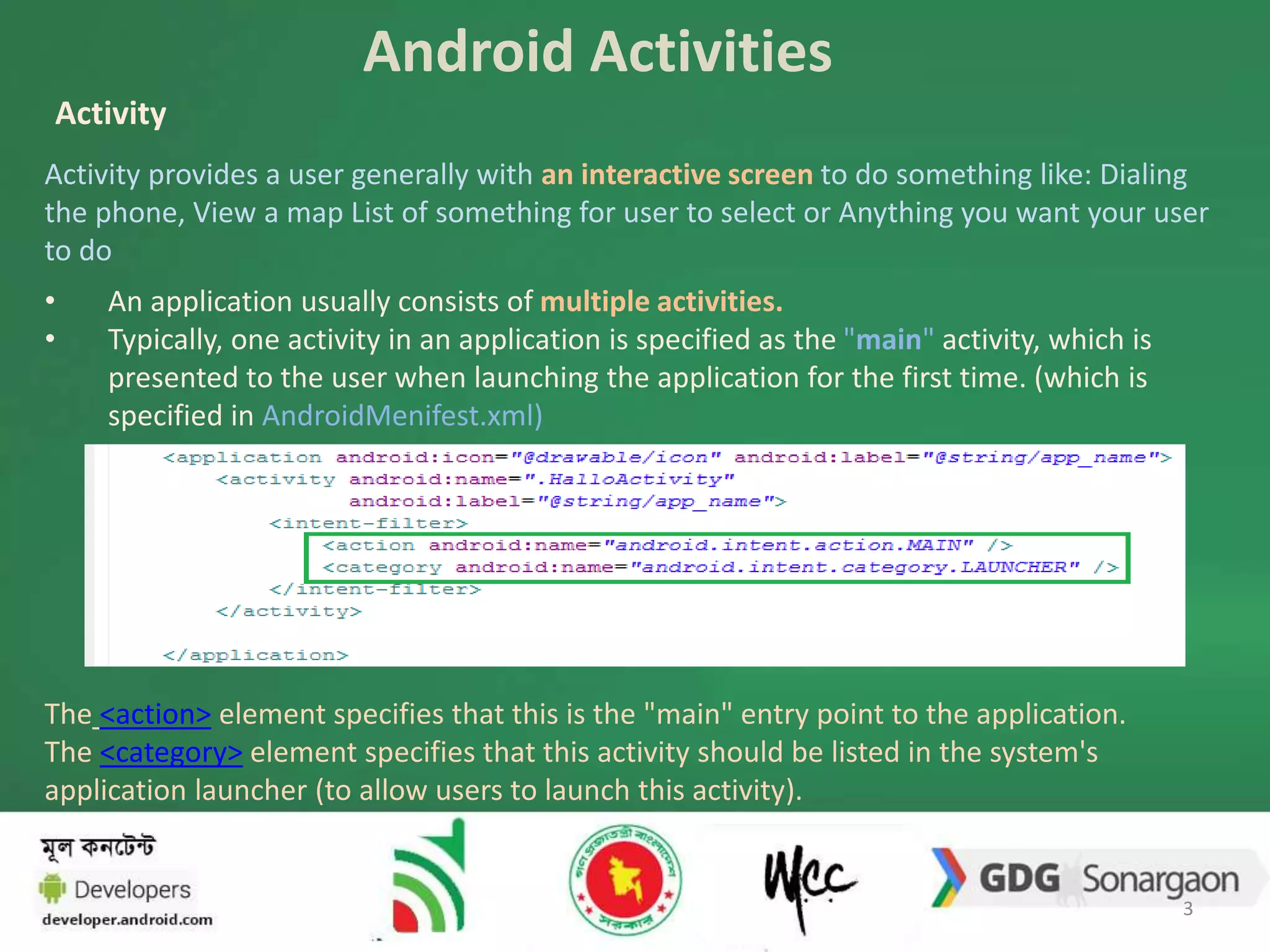
• Typically, one activity in an application is specified as the "main" activity, which is 
presented to the user when launching the application for the first time. (which is 
specified in AndroidMenifest.xml) 
The <action> element specifies that this is the "main" entry point to the application. 
The <category> element specifies that this activity should be listed in the system's 
application launcher (to allow users to launch this activity). 
3
Android Activities (Contd..) 
Creating Activity 
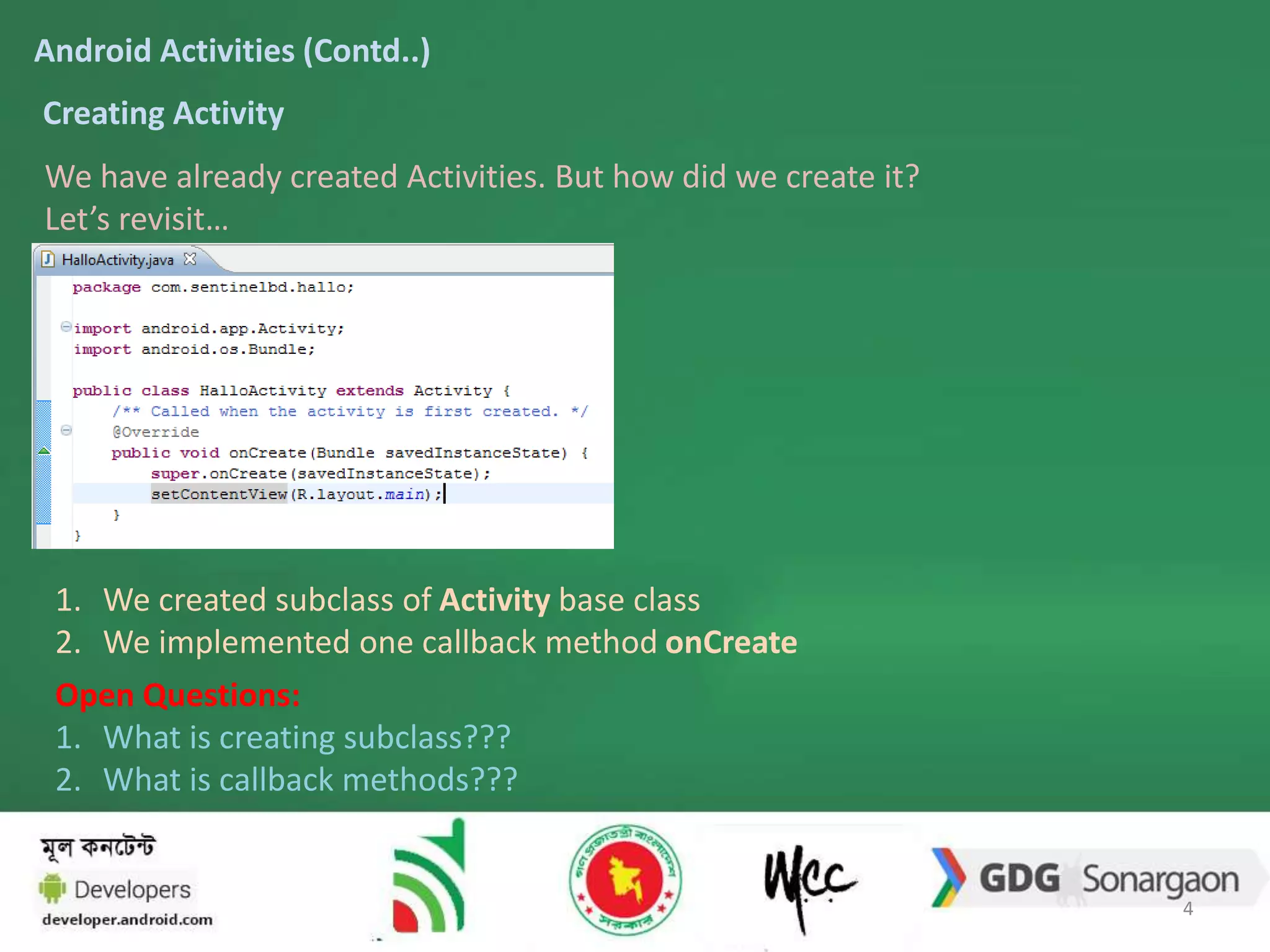
We have already created Activities. But how did we create it? 
Let’s revisit… 
1. We created subclass of Activity base class 
2. We implemented one callback method onCreate 
Open Questions: 
1. What is creating subclass??? 
2. What is callback methods??? 
4
ANDROID ACTIVITIES (CONTD..) 
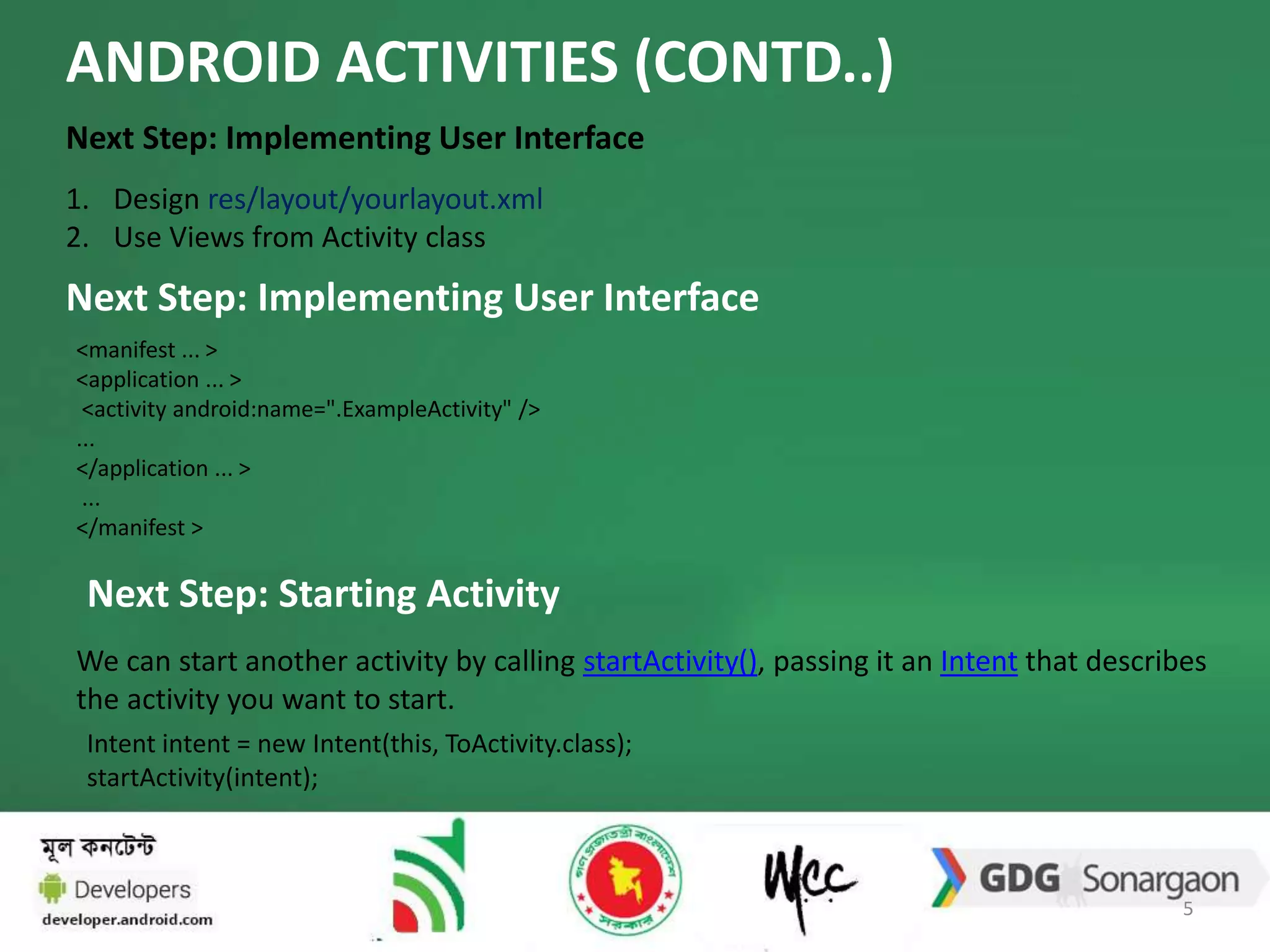
Next Step: Implementing User Interface 
1. Design res/layout/yourlayout.xml 
2. Use Views from Activity class 
Next Step: Implementing User Interface 
<manifest ... > 
<application ... > 
<activity android:name=".ExampleActivity" /> 
... 
</application ... > 
... 
</manifest > 
Next Step: Starting Activity 
We can start another activity by calling startActivity(), passing it an Intent that describes 
the activity you want to start. 
Intent intent = new Intent(this, ToActivity.class); 
startActivity(intent); 
5
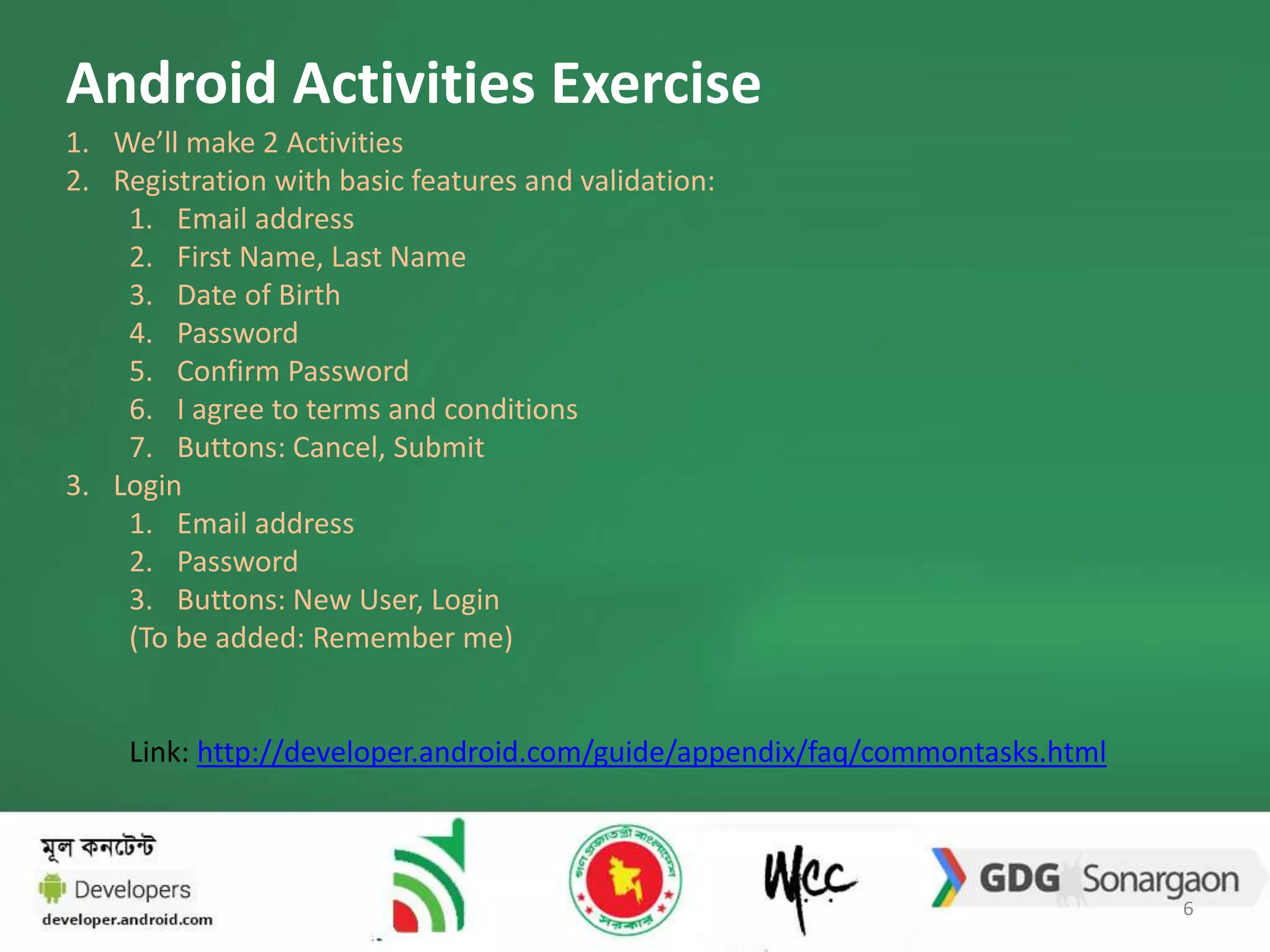
Android Activities Exercise 
1. We’ll make 2 Activities 
2. Registration with basic features and validation: 
1. Email address 
2. First Name, Last Name 
3. Date of Birth 
4. Password 
5. Confirm Password 
6. I agree to terms and conditions 
7. Buttons: Cancel, Submit 
3. Login 
1. Email address 
2. Password 
3. Buttons: New User, Login 
(To be added: Remember me) 
Link: http://developer.android.com/guide/appendix/faq/commontasks.html 
6
Android Activities Exercise (Contd.) 
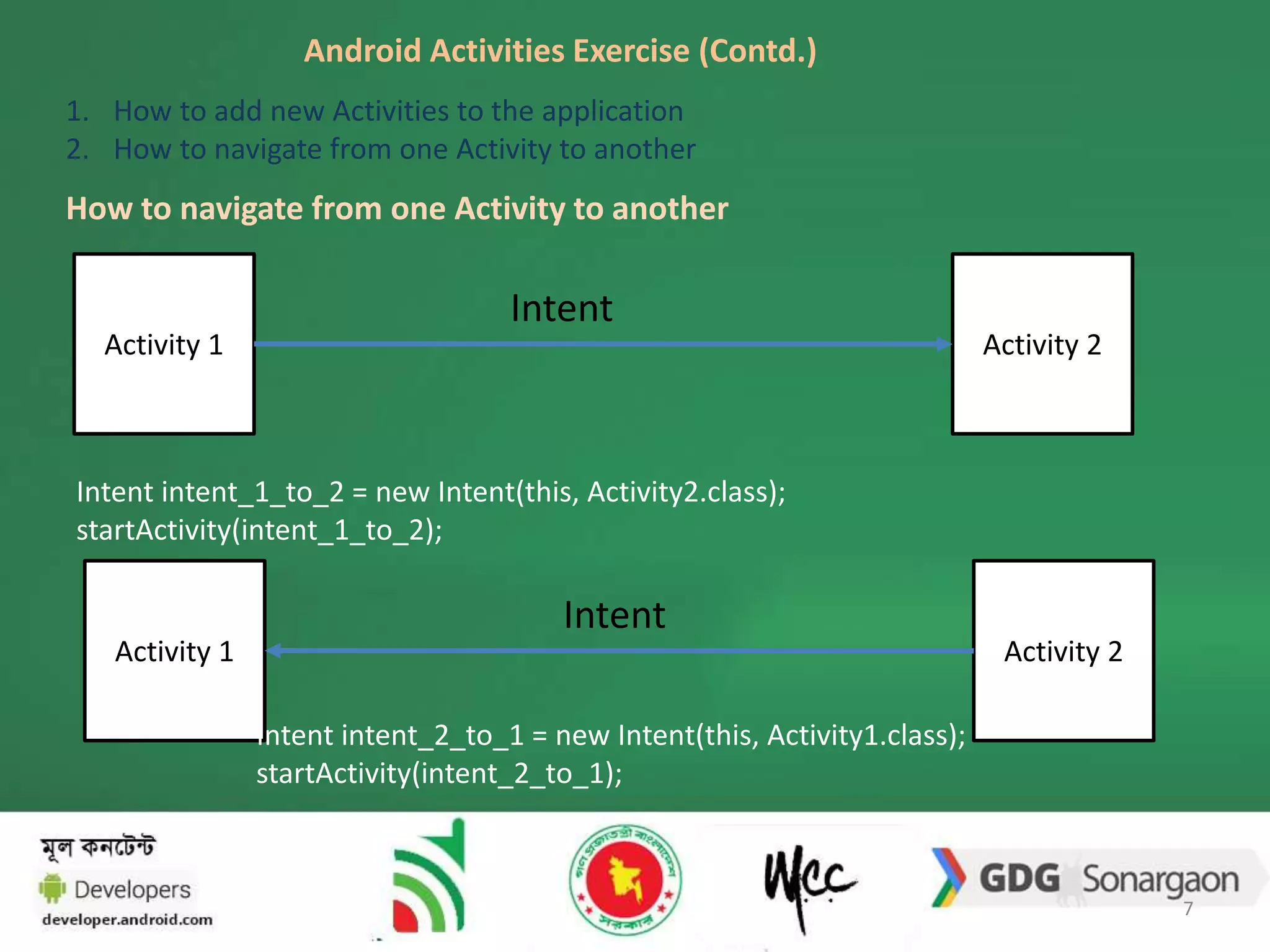
1. How to add new Activities to the application 
2. How to navigate from one Activity to another 
How to navigate from one Activity to another 
Intent 
Activity 1 Activity 2 
Intent intent_1_to_2 = new Intent(this, Activity2.class); 
startActivity(intent_1_to_2); 
Intent 
Activity 1 Activity 2 
Intent intent_2_to_1 = new Intent(this, Activity1.class); 
startActivity(intent_2_to_1); 
7
Android Activities Exercise (Contd.) 
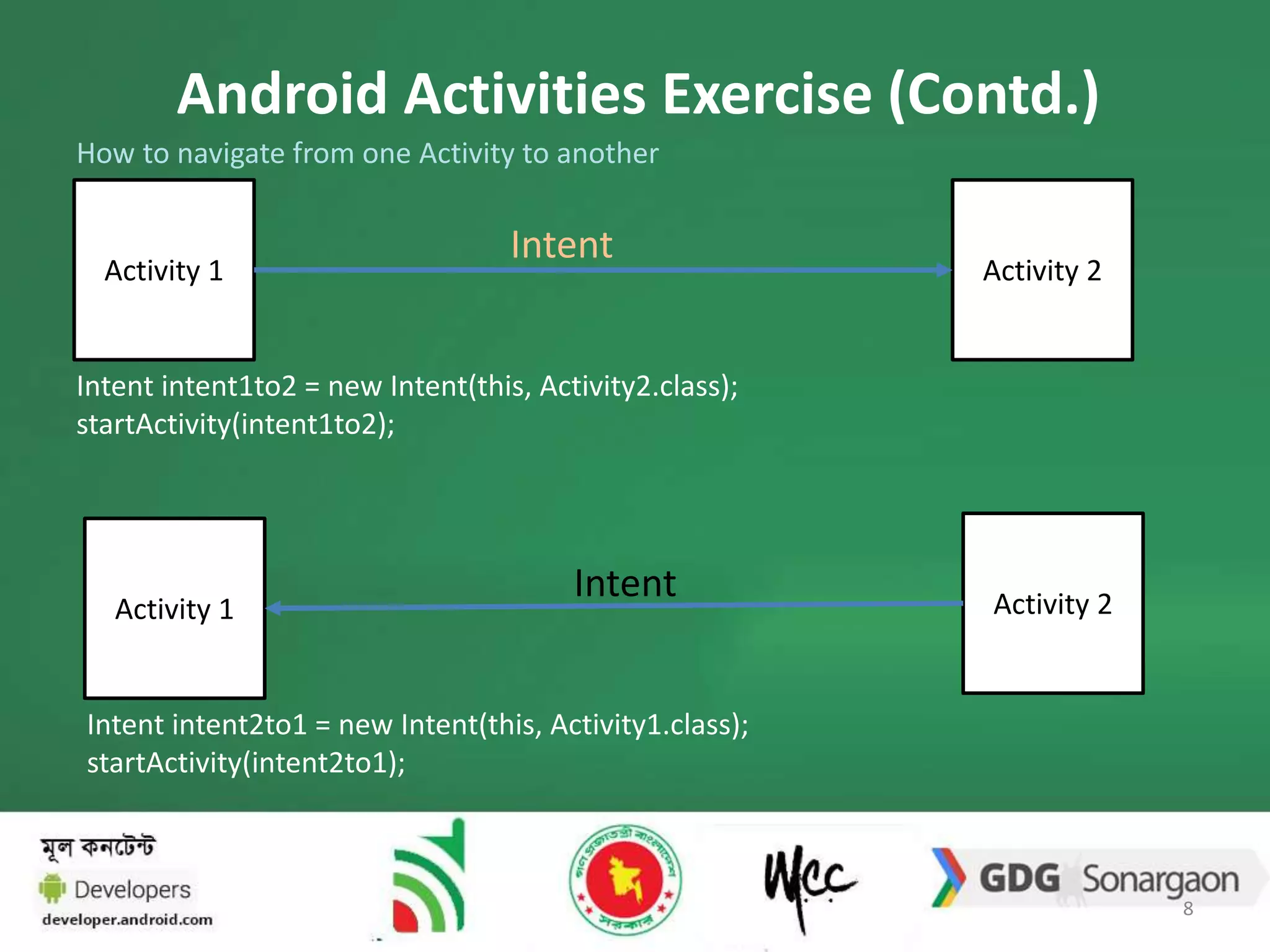
How to navigate from one Activity to another 
Intent 
Activity 1 Activity 2 
Intent intent1to2 = new Intent(this, Activity2.class); 
startActivity(intent1to2); 
Activity 1 Activity 2 Intent 
Intent intent2to1 = new Intent(this, Activity1.class); 
startActivity(intent2to1); 
8
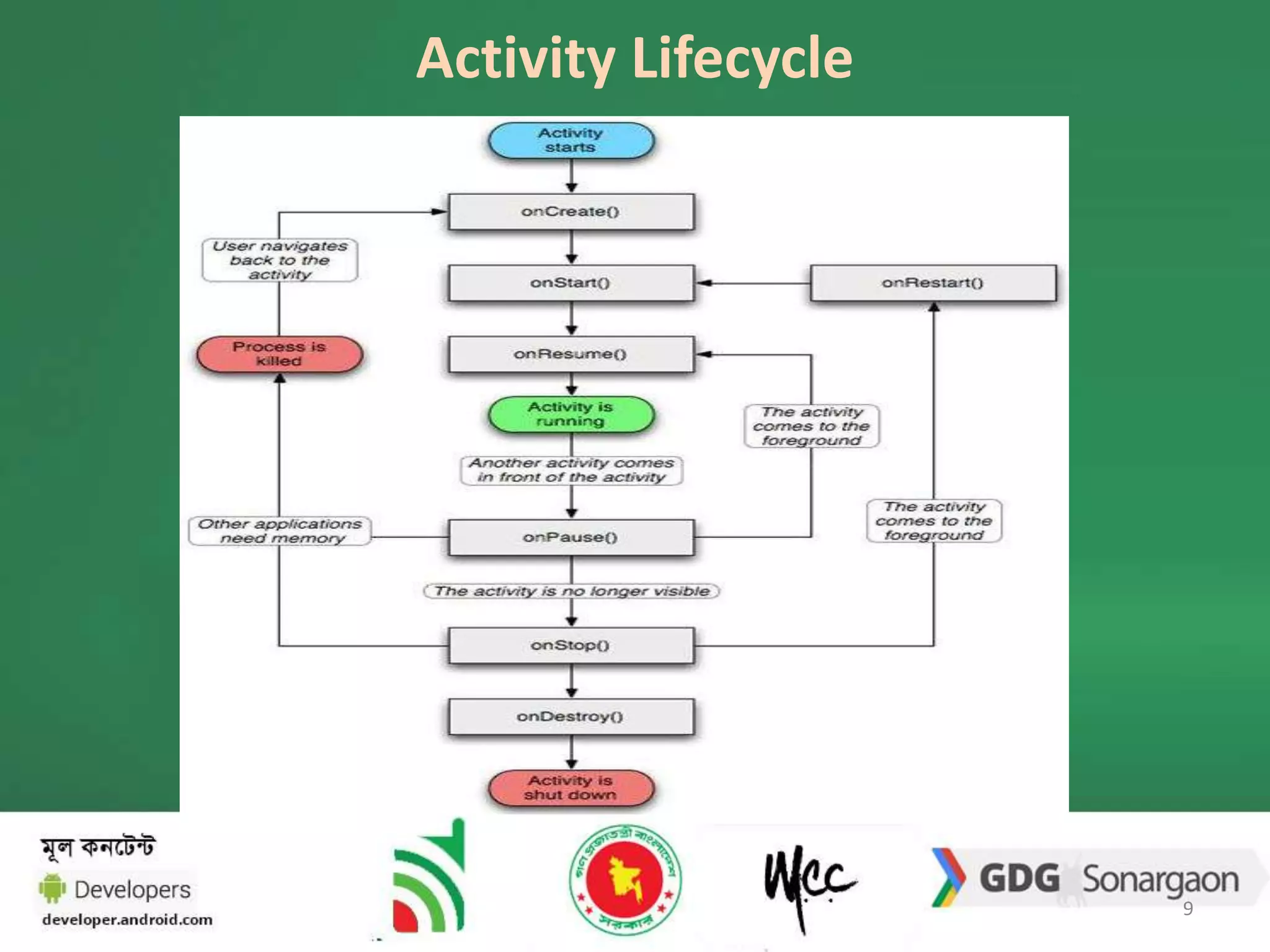
Activity Lifecycle 
9
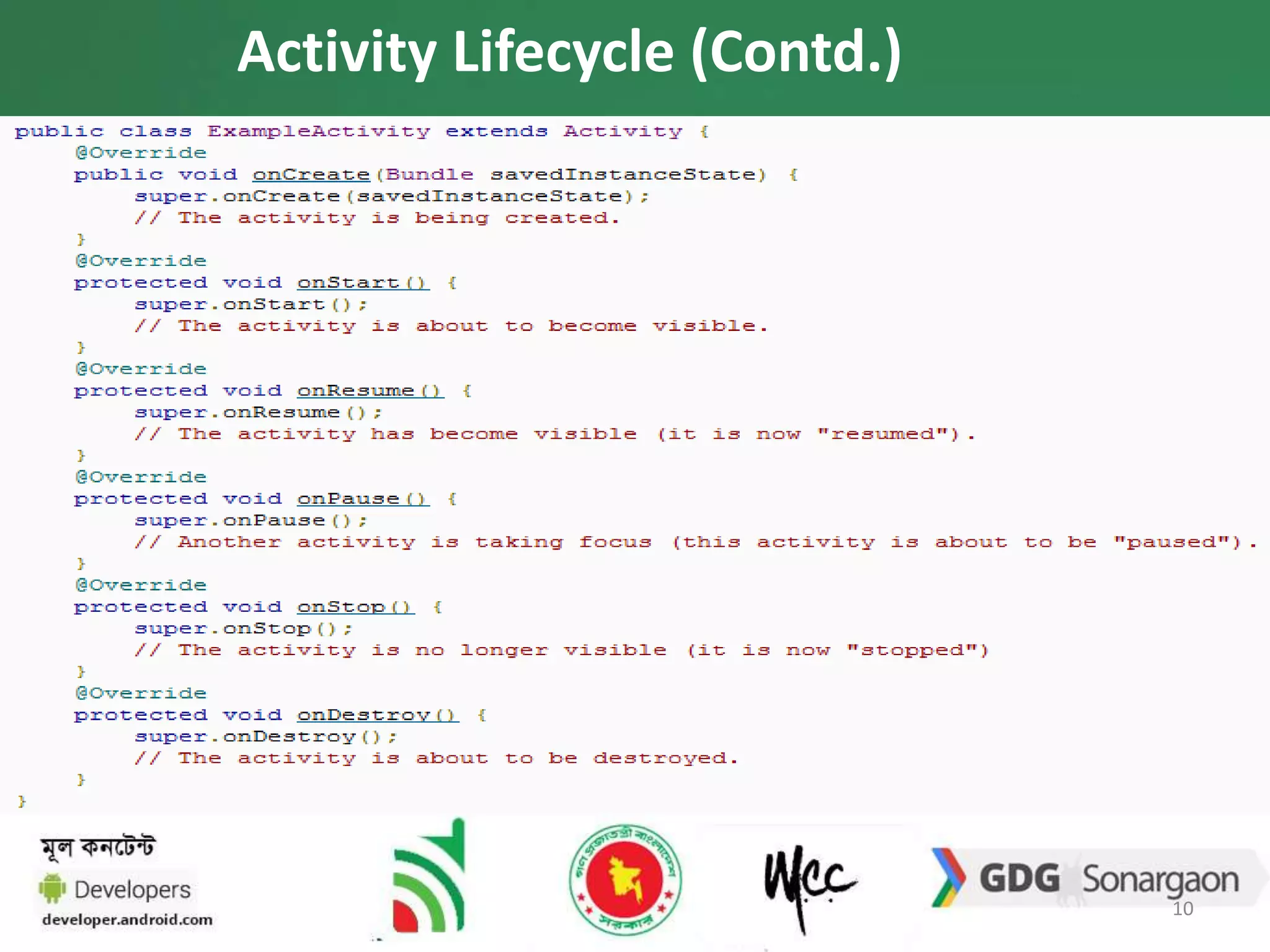
Activity Lifecycle (Contd.) 
10
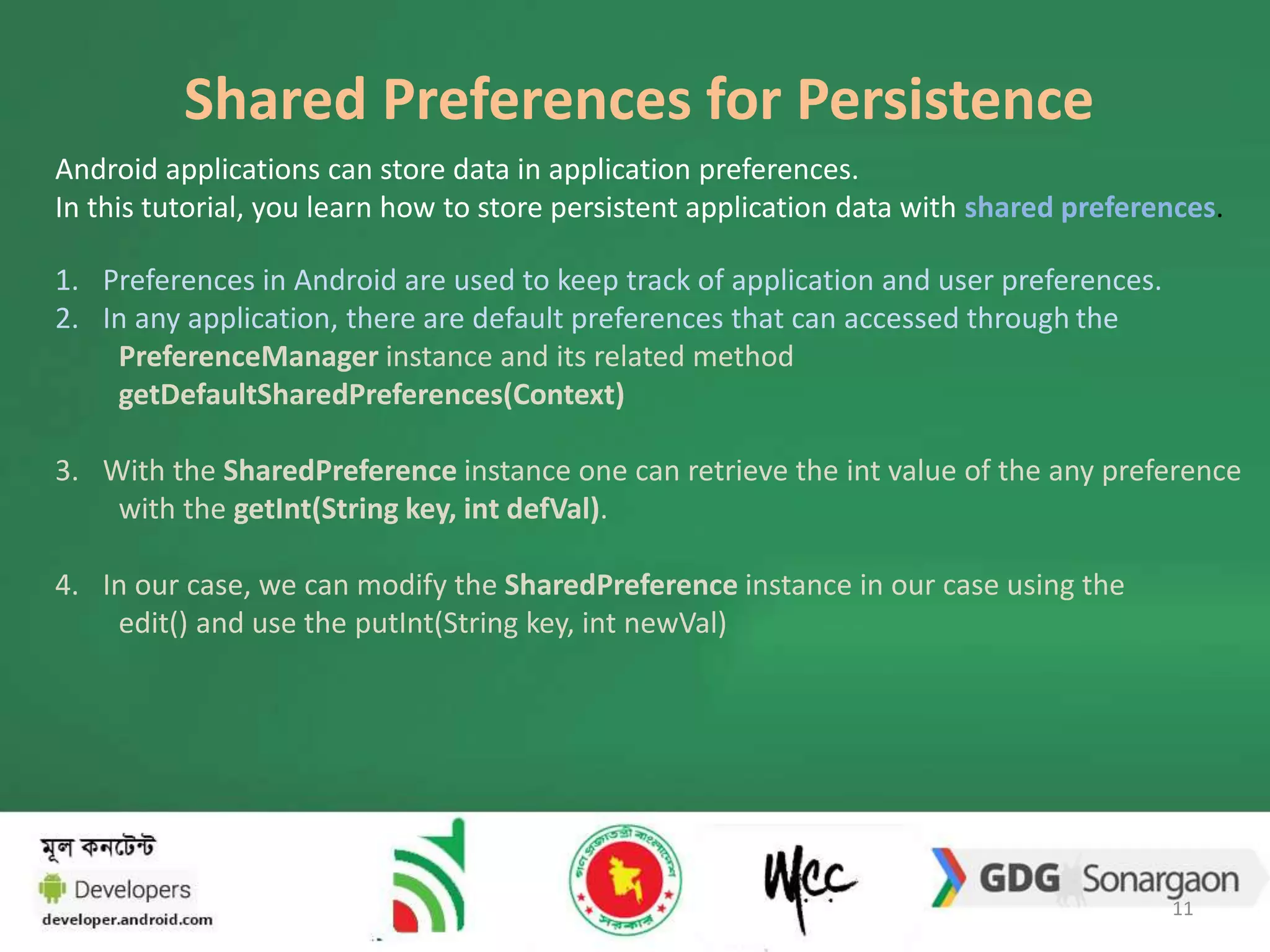
Shared Preferences for Persistence 
Android applications can store data in application preferences. 
In this tutorial, you learn how to store persistent application data with shared preferences. 
1. Preferences in Android are used to keep track of application and user preferences. 
2. In any application, there are default preferences that can accessed through the 
PreferenceManager instance and its related method 
getDefaultSharedPreferences(Context) 
3. With the SharedPreference instance one can retrieve the int value of the any preference 
with the getInt(String key, int defVal). 
4. In our case, we can modify the SharedPreference instance in our case using the 
edit() and use the putInt(String key, int newVal) 
11
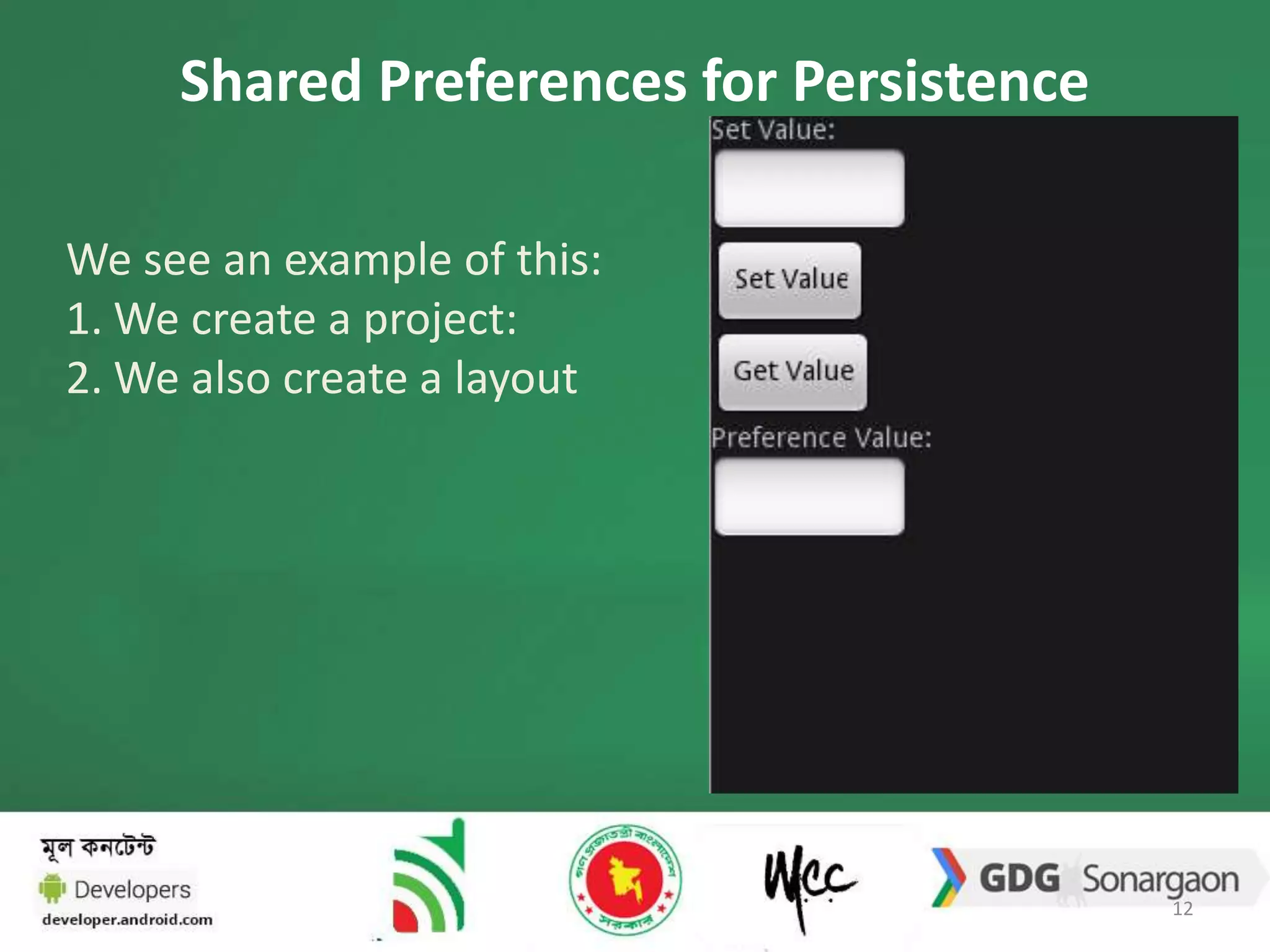
Shared Preferences for Persistence 
We see an example of this: 
1.We create a project: 
2.We also create a layout 
12
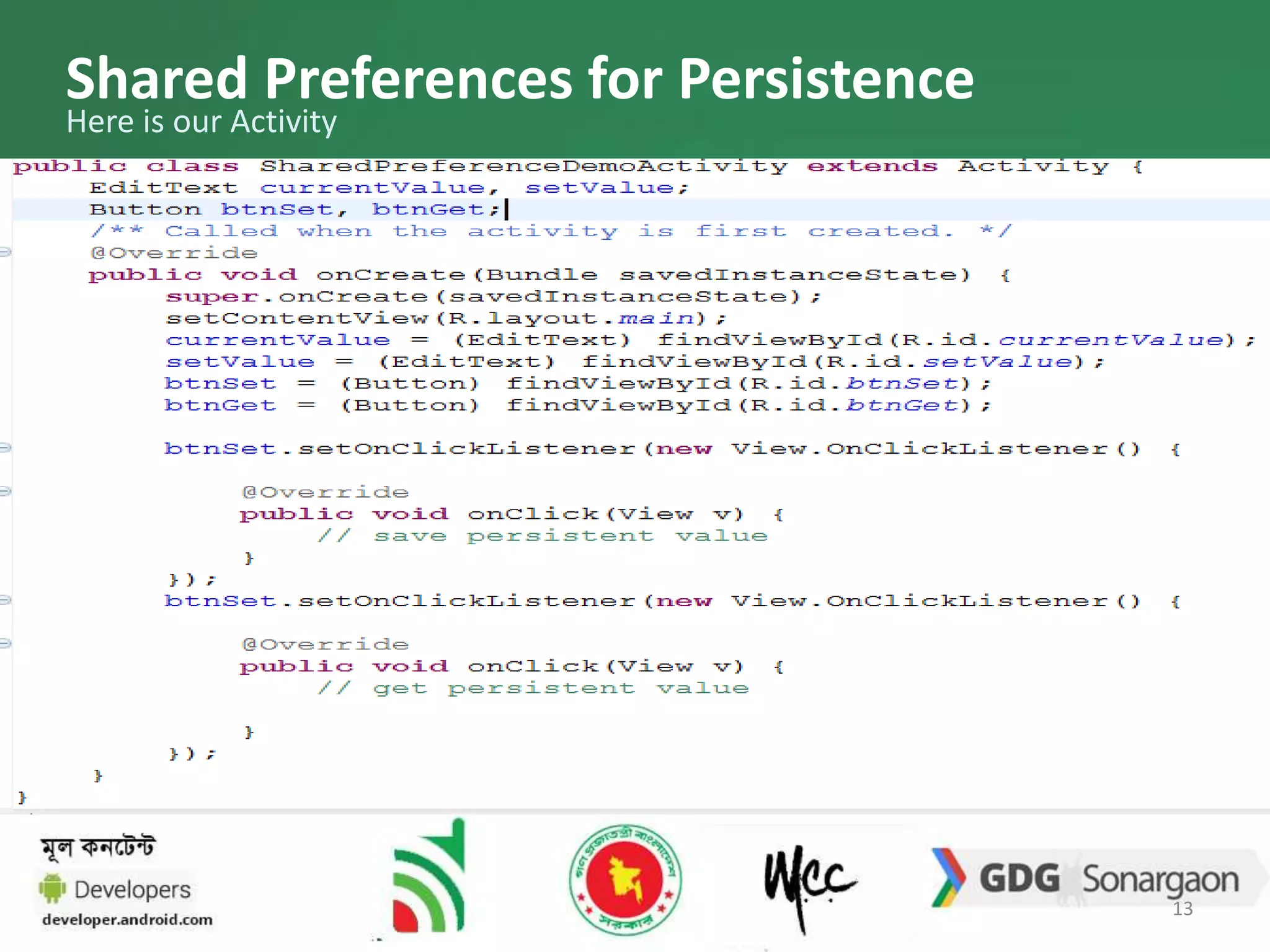
Shared Preferences for Persistence 
Here is our Activity 
13
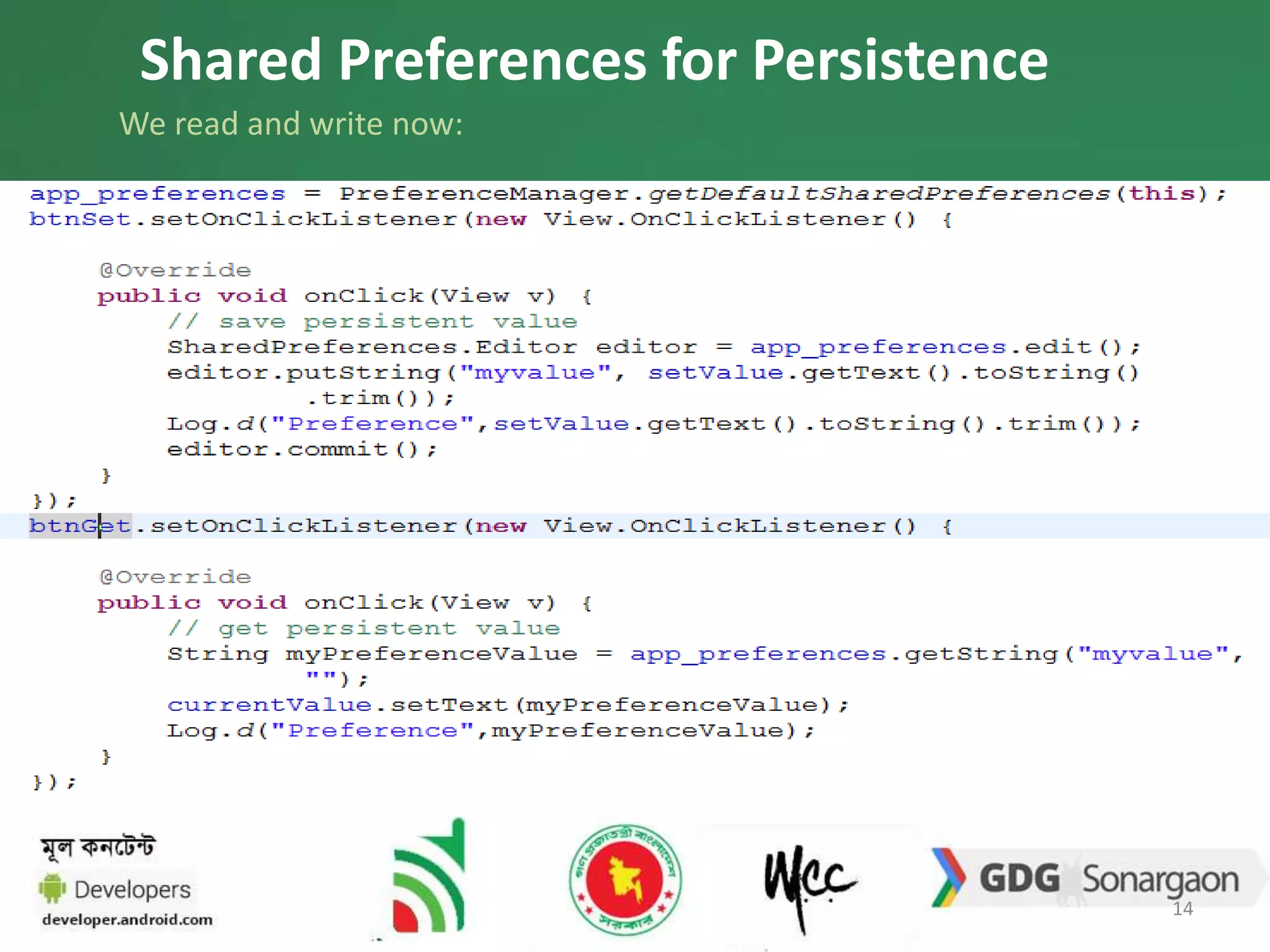
Shared Preferences for Persistence 
We read and write now: 
14
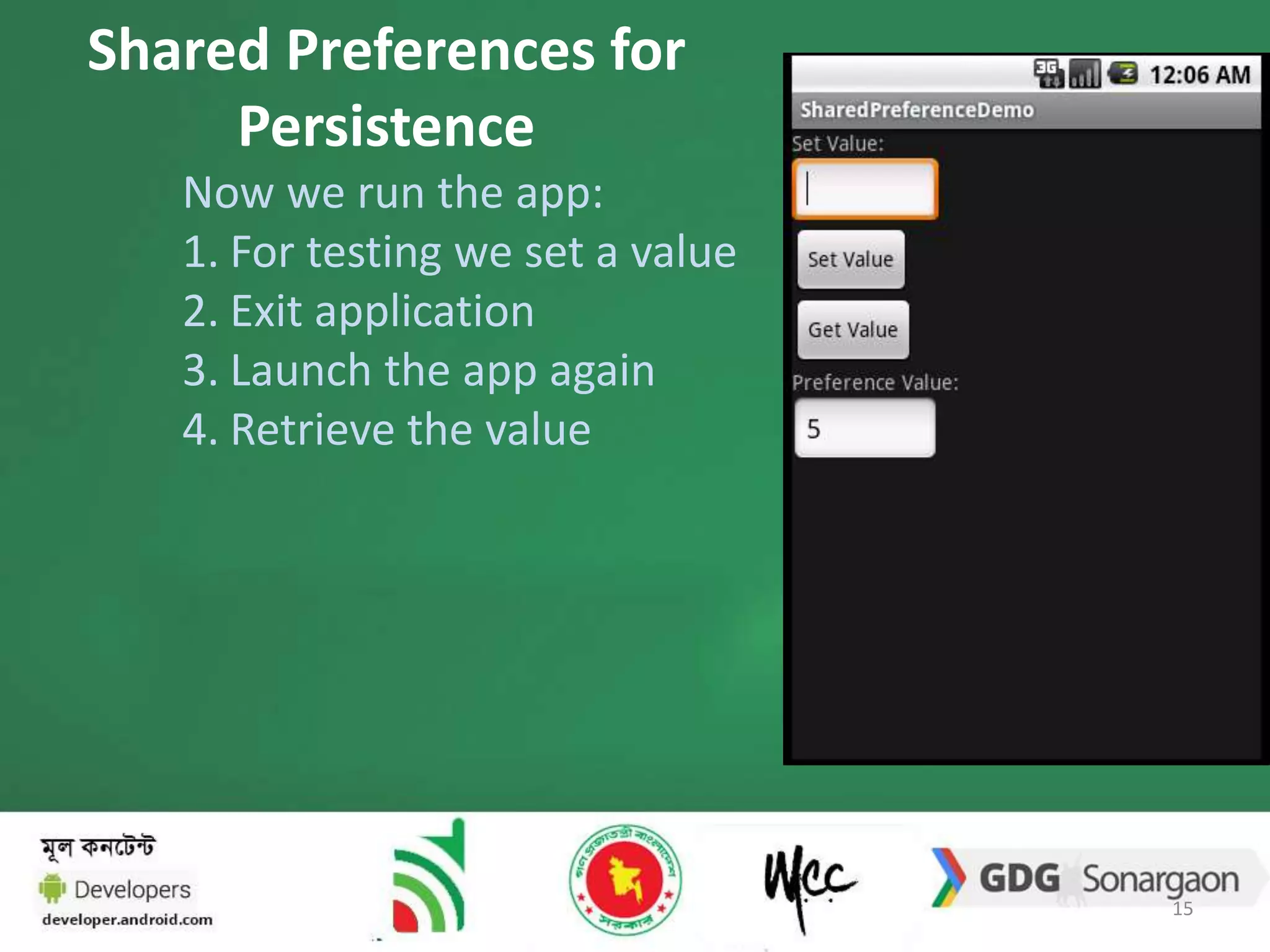
Shared Preferences for 
Persistence 
Now we run the app: 
1. For testing we set a value 
2. Exit application 
3. Launch the app again 
4. Retrieve the value 
15
Thank You. 
16

Activity & Shared Preference

  • 1.
    1 Activities, Intents and Shared Preferences for Persistence
  • 2.
    SIMPLE ACTIVITY •Activity • Layout • Using Layouts from Activity • Activity to Activity Transition • Activity Lifecycle • Exercise 2
  • 3.
    Android Activities Activity Activity provides a user generally with an interactive screen to do something like: Dialing the phone, View a map List of something for user to select or Anything you want your user to do • An application usually consists of multiple activities. • Typically, one activity in an application is specified as the "main" activity, which is presented to the user when launching the application for the first time. (which is specified in AndroidMenifest.xml) The <action> element specifies that this is the "main" entry point to the application. The <category> element specifies that this activity should be listed in the system's application launcher (to allow users to launch this activity). 3
  • 4.
    Android Activities (Contd..) Creating Activity We have already created Activities. But how did we create it? Let’s revisit… 1. We created subclass of Activity base class 2. We implemented one callback method onCreate Open Questions: 1. What is creating subclass??? 2. What is callback methods??? 4
  • 5.
    ANDROID ACTIVITIES (CONTD..) Next Step: Implementing User Interface 1. Design res/layout/yourlayout.xml 2. Use Views from Activity class Next Step: Implementing User Interface <manifest ... > <application ... > <activity android:name=".ExampleActivity" /> ... </application ... > ... </manifest > Next Step: Starting Activity We can start another activity by calling startActivity(), passing it an Intent that describes the activity you want to start. Intent intent = new Intent(this, ToActivity.class); startActivity(intent); 5
  • 6.
    Android Activities Exercise 1. We’ll make 2 Activities 2. Registration with basic features and validation: 1. Email address 2. First Name, Last Name 3. Date of Birth 4. Password 5. Confirm Password 6. I agree to terms and conditions 7. Buttons: Cancel, Submit 3. Login 1. Email address 2. Password 3. Buttons: New User, Login (To be added: Remember me) Link: http://developer.android.com/guide/appendix/faq/commontasks.html 6
  • 7.
    Android Activities Exercise(Contd.) 1. How to add new Activities to the application 2. How to navigate from one Activity to another How to navigate from one Activity to another Intent Activity 1 Activity 2 Intent intent_1_to_2 = new Intent(this, Activity2.class); startActivity(intent_1_to_2); Intent Activity 1 Activity 2 Intent intent_2_to_1 = new Intent(this, Activity1.class); startActivity(intent_2_to_1); 7
  • 8.
    Android Activities Exercise(Contd.) How to navigate from one Activity to another Intent Activity 1 Activity 2 Intent intent1to2 = new Intent(this, Activity2.class); startActivity(intent1to2); Activity 1 Activity 2 Intent Intent intent2to1 = new Intent(this, Activity1.class); startActivity(intent2to1); 8
  • 9.
  • 10.
  • 11.
    Shared Preferences forPersistence Android applications can store data in application preferences. In this tutorial, you learn how to store persistent application data with shared preferences. 1. Preferences in Android are used to keep track of application and user preferences. 2. In any application, there are default preferences that can accessed through the PreferenceManager instance and its related method getDefaultSharedPreferences(Context) 3. With the SharedPreference instance one can retrieve the int value of the any preference with the getInt(String key, int defVal). 4. In our case, we can modify the SharedPreference instance in our case using the edit() and use the putInt(String key, int newVal) 11
  • 12.
    Shared Preferences forPersistence We see an example of this: 1.We create a project: 2.We also create a layout 12
  • 13.
    Shared Preferences forPersistence Here is our Activity 13
  • 14.
    Shared Preferences forPersistence We read and write now: 14
  • 15.
    Shared Preferences for Persistence Now we run the app: 1. For testing we set a value 2. Exit application 3. Launch the app again 4. Retrieve the value 15
  • 16.