By: Haley Cockrell and Lauren Layton
What is a database?
 Organized collection of    Databases can be used for
  related information.        many things. For example it
                              can find a file quickly. It can
                              sort data faster than people
                              can. You can use the
                              common database:
                              Microsoft Access.
 Schools- keep record of students and their grades.
 Doctors- Keep record of their patients.
 Libraries- Keep records of books in the library.
 Shops- Keep record of sales.
 Police- Keep record of criminal records.
 Coaches- Keep records of the team.
Microsoft
Access
This is an online
database. It allows
you to make a
database online.
There are many
features to
Microsoft Access!
Features of Microsoft
Access:
1) Fields           7) Datasheet View
2) Records          8) Design View
3) Entries          9) Report Wizard
4) Ascending and
   descending
5) Filter/ Query
6) Sort
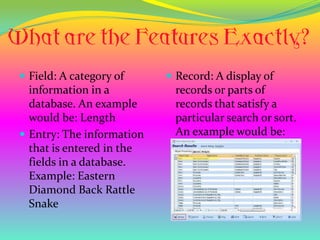
 Field: A category of      Record: A display of
  information in a          records or parts of
  database. An example      records that satisfy a
  would be: Length          particular search or sort.
 Entry: The information    An example would be:
  that is entered in the
  fields in a database.
  Example: Eastern
  Diamond Back Rattle
  Snake
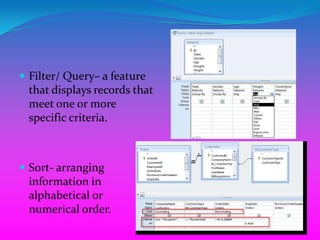
 Filter/ Query– a feature
 that displays records that
 meet one or more
 specific criteria.


 Sort- arranging
 information in
 alphabetical or
 numerical order.
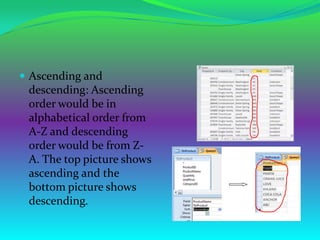
 Ascending and
 descending: Ascending
 order would be in
 alphabetical order from
 A-Z and descending
 order would be from Z-
 A. The top picture shows
 ascending and the
 bottom picture shows
 descending.
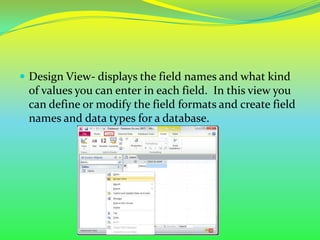
 Design View- displays the field names and what kind
 of values you can enter in each field. In this view you
 can define or modify the field formats and create field
 names and data types for a database.
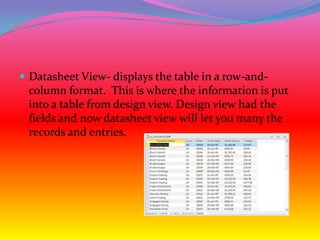
 Datasheet View- displays the table in a row-and-
 column format. This is where the information is put
 into a table from design view. Design view had the
 fields and now datasheet view will let you many the
 records and entries.
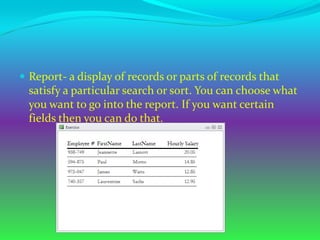
 Report- a display of records or parts of records that
  satisfy a particular search or sort. You can choose what
  you want to go into the report. If you want certain
  fields then you can do that.
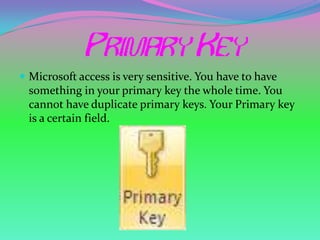
 Microsoft access is very sensitive. You have to have
  something in your primary key the whole time. You
  cannot have duplicate primary keys. Your Primary key
  is a certain field.
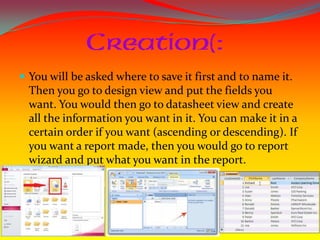
 You will be asked where to save it first and to name it.
  Then you go to design view and put the fields you
  want. You would then go to datasheet view and create
  all the information you want in it. You can make it in a
  certain order if you want (ascending or descending). If
  you want a report made, then you would go to report
  wizard and put what you want in the report.
The End!
We hope you learned
some things about
databases and
Microsoft Access that
will help you in the
future!!
References!!!
 http://golden-tricks.blogspot.com/2009_02_01_archive.html
 http://www.fmsinc.com/microsoftaccess/documentation/newfe
    atures.asp
   http://www.functionx.com/access/Lesson27.htm
   http://www.worldbestlearningcenter.com/index_files/Access-
    Using-Query-SQL-Sorting-Data.htm
   http://wiki.answers.com/Q/Who_uses_a_database
   http://gobluemichiganwolverine.blogspot.com/2008/04/coaches
    -corner-breaking-down-michigan.html
   http://thetyee.ca/News/2010/01/12/2010Sponsors/
    http://www.599cd.com/site/courselist/access2010/beginner/b1/
    www.sodahead.com
More…
 http://www.stjohnsblackpool.co.uk/class-1/info
 http://www.sunzu.com/articles/tony-access-guy-ecademy-
    profile-till-2010_05_19-122987/
   http://uncyclopedia.wikia.com/wiki/File:Angel_happy_face_han
    ds_prayer_hg_clr.gif
   http://aneukngupi.wordpress.com/2011/11/
   http://df053.k12.sd.us/
   http://www.gif-anime-gratuit.com/Professions/policemen.htm
   http://www.kns.org.uk/making-appointments.aspx
   http://tutorials.viktorbabjak.eu/947/microsoft-access-2010-
    tutorial-basic-help-creating-database/
   http://www.addintools.com/documents/access/where-is-field-
    list/where-is-field-list.html
Even more…
 http://honeywine.wordpress.com/2008/02/11/rude-rude-rude/
 http://www.fmsinc.com/tpapers/queries/
 http://www.opengatesw.net/ms-access-tutorials/Access-
    Articles/Microsoft-Access-Query.htm
   http://accessdatabasetutorial.com/2012/09/17/working-with-
    hyperlinks-in-access-create-a-button-link/
   http://www.functionx.com/access/Lesson23.htm
   http://learninpawiki.wikispaces.com/LEARN+Primary+Academ
    y+at+IU6
    http://www.yevol.com/en/access/Lesson30.htm
    http://msofficeuser.com/pages/access/creating-a-macro-to-
    save-a-report-as-pdf-in-access-2010

Database Project

  • 1.
    By: Haley Cockrelland Lauren Layton
  • 2.
    What is adatabase?  Organized collection of  Databases can be used for related information. many things. For example it can find a file quickly. It can sort data faster than people can. You can use the common database: Microsoft Access.
  • 3.
     Schools- keeprecord of students and their grades.  Doctors- Keep record of their patients.  Libraries- Keep records of books in the library.  Shops- Keep record of sales.  Police- Keep record of criminal records.  Coaches- Keep records of the team.
  • 4.
    Microsoft Access This is anonline database. It allows you to make a database online. There are many features to Microsoft Access!
  • 5.
    Features of Microsoft Access: 1)Fields  7) Datasheet View 2) Records  8) Design View 3) Entries  9) Report Wizard 4) Ascending and descending 5) Filter/ Query 6) Sort
  • 6.
     Field: Acategory of  Record: A display of information in a records or parts of database. An example records that satisfy a would be: Length particular search or sort.  Entry: The information An example would be: that is entered in the fields in a database. Example: Eastern Diamond Back Rattle Snake
  • 7.
     Filter/ Query–a feature that displays records that meet one or more specific criteria.  Sort- arranging information in alphabetical or numerical order.
  • 8.
     Ascending and descending: Ascending order would be in alphabetical order from A-Z and descending order would be from Z- A. The top picture shows ascending and the bottom picture shows descending.
  • 9.
     Design View-displays the field names and what kind of values you can enter in each field. In this view you can define or modify the field formats and create field names and data types for a database.
  • 10.
     Datasheet View-displays the table in a row-and- column format. This is where the information is put into a table from design view. Design view had the fields and now datasheet view will let you many the records and entries.
  • 11.
     Report- adisplay of records or parts of records that satisfy a particular search or sort. You can choose what you want to go into the report. If you want certain fields then you can do that.
  • 12.
     Microsoft accessis very sensitive. You have to have something in your primary key the whole time. You cannot have duplicate primary keys. Your Primary key is a certain field.
  • 13.
     You willbe asked where to save it first and to name it. Then you go to design view and put the fields you want. You would then go to datasheet view and create all the information you want in it. You can make it in a certain order if you want (ascending or descending). If you want a report made, then you would go to report wizard and put what you want in the report.
  • 14.
    The End! We hopeyou learned some things about databases and Microsoft Access that will help you in the future!!
  • 15.
    References!!!  http://golden-tricks.blogspot.com/2009_02_01_archive.html  http://www.fmsinc.com/microsoftaccess/documentation/newfe atures.asp  http://www.functionx.com/access/Lesson27.htm  http://www.worldbestlearningcenter.com/index_files/Access- Using-Query-SQL-Sorting-Data.htm  http://wiki.answers.com/Q/Who_uses_a_database  http://gobluemichiganwolverine.blogspot.com/2008/04/coaches -corner-breaking-down-michigan.html  http://thetyee.ca/News/2010/01/12/2010Sponsors/  http://www.599cd.com/site/courselist/access2010/beginner/b1/  www.sodahead.com
  • 16.
    More…  http://www.stjohnsblackpool.co.uk/class-1/info  http://www.sunzu.com/articles/tony-access-guy-ecademy- profile-till-2010_05_19-122987/  http://uncyclopedia.wikia.com/wiki/File:Angel_happy_face_han ds_prayer_hg_clr.gif  http://aneukngupi.wordpress.com/2011/11/  http://df053.k12.sd.us/  http://www.gif-anime-gratuit.com/Professions/policemen.htm  http://www.kns.org.uk/making-appointments.aspx  http://tutorials.viktorbabjak.eu/947/microsoft-access-2010- tutorial-basic-help-creating-database/  http://www.addintools.com/documents/access/where-is-field- list/where-is-field-list.html
  • 17.
    Even more…  http://honeywine.wordpress.com/2008/02/11/rude-rude-rude/ http://www.fmsinc.com/tpapers/queries/  http://www.opengatesw.net/ms-access-tutorials/Access- Articles/Microsoft-Access-Query.htm  http://accessdatabasetutorial.com/2012/09/17/working-with- hyperlinks-in-access-create-a-button-link/  http://www.functionx.com/access/Lesson23.htm  http://learninpawiki.wikispaces.com/LEARN+Primary+Academ y+at+IU6  http://www.yevol.com/en/access/Lesson30.htm  http://msofficeuser.com/pages/access/creating-a-macro-to- save-a-report-as-pdf-in-access-2010