MS ACCESS
 Access is a DBMS programme/software
 DBMS:-Date base Management System
 Extension code of MS ACCESS :- .accdb
 School record
 MS Access use for data recording.
1. Student details
2. Fess details
3. Teacher details
4. Exam details
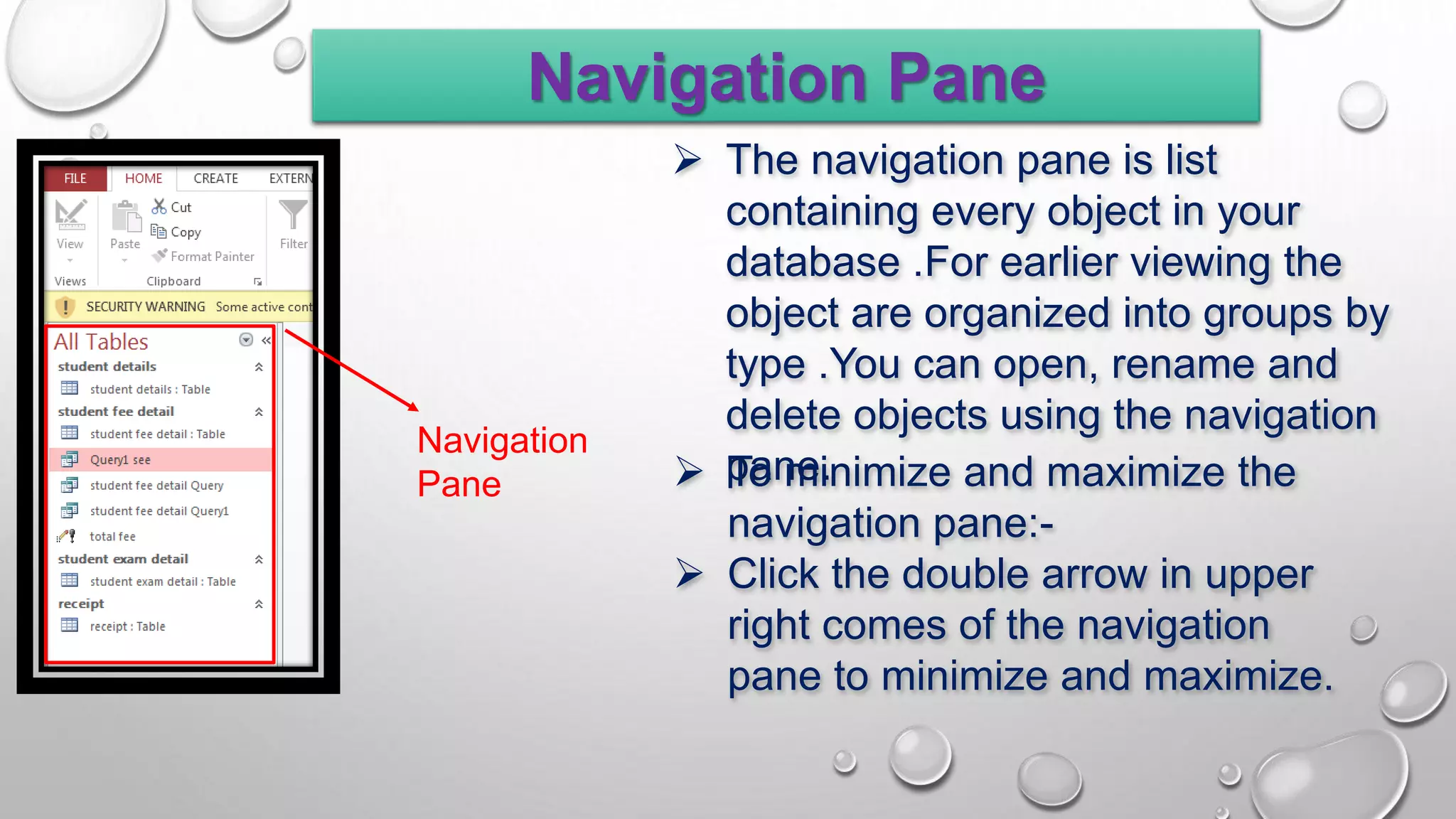
Navigation Pane
Navigation
Pane
 The navigation pane is list
containing every object in your
database .For earlier viewing the
object are organized into groups by
type .You can open, rename and
delete objects using the navigation
pane.
 To minimize and maximize the
navigation pane:-
 Click the double arrow in upper
right comes of the navigation
pane to minimize and maximize.
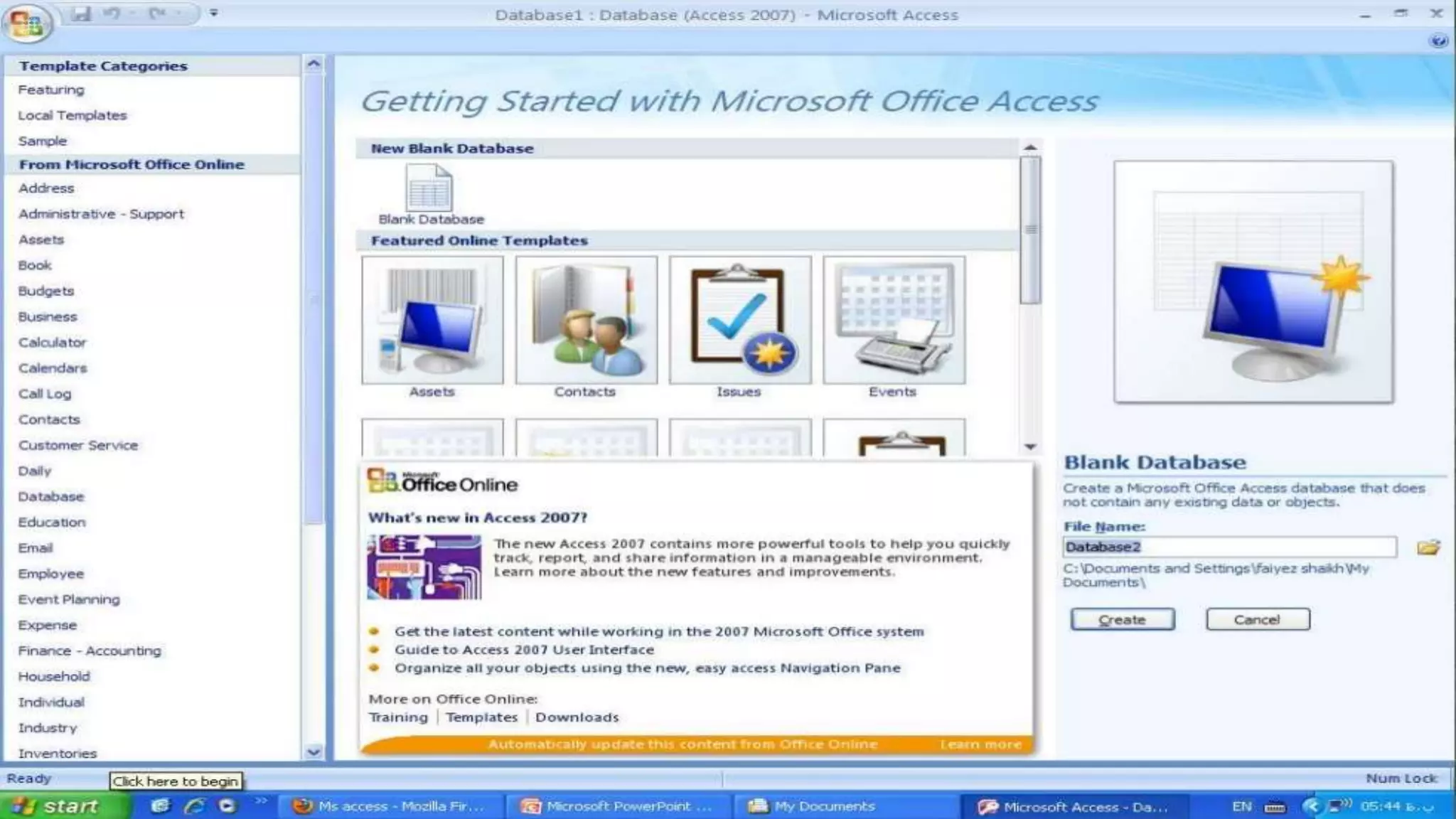
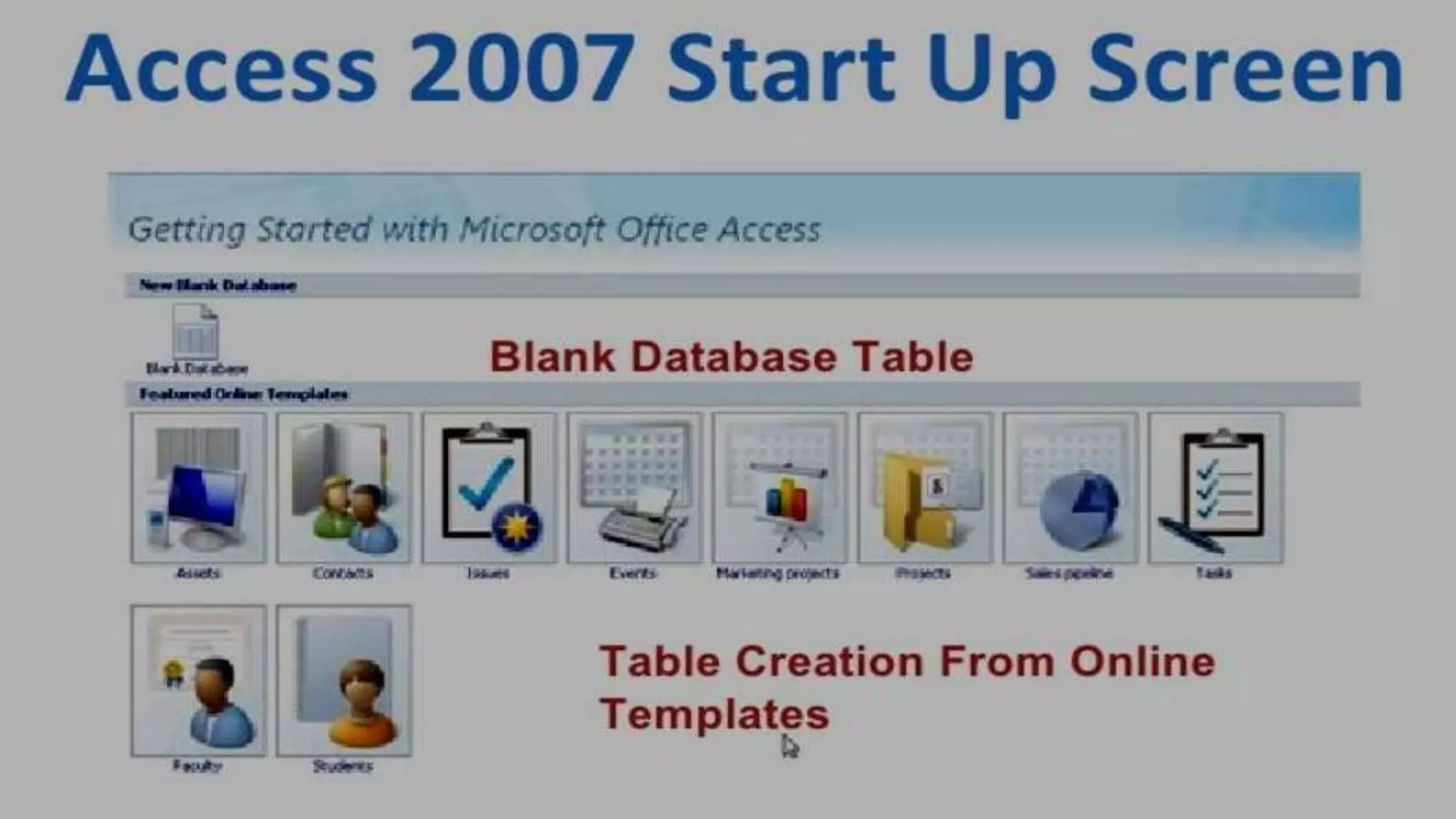
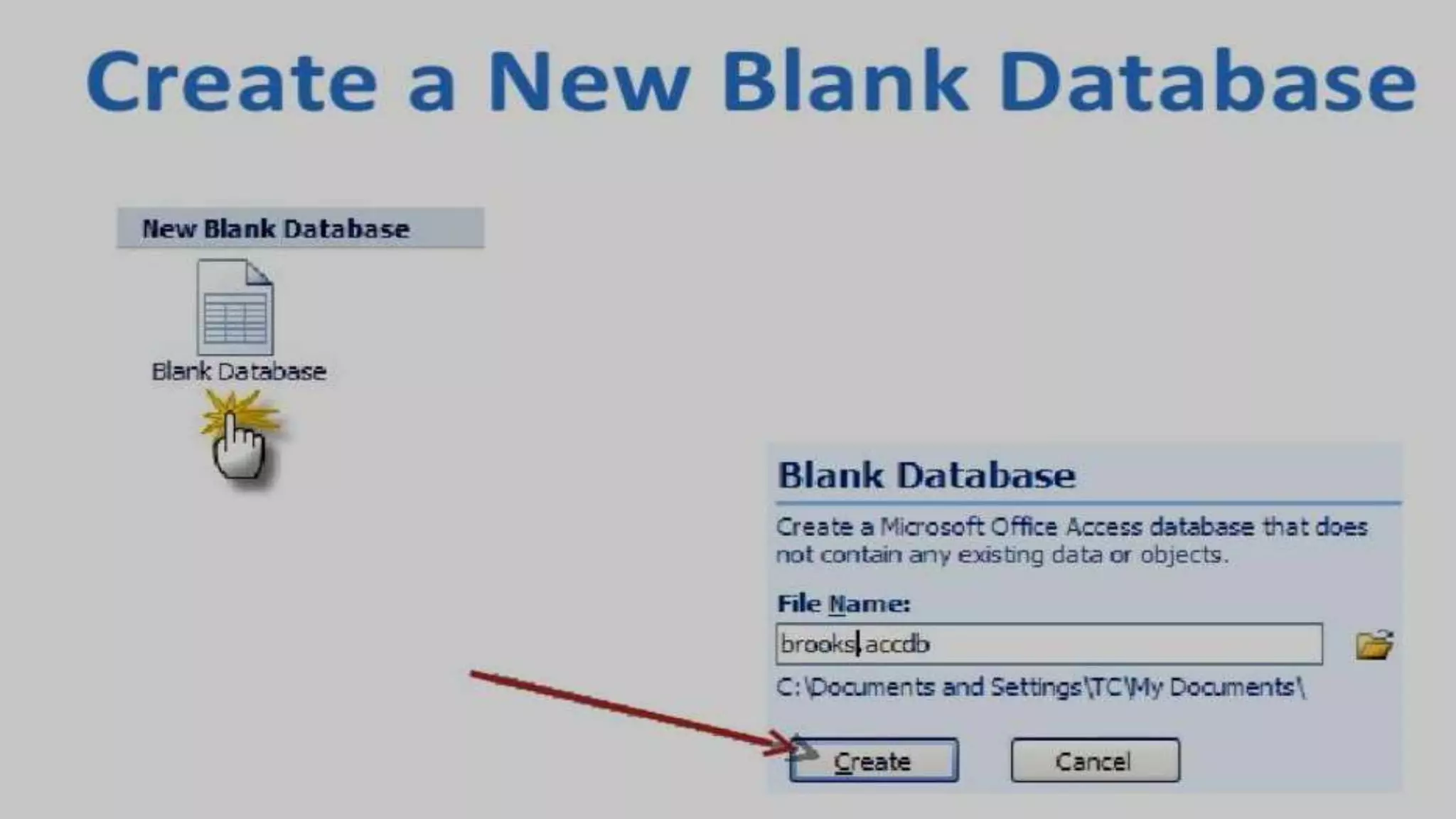
Creating Database
Understanding Views
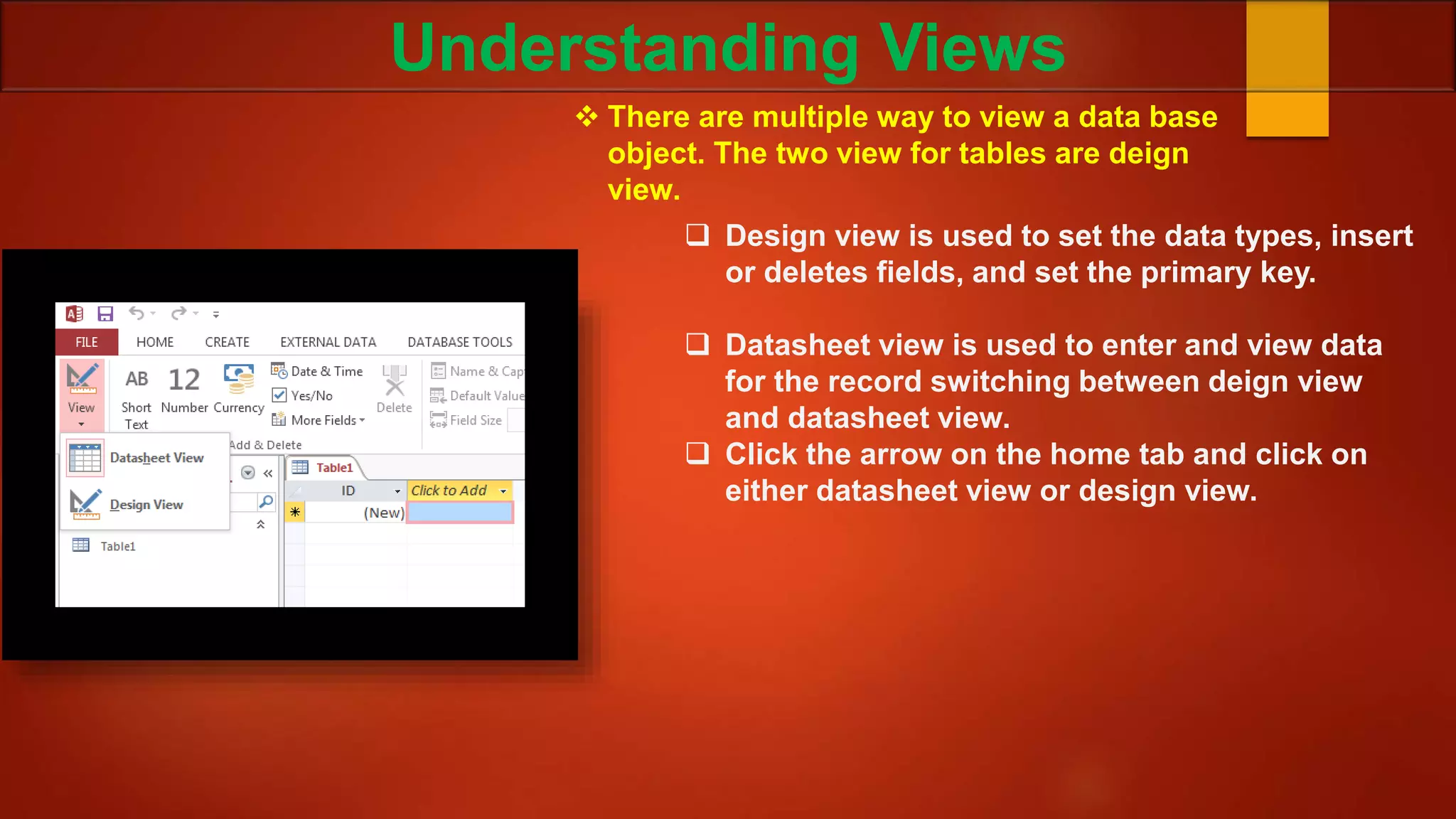
 There are multiple way to view a data base
object. The two view for tables are deign
view.
 Design view is used to set the data types, insert
or deletes fields, and set the primary key.
 Datasheet view is used to enter and view data
for the record switching between deign view
and datasheet view.
 Click the arrow on the home tab and click on
either datasheet view or design view.
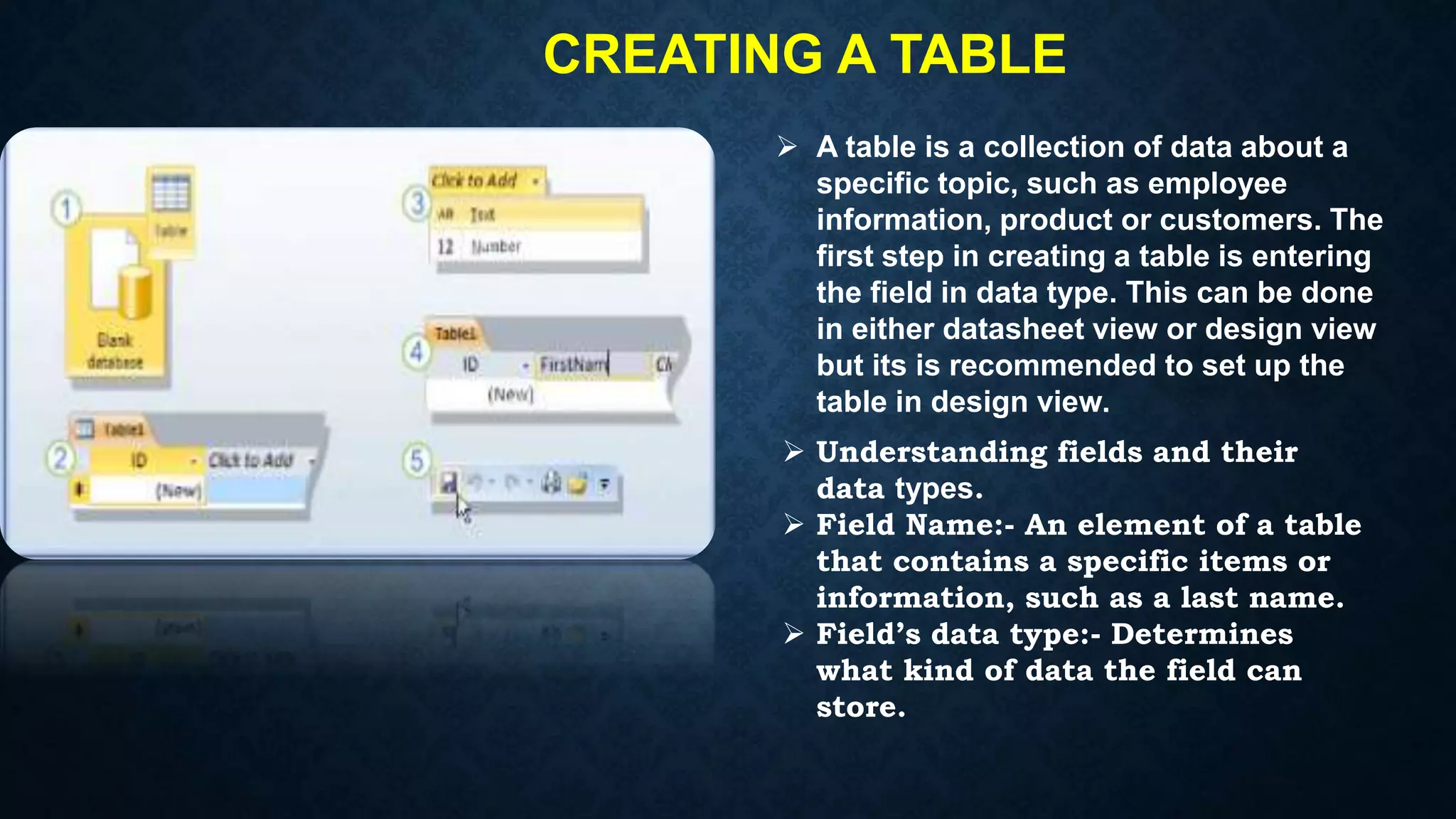
CREATING A TABLE
 A table is a collection of data about a
specific topic, such as employee
information, product or customers. The
first step in creating a table is entering
the field in data type. This can be done
in either datasheet view or design view
but its is recommended to set up the
table in design view.
 Understanding fields and their
data types.
 Field Name:- An element of a table
that contains a specific items or
information, such as a last name.
 Field’s data type:- Determines
what kind of data the field can
store.
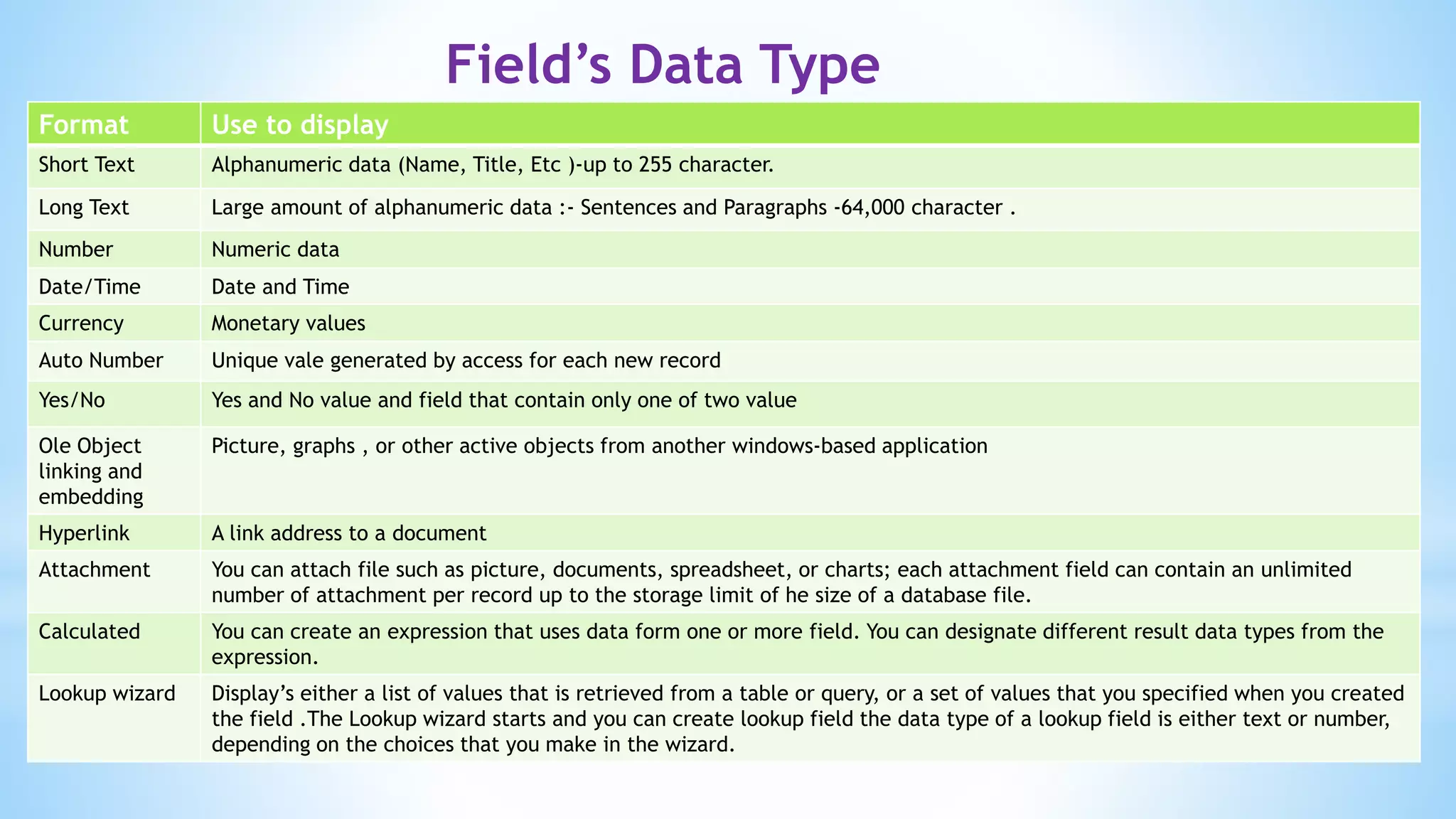
Field’s Data Type
Format Use to display
Short Text Alphanumeric data (Name, Title, Etc )-up to 255 character.
Long Text Large amount of alphanumeric data :- Sentences and Paragraphs -64,000 character .
Number Numeric data
Date/Time Date and Time
Currency Monetary values
Auto Number Unique vale generated by access for each new record
Yes/No Yes and No value and field that contain only one of two value
Ole Object
linking and
embedding
Picture, graphs , or other active objects from another windows-based application
Hyperlink A link address to a document
Attachment You can attach file such as picture, documents, spreadsheet, or charts; each attachment field can contain an unlimited
number of attachment per record up to the storage limit of he size of a database file.
Calculated You can create an expression that uses data form one or more field. You can designate different result data types from the
expression.
Lookup wizard Display’s either a list of values that is retrieved from a table or query, or a set of values that you specified when you created
the field .The Lookup wizard starts and you can create lookup field the data type of a lookup field is either text or number,
depending on the choices that you make in the wizard.
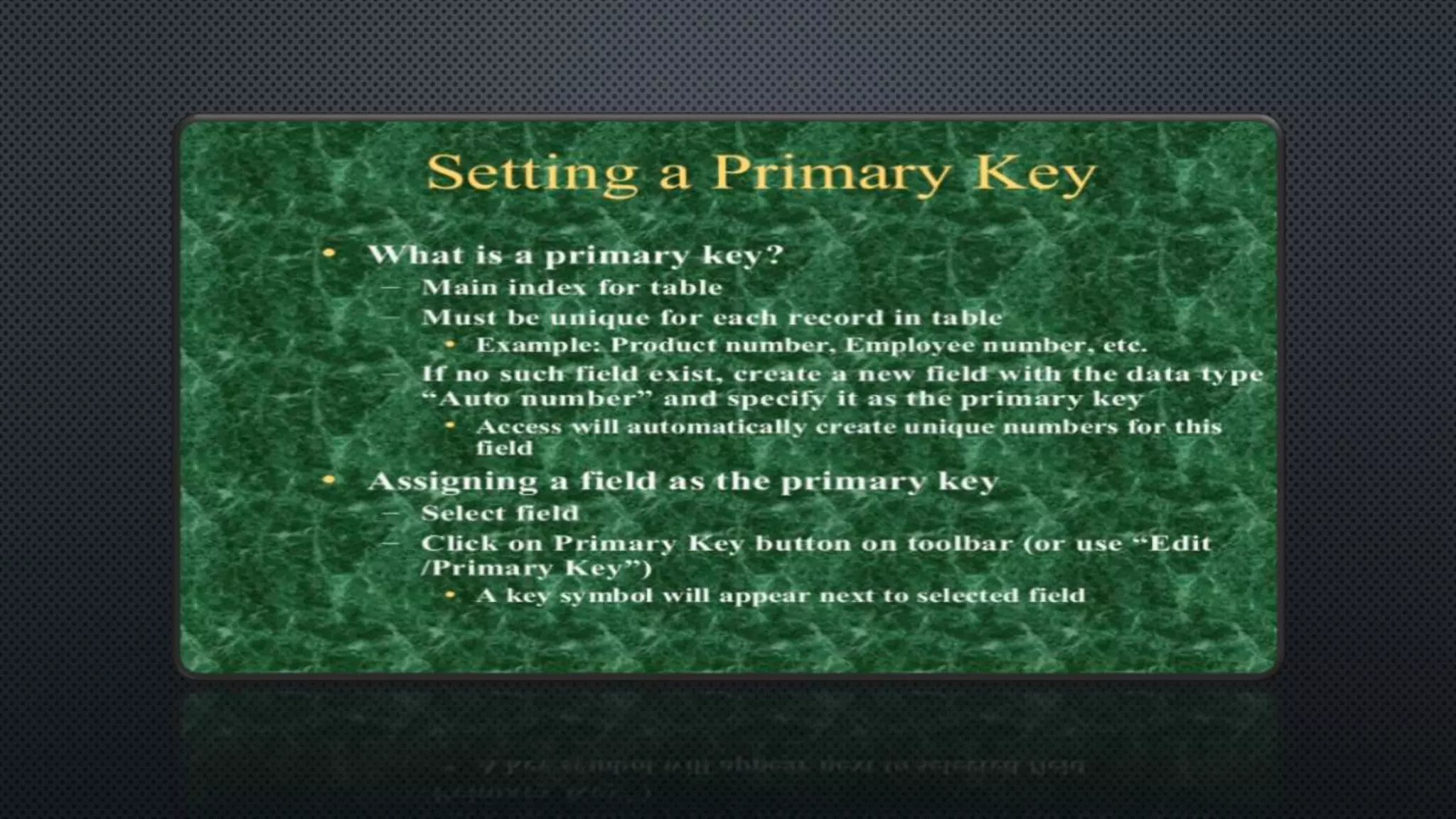
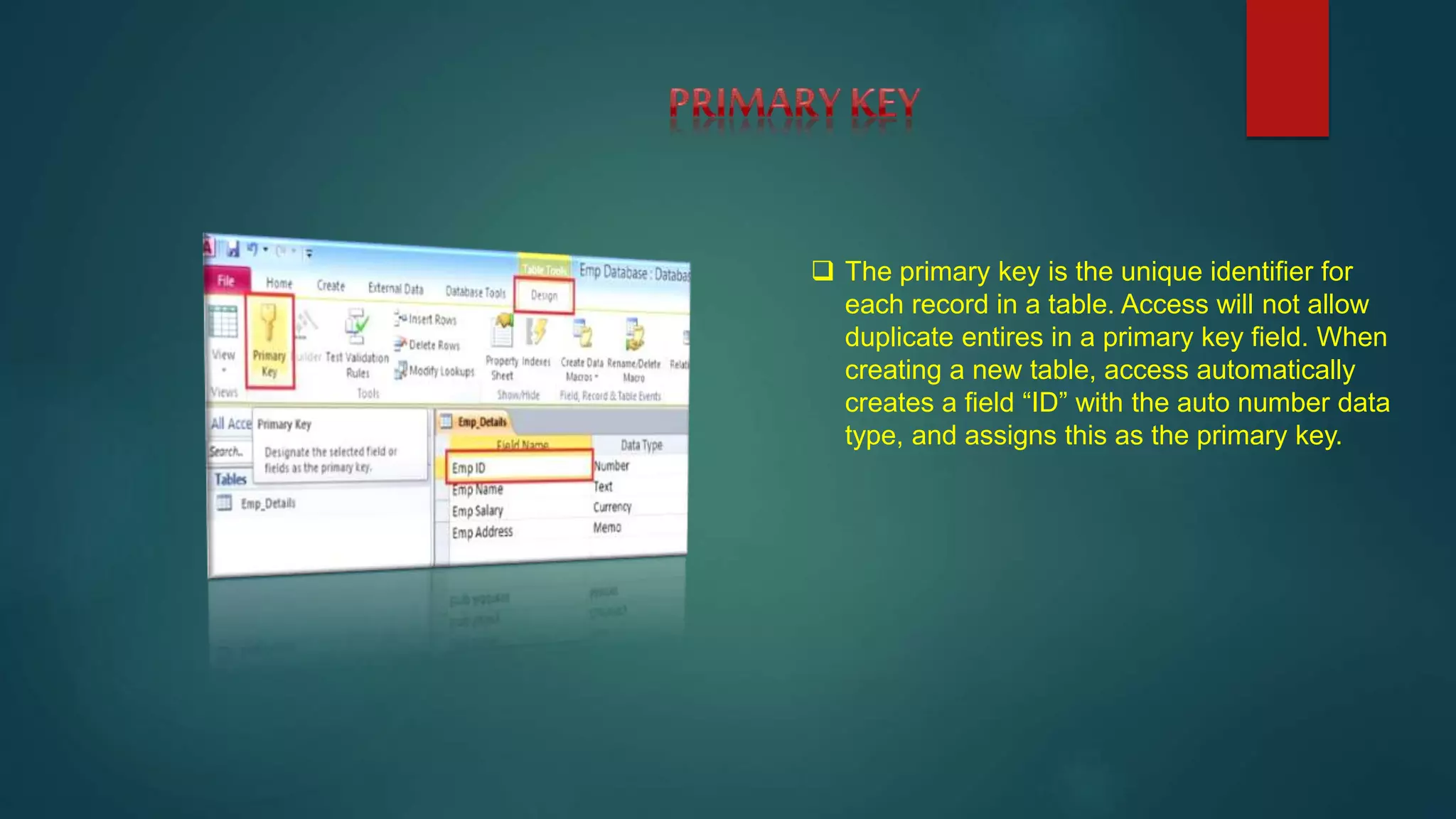
 The primary key is the unique identifier for
each record in a table. Access will not allow
duplicate entires in a primary key field. When
creating a new table, access automatically
creates a field “ID” with the auto number data
type, and assigns this as the primary key.
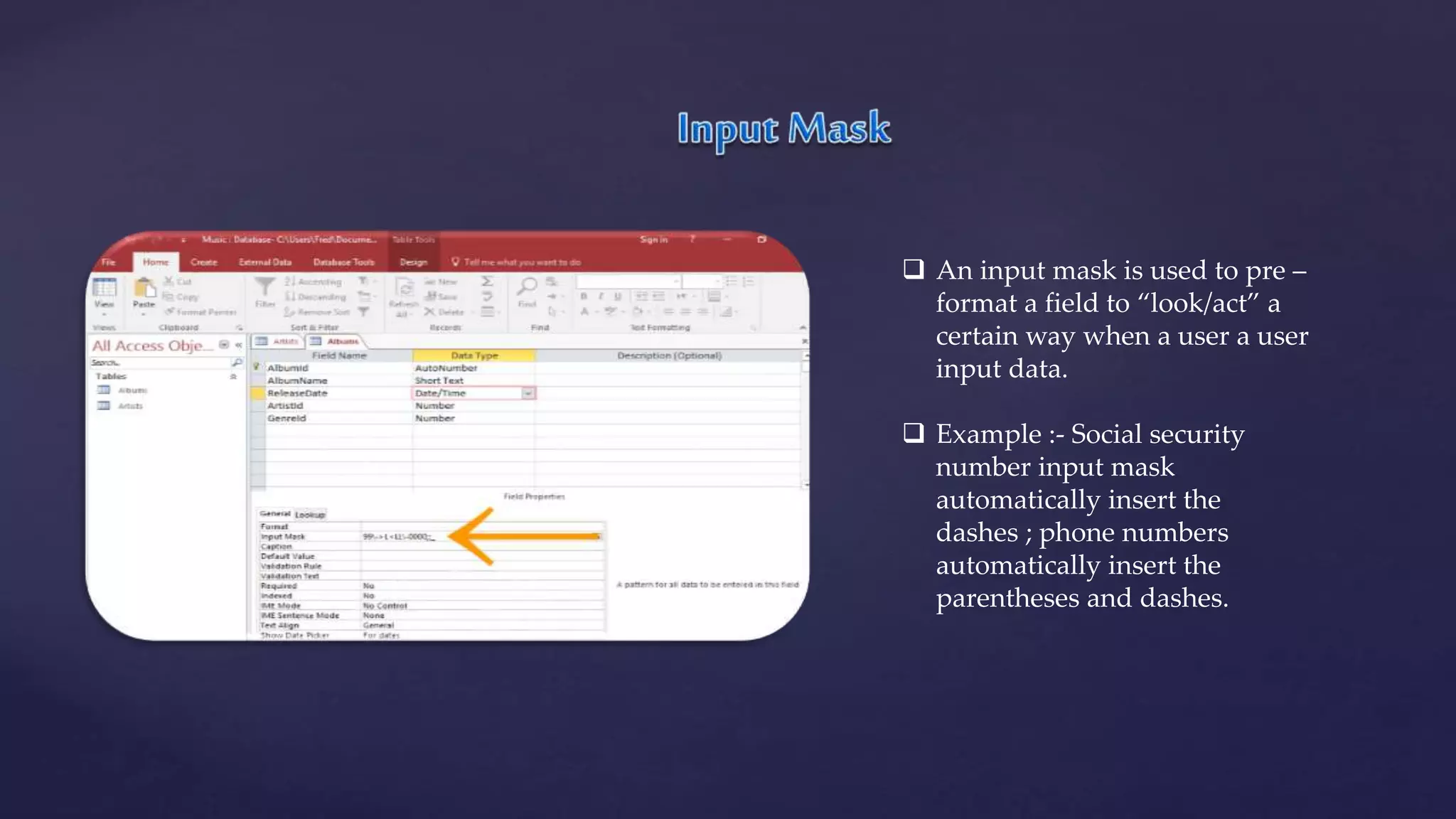
 An input mask is used to pre –
format a field to “look/act” a
certain way when a user a user
input data.
 Example :- Social security
number input mask
automatically insert the
dashes ; phone numbers
automatically insert the
parentheses and dashes.
What is Queries ?
You use queries to view ,change ,and
analyze data in different way. You can also
use them as a source of record for forms
and record.
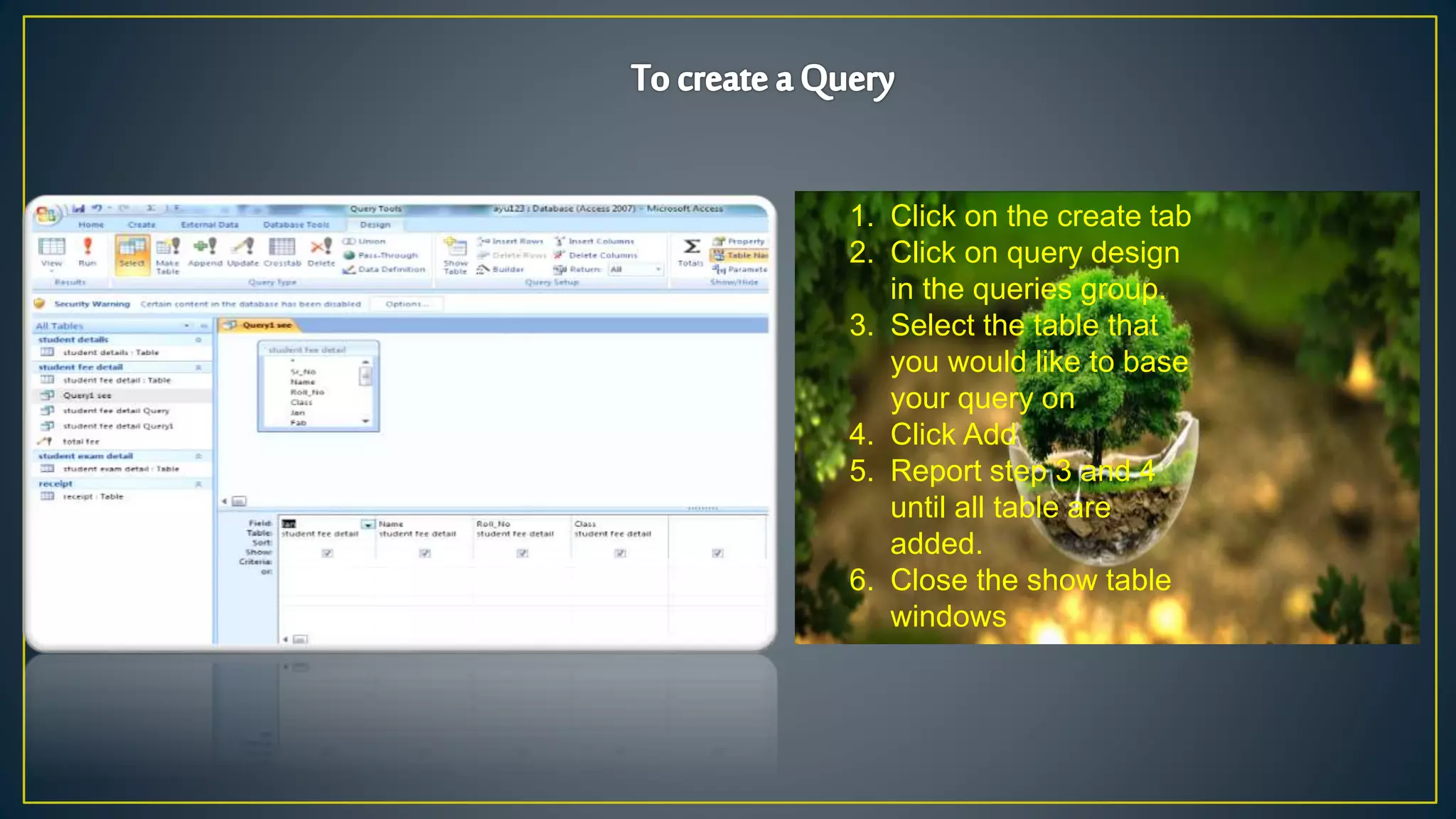
1. Click on the create tab
2. Click on query design
in the queries group.
3. Select the table that
you would like to base
your query on
4. Click Add
5. Report step 3 and 4
until all table are
added.
6. Close the show table
windows
Ayush presentation
Ayush presentation
Ayush presentation

Ayush presentation

  • 2.
    MS ACCESS  Accessis a DBMS programme/software  DBMS:-Date base Management System  Extension code of MS ACCESS :- .accdb  School record  MS Access use for data recording. 1. Student details 2. Fess details 3. Teacher details 4. Exam details
  • 3.
    Navigation Pane Navigation Pane  Thenavigation pane is list containing every object in your database .For earlier viewing the object are organized into groups by type .You can open, rename and delete objects using the navigation pane.  To minimize and maximize the navigation pane:-  Click the double arrow in upper right comes of the navigation pane to minimize and maximize.
  • 4.
  • 9.
    Understanding Views  Thereare multiple way to view a data base object. The two view for tables are deign view.  Design view is used to set the data types, insert or deletes fields, and set the primary key.  Datasheet view is used to enter and view data for the record switching between deign view and datasheet view.  Click the arrow on the home tab and click on either datasheet view or design view.
  • 10.
    CREATING A TABLE A table is a collection of data about a specific topic, such as employee information, product or customers. The first step in creating a table is entering the field in data type. This can be done in either datasheet view or design view but its is recommended to set up the table in design view.  Understanding fields and their data types.  Field Name:- An element of a table that contains a specific items or information, such as a last name.  Field’s data type:- Determines what kind of data the field can store.
  • 11.
    Field’s Data Type FormatUse to display Short Text Alphanumeric data (Name, Title, Etc )-up to 255 character. Long Text Large amount of alphanumeric data :- Sentences and Paragraphs -64,000 character . Number Numeric data Date/Time Date and Time Currency Monetary values Auto Number Unique vale generated by access for each new record Yes/No Yes and No value and field that contain only one of two value Ole Object linking and embedding Picture, graphs , or other active objects from another windows-based application Hyperlink A link address to a document Attachment You can attach file such as picture, documents, spreadsheet, or charts; each attachment field can contain an unlimited number of attachment per record up to the storage limit of he size of a database file. Calculated You can create an expression that uses data form one or more field. You can designate different result data types from the expression. Lookup wizard Display’s either a list of values that is retrieved from a table or query, or a set of values that you specified when you created the field .The Lookup wizard starts and you can create lookup field the data type of a lookup field is either text or number, depending on the choices that you make in the wizard.
  • 13.
     The primarykey is the unique identifier for each record in a table. Access will not allow duplicate entires in a primary key field. When creating a new table, access automatically creates a field “ID” with the auto number data type, and assigns this as the primary key.
  • 14.
     An inputmask is used to pre – format a field to “look/act” a certain way when a user a user input data.  Example :- Social security number input mask automatically insert the dashes ; phone numbers automatically insert the parentheses and dashes.
  • 15.
    What is Queries? You use queries to view ,change ,and analyze data in different way. You can also use them as a source of record for forms and record.
  • 16.
    1. Click onthe create tab 2. Click on query design in the queries group. 3. Select the table that you would like to base your query on 4. Click Add 5. Report step 3 and 4 until all table are added. 6. Close the show table windows