1
Overview about the program
A database is a computer program for storing information in an easily retrievable form. It is used
mainly to store text and numbers (for example, the Library catalogue, which includes the author,
title, class number and accession number for each book).
Most modern databases also allow the storage of other types of information such as dates,
hyperlinks, pictures and sounds. As well as being able to store data, a database allows you to
select information quickly and easily (for example, a list of the books written by a particular author
or those on a certain subject). Finally, it may allow you to produce printed summaries (reports) of
the information selected.
When setting up your own database, it is important to plan its use in advance. This is particularly
important if you are setting one up which will be used by other people. Among the things which
you should consider are:
 What information you will need to store
 What information you want to get out
 Who the data is intended for and how other users will use it
 Whether you want to restrict access to parts of the data to some users only
 Who is allowed to add or change data
 If your data refers to actual people, it may need to be registered under the Data Protection
Act (though this doesn’t apply to a personal database of familyand friends)
Although you can change the specifications of your database as you develop it, you will save
yourself a lot of work if as much as possible is planned in advance.
Microsoft Access is a relational database management system (which allows you to link together
data stored in more than one table). It is fully supported by IT Services and is available for personal
purchase as part of the Ultimate Steal and for departmental installation under the Microsoft
SelectAgreement.
Overview about the program
Starting Microsoft Access
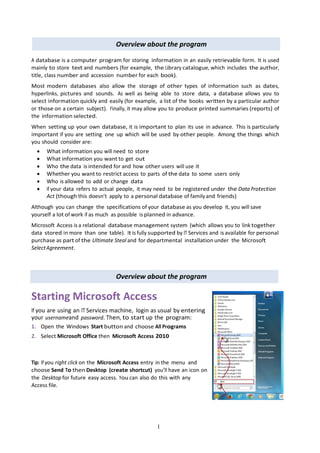
If you are using an IT Services machine, login as usual by entering
your usernameand password. Then, to start up the program:
1. Open the Windows Start button and choose All Programs
2. Select Microsoft Office then Microsoft Access 2010
Tip: If you right click on the Microsoft Access entry in the menu and
choose Send To then Desktop (create shortcut) you’ll have an icon on
the Desktop for future easy access. You can also do this with any
Access file.
2
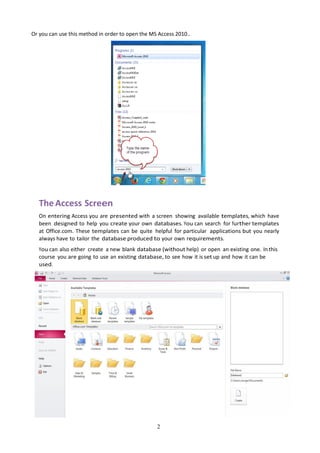
Or you can use this method in order to open the MS Access 2010..
The Access Screen
On entering Access you are presented with a screen showing available templates, which have
been designed to help you create your own databases. You can search for further templates
at Office.com. These templates can be quite helpful for particular applications but you nearly
always have to tailor the database produced to your own requirements.
You can also either create a new blank database (without help) or open an existing one. In this
course you are going to use an existing database, to see how it is set up and how it can be
used.
1. Click on Open (or simply press <Ctrl o>)
2. AnOpenwindow appears – scroll down on the left and clickon My Computer then on Data (D:)
3. Double click on the folder called Training to open it
4. Click on example2010.accdb from the list which appears and press <Enter> or clickon [Open]

MS Access 2010 tutorial 1

  • 1.
    1 Overview about theprogram A database is a computer program for storing information in an easily retrievable form. It is used mainly to store text and numbers (for example, the Library catalogue, which includes the author, title, class number and accession number for each book). Most modern databases also allow the storage of other types of information such as dates, hyperlinks, pictures and sounds. As well as being able to store data, a database allows you to select information quickly and easily (for example, a list of the books written by a particular author or those on a certain subject). Finally, it may allow you to produce printed summaries (reports) of the information selected. When setting up your own database, it is important to plan its use in advance. This is particularly important if you are setting one up which will be used by other people. Among the things which you should consider are:  What information you will need to store  What information you want to get out  Who the data is intended for and how other users will use it  Whether you want to restrict access to parts of the data to some users only  Who is allowed to add or change data  If your data refers to actual people, it may need to be registered under the Data Protection Act (though this doesn’t apply to a personal database of familyand friends) Although you can change the specifications of your database as you develop it, you will save yourself a lot of work if as much as possible is planned in advance. Microsoft Access is a relational database management system (which allows you to link together data stored in more than one table). It is fully supported by IT Services and is available for personal purchase as part of the Ultimate Steal and for departmental installation under the Microsoft SelectAgreement. Overview about the program Starting Microsoft Access If you are using an IT Services machine, login as usual by entering your usernameand password. Then, to start up the program: 1. Open the Windows Start button and choose All Programs 2. Select Microsoft Office then Microsoft Access 2010 Tip: If you right click on the Microsoft Access entry in the menu and choose Send To then Desktop (create shortcut) you’ll have an icon on the Desktop for future easy access. You can also do this with any Access file.
  • 2.
    2 Or you canuse this method in order to open the MS Access 2010.. The Access Screen On entering Access you are presented with a screen showing available templates, which have been designed to help you create your own databases. You can search for further templates at Office.com. These templates can be quite helpful for particular applications but you nearly always have to tailor the database produced to your own requirements. You can also either create a new blank database (without help) or open an existing one. In this course you are going to use an existing database, to see how it is set up and how it can be used.
  • 3.
    1. Click onOpen (or simply press <Ctrl o>) 2. AnOpenwindow appears – scroll down on the left and clickon My Computer then on Data (D:) 3. Double click on the folder called Training to open it 4. Click on example2010.accdb from the list which appears and press <Enter> or clickon [Open]