Data Analysis with Pandas
When you think of Python...
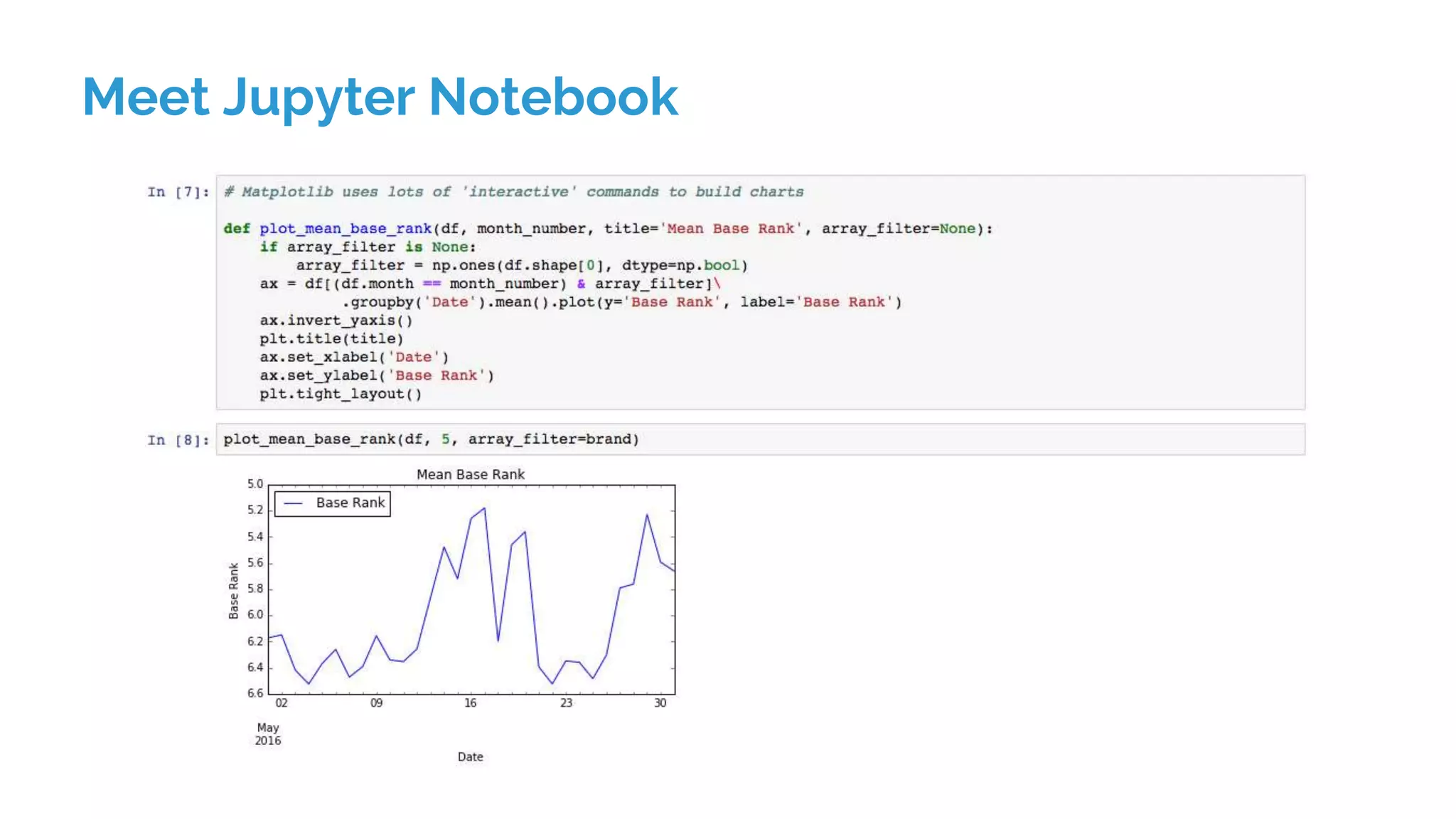
Meet Jupyter Notebook
And me
job_title != “Developer”
I’m a Consultant at Distilled (since September 2015)
I do build some software in Python
But I mainly use it for data analysis
Getting Started
Python for scientific computing
Huge community
Fantastic ecosystem of packages other people have written
Can be tedious to actually install everything
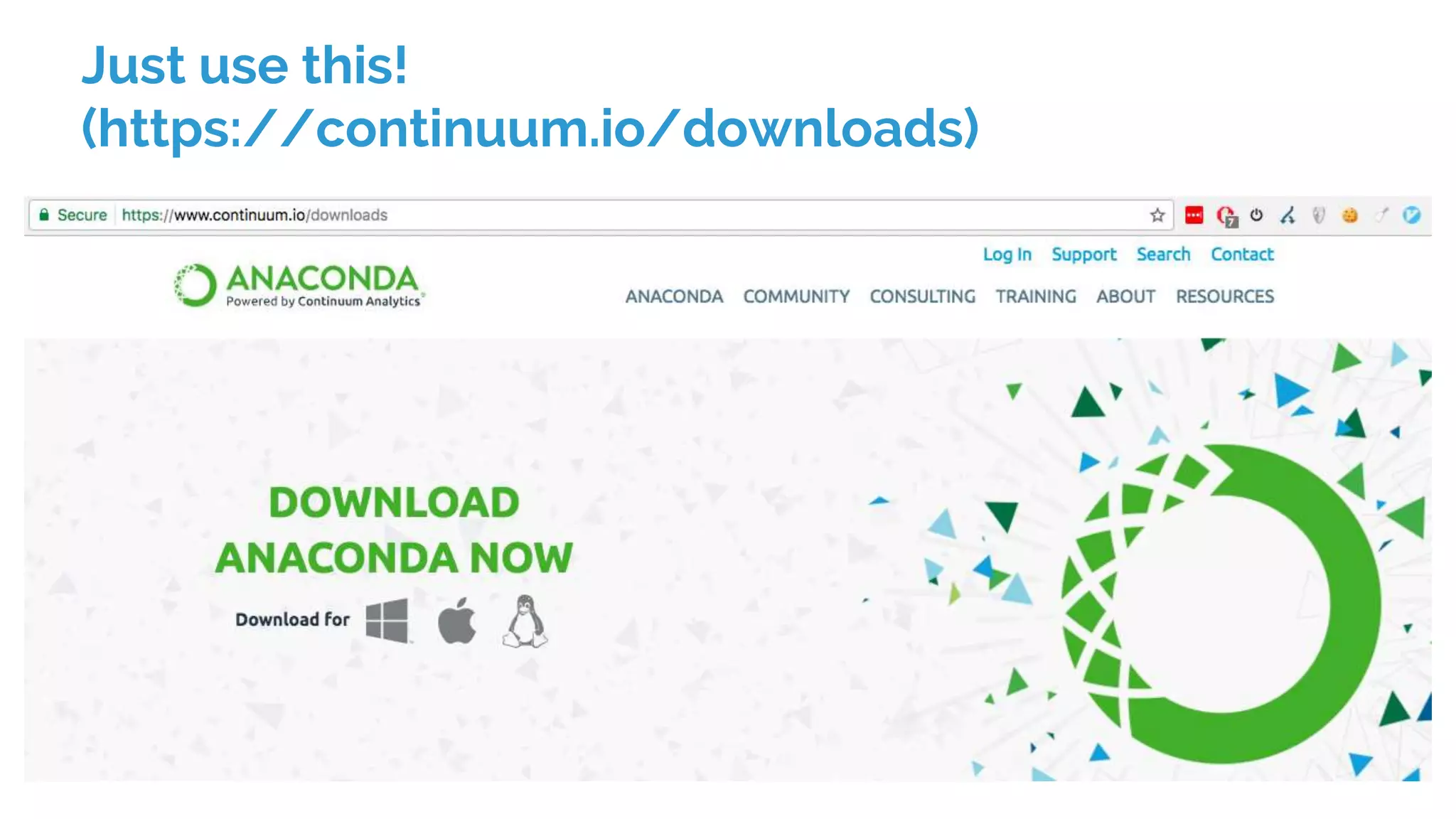
Just use this!
(https://continuum.io/downloads)
What is Anaconda?
Essentially a large (~400 MB) Python installation
But contains everything* you need for data analysis
Unless you have a special reason not to, you should just
install and use this
You need the command line (but only for a minute)
On Windows, open Powershell
On mac, Terminal or iTerm2
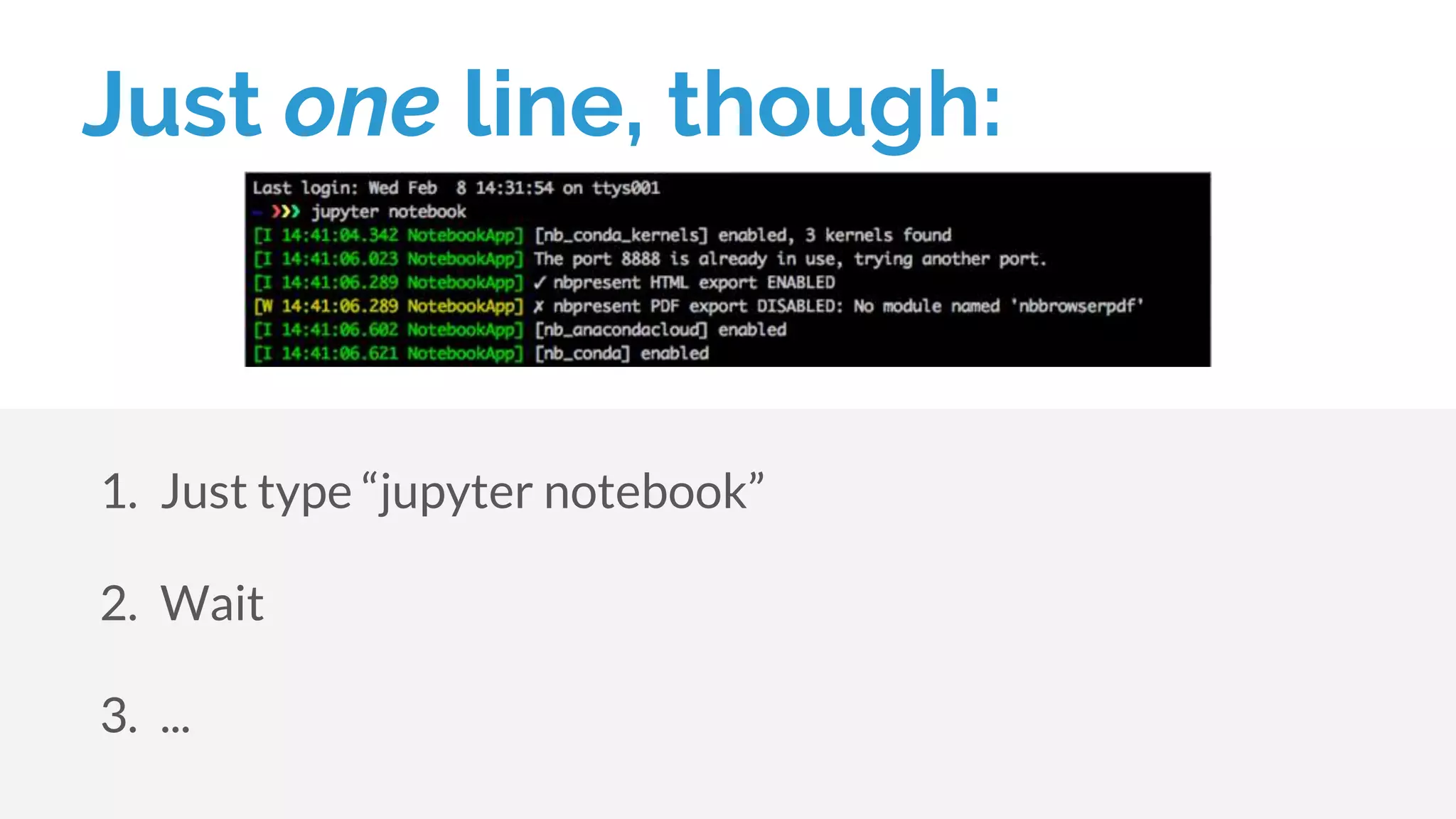
Just one line, though:
1. Just type “jupyter notebook”
2. Wait
3. ...
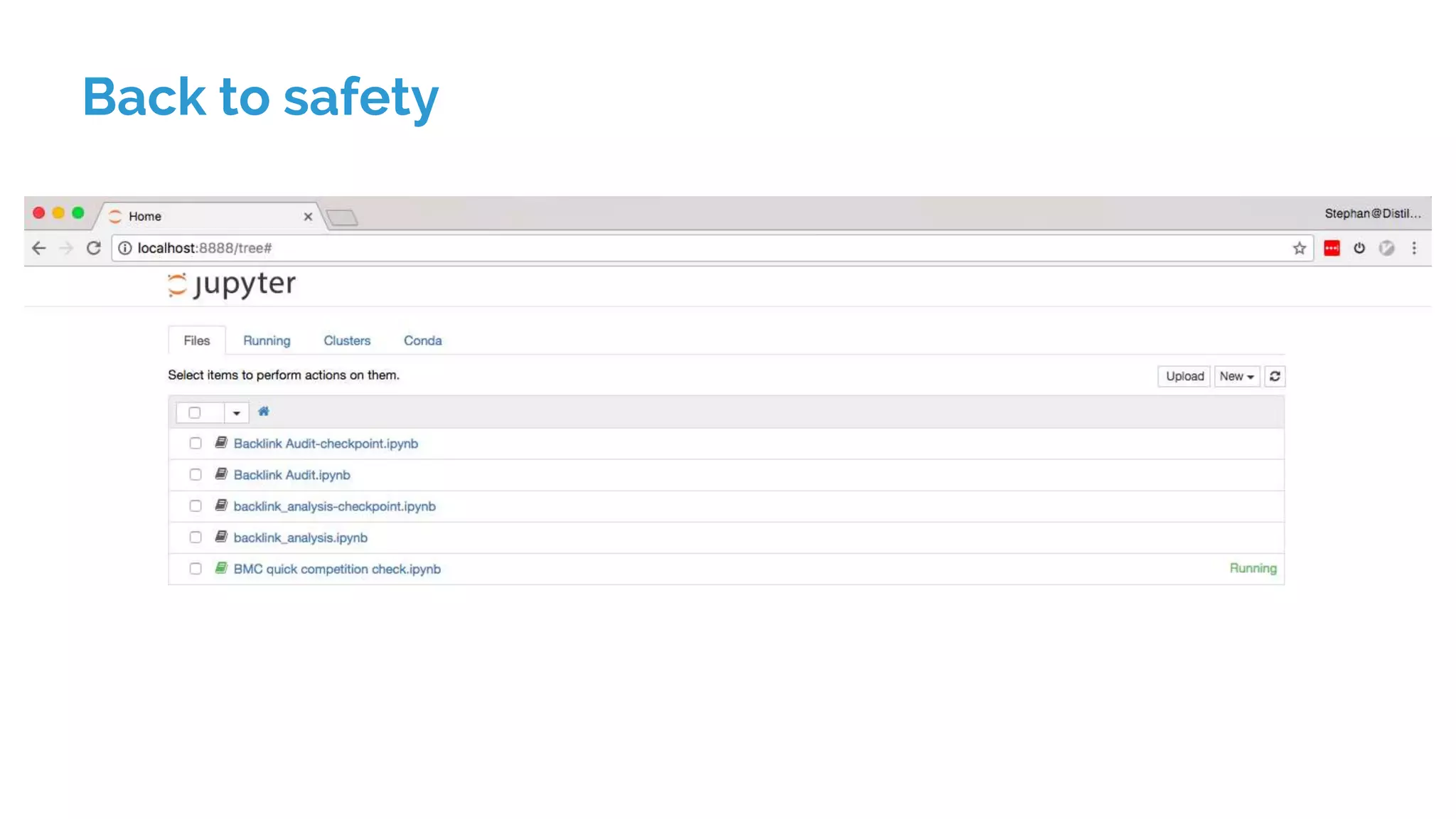
Back to safety
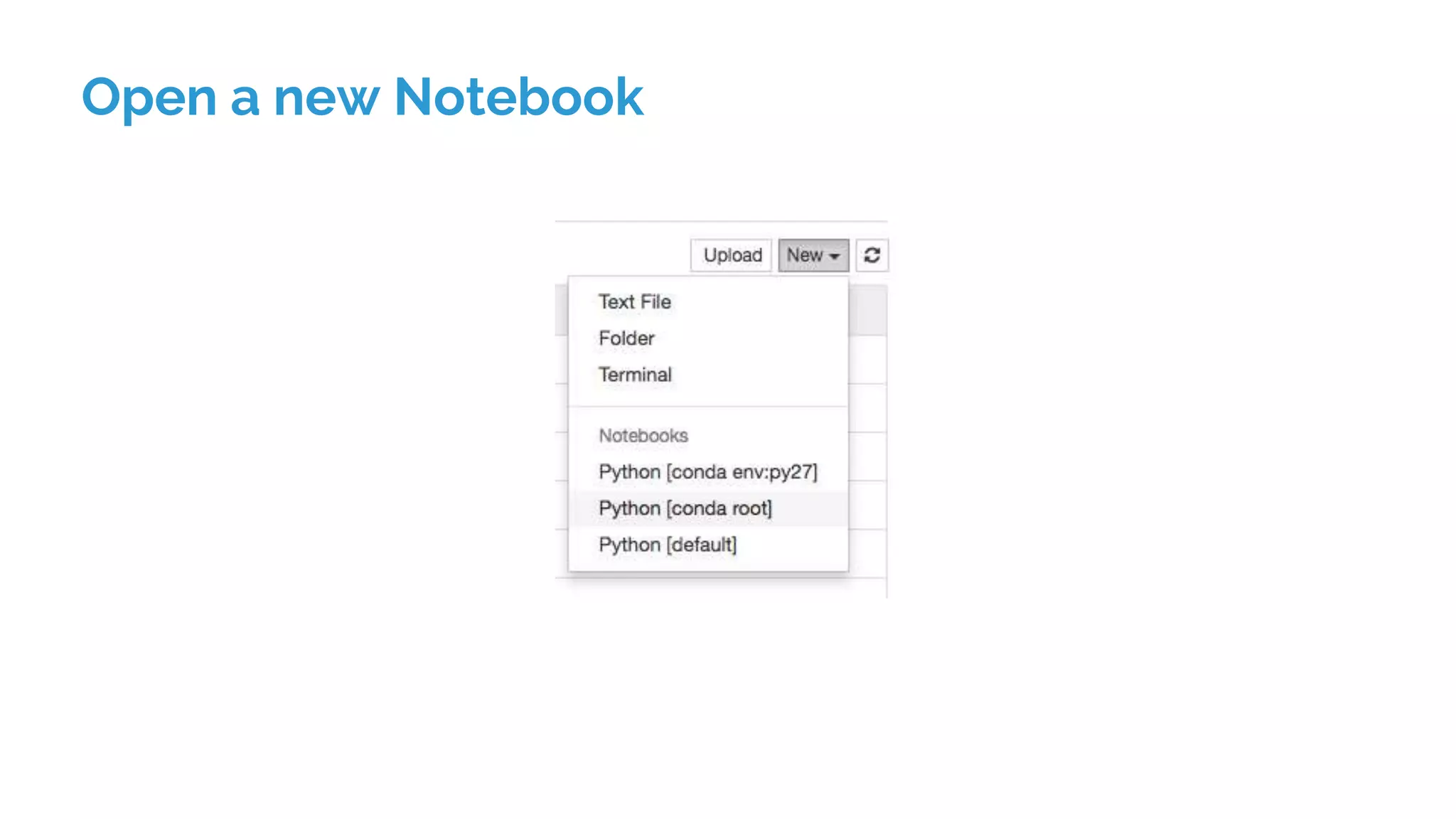
Open a new Notebook
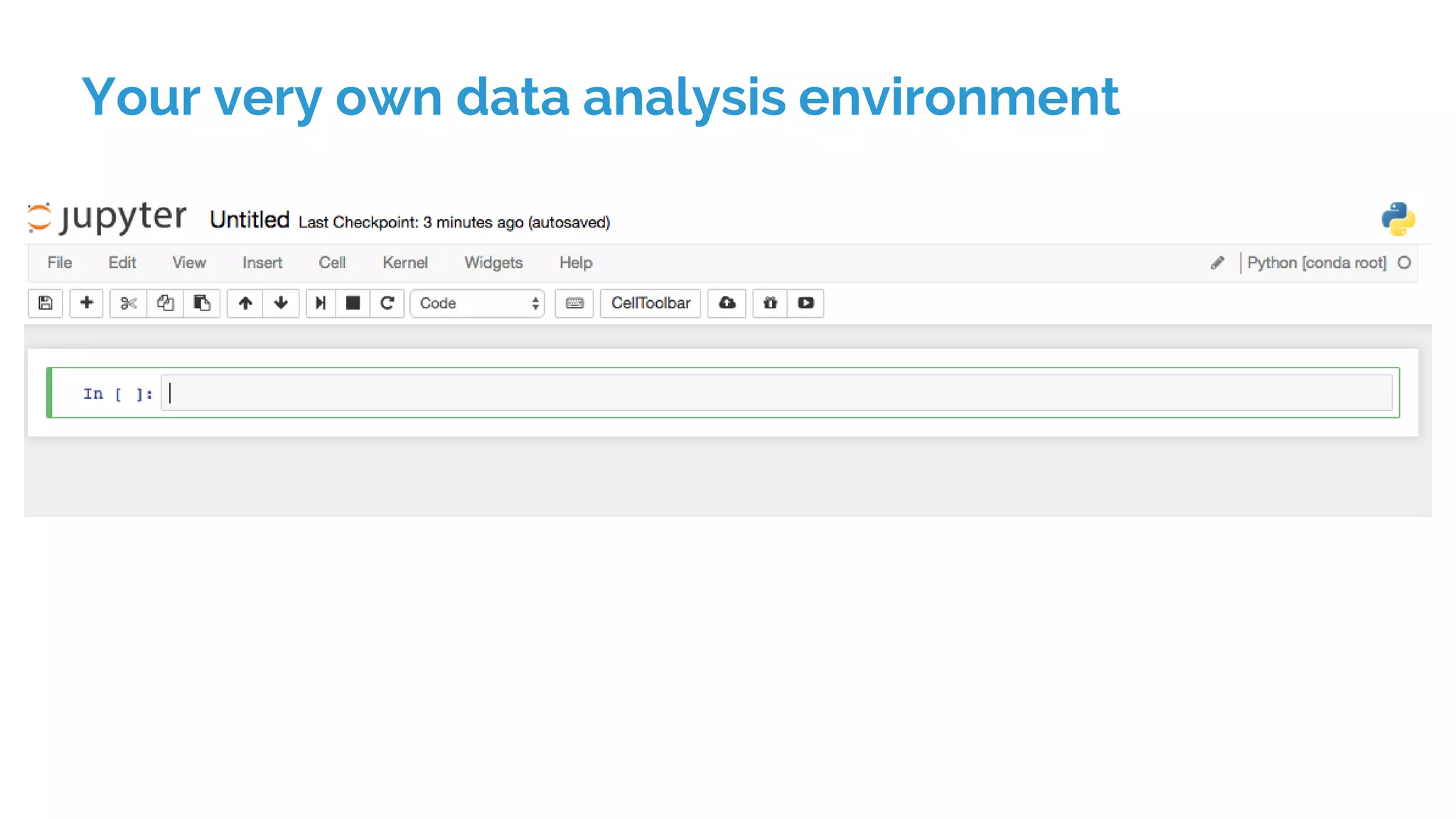
Your very own data analysis environment
So that was fairly easy...
but why is it better than Excel?
There’s not enough room to list everything, but:
1. Handle larger data sets—no set limit on rows
2. Combine multiple files and data sources together
instantaneously. Pull data straight from APIs or scraping
3. Everything is completely customisable—if you can
imagine a query, it can be done (though not always easily)
4. It’s a safe place to mess things up
...and it’s the perfect playground for
learning Python
Side note: don’t know any Python?
Can’t cover it all today, so go here:
1. Learn Python the Hard Way (free)
2. Real Python ($60, but good)
3. Writing Idiomatic Python (~$15)
Unless you’re building applications:
1. Stick with the small building blocks
2. Learn how to write a function (we’ll do this today)
3. Learn about loops, conditional statements, and handling
data
4. Probably no need to learn about managing projects and
Jupyter Notebook
Save notebooks for later
Run and re-run Python code
Really cool features like post-mortem debugging if you make
a mistake
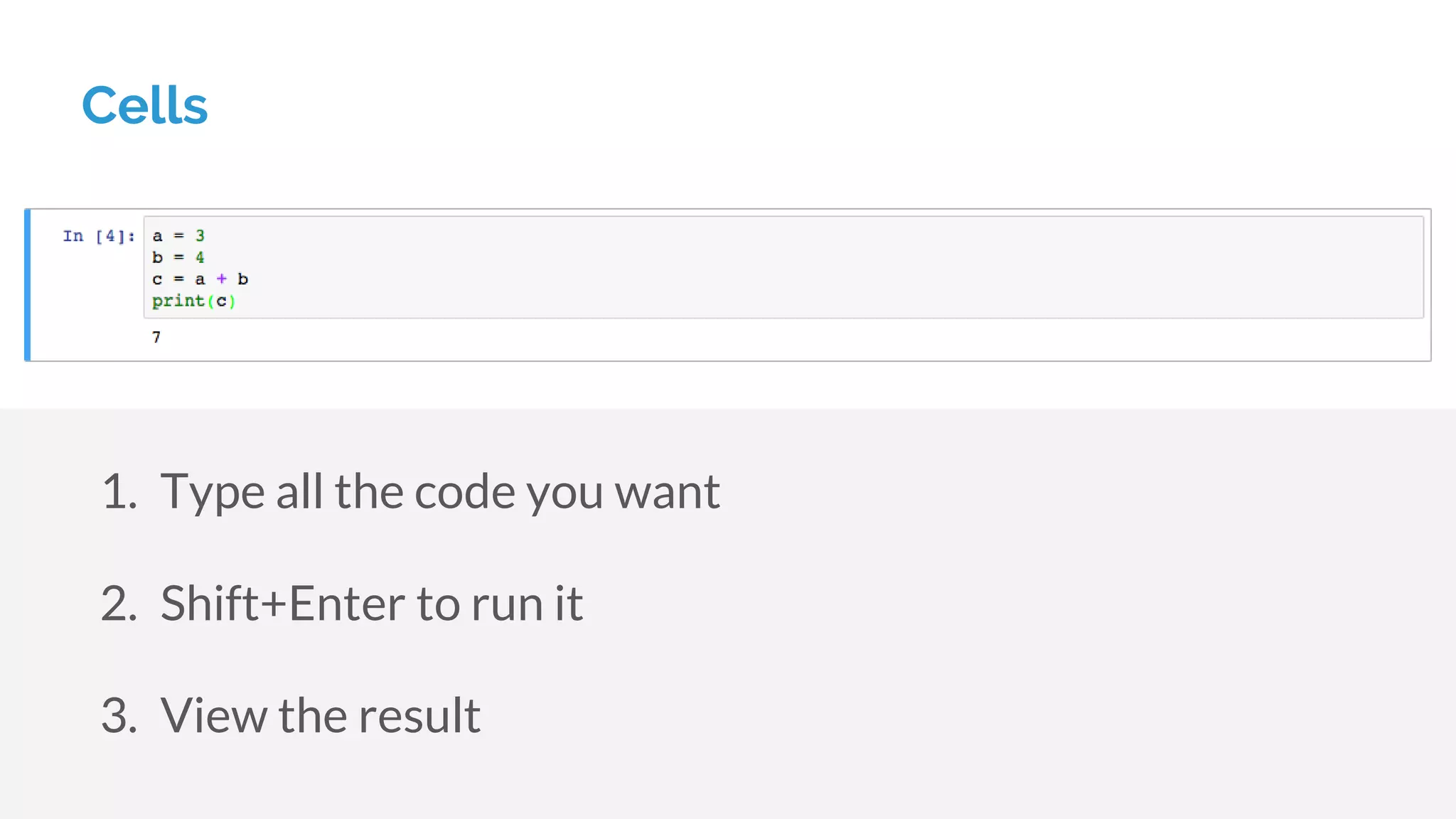
Cells
1. Type all the code you want
2. Shift+Enter to run it
3. View the result
Now we have our Jupyter Notebook up and running, you
can start playing around with almost any Python code
We’re going to look at Pandas, though—a data analysis
library written in Python
Started its life in finance
Great for fast, flexible computation
The Star of the Show
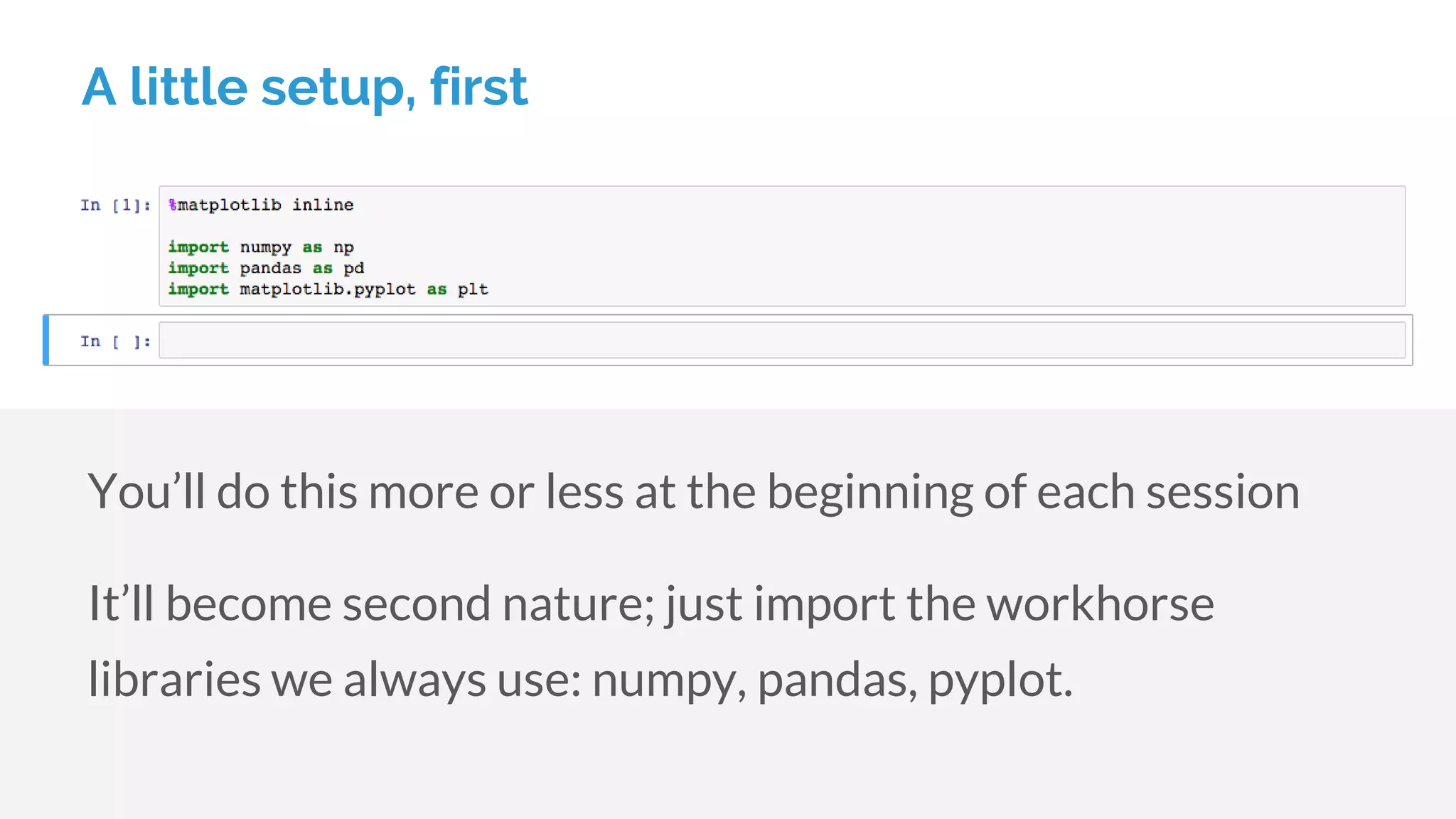
A little setup, first
You’ll do this more or less at the beginning of each session
It’ll become second nature; just import the workhorse
libraries we always use: numpy, pandas, pyplot.
The DataFrame
If you’re used to spreadsheets, the DataFrame isn’t too
difficult to understand
It’s the fundamental, flexible building block in Pandas
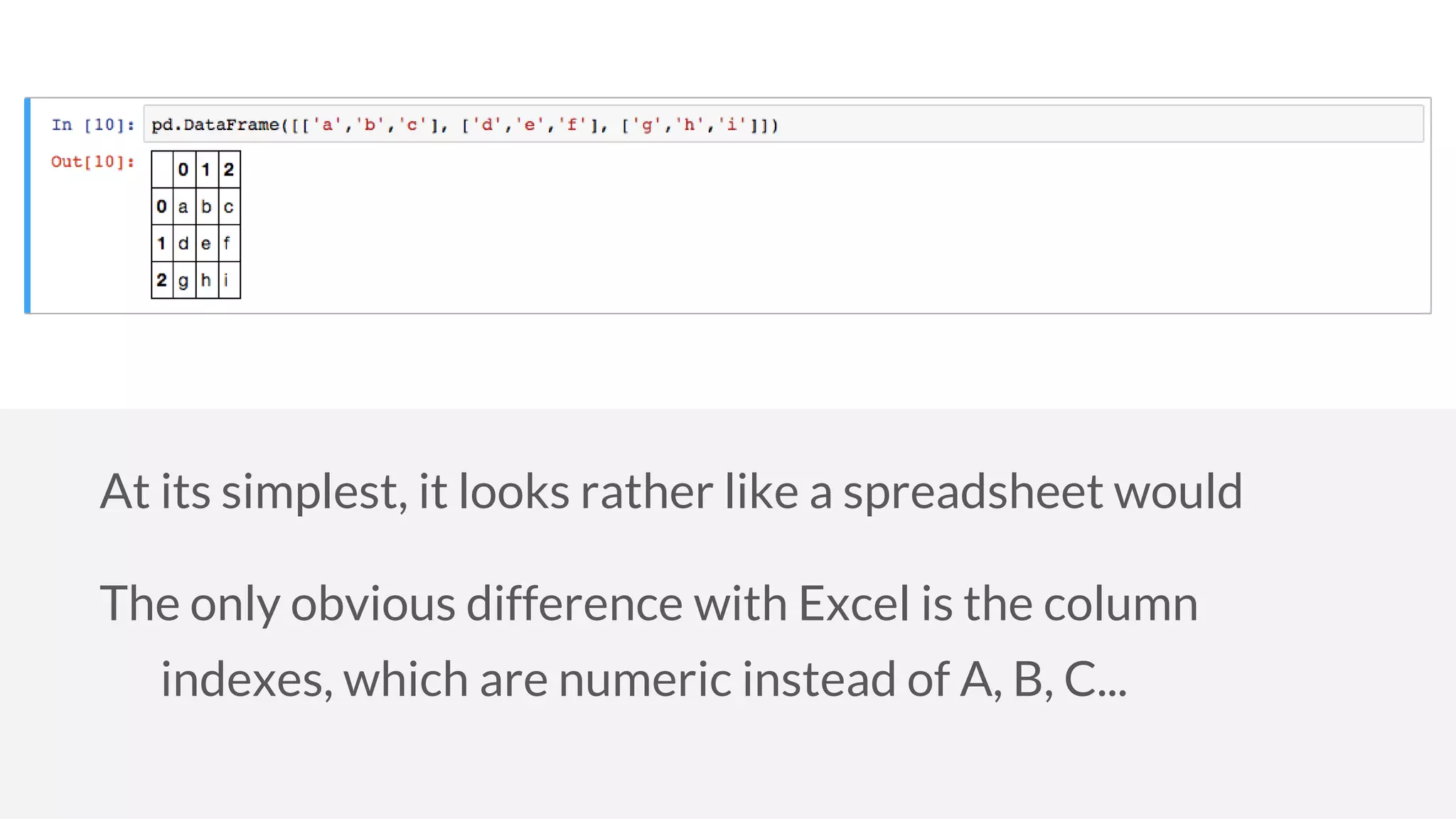
At its simplest, it looks rather like a spreadsheet would
The only obvious difference with Excel is the column
indexes, which are numeric instead of A, B, C...
You’ll usually create them from some other source:
The Pandas library provides some nice functions for
importing from common file formats, so you won’t usually be
building “by hand”:
1. pd.read_csv()
2. pd.read_table()
3. pd.read_sql()
We have so much data stored in CSVs
Our first function call will just read some data into the
DataFrame, where we can analyse it
Reading a CSV
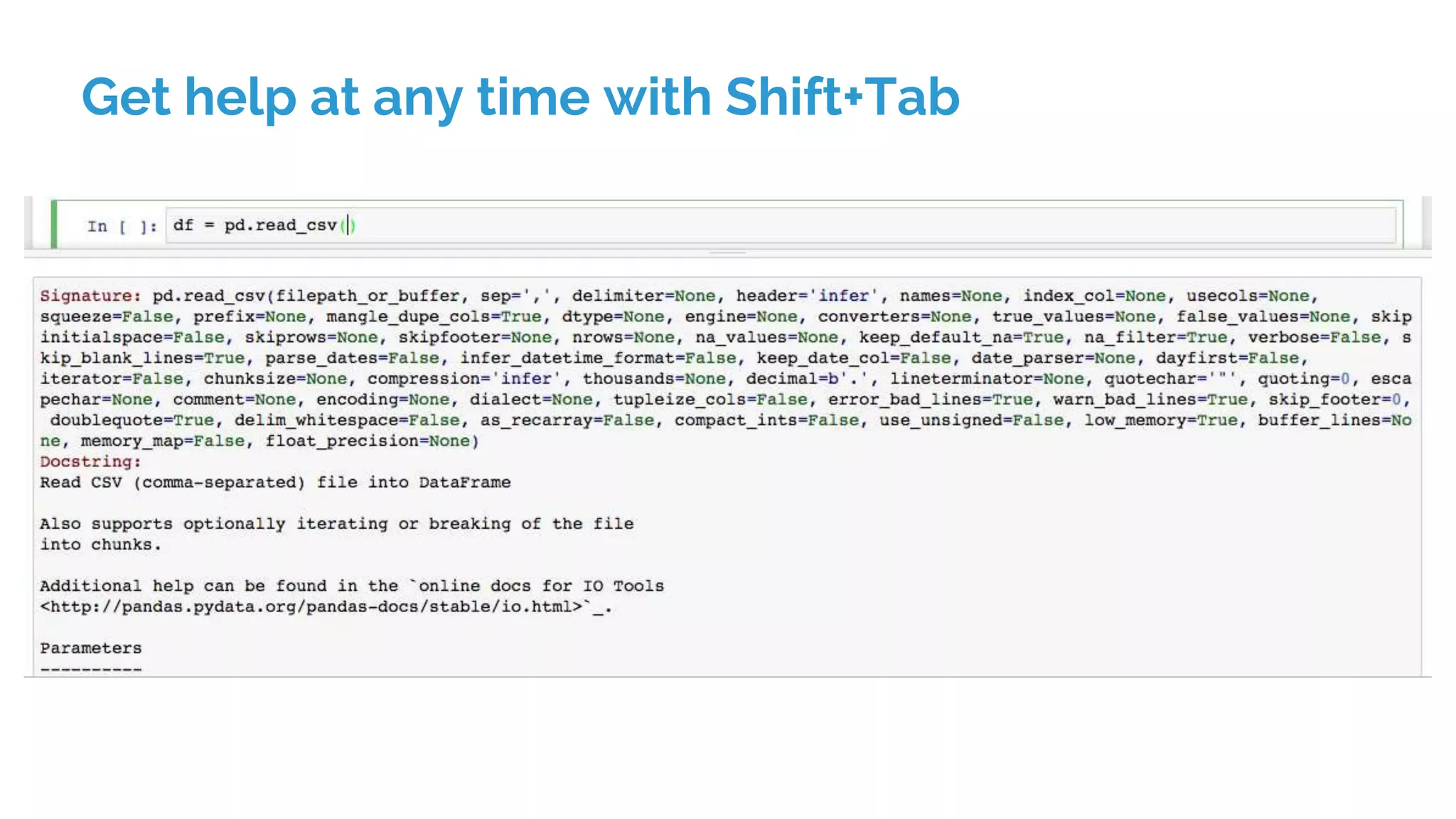
Get help at any time with Shift+Tab
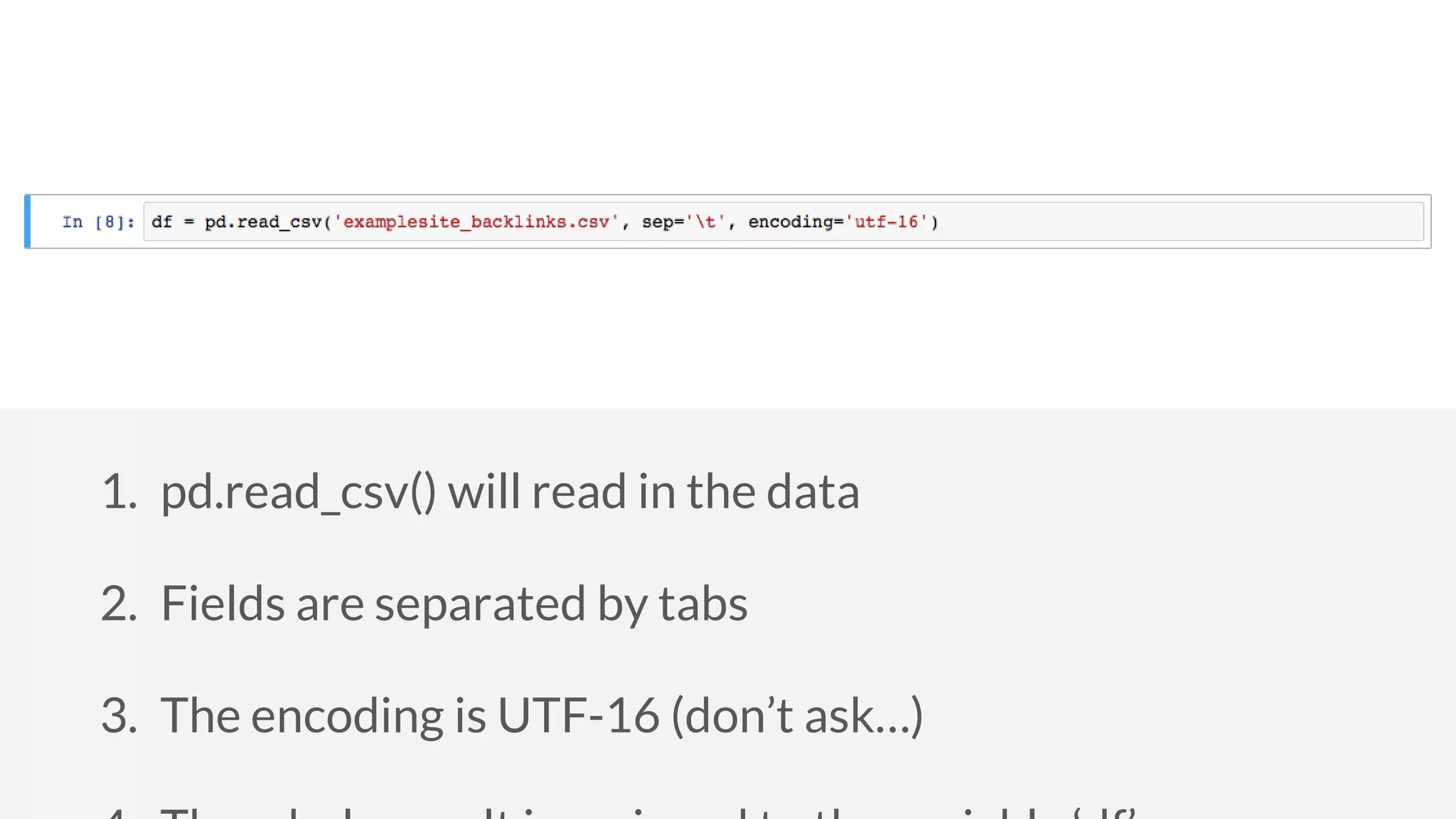
1. pd.read_csv() will read in the data
2. Fields are separated by tabs
3. The encoding is UTF-16 (don’t ask…)
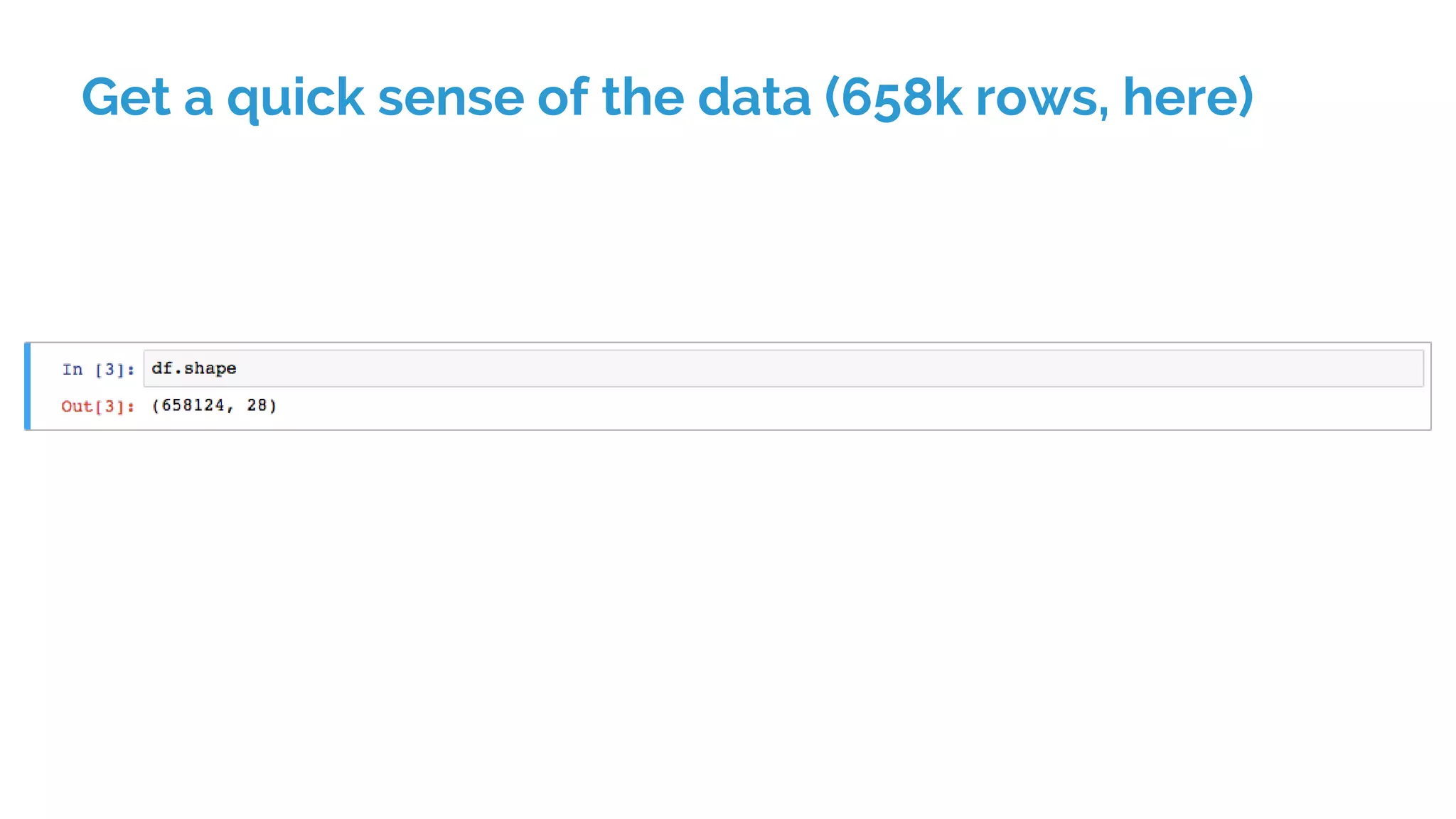
Get a quick sense of the data (658k rows, here)
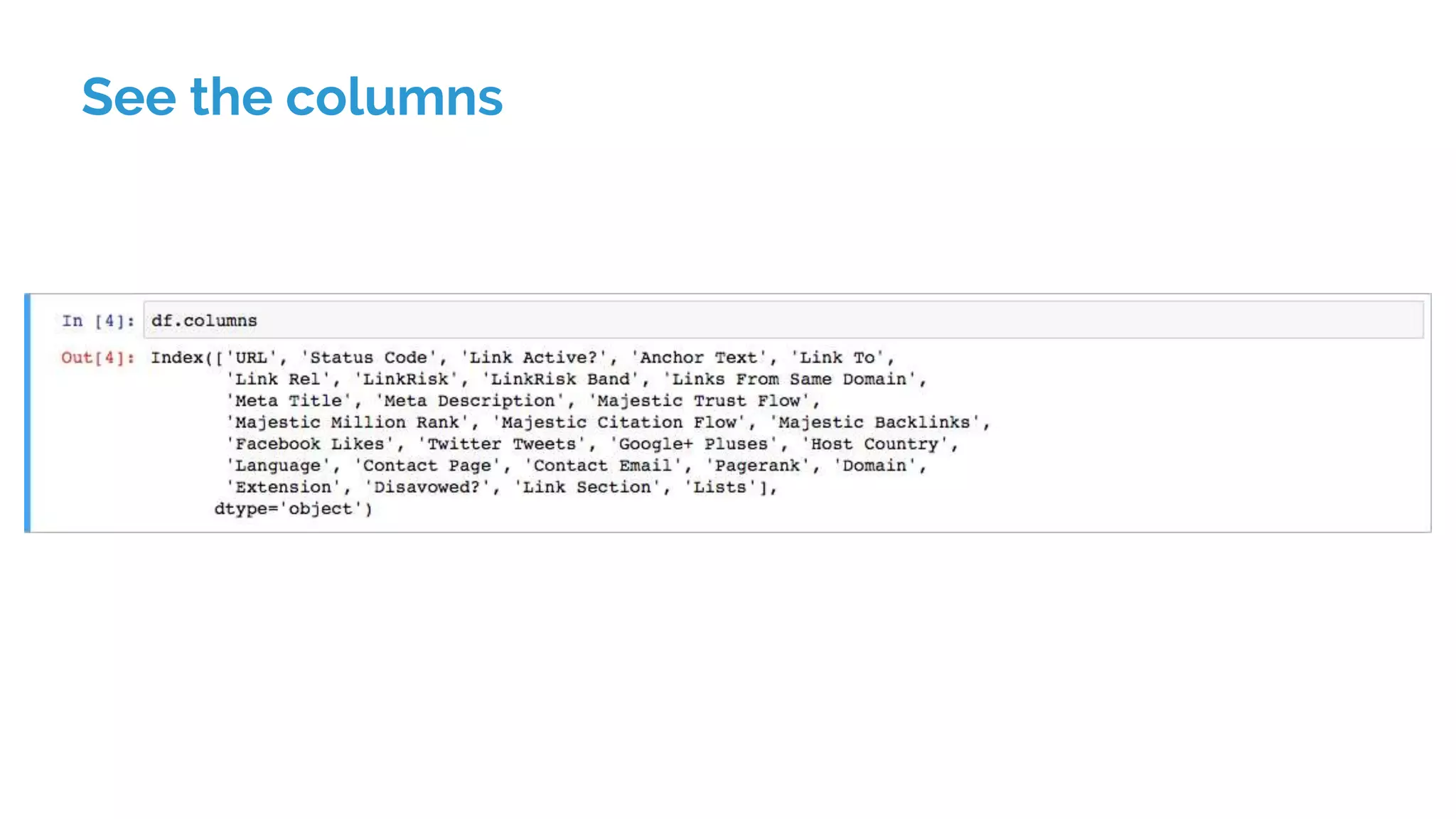
See the columns
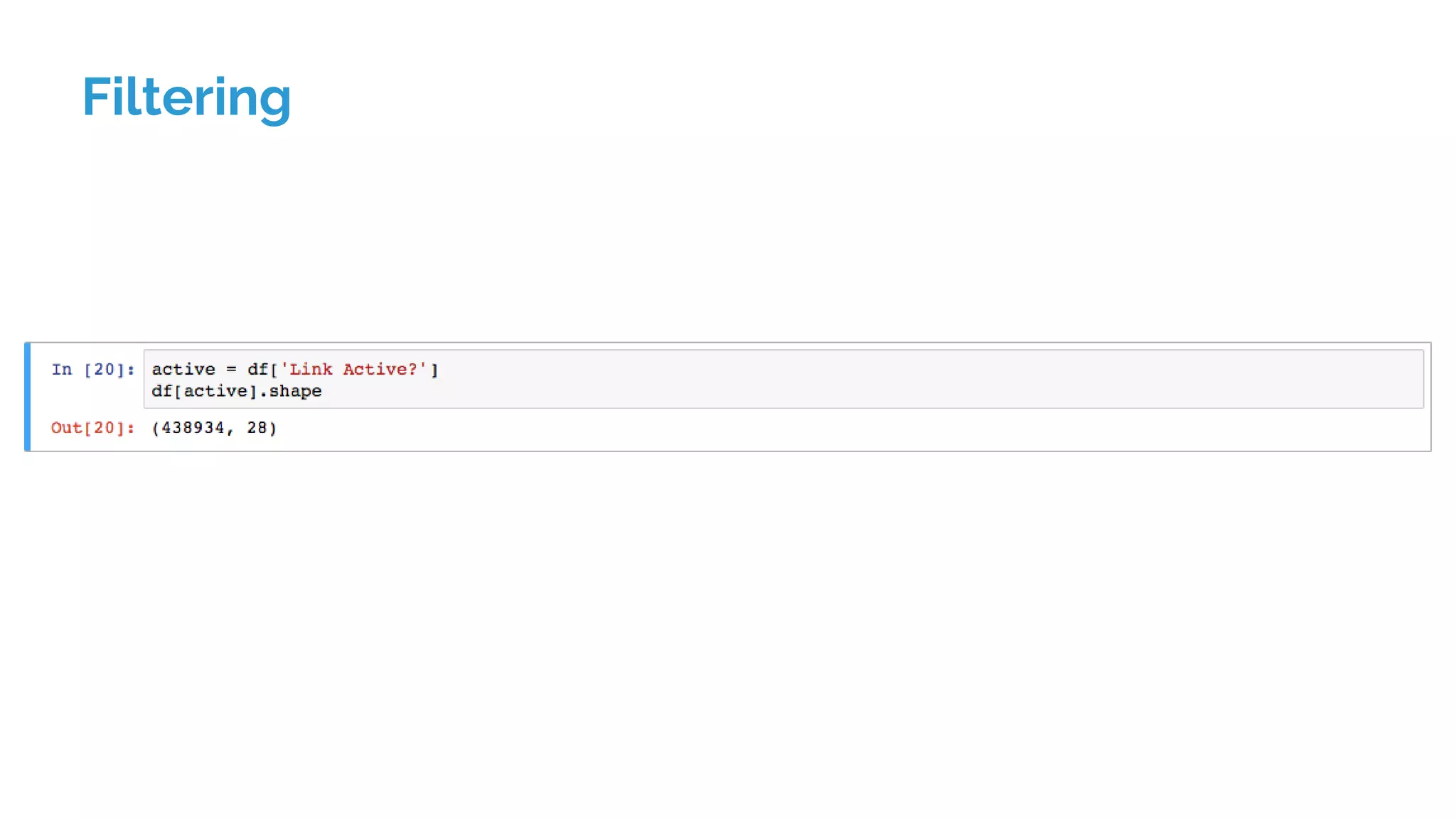
Filtering
What’s happening there?
df[‘Link Active?’] is:
1. Checking that whole column for values that are True or
False
2. Returning an array of True/False values
3. This is fast, and lets us filter in an amazing variety of ways
Filtering (again)
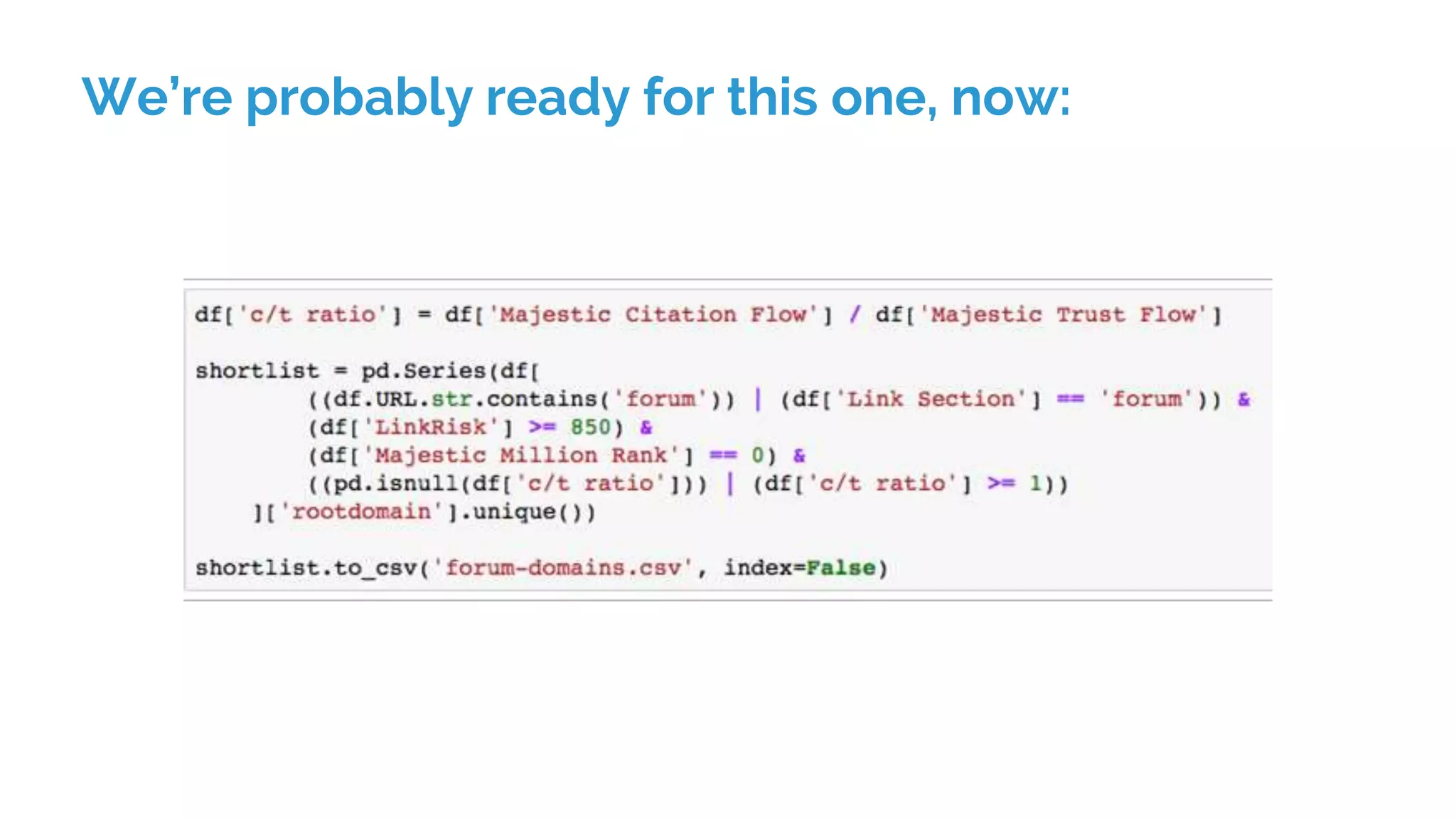
We’re probably ready for this one, now:
Example project: Getting data from
SEMRush
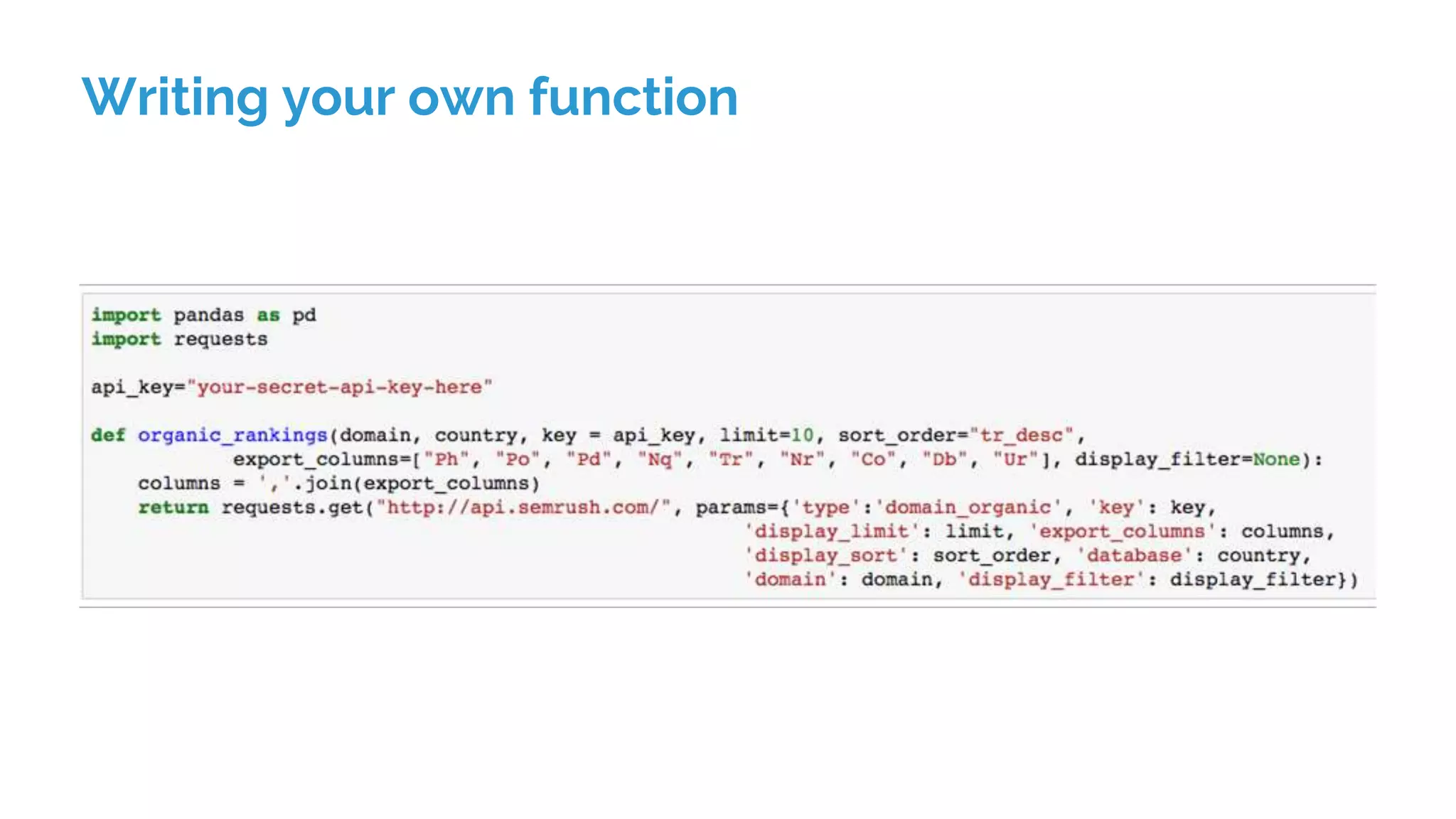
Writing your own function
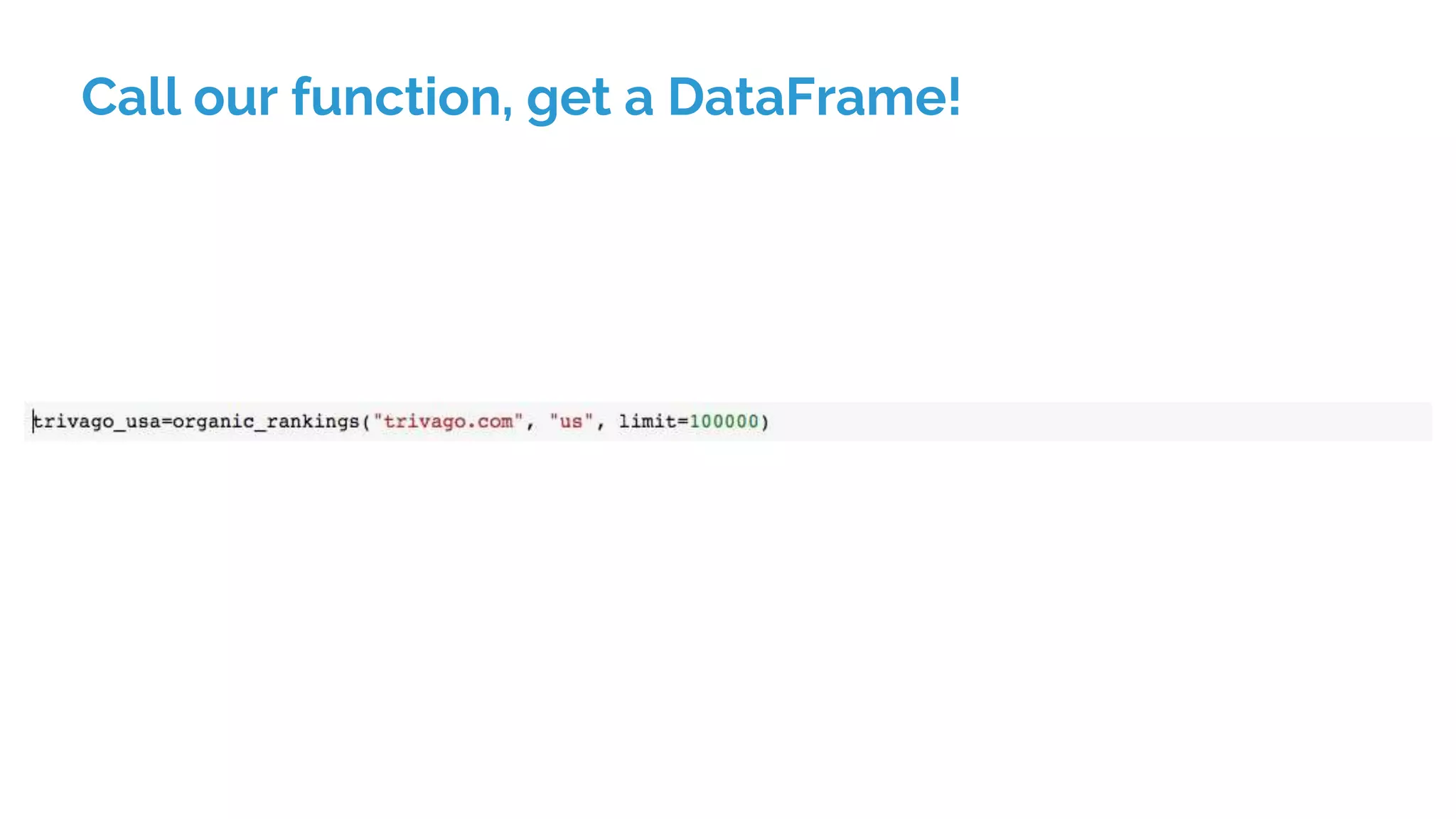
Call our function, get a DataFrame!
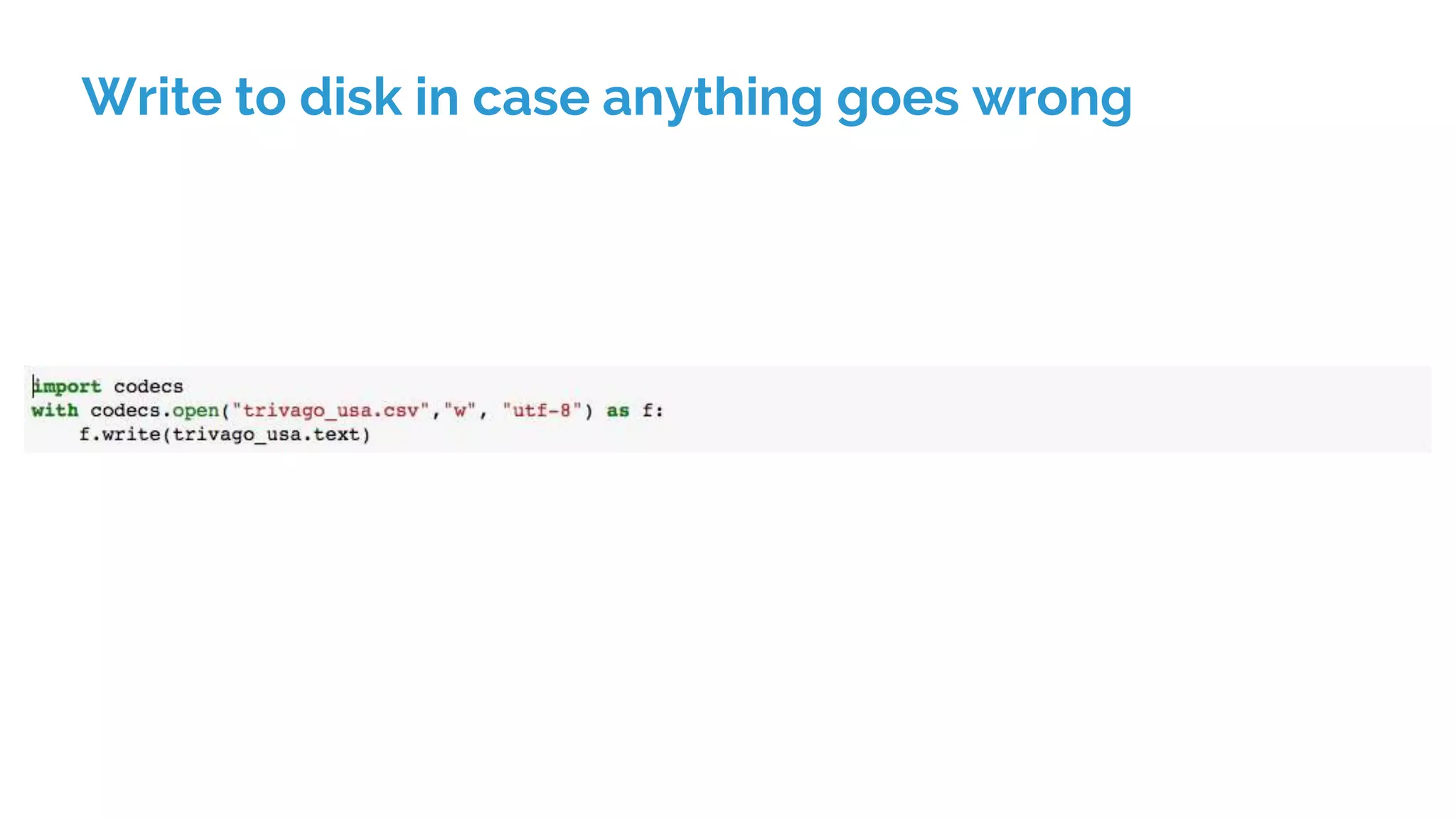
Write to disk in case anything goes wrong
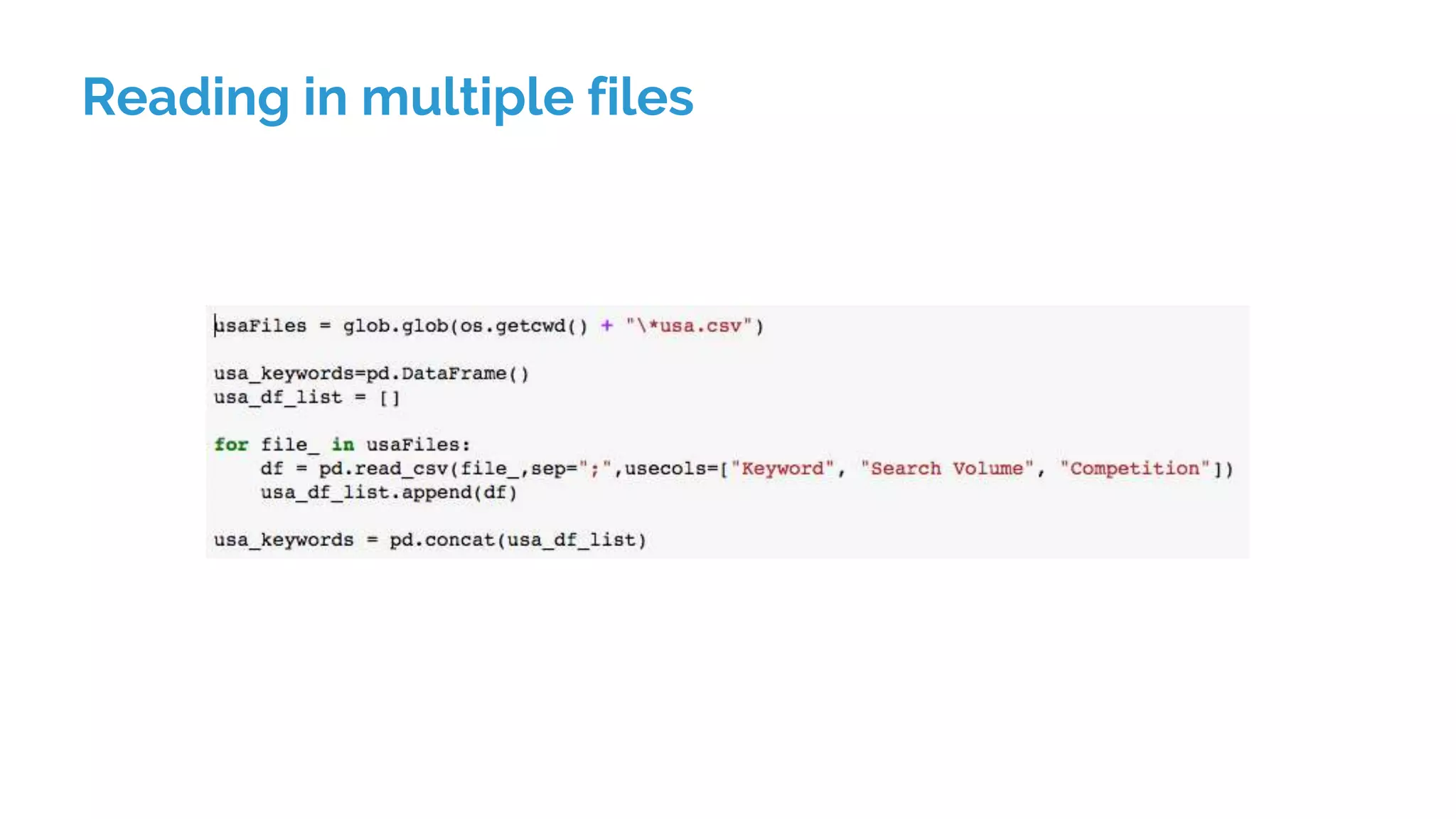
Reading in multiple files
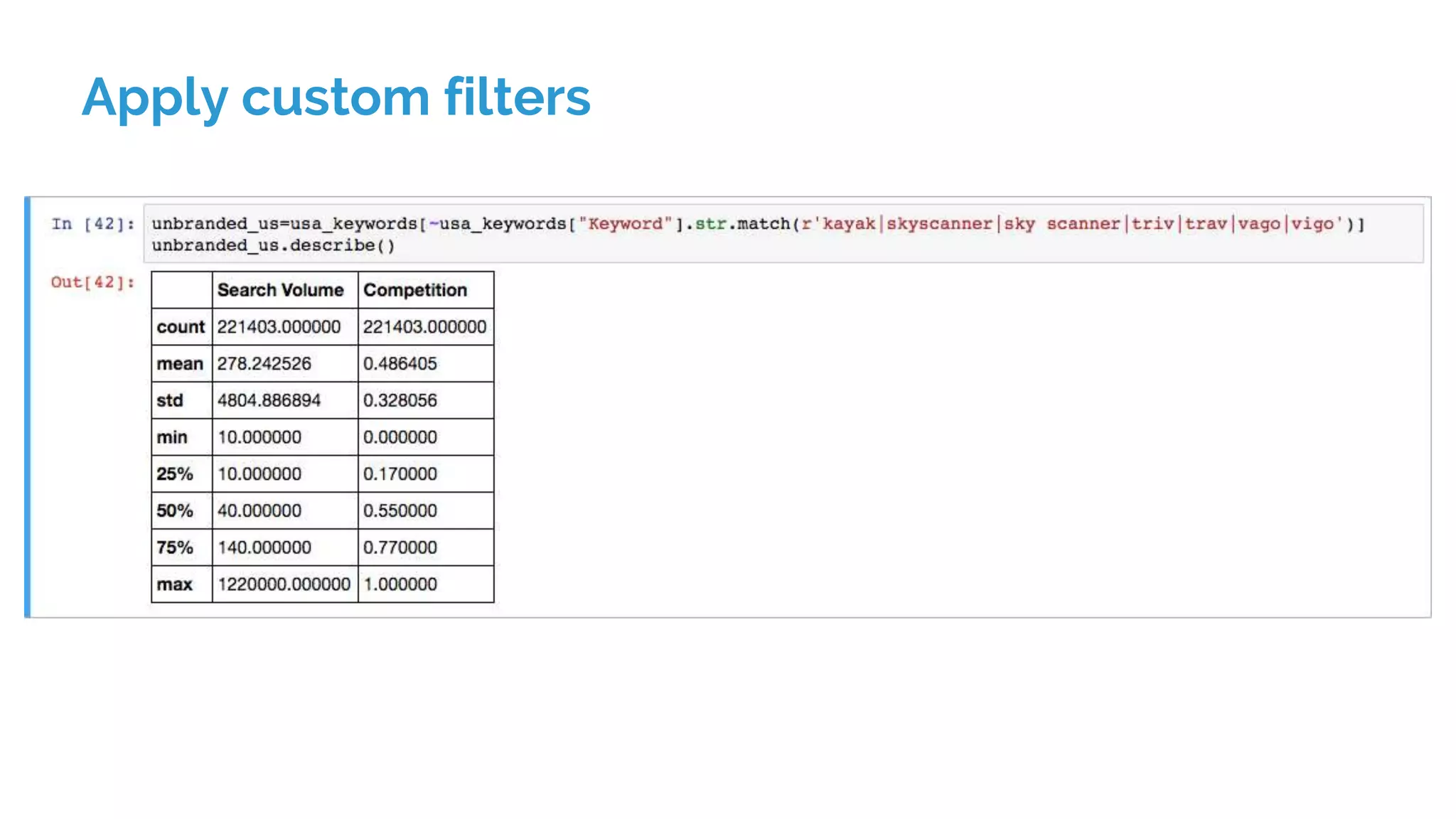
Apply custom filters
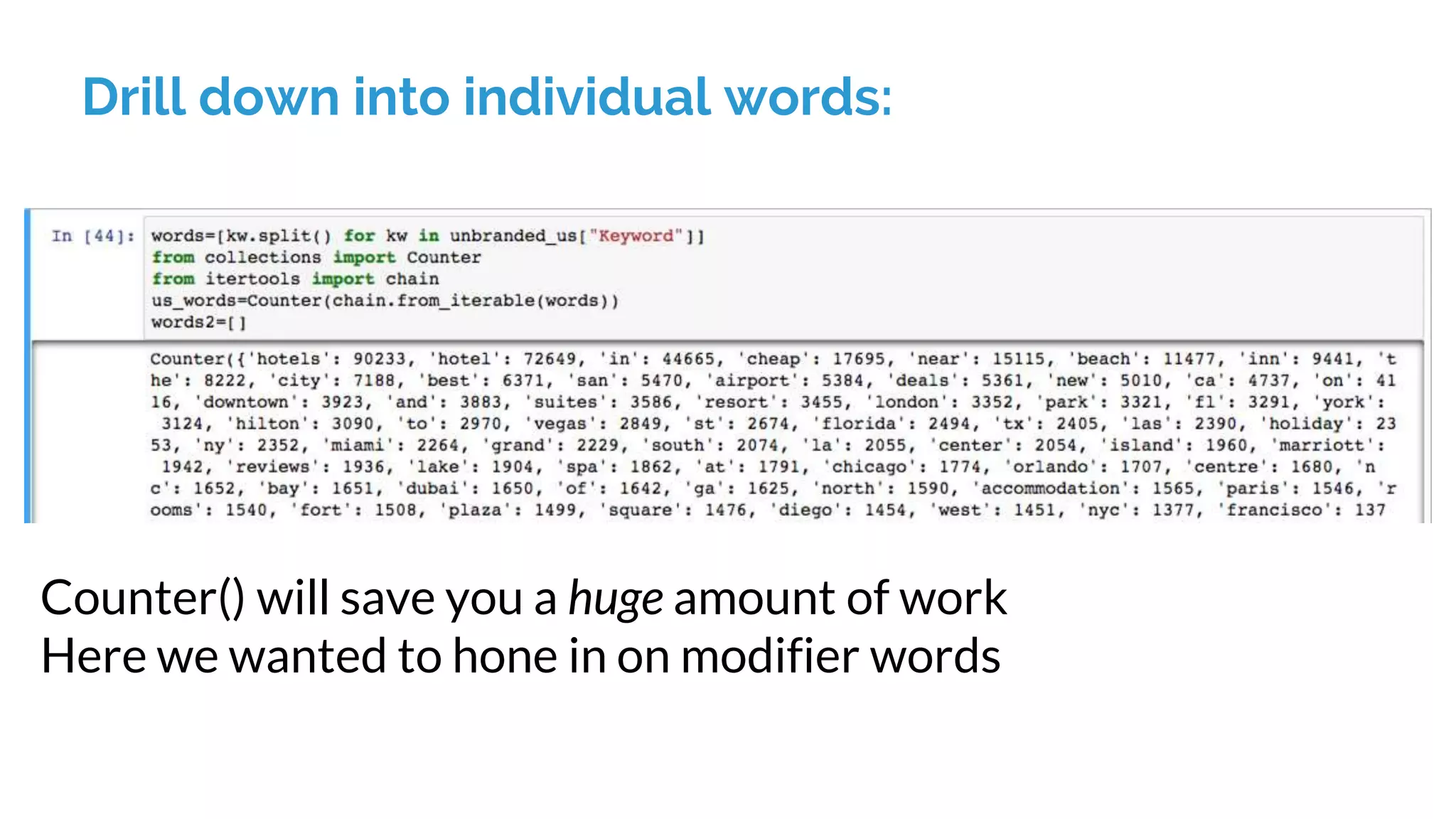
Drill down into individual words:
Counter() will save you a huge amount of work
Here we wanted to hone in on modifier words
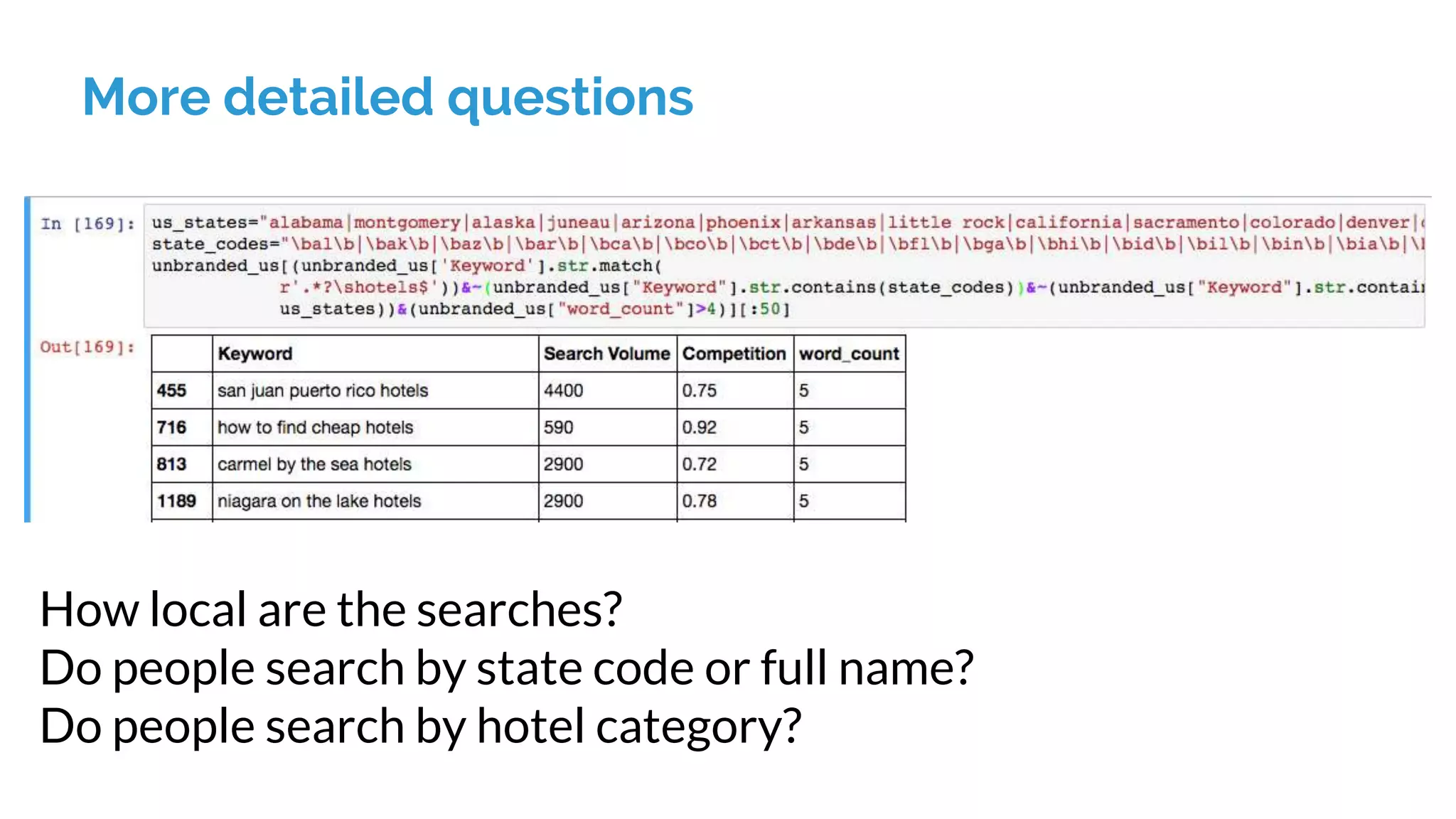
More detailed questions
How local are the searches?
Do people search by state code or full name?
Do people search by hotel category?
Second example: Custom Rank Tracking
Charts
Where to begin?
If you don’t know Python, start with those books I shared
earlier.
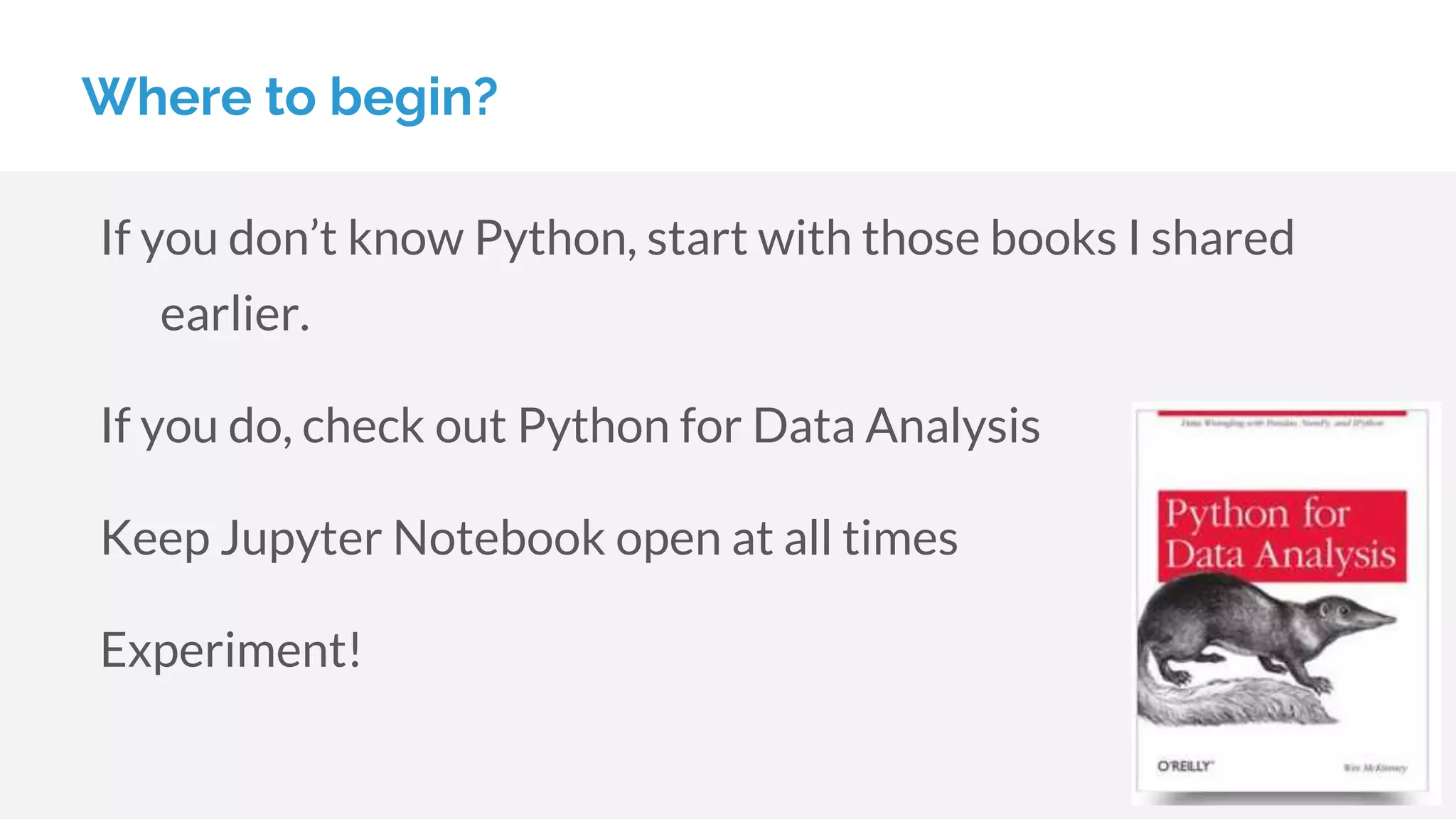
If you do, check out Python for Data Analysis
Keep Jupyter Notebook open at all times
Experiment!
Questions?

Data analysis with pandas

  • 1.
  • 2.
    When you thinkof Python...
  • 3.
  • 4.
    And me job_title !=“Developer” I’m a Consultant at Distilled (since September 2015) I do build some software in Python But I mainly use it for data analysis
  • 5.
  • 6.
    Python for scientificcomputing Huge community Fantastic ecosystem of packages other people have written Can be tedious to actually install everything
  • 7.
  • 8.
    What is Anaconda? Essentiallya large (~400 MB) Python installation But contains everything* you need for data analysis Unless you have a special reason not to, you should just install and use this
  • 9.
    You need thecommand line (but only for a minute) On Windows, open Powershell On mac, Terminal or iTerm2
  • 10.
    Just one line,though: 1. Just type “jupyter notebook” 2. Wait 3. ...
  • 11.
  • 12.
    Open a newNotebook
  • 13.
    Your very owndata analysis environment
  • 14.
    So that wasfairly easy...
  • 15.
    but why isit better than Excel?
  • 16.
    There’s not enoughroom to list everything, but: 1. Handle larger data sets—no set limit on rows 2. Combine multiple files and data sources together instantaneously. Pull data straight from APIs or scraping 3. Everything is completely customisable—if you can imagine a query, it can be done (though not always easily) 4. It’s a safe place to mess things up
  • 17.
    ...and it’s theperfect playground for learning Python
  • 18.
    Side note: don’tknow any Python?
  • 19.
    Can’t cover itall today, so go here: 1. Learn Python the Hard Way (free) 2. Real Python ($60, but good) 3. Writing Idiomatic Python (~$15)
  • 20.
    Unless you’re buildingapplications: 1. Stick with the small building blocks 2. Learn how to write a function (we’ll do this today) 3. Learn about loops, conditional statements, and handling data 4. Probably no need to learn about managing projects and
  • 21.
    Jupyter Notebook Save notebooksfor later Run and re-run Python code Really cool features like post-mortem debugging if you make a mistake
  • 22.
    Cells 1. Type allthe code you want 2. Shift+Enter to run it 3. View the result
  • 23.
    Now we haveour Jupyter Notebook up and running, you can start playing around with almost any Python code We’re going to look at Pandas, though—a data analysis library written in Python Started its life in finance Great for fast, flexible computation The Star of the Show
  • 24.
    A little setup,first You’ll do this more or less at the beginning of each session It’ll become second nature; just import the workhorse libraries we always use: numpy, pandas, pyplot.
  • 25.
    The DataFrame If you’reused to spreadsheets, the DataFrame isn’t too difficult to understand It’s the fundamental, flexible building block in Pandas
  • 26.
    At its simplest,it looks rather like a spreadsheet would The only obvious difference with Excel is the column indexes, which are numeric instead of A, B, C...
  • 27.
    You’ll usually createthem from some other source: The Pandas library provides some nice functions for importing from common file formats, so you won’t usually be building “by hand”: 1. pd.read_csv() 2. pd.read_table() 3. pd.read_sql()
  • 28.
    We have somuch data stored in CSVs Our first function call will just read some data into the DataFrame, where we can analyse it Reading a CSV
  • 29.
    Get help atany time with Shift+Tab
  • 30.
    1. pd.read_csv() willread in the data 2. Fields are separated by tabs 3. The encoding is UTF-16 (don’t ask…)
  • 31.
    Get a quicksense of the data (658k rows, here)
  • 32.
  • 33.
  • 34.
    What’s happening there? df[‘LinkActive?’] is: 1. Checking that whole column for values that are True or False 2. Returning an array of True/False values 3. This is fast, and lets us filter in an amazing variety of ways
  • 35.
  • 36.
    We’re probably readyfor this one, now:
  • 37.
    Example project: Gettingdata from SEMRush
  • 38.
  • 39.
    Call our function,get a DataFrame!
  • 40.
    Write to diskin case anything goes wrong
  • 41.
  • 42.
  • 43.
    Drill down intoindividual words: Counter() will save you a huge amount of work Here we wanted to hone in on modifier words
  • 44.
    More detailed questions Howlocal are the searches? Do people search by state code or full name? Do people search by hotel category?
  • 45.
    Second example: CustomRank Tracking Charts
  • 46.
    Where to begin? Ifyou don’t know Python, start with those books I shared earlier. If you do, check out Python for Data Analysis Keep Jupyter Notebook open at all times Experiment!
  • 47.

Editor's Notes

  • #3 we think of an IDE but, to oversimplify, there are two main workflows there’s this one, which I also use
  • #4 Exploratory data analysis Loading data from somewhere, cleaning and preparing it,
  • #6 NOTES ON SLIDE USE: As with the title slides, this comes in the four Distilled colours, plus dark grey.