PhotoSharing – The Basics Step by step to successful  PhotoSharing….. Royce Kitts & Patti Butcher
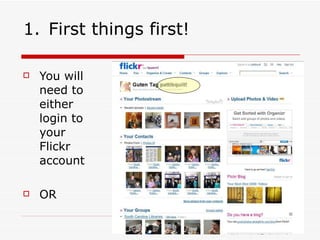
First things first! You will need to either login to your Flickr account OR
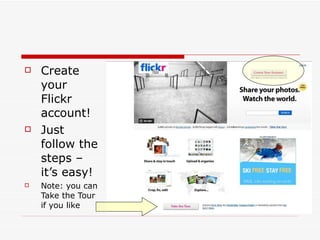
Create your Flickr account! Just follow the steps – it’s easy! Note: you can Take the Tour if you like.
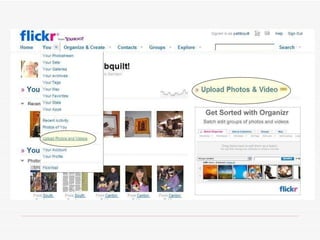
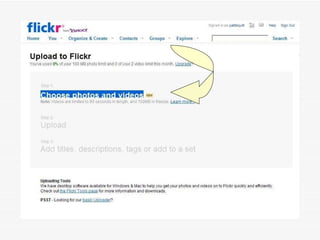
2. Choose your photo(s) Once you have an account and you’re logged in, CHOOSE the photo(s) to upload.  For this purpose, you will not need Flickr’s Batch Loader, but be aware that the tool exists.  It does help when you are uploading say, all the photos you took last weekend.
 
 
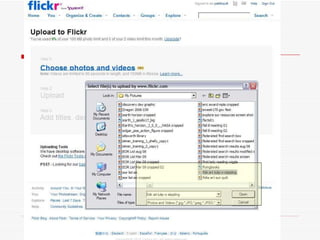
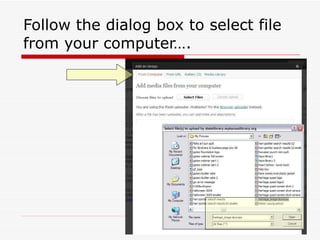
3. Select files You should see a dialog box where you can select the files from your computer to upload.
 
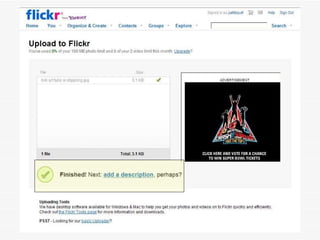
4. Click to Upload   Once Flickr has captured the file(s), you can click on the Upload button to actually add it to your Flickr account.
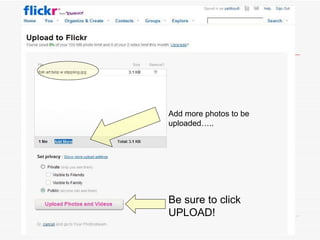
Add more photos to be uploaded….. Be sure to click UPLOAD!
5.  Add some info…. Once you have clicked on the Upload button, you should see this screen. You can add descriptions, tags, put photos into sets – have fun!
 
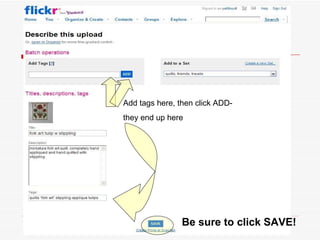
6. Save your work! If you follow the Flickr prompts, you should see a screen like this. You can see we have added a  title , some  tags , a  description , and it has been added to a  set .  Be sure to click the  SAVE  button at the bottom of the page!
Add tags here, then click ADD-  they end up here Be sure to click SAVE!
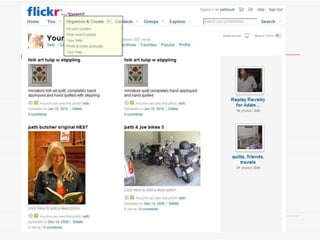
7. Organize your content You can always access your content and do more organizing by using the pull down menu on your Flickr main page – Organize & Create.
 
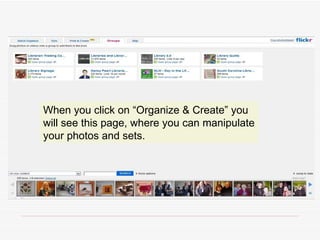
When you click on “Organize & Create” you will see this page, where you can manipulate your photos and sets.
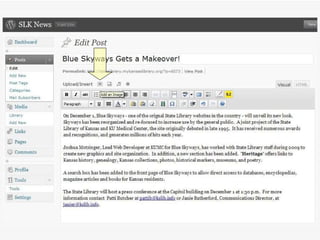
8.  Add image to Blog Add an image to your WordPress blog very easily: Here I have opened one of my blog posts so I can add an image . . .  Click on the Upload/Insert image icon (square in a square).
 
Follow the dialog box to select file from your computer….
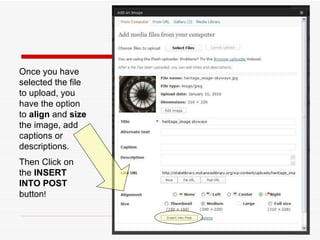
Once you have selected the file to upload, you have the option to  align  and  size  the image, add captions or descriptions. Then Click on the  INSERT INTO POST  button !
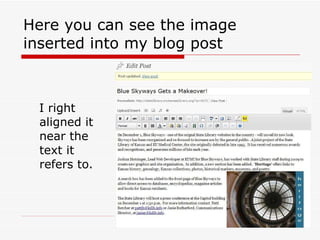
Here you can see the image inserted into my blog post I right aligned it near the text it refers to.
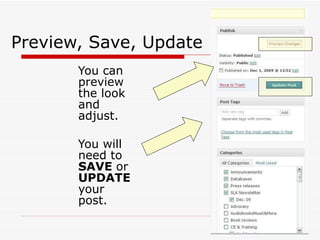
Preview, Save, Update You can preview the look and adjust.  You will need to  SAVE  or  UPDATE  your post.
VOILA! If you’re happy with the look, you can save and publish. You may want to play around with alignment and size, so you are easily able to manipulate images in blog posts.  IF your photos need some “tweaking” before you upload them there are lots of free tools you can find to do that. Try  IrfanView ,  Picnik ,  Picasa ,  Snapfish  – there are many to choose from!
Have Fun! Royce Kitts  [email_address] Tonganoxie Public Library Patti Butcher [email_address] State Library of Kansas

Photo Sharing – The Basics For 23 Things Ks

  • 1.
    PhotoSharing – TheBasics Step by step to successful PhotoSharing….. Royce Kitts & Patti Butcher
  • 2.
    First things first!You will need to either login to your Flickr account OR
  • 3.
    Create your Flickraccount! Just follow the steps – it’s easy! Note: you can Take the Tour if you like.
  • 4.
    2. Choose yourphoto(s) Once you have an account and you’re logged in, CHOOSE the photo(s) to upload. For this purpose, you will not need Flickr’s Batch Loader, but be aware that the tool exists. It does help when you are uploading say, all the photos you took last weekend.
  • 5.
  • 6.
  • 7.
    3. Select filesYou should see a dialog box where you can select the files from your computer to upload.
  • 8.
  • 9.
    4. Click toUpload   Once Flickr has captured the file(s), you can click on the Upload button to actually add it to your Flickr account.
  • 10.
    Add more photosto be uploaded….. Be sure to click UPLOAD!
  • 11.
    5. Addsome info…. Once you have clicked on the Upload button, you should see this screen. You can add descriptions, tags, put photos into sets – have fun!
  • 12.
  • 13.
    6. Save yourwork! If you follow the Flickr prompts, you should see a screen like this. You can see we have added a title , some tags , a description , and it has been added to a set . Be sure to click the SAVE button at the bottom of the page!
  • 14.
    Add tags here,then click ADD- they end up here Be sure to click SAVE!
  • 15.
    7. Organize yourcontent You can always access your content and do more organizing by using the pull down menu on your Flickr main page – Organize & Create.
  • 16.
  • 17.
    When you clickon “Organize & Create” you will see this page, where you can manipulate your photos and sets.
  • 18.
    8. Addimage to Blog Add an image to your WordPress blog very easily: Here I have opened one of my blog posts so I can add an image . . . Click on the Upload/Insert image icon (square in a square).
  • 19.
  • 20.
    Follow the dialogbox to select file from your computer….
  • 21.
    Once you haveselected the file to upload, you have the option to align and size the image, add captions or descriptions. Then Click on the INSERT INTO POST button !
  • 22.
    Here you cansee the image inserted into my blog post I right aligned it near the text it refers to.
  • 23.
    Preview, Save, UpdateYou can preview the look and adjust. You will need to SAVE or UPDATE your post.
  • 24.
    VOILA! If you’rehappy with the look, you can save and publish. You may want to play around with alignment and size, so you are easily able to manipulate images in blog posts. IF your photos need some “tweaking” before you upload them there are lots of free tools you can find to do that. Try IrfanView , Picnik , Picasa , Snapfish – there are many to choose from!
  • 25.
    Have Fun! RoyceKitts [email_address] Tonganoxie Public Library Patti Butcher [email_address] State Library of Kansas