DickMalott.com 2.0Training Emilia KniznerJosh Pelton
Each course, system, and section is its own “journal” Each “journal” is comprised of a series of “articles”Like a blog You assign categories to your articles, and these categories become linksCheck it out...Site Layout
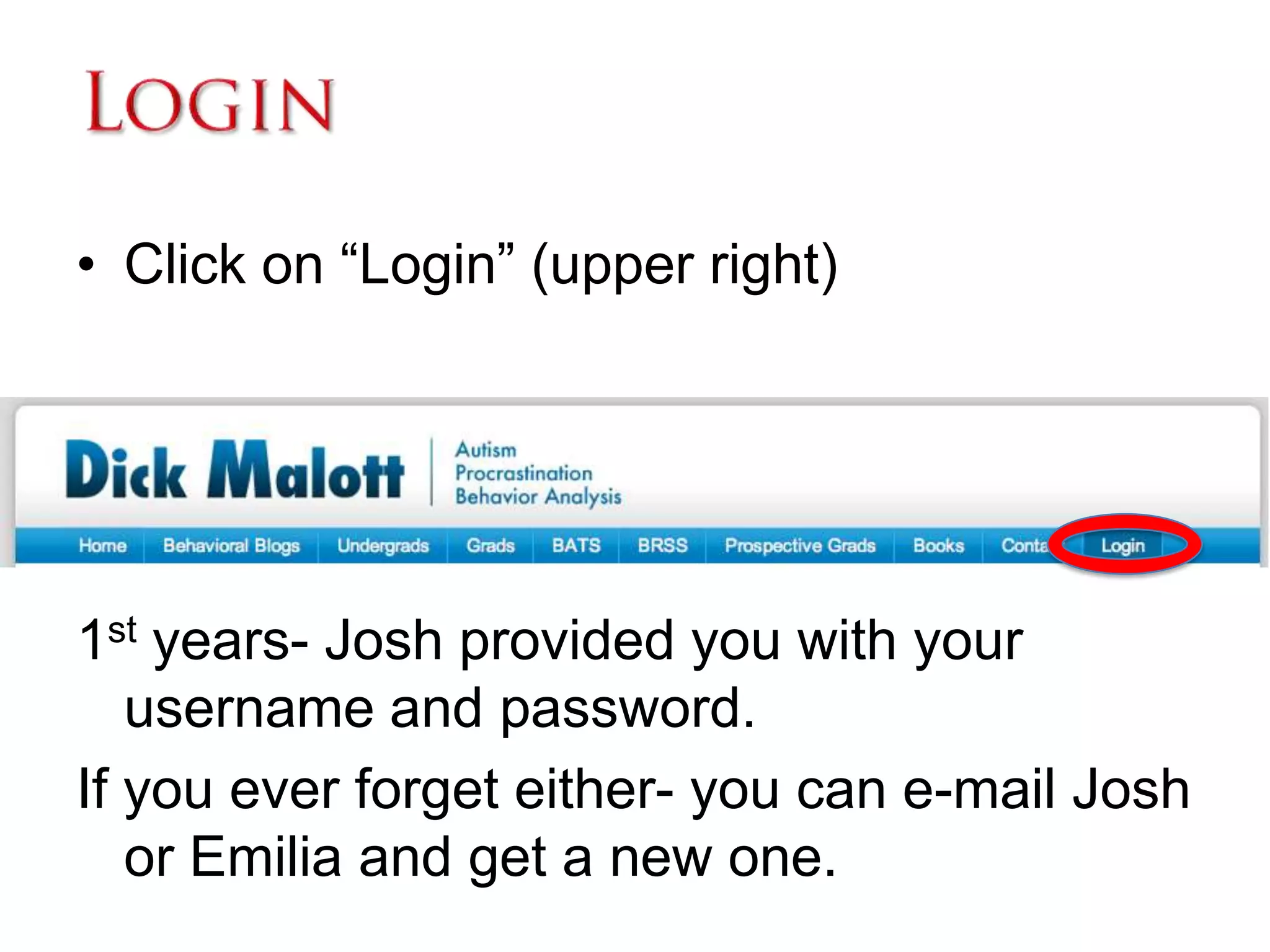
LoginClick on “Login” (upper right)1st years- Josh provided you with your username and password.If you ever forget either- you can e-mail Josh or Emilia and get a new one.
Posting ArticlesSelect the section of the site you are responsible for Click on This will load the site editorSeveral options:WYSIWYG HTMLPictures HyperlinkVideoCode  Check it out…
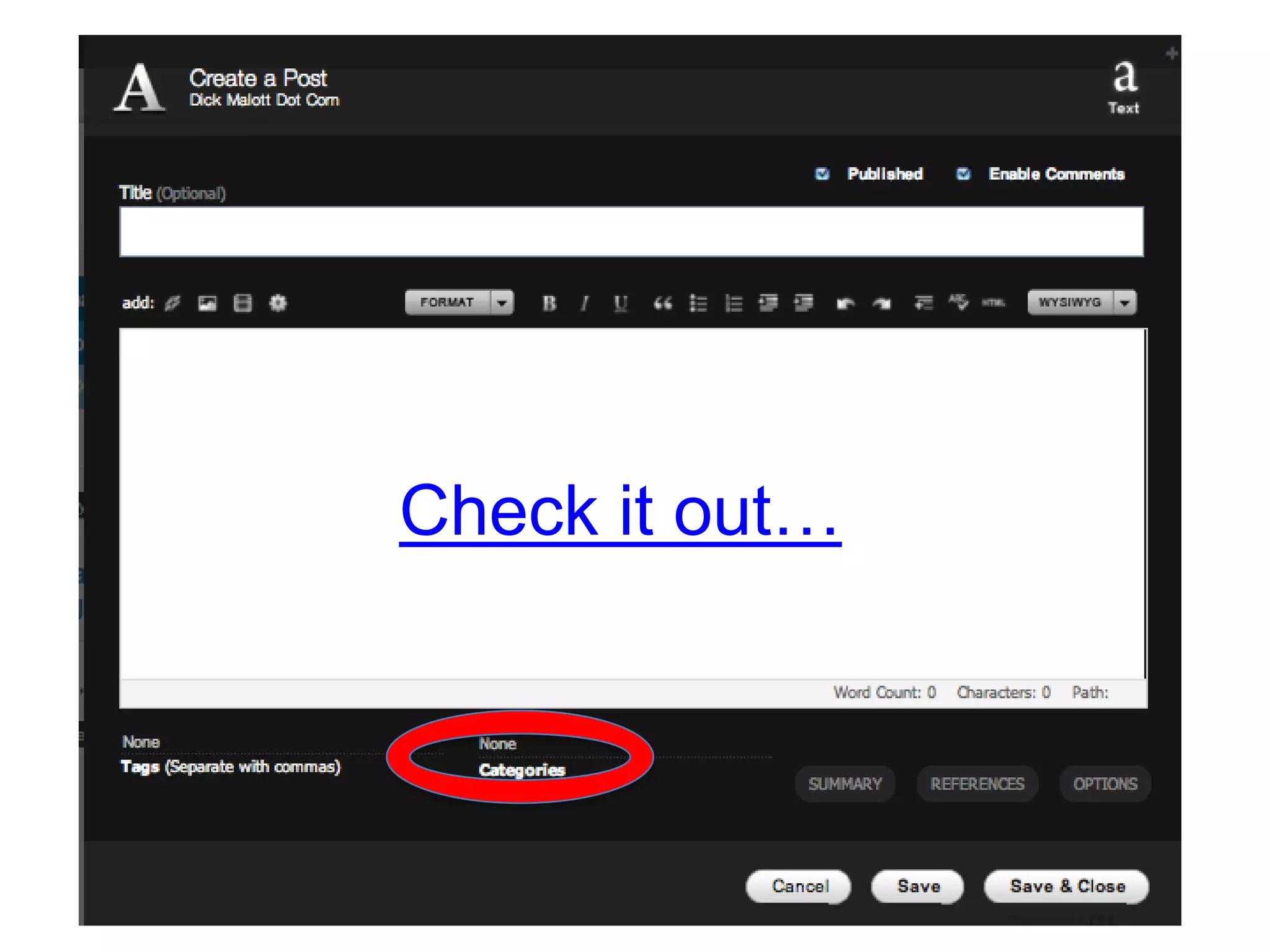
Selecting Categories:VERY IMPORTANT!!!
Check it out…
“The Format”
What’s missing?
To Do “The Format”1.) Upload your picture and and put it in your article using WYSIWYG2.) Click on “Resize” and make your picture 175px wide, (it should be approximately square-ish)3.) Click on “Alignment” and make sure the picture is on the left, in-line with the textCheck it out…
To Do “The Format”4.) Click on “Save and Close”5.) Back in the Editor, click on “Save” 6.) Look at about where the text comes to the bottom of the picture, remember that sentenceCheck it out…
To Do “The Format”7.) Switch from WYSIWYG to Raw HTML (upper right drop down menu)8.) Select all of the code down to the last word of the sentence you made note of, and copy it9.) Click on “Summary” (just below the screen) and paste the code10.) Click Save & CloseCheck it out…
All pictures should be uploaded to the “Pictures” folderSome Additional Notes
But Emilia! What if I want to post a document?
Slideshare.netThis website allows you to upload your documents or PowerPoints and then gives you an embed code.This code can then be used to post your document or PowerPoint on DMCHere is what a PowerPoint will look like on DMC
Slideshare.netI’ve created an account that you are free to use.Username: WMUBATSPassword: wmubatsLet’s Check out Slideshare
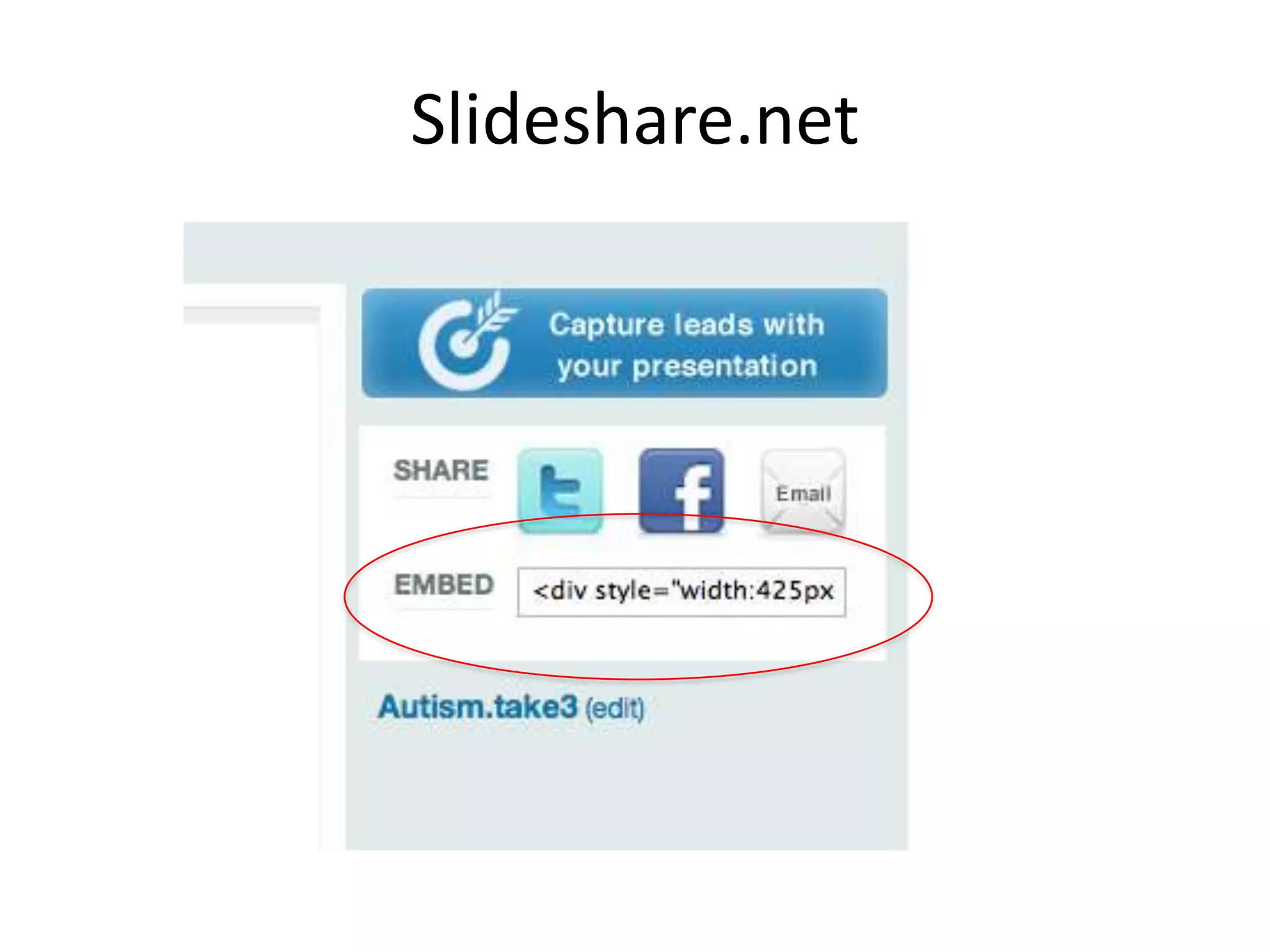
Slideshare.netStep 1: Click UploadStep 2: Upload Publicly Step 3: Select the file you would like to uploadStep 4: Once slideshare has finished uploading, it will give you an embed code. Copy this
Slideshare.net
Slideshare.netMAKE SURE YOU COPY THE ENTIRE CODEStep 5: Go to DMC and open the site editorStep 6: Put your title inStep 7: Click in the body area
Slideshare.net
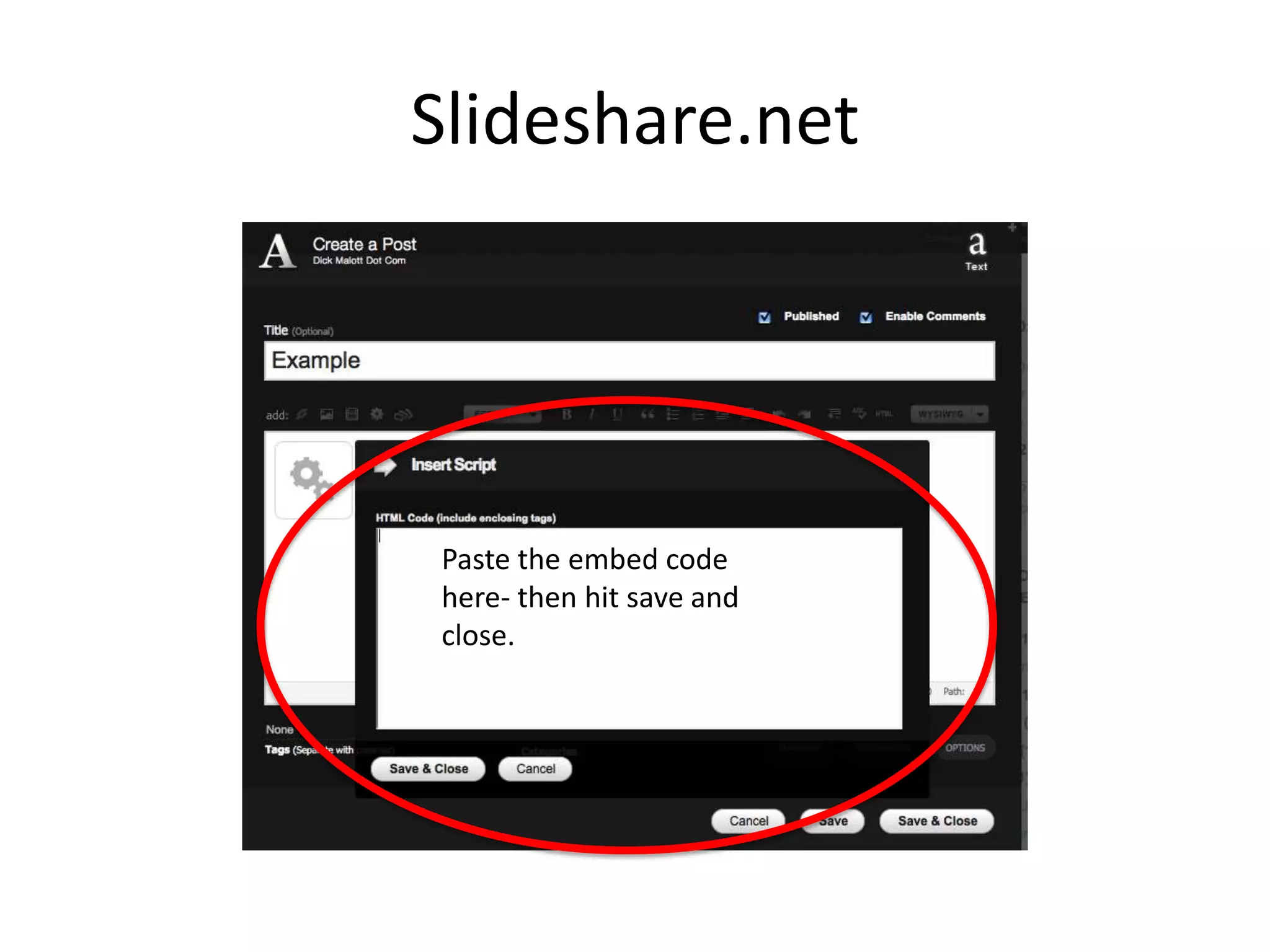
Slideshare.netPaste the embed code here- then hit save and close.
Slideshare.netDon’t Forget to add a categoryAdd your photo (for the summary) and text for the summary in the body.Switch to RawHTML- Copy everything you need for summary.Paste into the summary
Slideshare.netDelete everything from the summary that you don’t need in the body.Save and close!
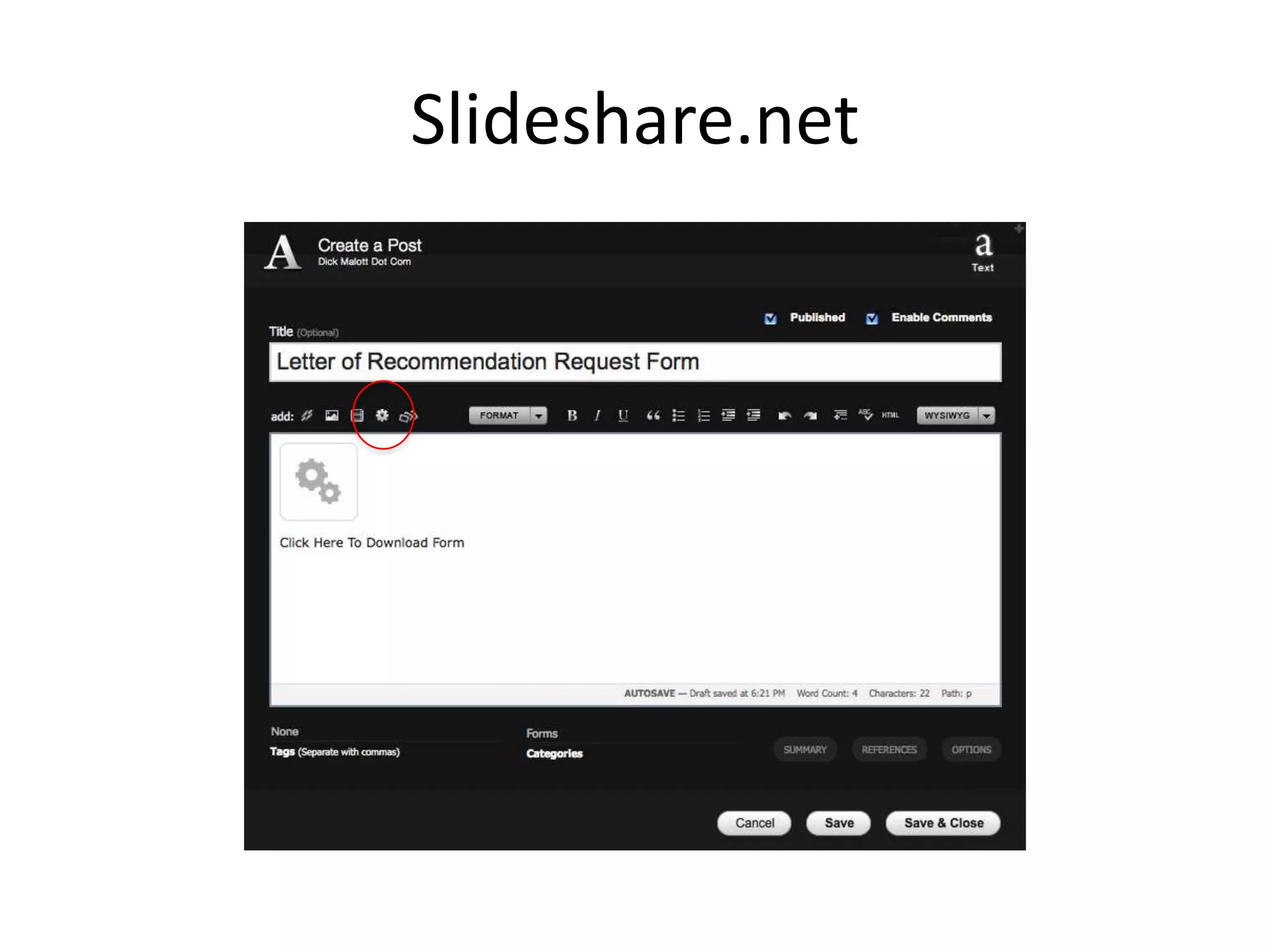
Links To Documents(So People Can Download)Open the site editorEnter Your TitleClick in the body areaEnter what you would like the link to sayClick here to download LOR Request FormHighlight that text
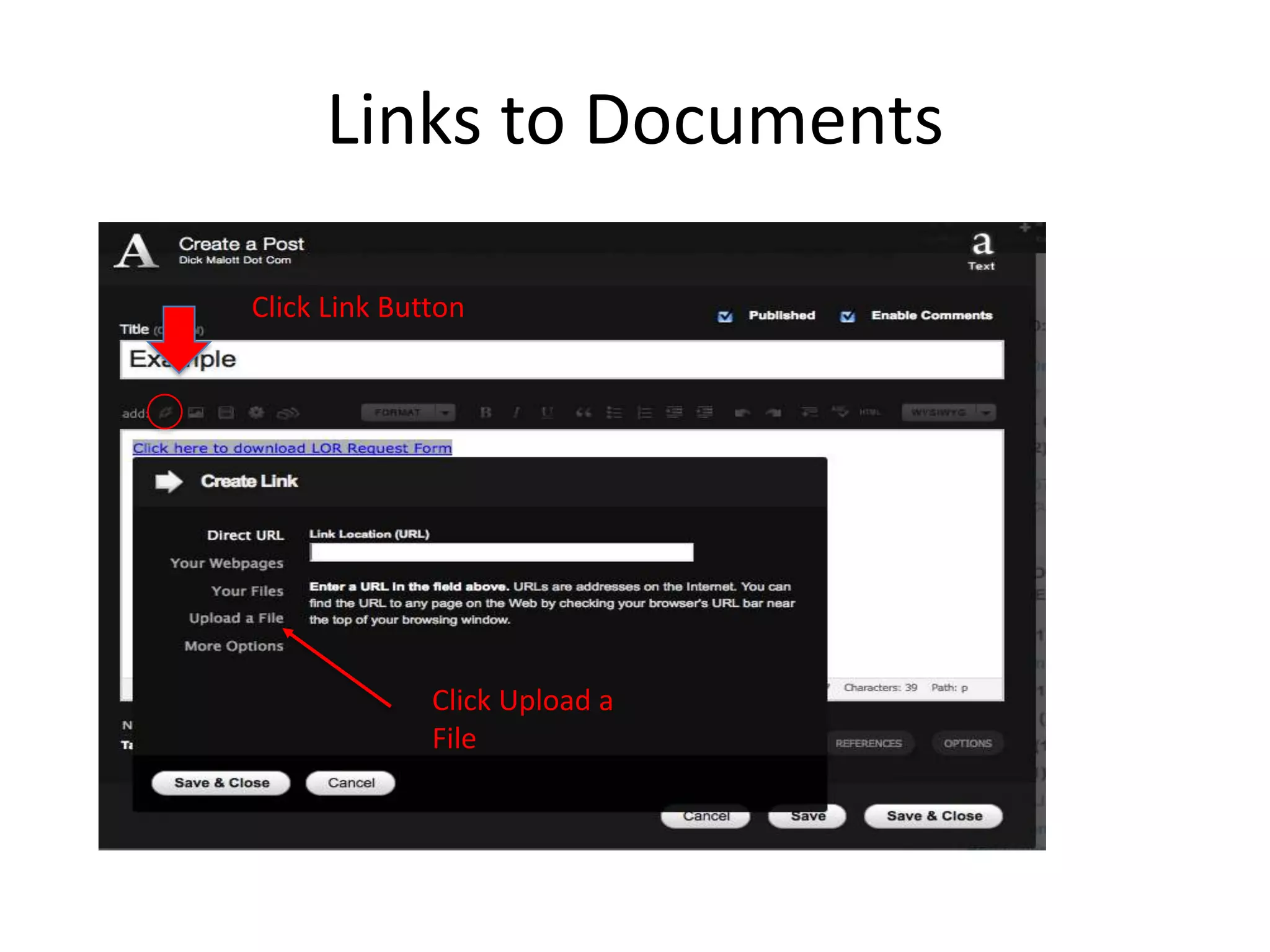
Links to DocumentsClick Link ButtonClick Upload a File
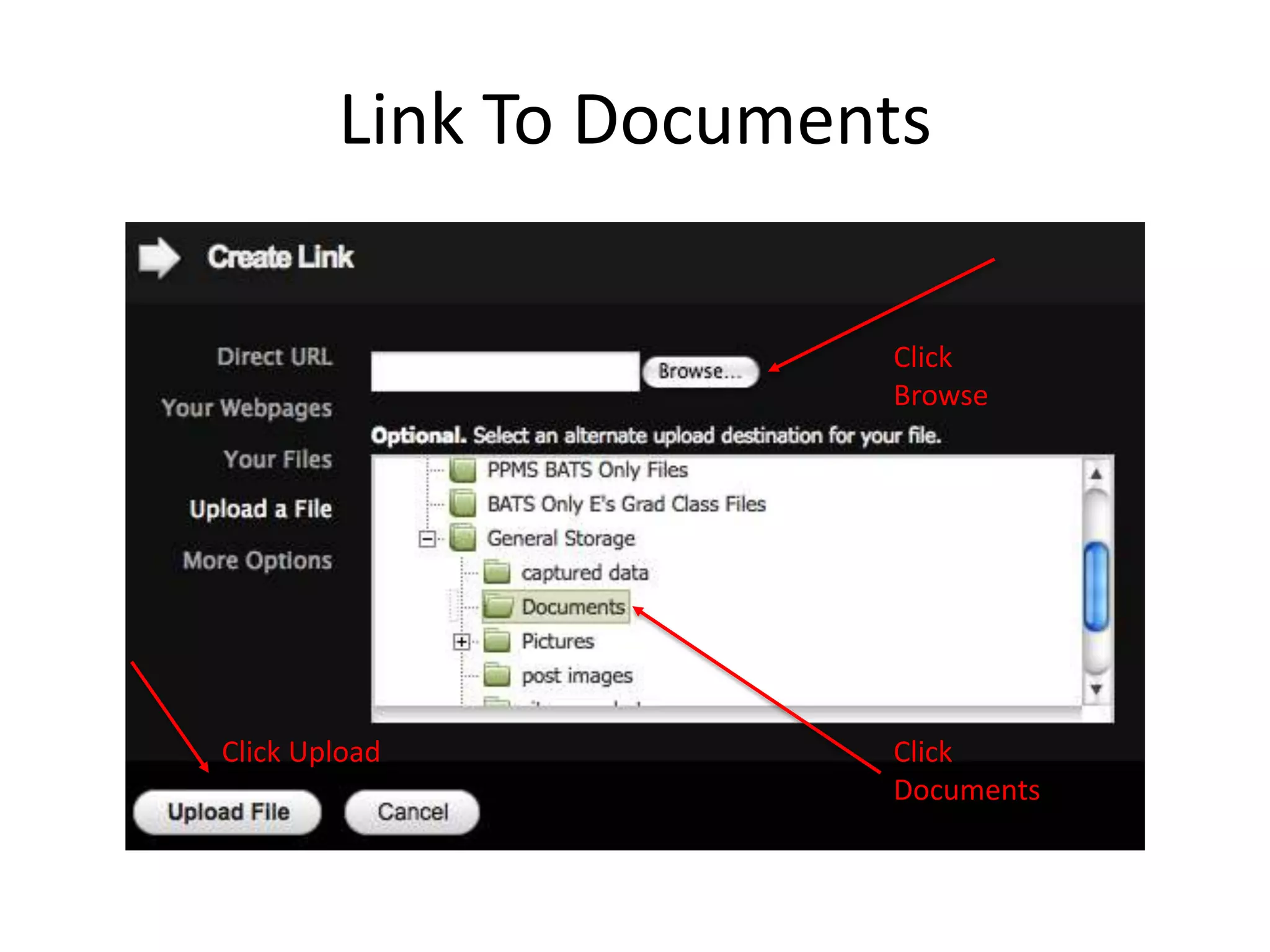
Link To DocumentsClick BrowseClick DocumentsClick Upload
DMC TrainingI know you may feel overwhelmedThat’s OKI will send you this ppt.Josh and I will always be available to help.
DMC TrainingBY 9/26On your system page- upload a photo of you and your contact information. Update your first years info if needed.Meet with your 2nd year and submit a document to me of the things that you should have on your page.
DMC TrainingEmail me if you have questions!

Dickmalott.com

  • 1.
  • 2.
    Each course, system,and section is its own “journal” Each “journal” is comprised of a series of “articles”Like a blog You assign categories to your articles, and these categories become linksCheck it out...Site Layout
  • 3.
    LoginClick on “Login”(upper right)1st years- Josh provided you with your username and password.If you ever forget either- you can e-mail Josh or Emilia and get a new one.
  • 4.
    Posting ArticlesSelect thesection of the site you are responsible for Click on This will load the site editorSeveral options:WYSIWYG HTMLPictures HyperlinkVideoCode Check it out…
  • 5.
  • 6.
  • 7.
  • 8.
  • 9.
    To Do “TheFormat”1.) Upload your picture and and put it in your article using WYSIWYG2.) Click on “Resize” and make your picture 175px wide, (it should be approximately square-ish)3.) Click on “Alignment” and make sure the picture is on the left, in-line with the textCheck it out…
  • 10.
    To Do “TheFormat”4.) Click on “Save and Close”5.) Back in the Editor, click on “Save” 6.) Look at about where the text comes to the bottom of the picture, remember that sentenceCheck it out…
  • 11.
    To Do “TheFormat”7.) Switch from WYSIWYG to Raw HTML (upper right drop down menu)8.) Select all of the code down to the last word of the sentence you made note of, and copy it9.) Click on “Summary” (just below the screen) and paste the code10.) Click Save & CloseCheck it out…
  • 12.
    All pictures shouldbe uploaded to the “Pictures” folderSome Additional Notes
  • 13.
    But Emilia! Whatif I want to post a document?
  • 14.
    Slideshare.netThis website allowsyou to upload your documents or PowerPoints and then gives you an embed code.This code can then be used to post your document or PowerPoint on DMCHere is what a PowerPoint will look like on DMC
  • 15.
    Slideshare.netI’ve created anaccount that you are free to use.Username: WMUBATSPassword: wmubatsLet’s Check out Slideshare
  • 16.
    Slideshare.netStep 1: ClickUploadStep 2: Upload Publicly Step 3: Select the file you would like to uploadStep 4: Once slideshare has finished uploading, it will give you an embed code. Copy this
  • 17.
  • 18.
    Slideshare.netMAKE SURE YOUCOPY THE ENTIRE CODEStep 5: Go to DMC and open the site editorStep 6: Put your title inStep 7: Click in the body area
  • 19.
  • 20.
    Slideshare.netPaste the embedcode here- then hit save and close.
  • 21.
    Slideshare.netDon’t Forget toadd a categoryAdd your photo (for the summary) and text for the summary in the body.Switch to RawHTML- Copy everything you need for summary.Paste into the summary
  • 22.
    Slideshare.netDelete everything fromthe summary that you don’t need in the body.Save and close!
  • 23.
    Links To Documents(SoPeople Can Download)Open the site editorEnter Your TitleClick in the body areaEnter what you would like the link to sayClick here to download LOR Request FormHighlight that text
  • 24.
    Links to DocumentsClickLink ButtonClick Upload a File
  • 25.
    Link To DocumentsClickBrowseClick DocumentsClick Upload
  • 26.
    DMC TrainingI knowyou may feel overwhelmedThat’s OKI will send you this ppt.Josh and I will always be available to help.
  • 27.
    DMC TrainingBY 9/26Onyour system page- upload a photo of you and your contact information. Update your first years info if needed.Meet with your 2nd year and submit a document to me of the things that you should have on your page.
  • 28.
    DMC TrainingEmail meif you have questions!