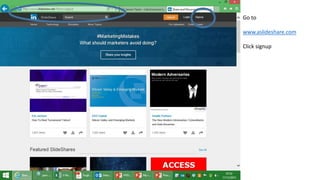
Go to
www.aslideshare.com
Click signup
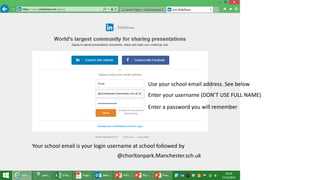
Enter your username (DON’T USE FULL NAME)
Enter a password you will remember
@chorltonpark.Manchester.sch.uk
Use your school email address. See below
Your school email is your login username at school followed by
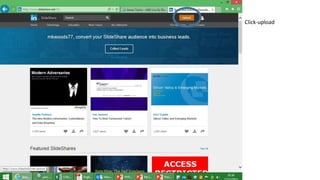
Click-upload
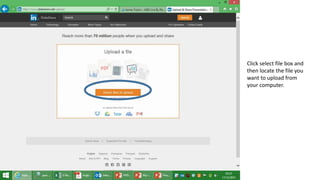
Click select file box and
then locate the file you
want to upload from
your computer.
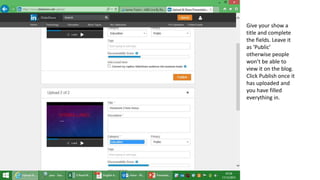
Give your show a
title and complete
the fields. Leave it
as ‘Public’
otherwise people
won’t be able to
view it on the blog.
Click Publish once it
has uploaded and
you have filled
everything in.
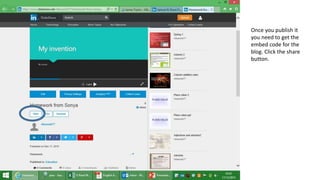
Once you publish it
you need to get the
embed code for the
blog. Click the share
button.
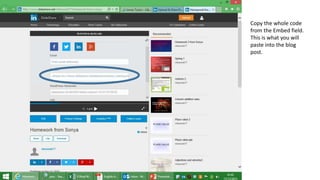
Copy the whole code
from the Embed field.
This is what you will
paste into the blog
post.
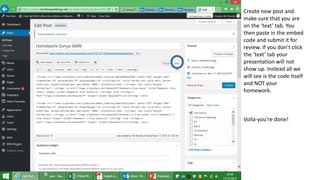
Create new post and
make sure that you are
on the ‘text’ tab. You
then paste in the embed
code and submit it for
review. If you don’t click
the ‘text’ tab your
presentation will not
show up. Instead all we
will see is the code itself
and NOT your
homework.
Voila-you’re done!

Slideshare instructions

  • 2.
  • 3.
    Enter your username(DON’T USE FULL NAME) Enter a password you will remember @chorltonpark.Manchester.sch.uk Use your school email address. See below Your school email is your login username at school followed by
  • 4.
  • 5.
    Click select filebox and then locate the file you want to upload from your computer.
  • 6.
    Give your showa title and complete the fields. Leave it as ‘Public’ otherwise people won’t be able to view it on the blog. Click Publish once it has uploaded and you have filled everything in.
  • 7.
    Once you publishit you need to get the embed code for the blog. Click the share button.
  • 8.
    Copy the wholecode from the Embed field. This is what you will paste into the blog post.
  • 9.
    Create new postand make sure that you are on the ‘text’ tab. You then paste in the embed code and submit it for review. If you don’t click the ‘text’ tab your presentation will not show up. Instead all we will see is the code itself and NOT your homework. Voila-you’re done!