
Blogs workshop
Sofía Velázquez Ramírez Llaca
Introduction
 Why a blog?
 Content to publish
 Homework
 Websites
 Instructions
 Activities
 Photos
 Videos
 Classroom activities
 Chronological order
 Interaction with students and
families.
 What do I need to create my blog in
Wordpress?
 My CAP email
 Notepad to write down user,
password and URL.
 Practice!
Content
 Register your blog
 Access and sign out
 Dashboard
 Publish posts
 Tips for writing posts
 Upload images
 From file
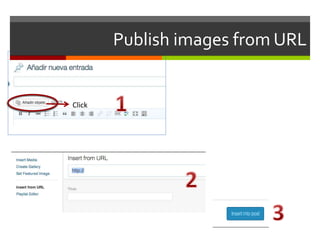
 From URL
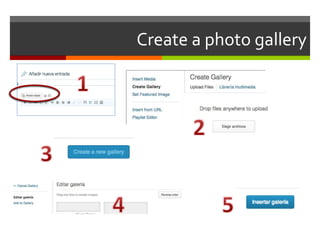
 Photo gallery
 YouTube videos
 Appearance – Themes
 Static Pages
 Slide Share
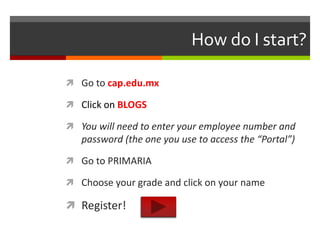
How do I start?
 Go to cap.edu.mx
 Click on BLOGS
 You will need to enter your employee number and
password (the one you use to access the “Portal”)
 Go to PRIMARIA
 Choose your grade and click on your name
 Register!
How will students and parents access my
blog?
 They’ll have to:
 go to cap.edu.mx
 Go to BLOGS CAP
 enter their student or family number and
password
 Your blog will be the only one available to
them
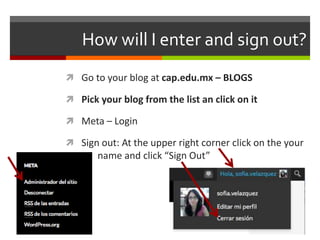
How will I enter and sign out?
 Go to your blog at cap.edu.mx – BLOGS
 Pick your blog from the list an click on it
 Meta – Login
 Sign out: At the upper right corner click on the your
name and click “Sign Out”
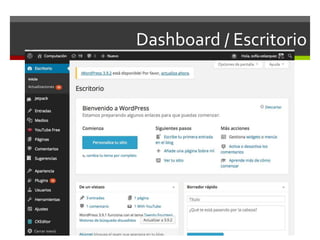
Dashboard / Escritorio
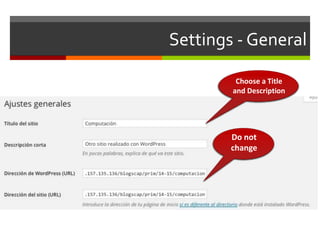
Settings - General
Do not
change
Choose a Title
and Description
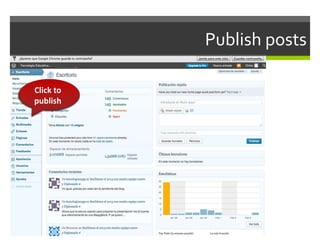
Click to
publish
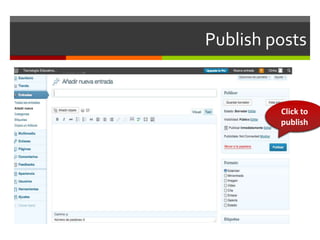
Publish posts
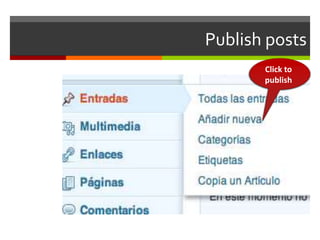
Publish posts
Click to
publish
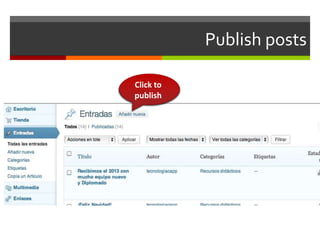
Publish posts
Click to
publish
Publish posts
Click to
publish
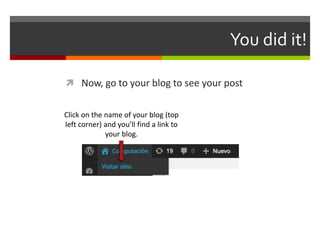
You did it!
 Now, go to your blog to see your post
Click on the name of your blog (top
left corner) and you’ll find a link to
your blog.
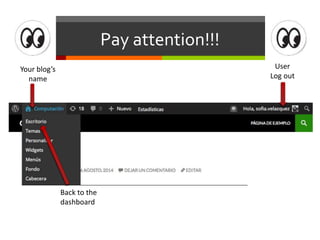
Pay attention!!!
Your blog’s
name
User
Log out
Back to the
dashboard
Tips for writing posts
 Choose a short title that represents the content
 Use bold letters to highlight important words.
 Write short paragraphs
 Review your writing to check for spelling mistakes
and other errors
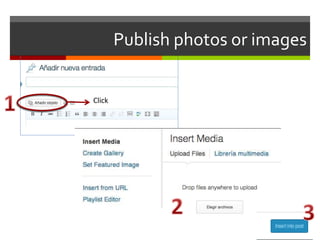
 Add images to illustrate your post
 Publish regularly
Click
Publish photos or images
Click
Publish images from URL
Create a photo gallery
Multimedia
 Wordpress stores every object that you have added
to your blog in it’s multimedia gallery.
 This way, you can use them in the future without
uploading them again.
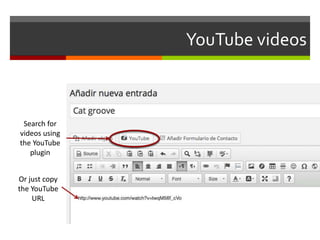
YouTube videos
Or just copy
the YouTube
URL
Search for
videos using
the YouTube
plugin
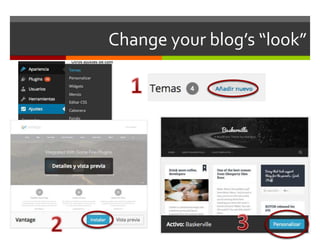
Change your blog’s “look”
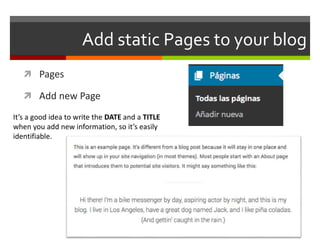
Add static Pages to your blog
 Pages
 Add new Page
It’s a good idea to write the DATE and a TITLE
when you add new information, so it’s easily
identifiable.
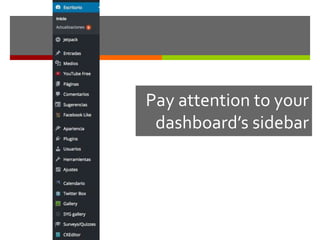
Pay attention to your
dashboard’s sidebar
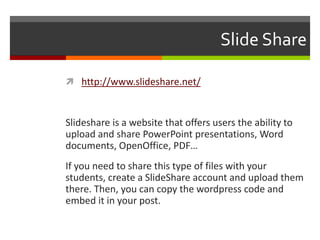
Slide Share
 http://www.slideshare.net/
Slideshare is a website that offers users the ability to
upload and share PowerPoint presentations, Word
documents, OpenOffice, PDF…
If you need to share this type of files with your
students, create a SlideShare account and upload them
there. Then, you can copy the wordpress code and
embed it in your post.

Blogs new teachers eng

  • 1.
  • 2.
    Introduction  Why ablog?  Content to publish  Homework  Websites  Instructions  Activities  Photos  Videos  Classroom activities  Chronological order  Interaction with students and families.  What do I need to create my blog in Wordpress?  My CAP email  Notepad to write down user, password and URL.  Practice!
  • 3.
    Content  Register yourblog  Access and sign out  Dashboard  Publish posts  Tips for writing posts  Upload images  From file  From URL  Photo gallery  YouTube videos  Appearance – Themes  Static Pages  Slide Share
  • 4.
    How do Istart?  Go to cap.edu.mx  Click on BLOGS  You will need to enter your employee number and password (the one you use to access the “Portal”)  Go to PRIMARIA  Choose your grade and click on your name  Register!
  • 5.
    How will studentsand parents access my blog?  They’ll have to:  go to cap.edu.mx  Go to BLOGS CAP  enter their student or family number and password  Your blog will be the only one available to them
  • 6.
    How will Ienter and sign out?  Go to your blog at cap.edu.mx – BLOGS  Pick your blog from the list an click on it  Meta – Login  Sign out: At the upper right corner click on the your name and click “Sign Out”
  • 7.
  • 8.
    Settings - General Donot change Choose a Title and Description
  • 9.
  • 10.
  • 11.
  • 12.
  • 13.
    You did it! Now, go to your blog to see your post Click on the name of your blog (top left corner) and you’ll find a link to your blog.
  • 14.
  • 15.
    Tips for writingposts  Choose a short title that represents the content  Use bold letters to highlight important words.  Write short paragraphs  Review your writing to check for spelling mistakes and other errors  Add images to illustrate your post  Publish regularly
  • 16.
  • 17.
  • 18.
  • 19.
    Multimedia  Wordpress storesevery object that you have added to your blog in it’s multimedia gallery.  This way, you can use them in the future without uploading them again.
  • 20.
    YouTube videos Or justcopy the YouTube URL Search for videos using the YouTube plugin
  • 21.
  • 22.
    Add static Pagesto your blog  Pages  Add new Page It’s a good idea to write the DATE and a TITLE when you add new information, so it’s easily identifiable.
  • 23.
    Pay attention toyour dashboard’s sidebar
  • 24.
    Slide Share  http://www.slideshare.net/ Slideshareis a website that offers users the ability to upload and share PowerPoint presentations, Word documents, OpenOffice, PDF… If you need to share this type of files with your students, create a SlideShare account and upload them there. Then, you can copy the wordpress code and embed it in your post.