Making an SYR 
Expressions Site 
A Guide for WRT 105 
Students
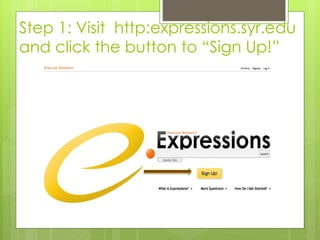
Step 1: Visit http:expressions.syr.edu 
and click the button to “Sign Up!”
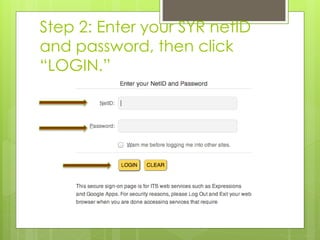
Step 2: Enter your SYR netID 
and password, then click 
“LOGIN.”
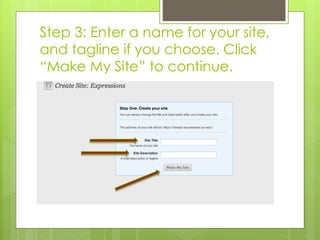
Step 3: Enter a name for your site, 
and tagline if you choose. Click 
“Make My Site” to continue.
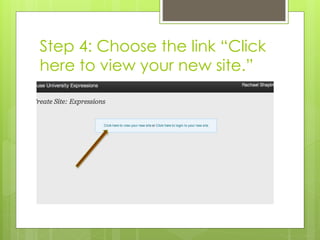
Step 4: Choose the link “Click 
here to view your new site.”
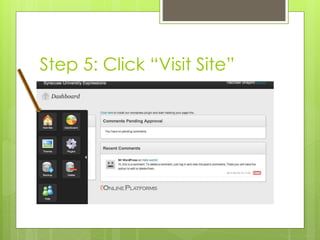
Step 5: Click “Visit Site”
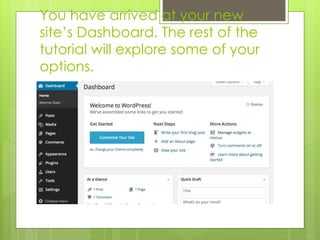
You have arrived at your new 
site’s Dashboard. The rest of the 
tutorial will explore some of your 
options.
Themes
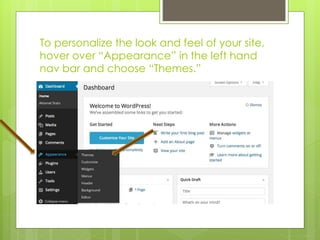
To personalize the look and feel of your site, 
hover over “Appearance” in the left hand 
nav bar and choose “Themes.”
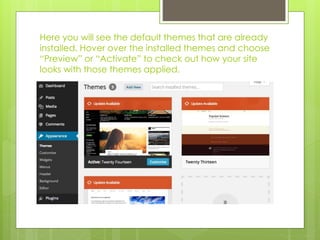
Here you will see the default themes that are already 
installed. Hover over the installed themes and choose 
“Preview” or “Activate” to check out how your site 
looks with those themes applied.
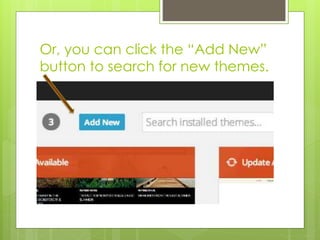
Or, you can click the “Add New” 
button to search for new themes.
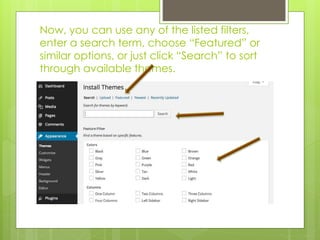
Now, you can use any of the listed filters, 
enter a search term, choose “Featured” or 
similar options, or just click “Search” to sort 
through available themes.
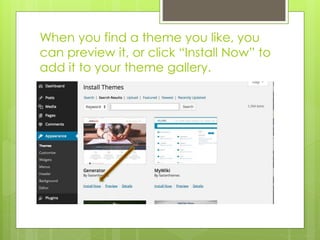
When you find a theme you like, you 
can preview it, or click “Install Now” to 
add it to your theme gallery.
About installed themes… 
 New themes will appear in your themes gallery 
with the default themes. Choose 
AppearanceThemes in the left hand nav bar to 
view all installed themes. 
 To apply a theme, hover over it in the themes 
gallery and choose “activate.” 
 Themes will need to be updated from time to time 
for security and functionality of your site. You will 
be notified that you have updates ready when 
you log in to your dashboard. 
 Themes have a variety of different capabilities. 
Explore them carefully to ensure they are suitable 
to your needs.
Posts
Posts are equivalent to a blog 
post or status update—the 
most recent content appears 
on top. You can work with 
posts in several ways.
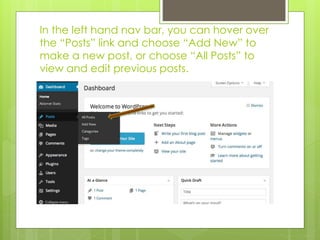
In the left hand nav bar, you can hover over 
the “Posts” link and choose “Add New” to 
make a new post, or choose “All Posts” to 
view and edit previous posts.
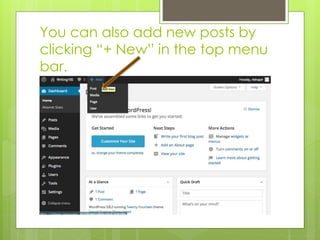
You can also add new posts by 
clicking “+ New” in the top menu 
bar.
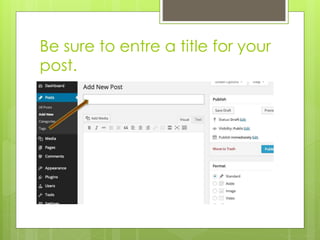
Be sure to entre a title for your 
post.
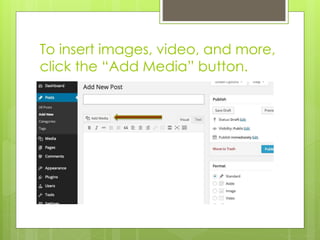
To insert images, video, and more, 
click the “Add Media” button.
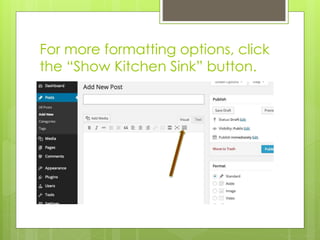
For more formatting options, click 
the “Show Kitchen Sink” button.
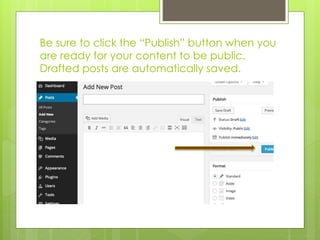
Be sure to click the “Publish” button when you 
are ready for your content to be public. 
Drafted posts are automatically saved.
Pages
Pages are like posts, but they 
feature static content. In other 
words, you will have to edit the 
entire page each time you add 
something new, rather than 
adding new, discrete units of 
content like you do with posts.
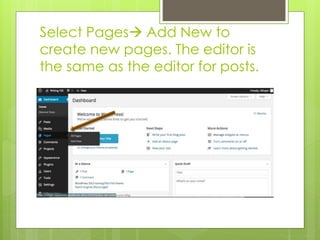
Select Pages Add New to 
create new pages. The editor is 
the same as the editor for posts.
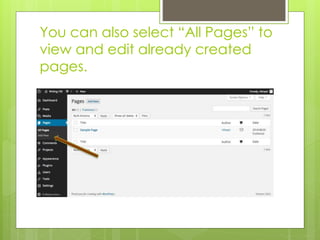
You can also select “All Pages” to 
view and edit already created 
pages.
A Few More 
Advanced 
Features…
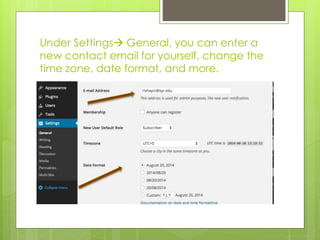
Under Settings General, you can enter a 
new contact email for yourself, change the 
time zone, date format, and more.
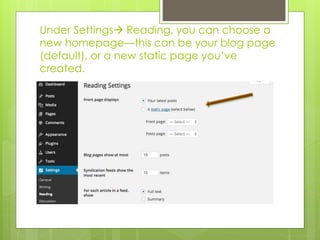
Under Settings Reading, you can choose a 
new homepage—this can be your blog page 
(default), or a new static page you’ve 
created.
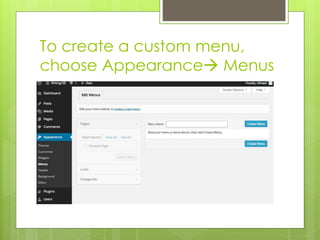
To create a custom menu, 
choose Appearance Menus
For more Expressions help… 
 Visit the Expressions Answer Space at 
https://answers.syr.edu/display/itsservapp 
011/Expressions 
 Call ITS at (315) 443-2677 
 Or, email express@syr.edu

Su expressions tutorial

  • 1.
    Making an SYR Expressions Site A Guide for WRT 105 Students
  • 2.
    Step 1: Visithttp:expressions.syr.edu and click the button to “Sign Up!”
  • 3.
    Step 2: Enteryour SYR netID and password, then click “LOGIN.”
  • 4.
    Step 3: Entera name for your site, and tagline if you choose. Click “Make My Site” to continue.
  • 5.
    Step 4: Choosethe link “Click here to view your new site.”
  • 6.
    Step 5: Click“Visit Site”
  • 7.
    You have arrivedat your new site’s Dashboard. The rest of the tutorial will explore some of your options.
  • 8.
  • 9.
    To personalize thelook and feel of your site, hover over “Appearance” in the left hand nav bar and choose “Themes.”
  • 10.
    Here you willsee the default themes that are already installed. Hover over the installed themes and choose “Preview” or “Activate” to check out how your site looks with those themes applied.
  • 11.
    Or, you canclick the “Add New” button to search for new themes.
  • 12.
    Now, you canuse any of the listed filters, enter a search term, choose “Featured” or similar options, or just click “Search” to sort through available themes.
  • 13.
    When you finda theme you like, you can preview it, or click “Install Now” to add it to your theme gallery.
  • 14.
    About installed themes…  New themes will appear in your themes gallery with the default themes. Choose AppearanceThemes in the left hand nav bar to view all installed themes.  To apply a theme, hover over it in the themes gallery and choose “activate.”  Themes will need to be updated from time to time for security and functionality of your site. You will be notified that you have updates ready when you log in to your dashboard.  Themes have a variety of different capabilities. Explore them carefully to ensure they are suitable to your needs.
  • 15.
  • 16.
    Posts are equivalentto a blog post or status update—the most recent content appears on top. You can work with posts in several ways.
  • 17.
    In the lefthand nav bar, you can hover over the “Posts” link and choose “Add New” to make a new post, or choose “All Posts” to view and edit previous posts.
  • 18.
    You can alsoadd new posts by clicking “+ New” in the top menu bar.
  • 19.
    Be sure toentre a title for your post.
  • 20.
    To insert images,video, and more, click the “Add Media” button.
  • 21.
    For more formattingoptions, click the “Show Kitchen Sink” button.
  • 22.
    Be sure toclick the “Publish” button when you are ready for your content to be public. Drafted posts are automatically saved.
  • 23.
  • 24.
    Pages are likeposts, but they feature static content. In other words, you will have to edit the entire page each time you add something new, rather than adding new, discrete units of content like you do with posts.
  • 25.
    Select Pages AddNew to create new pages. The editor is the same as the editor for posts.
  • 26.
    You can alsoselect “All Pages” to view and edit already created pages.
  • 27.
    A Few More Advanced Features…
  • 28.
    Under Settings General,you can enter a new contact email for yourself, change the time zone, date format, and more.
  • 29.
    Under Settings Reading,you can choose a new homepage—this can be your blog page (default), or a new static page you’ve created.
  • 30.
    To create acustom menu, choose Appearance Menus
  • 31.
    For more Expressionshelp…  Visit the Expressions Answer Space at https://answers.syr.edu/display/itsservapp 011/Expressions  Call ITS at (315) 443-2677  Or, email express@syr.edu