Create a Blog
Be a Blogger
Follow these steps to create your blog and
your first blog post for English 103
Defining terms
1 - Blogger: a free service, owned by google, that will help
you create, publish, and manage a blog website.
2 - Blog: a website that people use to publish short writing
pieces, images, and videos.
3 - Post: a kind of short writing piece that is published on
blogs, organized in chronological order, and updated
regularly.
4 - Page: a stable, semi-permanent, webpage that are
typically used to publish information that is relatively stable.
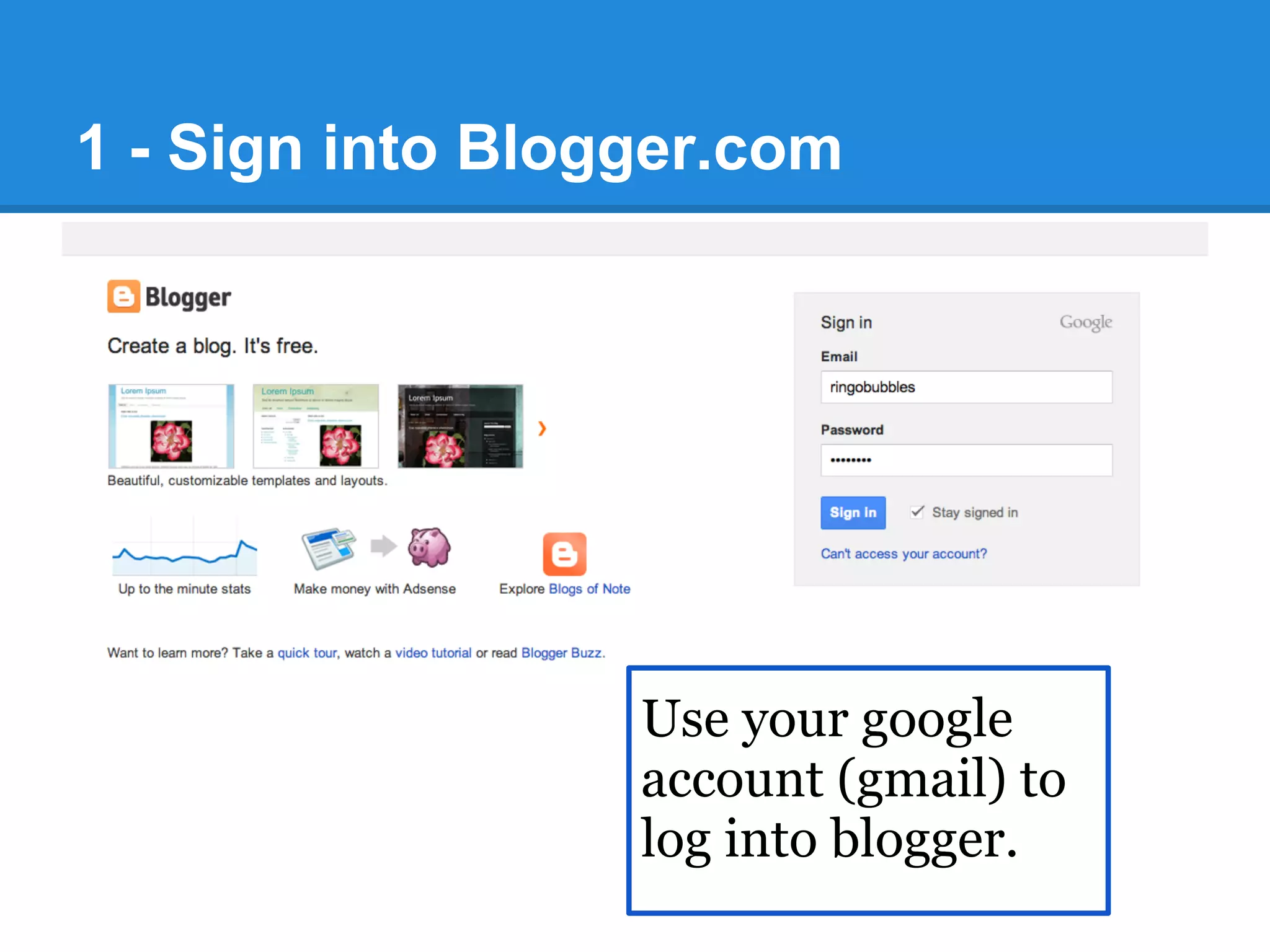
1 - Sign into Blogger.com
Use your google
account (gmail) to
log into blogger.
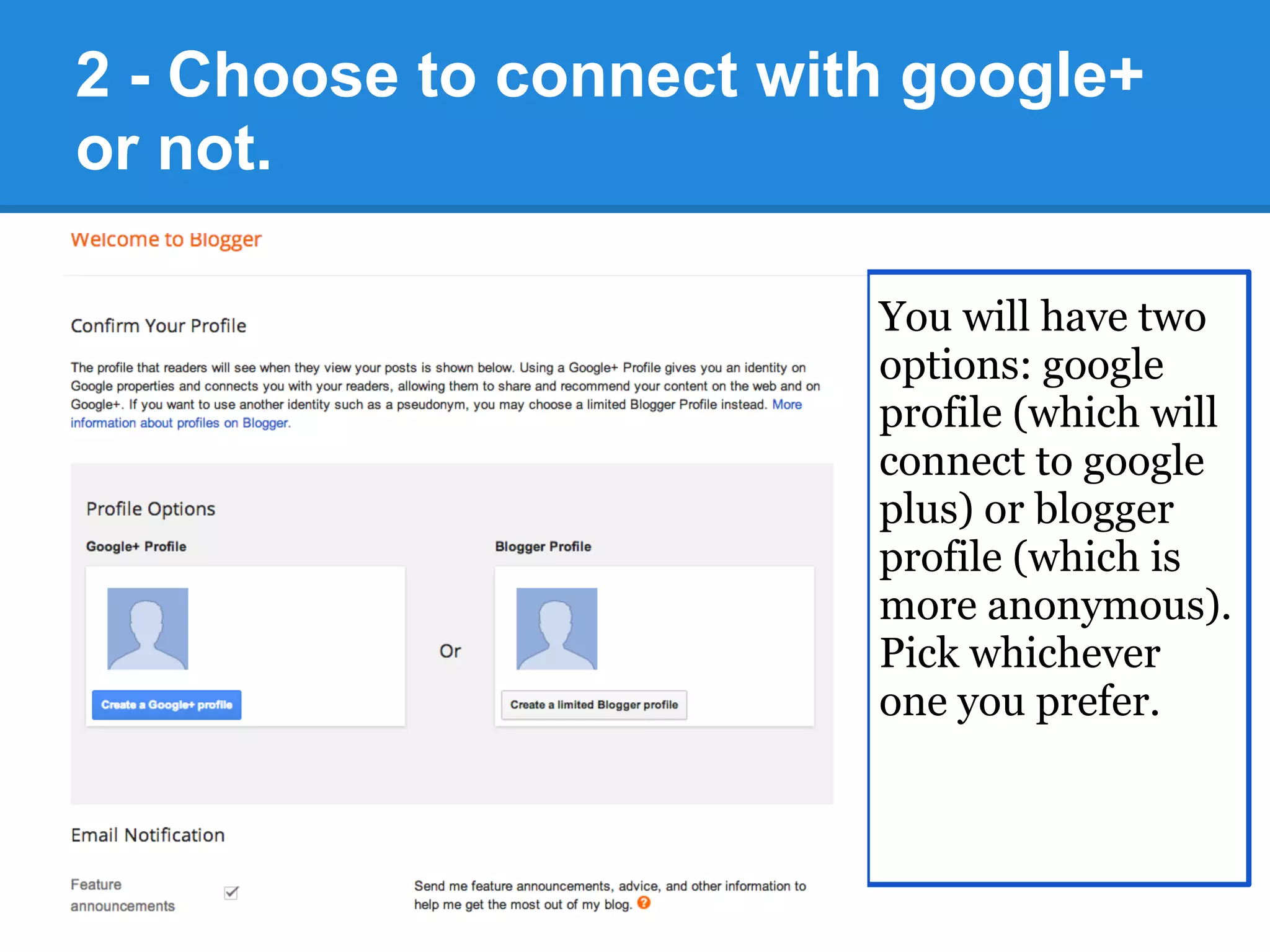
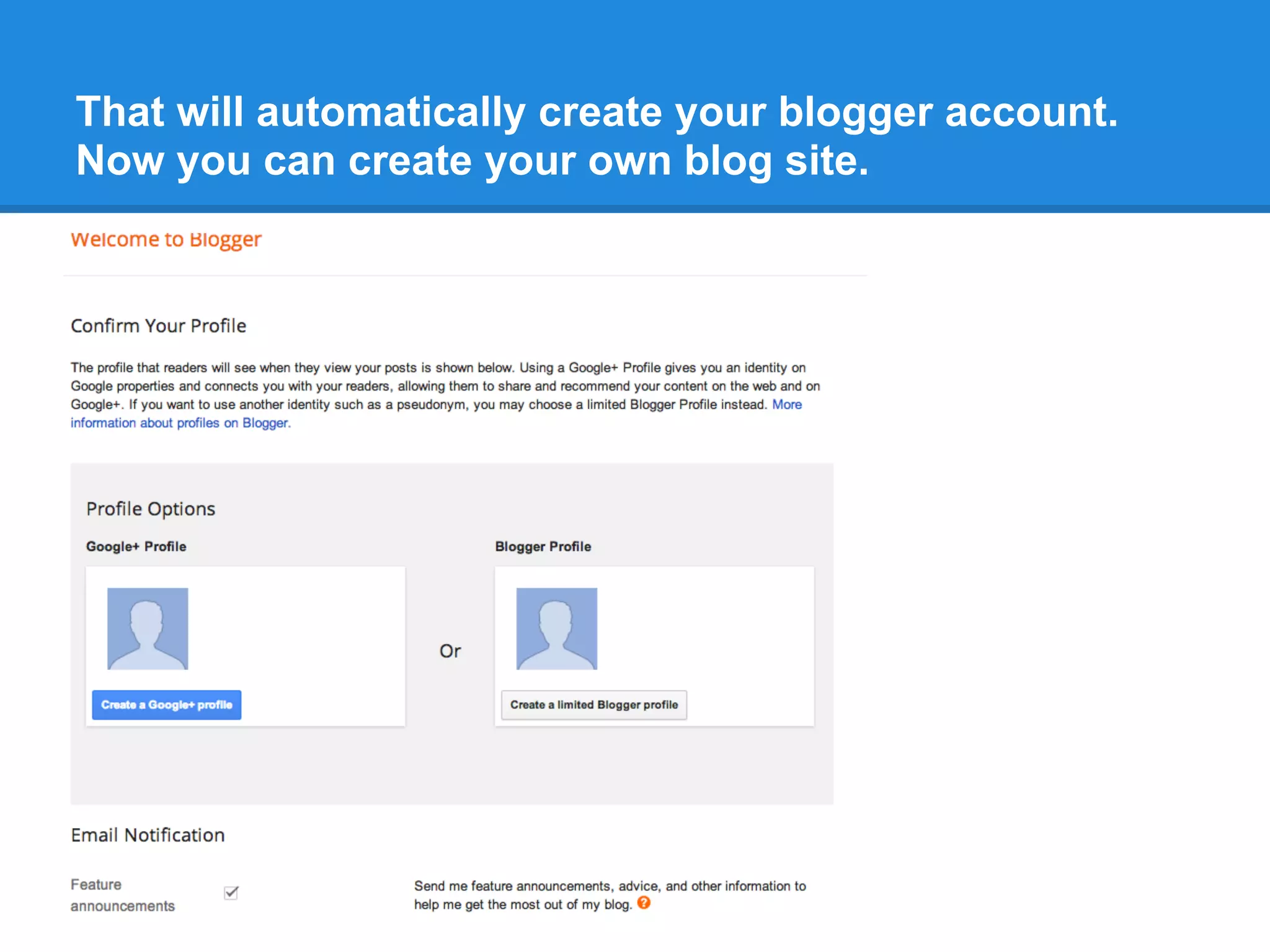
2 - Choose to connect with google+
or not.
You will have two
options: google
profile (which will
connect to google
plus) or blogger
profile (which is
more anonymous).
Pick whichever
one you prefer.
That will automatically create your blogger account.
Now you can create your own blog site.
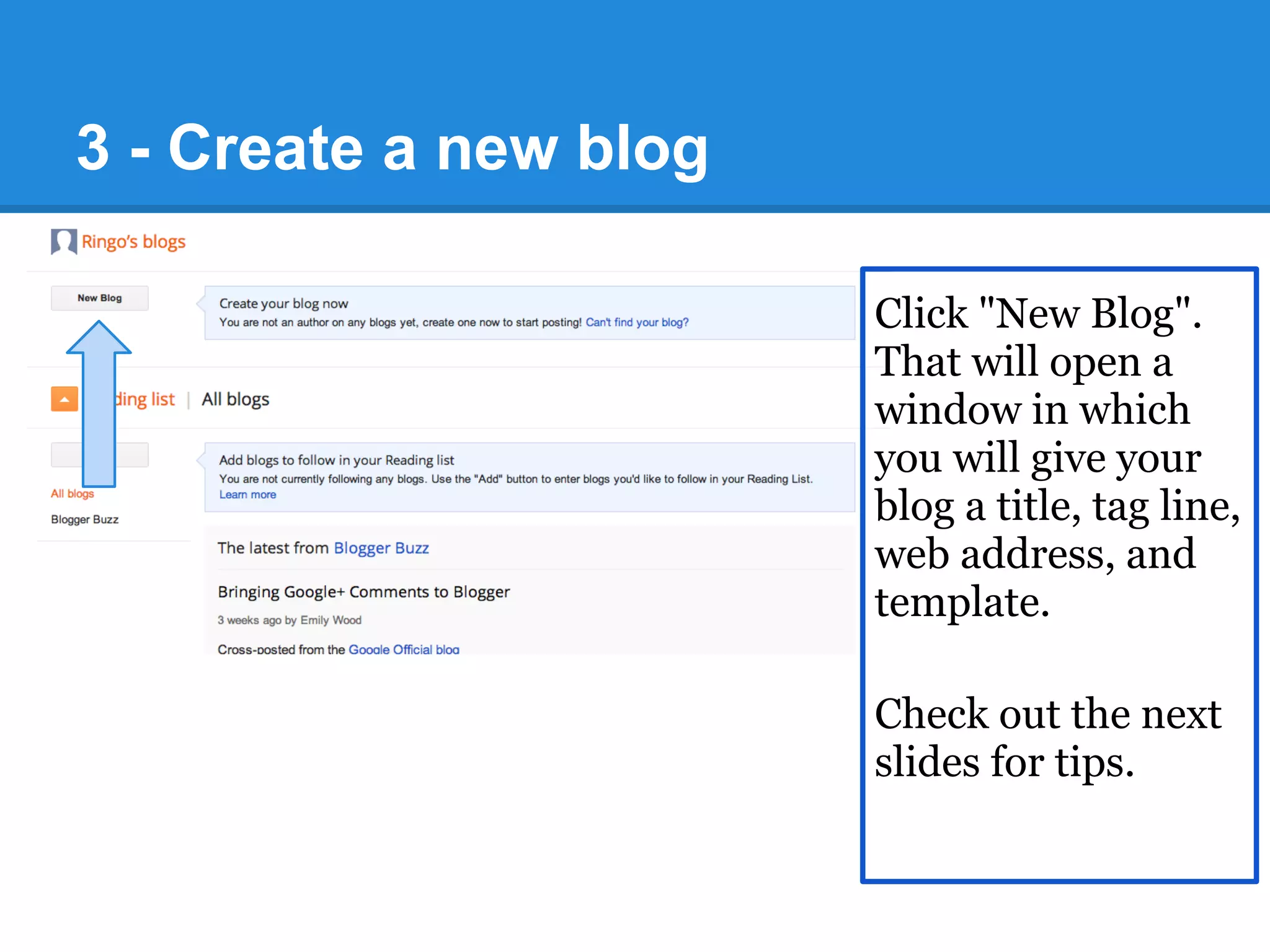
3 - Create a new blog
Click "New Blog".
That will open a
window in which
you will give your
blog a title, tag line,
web address, and
template.
Check out the next
slides for tips.
3 - Create a new blog
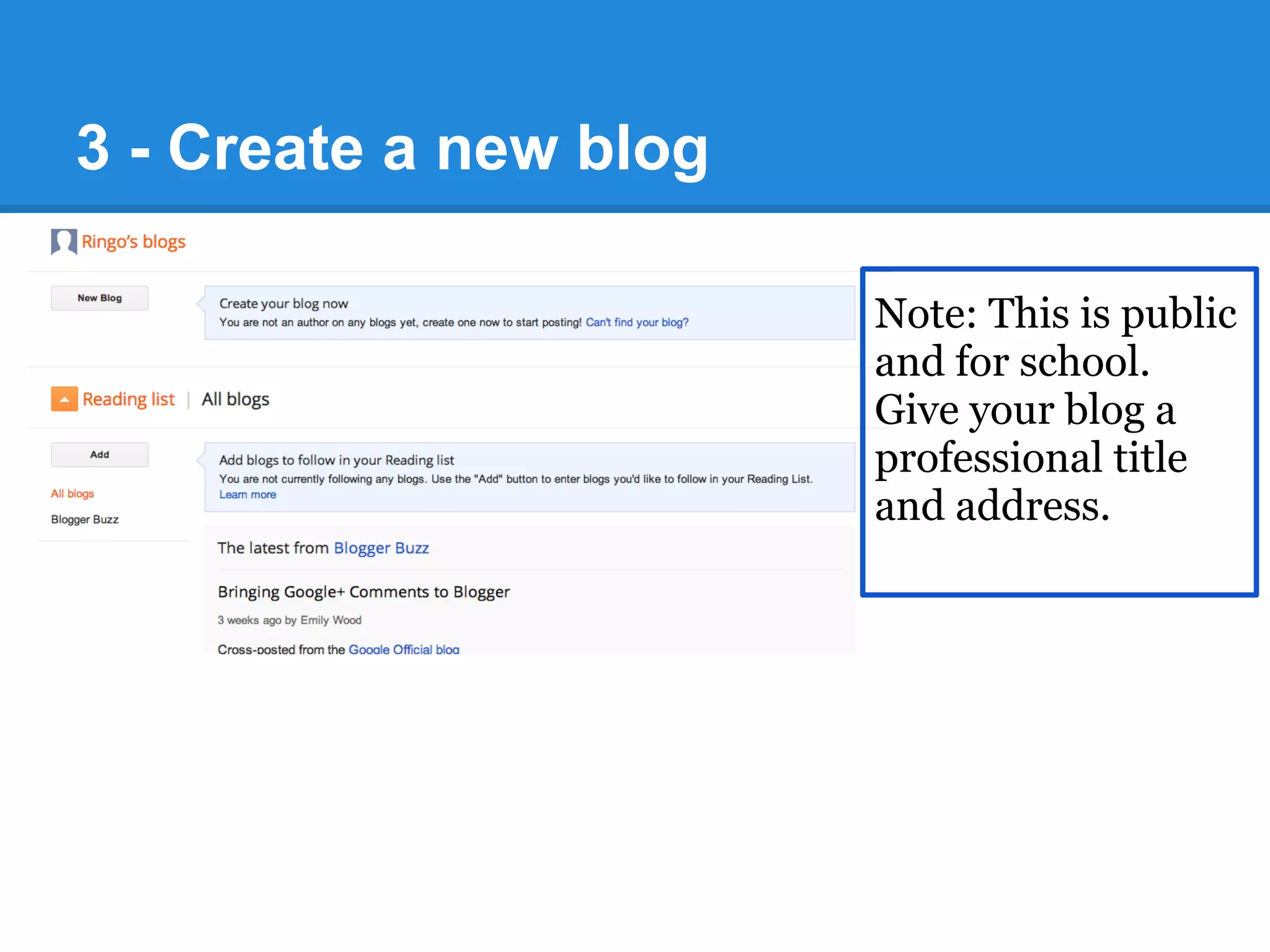
Note: This is public
and for school.
Give your blog a
professional title
and address.
3 - Create a new blog
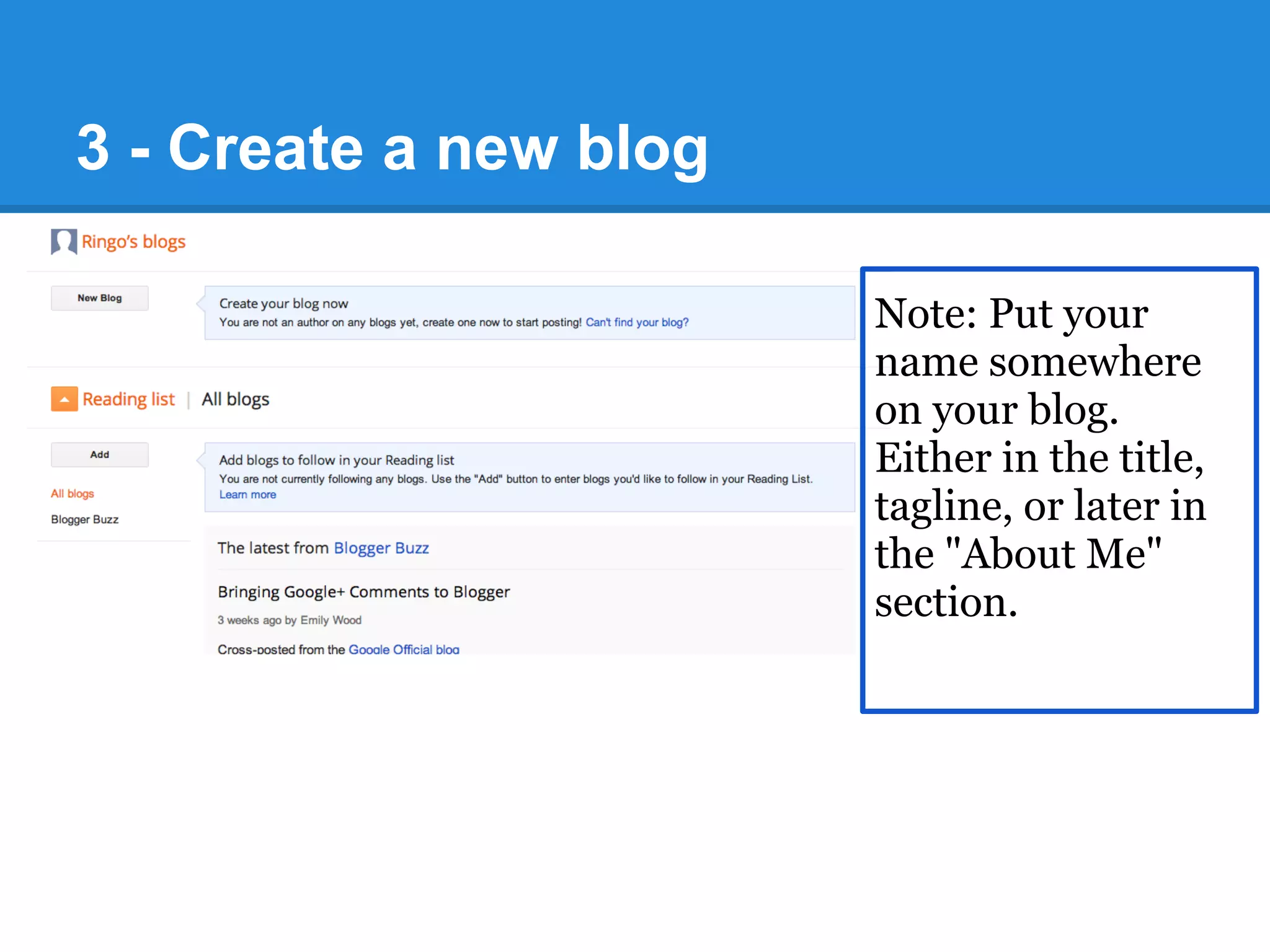
Note: Put your
name somewhere
on your blog.
Either in the title,
tagline, or later in
the "About Me"
section.
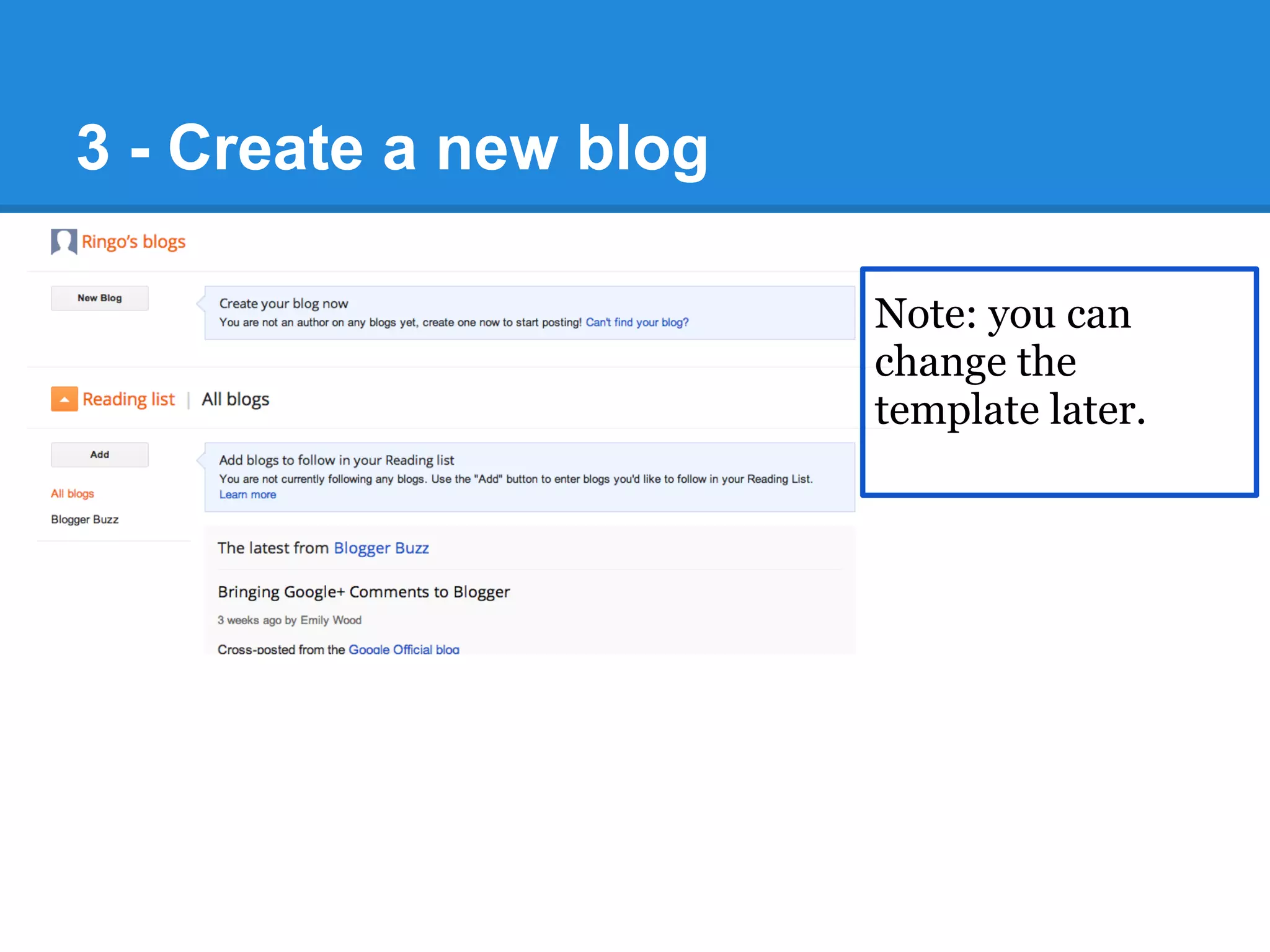
3 - Create a new blog
Note: you can
change the
template later.
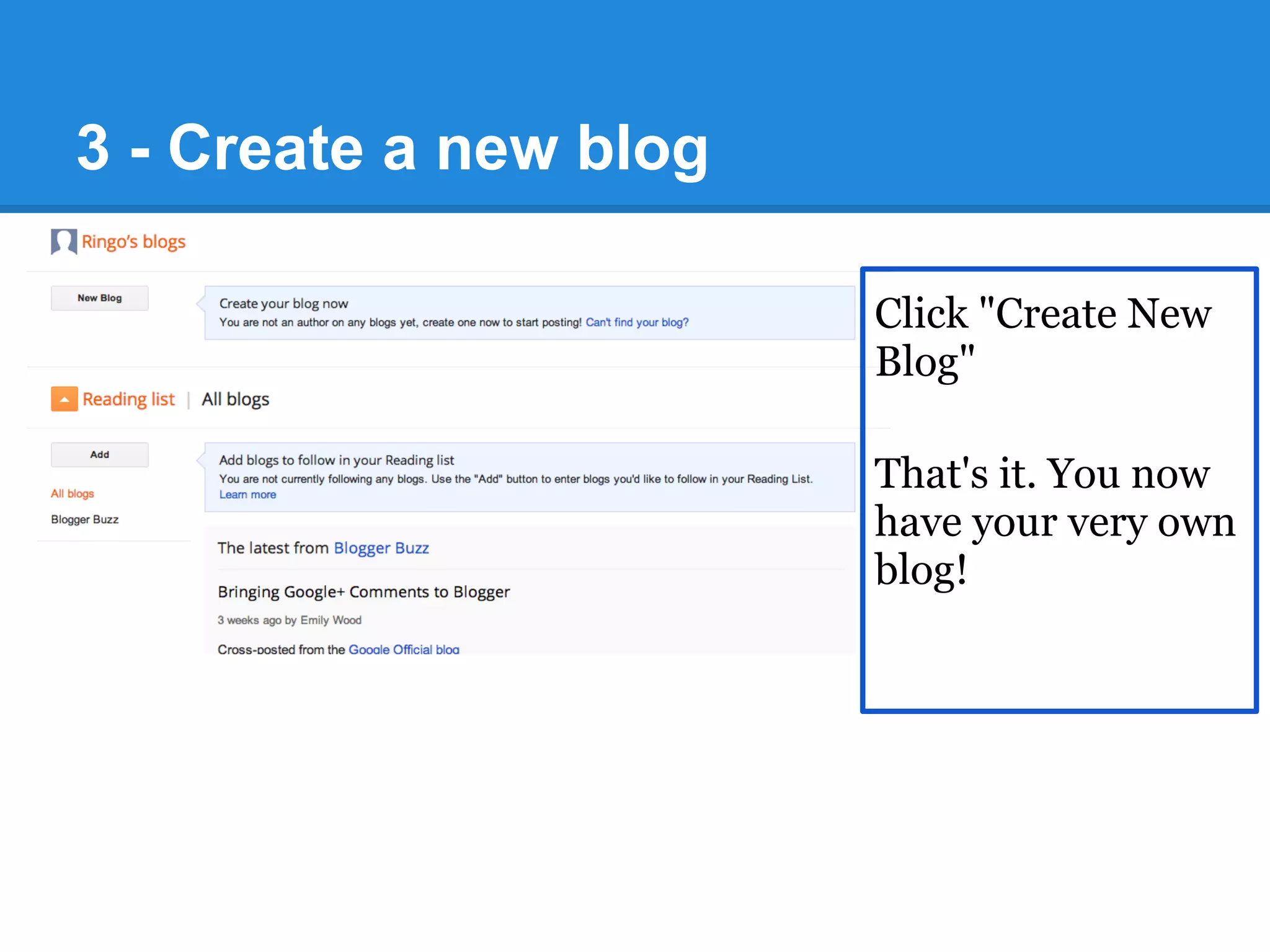
3 - Create a new blog
Click "Create New
Blog"
That's it. You now
have your very own
blog!
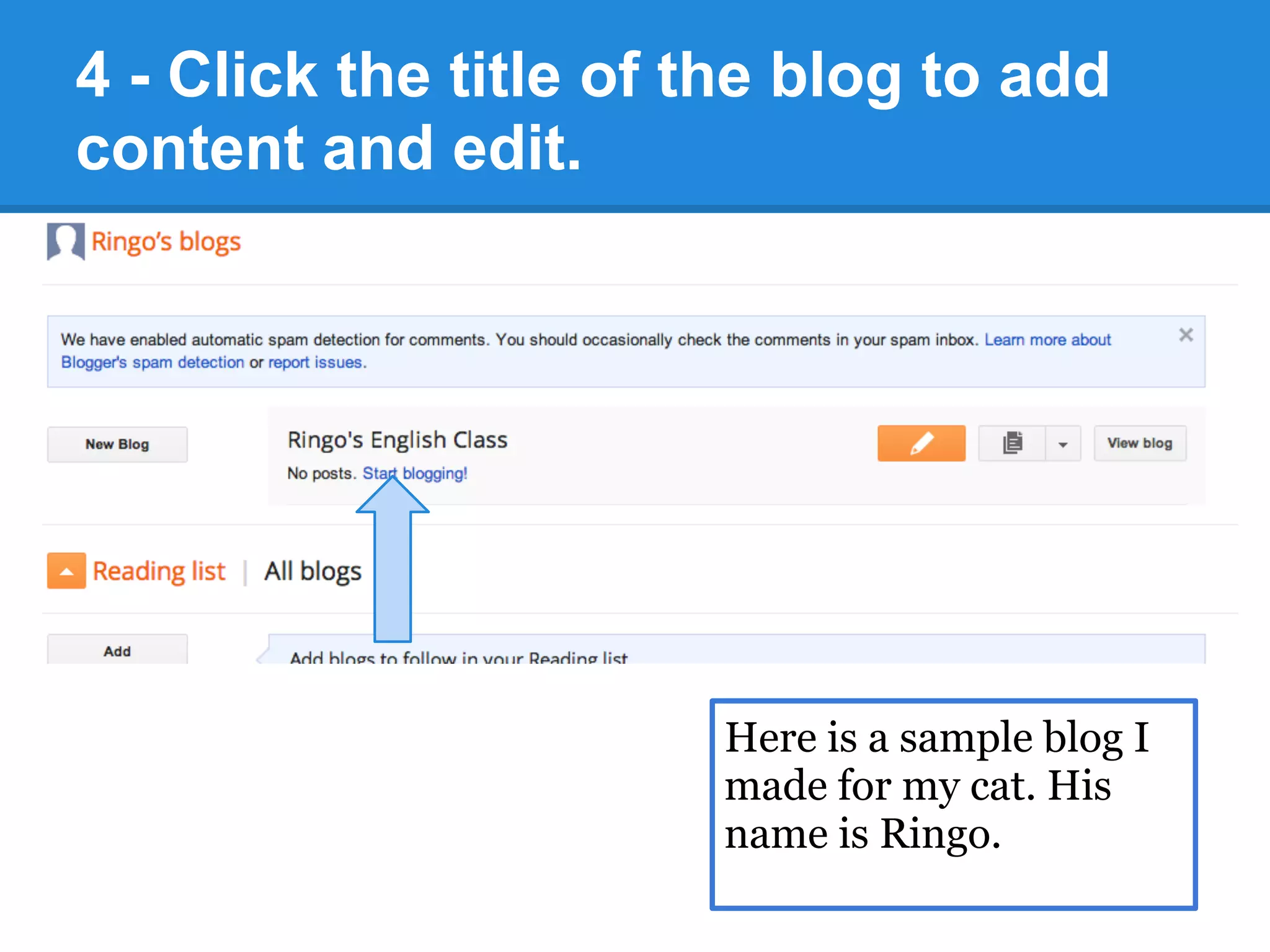
4 - Click the title of the blog to add
content and edit.
Here is a sample blog I
made for my cat. His
name is Ringo.
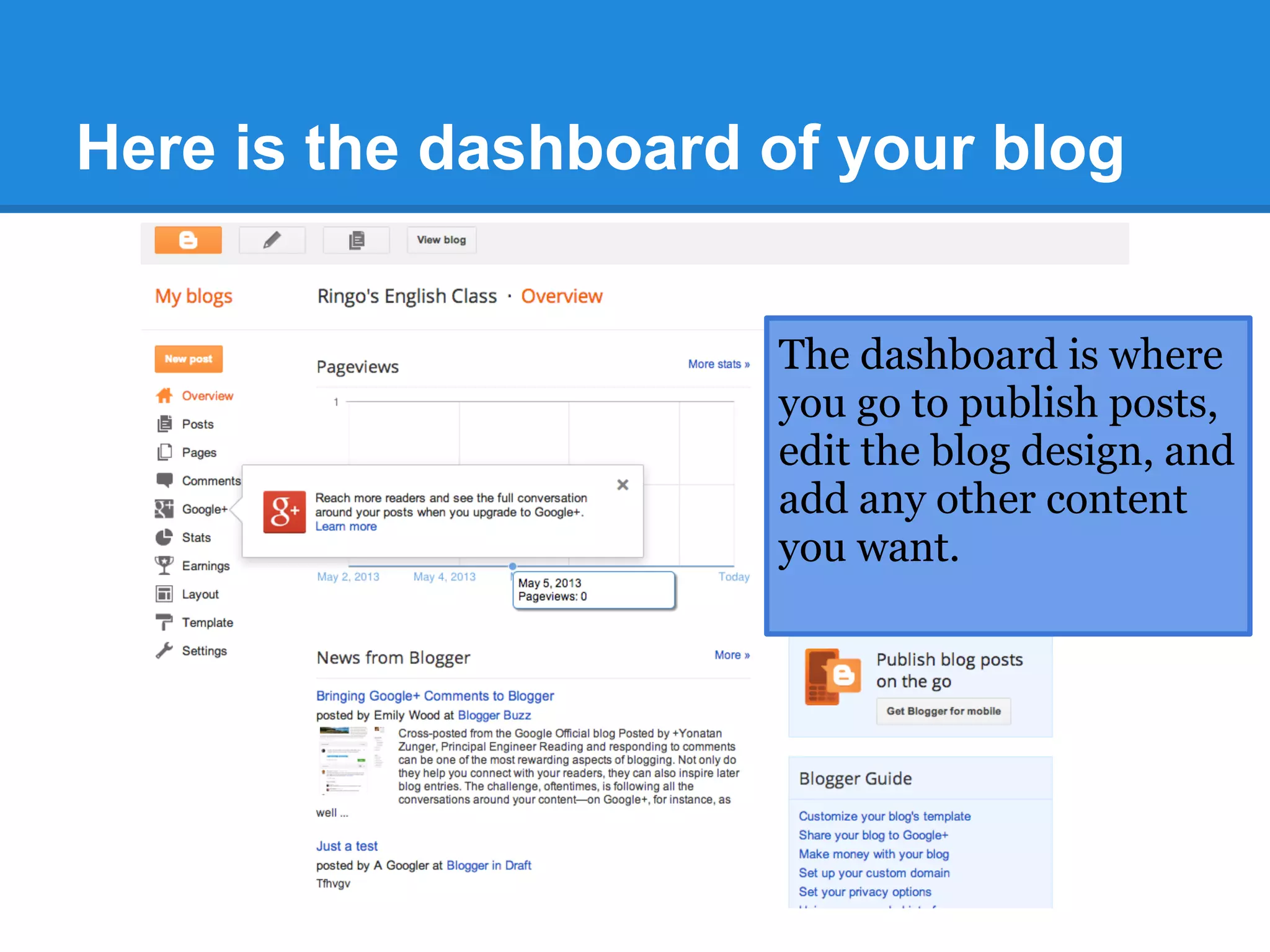
Here is the dashboard of your blog
The dashboard is where
you go to publish posts,
edit the blog design, and
add any other content
you want.
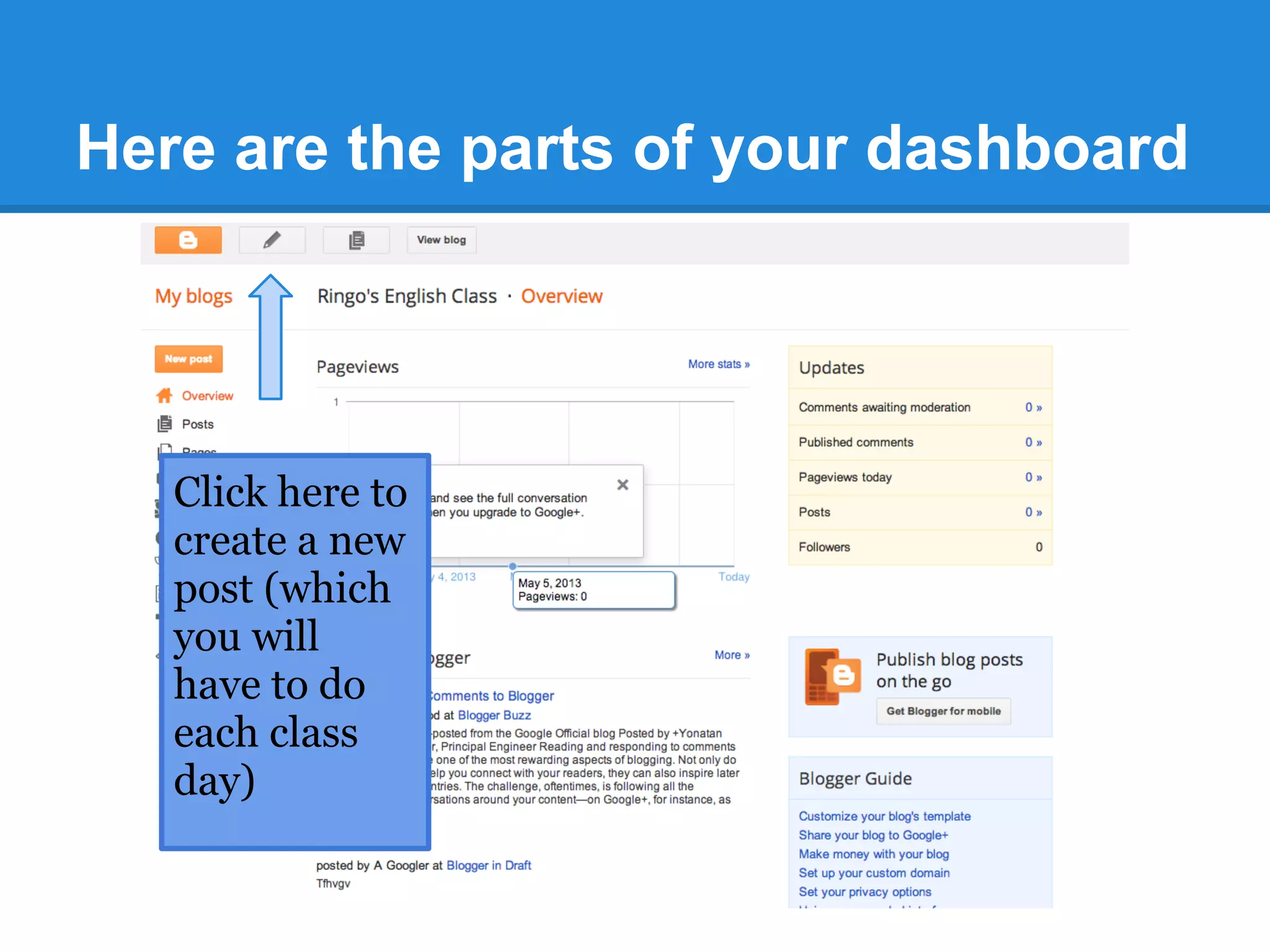
Here are the parts of your dashboard
Click here to
create a new
post (which
you will
have to do
each class
day)
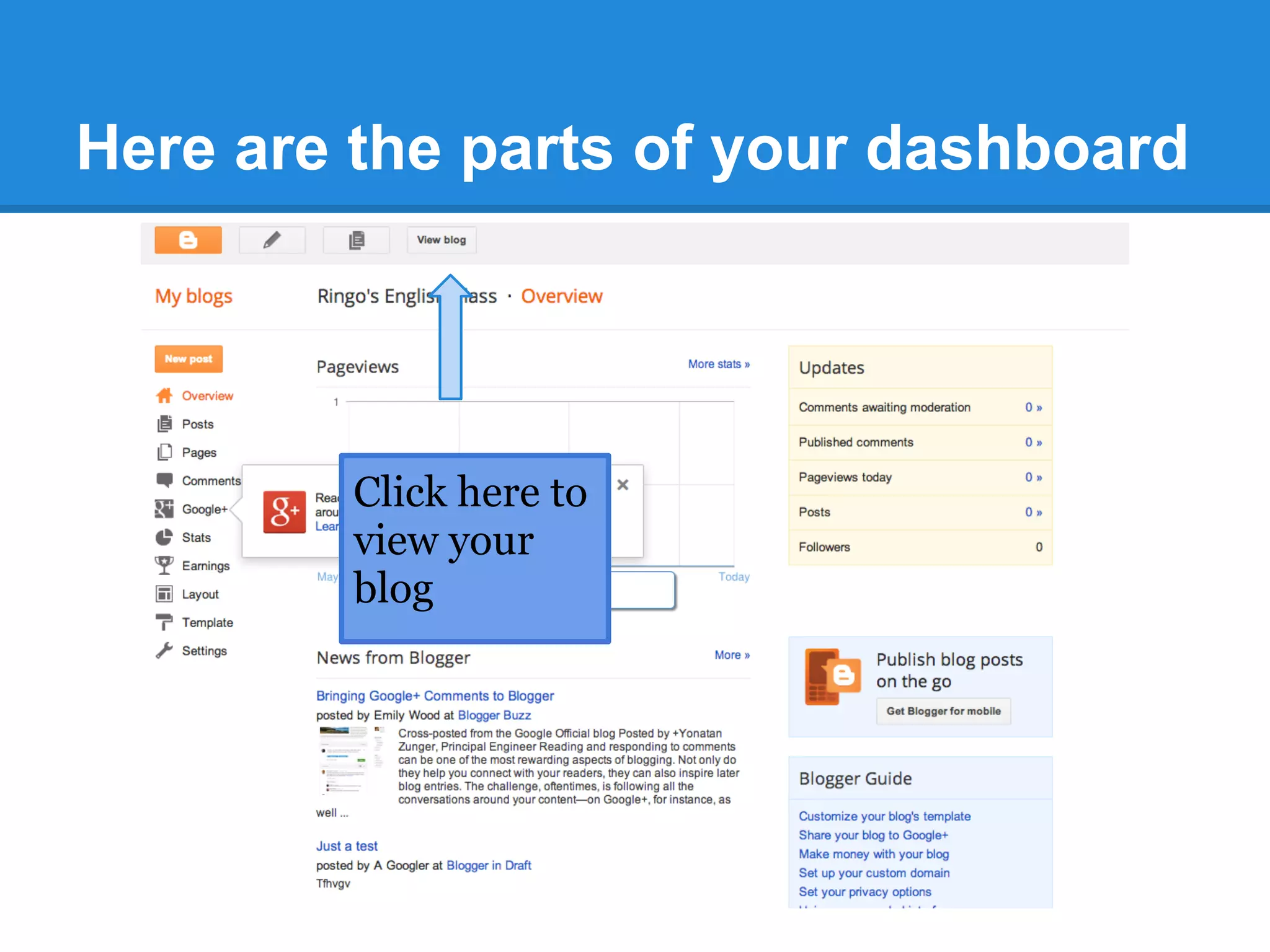
Here are the parts of your dashboard
Click here to
view your
blog
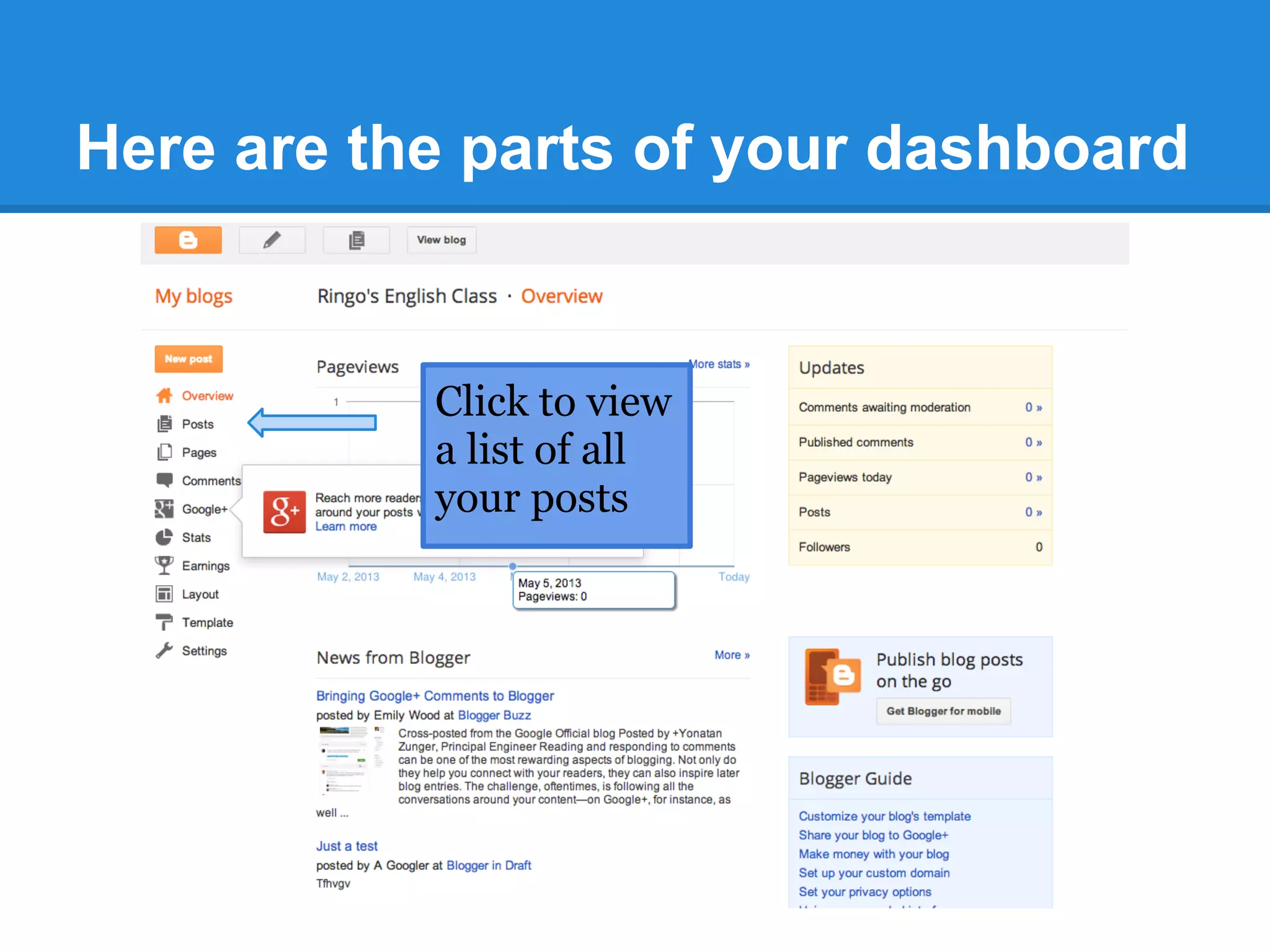
Here are the parts of your dashboard
Click to view
a list of all
your posts
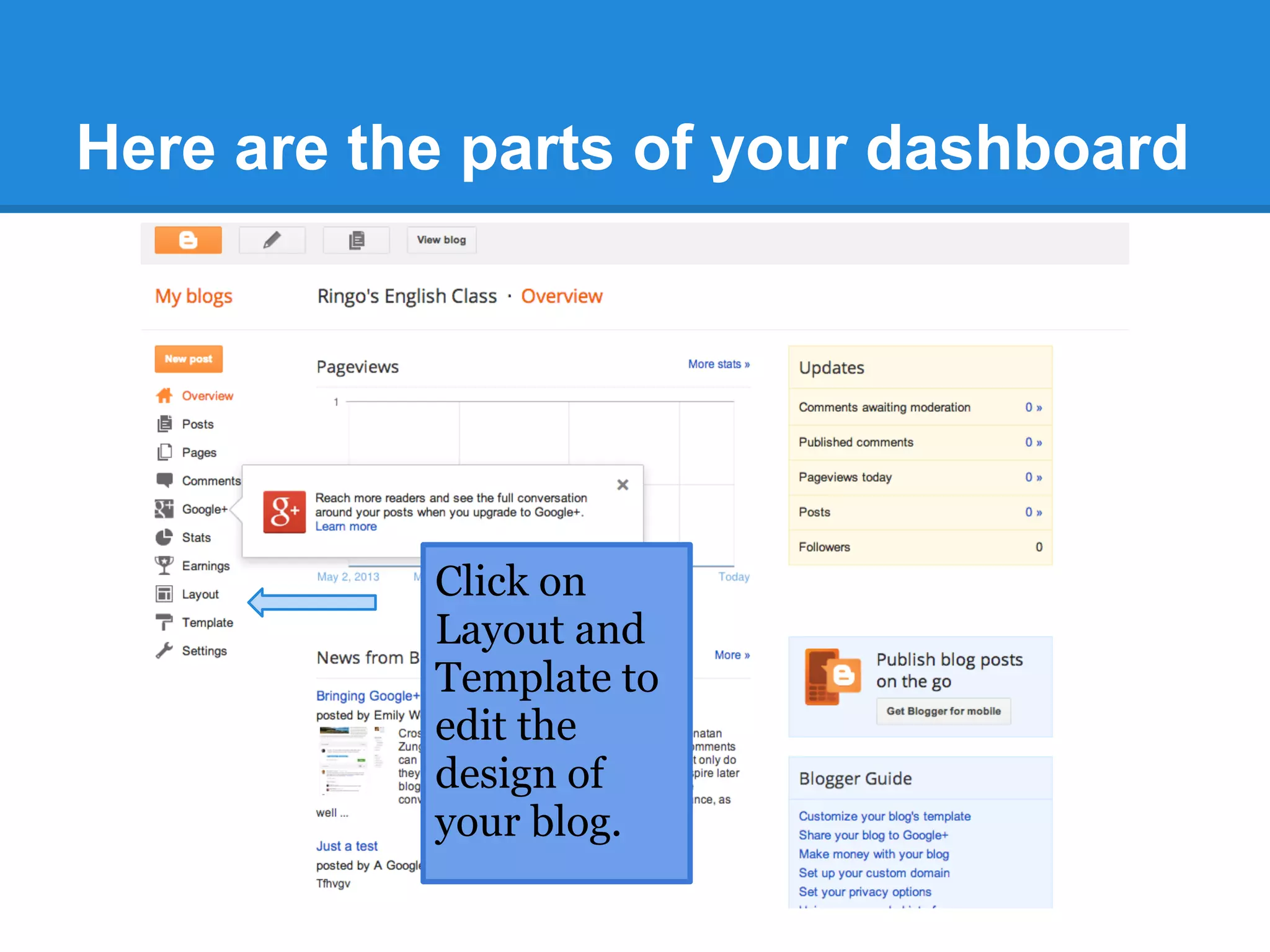
Here are the parts of your dashboard
Click on
Layout and
Template to
edit the
design of
your blog.
Creating a Blog
Post
Now you're ready to publish your first blog
post. You will have to do this each day for
your participation in class.
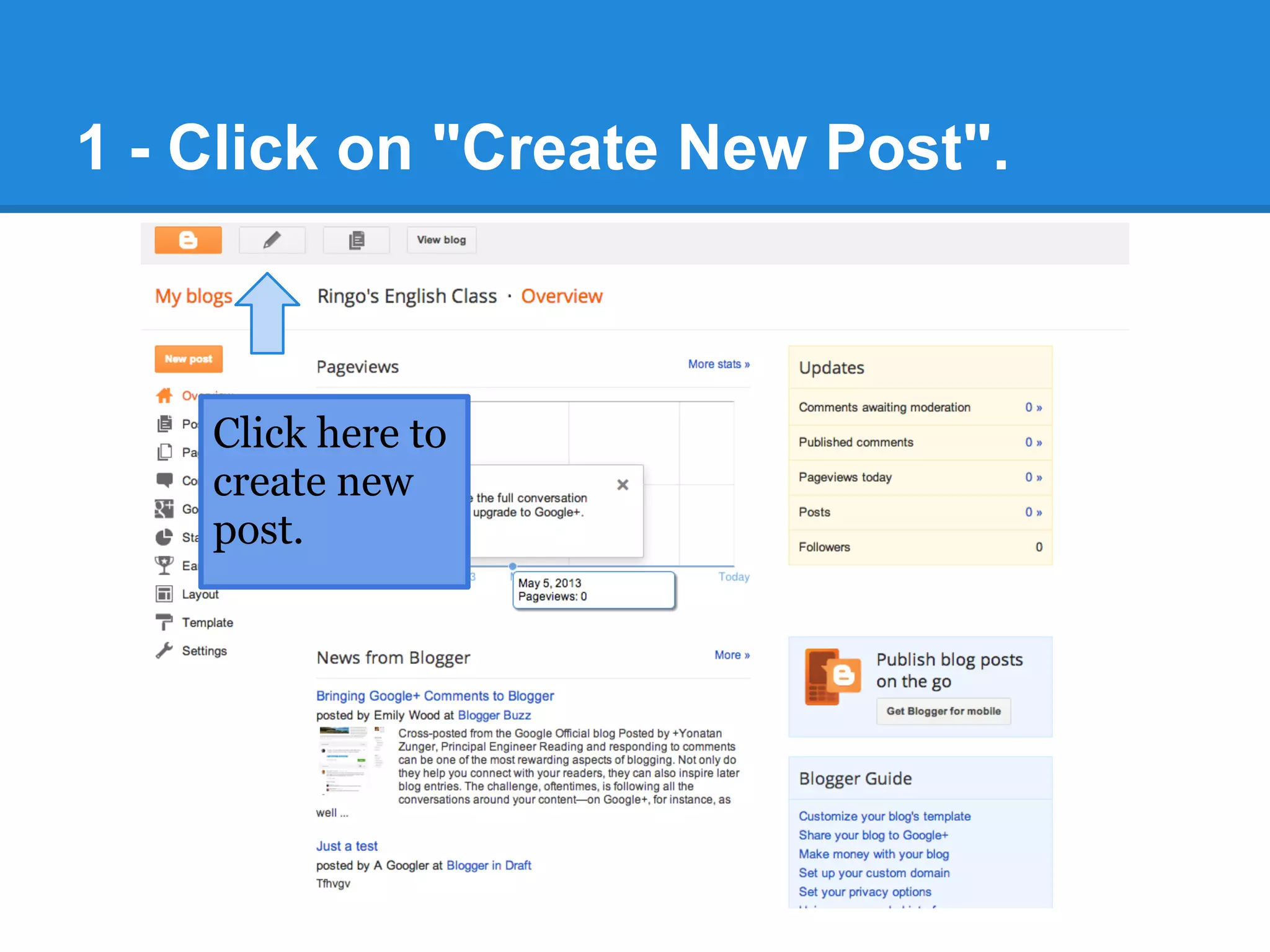
1 - Click on "Create New Post".
Click here to
create new
post.
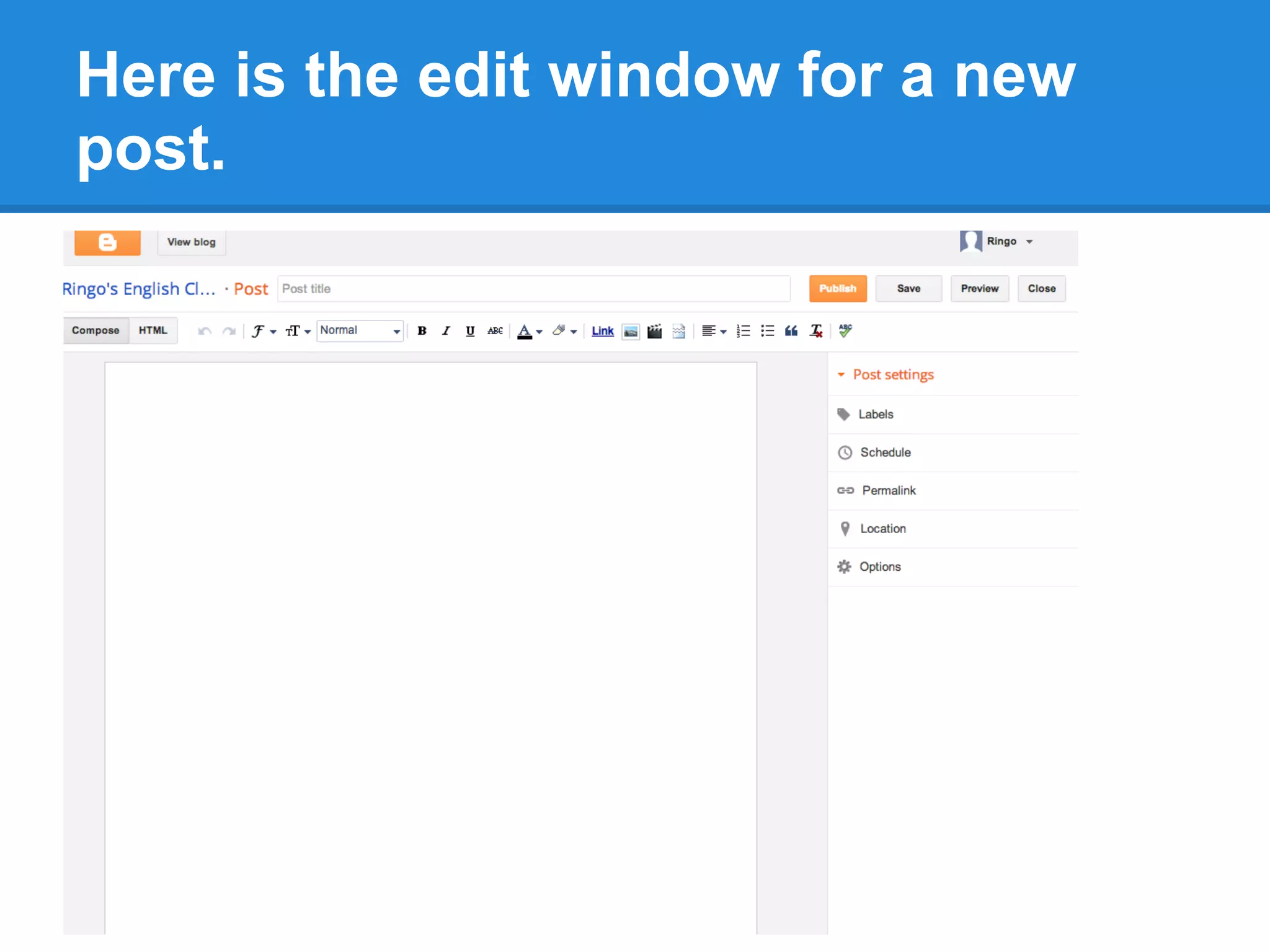
Here is the edit window for a new
post.
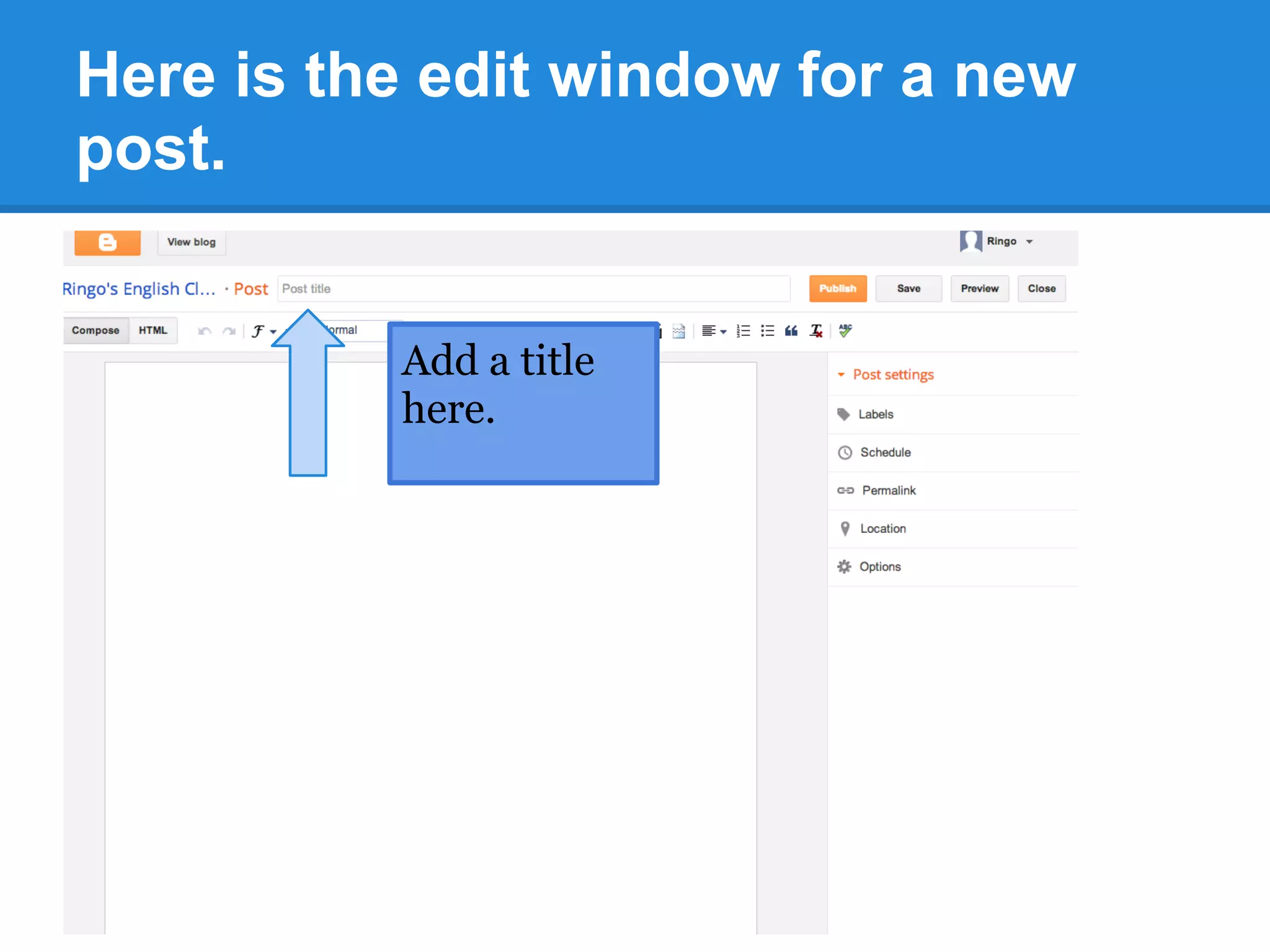
Here is the edit window for a new
post.
Add a title
here.
Here is the edit window for a new
post.
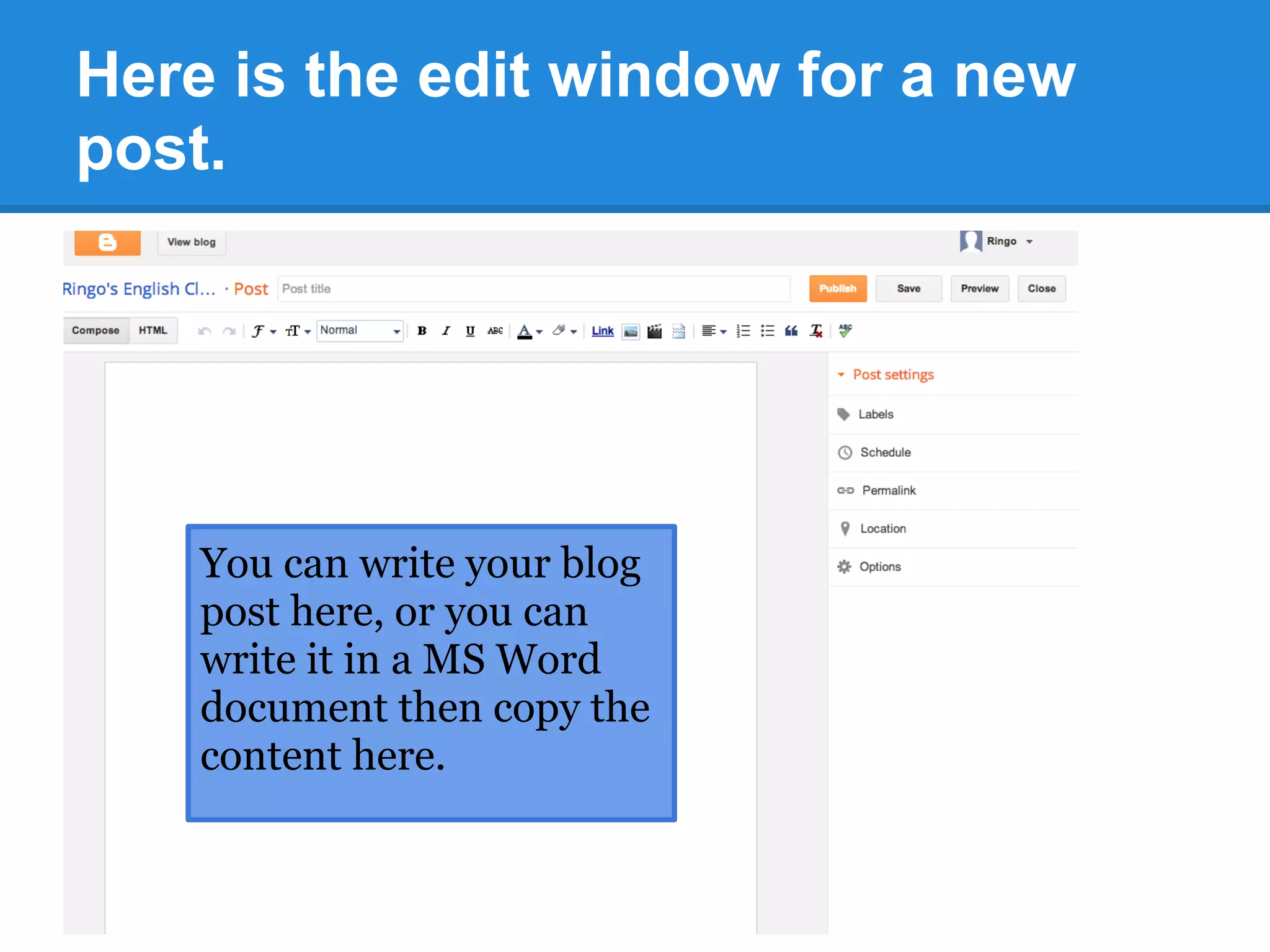
You can write your blog
post here, or you can
write it in a MS Word
document then copy the
content here.
Here is the edit window for a new
post.
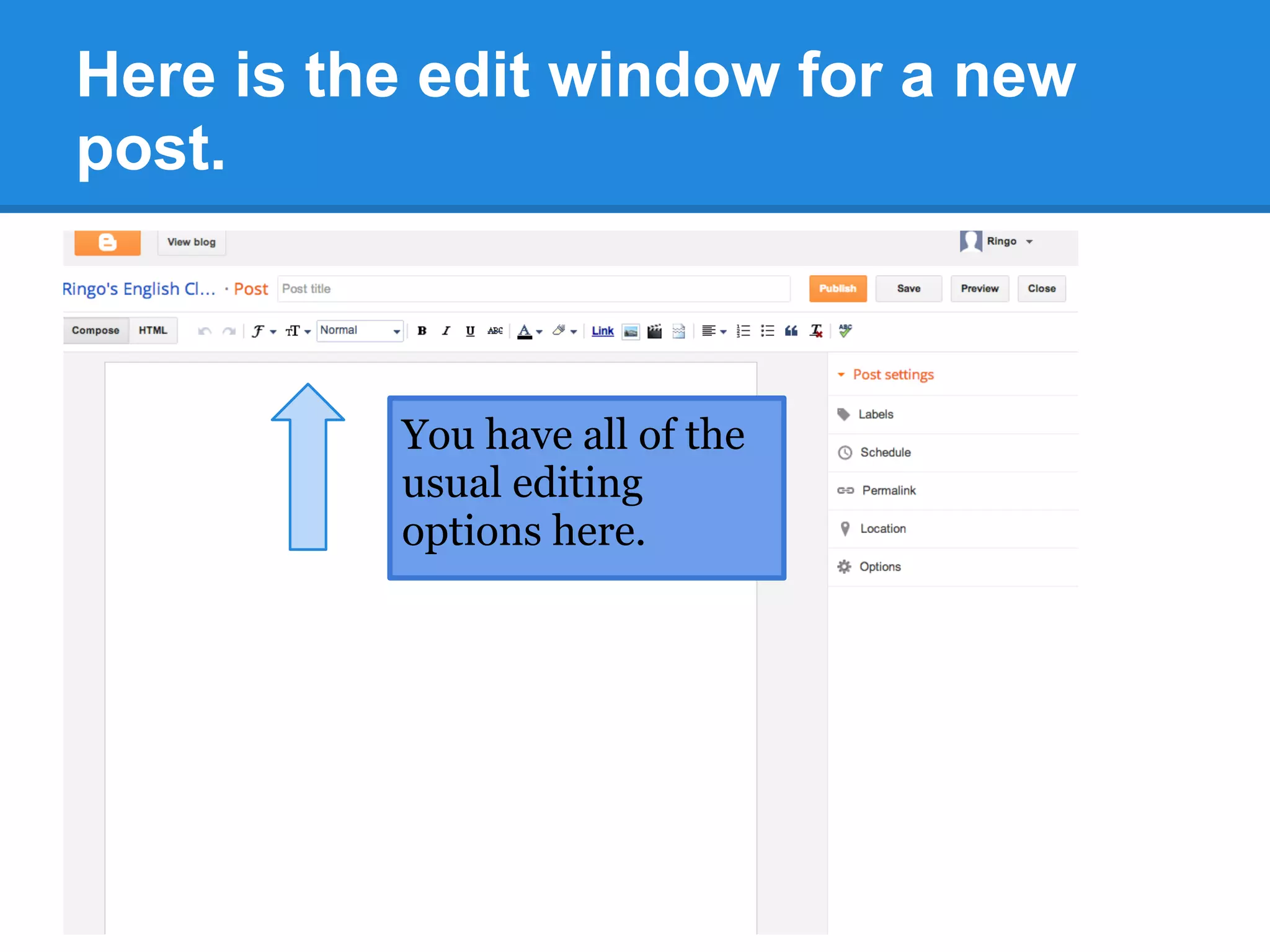
You have all of the
usual editing
options here.
Here is the edit window for a new
post.
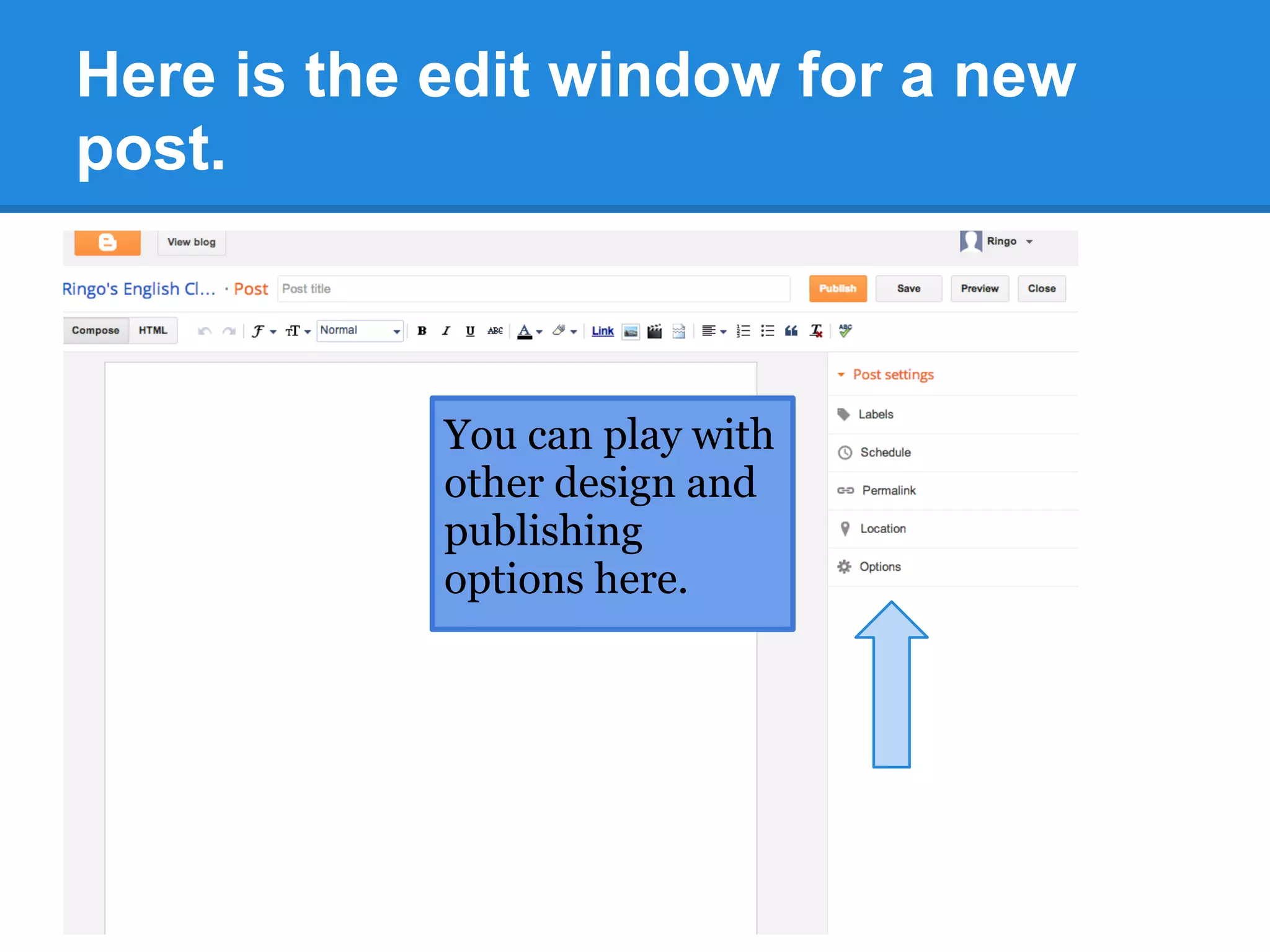
You can play with
other design and
publishing
options here.
Here is the edit window for a new
post.
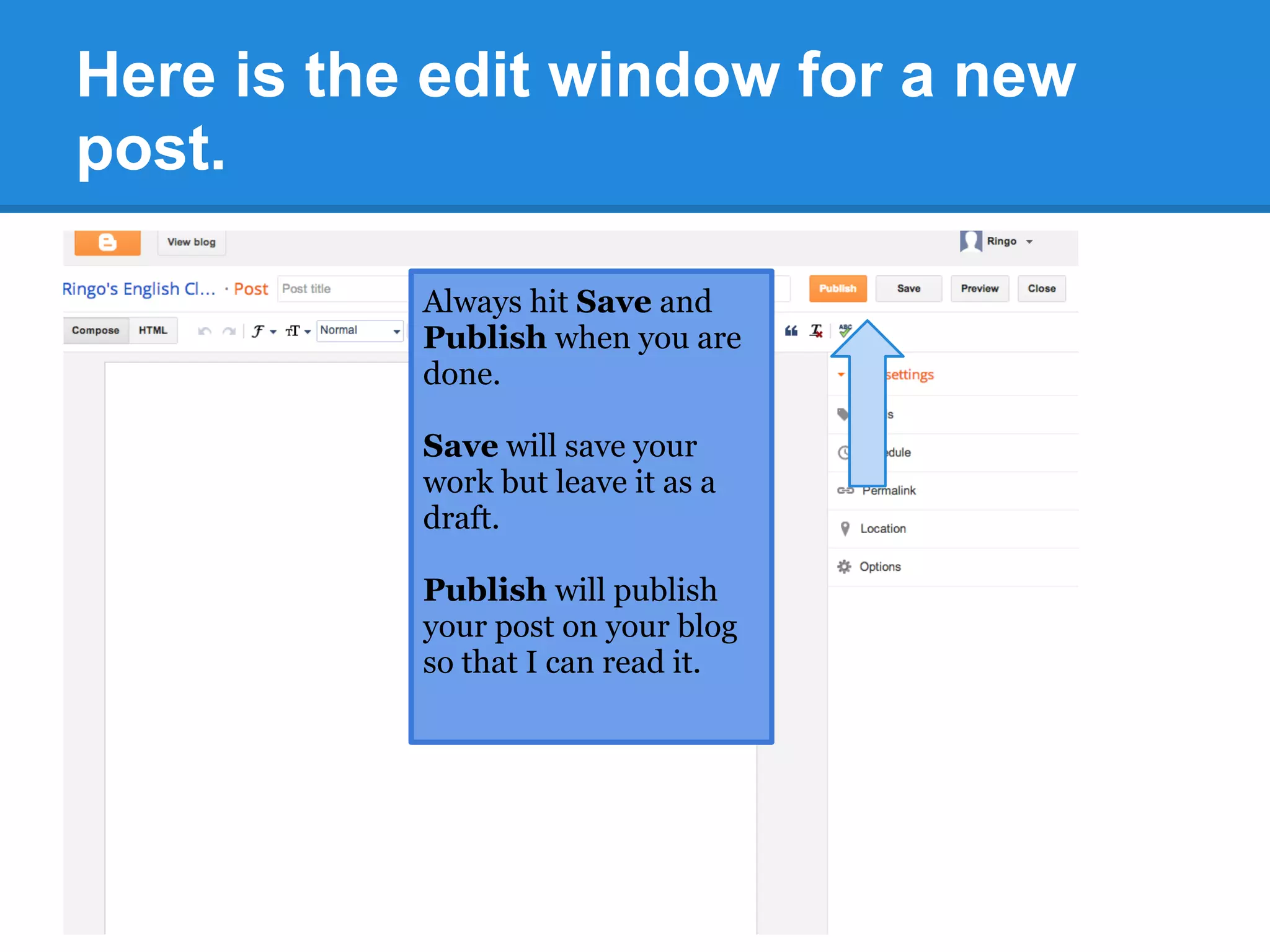
Always hit Save and
Publish when you are
done.
Save will save your
work but leave it as a
draft.
Publish will publish
your post on your blog
so that I can read it.
Congrats! You
have a blog and
a post.
Easy as pie.

Creating and Posting on Blogger

  • 1.
    Create a Blog Bea Blogger Follow these steps to create your blog and your first blog post for English 103
  • 2.
    Defining terms 1 -Blogger: a free service, owned by google, that will help you create, publish, and manage a blog website. 2 - Blog: a website that people use to publish short writing pieces, images, and videos. 3 - Post: a kind of short writing piece that is published on blogs, organized in chronological order, and updated regularly. 4 - Page: a stable, semi-permanent, webpage that are typically used to publish information that is relatively stable.
  • 3.
    1 - Signinto Blogger.com Use your google account (gmail) to log into blogger.
  • 4.
    2 - Chooseto connect with google+ or not. You will have two options: google profile (which will connect to google plus) or blogger profile (which is more anonymous). Pick whichever one you prefer.
  • 5.
    That will automaticallycreate your blogger account. Now you can create your own blog site.
  • 6.
    3 - Createa new blog Click "New Blog". That will open a window in which you will give your blog a title, tag line, web address, and template. Check out the next slides for tips.
  • 7.
    3 - Createa new blog Note: This is public and for school. Give your blog a professional title and address.
  • 8.
    3 - Createa new blog Note: Put your name somewhere on your blog. Either in the title, tagline, or later in the "About Me" section.
  • 9.
    3 - Createa new blog Note: you can change the template later.
  • 10.
    3 - Createa new blog Click "Create New Blog" That's it. You now have your very own blog!
  • 11.
    4 - Clickthe title of the blog to add content and edit. Here is a sample blog I made for my cat. His name is Ringo.
  • 12.
    Here is thedashboard of your blog The dashboard is where you go to publish posts, edit the blog design, and add any other content you want.
  • 13.
    Here are theparts of your dashboard Click here to create a new post (which you will have to do each class day)
  • 14.
    Here are theparts of your dashboard Click here to view your blog
  • 15.
    Here are theparts of your dashboard Click to view a list of all your posts
  • 16.
    Here are theparts of your dashboard Click on Layout and Template to edit the design of your blog.
  • 17.
    Creating a Blog Post Nowyou're ready to publish your first blog post. You will have to do this each day for your participation in class.
  • 18.
    1 - Clickon "Create New Post". Click here to create new post.
  • 19.
    Here is theedit window for a new post.
  • 20.
    Here is theedit window for a new post. Add a title here.
  • 21.
    Here is theedit window for a new post. You can write your blog post here, or you can write it in a MS Word document then copy the content here.
  • 22.
    Here is theedit window for a new post. You have all of the usual editing options here.
  • 23.
    Here is theedit window for a new post. You can play with other design and publishing options here.
  • 24.
    Here is theedit window for a new post. Always hit Save and Publish when you are done. Save will save your work but leave it as a draft. Publish will publish your post on your blog so that I can read it.
  • 25.
    Congrats! You have ablog and a post. Easy as pie.