Blogging In The   Meredith
                   Martin
Classroom
                  @geekyteach
What Are Blogs?

• A personal website
• Contains journal-like entries
• Entries can be commented on by others,
  leading to discussion
• Updated often
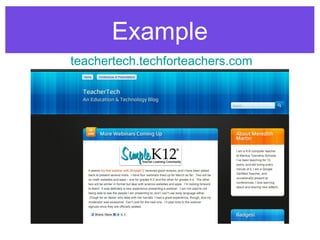
Example
teachertech.techforteachers.com
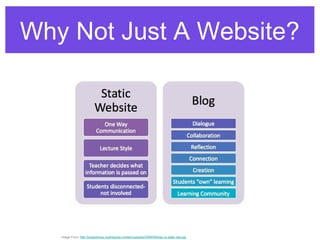
Why Not Just A Website?


   Image From: http://langwitches.org/blog/wp-content/uploads/2008/09/blog-vs-static-site.jpg
Getting Started With Blogs
  • Two Way Communication - Teacher
    posts, students comment
  • Classroom Communication - Students
    post, teacher and classmates comment
  • Global Communication - Students and
    teacher post, people outside the
    classroom can comment
Teach Proper Commenting Skills

   • A good way to practice is to hang a few
     paper blogs around the room and have
     students comment using sticky notes.
     Include examples of poor comments.
     Discuss comments as a class to point
     out good commenting vs. poor
     commenting.
How Have Teachers Used Blogs?
   • had daily  student “bloggers”,  who were in charge of
     updating the classroom blog, being the Official Scribe of
     the day.
   • had students take (handwritten notes) summarizing the
     daily learning during each subject area, to be then typed
     and uploaded on Friday to the blog (younger grades).
   • highlighted best work from students as it was produced.
   • put students in charge of photographing
     classroom/resource activities and learning taking place
     during the day, the class discussed and voted on the final
     images to be uploaded at the end of the day and write a
     short blurb to each image.

                http://langwitches.org/blog/2012/10/08/implementing-blogging-in-the-classroom/
•   Some classroom blogs were growing beyond
    homework assignment, as teachers found opportunities to amplify
    the use of their virtual spaces to get kids involved and engaged in
    conversation

•   As commenting and posting to the classroom blog became the
    routine, especially in the upper elementary grades, students were
    eager to “earn” their own blogs. It was up to the teacher to set the
    criteria for students to earn them (ex.5 quality posts moderated and
    published on the classroom blog).

•   Once having earned that promotion, students became
    administrators of their own blogfolio , a combination of an online
    portfolio and a learning blog. Students were able to choose their
    own theme from a variety of pre-approved themes available. They
    chose their own title and tagline, and wrote their About Page.

                http://langwitches.org/blog/2012/10/08/implementing-blogging-in-the-classroom/
Why Kidblog?
• Simple, quick, and easy to set up.
• Free!
• No email addresses or personal
  information required for students
• Teachers have full control over all blogs
• Teacher determines privacy level of the
  blogs.
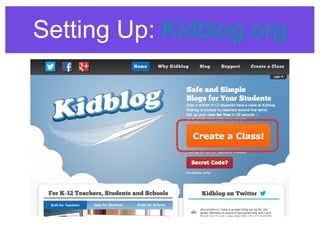
Setting Up: Kidblog.org
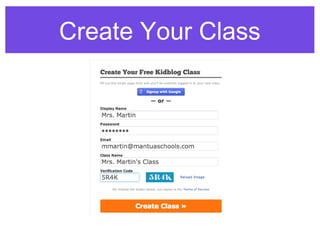
Setting Up
• On the Kidblog.org main page, click on
  Create A Class
• Fill in your information - Display name
  (username), Password, Email, & Class
  Name
• Enter anti-spam code, and then create
  your class!
Create Your Class
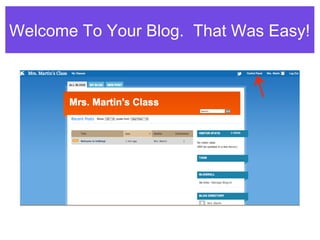
Welcome To Your Blog. That Was Easy!
Control Panel
• At the top right of the page, click on
  Control Panel
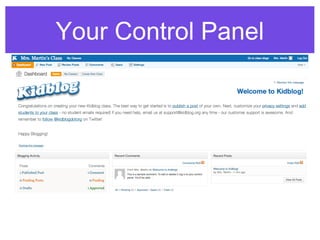
• This takes you to your control panel,
  also called a Dashboard
• From here you can change your
  settings, add students and classes,
  review posts and comments, and more
Your Control Panel
Multiple Classes

• You can create as many classes as you
  want.
• Each class can have its own list of
  students, and its own settings
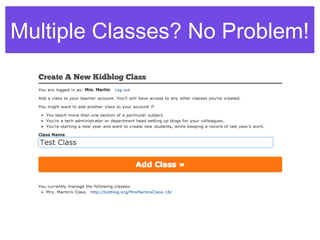
• Simply click Create New Class at the
  top left of your dashboard
Multiple Classes? No Problem!
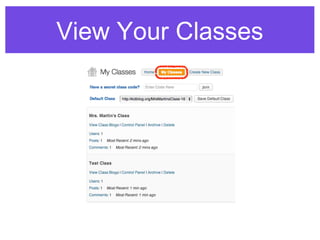
View Your Classes
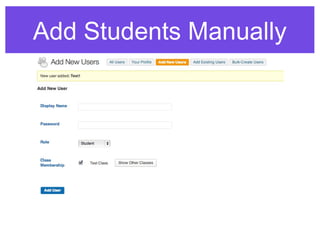
Add Students Manually
Adding Students

• There are several ways to add students
  - Manually, and with Class Codes
• Manual addition: singly or in bulk
• Useful when adding existing students
  to a new class
General Settings
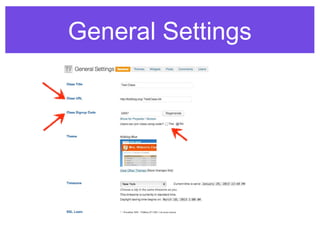
Important Settings
• Title - The name of your blog
• URL - The website address of your blog
  • Can be changed - preferably before students
    start using the blog
• Sign Up Code - Allow students to join using
  a class code instead of manually adding them
• Be sure to allow joining with a code if you use
  this option
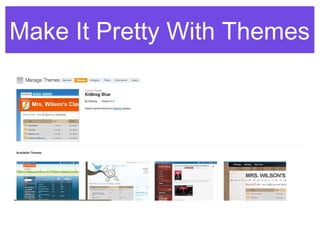
Make It Pretty With Themes
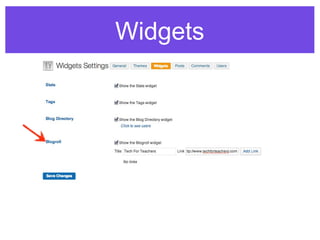
Widgets
Blogroll

• A Blogroll is a list of favorite websites
• Be sure to include your classroom
  website if you have one
• You may also want to link to other class
  blogs, or websites your students use
  regularly
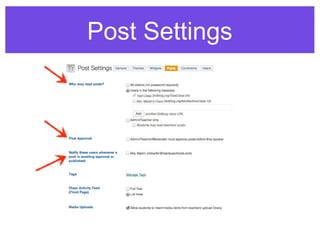
Post Settings
Post Settings
•   Who May Read - Set the privacy level of your class
    •   Visitors - public to anyone with the URL
    •   Users in Classes - Only your class, or add other classes
    •   Admin/Teacher Only
•   Post Approval - Require teacher approval before a student
    post goes live
•   Notify - notifies you when a student adds a new post for
    you to approve
•   Tags - keywords for posts to make it easier to search for
    specific topics
Comment Settings
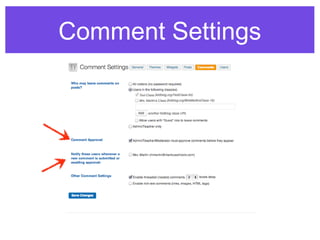
Comment Settings
• Who May Comment - restrict who can
  and cannot comment on posts
• Comment Approval - require teacher
  approval of comments
• Notify - receive notification when new
  comments are ready for review and
  approval
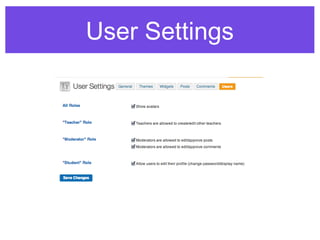
User Settings
Users Menu
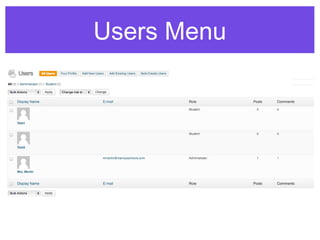
Users Menu

• Add new users
• View users and their roles
• Change user roles
• Delete or modify users
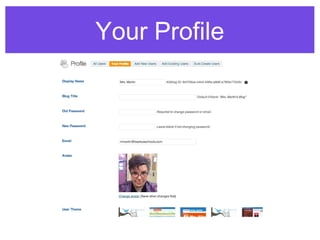
Your Profile
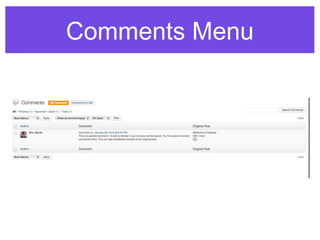
Comments Menu
Comments Menu

• View all comments
• Filter by type or user
• Approve / Mark As Spam / Delete
  Comments
Review Posts
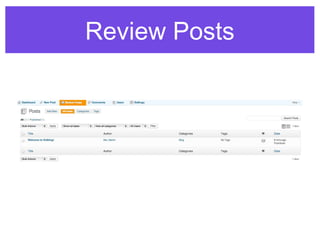
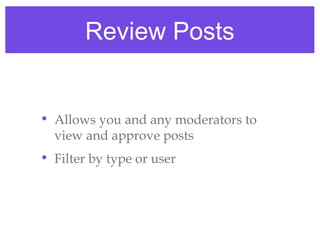
Review Posts


• Allows you and any moderators to
  view and approve posts
• Filter by type or user
Add A Post
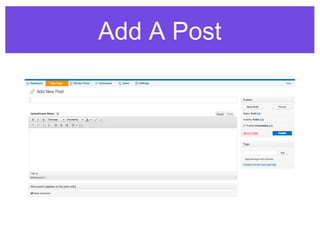
Add A Post
• Simple to use editor - if you can use
  Word, you can write a blog post!
• Add Media
• Save Drafts or Publish
• Set publication time and date
• Set visibility
• Add tags
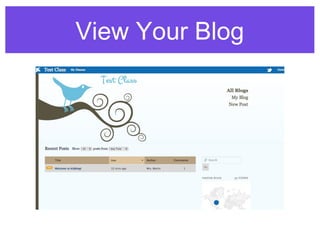
View Your Blog
Setting Up Student Blogs
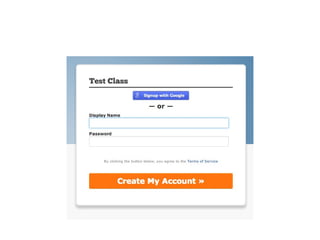
Student Login - Secret Code

  • Easiest way to add students is with a
    secret code
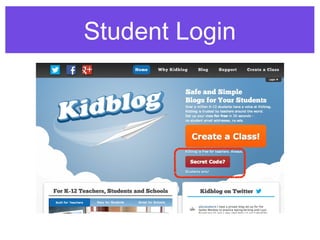
  • Students click the red Secret Code
    button
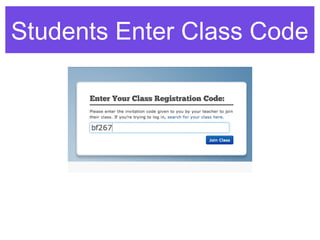
  • Enter class code
  • Choose display name and password
Student Login
Students Enter Class Code
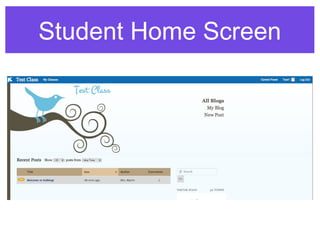
Student Home Screen
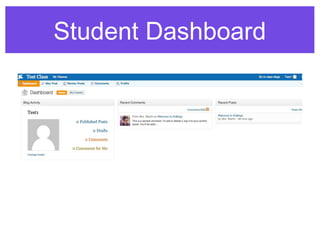
Student Dashboard
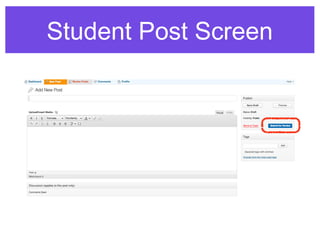
Student Post Screen
Student Post Screen

• Same editor as teachers
• Fewer posting options
• If you have required
  teacher/moderator review before
  posting, students will only be able to
  submit for review, not publish
Student Avatars
Avatars

• Students love avatars
• Library of kid-friendly avatars to
  choose from
• Or take photos and upload them
Logging In Using Search
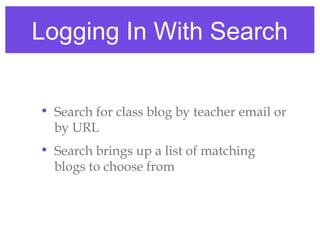
Logging In With Search


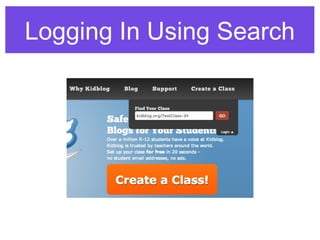
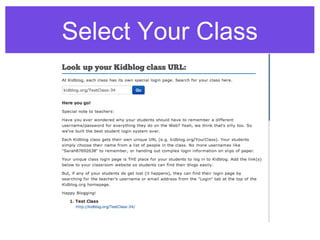
• Search for class blog by teacher email or
  by URL
• Search brings up a list of matching
  blogs to choose from
Select Your Class
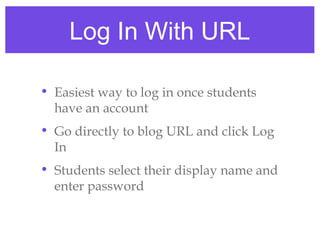
Log In With URL

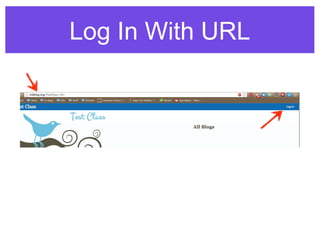
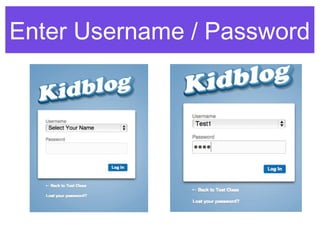
• Easiest way to log in once students
  have an account
• Go directly to blog URL and click Log
  In
• Students select their display name and
  enter password
Log In With URL
Enter Username / Password
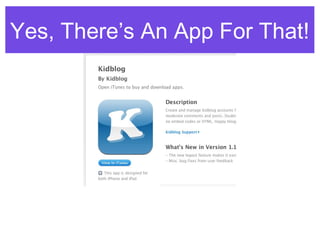
Yes, There’s An App For That!
Class Blog Examples


• http://theedublogger.com/check-out-
  these-class-blogs/

Blogging in the Classroom

  • 1.
    Blogging In The Meredith Martin Classroom @geekyteach
  • 2.
    What Are Blogs? •A personal website • Contains journal-like entries • Entries can be commented on by others, leading to discussion • Updated often
  • 3.
  • 4.
    Why Not JustA Website? Image From: http://langwitches.org/blog/wp-content/uploads/2008/09/blog-vs-static-site.jpg
  • 5.
    Getting Started WithBlogs • Two Way Communication - Teacher posts, students comment • Classroom Communication - Students post, teacher and classmates comment • Global Communication - Students and teacher post, people outside the classroom can comment
  • 6.
    Teach Proper CommentingSkills • A good way to practice is to hang a few paper blogs around the room and have students comment using sticky notes. Include examples of poor comments. Discuss comments as a class to point out good commenting vs. poor commenting.
  • 7.
    How Have TeachersUsed Blogs? • had daily  student “bloggers”,  who were in charge of updating the classroom blog, being the Official Scribe of the day. • had students take (handwritten notes) summarizing the daily learning during each subject area, to be then typed and uploaded on Friday to the blog (younger grades). • highlighted best work from students as it was produced. • put students in charge of photographing classroom/resource activities and learning taking place during the day, the class discussed and voted on the final images to be uploaded at the end of the day and write a short blurb to each image. http://langwitches.org/blog/2012/10/08/implementing-blogging-in-the-classroom/
  • 8.
    Some classroom blogs were growing beyond homework assignment, as teachers found opportunities to amplify the use of their virtual spaces to get kids involved and engaged in conversation • As commenting and posting to the classroom blog became the routine, especially in the upper elementary grades, students were eager to “earn” their own blogs. It was up to the teacher to set the criteria for students to earn them (ex.5 quality posts moderated and published on the classroom blog). • Once having earned that promotion, students became administrators of their own blogfolio , a combination of an online portfolio and a learning blog. Students were able to choose their own theme from a variety of pre-approved themes available. They chose their own title and tagline, and wrote their About Page. http://langwitches.org/blog/2012/10/08/implementing-blogging-in-the-classroom/
  • 9.
    Why Kidblog? • Simple,quick, and easy to set up. • Free! • No email addresses or personal information required for students • Teachers have full control over all blogs • Teacher determines privacy level of the blogs.
  • 10.
  • 11.
    Setting Up • Onthe Kidblog.org main page, click on Create A Class • Fill in your information - Display name (username), Password, Email, & Class Name • Enter anti-spam code, and then create your class!
  • 12.
  • 13.
    Welcome To YourBlog. That Was Easy!
  • 14.
    Control Panel • Atthe top right of the page, click on Control Panel • This takes you to your control panel, also called a Dashboard • From here you can change your settings, add students and classes, review posts and comments, and more
  • 15.
  • 16.
    Multiple Classes • Youcan create as many classes as you want. • Each class can have its own list of students, and its own settings • Simply click Create New Class at the top left of your dashboard
  • 17.
  • 18.
  • 19.
  • 20.
    Adding Students • Thereare several ways to add students - Manually, and with Class Codes • Manual addition: singly or in bulk • Useful when adding existing students to a new class
  • 21.
  • 22.
    Important Settings • Title- The name of your blog • URL - The website address of your blog • Can be changed - preferably before students start using the blog • Sign Up Code - Allow students to join using a class code instead of manually adding them • Be sure to allow joining with a code if you use this option
  • 23.
    Make It PrettyWith Themes
  • 24.
  • 25.
    Blogroll • A Blogrollis a list of favorite websites • Be sure to include your classroom website if you have one • You may also want to link to other class blogs, or websites your students use regularly
  • 26.
  • 27.
    Post Settings • Who May Read - Set the privacy level of your class • Visitors - public to anyone with the URL • Users in Classes - Only your class, or add other classes • Admin/Teacher Only • Post Approval - Require teacher approval before a student post goes live • Notify - notifies you when a student adds a new post for you to approve • Tags - keywords for posts to make it easier to search for specific topics
  • 28.
  • 29.
    Comment Settings • WhoMay Comment - restrict who can and cannot comment on posts • Comment Approval - require teacher approval of comments • Notify - receive notification when new comments are ready for review and approval
  • 30.
  • 31.
  • 32.
    Users Menu • Addnew users • View users and their roles • Change user roles • Delete or modify users
  • 33.
  • 34.
  • 35.
    Comments Menu • Viewall comments • Filter by type or user • Approve / Mark As Spam / Delete Comments
  • 36.
  • 37.
    Review Posts • Allowsyou and any moderators to view and approve posts • Filter by type or user
  • 38.
  • 39.
    Add A Post •Simple to use editor - if you can use Word, you can write a blog post! • Add Media • Save Drafts or Publish • Set publication time and date • Set visibility • Add tags
  • 40.
  • 41.
  • 42.
    Student Login -Secret Code • Easiest way to add students is with a secret code • Students click the red Secret Code button • Enter class code • Choose display name and password
  • 43.
  • 44.
  • 46.
  • 47.
  • 48.
  • 49.
    Student Post Screen •Same editor as teachers • Fewer posting options • If you have required teacher/moderator review before posting, students will only be able to submit for review, not publish
  • 50.
  • 51.
    Avatars • Students loveavatars • Library of kid-friendly avatars to choose from • Or take photos and upload them
  • 52.
  • 53.
    Logging In WithSearch • Search for class blog by teacher email or by URL • Search brings up a list of matching blogs to choose from
  • 54.
  • 55.
    Log In WithURL • Easiest way to log in once students have an account • Go directly to blog URL and click Log In • Students select their display name and enter password
  • 56.
  • 57.
  • 58.
    Yes, There’s AnApp For That!
  • 59.
    Class Blog Examples •http://theedublogger.com/check-out- these-class-blogs/