Creating and Editing Spreadsheets Module 6 Lesson 2
Creating spreadsheets Creating spreadsheets is a simple process of entering labels, values and formulas into a spreadsheet. You can enter data in a spreadsheet the same way you do in a word processing document.  Remember to save your spreadsheet once you begin creating and save it often.
Creating Spreadsheets Click the button for a brief video.  A new website will open, be sure to return to this presentation. Here is a short video demonstration on how to create spreadsheets using MS Word 2003.
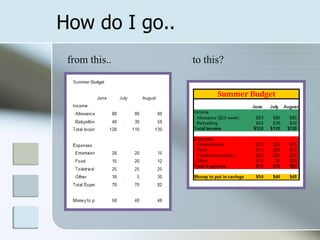
How do I go.. from this.. to this?
Editing Spreadsheets Click the button for a brief video.  A new website will open, be sure to return to this presentation. Here is a short video demonstration on how to format and edit spreadsheets using MS Excel 2003.
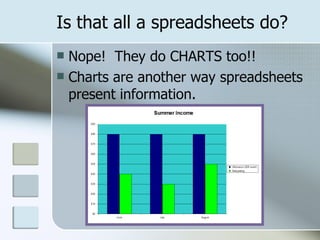
Is that all a spreadsheets do? Nope!  They do CHARTS too!! Charts are another way spreadsheets present information.
Steps to create a chart Enter your data Highlight your data Go to Insert—Chart Use the Chart Wizard Personalize your chart
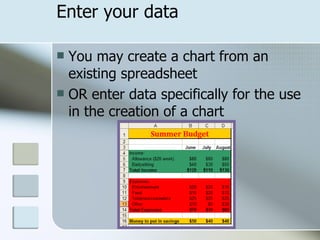
Enter your data You may create a chart from an existing spreadsheet OR enter data specifically for the use in the creation of a chart
Highlight your data You have to tell the program what data to use to make your chart Do this by highlighting cells To highlight non-adjacent cells, use your control key (Ctrl) Highlighted cells are  being shown in blue colors were removed to illustrate  highlighting
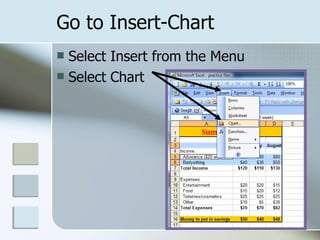
Go to Insert-Chart Select Insert from the Menu Select Chart
Use the Chart Wizard The chart wizard will walk you through the process Choose chart type  Verify data set
Use the Chart Wizard The chart wizard will walk you through the process Provide titles  Select sheet or  object
Personalize Once your chart has been created, you may personalize it by changing colors, borders, and fonts
Charts Here is a short video demonstration on how to create charts using MS Excel 2003 Click the button for a brief video.  A new website will open, be sure to return to this presentation.
 

Creating and editing spreadsheets

  • 1.
    Creating and EditingSpreadsheets Module 6 Lesson 2
  • 2.
    Creating spreadsheets Creatingspreadsheets is a simple process of entering labels, values and formulas into a spreadsheet. You can enter data in a spreadsheet the same way you do in a word processing document. Remember to save your spreadsheet once you begin creating and save it often.
  • 3.
    Creating Spreadsheets Clickthe button for a brief video. A new website will open, be sure to return to this presentation. Here is a short video demonstration on how to create spreadsheets using MS Word 2003.
  • 4.
    How do Igo.. from this.. to this?
  • 5.
    Editing Spreadsheets Clickthe button for a brief video. A new website will open, be sure to return to this presentation. Here is a short video demonstration on how to format and edit spreadsheets using MS Excel 2003.
  • 6.
    Is that alla spreadsheets do? Nope! They do CHARTS too!! Charts are another way spreadsheets present information.
  • 7.
    Steps to createa chart Enter your data Highlight your data Go to Insert—Chart Use the Chart Wizard Personalize your chart
  • 8.
    Enter your dataYou may create a chart from an existing spreadsheet OR enter data specifically for the use in the creation of a chart
  • 9.
    Highlight your dataYou have to tell the program what data to use to make your chart Do this by highlighting cells To highlight non-adjacent cells, use your control key (Ctrl) Highlighted cells are being shown in blue colors were removed to illustrate highlighting
  • 10.
    Go to Insert-ChartSelect Insert from the Menu Select Chart
  • 11.
    Use the ChartWizard The chart wizard will walk you through the process Choose chart type Verify data set
  • 12.
    Use the ChartWizard The chart wizard will walk you through the process Provide titles Select sheet or object
  • 13.
    Personalize Once yourchart has been created, you may personalize it by changing colors, borders, and fonts
  • 14.
    Charts Here isa short video demonstration on how to create charts using MS Excel 2003 Click the button for a brief video. A new website will open, be sure to return to this presentation.
  • 15.