Sorting Databases Module 7 Lesson 2
Sort To arrange data in alphabetical or numerical order. Ascending:  Sorting data in alphabetical order from A-Z or numerical order from 0-9. Descending:  Sorting data the opposite of ascending order. (Z-A & 9-0)
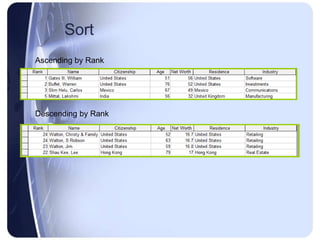
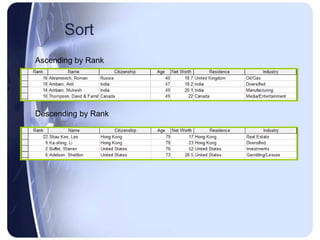
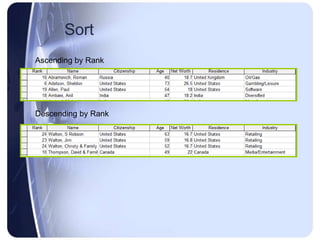
Sort Ascending by Rank Descending by Rank
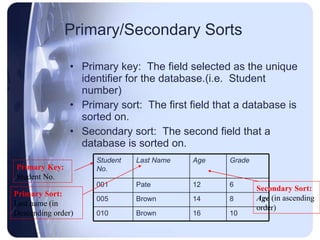
Primary/Secondary Sorts Primary key:  The field selected as the unique identifier for the database.(i.e.  Student number) Primary sort:  The first field that a database is sorted on.  Secondary sort:  The second field that a database is sorted on. Primary Key: Student No. Primary Sort: Last name (in  Descending order) Secondary Sort: Age  (in ascending order) 010 005 001 Student No. 10 16 Brown 8 14 Brown 6 12 Pate Grade Age Last Name
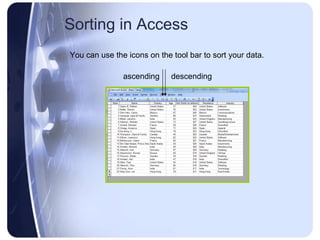
Sorting in Access You can use the icons on the tool bar to sort your data. ascending descending
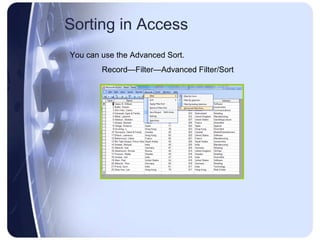
Sorting in Access You can use the Advanced Sort. Record—Filter—Advanced Filter/Sort
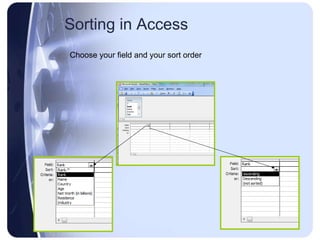
Sorting in Access Choose your field and your sort order
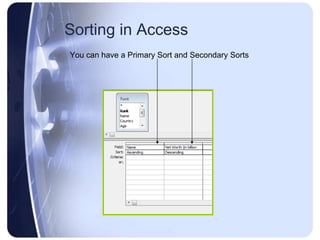
Sorting in Access You can have a Primary Sort and Secondary Sorts
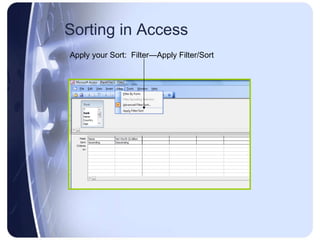
Sorting in Access Apply your Sort:  Filter—Apply Filter/Sort
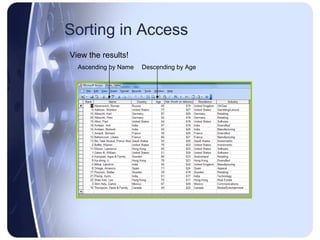
Sorting in Access View the results! Ascending by Name Descending by Age
Video Demonstration Click the button for a brief video.  A new website will open, be sure to return to this presentation.
 

Sorting databases

  • 1.
  • 2.
    Sort To arrangedata in alphabetical or numerical order. Ascending: Sorting data in alphabetical order from A-Z or numerical order from 0-9. Descending: Sorting data the opposite of ascending order. (Z-A & 9-0)
  • 3.
    Sort Ascending byRank Descending by Rank
  • 4.
    Sort Ascending byRank Descending by Rank
  • 5.
    Sort Ascending byRank Descending by Rank
  • 6.
    Primary/Secondary Sorts Primarykey: The field selected as the unique identifier for the database.(i.e. Student number) Primary sort: The first field that a database is sorted on. Secondary sort: The second field that a database is sorted on. Primary Key: Student No. Primary Sort: Last name (in Descending order) Secondary Sort: Age (in ascending order) 010 005 001 Student No. 10 16 Brown 8 14 Brown 6 12 Pate Grade Age Last Name
  • 7.
    Sorting in AccessYou can use the icons on the tool bar to sort your data. ascending descending
  • 8.
    Sorting in AccessYou can use the Advanced Sort. Record—Filter—Advanced Filter/Sort
  • 9.
    Sorting in AccessChoose your field and your sort order
  • 10.
    Sorting in AccessYou can have a Primary Sort and Secondary Sorts
  • 11.
    Sorting in AccessApply your Sort: Filter—Apply Filter/Sort
  • 12.
    Sorting in AccessView the results! Ascending by Name Descending by Age
  • 13.
    Video Demonstration Clickthe button for a brief video. A new website will open, be sure to return to this presentation.
  • 14.