Conquest
DICOM
Server For
Beginners!
Setting up A DICOM server
with Conquest and MIPAV
Altay Brusan, Albert Güveniş
1. Introduction
Historically setting up a DICOM server for medical application was seen as a
complex process and confuse the newbies. To change this scene, vast amount of
attempts were exerted during pasttwo decades. Consequently, a pile of free and open
source software packages were developed all around the world. Thanks to this
endeavors, now setting up a DICOM sever in a real environment is easy and cheap
task even for beginners.
This document shows how to set up a simple conquest DICOM server and make
connection to it through terminals. The objectives of this document are those who
have no idea about computer networks, DICOM server and even medical image
retrieval but want to set up a simple (and consequently rude) DICOM server.
To achieve above objective Conquest DICOM server is chosen. Conquest project
started in 1998 and from that year on, till now 2014, regularly updated and debugged.
A simple graphical user interface, small size (1.5 Mb), simplicity of use , sufficient
documentation and support are reasons that made it one of the best off-the-shelf
options for educational and small-size real applications.
Medical images have their own specific standard and file format1; so, opening and
manipulating these files needs specific soft wares-- generally well-known as image
viewer. In this document MIPAV is chosen. This software is not just a simple
DICOM viewer but it also: supports different types of filtrations and analysis on
images, is able to connect to DICOM server and finally, is dexterous image
manipulator.
In the following first a bunch of words are redefined to clarify the picture. Then
starting from downloading, step by step, we want to go through how to set up the
softwares. Finally, by means of sample test image we put all stuffs into action.
1 Usually dcm file extension refers to DICOM images.
2. Definitions and key words
Early in 1980 Digital Imaging and Communications in Medicine (DICOM) is
developed to standardize the communication between different digital imaging
devices. Before that time each manufacturer owned its own protocols and this made
communication among different devices from different manufacturer’s very
difficult, if it were not impossible.
DICOM standard is comprehensive and includes almost every bit of digital
communication in medicine. It also includes a definition for medical file format,
well-known as DICOM file. Each DICOM file (usually with dcm file extension) is
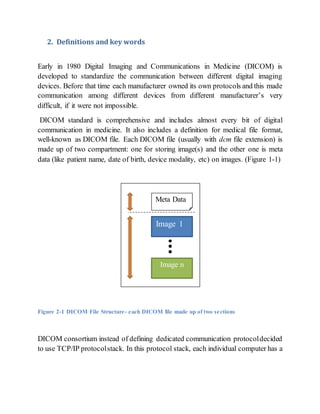
made up of two compartment: one for storing image(s) and the other one is meta
data (like patient name, date of birth, device modality, etc) on images. (Figure 1-1)
Figure 2-1 DICOM File Structure- each DICOM file made up of two sections
DICOM consortium instead of defining dedicated communication protocoldecided
to use TCP/IP protocolstack. In this protocol stack, each individual computer has a
Meta Data
Image 1
Image n
unique address known as IP address2. An IP address locates a computer on a
network. Intuitively, one can think of IP address as apartment number which locates
the apartment’s location on a street. But, each apartment may have many flats in it.
To distinguish between them each flat has a dedicated internal number. In the
network realm, a similar situation happens. Usually many different applications on
each PC are running concurrently, to distinguish them from each other; another
dedicated number is assigned to applications. This number is known as port number
of that application.
For transferring data between two applications on a network, each application on
both sides of channel not only has to know IP address ofthe other side but also they
have to know port number. By means of IP address they can locate the other sides
PC and by means of port number the process which is addressed is specifically
determined.
A computer network is indeed a graph of nodes. Each node has a set of specific
responsibilities; some are end nodes (like leaves of a graph), some are to server the
other nodes and some are to make interconnection between servant and server.
End nodes produce data and send/receive the data into/from network. In network
literature this nodes are named clients. On the other extremity, server nodes are
responsible to serve the client with specific set of services. For example, consider a
user that wants to upload a movie to a web site. The computer of this user would be
a client and computer of the website which provides the uploading, saving and
streaming of the videos would be a server. Usually, client and server are far apart
from each other. To make the connection between them possible, setofnodes known
as routing nodes exist. Technically they are coined routers.
In a not accurate language, DICOM servers are responsible to provide recoding and
retrieving medical records to the clients. With regards to size of the hospital and
work load, dozens ofDICOM servers might beneeded to collaborate with each other
to fulfill the work load. DICOM consortium defined the conceptof application entity
(AE). It is a unique given name3 to each DICOM server.
2 Current version of IP (IPv.4) consists of4 part, each of which is a 3 digit number (ie. xxx.xxx.xxx.xxx)
3 In string format
This naming convention is a major difference between TCP/IP networks and
DICOM networks.
3. DICOM Networks
Before getting hands dirty with implementation, we have to mention some points
which shine light on the future steps. As it is mentioned in the previous section,
DICOM files made of two compartment, meta-data and images. Contents of the
meta-data are in text format, while images are heavy trunk of bits. From
computational perspective, the first oneis easy to keep in databases (like SQL)while
the other one is heavy and usually kept outside of databases. A general trend in
database design is to put them inside a folder and accessing them directly from hard
disc.
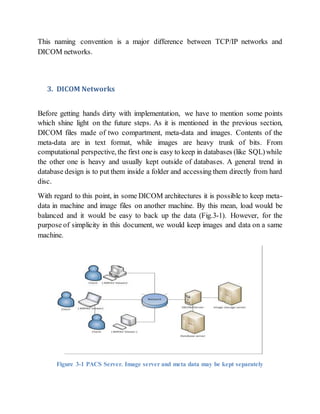
With regard to this point, in some DICOM architectures it is possible to keep meta-
data in machine and image files on another machine. By this mean, load would be
balanced and it would be easy to back up the data (Fig.3-1). However, for the
purpose of simplicity in this document, we would keep images and data on a same
machine.
Figure 3-1 PACS Server. Image server and meta data may be kept separately
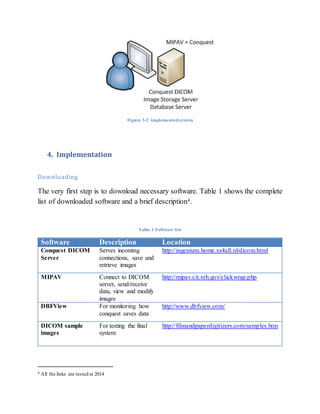
Figure 3-2 implemented system
4. Implementation
Downloading
The very first step is to download necessary software. Table 1 shows the complete
list of downloaded software and a brief description4.
Table 1 Software list
Software Description Location
Conquest DICOM
Server
Serves incoming
connections, save and
retrieve images
http://ingenium.home.xs4all.nl/dicom.html
MIPAV Connect to DICOM
server, send/receive
data, view and modify
images
http://mipav.cit.nih.gov/clickwrap.php
DBFView For monitoring how
conquest saves data
http://www.dbfview.com/
DICOM sample
images
For testing the final
system
http://filmandpaperdigitizers.com/samples.htm
4 All the links are tested at 2014
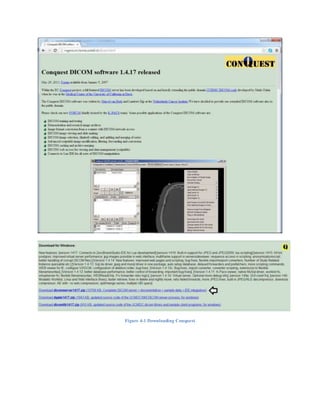
Figure 4-1 Downloading Conquest
Figure 4-2 Downloading MIPAV
Figure 4-3 Downloding DFView
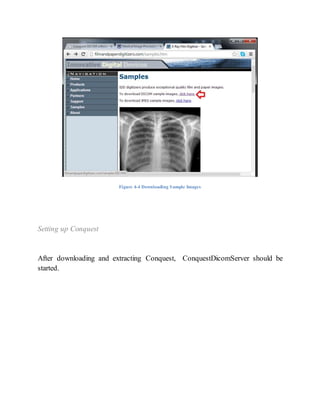
Figure 4-4 Downloading Sample Images
Setting up Conquest
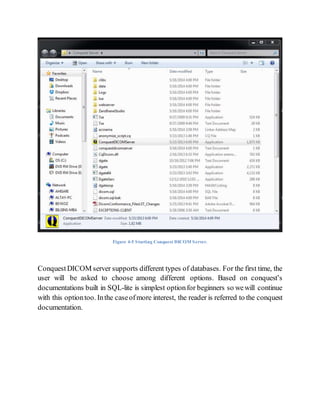
After downloading and extracting Conquest, ConquestDicomServer should be
started.
Figure 4-5 Starting Conquest DICOM Server.
ConquestDICOM server supports different types of databases. For the first time, the
user will be asked to choose among different options. Based on conquest’s
documentations built in SQL-lite is simplest optionfor beginners so wewill continue
with this optiontoo. Inthe caseofmore interest, the reader is referred to the conquest
documentation.
Figure 4-6 Selecting between different options of database driver.
This window will appear for just first run
After conquest gets loaded, its GUI will appear (Fig. 4-7). Configuration tab is
shown. On this tab, critical options of conquest are shown. AE is an arbitrary name,
portnumber’s default value is 5678. In windows 7 orvista this portmay have already
been taken by other programs. So, in the case of any problem in connection one can
chooseany other number in the range of 1000 to 65000. It is also possible to change
the destination directory for saving images into5.
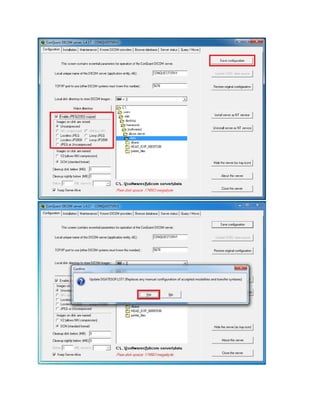
On this tab we enable the “Enable JPEG(2000) support” check list , then select
“uncompressed” and let the other section to be on their default values. After then
“Save configuration” button must be pressed to make changes affect.
5 We will back to this directory in the future sections.
Figure 4-7 Configuring Conquest DICOM server
Now, let’s keep moving on with installation tab. On this table one can verify
conquestDICOM server connectivity. Forthis, the server starts to echo a long string
into channel and in the caseof normal situation it should hear its own voice! In other
word, the long string that is sent by server, should be heard by itself and displayed
on the screen.
In the case of successfultest: “Successful end of test” is shown on the window and
in the case ofany failure “can you read this?”will appear. This later case means that
the server cannot hear its own voice, so there should be problem with TCP/IP
connection. Usually this test will be passed successfully, but if it did not happen to
be the casethen first try for a few more times than it is suggested to turn off firewalls
and try it again (Fig. 4-8).
Figure 4-8 Verifying TCP/IP connectivity
In the case of collapse of data in the databases, it is possible to recover them from
stored images. To do this one can use (Re)-initialize database. This option is a little
bit advanced for beginners. Those how want to use conquest in conjunction with
SQL server might checkit out. But for now one can ignore that. By pressing “Verify
database installation” button, verify database.
Figure 4-9 Initialize databases
On the maintenance tab there is also (Re)-initialize button. The functionality of this
button is similar to the one within the installation tab. Fornow, we recommend the
reader to press it down to see what happen but in the future he should be a
conservative onthis option. The remaining buttons return backa report ondatabases,
so it would be a good practice to check all of them. Fig. 4-10
Figure 4-10 maintenance tab and re-initialization
Setting up MIPAV
Setting up MIPAV is straight forward. Figure 4-11 shows the steps. Figure 4-12
pictures main window of MIPAV.
Figure 4-11 installation process
Figure 4-12 MIPAV main window
Connecting MIPAV to Conquest
It is time for major step which is connecting MIPAV to Conquest. First, check the
ActiveDICOM receiver (Fig. 14.13). This option allows the MIPAV to receive data
from server. Then, select DICOM database access. On the opened window, go to
Hosts tab. There are two panels within, one for servers and the other is for storage.
Server panel list all servers which are introduced to MIPAV and Storage Destination
lists all local storage which are used by MIPAV during image transfer (Fig. 14.13)
As far as this is the first time the MIPAV is going to be used, these lists are empty
on Fig. 14.13. Next, let’s start with creating new server.
Figure 4-13 introducing conquest to MIPAV
MIPAV needs IP, AE and portnumber of the conquest server. This information can
be extracted from “Known DICOM providers” tab in conquest. Beside these, an
extra arbitrary name6 Alias is also needed.
Figure 4-14 Passing conquest parameters to MIPAV
Fig. 4-14 shows an example. After introducing the server(s), we have to select one
default server. So, after making new server, select it from the list and press Set As
Default. Make sure the tike mark appears beside the server name.
6 which is used if the server name confliction happens
Figure 4-15 Example on how to introduce a server to MIPAV
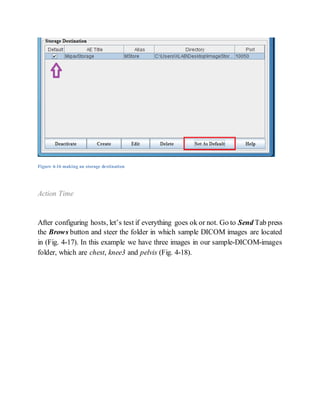
MIPAV needs a cache as a temporary space to keep incoming images from server
in. So, make a folder on an appropriate location. Its address accompanied with
arbitraryAE name, arbitraryalias AE name and an arbitraryportnumber7 is passed
to MIPAV and it made as a default storage. These steps are shown in Fig. 4-16
7 In the range of 1000 to 65000
Figure 4-16 making an storage destination
Action Time
After configuring hosts, let’s test if everything goes ok or not. Go to Send Tab press
the Brows button and steer the folder in which sample DICOM images are located
in (Fig. 4-17). In this example we have three images in our sample-DICOM-images
folder, which are chest, knee3 and pelvis (Fig. 4-18).
Figure 4-17 Locate sample image files
Now it is the moment of the truth! First lets test if is there any problem in
communication line ornot. So press, TestConnection. (Fig. 4-18) If everything goes
well a success message will appear, otherwise, there is a problem with server
definition or conquest is not working properly.
Figure 4-18 checking for connection
Now, let’s try sending image. Select one of the images from the list and then press
Send Images button. Bring into mind, images are bulky creatures so it may take a
little while to complete the operation.
Figure 4-19 checking for image transfer
At this point if everything goes well, then congratulations!!! You just implemented
a DICOM server which costs so much just a few years ago!!!
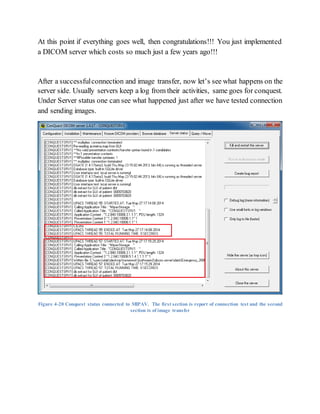
After a successfulconnection and image transfer, now let’s see what happens on the
server side. Usually servers keep a log from their activities, same goes for conquest.
Under Server status one can see what happened just after we have tested connection
and sending images.
Figure 4-20 Conquest status connected to MIPAV. The first section is report of connection test and the second
section is of image transfer
Curiosity
After successful connection, let’s peep over some aspects of conquest. First, let’s
make sure the image is received by conquestand then check where it is saved. Open
the conquest DICOM server and go to browse database tab. On the top left corner
one can see the image is really received! (Fig. 4-21)
Figure 4-21 Received image is in Conquest database
On this figure amessage is interesting, ”Largefile not displayed”. ConquestDICOM
server comes with a built in primitive DICOM viewer. This viewer cannot able to
show large images (like the one we have here, which is almost 16 MB) To solve this
problem conquest is also augmented with a third-party viewer k-Pacs. To see the
image, right click on the message and select Run K-Packs viewer (Fig. 4-22)
Figure 4-22 K-Pacs viewer
One might also ask where did HEAD XP2 come from? It is a built in sample which
come with conquest.
That was the image, so where is the meta-data? Where are they? A closer look at the
Fig 4-21 shows that there are three tables beside the image. Each table shows some
section of meta-data (Fig. 4-23).
Figure 4-23 where meta data are kept
Curiosity kills the cat!
Now we want to see if it is possibleto extract metadata from image with in MIPAV?
The answer is yeas. Steps are shown in Fig. 4-24.
Figure 4-24 Metadata within image is extracted via MIPAV
MIPAV shows the meta-data in colorcoded fashion. It is exactly in accordancewith
what Conquest DICOM server showed up.
The next question is where exactly the data are? We already mentioned that meta-
data is in database and image files are in folder. So, lets try to locate them and see
how they actually are stored.
First go to the folder which is defined as local storage image files for conquest
server8. For each incoming image a new folder is made with in this directory and
images are kept within their own dedicated folder. For example, our image is saved
in Genesis-100 folder (Figure 4-25). Within this folder image file is kept under a
very long cryptographic code name! For further discussion about the naming
convention the reader is referred to DICOM documentations.
Figure 4-25 How physically images are saved in conquest DICOM
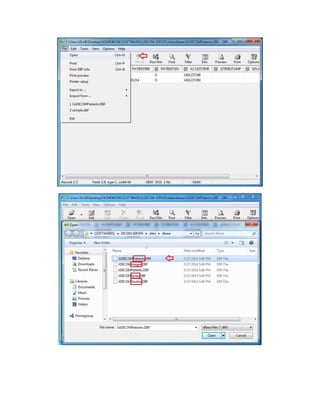
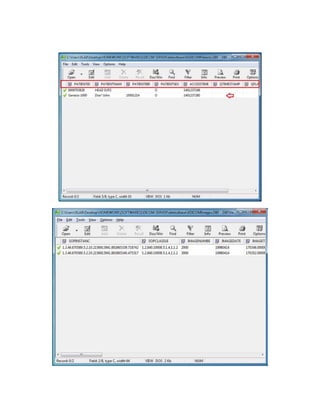
Finally, let’s see how meta-data are stored in conquest database. In our SQL-Lite
implementation, data is stored within DBF files inside …datadbasefolder. To open
this file extension we used DBFView. Complete picture of this process is given in
Fig. 4-26
8 Remember the configuration tab (Fig. 4-7)
Figure 4-26 DBFView of database
Appendix DICOM Data Model9
The specification of DICOM objects are documented in chapter 3 of the DICOM standard
that defines the DICOM data model. In its most simplified form the DICOM Data Model
looks like this.
The data model defines Information Entities (IE’s); Patient, Study, Series and
Image. There are more IE’s like Visit, Equipment, Clinical Trial, Procedure and
many others and they are all defined in chapter 3 which is the longest chapter of
the standard. The DICOM Data Model that is made of IE's is normalized. It is a
perfect relational database definition. The classes of the DICOM Objects however
are composites made of modules from different entities. The integration
is achieved by applications that exchange composite objects between one another.
Each application is responsible for it's own internal normalized database that
is private to itself and should not interest any other application and is out of
the standard's scope. The way you build your DICOM application internals
is completely your business. The only thing that matters is your interfaces. Your
application should talk proper DICOM. By the way, the DICOM network protocol that
we’ll get to in later chapters also makes a distinction between Normalized and
Composite operations and there’s N protocol and C protocol with different commands
for each one.
9 Content of this section is from http://dicomiseasy.blogspot.com.tr/
Patient
Study
Series
Instance (Image)
The classes of the DICOM static data model are called SOP Classes and are defined
by IOD’s – Information Object Definition. IOD’s are specified in Appendix A of
chapter 3 of the standard. An IOD is a collection of Modules and a Module is a
collection of elements from one information entity that together represent
something. The modules are also defined in chapter 3 of the DICOM standard in
appendix C. Two object oriented concepts, composition and reuse, that are used by
DICOM is the Modules that are parts shared between different IOD’s.
All DICOM Objects must include the SOP Common Module and modules from the four
main IE’s: Patient, Study, Series and Image (Image and Instance are the same in
DICOM. Once there were only images but then objects that are not images has been
defined and the name thus changed from Image to Instance in order to represent an
instance of a SOP class). All DICOM Images, that is DICOM Instances that Are
Images, must include the Image Module. Because Every DICOM Object must be part of
a Series, all DICOM Objects must include the General Series Module and because all
series must be part of a Study, every DICOM Object must include the General Study
Module and because every study is made on some patient, all DICOM objects must
have a Patient Module. You probably wonder what SOP means? That's an acronym for
"Service Object Pair" and please take my word for it, that for now this is all we
need to say about that. Maybe when we talk about DICOM Services or
understanding DICOM Conformance Statements I'll try to explain where this name
comes from, but I'm not sure that it makes much difference. In a word, SOP is a
pair of a DICOM Sevice and and DICOM Object like Secondary Capture Object and
Storage Service.
5. References
1- Windows User manual ConquestDICOM Server version release 1.4.17
2- MIPAV User’s guide, volume 1
3- http://dicomiseasy.blogspot.com.tr/
4- http://en.wikipedia.org/wiki/DICOM

Conquest for dummies: how to setup a pacs server

  • 1.
    Conquest DICOM Server For Beginners! Setting upA DICOM server with Conquest and MIPAV Altay Brusan, Albert Güveniş
  • 2.
    1. Introduction Historically settingup a DICOM server for medical application was seen as a complex process and confuse the newbies. To change this scene, vast amount of attempts were exerted during pasttwo decades. Consequently, a pile of free and open source software packages were developed all around the world. Thanks to this endeavors, now setting up a DICOM sever in a real environment is easy and cheap task even for beginners. This document shows how to set up a simple conquest DICOM server and make connection to it through terminals. The objectives of this document are those who have no idea about computer networks, DICOM server and even medical image retrieval but want to set up a simple (and consequently rude) DICOM server. To achieve above objective Conquest DICOM server is chosen. Conquest project started in 1998 and from that year on, till now 2014, regularly updated and debugged. A simple graphical user interface, small size (1.5 Mb), simplicity of use , sufficient documentation and support are reasons that made it one of the best off-the-shelf options for educational and small-size real applications. Medical images have their own specific standard and file format1; so, opening and manipulating these files needs specific soft wares-- generally well-known as image viewer. In this document MIPAV is chosen. This software is not just a simple DICOM viewer but it also: supports different types of filtrations and analysis on images, is able to connect to DICOM server and finally, is dexterous image manipulator. In the following first a bunch of words are redefined to clarify the picture. Then starting from downloading, step by step, we want to go through how to set up the softwares. Finally, by means of sample test image we put all stuffs into action. 1 Usually dcm file extension refers to DICOM images.
  • 3.
    2. Definitions andkey words Early in 1980 Digital Imaging and Communications in Medicine (DICOM) is developed to standardize the communication between different digital imaging devices. Before that time each manufacturer owned its own protocols and this made communication among different devices from different manufacturer’s very difficult, if it were not impossible. DICOM standard is comprehensive and includes almost every bit of digital communication in medicine. It also includes a definition for medical file format, well-known as DICOM file. Each DICOM file (usually with dcm file extension) is made up of two compartment: one for storing image(s) and the other one is meta data (like patient name, date of birth, device modality, etc) on images. (Figure 1-1) Figure 2-1 DICOM File Structure- each DICOM file made up of two sections DICOM consortium instead of defining dedicated communication protocoldecided to use TCP/IP protocolstack. In this protocol stack, each individual computer has a Meta Data Image 1 Image n
  • 4.
    unique address knownas IP address2. An IP address locates a computer on a network. Intuitively, one can think of IP address as apartment number which locates the apartment’s location on a street. But, each apartment may have many flats in it. To distinguish between them each flat has a dedicated internal number. In the network realm, a similar situation happens. Usually many different applications on each PC are running concurrently, to distinguish them from each other; another dedicated number is assigned to applications. This number is known as port number of that application. For transferring data between two applications on a network, each application on both sides of channel not only has to know IP address ofthe other side but also they have to know port number. By means of IP address they can locate the other sides PC and by means of port number the process which is addressed is specifically determined. A computer network is indeed a graph of nodes. Each node has a set of specific responsibilities; some are end nodes (like leaves of a graph), some are to server the other nodes and some are to make interconnection between servant and server. End nodes produce data and send/receive the data into/from network. In network literature this nodes are named clients. On the other extremity, server nodes are responsible to serve the client with specific set of services. For example, consider a user that wants to upload a movie to a web site. The computer of this user would be a client and computer of the website which provides the uploading, saving and streaming of the videos would be a server. Usually, client and server are far apart from each other. To make the connection between them possible, setofnodes known as routing nodes exist. Technically they are coined routers. In a not accurate language, DICOM servers are responsible to provide recoding and retrieving medical records to the clients. With regards to size of the hospital and work load, dozens ofDICOM servers might beneeded to collaborate with each other to fulfill the work load. DICOM consortium defined the conceptof application entity (AE). It is a unique given name3 to each DICOM server. 2 Current version of IP (IPv.4) consists of4 part, each of which is a 3 digit number (ie. xxx.xxx.xxx.xxx) 3 In string format
  • 5.
    This naming conventionis a major difference between TCP/IP networks and DICOM networks. 3. DICOM Networks Before getting hands dirty with implementation, we have to mention some points which shine light on the future steps. As it is mentioned in the previous section, DICOM files made of two compartment, meta-data and images. Contents of the meta-data are in text format, while images are heavy trunk of bits. From computational perspective, the first oneis easy to keep in databases (like SQL)while the other one is heavy and usually kept outside of databases. A general trend in database design is to put them inside a folder and accessing them directly from hard disc. With regard to this point, in some DICOM architectures it is possible to keep meta- data in machine and image files on another machine. By this mean, load would be balanced and it would be easy to back up the data (Fig.3-1). However, for the purpose of simplicity in this document, we would keep images and data on a same machine. Figure 3-1 PACS Server. Image server and meta data may be kept separately
  • 6.
    Figure 3-2 implementedsystem 4. Implementation Downloading The very first step is to download necessary software. Table 1 shows the complete list of downloaded software and a brief description4. Table 1 Software list Software Description Location Conquest DICOM Server Serves incoming connections, save and retrieve images http://ingenium.home.xs4all.nl/dicom.html MIPAV Connect to DICOM server, send/receive data, view and modify images http://mipav.cit.nih.gov/clickwrap.php DBFView For monitoring how conquest saves data http://www.dbfview.com/ DICOM sample images For testing the final system http://filmandpaperdigitizers.com/samples.htm 4 All the links are tested at 2014
  • 7.
  • 8.
    Figure 4-2 DownloadingMIPAV Figure 4-3 Downloding DFView
  • 9.
    Figure 4-4 DownloadingSample Images Setting up Conquest After downloading and extracting Conquest, ConquestDicomServer should be started.
  • 10.
    Figure 4-5 StartingConquest DICOM Server. ConquestDICOM server supports different types of databases. For the first time, the user will be asked to choose among different options. Based on conquest’s documentations built in SQL-lite is simplest optionfor beginners so wewill continue with this optiontoo. Inthe caseofmore interest, the reader is referred to the conquest documentation.
  • 11.
    Figure 4-6 Selectingbetween different options of database driver. This window will appear for just first run After conquest gets loaded, its GUI will appear (Fig. 4-7). Configuration tab is shown. On this tab, critical options of conquest are shown. AE is an arbitrary name, portnumber’s default value is 5678. In windows 7 orvista this portmay have already been taken by other programs. So, in the case of any problem in connection one can chooseany other number in the range of 1000 to 65000. It is also possible to change the destination directory for saving images into5. On this tab we enable the “Enable JPEG(2000) support” check list , then select “uncompressed” and let the other section to be on their default values. After then “Save configuration” button must be pressed to make changes affect. 5 We will back to this directory in the future sections.
  • 13.
    Figure 4-7 ConfiguringConquest DICOM server Now, let’s keep moving on with installation tab. On this table one can verify conquestDICOM server connectivity. Forthis, the server starts to echo a long string into channel and in the caseof normal situation it should hear its own voice! In other word, the long string that is sent by server, should be heard by itself and displayed on the screen. In the case of successfultest: “Successful end of test” is shown on the window and in the case ofany failure “can you read this?”will appear. This later case means that the server cannot hear its own voice, so there should be problem with TCP/IP connection. Usually this test will be passed successfully, but if it did not happen to be the casethen first try for a few more times than it is suggested to turn off firewalls and try it again (Fig. 4-8).
  • 14.
    Figure 4-8 VerifyingTCP/IP connectivity
  • 15.
    In the caseof collapse of data in the databases, it is possible to recover them from stored images. To do this one can use (Re)-initialize database. This option is a little bit advanced for beginners. Those how want to use conquest in conjunction with SQL server might checkit out. But for now one can ignore that. By pressing “Verify database installation” button, verify database. Figure 4-9 Initialize databases On the maintenance tab there is also (Re)-initialize button. The functionality of this button is similar to the one within the installation tab. Fornow, we recommend the reader to press it down to see what happen but in the future he should be a conservative onthis option. The remaining buttons return backa report ondatabases, so it would be a good practice to check all of them. Fig. 4-10
  • 17.
    Figure 4-10 maintenancetab and re-initialization Setting up MIPAV Setting up MIPAV is straight forward. Figure 4-11 shows the steps. Figure 4-12 pictures main window of MIPAV.
  • 21.
  • 22.
    Figure 4-12 MIPAVmain window Connecting MIPAV to Conquest It is time for major step which is connecting MIPAV to Conquest. First, check the ActiveDICOM receiver (Fig. 14.13). This option allows the MIPAV to receive data from server. Then, select DICOM database access. On the opened window, go to Hosts tab. There are two panels within, one for servers and the other is for storage. Server panel list all servers which are introduced to MIPAV and Storage Destination lists all local storage which are used by MIPAV during image transfer (Fig. 14.13) As far as this is the first time the MIPAV is going to be used, these lists are empty on Fig. 14.13. Next, let’s start with creating new server.
  • 23.
    Figure 4-13 introducingconquest to MIPAV
  • 24.
    MIPAV needs IP,AE and portnumber of the conquest server. This information can be extracted from “Known DICOM providers” tab in conquest. Beside these, an extra arbitrary name6 Alias is also needed. Figure 4-14 Passing conquest parameters to MIPAV Fig. 4-14 shows an example. After introducing the server(s), we have to select one default server. So, after making new server, select it from the list and press Set As Default. Make sure the tike mark appears beside the server name. 6 which is used if the server name confliction happens
  • 25.
    Figure 4-15 Exampleon how to introduce a server to MIPAV
  • 26.
    MIPAV needs acache as a temporary space to keep incoming images from server in. So, make a folder on an appropriate location. Its address accompanied with arbitraryAE name, arbitraryalias AE name and an arbitraryportnumber7 is passed to MIPAV and it made as a default storage. These steps are shown in Fig. 4-16 7 In the range of 1000 to 65000
  • 27.
    Figure 4-16 makingan storage destination Action Time After configuring hosts, let’s test if everything goes ok or not. Go to Send Tab press the Brows button and steer the folder in which sample DICOM images are located in (Fig. 4-17). In this example we have three images in our sample-DICOM-images folder, which are chest, knee3 and pelvis (Fig. 4-18).
  • 28.
    Figure 4-17 Locatesample image files
  • 29.
    Now it isthe moment of the truth! First lets test if is there any problem in communication line ornot. So press, TestConnection. (Fig. 4-18) If everything goes well a success message will appear, otherwise, there is a problem with server definition or conquest is not working properly. Figure 4-18 checking for connection
  • 30.
    Now, let’s trysending image. Select one of the images from the list and then press Send Images button. Bring into mind, images are bulky creatures so it may take a little while to complete the operation. Figure 4-19 checking for image transfer
  • 31.
    At this pointif everything goes well, then congratulations!!! You just implemented a DICOM server which costs so much just a few years ago!!! After a successfulconnection and image transfer, now let’s see what happens on the server side. Usually servers keep a log from their activities, same goes for conquest. Under Server status one can see what happened just after we have tested connection and sending images. Figure 4-20 Conquest status connected to MIPAV. The first section is report of connection test and the second section is of image transfer
  • 32.
    Curiosity After successful connection,let’s peep over some aspects of conquest. First, let’s make sure the image is received by conquestand then check where it is saved. Open the conquest DICOM server and go to browse database tab. On the top left corner one can see the image is really received! (Fig. 4-21) Figure 4-21 Received image is in Conquest database On this figure amessage is interesting, ”Largefile not displayed”. ConquestDICOM server comes with a built in primitive DICOM viewer. This viewer cannot able to show large images (like the one we have here, which is almost 16 MB) To solve this problem conquest is also augmented with a third-party viewer k-Pacs. To see the image, right click on the message and select Run K-Packs viewer (Fig. 4-22)
  • 33.
    Figure 4-22 K-Pacsviewer One might also ask where did HEAD XP2 come from? It is a built in sample which come with conquest. That was the image, so where is the meta-data? Where are they? A closer look at the Fig 4-21 shows that there are three tables beside the image. Each table shows some section of meta-data (Fig. 4-23).
  • 34.
    Figure 4-23 wheremeta data are kept
  • 35.
    Curiosity kills thecat! Now we want to see if it is possibleto extract metadata from image with in MIPAV? The answer is yeas. Steps are shown in Fig. 4-24.
  • 36.
    Figure 4-24 Metadatawithin image is extracted via MIPAV MIPAV shows the meta-data in colorcoded fashion. It is exactly in accordancewith what Conquest DICOM server showed up.
  • 37.
    The next questionis where exactly the data are? We already mentioned that meta- data is in database and image files are in folder. So, lets try to locate them and see how they actually are stored. First go to the folder which is defined as local storage image files for conquest server8. For each incoming image a new folder is made with in this directory and images are kept within their own dedicated folder. For example, our image is saved in Genesis-100 folder (Figure 4-25). Within this folder image file is kept under a very long cryptographic code name! For further discussion about the naming convention the reader is referred to DICOM documentations. Figure 4-25 How physically images are saved in conquest DICOM Finally, let’s see how meta-data are stored in conquest database. In our SQL-Lite implementation, data is stored within DBF files inside …datadbasefolder. To open this file extension we used DBFView. Complete picture of this process is given in Fig. 4-26 8 Remember the configuration tab (Fig. 4-7)
  • 40.
  • 41.
    Appendix DICOM DataModel9 The specification of DICOM objects are documented in chapter 3 of the DICOM standard that defines the DICOM data model. In its most simplified form the DICOM Data Model looks like this. The data model defines Information Entities (IE’s); Patient, Study, Series and Image. There are more IE’s like Visit, Equipment, Clinical Trial, Procedure and many others and they are all defined in chapter 3 which is the longest chapter of the standard. The DICOM Data Model that is made of IE's is normalized. It is a perfect relational database definition. The classes of the DICOM Objects however are composites made of modules from different entities. The integration is achieved by applications that exchange composite objects between one another. Each application is responsible for it's own internal normalized database that is private to itself and should not interest any other application and is out of the standard's scope. The way you build your DICOM application internals is completely your business. The only thing that matters is your interfaces. Your application should talk proper DICOM. By the way, the DICOM network protocol that we’ll get to in later chapters also makes a distinction between Normalized and Composite operations and there’s N protocol and C protocol with different commands for each one. 9 Content of this section is from http://dicomiseasy.blogspot.com.tr/ Patient Study Series Instance (Image)
  • 42.
    The classes ofthe DICOM static data model are called SOP Classes and are defined by IOD’s – Information Object Definition. IOD’s are specified in Appendix A of chapter 3 of the standard. An IOD is a collection of Modules and a Module is a collection of elements from one information entity that together represent something. The modules are also defined in chapter 3 of the DICOM standard in appendix C. Two object oriented concepts, composition and reuse, that are used by DICOM is the Modules that are parts shared between different IOD’s. All DICOM Objects must include the SOP Common Module and modules from the four main IE’s: Patient, Study, Series and Image (Image and Instance are the same in DICOM. Once there were only images but then objects that are not images has been defined and the name thus changed from Image to Instance in order to represent an instance of a SOP class). All DICOM Images, that is DICOM Instances that Are Images, must include the Image Module. Because Every DICOM Object must be part of a Series, all DICOM Objects must include the General Series Module and because all series must be part of a Study, every DICOM Object must include the General Study Module and because every study is made on some patient, all DICOM objects must have a Patient Module. You probably wonder what SOP means? That's an acronym for "Service Object Pair" and please take my word for it, that for now this is all we need to say about that. Maybe when we talk about DICOM Services or understanding DICOM Conformance Statements I'll try to explain where this name comes from, but I'm not sure that it makes much difference. In a word, SOP is a pair of a DICOM Sevice and and DICOM Object like Secondary Capture Object and Storage Service.
  • 43.
    5. References 1- WindowsUser manual ConquestDICOM Server version release 1.4.17 2- MIPAV User’s guide, volume 1 3- http://dicomiseasy.blogspot.com.tr/ 4- http://en.wikipedia.org/wiki/DICOM