PERSONALISING
DESKTOP
Ajay Jassi
Changing the wallpaper
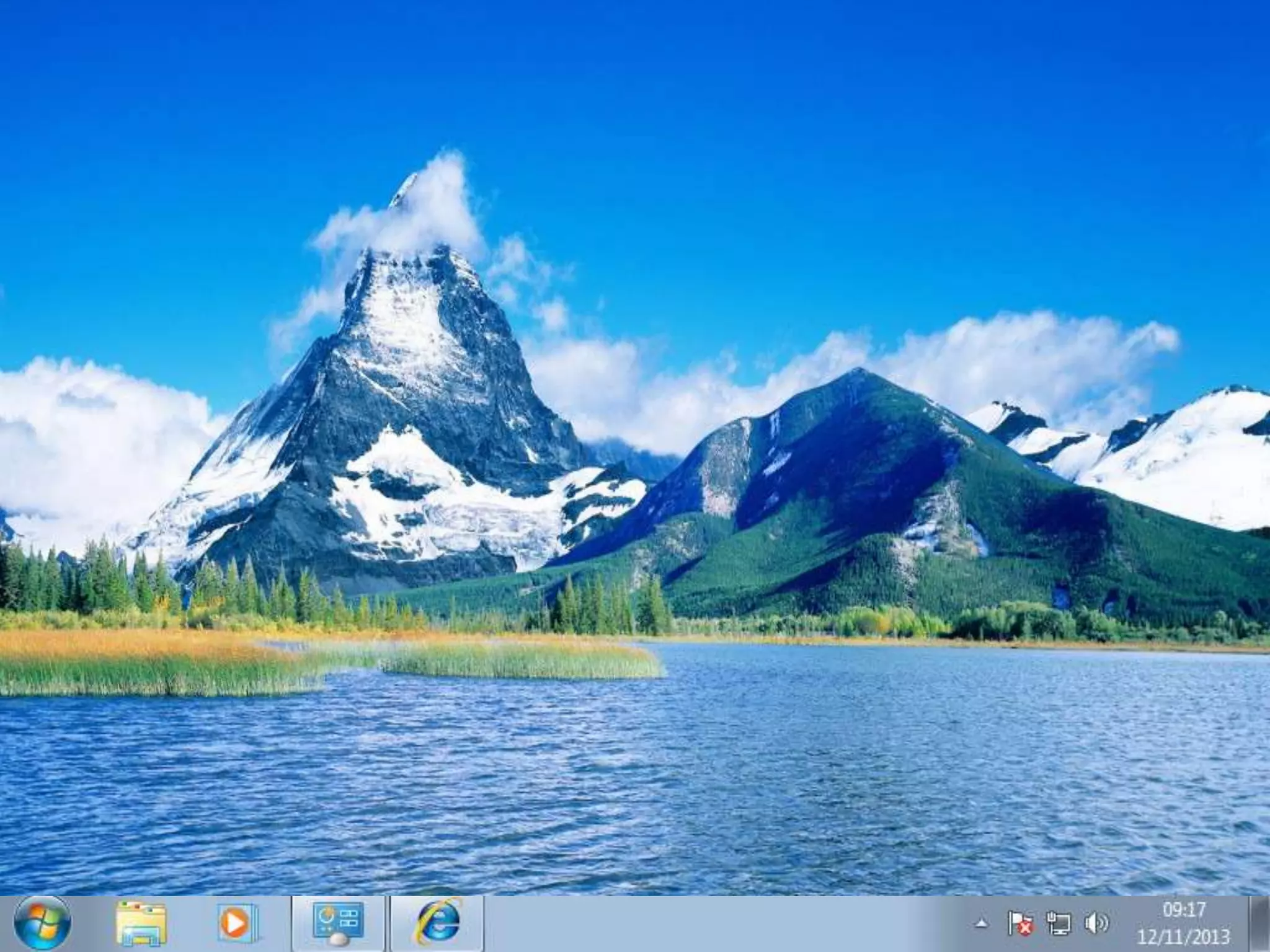
• The user would want to change his/her wallpaper to make
it my personalised and more attracting to look at for their
own systems.
• There is many personal features on the computer to make
it relate to you.
Changing wallpaper
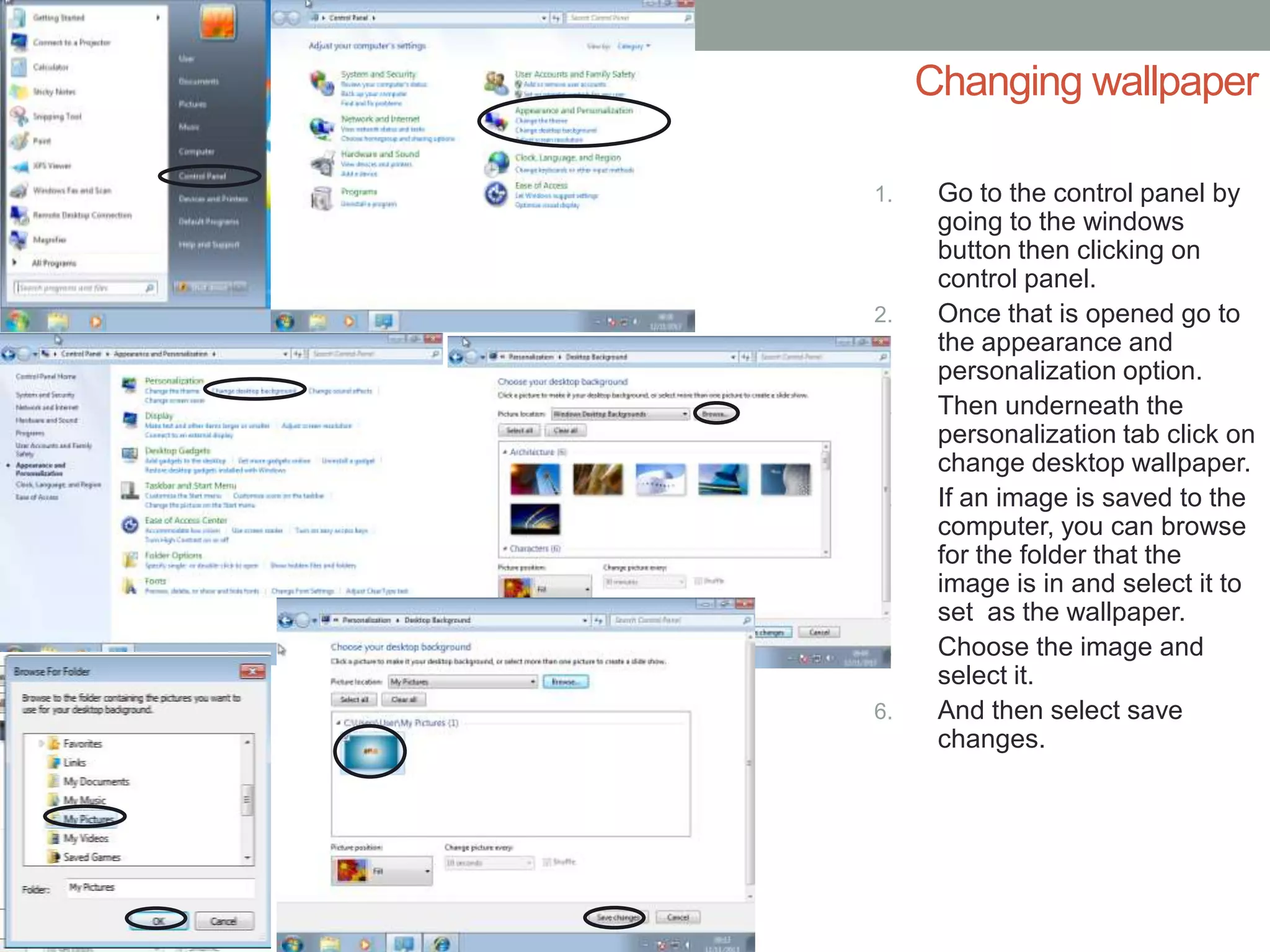
1. Go to the control panel by
going to the windows
button then clicking on
control panel.
2. Once that is opened go to
the appearance and
personalization option.
3. Then underneath the
personalization tab click on
change desktop wallpaper.
4. If an image is saved to the
computer, you can browse
for the folder that the
image is in and select it to
set as the wallpaper.
5. Choose the image and
select it.
6. And then select save
changes.
Changing screen resolution
• Screen resolution is important as it decides how big the
icon, text and dimensions is. To make it look
professional, its recommended to make it the highest
resolution.
Changing screen resolution
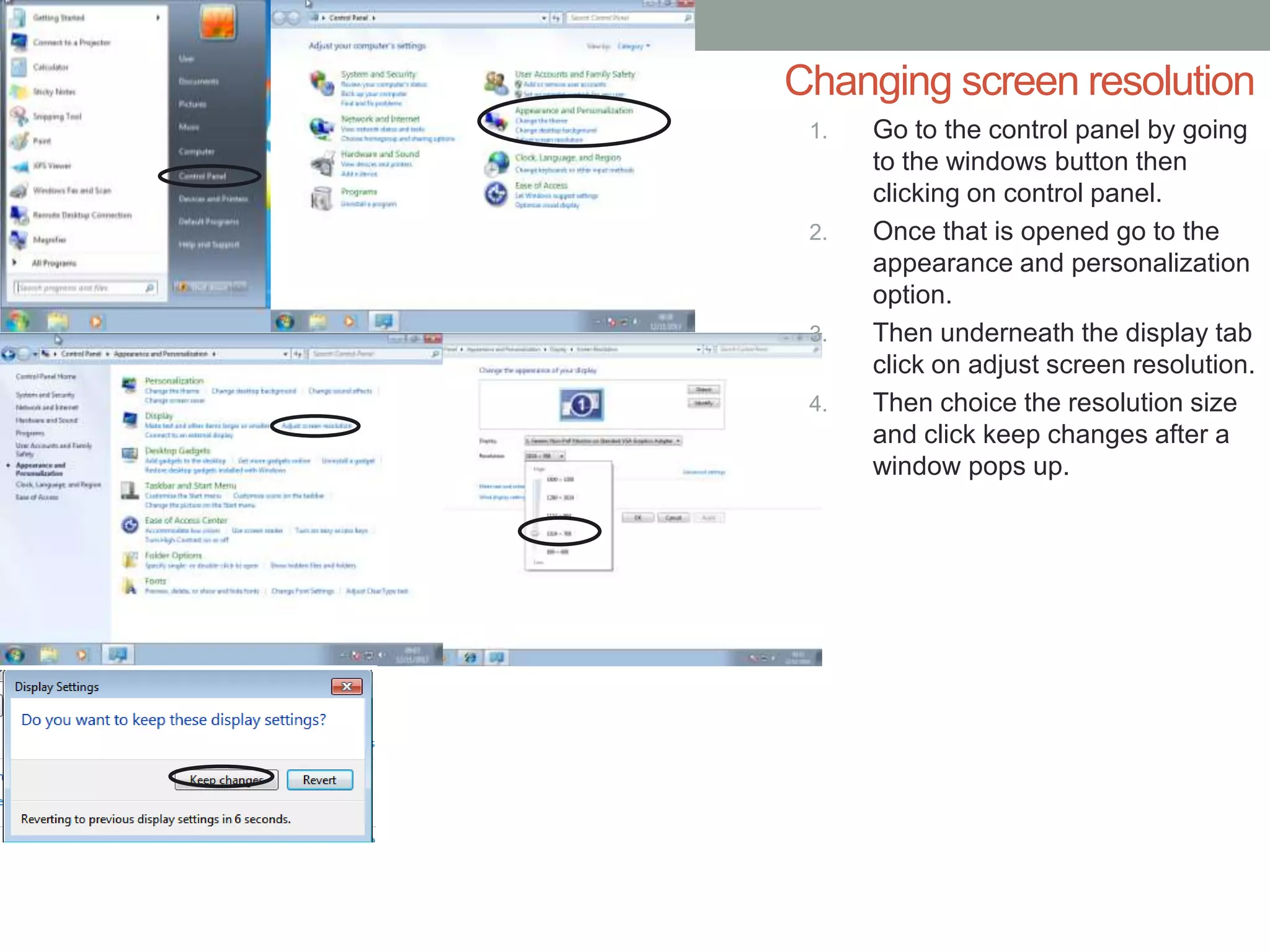
1. Go to the control panel by going
to the windows button then
clicking on control panel.
2. Once that is opened go to the
appearance and personalization
option.
3. Then underneath the display tab
click on adjust screen resolution.
4. Then choice the resolution size
and click keep changes after a
window pops up.
Changing Icon Size
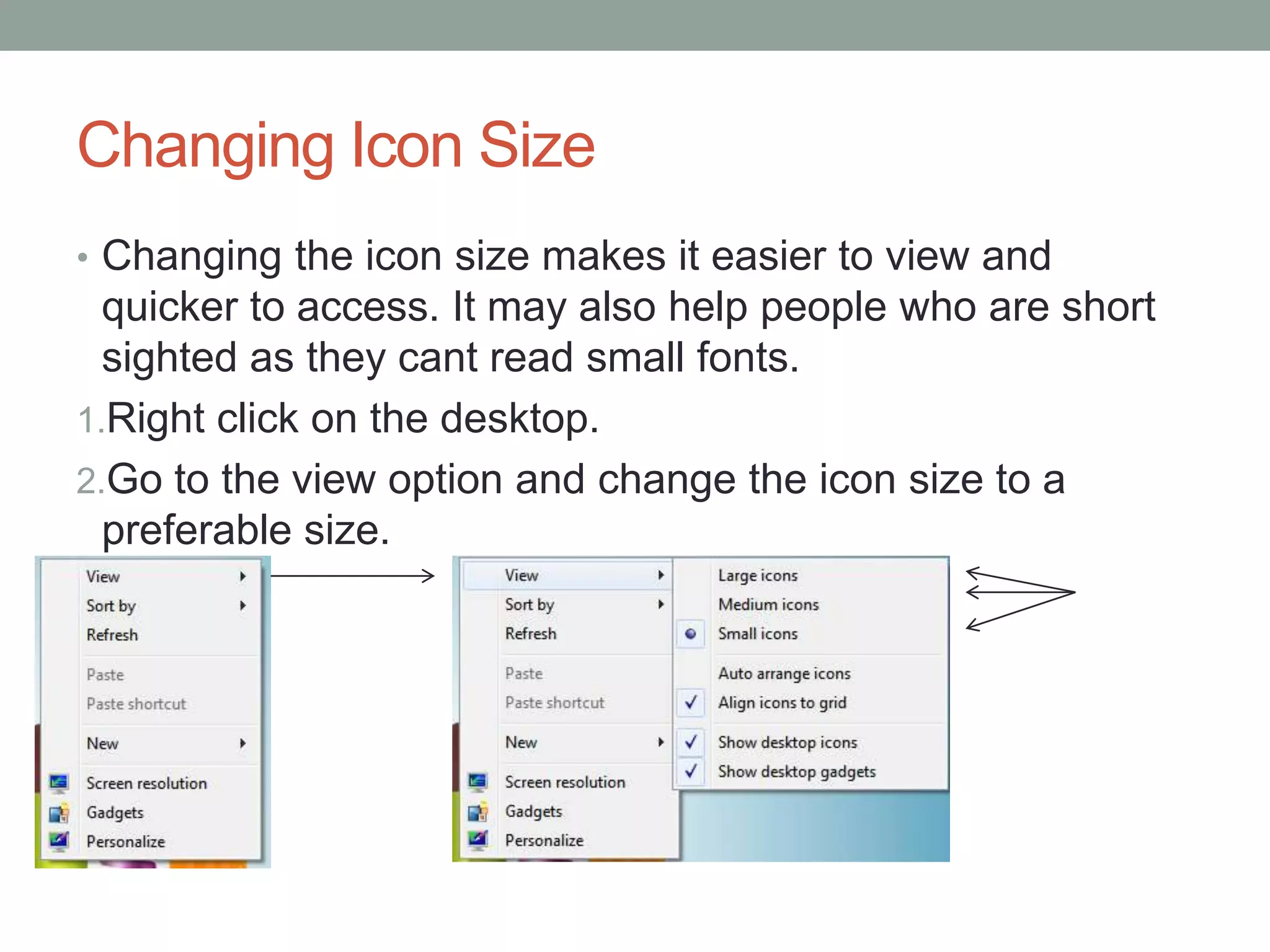
• Changing the icon size makes it easier to view and
quicker to access. It may also help people who are short
sighted as they cant read small fonts.
1.Right click on the desktop.
2.Go to the view option and change the icon size to a
preferable size.
Change to left hand mouse
• Some user are left handed therefore he/she will need to
get the mouse set up to make it easier for him/her to use.
Changing to left hand mouse
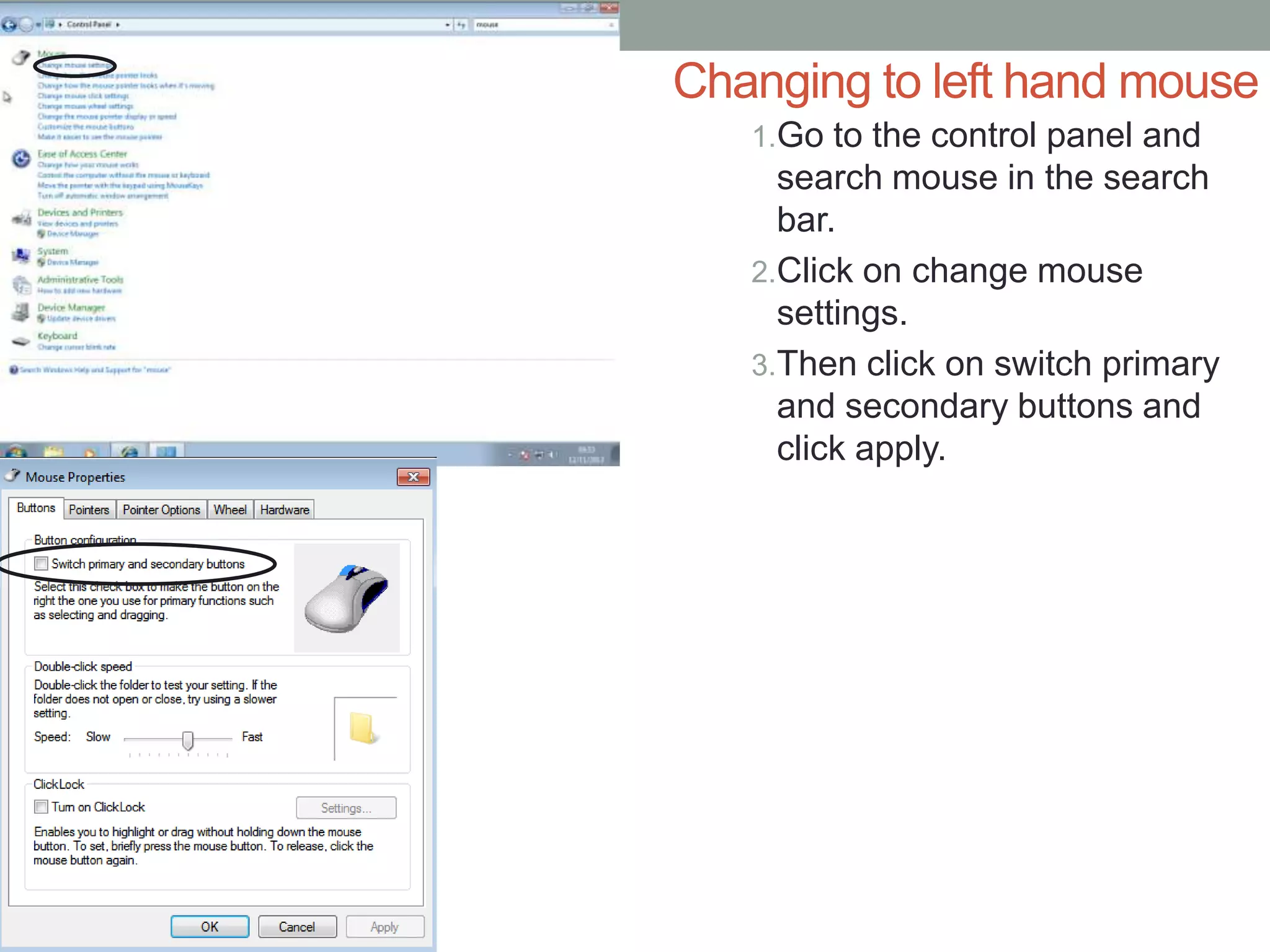
1.Go to the control panel and
search mouse in the search
bar.
2.Click on change mouse
settings.
3.Then click on switch primary
and secondary buttons and
click apply.
Changing screensaver
• Earl Atkinson wants to change his screensaver, so that it
relates to his ice cream shop business.
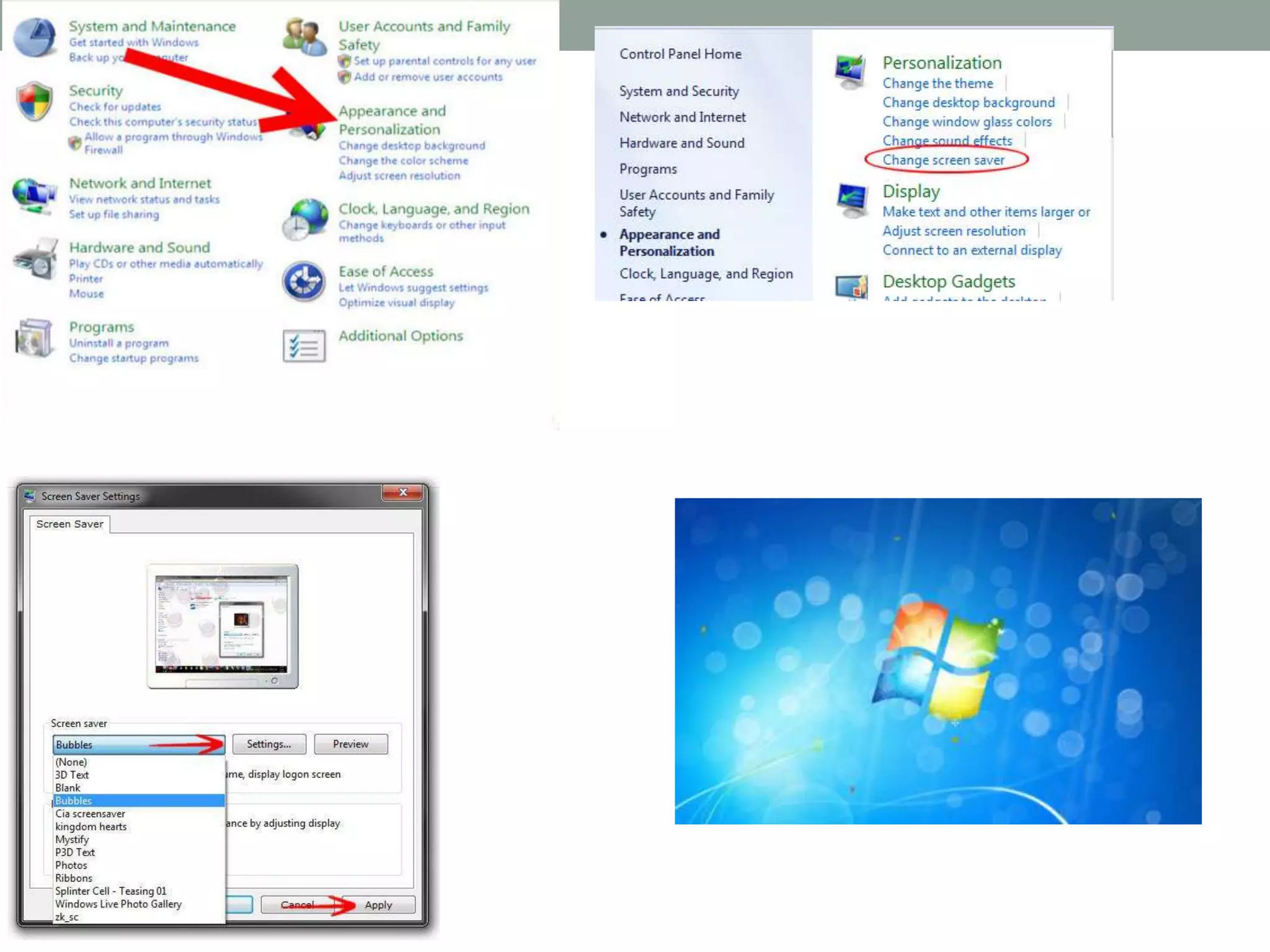
1. Open the Control Panel.
2. In the Control Panel double-click the ‘Display’ icon.
3. In Display click the Screen Saver tab.
4. Within the Screen Saver tab you change the
screensaver to another installed screensaver. Click the
Settings button to make any addition changes to the
properties of the screensaver, such as time, and
resolution settings.
5. Finally, once you've changed your screensaver if you
want to view how it will look click the ‘Preview’ button.
Configuring personal desktop

Configuring personal desktop

  • 1.
  • 2.
    Changing the wallpaper •The user would want to change his/her wallpaper to make it my personalised and more attracting to look at for their own systems. • There is many personal features on the computer to make it relate to you.
  • 3.
    Changing wallpaper 1. Goto the control panel by going to the windows button then clicking on control panel. 2. Once that is opened go to the appearance and personalization option. 3. Then underneath the personalization tab click on change desktop wallpaper. 4. If an image is saved to the computer, you can browse for the folder that the image is in and select it to set as the wallpaper. 5. Choose the image and select it. 6. And then select save changes.
  • 5.
    Changing screen resolution •Screen resolution is important as it decides how big the icon, text and dimensions is. To make it look professional, its recommended to make it the highest resolution.
  • 6.
    Changing screen resolution 1.Go to the control panel by going to the windows button then clicking on control panel. 2. Once that is opened go to the appearance and personalization option. 3. Then underneath the display tab click on adjust screen resolution. 4. Then choice the resolution size and click keep changes after a window pops up.
  • 7.
    Changing Icon Size •Changing the icon size makes it easier to view and quicker to access. It may also help people who are short sighted as they cant read small fonts. 1.Right click on the desktop. 2.Go to the view option and change the icon size to a preferable size.
  • 8.
    Change to lefthand mouse • Some user are left handed therefore he/she will need to get the mouse set up to make it easier for him/her to use.
  • 9.
    Changing to lefthand mouse 1.Go to the control panel and search mouse in the search bar. 2.Click on change mouse settings. 3.Then click on switch primary and secondary buttons and click apply.
  • 10.
    Changing screensaver • EarlAtkinson wants to change his screensaver, so that it relates to his ice cream shop business. 1. Open the Control Panel. 2. In the Control Panel double-click the ‘Display’ icon. 3. In Display click the Screen Saver tab. 4. Within the Screen Saver tab you change the screensaver to another installed screensaver. Click the Settings button to make any addition changes to the properties of the screensaver, such as time, and resolution settings. 5. Finally, once you've changed your screensaver if you want to view how it will look click the ‘Preview’ button.