Computer Basics
CS 1 Introduction to Computers and Computer
Technology
Rick Graziani
Fall 2007
Rick Graziani graziani@cabrillo.edu 2
Only the basics, the details come later!
• This presentation discusses a variety of terms and topics, all of which
will be discussed in much greater detail in later chapters.
http://www.youtube.com/watch?v=hMnk7lh9M3o
Rick Graziani graziani@cabrillo.edu 3
No one knows it all and we never stop
learning!
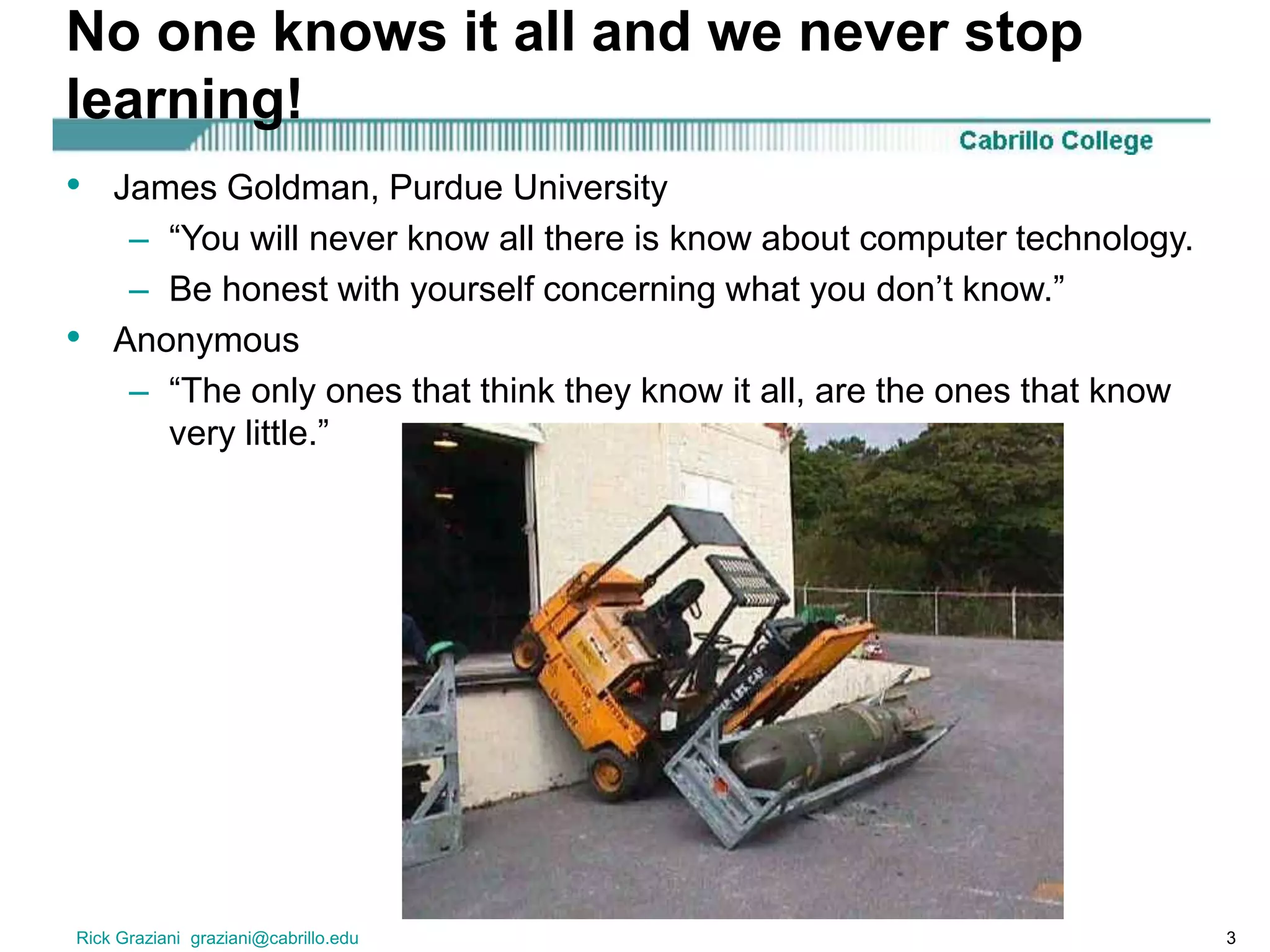
• James Goldman, Purdue University
– “You will never know all there is know about computer technology.
– Be honest with yourself concerning what you don’t know.”
• Anonymous
– “The only ones that think they know it all, are the ones that know
very little.”
Rick Graziani graziani@cabrillo.edu 4
Terms and Acronyms
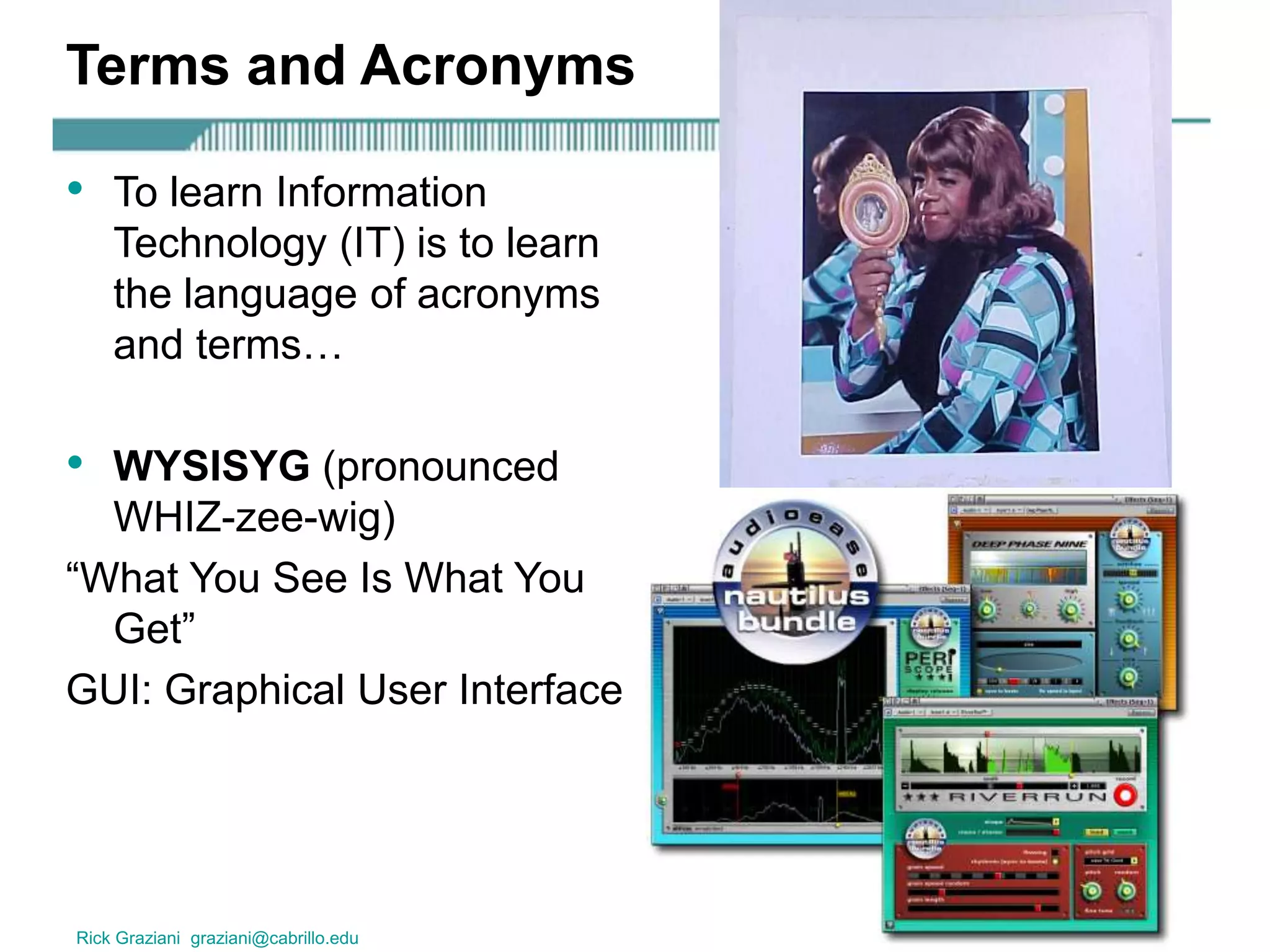
• To learn Information
Technology (IT) is to learn
the language of acronyms
and terms…
• WYSISYG (pronounced
WHIZ-zee-wig)
“What You See Is What You
Get”
GUI: Graphical User Interface
Rick Graziani graziani@cabrillo.edu 5
What is a computer?
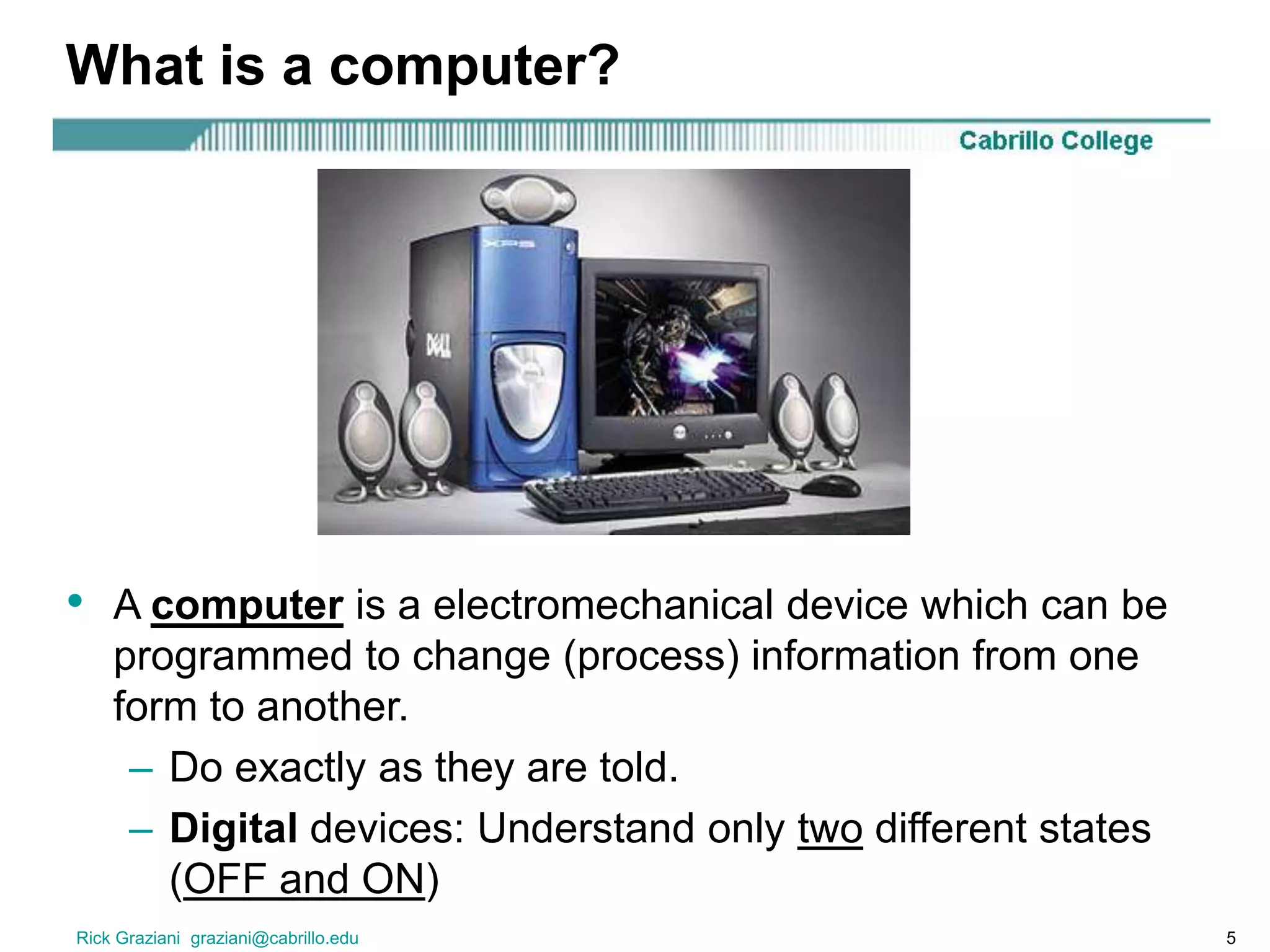
• A computer is a electromechanical device which can be
programmed to change (process) information from one
form to another.
– Do exactly as they are told.
– Digital devices: Understand only two different states
(OFF and ON)
Rick Graziani graziani@cabrillo.edu 6
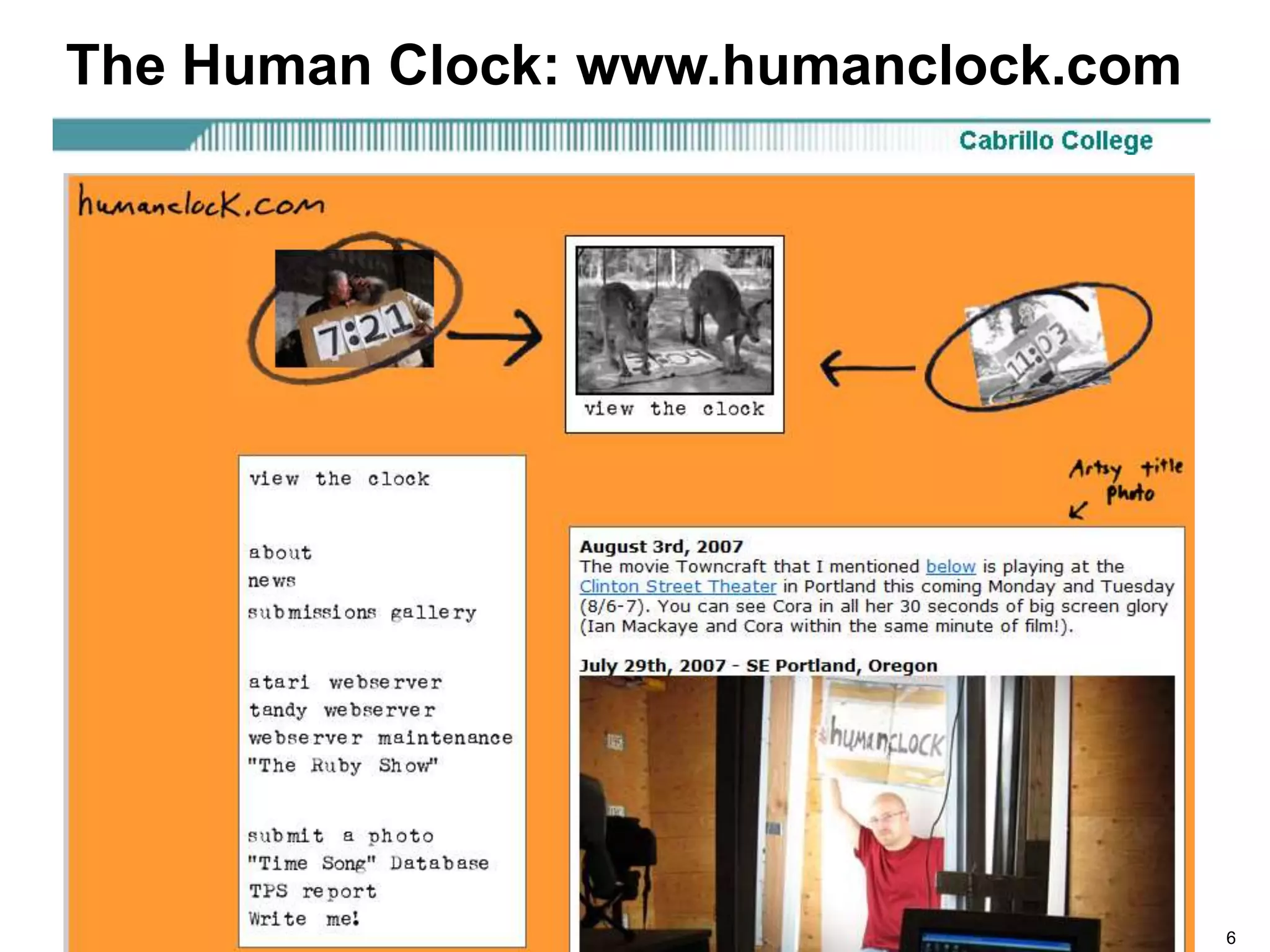
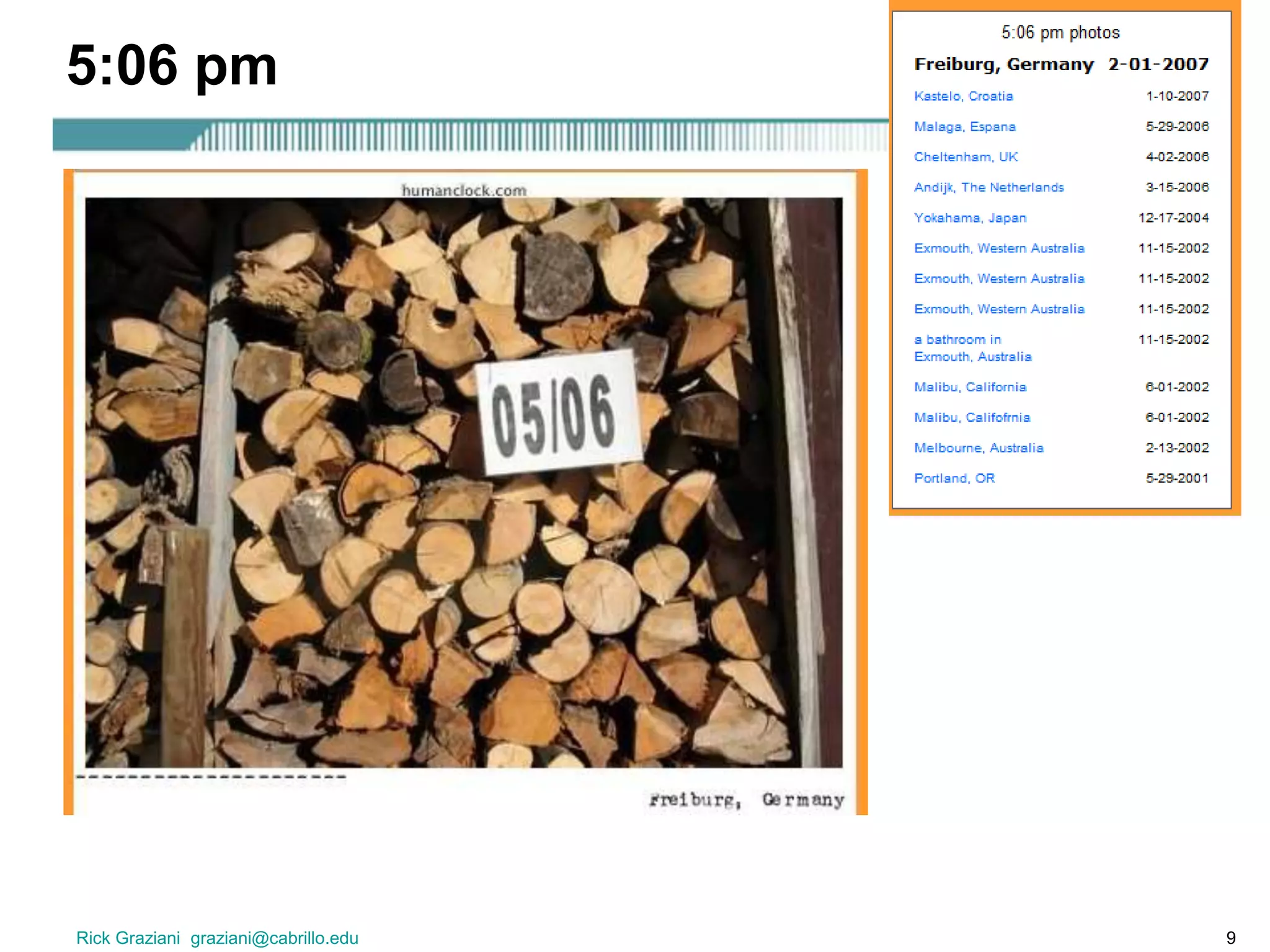
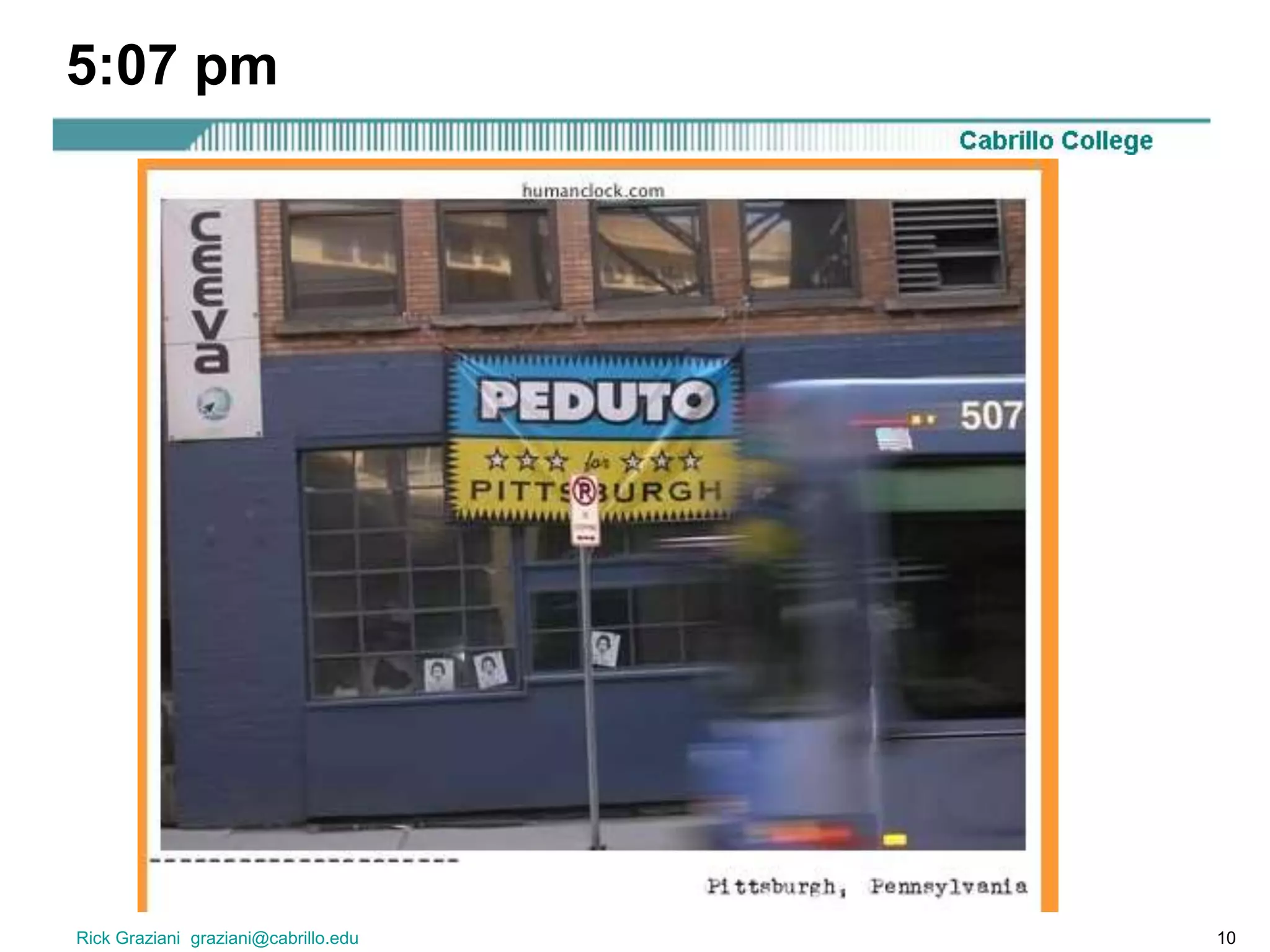
The Human Clock: www.humanclock.com
Rick Graziani graziani@cabrillo.edu 7
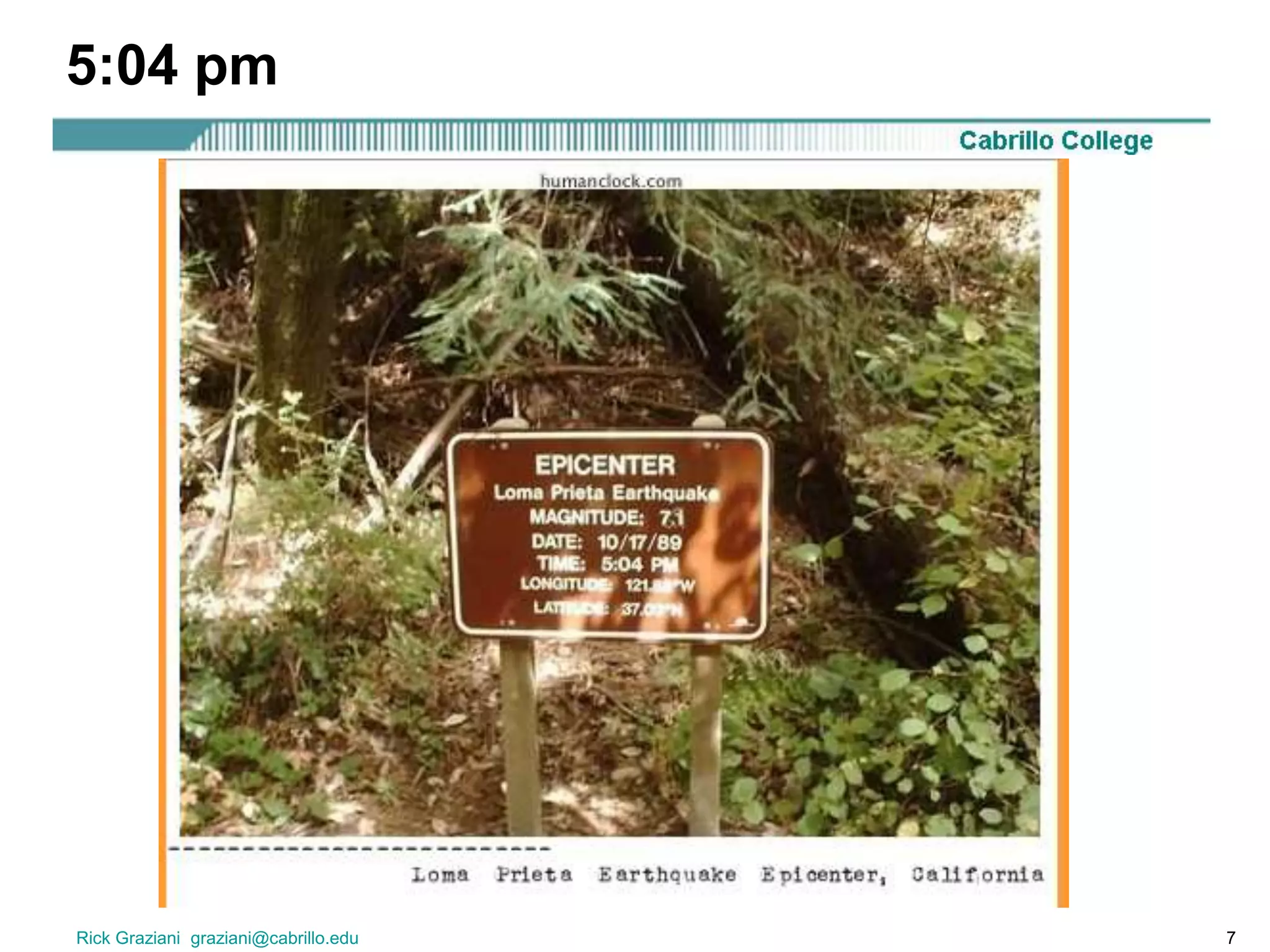
5:04 pm
Rick Graziani graziani@cabrillo.edu 8
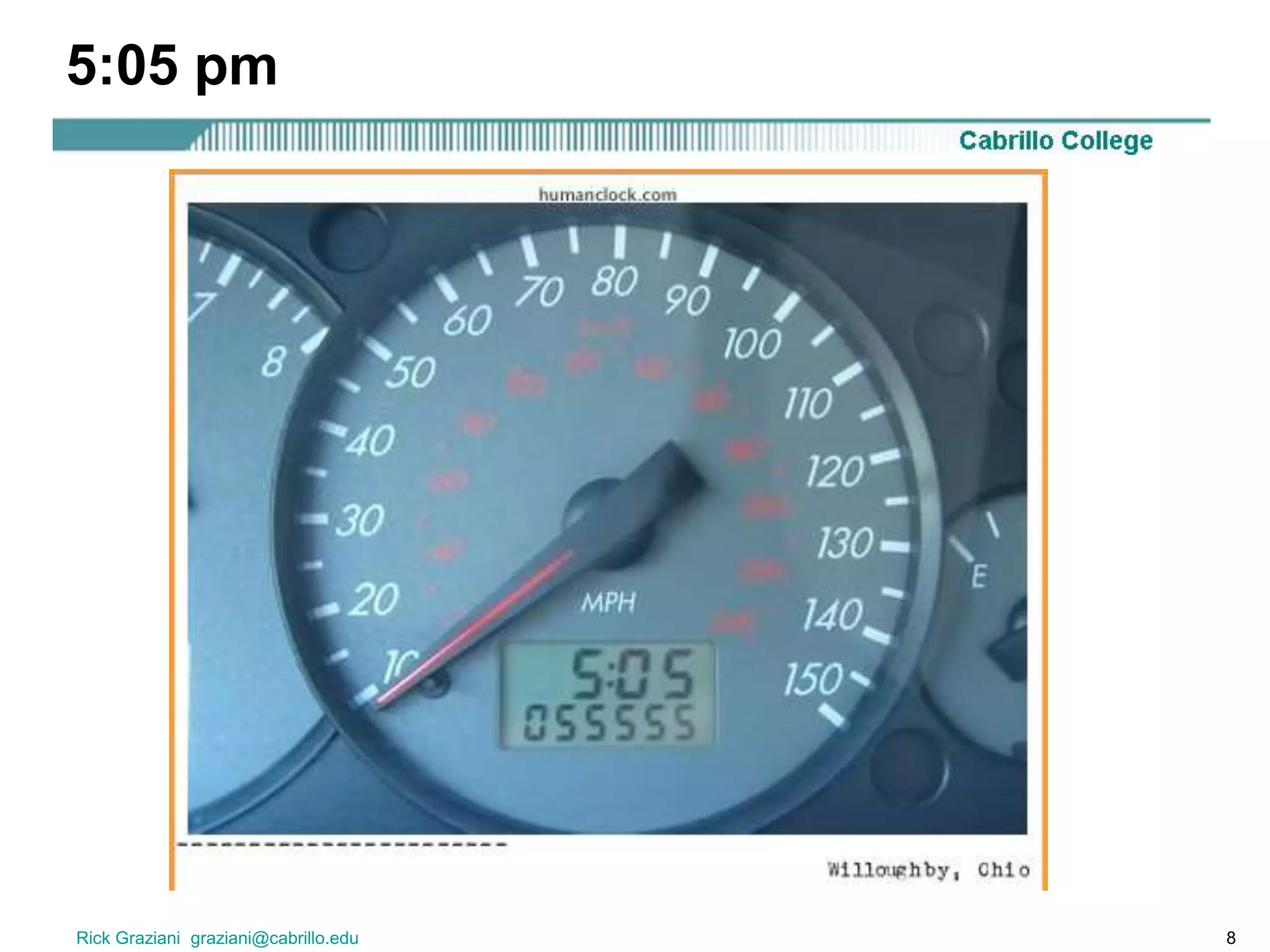
5:05 pm
Rick Graziani graziani@cabrillo.edu 9
5:06 pm
Rick Graziani graziani@cabrillo.edu 10
5:07 pm
Rick Graziani graziani@cabrillo.edu 11
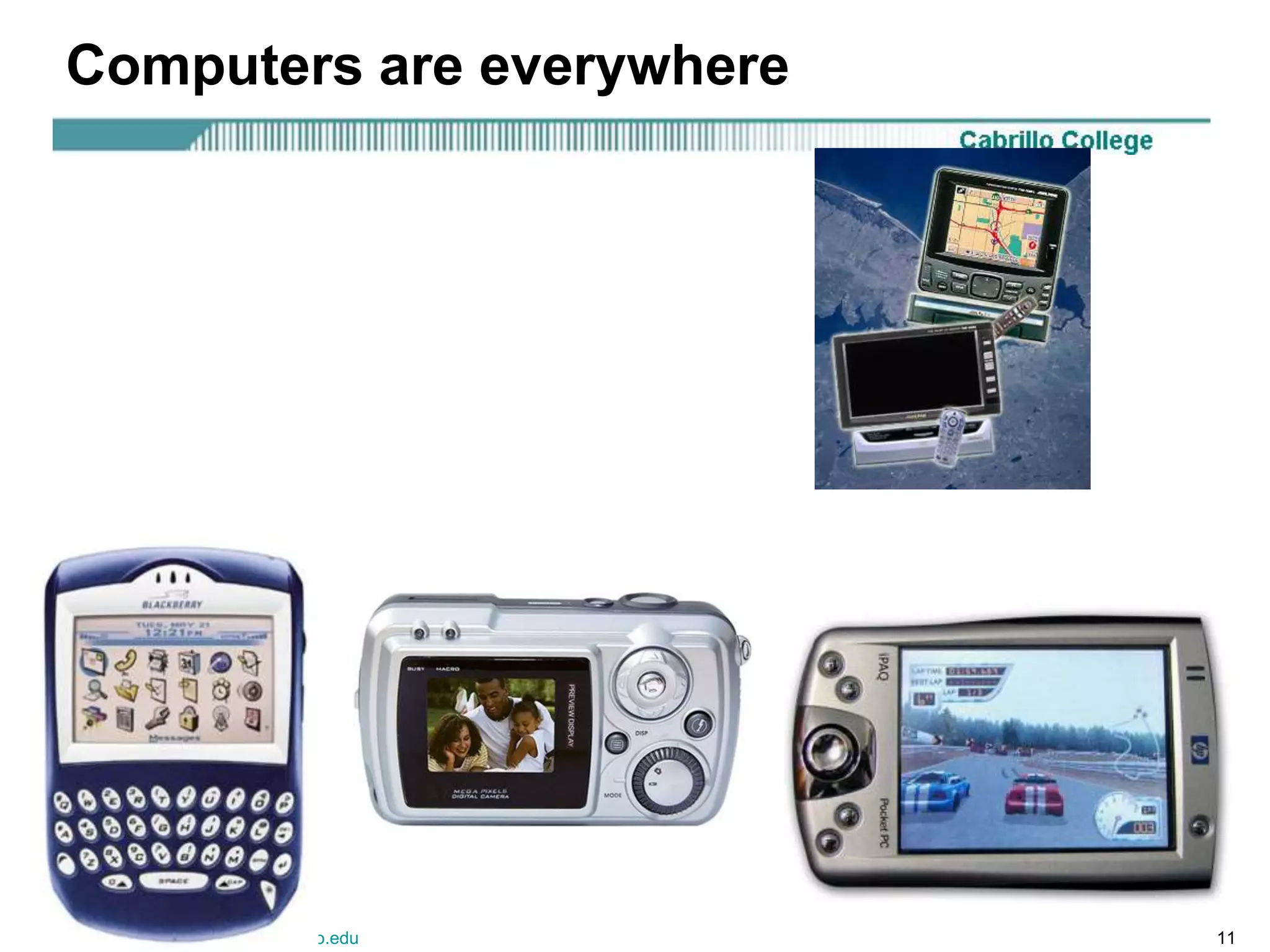
Computers are everywhere
Rick Graziani graziani@cabrillo.edu 12
Traditional Types of Computers
• General purpose computers
–Mainframe
–Minicomputer
–Microcomputer (Personal Computer)
Rick Graziani graziani@cabrillo.edu 13
Traditional Types of Computers
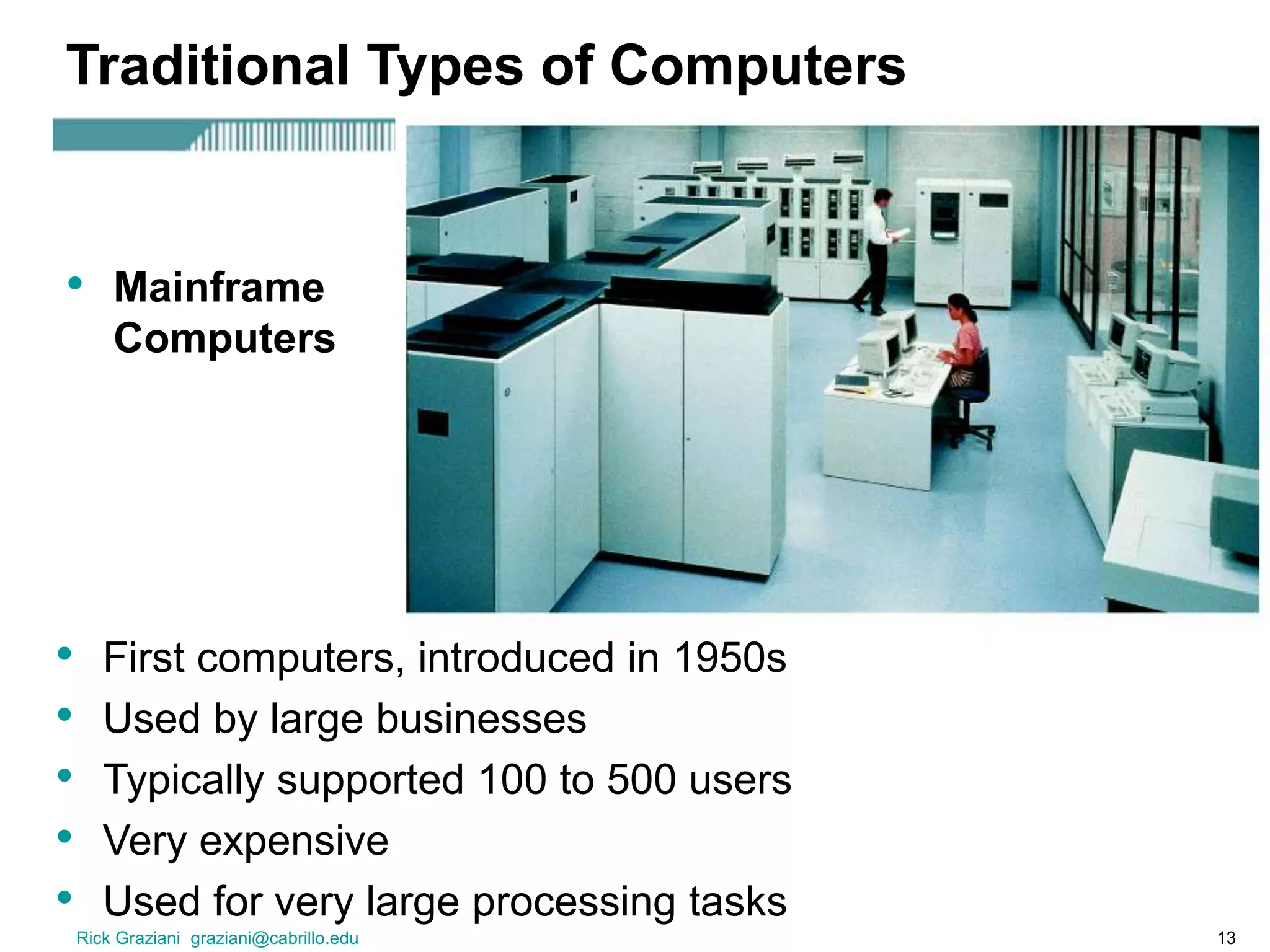
• First computers, introduced in 1950s
• Used by large businesses
• Typically supported 100 to 500 users
• Very expensive
• Used for very large processing tasks
• Mainframe
Computers
Rick Graziani graziani@cabrillo.edu 14
Traditional Types of Computers
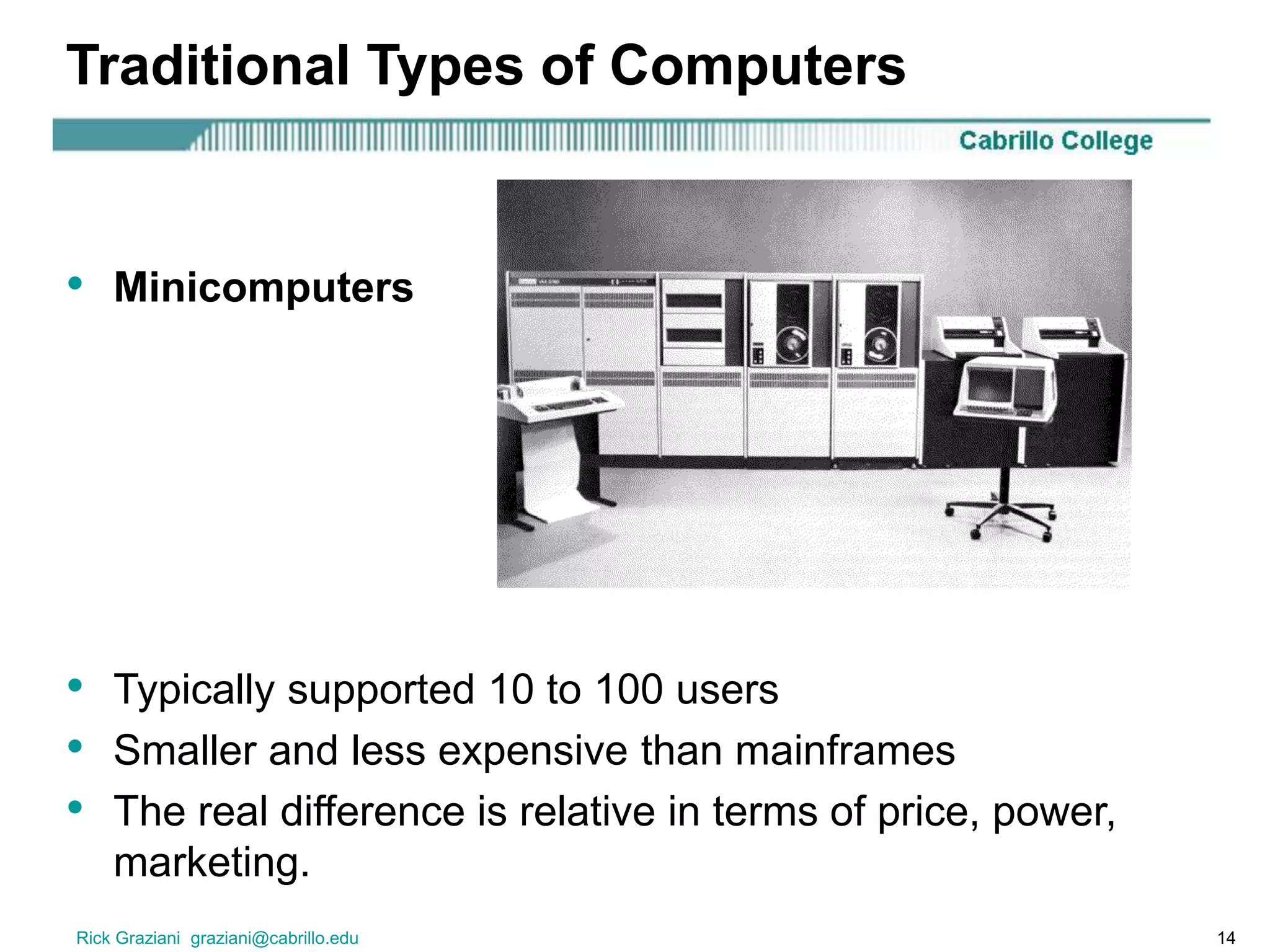
• Typically supported 10 to 100 users
• Smaller and less expensive than mainframes
• The real difference is relative in terms of price, power,
marketing.
• Minicomputers
Rick Graziani graziani@cabrillo.edu 15
Traditional Types of Computers
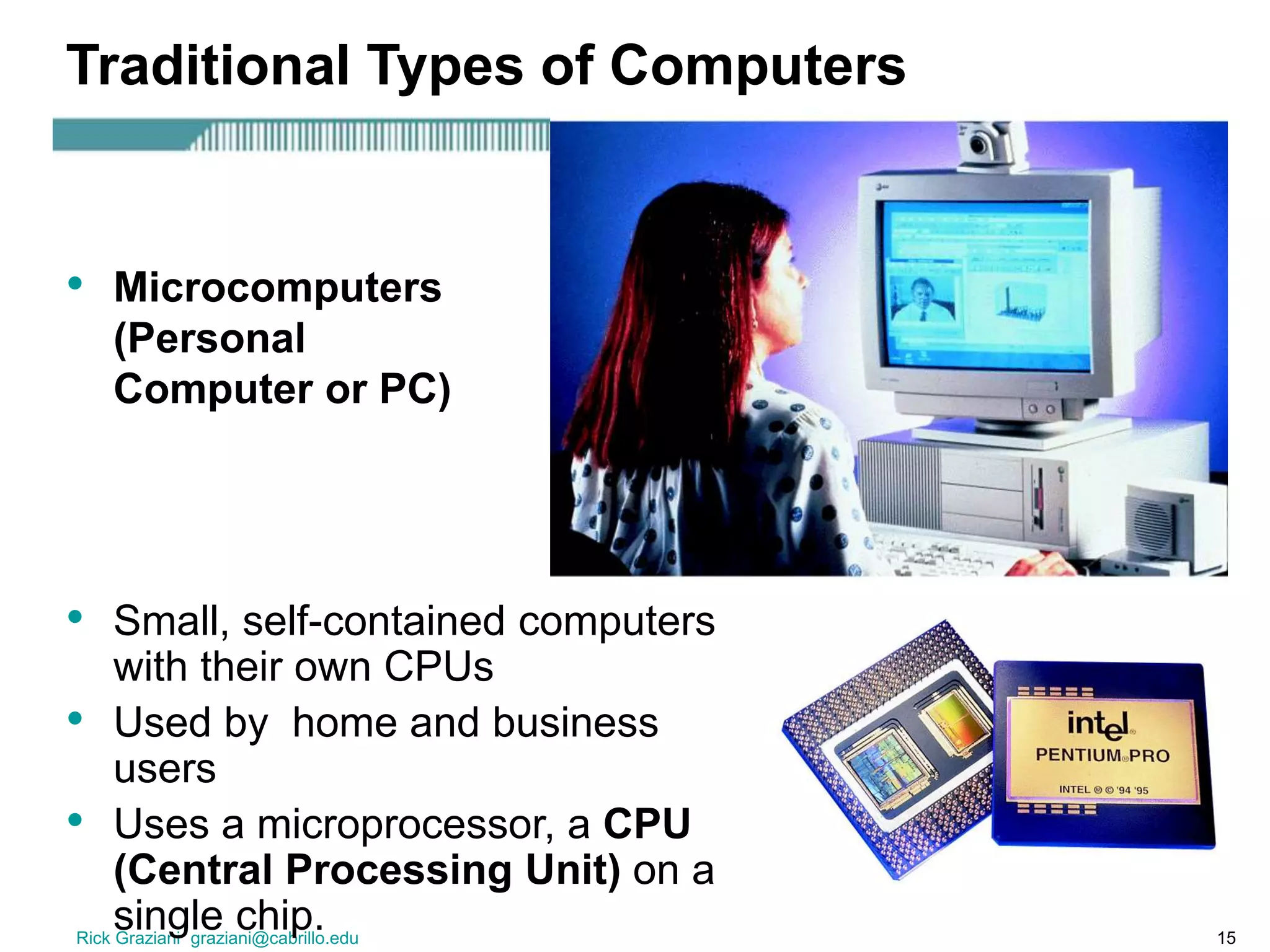
• Small, self-contained computers
with their own CPUs
• Used by home and business
users
• Uses a microprocessor, a CPU
(Central Processing Unit) on a
single chip.
• Microcomputers
(Personal
Computer or PC)
Rick Graziani graziani@cabrillo.edu 16
Portable Computer
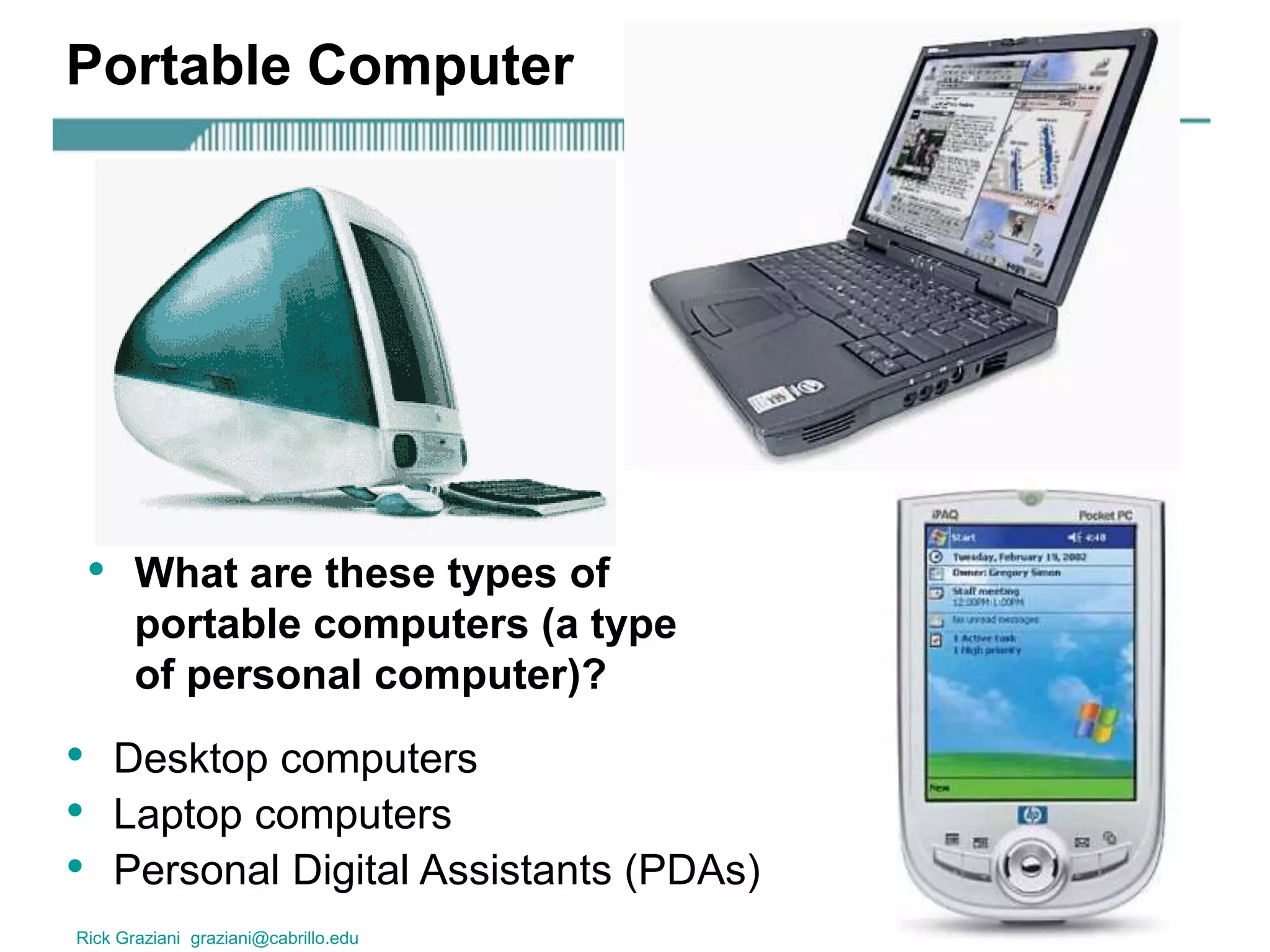
• Desktop computers
• Laptop computers
• Personal Digital Assistants (PDAs)
• What are these types of
portable computers (a type
of personal computer)?
Rick Graziani graziani@cabrillo.edu 17
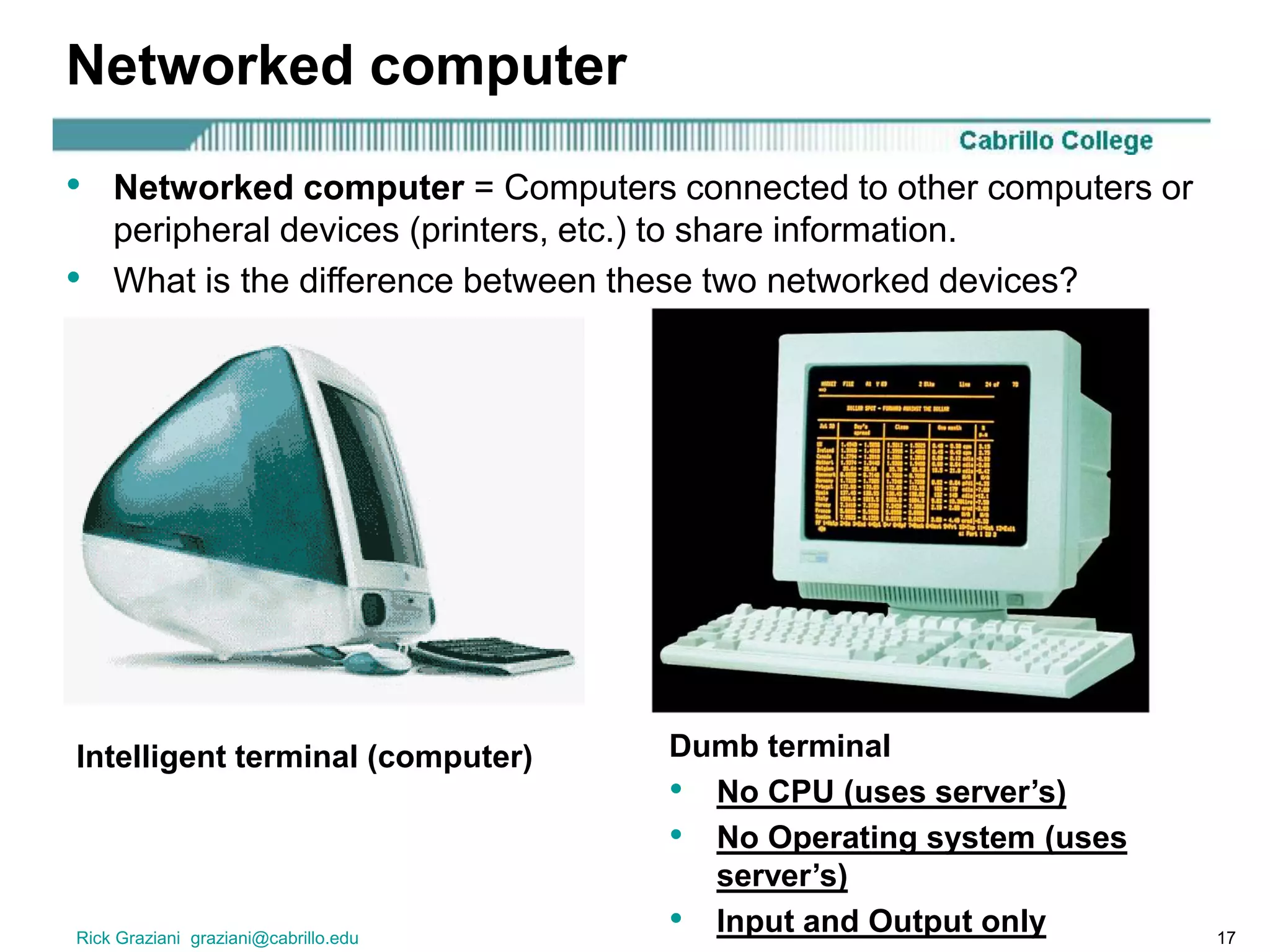
Networked computer
• Networked computer = Computers connected to other computers or
peripheral devices (printers, etc.) to share information.
• What is the difference between these two networked devices?
Intelligent terminal (computer) Dumb terminal
• No CPU (uses server’s)
• No Operating system (uses
server’s)
• Input and Output only
Rick Graziani graziani@cabrillo.edu 18
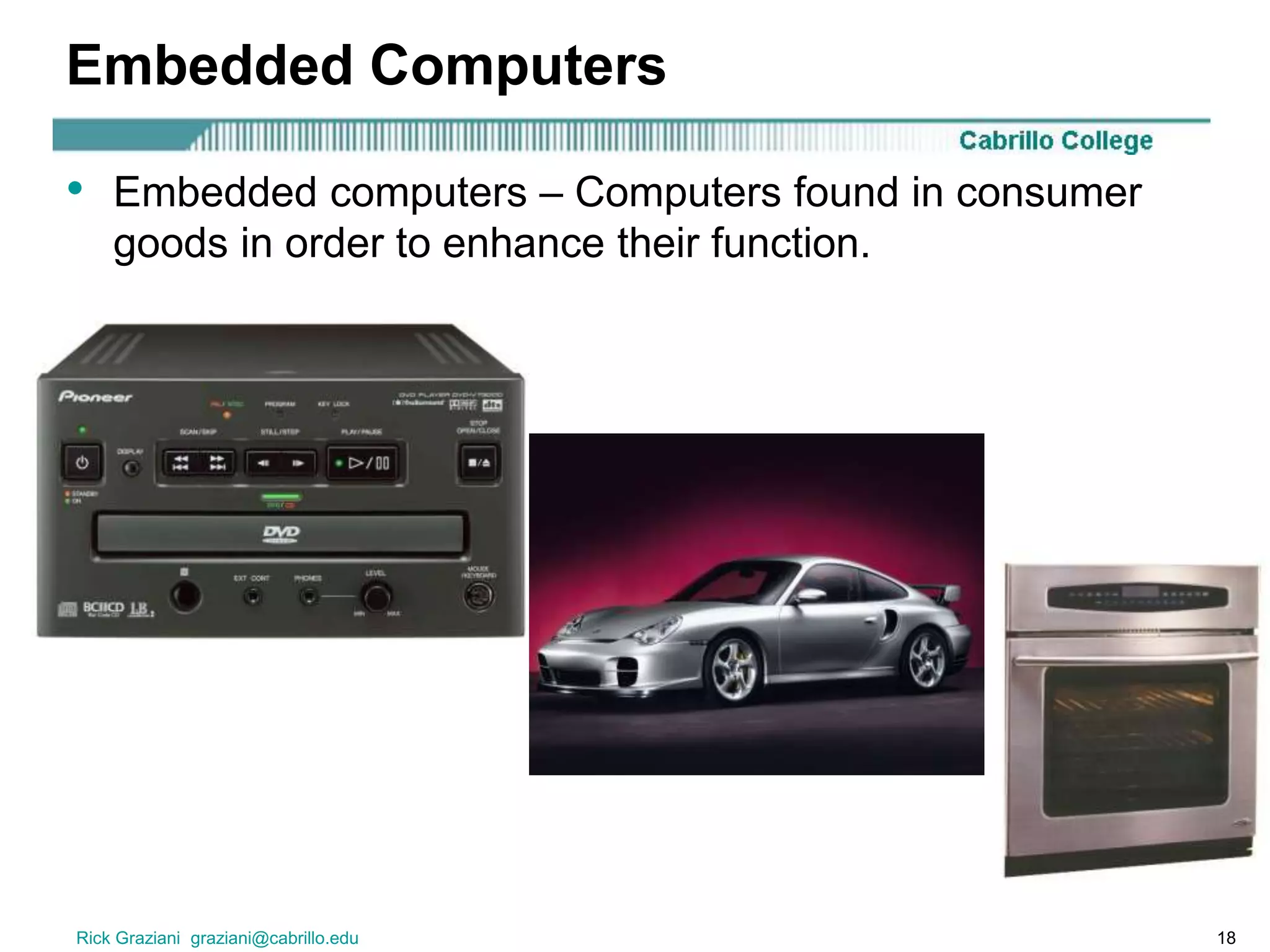
Embedded Computers
• Embedded computers – Computers found in consumer
goods in order to enhance their function.
Rick Graziani graziani@cabrillo.edu 19
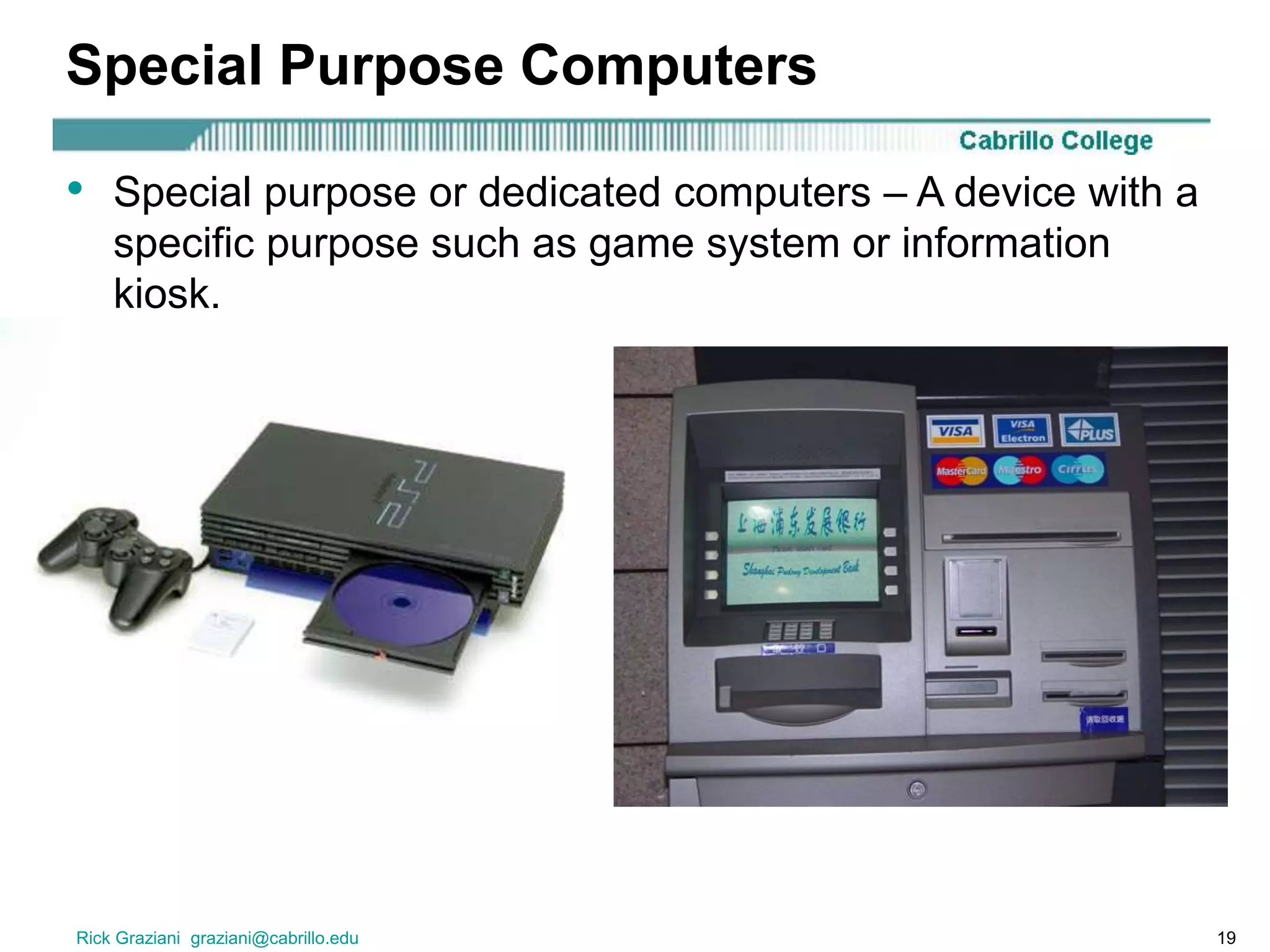
Special Purpose Computers
• Special purpose or dedicated computers – A device with a
specific purpose such as game system or information
kiosk.
Rick Graziani graziani@cabrillo.edu 20
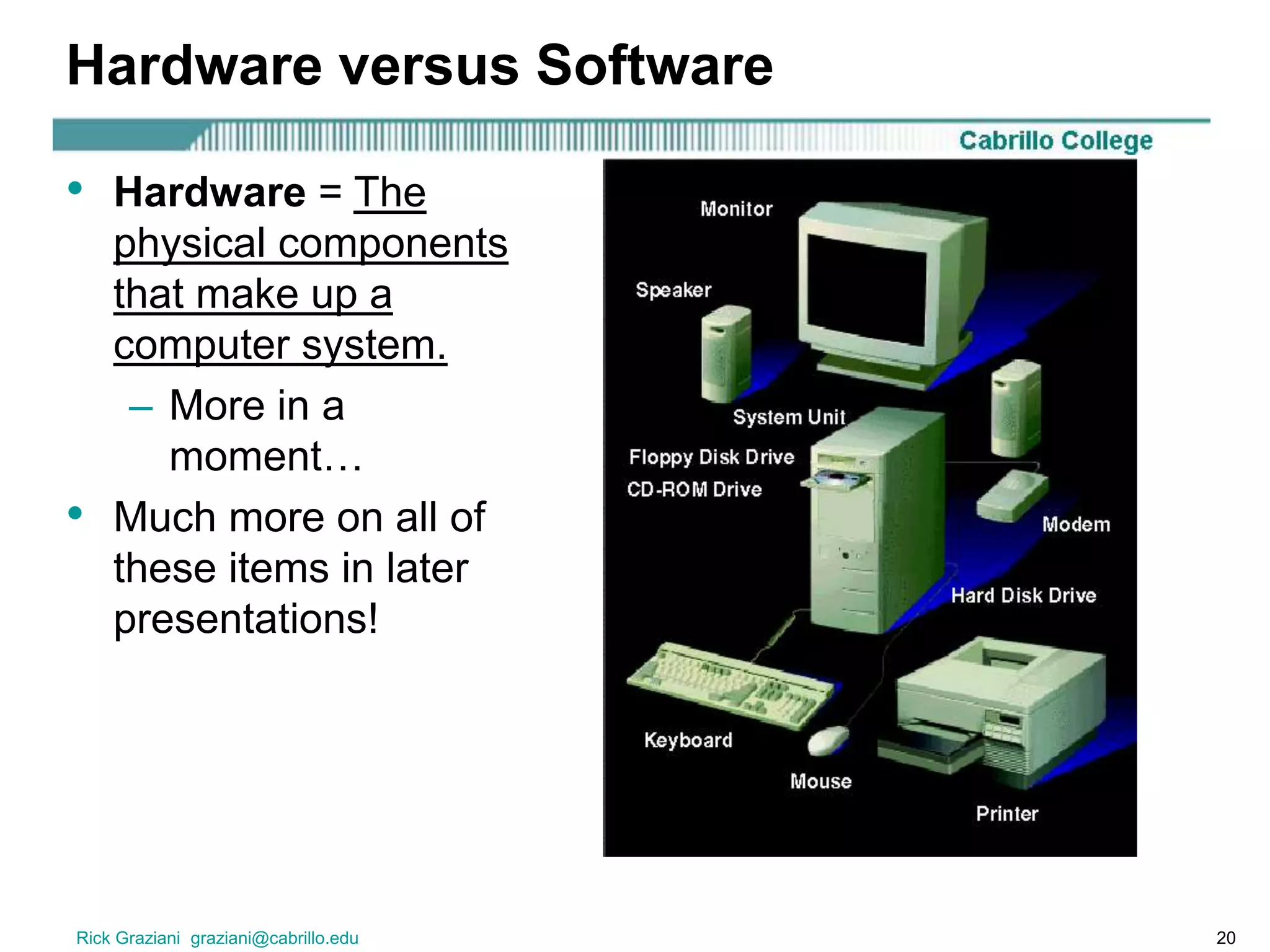
Hardware versus Software
• Hardware = The
physical components
that make up a
computer system.
– More in a
moment…
• Much more on all of
these items in later
presentations!
Rick Graziani graziani@cabrillo.edu 21
Hardware versus Software
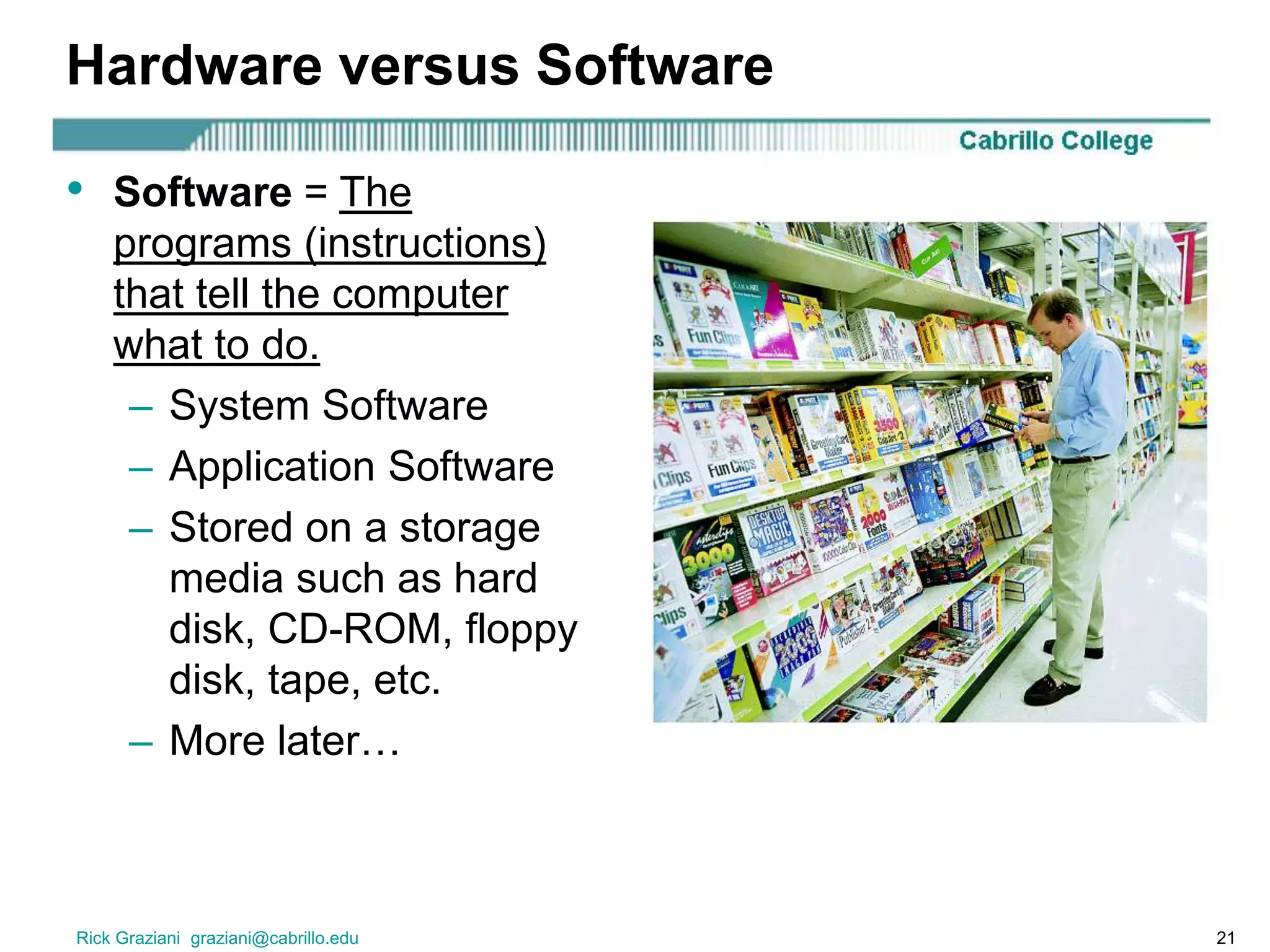
• Software = The
programs (instructions)
that tell the computer
what to do.
– System Software
– Application Software
– Stored on a storage
media such as hard
disk, CD-ROM, floppy
disk, tape, etc.
– More later…
Rick Graziani graziani@cabrillo.edu 22
Hardware Components
• This is just an overview, more later…
Rick Graziani graziani@cabrillo.edu 23
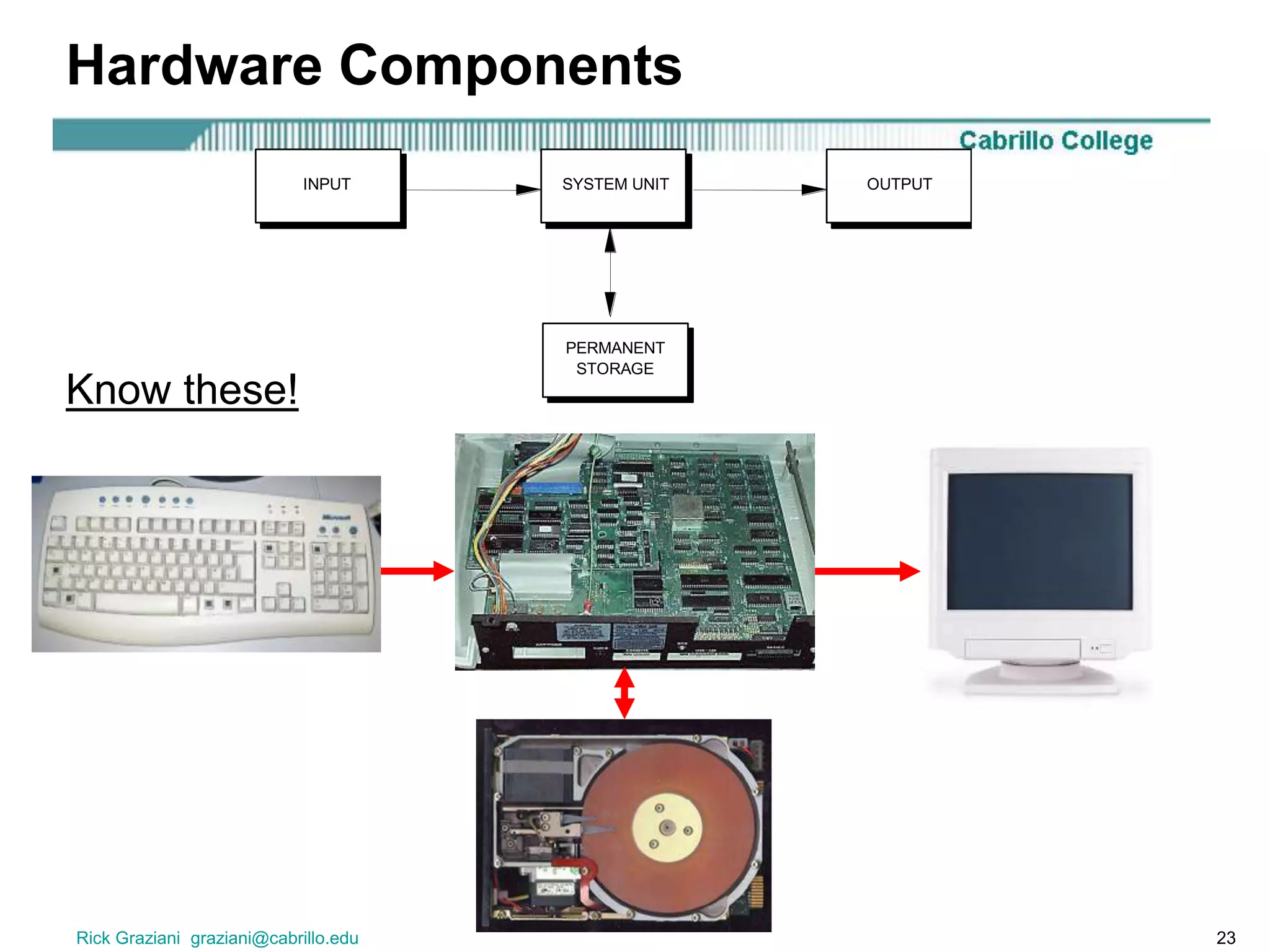
Hardware Components
SYSTEM UNITINPUT OUTPUT
PERMANENT
STORAGE
Know these!
Rick Graziani graziani@cabrillo.edu 24
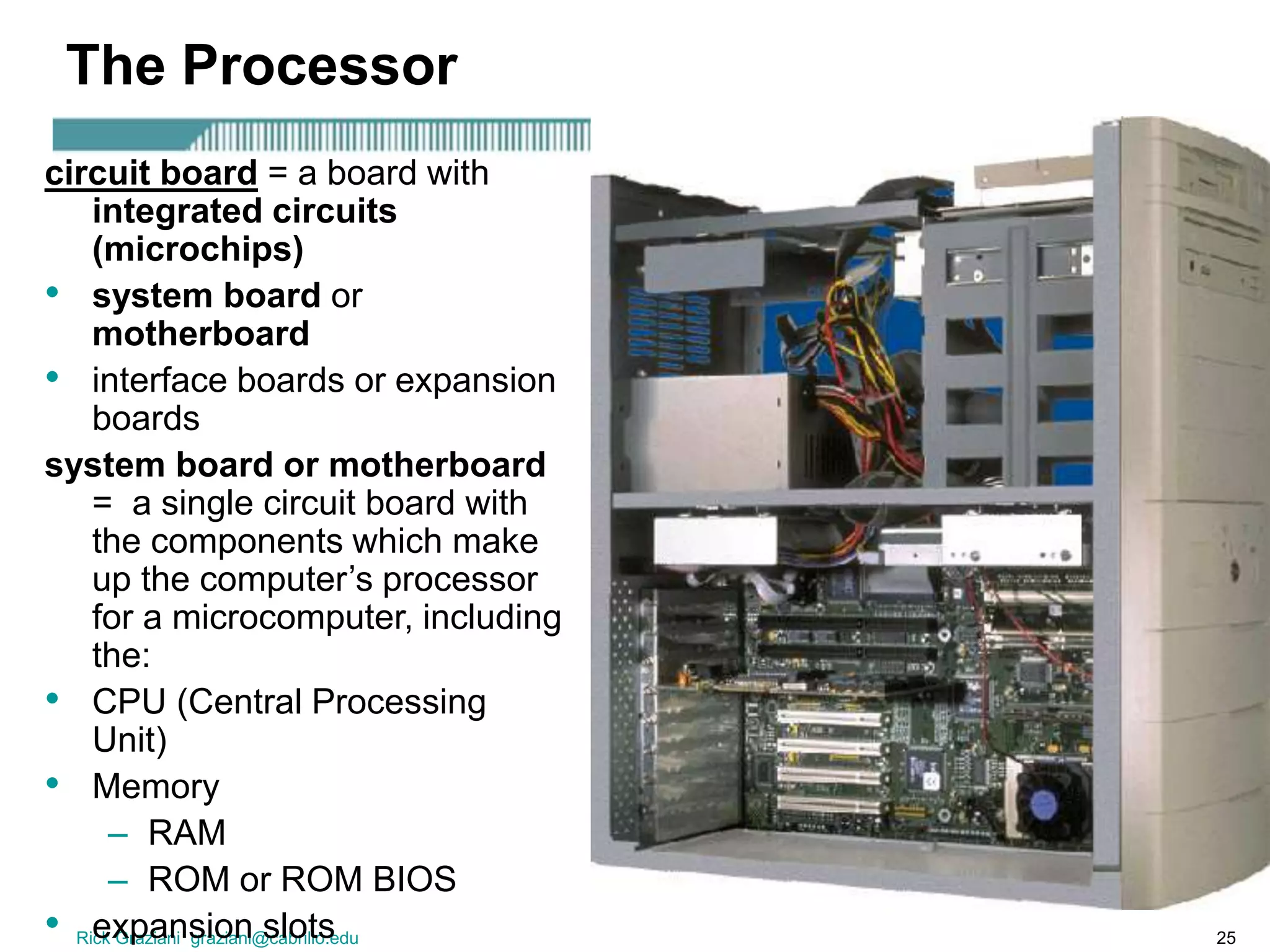
The Processor
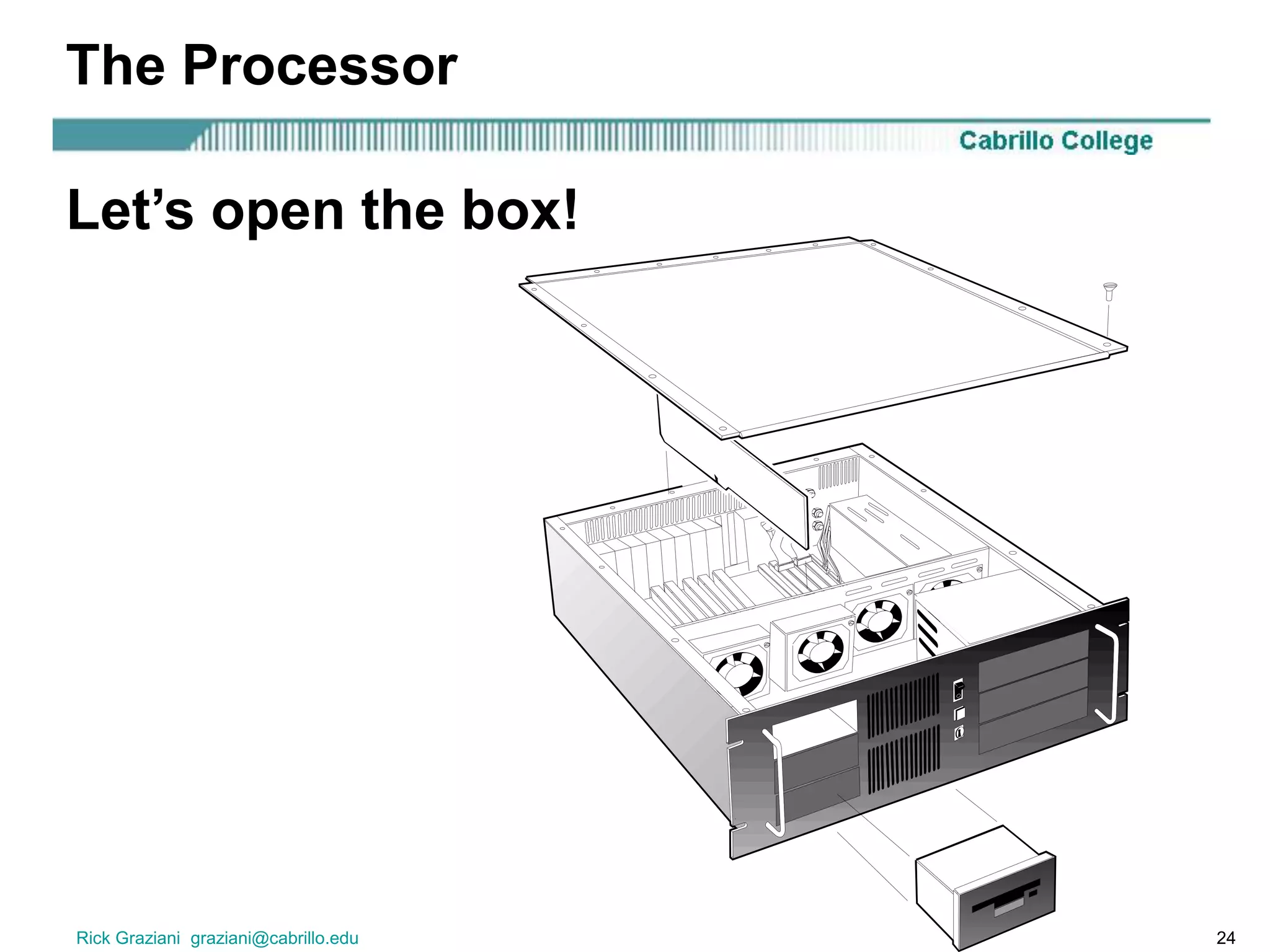
Let’s open the box!
Rick Graziani graziani@cabrillo.edu 25
The Processor
circuit board = a board with
integrated circuits
(microchips)
• system board or
motherboard
• interface boards or expansion
boards
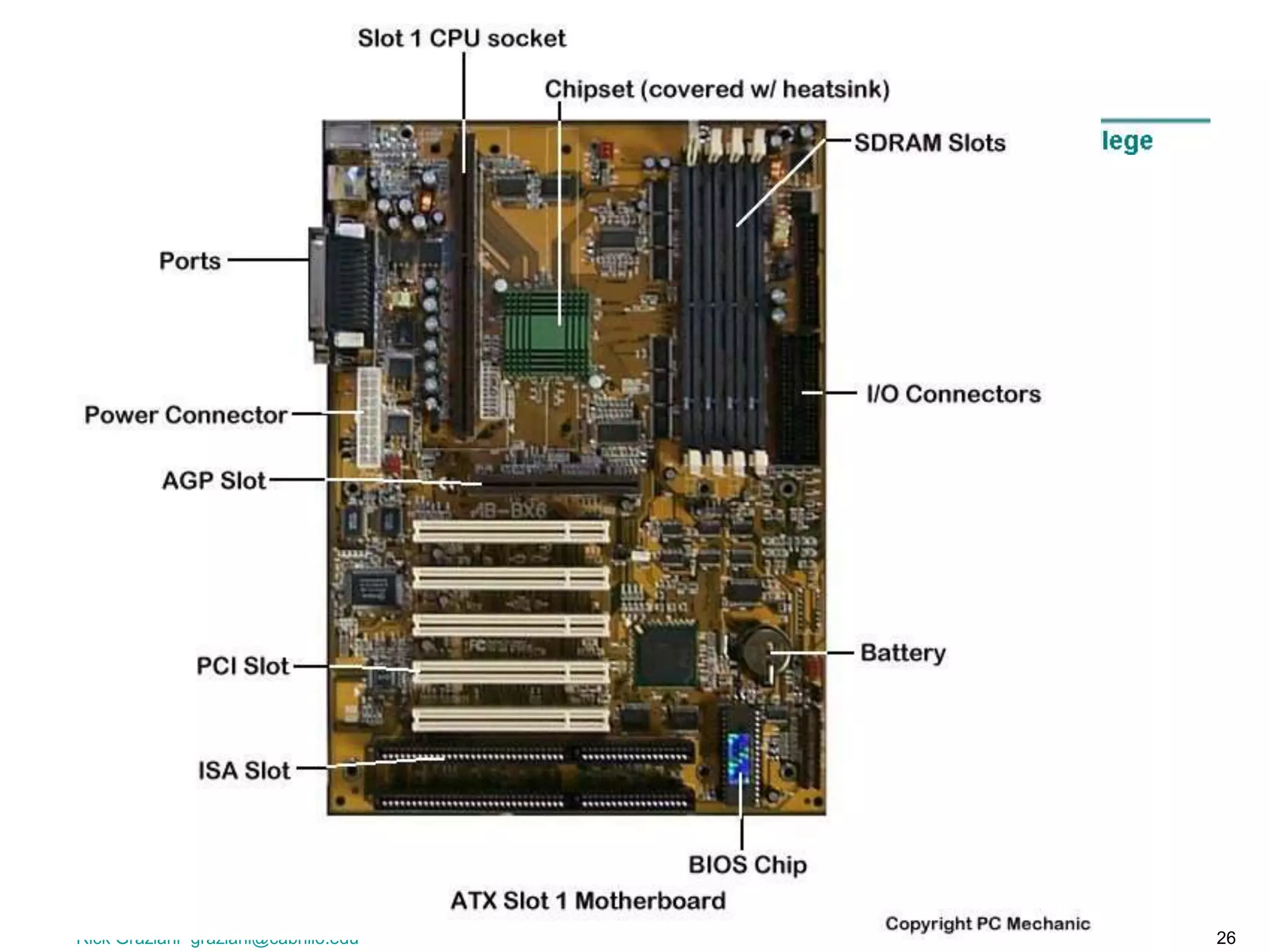
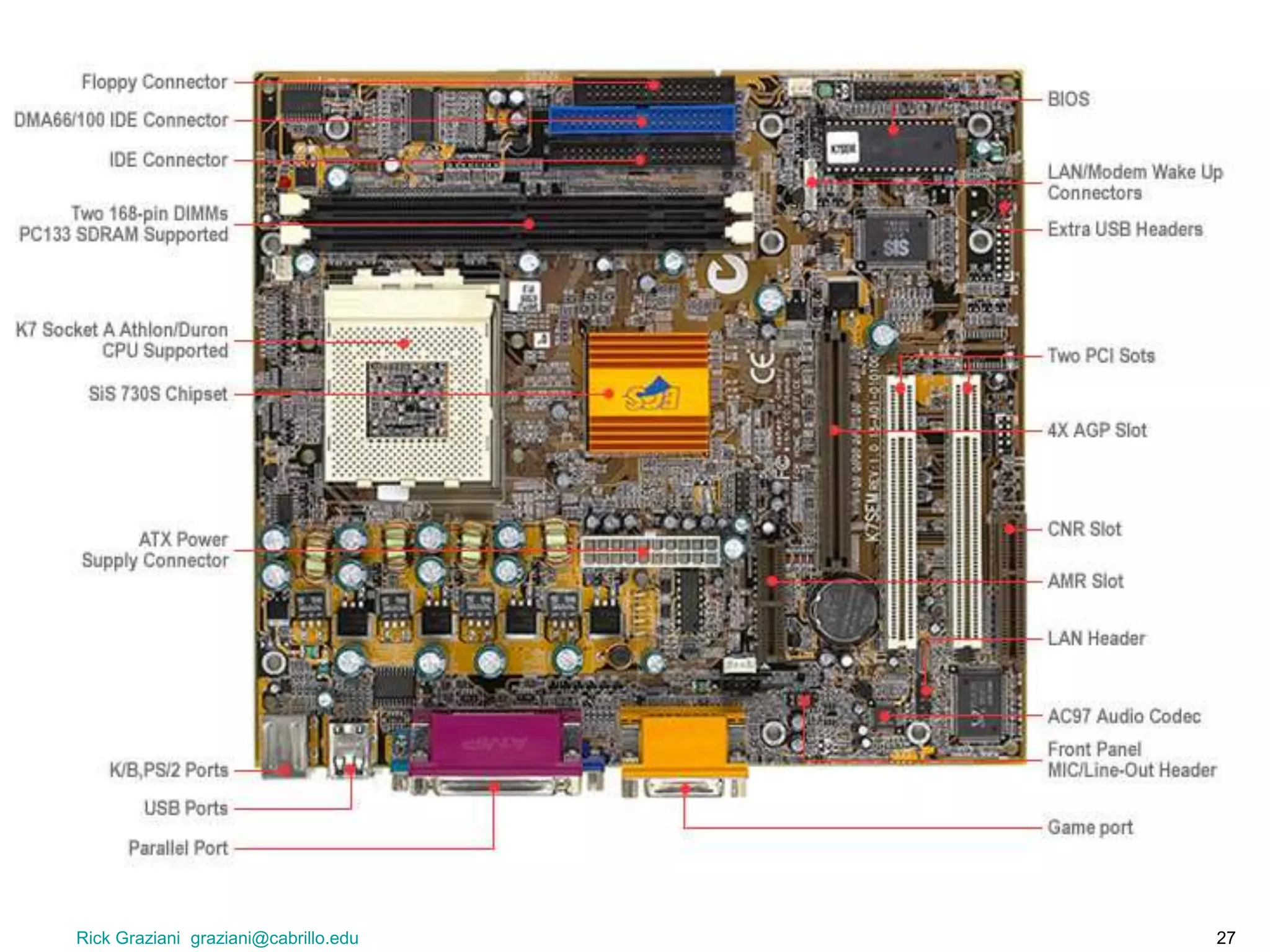
system board or motherboard
= a single circuit board with
the components which make
up the computer’s processor
for a microcomputer, including
the:
• CPU (Central Processing
Unit)
• Memory
– RAM
– ROM or ROM BIOS
• expansion slots
Rick Graziani graziani@cabrillo.edu 26
Rick Graziani graziani@cabrillo.edu 27
Rick Graziani graziani@cabrillo.edu 28
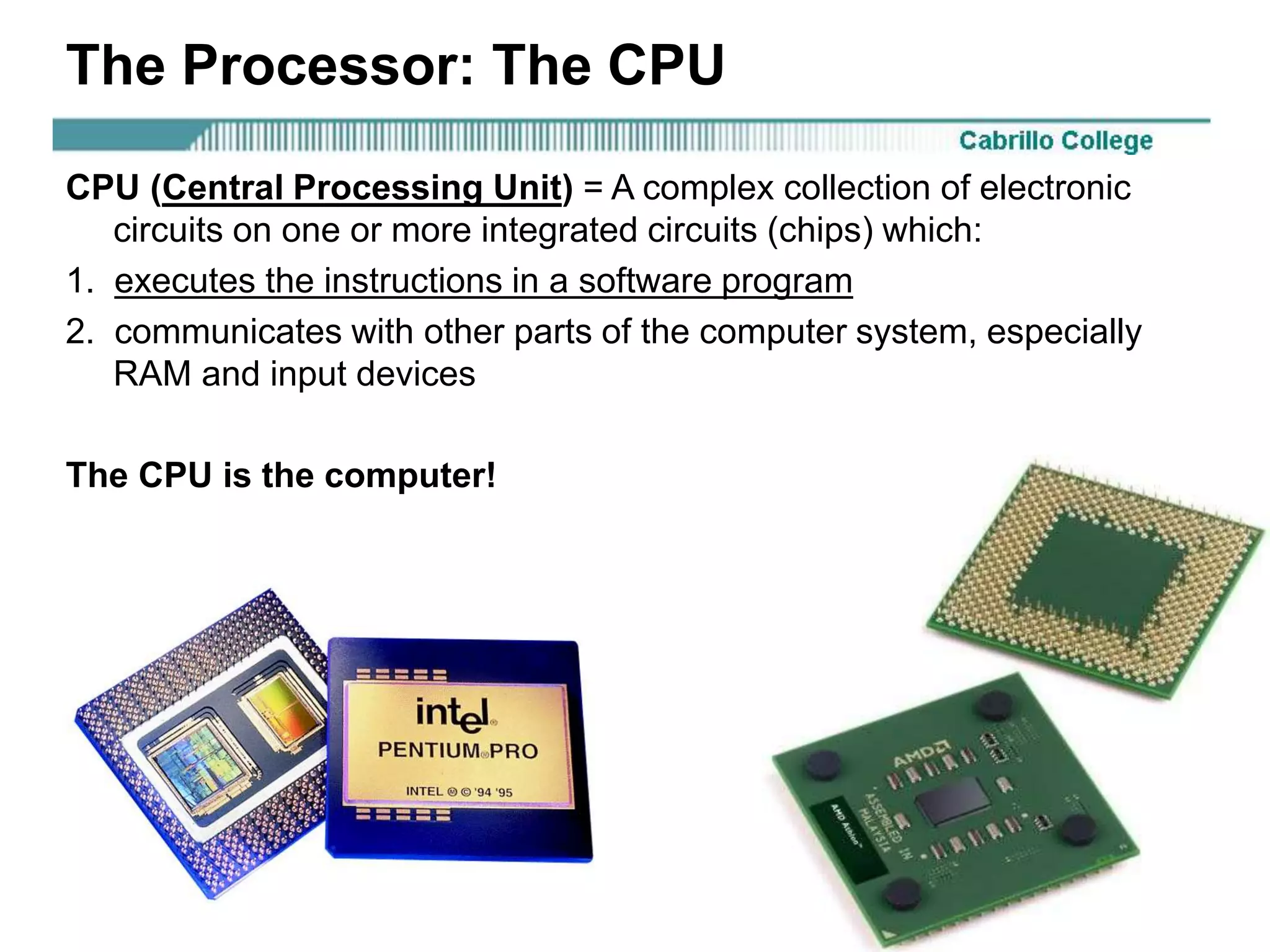
The Processor: The CPU
CPU (Central Processing Unit) = A complex collection of electronic
circuits on one or more integrated circuits (chips) which:
1. executes the instructions in a software program
2. communicates with other parts of the computer system, especially
RAM and input devices
The CPU is the computer!
Rick Graziani graziani@cabrillo.edu 29
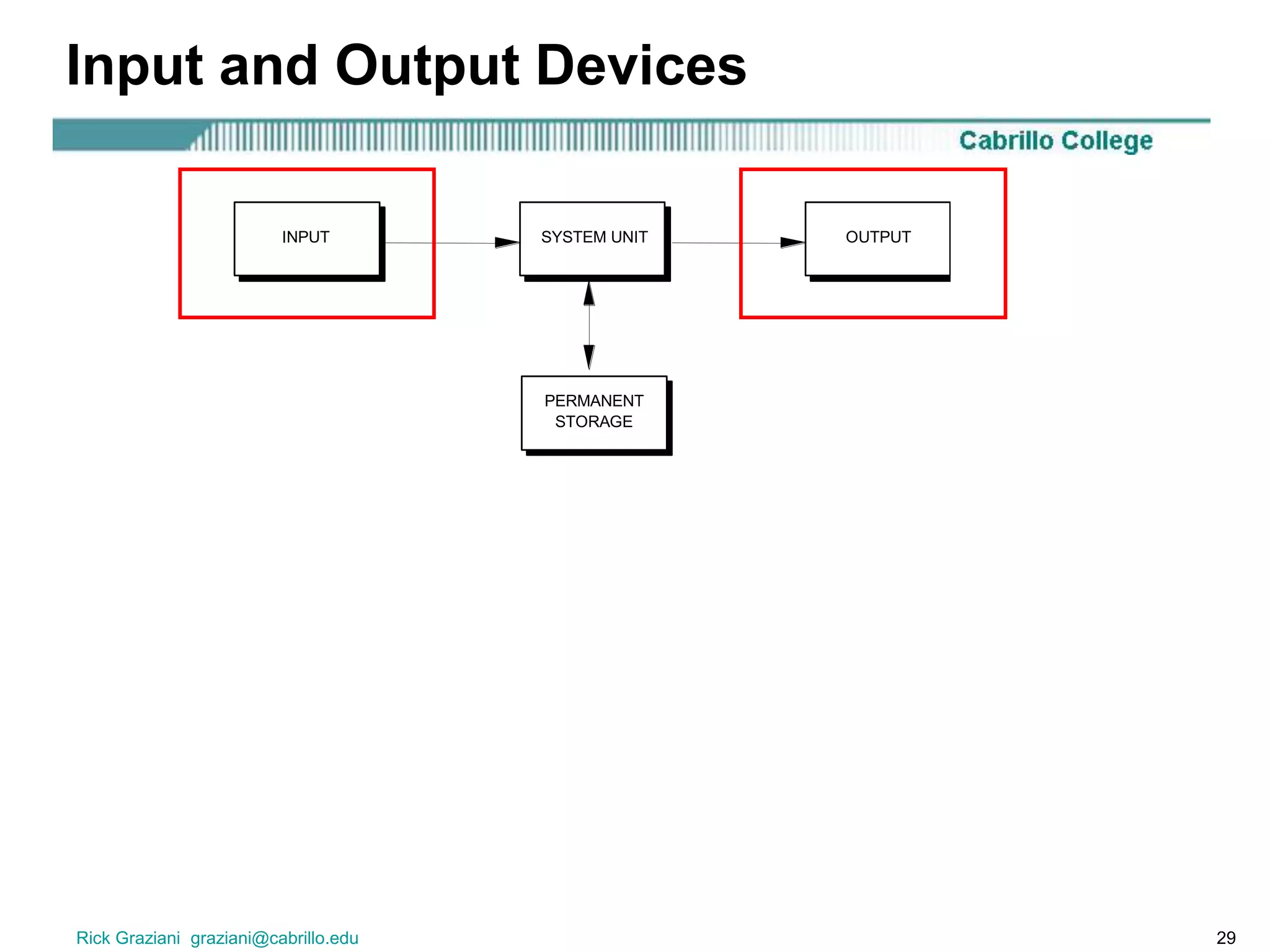
Input and Output Devices
SYSTEM UNITINPUT OUTPUT
PERMANENT
STORAGE
Rick Graziani graziani@cabrillo.edu 30
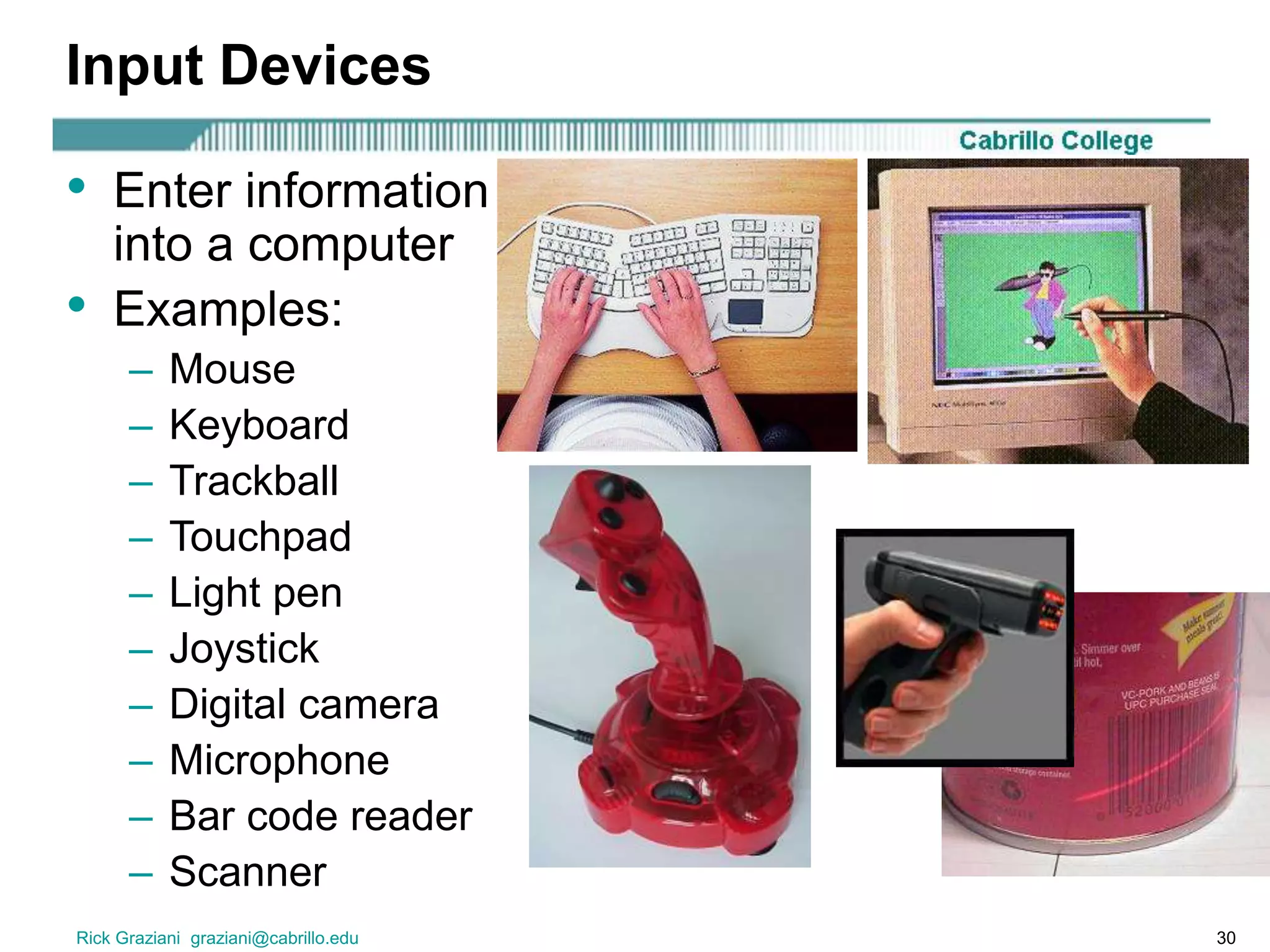
Input Devices
• Enter information
into a computer
• Examples:
– Mouse
– Keyboard
– Trackball
– Touchpad
– Light pen
– Joystick
– Digital camera
– Microphone
– Bar code reader
– Scanner
Rick Graziani graziani@cabrillo.edu 31
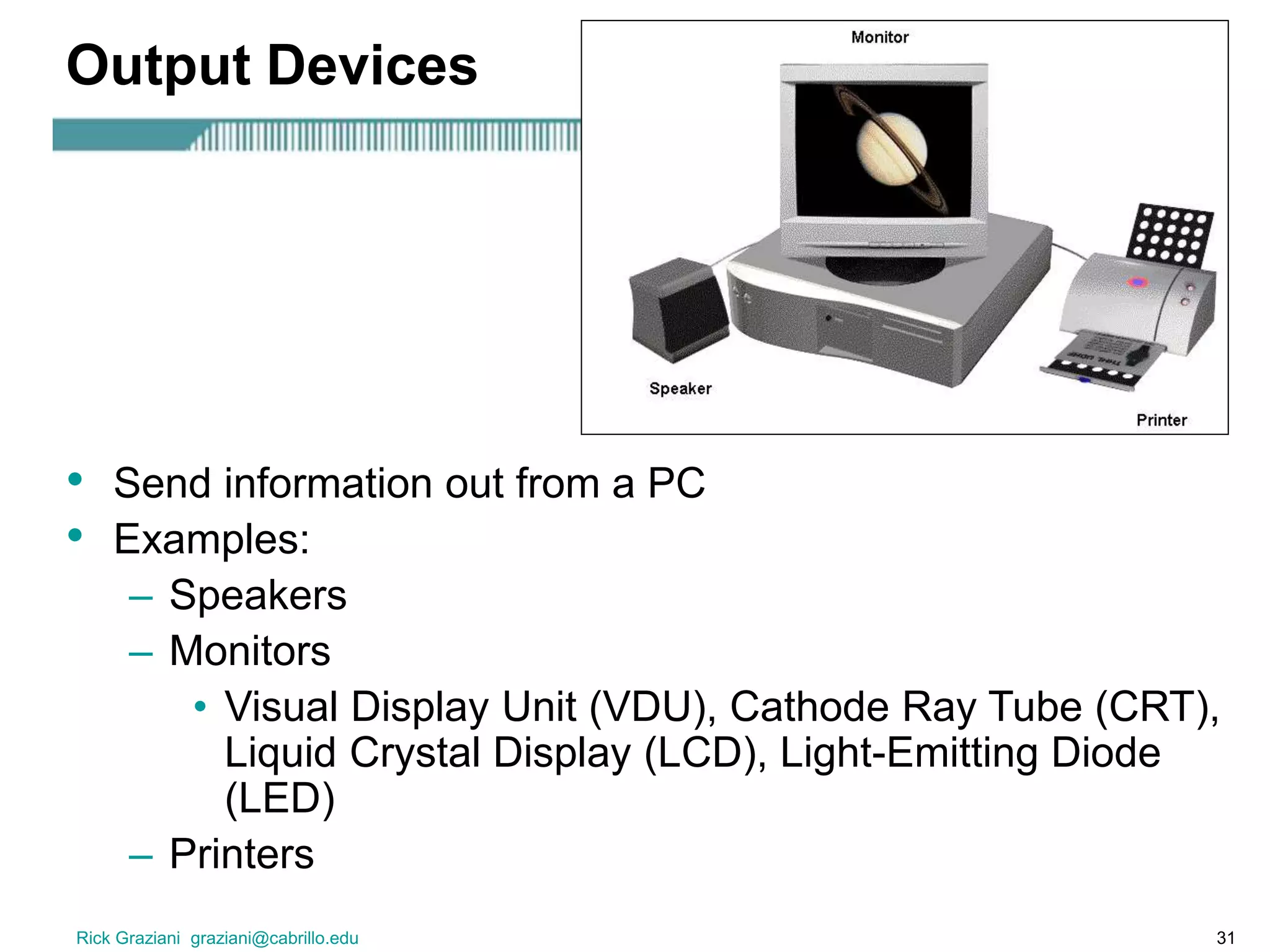
Output Devices
• Send information out from a PC
• Examples:
– Speakers
– Monitors
• Visual Display Unit (VDU), Cathode Ray Tube (CRT),
Liquid Crystal Display (LCD), Light-Emitting Diode
(LED)
– Printers
Rick Graziani graziani@cabrillo.edu 32
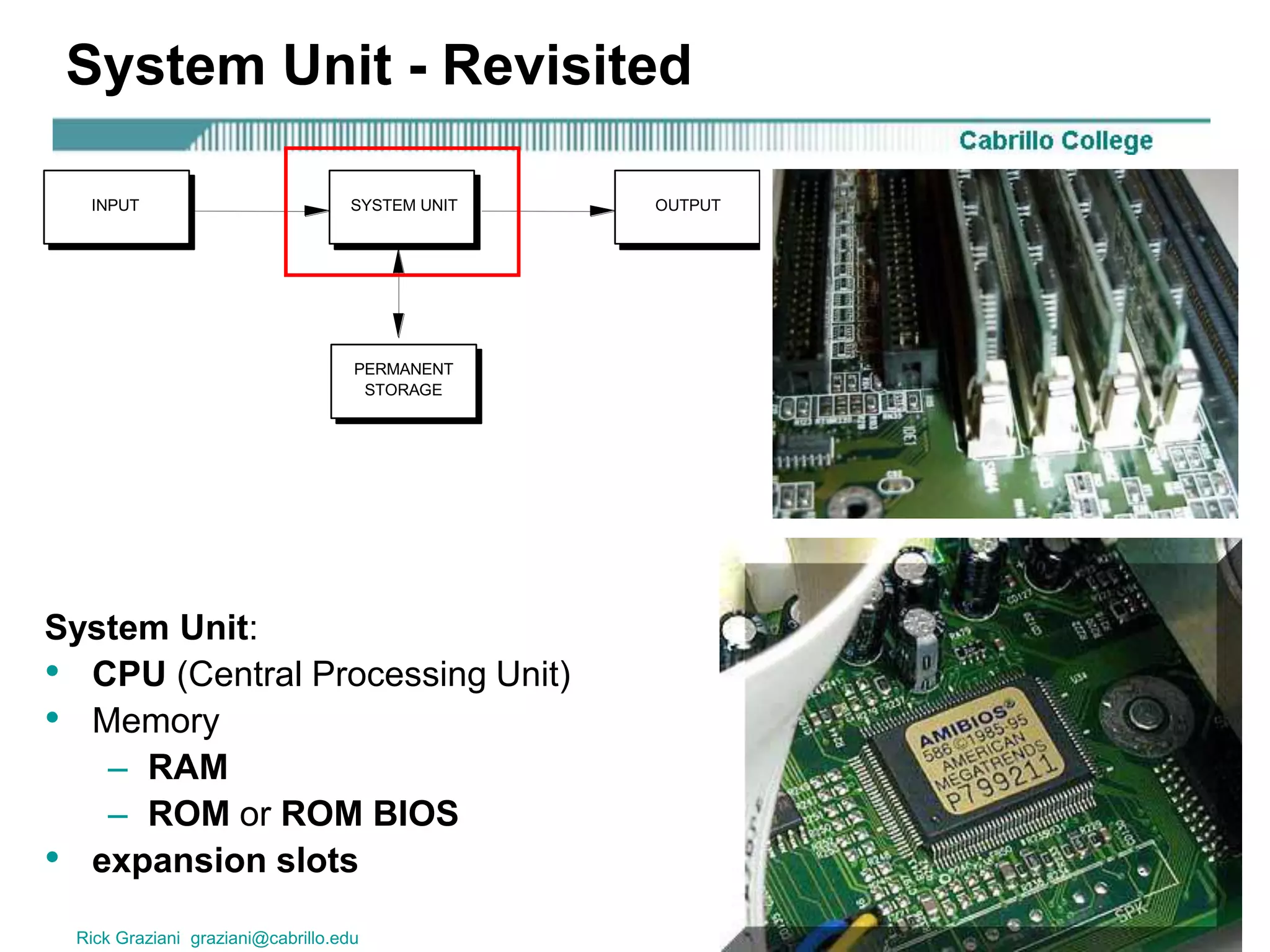
System Unit - Revisited
SYSTEM UNITINPUT OUTPUT
PERMANENT
STORAGE
System Unit:
• CPU (Central Processing Unit)
• Memory
– RAM
– ROM or ROM BIOS
• expansion slots
Rick Graziani graziani@cabrillo.edu 33
RAM (Random Access Memory)
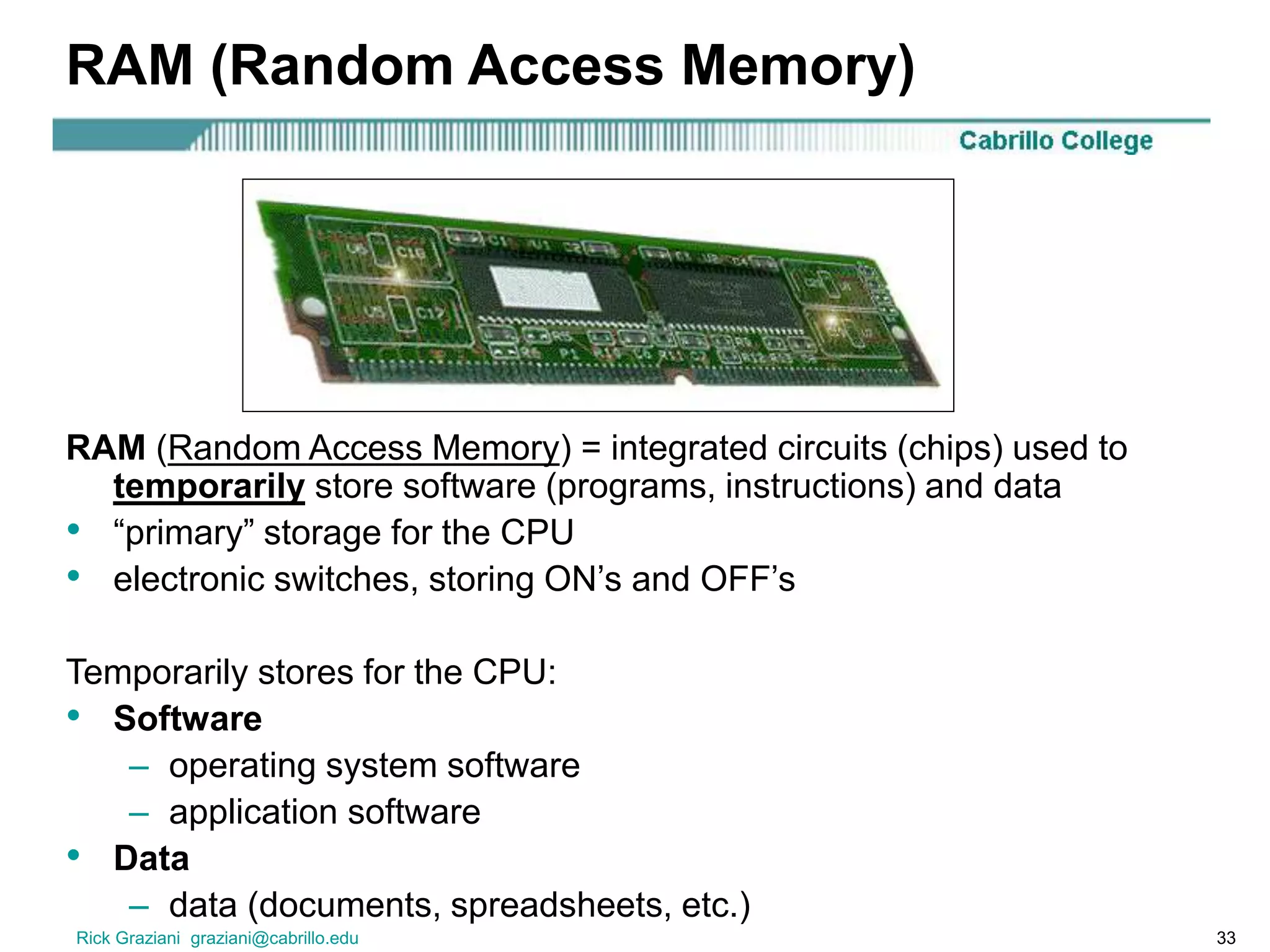
RAM (Random Access Memory) = integrated circuits (chips) used to
temporarily store software (programs, instructions) and data
• “primary” storage for the CPU
• electronic switches, storing ON’s and OFF’s
Temporarily stores for the CPU:
• Software
– operating system software
– application software
• Data
– data (documents, spreadsheets, etc.)
Rick Graziani graziani@cabrillo.edu 34
Inserting RAM
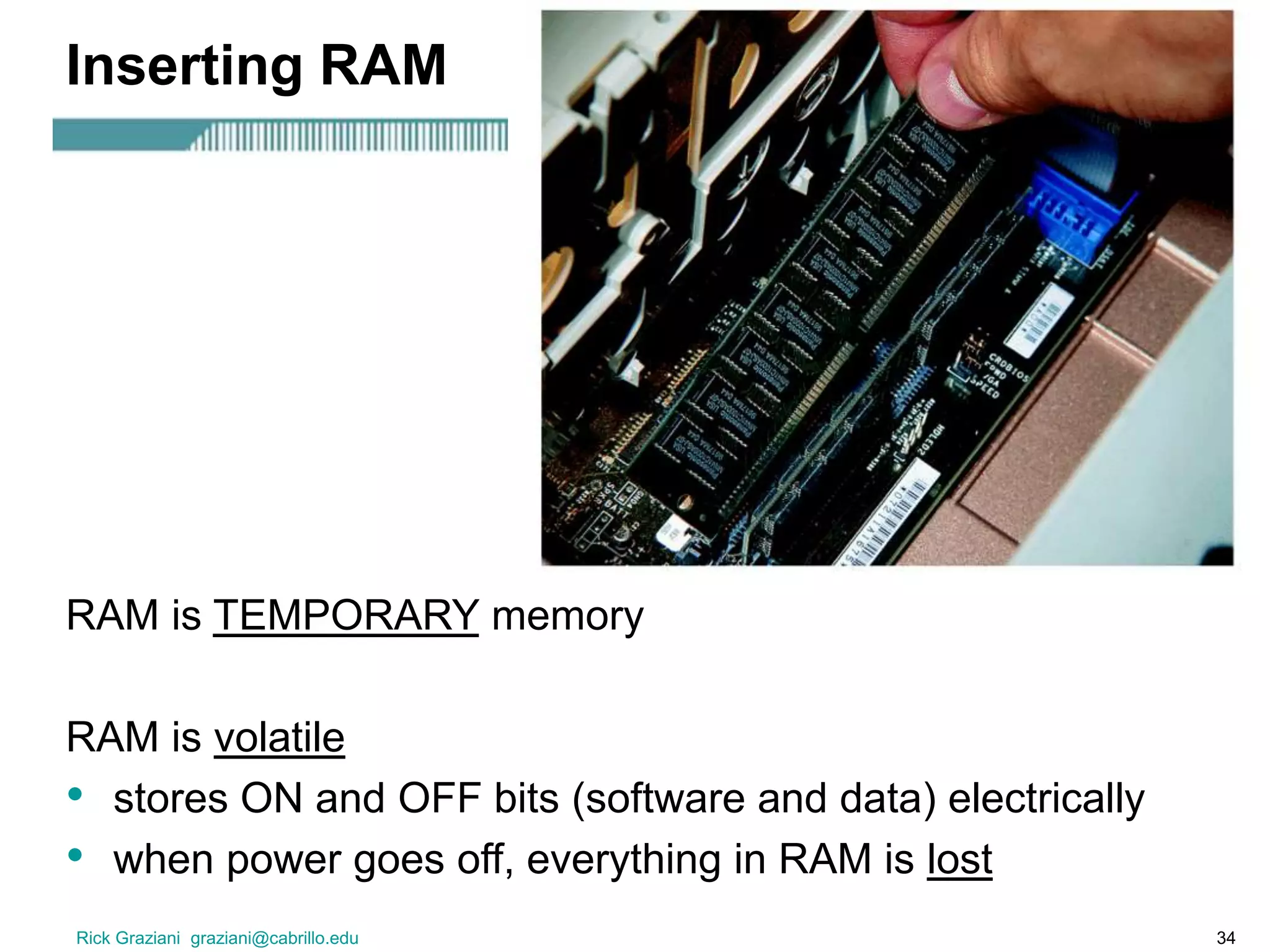
RAM is TEMPORARY memory
RAM is volatile
• stores ON and OFF bits (software and data) electrically
• when power goes off, everything in RAM is lost
Rick Graziani graziani@cabrillo.edu 35
RAM: Speed
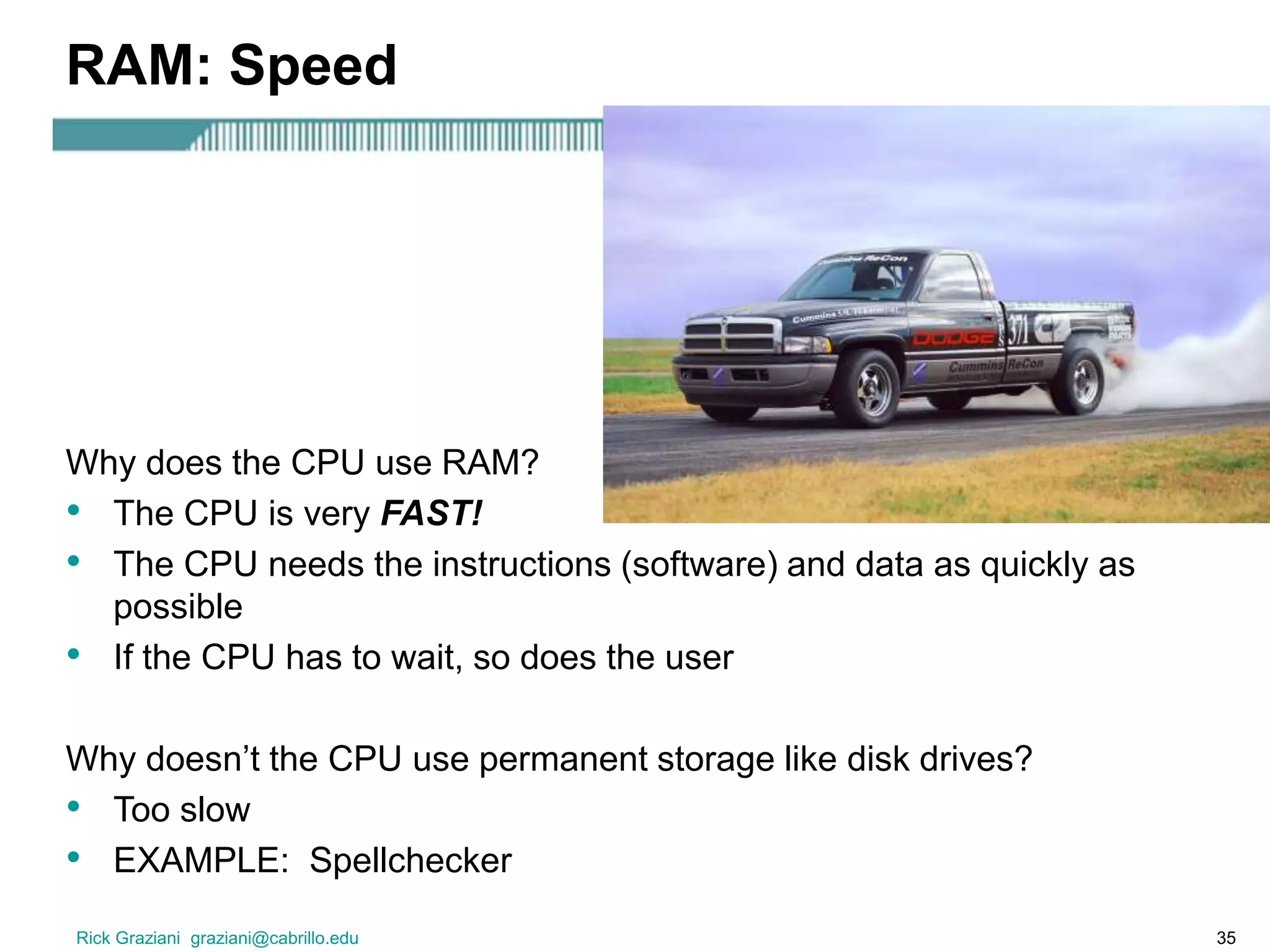
Why does the CPU use RAM?
• The CPU is very FAST!
• The CPU needs the instructions (software) and data as quickly as
possible
• If the CPU has to wait, so does the user
Why doesn’t the CPU use permanent storage like disk drives?
• Too slow
• EXAMPLE: Spellchecker
Rick Graziani graziani@cabrillo.edu 36
RAM: Capacity
The amount of RAM determines:
• what software and data the user can work on
• how much software and data the user can work with
• Most computers have at least 256 MB (Megabytes, 256 million bytes)
“out of memory” error message from the Operating System
The more complex and sophisticated the software, the more instructions
that software contains, which means larger software files.
Rick Graziani graziani@cabrillo.edu 37
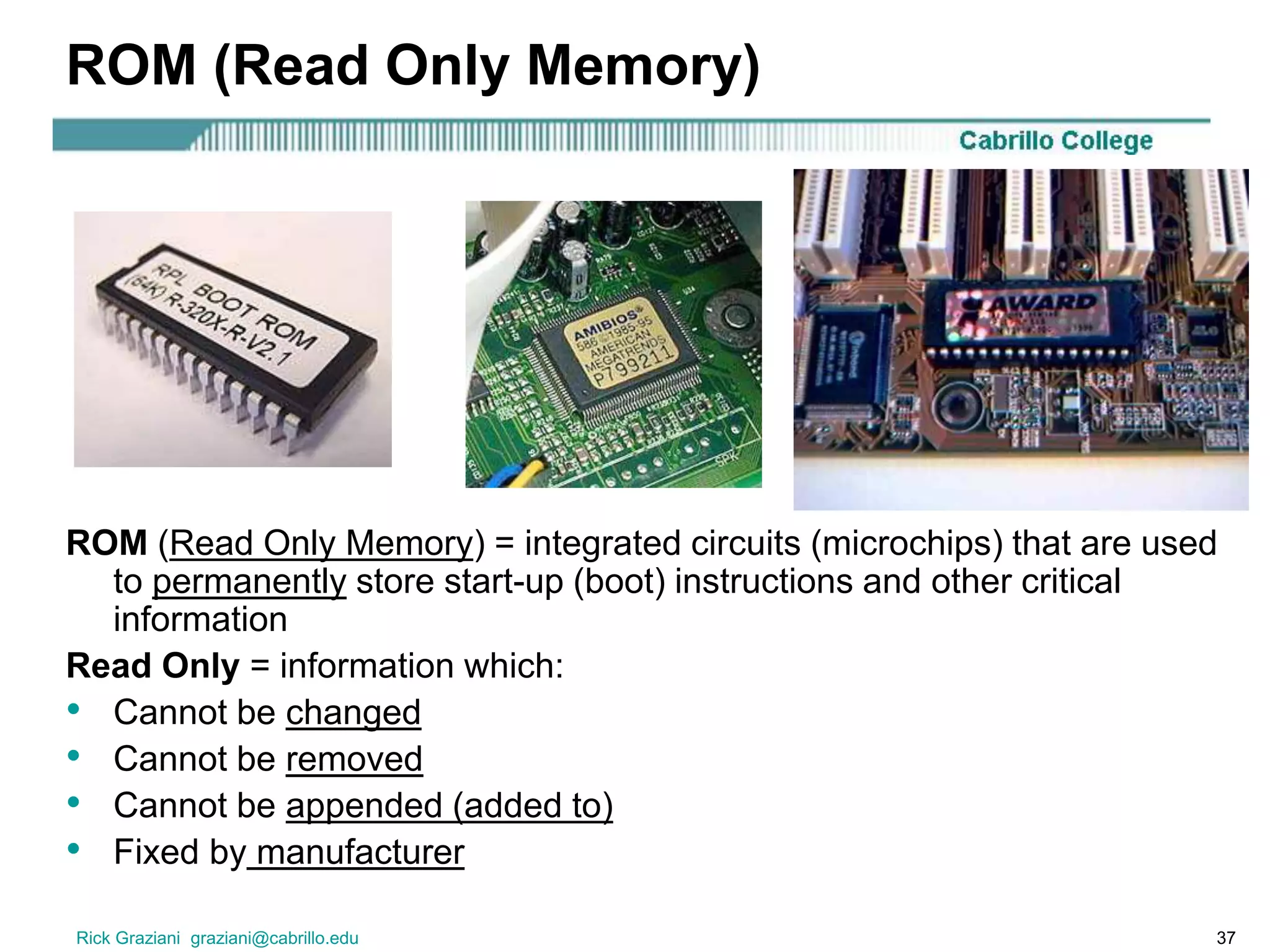
ROM (Read Only Memory)
ROM (Read Only Memory) = integrated circuits (microchips) that are used
to permanently store start-up (boot) instructions and other critical
information
Read Only = information which:
• Cannot be changed
• Cannot be removed
• Cannot be appended (added to)
• Fixed by manufacturer
Rick Graziani graziani@cabrillo.edu 38
ROM (Read Only Memory)
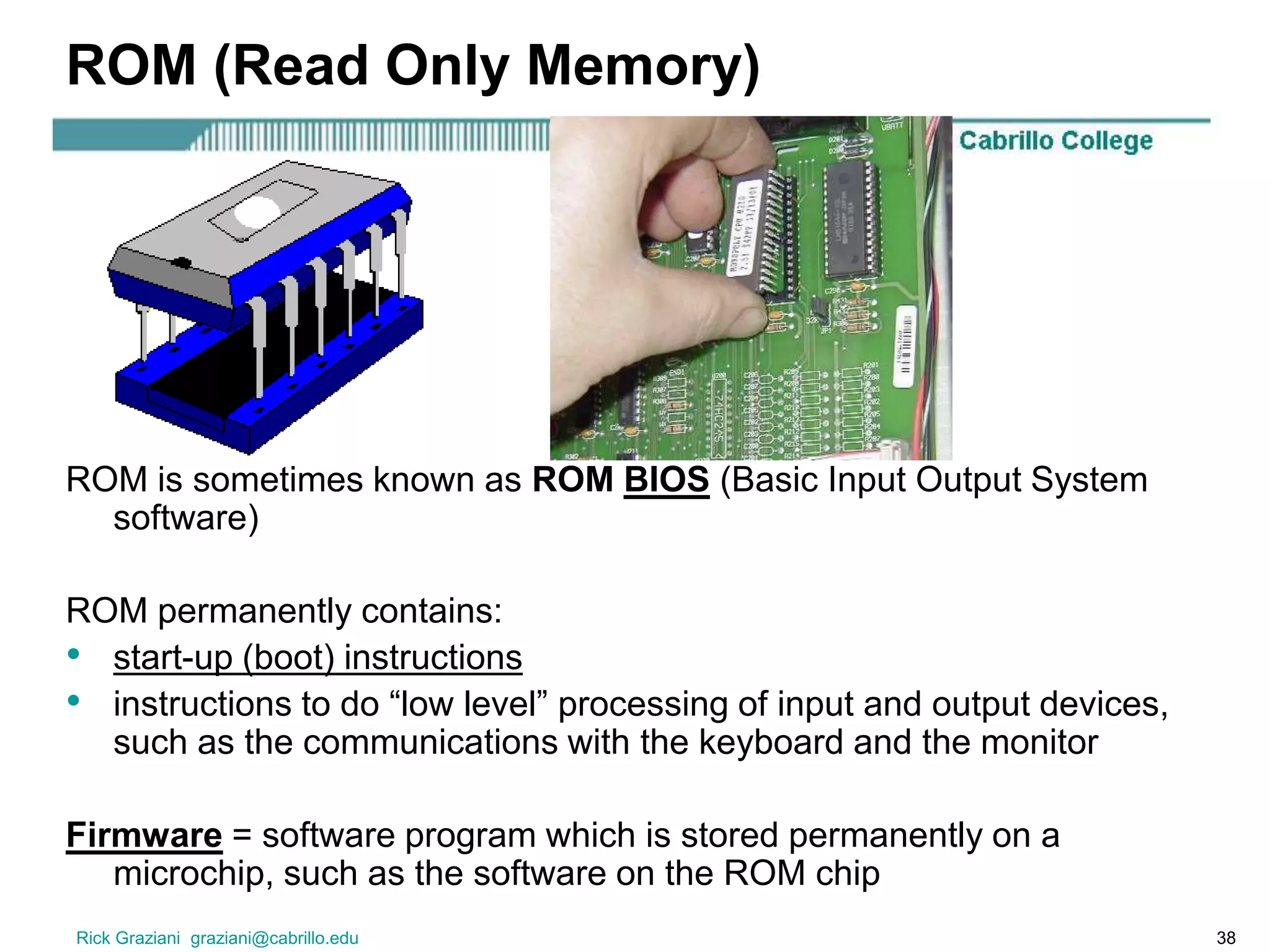
ROM is sometimes known as ROM BIOS (Basic Input Output System
software)
ROM permanently contains:
• start-up (boot) instructions
• instructions to do “low level” processing of input and output devices,
such as the communications with the keyboard and the monitor
Firmware = software program which is stored permanently on a
microchip, such as the software on the ROM chip
Rick Graziani graziani@cabrillo.edu 39
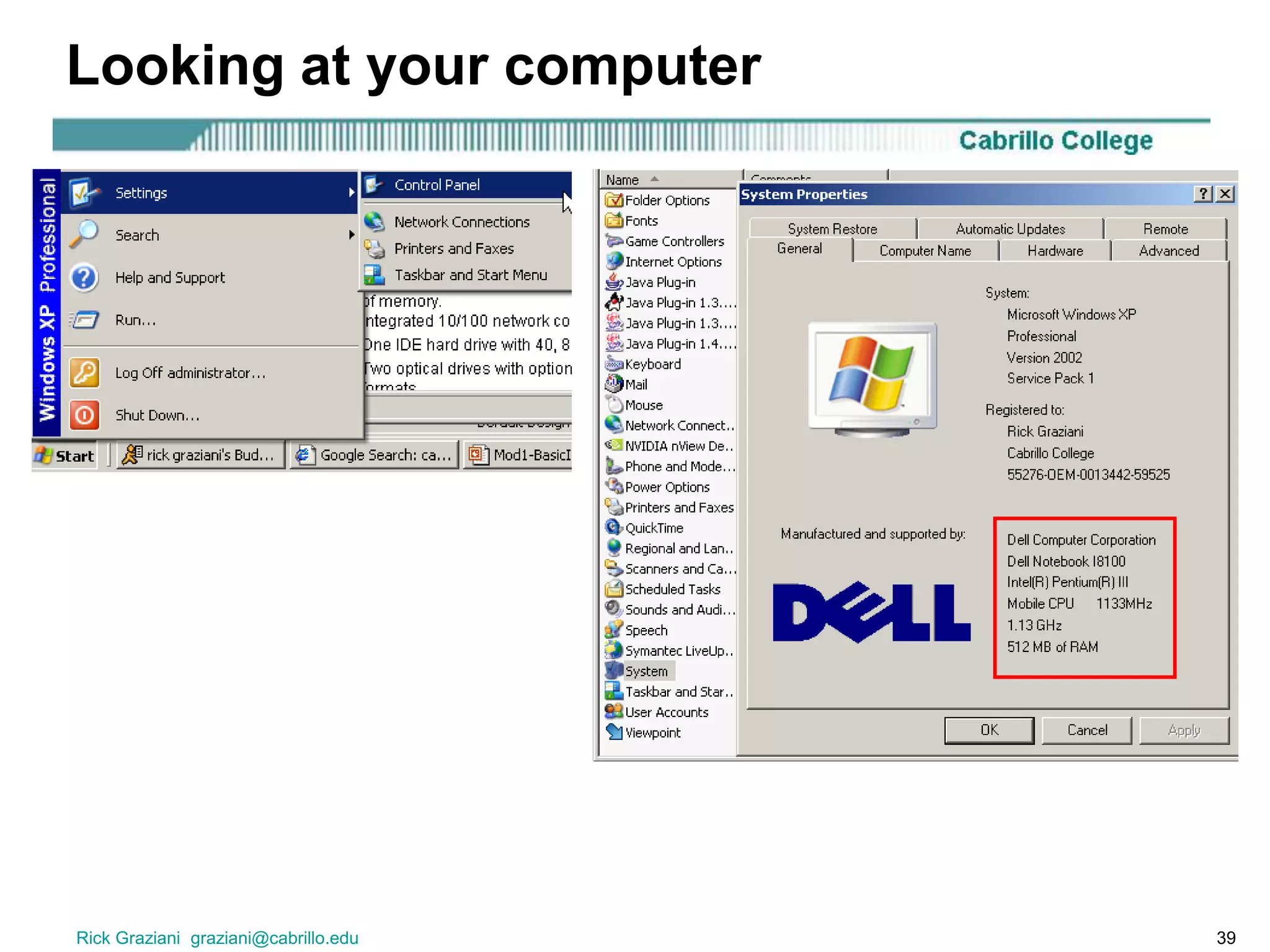
Looking at your computer
Rick Graziani graziani@cabrillo.edu 40
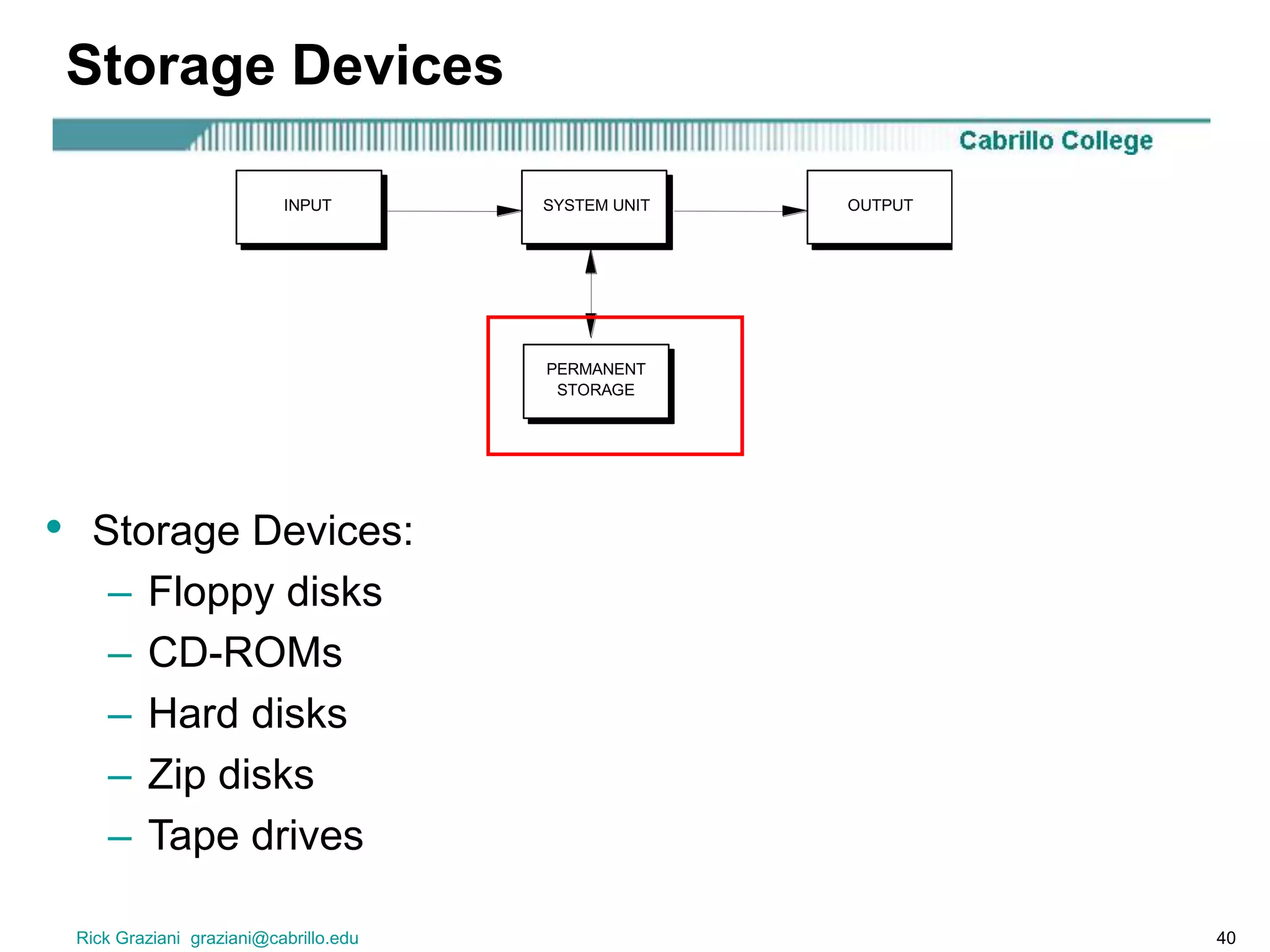
Storage Devices
SYSTEM UNITINPUT OUTPUT
PERMANENT
STORAGE
• Storage Devices:
– Floppy disks
– CD-ROMs
– Hard disks
– Zip disks
– Tape drives
Rick Graziani graziani@cabrillo.edu 41
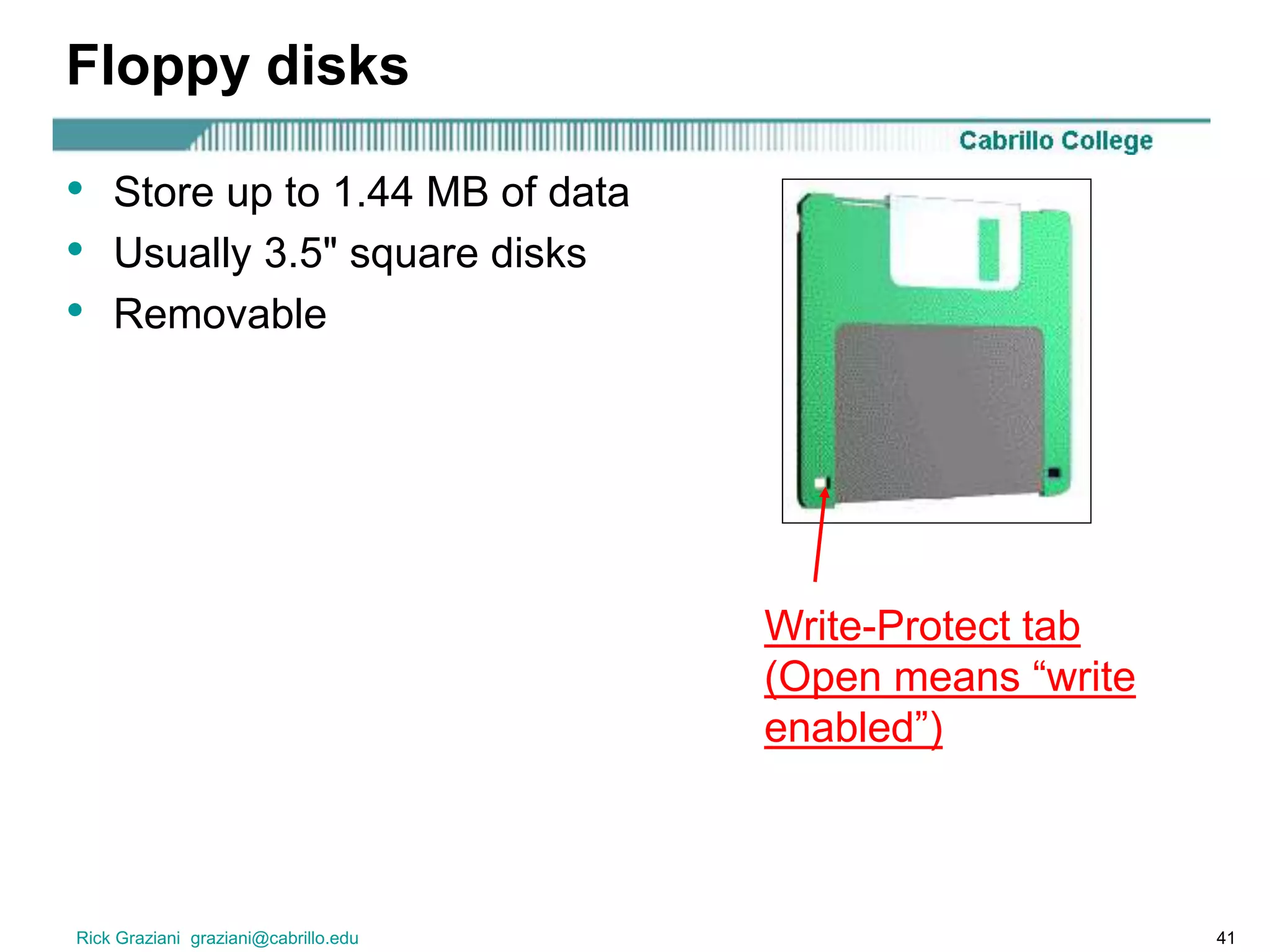
Floppy disks
• Store up to 1.44 MB of data
• Usually 3.5" square disks
• Removable
Write-Protect tab
(Open means “write
enabled”)
Rick Graziani graziani@cabrillo.edu 42
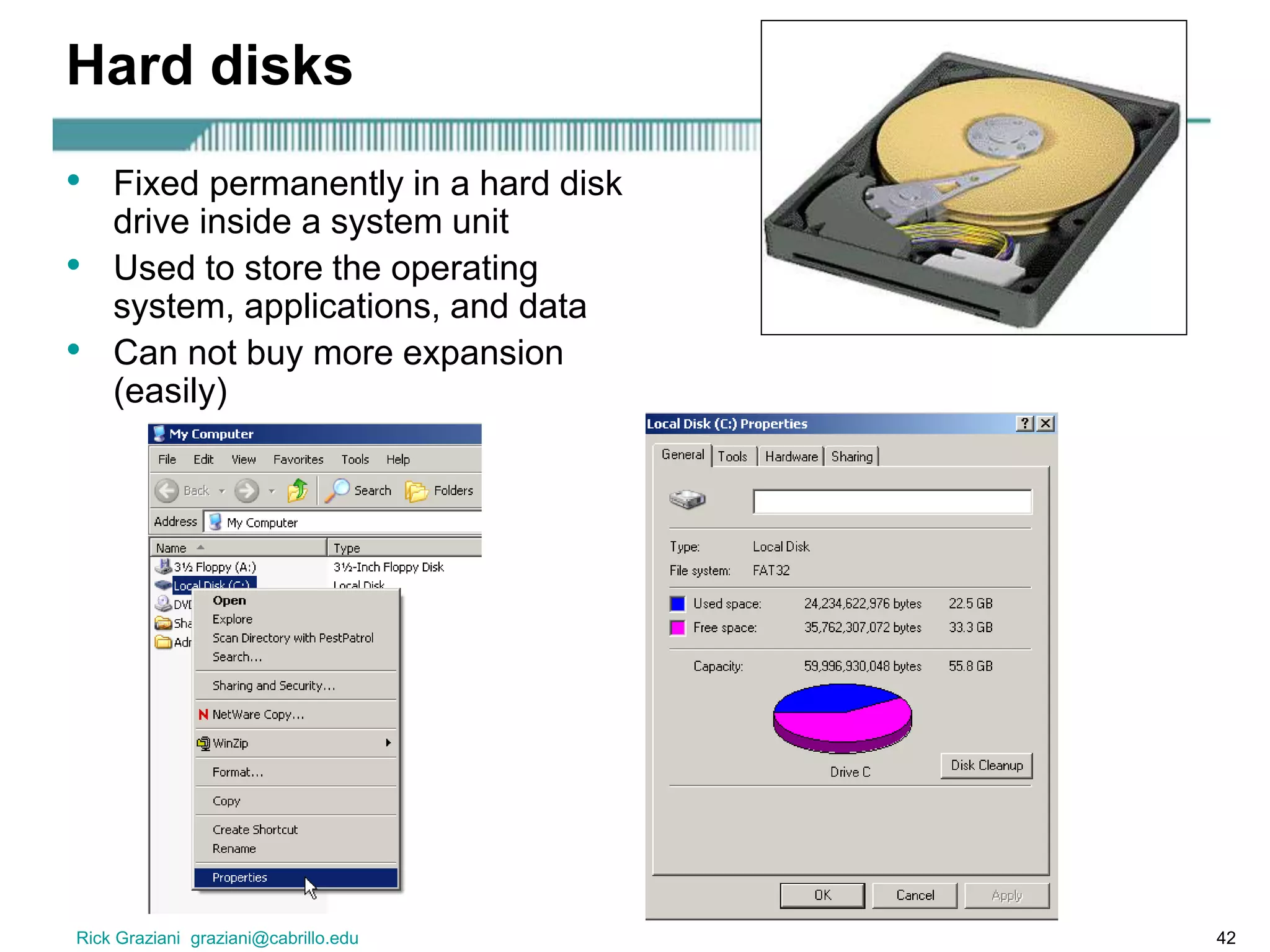
Hard disks
• Fixed permanently in a hard disk
drive inside a system unit
• Used to store the operating
system, applications, and data
• Can not buy more expansion
(easily)
Rick Graziani graziani@cabrillo.edu 43
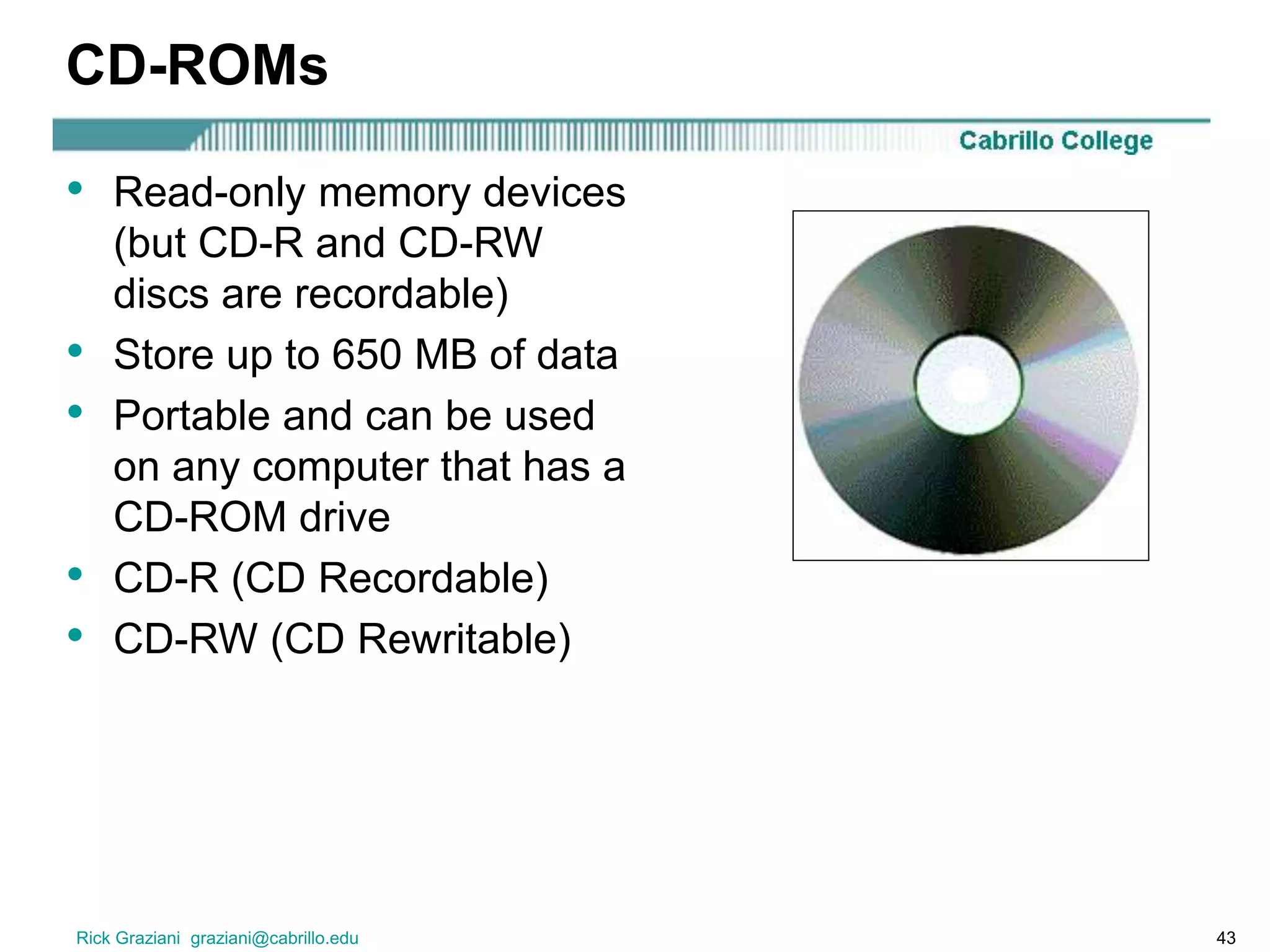
CD-ROMs
• Read-only memory devices
(but CD-R and CD-RW
discs are recordable)
• Store up to 650 MB of data
• Portable and can be used
on any computer that has a
CD-ROM drive
• CD-R (CD Recordable)
• CD-RW (CD Rewritable)
Rick Graziani graziani@cabrillo.edu 44
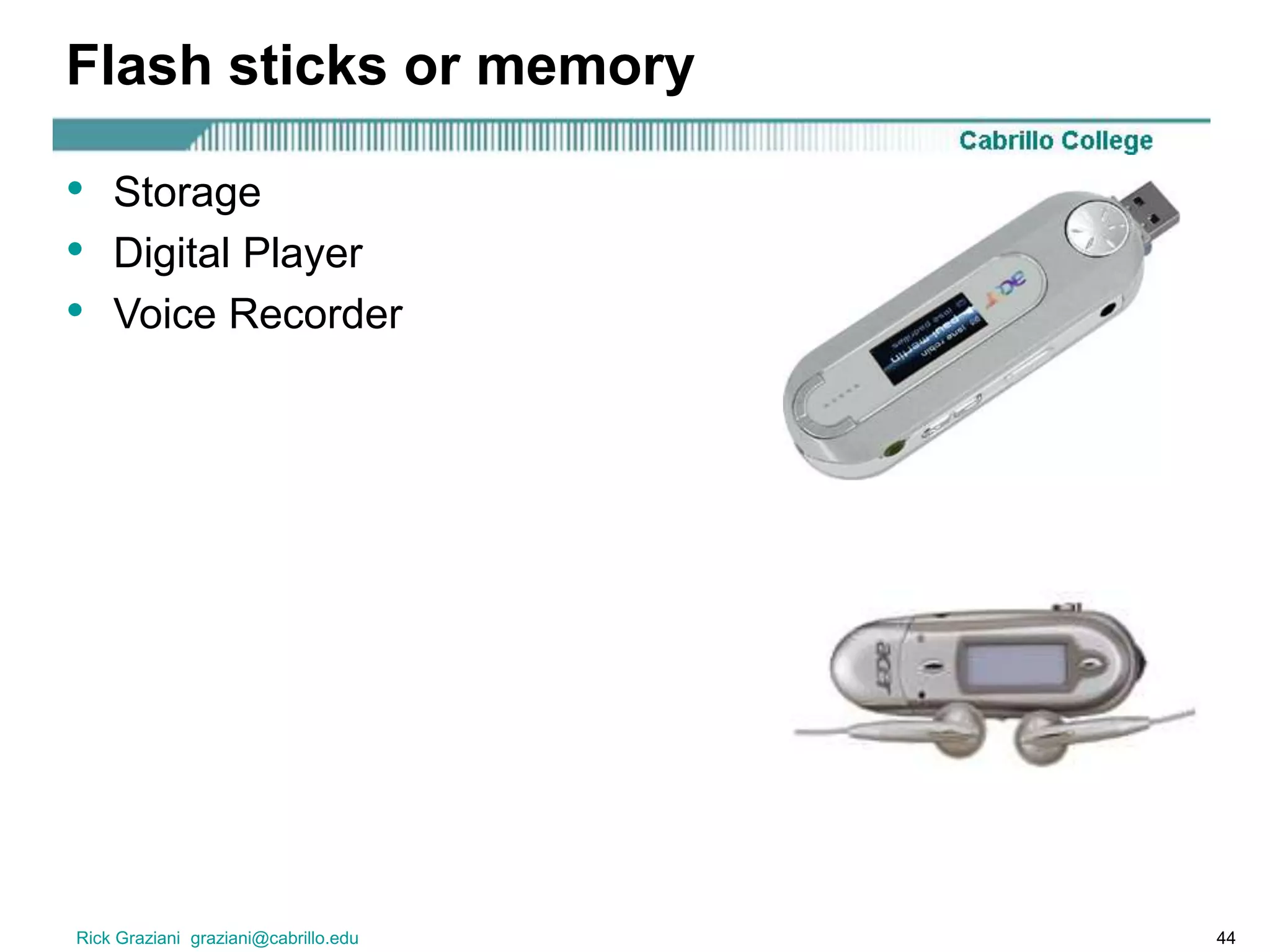
Flash sticks or memory
• Storage
• Digital Player
• Voice Recorder
Rick Graziani graziani@cabrillo.edu 45
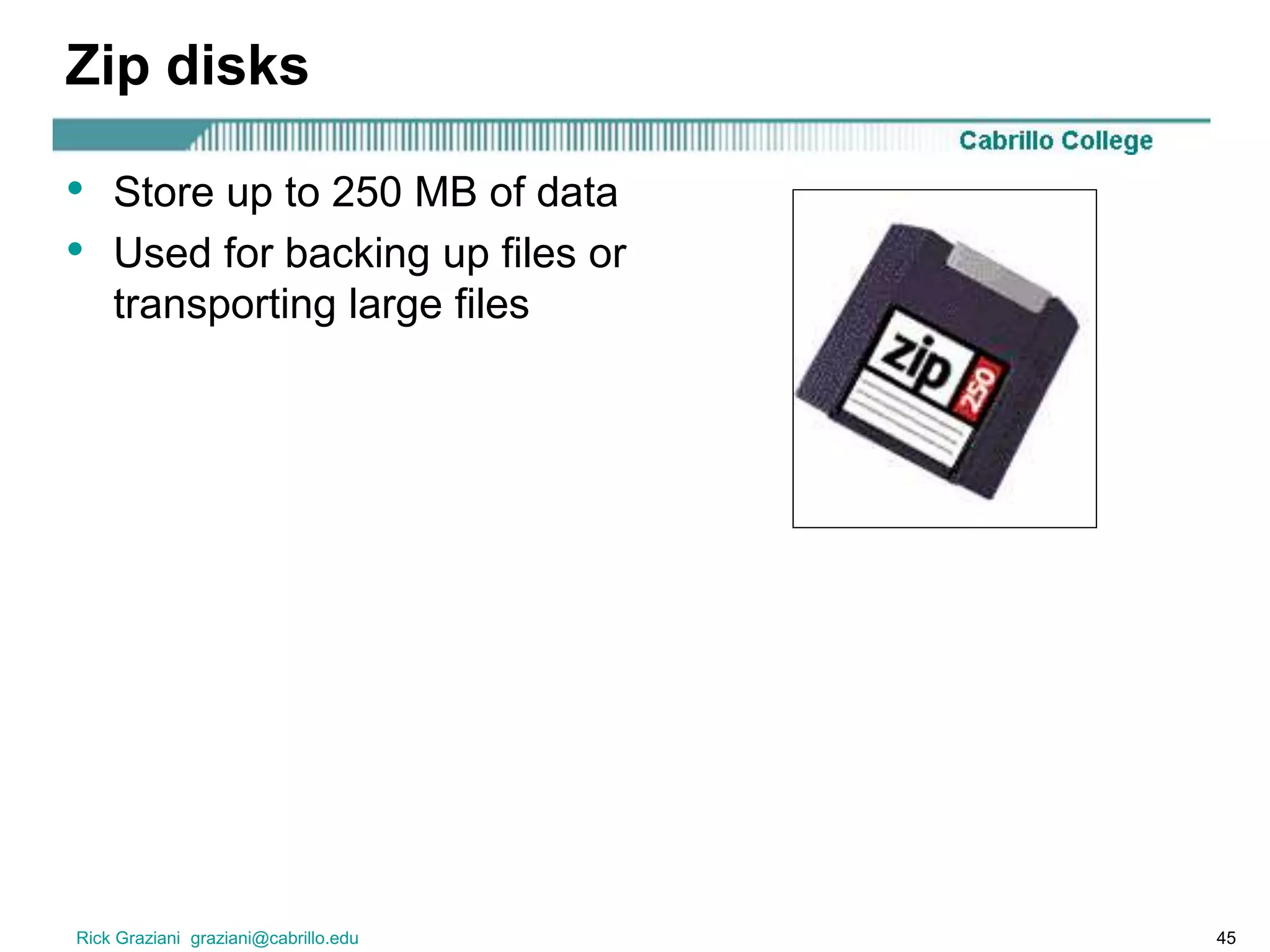
Zip disks
• Store up to 250 MB of data
• Used for backing up files or
transporting large files
Rick Graziani graziani@cabrillo.edu 46
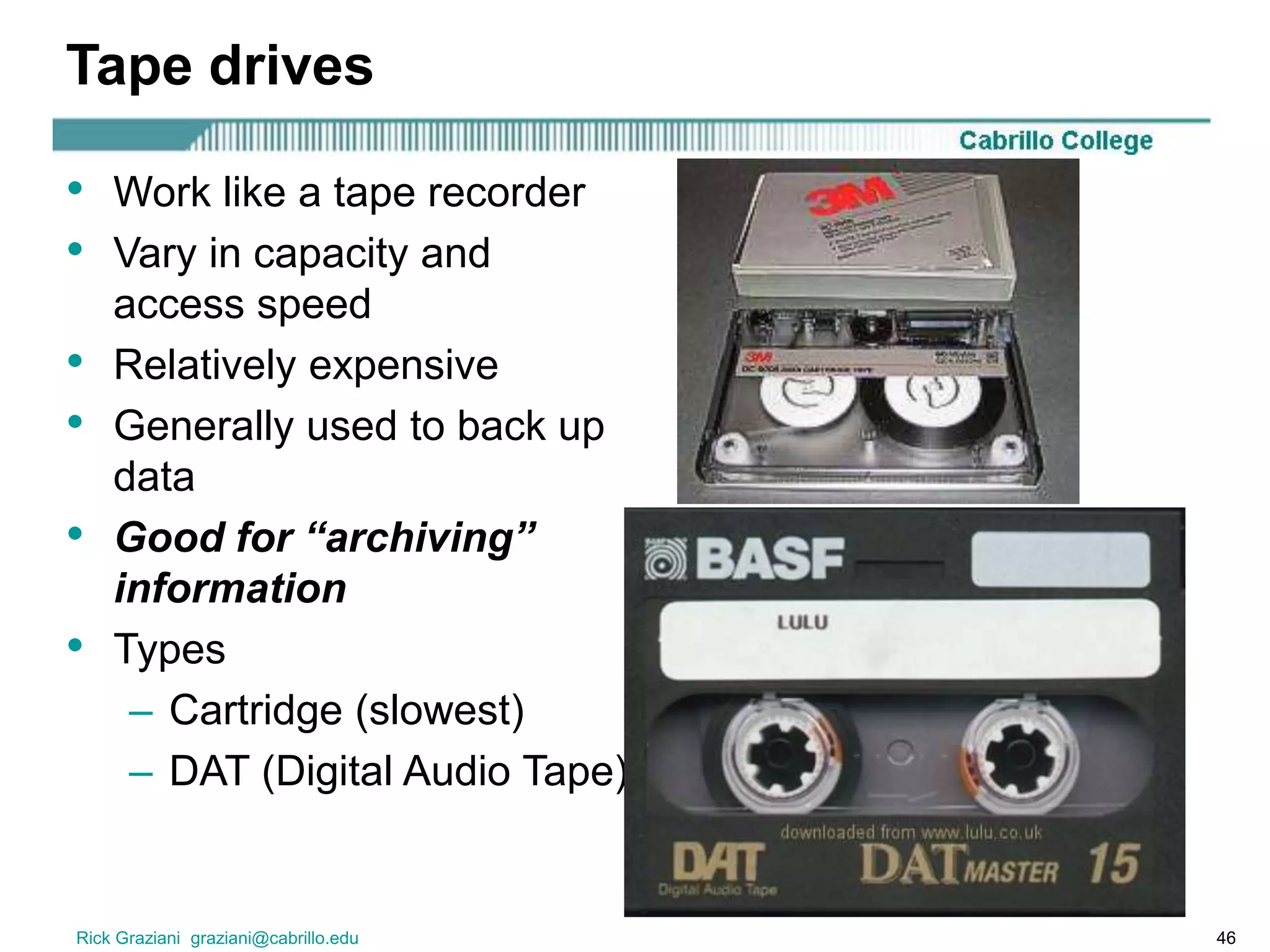
Tape drives
• Work like a tape recorder
• Vary in capacity and
access speed
• Relatively expensive
• Generally used to back up
data
• Good for “archiving”
information
• Types
– Cartridge (slowest)
– DAT (Digital Audio Tape)
Rick Graziani graziani@cabrillo.edu 47
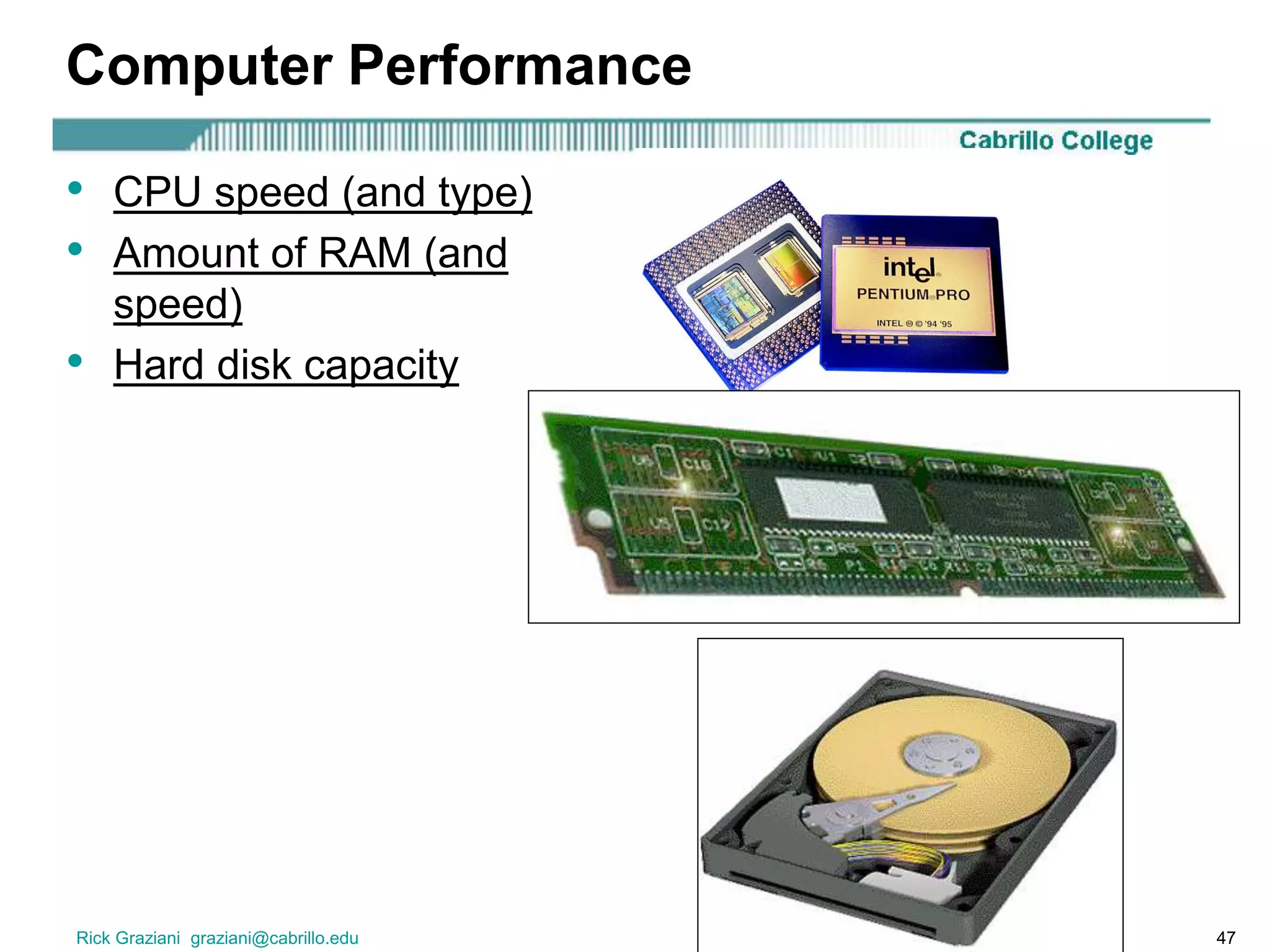
Computer Performance
• CPU speed (and type)
• Amount of RAM (and
speed)
• Hard disk capacity
Rick Graziani graziani@cabrillo.edu 48
Computer Performance
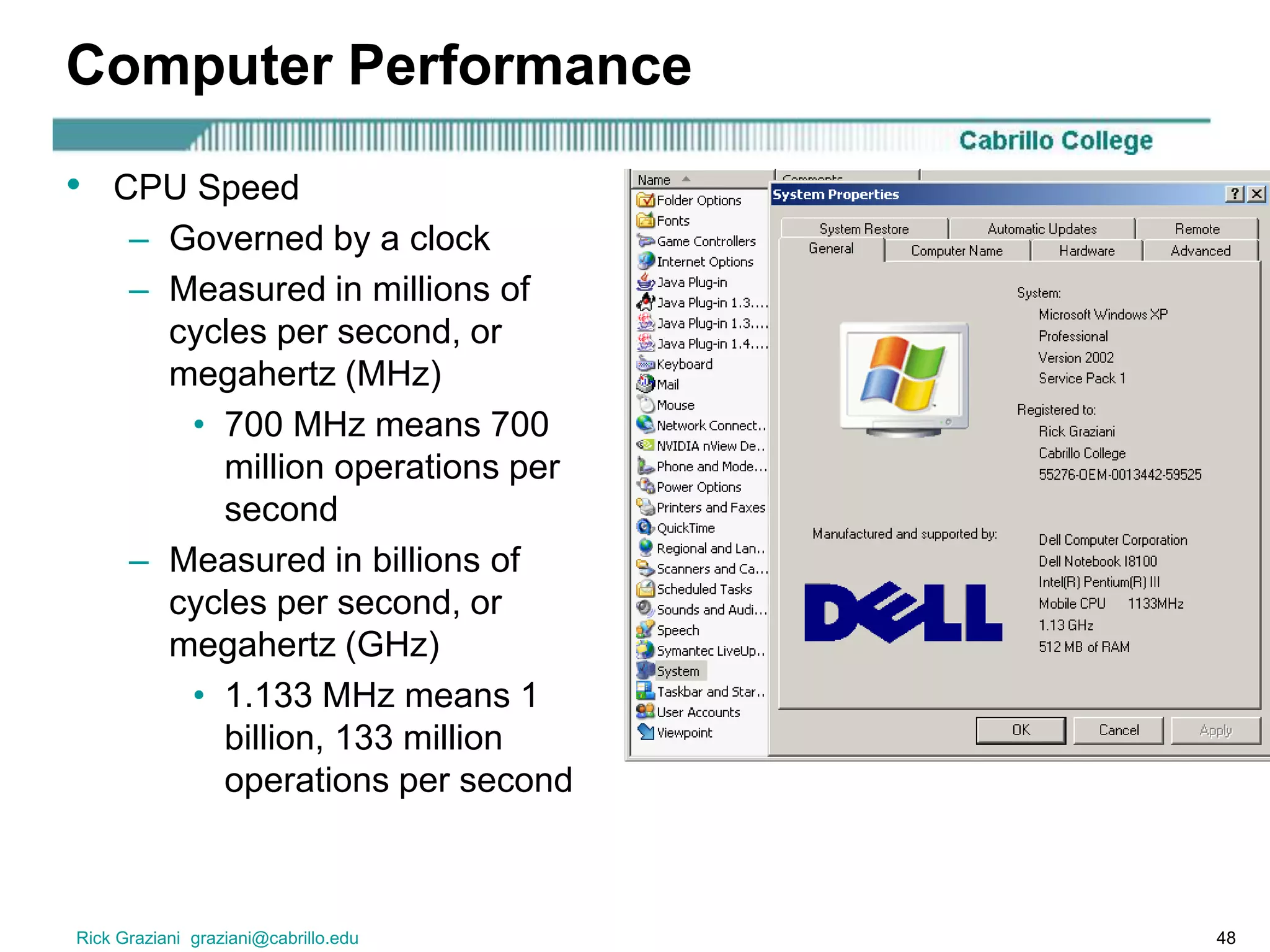
• CPU Speed
– Governed by a clock
– Measured in millions of
cycles per second, or
megahertz (MHz)
• 700 MHz means 700
million operations per
second
– Measured in billions of
cycles per second, or
megahertz (GHz)
• 1.133 MHz means 1
billion, 133 million
operations per second
Rick Graziani graziani@cabrillo.edu 49
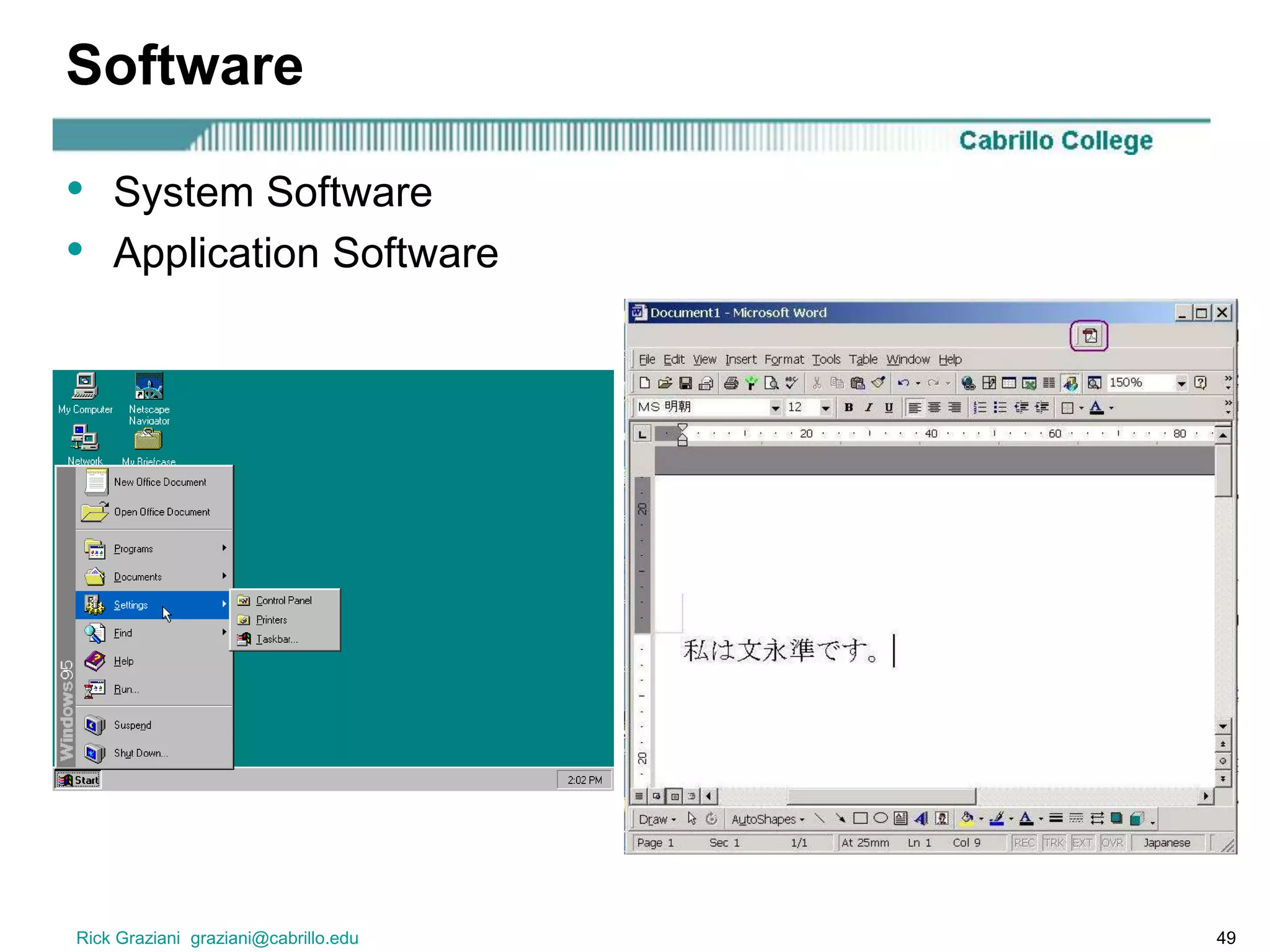
Software
• System Software
• Application Software
Rick Graziani graziani@cabrillo.edu 50
Application Software
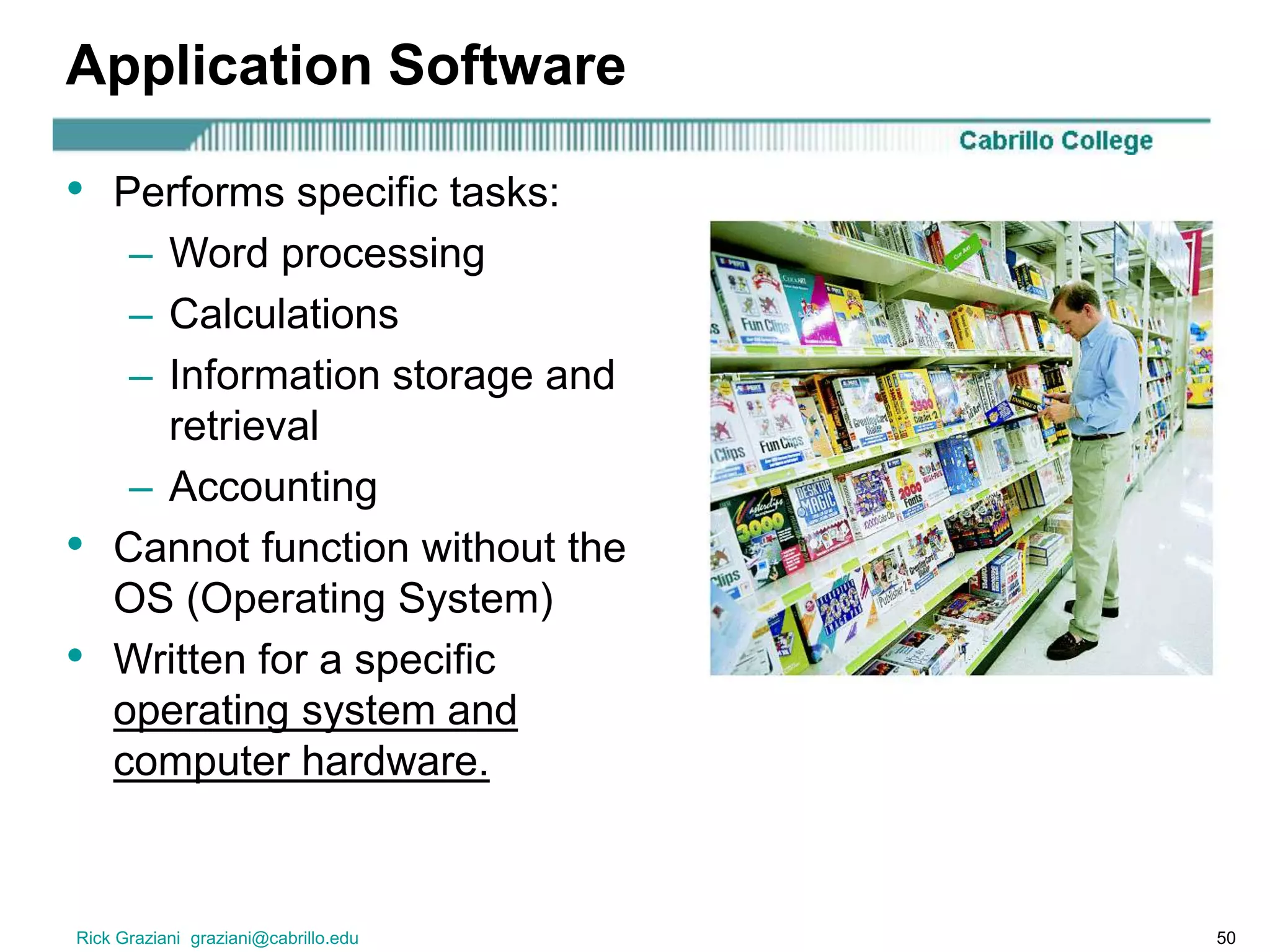
• Performs specific tasks:
– Word processing
– Calculations
– Information storage and
retrieval
– Accounting
• Cannot function without the
OS (Operating System)
• Written for a specific
operating system and
computer hardware.
Rick Graziani graziani@cabrillo.edu 51
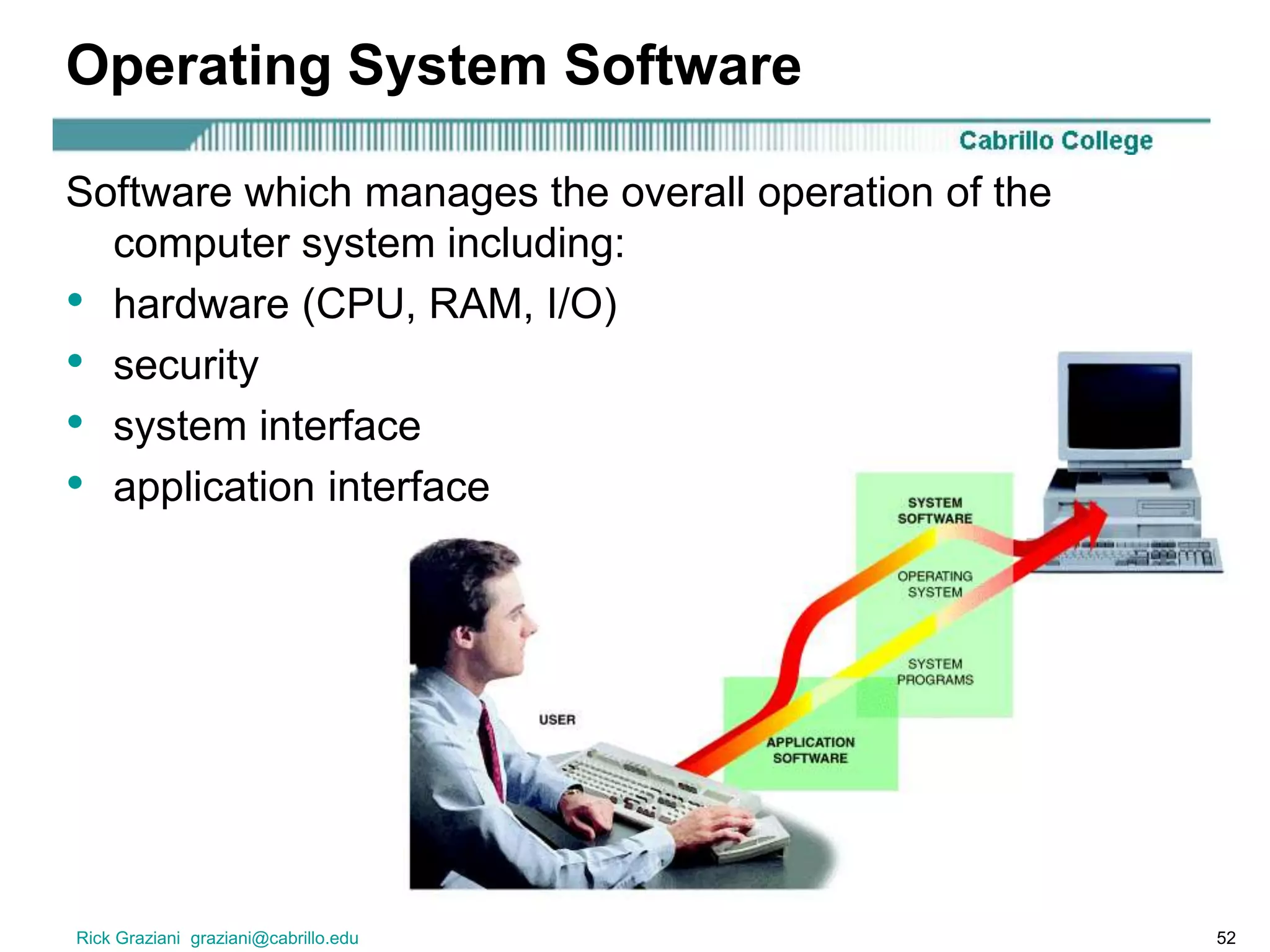
Operating System Software
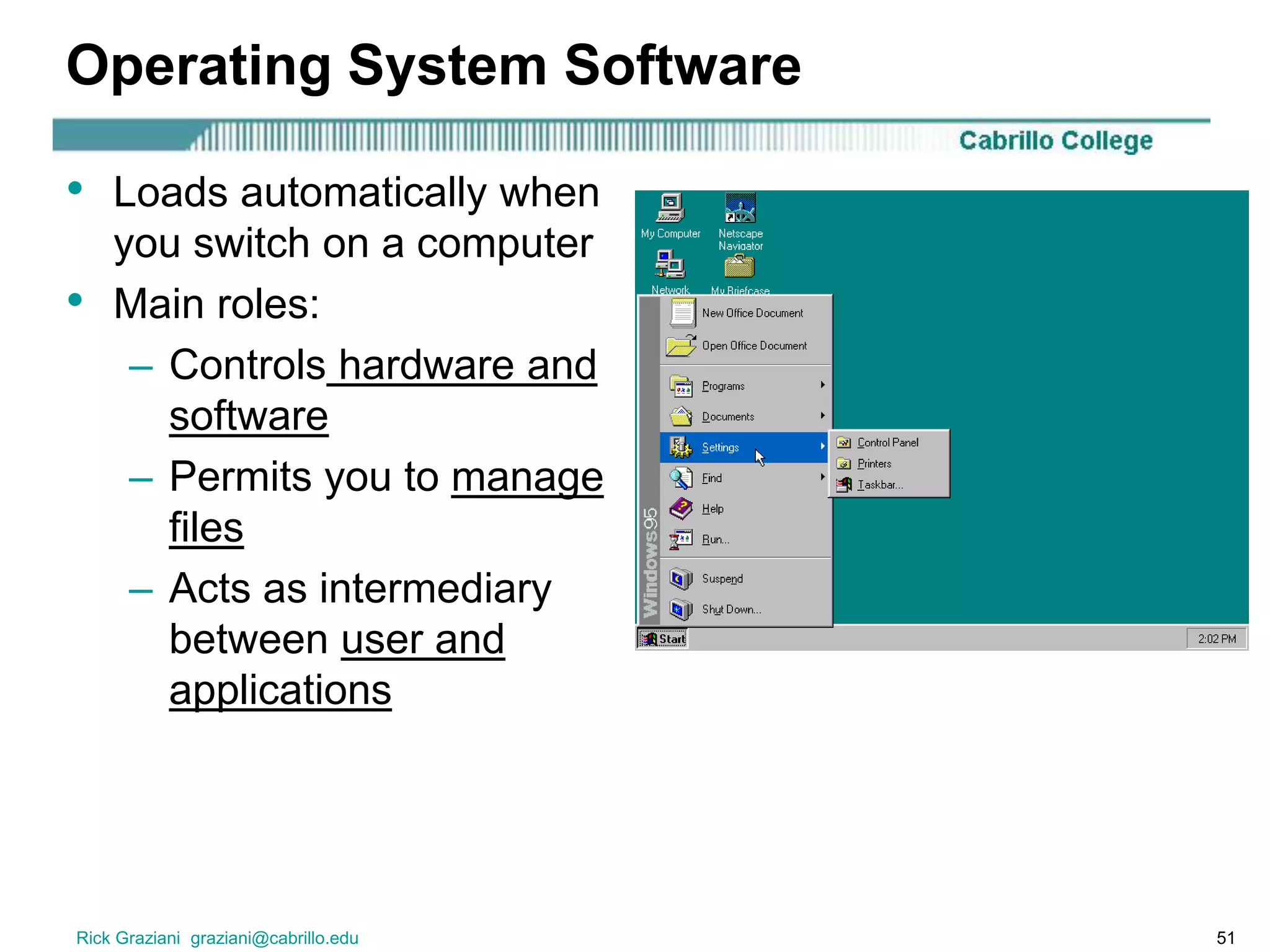
• Loads automatically when
you switch on a computer
• Main roles:
– Controls hardware and
software
– Permits you to manage
files
– Acts as intermediary
between user and
applications
Rick Graziani graziani@cabrillo.edu 52
Operating System Software
Software which manages the overall operation of the
computer system including:
• hardware (CPU, RAM, I/O)
• security
• system interface
• application interface
Rick Graziani graziani@cabrillo.edu 53
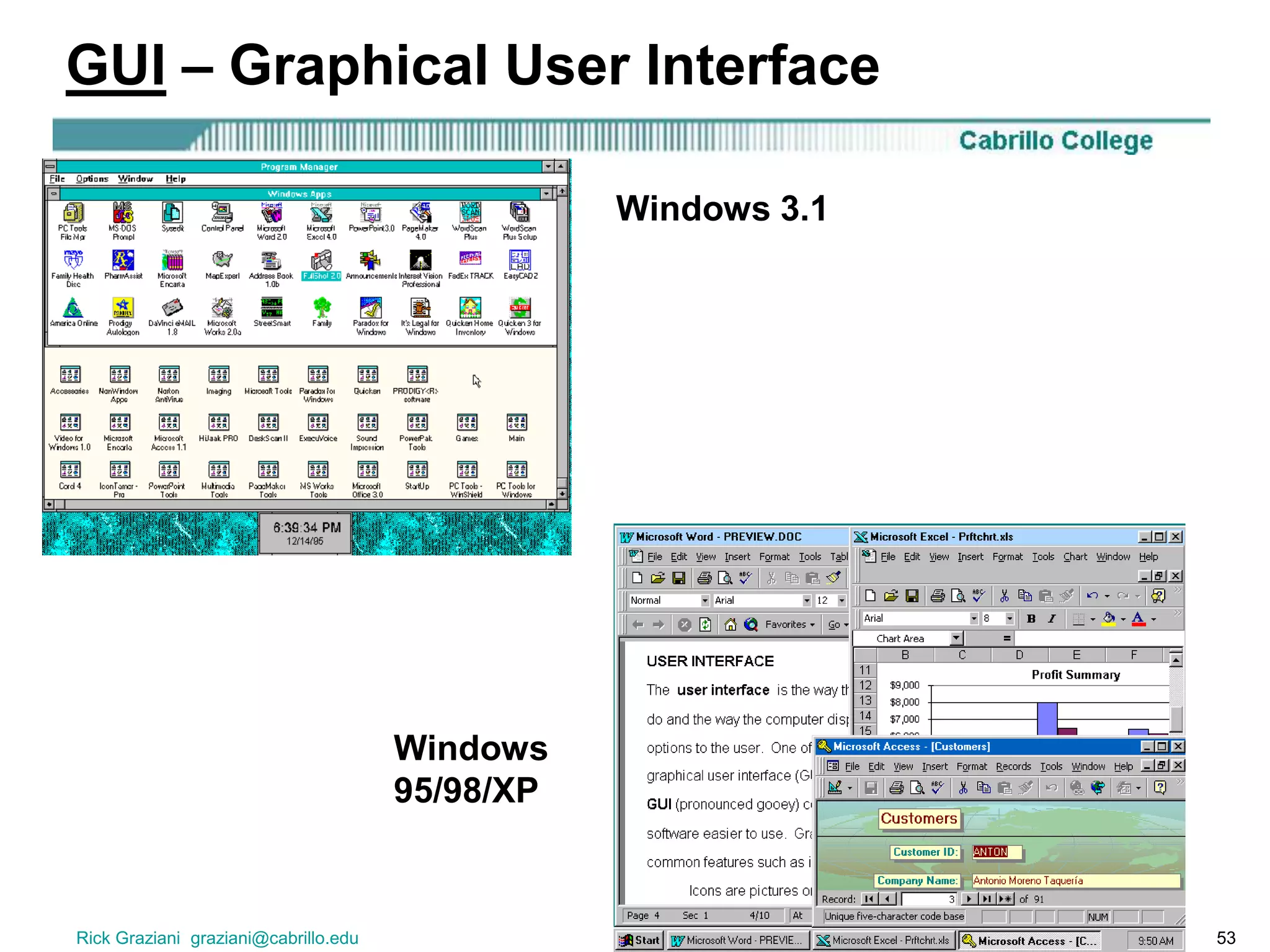
GUI – Graphical User Interface
Windows 3.1
Windows
95/98/XP
Rick Graziani graziani@cabrillo.edu 54
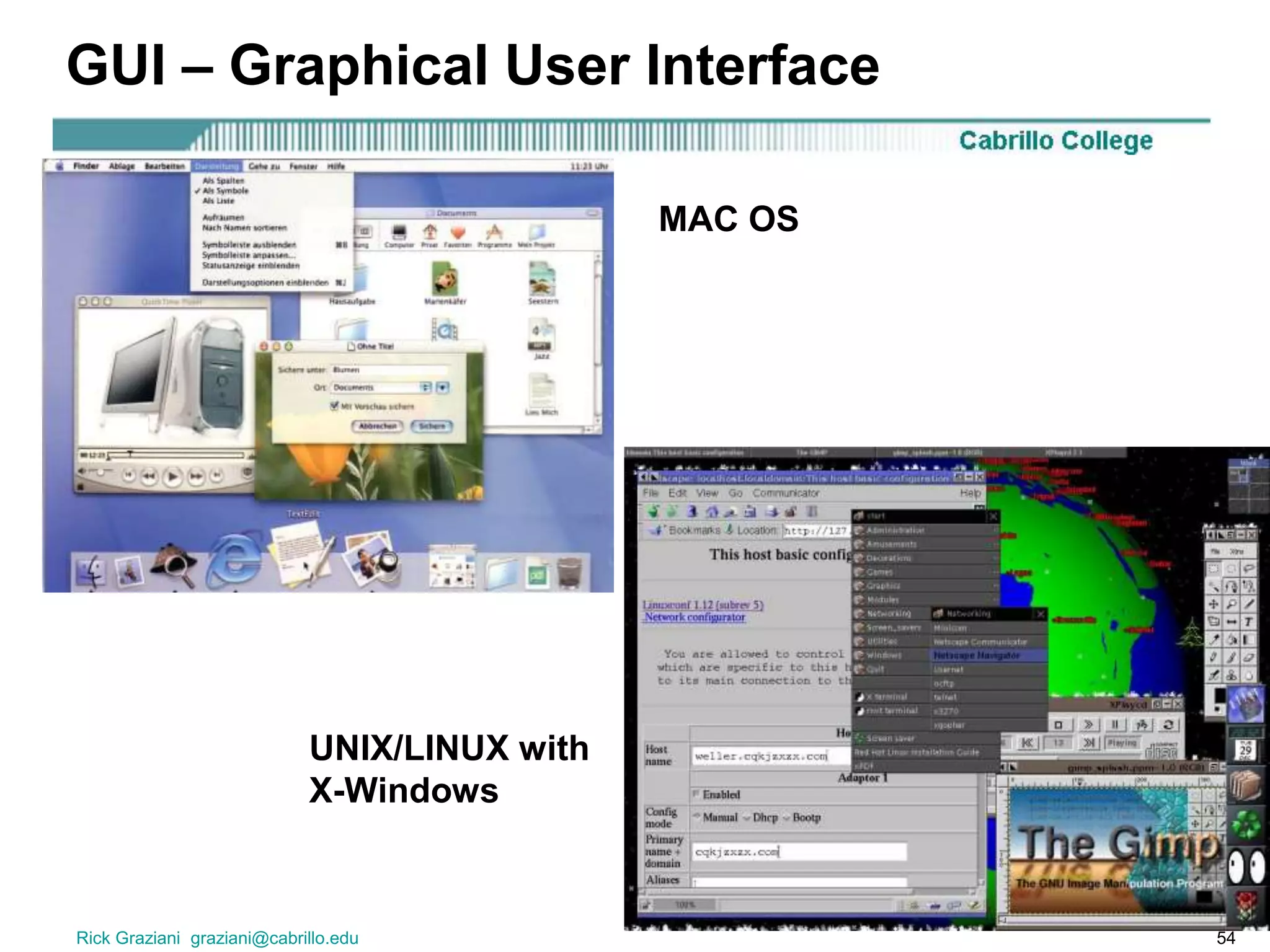
GUI – Graphical User Interface
MAC OS
UNIX/LINUX with
X-Windows
Rick Graziani graziani@cabrillo.edu 55
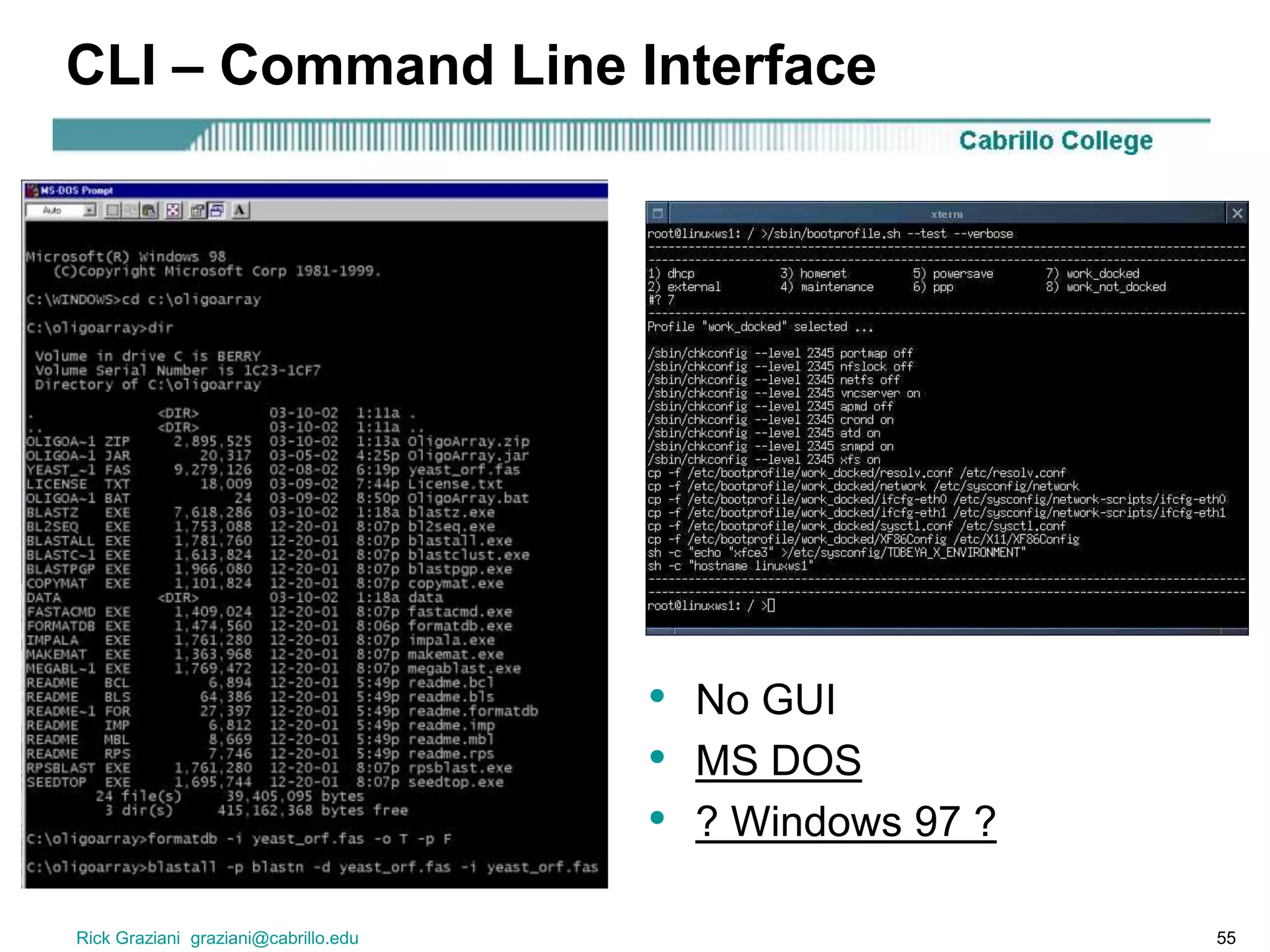
CLI – Command Line Interface
• No GUI
• MS DOS
• ? Windows 97 ?
Rick Graziani graziani@cabrillo.edu 56
Putting it altogether!
• Booting up the computer
• Creating and saving a word processing document
• Shutting down the computer
Rick Graziani graziani@cabrillo.edu 57
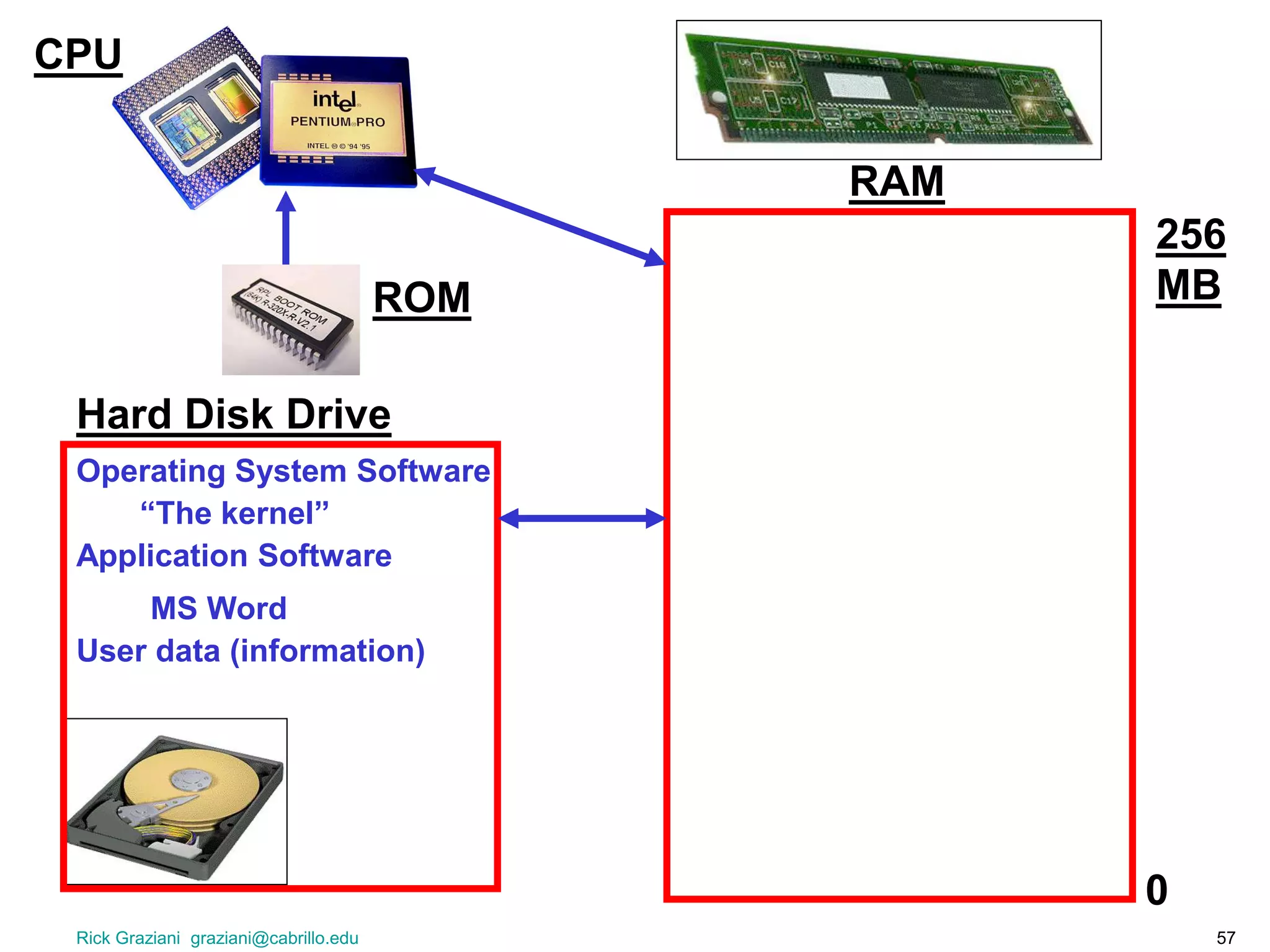
RAM
0
256
MB
Hard Disk Drive
CPU
ROM
Operating System Software
Application Software
User data (information)
“The kernel”
MS Word
Computer Basics
CS 1 Introduction to Computers and Computer
Technology
Rick Graziani
Fall 2007

computer basics

  • 1.
    Computer Basics CS 1Introduction to Computers and Computer Technology Rick Graziani Fall 2007
  • 2.
    Rick Graziani graziani@cabrillo.edu2 Only the basics, the details come later! • This presentation discusses a variety of terms and topics, all of which will be discussed in much greater detail in later chapters. http://www.youtube.com/watch?v=hMnk7lh9M3o
  • 3.
    Rick Graziani graziani@cabrillo.edu3 No one knows it all and we never stop learning! • James Goldman, Purdue University – “You will never know all there is know about computer technology. – Be honest with yourself concerning what you don’t know.” • Anonymous – “The only ones that think they know it all, are the ones that know very little.”
  • 4.
    Rick Graziani graziani@cabrillo.edu4 Terms and Acronyms • To learn Information Technology (IT) is to learn the language of acronyms and terms… • WYSISYG (pronounced WHIZ-zee-wig) “What You See Is What You Get” GUI: Graphical User Interface
  • 5.
    Rick Graziani graziani@cabrillo.edu5 What is a computer? • A computer is a electromechanical device which can be programmed to change (process) information from one form to another. – Do exactly as they are told. – Digital devices: Understand only two different states (OFF and ON)
  • 6.
    Rick Graziani graziani@cabrillo.edu6 The Human Clock: www.humanclock.com
  • 7.
  • 8.
  • 9.
  • 10.
  • 11.
    Rick Graziani graziani@cabrillo.edu11 Computers are everywhere
  • 12.
    Rick Graziani graziani@cabrillo.edu12 Traditional Types of Computers • General purpose computers –Mainframe –Minicomputer –Microcomputer (Personal Computer)
  • 13.
    Rick Graziani graziani@cabrillo.edu13 Traditional Types of Computers • First computers, introduced in 1950s • Used by large businesses • Typically supported 100 to 500 users • Very expensive • Used for very large processing tasks • Mainframe Computers
  • 14.
    Rick Graziani graziani@cabrillo.edu14 Traditional Types of Computers • Typically supported 10 to 100 users • Smaller and less expensive than mainframes • The real difference is relative in terms of price, power, marketing. • Minicomputers
  • 15.
    Rick Graziani graziani@cabrillo.edu15 Traditional Types of Computers • Small, self-contained computers with their own CPUs • Used by home and business users • Uses a microprocessor, a CPU (Central Processing Unit) on a single chip. • Microcomputers (Personal Computer or PC)
  • 16.
    Rick Graziani graziani@cabrillo.edu16 Portable Computer • Desktop computers • Laptop computers • Personal Digital Assistants (PDAs) • What are these types of portable computers (a type of personal computer)?
  • 17.
    Rick Graziani graziani@cabrillo.edu17 Networked computer • Networked computer = Computers connected to other computers or peripheral devices (printers, etc.) to share information. • What is the difference between these two networked devices? Intelligent terminal (computer) Dumb terminal • No CPU (uses server’s) • No Operating system (uses server’s) • Input and Output only
  • 18.
    Rick Graziani graziani@cabrillo.edu18 Embedded Computers • Embedded computers – Computers found in consumer goods in order to enhance their function.
  • 19.
    Rick Graziani graziani@cabrillo.edu19 Special Purpose Computers • Special purpose or dedicated computers – A device with a specific purpose such as game system or information kiosk.
  • 20.
    Rick Graziani graziani@cabrillo.edu20 Hardware versus Software • Hardware = The physical components that make up a computer system. – More in a moment… • Much more on all of these items in later presentations!
  • 21.
    Rick Graziani graziani@cabrillo.edu21 Hardware versus Software • Software = The programs (instructions) that tell the computer what to do. – System Software – Application Software – Stored on a storage media such as hard disk, CD-ROM, floppy disk, tape, etc. – More later…
  • 22.
    Rick Graziani graziani@cabrillo.edu22 Hardware Components • This is just an overview, more later…
  • 23.
    Rick Graziani graziani@cabrillo.edu23 Hardware Components SYSTEM UNITINPUT OUTPUT PERMANENT STORAGE Know these!
  • 24.
    Rick Graziani graziani@cabrillo.edu24 The Processor Let’s open the box!
  • 25.
    Rick Graziani graziani@cabrillo.edu25 The Processor circuit board = a board with integrated circuits (microchips) • system board or motherboard • interface boards or expansion boards system board or motherboard = a single circuit board with the components which make up the computer’s processor for a microcomputer, including the: • CPU (Central Processing Unit) • Memory – RAM – ROM or ROM BIOS • expansion slots
  • 26.
  • 27.
  • 28.
    Rick Graziani graziani@cabrillo.edu28 The Processor: The CPU CPU (Central Processing Unit) = A complex collection of electronic circuits on one or more integrated circuits (chips) which: 1. executes the instructions in a software program 2. communicates with other parts of the computer system, especially RAM and input devices The CPU is the computer!
  • 29.
    Rick Graziani graziani@cabrillo.edu29 Input and Output Devices SYSTEM UNITINPUT OUTPUT PERMANENT STORAGE
  • 30.
    Rick Graziani graziani@cabrillo.edu30 Input Devices • Enter information into a computer • Examples: – Mouse – Keyboard – Trackball – Touchpad – Light pen – Joystick – Digital camera – Microphone – Bar code reader – Scanner
  • 31.
    Rick Graziani graziani@cabrillo.edu31 Output Devices • Send information out from a PC • Examples: – Speakers – Monitors • Visual Display Unit (VDU), Cathode Ray Tube (CRT), Liquid Crystal Display (LCD), Light-Emitting Diode (LED) – Printers
  • 32.
    Rick Graziani graziani@cabrillo.edu32 System Unit - Revisited SYSTEM UNITINPUT OUTPUT PERMANENT STORAGE System Unit: • CPU (Central Processing Unit) • Memory – RAM – ROM or ROM BIOS • expansion slots
  • 33.
    Rick Graziani graziani@cabrillo.edu33 RAM (Random Access Memory) RAM (Random Access Memory) = integrated circuits (chips) used to temporarily store software (programs, instructions) and data • “primary” storage for the CPU • electronic switches, storing ON’s and OFF’s Temporarily stores for the CPU: • Software – operating system software – application software • Data – data (documents, spreadsheets, etc.)
  • 34.
    Rick Graziani graziani@cabrillo.edu34 Inserting RAM RAM is TEMPORARY memory RAM is volatile • stores ON and OFF bits (software and data) electrically • when power goes off, everything in RAM is lost
  • 35.
    Rick Graziani graziani@cabrillo.edu35 RAM: Speed Why does the CPU use RAM? • The CPU is very FAST! • The CPU needs the instructions (software) and data as quickly as possible • If the CPU has to wait, so does the user Why doesn’t the CPU use permanent storage like disk drives? • Too slow • EXAMPLE: Spellchecker
  • 36.
    Rick Graziani graziani@cabrillo.edu36 RAM: Capacity The amount of RAM determines: • what software and data the user can work on • how much software and data the user can work with • Most computers have at least 256 MB (Megabytes, 256 million bytes) “out of memory” error message from the Operating System The more complex and sophisticated the software, the more instructions that software contains, which means larger software files.
  • 37.
    Rick Graziani graziani@cabrillo.edu37 ROM (Read Only Memory) ROM (Read Only Memory) = integrated circuits (microchips) that are used to permanently store start-up (boot) instructions and other critical information Read Only = information which: • Cannot be changed • Cannot be removed • Cannot be appended (added to) • Fixed by manufacturer
  • 38.
    Rick Graziani graziani@cabrillo.edu38 ROM (Read Only Memory) ROM is sometimes known as ROM BIOS (Basic Input Output System software) ROM permanently contains: • start-up (boot) instructions • instructions to do “low level” processing of input and output devices, such as the communications with the keyboard and the monitor Firmware = software program which is stored permanently on a microchip, such as the software on the ROM chip
  • 39.
    Rick Graziani graziani@cabrillo.edu39 Looking at your computer
  • 40.
    Rick Graziani graziani@cabrillo.edu40 Storage Devices SYSTEM UNITINPUT OUTPUT PERMANENT STORAGE • Storage Devices: – Floppy disks – CD-ROMs – Hard disks – Zip disks – Tape drives
  • 41.
    Rick Graziani graziani@cabrillo.edu41 Floppy disks • Store up to 1.44 MB of data • Usually 3.5" square disks • Removable Write-Protect tab (Open means “write enabled”)
  • 42.
    Rick Graziani graziani@cabrillo.edu42 Hard disks • Fixed permanently in a hard disk drive inside a system unit • Used to store the operating system, applications, and data • Can not buy more expansion (easily)
  • 43.
    Rick Graziani graziani@cabrillo.edu43 CD-ROMs • Read-only memory devices (but CD-R and CD-RW discs are recordable) • Store up to 650 MB of data • Portable and can be used on any computer that has a CD-ROM drive • CD-R (CD Recordable) • CD-RW (CD Rewritable)
  • 44.
    Rick Graziani graziani@cabrillo.edu44 Flash sticks or memory • Storage • Digital Player • Voice Recorder
  • 45.
    Rick Graziani graziani@cabrillo.edu45 Zip disks • Store up to 250 MB of data • Used for backing up files or transporting large files
  • 46.
    Rick Graziani graziani@cabrillo.edu46 Tape drives • Work like a tape recorder • Vary in capacity and access speed • Relatively expensive • Generally used to back up data • Good for “archiving” information • Types – Cartridge (slowest) – DAT (Digital Audio Tape)
  • 47.
    Rick Graziani graziani@cabrillo.edu47 Computer Performance • CPU speed (and type) • Amount of RAM (and speed) • Hard disk capacity
  • 48.
    Rick Graziani graziani@cabrillo.edu48 Computer Performance • CPU Speed – Governed by a clock – Measured in millions of cycles per second, or megahertz (MHz) • 700 MHz means 700 million operations per second – Measured in billions of cycles per second, or megahertz (GHz) • 1.133 MHz means 1 billion, 133 million operations per second
  • 49.
    Rick Graziani graziani@cabrillo.edu49 Software • System Software • Application Software
  • 50.
    Rick Graziani graziani@cabrillo.edu50 Application Software • Performs specific tasks: – Word processing – Calculations – Information storage and retrieval – Accounting • Cannot function without the OS (Operating System) • Written for a specific operating system and computer hardware.
  • 51.
    Rick Graziani graziani@cabrillo.edu51 Operating System Software • Loads automatically when you switch on a computer • Main roles: – Controls hardware and software – Permits you to manage files – Acts as intermediary between user and applications
  • 52.
    Rick Graziani graziani@cabrillo.edu52 Operating System Software Software which manages the overall operation of the computer system including: • hardware (CPU, RAM, I/O) • security • system interface • application interface
  • 53.
    Rick Graziani graziani@cabrillo.edu53 GUI – Graphical User Interface Windows 3.1 Windows 95/98/XP
  • 54.
    Rick Graziani graziani@cabrillo.edu54 GUI – Graphical User Interface MAC OS UNIX/LINUX with X-Windows
  • 55.
    Rick Graziani graziani@cabrillo.edu55 CLI – Command Line Interface • No GUI • MS DOS • ? Windows 97 ?
  • 56.
    Rick Graziani graziani@cabrillo.edu56 Putting it altogether! • Booting up the computer • Creating and saving a word processing document • Shutting down the computer
  • 57.
    Rick Graziani graziani@cabrillo.edu57 RAM 0 256 MB Hard Disk Drive CPU ROM Operating System Software Application Software User data (information) “The kernel” MS Word
  • 58.
    Computer Basics CS 1Introduction to Computers and Computer Technology Rick Graziani Fall 2007