COMPUTER &COMMUNICATION SKILLS
1rmmakaha@gmail.com
rmmakaha@gmail.com
COMPUTER
&COMMUNICATION SKILLS
COMPUTER &COMMUNICATION SKILLS
2rmmakaha@gmail.com
INTRODUCTION TO COMPUTERS
COMPUTER
An electronic machine that works under the control of stored programs to accept process
& output data/information for use by the operator.
A device that accepts data, processes the data in accordance with a stored program,
generates results, and usually consists of input, output, storage, and arithmetic, logic, and
control units.
A functional unit that can perform substantial computation, including numerous
arithmetic operations or logic operations, without human intervention during a run.
It is an electronic device/machine that accepts data (raw facts & figures) as input and
processes (works on it) to produce information (data converted to meaningful form) as
output.
A computer performs a number of functions:
• Input (Data)
The computer accepts data from outside for processing. Input is the raw information
entered into a computer from the input devices.
• Processing
The computer performs operations on the data that it holds internally. Processing is the
operation of data as per given instruction. It is totally internal process of the computer
system.
• Output
The computer produces information for external use. Output is the processed data given
by computer after data processing. Output is also called as Result. We can save these
results in the storage devices for the future use.
• Storage
The computer stores data before, during and after processing.
• Communication
The computer can send or receive data to or from other computers when it is connected
on a network
The computer is made up of hardware, software and peripheral devices.
Hardware- refers to the tangible, physical and mechanical components of a computer.
Software- refers to the intangible computer components, which are the programs or instructions
of the computer. Everything that a computer does, it acts under instructions written out as
computer programs. The hardware needs these instructions to function
Computer program:
• A set of instructions, written in a specific programming language, which a computer
follows in processing data, performing an operation, or solving a logical problem. See
also software.
• A computer program is a set of statements or instructions to be used directly or indirectly
in a computer in order to bring about a certain result.
COMPUTER &COMMUNICATION SKILLS
3rmmakaha@gmail.com
NB: Software alone is useless, so is the hardware. The two are inseparable.
Peripheral Devices- These are devices that are external (not part of the computer) but can be
connected to a computer. They are not essential for the functioning of the computer but can be
connected to the computer for specific reasons. Examples are scanners, modems, printers,
speakers, digital cameras, etc.
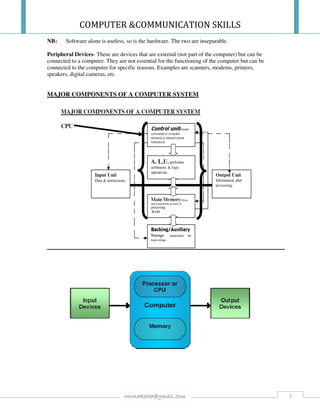
MAJOR COMPONENTS OF A COMPUTER SYSTEM
COMPUTER &COMMUNICATION SKILLS
4rmmakaha@gmail.com
DESCRIBE THE FUNCTIONS OF EACH COMPONENT.
INPUT UNIT
• Data and instructions must enter the computer system before any computation can be
performed on the supplied data. The input unit that links the external environment with the
computer system performs this task. Data and instructions enter input units in forms that
depend upon the particular device used. For example, data is entered from a keyboard in a
manner similar to typing, and this differs from the way in which data is entered through a
mouse, which is another type of input device. However, regardless of the form in which they
receive their inputs, all input devices must provide a computer with data that are transformed
into the binary codes that the primary memory of the computer is designed to accept. This
transformation is accomplished by units that called input interfaces. Input interfaces are
designed to match the unique physical or electrical characteristics of input devices to the
requirements of the computer system.
In short, an input unit performs the following functions.
1. It accepts (or reads) the list of instructions and data from the outside world.
2. It converts these instructions and data in computer acceptable format.
3. It supplies the converted instructions and data to the computer system for further
processing.
OUTPUT UNIT
• The job of an output unit is just the reverse of that of an input unit. It supplied information
and results of computation to the outside world. Thus it links the computer with the external
environment. As computers work with binary code, the results produced are also in the binary
form. Hence, before supplying the results to the outside world, it must be converted to human
acceptable (readable) form. This task is accomplished by units called output interfaces.
In short, the following functions are performed by an output unit.
1. It accepts the results produced by the computer which are in coded form and hence
cannot be easily understood by us.
2. It converts these coded results to human acceptable (readable) form.
3. It supplied the converted results to the outside world.
STORAGE UNIT
• The data and instructions that are entered into the computer system through input units have
to be stored inside the computer before the actual processing starts. Similarly, the results
produced by the computer after processing must also be kept somewhere inside the computer
system before being passed on to the output units. Moreover, the intermediate results
produced by the computer must also be preserved for ongoing processing. The Storage Unit
or the primary / main storage of a computer system is designed to do all these things. It
provides space for storing data and instructions, space for intermediate results and also space
for the final results.
In short, the specific functions of the storage unit are to store:
1. All the data to be processed and the instruction required for processing (received from
input devices).
2. Intermediate results of processing.
3. Final results of processing before these results are released to an output device.
Central Processing Unit (CPU)
COMPUTER &COMMUNICATION SKILLS
5rmmakaha@gmail.com
• The main unit inside the computer is the CPU. This unit is responsible for all events inside
the computer. It controls all internal and external devices, performs "Arithmetic and Logical
operations". The operations a Microprocessor performs are called "instruction set" of this
processor. The instruction set is “hard wired” in the CPU and determines the machine
language for the CPU. The more complicated the instruction set is, the slower the CPU
works. Processors differed from one another by the instruction set. If the same program can
run on two different computer brands they are said to be compatible. Programs written for
IBM compatible computers will not run on Apple computers because these two architectures
are not compatible.
• The control Unit and the Arithmetic and Logic unit of a computer system are jointly known
as the Central Processing Unit (CPU). The CPU is the brain of any computer system. In a
human body, all major decisions are taken by the brain and the other parts of the body
function as directed by the brain. Similarly, in a computer system, all major calculations and
comparisons are made inside the CPU and the CPU is also responsible for activating and
controlling the operations of other units of a computer system.
ARITHMETIC AND LOGIC UNIT (ALU)
• The arithmetic and logic unit (ALU) of a computer system is the place where the actual
execution of the instructions take place during the processing operations. All calculations
are performed and all comparisons (decisions) are made in the ALU. The data and
instructions, stored in the primary storage prior to processing are transferred as and when
needed to the ALU where processing takes place. No processing is done in the primary
storage unit. Intermediate results generated in the ALU are temporarily transferred back
to the primary storage until needed at a later time. Data may thus move from primary
storage to ALU and back again as storage many times before the processing is over. After
the completion of processing, the final results which are stored in the storage unit are
released to an output device.
• The arithmetic and logic unit (ALU) is the part where actual computations take place. It
consists of circuits that perform arithmetic operations (e.g. addition, subtraction,
multiplication, division over data received from memory and capable to compare
numbers (less than, equal to, or greater than).
• While performing these operations the ALU takes data from the temporary storage are
inside the CPU named registers. Registers are a group of cells used for memory
COMPUTER &COMMUNICATION SKILLS
6rmmakaha@gmail.com
addressing, data manipulation and processing. Some of the registers are general purpose
and some are reserved for certain functions. It is a high-speed memory which holds only
data from immediate processing and results of this processing. If these results are not
needed for the next instruction, they are sent back to the main memory and registers are
occupied by the new data used in the next instruction.
• All activities in the computer system are composed of thousands of individual steps.
These steps should follow in some order in fixed intervals of time. These intervals are
generated by the Clock Unit. Every operation within the CPU takes place at the clock
pulse. No operation, regardless of how simple, can be performed in less time than
transpires between ticks of this clock. But some operations required more than one clock
pulse. The faster the clock runs, the faster the computer performs. The clock rate is
measured in megahertz (Mhz) or Gigahertz (Ghz). Larger systems are even faster. In
older systems the clock unit is external to the microprocessor and resides on a separate
chip. In most modern microprocessors the clock is usually incorporated within the CPU.
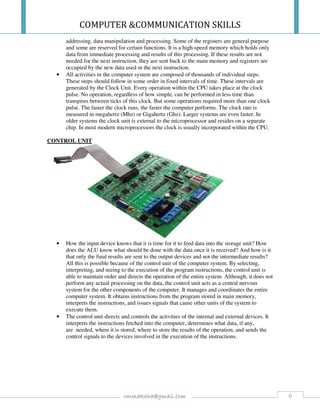
CONTROL UNIT
• How the input device knows that it is time for it to feed data into the storage unit? How
does the ALU know what should be done with the data once it is received? And how is it
that only the final results are sent to the output devices and not the intermediate results?
All this is possible because of the control unit of the computer system. By selecting,
interpreting, and seeing to the execution of the program instructions, the control unit is
able to maintain order and directs the operation of the entire system. Although, it does not
perform any actual processing on the data, the control unit acts as a central nervous
system for the other components of the computer. It manages and coordinates the entire
computer system. It obtains instructions from the program stored in main memory,
interprets the instructions, and issues signals that cause other units of the system to
execute them.
• The control unit directs and controls the activities of the internal and external devices. It
interprets the instructions fetched into the computer, determines what data, if any,
are needed, where it is stored, where to store the results of the operation, and sends the
control signals to the devices involved in the execution of the instructions.
COMPUTER &COMMUNICATION SKILLS
7rmmakaha@gmail.com
MAIN MEMORY VS SECONDARY MEMORY (RAM VS ROM)
Main memory Auxiliary or backup storage
Stores programs and data while computer is running
for current use
Store data or programs for later use
Main memory is fast and limited in capacity Slow and capacity vary
Cannot retain information when the computer is
switched off - Volatile
Non volatile
Memory directly connected to the CPU - not portable Portable- can be transported from one
machine to another.
Primary storage Secondary storage
PROVIDES FAST ACCESS ACCESS IS SLOW
Temporary Permanent
Computer cannot do or work without Can do or work without
CLASSIFICATION OF COMPUTERS
Computers differ based on their data processing abilities. They are classified according to
purpose, data handling and functionality.
• According to purpose, computers are either general purpose or specific purpose.
General purpose computers are designed to perform a range of tasks. They have the
ability to store numerous programs, but lack in speed and efficiency.
Specific purpose computers are designed to handle a specific problem or to perform a
specific task. A set of instructions is built into the machine.
• According to data handling, computers are analog, digital or hybrid.
ANALOG COMPUTERSwork on the principle of measuring, in which the
measurements obtained are translated into data. Modern analog computers usually
employ electrical parameters, such as voltages, resistances or currents, to represent the
quantities being manipulated. Such computers do not deal directly with the numbers.
They measure continuous physical magnitudes.
DIGITAL COMPUTERSare those that operate with information, numerical or
otherwise, represented in a digital form. Such computers process data into a digital
value (in 0s and 1s). They give the results with more accuracy and at a faster rate.
Hybrid computers incorporate the measuring feature of an analog computer and
counting feature of a digital computer. For computational purposes, these computers
use analog components and for storage, digital memories are used.
• According to functionality, computers are classified as :
Analog Computer
An analog computeris a form of computer that uses continuous physical
phenomena such as electrical, mechanical, or hydraulic quantities to model the
problem being solved
Digital Computer
A computer that performs calculations and logical operations with quantities
represented as digits, usually in the binary number system
COMPUTER &COMMUNICATION SKILLS
8rmmakaha@gmail.com
Hybrid Computer (Analog + Digital)
A combination of computers those are capable of inputting and outputting in both
digital and analog signals. A hybrid computer system setup offers a cost effective
method of performing complex simulations.
CLASSIFICATION ON THE BASIS OF SIZE
Major classes or categories of computers
1. Supercomputer
2. Mainframe Computer
3. Minicomputer
4. Microcomputer
SUPERCOMPUTER
• The most powerful computers in terms of performance and data processing are the
Supercomputers. These are specialized and task specific computers used by large
organizations. These computers are used for research and exploration purposes, like NASA
uses supercomputers for launching space shuttles, controlling them and for space exploration
purpose.
• The supercomputers are very expensive and very large in size. It can be accommodated in
large air-conditioned rooms; some super computers can span an entire building.
• Seymour Cray designed the first Supercomputer "CDC 6600" in 1964. CDC 6600 is known
as the first ever Supercomputer.
Exascale Supercomputer
• On 29th
July, 2015, President of the United States, Barack Obama, approved the
development of an Exascale Super Computer. The Exascale Super computer will be 30
times faster and more powerful than today’s fastest Super Computers. The need to
develop such a high performance Supercomputer comes after China’s surge in high
performance computing. However, the US still tops the list of Supercomputers with 233
high performance machines. China has 37 Supercomputers but they lead the list of the
most powerful and high performance supercomputers since June 2013.
• Presently, China’s "Tianhe – 2" is the world’s faster Supercomputer.
• The Tianhe – 2 can perform 100 Petaflops, i.e quadrillions of floating point operations
per second.
The following table shows list of top five most powerful Supercomputers in the world.
Top five Supercomputers
RANK SITE SYSTEM CORES
RMAX
(TFLOPS/S)
RPEAK
(TFLOPS/S)
POWER
(KW)
1
National Super computer in
Guanzhou, China
Tianhe - 2
(MilkyWay - 2)
3,120,000 33,862.7 54,902.4 17,808
2
DOE/SC/Oak Ridge National
Laboratory, United States
Titan - Cray XK7,
Cray Inc.
560,640 17,590.0 27,112.5 8,209
3 DOE/NNSA/LLNL, United States
Sequoia -
BlueGene/Q, IBM
1,572,864 17,173.2 20,132.7 7,890
4
RIKEN Advanced Institute for
Computational Science (AICS)
Japan
K Computer, Tofu
Interconnect Fujitsu.
705,024 10,510.0 11,280.4 12,660
5
DOE/SC/Argonne National
Laboratory, United States
Mira - BlueGene/Q,
Custom IBM
786,432 8,586.6 10,066.3 3,945
COMPUTER &COMMUNICATION SKILLS
9rmmakaha@gmail.com
USES OF SUPERCOMPUTERS
In Pakistan Supercomputers are used by Educational Institutes like NUST for research purposes.
Pakistan Atomic Energy commission & Heavy Industry Taxila uses supercomputers for Research
purposes.
• Space Exploration
Supercomputers are used to study the origin of the universe, the dark-matters. For these
studies scientist use IBM’s powerful supercomputer “Roadrunner” at National
Laboratory Los Alamos.
• Earthquake studies
Supercomputers are used to study the Earthquakes phenomenon. Besides that
supercomputers are used for natural resources exploration, like natural gas, petroleum,
coal, etc.
• Weather Forecasting
Supercomputers are used for weather forecasting, and to study the nature and extent of
Hurricanes, Rainfalls, windstorms, etc.
• Nuclear weapons testing
Supercomputers are used to run weapon simulation that can test the Range, accuracy &
impact of Nuclear weapons.
Popular Supercomputers
• IBM’s Sequoia, in United States
• Fujitsu’s K Computer in Japan
• IBM’s Mira in United States
• IBM’s SuperMUC in Germany
• NUDT Tianhe-1A in China
MAINFRAME COMPUTER
Although Mainframes are not as powerful as supercomputers, but certainly they are quite
expensive nonetheless, and many large firms & government organizations uses Mainframes to
run their business operations. The Mainframe computers can be accommodated in large air-
conditioned rooms because of its size. Super-computers are the fastest computers with large data
storage capacity, Mainframes can also process & store large amount of data. Banks educational
institutions & insurance companies use mainframe computers to store data about their customers,
students & insurance policy holders.
Popular Mainframe computers
• Fujitsu’s ICL VME
• Hitachi’s Z800
MINICOMPUTER
Minicomputers are used by small businesses & firms. Minicomputers are also called as
“Midrange Computers”. These are small machines and can be accommodated on a disk with not
as processing and data storage capabilities as super-computers & Mainframes. These computers
are not designed for a single user. Individual departments of a large company or organizations use
Mini-computers for specific purposes. For example, a production department can use Mini-
computers for monitoring certain production process.
Popular Minicomputers
COMPUTER &COMMUNICATION SKILLS
10rmmakaha@gmail.com
• K-202
• Texas Instrument TI-990
• SDS-92
• IBM Midrange computers
MICROCOMPUTER
Desktop computers, laptops, personal digital assistant (PDA), tablets & smartphones are all types
of microcomputers. The micro-computers are widely used & the fastest growing computers.
These computers are the cheapest among the other three types of computers. The Micro-
computers are specially designed for general usage like entertainment, education and work
purposes. Well known manufacturers of Micro-computer are Dell, Apple, Samsung, Sony &
Toshiba.
Desktop computers, Gaming consoles, Sound & Navigation system of a car, Netbooks,
Notebooks, PDA’s, Tablet PC’s, Smartphones, Calculators are all type of Microcomputers.
The main differences among the above computer types are in:
• Processing speed,
• Memory capacity
• Number and capabilities or peripheral devices that can be attached to the computer
• Usage.
COMPUTER APPLICATIONS
a) Business- for administration, payroll and accounting.
b) Government- keeping database records.
c) Education- Record keeping, accounting and training in the classroom.
d) Health- Record keeping, life-support systems.
e) Sport- fitness monitoring.
f) Art and Design- desktop Publishing, technical graphics, Computer Aided Design.
g) Homes- PCs for home accounts, games, e-mail, online shopping, home education etc.
h) Banks- Record keeping and updating, on-line Automated Teller Machines (ATMs).
i) Supermarkets- Electronic point Of Sale Machines (EPOS) – tills.
FACTORS TO CONSIDER WHEN YOU WANT TO PURCHASE OR BUYA
COMPUTER
1. COST; how much can I afford to pay for a computer? Prices of personal
computers range from a few hundred to thousands of dollars. Faster and more
feature-rich PCs are usually more expensive.
2. AREA OF USE; where will my new PC be used? If you will be using it only in
your home or office, a desktop computer will be suitable. However, if you will need
to take it with you, you should consider purchasing a laptop (notebook) computer.
3. APPLICATIONS PACKAGES; Which application packages will I run on my
computer? Make a list of applications for which you plan to use your PC. For
example, will you use your PC to prepare letters and reports? Analyze numeric and
financial data? Prepare visual presentations? Access the Internet? Listen to music?
Create and work with graphics?
COMPUTER &COMMUNICATION SKILLS
11rmmakaha@gmail.com
4. DURATION; How long will I keep this computer?Try to estimate the length of
time (years) you will use your computerbefore BUYING the next one. If you expect
use your PC for several years or if you think you may later want to add new
applications, CONSIDER one that is expandable, so you can add new components,
such as a modem, printer, or add-on boards. Make sure the PC has expansion slots so
you can connect these devices to your PC.
5. MANUFACTURER AND SELLER REPUTATION. Check out the
manufacturers and seller’s reputations.Talk with friends, co-workers, classmates,
teachers, and others about their PCs. Ask about the performance of their PCs and get
recommendations from persons you trust. Eventually you may need to have your PC
serviced. Ideally, the vendor has a service department that can repair your PC. If not,
you may need to locate a third-party to provide this service. Reputable computer
manufactures include:
1. Hewlett-Packard 2. Apple 3. Sun Microsystems 4. Dell 5. Panasonic 6.Sony 7.Toshiba
8. Shuttle 9. IBM 10. Samsung Electronics 11. Hitachi 12. Fujitsu Siemens
6. WARRANTIES & GUARANTEES
7. PC ARCHITECTURE. PC architecture refers to the design and construction of the
PC and its system unit, and not all architectures are the same. For example, the
architecture of an Apple Macintosh differs from that of an IBM or compatible PC.
Therefore, software written for an Apple Macintosh PC may not run on an IBM or
IBM-compatible PC. Although some users prefer a Macintosh PC, more software is
available for IBM and IBM-compatible PCs.
8. MICROPROCESSOR SPEED. Selecting the right microprocessor is extremely
important. Processing speed, measured in megahertz (MHz) or gigahertz (GHz), is
probably the first consideration. The higher the number of MHz or GHz, the faster
the processor will manipulate data. If speed is important, consider choosing a
microprocessor with a speed of 2 GHz or more. PCs containing microprocessors with
speeds up to 10 GHz and higher are available.
9. MAIN MEMORY (RAM). Main memory (RAM) is needed for the temporary
storage of programs and data while the data is being processed. Some application
software requires a considerable amount of RAM to function properly, and newer
software versions usually require more RAM than older versions. Typical PCs now
come with 2 gigabytes (GB), 5GB, or more of RAM. Make certain the PC has
sufficient RAM to run the software you will be using.
10. SECONDARY STORAGE (ROM). What type(s) and amounts of secondary
storage are you likely to need? Typical computers come with a floppy disk drive, cd
drive, USB port/ drive and a hard disk drive already installed. A hard disk drive
contains one or more rigid storage platters and provides for the permanent storage of
considerably more data. However, the disk itself cannot be removed from the drive.
The STORAGE CAPACITY of a hard disk is an important consideration because it
is used to store all system and application software. Typical hard disk capacities are
100, 200, 500GB or 2TB and more. Be certain the PC you are considering has
sufficient secondary capacity for your needs
COMPUTER &COMMUNICATION SKILLS
12rmmakaha@gmail.com
CD-ROM or DVD drives provide high storage capacities. Most software publishers
store their programs on CD-ROM or DVDs because of the high capacity and because
DVD/CD-ROMs operate faster than floppy disks.
If you will use your PC to play movies, your purchase should include a DVD (digital
video disk) drive. If you will work with large files, consider purchasing a computer
that includes a DVD/CD-RW drive. A DVD/CD-RW disk is a reusable high-capacity
disk that allows you to store huge amounts of data and to erase data no longer
needed.
11. PORTS. The number of ports (slots) available inside the system unit determines the
number of add-on boards that can be installed inside the system unit. For example,
you cannot connect a printer to your computer unless your computer is equipped with
an appropriate port (slot). Be sure the PC contains the necessary slots for the add-on
boards and peripheral devices you will be using with your computer.
12. INPUT DEVICES. Typical input devices are a keyboard and a mouse, although
other kinds of input devices are available. Most keyboards and mice operate
similarly. However, there are slight differences in how each "feels" to the user.
Before buying a PC, you may want to test the keyboard and mouse for comfort and
ease of use. Some sellers will allow you to exchange the keyboard or mouse that
comes with the computer for a different one.
13. OUTPUT DEVICES. Output devices produce output in either soft copy or hard
copy form. Most PCs come with a monitor (for soft copy output), but you may have
to purchase a hard copy device, such as a printer, separately.
14. MONITORS. There are wide differences among PC monitors, with resolution being
perhaps the most important variable.
Resolution refers to the clarity of the text and images being displayed. Before making
a purchase, carefully evaluate the monitor’s resolution. Many vendors allow you to
choose from monitors with varying resolutions. A resolution of 1,024 by 1,024 is
considered high-resolution, in which text and images display exceptionally clearly.
High-resolution monitors are typically more expensive.
Monitor size is another important consideration. Viewing areas range from 15
diagonal inches to 21 inches and higher. Larger monitors are usually more expensive,
but may be worth the extra cost. For example, an individual with weak vision may
prefer a larger monitor. If your desktop space is limited, consider purchasing a flat-
panel monitor, which occupies less space. Flat-panels are more expensive than
standard monitors, however.
DATA
Relationship between Data and Information
Data is raw information
a collection of facts from which conclusions may be drawn; "statistical data"
INFORMATION
Data that has been processed to add or create meaning and hopefully knowledge
for the person who receives it. Information is the output of information systems.
Organized data which is understood to have significance and meaning
COMPUTER &COMMUNICATION SKILLS
13rmmakaha@gmail.com
DATA PROCESSING
Used specifically, data processing may refer to a discrete step in the information processing cycle
in which data is acquired, entered, validated, processed, stored, and output, either in response to
queries or in the form of routine reports; the processing is the step that organizes the information
in order to form the desired output. Used in a more general sense, data processing may also refer
to the act of recording or otherwise handling one or more sets of data, and is often performed with
the use of computers. The word data is commonly used to mean “information” and often suggests
large amounts of information in a standardized format. Data may consist of letters, numbers,
equations, dates, images, and other material, but does not usually include entire words.
THE DATA PROCESSING CYCLE
The data processing cycle is the order in which data is processed. There are four stages:-
Input
This is the first event in the cycle. This stage involves collection of data from the outside or also
from within the system. One can break this stage into three more stages, namely acquisition, data
entry and validation. After the data has been acquired from the source, it is entered into the
current system, upon which the data is validated, so that correct results are given at the end of the
cycle. The input devices are many. The commonly used input devices are computer keyboard, bar
code readers, scanners, output from another system, etc.
Processing
In this stage the computer processes the minutest details entered. This processing makes the data
entered usable. If the computer was not to process the data, it would not be of any use and it
would also be a big mess of data. For example, if the spreadsheet was not to process the data, then
the data in the spreadsheet would only be a mess of numbers. The spreadsheet is a program which
gives the data out back to the user in the usable form. The system used for processing, along with
the data entered will decide the kind of output, which the user will get.
Output
If you have to look at the diagram of data/ information processing cycle, the step after processing
is the output stage. The processed information is now transmitted to the user. This stage can also
be further divided. After processing the data, there can be further interactive queries asked or
routine reports can be given. There are different forms in which the output can be given to the
user. There can be print report, which may be given to the user. The output can also be given in
the form of audio, video as well. In some cases, the results may only be displayed on the
computer monitor.
Storage
COMPUTER &COMMUNICATION SKILLS
14rmmakaha@gmail.com
After the data has been processed, along with the output to the user, the data is also stored.
Different computer storage devices can be used for the same. Some of the commonly used data
storage methods are disk storage, tertiary storage, etc. Storing the data also serves another
purpose. You will not have to repeat the entire cycle again. Often the storage is done in both
digital as well as hard copy format. At the same time, backup of the digital format is also
maintained, which can be retrieved in case of system crash.
The most important advantage of this cycle is that the information is processed quickly. At the
same time retrieving the data is an easy task as well. The processed information can further be
passed unto the next stage directly in case the need be. The necessary data is stored, which helps
in avoiding duplication of data as well as time.
ATTRIBUTES OF GOOD INFORMATION
Quality
Required
Commentary
Relevant The information obtained and used should be needed for decision-making. it doesn't
matter how interesting it is. Businesses are often criticised for producing too much
information simply because their information systems can "do it". A good way of ensuring
relevance is to closely define the objectives of any information reports. Another way to
improve relevance is to produce information that focuses on "exceptions" - e.g. problems,
high or low values, where limits have been exceeded.
Up-to-date Information needs to be timely if it is to be actioned. For example, the manager of a large
retail business needs daily information on how stores are performing, which products are
selling well (or not) so that immediate action can be taken. To improve the speed with
which information is produced, businesses usually need to look at upgrading or replacing
their information systems.
Accurate As far as possible, information should be free from errors (e.g. the figures add up; data is
allocated to the correct categories). The users of information should be informed whenever
assumptions or estimates have been used. Accruate information is usually a function of
accurate data collection. If information needs to be extremely accurate, then more time
needs to be allocated for it to be checked. However, businesses need to guard against
trying to produce "perfect" information - it is often more important for the information to
be up-to-date than perfect.
Meet the needs
of the User
Users of information have different needs. The managing director doesn't have time to
trawl through thick printouts of each week's production or sales listings - he or she wants a
summary of the key facts. The quality control supervisor will want detailed information
about quality testing results rather than a brief one-line summary of how things are going.
It is a good idea to encourage users to help develop the style and format of information
reporting that they require.
Easy to use
and
understand
Information should be clearly presented (e.g. use summaries, charts) and not too long. It
also needs to be communicated using an appropriate medium (e.g. email, printed report,
presentation. Businesses should also consider developing "templates" which are used
consistently throughout the organisation - so that users get used to seeing information in a
similar style.
Worth the cost Often forgotten. Information costs money. Data is costly to collect, analyse and report.
Information takes time to read and assimilate. All users should question whether the
information they recieve/have requested is worthwhile
Reliable Information should come from authoritative sources. It is good practice to quote the source
used - whether it be internal or external sources. If estimates or assumptions have been
applied, these should be clearly stated and explained.
1) Valid
COMPUTER &COMMUNICATION SKILLS
15rmmakaha@gmail.com
2) Fit for use
3) Accessible
4) Cost effective
5) Understandable
6) Time
COMPUTER EQUIPMENT
INPUT DEVICES
These are some devices that feed data into the computer for processing. Some examples
include:-
1. KEYBOARD
2. MOUSE
3. TRACKBALL
4. LIGHT PEN
5. TOUCH SCREEN
6. MODEM
7. SCANNER
8. MICROPHONE
9. BAR CODE READER
10. DIGITAL CAMERA
11. VIDEO DIGITISER
12. MAGNETIC INK CHARACTER RECOGNITION (MICR)
13. MAGNETC STRIPS OR STRIPES READER
14. KEY TO DISK
15. GRAPHICS TABLET
16. OCR
17. OMR
18. VOICE RECOGNITION SYSTEM
Storage devices can be used as input devices
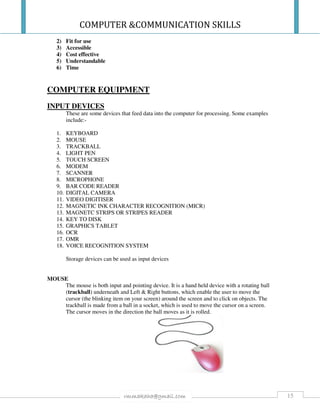
MOUSE
The mouse is both input and pointing device. It is a hand held device with a rotating ball
(trackball) underneath and Left & Right buttons, which enable the user to move the
cursor (the blinking item on your screen) around the screen and to click on objects. The
trackball is made from a ball in a socket, which is used to move the cursor on a screen.
The cursor moves in the direction the ball moves as it is rolled.
COMPUTER &COMMUNICATION SKILLS
16rmmakaha@gmail.com
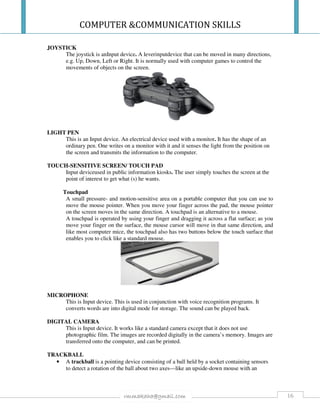
JOYSTICK
The joystick is anInput device. A leverinputdevice that can be moved in many directions,
e.g. Up, Down, Left or Right. It is normally used with computer games to control the
movements of objects on the screen.
LIGHT PEN
This is an Input device. An electrical device used with a monitor. It has the shape of an
ordinary pen. One writes on a monitor with it and it senses the light from the position on
the screen and transmits the information to the computer.
TOUCH-SENSITIVE SCREEN/ TOUCH PAD
Input deviceused in public information kiosks. The user simply touches the screen at the
point of interest to get what (s) he wants.
Touchpad
A small pressure- and motion-sensitive area on a portable computer that you can use to
move the mouse pointer. When you move your finger across the pad, the mouse pointer
on the screen moves in the same direction. A touchpad is an alternative to a mouse.
A touchpad is operated by using your finger and dragging it across a flat surface; as you
move your finger on the surface, the mouse cursor will move in that same direction, and
like most computer mice, the touchpad also has two buttons below the touch surface that
enables you to click like a standard mouse.
MICROPHONE
This is Input device. This is used in conjunction with voice recognition programs. It
converts words are into digital mode for storage. The sound can be played back.
DIGITAL CAMERA
This is Input device. It works like a standard camera except that it does not use
photographic film. The images are recorded digitally in the camera’s memory. Images are
transferred onto the computer, and can be printed.
TRACKBALL
• A trackball is a pointing device consisting of a ball held by a socket containing sensors
to detect a rotation of the ball about two axes—like an upside-down mouse with an
COMPUTER &COMMUNICATION SKILLS
17rmmakaha@gmail.com
exposed protruding ball. The user rolls the ball with the thumb, fingers, or the palm of the
hand to move a pointer.
• Compared with a mouse, a trackball has no limits on effective travel; at times, a mouse
can reach an edge of its working area while the operator still wishes to move the screen
pointer farther. With a trackball, the operator just continues rolling, whereas a mouse
would have to be lifted and re-positioned. Some trackballs have notably low friction, as
well as being made of dense material such as glass, so they can be spun to make them
coast. The trackball's buttons may be situated to that of a mouse or to a unique style that
suits the user.
• Large trackballs are common on CAD workstations for easy precision. Before the advent
of the touchpad, small trackballs were common on portable computers, where there may
be no desk space on which to run a mouse. Some small thumb balls clip onto the side of
the keyboard and have integral buttons with the same function as mouse buttons.
KEY TO DISK
An early stand-alone data entry machine that stored data on magnetic disk for computer entry.
The key to disk machine was the successor to the key-to-tape machine, which was the first major
breakthrough in data entry since the punch card.
BARCODE READER
A barcode reader, also called a price scanner or point-of-sale ( POS ) scanner, is a hand-held or
stationary input device used to capture and read information contained in a bar code . A barcode
reader consists of a scanner , a decoder (either built-in or external), and a cable used to connect
the reader with a computer. Because a barcode reader merely captures and translates the barcode
into numbers and/or letters, the data must be sent to a computer so that a software application can
make sense of the data. Barcode scanners can be connected to a computer through a serial port ,
keyboard port , or an interface device called a wedge . A barcode reader works by directing a
beam of light across the bar code and measuring the amount of light that is reflected back. (The
dark bars on a barcode reflect less light than the white spaces between them.) The scanner
converts the light energy into electrical energy, which is then converted into data by the decoder
and forwarded to a computer.
COMPUTER &COMMUNICATION SKILLS
18rmmakaha@gmail.com
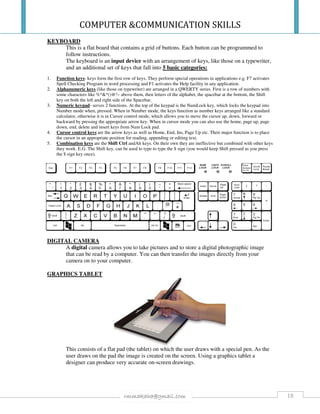
KEYBOARD
This is a flat board that contains a grid of buttons. Each button can be programmed to
follow instructions.
The keyboard is an input device with an arrangement of keys, like those on a typewriter,
and an additional set of keys that fall into 5 basic categories:
1. Function keys- keys form the first row of keys. They perform special operations in applications e.g. F7 activates
Spell Checking Program in word processing and F1 activates the Help facility in any application.
2. Alphanumeric keys (like those on typewriter) are arranged in a QWERTY series. First is a row of numbers with
some characters like %^&*()@!~ above them, then letters of the alphabet, the spacebar at the bottom, the Shift
key on both the left and right side of the Spacebar.
3. Numeric keypad- serves 2 functions. At the top of the keypad is the NumLock key, which locks the keypad into
Number mode when, pressed. When in Number mode, the keys function as number keys arranged like a standard
calculator, otherwise it is in Cursor control mode, which allows you to move the cursor up, down, forward or
backward by pressing the appropriate arrow key. When in cursor mode you can also use the home, page up, page
down, end, delete and insert keys from Num Lock pad.
4. Cursor control keys are the arrow keys as well as Home, End, Ins, Page Up etc. Their major function is to place
the cursor in an appropriate position for reading, appending or editing text.
5. Combination keys are the Shift Ctrl andAlt keys. On their own they are ineffective but combined with other keys
they work. E.G. The Shift key, can be used to type to type the $ sign (you would keep Shift pressed as you press
the $ sign key once).
DIGITAL CAMERA
A digital camera allows you to take pictures and to store a digital photographic image
that can be read by a computer. You can then transfer the images directly from your
camera on to your computer.
GRAPHICS TABLET
This consists of a flat pad (the tablet) on which the user draws with a special pen. As the
user draws on the pad the image is created on the screen. Using a graphics tablet a
designer can produce very accurate on-screen drawings.
COMPUTER &COMMUNICATION SKILLS
19rmmakaha@gmail.com
MICR (MAGNETIC INK CHARACTER READER)
Magnetic ink characters are the strange looking numbers that appear at the bottom of
cheques. These characters are used because they are very difficult to forge or damage.
Banks use MICR to read the numbers from the bottom of cheques to obtain data such as
account numbers and bank sort codes.
MAGNETIC STRIP (OR STRIPE) READER
Magnetic strips are built into many plastic cards such as cheque guarantee cards, cash-
point cards and personal identity cards. The magnetic strip on the back of the card can
hold the personal details of the card owner and, with the necessary PIN, will allow access
to secure information e.g. bank account details. Data stored on the strip is scanned and
input into a computer system by a reader.
MIDI (MUSICAL INSTRUMENT DIGITAL INTERFACE)
A MIDI system allows you to attach a musical instrument to your computer, for example
a musical keyboard. You can then store a musical sequence on a computer and then have
the computer play it back to you.
OMR (OPTICAL MARK READER)
An OMR reads marks made by pencil on a printed form into the computer. OMR systems
are suited to reading pre-printed forms and check-boxes such as National Lottery number
selection sheets and multiple-choice exam papers.
OMR processing is popular for tests, where students receive a special card containing
several empty circles and a packet that contains the questions and possible answers to
each of the questions. The student must complete the test by using a pencil to fill in each
blank circle with what he or she believes is the correct answer. For example, if the answer
is "B", the student would have to fill in the "B Circle" in order to get the answer correct.
SCANNER
Hardware input device that allows a user to take an image or text and convert it into a
digital file, allowing the computer to read or display the scanned object. A scanner is
COMPUTER &COMMUNICATION SKILLS
20rmmakaha@gmail.com
commonly connected to a computer USB, Firewire, Parallel, or SCSI port. Scanners are
now a cheap and common way of getting images into a computer. They can also be used
with OCR (Optical Character Recognition) software to scan in text.
It works like a photocopier but copies an image from text to computer mode. There is
need for OCR (Optical Character Recognition) software to change the text into digital
form, and to be able to modify the scanned image.
TOUCH SCREEN
A touch screen is a special type of VDU, which has a grid of light beams or fine wires
criss-crossing the screen. When the screen is touched (usually to choose an on-screen
option), the computer senses where you have pressed. Due to the vast amount of
information they can store, touch screen operated computers are generally used in the
provision of public information and are found in places such as airports.
VIDEO DIGITISER
A video digitizer takes an image from a video camera or television and converts it so that
it can be used by, and stored on, a computer. Video sequences captured using a video
digitizer is often used in multimedia presentations.
VOICE RECOGNITION SYSTEM
A microphone is used with a voice recognition system. This can be used with a word
processing program to enter text. It can also be used as part of security systems - only
certain digitally stored voices have access.
TEXT INPUT DEVICES
• Chorded keyboard ,GKOS keyboard ,Keyer ,Telegraph key (~20 WPMMorse
code)
• Vibroplex (30–80 WPM Morse) ,Keyboard, Typing ,Computer keyboard
• Handwriting recognition ,Optical character recognition ,Speech recognition
POINTING DEVICES
• Light pen,Light gun,Cyberglove ,Touch screen ,Head pointer ,Eye gaze/eye
tracking
• Computer mouse ,Trackball ,Touchpad ,Pointing stick ,Graphics tablet (or
digitizing tablet) ,Stylus
GAMING DEVICES
• paddle, Power Pad, Joystick ,Gamepad (or joypad)
IMAGE, VIDEO INPUT
DEVICES
• Digital camcorder ,Webcam, Digital video recorder,Image scanner
• 3D scanner ,Digital camera
AUDIO INPUT DEVICES
• Microphone (see also speech recognition) ,Digital audio recorder ,Digital
dictaphone
COMPUTER &COMMUNICATION SKILLS
21rmmakaha@gmail.com
OUTPUT DEVICES
1. LOUD SPEAKER
Allows a user to hear sounds and music from the computer provided the system has
installed a sound card.
2. MODEM
An Input/ Output electronic device with circuits which changes data to be transmitted
from its machine form (digital form) into a form suitable for transmission over the
telephone line (analogue form). At the receiving end it converts data vice-versa. It is
only necessary when one needs to communicate information over a long distance and
when connected to the internet.
3. HEADPHONES
Headphones give sound output from the computer. They are similar to speakers,
except they are worn on the ears so only one person can hear the output at a time
4. PLOTTERS
A
plotter can be used to produce high
quality, accurate, A3 size or bigger
drawings. They are usually used for
Computer Aided Design (CAD) and
Computer Aided Manufacture (CAM)
applications such as printing out plans for houses or car parts.
Plotters:
How it works: • A drum plotter prints by moving a pen sideways
over the surface of a sheet of paper.
• One high precision motor moves the pen from side
to side.
• Another high precision motor moves the paper
backwards and forwards.
• An electromagnet lifts and drops different coloured
ink pens onto the paper to draw lines.
• A flat-bed plotter uses two high precision motors, one to move the
• pen in the X direction and one to move it in the Y direction.
• The paper does not move.
Suitable uses: • Plotters are restricted to line drawing and can only create a solid
region of colour by drawing a number of close, regular lines.
• Plotters are often used in science and engineering applications for
drawing building plans, printed circuit boards and machine parts.
Advantages: • They are accurate and can produce far larger printoutsthan
COMPUTER &COMMUNICATION SKILLS
22rmmakaha@gmail.com
standard printers.
Disadvantages: • Slow and relatively expensive compared to printers.
• They cannot print raster (photographic) images.
• They can only fill solid blocks of colour using closely hatched lines.
5. SPEAKER
A speaker gives you sound output from your computer. Some speakers are built
into the computer and some are separate
6. VDU (Visual Display Unit)
The VDU is output device. It displays images and text in colour or black and white as
it. It displays results of processing. It is also called a monitor.
7. PRINTERS
It produces output on paper i.e. hard copy or on other print-key media. The 2 types of
printers are impact and non-impact.
Impact printers
The printing device being a series of pins have a direct impact on the paper. The pins
form characters on the paper by pressing a printing element and an inked ribbon
against paper. An example of such a printer is the Dot Matrix. The printers are
reasonably fast, inexpensive and can produce both text and graphics. They also
accommodate various paper sizes but are however noisy.
Non-impact printers
These are quieter printers and examples include LaserJet and inkjet printers. The
Laser printers are a more popular choice for business use. They use a printing
technique similar to that used in a photocopying machine. A laser beam is used to
form an image onto the paper using toner. The print quality is high. Lasers are fast,
and quiet. They print graphics but are more expensive.
The ink-jet printers are mainly colour printers which mix ink depending on the
image colour and spray it onto the paper. The toner has the 4 basic colours. They are
slow, expensive and have a high print quality.
What is the difference between impact and non-impact printers?
IMPACT NON IMPACT
Makes noise when printing Quiet printers
Print head makes contact with the paper No contact creates an image without striking a
ribbon against the paper.Creates images on a
surface without contacting it.
Strike ribbon against the paper Use a laser beam which form an image onto
paper using toner
Slow printer Fast printers
Use ribbons or ink Use toner
Has too many moving parts hence unreliable Has fewer moving parts hence they are
reliable.
Impact printers are relatively inexpensive, and the
cost of printing is also low because ink ribbons are
inexpensive.
Very expensive computers
Give two advantages of non-impact printers over impact printers.
COMPUTER &COMMUNICATION SKILLS
23rmmakaha@gmail.com
Have high print quality
They are fast and do not make noise
They are reliable because they have less moving parts
See above [non impact section]
Give three examples of impact printers &three examples of non-impact printers.
Impact printers Non impact printers
Dot matrix Laser
Daisy wheel printers Inkjet
Line printers LED
Chain printers Thermal
Magnetic
Electrostatic
Xerographic
NON-IMPACT PRINTERS
1 - LASER PRINTERS:
How it works: • These print individual pages and work in a
similar way to photocopiers.
• A drum is charged to match the image and
powdered ink (toner) sticks to the surface. The
toner is then transferred to the paper and fixed
by heat and pressure.
• A school or business printer would have a
typical speed of 10 to 20 pages per minute
(ppm).
Suitable uses: • Common wherever fast, high quality printing is required.
Disadvantages: • Non-colour laser printers are more expensive than ink-jet printers (but
the difference is narrowing).
• Colour laser printers are considerably more expensive. (but their speed
and high quality output means they are becoming more popular).
Advantages: • They are quiet and fast and produce high quality printouts.
• Running cost are low because although toner cartridges are expensive
to replace, they last a long time.
Laser printer - A type of printer that utilizes a laser beam to produce an image on a drum. The
light of the laser alters the electrical charge on the drum wherever it hits. The drum is then rolled
through a reservoir of toner, which is picked up by the charged portions of the drum. Finally, the
toner is transferred to the paper through a combination of heat and pressure.
Advantages
-Monochrome or four color
-High-quality print
-Capable of printing an almost unlimited variety of fonts
-Quiet operation
Disadvantages
-Color laser printerstend to be about five to ten times as expensive as
COMPUTER &COMMUNICATION SKILLS
24rmmakaha@gmail.com
monochrome
-Cannot print on multiple-copy paper
2 - INK-JET PRINTERS:
How it works: • The print head contains tiny nozzles
through which different coloured inks can
be sprayed onto the paper to form the
characters or the graphic images.
• The ink is forced out by heat or by tiny
piezoelectric crystals which change shape
when an electric current is applied across
them.
Suitable uses: • A popular choice for home use where small amounts of printing are
done and photographic quality colour printing is needed.
Disadvantages: • The ink cartridges can be expensive so running costs can be high.
• The printing speed is slow compared to a laser printer.
Advantages: • These printers are relatively inexpensive and produce high quality
black and white or photographic quality borderless colour printing.
Ink-jet printer - A type of printer that works by spraying ionized ink at a sheet of paper.
Magnetized plates in the ink's path direct the ink onto the paper in the desired shapes. Ink-jet
printersare capable of producing high quality print approaching that produced by laser printers
-Inexpensive way to print full-color document
-Easily portable due to smaller mechanical parts than laser printers
-Quiet operation
Disadvantages
-Slow output
-Require a special type of ink that is apt to smudge on inexpensive copier paper
-Cannot print on multiple-copy paper
3. THERMAL TRANSFER PRINTERS- A type of printer that applies heat to a ribbon and the
image or barcode is then transferred to labels or tags. This technology produces a higher quality,
longer lasting image on the tag or label.
Advantages
-1 to 2 years media shelf life
-Media is not heat sensitive
-Medium to high image quality
-Wide range of available types
-Recommended for industrial use
Disadvantages
-Special ribbons required
-Average operational cost
-Cannot print on multiple-copy paper
-Single-pass ribbons only
4. DIRECT THERMAL PRINTERS - A type of printer that applies heat directly to specially
treated paper, labels or tags to form the image or barcode.
Advantages
-No ribbon required
COMPUTER &COMMUNICATION SKILLS
25rmmakaha@gmail.com
-Low operational cost
Disadvantages
-Short media shelf life
-Very heat sensitive media
-Limited image quality
-Limited number of available types
-Not recommended for use in industrial, outdoor, or harsh environments
-Cannot print on multiple-copy paper
IMPACT PRINTERS
1 - DOT MATRIX PRINTERS:
How it works: The print head
travels from side to
side across the paper
and is made up of
numerous pins which
are pushed out to
form the shape of each character
The pins hit an ink ribbon against the paper
so the characters are printed out.
The paper is usually continuous with holes
down each side and perforations so the pages
can be easily separated by tearing.
Because the pins make an impact against the
paper the characters can be printed through
several layers of self-carbonating paper to
produce duplicate copies.
Suitable uses: • Limited to situations where duplicate copies are needed and the quality is
not too important.
• Typical uses might be in warehouses where duplicate copies of orders
need to produced quickly and cheaply.
Disadvantages
:
• The printing quality is low - these printers produce low to medium
quality black and white printing and can only print low resolution
graphics.
• Because of the impact of the pins against the paper, these printers can be
quite noisy.
Advantages: • The purchase cost is low and the running costs are very low.
• They can print fairly quickly, particularly if you remember that multiple
copies are being printed in one print run.
• They are robust and can operate in harsh environments.
• If several sheets of self-carbonating paper are placed into the printer then
COMPUTER &COMMUNICATION SKILLS
26rmmakaha@gmail.com
the impact will produce duplicate copies.
Dot-matrix printer- A type of printer that produces characters and illustrations by striking pins
against an ink ribbon to print closely spaced dots in the appropriate shape.
Advantages
-Can print to multi-page forms-
-Moderately priced
-Multi-pass ribbons (saves money)
Disadvantages
-Noisy operation
-Low-quality output
-Slow print speed
-Multi-pass ribbons (decrease in quality with each pass)
2. DAISY WHEEL PRINTERS
• Round disk found on older computer printers t hat extends a portion of the wheel making
contact with ink ribbon that makes contact with paper creating the character. This
procedure is repeated for each key pressed.
• Daisy Wheel printer - A printer that uses a wheel with all the characters on it to produce
output. The wheel spins to the desired characterand makes an imprint, then spins to go to
the next character. It sounds like a little machine gun.
• These printersgenerally aren't used much anymore due to the decreased cost of other
printers that can produce graphics as well as text. The one good thing about a daisy-wheel
printer is that the text is generally very crisp, but even that advantage is nullified now
with laser printers that can produce very crisp characters as well.
Advantages
-Best print quality of impact printers
Disadvantages
-Very slow
-Only one font can be used at a time because you must change out the Daisy
Wheel to change fonts.
-Cannot print graphics
3. CHAIN AND BAND PRINTERS - Uses characters on a band or chain that is moved
into place before striking the characters onto the paper.
Advantages
Very fast
Disadvantages
-Very loud
-Very expensive
STORAGE DEVICES
• Alternatively referred to as digital storage, storage, storage media, or storage medium,
a storage device is any hardware capable of holding information either temporarily or
permanently.
• There are two types of storage devices used with computers: a primary storage device,
such as RAM, and a secondary storage device, like a hard drive. Secondary storage can
be removable, internal, or external storage.
COMPUTER &COMMUNICATION SKILLS
27rmmakaha@gmail.com
Without a storage device, your computer would not be able to save any settings or information
and would be considered a dumb terminal.
Examples of computer storage
MAGNETIC STORAGE DEVICES
Today, magnetic storage is one of the most common types of storage used with computers and is
the technology that many computer hard drives use.
• Floppy diskette
• Hard drive
• SuperDisk
• Tape cassette
• Zip diskette
OPTICAL STORAGE DEVICES
Another common storage is optical storage, which uses lasers and lights as its method of reading
and writing data.
• Blu-Ray disc
• CD-ROM disc
• CD-R and CD-RW disc
• DVD-R, DVD+R, DVD-RW, and DVD+RW disc
FLASH MEMORY DEVICES
COMPUTER &COMMUNICATION SKILLS
28rmmakaha@gmail.com
Flash memory has started to replace magnetic media as it becomes cheaper as it is the more
efficient and reliable solution.
• Jump drive or flash drive
• Memory card
• Memory stick
• SSD
ONLINE AND CLOUD
Storing data online and in cloud storage is becoming popular as people need to access their data
from more than one device.
• Cloud storage
• Network media
PAPER STORAGE
Early computers had no method of using any of the above technologies for storing information
and had to rely on paper. Today, these forms of storage are rarely used or found.
• OMR
• Punch card
When saving anything on a computer, it may ask you for a storage location, which is the area in
which you would like to save the information. By default, most information is saved to your
computer hard drive. If you want to move the information to another computer, save it to a
removable storage device such as a flash drive.
These are devices that store information permanently. They are also known as Auxiliary storage
devices or Secondary storage devices. They include:-
a) THE HARD DISK
A fixed device for storing information within the computer system unit. The disk is not
moveable and is also referred to as the C: drive. The amount of disk space a computer
has determines the power of a computer. It provides fast access known as Random access
and has high-speed storage.
b) FLOPPY DISKETTE
An external form of storage used for back up. Information can be deleted and rewritten
and re-saved. The storage device is common for microcomputers. The disks are either
High density or double density disks because data is stored more densely/ compactly than
on regular density disks. Common size of disk is 31
/2inches.
ADVANTAGES OF FLOPPY DISKETTES
1. They are cheaper than Hard disks and CD-ROMS
COMPUTER &COMMUNICATION SKILLS
29rmmakaha@gmail.com
2. They are portable hence used to transfer data or information from one computer to
another
3. They offer direct access and they are faster than magnetic tapes
DISADVANTAGES OF FLOPPY DISKETTES
1. They are prone to viruses
2. They are difficult to handle
3. They can easily be corrupted
4. They have a relatively short life span
5. They hold relatively small amounts of data
6. They are not always 100% reliable
CARE AND HANDLING OF A FLOPPY DISKETTE
1. Don’t put the diskette near any magnetic field.
2. Don’t put the diskette near any electronic motor.
3. Don’t expose the diskette to direct sunshine or heat.
4. Store the diskette in a cool dry dust-free environment.
5. Don’t spill liquid onto the diskette.
6. Don’t use any diskette which has had liquids spilled on it.
7. Don’t bend or fold a diskette.
8. Don’t staple labels onto the diskette.
9. Use a soft pencil or felt-tip pen when writing on diskette labels, as the pressure of a
ballpoint may leave indentations on the magnetic surface.
10. Don’t touch the magnetic surface (the black plastic like plate) of the disk, as your
fingerprints may hinder the drive in reading from and writing to the disk .
c) CATRIDGE TAPE
Data is recorded in the form of magnetized spots on an iron oxide coating of a plastic
tape. Gaps are used to separate individual data records. The tape is similar to audiotapes.
Access of information from the tape is in sequential form and thus slow.
d) CD-ROM (Compact Disk Read Only Memory)
Beams of laser light are used to write on optical disks by magnetic means. After writing,
the disk can only be read from and not written to. Access to information is direct and very
fast.
e) WORM (Write Once, Read Many)
WORM Disks allow microcomputers with the proper drive known as a CD Rewriters (or
a burner) to record own data on a blank CD. Once the recording is done, the disk can only
be read from and cannot be rewritten.
Erasable optical disks are also available and are known as EPROM. The major advantage
of optical disks is their storage capacity. The information on one optical requires multiple
floppies.
f) DVD (Digital Versatile Disks)
A form of optical disks similar to CD ROMS but has much more storage
capacities of up to 3.9GB. They support audio and video as well as
data on the same disk.
g) ZIP DISKS
COMPUTER &COMMUNICATION SKILLS
30rmmakaha@gmail.com
These are high capacity removable diskettes. They have gained favor for back-up
purposes. Some zip disks use magnetic technology and others use laser. They have a
capacity of about 100MB.
Storage devices differ in terms of capacity, cost and access methods. For any device to be
used there is a need for the device drive on the computer e.g. A floppy disk drive.
Flash memory / solid state memory
Flash memory is a non-volatile, solid state storage device.(i.e. keeps its data without power and
has no moving parts).
Flash memory is increasingly being used in a wide range of devices. Some examples include:
• Small, lightweight USB memory sticks, available for many Gigabytes.
• Memory cards for digital cameras.
• Main internal storage for tablet computers (SSD)
• Digital audio players.
• Mobile phones.
• Video game hardware.
Flash memory offers very fast access to data and programs. However, retrieving data from an
external flash memory device such as a USB stick would be slower than an internal hard disk
because the speed of access is restricted by the USB link or connection.
With the development of tablet computers, flash memory is used as the main form of internal
storage because there is no room for a traditional hard disk. These disks are called SSD (solid
state storage). In this case, access to the data stored in flash memory would be much faster
than from a hard disk because there are no moving parts involved.
Currently, the down side to using flash memory as the main storage method is that it has a
limited number of read/write cycles which limits its useful life span.
Flash memory, when packaged in a "memory card", is very resilient to damage, unlike many
other storage devices. It can withstand extremes of temperature, being immersed in water or
being accidentally dropped.
PROPERTIES OF FLASH MEMORY DEVICES
PROPERTY NOTES
Type of storage Solid state
Data access Direct access
Cost of storage
More expensive per byte of storage than hard disk, magnetic tape,
CDs and DVDs
Capacity 2 gigabytes upwards.
Speed
As an external storage device, it is slower than an internal hard disk.
It is faster than magnetic tape, CDs and DVDs.
If it is used as internal storage, it then becomes faster than an
internal hard disk.
Portability
Very portable as it is designed to be fitted into small electronic
devices.
Durability
Very durable. Resistant to pressure, temperature extremes and
accidental damage.
It has a limited number of read/write cycles which limits its useful
life
The part of a USB stick which is inserted into the USB port can be
snapped off or damaged rendering the device unusable.
Reliability Usually very reliable.
COMPUTER &COMMUNICATION SKILLS
31rmmakaha@gmail.com
DISK CARE
1) Do not expose them to sun or a hot environment.
2) Keep them away from moisture or water.
3) Keep them away from magnetic fields i.e. Phones, tops of some monitors, magnetized
items etc..
4) Do not touch the actual tape.
5) Keep them away from dust.
6) Do not place heavy objects on them.
7) Write on a floppy disk label only with a felt-tip pen, or write before sticking the label
8) Avoid using rubber bands, paper clips and erasers on floppy disks
HARDWARE CARE
1) Make sure there is enough space for the machines to breathe. (Fresh air is necessary
to make the fan keep the electronics cool).
2) Do not block air vents with books.
3) Keep the computer dry.
4) House the machine in a dust free environment e.g. 1ST
floor carpeted-room (Carpets
suck dust) and, use a vacuum cleaner to clean the carpet. (Dust is the biggest killer of
hard drives).
5) Do not expose the machine to extreme temperatures.
6) Properly shut down the machine before turn-off.
7) Pull the plug out of socket when there is thunder and lightning.
8) Do not move the system when the computer is on. The hard drive can be damaged.
9) Use of UPS- Uninterruptible Power Supply in case of power failures,
10) Use of Surge Protectors against too high voltages.
NECESSARY CONDITIONS FOR AN IDEAL COMPUTER ROOM ENVIRONMENT.
1. Cleanliness [books, manuals not encouraged] because they bring dust & caught fire
easily.
2. Air conditioners, which control the room and dehumidates it.
3. It should be dust free; dust is the biggest “killer” of hard drives.
4. No carpets, they caught fire more easily.
5. You are not allowed to eat, smoke or drink in the computer room.
6. No magnetic material should be in the computer room.
7. The computer room should be located in such a way that computers are not exposed
to direct sunlight or hot environments, use curtains if otherwise.
8. The computer room should be fitted with burglar bars, alarm systems, or guarded
24hours to ensure security.
9. The computer room should have surge protectors or suppressors to guard against
electrical faults and high voltages.
10. The computer room should have UPS [uninterrupted power supply] in case of power
failures, which may be fatal.
11. Computer room should be well ventilated, to allow for air circulation,
12. Foreign media, such as floppy diskettes, flash disks should not be allowed in order
to minimize virus spread.
13. Always switch off machines if not in use.
14. Avoid overloading circuits.
COMPUTER &COMMUNICATION SKILLS
32rmmakaha@gmail.com
15. All cabling and wiring should not be exposed; it should be covered and should not
criss cross the room.
16. Leave enough space between computers and the walls.
17. Do not use chalk the computer room , dry wipe markers are encouraged.
COMPUTER SYSTEM ARCHITECTURE
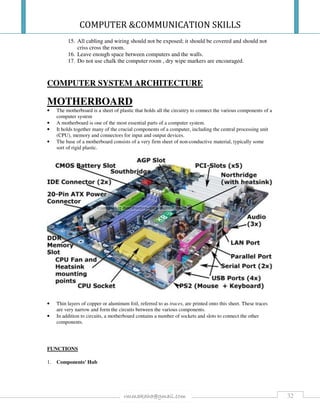
MOTHERBOARD
• The motherboard is a sheet of plastic that holds all the circuitry to connect the various components of a
computer system
• A motherboard is one of the most essential parts of a computer system.
• It holds together many of the crucial components of a computer, including the central processing unit
(CPU), memory and connectors for input and output devices.
• The base of a motherboard consists of a very firm sheet of non-conductive material, typically some
sort of rigid plastic.
• Thin layers of copper or aluminum foil, referred to as traces, are printed onto this sheet. These traces
are very narrow and form the circuits between the various components.
• In addition to circuits, a motherboard contains a number of sockets and slots to connect the other
components.
FUNCTIONS
1. Components' Hub
COMPUTER &COMMUNICATION SKILLS
33rmmakaha@gmail.com
• A primary function of the motherboard is to serve as the base upon which a computer’s
components are built. The motherboard is, in essence, a hub that houses a number of essential
components such as the Central Processing Unit (CPU), system memory (RAM) and graphics
card. The typical computer is designed with these components built onto the motherboard.
2. Computer Circuitry
• The motherboard is the computer’s main circuit board, bearing all the basic circuitry and
components that are required for the computer to function. It has electrical pathways called buses,
which enable data to be relayed to the different computer components as well as between them.
3. Data Traffic
• The motherboard serves as a communications hub for all of the components that are attached to it
directly or indirectly. It is responsible for managing the traffic of information within the computer
system, which it does by means of the motherboard chipset. The function of the motherboard
chipset is to direct the flow of data that the computer components require or acquire.
4. BIOS
• The motherboard has a built-in Read Only Memory (ROM), which is separate from the PC’s
RAM and which contains the computer’s Basic Input/Output System (BIOS). A key function of
the BIOS is to manage the boot-up process when you power your computer on, and load your
operating system.
5. Peripherals
• The motherboard allows for the use of external components and devices, which greatly increases
the versatility of a computer system. These include printers, keyboard devices, audio jacks,
external hard drives and game controllers. These peripherals can be connected to the computer by
plugging them directly into the motherboard by means of external ports, sockets and connectors,
which are built into it.
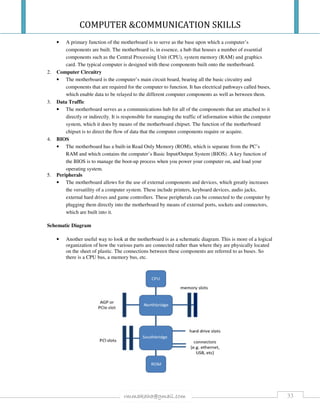
Schematic Diagram
• Another useful way to look at the motherboard is as a schematic diagram. This is more of a logical
organization of how the various parts are connected rather than where they are physically located
on the sheet of plastic. The connections between these components are referred to as buses. So
there is a CPU bus, a memory bus, etc.
COMPUTER &COMMUNICATION SKILLS
34rmmakaha@gmail.com
POWER SUPPLY UNIT
• A power supply is an internal hardware component that supplies components in a
computer with power.
• The power supply converts a 110-115 or 220-230 volt alternating current (AC) into a
steady low-voltage direct current (DC) usable by the computer and rated by the number
of watts it generates.
• Everything contained within the computer chassis is powered by the computer.
• For example, your motherboard, ram, CPU, hard drive, and disc drive are all drawing
power from the power supply.
• Any other external devices and peripherals such as the computer monitor and printer have
their own power source.
• Note: If the computer is a laptop or an all-in-one computer the display may also be
powered by the computer power supply.
• The function of power unit is to convert the electrical power (AC) comes from wall
socket to a suitable type and voltage (DC) so that each component of a computer works
properly.
• Lack of proper supply of power will damage a computer system.
• The power supply receives 120 or 230V and converts into 3.3V, 5.5V and 12V. Why
different converted power? That is because all components of a computer system don’t
need the same power.
• For example, motherboard and cards use 3.3V. The most power demand parts such as
Fan and drives need 12V to operate
COMPUTER &COMMUNICATION SKILLS
35rmmakaha@gmail.com
HARD DISK DRIVE (HDD)
Hard disk (internal) is a permanent file and data storage device housed in a computer case. Why
it is called ‘hard’, that is because the disks inside a hard drive can’t be bent comparing to optical
disks.
Desktop hard disk
Laptop hard disk
Your files safely saved on this storage unit unless you intentionally erase the files. All installed
applications/programs and your data reside on the hard drive. It is your main storage unit in a
computer system.
HDD, fixed disk, also refers computer hard drives.
How hard drives function?
• The read/write process on hard disk is built on the principles of electromagnetism.
• When we open hard disk, we get multiple disks called platters, a read/write head and
head arm. The spinning disk platters are made with either aluminum or glass and coated
with magnetic material. It is on this platters that data is recorded or read from.
• Depending on your hard disk type it may have three or more platters. These disks are
arranged cylindrically, means one is on the top of the other.
• Currently, there are hard disks with ten or more platters. On each disk platter (above and
below) there is a read/write head which moves radially. The heads are attached on a
single rack. All the heads move together on their own disk platter.
COMPUTER &COMMUNICATION SKILLS
36rmmakaha@gmail.com
• Data is recorded by magnetizing a spot on the disk. There is a gap between the disk and
the head, the head is capable of producing a small magnetic field when current passed
through it. The field direction is reversed when the direction of current is reversed, thus
the two binary digits (0 and 1) are easily represented by changes in direction of current.
• As soon as the spinning disks go through under these heads, the magnetic field produced
by the heads comes in contact with the magnetic coating on the disk platters. This
magnetizes a small spot on the coating, leaving a tiny permanent magnet.
• Data is read when the tiny magnetic fields are being moved rapidly past the reading head
(now the action of write changes to read when voltage is reversed on the head). The
moment each created field comes in contact with the head, it produces an electric current
in the head.
• The direction of the current depends on the direction of the field, which was determined
by whether a 1 or a 0 was originally recorded. Thus the original information is read back.
How data is represented on computer hard drives?
• Data is written on the disk platter in concentric rings called tracks. Tracks are divided
into sectors. The matching tracks on both side of a platter then grouped into a cylinder.
• Each sector holds 512bytes of data.
• This division is meant to use the space on the hard drives efficiently. Having more
sectors per track is one indication of a fast hard drive.
• Physically, we can’t tell where the divisions end and start. Simply, we can’t see the
divisions, it is an electronic one.
• However, you can easily know how many tracks and sectors are on your computer hard
drives by reading your computer System Information.
• To get system information, Click ‘Start’ — ‘All programs’ – ‘Accessories’ – ‘System
tools’ – ‘System information’.
• When you buy hard disks you will find sector, track, cylinder, revolution per minute
(RPM) and other information on the tag (found on top of a disk).
COMPUTER &COMMUNICATION SKILLS
37rmmakaha@gmail.com
Speed of computer hard drives
• Normally, the speed of hard disks means the rotation of the platters per minute. It is
measured in RPM (revolution per minute).
• Presently, hard disks are able to rotate up to 15,000rpm, the most common RPMs are
5400, 6400, 7200 and 10000. A hard drive with high RPM is a fast drive that will load
files quickly.
Types of Hard drives
• Hard disk types are determined by their connection type to the motherboard, IDE or
SATA.
• IDE (integrated device electronics) is uses cables to connect to the motherboard. Now
this type of hard disk connection is phasing out.
• SATA (serial advanced technology attachment) is the current and the advanced type to
connect hard disk and other optical drives to the motherboard.
• The other type is SCSI (small computer system interface), which is used in high-end
computers such as servers and workstations.
Computer Hard drives size
• Today the size of hard disks is skyrocketing. The most common hard drives sizes are
160GB, 250GB, 320GB, and 500GB.
How fast your hard drive is can be measured in
• Rotation speed
• Fast mounting head mechanism and
• Having more sectors per track
Advantages of Hard Disk
• Fast access to data
• Store huge data
Magnetic Storage drives capacity is can be measured in bit (short form of binary digits), byte,
KB, MB, GB, and TB. A bit stores only a 0 or a 1. Byte is a set of eight bits; it is the basic unit of
memory since it holds a single character or bit. Usually, it is the most common used storage size
measurement.
Storage measurement
Term Bytes
1024 bytes 1 kilobyte (KB)
1024 000 bytes 1 megabyte (MB)
1024 000 000 bytes 1 gigabyte (GB)
1024 000 000 000 bytes 1 terabyte (TB)
COMPUTER &COMMUNICATION SKILLS
38rmmakaha@gmail.com
FLOPPY DISK DRIVE (FDD)
• The floppy drive is a piece of computer hardware that reads data from, and writes data to,
a small disk.
• The most common type of floppy drive is the 3.5" drive, followed by the 5.25" drive,
among other sizes.
• For the most part, the floppy drive is completely obsolete.
The Floppy Drive is Also Known As
• floppy disk drive, disk drive, diskette drive, 3.5" drive, 5.25" drive
Important Floppy Drive Facts
• While still a component of some existing computers, floppy drives are essentially
obsolete, replaced by inexpensive flash drives and other portable media drives.
• A floppy drive is no longer standard equipment in new computer systems.
• Traditional floppy drives that install inside of a computer case are becoming less and less
available. Typically, the best option when adding a floppy drive will be to purchase an
external one, probably USB-based like the one pictured here.
COMPUTER &COMMUNICATION SKILLS
39rmmakaha@gmail.com
Floppy Drive Description
• A traditional 3.5" floppy drive is about the size and weight of a few decks of cards. Some
external USB versions are only slightly larger than floppy disks themselves.
• The front of the floppy drive has a slot to insert the disk into and a small button to eject it.
• The sides of the traditional floppy drive have pre-drilled, threaded holes for easy
mounting in the 3.5-inch drive bay in the computer case. Mounting is also possible in a
larger 5.25-inch drive bay with a 5.25-to-3.5 bracket.
• The floppy drive is mounted so the end with the connections faces inside the computer
and the slot for the disk faces outside.
• The back end of the traditional floppy drive contains a port for a standard cable that
connects to the motherboard. Also here is a connection for power from the power supply.
• An external floppy drive will only have whatever connection is necessary to hook it up to
the computer, usually a cable with a USB Type A connector.
CD/DVD- ROM DRIVE
• Also known as the optical disk drive
• Currently, DVD drive is a must part in a computer system. Applications, software,
movies and other information are delivered through optical disks – CD and DVD.
What are CD/DVD drives?
CD/DVD drives are used to read data and applications from CDs (compact disk) and DVDs
(digital versatile disk). It is a device which uses laser technology to read and write data on/from
optical disks.
Typical CD drive
• Data is written on optical disk by burning pits on the disk with laser. Later on, data can be
read by reflecting low-power laser onto the surface of the disk. The photo detector then
translates the bouncing lights back into sound or data.
• As the name implies, CD-ROM (compact disk read only memory) drives are only for
reading data from disk, they can’t write back.
• Currently, this type of drive is phasing out since it is replaced by the more advanced and
additional capabilities of DVD drives. All desktop computers come with at least CD-
ROM drives, though this is changing now.
• Presently, DVD rewritable becomes a standard on most new desktop and laptop
computers. So, make sure this when you buy a new PC. Using this drive you can
COMPUTER &COMMUNICATION SKILLS
40rmmakaha@gmail.com
read/write both CD and DVD disks. DVD drives can read all types of CDs but CD drives
are not capable of reading DVDs.
Use of CDs and DVDs
• Varieties of information can be recorded using optical disks. Whether you are a computer
user to backup data or application developer to record software or in entertainment
industry (movies), CD/DVDs are simple mediums to distribute any kind of information
easily.
These optical disks are preferable because of the following reasons:
• Inexpensive
• Stores a large amount of data
• Easy for handling
• Longevity
Difference between CDs and DVDs
• Both types are made with the same material and size, but differ in their storage capacity
and durability.
• CDs can store up to 700MB size of data. The standard DVDs store 4.7GB, more than 6
normal CDs of data. In addition, DVD disks are more durable than the compact disks.
• Today, the application development and entertainment industry are using DVD to sell
their production.
Types of CDs and DVDs formats
• So far, two kinds of CDs are available other than CD-ROM: CD-R and CD-RW CD-R
(CD-recordable) - can be written on it only once.
• CD-RW (CD-rewritable) - can be written repeatedly (means erase and re-write), usually
used for back up.
• Two kinds of DVDs are available other than DVD-ROM: DVD-R and DVD-RW DVD-
R and DVD+R - can be written on it only once.
• DVD-RW, DVD+RW - can be written repeatedly (means erase and re-write), usually
used for back up.
Based on size, there are four types of DVD
• Single-sided one layer data DVD (4.7GB data)
• Double-sided two layers of data DVD (9.5GB) records on both sides of a disk.
• Single-Sided two layers of data DVD (8.5GB) records on one side but have two
recordable layers by superimposing one on the top of the other.
• Double-sided four layers of data DVD (17GB) records on both sides. Each side contains
two recordable layers of data.
Types of CD and DVD drives
• CD-ROM drives only reads from CDs.
COMPUTER &COMMUNICATION SKILLS
41rmmakaha@gmail.com
• DVD-ROM drives are meant to read both CD and DVD. It also burns files to CDs but
not DVDs.
• DVD-RW writers accomplish all tasks of reading from and writing back to both type of
disks.
HD-DVD and BLU-RAY
• These are the two types of high-definition disk formats. HD-DVD is developed by
Toshiba and the other disk format, Blu-ray is developed by the electronics giant, Sony.
• Recently, there was a competition between the two formats. Because of size and
durability Blu-ray outranks HD-DVD and chosen by entertainment industries.
• For example, Single-layer HD DVD disc stores 14.7GB data whereas Blu-ray single layer
disc stores up to 25GB data.
PROCESSOR
• The processor is the main “brain” of a computer system.
• It performs all of the instructions and calculations that are needed and manages the flow
of information through a computer.
• It is also called the CPU (central processing unit), although this term can also be used to
describe a computer case along with all of the hardware found inside it.
• Another name for the processor is a computer “chip” although this term can refer to other
lesser processors (such as the BIOS).
COMPUTER &COMMUNICATION SKILLS
42rmmakaha@gmail.com
• Processors are continually evolving and becoming faster and more powerful. The speed
of a processor is measured in megahertz (MHz) or gigahertz (GHz).
• An older computer might have a processor with a speed of 1000 MHz (equivalent to 1
GHz) or lower, but processors with speeds of over 2 GHz are now common.
• One processor company, Intel, made a popular series of processors called Pentium.
What is CPU?
• The Central Processing Unit (CPU) is an electronic component that interprets and carries
out the instructions of any application that run on a computer. It is a place where all the
computing is done.
• It is often called the “brain”, “engine” of a computer system. CPU is contained on a
single integrated circuit called a microprocessor. All the other parts of the computer are
there to serve the CPU.
Functions of CPU
The CPU consists of three elements:
1. ALU (Arithmetic/Logic unit)
2. Control Unit
3. Register
The Arithmetic/Logic Unit performs the mathematical calculations (addition, multiplication,
subtraction and division) and logical comparisons.
The control unit is responsible for decoding program instructions by accessing sequentially,
coordinates the flow of data in/out of ALU, registers, storages and various output devices.
Register is in charge of holding small units of program instructions after, during and before the
execution of CPU.
• Here, we need to talk a little about system bus. The computer components transfer data to
each other through buses. Bus is a common pathway for all system elements on the
motherboard. Each elements use bus to transfer data to and from it.
• It is characterized by the amount of data it transfers. For example, an 8-bits data bus transfers
8-bits of data at a time, 16-bits data bus transfers 16-bits of data. The more widened bus, the
faster the transfer of data and processing.
• The system buses have different speed of transferring data. The CPU connects with memory
or cache across high-speed data bus. This is because it processes a large amount of data in a
second. It is called processor bus or FSB (Front Side Bus). It is the fastest bus in a computer
system.
• The other bus type is Input/Output bus (I/O bus). It includes more than two bus types. This
type of bus is used for to connect graphic port and other peripheral components.
How computer processor works?
• A computer executes a program or instruction in two stages: instruction and execution.
COMPUTER &COMMUNICATION SKILLS
43rmmakaha@gmail.com
• During instruction the computer gets or reads in a program instruction from input devices
or running program. The read instruction then decoded and passed to the responsible part
of the processor.
• During execution time the fed instruction is executed by ALU whether it is calculation or
logical comparison. The result of the execution will be stored in register or memory. Both
actions together called one machine cycle. Modern processors perform multiple
executions in one machine cycle.
How do you measure your computer processing speed?
• The efficiency of computer processor is measured in using the machine cycle and clock
speed.
• Machine cycle = instruction + execution.
• Clock speed = a series of pulse produced by the CPU at predetermined time.
• Machine cycle is affected by the CPU clock speed. The shorter the gap between the
pulses, the faster the processing speed would be. The machine cycle is measured in
nanoseconds (one-billionth of one second) and pico seconds (one-trillionth of one
second).
• Clock speed is measured in megahertz, MHz (millions of cycles per second) or
gigahertz, GHz (billions of cycles per second).The clock speed determines the speed at
which the processor executes instructions.
• A computer with 3.4GHz microprocessor means it operates at a speed of 3.4 billion
cycles per second. This tells us a 3.4GHz processor is faster than 3.0GHz processor.
• However, the speed of the processor doesn't necessarily mean speed of a computer. It
also depends on motherboard speed.
INTERNAL AND EXTERNAL STORAGE
External Storage Devices
• This takes the form of a stand-alone device that is separate from the computer. External
drives are connected to the computer with a cable plugged into a suitable interface such
as an USB port. Data then passes back and forth across the interface.
• Once an external drive is attached to the system, it appears as an extra drive letter in the
folder tree, for example, E drive or K drive. The user can transfer files in the usual way
by using the drag and drop method.
• The main advantage of external drives is that they are portable and so data is easily
moved from one location to another. External drives also allow safe backup of internally
stored data.
• The main disadvantage compared to an internal drive is data transfer is slower and they
also take up space around the computer. Constant plugging in and out can also physically
wear out the port over time.
External storage takes many forms, for example:
• portable hard disks
• magnetic tape
COMPUTER &COMMUNICATION SKILLS
44rmmakaha@gmail.com
• memory stick / flash drive
• solid state memory cards
• DVD or CDs
Each type of external storage has to have the correct interface on the computer in order to
connect.
Internal Storage Devices
• Some storage devices are classed as 'internal' which means they are inside the computer
case.
• Most computers have some form of internal storage. The most common type of internal
storage is the hard disk.
• At the most basic level, internal storage is needed to hold the operating system so that the
computer is able to access the input and output devices.
• It will also be used to store the applications software that you use and more than likely,
the original copies of your data files.
• Internal storage allows the data and applications to be loaded very rapidly into memory,
ready for use. The data can be accessed much faster than data which is stored on an
external storage device. This is because internal storage devices are connected directly to
the motherboard and its data bus whereas external devices are connected through a
hardware interface such as USB, which means they are considerably slower to access.
• Internal storage also means that if the computer is moved around, it will still retain its
most commonly used data.
• The main disadvantage of internal storage is that when the hard disk fails (and it will), all
the data and applications may be lost.
• This can be avoided to some extent by using more than one hard disk within the machine.
Each hard disk has a copy of all the data, so if one fails the other can carry on. This is
called a RAID array. An alternative is to use external drives for backup.
--------------------------------------------------------------------
An internal drive is, naturally, always powered by the device it's within: your PC,
your phone, your tablet.
Some external devices contain their own power supplies and plug in
independently of the controlling device: most RAID, JBOD, eSATA, and NAS
devices do this, either because the data connection doesn't provide power, or
because the device needs more power than the interface can provide.
Others can be powered by the controlling device. USB hard drives go both ways
(computer-powered or self-powered), but memory cards and USB memory sticks
are nearly always powered by the controlling device (or a powered hub).
The interface can vary a bit, too. The original parallel SATA was pretty much an
in-the-box only interconnect. Back in those days, if you took apart an external
USB drive box, you'd probably find a PSATA drive inside, along with a tiny
controller board that converted USB protocols to SATA protocols. These days, if
you open up an external USB hard drive or SSD, you'll probably find a SATA
device inside. And of course, most SSDs and HDDs are still SATA these days,
inside the computer.
COMPUTER &COMMUNICATION SKILLS
45rmmakaha@gmail.com
COMPUTER SECURITY
DISK CARE
1) Do not expose them to sun or a hot environment.
2) Keep them away from moisture or water.
3) Keep them away from magnetic fields i.e. Phones, tops of some monitors, magnetized items etc..
4) Do not touch the actual tape.
5) Keep them away from dust.
6) Do not place heavy objects on them.
7) Write on a floppy disk label only with a felt-tip pen, or write before sticking the label
8) Avoid using rubber bands, paper clips and erasers on floppy disks
CARE AND HANDLING OF A FLOPPY DISKETTE
1. Don’t put the diskette near any magnetic field.
2. Don’t put the diskette near any electronic motor.
3. Don’t expose the diskette to direct sunshine or heat.
4. Store the diskette in a cool dry dust-free environment.
5. Don’t spill liquid onto the diskette.
6. Don’t use any diskette which has had liquids spilled on it.
7. Don’t bend or fold a diskette.
8. Don’t staple labels onto the diskette.
9. Use a soft pencil or felt-tip pen when writing on diskette labels, as the pressure of a ballpoint may
leave indentations on the magnetic surface.
10. Don’t touch the magnetic surface (the black plastic like plate) of the disk, as your fingerprints
may hinder the drive in reading from and writing to the disk
HARDWARE CARE
1) Make sure there is enough space for the machines to breathe. (Fresh air is necessary to make the
fan keep the electronics cool).
2) Do not block air vents with books.
3) Keep the computer dry.
4) House the machine in a dust free environment e.g. 1ST
floor carpeted-room (Carpets suck dust)
and, use a vacuum cleaner to clean the carpet. (Dust is the biggest killer of hard drives).
5) Do not expose the machine to extreme temperatures.
6) Properly shut down the machine before turn-off.
7) Pull the plug out of socket when there is thunder and lightning.
8) Do not move the system when the computer is on. The hard drive can be damaged.
9) Use of UPS- Uninterruptible Power Supply in case of power failures,
10) Use of Surge Protectors against too high voltages.
COMPUTER &COMMUNICATION SKILLS
46rmmakaha@gmail.com
NECESSARY CONDITIONS FOR AN IDEAL COMPUTER ROOM ENVIRONMENT.
1. Cleanliness [books, manuals not encouraged] because they bring dust & caught fire easily.
2. Air conditioners, which control the room and dehumidates it.
3. It should be dust free; dust is the biggest “killer” of hard drives.
4. No carpets, they caught fire more easily.
5. You are not allowed to eat, smoke or drink in the computer room.
6. No magnetic material should be in the computer room.
7. The computer room should be located in such a way that computers are not exposed to direct
sunlight or hot environments, use curtains if otherwise.
8. The computer room should be fitted with burglar bars, alarm systems, or guarded 24hours to
ensure security.
9. The computer room should have surge protectors or suppressors to guard against electrical faults
and high voltages.
10. The computer room should have UPS [uninterrupted power supply] in case of power failures,
which may be fatal.
11. Computer room should be well ventilated, to allow for air circulation,
12. Foreign media, such as floppy diskettes, flash disks should not be allowed in order to minimize
virus spread.
13. Always switch off machines if not in use.
14. Avoid overloading circuits.
15. All cabling and wiring should not be exposed; it should be covered and should not criss cross the
room.
16. Leave enough space between computers and the walls.
17. Do not use chalk the computer room , dry wipe markers are encouraged.
DATA SECURITY /PROTECTION
Data Security/Protection
Refers to keeping data safe from various hazards or dangers like natural hazards,
deliberate corruption or destruction of software & hardware by malicious or terrorist acts,
illegal access to data by hackers [people who break into the system] & accidental
destruction of data by hardware or software failure [operator error].
MEASURES TO ENSURE DATA SECURITY
1. DATA ENCRYPTION/DECRYPTION
Data is coded before transmission over a WAN & decrypted only if you have the key & code to
decrypt the data on the receiving end. The process of transforming a message in ordinary language i.e.
plain text to produce what is called cipher text which is then send along a communication line/link.
The receiving computer uses another transformation to decode the message.
Decryption
• The process of converting encrypted content back into its original form, often the process of
converting cipher text to plaintext. Decryption is the opposite of encryption.
COMPUTER &COMMUNICATION SKILLS
47rmmakaha@gmail.com
Encryption
• Any procedure used in cryptography to convert plaintext into cipher text in order to prevent
anyone except the intended recipient from reading that data. There are many types of data
encryption, and they are the basis of network security. Common types include Data Encryption
Standard and public-key encryption.
Cipher text
• Data that has been transformed by encryption so that its semantic information content (ie, its
meaning) is no longer intelligible or directly available.
2. FIREWALL-
a firewall is a software program designed to prevent unauthorized access to a PC or network
through a connection to the Internet. It works by monitoring all data sent to and from the PC
and comparing the data with a set of user-defined security criteria. Any data that does not
meet that criteria is blocked. Firewalls also process encrypted data. They verify the validity of
the user. User would require access to the firewall before they can transmit data. Latest
firewalls also have the ability to detect virus software in packets of data that is sent through
the network. Firewalls disallow data transmission if it detects strains of virus on the data
being transmitted.
3. USERNAMES & PASSWORDS-
Passwords restrict only authorized personnel/users to have access to the data or computer
rooms [cards]. Passwords bring in an aspect of accountability, if a file is deleted, the person
with the password will be reported as the culprit through logging. Passwords can be
forgotten. Widely used by companies to protect their equipment & data
4. AUTHORIZED ENTRY TO COMPUTER INSTALLATIONS-
Most installations have card readers, voice recognition systems or keypads on the doors that
prohibit entry to unauthorized personnel.
5. Backing-up files on external disks periodically.
6. Keeping backup copies of files in a different location and making about 3 generations of
backup.
7. Saving work frequently
8. Avoiding viruses.
9. Restricting access to the computer room. Access could be only through codes, voice
recognition etc.
10. Installing fire alarms.
11. Lining computer rooms with fire resistant material.
12. Placing the computer room in upper floors of a building to avoid burglaries.
13. Having a security guard 24 hours a day.
Summary - Keeping data secure
Measures that can be taken to keep data safe include:
• Making regular back-ups of files. (Back up copies should be stored safely in fireproof
safes or in another building.)
• Protecting yourself against viruses by running anti-virus software.
• Using a system of passwords so that access to data is restricted.
COMPUTER &COMMUNICATION SKILLS
48rmmakaha@gmail.com
• Safe storage of important files stored on removable disks - eg locked away in a fireproof
and waterproof safe.
• Allowing only authorized staff into certain computer areas, eg by controlling entry to
these areas by means of ID cards or magnetic swipe cards.
• Always logging off or turning terminals off and if possible locking them.
• Avoiding accidentally deletion of files by write-protecting disks.
• Using data encryption techniques to code data so that it makes no apparent sense
MAJOR THREATS TO INFORMATION SYSTEMS/COMPUTERS
Key threats to data security
• Data can be lost or damaged during a system crash - especially one affecting the hard
disk.
• Data can become corrupt as a result of faulty disks or disk drives, or power failures.
• Data can be lost by accidentally deleting or overwriting files.
• Data can be lost or become corrupted by computer viruses.
• Data can be hacked into by unauthorized users and deleted or altered.
• Data can be destroyed by terrorist activities, war, bombs and fire.
• Data can be deleted or altered by unpleasant employees wishing to make money or seek
revenge on their employers.
Explain 5 major threats to information systems; for each threat describe its impact and
preventative measure you would adopt to prevent it..
THREAT IMPACT CONTROL
Hardware failure • You are grounded
• You cannot access the system
• Data is incorrectly/
incompletely processed
• Have spares in the warehouse.
• Do regular servicing
• Have a disaster plan
• Run hardware diagnostics frequently
Electrical faults • Loss of data
• Disk crushes
• Damage to hardware
• Have standby generators
• Install UPS [uninterrupted power
supply]
• Install Surge suppressors/ protectors
Software failures • Operations are grounded • Buy software from reputable vendors.
• Do regular back ups
• Software diagnostics
Natural disasters/ physical threats • Absolute destruction • Relocate backups to other areas free
from disasters
Viruses • Deletion & corruption of files
• Reformatting of documents
• System may fail to work
• Install a reliable anti-virus software
• Never download unknown e-mail
attachments
• Scan unknown diskettes
Hackers, Computer crime • Security is breached
• Security is bypassed
• Destruction of files
• Data is stolen
• Change passwords regularly
• Employ a security guard
• Install a firewall
• Prevent unauthorized access to
computer facilities.
War and Terrorist activity
Human error
COMPUTER &COMMUNICATION SKILLS
49rmmakaha@gmail.com
Computer abuse
• The willful or negligent unauthorized activity that affects the availability, confidentiality,
or integrity of computer resources. Computer abuse includes fraud, embezzlement, theft,
malicious damage, unauthorized use, denial of service, and misappropriation
Hacking
• Unauthorized use, or attempts to circumvent or bypass the security mechanisms of an
information system or network. Hacking means illegally accessing other people's
computer systems for destroying, disrupting or carrying out illegal activities on the
network or computer systems.
COMPUTER CRIME/FRAUD
Computer crimes are criminal activities, which involve the use of information technology
to gain an illegal or an unauthorized access to a computer system with intent of
damaging, deleting or altering computer data. Computer crimes also include the activities
such as electronic frauds, misuse of devices, identity theft and data as well as system
interference. Computer crimes may not necessarily involve damage to physical property.
They rather include the manipulation of confidential data and critical information.
Computer crimes involve activities of software theft, wherein the privacy of the users is
hampered. These criminal activities involve the breach of human and information
privacy, as also the theft and illegal alteration of system critical information. The
different types of computer crimes have necessitated the introduction and use of newer
and more effective security measures.
Computer Fraud/Crime
Criminal actions accomplished through the use of computer systems, especially
with the intent to defraud, destroy, damage, or make unauthorized use of
computer resources.
E.g. improper transfer of funds from one account to another
TYPES OF COMPUTER CRIME/FRAUD
Hacking: The activity of breaking into a computer system to gain an unauthorized access is
known as hacking. The act of defeating the security capabilities of a computer system in order to
obtain an illegal access to the information stored on the computer system is called hacking. The
unauthorized revelation of passwords with intent to gain an unauthorized access to the private
communication of an organization of a user is one of the widely known computer crimes. Another
highly dangerous computer crime is the hacking of IP addresses in order to transact with a false
identity, thus remaining anonymous while carrying out the criminal activities.
Phishing: Phishing is the act of attempting to acquire sensitive information like usernames,
passwords and credit card details by disguising as a trustworthy source. Phishing is carried out
through emails or by luring the users to enter personal information through fake websites.
Criminals often use websites that have a look and feel of some popular website, which makes the
users feel safe to enter their details there.
Computer Viruses: Computer viruses are computer programs that can replicate themselves and
harm the computer systems on a network without the knowledge of the system users. Viruses
spread to other computers through network file system, through the network, Internet or by the
means of removable devices like USB drives and CDs. Computer viruses are after all, forms of
COMPUTER &COMMUNICATION SKILLS
50rmmakaha@gmail.com
malicious codes written with an aim to harm a computer system and destroy information. Writing
computer viruses is a criminal activity as virus infections can crash computer systems, thereby
destroying great amounts of critical data.
Cyberstalking: The use of communication technology, mainly the Internet, to torture other
individuals is known as cyberstalking. False accusations, transmission of threats and damage to
data and equipment fall under the class of cyberstalking activities. Cyberstalkers often target the
users by means of chat rooms, online forums and social networking websites to gather user
information and harass the users on the basis of the information gathered. Obscene emails,
abusive phone calls and other such serious effects of cyberstalking have made it a type of
computer crime.
Identity Theft: This is one of the most serious frauds as it involves stealing money and obtaining
other benefits through the use of a false identity. It is the act of pretending to be someone else by
using someone else's identity as one's own. Financial identity theft involves the use of a false
identity to obtain goods and services and a commercial identity theft is the using of someone
else’s business name or credit card details for commercial purposes. Identity cloning is the use of
another user's information to pose as a false user. Illegal migration, terrorism and blackmail are
often made possible by means of identity theft.
The different types of computer crimes involve an illegal exploitation of the computer and
communication technology for criminal activities. While the advancing technology has served as
a boon to mankind, the destructively directed human intellects are all set to turn technology into a
curse. However, crimes are sure to end, as it is truth that always triumphs!
1. Intellectual crime – cracking into a computer system with the sole aim of transferring or
stealing funds, e.g. Salami slicing which is the activity of obtaining or stealing money
repeatedly in extremely small quantities over a period of time
2. Destruction of property
3. Software piracy
4. Deliberate circumvention of computer security systems or unauthorized access to or
modification of computer programs and data; i.e. hacking which attempts to bypass the
security mechanism of a computer system or network
5. Theft of computer hardware and software or taking away software without the owner’s
consent
6. Making and distributing pornography
MEASURES TO COUNTER OR COMBAT COMPUTER CRIME [COMPUTER
SECURITY]
Careful vetting of employees
Separation of duties
Use of passwords
Security manager software-to monitor attempts to access the system whether
successful or not.
Educating staff
Prevention of unauthorized access to the computer operations room
Data Encryption/Decryption
COMPUTER &COMMUNICATION SKILLS
51rmmakaha@gmail.com
1. Establish strong passwords
Implementing strong passwords is the easiest thing you can do to strengthen your
security.
Cloutier shares his tip for crafting a hard-to-crack password: use a combination of capital
and lower-case letters, numbers and symbols and make it 8 to 12 characters long.
You should definitely avoid using: any personal data (such as your birthdate), common
words spelled backwards and sequences of characters or numbers, or those that are close
together on the keyboard.
Use their convenient password checker to see how strong yours is.
As for how often you should change your password, Cloutier says that the industry
standard is "every 90 days," but don't hesitate to do it more frequently if your data is
highly-sensitive.
Another key: make sure every individual has their own username and password for any
login system, from desktops to your CMS. "Never just use one shared password," says
Cloutier.
And finally, "Never write it down!" he adds.
2. Put up a strong firewall
In order to have a properly protected network, "firewalls are a must," Cloutier says.
A firewall protects your network by controlling internet traffic coming into and flowing
out of your business. They're pretty standard across the board -- Cloutier recommends
any of the major brands.
3. Install antivirus protection
Antivirus and anti-malware software are essentials in your arsenal of online security
weapons, as well.
"They're the last line of defense" should an unwanted attack get through to your network,
Cloutier explains.
4. Update your programs regularly
Making sure your computer is "properly patched and updated" is a necessary step
towards being fully protected; there's little point in installing all this great software if
you're not going to maintain it right.
"Your security applications are only as good as their most recent update," Watchinski
explains. "While applications are not 100 percent fool-proof, it is important to regularly
update these tools to help keep your users safe."
Frequently updating your programs keeps you up-to-date on any recent issues or holes
that programmers have fixed.
5. Secure your laptops
Because of their portable nature, laptops are at a higher risk of being lost or stolen than
average company desktops. It's important to take some extra steps to make certain your
sensitive data is protected.
Encryption software changes the way information looks on the harddrive so that, without
the correct password, it can't be read.
6. Secure your mobile phones
Cloutier points out that smartphones hold so much data these days that you should
COMPUTER &COMMUNICATION SKILLS
52rmmakaha@gmail.com
consider them almost as valuable as company computers -- and they're much more easily
lost or stolen. As such, securing them is another must.
The must-haves for mobile phones:
• Encryption software
• Password-protection (Cloutier also suggests enabling a specific "lock-out" period,
wherein after a short amount of time not being used, the phone locks itself)
• Remote wiping enabled
7. Backup regularly
Scheduling regular backups to an external hard drive, or in the cloud, is a painless way to
ensure that all your data is stored safely.
The general rule of thumb for backups: servers should have a complete backup weekly,
and incremental backups every night; personal computers should also be backed up
completely every week, but you can do incremental backups every few days if you like
("however long you could live without your data," Cloutier explains).
Getting your data compromised is a painful experience -- having it all backed up so you
don't completely lose it will make it much less so.
8. Be careful with e-mail, IM and surfing the Web
It's not uncommon for a unsuspecting employee to click on a link or download an
attachment that they believe is harmless -- only to discover they've been infected with a
nasty virus, or worse.
9. Educate your employees
Teaching your employees about safe online habits and proactive defense is crucial.
"Educating them about what they are doing and why it is dangerous is a more effective
strategy than expecting your IT security staff to constantly react to end users’ bad
decisions," Watchinski says.
It's not easy: "One of the most difficult things to do is protect end users against
themselves," he adds. But ultimately, prevention is the best approach to handling your
data security.
Make sure your employees understand how important your company's data is, and all the
measures they can take to protect it.
10. Data encryption
Encryption scrambles data, and is used to protect information that is being held on a
computer, stored on external media such as DVDs or transmitted over a network.
11. Intrusion detection
These products monitor system and network activity to spot potential security breaches.
If a detection system suspects an attack, it can generate an alarm, such as an email alert,
based upon the type of activity it has identified.
COMPUTER VIRUS
What is it?
An executable computer program written intentionally to alter the way a
computer operates without permission, to do harm to the computer.
Types of Computer Viruses
• Macro Viruses – are programmed as macros and embedded into a file or document and
when the document is opened the virus is activated. A macro is a list of commands or
actions that are found under key names of headings. Macro viruses typically infect global
COMPUTER &COMMUNICATION SKILLS
53rmmakaha@gmail.com
settings files such as Word templates so that subsequently edited documents are
contaminated with the infective macros
• Boot Sector Viruses – A virus which attaches itself to the first part of the hard disk that
is read by the computer upon bootup. These are normally spread by floppy disks. They
only affect the computer’s boot sector such that the next time you try to start the
computer it fails to boot
• Time Bomb – is designed to cause damage to a computer at a specified date and time,
e.g. Friday 13th
, March 6th
• Logic Bomb – checks for particular conditions or states of the system which when
satisfied triggers the perpetration of an unauthorized and usually destructive act. It lies
dormant for most of the time and is triggered by an event
• Memory resident virus – resides in a computer’s volatile memory (RAM).
• Polymorphic viruses – a virus that not only replicates itself by creating multiple files of
itself, but it also its digital signature every time it replicates. This makes it difficult for
less sophisticated antivirus software to detect
• Program viruses e.g. cascade, pacman 1508, override.
• Boot viruses e.g. pasta, pentagon, Michelangelo
• Internet Viruses e.g. Trojan horse, Stealth
DEFINITION2.
A virus is acomputer program designed to enter yourcomputer and tamper with your files without
your knowledge. Once the program containing the virus is open, the activated virus can not only
infect other programs and documents on youcomputerr, it can duplicate and transmit itself to
other computers that are connected to yours, just like a physical virus can move from one human
host to another.
Viruses began in the late 1980s as personal computers and electronic bulletin boards became
more common. Back then, operating systems, word processing programs and other programs
were stored on floppy disks. Hidden Viruses were programmed onto these disks; as the disks
were transferred from person to person, the virus spread.
WHO CREATES VIRUSES?
Where do Viruses come from? Every virus is created by an author with a different motive—but
all virus builders feel their actions are justified. For some, a killer virus is the ultimate technical
challenge, like climbing a mountain. For others, creating Viruses is a form of self-expression.
Some disgruntled employees, consumers or citizens turn to virus building as revenge for
perceived injustices. And though it’s a frightening thought, some Viruses are built and aimed by
legitimate (but disreputable) businesses to weaken competitors. Other virus authors want to make
their mark in Internet history; these writers get a thrill out of seeing their virus cause damage
enough to attract news headlines both online and on the evening news.
What Viruses Do? /Signs & symptoms of an infected computer.
Reduced memory or disk space
Files are overwritten or damaged
Hard drive may be erased
Data is modified /corrupted.
Change files & date stamp
Drive lights blink without reason
COMPUTER &COMMUNICATION SKILLS
54rmmakaha@gmail.com
Longer times are experienced when loading programs
Slower system operation.
• Deletion of data files
• The computer completely fails to work
• Erasure or deletion of executable files
• Formatting of the hard disks
• Filling up of disk space
• Programs suddenly take longer to load.
• The size of a program changes.
• The disk runs out of free space when it seems to have plenty.
• The CHKDSK command does not show the correct amount of bytes available.
• Bit errors frequently occur while running Windows.
• The disk drive is active when it should not be.
• The hard drive is inaccessible when booting from a floppy drive.
• Unrecognized files appear.
• File names change.
• The keyboard makes a clicking noise.
• The screen becomes distorted.
• Text on screen does unusual things.
• CMOS settings, AUTOEXEC.BAT, or CONFIG.SYS files change unexpectedly
(Symantec).
A large part of detection is anti-virus software. Like a doctor, anti-virus software
often uses the above listed symptoms to identify and eradicate an infection.
What are the symptoms of an infected computer?
• Your computer behaves strangely, i.e. in a way that you haven’t seen before.
• You see unexpected messages or images.
• You hear unexpected sounds, played at random.
• Programs start unexpectedly.
• Your personal firewall tells you that an application has tried to connect to the Internet
(and it’s not a program that you ran).
• Your friends tell you that they have received e-mail messages from your address and you
haven’t sent them anything.
• Your computer ‘freezes’ frequently, or programs start running slowly.
• You get lots of system error messages.
• The operating system will not load when you start your computer.
• You notice that files or folders have been deleted or changed.
• You notice hard disk access (shown by one of the small flashing lights) when you’re not
aware of any programs running.
• Your web browser behaves erratically, e.g. you can’t close a browser window.
How computers are infected with Viruses?
Use of infected floppy diskettes on uninfected computers. Floppy disks or other
media that users can exchange.
Downloading unknown files, when your computer is connected to the Internet.
Opening an E-mail attachment. Email attachments.
Accepting unknown program installations from the internet
COMPUTER &COMMUNICATION SKILLS
55rmmakaha@gmail.com
Use of network files/direct connection/through networks.
Software piracy [buying software from unauthorized agents]. Pirated software.
Booting a PC from an infected medium.
Executing an infected program.
Opening an infected file.
Shareware.
Viruses may be sent by opening email attachments,
clicking on spam,
visiting corrupt websites and links online,
• Opening spreadsheets or even the original method—infected disks.
• But the Internet is now the superhighway for virus transmission.
Sharing of storage media
• Through e-mail attachments
• Networks – if your computer is connected to a home network or if your work computer is
part of network, you may find yourself with an infection through no fault of your own.
There isn’t much you can do to stop these kinds of infections, short of having your
network administrator ensure that everyone’s antivirus software is up to date so that the
invading bug can be removed as quickly as possible.
• Internet downloads including software piracy
• Rogue Websites. It is depressing to know that you may become infected with spyware or
a virus by doing nothing more than simply visiting a website, but it is true. Many adult
websites, gambling websites and other less than trustworthy websites will attempt to
automatically access your computer when you visit them. They often install adware bugs
that will cause a flurry of pop ups to appear on your screen. This adware will often allow
for other programs with even more nefarious purposes to be installed and before you
know it, your computer will be swamped. To stop these rogue websites, adjust the
settings on your antivirus software and firewall so that no outside connections can be
made and no programs can be installed without your express permission.
CHARACTERISTICS and ATTRIBUTES OF COMPUTER VIRUSES
The demonstrated characteristics of computer viruses include several remarkable items, including
size, versatility, propagation, effectiveness, functionality, and persistence.
1) Size.The sizes of the program code required for computer viruses has been demonstrated to
be surprisingly small. This has facilitated the ability of these programs to attach themselves to
other applications and escape notice for long periods of time.
2) Versatility.computer viruses have appeared with the ability to generically attack a wide
variety of applications. Many do not even require information about the program they are
infecting.
3) Propagation. Once a computer virus has infected a program, while this program is running,
the virus is able to spread to other programs and files accessible to the computer system. The
ability to propagate is essential to a virus program.
4) Effectiveness. Many of thecomputer viruses that have received widespread publicity have
had far-reaching and catastrophic effects on their victims. These have included total loss of
data, programs, and even the operating systems.
COMPUTER &COMMUNICATION SKILLS
56rmmakaha@gmail.com
5) Functionality. A wide variety of functions has been demonstrated in virus programs. Some
virus programs merely spread themselves to applications without otherwise attacking data
files, program functions, or operating systems activities. Other virus programs are
programmed to damage or delete files and systems. The effectiveness of these programs is
enhanced through the use of several phases of operation, in which the virus propagates
through a system or lies dormant until triggered by a specified event. This allows the virus
program increased time to spread before the victim system's user becomes aware of its
presence.
6) Persistence. Even after the virus program has been detected, recovery of data, programs, and
even system operation has been difficult and time consuming. In many cases, especially in
networked operations, eradication of viruses has been complicated by the ability of the virus
program to repeatedly spread and reoccur through the networked system from a single
infected copy.
Attributes of computer viruses
o Auto replicating [self replicating].
o Attaches itself to a program or file
o It infects as it travels
o Reproduces itself
o Distribute itself
o Copies itself
o Duplicate copies of itself
o It spreads
o It is software
o It can destroy
o It hides
DESTRUCTIVE EFFECTS OF COMPUTER VIRUSES
o Cause damage to data
o Extract data from machines for spying or theft
o Slow machine performance
o Corrupt data
o Damage software, hardware and files
o Damage the computer by damaging programs
o Reformatting of the hard disk
o Deletion of files
Top 15 ANTIVIRUS TOOLS/PACKAGES/SOFTWARE
15. ESET NOD32 Antivirus 8
14. Webroot Internet Security Plus 2015
13. Panda Global Protection 2015
12. G-Data Internet Security 2015
11. McAfee LiveSafe 2015
10. AVG Free Antivirus 2016
9. Avast Free Antivirus 2015
8. Panda Free Antivirus 2016
COMPUTER &COMMUNICATION SKILLS
57rmmakaha@gmail.com
7. Qihoo 360 Total Security 2016
6. Trend Micro Internet Security 2015
5. BitDefender Antivirus Free Edition 2016
4. Avira Free Antivirus 2015
3. Kaspersky Total Security 2015
2. Bitdefender Internet Security 2015
1. Symantec Norton Security with Backup
MEASURES/FACILITIES PROVIDED BY AN ANTIVIRUS PACKAGE.
1. Scanning – searching for viruses
2. Cleaning of the system (removal of viruses)
3. Rearrangement of corrupted data.
4. Repairing of corrupted data files.
5. Quarantine – separation of infected files from uninfected files.
6. Prevention includes creating user awareness, implementing hygiene rules, using disk
authorization software, or providing isolated 'quarantine' PCs.
7. Detection involves the use of anti-virus software to detect, report and (sometimes)
disinfect viruses..
8. Containment involves identifying and isolating the infected items.
9. Recovery involves disinfecting or removing infected items, and recovering or
replacing corrupted data.
PRECAUTIONS/SAFETY GUIDES AGAINST VIRUSES
Install a reliable antiviral package
Avoid Software piracy thus buy software from authorized dealers.
Never download unknown files from the internet
Boot the system from virus free disks
Using write protect tabs on floppy disks
Scan every floppy diskette for viruses before use. Unknown floppy diskettes
should not be used
Avoid using foreign storage media
Use genuine software
Avoid opening e-mails from suspicious or unknown sources
Write protect disks
Install antivirus software, e.g. Avira, Eset Nod32, AVG, Norton, Dr. Solomon’s
Toolkit
• Install a reliable anti virus program – From the first moment you turn your computer on, you
should have a trusted anti virus program by your side. Even if you have a machine that isn’t
hooked up to the Internet, a reliable anti virus program is a low cost and common sense addition
to any machine. There are even free anti virus programs you can download that work almost as
well as industry giants like Norton and McAfee.
• Install anti-spyware and anti-malware programs – As good as the best anti virus programs
are, they sometimes need a little bit of help. Thankfully, many of the top anti-spyware programs
are completely free. Spybot Search and Destroy and CCleaner are just two free programs that can
help prevent computer viruses from doing any damage on your machine. As helpful as these
programs are, however, you must update them and run them on a regular basis for them to do any
good.
COMPUTER &COMMUNICATION SKILLS
58rmmakaha@gmail.com
• Avoid suspicious websites – A good virus protection program will alert you when you visit a
website that attempts to install or run a program on your computer. Many less than reputable
adult websites do this, so if you get a warning, don’t go back, you may end up with a bug you
can’t get rid of.
• Never Open Email Attachments Without Scanning Them First – The most common way
viruses are spread throughout the Internet is still via email. Some attachments, like pictures, now
display in emails and don’t require an attachment to be manually opened, but other documents
do. Make sure you use an email client that scans all email attachments before you are allowed to
open them. This will help prevent computer viruses from getting a foothold on your machine.
• Set up Automatic Scans – Many of the top anti virus programs, as well as the best anti-spyware
programs, now have settings that will let them automatically run during down times or in the
middle of the night. Of course, your computer must be on for this to happen, but having daily
scans run when nothing else is going on is a great way to prevent even the latest computer viruses
from sticking around too long.
• Watch Your Downloads – Part of the fun of the Internet is downloading music, movies and
other items. However, since these downloads are so massive, it can be easy to sneak a virus along
for the ride. Only download these files from trusted sites that you can count on, or, at the very
least, scan them before you open them.
• Updates, Updates, Updates – There is a reason why Windows has a feature called Critical
Updates. There is an entire branch of Microsoft dedicated to staying one step ahead of the
hackers out there so when they manage to fix a possible security loophole, you need to download
the patch right away. Help Microsoft help you prevent computer viruses from causing too much
trouble.
• Know What To Look For – Even if you are just a casual computer user, you should have an
idea of how your machine operates, what normal pop up windows look like and what popular
viruses are out there, that way, when your computer begins exhibiting tell tale signs, you’ll know.
You can help prevent computer viruses by staying updated and educated.
• Stay Away From Cracked Software – It is so secret that you can download illegal, cracked
versions of some programs online. As tempting as it may be, these files are almost always
infested with advanced and difficult to detect bugs. Play it safe and get your software from the
source.
• Install a Firewall – A firewall is a program that screens incoming Internet and network traffic.
Along with your virus program, it can help prevent unauthorized access to your computer.
• Be prepared to Lock Down – If you hear of a virus that is spreading like wildfire through the
Internet, make an extra effort to be careful. Don’t open any suspicious emails or accept any
downloads for a week or two until your virus protection program has been updated and you are,
once again, safe.
SOFTWARE
Software
• Are basically programs, which are in a computer system?
• Computer programs and procedures concerned with the operation of a computer system.
Software
• Written coded commands that tell a computer what tasks to perform. For example, Word,
PhotoShop, Picture Easy, and Photo Deluxe are software programs.
COMPUTER &COMMUNICATION SKILLS
59rmmakaha@gmail.com
• Coded instructions (programs) that make a computer do useful work.
Computer software
• Refers to the various programs or instructions that are stored in the computer (stored
program concept) and used to either manage or control the operation of a computer
system or to direct the computer in solving specific problems. Software is divided into
two major types.
SOFTWARE HIERARCHY
SYSTEM SOFTWARE
• Refers to the operating system and all utilityprograms that manage computerresources at
a low level. Programs that control and support operations of a computer system.
• Systems software includes compilers, loaders, linkers, and debuggers.
• System software includes a variety of programs such Operating Systems, DBMS,
Communication control programs. Service and utility programs, and programming
language translators.
•
A term for a complicated set of programs that act together to allow a computer, and other
programs, to function. Different from an page layout application that the user may have,
system software is what allows the page layout application to interact with the monitor
display, the RAM, the hard drive and the rest of the computer.
OPERATING SYSTEM
• The main control of a computer system.
• It is a system of programs that controls & coordinates the execution of computer
programs and may provide scheduling, debugging, input/output control, system
accounting, compilation, storage assignment, data management and related services.
• The software that the rest of the software depends on to make the computer functional.
On most PCs this is Windows or the Macintosh OS. Unix and Linux are other operating
systems often found in scientific and technical environments.
COMPUTER &COMMUNICATION SKILLS
60rmmakaha@gmail.com
• A computer program that controls the components of a computer system and facilitates
the operation of applications. Windows Me, Windows XP, Linux, and MacOS are
common operating systems.
APPLICATION SOFTWARE
o Applications software comprises programs designed for an end user, such as word
processors, database systems, and spreadsheet programs.
o Programs that specify the information processing activities required for the completion of
specific tasks of computer users. E.g. Electronic Spreadsheet and word processing
programs or inventory or payroll programs.
o Software that is designed and written for a specific personal,
organizational, or processing task, such as graphics software.
o These programs accomplish the specialized tasks of the user, while
operating system software allows the computer to work. A computer-
aided dispatch system is application software, as is each word processing
program.
FREEWARE
Public domain softwarethat is freely available in magazines and on the internet at
no charge to users though manuals may be offered at a cost. Freeware may or
may not have copyrights and may or may not have distribution restrictions.
SHAREWARE
Refers to software that is widely distributed in much the same way as freeware
BUT is always copyrighted and includes a software license that requires its users
to pay for the privilege of using the software beyond a certain trial period. If you
decide to use it, you are expected to pay for the license. There is usually a
disabling system in the program after a certain period of time i.e. a month.
OPERATING SYSTEM
Are programs that create an environment, which enables us to use computers?
Is an integrated system of program that manages the operations of the CPU, controls the
input/output and storage resources and activities of the computer system, and provides
various support services as the computer executes the application programs?
Is a set of software routines that communicate between application programs and the
hardware?
All communications go through the operating system.
E.g. when a user issues a command to print, the O/S receives the command &
processes it according to priorities with the use of interrupts.
Once the processor is free to execute the command, the O/S sends the message to
the processor & receives the output, which is then directed to the printer.
MAJOR OPERATING SYSTEMS
MS-DOS (Microsoft Disk Operating System)
• It has been widely used especially before 1995 when the new Windows 95 took over.
• It is a single user operating system – only one user can be using the system at a given
time.
• It is a single tasking operating system – It allows for the processing of only one task at a
time
COMPUTER &COMMUNICATION SKILLS
61rmmakaha@gmail.com
• Use of short prompt commands – the user interfaces with the computer system through
the use of commands that are fed into the computer usually after the prompt sign (>) e.g.
C:>cls (Command to clear the screen)
• Instructions are put in only through the keyboard
• Once a file is deleted it can never be recalled
• The operating system is not user-friendly
WINDOWS
• A windows based operating system is more advanced than the MS-DOS based operating
system.
• It features graphical user interfaces (GUIs) – User can feed commands into the computer
through the selection of relevant icons, bars, buttons, boxes or other forms of images
(mostly resembling the intended device or operation).
• True multitasking – the operating system allows for numerous tasks to be done at the
same time.
• Networking – the operating system is multi-usable – many users can use it at the same
time. It is capable of holding a number of computer systems networked together.
• Multimedia Presentations- the operating system allows for the presentation of
information in a variety of media including text, graphic displays, voice and other audio,
photographs and video.
• Virtual Memory – It allows for the use of storage devices as extension of the main
memory thus giving the appearance of a larger main memory than actually exists.
• Deleted files go to the recycle bin
• Makes use of easier input methods, e.g. mouse, joystick
• Windows operating system has MS-DOS option
• Examples of Windows Operating Systems packages, Windows NT (new technology) and
Windows 95.
• In computer terms, a window is one section of a computer’s multiple section display
screen that can have a different display.
OS/2
• It is called the Operating System /2
• It is an operating system developed by IBM and was introduced in 1994 with the OS/2
Warp version as the latest one.
• It provides graphical user interfaces (GUIs), multitasking, virtual memory and
telecommunications.
UNIX
• Originally developed by AT&T but now being offered by many other vendors.
• It is a multitasking, multi-user and net-work managing operating system
• Because of its portability, it can be used on mainframes, midrange computers and
microcomputers.
• It is a popular choice for network servers.
The Macintosh System/Mac OS
• It is an operating system for Apple from Macintosh microcomputers
• It is a popular GUI as well as multitasking and virtual memory operating system.
COMPUTER &COMMUNICATION SKILLS
62rmmakaha@gmail.com
Types /EXAMPLES of operating systems
There are several types of operating system, defined according to whether they can
simultaneously manage information measuring 16 bits, 32 bits, 64 bits or more.
OPERATING
SYSTEM
PROGRAMM
ING
SINGLE USER
MULTI
USER
SINGLE
TASK
MULTI
TASK
1. MS DOS 16 bits X X
2. Windows3.1 16/32 bits X
not pre-
emptive
3.Windows95/98/Me 32 bits X cooperative
4.WindowsNT/2000 32 bits X pre-emptive
5.WindowsXP 32/64 bits X pre-emptive
6.Unix / Linux 32/64 bits X pre-emptive
7.MAC/OS X 32 bits X pre-emptive
8.VMS 32 bits X pre-emptive
9.Windows Vista
10.Windows 7,8, 10
FACTORS ONE SHOULD CONSIDER WHEN
• Making comparisons of the microcomputer operating systems
available in the organization
• Making microcomputer operating system acquisition decision.
Is the OS a single or multitasking operating system? Many microcomputer OS are
single tasking, meaning they allow only one person to run one program at a time.
Multitasking and multi-user OS permit more than one program to run and more than
one person to use the system at one time. Multitasking OS may allow a user to
receive a fax message at the same time one is searching a database.
Is it a task switching operating system? A task switching OS lets one load more
than one program at a time and allows switching between the programs. The task that
one is working with is the foreground task and the suspended tasks are background
tasks.
What utilities are available with the OS? Some of the most commonly used
utilities on microcomputer OS are delete, copy contents of one diskette to another,
format a diskette, delete files stored in a diskette, and compress data.
Is the OS hardware dependent? An OS may be limited to running on specific
hardware or may have versions that allow it to run on different types of computer
systems.
What user interface is offered by the operating system? Graphical User Interface
and Command Driven User Interface are examples of user interfaces. See Interface
section.
Types of operating systems
Multiprocessing
Multitasking
Multi-user
Multi programming
COMPUTER &COMMUNICATION SKILLS
63rmmakaha@gmail.com
Single user
Modes of operation/ Operating system techniques
Computers can operate in many different ways requiring different and complex operating
systems.
Real time processing
When the computer has to react within a guaranteed time to an input, a real time
operating system is used. For example, the engine management system within a car
uses a real time operating system in order to react to all the things going on within the
engine. A real time operating system does not necessarily have to be fast. It simply
has to be quick enough to respond to inputs in a predictable way. Embedded
computers often contain an RTOS as many are used to control something.
Computers operating in real time are often dedicated to the control of systems such
as industrial processes, planes and space flights. Another example of real time
processing is computer games. For example, when an action is selected in a game, the
data is fed back to the computer and the systems updated.
Multi-programming
Multi-programming is a method of operating such that several programs appear to be
running at once.
The jobs are usually given priorities. The operating system switches jobs in and out
of processor time according to priority. For example, while one job is being allocated
printer time, another will be being processed in memory. The processor is so fast
that it seems that many jobs are being processed at the same time.
Multi-tasking
This isn't just about running more than one application at the same time. Multi-
tasking allows multiple tasks to run concurrently, taking turns using the resources of
the computer.
This can mean running a couple of applications, sending a document to the printer
and downloading a web page.
However, operating systems are not truly multi-tasking - in order to do this, you
would need parallel processors, which are now appearing on personal computers.
Multiprocessing
An operating system technique which can manage multiple instruction processors,
assigning each to operate upon a different instruction stream (program or job)
concurrently.
Multiprocessing is the use of two or more central processing units (CPUs) within a
single computer system. The term also refers to the ability of a system to support more
than one processor and/or the ability to allocate tasks between them.[1]
There are many
variations on this basic theme, and the definition of multiprocessing can vary with
context, mostly as a function of how CPUs are defined (multiple cores on one die,
multiple chips in one package, multiple packages in one system unit, etc.).
Multiprocessing sometimes refers to the execution of multiple concurrent software
processes in a system as opposed to a single process at any one instant. However, the
terms multitasking or multiprogramming are more appropriate to describe this concept,
which is implemented mostly in software, whereas multiprocessing is more appropriate to
describe the use of multiple hardware CPUs. A system can be both multiprocessing and
multiprogramming, only one of the two, or neither of the two.
Multi-access or multi-user
A multi-access (or multi-user) system is one where a number of users are able to use the
same system together.
COMPUTER &COMMUNICATION SKILLS
64rmmakaha@gmail.com
Modern personal computers can allow multi user access i.e. more than one person can
make use of the computer resources at the same time via a LAN.
The central processor deals with users in turn; clearly the more users, the slower the
response time. Generally, however, the processor is so fast that the response time at the
most is a fraction of a second and the user feels they are being dealt with immediately.
o Multi-user is a term that defines an operating system or application software that
allows concurrent access by multiple users of a computer. Time-sharing systems
are multi-user systems. Most batch processing systems for mainframe computers
may also be considered "multi-user", to avoid leaving the CPU idle while it waits
for I/O operations to complete. However, the term "multitasking" is more
common in this context.
o An example is a UNIX server where multiple remote users have access (such as
via Secure Shell) to the UNIX shell prompt at the same time. Another example
uses multiple X Window sessions spread across multiple terminals powered by a
single machine - this is an example of the use of thin client.
o Management systems are implicitly designed to be used by multiple users,
typically one system administrator or more and an end-user community.
Single-user
Is most commonly used when talking about an operating system being usable only by one
person at a time, or in reference to a single-user software license agreement. Multi-user
operating systems such as UNIX sometimes have a single user process available for
emergency maintenance.
Batch processing
A batch processing system is where programs or data are collected together in a batch
and processed in one go. Typically the processing of payrolls, electricity bills, invoices
and daily transactions are dealt with this way.
This method of operation lends itself to jobs with similar inputs, processing and outputs
where no human intervention is needed. Jobs are stored in a queue until the computer is
ready to deal with them. Often batch processed jobs are done overnight.
ROLES (functions) OF THE OPERATING SYSTEM
The operating system has various roles:
1. Management of the processor: the operating system is responsible for managing
allocation of the processor between the different programmes using a scheduling
algorithm. The type of scheduler is totally dependent on the operating system,
according to the desired objective.
The OS is responsible for managing the allocation of processor time to the different
programs that will be using the computer. The processor can only execute one
instruction at a time and in a multi-user system, conflicts are bound to arise when
several user programs request usage of the processor at the same time. The OS
therefore allocates processor time to all users either in a round robin fashion or using
a system of priorities.
2. Management of the random access memory: the operating system is responsible
for managing the memory space allocated to each application and, where relevant, to
each user. If there is insufficient physical memory, the operating system can create a
memory zone on the hard drive, known as "virtual memory". The virtual memory
lets you run applications requiring more memory than there is available RAM on the
system. However, this memory is a great deal slower.
COMPUTER &COMMUNICATION SKILLS
65rmmakaha@gmail.com
The OS is responsible for managing the memory space allocated to each application.
If there is insufficient physical memory the OS can create a memory zone on the hard
drive known as virtual memory which lets you run applications requiring more
memory than is available on the system.
The operating system is responsible for the following activities in connections with
memory management.
Keep track of which parts of memory are currently being used and by whom.
Decide which processes to load when memory space becomes available.
Allocate and deallocate memory space as needed
3. Management of input/output: the operating system allows unification and control
of access of programmes to material resources via drivers (also known as peripheral
administrators or input/output administrators).
4. Management of execution of applications: the operating system is responsible for
smooth execution of applications by allocating the resources required for them to
operate. This means an application that is not responding correctly can be "killed".
5. Management of authorisations: the operating system is responsible for security
relating to execution of programmes by guaranteeing that the resources are used only
by programmes and users with the relevent authorisations.
6. File management: the operating system manages reading and writing in the file
system and the user and application file access authorisations.
The OS manages reading from and writing to files and also controls the creation,
manipulation and access to files.
The operating system is responsible for the following activities in connections with
file management:
File creation and deletion
Directory creation and deletion
Support of primitives for manipulating files and directories
Mapping files onto secondary storage
File backup on stable (nonvolatile) storage media
7. Information management: the operating system provides a certain number of
indicators that can be used to diagnose the correct operation of the machine.
8. ERROR DETECTION
The OS is responsible for detecting and any hardware or software malfunctioning and
reporting them to the user
9. USER/SYSTEM INTERFACE
The OS acts as an interface between the computer and the user, hiding all the
complexities of the computer from the user and making the computer more user
friendly
10. PREPARATION OF A SYSTEM LOG
The OS compiles a report on the events that take place in a computer from the time a
user logs on to a computer, what he/she does up to the time he/she logs off
Additional Functions of the operating system:
Controls and coordinates the computer system
Scheduling and loading of jobs to provide continuous processing. So that no parts of the
computer system are idle for any significant period of time.
It is a platform for application programs
COMPUTER &COMMUNICATION SKILLS
66rmmakaha@gmail.com
Provides user interface
Acts as an interface between hardware and application programs
Provides error correctional routines
Control over selection and operation of input-output devices & file handling.
Records details of processing for control analysis
File management, control the creation, deletion, saving and access of files
Memory management, allocates memory to various jobs or tasks
Multiprogramming, multiprocessing, multitasking, timesharing, housekeeping &
handling errors.
Resource management manages processor time, memory space, disk space and
peripheral devices.
Reports errors when they occur.
Task management. Manage the accomplishment of the computing tasks of end users. It
may involve multitasking capability where several computing tasks can occur at the
same time.
Minimizes the amount of human intervention required during processing.
COMPUTER INTERFACE
Refers to the type of interaction between two elements.
Is part of the operating system that allows you to communicate with it or the computer so
that you can load programs, access files, and accomplish other tasks?
When a person interacts with a computer he uses a User Interface, which can be a screen,
keyboard, mouse, scanners or other input devices.
Definitions of interface on the Web:
• The interaction between the computer and the user or the control of the flow of data
between a computer and its peripherals.
Basically the interface can be
Command driven- include operating systems and database languages that
provide users with flashes of text and in which users would generally type in
their command to perform an action.
Menu driven
GUI- point and click
WIMP interface
1. Command line interfaces (MS-DOS BASED OPERATING SYSTEM)
A command line interface allows the user to interact with the computer by typing in commands.
The computer displays a prompt, the user keys in the command and presses enter or return. A
COMMAND-LINE INTERFACE (CLI) is a mechanism for interacting with a computer
operating system or software by typing commands to perform specific tasks. This text-only
interface contrasts with the use of a mouse pointer with a graphical user interface (GUI) to click
on options, or menus on a text user interface (TUI) to select options.
COMPUTER &COMMUNICATION SKILLS
67rmmakaha@gmail.com
Features of a command line interface include:
In the early days of personal computers, all PCs used command-line interfaces.
• Commands - usually abbreviated - must be typed correctly and in the right order or the
command will not work.
• Experienced users who know the commands can work very quickly without having to
find their way around menus.
• An advantage of command driven programs is that they do not need the memory and
processing power of the latest computer and will often run on lower spec machines.
• Command driven programs do not need to run in Windows.
• A command line interface can run many programs, for example a batch file could launch
half a dozen programs to do its task.
• An inexperienced user can sometimes find a command driven program difficult to use
because of the number of commands that have to be learnt.
An example of a common command-driven interface is MS-DOS, the original operating system
for all Microsoft-compatible PCs. The MS-DOS command to display all files on drive a would
be: dir c:.
2. Graphical user interfaces (WINDOWS BASED OPERATING SYSTEM)
Graphical user interface is sometimes shortened to GUI. The user chooses an option usually by
pointing a mouse at an icon representing that option. A GRAPHICAL USER INTERFACE
(GUI) is a type of user interface item that allows people to interact with programs in more ways
than typing such as computers; hand-held devices such as MP3 Players, Portable Media Players
or Gaming devices; household appliances and office equipment with images rather than text
commands. A GUI offers graphical icons, and visual indicators, as opposed to text-based
interfaces, typed command labels or text navigation to fully represent the information and actions
available to a user.
Features of GUIs include:
• They are much easier to use for beginners.
• They enable you to easily exchange information between software using cut and paste or
'drag and drop'.
• They use alot of memory and processing power. It can be slower to use than a CLI if you
are an expert user.
• They can be irritating to experienced users when simple tasks require a number of
operations.
When discussing user interfaces, it is important to note that Windows XP, OS/X and Linux are all
graphical user interfaces.
A good user interface should:
• be attractive and pleasing to the eye
• allow the user to try out different options easily
COMPUTER &COMMUNICATION SKILLS
68rmmakaha@gmail.com
• be easy to use
• use suitable colours for key areas
• use words that are easy to understand aimed at the type of user
• have online help
It also should consider the needs of the users. For example, young children are likely to prefer
pictures to words and people with disabilities may benefit from particular input or output devices
3. WIMP interface
• Windows, Icons, Menus and Pointer - a method by which a user can interact with a
computer without having to learn lots of special words - it provides a much more intuitive
'view' of the computer and its facilities than non-WIMP operating systems provide
• "Windows, /images/, Menus and Pointer", or "Windows, /images/, Mouse and Pull-down
menus" This is a graphical interface which makes access to computers much more
straightforward and intuitive than the main alternative, the command-line interface. The
WIMP interface has been used on Apple Macintosh computers since they were invented,
and are coming into use on PCs through Microsoft Windows and on Unix and other
workstations through the X Window system.
4. Menu driven interfaces
The user is offered a simple menu from which to choose an option. One menu often leads to a
further menu. Part of the screen may have an instruction followed by a numbered list of options to
choose from:
A full screen menu takes up most of the screen.
A menu bar is the set of options at the top of the screen. When an option is chosen a pull down
menu may be offered.
Features of menu driven interfaces include:
• They are easy to use as the user does not have to remember sets of commands.
• They are user friendly - you can often guess your way around the options.
• They can be irritating if there are too many levels of menus to move around - with a
command line interface you can go to the option required immediately.
SYSTEM SOFTWARE
consists of programs that manage and support a computer system and its information processing
activities. These programs serve as a vital software interface between computer system hardware
and the application programs of end users.
System software is computer software designed to operate the computer hardware and to provide
a platform for running application software.
The most basic types of system software are:
• The computer BIOS and device firmware, which provide basic functionality to operate
and control the hardware connected to or built into the computer.
• The operating system (prominent examples being Microsoft Windows, Mac OS X and
Linux), which allows the parts of a computer to work together by performing tasks like
transferring data between memory and disks or rendering output onto a display device. It
also provides a platform to run high-level system software and application software.
COMPUTER &COMMUNICATION SKILLS
69rmmakaha@gmail.com
• Utility software, which helps to analyze, configure, optimize and maintain the computer.
In some publications, the term system software is also used to designate software development
tools (like a compiler, linker or debugger).
Computer purchasers seldom buy a computer primarily because of its system software. Rather,
system software serves as a useful (even necessary) level of infrastructure code, generally built-in
or pre-installed.
In contrast to system software, software that allows users to do things like create text documents,
play games, listen to music, or surf the web is called application software.
Types of system software programs
System software helps use the operating system and computer system. It includes diagnostic
tools, compilers, servers, windowing systems, utilities, language translator, data communication
programs, database systems and more. The purpose of system software is to insulate the
applications programmer as much as possible from the complexity and specific details of the
particular computer being used, especially memory and other hardware features, and such
accessory devices as communications, printers, readers, displays, keyboards, etc.
Specific kinds of system software include:
• Loaders
• Linkers
• Utility software
• Desktop environment / Graphical user interface
• Shells
• BIOS
• Hypervisors
• Boot loaders
• Database Management Systems(SQL, NoSQL)
If system software is stored on non-volatile memory such as integrated circuits, it is usually
termed firmware.
3 functional categories of system software
System management programs
Programs that manage the hardware, software, and data resources of the
computer system during its execution of the various information
processing jobs of users.
The most important system management programs are operating systems
and operating environments, followed by telecommunications monitors
& Database Management Systems.
System support programs
Programs that support the operations and management of a computer
system by providing a variety of support services.
Major support programs are system utilities, performance monitors, &
security monitors.
System development programs
COMPUTER &COMMUNICATION SKILLS
70rmmakaha@gmail.com
Programs that help users develop information system programs
and procedures and prepare user programs for computer
processing.
Major development programs are language translators,
programming tools and CASE [computer-aided software
engineering] packages.
APPLICATION PACKAGES/SOFTWARE
Are programs that are or were developed to solve specific user problems?
Word processors and spreadsheets fall into this category.
Software application packages can be custom built or they can be bought off the shelf.
# APPLICATION
SOFTWARE
DESCRIPTION EXAMPLES
1 Word processing
software
• A word processor is used to produce documents such as letters, memos and reports.
The latest versions of word processing software contain many features and can also
be used for "desktop publishing" to create newsletters, brochures, business cards,
signs and more. The latest word processing software will allow you to easily type
into columns, add pictures and charts to your page, create custom borders, and
experiment with a variety of type faces (fonts) in a wide range of sizes. You can even
combine different fonts on the same page.
• Word processing software offers many exciting formatting and editing features to
make your work easier. You can easily check the spelling of a word or the entire
document. The built in thesaurus will help you find an alternate word to use. Blocks
of text can be easily moved, copied or erased.
• Use this kind of tool to create worksheets, type letters, type papers, etc, e.g. MS
Word, WordPerfect,....
• Ms word,
Word
perfect,
Word star,
• Ms works
word
processor
,WordPro
2 Spreadsheet
software
• A spreadsheet is used to manage, analyze and present numeric information. Some
common uses of spreadsheet software are financial reports, personal finances and
business finances. Spreadsheet programs can also create a chart from the numeric
data.
• The working screen is laid out in rows and columns, much like a ledger. The
information is typed into a "cell." A cell is the intersection of a row and a column.
The cell can contain a number, a word or phrase (generally used to identify what the
number represents, such as a column or row heading), or a math function or formula.
• Spreadsheets allow you to use simple math expressions such as add, subtract,
multiply or divide, or advanced math such as the type of calculations performed by
architects, engineers, economists and scientists. Spreadsheets also have a special
group of built-in formulas, called functions, that let you perform calculations without
having to type long, complex formulas. Functions are grouped into categories, such
as financial, statistical, engineering, logical, math and trigonometry, database and list
management, date and time, and information.
• One of the reasons many people use a computer for their spreadsheet projects is
because it is easy to change your information once it has been entered. If you change
a number, the spreadsheet will automatically recalculate the results. You can also
take advantage of this feature to perform a "what-if" analysis. For example, you input
the data for a small business venture you are considering and the spreadsheet
calculates your net profit for the first year of business. If you are not pleased with the
result, you can change a few numbers to see how the change would affect the
outcome.
• Use this kind of tool to compute number-intensive problems such as budgeting,
forecasting, etc. A spreadsheet will plot nice graphs very easily, e.g. MS Excel,
Quattro Pro, Lotus 1-2-3,
• Ms Excel,
Lotus 1-2-3
3 Database
management
software
• Allows user to prepare reports based on data found in different records. DBMS is an
important managerial decision support tool for managers at all levels of the
organization. A database is an organised store of information, for example an address
book, list of employees, list of students, customers or items of assets. Database
• Ms Access,
DbaseIV,
Oracle
COMPUTER &COMMUNICATION SKILLS
71rmmakaha@gmail.com
package is used to store records. Data can be sorted or filtered for separate viewing.
Also Calculations and comparisons between data items can be done. Popular
database packages are: Microsoft Excel, lotus Approach, Paradox, dBase IV, Data
Ease.
• Use this software to store data such as address, membership and other text
information. A database can be used to easily sort and organize records
4 Payroll • Pay plus ,
Pay well
5 Accounting e.g. Pastel, TurboCash, QuickBooks • Pastel, Tetra
2000
6 Presentation
graphics software
• Lets users or managers prepare slides containing charts, text and images. Presentation
graphics software usually provides libraries of clip art images that can be cut and
pasted into a slide to make the slide more attractive and informative. These are
applications designed solely for designing graphs and text charts/posters and often
used to produce slides for use on overhead projectors, or presentations on computer-
projectors. They can also produce various types of charts. Examples of graphics
packages are: Microsoft PowerPoint, Lotus Freelance, Harvard Graphics and Corel
Draw, HyperStudio, Flash, Director.
• Use this software to create multimedia stacks of cards/screens that can effectively
present a lesson or a sales pitch. The user often clicks on buttons to advance to the
next screen in a sequence
• Ms
PowerPoint,
Lotus
freelance
graphs
7 Desktop Publishing • Use this software to make signs, banners, greeting cards, illustrative worksheets,
newsletters, etc
• Desktop Publishing (DTP) applications give users powerful and versatile page design
capabilities. The user can incorporate text and graphics on very exact page layouts.
These applications produce magazines, catalogues, invitation cards, business cards
and other sophisticated documents. It links up well with other applications as the user
can import text and graphics from the other applications. Examples of DTP packages
are: Microsoft Publisher, PageMaker, Ventura and Frame maker.
• Ms
publisher,
Aldus
8 Multimedia i) Internet Browsers
This software allows one to surf the Web. Often they can read email and create Web pages
too, e.g. Netscape Navigator (or Netscape Communicator), MS Internet Explorer, AOL
Browser....
ii) Email programs
These programs send and receive email, e.g. Netscape Messenger (part of Netscape
Communicator), MS Outlook Express, MS Outlook, Eudora, AOL browser (has email
built in)....
iii) Graphics Programs (pixel-based)
This software allows one to touch up photographs and create graphics from scratch, e.g
Adobe Photoshop, Paint Shop Pro, MS Paint (comes free on Windows PC's), Painter, ....
• Internet
explorer
Netscape
9 Communication • This software allows two computers with modems to communicate through audio,
video, and/or chat-based means, e.g. MS NetMeeting, AOL Instant Messenger, IRC,
ICQ, CU-SeeMe, ...
• Ms Outlook,
Ms
Exchange
10 Design e.g. AutoCad, Corel Draw • AutoCAD,
CAM
State five advantages of using a word processor (e.g. MS Word) rather than a manual
typewriter in an office [10].
Ability to correct mistakes
Ability to view documents on screen before printing
Ability to incorporate diagrams
COMPUTER &COMMUNICATION SKILLS
72rmmakaha@gmail.com
Ability to move parts of text to other sections of the document.
Ability to save or store documents for future reference or use.
Ability to alter or change document layout.
Ability to print a lot of copies [ no retyping]
Ability to insert tables
Ability to format document [font, paragraphs, bullets etc] Spelling and grammar checker
Import files
Mail merge
WYSIWYG capability
Creation of templates
Automatic creation of index and table of contents
o ther - Good reasoning [ 2 marks each for 5 & 1 mark each for more than 5]
a) Explain what is meant by the term ‘word processing package’. [3 marks]
Is a program or set of programs used to enter, edit, format, store and print
documents. A document may be anything from a single memo to a complete
book.
An application package that involves the use of computers to manipulate text
data in order to produce office communications in the form of documents.
Any of many popular application programs designed for composing,
revising, printing, and filing written documents.
Word Processing is the efficient and effective production of written
communications at the lowest possible cost through the combined use of
systems management procedures, automated technology, and accomplished
personnel. The equipment used in word processing applications includes but
is not limited to the following: dictation and transcription equipment,
automatic repetitive typewriters, visual display text editing typewriters,
keyboard terminals, etc.
b) Give any 2 examples of a word processing package’. [2marks]
MS WORD
WORD STAR
WORD Perfect
MS WORKS WORD
c) Briefly describe any 5 important features of a word processor. [5 marks]
1) Spelling and grammar checker
2) Import files
3) Mail merge
4) WYSIWYG capability
5) Creation of templates
6) Automatic creation of index and table of contents
d) List any 10 facilities that spreadsheets offer. [10 marks]
1. Format cells, rows and columns, specifying for example, the alignment of text,
number of decimal points, height and width of a cell.
2. Copy cell contents to other locations
3. Determine the effect of several different hypothetical changes of data
4. Insert, move or delete rows and columns
COMPUTER &COMMUNICATION SKILLS
73rmmakaha@gmail.com
5. Use functions such as SUM, AVERAGE, MAX, MIN in formulae
6. Create a simple database and sort or query the data to produce a report
7. Write macros to automate common procedures
8. Create templates i.e. spreadsheets with formats and formulae already entered, into
which new figures may be inserted.
9. Create multi-dimensional spreadsheets using several sheets, and copy data from one
sheet to another
10. Create many different types of charts and graphs
Criteria for Selecting Applications Software:
• Accuracy - it must be free from errors
• Flexibility – it must be able to adapt to changing environment.
• Compatibility - it must be compatible with available hardware and software
• Recency - it must be current
• Cost - it must have reasonable cost
• Originality - It must be original
• Support - consider continued support from the supplier.
• Ease of use - it must be user friendly.
• Performance - it must have efficiency in both response time and run time.
• Memory requirements
Factors to consider when buying application software
1. Cost. This includes the original cost of the package, technical support, and upgrades.
2. Portability, can it be installed on one type of hardware or a variety
3. Relevance of the software to the task at hand.
4. Compatibility with existing hardware & software. Will the package run on existing
hardware? Can files be easily transferred from existing systems without re-keying? Can
files created in the package be exported to other systems in use in the company?
5. It should be on a media compatible with your computer i.e. if you purchase software
on CD media your computer should have compact disk drive.
6. Sophistication, simple programs are usually easy to learn, cost less and are appropriate
for those who use the software infrequently.
7. Should include enough documentation such as installation instructions, system
requirements e.g. Pentium 4, reference manual, registration information, supplier details
and user manual.
8. Standard software, which is well supported locally i.e. used by most people in that area
9. Is the application upgradeable and does it support future upgrades.
10. Easiness of installation
11. Technical support. Is support available? Is it very costly? Often, technical support
contract can add 50% or more to the price of a package, but without it no support at all
will be given by the manufacturer.
12. Easy of learning. Are tutorials supplied? Are books on the software available in
bookshops? Are training courses available?
13. Easy of use and user- friendliness. Is it easy to use, for example using pull down
menus, icons, helpful error messages when you do something wrong?
14. Is the application from a reputable supplier e.g. Microsoft.
COMPUTER &COMMUNICATION SKILLS
74rmmakaha@gmail.com
15. Do you have enough resourceson your PC to install it e.g. it may require 256MB
RAM, 80GB HDD. Memory requirements; software packages vary in the amount of
memory they require. Will the system require expenditure on more powerful hardware?
16. Does the version of the product that I am considering run on my personalcomputer
system? Is it compatible with my platform (PC, Macintosh, Sun, and so on)? with the
processor used in my computer (486, Pentium, Motorola 6040, PowerPC, and so on)?
and with the operating system that I am running (DOS, Windows, NeXT Step, UNIX)?
17. Is the product compatible with other programs, such as extensions and device drivers,
that I have on my personalcomputer system?
18. Does the product do all that I want it to do? Is it simple enough to use immediately but
powerful enough to provide the capabilities that I will want as my familiarity with the
program increases?
19. Is the product an up-to-date, current version or release?
20. Does the product have a clear, step-by-step tutorial? Is the product easy to learn?
21. Is the product accompanied by clear, easy-to-follow instructions, or documentation?
22. Does the manufacturer provide technical assistance? Is a toll-free technical assistance
number included in the software documentation? Does the manufacturer have a bulletin
board or Internet address for technical assistance questions? Does the manufacturer
charge for technical assistance? for product revisions or upgrades?
23. Can I find instruction, or training, in the use of the product?
24. Is the product from a respected, well known manufacturer?
25. Does the program have any known problems, or bugs, and will these affect my use of the
program?
26. Does the product come with a warranty, and what are the conditions of that warranty?
27. Does the product cost more or less than comparable products on the market?
COMPUTER MEMORY
RAM (Random Access Memory)
Also referred to as Main Memory, Primary Memory or Working Memory is memory that
is accessed by the CPU as it processes information. The CPU also places results of
processing on the memory chip. The memory has the following characteristics.
1) can be read from
2) can be changed and can be rewritten
3) used for short-term storage of data i.e. it is temporary storage,
4) is volatile (data lost when power is turned off).
Types of RAM
• DRAM (Dynamic RAM) This is the most common type of computer memory. DRAM
needs refreshing and is refreshed hundreds of times each second in order to retain data.
During recharging it cannot be accessed by the CPS
• SRAM (Static RAM) SRAM is approximately 5 times faster (and twice as expensive, as
DRAM). It does not have to be constantly refreshed. Because of its lower cost and
smaller size, DRAM is preferred for the main memory, while SRAM is used primarily for
cache memory.
• SDRAM (synchronous dynamic RAM) is the standard memory offering in the PC
industry and is faster than DRAM because it's synchronized to the system clock. . It is
designed for mainstream home and business applications, email, and basic audio and
video streaming. It provides single-channel memory and is available on our mainstream
and value desktop system.
COMPUTER &COMMUNICATION SKILLS
75rmmakaha@gmail.com
• DDR SDRAM (double data rate synchronous dynamic RAM) takes all the features of
ordinary SDRAM and increases the frequency bandwidth to improve system performance
and speed.
• RDRAM (Rambus dynamic RAM) is able to load a new stream of data before the
previous stream has completed, resulting in faster access speeds. The RDRAM memory
features dual-channel processing which doubles data throughput to further enhance
performance. This type of memory is optimized for high-end multimedia tasks involving
video and audio. Dual Channel RDRAM is shipped on our performance desktop systems
powered by Pentium 4 processors
• VRAM: Memory designed for storing the image to be displayed.
• CACHE RAM is a small block of high-speed memory located between the Processor
and main memory and is used to store frequently requested data and instructions. When
the processor requests data, it will check in the cache first
The computer has two types of memory chips within the system unit, known as RAM
and ROM.
ROM (Read Only Memory)
This memory chip has essential programs that start up the computer hardwired on the
microchip during the manufacture of the computer. It forms what is known as
FIRMWARE, being a halfway between hardware and software. The characteristics of
this memory are that:-
1) can be read from,
2) cannot be changed
3) is permanent
4) non-volatile (data not lost when power is turned off).
ROM
Stores instructions & data which do not change
It is written once during manufacture
It is for holding software such as MS-DOS.Windows 95, 98.XP.
It is programmed by the manufacturer and cannot be altered by the user
It is static & non volatile
It stores control routines for personal computers
VARIATIONS OF ROM
Allow users to store and in some cases to change data stored in ROM
PROM [Programmable ROM] is not programmed during manufacture but can
be programmed by the user. It is programmed according to the needs of the user
organization. If you make a mistake the ROM once programmed will became
permanent to the effect that any errors will never be corrected thus the user will
throw away any chip if errors are made.
EPROM [Erasable Programmable ROM] can be programmed and erased as
many times. This time you don’t have to worry about errors too much because
there is room for correction. The programming is done electronically. Stored data
can be lost by exposing it to Ultra Violet light over a period of minutes.
1) EEPROM [Electrically Erasable Programmable ROM] can be read, erased,
rewritten, without removing from the computer. The erasing & rewriting process
is very slow compared with reading, which limits their use. These can be erased
& programmed with electrical pulses. Can be erased in a few Milliseconds
COMPUTER &COMMUNICATION SKILLS
76rmmakaha@gmail.com
MEMORY CAPACITY
Everything entering into the computer is converted into digital (number) form, and is
stored in that form. When one needs to view the information, it is converted into human
sensible text, graphics, audio or video by the operating system. A binary digit is known as
a bit being either a ‘0’(zero) or a ‘1’(one). It is the smallest item that can be stored in a
computer’s memory.
Memory capacity is measured in bytes, a byte being a set of eight(8) bits and the byte often
represents a single character. Measurement units used for computer memory are:-
o BIT 1 binary digit (Either a 0 or a 1)
o BYTE Eight bits.
o NIBBLE Half byte/4 bits
o KILOBYTE (KB) 1024 bytes
o MEGABYTE (MB) Million bytes
o GIGABYTE (GB) Billion bytes
o TERABYTE Trillion bytes
NETWORKING
A computer network, often simply referred to as a network, is a collection of computers
and other hardware components interconnected by communication channels that allow
sharing of resources and information Where at least one process in one device is able to
send/receive data to/from at least one process residing in a remote device, then the two
devices are said to be in a network. Simply, more than one computer interconnected
through a communication medium for information interchange is called a computer
network.
Networks may be classified according to a wide variety of characteristics, such as the
medium used to transport the data, communications protocol used, scale, topology, and
organizational scope.
Communications protocols define the rules and data formats for exchanging information
in a computer network, and provide the basis for network programming. Well-known
communications protocols include Ethernet, a hardware and link layer standard that is
ubiquitous in local area networks, and the Internet protocol suite, which defines a set of
protocols for internetworking, i.e. for data communication between multiple networks, as
well as host-to-host data transfer, and application-specific data transmission formats.
Computer networking is sometimes considered a sub-discipline of electrical engineering,
telecommunications, computer science, information technology or computer engineering,
since it relies upon the theoretical and practical application of these disciplines.
Properties
Computer networks:
1. Facilitate communications
Using a network, people can communicate efficiently and easily via email, instant
messaging, chat rooms, telephone, video telephone calls, and video conferencing.
2. Permit sharing of files, data, and other types of information
COMPUTER &COMMUNICATION SKILLS
77rmmakaha@gmail.com
In a network environment, authorized users may access data and information stored on
other computers on the network. The capability of providing access to data and
information on shared storage devices is an important feature of many networks.
3. Share network and computing resources
In a networked environment, each computer on a network may access and use resources
provided by devices on the network, such as printing a document on a shared network
printer. Distributed computing uses computing resources across a network to accomplish
tasks.
4. May be insecure
A computer network may be used by computer hackers to deploy computer viruses or
computer worms on devices connected to the network, or to prevent these devices from
normally accessing the network (denial of service).
5. May interfere with other technologies
Power line communication strongly disturbs certain forms of radio communication, e.g.,
amateur radio. It may also interfere with last mile access technologies such as ADSL and
VDSL.
6. May be difficult to set up
A complex computer network may be difficult to set up. It may also be very costly to set
up an effective computer network in a large organization or company.
NETWORK TOPOLOGIES
A network topology is the arrangement of elements (such as data links or nodes) in a network. It
is the physical arrangement of terminals in a local area network. The choice of topology is
dependent upon
• type and number of equipment being used
• planned applications and rate of data transfers
• required response times
• cost
Definitions of hub on the Web:
A common connection point for devices in a network. Hubs are commonly used to
connect segments of a LAN. A hub contains multiple ports. When a packet arrives at one
port, it is copied to the other ports so that all segments of the LAN can see all packets. A
passive hub serves simply as a conduit for the data, enabling it to go from one device (or
segment) to another. ...
Node – a terminal point in a communications network.
Workstation – A computer terminal or micro- or minicomputer system designed to
support the work of one person.
MESH TOPOLOGY
Mesh topology work on the concept of routes. In Mesh topology, message sent to the destination
can take any possible shortest, easiest route to reach its destination. In the previous topologies star
and bus, messages are usually broadcasted to every computer, especially in bus topology.
Similarly in the Ring topology message can travel in only one direction i.e clockwise or
anticlockwise. Internet employs the Mesh topology and the message finds its route for its
destination. Router works in find the routes for the messages and in reaching them to their
destinations. The topology in which every devices connects to every other device is called a full
Mesh topology unlike in the partial mesh in which every device is indirectly connected to the
other devices.
COMPUTER &COMMUNICATION SKILLS
78rmmakaha@gmail.com
STAR TOPOLOGY
Is a network in which nodes are connected to a central component as its hub?
The central component can be a switching device like a switch or PABX [private
automatic branch exchange], a computer [minicomputer to which workstations
or PCs are connected] or just a wiring center that is a common termination point
for the nodes, called a hub.
A HUB is a component that serves as a common termination point for multiple
nodes and that can relay [store & forward] signals along the appropriate paths.
Definitions of star network on the Web:
• A network in which all terminals are connected through a single point, such as a star
coupler.
• A network topology in the form of a star. At the center of the star is a wiring hub or
concentrator, and the nodes or workstations are arranged around the central point
representing the points of the star.
Advantages of star topology
It is easy to add or remove nodes
Because each node has its own link to the central node, the star is more reliable than other
topologies.
Full utilization of resources i.e. printer, sharing of processor
Direct connection of terminals to the main processor, means that if one terminal breaks
down it won’t affect other terminals.
Disadvantages of star topology
All traffic between two nodes passes through the central node. If the central component
breaks down, the whole network is down.
The number of ports of the central component limits the number of connected nodes.
COMPUTER &COMMUNICATION SKILLS
79rmmakaha@gmail.com
A star topology requires a lot of cabling since all data path connections must be to the
central node.
There is no direct communication between or among workstations
Sharing of processor delays in the processing of jobs.
BUS/LINEAR TOPOLOGY
Describes a network in which each node is connected to a common line.
This is also sometimes called a horizontal, multidrop or multi point network.
Though it is preferable to use the last terms for connections with a
mainframe/mini computer as in the following diagram.
In a bus messages travel in both directions and do not go through the individual
nodes but every node can hear each message as it goes past.
When the signal/message reaches an end of the bus, a terminator absorbs it, to
keep it from traveling back again along the bus line, to avoid interference with
other messages already in the line.
The data/signals/messages are transmitted in packets along the bus.
Each packet is send with a receiver identification code that is an address of
destination and all computers on the network are permanently on the alert for any
messages coming to them.
Definitions of bus network on the Web:
• A single-cable LAN, in which all computers on the network are connected in series to a
single cable. On a bus network, each computer hears all of the transmissions going down
the line, and selects only those that are addressed to its location. This is the simplest and
most common LAN technology.
Advantages of Bus Network/topology
When a node breaks down, the network does not break down.
A bus uses relatively less cables compared to other topologies
Direct communication due to direct connection.
Fast processing since there is no Host computer
Once a cable has been laid down any new equipment can easily be
connected to the network by a simple tapping into the cable.
Disadvantages of Bus Network/topology
In a bus topology it is not always easy to add a node. [E.g. installation of extra tap in
thick Ethernet].
COMPUTER &COMMUNICATION SKILLS
80rmmakaha@gmail.com
Diagnosis/trouble shooting can be difficult.
Expensive to run [several processors] – Detectors.
Communication between components of the network traveling in opposite direction along
the bus can collide causing loss of transmitted information.
Because of this collision a detection system has to be present to control the re-
transmission of lost information thereby making it a more expensive option
RING NETWORK
A ring network has nodes connected in a circular way.
Each node has two neighboring nodes
Data flow is unidirectional.
A message is forwarded in one direction until it reaches the destination with
intermediate nodes acting as relay [store & forward] units.
The destination node copies the message and passes the message again to the
ring.
This message then continues to circulate around the ring back to the source.
Definitions of ring network on the Web:
• A network topology in the form of a closed loop or circle. Each node in the network is
connected to the next, and messages move in one direction around the system. When a
message arrives at a node, the node examines the address information in the message. If
the address matches the node's address, the message is accepted; otherwise the node
regenerates the signal and places the message back on the network for the next node in
the system. ...
Advantages of ring network
The message return provides the source with a form of
acknowledgement. The node removes its own message from the ring.
Little cabling needed compared to Star.
Each node acts as relay unit.
Packet collisions do not occur because information is traveling in one
direction.
COMPUTER &COMMUNICATION SKILLS
81rmmakaha@gmail.com
Relatively cheap to install.
Efficient and accurate means of communication.
There is no dependency on the host computer or file server as each node
controls transmission to and from itself.
Disadvantages of ring network
Adding or removing nodes disrupts the network.
If one of the nodes breaks down, the whole network will be down.
If the network cable breaks the whole network is affected
TREE TOPOLOGY
Tree topologies are comprised of the multiple star topologies on a bus. Tree topologies integrate
multiple star topologies together onto a bus. Only the hub devices can connect directly with the
tree bus and each Hub functions as a root of a tree of the network devices. This bus/star/hybrid
combination supports future expandability of the computer networks, much better than a bus or
star.
Advantages of a Tree Topology
• Point-to-point wiring for individual segments.
• Supported by several hardware and software venders.
Disadvantages of a Tree Topology
• Overall length of each segment is limited by the type of cabling used.
• If the backbone line breaks, the entire segment goes down.
• More difficult to configure and wire than other topologies.
LANs and WANs
There are two types of network: LAN and WAN.
LAN (LOCAL AREA NETWORK)
A LAN is a high-speed data network that covers a relatively small geographic area. It typically
connects workstations, personal computers, printers, servers, and other devices. LANs offer
computer users many advantages, including shared access to devices and applications, file
exchange between connected users, and communication between users via electronic mail and
other applications. The development of standard networking protocols and media has resulted in
worldwide proliferation of LANs throughout business and educational organizations.
Typically connects computer in a single building or campus.
COMPUTER &COMMUNICATION SKILLS
82rmmakaha@gmail.com
Developed in 1970s.
Medium : optical fibres, coaxial cables, twisted pair, wireless.
Low latency (except in high traffic periods).
High speed networks (0.2 to 100 Mb/sec).
Speeds adequate for most distributed systems
Problems : Multimedia based applications
Typically buses or rings.
Ethernet, Token Ring
A LAN is a Local Area Network covering a small area such as one building e.g. in a school or a
college.
WAN (WIDE AREA NETWORK)
A network consisting of computers of LAN's connected across a distance WAN can cover small
to large distances, using different topologies such as telephone lines, fiber optic cabling, satellite
transmissions and microwave transmissions. Wide Area Networks (WANs) connect larger
geographic areas. Dedicated transoceanic cabling or satellite uplinks may be used to connect this
type of network. Using a WAN, schools in Harare can communicate with places like Pretoria in a
matter of minutes, without paying enormous phone bills. A WAN is complicated. It uses
multiplexers to connect local and metropolitan networks to global communications networks like
the Internet. To users, however, a WAN will not appear to be much different than a LAN or a
MAN.
Developed in 1960s.
Generally covers large distances (states, countries, continents).
Medium: communication circuits connected by routers.
Routers forwards packets from one to another following a route from the sender to the
receiver. Store-and-Forward
Hosts are typically connected (or close to) the routers.
Typical latencies : 100ms - 500ms.
Problems with delays if using satellites.
Typical speed: 20 - 2000 Kbits/s.
Not (yet) suitable for distributed computing.
New standards are changing the landscape.
A WAN is a Wide Area Network covering a large geographical area.
COMPUTER &COMMUNICATION SKILLS
83rmmakaha@gmail.com
Advantages and disadvantages of networks
ADVANTAGES OF GROUP WORKING & SHARING RESOURCES OVER A
NETWORK.
ADVANTAGES OF INSTALLING A NETWORK
1. Speed. Networks provide a very rapid method for sharing and transferring files. Without
a network, copying them to floppy disks, then carrying or sending the disks from one
computer to another shares files. This method of transferring files (referred to as sneaker-
net) is very time-consuming.
2. Cost. Networkable versions of many popular software programs are available at
considerable savings when compared to buying individually licensed copies. Besides
monetary savings, sharing a program on a network allows for easier upgrading of the
program. The changes have to be done only once, on the file server, instead of on all the
individual workstations. Low cost. Single device shared by several machines reduce the
need to buy many peripheral devices. Resource sharing also serves money. An
installation can have several low-cost work stations accessing a single file-server. That
puts a lot of processing power on the user’s desk without the expense of large mainframe
systems.
3. Security. Files and programs on a network can be designated as "copy inhibit," so that
you do not have to worry about illegal copying of programs. Also, passwords can be
established for specific directories to restrict access to authorized users. Security is good
- users cannot see other users' files unlike on stand-alone machines.
4. Centralized Software Management. One of the greatest benefits of installing a network
at a school is the fact that all of the software can be loaded on one computer (the file
server). This eliminates that need to spend time and energy installing updates and
tracking files on independent computers throughout the building. Site licenses are likely
to be cheaper than buying several stand-alone licenses.
5. Resource Sharing. Sharing resources is another area in which a network exceeds stand-
alone computers. Some organizations cannot afford enough laser printers, fax machines,
modems, scanners, and CD-ROM players for each computer. However, if these or
similar peripherals are added to a network, they can be shared by many users. Resource
sharing is the primary benefit of networking. It allows users on different machines to
share modems, printers, tape drives and disk space, for example, users can send network
messages requesting to use a central printer, allowing everyone to share that resource.
Users realize the benefit of sharing information. Data files can be shared between
machines on the network, allowing users to see invoices, results of surveys, company
newsletters, and other information.
6. Electronic Mail. The presence of a network provides the hardware necessary to install
an e-mail system. E-mail aids in personal and professional communication for all school
personnel, and it facilitates the dissemination of general information to the entire school
staff. Electronic mail on a LAN can enable students to communicate with teachers and
peers at their own school. If the LAN is connected to the Internet, students can
COMPUTER &COMMUNICATION SKILLS
84rmmakaha@gmail.com
communicate with others throughout the world.
7. Flexible Access. Networks allow data & information access from any computer in the
campus.
8. Workgroup Computing. Workgroup software (such as Microsoft BackOffice) allows
many users to work on a document or project concurrently. For example, educators
located at various schools within a county could simultaneously contribute their ideas
about new curriculum standards to the same document and spreadsheets.
9. It turns isolated computers into integrated systems, providing an environment where
resources are shared and capacity problems reduced.
10. It allows growth. If more computing resources become a need, a new computer can be
installed, added to the network, and immediately accessed by other machines and users.
11. High reliability. If applications share data, the data can be replicated across several
machines. If one machine goes down, another can take its place and provide the data to
the applications.
12. A file server is easy to back up as all the data is stored in one place
DISADVANTAGES
Disadvantages of Installing a Network
1. Expensive to Install. Although a network will generally save money over time, the
initial costs of installation can be prohibitive. Cables, network cards, and software are
expensive, and the installation may require the services of a technician. Purchasing the
network cabling and file servers can be expensive.
2. Requires Administrative Time. Proper maintenance of a network requires considerable
time and expertise. Many organizations have installed a network, only to find that they
did not budget for the necessary administrative support.
Increased administration. There will be need for a systems administrator to tune the
network, monitor the network, administer database files, and ensure network integrity
(ensure the network runs smoothly)
3. File Server May Fail. Although a file server is no more susceptible to failure than any
other computer, when the files server "goes down," the entire network may come to a
halt. When this happens, the entire school may lose access to necessary programs and
files.
4. Cables May Break. Some of the configurations are designed to minimize the
inconvenience of a broken cable; with other configurations, one broken cable can stop
the entire network.
5. Security concerns. Some user can gain unauthorized access to private data. There is a
danger of hacking, particularly with wide area networks. Security procedures are needed
to prevent such abuse. Of all the disadvantages, the greatest drawback is security
concerns; therefore, network security is a priority in the development of network
applications.
6. Network failure. As applications increase their use of a network, network failures
become catastrophic.
COMPUTER &COMMUNICATION SKILLS
85rmmakaha@gmail.com
7. Virus attack. A networked system is vulnerable to destructive network messages. For
example, a message that sparks damaging activity (like erasing files) may enter the
system via the network.Viruses can spread to other computers throughout a computer
network.
8. Managing a large network is complicated, requires training and a network manager
usually needs to be employed.
9. If the file server breaks down the files on the file server become inaccessible. E-mail
might still work if it is on a separate server. The computers can still be used as stand
alones.
INTERNET
The Internet is the network of networks being a worldwide collection of computers that
communicate with one another over cables, satellites and optical fibers. It is literally the
whole hardware mass. The Internet is the network used to transport information.
Internet, by definition is a network of networks that interact with each other through
exchange of data packets. The Internet hosts an enormous information base and carries
numerous information resources and services..
When we refer to the Internet we are usually talking about the World Wide Web
(WWW) which is the most used feature of the Internet.
The WWW stores millions of web pages on web servers. These pages can contain text,
pictures, movies, animation and sound. Web pages are written in a language or code
called HTML (Hypertext Markup Language). A set of web pages is called a website.
Each web page has its own unique address or URL. The URL will have the format "http"
and a domain (such as ."co.uk"). What goes in between is arbitrary, but often has the term
"www "such as in "http://www.name.co.uk". but it doesn’t have to (e.g.
http://news.bbc.co.uk).
Most sites have a page that links the user to the other main areas of the site. This is called
the homepage.
Web pages are connected by hypertext links. When a link is clicked you will be taken to
another page which could be on another server in any part of the world.
When you move around web pages you are said to be surfing the net. For this you need a
program to read the pages (called a browser), such as Firefox or Internet Explorer.
To search for a particular item or topic on the net you use a search engine. There are
many different kinds of search engine, each using slightly different ways of searching and
indexing web content. Google, BING and YAHOO are all examples of search engines.
The World Wide Web Is software that runs on the internet which includes all
documentation that is shared and accessed on the internet.
A Web page is a document designed to be accessed and read over the WWW. It must
have an address in a recognized format.
DEFINITION OF TERMS
COMPUTER &COMMUNICATION SKILLS
86rmmakaha@gmail.com
ISPs (Internet Service Providers)
• An ISP is a company that provides access to the Internet to individuals or companies.
ISPs provide local dial-up access from your personal computer to their computer network
and their network connects you to the Internet.
• An institution (usually a private company) that provides access to the Internet in some
form, usually for money.
• A business that delivers access to the Internet.
• Are the companies who provide you with access to the internet. Commonly used ISPs in
Zimbabwe are:
1. PowerTel
2. ZOL
3. Africom
4. Ecoweb
5. Telecel
6. Comone
7. BSAT
8. Brodacom
9. Mweb
Most offer the same basic package of Internet access, email addresses, web space for your own
pages and local rate call charges.
Browser or web browser
• A web browser is a software application that enables a user to display and interact with
HTML documents hosted by web servers or held in a file system. Popular browsers
available for personal computers include Microsoft Internet Explorer, Mozilla Firefox,
Opera, and Safari. A browser is the most commonly used kind of user agent. The largest
networked collection of linked documents is known as the World Wide Web.
• Is a program that allows you to view the pages on the Web? The most widely used are
1. Internet Explorer
2. Mozilla Firefox
3. Google chrome
4. Opera
5. Safari
All browsers will have a number of similar features to help you use the Web:
• Forward and back buttons to move between pages
• A history folder which stores details of recently visited web pages
• A stop button if a page is taking too long to load
• Favorites and bookmark options to store often visited pages
• Options to cut, copy, save and print the information viewed
Search engines
• Internet search engines help users find web pages on a given subject. The search engines
maintain databases of web sites and use programs (often referred to as "spiders" or "robots")
to collect information, which is then indexed by the search engine. Similar services are
provided by "directories," which maintain ordered lists of websites, eg Yahoo!
• Examples of search engines are: Google, MSN, Bing, Yahoo, AltaVista
Internet address
• The numbering system used in TCP/IP internetwork communications to specify a particular
network or a particular host on that network with which to communicate. Internet addresses
are commonly denoted in dotted decimal form.
Examples of internet addresses
1. www.facebook.com
2. www.google.com
3. www.yahoo.com
COMPUTER &COMMUNICATION SKILLS
87rmmakaha@gmail.com
4. www.gmail.com
5. www.herald.co.zw
• An IP address (Internet Protocol address) is a unique number, a kind of telephone number,
used by machines (usually computers) to refer to each other when sending information
through the Internet. This allows machines passing the information onwards on behalf of the
sender to know where to send it next, and for the machine receiving the information to know
that it is the intended destination.
What are the advantages & disadvantages of the Internet? Discuss
These are far too broad and extending to all realms in life. For instance:-
1) Access to a wide range of information from any location worldwide where there is
internet access. i.e. airlines, resorts, books, authors.
2) Research on any topic i.e. a professor, current affairs.
3) Online Shopping i.e. for cars, specific dress.
4) Online ordering and carrying out other business transactions e.g.. Ordering a cheque
book, advertising a product.
5) Online conferencing – communicating across international boundaries.
6) Ability to access e-mail from any location worldwide.
7) Reading newspapers online.
Disadvantages
Theft of Personal Information
If you use the Internet for online banking, social networking or other services, you may risk a
theft to your personal information such as name, address, credit card number etc. Unscrupulous
people can access this information through unsecured connections or by planting software and
then use your personal details for their benefit. Needless to say, this may land you in serious
trouble.
Spamming
Spamming refers to sending unwanted e-mails in bulk, which provide no purpose and needlessly
obstruct the entire system. Such illegal activities can be very frustrating for you as it makes your
Internet slower and less reliable.
Virus Threat
Internet users are often plagued by virus attacks on their systems. Virus programs are
inconspicuous and may get activated if you click a seemingly harmless link. Computers
connected to the Internet are very prone to targeted virus attacks and may end up crashing.
Pornography
Pornography is perhaps the biggest disadvantage of the Internet. Internet allows you to access and
download millions of pornographic photos, videos and other X-rated stuff. Such unrestricted
access to porn can be detrimental for children and teenagers. It can even play a havoc in marital
and social lives of adults.
Social Disconnect
Thanks to the Internet, people now only meet on social networks. More and more people are
getting engulfed in virtual world and drifting apart from their friends and family. Even children
COMPUTER &COMMUNICATION SKILLS
88rmmakaha@gmail.com
prefer to play online games rather than going out and mingling with other kids. This may hamper
a healthy social development in children
The Web uses three standards namely:
1 URLs (Uniform Resource Locators) – which are web page addresses
2 HTTP (Hypertext Transfer Protocol) – the language used to design web pages
3 HTML (Hypertext Markup Language)
To send e-mail access the Internet, both the sender and receiver need:
WHAT IS NEEDED FOR INTERNET AND E-MAIL SERVICES
1) A computer connected to a network,
2) The windows operating system installed
3) The communication and or browser software such as Ms-Exchange or Ms-Outlook,
Internet explorer, Netscape navigator
4) A modem
5) Telephone line
6) Subscription to an ISP (Internet Service Provider).
What do you need to get connected?
To connect to the internet you need:
1) A computer
2) A telephone line
3) A modem - the type of modem you need to use is dependant on the type of
connection you have. Some of the choices are:
An analogue modem and an ordinary phone line. This type of modem links your
computer to the phone and converts computer signals to analogue phone line
signals - and back again. Typical analogue modem speeds are 56Kbps (bps
stands for bits per second) which means they can receive about 6000 characters
per second. This is the slowest and oldest type of connection and becoming less
common with the introduction of broadband.
An ISDN line and terminal adaptor. This digital connection is slightly faster than
an analogue connection.
An ADSL or cable telephone line and broadband modem. Broadband modems
are much faster than the other two options and their use is increasing.
4) An account with an ISP (Internet Service Provider)
5) Browser software
ISPs are the companies who provide you with access to the internet. Commonly used ISPs
include Freeserve, AOL, Virgin, Tesco, BT and many more. Most offer the same basic package
of Internet access, email addresses, web space for your own pages and local rate call charges.
A browser is a program that allows you to view the pages on the Web. The most widely used
are Internet Explorer and Firefox.
All browsers will have a number of similar features to help you use the Web:
• Forward and back buttons to move between pages
COMPUTER &COMMUNICATION SKILLS
89rmmakaha@gmail.com
• A history folder which stores details of recently visited web pages
• A stop button if a page is taking too long to load
• Favorites and bookmark options to store often visited pages
• Options to cut, copy, save and print the information viewed
ELECTRONIC MAIL
Electronic mail or email is a means of sending messages, text, and computer files between
computers via the telephone network. Because the telephone network covers the whole world,
email enables you to communicate world wide.
Email and web mail
Email
To set up email you need:
• A computer
• An internet connection via an analogue modem (ordinary phone line) or terminal adaptor
(ISDN) or broadband modem (ADSL and cable)
• An account with an ISP (Internet Service Provider)
• Email software
Your Internet Service Provider will give you an email account, a password and a mailbox such as
yourname@hostname.co.uk. You can also set up an email account with a mailbox and
passwords with non-ISPs such as Google and Hotmail.
With a dial-up connection, you have to pay the cost of your internet phone calls (local rate), and
in most cases a subscription to your provider (though some are free). A broadband connection is
'always on', with only a flat-rate subscription. Very few people pay by the minute nowadays and
the majority of people pay a monthly fee for broadband access.
Anti-virus scanning is becoming standard on email accounts and many email providers now offer
an anti spam (electronic junk mail) service.
Web mail
Web mail, as its name suggests, is web-based email. To use web mail, you do not need any email
software - just a computer connected to the internet via any one of the connection types listed
above, and a browser.
Users simply sign up to the web mail service of a web portal such as MSN or Yahoo. They are
given a unique user name and a personal mailbox on the portal's email server, and they can then
send and receive messages via a special web page.
A basic web mail account is usually free, although this will have a very limited amount of
storage.
The advantage of web mail is that users can receive and send mail from any computer in the
world with internet access. If you have a dial-up connection you can download your emails and
then read them offline to avoid staying on-line for long periods.
Some ISPs will enable their regular email customers to access their mailbox via web mail as well
as through the email software on their PC.
Features of email
• Automatic reply to messages
• Auto forward and redirection of messages
• Facility to send copies of a message to many people
• Automatic filing and retrieval of messages
• Addresses can be stored in an address book and retrieved instantly
• Notification if message cannot be delivered
• Automatically date and time stamped
COMPUTER &COMMUNICATION SKILLS
90rmmakaha@gmail.com
• Signatures can be attached
• Files, graphics or sound can be sent as attachments, often in compressed formats
• Web mail and mobile email can be used to receive and send messages while on the move.
Using email
• Broadband email
- Your connection is always on - so simply write and address your message and hit 'send'
to send your mail and 'receive' to download any incoming messages from your email
provider's server.
• Web mail
- Connect to the internet (if using a dial-up account) and open your browser.
- navigate to your web mail provider's portal and enter your user-name and password.
- all incoming mail will now be visible, and you can also compose and send mail, and
download attachments to your computer.
- When you're done, log out and close your connection.
• Dial-up email
- Prepare your message offline as typing your message online will increase phone
charges.
- Connect to the internet and log on to your email account.
- Send your message and download any incoming mail sitting on your service provider's
computer.
- Log off and close your connection.
Email is evolving...
• Many mobile phones already allow messages to be sent to the recipient's email inbox
while the sender is on the move. The latest generation of mobile phones enables users to
send and receive wireless email in exactly the same way as a static computer.
• Email can be sent and received via digital TV, specially adapted phones, public kiosk
terminals and the latest generation of games console.
• A spreading network of wireless 'hotspots' in public places allows people to send and
receive email via laptop computers.
• A new range of in-car phones will enable motorists to check their email on the road
Benefits and concerns of using email
Email benefits
• Fast delivery of your message
• Available 365 days, 24 hours per day - and, with web mail, wherever you are in the world
as long as you have access to the internet.
• Cheap: when using broadband, individual mail transfers are effectively free. When going
online from a dial-up account, calls are charged at local rates and (for conventional
email) need only last a few seconds.
• Facility to send the same message to more than one person
Email concerns
• It can only be sent to people who themselves have access to the internet.
• Viruses are easily spread via email attachments - anti virus measures must be in place to
avoid this and are now offered by many e-mail providers.
• Phishing - sending an e-mail to a user falsely claiming to be a legitimate company to
scam the user into providing information such as personal information and bank account
numbers on a bogus website. The details will then be used for identity theft.
• No guarantee the mail will be read until the user logs on and checks their mail.
• Spam! Or Junk mail
COMPUTER &COMMUNICATION SKILLS
91rmmakaha@gmail.com
HEALTH AND SAFETY
HEALTH PROBLEMS ASSOCIATED WITH COMPUTER USE AND POSSIBLE
SOLUTIONS
1. Eye Strain:
• Position your terminal at right angles to the window if possible; avoid facing directly into
bright light (coming at you from behind your computer screen).
• Install an anti-glare screen.
• Adjust the brightness controls on the screen until they are comfortable to your eyes.
2. Carpal Tunnel Syndrome:
• Adjust your chair or table height to have your elbow angle at 90-100 degrees.
• Position your keyboard so that you don't have to bend your hands uncomfortably upward
to reach the keys; place a raised wrist rest on the table in front of the keyboard if
necessary.
• Clinch your fists, hold for one second, then stretch your fingers out wide and hold for 5
seconds.
• Organize your workday, if possible, to intersperse other tasks with your computer work
so that you're not sitting at the computer for several hours without a break. Variety is key.
• Hold the mouse loosely and click lightly.
3. Neck and Back Strain:
• Check your posture - sit up straight. Thanks Mom.
• The monitor screen surface should be approximately 18-24 inches away from your torso.
• Preferably chairs should be on wheels, have backrest tilt adjustment, and have arms.
• Be sure you have enough desktop space for work papers and other equipment.
4. Conjunctivitis (itchy, bloodshot eyes) and Dermatitis:
• Be sure the screen doesn't flicker or wave - this could indicate that service or adjustment
is needed.
• Look away from the screen periodically.
• Don't forget to blink - your eyes need the moisture.
5. The vision disorder
Due to excessive computer use has been identified as Computer Vision Syndrome. Symptoms are
dry eyes, headaches, blurred vision, eyestrain, and shoulder back pain.
• To alleviate the problem it is suggested that computer users take
regular breaks, blink their eyes frequently, occasionally close their eyes
for a few minutes and every fifteen minutes or so look away from the
computer to stare at an object in the distance.
6. For the back pain and other muscular related problems,
It is suggested that people get up every hour, stretch and move around for about five minutes.
They should also do an activity which moves each foot and leg.
• A computer user should be seated at least two feet away from the
screen with the screen below eye level. Their chair should be
comfortable and they should sit up straight in the chair with feet firmly
on the floor. They should not cross their legs.
7. Posture-related injuries
Back and neck pain, headaches, and shoulder and arm pain are common computer-related
injuries. Such muscle and joint problems can be caused or made worse by poor workstation
design, bad posture and sitting for extended periods of time.
COMPUTER &COMMUNICATION SKILLS
92rmmakaha@gmail.com
Although sitting requires less muscular effort, it still causes fatigue and requires parts of the body
to be held steady for long periods of time. This reduces circulation to the muscles, bones, tendons
and ligaments and can result in stiffness and pain. If a workstation is not set up properly, these
steady positions can put even greater stress on muscles and joints.
Prevention tips – muscle and joint injuries
Suggestions to reduce the risk of muscle and joint problems include:
• Use an adjustable desk designed for use with computers; position the monitor so that it is
either at eye level or slightly lower.
• Position your keyboard at a height that allows your elbows to rest comfortably at your
side. Forearms should be roughly parallel with the floor and level with your keyboard.
• Adjust your chair so that your feet rest flat on the floor.
• Use a footstool (if your feet do not rest on the floor when the chair is adjusted for good
arm position).
• Switch to an ergonomic chair, which helps your spine to naturally hold its curve while
sitting.
• Use an ergonomic keyboard to offer your hands and wrists a more natural holding
position.
• Take frequent short breaks and go for a walk or perform stretching exercises at your desk.
Stand often.
8. Overuse injuries of the upper limbs
Muscles and tendons can become painful with repetitive movements and awkward postures. This
is known as ‘overuse injury’ and these typically occur in the elbow, wrist or hand of computer
users. Symptoms of overuse injuries in the upper limbs include pain, swelling, stiffness of the
joints, weakness and numbness.
Prevention tips – overuse injuries
Suggestions to reduce the risk of overuse injuries include:
• Keep your mouse at the same height as your correctly positioned keyboard.
• Position the mouse as close as possible to the side of the keyboard.
• Use your whole arm, not just your wrist, when using the mouse.
• Type lightly and gently.
• Mix your tasks to avoid long, uninterrupted stretches of typing.
• Remove the hands from the keyboard when not actively typing, to allow the arms to
relax.
9. Eyestrain
Focusing your eyes at the same distance point for extended periods of time causes fatigue. The
human eye structurally prefers to look at objects further than six metres away, so any work
performed close-up puts extra demands on the eye muscles.
The illuminated computer screen can also contribute to eye fatigue. While there is no evidence
that eye fatigue is associated with damage to the eyesight, computer users may experience
symptoms such as blurred vision, temporary inability to focus on faraway objects and headaches.
Prevention tips – eyestrain
Suggestions to reduce the risk of eyestrain include:
• Make sure your primary light source (such as a window) is not shining into your face or
directly onto the monitor.
• Tilt the monitor slightly to eliminate reflections or glare.
• Make sure your computer screen is not too close to your face.
• Position the screen so that it is either at eye level or slightly lower.
COMPUTER &COMMUNICATION SKILLS
93rmmakaha@gmail.com
• Reduce the contrast and brightness of your screen by adjusting the controls on the
monitor.
• Frequently look away from the screen and focus on faraway objects.
• Have regular eye examinations to check that blurring, headaches and other associated
problems are not caused by any underlying disorders.
Pain in the buttocks
Pain in the buttocks radiating down the thigh can be caused by a chair seat that is too long and
causing pressure behind the knees or from inadequate lumbar support.
Pain in the shoulders
Pain in the shoulders can be caused by having arms on the chair that cannot be adjusted
this causes the user to sit with the arms sticking out.
Sitting at the desk with one elbow supported on the desk and the other held lower or
twisting the torso to look at the monitor will also cause pain.
Pain in the knees
Pain in the knees can be caused by the fact that when the chair has been adjusted to the
correct height to allow the fingers to be horizontal to the keys, the feet are left
unsupported, the solution is to purchase a footrest the small step type called (twin plus in
the Lyreco catalogue are best because they do not take up much space under the desk,
they can be adjusted according to the height of the person using them.)
If transcription is carried out it is better to have a large surface area on the footrest and
the ability to keep this level to support the footswitch.
Pain in the knees can also be caused by a seat that is too long resulting in pressure behind
the knees.
Eye strain
Eyestrain can be caused by glare from the monitor or from overhead lights. Ideally the
desk should be placed between lights and not directly under them. If this is not possible
you may be able to switch the overhead light off and use an angle poise lamp.
Glare from windows without blinds or with incorrectly fitted blinds.
Where there are casement window at the top and blinds cannot be used there is often
glare from the sun on the screen. Some vertical blinds are not efficient and additional
blackout roller blinds would improve efficiency and keep the room cool. If blinds cannot
be fitted it may be possible to fit a tinted transparent film to the window.
THREE TYPES OF DATA TRANSMISSION:
1. SIMPLEX
Data in a Simplex transmission is always one way. Simplex transmission are not often used because
it is not possible to send back error or control signals to the transmit end.
It's like a one-way street. An example of simplex is television, or Radio.
COMPUTER &COMMUNICATION SKILLS
94rmmakaha@gmail.com
2. HALF DUPLEX
A half-duplex transmission can send and receive in one direction, but not at the same time. It's like a
one-lane bridge where two-way traffic must give way in order to cross. Only one end transmits at a
time, the other end receives. In addition, it is possible to perform error detection and request the
sender to retransmit information that arrived corrupted. In some aspects, you can think of Internet
surfing as being half-duplex, as a user issues a request for a web document, then that document is
downloaded and displayed before the user issues another request.
Another example of half-duplex is talkback radio, and CB Radio (Citizens Band). You might have
seen movies where a truck driver (drivers of very big trucks) communicates to each other, and when
they want the other person to speak they say "over". This is because only one person can talk at a
time
3. FULL DUPLEX
Data can travel in both directions simultaneously. There is no need to switch from transmit to
receive mode like in half duplex. It like a two lane bridge on a two-lane highway. Have you ever
watched these television talk shows where the host has a number of people on the show, and they all
try to talk at once. Well, that's full duplex!
Of course, in the world of data communications, full duplex allows both way communications
simultaneously. An example can be a consumer, which uses a cable connection not only, receives
TV channels, but also the same cable to support their phone and Internet surfing. All these activities
can occur simultaneously.
COMPUTER &COMMUNICATION SKILLS
95rmmakaha@gmail.com
PRACTICAL QUESTION
a. Name any 2 word processing packages.
b. What is page break in word processing and why is it used/
c. How do you save a file on a floppy disk using the word processor you have studied?
d. How do you underline a block of previously typed text using the word processor you
have studied?
e. Explain the difference between
i. SAVE & SAVE AS
ii. COPY & CUT
iii. DELETE & BACK SPACE
iv. PORTRAIT & LANDSCAPE
v. TOGGLE CASE & UPPERCASE
f. Briefly outline the procedures for performing the following functions in a windows
environment.
i. Creating a folder
ii. Opening a folder
iii. Searching folders or files
iv. Renaming a file or folder
v. Creating a shortcut for a file or
folder
vi. Copy file from one folder to
another
vii. Move a file from one folder to
another
viii. Deleting a file or folder
ix. Arrange icons on the desktop
x. Change screen saver
xi. Click
xii. Right click
xiii. Double click
xiv. Drag
xv. Loading windows
xvi. Shutting down a computer
xvii. Emptying recycle bin
xviii.
g. Briefly outline the procedures for performing the following functions using a
spreadsheet of your choice
i. Expanding a cell
ii. Adding a list of figures in the range A10 to D10
iii. Insert a full border around a document
iv. Adding and Renaming Worksheets
v. Resizing Rows and Columns
COMPUTER &COMMUNICATION SKILLS
96rmmakaha@gmail.com
Briefly outline the procedures for performing the following functions using a word
processor of your choice
1. Opening a Microsoft word program for typing
2. Saving a document
3. Retrieving a document
4. Setting landscape or portrait orientation
5. Print preview
6. Formatting text into italics
7. Setting left and right margins
8. Inserting a header or a footer
9. Open a document which has been saved before
10. Insert a picture
11. Insert a table
12. Printing a word document
13. Exit MS Word
14. Save a document
15. Copy a document or a word
16. Double line spacing
17. Insert a header
18. Insert page number
19. Save a document onto a floppy disk
20. Mail merge
21. JUSTIFYING TEXT
22. Inserting bullets
23. Indenting text
24. Moving a block of text
25. Copying a block of text
26. Creating a table
27. Adding rows to a table
28. Adding columns to a table
29. Deleting rows of a table
30. Deleting columns of a table
31. Shading a table
32. Merging cells of a table
33. Splitting cells
34. Changing text direction
35. Inserting drop caps
36. Having 2 columns on a word document
37. Bordering and shading a paragraph
COMMUNICATION
97rmmakaha@gmail.com
INTRODUCTION TO COMMUNICATION
COMMUNICATION DEFINITIONS:
1. The process by which information, ideas, attitudes and emotions are exchanged between one
person and another by the use of a common system of symbols, signs and behaviour.
(Hammond S 1998:19)
2. The giving, receiving or exchange of information, opinions or ideas by writing, speech or
visual means or a combination of these three- so that the material communicated is
understood by everyone.
3. The transaction (an exchange) whereby participants together create meaning through the
exchange of symbols. (Michael Fielding 1993:4)
4. Communication is a skill acquired by an individual to exchange messages, facts, ideas,
opinions and even express emotions.
5.
The definition stresses 4 major points which are:
• Communication as a transaction: A transaction involves 2 or more people who
exchange or discuss or construct meaning together, they have to take one another into
account and have to work together according to a set of rules.
• People working together: People are central to communication. They should pay
attention to each other and learn to develop mutual expectations.
• The creation of meaning: People need to ensure that the others understand what they are
saying. We create meaning because of the words that we say or share i.e. sharing of
meaning.
• The exchange of symbols: people exchange verbal (words) non Verbal Gestures Facial
expression and graphic (table) diagrams and symbols.
ELEMENTS OF COMMUNICATION:
Communication starts with the transmission of information related to business and ends with the
feedback from the receiver. The sender transmits messages with a view to exchange
understanding with the receiver. This understanding depends on positive response from the
receiver. In business, two-ways communication is always desirable as it ensures feedback from
the receiver. However, the success of business communication depends on some aspects or
elements. The elements are discussed in short below:
1. Two or more parties: Business communication must involve at least two parties. One
party acts as the sender of message and another is the receiver of that message.
2. Meaningful message: The second important elements of communication are message or
information that the sender wants to communicate. Messages may take the form of
feelings, wishes, attitudes, ideas, facts, information or any other perceivable matter. The
messages that a sender wants to send, should be meaningful to the receiver.
3. Business related information: Information that the sender transmits should be related to
business. Similarly the feedback from the receiver should also be business based.
4. Media or channel: Channel of medium is a pre-requisite of communication. It is the
means of transmitting messages from sender to receiver. Communication media can be
verbal and nonverbal. The verbal media may be of oral and written. Verbal media of
communication include telephonic conversation, fax, newspaper, books, journals etc. On
COMMUNICATION
98rmmakaha@gmail.com
the other hand, gestures, and body language, facial expression etc. Are the media of non-
verbal communication. The sender must select appropriate media for successful
communication.
5. Feedback: The final element of communication is feedback. It is the response or reaction
of the receiver regarding the sender’s message. Feedback describes how the message is
being interpreted by the receiver. It is regarded as the instrument for evaluating the
success of communication process.
COMMUNICATION
99rmmakaha@gmail.com
rmmakaha@gmail.com
COMPUTER &COMMUNICATION
SKILLS
COMMUNICATION
100rmmakaha@gmail.com
QUESTION
Define Communication. [2]
6. The process by which information, ideas, attitudes and emotions are exchanged between one
person and another by the use of a common system of symbols, signs and behaviour.
(Hammond S 1998:19)
7. The giving, receiving or exchange of information, opinions or ideas by writing, speech or
visual means or a combination of these three- so that the material communicated is
understood by everyone.
QUESTION
Elements of communication [10]
The elements are discussed in short below:
6. Two or more parties: communication must involve at least two parties. One party acts
as the SENDER of message and another is the RECEIVER of that message.
7. Message: The second important elements of communication are message or information
that the sender wants to communicate. Messages may take the form of feelings, wishes,
attitudes, ideas, facts, information or any other perceivable matter. The messages that a
sender wants to send, should be meaningful to the receiver.
8. Business related information: Information that the sender transmits should be related to
business. Similarly the feedback from the receiver should also be business based.
9. Media or channel: Channel of medium is a pre-requisite of communication. It is the
means of transmitting messages from sender to receiver. Communication media can be
verbal and nonverbal. The verbal media may be of oral and written. Verbal media of
communication include telephonic conversation, fax, newspaper, books, journals etc. On
the other hand, gestures, and body language, facial expression etc. Are the media of non-
verbal communication? The sender must select appropriate media for successful
communication.
10. Feedback: The final element of communication is feedback. It is the response or reaction
of the receiver regarding the sender’s message. Feedback describes how the message is
being interpreted by the receiver. It is regarded as the instrument for evaluating the
success of communication process.
11. Noise: The messages are transferred from encoder to decoder through channel. During
this process the messages may distracted or affected by physical noise like horn sounds,
thunder and crowd noise or encoded signals may distract in the channel during the
transmission process which affect the communication flow or the receiver may not
receive the correct message
COMMUNICATION
101rmmakaha@gmail.com
QUESTION
Functions of communication [10]
Some of its major functions are as follows:
1. Informing: The principal function of communication is informing messages to others. It
really is done verbally or non-verbally. Verbal messages might be either oral or written.
On the other hand, non-verbal messages can be sent via human body language, gestures,
posture etc.
2. Persuading: One more essential functionality of communication is persuading a single
party by another. In business, management persuades the employees to make certain that
employees persuade management so that management accepts their ideas, opinions and
suggestions. The business also communicates with external stakeholders to persuade
them.
3. Integrating various divisions and departments: Attainment of organizational goals
requires integration and coordination of activities performed by various individuals,
groups and departments. Management can put together and coordinate those people
divisions and departments by building a communication network for the whole
organization.
4. Creating relationships through external parties: Communication creates relationships
not just with internal parties but also with the external parties like customers, suppliers,
investors, general community and government. Communication through these external
parties could be the for survival of an organization.
5. Improving labor-management association: There’s no option to excellent labor-
management relationship for achieving organizational goals. Therefore, a significant
purpose of communication is to increase labor management relationship. Communication
helps each party to express themselves and produce an atmosphere of cooperation.
6. Helping in decision making: Management is absolutely nothing but producing decisions
for creating decision, management requirements information. The function of
communication is to supply relevant info on the management in time so that they are able
to make appropriate decisions.
7. Reducing misunderstanding: In the absence of communication, misunderstanding,
distance, conflict, controversies etc. May perhaps a rise inside the organization.
Communication helps to overcome and avoid these misunderstanding, disagreement and
controversies.
8. Solving problems: Difficulties are favorite to every business. A business faces good deal
of difficulties in its day-to-day operations. Achievement of business depends on timely
items of individual problems. Item of these problems is impossible without the need of
appropriate communication with the concerned parties.
COMMUNICATION
102rmmakaha@gmail.com
QUESTION
Major forms of communication [10]
• Intrapersonal Communication
• Interpersonal/Dyadic Communication
• Extra personal
• Small Group Communication
• Public Communication
• Mass Communication
INTRAPERSONAL COMMUNICATION
Intrapersonal communication is a communication which happens yourself. Here both
Source (sender) and receiver is only one. so, the feedback works without any interruption.
Example: A person can communicate himself through pain, thinking, feelings and
emotion etc.
INTERPERSONAL COMMUNICATION (Dyadic Communication)
In Interpersonal/Dyadic communication, two persons are involved in this communication
process. Here the Source becomes a receiver and receiver become Source because of
dynamic communication process were the feedback’s are shared between Source and the
receiver.
SMALL GROUP COMMUNICATION
Small group communication takes place in a group, usually comprising five to 10
people. This form of communication serves relationship needs (like companionship,
family bonding and affection or support) as well as task-based needs, for example,
deciding on disciplinary action or resolving conflict in the workplace.
COMMUNICATION
103rmmakaha@gmail.com
PUBLIC COMMUNICATION
In public communication, Source or messages from a single person will reach or received
by huge number of audience. But in this communication there is no mutual feedbacks
between source and receiver like small group communication and it’s only focused on
Speaker.
MASS COMMUNICATION
In mass communication, basically have a large number of audience and they are all can’t
grouped together in one place so we need certain tool or technology for communication
process. But in mass communication, there is no direct access with receiver. So, for that
they need media like newspaper, radio, television and internet. Here the audience
feedback is very less or delayed.
EXTRA PERSONAL COMMUNICATION
It is the communication between man and environment i.e. man’s interaction with
environment like interaction with plants and animals.
COMMUNICATION
104rmmakaha@gmail.com
Communication between human beings and non-human entities is extra personal
communication. For example, when your pet dog comes to you wagging its tail as soon
as you return home from work, it is an example of extra personal communication.
Communication between human beings and non-human entities is called as extra
personal communication. For e.g. your parrot responding your greeting. In this type of
communication understanding is required between sender and receiver. Receiver
responds in sign language
QUESTION
Models of communication [10]
a. Linear model
b. Interactive model
c. Transactional model
LINEAR MODEL
The linear model views communication as a one-way or linear process in which the speaker
speaks and the listener listens.
Shannon and Weaver’s (1949) model includes noise or interference that distorts understanding
between the speaker and the listener. Figure shows a linear model of communication:
COMMUNICATION
105rmmakaha@gmail.com
INTERACTIVE MODEL
The main flaw in the linear model is that it depicts communication as a one-way process where
speakers only speak and never listen. It also implies that listeners listen and never speak or send
messages.
Schramm (1955) in Wood (2009) came out with a more interactive model that saw the receiver or
listener providing feedback to the sender or speaker. The speaker or sender of the message also
listens to the feedback given by the receiver or listener. Both the speaker and the listener take
turns to speak and listen to each other. Feedback is given either verbally or non-verbally, or in
both ways.
TRANSACTIONAL MODEL
The main drawback in the interactive model is that it does not indicate that communicators can
both send and receive messages simultaneously. This model also fails to show that
communication is a dynamic process which changes over time.
The transactional model shows that the elements in communication are interdependent. Each
person in the communication act is both a speaker and a listener, and can be simultaneously
sending and receiving messages.
COMMUNICATION
106rmmakaha@gmail.com
QUESTION
Difference between communication process and communication model [10]
QUESTION
Communication process [10]
Communication process consists of some interrelated steps or parts through which messages are
sent form sender to receiver. The process of communication begins when the sender wants to
transmit a fact, idea, opinion or other information to the receiver and ends with receiver’s
feedback to the sender.
.
The main components of communication process are
• Sender,
• Message,
• Channel,
• Receiver
• Feedback
• Noise
COMMUNICATION
107rmmakaha@gmail.com
Steps or elements of communication process
The communication process refers to the steps through which communication takes place
between the sender and the receiver. This process starts with conceptualizing an idea or message
by the sender and ends with the feedback from the receiver. In detail, communication process
consists of the following eight steps:
1. Sender: In the first step, the communicator develops or conceptualizes an idea to be sent.
It is also known as the planning stage since in this stage the communicator plans the
subject matter of communication.
2. Encoding: Encoding means converting or translation the idea into a perceivable form that
can be communicated to others.
3. Message: After encoding the sender gets a message that can be transmitted to the
receiver. The message can be oral, written, symbolic or nonverbal. For example, when
people talk, speech is the message; when people write a letter, the words and sentences
are the message; when people cries, the crying is the message.
4. Medium: Medium is the channel or means of transmitting the message to the receiver.
Once the sender has encoded his into a message, the next step is to select a suitable
medium for transmitting it to the receiver. The medium of communication can be
speaking, writing, signaling, gesturing etc.
5. Transmission of message: In this step, the sender actually transmits the message through
chosen medium. In the communication cycle, the tasks of the sender end with the
transmission of the message.
6. Receiver: This stage simply involves the reception of sender’s message by the receiver.
The message can be received in the form of hearing, seeing, feeling and so on.
7. Decoding: Decoding is the receiver’s interpretation of the sender’s message. Here the
receiver converts the message into thoughts and tries to analyze and understand it.
Effective communication can occur only when both the sender and the receiver assign the
same or similar meanings to the message.
8. Feedback: The final step of communication process is feedback. Feedback means
receiver’s response to sender’s message. It increases the effectiveness of communication.
It ensures that the receiver has correctly understood the message. Feedback is the essence
of two-way communication
9. Noise: Noise is any type of disruption that interferes with the transmission or
interpretation of information from the sender to the receiver.
COMMUNICATION
108rmmakaha@gmail.com
QUESTION
The main components of communication process 10]
The main components of communication process are as follows:
1. Context - Communication is affected by the context in which it takes place. This
context may be physical, social, chronological or cultural. Every communication
proceeds with context. The sender chooses the message to communicate within a
context.
2. Sender / Encoder - Sender / Encoder is a person who sends the message. A
sender makes use of symbols (words or graphic or visual aids) to convey the
message and produce the required response. For instance - a training manager
conducting training for new batch of employees. Sender may be an individual or a
group or an organization. The views, background, approach, skills, competencies,
and knowledge of the sender have a great impact on the message. The verbal and
non verbal symbols chosen are essential in ascertaining interpretation of the
message by the recipient in the same terms as intended by the sender.
3. Message - Message is a key idea that the sender wants to communicate. It is a
sign that elicits the response of recipient. Communication process begins with
deciding about the message to be conveyed. It must be ensured that the main
objective of the message is clear.
4. Medium - Medium is a means used to exchange / transmit the message. The
sender must choose an appropriate medium for transmitting the message else the
message might not be conveyed to the desired recipients. The choice of
appropriate medium of communication is essential for making the message
effective and correctly interpreted by the recipient. This choice of communication
medium varies depending upon the features of communication. For instance -
Written medium is chosen when a message has to be conveyed to a small group of
people, while an oral medium is chosen when spontaneous feedback is required
from the recipient as misunderstandings are cleared then and there.
5. Recipient / Decoder - Recipient / Decoder is a person for whom the message is
intended / aimed / targeted. The degree to which the decoder understands the
message is dependent upon various factors such as knowledge of recipient, their
responsiveness to the message, and the reliance of encoder on decoder.
6. Feedback - Feedback is the main component of communication process as it
permits the sender to analyze the efficacy of the message. It helps the sender in
confirming the correct interpretation of message by the decoder. Feedback may be
verbal (through words) or non-verbal (in form of smiles, sighs, etc.). It may take
written form also in form of memos, reports, etc.
COMMUNICATION
109rmmakaha@gmail.com
QUESTION
Different Types Of Noise [10]
Psychological noise
Psychological noise results from preconceived notions we bring to conversations, such as
racial stereotypes, reputations, biases, and assumptions. When we come into a
conversation with ideas about what the other person is going to say and why, we can
easily become blinded to their original message. Most of the time psychological noise is
impossible to free ourselves from, and we must simply strive to recognize that it exists
and take those distractions into account when we converse with others.
Physiological noise
Physiological noise has to do with distractions from the natural effects of the body, such
as being tired or hungry.The pains a person received will also result in physiological
noise. For instance, great anger or sadness may cause someone to lose focus on the
present moment.
Physical noise
Physical noise is any external or environmental stimulus that distracts us from receiving
the intended message sent by a communicator.Examples of physical noise include: others
talking in the background, background music, a startling noise and acknowledging
someone outside of the conversation.
Semantic noise
This is noise caused by the sender. i.e., the encoder. This type of noise occurs when
grammar or technical language is used that the receiver (the decoder) cannot understand,
or cannot understand it clearly. It occurs when the sender of the message uses a word or a
phrase that we don't know the meaning of, or which we use in a different way from the
speakers. This is usually due to the result that the encoder had failed to practice audience
analysis at first. The type of audience is the one that determine the jargon one will use.
COMMUNICATION
110rmmakaha@gmail.com
QUESTION
Explain communication breakdown & communication barrier [10]
Communication Breakdown
• A lack of communication; a failure to exchange information
• A communication breakdown occurs when communication is incomprehensible to one
party or entirely absent between two people.
Communication barrier
• “Barriers to communication mean obstacles to the process of communication.
• “Communication barriers are the problems that arise at every stage of the communication
process and have the potential to create misunderstanding and confusion.
• “Communication, when it is impeded and does not reach the receiver is often somewhat
ineffective and the impediments are known as barriers.”
• Factors that inhibit the effective flow of information that communication.
• Communication barriers impede the flow of information or create problems in
understanding and acceptance of information.
QUESTION
Barriers to communication [10]
ORGANIZATIONAL BARRIERS:
The barriers that generate form within the organization are known as organizational barriers may
be of the following types:
1. Negative organizational climate: Negative attitude of top management discourages
communication initiative of the employees.
2. Absence of communication policy: Well-designed communication policy encourages
communication in the organization. In the absence of such policies, employees fail hesitate to
communicate.
3. Excessive authority layers: Excessive authority layers acts as a severe impediment to
successful communication. In the case of excessive authority impediment to successful
communication. In the case of excessive authority layers, information reaches to its final
destination passing through several hierarchical levels. As a result, information may be
distorted or lost. Excessive authority layers also causes delay in communication.
4. Filtering: Filtering implies willful distortion of information. This problem usually arise in
upward communication. In upward communication, employees tend to pass only those
messages that create positive impression about them.
COMMUNICATION
111rmmakaha@gmail.com
INDIVIDUAL BARRIERS: Barriers created by the sender and receiver are known as individual
barriers. Such barriers include the following:
1. Differences in personality: Personality is the set of attributes that define a person. Every
person holds a distinct personality. This individual nature of personality acts as barrier to
communication.
2. Perceptual differences: Perception is the unique way in which people respond or interpret an
object. Difference in perception is a very common problem in effective communication.
3. Fear: Fear of reprisal or attack, fear of criticism for knowing very little etc. may create
problem in communication.
4. Stereotyping: Stereotyping is generalizing about a class of people or events that is widely
held by a given culture. In case of stereotyping, people develop communication statements
and mindsets about others.
5. Halo Effect: The halo effect is the tendency to use a general impression based on one or a
few characteristics to judge other characteristics of that same individual. For example, a
manger might identify one trait of an employee, such as an excellent attendance record, and
perceive that the employee’s productivity and quality of work must also be outstanding.
6. Inattention: Sometimes communication does not reach due to the inattention of the receiver.
Such inattention may result from busyness, lack of interest about subject, suffering from
disease or family problem etc.
o
LANGUAGE OR SEMANTIC BARRIER: A common barrier to effective communication is
semantic distortion, which can be deliberate or accidental. Semantic problem arises when words
and symbols have different meanings for different people that lead to a misunderstanding. For
examples, an advertisement states, “we sell for less.” It is ambiguous and raises the question: less
than what? In another case, during meeting, a male colleague said to one of his female colleague,
“Why don’t you dye it?” meaning her hair. The female colleague thought he said, “Why don’t
you diet?” she did not speak to him for a month. Semantic barrier presents difficult challenge
when people from different cultures communicate with each other.
OTHER BARRIERS: The following factors also act as the barrier to effective communication:
2. Information Overload: Information overload may also be a problem of effective
communication. Information overload is the situation when a person is given too much
information at a time.
3. Faulty expression: Faulty expression of message fails to convey exact meaning to the
receiver. It happens due to lack of clarity, use of vague terms, badly expressed information,
improper organization of ideas etc.
4. Status or power difference: Communication problem may arise when people of different
power or status try to communicate with each other. For example, the manager of a company
may neglect suggestion from his subordinates simply because of difference in their status.
This under treatment of people makes the communication ineffective.
5. Negative attitudes to change: Some people always resist any kind of change in the
organization. They think that ‘old is good, and are fearful about the changes. Therefore, they
create problems in communication through inattention, false interpretation, rumor, resistance
and non-cooperation.
6. Noise: Environment factors may also disrupt effective communication. One such factor is
noise. For example, in oral communication, noise hiders smooth flow of information or
message. In factories, loud noise of machines makes oral communication very difficult.
COMMUNICATION
112rmmakaha@gmail.com
QUESTION
Overcoming Barriers to communication [10]
• Developing flat organization structure: In modern time, organizations prefer flat
structure to tall one. Flat structure has fewer heretical levels that reduce communication
gap between superiors and subordinates. Therefore, business enterprises in any country
should design flat structure in place of the traditional tall structure.
• Specifying objective of communication: In order to overcome the problem of
ambiguity, communicator should specify the objective of communication. This will help
him to arrange the message concisely and clearly.
• Clear-cut message: Top executives should send clear orders, instructions, policies,
procedures and directions so that misunderstanding and confusion do not arise. This will
enhance the effectiveness of communication.
• Using simple language: Language creates numerous communication problems in
organization. Employees in the organization are neither equally educated nor trained.
Therefore, the communication should use simple and common words. At the same time,
they should avoid technical jargons so that everyone can understand it.
• Selecting proper media: Appropriate media should be used for effective
communication. Management should decide when to use oral medium and when to use
written medium. While selecting media, management must consider the nature of the
message, its importance and complexity.
• Encouraging feedback: Managers should encourage feedback from subordinates to
attain the objective of communication. This will help the manager to know the reaction of
subordinates and to take proper action.
• Providing communication training: Organizations can provide training to enhance
communication skills of their employees. In this regard, organizations can arrange
seminars, symposiums or institutional training programs.
• Creating congenial labor management relationship: Harmonious relationship between
labors and management is essential for successful communication. Relationship between
them affects the level of importance one party gives on the message of other. Therefore,
management and labor should cooperate with each other to create a favorable
communication climate.
• Using modern communication technologies: In order to facilitate speedy and regular
communication, organizations need to use modern communication devices.
• Encouraging informal communication: To make formal communication effective,
organizations can arrange informal channels. This will obviously promote good
relationship among the participants in the organization.
• Unbiased attitude of management: Management should be free from political, regional
and religious biasness. Their neutral attitude will bring a fair environment of
communication in the organization.
COMMUNICATION
113rmmakaha@gmail.com
QUESTION
Explain the following types of communication
a) Verbal Communication
b) Nonverbal Communication [10]
VERBAL COMMUNICATION:
Verbal communication is the process of exchanged of information or message between two or
more persons through written or oral words.
Forms of verbal communication are as follows:
1. Oral communication: Oral communication is the process of communication in which
messages or information is exchanged or communicated within sender and receiver
through the word of mouth. It can be divided into two ways: a. Speaking b. Listening.
2. Written communication: Written communication is the process of communication in
which messages or information is exchanged or communicated within sender and
receiver through written form. It can be divided into two ways: a. Writing b. Reading.
NONVERBAL COMMUNICATION:
• Nonverbal communication is the expression or exchange of information or messages
without using any spoken or written word.
• Nonverbal communication is the sending or receiving of wordless messages.
• We can say that communication other than oral and written, such as gesture, body
language, posture, tone of voice or facial expressions, is called nonverbal
communication.
• Nonverbal communication helps receiver in interpreting the message received.
• Often, nonverbal signals reflects the situation more accurately than verbal messages.
Some of the forms of non-verbal communications are as follows:
1. Facial expression
2. Gestures
3. Body language
4. Proximity
5. Touch
6. Appearance
7. Silence
8. Paralinguistic
9. Eye Gaze or eye contact etc.
COMMUNICATION
114rmmakaha@gmail.com
QUESTION
Characteristics of non-verbal communication [10]
Non-verbal communication is any information that is communicated without using words. The
important characteristics of non-verbal communication are as follows:
• No use of words: Non-verbal communication is a communication without words or
language like oral or written communication. It uses gestures, facial expressions, eye
contact, physical proximity, touching etc. for communicating with others.
• Culturally determined: Non-verbal communication is learnt in childhood, passed on to
you by your parents and others with whom you associate. Through this process of
growing up in a particular society, you adopt the taints and mannerisms of your cultural
group.
• Different meaning: Non-verbal symbols can many meanings. Cross-culture aspects give
various meanings to same expression in respect of non-verbal communication.
• Vague and imprecise: Non-verbal communication is quite vague and imprecise. Since in
this communication there is no use of words or language which expresses clear meaning
to the receiver.
• May conflict with verbal message: Non-verbal communication is so deeply rooted, so
unconscious, that you can express a verbal message and then directly contradict it with a
nonverbal message.
• Largely unconscious: Non-verbal communication is unconscious in the sense that it is
usually not planned nor rehearsed. It comes almost instantaneously.
• Shows feelings and attitudes: Facial expressions, gestures, body movements, the way
you use your eyes – all communicate your feelings and emotions to others.
• Informality: Non verbal communication does not follow any rules, formality or structure
like other communication. Most of the cases people unconsciously and habitually
engaged in non-verbal communication by moving the various parts of the body.
QUESTION
Advantages and disadvantages of non-verbal communication [10]
It has multiple advantages or functions:
1. Complementary: Non-verbal cues complement a verbal message by adding to its meaning.
You can pat someone you offended at the back as you say sorry to him or her.
2. Easy presentation: Information can be easily presented in non-verbal communication
through using visual, audio-visual and silent means of non-verbal communication.
3. Substituting: Non-verbal message may substitute for the verbal message especially if it is
blocked by noise, interruption, long distance etc. for example: gestures-finger to lips to
indicate need for quite, facial expressions- a nod instead of a yes.
4. Accenting: Often used to accent a verbal message. Verbal tone indicates the actual meaning
of the specific words.
5. Repeat: Used to repeat the verbal message (e.g. point in a direction while stating directions.)
COMMUNICATION
115rmmakaha@gmail.com
6. Help to illiterate people: This type of communication use gestures, facial expressions, eye
contact, proximity, touching etc. and without using any spoken or written word. So, it is very
much helpful for illiterate people.
7. Help to handicapped people: Non-verbal cues of communication greatly help in
handicapped people especially to deaf people. Deaf people are exchange message through the
movements of hands, fingers, eye ball etc.
8. Attractive presentation: Non-verbal communication is based on visual, picture, graph, sign
etc. that can be seen very much attractive.
9. Reducing wastage of time: The message of non-verbal communication reached the receiver
very fast. For this reason it reduces the wastage of valuable time of the communicator.
10. Quick expression of message: Non-verbal cues of communication like sign and symbol can
also communicate some messages very quickly than written or oral messages.
Disadvantages or limitations of non-verbal communication:
1. Vague and imprecise: Non-verbal communication is quite vague and imprecise. Since in this
communication there is no use of words or language which expresses clear meaning to the
receiver. No dictionary can accurately classify them. Their meaning varies not only by culture
and context but by degree of intension.
2. Continuous: It is possible to stop talking in verbal communication, but it is generally not
possible to stop nonverbal cues. Also, spoken language has a structure that makes it easier to
tell when a subject has changed, for instance or to analyze its grammar. Nonverbal does not
lend itself to this kind of analysis.
3. Multi-channel: while watching someone’s eyes, you may miss something significant in a
hand gesture. Everything is happening at once and therefore it may be confusing to try to
keep up with everything. Most of us simply do not do so, at least not consciously.
4. Culture-bound: Non-verbal communication is learnt in childhood, passed on to you by your
parents and others with whom you associate. A few other gestures seem to be universal.
Evidence suggests that humans of all cultures smile when happy and frown when unhappy.
However, most nonverbal symbols seem to be even further disconnected from any “essential
meaning” than verbal symbols. Gestures seen as positive in one culture (Like the thumbs-up
gesture in the USA) may be seen as obscene in another culture.
5. Long conversations are not possible: In non-verbal communication, long conversation and
necessary explanations are not possible. No party can discuss the particular issues of the
messages.
6. Difficult to understand: Difficult to understand and requires a lot of repetitions in non-
verbal communication. Since it uses gestures, facial expressions eye contact, touch etc. for
communicating with others which may not be understandable for the simple and foolish
people.
7. Not everybody prefers: Everybody not prefers to communicate through non-verbal
communication with others. Sometimes it cannot create an impression upon people or
listeners. It is less influential and cannot be used everywhere. It is cannot be used as a public
tool for communication.
8. Lack of formality: Non-verbal communication does not follow any rules, formality or
structure like other communication. Most of the cases people unconsciously and habitually
engaged in non-verbal communication by moving the various parts of the body.
9. Costly: In some cases non-verbal communication involves huge cost. For example, neon sign,
power point presentation, cinema etc are very much costly compared to others form of
communication.
10. Distortion of information: Since it uses gestures, facial expressions, eye contact, touch, sign,
sound, paralanguage etc. for communicating with others, there is a great possibility in
distortion of information in non-verbal communication.
COMMUNICATION
116rmmakaha@gmail.com
QUESTION
Differences between verbal and non-verbal communication: [10]
• Verbal communication is the expression or exchanged of information or messages
through written or oral words.
• On the other hand, non-verbal communication is the expression or exchanged of
information or messages through without using any spoken or written word. The
important differences between verbal and non-verbal communication are as follows:
COMMUNICATION
117rmmakaha@gmail.com
QUESTION
• Different types of Non Verbal Cues
• Medias Or Ways Or Methods Or Kinds Of Non-Verbal Communication [10]
Non-verbal communication is the expression or exchanged of information or messages through
without using any spoken or written word. Several symbols can be used in non-verbal
communication. We will discuss here only the following types of communication that occur
without words.
A. Body language: Some parts of our body can express many indications without any sound.
Message can be transmitted with the help of our body movements which is called body language.
Body language is a form of non-verbal communication, which consists of posture, gestures, facial
expressions, eye movements etc.
1. Facial expression:
2. Gestures:
3. Posture
4. Eye Gaze or Eye contact:
5. Appearance and dress:
6. Touch:
7. Silence:
B. Space or proximity: People often refer to their need for “personal space”, which are also
important types of nonverbal communication. The physical distance between you and others
signals your level of intimacy and comfort. If someone you don’t know stand too close or touches
too often, you will probably begin to feel uncomfortable.
C. Time: Another type of non-verbal communication involves time. Thant is how we give
meaning to time communicates to other. For example, begin late in work everybody a worker can
be considered as a man of carelessness but if a manager does it; we say it is a symbol of power.
We know, time can play a vital role to reduce tension, conflict among groups. It is said that- “Kill
the time to delay the justice”.
D. Paralinguistic (Tone and volume of voice): Paralinguistic refers to vocal communication that
is separate from actual language. Paralanguage also include such vocal characteristics as rate
(speed of speaking), pitch (highness of lowness of tone), inflection, volume (loudness) and
quality (pleasing or unpleasant sound).
• Vocal characterizers (laugh, cry, yell, moan, whine, belch and yawn). These send
different message in different cultures (Japan- giggling indicates embarrassment; India-
belch indicates satisfaction)
• Vocal qualifiers (volume, pitch, rhythm, tempo and tone). Loudness indicates strength in
Arabic cultures and softness indicates weakness; indicates confidence and authority to the
Germans; indicates impoliteness to the Thai; indicates loss of control to the Japanese.
(Generally, one learns not to “shout” in Asia for nearly any reason). Gender based as well
women tend to speak higher and more softly than men.
• Vocal segregates (UN-huh, shh, uh, ooh, mmmh, hummm, eh mah, lah). Segretates
indicate formality, acceptance, assent, uncertainty.
E. Visual communication: When communication takes place by means of any visual aid, it is
known as visual communication. Such as facial expression, gesture, eye contact, signals, map,
chart, poster, slide, sign etc. for example, to indicate ‘danger’, we use red sign, to indicate ‘no
smoking’, we use an image showing a lighted cigarette with across mark on it etc.
COMMUNICATION
118rmmakaha@gmail.com
QUESTION
Advantages and disadvantages of written communication [10]
Advantages of written communication:
• Easy to preserve: .
• Easy presentation of complex matter:
• Permanent record:
• Prevention of wastage of time and money:
• Accurate presentation:
• Use as a reference:
• Delegation of authority
• Longevity:
• Effective communication:
• Maintaining image: .
• Proper information: .
• Less distortion possibility.
• No opportunity to misinterpret:
• Controlling tool:
• Easy to verify:.
• Others: Clear understanding, Legal document, Acceptability, Reduction of risk, Creating
confidence, Easy circulation, Wide access or coverage etc.
Disadvantages of written communication
• Expensive:
• Time consuming: Written communication takes time to communicate with others. It is a time
consuming media. It costs the valuable time of both the writer and the reader.
• Useless for illiterate person: It messages receiver is illiterate, written communication is
quite impossible. This is major disadvantage written communication.
• Difficult to maintain secrecy: It is an unexpected medium to keep business secrecy. Secrecy
is not always possible to maintain through written communication. Because here needs to
discuss everything in black and white.
• Lack of flexibility: Since writing documents cannot be changed easily at any time. Lack of
flexibility is one of the most important limitations of written communication.
• Delay in response: It takes much time to get a response from the message receiver; prompt
response is not possible in case of written communication that is possible in oral
communication.
• Delay in decision making: Written communication takes much time to communicate with all
the parties concerned. So the decision maker cannot take decisions quickly.
• Cost in record keeping: It is very difficult and expensive to keep all the records in written
communication.
• Complex words: Sometimes the writer uses complex words in writing a message. It becomes
difficult to meaning out to the reader. So the objectives of the communication may lose.
• Lack of direct relation: If there is no direct relation between the writer and the reader, writer
communication cannot help to establish a direct relation between them.
• Other: Prompt feedback is impossible, Slowness, Bureaucratic attitude, Understanding
problem between boos and subordinates, lack in quick clarification and correction, formality
problem, lack of personal intimacy, etc.
COMMUNICATION
119rmmakaha@gmail.com
QUESTION
Different types of written communication [10]
A. Media of written communication to management:
1. Special management bulletin: The bulletin which is issued for emergency matters
related to management is called special management bulletin. This kind of bulletin must
be published promptly.
2. Management news copy: The less important management issues are published in this
news copy. Generally this new copy is published weekly.
3. Formal management report: Formal management report is one of the most important
media of written communication to management. It emphasizes the upward
communication.
4. Publications: Some organizations publish special journals or publications for the high
level officer. It provides officers information about lost-reduces, safety system, decreases
of accident, improvement of quality etc.
B. Media of written communication for employees:
1. Bulletin for employees: Bulletin is published to inform the employees of emergency and
important matters within a very short time. Generally it is hanging on a notice board.
2. Newspaper: Newspaper is a wide used medium to communicate with employees.
Company’s planning, policy, procedure objectives, problems is published in it to inform
employees. Generally it is published weekly.
3. Publication of monthly paper: Some large companies publish it to inform everything to
the employees. The company’s role and plan are also stated here.
4. Letters: Letter is one of the most important media of written communication for
employees. Sometimes the higher authority sends letter to the employee without asking
any response.
5. Employee’s notebook: Sometimes the management supplies notebook to the employees
in which speech of executives, history of the organization, planning, policy, order for the
work are stated.
6. Reading rack: Necessary books for the employees can be arranged on the shelf so that
they can read and get knowledge.
7. Notice: Notice is an important medium to communicate with employees. By which the
employees are invited to attend a special meeting.
8. Internal circular: It is one of the most important media of written communication. It is
used for internal communication. When all the employees are informed at a time, internal
circular is used.
9. Complain Book: A complains book can be kept in a definite place so that the employees
can write their complaints with it.
10. Memo: Memo is a popular medium of internal written communication. The memo is a
short form of letter usually used to communicate with the employees of the same
organization.
11. Report: Report is an organized statement of facts and findings that contains information
obtained by proper inquiry and examination and evaluation of any past event relating to a
particular subject or problem that helps to decision making.
12. Other media: Salary envelope, annual financial reports or statements, Note sheets,
Question box, Essay competition etc.
COMMUNICATION
120rmmakaha@gmail.com
QUESTION
Different types of oral communication [10]
Medias or ways or techniques or channels of oral communication
The channels or methods or oral communication may be classified broadly in two categories non
mechanical channels and mechanical channels which are described below:
A. Non mechanical channels
• Conversation: conversation means the informal discussion among the people. When one
person discusses his views, opinion to another person and exchanges their views in the
presence of both then it is called face to face conversation. It also includes the face-to-
face discussion on a particular issue. In this method both the information receiver and
sender can exchange their views freely and fairly.
• Interview: It suggests a meeting between two or more persons for the purpose of getting
a view of each other or for knowing each other. When we normally think of an interview,
we think a situation in which an employer tries to size up an applicant for a job. The
employer’s aim is to know whether the applicant can be fit for service to this organization
and the applicant’s aim is to find whether the job being offered by the organization can be
suitable to him. Its first, the speaker asks questions to the listener and then the listener
answers the question. There are three major techniques of interview. They are as follows:
o Direct questioning
o Non-directive interview and
o Guided interview
• Does speech: Speech means what the speaker says in front of the audience. It is fully
audience-oriented system. Generally the political leaders, the managers, the business man
or the workers’ leaders use this system sometimes. It can build tension or it can relax
tension. This system is practiced in public gathering at company meetings, inauguration
and seminars etc. In needs to considerable skills otherwise it is not effective.
• Group discussion: Group discussion is a popular method of oral communication.
Management arranges group discussion to take a decision on a special matter. Group
discussion is very helpful to human relation, idea getting an idea development and
training.
• Formal training courses: Effective communication can be performed through formal
training courses. It is a wide used technique of oral communication. Both the trainer and
the trainee can exchange their views directly.
• Meeting: Meeting means the formal group discussion about a specific predetermined
topic or subject. Meeting members to get together and discuss about a problem or issue or
a special matter. There are several types of meeting such as –
o Security meeting
o Minutes meeting
o Social meeting
o General meeting itself
• Counseling: Counseling is an effective medium of oral communication. Generally it
held yearly or bi-yearly. It is adopted by the higher authority for their followers.
• Committee: Committee is an organization. The committee meeting is a popular
technique of oral communication. Special decision is taken through face to face
discussion of a committee meeting.
COMMUNICATION
121rmmakaha@gmail.com
• Special prize-giving ceremony: Sometimes the businessmen can meet with others
arranging a special prize giving ceremony for the workers. In this ceremony the
businessmen can exchange their views and ideas orally.
• Conference: Conference is a kind of meeting at which participants exchange views and
talk together. A conference may be held to exchange views on some problem being faced
by the organization or some other issue related to it and it may even suggest a solution
but the suggestions from a conference are not binding. They are more in the nature of the
recommendation.
• Lectures: Lecture is used to create an understanding of a topic or to influence behavior,
attitudes of the trainee through spoken words. The lecture is telling someone about
something. The method is an effective way to introduce new information or concepts to a
group of learners who gathered at on place. A lecture is given to enhance the knowledge
of the listener or to give him the theoretical aspect of a topic.
• Informal communication: Informal communication is another technique to exchange
information orally. It can be occurred in the playground, tea table etc. In those situations
both the boss and subordinate can exchange their views informally.
• Others: Invitation to a lunch, Brainstorming, Advisory board, Inspection of factory and
office.
B. Mechanical channels
Telephone: Telephone set is an instrument that converts voice and other sound signals into a form
that can be transmitted to remote locations and that receives and reconverts waves into the waves
into sound signals. The telephone plays a vital role in communication when the two persons stay
in different places they communicate with each other by telephone. Their exchange information
and their views and immediate feedback are possible under this system. Now-a-days we can see
that every organization is using the telephone to exchange the information and views orally.
• Mobile or cell phone: A mobile phone (also known as a cellular phone, cell phone and a
hand phone) is a portable telephone that connects to the telephone network over the radio
wave transmission. It connects to a wireless communications network through radio wave
or satellite transmissions.
• Radio: Radio is the indirect media of oral communication. It is a one-way
communication system. The receiver can only hear the message from the sender. The
receiver cannot reply.
• Television: Television is also the indirect media of oral communication. It is a one-way
communication system. Here, receiver cans here the messages and side by side see the
sender. The receiver cannot reply.
• Video conference: Video conference is a kind of teleconferencing communication where
people staying in different corner or locations and participate in a face-to-face group
meeting or group discussion through the help of electronic video camera technology.
• Teleconferencing: Teleconferencing is a kind of communication where people staying in
different corner or locations and participate in group meetings or group discussion
through electronic telephone technology.
COMMUNICATION
122rmmakaha@gmail.com
QUESTION
Advantages and disadvantages of oral communication [10]
1. Time saving:
2. Cost savings:
3. More powerful: .
4. Effectiveness: With the help of variations in the tone, pitch and intensity of voice, the speaker
can convey shades of meaning. This factor also contributes to the effectiveness of oral
communication.
5. Immediate feedback:
6. More suitable:
7. A relationship develops: Oral communication is mostly carried out helps to promote friendly
relations between the parties communicating with each other.
8. Flexibility: By the demand of the situations, oral instructions can be changed easily and for
these cases maintain the formalities are not necessary. So it is very much flexible and
effective.
9. Easiness: Correction of errors: If any error is expressed at the time of oral communication.
It was possible to rectify at that time or within a very short time.
10. Informal communication: In oral communication, no need to maintain such formalities
which are needed in written communication. So it is easy and helpful to any organization.
11. Motivation: In oral communication system, top executives and sub ordinates staff can sit
face-to-face and exchange their views directly, so sub-ordinates are motivated day by day.
12. Special applications: Oral communication is more helpful in communicating messages to
groups of people at assembly meetings etc.
13. Maintaining secrecy: Interested parties of oral communication can maintain the secrecy of
messages easily.
Disadvantages of oral communication
1. No record: In oral communication, messages are difficult to record. So it is impossible to
preserve the message for future.
2. Distortion of the word: If distortion of the word occurs in oral communication, then main
goals of the organization may be filed.
3. Inaccuracy: There is very possibility of inaccurate messages to reach the destination. So, the
reverse result of expected plan may be occurred.
4. Limited use: The scope of usage of oral communication is limited. It is not suitable for
lengthy messages. It should be sued for short message.
5. Probability of omitting main subject: Sometimes, main subject may be omitted to express a
word for communicating. So, expected result may not be achieved.
6. No legal validity: there is any legal validity of the oral message. As, the oral messages are
not taped and kept records, so it can be denied easily if the situation goes against the speaker.
7. Late decision: It takes time to reach a decision. At the beginning stage, sometime is killed in
the discussion of any personal matters. Besides some time is also wasted for irrelevant
discussion. In this way decision making is delayed.
8. Less important: In oral communication, meaningless speech can mislead the main effects of
the communication. But when the information comes out in written, we take it seriously.
9. Lack of secrecy: In oral communication, the important and secret information may be
disclosed.
COMMUNICATION
123rmmakaha@gmail.com
10. Creates misunderstanding: The speaker often gives message without having properly
organized it earlier. So, it is possible that he may not be able to make himself properly to
communicate with the receiver. As a result, misunderstanding May develops.
QUESTION
Explain
1. Formal Communication
2. Informal Communication [10]
1. Formal Communication
• In formal communication, certain rules, conventions and principles are followed
while communicating message.
• Formal communication occurs in formal and official style.
• Usually professional settings, corporate meetings, conferences undergoes in formal
pattern.
• In formal communication, use of slang and foul language is avoided and correct
pronunciation is required.
• Authority lines are needed to be followed in formal communication.
2. Informal Communication
o Informal communication is done using channels that are in contrast with formal
communication channels.
o It’s just a casual talk.
o It is established for societal affiliations of members in an organization and face-to-
face discussions.
o It happens among friends and family.
o In informal communication use of slang words, foul language is not restricted.
Usually.
o informal communication is done orally and using gestures.
o Informal communication, Unlike formal communication, doesn’t follow
authority lines.
o In an organization, it helps in finding out staff grievances as people express more
when talking informally.
o Informal communication helps in building relationships.
COMMUNICATION
124rmmakaha@gmail.com
QUESTION
Explain
a) Horizontal Communication
b) Vertical Communication. [10]
Differences between horizontal and vertical communication [10]
Horizontal and vertical communications are the two different types of internal communication.
These two types of communications differ in the following ways:
COMMUNICATION
125rmmakaha@gmail.com
QUESTION
Explain
a) Upward Communication
b) Downward Communication. [10]
Upward Communication
• When information flows form subordinated to superiors, it is called upward
communication.
• The purpose of upward communication is to provide information to the managers from
subordinates.
• Through this communication, subordinates convey their opinions, suggestions,
complaints etc. to their superiors.
• The lower-level employees initiate up-ward communication and the message ultimately
reaches to the upper-level management.
• It may take place in the form of feedback of downward communication.
The following figure represents the upward flow of information:
Downward communication
• Downward communication is the communication where information or messages flows
from the top of the organizational structure from the bottom of the organizational
structure.
• Downward communication occurs when information flows down the hierarch form
superiors to subordinates.
• This type of communication may forms such as staff meetings, company newsletter,
company policy statement, information memos, e-mail, face-to-face contact, orders,
instruction etc.
COMMUNICATION
126rmmakaha@gmail.com
QUESTION
Media or ways of upward communication. [10]
The subordinates can communicate their problems, attitudes, complaints and suggestion to their
superiors through various ways. That means, there are a number ways or means or methods of
upward communication.
1. The popular written media of upward communication are discussed below:
• Report: Report is one of the most important a widely used media of upward communication.
Subordinates prepare reposts periodically or regularly on various routine issues. They also
prepare special report when need arises. Reports are then submitted to the higher authority for
supplying necessary information.
• Memo: Memo is the short form of memorandum. A memo is a short piece of writings
generally used to exchange information among the persons within the organization. Superiors
usually send information to their subordinates through memo. However, subordinates can
also write memos to convey essential information to their superiors for making decisions.
• Suggestion and complaint boxes: Some organizations install suggestion and complaint
boxes at some convenient places in the office or factory through suggestion box, management
invites the employees to submit their suggestions for improving the efficiency of
organizational operations. On the other hand, complaint box is placed to submit any
complaint of the employees regarding any aspect of their employment.
• Direct letters: Subordinates can write letters directly to their superiors at their superiors at
their own initiation or they may be asked by their superiors write about any directed matter.
• Questionnaire: Sometimes managers encourage upward communication by asking questions
to their subordinates. For this purpose, they distribute questionnaires to the employees.
Through questionnaires, management can know the attitudes, feelings and complaints of the
employees.
2. The oral media of upward communication are as follow:
• Grievance procedure: Grievance is the employee dissatisfaction over any aspect of their
employment. Grievance procedure provides the employees with a formal channel of appeal to
their superiors. In modern organizations, there is well-established procedure for handing
employee grievances that acts as a mode of upward communication.
• Joint setting of objectives: In participative organizations, superiors and subordinates sit
together for setting objectives. In this case, the superiors seek information and suggestions
from the bottom-level managers and employees.
• Employer-employee meeting: Meeting between employer and employees is a very useful
medium of upward communication. In the meeting, the superior can raise problems and seek
information, guidelines or suggestions from the subordinates.
3. Other Media: In addition to written and oral media, superiors can encourage upward
communication through the following symbolic medium.
o Open-door-policy: Open-door-policy of management inspires the employees to feel
that the manger’s doors are always open to them. Whenever they want they can enter
into the manager’s room and talk everything to the superiors without any fear or
hesitation.
COMMUNICATION
127rmmakaha@gmail.com
These are the commonly used media of upward communication. However, all the media
are not suitable for every message. Selection of a particular medium in a particular
situation depends on the nature and importance of the message.
QUESTION
Media or ways of downward communication [10]
Methods of downward communication
Both written and oral methods are used in transmitting messages of downward communication.
Actually, section of media depends on the nature, urgency and importance of the message to be
communicated. The followings are the frequently used media or methods of downward
communication.
1. Oral Media or Method: Downward communication is mainly done by means of oral
media or method. Usually, the supervisors give instructions to their subordinates through
face-to-face and telephonic conversation. Beside this, managers also exchange relevant
information to their subordinates through meetings, conferences, lectures etc.
2. Written Media or Method: Organization of any size and nature sends important
information to its employees in written forms through letters, circulars, manuals,
bulletins, posters annual reports etc. generally, letters and memos communicate important
organizational directives; circulars, manuals and bulletins communicate policies and
procedures and annual report communicates organizational activities and performance at
the end of the year.
3. Other Media or Method: In addition to oral and written media or method, audio, visual
and audio-visual media are also used in downward communication. Radio, television,
poster, signal, symbol, graphs etc. some of the commonly used instruments that convey
messages to the subordinates.
QUESTION
Objectives or purpose of downward communication [10]
It is a system of communication where communication takes place form upper level to downward
or form the superior to subordinate level. The following objectives are available in downward
communication.
1. Supply information: Work style, method, responsibility, duties etc. are supplied to
subordinates by this communication system.
2. Assigning work: Through downward communication, superior assigns different works to
their subordinate.
3. Explaining policies and plan: The objective of an organization is to inform institution’s
plan, policy, program etc. to lower level by this communication system.
4. Responsibility and duty: Inter departmental duties and responsibilities are distributed by
this communication system.
5. Directing subordinates: Downward communication is directive in nature. To give
directions to the subordinates, top executives use this communication method.
6. Evaluation of performance: Top executives evaluate the performance of their
subordinate through this communication method. After evaluation of workers work, the
analyzed result is informed to others for incentive.
COMMUNICATION
128rmmakaha@gmail.com
7. Explain the change environment: Any change or organization’s plan, policy, method
and program are informed to all employees with the help of this communication system.
8. Coordination and cooperation: To coordinate and cooperate of the subordinates of their
works downward communication is needed. For achievement of expected result,
downward communication is the best method.
9. Delegate authority: In large organization, it is very much essential to delegate some
authority to their subordinates. Without downward communication delegation of
authority is impossible.
10. Establish discipline: Top level hierarchy of the organization try to maintain
organizational discipline through downward communication to their subordinates by
issuing job related rules and regulation.
COMMUNICATION
129rmmakaha@gmail.com
QUESTION
Explain The Term Meeting [5]
• A meeting is a group communication in action around a defined agenda, at a set time, for
an established duration.
• Meetings can be effective, ineffective, or a complete waste of time.
• If time is money and effectiveness and efficiency are your goals, then if you arrange a
meeting, lead a meeting, or participate in one, you want it to be worth your time.
• Meetings can occur face-to-face, but increasingly business and industry are turning to
teleconferencing and videoconferencing options as the technology improves, the cost to
participate is reduced, and the cost of travel including time is considered.
• Regardless how you come together as a team, group, or committee, you will need to
define your purpose in advance with an agenda.
Advantages of meetings:
In the business organizations meetings are used for a variety of purpose. There are some
advantages of meeting which are stated below:
1. Democratic process: Meeting is a democratic process of taking decision. None can
blame other for the decision because it is taken in presence of all the members.
2. Improve decision: Improve decision can be taken through meeting. Because every
matter is discussed pros and cons and nothing is left over unconsidered. Proverb says
”Two heads are better than one.”
3. Participative management: Participative management can be materialized through
meeting. Al the departmental heads and supervisors may sit together for taking decision.
4. Help in co-ordination: Meeting can help for co-coordinating the work as a whole
because all the parties or members are presented in the meeting.
5. Covey information to a large gathering: Meeting can convey information for all
departments. Besides the presented members exchange their views, idea, opinion and
feeling at a large gathering.
6. Others: Provide necessary information to a group of people, report on some incidents or
activities, create involvement and interest, formulate policies etc.
Disadvantages of meetings:
There are some limitations and disadvantages of meeting. These limitations and disadvantages are
discussed below:
1. Time consuming: Meeting takes much time to take decision
2. Costly:
3. Formalities: There are many formalities to hold on a meeting. Agenda, minutes,
regulations are needed for a valid meeting.
4. Difficult to control:
COMMUNICATION
130rmmakaha@gmail.com
QUESTION
• Essentials of a valid meeting | Conditions of valid meeting
• Requirement or essentials of a valid meeting or, necessary conditions of a
valid meeting:
• Preconditions of a valid meeting: [10]
A valid meeting should have the following elements:
1. Legal objectives: Any meeting must have legal objectives. Meetings on illegal or
unethical purposes cannot be valid in the eye of law.
2. Convened by proper authority: A valid meeting should be contended by the proper
authority of the company.
3. Serving proper notice in proper time: Notice of a meeting must be served timely by
maintaining rules and regulations of the companies act.
4. Presence of authorized persons: To make a meeting valid person who is entitled to
present in a particular type of meeting should be present in the meeting.
5. Presided over by a chairman: A valid meeting should be presided over by a chairman
who will be selected by the members.
6. Specific agenda: A detail agenda should be prepared before the meeting and the meeting
should be operated by following agenda.
7. Quorum: Quorum is the minimum number of persons that must be present in the meeting
to make it valid.
QUESTION
Explain the following types of meetings.
a) Public meeting
b) Private meeting
c) Command or management meetings
d) General meetings
e) Special meetings
f) Committee meetings
g) Shareholders meeting
h) Statutory meeting:.
i) Annual general meeting:
j) Extra-ordinary general meeting:
a) Directors meeting:
b) Board meeting:
c) Special meeting:
d) Class-meeting:
e) Creditors meeting:
a) Public meeting - every member of the public is allowed (to discuss, e.g. political issues.)
a) Private meeting – Only the members of the organisation are allowed to attend the
meeting.
COMMUNICATION
131rmmakaha@gmail.com
b) command meetings – are attended only by management;
c) General meetings are attended by members of staff on a regular basis (annually, weekly,
monthly) and on
d) Special meetings. Special occasions
e) Committee meetings are attended only by members serving on a specific committee.
Committee meeting: According to article of association the Board of Directors
sometimes make special committee to complete in any special work among some
directors of the company. This committee member sometimes meets together for
coordinating the work properly. This type of seating is called committee meeting
f) Shareholders meeting: When the meeting is held with the shareholders of the company
it is called shareholders meeting.
g) Statutory meeting: According to company laws, after getting the letter of commence,
the company arranges a meeting after one month of six months. This is the first general
meeting of the company and during the life of the company this type of meeting held
once. The company gives the circular before 21 days of the meeting. The decisions of the
meeting are called statutory decision.
h) Annual general meeting: After registration of the company, the company is bound to
invites the first general meeting with in eighteen months. Then the general meeting will
be held in every year. The differences of the two general meeting cannot be more than
fifteen months. The decisions of the meeting are called general decision.
i) Extra-ordinary general meeting: If necessary of the company this type of meeting can
be held on any time. The director or some shareholders can invite this meeting one tenth
of the shareholders may give the requisition to the Board of directors to arrange this type
of meeting. After getting the requisition of the board of Directors fail to arrange a
meeting with in twenty one days, the shareholder can invite the meeting within three
months. The decision taken by the meeting is called special decision.
j) Directors meeting: When the meeting is held among the directors of the company it is
called directors meeting.
k) Board meeting: According to article of association. The board of directors meeting is
called Board Meeting. If nothing about this type of meeting in the article of association,
then by Table- A rules of the company law this type of meeting can be held on.
According to rules of company law the company is bound to arrange the meeting once in
one month and at least four times within a year the Quorum: is filled up by 1/3 rd of the
directors present or at least two directors present. Each director is preserved one vote and
if any case the directors vote can be divided equally, then the president give the casting
vote and take the decision.
l) Special meeting: For any special situation, when the meeting is arranged by the
company, it is called special meeting. The types of the special meetings are as follows:
m) Class-meeting: The Company has different kinds of shares. When the meeting is
arranged by any one kind of shareholders it is called class meeting.
n) Creditors meeting: The directors or their appointed lower can invite this type of
meeting. Moreover this type of meeting may be arranged by the order of the court. If
necessary to reconstruct or to dissolve or to any amalgamate the company to preserve the
rights of the creditor this type of meeting is invited by their proper authoritative person.
The creditors who will be present in the meeting or the presence of three-fourth credit
holders of the total credit can take the decision and the court will give the instruction on
the basis of this decision and the creditors are bounded to abide by the decision.
COMMUNICATION
132rmmakaha@gmail.com
QUESTION
Duties of chairman and secretary in a meeting [10]
The chairperson: He she plays a key role in the success of the meetings: The chairperson should
therefore be tactful, diplomatic, sincere, a good communicator and above all a
respectable leader. The main function of the chairperson is to maintain order
during the meeting.
Secretary: The secretary must be well organised and attend to matters such as the venue for
the meeting, the drafting of the notice and agenda and taking down the minutes
of the meeting, The secretary should therefore, be well skilled in
communication,
Role or function or duties of chairmen of a meeting:
In all types of meetings, you have the following responsibilities as a presiding officer.
• Arranging the time and place
• Preparing and serving an agenda.
• Calling the meeting to order on time
• Making clear the purpose of the meeting
• Keeping the discussion on course
• Controlling over enthusiastic members
• Electing contributions from each member
• Creating a good atmosphere
• Summarizing the discussion form time to time
• Working to end the meeting on schedule
• Thanking to the members
Secretarial work relating to statutory meeting
1. Functions before the meeting:
• Maintaining time for statutory meeting,
• Preparing statutory statement or report,
• Drafting a notice for the meeting,
• Collecting the auditor’s certificate,
• Selection the place of the meeting,
• Preparing agenda of the meeting,
• Listing the name of members who will attend the meeting,
• Calling on board of directors meeting,
• Preparing final notice of the meeting.
• Serving the notice to the concerned members.
2. Functions at the meeting:
• Determining the quorum of the meeting,
• Stating or reading the agenda,
• Supply of the necessary explanations,
• Giving the explanations,
• Writing the rough minutes
3. Functions after the meeting:
• Preparing final minutes and resolutions,
• Submitting the statutory report
The following is expected from:
COMMUNICATION
133rmmakaha@gmail.com
QUESTION
Explain the following terms
a) Notice
b) Agenda
c) Minute [10]
Notice
• A notice is a written or an oral statement that contains the particulars of holding a
meeting.
• When a circular is served among the members of the meeting to attend the meeting, it is
called a notice.
• It is letter of invitation that carries the request to the members to attend a meeting.
• A notice includes time, place, date and agenda of a meeting.
• The notice should be sent by the proper authority in due time so that the members can
attend the meeting in time.
• So, notice is formal written or formal information, notification or warning about a fact or
an invitation to the concerned person for attending the meeting.
A notice can be formal or informal.
MUTARE POLYTECHNIC
Ministry of Higher and Tertiary Education
NOTICE OF A MEETING
Notice is hereby given of a monthly academic board meeting. It is to be held in the
boardroom on the 21st
of June 2012 at 0900 hours.
The minutes of the meeting held on the 20th
of May 2012 are attached.
C Gatsi
Chairwoman
Cell: 0772 950 037
10 June 2012
Notice of a monthly meeting is given above. If you are requested to write the notice of an annual
meeting, then it is obvious that you’ll replace monthly with annual.
Agenda
• Agenda means things to be done.
• It is usually sent along with the notice of the meeting.
• It is a list of the topics to be discussed in a meeting.
• Sometimes the agenda is prepared after the circulation of the notice in order to include
the member’s opinion.
• If the subject matter of the meeting is secret, the agenda may not be circulated.
• Agenda is document that outlines the contents of a forth coming meeting.”
COMMUNICATION
134rmmakaha@gmail.com
• So, agenda is an items or issues prepared by the secretary and which are to be discussed
or transacted in a forth coming mitten.
Below is the agenda of the monthly meeting. N.B points 1-7 on the agenda are standard for most
meetings for all organisations. Points 7.1, 7.2 and 7.3 are specific “new Business” matters
pertaining to the specific organisation. Points 8 and 9 are standard.
AGENDA
1. Attendance Register.
2. Apologies.
3. Opening and Welcome.
4. Finalisation of the agenda.
5.Minutes of meeting held on 20 May 2012
6. Matters arising.
7.New business:
7.1 Symposium and Miss Poly
7.2 Main Graduation
7.3 MOTION; That the Symposium invitation letters to High Schools be
sent to the Regional offices of Ministry of Education, Sports and Culture
Offices.
PROPOSAL: Ms G Sithole
SECONDED: Ms T Mawoyo
8. Date of next meeting.
9. Closure.
Features or characteristics of agenda:
The features of agenda can be state as follows:
1. Generally, agenda is sent along with the notice of the meeting.
2. It is written at the end but before or after the signature of the convener of the meeting.
3. It is arranged according to the importance of the end.
4. Controversial topics should be written at the end.
5. The topics are determined by the secretary with consulting the higher authority or the
convener of the meeting.
6. It written in brief but explicit manner
Minute
• Minute is an official written statement of the motions and resolutions taken in a meeting.
• It is brief but a complete record of all discussions held among the members of the
meeting.
• It is also defined as the official record of the proceeding of a meeting that should be
needed to approve by the participating members of the meeting.
• An accurate written record of meetings is essential not only for all those who attended the
meeting but also for those who were unable to attend. Some definitions of minute are as
follows:
COMMUNICATION
135rmmakaha@gmail.com
• Minutes are the official records of the proceedings of meeting.”
• So, minutes are the brief and complete official written record of all discussion which is
held among the members of the meeting.
QUESTION
Difference between agenda and minute: [10]
Both agenda and minutes are the important documents of a meeting. But they differ from each
other in respect of the following points:
COMMUNICATION
136rmmakaha@gmail.com
QUESTION
Essential elements or factors of a valid notice: [10]
The essentials or elements or factors of a valid nonce are given below:
1. Signature: The notice must be signed by the proper authority. Only the legal authority
should serve the notice.
2. Proper time: The notice must be served in proper time. It should be circulated according
to the rules and regulations of the company or the organization.
3. Time date and place: The time, date and place of the meeting must be stated in the
notice.
4. Unconditional: There must be no condition or complexity in the notice about attending
meeting. Always a notice is unconditional.
5. Agenda: Agenda means topics to be discussed in a meeting. A valid notice should
contain the agenda of the meeting.
6. Conciseness: The notice must be short in size. It should be clear, simple and easy.
7. Proper persons: Notice should be served to the proper persons who are entitled to attend
the meeting.
8. Enclosure: An explanatory statement should be sent with the notice.
QUESTION
Importance or necessities of agenda:[10]
The necessity or importance’s of an agenda are as follows:
1. As it is circulated in advance, the members of the committee or meeting can take
preparation to discuss the topics accurately.
2. It helps to take prompt decision.
3. Since it has a set of order, it helps the chairperson to conduct the meeting smoothly.
4. It can ensure covering all the topics that will be discussed in a meeting.
5. It helps to control the unnecessary talking in the meeting.
6. It is helps to write the minutes and resolution of the meeting.
7. As it is served earlier, the members of the meeting can exchange their thought and ideas
informally before holding the meeting.
COMMUNICATION
137rmmakaha@gmail.com
QUESTION
Meetings terminology [10]
Constitution: A set of rules and regulations which govern the organisation. These have
been accepted by members during the inaugural (very first) meeting. The
constitution is that which prescribes to the members how they must
behave and which decisions are legally binding.
The Quorum: A minimum of members, as prescribed by the constitution, must be
present during a meeting before a legally binding decision may be taken.
Voting on issues, therefore, presupposes that the prescribed minimum
number of members should be present (before any legally binding
decision may be made.)
The Chairperson: This person presides at the meeting. The chairperson’s duty is to
maintain order during the meeting and to control the procedure. The
chairperson's role is to run meetings in a way that encourages decisions.
The chairperson should allow fair and open discussion of matters and
stick to the agenda, so that decisions can be made. If there is no
committee, the owners corporation chairperson must be a lot owner.
The Secretary: The role of the Secretary is to support the Chair in ensuring the smooth
functioning of the Management Committee. In summary, the Secretary
is responsible for: Ensuring meetings are effectively organised and
minuted. Maintaining effective records and administration.
The Treasurer: The main duties of a treasurer are to oversee the financial
administration of the organisation, review procedures and financial
reporting, advise the board on financial strategy, and advise on
fundraising. A treasurer is in charge of the organisation’s financial
matters.
Proposal: This is a suggestion made by someone during the meeting. If a proposal
is given to be discussed before the meeting, then we call it a motion. A
motion becomes a resolution when the motion is either accepted or
rejected.
Ad hoc Committee: During a meeting, it may become clear that certain issues have to be
attended to. The appointment of members on the committee is then done
on a temporary basis: they are expected to conduct investigations into the
matters and then report back to the members at another meeting after the
completion of the investigation.
Voting: It is sometimes necessary to vote ( to reach a decision on a matter).
Voting procedures have their own terminology:
Ballot: Voting in secret, either by ballot (putting votes in a ballot- secretly- or
voting anonymously.
Deadlock: Sometimes a situation rises where equal numbers of votes are for and
against a proposal.
COMMUNICATION
138rmmakaha@gmail.com
Casting vote if a deadlock exists, then the chairperson may have the casting vote, in
other words, the deciding vote.
Nemine despentiente:(nem.dis) No one disapproves of a motion, everyone approves of
it: this is called unanimous approval.
Nemine controdicente:(Nem.con.): No one votes, against the motion but a few people
abstain from voting.
Abstain: To refuse to vote.
Proxy: The permission given to a person by another member (who cannot be
present at the meeting) to vote on his behalf.
Resolution: Agreement by a majority of the members at a meeting on a motion – this
agreement may be positive or negative (for or against the motion).
Unanimous; When all members vote in favour of a motion.
Motions each item to be discussed will have a proposal, normally called a motion
to which members will speak. A motion is a proposal put forward for
discussion and decision at a meeting. It can be in writing before the
meeting or may be a proposal during the discussion.
Changes motions may be changed before they are voted upon by amendment or
addendum. An amendment is a proposal to alter a motion which has
been submitted to a meeting e.g. by adding, inserting or deleting words
of the original motion.
Addendum: is the addition of words to a motion and is treated in the same way as an
amendment.
Closure: End of a meeting.
Guillotine ruling: This is a specific time restriction placed on a discussion of a proposal or
the time given to a speaker or on the actual duration of a meeting.
In camera: When the proceedings for a meeting take place behind closed doors. It is
of a sensitive, confidential nature.
Attendance Register: The actual record of numbers attending a meeting.
Point of order: The chairperson has to decide if a member’s contribution to the meeting
is in line with the constitution or relevant to the point on the agenda.
Verbatim: The exact words of a speaker.
Second: To second a proposal, means that another person agrees with the
original proposal, necessitating the meeting’s attention to the matter.
Precedent: When something that occurred in the past is used as a basis for future
actions.
Suspension: The prohibition of a member from taking part in the activities of an
organisation.
Honorarium: An honorarium is paid to any person for recognition of duties performed
during a year, e.g. the treasurer, for accounting duties.
Status quo: The current situation.
Ex officio: the authority which a person has as result of his or her position.
Adjournment: When a meeting is closed before all the topics on the agenda have been
discussed, the discussion, however, will resume after a break. This is not
an official closure.
COMMUNICATION
139rmmakaha@gmail.com
Co-option being invited to join the deliberations of a meeting, but not allowed to
vote.
Term Definition
Title Header
Title, time, date, location, phone number, e-mail contact, and any other
information necessary to get all participants together.
Participants Expected participants
Subject Line Purpose statement
Call to Order Who will call the meeting to order?
Introductions
If everyone is new, this is optional. If even one person is new, everyone should
briefly introduce themselves with their name and respective roles.
Roll Call This may quietly take place while introductions are made.
Reading of the
minutes
Notes from the last meeting are read (if applicable) with an opportunity to
correct. These are often sent out before the meeting so participants have the
opportunity to review them and note any needed corrections.
Term Definition
Old Business
List any unresolved issues from last time or issues that were “tabled,” or left
until this meeting.
New Business This is a list of items for discussion and action.
Reports
This is optional and applies if there are subcommittees or groups working on
specific, individual action items that require reports to the group or committee.
Good of the
Order
This is the time for people to offer any news that relates to the topic of the
meeting that was otherwise not shared or discussed.
Adjournment
Note time, date, place meeting adjourned and indicate when the next meeting is
scheduled.
COMMUNICATION
140rmmakaha@gmail.com
COMPUTER
&COMMUNICATION SKILLS
LETTERS & REPORTS
COMMUNICATION
141rmmakaha@gmail.com
QUESTION
Enquiry/ inquiry letter [10]
INQUIRY LETTER
• Make an inquiry when you are requesting more information about a product or service.
• This type of business letter tends to include specific information such as product type, as
well as asking for further details in the form of brochures, catalogues, telephone contact,
etc.
• Making inquiries can also help you keep up on your competition!
KINDS OF INQUIRY LETTERS:
Inquiry letters fall in three categories:
1. Trade inquiry,
2. Status inquiry and
3. General inquiry
1. Trade Inquiry:-
A trade inquiry (or sales related inquiry) is written with the intention of making business deals
with the addressee. Such inquiry letters are written regarding products or services purchased or
being considered for purchase. The trade inquiries ask information about the supply of goods,
availability of goods, delivery time, leaflet or catalogue, quotations or price, method of transport,
insurance, samples and terms and discount, etc.
2. Status Inquiry:-
Status inquiry is written to know the financial position of some individual or firm usually
prospective buyer. Inquiries about the character, qualifications, experience and performance of
the applicant for job or membership may also be termed as status inquiries.
3. General Inquiries:-
General inquiry is made to get information about rules and procedures used in other
organizations, government policies, market conditions etc. General inquiry may also seek
information for private or business research. For example a firm may receive injuries for various
data from students, teachers or executives of other organizations.
COMMUNICATION
142rmmakaha@gmail.com
QUESTION
John House, Washington, New York, has applied for credit purchase form Anna
Enterprise, 20, TUCSON AZ 85705 USA. In the letter, John House has mentioned the name
of Mr. Michel, Manager, Mahan Boutiques and Fabrics of Taxes, as reference.
Write business status inquiry letter on behalf of Anna Enterprise. [10]
Anna Enterprise
(Wholesaler of Quality Fabrics)
20, TUCSON AZ 85705 USA
December 07, 2013
Mr. Michel
Manager
Mahan Boutiques and Fabrics,
Texas.
Sub: Inquiring the financial status of John House, Washington, New York.
Dear Mr. Michel,
Will you please respond to the following questions about John House, Washington, New York,
which has listed your name as a credit reference on its letter for credit purchase?
1. How long John House has a credit account with your company?
2. What is the credit limit you currently extend to them?
3. What is the maximum amount of credit you have ever extended to them?
4. Has it ever been delinquent in paying his dues?
I assure you that information provided by you will be treated confidentially. If you send answers
to the above questions with December 25, 2013 will be highly appreciated. We will be highly
glad to provide you any such help in future.
Sincerely,
(Mr. Michel Jackson)
Manager, Credit Division
COMMUNICATION
143rmmakaha@gmail.com
QUESTION
Assume that you are the manager of Mr. Anna Trade International, 54, Washington, New
York. Mr. Michel Trading Agency, 302, TUCSON AZ 85705 USA has a letter to you
inquiring the financial solvency of John and company, 14/1, Taxes, Washington.
Write a positive response to this business status inquiry letter. (Favorable reply to the
inquiry letter given in specimen).[10]
Anna Trade International
54, Washington, New York
Phone: 914554656 Fax: 099-9152752568
Date: November 31, 2013
Manager
Mr. Michel Trading Agency
302, TUCSON AZ 85705
USA.
Subject: Reply to financial status inquiry of John and company, 14/1, Taxes, Washington.
Dear Sir,
Thank you for your letter of November 28, 2013. We have regular and satisfactory business
relation for long time with John and company, 14/1, Taxes, Washington about whom you have
sought information. They are doing business in this line since long ago with utmost sincerity and
honesty. Their financial capability and business goodwill are highly appreciable. Their business
dealings and payment records with us during the last several years can be held in high esteem.
You can supply them goods worth 1300$ on credit in a single consignment without any
hesitation.
We feel proud to provide information about the firm and we think our confidence on this firm
will never be misplaced. Expecting your business success.
Thanking you.
Sincerely yours.
(Mr. Jonson)
COMMUNICATION
144rmmakaha@gmail.com
QUESTION
Contents or elements of reply letter to business status inquiry letter. [10]
The particular answer business standing inquiry letter can be sometimes positive as well as
negative. Regardless of the characteristics associated with response is actually, its full of a
number of normal information as well as unique positive as well as negative view.
This items are likely to be a part of an answer to business standing inquiry letter:
• Acknowledging this notice from the inquirer. This means, acclaim with the notice
associated with request should be mentioned.
• Name, address along with points with the corporation regarding which usually
information is actually provided.
• Giving certain information as questioned through the inquirer. Data delivered should be
appropriate in addition to applicable whether it’s positive as well as negative.
• The particular replier must not fit his or her own assumptions while using the
information.
• Any affirmation producing this intention to never take any legal responsibility resulting
from long term orders while using the likely shopper.
• Requiring this enquirer to keep up secrecy with the information delivered.
• Offering warranty associated with providing additional help out with long term.
• Producing ache if the information delivered is going from the possible shopper.
• Making use of basic in addition to unambiguous words and phrases in addition to
paragraphs.
• Wanting inquirer’s business success along with thank you.
• Mentioning this name, location in addition to address with the information provider
COMMUNICATION
145rmmakaha@gmail.com
QUESTION
Quotation letter [10]
• A letter of quotation is any letter written in reference to the price of a service or product.
• This could range from a customer or client requesting or accepting a quote, to the supplier or
service provider sending the quote amount.
• Either of these letters could be headed as a letter of quotation.
• For example you would write a letter of quotation to a ventilation company explaining your
situation and requesting a quote to complete the job.
• Because money is likely to be exchanged it is important for both parties to be clear about the
service or product in question and the terms of the agreement.
Letter of Quotation Request Sample
DESU, HEAD OFFICE
9/2, Surya Kiran Building,
New Delhi (India).
25/02/2016
M/s Popular Cables,
C-12/5, Sadar Market,
Delhi (India).
Dear Sir,
You have previously supplied us cables and we should be glad if you would now quote
for the items named below, manufactured by Saru Cables. The cables we require are
listed in your Catalogue no. 24 and 38.
Catalogue No. Dimensions
No. 28...................3/2
No. 36.................3/41
No. 27.................7/20
No. 40.................1/40
Prices quoted should include packing and delivery at the above address.
While replying please state (i) discount, (ii) mode of payment, (iii) date of delivery
COMMUNICATION
146rmmakaha@gmail.com
Yours faithfully,
K. Madan
(Manager)
Letter of Quotation to Customer Sample
POPULAR CABLES
C-17/7, Sadar Market,
Delhi.
28/02/2016
DESU Head Office,
9/1, Surya Kiran building,
New Delhi.
Dear Sir,
With reference to your inquiry of 19th Oct. 1996 for further supply of our cables, we are
pleased to quote at follows:
Cable Dimension $s. Per Cable
3/2...................... 178 each
3/41.................... 120 each
7/20.................... 238 each
1/40.................... 140 each
These prices include packing and delivery charges.
We can deliver from our stock and will allow you a discount of 100% but only on items
in quantities of 200 or more. In addition, there shall be a cash discount of 5% on total cost
if payment were made within 45 days from the date of invoice.
We hope you will find these terms satisfactory and look forward to your order.
Yours faithfully
Satrajit Jana
(Manager)
COMMUNICATION
147rmmakaha@gmail.com
QUESTION
Order letter [10]
• Is a document that confirms the details of a purchase of goods or services from
one party to another?
• It usually includes more information about what you are ordering, like quantity,
model number, or color, the payment terms, and the matter in which the products
are to be shipped.
• When the recipient receives this letter, they will process the order and send the
merchandise.
What are main points of a good order letter?
Mention the circumstances under which an order letter needs reply.
An order letter needs to be correct, complete and definite so that the reader may fill it exactly.
Incompleteness or errors may mean further correspondence, shipping delays, complicated billing,
repacking and reshipping and loss of business.
Therefore, a good order letter should:
1. Include full details of quantities, prices, colors, sizes etc.
2. Quote catalogue number if any.
3. State the requirements as to delivery – date, place, mode of transport etc.
4. Confirm the terms of payment agreed in preliminary negotiation.
5. Refer to the enclosure of cheque, pay order or draft or samples or colour of material if any.
Replying of Orders:
Ordinarily order letters need to reply. But replies should be written under following circumstance.
1. When a customer requests for acknowledgement in confirmation of the order.
2. When an order is incorrect incomplete or vague.
3. When an order cannot be complied with.
4. When extra time is needed to fill the order.
The letter that is written by a potential buyer to the seller requesting him to deliver goods is
known as order letter. By writing inquiry letters, buyers can collect necessary information about
the price, quality of goods and terms of sale. If the buyer finds the quoted price, quality of goods
and terms of sales satisfactory, he places an order to supply goods in his address. The seller
delivers the good according to the buyer’s order.
COMMUNICATION
148rmmakaha@gmail.com
In modern time, sellers supply printed orders forms to the customers and customers place orders
by filling up those printed order blanks. In this case, the printed order sheet or blank is considered
as the order letter.
QUESTION
Factors to Be Considered In Writing Order Letter or, Contents of Order Letter [10]
• Through order letter, the potential buyers request the suppliers to deliver goods to them.
• In modern time, printed order blanks or purchase order forms supplied by the seller are
typically used for placing orders.
• However, in absence of order blanks and purchase order forms, order letters are written.
• Such letters contain three major categories of information:
• Information about the items being ordered;
• Information relating to shipping; and
• Information relating to payment.
1. Information about the items being ordered: An order letter must contain full particulars of
goods ordered. Such information include the followings:
• a. Product name
• Brand name
• Quantity
• Catalog number
• Model number
• Color
• Size
• Weight
• Unit price
2. Information relating to shipping: Shipping information is very important. In absence of
shipping information, there can arise misunderstanding between buyer and seller. Shipping
information may include the followings:
• Desired receipt date;
• Desired shipping location; and
• Mode of shipping (rail, road, or waterways).
3. Information relating to payment: Mode of payment of prices for the ordered items must be
clearly indicated. The seller will accept the order letter only when both of them come to a
common ground relation to payment of price. Payment information include the following:
• Mode of payment (cash, cheque, draft)
• Payment data
The above stated factors are usually included in order letter. However, the buyer can include any
other instruction or element if he thinks necessary.
COMMUNICATION
149rmmakaha@gmail.com
QUESTION
Write an order letter [10]
Starting to Write
• Politely thank the buyer or client for their custom.
• Briefly outline the details of the transaction, such as the item model name, color
etc, the name of the buyer or client, their address if relevant, and the medium of
payment. This is essentially a summary of the order to reassure the recipient that
everything is going smoothly.
• Provide contact information so the recipient can get in touch if there’s a problem.
Letter of Order Sample
Mancini Kitchen Equipment
Troy D. Mancini
4220 Straford Park
Harold, KY 41635
Dear Mr. Mancini,
We would like to purchase twenty two (22) individual stand mixers (Model #43423), all in the
color red.
We would like you to charge this purchase to the preexisting account that we have with you,
business account #543234.
We hope to receive this order no later than Friday, November 11th, 2009. Attached to this letter
please find our preferred shipping method and receiving address.
Please confirm that you received this order by calling us at 232-231-4563 anytime during
business hours, Monday to Friday.
Thank you for your cooperation
Keller Kitchen Co.
COMMUNICATION
150rmmakaha@gmail.com
Letter of Order and Acknowledgment Sample
Hello Victor,
Thank you for your recent purchase from Furniture World. The team are currently working on
getting your item dispatched, and it should be with you within 5 working days.
Order Details
Order Number: 86675564
Mellow White Leather Sofa
Price Inc Delivery: $754
Payment Method: Credit Card
Delivery Address:
8561 Honey Pioneer Autoroute, Burnt House, Wisconsin, 53091-3064
Note: Because this is a large item you will need somebody to sign for the delivery upon arrival
and to grant the drivers access to the property in order to position it somewhere convenient.
If you should have any problems or queries about this order please contact customer support on
(534) 872-9133, or via email at support@furnitureworld.us
All the best,
Furniture World
COMMUNICATION
151rmmakaha@gmail.com
QUESTION
Write a delivery letter [10]
The _______
(designation),
_______________
(company).
Subject: Acknowledgement Letter for Receiving Goods
Dear Sir,
This letter has been written to inform you, that I acknowledge the receiving of goods by
your company. The slip and invoice has been checked. All the goods are passed from the
session of checking and no defect have been found.
The number is items is proper and without any doubt. Under signatory is grateful for your
punctuality.
Warm Regards,
Name:________
Signature:_______
Designation:_______
Date:_________
COMMUNICATION
152rmmakaha@gmail.com
QUESTION
Collection letter [10]
• Letters written for realizing payments from the debtors are known as collection letters.
• The need for writing collection letters arises from credit sales.
• Selling on credit is a traditional business policy that enhances volume of sales.
• Under the credit sales policy, the sellers allow the customers a definite period for
payment of dues.
• However, sometimes the buyers make unexpected delay in paying their dues.
• Even, some custom stances, the sellers write letters reminding and requesting the
customers to pay the due bills.
• Instead of sending one letter or repeated copies of the same letter, credit departments
send a series of letters.
• “Collection letters ask customers to pay for the goods and services they have already
received.”
• “Collection letters are used by an organization to entice its charge customers to pay an
outstanding charge-account balance.”
• Collection letters are written in a series. When collection letters are written in a series
beginning with a simple reminder and end with a warning letter indication legal action
the dues promptly by retaining the customers with the company.
Features of collection letter
Collection letters possess some distinct features that differentiate them from other business
letters. Some of the features of collection letter are as follows:
1. Parties involved: Buyer who buys on credit and seller are involved in collection letter.
Seller writes this letter to the buyer for payment of dues.
2. Series of letter: Collection letters are written in a series. The series includes remainder
letter, inquiry letter, appeal and urgency letter and warning letter.
3. Objective: The prime objective of writing collection letter is to realize the dues from the
customers.
4. Governing principle: The governing principle of the letter is to collect the dues by
retaining the customers with the company.
5. Referring the previous letter: When dunning letters are written in a series, every
subsequent letter mentions the reference of immediate earlier letter.
6. Threat for legal action: The last letter of collection letter series warns the customer that
the matter has been handed over to the lawyers for taking necessary legal action.
7. Sent through registered post: The seller sends collection letter especially, the lat letter
of the series though registered with acknowledgement to avoid unnecessary delay, or
missing of the letter or denial from the part of the customer.
8. Language: The letter is written by using friendly, persuasive but straightforward
language.
COMMUNICATION
153rmmakaha@gmail.com
Polite First Reminder Letter for a Good Customer
Dear {client};
You have been a valued customer for many years, and you have always been
conscientious about paying your bills within the 30-day payment period. This is just a
reminder that your payment of {amount} for invoice # {0000} has not been received by
our office. If you forgot to mail us your payment, please send it today. If you have
already mailed your check, please disregard this notice.
As always, if you have any questions or problems feel free to contact us at {phone
number} or {email address}.
Sincerely,
{Your Name}
{Your Title}
Collection Letter - First Notice 30 Days Late
Dear {client};
We know that life can sometimes be difficult and staying on top of invoices is not always
easy. That’s why we wanted to send you a friendly reminder regarding invoice # {000} in
the amount of {$.00} that is currently past due. If you experienced an issue with your
order, please do let us know. If you have any questions regarding this invoice, please call
us at {phone} or contact us via {email}.
We value your business and are here to help you. If your payment has already been
submitted, we thank you and please disregard this notice.
Sincerely,
{Your Name}
{Your Title}
COMMUNICATION
154rmmakaha@gmail.com
Collection Letter - Second Notice 60 Days Late
Dear {client};
We hope that everything is going well for you and that you are enjoying the products that
we provided.
However, it has been two months now since we have received a payment and we are
wondering if there is some sort of problem we can help you with. Have you already put a
check in the mail to us in the amount of {$.00} for invoice # {0000}?
If not, please give this matter your attention today, since we want to be able to extend you
credit the next time you shop with us.
Of course, if there is some sort of problem, know that you can contact us at {phone
number} or {email} so we can help.
Sincerely,
{Your Name}
{Your Title}
Collection Letter - Third Notice 90 Days Late
Dear {client};
We show your account has a past due balance of {$.00} Previous attempts to collect the
balance have failed.
Please call me immediately at {phone} to resolve the balance on your account and to
avoid having invoice # {000} referred to a collection agency. Your prompt attention is
required to resolve this issue.
Sincerely,
{Your Name}
{Your Title}
COMMUNICATION
155rmmakaha@gmail.com
Collection Letter - Final Notice - Collections/Legal
Dear {client};
Your account is now seriously past due. We have sent you numerous payment requests
and still have not received your past due payment in the amount of {$.00}.
Please remit {$00} from invoice # {000} within three days or your account will be
closed, any outstanding orders will be cancelled, and this matter will be referred to a
collection agency.
Please call me within the next three business days at {phone} so that we may discuss how
to resolve this quickly.
Sincerely,
{Your Name}
{Your Title}
COMMUNICATION
156rmmakaha@gmail.com
QUESTION
Claim letter [10]
CLAIM LETTER
• When affected buyer writes a letter to the seller raising complaints and demanding
compensation, it is known as clam letter.
• Generally, a losing buyer writes claim letters to the seller.
• However, sometimes the buyer writes the letter to the transportation authority if any
damage is caused by their negligence.
• Again, seller or transportation authority may also write claim letter to the buyer claiming
their demand.
• , “A claim letter is a message designed to inform its recipient about the writer’s
dissatisfaction with a product or service.”
• “A claim letter is a request for adjustment. When writes ask for something to which they
think they are entitled refund, replacement, exchange, payment for damages and so on the
letter is called a claim letter.”
Mode of claims or Type of claims
Although claim letters are written for possible compensation or adjustment but the mode of
claims asked for are not always same. Depending on the nature of damage or loss, the buyer can
claim one or more of the followings:
• Partial or full refund of purchase price of the product or service.
• Future delivery of the products with correct items.
• Replacement of defective products.
• Repair of the damaged products.
• Reduction in the price.
• Credit the amount to purchase account.
• Cancellation of order or portion of order.
• Rescheduling the payment installments.
• Correction of error in bill.
Making a Claim
Unfortunately, from time to time it is necessary to make a claim against unsatisfactory work. This
example business letter provides a strong example of a claim letter and includes important
phrases to express your dissatisfaction and future expectations when making a claim.
COMMUNICATION
157rmmakaha@gmail.com
QUESTION
What are contents of claim letters?[10]
A dissatisfied party may either discontinue business contact or may complain through a claim
letter. The former option can never be recommended.
Complaint is basically unpleasant, therefore, should be based on the following points:
1. Statement of claim, supported by facts and figures.
2. Indication of loss and inconvenience.
3. Request for explanation of the cause.
4. Emphasis on quick action.
5. Suggestion for reasonable adjustment.
6. Courteous and non-accusatory words.
Adjusting a Claim
Even the best business may make a mistake from time to time. In this case, you may be called
upon to adjust a claim. This type of business letter provides an example to send to unsatisfied
customers making sure that you address their specific concerns, as well as retain them as future
customers.
COMMUNICATION
158rmmakaha@gmail.com
QUESTION
M/s. Anna cloth store, House no. 07, Road no. 14 North 302, TUCSON AZ 85705, USA has
purchased 2000 meters of suit cloths with a total cost of 12000$. from Michel enterprise. :
M/s. Anna cloth store has returned the shipment as quality does not match with the order
specification.
Write a claim letter to the manager, Michel enterprise, 20, Kualampur, Malaysia, Claiming
full refund of the purchase price. [10]
M/s. Anna cloth store
House no. 07, Road no. 14 North 302,
TUCSON AZ 85705,
USA
November 27, 2013
Manager
Michel enterprise
(Wholesaler of quality fabrics)
20, Kualampur, Malaysia
Dear Manager,
On November 07, 2013 we purchased 2000 meters suit cloths. The quality of your
shipment does not match with our order specification. Since the use of low quality cloth
will damage our business goodwill, we have returned your shipment along with a request
for cash refund of 12000$.
We believe that your company has deep concern for its customers. We are also convinced
with the earlier dealing of your company.
Refunding the money within the next 10 days will be highly appreciated. We are looking
for future business.
Sincerely,
(Mr. Jonson)
Purchase Manager
COMMUNICATION
159rmmakaha@gmail.com
QUESTION
The Bangladesh Commerce College, Road No 7, Uttara, Dhaka has purchased some books
from Jamuna Publishing Pvt. Ltd. Bangla Bazar, Dhaka. The publisher has sent older
edition of the books.
Write a claim letter for replacing the books with the new edition.[10]
The Bangladesh Commerce College
ESTD. 1992
Road No. 7, Uttara, Dhaka.
Phone————————
November 25, 2013
Manager
Jamuna Publishing Pvt. Ltd.
Bangla Bazar, Dhaka
Dear Sir,
In response to our November 10, 2013 order letter, you have sent the ordered books. You
delivery has reached to us on November 20, 2013. We have got all the books. But you
have sent the older edition of some books.
Books of older edition are being returned. We are requesting for replacing the books with
2013 edition.
Your replacing the books soon will be appreciated
Sincerely
(Mr. Jonson)
Principal
COMMUNICATION
160rmmakaha@gmail.com
QUESTION
Suggestions for improving the effectiveness of claim letter |
Characteristics of good claim letter. [10]
A claim letter possesses the general qualities of a good commercial letter like completeness,
conciseness, use of easy and simple language etc. however, a good claim letter is one that has the
following characteristics:
1. Fair claim: An effective claim letter contains a realistic, fair and honest claim or request.
If the buyer makes any unfair claim, it proves his dishonesty. As a result business
relationship between buyer and seller may end.
2. Showing confidence upon the seller: The buyer should be confidant that seller will
accept his claim. Such confidence will motivate the seller to settle the claim with due
consideration.
3. Free form anger: An effective claim letter never shows anger to the recipient. Anger or
antagonism reduces the chance of getting compensation.
4. Inclusion of facts courteously: A good claim letter states all relevant facts logically.
Courteously and impersonally. It includes neither exaggerated nor irrelevant facts.
5. Definite request: An effective claim letter makes a definite request. Such request may
be of the followings:
o Replacement of the product or service.
o Partial or full refund of the purchase price of the product or service
o Replacement of shipments
o Cancellation of an order or part of the order
o Correction of an error in bill
6. Free from guess and opinion: It is unwise to guess or to give opinion holding any
specific person responsible for the damage. The letter should be written impersonally and
the charge of detecting the responsible persons should be given to the seller.
COMMUNICATION
161rmmakaha@gmail.com
QUESTION
Complaint letter [10]
• In a simple way, the letter written by the customers to convey their complaints to the
seller of goods or to the transport authority is termed as complaint letter.
• In the process of supplying ordered goods to the customers, different persons and parties
are involved.
• Therefore, there is every possibility of inadvertent mistakes being committed by
someone.
• This may create inconvenience to the customers and even cause them financial loss.
• Therefore customers write letter to inform their inconveniences to the seller or to the
transport authority.
The letter written for this purpose is known complaint letter.
• In business, occurrence of mistakes is common and natural even though the parties are
causations and careful. Some of the customary mistakes are supplying low quality
products, charging high prices, low quality packaging, damage of products due to poor
packaging etc. so complaint letter is drafted by the buyer mentioning the mistakes
occurred or claiming for the damage to the seller or to the transportation authority.
Cause of drafting complaint letter
After placing orders, customers expect that sellers will deliver the products accordingly. If the
seller fails to do so, customers write complaint letter. Such letter is usually written for the
following reasons or causes:
• Merchandise not received.
• Part of the merchandise not received
• The merchandise received was not received
• Delivery of defective products
• Goods received in a damaged condition
• Quantity of good is not what was ordered
• Goods delivered to wring address
• Delivery of goods is delayed
• Impoliteness of office staff of the seller
• Delivery of mix-up products
• Clerical or book keeping errors
• Mistakes in the bill
• Charging high price
• Price included for goods returned
• Reminders for payment of bill already paid
• Poor quality of packaging
• Faulty insurance coverage
• Missing of products during transportation
• Carelessness of transportation authority
• Ignoring the provisions regarding brokerage, commission and discount
COMMUNICATION
162rmmakaha@gmail.com
QUESTION
Factors to be considered while drafting complaint letter [10]
A complaint letter should be written in a polite and considerate way by incorporating the
following factors or elements:
1. Specific cause of complaint: In a complaint letter, the customer should mention the
specific cause of complaint. This will help the seller to understand his fault and to take
necessary step for adjustment.
2. Nature of loss: Complaint letter must specify the nature and extent of damage caused in
terms of money, loss of sales, loss of service or goodwill.
3. Amount of loss: If any financial loss has to fault to the seller or transport authority,
actual amount of loss should be mentioned with supportive documents.
4. Possible remedy: A complaint letter should clearly indicate the probable remedies for
setting the complaint.
5. Avoiding assumptions: In the letter, the buyer should include only the actual event.
There should not be any assumption on the part of the buyer.
6. Courteous language: Language of complaint letter should be simple, easy, courteous
and friendly. However, its tone should be straightforward.
7. Documentary proof: Sufficient documents should be enclosed as proof of complaint.
Without necessary documents, the letter may have no value to the recipient.
8. Controlling anger: Though anger is a natural reaction of the affected buyer, it is not wise
to express anger. Rather, the buyer should make the complaint in a respectful and
considerate way.
9. Art of presentation: Complaint should be made artfully. That is the buyer should raise
the complaint in a way that does not hurt the seller. Artful presentation requires raising
the complaints passively rather than directly.
10. Mentioning preventive measures for future: For preventing the mistakes in future, the
buyer can suggest the seller some alternative course of actions.
COMMUNICATION
163rmmakaha@gmail.com
QUESTION
M/s. Anna Food Products Ltd. has placed an order on December 05, 2013 to Mr. Michel
Flour Mills Ltd. For 2000 bags of flour to be sent within December 15, 2013. Mr. Michel
Flour Mills has accepted the order but the delivery of shipment was delayed for 3 (three)
days, draft a complaint letter to the Manager, Mr. Michel Flour Mills Ltd. 10, Washington,
New York, for the delay. [10]
M/s. Anna Food Products Ltd.
302, TUCSON AZ 85705,
USA
December 20, 2013
Manager
Michel Flour Mills Ltd.
10, Washington, New York
Dear Manager,
We have placed an order on December 05, 2013 for 2000 bags of flour to be sent within
December 15, 2013. You have sent an order acknowledgement letter and promised to deliver the
shipment within the stipulate time. But it is unfortunate that the actual delivery was delayed for
03 (Three) days.
Due to your delay in sending the shipment, we could not maintain promise with our customers.
Recurrence of this problem will force us to business elsewhere.
We expect that you will take the matter seriously and will take necessary step to prevent its
recurrence. We are looking for future business.
Thanking you,
(Mr. Jonson)
Manager
COMMUNICATION
164rmmakaha@gmail.com
QUESTION
M/s. Anna enterprise, House no. 07, Road no. 14 North 302, TUCSON AZ 85705, USA, is
the seller of high quality local and foreign furniture for home and office. It has purchased
100 nos. office desks from Michel furniture Ltd. Kualalampur, Malaysia, on February 10,
2013. After receiving the shipment, some of the desks were found defective. Write a
complaint letter to the manager of Michel furniture Ltd.[10]
M/s. Anna enterprise
House no. 07, Road no. 14
North 302, TUCSON AZ 85705,
USA
February 25, 2013
Manager
Michel furniture Ltd.
Kualampur, Malaysia.
Dear Manager,
We have purchased 100 nos. of office desks on February 10, 2013 and the shipment reached to us
on February 22, 2013. After inspection of the shipment, we have found 20 (Twenty) defective
desks. Sale of the defective desks will have a negative impact on our reputation. Therefore, we
have kept those desks in the storeroom.
We believe that it was an inadvertent mistake and you will take necessary step to stop its
recurrence.
We are waiting for your decision regarding the defective desks.
Thanking you,
(Mr. Mr. Jonson)
Manager
COMMUNICATION
165rmmakaha@gmail.com
QUESTION
Adjustment letter [10]
• Adjustment letter is a reply letter to the buyer’s complaint or claim.
• In other words, when seller or transportation authority writes letter in response to the
complaint or claim letter of the buyer, it is known as adjustment letter.
• This letter informs the customer either acceptance or rejection of their complaints and
claims. Acceptance of the claims may take different forms such as simply regretting for
the mistakes, or making correction to the mistakes through payment of compensation.
Reply to complaint letter plays a vital role in enhancing the goodwill of a company and
maintaining relationships with the customers.
• “An adjustment letter is the reply to a compliant or claim letter”.
• Finally, we can say that an adjustment letter gives answer to the customer’s claim letter.
Though this letter, the seller notifies the customer whether his claim is granted or
rejected. Since this letter settles the claims of the customers, it is also termed as letter of
claim settlement. This letter helps to build and maintain goodwill with the customers.
• An adjustment letter is a reply to a complaint (claim letter).
•
• It is better to make adjustment than to risk losing a customer.
• Complaints should not be discouraged, because (1) they provide a means of discovering
and correcting poor service, and (2) They provide an opportunity to win back goodwill.
Analysis of Complaint:
In dealing with a complaint all related facts should be investigated to determine (a) whether the
complaint is justified and (b) whether, and how, adjustment is to be effected.
Justification of Complaint:
Experience proves that most of the complaints are justified. They are usually a result of fault on
the part of the seller or third party (transporter, etc.). A complaint is considered unfair when buyer
is at fault and the request is for undue advantage.
Grant of Adjustment:
A justified complain needs proper adjustment, e.g., refunding money, replacing merchandise,
performing additional service, admitting fault and assuring care in future, and taking rightful
action against third party responsible for the damage. Proper explanation is necessary if buyer is
at fault or complaint is based on misunderstanding.
COMMUNICATION
166rmmakaha@gmail.com
Adjustment Principles:
1. Answer promptly to avoid further complaint. When immediate adjustment is not possible, an
acknowledgement letter assures that the complaint is being conserved.
2. Give the customer the benefit of doubt by assuming that the customer is right, unless the facts
prove him/her wrong.
3. Accept blame gracefully when it is justified: to beg pardon or be unnecessarily humble is
considered poor acceptance that may result in loss of goodwill.
4. Be diplomatic, especially when the addressee is at fault or complaint is based on
misunderstanding. A diplomatic writer can say anything without insulting the reader.
Organizing the Adjustment Letters:
The ideas in an adjustment letter are ordinarily arranged as follows:
1. Conciliatory Statement:
• Expression of regret even if the customer is at fault or appreciation for having been
informed is an effective start of an adjustment letter.
2. Explanation of Facts:
• Explaining the facts relating to complaint, clarifying the position in case of
misunderstanding or indicating the customer’s fault (if any) should be the next step.
3. Statement of Adjustment:
• Grant of the adjustment (if any), suggesting a substitute for requested adjustment (when it
cannot be granted) or a mere acceptance of fault with assurance of taking care in future,
should be stated as the third step.
4. Statement of Goodwill:
• A last paragraph may be added (if appropriate) for rebuilding of goodwill and renewal of
business relations.
COMMUNICATION
167rmmakaha@gmail.com
QUESTION
Factors to be considered while drafting Adjustment Letter Or,
Contents of Adjustment Letter [10]
In drafting adjustment letter, the following points should be kept in mind so that in can convince
the affected buyer:
1. Acknowledging the claim letter: At the begging of the adjustment letter, seller
should acknowledge the claim letter of the customer and thank the customer for
pointing out the mistakes.
2. Regretting for mistakes: Reply letter should regret for the mistakes and
inconvenience of the seller sincerely. If the seller is definitely at fault, he can
apologize by saying,” I am sorry”, “We apologize” etc.
3. Immediate reply: After receiving the complaint from the buyer, the seller should
give its reply immediately. Delay in reply may create further arrogance.
4. Granting immediate promise: If the customer demanded for something specific
like a refund or replacement, the seller should grant the promise immediately.
5. Assuring preventive measures: After receiving the claim from the customers,
preventive measures taken by seller should be indicated. Seller must also assure
the customer that he will not face any such inconvenience in future.
6. Offering further cooperation: In order to promote goodwill of the company and
sustain relationship with customers, the seller should offer further cooperation and
assurance of satisfaction.
7. Convincing customer: If the claim of the customer is unfair, unreasonable and
unjust, the seller should not react violently. Rather, he should convince the buyer
to consider the matter from the seller’s angle.
8. Courteous and friendly language: The language of adjustment letter must be
courteous and friendly. Such language will cool down the anger of the buyer.
COMMUNICATION
168rmmakaha@gmail.com
QUESTION
Write an adjustment letter [10]
COMMUNICATION
169rmmakaha@gmail.com
QUESTION
Memorandum[10]
What is memo or memorandum?
• Memorandum is popularly known as memo.
• The literal meaning of the word memorandum is a note to assist the memory.
• Memos are the written internal communication means for exchanging information
relating to day-to-day functions within the organizations.
• “Memorandum is a form of letters written inside the business”.
• “Memos are used to communicate with other employees, regardless of where the
employees may be located in the same organization.”
• “Memo is a written communication form one person to another (or a group of people)
within the same organization.”
• So, memorandum or memos are an internal short note or letter in which information
exchanged among superiors and subordinates or same potion of employees in the
organizational structure.
Advantages of memo
We know memorandum serves various purposes. it is a common means of writer, communication
within the organization. The main advantages of memos are discussed below:
1. Time saving: We can see that may organizations use printed memo. As it is usually
printed, it takes less time to draft it.
2. Less formality: No formality is necessary in drafting a memo, usually inside address,
salutation and complimentary closing is omitted in it.
3. Maintenance good relationship: It can help to maintain the good relationship among the
boss and subordinates, because the bossing attitude is absent here.
4. Low cost: The cost of communication through a memo is less than those of others.
5. References: Memo is a written document. So, it can be used for future references.
6. Inform the decisions and actions: The main objective of memo is to inform the
decisions and actions. For this purpose, it should be written by the higher authority.
7. Request the decisions and actions: The objective of memo is to request the decisions
and actions. For this objective, it may be drafted by the sub-ordinate.
8. Provide information: Another important objective of the memo is to provide
information form one level to another within the business.
9. Remain someone of action: Memo is also written to remind someone of action, if
requires.
10. Others: Issuing orders and instructions, providing response, providing suggestions,
presenting informal report, solving problems.
COMMUNICATION
170rmmakaha@gmail.com
Disadvantages of memo
There are few limitations or Disadvantages of memos they are:
1. Limited application: It is not widely used means of communication. Memorandum is
mainly used in business firms. It maintains communication only among the employees of
the same firm regardless of distance.
2. Time consuming: It takes time to be sent to a distant branch or office.
3. Expensive: As usually a memo is a per-printed form, it is expensive than other means.
Sometimes huge printed memos remain unused.
4. Lack of formality: It provides only informal communication.
5. Lack of explanation: Memo is written in a short form. So the meaning of it may not be
cleared to the reader.
6. Less important to the reader: As it is an informal means of communication, it can be
less important to the reader.
7. Not suitable for illiterate people: Office memo is a one kind of written communication.
So, illiterate people are not able to read and understand it.
Guidelines for writing effective memos or drafting memos
In order to make interoffice communication easier, please adhere to the following guidelines for
Writing effective memos:
1. Summarize the conclusions in the introduction paragraph
2. State the basis for conclusion in the introductory paragraph
3. Begin each subsequent paragraph with a thesis statement
4. Support the thesis statement in the body of the paragraph
5. Be concise
6. Know the audience
7. Avoid jargon
8. Stay objective
9. Use active verbs
10. Anticipate counterarguments
11. Provide “road signs” as needed
12. Cite the sources
13. Number the pages
14. End with a concluding paragraph
COMMUNICATION
171rmmakaha@gmail.com
QUESTION
Different Parts of a Memo [10]
Here you will get Different structure or parts of a memo. There are usually three main parts to a
memo:
1. The heading
2. The subject and date
3. The message.
1. The Heading: The heading of a memorandum is usually printed. It contains the name of the
organization and ‘To’ and ‘From’ sections. Make sure you address the reader by this or her
correct name and job title. Be specific and concise in your subject line.
In section ‘To’, a courtesy title – Miss, Mrs., Mr., Dr. is often included. But in section ‘From’ the
write does not use a courtesy title. The heading segment follows this general format:
2. The subject and Date: The subject is a brief statement telling what the memo is about. The
subject line is not a complete sentence but rather a concise phrase which indicates some specific
information. The date of writing memo is also important to take action in time.
COMMUNICATION
172rmmakaha@gmail.com
3. The message: Message is the main body of a memo. The message contains the following
matters:
(a) Introduction: The message represents the main idea in the first paragraph. it is called the
background of the information.
(b) Details: In the second paragraph you should write details about information to support the
introduction. It should be logical and separate into paragraph.
(c) Response: It is called the action statement. In this paragraph you should state: action you want
to reader to take, Action you will take, Action that you are requested to take, Dead line etc.
Specimen copy of memo
COMMUNICATION
173rmmakaha@gmail.com
MEMO
TO: Kelly Anderson, Marketing Executive
FROM: Jonathon Fitzgerald, Market Research Assistant
DATE: June 14, 2007
SUBJECT: Fall Clothes Line Promotion
Market research and analysis show that the proposed advertising media for the new fall
lines need to be reprioritized and changed. Findings from focus groups and surveys have
made it apparent that we need to update our advertising efforts to align them with the
styles and trends of young adults today. No longer are young adults interested in sitcoms
as they watch reality televisions shows. Also, it is has become increasingly important to
use the internet as a tool to communicate with our target audience to show our dominance
in the clothing industry.
Internet Advertising
XYZ Company needs to focus advertising on internet sites that appeal to young people.
According to surveys, 72% of our target market uses the internet for five hours or more
per week. The following list shows in order of popularity the most frequented sites:
• Google
• Facebook
• Myspace
• EBay
• iTunes
Shifting our efforts from our other media sources such as radio and magazine to these
popular internet sites will more effectively promote our product sales. Young adults are
spending more and more time on the internet downloading music, communicating and
researching for homework and less and less time reading paper magazines and listening
to the radio. As the trend for cultural icons to go digital, so must our marketing plans.
COMMUNICATION
174rmmakaha@gmail.com
QUESTION
Contents of a CV [10]
Contents of resume: Contents and layout of resume or curriculum vitae vary widely. There is no
single best way to write resume.
However, a factual and effective resume usually contains the following contents:
1. Opening section: Opening section of a resume generally includes following two items:
o Identifying information: Identifying information includes name, contact address
(both present and permanent), e-mail address and telephone number of the applicant.
o Career objective: A modern resume includes a statement of immediate and long-
term career objective of applicant. This statement helps the employer to evaluate
what type of job the applicant likes. Career objective also helps the employer to
categorize the applicants.
2. Education or academic qualification: This section of resume contains a list of degree
achieved along with name of the in situation granting the degree, year of obtaining the
degree, courses taken, position obtained etc.
3. Work experience: In this section, a list of employment and description of work experience
are incorporated by following a reveres chorological order. It mentions employer’s name and
location, duration of employment and position held.
4. Achievements and awards: This section includes school and community memberships,
offices held, honors, publications, language skills etc. of the applicant.
5. Personal data: Personal data include applicant’s age, religion, gender, nationality, marital
status, hobby, height, date of availability etc.
6. Reference: Most resumes mention references from which the employer can seek information
about the applicant. Generally, name of the former employers and teachers are mentioned as
reference.
COMMUNICATION
175rmmakaha@gmail.com
QUESTION
REPORTS [10]
• Are fixed format documents. They are written as a result of instructions given to someone
to investigate and report on a problem.
• A report is written for a clear purpose and to a particular audience. Specific information
and evidence are presented, analyzed and applied to a particular problem or issue.
• The information is presented in a clearly structured format making use of sections and
headings so that the information is easy to locate and follow.
• When you are asked to write a report you will usually be given a report brief which
provides you with instructions and guidelines.
• The report brief may outline the purpose, audience and problem or issue that your report
must address, together with any specific requirements for format or structure.
• This guide offers a general introduction to report writing; be sure also to take account of
specific instructions provided by your department.
Purposes or Objective of Business Reports
Reports are the primary means of communication in organization. In large-scale organizations,
there is no alternative to use reports. Reports also play an important role in small-scale
organizations. Some points highlighting the purposes or objectives or important of business report
are presented below-
1. Transmitting Information: Business report is very important for transmitting information
from one person to another or form one level to another. Although a manager can personally
collect required information in a small scale enterprise, it is not possible in the context of a
large scale organization. In the latter case, the managers rely on reports for obtaining
necessary information.
Interpretation and Explanation of event: Report provides interpretation and explanation of
information. As a result, readers can easily understand it.
2. Making decisions: A report is the basic management tool for making decisions. The job of a
manager is nothing but making decisions. Reports supply necessary information to managers
to solve problems.
3. Communication with external stakeholders: In addition to internal use, reports also
communicate information to the external stakeholders like shareholders, creditors, customers,
suppliers, government officials and various regulatory agencies. In the absence of formal
business report, such stakeholders would remain at dark about the organizations.
4. Development of information base: Reports also contribute to the development of
information base in organization. It develops information base in two ways. Firstly, day to
day information is recorded permanently for writing reports. Secondly, the written reports are
preserved for future reference. In these ways, reports help in developing a strong and sound
information base.
5. Developing labour management relationship: Reports also help to improve labour
management relationship particularly, in large organizations. In a large organization, there is
little opportunity of direct communication between top-level management and employees. In
COMMUNICATION
176rmmakaha@gmail.com
this case, report is used as mechanism of keeping both sides informed about each other and
improving their relationships.
6. Controlling: Controlling is the final function of management. It ensures whether the actual
performance meets the standard. In order to perform the managerial function of controlling,
report serves as a yardstick. It supplies necessary information to impose controlling
mechanism.
7. Recommending actions: Reports not only supply information but also recommend natural
actions or solutions to problem. When someone is given the charge of investigating a
complex problem and suggesting appropriate remedy, the investigator usually submits a
report to the concerned manger.
Above discussion makes it clear that reports are the commonly used vehicles that help mangers in
planning, organizing, staffing and controlling. In a nutshell, report is indispensable for carrying
out the management functions. Report is the nerve of an organization that circulates information.
The major purposes of reports are to -:
• Inform
• Record facts
• Persuade
• Help in decision making
• Recommend action
Reports are widely used in organisation for making decisions:
1. They should be based on careful research.
2. Clearly and logically written in an objective, impersonal style.
3. Constructed with the appropriate sections.
4. Well presented with high readability.
5. Written with a specific audience in mind.
Characteristics of Report
• Complete and Compact Document: Report is a complete and compact written
document giving updated information about a specific problem.
• Systematic Presentation of Facts: Report is a systematic presentation of facts, figures,
conclusions and recommendations. Report writers closely study the problem under
investigation and prepare a report after analyzing all relevant information regarding the
problem. Report is supported by facts and evidence. There is no scope for imagination in
a report which is basically a factual document.
• Prepared in Writing: Reports are usually in writing. Writing reports are useful for
reference purpose. It serves as complete, compact and self-explanatory document over a
long period. Oral reporting is possible in the case of secret and confidential matters.
• Provides Information and Guidance: Report is a valuable document which gives
information and guidance to the management while framing future policies. It facilitates
planning and decision making. Reports are also useful for solving problems faced by a
business enterprise.
• Self-explanatory Document: Report is a comprehensive document and covers all
aspects of the subject matter of study. It is a self-explanatory and complete document by
itself.
• Acts as a Tool of Internal Communication: Report is an effective tool of
communication between top executives and subordinate staff working in an organization.
It provides feedback to employees and to executives for decision making. Reports are
COMMUNICATION
177rmmakaha@gmail.com
generally submitted to higher authorities. It is an example of upward communication.
Similarly, reports are also sent by company executives to the lower levels of
management. This is treated as downward communication. In addition, reports are also
sent to shareholders and others connected with the company. It may be pointed out that
report writing / preparation acts as a backbone of any system of communication.
• Acts as Permanent Record: A report serves as a permanent record relating to certain
business matter. It is useful for future reference and guidance.
• Time Consuming and Costly Activity: Report writing is a time consuming, lengthy and
costly activity as it involves collection of facts, drawing conclusion and making
recommendations.
CHARACTERISTICS OF A REPORT
• They have clearly defined sections.
• They are based on facts.
• They are used for making decisions.
• They often give detailed technical information.
• They should be set out in a highly readable way.
• They should be written in a formal, impersonal style.
• They are often accompanied by a letter of transmittal. This letter records that the work
has been done.
COMMUNICATION
178rmmakaha@gmail.com
QUESTION
TYPES OF REPORTS:[10]
• Informative report (stresses about facts) –give the facts of a situation. The writer will
also stress the procedures
• Investigative Reports (gives results of an investigation and recommends action) – are
written because the writer has been instructed to investigate the problem, draw
conclusions from the facts and recommendations. The writer for example has been asked
to investigate the causes of the factory fire, draw conclusions and recommendations
• Feasibility Reports (examines whether something can be done or not and recommend
action) are related to investigation reports. They are written because someone has been
instructed to investigate whether something can or should be done or not.
• Evaluative reports – investigation and feasibility reports evaluate the facts.
• Technical reports – contains large amounts of technical information. Information often
set in tables, graphs e.tc
• Interim reports - Are written to inform managers of the progress of a project.
PROGRESS REPORTS
• Progress reports are common and critical documents in science and engineering.
• The basic point of a progress report is to summarize the status, progress, and likely future
for a particular project.
• In a progress report you are often expected to commit to an exact schedule for the project
completion, discuss the status of the materials being used and account for the money
spent, and summarize concretely both the current findings and the predicted results. T
• he professionalism of the progress report is often vital to the future of the project.
Style for Progress Reports
The following stylistic advice can be applied to most progress reports you write:
• Include a working title and the words “Progress Report” at the top of the page.
• Use section headings in the report to simplify both the writing and reading process.
• Open the report with a “Scope and Purpose” section, where you give a condensed version
of your future report’s introduction and objective.
• Always include a section entitled, for example, “Progress,” which summarizes the work’s
pace and progress and explains any snafus, dilemmas, or setbacks.
• Always include a section entitled, for example, “Remaining Work,” which honestly
assesses the work that must still be completed. Think right on the page in this section,
posing questions, speculating meaningfully, exploring your options.
• Always include a section that projects the expected results. Commit to a schedule for
obtaining those results if possible.
• If necessary, include a section in which you directly solicit advice from your teacher or
advisor. Be forthright and professional about the nature of the advice you need.
• Keep your paragraphs short and focused—just a few paragraphs per section, typically.
COMMUNICATION
179rmmakaha@gmail.com
• Your tone can often be straightforward and familiar—therefore, as a rule, you can use “I”
and “you” freely—but do not lapse into informality.
• Avoid being overly optimistic, pessimistic, apologetic, cocky, or self-deprecating.
RECOMMENDATION REPORT
• A recommendation report proposes a solution to a problem or evaluates possible
solutions and recommends one.
• Before proposing or recommending a solution, the report needs to identify the problem.
ACCIDENT REPORT
All accidents are considered as incidents; however an accident report form focuses more on the
injury whereas the incident report form is intended to focus on the cause and prevention of further
occurrences.
The Accident Report Form is in 2 parts. The first part is completed by the employee who suffered
the accident, and the second part is completed by the supervisor.
An accident report is an important tool used to document the accident and assist in investigating
the cause. It also assists to develop procedures that may be put in place to prevent it from
happening again.
The supplied template calls on the employees, with the assistance of a manager, to fill in the first
page details including:
employee details,
injury details- including date, time and expected time off,
medical treatment required, and
events leading up to the injury- this is important to gain the employees perspective of
what actually happened.
The second section of the form is to be completed by the manager and requires the manager to
identify the following:
witness details,
how the accident happened, and
how a recurrence can be prevented.
It is important to show outcomes of the investigation, and to document what actions can or will be
taken to prevent another injury occurring in a similar scenario.
The Manager should decide, or, if requested by employees, whether or not the accident should
also be documented as an incident needing further investigation. This may well be the case
depending on the cause of the accident and the possibility of it happening again due to job design,
system or procedural faults needing additional investigation and control.
Should your company decide to merge both the accident and incident form together into one
document then the suitability of this should be assessed at senior management level to ensure that
a detailed and documented approach to both matters is still achieved.
COMMUNICATION
180rmmakaha@gmail.com
COMPILING A REPORT: SCHEMATIC REPORT
BODY OF REPORT
• Introduction
• Procedure for gathering
• Conclusions (insight and implications)
• Recommendations (the action to be taken)
• Findings (the Facts)
• Bibliography
• List of references
• Appendices
THE PURPOSE
• It is important to establish immediately the exact purpose of the report. Think of who is
to read it, what is it intended to achieve and how it will be used.
FORMAT OF A REPORT
1. COMPANY NAME
2. REPORT TITLE
3. TERMS OF REFERENCE.
• They form the opening of the report.
• They should include the following:
(a) By whom the report has been requested e.g.
At the request of a sales director or as directed by the board.
(b) The precise areas to be covered e.g.
To enquire into present procedures of.................
To examine how the................................................................................
To carry out a feasibility study into the...................................................
(c) What is intended should be the outcome of the report e.g.
To establish the nature and extent of existing problems and make recommendations for their
solution.
To inform shareholders of plans for rationalisation.
(d) Establishing the limits of the report, such as recognition of financial or economic
constraints, company policy, union, agreements or factors external to a department which
partially determine the working method.
4. PROCEDURES
This element concerns the method of investigation to be adopted. Methods which might be
mentioned include:
(a) Experiment
(b) Observation – observation of customer of staff behaviour
(c) Survey
(d) Consultation
COMMUNICATION
181rmmakaha@gmail.com
(e) Research
5. FINDINGS – Found when the procedures are analysed.
6. CONCLUSION - These are the solutions.
- The derived from findings.
7. RECOMMENDATIONS - These are suggestions.
They are derived from the conclusions.
8. SIGNATURE.
9. NAME – His /Her name full.
10. DESIGNATION – His / her post or position in the organisation.
EXAMPLE OF A SCHEMATIC REPORT
Terms of Reference
Margaret
Anderson, Director of Personnel has requested this report on employee benefits satisfaction. The
report was to be submitted to her by 28 June.
Procedure
A representative selection of 15% of all employees was interviewed in the period between April
1st and April 15th concerning:
1. Overall satisfaction with our current benefits package
2. Problems encountered when dealing with the personnel department
3. Suggestions for the improvement of communication policies
4. Problems encountered when dealing with our HMO
Findings
1. Employees were generally satisfied with the current benefits package.
2. Some problems were encountered when requesting vacation due to what is perceived as
long approval waiting periods.
3. Older employees repeatedly had problems with HMO prescription drugs procedures.
4. Employees between the ages of 22 and 30 report few problems with HMO.
5. Most employees complain about the lack of dental insurance in our benefits package.
6. The most common suggestion for improvement was for the ability to process benefits
requests online.
Conclusions
1. Older employees, those over 50, are having serious problems with our HMO's ability to
provide prescription drugs.
2. Our benefits request system needs to be revised as most complaints concerning in-house
processing.
3. Improvements need to take place in personnel department response time.
4. Information technology improvements should be considered as employees become more
technologically savvy.
Recommendations
COMMUNICATION
182rmmakaha@gmail.com
1. Meet with HMO representatives to discuss the serious nature of complaints concerning
prescription drug benefits for older employees.
2. Give priority to vacation request response time as employees need faster approval in
order to be able to plan their vacations.
3. Take no special actions for the benefits package of younger employees.
4. Discuss the possibility of adding an online benefits requests system to our company
Intranet.
Important Points to Remember
• A report is divided into four areas:
o Terms of Reference- This section gives background information on the reason
for the report. It usually includes the person requesting the report.
o Procedure- The procedure provides the exact steps taken and methods used for
the report.
o Findings- The findings point out discoveries made during the course of the
report investigation.
o Conclusions- The conclusions provide logical conclusions based on the findings.
o Recommendations- The recommendations state actions that the writer of the
report feels need to be taken based on the findings and conclusions.
• Reports should be concise and factual. Opinions are given in the "conclusions" section.
However, these opinions should be based on facts presented in the "findings".
• Use simple tenses (usually the present simple) to express facts.
• Use the imperative form (Discuss the possibility ..., Give priority ..., etc.) in the
"recommendations" section as these apply to the company as a whole.

COMMUNICATION & COMPUTER SKILLS

  • 1.
  • 2.
    COMPUTER &COMMUNICATION SKILLS 2rmmakaha@gmail.com INTRODUCTIONTO COMPUTERS COMPUTER An electronic machine that works under the control of stored programs to accept process & output data/information for use by the operator. A device that accepts data, processes the data in accordance with a stored program, generates results, and usually consists of input, output, storage, and arithmetic, logic, and control units. A functional unit that can perform substantial computation, including numerous arithmetic operations or logic operations, without human intervention during a run. It is an electronic device/machine that accepts data (raw facts & figures) as input and processes (works on it) to produce information (data converted to meaningful form) as output. A computer performs a number of functions: • Input (Data) The computer accepts data from outside for processing. Input is the raw information entered into a computer from the input devices. • Processing The computer performs operations on the data that it holds internally. Processing is the operation of data as per given instruction. It is totally internal process of the computer system. • Output The computer produces information for external use. Output is the processed data given by computer after data processing. Output is also called as Result. We can save these results in the storage devices for the future use. • Storage The computer stores data before, during and after processing. • Communication The computer can send or receive data to or from other computers when it is connected on a network The computer is made up of hardware, software and peripheral devices. Hardware- refers to the tangible, physical and mechanical components of a computer. Software- refers to the intangible computer components, which are the programs or instructions of the computer. Everything that a computer does, it acts under instructions written out as computer programs. The hardware needs these instructions to function Computer program: • A set of instructions, written in a specific programming language, which a computer follows in processing data, performing an operation, or solving a logical problem. See also software. • A computer program is a set of statements or instructions to be used directly or indirectly in a computer in order to bring about a certain result.
  • 3.
    COMPUTER &COMMUNICATION SKILLS 3rmmakaha@gmail.com NB:Software alone is useless, so is the hardware. The two are inseparable. Peripheral Devices- These are devices that are external (not part of the computer) but can be connected to a computer. They are not essential for the functioning of the computer but can be connected to the computer for specific reasons. Examples are scanners, modems, printers, speakers, digital cameras, etc. MAJOR COMPONENTS OF A COMPUTER SYSTEM
  • 4.
    COMPUTER &COMMUNICATION SKILLS 4rmmakaha@gmail.com DESCRIBETHE FUNCTIONS OF EACH COMPONENT. INPUT UNIT • Data and instructions must enter the computer system before any computation can be performed on the supplied data. The input unit that links the external environment with the computer system performs this task. Data and instructions enter input units in forms that depend upon the particular device used. For example, data is entered from a keyboard in a manner similar to typing, and this differs from the way in which data is entered through a mouse, which is another type of input device. However, regardless of the form in which they receive their inputs, all input devices must provide a computer with data that are transformed into the binary codes that the primary memory of the computer is designed to accept. This transformation is accomplished by units that called input interfaces. Input interfaces are designed to match the unique physical or electrical characteristics of input devices to the requirements of the computer system. In short, an input unit performs the following functions. 1. It accepts (or reads) the list of instructions and data from the outside world. 2. It converts these instructions and data in computer acceptable format. 3. It supplies the converted instructions and data to the computer system for further processing. OUTPUT UNIT • The job of an output unit is just the reverse of that of an input unit. It supplied information and results of computation to the outside world. Thus it links the computer with the external environment. As computers work with binary code, the results produced are also in the binary form. Hence, before supplying the results to the outside world, it must be converted to human acceptable (readable) form. This task is accomplished by units called output interfaces. In short, the following functions are performed by an output unit. 1. It accepts the results produced by the computer which are in coded form and hence cannot be easily understood by us. 2. It converts these coded results to human acceptable (readable) form. 3. It supplied the converted results to the outside world. STORAGE UNIT • The data and instructions that are entered into the computer system through input units have to be stored inside the computer before the actual processing starts. Similarly, the results produced by the computer after processing must also be kept somewhere inside the computer system before being passed on to the output units. Moreover, the intermediate results produced by the computer must also be preserved for ongoing processing. The Storage Unit or the primary / main storage of a computer system is designed to do all these things. It provides space for storing data and instructions, space for intermediate results and also space for the final results. In short, the specific functions of the storage unit are to store: 1. All the data to be processed and the instruction required for processing (received from input devices). 2. Intermediate results of processing. 3. Final results of processing before these results are released to an output device. Central Processing Unit (CPU)
  • 5.
    COMPUTER &COMMUNICATION SKILLS 5rmmakaha@gmail.com •The main unit inside the computer is the CPU. This unit is responsible for all events inside the computer. It controls all internal and external devices, performs "Arithmetic and Logical operations". The operations a Microprocessor performs are called "instruction set" of this processor. The instruction set is “hard wired” in the CPU and determines the machine language for the CPU. The more complicated the instruction set is, the slower the CPU works. Processors differed from one another by the instruction set. If the same program can run on two different computer brands they are said to be compatible. Programs written for IBM compatible computers will not run on Apple computers because these two architectures are not compatible. • The control Unit and the Arithmetic and Logic unit of a computer system are jointly known as the Central Processing Unit (CPU). The CPU is the brain of any computer system. In a human body, all major decisions are taken by the brain and the other parts of the body function as directed by the brain. Similarly, in a computer system, all major calculations and comparisons are made inside the CPU and the CPU is also responsible for activating and controlling the operations of other units of a computer system. ARITHMETIC AND LOGIC UNIT (ALU) • The arithmetic and logic unit (ALU) of a computer system is the place where the actual execution of the instructions take place during the processing operations. All calculations are performed and all comparisons (decisions) are made in the ALU. The data and instructions, stored in the primary storage prior to processing are transferred as and when needed to the ALU where processing takes place. No processing is done in the primary storage unit. Intermediate results generated in the ALU are temporarily transferred back to the primary storage until needed at a later time. Data may thus move from primary storage to ALU and back again as storage many times before the processing is over. After the completion of processing, the final results which are stored in the storage unit are released to an output device. • The arithmetic and logic unit (ALU) is the part where actual computations take place. It consists of circuits that perform arithmetic operations (e.g. addition, subtraction, multiplication, division over data received from memory and capable to compare numbers (less than, equal to, or greater than). • While performing these operations the ALU takes data from the temporary storage are inside the CPU named registers. Registers are a group of cells used for memory
  • 6.
    COMPUTER &COMMUNICATION SKILLS 6rmmakaha@gmail.com addressing,data manipulation and processing. Some of the registers are general purpose and some are reserved for certain functions. It is a high-speed memory which holds only data from immediate processing and results of this processing. If these results are not needed for the next instruction, they are sent back to the main memory and registers are occupied by the new data used in the next instruction. • All activities in the computer system are composed of thousands of individual steps. These steps should follow in some order in fixed intervals of time. These intervals are generated by the Clock Unit. Every operation within the CPU takes place at the clock pulse. No operation, regardless of how simple, can be performed in less time than transpires between ticks of this clock. But some operations required more than one clock pulse. The faster the clock runs, the faster the computer performs. The clock rate is measured in megahertz (Mhz) or Gigahertz (Ghz). Larger systems are even faster. In older systems the clock unit is external to the microprocessor and resides on a separate chip. In most modern microprocessors the clock is usually incorporated within the CPU. CONTROL UNIT • How the input device knows that it is time for it to feed data into the storage unit? How does the ALU know what should be done with the data once it is received? And how is it that only the final results are sent to the output devices and not the intermediate results? All this is possible because of the control unit of the computer system. By selecting, interpreting, and seeing to the execution of the program instructions, the control unit is able to maintain order and directs the operation of the entire system. Although, it does not perform any actual processing on the data, the control unit acts as a central nervous system for the other components of the computer. It manages and coordinates the entire computer system. It obtains instructions from the program stored in main memory, interprets the instructions, and issues signals that cause other units of the system to execute them. • The control unit directs and controls the activities of the internal and external devices. It interprets the instructions fetched into the computer, determines what data, if any, are needed, where it is stored, where to store the results of the operation, and sends the control signals to the devices involved in the execution of the instructions.
  • 7.
    COMPUTER &COMMUNICATION SKILLS 7rmmakaha@gmail.com MAINMEMORY VS SECONDARY MEMORY (RAM VS ROM) Main memory Auxiliary or backup storage Stores programs and data while computer is running for current use Store data or programs for later use Main memory is fast and limited in capacity Slow and capacity vary Cannot retain information when the computer is switched off - Volatile Non volatile Memory directly connected to the CPU - not portable Portable- can be transported from one machine to another. Primary storage Secondary storage PROVIDES FAST ACCESS ACCESS IS SLOW Temporary Permanent Computer cannot do or work without Can do or work without CLASSIFICATION OF COMPUTERS Computers differ based on their data processing abilities. They are classified according to purpose, data handling and functionality. • According to purpose, computers are either general purpose or specific purpose. General purpose computers are designed to perform a range of tasks. They have the ability to store numerous programs, but lack in speed and efficiency. Specific purpose computers are designed to handle a specific problem or to perform a specific task. A set of instructions is built into the machine. • According to data handling, computers are analog, digital or hybrid. ANALOG COMPUTERSwork on the principle of measuring, in which the measurements obtained are translated into data. Modern analog computers usually employ electrical parameters, such as voltages, resistances or currents, to represent the quantities being manipulated. Such computers do not deal directly with the numbers. They measure continuous physical magnitudes. DIGITAL COMPUTERSare those that operate with information, numerical or otherwise, represented in a digital form. Such computers process data into a digital value (in 0s and 1s). They give the results with more accuracy and at a faster rate. Hybrid computers incorporate the measuring feature of an analog computer and counting feature of a digital computer. For computational purposes, these computers use analog components and for storage, digital memories are used. • According to functionality, computers are classified as : Analog Computer An analog computeris a form of computer that uses continuous physical phenomena such as electrical, mechanical, or hydraulic quantities to model the problem being solved Digital Computer A computer that performs calculations and logical operations with quantities represented as digits, usually in the binary number system
  • 8.
    COMPUTER &COMMUNICATION SKILLS 8rmmakaha@gmail.com HybridComputer (Analog + Digital) A combination of computers those are capable of inputting and outputting in both digital and analog signals. A hybrid computer system setup offers a cost effective method of performing complex simulations. CLASSIFICATION ON THE BASIS OF SIZE Major classes or categories of computers 1. Supercomputer 2. Mainframe Computer 3. Minicomputer 4. Microcomputer SUPERCOMPUTER • The most powerful computers in terms of performance and data processing are the Supercomputers. These are specialized and task specific computers used by large organizations. These computers are used for research and exploration purposes, like NASA uses supercomputers for launching space shuttles, controlling them and for space exploration purpose. • The supercomputers are very expensive and very large in size. It can be accommodated in large air-conditioned rooms; some super computers can span an entire building. • Seymour Cray designed the first Supercomputer "CDC 6600" in 1964. CDC 6600 is known as the first ever Supercomputer. Exascale Supercomputer • On 29th July, 2015, President of the United States, Barack Obama, approved the development of an Exascale Super Computer. The Exascale Super computer will be 30 times faster and more powerful than today’s fastest Super Computers. The need to develop such a high performance Supercomputer comes after China’s surge in high performance computing. However, the US still tops the list of Supercomputers with 233 high performance machines. China has 37 Supercomputers but they lead the list of the most powerful and high performance supercomputers since June 2013. • Presently, China’s "Tianhe – 2" is the world’s faster Supercomputer. • The Tianhe – 2 can perform 100 Petaflops, i.e quadrillions of floating point operations per second. The following table shows list of top five most powerful Supercomputers in the world. Top five Supercomputers RANK SITE SYSTEM CORES RMAX (TFLOPS/S) RPEAK (TFLOPS/S) POWER (KW) 1 National Super computer in Guanzhou, China Tianhe - 2 (MilkyWay - 2) 3,120,000 33,862.7 54,902.4 17,808 2 DOE/SC/Oak Ridge National Laboratory, United States Titan - Cray XK7, Cray Inc. 560,640 17,590.0 27,112.5 8,209 3 DOE/NNSA/LLNL, United States Sequoia - BlueGene/Q, IBM 1,572,864 17,173.2 20,132.7 7,890 4 RIKEN Advanced Institute for Computational Science (AICS) Japan K Computer, Tofu Interconnect Fujitsu. 705,024 10,510.0 11,280.4 12,660 5 DOE/SC/Argonne National Laboratory, United States Mira - BlueGene/Q, Custom IBM 786,432 8,586.6 10,066.3 3,945
  • 9.
    COMPUTER &COMMUNICATION SKILLS 9rmmakaha@gmail.com USESOF SUPERCOMPUTERS In Pakistan Supercomputers are used by Educational Institutes like NUST for research purposes. Pakistan Atomic Energy commission & Heavy Industry Taxila uses supercomputers for Research purposes. • Space Exploration Supercomputers are used to study the origin of the universe, the dark-matters. For these studies scientist use IBM’s powerful supercomputer “Roadrunner” at National Laboratory Los Alamos. • Earthquake studies Supercomputers are used to study the Earthquakes phenomenon. Besides that supercomputers are used for natural resources exploration, like natural gas, petroleum, coal, etc. • Weather Forecasting Supercomputers are used for weather forecasting, and to study the nature and extent of Hurricanes, Rainfalls, windstorms, etc. • Nuclear weapons testing Supercomputers are used to run weapon simulation that can test the Range, accuracy & impact of Nuclear weapons. Popular Supercomputers • IBM’s Sequoia, in United States • Fujitsu’s K Computer in Japan • IBM’s Mira in United States • IBM’s SuperMUC in Germany • NUDT Tianhe-1A in China MAINFRAME COMPUTER Although Mainframes are not as powerful as supercomputers, but certainly they are quite expensive nonetheless, and many large firms & government organizations uses Mainframes to run their business operations. The Mainframe computers can be accommodated in large air- conditioned rooms because of its size. Super-computers are the fastest computers with large data storage capacity, Mainframes can also process & store large amount of data. Banks educational institutions & insurance companies use mainframe computers to store data about their customers, students & insurance policy holders. Popular Mainframe computers • Fujitsu’s ICL VME • Hitachi’s Z800 MINICOMPUTER Minicomputers are used by small businesses & firms. Minicomputers are also called as “Midrange Computers”. These are small machines and can be accommodated on a disk with not as processing and data storage capabilities as super-computers & Mainframes. These computers are not designed for a single user. Individual departments of a large company or organizations use Mini-computers for specific purposes. For example, a production department can use Mini- computers for monitoring certain production process. Popular Minicomputers
  • 10.
    COMPUTER &COMMUNICATION SKILLS 10rmmakaha@gmail.com •K-202 • Texas Instrument TI-990 • SDS-92 • IBM Midrange computers MICROCOMPUTER Desktop computers, laptops, personal digital assistant (PDA), tablets & smartphones are all types of microcomputers. The micro-computers are widely used & the fastest growing computers. These computers are the cheapest among the other three types of computers. The Micro- computers are specially designed for general usage like entertainment, education and work purposes. Well known manufacturers of Micro-computer are Dell, Apple, Samsung, Sony & Toshiba. Desktop computers, Gaming consoles, Sound & Navigation system of a car, Netbooks, Notebooks, PDA’s, Tablet PC’s, Smartphones, Calculators are all type of Microcomputers. The main differences among the above computer types are in: • Processing speed, • Memory capacity • Number and capabilities or peripheral devices that can be attached to the computer • Usage. COMPUTER APPLICATIONS a) Business- for administration, payroll and accounting. b) Government- keeping database records. c) Education- Record keeping, accounting and training in the classroom. d) Health- Record keeping, life-support systems. e) Sport- fitness monitoring. f) Art and Design- desktop Publishing, technical graphics, Computer Aided Design. g) Homes- PCs for home accounts, games, e-mail, online shopping, home education etc. h) Banks- Record keeping and updating, on-line Automated Teller Machines (ATMs). i) Supermarkets- Electronic point Of Sale Machines (EPOS) – tills. FACTORS TO CONSIDER WHEN YOU WANT TO PURCHASE OR BUYA COMPUTER 1. COST; how much can I afford to pay for a computer? Prices of personal computers range from a few hundred to thousands of dollars. Faster and more feature-rich PCs are usually more expensive. 2. AREA OF USE; where will my new PC be used? If you will be using it only in your home or office, a desktop computer will be suitable. However, if you will need to take it with you, you should consider purchasing a laptop (notebook) computer. 3. APPLICATIONS PACKAGES; Which application packages will I run on my computer? Make a list of applications for which you plan to use your PC. For example, will you use your PC to prepare letters and reports? Analyze numeric and financial data? Prepare visual presentations? Access the Internet? Listen to music? Create and work with graphics?
  • 11.
    COMPUTER &COMMUNICATION SKILLS 11rmmakaha@gmail.com 4.DURATION; How long will I keep this computer?Try to estimate the length of time (years) you will use your computerbefore BUYING the next one. If you expect use your PC for several years or if you think you may later want to add new applications, CONSIDER one that is expandable, so you can add new components, such as a modem, printer, or add-on boards. Make sure the PC has expansion slots so you can connect these devices to your PC. 5. MANUFACTURER AND SELLER REPUTATION. Check out the manufacturers and seller’s reputations.Talk with friends, co-workers, classmates, teachers, and others about their PCs. Ask about the performance of their PCs and get recommendations from persons you trust. Eventually you may need to have your PC serviced. Ideally, the vendor has a service department that can repair your PC. If not, you may need to locate a third-party to provide this service. Reputable computer manufactures include: 1. Hewlett-Packard 2. Apple 3. Sun Microsystems 4. Dell 5. Panasonic 6.Sony 7.Toshiba 8. Shuttle 9. IBM 10. Samsung Electronics 11. Hitachi 12. Fujitsu Siemens 6. WARRANTIES & GUARANTEES 7. PC ARCHITECTURE. PC architecture refers to the design and construction of the PC and its system unit, and not all architectures are the same. For example, the architecture of an Apple Macintosh differs from that of an IBM or compatible PC. Therefore, software written for an Apple Macintosh PC may not run on an IBM or IBM-compatible PC. Although some users prefer a Macintosh PC, more software is available for IBM and IBM-compatible PCs. 8. MICROPROCESSOR SPEED. Selecting the right microprocessor is extremely important. Processing speed, measured in megahertz (MHz) or gigahertz (GHz), is probably the first consideration. The higher the number of MHz or GHz, the faster the processor will manipulate data. If speed is important, consider choosing a microprocessor with a speed of 2 GHz or more. PCs containing microprocessors with speeds up to 10 GHz and higher are available. 9. MAIN MEMORY (RAM). Main memory (RAM) is needed for the temporary storage of programs and data while the data is being processed. Some application software requires a considerable amount of RAM to function properly, and newer software versions usually require more RAM than older versions. Typical PCs now come with 2 gigabytes (GB), 5GB, or more of RAM. Make certain the PC has sufficient RAM to run the software you will be using. 10. SECONDARY STORAGE (ROM). What type(s) and amounts of secondary storage are you likely to need? Typical computers come with a floppy disk drive, cd drive, USB port/ drive and a hard disk drive already installed. A hard disk drive contains one or more rigid storage platters and provides for the permanent storage of considerably more data. However, the disk itself cannot be removed from the drive. The STORAGE CAPACITY of a hard disk is an important consideration because it is used to store all system and application software. Typical hard disk capacities are 100, 200, 500GB or 2TB and more. Be certain the PC you are considering has sufficient secondary capacity for your needs
  • 12.
    COMPUTER &COMMUNICATION SKILLS 12rmmakaha@gmail.com CD-ROMor DVD drives provide high storage capacities. Most software publishers store their programs on CD-ROM or DVDs because of the high capacity and because DVD/CD-ROMs operate faster than floppy disks. If you will use your PC to play movies, your purchase should include a DVD (digital video disk) drive. If you will work with large files, consider purchasing a computer that includes a DVD/CD-RW drive. A DVD/CD-RW disk is a reusable high-capacity disk that allows you to store huge amounts of data and to erase data no longer needed. 11. PORTS. The number of ports (slots) available inside the system unit determines the number of add-on boards that can be installed inside the system unit. For example, you cannot connect a printer to your computer unless your computer is equipped with an appropriate port (slot). Be sure the PC contains the necessary slots for the add-on boards and peripheral devices you will be using with your computer. 12. INPUT DEVICES. Typical input devices are a keyboard and a mouse, although other kinds of input devices are available. Most keyboards and mice operate similarly. However, there are slight differences in how each "feels" to the user. Before buying a PC, you may want to test the keyboard and mouse for comfort and ease of use. Some sellers will allow you to exchange the keyboard or mouse that comes with the computer for a different one. 13. OUTPUT DEVICES. Output devices produce output in either soft copy or hard copy form. Most PCs come with a monitor (for soft copy output), but you may have to purchase a hard copy device, such as a printer, separately. 14. MONITORS. There are wide differences among PC monitors, with resolution being perhaps the most important variable. Resolution refers to the clarity of the text and images being displayed. Before making a purchase, carefully evaluate the monitor’s resolution. Many vendors allow you to choose from monitors with varying resolutions. A resolution of 1,024 by 1,024 is considered high-resolution, in which text and images display exceptionally clearly. High-resolution monitors are typically more expensive. Monitor size is another important consideration. Viewing areas range from 15 diagonal inches to 21 inches and higher. Larger monitors are usually more expensive, but may be worth the extra cost. For example, an individual with weak vision may prefer a larger monitor. If your desktop space is limited, consider purchasing a flat- panel monitor, which occupies less space. Flat-panels are more expensive than standard monitors, however. DATA Relationship between Data and Information Data is raw information a collection of facts from which conclusions may be drawn; "statistical data" INFORMATION Data that has been processed to add or create meaning and hopefully knowledge for the person who receives it. Information is the output of information systems. Organized data which is understood to have significance and meaning
  • 13.
    COMPUTER &COMMUNICATION SKILLS 13rmmakaha@gmail.com DATAPROCESSING Used specifically, data processing may refer to a discrete step in the information processing cycle in which data is acquired, entered, validated, processed, stored, and output, either in response to queries or in the form of routine reports; the processing is the step that organizes the information in order to form the desired output. Used in a more general sense, data processing may also refer to the act of recording or otherwise handling one or more sets of data, and is often performed with the use of computers. The word data is commonly used to mean “information” and often suggests large amounts of information in a standardized format. Data may consist of letters, numbers, equations, dates, images, and other material, but does not usually include entire words. THE DATA PROCESSING CYCLE The data processing cycle is the order in which data is processed. There are four stages:- Input This is the first event in the cycle. This stage involves collection of data from the outside or also from within the system. One can break this stage into three more stages, namely acquisition, data entry and validation. After the data has been acquired from the source, it is entered into the current system, upon which the data is validated, so that correct results are given at the end of the cycle. The input devices are many. The commonly used input devices are computer keyboard, bar code readers, scanners, output from another system, etc. Processing In this stage the computer processes the minutest details entered. This processing makes the data entered usable. If the computer was not to process the data, it would not be of any use and it would also be a big mess of data. For example, if the spreadsheet was not to process the data, then the data in the spreadsheet would only be a mess of numbers. The spreadsheet is a program which gives the data out back to the user in the usable form. The system used for processing, along with the data entered will decide the kind of output, which the user will get. Output If you have to look at the diagram of data/ information processing cycle, the step after processing is the output stage. The processed information is now transmitted to the user. This stage can also be further divided. After processing the data, there can be further interactive queries asked or routine reports can be given. There are different forms in which the output can be given to the user. There can be print report, which may be given to the user. The output can also be given in the form of audio, video as well. In some cases, the results may only be displayed on the computer monitor. Storage
  • 14.
    COMPUTER &COMMUNICATION SKILLS 14rmmakaha@gmail.com Afterthe data has been processed, along with the output to the user, the data is also stored. Different computer storage devices can be used for the same. Some of the commonly used data storage methods are disk storage, tertiary storage, etc. Storing the data also serves another purpose. You will not have to repeat the entire cycle again. Often the storage is done in both digital as well as hard copy format. At the same time, backup of the digital format is also maintained, which can be retrieved in case of system crash. The most important advantage of this cycle is that the information is processed quickly. At the same time retrieving the data is an easy task as well. The processed information can further be passed unto the next stage directly in case the need be. The necessary data is stored, which helps in avoiding duplication of data as well as time. ATTRIBUTES OF GOOD INFORMATION Quality Required Commentary Relevant The information obtained and used should be needed for decision-making. it doesn't matter how interesting it is. Businesses are often criticised for producing too much information simply because their information systems can "do it". A good way of ensuring relevance is to closely define the objectives of any information reports. Another way to improve relevance is to produce information that focuses on "exceptions" - e.g. problems, high or low values, where limits have been exceeded. Up-to-date Information needs to be timely if it is to be actioned. For example, the manager of a large retail business needs daily information on how stores are performing, which products are selling well (or not) so that immediate action can be taken. To improve the speed with which information is produced, businesses usually need to look at upgrading or replacing their information systems. Accurate As far as possible, information should be free from errors (e.g. the figures add up; data is allocated to the correct categories). The users of information should be informed whenever assumptions or estimates have been used. Accruate information is usually a function of accurate data collection. If information needs to be extremely accurate, then more time needs to be allocated for it to be checked. However, businesses need to guard against trying to produce "perfect" information - it is often more important for the information to be up-to-date than perfect. Meet the needs of the User Users of information have different needs. The managing director doesn't have time to trawl through thick printouts of each week's production or sales listings - he or she wants a summary of the key facts. The quality control supervisor will want detailed information about quality testing results rather than a brief one-line summary of how things are going. It is a good idea to encourage users to help develop the style and format of information reporting that they require. Easy to use and understand Information should be clearly presented (e.g. use summaries, charts) and not too long. It also needs to be communicated using an appropriate medium (e.g. email, printed report, presentation. Businesses should also consider developing "templates" which are used consistently throughout the organisation - so that users get used to seeing information in a similar style. Worth the cost Often forgotten. Information costs money. Data is costly to collect, analyse and report. Information takes time to read and assimilate. All users should question whether the information they recieve/have requested is worthwhile Reliable Information should come from authoritative sources. It is good practice to quote the source used - whether it be internal or external sources. If estimates or assumptions have been applied, these should be clearly stated and explained. 1) Valid
  • 15.
    COMPUTER &COMMUNICATION SKILLS 15rmmakaha@gmail.com 2)Fit for use 3) Accessible 4) Cost effective 5) Understandable 6) Time COMPUTER EQUIPMENT INPUT DEVICES These are some devices that feed data into the computer for processing. Some examples include:- 1. KEYBOARD 2. MOUSE 3. TRACKBALL 4. LIGHT PEN 5. TOUCH SCREEN 6. MODEM 7. SCANNER 8. MICROPHONE 9. BAR CODE READER 10. DIGITAL CAMERA 11. VIDEO DIGITISER 12. MAGNETIC INK CHARACTER RECOGNITION (MICR) 13. MAGNETC STRIPS OR STRIPES READER 14. KEY TO DISK 15. GRAPHICS TABLET 16. OCR 17. OMR 18. VOICE RECOGNITION SYSTEM Storage devices can be used as input devices MOUSE The mouse is both input and pointing device. It is a hand held device with a rotating ball (trackball) underneath and Left & Right buttons, which enable the user to move the cursor (the blinking item on your screen) around the screen and to click on objects. The trackball is made from a ball in a socket, which is used to move the cursor on a screen. The cursor moves in the direction the ball moves as it is rolled.
  • 16.
    COMPUTER &COMMUNICATION SKILLS 16rmmakaha@gmail.com JOYSTICK Thejoystick is anInput device. A leverinputdevice that can be moved in many directions, e.g. Up, Down, Left or Right. It is normally used with computer games to control the movements of objects on the screen. LIGHT PEN This is an Input device. An electrical device used with a monitor. It has the shape of an ordinary pen. One writes on a monitor with it and it senses the light from the position on the screen and transmits the information to the computer. TOUCH-SENSITIVE SCREEN/ TOUCH PAD Input deviceused in public information kiosks. The user simply touches the screen at the point of interest to get what (s) he wants. Touchpad A small pressure- and motion-sensitive area on a portable computer that you can use to move the mouse pointer. When you move your finger across the pad, the mouse pointer on the screen moves in the same direction. A touchpad is an alternative to a mouse. A touchpad is operated by using your finger and dragging it across a flat surface; as you move your finger on the surface, the mouse cursor will move in that same direction, and like most computer mice, the touchpad also has two buttons below the touch surface that enables you to click like a standard mouse. MICROPHONE This is Input device. This is used in conjunction with voice recognition programs. It converts words are into digital mode for storage. The sound can be played back. DIGITAL CAMERA This is Input device. It works like a standard camera except that it does not use photographic film. The images are recorded digitally in the camera’s memory. Images are transferred onto the computer, and can be printed. TRACKBALL • A trackball is a pointing device consisting of a ball held by a socket containing sensors to detect a rotation of the ball about two axes—like an upside-down mouse with an
  • 17.
    COMPUTER &COMMUNICATION SKILLS 17rmmakaha@gmail.com exposedprotruding ball. The user rolls the ball with the thumb, fingers, or the palm of the hand to move a pointer. • Compared with a mouse, a trackball has no limits on effective travel; at times, a mouse can reach an edge of its working area while the operator still wishes to move the screen pointer farther. With a trackball, the operator just continues rolling, whereas a mouse would have to be lifted and re-positioned. Some trackballs have notably low friction, as well as being made of dense material such as glass, so they can be spun to make them coast. The trackball's buttons may be situated to that of a mouse or to a unique style that suits the user. • Large trackballs are common on CAD workstations for easy precision. Before the advent of the touchpad, small trackballs were common on portable computers, where there may be no desk space on which to run a mouse. Some small thumb balls clip onto the side of the keyboard and have integral buttons with the same function as mouse buttons. KEY TO DISK An early stand-alone data entry machine that stored data on magnetic disk for computer entry. The key to disk machine was the successor to the key-to-tape machine, which was the first major breakthrough in data entry since the punch card. BARCODE READER A barcode reader, also called a price scanner or point-of-sale ( POS ) scanner, is a hand-held or stationary input device used to capture and read information contained in a bar code . A barcode reader consists of a scanner , a decoder (either built-in or external), and a cable used to connect the reader with a computer. Because a barcode reader merely captures and translates the barcode into numbers and/or letters, the data must be sent to a computer so that a software application can make sense of the data. Barcode scanners can be connected to a computer through a serial port , keyboard port , or an interface device called a wedge . A barcode reader works by directing a beam of light across the bar code and measuring the amount of light that is reflected back. (The dark bars on a barcode reflect less light than the white spaces between them.) The scanner converts the light energy into electrical energy, which is then converted into data by the decoder and forwarded to a computer.
  • 18.
    COMPUTER &COMMUNICATION SKILLS 18rmmakaha@gmail.com KEYBOARD Thisis a flat board that contains a grid of buttons. Each button can be programmed to follow instructions. The keyboard is an input device with an arrangement of keys, like those on a typewriter, and an additional set of keys that fall into 5 basic categories: 1. Function keys- keys form the first row of keys. They perform special operations in applications e.g. F7 activates Spell Checking Program in word processing and F1 activates the Help facility in any application. 2. Alphanumeric keys (like those on typewriter) are arranged in a QWERTY series. First is a row of numbers with some characters like %^&*()@!~ above them, then letters of the alphabet, the spacebar at the bottom, the Shift key on both the left and right side of the Spacebar. 3. Numeric keypad- serves 2 functions. At the top of the keypad is the NumLock key, which locks the keypad into Number mode when, pressed. When in Number mode, the keys function as number keys arranged like a standard calculator, otherwise it is in Cursor control mode, which allows you to move the cursor up, down, forward or backward by pressing the appropriate arrow key. When in cursor mode you can also use the home, page up, page down, end, delete and insert keys from Num Lock pad. 4. Cursor control keys are the arrow keys as well as Home, End, Ins, Page Up etc. Their major function is to place the cursor in an appropriate position for reading, appending or editing text. 5. Combination keys are the Shift Ctrl andAlt keys. On their own they are ineffective but combined with other keys they work. E.G. The Shift key, can be used to type to type the $ sign (you would keep Shift pressed as you press the $ sign key once). DIGITAL CAMERA A digital camera allows you to take pictures and to store a digital photographic image that can be read by a computer. You can then transfer the images directly from your camera on to your computer. GRAPHICS TABLET This consists of a flat pad (the tablet) on which the user draws with a special pen. As the user draws on the pad the image is created on the screen. Using a graphics tablet a designer can produce very accurate on-screen drawings.
  • 19.
    COMPUTER &COMMUNICATION SKILLS 19rmmakaha@gmail.com MICR(MAGNETIC INK CHARACTER READER) Magnetic ink characters are the strange looking numbers that appear at the bottom of cheques. These characters are used because they are very difficult to forge or damage. Banks use MICR to read the numbers from the bottom of cheques to obtain data such as account numbers and bank sort codes. MAGNETIC STRIP (OR STRIPE) READER Magnetic strips are built into many plastic cards such as cheque guarantee cards, cash- point cards and personal identity cards. The magnetic strip on the back of the card can hold the personal details of the card owner and, with the necessary PIN, will allow access to secure information e.g. bank account details. Data stored on the strip is scanned and input into a computer system by a reader. MIDI (MUSICAL INSTRUMENT DIGITAL INTERFACE) A MIDI system allows you to attach a musical instrument to your computer, for example a musical keyboard. You can then store a musical sequence on a computer and then have the computer play it back to you. OMR (OPTICAL MARK READER) An OMR reads marks made by pencil on a printed form into the computer. OMR systems are suited to reading pre-printed forms and check-boxes such as National Lottery number selection sheets and multiple-choice exam papers. OMR processing is popular for tests, where students receive a special card containing several empty circles and a packet that contains the questions and possible answers to each of the questions. The student must complete the test by using a pencil to fill in each blank circle with what he or she believes is the correct answer. For example, if the answer is "B", the student would have to fill in the "B Circle" in order to get the answer correct. SCANNER Hardware input device that allows a user to take an image or text and convert it into a digital file, allowing the computer to read or display the scanned object. A scanner is
  • 20.
    COMPUTER &COMMUNICATION SKILLS 20rmmakaha@gmail.com commonlyconnected to a computer USB, Firewire, Parallel, or SCSI port. Scanners are now a cheap and common way of getting images into a computer. They can also be used with OCR (Optical Character Recognition) software to scan in text. It works like a photocopier but copies an image from text to computer mode. There is need for OCR (Optical Character Recognition) software to change the text into digital form, and to be able to modify the scanned image. TOUCH SCREEN A touch screen is a special type of VDU, which has a grid of light beams or fine wires criss-crossing the screen. When the screen is touched (usually to choose an on-screen option), the computer senses where you have pressed. Due to the vast amount of information they can store, touch screen operated computers are generally used in the provision of public information and are found in places such as airports. VIDEO DIGITISER A video digitizer takes an image from a video camera or television and converts it so that it can be used by, and stored on, a computer. Video sequences captured using a video digitizer is often used in multimedia presentations. VOICE RECOGNITION SYSTEM A microphone is used with a voice recognition system. This can be used with a word processing program to enter text. It can also be used as part of security systems - only certain digitally stored voices have access. TEXT INPUT DEVICES • Chorded keyboard ,GKOS keyboard ,Keyer ,Telegraph key (~20 WPMMorse code) • Vibroplex (30–80 WPM Morse) ,Keyboard, Typing ,Computer keyboard • Handwriting recognition ,Optical character recognition ,Speech recognition POINTING DEVICES • Light pen,Light gun,Cyberglove ,Touch screen ,Head pointer ,Eye gaze/eye tracking • Computer mouse ,Trackball ,Touchpad ,Pointing stick ,Graphics tablet (or digitizing tablet) ,Stylus GAMING DEVICES • paddle, Power Pad, Joystick ,Gamepad (or joypad) IMAGE, VIDEO INPUT DEVICES • Digital camcorder ,Webcam, Digital video recorder,Image scanner • 3D scanner ,Digital camera AUDIO INPUT DEVICES • Microphone (see also speech recognition) ,Digital audio recorder ,Digital dictaphone
  • 21.
    COMPUTER &COMMUNICATION SKILLS 21rmmakaha@gmail.com OUTPUTDEVICES 1. LOUD SPEAKER Allows a user to hear sounds and music from the computer provided the system has installed a sound card. 2. MODEM An Input/ Output electronic device with circuits which changes data to be transmitted from its machine form (digital form) into a form suitable for transmission over the telephone line (analogue form). At the receiving end it converts data vice-versa. It is only necessary when one needs to communicate information over a long distance and when connected to the internet. 3. HEADPHONES Headphones give sound output from the computer. They are similar to speakers, except they are worn on the ears so only one person can hear the output at a time 4. PLOTTERS A plotter can be used to produce high quality, accurate, A3 size or bigger drawings. They are usually used for Computer Aided Design (CAD) and Computer Aided Manufacture (CAM) applications such as printing out plans for houses or car parts. Plotters: How it works: • A drum plotter prints by moving a pen sideways over the surface of a sheet of paper. • One high precision motor moves the pen from side to side. • Another high precision motor moves the paper backwards and forwards. • An electromagnet lifts and drops different coloured ink pens onto the paper to draw lines. • A flat-bed plotter uses two high precision motors, one to move the • pen in the X direction and one to move it in the Y direction. • The paper does not move. Suitable uses: • Plotters are restricted to line drawing and can only create a solid region of colour by drawing a number of close, regular lines. • Plotters are often used in science and engineering applications for drawing building plans, printed circuit boards and machine parts. Advantages: • They are accurate and can produce far larger printoutsthan
  • 22.
    COMPUTER &COMMUNICATION SKILLS 22rmmakaha@gmail.com standardprinters. Disadvantages: • Slow and relatively expensive compared to printers. • They cannot print raster (photographic) images. • They can only fill solid blocks of colour using closely hatched lines. 5. SPEAKER A speaker gives you sound output from your computer. Some speakers are built into the computer and some are separate 6. VDU (Visual Display Unit) The VDU is output device. It displays images and text in colour or black and white as it. It displays results of processing. It is also called a monitor. 7. PRINTERS It produces output on paper i.e. hard copy or on other print-key media. The 2 types of printers are impact and non-impact. Impact printers The printing device being a series of pins have a direct impact on the paper. The pins form characters on the paper by pressing a printing element and an inked ribbon against paper. An example of such a printer is the Dot Matrix. The printers are reasonably fast, inexpensive and can produce both text and graphics. They also accommodate various paper sizes but are however noisy. Non-impact printers These are quieter printers and examples include LaserJet and inkjet printers. The Laser printers are a more popular choice for business use. They use a printing technique similar to that used in a photocopying machine. A laser beam is used to form an image onto the paper using toner. The print quality is high. Lasers are fast, and quiet. They print graphics but are more expensive. The ink-jet printers are mainly colour printers which mix ink depending on the image colour and spray it onto the paper. The toner has the 4 basic colours. They are slow, expensive and have a high print quality. What is the difference between impact and non-impact printers? IMPACT NON IMPACT Makes noise when printing Quiet printers Print head makes contact with the paper No contact creates an image without striking a ribbon against the paper.Creates images on a surface without contacting it. Strike ribbon against the paper Use a laser beam which form an image onto paper using toner Slow printer Fast printers Use ribbons or ink Use toner Has too many moving parts hence unreliable Has fewer moving parts hence they are reliable. Impact printers are relatively inexpensive, and the cost of printing is also low because ink ribbons are inexpensive. Very expensive computers Give two advantages of non-impact printers over impact printers.
  • 23.
    COMPUTER &COMMUNICATION SKILLS 23rmmakaha@gmail.com Havehigh print quality They are fast and do not make noise They are reliable because they have less moving parts See above [non impact section] Give three examples of impact printers &three examples of non-impact printers. Impact printers Non impact printers Dot matrix Laser Daisy wheel printers Inkjet Line printers LED Chain printers Thermal Magnetic Electrostatic Xerographic NON-IMPACT PRINTERS 1 - LASER PRINTERS: How it works: • These print individual pages and work in a similar way to photocopiers. • A drum is charged to match the image and powdered ink (toner) sticks to the surface. The toner is then transferred to the paper and fixed by heat and pressure. • A school or business printer would have a typical speed of 10 to 20 pages per minute (ppm). Suitable uses: • Common wherever fast, high quality printing is required. Disadvantages: • Non-colour laser printers are more expensive than ink-jet printers (but the difference is narrowing). • Colour laser printers are considerably more expensive. (but their speed and high quality output means they are becoming more popular). Advantages: • They are quiet and fast and produce high quality printouts. • Running cost are low because although toner cartridges are expensive to replace, they last a long time. Laser printer - A type of printer that utilizes a laser beam to produce an image on a drum. The light of the laser alters the electrical charge on the drum wherever it hits. The drum is then rolled through a reservoir of toner, which is picked up by the charged portions of the drum. Finally, the toner is transferred to the paper through a combination of heat and pressure. Advantages -Monochrome or four color -High-quality print -Capable of printing an almost unlimited variety of fonts -Quiet operation Disadvantages -Color laser printerstend to be about five to ten times as expensive as
  • 24.
    COMPUTER &COMMUNICATION SKILLS 24rmmakaha@gmail.com monochrome -Cannotprint on multiple-copy paper 2 - INK-JET PRINTERS: How it works: • The print head contains tiny nozzles through which different coloured inks can be sprayed onto the paper to form the characters or the graphic images. • The ink is forced out by heat or by tiny piezoelectric crystals which change shape when an electric current is applied across them. Suitable uses: • A popular choice for home use where small amounts of printing are done and photographic quality colour printing is needed. Disadvantages: • The ink cartridges can be expensive so running costs can be high. • The printing speed is slow compared to a laser printer. Advantages: • These printers are relatively inexpensive and produce high quality black and white or photographic quality borderless colour printing. Ink-jet printer - A type of printer that works by spraying ionized ink at a sheet of paper. Magnetized plates in the ink's path direct the ink onto the paper in the desired shapes. Ink-jet printersare capable of producing high quality print approaching that produced by laser printers -Inexpensive way to print full-color document -Easily portable due to smaller mechanical parts than laser printers -Quiet operation Disadvantages -Slow output -Require a special type of ink that is apt to smudge on inexpensive copier paper -Cannot print on multiple-copy paper 3. THERMAL TRANSFER PRINTERS- A type of printer that applies heat to a ribbon and the image or barcode is then transferred to labels or tags. This technology produces a higher quality, longer lasting image on the tag or label. Advantages -1 to 2 years media shelf life -Media is not heat sensitive -Medium to high image quality -Wide range of available types -Recommended for industrial use Disadvantages -Special ribbons required -Average operational cost -Cannot print on multiple-copy paper -Single-pass ribbons only 4. DIRECT THERMAL PRINTERS - A type of printer that applies heat directly to specially treated paper, labels or tags to form the image or barcode. Advantages -No ribbon required
  • 25.
    COMPUTER &COMMUNICATION SKILLS 25rmmakaha@gmail.com -Lowoperational cost Disadvantages -Short media shelf life -Very heat sensitive media -Limited image quality -Limited number of available types -Not recommended for use in industrial, outdoor, or harsh environments -Cannot print on multiple-copy paper IMPACT PRINTERS 1 - DOT MATRIX PRINTERS: How it works: The print head travels from side to side across the paper and is made up of numerous pins which are pushed out to form the shape of each character The pins hit an ink ribbon against the paper so the characters are printed out. The paper is usually continuous with holes down each side and perforations so the pages can be easily separated by tearing. Because the pins make an impact against the paper the characters can be printed through several layers of self-carbonating paper to produce duplicate copies. Suitable uses: • Limited to situations where duplicate copies are needed and the quality is not too important. • Typical uses might be in warehouses where duplicate copies of orders need to produced quickly and cheaply. Disadvantages : • The printing quality is low - these printers produce low to medium quality black and white printing and can only print low resolution graphics. • Because of the impact of the pins against the paper, these printers can be quite noisy. Advantages: • The purchase cost is low and the running costs are very low. • They can print fairly quickly, particularly if you remember that multiple copies are being printed in one print run. • They are robust and can operate in harsh environments. • If several sheets of self-carbonating paper are placed into the printer then
  • 26.
    COMPUTER &COMMUNICATION SKILLS 26rmmakaha@gmail.com theimpact will produce duplicate copies. Dot-matrix printer- A type of printer that produces characters and illustrations by striking pins against an ink ribbon to print closely spaced dots in the appropriate shape. Advantages -Can print to multi-page forms- -Moderately priced -Multi-pass ribbons (saves money) Disadvantages -Noisy operation -Low-quality output -Slow print speed -Multi-pass ribbons (decrease in quality with each pass) 2. DAISY WHEEL PRINTERS • Round disk found on older computer printers t hat extends a portion of the wheel making contact with ink ribbon that makes contact with paper creating the character. This procedure is repeated for each key pressed. • Daisy Wheel printer - A printer that uses a wheel with all the characters on it to produce output. The wheel spins to the desired characterand makes an imprint, then spins to go to the next character. It sounds like a little machine gun. • These printersgenerally aren't used much anymore due to the decreased cost of other printers that can produce graphics as well as text. The one good thing about a daisy-wheel printer is that the text is generally very crisp, but even that advantage is nullified now with laser printers that can produce very crisp characters as well. Advantages -Best print quality of impact printers Disadvantages -Very slow -Only one font can be used at a time because you must change out the Daisy Wheel to change fonts. -Cannot print graphics 3. CHAIN AND BAND PRINTERS - Uses characters on a band or chain that is moved into place before striking the characters onto the paper. Advantages Very fast Disadvantages -Very loud -Very expensive STORAGE DEVICES • Alternatively referred to as digital storage, storage, storage media, or storage medium, a storage device is any hardware capable of holding information either temporarily or permanently. • There are two types of storage devices used with computers: a primary storage device, such as RAM, and a secondary storage device, like a hard drive. Secondary storage can be removable, internal, or external storage.
  • 27.
    COMPUTER &COMMUNICATION SKILLS 27rmmakaha@gmail.com Withouta storage device, your computer would not be able to save any settings or information and would be considered a dumb terminal. Examples of computer storage MAGNETIC STORAGE DEVICES Today, magnetic storage is one of the most common types of storage used with computers and is the technology that many computer hard drives use. • Floppy diskette • Hard drive • SuperDisk • Tape cassette • Zip diskette OPTICAL STORAGE DEVICES Another common storage is optical storage, which uses lasers and lights as its method of reading and writing data. • Blu-Ray disc • CD-ROM disc • CD-R and CD-RW disc • DVD-R, DVD+R, DVD-RW, and DVD+RW disc FLASH MEMORY DEVICES
  • 28.
    COMPUTER &COMMUNICATION SKILLS 28rmmakaha@gmail.com Flashmemory has started to replace magnetic media as it becomes cheaper as it is the more efficient and reliable solution. • Jump drive or flash drive • Memory card • Memory stick • SSD ONLINE AND CLOUD Storing data online and in cloud storage is becoming popular as people need to access their data from more than one device. • Cloud storage • Network media PAPER STORAGE Early computers had no method of using any of the above technologies for storing information and had to rely on paper. Today, these forms of storage are rarely used or found. • OMR • Punch card When saving anything on a computer, it may ask you for a storage location, which is the area in which you would like to save the information. By default, most information is saved to your computer hard drive. If you want to move the information to another computer, save it to a removable storage device such as a flash drive. These are devices that store information permanently. They are also known as Auxiliary storage devices or Secondary storage devices. They include:- a) THE HARD DISK A fixed device for storing information within the computer system unit. The disk is not moveable and is also referred to as the C: drive. The amount of disk space a computer has determines the power of a computer. It provides fast access known as Random access and has high-speed storage. b) FLOPPY DISKETTE An external form of storage used for back up. Information can be deleted and rewritten and re-saved. The storage device is common for microcomputers. The disks are either High density or double density disks because data is stored more densely/ compactly than on regular density disks. Common size of disk is 31 /2inches. ADVANTAGES OF FLOPPY DISKETTES 1. They are cheaper than Hard disks and CD-ROMS
  • 29.
    COMPUTER &COMMUNICATION SKILLS 29rmmakaha@gmail.com 2.They are portable hence used to transfer data or information from one computer to another 3. They offer direct access and they are faster than magnetic tapes DISADVANTAGES OF FLOPPY DISKETTES 1. They are prone to viruses 2. They are difficult to handle 3. They can easily be corrupted 4. They have a relatively short life span 5. They hold relatively small amounts of data 6. They are not always 100% reliable CARE AND HANDLING OF A FLOPPY DISKETTE 1. Don’t put the diskette near any magnetic field. 2. Don’t put the diskette near any electronic motor. 3. Don’t expose the diskette to direct sunshine or heat. 4. Store the diskette in a cool dry dust-free environment. 5. Don’t spill liquid onto the diskette. 6. Don’t use any diskette which has had liquids spilled on it. 7. Don’t bend or fold a diskette. 8. Don’t staple labels onto the diskette. 9. Use a soft pencil or felt-tip pen when writing on diskette labels, as the pressure of a ballpoint may leave indentations on the magnetic surface. 10. Don’t touch the magnetic surface (the black plastic like plate) of the disk, as your fingerprints may hinder the drive in reading from and writing to the disk . c) CATRIDGE TAPE Data is recorded in the form of magnetized spots on an iron oxide coating of a plastic tape. Gaps are used to separate individual data records. The tape is similar to audiotapes. Access of information from the tape is in sequential form and thus slow. d) CD-ROM (Compact Disk Read Only Memory) Beams of laser light are used to write on optical disks by magnetic means. After writing, the disk can only be read from and not written to. Access to information is direct and very fast. e) WORM (Write Once, Read Many) WORM Disks allow microcomputers with the proper drive known as a CD Rewriters (or a burner) to record own data on a blank CD. Once the recording is done, the disk can only be read from and cannot be rewritten. Erasable optical disks are also available and are known as EPROM. The major advantage of optical disks is their storage capacity. The information on one optical requires multiple floppies. f) DVD (Digital Versatile Disks) A form of optical disks similar to CD ROMS but has much more storage capacities of up to 3.9GB. They support audio and video as well as data on the same disk. g) ZIP DISKS
  • 30.
    COMPUTER &COMMUNICATION SKILLS 30rmmakaha@gmail.com Theseare high capacity removable diskettes. They have gained favor for back-up purposes. Some zip disks use magnetic technology and others use laser. They have a capacity of about 100MB. Storage devices differ in terms of capacity, cost and access methods. For any device to be used there is a need for the device drive on the computer e.g. A floppy disk drive. Flash memory / solid state memory Flash memory is a non-volatile, solid state storage device.(i.e. keeps its data without power and has no moving parts). Flash memory is increasingly being used in a wide range of devices. Some examples include: • Small, lightweight USB memory sticks, available for many Gigabytes. • Memory cards for digital cameras. • Main internal storage for tablet computers (SSD) • Digital audio players. • Mobile phones. • Video game hardware. Flash memory offers very fast access to data and programs. However, retrieving data from an external flash memory device such as a USB stick would be slower than an internal hard disk because the speed of access is restricted by the USB link or connection. With the development of tablet computers, flash memory is used as the main form of internal storage because there is no room for a traditional hard disk. These disks are called SSD (solid state storage). In this case, access to the data stored in flash memory would be much faster than from a hard disk because there are no moving parts involved. Currently, the down side to using flash memory as the main storage method is that it has a limited number of read/write cycles which limits its useful life span. Flash memory, when packaged in a "memory card", is very resilient to damage, unlike many other storage devices. It can withstand extremes of temperature, being immersed in water or being accidentally dropped. PROPERTIES OF FLASH MEMORY DEVICES PROPERTY NOTES Type of storage Solid state Data access Direct access Cost of storage More expensive per byte of storage than hard disk, magnetic tape, CDs and DVDs Capacity 2 gigabytes upwards. Speed As an external storage device, it is slower than an internal hard disk. It is faster than magnetic tape, CDs and DVDs. If it is used as internal storage, it then becomes faster than an internal hard disk. Portability Very portable as it is designed to be fitted into small electronic devices. Durability Very durable. Resistant to pressure, temperature extremes and accidental damage. It has a limited number of read/write cycles which limits its useful life The part of a USB stick which is inserted into the USB port can be snapped off or damaged rendering the device unusable. Reliability Usually very reliable.
  • 31.
    COMPUTER &COMMUNICATION SKILLS 31rmmakaha@gmail.com DISKCARE 1) Do not expose them to sun or a hot environment. 2) Keep them away from moisture or water. 3) Keep them away from magnetic fields i.e. Phones, tops of some monitors, magnetized items etc.. 4) Do not touch the actual tape. 5) Keep them away from dust. 6) Do not place heavy objects on them. 7) Write on a floppy disk label only with a felt-tip pen, or write before sticking the label 8) Avoid using rubber bands, paper clips and erasers on floppy disks HARDWARE CARE 1) Make sure there is enough space for the machines to breathe. (Fresh air is necessary to make the fan keep the electronics cool). 2) Do not block air vents with books. 3) Keep the computer dry. 4) House the machine in a dust free environment e.g. 1ST floor carpeted-room (Carpets suck dust) and, use a vacuum cleaner to clean the carpet. (Dust is the biggest killer of hard drives). 5) Do not expose the machine to extreme temperatures. 6) Properly shut down the machine before turn-off. 7) Pull the plug out of socket when there is thunder and lightning. 8) Do not move the system when the computer is on. The hard drive can be damaged. 9) Use of UPS- Uninterruptible Power Supply in case of power failures, 10) Use of Surge Protectors against too high voltages. NECESSARY CONDITIONS FOR AN IDEAL COMPUTER ROOM ENVIRONMENT. 1. Cleanliness [books, manuals not encouraged] because they bring dust & caught fire easily. 2. Air conditioners, which control the room and dehumidates it. 3. It should be dust free; dust is the biggest “killer” of hard drives. 4. No carpets, they caught fire more easily. 5. You are not allowed to eat, smoke or drink in the computer room. 6. No magnetic material should be in the computer room. 7. The computer room should be located in such a way that computers are not exposed to direct sunlight or hot environments, use curtains if otherwise. 8. The computer room should be fitted with burglar bars, alarm systems, or guarded 24hours to ensure security. 9. The computer room should have surge protectors or suppressors to guard against electrical faults and high voltages. 10. The computer room should have UPS [uninterrupted power supply] in case of power failures, which may be fatal. 11. Computer room should be well ventilated, to allow for air circulation, 12. Foreign media, such as floppy diskettes, flash disks should not be allowed in order to minimize virus spread. 13. Always switch off machines if not in use. 14. Avoid overloading circuits.
  • 32.
    COMPUTER &COMMUNICATION SKILLS 32rmmakaha@gmail.com 15.All cabling and wiring should not be exposed; it should be covered and should not criss cross the room. 16. Leave enough space between computers and the walls. 17. Do not use chalk the computer room , dry wipe markers are encouraged. COMPUTER SYSTEM ARCHITECTURE MOTHERBOARD • The motherboard is a sheet of plastic that holds all the circuitry to connect the various components of a computer system • A motherboard is one of the most essential parts of a computer system. • It holds together many of the crucial components of a computer, including the central processing unit (CPU), memory and connectors for input and output devices. • The base of a motherboard consists of a very firm sheet of non-conductive material, typically some sort of rigid plastic. • Thin layers of copper or aluminum foil, referred to as traces, are printed onto this sheet. These traces are very narrow and form the circuits between the various components. • In addition to circuits, a motherboard contains a number of sockets and slots to connect the other components. FUNCTIONS 1. Components' Hub
  • 33.
    COMPUTER &COMMUNICATION SKILLS 33rmmakaha@gmail.com •A primary function of the motherboard is to serve as the base upon which a computer’s components are built. The motherboard is, in essence, a hub that houses a number of essential components such as the Central Processing Unit (CPU), system memory (RAM) and graphics card. The typical computer is designed with these components built onto the motherboard. 2. Computer Circuitry • The motherboard is the computer’s main circuit board, bearing all the basic circuitry and components that are required for the computer to function. It has electrical pathways called buses, which enable data to be relayed to the different computer components as well as between them. 3. Data Traffic • The motherboard serves as a communications hub for all of the components that are attached to it directly or indirectly. It is responsible for managing the traffic of information within the computer system, which it does by means of the motherboard chipset. The function of the motherboard chipset is to direct the flow of data that the computer components require or acquire. 4. BIOS • The motherboard has a built-in Read Only Memory (ROM), which is separate from the PC’s RAM and which contains the computer’s Basic Input/Output System (BIOS). A key function of the BIOS is to manage the boot-up process when you power your computer on, and load your operating system. 5. Peripherals • The motherboard allows for the use of external components and devices, which greatly increases the versatility of a computer system. These include printers, keyboard devices, audio jacks, external hard drives and game controllers. These peripherals can be connected to the computer by plugging them directly into the motherboard by means of external ports, sockets and connectors, which are built into it. Schematic Diagram • Another useful way to look at the motherboard is as a schematic diagram. This is more of a logical organization of how the various parts are connected rather than where they are physically located on the sheet of plastic. The connections between these components are referred to as buses. So there is a CPU bus, a memory bus, etc.
  • 34.
    COMPUTER &COMMUNICATION SKILLS 34rmmakaha@gmail.com POWERSUPPLY UNIT • A power supply is an internal hardware component that supplies components in a computer with power. • The power supply converts a 110-115 or 220-230 volt alternating current (AC) into a steady low-voltage direct current (DC) usable by the computer and rated by the number of watts it generates. • Everything contained within the computer chassis is powered by the computer. • For example, your motherboard, ram, CPU, hard drive, and disc drive are all drawing power from the power supply. • Any other external devices and peripherals such as the computer monitor and printer have their own power source. • Note: If the computer is a laptop or an all-in-one computer the display may also be powered by the computer power supply. • The function of power unit is to convert the electrical power (AC) comes from wall socket to a suitable type and voltage (DC) so that each component of a computer works properly. • Lack of proper supply of power will damage a computer system. • The power supply receives 120 or 230V and converts into 3.3V, 5.5V and 12V. Why different converted power? That is because all components of a computer system don’t need the same power. • For example, motherboard and cards use 3.3V. The most power demand parts such as Fan and drives need 12V to operate
  • 35.
    COMPUTER &COMMUNICATION SKILLS 35rmmakaha@gmail.com HARDDISK DRIVE (HDD) Hard disk (internal) is a permanent file and data storage device housed in a computer case. Why it is called ‘hard’, that is because the disks inside a hard drive can’t be bent comparing to optical disks. Desktop hard disk Laptop hard disk Your files safely saved on this storage unit unless you intentionally erase the files. All installed applications/programs and your data reside on the hard drive. It is your main storage unit in a computer system. HDD, fixed disk, also refers computer hard drives. How hard drives function? • The read/write process on hard disk is built on the principles of electromagnetism. • When we open hard disk, we get multiple disks called platters, a read/write head and head arm. The spinning disk platters are made with either aluminum or glass and coated with magnetic material. It is on this platters that data is recorded or read from. • Depending on your hard disk type it may have three or more platters. These disks are arranged cylindrically, means one is on the top of the other. • Currently, there are hard disks with ten or more platters. On each disk platter (above and below) there is a read/write head which moves radially. The heads are attached on a single rack. All the heads move together on their own disk platter.
  • 36.
    COMPUTER &COMMUNICATION SKILLS 36rmmakaha@gmail.com •Data is recorded by magnetizing a spot on the disk. There is a gap between the disk and the head, the head is capable of producing a small magnetic field when current passed through it. The field direction is reversed when the direction of current is reversed, thus the two binary digits (0 and 1) are easily represented by changes in direction of current. • As soon as the spinning disks go through under these heads, the magnetic field produced by the heads comes in contact with the magnetic coating on the disk platters. This magnetizes a small spot on the coating, leaving a tiny permanent magnet. • Data is read when the tiny magnetic fields are being moved rapidly past the reading head (now the action of write changes to read when voltage is reversed on the head). The moment each created field comes in contact with the head, it produces an electric current in the head. • The direction of the current depends on the direction of the field, which was determined by whether a 1 or a 0 was originally recorded. Thus the original information is read back. How data is represented on computer hard drives? • Data is written on the disk platter in concentric rings called tracks. Tracks are divided into sectors. The matching tracks on both side of a platter then grouped into a cylinder. • Each sector holds 512bytes of data. • This division is meant to use the space on the hard drives efficiently. Having more sectors per track is one indication of a fast hard drive. • Physically, we can’t tell where the divisions end and start. Simply, we can’t see the divisions, it is an electronic one. • However, you can easily know how many tracks and sectors are on your computer hard drives by reading your computer System Information. • To get system information, Click ‘Start’ — ‘All programs’ – ‘Accessories’ – ‘System tools’ – ‘System information’. • When you buy hard disks you will find sector, track, cylinder, revolution per minute (RPM) and other information on the tag (found on top of a disk).
  • 37.
    COMPUTER &COMMUNICATION SKILLS 37rmmakaha@gmail.com Speedof computer hard drives • Normally, the speed of hard disks means the rotation of the platters per minute. It is measured in RPM (revolution per minute). • Presently, hard disks are able to rotate up to 15,000rpm, the most common RPMs are 5400, 6400, 7200 and 10000. A hard drive with high RPM is a fast drive that will load files quickly. Types of Hard drives • Hard disk types are determined by their connection type to the motherboard, IDE or SATA. • IDE (integrated device electronics) is uses cables to connect to the motherboard. Now this type of hard disk connection is phasing out. • SATA (serial advanced technology attachment) is the current and the advanced type to connect hard disk and other optical drives to the motherboard. • The other type is SCSI (small computer system interface), which is used in high-end computers such as servers and workstations. Computer Hard drives size • Today the size of hard disks is skyrocketing. The most common hard drives sizes are 160GB, 250GB, 320GB, and 500GB. How fast your hard drive is can be measured in • Rotation speed • Fast mounting head mechanism and • Having more sectors per track Advantages of Hard Disk • Fast access to data • Store huge data Magnetic Storage drives capacity is can be measured in bit (short form of binary digits), byte, KB, MB, GB, and TB. A bit stores only a 0 or a 1. Byte is a set of eight bits; it is the basic unit of memory since it holds a single character or bit. Usually, it is the most common used storage size measurement. Storage measurement Term Bytes 1024 bytes 1 kilobyte (KB) 1024 000 bytes 1 megabyte (MB) 1024 000 000 bytes 1 gigabyte (GB) 1024 000 000 000 bytes 1 terabyte (TB)
  • 38.
    COMPUTER &COMMUNICATION SKILLS 38rmmakaha@gmail.com FLOPPYDISK DRIVE (FDD) • The floppy drive is a piece of computer hardware that reads data from, and writes data to, a small disk. • The most common type of floppy drive is the 3.5" drive, followed by the 5.25" drive, among other sizes. • For the most part, the floppy drive is completely obsolete. The Floppy Drive is Also Known As • floppy disk drive, disk drive, diskette drive, 3.5" drive, 5.25" drive Important Floppy Drive Facts • While still a component of some existing computers, floppy drives are essentially obsolete, replaced by inexpensive flash drives and other portable media drives. • A floppy drive is no longer standard equipment in new computer systems. • Traditional floppy drives that install inside of a computer case are becoming less and less available. Typically, the best option when adding a floppy drive will be to purchase an external one, probably USB-based like the one pictured here.
  • 39.
    COMPUTER &COMMUNICATION SKILLS 39rmmakaha@gmail.com FloppyDrive Description • A traditional 3.5" floppy drive is about the size and weight of a few decks of cards. Some external USB versions are only slightly larger than floppy disks themselves. • The front of the floppy drive has a slot to insert the disk into and a small button to eject it. • The sides of the traditional floppy drive have pre-drilled, threaded holes for easy mounting in the 3.5-inch drive bay in the computer case. Mounting is also possible in a larger 5.25-inch drive bay with a 5.25-to-3.5 bracket. • The floppy drive is mounted so the end with the connections faces inside the computer and the slot for the disk faces outside. • The back end of the traditional floppy drive contains a port for a standard cable that connects to the motherboard. Also here is a connection for power from the power supply. • An external floppy drive will only have whatever connection is necessary to hook it up to the computer, usually a cable with a USB Type A connector. CD/DVD- ROM DRIVE • Also known as the optical disk drive • Currently, DVD drive is a must part in a computer system. Applications, software, movies and other information are delivered through optical disks – CD and DVD. What are CD/DVD drives? CD/DVD drives are used to read data and applications from CDs (compact disk) and DVDs (digital versatile disk). It is a device which uses laser technology to read and write data on/from optical disks. Typical CD drive • Data is written on optical disk by burning pits on the disk with laser. Later on, data can be read by reflecting low-power laser onto the surface of the disk. The photo detector then translates the bouncing lights back into sound or data. • As the name implies, CD-ROM (compact disk read only memory) drives are only for reading data from disk, they can’t write back. • Currently, this type of drive is phasing out since it is replaced by the more advanced and additional capabilities of DVD drives. All desktop computers come with at least CD- ROM drives, though this is changing now. • Presently, DVD rewritable becomes a standard on most new desktop and laptop computers. So, make sure this when you buy a new PC. Using this drive you can
  • 40.
    COMPUTER &COMMUNICATION SKILLS 40rmmakaha@gmail.com read/writeboth CD and DVD disks. DVD drives can read all types of CDs but CD drives are not capable of reading DVDs. Use of CDs and DVDs • Varieties of information can be recorded using optical disks. Whether you are a computer user to backup data or application developer to record software or in entertainment industry (movies), CD/DVDs are simple mediums to distribute any kind of information easily. These optical disks are preferable because of the following reasons: • Inexpensive • Stores a large amount of data • Easy for handling • Longevity Difference between CDs and DVDs • Both types are made with the same material and size, but differ in their storage capacity and durability. • CDs can store up to 700MB size of data. The standard DVDs store 4.7GB, more than 6 normal CDs of data. In addition, DVD disks are more durable than the compact disks. • Today, the application development and entertainment industry are using DVD to sell their production. Types of CDs and DVDs formats • So far, two kinds of CDs are available other than CD-ROM: CD-R and CD-RW CD-R (CD-recordable) - can be written on it only once. • CD-RW (CD-rewritable) - can be written repeatedly (means erase and re-write), usually used for back up. • Two kinds of DVDs are available other than DVD-ROM: DVD-R and DVD-RW DVD- R and DVD+R - can be written on it only once. • DVD-RW, DVD+RW - can be written repeatedly (means erase and re-write), usually used for back up. Based on size, there are four types of DVD • Single-sided one layer data DVD (4.7GB data) • Double-sided two layers of data DVD (9.5GB) records on both sides of a disk. • Single-Sided two layers of data DVD (8.5GB) records on one side but have two recordable layers by superimposing one on the top of the other. • Double-sided four layers of data DVD (17GB) records on both sides. Each side contains two recordable layers of data. Types of CD and DVD drives • CD-ROM drives only reads from CDs.
  • 41.
    COMPUTER &COMMUNICATION SKILLS 41rmmakaha@gmail.com •DVD-ROM drives are meant to read both CD and DVD. It also burns files to CDs but not DVDs. • DVD-RW writers accomplish all tasks of reading from and writing back to both type of disks. HD-DVD and BLU-RAY • These are the two types of high-definition disk formats. HD-DVD is developed by Toshiba and the other disk format, Blu-ray is developed by the electronics giant, Sony. • Recently, there was a competition between the two formats. Because of size and durability Blu-ray outranks HD-DVD and chosen by entertainment industries. • For example, Single-layer HD DVD disc stores 14.7GB data whereas Blu-ray single layer disc stores up to 25GB data. PROCESSOR • The processor is the main “brain” of a computer system. • It performs all of the instructions and calculations that are needed and manages the flow of information through a computer. • It is also called the CPU (central processing unit), although this term can also be used to describe a computer case along with all of the hardware found inside it. • Another name for the processor is a computer “chip” although this term can refer to other lesser processors (such as the BIOS).
  • 42.
    COMPUTER &COMMUNICATION SKILLS 42rmmakaha@gmail.com •Processors are continually evolving and becoming faster and more powerful. The speed of a processor is measured in megahertz (MHz) or gigahertz (GHz). • An older computer might have a processor with a speed of 1000 MHz (equivalent to 1 GHz) or lower, but processors with speeds of over 2 GHz are now common. • One processor company, Intel, made a popular series of processors called Pentium. What is CPU? • The Central Processing Unit (CPU) is an electronic component that interprets and carries out the instructions of any application that run on a computer. It is a place where all the computing is done. • It is often called the “brain”, “engine” of a computer system. CPU is contained on a single integrated circuit called a microprocessor. All the other parts of the computer are there to serve the CPU. Functions of CPU The CPU consists of three elements: 1. ALU (Arithmetic/Logic unit) 2. Control Unit 3. Register The Arithmetic/Logic Unit performs the mathematical calculations (addition, multiplication, subtraction and division) and logical comparisons. The control unit is responsible for decoding program instructions by accessing sequentially, coordinates the flow of data in/out of ALU, registers, storages and various output devices. Register is in charge of holding small units of program instructions after, during and before the execution of CPU. • Here, we need to talk a little about system bus. The computer components transfer data to each other through buses. Bus is a common pathway for all system elements on the motherboard. Each elements use bus to transfer data to and from it. • It is characterized by the amount of data it transfers. For example, an 8-bits data bus transfers 8-bits of data at a time, 16-bits data bus transfers 16-bits of data. The more widened bus, the faster the transfer of data and processing. • The system buses have different speed of transferring data. The CPU connects with memory or cache across high-speed data bus. This is because it processes a large amount of data in a second. It is called processor bus or FSB (Front Side Bus). It is the fastest bus in a computer system. • The other bus type is Input/Output bus (I/O bus). It includes more than two bus types. This type of bus is used for to connect graphic port and other peripheral components. How computer processor works? • A computer executes a program or instruction in two stages: instruction and execution.
  • 43.
    COMPUTER &COMMUNICATION SKILLS 43rmmakaha@gmail.com •During instruction the computer gets or reads in a program instruction from input devices or running program. The read instruction then decoded and passed to the responsible part of the processor. • During execution time the fed instruction is executed by ALU whether it is calculation or logical comparison. The result of the execution will be stored in register or memory. Both actions together called one machine cycle. Modern processors perform multiple executions in one machine cycle. How do you measure your computer processing speed? • The efficiency of computer processor is measured in using the machine cycle and clock speed. • Machine cycle = instruction + execution. • Clock speed = a series of pulse produced by the CPU at predetermined time. • Machine cycle is affected by the CPU clock speed. The shorter the gap between the pulses, the faster the processing speed would be. The machine cycle is measured in nanoseconds (one-billionth of one second) and pico seconds (one-trillionth of one second). • Clock speed is measured in megahertz, MHz (millions of cycles per second) or gigahertz, GHz (billions of cycles per second).The clock speed determines the speed at which the processor executes instructions. • A computer with 3.4GHz microprocessor means it operates at a speed of 3.4 billion cycles per second. This tells us a 3.4GHz processor is faster than 3.0GHz processor. • However, the speed of the processor doesn't necessarily mean speed of a computer. It also depends on motherboard speed. INTERNAL AND EXTERNAL STORAGE External Storage Devices • This takes the form of a stand-alone device that is separate from the computer. External drives are connected to the computer with a cable plugged into a suitable interface such as an USB port. Data then passes back and forth across the interface. • Once an external drive is attached to the system, it appears as an extra drive letter in the folder tree, for example, E drive or K drive. The user can transfer files in the usual way by using the drag and drop method. • The main advantage of external drives is that they are portable and so data is easily moved from one location to another. External drives also allow safe backup of internally stored data. • The main disadvantage compared to an internal drive is data transfer is slower and they also take up space around the computer. Constant plugging in and out can also physically wear out the port over time. External storage takes many forms, for example: • portable hard disks • magnetic tape
  • 44.
    COMPUTER &COMMUNICATION SKILLS 44rmmakaha@gmail.com •memory stick / flash drive • solid state memory cards • DVD or CDs Each type of external storage has to have the correct interface on the computer in order to connect. Internal Storage Devices • Some storage devices are classed as 'internal' which means they are inside the computer case. • Most computers have some form of internal storage. The most common type of internal storage is the hard disk. • At the most basic level, internal storage is needed to hold the operating system so that the computer is able to access the input and output devices. • It will also be used to store the applications software that you use and more than likely, the original copies of your data files. • Internal storage allows the data and applications to be loaded very rapidly into memory, ready for use. The data can be accessed much faster than data which is stored on an external storage device. This is because internal storage devices are connected directly to the motherboard and its data bus whereas external devices are connected through a hardware interface such as USB, which means they are considerably slower to access. • Internal storage also means that if the computer is moved around, it will still retain its most commonly used data. • The main disadvantage of internal storage is that when the hard disk fails (and it will), all the data and applications may be lost. • This can be avoided to some extent by using more than one hard disk within the machine. Each hard disk has a copy of all the data, so if one fails the other can carry on. This is called a RAID array. An alternative is to use external drives for backup. -------------------------------------------------------------------- An internal drive is, naturally, always powered by the device it's within: your PC, your phone, your tablet. Some external devices contain their own power supplies and plug in independently of the controlling device: most RAID, JBOD, eSATA, and NAS devices do this, either because the data connection doesn't provide power, or because the device needs more power than the interface can provide. Others can be powered by the controlling device. USB hard drives go both ways (computer-powered or self-powered), but memory cards and USB memory sticks are nearly always powered by the controlling device (or a powered hub). The interface can vary a bit, too. The original parallel SATA was pretty much an in-the-box only interconnect. Back in those days, if you took apart an external USB drive box, you'd probably find a PSATA drive inside, along with a tiny controller board that converted USB protocols to SATA protocols. These days, if you open up an external USB hard drive or SSD, you'll probably find a SATA device inside. And of course, most SSDs and HDDs are still SATA these days, inside the computer.
  • 45.
    COMPUTER &COMMUNICATION SKILLS 45rmmakaha@gmail.com COMPUTERSECURITY DISK CARE 1) Do not expose them to sun or a hot environment. 2) Keep them away from moisture or water. 3) Keep them away from magnetic fields i.e. Phones, tops of some monitors, magnetized items etc.. 4) Do not touch the actual tape. 5) Keep them away from dust. 6) Do not place heavy objects on them. 7) Write on a floppy disk label only with a felt-tip pen, or write before sticking the label 8) Avoid using rubber bands, paper clips and erasers on floppy disks CARE AND HANDLING OF A FLOPPY DISKETTE 1. Don’t put the diskette near any magnetic field. 2. Don’t put the diskette near any electronic motor. 3. Don’t expose the diskette to direct sunshine or heat. 4. Store the diskette in a cool dry dust-free environment. 5. Don’t spill liquid onto the diskette. 6. Don’t use any diskette which has had liquids spilled on it. 7. Don’t bend or fold a diskette. 8. Don’t staple labels onto the diskette. 9. Use a soft pencil or felt-tip pen when writing on diskette labels, as the pressure of a ballpoint may leave indentations on the magnetic surface. 10. Don’t touch the magnetic surface (the black plastic like plate) of the disk, as your fingerprints may hinder the drive in reading from and writing to the disk HARDWARE CARE 1) Make sure there is enough space for the machines to breathe. (Fresh air is necessary to make the fan keep the electronics cool). 2) Do not block air vents with books. 3) Keep the computer dry. 4) House the machine in a dust free environment e.g. 1ST floor carpeted-room (Carpets suck dust) and, use a vacuum cleaner to clean the carpet. (Dust is the biggest killer of hard drives). 5) Do not expose the machine to extreme temperatures. 6) Properly shut down the machine before turn-off. 7) Pull the plug out of socket when there is thunder and lightning. 8) Do not move the system when the computer is on. The hard drive can be damaged. 9) Use of UPS- Uninterruptible Power Supply in case of power failures, 10) Use of Surge Protectors against too high voltages.
  • 46.
    COMPUTER &COMMUNICATION SKILLS 46rmmakaha@gmail.com NECESSARYCONDITIONS FOR AN IDEAL COMPUTER ROOM ENVIRONMENT. 1. Cleanliness [books, manuals not encouraged] because they bring dust & caught fire easily. 2. Air conditioners, which control the room and dehumidates it. 3. It should be dust free; dust is the biggest “killer” of hard drives. 4. No carpets, they caught fire more easily. 5. You are not allowed to eat, smoke or drink in the computer room. 6. No magnetic material should be in the computer room. 7. The computer room should be located in such a way that computers are not exposed to direct sunlight or hot environments, use curtains if otherwise. 8. The computer room should be fitted with burglar bars, alarm systems, or guarded 24hours to ensure security. 9. The computer room should have surge protectors or suppressors to guard against electrical faults and high voltages. 10. The computer room should have UPS [uninterrupted power supply] in case of power failures, which may be fatal. 11. Computer room should be well ventilated, to allow for air circulation, 12. Foreign media, such as floppy diskettes, flash disks should not be allowed in order to minimize virus spread. 13. Always switch off machines if not in use. 14. Avoid overloading circuits. 15. All cabling and wiring should not be exposed; it should be covered and should not criss cross the room. 16. Leave enough space between computers and the walls. 17. Do not use chalk the computer room , dry wipe markers are encouraged. DATA SECURITY /PROTECTION Data Security/Protection Refers to keeping data safe from various hazards or dangers like natural hazards, deliberate corruption or destruction of software & hardware by malicious or terrorist acts, illegal access to data by hackers [people who break into the system] & accidental destruction of data by hardware or software failure [operator error]. MEASURES TO ENSURE DATA SECURITY 1. DATA ENCRYPTION/DECRYPTION Data is coded before transmission over a WAN & decrypted only if you have the key & code to decrypt the data on the receiving end. The process of transforming a message in ordinary language i.e. plain text to produce what is called cipher text which is then send along a communication line/link. The receiving computer uses another transformation to decode the message. Decryption • The process of converting encrypted content back into its original form, often the process of converting cipher text to plaintext. Decryption is the opposite of encryption.
  • 47.
    COMPUTER &COMMUNICATION SKILLS 47rmmakaha@gmail.com Encryption •Any procedure used in cryptography to convert plaintext into cipher text in order to prevent anyone except the intended recipient from reading that data. There are many types of data encryption, and they are the basis of network security. Common types include Data Encryption Standard and public-key encryption. Cipher text • Data that has been transformed by encryption so that its semantic information content (ie, its meaning) is no longer intelligible or directly available. 2. FIREWALL- a firewall is a software program designed to prevent unauthorized access to a PC or network through a connection to the Internet. It works by monitoring all data sent to and from the PC and comparing the data with a set of user-defined security criteria. Any data that does not meet that criteria is blocked. Firewalls also process encrypted data. They verify the validity of the user. User would require access to the firewall before they can transmit data. Latest firewalls also have the ability to detect virus software in packets of data that is sent through the network. Firewalls disallow data transmission if it detects strains of virus on the data being transmitted. 3. USERNAMES & PASSWORDS- Passwords restrict only authorized personnel/users to have access to the data or computer rooms [cards]. Passwords bring in an aspect of accountability, if a file is deleted, the person with the password will be reported as the culprit through logging. Passwords can be forgotten. Widely used by companies to protect their equipment & data 4. AUTHORIZED ENTRY TO COMPUTER INSTALLATIONS- Most installations have card readers, voice recognition systems or keypads on the doors that prohibit entry to unauthorized personnel. 5. Backing-up files on external disks periodically. 6. Keeping backup copies of files in a different location and making about 3 generations of backup. 7. Saving work frequently 8. Avoiding viruses. 9. Restricting access to the computer room. Access could be only through codes, voice recognition etc. 10. Installing fire alarms. 11. Lining computer rooms with fire resistant material. 12. Placing the computer room in upper floors of a building to avoid burglaries. 13. Having a security guard 24 hours a day. Summary - Keeping data secure Measures that can be taken to keep data safe include: • Making regular back-ups of files. (Back up copies should be stored safely in fireproof safes or in another building.) • Protecting yourself against viruses by running anti-virus software. • Using a system of passwords so that access to data is restricted.
  • 48.
    COMPUTER &COMMUNICATION SKILLS 48rmmakaha@gmail.com •Safe storage of important files stored on removable disks - eg locked away in a fireproof and waterproof safe. • Allowing only authorized staff into certain computer areas, eg by controlling entry to these areas by means of ID cards or magnetic swipe cards. • Always logging off or turning terminals off and if possible locking them. • Avoiding accidentally deletion of files by write-protecting disks. • Using data encryption techniques to code data so that it makes no apparent sense MAJOR THREATS TO INFORMATION SYSTEMS/COMPUTERS Key threats to data security • Data can be lost or damaged during a system crash - especially one affecting the hard disk. • Data can become corrupt as a result of faulty disks or disk drives, or power failures. • Data can be lost by accidentally deleting or overwriting files. • Data can be lost or become corrupted by computer viruses. • Data can be hacked into by unauthorized users and deleted or altered. • Data can be destroyed by terrorist activities, war, bombs and fire. • Data can be deleted or altered by unpleasant employees wishing to make money or seek revenge on their employers. Explain 5 major threats to information systems; for each threat describe its impact and preventative measure you would adopt to prevent it.. THREAT IMPACT CONTROL Hardware failure • You are grounded • You cannot access the system • Data is incorrectly/ incompletely processed • Have spares in the warehouse. • Do regular servicing • Have a disaster plan • Run hardware diagnostics frequently Electrical faults • Loss of data • Disk crushes • Damage to hardware • Have standby generators • Install UPS [uninterrupted power supply] • Install Surge suppressors/ protectors Software failures • Operations are grounded • Buy software from reputable vendors. • Do regular back ups • Software diagnostics Natural disasters/ physical threats • Absolute destruction • Relocate backups to other areas free from disasters Viruses • Deletion & corruption of files • Reformatting of documents • System may fail to work • Install a reliable anti-virus software • Never download unknown e-mail attachments • Scan unknown diskettes Hackers, Computer crime • Security is breached • Security is bypassed • Destruction of files • Data is stolen • Change passwords regularly • Employ a security guard • Install a firewall • Prevent unauthorized access to computer facilities. War and Terrorist activity Human error
  • 49.
    COMPUTER &COMMUNICATION SKILLS 49rmmakaha@gmail.com Computerabuse • The willful or negligent unauthorized activity that affects the availability, confidentiality, or integrity of computer resources. Computer abuse includes fraud, embezzlement, theft, malicious damage, unauthorized use, denial of service, and misappropriation Hacking • Unauthorized use, or attempts to circumvent or bypass the security mechanisms of an information system or network. Hacking means illegally accessing other people's computer systems for destroying, disrupting or carrying out illegal activities on the network or computer systems. COMPUTER CRIME/FRAUD Computer crimes are criminal activities, which involve the use of information technology to gain an illegal or an unauthorized access to a computer system with intent of damaging, deleting or altering computer data. Computer crimes also include the activities such as electronic frauds, misuse of devices, identity theft and data as well as system interference. Computer crimes may not necessarily involve damage to physical property. They rather include the manipulation of confidential data and critical information. Computer crimes involve activities of software theft, wherein the privacy of the users is hampered. These criminal activities involve the breach of human and information privacy, as also the theft and illegal alteration of system critical information. The different types of computer crimes have necessitated the introduction and use of newer and more effective security measures. Computer Fraud/Crime Criminal actions accomplished through the use of computer systems, especially with the intent to defraud, destroy, damage, or make unauthorized use of computer resources. E.g. improper transfer of funds from one account to another TYPES OF COMPUTER CRIME/FRAUD Hacking: The activity of breaking into a computer system to gain an unauthorized access is known as hacking. The act of defeating the security capabilities of a computer system in order to obtain an illegal access to the information stored on the computer system is called hacking. The unauthorized revelation of passwords with intent to gain an unauthorized access to the private communication of an organization of a user is one of the widely known computer crimes. Another highly dangerous computer crime is the hacking of IP addresses in order to transact with a false identity, thus remaining anonymous while carrying out the criminal activities. Phishing: Phishing is the act of attempting to acquire sensitive information like usernames, passwords and credit card details by disguising as a trustworthy source. Phishing is carried out through emails or by luring the users to enter personal information through fake websites. Criminals often use websites that have a look and feel of some popular website, which makes the users feel safe to enter their details there. Computer Viruses: Computer viruses are computer programs that can replicate themselves and harm the computer systems on a network without the knowledge of the system users. Viruses spread to other computers through network file system, through the network, Internet or by the means of removable devices like USB drives and CDs. Computer viruses are after all, forms of
  • 50.
    COMPUTER &COMMUNICATION SKILLS 50rmmakaha@gmail.com maliciouscodes written with an aim to harm a computer system and destroy information. Writing computer viruses is a criminal activity as virus infections can crash computer systems, thereby destroying great amounts of critical data. Cyberstalking: The use of communication technology, mainly the Internet, to torture other individuals is known as cyberstalking. False accusations, transmission of threats and damage to data and equipment fall under the class of cyberstalking activities. Cyberstalkers often target the users by means of chat rooms, online forums and social networking websites to gather user information and harass the users on the basis of the information gathered. Obscene emails, abusive phone calls and other such serious effects of cyberstalking have made it a type of computer crime. Identity Theft: This is one of the most serious frauds as it involves stealing money and obtaining other benefits through the use of a false identity. It is the act of pretending to be someone else by using someone else's identity as one's own. Financial identity theft involves the use of a false identity to obtain goods and services and a commercial identity theft is the using of someone else’s business name or credit card details for commercial purposes. Identity cloning is the use of another user's information to pose as a false user. Illegal migration, terrorism and blackmail are often made possible by means of identity theft. The different types of computer crimes involve an illegal exploitation of the computer and communication technology for criminal activities. While the advancing technology has served as a boon to mankind, the destructively directed human intellects are all set to turn technology into a curse. However, crimes are sure to end, as it is truth that always triumphs! 1. Intellectual crime – cracking into a computer system with the sole aim of transferring or stealing funds, e.g. Salami slicing which is the activity of obtaining or stealing money repeatedly in extremely small quantities over a period of time 2. Destruction of property 3. Software piracy 4. Deliberate circumvention of computer security systems or unauthorized access to or modification of computer programs and data; i.e. hacking which attempts to bypass the security mechanism of a computer system or network 5. Theft of computer hardware and software or taking away software without the owner’s consent 6. Making and distributing pornography MEASURES TO COUNTER OR COMBAT COMPUTER CRIME [COMPUTER SECURITY] Careful vetting of employees Separation of duties Use of passwords Security manager software-to monitor attempts to access the system whether successful or not. Educating staff Prevention of unauthorized access to the computer operations room Data Encryption/Decryption
  • 51.
    COMPUTER &COMMUNICATION SKILLS 51rmmakaha@gmail.com 1.Establish strong passwords Implementing strong passwords is the easiest thing you can do to strengthen your security. Cloutier shares his tip for crafting a hard-to-crack password: use a combination of capital and lower-case letters, numbers and symbols and make it 8 to 12 characters long. You should definitely avoid using: any personal data (such as your birthdate), common words spelled backwards and sequences of characters or numbers, or those that are close together on the keyboard. Use their convenient password checker to see how strong yours is. As for how often you should change your password, Cloutier says that the industry standard is "every 90 days," but don't hesitate to do it more frequently if your data is highly-sensitive. Another key: make sure every individual has their own username and password for any login system, from desktops to your CMS. "Never just use one shared password," says Cloutier. And finally, "Never write it down!" he adds. 2. Put up a strong firewall In order to have a properly protected network, "firewalls are a must," Cloutier says. A firewall protects your network by controlling internet traffic coming into and flowing out of your business. They're pretty standard across the board -- Cloutier recommends any of the major brands. 3. Install antivirus protection Antivirus and anti-malware software are essentials in your arsenal of online security weapons, as well. "They're the last line of defense" should an unwanted attack get through to your network, Cloutier explains. 4. Update your programs regularly Making sure your computer is "properly patched and updated" is a necessary step towards being fully protected; there's little point in installing all this great software if you're not going to maintain it right. "Your security applications are only as good as their most recent update," Watchinski explains. "While applications are not 100 percent fool-proof, it is important to regularly update these tools to help keep your users safe." Frequently updating your programs keeps you up-to-date on any recent issues or holes that programmers have fixed. 5. Secure your laptops Because of their portable nature, laptops are at a higher risk of being lost or stolen than average company desktops. It's important to take some extra steps to make certain your sensitive data is protected. Encryption software changes the way information looks on the harddrive so that, without the correct password, it can't be read. 6. Secure your mobile phones Cloutier points out that smartphones hold so much data these days that you should
  • 52.
    COMPUTER &COMMUNICATION SKILLS 52rmmakaha@gmail.com considerthem almost as valuable as company computers -- and they're much more easily lost or stolen. As such, securing them is another must. The must-haves for mobile phones: • Encryption software • Password-protection (Cloutier also suggests enabling a specific "lock-out" period, wherein after a short amount of time not being used, the phone locks itself) • Remote wiping enabled 7. Backup regularly Scheduling regular backups to an external hard drive, or in the cloud, is a painless way to ensure that all your data is stored safely. The general rule of thumb for backups: servers should have a complete backup weekly, and incremental backups every night; personal computers should also be backed up completely every week, but you can do incremental backups every few days if you like ("however long you could live without your data," Cloutier explains). Getting your data compromised is a painful experience -- having it all backed up so you don't completely lose it will make it much less so. 8. Be careful with e-mail, IM and surfing the Web It's not uncommon for a unsuspecting employee to click on a link or download an attachment that they believe is harmless -- only to discover they've been infected with a nasty virus, or worse. 9. Educate your employees Teaching your employees about safe online habits and proactive defense is crucial. "Educating them about what they are doing and why it is dangerous is a more effective strategy than expecting your IT security staff to constantly react to end users’ bad decisions," Watchinski says. It's not easy: "One of the most difficult things to do is protect end users against themselves," he adds. But ultimately, prevention is the best approach to handling your data security. Make sure your employees understand how important your company's data is, and all the measures they can take to protect it. 10. Data encryption Encryption scrambles data, and is used to protect information that is being held on a computer, stored on external media such as DVDs or transmitted over a network. 11. Intrusion detection These products monitor system and network activity to spot potential security breaches. If a detection system suspects an attack, it can generate an alarm, such as an email alert, based upon the type of activity it has identified. COMPUTER VIRUS What is it? An executable computer program written intentionally to alter the way a computer operates without permission, to do harm to the computer. Types of Computer Viruses • Macro Viruses – are programmed as macros and embedded into a file or document and when the document is opened the virus is activated. A macro is a list of commands or actions that are found under key names of headings. Macro viruses typically infect global
  • 53.
    COMPUTER &COMMUNICATION SKILLS 53rmmakaha@gmail.com settingsfiles such as Word templates so that subsequently edited documents are contaminated with the infective macros • Boot Sector Viruses – A virus which attaches itself to the first part of the hard disk that is read by the computer upon bootup. These are normally spread by floppy disks. They only affect the computer’s boot sector such that the next time you try to start the computer it fails to boot • Time Bomb – is designed to cause damage to a computer at a specified date and time, e.g. Friday 13th , March 6th • Logic Bomb – checks for particular conditions or states of the system which when satisfied triggers the perpetration of an unauthorized and usually destructive act. It lies dormant for most of the time and is triggered by an event • Memory resident virus – resides in a computer’s volatile memory (RAM). • Polymorphic viruses – a virus that not only replicates itself by creating multiple files of itself, but it also its digital signature every time it replicates. This makes it difficult for less sophisticated antivirus software to detect • Program viruses e.g. cascade, pacman 1508, override. • Boot viruses e.g. pasta, pentagon, Michelangelo • Internet Viruses e.g. Trojan horse, Stealth DEFINITION2. A virus is acomputer program designed to enter yourcomputer and tamper with your files without your knowledge. Once the program containing the virus is open, the activated virus can not only infect other programs and documents on youcomputerr, it can duplicate and transmit itself to other computers that are connected to yours, just like a physical virus can move from one human host to another. Viruses began in the late 1980s as personal computers and electronic bulletin boards became more common. Back then, operating systems, word processing programs and other programs were stored on floppy disks. Hidden Viruses were programmed onto these disks; as the disks were transferred from person to person, the virus spread. WHO CREATES VIRUSES? Where do Viruses come from? Every virus is created by an author with a different motive—but all virus builders feel their actions are justified. For some, a killer virus is the ultimate technical challenge, like climbing a mountain. For others, creating Viruses is a form of self-expression. Some disgruntled employees, consumers or citizens turn to virus building as revenge for perceived injustices. And though it’s a frightening thought, some Viruses are built and aimed by legitimate (but disreputable) businesses to weaken competitors. Other virus authors want to make their mark in Internet history; these writers get a thrill out of seeing their virus cause damage enough to attract news headlines both online and on the evening news. What Viruses Do? /Signs & symptoms of an infected computer. Reduced memory or disk space Files are overwritten or damaged Hard drive may be erased Data is modified /corrupted. Change files & date stamp Drive lights blink without reason
  • 54.
    COMPUTER &COMMUNICATION SKILLS 54rmmakaha@gmail.com Longertimes are experienced when loading programs Slower system operation. • Deletion of data files • The computer completely fails to work • Erasure or deletion of executable files • Formatting of the hard disks • Filling up of disk space • Programs suddenly take longer to load. • The size of a program changes. • The disk runs out of free space when it seems to have plenty. • The CHKDSK command does not show the correct amount of bytes available. • Bit errors frequently occur while running Windows. • The disk drive is active when it should not be. • The hard drive is inaccessible when booting from a floppy drive. • Unrecognized files appear. • File names change. • The keyboard makes a clicking noise. • The screen becomes distorted. • Text on screen does unusual things. • CMOS settings, AUTOEXEC.BAT, or CONFIG.SYS files change unexpectedly (Symantec). A large part of detection is anti-virus software. Like a doctor, anti-virus software often uses the above listed symptoms to identify and eradicate an infection. What are the symptoms of an infected computer? • Your computer behaves strangely, i.e. in a way that you haven’t seen before. • You see unexpected messages or images. • You hear unexpected sounds, played at random. • Programs start unexpectedly. • Your personal firewall tells you that an application has tried to connect to the Internet (and it’s not a program that you ran). • Your friends tell you that they have received e-mail messages from your address and you haven’t sent them anything. • Your computer ‘freezes’ frequently, or programs start running slowly. • You get lots of system error messages. • The operating system will not load when you start your computer. • You notice that files or folders have been deleted or changed. • You notice hard disk access (shown by one of the small flashing lights) when you’re not aware of any programs running. • Your web browser behaves erratically, e.g. you can’t close a browser window. How computers are infected with Viruses? Use of infected floppy diskettes on uninfected computers. Floppy disks or other media that users can exchange. Downloading unknown files, when your computer is connected to the Internet. Opening an E-mail attachment. Email attachments. Accepting unknown program installations from the internet
  • 55.
    COMPUTER &COMMUNICATION SKILLS 55rmmakaha@gmail.com Useof network files/direct connection/through networks. Software piracy [buying software from unauthorized agents]. Pirated software. Booting a PC from an infected medium. Executing an infected program. Opening an infected file. Shareware. Viruses may be sent by opening email attachments, clicking on spam, visiting corrupt websites and links online, • Opening spreadsheets or even the original method—infected disks. • But the Internet is now the superhighway for virus transmission. Sharing of storage media • Through e-mail attachments • Networks – if your computer is connected to a home network or if your work computer is part of network, you may find yourself with an infection through no fault of your own. There isn’t much you can do to stop these kinds of infections, short of having your network administrator ensure that everyone’s antivirus software is up to date so that the invading bug can be removed as quickly as possible. • Internet downloads including software piracy • Rogue Websites. It is depressing to know that you may become infected with spyware or a virus by doing nothing more than simply visiting a website, but it is true. Many adult websites, gambling websites and other less than trustworthy websites will attempt to automatically access your computer when you visit them. They often install adware bugs that will cause a flurry of pop ups to appear on your screen. This adware will often allow for other programs with even more nefarious purposes to be installed and before you know it, your computer will be swamped. To stop these rogue websites, adjust the settings on your antivirus software and firewall so that no outside connections can be made and no programs can be installed without your express permission. CHARACTERISTICS and ATTRIBUTES OF COMPUTER VIRUSES The demonstrated characteristics of computer viruses include several remarkable items, including size, versatility, propagation, effectiveness, functionality, and persistence. 1) Size.The sizes of the program code required for computer viruses has been demonstrated to be surprisingly small. This has facilitated the ability of these programs to attach themselves to other applications and escape notice for long periods of time. 2) Versatility.computer viruses have appeared with the ability to generically attack a wide variety of applications. Many do not even require information about the program they are infecting. 3) Propagation. Once a computer virus has infected a program, while this program is running, the virus is able to spread to other programs and files accessible to the computer system. The ability to propagate is essential to a virus program. 4) Effectiveness. Many of thecomputer viruses that have received widespread publicity have had far-reaching and catastrophic effects on their victims. These have included total loss of data, programs, and even the operating systems.
  • 56.
    COMPUTER &COMMUNICATION SKILLS 56rmmakaha@gmail.com 5)Functionality. A wide variety of functions has been demonstrated in virus programs. Some virus programs merely spread themselves to applications without otherwise attacking data files, program functions, or operating systems activities. Other virus programs are programmed to damage or delete files and systems. The effectiveness of these programs is enhanced through the use of several phases of operation, in which the virus propagates through a system or lies dormant until triggered by a specified event. This allows the virus program increased time to spread before the victim system's user becomes aware of its presence. 6) Persistence. Even after the virus program has been detected, recovery of data, programs, and even system operation has been difficult and time consuming. In many cases, especially in networked operations, eradication of viruses has been complicated by the ability of the virus program to repeatedly spread and reoccur through the networked system from a single infected copy. Attributes of computer viruses o Auto replicating [self replicating]. o Attaches itself to a program or file o It infects as it travels o Reproduces itself o Distribute itself o Copies itself o Duplicate copies of itself o It spreads o It is software o It can destroy o It hides DESTRUCTIVE EFFECTS OF COMPUTER VIRUSES o Cause damage to data o Extract data from machines for spying or theft o Slow machine performance o Corrupt data o Damage software, hardware and files o Damage the computer by damaging programs o Reformatting of the hard disk o Deletion of files Top 15 ANTIVIRUS TOOLS/PACKAGES/SOFTWARE 15. ESET NOD32 Antivirus 8 14. Webroot Internet Security Plus 2015 13. Panda Global Protection 2015 12. G-Data Internet Security 2015 11. McAfee LiveSafe 2015 10. AVG Free Antivirus 2016 9. Avast Free Antivirus 2015 8. Panda Free Antivirus 2016
  • 57.
    COMPUTER &COMMUNICATION SKILLS 57rmmakaha@gmail.com 7.Qihoo 360 Total Security 2016 6. Trend Micro Internet Security 2015 5. BitDefender Antivirus Free Edition 2016 4. Avira Free Antivirus 2015 3. Kaspersky Total Security 2015 2. Bitdefender Internet Security 2015 1. Symantec Norton Security with Backup MEASURES/FACILITIES PROVIDED BY AN ANTIVIRUS PACKAGE. 1. Scanning – searching for viruses 2. Cleaning of the system (removal of viruses) 3. Rearrangement of corrupted data. 4. Repairing of corrupted data files. 5. Quarantine – separation of infected files from uninfected files. 6. Prevention includes creating user awareness, implementing hygiene rules, using disk authorization software, or providing isolated 'quarantine' PCs. 7. Detection involves the use of anti-virus software to detect, report and (sometimes) disinfect viruses.. 8. Containment involves identifying and isolating the infected items. 9. Recovery involves disinfecting or removing infected items, and recovering or replacing corrupted data. PRECAUTIONS/SAFETY GUIDES AGAINST VIRUSES Install a reliable antiviral package Avoid Software piracy thus buy software from authorized dealers. Never download unknown files from the internet Boot the system from virus free disks Using write protect tabs on floppy disks Scan every floppy diskette for viruses before use. Unknown floppy diskettes should not be used Avoid using foreign storage media Use genuine software Avoid opening e-mails from suspicious or unknown sources Write protect disks Install antivirus software, e.g. Avira, Eset Nod32, AVG, Norton, Dr. Solomon’s Toolkit • Install a reliable anti virus program – From the first moment you turn your computer on, you should have a trusted anti virus program by your side. Even if you have a machine that isn’t hooked up to the Internet, a reliable anti virus program is a low cost and common sense addition to any machine. There are even free anti virus programs you can download that work almost as well as industry giants like Norton and McAfee. • Install anti-spyware and anti-malware programs – As good as the best anti virus programs are, they sometimes need a little bit of help. Thankfully, many of the top anti-spyware programs are completely free. Spybot Search and Destroy and CCleaner are just two free programs that can help prevent computer viruses from doing any damage on your machine. As helpful as these programs are, however, you must update them and run them on a regular basis for them to do any good.
  • 58.
    COMPUTER &COMMUNICATION SKILLS 58rmmakaha@gmail.com •Avoid suspicious websites – A good virus protection program will alert you when you visit a website that attempts to install or run a program on your computer. Many less than reputable adult websites do this, so if you get a warning, don’t go back, you may end up with a bug you can’t get rid of. • Never Open Email Attachments Without Scanning Them First – The most common way viruses are spread throughout the Internet is still via email. Some attachments, like pictures, now display in emails and don’t require an attachment to be manually opened, but other documents do. Make sure you use an email client that scans all email attachments before you are allowed to open them. This will help prevent computer viruses from getting a foothold on your machine. • Set up Automatic Scans – Many of the top anti virus programs, as well as the best anti-spyware programs, now have settings that will let them automatically run during down times or in the middle of the night. Of course, your computer must be on for this to happen, but having daily scans run when nothing else is going on is a great way to prevent even the latest computer viruses from sticking around too long. • Watch Your Downloads – Part of the fun of the Internet is downloading music, movies and other items. However, since these downloads are so massive, it can be easy to sneak a virus along for the ride. Only download these files from trusted sites that you can count on, or, at the very least, scan them before you open them. • Updates, Updates, Updates – There is a reason why Windows has a feature called Critical Updates. There is an entire branch of Microsoft dedicated to staying one step ahead of the hackers out there so when they manage to fix a possible security loophole, you need to download the patch right away. Help Microsoft help you prevent computer viruses from causing too much trouble. • Know What To Look For – Even if you are just a casual computer user, you should have an idea of how your machine operates, what normal pop up windows look like and what popular viruses are out there, that way, when your computer begins exhibiting tell tale signs, you’ll know. You can help prevent computer viruses by staying updated and educated. • Stay Away From Cracked Software – It is so secret that you can download illegal, cracked versions of some programs online. As tempting as it may be, these files are almost always infested with advanced and difficult to detect bugs. Play it safe and get your software from the source. • Install a Firewall – A firewall is a program that screens incoming Internet and network traffic. Along with your virus program, it can help prevent unauthorized access to your computer. • Be prepared to Lock Down – If you hear of a virus that is spreading like wildfire through the Internet, make an extra effort to be careful. Don’t open any suspicious emails or accept any downloads for a week or two until your virus protection program has been updated and you are, once again, safe. SOFTWARE Software • Are basically programs, which are in a computer system? • Computer programs and procedures concerned with the operation of a computer system. Software • Written coded commands that tell a computer what tasks to perform. For example, Word, PhotoShop, Picture Easy, and Photo Deluxe are software programs.
  • 59.
    COMPUTER &COMMUNICATION SKILLS 59rmmakaha@gmail.com •Coded instructions (programs) that make a computer do useful work. Computer software • Refers to the various programs or instructions that are stored in the computer (stored program concept) and used to either manage or control the operation of a computer system or to direct the computer in solving specific problems. Software is divided into two major types. SOFTWARE HIERARCHY SYSTEM SOFTWARE • Refers to the operating system and all utilityprograms that manage computerresources at a low level. Programs that control and support operations of a computer system. • Systems software includes compilers, loaders, linkers, and debuggers. • System software includes a variety of programs such Operating Systems, DBMS, Communication control programs. Service and utility programs, and programming language translators. • A term for a complicated set of programs that act together to allow a computer, and other programs, to function. Different from an page layout application that the user may have, system software is what allows the page layout application to interact with the monitor display, the RAM, the hard drive and the rest of the computer. OPERATING SYSTEM • The main control of a computer system. • It is a system of programs that controls & coordinates the execution of computer programs and may provide scheduling, debugging, input/output control, system accounting, compilation, storage assignment, data management and related services. • The software that the rest of the software depends on to make the computer functional. On most PCs this is Windows or the Macintosh OS. Unix and Linux are other operating systems often found in scientific and technical environments.
  • 60.
    COMPUTER &COMMUNICATION SKILLS 60rmmakaha@gmail.com •A computer program that controls the components of a computer system and facilitates the operation of applications. Windows Me, Windows XP, Linux, and MacOS are common operating systems. APPLICATION SOFTWARE o Applications software comprises programs designed for an end user, such as word processors, database systems, and spreadsheet programs. o Programs that specify the information processing activities required for the completion of specific tasks of computer users. E.g. Electronic Spreadsheet and word processing programs or inventory or payroll programs. o Software that is designed and written for a specific personal, organizational, or processing task, such as graphics software. o These programs accomplish the specialized tasks of the user, while operating system software allows the computer to work. A computer- aided dispatch system is application software, as is each word processing program. FREEWARE Public domain softwarethat is freely available in magazines and on the internet at no charge to users though manuals may be offered at a cost. Freeware may or may not have copyrights and may or may not have distribution restrictions. SHAREWARE Refers to software that is widely distributed in much the same way as freeware BUT is always copyrighted and includes a software license that requires its users to pay for the privilege of using the software beyond a certain trial period. If you decide to use it, you are expected to pay for the license. There is usually a disabling system in the program after a certain period of time i.e. a month. OPERATING SYSTEM Are programs that create an environment, which enables us to use computers? Is an integrated system of program that manages the operations of the CPU, controls the input/output and storage resources and activities of the computer system, and provides various support services as the computer executes the application programs? Is a set of software routines that communicate between application programs and the hardware? All communications go through the operating system. E.g. when a user issues a command to print, the O/S receives the command & processes it according to priorities with the use of interrupts. Once the processor is free to execute the command, the O/S sends the message to the processor & receives the output, which is then directed to the printer. MAJOR OPERATING SYSTEMS MS-DOS (Microsoft Disk Operating System) • It has been widely used especially before 1995 when the new Windows 95 took over. • It is a single user operating system – only one user can be using the system at a given time. • It is a single tasking operating system – It allows for the processing of only one task at a time
  • 61.
    COMPUTER &COMMUNICATION SKILLS 61rmmakaha@gmail.com •Use of short prompt commands – the user interfaces with the computer system through the use of commands that are fed into the computer usually after the prompt sign (>) e.g. C:>cls (Command to clear the screen) • Instructions are put in only through the keyboard • Once a file is deleted it can never be recalled • The operating system is not user-friendly WINDOWS • A windows based operating system is more advanced than the MS-DOS based operating system. • It features graphical user interfaces (GUIs) – User can feed commands into the computer through the selection of relevant icons, bars, buttons, boxes or other forms of images (mostly resembling the intended device or operation). • True multitasking – the operating system allows for numerous tasks to be done at the same time. • Networking – the operating system is multi-usable – many users can use it at the same time. It is capable of holding a number of computer systems networked together. • Multimedia Presentations- the operating system allows for the presentation of information in a variety of media including text, graphic displays, voice and other audio, photographs and video. • Virtual Memory – It allows for the use of storage devices as extension of the main memory thus giving the appearance of a larger main memory than actually exists. • Deleted files go to the recycle bin • Makes use of easier input methods, e.g. mouse, joystick • Windows operating system has MS-DOS option • Examples of Windows Operating Systems packages, Windows NT (new technology) and Windows 95. • In computer terms, a window is one section of a computer’s multiple section display screen that can have a different display. OS/2 • It is called the Operating System /2 • It is an operating system developed by IBM and was introduced in 1994 with the OS/2 Warp version as the latest one. • It provides graphical user interfaces (GUIs), multitasking, virtual memory and telecommunications. UNIX • Originally developed by AT&T but now being offered by many other vendors. • It is a multitasking, multi-user and net-work managing operating system • Because of its portability, it can be used on mainframes, midrange computers and microcomputers. • It is a popular choice for network servers. The Macintosh System/Mac OS • It is an operating system for Apple from Macintosh microcomputers • It is a popular GUI as well as multitasking and virtual memory operating system.
  • 62.
    COMPUTER &COMMUNICATION SKILLS 62rmmakaha@gmail.com Types/EXAMPLES of operating systems There are several types of operating system, defined according to whether they can simultaneously manage information measuring 16 bits, 32 bits, 64 bits or more. OPERATING SYSTEM PROGRAMM ING SINGLE USER MULTI USER SINGLE TASK MULTI TASK 1. MS DOS 16 bits X X 2. Windows3.1 16/32 bits X not pre- emptive 3.Windows95/98/Me 32 bits X cooperative 4.WindowsNT/2000 32 bits X pre-emptive 5.WindowsXP 32/64 bits X pre-emptive 6.Unix / Linux 32/64 bits X pre-emptive 7.MAC/OS X 32 bits X pre-emptive 8.VMS 32 bits X pre-emptive 9.Windows Vista 10.Windows 7,8, 10 FACTORS ONE SHOULD CONSIDER WHEN • Making comparisons of the microcomputer operating systems available in the organization • Making microcomputer operating system acquisition decision. Is the OS a single or multitasking operating system? Many microcomputer OS are single tasking, meaning they allow only one person to run one program at a time. Multitasking and multi-user OS permit more than one program to run and more than one person to use the system at one time. Multitasking OS may allow a user to receive a fax message at the same time one is searching a database. Is it a task switching operating system? A task switching OS lets one load more than one program at a time and allows switching between the programs. The task that one is working with is the foreground task and the suspended tasks are background tasks. What utilities are available with the OS? Some of the most commonly used utilities on microcomputer OS are delete, copy contents of one diskette to another, format a diskette, delete files stored in a diskette, and compress data. Is the OS hardware dependent? An OS may be limited to running on specific hardware or may have versions that allow it to run on different types of computer systems. What user interface is offered by the operating system? Graphical User Interface and Command Driven User Interface are examples of user interfaces. See Interface section. Types of operating systems Multiprocessing Multitasking Multi-user Multi programming
  • 63.
    COMPUTER &COMMUNICATION SKILLS 63rmmakaha@gmail.com Singleuser Modes of operation/ Operating system techniques Computers can operate in many different ways requiring different and complex operating systems. Real time processing When the computer has to react within a guaranteed time to an input, a real time operating system is used. For example, the engine management system within a car uses a real time operating system in order to react to all the things going on within the engine. A real time operating system does not necessarily have to be fast. It simply has to be quick enough to respond to inputs in a predictable way. Embedded computers often contain an RTOS as many are used to control something. Computers operating in real time are often dedicated to the control of systems such as industrial processes, planes and space flights. Another example of real time processing is computer games. For example, when an action is selected in a game, the data is fed back to the computer and the systems updated. Multi-programming Multi-programming is a method of operating such that several programs appear to be running at once. The jobs are usually given priorities. The operating system switches jobs in and out of processor time according to priority. For example, while one job is being allocated printer time, another will be being processed in memory. The processor is so fast that it seems that many jobs are being processed at the same time. Multi-tasking This isn't just about running more than one application at the same time. Multi- tasking allows multiple tasks to run concurrently, taking turns using the resources of the computer. This can mean running a couple of applications, sending a document to the printer and downloading a web page. However, operating systems are not truly multi-tasking - in order to do this, you would need parallel processors, which are now appearing on personal computers. Multiprocessing An operating system technique which can manage multiple instruction processors, assigning each to operate upon a different instruction stream (program or job) concurrently. Multiprocessing is the use of two or more central processing units (CPUs) within a single computer system. The term also refers to the ability of a system to support more than one processor and/or the ability to allocate tasks between them.[1] There are many variations on this basic theme, and the definition of multiprocessing can vary with context, mostly as a function of how CPUs are defined (multiple cores on one die, multiple chips in one package, multiple packages in one system unit, etc.). Multiprocessing sometimes refers to the execution of multiple concurrent software processes in a system as opposed to a single process at any one instant. However, the terms multitasking or multiprogramming are more appropriate to describe this concept, which is implemented mostly in software, whereas multiprocessing is more appropriate to describe the use of multiple hardware CPUs. A system can be both multiprocessing and multiprogramming, only one of the two, or neither of the two. Multi-access or multi-user A multi-access (or multi-user) system is one where a number of users are able to use the same system together.
  • 64.
    COMPUTER &COMMUNICATION SKILLS 64rmmakaha@gmail.com Modernpersonal computers can allow multi user access i.e. more than one person can make use of the computer resources at the same time via a LAN. The central processor deals with users in turn; clearly the more users, the slower the response time. Generally, however, the processor is so fast that the response time at the most is a fraction of a second and the user feels they are being dealt with immediately. o Multi-user is a term that defines an operating system or application software that allows concurrent access by multiple users of a computer. Time-sharing systems are multi-user systems. Most batch processing systems for mainframe computers may also be considered "multi-user", to avoid leaving the CPU idle while it waits for I/O operations to complete. However, the term "multitasking" is more common in this context. o An example is a UNIX server where multiple remote users have access (such as via Secure Shell) to the UNIX shell prompt at the same time. Another example uses multiple X Window sessions spread across multiple terminals powered by a single machine - this is an example of the use of thin client. o Management systems are implicitly designed to be used by multiple users, typically one system administrator or more and an end-user community. Single-user Is most commonly used when talking about an operating system being usable only by one person at a time, or in reference to a single-user software license agreement. Multi-user operating systems such as UNIX sometimes have a single user process available for emergency maintenance. Batch processing A batch processing system is where programs or data are collected together in a batch and processed in one go. Typically the processing of payrolls, electricity bills, invoices and daily transactions are dealt with this way. This method of operation lends itself to jobs with similar inputs, processing and outputs where no human intervention is needed. Jobs are stored in a queue until the computer is ready to deal with them. Often batch processed jobs are done overnight. ROLES (functions) OF THE OPERATING SYSTEM The operating system has various roles: 1. Management of the processor: the operating system is responsible for managing allocation of the processor between the different programmes using a scheduling algorithm. The type of scheduler is totally dependent on the operating system, according to the desired objective. The OS is responsible for managing the allocation of processor time to the different programs that will be using the computer. The processor can only execute one instruction at a time and in a multi-user system, conflicts are bound to arise when several user programs request usage of the processor at the same time. The OS therefore allocates processor time to all users either in a round robin fashion or using a system of priorities. 2. Management of the random access memory: the operating system is responsible for managing the memory space allocated to each application and, where relevant, to each user. If there is insufficient physical memory, the operating system can create a memory zone on the hard drive, known as "virtual memory". The virtual memory lets you run applications requiring more memory than there is available RAM on the system. However, this memory is a great deal slower.
  • 65.
    COMPUTER &COMMUNICATION SKILLS 65rmmakaha@gmail.com TheOS is responsible for managing the memory space allocated to each application. If there is insufficient physical memory the OS can create a memory zone on the hard drive known as virtual memory which lets you run applications requiring more memory than is available on the system. The operating system is responsible for the following activities in connections with memory management. Keep track of which parts of memory are currently being used and by whom. Decide which processes to load when memory space becomes available. Allocate and deallocate memory space as needed 3. Management of input/output: the operating system allows unification and control of access of programmes to material resources via drivers (also known as peripheral administrators or input/output administrators). 4. Management of execution of applications: the operating system is responsible for smooth execution of applications by allocating the resources required for them to operate. This means an application that is not responding correctly can be "killed". 5. Management of authorisations: the operating system is responsible for security relating to execution of programmes by guaranteeing that the resources are used only by programmes and users with the relevent authorisations. 6. File management: the operating system manages reading and writing in the file system and the user and application file access authorisations. The OS manages reading from and writing to files and also controls the creation, manipulation and access to files. The operating system is responsible for the following activities in connections with file management: File creation and deletion Directory creation and deletion Support of primitives for manipulating files and directories Mapping files onto secondary storage File backup on stable (nonvolatile) storage media 7. Information management: the operating system provides a certain number of indicators that can be used to diagnose the correct operation of the machine. 8. ERROR DETECTION The OS is responsible for detecting and any hardware or software malfunctioning and reporting them to the user 9. USER/SYSTEM INTERFACE The OS acts as an interface between the computer and the user, hiding all the complexities of the computer from the user and making the computer more user friendly 10. PREPARATION OF A SYSTEM LOG The OS compiles a report on the events that take place in a computer from the time a user logs on to a computer, what he/she does up to the time he/she logs off Additional Functions of the operating system: Controls and coordinates the computer system Scheduling and loading of jobs to provide continuous processing. So that no parts of the computer system are idle for any significant period of time. It is a platform for application programs
  • 66.
    COMPUTER &COMMUNICATION SKILLS 66rmmakaha@gmail.com Providesuser interface Acts as an interface between hardware and application programs Provides error correctional routines Control over selection and operation of input-output devices & file handling. Records details of processing for control analysis File management, control the creation, deletion, saving and access of files Memory management, allocates memory to various jobs or tasks Multiprogramming, multiprocessing, multitasking, timesharing, housekeeping & handling errors. Resource management manages processor time, memory space, disk space and peripheral devices. Reports errors when they occur. Task management. Manage the accomplishment of the computing tasks of end users. It may involve multitasking capability where several computing tasks can occur at the same time. Minimizes the amount of human intervention required during processing. COMPUTER INTERFACE Refers to the type of interaction between two elements. Is part of the operating system that allows you to communicate with it or the computer so that you can load programs, access files, and accomplish other tasks? When a person interacts with a computer he uses a User Interface, which can be a screen, keyboard, mouse, scanners or other input devices. Definitions of interface on the Web: • The interaction between the computer and the user or the control of the flow of data between a computer and its peripherals. Basically the interface can be Command driven- include operating systems and database languages that provide users with flashes of text and in which users would generally type in their command to perform an action. Menu driven GUI- point and click WIMP interface 1. Command line interfaces (MS-DOS BASED OPERATING SYSTEM) A command line interface allows the user to interact with the computer by typing in commands. The computer displays a prompt, the user keys in the command and presses enter or return. A COMMAND-LINE INTERFACE (CLI) is a mechanism for interacting with a computer operating system or software by typing commands to perform specific tasks. This text-only interface contrasts with the use of a mouse pointer with a graphical user interface (GUI) to click on options, or menus on a text user interface (TUI) to select options.
  • 67.
    COMPUTER &COMMUNICATION SKILLS 67rmmakaha@gmail.com Featuresof a command line interface include: In the early days of personal computers, all PCs used command-line interfaces. • Commands - usually abbreviated - must be typed correctly and in the right order or the command will not work. • Experienced users who know the commands can work very quickly without having to find their way around menus. • An advantage of command driven programs is that they do not need the memory and processing power of the latest computer and will often run on lower spec machines. • Command driven programs do not need to run in Windows. • A command line interface can run many programs, for example a batch file could launch half a dozen programs to do its task. • An inexperienced user can sometimes find a command driven program difficult to use because of the number of commands that have to be learnt. An example of a common command-driven interface is MS-DOS, the original operating system for all Microsoft-compatible PCs. The MS-DOS command to display all files on drive a would be: dir c:. 2. Graphical user interfaces (WINDOWS BASED OPERATING SYSTEM) Graphical user interface is sometimes shortened to GUI. The user chooses an option usually by pointing a mouse at an icon representing that option. A GRAPHICAL USER INTERFACE (GUI) is a type of user interface item that allows people to interact with programs in more ways than typing such as computers; hand-held devices such as MP3 Players, Portable Media Players or Gaming devices; household appliances and office equipment with images rather than text commands. A GUI offers graphical icons, and visual indicators, as opposed to text-based interfaces, typed command labels or text navigation to fully represent the information and actions available to a user. Features of GUIs include: • They are much easier to use for beginners. • They enable you to easily exchange information between software using cut and paste or 'drag and drop'. • They use alot of memory and processing power. It can be slower to use than a CLI if you are an expert user. • They can be irritating to experienced users when simple tasks require a number of operations. When discussing user interfaces, it is important to note that Windows XP, OS/X and Linux are all graphical user interfaces. A good user interface should: • be attractive and pleasing to the eye • allow the user to try out different options easily
  • 68.
    COMPUTER &COMMUNICATION SKILLS 68rmmakaha@gmail.com •be easy to use • use suitable colours for key areas • use words that are easy to understand aimed at the type of user • have online help It also should consider the needs of the users. For example, young children are likely to prefer pictures to words and people with disabilities may benefit from particular input or output devices 3. WIMP interface • Windows, Icons, Menus and Pointer - a method by which a user can interact with a computer without having to learn lots of special words - it provides a much more intuitive 'view' of the computer and its facilities than non-WIMP operating systems provide • "Windows, /images/, Menus and Pointer", or "Windows, /images/, Mouse and Pull-down menus" This is a graphical interface which makes access to computers much more straightforward and intuitive than the main alternative, the command-line interface. The WIMP interface has been used on Apple Macintosh computers since they were invented, and are coming into use on PCs through Microsoft Windows and on Unix and other workstations through the X Window system. 4. Menu driven interfaces The user is offered a simple menu from which to choose an option. One menu often leads to a further menu. Part of the screen may have an instruction followed by a numbered list of options to choose from: A full screen menu takes up most of the screen. A menu bar is the set of options at the top of the screen. When an option is chosen a pull down menu may be offered. Features of menu driven interfaces include: • They are easy to use as the user does not have to remember sets of commands. • They are user friendly - you can often guess your way around the options. • They can be irritating if there are too many levels of menus to move around - with a command line interface you can go to the option required immediately. SYSTEM SOFTWARE consists of programs that manage and support a computer system and its information processing activities. These programs serve as a vital software interface between computer system hardware and the application programs of end users. System software is computer software designed to operate the computer hardware and to provide a platform for running application software. The most basic types of system software are: • The computer BIOS and device firmware, which provide basic functionality to operate and control the hardware connected to or built into the computer. • The operating system (prominent examples being Microsoft Windows, Mac OS X and Linux), which allows the parts of a computer to work together by performing tasks like transferring data between memory and disks or rendering output onto a display device. It also provides a platform to run high-level system software and application software.
  • 69.
    COMPUTER &COMMUNICATION SKILLS 69rmmakaha@gmail.com •Utility software, which helps to analyze, configure, optimize and maintain the computer. In some publications, the term system software is also used to designate software development tools (like a compiler, linker or debugger). Computer purchasers seldom buy a computer primarily because of its system software. Rather, system software serves as a useful (even necessary) level of infrastructure code, generally built-in or pre-installed. In contrast to system software, software that allows users to do things like create text documents, play games, listen to music, or surf the web is called application software. Types of system software programs System software helps use the operating system and computer system. It includes diagnostic tools, compilers, servers, windowing systems, utilities, language translator, data communication programs, database systems and more. The purpose of system software is to insulate the applications programmer as much as possible from the complexity and specific details of the particular computer being used, especially memory and other hardware features, and such accessory devices as communications, printers, readers, displays, keyboards, etc. Specific kinds of system software include: • Loaders • Linkers • Utility software • Desktop environment / Graphical user interface • Shells • BIOS • Hypervisors • Boot loaders • Database Management Systems(SQL, NoSQL) If system software is stored on non-volatile memory such as integrated circuits, it is usually termed firmware. 3 functional categories of system software System management programs Programs that manage the hardware, software, and data resources of the computer system during its execution of the various information processing jobs of users. The most important system management programs are operating systems and operating environments, followed by telecommunications monitors & Database Management Systems. System support programs Programs that support the operations and management of a computer system by providing a variety of support services. Major support programs are system utilities, performance monitors, & security monitors. System development programs
  • 70.
    COMPUTER &COMMUNICATION SKILLS 70rmmakaha@gmail.com Programsthat help users develop information system programs and procedures and prepare user programs for computer processing. Major development programs are language translators, programming tools and CASE [computer-aided software engineering] packages. APPLICATION PACKAGES/SOFTWARE Are programs that are or were developed to solve specific user problems? Word processors and spreadsheets fall into this category. Software application packages can be custom built or they can be bought off the shelf. # APPLICATION SOFTWARE DESCRIPTION EXAMPLES 1 Word processing software • A word processor is used to produce documents such as letters, memos and reports. The latest versions of word processing software contain many features and can also be used for "desktop publishing" to create newsletters, brochures, business cards, signs and more. The latest word processing software will allow you to easily type into columns, add pictures and charts to your page, create custom borders, and experiment with a variety of type faces (fonts) in a wide range of sizes. You can even combine different fonts on the same page. • Word processing software offers many exciting formatting and editing features to make your work easier. You can easily check the spelling of a word or the entire document. The built in thesaurus will help you find an alternate word to use. Blocks of text can be easily moved, copied or erased. • Use this kind of tool to create worksheets, type letters, type papers, etc, e.g. MS Word, WordPerfect,.... • Ms word, Word perfect, Word star, • Ms works word processor ,WordPro 2 Spreadsheet software • A spreadsheet is used to manage, analyze and present numeric information. Some common uses of spreadsheet software are financial reports, personal finances and business finances. Spreadsheet programs can also create a chart from the numeric data. • The working screen is laid out in rows and columns, much like a ledger. The information is typed into a "cell." A cell is the intersection of a row and a column. The cell can contain a number, a word or phrase (generally used to identify what the number represents, such as a column or row heading), or a math function or formula. • Spreadsheets allow you to use simple math expressions such as add, subtract, multiply or divide, or advanced math such as the type of calculations performed by architects, engineers, economists and scientists. Spreadsheets also have a special group of built-in formulas, called functions, that let you perform calculations without having to type long, complex formulas. Functions are grouped into categories, such as financial, statistical, engineering, logical, math and trigonometry, database and list management, date and time, and information. • One of the reasons many people use a computer for their spreadsheet projects is because it is easy to change your information once it has been entered. If you change a number, the spreadsheet will automatically recalculate the results. You can also take advantage of this feature to perform a "what-if" analysis. For example, you input the data for a small business venture you are considering and the spreadsheet calculates your net profit for the first year of business. If you are not pleased with the result, you can change a few numbers to see how the change would affect the outcome. • Use this kind of tool to compute number-intensive problems such as budgeting, forecasting, etc. A spreadsheet will plot nice graphs very easily, e.g. MS Excel, Quattro Pro, Lotus 1-2-3, • Ms Excel, Lotus 1-2-3 3 Database management software • Allows user to prepare reports based on data found in different records. DBMS is an important managerial decision support tool for managers at all levels of the organization. A database is an organised store of information, for example an address book, list of employees, list of students, customers or items of assets. Database • Ms Access, DbaseIV, Oracle
  • 71.
    COMPUTER &COMMUNICATION SKILLS 71rmmakaha@gmail.com packageis used to store records. Data can be sorted or filtered for separate viewing. Also Calculations and comparisons between data items can be done. Popular database packages are: Microsoft Excel, lotus Approach, Paradox, dBase IV, Data Ease. • Use this software to store data such as address, membership and other text information. A database can be used to easily sort and organize records 4 Payroll • Pay plus , Pay well 5 Accounting e.g. Pastel, TurboCash, QuickBooks • Pastel, Tetra 2000 6 Presentation graphics software • Lets users or managers prepare slides containing charts, text and images. Presentation graphics software usually provides libraries of clip art images that can be cut and pasted into a slide to make the slide more attractive and informative. These are applications designed solely for designing graphs and text charts/posters and often used to produce slides for use on overhead projectors, or presentations on computer- projectors. They can also produce various types of charts. Examples of graphics packages are: Microsoft PowerPoint, Lotus Freelance, Harvard Graphics and Corel Draw, HyperStudio, Flash, Director. • Use this software to create multimedia stacks of cards/screens that can effectively present a lesson or a sales pitch. The user often clicks on buttons to advance to the next screen in a sequence • Ms PowerPoint, Lotus freelance graphs 7 Desktop Publishing • Use this software to make signs, banners, greeting cards, illustrative worksheets, newsletters, etc • Desktop Publishing (DTP) applications give users powerful and versatile page design capabilities. The user can incorporate text and graphics on very exact page layouts. These applications produce magazines, catalogues, invitation cards, business cards and other sophisticated documents. It links up well with other applications as the user can import text and graphics from the other applications. Examples of DTP packages are: Microsoft Publisher, PageMaker, Ventura and Frame maker. • Ms publisher, Aldus 8 Multimedia i) Internet Browsers This software allows one to surf the Web. Often they can read email and create Web pages too, e.g. Netscape Navigator (or Netscape Communicator), MS Internet Explorer, AOL Browser.... ii) Email programs These programs send and receive email, e.g. Netscape Messenger (part of Netscape Communicator), MS Outlook Express, MS Outlook, Eudora, AOL browser (has email built in).... iii) Graphics Programs (pixel-based) This software allows one to touch up photographs and create graphics from scratch, e.g Adobe Photoshop, Paint Shop Pro, MS Paint (comes free on Windows PC's), Painter, .... • Internet explorer Netscape 9 Communication • This software allows two computers with modems to communicate through audio, video, and/or chat-based means, e.g. MS NetMeeting, AOL Instant Messenger, IRC, ICQ, CU-SeeMe, ... • Ms Outlook, Ms Exchange 10 Design e.g. AutoCad, Corel Draw • AutoCAD, CAM State five advantages of using a word processor (e.g. MS Word) rather than a manual typewriter in an office [10]. Ability to correct mistakes Ability to view documents on screen before printing Ability to incorporate diagrams
  • 72.
    COMPUTER &COMMUNICATION SKILLS 72rmmakaha@gmail.com Abilityto move parts of text to other sections of the document. Ability to save or store documents for future reference or use. Ability to alter or change document layout. Ability to print a lot of copies [ no retyping] Ability to insert tables Ability to format document [font, paragraphs, bullets etc] Spelling and grammar checker Import files Mail merge WYSIWYG capability Creation of templates Automatic creation of index and table of contents o ther - Good reasoning [ 2 marks each for 5 & 1 mark each for more than 5] a) Explain what is meant by the term ‘word processing package’. [3 marks] Is a program or set of programs used to enter, edit, format, store and print documents. A document may be anything from a single memo to a complete book. An application package that involves the use of computers to manipulate text data in order to produce office communications in the form of documents. Any of many popular application programs designed for composing, revising, printing, and filing written documents. Word Processing is the efficient and effective production of written communications at the lowest possible cost through the combined use of systems management procedures, automated technology, and accomplished personnel. The equipment used in word processing applications includes but is not limited to the following: dictation and transcription equipment, automatic repetitive typewriters, visual display text editing typewriters, keyboard terminals, etc. b) Give any 2 examples of a word processing package’. [2marks] MS WORD WORD STAR WORD Perfect MS WORKS WORD c) Briefly describe any 5 important features of a word processor. [5 marks] 1) Spelling and grammar checker 2) Import files 3) Mail merge 4) WYSIWYG capability 5) Creation of templates 6) Automatic creation of index and table of contents d) List any 10 facilities that spreadsheets offer. [10 marks] 1. Format cells, rows and columns, specifying for example, the alignment of text, number of decimal points, height and width of a cell. 2. Copy cell contents to other locations 3. Determine the effect of several different hypothetical changes of data 4. Insert, move or delete rows and columns
  • 73.
    COMPUTER &COMMUNICATION SKILLS 73rmmakaha@gmail.com 5.Use functions such as SUM, AVERAGE, MAX, MIN in formulae 6. Create a simple database and sort or query the data to produce a report 7. Write macros to automate common procedures 8. Create templates i.e. spreadsheets with formats and formulae already entered, into which new figures may be inserted. 9. Create multi-dimensional spreadsheets using several sheets, and copy data from one sheet to another 10. Create many different types of charts and graphs Criteria for Selecting Applications Software: • Accuracy - it must be free from errors • Flexibility – it must be able to adapt to changing environment. • Compatibility - it must be compatible with available hardware and software • Recency - it must be current • Cost - it must have reasonable cost • Originality - It must be original • Support - consider continued support from the supplier. • Ease of use - it must be user friendly. • Performance - it must have efficiency in both response time and run time. • Memory requirements Factors to consider when buying application software 1. Cost. This includes the original cost of the package, technical support, and upgrades. 2. Portability, can it be installed on one type of hardware or a variety 3. Relevance of the software to the task at hand. 4. Compatibility with existing hardware & software. Will the package run on existing hardware? Can files be easily transferred from existing systems without re-keying? Can files created in the package be exported to other systems in use in the company? 5. It should be on a media compatible with your computer i.e. if you purchase software on CD media your computer should have compact disk drive. 6. Sophistication, simple programs are usually easy to learn, cost less and are appropriate for those who use the software infrequently. 7. Should include enough documentation such as installation instructions, system requirements e.g. Pentium 4, reference manual, registration information, supplier details and user manual. 8. Standard software, which is well supported locally i.e. used by most people in that area 9. Is the application upgradeable and does it support future upgrades. 10. Easiness of installation 11. Technical support. Is support available? Is it very costly? Often, technical support contract can add 50% or more to the price of a package, but without it no support at all will be given by the manufacturer. 12. Easy of learning. Are tutorials supplied? Are books on the software available in bookshops? Are training courses available? 13. Easy of use and user- friendliness. Is it easy to use, for example using pull down menus, icons, helpful error messages when you do something wrong? 14. Is the application from a reputable supplier e.g. Microsoft.
  • 74.
    COMPUTER &COMMUNICATION SKILLS 74rmmakaha@gmail.com 15.Do you have enough resourceson your PC to install it e.g. it may require 256MB RAM, 80GB HDD. Memory requirements; software packages vary in the amount of memory they require. Will the system require expenditure on more powerful hardware? 16. Does the version of the product that I am considering run on my personalcomputer system? Is it compatible with my platform (PC, Macintosh, Sun, and so on)? with the processor used in my computer (486, Pentium, Motorola 6040, PowerPC, and so on)? and with the operating system that I am running (DOS, Windows, NeXT Step, UNIX)? 17. Is the product compatible with other programs, such as extensions and device drivers, that I have on my personalcomputer system? 18. Does the product do all that I want it to do? Is it simple enough to use immediately but powerful enough to provide the capabilities that I will want as my familiarity with the program increases? 19. Is the product an up-to-date, current version or release? 20. Does the product have a clear, step-by-step tutorial? Is the product easy to learn? 21. Is the product accompanied by clear, easy-to-follow instructions, or documentation? 22. Does the manufacturer provide technical assistance? Is a toll-free technical assistance number included in the software documentation? Does the manufacturer have a bulletin board or Internet address for technical assistance questions? Does the manufacturer charge for technical assistance? for product revisions or upgrades? 23. Can I find instruction, or training, in the use of the product? 24. Is the product from a respected, well known manufacturer? 25. Does the program have any known problems, or bugs, and will these affect my use of the program? 26. Does the product come with a warranty, and what are the conditions of that warranty? 27. Does the product cost more or less than comparable products on the market? COMPUTER MEMORY RAM (Random Access Memory) Also referred to as Main Memory, Primary Memory or Working Memory is memory that is accessed by the CPU as it processes information. The CPU also places results of processing on the memory chip. The memory has the following characteristics. 1) can be read from 2) can be changed and can be rewritten 3) used for short-term storage of data i.e. it is temporary storage, 4) is volatile (data lost when power is turned off). Types of RAM • DRAM (Dynamic RAM) This is the most common type of computer memory. DRAM needs refreshing and is refreshed hundreds of times each second in order to retain data. During recharging it cannot be accessed by the CPS • SRAM (Static RAM) SRAM is approximately 5 times faster (and twice as expensive, as DRAM). It does not have to be constantly refreshed. Because of its lower cost and smaller size, DRAM is preferred for the main memory, while SRAM is used primarily for cache memory. • SDRAM (synchronous dynamic RAM) is the standard memory offering in the PC industry and is faster than DRAM because it's synchronized to the system clock. . It is designed for mainstream home and business applications, email, and basic audio and video streaming. It provides single-channel memory and is available on our mainstream and value desktop system.
  • 75.
    COMPUTER &COMMUNICATION SKILLS 75rmmakaha@gmail.com •DDR SDRAM (double data rate synchronous dynamic RAM) takes all the features of ordinary SDRAM and increases the frequency bandwidth to improve system performance and speed. • RDRAM (Rambus dynamic RAM) is able to load a new stream of data before the previous stream has completed, resulting in faster access speeds. The RDRAM memory features dual-channel processing which doubles data throughput to further enhance performance. This type of memory is optimized for high-end multimedia tasks involving video and audio. Dual Channel RDRAM is shipped on our performance desktop systems powered by Pentium 4 processors • VRAM: Memory designed for storing the image to be displayed. • CACHE RAM is a small block of high-speed memory located between the Processor and main memory and is used to store frequently requested data and instructions. When the processor requests data, it will check in the cache first The computer has two types of memory chips within the system unit, known as RAM and ROM. ROM (Read Only Memory) This memory chip has essential programs that start up the computer hardwired on the microchip during the manufacture of the computer. It forms what is known as FIRMWARE, being a halfway between hardware and software. The characteristics of this memory are that:- 1) can be read from, 2) cannot be changed 3) is permanent 4) non-volatile (data not lost when power is turned off). ROM Stores instructions & data which do not change It is written once during manufacture It is for holding software such as MS-DOS.Windows 95, 98.XP. It is programmed by the manufacturer and cannot be altered by the user It is static & non volatile It stores control routines for personal computers VARIATIONS OF ROM Allow users to store and in some cases to change data stored in ROM PROM [Programmable ROM] is not programmed during manufacture but can be programmed by the user. It is programmed according to the needs of the user organization. If you make a mistake the ROM once programmed will became permanent to the effect that any errors will never be corrected thus the user will throw away any chip if errors are made. EPROM [Erasable Programmable ROM] can be programmed and erased as many times. This time you don’t have to worry about errors too much because there is room for correction. The programming is done electronically. Stored data can be lost by exposing it to Ultra Violet light over a period of minutes. 1) EEPROM [Electrically Erasable Programmable ROM] can be read, erased, rewritten, without removing from the computer. The erasing & rewriting process is very slow compared with reading, which limits their use. These can be erased & programmed with electrical pulses. Can be erased in a few Milliseconds
  • 76.
    COMPUTER &COMMUNICATION SKILLS 76rmmakaha@gmail.com MEMORYCAPACITY Everything entering into the computer is converted into digital (number) form, and is stored in that form. When one needs to view the information, it is converted into human sensible text, graphics, audio or video by the operating system. A binary digit is known as a bit being either a ‘0’(zero) or a ‘1’(one). It is the smallest item that can be stored in a computer’s memory. Memory capacity is measured in bytes, a byte being a set of eight(8) bits and the byte often represents a single character. Measurement units used for computer memory are:- o BIT 1 binary digit (Either a 0 or a 1) o BYTE Eight bits. o NIBBLE Half byte/4 bits o KILOBYTE (KB) 1024 bytes o MEGABYTE (MB) Million bytes o GIGABYTE (GB) Billion bytes o TERABYTE Trillion bytes NETWORKING A computer network, often simply referred to as a network, is a collection of computers and other hardware components interconnected by communication channels that allow sharing of resources and information Where at least one process in one device is able to send/receive data to/from at least one process residing in a remote device, then the two devices are said to be in a network. Simply, more than one computer interconnected through a communication medium for information interchange is called a computer network. Networks may be classified according to a wide variety of characteristics, such as the medium used to transport the data, communications protocol used, scale, topology, and organizational scope. Communications protocols define the rules and data formats for exchanging information in a computer network, and provide the basis for network programming. Well-known communications protocols include Ethernet, a hardware and link layer standard that is ubiquitous in local area networks, and the Internet protocol suite, which defines a set of protocols for internetworking, i.e. for data communication between multiple networks, as well as host-to-host data transfer, and application-specific data transmission formats. Computer networking is sometimes considered a sub-discipline of electrical engineering, telecommunications, computer science, information technology or computer engineering, since it relies upon the theoretical and practical application of these disciplines. Properties Computer networks: 1. Facilitate communications Using a network, people can communicate efficiently and easily via email, instant messaging, chat rooms, telephone, video telephone calls, and video conferencing. 2. Permit sharing of files, data, and other types of information
  • 77.
    COMPUTER &COMMUNICATION SKILLS 77rmmakaha@gmail.com Ina network environment, authorized users may access data and information stored on other computers on the network. The capability of providing access to data and information on shared storage devices is an important feature of many networks. 3. Share network and computing resources In a networked environment, each computer on a network may access and use resources provided by devices on the network, such as printing a document on a shared network printer. Distributed computing uses computing resources across a network to accomplish tasks. 4. May be insecure A computer network may be used by computer hackers to deploy computer viruses or computer worms on devices connected to the network, or to prevent these devices from normally accessing the network (denial of service). 5. May interfere with other technologies Power line communication strongly disturbs certain forms of radio communication, e.g., amateur radio. It may also interfere with last mile access technologies such as ADSL and VDSL. 6. May be difficult to set up A complex computer network may be difficult to set up. It may also be very costly to set up an effective computer network in a large organization or company. NETWORK TOPOLOGIES A network topology is the arrangement of elements (such as data links or nodes) in a network. It is the physical arrangement of terminals in a local area network. The choice of topology is dependent upon • type and number of equipment being used • planned applications and rate of data transfers • required response times • cost Definitions of hub on the Web: A common connection point for devices in a network. Hubs are commonly used to connect segments of a LAN. A hub contains multiple ports. When a packet arrives at one port, it is copied to the other ports so that all segments of the LAN can see all packets. A passive hub serves simply as a conduit for the data, enabling it to go from one device (or segment) to another. ... Node – a terminal point in a communications network. Workstation – A computer terminal or micro- or minicomputer system designed to support the work of one person. MESH TOPOLOGY Mesh topology work on the concept of routes. In Mesh topology, message sent to the destination can take any possible shortest, easiest route to reach its destination. In the previous topologies star and bus, messages are usually broadcasted to every computer, especially in bus topology. Similarly in the Ring topology message can travel in only one direction i.e clockwise or anticlockwise. Internet employs the Mesh topology and the message finds its route for its destination. Router works in find the routes for the messages and in reaching them to their destinations. The topology in which every devices connects to every other device is called a full Mesh topology unlike in the partial mesh in which every device is indirectly connected to the other devices.
  • 78.
    COMPUTER &COMMUNICATION SKILLS 78rmmakaha@gmail.com STARTOPOLOGY Is a network in which nodes are connected to a central component as its hub? The central component can be a switching device like a switch or PABX [private automatic branch exchange], a computer [minicomputer to which workstations or PCs are connected] or just a wiring center that is a common termination point for the nodes, called a hub. A HUB is a component that serves as a common termination point for multiple nodes and that can relay [store & forward] signals along the appropriate paths. Definitions of star network on the Web: • A network in which all terminals are connected through a single point, such as a star coupler. • A network topology in the form of a star. At the center of the star is a wiring hub or concentrator, and the nodes or workstations are arranged around the central point representing the points of the star. Advantages of star topology It is easy to add or remove nodes Because each node has its own link to the central node, the star is more reliable than other topologies. Full utilization of resources i.e. printer, sharing of processor Direct connection of terminals to the main processor, means that if one terminal breaks down it won’t affect other terminals. Disadvantages of star topology All traffic between two nodes passes through the central node. If the central component breaks down, the whole network is down. The number of ports of the central component limits the number of connected nodes.
  • 79.
    COMPUTER &COMMUNICATION SKILLS 79rmmakaha@gmail.com Astar topology requires a lot of cabling since all data path connections must be to the central node. There is no direct communication between or among workstations Sharing of processor delays in the processing of jobs. BUS/LINEAR TOPOLOGY Describes a network in which each node is connected to a common line. This is also sometimes called a horizontal, multidrop or multi point network. Though it is preferable to use the last terms for connections with a mainframe/mini computer as in the following diagram. In a bus messages travel in both directions and do not go through the individual nodes but every node can hear each message as it goes past. When the signal/message reaches an end of the bus, a terminator absorbs it, to keep it from traveling back again along the bus line, to avoid interference with other messages already in the line. The data/signals/messages are transmitted in packets along the bus. Each packet is send with a receiver identification code that is an address of destination and all computers on the network are permanently on the alert for any messages coming to them. Definitions of bus network on the Web: • A single-cable LAN, in which all computers on the network are connected in series to a single cable. On a bus network, each computer hears all of the transmissions going down the line, and selects only those that are addressed to its location. This is the simplest and most common LAN technology. Advantages of Bus Network/topology When a node breaks down, the network does not break down. A bus uses relatively less cables compared to other topologies Direct communication due to direct connection. Fast processing since there is no Host computer Once a cable has been laid down any new equipment can easily be connected to the network by a simple tapping into the cable. Disadvantages of Bus Network/topology In a bus topology it is not always easy to add a node. [E.g. installation of extra tap in thick Ethernet].
  • 80.
    COMPUTER &COMMUNICATION SKILLS 80rmmakaha@gmail.com Diagnosis/troubleshooting can be difficult. Expensive to run [several processors] – Detectors. Communication between components of the network traveling in opposite direction along the bus can collide causing loss of transmitted information. Because of this collision a detection system has to be present to control the re- transmission of lost information thereby making it a more expensive option RING NETWORK A ring network has nodes connected in a circular way. Each node has two neighboring nodes Data flow is unidirectional. A message is forwarded in one direction until it reaches the destination with intermediate nodes acting as relay [store & forward] units. The destination node copies the message and passes the message again to the ring. This message then continues to circulate around the ring back to the source. Definitions of ring network on the Web: • A network topology in the form of a closed loop or circle. Each node in the network is connected to the next, and messages move in one direction around the system. When a message arrives at a node, the node examines the address information in the message. If the address matches the node's address, the message is accepted; otherwise the node regenerates the signal and places the message back on the network for the next node in the system. ... Advantages of ring network The message return provides the source with a form of acknowledgement. The node removes its own message from the ring. Little cabling needed compared to Star. Each node acts as relay unit. Packet collisions do not occur because information is traveling in one direction.
  • 81.
    COMPUTER &COMMUNICATION SKILLS 81rmmakaha@gmail.com Relativelycheap to install. Efficient and accurate means of communication. There is no dependency on the host computer or file server as each node controls transmission to and from itself. Disadvantages of ring network Adding or removing nodes disrupts the network. If one of the nodes breaks down, the whole network will be down. If the network cable breaks the whole network is affected TREE TOPOLOGY Tree topologies are comprised of the multiple star topologies on a bus. Tree topologies integrate multiple star topologies together onto a bus. Only the hub devices can connect directly with the tree bus and each Hub functions as a root of a tree of the network devices. This bus/star/hybrid combination supports future expandability of the computer networks, much better than a bus or star. Advantages of a Tree Topology • Point-to-point wiring for individual segments. • Supported by several hardware and software venders. Disadvantages of a Tree Topology • Overall length of each segment is limited by the type of cabling used. • If the backbone line breaks, the entire segment goes down. • More difficult to configure and wire than other topologies. LANs and WANs There are two types of network: LAN and WAN. LAN (LOCAL AREA NETWORK) A LAN is a high-speed data network that covers a relatively small geographic area. It typically connects workstations, personal computers, printers, servers, and other devices. LANs offer computer users many advantages, including shared access to devices and applications, file exchange between connected users, and communication between users via electronic mail and other applications. The development of standard networking protocols and media has resulted in worldwide proliferation of LANs throughout business and educational organizations. Typically connects computer in a single building or campus.
  • 82.
    COMPUTER &COMMUNICATION SKILLS 82rmmakaha@gmail.com Developedin 1970s. Medium : optical fibres, coaxial cables, twisted pair, wireless. Low latency (except in high traffic periods). High speed networks (0.2 to 100 Mb/sec). Speeds adequate for most distributed systems Problems : Multimedia based applications Typically buses or rings. Ethernet, Token Ring A LAN is a Local Area Network covering a small area such as one building e.g. in a school or a college. WAN (WIDE AREA NETWORK) A network consisting of computers of LAN's connected across a distance WAN can cover small to large distances, using different topologies such as telephone lines, fiber optic cabling, satellite transmissions and microwave transmissions. Wide Area Networks (WANs) connect larger geographic areas. Dedicated transoceanic cabling or satellite uplinks may be used to connect this type of network. Using a WAN, schools in Harare can communicate with places like Pretoria in a matter of minutes, without paying enormous phone bills. A WAN is complicated. It uses multiplexers to connect local and metropolitan networks to global communications networks like the Internet. To users, however, a WAN will not appear to be much different than a LAN or a MAN. Developed in 1960s. Generally covers large distances (states, countries, continents). Medium: communication circuits connected by routers. Routers forwards packets from one to another following a route from the sender to the receiver. Store-and-Forward Hosts are typically connected (or close to) the routers. Typical latencies : 100ms - 500ms. Problems with delays if using satellites. Typical speed: 20 - 2000 Kbits/s. Not (yet) suitable for distributed computing. New standards are changing the landscape. A WAN is a Wide Area Network covering a large geographical area.
  • 83.
    COMPUTER &COMMUNICATION SKILLS 83rmmakaha@gmail.com Advantagesand disadvantages of networks ADVANTAGES OF GROUP WORKING & SHARING RESOURCES OVER A NETWORK. ADVANTAGES OF INSTALLING A NETWORK 1. Speed. Networks provide a very rapid method for sharing and transferring files. Without a network, copying them to floppy disks, then carrying or sending the disks from one computer to another shares files. This method of transferring files (referred to as sneaker- net) is very time-consuming. 2. Cost. Networkable versions of many popular software programs are available at considerable savings when compared to buying individually licensed copies. Besides monetary savings, sharing a program on a network allows for easier upgrading of the program. The changes have to be done only once, on the file server, instead of on all the individual workstations. Low cost. Single device shared by several machines reduce the need to buy many peripheral devices. Resource sharing also serves money. An installation can have several low-cost work stations accessing a single file-server. That puts a lot of processing power on the user’s desk without the expense of large mainframe systems. 3. Security. Files and programs on a network can be designated as "copy inhibit," so that you do not have to worry about illegal copying of programs. Also, passwords can be established for specific directories to restrict access to authorized users. Security is good - users cannot see other users' files unlike on stand-alone machines. 4. Centralized Software Management. One of the greatest benefits of installing a network at a school is the fact that all of the software can be loaded on one computer (the file server). This eliminates that need to spend time and energy installing updates and tracking files on independent computers throughout the building. Site licenses are likely to be cheaper than buying several stand-alone licenses. 5. Resource Sharing. Sharing resources is another area in which a network exceeds stand- alone computers. Some organizations cannot afford enough laser printers, fax machines, modems, scanners, and CD-ROM players for each computer. However, if these or similar peripherals are added to a network, they can be shared by many users. Resource sharing is the primary benefit of networking. It allows users on different machines to share modems, printers, tape drives and disk space, for example, users can send network messages requesting to use a central printer, allowing everyone to share that resource. Users realize the benefit of sharing information. Data files can be shared between machines on the network, allowing users to see invoices, results of surveys, company newsletters, and other information. 6. Electronic Mail. The presence of a network provides the hardware necessary to install an e-mail system. E-mail aids in personal and professional communication for all school personnel, and it facilitates the dissemination of general information to the entire school staff. Electronic mail on a LAN can enable students to communicate with teachers and peers at their own school. If the LAN is connected to the Internet, students can
  • 84.
    COMPUTER &COMMUNICATION SKILLS 84rmmakaha@gmail.com communicatewith others throughout the world. 7. Flexible Access. Networks allow data & information access from any computer in the campus. 8. Workgroup Computing. Workgroup software (such as Microsoft BackOffice) allows many users to work on a document or project concurrently. For example, educators located at various schools within a county could simultaneously contribute their ideas about new curriculum standards to the same document and spreadsheets. 9. It turns isolated computers into integrated systems, providing an environment where resources are shared and capacity problems reduced. 10. It allows growth. If more computing resources become a need, a new computer can be installed, added to the network, and immediately accessed by other machines and users. 11. High reliability. If applications share data, the data can be replicated across several machines. If one machine goes down, another can take its place and provide the data to the applications. 12. A file server is easy to back up as all the data is stored in one place DISADVANTAGES Disadvantages of Installing a Network 1. Expensive to Install. Although a network will generally save money over time, the initial costs of installation can be prohibitive. Cables, network cards, and software are expensive, and the installation may require the services of a technician. Purchasing the network cabling and file servers can be expensive. 2. Requires Administrative Time. Proper maintenance of a network requires considerable time and expertise. Many organizations have installed a network, only to find that they did not budget for the necessary administrative support. Increased administration. There will be need for a systems administrator to tune the network, monitor the network, administer database files, and ensure network integrity (ensure the network runs smoothly) 3. File Server May Fail. Although a file server is no more susceptible to failure than any other computer, when the files server "goes down," the entire network may come to a halt. When this happens, the entire school may lose access to necessary programs and files. 4. Cables May Break. Some of the configurations are designed to minimize the inconvenience of a broken cable; with other configurations, one broken cable can stop the entire network. 5. Security concerns. Some user can gain unauthorized access to private data. There is a danger of hacking, particularly with wide area networks. Security procedures are needed to prevent such abuse. Of all the disadvantages, the greatest drawback is security concerns; therefore, network security is a priority in the development of network applications. 6. Network failure. As applications increase their use of a network, network failures become catastrophic.
  • 85.
    COMPUTER &COMMUNICATION SKILLS 85rmmakaha@gmail.com 7.Virus attack. A networked system is vulnerable to destructive network messages. For example, a message that sparks damaging activity (like erasing files) may enter the system via the network.Viruses can spread to other computers throughout a computer network. 8. Managing a large network is complicated, requires training and a network manager usually needs to be employed. 9. If the file server breaks down the files on the file server become inaccessible. E-mail might still work if it is on a separate server. The computers can still be used as stand alones. INTERNET The Internet is the network of networks being a worldwide collection of computers that communicate with one another over cables, satellites and optical fibers. It is literally the whole hardware mass. The Internet is the network used to transport information. Internet, by definition is a network of networks that interact with each other through exchange of data packets. The Internet hosts an enormous information base and carries numerous information resources and services.. When we refer to the Internet we are usually talking about the World Wide Web (WWW) which is the most used feature of the Internet. The WWW stores millions of web pages on web servers. These pages can contain text, pictures, movies, animation and sound. Web pages are written in a language or code called HTML (Hypertext Markup Language). A set of web pages is called a website. Each web page has its own unique address or URL. The URL will have the format "http" and a domain (such as ."co.uk"). What goes in between is arbitrary, but often has the term "www "such as in "http://www.name.co.uk". but it doesn’t have to (e.g. http://news.bbc.co.uk). Most sites have a page that links the user to the other main areas of the site. This is called the homepage. Web pages are connected by hypertext links. When a link is clicked you will be taken to another page which could be on another server in any part of the world. When you move around web pages you are said to be surfing the net. For this you need a program to read the pages (called a browser), such as Firefox or Internet Explorer. To search for a particular item or topic on the net you use a search engine. There are many different kinds of search engine, each using slightly different ways of searching and indexing web content. Google, BING and YAHOO are all examples of search engines. The World Wide Web Is software that runs on the internet which includes all documentation that is shared and accessed on the internet. A Web page is a document designed to be accessed and read over the WWW. It must have an address in a recognized format. DEFINITION OF TERMS
  • 86.
    COMPUTER &COMMUNICATION SKILLS 86rmmakaha@gmail.com ISPs(Internet Service Providers) • An ISP is a company that provides access to the Internet to individuals or companies. ISPs provide local dial-up access from your personal computer to their computer network and their network connects you to the Internet. • An institution (usually a private company) that provides access to the Internet in some form, usually for money. • A business that delivers access to the Internet. • Are the companies who provide you with access to the internet. Commonly used ISPs in Zimbabwe are: 1. PowerTel 2. ZOL 3. Africom 4. Ecoweb 5. Telecel 6. Comone 7. BSAT 8. Brodacom 9. Mweb Most offer the same basic package of Internet access, email addresses, web space for your own pages and local rate call charges. Browser or web browser • A web browser is a software application that enables a user to display and interact with HTML documents hosted by web servers or held in a file system. Popular browsers available for personal computers include Microsoft Internet Explorer, Mozilla Firefox, Opera, and Safari. A browser is the most commonly used kind of user agent. The largest networked collection of linked documents is known as the World Wide Web. • Is a program that allows you to view the pages on the Web? The most widely used are 1. Internet Explorer 2. Mozilla Firefox 3. Google chrome 4. Opera 5. Safari All browsers will have a number of similar features to help you use the Web: • Forward and back buttons to move between pages • A history folder which stores details of recently visited web pages • A stop button if a page is taking too long to load • Favorites and bookmark options to store often visited pages • Options to cut, copy, save and print the information viewed Search engines • Internet search engines help users find web pages on a given subject. The search engines maintain databases of web sites and use programs (often referred to as "spiders" or "robots") to collect information, which is then indexed by the search engine. Similar services are provided by "directories," which maintain ordered lists of websites, eg Yahoo! • Examples of search engines are: Google, MSN, Bing, Yahoo, AltaVista Internet address • The numbering system used in TCP/IP internetwork communications to specify a particular network or a particular host on that network with which to communicate. Internet addresses are commonly denoted in dotted decimal form. Examples of internet addresses 1. www.facebook.com 2. www.google.com 3. www.yahoo.com
  • 87.
    COMPUTER &COMMUNICATION SKILLS 87rmmakaha@gmail.com 4.www.gmail.com 5. www.herald.co.zw • An IP address (Internet Protocol address) is a unique number, a kind of telephone number, used by machines (usually computers) to refer to each other when sending information through the Internet. This allows machines passing the information onwards on behalf of the sender to know where to send it next, and for the machine receiving the information to know that it is the intended destination. What are the advantages & disadvantages of the Internet? Discuss These are far too broad and extending to all realms in life. For instance:- 1) Access to a wide range of information from any location worldwide where there is internet access. i.e. airlines, resorts, books, authors. 2) Research on any topic i.e. a professor, current affairs. 3) Online Shopping i.e. for cars, specific dress. 4) Online ordering and carrying out other business transactions e.g.. Ordering a cheque book, advertising a product. 5) Online conferencing – communicating across international boundaries. 6) Ability to access e-mail from any location worldwide. 7) Reading newspapers online. Disadvantages Theft of Personal Information If you use the Internet for online banking, social networking or other services, you may risk a theft to your personal information such as name, address, credit card number etc. Unscrupulous people can access this information through unsecured connections or by planting software and then use your personal details for their benefit. Needless to say, this may land you in serious trouble. Spamming Spamming refers to sending unwanted e-mails in bulk, which provide no purpose and needlessly obstruct the entire system. Such illegal activities can be very frustrating for you as it makes your Internet slower and less reliable. Virus Threat Internet users are often plagued by virus attacks on their systems. Virus programs are inconspicuous and may get activated if you click a seemingly harmless link. Computers connected to the Internet are very prone to targeted virus attacks and may end up crashing. Pornography Pornography is perhaps the biggest disadvantage of the Internet. Internet allows you to access and download millions of pornographic photos, videos and other X-rated stuff. Such unrestricted access to porn can be detrimental for children and teenagers. It can even play a havoc in marital and social lives of adults. Social Disconnect Thanks to the Internet, people now only meet on social networks. More and more people are getting engulfed in virtual world and drifting apart from their friends and family. Even children
  • 88.
    COMPUTER &COMMUNICATION SKILLS 88rmmakaha@gmail.com preferto play online games rather than going out and mingling with other kids. This may hamper a healthy social development in children The Web uses three standards namely: 1 URLs (Uniform Resource Locators) – which are web page addresses 2 HTTP (Hypertext Transfer Protocol) – the language used to design web pages 3 HTML (Hypertext Markup Language) To send e-mail access the Internet, both the sender and receiver need: WHAT IS NEEDED FOR INTERNET AND E-MAIL SERVICES 1) A computer connected to a network, 2) The windows operating system installed 3) The communication and or browser software such as Ms-Exchange or Ms-Outlook, Internet explorer, Netscape navigator 4) A modem 5) Telephone line 6) Subscription to an ISP (Internet Service Provider). What do you need to get connected? To connect to the internet you need: 1) A computer 2) A telephone line 3) A modem - the type of modem you need to use is dependant on the type of connection you have. Some of the choices are: An analogue modem and an ordinary phone line. This type of modem links your computer to the phone and converts computer signals to analogue phone line signals - and back again. Typical analogue modem speeds are 56Kbps (bps stands for bits per second) which means they can receive about 6000 characters per second. This is the slowest and oldest type of connection and becoming less common with the introduction of broadband. An ISDN line and terminal adaptor. This digital connection is slightly faster than an analogue connection. An ADSL or cable telephone line and broadband modem. Broadband modems are much faster than the other two options and their use is increasing. 4) An account with an ISP (Internet Service Provider) 5) Browser software ISPs are the companies who provide you with access to the internet. Commonly used ISPs include Freeserve, AOL, Virgin, Tesco, BT and many more. Most offer the same basic package of Internet access, email addresses, web space for your own pages and local rate call charges. A browser is a program that allows you to view the pages on the Web. The most widely used are Internet Explorer and Firefox. All browsers will have a number of similar features to help you use the Web: • Forward and back buttons to move between pages
  • 89.
    COMPUTER &COMMUNICATION SKILLS 89rmmakaha@gmail.com •A history folder which stores details of recently visited web pages • A stop button if a page is taking too long to load • Favorites and bookmark options to store often visited pages • Options to cut, copy, save and print the information viewed ELECTRONIC MAIL Electronic mail or email is a means of sending messages, text, and computer files between computers via the telephone network. Because the telephone network covers the whole world, email enables you to communicate world wide. Email and web mail Email To set up email you need: • A computer • An internet connection via an analogue modem (ordinary phone line) or terminal adaptor (ISDN) or broadband modem (ADSL and cable) • An account with an ISP (Internet Service Provider) • Email software Your Internet Service Provider will give you an email account, a password and a mailbox such as yourname@hostname.co.uk. You can also set up an email account with a mailbox and passwords with non-ISPs such as Google and Hotmail. With a dial-up connection, you have to pay the cost of your internet phone calls (local rate), and in most cases a subscription to your provider (though some are free). A broadband connection is 'always on', with only a flat-rate subscription. Very few people pay by the minute nowadays and the majority of people pay a monthly fee for broadband access. Anti-virus scanning is becoming standard on email accounts and many email providers now offer an anti spam (electronic junk mail) service. Web mail Web mail, as its name suggests, is web-based email. To use web mail, you do not need any email software - just a computer connected to the internet via any one of the connection types listed above, and a browser. Users simply sign up to the web mail service of a web portal such as MSN or Yahoo. They are given a unique user name and a personal mailbox on the portal's email server, and they can then send and receive messages via a special web page. A basic web mail account is usually free, although this will have a very limited amount of storage. The advantage of web mail is that users can receive and send mail from any computer in the world with internet access. If you have a dial-up connection you can download your emails and then read them offline to avoid staying on-line for long periods. Some ISPs will enable their regular email customers to access their mailbox via web mail as well as through the email software on their PC. Features of email • Automatic reply to messages • Auto forward and redirection of messages • Facility to send copies of a message to many people • Automatic filing and retrieval of messages • Addresses can be stored in an address book and retrieved instantly • Notification if message cannot be delivered • Automatically date and time stamped
  • 90.
    COMPUTER &COMMUNICATION SKILLS 90rmmakaha@gmail.com •Signatures can be attached • Files, graphics or sound can be sent as attachments, often in compressed formats • Web mail and mobile email can be used to receive and send messages while on the move. Using email • Broadband email - Your connection is always on - so simply write and address your message and hit 'send' to send your mail and 'receive' to download any incoming messages from your email provider's server. • Web mail - Connect to the internet (if using a dial-up account) and open your browser. - navigate to your web mail provider's portal and enter your user-name and password. - all incoming mail will now be visible, and you can also compose and send mail, and download attachments to your computer. - When you're done, log out and close your connection. • Dial-up email - Prepare your message offline as typing your message online will increase phone charges. - Connect to the internet and log on to your email account. - Send your message and download any incoming mail sitting on your service provider's computer. - Log off and close your connection. Email is evolving... • Many mobile phones already allow messages to be sent to the recipient's email inbox while the sender is on the move. The latest generation of mobile phones enables users to send and receive wireless email in exactly the same way as a static computer. • Email can be sent and received via digital TV, specially adapted phones, public kiosk terminals and the latest generation of games console. • A spreading network of wireless 'hotspots' in public places allows people to send and receive email via laptop computers. • A new range of in-car phones will enable motorists to check their email on the road Benefits and concerns of using email Email benefits • Fast delivery of your message • Available 365 days, 24 hours per day - and, with web mail, wherever you are in the world as long as you have access to the internet. • Cheap: when using broadband, individual mail transfers are effectively free. When going online from a dial-up account, calls are charged at local rates and (for conventional email) need only last a few seconds. • Facility to send the same message to more than one person Email concerns • It can only be sent to people who themselves have access to the internet. • Viruses are easily spread via email attachments - anti virus measures must be in place to avoid this and are now offered by many e-mail providers. • Phishing - sending an e-mail to a user falsely claiming to be a legitimate company to scam the user into providing information such as personal information and bank account numbers on a bogus website. The details will then be used for identity theft. • No guarantee the mail will be read until the user logs on and checks their mail. • Spam! Or Junk mail
  • 91.
    COMPUTER &COMMUNICATION SKILLS 91rmmakaha@gmail.com HEALTHAND SAFETY HEALTH PROBLEMS ASSOCIATED WITH COMPUTER USE AND POSSIBLE SOLUTIONS 1. Eye Strain: • Position your terminal at right angles to the window if possible; avoid facing directly into bright light (coming at you from behind your computer screen). • Install an anti-glare screen. • Adjust the brightness controls on the screen until they are comfortable to your eyes. 2. Carpal Tunnel Syndrome: • Adjust your chair or table height to have your elbow angle at 90-100 degrees. • Position your keyboard so that you don't have to bend your hands uncomfortably upward to reach the keys; place a raised wrist rest on the table in front of the keyboard if necessary. • Clinch your fists, hold for one second, then stretch your fingers out wide and hold for 5 seconds. • Organize your workday, if possible, to intersperse other tasks with your computer work so that you're not sitting at the computer for several hours without a break. Variety is key. • Hold the mouse loosely and click lightly. 3. Neck and Back Strain: • Check your posture - sit up straight. Thanks Mom. • The monitor screen surface should be approximately 18-24 inches away from your torso. • Preferably chairs should be on wheels, have backrest tilt adjustment, and have arms. • Be sure you have enough desktop space for work papers and other equipment. 4. Conjunctivitis (itchy, bloodshot eyes) and Dermatitis: • Be sure the screen doesn't flicker or wave - this could indicate that service or adjustment is needed. • Look away from the screen periodically. • Don't forget to blink - your eyes need the moisture. 5. The vision disorder Due to excessive computer use has been identified as Computer Vision Syndrome. Symptoms are dry eyes, headaches, blurred vision, eyestrain, and shoulder back pain. • To alleviate the problem it is suggested that computer users take regular breaks, blink their eyes frequently, occasionally close their eyes for a few minutes and every fifteen minutes or so look away from the computer to stare at an object in the distance. 6. For the back pain and other muscular related problems, It is suggested that people get up every hour, stretch and move around for about five minutes. They should also do an activity which moves each foot and leg. • A computer user should be seated at least two feet away from the screen with the screen below eye level. Their chair should be comfortable and they should sit up straight in the chair with feet firmly on the floor. They should not cross their legs. 7. Posture-related injuries Back and neck pain, headaches, and shoulder and arm pain are common computer-related injuries. Such muscle and joint problems can be caused or made worse by poor workstation design, bad posture and sitting for extended periods of time.
  • 92.
    COMPUTER &COMMUNICATION SKILLS 92rmmakaha@gmail.com Althoughsitting requires less muscular effort, it still causes fatigue and requires parts of the body to be held steady for long periods of time. This reduces circulation to the muscles, bones, tendons and ligaments and can result in stiffness and pain. If a workstation is not set up properly, these steady positions can put even greater stress on muscles and joints. Prevention tips – muscle and joint injuries Suggestions to reduce the risk of muscle and joint problems include: • Use an adjustable desk designed for use with computers; position the monitor so that it is either at eye level or slightly lower. • Position your keyboard at a height that allows your elbows to rest comfortably at your side. Forearms should be roughly parallel with the floor and level with your keyboard. • Adjust your chair so that your feet rest flat on the floor. • Use a footstool (if your feet do not rest on the floor when the chair is adjusted for good arm position). • Switch to an ergonomic chair, which helps your spine to naturally hold its curve while sitting. • Use an ergonomic keyboard to offer your hands and wrists a more natural holding position. • Take frequent short breaks and go for a walk or perform stretching exercises at your desk. Stand often. 8. Overuse injuries of the upper limbs Muscles and tendons can become painful with repetitive movements and awkward postures. This is known as ‘overuse injury’ and these typically occur in the elbow, wrist or hand of computer users. Symptoms of overuse injuries in the upper limbs include pain, swelling, stiffness of the joints, weakness and numbness. Prevention tips – overuse injuries Suggestions to reduce the risk of overuse injuries include: • Keep your mouse at the same height as your correctly positioned keyboard. • Position the mouse as close as possible to the side of the keyboard. • Use your whole arm, not just your wrist, when using the mouse. • Type lightly and gently. • Mix your tasks to avoid long, uninterrupted stretches of typing. • Remove the hands from the keyboard when not actively typing, to allow the arms to relax. 9. Eyestrain Focusing your eyes at the same distance point for extended periods of time causes fatigue. The human eye structurally prefers to look at objects further than six metres away, so any work performed close-up puts extra demands on the eye muscles. The illuminated computer screen can also contribute to eye fatigue. While there is no evidence that eye fatigue is associated with damage to the eyesight, computer users may experience symptoms such as blurred vision, temporary inability to focus on faraway objects and headaches. Prevention tips – eyestrain Suggestions to reduce the risk of eyestrain include: • Make sure your primary light source (such as a window) is not shining into your face or directly onto the monitor. • Tilt the monitor slightly to eliminate reflections or glare. • Make sure your computer screen is not too close to your face. • Position the screen so that it is either at eye level or slightly lower.
  • 93.
    COMPUTER &COMMUNICATION SKILLS 93rmmakaha@gmail.com •Reduce the contrast and brightness of your screen by adjusting the controls on the monitor. • Frequently look away from the screen and focus on faraway objects. • Have regular eye examinations to check that blurring, headaches and other associated problems are not caused by any underlying disorders. Pain in the buttocks Pain in the buttocks radiating down the thigh can be caused by a chair seat that is too long and causing pressure behind the knees or from inadequate lumbar support. Pain in the shoulders Pain in the shoulders can be caused by having arms on the chair that cannot be adjusted this causes the user to sit with the arms sticking out. Sitting at the desk with one elbow supported on the desk and the other held lower or twisting the torso to look at the monitor will also cause pain. Pain in the knees Pain in the knees can be caused by the fact that when the chair has been adjusted to the correct height to allow the fingers to be horizontal to the keys, the feet are left unsupported, the solution is to purchase a footrest the small step type called (twin plus in the Lyreco catalogue are best because they do not take up much space under the desk, they can be adjusted according to the height of the person using them.) If transcription is carried out it is better to have a large surface area on the footrest and the ability to keep this level to support the footswitch. Pain in the knees can also be caused by a seat that is too long resulting in pressure behind the knees. Eye strain Eyestrain can be caused by glare from the monitor or from overhead lights. Ideally the desk should be placed between lights and not directly under them. If this is not possible you may be able to switch the overhead light off and use an angle poise lamp. Glare from windows without blinds or with incorrectly fitted blinds. Where there are casement window at the top and blinds cannot be used there is often glare from the sun on the screen. Some vertical blinds are not efficient and additional blackout roller blinds would improve efficiency and keep the room cool. If blinds cannot be fitted it may be possible to fit a tinted transparent film to the window. THREE TYPES OF DATA TRANSMISSION: 1. SIMPLEX Data in a Simplex transmission is always one way. Simplex transmission are not often used because it is not possible to send back error or control signals to the transmit end. It's like a one-way street. An example of simplex is television, or Radio.
  • 94.
    COMPUTER &COMMUNICATION SKILLS 94rmmakaha@gmail.com 2.HALF DUPLEX A half-duplex transmission can send and receive in one direction, but not at the same time. It's like a one-lane bridge where two-way traffic must give way in order to cross. Only one end transmits at a time, the other end receives. In addition, it is possible to perform error detection and request the sender to retransmit information that arrived corrupted. In some aspects, you can think of Internet surfing as being half-duplex, as a user issues a request for a web document, then that document is downloaded and displayed before the user issues another request. Another example of half-duplex is talkback radio, and CB Radio (Citizens Band). You might have seen movies where a truck driver (drivers of very big trucks) communicates to each other, and when they want the other person to speak they say "over". This is because only one person can talk at a time 3. FULL DUPLEX Data can travel in both directions simultaneously. There is no need to switch from transmit to receive mode like in half duplex. It like a two lane bridge on a two-lane highway. Have you ever watched these television talk shows where the host has a number of people on the show, and they all try to talk at once. Well, that's full duplex! Of course, in the world of data communications, full duplex allows both way communications simultaneously. An example can be a consumer, which uses a cable connection not only, receives TV channels, but also the same cable to support their phone and Internet surfing. All these activities can occur simultaneously.
  • 95.
    COMPUTER &COMMUNICATION SKILLS 95rmmakaha@gmail.com PRACTICALQUESTION a. Name any 2 word processing packages. b. What is page break in word processing and why is it used/ c. How do you save a file on a floppy disk using the word processor you have studied? d. How do you underline a block of previously typed text using the word processor you have studied? e. Explain the difference between i. SAVE & SAVE AS ii. COPY & CUT iii. DELETE & BACK SPACE iv. PORTRAIT & LANDSCAPE v. TOGGLE CASE & UPPERCASE f. Briefly outline the procedures for performing the following functions in a windows environment. i. Creating a folder ii. Opening a folder iii. Searching folders or files iv. Renaming a file or folder v. Creating a shortcut for a file or folder vi. Copy file from one folder to another vii. Move a file from one folder to another viii. Deleting a file or folder ix. Arrange icons on the desktop x. Change screen saver xi. Click xii. Right click xiii. Double click xiv. Drag xv. Loading windows xvi. Shutting down a computer xvii. Emptying recycle bin xviii. g. Briefly outline the procedures for performing the following functions using a spreadsheet of your choice i. Expanding a cell ii. Adding a list of figures in the range A10 to D10 iii. Insert a full border around a document iv. Adding and Renaming Worksheets v. Resizing Rows and Columns
  • 96.
    COMPUTER &COMMUNICATION SKILLS 96rmmakaha@gmail.com Brieflyoutline the procedures for performing the following functions using a word processor of your choice 1. Opening a Microsoft word program for typing 2. Saving a document 3. Retrieving a document 4. Setting landscape or portrait orientation 5. Print preview 6. Formatting text into italics 7. Setting left and right margins 8. Inserting a header or a footer 9. Open a document which has been saved before 10. Insert a picture 11. Insert a table 12. Printing a word document 13. Exit MS Word 14. Save a document 15. Copy a document or a word 16. Double line spacing 17. Insert a header 18. Insert page number 19. Save a document onto a floppy disk 20. Mail merge 21. JUSTIFYING TEXT 22. Inserting bullets 23. Indenting text 24. Moving a block of text 25. Copying a block of text 26. Creating a table 27. Adding rows to a table 28. Adding columns to a table 29. Deleting rows of a table 30. Deleting columns of a table 31. Shading a table 32. Merging cells of a table 33. Splitting cells 34. Changing text direction 35. Inserting drop caps 36. Having 2 columns on a word document 37. Bordering and shading a paragraph
  • 97.
    COMMUNICATION 97rmmakaha@gmail.com INTRODUCTION TO COMMUNICATION COMMUNICATIONDEFINITIONS: 1. The process by which information, ideas, attitudes and emotions are exchanged between one person and another by the use of a common system of symbols, signs and behaviour. (Hammond S 1998:19) 2. The giving, receiving or exchange of information, opinions or ideas by writing, speech or visual means or a combination of these three- so that the material communicated is understood by everyone. 3. The transaction (an exchange) whereby participants together create meaning through the exchange of symbols. (Michael Fielding 1993:4) 4. Communication is a skill acquired by an individual to exchange messages, facts, ideas, opinions and even express emotions. 5. The definition stresses 4 major points which are: • Communication as a transaction: A transaction involves 2 or more people who exchange or discuss or construct meaning together, they have to take one another into account and have to work together according to a set of rules. • People working together: People are central to communication. They should pay attention to each other and learn to develop mutual expectations. • The creation of meaning: People need to ensure that the others understand what they are saying. We create meaning because of the words that we say or share i.e. sharing of meaning. • The exchange of symbols: people exchange verbal (words) non Verbal Gestures Facial expression and graphic (table) diagrams and symbols. ELEMENTS OF COMMUNICATION: Communication starts with the transmission of information related to business and ends with the feedback from the receiver. The sender transmits messages with a view to exchange understanding with the receiver. This understanding depends on positive response from the receiver. In business, two-ways communication is always desirable as it ensures feedback from the receiver. However, the success of business communication depends on some aspects or elements. The elements are discussed in short below: 1. Two or more parties: Business communication must involve at least two parties. One party acts as the sender of message and another is the receiver of that message. 2. Meaningful message: The second important elements of communication are message or information that the sender wants to communicate. Messages may take the form of feelings, wishes, attitudes, ideas, facts, information or any other perceivable matter. The messages that a sender wants to send, should be meaningful to the receiver. 3. Business related information: Information that the sender transmits should be related to business. Similarly the feedback from the receiver should also be business based. 4. Media or channel: Channel of medium is a pre-requisite of communication. It is the means of transmitting messages from sender to receiver. Communication media can be verbal and nonverbal. The verbal media may be of oral and written. Verbal media of communication include telephonic conversation, fax, newspaper, books, journals etc. On
  • 98.
    COMMUNICATION 98rmmakaha@gmail.com the other hand,gestures, and body language, facial expression etc. Are the media of non- verbal communication. The sender must select appropriate media for successful communication. 5. Feedback: The final element of communication is feedback. It is the response or reaction of the receiver regarding the sender’s message. Feedback describes how the message is being interpreted by the receiver. It is regarded as the instrument for evaluating the success of communication process.
  • 99.
  • 100.
    COMMUNICATION 100rmmakaha@gmail.com QUESTION Define Communication. [2] 6.The process by which information, ideas, attitudes and emotions are exchanged between one person and another by the use of a common system of symbols, signs and behaviour. (Hammond S 1998:19) 7. The giving, receiving or exchange of information, opinions or ideas by writing, speech or visual means or a combination of these three- so that the material communicated is understood by everyone. QUESTION Elements of communication [10] The elements are discussed in short below: 6. Two or more parties: communication must involve at least two parties. One party acts as the SENDER of message and another is the RECEIVER of that message. 7. Message: The second important elements of communication are message or information that the sender wants to communicate. Messages may take the form of feelings, wishes, attitudes, ideas, facts, information or any other perceivable matter. The messages that a sender wants to send, should be meaningful to the receiver. 8. Business related information: Information that the sender transmits should be related to business. Similarly the feedback from the receiver should also be business based. 9. Media or channel: Channel of medium is a pre-requisite of communication. It is the means of transmitting messages from sender to receiver. Communication media can be verbal and nonverbal. The verbal media may be of oral and written. Verbal media of communication include telephonic conversation, fax, newspaper, books, journals etc. On the other hand, gestures, and body language, facial expression etc. Are the media of non- verbal communication? The sender must select appropriate media for successful communication. 10. Feedback: The final element of communication is feedback. It is the response or reaction of the receiver regarding the sender’s message. Feedback describes how the message is being interpreted by the receiver. It is regarded as the instrument for evaluating the success of communication process. 11. Noise: The messages are transferred from encoder to decoder through channel. During this process the messages may distracted or affected by physical noise like horn sounds, thunder and crowd noise or encoded signals may distract in the channel during the transmission process which affect the communication flow or the receiver may not receive the correct message
  • 101.
    COMMUNICATION 101rmmakaha@gmail.com QUESTION Functions of communication[10] Some of its major functions are as follows: 1. Informing: The principal function of communication is informing messages to others. It really is done verbally or non-verbally. Verbal messages might be either oral or written. On the other hand, non-verbal messages can be sent via human body language, gestures, posture etc. 2. Persuading: One more essential functionality of communication is persuading a single party by another. In business, management persuades the employees to make certain that employees persuade management so that management accepts their ideas, opinions and suggestions. The business also communicates with external stakeholders to persuade them. 3. Integrating various divisions and departments: Attainment of organizational goals requires integration and coordination of activities performed by various individuals, groups and departments. Management can put together and coordinate those people divisions and departments by building a communication network for the whole organization. 4. Creating relationships through external parties: Communication creates relationships not just with internal parties but also with the external parties like customers, suppliers, investors, general community and government. Communication through these external parties could be the for survival of an organization. 5. Improving labor-management association: There’s no option to excellent labor- management relationship for achieving organizational goals. Therefore, a significant purpose of communication is to increase labor management relationship. Communication helps each party to express themselves and produce an atmosphere of cooperation. 6. Helping in decision making: Management is absolutely nothing but producing decisions for creating decision, management requirements information. The function of communication is to supply relevant info on the management in time so that they are able to make appropriate decisions. 7. Reducing misunderstanding: In the absence of communication, misunderstanding, distance, conflict, controversies etc. May perhaps a rise inside the organization. Communication helps to overcome and avoid these misunderstanding, disagreement and controversies. 8. Solving problems: Difficulties are favorite to every business. A business faces good deal of difficulties in its day-to-day operations. Achievement of business depends on timely items of individual problems. Item of these problems is impossible without the need of appropriate communication with the concerned parties.
  • 102.
    COMMUNICATION 102rmmakaha@gmail.com QUESTION Major forms ofcommunication [10] • Intrapersonal Communication • Interpersonal/Dyadic Communication • Extra personal • Small Group Communication • Public Communication • Mass Communication INTRAPERSONAL COMMUNICATION Intrapersonal communication is a communication which happens yourself. Here both Source (sender) and receiver is only one. so, the feedback works without any interruption. Example: A person can communicate himself through pain, thinking, feelings and emotion etc. INTERPERSONAL COMMUNICATION (Dyadic Communication) In Interpersonal/Dyadic communication, two persons are involved in this communication process. Here the Source becomes a receiver and receiver become Source because of dynamic communication process were the feedback’s are shared between Source and the receiver. SMALL GROUP COMMUNICATION Small group communication takes place in a group, usually comprising five to 10 people. This form of communication serves relationship needs (like companionship, family bonding and affection or support) as well as task-based needs, for example, deciding on disciplinary action or resolving conflict in the workplace.
  • 103.
    COMMUNICATION 103rmmakaha@gmail.com PUBLIC COMMUNICATION In publiccommunication, Source or messages from a single person will reach or received by huge number of audience. But in this communication there is no mutual feedbacks between source and receiver like small group communication and it’s only focused on Speaker. MASS COMMUNICATION In mass communication, basically have a large number of audience and they are all can’t grouped together in one place so we need certain tool or technology for communication process. But in mass communication, there is no direct access with receiver. So, for that they need media like newspaper, radio, television and internet. Here the audience feedback is very less or delayed. EXTRA PERSONAL COMMUNICATION It is the communication between man and environment i.e. man’s interaction with environment like interaction with plants and animals.
  • 104.
    COMMUNICATION 104rmmakaha@gmail.com Communication between humanbeings and non-human entities is extra personal communication. For example, when your pet dog comes to you wagging its tail as soon as you return home from work, it is an example of extra personal communication. Communication between human beings and non-human entities is called as extra personal communication. For e.g. your parrot responding your greeting. In this type of communication understanding is required between sender and receiver. Receiver responds in sign language QUESTION Models of communication [10] a. Linear model b. Interactive model c. Transactional model LINEAR MODEL The linear model views communication as a one-way or linear process in which the speaker speaks and the listener listens. Shannon and Weaver’s (1949) model includes noise or interference that distorts understanding between the speaker and the listener. Figure shows a linear model of communication:
  • 105.
    COMMUNICATION 105rmmakaha@gmail.com INTERACTIVE MODEL The mainflaw in the linear model is that it depicts communication as a one-way process where speakers only speak and never listen. It also implies that listeners listen and never speak or send messages. Schramm (1955) in Wood (2009) came out with a more interactive model that saw the receiver or listener providing feedback to the sender or speaker. The speaker or sender of the message also listens to the feedback given by the receiver or listener. Both the speaker and the listener take turns to speak and listen to each other. Feedback is given either verbally or non-verbally, or in both ways. TRANSACTIONAL MODEL The main drawback in the interactive model is that it does not indicate that communicators can both send and receive messages simultaneously. This model also fails to show that communication is a dynamic process which changes over time. The transactional model shows that the elements in communication are interdependent. Each person in the communication act is both a speaker and a listener, and can be simultaneously sending and receiving messages.
  • 106.
    COMMUNICATION 106rmmakaha@gmail.com QUESTION Difference between communicationprocess and communication model [10] QUESTION Communication process [10] Communication process consists of some interrelated steps or parts through which messages are sent form sender to receiver. The process of communication begins when the sender wants to transmit a fact, idea, opinion or other information to the receiver and ends with receiver’s feedback to the sender. . The main components of communication process are • Sender, • Message, • Channel, • Receiver • Feedback • Noise
  • 107.
    COMMUNICATION 107rmmakaha@gmail.com Steps or elementsof communication process The communication process refers to the steps through which communication takes place between the sender and the receiver. This process starts with conceptualizing an idea or message by the sender and ends with the feedback from the receiver. In detail, communication process consists of the following eight steps: 1. Sender: In the first step, the communicator develops or conceptualizes an idea to be sent. It is also known as the planning stage since in this stage the communicator plans the subject matter of communication. 2. Encoding: Encoding means converting or translation the idea into a perceivable form that can be communicated to others. 3. Message: After encoding the sender gets a message that can be transmitted to the receiver. The message can be oral, written, symbolic or nonverbal. For example, when people talk, speech is the message; when people write a letter, the words and sentences are the message; when people cries, the crying is the message. 4. Medium: Medium is the channel or means of transmitting the message to the receiver. Once the sender has encoded his into a message, the next step is to select a suitable medium for transmitting it to the receiver. The medium of communication can be speaking, writing, signaling, gesturing etc. 5. Transmission of message: In this step, the sender actually transmits the message through chosen medium. In the communication cycle, the tasks of the sender end with the transmission of the message. 6. Receiver: This stage simply involves the reception of sender’s message by the receiver. The message can be received in the form of hearing, seeing, feeling and so on. 7. Decoding: Decoding is the receiver’s interpretation of the sender’s message. Here the receiver converts the message into thoughts and tries to analyze and understand it. Effective communication can occur only when both the sender and the receiver assign the same or similar meanings to the message. 8. Feedback: The final step of communication process is feedback. Feedback means receiver’s response to sender’s message. It increases the effectiveness of communication. It ensures that the receiver has correctly understood the message. Feedback is the essence of two-way communication 9. Noise: Noise is any type of disruption that interferes with the transmission or interpretation of information from the sender to the receiver.
  • 108.
    COMMUNICATION 108rmmakaha@gmail.com QUESTION The main componentsof communication process 10] The main components of communication process are as follows: 1. Context - Communication is affected by the context in which it takes place. This context may be physical, social, chronological or cultural. Every communication proceeds with context. The sender chooses the message to communicate within a context. 2. Sender / Encoder - Sender / Encoder is a person who sends the message. A sender makes use of symbols (words or graphic or visual aids) to convey the message and produce the required response. For instance - a training manager conducting training for new batch of employees. Sender may be an individual or a group or an organization. The views, background, approach, skills, competencies, and knowledge of the sender have a great impact on the message. The verbal and non verbal symbols chosen are essential in ascertaining interpretation of the message by the recipient in the same terms as intended by the sender. 3. Message - Message is a key idea that the sender wants to communicate. It is a sign that elicits the response of recipient. Communication process begins with deciding about the message to be conveyed. It must be ensured that the main objective of the message is clear. 4. Medium - Medium is a means used to exchange / transmit the message. The sender must choose an appropriate medium for transmitting the message else the message might not be conveyed to the desired recipients. The choice of appropriate medium of communication is essential for making the message effective and correctly interpreted by the recipient. This choice of communication medium varies depending upon the features of communication. For instance - Written medium is chosen when a message has to be conveyed to a small group of people, while an oral medium is chosen when spontaneous feedback is required from the recipient as misunderstandings are cleared then and there. 5. Recipient / Decoder - Recipient / Decoder is a person for whom the message is intended / aimed / targeted. The degree to which the decoder understands the message is dependent upon various factors such as knowledge of recipient, their responsiveness to the message, and the reliance of encoder on decoder. 6. Feedback - Feedback is the main component of communication process as it permits the sender to analyze the efficacy of the message. It helps the sender in confirming the correct interpretation of message by the decoder. Feedback may be verbal (through words) or non-verbal (in form of smiles, sighs, etc.). It may take written form also in form of memos, reports, etc.
  • 109.
    COMMUNICATION 109rmmakaha@gmail.com QUESTION Different Types OfNoise [10] Psychological noise Psychological noise results from preconceived notions we bring to conversations, such as racial stereotypes, reputations, biases, and assumptions. When we come into a conversation with ideas about what the other person is going to say and why, we can easily become blinded to their original message. Most of the time psychological noise is impossible to free ourselves from, and we must simply strive to recognize that it exists and take those distractions into account when we converse with others. Physiological noise Physiological noise has to do with distractions from the natural effects of the body, such as being tired or hungry.The pains a person received will also result in physiological noise. For instance, great anger or sadness may cause someone to lose focus on the present moment. Physical noise Physical noise is any external or environmental stimulus that distracts us from receiving the intended message sent by a communicator.Examples of physical noise include: others talking in the background, background music, a startling noise and acknowledging someone outside of the conversation. Semantic noise This is noise caused by the sender. i.e., the encoder. This type of noise occurs when grammar or technical language is used that the receiver (the decoder) cannot understand, or cannot understand it clearly. It occurs when the sender of the message uses a word or a phrase that we don't know the meaning of, or which we use in a different way from the speakers. This is usually due to the result that the encoder had failed to practice audience analysis at first. The type of audience is the one that determine the jargon one will use.
  • 110.
    COMMUNICATION 110rmmakaha@gmail.com QUESTION Explain communication breakdown& communication barrier [10] Communication Breakdown • A lack of communication; a failure to exchange information • A communication breakdown occurs when communication is incomprehensible to one party or entirely absent between two people. Communication barrier • “Barriers to communication mean obstacles to the process of communication. • “Communication barriers are the problems that arise at every stage of the communication process and have the potential to create misunderstanding and confusion. • “Communication, when it is impeded and does not reach the receiver is often somewhat ineffective and the impediments are known as barriers.” • Factors that inhibit the effective flow of information that communication. • Communication barriers impede the flow of information or create problems in understanding and acceptance of information. QUESTION Barriers to communication [10] ORGANIZATIONAL BARRIERS: The barriers that generate form within the organization are known as organizational barriers may be of the following types: 1. Negative organizational climate: Negative attitude of top management discourages communication initiative of the employees. 2. Absence of communication policy: Well-designed communication policy encourages communication in the organization. In the absence of such policies, employees fail hesitate to communicate. 3. Excessive authority layers: Excessive authority layers acts as a severe impediment to successful communication. In the case of excessive authority impediment to successful communication. In the case of excessive authority layers, information reaches to its final destination passing through several hierarchical levels. As a result, information may be distorted or lost. Excessive authority layers also causes delay in communication. 4. Filtering: Filtering implies willful distortion of information. This problem usually arise in upward communication. In upward communication, employees tend to pass only those messages that create positive impression about them.
  • 111.
    COMMUNICATION 111rmmakaha@gmail.com INDIVIDUAL BARRIERS: Barrierscreated by the sender and receiver are known as individual barriers. Such barriers include the following: 1. Differences in personality: Personality is the set of attributes that define a person. Every person holds a distinct personality. This individual nature of personality acts as barrier to communication. 2. Perceptual differences: Perception is the unique way in which people respond or interpret an object. Difference in perception is a very common problem in effective communication. 3. Fear: Fear of reprisal or attack, fear of criticism for knowing very little etc. may create problem in communication. 4. Stereotyping: Stereotyping is generalizing about a class of people or events that is widely held by a given culture. In case of stereotyping, people develop communication statements and mindsets about others. 5. Halo Effect: The halo effect is the tendency to use a general impression based on one or a few characteristics to judge other characteristics of that same individual. For example, a manger might identify one trait of an employee, such as an excellent attendance record, and perceive that the employee’s productivity and quality of work must also be outstanding. 6. Inattention: Sometimes communication does not reach due to the inattention of the receiver. Such inattention may result from busyness, lack of interest about subject, suffering from disease or family problem etc. o LANGUAGE OR SEMANTIC BARRIER: A common barrier to effective communication is semantic distortion, which can be deliberate or accidental. Semantic problem arises when words and symbols have different meanings for different people that lead to a misunderstanding. For examples, an advertisement states, “we sell for less.” It is ambiguous and raises the question: less than what? In another case, during meeting, a male colleague said to one of his female colleague, “Why don’t you dye it?” meaning her hair. The female colleague thought he said, “Why don’t you diet?” she did not speak to him for a month. Semantic barrier presents difficult challenge when people from different cultures communicate with each other. OTHER BARRIERS: The following factors also act as the barrier to effective communication: 2. Information Overload: Information overload may also be a problem of effective communication. Information overload is the situation when a person is given too much information at a time. 3. Faulty expression: Faulty expression of message fails to convey exact meaning to the receiver. It happens due to lack of clarity, use of vague terms, badly expressed information, improper organization of ideas etc. 4. Status or power difference: Communication problem may arise when people of different power or status try to communicate with each other. For example, the manager of a company may neglect suggestion from his subordinates simply because of difference in their status. This under treatment of people makes the communication ineffective. 5. Negative attitudes to change: Some people always resist any kind of change in the organization. They think that ‘old is good, and are fearful about the changes. Therefore, they create problems in communication through inattention, false interpretation, rumor, resistance and non-cooperation. 6. Noise: Environment factors may also disrupt effective communication. One such factor is noise. For example, in oral communication, noise hiders smooth flow of information or message. In factories, loud noise of machines makes oral communication very difficult.
  • 112.
    COMMUNICATION 112rmmakaha@gmail.com QUESTION Overcoming Barriers tocommunication [10] • Developing flat organization structure: In modern time, organizations prefer flat structure to tall one. Flat structure has fewer heretical levels that reduce communication gap between superiors and subordinates. Therefore, business enterprises in any country should design flat structure in place of the traditional tall structure. • Specifying objective of communication: In order to overcome the problem of ambiguity, communicator should specify the objective of communication. This will help him to arrange the message concisely and clearly. • Clear-cut message: Top executives should send clear orders, instructions, policies, procedures and directions so that misunderstanding and confusion do not arise. This will enhance the effectiveness of communication. • Using simple language: Language creates numerous communication problems in organization. Employees in the organization are neither equally educated nor trained. Therefore, the communication should use simple and common words. At the same time, they should avoid technical jargons so that everyone can understand it. • Selecting proper media: Appropriate media should be used for effective communication. Management should decide when to use oral medium and when to use written medium. While selecting media, management must consider the nature of the message, its importance and complexity. • Encouraging feedback: Managers should encourage feedback from subordinates to attain the objective of communication. This will help the manager to know the reaction of subordinates and to take proper action. • Providing communication training: Organizations can provide training to enhance communication skills of their employees. In this regard, organizations can arrange seminars, symposiums or institutional training programs. • Creating congenial labor management relationship: Harmonious relationship between labors and management is essential for successful communication. Relationship between them affects the level of importance one party gives on the message of other. Therefore, management and labor should cooperate with each other to create a favorable communication climate. • Using modern communication technologies: In order to facilitate speedy and regular communication, organizations need to use modern communication devices. • Encouraging informal communication: To make formal communication effective, organizations can arrange informal channels. This will obviously promote good relationship among the participants in the organization. • Unbiased attitude of management: Management should be free from political, regional and religious biasness. Their neutral attitude will bring a fair environment of communication in the organization.
  • 113.
    COMMUNICATION 113rmmakaha@gmail.com QUESTION Explain the followingtypes of communication a) Verbal Communication b) Nonverbal Communication [10] VERBAL COMMUNICATION: Verbal communication is the process of exchanged of information or message between two or more persons through written or oral words. Forms of verbal communication are as follows: 1. Oral communication: Oral communication is the process of communication in which messages or information is exchanged or communicated within sender and receiver through the word of mouth. It can be divided into two ways: a. Speaking b. Listening. 2. Written communication: Written communication is the process of communication in which messages or information is exchanged or communicated within sender and receiver through written form. It can be divided into two ways: a. Writing b. Reading. NONVERBAL COMMUNICATION: • Nonverbal communication is the expression or exchange of information or messages without using any spoken or written word. • Nonverbal communication is the sending or receiving of wordless messages. • We can say that communication other than oral and written, such as gesture, body language, posture, tone of voice or facial expressions, is called nonverbal communication. • Nonverbal communication helps receiver in interpreting the message received. • Often, nonverbal signals reflects the situation more accurately than verbal messages. Some of the forms of non-verbal communications are as follows: 1. Facial expression 2. Gestures 3. Body language 4. Proximity 5. Touch 6. Appearance 7. Silence 8. Paralinguistic 9. Eye Gaze or eye contact etc.
  • 114.
    COMMUNICATION 114rmmakaha@gmail.com QUESTION Characteristics of non-verbalcommunication [10] Non-verbal communication is any information that is communicated without using words. The important characteristics of non-verbal communication are as follows: • No use of words: Non-verbal communication is a communication without words or language like oral or written communication. It uses gestures, facial expressions, eye contact, physical proximity, touching etc. for communicating with others. • Culturally determined: Non-verbal communication is learnt in childhood, passed on to you by your parents and others with whom you associate. Through this process of growing up in a particular society, you adopt the taints and mannerisms of your cultural group. • Different meaning: Non-verbal symbols can many meanings. Cross-culture aspects give various meanings to same expression in respect of non-verbal communication. • Vague and imprecise: Non-verbal communication is quite vague and imprecise. Since in this communication there is no use of words or language which expresses clear meaning to the receiver. • May conflict with verbal message: Non-verbal communication is so deeply rooted, so unconscious, that you can express a verbal message and then directly contradict it with a nonverbal message. • Largely unconscious: Non-verbal communication is unconscious in the sense that it is usually not planned nor rehearsed. It comes almost instantaneously. • Shows feelings and attitudes: Facial expressions, gestures, body movements, the way you use your eyes – all communicate your feelings and emotions to others. • Informality: Non verbal communication does not follow any rules, formality or structure like other communication. Most of the cases people unconsciously and habitually engaged in non-verbal communication by moving the various parts of the body. QUESTION Advantages and disadvantages of non-verbal communication [10] It has multiple advantages or functions: 1. Complementary: Non-verbal cues complement a verbal message by adding to its meaning. You can pat someone you offended at the back as you say sorry to him or her. 2. Easy presentation: Information can be easily presented in non-verbal communication through using visual, audio-visual and silent means of non-verbal communication. 3. Substituting: Non-verbal message may substitute for the verbal message especially if it is blocked by noise, interruption, long distance etc. for example: gestures-finger to lips to indicate need for quite, facial expressions- a nod instead of a yes. 4. Accenting: Often used to accent a verbal message. Verbal tone indicates the actual meaning of the specific words. 5. Repeat: Used to repeat the verbal message (e.g. point in a direction while stating directions.)
  • 115.
    COMMUNICATION 115rmmakaha@gmail.com 6. Help toilliterate people: This type of communication use gestures, facial expressions, eye contact, proximity, touching etc. and without using any spoken or written word. So, it is very much helpful for illiterate people. 7. Help to handicapped people: Non-verbal cues of communication greatly help in handicapped people especially to deaf people. Deaf people are exchange message through the movements of hands, fingers, eye ball etc. 8. Attractive presentation: Non-verbal communication is based on visual, picture, graph, sign etc. that can be seen very much attractive. 9. Reducing wastage of time: The message of non-verbal communication reached the receiver very fast. For this reason it reduces the wastage of valuable time of the communicator. 10. Quick expression of message: Non-verbal cues of communication like sign and symbol can also communicate some messages very quickly than written or oral messages. Disadvantages or limitations of non-verbal communication: 1. Vague and imprecise: Non-verbal communication is quite vague and imprecise. Since in this communication there is no use of words or language which expresses clear meaning to the receiver. No dictionary can accurately classify them. Their meaning varies not only by culture and context but by degree of intension. 2. Continuous: It is possible to stop talking in verbal communication, but it is generally not possible to stop nonverbal cues. Also, spoken language has a structure that makes it easier to tell when a subject has changed, for instance or to analyze its grammar. Nonverbal does not lend itself to this kind of analysis. 3. Multi-channel: while watching someone’s eyes, you may miss something significant in a hand gesture. Everything is happening at once and therefore it may be confusing to try to keep up with everything. Most of us simply do not do so, at least not consciously. 4. Culture-bound: Non-verbal communication is learnt in childhood, passed on to you by your parents and others with whom you associate. A few other gestures seem to be universal. Evidence suggests that humans of all cultures smile when happy and frown when unhappy. However, most nonverbal symbols seem to be even further disconnected from any “essential meaning” than verbal symbols. Gestures seen as positive in one culture (Like the thumbs-up gesture in the USA) may be seen as obscene in another culture. 5. Long conversations are not possible: In non-verbal communication, long conversation and necessary explanations are not possible. No party can discuss the particular issues of the messages. 6. Difficult to understand: Difficult to understand and requires a lot of repetitions in non- verbal communication. Since it uses gestures, facial expressions eye contact, touch etc. for communicating with others which may not be understandable for the simple and foolish people. 7. Not everybody prefers: Everybody not prefers to communicate through non-verbal communication with others. Sometimes it cannot create an impression upon people or listeners. It is less influential and cannot be used everywhere. It is cannot be used as a public tool for communication. 8. Lack of formality: Non-verbal communication does not follow any rules, formality or structure like other communication. Most of the cases people unconsciously and habitually engaged in non-verbal communication by moving the various parts of the body. 9. Costly: In some cases non-verbal communication involves huge cost. For example, neon sign, power point presentation, cinema etc are very much costly compared to others form of communication. 10. Distortion of information: Since it uses gestures, facial expressions, eye contact, touch, sign, sound, paralanguage etc. for communicating with others, there is a great possibility in distortion of information in non-verbal communication.
  • 116.
    COMMUNICATION 116rmmakaha@gmail.com QUESTION Differences between verbaland non-verbal communication: [10] • Verbal communication is the expression or exchanged of information or messages through written or oral words. • On the other hand, non-verbal communication is the expression or exchanged of information or messages through without using any spoken or written word. The important differences between verbal and non-verbal communication are as follows:
  • 117.
    COMMUNICATION 117rmmakaha@gmail.com QUESTION • Different typesof Non Verbal Cues • Medias Or Ways Or Methods Or Kinds Of Non-Verbal Communication [10] Non-verbal communication is the expression or exchanged of information or messages through without using any spoken or written word. Several symbols can be used in non-verbal communication. We will discuss here only the following types of communication that occur without words. A. Body language: Some parts of our body can express many indications without any sound. Message can be transmitted with the help of our body movements which is called body language. Body language is a form of non-verbal communication, which consists of posture, gestures, facial expressions, eye movements etc. 1. Facial expression: 2. Gestures: 3. Posture 4. Eye Gaze or Eye contact: 5. Appearance and dress: 6. Touch: 7. Silence: B. Space or proximity: People often refer to their need for “personal space”, which are also important types of nonverbal communication. The physical distance between you and others signals your level of intimacy and comfort. If someone you don’t know stand too close or touches too often, you will probably begin to feel uncomfortable. C. Time: Another type of non-verbal communication involves time. Thant is how we give meaning to time communicates to other. For example, begin late in work everybody a worker can be considered as a man of carelessness but if a manager does it; we say it is a symbol of power. We know, time can play a vital role to reduce tension, conflict among groups. It is said that- “Kill the time to delay the justice”. D. Paralinguistic (Tone and volume of voice): Paralinguistic refers to vocal communication that is separate from actual language. Paralanguage also include such vocal characteristics as rate (speed of speaking), pitch (highness of lowness of tone), inflection, volume (loudness) and quality (pleasing or unpleasant sound). • Vocal characterizers (laugh, cry, yell, moan, whine, belch and yawn). These send different message in different cultures (Japan- giggling indicates embarrassment; India- belch indicates satisfaction) • Vocal qualifiers (volume, pitch, rhythm, tempo and tone). Loudness indicates strength in Arabic cultures and softness indicates weakness; indicates confidence and authority to the Germans; indicates impoliteness to the Thai; indicates loss of control to the Japanese. (Generally, one learns not to “shout” in Asia for nearly any reason). Gender based as well women tend to speak higher and more softly than men. • Vocal segregates (UN-huh, shh, uh, ooh, mmmh, hummm, eh mah, lah). Segretates indicate formality, acceptance, assent, uncertainty. E. Visual communication: When communication takes place by means of any visual aid, it is known as visual communication. Such as facial expression, gesture, eye contact, signals, map, chart, poster, slide, sign etc. for example, to indicate ‘danger’, we use red sign, to indicate ‘no smoking’, we use an image showing a lighted cigarette with across mark on it etc.
  • 118.
    COMMUNICATION 118rmmakaha@gmail.com QUESTION Advantages and disadvantagesof written communication [10] Advantages of written communication: • Easy to preserve: . • Easy presentation of complex matter: • Permanent record: • Prevention of wastage of time and money: • Accurate presentation: • Use as a reference: • Delegation of authority • Longevity: • Effective communication: • Maintaining image: . • Proper information: . • Less distortion possibility. • No opportunity to misinterpret: • Controlling tool: • Easy to verify:. • Others: Clear understanding, Legal document, Acceptability, Reduction of risk, Creating confidence, Easy circulation, Wide access or coverage etc. Disadvantages of written communication • Expensive: • Time consuming: Written communication takes time to communicate with others. It is a time consuming media. It costs the valuable time of both the writer and the reader. • Useless for illiterate person: It messages receiver is illiterate, written communication is quite impossible. This is major disadvantage written communication. • Difficult to maintain secrecy: It is an unexpected medium to keep business secrecy. Secrecy is not always possible to maintain through written communication. Because here needs to discuss everything in black and white. • Lack of flexibility: Since writing documents cannot be changed easily at any time. Lack of flexibility is one of the most important limitations of written communication. • Delay in response: It takes much time to get a response from the message receiver; prompt response is not possible in case of written communication that is possible in oral communication. • Delay in decision making: Written communication takes much time to communicate with all the parties concerned. So the decision maker cannot take decisions quickly. • Cost in record keeping: It is very difficult and expensive to keep all the records in written communication. • Complex words: Sometimes the writer uses complex words in writing a message. It becomes difficult to meaning out to the reader. So the objectives of the communication may lose. • Lack of direct relation: If there is no direct relation between the writer and the reader, writer communication cannot help to establish a direct relation between them. • Other: Prompt feedback is impossible, Slowness, Bureaucratic attitude, Understanding problem between boos and subordinates, lack in quick clarification and correction, formality problem, lack of personal intimacy, etc.
  • 119.
    COMMUNICATION 119rmmakaha@gmail.com QUESTION Different types ofwritten communication [10] A. Media of written communication to management: 1. Special management bulletin: The bulletin which is issued for emergency matters related to management is called special management bulletin. This kind of bulletin must be published promptly. 2. Management news copy: The less important management issues are published in this news copy. Generally this new copy is published weekly. 3. Formal management report: Formal management report is one of the most important media of written communication to management. It emphasizes the upward communication. 4. Publications: Some organizations publish special journals or publications for the high level officer. It provides officers information about lost-reduces, safety system, decreases of accident, improvement of quality etc. B. Media of written communication for employees: 1. Bulletin for employees: Bulletin is published to inform the employees of emergency and important matters within a very short time. Generally it is hanging on a notice board. 2. Newspaper: Newspaper is a wide used medium to communicate with employees. Company’s planning, policy, procedure objectives, problems is published in it to inform employees. Generally it is published weekly. 3. Publication of monthly paper: Some large companies publish it to inform everything to the employees. The company’s role and plan are also stated here. 4. Letters: Letter is one of the most important media of written communication for employees. Sometimes the higher authority sends letter to the employee without asking any response. 5. Employee’s notebook: Sometimes the management supplies notebook to the employees in which speech of executives, history of the organization, planning, policy, order for the work are stated. 6. Reading rack: Necessary books for the employees can be arranged on the shelf so that they can read and get knowledge. 7. Notice: Notice is an important medium to communicate with employees. By which the employees are invited to attend a special meeting. 8. Internal circular: It is one of the most important media of written communication. It is used for internal communication. When all the employees are informed at a time, internal circular is used. 9. Complain Book: A complains book can be kept in a definite place so that the employees can write their complaints with it. 10. Memo: Memo is a popular medium of internal written communication. The memo is a short form of letter usually used to communicate with the employees of the same organization. 11. Report: Report is an organized statement of facts and findings that contains information obtained by proper inquiry and examination and evaluation of any past event relating to a particular subject or problem that helps to decision making. 12. Other media: Salary envelope, annual financial reports or statements, Note sheets, Question box, Essay competition etc.
  • 120.
    COMMUNICATION 120rmmakaha@gmail.com QUESTION Different types oforal communication [10] Medias or ways or techniques or channels of oral communication The channels or methods or oral communication may be classified broadly in two categories non mechanical channels and mechanical channels which are described below: A. Non mechanical channels • Conversation: conversation means the informal discussion among the people. When one person discusses his views, opinion to another person and exchanges their views in the presence of both then it is called face to face conversation. It also includes the face-to- face discussion on a particular issue. In this method both the information receiver and sender can exchange their views freely and fairly. • Interview: It suggests a meeting between two or more persons for the purpose of getting a view of each other or for knowing each other. When we normally think of an interview, we think a situation in which an employer tries to size up an applicant for a job. The employer’s aim is to know whether the applicant can be fit for service to this organization and the applicant’s aim is to find whether the job being offered by the organization can be suitable to him. Its first, the speaker asks questions to the listener and then the listener answers the question. There are three major techniques of interview. They are as follows: o Direct questioning o Non-directive interview and o Guided interview • Does speech: Speech means what the speaker says in front of the audience. It is fully audience-oriented system. Generally the political leaders, the managers, the business man or the workers’ leaders use this system sometimes. It can build tension or it can relax tension. This system is practiced in public gathering at company meetings, inauguration and seminars etc. In needs to considerable skills otherwise it is not effective. • Group discussion: Group discussion is a popular method of oral communication. Management arranges group discussion to take a decision on a special matter. Group discussion is very helpful to human relation, idea getting an idea development and training. • Formal training courses: Effective communication can be performed through formal training courses. It is a wide used technique of oral communication. Both the trainer and the trainee can exchange their views directly. • Meeting: Meeting means the formal group discussion about a specific predetermined topic or subject. Meeting members to get together and discuss about a problem or issue or a special matter. There are several types of meeting such as – o Security meeting o Minutes meeting o Social meeting o General meeting itself • Counseling: Counseling is an effective medium of oral communication. Generally it held yearly or bi-yearly. It is adopted by the higher authority for their followers. • Committee: Committee is an organization. The committee meeting is a popular technique of oral communication. Special decision is taken through face to face discussion of a committee meeting.
  • 121.
    COMMUNICATION 121rmmakaha@gmail.com • Special prize-givingceremony: Sometimes the businessmen can meet with others arranging a special prize giving ceremony for the workers. In this ceremony the businessmen can exchange their views and ideas orally. • Conference: Conference is a kind of meeting at which participants exchange views and talk together. A conference may be held to exchange views on some problem being faced by the organization or some other issue related to it and it may even suggest a solution but the suggestions from a conference are not binding. They are more in the nature of the recommendation. • Lectures: Lecture is used to create an understanding of a topic or to influence behavior, attitudes of the trainee through spoken words. The lecture is telling someone about something. The method is an effective way to introduce new information or concepts to a group of learners who gathered at on place. A lecture is given to enhance the knowledge of the listener or to give him the theoretical aspect of a topic. • Informal communication: Informal communication is another technique to exchange information orally. It can be occurred in the playground, tea table etc. In those situations both the boss and subordinate can exchange their views informally. • Others: Invitation to a lunch, Brainstorming, Advisory board, Inspection of factory and office. B. Mechanical channels Telephone: Telephone set is an instrument that converts voice and other sound signals into a form that can be transmitted to remote locations and that receives and reconverts waves into the waves into sound signals. The telephone plays a vital role in communication when the two persons stay in different places they communicate with each other by telephone. Their exchange information and their views and immediate feedback are possible under this system. Now-a-days we can see that every organization is using the telephone to exchange the information and views orally. • Mobile or cell phone: A mobile phone (also known as a cellular phone, cell phone and a hand phone) is a portable telephone that connects to the telephone network over the radio wave transmission. It connects to a wireless communications network through radio wave or satellite transmissions. • Radio: Radio is the indirect media of oral communication. It is a one-way communication system. The receiver can only hear the message from the sender. The receiver cannot reply. • Television: Television is also the indirect media of oral communication. It is a one-way communication system. Here, receiver cans here the messages and side by side see the sender. The receiver cannot reply. • Video conference: Video conference is a kind of teleconferencing communication where people staying in different corner or locations and participate in a face-to-face group meeting or group discussion through the help of electronic video camera technology. • Teleconferencing: Teleconferencing is a kind of communication where people staying in different corner or locations and participate in group meetings or group discussion through electronic telephone technology.
  • 122.
    COMMUNICATION 122rmmakaha@gmail.com QUESTION Advantages and disadvantagesof oral communication [10] 1. Time saving: 2. Cost savings: 3. More powerful: . 4. Effectiveness: With the help of variations in the tone, pitch and intensity of voice, the speaker can convey shades of meaning. This factor also contributes to the effectiveness of oral communication. 5. Immediate feedback: 6. More suitable: 7. A relationship develops: Oral communication is mostly carried out helps to promote friendly relations between the parties communicating with each other. 8. Flexibility: By the demand of the situations, oral instructions can be changed easily and for these cases maintain the formalities are not necessary. So it is very much flexible and effective. 9. Easiness: Correction of errors: If any error is expressed at the time of oral communication. It was possible to rectify at that time or within a very short time. 10. Informal communication: In oral communication, no need to maintain such formalities which are needed in written communication. So it is easy and helpful to any organization. 11. Motivation: In oral communication system, top executives and sub ordinates staff can sit face-to-face and exchange their views directly, so sub-ordinates are motivated day by day. 12. Special applications: Oral communication is more helpful in communicating messages to groups of people at assembly meetings etc. 13. Maintaining secrecy: Interested parties of oral communication can maintain the secrecy of messages easily. Disadvantages of oral communication 1. No record: In oral communication, messages are difficult to record. So it is impossible to preserve the message for future. 2. Distortion of the word: If distortion of the word occurs in oral communication, then main goals of the organization may be filed. 3. Inaccuracy: There is very possibility of inaccurate messages to reach the destination. So, the reverse result of expected plan may be occurred. 4. Limited use: The scope of usage of oral communication is limited. It is not suitable for lengthy messages. It should be sued for short message. 5. Probability of omitting main subject: Sometimes, main subject may be omitted to express a word for communicating. So, expected result may not be achieved. 6. No legal validity: there is any legal validity of the oral message. As, the oral messages are not taped and kept records, so it can be denied easily if the situation goes against the speaker. 7. Late decision: It takes time to reach a decision. At the beginning stage, sometime is killed in the discussion of any personal matters. Besides some time is also wasted for irrelevant discussion. In this way decision making is delayed. 8. Less important: In oral communication, meaningless speech can mislead the main effects of the communication. But when the information comes out in written, we take it seriously. 9. Lack of secrecy: In oral communication, the important and secret information may be disclosed.
  • 123.
    COMMUNICATION 123rmmakaha@gmail.com 10. Creates misunderstanding:The speaker often gives message without having properly organized it earlier. So, it is possible that he may not be able to make himself properly to communicate with the receiver. As a result, misunderstanding May develops. QUESTION Explain 1. Formal Communication 2. Informal Communication [10] 1. Formal Communication • In formal communication, certain rules, conventions and principles are followed while communicating message. • Formal communication occurs in formal and official style. • Usually professional settings, corporate meetings, conferences undergoes in formal pattern. • In formal communication, use of slang and foul language is avoided and correct pronunciation is required. • Authority lines are needed to be followed in formal communication. 2. Informal Communication o Informal communication is done using channels that are in contrast with formal communication channels. o It’s just a casual talk. o It is established for societal affiliations of members in an organization and face-to- face discussions. o It happens among friends and family. o In informal communication use of slang words, foul language is not restricted. Usually. o informal communication is done orally and using gestures. o Informal communication, Unlike formal communication, doesn’t follow authority lines. o In an organization, it helps in finding out staff grievances as people express more when talking informally. o Informal communication helps in building relationships.
  • 124.
    COMMUNICATION 124rmmakaha@gmail.com QUESTION Explain a) Horizontal Communication b)Vertical Communication. [10] Differences between horizontal and vertical communication [10] Horizontal and vertical communications are the two different types of internal communication. These two types of communications differ in the following ways:
  • 125.
    COMMUNICATION 125rmmakaha@gmail.com QUESTION Explain a) Upward Communication b)Downward Communication. [10] Upward Communication • When information flows form subordinated to superiors, it is called upward communication. • The purpose of upward communication is to provide information to the managers from subordinates. • Through this communication, subordinates convey their opinions, suggestions, complaints etc. to their superiors. • The lower-level employees initiate up-ward communication and the message ultimately reaches to the upper-level management. • It may take place in the form of feedback of downward communication. The following figure represents the upward flow of information: Downward communication • Downward communication is the communication where information or messages flows from the top of the organizational structure from the bottom of the organizational structure. • Downward communication occurs when information flows down the hierarch form superiors to subordinates. • This type of communication may forms such as staff meetings, company newsletter, company policy statement, information memos, e-mail, face-to-face contact, orders, instruction etc.
  • 126.
    COMMUNICATION 126rmmakaha@gmail.com QUESTION Media or waysof upward communication. [10] The subordinates can communicate their problems, attitudes, complaints and suggestion to their superiors through various ways. That means, there are a number ways or means or methods of upward communication. 1. The popular written media of upward communication are discussed below: • Report: Report is one of the most important a widely used media of upward communication. Subordinates prepare reposts periodically or regularly on various routine issues. They also prepare special report when need arises. Reports are then submitted to the higher authority for supplying necessary information. • Memo: Memo is the short form of memorandum. A memo is a short piece of writings generally used to exchange information among the persons within the organization. Superiors usually send information to their subordinates through memo. However, subordinates can also write memos to convey essential information to their superiors for making decisions. • Suggestion and complaint boxes: Some organizations install suggestion and complaint boxes at some convenient places in the office or factory through suggestion box, management invites the employees to submit their suggestions for improving the efficiency of organizational operations. On the other hand, complaint box is placed to submit any complaint of the employees regarding any aspect of their employment. • Direct letters: Subordinates can write letters directly to their superiors at their superiors at their own initiation or they may be asked by their superiors write about any directed matter. • Questionnaire: Sometimes managers encourage upward communication by asking questions to their subordinates. For this purpose, they distribute questionnaires to the employees. Through questionnaires, management can know the attitudes, feelings and complaints of the employees. 2. The oral media of upward communication are as follow: • Grievance procedure: Grievance is the employee dissatisfaction over any aspect of their employment. Grievance procedure provides the employees with a formal channel of appeal to their superiors. In modern organizations, there is well-established procedure for handing employee grievances that acts as a mode of upward communication. • Joint setting of objectives: In participative organizations, superiors and subordinates sit together for setting objectives. In this case, the superiors seek information and suggestions from the bottom-level managers and employees. • Employer-employee meeting: Meeting between employer and employees is a very useful medium of upward communication. In the meeting, the superior can raise problems and seek information, guidelines or suggestions from the subordinates. 3. Other Media: In addition to written and oral media, superiors can encourage upward communication through the following symbolic medium. o Open-door-policy: Open-door-policy of management inspires the employees to feel that the manger’s doors are always open to them. Whenever they want they can enter into the manager’s room and talk everything to the superiors without any fear or hesitation.
  • 127.
    COMMUNICATION 127rmmakaha@gmail.com These are thecommonly used media of upward communication. However, all the media are not suitable for every message. Selection of a particular medium in a particular situation depends on the nature and importance of the message. QUESTION Media or ways of downward communication [10] Methods of downward communication Both written and oral methods are used in transmitting messages of downward communication. Actually, section of media depends on the nature, urgency and importance of the message to be communicated. The followings are the frequently used media or methods of downward communication. 1. Oral Media or Method: Downward communication is mainly done by means of oral media or method. Usually, the supervisors give instructions to their subordinates through face-to-face and telephonic conversation. Beside this, managers also exchange relevant information to their subordinates through meetings, conferences, lectures etc. 2. Written Media or Method: Organization of any size and nature sends important information to its employees in written forms through letters, circulars, manuals, bulletins, posters annual reports etc. generally, letters and memos communicate important organizational directives; circulars, manuals and bulletins communicate policies and procedures and annual report communicates organizational activities and performance at the end of the year. 3. Other Media or Method: In addition to oral and written media or method, audio, visual and audio-visual media are also used in downward communication. Radio, television, poster, signal, symbol, graphs etc. some of the commonly used instruments that convey messages to the subordinates. QUESTION Objectives or purpose of downward communication [10] It is a system of communication where communication takes place form upper level to downward or form the superior to subordinate level. The following objectives are available in downward communication. 1. Supply information: Work style, method, responsibility, duties etc. are supplied to subordinates by this communication system. 2. Assigning work: Through downward communication, superior assigns different works to their subordinate. 3. Explaining policies and plan: The objective of an organization is to inform institution’s plan, policy, program etc. to lower level by this communication system. 4. Responsibility and duty: Inter departmental duties and responsibilities are distributed by this communication system. 5. Directing subordinates: Downward communication is directive in nature. To give directions to the subordinates, top executives use this communication method. 6. Evaluation of performance: Top executives evaluate the performance of their subordinate through this communication method. After evaluation of workers work, the analyzed result is informed to others for incentive.
  • 128.
    COMMUNICATION 128rmmakaha@gmail.com 7. Explain thechange environment: Any change or organization’s plan, policy, method and program are informed to all employees with the help of this communication system. 8. Coordination and cooperation: To coordinate and cooperate of the subordinates of their works downward communication is needed. For achievement of expected result, downward communication is the best method. 9. Delegate authority: In large organization, it is very much essential to delegate some authority to their subordinates. Without downward communication delegation of authority is impossible. 10. Establish discipline: Top level hierarchy of the organization try to maintain organizational discipline through downward communication to their subordinates by issuing job related rules and regulation.
  • 129.
    COMMUNICATION 129rmmakaha@gmail.com QUESTION Explain The TermMeeting [5] • A meeting is a group communication in action around a defined agenda, at a set time, for an established duration. • Meetings can be effective, ineffective, or a complete waste of time. • If time is money and effectiveness and efficiency are your goals, then if you arrange a meeting, lead a meeting, or participate in one, you want it to be worth your time. • Meetings can occur face-to-face, but increasingly business and industry are turning to teleconferencing and videoconferencing options as the technology improves, the cost to participate is reduced, and the cost of travel including time is considered. • Regardless how you come together as a team, group, or committee, you will need to define your purpose in advance with an agenda. Advantages of meetings: In the business organizations meetings are used for a variety of purpose. There are some advantages of meeting which are stated below: 1. Democratic process: Meeting is a democratic process of taking decision. None can blame other for the decision because it is taken in presence of all the members. 2. Improve decision: Improve decision can be taken through meeting. Because every matter is discussed pros and cons and nothing is left over unconsidered. Proverb says ”Two heads are better than one.” 3. Participative management: Participative management can be materialized through meeting. Al the departmental heads and supervisors may sit together for taking decision. 4. Help in co-ordination: Meeting can help for co-coordinating the work as a whole because all the parties or members are presented in the meeting. 5. Covey information to a large gathering: Meeting can convey information for all departments. Besides the presented members exchange their views, idea, opinion and feeling at a large gathering. 6. Others: Provide necessary information to a group of people, report on some incidents or activities, create involvement and interest, formulate policies etc. Disadvantages of meetings: There are some limitations and disadvantages of meeting. These limitations and disadvantages are discussed below: 1. Time consuming: Meeting takes much time to take decision 2. Costly: 3. Formalities: There are many formalities to hold on a meeting. Agenda, minutes, regulations are needed for a valid meeting. 4. Difficult to control:
  • 130.
    COMMUNICATION 130rmmakaha@gmail.com QUESTION • Essentials ofa valid meeting | Conditions of valid meeting • Requirement or essentials of a valid meeting or, necessary conditions of a valid meeting: • Preconditions of a valid meeting: [10] A valid meeting should have the following elements: 1. Legal objectives: Any meeting must have legal objectives. Meetings on illegal or unethical purposes cannot be valid in the eye of law. 2. Convened by proper authority: A valid meeting should be contended by the proper authority of the company. 3. Serving proper notice in proper time: Notice of a meeting must be served timely by maintaining rules and regulations of the companies act. 4. Presence of authorized persons: To make a meeting valid person who is entitled to present in a particular type of meeting should be present in the meeting. 5. Presided over by a chairman: A valid meeting should be presided over by a chairman who will be selected by the members. 6. Specific agenda: A detail agenda should be prepared before the meeting and the meeting should be operated by following agenda. 7. Quorum: Quorum is the minimum number of persons that must be present in the meeting to make it valid. QUESTION Explain the following types of meetings. a) Public meeting b) Private meeting c) Command or management meetings d) General meetings e) Special meetings f) Committee meetings g) Shareholders meeting h) Statutory meeting:. i) Annual general meeting: j) Extra-ordinary general meeting: a) Directors meeting: b) Board meeting: c) Special meeting: d) Class-meeting: e) Creditors meeting: a) Public meeting - every member of the public is allowed (to discuss, e.g. political issues.) a) Private meeting – Only the members of the organisation are allowed to attend the meeting.
  • 131.
    COMMUNICATION 131rmmakaha@gmail.com b) command meetings– are attended only by management; c) General meetings are attended by members of staff on a regular basis (annually, weekly, monthly) and on d) Special meetings. Special occasions e) Committee meetings are attended only by members serving on a specific committee. Committee meeting: According to article of association the Board of Directors sometimes make special committee to complete in any special work among some directors of the company. This committee member sometimes meets together for coordinating the work properly. This type of seating is called committee meeting f) Shareholders meeting: When the meeting is held with the shareholders of the company it is called shareholders meeting. g) Statutory meeting: According to company laws, after getting the letter of commence, the company arranges a meeting after one month of six months. This is the first general meeting of the company and during the life of the company this type of meeting held once. The company gives the circular before 21 days of the meeting. The decisions of the meeting are called statutory decision. h) Annual general meeting: After registration of the company, the company is bound to invites the first general meeting with in eighteen months. Then the general meeting will be held in every year. The differences of the two general meeting cannot be more than fifteen months. The decisions of the meeting are called general decision. i) Extra-ordinary general meeting: If necessary of the company this type of meeting can be held on any time. The director or some shareholders can invite this meeting one tenth of the shareholders may give the requisition to the Board of directors to arrange this type of meeting. After getting the requisition of the board of Directors fail to arrange a meeting with in twenty one days, the shareholder can invite the meeting within three months. The decision taken by the meeting is called special decision. j) Directors meeting: When the meeting is held among the directors of the company it is called directors meeting. k) Board meeting: According to article of association. The board of directors meeting is called Board Meeting. If nothing about this type of meeting in the article of association, then by Table- A rules of the company law this type of meeting can be held on. According to rules of company law the company is bound to arrange the meeting once in one month and at least four times within a year the Quorum: is filled up by 1/3 rd of the directors present or at least two directors present. Each director is preserved one vote and if any case the directors vote can be divided equally, then the president give the casting vote and take the decision. l) Special meeting: For any special situation, when the meeting is arranged by the company, it is called special meeting. The types of the special meetings are as follows: m) Class-meeting: The Company has different kinds of shares. When the meeting is arranged by any one kind of shareholders it is called class meeting. n) Creditors meeting: The directors or their appointed lower can invite this type of meeting. Moreover this type of meeting may be arranged by the order of the court. If necessary to reconstruct or to dissolve or to any amalgamate the company to preserve the rights of the creditor this type of meeting is invited by their proper authoritative person. The creditors who will be present in the meeting or the presence of three-fourth credit holders of the total credit can take the decision and the court will give the instruction on the basis of this decision and the creditors are bounded to abide by the decision.
  • 132.
    COMMUNICATION 132rmmakaha@gmail.com QUESTION Duties of chairmanand secretary in a meeting [10] The chairperson: He she plays a key role in the success of the meetings: The chairperson should therefore be tactful, diplomatic, sincere, a good communicator and above all a respectable leader. The main function of the chairperson is to maintain order during the meeting. Secretary: The secretary must be well organised and attend to matters such as the venue for the meeting, the drafting of the notice and agenda and taking down the minutes of the meeting, The secretary should therefore, be well skilled in communication, Role or function or duties of chairmen of a meeting: In all types of meetings, you have the following responsibilities as a presiding officer. • Arranging the time and place • Preparing and serving an agenda. • Calling the meeting to order on time • Making clear the purpose of the meeting • Keeping the discussion on course • Controlling over enthusiastic members • Electing contributions from each member • Creating a good atmosphere • Summarizing the discussion form time to time • Working to end the meeting on schedule • Thanking to the members Secretarial work relating to statutory meeting 1. Functions before the meeting: • Maintaining time for statutory meeting, • Preparing statutory statement or report, • Drafting a notice for the meeting, • Collecting the auditor’s certificate, • Selection the place of the meeting, • Preparing agenda of the meeting, • Listing the name of members who will attend the meeting, • Calling on board of directors meeting, • Preparing final notice of the meeting. • Serving the notice to the concerned members. 2. Functions at the meeting: • Determining the quorum of the meeting, • Stating or reading the agenda, • Supply of the necessary explanations, • Giving the explanations, • Writing the rough minutes 3. Functions after the meeting: • Preparing final minutes and resolutions, • Submitting the statutory report The following is expected from:
  • 133.
    COMMUNICATION 133rmmakaha@gmail.com QUESTION Explain the followingterms a) Notice b) Agenda c) Minute [10] Notice • A notice is a written or an oral statement that contains the particulars of holding a meeting. • When a circular is served among the members of the meeting to attend the meeting, it is called a notice. • It is letter of invitation that carries the request to the members to attend a meeting. • A notice includes time, place, date and agenda of a meeting. • The notice should be sent by the proper authority in due time so that the members can attend the meeting in time. • So, notice is formal written or formal information, notification or warning about a fact or an invitation to the concerned person for attending the meeting. A notice can be formal or informal. MUTARE POLYTECHNIC Ministry of Higher and Tertiary Education NOTICE OF A MEETING Notice is hereby given of a monthly academic board meeting. It is to be held in the boardroom on the 21st of June 2012 at 0900 hours. The minutes of the meeting held on the 20th of May 2012 are attached. C Gatsi Chairwoman Cell: 0772 950 037 10 June 2012 Notice of a monthly meeting is given above. If you are requested to write the notice of an annual meeting, then it is obvious that you’ll replace monthly with annual. Agenda • Agenda means things to be done. • It is usually sent along with the notice of the meeting. • It is a list of the topics to be discussed in a meeting. • Sometimes the agenda is prepared after the circulation of the notice in order to include the member’s opinion. • If the subject matter of the meeting is secret, the agenda may not be circulated. • Agenda is document that outlines the contents of a forth coming meeting.”
  • 134.
    COMMUNICATION 134rmmakaha@gmail.com • So, agendais an items or issues prepared by the secretary and which are to be discussed or transacted in a forth coming mitten. Below is the agenda of the monthly meeting. N.B points 1-7 on the agenda are standard for most meetings for all organisations. Points 7.1, 7.2 and 7.3 are specific “new Business” matters pertaining to the specific organisation. Points 8 and 9 are standard. AGENDA 1. Attendance Register. 2. Apologies. 3. Opening and Welcome. 4. Finalisation of the agenda. 5.Minutes of meeting held on 20 May 2012 6. Matters arising. 7.New business: 7.1 Symposium and Miss Poly 7.2 Main Graduation 7.3 MOTION; That the Symposium invitation letters to High Schools be sent to the Regional offices of Ministry of Education, Sports and Culture Offices. PROPOSAL: Ms G Sithole SECONDED: Ms T Mawoyo 8. Date of next meeting. 9. Closure. Features or characteristics of agenda: The features of agenda can be state as follows: 1. Generally, agenda is sent along with the notice of the meeting. 2. It is written at the end but before or after the signature of the convener of the meeting. 3. It is arranged according to the importance of the end. 4. Controversial topics should be written at the end. 5. The topics are determined by the secretary with consulting the higher authority or the convener of the meeting. 6. It written in brief but explicit manner Minute • Minute is an official written statement of the motions and resolutions taken in a meeting. • It is brief but a complete record of all discussions held among the members of the meeting. • It is also defined as the official record of the proceeding of a meeting that should be needed to approve by the participating members of the meeting. • An accurate written record of meetings is essential not only for all those who attended the meeting but also for those who were unable to attend. Some definitions of minute are as follows:
  • 135.
    COMMUNICATION 135rmmakaha@gmail.com • Minutes arethe official records of the proceedings of meeting.” • So, minutes are the brief and complete official written record of all discussion which is held among the members of the meeting. QUESTION Difference between agenda and minute: [10] Both agenda and minutes are the important documents of a meeting. But they differ from each other in respect of the following points:
  • 136.
    COMMUNICATION 136rmmakaha@gmail.com QUESTION Essential elements orfactors of a valid notice: [10] The essentials or elements or factors of a valid nonce are given below: 1. Signature: The notice must be signed by the proper authority. Only the legal authority should serve the notice. 2. Proper time: The notice must be served in proper time. It should be circulated according to the rules and regulations of the company or the organization. 3. Time date and place: The time, date and place of the meeting must be stated in the notice. 4. Unconditional: There must be no condition or complexity in the notice about attending meeting. Always a notice is unconditional. 5. Agenda: Agenda means topics to be discussed in a meeting. A valid notice should contain the agenda of the meeting. 6. Conciseness: The notice must be short in size. It should be clear, simple and easy. 7. Proper persons: Notice should be served to the proper persons who are entitled to attend the meeting. 8. Enclosure: An explanatory statement should be sent with the notice. QUESTION Importance or necessities of agenda:[10] The necessity or importance’s of an agenda are as follows: 1. As it is circulated in advance, the members of the committee or meeting can take preparation to discuss the topics accurately. 2. It helps to take prompt decision. 3. Since it has a set of order, it helps the chairperson to conduct the meeting smoothly. 4. It can ensure covering all the topics that will be discussed in a meeting. 5. It helps to control the unnecessary talking in the meeting. 6. It is helps to write the minutes and resolution of the meeting. 7. As it is served earlier, the members of the meeting can exchange their thought and ideas informally before holding the meeting.
  • 137.
    COMMUNICATION 137rmmakaha@gmail.com QUESTION Meetings terminology [10] Constitution:A set of rules and regulations which govern the organisation. These have been accepted by members during the inaugural (very first) meeting. The constitution is that which prescribes to the members how they must behave and which decisions are legally binding. The Quorum: A minimum of members, as prescribed by the constitution, must be present during a meeting before a legally binding decision may be taken. Voting on issues, therefore, presupposes that the prescribed minimum number of members should be present (before any legally binding decision may be made.) The Chairperson: This person presides at the meeting. The chairperson’s duty is to maintain order during the meeting and to control the procedure. The chairperson's role is to run meetings in a way that encourages decisions. The chairperson should allow fair and open discussion of matters and stick to the agenda, so that decisions can be made. If there is no committee, the owners corporation chairperson must be a lot owner. The Secretary: The role of the Secretary is to support the Chair in ensuring the smooth functioning of the Management Committee. In summary, the Secretary is responsible for: Ensuring meetings are effectively organised and minuted. Maintaining effective records and administration. The Treasurer: The main duties of a treasurer are to oversee the financial administration of the organisation, review procedures and financial reporting, advise the board on financial strategy, and advise on fundraising. A treasurer is in charge of the organisation’s financial matters. Proposal: This is a suggestion made by someone during the meeting. If a proposal is given to be discussed before the meeting, then we call it a motion. A motion becomes a resolution when the motion is either accepted or rejected. Ad hoc Committee: During a meeting, it may become clear that certain issues have to be attended to. The appointment of members on the committee is then done on a temporary basis: they are expected to conduct investigations into the matters and then report back to the members at another meeting after the completion of the investigation. Voting: It is sometimes necessary to vote ( to reach a decision on a matter). Voting procedures have their own terminology: Ballot: Voting in secret, either by ballot (putting votes in a ballot- secretly- or voting anonymously. Deadlock: Sometimes a situation rises where equal numbers of votes are for and against a proposal.
  • 138.
    COMMUNICATION 138rmmakaha@gmail.com Casting vote ifa deadlock exists, then the chairperson may have the casting vote, in other words, the deciding vote. Nemine despentiente:(nem.dis) No one disapproves of a motion, everyone approves of it: this is called unanimous approval. Nemine controdicente:(Nem.con.): No one votes, against the motion but a few people abstain from voting. Abstain: To refuse to vote. Proxy: The permission given to a person by another member (who cannot be present at the meeting) to vote on his behalf. Resolution: Agreement by a majority of the members at a meeting on a motion – this agreement may be positive or negative (for or against the motion). Unanimous; When all members vote in favour of a motion. Motions each item to be discussed will have a proposal, normally called a motion to which members will speak. A motion is a proposal put forward for discussion and decision at a meeting. It can be in writing before the meeting or may be a proposal during the discussion. Changes motions may be changed before they are voted upon by amendment or addendum. An amendment is a proposal to alter a motion which has been submitted to a meeting e.g. by adding, inserting or deleting words of the original motion. Addendum: is the addition of words to a motion and is treated in the same way as an amendment. Closure: End of a meeting. Guillotine ruling: This is a specific time restriction placed on a discussion of a proposal or the time given to a speaker or on the actual duration of a meeting. In camera: When the proceedings for a meeting take place behind closed doors. It is of a sensitive, confidential nature. Attendance Register: The actual record of numbers attending a meeting. Point of order: The chairperson has to decide if a member’s contribution to the meeting is in line with the constitution or relevant to the point on the agenda. Verbatim: The exact words of a speaker. Second: To second a proposal, means that another person agrees with the original proposal, necessitating the meeting’s attention to the matter. Precedent: When something that occurred in the past is used as a basis for future actions. Suspension: The prohibition of a member from taking part in the activities of an organisation. Honorarium: An honorarium is paid to any person for recognition of duties performed during a year, e.g. the treasurer, for accounting duties. Status quo: The current situation. Ex officio: the authority which a person has as result of his or her position. Adjournment: When a meeting is closed before all the topics on the agenda have been discussed, the discussion, however, will resume after a break. This is not an official closure.
  • 139.
    COMMUNICATION 139rmmakaha@gmail.com Co-option being invitedto join the deliberations of a meeting, but not allowed to vote. Term Definition Title Header Title, time, date, location, phone number, e-mail contact, and any other information necessary to get all participants together. Participants Expected participants Subject Line Purpose statement Call to Order Who will call the meeting to order? Introductions If everyone is new, this is optional. If even one person is new, everyone should briefly introduce themselves with their name and respective roles. Roll Call This may quietly take place while introductions are made. Reading of the minutes Notes from the last meeting are read (if applicable) with an opportunity to correct. These are often sent out before the meeting so participants have the opportunity to review them and note any needed corrections. Term Definition Old Business List any unresolved issues from last time or issues that were “tabled,” or left until this meeting. New Business This is a list of items for discussion and action. Reports This is optional and applies if there are subcommittees or groups working on specific, individual action items that require reports to the group or committee. Good of the Order This is the time for people to offer any news that relates to the topic of the meeting that was otherwise not shared or discussed. Adjournment Note time, date, place meeting adjourned and indicate when the next meeting is scheduled.
  • 140.
  • 141.
    COMMUNICATION 141rmmakaha@gmail.com QUESTION Enquiry/ inquiry letter[10] INQUIRY LETTER • Make an inquiry when you are requesting more information about a product or service. • This type of business letter tends to include specific information such as product type, as well as asking for further details in the form of brochures, catalogues, telephone contact, etc. • Making inquiries can also help you keep up on your competition! KINDS OF INQUIRY LETTERS: Inquiry letters fall in three categories: 1. Trade inquiry, 2. Status inquiry and 3. General inquiry 1. Trade Inquiry:- A trade inquiry (or sales related inquiry) is written with the intention of making business deals with the addressee. Such inquiry letters are written regarding products or services purchased or being considered for purchase. The trade inquiries ask information about the supply of goods, availability of goods, delivery time, leaflet or catalogue, quotations or price, method of transport, insurance, samples and terms and discount, etc. 2. Status Inquiry:- Status inquiry is written to know the financial position of some individual or firm usually prospective buyer. Inquiries about the character, qualifications, experience and performance of the applicant for job or membership may also be termed as status inquiries. 3. General Inquiries:- General inquiry is made to get information about rules and procedures used in other organizations, government policies, market conditions etc. General inquiry may also seek information for private or business research. For example a firm may receive injuries for various data from students, teachers or executives of other organizations.
  • 142.
    COMMUNICATION 142rmmakaha@gmail.com QUESTION John House, Washington,New York, has applied for credit purchase form Anna Enterprise, 20, TUCSON AZ 85705 USA. In the letter, John House has mentioned the name of Mr. Michel, Manager, Mahan Boutiques and Fabrics of Taxes, as reference. Write business status inquiry letter on behalf of Anna Enterprise. [10] Anna Enterprise (Wholesaler of Quality Fabrics) 20, TUCSON AZ 85705 USA December 07, 2013 Mr. Michel Manager Mahan Boutiques and Fabrics, Texas. Sub: Inquiring the financial status of John House, Washington, New York. Dear Mr. Michel, Will you please respond to the following questions about John House, Washington, New York, which has listed your name as a credit reference on its letter for credit purchase? 1. How long John House has a credit account with your company? 2. What is the credit limit you currently extend to them? 3. What is the maximum amount of credit you have ever extended to them? 4. Has it ever been delinquent in paying his dues? I assure you that information provided by you will be treated confidentially. If you send answers to the above questions with December 25, 2013 will be highly appreciated. We will be highly glad to provide you any such help in future. Sincerely, (Mr. Michel Jackson) Manager, Credit Division
  • 143.
    COMMUNICATION 143rmmakaha@gmail.com QUESTION Assume that youare the manager of Mr. Anna Trade International, 54, Washington, New York. Mr. Michel Trading Agency, 302, TUCSON AZ 85705 USA has a letter to you inquiring the financial solvency of John and company, 14/1, Taxes, Washington. Write a positive response to this business status inquiry letter. (Favorable reply to the inquiry letter given in specimen).[10] Anna Trade International 54, Washington, New York Phone: 914554656 Fax: 099-9152752568 Date: November 31, 2013 Manager Mr. Michel Trading Agency 302, TUCSON AZ 85705 USA. Subject: Reply to financial status inquiry of John and company, 14/1, Taxes, Washington. Dear Sir, Thank you for your letter of November 28, 2013. We have regular and satisfactory business relation for long time with John and company, 14/1, Taxes, Washington about whom you have sought information. They are doing business in this line since long ago with utmost sincerity and honesty. Their financial capability and business goodwill are highly appreciable. Their business dealings and payment records with us during the last several years can be held in high esteem. You can supply them goods worth 1300$ on credit in a single consignment without any hesitation. We feel proud to provide information about the firm and we think our confidence on this firm will never be misplaced. Expecting your business success. Thanking you. Sincerely yours. (Mr. Jonson)
  • 144.
    COMMUNICATION 144rmmakaha@gmail.com QUESTION Contents or elementsof reply letter to business status inquiry letter. [10] The particular answer business standing inquiry letter can be sometimes positive as well as negative. Regardless of the characteristics associated with response is actually, its full of a number of normal information as well as unique positive as well as negative view. This items are likely to be a part of an answer to business standing inquiry letter: • Acknowledging this notice from the inquirer. This means, acclaim with the notice associated with request should be mentioned. • Name, address along with points with the corporation regarding which usually information is actually provided. • Giving certain information as questioned through the inquirer. Data delivered should be appropriate in addition to applicable whether it’s positive as well as negative. • The particular replier must not fit his or her own assumptions while using the information. • Any affirmation producing this intention to never take any legal responsibility resulting from long term orders while using the likely shopper. • Requiring this enquirer to keep up secrecy with the information delivered. • Offering warranty associated with providing additional help out with long term. • Producing ache if the information delivered is going from the possible shopper. • Making use of basic in addition to unambiguous words and phrases in addition to paragraphs. • Wanting inquirer’s business success along with thank you. • Mentioning this name, location in addition to address with the information provider
  • 145.
    COMMUNICATION 145rmmakaha@gmail.com QUESTION Quotation letter [10] •A letter of quotation is any letter written in reference to the price of a service or product. • This could range from a customer or client requesting or accepting a quote, to the supplier or service provider sending the quote amount. • Either of these letters could be headed as a letter of quotation. • For example you would write a letter of quotation to a ventilation company explaining your situation and requesting a quote to complete the job. • Because money is likely to be exchanged it is important for both parties to be clear about the service or product in question and the terms of the agreement. Letter of Quotation Request Sample DESU, HEAD OFFICE 9/2, Surya Kiran Building, New Delhi (India). 25/02/2016 M/s Popular Cables, C-12/5, Sadar Market, Delhi (India). Dear Sir, You have previously supplied us cables and we should be glad if you would now quote for the items named below, manufactured by Saru Cables. The cables we require are listed in your Catalogue no. 24 and 38. Catalogue No. Dimensions No. 28...................3/2 No. 36.................3/41 No. 27.................7/20 No. 40.................1/40 Prices quoted should include packing and delivery at the above address. While replying please state (i) discount, (ii) mode of payment, (iii) date of delivery
  • 146.
    COMMUNICATION 146rmmakaha@gmail.com Yours faithfully, K. Madan (Manager) Letterof Quotation to Customer Sample POPULAR CABLES C-17/7, Sadar Market, Delhi. 28/02/2016 DESU Head Office, 9/1, Surya Kiran building, New Delhi. Dear Sir, With reference to your inquiry of 19th Oct. 1996 for further supply of our cables, we are pleased to quote at follows: Cable Dimension $s. Per Cable 3/2...................... 178 each 3/41.................... 120 each 7/20.................... 238 each 1/40.................... 140 each These prices include packing and delivery charges. We can deliver from our stock and will allow you a discount of 100% but only on items in quantities of 200 or more. In addition, there shall be a cash discount of 5% on total cost if payment were made within 45 days from the date of invoice. We hope you will find these terms satisfactory and look forward to your order. Yours faithfully Satrajit Jana (Manager)
  • 147.
    COMMUNICATION 147rmmakaha@gmail.com QUESTION Order letter [10] •Is a document that confirms the details of a purchase of goods or services from one party to another? • It usually includes more information about what you are ordering, like quantity, model number, or color, the payment terms, and the matter in which the products are to be shipped. • When the recipient receives this letter, they will process the order and send the merchandise. What are main points of a good order letter? Mention the circumstances under which an order letter needs reply. An order letter needs to be correct, complete and definite so that the reader may fill it exactly. Incompleteness or errors may mean further correspondence, shipping delays, complicated billing, repacking and reshipping and loss of business. Therefore, a good order letter should: 1. Include full details of quantities, prices, colors, sizes etc. 2. Quote catalogue number if any. 3. State the requirements as to delivery – date, place, mode of transport etc. 4. Confirm the terms of payment agreed in preliminary negotiation. 5. Refer to the enclosure of cheque, pay order or draft or samples or colour of material if any. Replying of Orders: Ordinarily order letters need to reply. But replies should be written under following circumstance. 1. When a customer requests for acknowledgement in confirmation of the order. 2. When an order is incorrect incomplete or vague. 3. When an order cannot be complied with. 4. When extra time is needed to fill the order. The letter that is written by a potential buyer to the seller requesting him to deliver goods is known as order letter. By writing inquiry letters, buyers can collect necessary information about the price, quality of goods and terms of sale. If the buyer finds the quoted price, quality of goods and terms of sales satisfactory, he places an order to supply goods in his address. The seller delivers the good according to the buyer’s order.
  • 148.
    COMMUNICATION 148rmmakaha@gmail.com In modern time,sellers supply printed orders forms to the customers and customers place orders by filling up those printed order blanks. In this case, the printed order sheet or blank is considered as the order letter. QUESTION Factors to Be Considered In Writing Order Letter or, Contents of Order Letter [10] • Through order letter, the potential buyers request the suppliers to deliver goods to them. • In modern time, printed order blanks or purchase order forms supplied by the seller are typically used for placing orders. • However, in absence of order blanks and purchase order forms, order letters are written. • Such letters contain three major categories of information: • Information about the items being ordered; • Information relating to shipping; and • Information relating to payment. 1. Information about the items being ordered: An order letter must contain full particulars of goods ordered. Such information include the followings: • a. Product name • Brand name • Quantity • Catalog number • Model number • Color • Size • Weight • Unit price 2. Information relating to shipping: Shipping information is very important. In absence of shipping information, there can arise misunderstanding between buyer and seller. Shipping information may include the followings: • Desired receipt date; • Desired shipping location; and • Mode of shipping (rail, road, or waterways). 3. Information relating to payment: Mode of payment of prices for the ordered items must be clearly indicated. The seller will accept the order letter only when both of them come to a common ground relation to payment of price. Payment information include the following: • Mode of payment (cash, cheque, draft) • Payment data The above stated factors are usually included in order letter. However, the buyer can include any other instruction or element if he thinks necessary.
  • 149.
    COMMUNICATION 149rmmakaha@gmail.com QUESTION Write an orderletter [10] Starting to Write • Politely thank the buyer or client for their custom. • Briefly outline the details of the transaction, such as the item model name, color etc, the name of the buyer or client, their address if relevant, and the medium of payment. This is essentially a summary of the order to reassure the recipient that everything is going smoothly. • Provide contact information so the recipient can get in touch if there’s a problem. Letter of Order Sample Mancini Kitchen Equipment Troy D. Mancini 4220 Straford Park Harold, KY 41635 Dear Mr. Mancini, We would like to purchase twenty two (22) individual stand mixers (Model #43423), all in the color red. We would like you to charge this purchase to the preexisting account that we have with you, business account #543234. We hope to receive this order no later than Friday, November 11th, 2009. Attached to this letter please find our preferred shipping method and receiving address. Please confirm that you received this order by calling us at 232-231-4563 anytime during business hours, Monday to Friday. Thank you for your cooperation Keller Kitchen Co.
  • 150.
    COMMUNICATION 150rmmakaha@gmail.com Letter of Orderand Acknowledgment Sample Hello Victor, Thank you for your recent purchase from Furniture World. The team are currently working on getting your item dispatched, and it should be with you within 5 working days. Order Details Order Number: 86675564 Mellow White Leather Sofa Price Inc Delivery: $754 Payment Method: Credit Card Delivery Address: 8561 Honey Pioneer Autoroute, Burnt House, Wisconsin, 53091-3064 Note: Because this is a large item you will need somebody to sign for the delivery upon arrival and to grant the drivers access to the property in order to position it somewhere convenient. If you should have any problems or queries about this order please contact customer support on (534) 872-9133, or via email at support@furnitureworld.us All the best, Furniture World
  • 151.
    COMMUNICATION 151rmmakaha@gmail.com QUESTION Write a deliveryletter [10] The _______ (designation), _______________ (company). Subject: Acknowledgement Letter for Receiving Goods Dear Sir, This letter has been written to inform you, that I acknowledge the receiving of goods by your company. The slip and invoice has been checked. All the goods are passed from the session of checking and no defect have been found. The number is items is proper and without any doubt. Under signatory is grateful for your punctuality. Warm Regards, Name:________ Signature:_______ Designation:_______ Date:_________
  • 152.
    COMMUNICATION 152rmmakaha@gmail.com QUESTION Collection letter [10] •Letters written for realizing payments from the debtors are known as collection letters. • The need for writing collection letters arises from credit sales. • Selling on credit is a traditional business policy that enhances volume of sales. • Under the credit sales policy, the sellers allow the customers a definite period for payment of dues. • However, sometimes the buyers make unexpected delay in paying their dues. • Even, some custom stances, the sellers write letters reminding and requesting the customers to pay the due bills. • Instead of sending one letter or repeated copies of the same letter, credit departments send a series of letters. • “Collection letters ask customers to pay for the goods and services they have already received.” • “Collection letters are used by an organization to entice its charge customers to pay an outstanding charge-account balance.” • Collection letters are written in a series. When collection letters are written in a series beginning with a simple reminder and end with a warning letter indication legal action the dues promptly by retaining the customers with the company. Features of collection letter Collection letters possess some distinct features that differentiate them from other business letters. Some of the features of collection letter are as follows: 1. Parties involved: Buyer who buys on credit and seller are involved in collection letter. Seller writes this letter to the buyer for payment of dues. 2. Series of letter: Collection letters are written in a series. The series includes remainder letter, inquiry letter, appeal and urgency letter and warning letter. 3. Objective: The prime objective of writing collection letter is to realize the dues from the customers. 4. Governing principle: The governing principle of the letter is to collect the dues by retaining the customers with the company. 5. Referring the previous letter: When dunning letters are written in a series, every subsequent letter mentions the reference of immediate earlier letter. 6. Threat for legal action: The last letter of collection letter series warns the customer that the matter has been handed over to the lawyers for taking necessary legal action. 7. Sent through registered post: The seller sends collection letter especially, the lat letter of the series though registered with acknowledgement to avoid unnecessary delay, or missing of the letter or denial from the part of the customer. 8. Language: The letter is written by using friendly, persuasive but straightforward language.
  • 153.
    COMMUNICATION 153rmmakaha@gmail.com Polite First ReminderLetter for a Good Customer Dear {client}; You have been a valued customer for many years, and you have always been conscientious about paying your bills within the 30-day payment period. This is just a reminder that your payment of {amount} for invoice # {0000} has not been received by our office. If you forgot to mail us your payment, please send it today. If you have already mailed your check, please disregard this notice. As always, if you have any questions or problems feel free to contact us at {phone number} or {email address}. Sincerely, {Your Name} {Your Title} Collection Letter - First Notice 30 Days Late Dear {client}; We know that life can sometimes be difficult and staying on top of invoices is not always easy. That’s why we wanted to send you a friendly reminder regarding invoice # {000} in the amount of {$.00} that is currently past due. If you experienced an issue with your order, please do let us know. If you have any questions regarding this invoice, please call us at {phone} or contact us via {email}. We value your business and are here to help you. If your payment has already been submitted, we thank you and please disregard this notice. Sincerely, {Your Name} {Your Title}
  • 154.
    COMMUNICATION 154rmmakaha@gmail.com Collection Letter -Second Notice 60 Days Late Dear {client}; We hope that everything is going well for you and that you are enjoying the products that we provided. However, it has been two months now since we have received a payment and we are wondering if there is some sort of problem we can help you with. Have you already put a check in the mail to us in the amount of {$.00} for invoice # {0000}? If not, please give this matter your attention today, since we want to be able to extend you credit the next time you shop with us. Of course, if there is some sort of problem, know that you can contact us at {phone number} or {email} so we can help. Sincerely, {Your Name} {Your Title} Collection Letter - Third Notice 90 Days Late Dear {client}; We show your account has a past due balance of {$.00} Previous attempts to collect the balance have failed. Please call me immediately at {phone} to resolve the balance on your account and to avoid having invoice # {000} referred to a collection agency. Your prompt attention is required to resolve this issue. Sincerely, {Your Name} {Your Title}
  • 155.
    COMMUNICATION 155rmmakaha@gmail.com Collection Letter -Final Notice - Collections/Legal Dear {client}; Your account is now seriously past due. We have sent you numerous payment requests and still have not received your past due payment in the amount of {$.00}. Please remit {$00} from invoice # {000} within three days or your account will be closed, any outstanding orders will be cancelled, and this matter will be referred to a collection agency. Please call me within the next three business days at {phone} so that we may discuss how to resolve this quickly. Sincerely, {Your Name} {Your Title}
  • 156.
    COMMUNICATION 156rmmakaha@gmail.com QUESTION Claim letter [10] CLAIMLETTER • When affected buyer writes a letter to the seller raising complaints and demanding compensation, it is known as clam letter. • Generally, a losing buyer writes claim letters to the seller. • However, sometimes the buyer writes the letter to the transportation authority if any damage is caused by their negligence. • Again, seller or transportation authority may also write claim letter to the buyer claiming their demand. • , “A claim letter is a message designed to inform its recipient about the writer’s dissatisfaction with a product or service.” • “A claim letter is a request for adjustment. When writes ask for something to which they think they are entitled refund, replacement, exchange, payment for damages and so on the letter is called a claim letter.” Mode of claims or Type of claims Although claim letters are written for possible compensation or adjustment but the mode of claims asked for are not always same. Depending on the nature of damage or loss, the buyer can claim one or more of the followings: • Partial or full refund of purchase price of the product or service. • Future delivery of the products with correct items. • Replacement of defective products. • Repair of the damaged products. • Reduction in the price. • Credit the amount to purchase account. • Cancellation of order or portion of order. • Rescheduling the payment installments. • Correction of error in bill. Making a Claim Unfortunately, from time to time it is necessary to make a claim against unsatisfactory work. This example business letter provides a strong example of a claim letter and includes important phrases to express your dissatisfaction and future expectations when making a claim.
  • 157.
    COMMUNICATION 157rmmakaha@gmail.com QUESTION What are contentsof claim letters?[10] A dissatisfied party may either discontinue business contact or may complain through a claim letter. The former option can never be recommended. Complaint is basically unpleasant, therefore, should be based on the following points: 1. Statement of claim, supported by facts and figures. 2. Indication of loss and inconvenience. 3. Request for explanation of the cause. 4. Emphasis on quick action. 5. Suggestion for reasonable adjustment. 6. Courteous and non-accusatory words. Adjusting a Claim Even the best business may make a mistake from time to time. In this case, you may be called upon to adjust a claim. This type of business letter provides an example to send to unsatisfied customers making sure that you address their specific concerns, as well as retain them as future customers.
  • 158.
    COMMUNICATION 158rmmakaha@gmail.com QUESTION M/s. Anna clothstore, House no. 07, Road no. 14 North 302, TUCSON AZ 85705, USA has purchased 2000 meters of suit cloths with a total cost of 12000$. from Michel enterprise. : M/s. Anna cloth store has returned the shipment as quality does not match with the order specification. Write a claim letter to the manager, Michel enterprise, 20, Kualampur, Malaysia, Claiming full refund of the purchase price. [10] M/s. Anna cloth store House no. 07, Road no. 14 North 302, TUCSON AZ 85705, USA November 27, 2013 Manager Michel enterprise (Wholesaler of quality fabrics) 20, Kualampur, Malaysia Dear Manager, On November 07, 2013 we purchased 2000 meters suit cloths. The quality of your shipment does not match with our order specification. Since the use of low quality cloth will damage our business goodwill, we have returned your shipment along with a request for cash refund of 12000$. We believe that your company has deep concern for its customers. We are also convinced with the earlier dealing of your company. Refunding the money within the next 10 days will be highly appreciated. We are looking for future business. Sincerely, (Mr. Jonson) Purchase Manager
  • 159.
    COMMUNICATION 159rmmakaha@gmail.com QUESTION The Bangladesh CommerceCollege, Road No 7, Uttara, Dhaka has purchased some books from Jamuna Publishing Pvt. Ltd. Bangla Bazar, Dhaka. The publisher has sent older edition of the books. Write a claim letter for replacing the books with the new edition.[10] The Bangladesh Commerce College ESTD. 1992 Road No. 7, Uttara, Dhaka. Phone———————— November 25, 2013 Manager Jamuna Publishing Pvt. Ltd. Bangla Bazar, Dhaka Dear Sir, In response to our November 10, 2013 order letter, you have sent the ordered books. You delivery has reached to us on November 20, 2013. We have got all the books. But you have sent the older edition of some books. Books of older edition are being returned. We are requesting for replacing the books with 2013 edition. Your replacing the books soon will be appreciated Sincerely (Mr. Jonson) Principal
  • 160.
    COMMUNICATION 160rmmakaha@gmail.com QUESTION Suggestions for improvingthe effectiveness of claim letter | Characteristics of good claim letter. [10] A claim letter possesses the general qualities of a good commercial letter like completeness, conciseness, use of easy and simple language etc. however, a good claim letter is one that has the following characteristics: 1. Fair claim: An effective claim letter contains a realistic, fair and honest claim or request. If the buyer makes any unfair claim, it proves his dishonesty. As a result business relationship between buyer and seller may end. 2. Showing confidence upon the seller: The buyer should be confidant that seller will accept his claim. Such confidence will motivate the seller to settle the claim with due consideration. 3. Free form anger: An effective claim letter never shows anger to the recipient. Anger or antagonism reduces the chance of getting compensation. 4. Inclusion of facts courteously: A good claim letter states all relevant facts logically. Courteously and impersonally. It includes neither exaggerated nor irrelevant facts. 5. Definite request: An effective claim letter makes a definite request. Such request may be of the followings: o Replacement of the product or service. o Partial or full refund of the purchase price of the product or service o Replacement of shipments o Cancellation of an order or part of the order o Correction of an error in bill 6. Free from guess and opinion: It is unwise to guess or to give opinion holding any specific person responsible for the damage. The letter should be written impersonally and the charge of detecting the responsible persons should be given to the seller.
  • 161.
    COMMUNICATION 161rmmakaha@gmail.com QUESTION Complaint letter [10] •In a simple way, the letter written by the customers to convey their complaints to the seller of goods or to the transport authority is termed as complaint letter. • In the process of supplying ordered goods to the customers, different persons and parties are involved. • Therefore, there is every possibility of inadvertent mistakes being committed by someone. • This may create inconvenience to the customers and even cause them financial loss. • Therefore customers write letter to inform their inconveniences to the seller or to the transport authority. The letter written for this purpose is known complaint letter. • In business, occurrence of mistakes is common and natural even though the parties are causations and careful. Some of the customary mistakes are supplying low quality products, charging high prices, low quality packaging, damage of products due to poor packaging etc. so complaint letter is drafted by the buyer mentioning the mistakes occurred or claiming for the damage to the seller or to the transportation authority. Cause of drafting complaint letter After placing orders, customers expect that sellers will deliver the products accordingly. If the seller fails to do so, customers write complaint letter. Such letter is usually written for the following reasons or causes: • Merchandise not received. • Part of the merchandise not received • The merchandise received was not received • Delivery of defective products • Goods received in a damaged condition • Quantity of good is not what was ordered • Goods delivered to wring address • Delivery of goods is delayed • Impoliteness of office staff of the seller • Delivery of mix-up products • Clerical or book keeping errors • Mistakes in the bill • Charging high price • Price included for goods returned • Reminders for payment of bill already paid • Poor quality of packaging • Faulty insurance coverage • Missing of products during transportation • Carelessness of transportation authority • Ignoring the provisions regarding brokerage, commission and discount
  • 162.
    COMMUNICATION 162rmmakaha@gmail.com QUESTION Factors to beconsidered while drafting complaint letter [10] A complaint letter should be written in a polite and considerate way by incorporating the following factors or elements: 1. Specific cause of complaint: In a complaint letter, the customer should mention the specific cause of complaint. This will help the seller to understand his fault and to take necessary step for adjustment. 2. Nature of loss: Complaint letter must specify the nature and extent of damage caused in terms of money, loss of sales, loss of service or goodwill. 3. Amount of loss: If any financial loss has to fault to the seller or transport authority, actual amount of loss should be mentioned with supportive documents. 4. Possible remedy: A complaint letter should clearly indicate the probable remedies for setting the complaint. 5. Avoiding assumptions: In the letter, the buyer should include only the actual event. There should not be any assumption on the part of the buyer. 6. Courteous language: Language of complaint letter should be simple, easy, courteous and friendly. However, its tone should be straightforward. 7. Documentary proof: Sufficient documents should be enclosed as proof of complaint. Without necessary documents, the letter may have no value to the recipient. 8. Controlling anger: Though anger is a natural reaction of the affected buyer, it is not wise to express anger. Rather, the buyer should make the complaint in a respectful and considerate way. 9. Art of presentation: Complaint should be made artfully. That is the buyer should raise the complaint in a way that does not hurt the seller. Artful presentation requires raising the complaints passively rather than directly. 10. Mentioning preventive measures for future: For preventing the mistakes in future, the buyer can suggest the seller some alternative course of actions.
  • 163.
    COMMUNICATION 163rmmakaha@gmail.com QUESTION M/s. Anna FoodProducts Ltd. has placed an order on December 05, 2013 to Mr. Michel Flour Mills Ltd. For 2000 bags of flour to be sent within December 15, 2013. Mr. Michel Flour Mills has accepted the order but the delivery of shipment was delayed for 3 (three) days, draft a complaint letter to the Manager, Mr. Michel Flour Mills Ltd. 10, Washington, New York, for the delay. [10] M/s. Anna Food Products Ltd. 302, TUCSON AZ 85705, USA December 20, 2013 Manager Michel Flour Mills Ltd. 10, Washington, New York Dear Manager, We have placed an order on December 05, 2013 for 2000 bags of flour to be sent within December 15, 2013. You have sent an order acknowledgement letter and promised to deliver the shipment within the stipulate time. But it is unfortunate that the actual delivery was delayed for 03 (Three) days. Due to your delay in sending the shipment, we could not maintain promise with our customers. Recurrence of this problem will force us to business elsewhere. We expect that you will take the matter seriously and will take necessary step to prevent its recurrence. We are looking for future business. Thanking you, (Mr. Jonson) Manager
  • 164.
    COMMUNICATION 164rmmakaha@gmail.com QUESTION M/s. Anna enterprise,House no. 07, Road no. 14 North 302, TUCSON AZ 85705, USA, is the seller of high quality local and foreign furniture for home and office. It has purchased 100 nos. office desks from Michel furniture Ltd. Kualalampur, Malaysia, on February 10, 2013. After receiving the shipment, some of the desks were found defective. Write a complaint letter to the manager of Michel furniture Ltd.[10] M/s. Anna enterprise House no. 07, Road no. 14 North 302, TUCSON AZ 85705, USA February 25, 2013 Manager Michel furniture Ltd. Kualampur, Malaysia. Dear Manager, We have purchased 100 nos. of office desks on February 10, 2013 and the shipment reached to us on February 22, 2013. After inspection of the shipment, we have found 20 (Twenty) defective desks. Sale of the defective desks will have a negative impact on our reputation. Therefore, we have kept those desks in the storeroom. We believe that it was an inadvertent mistake and you will take necessary step to stop its recurrence. We are waiting for your decision regarding the defective desks. Thanking you, (Mr. Mr. Jonson) Manager
  • 165.
    COMMUNICATION 165rmmakaha@gmail.com QUESTION Adjustment letter [10] •Adjustment letter is a reply letter to the buyer’s complaint or claim. • In other words, when seller or transportation authority writes letter in response to the complaint or claim letter of the buyer, it is known as adjustment letter. • This letter informs the customer either acceptance or rejection of their complaints and claims. Acceptance of the claims may take different forms such as simply regretting for the mistakes, or making correction to the mistakes through payment of compensation. Reply to complaint letter plays a vital role in enhancing the goodwill of a company and maintaining relationships with the customers. • “An adjustment letter is the reply to a compliant or claim letter”. • Finally, we can say that an adjustment letter gives answer to the customer’s claim letter. Though this letter, the seller notifies the customer whether his claim is granted or rejected. Since this letter settles the claims of the customers, it is also termed as letter of claim settlement. This letter helps to build and maintain goodwill with the customers. • An adjustment letter is a reply to a complaint (claim letter). • • It is better to make adjustment than to risk losing a customer. • Complaints should not be discouraged, because (1) they provide a means of discovering and correcting poor service, and (2) They provide an opportunity to win back goodwill. Analysis of Complaint: In dealing with a complaint all related facts should be investigated to determine (a) whether the complaint is justified and (b) whether, and how, adjustment is to be effected. Justification of Complaint: Experience proves that most of the complaints are justified. They are usually a result of fault on the part of the seller or third party (transporter, etc.). A complaint is considered unfair when buyer is at fault and the request is for undue advantage. Grant of Adjustment: A justified complain needs proper adjustment, e.g., refunding money, replacing merchandise, performing additional service, admitting fault and assuring care in future, and taking rightful action against third party responsible for the damage. Proper explanation is necessary if buyer is at fault or complaint is based on misunderstanding.
  • 166.
    COMMUNICATION 166rmmakaha@gmail.com Adjustment Principles: 1. Answerpromptly to avoid further complaint. When immediate adjustment is not possible, an acknowledgement letter assures that the complaint is being conserved. 2. Give the customer the benefit of doubt by assuming that the customer is right, unless the facts prove him/her wrong. 3. Accept blame gracefully when it is justified: to beg pardon or be unnecessarily humble is considered poor acceptance that may result in loss of goodwill. 4. Be diplomatic, especially when the addressee is at fault or complaint is based on misunderstanding. A diplomatic writer can say anything without insulting the reader. Organizing the Adjustment Letters: The ideas in an adjustment letter are ordinarily arranged as follows: 1. Conciliatory Statement: • Expression of regret even if the customer is at fault or appreciation for having been informed is an effective start of an adjustment letter. 2. Explanation of Facts: • Explaining the facts relating to complaint, clarifying the position in case of misunderstanding or indicating the customer’s fault (if any) should be the next step. 3. Statement of Adjustment: • Grant of the adjustment (if any), suggesting a substitute for requested adjustment (when it cannot be granted) or a mere acceptance of fault with assurance of taking care in future, should be stated as the third step. 4. Statement of Goodwill: • A last paragraph may be added (if appropriate) for rebuilding of goodwill and renewal of business relations.
  • 167.
    COMMUNICATION 167rmmakaha@gmail.com QUESTION Factors to beconsidered while drafting Adjustment Letter Or, Contents of Adjustment Letter [10] In drafting adjustment letter, the following points should be kept in mind so that in can convince the affected buyer: 1. Acknowledging the claim letter: At the begging of the adjustment letter, seller should acknowledge the claim letter of the customer and thank the customer for pointing out the mistakes. 2. Regretting for mistakes: Reply letter should regret for the mistakes and inconvenience of the seller sincerely. If the seller is definitely at fault, he can apologize by saying,” I am sorry”, “We apologize” etc. 3. Immediate reply: After receiving the complaint from the buyer, the seller should give its reply immediately. Delay in reply may create further arrogance. 4. Granting immediate promise: If the customer demanded for something specific like a refund or replacement, the seller should grant the promise immediately. 5. Assuring preventive measures: After receiving the claim from the customers, preventive measures taken by seller should be indicated. Seller must also assure the customer that he will not face any such inconvenience in future. 6. Offering further cooperation: In order to promote goodwill of the company and sustain relationship with customers, the seller should offer further cooperation and assurance of satisfaction. 7. Convincing customer: If the claim of the customer is unfair, unreasonable and unjust, the seller should not react violently. Rather, he should convince the buyer to consider the matter from the seller’s angle. 8. Courteous and friendly language: The language of adjustment letter must be courteous and friendly. Such language will cool down the anger of the buyer.
  • 168.
  • 169.
    COMMUNICATION 169rmmakaha@gmail.com QUESTION Memorandum[10] What is memoor memorandum? • Memorandum is popularly known as memo. • The literal meaning of the word memorandum is a note to assist the memory. • Memos are the written internal communication means for exchanging information relating to day-to-day functions within the organizations. • “Memorandum is a form of letters written inside the business”. • “Memos are used to communicate with other employees, regardless of where the employees may be located in the same organization.” • “Memo is a written communication form one person to another (or a group of people) within the same organization.” • So, memorandum or memos are an internal short note or letter in which information exchanged among superiors and subordinates or same potion of employees in the organizational structure. Advantages of memo We know memorandum serves various purposes. it is a common means of writer, communication within the organization. The main advantages of memos are discussed below: 1. Time saving: We can see that may organizations use printed memo. As it is usually printed, it takes less time to draft it. 2. Less formality: No formality is necessary in drafting a memo, usually inside address, salutation and complimentary closing is omitted in it. 3. Maintenance good relationship: It can help to maintain the good relationship among the boss and subordinates, because the bossing attitude is absent here. 4. Low cost: The cost of communication through a memo is less than those of others. 5. References: Memo is a written document. So, it can be used for future references. 6. Inform the decisions and actions: The main objective of memo is to inform the decisions and actions. For this purpose, it should be written by the higher authority. 7. Request the decisions and actions: The objective of memo is to request the decisions and actions. For this objective, it may be drafted by the sub-ordinate. 8. Provide information: Another important objective of the memo is to provide information form one level to another within the business. 9. Remain someone of action: Memo is also written to remind someone of action, if requires. 10. Others: Issuing orders and instructions, providing response, providing suggestions, presenting informal report, solving problems.
  • 170.
    COMMUNICATION 170rmmakaha@gmail.com Disadvantages of memo Thereare few limitations or Disadvantages of memos they are: 1. Limited application: It is not widely used means of communication. Memorandum is mainly used in business firms. It maintains communication only among the employees of the same firm regardless of distance. 2. Time consuming: It takes time to be sent to a distant branch or office. 3. Expensive: As usually a memo is a per-printed form, it is expensive than other means. Sometimes huge printed memos remain unused. 4. Lack of formality: It provides only informal communication. 5. Lack of explanation: Memo is written in a short form. So the meaning of it may not be cleared to the reader. 6. Less important to the reader: As it is an informal means of communication, it can be less important to the reader. 7. Not suitable for illiterate people: Office memo is a one kind of written communication. So, illiterate people are not able to read and understand it. Guidelines for writing effective memos or drafting memos In order to make interoffice communication easier, please adhere to the following guidelines for Writing effective memos: 1. Summarize the conclusions in the introduction paragraph 2. State the basis for conclusion in the introductory paragraph 3. Begin each subsequent paragraph with a thesis statement 4. Support the thesis statement in the body of the paragraph 5. Be concise 6. Know the audience 7. Avoid jargon 8. Stay objective 9. Use active verbs 10. Anticipate counterarguments 11. Provide “road signs” as needed 12. Cite the sources 13. Number the pages 14. End with a concluding paragraph
  • 171.
    COMMUNICATION 171rmmakaha@gmail.com QUESTION Different Parts ofa Memo [10] Here you will get Different structure or parts of a memo. There are usually three main parts to a memo: 1. The heading 2. The subject and date 3. The message. 1. The Heading: The heading of a memorandum is usually printed. It contains the name of the organization and ‘To’ and ‘From’ sections. Make sure you address the reader by this or her correct name and job title. Be specific and concise in your subject line. In section ‘To’, a courtesy title – Miss, Mrs., Mr., Dr. is often included. But in section ‘From’ the write does not use a courtesy title. The heading segment follows this general format: 2. The subject and Date: The subject is a brief statement telling what the memo is about. The subject line is not a complete sentence but rather a concise phrase which indicates some specific information. The date of writing memo is also important to take action in time.
  • 172.
    COMMUNICATION 172rmmakaha@gmail.com 3. The message:Message is the main body of a memo. The message contains the following matters: (a) Introduction: The message represents the main idea in the first paragraph. it is called the background of the information. (b) Details: In the second paragraph you should write details about information to support the introduction. It should be logical and separate into paragraph. (c) Response: It is called the action statement. In this paragraph you should state: action you want to reader to take, Action you will take, Action that you are requested to take, Dead line etc. Specimen copy of memo
  • 173.
    COMMUNICATION 173rmmakaha@gmail.com MEMO TO: Kelly Anderson,Marketing Executive FROM: Jonathon Fitzgerald, Market Research Assistant DATE: June 14, 2007 SUBJECT: Fall Clothes Line Promotion Market research and analysis show that the proposed advertising media for the new fall lines need to be reprioritized and changed. Findings from focus groups and surveys have made it apparent that we need to update our advertising efforts to align them with the styles and trends of young adults today. No longer are young adults interested in sitcoms as they watch reality televisions shows. Also, it is has become increasingly important to use the internet as a tool to communicate with our target audience to show our dominance in the clothing industry. Internet Advertising XYZ Company needs to focus advertising on internet sites that appeal to young people. According to surveys, 72% of our target market uses the internet for five hours or more per week. The following list shows in order of popularity the most frequented sites: • Google • Facebook • Myspace • EBay • iTunes Shifting our efforts from our other media sources such as radio and magazine to these popular internet sites will more effectively promote our product sales. Young adults are spending more and more time on the internet downloading music, communicating and researching for homework and less and less time reading paper magazines and listening to the radio. As the trend for cultural icons to go digital, so must our marketing plans.
  • 174.
    COMMUNICATION 174rmmakaha@gmail.com QUESTION Contents of aCV [10] Contents of resume: Contents and layout of resume or curriculum vitae vary widely. There is no single best way to write resume. However, a factual and effective resume usually contains the following contents: 1. Opening section: Opening section of a resume generally includes following two items: o Identifying information: Identifying information includes name, contact address (both present and permanent), e-mail address and telephone number of the applicant. o Career objective: A modern resume includes a statement of immediate and long- term career objective of applicant. This statement helps the employer to evaluate what type of job the applicant likes. Career objective also helps the employer to categorize the applicants. 2. Education or academic qualification: This section of resume contains a list of degree achieved along with name of the in situation granting the degree, year of obtaining the degree, courses taken, position obtained etc. 3. Work experience: In this section, a list of employment and description of work experience are incorporated by following a reveres chorological order. It mentions employer’s name and location, duration of employment and position held. 4. Achievements and awards: This section includes school and community memberships, offices held, honors, publications, language skills etc. of the applicant. 5. Personal data: Personal data include applicant’s age, religion, gender, nationality, marital status, hobby, height, date of availability etc. 6. Reference: Most resumes mention references from which the employer can seek information about the applicant. Generally, name of the former employers and teachers are mentioned as reference.
  • 175.
    COMMUNICATION 175rmmakaha@gmail.com QUESTION REPORTS [10] • Arefixed format documents. They are written as a result of instructions given to someone to investigate and report on a problem. • A report is written for a clear purpose and to a particular audience. Specific information and evidence are presented, analyzed and applied to a particular problem or issue. • The information is presented in a clearly structured format making use of sections and headings so that the information is easy to locate and follow. • When you are asked to write a report you will usually be given a report brief which provides you with instructions and guidelines. • The report brief may outline the purpose, audience and problem or issue that your report must address, together with any specific requirements for format or structure. • This guide offers a general introduction to report writing; be sure also to take account of specific instructions provided by your department. Purposes or Objective of Business Reports Reports are the primary means of communication in organization. In large-scale organizations, there is no alternative to use reports. Reports also play an important role in small-scale organizations. Some points highlighting the purposes or objectives or important of business report are presented below- 1. Transmitting Information: Business report is very important for transmitting information from one person to another or form one level to another. Although a manager can personally collect required information in a small scale enterprise, it is not possible in the context of a large scale organization. In the latter case, the managers rely on reports for obtaining necessary information. Interpretation and Explanation of event: Report provides interpretation and explanation of information. As a result, readers can easily understand it. 2. Making decisions: A report is the basic management tool for making decisions. The job of a manager is nothing but making decisions. Reports supply necessary information to managers to solve problems. 3. Communication with external stakeholders: In addition to internal use, reports also communicate information to the external stakeholders like shareholders, creditors, customers, suppliers, government officials and various regulatory agencies. In the absence of formal business report, such stakeholders would remain at dark about the organizations. 4. Development of information base: Reports also contribute to the development of information base in organization. It develops information base in two ways. Firstly, day to day information is recorded permanently for writing reports. Secondly, the written reports are preserved for future reference. In these ways, reports help in developing a strong and sound information base. 5. Developing labour management relationship: Reports also help to improve labour management relationship particularly, in large organizations. In a large organization, there is little opportunity of direct communication between top-level management and employees. In
  • 176.
    COMMUNICATION 176rmmakaha@gmail.com this case, reportis used as mechanism of keeping both sides informed about each other and improving their relationships. 6. Controlling: Controlling is the final function of management. It ensures whether the actual performance meets the standard. In order to perform the managerial function of controlling, report serves as a yardstick. It supplies necessary information to impose controlling mechanism. 7. Recommending actions: Reports not only supply information but also recommend natural actions or solutions to problem. When someone is given the charge of investigating a complex problem and suggesting appropriate remedy, the investigator usually submits a report to the concerned manger. Above discussion makes it clear that reports are the commonly used vehicles that help mangers in planning, organizing, staffing and controlling. In a nutshell, report is indispensable for carrying out the management functions. Report is the nerve of an organization that circulates information. The major purposes of reports are to -: • Inform • Record facts • Persuade • Help in decision making • Recommend action Reports are widely used in organisation for making decisions: 1. They should be based on careful research. 2. Clearly and logically written in an objective, impersonal style. 3. Constructed with the appropriate sections. 4. Well presented with high readability. 5. Written with a specific audience in mind. Characteristics of Report • Complete and Compact Document: Report is a complete and compact written document giving updated information about a specific problem. • Systematic Presentation of Facts: Report is a systematic presentation of facts, figures, conclusions and recommendations. Report writers closely study the problem under investigation and prepare a report after analyzing all relevant information regarding the problem. Report is supported by facts and evidence. There is no scope for imagination in a report which is basically a factual document. • Prepared in Writing: Reports are usually in writing. Writing reports are useful for reference purpose. It serves as complete, compact and self-explanatory document over a long period. Oral reporting is possible in the case of secret and confidential matters. • Provides Information and Guidance: Report is a valuable document which gives information and guidance to the management while framing future policies. It facilitates planning and decision making. Reports are also useful for solving problems faced by a business enterprise. • Self-explanatory Document: Report is a comprehensive document and covers all aspects of the subject matter of study. It is a self-explanatory and complete document by itself. • Acts as a Tool of Internal Communication: Report is an effective tool of communication between top executives and subordinate staff working in an organization. It provides feedback to employees and to executives for decision making. Reports are
  • 177.
    COMMUNICATION 177rmmakaha@gmail.com generally submitted tohigher authorities. It is an example of upward communication. Similarly, reports are also sent by company executives to the lower levels of management. This is treated as downward communication. In addition, reports are also sent to shareholders and others connected with the company. It may be pointed out that report writing / preparation acts as a backbone of any system of communication. • Acts as Permanent Record: A report serves as a permanent record relating to certain business matter. It is useful for future reference and guidance. • Time Consuming and Costly Activity: Report writing is a time consuming, lengthy and costly activity as it involves collection of facts, drawing conclusion and making recommendations. CHARACTERISTICS OF A REPORT • They have clearly defined sections. • They are based on facts. • They are used for making decisions. • They often give detailed technical information. • They should be set out in a highly readable way. • They should be written in a formal, impersonal style. • They are often accompanied by a letter of transmittal. This letter records that the work has been done.
  • 178.
    COMMUNICATION 178rmmakaha@gmail.com QUESTION TYPES OF REPORTS:[10] •Informative report (stresses about facts) –give the facts of a situation. The writer will also stress the procedures • Investigative Reports (gives results of an investigation and recommends action) – are written because the writer has been instructed to investigate the problem, draw conclusions from the facts and recommendations. The writer for example has been asked to investigate the causes of the factory fire, draw conclusions and recommendations • Feasibility Reports (examines whether something can be done or not and recommend action) are related to investigation reports. They are written because someone has been instructed to investigate whether something can or should be done or not. • Evaluative reports – investigation and feasibility reports evaluate the facts. • Technical reports – contains large amounts of technical information. Information often set in tables, graphs e.tc • Interim reports - Are written to inform managers of the progress of a project. PROGRESS REPORTS • Progress reports are common and critical documents in science and engineering. • The basic point of a progress report is to summarize the status, progress, and likely future for a particular project. • In a progress report you are often expected to commit to an exact schedule for the project completion, discuss the status of the materials being used and account for the money spent, and summarize concretely both the current findings and the predicted results. T • he professionalism of the progress report is often vital to the future of the project. Style for Progress Reports The following stylistic advice can be applied to most progress reports you write: • Include a working title and the words “Progress Report” at the top of the page. • Use section headings in the report to simplify both the writing and reading process. • Open the report with a “Scope and Purpose” section, where you give a condensed version of your future report’s introduction and objective. • Always include a section entitled, for example, “Progress,” which summarizes the work’s pace and progress and explains any snafus, dilemmas, or setbacks. • Always include a section entitled, for example, “Remaining Work,” which honestly assesses the work that must still be completed. Think right on the page in this section, posing questions, speculating meaningfully, exploring your options. • Always include a section that projects the expected results. Commit to a schedule for obtaining those results if possible. • If necessary, include a section in which you directly solicit advice from your teacher or advisor. Be forthright and professional about the nature of the advice you need. • Keep your paragraphs short and focused—just a few paragraphs per section, typically.
  • 179.
    COMMUNICATION 179rmmakaha@gmail.com • Your tonecan often be straightforward and familiar—therefore, as a rule, you can use “I” and “you” freely—but do not lapse into informality. • Avoid being overly optimistic, pessimistic, apologetic, cocky, or self-deprecating. RECOMMENDATION REPORT • A recommendation report proposes a solution to a problem or evaluates possible solutions and recommends one. • Before proposing or recommending a solution, the report needs to identify the problem. ACCIDENT REPORT All accidents are considered as incidents; however an accident report form focuses more on the injury whereas the incident report form is intended to focus on the cause and prevention of further occurrences. The Accident Report Form is in 2 parts. The first part is completed by the employee who suffered the accident, and the second part is completed by the supervisor. An accident report is an important tool used to document the accident and assist in investigating the cause. It also assists to develop procedures that may be put in place to prevent it from happening again. The supplied template calls on the employees, with the assistance of a manager, to fill in the first page details including: employee details, injury details- including date, time and expected time off, medical treatment required, and events leading up to the injury- this is important to gain the employees perspective of what actually happened. The second section of the form is to be completed by the manager and requires the manager to identify the following: witness details, how the accident happened, and how a recurrence can be prevented. It is important to show outcomes of the investigation, and to document what actions can or will be taken to prevent another injury occurring in a similar scenario. The Manager should decide, or, if requested by employees, whether or not the accident should also be documented as an incident needing further investigation. This may well be the case depending on the cause of the accident and the possibility of it happening again due to job design, system or procedural faults needing additional investigation and control. Should your company decide to merge both the accident and incident form together into one document then the suitability of this should be assessed at senior management level to ensure that a detailed and documented approach to both matters is still achieved.
  • 180.
    COMMUNICATION 180rmmakaha@gmail.com COMPILING A REPORT:SCHEMATIC REPORT BODY OF REPORT • Introduction • Procedure for gathering • Conclusions (insight and implications) • Recommendations (the action to be taken) • Findings (the Facts) • Bibliography • List of references • Appendices THE PURPOSE • It is important to establish immediately the exact purpose of the report. Think of who is to read it, what is it intended to achieve and how it will be used. FORMAT OF A REPORT 1. COMPANY NAME 2. REPORT TITLE 3. TERMS OF REFERENCE. • They form the opening of the report. • They should include the following: (a) By whom the report has been requested e.g. At the request of a sales director or as directed by the board. (b) The precise areas to be covered e.g. To enquire into present procedures of................. To examine how the................................................................................ To carry out a feasibility study into the................................................... (c) What is intended should be the outcome of the report e.g. To establish the nature and extent of existing problems and make recommendations for their solution. To inform shareholders of plans for rationalisation. (d) Establishing the limits of the report, such as recognition of financial or economic constraints, company policy, union, agreements or factors external to a department which partially determine the working method. 4. PROCEDURES This element concerns the method of investigation to be adopted. Methods which might be mentioned include: (a) Experiment (b) Observation – observation of customer of staff behaviour (c) Survey (d) Consultation
  • 181.
    COMMUNICATION 181rmmakaha@gmail.com (e) Research 5. FINDINGS– Found when the procedures are analysed. 6. CONCLUSION - These are the solutions. - The derived from findings. 7. RECOMMENDATIONS - These are suggestions. They are derived from the conclusions. 8. SIGNATURE. 9. NAME – His /Her name full. 10. DESIGNATION – His / her post or position in the organisation. EXAMPLE OF A SCHEMATIC REPORT Terms of Reference Margaret Anderson, Director of Personnel has requested this report on employee benefits satisfaction. The report was to be submitted to her by 28 June. Procedure A representative selection of 15% of all employees was interviewed in the period between April 1st and April 15th concerning: 1. Overall satisfaction with our current benefits package 2. Problems encountered when dealing with the personnel department 3. Suggestions for the improvement of communication policies 4. Problems encountered when dealing with our HMO Findings 1. Employees were generally satisfied with the current benefits package. 2. Some problems were encountered when requesting vacation due to what is perceived as long approval waiting periods. 3. Older employees repeatedly had problems with HMO prescription drugs procedures. 4. Employees between the ages of 22 and 30 report few problems with HMO. 5. Most employees complain about the lack of dental insurance in our benefits package. 6. The most common suggestion for improvement was for the ability to process benefits requests online. Conclusions 1. Older employees, those over 50, are having serious problems with our HMO's ability to provide prescription drugs. 2. Our benefits request system needs to be revised as most complaints concerning in-house processing. 3. Improvements need to take place in personnel department response time. 4. Information technology improvements should be considered as employees become more technologically savvy. Recommendations
  • 182.
    COMMUNICATION 182rmmakaha@gmail.com 1. Meet withHMO representatives to discuss the serious nature of complaints concerning prescription drug benefits for older employees. 2. Give priority to vacation request response time as employees need faster approval in order to be able to plan their vacations. 3. Take no special actions for the benefits package of younger employees. 4. Discuss the possibility of adding an online benefits requests system to our company Intranet. Important Points to Remember • A report is divided into four areas: o Terms of Reference- This section gives background information on the reason for the report. It usually includes the person requesting the report. o Procedure- The procedure provides the exact steps taken and methods used for the report. o Findings- The findings point out discoveries made during the course of the report investigation. o Conclusions- The conclusions provide logical conclusions based on the findings. o Recommendations- The recommendations state actions that the writer of the report feels need to be taken based on the findings and conclusions. • Reports should be concise and factual. Opinions are given in the "conclusions" section. However, these opinions should be based on facts presented in the "findings". • Use simple tenses (usually the present simple) to express facts. • Use the imperative form (Discuss the possibility ..., Give priority ..., etc.) in the "recommendations" section as these apply to the company as a whole.