





By: Blair Thallmayer MCOM 585: Internship Office of Disability Services
Table of Contents What is Clicker 5? What is new? Clicker In Your Classroom Quick Tips Addition Information
What is
Introducing Clicker What is Clicker? Clicker is a  writing support  and  multimedia tool  for children of  all abilities  and people with special needs. Clicker can be used to  support  teaching and learning in any subject area. It has a  talking word processor , called  Clicker Writer , and can write in this without using the keyboard- simply click on the words in the on-screen Clicker Grid. Words are spoken aloud before and after writing. Clicker Grids  have a variety of uses, such as  talking books ,  multimedia presentations  and  labeling activities. Comes with  high- quality picture support  to rapidly make useful and attractive teaching materials. Its  realistic speech support  reinforces learning and enables effective literacy and language teaching. It’s such a versatile tool; the only limit is your  imagination !
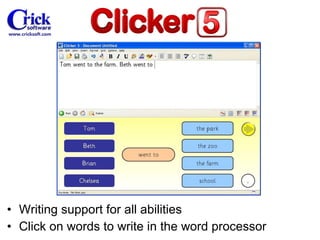
Writing support for all abilities Click on words to write in the word processor
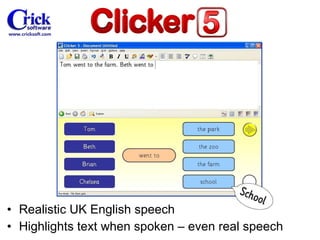
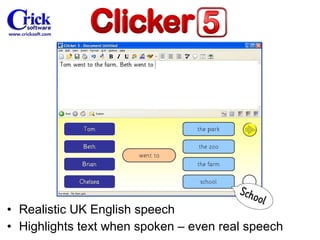
Realistic UK English speech Highlights text when spoken – even real speech
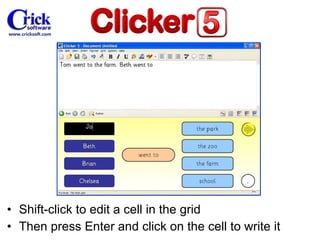
Shift-click to edit a cell in the grid Then press Enter and click on the cell to write it
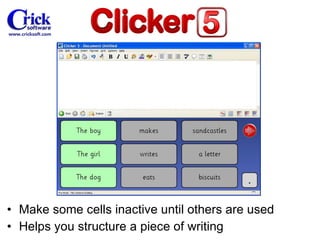
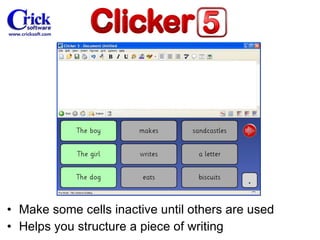
Make some cells inactive until others are used Helps you structure a piece of writing
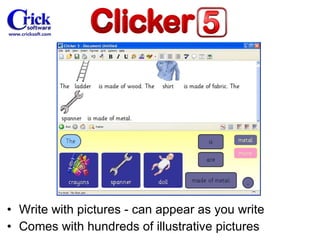
Write with pictures - can appear as you write Comes with hundreds of illustrative pictures
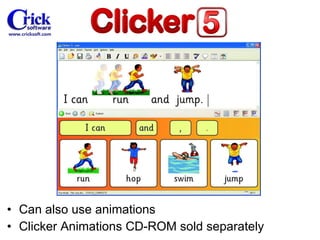
Can also use animations Clicker Animations CD-ROM sold separately
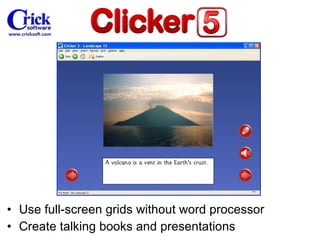
Use full-screen grids without word processor Create talking books and presentations
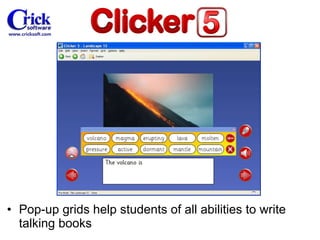
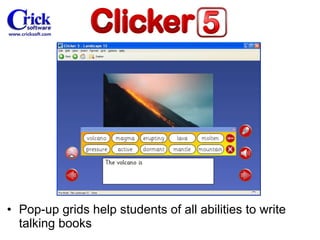
Pop-up grids help students of all abilities to write talking books
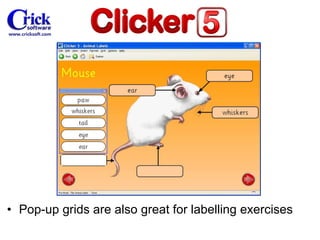
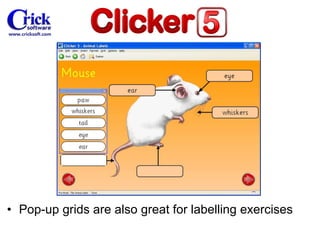
Pop-up grids are also great for labelling exercises
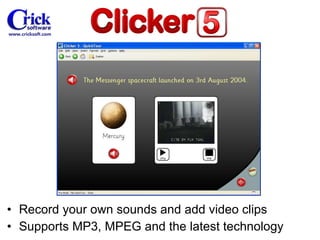
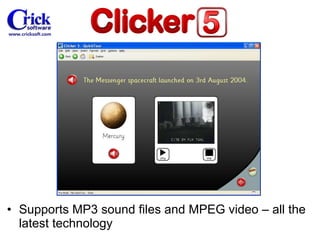
Record your own sounds and add video clips Supports MP3, MPEG and the latest technology
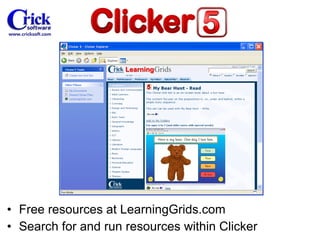
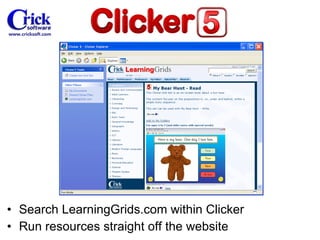
Free resources at LearningGrids.com Search for and run resources within Clicker
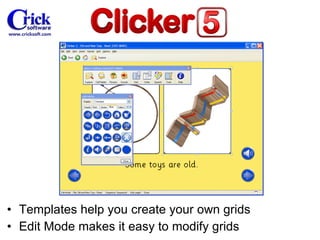
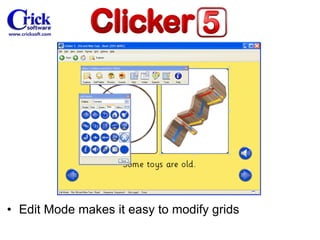
Templates help you create your own grids Edit Mode makes it easy to modify grids
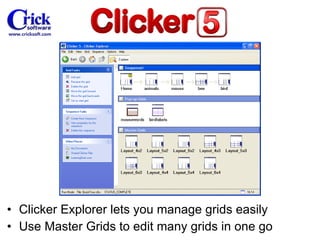
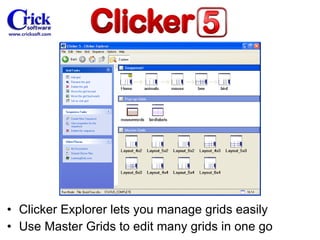
Clicker Explorer lets you manage grids easily Use Master Grids to edit many grids in one go
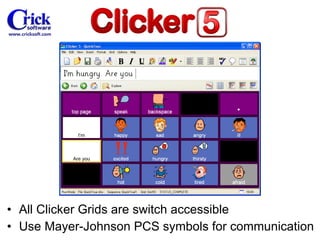
All Clicker Grids are switch accessible Use Mayer-Johnson PCS symbols for communication
What’s New In
Realistic UK English speech Highlights text when spoken – even real speech
Pop-up grids help students of all abilities to write talking books
Pop-up grids are also great for labelling exercises
Search LearningGrids.com within Clicker Run resources straight off the website
Clicker Explorer lets you manage grids easily Use Master Grids to edit many grids in one go
Edit Mode makes it easy to modify grids
Make some cells inactive until others are used Helps you structure a piece of writing
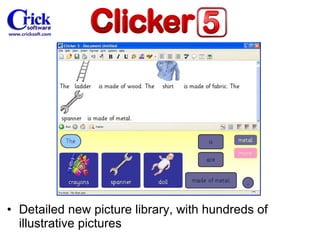
Detailed new picture library , with hundreds of illustrative pictures
Supports MP3 sound files and MPEG video – all the latest technology
In Your Classroom
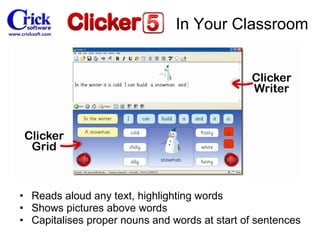
Reads aloud any text, highlighting words Shows pictures above words Capitalises proper nouns and words at start of sentences In Your Classroom
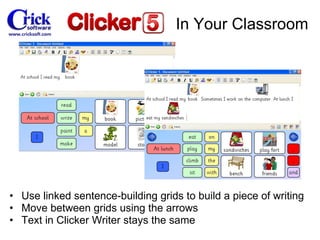
Use linked sentence-building grids to build a piece of writing Move between grids using the arrows Text in Clicker Writer stays the same In Your Classroom
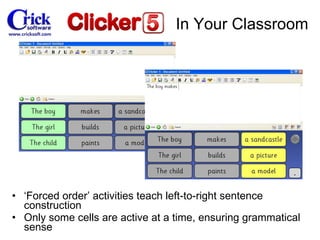
‘ Forced order’ activities teach left-to-right sentence construction Only some cells are active at a time, ensuring grammatical sense In Your Classroom
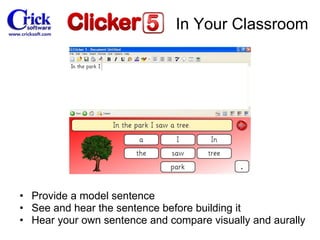
Provide a model sentence See and hear the sentence before building it Hear your own sentence and compare visually and aurally In Your Classroom
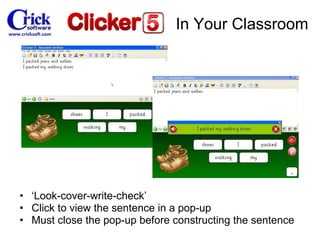
‘ Look-cover-write-check’ Click to view the sentence in a pop-up Must close the pop-up before constructing the sentence In Your Classroom
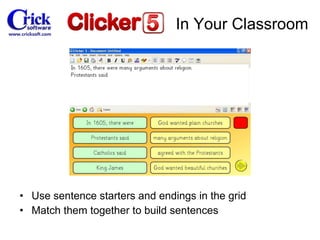
Use sentence starters and endings in the grid Match them together to build sentences In Your Classroom
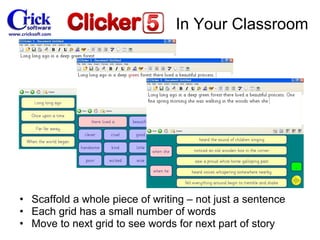
Scaffold a whole piece of writing – not just a sentence Each grid has a small number of words Move to next grid to see words for next part of story In Your Classroom
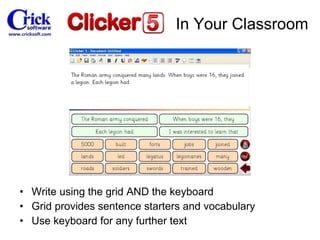
Write using the grid AND the keyboard Grid provides sentence starters and vocabulary Use keyboard for any further text In Your Classroom
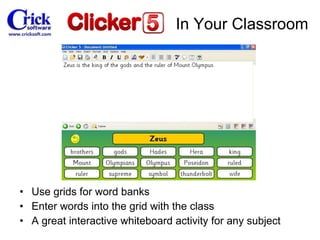
Use grids for word banks Enter words into the grid with the class A great interactive whiteboard activity for any subject In Your Classroom
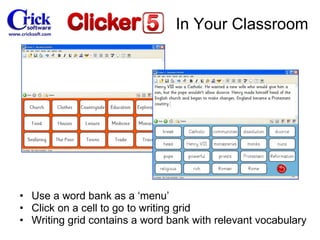
Use a word bank as a ‘menu’ Click on a cell to go to writing grid Writing grid contains a word bank with relevant vocabulary In Your Classroom
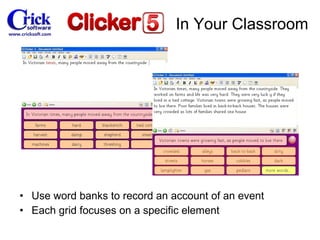
Use word banks to record an account of an event Each grid focuses on a specific element In Your Classroom
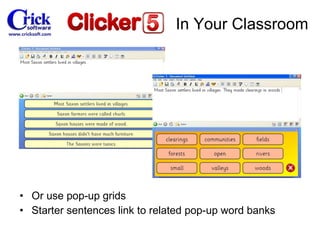
Or use pop-up grids Starter sentences link to related pop-up word banks In Your Classroom
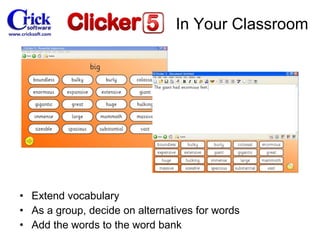
Extend vocabulary As a group, decide on alternatives for words Add the words to the word bank In Your Classroom
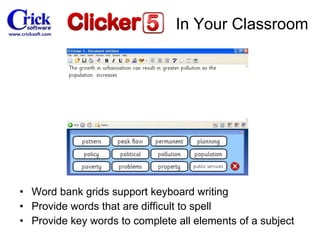
Word bank grids support keyboard writing Provide words that are difficult to spell Provide key words to complete all elements of a subject In Your Classroom
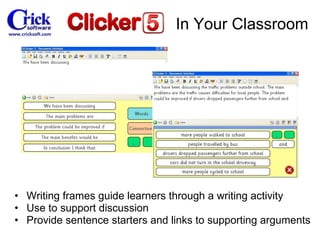
Writing frames guide learners through a writing activity Use to support discussion Provide sentence starters and links to supporting arguments In Your Classroom
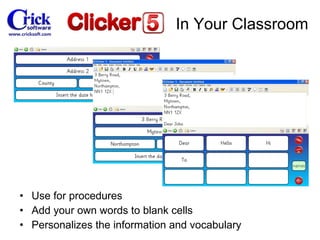
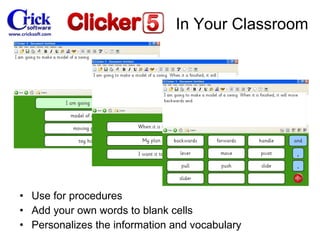
Use for procedures Add your own words to blank cells Personalizes the information and vocabulary In Your Classroom
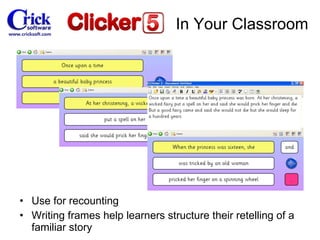
Use for recounting Writing frames help learners structure their retelling of a familiar story In Your Classroom
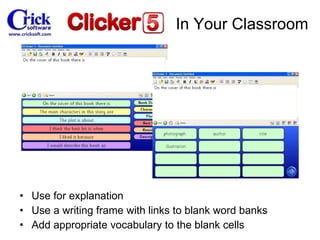
Use for explanation Use a writing frame with links to blank word banks Add appropriate vocabulary to the blank cells In Your Classroom
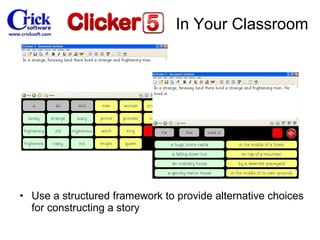
Use a structured framework to provide alternative choices for constructing a story In Your Classroom
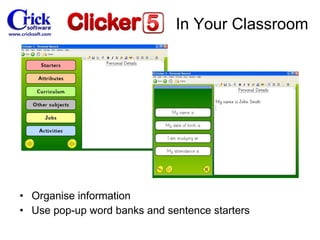
Organise information Use pop-up word banks and sentence starters In Your Classroom
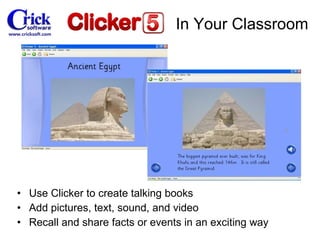
Use Clicker to create talking books Add pictures, text, sound, and video Recall and share facts or events in an exciting way In Your Classroom
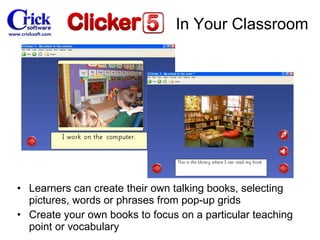
Learners can create their own talking books, selecting pictures, words or phrases from pop-up grids Create your own books to focus on a particular teaching point or vocabulary In Your Classroom
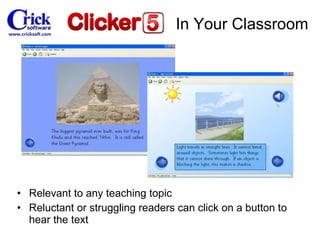
Relevant to any teaching topic Reluctant or struggling readers can click on a button to hear the text In Your Classroom
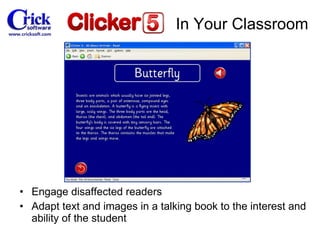
Engage disaffected readers Adapt text and images in a talking book to the interest and ability of the student In Your Classroom
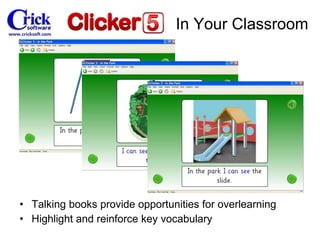
Talking books provide opportunities for overlearning Highlight and reinforce key vocabulary In Your Classroom
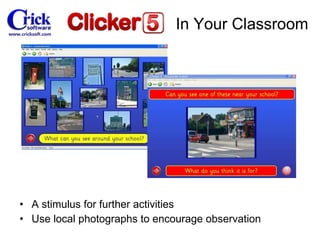
A stimulus for further activities Use local photographs to encourage observation In Your Classroom
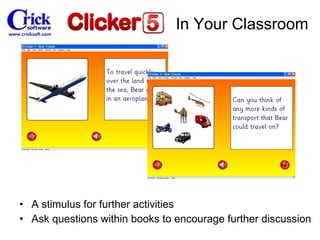
A stimulus for further activities Ask questions within books to encourage further discussion In Your Classroom
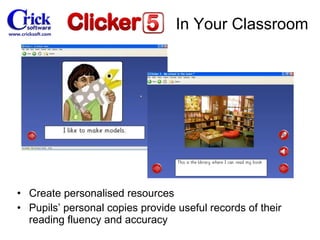
Create personalised resources Pupils’ personal copies provide useful records of their reading fluency and accuracy In Your Classroom
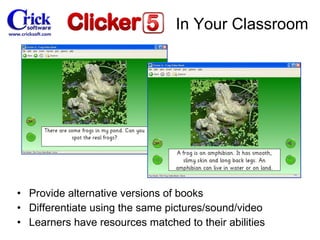
Provide alternative versions of books Differentiate using the same pictures/sound/video Learners have resources matched to their abilities In Your Classroom
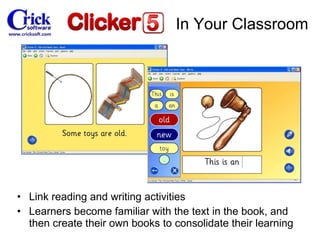
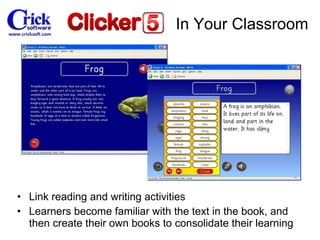
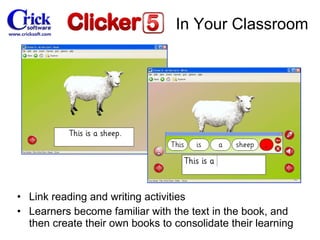
Link reading and writing activities Learners become familiar with the text in the book, and then create their own books to consolidate their learning In Your Classroom
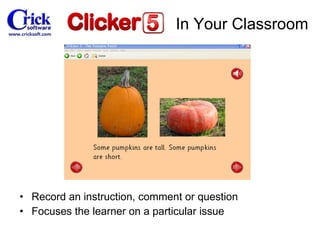
Record an instruction, comment or question Focuses the learner on a particular issue In Your Classroom
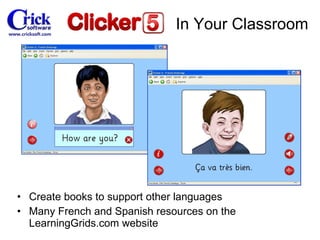
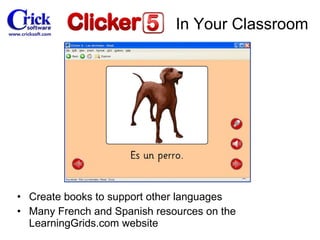
Create books to support other languages Many French and Spanish resources on the LearningGrids.com website In Your Classroom
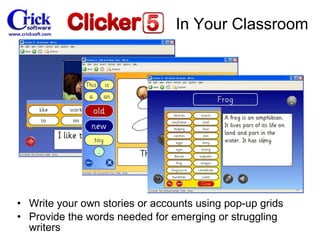
Write your own stories or accounts using pop-up grids Provide the words needed for emerging or struggling writers In Your Classroom
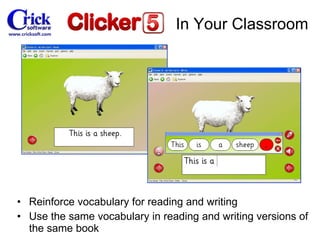
Reinforce vocabulary for reading and writing Use the same vocabulary in reading and writing versions of the same book In Your Classroom
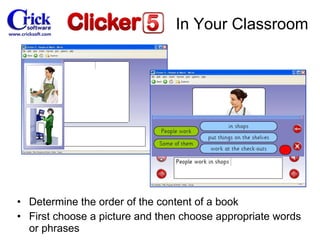
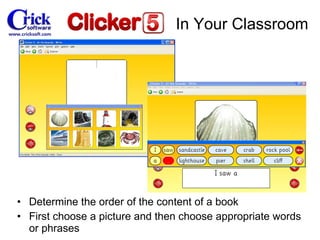
Determine the order of the content of a book First choose a picture and then choose appropriate words or phrases In Your Classroom
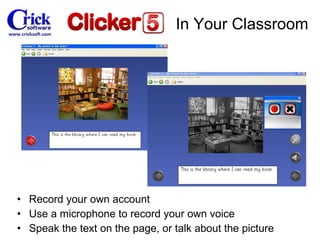
Record your own account Use a microphone to record your own voice Speak the text on the page, or talk about the picture In Your Classroom
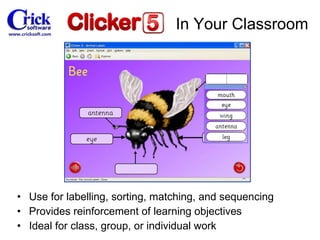
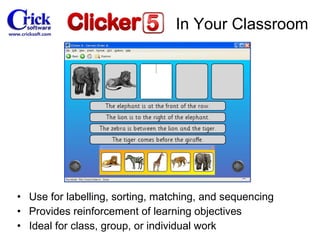
Use for  labelling , sorting, matching, and sequencing Provides reinforcement of  learning  objectives Ideal for class, group, or individual work In Your Classroom
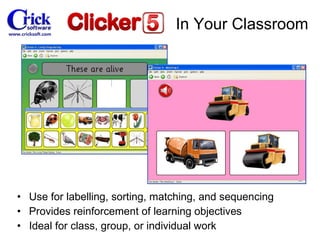
Use for  labelling , sorting, matching, and sequencing Provides reinforcement of learning objectives Ideal for class, group, or individual work In Your Classroom
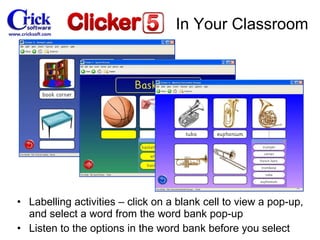
Labelling  activities – click on a blank cell to view a pop-up, and select a word from the word bank pop-up Listen to the options in the word bank before you select In Your Classroom
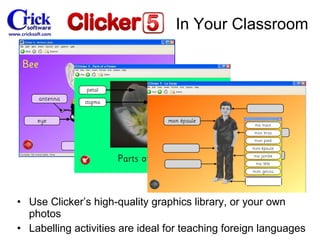
Use Clicker’s high-quality graphics library, or your own photos Labelling  activities are ideal for teaching foreign languages In Your Classroom
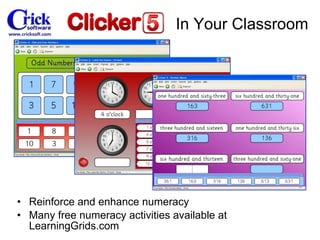
Reinforce and enhance numeracy Many free numeracy activities available at LearningGrids.com In Your Classroom
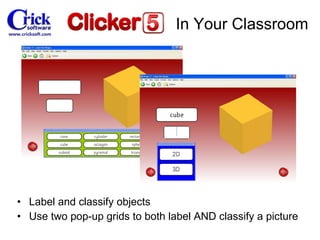
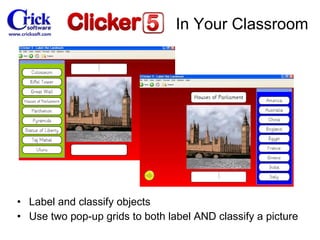
Label and classify objects Use two pop-up grids to both label AND classify a picture In Your Classroom
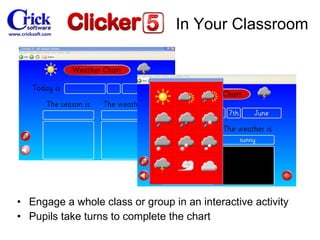
Engage a whole class or group in an interactive activity Pupils take turns to complete the chart In Your Classroom
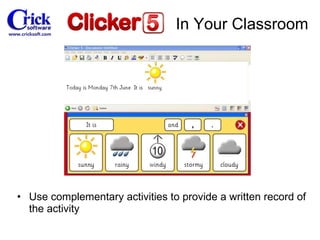
Use complementary activities to provide a written record of the activity In Your Classroom
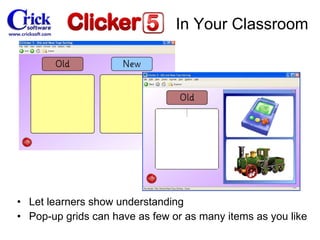
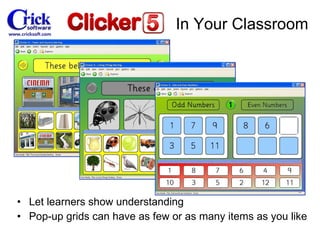
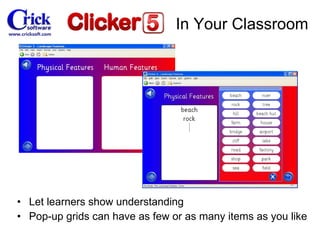
Let learners show understanding Pop-up grids can have as few or as many items as you like In Your Classroom
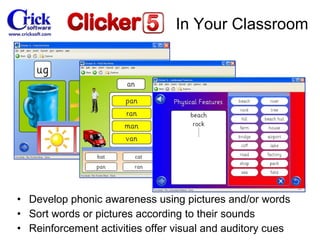
Develop phonic awareness using pictures and/or words Sort words or pictures according to their sounds Reinforcement activities offer visual and auditory cues In Your Classroom
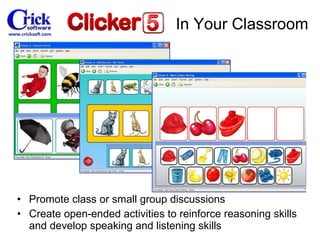
Promote class or small group discussions Create open-ended activities to reinforce reasoning skills and develop speaking and listening skills In Your Classroom
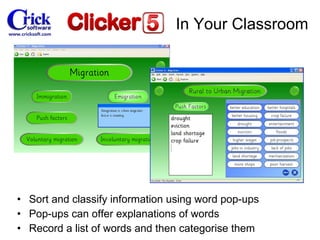
Sort and classify information using word pop-ups Pop-ups can offer explanations of words Record a list of words and then  categorise  them In Your Classroom
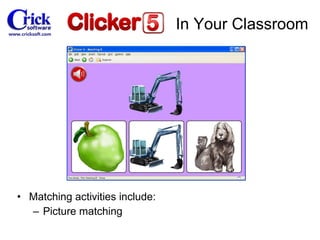
Matching activities include: Picture matching In Your Classroom
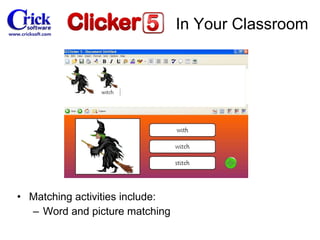
Matching activities include: Word and picture matching In Your Classroom
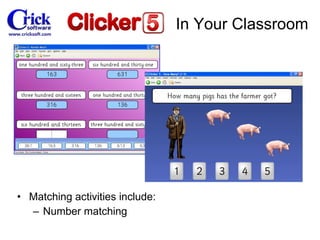
Matching activities include: Number matching In Your Classroom
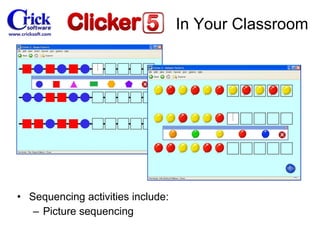
Sequencing activities include: Picture sequencing In Your Classroom
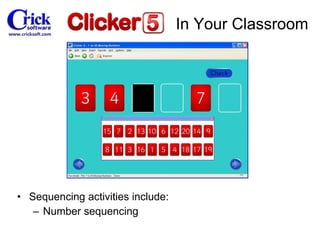
Sequencing activities include: Number sequencing In Your Classroom
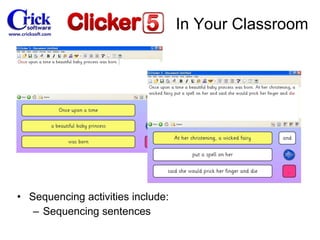
Sequencing activities include: Sequencing sentences In Your Classroom
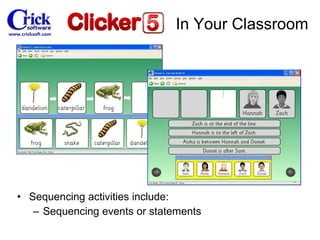
Sequencing activities include: Sequencing events or statements In Your Classroom
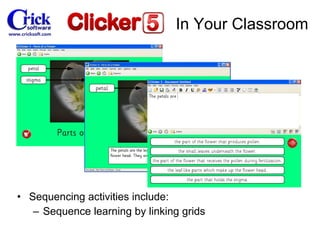
Sequencing activities include: Sequence learning by linking grids In Your Classroom
Quick Tips
Toggle between Run Mode and Edit Mode Double-click  Run Mode  or  Edit Mode  on the left of the status bar. Locate the Shared Clicker Files Open the  Options  menu and select  Program Management . To go to the location, copy and paste the path into the  Address  bar of the  My Computer  window
3. Change the ToolTip size Open the  Options  menu and select  User Preferences . Click on the  Appearance  tab and then on the  Choose Font  button. 4. Copy and paste cells To  Copy  a cell, go to  Edit Mode , right-click on the cell, and then select  Copy . To  Paste  a cell ( in  Edit   Mode ), right-click on the grid background, and then select  Paste .  All the attributes of the cell will be pasted  Cells can be copied and pasted between different grids
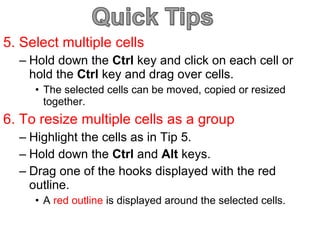
5. Select multiple cells Hold down the  Ctrl  key and click on each cell or hold the  Ctrl  key and drag over cells. The selected cells can be moved, copied or resized together. 6. To resize multiple cells as a group Highlight the cells as in Tip 5. Hold down the  Ctrl  and  Alt  keys.  Drag one of the hooks displayed with the red outline. A  red outline  is displayed around the selected cells.
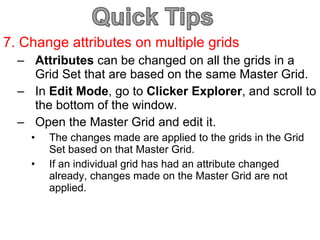
7. Change attributes on multiple grids Attributes  can be changed on all the grids in a Grid Set that are based on the same Master Grid. In  Edit Mode , go to  Clicker Explorer , and scroll to the bottom of the window.  Open the Master Grid and edit it. The changes made are applied to the grids in the Grid Set based on that Master Grid. If an individual grid has had an attribute changed already, changes made on the Master Grid are not applied.
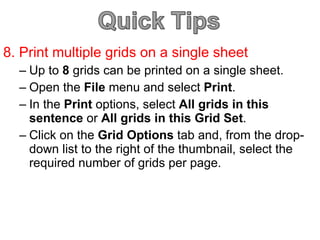
8. Print multiple grids on a single sheet Up to  8  grids can be printed on a single sheet. Open the  File  menu and select  Print . In the  Print  options, select  All grids in this sentence  or  All grids in this Grid Set . Click on the  Grid Options  tab and, from the drop-down list to the right of the thumbnail, select the required number of grids per page.
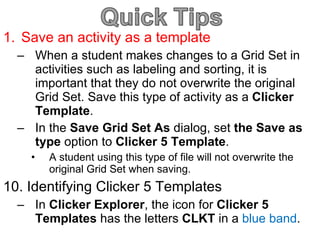
Save an activity as a template When a student makes changes to a Grid Set in activities such as labeling and sorting, it is important that they do not overwrite the original Grid Set. Save this type of activity as a  Clicker Template . In the  Save Grid Set As  dialog, set  the Save as type  option to  Clicker 5 Template . A student using this type of file will not overwrite the original Grid Set when saving. 10. Identifying Clicker 5 Templates In  Clicker Explorer , the icon for  Clicker 5 Templates  has the letters  CLKT  in a  blue band .
Additional Information
Crick Software Ltd, Crick House, Boarden Close, Moulton Park, Northampton NN3 6LF Telephone:  +44 (0)1604-671691  Fax :  +44 (0)1604-671692 [email_address]

Clicker5 Overview

  • 1.
    By: Blair ThallmayerMCOM 585: Internship Office of Disability Services
  • 2.
    Table of ContentsWhat is Clicker 5? What is new? Clicker In Your Classroom Quick Tips Addition Information
  • 3.
  • 4.
    Introducing Clicker Whatis Clicker? Clicker is a writing support and multimedia tool for children of all abilities and people with special needs. Clicker can be used to support teaching and learning in any subject area. It has a talking word processor , called Clicker Writer , and can write in this without using the keyboard- simply click on the words in the on-screen Clicker Grid. Words are spoken aloud before and after writing. Clicker Grids have a variety of uses, such as talking books , multimedia presentations and labeling activities. Comes with high- quality picture support to rapidly make useful and attractive teaching materials. Its realistic speech support reinforces learning and enables effective literacy and language teaching. It’s such a versatile tool; the only limit is your imagination !
  • 5.
    Writing support forall abilities Click on words to write in the word processor
  • 6.
    Realistic UK Englishspeech Highlights text when spoken – even real speech
  • 7.
    Shift-click to edita cell in the grid Then press Enter and click on the cell to write it
  • 8.
    Make some cellsinactive until others are used Helps you structure a piece of writing
  • 9.
    Write with pictures- can appear as you write Comes with hundreds of illustrative pictures
  • 10.
    Can also useanimations Clicker Animations CD-ROM sold separately
  • 11.
    Use full-screen gridswithout word processor Create talking books and presentations
  • 12.
    Pop-up grids helpstudents of all abilities to write talking books
  • 13.
    Pop-up grids arealso great for labelling exercises
  • 14.
    Record your ownsounds and add video clips Supports MP3, MPEG and the latest technology
  • 15.
    Free resources atLearningGrids.com Search for and run resources within Clicker
  • 16.
    Templates help youcreate your own grids Edit Mode makes it easy to modify grids
  • 17.
    Clicker Explorer letsyou manage grids easily Use Master Grids to edit many grids in one go
  • 18.
    All Clicker Gridsare switch accessible Use Mayer-Johnson PCS symbols for communication
  • 19.
  • 20.
    Realistic UK Englishspeech Highlights text when spoken – even real speech
  • 21.
    Pop-up grids helpstudents of all abilities to write talking books
  • 22.
    Pop-up grids arealso great for labelling exercises
  • 23.
    Search LearningGrids.com withinClicker Run resources straight off the website
  • 24.
    Clicker Explorer letsyou manage grids easily Use Master Grids to edit many grids in one go
  • 25.
    Edit Mode makesit easy to modify grids
  • 26.
    Make some cellsinactive until others are used Helps you structure a piece of writing
  • 27.
    Detailed new picturelibrary , with hundreds of illustrative pictures
  • 28.
    Supports MP3 soundfiles and MPEG video – all the latest technology
  • 29.
  • 30.
    Reads aloud anytext, highlighting words Shows pictures above words Capitalises proper nouns and words at start of sentences In Your Classroom
  • 31.
    Use linked sentence-buildinggrids to build a piece of writing Move between grids using the arrows Text in Clicker Writer stays the same In Your Classroom
  • 32.
    ‘ Forced order’activities teach left-to-right sentence construction Only some cells are active at a time, ensuring grammatical sense In Your Classroom
  • 33.
    Provide a modelsentence See and hear the sentence before building it Hear your own sentence and compare visually and aurally In Your Classroom
  • 34.
    ‘ Look-cover-write-check’ Clickto view the sentence in a pop-up Must close the pop-up before constructing the sentence In Your Classroom
  • 35.
    Use sentence startersand endings in the grid Match them together to build sentences In Your Classroom
  • 36.
    Scaffold a wholepiece of writing – not just a sentence Each grid has a small number of words Move to next grid to see words for next part of story In Your Classroom
  • 37.
    Write using thegrid AND the keyboard Grid provides sentence starters and vocabulary Use keyboard for any further text In Your Classroom
  • 38.
    Use grids forword banks Enter words into the grid with the class A great interactive whiteboard activity for any subject In Your Classroom
  • 39.
    Use a wordbank as a ‘menu’ Click on a cell to go to writing grid Writing grid contains a word bank with relevant vocabulary In Your Classroom
  • 40.
    Use word banksto record an account of an event Each grid focuses on a specific element In Your Classroom
  • 41.
    Or use pop-upgrids Starter sentences link to related pop-up word banks In Your Classroom
  • 42.
    Extend vocabulary Asa group, decide on alternatives for words Add the words to the word bank In Your Classroom
  • 43.
    Word bank gridssupport keyboard writing Provide words that are difficult to spell Provide key words to complete all elements of a subject In Your Classroom
  • 44.
    Writing frames guidelearners through a writing activity Use to support discussion Provide sentence starters and links to supporting arguments In Your Classroom
  • 45.
    Use for proceduresAdd your own words to blank cells Personalizes the information and vocabulary In Your Classroom
  • 46.
    Use for proceduresAdd your own words to blank cells Personalizes the information and vocabulary In Your Classroom
  • 47.
    Use for recountingWriting frames help learners structure their retelling of a familiar story In Your Classroom
  • 48.
    Use for explanationUse a writing frame with links to blank word banks Add appropriate vocabulary to the blank cells In Your Classroom
  • 49.
    Use a structuredframework to provide alternative choices for constructing a story In Your Classroom
  • 50.
    Organise information Usepop-up word banks and sentence starters In Your Classroom
  • 51.
    Use Clicker tocreate talking books Add pictures, text, sound, and video Recall and share facts or events in an exciting way In Your Classroom
  • 52.
    Learners can createtheir own talking books, selecting pictures, words or phrases from pop-up grids Create your own books to focus on a particular teaching point or vocabulary In Your Classroom
  • 53.
    Relevant to anyteaching topic Reluctant or struggling readers can click on a button to hear the text In Your Classroom
  • 54.
    Engage disaffected readersAdapt text and images in a talking book to the interest and ability of the student In Your Classroom
  • 55.
    Talking books provideopportunities for overlearning Highlight and reinforce key vocabulary In Your Classroom
  • 56.
    A stimulus forfurther activities Use local photographs to encourage observation In Your Classroom
  • 57.
    A stimulus forfurther activities Ask questions within books to encourage further discussion In Your Classroom
  • 58.
    Create personalised resourcesPupils’ personal copies provide useful records of their reading fluency and accuracy In Your Classroom
  • 59.
    Provide alternative versionsof books Differentiate using the same pictures/sound/video Learners have resources matched to their abilities In Your Classroom
  • 60.
    Link reading andwriting activities Learners become familiar with the text in the book, and then create their own books to consolidate their learning In Your Classroom
  • 61.
    Link reading andwriting activities Learners become familiar with the text in the book, and then create their own books to consolidate their learning In Your Classroom
  • 62.
    Link reading andwriting activities Learners become familiar with the text in the book, and then create their own books to consolidate their learning In Your Classroom
  • 63.
    Record an instruction,comment or question Focuses the learner on a particular issue In Your Classroom
  • 64.
    Create books tosupport other languages Many French and Spanish resources on the LearningGrids.com website In Your Classroom
  • 65.
    Create books tosupport other languages Many French and Spanish resources on the LearningGrids.com website In Your Classroom
  • 66.
    Write your ownstories or accounts using pop-up grids Provide the words needed for emerging or struggling writers In Your Classroom
  • 67.
    Reinforce vocabulary forreading and writing Use the same vocabulary in reading and writing versions of the same book In Your Classroom
  • 68.
    Determine the orderof the content of a book First choose a picture and then choose appropriate words or phrases In Your Classroom
  • 69.
    Determine the orderof the content of a book First choose a picture and then choose appropriate words or phrases In Your Classroom
  • 70.
    Record your ownaccount Use a microphone to record your own voice Speak the text on the page, or talk about the picture In Your Classroom
  • 71.
    Use for labelling , sorting, matching, and sequencing Provides reinforcement of learning objectives Ideal for class, group, or individual work In Your Classroom
  • 72.
    Use for labelling , sorting, matching, and sequencing Provides reinforcement of learning objectives Ideal for class, group, or individual work In Your Classroom
  • 73.
    Use for labelling , sorting, matching, and sequencing Provides reinforcement of learning objectives Ideal for class, group, or individual work In Your Classroom
  • 74.
    Labelling activities– click on a blank cell to view a pop-up, and select a word from the word bank pop-up Listen to the options in the word bank before you select In Your Classroom
  • 75.
    Use Clicker’s high-qualitygraphics library, or your own photos Labelling activities are ideal for teaching foreign languages In Your Classroom
  • 76.
    Reinforce and enhancenumeracy Many free numeracy activities available at LearningGrids.com In Your Classroom
  • 77.
    Label and classifyobjects Use two pop-up grids to both label AND classify a picture In Your Classroom
  • 78.
    Label and classifyobjects Use two pop-up grids to both label AND classify a picture In Your Classroom
  • 79.
    Engage a wholeclass or group in an interactive activity Pupils take turns to complete the chart In Your Classroom
  • 80.
    Use complementary activitiesto provide a written record of the activity In Your Classroom
  • 81.
    Let learners showunderstanding Pop-up grids can have as few or as many items as you like In Your Classroom
  • 82.
    Let learners showunderstanding Pop-up grids can have as few or as many items as you like In Your Classroom
  • 83.
    Let learners showunderstanding Pop-up grids can have as few or as many items as you like In Your Classroom
  • 84.
    Develop phonic awarenessusing pictures and/or words Sort words or pictures according to their sounds Reinforcement activities offer visual and auditory cues In Your Classroom
  • 85.
    Promote class orsmall group discussions Create open-ended activities to reinforce reasoning skills and develop speaking and listening skills In Your Classroom
  • 86.
    Sort and classifyinformation using word pop-ups Pop-ups can offer explanations of words Record a list of words and then categorise them In Your Classroom
  • 87.
    Matching activities include:Picture matching In Your Classroom
  • 88.
    Matching activities include:Word and picture matching In Your Classroom
  • 89.
    Matching activities include:Number matching In Your Classroom
  • 90.
    Sequencing activities include:Picture sequencing In Your Classroom
  • 91.
    Sequencing activities include:Number sequencing In Your Classroom
  • 92.
    Sequencing activities include:Sequencing sentences In Your Classroom
  • 93.
    Sequencing activities include:Sequencing events or statements In Your Classroom
  • 94.
    Sequencing activities include:Sequence learning by linking grids In Your Classroom
  • 95.
  • 96.
    Toggle between RunMode and Edit Mode Double-click Run Mode or Edit Mode on the left of the status bar. Locate the Shared Clicker Files Open the Options menu and select Program Management . To go to the location, copy and paste the path into the Address bar of the My Computer window
  • 97.
    3. Change theToolTip size Open the Options menu and select User Preferences . Click on the Appearance tab and then on the Choose Font button. 4. Copy and paste cells To Copy a cell, go to Edit Mode , right-click on the cell, and then select Copy . To Paste a cell ( in Edit Mode ), right-click on the grid background, and then select Paste . All the attributes of the cell will be pasted Cells can be copied and pasted between different grids
  • 98.
    5. Select multiplecells Hold down the Ctrl key and click on each cell or hold the Ctrl key and drag over cells. The selected cells can be moved, copied or resized together. 6. To resize multiple cells as a group Highlight the cells as in Tip 5. Hold down the Ctrl and Alt keys. Drag one of the hooks displayed with the red outline. A red outline is displayed around the selected cells.
  • 99.
    7. Change attributeson multiple grids Attributes can be changed on all the grids in a Grid Set that are based on the same Master Grid. In Edit Mode , go to Clicker Explorer , and scroll to the bottom of the window. Open the Master Grid and edit it. The changes made are applied to the grids in the Grid Set based on that Master Grid. If an individual grid has had an attribute changed already, changes made on the Master Grid are not applied.
  • 100.
    8. Print multiplegrids on a single sheet Up to 8 grids can be printed on a single sheet. Open the File menu and select Print . In the Print options, select All grids in this sentence or All grids in this Grid Set . Click on the Grid Options tab and, from the drop-down list to the right of the thumbnail, select the required number of grids per page.
  • 101.
    Save an activityas a template When a student makes changes to a Grid Set in activities such as labeling and sorting, it is important that they do not overwrite the original Grid Set. Save this type of activity as a Clicker Template . In the Save Grid Set As dialog, set the Save as type option to Clicker 5 Template . A student using this type of file will not overwrite the original Grid Set when saving. 10. Identifying Clicker 5 Templates In Clicker Explorer , the icon for Clicker 5 Templates has the letters CLKT in a blue band .
  • 102.
  • 103.
    Crick Software Ltd,Crick House, Boarden Close, Moulton Park, Northampton NN3 6LF Telephone: +44 (0)1604-671691 Fax : +44 (0)1604-671692 [email_address]