iPads
K-2, Spanish 1-8
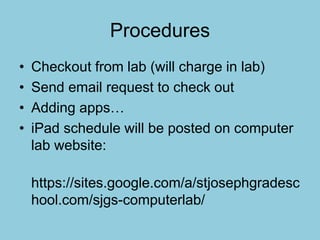
Procedures
• Checkout from lab (will charge in lab)
• Send email request to check out
• Adding apps…
• iPad schedule will be posted on computer
lab website:
https://sites.google.com/a/stjosephgradesc
hool.com/sjgs-computerlab/
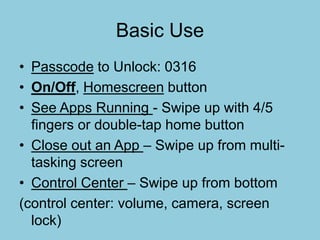
Basic Use
• Passcode to Unlock: 0316
• On/Off, Homescreen button
• See Apps Running - Swipe up with 4/5
fingers or double-tap home button
• Close out an App – Swipe up from multi-
tasking screen
• Control Center – Swipe up from bottom
(control center: volume, camera, screen
lock)
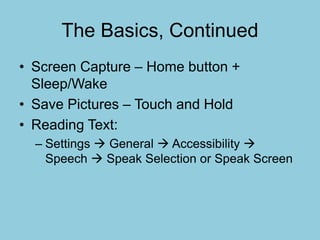
The Basics, Continued
• Screen Capture – Home button +
Sleep/Wake
• Save Pictures – Touch and Hold
• Reading Text:
– Settings  General  Accessibility 
Speech  Speak Selection or Speak Screen
The Basics, Wrapping Up
• Using iPad as Mouse: Remote Mouse
(App on iPad controls Computer through
wireless network)
• Mirroring iPad to Computer Screen with
Reflector or Air Server (Putting iPad
screen onto computer…and then onto
projector)
Apps!
• All Apps shared today are already
downloaded on iPads
• Several have the “lite” (free) version
downloaded…possible upgrade if used
often
• Learn about new apps to try?
– Email John or I…
“Tellagami”
What does it do?
• Customize character,
mood and setting to
create short, animated
message
How can I use it?
• Introduce self at
beginning of year,
explaining how to be a
school citizen, introduce
self in Spanish, story
retellings, explaining
areas of study
“Chatterpix”; “Explain Everything”
What does it do?
• Take a picture, add
mouth, add vocal
recording
How can I use it?
• Give bios for Famous
Americans, explain roles
of community helpers,
explaining pictures of
natural disasters
“Label Craft”
What does it do?
• Add labels to images
How can I use it?
• Label parts of the plant
• Label layers of the
rainforest
• Label planets in solar
system
“Book Creator”, “Little Storymaker”
What does it do?
• Create your own books –
add text and images
How can I use it?
• Create own digital stories
– About Me, nonfictional
stories based on unit
studies
“Doodle Buddy”
What does it do?
• Whiteboard drawing
How can I use it?
• Practice spelling words
• Mirror up to whiteboard –
brainstorms, lists
• Handwriting, letter
practice
“PhotoCard”
What does it do?
• Make your own postcard
– Select picture
– Add text or voice (up to 60
seconds)
How can I use it?
• Pioneer Postcard
• Writing a letter from the
Artic/Antartic
• Letters to ancestors
(immigration study)
“Toontastic”
What does it do?
• Create digital stories –
walks student through
various elements of
stories (i.e. conflict,

climax, resolution)
How can I use it?
• Modeling/practicing the
elements of story writing
“Thinglink”
What does it do?
• Upload image and add
tags to link to images,
text, video, websites
• (*Create an account to
sign in)
How can I use it?
• Tag parts of Solar
System,
“Sock Puppets”
What does it do?
• Create a puppet show –
choose characters,
background, props
• Record characters talking
to each other
How can I use it?
• Famous Americans
interview, modeling
respect and kindness,
interview a fairy tale
character,
“Popplet” (lite)
What does it do?
• Graphic organizer –
students can import
images
How can I use it?
• Brainstorming tool for
writing, sequencing event
tool, sort/organize tool
“Haiku Deck”
What does it do?
• Select image, add text,
add a chart
How can I use it?
• School Tour
• Interview another student
• Book summary
• Geometry scavenger hunt
“Screen Chomp” or “Show Me”
What does it do?
• White board
• Add text with pen
(change color, size)
• Add vocal recording (30
seconds)
• (*Screen Chomp – can
email)
How can I use it?
• Explain steps of math
problem
• Drawing the stages life
cycles
“Write About This” (lite)
What does it do?
• Photos to choose from for
writing prompts
• Add own photo for writing
prompt
How can I use it?
• Stuck while choosing
writing topic
• Free write
“Visual Poetry”
What does it do?
• Draft poem – choose
shape, color, background
photo
How can I use it?
• Poem with subject matter
as background
“Puppet Edu”
• Add photos for a story,
narrate while flipping
through photos
• Take pictures of own work
(project library
• Find images online, take
pictures of events, people
around school
“Telestory”
What does it do?
• Create an animated story
with camera and
microphone
How can I use it?
• Weather unit, retelling
nonfictional events,
interview
“Endless Reader”
What does it do?
• Sound out letters/words,
• Drag letters in place for
words
• Drag words in place for
sentences
How can I use it?
• Letter and sound
recognition
“Idea Sketch”
What does it do?
• Create a graphic
organizer
How can I use it?
• Story brainstorming,
outline nonfictional writing
“Pic Collage”
What does it do?
• Add pictures, choose
layouts
• Add text, stickers,
background
How can I use it?
• Collect images relating to
topic of study
• Add captions
• Beginning of year –
establishing routines
“Dragon Dictation”
What it does it do?
• Record voice, creates
notes
How can I use it?
• Quick note taking,
comparing with reading
aloud text
“MathBoard”
• What does it do?
– Addition/Subtraction, Multiplication and
Division problems – adjusts problems
according to students’ scores
“Thinking Blocks Addition”
& “Thinking Blocks Multiplication”
• What does it do?
– Given word problems – building a model to
solve and check your work
“Number Pieces”
• What does it do?
– Model problems with base-ten blocks
“Number Rack”
• What does it do?
– Visual (moving beads) for addition,
subtraction
“What time is it, Mr. Wolf?”
• What does it do?
– Shows a clock – students select time
“Number Line”
• What does it do?
– Visualize number sequences
– Model strategies for addition, subtraction,
division, multiplication
“Duolingo”
• What does it do?
– Choose language, select level for vocabulary
practice
Other Apps
• Venn Diagram
• ABC Order
• Adobe Voice
• Next Sentence (lite)
Photo Resources
• Photosforclass.com
Apps for Classroom Management
• Class Dojo – Tracks student behavior
• Best Timer - Timer
• Too Noisy – Measures noise in room
• Pick Me – Name generator
Apps Gone Free…
• http://appsaga.com
• http://www.appfreeweb.com
• Apps Gone Free (App)
• http://www.iosnoops.com/iphone-ipads-
gone-free/ *free interactive books each
day
Picture
• So I don’t forget…

K 2 intro to i pads

  • 1.
  • 2.
    Procedures • Checkout fromlab (will charge in lab) • Send email request to check out • Adding apps… • iPad schedule will be posted on computer lab website: https://sites.google.com/a/stjosephgradesc hool.com/sjgs-computerlab/
  • 3.
    Basic Use • Passcodeto Unlock: 0316 • On/Off, Homescreen button • See Apps Running - Swipe up with 4/5 fingers or double-tap home button • Close out an App – Swipe up from multi- tasking screen • Control Center – Swipe up from bottom (control center: volume, camera, screen lock)
  • 4.
    The Basics, Continued •Screen Capture – Home button + Sleep/Wake • Save Pictures – Touch and Hold • Reading Text: – Settings  General  Accessibility  Speech  Speak Selection or Speak Screen
  • 5.
    The Basics, WrappingUp • Using iPad as Mouse: Remote Mouse (App on iPad controls Computer through wireless network) • Mirroring iPad to Computer Screen with Reflector or Air Server (Putting iPad screen onto computer…and then onto projector)
  • 6.
    Apps! • All Appsshared today are already downloaded on iPads • Several have the “lite” (free) version downloaded…possible upgrade if used often • Learn about new apps to try? – Email John or I…
  • 7.
    “Tellagami” What does itdo? • Customize character, mood and setting to create short, animated message How can I use it? • Introduce self at beginning of year, explaining how to be a school citizen, introduce self in Spanish, story retellings, explaining areas of study
  • 8.
    “Chatterpix”; “Explain Everything” Whatdoes it do? • Take a picture, add mouth, add vocal recording How can I use it? • Give bios for Famous Americans, explain roles of community helpers, explaining pictures of natural disasters
  • 9.
    “Label Craft” What doesit do? • Add labels to images How can I use it? • Label parts of the plant • Label layers of the rainforest • Label planets in solar system
  • 10.
    “Book Creator”, “LittleStorymaker” What does it do? • Create your own books – add text and images How can I use it? • Create own digital stories – About Me, nonfictional stories based on unit studies
  • 11.
    “Doodle Buddy” What doesit do? • Whiteboard drawing How can I use it? • Practice spelling words • Mirror up to whiteboard – brainstorms, lists • Handwriting, letter practice
  • 12.
    “PhotoCard” What does itdo? • Make your own postcard – Select picture – Add text or voice (up to 60 seconds) How can I use it? • Pioneer Postcard • Writing a letter from the Artic/Antartic • Letters to ancestors (immigration study)
  • 13.
    “Toontastic” What does itdo? • Create digital stories – walks student through various elements of stories (i.e. conflict, climax, resolution) How can I use it? • Modeling/practicing the elements of story writing
  • 14.
    “Thinglink” What does itdo? • Upload image and add tags to link to images, text, video, websites • (*Create an account to sign in) How can I use it? • Tag parts of Solar System,
  • 15.
    “Sock Puppets” What doesit do? • Create a puppet show – choose characters, background, props • Record characters talking to each other How can I use it? • Famous Americans interview, modeling respect and kindness, interview a fairy tale character,
  • 16.
    “Popplet” (lite) What doesit do? • Graphic organizer – students can import images How can I use it? • Brainstorming tool for writing, sequencing event tool, sort/organize tool
  • 17.
    “Haiku Deck” What doesit do? • Select image, add text, add a chart How can I use it? • School Tour • Interview another student • Book summary • Geometry scavenger hunt
  • 18.
    “Screen Chomp” or“Show Me” What does it do? • White board • Add text with pen (change color, size) • Add vocal recording (30 seconds) • (*Screen Chomp – can email) How can I use it? • Explain steps of math problem • Drawing the stages life cycles
  • 19.
    “Write About This”(lite) What does it do? • Photos to choose from for writing prompts • Add own photo for writing prompt How can I use it? • Stuck while choosing writing topic • Free write
  • 20.
    “Visual Poetry” What doesit do? • Draft poem – choose shape, color, background photo How can I use it? • Poem with subject matter as background
  • 21.
    “Puppet Edu” • Addphotos for a story, narrate while flipping through photos • Take pictures of own work (project library • Find images online, take pictures of events, people around school
  • 22.
    “Telestory” What does itdo? • Create an animated story with camera and microphone How can I use it? • Weather unit, retelling nonfictional events, interview
  • 23.
    “Endless Reader” What doesit do? • Sound out letters/words, • Drag letters in place for words • Drag words in place for sentences How can I use it? • Letter and sound recognition
  • 24.
    “Idea Sketch” What doesit do? • Create a graphic organizer How can I use it? • Story brainstorming, outline nonfictional writing
  • 25.
    “Pic Collage” What doesit do? • Add pictures, choose layouts • Add text, stickers, background How can I use it? • Collect images relating to topic of study • Add captions • Beginning of year – establishing routines
  • 26.
    “Dragon Dictation” What itdoes it do? • Record voice, creates notes How can I use it? • Quick note taking, comparing with reading aloud text
  • 27.
    “MathBoard” • What doesit do? – Addition/Subtraction, Multiplication and Division problems – adjusts problems according to students’ scores
  • 28.
    “Thinking Blocks Addition” &“Thinking Blocks Multiplication” • What does it do? – Given word problems – building a model to solve and check your work
  • 29.
    “Number Pieces” • Whatdoes it do? – Model problems with base-ten blocks
  • 30.
    “Number Rack” • Whatdoes it do? – Visual (moving beads) for addition, subtraction
  • 31.
    “What time isit, Mr. Wolf?” • What does it do? – Shows a clock – students select time
  • 32.
    “Number Line” • Whatdoes it do? – Visualize number sequences – Model strategies for addition, subtraction, division, multiplication
  • 33.
    “Duolingo” • What doesit do? – Choose language, select level for vocabulary practice
  • 34.
    Other Apps • VennDiagram • ABC Order • Adobe Voice • Next Sentence (lite)
  • 35.
  • 36.
    Apps for ClassroomManagement • Class Dojo – Tracks student behavior • Best Timer - Timer • Too Noisy – Measures noise in room • Pick Me – Name generator
  • 37.
    Apps Gone Free… •http://appsaga.com • http://www.appfreeweb.com • Apps Gone Free (App) • http://www.iosnoops.com/iphone-ipads- gone-free/ *free interactive books each day
  • 38.
    Picture • So Idon’t forget…