Evolution Program Assabet Valley Collaborative October 19, 2011 Kate Ahern, M.S.Ed..
See a full list of these and other Free AT options at: http://gobundlr.com/b/free-assistive-technology
 
Text-to-Speech Text-to-Speech is a way for students to hear the words on the screen read back to them Screen readers read EVERYTHING on the screen and are primarily for the blind and visually impaired Text readers read selections of text and are for those with print disabilities Some options: Natural Reader Free  reads back selected text with highlighting and allows users to save as MP3 Balaboka  reads back text pasted into the program with highlighting and more advanced options (pitch, speed) Word Talk  reads text with highlighting in Microsoft Word Power Talk  reads text with highlighting in Power Point
AudioBooks Bookshare (order through Kate) Accessible Book Collection Learning Ally Overdrive Audio Books Kindle Reader with NVDA eReacher
Interactive Books PowerPoint Books Tar Heel Reader
 
Hear Your Writing Talking Word Processors allow you to hear your work as you write or select your writing and hear it played back Word Talk  is a free add on to Microsoft Word.  It reads your writing aloud and highlights in the color of your choice as it does so. EdWord  is a free simplified, talking word processor
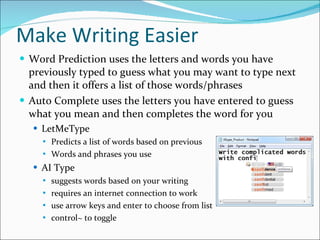
Make Writing Easier Word Prediction uses the letters and words you have previously typed to guess what you may want to type next and then it offers a list of those words/phrases Auto Complete uses the letters you have entered to guess what you mean and then completes the word for you LetMeType  Predicts a list of words based on previous  Words and phrases you use AI Type  suggests words based on your writing requires an internet connection to work use arrow keys and enter to choose from list control~ to toggle
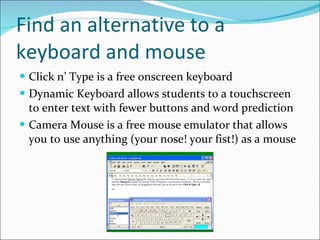
Find an alternative to a keyboard and mouse Click n’ Type is a free onscreen keyboard Dynamic Keyboard allows students to a touchscreen to enter text with fewer buttons and word prediction Camera Mouse is a free mouse emulator that allows you to use anything (your nose! your fist!) as a mouse
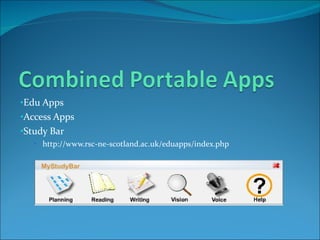
Edu Apps Access Apps Study Bar http://www.rsc-ne-scotland.ac.uk/eduapps/index.php
 
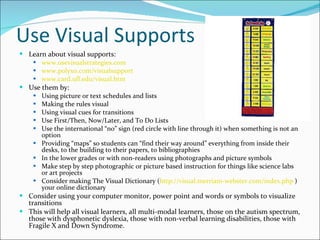
Use Visual Supports Learn about visual supports: www.usevisualstrategies.com   www.polyxo.com/visualsupport   www.card.ufl.edu/visual.htm   Use them by: Using picture or text schedules and lists Making the rules visual Using visual cues for transitions Use First/Then, Now/Later, and To Do Lists Use the international “no” sign (red circle with line through it) when something is not an option Providing “maps” so students can “find their way around” everything from inside their desks, to the building to their papers, to bibliographies In the lower grades or with non-readers using photographs and picture symbols Make step by step photographic or picture based instruction for things like science labs or art projects Consider making The Visual Dictionary ( http://visual.merriam-webster.com/index.php  ) your online dictionary Consider using your computer monitor, power point and words or symbols to visualize transitions This will help all visual learners, all multi-modal learners, those on the autism spectrum, those with dysphonetic dyslexia, those with non-verbal learning disabilities, those with Fragile X and Down Syndrome.
Free Photographs and Picture Symbols for Visual Supports www.do2learn.com   – mostly schedule and personal care related line drawings www.imaginesymbols.com   – 4,000 full color drawing for use in schedules, communication and education materials www.sclera.be/English/index.htm   - 14,000 pictograms for education, schedules and communication all are black on white in design Literacy Support Pictures Search  http://www.slatersoftware.com/PixLibrary.html   Don’t forget that you can use your digital camera, Google images and website like Flickr as well.
Board and Schedule Creation ARASAAC Board Generator ARASAAC Tico Pecs for All PhotoSYMS    My Own Worksheet  Tech/Syms  (AMDi)  SEN Teacher Photo Cards  Visuals Engine
Online SlideShows SlideShare SlideBoom Voice Thread for Education What are something you could use slideshows for?
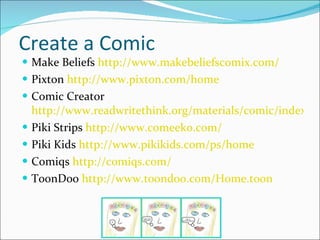
Create a Comic Make Beliefs  http://www.makebeliefscomix.com/ Pixton  http://www.pixton.com/home Comic Creator  http://www.readwritethink.org/materials/comic/index.html Piki Strips  http://www.comeeko.com/ Piki Kids  http://www.pikikids.com/ps/home Comiqs  http://comiqs.com/ ToonDoo  http://www.toondoo.com/Home.toon
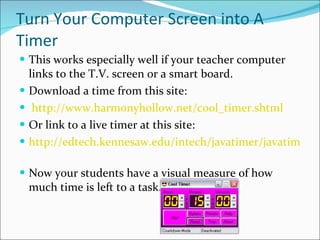
Turn Your Computer Screen into A Timer This works especially well if your teacher computer links to the T.V. screen or a smart board. Download a time from this site: http://www.harmonyhollow.net/cool_timer.shtml   Or link to a live timer at this site: http://edtech.kennesaw.edu/intech/javatimer/javatimer.html   Now your students have a visual measure of how much time is left to a task.
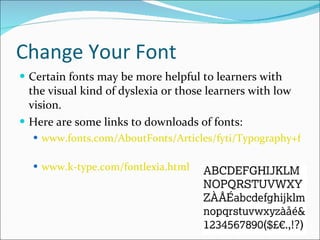
Change Your Font Certain fonts may be more helpful to learners with the visual kind of dyslexia or those learners with low vision.  Here are some links to downloads of fonts: www.fonts.com/AboutFonts/Articles/fyti/Typography+for+Children.htm   www.k-type.com/fontlexia.html
Use Mind Maps and Graphic Organizers There are many website that offer free mind mapping tools here are a few: www.Bubbl.us   www.Mindomo.com   www.Mind42.com   Other sites offer us various graphic organizers to try here are a few: www.exploratree.org.uk   www.freeology.com/graphicorgs/   www.webenglishteacher.com/graphic.html   Good for learners on the autism spectrum and those with some kinds of reading disabilities
Visually Represent History Timelines CircaVie  http://www.circavie.com/ Dipity  http://www.dipity.com/ My timelines  http://www.mytimelines.net/create-a-timeline/ Interactive Timelines  http://www.readwritethink.org/materials/timeline/
 
Multi-Media Shows Voice Thread (free for Education)  http://voicethread.com/ Animoto (free for education)  http://biz.animoto.com/education/overview.html
 
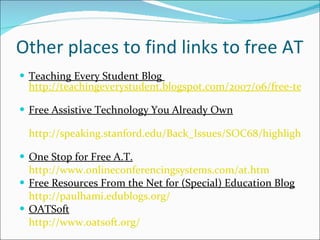
Other places to find links to free AT Teaching Every Student Blog  http://teachingeverystudent.blogspot.com/2007/06/free-technology-toolkit-for-udl-in-all.html   Free Assistive Technology You Already Own http://speaking.stanford.edu/Back_Issues/SOC68/highlights/Free_Assistive_Technology.html   One Stop for Free A.T. http://www.onlineconferencingsystems.com/at.htm   Free Resources From the Net for (Special) Education Blog http://paulhami.edublogs.org/   OATSoft http://www.oatsoft.org/

Free at evolution

  • 1.
    Evolution Program AssabetValley Collaborative October 19, 2011 Kate Ahern, M.S.Ed..
  • 2.
    See a fulllist of these and other Free AT options at: http://gobundlr.com/b/free-assistive-technology
  • 3.
  • 4.
    Text-to-Speech Text-to-Speech isa way for students to hear the words on the screen read back to them Screen readers read EVERYTHING on the screen and are primarily for the blind and visually impaired Text readers read selections of text and are for those with print disabilities Some options: Natural Reader Free reads back selected text with highlighting and allows users to save as MP3 Balaboka reads back text pasted into the program with highlighting and more advanced options (pitch, speed) Word Talk reads text with highlighting in Microsoft Word Power Talk reads text with highlighting in Power Point
  • 5.
    AudioBooks Bookshare (orderthrough Kate) Accessible Book Collection Learning Ally Overdrive Audio Books Kindle Reader with NVDA eReacher
  • 6.
    Interactive Books PowerPointBooks Tar Heel Reader
  • 7.
  • 8.
    Hear Your WritingTalking Word Processors allow you to hear your work as you write or select your writing and hear it played back Word Talk is a free add on to Microsoft Word. It reads your writing aloud and highlights in the color of your choice as it does so. EdWord is a free simplified, talking word processor
  • 9.
    Make Writing EasierWord Prediction uses the letters and words you have previously typed to guess what you may want to type next and then it offers a list of those words/phrases Auto Complete uses the letters you have entered to guess what you mean and then completes the word for you LetMeType Predicts a list of words based on previous Words and phrases you use AI Type suggests words based on your writing requires an internet connection to work use arrow keys and enter to choose from list control~ to toggle
  • 10.
    Find an alternativeto a keyboard and mouse Click n’ Type is a free onscreen keyboard Dynamic Keyboard allows students to a touchscreen to enter text with fewer buttons and word prediction Camera Mouse is a free mouse emulator that allows you to use anything (your nose! your fist!) as a mouse
  • 11.
    Edu Apps AccessApps Study Bar http://www.rsc-ne-scotland.ac.uk/eduapps/index.php
  • 12.
  • 13.
    Use Visual SupportsLearn about visual supports: www.usevisualstrategies.com www.polyxo.com/visualsupport www.card.ufl.edu/visual.htm Use them by: Using picture or text schedules and lists Making the rules visual Using visual cues for transitions Use First/Then, Now/Later, and To Do Lists Use the international “no” sign (red circle with line through it) when something is not an option Providing “maps” so students can “find their way around” everything from inside their desks, to the building to their papers, to bibliographies In the lower grades or with non-readers using photographs and picture symbols Make step by step photographic or picture based instruction for things like science labs or art projects Consider making The Visual Dictionary ( http://visual.merriam-webster.com/index.php ) your online dictionary Consider using your computer monitor, power point and words or symbols to visualize transitions This will help all visual learners, all multi-modal learners, those on the autism spectrum, those with dysphonetic dyslexia, those with non-verbal learning disabilities, those with Fragile X and Down Syndrome.
  • 14.
    Free Photographs andPicture Symbols for Visual Supports www.do2learn.com – mostly schedule and personal care related line drawings www.imaginesymbols.com – 4,000 full color drawing for use in schedules, communication and education materials www.sclera.be/English/index.htm - 14,000 pictograms for education, schedules and communication all are black on white in design Literacy Support Pictures Search http://www.slatersoftware.com/PixLibrary.html Don’t forget that you can use your digital camera, Google images and website like Flickr as well.
  • 15.
    Board and ScheduleCreation ARASAAC Board Generator ARASAAC Tico Pecs for All PhotoSYMS    My Own Worksheet Tech/Syms (AMDi)  SEN Teacher Photo Cards Visuals Engine
  • 16.
    Online SlideShows SlideShareSlideBoom Voice Thread for Education What are something you could use slideshows for?
  • 17.
    Create a ComicMake Beliefs http://www.makebeliefscomix.com/ Pixton http://www.pixton.com/home Comic Creator http://www.readwritethink.org/materials/comic/index.html Piki Strips http://www.comeeko.com/ Piki Kids http://www.pikikids.com/ps/home Comiqs http://comiqs.com/ ToonDoo http://www.toondoo.com/Home.toon
  • 18.
    Turn Your ComputerScreen into A Timer This works especially well if your teacher computer links to the T.V. screen or a smart board. Download a time from this site: http://www.harmonyhollow.net/cool_timer.shtml Or link to a live timer at this site: http://edtech.kennesaw.edu/intech/javatimer/javatimer.html Now your students have a visual measure of how much time is left to a task.
  • 19.
    Change Your FontCertain fonts may be more helpful to learners with the visual kind of dyslexia or those learners with low vision. Here are some links to downloads of fonts: www.fonts.com/AboutFonts/Articles/fyti/Typography+for+Children.htm www.k-type.com/fontlexia.html
  • 20.
    Use Mind Mapsand Graphic Organizers There are many website that offer free mind mapping tools here are a few: www.Bubbl.us www.Mindomo.com www.Mind42.com Other sites offer us various graphic organizers to try here are a few: www.exploratree.org.uk www.freeology.com/graphicorgs/ www.webenglishteacher.com/graphic.html Good for learners on the autism spectrum and those with some kinds of reading disabilities
  • 21.
    Visually Represent HistoryTimelines CircaVie http://www.circavie.com/ Dipity http://www.dipity.com/ My timelines http://www.mytimelines.net/create-a-timeline/ Interactive Timelines http://www.readwritethink.org/materials/timeline/
  • 22.
  • 23.
    Multi-Media Shows VoiceThread (free for Education) http://voicethread.com/ Animoto (free for education) http://biz.animoto.com/education/overview.html
  • 24.
  • 25.
    Other places tofind links to free AT Teaching Every Student Blog http://teachingeverystudent.blogspot.com/2007/06/free-technology-toolkit-for-udl-in-all.html Free Assistive Technology You Already Own http://speaking.stanford.edu/Back_Issues/SOC68/highlights/Free_Assistive_Technology.html One Stop for Free A.T. http://www.onlineconferencingsystems.com/at.htm Free Resources From the Net for (Special) Education Blog http://paulhami.edublogs.org/ OATSoft http://www.oatsoft.org/