CISCO CCNA
Router on Stick
To watch our Cisco CCNA Training Videos Please Check out the link below:
www.asmed.com/c1
ASM EDUCATIONAL CENTER INC. (ASM)
WHERE TRAINING, TECHNOLOGY & SERVICE CONVERGE
PHONE: (301) 984-7400
CISCO CCNA- Router on Stick
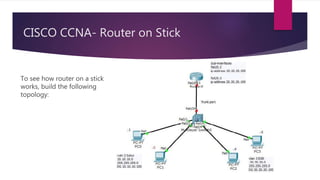
To see how router on a stick
works, build the following
topology:
CISCO CCNA-Router on Stick
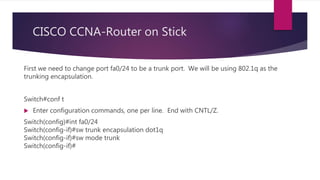
First we need to change port fa0/24 to be a trunk port. We will be using 802.1q as the
trunking encapsulation.
Switch#conf t
 Enter configuration commands, one per line. End with CNTL/Z.
Switch(config)#int fa0/24
Switch(config-if)#sw trunk encapsulation dot1q
Switch(config-if)#sw mode trunk
Switch(config-if)#
CISCO CCNA- Router on Stick
Port Mode Encapsulation Status Native vlan
Fa0/24 on 802.1q trunking 1
Let’s check the result on Switch
Switch#show int trunk
Switch#
CISCO CCNA- Router on Stick
Now, on the router we need to create the sub-interfaces for the two VLANs. A sub-interface
is created by referencing the interface name followed by a dot, followed by a unique number
in this format interface fa0/0.X We can choose any number for X and it does not have to be
sequential. However, normally we want to match the sub-interface number with the VLAN
number (known as VLAN ID).
 Don’t forget to bring the physical interface up.
CISCO CCNA- Router on Stick
Let’s take a look:
Router>
Router>en
Router#conf t
Enter configuration commands, one per line. End with CNTL/Z.
Router(config)#int fa0/0
Router(config-if)#no shutdown
CISCO CCNA- Router on Stick
Router(config-if)#
%LINK-5-CHANGED: Interface FastEthernet0/0, changed state to up
%LINEPROTO-5-UPDOWN: Line protocol on Interface FastEthernet0/0, changed state to
up
Router(config-if)#exit
After we bring the interface up, we create the sub-interfaces and indicated to which VLAN
they belong to. We assign the Default Gateway IP address of the relevant VLAN to the
sub-interface.
CISCO CCNA- Router on Stick
Router(config)#interface fa0/0
Router(config)#interface fa0/0.?
<0-4294967295> FastEthernet interface number
Router(config)#int fa0/0.2
Router(config-subif)#
%LINK-5-CHANGED: Interface FastEthernet0/0.2, changed state to up
CISCO CCNA- Router on Stick
%LINEPROTO-5-UPDOWN: Line protocol on Interface
FastEthernet0/0.2, changed state to up
Router(config-subif)#encapsulation dot
Router(config-subif)#encapsulation dot1Q 2
Router(config-subif)#ip address 10.10.10.100 255.255.255.0
Router(config-subif)#exit
CISCO CCNA- Router on Stick
 The number coming after encapsulation dot1Q must
match the VLAN number (VLAN ID). 802.1q will TAG the
traffic coming from the VLAN with the VLAN ID. The router
looks at the TAG to determine which sub-interface the traffic
associated with.
CISCO CCNA- Router on Stick
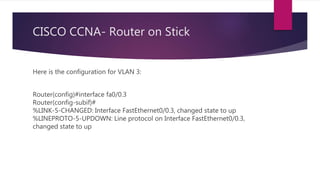
Here is the configuration for VLAN 3:
Router(config)#interface fa0/0.3
Router(config-subif)#
%LINK-5-CHANGED: Interface FastEthernet0/0.3, changed state to up
%LINEPROTO-5-UPDOWN: Line protocol on Interface FastEthernet0/0.3,
changed state to up
CISCO CCNA- Router on Stick
Router(config-subif)#encapsulation dot1Q 3
Router(config-subif)#ip add 20.20.20.100 255.255.255.0
Router(config-subif)#end
Router#
%SYS-5-CONFIG_I: Configured from console by console
CISCO CCNA- Router on Stick
Here is our show run:
interface FastEthernet0/0
no ip address
duplex auto
speed auto
!
CISCO CCNA- Router on Stick
interface FastEthernet0/0.2
description this will act as DG=10.10.10.100 for VLAN2
encapsulation dot1Q 2
ip address 10.10.10.100 255.255.255.0
!
CISCO CCNA- Router on Stick
interface FastEthernet0/0.3
description This Will act as DG=20.20.20.100 for VLAN 3
encapsulation dot1Q 3
ip address 20.20.20.100 255.255.255.0
!
Hint:
Make sure do not give IP address to physical interface f0/0 but you always assign it to sub-
interface
CISCO CCNA- Router on Stick
 Check to see if we have the subnets in the routing table:
Router#sh ip route
Codes: C – connected, S – static, I – IGRP, R – RIP, M – mobile, B – BGP
D – EIGRP, EX – EIGRP external, O – OSPF, IA – OSPF inter area
N1 – OSPF NSSA external type 1, N2 – OSPF NSSA external type 2
E1 – OSPF external type 1, E2 – OSPF external type 2, E – EGP
i – IS-IS, L1 – IS-IS level-1, L2 – IS-IS level-2, ia – IS-IS inter area
* – candidate default, U – per-user static route, o – ODR
P – periodic downloaded static route
CISCO CCNA- Router on Stick
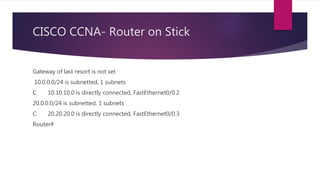
Gateway of last resort is not set
10.0.0.0/24 is subnetted, 1 subnets
C 10.10.10.0 is directly connected, FastEthernet0/0.2
20.0.0.0/24 is subnetted, 1 subnets
C 20.20.20.0 is directly connected, FastEthernet0/0.3
Router#
CISCO CCNA- Router on Stick
 Note that the router connects the subnets to the virtual sub-
interfaces. Now the router can “Route” the traffic between different
broadcast domains, although the traffic is physically coming and going
over the same interface.
CISCO CCNA- Router on Stick
 We must configure the PC’s with the correct IP address and Default Gateway
values:
CISCO CCNA- Router on Stick
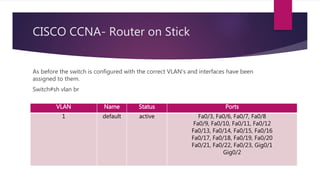
As before the switch is configured with the correct VLAN’s and interfaces have been
assigned to them.
Switch#sh vlan br
VLAN Name Status Ports
1 default active Fa0/3, Fa0/6, Fa0/7, Fa0/8
Fa0/9, Fa0/10, Fa0/11, Fa0/12
Fa0/13, Fa0/14, Fa0/15, Fa0/16
Fa0/17, Fa0/18, Fa0/19, Fa0/20
Fa0/21, Fa0/22, Fa0/23, Gig0/1
Gig0/2
CISCO CCNA- Router on Stick
2 Sales active Fa0/1, Fa0/2
3 EGR active Fa0/4, Fa0/5
1002 fddi-default active
1003 token-ring-default active
1004 fddinet-default active
1005 trnet-default Switch# active
CISCO CCNA- Router on Stick
 Ping test from the 10.10.10.0 subnet to the 20.20.20.0 subnet should succeed:
ASM Educational Center Inc. (ASM)
Where Training, Technology & Service Converge
TO WATCH OUR CISCO CCNA VIDEO TRAININGS PLEASE CHECK OUT THE LINK BELOW:
WWW.ASMED.COM/C1
PHONE: (301) 984-7400

Cisco CCNA-Router on Stick

  • 1.
    CISCO CCNA Router onStick To watch our Cisco CCNA Training Videos Please Check out the link below: www.asmed.com/c1 ASM EDUCATIONAL CENTER INC. (ASM) WHERE TRAINING, TECHNOLOGY & SERVICE CONVERGE PHONE: (301) 984-7400
  • 2.
    CISCO CCNA- Routeron Stick To see how router on a stick works, build the following topology:
  • 3.
    CISCO CCNA-Router onStick First we need to change port fa0/24 to be a trunk port. We will be using 802.1q as the trunking encapsulation. Switch#conf t  Enter configuration commands, one per line. End with CNTL/Z. Switch(config)#int fa0/24 Switch(config-if)#sw trunk encapsulation dot1q Switch(config-if)#sw mode trunk Switch(config-if)#
  • 4.
    CISCO CCNA- Routeron Stick Port Mode Encapsulation Status Native vlan Fa0/24 on 802.1q trunking 1 Let’s check the result on Switch Switch#show int trunk Switch#
  • 5.
    CISCO CCNA- Routeron Stick Now, on the router we need to create the sub-interfaces for the two VLANs. A sub-interface is created by referencing the interface name followed by a dot, followed by a unique number in this format interface fa0/0.X We can choose any number for X and it does not have to be sequential. However, normally we want to match the sub-interface number with the VLAN number (known as VLAN ID).  Don’t forget to bring the physical interface up.
  • 6.
    CISCO CCNA- Routeron Stick Let’s take a look: Router> Router>en Router#conf t Enter configuration commands, one per line. End with CNTL/Z. Router(config)#int fa0/0 Router(config-if)#no shutdown
  • 7.
    CISCO CCNA- Routeron Stick Router(config-if)# %LINK-5-CHANGED: Interface FastEthernet0/0, changed state to up %LINEPROTO-5-UPDOWN: Line protocol on Interface FastEthernet0/0, changed state to up Router(config-if)#exit After we bring the interface up, we create the sub-interfaces and indicated to which VLAN they belong to. We assign the Default Gateway IP address of the relevant VLAN to the sub-interface.
  • 8.
    CISCO CCNA- Routeron Stick Router(config)#interface fa0/0 Router(config)#interface fa0/0.? <0-4294967295> FastEthernet interface number Router(config)#int fa0/0.2 Router(config-subif)# %LINK-5-CHANGED: Interface FastEthernet0/0.2, changed state to up
  • 9.
    CISCO CCNA- Routeron Stick %LINEPROTO-5-UPDOWN: Line protocol on Interface FastEthernet0/0.2, changed state to up Router(config-subif)#encapsulation dot Router(config-subif)#encapsulation dot1Q 2 Router(config-subif)#ip address 10.10.10.100 255.255.255.0 Router(config-subif)#exit
  • 10.
    CISCO CCNA- Routeron Stick  The number coming after encapsulation dot1Q must match the VLAN number (VLAN ID). 802.1q will TAG the traffic coming from the VLAN with the VLAN ID. The router looks at the TAG to determine which sub-interface the traffic associated with.
  • 11.
    CISCO CCNA- Routeron Stick Here is the configuration for VLAN 3: Router(config)#interface fa0/0.3 Router(config-subif)# %LINK-5-CHANGED: Interface FastEthernet0/0.3, changed state to up %LINEPROTO-5-UPDOWN: Line protocol on Interface FastEthernet0/0.3, changed state to up
  • 12.
    CISCO CCNA- Routeron Stick Router(config-subif)#encapsulation dot1Q 3 Router(config-subif)#ip add 20.20.20.100 255.255.255.0 Router(config-subif)#end Router# %SYS-5-CONFIG_I: Configured from console by console
  • 13.
    CISCO CCNA- Routeron Stick Here is our show run: interface FastEthernet0/0 no ip address duplex auto speed auto !
  • 14.
    CISCO CCNA- Routeron Stick interface FastEthernet0/0.2 description this will act as DG=10.10.10.100 for VLAN2 encapsulation dot1Q 2 ip address 10.10.10.100 255.255.255.0 !
  • 15.
    CISCO CCNA- Routeron Stick interface FastEthernet0/0.3 description This Will act as DG=20.20.20.100 for VLAN 3 encapsulation dot1Q 3 ip address 20.20.20.100 255.255.255.0 ! Hint: Make sure do not give IP address to physical interface f0/0 but you always assign it to sub- interface
  • 16.
    CISCO CCNA- Routeron Stick  Check to see if we have the subnets in the routing table: Router#sh ip route Codes: C – connected, S – static, I – IGRP, R – RIP, M – mobile, B – BGP D – EIGRP, EX – EIGRP external, O – OSPF, IA – OSPF inter area N1 – OSPF NSSA external type 1, N2 – OSPF NSSA external type 2 E1 – OSPF external type 1, E2 – OSPF external type 2, E – EGP i – IS-IS, L1 – IS-IS level-1, L2 – IS-IS level-2, ia – IS-IS inter area * – candidate default, U – per-user static route, o – ODR P – periodic downloaded static route
  • 17.
    CISCO CCNA- Routeron Stick Gateway of last resort is not set 10.0.0.0/24 is subnetted, 1 subnets C 10.10.10.0 is directly connected, FastEthernet0/0.2 20.0.0.0/24 is subnetted, 1 subnets C 20.20.20.0 is directly connected, FastEthernet0/0.3 Router#
  • 18.
    CISCO CCNA- Routeron Stick  Note that the router connects the subnets to the virtual sub- interfaces. Now the router can “Route” the traffic between different broadcast domains, although the traffic is physically coming and going over the same interface.
  • 19.
    CISCO CCNA- Routeron Stick  We must configure the PC’s with the correct IP address and Default Gateway values:
  • 20.
    CISCO CCNA- Routeron Stick As before the switch is configured with the correct VLAN’s and interfaces have been assigned to them. Switch#sh vlan br VLAN Name Status Ports 1 default active Fa0/3, Fa0/6, Fa0/7, Fa0/8 Fa0/9, Fa0/10, Fa0/11, Fa0/12 Fa0/13, Fa0/14, Fa0/15, Fa0/16 Fa0/17, Fa0/18, Fa0/19, Fa0/20 Fa0/21, Fa0/22, Fa0/23, Gig0/1 Gig0/2
  • 21.
    CISCO CCNA- Routeron Stick 2 Sales active Fa0/1, Fa0/2 3 EGR active Fa0/4, Fa0/5 1002 fddi-default active 1003 token-ring-default active 1004 fddinet-default active 1005 trnet-default Switch# active
  • 22.
    CISCO CCNA- Routeron Stick  Ping test from the 10.10.10.0 subnet to the 20.20.20.0 subnet should succeed:
  • 23.
    ASM Educational CenterInc. (ASM) Where Training, Technology & Service Converge TO WATCH OUR CISCO CCNA VIDEO TRAININGS PLEASE CHECK OUT THE LINK BELOW: WWW.ASMED.COM/C1 PHONE: (301) 984-7400