Chapter 3: More Blogging: WordPress Options: Part B
Web 2.0 and Social
Media for Business
Roger McHaney, Kansas State University
Widgets
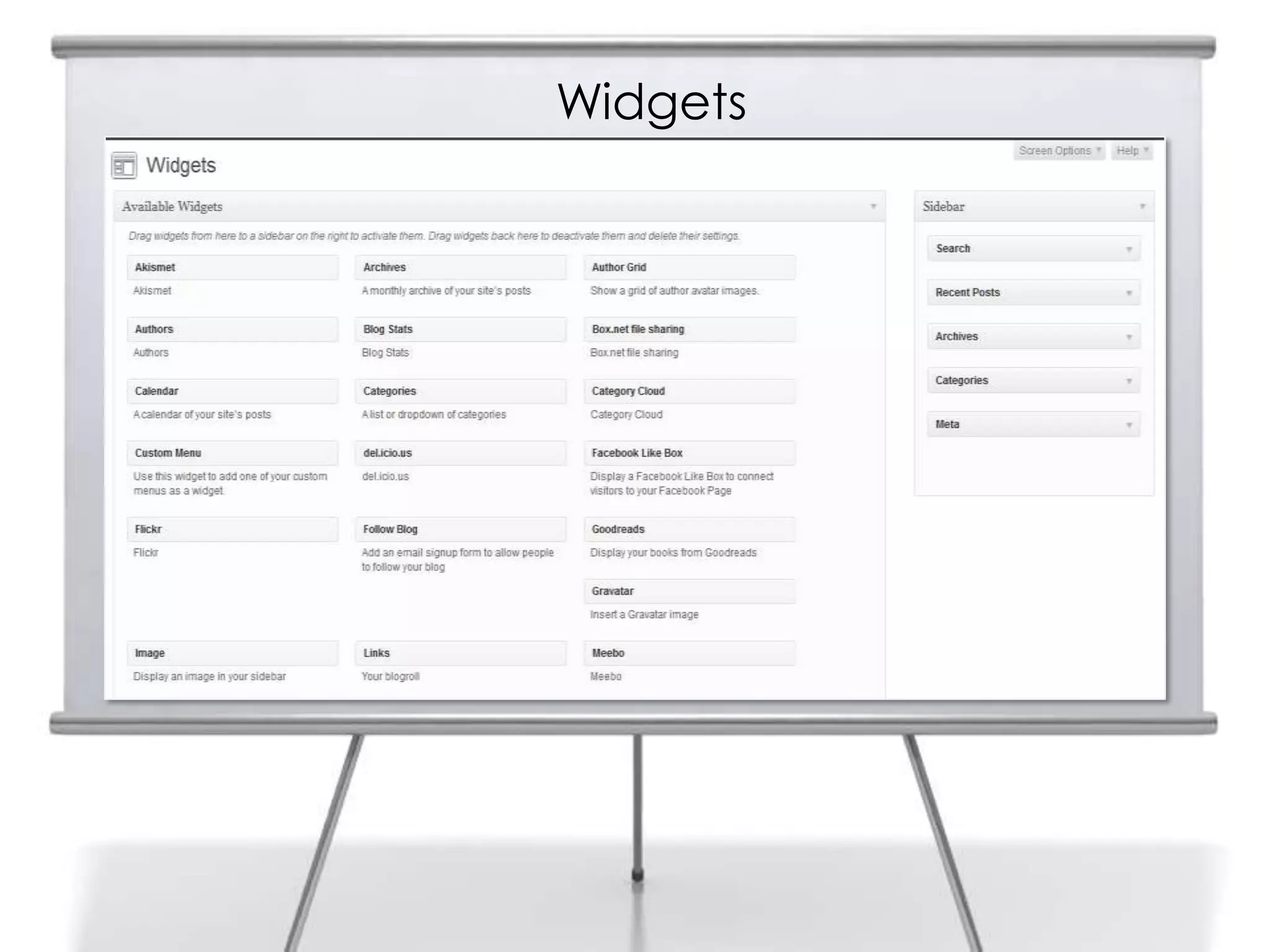
• Small add-ons used to interact
with other applications and
provide features that help build
an audience for a blog
• Can show recent
Tweets, provide Flickr
pictures, show Facebook wall
entries, link to articles, and many
other things
• Often provided by third-party
developers
• Navigate to Widgets under
Appearance on the Dashboard
Widgets
Widget Configuration
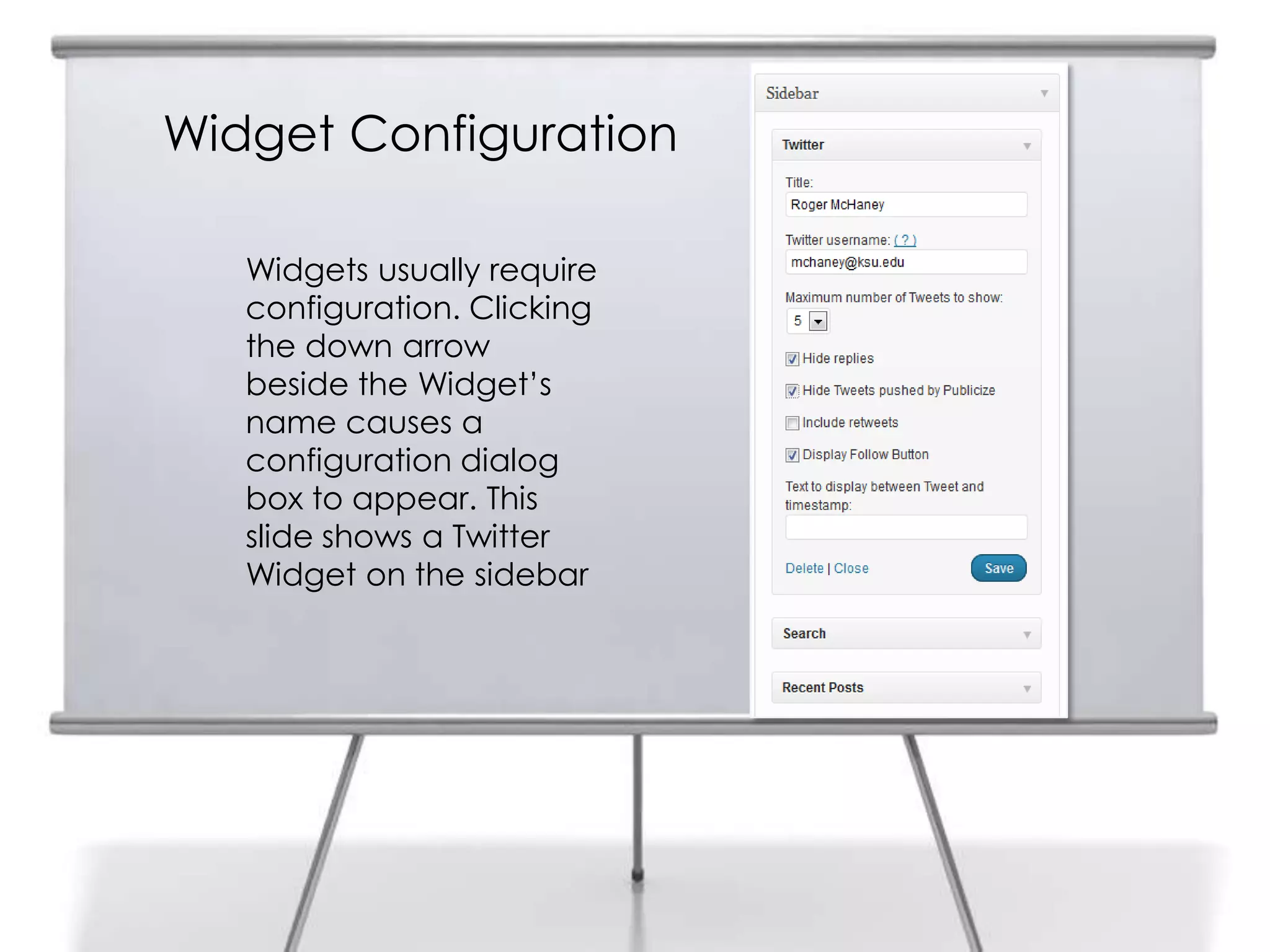
Widgets usually require
configuration. Clicking
the down arrow
beside the Widget‟s
name causes a
configuration dialog
box to appear. This
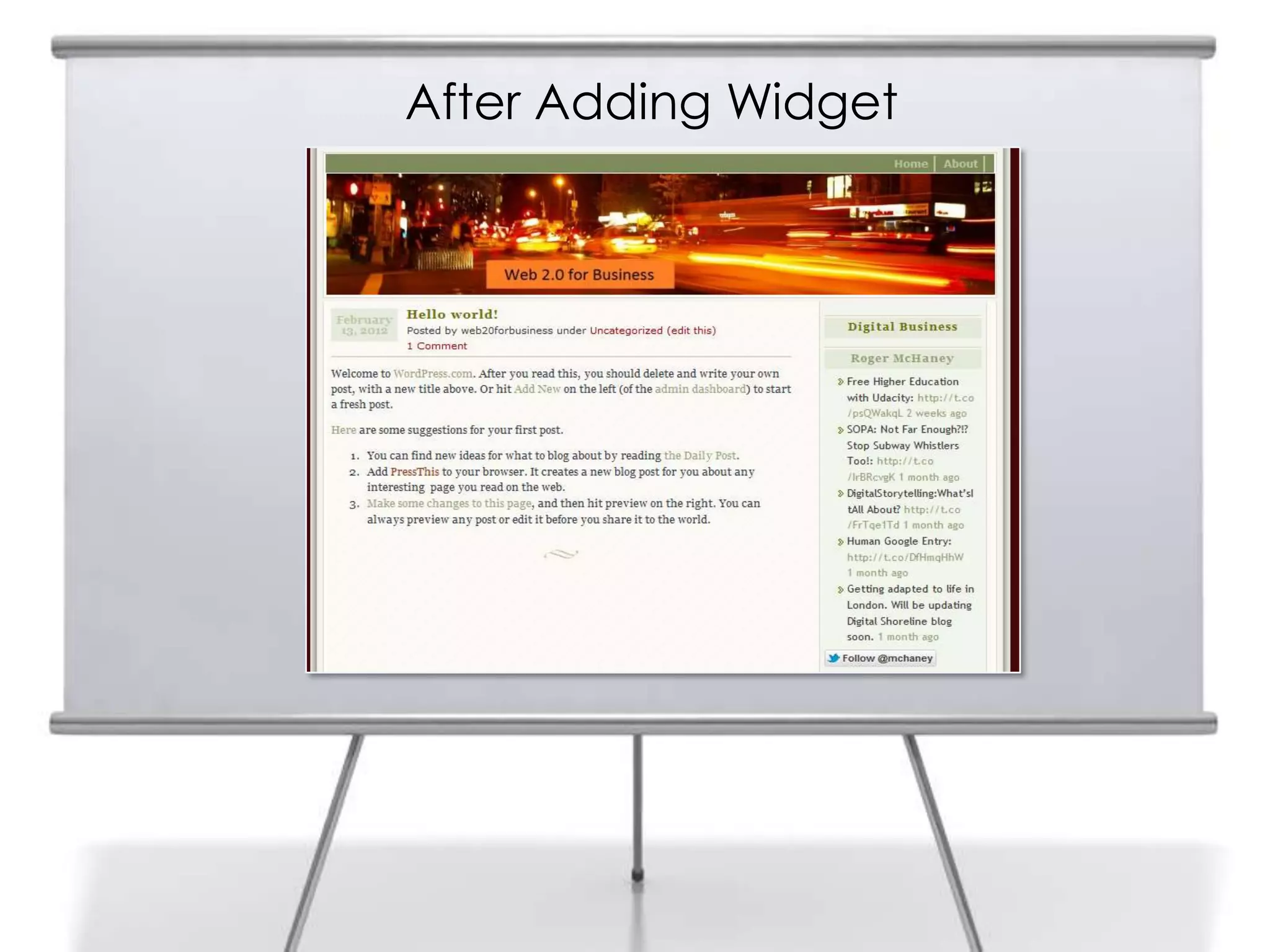
slide shows a Twitter
Widget on the sidebar
After Adding Widget
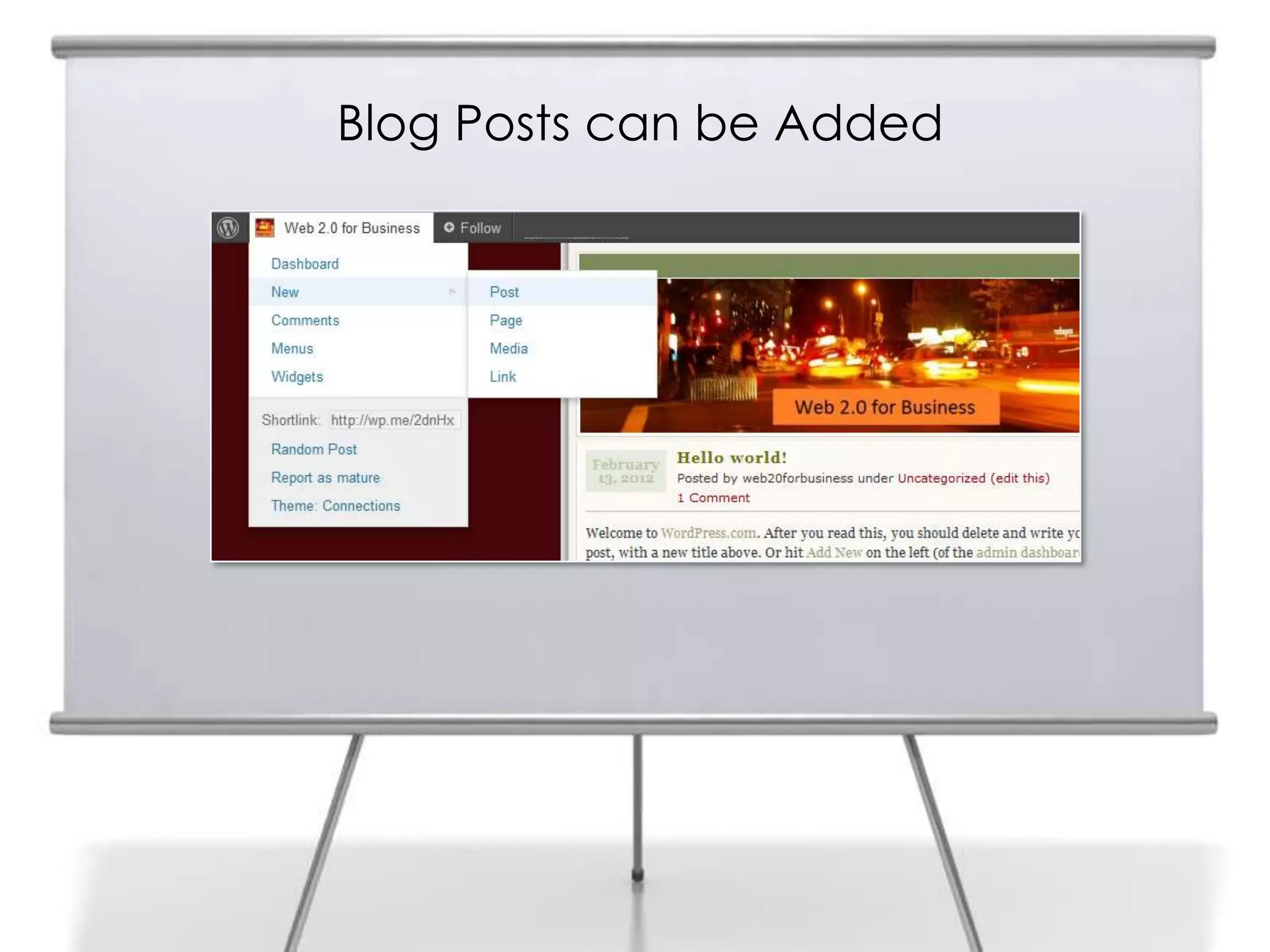
Blog Posts can be Added
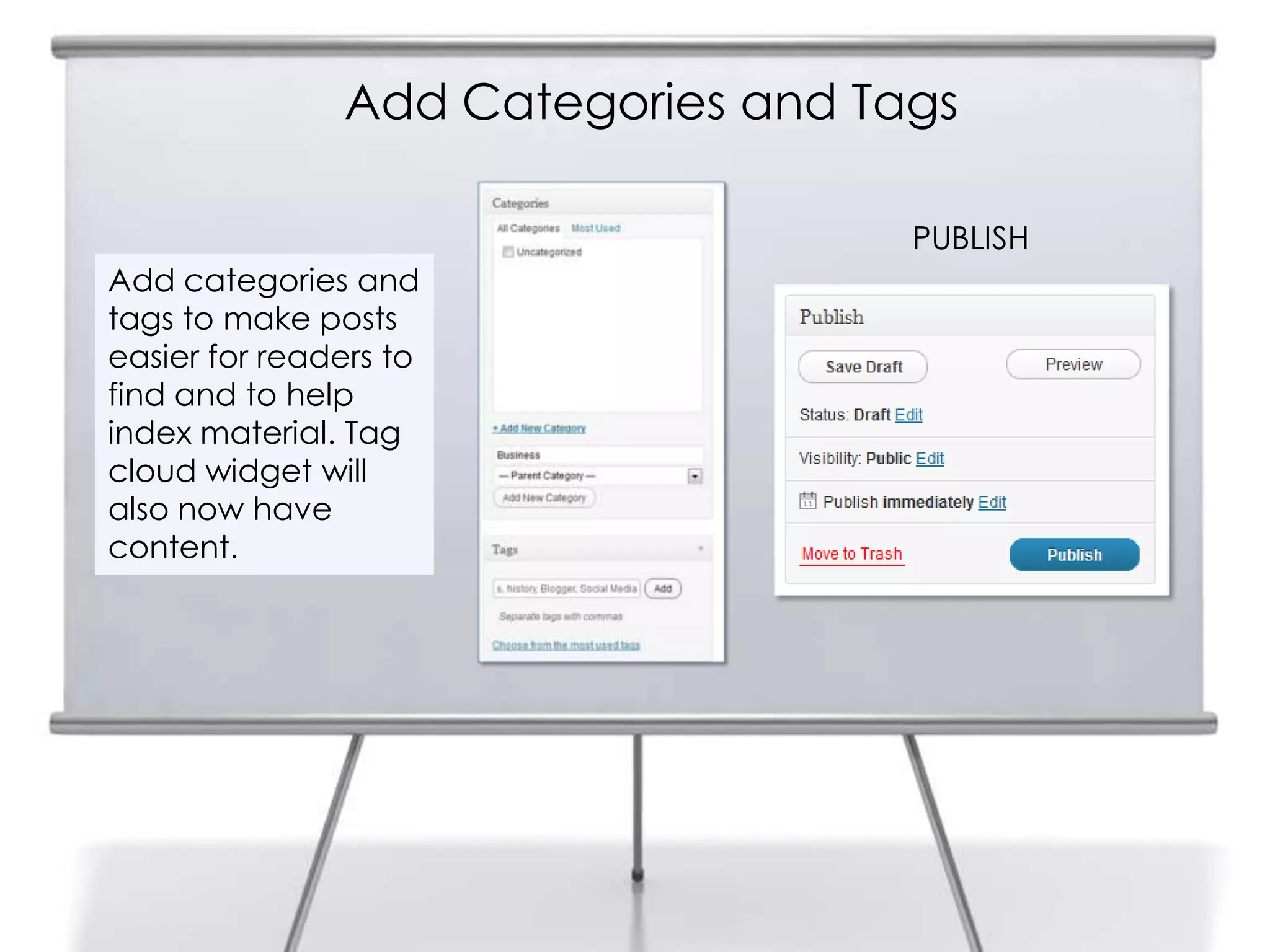
Add Categories and Tags
Add categories and
tags to make posts
easier for readers to
find and to help
index material. Tag
cloud widget will
also now have
content.
PUBLISH
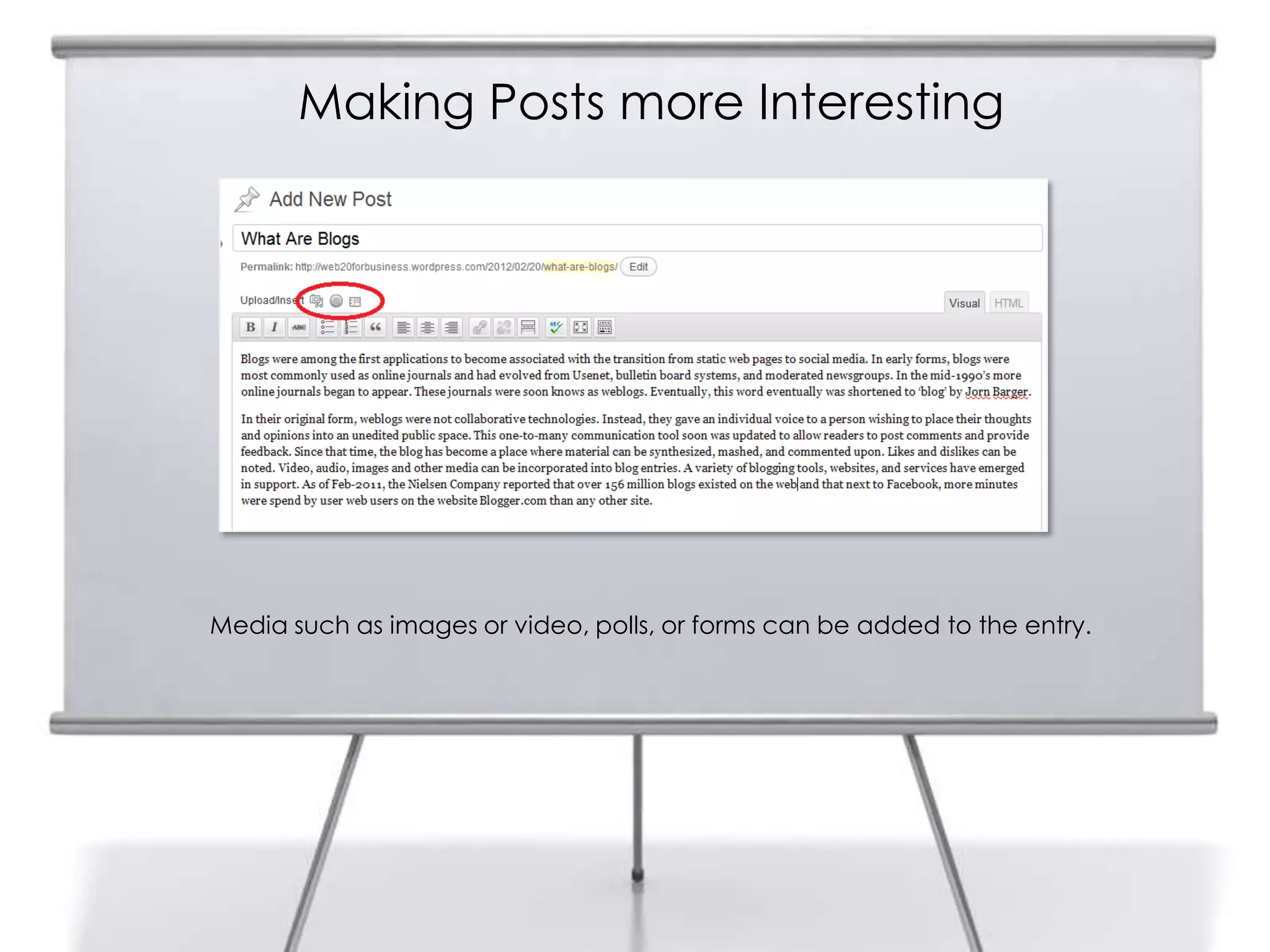
Making Posts more Interesting
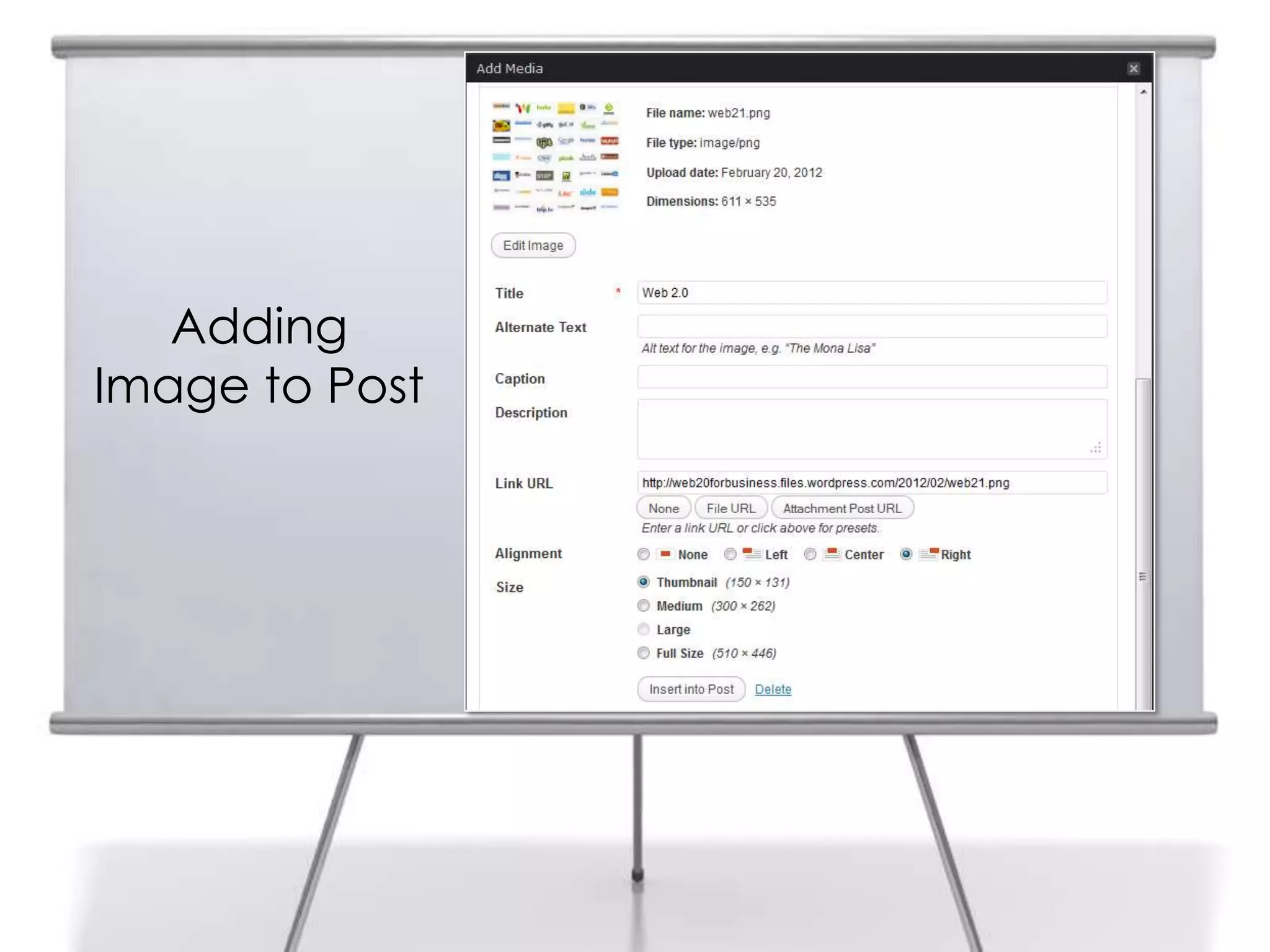
Media such as images or video, polls, or forms can be added to the entry.
Adding
Image to Post
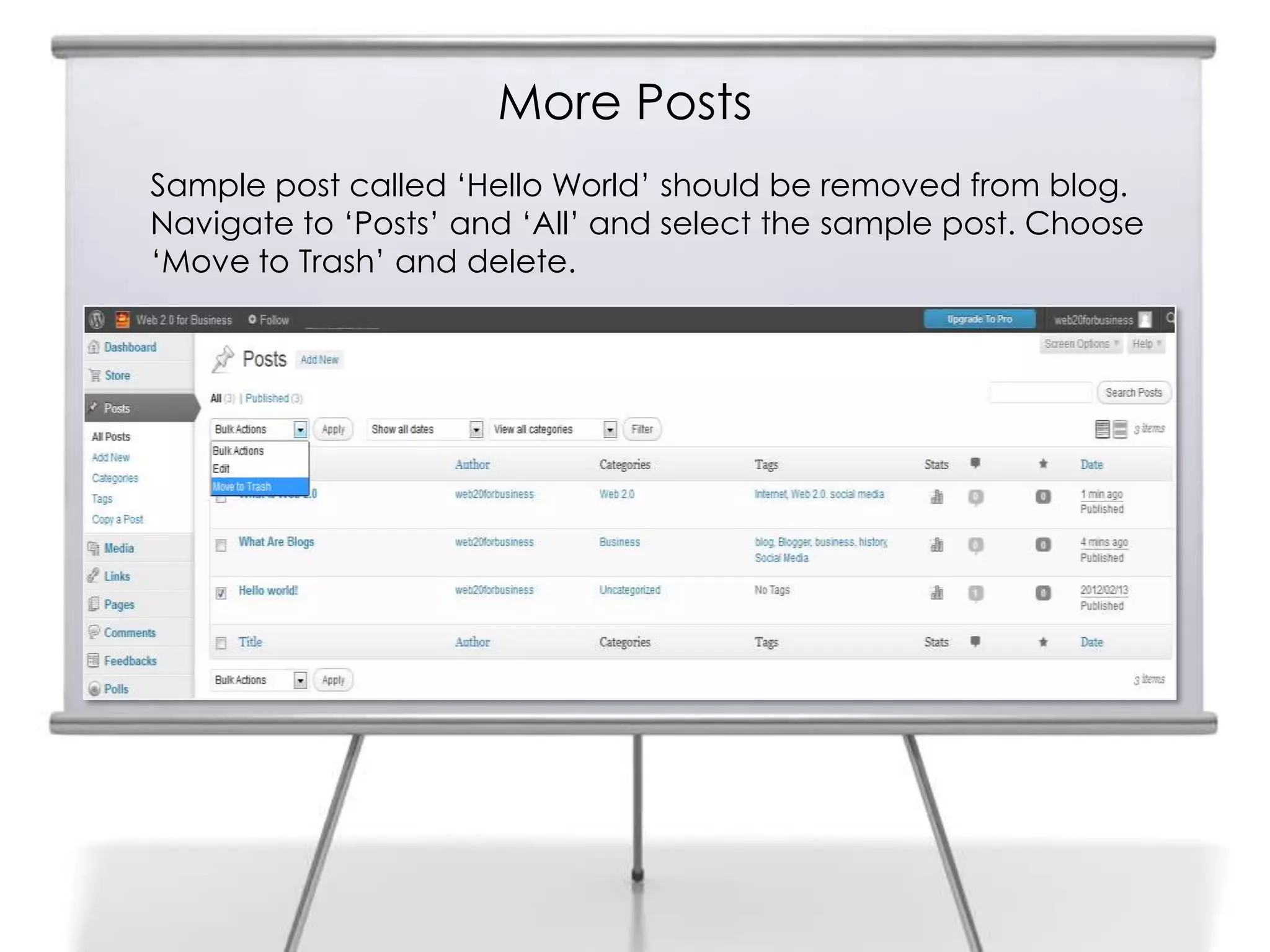
More Posts
Sample post called „Hello World‟ should be removed from blog.
Navigate to „Posts‟ and „All‟ and select the sample post. Choose
„Move to Trash‟ and delete.
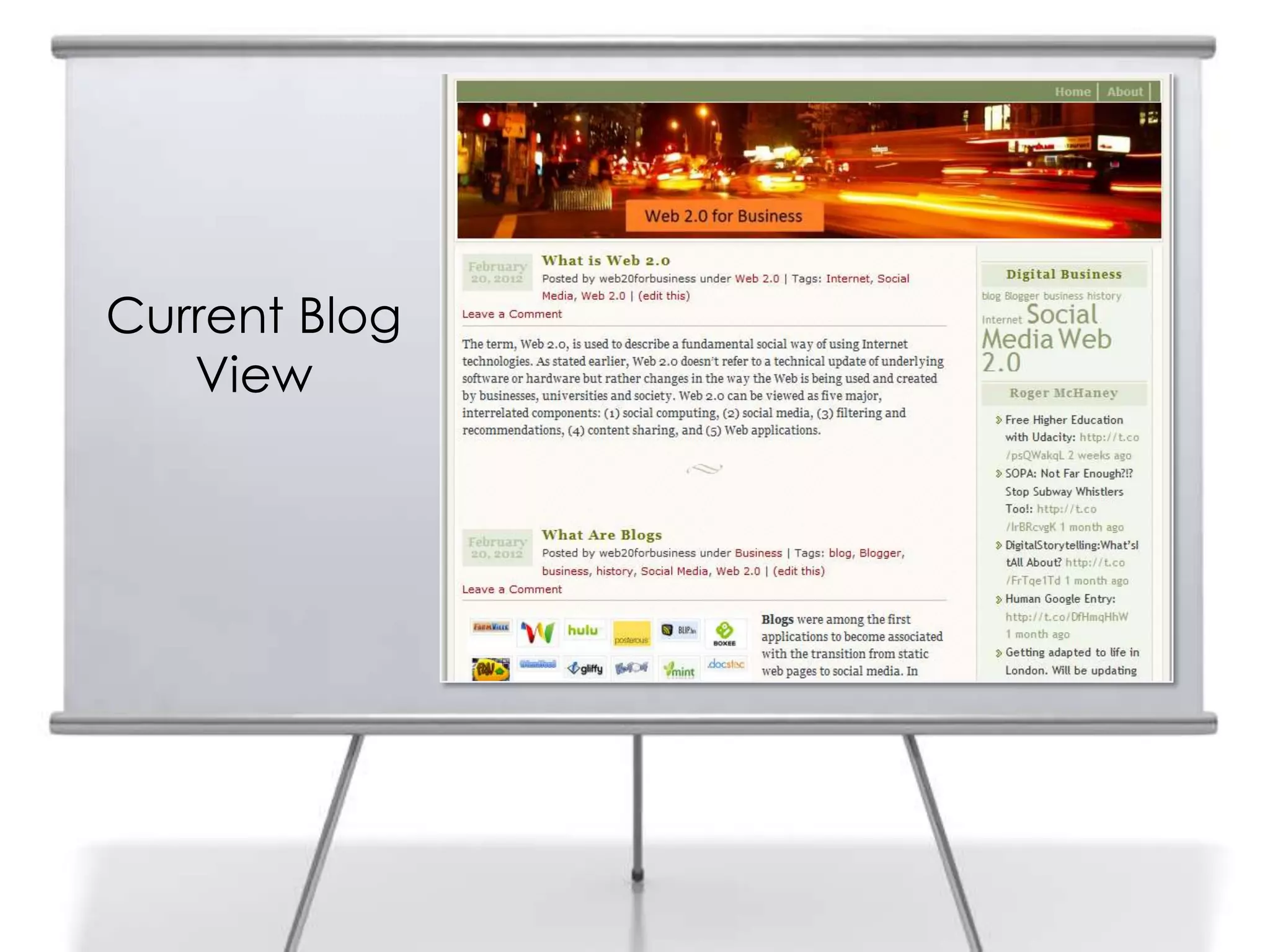
Current Blog
View
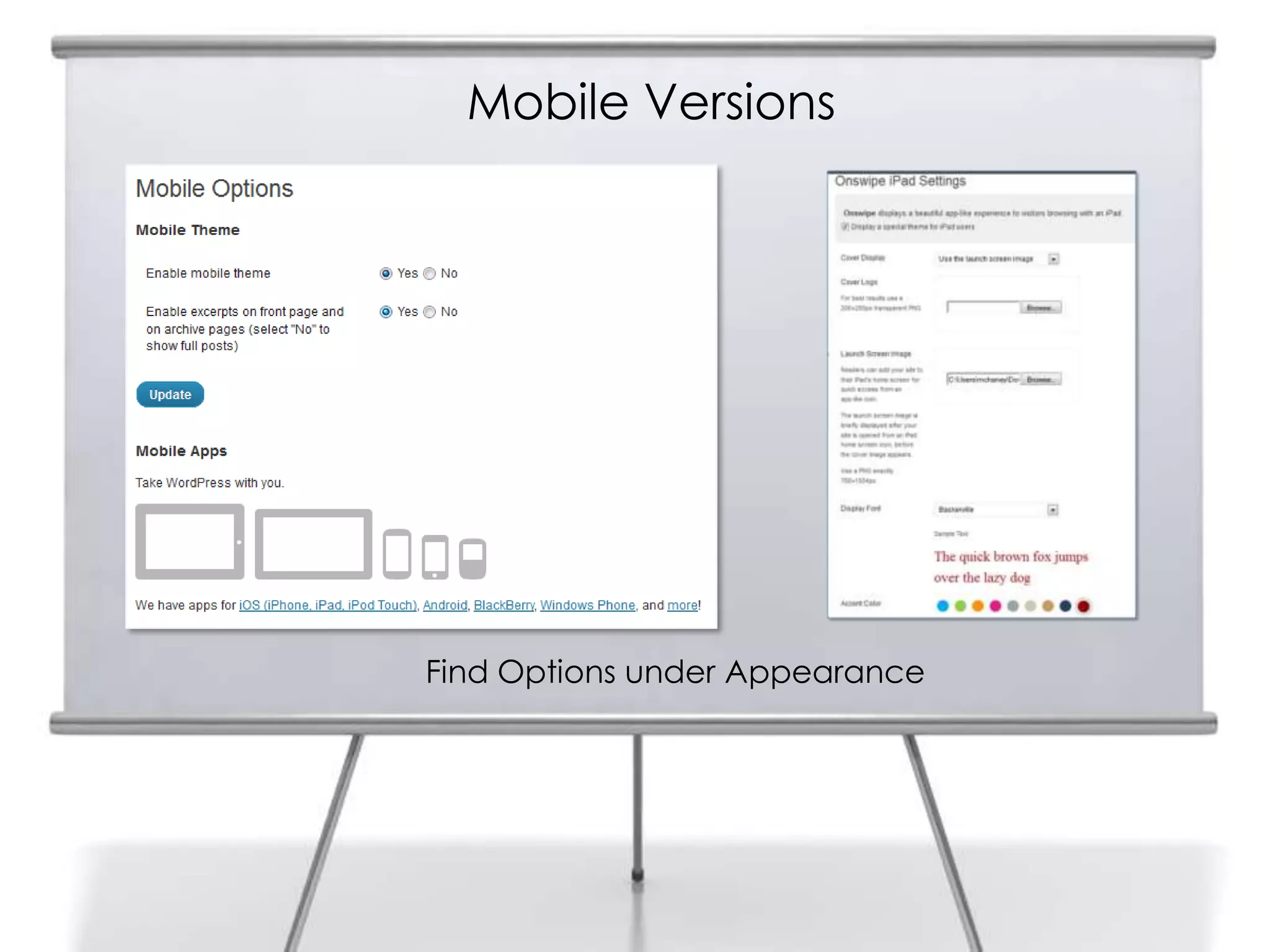
Mobile Versions
Find Options under Appearance
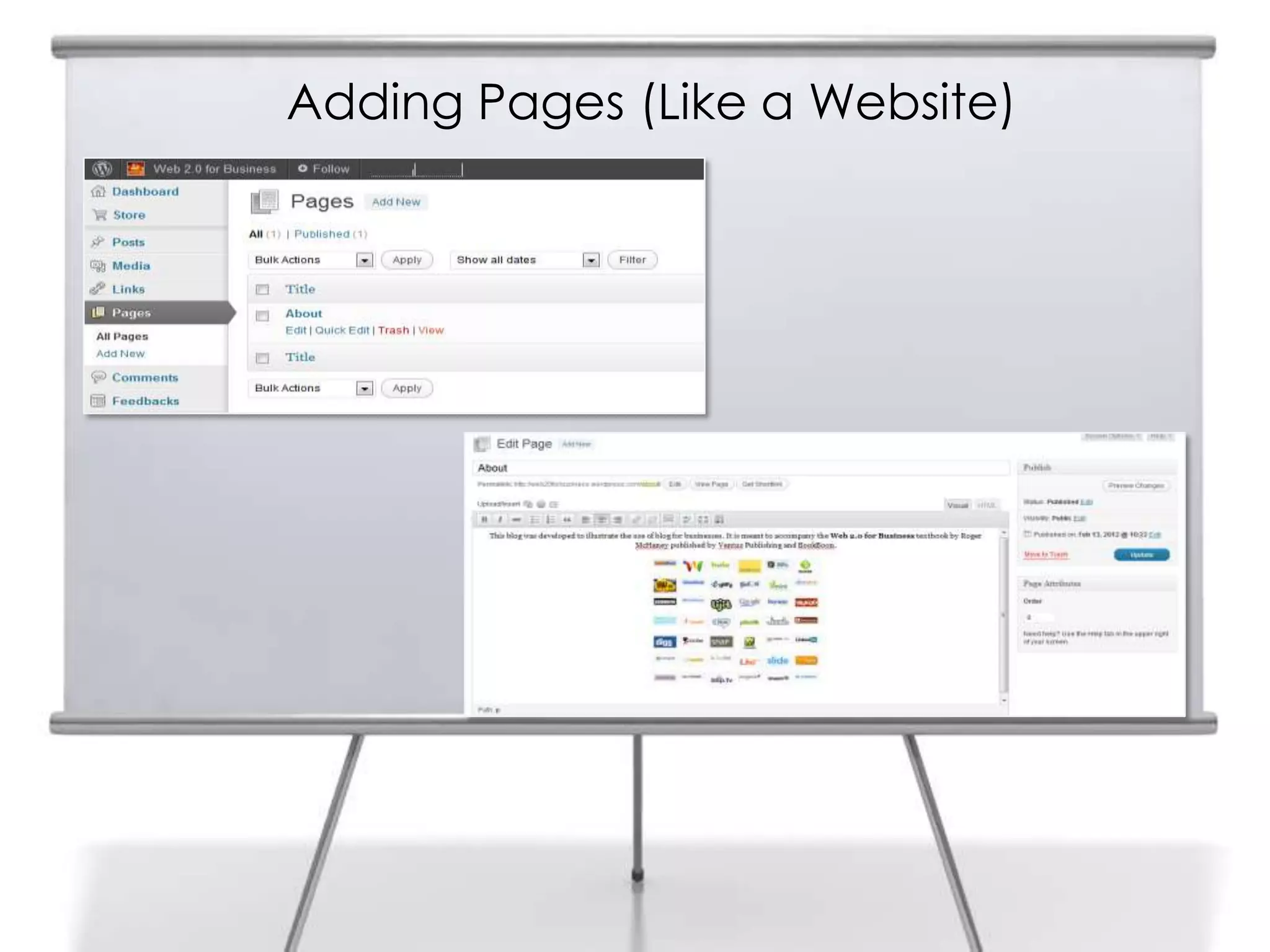
Adding Pages (Like a Website)
Connecting with Search Engines
For a blog to be successful, it must
connect with its intended audience
In business this means potential customers, clients, and other stakeholders
WordPress Blogs
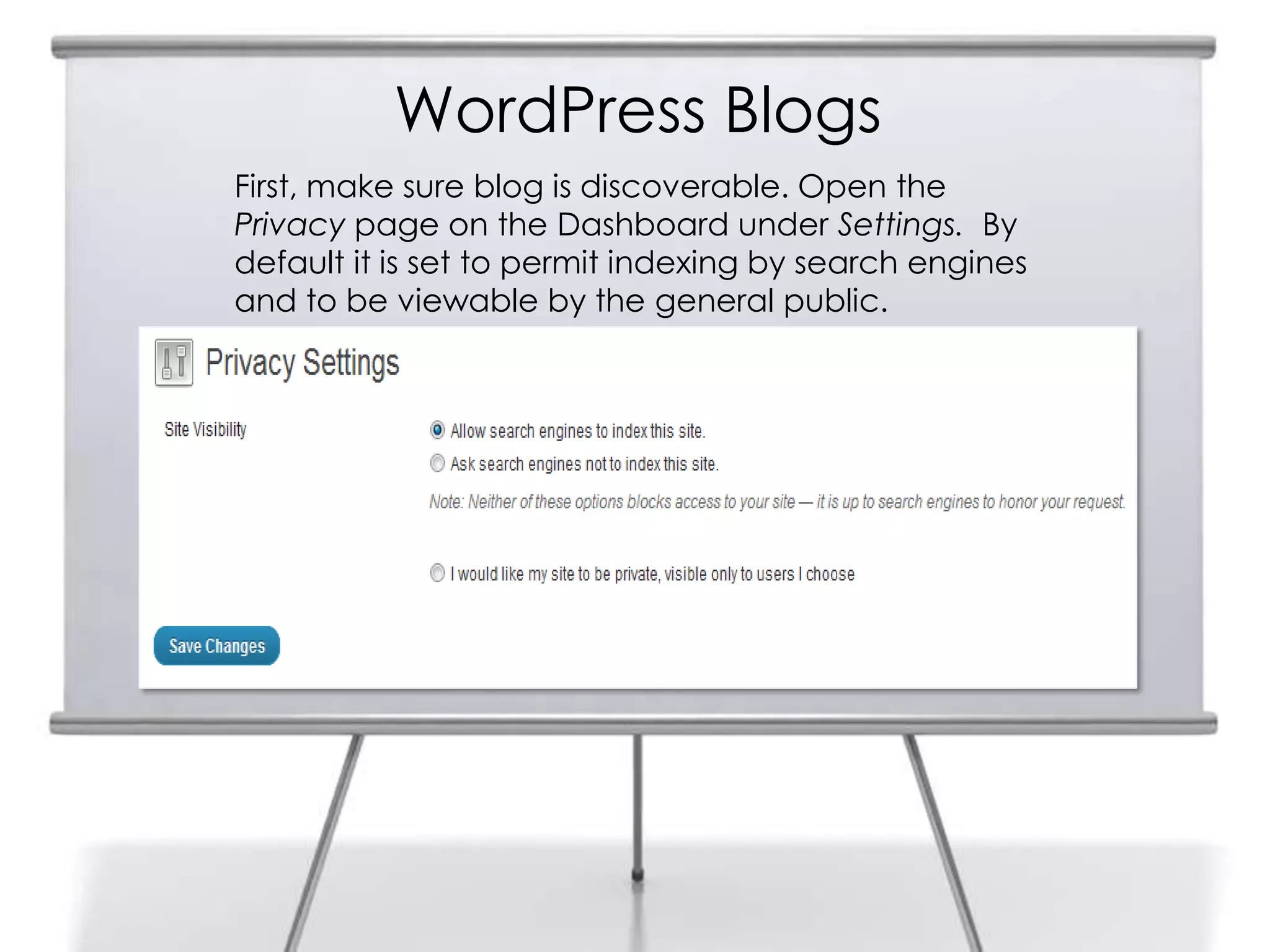
First, make sure blog is discoverable. Open the
Privacy page on the Dashboard under Settings. By
default it is set to permit indexing by search engines
and to be viewable by the general public.
WordPress Blogs
Having social media, news services,
and other re-broadcasters pick up
your blog feeds is desirable.
WordPress Blogs
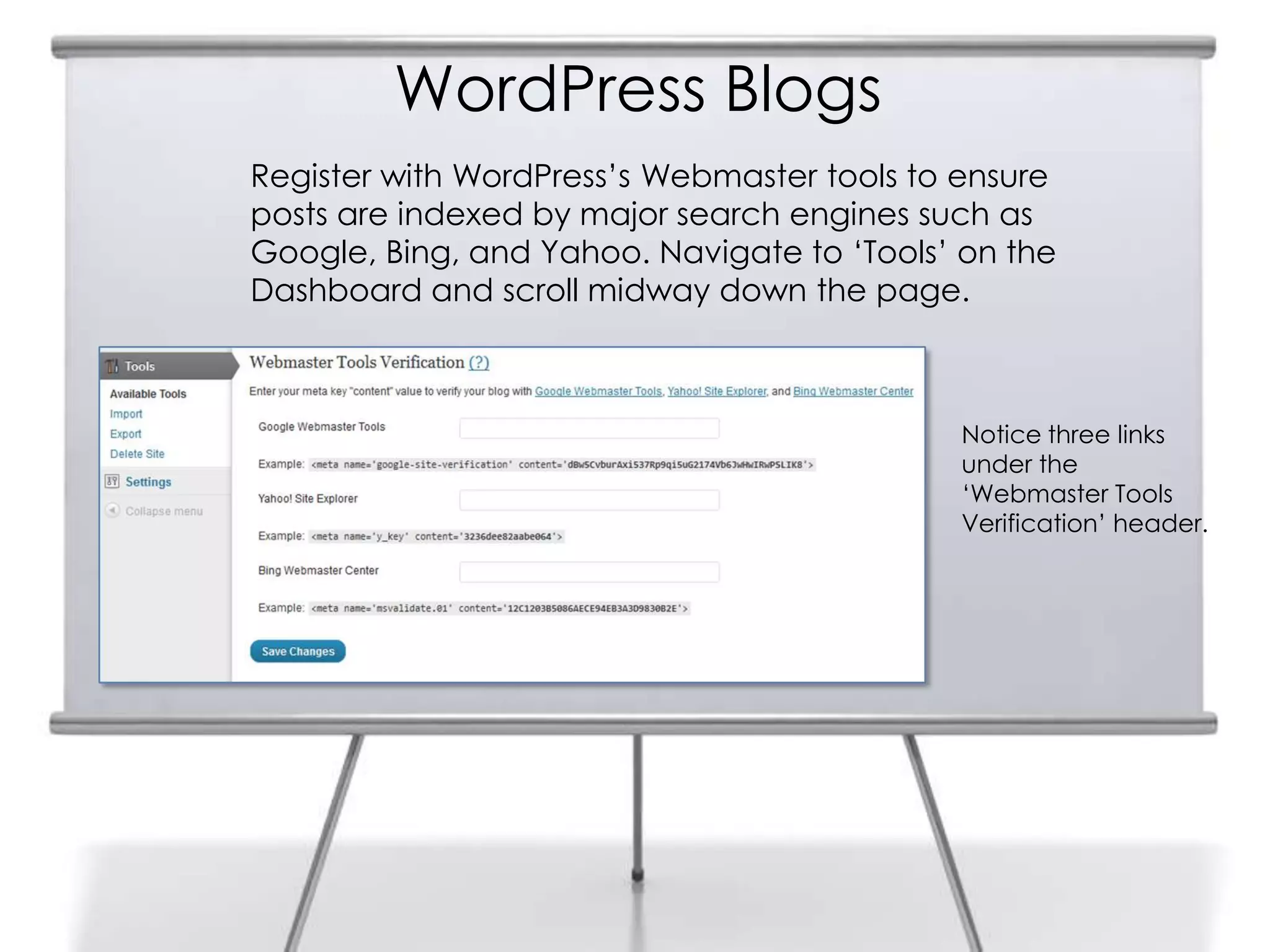
Register with WordPress‟s Webmaster tools to ensure
posts are indexed by major search engines such as
Google, Bing, and Yahoo. Navigate to „Tools‟ on the
Dashboard and scroll midway down the page.
Notice three links
under the
„Webmaster Tools
Verification‟ header.
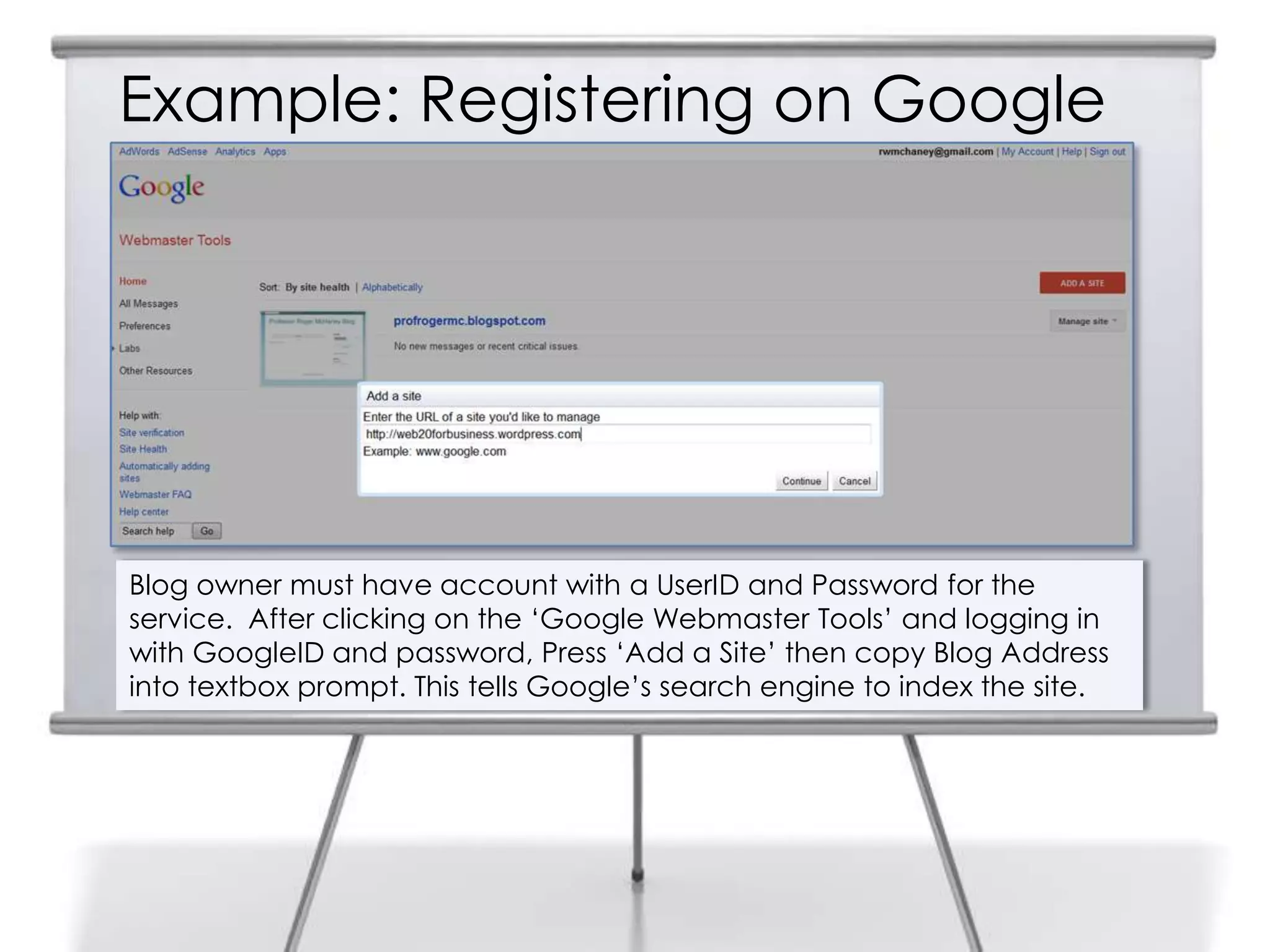
Example: Registering on Google
Blog owner must have account with a UserID and Password for the
service. After clicking on the „Google Webmaster Tools‟ and logging in
with GoogleID and password, Press „Add a Site‟ then copy Blog Address
into textbox prompt. This tells Google‟s search engine to index the site.
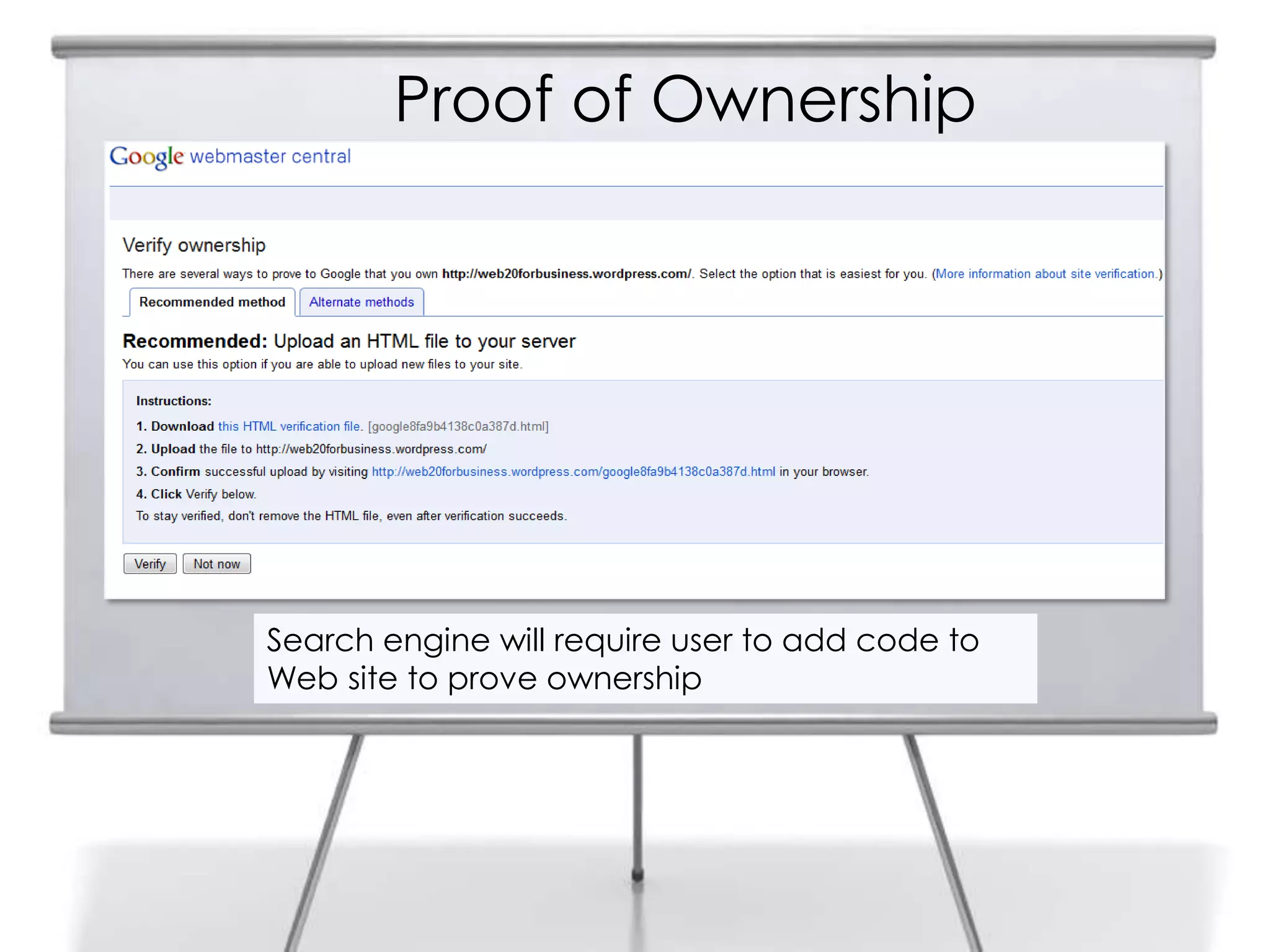
Proof of Ownership
Search engine will require user to add code to
Web site to prove ownership
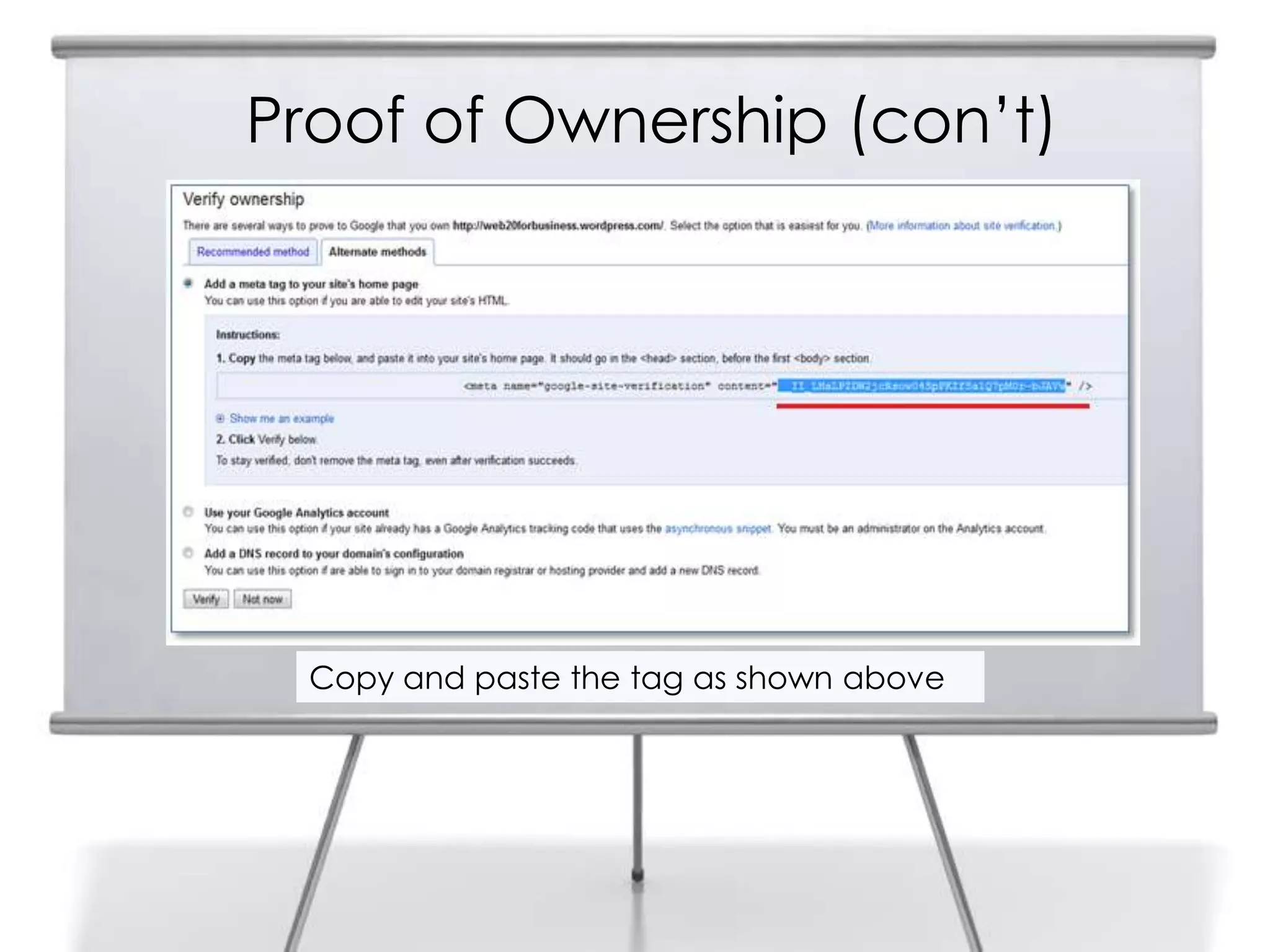
Proof of Ownership (con‟t)
Copy and paste the tag as shown above
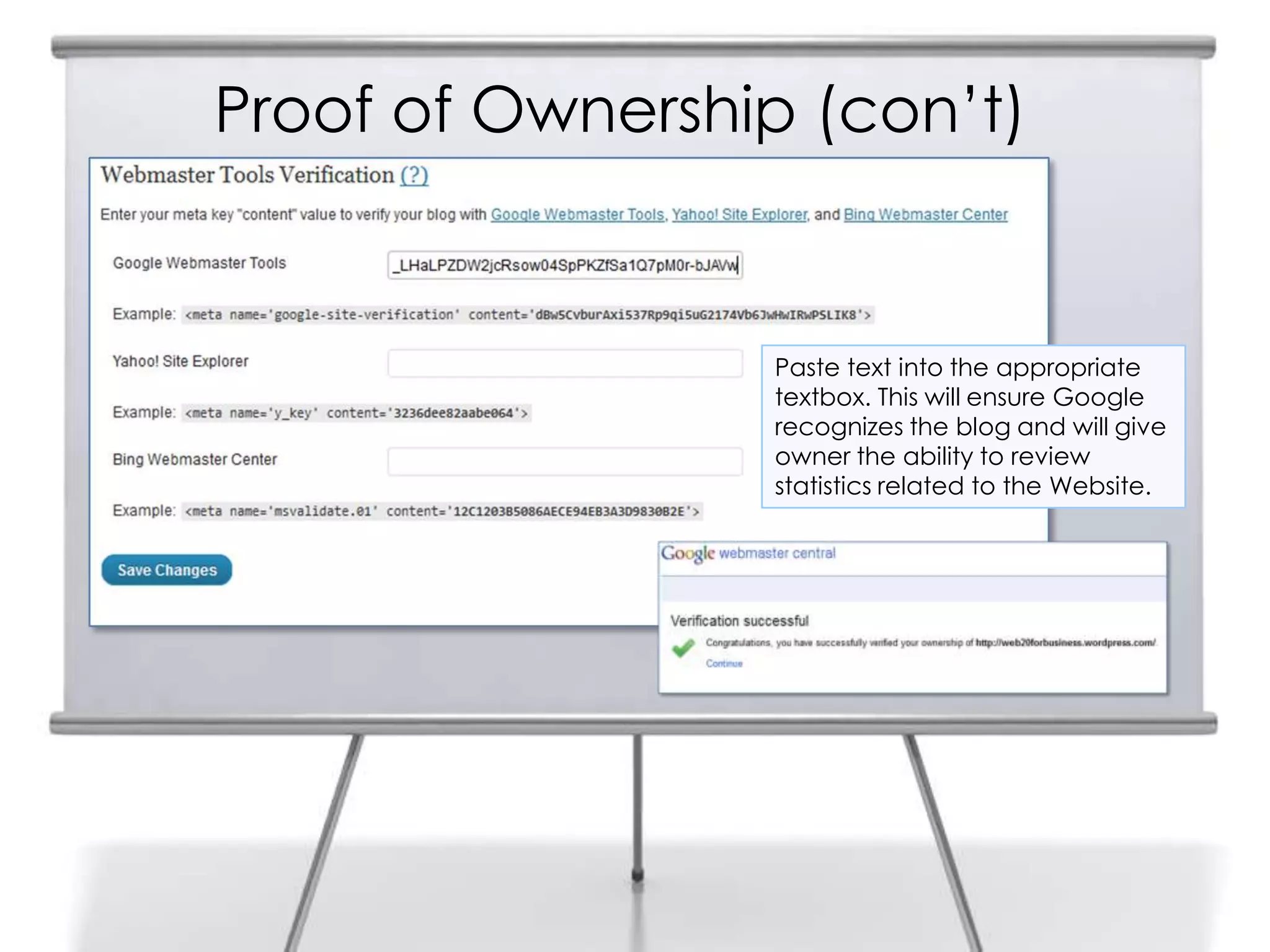
Proof of Ownership (con‟t)
Paste text into the appropriate
textbox. This will ensure Google
recognizes the blog and will give
owner the ability to review
statistics related to the Website.
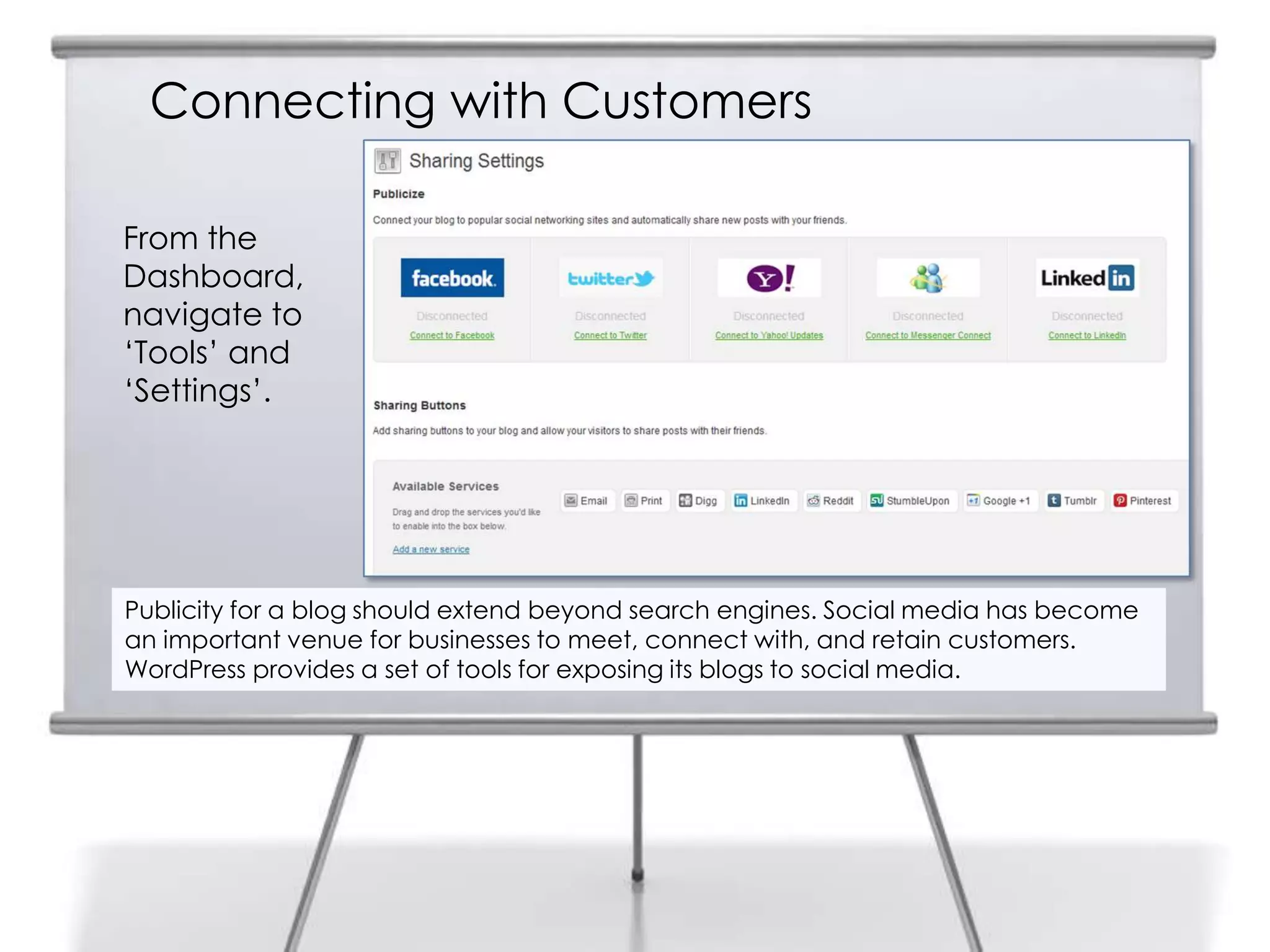
Connecting with Customers
Publicity for a blog should extend beyond search engines. Social media has become
an important venue for businesses to meet, connect with, and retain customers.
WordPress provides a set of tools for exposing its blogs to social media.
From the
Dashboard,
navigate to
„Tools‟ and
„Settings‟.
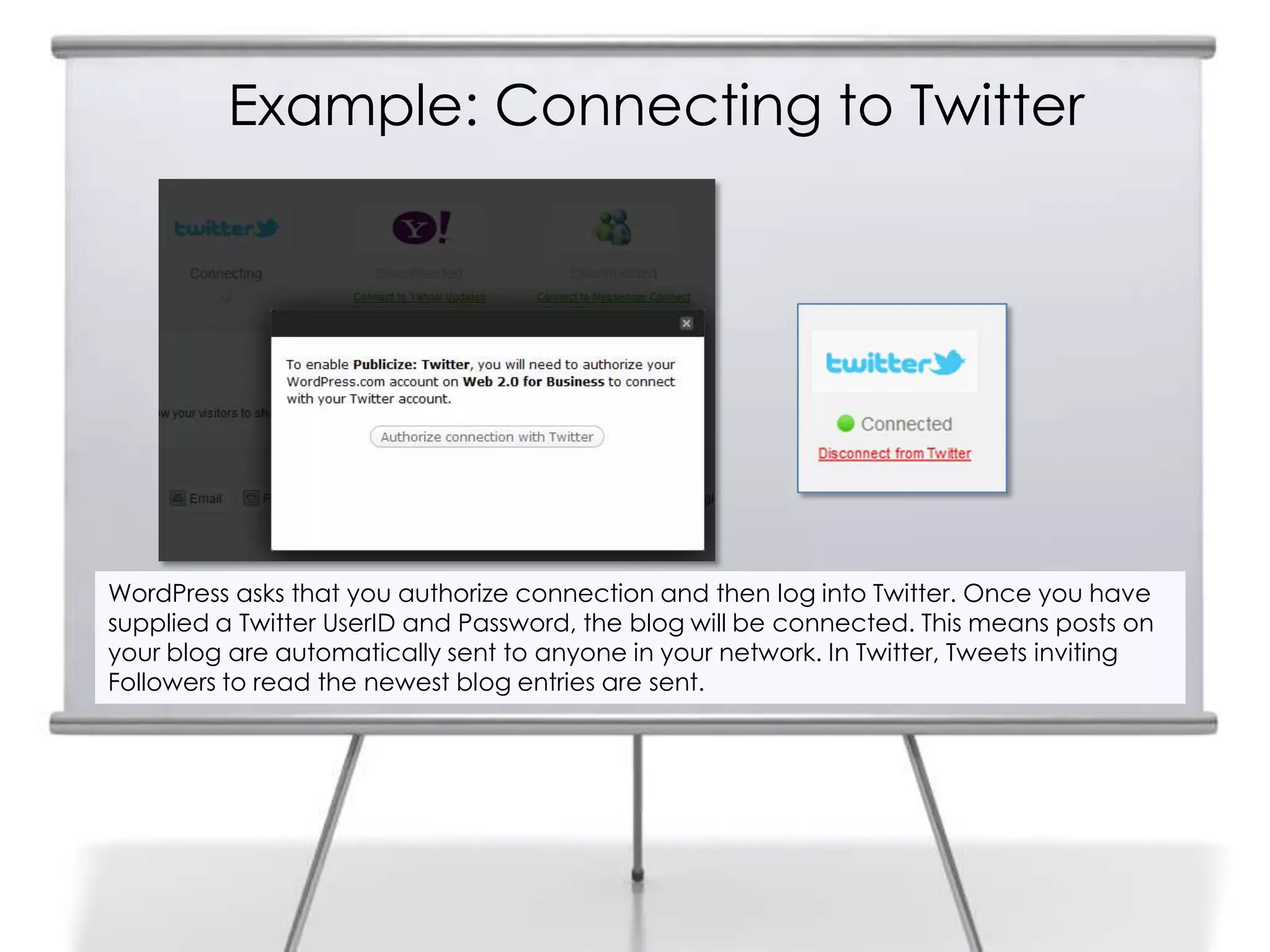
Example: Connecting to Twitter
WordPress asks that you authorize connection and then log into Twitter. Once you have
supplied a Twitter UserID and Password, the blog will be connected. This means posts on
your blog are automatically sent to anyone in your network. In Twitter, Tweets inviting
Followers to read the newest blog entries are sent.
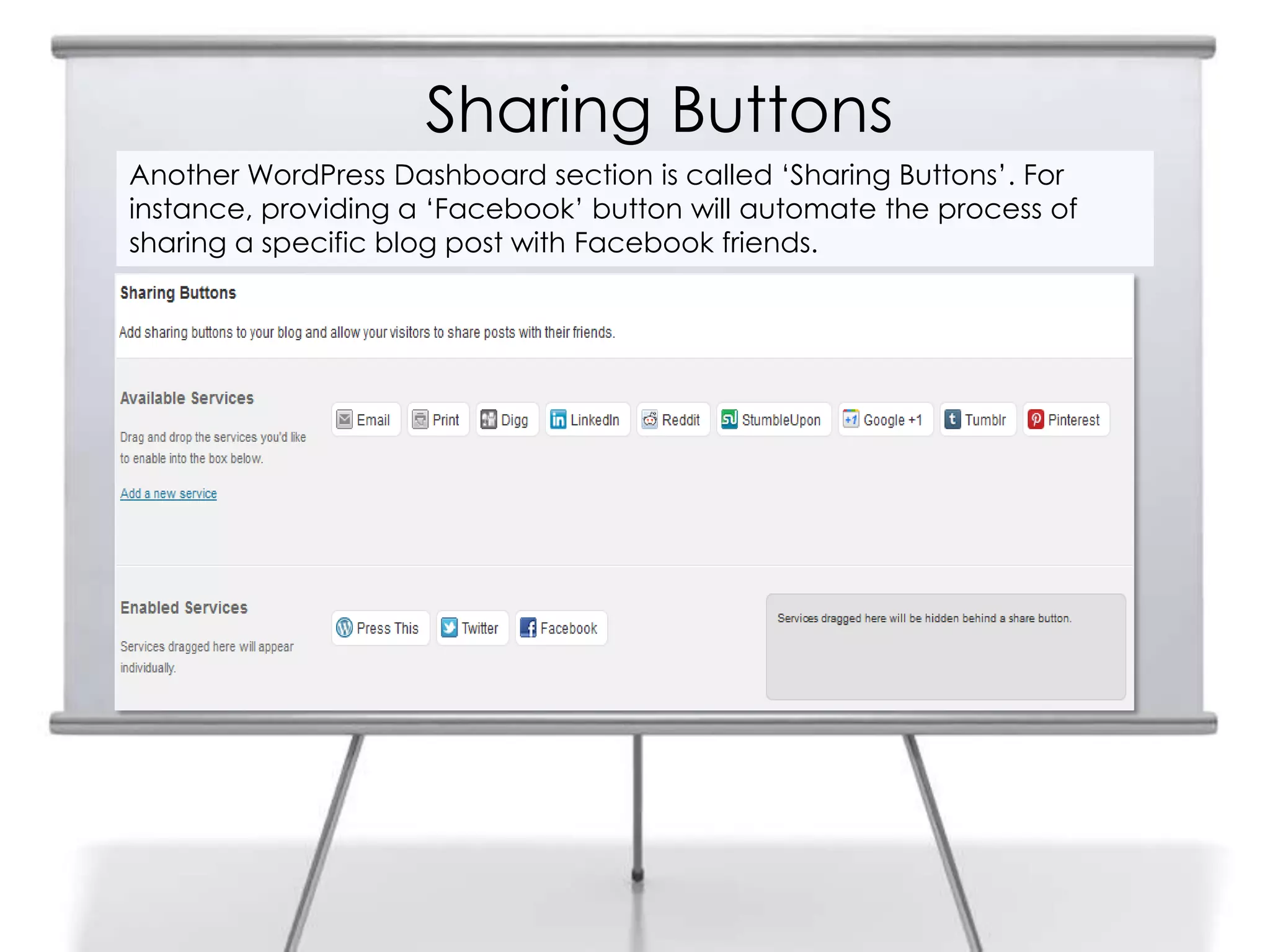
Sharing Buttons
Another WordPress Dashboard section is called „Sharing Buttons‟. For
instance, providing a „Facebook‟ button will automate the process of
sharing a specific blog post with Facebook friends.
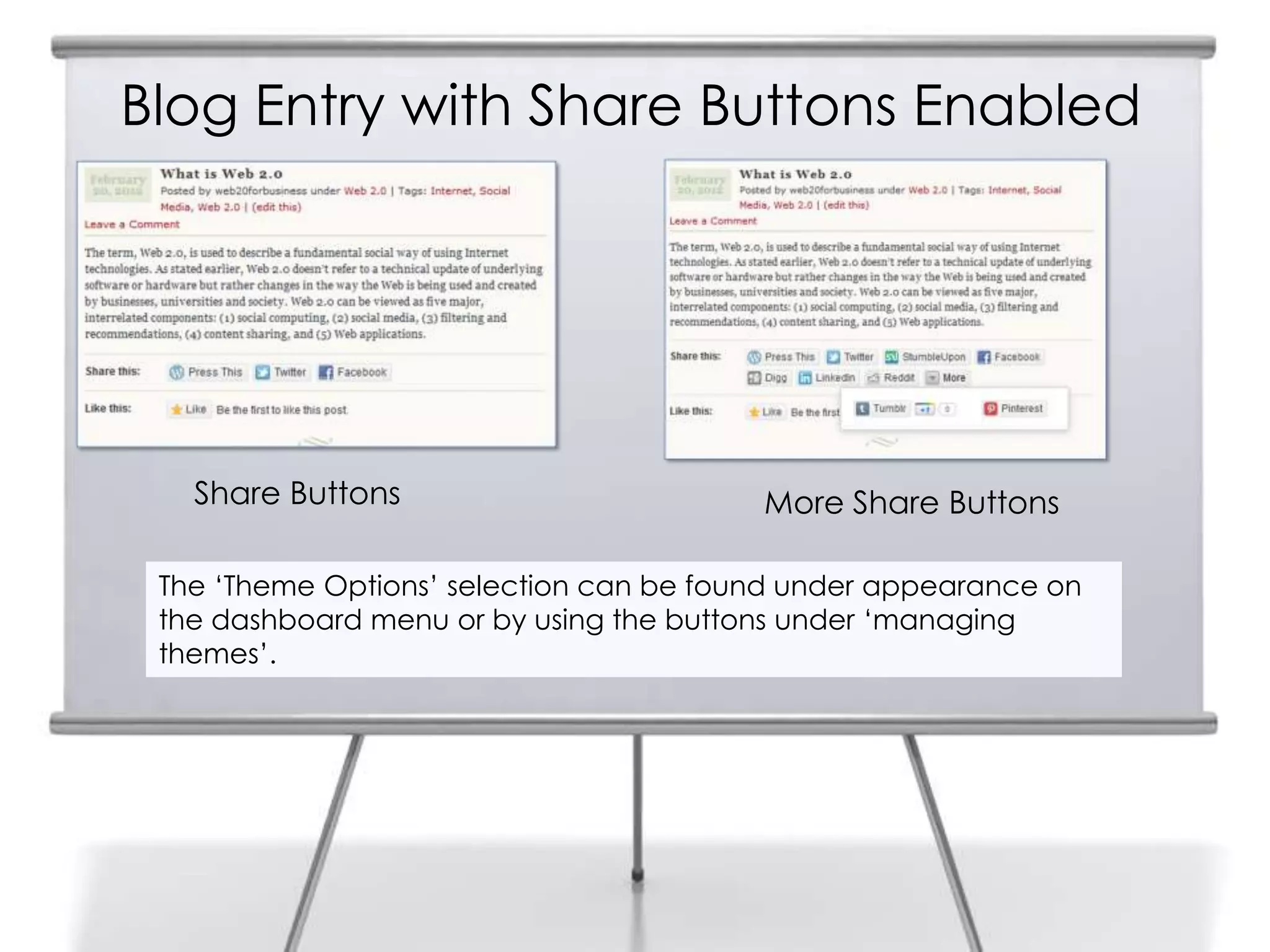
Blog Entry with Share Buttons Enabled
The „Theme Options‟ selection can be found under appearance on
the dashboard menu or by using the buttons under „managing
themes‟.
Share Buttons More Share Buttons
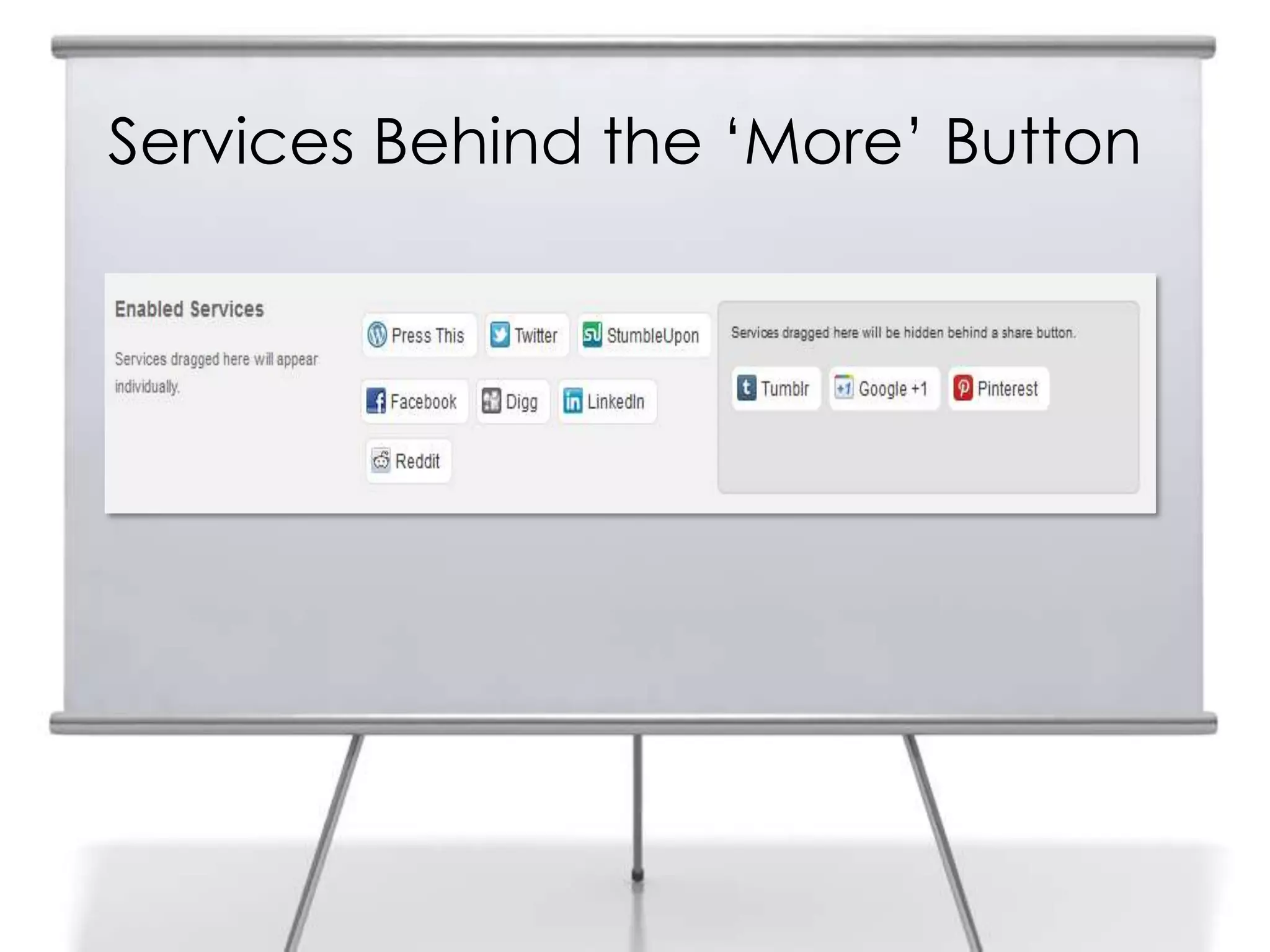
Services Behind the „More‟ Button
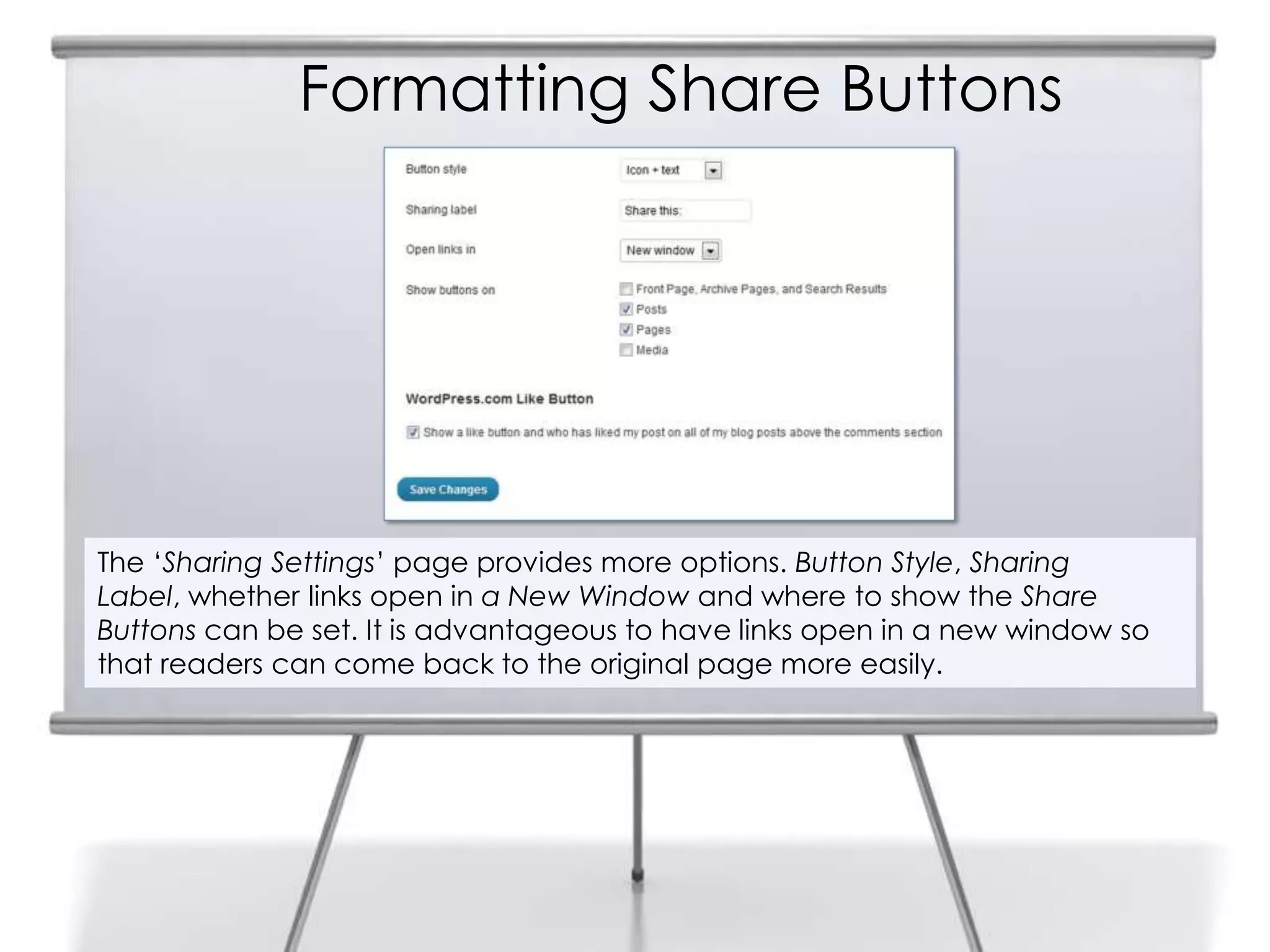
Formatting Share Buttons
The „Sharing Settings‟ page provides more options. Button Style, Sharing
Label, whether links open in a New Window and where to show the Share
Buttons can be set. It is advantageous to have links open in a new window so
that readers can come back to the original page more easily.
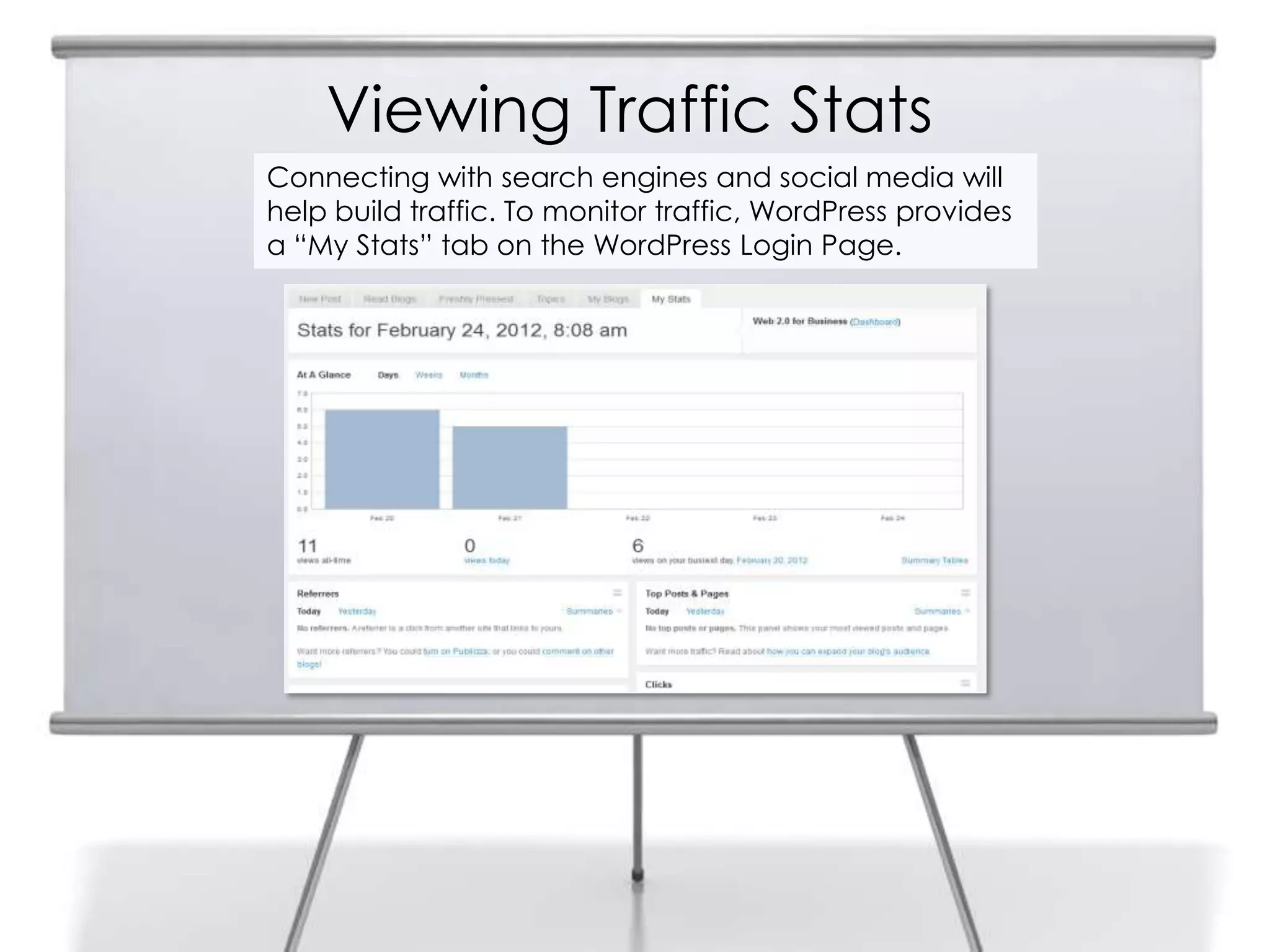
Viewing Traffic Stats
Connecting with search engines and social media will
help build traffic. To monitor traffic, WordPress provides
a “My Stats” tab on the WordPress Login Page.
Summary
Configuring a WordPress business blog is
very important
An eye-catching Web site is only part of
the story
Perhaps the most important task is
configuring the site to connect with
search engines and customers through
social media.
Without the tools provided by a modern
tool such as WordPress, a business puts
itself at a disadvantage and fails to utilize
all the free resources at its disposal.
Slide Media from:
PresenterMedia.com
support@presentermedia.com
4416 S. Technology Dr
Sioux Falls, SD 57106
Slides Prepared by Professor Roger McHaney
Kansas State University
Twitter: @mchaney
Blog: http://mchaney.com
Email : mchaney@ksu.edu

Chapter3b McHaney 2nd edition

  • 1.
    Chapter 3: MoreBlogging: WordPress Options: Part B Web 2.0 and Social Media for Business Roger McHaney, Kansas State University
  • 2.
    Widgets • Small add-onsused to interact with other applications and provide features that help build an audience for a blog • Can show recent Tweets, provide Flickr pictures, show Facebook wall entries, link to articles, and many other things • Often provided by third-party developers • Navigate to Widgets under Appearance on the Dashboard
  • 3.
  • 4.
    Widget Configuration Widgets usuallyrequire configuration. Clicking the down arrow beside the Widget‟s name causes a configuration dialog box to appear. This slide shows a Twitter Widget on the sidebar
  • 5.
  • 6.
  • 7.
    Add Categories andTags Add categories and tags to make posts easier for readers to find and to help index material. Tag cloud widget will also now have content. PUBLISH
  • 8.
    Making Posts moreInteresting Media such as images or video, polls, or forms can be added to the entry.
  • 9.
  • 10.
    More Posts Sample postcalled „Hello World‟ should be removed from blog. Navigate to „Posts‟ and „All‟ and select the sample post. Choose „Move to Trash‟ and delete.
  • 11.
  • 12.
  • 13.
  • 14.
    Connecting with SearchEngines For a blog to be successful, it must connect with its intended audience In business this means potential customers, clients, and other stakeholders
  • 15.
    WordPress Blogs First, makesure blog is discoverable. Open the Privacy page on the Dashboard under Settings. By default it is set to permit indexing by search engines and to be viewable by the general public.
  • 16.
    WordPress Blogs Having socialmedia, news services, and other re-broadcasters pick up your blog feeds is desirable.
  • 17.
    WordPress Blogs Register withWordPress‟s Webmaster tools to ensure posts are indexed by major search engines such as Google, Bing, and Yahoo. Navigate to „Tools‟ on the Dashboard and scroll midway down the page. Notice three links under the „Webmaster Tools Verification‟ header.
  • 18.
    Example: Registering onGoogle Blog owner must have account with a UserID and Password for the service. After clicking on the „Google Webmaster Tools‟ and logging in with GoogleID and password, Press „Add a Site‟ then copy Blog Address into textbox prompt. This tells Google‟s search engine to index the site.
  • 19.
    Proof of Ownership Searchengine will require user to add code to Web site to prove ownership
  • 20.
    Proof of Ownership(con‟t) Copy and paste the tag as shown above
  • 21.
    Proof of Ownership(con‟t) Paste text into the appropriate textbox. This will ensure Google recognizes the blog and will give owner the ability to review statistics related to the Website.
  • 22.
    Connecting with Customers Publicityfor a blog should extend beyond search engines. Social media has become an important venue for businesses to meet, connect with, and retain customers. WordPress provides a set of tools for exposing its blogs to social media. From the Dashboard, navigate to „Tools‟ and „Settings‟.
  • 23.
    Example: Connecting toTwitter WordPress asks that you authorize connection and then log into Twitter. Once you have supplied a Twitter UserID and Password, the blog will be connected. This means posts on your blog are automatically sent to anyone in your network. In Twitter, Tweets inviting Followers to read the newest blog entries are sent.
  • 24.
    Sharing Buttons Another WordPressDashboard section is called „Sharing Buttons‟. For instance, providing a „Facebook‟ button will automate the process of sharing a specific blog post with Facebook friends.
  • 25.
    Blog Entry withShare Buttons Enabled The „Theme Options‟ selection can be found under appearance on the dashboard menu or by using the buttons under „managing themes‟. Share Buttons More Share Buttons
  • 26.
    Services Behind the„More‟ Button
  • 27.
    Formatting Share Buttons The„Sharing Settings‟ page provides more options. Button Style, Sharing Label, whether links open in a New Window and where to show the Share Buttons can be set. It is advantageous to have links open in a new window so that readers can come back to the original page more easily.
  • 28.
    Viewing Traffic Stats Connectingwith search engines and social media will help build traffic. To monitor traffic, WordPress provides a “My Stats” tab on the WordPress Login Page.
  • 29.
    Summary Configuring a WordPressbusiness blog is very important An eye-catching Web site is only part of the story Perhaps the most important task is configuring the site to connect with search engines and customers through social media. Without the tools provided by a modern tool such as WordPress, a business puts itself at a disadvantage and fails to utilize all the free resources at its disposal.
  • 30.
    Slide Media from: PresenterMedia.com support@presentermedia.com 4416S. Technology Dr Sioux Falls, SD 57106 Slides Prepared by Professor Roger McHaney Kansas State University Twitter: @mchaney Blog: http://mchaney.com Email : mchaney@ksu.edu