
Adobe Dreamweaver CS3 Revealed CHAPTER FOUR: WORKING WITH LINKS
Chapter 4 Lessons Create external and internal links Create internal links to named anchors Insert rollovers with Flash text Create, modify, and copy a navigation bar Create an image map Manage Web site links
Understanding Internal and External Links Web Pages contain two types of links Internal or relative: links to Web pages in the same Web site External or absolute: links to Web pages on other Web sites or to e-mail addresses
Understanding Internal and External Links Internal and external links have two important parts that work together: The  element  that viewers see and click on a Web page (text, image, or a button) The  path , or the name and location of the Web page or file that will open when the element is clicked
Create Links Create external links Absolute paths Create internal links Relative paths
Absolute and Relative Paths
Creating External Links Select the text or object that you want to serve as a link Type the absolute path to the destination Web page in the Link text box in the Property inspector
Fig. 1: Example of Absolute Path
Fig. 3: Creating an External Link Selected text URL for link
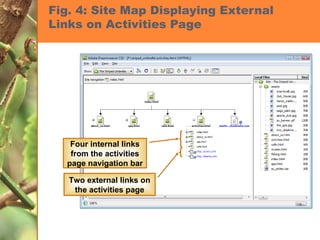
Fig. 4: Site Map Displaying External Links on Activities Page Four internal links from the activities page navigation bar Two external links on the activities page
Creating Internal Links Select the text element or graphic object that you want to make a link Use the Browse for File icon next to the Link text box in the Property inspector to specify the relative path to the destination page
Fig. 2: Example of a Relative Path
Fig. 5: Creating an Internal Link Text to be used for link Relative link to fishing.html Browse for File icon
Create Internal Links to Named Anchors Named anchor: specific location on a Web page that has a descriptive name Acts as a target for internal links Target: location on the Web page that a browser displays when internal link is clicked
Fig. 7: Named Anchor Button on the Insert Bar Named Anchor button Named Anchor Text used for link to named anchor Link to named anchor Point to File icon
Fig. 8: Named Anchor Dialog Box Name of new anchor
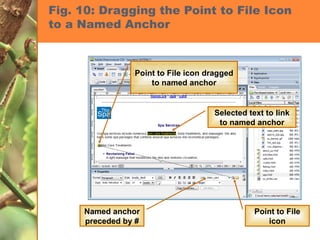
Fig. 10: Dragging the Point to File Icon to a Named Anchor Point to File icon dragged to named anchor Named anchor preceded by # Selected text to link to named anchor Point to File icon
Understanding Flash Text Flash text is a vector-based graphic file that contains text Flash text allows you to add visual interest to an otherwise “dull” Web page Flash text files are saved with the .swf file extension
Flash Text graphic.swf + link path + rollover Text
Inserting Flash Text
Fig. 12: Media Menu on Insert Bar
Fig. 13: Insert Flash Text Dialog Box Color text box Font list arrow Size text box Rollover color text box Target list arrow Text text box Link text box Save as text box
Fig. 14: Flash Category on Assets Panel Flash button Flash text file Click play button to preview Flash text
Create a Navigation Bar  Using Images Allows you to create a more visually appealing method for navigation that utilizes graphics rather than text Can be created in many different graphics programs including Adobe Fireworks or Adobe Illustrator
Create a Navigation Bar Navigation bar elements can have four possible states  A state is the condition of the element relative to the mouse pointer There are four possible states
Navigation Bars Can place only one navigation bar on a Web page using the Insert Navigation Bar dialog box Multiple links Four rollover states Up, over, down, and over while down
Four States Up Image: mouse pointer is not on top of the element Over Image: mouse pointer is positioned on top of the element Down Image: when you click the element Over While Down Image: mouse pointer is positioned over an element that has been clicked
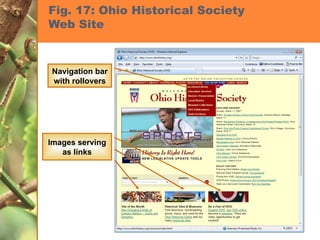
Fig. 17: Ohio Historical Society  Web Site Navigation bar with rollovers Images serving as links
Copy and Modify a Navigation Bar Create a navigation bar using images Add elements to a navigation bar Copy and paste a navigation bar Copy and Paste from menu bar Customize a navigation bar To change orientation, you must start over
Fig. 18: Insert Navigation Bar Element name text box Image file specified for Up image state Insert list arrow Remove check mark Click to select an image for each element state
Table 3
Fig. 24: Changing Settings for the Activities Element Show “Down image” initially is selected Asterisk is placed next to element name
Fig. 25: About_us Page with Modified Navigation Bar
Create an Image Map Another way to create navigation links for Web pages is to create an image map Image map: graphic that has one or more hot spots placed on top of it Hotspot: area on a graphic that, when clicked, links to different locations on the page or to another Web page or Web site
Fig. 26: Viewing an Image Map  Clicking an individual state will link to information about parks in that state Pointer is over Arkansas, which results in a window with a photo and introductory text about Arkansas to display
Fig. 28: Properties of the Hotspot Image map name Alternate text for hotspot Target for hotspot Link to index page
Manage Web Site Links Check Links Sitewide feature Internal links External links Named anchors Graphic files Orphaned files View results in Link Checker panel
Fig. 30: Link Checker Panel Displaying External Links Show list arrow External links displayed
Fig. 31: Link Checker Panel Displaying No Orphaned Files Show list arrow No orphaned files shown
Fig. 32: Assets Panel Displaying Links URLs button External links for The Striped Umbrella Web site
Chapter 4 Tasks Create external and internal links Create internal links to named anchors Insert rollovers with Flash text Create, modify, and copy a navigation bar Create an image map Manage Web site links

Dreamweaver Ch04

  • 1.
    Adobe Dreamweaver CS3Revealed CHAPTER FOUR: WORKING WITH LINKS
  • 2.
    Chapter 4 LessonsCreate external and internal links Create internal links to named anchors Insert rollovers with Flash text Create, modify, and copy a navigation bar Create an image map Manage Web site links
  • 3.
    Understanding Internal andExternal Links Web Pages contain two types of links Internal or relative: links to Web pages in the same Web site External or absolute: links to Web pages on other Web sites or to e-mail addresses
  • 4.
    Understanding Internal andExternal Links Internal and external links have two important parts that work together: The element that viewers see and click on a Web page (text, image, or a button) The path , or the name and location of the Web page or file that will open when the element is clicked
  • 5.
    Create Links Createexternal links Absolute paths Create internal links Relative paths
  • 6.
  • 7.
    Creating External LinksSelect the text or object that you want to serve as a link Type the absolute path to the destination Web page in the Link text box in the Property inspector
  • 8.
    Fig. 1: Exampleof Absolute Path
  • 9.
    Fig. 3: Creatingan External Link Selected text URL for link
  • 10.
    Fig. 4: SiteMap Displaying External Links on Activities Page Four internal links from the activities page navigation bar Two external links on the activities page
  • 11.
    Creating Internal LinksSelect the text element or graphic object that you want to make a link Use the Browse for File icon next to the Link text box in the Property inspector to specify the relative path to the destination page
  • 12.
    Fig. 2: Exampleof a Relative Path
  • 13.
    Fig. 5: Creatingan Internal Link Text to be used for link Relative link to fishing.html Browse for File icon
  • 14.
    Create Internal Linksto Named Anchors Named anchor: specific location on a Web page that has a descriptive name Acts as a target for internal links Target: location on the Web page that a browser displays when internal link is clicked
  • 15.
    Fig. 7: NamedAnchor Button on the Insert Bar Named Anchor button Named Anchor Text used for link to named anchor Link to named anchor Point to File icon
  • 16.
    Fig. 8: NamedAnchor Dialog Box Name of new anchor
  • 17.
    Fig. 10: Draggingthe Point to File Icon to a Named Anchor Point to File icon dragged to named anchor Named anchor preceded by # Selected text to link to named anchor Point to File icon
  • 18.
    Understanding Flash TextFlash text is a vector-based graphic file that contains text Flash text allows you to add visual interest to an otherwise “dull” Web page Flash text files are saved with the .swf file extension
  • 19.
    Flash Text graphic.swf+ link path + rollover Text
  • 20.
  • 21.
    Fig. 12: MediaMenu on Insert Bar
  • 22.
    Fig. 13: InsertFlash Text Dialog Box Color text box Font list arrow Size text box Rollover color text box Target list arrow Text text box Link text box Save as text box
  • 23.
    Fig. 14: FlashCategory on Assets Panel Flash button Flash text file Click play button to preview Flash text
  • 24.
    Create a NavigationBar Using Images Allows you to create a more visually appealing method for navigation that utilizes graphics rather than text Can be created in many different graphics programs including Adobe Fireworks or Adobe Illustrator
  • 25.
    Create a NavigationBar Navigation bar elements can have four possible states A state is the condition of the element relative to the mouse pointer There are four possible states
  • 26.
    Navigation Bars Canplace only one navigation bar on a Web page using the Insert Navigation Bar dialog box Multiple links Four rollover states Up, over, down, and over while down
  • 27.
    Four States UpImage: mouse pointer is not on top of the element Over Image: mouse pointer is positioned on top of the element Down Image: when you click the element Over While Down Image: mouse pointer is positioned over an element that has been clicked
  • 28.
    Fig. 17: OhioHistorical Society Web Site Navigation bar with rollovers Images serving as links
  • 29.
    Copy and Modifya Navigation Bar Create a navigation bar using images Add elements to a navigation bar Copy and paste a navigation bar Copy and Paste from menu bar Customize a navigation bar To change orientation, you must start over
  • 30.
    Fig. 18: InsertNavigation Bar Element name text box Image file specified for Up image state Insert list arrow Remove check mark Click to select an image for each element state
  • 31.
  • 32.
    Fig. 24: ChangingSettings for the Activities Element Show “Down image” initially is selected Asterisk is placed next to element name
  • 33.
    Fig. 25: About_usPage with Modified Navigation Bar
  • 34.
    Create an ImageMap Another way to create navigation links for Web pages is to create an image map Image map: graphic that has one or more hot spots placed on top of it Hotspot: area on a graphic that, when clicked, links to different locations on the page or to another Web page or Web site
  • 35.
    Fig. 26: Viewingan Image Map Clicking an individual state will link to information about parks in that state Pointer is over Arkansas, which results in a window with a photo and introductory text about Arkansas to display
  • 36.
    Fig. 28: Propertiesof the Hotspot Image map name Alternate text for hotspot Target for hotspot Link to index page
  • 37.
    Manage Web SiteLinks Check Links Sitewide feature Internal links External links Named anchors Graphic files Orphaned files View results in Link Checker panel
  • 38.
    Fig. 30: LinkChecker Panel Displaying External Links Show list arrow External links displayed
  • 39.
    Fig. 31: LinkChecker Panel Displaying No Orphaned Files Show list arrow No orphaned files shown
  • 40.
    Fig. 32: AssetsPanel Displaying Links URLs button External links for The Striped Umbrella Web site
  • 41.
    Chapter 4 TasksCreate external and internal links Create internal links to named anchors Insert rollovers with Flash text Create, modify, and copy a navigation bar Create an image map Manage Web site links