StatusPeople User Manual


Status People Ltd (07561828)
Website: StatusPeople.com
Email: info@statuspeople.com
Twitter: @StatusPeople
Facebook: Facebook.com/StatusPeople
Tumblr: StatusPeople.Tumblr.com
Create an Account
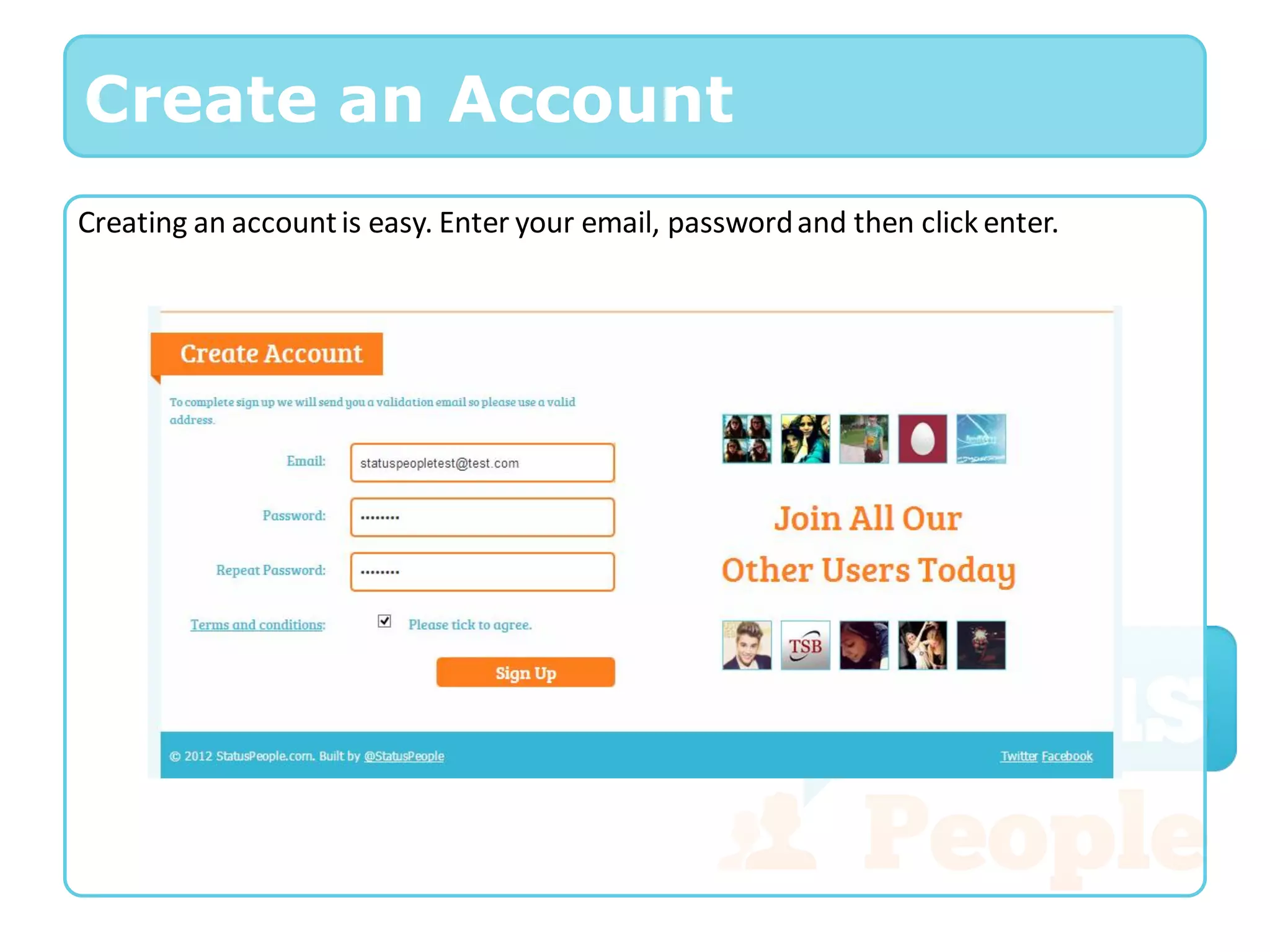
Creating an account is easy. Enter your email, password and then click enter.
New Connections
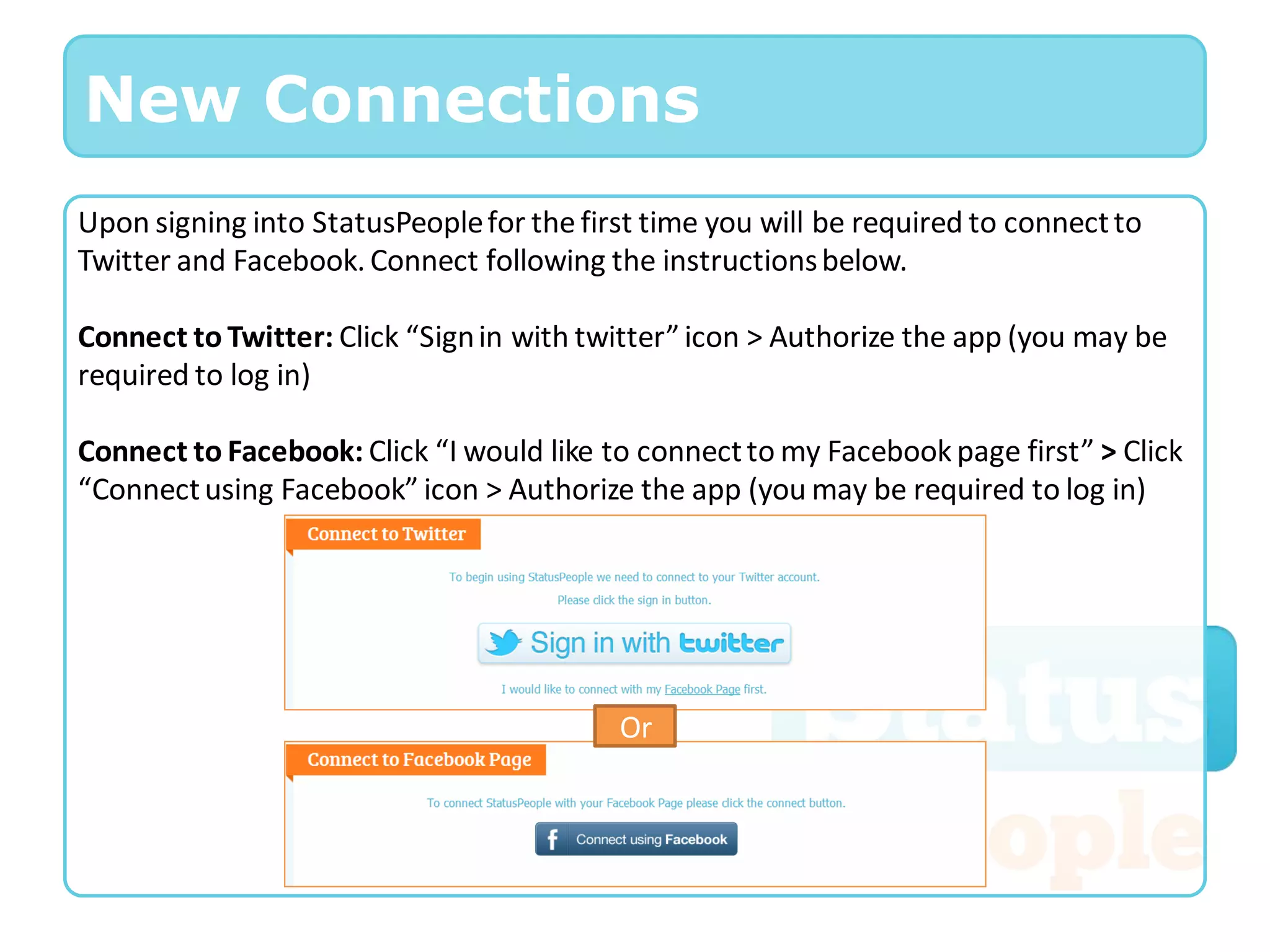
Upon signing into StatusPeople for the first time you will be required to connect to
Twitter and Facebook. Connect following the instructions below.

Connect to Twitter: Click “Sign in with twitter” icon > Authorize the app (you may be
required to log in)

Connect to Facebook: Click “I would like to connect to my Facebook page first” > Click
“Connect using Facebook” icon > Authorize the app (you may be required to log in)


                                           Or
New Connections
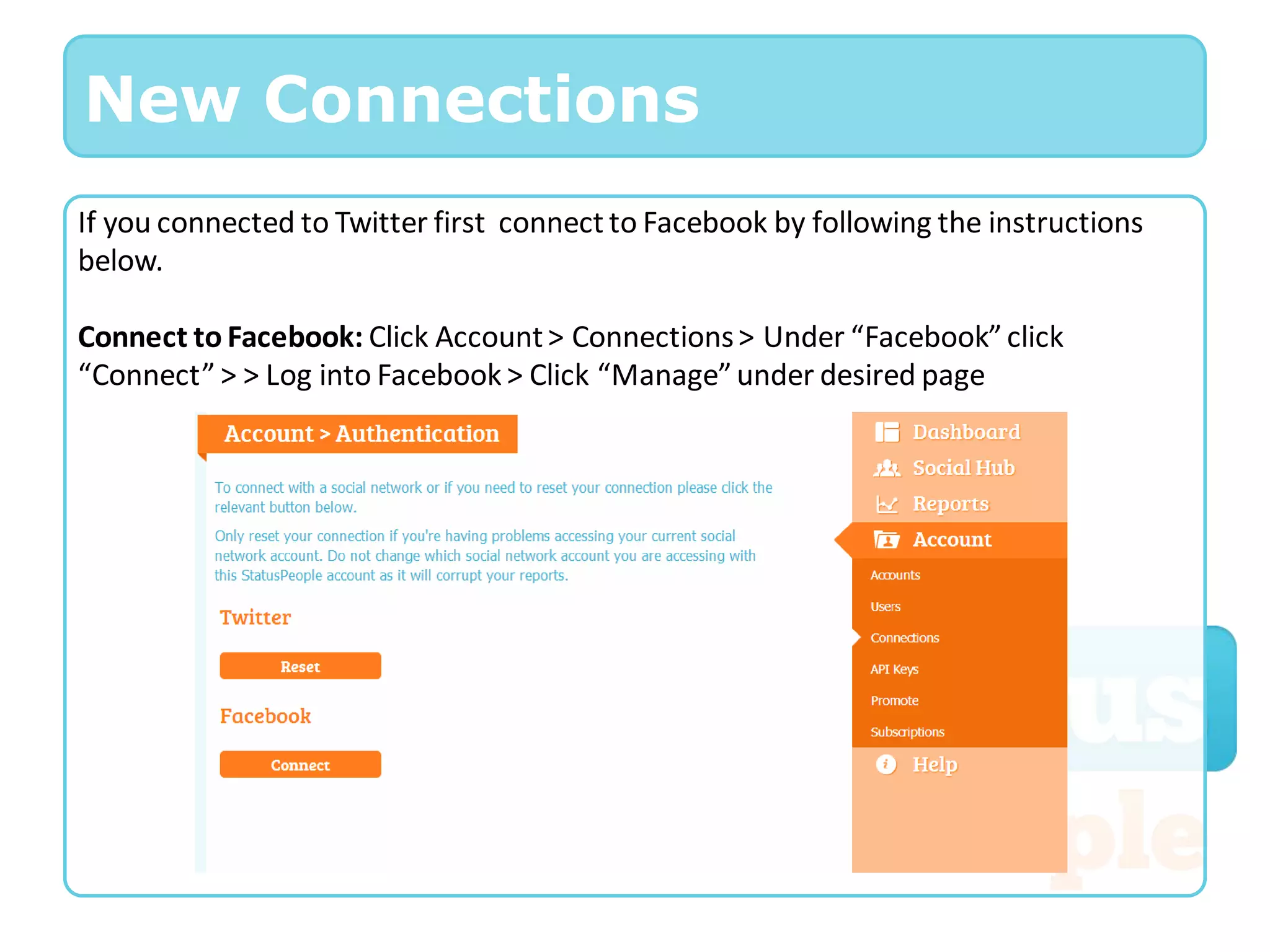
If you connected to Twitter first connect to Facebook by following the instructions
below.

Connect to Facebook: Click Account > Connections > Under “Facebook” click
“Connect” > > Log into Facebook > Click “Manage” under desired page
New Connections
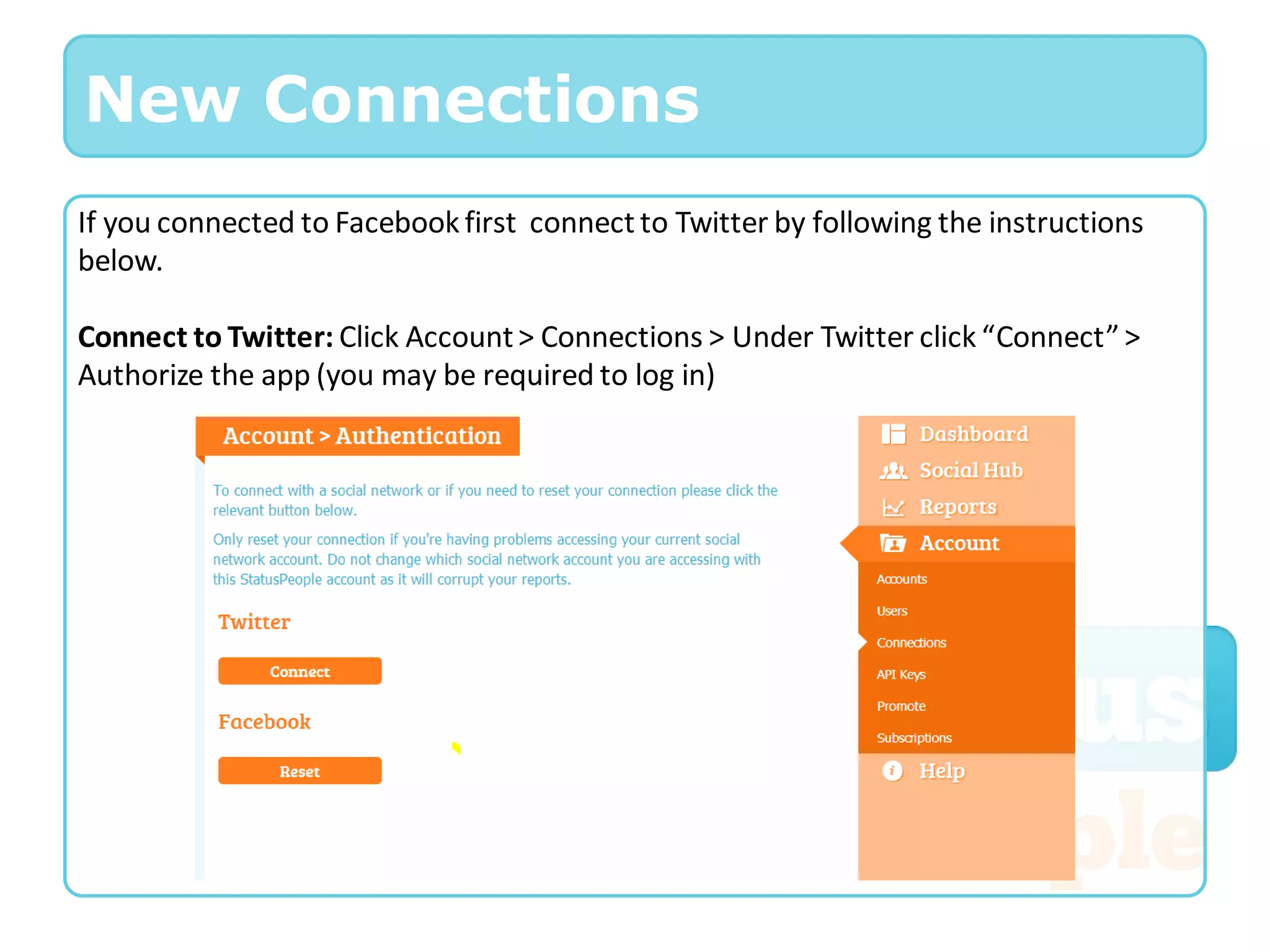
If you connected to Facebook first connect to Twitter by following the instructions
below.

Connect to Twitter: Click Account > Connections > Under Twitter click “Connect” >
Authorize the app (you may be required to log in)
Manage
Believe in making things easier for yourself and
your team? Status People allows you to view
and manage all of your activity in one place.

Social Hub – See all of your social media
activity and engagements in one place

Campaigns – Create campaigns for promotions

Alerts – System and engagement alerts sent to
you by email, so you can keep on top of
everything that’s happening

Feeds – Automatic RSS feed and hash tags
(based on trending topics)

Image Cloud – Store all of your images on the
cloud, with your own branding
Dashboard
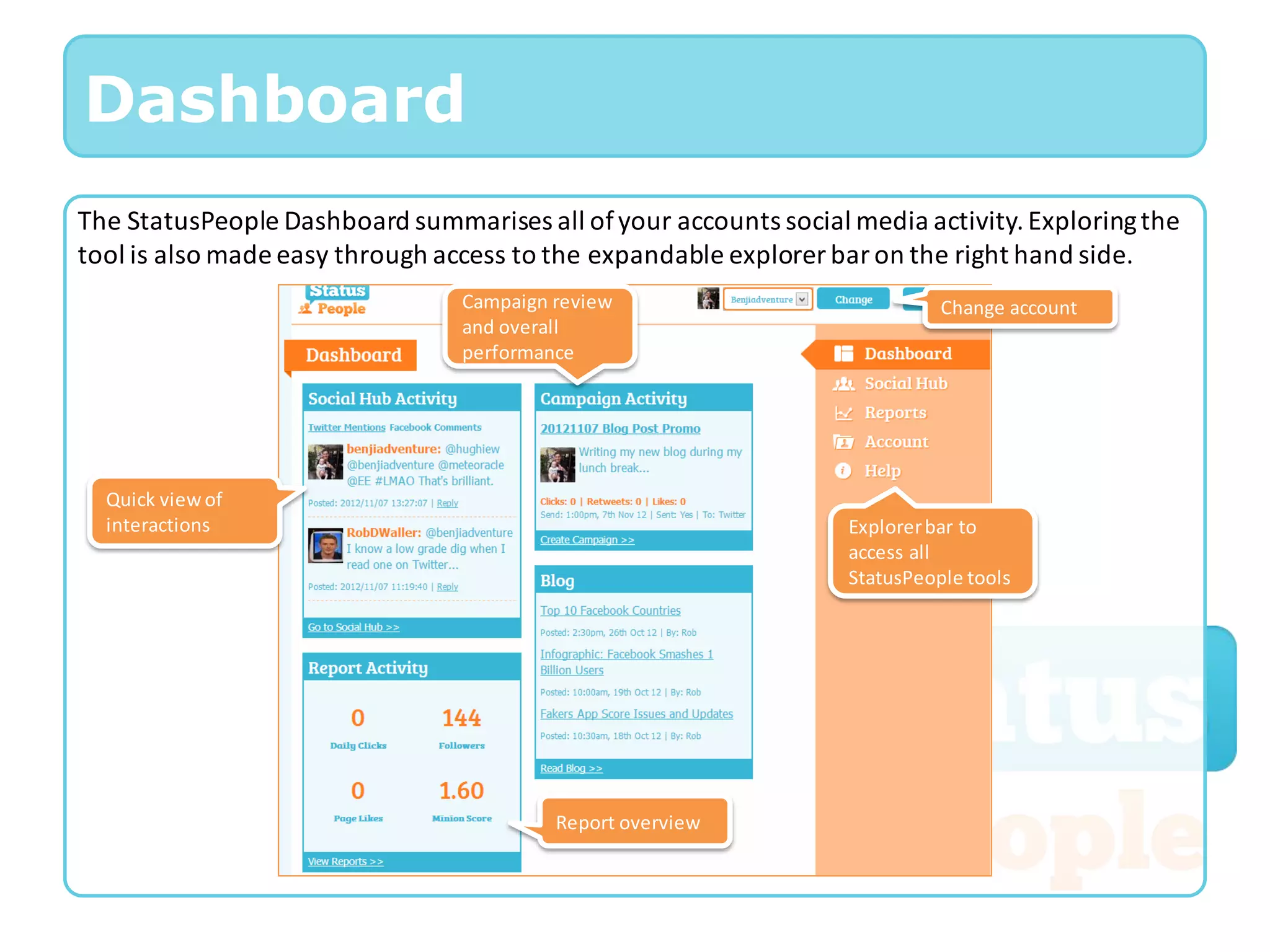
The StatusPeople Dashboard summarises all of your accounts social media activity. Exploring the
tool is also made easy through access to the expandable explorer bar on the right hand side.
                                 Campaign review                            Change account
                                 and overall
                                 performance


  Quick view of
  interactions                                                    Explorer bar to
                                                                  access all
                                                                  StatusPeople tools


                                          Report overview
Social Hub
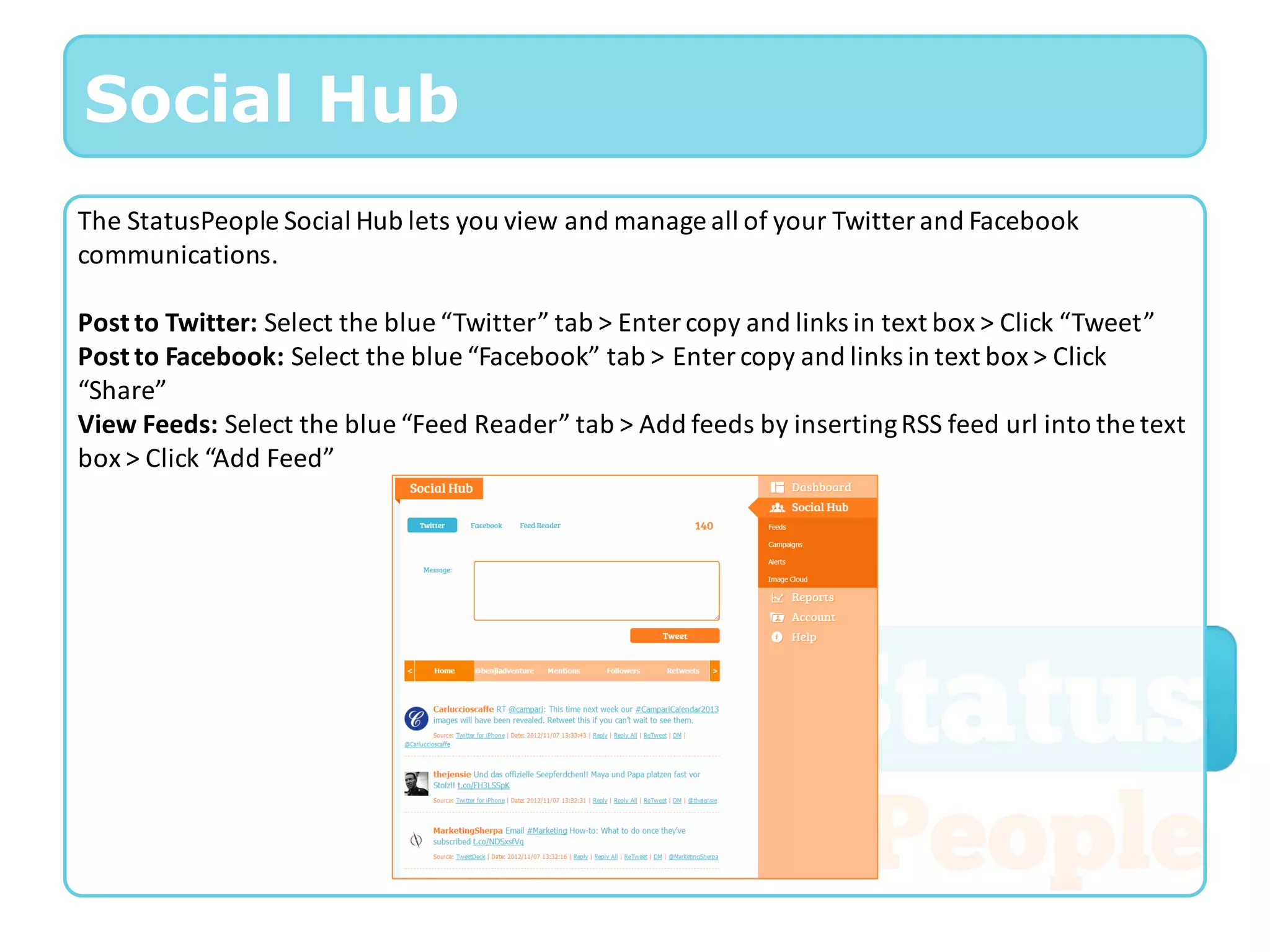
The StatusPeople Social Hub lets you view and manage all of your Twitter and Facebook
communications.

Post to Twitter: Select the blue “Twitter” tab > Enter copy and links in text box > Click “Tweet”
Post to Facebook: Select the blue “Facebook” tab > Enter copy and links in text box > Click
“Share”
View Feeds: Select the blue “Feed Reader” tab > Add feeds by inserting RSS feed url into the text
box > Click “Add Feed”
Social Hub
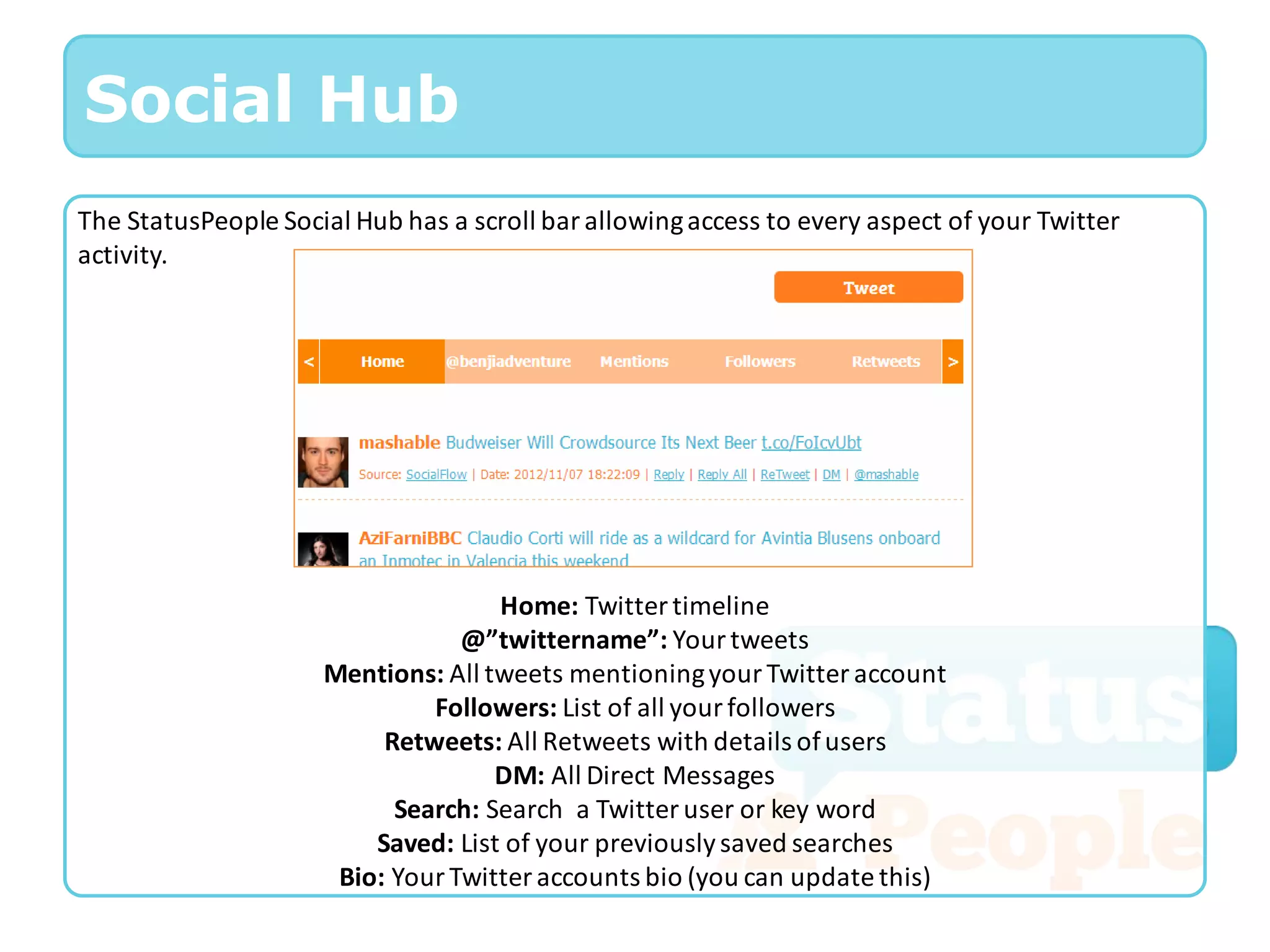
The StatusPeople Social Hub has a scroll bar allowing access to every aspect of your Twitter
activity.


                                    Home: Twitter timeline
                                 @”twittername”: Your tweets
                     Mentions: All tweets mentioning your Twitter account
                              Followers: List of all your followers
                          Retweets: All Retweets with details of users
                                    DM: All Direct Messages
                           Search: Search a Twitter user or key word
                         Saved: List of your previously saved searches
                      Bio: Your Twitter accounts bio (you can update this)
Feeds
StatusPeople allows you to manage all of your feeds in one place. You can post to your Twitter
and Facebook accounts straight from here, using pre-defined templates. They can even be
automated so that as soon as you update your blog, an auto post is generated.

Create a auto post “Template”: Click “Edit” > In the text box “Template” enter copy and do not
delete the merge tags [~Title~] [~Link~] and [~AutoHashTags~] > Switch automation on

Merge tag definitions:

•   [~Title~]: Is the title of the feed post that is to be merged in to the Tweet

•   [~Link~]: Is the link to the feed post, which will automatically shorten on post

•   [~AutoHashTags~]: This is the name of the RSS feed and is converted to a Twitter hashtag (all
    white space and non-alphanumeric characters are removed)
Campaigns
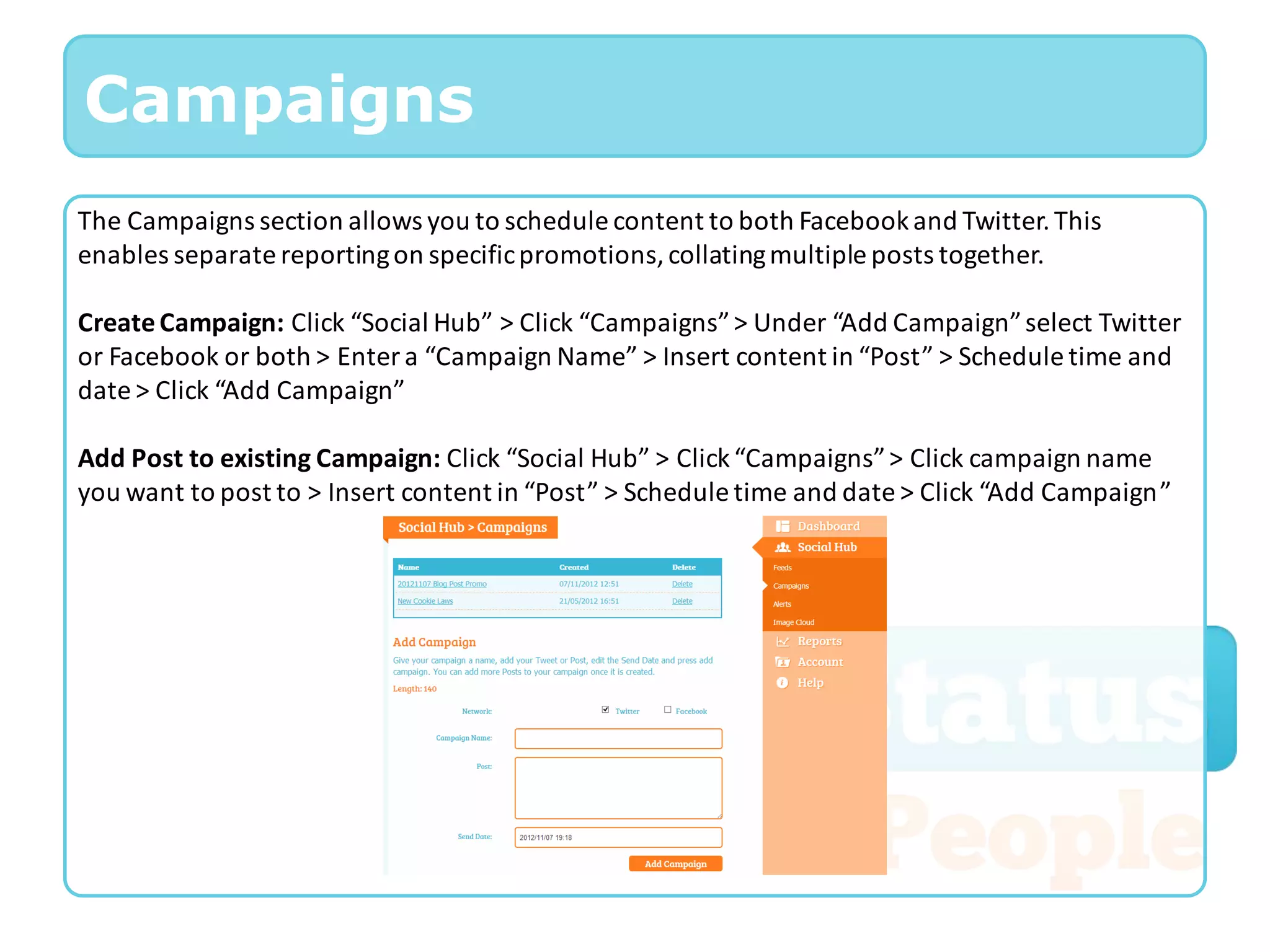
The Campaigns section allows you to schedule content to both Facebook and Twitter. This
enables separate reporting on specific promotions, collating multiple posts together.

Create Campaign: Click “Social Hub” > Click “Campaigns” > Under “Add Campaign” select Twitter
or Facebook or both > Enter a “Campaign Name” > Insert content in “Post” > Schedule time and
date > Click “Add Campaign”

Add Post to existing Campaign: Click “Social Hub” > Click “Campaigns” > Click campaign name
you want to post to > Insert content in “Post” > Schedule time and date > Click “Add Campaign”
Alerts
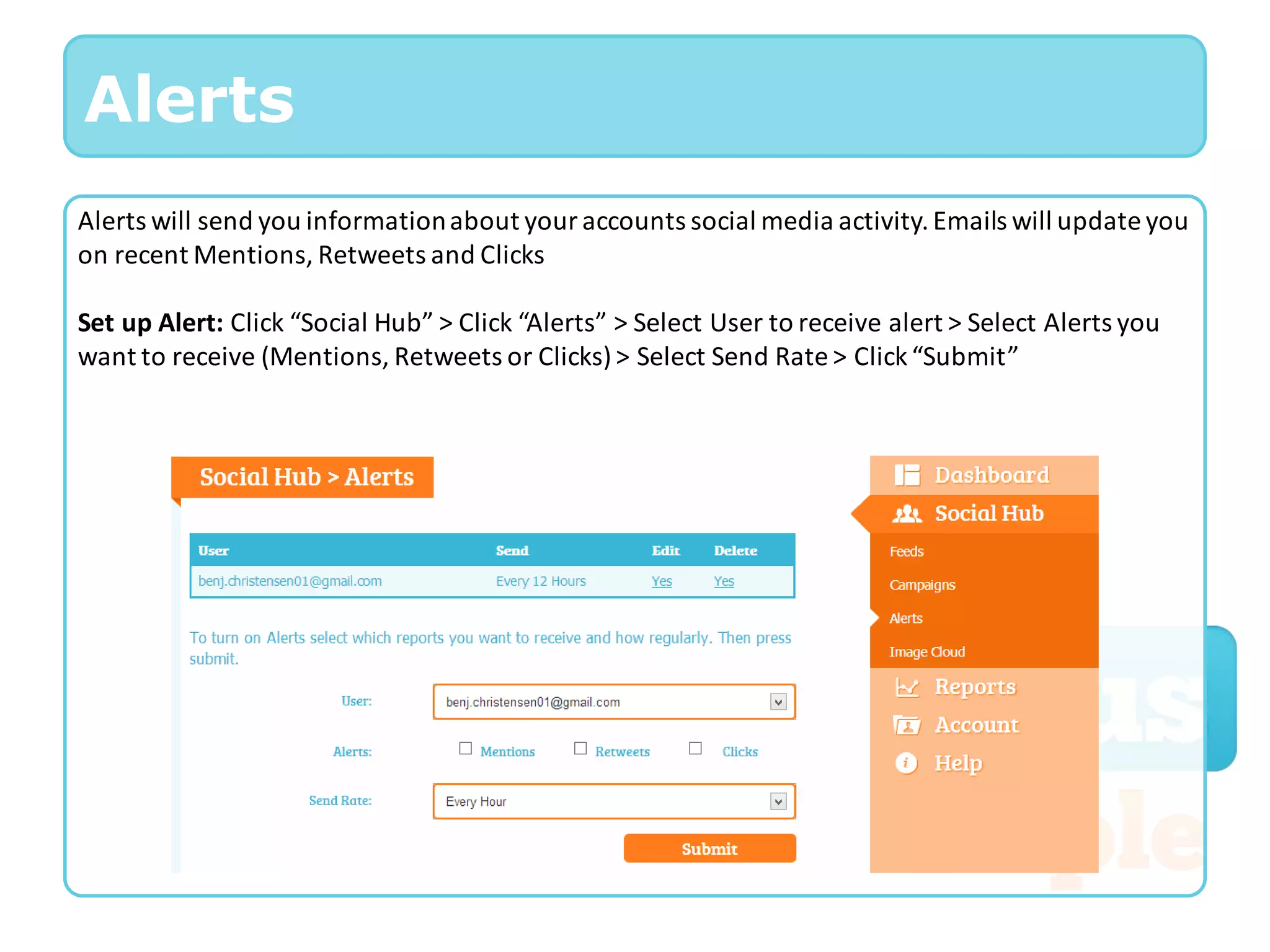
Alerts will send you information about your accounts social media activity. Emails will update you
on recent Mentions, Retweets and Clicks

Set up Alert: Click “Social Hub” > Click “Alerts” > Select User to receive alert > Select Alerts you
want to receive (Mentions, Retweets or Clicks) > Select Send Rate > Click “Submit”
Reports
The cool stuff. Measure engagement, reach and
influence and show off how great you’re doing.

MinionMood – Your social media engagement
score based on monitoring services

Influence & Reach – Integrated Kred
Influence and Reach scores so that you identify
valuable brandvocates and engage accordingly

Buzz – Detailed click reporting to identify what
content creates the most chat
Reports
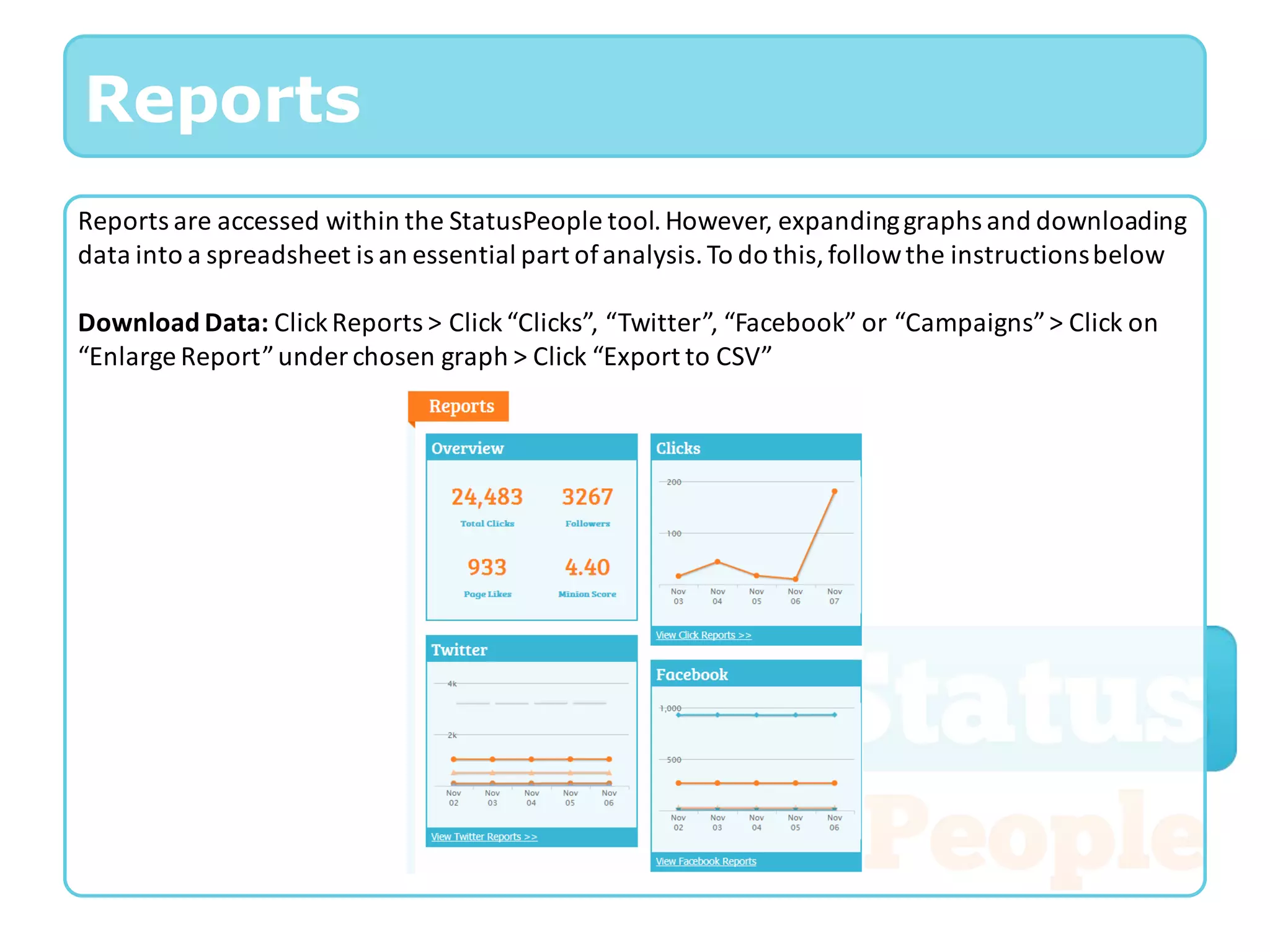
Reports are accessed within the StatusPeople tool. However, expanding graphs and downloading
data into a spreadsheet is an essential part of analysis. To do this, follow the instructions below

Download Data: Click Reports > Click “Clicks”, “Twitter”, “Facebook” or “Campaigns” > Click on
“Enlarge Report” under chosen graph > Click “Export to CSV”
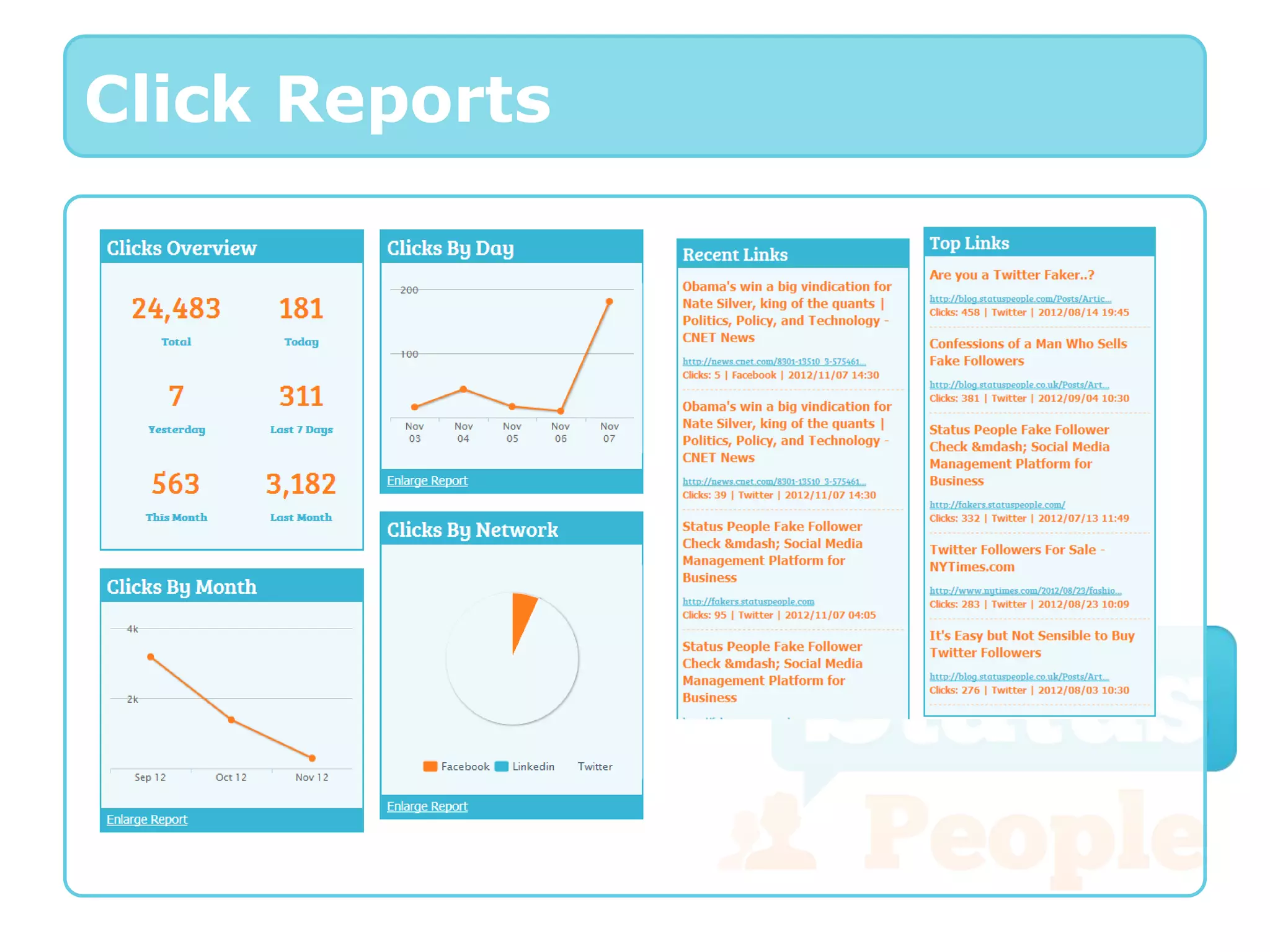
Click Reports
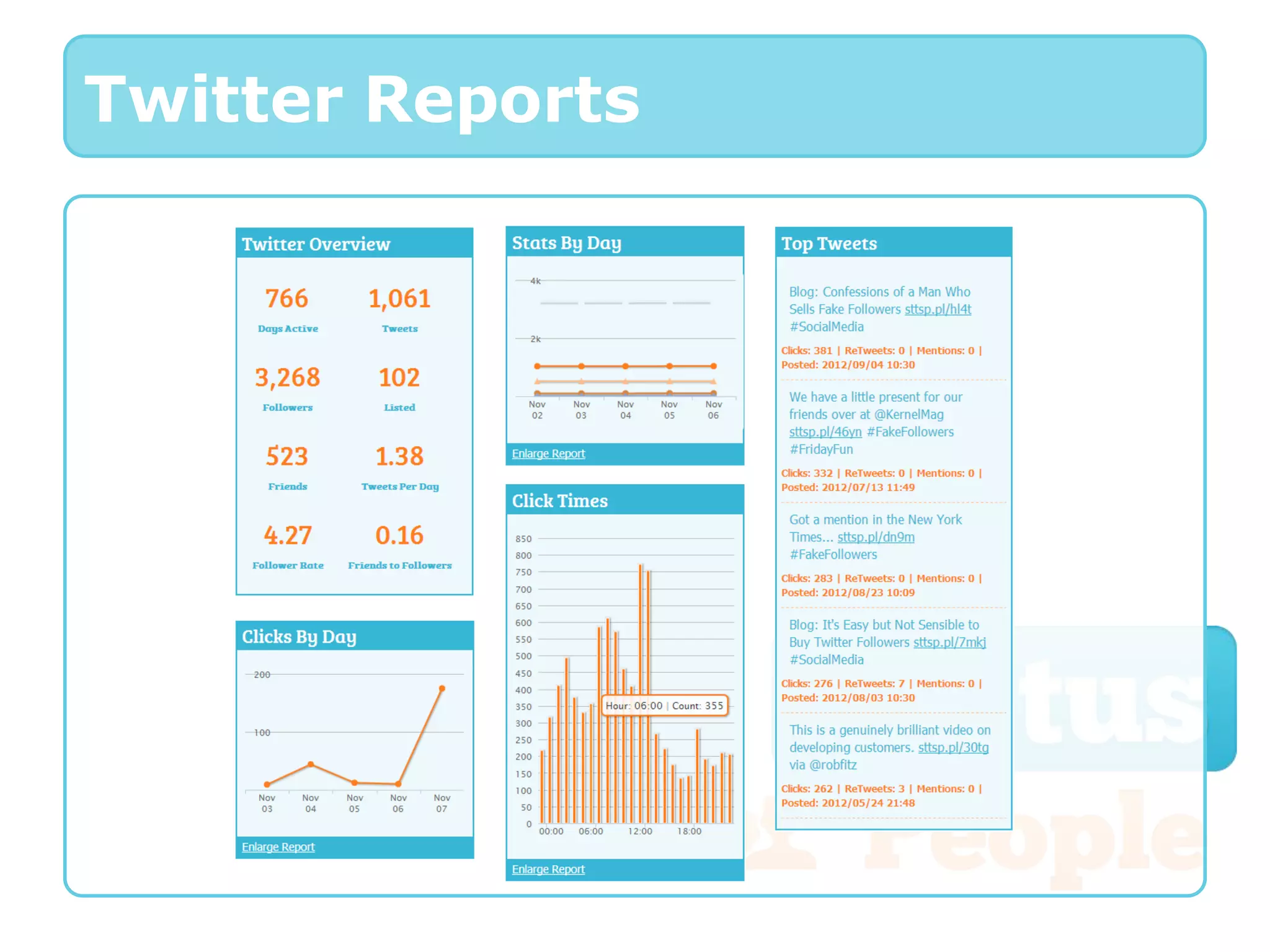
Twitter Reports
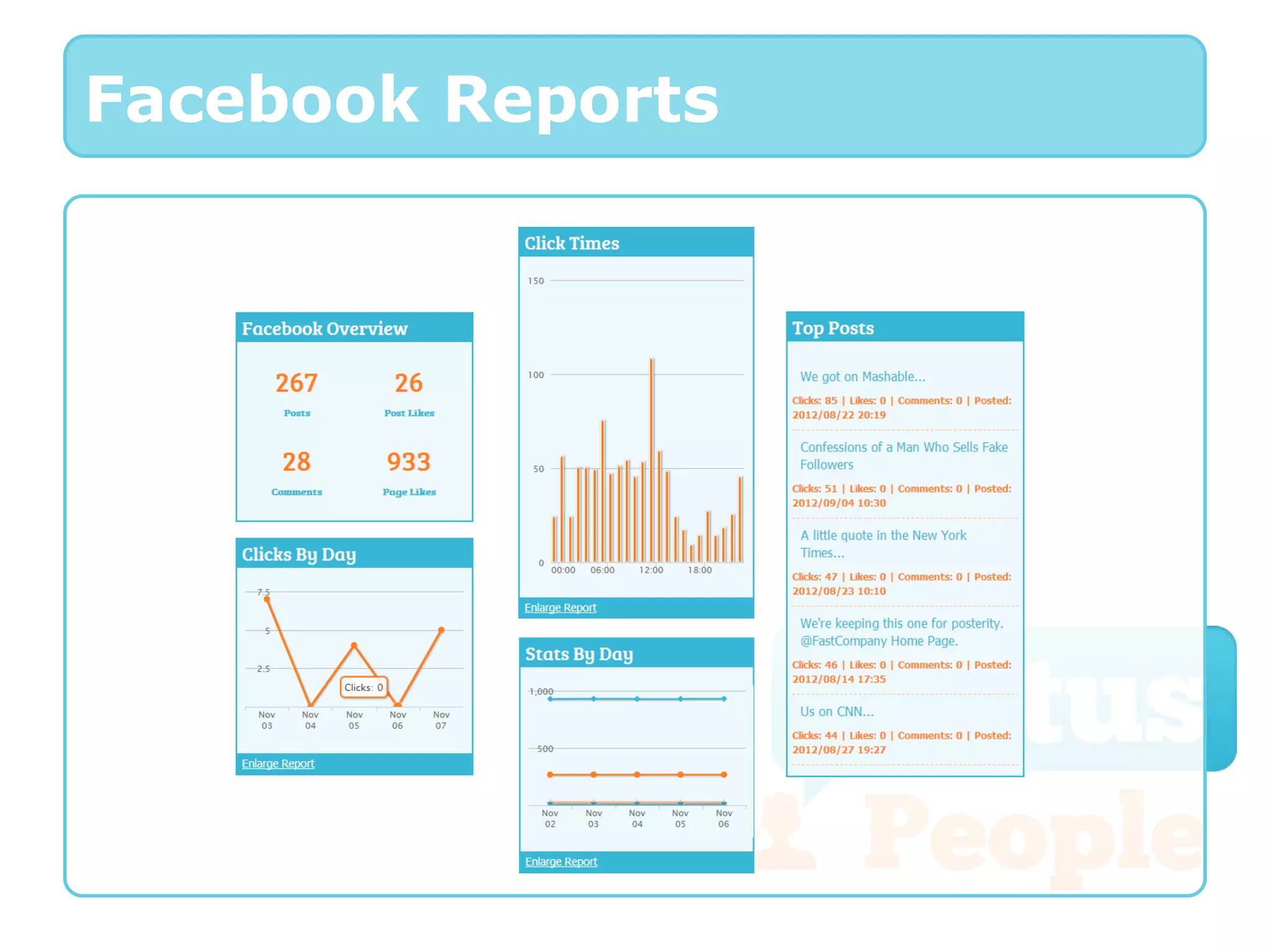
Facebook Reports
Account Settings
StatusPeople allows you to manage all of the
settings for your account:

Accounts – Create new and update existing
accounts

Users – Create new and update existing users,
as well as establish access settings

Connections – Manage Twitter and Facebook
page connections for your accounts

Subscriptions – Manage subscription to
StatusPeople and payment methods
Accounts
Creating new accounts relies upon having the correct subscription service. If you are
unable to create new accounts, then you will need to upgrade by going to
Subscriptions

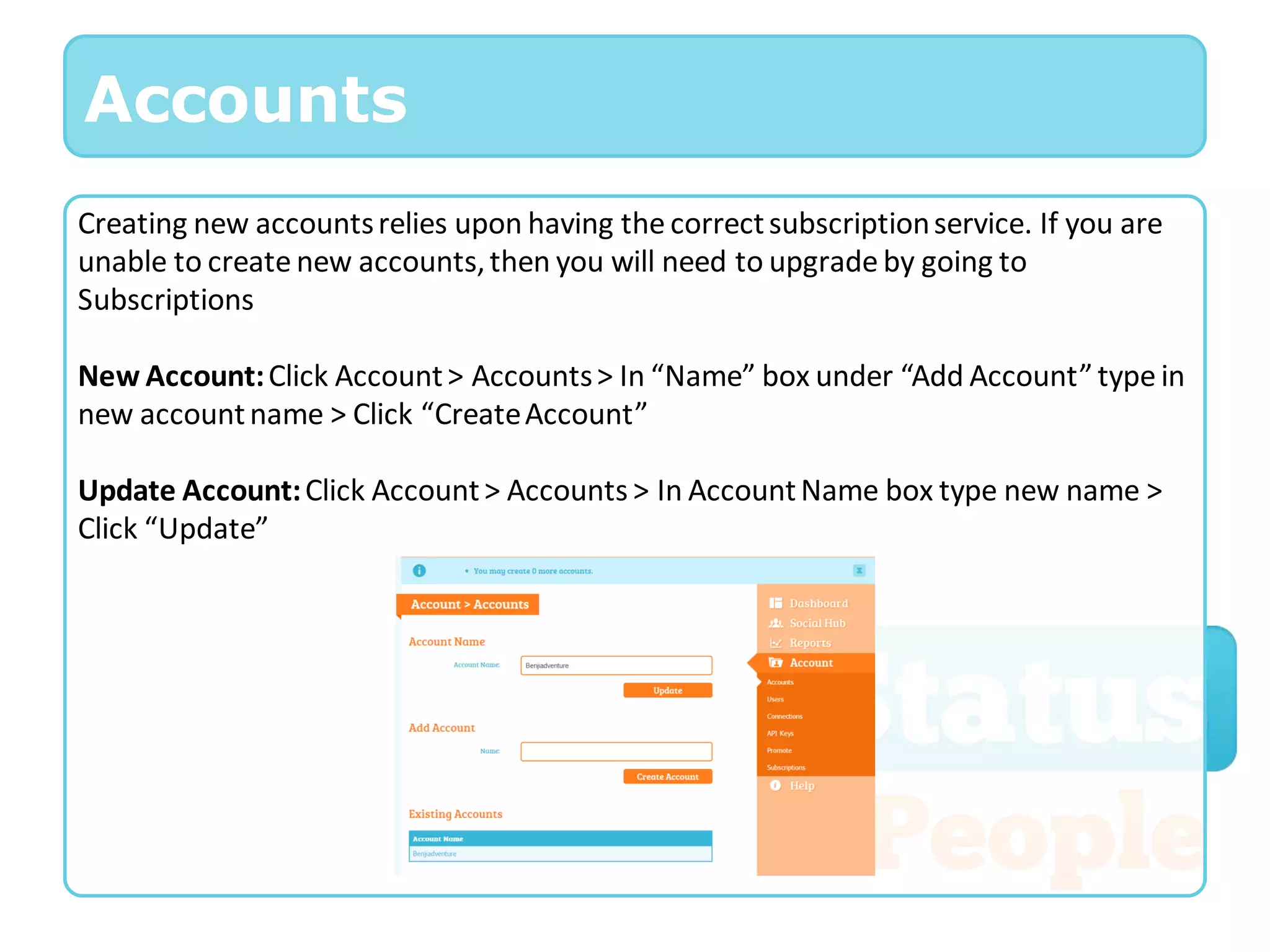
New Account: Click Account > Accounts > In “Name” box under “Add Account” type in
new account name > Click “Create Account”

Update Account: Click Account > Accounts > In Account Name box type new name >
Click “Update”
Users
Creating new users relies upon having the correct subscription service. If you are
unable to create new users, then you will need to upgrade by going to Subscriptions

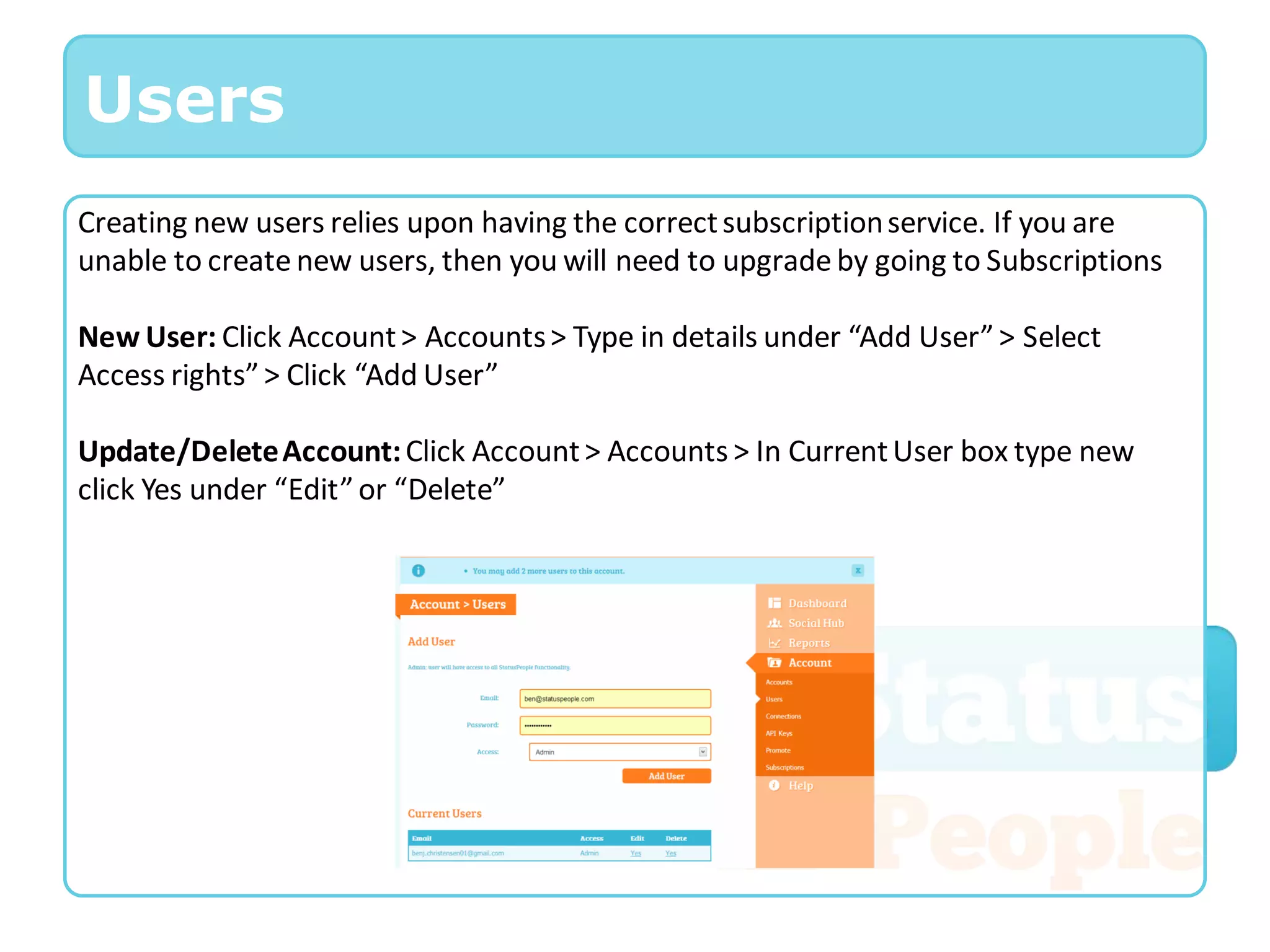
New User: Click Account > Accounts > Type in details under “Add User” > Select
Access rights” > Click “Add User”

Update/Delete Account: Click Account > Accounts > In Current User box type new
click Yes under “Edit” or “Delete”
Subscriptions
When you set up your StatusPeople account you are provided with free access to the
tool for 30 days. Once this trial has expired you must update your subscription. To do
this following the instructions below.

Renew: Click Account > Subscriptions > Select “Subscription Period” > Select
“Currency” > Under “Current Subscriptions” click “Renew” > Enter payment details
and confirm

Other Subscriptions (Upgrade): Click Account > Subscriptions > Select “Subscription
Period” > Select “Currency” > Under “Other Subscriptions” click “Buy Now” > Enter
payment details and confirm

StatusPeople User Guide

  • 1.
    StatusPeople User Manual StatusPeople Ltd (07561828) Website: StatusPeople.com Email: info@statuspeople.com Twitter: @StatusPeople Facebook: Facebook.com/StatusPeople Tumblr: StatusPeople.Tumblr.com
  • 2.
    Create an Account Creatingan account is easy. Enter your email, password and then click enter.
  • 3.
    New Connections Upon signinginto StatusPeople for the first time you will be required to connect to Twitter and Facebook. Connect following the instructions below. Connect to Twitter: Click “Sign in with twitter” icon > Authorize the app (you may be required to log in) Connect to Facebook: Click “I would like to connect to my Facebook page first” > Click “Connect using Facebook” icon > Authorize the app (you may be required to log in) Or
  • 4.
    New Connections If youconnected to Twitter first connect to Facebook by following the instructions below. Connect to Facebook: Click Account > Connections > Under “Facebook” click “Connect” > > Log into Facebook > Click “Manage” under desired page
  • 5.
    New Connections If youconnected to Facebook first connect to Twitter by following the instructions below. Connect to Twitter: Click Account > Connections > Under Twitter click “Connect” > Authorize the app (you may be required to log in)
  • 6.
    Manage Believe in makingthings easier for yourself and your team? Status People allows you to view and manage all of your activity in one place. Social Hub – See all of your social media activity and engagements in one place Campaigns – Create campaigns for promotions Alerts – System and engagement alerts sent to you by email, so you can keep on top of everything that’s happening Feeds – Automatic RSS feed and hash tags (based on trending topics) Image Cloud – Store all of your images on the cloud, with your own branding
  • 7.
    Dashboard The StatusPeople Dashboardsummarises all of your accounts social media activity. Exploring the tool is also made easy through access to the expandable explorer bar on the right hand side. Campaign review Change account and overall performance Quick view of interactions Explorer bar to access all StatusPeople tools Report overview
  • 8.
    Social Hub The StatusPeopleSocial Hub lets you view and manage all of your Twitter and Facebook communications. Post to Twitter: Select the blue “Twitter” tab > Enter copy and links in text box > Click “Tweet” Post to Facebook: Select the blue “Facebook” tab > Enter copy and links in text box > Click “Share” View Feeds: Select the blue “Feed Reader” tab > Add feeds by inserting RSS feed url into the text box > Click “Add Feed”
  • 9.
    Social Hub The StatusPeopleSocial Hub has a scroll bar allowing access to every aspect of your Twitter activity. Home: Twitter timeline @”twittername”: Your tweets Mentions: All tweets mentioning your Twitter account Followers: List of all your followers Retweets: All Retweets with details of users DM: All Direct Messages Search: Search a Twitter user or key word Saved: List of your previously saved searches Bio: Your Twitter accounts bio (you can update this)
  • 10.
    Feeds StatusPeople allows youto manage all of your feeds in one place. You can post to your Twitter and Facebook accounts straight from here, using pre-defined templates. They can even be automated so that as soon as you update your blog, an auto post is generated. Create a auto post “Template”: Click “Edit” > In the text box “Template” enter copy and do not delete the merge tags [~Title~] [~Link~] and [~AutoHashTags~] > Switch automation on Merge tag definitions: • [~Title~]: Is the title of the feed post that is to be merged in to the Tweet • [~Link~]: Is the link to the feed post, which will automatically shorten on post • [~AutoHashTags~]: This is the name of the RSS feed and is converted to a Twitter hashtag (all white space and non-alphanumeric characters are removed)
  • 11.
    Campaigns The Campaigns sectionallows you to schedule content to both Facebook and Twitter. This enables separate reporting on specific promotions, collating multiple posts together. Create Campaign: Click “Social Hub” > Click “Campaigns” > Under “Add Campaign” select Twitter or Facebook or both > Enter a “Campaign Name” > Insert content in “Post” > Schedule time and date > Click “Add Campaign” Add Post to existing Campaign: Click “Social Hub” > Click “Campaigns” > Click campaign name you want to post to > Insert content in “Post” > Schedule time and date > Click “Add Campaign”
  • 12.
    Alerts Alerts will sendyou information about your accounts social media activity. Emails will update you on recent Mentions, Retweets and Clicks Set up Alert: Click “Social Hub” > Click “Alerts” > Select User to receive alert > Select Alerts you want to receive (Mentions, Retweets or Clicks) > Select Send Rate > Click “Submit”
  • 13.
    Reports The cool stuff.Measure engagement, reach and influence and show off how great you’re doing. MinionMood – Your social media engagement score based on monitoring services Influence & Reach – Integrated Kred Influence and Reach scores so that you identify valuable brandvocates and engage accordingly Buzz – Detailed click reporting to identify what content creates the most chat
  • 14.
    Reports Reports are accessedwithin the StatusPeople tool. However, expanding graphs and downloading data into a spreadsheet is an essential part of analysis. To do this, follow the instructions below Download Data: Click Reports > Click “Clicks”, “Twitter”, “Facebook” or “Campaigns” > Click on “Enlarge Report” under chosen graph > Click “Export to CSV”
  • 15.
  • 16.
  • 17.
  • 18.
    Account Settings StatusPeople allowsyou to manage all of the settings for your account: Accounts – Create new and update existing accounts Users – Create new and update existing users, as well as establish access settings Connections – Manage Twitter and Facebook page connections for your accounts Subscriptions – Manage subscription to StatusPeople and payment methods
  • 19.
    Accounts Creating new accountsrelies upon having the correct subscription service. If you are unable to create new accounts, then you will need to upgrade by going to Subscriptions New Account: Click Account > Accounts > In “Name” box under “Add Account” type in new account name > Click “Create Account” Update Account: Click Account > Accounts > In Account Name box type new name > Click “Update”
  • 20.
    Users Creating new usersrelies upon having the correct subscription service. If you are unable to create new users, then you will need to upgrade by going to Subscriptions New User: Click Account > Accounts > Type in details under “Add User” > Select Access rights” > Click “Add User” Update/Delete Account: Click Account > Accounts > In Current User box type new click Yes under “Edit” or “Delete”
  • 21.
    Subscriptions When you setup your StatusPeople account you are provided with free access to the tool for 30 days. Once this trial has expired you must update your subscription. To do this following the instructions below. Renew: Click Account > Subscriptions > Select “Subscription Period” > Select “Currency” > Under “Current Subscriptions” click “Renew” > Enter payment details and confirm Other Subscriptions (Upgrade): Click Account > Subscriptions > Select “Subscription Period” > Select “Currency” > Under “Other Subscriptions” click “Buy Now” > Enter payment details and confirm