Chapter 5
Retrieving Data for Computation,
Analysis, and Reference
Chapter Introduction
• Reference and Lookup functions
       – Look up data based on its location in a table
       – Retrieve corresponding value that matches specified
         criteria
• Functions covered in this chapter: CHOOSE,
  HLOOKUP, IFERROR, INDEX, ISBLANK, LOOKUP,
  MATCH, VLOOKUP

To go to Level 1, click here
To go to Level 2, click here
To go to Level 3, click here

Succeeding in Business with Microsoft Excel 2010               2
Functions Covered in this Chapter

•    CHOOSE
•    HLOOKUP
•    IFERROR
•    INDEX
•    ISBLANK
•    LOOKUP
•    MATCH
•    VLOOKUP

Succeeding in Business with Microsoft Excel 2010   3
Level 1 Objectives:
   Performing Basic Lookups to Calculate and Evaluate
                          Data
• Organize and evaluate data in vertical and
  horizontal lookup tables
• Understand the VLOOKUP and HLOOKUP
  algorithms
• Retrieve data from a vertical lookup table
• Retrieve data from a horizontal lookup table


Succeeding in Business with Microsoft Excel 2010        4
Working with Lookup Tables

• Contain data that can be used to create
  worksheets that list items, and then perform
  calculations
• Automate the process of looking up data to
  use in calculating unit and total prices


Succeeding in Business with Microsoft Excel 2010   Level 1 home   5
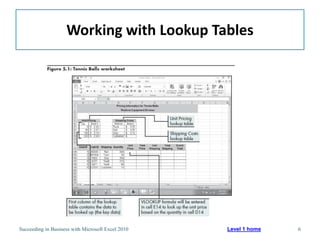
Working with Lookup Tables


Succeeding in Business with Microsoft Excel 2010   Level 1 home   6
Retrieving Data from a Vertical Lookup Table

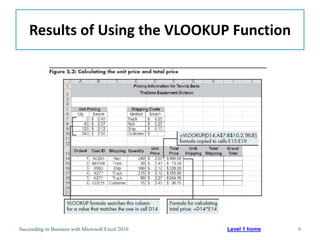
• VLOOKUP function
       – Most effective and flexible way to retrieve data
         organized in columns
       – Searches specified part of worksheet for data,
         starting with the first column
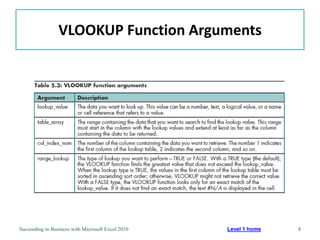
       – =VLOOKUP(lookup_value,table_array,
         col_index_num,range_lookup)
       – Must specify col_index_num


Succeeding in Business with Microsoft Excel 2010   Level 1 home   7
VLOOKUP Function Arguments


Succeeding in Business with Microsoft Excel 2010   Level 1 home   8
Results of Using the VLOOKUP Function


Succeeding in Business with Microsoft Excel 2010   Level 1 home   9
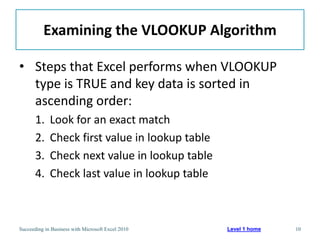
Examining the VLOOKUP Algorithm

• Steps that Excel performs when VLOOKUP
  type is TRUE and key data is sorted in
  ascending order:
       1.    Look for an exact match
       2.    Check first value in lookup table
       3.    Check next value in lookup table
       4.    Check last value in lookup table


Succeeding in Business with Microsoft Excel 2010   Level 1 home   10
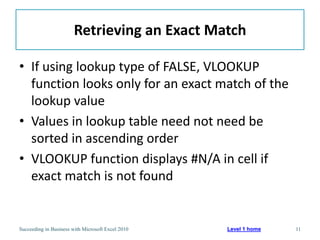
Retrieving an Exact Match

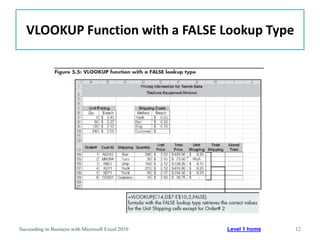
• If using lookup type of FALSE, VLOOKUP
  function looks only for an exact match of the
  lookup value
• Values in lookup table need not need be
  sorted in ascending order
• VLOOKUP function displays #N/A in cell if
  exact match is not found


Succeeding in Business with Microsoft Excel 2010   Level 1 home   11
VLOOKUP Function with a FALSE Lookup Type


Succeeding in Business with Microsoft Excel 2010   Level 1 home   12
Retrieving Data from a Horizontal Lookup Table

• HLOOKUP function
       – Looks up a value by testing for a criterion across a
         row
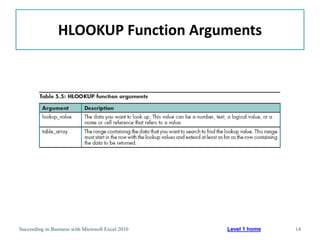
       – HLOOKUP(lookup_value,table_array,
         row_index_num,range_lookup)
       – Must specify row_index_num


Succeeding in Business with Microsoft Excel 2010   Level 1 home   13
HLOOKUP Function Arguments


Succeeding in Business with Microsoft Excel 2010   Level 1 home   14
HLOOKUP Type TRUE Algorithm

• Works in same way as for VLOOKUP function,
  except that values are tested across the row
  (instead of down the first column)
• First row of lookup table must be sorted in
  ascending order


Succeeding in Business with Microsoft Excel 2010   Level 1 home   15
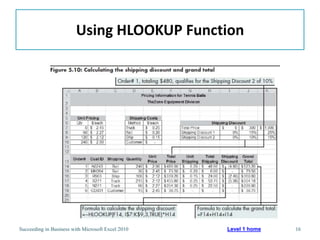
Using HLOOKUP Function


Succeeding in Business with Microsoft Excel 2010   Level 1 home   16
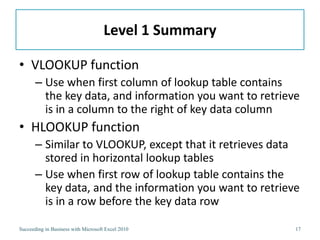
Level 1 Summary

• VLOOKUP function
       – Use when first column of lookup table contains
         the key data, and information you want to retrieve
         is in a column to the right of key data column
• HLOOKUP function
       – Similar to VLOOKUP, except that it retrieves data
         stored in horizontal lookup tables
       – Use when first row of lookup table contains the
         key data, and the information you want to retrieve
         is in a row before the key data row

Succeeding in Business with Microsoft Excel 2010          17
Level 2 Objectives:
       Performing More Complex Lookups Involving Multiple
              Worksheets & Multidimensional Tables

• Analyze and retrieve data from multiple
  worksheets
• Look up data in a one-row or one-column
  range
• Use named range references in formulas
• Retrieve data from multidimensional tables


Succeeding in Business with Microsoft Excel 2010            18
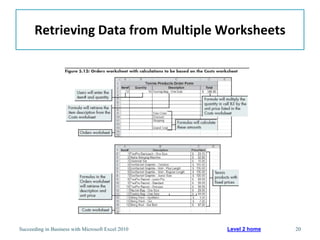
Retrieving Data from Multiple Worksheets

• Use VLOOKUP and HLOOKUP formulas
       – This is especially useful when lookup tables are
         long


Succeeding in Business with Microsoft Excel 2010   Level 2 home   19
Retrieving Data from Multiple Worksheets


Succeeding in Business with Microsoft Excel 2010   Level 2 home   20
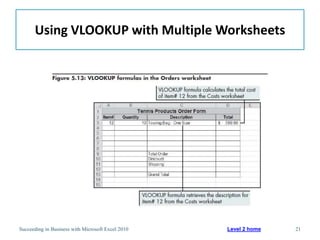
Using VLOOKUP with Multiple Worksheets


Succeeding in Business with Microsoft Excel 2010   Level 2 home   21
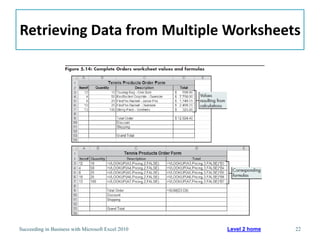
Retrieving Data from Multiple Worksheets


Succeeding in Business with Microsoft Excel 2010   Level 2 home   22
Looking Up Data in a One-Row or One-Column
                       Range
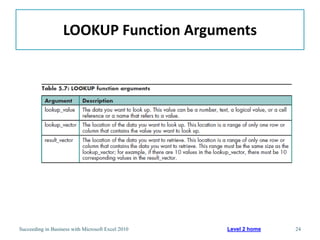
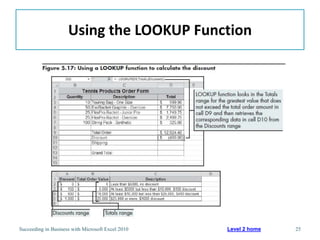
• Use LOOKUP function
   – Looks up the greatest value that does not exceed
     a specified value anywhere in a table or range
   – Can retrieve data from a lookup table with a
     vertical or horizontal orientation
   – Uses only a TRUE lookup type; column or row
     containing lookup values must be in ascending
     order
   – LOOKUP(lookup_value,lookup_vector,
     result vector)
Succeeding in Business with Microsoft Excel 2010   Level 2 home   23
LOOKUP Function Arguments


Succeeding in Business with Microsoft Excel 2010   Level 2 home   24
Using the LOOKUP Function


Succeeding in Business with Microsoft Excel 2010   Level 2 home   25
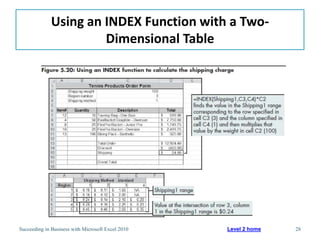
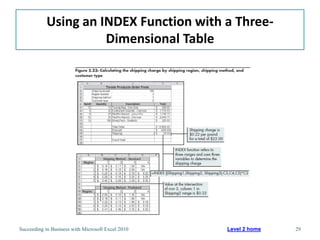
Retrieving Data from Multidimensional Tables

• Use INDEX function with two- or three-
  dimensional tables
       – Returns the value in a table based on row and
         column numbers that you specify
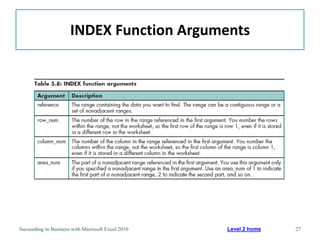
       – =INDEX(reference,row_num,column_num,
         area_num)
       – Has several guidelines


Succeeding in Business with Microsoft Excel 2010   Level 2 home   26
INDEX Function Arguments


Succeeding in Business with Microsoft Excel 2010   Level 2 home   27
Using an INDEX Function with a Two-
                       Dimensional Table


Succeeding in Business with Microsoft Excel 2010   Level 2 home   28
Using an INDEX Function with a Three-
                      Dimensional Table


Succeeding in Business with Microsoft Excel 2010   Level 2 home   29
INDEX function guidelines

• Follow the guidelines on page 322 when using
  the INDEX function.


Succeeding in Business with Microsoft Excel 2010    30
Level 2 Summary

• LOOKUP function
       – Looks up the greatest value that does not exceed
         a specified value anywhere in the table or range
       – Can retrieve data from a lookup table with a
         vertical or horizontal orientation
• INDEX function
       – Allows retrieval of data from multidimensional
         tables


Succeeding in Business with Microsoft Excel 2010            31
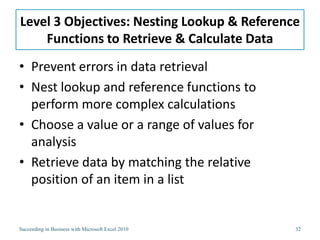
Level 3 Objectives: Nesting Lookup & Reference
    Functions to Retrieve & Calculate Data
• Prevent errors in data retrieval
• Nest lookup and reference functions to
  perform more complex calculations
• Choose a value or a range of values for
  analysis
• Retrieve data by matching the relative
  position of an item in a list


Succeeding in Business with Microsoft Excel 2010   32
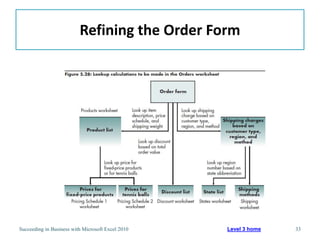
Refining the Order Form


Succeeding in Business with Microsoft Excel 2010   Level 3 home   33
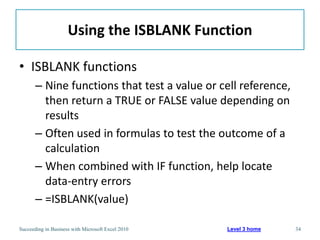
Using the ISBLANK Function

• ISBLANK functions
       – Nine functions that test a value or cell reference,
         then return a TRUE or FALSE value depending on
         results
       – Often used in formulas to test the outcome of a
         calculation
       – When combined with IF function, help locate
         data-entry errors
       – =ISBLANK(value)

Succeeding in Business with Microsoft Excel 2010   Level 3 home   34
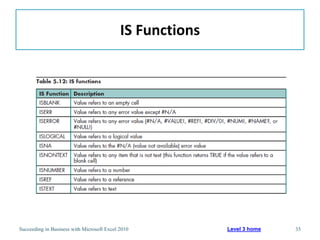
IS Functions


Succeeding in Business with Microsoft Excel 2010           Level 3 home   35
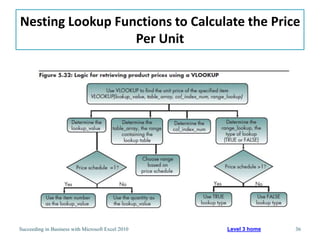
Nesting Lookup Functions to Calculate the Price
                  Per Unit


Succeeding in Business with Microsoft Excel 2010   Level 3 home   36
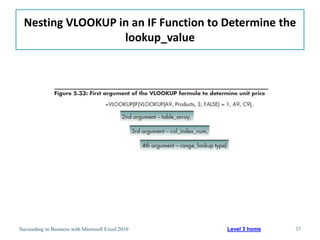
Nesting VLOOKUP in an IF Function to Determine the
                   lookup_value


Succeeding in Business with Microsoft Excel 2010   Level 3 home   37
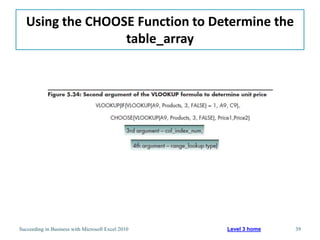
Using the CHOOSE Function to Determine the
                  table _array
• A Reference and Lookup function that can
  return a value or a range for up to 254
  different values
• =CHOOSE(index_num,value1,value2,…)


Succeeding in Business with Microsoft Excel 2010   Level 3 home   38
Using the CHOOSE Function to Determine the
                  table_array


Succeeding in Business with Microsoft Excel 2010   Level 3 home   39
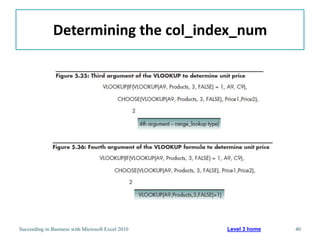
Determining the col_index_num


Succeeding in Business with Microsoft Excel 2010   Level 3 home   40
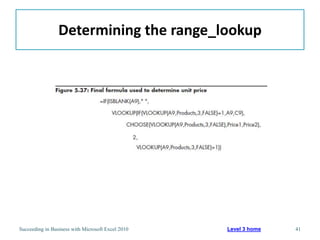
Determining the range_lookup


Succeeding in Business with Microsoft Excel 2010   Level 3 home   41
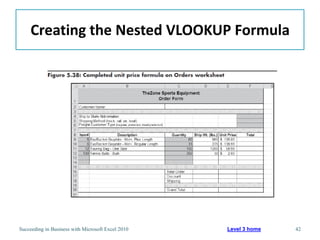
Creating the Nested VLOOKUP Formula


Succeeding in Business with Microsoft Excel 2010   Level 3 home   42
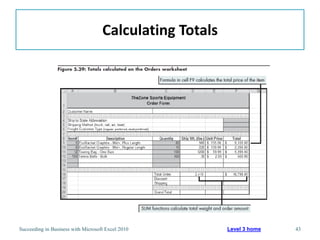
Calculating Totals


Succeeding in Business with Microsoft Excel 2010         Level 3 home   43
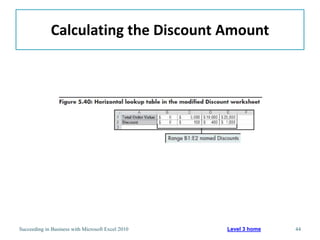
Calculating the Discount Amount


Succeeding in Business with Microsoft Excel 2010   Level 3 home   44
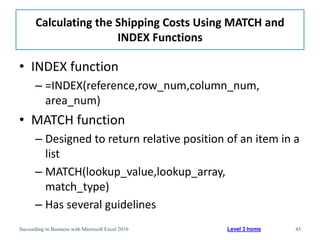
Calculating the Shipping Costs Using MATCH and
                       INDEX Functions

• INDEX function
       – =INDEX(reference,row_num,column_num,
         area_num)
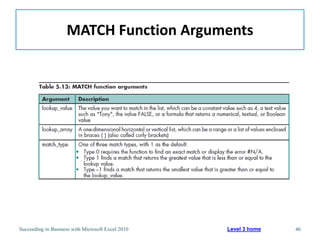
• MATCH function
       – Designed to return relative position of an item in a
         list
       – MATCH(lookup_value,lookup_array,
         match_type)
       – Has several guidelines
Succeeding in Business with Microsoft Excel 2010   Level 3 home   45
MATCH Function Arguments


Succeeding in Business with Microsoft Excel 2010   Level 3 home   46
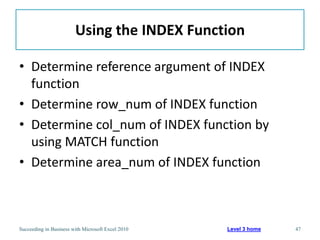
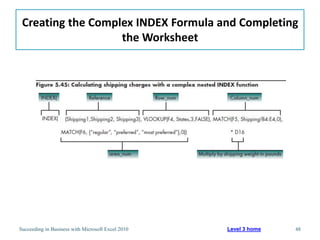
Using the INDEX Function

• Determine reference argument of INDEX
  function
• Determine row_num of INDEX function
• Determine col_num of INDEX function by
  using MATCH function
• Determine area_num of INDEX function


Succeeding in Business with Microsoft Excel 2010   Level 3 home   47
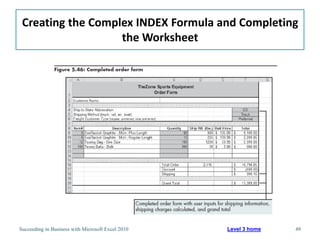
Creating the Complex INDEX Formula and Completing
                   the Worksheet


Succeeding in Business with Microsoft Excel 2010   Level 3 home   48
Creating the Complex INDEX Formula and Completing
                   the Worksheet


Succeeding in Business with Microsoft Excel 2010   Level 3 home   49
Level 3 Summary

• To solve more complex problems, nest
  Reference and Lookup functions using IF, IS,
  INDEX, CHOOSE, and MATCH functions
• ISBLANK
       – One of nine IS functions, which all check for a
         condition, then return a TRUE or FALSE value
       – Checks whether a specified value refers to an
         empty cell


Succeeding in Business with Microsoft Excel 2010           50
Level 3 Summary (continued)

• INDEX
       – Returns the value in a table based on specified
         row and column numbers
• CHOOSE
       – Returns a value/range for up to 29 corresponding
         values
• MATCH
       – Returns the relative position of an item in a list

Succeeding in Business with Microsoft Excel 2010              51
Chapter Summary

• Performing basic lookups to calculate and
  evaluate data
• Performing more complex lookups involving
  multiple worksheets and multidimensional
  tables
• Nesting lookup and reference functions to
  retrieve and calculate data


Succeeding in Business with Microsoft Excel 2010     52

Chapter.05

  • 1.
    Chapter 5 Retrieving Datafor Computation, Analysis, and Reference
  • 2.
    Chapter Introduction • Referenceand Lookup functions – Look up data based on its location in a table – Retrieve corresponding value that matches specified criteria • Functions covered in this chapter: CHOOSE, HLOOKUP, IFERROR, INDEX, ISBLANK, LOOKUP, MATCH, VLOOKUP To go to Level 1, click here To go to Level 2, click here To go to Level 3, click here Succeeding in Business with Microsoft Excel 2010 2
  • 3.
    Functions Covered inthis Chapter • CHOOSE • HLOOKUP • IFERROR • INDEX • ISBLANK • LOOKUP • MATCH • VLOOKUP Succeeding in Business with Microsoft Excel 2010 3
  • 4.
    Level 1 Objectives: Performing Basic Lookups to Calculate and Evaluate Data • Organize and evaluate data in vertical and horizontal lookup tables • Understand the VLOOKUP and HLOOKUP algorithms • Retrieve data from a vertical lookup table • Retrieve data from a horizontal lookup table Succeeding in Business with Microsoft Excel 2010 4
  • 5.
    Working with LookupTables • Contain data that can be used to create worksheets that list items, and then perform calculations • Automate the process of looking up data to use in calculating unit and total prices Succeeding in Business with Microsoft Excel 2010 Level 1 home 5
  • 6.
    Working with LookupTables Succeeding in Business with Microsoft Excel 2010 Level 1 home 6
  • 7.
    Retrieving Data froma Vertical Lookup Table • VLOOKUP function – Most effective and flexible way to retrieve data organized in columns – Searches specified part of worksheet for data, starting with the first column – =VLOOKUP(lookup_value,table_array, col_index_num,range_lookup) – Must specify col_index_num Succeeding in Business with Microsoft Excel 2010 Level 1 home 7
  • 8.
    VLOOKUP Function Arguments Succeedingin Business with Microsoft Excel 2010 Level 1 home 8
  • 9.
    Results of Usingthe VLOOKUP Function Succeeding in Business with Microsoft Excel 2010 Level 1 home 9
  • 10.
    Examining the VLOOKUPAlgorithm • Steps that Excel performs when VLOOKUP type is TRUE and key data is sorted in ascending order: 1. Look for an exact match 2. Check first value in lookup table 3. Check next value in lookup table 4. Check last value in lookup table Succeeding in Business with Microsoft Excel 2010 Level 1 home 10
  • 11.
    Retrieving an ExactMatch • If using lookup type of FALSE, VLOOKUP function looks only for an exact match of the lookup value • Values in lookup table need not need be sorted in ascending order • VLOOKUP function displays #N/A in cell if exact match is not found Succeeding in Business with Microsoft Excel 2010 Level 1 home 11
  • 12.
    VLOOKUP Function witha FALSE Lookup Type Succeeding in Business with Microsoft Excel 2010 Level 1 home 12
  • 13.
    Retrieving Data froma Horizontal Lookup Table • HLOOKUP function – Looks up a value by testing for a criterion across a row – HLOOKUP(lookup_value,table_array, row_index_num,range_lookup) – Must specify row_index_num Succeeding in Business with Microsoft Excel 2010 Level 1 home 13
  • 14.
    HLOOKUP Function Arguments Succeedingin Business with Microsoft Excel 2010 Level 1 home 14
  • 15.
    HLOOKUP Type TRUEAlgorithm • Works in same way as for VLOOKUP function, except that values are tested across the row (instead of down the first column) • First row of lookup table must be sorted in ascending order Succeeding in Business with Microsoft Excel 2010 Level 1 home 15
  • 16.
    Using HLOOKUP Function Succeedingin Business with Microsoft Excel 2010 Level 1 home 16
  • 17.
    Level 1 Summary •VLOOKUP function – Use when first column of lookup table contains the key data, and information you want to retrieve is in a column to the right of key data column • HLOOKUP function – Similar to VLOOKUP, except that it retrieves data stored in horizontal lookup tables – Use when first row of lookup table contains the key data, and the information you want to retrieve is in a row before the key data row Succeeding in Business with Microsoft Excel 2010 17
  • 18.
    Level 2 Objectives: Performing More Complex Lookups Involving Multiple Worksheets & Multidimensional Tables • Analyze and retrieve data from multiple worksheets • Look up data in a one-row or one-column range • Use named range references in formulas • Retrieve data from multidimensional tables Succeeding in Business with Microsoft Excel 2010 18
  • 19.
    Retrieving Data fromMultiple Worksheets • Use VLOOKUP and HLOOKUP formulas – This is especially useful when lookup tables are long Succeeding in Business with Microsoft Excel 2010 Level 2 home 19
  • 20.
    Retrieving Data fromMultiple Worksheets Succeeding in Business with Microsoft Excel 2010 Level 2 home 20
  • 21.
    Using VLOOKUP withMultiple Worksheets Succeeding in Business with Microsoft Excel 2010 Level 2 home 21
  • 22.
    Retrieving Data fromMultiple Worksheets Succeeding in Business with Microsoft Excel 2010 Level 2 home 22
  • 23.
    Looking Up Datain a One-Row or One-Column Range • Use LOOKUP function – Looks up the greatest value that does not exceed a specified value anywhere in a table or range – Can retrieve data from a lookup table with a vertical or horizontal orientation – Uses only a TRUE lookup type; column or row containing lookup values must be in ascending order – LOOKUP(lookup_value,lookup_vector, result vector) Succeeding in Business with Microsoft Excel 2010 Level 2 home 23
  • 24.
    LOOKUP Function Arguments Succeedingin Business with Microsoft Excel 2010 Level 2 home 24
  • 25.
    Using the LOOKUPFunction Succeeding in Business with Microsoft Excel 2010 Level 2 home 25
  • 26.
    Retrieving Data fromMultidimensional Tables • Use INDEX function with two- or three- dimensional tables – Returns the value in a table based on row and column numbers that you specify – =INDEX(reference,row_num,column_num, area_num) – Has several guidelines Succeeding in Business with Microsoft Excel 2010 Level 2 home 26
  • 27.
    INDEX Function Arguments Succeedingin Business with Microsoft Excel 2010 Level 2 home 27
  • 28.
    Using an INDEXFunction with a Two- Dimensional Table Succeeding in Business with Microsoft Excel 2010 Level 2 home 28
  • 29.
    Using an INDEXFunction with a Three- Dimensional Table Succeeding in Business with Microsoft Excel 2010 Level 2 home 29
  • 30.
    INDEX function guidelines •Follow the guidelines on page 322 when using the INDEX function. Succeeding in Business with Microsoft Excel 2010 30
  • 31.
    Level 2 Summary •LOOKUP function – Looks up the greatest value that does not exceed a specified value anywhere in the table or range – Can retrieve data from a lookup table with a vertical or horizontal orientation • INDEX function – Allows retrieval of data from multidimensional tables Succeeding in Business with Microsoft Excel 2010 31
  • 32.
    Level 3 Objectives:Nesting Lookup & Reference Functions to Retrieve & Calculate Data • Prevent errors in data retrieval • Nest lookup and reference functions to perform more complex calculations • Choose a value or a range of values for analysis • Retrieve data by matching the relative position of an item in a list Succeeding in Business with Microsoft Excel 2010 32
  • 33.
    Refining the OrderForm Succeeding in Business with Microsoft Excel 2010 Level 3 home 33
  • 34.
    Using the ISBLANKFunction • ISBLANK functions – Nine functions that test a value or cell reference, then return a TRUE or FALSE value depending on results – Often used in formulas to test the outcome of a calculation – When combined with IF function, help locate data-entry errors – =ISBLANK(value) Succeeding in Business with Microsoft Excel 2010 Level 3 home 34
  • 35.
    IS Functions Succeeding inBusiness with Microsoft Excel 2010 Level 3 home 35
  • 36.
    Nesting Lookup Functionsto Calculate the Price Per Unit Succeeding in Business with Microsoft Excel 2010 Level 3 home 36
  • 37.
    Nesting VLOOKUP inan IF Function to Determine the lookup_value Succeeding in Business with Microsoft Excel 2010 Level 3 home 37
  • 38.
    Using the CHOOSEFunction to Determine the table _array • A Reference and Lookup function that can return a value or a range for up to 254 different values • =CHOOSE(index_num,value1,value2,…) Succeeding in Business with Microsoft Excel 2010 Level 3 home 38
  • 39.
    Using the CHOOSEFunction to Determine the table_array Succeeding in Business with Microsoft Excel 2010 Level 3 home 39
  • 40.
    Determining the col_index_num Succeedingin Business with Microsoft Excel 2010 Level 3 home 40
  • 41.
    Determining the range_lookup Succeedingin Business with Microsoft Excel 2010 Level 3 home 41
  • 42.
    Creating the NestedVLOOKUP Formula Succeeding in Business with Microsoft Excel 2010 Level 3 home 42
  • 43.
    Calculating Totals Succeeding inBusiness with Microsoft Excel 2010 Level 3 home 43
  • 44.
    Calculating the DiscountAmount Succeeding in Business with Microsoft Excel 2010 Level 3 home 44
  • 45.
    Calculating the ShippingCosts Using MATCH and INDEX Functions • INDEX function – =INDEX(reference,row_num,column_num, area_num) • MATCH function – Designed to return relative position of an item in a list – MATCH(lookup_value,lookup_array, match_type) – Has several guidelines Succeeding in Business with Microsoft Excel 2010 Level 3 home 45
  • 46.
    MATCH Function Arguments Succeedingin Business with Microsoft Excel 2010 Level 3 home 46
  • 47.
    Using the INDEXFunction • Determine reference argument of INDEX function • Determine row_num of INDEX function • Determine col_num of INDEX function by using MATCH function • Determine area_num of INDEX function Succeeding in Business with Microsoft Excel 2010 Level 3 home 47
  • 48.
    Creating the ComplexINDEX Formula and Completing the Worksheet Succeeding in Business with Microsoft Excel 2010 Level 3 home 48
  • 49.
    Creating the ComplexINDEX Formula and Completing the Worksheet Succeeding in Business with Microsoft Excel 2010 Level 3 home 49
  • 50.
    Level 3 Summary •To solve more complex problems, nest Reference and Lookup functions using IF, IS, INDEX, CHOOSE, and MATCH functions • ISBLANK – One of nine IS functions, which all check for a condition, then return a TRUE or FALSE value – Checks whether a specified value refers to an empty cell Succeeding in Business with Microsoft Excel 2010 50
  • 51.
    Level 3 Summary(continued) • INDEX – Returns the value in a table based on specified row and column numbers • CHOOSE – Returns a value/range for up to 29 corresponding values • MATCH – Returns the relative position of an item in a list Succeeding in Business with Microsoft Excel 2010 51
  • 52.
    Chapter Summary • Performingbasic lookups to calculate and evaluate data • Performing more complex lookups involving multiple worksheets and multidimensional tables • Nesting lookup and reference functions to retrieve and calculate data Succeeding in Business with Microsoft Excel 2010 52