An Introduction to VBA
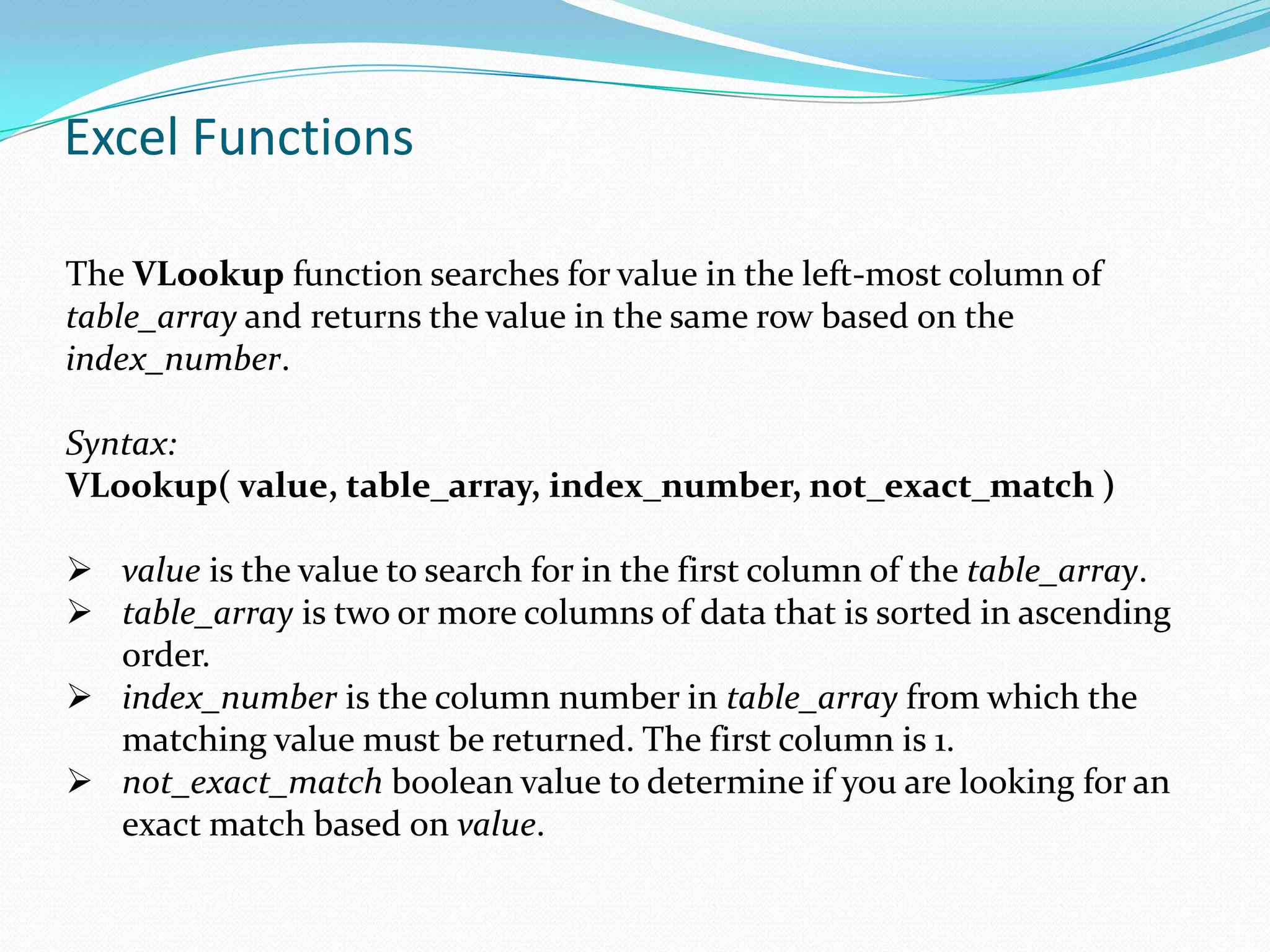
Excel Functions

The VLookup function searches for value in the left-most column of
table_array and returns the value in the same row based on the
index_number.

Syntax:
VLookup( value, table_array, index_number, not_exact_match )

 value is the value to search for in the first column of the table_array.
 table_array is two or more columns of data that is sorted in ascending
  order.
 index_number is the column number in table_array from which the
  matching value must be returned. The first column is 1.
 not_exact_match boolean value to determine if you are looking for an
  exact match based on value.
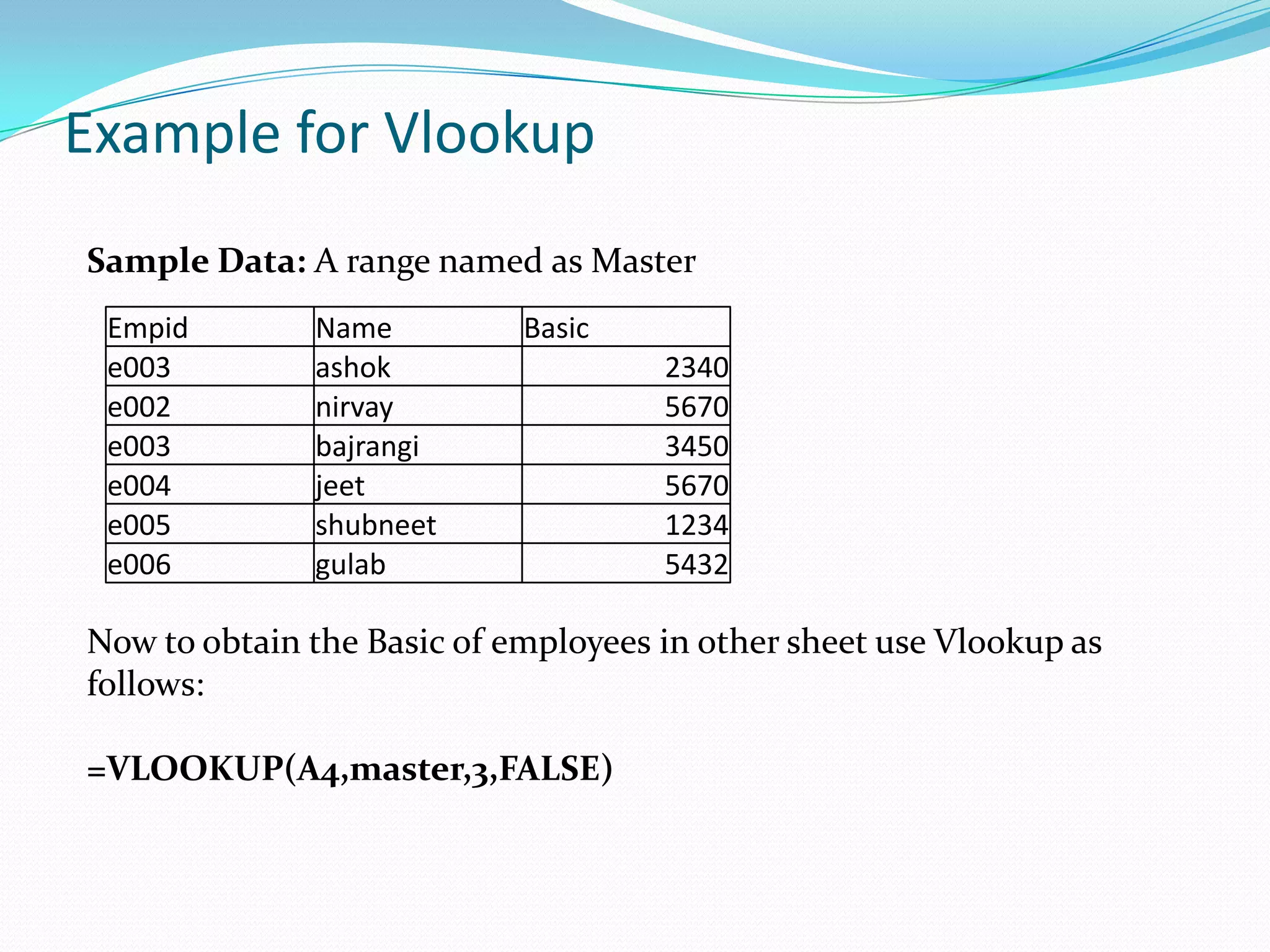
Example for Vlookup
Sample Data: A range named as Master
 Empid        Name          Basic
 e003         ashok                  2340
 e002         nirvay                 5670
 e003         bajrangi               3450
 e004         jeet                   5670
 e005         shubneet               1234
 e006         gulab                  5432

Now to obtain the Basic of employees in other sheet use Vlookup as
follows:

=VLOOKUP(A4,master,3,FALSE)
Pivot Table & Pivot Chart

Use a PivotTable report to summarize, analyze, explore, and
present summary data. Use a PivotChart report to visualize that
summary data in a PivotTable report, and to easily see
comparisons, patterns, and trends.
Both a PivotTable report and a PivotChart report enable you to
make informed decisions about critical data in your enterprise
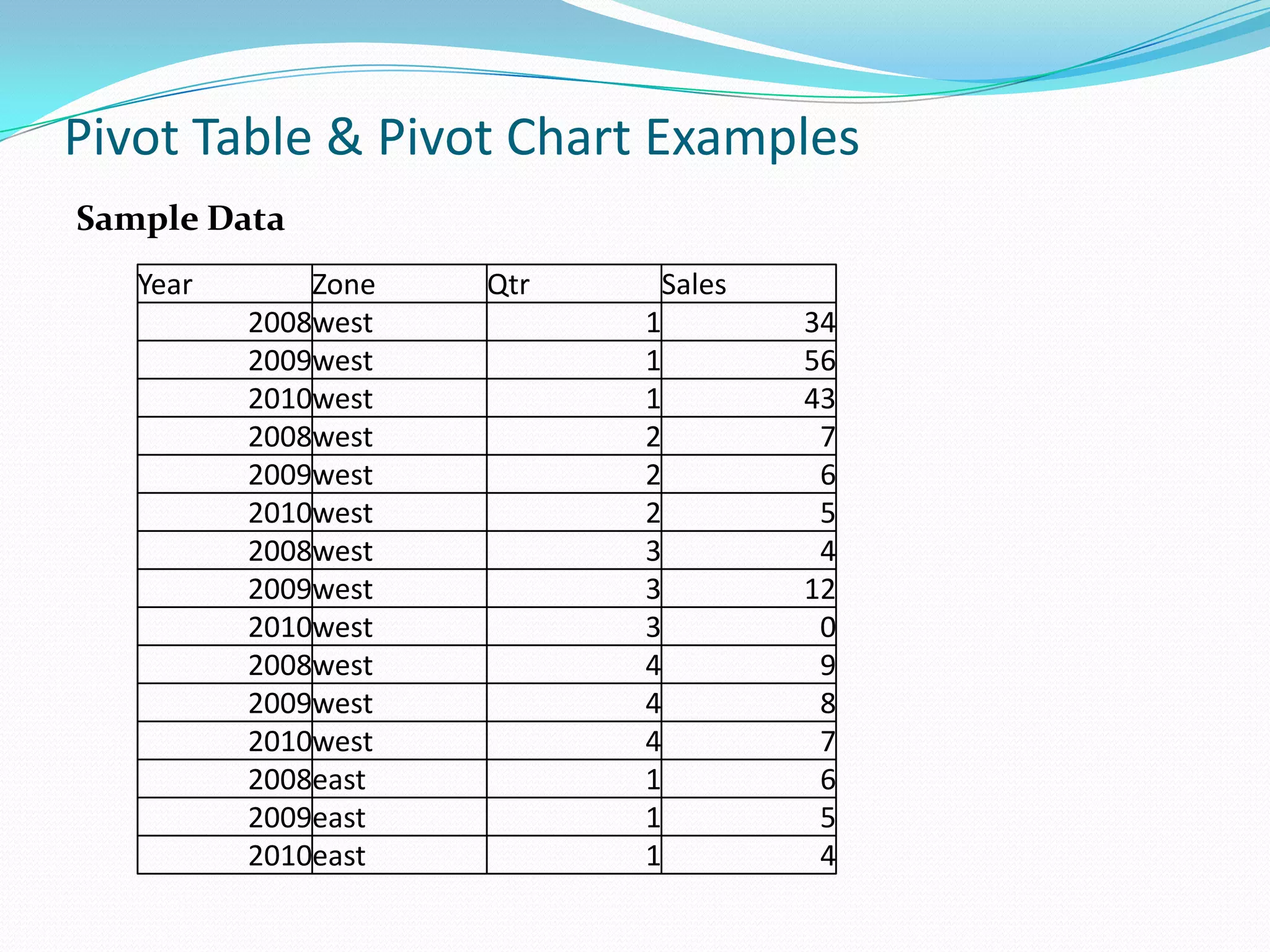
Pivot Table & Pivot Chart Examples
Sample Data
   Year       Zone   Qtr    Sales
          2008west         1        34
          2009west         1        56
          2010west         1        43
          2008west         2         7
          2009west         2         6
          2010west         2         5
          2008west         3         4
          2009west         3        12
          2010west         3         0
          2008west         4         9
          2009west         4         8
          2010west         4         7
          2008east         1         6
          2009east         1         5
          2010east         1         4
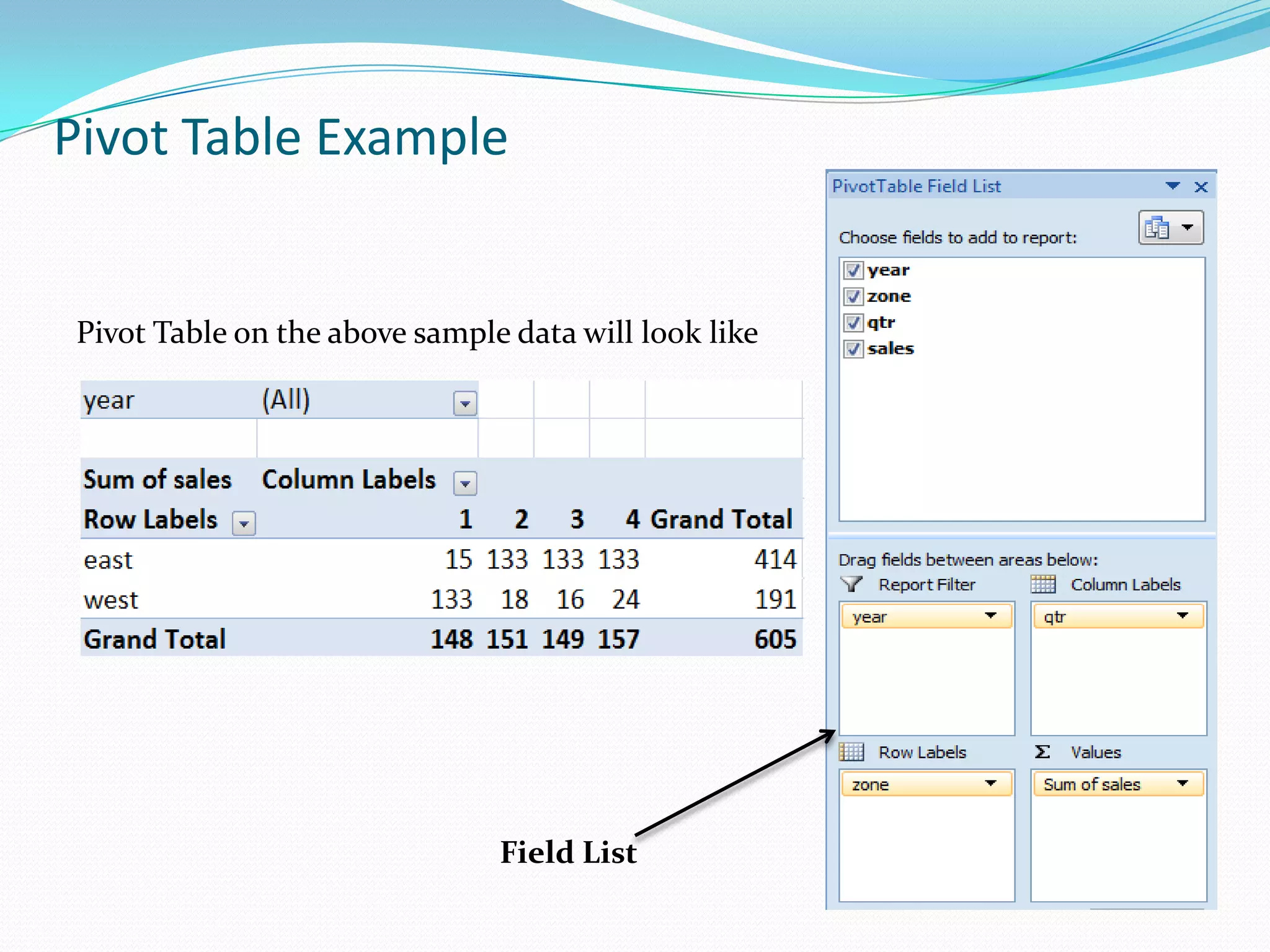
Pivot Table Example


Pivot Table on the above sample data will look like


                               Field List
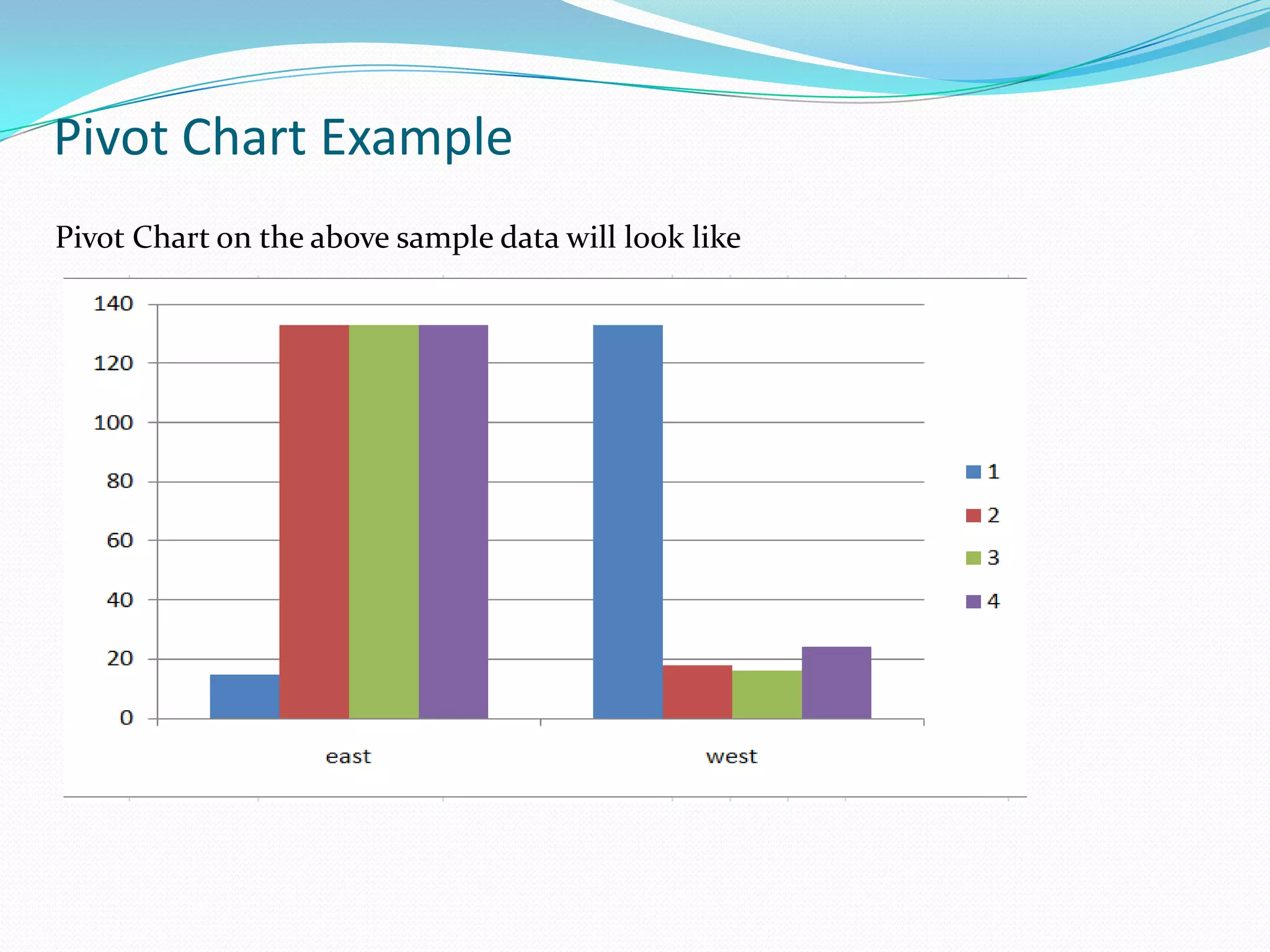
Pivot Chart Example
Pivot Chart on the above sample data will look like
VBA
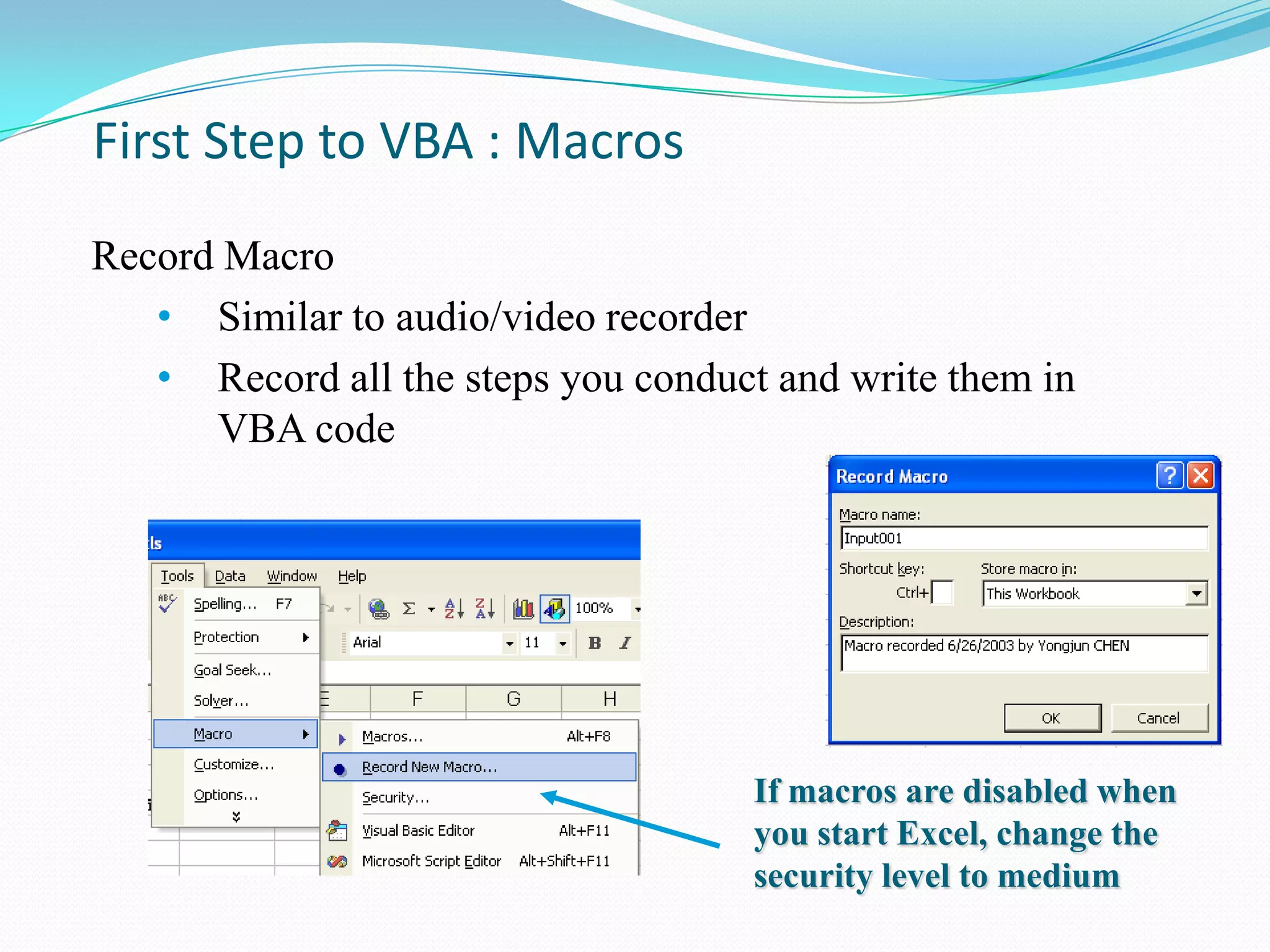
First Step to VBA : Macros
Record Macro
   • Similar to audio/video recorder
   • Record all the steps you conduct and write them in
      VBA code


                                     If macros are disabled when
                                     you start Excel, change the
                                     security level to medium
First Step to VBA : Macros

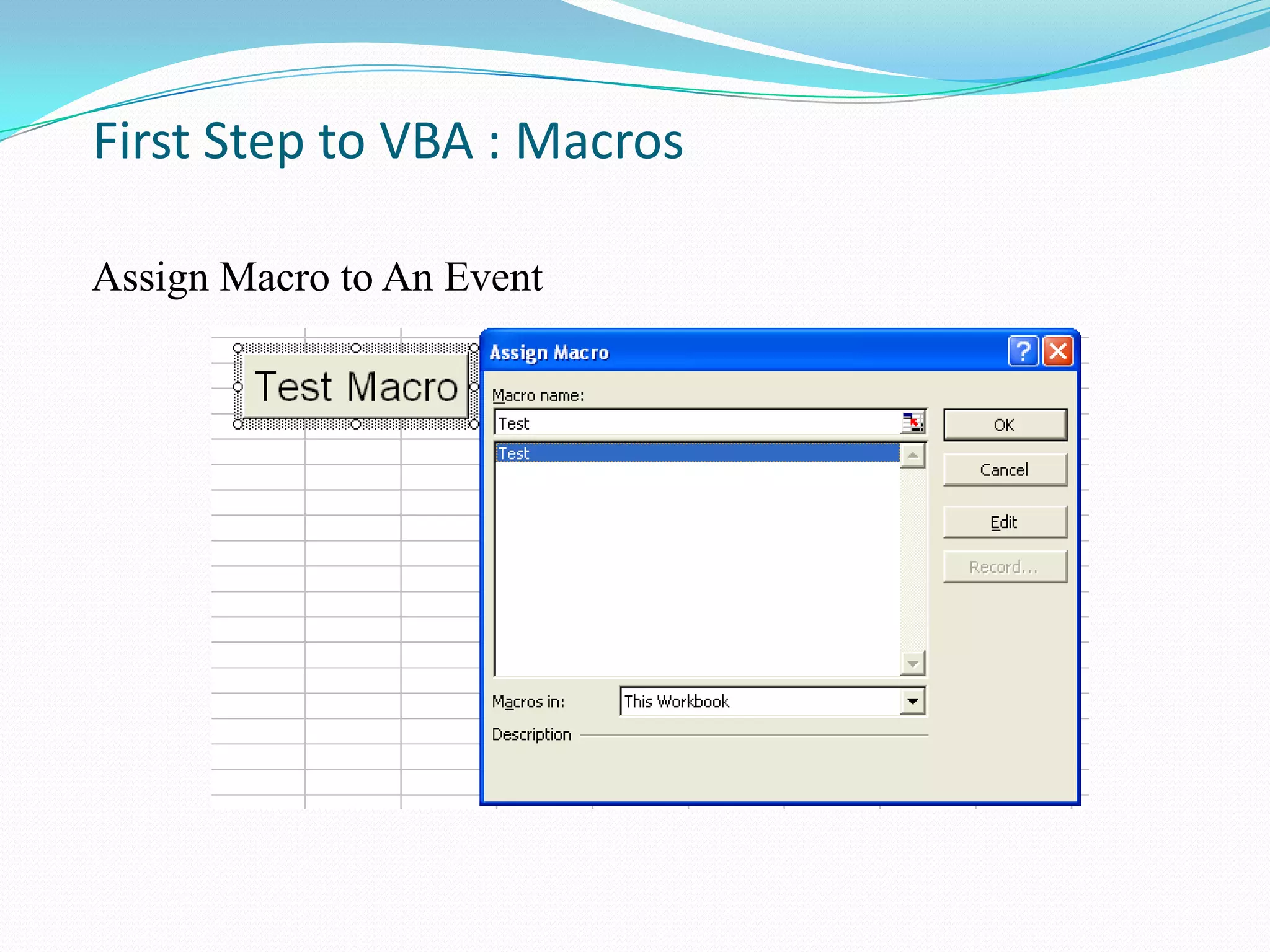
Assign Macro to An Event
   • Normally User Run Macros from VBA Edit Window
       – Unnecessary
   • User Can Assign Macro to An Event, Normally a
       Button Click Event
   • Easy to Execute and Easy to Remember
   • Give a Good Name for The Button and Click the
       Button to Run the Macro
First Step to VBA : Macros

Assign Macro to An Event
• Demonstration example
• A macro to get a text file to excel
Second Step to VBA : Edit Macro
VBA Editor Window
  • Press Alt+F11 to Activate VBA Window
  • Or Go to Menu Tools>Macros>Visual Basic Editor

   •   Project Explore Window
   •   Properties Window
   •   Code Window
What is VBA
• An abbreviation for Visual Basic for Applications
• Official name is "Visual Basic, Applications Edition."
• VBA is Microsoft's common application programming (macro)
  language for Word, Excel, Access, etc.
• Also being implemented in other Microsoft applications such
  as Visio and is at least partially implemented in some other
  applications such as AutoCAD...
• VBA and VB have a lot in common, but they are different. VB
  is a programming language that lets you create standalone
  executable programs.
What Can You Do With VBA
• Write Macros to Automate Labor-Intensive and Repetitive
    Tasks
•   Create User-Defined Functions to Achieve Complicated
    Functionality
•   Create Standard Windows Menu/Tool Bars for Interface
•   Interact with Other Windows Programs (like Matlab)
•   I/O with External Files
•   Database Operation ….
Object Based Programming Language
 C++, Java, etc. are OOP (Object Oriented Programming)
  Language

 VBA is an Object Based Programming Language


 What is Object?
Object Based Programming Language
Concepts – Containers or Collections
   A Group of Similar Objects Share Common Properties,
    Methods and Events
   Such as Workbooks, Worksheets, etc.
   Worksheets is a collection of all the Worksheet objects in the
    specified or active workbook.
   Worksheets(1) refers to the 1st worksheet of current active
    workbook.
   Worksheets (“mooring”) refers to the worksheet named
    “mooring”.
Object Based Programming Language

Concepts – Objects
   • Such as Worksheet, Workbook, Range, Cell, Chart,
      Name, etc.
   • Worksheets(1) is an Object Referring to the First Sheet
   • Range("A1:B15") is an Object Referring to a Range
   • Cells(1,1) or Range(“A1”) is an Object Referring to
      Range “A1”
Object Based Programming Language

Concepts – Properties
   • Properties are the Physical Characteristics of Objects
      and Can be Measured or Quantified.
   • Properties for Collections
          - Worksheets.Count (Read Only)
          - Worksheets.Visible = True (Read and Write)
   •   Properties for Object
          - Range("A1:B15").Rows.Count (Read Only)
          - Range("A1:B15").Font.Bold = True (Read and Write)
Object Based Programming Language

Concepts – Methods
   • Methods are the Actions that Can be Performed by
      Objects or on Objects
   • Methods for Collections
          - Worksheets.Add
          - Worksheets.Delete
   •   Methods for Objects
          - Range("A1:B15").ClearContents
          - ActiveCell.Copy
Object Based Programming Language

Concepts – Events
   • Objects Can Respond to Events, Such as Mouse Click,
      Double Click on a Cell, Active a Worksheet,
      Open/Close/Save a Workbook, etc.
   • Worksheet Events –
          Such as Activate, Deactivate, Change, Selection
          Change, Before Double Click, etc.
   • Workbook Events-
          Such as Activate, Deactivate, Open, Before Close,
          Before Saving, Before Print, New Sheet.
Object Based Programming Language

Concepts – Referring To
   • Use brackets () to refer to member object
          Worksheets(“mooring”)
   • Use dot . to refer to child object or object‟s properties
      and methods
          Worksheets(“mooring”).Range(“A1:B3”).Font.Bold
Second Step to VBA : Edit Macro
VBA Editor Window
  • Use Tools/Options to Enable Auto Syntax
     Check, Auto List Members, etc.
  • Use Tools/Properties to Protect Your Code with
     Password – You Must Remember the Password
  • Insert Module, Procedure, Form
Second Step to VBA : Edit Macro

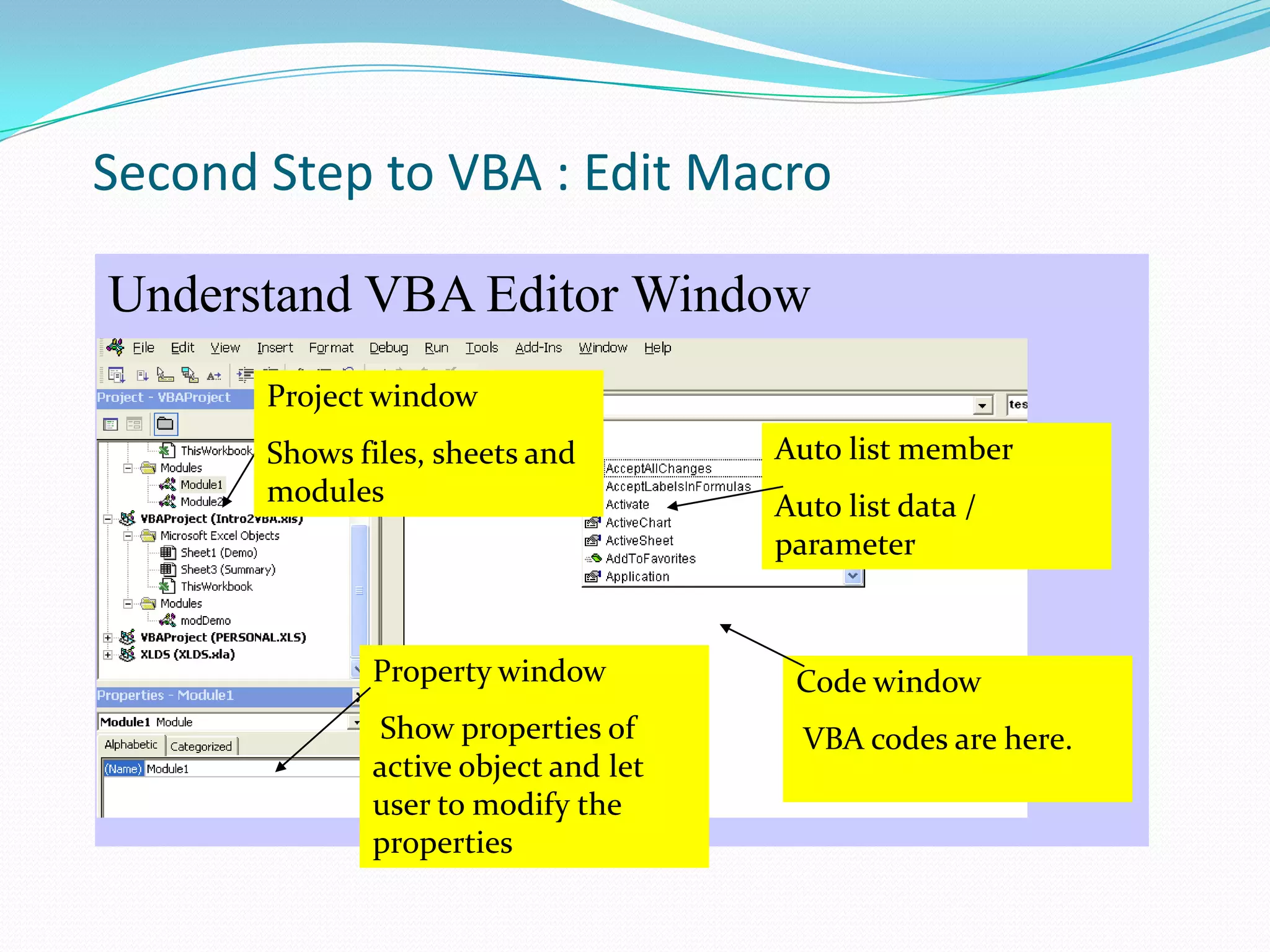
Understand VBA Editor Window
       Project window
       Shows files, sheets and        Auto list member
       modules                        Auto list data /
                                      parameter


              Property window          Code window
              Show properties of        VBA codes are here.
              active object and let
              user to modify the
              properties
Working with objects using VBA

Objects can be manipulated using the collections they belong
to, specifying their location in the object hierarchy using the
dot notation.
     Worksheets(“Sheet1”)
     Worksheets(1)
     Workbooks(“Book1”).Worksheets(“Sheet1”)
     Worksheets(“Sheet1”).Range(“A1”)
     Application.Workbooks(“Book1”)._
      Worksheets(“Sheet1”).Range(“A1”)
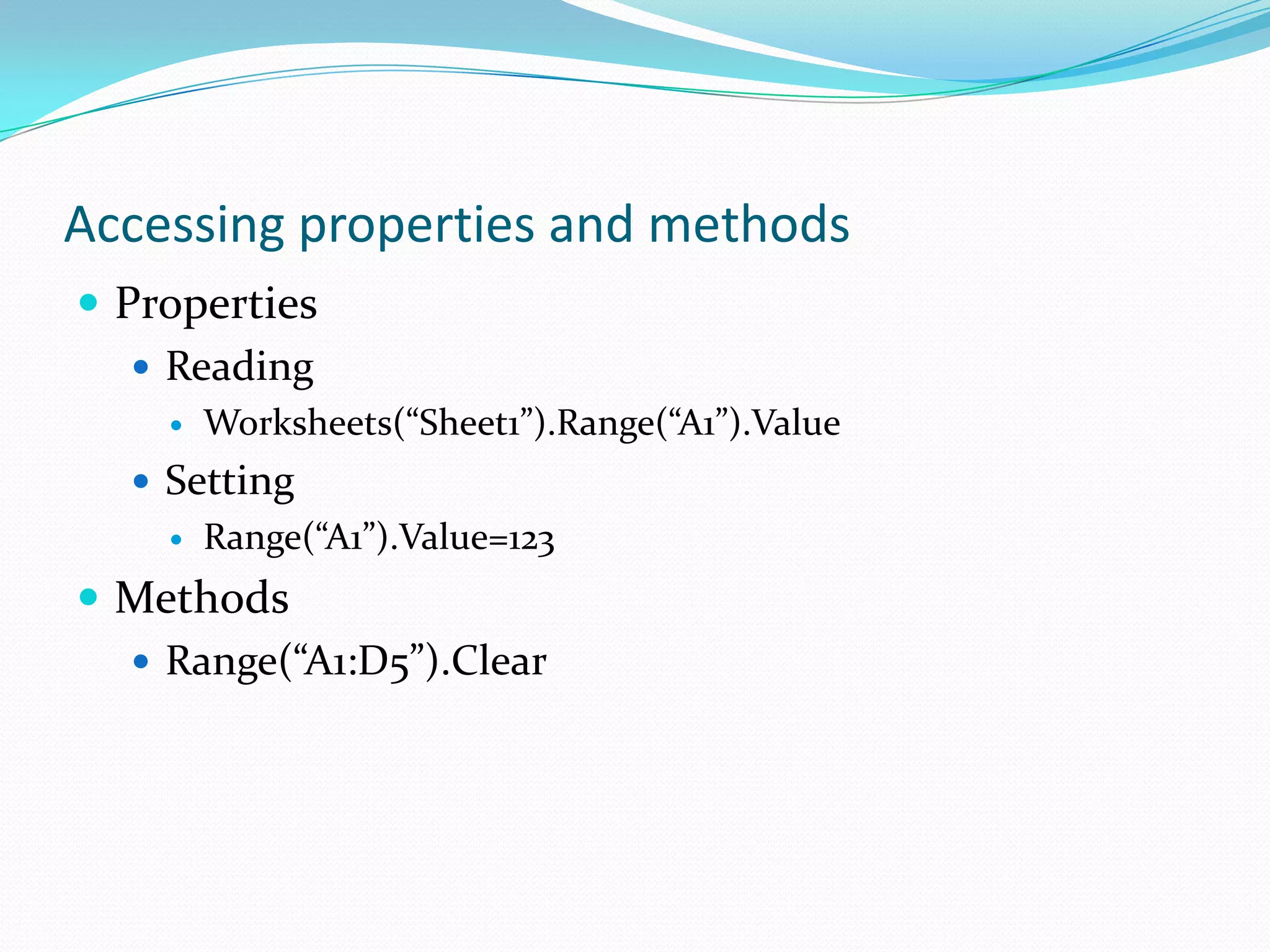
Accessing properties and methods
 Properties
    Reading
       Worksheets(“Sheet1”).Range(“A1”).Value
   Setting
       Range(“A1”).Value=123
 Methods
   Range(“A1:D5”).Clear
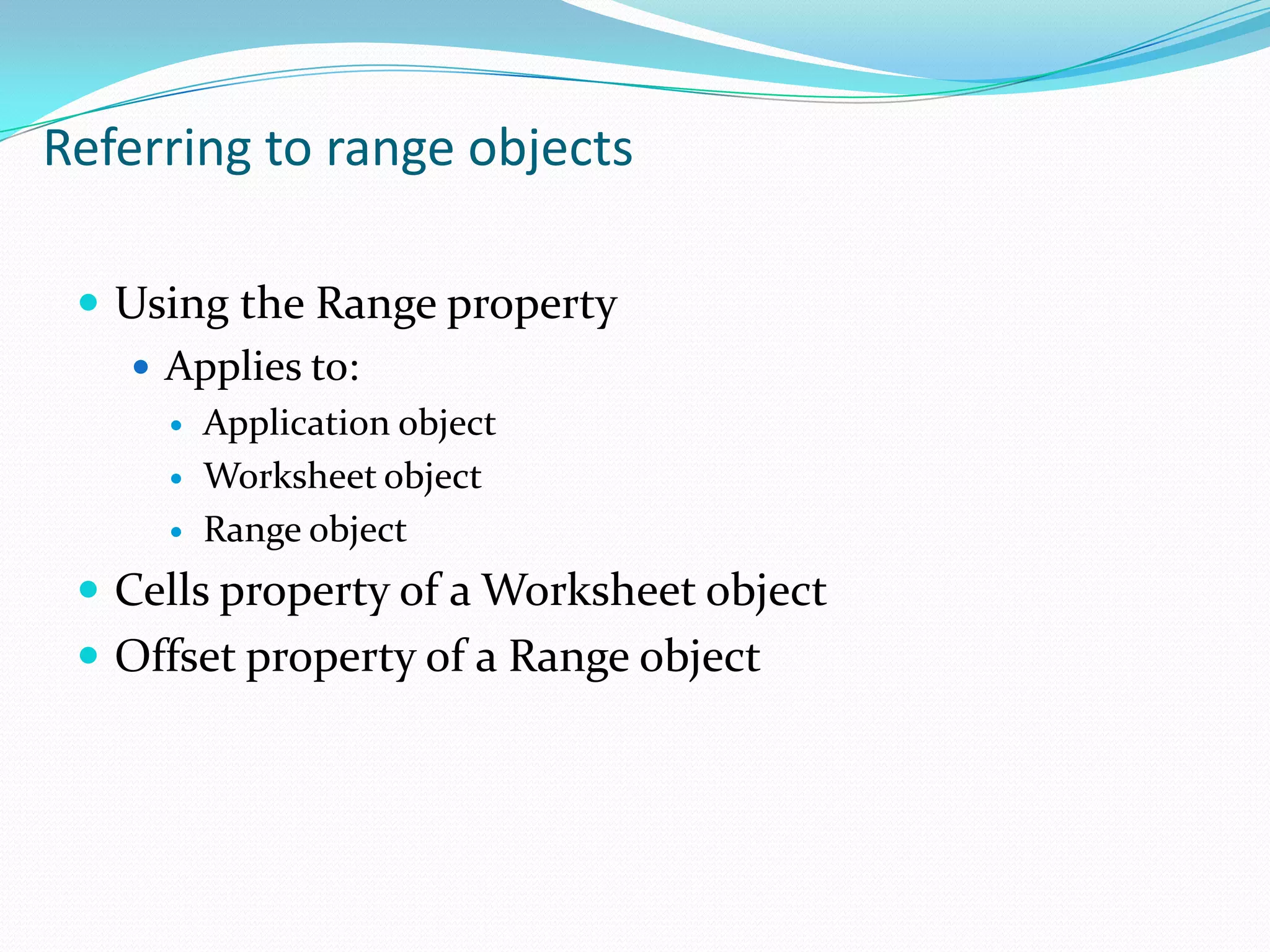
Referring to range objects

  Using the Range property
    Applies to:
        Application object
        Worksheet object
        Range object
  Cells property of a Worksheet object
  Offset property of a Range object
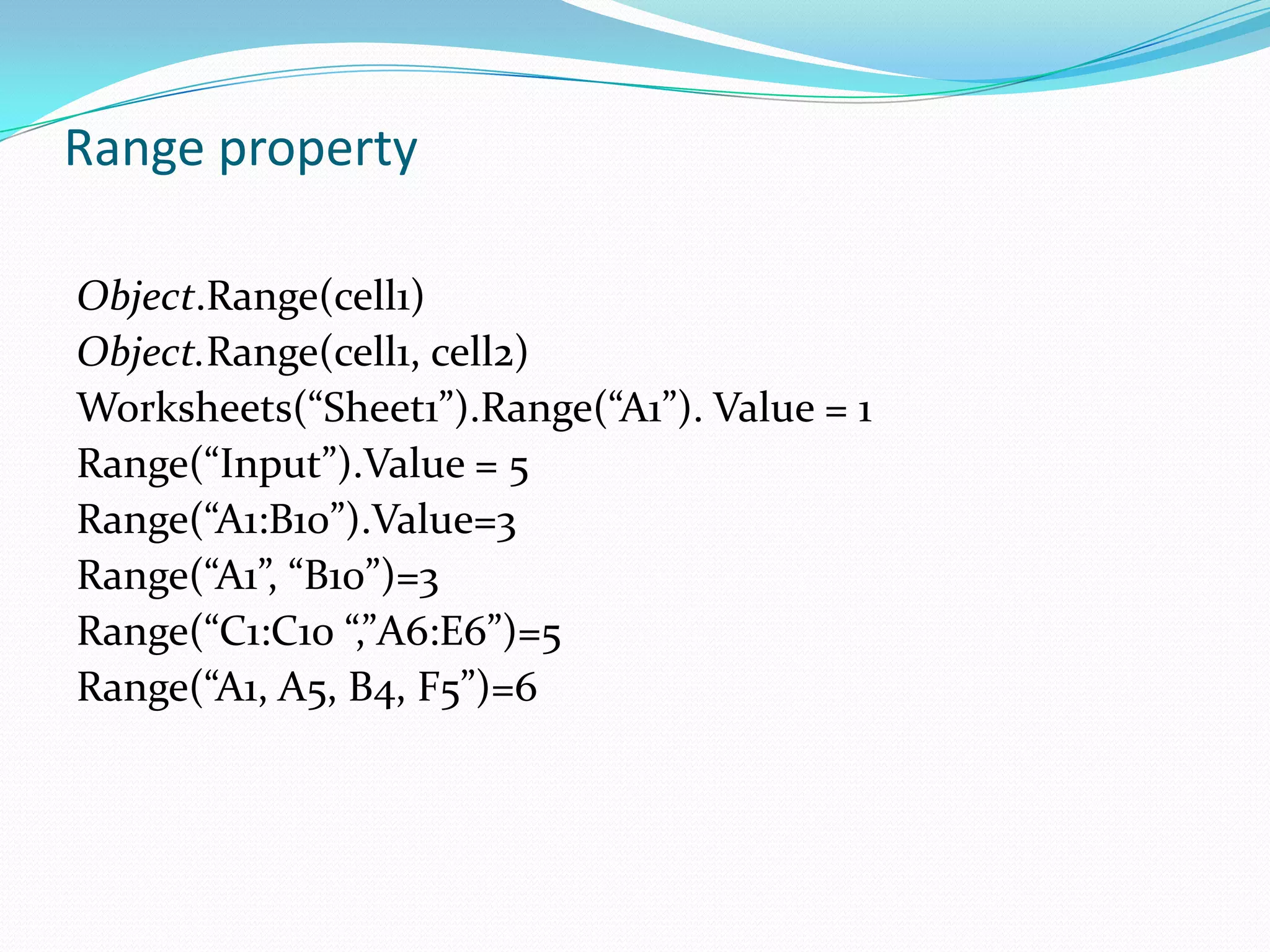
Range property

Object.Range(cell1)
Object.Range(cell1, cell2)
Worksheets(“Sheet1”).Range(“A1”). Value = 1
Range(“Input”).Value = 5
Range(“A1:B10”).Value=3
Range(“A1”, “B10”)=3
Range(“C1:C10 “,”A6:E6”)=5
Range(“A1, A5, B4, F5”)=6
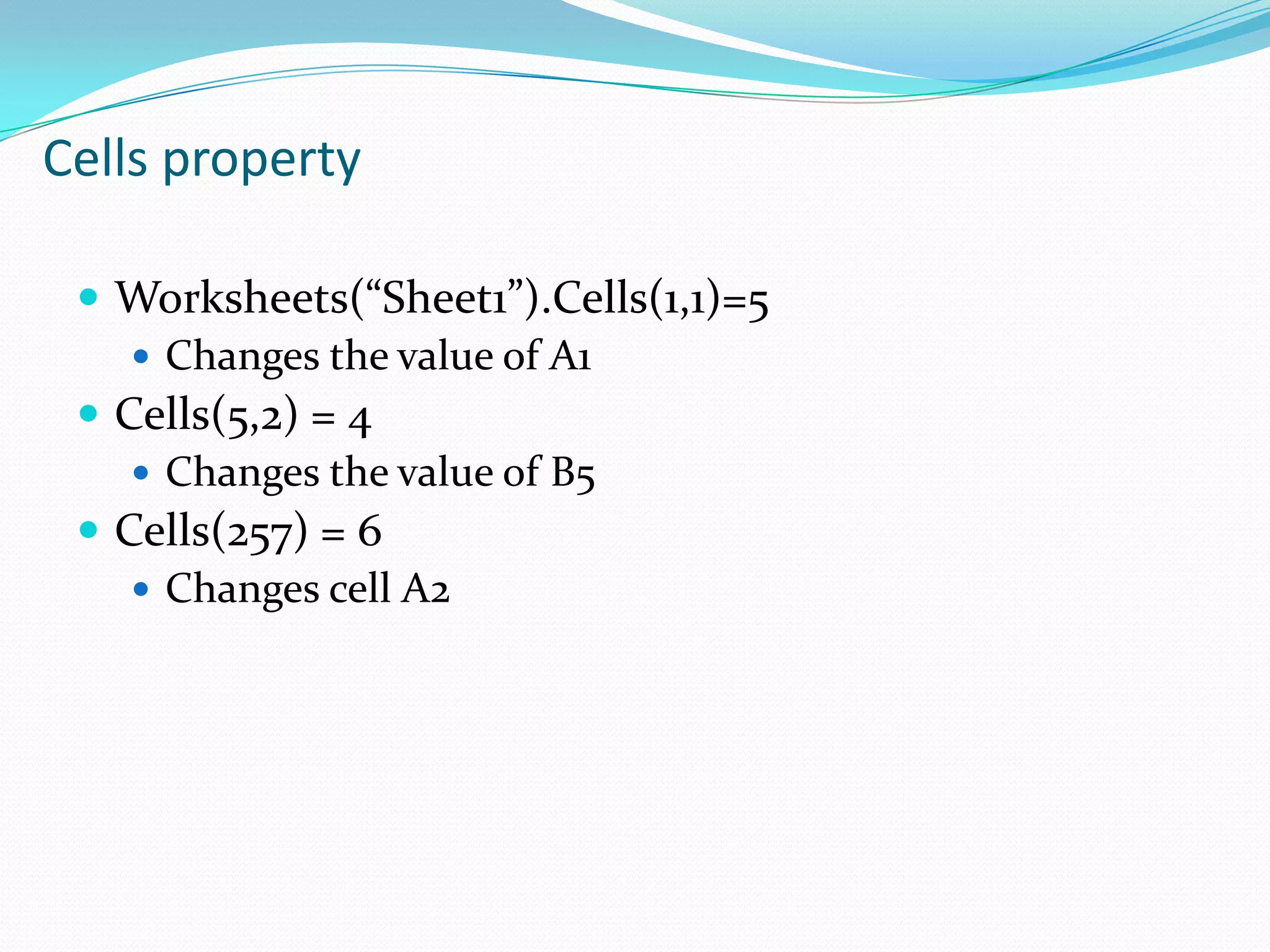
Cells property

  Worksheets(“Sheet1”).Cells(1,1)=5
     Changes the value of A1
  Cells(5,2) = 4
     Changes the value of B5
  Cells(257) = 6
     Changes cell A2
Cells property

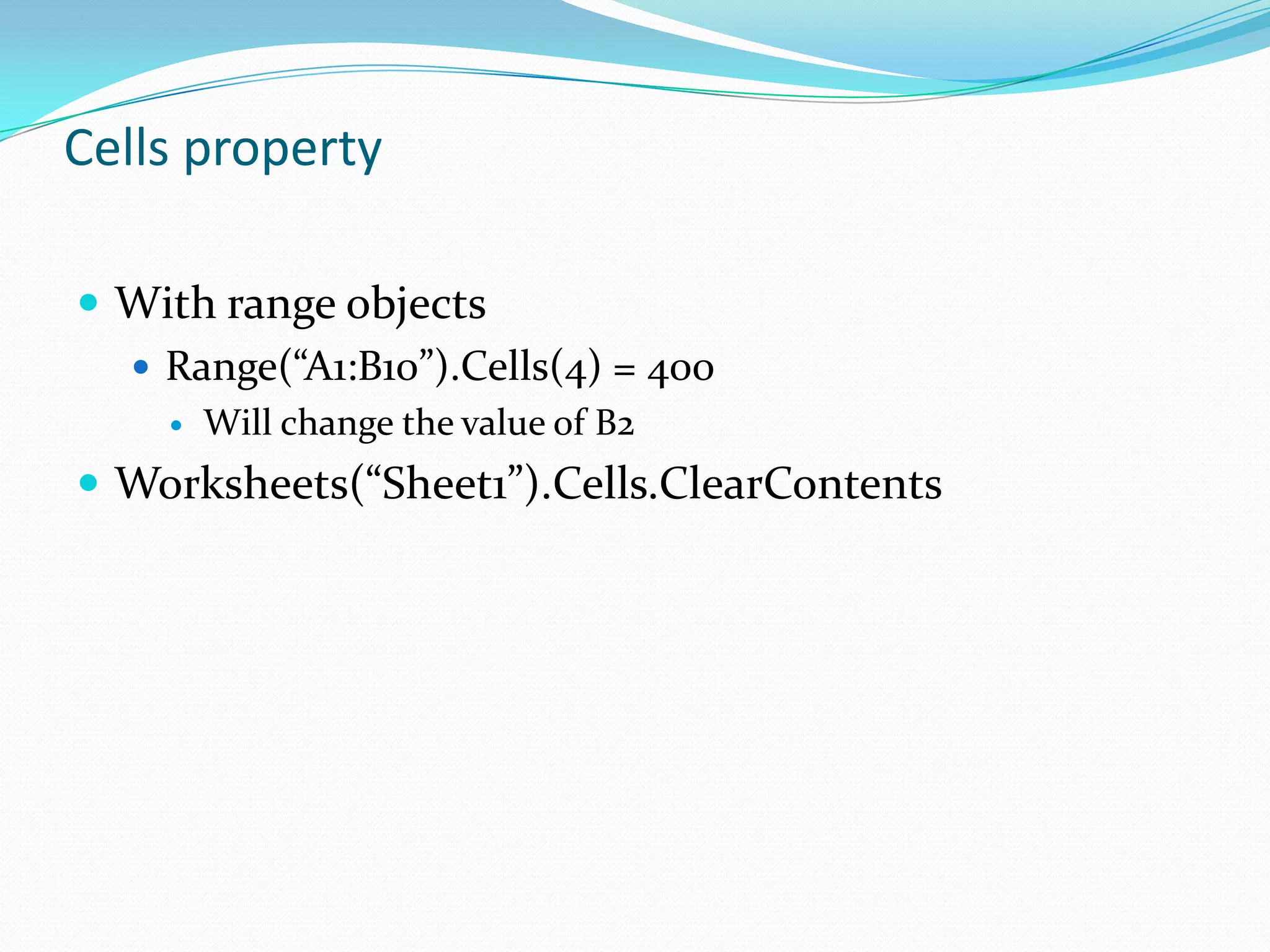
 With range objects
   Range(“A1:B10”).Cells(4) = 400
       Will change the value of B2
 Worksheets(“Sheet1”).Cells.ClearContents
Offset property

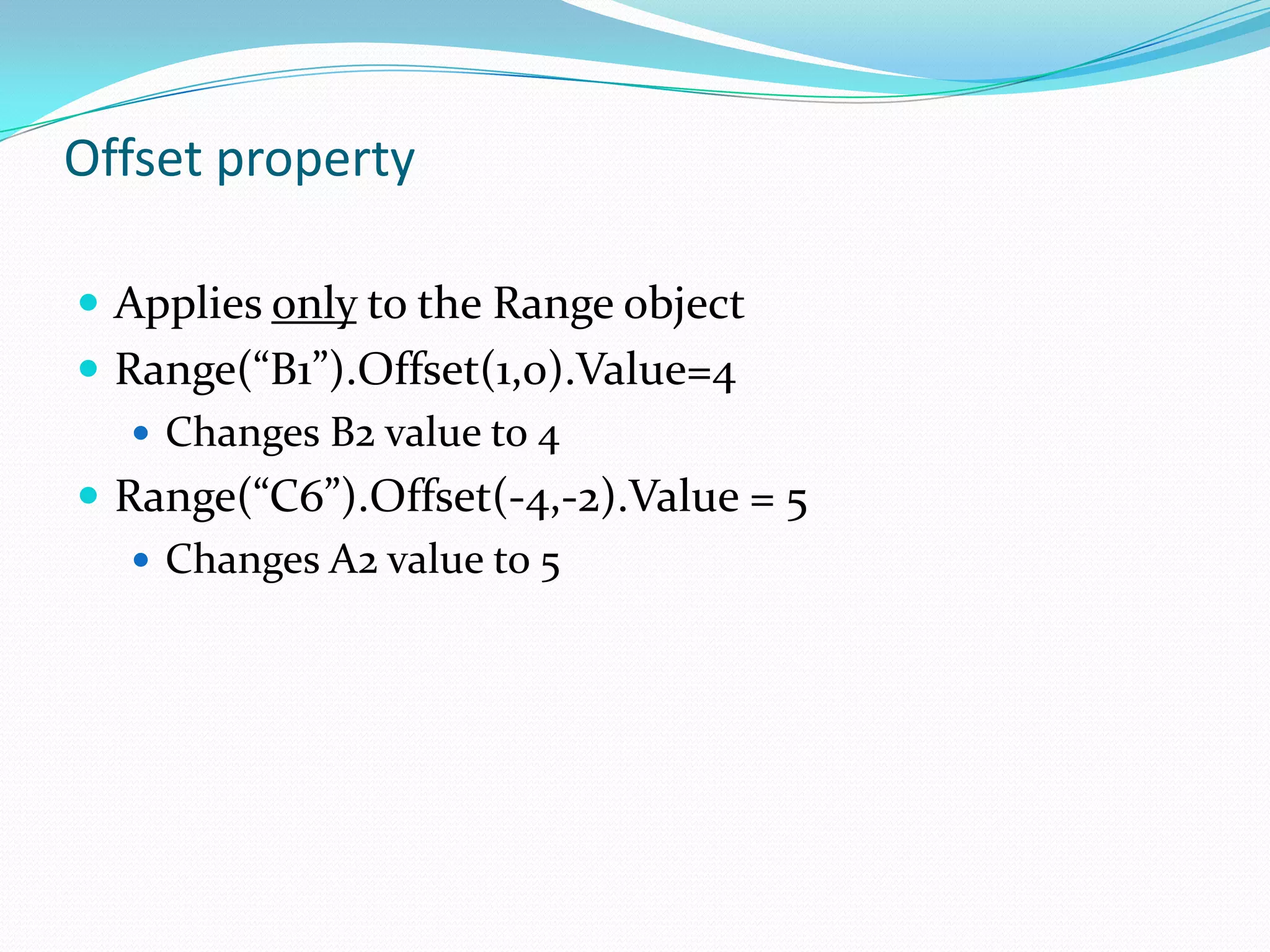
 Applies only to the Range object
 Range(“B1”).Offset(1,0).Value=4
    Changes B2 value to 4
 Range(“C6”).Offset(-4,-2).Value = 5
    Changes A2 value to 5
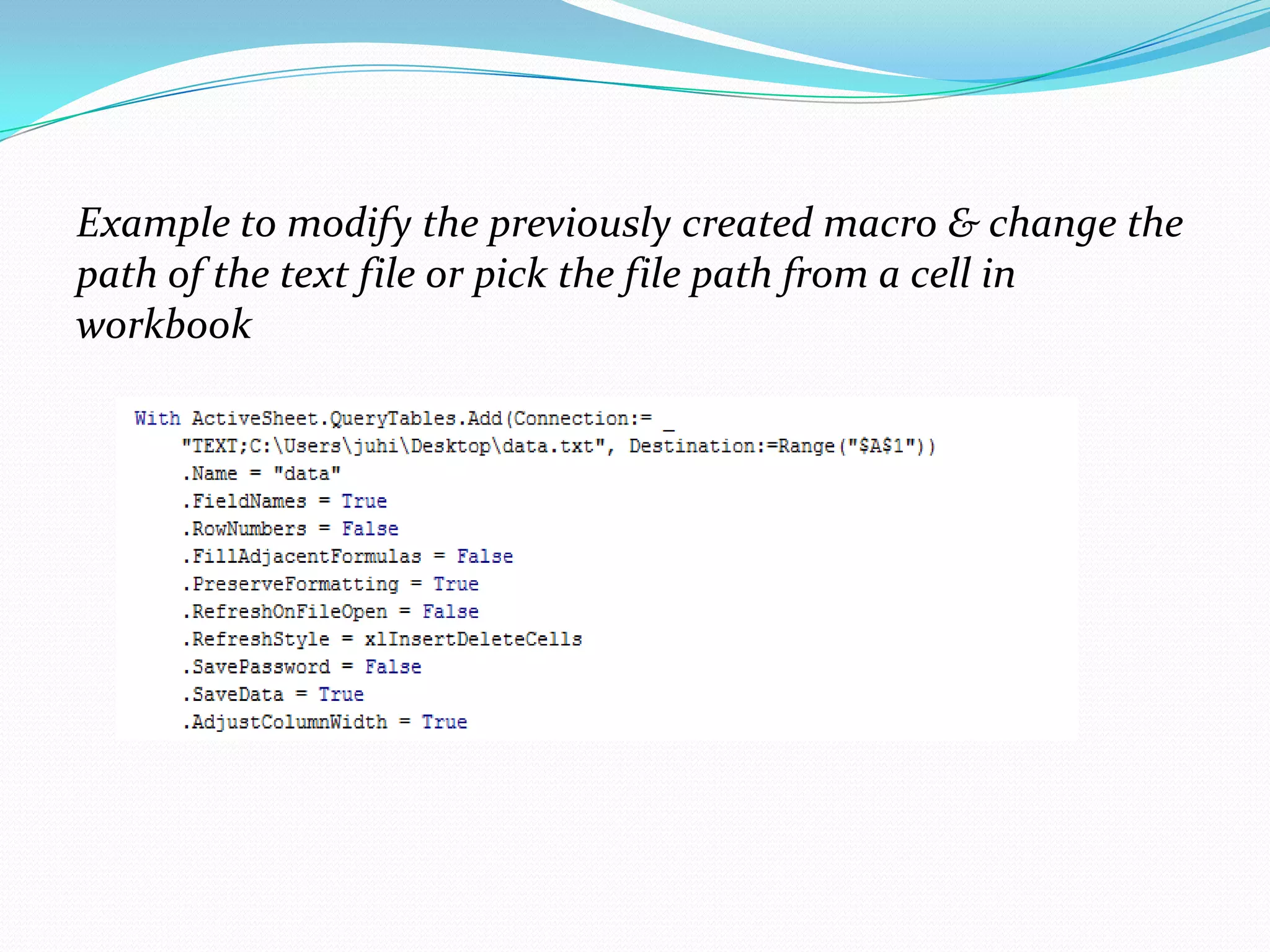
Example to modify the previously created macro & change the
path of the text file or pick the file path from a cell in
workbook
Third Step to VBA : Edit Macro
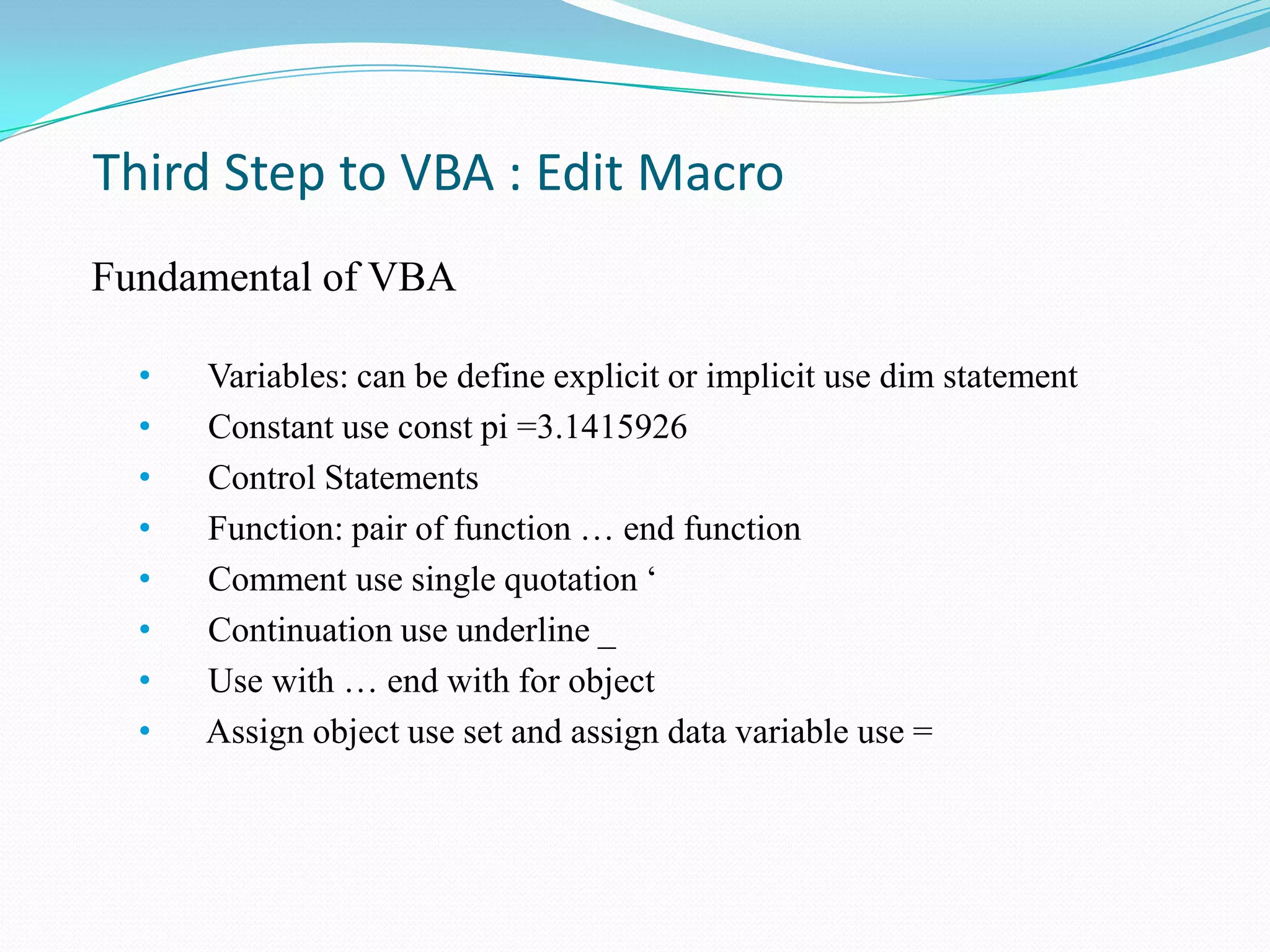
Fundamental of VBA

  •   Variables: can be define explicit or implicit use dim statement
  •   Constant use const pi =3.1415926
  •   Control Statements
  •   Function: pair of function … end function
  •   Comment use single quotation „
  •   Continuation use underline _
  •   Use with … end with for object
  •   Assign object use set and assign data variable use =
Variables
Variable is a named storage location in the computer’s
memory
Can accommodate wide variety of data types
Data types

Integer, Long, Single, Double, Currency
Date
String
Object
Others…
Variables

It is better to determine the data type of a variable. Your
applications will be executing much faster!

Use Option Explicit to force yourself to declare the variables
you use

Constant is a “variable” that retains its value
  Dim Const companyName as String = “City University”
Variable’s lifetime and scope

Two important concepts associated with variables:
   Scope
       Defines which procedures can use that variable
   Lifetime
       Defines how long that variable retains the values assigned to it
Variable lifetime

The lifetime of the variable depends where it is declared
   In a procedure
        The lifetime is limited to the time taken to run the procedure
    In a procedure using the Static keyword
      The lifetime is extended to the time that the workbook is open

    In the declarations section
      The lifetime is extended to the time that the workbook is open
Variable scope

The scope of the variable depends where it is declared:
   In a procedure
        It is visible only within the procedure code
    In a module
      It is visible only within the module code

    In a module as Public
      It is visible from all open workbooks

    In a module as Private
      It is visible only within the module code
Control Statements in VBA
Decision Making use If… elseif…else…end if
Multiple Selection/Decision Making
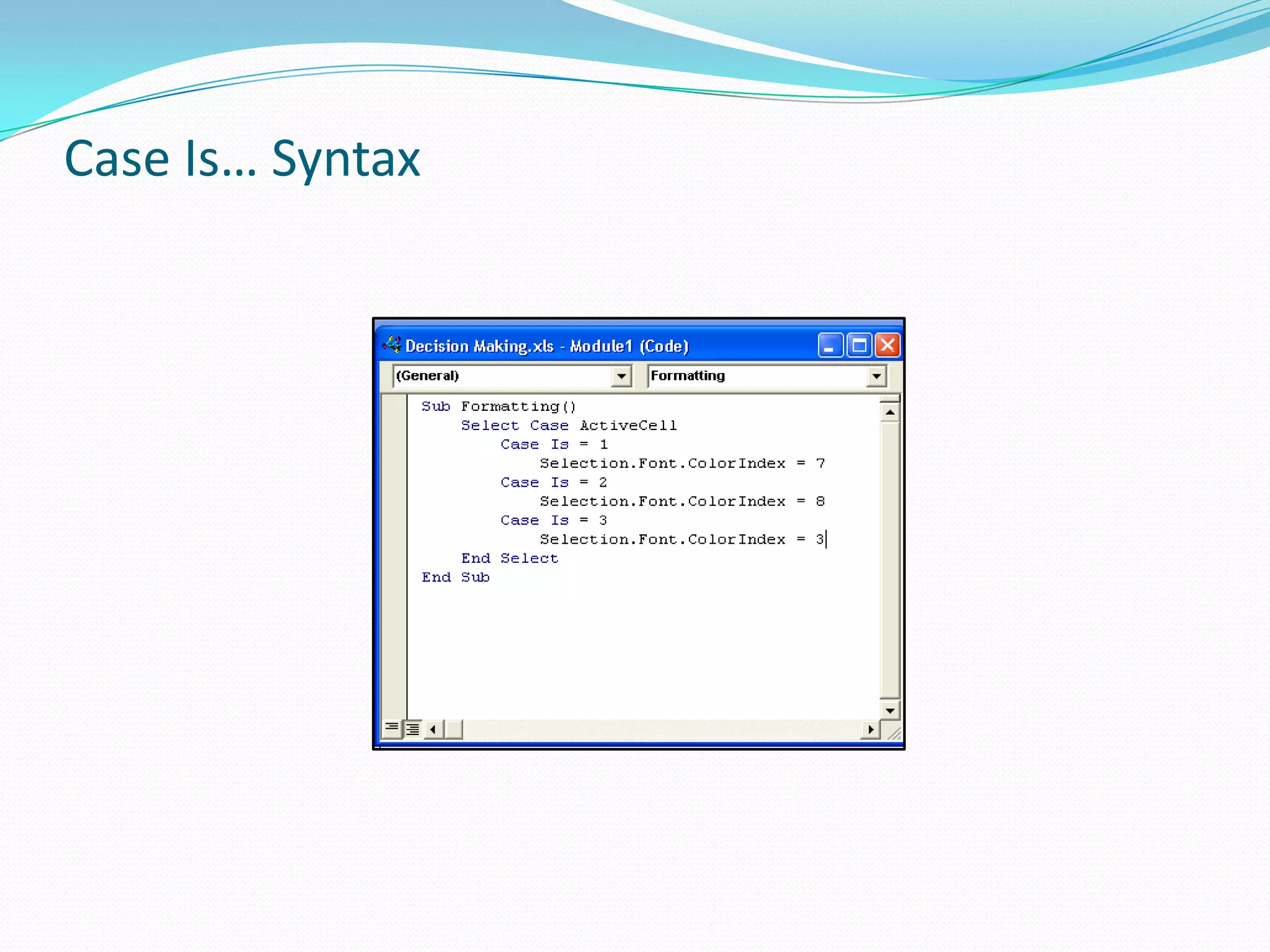
  Select Case Var… Case A … Case B…Case Else… End Select
Loop use
  Do While … Loop           Do … Loop Until
  For … Next                For Each … Next
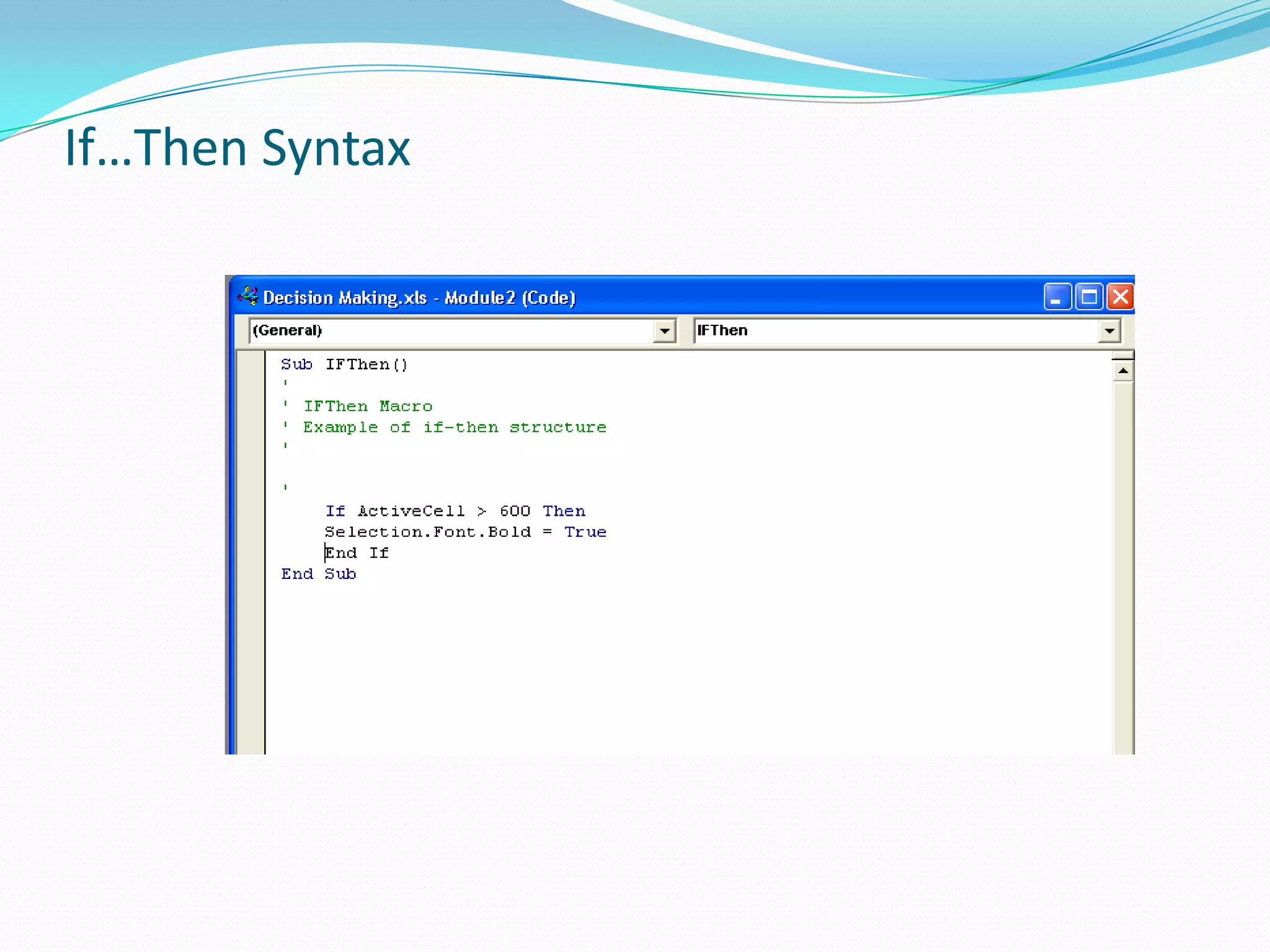
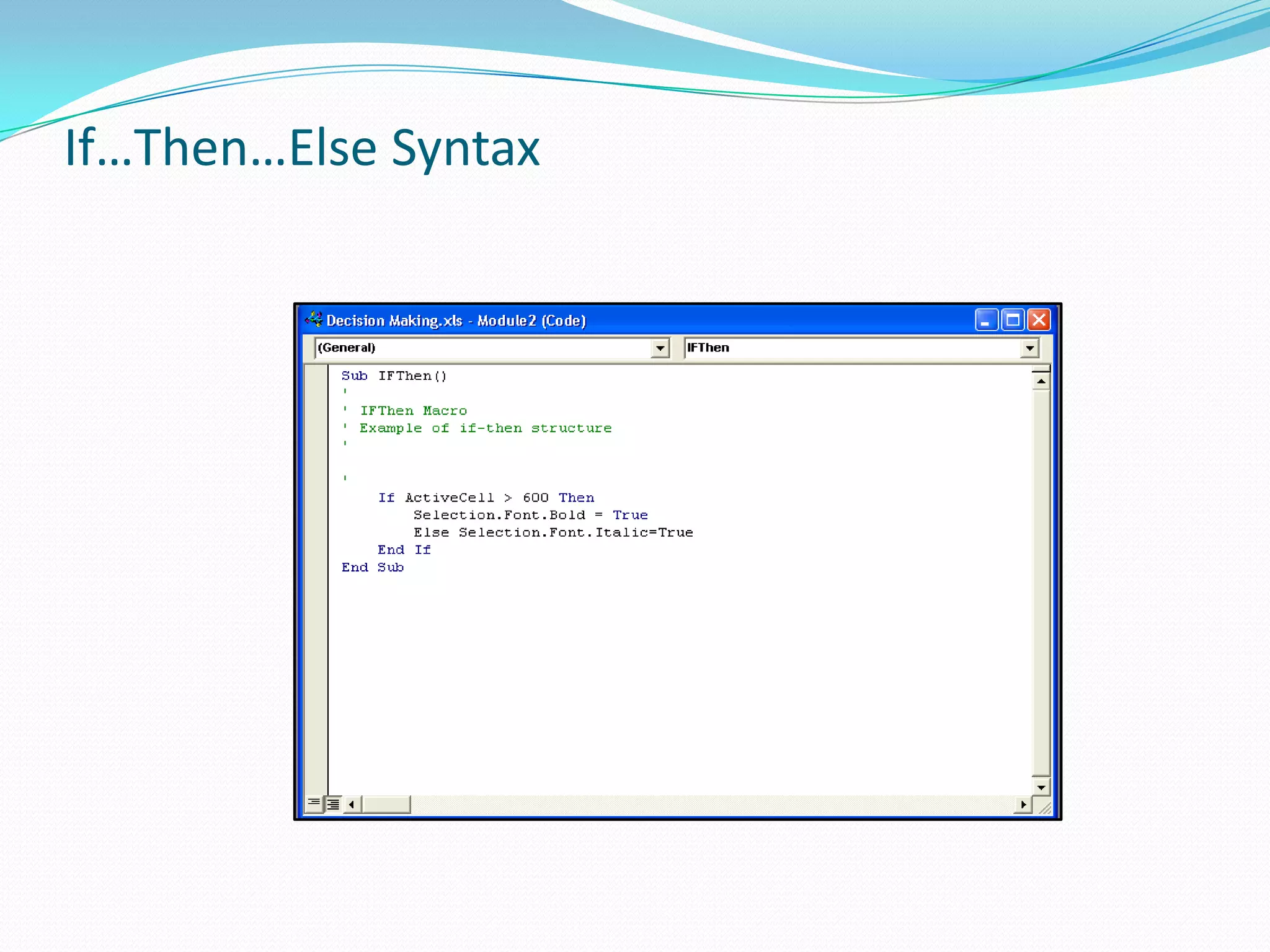
If…Then Syntax
If…Then…Else Syntax
Case Is… Syntax
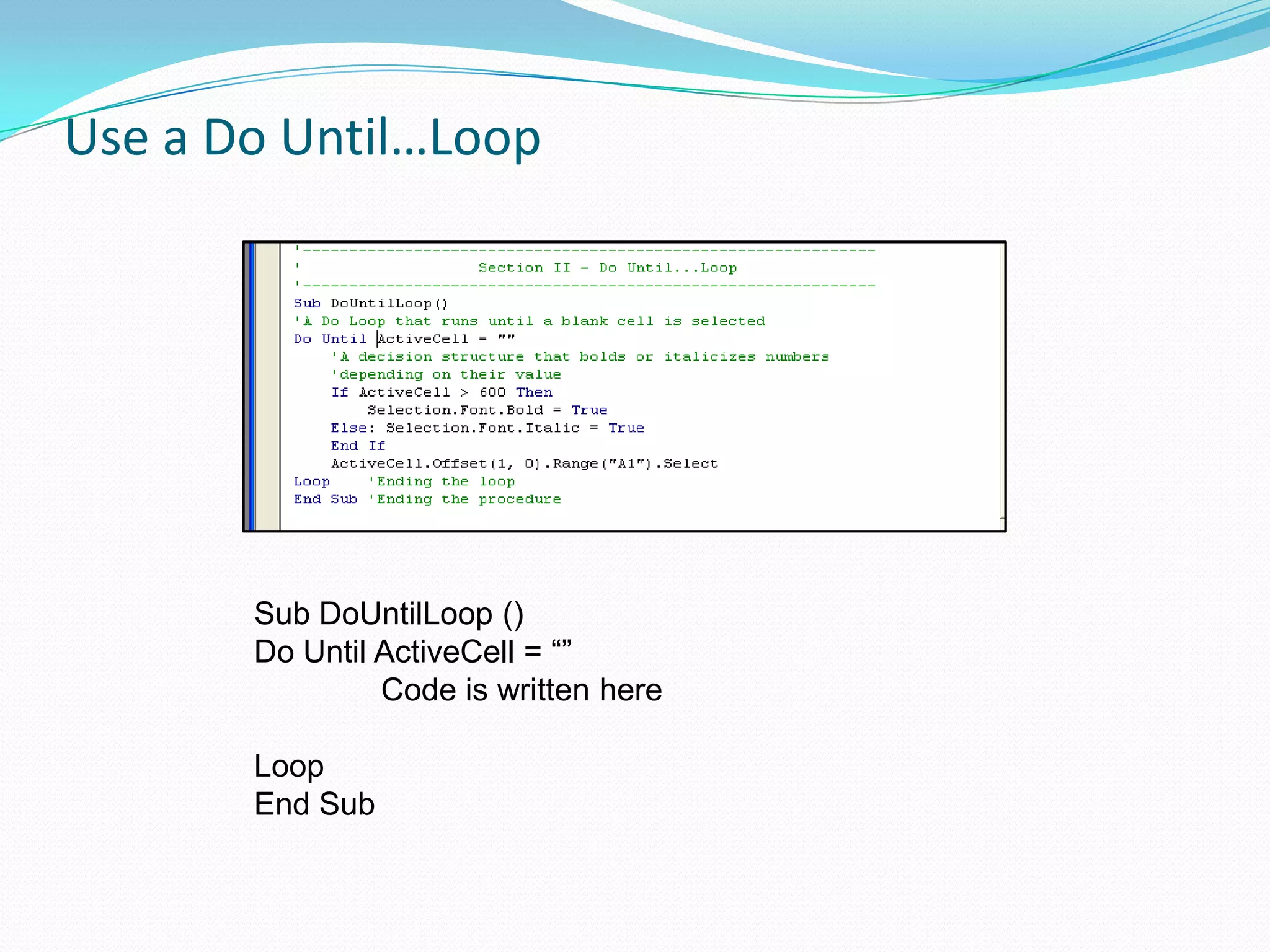
Use a Do Until…Loop


       Sub DoUntilLoop ()
       Do Until ActiveCell = “”
                Code is written here

       Loop
       End Sub
For Next


           Sub ForNext Loop ()
           For Counter = 1 to 10 [Step 1]
                   Code is written here
           Next Counter – continues to collect iterations as a count
           End Sub
Input - Output

 Dialog box
 Input box
 Message box
 Command buttons
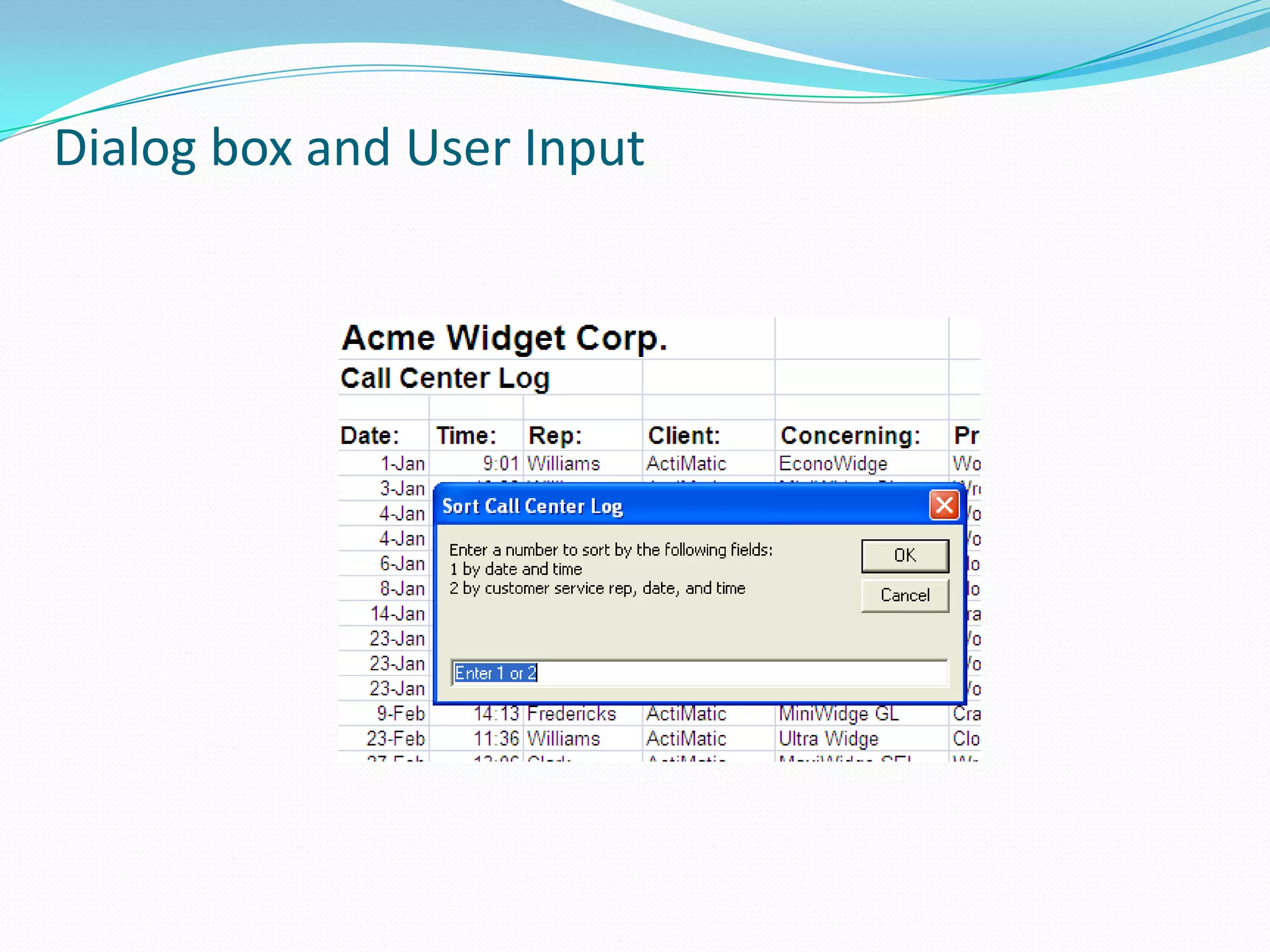
Dialog box and User Input
 A simple example of accepting two strings and
  concatenating them.
Working with Worksheets

 Insert, Copy and Delete Worksheets
 Rename worksheets
 Change worksheet order
 Print worksheets
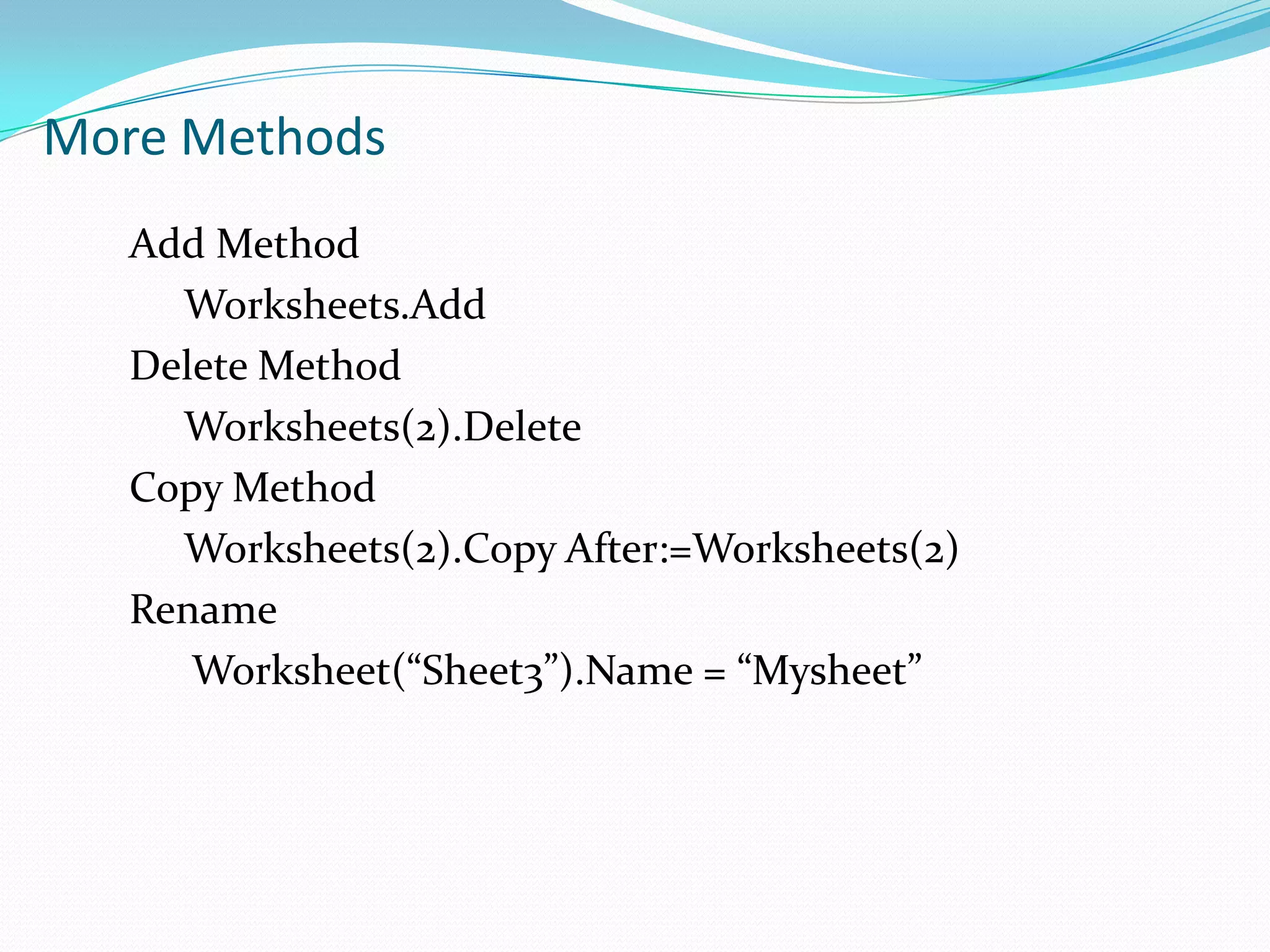
More Methods
   Add Method
     Worksheets.Add
   Delete Method
     Worksheets(2).Delete
   Copy Method
     Worksheets(2).Copy After:=Worksheets(2)
   Rename
      Worksheet(“Sheet3”).Name = “Mysheet”
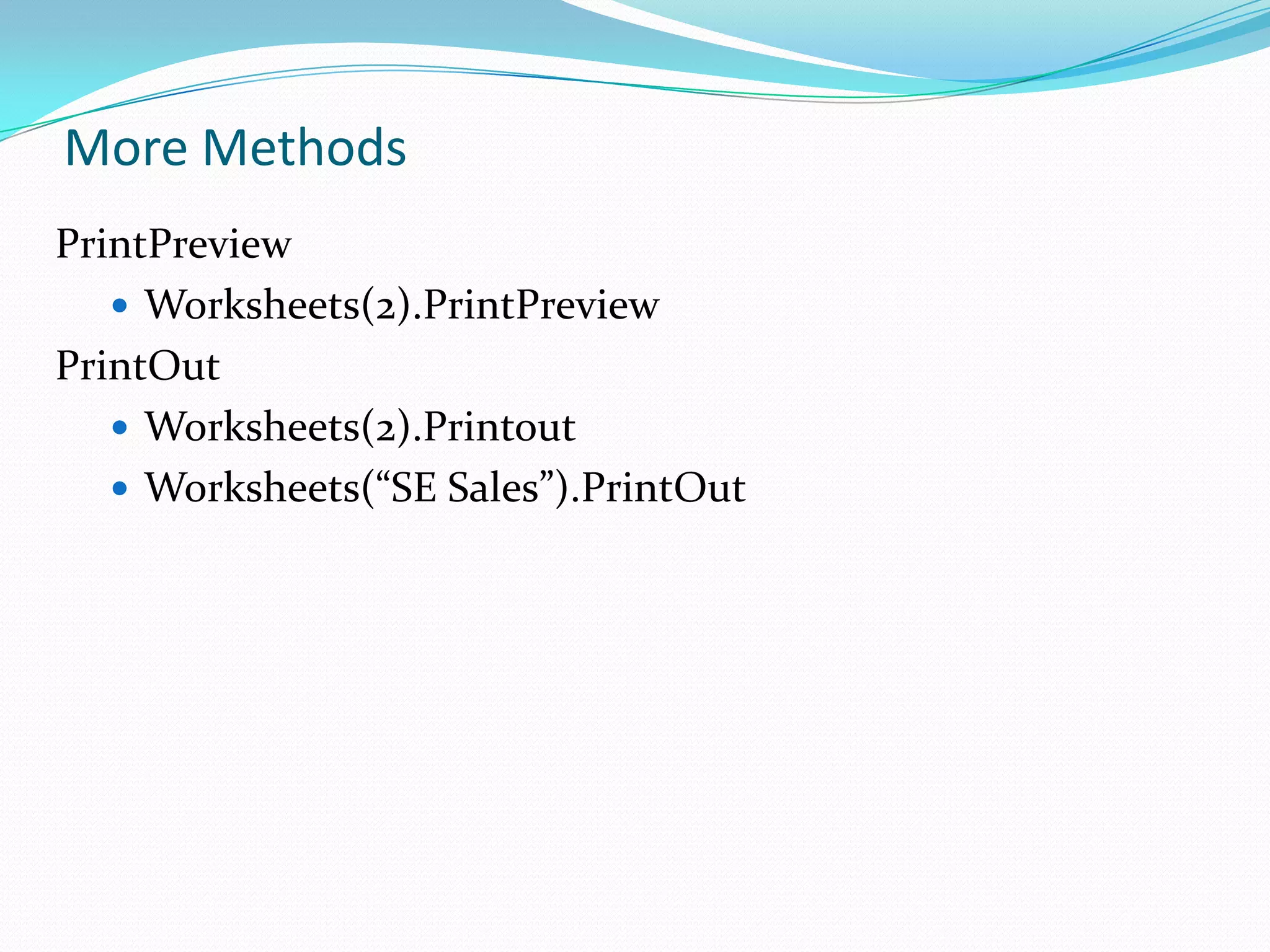
More Methods
PrintPreview
    Worksheets(2).PrintPreview
PrintOut
    Worksheets(2).Printout
    Worksheets(“SE Sales”).PrintOut
VBA - Functions
  Function
    Public , Private, Return Value
    Parameter
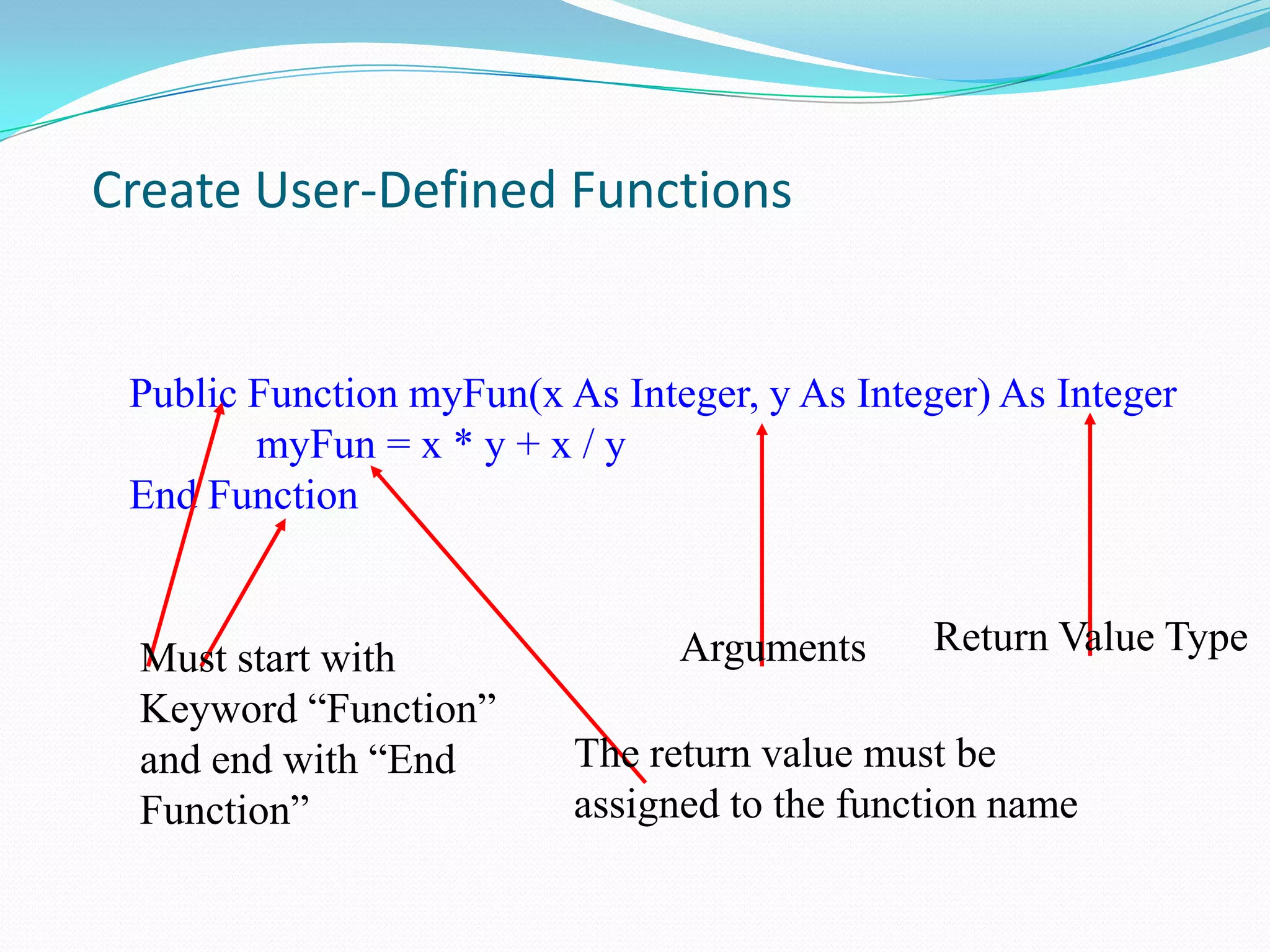
Create User-Defined Functions


 Public Function myFun(x As Integer, y As Integer) As Integer
        myFun = x * y + x / y
 End Function


                                Arguments      Return Value Type
 Must start with
 Keyword “Function”
 and end with “End        The return value must be
 Function”                assigned to the function name
VBA Examples
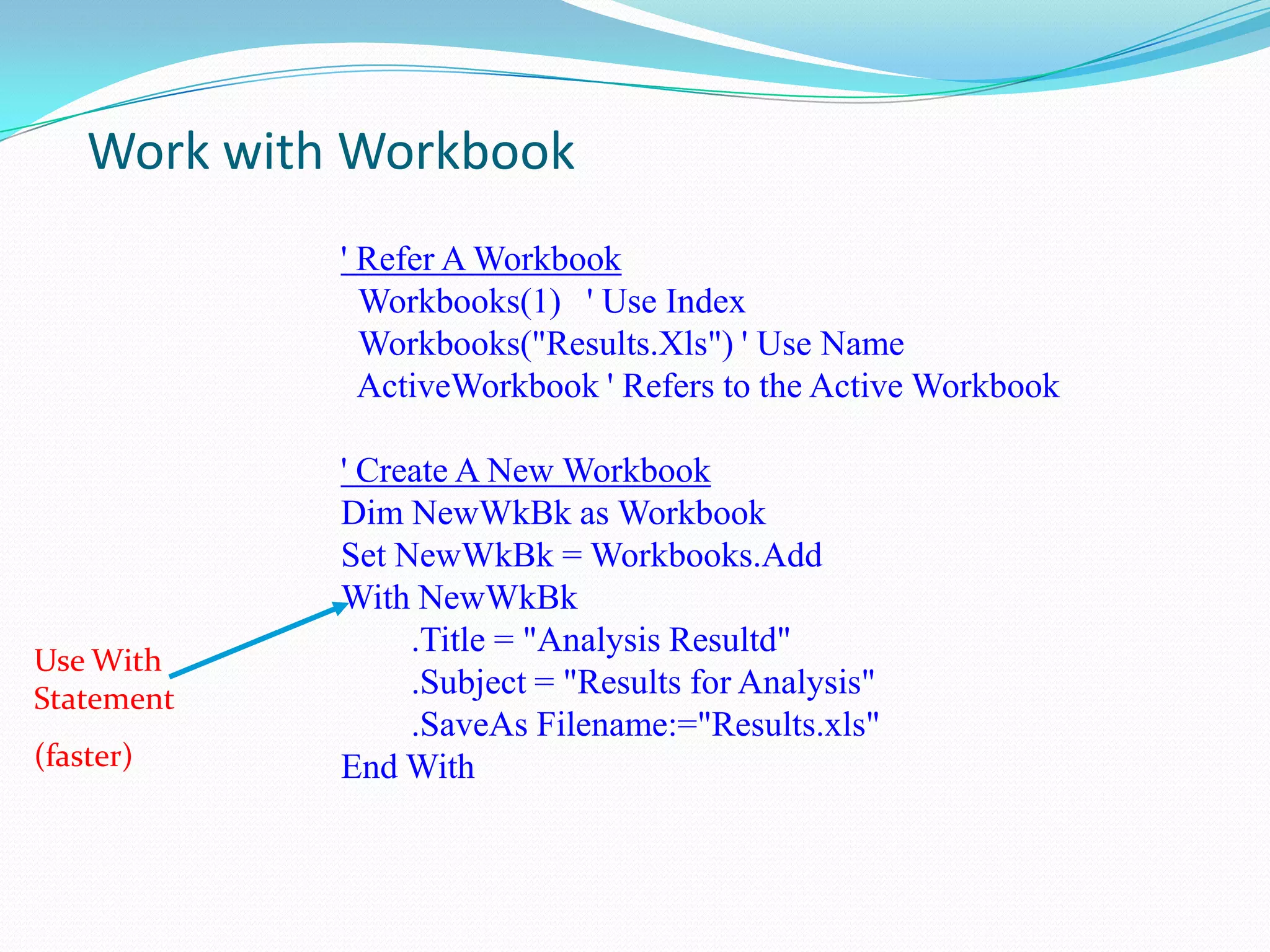
Work with Workbook
             ' Refer A Workbook
               Workbooks(1) ' Use Index
               Workbooks("Results.Xls") ' Use Name
               ActiveWorkbook ' Refers to the Active Workbook

             ' Create A New Workbook
             Dim NewWkBk as Workbook
             Set NewWkBk = Workbooks.Add
             With NewWkBk
                  .Title = "Analysis Resultd"
Use With
Statement         .Subject = "Results for Analysis"
                  .SaveAs Filename:="Results.xls"
(faster)     End With
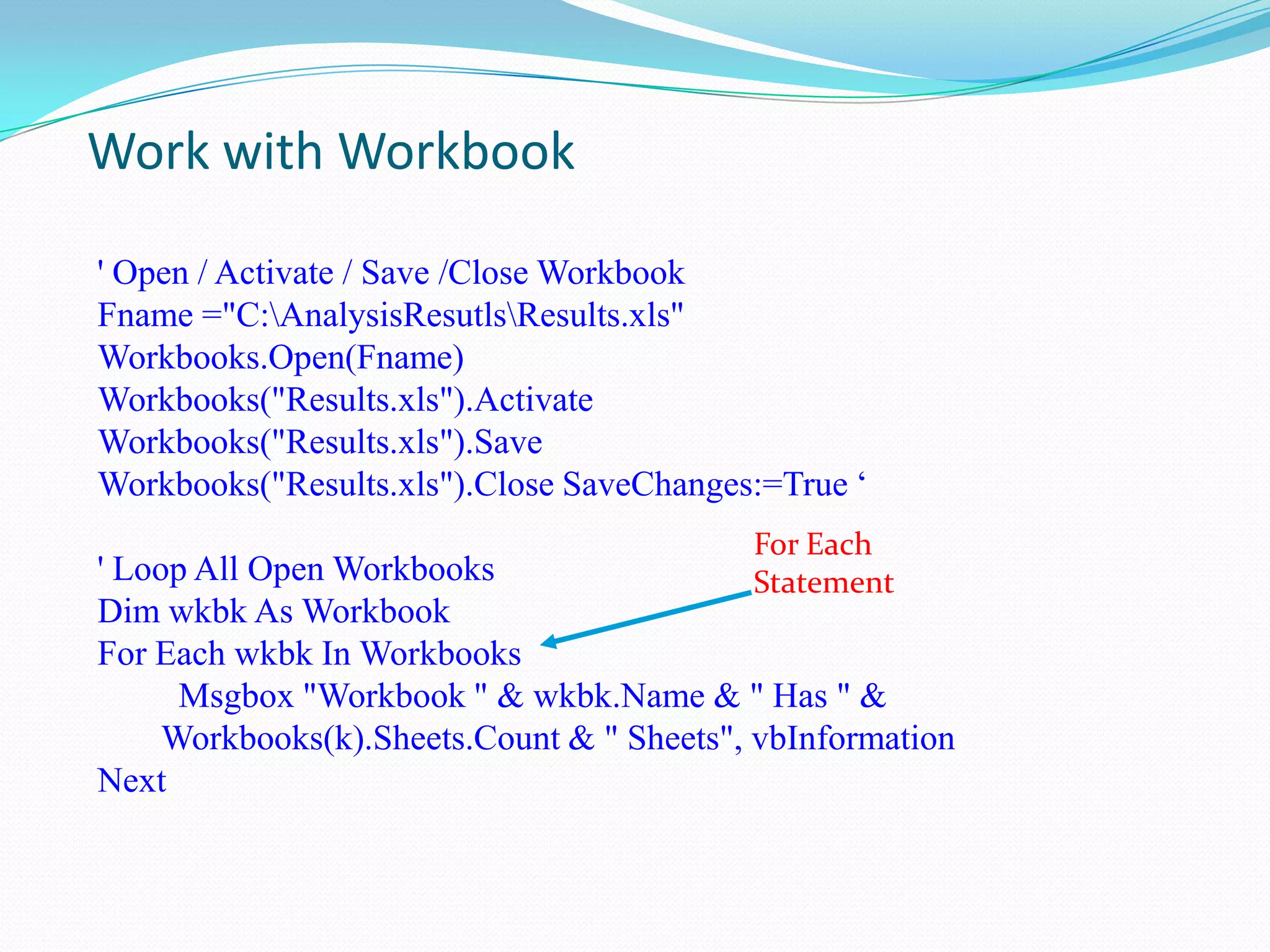
Work with Workbook

' Open / Activate / Save /Close Workbook
Fname ="C:AnalysisResutlsResults.xls"
Workbooks.Open(Fname)
Workbooks("Results.xls").Activate
Workbooks("Results.xls").Save
Workbooks("Results.xls").Close SaveChanges:=True „
                                           For Each
' Loop All Open Workbooks                  Statement
Dim wkbk As Workbook
For Each wkbk In Workbooks
      Msgbox "Workbook " & wkbk.Name & " Has " &
     Workbooks(k).Sheets.Count & " Sheets", vbInformation
Next
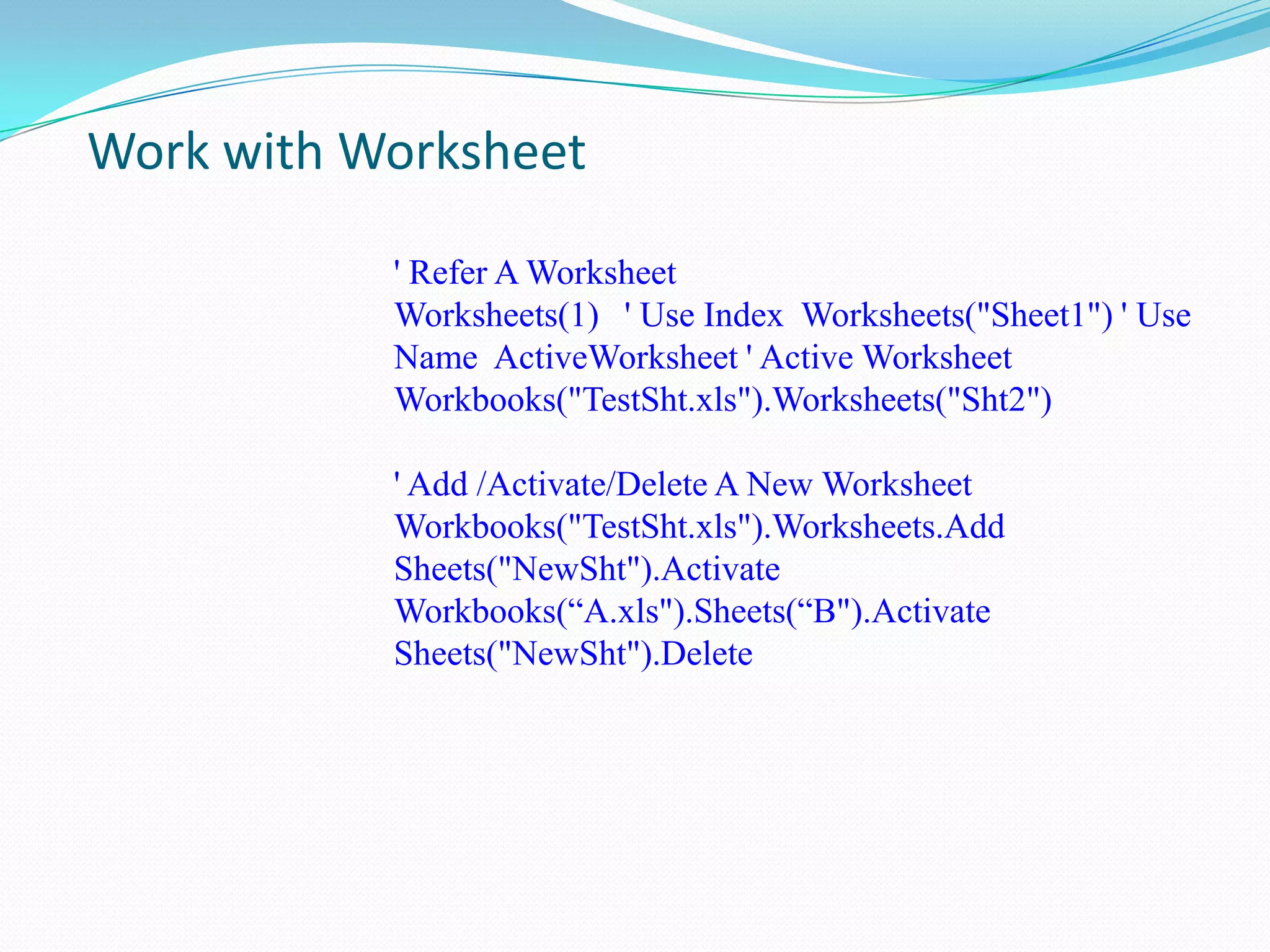
Work with Worksheet

           ' Refer A Worksheet
           Worksheets(1) ' Use Index Worksheets("Sheet1") ' Use
           Name ActiveWorksheet ' Active Worksheet
           Workbooks("TestSht.xls").Worksheets("Sht2")

           ' Add /Activate/Delete A New Worksheet
           Workbooks("TestSht.xls").Worksheets.Add
           Sheets("NewSht").Activate
           Workbooks(“A.xls").Sheets(“B").Activate
           Sheets("NewSht").Delete
Work with Worksheet
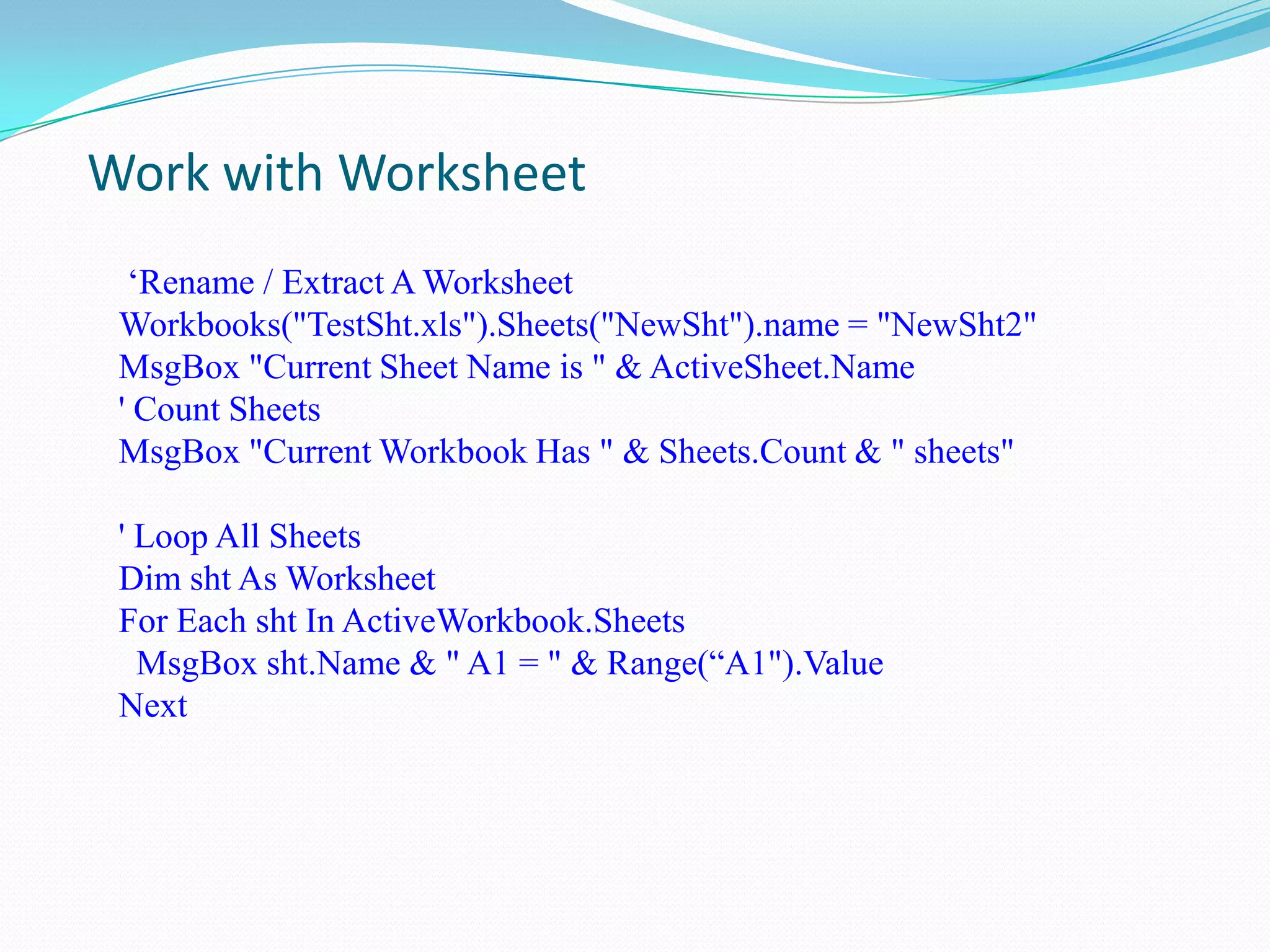
  „Rename / Extract A Worksheet
 Workbooks("TestSht.xls").Sheets("NewSht").name = "NewSht2"
 MsgBox "Current Sheet Name is " & ActiveSheet.Name
 ' Count Sheets
 MsgBox "Current Workbook Has " & Sheets.Count & " sheets"

 ' Loop All Sheets
 Dim sht As Worksheet
 For Each sht In ActiveWorkbook.Sheets
   MsgBox sht.Name & " A1 = " & Range(“A1").Value
 Next
• Create a code to import data from multiple csv files
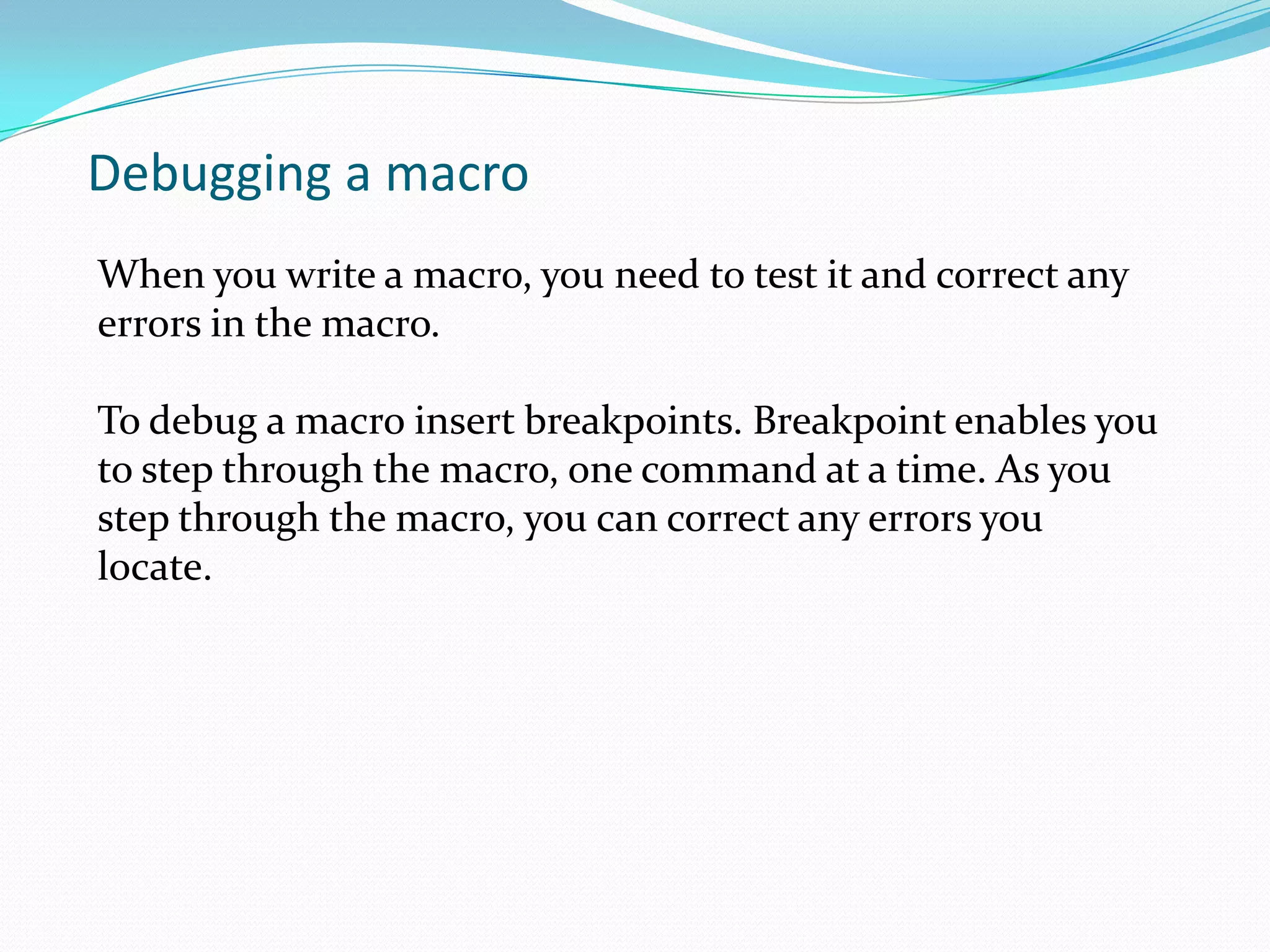
Debugging a macro
When you write a macro, you need to test it and correct any
errors in the macro.

To debug a macro insert breakpoints. Breakpoint enables you
to step through the macro, one command at a time. As you
step through the macro, you can correct any errors you
locate.
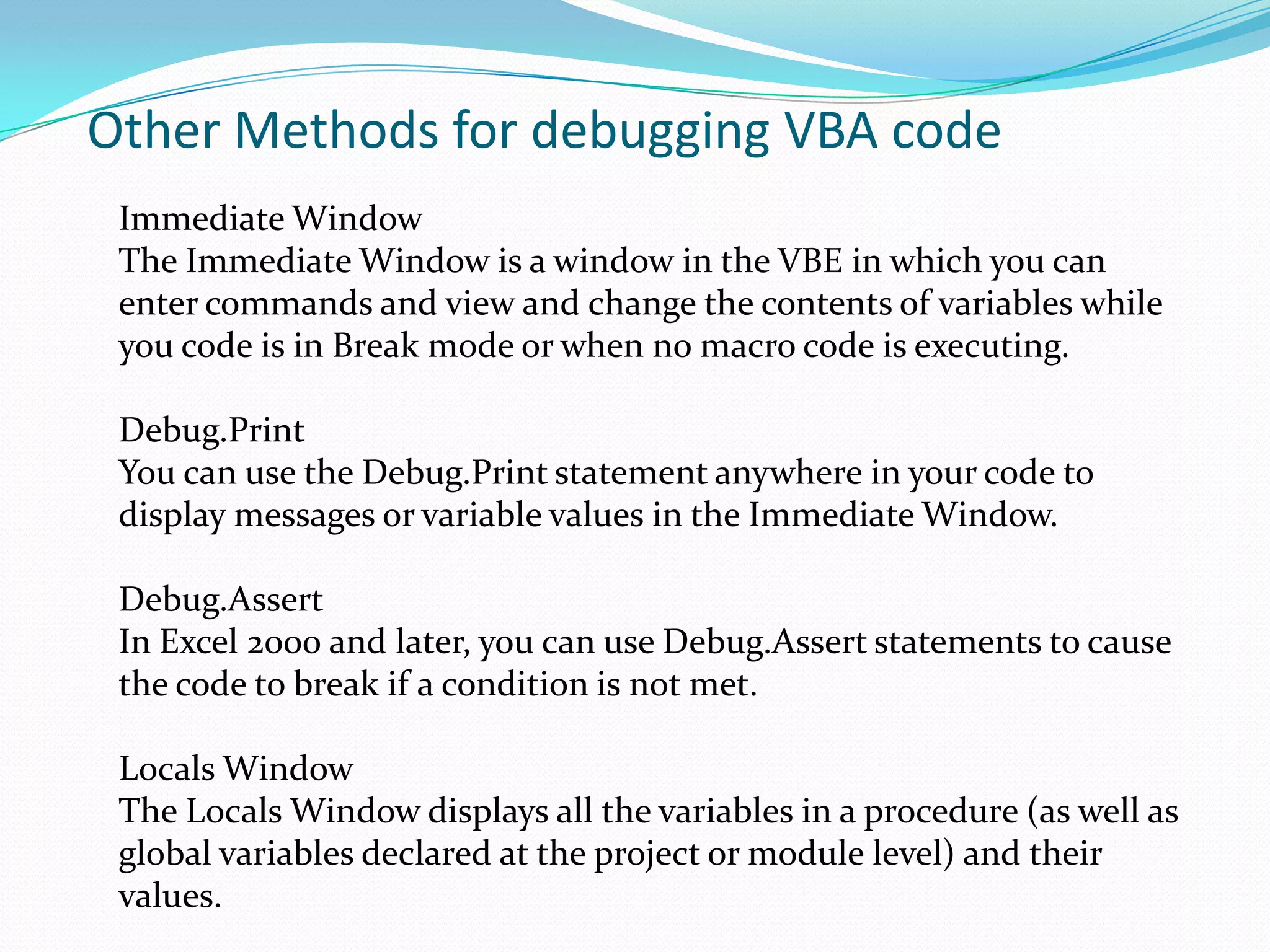
Other Methods for debugging VBA code
 Immediate Window
 The Immediate Window is a window in the VBE in which you can
 enter commands and view and change the contents of variables while
 you code is in Break mode or when no macro code is executing.

 Debug.Print
 You can use the Debug.Print statement anywhere in your code to
 display messages or variable values in the Immediate Window.

 Debug.Assert
 In Excel 2000 and later, you can use Debug.Assert statements to cause
 the code to break if a condition is not met.

 Locals Window
 The Locals Window displays all the variables in a procedure (as well as
 global variables declared at the project or module level) and their
 values.
Debugging a vba code example

 1. Write an excel code to take input from a cell and export
    the current sheet into that data, use local window,
    immediate window, and debug.print to check that the
    code is working correctly.
Live Example
References

http://www.vbtutor.net/VBA/vba_tutorial.html

For Demo Examples:
http://www.ozgrid.com/VBA/

Vba

  • 1.
  • 2.
    Excel Functions The VLookupfunction searches for value in the left-most column of table_array and returns the value in the same row based on the index_number. Syntax: VLookup( value, table_array, index_number, not_exact_match )  value is the value to search for in the first column of the table_array.  table_array is two or more columns of data that is sorted in ascending order.  index_number is the column number in table_array from which the matching value must be returned. The first column is 1.  not_exact_match boolean value to determine if you are looking for an exact match based on value.
  • 3.
    Example for Vlookup SampleData: A range named as Master Empid Name Basic e003 ashok 2340 e002 nirvay 5670 e003 bajrangi 3450 e004 jeet 5670 e005 shubneet 1234 e006 gulab 5432 Now to obtain the Basic of employees in other sheet use Vlookup as follows: =VLOOKUP(A4,master,3,FALSE)
  • 4.
    Pivot Table &Pivot Chart Use a PivotTable report to summarize, analyze, explore, and present summary data. Use a PivotChart report to visualize that summary data in a PivotTable report, and to easily see comparisons, patterns, and trends. Both a PivotTable report and a PivotChart report enable you to make informed decisions about critical data in your enterprise
  • 5.
    Pivot Table &Pivot Chart Examples Sample Data Year Zone Qtr Sales 2008west 1 34 2009west 1 56 2010west 1 43 2008west 2 7 2009west 2 6 2010west 2 5 2008west 3 4 2009west 3 12 2010west 3 0 2008west 4 9 2009west 4 8 2010west 4 7 2008east 1 6 2009east 1 5 2010east 1 4
  • 6.
    Pivot Table Example PivotTable on the above sample data will look like Field List
  • 7.
    Pivot Chart Example PivotChart on the above sample data will look like
  • 8.
  • 9.
    First Step toVBA : Macros Record Macro • Similar to audio/video recorder • Record all the steps you conduct and write them in VBA code If macros are disabled when you start Excel, change the security level to medium
  • 10.
    First Step toVBA : Macros Assign Macro to An Event • Normally User Run Macros from VBA Edit Window – Unnecessary • User Can Assign Macro to An Event, Normally a Button Click Event • Easy to Execute and Easy to Remember • Give a Good Name for The Button and Click the Button to Run the Macro
  • 11.
    First Step toVBA : Macros Assign Macro to An Event
  • 12.
    • Demonstration example •A macro to get a text file to excel
  • 13.
    Second Step toVBA : Edit Macro VBA Editor Window • Press Alt+F11 to Activate VBA Window • Or Go to Menu Tools>Macros>Visual Basic Editor • Project Explore Window • Properties Window • Code Window
  • 14.
    What is VBA •An abbreviation for Visual Basic for Applications • Official name is "Visual Basic, Applications Edition." • VBA is Microsoft's common application programming (macro) language for Word, Excel, Access, etc. • Also being implemented in other Microsoft applications such as Visio and is at least partially implemented in some other applications such as AutoCAD... • VBA and VB have a lot in common, but they are different. VB is a programming language that lets you create standalone executable programs.
  • 15.
    What Can YouDo With VBA • Write Macros to Automate Labor-Intensive and Repetitive Tasks • Create User-Defined Functions to Achieve Complicated Functionality • Create Standard Windows Menu/Tool Bars for Interface • Interact with Other Windows Programs (like Matlab) • I/O with External Files • Database Operation ….
  • 16.
    Object Based ProgrammingLanguage  C++, Java, etc. are OOP (Object Oriented Programming) Language  VBA is an Object Based Programming Language  What is Object?
  • 17.
    Object Based ProgrammingLanguage Concepts – Containers or Collections  A Group of Similar Objects Share Common Properties, Methods and Events  Such as Workbooks, Worksheets, etc.  Worksheets is a collection of all the Worksheet objects in the specified or active workbook.  Worksheets(1) refers to the 1st worksheet of current active workbook.  Worksheets (“mooring”) refers to the worksheet named “mooring”.
  • 18.
    Object Based ProgrammingLanguage Concepts – Objects • Such as Worksheet, Workbook, Range, Cell, Chart, Name, etc. • Worksheets(1) is an Object Referring to the First Sheet • Range("A1:B15") is an Object Referring to a Range • Cells(1,1) or Range(“A1”) is an Object Referring to Range “A1”
  • 19.
    Object Based ProgrammingLanguage Concepts – Properties • Properties are the Physical Characteristics of Objects and Can be Measured or Quantified. • Properties for Collections - Worksheets.Count (Read Only) - Worksheets.Visible = True (Read and Write) • Properties for Object - Range("A1:B15").Rows.Count (Read Only) - Range("A1:B15").Font.Bold = True (Read and Write)
  • 20.
    Object Based ProgrammingLanguage Concepts – Methods • Methods are the Actions that Can be Performed by Objects or on Objects • Methods for Collections - Worksheets.Add - Worksheets.Delete • Methods for Objects - Range("A1:B15").ClearContents - ActiveCell.Copy
  • 21.
    Object Based ProgrammingLanguage Concepts – Events • Objects Can Respond to Events, Such as Mouse Click, Double Click on a Cell, Active a Worksheet, Open/Close/Save a Workbook, etc. • Worksheet Events – Such as Activate, Deactivate, Change, Selection Change, Before Double Click, etc. • Workbook Events- Such as Activate, Deactivate, Open, Before Close, Before Saving, Before Print, New Sheet.
  • 22.
    Object Based ProgrammingLanguage Concepts – Referring To • Use brackets () to refer to member object Worksheets(“mooring”) • Use dot . to refer to child object or object‟s properties and methods Worksheets(“mooring”).Range(“A1:B3”).Font.Bold
  • 23.
    Second Step toVBA : Edit Macro VBA Editor Window • Use Tools/Options to Enable Auto Syntax Check, Auto List Members, etc. • Use Tools/Properties to Protect Your Code with Password – You Must Remember the Password • Insert Module, Procedure, Form
  • 24.
    Second Step toVBA : Edit Macro Understand VBA Editor Window Project window Shows files, sheets and Auto list member modules Auto list data / parameter Property window Code window Show properties of VBA codes are here. active object and let user to modify the properties
  • 25.
    Working with objectsusing VBA Objects can be manipulated using the collections they belong to, specifying their location in the object hierarchy using the dot notation.  Worksheets(“Sheet1”)  Worksheets(1)  Workbooks(“Book1”).Worksheets(“Sheet1”)  Worksheets(“Sheet1”).Range(“A1”)  Application.Workbooks(“Book1”)._ Worksheets(“Sheet1”).Range(“A1”)
  • 26.
    Accessing properties andmethods  Properties  Reading  Worksheets(“Sheet1”).Range(“A1”).Value  Setting  Range(“A1”).Value=123  Methods  Range(“A1:D5”).Clear
  • 27.
    Referring to rangeobjects  Using the Range property  Applies to:  Application object  Worksheet object  Range object  Cells property of a Worksheet object  Offset property of a Range object
  • 28.
    Range property Object.Range(cell1) Object.Range(cell1, cell2) Worksheets(“Sheet1”).Range(“A1”).Value = 1 Range(“Input”).Value = 5 Range(“A1:B10”).Value=3 Range(“A1”, “B10”)=3 Range(“C1:C10 “,”A6:E6”)=5 Range(“A1, A5, B4, F5”)=6
  • 29.
    Cells property Worksheets(“Sheet1”).Cells(1,1)=5  Changes the value of A1  Cells(5,2) = 4  Changes the value of B5  Cells(257) = 6  Changes cell A2
  • 30.
    Cells property  Withrange objects  Range(“A1:B10”).Cells(4) = 400  Will change the value of B2  Worksheets(“Sheet1”).Cells.ClearContents
  • 31.
    Offset property  Appliesonly to the Range object  Range(“B1”).Offset(1,0).Value=4  Changes B2 value to 4  Range(“C6”).Offset(-4,-2).Value = 5  Changes A2 value to 5
  • 32.
    Example to modifythe previously created macro & change the path of the text file or pick the file path from a cell in workbook
  • 33.
    Third Step toVBA : Edit Macro Fundamental of VBA • Variables: can be define explicit or implicit use dim statement • Constant use const pi =3.1415926 • Control Statements • Function: pair of function … end function • Comment use single quotation „ • Continuation use underline _ • Use with … end with for object • Assign object use set and assign data variable use =
  • 34.
    Variables Variable is anamed storage location in the computer’s memory Can accommodate wide variety of data types
  • 35.
    Data types Integer, Long,Single, Double, Currency Date String Object Others…
  • 36.
    Variables It is betterto determine the data type of a variable. Your applications will be executing much faster! Use Option Explicit to force yourself to declare the variables you use Constant is a “variable” that retains its value Dim Const companyName as String = “City University”
  • 37.
    Variable’s lifetime andscope Two important concepts associated with variables:  Scope  Defines which procedures can use that variable  Lifetime  Defines how long that variable retains the values assigned to it
  • 38.
    Variable lifetime The lifetimeof the variable depends where it is declared  In a procedure  The lifetime is limited to the time taken to run the procedure  In a procedure using the Static keyword  The lifetime is extended to the time that the workbook is open  In the declarations section  The lifetime is extended to the time that the workbook is open
  • 39.
    Variable scope The scopeof the variable depends where it is declared:  In a procedure  It is visible only within the procedure code  In a module  It is visible only within the module code  In a module as Public  It is visible from all open workbooks  In a module as Private  It is visible only within the module code
  • 40.
    Control Statements inVBA Decision Making use If… elseif…else…end if Multiple Selection/Decision Making Select Case Var… Case A … Case B…Case Else… End Select Loop use Do While … Loop Do … Loop Until For … Next For Each … Next
  • 41.
  • 42.
  • 43.
  • 44.
    Use a DoUntil…Loop Sub DoUntilLoop () Do Until ActiveCell = “” Code is written here Loop End Sub
  • 45.
    For Next Sub ForNext Loop () For Counter = 1 to 10 [Step 1] Code is written here Next Counter – continues to collect iterations as a count End Sub
  • 46.
    Input - Output Dialog box Input box Message box Command buttons
  • 47.
    Dialog box andUser Input
  • 48.
     A simpleexample of accepting two strings and concatenating them.
  • 49.
    Working with Worksheets Insert, Copy and Delete Worksheets Rename worksheets Change worksheet order Print worksheets
  • 50.
    More Methods Add Method Worksheets.Add Delete Method Worksheets(2).Delete Copy Method Worksheets(2).Copy After:=Worksheets(2) Rename Worksheet(“Sheet3”).Name = “Mysheet”
  • 51.
    More Methods PrintPreview  Worksheets(2).PrintPreview PrintOut  Worksheets(2).Printout  Worksheets(“SE Sales”).PrintOut
  • 52.
    VBA - Functions Function Public , Private, Return Value Parameter
  • 53.
    Create User-Defined Functions Public Function myFun(x As Integer, y As Integer) As Integer myFun = x * y + x / y End Function Arguments Return Value Type Must start with Keyword “Function” and end with “End The return value must be Function” assigned to the function name
  • 54.
  • 55.
    Work with Workbook ' Refer A Workbook Workbooks(1) ' Use Index Workbooks("Results.Xls") ' Use Name ActiveWorkbook ' Refers to the Active Workbook ' Create A New Workbook Dim NewWkBk as Workbook Set NewWkBk = Workbooks.Add With NewWkBk .Title = "Analysis Resultd" Use With Statement .Subject = "Results for Analysis" .SaveAs Filename:="Results.xls" (faster) End With
  • 56.
    Work with Workbook 'Open / Activate / Save /Close Workbook Fname ="C:AnalysisResutlsResults.xls" Workbooks.Open(Fname) Workbooks("Results.xls").Activate Workbooks("Results.xls").Save Workbooks("Results.xls").Close SaveChanges:=True „ For Each ' Loop All Open Workbooks Statement Dim wkbk As Workbook For Each wkbk In Workbooks Msgbox "Workbook " & wkbk.Name & " Has " & Workbooks(k).Sheets.Count & " Sheets", vbInformation Next
  • 57.
    Work with Worksheet ' Refer A Worksheet Worksheets(1) ' Use Index Worksheets("Sheet1") ' Use Name ActiveWorksheet ' Active Worksheet Workbooks("TestSht.xls").Worksheets("Sht2") ' Add /Activate/Delete A New Worksheet Workbooks("TestSht.xls").Worksheets.Add Sheets("NewSht").Activate Workbooks(“A.xls").Sheets(“B").Activate Sheets("NewSht").Delete
  • 58.
    Work with Worksheet „Rename / Extract A Worksheet Workbooks("TestSht.xls").Sheets("NewSht").name = "NewSht2" MsgBox "Current Sheet Name is " & ActiveSheet.Name ' Count Sheets MsgBox "Current Workbook Has " & Sheets.Count & " sheets" ' Loop All Sheets Dim sht As Worksheet For Each sht In ActiveWorkbook.Sheets MsgBox sht.Name & " A1 = " & Range(“A1").Value Next
  • 59.
    • Create acode to import data from multiple csv files
  • 60.
    Debugging a macro Whenyou write a macro, you need to test it and correct any errors in the macro. To debug a macro insert breakpoints. Breakpoint enables you to step through the macro, one command at a time. As you step through the macro, you can correct any errors you locate.
  • 61.
    Other Methods fordebugging VBA code Immediate Window The Immediate Window is a window in the VBE in which you can enter commands and view and change the contents of variables while you code is in Break mode or when no macro code is executing. Debug.Print You can use the Debug.Print statement anywhere in your code to display messages or variable values in the Immediate Window. Debug.Assert In Excel 2000 and later, you can use Debug.Assert statements to cause the code to break if a condition is not met. Locals Window The Locals Window displays all the variables in a procedure (as well as global variables declared at the project or module level) and their values.
  • 62.
    Debugging a vbacode example 1. Write an excel code to take input from a cell and export the current sheet into that data, use local window, immediate window, and debug.print to check that the code is working correctly.
  • 63.
  • 64.

Editor's Notes

  • #3 HLOOKUP is the exact same function as Vlookup, but looks up data that has been formatted by rows instead of columns
  • #4 Combine IF and VLOOKUPYou can use an IF formula with an Excel VLookup formula, to return exact values if found, and an empty string if not found. If VLookup formula has FALSE as the fourth argument, the result is #N/A, because there is no exact match found. Wrap the VLookup formula with an IF formula (in this example the product list has been named), using the ISNA function to check for an #N/A error:For example consider an invoice sheet matching product code:=IF(ISNA(VLOOKUP(A8,ProductList,2,FALSE)),"",VLOOKUP(A8,ProductList,2,FALSE))
  • #5 Some example uses of pivot tables and pivot chartsSummarizing data like finding the average sales for each region for each product from a product sales data table.Listing unique values in any column of a table Creating a pivot report with sub-totals and custom formatsMaking a dynamic pivot chartFiltering, sorting, drilling-down data in the reports without writing one formula or macro.Transposing data – i.e. moving rows to columns or columns to rows. [learn more]Linking data sources outside excel and be able to make pivot reports out of such data.
  • #7 Some useful tips on Excel Pivot TablesYou can apply any formatting to the pivot tables. You can easily change the pivot table summary formulas. Right click on pivot table and select “summerize data by” option.You can also apply conditional formatting on pivot tables although you may want to be a bit careful as pivot tables scale in size depending on the data.Whenever the original data from which pivot tables are constructed, just right click on the pivot table and select “Refresh Data” option.If you want to drill down on a particular summary value, just double click on it. Excel will create a new sheet with the data corresponding to that pivot report value. Making a pivot chart from a pivot table is very simple. Just click on the pivot chart icon from tool bar or Options ribbon area and follow the wizard.
  • #8 Pivot Chart Tips and TroubleshootingChanges to the Pivot Chart affect the Pivot TableRefreshing the Pivot Table Removes FormattingCan't Undo after Creating a Pivot ChartCan't Move or Resize some Elements in a Pivot Chart
  • #11 You can assign a macro to a few types of objects:Forms Menu Button or ShapeActiveX Button Menu or Toolbar Button  Forms Menu Controls1. First make the Forms toolbar visible. Like so many other things in Excel,2. Select the Button button, then draw a rectangle in the worksheet where you want to place the button (you can move and resize it later).The Assign Macro dialog pops up with a list of macros in the active worksheet for you to select from.3. Select a macro and click OK, or Cancel (you can select a macro at a future time). You can edit the text of the button after you dismiss the dialog, or right click on the button any time. You can assign a macro to any of the Forms toolbar controlsAssign Macro to shapesYou can assign a macro to any shape (including any chart) on a worksheet. Right click on the shape, choose Assign Macro, and follow the steps above
  • #14 VBEThe VBE refers to the Visual Basic Editor, which includes all the windows and projects that make up the editor.VBProjectA VBProject contains all the code modules and components of a single workbook. One workbook has exactly one VBProject. The VBProject is made up of 1 or more VBComponent objects.VBComponentA VBComponent is one object within the VBProject. A VBComponent is a code module, a UserForm, a class module, one of the Sheet modules, or the ThisWorkbook module.CodeModuleA CodeModule is the VBA source code of a VBComponent. You use the CodeModule object to access the code associated with a VBComponent. A VBComponent has exactly one CodeModule.CodePaneA CodePane is an open editing window of a CodeModuleIDE ComponentsProject ExplorerAll VBComponent in the Project appear in Project Explorer, to open any code module double click on that component in the Project Explorer.Properties WindowThe properties of all VBComponents can be viewed using properties windows. Select a component and click view->properties window or press F4 to view the properties of that object.Code WindowThe code for any object is written in code window. Code window contains the object name (such as workbook or worksheet) and the events associated with that object.
  • #18 Most programming languages today deal with objects, a concept called object oriented programming. Although Excel VBA is not a truly object oriented programming language, it does deal with objects. VBA object is something like a tool or a thing that has certain functions and properties, and can contain data. For example, an Excel Worksheet is an object, cell in a worksheet is an object, range of cells is an object, font of a cell is an object, a command button is an object, and a text box is an object and more.
  • #22 An Event is an action initiated either by user action or by other VBA code. An Event Procedure is a Sub procedure that you write, according to the specification of the event, which is called automatically by Excel when an event occurs. For example, a Worksheet object has an event named Change. If you have properly programmed the event procedure for the Change event, Excel will automatically call that procedure, always named Worksheet_Change and always in the code module of the worksheet, whenever the value of any cell on the worksheet is changed by user input or by other VBA code.
  • #23 NOTE: Worksheets name are not case-sensitive, and must always be enclosed in double quotes.
  • #24 Module:You perform actions in VBA by writing (or recording) code in a VBA module sheet and then executing the macro in any one of various ways. VBA modules are stored in an Excel workbook, and a workbook can hold any number of VBA modules. Procedure: A procedure is basically computer code that performs some action. The following is an example of a simple Sub procedure called ShowSum (it adds 1 + 1 and displays the result):Sub ShowSum()Sum = 1 + 1MsgBox “The answer is “ & SumEnd Sub
  • #27 Since value is the default method of Range so we may use alternatively:Range(“A1”).values or Range(“A1”) have the same meaning
  • #31 NOTE: cells works from column to row
  • #32 Offset is generally used to refer dynamically to a cell. Foe example if you know the current cell is A5, to go to A4, I can work with Currentcell.offset(0,-1)
  • #42 Another Example:This procedure checks the active cell. If it contains a negative value, the cell’s color is changed to red. Otherwise, nothing happens.Sub CheckCell()If ActiveCell.Value < 0 Then ActiveCell.Font.ColorIndex = 3End Sub
  • #46 The With-End With constructAnother construct that you encounter if you record macros is the With-End With construct. This is a shortcut way of dealing with several properties or methods of the same object.The following is an example:Sub AlignCells()With Selection.HorizontalAlignment = xlCenter.VerticalAlignment = xlCenter.WrapText = False.Orientation = xlHorizontalEnd WithEnd Sub
  • #48 To actually allow the user to enter some text, number or even a formula we can use the InputBox Function. The syntax for the InputBox Function is;InputBox(prompt[, title] [, default] [, xpos] [, ypos] )Example for InputBoxSub GetUserName() Dim strName As String   strName = InputBox(Prompt:="You name please.", _ Title:="ENTER YOUR NAME", Default:="Your Name here")  If strName = "Your Name here" Or _strName = vbNullString Then  Exit Sub  Else strName = Activecell.Value  End If  End Sub
  • #49 MsgBox function displays a message in a window and waits for click on a button.Example of using Yes-No Message Box:Sub MessageBoxExample() Dim iRet As Integer Dim strPrompt As String Dim strTitle As String ' PromtstrPrompt = "Ask Your Question Here, OK?" ' Dialog's TitlestrTitle = "My Tite" 'Display MessageBoxiRet = MsgBox(strPrompt, vbYesNo, strTitle) ' Check pressed button If iRet = vbNo ThenMsgBox "NO!" ElseMsgBox "Yes!" End IfEnd SubMessage Box returns an integer value to indicate clicked button (Yes, No, Cancel, etc.):
  • #53 To rename a worksheet use name property of the worksheet. For example:Worksheet(“Sheet1”).Name = “NewName”
  • #55 The main reason is that creating a custom function can greatly simplify your formulas by making them shorter, and shorter formulas are more readable and easier to work with. For example, you can often replace a complex formula with a single function. Another reason is that you can write functions to performoperations that would otherwise be impossible.The following is an example of a simple UDF that calculates the area of a rectangle:Function RectangleArea(Height As Double, Width As Double) As Double RectangleArea = Height * Width End FunctionThis function takes as inputs two Double type variables, Height and Width, and returns a Double as its result. Once you have defined the UDF in a code module, you can call it from a worksheet cell with a formula like:=RectangleArea(A1,B1)where A1 and B1 contain the Height and Width of the rectangle.NOTE: A UDF can only return a value to the cell(s) whence it was called -- it must not modify the contents or formatting of any cell and must not modify the operating environment of Excel. If you attempt to change anything, the function will terminate immediately and return a #VALUE error to the calling cell.Because functions take inputs and return a value, they are not displayed in the list of procedures in the Macros dialog.The code for a UDF should be placed in a standard code module, not one of the Sheet modules and not in the ThisWorkbook module.
  • #64 Debugging Mechanism:Break PointsA break point is a setting on a line of code that tells VBA to pause execution immediately before that line of code is executed. Code execution is placed in what is called break mode. When VBA is in break mode, you can enter commands in to the Immediate Window to display or change the values of variables.Stepping Through CodeNormally, your code runs unattended. It executes until its logical end. However, when you are testing code, it is often useful to step through the code line by line, watching each line of code take effect. This makes it easy to determine exactly what line is causing incorrect behavior. You can step through code line by line by pressing the F8 key to start the procedure in which the cursor is, or when VBA is paused at a break point. If your procedure calls another procedure, pressing F8 will cause VBA to step inside that procedure and execute it line by line. When you are in a called procedure, you can use CTRL+SHIFT+F8 to "Step Out" of the current procedure. This causes VBA to execute until the end of the procedure is reached (an End Sub or Exit Sub statement) and then stop at the line of code immediately following the line which called the procedure. choosing it from the View menu.