


Chapter11:designing interfacesanddialogues
CreatedBy:AbdoulrhmanMohamedSalah
The specifications for the design of interfaces and dialogues includes the following sections:
1. Narrative Overview
2. Interface/Dialogue Designs
3. Testing and Usability Assessment
The Narrative Overview section contains:
1. Interface/Dialogue Name
2. User Characteristics
3. Task Characteristics
4. System Characteristics
5. Environment Characteristics
The Interface/Dialogue Design section contains:
1. Form/Report Designs
2. Dialogue Sequence Diagram(s) and Narrative Description
- Time to Learn
- Speed of Performance
- Rate of Errors
The Testing and Usability Assessment Section contains:
1. Testing Objectives
2. Testing Procedures
3. Testing Results
- Time to Learn
- Speed of Performance
- Rate of Errors
- Retention over Time
- User Satisfaction and Other Perceptions
Interface:
A method by which users interact with an information system
Command Language Interaction:
A human-computer interaction method whereby users enter explicit statements into a
system to invoke operations.
Menu Interaction:
A human-computer interaction method in which a list of system options is provided and a
specific command is invoked by user selection of a menu option.
Pop-up menus (or dialogue box):
A menu-positioning method that places a menu near the current cursor position.
Drop-down menu
A menu-positioning method that places the access point of the menu near the top of the
line of display; when accessed, the menus open by dropping down into the display.
Guidelines for Menu Design:
1. Wording (meaningful title, command verbs, and mixed upper/lowercase)
2. Organization (consistency and grouping)
3. Length (not longer than the screen, submenus)
4. Selection (consistency and clarity in selections)
5. Highlighting (minimized)
Five widely-used styles of interaction:
1. Command-line
2. Menu
3. Form
4. Object
5. Natural Language
Form interaction:
A highly intuitive human-computer interaction method whereby data fields are formatted
in a manner similar to paper-based forms.
Object-based interaction:
A human-computer interaction method in which symbols are used to represent
commands or functions.
Natural Language Interaction:
A human-computer interaction method whereby inputs to and outputs from a computer-
based application are in a conventional spoken language such as English.
Some common devices for interacting with an information system are:
1. Keyboard
2. Mouse
3. Joystick
4. Trackball
5. Touch Screen
6. Light Pen
7. Graphics Tablet
8. Voice
List eight guidelines for structuring data entry fields:
1. Entry (Never require data entry for information you can get)
2. Defaults (Always provide defaults if appropriate)
3. Units (Make desired units clear)
4. Replacement (Drop-down and autocomplete)
5. Captioning (Always place a caption to adjacent fields)
6. Format (Provide formatting examples when appropriate)
7. Justify (Automatically left/right justify data entries)
8. Help (Provide context-sensitive help when appropriate)
Four sources of data errors:
1. Appending (Adding additional characters to a field)
2. Truncating (Losing characters from a field)
3. Transcripting (Entering invalid data into a field)
4. Transposing (Reversing the sequence of one or more characters)
Validation tests and techniques to enhance the validity of data input:
1. Class or Composition (all correct type)
2. Combinations (does A make sense given B)
3. Expected Values
4. Missing Data
5. Pictures/Templates (correct length, hyphenation, etc.)
6. Range
7. Reasonableness
8. Self-Checking Digits (like a checksum appended to number)
9. Size
10. Values
Three types of system feedback:
1. Status information
2. Prompting cues
3. Error or warning messages
Three guidelines for designing usable help
1. Simplicity
2. Organize
3. Show (examples)
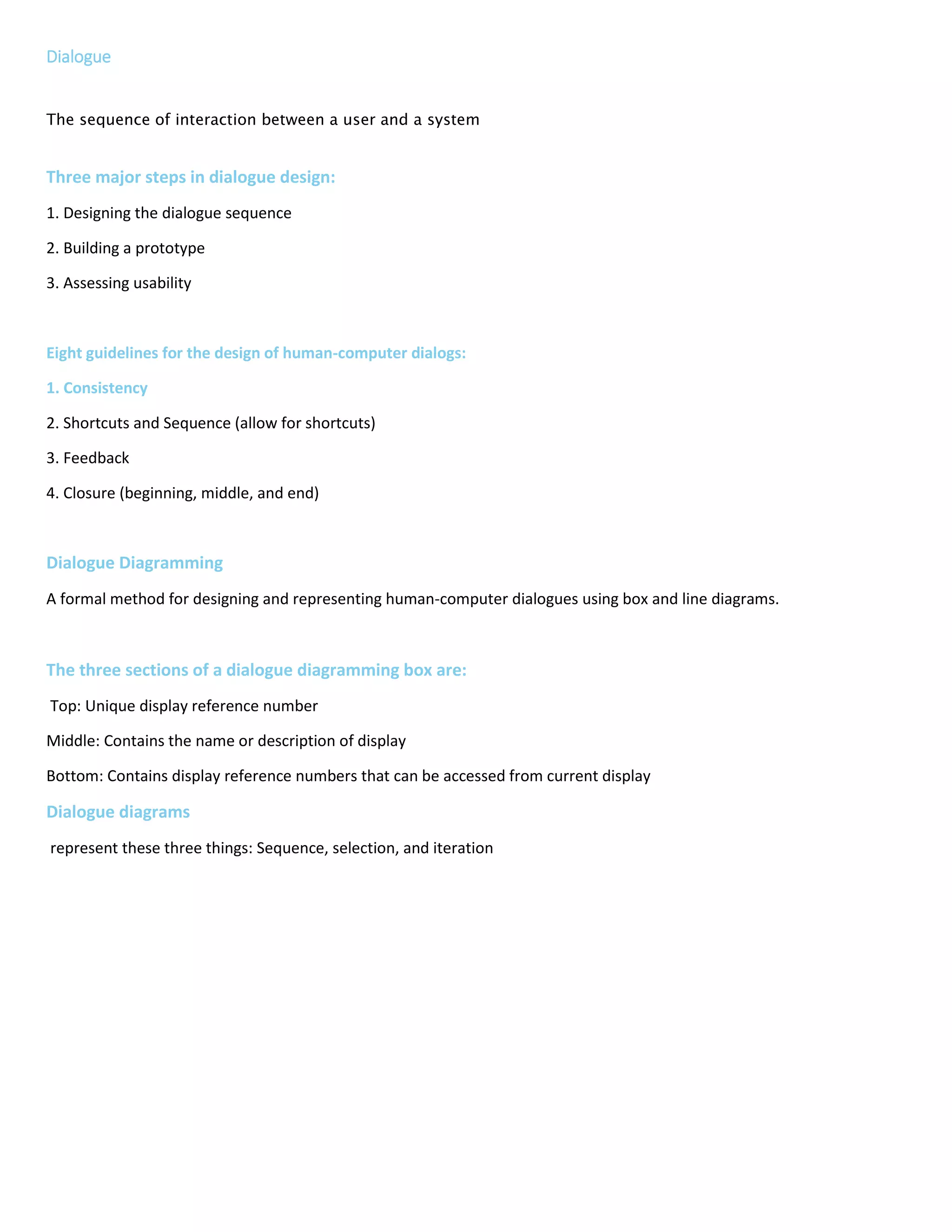
Dialogue Design
The process of designing the overall sequences that users follow to interact with an information system
Dialogue
The sequence of interaction between a user and a system
Three major steps in dialogue design:
1. Designing the dialogue sequence
2. Building a prototype
3. Assessing usability
Eight guidelines for the design of human-computer dialogs:
1. Consistency
2. Shortcuts and Sequence (allow for shortcuts)
3. Feedback
4. Closure (beginning, middle, and end)
5. Error Handling
6. Reversal (allow for it when possible)
7. Control (feel in control)
8. Ease
Dialogue Diagramming
A formal method for designing and representing human-computer dialogues using box and line diagrams.
The three sections of a dialogue diagramming box are:
Top: Unique display reference number
Middle: Contains the name or description of display
Bottom: Contains display reference numbers that can be accessed from current display
Dialogue diagrams
represent these three things: Sequence, selection, and iteration
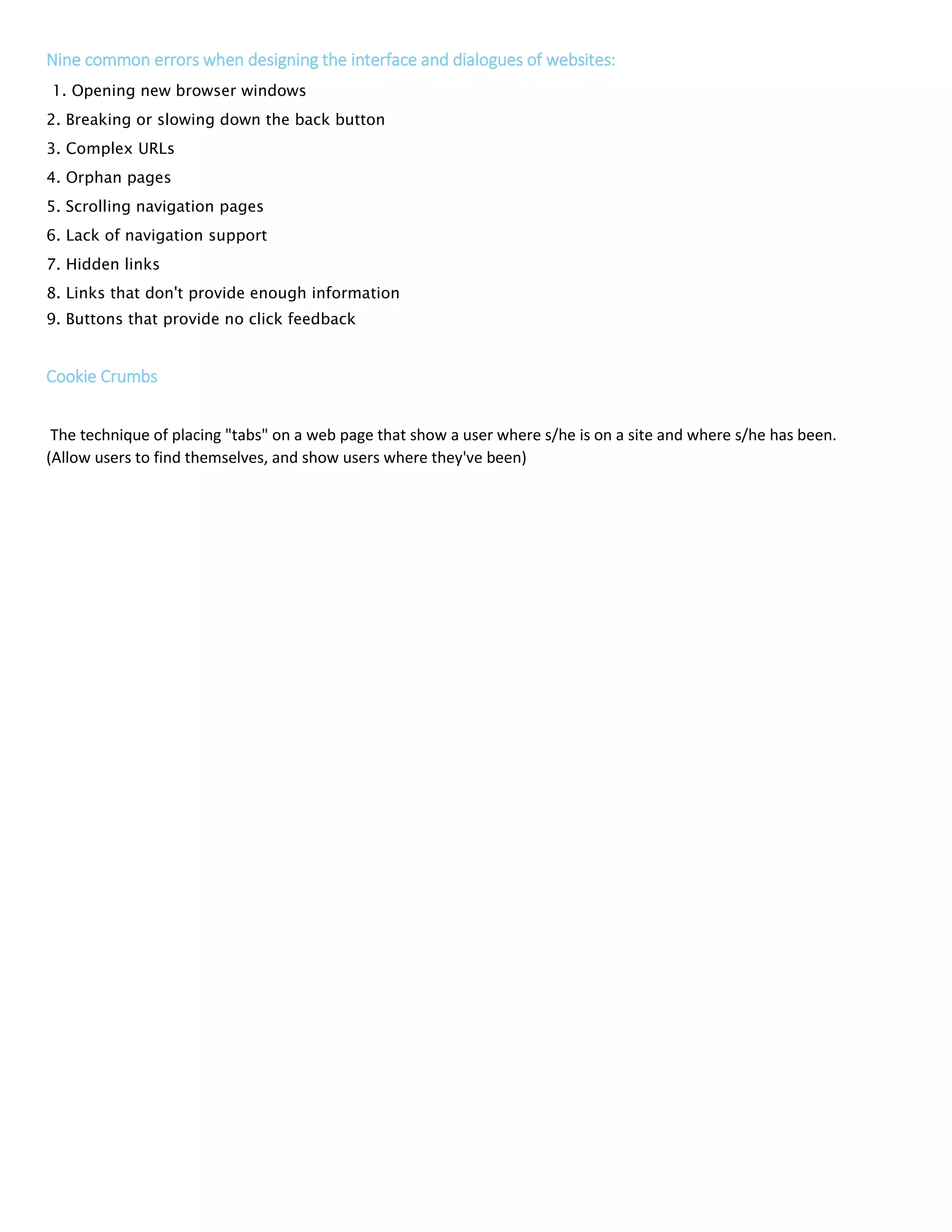
Nine common errors when designing the interface and dialogues of websites:
1. Opening new browser windows
2. Breaking or slowing down the back button
3. Complex URLs
4. Orphan pages
5. Scrolling navigation pages
6. Lack of navigation support
7. Hidden links
8. Links that don't provide enough information
9. Buttons that provide no click feedback
Cookie Crumbs
The technique of placing "tabs" on a web page that show a user where s/he is on a site and where s/he has been.
(Allow users to find themselves, and show users where they've been)
please silence
your cell phone.

Chapter 11 designing interfaces and dialogues

  • 1.
    Chapter11:designing interfacesanddialogues CreatedBy:AbdoulrhmanMohamedSalah The specificationsfor the design of interfaces and dialogues includes the following sections: 1. Narrative Overview 2. Interface/Dialogue Designs 3. Testing and Usability Assessment The Narrative Overview section contains: 1. Interface/Dialogue Name 2. User Characteristics 3. Task Characteristics 4. System Characteristics 5. Environment Characteristics The Interface/Dialogue Design section contains: 1. Form/Report Designs 2. Dialogue Sequence Diagram(s) and Narrative Description - Time to Learn - Speed of Performance - Rate of Errors
  • 2.
    The Testing andUsability Assessment Section contains: 1. Testing Objectives 2. Testing Procedures 3. Testing Results - Time to Learn - Speed of Performance - Rate of Errors - Retention over Time - User Satisfaction and Other Perceptions Interface: A method by which users interact with an information system Command Language Interaction: A human-computer interaction method whereby users enter explicit statements into a system to invoke operations. Menu Interaction: A human-computer interaction method in which a list of system options is provided and a specific command is invoked by user selection of a menu option. Pop-up menus (or dialogue box): A menu-positioning method that places a menu near the current cursor position. Drop-down menu A menu-positioning method that places the access point of the menu near the top of the line of display; when accessed, the menus open by dropping down into the display. Guidelines for Menu Design: 1. Wording (meaningful title, command verbs, and mixed upper/lowercase) 2. Organization (consistency and grouping) 3. Length (not longer than the screen, submenus) 4. Selection (consistency and clarity in selections) 5. Highlighting (minimized)
  • 3.
    Five widely-used stylesof interaction: 1. Command-line 2. Menu 3. Form 4. Object 5. Natural Language Form interaction: A highly intuitive human-computer interaction method whereby data fields are formatted in a manner similar to paper-based forms. Object-based interaction: A human-computer interaction method in which symbols are used to represent commands or functions. Natural Language Interaction: A human-computer interaction method whereby inputs to and outputs from a computer- based application are in a conventional spoken language such as English. Some common devices for interacting with an information system are: 1. Keyboard 2. Mouse 3. Joystick 4. Trackball 5. Touch Screen 6. Light Pen 7. Graphics Tablet 8. Voice List eight guidelines for structuring data entry fields: 1. Entry (Never require data entry for information you can get) 2. Defaults (Always provide defaults if appropriate) 3. Units (Make desired units clear) 4. Replacement (Drop-down and autocomplete) 5. Captioning (Always place a caption to adjacent fields) 6. Format (Provide formatting examples when appropriate) 7. Justify (Automatically left/right justify data entries) 8. Help (Provide context-sensitive help when appropriate)
  • 4.
    Four sources ofdata errors: 1. Appending (Adding additional characters to a field) 2. Truncating (Losing characters from a field) 3. Transcripting (Entering invalid data into a field) 4. Transposing (Reversing the sequence of one or more characters) Validation tests and techniques to enhance the validity of data input: 1. Class or Composition (all correct type) 2. Combinations (does A make sense given B) 3. Expected Values 4. Missing Data 5. Pictures/Templates (correct length, hyphenation, etc.) 6. Range 7. Reasonableness 8. Self-Checking Digits (like a checksum appended to number) 9. Size 10. Values Three types of system feedback: 1. Status information 2. Prompting cues 3. Error or warning messages Three guidelines for designing usable help 1. Simplicity 2. Organize 3. Show (examples) Dialogue Design The process of designing the overall sequences that users follow to interact with an information system
  • 5.
    Dialogue The sequence ofinteraction between a user and a system Three major steps in dialogue design: 1. Designing the dialogue sequence 2. Building a prototype 3. Assessing usability Eight guidelines for the design of human-computer dialogs: 1. Consistency 2. Shortcuts and Sequence (allow for shortcuts) 3. Feedback 4. Closure (beginning, middle, and end) 5. Error Handling 6. Reversal (allow for it when possible) 7. Control (feel in control) 8. Ease Dialogue Diagramming A formal method for designing and representing human-computer dialogues using box and line diagrams. The three sections of a dialogue diagramming box are: Top: Unique display reference number Middle: Contains the name or description of display Bottom: Contains display reference numbers that can be accessed from current display Dialogue diagrams represent these three things: Sequence, selection, and iteration
  • 6.
    Nine common errorswhen designing the interface and dialogues of websites: 1. Opening new browser windows 2. Breaking or slowing down the back button 3. Complex URLs 4. Orphan pages 5. Scrolling navigation pages 6. Lack of navigation support 7. Hidden links 8. Links that don't provide enough information 9. Buttons that provide no click feedback Cookie Crumbs The technique of placing "tabs" on a web page that show a user where s/he is on a site and where s/he has been. (Allow users to find themselves, and show users where they've been)
  • 9.