Bulk Order Processing
(LMD)
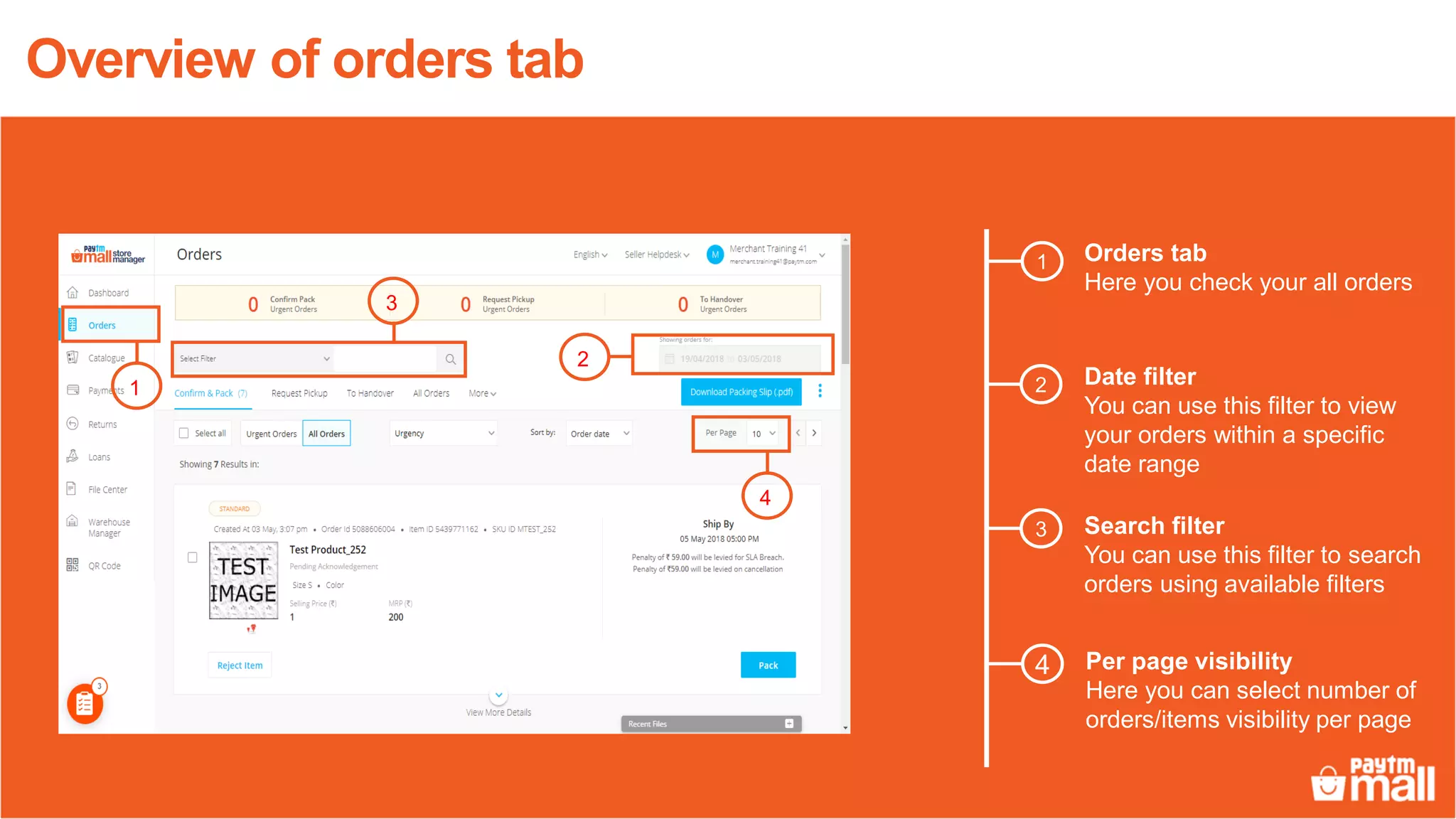
Orders tab
Here you check your all orders
Overview of orders tab
1
2
1 2
3
Date filter
You can use this filter to view
your orders within a specific
date range
Search filter
You can use this filter to search
orders using available filters
2
3
1
4
4 Per page visibility
Here you can select number of
orders/items visibility per page
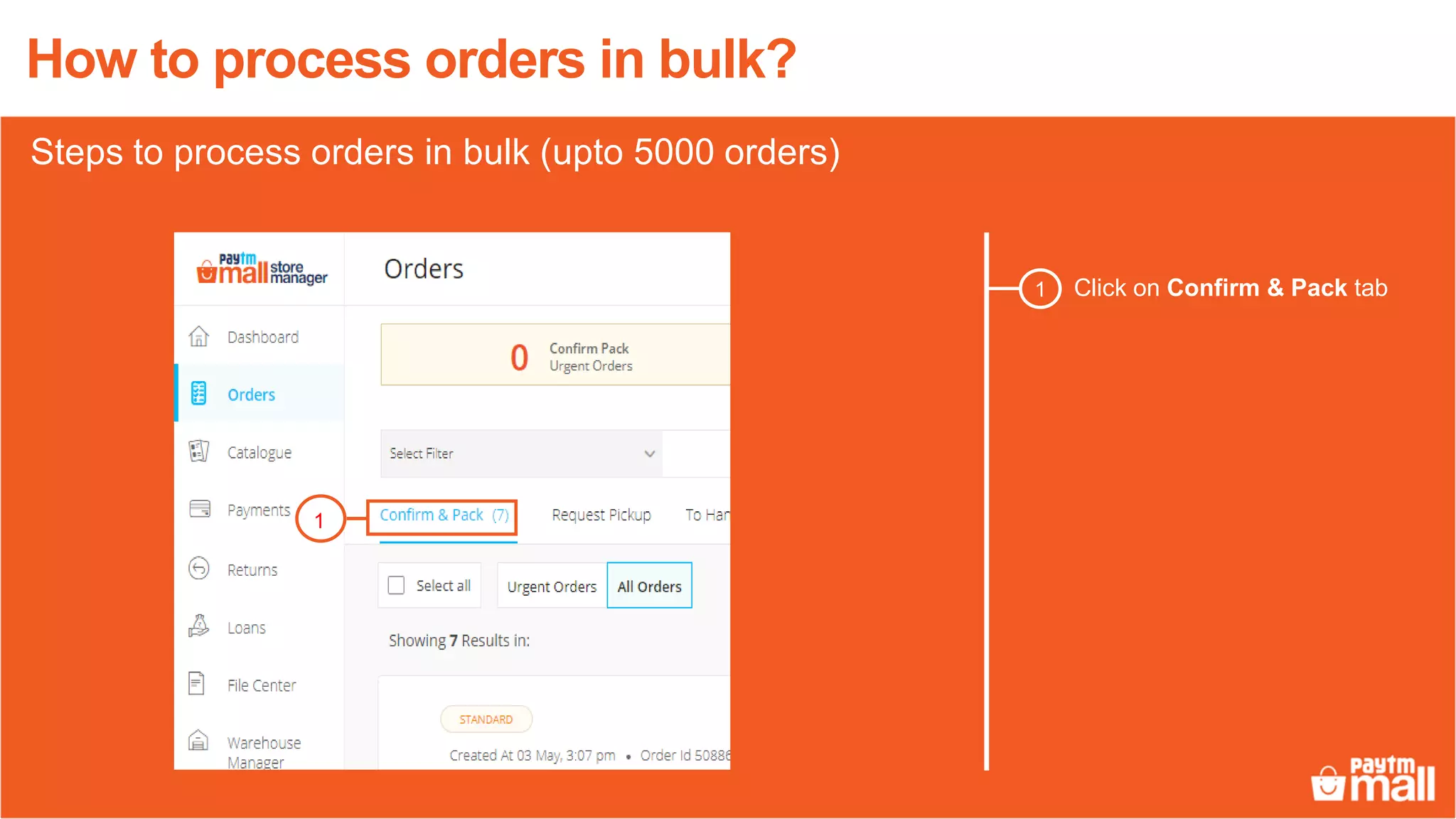
Click on Confirm & Pack tab1
1
Steps to process orders in bulk (upto 5000 orders)
How to process orders in bulk?
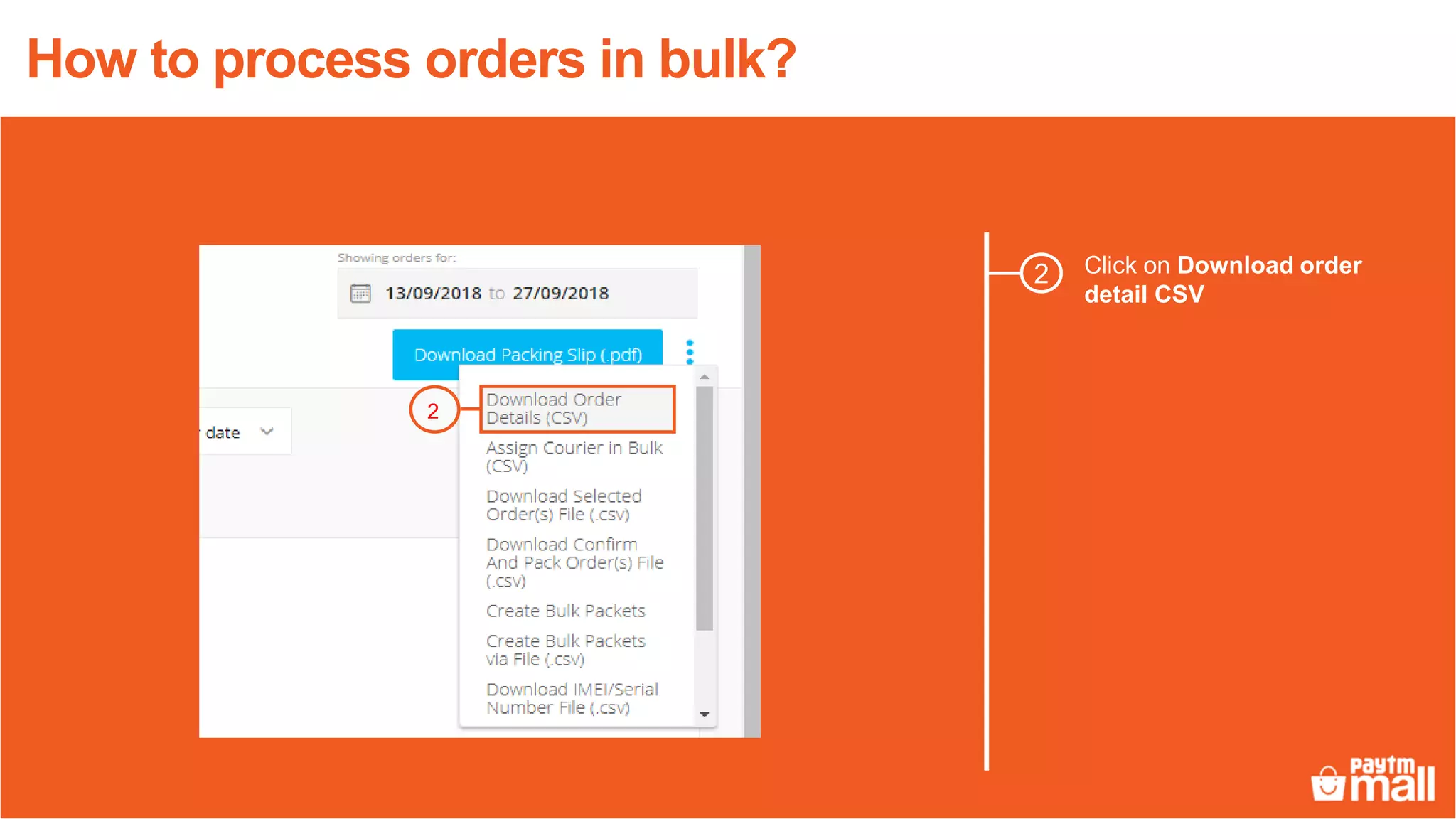
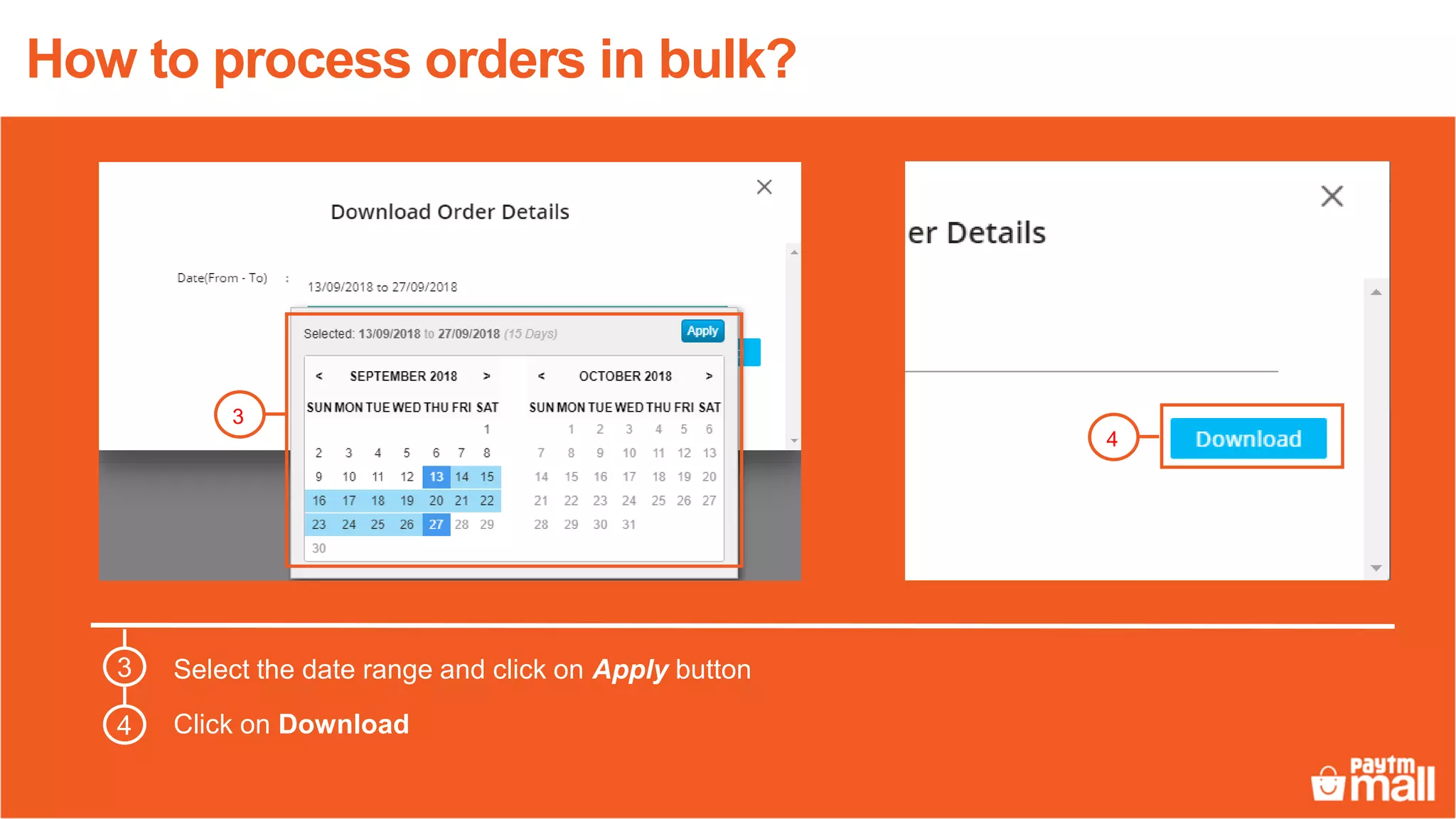
Click on Download order
detail CSV
2
2
How to process orders in bulk?
3
Select the date range and click on Apply button
Click on Download
3
4
4
How to process orders in bulk?
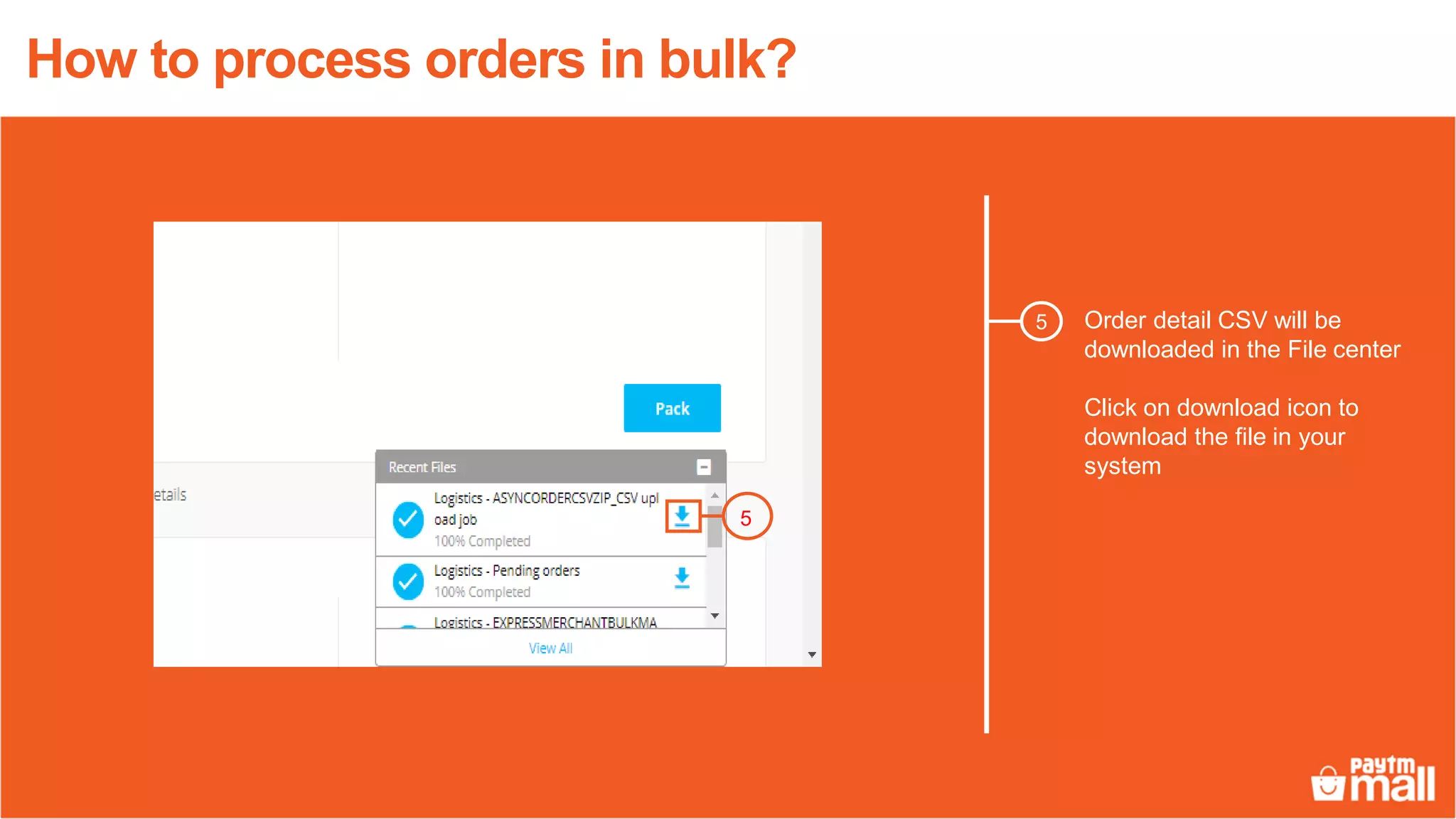
Order detail CSV will be
downloaded in the File center
Click on download icon to
download the file in your
system
5
5
How to process orders in bulk?
3
4
26
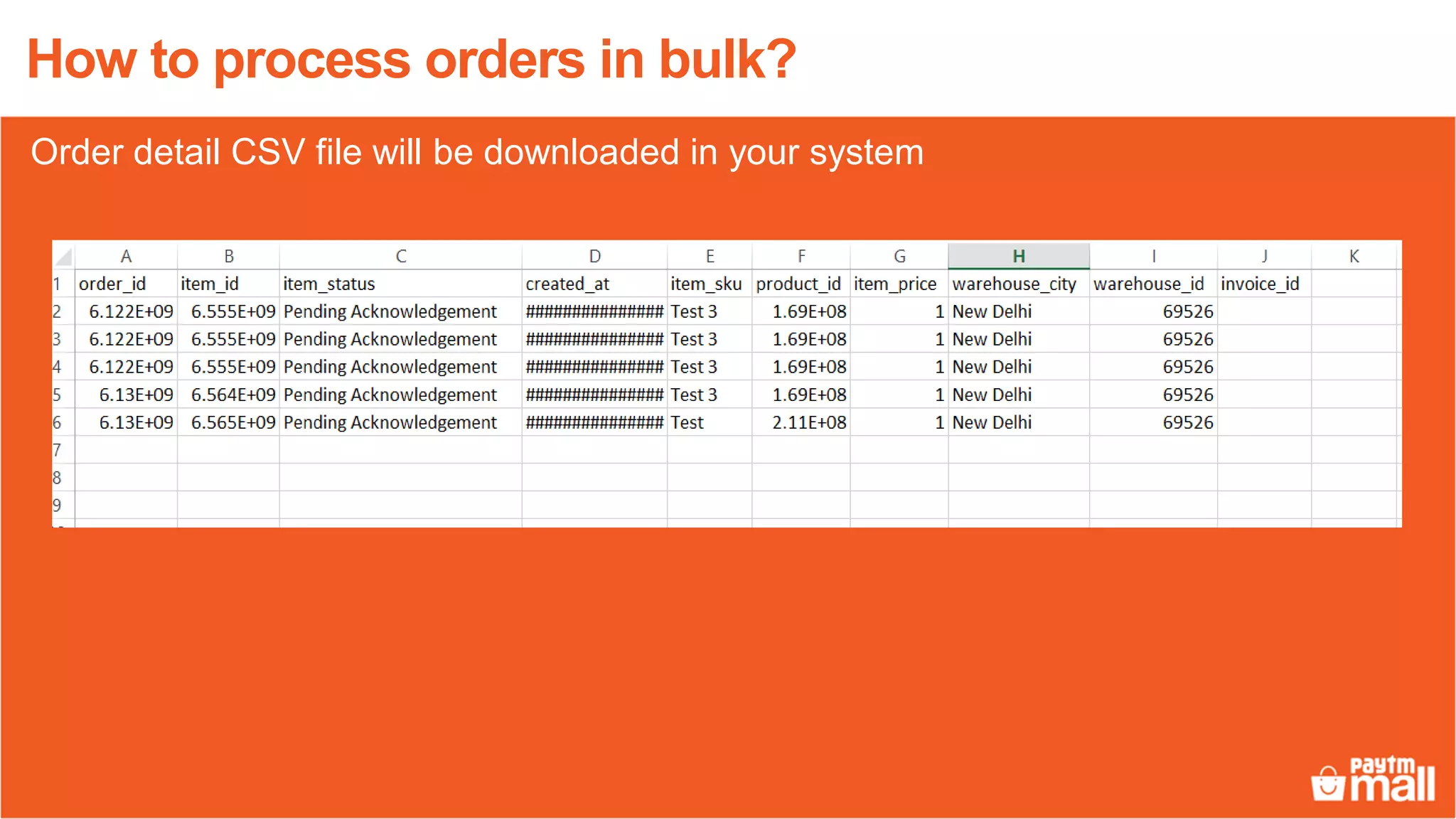
Order detail CSV file will be downloaded in your system
How to process orders in bulk?
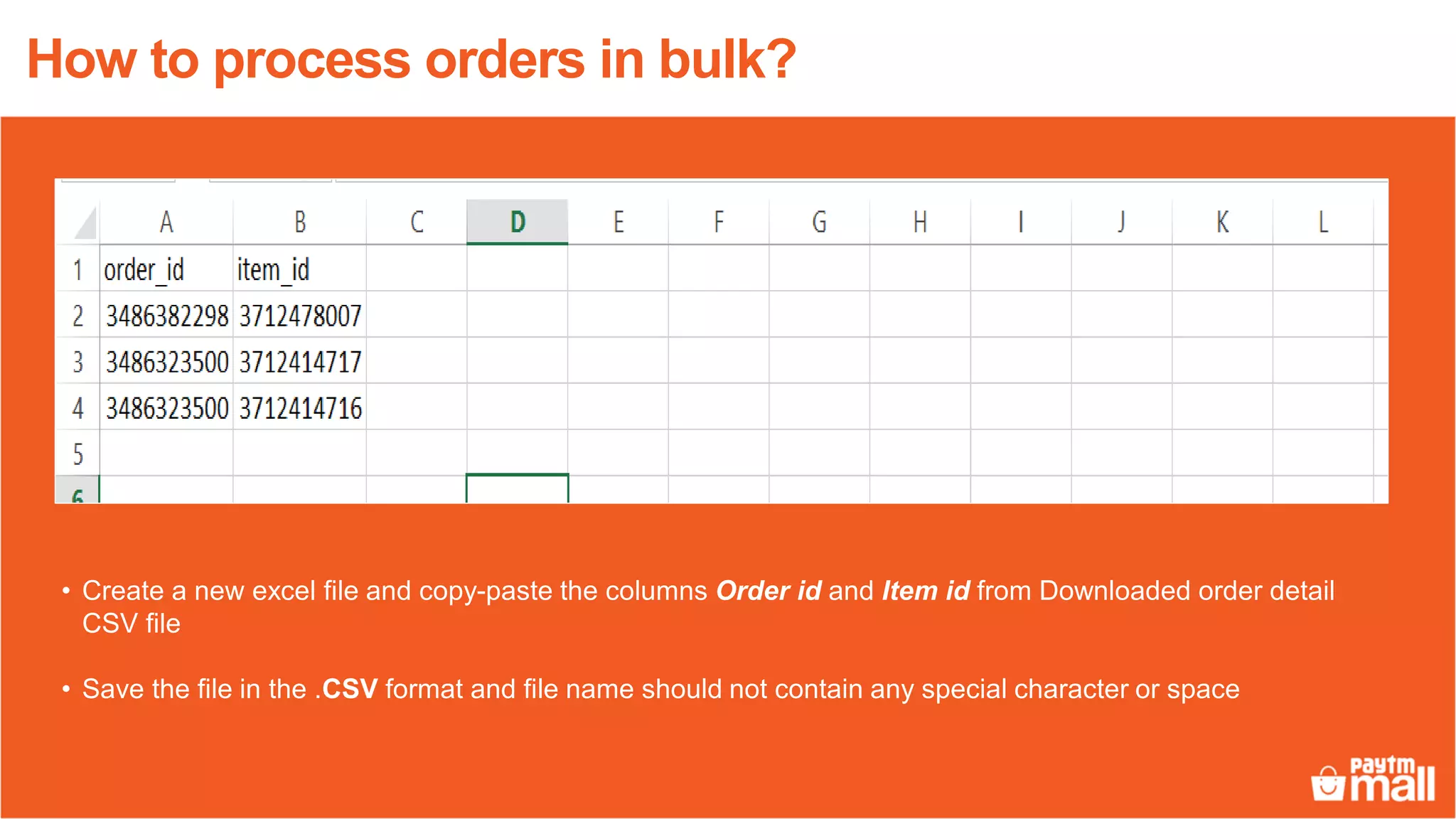
• Create a new excel file and copy-paste the columns Order id and Item id from Downloaded order detail
CSV file
• Save the file in the .CSV format and file name should not contain any special character or space
How to process orders in bulk?
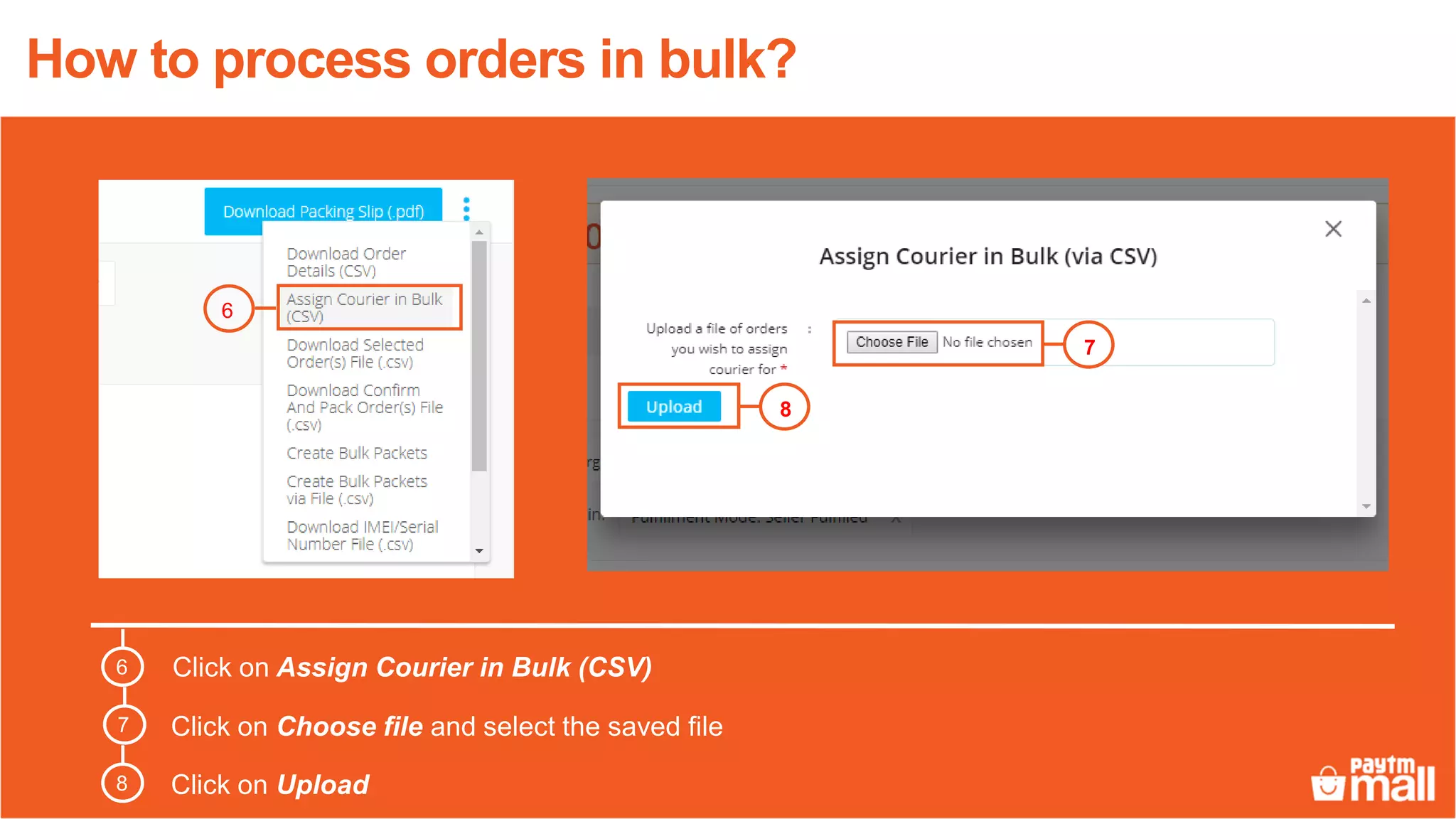
Click on Assign Courier in Bulk (CSV)
Click on Choose file and select the saved file
Click on Upload
7
8
6
7
8
How to process orders in bulk?
6
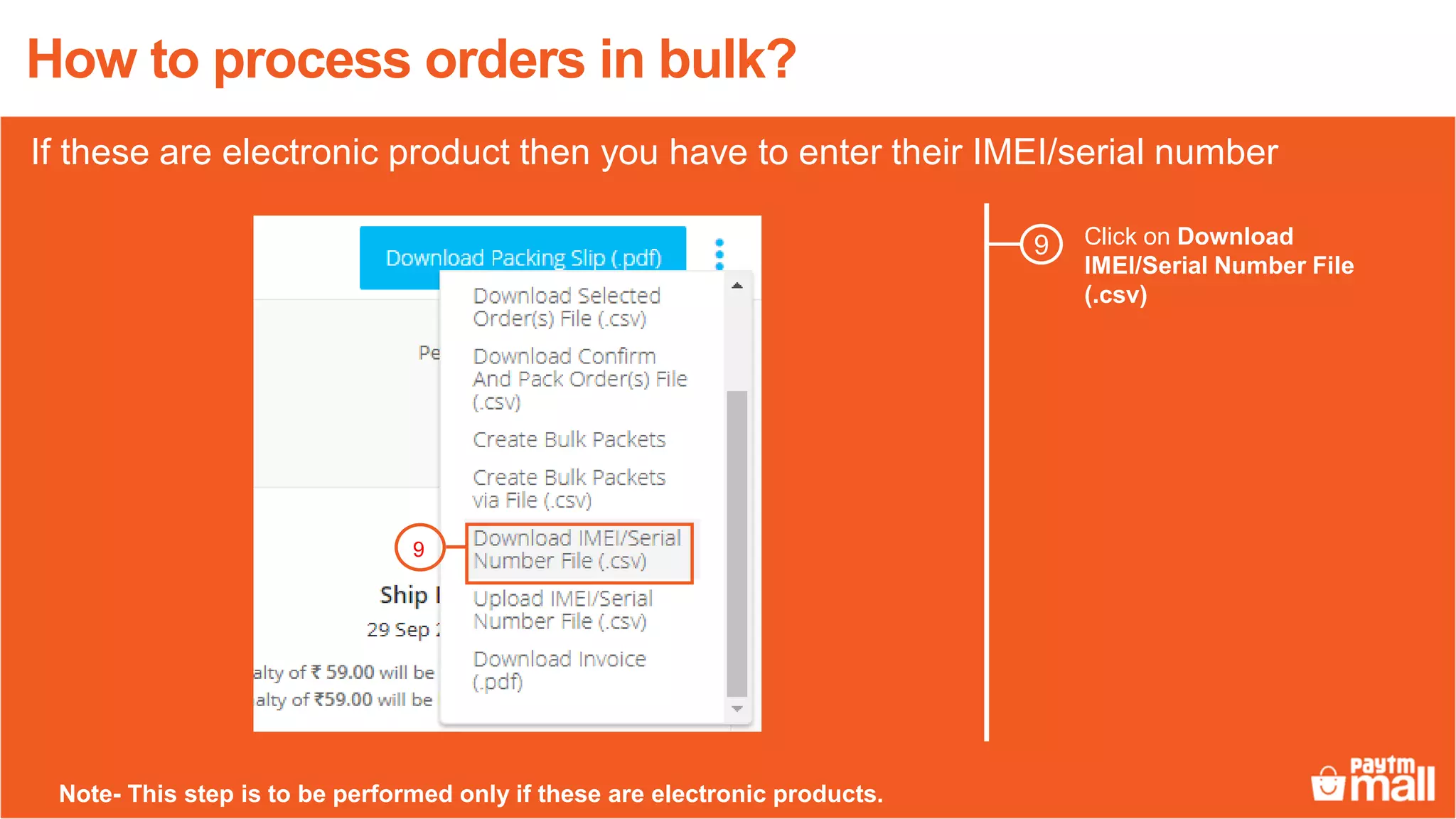
Click on Download
IMEI/Serial Number File
(.csv)
9
How to process orders in bulk?
9
If these are electronic product then you have to enter their IMEI/serial number
Note- This step is to be performed only if these are electronic products.
3
4
26
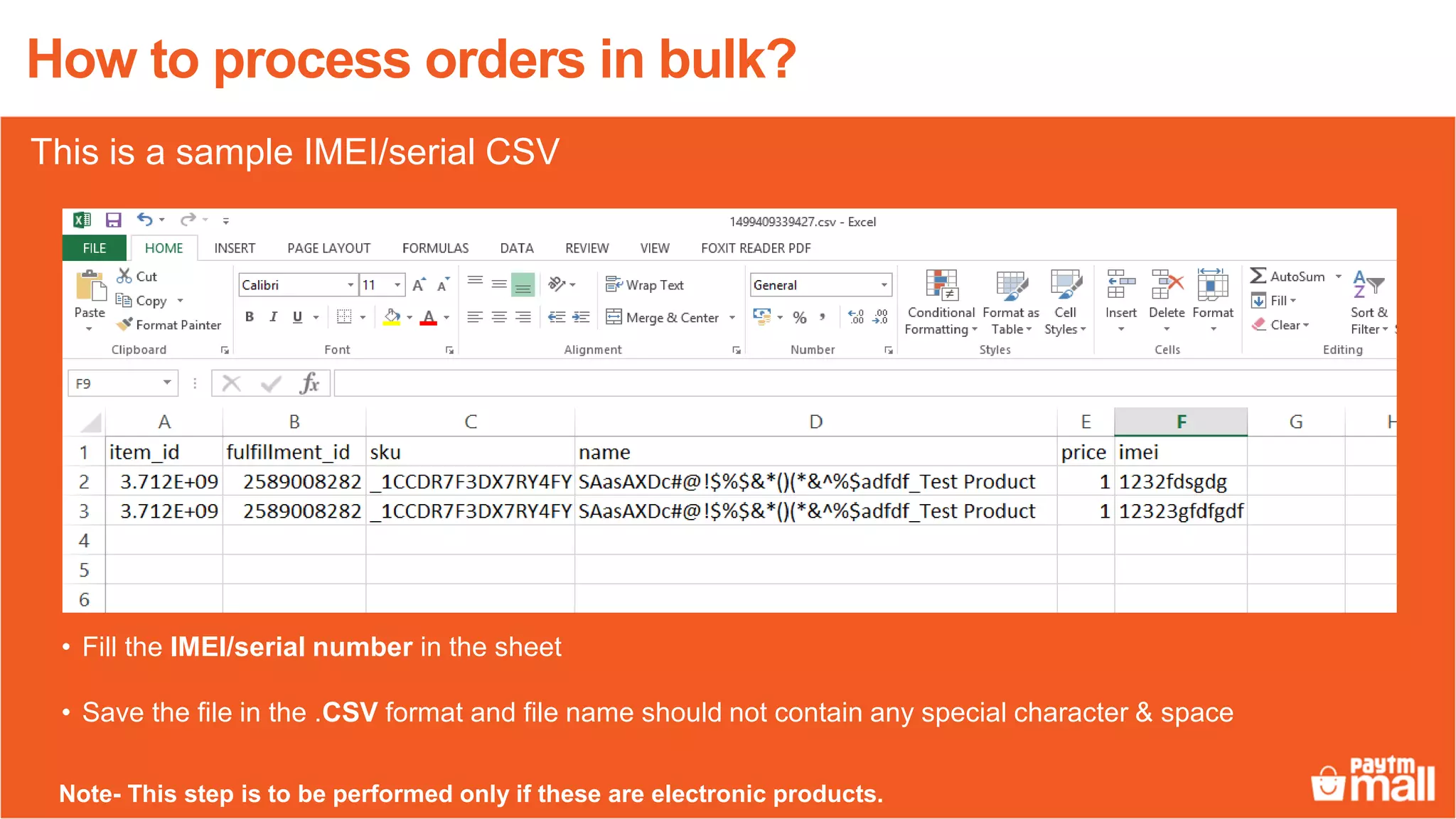
• Fill the IMEI/serial number in the sheet
• Save the file in the .CSV format and file name should not contain any special character & space
How to process orders in bulk?
This is a sample IMEI/serial CSV
Note- This step is to be performed only if these are electronic products.
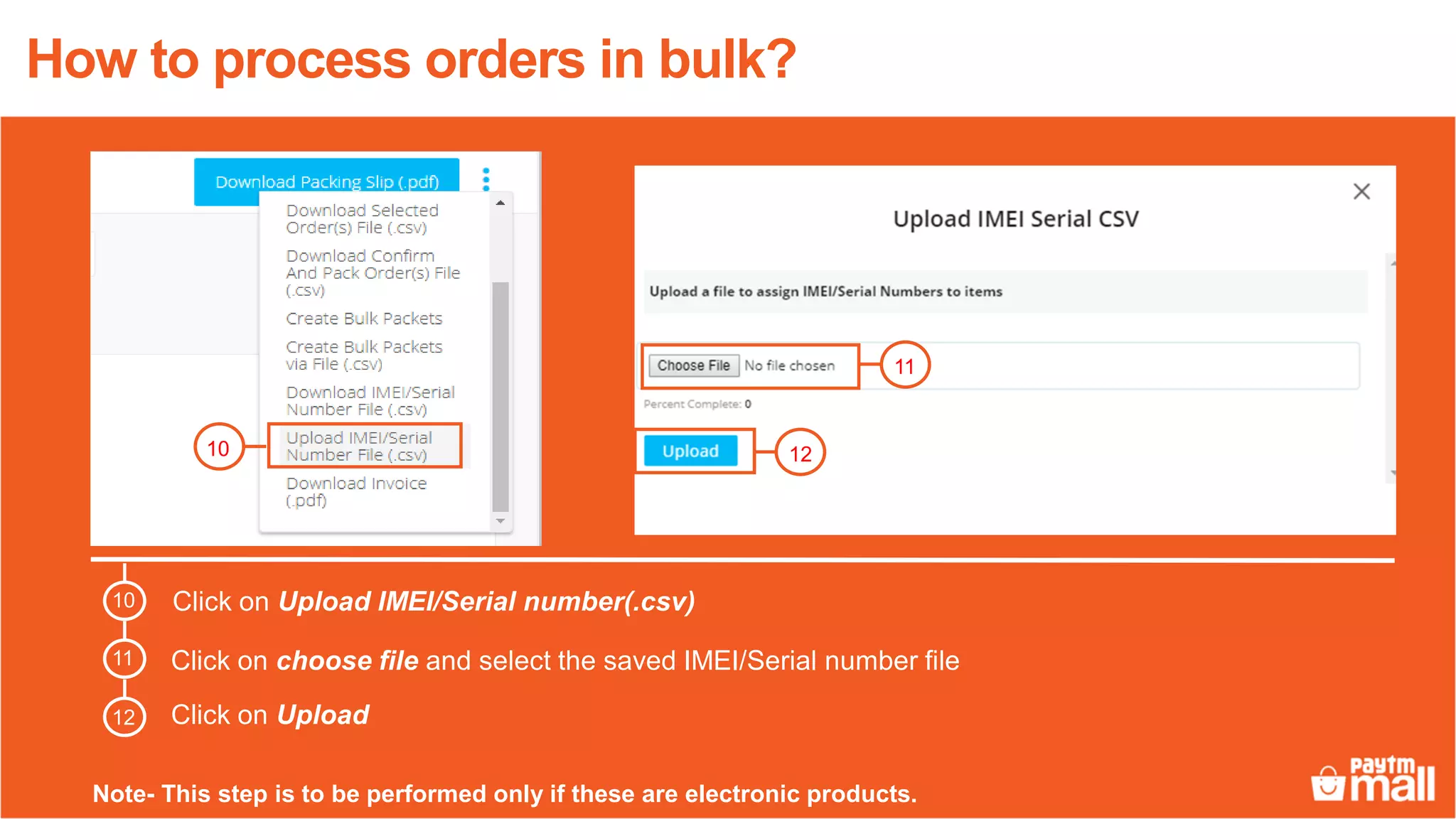
Click on Upload IMEI/Serial number(.csv)
Click on choose file and select the saved IMEI/Serial number file
1210
Click on Upload
11
How to process orders in bulk?
10
11
12
Note- This step is to be performed only if these are electronic products.
6
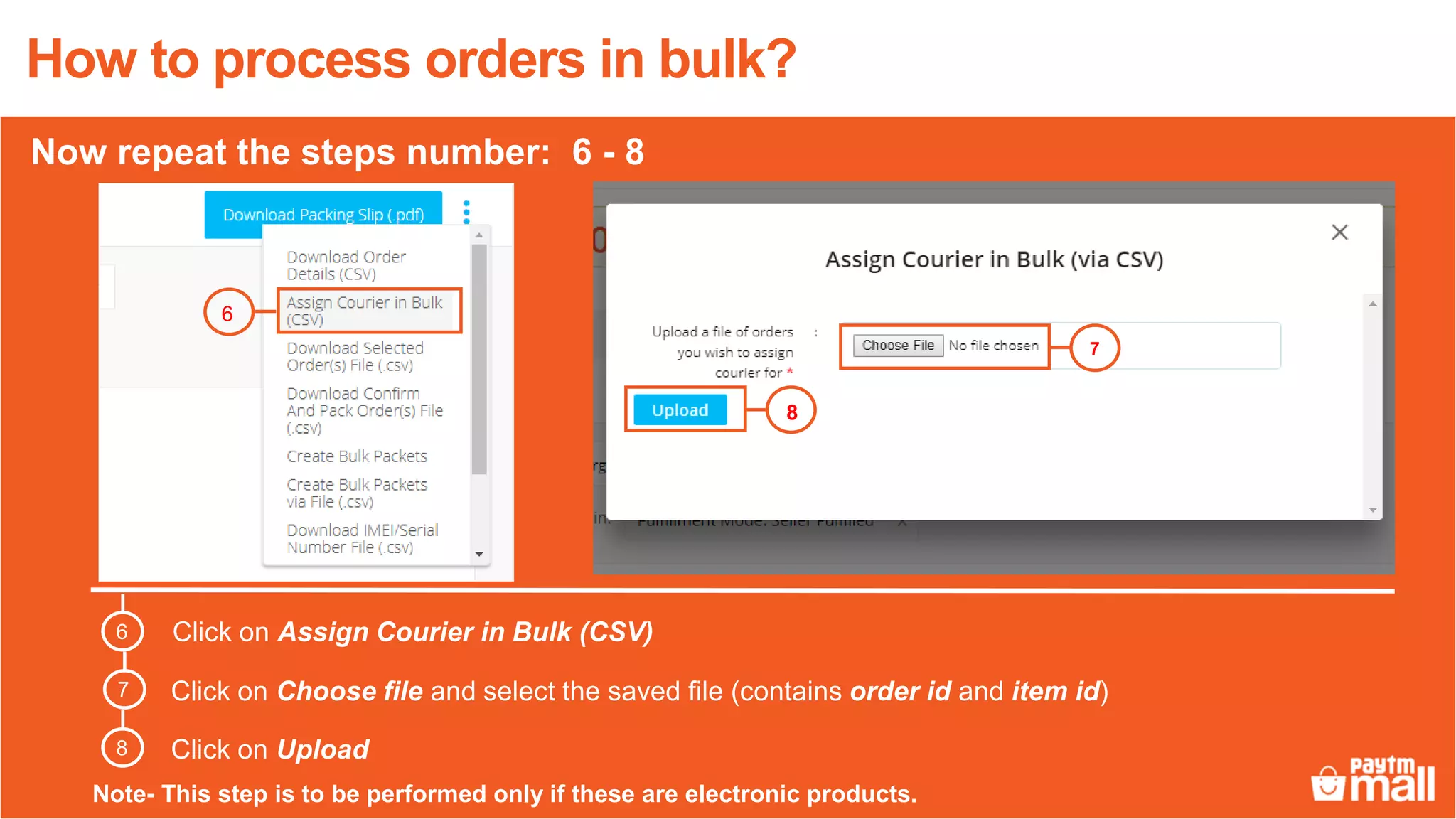
Click on Assign Courier in Bulk (CSV)
Click on Choose file and select the saved file (contains order id and item id)
Click on Upload
7
8
6
7
8
How to process orders in bulk?
Now repeat the steps number: 6 - 8
Note- This step is to be performed only if these are electronic products.
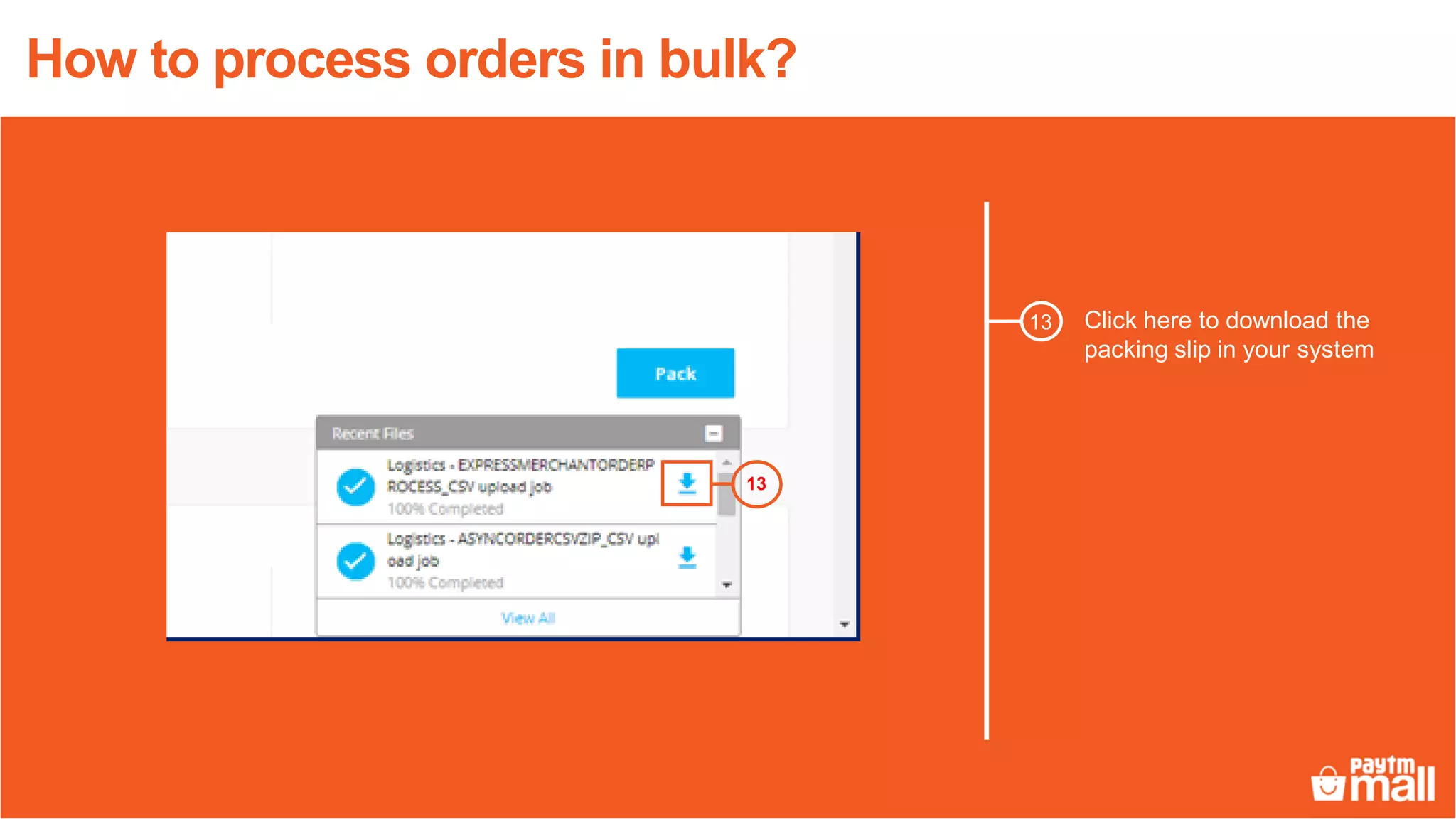
Click here to download the
packing slip in your system
13
13
How to process orders in bulk?
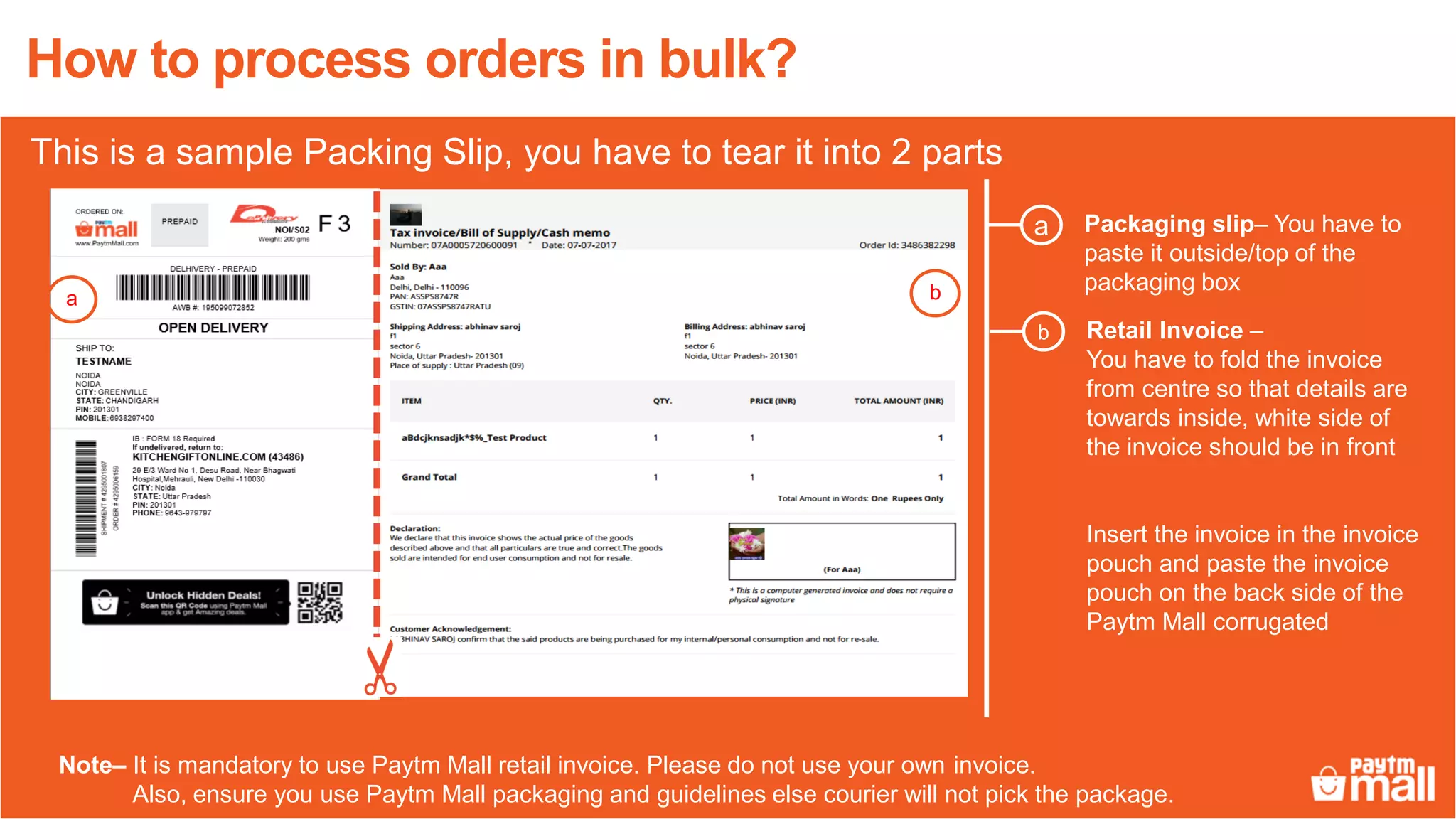
Packaging slip– You have to
paste it outside/top of the
packaging box
a
Note– It is mandatory to use Paytm Mall retail invoice. Please do not use your own invoice.
Also, ensure you use Paytm Mall packaging and guidelines else courier will not pick the package.
a b
Retail Invoice –
You have to fold the invoice
from centre so that details are
towards inside, white side of
the invoice should be in front
Insert the invoice in the invoice
pouch and paste the invoice
pouch on the back side of the
Paytm Mall corrugated
b
How to process orders in bulk?
This is a sample Packing Slip, you have to tear it into 2 parts
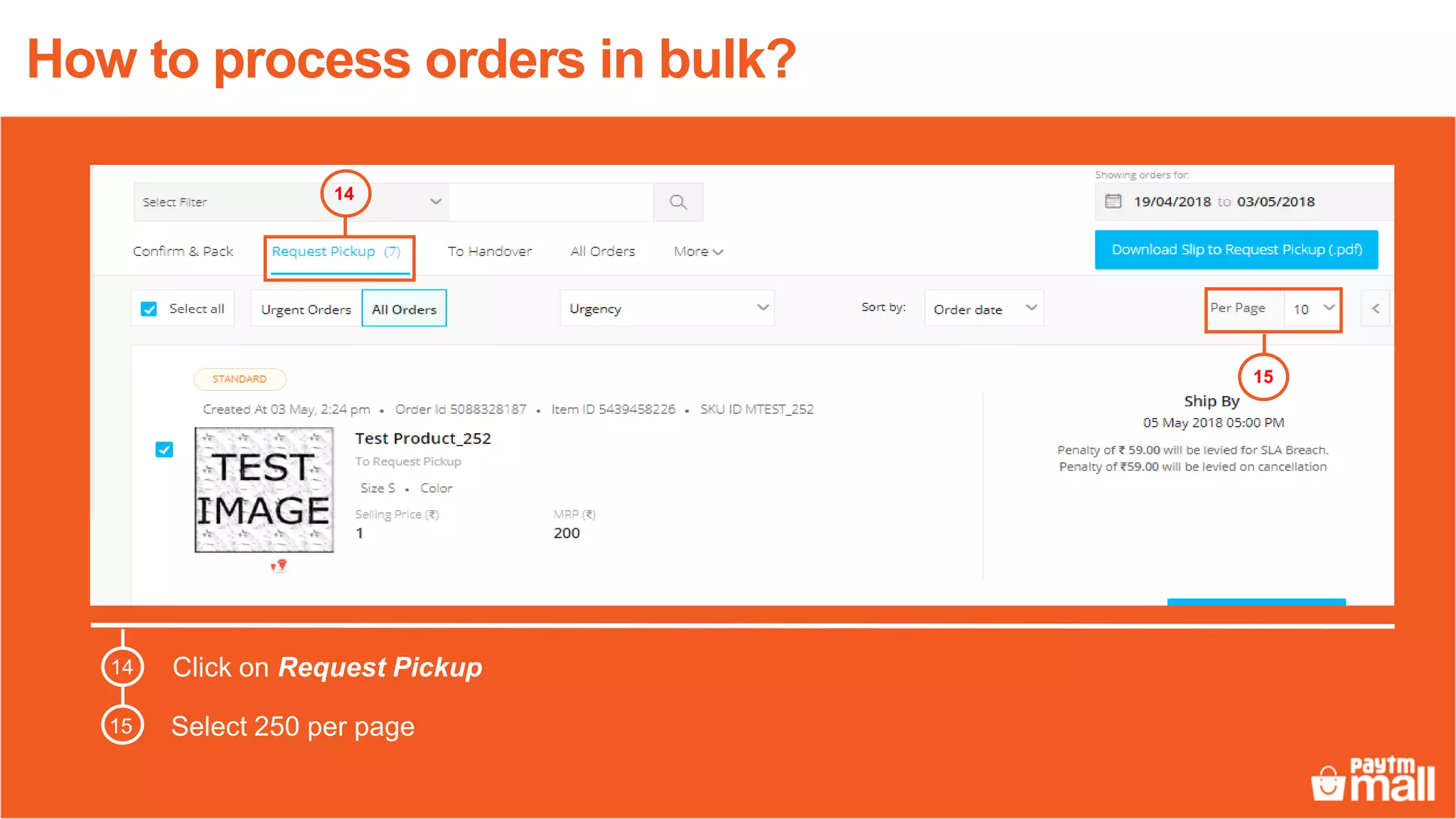
Click on Request Pickup
Select 250 per page
14
15
14
15
How to process orders in bulk?
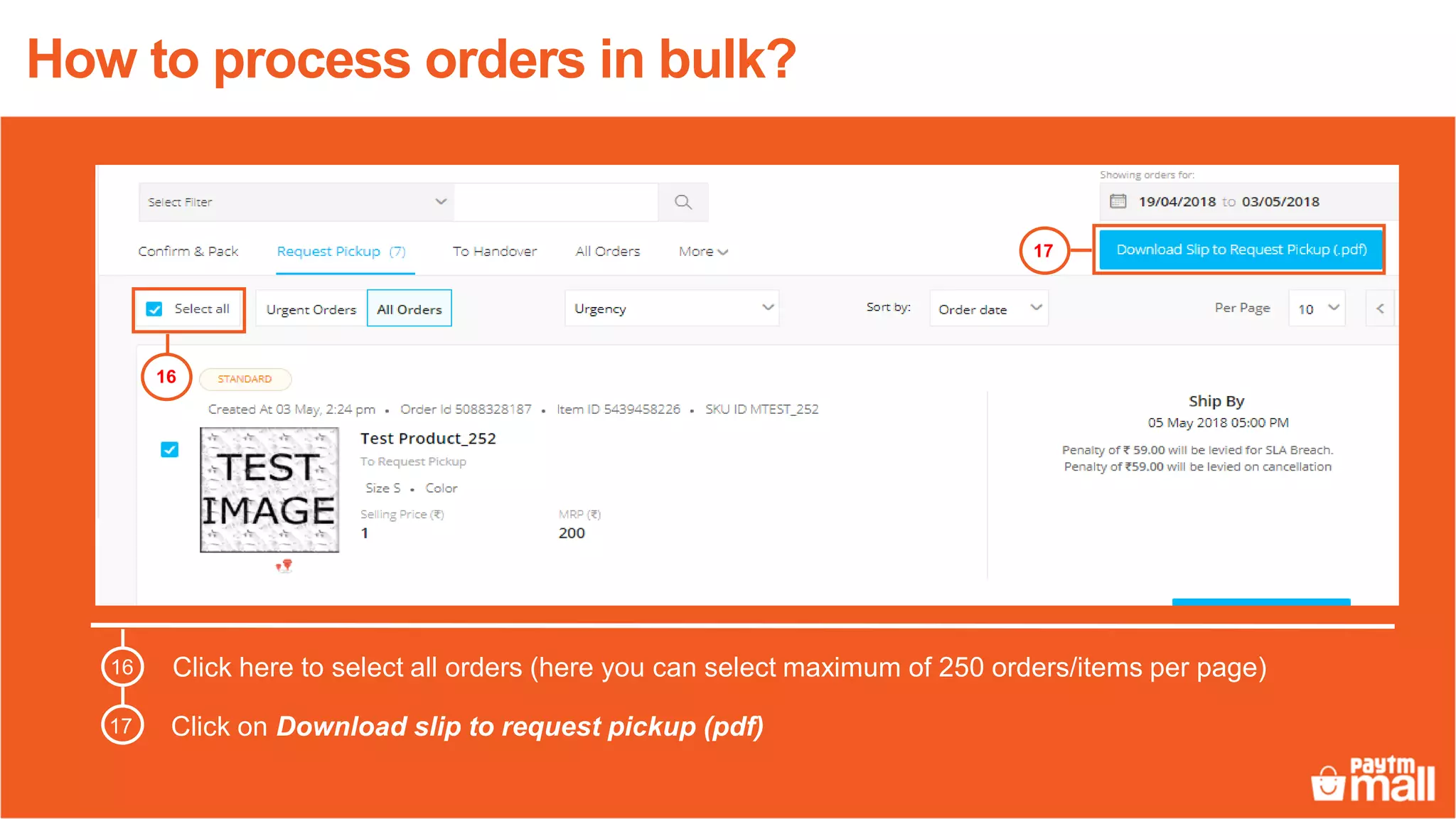
Click here to select all orders (here you can select maximum of 250 orders/items per page)
Click on Download slip to request pickup (pdf)
17
16
16
17
How to process orders in bulk?
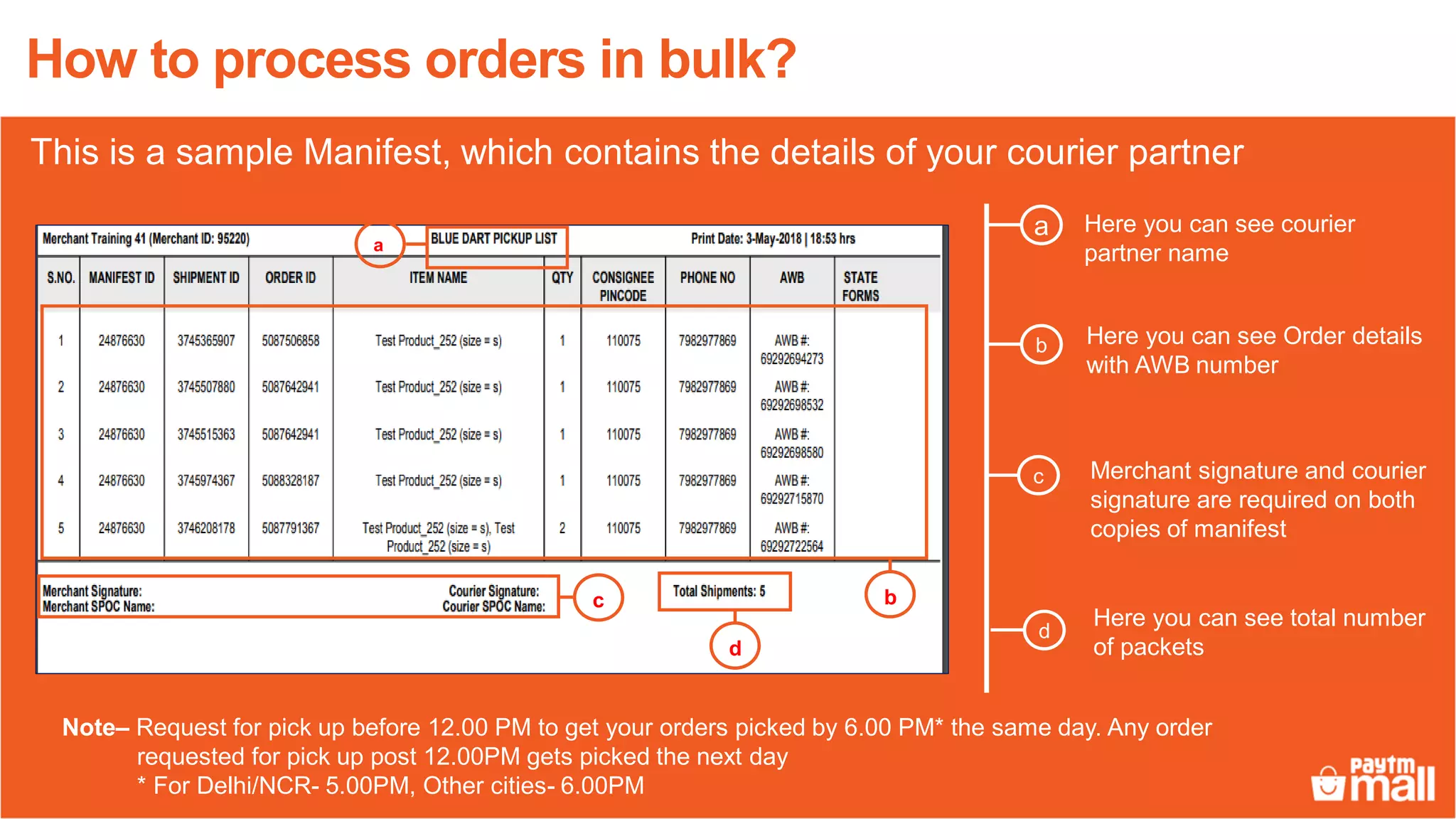
This is a sample Manifest, which contains the details of your courier partner
Note– Request for pick up before 12.00 PM to get your orders picked by 6.00 PM* the same day. Any order
requested for pick up post 12.00PM gets picked the next day
* For Delhi/NCR- 5.00PM, Other cities- 6.00PM
Here you can see courier
partner name
a
Here you can see Order details
with AWB number
c
b
d
Merchant signature and courier
signature are required on both
copies of manifest
Here you can see total number
of packets
How to process orders in bulk?
c
a
d
b
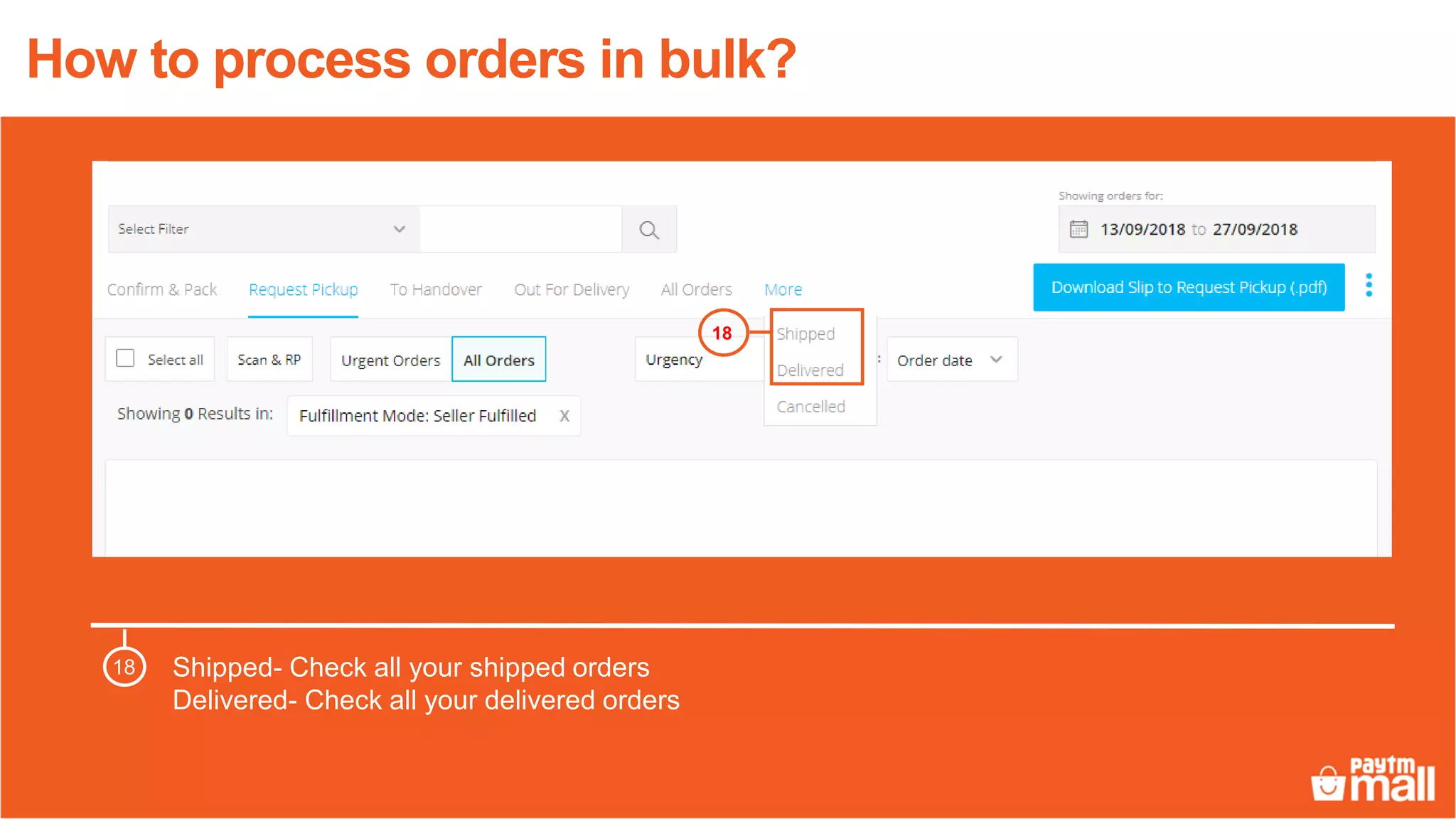
Shipped- Check all your shipped orders
Delivered- Check all your delivered orders
18
18
How to process orders in bulk?
Thanks everyone!
For any query, please raise a ticket on support

Bulk order processing for LMD sellers

  • 1.
  • 2.
    Orders tab Here youcheck your all orders Overview of orders tab 1 2 1 2 3 Date filter You can use this filter to view your orders within a specific date range Search filter You can use this filter to search orders using available filters 2 3 1 4 4 Per page visibility Here you can select number of orders/items visibility per page
  • 3.
    Click on Confirm& Pack tab1 1 Steps to process orders in bulk (upto 5000 orders) How to process orders in bulk?
  • 4.
    Click on Downloadorder detail CSV 2 2 How to process orders in bulk?
  • 5.
    3 Select the daterange and click on Apply button Click on Download 3 4 4 How to process orders in bulk?
  • 6.
    Order detail CSVwill be downloaded in the File center Click on download icon to download the file in your system 5 5 How to process orders in bulk?
  • 7.
    3 4 26 Order detail CSVfile will be downloaded in your system How to process orders in bulk?
  • 8.
    • Create anew excel file and copy-paste the columns Order id and Item id from Downloaded order detail CSV file • Save the file in the .CSV format and file name should not contain any special character or space How to process orders in bulk?
  • 9.
    Click on AssignCourier in Bulk (CSV) Click on Choose file and select the saved file Click on Upload 7 8 6 7 8 How to process orders in bulk? 6
  • 10.
    Click on Download IMEI/SerialNumber File (.csv) 9 How to process orders in bulk? 9 If these are electronic product then you have to enter their IMEI/serial number Note- This step is to be performed only if these are electronic products.
  • 11.
    3 4 26 • Fill theIMEI/serial number in the sheet • Save the file in the .CSV format and file name should not contain any special character & space How to process orders in bulk? This is a sample IMEI/serial CSV Note- This step is to be performed only if these are electronic products.
  • 12.
    Click on UploadIMEI/Serial number(.csv) Click on choose file and select the saved IMEI/Serial number file 1210 Click on Upload 11 How to process orders in bulk? 10 11 12 Note- This step is to be performed only if these are electronic products.
  • 13.
    6 Click on AssignCourier in Bulk (CSV) Click on Choose file and select the saved file (contains order id and item id) Click on Upload 7 8 6 7 8 How to process orders in bulk? Now repeat the steps number: 6 - 8 Note- This step is to be performed only if these are electronic products.
  • 14.
    Click here todownload the packing slip in your system 13 13 How to process orders in bulk?
  • 15.
    Packaging slip– Youhave to paste it outside/top of the packaging box a Note– It is mandatory to use Paytm Mall retail invoice. Please do not use your own invoice. Also, ensure you use Paytm Mall packaging and guidelines else courier will not pick the package. a b Retail Invoice – You have to fold the invoice from centre so that details are towards inside, white side of the invoice should be in front Insert the invoice in the invoice pouch and paste the invoice pouch on the back side of the Paytm Mall corrugated b How to process orders in bulk? This is a sample Packing Slip, you have to tear it into 2 parts
  • 16.
    Click on RequestPickup Select 250 per page 14 15 14 15 How to process orders in bulk?
  • 17.
    Click here toselect all orders (here you can select maximum of 250 orders/items per page) Click on Download slip to request pickup (pdf) 17 16 16 17 How to process orders in bulk?
  • 18.
    This is asample Manifest, which contains the details of your courier partner Note– Request for pick up before 12.00 PM to get your orders picked by 6.00 PM* the same day. Any order requested for pick up post 12.00PM gets picked the next day * For Delhi/NCR- 5.00PM, Other cities- 6.00PM Here you can see courier partner name a Here you can see Order details with AWB number c b d Merchant signature and courier signature are required on both copies of manifest Here you can see total number of packets How to process orders in bulk? c a d b
  • 19.
    Shipped- Check allyour shipped orders Delivered- Check all your delivered orders 18 18 How to process orders in bulk?
  • 20.
    Thanks everyone! For anyquery, please raise a ticket on support