Bulk Order Processing
(Non-LMD)
In this module, we will discuss:-
1. Order lifecycle
2. About self ship (Non-LMD) Sellers
3. Steps to process orders in bulk
4. Checking shipped and delivered orders
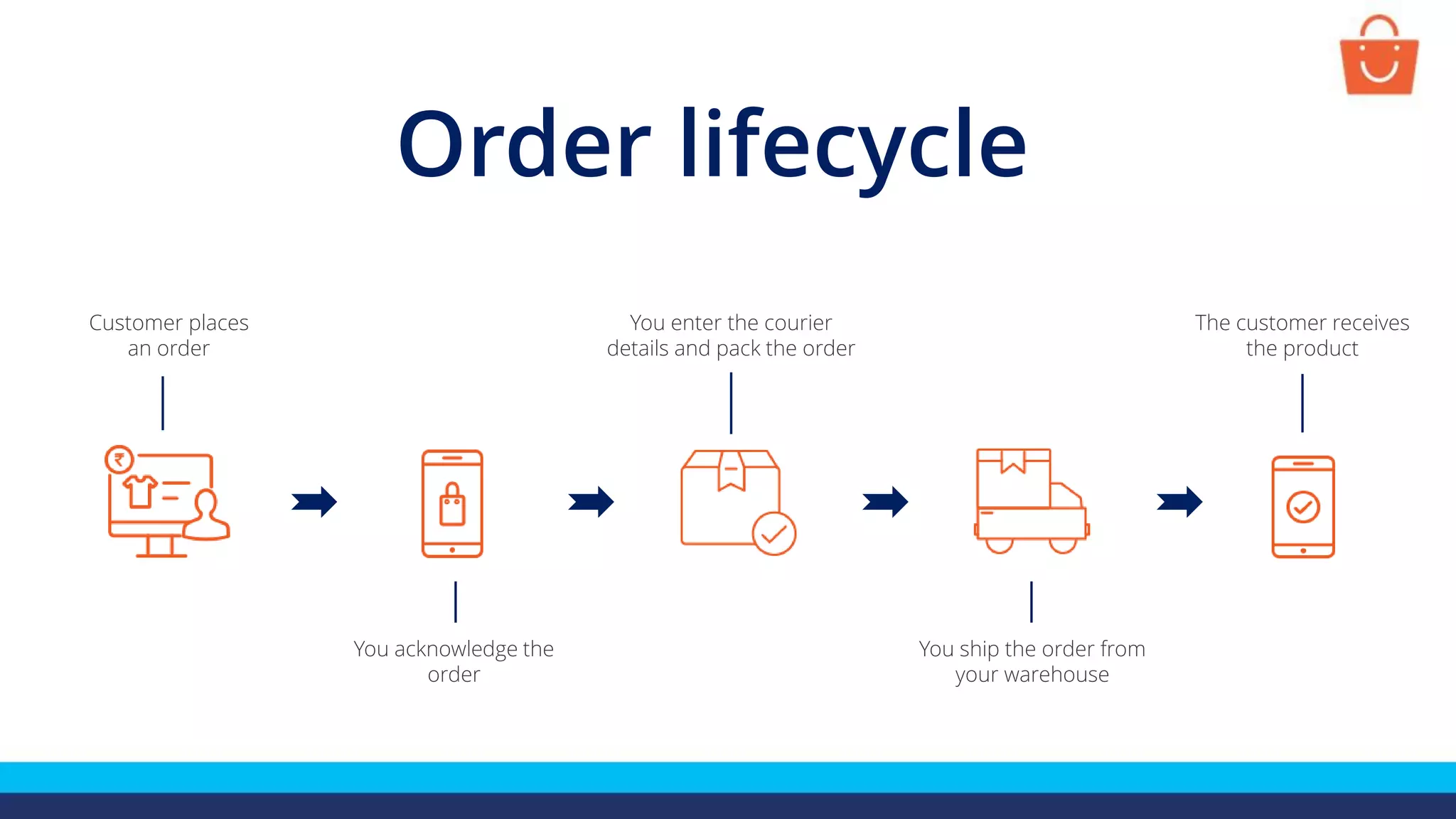
Order lifecycle
You acknowledge the
order
You ship the order from
your warehouse
The customer receives
the product
Customer places
an order
You enter the courier
details and pack the order
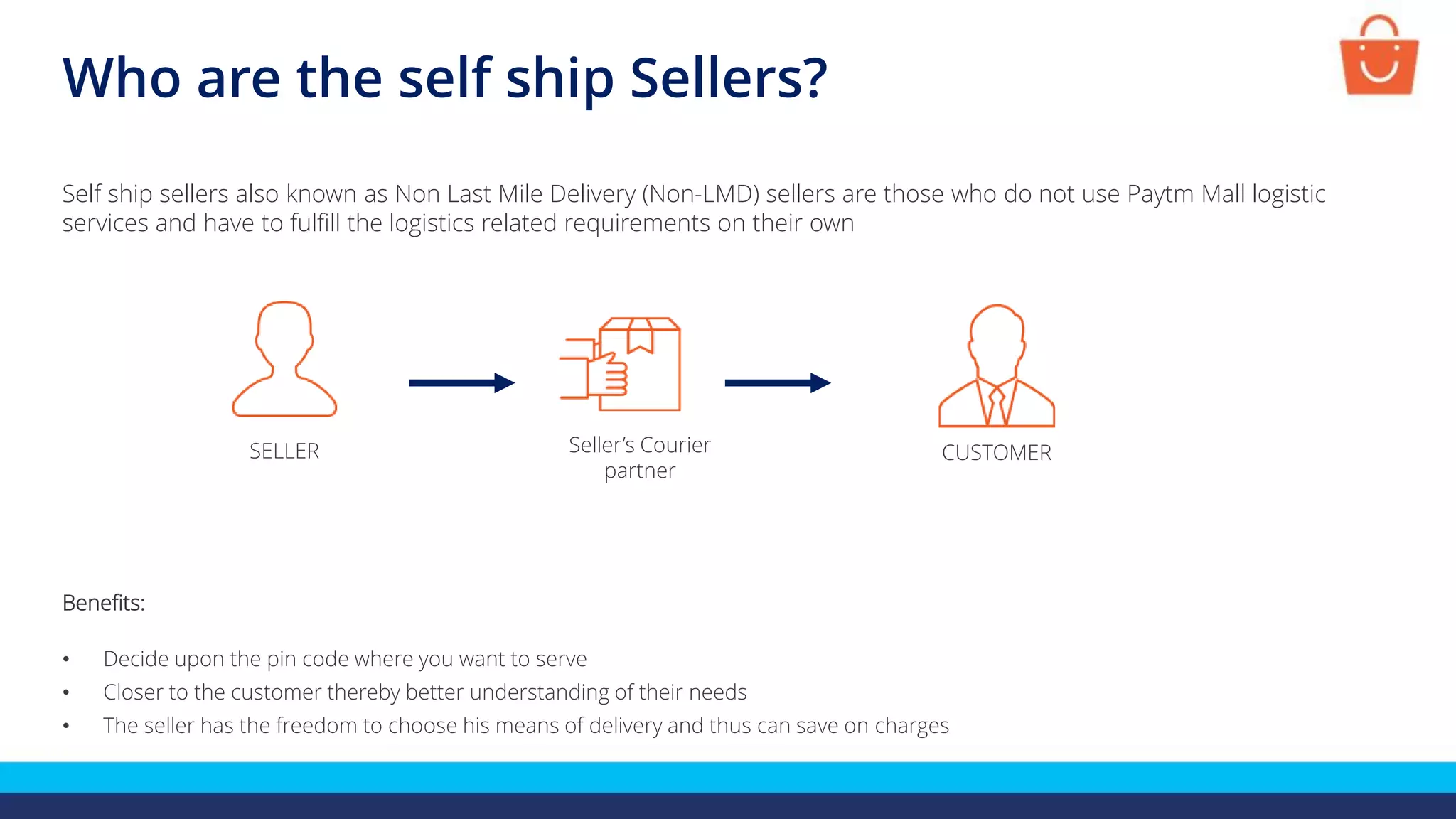
Self ship sellers also known as Non Last Mile Delivery (Non-LMD) sellers are those who do not use Paytm Mall logistic
services and have to fulfill the logistics related requirements on their own
Benefits:
• Decide upon the pin code where you want to serve
• Closer to the customer thereby better understanding of their needs
• The seller has the freedom to choose his means of delivery and thus can save on charges
SELLER CUSTOMER
Seller’s Courier
partner
Who are the self ship Sellers?
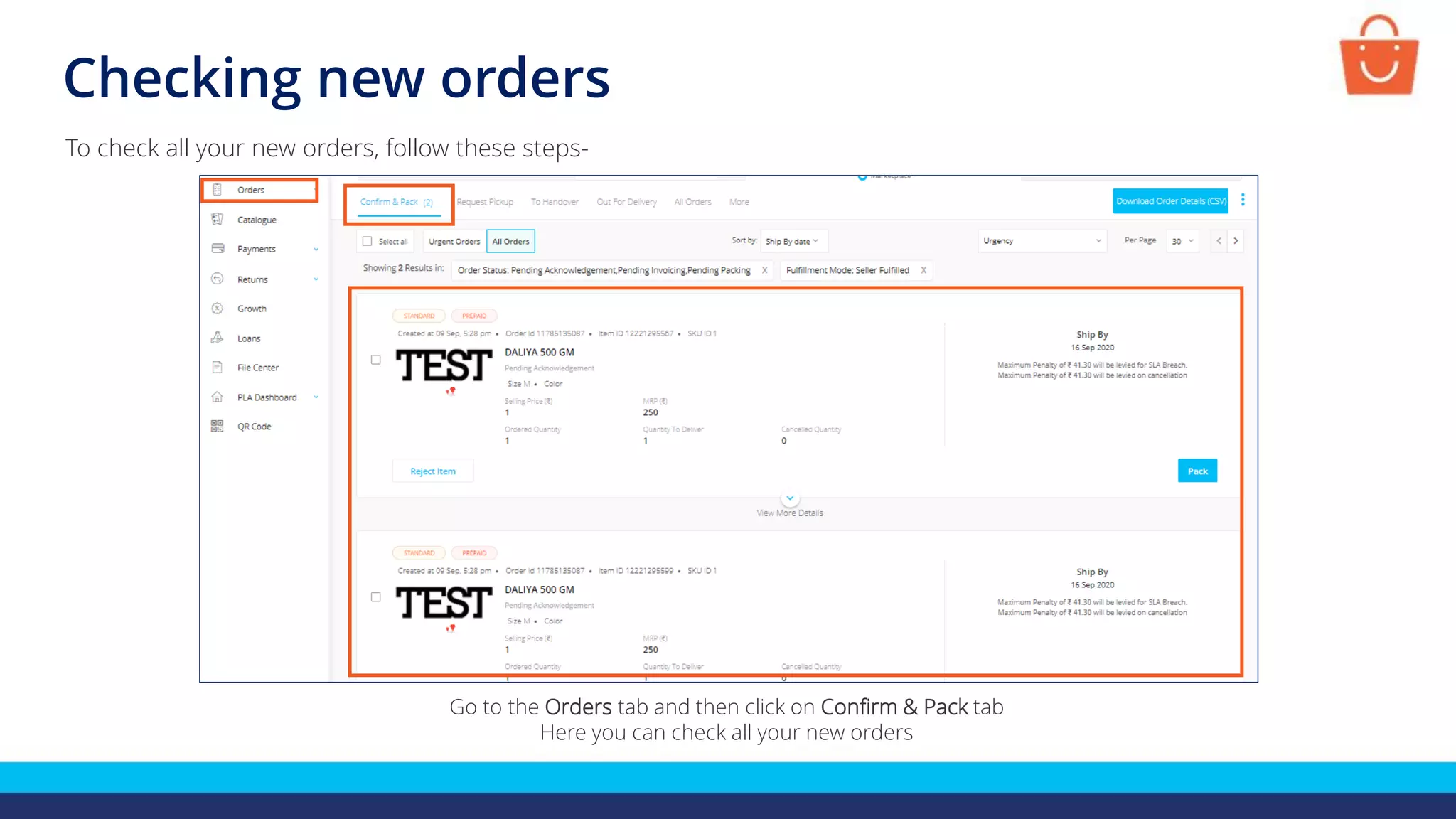
Checking new orders
To check all your new orders, follow these steps-
Go to the Orders tab and then click on Confirm & Pack tab
Here you can check all your new orders
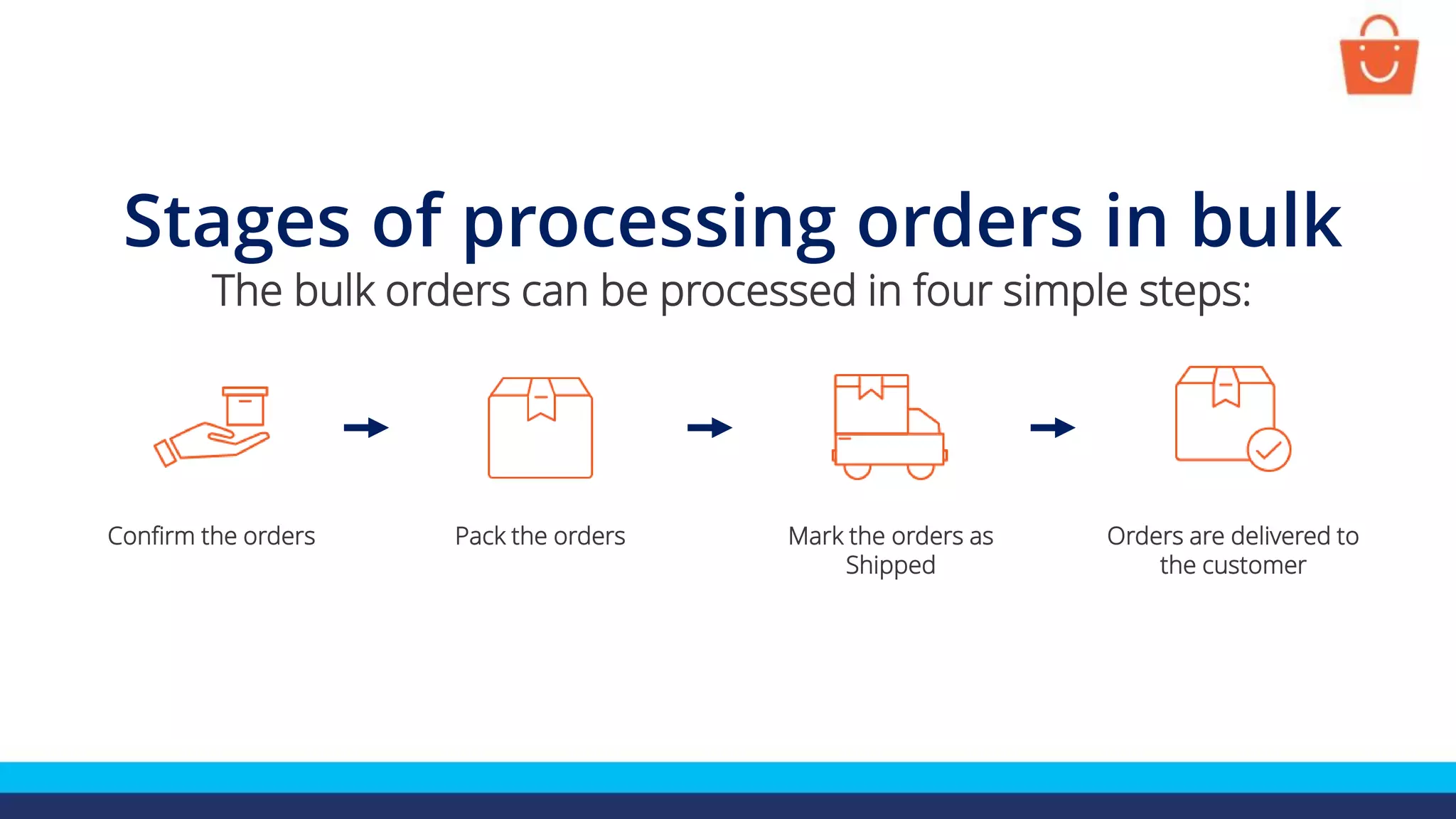
Stages of processing orders in bulk
The bulk orders can be processed in four simple steps:
Confirm the orders Mark the orders as
Shipped
Orders are delivered to
the customer
Pack the orders
Steps to confirm orders in bulk
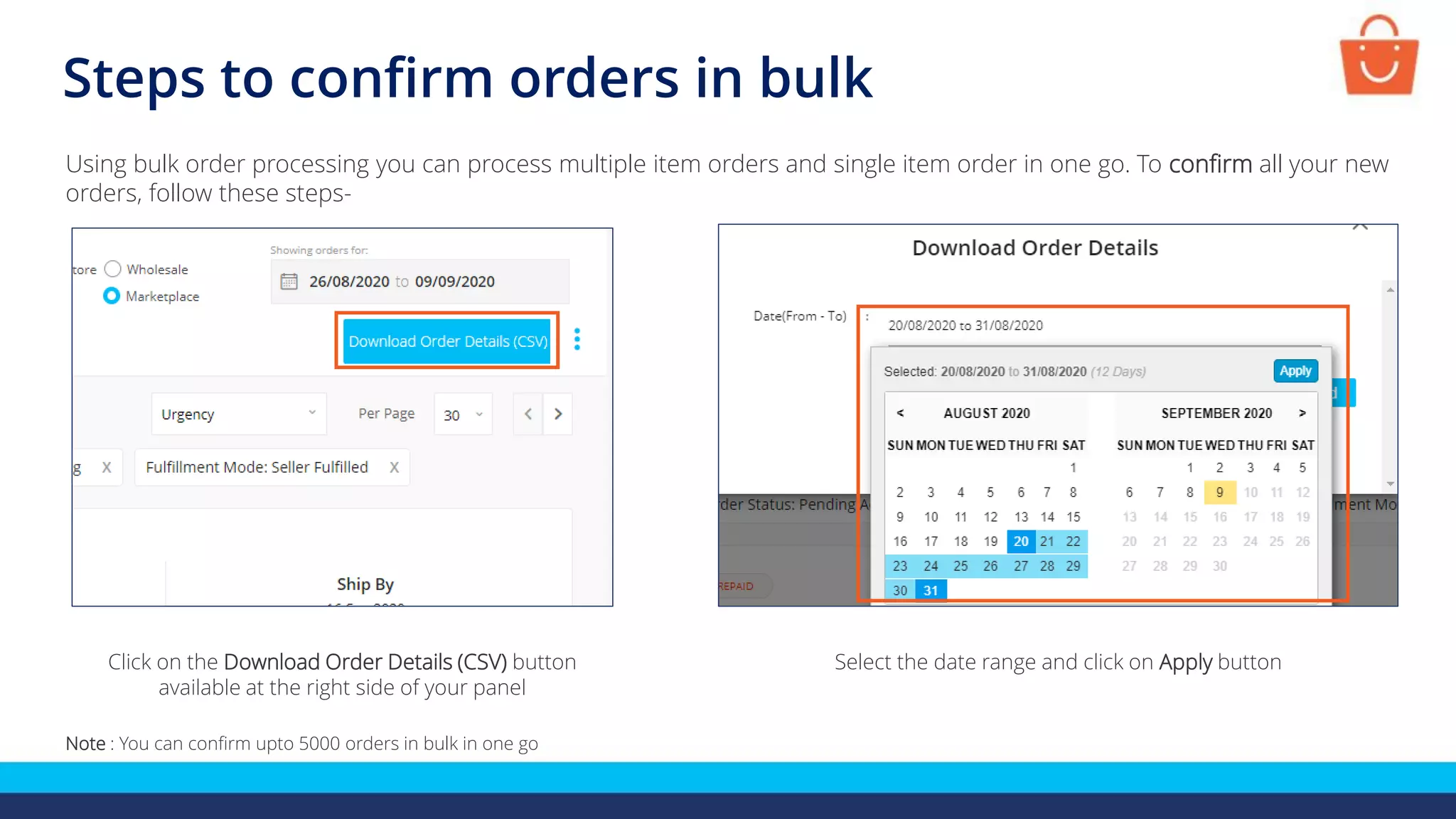
Using bulk order processing you can process multiple item orders and single item order in one go. To confirm all your new
orders, follow these steps-
Note : You can confirm upto 5000 orders in bulk in one go
Click on the Download Order Details (CSV) button
available at the right side of your panel
Select the date range and click on Apply button
Steps to confirm orders in bulk
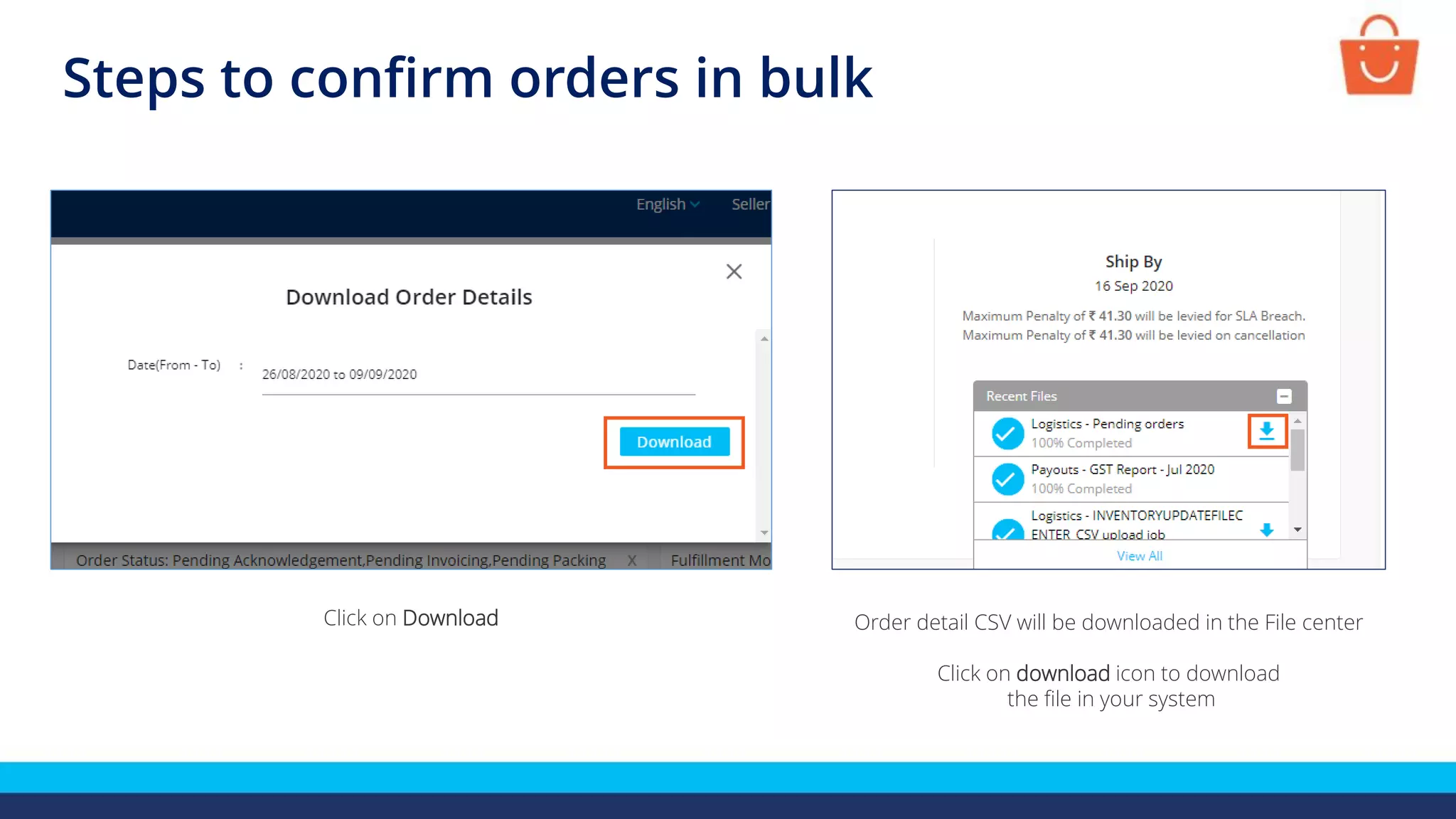
Order detail CSV will be downloaded in the File center
Click on download icon to download
the file in your system
Click on Download
Steps to confirm orders in bulk
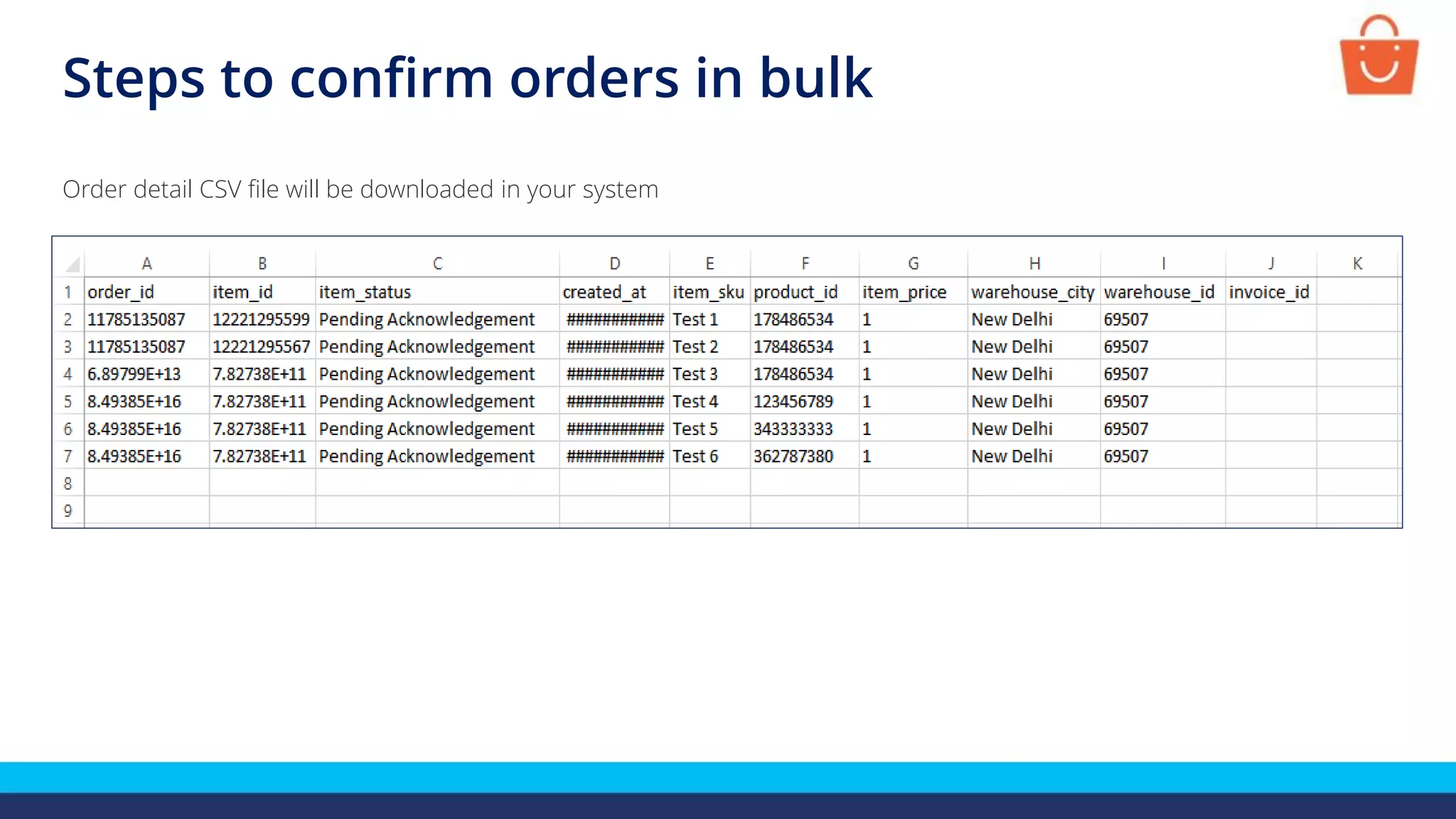
Order detail CSV file will be downloaded in your system
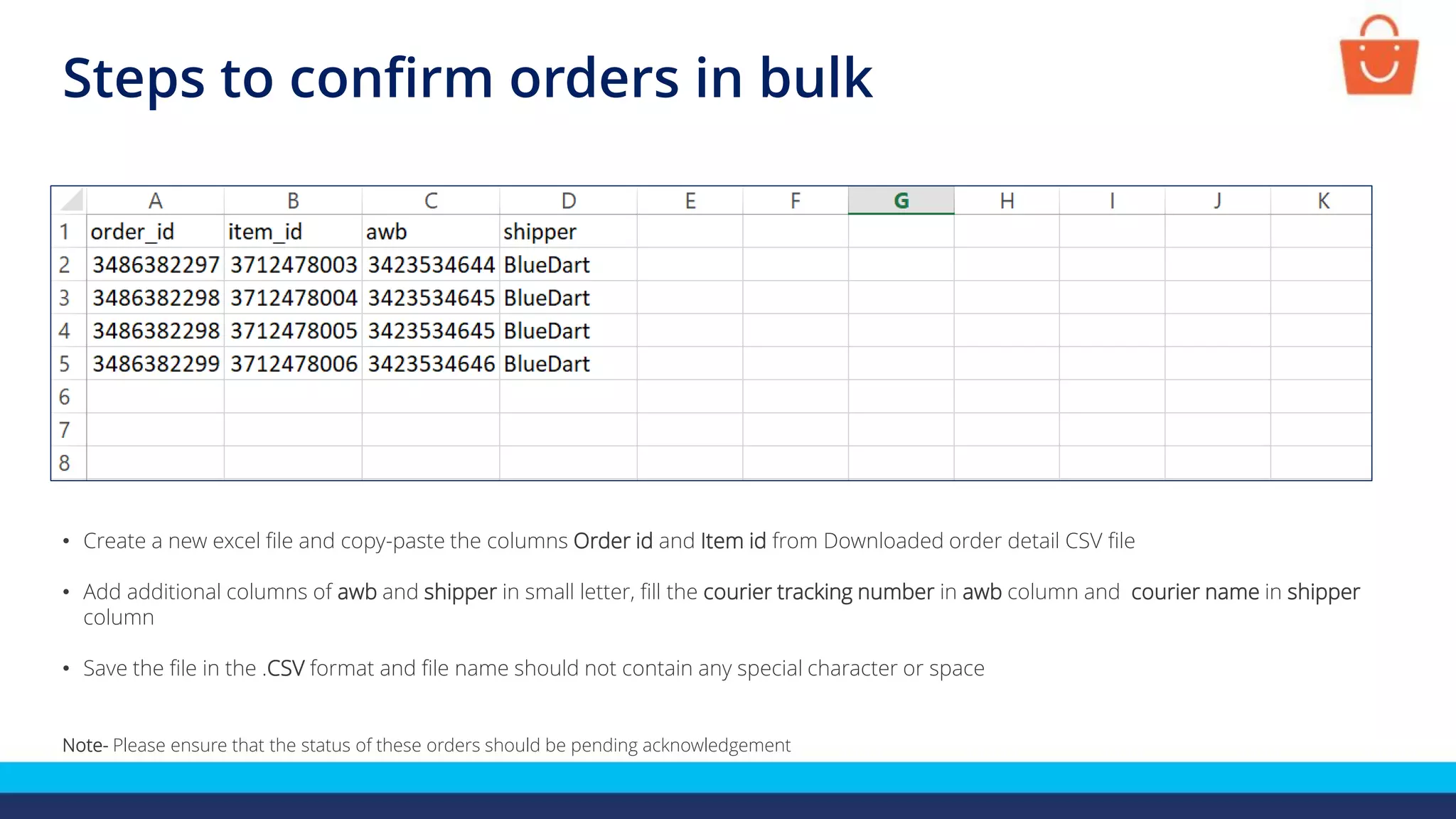
• Create a new excel file and copy-paste the columns Order id and Item id from Downloaded order detail CSV file
• Add additional columns of awb and shipper in small letter, fill the courier tracking number in awb column and courier name in shipper
column
• Save the file in the .CSV format and file name should not contain any special character or space
Note- Please ensure that the status of these orders should be pending acknowledgement
Steps to confirm orders in bulk
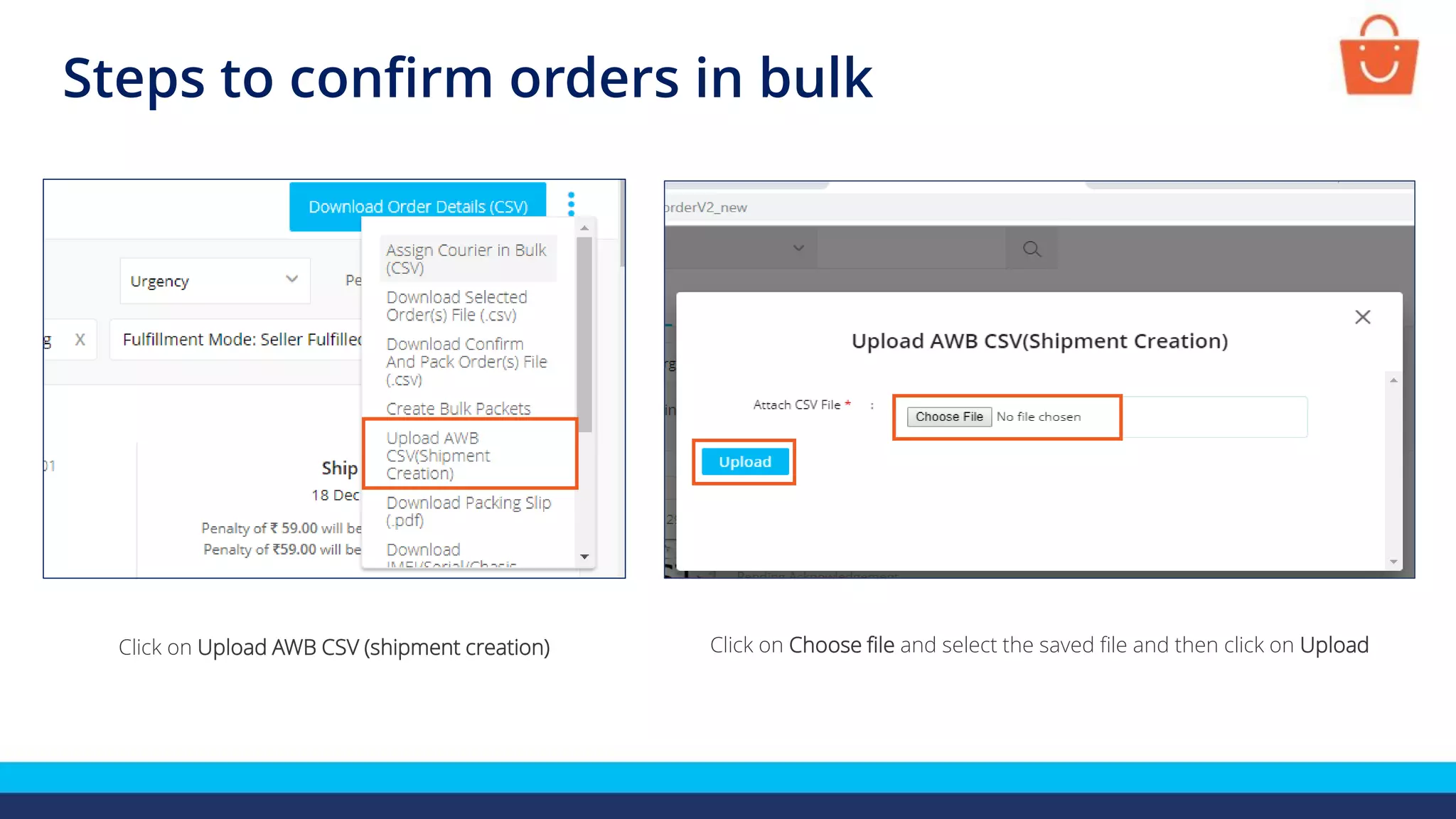
Click on Upload AWB CSV (shipment creation) Click on Choose file and select the saved file and then click on Upload
Steps to confirm orders in bulk
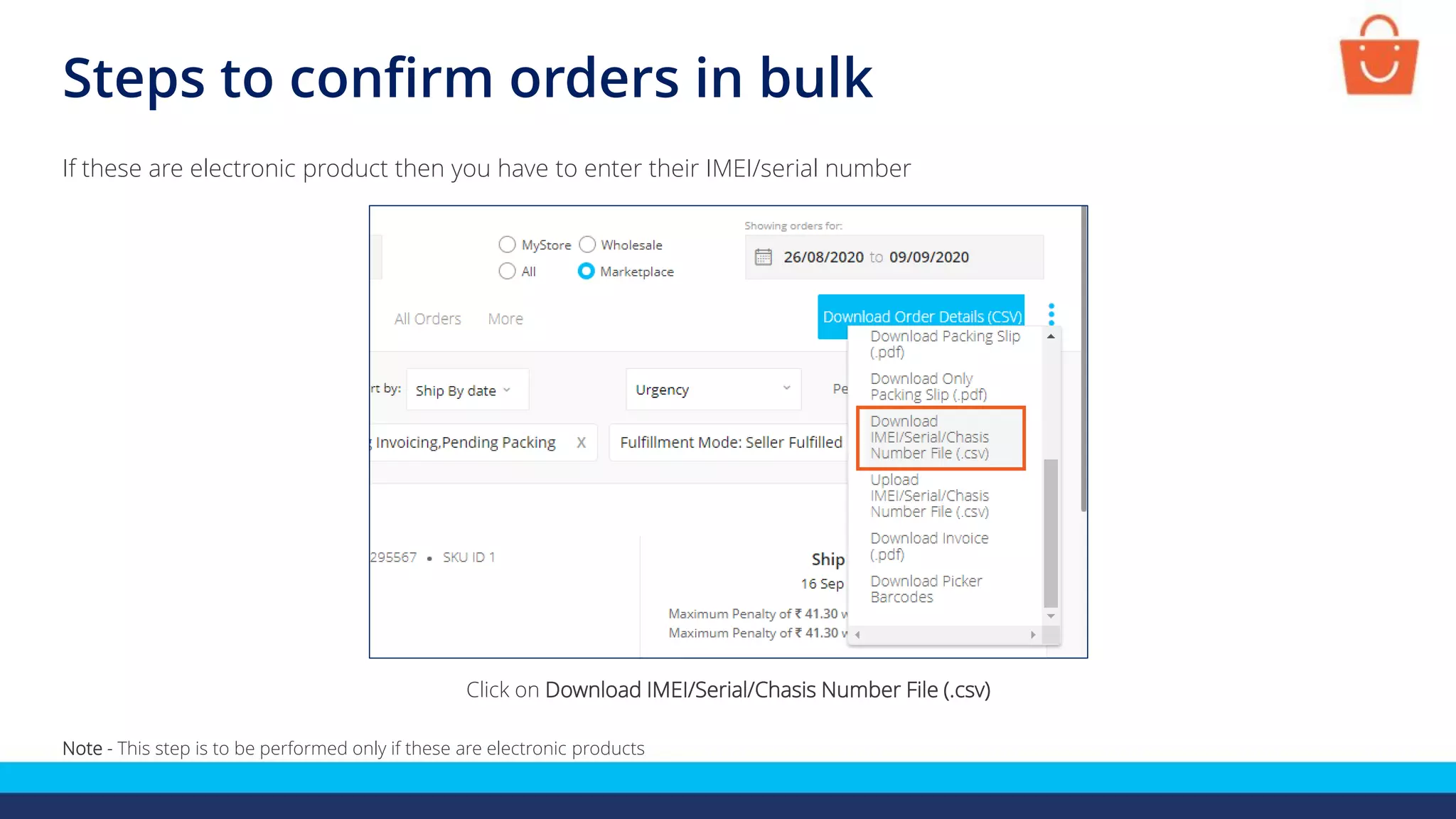
Click on Download IMEI/Serial/Chasis Number File (.csv)
If these are electronic product then you have to enter their IMEI/serial number
Note - This step is to be performed only if these are electronic products
Steps to confirm orders in bulk
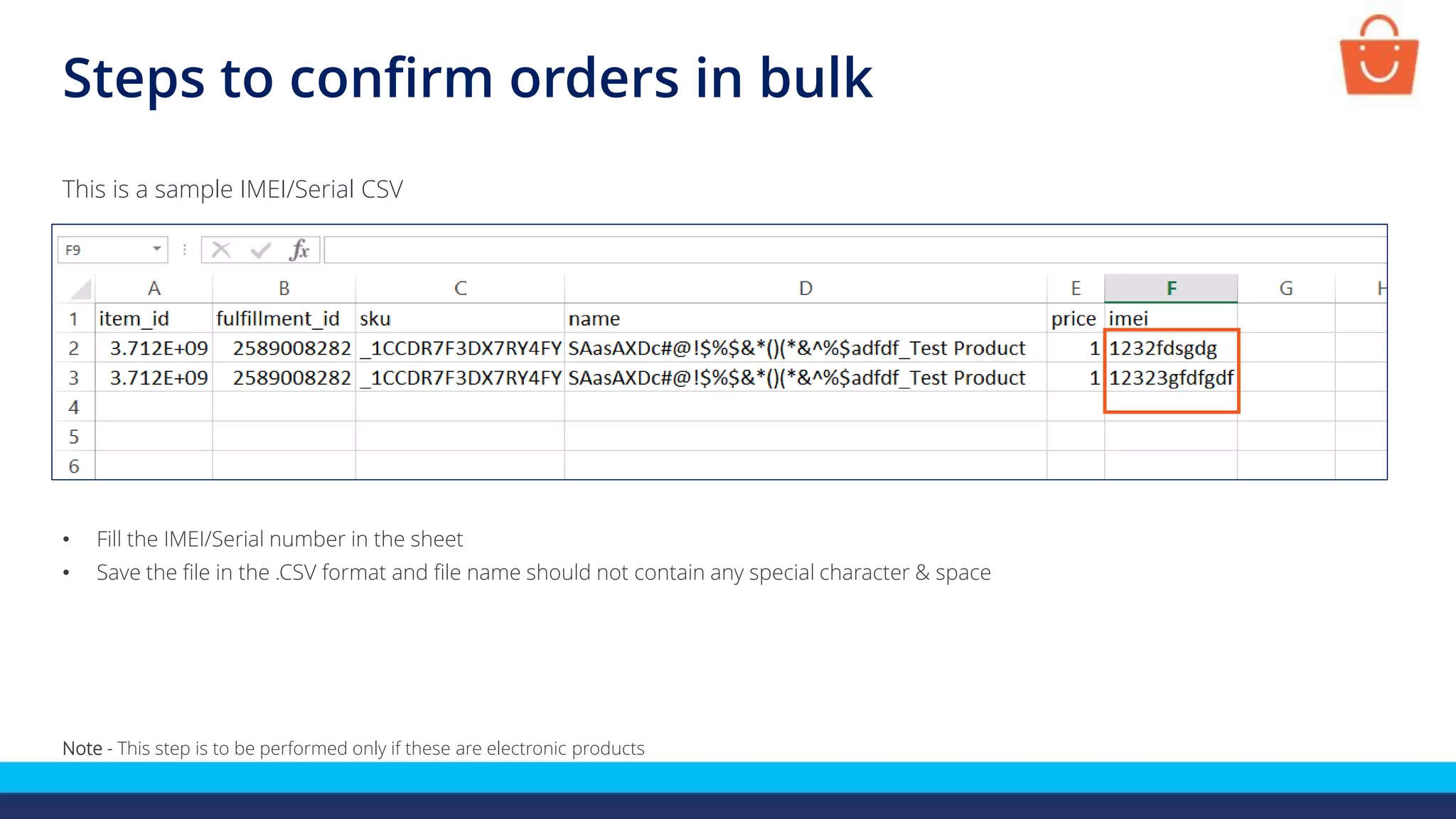
This is a sample IMEI/Serial CSV
• Fill the IMEI/Serial number in the sheet
• Save the file in the .CSV format and file name should not contain any special character & space
Note - This step is to be performed only if these are electronic products
Steps to confirm orders in bulk
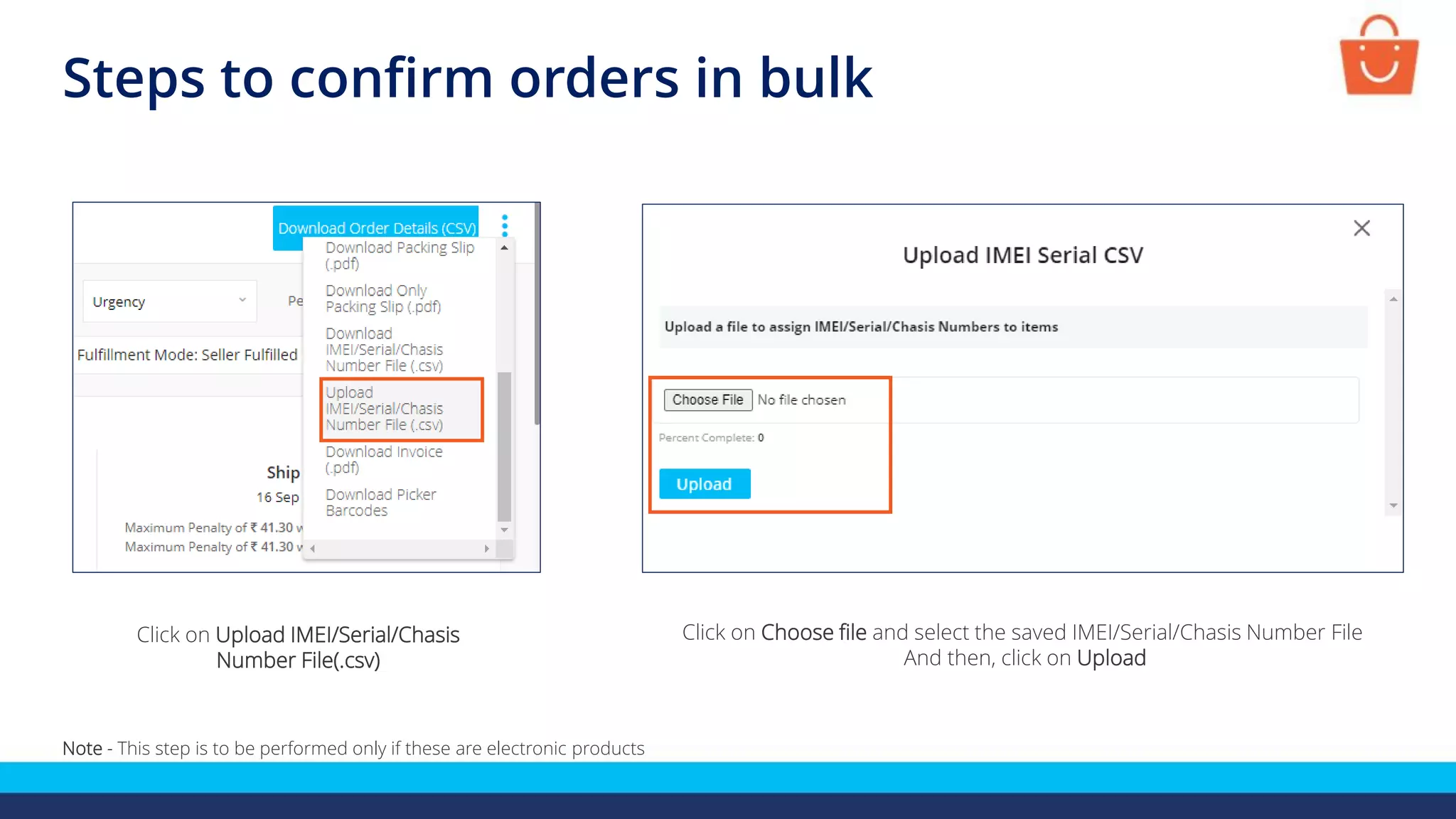
Click on Choose file and select the saved IMEI/Serial/Chasis Number File
And then, click on Upload
Click on Upload IMEI/Serial/Chasis
Number File(.csv)
Note - This step is to be performed only if these are electronic products
Steps to confirm orders in bulk
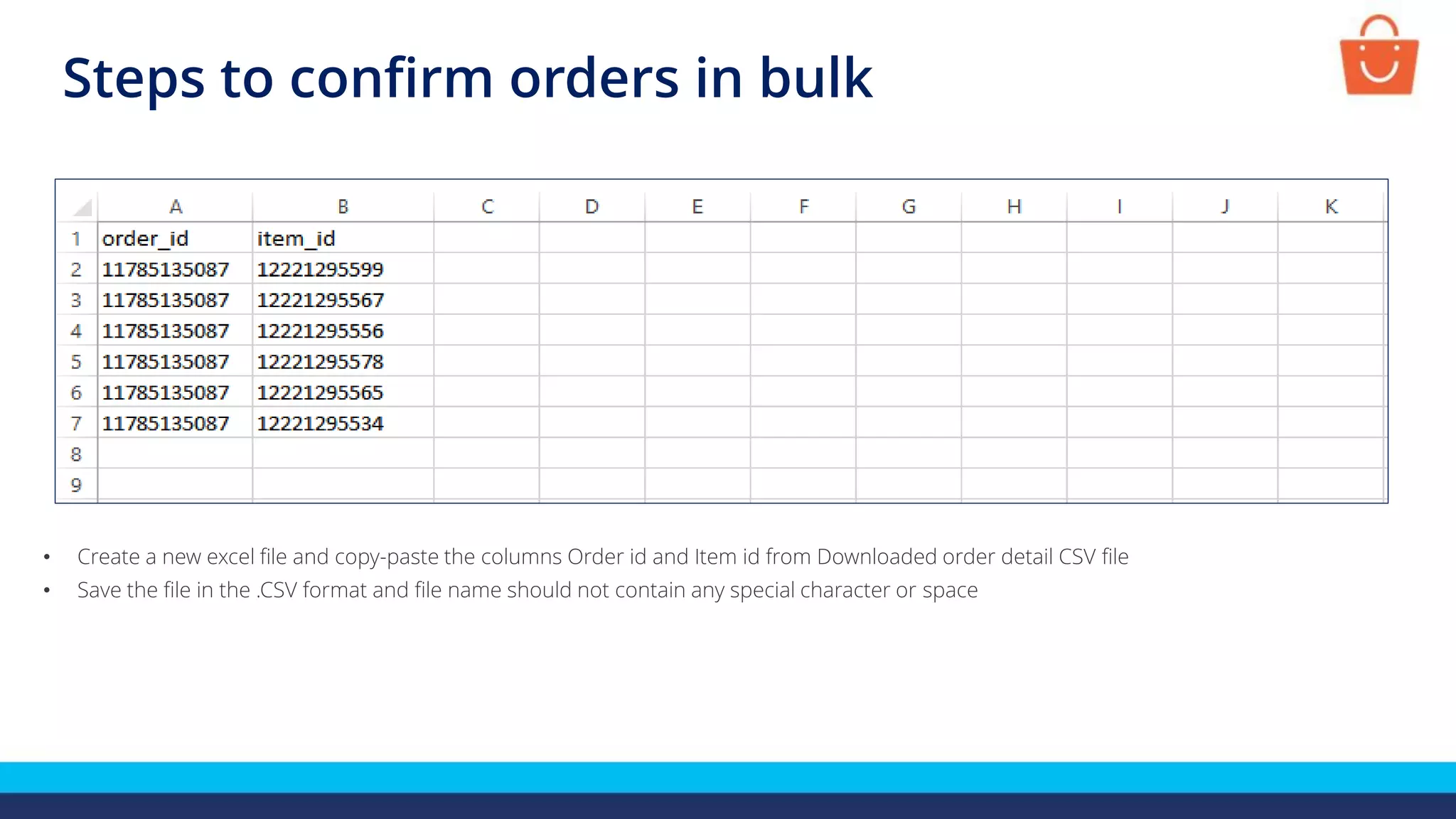
• Create a new excel file and copy-paste the columns Order id and Item id from Downloaded order detail CSV file
• Save the file in the .CSV format and file name should not contain any special character or space
Steps to confirm orders in bulk
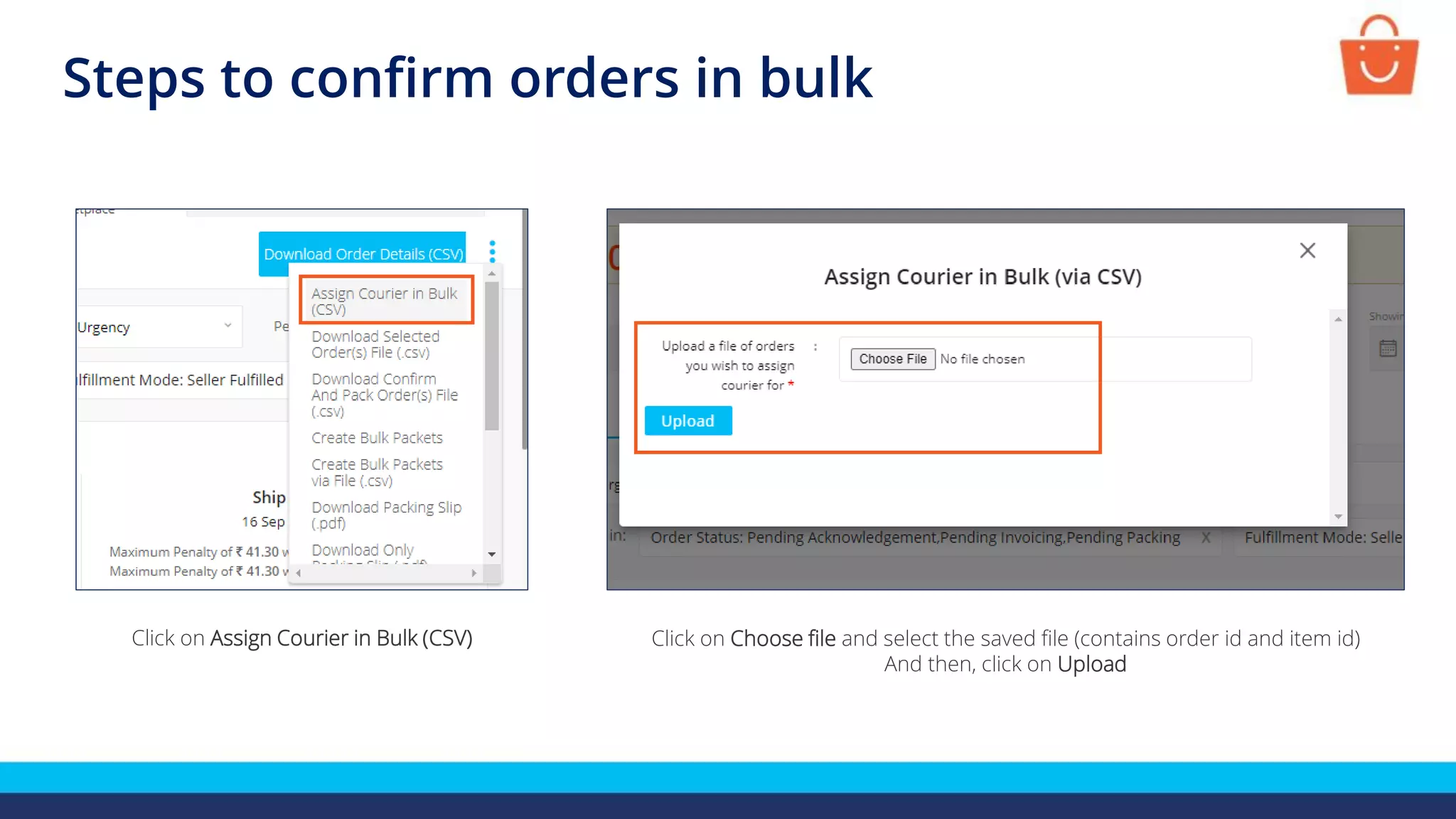
Click on Choose file and select the saved file (contains order id and item id)
And then, click on Upload
Click on Assign Courier in Bulk (CSV)
Steps to confirm orders in bulk
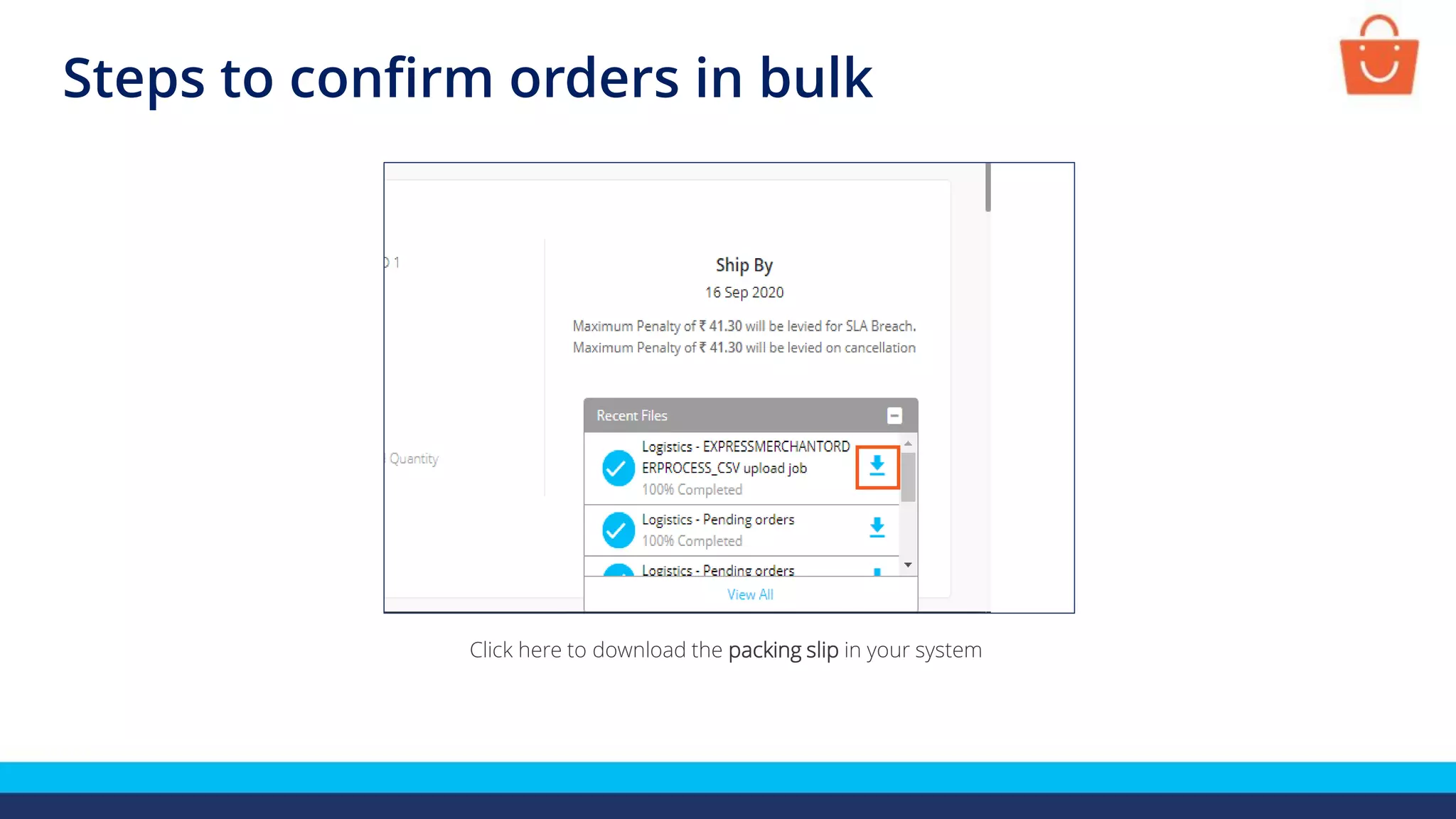
Click here to download the packing slip in your system
What is a packing slip?
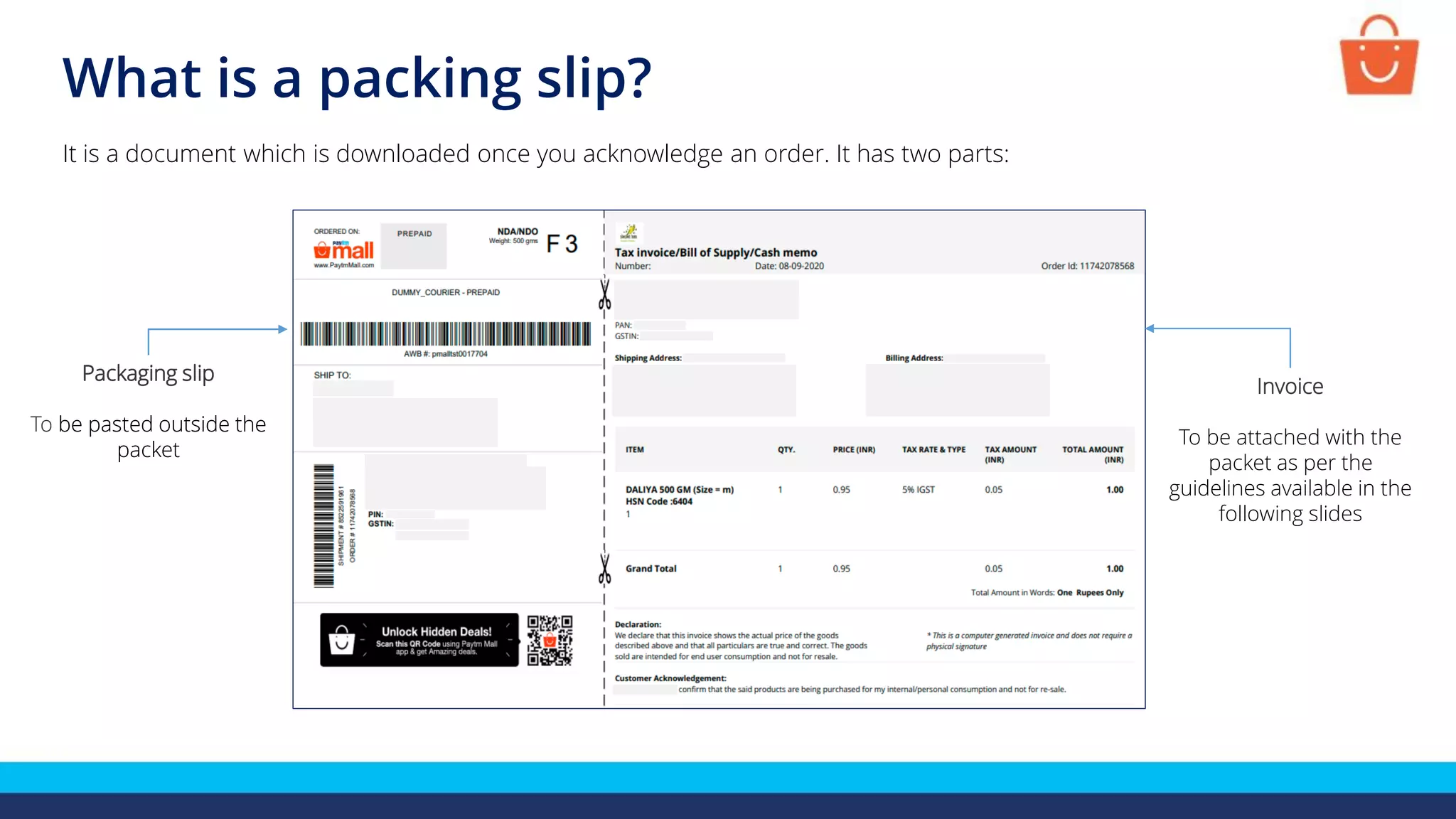
It is a document which is downloaded once you acknowledge an order. It has two parts:
Packaging slip
To be pasted outside the
packet
Invoice
To be attached with the
packet as per the
guidelines available in the
following slides
Packaging slip
To be pasted outside the
packet
Packing your order
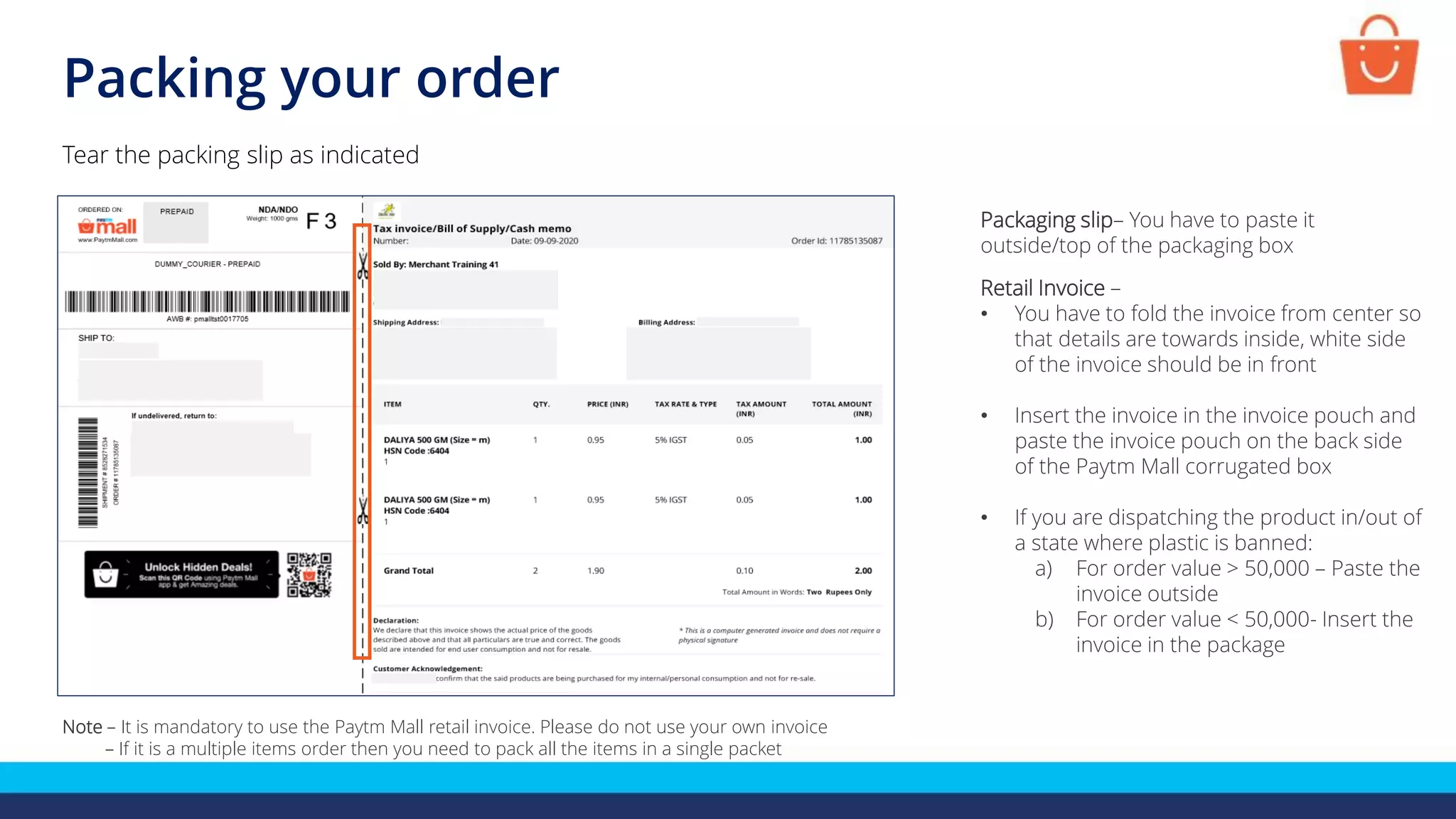
Tear the packing slip as indicated
Note – It is mandatory to use the Paytm Mall retail invoice. Please do not use your own invoice
– If it is a multiple items order then you need to pack all the items in a single packet
Packaging slip– You have to paste it
outside/top of the packaging box
Retail Invoice –
• You have to fold the invoice from center so
that details are towards inside, white side
of the invoice should be in front
• Insert the invoice in the invoice pouch and
paste the invoice pouch on the back side
of the Paytm Mall corrugated box
• If you are dispatching the product in/out of
a state where plastic is banned:
a) For order value > 50,000 – Paste the
invoice outside
b) For order value < 50,000- Insert the
invoice in the package
Packing your order
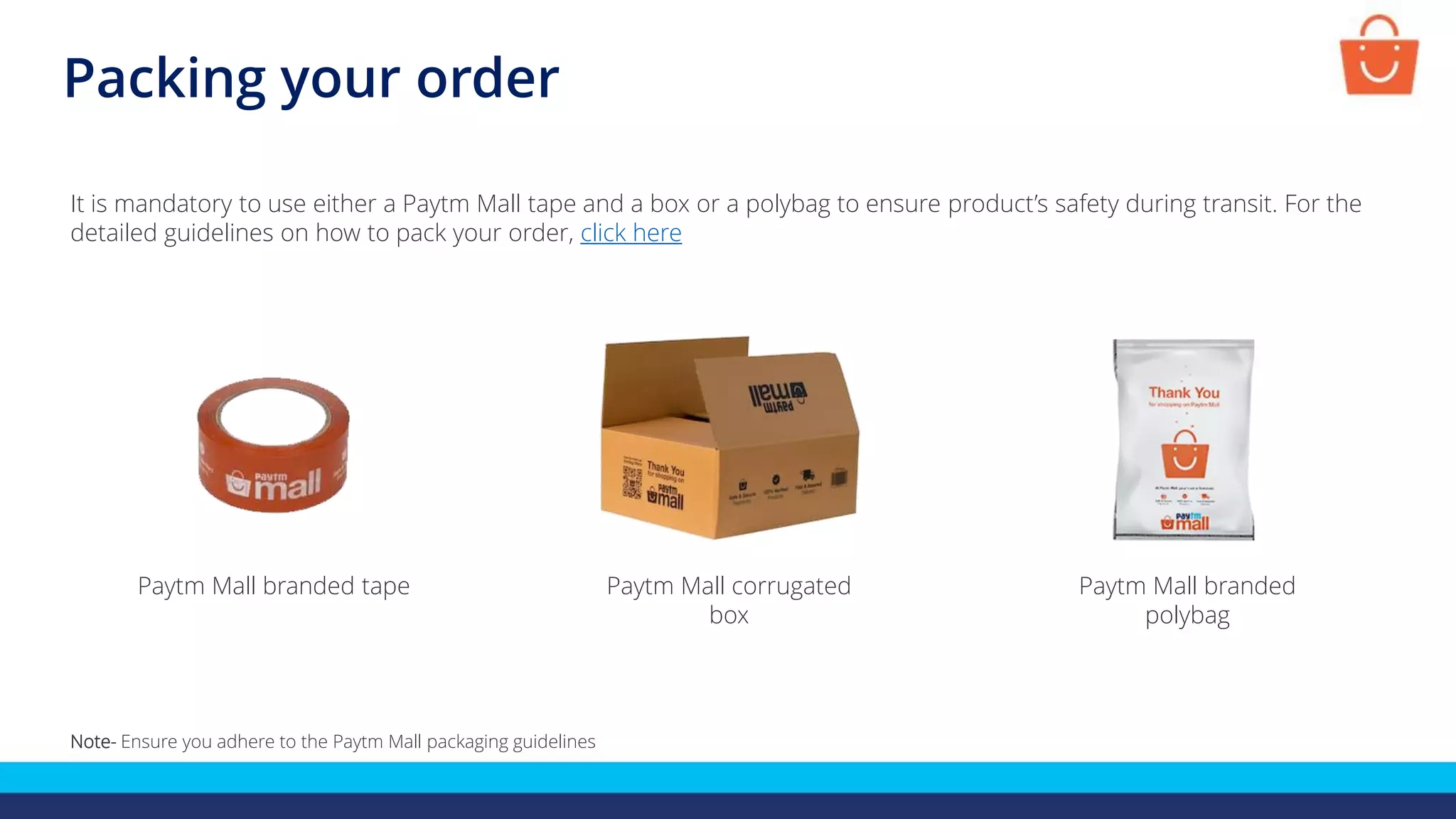
It is mandatory to use either a Paytm Mall tape and a box or a polybag to ensure product’s safety during transit. For the
detailed guidelines on how to pack your order, click here
Paytm Mall corrugated
box
Paytm Mall branded tape Paytm Mall branded
polybag
Note- Ensure you adhere to the Paytm Mall packaging guidelines
Steps to ship the order
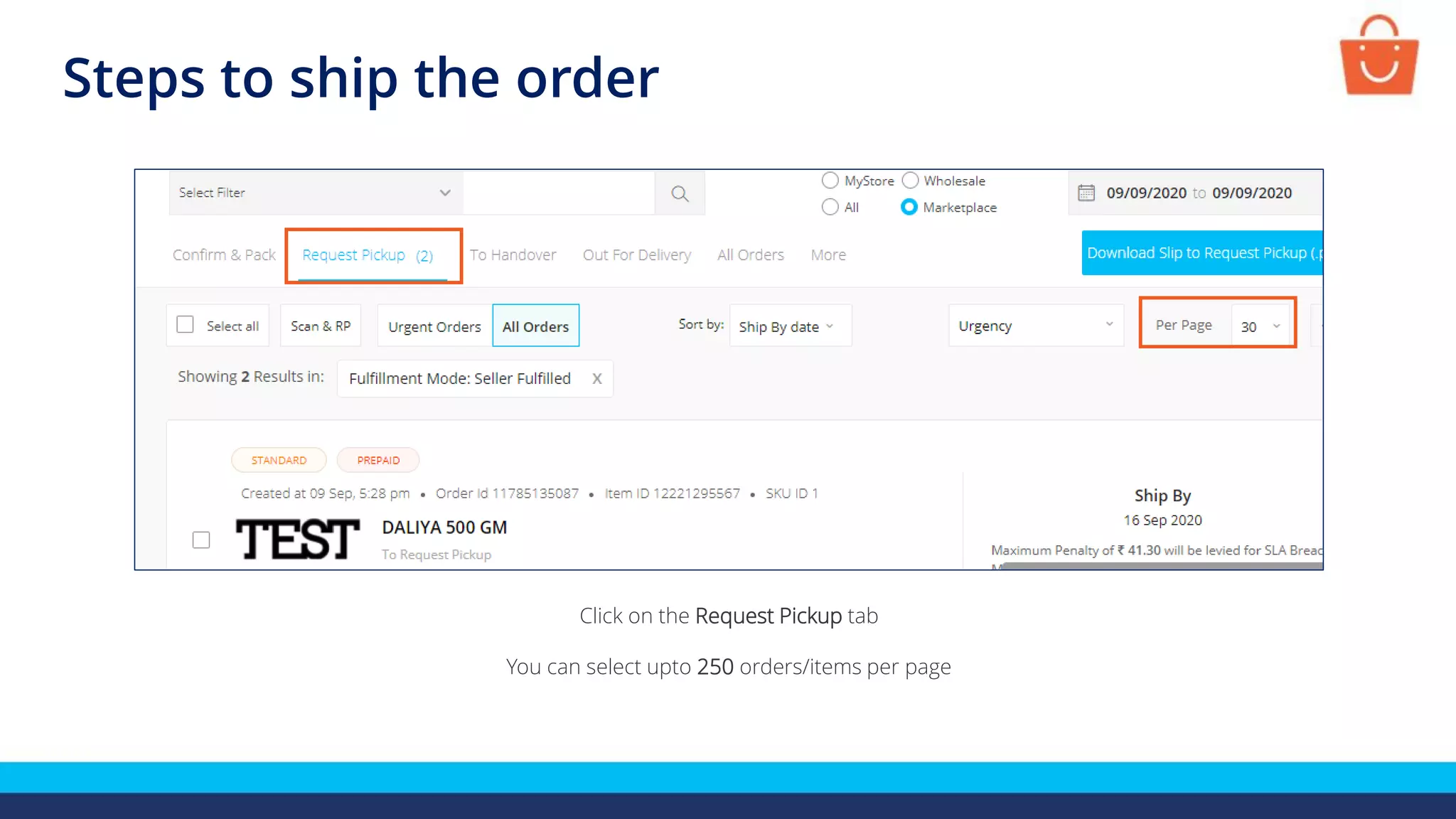
Click on the Request Pickup tab
You can select upto 250 orders/items per page
Steps to ship the order
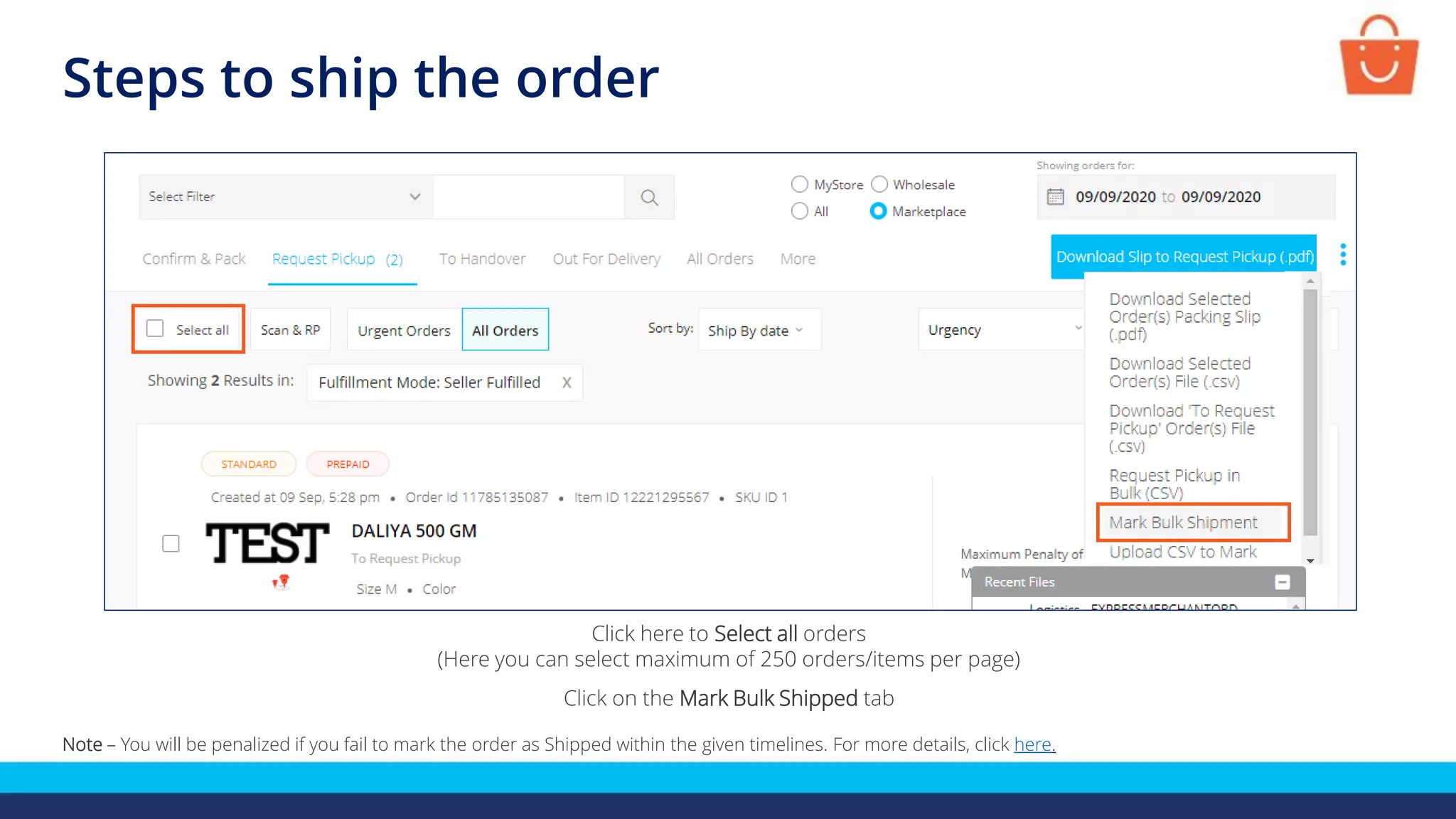
Click here to Select all orders
(Here you can select maximum of 250 orders/items per page)
Click on the Mark Bulk Shipped tab
Note – You will be penalized if you fail to mark the order as Shipped within the given timelines. For more details, click here.
Checking shipped
and delivered orders
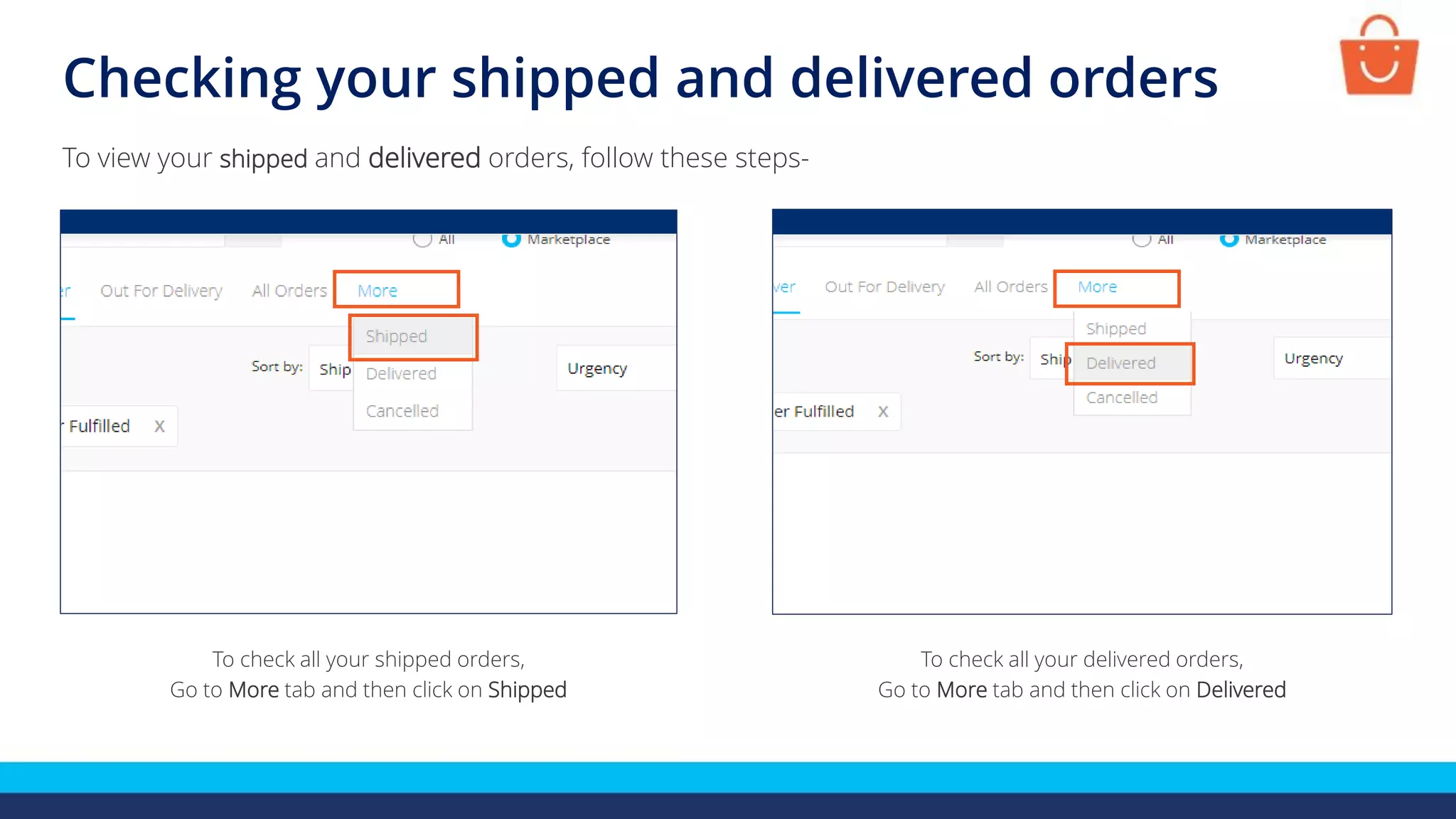
Checking your shipped and delivered orders
To check all your shipped orders,
Go to More tab and then click on Shipped
To view your shipped and delivered orders, follow these steps-
To check all your delivered orders,
Go to More tab and then click on Delivered
Download duplicate copies
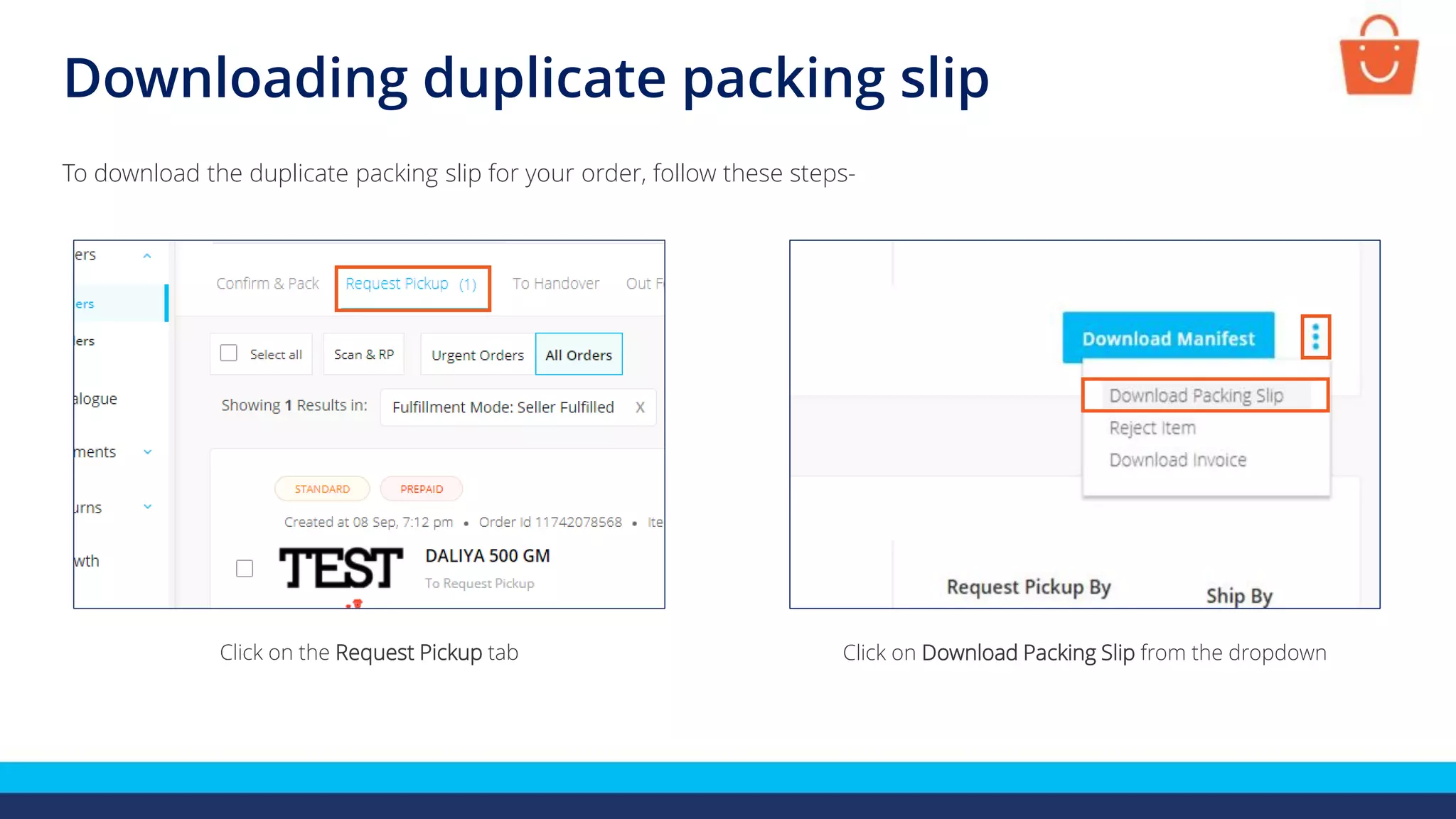
In case you have lost your packing slip before shipping, you can generate their
duplicates by going on Request Pickup tab
Click on Download Packing Slip from the dropdown
Downloading duplicate packing slip
To download the duplicate packing slip for your order, follow these steps-
Click on the Request Pickup tab
Thanks everyone!
For any query, please raise a ticket using the Seller Helpdesk tab on
your seller panel

Steps to process orders in bulk - Self Ship (Non LMD)

  • 1.
    Bulk Order Processing (Non-LMD) Inthis module, we will discuss:- 1. Order lifecycle 2. About self ship (Non-LMD) Sellers 3. Steps to process orders in bulk 4. Checking shipped and delivered orders
  • 2.
    Order lifecycle You acknowledgethe order You ship the order from your warehouse The customer receives the product Customer places an order You enter the courier details and pack the order
  • 3.
    Self ship sellersalso known as Non Last Mile Delivery (Non-LMD) sellers are those who do not use Paytm Mall logistic services and have to fulfill the logistics related requirements on their own Benefits: • Decide upon the pin code where you want to serve • Closer to the customer thereby better understanding of their needs • The seller has the freedom to choose his means of delivery and thus can save on charges SELLER CUSTOMER Seller’s Courier partner Who are the self ship Sellers?
  • 4.
    Checking new orders Tocheck all your new orders, follow these steps- Go to the Orders tab and then click on Confirm & Pack tab Here you can check all your new orders
  • 5.
    Stages of processingorders in bulk The bulk orders can be processed in four simple steps: Confirm the orders Mark the orders as Shipped Orders are delivered to the customer Pack the orders
  • 6.
    Steps to confirmorders in bulk Using bulk order processing you can process multiple item orders and single item order in one go. To confirm all your new orders, follow these steps- Note : You can confirm upto 5000 orders in bulk in one go Click on the Download Order Details (CSV) button available at the right side of your panel Select the date range and click on Apply button
  • 7.
    Steps to confirmorders in bulk Order detail CSV will be downloaded in the File center Click on download icon to download the file in your system Click on Download
  • 8.
    Steps to confirmorders in bulk Order detail CSV file will be downloaded in your system
  • 9.
    • Create anew excel file and copy-paste the columns Order id and Item id from Downloaded order detail CSV file • Add additional columns of awb and shipper in small letter, fill the courier tracking number in awb column and courier name in shipper column • Save the file in the .CSV format and file name should not contain any special character or space Note- Please ensure that the status of these orders should be pending acknowledgement Steps to confirm orders in bulk
  • 10.
    Steps to confirmorders in bulk Click on Upload AWB CSV (shipment creation) Click on Choose file and select the saved file and then click on Upload
  • 11.
    Steps to confirmorders in bulk Click on Download IMEI/Serial/Chasis Number File (.csv) If these are electronic product then you have to enter their IMEI/serial number Note - This step is to be performed only if these are electronic products
  • 12.
    Steps to confirmorders in bulk This is a sample IMEI/Serial CSV • Fill the IMEI/Serial number in the sheet • Save the file in the .CSV format and file name should not contain any special character & space Note - This step is to be performed only if these are electronic products
  • 13.
    Steps to confirmorders in bulk Click on Choose file and select the saved IMEI/Serial/Chasis Number File And then, click on Upload Click on Upload IMEI/Serial/Chasis Number File(.csv) Note - This step is to be performed only if these are electronic products
  • 14.
    Steps to confirmorders in bulk • Create a new excel file and copy-paste the columns Order id and Item id from Downloaded order detail CSV file • Save the file in the .CSV format and file name should not contain any special character or space
  • 15.
    Steps to confirmorders in bulk Click on Choose file and select the saved file (contains order id and item id) And then, click on Upload Click on Assign Courier in Bulk (CSV)
  • 16.
    Steps to confirmorders in bulk Click here to download the packing slip in your system
  • 17.
    What is apacking slip? It is a document which is downloaded once you acknowledge an order. It has two parts: Packaging slip To be pasted outside the packet Invoice To be attached with the packet as per the guidelines available in the following slides Packaging slip To be pasted outside the packet
  • 18.
    Packing your order Tearthe packing slip as indicated Note – It is mandatory to use the Paytm Mall retail invoice. Please do not use your own invoice – If it is a multiple items order then you need to pack all the items in a single packet Packaging slip– You have to paste it outside/top of the packaging box Retail Invoice – • You have to fold the invoice from center so that details are towards inside, white side of the invoice should be in front • Insert the invoice in the invoice pouch and paste the invoice pouch on the back side of the Paytm Mall corrugated box • If you are dispatching the product in/out of a state where plastic is banned: a) For order value > 50,000 – Paste the invoice outside b) For order value < 50,000- Insert the invoice in the package
  • 19.
    Packing your order Itis mandatory to use either a Paytm Mall tape and a box or a polybag to ensure product’s safety during transit. For the detailed guidelines on how to pack your order, click here Paytm Mall corrugated box Paytm Mall branded tape Paytm Mall branded polybag Note- Ensure you adhere to the Paytm Mall packaging guidelines
  • 20.
    Steps to shipthe order Click on the Request Pickup tab You can select upto 250 orders/items per page
  • 21.
    Steps to shipthe order Click here to Select all orders (Here you can select maximum of 250 orders/items per page) Click on the Mark Bulk Shipped tab Note – You will be penalized if you fail to mark the order as Shipped within the given timelines. For more details, click here.
  • 22.
  • 23.
    Checking your shippedand delivered orders To check all your shipped orders, Go to More tab and then click on Shipped To view your shipped and delivered orders, follow these steps- To check all your delivered orders, Go to More tab and then click on Delivered
  • 24.
    Download duplicate copies Incase you have lost your packing slip before shipping, you can generate their duplicates by going on Request Pickup tab
  • 25.
    Click on DownloadPacking Slip from the dropdown Downloading duplicate packing slip To download the duplicate packing slip for your order, follow these steps- Click on the Request Pickup tab
  • 26.
    Thanks everyone! For anyquery, please raise a ticket using the Seller Helpdesk tab on your seller panel