In this module we will discuss :-
1. What is file center and its benefits?
2. How can you access file center in seller panel?
File center overview
BenefitsDefinition
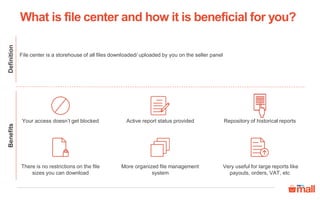
File center is a storehouse of all files downloaded/ uploaded by you on the seller panel
Repository of historical reportsActive report status providedYour access doesn’t get blocked
More organized file management
system
Very useful for large reports like
payouts, orders, VAT, etc
There is no restrictions on the file
sizes you can download
What is file center and how it is beneficial for you?
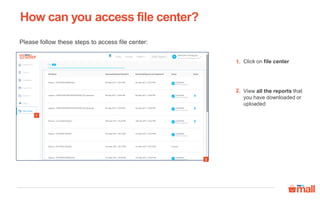
Click on file center
View all the reports that
you have downloaded or
uploaded
Please follow these steps to access file center:
2.
1
1.
2
How can you access file center?
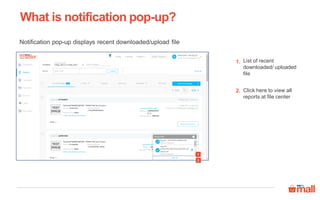
List of recent
downloaded/ uploaded
file
Notification pop-up displays recent downloaded/upload file
Click here to view all
reports at file center
2.
1.
1
2
What is notification pop-up?
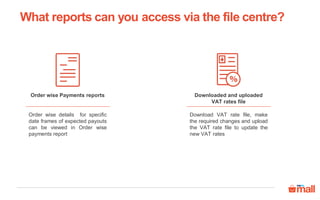
Downloaded and uploaded
VAT rates file
Download VAT rate file, make
the required changes and upload
the VAT rate file to update the
new VAT rates
Order wise Payments reports
Order wise details for specific
date frames of expected payouts
can be viewed in Order wise
payments report
What reports can you access via the file centre?
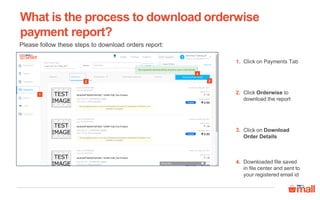
Click on Download
Order Details
Click on Payments Tab
Click Orderwise to
download the report
Downloaded file saved
in file center and sent to
your registered email id
Please follow these steps to download orders report:
2
1
4
3
1.
2.
3.
4.
What is the process to download orderwise
payment report?
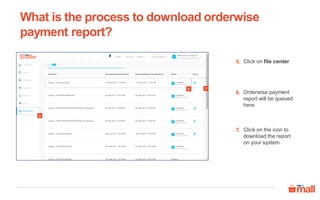
Click on file center
Orderwise payment
report will be queued
here
Click on the icon to
download the report
on your system
5
6 7
5.
6.
7.
What is the process to download orderwise
payment report?
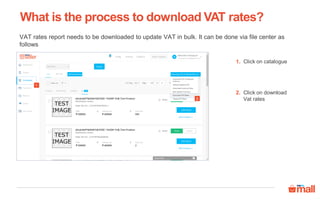
Click on catalogue
Click on download
Vat rates
VAT rates report needs to be downloaded to update VAT in bulk. It can be done via file center as
follows
1
2
1.
2.
What is the process to download VAT rates?
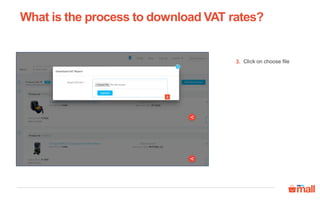
Click on choose file
3
3.
What is the process to download VAT rates?
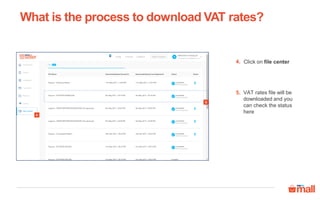
Click on file center
VAT rates file will be
downloaded and you
can check the status
here
4
5
4.
5.
What is the process to download VAT rates?
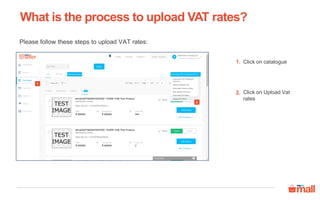
Click on catalogue
Click on Upload Vat
rates
Please follow these steps to upload VAT rates:
1
2
1.
2.
What is the process to upload VAT rates?
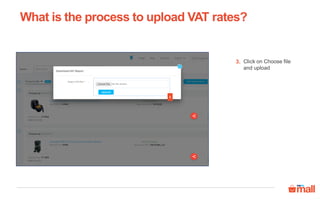
Click on Choose file
and upload
3
3.
What is the process to upload VAT rates?
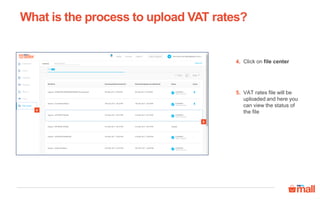
Click on file center
VAT rates file will be
uploaded and here you
can view the status of
the file
What is the process to upload VAT rates?
4
5
4.
5.
Thanks everyone!
For any query please raise a ticket on support

File center overview

  • 1.
    In this modulewe will discuss :- 1. What is file center and its benefits? 2. How can you access file center in seller panel? File center overview
  • 2.
    BenefitsDefinition File center isa storehouse of all files downloaded/ uploaded by you on the seller panel Repository of historical reportsActive report status providedYour access doesn’t get blocked More organized file management system Very useful for large reports like payouts, orders, VAT, etc There is no restrictions on the file sizes you can download What is file center and how it is beneficial for you?
  • 3.
    Click on filecenter View all the reports that you have downloaded or uploaded Please follow these steps to access file center: 2. 1 1. 2 How can you access file center?
  • 4.
    List of recent downloaded/uploaded file Notification pop-up displays recent downloaded/upload file Click here to view all reports at file center 2. 1. 1 2 What is notification pop-up?
  • 5.
    Downloaded and uploaded VATrates file Download VAT rate file, make the required changes and upload the VAT rate file to update the new VAT rates Order wise Payments reports Order wise details for specific date frames of expected payouts can be viewed in Order wise payments report What reports can you access via the file centre?
  • 6.
    Click on Download OrderDetails Click on Payments Tab Click Orderwise to download the report Downloaded file saved in file center and sent to your registered email id Please follow these steps to download orders report: 2 1 4 3 1. 2. 3. 4. What is the process to download orderwise payment report?
  • 7.
    Click on filecenter Orderwise payment report will be queued here Click on the icon to download the report on your system 5 6 7 5. 6. 7. What is the process to download orderwise payment report?
  • 8.
    Click on catalogue Clickon download Vat rates VAT rates report needs to be downloaded to update VAT in bulk. It can be done via file center as follows 1 2 1. 2. What is the process to download VAT rates?
  • 9.
    Click on choosefile 3 3. What is the process to download VAT rates?
  • 10.
    Click on filecenter VAT rates file will be downloaded and you can check the status here 4 5 4. 5. What is the process to download VAT rates?
  • 11.
    Click on catalogue Clickon Upload Vat rates Please follow these steps to upload VAT rates: 1 2 1. 2. What is the process to upload VAT rates?
  • 12.
    Click on Choosefile and upload 3 3. What is the process to upload VAT rates?
  • 13.
    Click on filecenter VAT rates file will be uploaded and here you can view the status of the file What is the process to upload VAT rates? 4 5 4. 5.
  • 14.
    Thanks everyone! For anyquery please raise a ticket on support